
MC 4451 iP - Loudspeaker AEG - Free user manual and instructions
Find the device manual for free MC 4451 iP AEG in PDF.


| Product Type | Music Center for iPhone/iPod |
| Brand | AEG |
| Model | MC 4451 iP |
| Power Supply | DC 9V 2500 mA (included adapter) |
| Power Consumption | 31 W (music center), 34 W (subwoofer) |
| Net Weight | 3.48 kg |
| Radio FM Frequency Range | 87.5 – 108.0 MHz |
| CD Player | Yes (supports CD, CD-R, CD-RW, MP3 CD) |
| USB Port | Yes |
| SD/MMC Card Slot | Yes |
| iPod/iPhone Dock | Yes (with charging) |
| AUX Input | Yes (3.5 mm) |
| Headphone Output | Yes (3.5 mm) |
| Remote Control | Included (batteries not included) |
| Display | LCD |
| Alarm Function | Yes (with snooze) |
| Sleep Timer | Yes (10 to 90 minutes in 10-minute steps) |
| Preset EQ Modes | Flat, Classic, Rock, Pop, Jazz |
| Subwoofer Connection | Wireless (range up to 6 m) |
| Wall Mountable | Yes (mounting accessories not supplied) |
| Class 1 Laser | Yes (for CD player) |
| Protection Class | II (subwoofer and power supply) |
Frequently Asked Questions - MC 4451 iP AEG
User questions about MC 4451 iP AEG
0 question about this device. Answer the ones you know or ask your own.
Ask a new question about this device
Download the instructions for your Loudspeaker in PDF format for free! Find your manual MC 4451 iP - AEG and take your electronic device back in hand. On this page are published all the documents necessary for the use of your device. MC 4451 iP by AEG.
USER MANUAL MC 4451 iP AEG
2.1 Music Center for iPhone/iPod
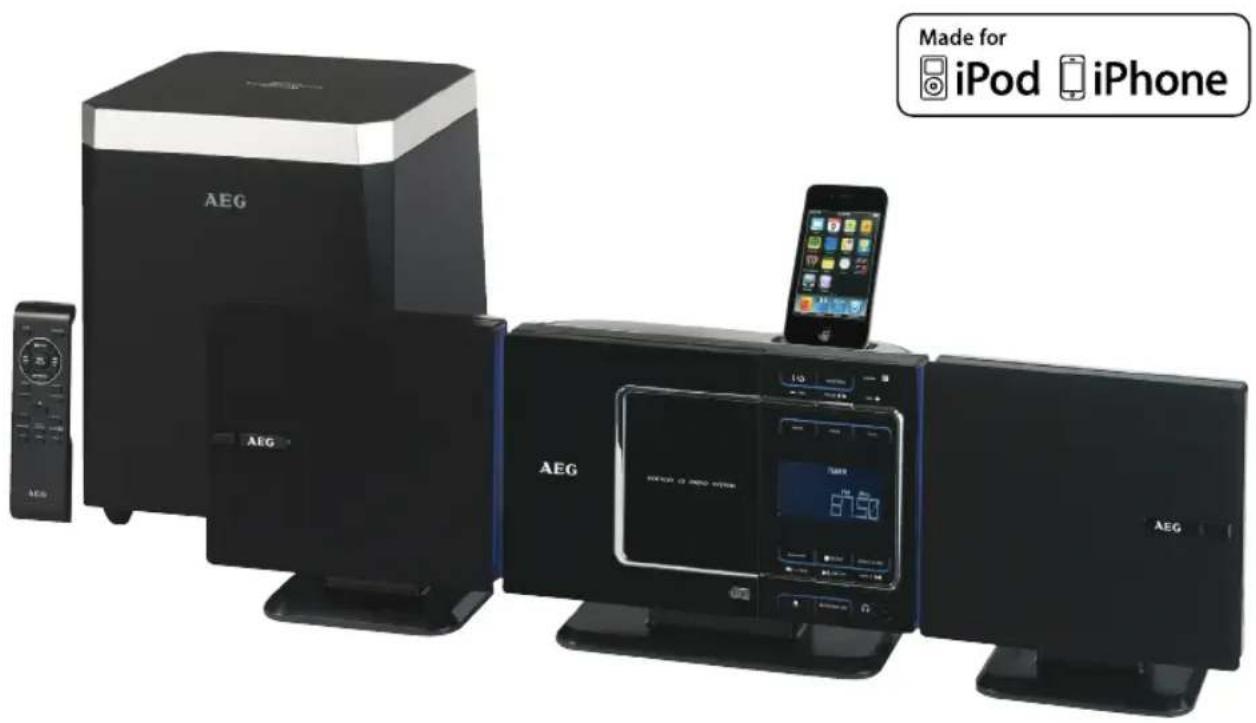
Location of Controls ...... page 3
Technical Specifications ...... page 21
Disposal/Meaning of the "Wheelie Bin" Symbol .... page 21
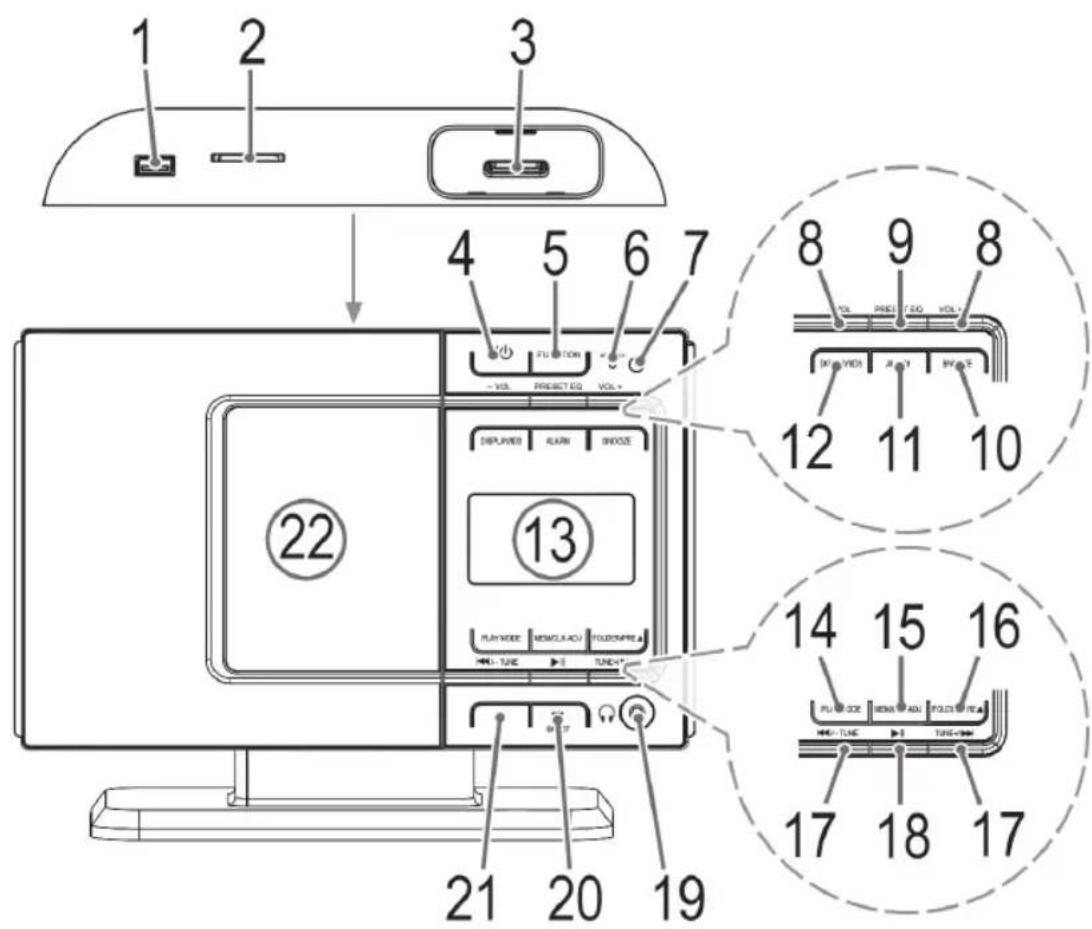
Location of Controls
General Safety Guidelines
Before using this device, carefully read this user manual and keep it together with the Warranty Certificate, cashier receipt and if possible, the original package inclusive its interior packing. If you hand on the device to any third person, include the user manual as well.
- To avoid the risk of fire or electric shock, do not expose the device to rain or humidity. Do not operate near water (e.g. in bathrooms, swimming pools and wet basements).
- Only use the device for private use and the intended purpose. This device is not intended for commercial use.
- Ensure that the power cable is not kinked, crushed or in contact with heat sources.
- Ensure that the power cable does not present a trip hazard. • The power supply is only designed for use in dry areas.
- The subwoofer and the power supply should only be connected to a properly installed wall socket. Make sure the voltage indicated on the device is in conformity with the voltage of the outlet. Also check whether the output voltage and the polarity of the power supply match the details on the connected unit. • Do not touch the power supply with wet hands! • Always insert batteries correctly.
- When installing the device, do not cover any of the ventilation openings.
- Never open the enclosure of the device. Improper repairs may cause significant hazards to the user. In case the device or the mains cable are damaged, do not operate the device and have it repaired by an expert. Regularly check the mains cable for damage.
- In order to avoid hazards, a damaged mains cable must be replaced with an equivalent cable by the manufacturer, our customer service or any other specialist.
- If you do not use the device for a longer period of time, please unplug the device and remove the batteries.
These symbols may be found on the device and are intended as warnings:
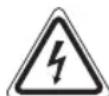
The lightning flash is intended to alert the user to the presence of dangerous voltage within the device.

The exclamation mark is intended to alert the user to the presence of important operating and maintenance instructions accompanying this device.

Products with this symbol operate with a "Class 1 Laser" for scanning the CD. The built-in safety switches are intended to prevent the user from being exposed to the dangerous laser beam not visible to the eye when opening the CD compartment.
These safety switches must not be bypassed or altered; otherwise there is a risk of being exposed to the laser beam.
Children and disabled persons
- For the safety of your children, keep any packing parts (plastic bags, cardboard, Styrofoam, etc.) out of their reach.

WARNING!
Don't let small children play with foils for danger of suffocation!
- This device is not intended for use by persons (including children) with reduced physical, sensory or mental capabilities, or lack of experience and/or knowledge unless they have been given supervision or instructions concerning the use of the device by a person responsible for their safety.
- Supervise children to ensure they do not play with the device.
Symbols in this user manual
Important notes for your safety are marked distinctively. Pay absolute attention to them to avoid accidents and damage to the device.

WARNING:
Warns of dangers for your health and indicates potential risks of injury.

CAUTION:
Indicates potential dangers for the device or other objects.

NOTE:
Highlights tips and information for you.
Special safety guidelines
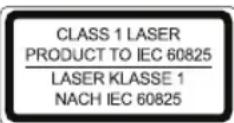
This device operates with a Class 1 laser.
Overview of the components
1 USB port 2 SD/MMC card slot 3 Docking Port 4 /button (standby/power)
5 FUNCTION (function switch)
6 STANDBY Indicator
7 IR sensor for the remote control
8 VOL +/- buttons
9 PRESET EQ button
10 SNOOZE button
11 ALARM button
12 DISPLAY/ID3 button
13 LCD display
14 PLAY MODE button (Repeat/Random play)
15 MEM/CLK-ADJ. button (memory/clock)
16 FOLDER/PR▲ (Folder/Preset Up) button
17 TUNE+▶▶/▲◀ TUNE- buttons (search forward/backwards)
18 ▶ II button (play/pause)
19 headphone jack
20 ■ ST/MO button (Stop / Stereo/Mono)
21 Open/Close) CD compartment
22 CD compartment
Side of unit (not shown)
DC 9V Connection
FM ANT. aerial antenna
AUX-IN connection
SPEAKER R/L Speaker connections
Subwoofer (not shown)
Operating status indicator
Mains cable
Mains switch (POWER ON/OFF)
Volume control (SUBWOOFER VOL)
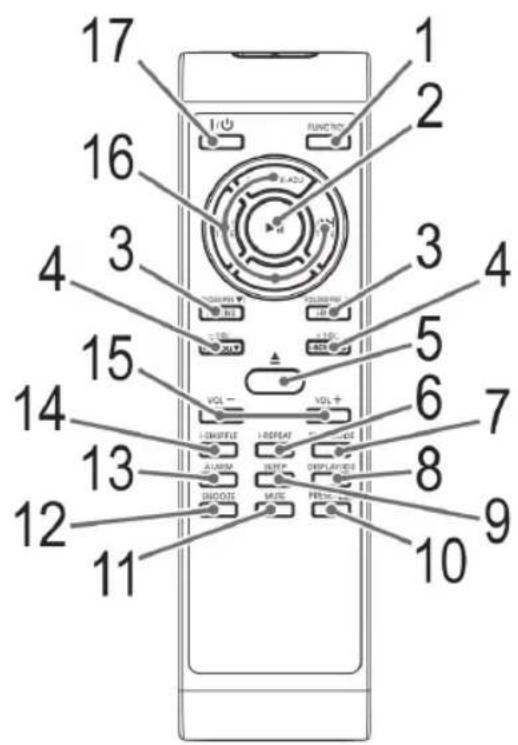
Remote control
1 FUNCTION (function selection button)
2 ▶ II (play/pause) button
3 FOLDER/PRE▲▼ / i-MENU / i-ENTER buttons (up/down, album/radio memory position / iPod/iPhone Menu/Enter)
4 +10/-10/i-SCROLL▼ buttons
5 button (Open/Close)
6 i-REPEAT button
7 PLAY MODE button (Repeat/Random play)
8 DISPLAY/ID3 button
9 SLEEP button
10 PRESET EQ button
11 MUTE button
12 SNOOZE button
13 ALARM button
14 i-SHUFFLE button
15 VOL +/- buttons
16 MEM/CLK-ADJ. button (memory/clock)
▶/TUNE+ button (search forward)
/√TUNE- button (search backwards)
■ (Stop / Stereo/Mono) button
17 ☐ button
Installation/Introduction
- Read the manual thoroughly before operating the device!
- Select a suitable location for the unit and speakers. Suitable locations are dry, even and anti-slip surfaces on which you may operate the device easily. • Make sure there is proper ventilation for the device!
- Remove, if necessary, the protection sheet from the display.
Wall mounting
You can also mount the device to the wall (mounting accessories not supplied).

CAUTION:
Make sure beforehand whether there are cables in the wall which could be damaged!

NOTE: Check the reach of the cable!
To mount the device, make sure that an easily accessible plug outlet is available within reach of the power cable.
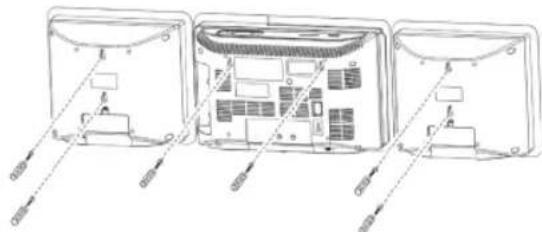
- Align the hole template horizontally and mark the drill holes required for wall mounting.
- Drill the mounting holes. • Fit rawlplugs and screws into the holes.
- Tighten the mounting screws until they protrude around 4 mm from the wall.
- Attach the unit and speakers onto the screws. Check that it is secure.
Assembling the stand
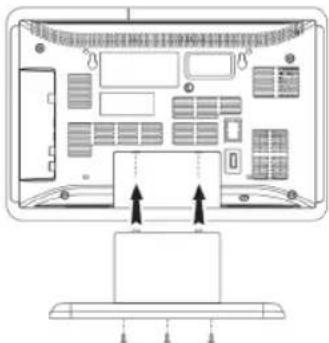
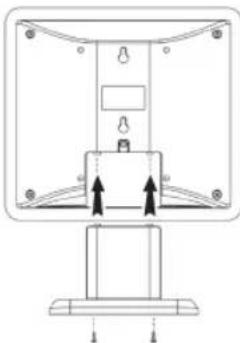
- Insert the unit and the two speakers onto the stands and tighten the mounting screws.
Connecting the speakers
Connect the two speakers to the "SPEAKER R/L" connections on the side of the unit.
Establishing the power supply and wireless subwoofer connection
The wireless connection of the subwoofer is automatically established.
- Position the subwoofer at a radius of 6 metres from the music center.
- Plug the mains plug into a properly installed and earthed 230 V, 50 Hz mains socket.
- Select a moderate setting on the volume control on the back of the subwoofer.
- Switch on the subwoofer using the mains switch on the back of the unit. The connection is established as soon as you switch on the music center. If the connection has been established, the indicator lamp of the subwoofer lights up. If no connection has been established, the LED flashes.
i NOTE:
- Important! The wireless connection between subwoofer and music center is only established if the subwoofer has been switched on first.
- The volume of the subwoofer is also controlled using the volume buttons on the music center.
- If the subwoofer is not used for a long period of time, switch the unit off by setting the mains switch to "O". Then disconnect the mains plug from the outlet.
Power supply (Music Center)
- Connect the power supply to a properly installed and earthed 230 V, 50 Hz socket.
- Connect the music center to the power supply by connecting the power supply plug to the DC 9 V jack on the side of the unit.
- Make sure the voltage is in conformity with the rating plate.
- The stored time and stations are lost as soon as the power supply is interrupted.

CAUTION:
- The supplied power supply may only be used with this unit. Do not use for other devices.
- Only use a 9 V power supply (⊕-C-⊕). Other power supplies may damage the unit.
NOTE:
If the unit is not used for long periods of time, disconnect the power supply from the outlet.
Insert/Replace Battery in Remote Control (Batteries not included)
- Open the battery compartment on the underside of the remote.
- Insert 2 type R03 "AAA" 1.5 V batteries. Make sure the polarity is correct (see inside of battery compartment)!
- Close the battery compartment.
If the remote is not in use for a lengthy period of time, please remove the battery to prevent the battery acid from "leaking".

WARNING:
Do not expose batteries to intense heat or direct sunlight. Never throw batteries onto a fire. Danger of explosion!

CAUTION:
- Batteries must not be disposed of in the garbage. Please bring used batteries to competent collection centers or back to the dealer.
- Different battery types or new and used batteries may not be used together.
Setting the clock (during standby mode)
- Keep the MEM/CLK-ADJ button (15/15) pressed. The hours flash in the display.
- Use TUNE▶/▶TUNE- buttons to set the hours. Confirm with MEM/CLK-ADJ.
- Use TUNE▶/▶TUNE- buttons to set the minutes.
- Press MEM/CLK-ADJ again in order to save the time settings.
Transport securing device of CD compartment
- Turn on the device, please press the button/ (4/17).
- Open the CD compartment (22) by pressing the button ▲ (21/5). The CD tray moves upwards.
- Remove, if present, the transport securing device from the CD player before starting operation.
- Press button again to close the CD compartment.
iPod/iPhone Compatibility
Due to the large variety of iPod and iPhone models and generations on the market, full compatibility cannot be guaranteed. Before connecting your iPod/iPhone, ensure that it has a compatible interface.
Full compatibility of the remote functions also cannot be guaranteed. Operate your iPod/iPhone as normal, while it sits in the docking station.
i NOTE:
Depending on the software version of your iPhone, the following error message may be displayed: "This accessory was not developed for iPhone use. It is possible that noise occurs and signal strength is reduced." In this case, press "OK".
General operation
i NOTE:
Some buttons you will find on both the device and the remote control. Buttons with the same name result in the same functions.
I/O (4/17)
Press the button to switch the device into standby mode (the display will show the time). Press this button again to turn on the device.
Volume (8/15)
Adjust to your preferred volume level. The display will show "VOL" and a number. This will equal to the set volume of "VOL 40" or "VOL 00".
Headphone jack (19)
When listening via headphones, please use headphones with a 3.5 mm stereo jack plug which you will connect to the headphone jack. The speakers will be deactivated.
Infrared remote control
Wireless operation from a distance of up to 5 meters. If this range gets less, please change the batteries. Make sure there are no obstacles between the remote control and the sensor (7) on the device during operation.
USB port
This device has been designed in accordance with the latest USB state of the art technology. Due to the large variety of different USB memory tools on the market, it is not possible to provide complete compatibility with all USB storage devices. In some rare cases, there might occur, for that reason, errors when playing USB storage devices. That is not a malfunction of this device.
- Use the FUNCTION button (5/1) to select USB mode. The display will show USB.
- Slide the USB cover back.
- Plug a USB storage directly into the port. Whilst the unit is searching the storage device for playable files, the message "READING" appears on the display. This process may take some time for large storage devices.
- "# the number of folders (F) and the title (T) appears on the display. If playback does not begin automatically: Please press ▶ II (18/2) to start playback of the music files.
Please refer to chapter "Playing CDs/MP3" for operation.
CAUTION:
Before removing the USB storage device, use FUNCTION button to switch to TUNER mode.
SD/MMC card slot
- If you wish to play files from a SD/MMC card, please insert the card in the respective slot.
- Now use the FUNCTION button (5/1) to select SD CARD mode. Whilst the unit is searching the storage device for playable files, the message "READING" appears on the display. This process may take some time for large storage devices.
- "☐", the number of folders (F) and the title (T) appears on the display. If playback does not begin automatically: Press ▶ (18/2) to start playback of the music files.
Please refer to chapter "Playing CDs/MP3" for operation.
AUX IN jack (on the side of the unit)
Connect analogue playback devices. When connecting to this jack you may also listen to the audio of other devices, such as MP3 or CD players etc., via the speakers.
- Please connect the external device via 3.5 mm plug jack to the AUX IN jack.
- Now use FUNCTION button (5/1) to select AUX mode.
- Via the speakers you will listen to the audio of the external device; use VOL +/- buttons (8/15) to adjust the volume. The CD buttons are not active.
- For further functions please refer to the user manual of the external audio device.
i NOTE:
Set the volume of the external device to a proper audible level.
Listening to the radio
- Repeatedly press FUNCTION button (5/1) until the display shows "TUNER".
- Use the TUNE-▶/▶TUNE- buttons (17/16) to tune in the desired station.
- The FM.ST control lamp (e display) will light up when the selected station is received with stereo quality. If reception is too poor and the station experiences static, the control lamp will flicker. Try to improve reception by rotating and unwinding/winding
up the antenna. For FM stations you may use ■ST/MO button (20/16) to switch between MONO and STEREO reception. In case of poor reception we recommend switching to MONO mode.
Save/select station
- If you have found the desired station, keep the MEM/CLK-ADJ button (15/16) pressed. MEM and the station location number flashes on the display.
- For choosing the memory position, please press FOLDER/PRE ▲/▼button (16/3).
- Press MEM/CLK-ADJ. to save the settings.
To select a stored station, press the FOLDER/PRE▼ or FOLDER/PRE▲ button.
Music Playback from iPod/iPhone
(iPod/iPhone not supplied)
- Press the FUNCTION button (5/1) repeatedly until "NO IPOD" appears in the display.
- Remove the cover from the docking port.
- If an adapter has been supplied with your iPod, put it onto the dock connector. You can only ensure that the iPod fits correctly into the iPod port if the adapter is plugged in.
- Insert your iPod/iPhone into the dock.

CAUTION:
Make sure that your iPod/iPhone is plugged upright into the port. Do not bend or tilt the iPod/iPhone whilst it is plugged into the port. This may cause damage to the dock or the iPod/iPhone.
- Depending on the iPod/iPhone model, firstly release the button lock and start playing music if necessary with the ▶ II button (18/2).
- Follow your iPod/iPhone manual for further use of the controls.

CAUTION:
Stop playback before unplugging the iPod/iPhone from the port since the iPod/iPhone may otherwise be damaged.

NOTE:
If you have an incoming call when playing back music with the iPhone docked, then playback stops and you can hear the ring tone.
iPod/iPhone Charging
Your iPod/iPhone battery is charged as soon as the iPod/iPhone is docked. To do this, the unit must be connected to the mains.
i NOTE:
- If the slot adapter has been supplied with your iPod, use it to ensure that your iPod fits correctly.
- Not all iPod/iPhone generations support the charge mode.
- The duration of the charging process depends on the iPod/iPhone which is used and its operating condition.
Playing CDs/MP3
This is how to play a CD
- Repeatedly press FUNCTION button (5/1) until the display shows "CD".
- Press ▲ button (21/5) to open the CD compartment (22). The CD tray moves upwards.
- Place an audio CD with the label side facing to the front on the spindle in the center, so that the CD locks mechanically. Then close the CD door by pressing the ▲ button again. The message "READING" briefly appears on the display.
4. AUDIO CD:
"CD", "F01" and the number of titles appear on the display. If playback does not begin automatically: Press ▶ button (18/2) to start playback of the CD. The playback starts from the first title on the CD. The display will show the current track and the lapsed playback time.
For MP3 or a CD in MP3 format:
The display will show "MP3", the number of folder, e.g. F04, and the total number of tracks (e.g. T126). If playback does not begin automatically: Press the ▶ II button to start CD playback. The playback starts from the first track and from the first folder. The current song, the elapsed playing time and "MP3" are shown on the display. Use the FOLDER/PRE▼ or FOLDER▲ buttons (16/3) to select the individual folders.
- To remove a CD, please press ■ST/MO button (20) (16 on the remote) open the CD compartment with ▲ button and carefully lift the CD.
Always keep the CD door closed.
i NOTE:
- If a disc is not properly or not at all inserted, "READING" will light up and the display will show "NO DISC" (no disc).
- Playback of CDs created by the user cannot be guaranteed due to the variety of available software and CD media equipments.
Description of the control buttons
▶ II (18/2)
You may temporarily stop playback and start again. The message "PAUSE" flashes on the display. Pressing the button again will continue playback from the same position.
TUNE+▶▶/▶TUNE- (17/16)
If an Audio CD, MP3, a CD is running in MP3 Format or in IPOD mode:
With the TUNE+▶ button you may skip to the next or next but one track, etc. Press and hold this button to quickly search music.
You may operate the ◀ TUNE- button as followed:
Press 1 x = Starts current track again from the beginning.
Press 2 x = Skips back to previous track.
Press 3 x = Plays track prior to that, etc. Press and hold this button to quickly search music.
During radio mode:
Tune the desired radio station.
■ ST/MO (20/16)
Pauses the CD or piece of music.
In FM Radio mode:
To toggle between STEREO and MONO.
MUTE (11 on the remote)
Quickly turn off the sound. "MUTE" flashes on the display. To cancel this function, press MUTE again.
PRESET EQ (9/10)
(Preset equalizer function). There are different sound modes available (EQ=FLAT, EQ=CLASS, EQ=ROCK, EQ=POP, EQ=JAZZ).
NOTE: During iPod/iPhone Music Playback
For optimum sound, change the EQ setting on your iPod/iPhone as required.
DISPLAY/ID3 (12/8)
Press the button to show briefly the time on the display.
For MP3s or a CD in MP3 Format:
Stored ID-3 tag information will be shown as banner in the display. Press the button repeatedly to display the following information: FILE, ALBUM, SONG, ARTIST.
REPEAT (12/7)
Press 1x: ( ◯ flashes) The current track will be repeated entirely.
Press 2x: ( lights up) The complete CD will be repeated entirely.
Press 3x: The display will show "RAN" and the number of the track that will be played first. All tracks will be played consecutively in random order.
Press 4x: All functions will be canceled. Normal playback will be continued.
Only for MP3s and CDs in MP3 format:
Press 1x: The current track will be repeated continuously (○ flashes on the display).
Press 2x: The complete CD will be repeated continuously (lights up on the display).
Press 3x: The selected folder of the MP3 CD will be repeated continuously (the display will show
☐ Use FOLDER/PRE / buttons (16/3) to select the individual folders.
Press 4x: The display will show "RAN" and the number of the track that will be played first. All tracks will be played consecutively in random order.
Press 5x: The function will be deactivated and the CD will be played in normal mode.
FOLDER/PRE ▲ (16/3)
For MP3 or a CD in MP3 format:
Press these buttons during playback to switch one folder up or down. The display shortly shows a message, e.g.
FLDR 002. Then the system automatically starts playback of the MP3 CD. When pressing the buttons during stop mode, the message will also shortly be shown in the display. Then press ▶ II to start playback.
During radio mode:
Select a stored radio station.
i-MENU / i-ENTER (3 on the FB)
Press the i-MENU button to open the iPod / iPhone menu or return to the previous menu.
i NOTE:
To do this, the Music App must be already started.
Press the i-ENTER button to activate a function or to display the next menu.
+10/-10 / i-SCROLL ▲/▼ (4 on the FB)
Press the i-SCROLL ▲/▼ buttons to scroll up and down in the iPod / iPhone menu.
If an Audio-CD, MP3 or a CD is playing in MP3 format.
Press this button to skip forward or back 10 titles (if there are more than 10 titles saved on the CD).
i-REPEAT (6 on the FB)
Activates the Repeat function on your iPod or iPhone.
i-SHUFFLE (14 on the FB)
Activates the Random function on your iPod or iPhone.
SLEEP (9 on the remote)
When the device is switched on, you can set the time after which the device will turn into standby mode; set the time in 10-minute intervals from 90 to 10 minutes. Repeatedly press this button until the display shows the desired time. When the function is activated, the display will show the symbol "zzz". The device will turn off automatically after the preset time.
To display the remaining time, press the SLEEP button. You may still reduce the time or deactivate (OFF) the function afterwards.
ALARM (13 on the remote)
You can set the unit so that it switches on at a certain time.
- Use button 1 to switch into standby mode (time will be displayed).
- Keep the ALARM button pressed until the hours and the symbol flash on the display.
- You can now set the switch-on hours, switch-on minutes, and the switch-on mode in sequence using the TUNE+▶/◀TUNE- buttons (17/16).
- Use the VOL +/- buttons to set the switch-on volume.
- Confirm your input each time with the ALARM button. The current display to be set flashes on the display.
- After you have selected the turn-on volume, press the ALARM button again. "💡" will be displayed and the timer is activated.
After the set time has been reached, the device switches to the selected mode.
NOTE:
All buttons do not function with the exception of SNOOZE and ALARM.
- Use the V and ALARM buttons to switch off the function until the following day. "Continues to be shown on the display.
- To activate the timer, press the ALARM button again. "Will disappear from the display.
- Interval Snooze function Use the SNOOZE button (10/12) to switch off the automatically set timer function for around 9 minutes.
MEM/CLK-ADJ (15/16)
Set the clock, store stations and program playback.
Program Playback
Program playback in desired sequence. (Only in CD/USB/CARD mode)
- Press ■ ST/MO button (11/16).
- Press MEM/CLK-ADJ. button (15/16). The display will show "P01 T001" ("memory position" "Titel") and MEM. Use the buttons TUNE+▶▶/▶TUNE- (17/16) to select the desired track and press MEM/CLK-ADJ. button again. The display will change to memory position P02.
- Use the TUNE-▶▶▶▶ TUNE- buttons to select the next track and press MEM/CLK-ADJ again. Repeat the steps until you have selected all tracks.
- Press the button (18/2). Playback starts. The display will show the first selected track number. Also use this button to temporarily stop playback.
- Press the ■ ST/MO button once to stop playback. The memory will be kept.
- To play the program again, press the ▶ II button.
- To delete memory, press the ■ ST/MO button twice. The MEM display switches off.
The unit does not stop automatically after all programmable titles have been played. The program sequence will be kept in the memory until you switch to another mode, remove the CD from the compartment, or switch off the device.
It is possible to combine program playback with the REPEAT function. After programming and starting playback, press the PLAY MODE button (14/7) up to three times; the functions can be applied as described under "REPEAT".
Playback of music files in MP3 format
This device allows the playback of music files in MP3 format. The device furthermore supports the common CD types: CD, CD-RW, and CD-R. Your device can play MP3 CDs. These are compressed CDs that can store up to 200 tracks. Your device automatically recognizes MP3 discs (the display will show the total number of tracks and folders). Please refer to chapter "Playing CD/MP3" for playback of such CDs. You may program tracks as already described under "Program playback".
Please note:
There are many burning and compressing methods, as well as differences in quality of CDs and burnt CDs.
Furthermore, the music industry does not apply fixed standards (copy protection).
For that reason there might, in rare cases, occur problems when playing CDs and MP3 discs. That is not a malfunction of this device.
Cleaning and maintenance
- Disconnect the mains plug before cleaning.
- You may wipe off external stains, using a slightly damp cloth without any additives.
Trouble shooting
| Problem Cause Solution | ||
| The unit cannot be operated | The unit is blocked and "hangs" | Pull the mains plug for approximately 5 seconds. Then connect the unit again. |
| Subwoofer does not output any sound | Connection to the music center has not been established | First switch on the subwoofer and then the music center. |
| Music center volume was turned down | Increase the volume on the music center. | |
| Volume control of the subwoofer is on minimum | Set the volume on the back of the subwoofer to a moderate setting. | |
| The indicator lamp of the subwoofer does not light up | No power supply/ mains switch turned off | Switch on the subwoofer using the mains switch on the back. |
Technical Specifications
Model: MC 4451 iP
Power consumption: 31 W
Net weight: 3.48 kg
Radio section:
Frequency ranges:....UKW/FM 87.5 \~ 108.0MHz
Subwoofer
Voltage supply: 230 V~50 Hz
Power consumption: 34 W
Protection class: II
Power supply
Protection class: II
Input: AC 100-240 V~ 50/60 Hz
Output: DC 9 V, 2500 mA
Polarity: — C—+
Specifications are subject to change!
This device complies with all current CE directives, such as electromagnetic compatibility and low voltage directive, and is manufactured according to the latest safety regulations.
"Made for iPod" and "Made for iPhone" mean that an electronic accessory has been designed to connect specifically to iPod or iPhone and has been certified by the developer to meet Apple performance standards. Apple is not responsible for the operation of this device or its compliance with safety and regulatory standards. Please note that the use of this accessory with iPod or iPhone may affect wireless performance.
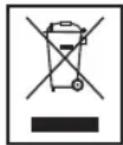
Disposal/Meaning of the "Wheelie Bin" Symbol
Take care of our environment, do not dispose of electrical appliances via household waste.
Dispose of obsolete or defective electrical appliances via municipal collection points.
Please help to avoid potential environmental and health impacts through improper waste disposal.
You contribute to recycling and other forms of utilization of old electric and electronic appliances.
Your municipality provides you with information about collecting points.
Guarantee card
MC 4451 iP
24 months guarantee according to guarantee declaration
- GENERAL SAFETY GUIDELINES
- CHILDREN AND DISABLED PERSONS
- WARNING
- SYMBOLS IN THIS USER MANUAL
- CAUTION
- NOTE
- SPECIAL SAFETY GUIDELINES
- OVERVIEW OF THE COMPONENTS
- REMOTE CONTROL
- INSTALLATION/INTRODUCTION
- WALL MOUNTING
- NOTE: CHECK THE REACH OF THE CABLE
- ASSEMBLING THE STAND
- CONNECTING THE SPEAKERS
- ESTABLISHING THE POWER SUPPLY AND WIRELESS SUBWOOFER CONNECTION
- I NOTE
- POWER SUPPLY (MUSIC CENTER)
- INSERT/REPLACE BATTERY IN REMOTE CONTROL (BATTERIES NOT INCLUDED)
- SETTING THE CLOCK (DURING STANDBY MODE)
- TRANSPORT SECURING DEVICE OF CD COMPARTMENT
- IPOD/IPHONE COMPATIBILITY
- GENERAL OPERATION
- I/O (4/17)
- VOLUME (8/15)
- HEADPHONE JACK (19)
- INFRARED REMOTE CONTROL
- USB PORT
- SD/MMC CARD SLOT
- AUX IN JACK (ON THE SIDE OF THE UNIT)
- LISTENING TO THE RADIO
- SAVE/SELECT STATION
- MUSIC PLAYBACK FROM IPOD/IPHONE
- IPOD/IPHONE CHARGING
- PLAYING CDS/MP
- THIS IS HOW TO PLAY A CD
- AUDIO CD
- FOR MP3 OR A CD IN MP3 FORMAT
- DESCRIPTION OF THE CONTROL BUTTONS
- II (18/2)
- TUNE+▶▶/▶TUNE- (17/16)
- ST/MO (20/16)
- MUTE (11 ON THE REMOTE)
- PRESET EQ (9/10)
- NOTE: DURING IPOD/IPHONE MUSIC PLAYBACK
- DISPLAY/ID3 (12/8)
- REPEAT (12/7)
- FOLDER/PRE ▲ (16/3)
- I-SCROLL ▲/▼ (4 ON THE FB)
- I-REPEAT (6 ON THE FB)
- I-SHUFFLE (14 ON THE FB)
- SLEEP (9 ON THE REMOTE)
- ALARM (13 ON THE REMOTE)
- MEM/CLK-ADJ (15/16)
- PROGRAM PLAYBACK
- PLAYBACK OF MUSIC FILES IN MP3 FORMAT
- PLEASE NOTE
- CLEANING AND MAINTENANCE
- TECHNICAL SPECIFICATIONS
- SUBWOOFER
- POWER SUPPLY
- DISPOSAL/MEANING OF THE "WHEELIE BIN" SYMBOL
- MC 4451 IP
Brand : AEG
Model : MC 4451 iP
Category : Loudspeaker