Bullet 203 Combo - Phone AUDIOLINE - Free user manual and instructions
Find the device manual for free Bullet 203 Combo AUDIOLINE in PDF.


User questions about Bullet 203 Combo AUDIOLINE
0 question about this device. Answer the ones you know or ask your own.
Ask a new question about this device
Download the instructions for your Phone in PDF format for free! Find your manual Bullet 203 Combo - AUDIOLINE and take your electronic device back in hand. On this page are published all the documents necessary for the use of your device. Bullet 203 Combo by AUDIOLINE.
USER MANUAL Bullet 203 Combo AUDIOLINE
400 mAh = ca. 130 h / ca. 7 h
2 Preparing the Telephone ....3
3 Operating Elements 5
4 Icons in the display 7
5 Telephoning 8
6 Other features 12
7 Call list / Redial ....13
8 Phone book 15
9 Setting the telephone 17
10 Registering/de-registering handsets ....21
11 PBX / Supplementary Services ....22
12 Appendix....23
1 Safety Information
Please read this operating instruction manual thoroughly.
Intended use
The telephone is suitable for telephoning within a public telephone network system. Any other use is considered unintended use. Unauthorised modification or reconstruction is not permitted. Under no circumstances open the device or complete any repair work yourself.
Installation location
Prevent excessive exposure to smoke, dust, vibration, chemicals, moisture, heat and direct sunlight. Do not use the telephone in potentially explosive areas.
Power adapter plug
⚠ Attention: Only use the power adapter plug supplied because other power supplies could damage the telephone. Ensure access to the power adapter plug is not obstructed by furniture or such.
Rechargeable batteries
⚠ Attention: Never throw batteries into a fire. Only use batteries of the same type. Pay attention to the correct polarity. Incorrect polarity of the batteries represents a risk of explosion during charging.
Power failure
In case of a power failure you can only use the desktop telephone to make calls. The display will not work. You cannot dial telephone numbers from the phonebook, the caller list or the redial list.
Lift the handset, wait for the dialling tone and enter the telephone number.
Medical equipment
⚠ Attention: Never use the telephone in the vicinity of medical equipment. Effects on such equipment cannot be fully ruled out.
DECT ^1 telephones can cause an unpleasant humming sound in hearing aids.
Disposal
In order to dispose of your device, take it to a collection point provided by your local public waste authorities (e.g. recycling centre). According to laws on the disposal of electronic and electrical devices, owners are obliged to dispose of old electronic and electrical devices in a separate waste container.
The adjacent symbol indicates that the device must not be disposed of in normal domestic waste!
Batteries represent a hazard to both health and the environment! Never open, damage or swallow batteries, nor allow them to get into the environment.
They may contain toxic and ecologically hazardous heavy metals. You are legally obliged to dispose of batteries at the point of sale or at appropriate collection points provided by your local public waste authorities. Disposal is free of charge. The adjacent symbols indicate that batteries must not be disposed of in normal domestic waste and but at authorised collection points.
Packaging materials must be disposed of according to local regulations.



Low-radiation operation
This device reduces emissions by up to 75 % in talk mode (depending on the distance of the handset to the base station) compared to a standard DECT cordless telephone.

Power consumption
The power adapter plugs supplied fulfils the eco-design directive of the European Council (Directive 2005/32/EC).
This means that power consumption is considerably lower than power adapter plugs of an earlier design both in operating and idling modes.
^1 DECT: Digital Enhanced Cordless Telecommunication = Standard for cordless telephones.
2 Preparing the Telephone
Safety information
⚠ Attention: It is essential to read the Safety Information in Chapter 1 before starting up.
Checking the package contents
The package contains:
Content Bullet Combo model
200 202* 203* 204*
Desktop telephone (base station) 1 1 1 1
Power adapter plug for desktop telephone 1 1 1 1
Telephone connection cable 1 1 1 1
Handset 1 2 3 4
Rechargeable batteries 2 4 6 8
Charging station with power adapter plug 1 2 3 4
Operating instructions 1 1 1 1
* Visit www.audioline.deto find out whether this telephone is available.
Connecting the desktop telephone
⚠ Attention: Position the desktop telephone at least 1 m away from other electronic devices, otherwise there is a risk of mutual disturbance.
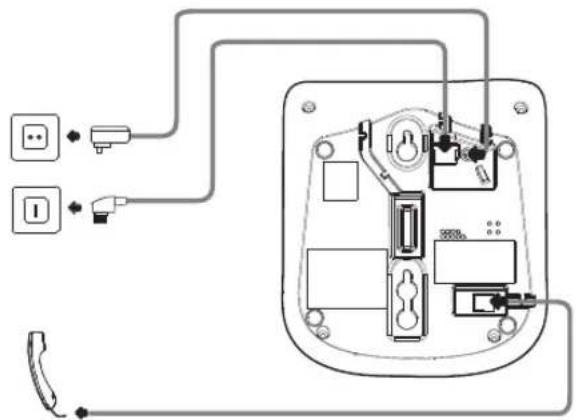
Connect the base station as illustrated in the diagram. For reasons of safety, only use the power adapter plug and telephone connection line supplied.
Connect the handset with the desktop telephone using the coiled cord. Put one end to the handset and the other end through the guide into the respective jack on the desktop telephone.
Mains power outlet
Telephone line socket
Handset
natural_image
Diagram of an electrical socket with wiring and connectors, no text or symbols presentService-Hotline Germany: Tel. 0180 5 001388
(Costs for call from german landline at time of print: 14 ct/min, max. 42 ct/min from mobile phone providers.)
⚠ Attention: Use only the power adapter plug supplied with the telephone! Ensure access to the power adapter plug is not obstructed by furniture or such.
Connecting the charging station
Connect the charging station to a mains power outlet.
⚠ Attention: Use only the power adapter plug supplied with the charging station! Ensure access to the power adapter plug is not obstructed by furniture or such.
Inserting the batteries
Open the battery compartment cover, put in the batteries and close the battery compartment cover.
⚠ Attention: Use only type AAA, NiMH, 400 mAh rechargeable batteries. Never use normal batteries / primary cell batteries. Observe the correct polarity!
Charging the batteries
Before the handset is used for the first time, insert it in the charging station for at least 15 hours.
The handset warms up during the charging process. This is normal and does not represent a risk. Use only the adapter plug unit provided for the charging station. The battery status is shown on the display. When the battery capacity is nearly exhausted, the battery symbol (i) will flash in the display. Place the handset on the charger for recharging.
Setting the time and date
At initial operation the telephone does not have the correct time (e.g. for entries in the call list). You only have to do this setting on one of the devices; the other one will take date and time from that one. For details please refer to chapter "9 Setting the telephone / Date/time".
Setting the display language (handset)
The display language is available in several languages. The default setting is “German (DEUTSCH)”. Set the language using the handset menu item “PERS.EINST / SPRACHE”.
3 Operating Elements
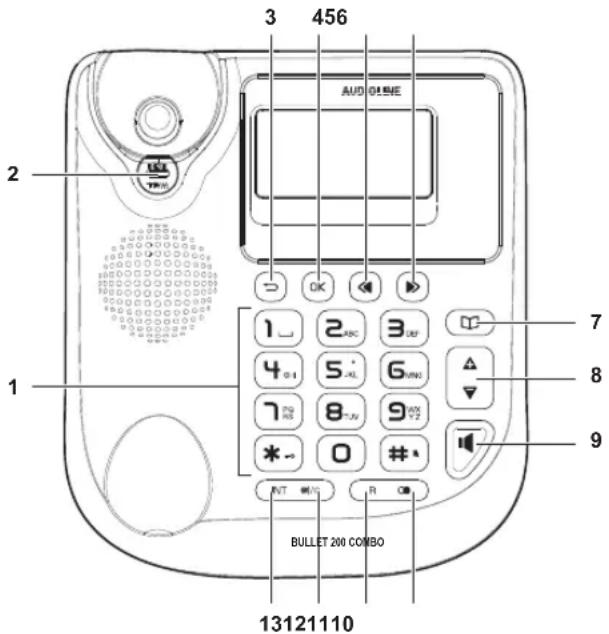
Desktop telephone
text_image
3 456 AUDIO 2 1 7 8 9 BULLET 200 COMBO 131211101 Digit keypad
- * : Ringer on/off
-
: Key lock on/off
2 Latch for handset (WALL upwards when mounted to a wall)
3 B a c k
4 OK
5/6 Open call list
With call list open: Scroll in call list
With redial list open: Scroll in redial list
With phone book open: Scroll in phone book
7 Open phone book
8 Volume keys
In idle state: ringer volume
During a call: earpiece or loudspeaker volume
9 Handsfree (switch on loudspeaker)
10 Open redial list
11 R key (Flash)
12 Mute / Delete
13 Internal key
Wall mounting
For wall mounting, drill two holes at a distance of 83 mm between them. If necessary, set anchor. Turn two round head screws as far into the holes that stick out their heads for about 3 mm from the wall. Put the phone on the screw heads and pull it down so that it fits perfectly. Twist the receiver bracket (see figure above, item 2) with a suitable tool (coin, etc.) so that "wall" is upright, and the handset is held in a vertical position.
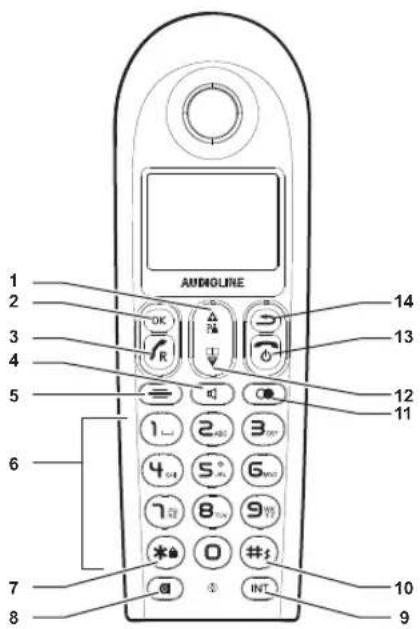
Handset
text_image
1 2 3 4 5 6 7 8 AUDIOLINE 14 13 12 11 1 2 3 4 5 6 7 8 9 * 0 # INT. 10 91 Open call list In menus/lists: scroll up During a call: increase volume
2 OK
3 Off Hook button - making a call - taking a call - R key (Flash)
4 Hands free
5 M e n u
6 Digit keys
7 Key lock on/off
8 M u t e
9 Internal key
10 Ringer on/off / Long press: insert dialling pause
11 Open ridial list
12 Open phone book During a call: decrease volume
13 On Hook button / Long press: switching handset on/off
14 Back / Delete a digit or a character
4 Icons in the display
Icon Description
Desktop ph. Handset


A call is in progress.
Handsfree is being used.
Ringer is switched off.
New entry in the call list.
Phonebook menu.
There's a message in your voice mailbox (depending on your telephone network provider).
Sequential number of the entry in call list, redial list or phone book.
The microphone is muted.
The key lock is activated.
◀/▶ More digits/characters left or right.


Battery charge status (full).
Battery charge status (batteries need charging).
The alarm function is activated.
On: The connection to the base station is good.
Flashing: The connection to the base station is lost.
5 Telephoning
Taking a call
Your phone is ringing.
On the desktop telephone
/ Lift the handset or press the handsfree button.
On the handset
Press the Off Hook button or the handsfree button.
Making a call
On the desktop telephone
Enter the telephone number. Delete wrong characters pressing Ⓑ/C
Lift the handset or press the handsfree button.
On the handset
Enter the telephone number. Delete wrong characters pressing.
Press the Off Hook button or the handsfree button.
You can also lift off the desktop telephone's handset, or press the Off Hook button on the cordless handset and you will hear the dialling tone. The entered number will be dialled immediately. It is not possible to correct wrong digits individually using this dialling procedure.
Ending a call
On the desktop telephone
Replace the handset.
On the handset
Press the On Hook button or replace the handset in the charging station (when AUTO HANG-UP is on).
Redial
The desktop telephone saves the last 5 dialled telephone numbers The handset saves the last 5 dialled telephone numbers. If a caller is stored in your phone book, the name will be displayed. To show the telephone number press OK.
On the desktop telephone

Open the redial list.

Select an entry.


Lift the handset or press the handsfree button.
On the handset

Open the redial list.

Select an entry.

Press the Off Hook button or the handsfree button.
Making a call from the call list
Saving can only take place if the function "Phone number transmission (CLIP)" is available at your connection and caller ID is not suppressed by the caller or was not transmitted for any other reason. The desktop telephone saves 20 calls in the call list. The handset saves 10 calls in the call list. If a caller is stored in your phone book, the name will be displayed. To show the telephone number press OK.
On the desktop telephone

Open the call list.

Select an entry.


Lift the handset or press the handsfree button.
On the handset

Open the call list.

Select an entry.


Press the Off Hook button or the handsfree button.
Making a call from the phone book
You can store up to 30 entries in the desktop telephone's phone book (only telephone numbers).
You can store up to 50 entries in the handset's phone book (name and telephone number).
For creating entries see section "8 Phone book".
On the desktop telephone

Open the phone book.

Select an entry.


Lift the handset or press the handsfree button.
On the handset

Open the phone book.

Select an entry. You can also enter the first letter of the desired entry with the appropriate button.

Press the Off Hook button or the handsfree button.
Making a call with direct memory (handset only)
For creating entries see section "8 Phone book".
Digit key 1 / 2 Press and hold the desired direct memory key for approx. 2 s. The stored telephone number will be shown and dialled.
Call timer
Your telephone automatically times the duration of every call in hours, minutes and seconds.
Setting the earpiece/loudspeaker volume
During a call you can adjust the volume with the + and - key in 3 levels if telephoning "normally" (earpiece volume) or in 5 levels with hands-free (loudspeaker volume).
These separate settings will remain at the last selected level when you end the call.
Muting the microphone

During a call you can switch your handset's microphone off. The handset's display shows MUTE ON, in the desktop telephone's display the icon Appears.
To unmute press the key again.
Internal calls
Making an internal call
INT
Press the INT key. If there is only one handset registered to the base (desktop phone) the other device will ring at once. In case of some more registered handsets you will have to enter the respective internal telephone number (1...X). For an internal call to the desktop telephone dial "0".
External call during an internal connection / Brokering / Transfer / Conference
An incoming call durin an internal connection is signalled by an attention tone. On the handset's and the desktop phone's display the calling number or the name will be shown. On the desktop phone the handsfree button flashes in addition.
On the desktop telephone
INT
Press the INT key.
The internal call is put on hold and you can speak to the external caller.
Brokering
Press the INT key to toggle between the internal and the external subscriber (brokering).
Transfer
Replace the handset while connected to the internal subscriber - the external call will be transferred to the handset.
Conference
Press and hold the INT key for approx. 2 s. The 3-party conference is established. You can establish a conference with 2 internal and 1 external subscriber.
On the handset
R/
Press the Off Hook button or the handsfree button. The internal call will be ended.
or
INT
Press the INT key.
The internal call is put on hold and you can speak to the external caller.
Brokering
Press the INT key to toggle between the internal and the external subscriber (brokering).
Transfer
Press the On Hook button while connected to the internal subscriber - the external call will be transferred to the handset.
Conference
Press and hold the INT key for approx. 2 s. The 3-party conference is established. You can establish a conference with 2 internal and 1 external subscriber.
6 Other features
Key lock
The key lock prevents functions assigned to buttons being activated inadvertently. Incoming calls can still be taken in the normal way even when the key lock function is activated.

Press and hold down the star-key for approx. 2 s.

For unlocking the keypad again press and hold down the star-key again for approx. 2 s.
Switching the ringer on/off

Press and hold down the #-key for approx. 2 s. This setting is only valid for external calls.

For turning the ringer on again press and hold down the #-key again for approx. 2 s.
You can turn off the handset's ringer via the menu item "SETTINGS / RINGER&TONES / RINGVOLUME" as well.
Switching off the handset (handset only)
You can switch off the handset for saving battery capacity.

Press and hold down the On Hook-button. After a few seconds the handset will be switched off. The display illumination goes down.

For switching the handset on again press and hold down the On Hook-button until the display comes on again.
7 Call list / Redial
Editing the call list
On the desktop telephone

Open the call list.

Select an entry. The respective call's date and time is shown.

Press and hold down the phonebook key for approx. 2 s to save the entry to the phonebook.
You can edit the telephone number.
Delete digits with necessary and enter new digits.
Press OK to save the entry.
or

Press the delete key briefly. The display shows - - - .
Press OK to delete the entry.
or

Press and hold down the delete key for approx. 2 s. The display shows - - - - - .
Press OK to delete the whole list.
On the handset

Open the call list.

Select an entry. The respective call's date and time is shown.

Press the menu key.

Select one of the following options and confirm with OK:
SAVE NUMBER The telephone number will be stored in the telephone book. Enter a name.
EDIT ENTRY You can edit the telephone number.
DELETE The entry will be deleted after a confirmation query.
DELETE ALL The complete list will be deleted after a confirmation query.
Editing the redial list
On the desktop telephone

Open the redial list.

Select an entry.

Press and hold down the phonebook key for approx. 2 s to save the entry to the phonebook. You can edit the telephone number.
Delete digits with Ⓞ necessary and enter new digits.
Press OK to save the entry.
or

Press the delete key briefly. The display shows - - - .
Press OK to delete the entry.
or

Press and hold down the delete key for approx. 2 s. The display shows - - - - - .
Press OK to delete the whole list.
On the handset

Open the redial list.

Select an entry.

Press the menu key.

Select one of the following options and confirm with OK:
SAVE NUMBER The telephone number will be stored in the telephone book. Enter a name.
EDIT ENTRY You can edit the telephone number.
DELETE The entry will be deleted after a confirmation query.
DELETE ALL The complete list will be deleted after a confirmation query.
8 Phone book
You can store up to 30 entries in the desktop telephone's phone book (only telephone numbers). You can store up to 20 entries in the handset's phone book (name and telephone number). Always enter the phone numbers with the area code; this enables a correct display of the respective caller for whom there is an existing entry and whose phone number transmission to your connection is available.
Creating a new entry
On the desktop telephone

Press and hold down the phonebook key for approx. 2 s.
Enter the telephone number and press OK to save the entry.
On the handset

Press the menu key.

Select PHONEBOOK and press OK.

Select NEW ENTRY and press OK.

Enter the name.
Letters are also imprinted on the digit keys. Letters and digits are entered by pressing the relevant key the respective number of times. Delete characters with .→ After a short time the cursor skips one position forwards.
Having entered the name press OK.

Enter the phone number. If your telephone is connected to a PBX start the telephone number with the access code. If a dialling pause is needed, press after the access code the # key for approx. 3 sec. AP appears in the display. Having entered the number press OK.
Editing phone book entries
On the desktop telephone

Open the phone book.

Select an entry.

Press and hold down the phonebook key for approx. 2 s.
You can edit the telephone number.
Delete digits with the necessary and enter new digits.
Press OK to save the entry.
or

Press the delete key briefly. The display shows - - - .
Press OK to delete the entry.
or

Press and hold down the delete key for approx. 2 s. The display shows - - - - - . Press OK to delete the whole phone book.
On the handset
| Press the menu key. | |
| Select PHONEBOOK and press OK. | |
| Select one of the following options and confirm with OK: | |
| NEW ENTRY | You can create a new entry. |
| VIEW ENTRIES | All entries are shown. Scroll to the desired entry. |
| EDIT ENTRY | All entries are shown. Scroll to the desired entry. Press OK to edit the selected entry. Use to delete characters and numbers then add new characters and numbers as required. Please refer to “Creating a new entry”. |
| DELETE | All entries are shown. Scroll to the desired entry. Press OK to delete the entry after a confirmation query. |
| DELETE ALL | Press OK to delete all entries after a confirmation query. |
Direct memory (handset)
You can store a telephone number to the digit keys 1 and 2. To dial the direct memory press and hold the respective key for approx. 3 s.
| Press the menu key. | |
| Select PHONEBOOK and press OK. | |
| Select DIRECT MEM. and press OK. | |
| Select KEY 1 or KEY 2 and press OK.If no number is stored yet, NO NUMBER is displayed. If there is a number already stored it will be shown. | |
| Press the menu key. | |
| Select EDIT NUMBER and press OK.Enter name and number and press OK. | |
| or | |
| Select DELETE and press OK. The entry will be deleted after a confirmation query. |
9 Setting the telephone
Date/Time
You only have to do this setting on one of the devices; the other one will take date and time from that one.
On the desktop telephone

Press and hold the OK key for approx. 2 s.

Enter hour, minute, day and month and press OK.
On the handset

Press the menu key.

Select CLOCK&ALARM and press OK.

Select DATE & TIME and press OK.

Enter year (last 2 digits), month and day and press OK.

Enter hour and minute and press OK.
In case of mains failure at the desktop telephone this setting will be deleted when simultaneously the handset is switched off or the batteries are empty.
Date- and time format (handset only)

Press the menu key.

Select CLOCK&ALARM and press OK.

Select SET FORMAT and press OK.

Select TIME FORMAT, press OK and select the time format (12 h / 24 h).
or

Select DATE FORMAT, press OK and select the date format (TT/MM / MM/TT).
Alarm (handset only)

Press the menu key.

Select CLOCK&ALARM and press OK.

Select ALARM and press OK.

Select ONCE or DAILY, and press OK.

Enter the time and press OK. An activated alarm will be shown with on the display.
Alarm tone (handset only)

Press the menu key.

Select CLOCK&ALARM and press OK.

Select ALARM MELODY and press OK.

Select an alarm melody and press OK.
Handset name (handset only)

Press the menu key.

Select SETTINGS and press OK.

Select HANDSET NAME and press OK.

Delete the old name with enter a new name and press OK.
Tones (handset only)

Press the menu key.

Select SETTINGS and press OK.

Select RINGER&TONES and press OK.

Select one of the following options and confirm with OK:
RING VOLUME Select the volume for the ring tone and press OK.
RING TONE Select the melody for the ring tone and press OK.
KEY TONE Switch the keytone on or off.
Display language (handset only)

Press the menu key.

Select SETTINGS and press OK.

Select LANGUAGE and press OK.

Select a language and press OK.
Automatic hang-up (handset only)

Press the menu key.

Select SETTINGS and press OK.

Select AUTO HANG-UP and press OK.

Select whether the automatic answer function will be on or off and confirm with OK.
If Auto hang-up is on a call will immediately be ended when the handset is put in the charging station.
PIN (handset only)

Press the menu key.

Select ADV.SETTINGS and press OK.

Select CHANGE PIN and press OK.

Enter the relevant PIN (default 0 0 0 0) and press OK.

Enter a new PIN and press OK.

Enter the new PIN again and press OK.
The PIN is used for registration/un-registration of handsets. The default PIN number is 0000. The maximum length of the PIN is 8 digits. Note: If you forget your PIN code, you can reset it to its default 0000 using a handset Reset.
Auto prefix (handset only)

Press the menu key.

Select ADV.SETTINGS and press OK.

Select AUTO PREFIX and press OK.

Select one of the following options and confirm with OK:
DETECT DIGIT Enter the "detect digit" (see sample below) and press OK.
PREFIX Enter the prefix (see sample below) and press OK
You can enter a prefix, for example, for alternative operators, which is always dialed in recognition of a detect digit (the first digit of a number) before the telephone number. This function is only executed when entering a phone number in pre dialing mode or when dialing from the phone book or call list - if you enter the phone number manually after having pressed the Off-hook or hands free button this function will not run.
For example, all long distance calls (starting with "0") should be dialed with the network operator prefix "010xx":
- Enter "0" as detect digit.
- Enter "010xx" as a prefix.
- Enter "0123456789" when the handset is in idle state and press the Off-hook button. The phone number "010xxP123456789"
(P = approximately 3 sec off / fixed) will be displayed and dialed.
Recall time (handset only)

Press the menu key.

Select ADV.SETTINGS and press OK.

Select RECALL TIME and press OK.

Select SHORT, MEDIUM or LONG and press OK.
First ring (handset only)

Press the menu key.

Select ADV.SETTINGS and press OK.

Select FIRST RING and press OK.

Select ON or OFF and press OK.
When this function is set to Off, the first ring from an incoming call will not sound.
Reset (handset only)

Press the menu key.

Select ADV.SETTINGS and press OK.

Select RESET and press OK. Press OK for the following confirmation query.
The desktop telephone and the handset will be reset to factory default. The entries in phonebooks will not be deleted.
10 Registering/de-registering handsets
Up to four handsets can be registered to a base station (desktop telephone). The handsets delivered with your telephone are already registered. To register a “foreign” handset please refer to it’s user manual.
Registering a handset of the same type
On the desktop telephone
INT Press and hold the INT key for approx. 5 s. You hear a short beep and the handsfree key flashes.
On the handset
| Press the menu key. | |
| Select ADV.SETTINGS and press OK. | |
| Select REGISTRATION and press OK. | |
| Enter the relevant PIN for the base, the new handset should be registered on, and press OK. | |
| After a few seconds the handset is registered. |
Deleting a handset (handset only)
| Press the menu key. | |
| Select ADV.SETTINGS and press OK. | |
| Select DEREGISTER and press OK. | |
| Enter the relevant PIN for the base and press OK. | |
| Select the handset you want to deregister and press OK. |
Attention: Before you can use a deregistered handset again it has to be registered to a base station first.
11 PBX / Supplementary Services
PBX
If the telephone is connected to a private branch exchange, functions such as transferring calls and automatic call back can be used via the R button.
Refer to the operating manual provided with your private branch exchange as to which Flash time must be set in order to use these functions. The sales outlet where you purchased the exchange can provide information as to whether the telephone will work properly with the exchange.
Please remember to enter the access code and a necessary dialling pause (a long press "0") when creating phone book entries.
Supplementary services
Your telephone supports supplementary services provided by your telephone network provider, such as brokering, call waiting and conference facilities. These supplementary services can be used via the R-button.
Please contact your telephone network provider regarding which Flash time must be set to use the supplementary services. Contact your telephone network provider with regard to enabling supplementary services.
12 Appendix
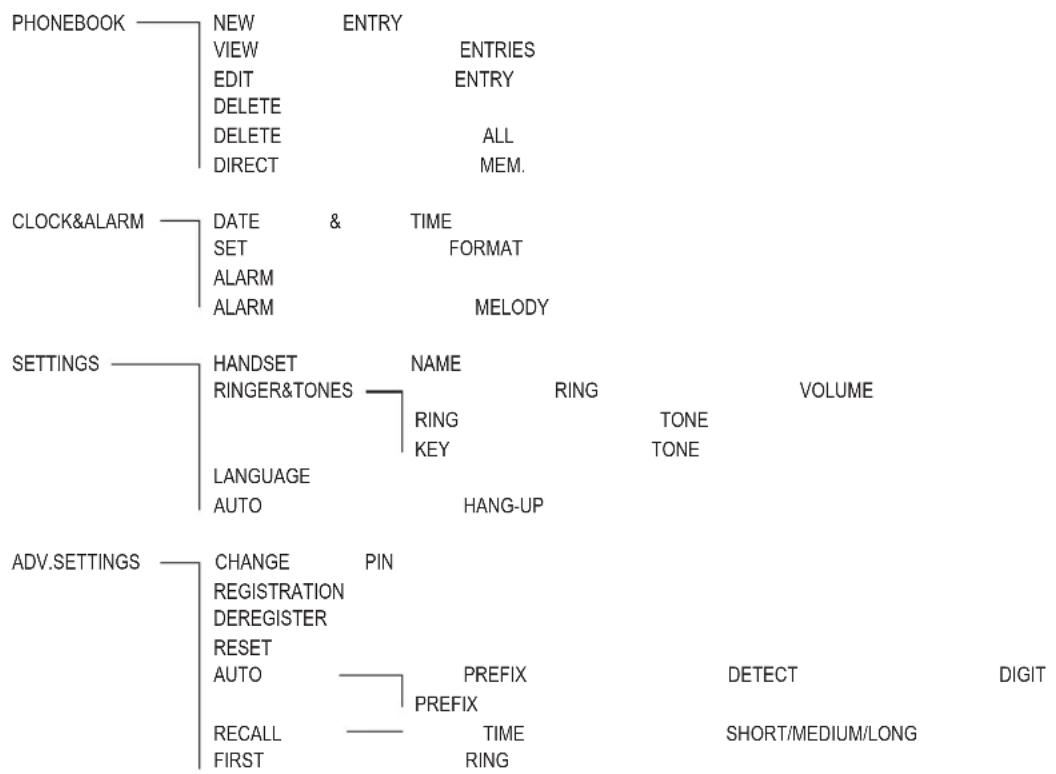
Menu structure handset
text_image
PHONEBOOK — NEW ENTRY VIEW ENTRIES EDIT ENTRY DELETE DELETE ALL DIRECT MEM. CLOCK&ALARM — DATE & TIME SET FORMAT ALARM ALARM MELODY SETTINGS — HANDSET NAME RINGER&TONES RING TONE VOLUME LANGUAGE KEY TONE AUTO HANG-UP ADV.SETTINGS — CHANGE PIN REGISTRATION DEREGISTER RESET AUTO PREFIX DETECT DIGIT RECALL TIME SHORT/MEDIUM/LONG FIRST RINGIn Case of Problems
Should problems arise with the telephone, please refer to the following information first. In the case of technical problems, you can contact our hotline service, tel. 0180 5 001388 (Costs for call from German Telekom landline at time of print: 14 ct/min). In the case of claims under the terms of guarantee, contact your sales outlet. There is a 2 year period of guarantee.
- After pressing the on hook button or lifting the handset from the desktop telephone, no ring tone is audible, the line is not engaged.
- Check the telephone connector on the desktop telephone and on the wall socket.
- Check power connector on the desktop telephone and on 230 V.
- Make sure the delivered telephone connection cable is used.
- The line is being occupied by another handset. Wait until the connection is terminated.
- Display: "SEARCHING..." flashing.
- Check power connector on the desktop telephone and on 230 V.
- Reduce range.
- Register handset.
- No display on the handset.
- Handset turned off -> turn on.
- Battery empty -> recharge.
Default settings
Desktop telephone Handset
| Call list No entry No entry | |||
| Phone book No entry No entry | |||
| Alarm – Off | |||
| Ringer | – | Melody | 1 |
| Volume: 3 Volume: 2 | |||
| Key tone – On | |||
| Language – German | |||
| Handset name – HANDSET | |||
| Auto hang-up – On | |||
| Recall time – MEDIUM | |||
| PIN | -0000 | ||
Technical data
Standard: DECT / GAP
Number of channels: 120 duplex channels
Frequencies: 1880 MHz to 1900 MHz
Duplex mode: Time division multiplex, 10ms frame length
Channel spacing: 1728 kHz
Bit rate: 1152 kBit / s
Modulation: GFSK
Voice encoding: 32 kBit / s
Transmitter power: 10 mW (average power per channel)
Range: up to 250 m outside, up to 50 m inside buildings
Electricity supply desktop telephone: 100\~240 V AC / 6 V, 500 mA DC
Electricity supply charger (fixed): 100\~240 V AC / 6 V, 150 mA DC
Handset: Operating time: Stand-by time / Talk time 400 mAh = approx. 130 h / approx. 7 h
Charging time: approx. 15 h
Operating temperature for handset operation: 5°C to 40°C; 20% to 75% rel. humidity
Operating temperature for desktop telephone operation: 5°C to 40°C; 20% to 75% rel. humidity
Storage temperature: -10°C to +60°C
Dial mode: Tone
R key: Flash (SHORT - MEDIUM - LONG)
Desktop telephone dimensions (mm): L / W / H = approx. 180 x 160 x 60
Handset dimensions (mm): L / W / H = approx. 145 x 45 x 27
Telephone line cord: TSV on Pin 3 and 4 according to CTR 37 (Euro)
Adapter plug: European-type mains connecto
Declaration of Conformity

This device fulfils the requirements stipulated in the EU directives:
- 1999/5/EU directive on radio equipment and telecommunications terminal equipment and the mutual recognition of their conformity.
- 2005/32/EU directive "Energy-using products".
Conformity with the above mentioned directives is confirmed by the CE symbol on the device.
To view the complete Declaration of Conformity, please refer to the free download available on our web site www.audioline.de.
Maintenance
Clean the housing surfaces with a soft, fluff-free cloth.
Do not use any cleaning agents or solvents.
Guarantee
AUDIOLINE equipment is produced and tested according to the latest production methods. The implementation of carefully chosen materials and highly developed technologies ensure trouble-free functioning and a long service life. The terms of guarantee do not apply where the cause of equipment malfunction is the fault of the telephone network operator or any interposed private branch extension system. The terms of guarantee do not apply to the batteries or power packs used in the products. The period of guarantee is 24 months from the date of purchase.
All deficiencies related to material or manufacturing errors within the period of guarantee will be redressed free of charge. Rights to claims under the terms of guarantee are annulled following tampering by the purchaser or third parties. Damage caused as the result of improper handling or operation, normal wear and tear, incorrect positioning or storage, improper connection or installation or Acts of God and other external influences are excluded from the terms of guarantee. In the case of complaints, we reserve the right to repair defect parts, replace them or replace the entire device. Replaced parts or devices become our property. Rights to compensation in the case of damage are excluded where there is no evidence of intent or gross negligence by the manufacturer.
If your device shows signs of defect during the period of guarantee, please return it to the sales outlet in which you purchased the AUDIOLINE device together with the purchase receipt. All claims under the terms of guarantee in accordance with this agreement can only be asserted at the sales outlet.
No claims under the terms of guarantee can be asserted after a period of two years from the date of purchase and hand-over of the product.
Index
A
Alarm....17
Alarm tone 18
Auto prefix....19
Automatic hang-up 18
B Brokering .... 11
C Call list .....9, 13 Call timer .....10 Charging station .....4 Charging the batteries .....4 Conference .....11 Connecting the desktop telephone .....3
D Date- and time format .....17 Date/Time .....17 Declaration of Conformity .....26 Default settings .....24 Deleting a handset .....21 Direct memory .....10, 16 Display .....7 Display language .....18 Disposal .....2
E Earpiece/loudspeaker volume ..... 10 Ending a call ..... 8
F First ring .....20
G Guarantee....26
H Handset name....18
I Icons ....7 In Case of Problems ....24
Inserting the batteries 4
Installation location 1
Intended use 1
Internal calls ....11
K Key lock ....12 Keytone ....18
L Language .....4, 18 Low-radiation operation .....2
M Maintenance .....26 Making a call .....8 Medical equipment .....2 Melody .....18 Menu structure .....23 Muting the microphone .....10
O Operating Elements ....5
P Package contents .....3 PBX .....22 Phone book .....10, 15 PIN .....19 Power adapter plug .....1 Power consumption .....2 Power failure .....2
R Recall time .....20 Rechargeable batteries .....1 Redial .....9, 14 Registering a handset .....21 Reset .....20 Ring volume .....18
S Safety Information ....1 Setting the time and date ....4
Supplementary services .....22
Switching off the handset 12
Switching the ringer on/off 12
T
Taking a call 8
Technical data....25
Time 17
Tones 18
Transfer....11
W
Wall mounting 5