
XD-9580 - Hi-Fi KENWOOD - Free user manual and instructions
Find the device manual for free XD-9580 KENWOOD in PDF.


| Product Type | Hi-Fi Stereo Receiver |
| Brand | Kenwood |
| Model | XD-9580 |
| Dimensions (W x H x D) | 17.3 x 4.7 x 13.4 inches (440 x 120 x 340 mm) |
| Weight | 18.5 lbs (8.4 kg) |
| Power Output | 100W per channel (8 ohms, 20Hz-20kHz) |
| Frequency Response | 10Hz - 40kHz ±3dB |
| Total Harmonic Distortion | <0.05% |
| Inputs | 4 RCA audio inputs, 1 phono input, 1 tape loop |
| Outputs | Speaker outputs, headphone jack, tape output |
| Power Supply | AC 120V, 60Hz (US version) |
| Power Consumption | 350W max |
| Standby Power | <0.5W |
| Functions | AM/FM tuner, tone controls (bass/treble), balance, loudness, record out selector |
| Cleaning | Wipe with dry soft cloth; avoid solvents |
| Safety | Do not expose to moisture; ensure proper ventilation |
| Spare Parts & Repairability | Contact authorized Kenwood service centers for parts and repairs |
| General Information | Designed for home audio; supports 2-channel stereo |
Frequently Asked Questions - XD-9580 KENWOOD
User questions about XD-9580 KENWOOD
0 question about this device. Answer the ones you know or ask your own.
Ask a new question about this device
Download the instructions for your Hi-Fi in PDF format for free! Find your manual XD-9580 - KENWOOD and take your electronic device back in hand. On this page are published all the documents necessary for the use of your device. XD-9580 by KENWOOD.
USER MANUAL XD-9580 KENWOOD
Units are designed for operation as follows.
Europe and U.K. AC 230 V only
For the United Kingdom
Factory fitted moulded mains plug
- The mains plug contains a fuse. For replacement, use only a 13-Amp ASTA-approved (BS 1362) fuse.
- The fuse cover must be refitted when replacing the fuse in the moulded plug.
- Do not cut off the mains plug from this equipment. If the plug fitted is not suitable for the power points in your home or the cable is too short to reach.
A power point, then obtain an appropriate safety approved extension lead or adapter, or consult your dealer.
If nonetheless the mains plug is cut off, remove the fuse and dispose of the plug immediately, to avoid a possible shock hazard by inadvertent.
Connection to the mains supply.
IMPORTANT : The wires in the mains lead are coloured in accordance with the following code :
Blue : Neutral
Brown : Live
Do not connect those leads to the earth terminal of a three-pin plug.
Safety precautions
WARNING: TO PREVENT FIRE OR ELECTRIC SHOCK, DO NOT EXPOSE THIS APPLIANCE TO RAIN OR MOISTURE.

CAUTION
RISK OF ELECTRIC SHOCK DO NOT OPEN

CAUTION: TO REDUCE THE RISK OF ELECTRIC SHOCK, DO NOT REMOVE COVER (OR BACK). NO USER-SERVICEABLE PARTS INSIDE, REFER SERVICING TO QUALIFIED SERVICE PERSONNEL.


THE LIGHTNING FLASH WITH ARROWHEAD SYMBOL, WITHIN AN EQUILATERAL TRIANGLE, IS INTENDED TO ALERT THE USER TO THE PRESENCE OF UNINSULATED "DANGEROUS VOLTAGE" WITHIN THE PRODUCT'S ENCLOSURE THAT MAY BE OF SUFFICIENT MAGNITUDE TO CONSTITUTE A RISK OF ELECTRIC SHOCK TO PERSONS.
THE EXCLAMATION POINT WITHIN AN EQUILATERAL TRIANGLE IS INTENDED TO ALERT THE USER TO THE PRESENCE OF IMPORTANT OPERATING AND MAINTENANCE (SERVICING) INSTRUCTIONS IN THE LITERATURE ACCOMPANYING THE APPLIANCE.
REQUIREMENT BY NEDERLAND GAZETTE
Batteries are supplied with this product. When they empty, you should not throw away. Instead, hand them in as small chemical waste.

The marking of products using lasers (Except for some areas)
CLASS 1 LASER PRODUCT
The marking is located on the rear panel and says that the component uses laser beams that have been classified as Class 1. It means that the unit is utilizing laser beams that are of a weaker class. There is no danger of hazardous radiation outside the unit.
Contents
Preparation section
▲ Before applying power.... 2
Safety precautions 2
Contents 3
Special features 4
Handling of discs 5
System connection....6
Connection of the system accessories 6
Connection of other components and accessories ..... 8
Controls and indicators 10
Tuner/equalizer section 10
Amplifier section 12
CD player section 13
MD recorder section 14
Remote control unit 16
Operation of remote control unit 17
Basic section
Let's put out some sound.... 18
Basic use method 18
Playback of CD.... 20
Playback of Mini Disc.... 22
Receiving broadcast station 26
Let's record.... 28
Recording on MD.... 28
Application section
Playback of CD.... 31
Listening in the desired sequence (program playback) 31
Repeated playback 33
Listening to an unexpected title sequence (random playback).... 34
Playback of MD.... 35
Listening in the desired sequence (program playback) 35
Repeated playback 37
R.D.S....39
Searching for a desired program type (PTY search) .... 40
To be able to listen to the desired information at any time ... 42

natural_image
Cartoon illustration of a smiling professor holding a pointer (no text or symbols)Convenient Recording Methods 44
Selection of the recording type 44
One-touch recording of one CD, MD (One-touch edit recording of all tracks).... 46
When a desired track is found, only that track is recorded (One-touch edit recording of one track) 47
Producing an MD or a tape collecting only the first titles (BEST HITS function) 49
Recording of one CD or several CDs (CD→MD) (Program edit recording) 50
Recording of one CD or several CDs (CD→TAPE) (Program edit recording) 51
Change of the track sequence according to the tape length (CD→TAPE only) (Time edit recording) 52
Fade-out/Fade-in at the tape reversal (CD→TAPE only) (Fade edit recording) 54
MD edit functions 55
Selecting the editing function type 55
Assigning a title to a disc or track 56
Changing or deleting a title 57
Moving several tracks at a time (QUICK MOVE) 58
Moving a single track (TRACK MOVE).... 59
Dividing a track (TRACK DIVIDE).... 60
Combining two tracks (TRACK COMBINE) 61
Erasing several tracks at a time (QUICK ERASE) ...... 63
Erasing a single track (TRACK ERASE) or erasing all tracks on a disc (ALL ERASE) 64
Effective sound field and sound quality adjustment..... 66
Enjoying sound field effects.... 66
Listening with the desired sound (equalizer function) 67
Adjustment of balance and input level 68
Multi-function display switching (demonstration function) ... 69
Clock adjustment.... 70
Timer operation....71
Operate easy To use Timer (O.T.T.) 71
Sleep timer.... 71
Timer programming 72
Knowledge section
Important items 76
Maintenance 76
Reference 76
MD system 77
Digital recording and SCMS 78
In case of difficulty 79
Specifications 83
XD-9580MD (En)
Special features
An MD recorder is standard equipment
→22
An MD recorder with high digital sound quality is standard equipment. Digital copying from a CD is also easy. This recorder has many functions like recording and display of names for discs and titles, changing the sequence of tracks, etc.
Sampling Frequencies
→29
This unit has a sampling rate converter corresponding to digital sources (32 kHz, 44.1 kHz, 48 kHz).
SRS 3D stereo system
→66
This is an epochal system called Sound Retrieval System, which creates a three-dimensional sound space. The feeling of depth, the width of the sound field, the sound image positioning, etc. all are clearly improved, and the listening area also is widened. (Retrieval is used in the meaning of recovery or restoration.)
Convenient recording methods
→44
Various versatile recording functions are provided according to the use purposes.
When the cassette deck X-H9 (sold separately, not sold in some areas or countries) is connected, edit recording to tape is also possible from other sources.
| One-touch edit : Recording of one CD or MD or one track by pressing a single key
TWIN RECORDING function : Simultaneous recording of one CD to MD and tape
|BEST HITS function : Sequential recording of the first track of each CD onto MD or tape
|Program recording : Any desired tracks can be recorded in the desired sequence
| Time edit recording : Recording so that no track will be interrupted within the specified time (only from CD to tape)
| Fade edit recording : Sequential recording from the first track (only from CD to tape)
Versatile tone and sound field adjustment
→67
The tone can be selected according to the genre of the music played :
ROCK, POP, DISCO, JAZZ, CLASSIC.
Convenient timer functions
→71
In addition to the possibility of storing up to 2 timer programs in memory, the following functions are available.
|AI timer : When the unit is turned ON by the timer, the sound level increases gradually.
|O.T.T.: A timer with easy setting, which operates only once.
|Sleep timer : Useful when you want to go asleep while listening to music.

natural_image
Cartoon illustration of a bearded man in a lab coat holding a flask, pointing upward (no text or symbols)Unpacking
Unpack the unit carefully and make sure that all accessories are put aside so they will not be lost.
Examine the unit for any possibility of shipping damage. If your unit is damaged or fails to operate, notify your dealer immediately. If your unit was shipped to you directly, notify the shipping company without delay. Only the consignee (the person or company receiving the unit) can file a claim against the carrier for shipping damage.
We recommend that you retain the original carton and packing materials for use should you transport or ship the unit in the future.
Accessories Please confirm that the following accessories are present.
FM indoor antenna (1)
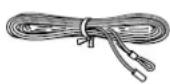
Speaker cords (2)
Loop antenna (1)
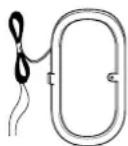
Remote control unit (1)
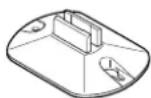
AM loop antenna stand (1) Optical fiber cable (1)
Batteries (R6/AA) (2)
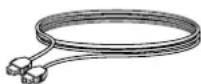
Parallel cord (1)
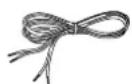
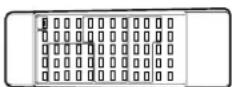
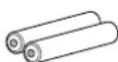
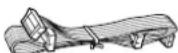
Handling of discs
Disc handling precautions
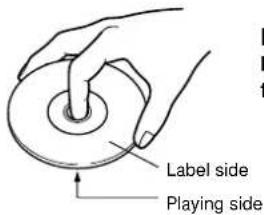
Handling
Hold compact discs so that you do not touch the playing surface.
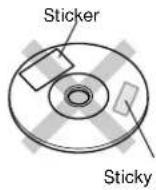
Do not attach paper or tape to either the playing side or the label side of compact discs.
The paste left on the label surface after a sticker has been peeled off is a factor which may cause malfunction. If the surface is sticky due to remaining paste, be sure to clean it with alcohol before use.
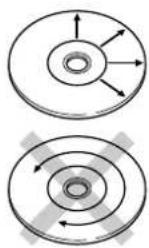
Cleaning
If fingerprints or foreign matter become attached to the disc, lightly wipe the disc with a soft cotton cloth (or similar) from the center of the disc outwards in a radial manner.
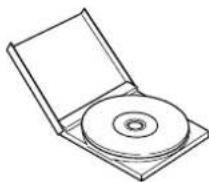
Storage
When a disc is not to be played for a long period of time, remove it from the CD player and store it in its case.
Discs which can be played with this unit
CD (12 cm, 8 cm), CDV (only the audio part)
|With CD-G (CD Graphics) discs, this unit can play only the audio.
CD accessories
The CD accessories (stabilizer, protection sheet, protection ring, etc.) which are marketed for improving the sound quality or protecting discs as well as the disc cleaner should not be used with this system because they may cause malfunction.
Caution on disc used
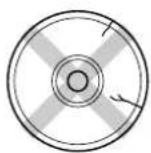
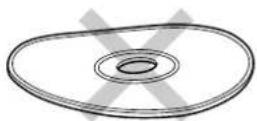
Never play cracked or warped disc.
During playback, the disc rotates at high speed in the player. Therefore, to avoid malfunction, never use a cracked or deformed disc or a disc repaired with tape or adhesive agent.
Handling of Mini Disc
As the Mini Disc is accommodated inside a cartridge, it can be handled without caring about dust or fingerprint. However, stained or soiled cartridge may cause malfunction. To enjoy beautiful sound for extended period of time, take care on the following points.
Do not touch the disc directly.
Do not touch the disc by opening the shutter with your hand. The cartridge will be damaged if it is forced open.
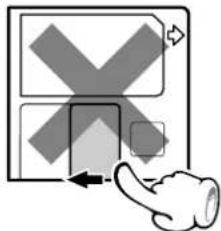
Storage position
Do not leave Mini Discs in place where the temperature and/or humidity are extremely high (for example, in a place subject to direct sunlight).
Dust countermeasure
The shutter of the disc cartridge is permanently open while the disc is loaded in the set. Therefore, to prevent dust from penetrating inside the disc, take the disc out of the unit immediately after completion of recording or playback.
Care
Wipe periodically dust and dirt attached on the cartridge with a dry cloth.
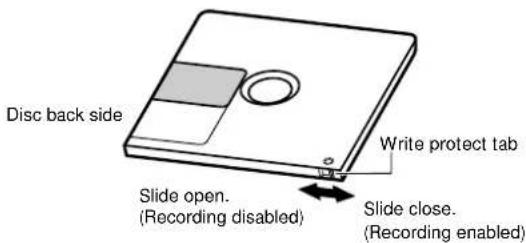
Write protect tab
To protect recorded contents against accidental erasure, set the write protect tab of the disc open. Return the tab to the original position when you want to record signals on the disc.
XD-9580MD (En)
Connection of the System Accessories
This is the method for connection between the main unit and the accessories. Please connect correctly as shown in the figure.
FM indoor antenna
The accessory antenna is for temporary indoor use only. For stable signal reception we recommend using an outdoor antenna. Remove the indoor antenna if you connect one outdoors.
⑦Locate the position providing good reception condition.
② Fix the antenna.
Malfunction of microcomputer
If operation is not possible or erroneous display appears even though all connections have been made properly, reset the microcomputer referring to "In case of difficulty". → 79

AM loop antenna
The supplied antenna is for indoor use. Place it as far as possible from the main system, TV set, speaker cords and power cord, and set it to a direction which provides the best reception.
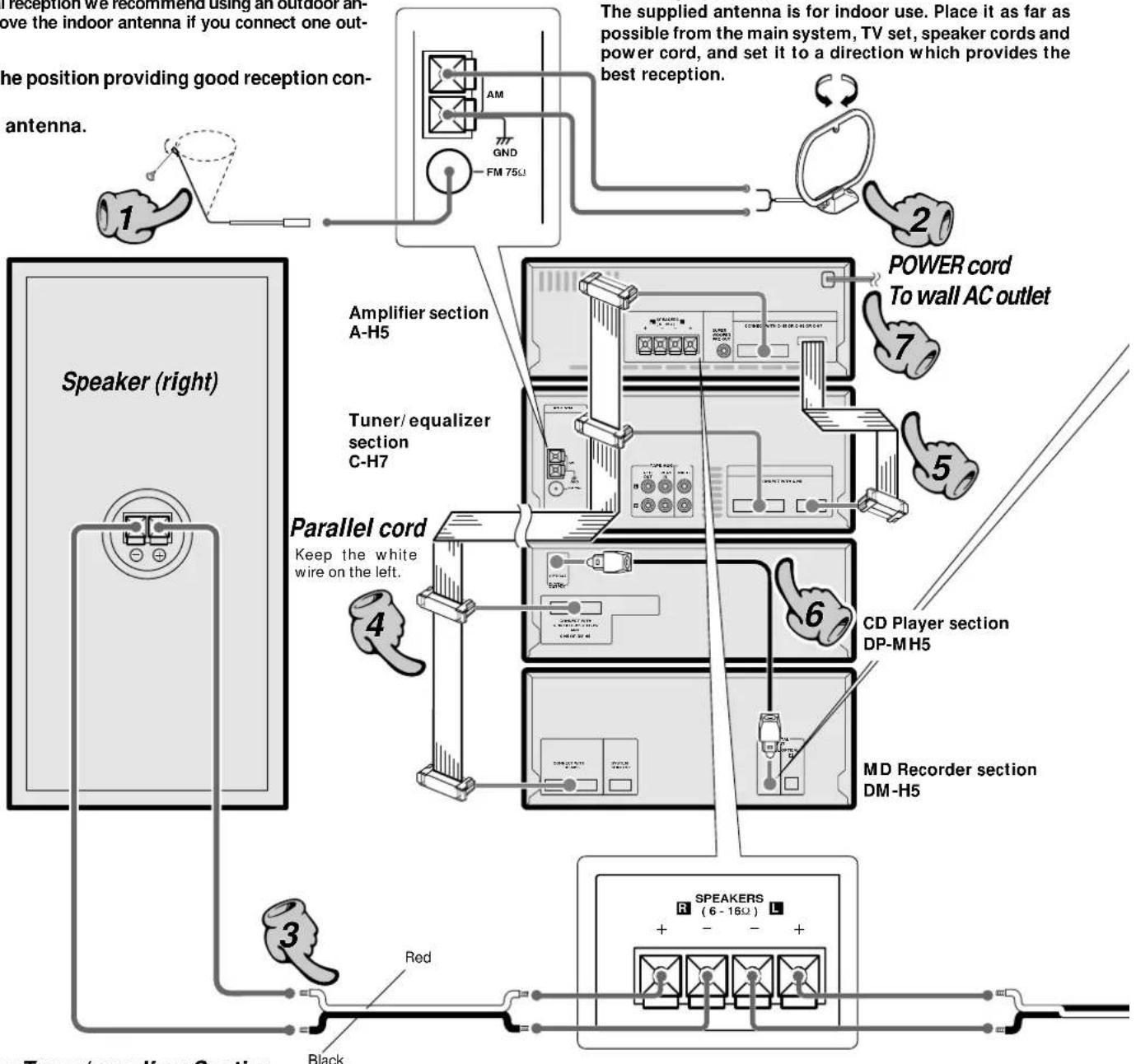
Amplifier, Tuner/equalizer Section
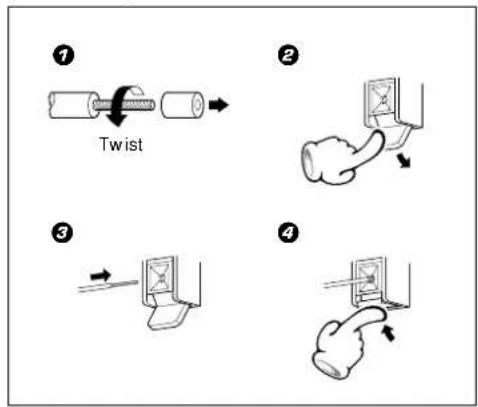
Connection of parallel cord
natural_image
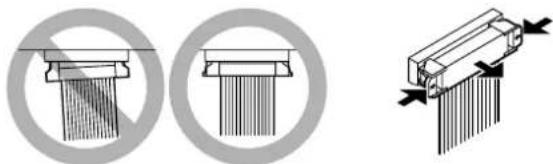
Three technical diagrams showing mechanical assembly or cleaning process with no visible text or symbolsWhen connecting the parallel cord, insert the plug straight into the connector until it clicks to lock them securely.
When connecting the parallel cord, the wire with white line should come to the left side end.
When disconnecting the parallel cord, push in the two sides of the plug and pull it straight out.
XD-9580MD (En)
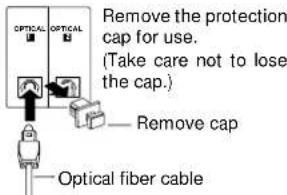
Digital output terminal
Remove the protection cap for use. (Take care not to lose the cap.)
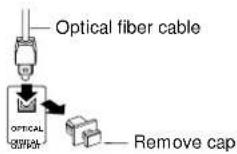
Digital input terminal
Always execute the connection between DP-MH5 and DM-H5 at this position.
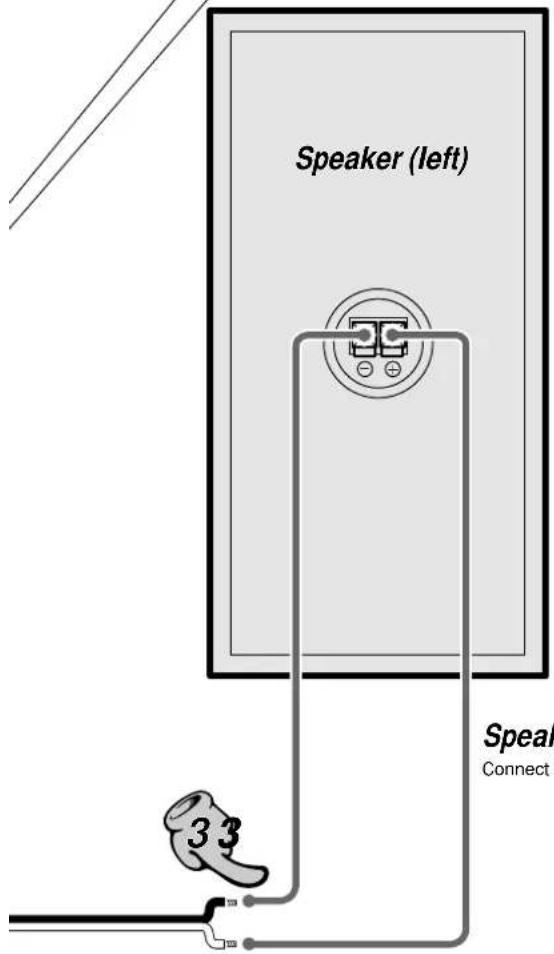
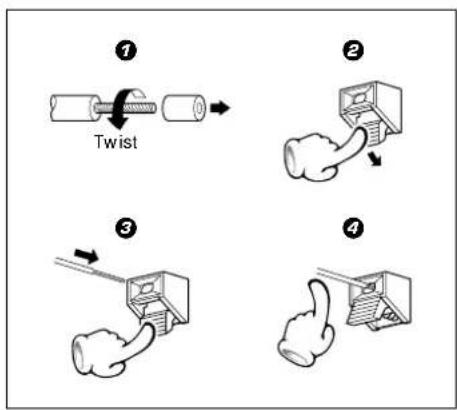
Speaker cord
Connect correctly + to + and - to -.
Speaker Section
Note on connection of optical-fiber cable
Insert the optical-fiber cable straight into the connector until it clicks.
| Be sure to attach the protection cap when the connector is not used.
Never bend or bundle the optical-fiber cable.
|All of the optical-fiber cables sold in audio stores cannot always be used.
If the cable you purchased cannot be connected to this unit, please consult your dealer or KENWOOD distributor.
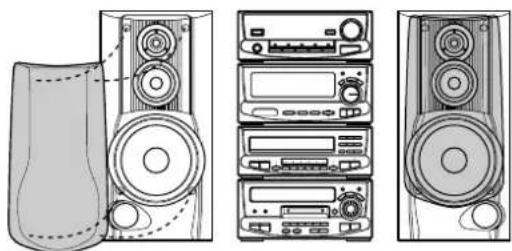
Caution regarding placement (Front view)
natural_image
Technical line drawing of a multi-tiered audio workstation with speaker units and control panels (no text or labels)To maintain proper ventilation, be sure to leave a space around the unit (from the largest outer dimensions including projections) equal to, or greater than, shown below.
Top panel : 50 cm, Rear panel : 10 cm, Left and right panel : 10 cm
Please install as shown, as otherwise fire may be caused by overheating.


-
Be sure to insert all connection cords securely. If their connections are imperfect, the sound may not produce or noise may interfere.
-
Before plugging or unplugging a connection cord, be sure to unplug the power cord from the wall AC outlet, if connection cords are plugged or unplugged with the power cord left plugged in, malfunction or damage may result.

- When arranging the system units in a vertical, stacked configuration, observe the stacking order indicated in the system connection diagram.
- In case an associated system component is connected, also read the instruction manual of the component.
- Align the front panels of the unit flush.
- Never short-circuit the + and - speaker cords.
- If the left and right speaker connections or the + and - polarity are inverted, the sound will be unnatural with unclear positioning of musical instruments, etc. Be sure to connect them without mistake.
Connection of other components and accessories
Connect separately sold parts as shown in the figure. Do not plug the power cord into the power outlet until all of the required connections have been made.
XD-9580MD (En)
Super-Woofer Operation
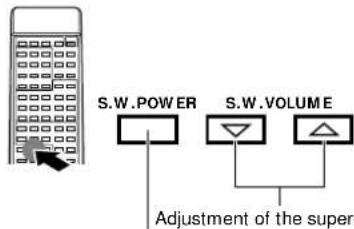
Switching Super-woofer ON/OFF.
Once the super-woofer volume has been decided, the VOLUME CONTROL can be used for volume adjustment with the same balance.
Point the remote control towards the super-woofer.
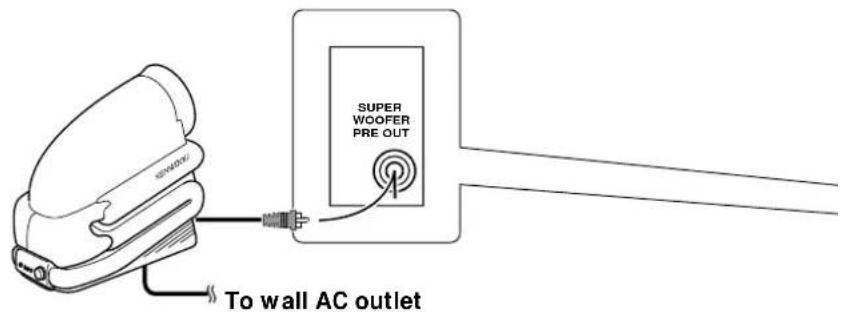
Super woofer (SW-500) (optional)
Extremely low sound is played back powerfully. This can be used with any type of playback.
FM outdoor antenna
Lead the 75Ω coaxial cable connected to the FM outdoor antenna into the room and connect it to the FM 75Ω terminal.
Please remove the room antenna after an outdoor antenna has been installed.


Caution

- Be sure to insert all connection cords securely. If their connections are imperfect, the sound may not be produced or noise may interfere.
- Before plugging or unplugging a connection cord, be sure to unplug the power cord from the wall AC outlet. If connection cords are plugged or unplugged with the power cord left plugged in, malfunction or damage may result.

- In case an associated system component is connected, also read the instruction manual of the component.
- To pull the cable, press both ends of the socket and pull the cable straight out.
Connection of system control cord
Plugging the connector
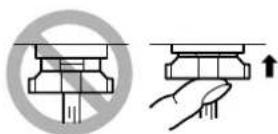
Insert the plug straight into the connector unit it locks
Unplugging the connector
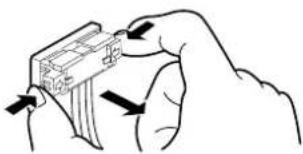
natural_image
Illustration of a hand holding a card with arrows indicating movement or change (no text or symbols)While pushing the two sides of connector in, pull it straight out
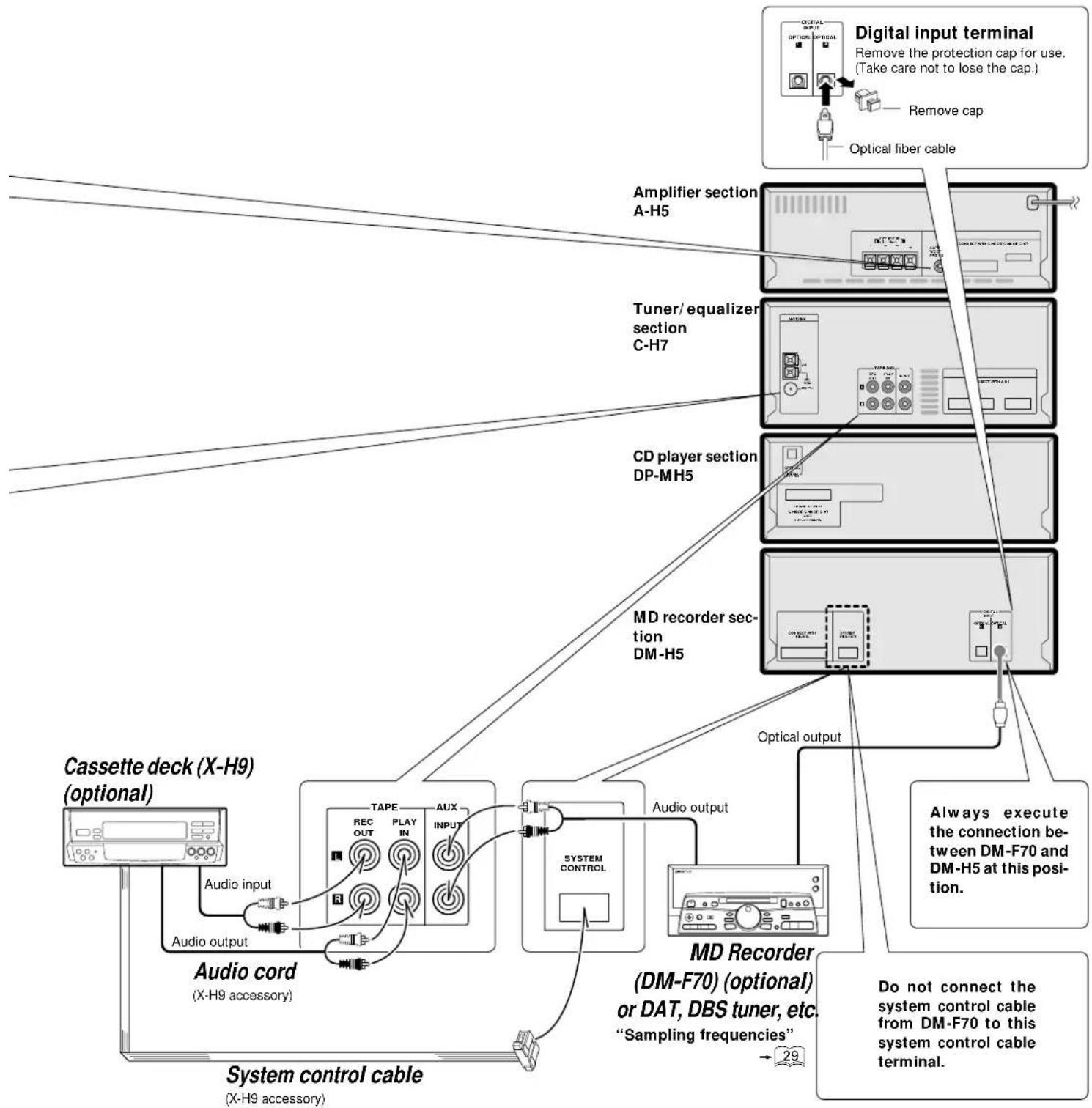
flowchart
graph TD
    A["Cassette deck (X-H9) (optional)"] -->|Audio input| B["TAPE"]
    A -->|Audio output| C["Audio cord (X-H9 accessory)"]
    B --> D["AUX INPUT"]
    C --> E["DATA (X-H9 accessory)"]
    D --> F["SYSTEM CONTROL"]
    E --> G["MD Recorder (DM-F70) (optional) or DAT, DBS tuner, etc. "Sampling frequencies""]
    F --> H["Optical output"]
    H --> I["CD player section DP-MH5"]
    I --> J["Tuner/ equalizer section C-H7"]
    J --> K["Amplifier section A-H5"]
    K --> L["Digital input terminal: Remove the protection cap for use. (Take care not to lose the cap)."]
    F --> M["Do not connect the system control cable from DM-F70 to this system control cable terminal."]
    style A fill:#f9f,stroke:#333
    style B fill:#ccf,stroke:#333
    style C fill:#cfc,stroke:#333
    style D fill:#fcc,stroke:#333
    style E fill:#cff,stroke:#333
    style F fill:#ffc,stroke:#333
    style G fill:#fcc,stroke:#333
    style H fill:#ffc,stroke:#333
    style I fill:#fcc,stroke:#333
    style J fill:#fcc,stroke:#333
    style K fill:#fcc,stroke:#333
    style L fill:#fcc,stroke:#333
    style M fill:#fcc,stroke:#333
Tuner/equalizer section
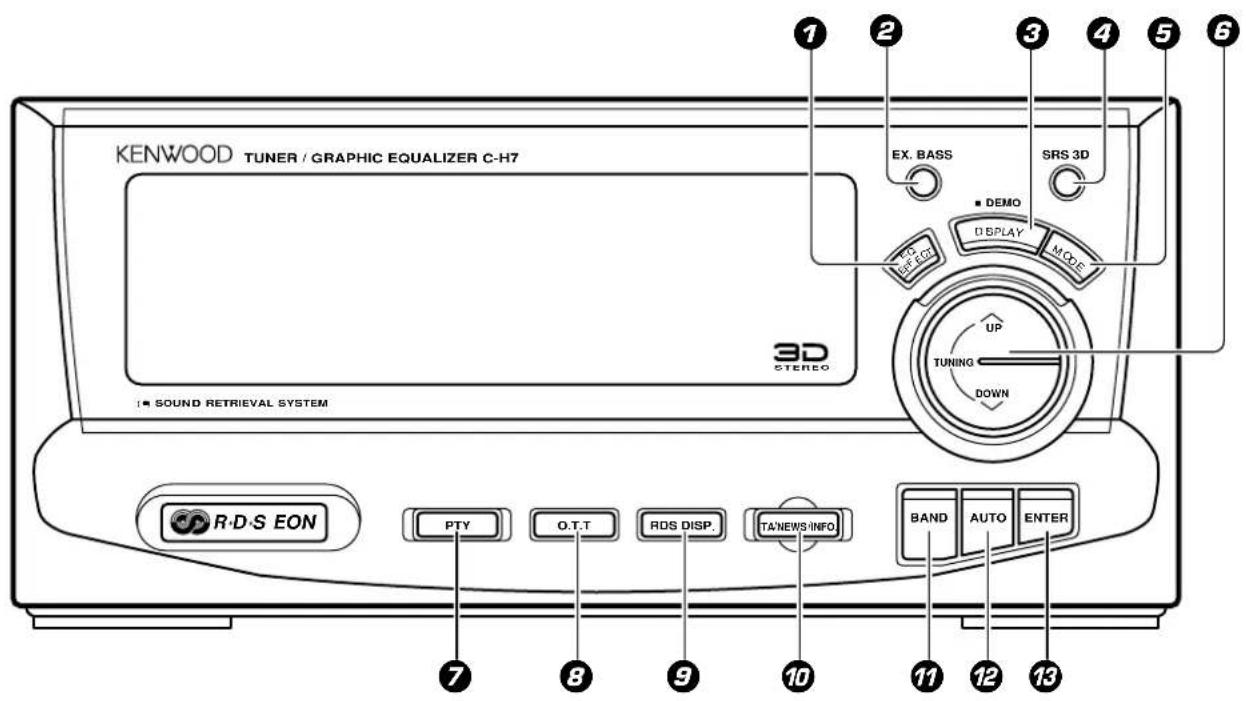
① EQ.effect key
The equalizer effect is switched ON and OFF. Also, the equalizer type can be selected.
②EX. BASS key/indicator
- 19 - 72
At the time of unit ON : Used for EX. BASS playback ON/OFF.
At the time of unit OFF : Used for timer setting.
③DISPLAY/DEMO key
The indications contents of the display are switched. Used for demonstration ON/OFF.
④SRS 3D key/indicator
-66 -73
At the time of unit ON : This is used for SRS 3D ON/OFF switching.
At the time of unit OFF : Used for timer setting.
⑤ MODE key
This switches the function of the TUNING UP/DOWN key. The items which can be selected differ according to the status at that time.
⑥TUNING UP/DOWN key
Normally used for station selection. Depending on the purpose, function switching is possible with the MODE key.
⑦PTY key
Used at the time of program type detection.
⑧O.T.T.key
Used for O.T.T. timer setting.
⑨RDS DISP. key
Switches the contents of RDS-related display.
7TA/NEWS/INFO.key → 19 → 42
At the time of unit ON : Used at the time of EON reservation.
At the time of unit OFF : Used for AUTO POWER SAVE ON/OFF.
⑰ BAND key
The received broadcasting band is switched.
12 AUTO key
At the time of unit ON: This is used for switching between automatic reception (stereo) and manual reception (monaural).
At the time of unit OFF : Used for time setting.
⑬ ENTER key This is used for clock setting, timer setting, etc.
XD-9580MD (En)
Display (Tuner/equalizer section)
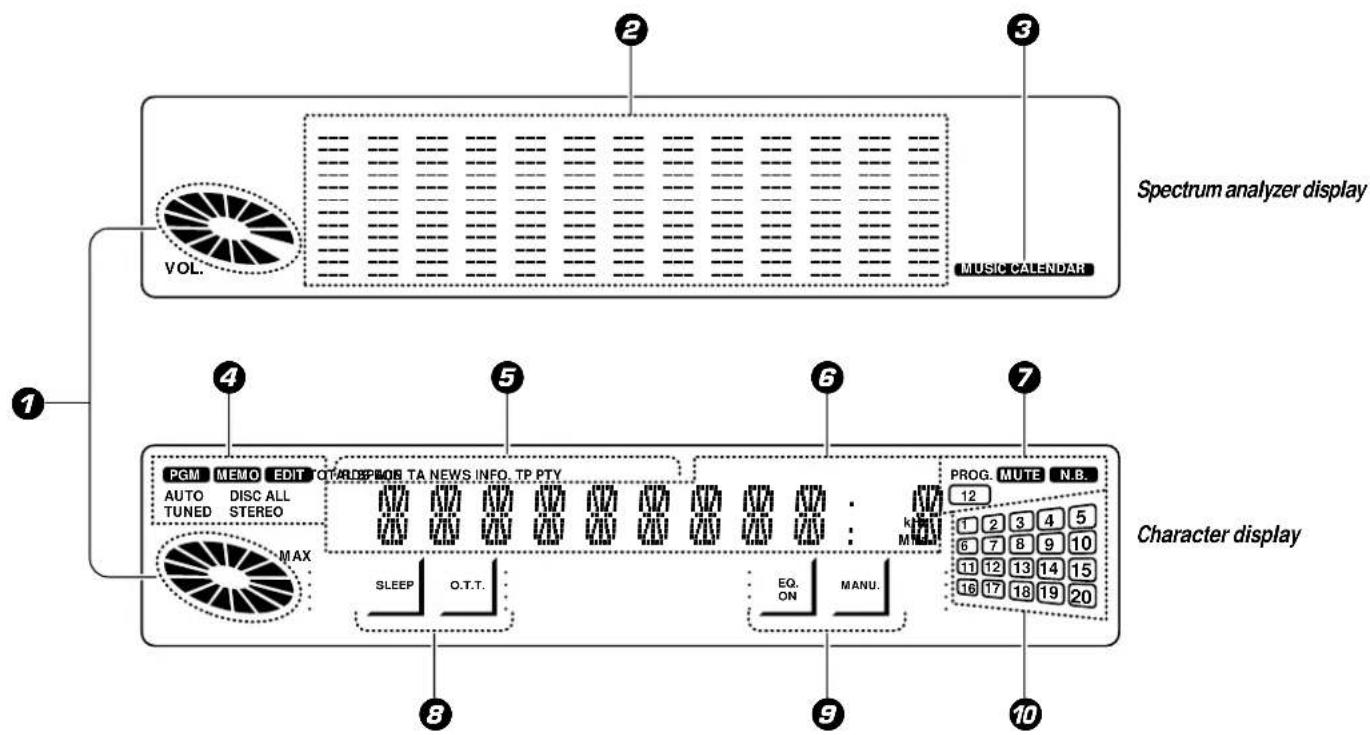
flowchart
graph TD
    A["Spectrum analyzer display"] --> B["VOL."]
    B --> C["MUSIC CALENDAR"]
    D["Character display"] --> E["PROG. MUTE N.B."]
    E --> F["12"]
    E --> G["1 2 3 4 5"]
    E --> H["6 7 8 9 10"]
    E --> I["11 12 13 14 15"]
    E --> J["16 17 18 19 20"]
    K["PGM MEMO EDIT OT<|rotate_up|>&SPOR TA NEWS INFO TP PTY AUTO DISC ALL AUTO TUNED STEREO MAX"] --> L["SLEEP O.T.T."]
    L --> M["EQ. ON MANU."]
    M --> N["8"]
    M --> O["9"]
    M --> P["10"]
① Volume display section
Approximate indication of the presently set volume level.
② Spectrum analyzer/ equalizer display
Display of the spectrum analyzer pattern changing with the music being played or display of the presently applied equalizer pattern.
③ Music calendar display
② Display section for tuner, application operation, etc
In addition to tuner indication, CD and M.D application operation etc. also is indicated.
⑤ Display for RDS-related information
⑥ Character information display section
Input switching, frequency indication, volume level, CD disc No., time indication, etc. are indicated.
⑦ Timer reservation No., mute, N.B. indication
③ Timer-related indication (SLEEP, O.T.T. indication)
⑨ Equalizer-related indication (EQ. ON, MANU. indication)
10 Music calendar display
Indication of the titles on the presently selected CD (one of tray 1 to 6). The track numbers of the tracks already played go out.
Amplifier section
XD-9580MD (En)
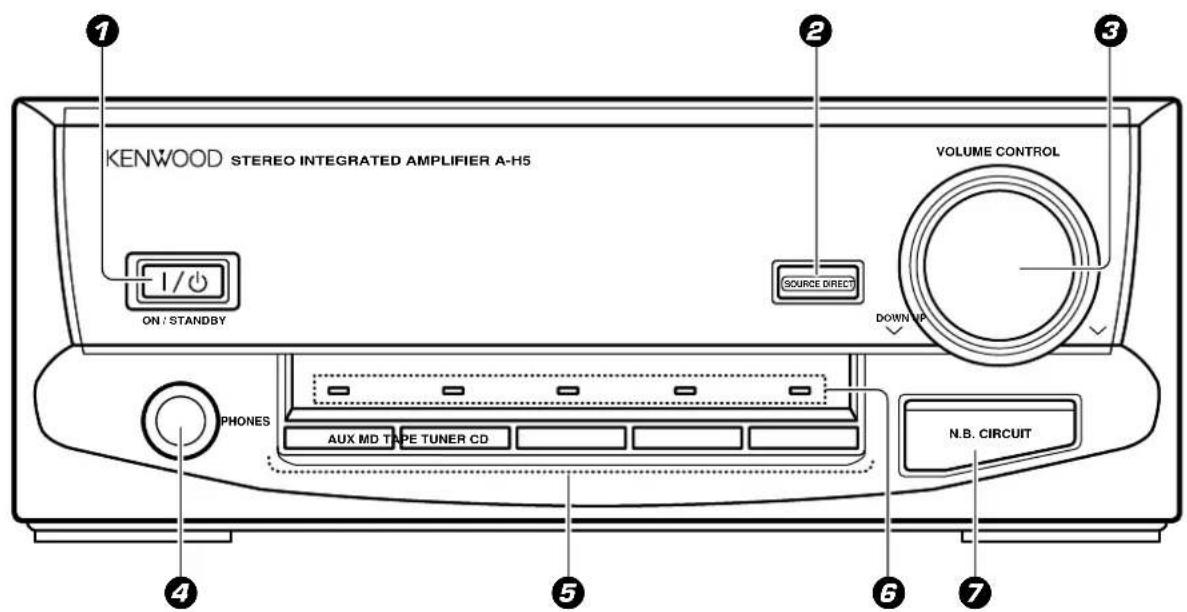
⑦ ON/STANDBY ( ) Key → 18
The system is switched ON and STANDBY.
STANDBY : The key is lit in red.
ON : The key is lit in green.
②SOURCE DIRECT key → 19
Used to enjoy even purer sound.
③VOLUME CONTROL knob → 18 → 68
Normally this is used for volume adjustment. This also can be used for adjustment of the input level.
④PHONES jack → 19
Headphones (sold separately) can be connected.
⑤Input selection keys → 18
The input source is selected. When CD, or MD is selected and a disc has already been set, playback will start automatically.
⑥Input selection indicators → 18
The presently selected input source is shown.
⑦N.B.CIRCUIT key → 19
When listening at low volume, the deficiency in the extra low bass range is compensated.
XD-9580MD (En)
CD player section
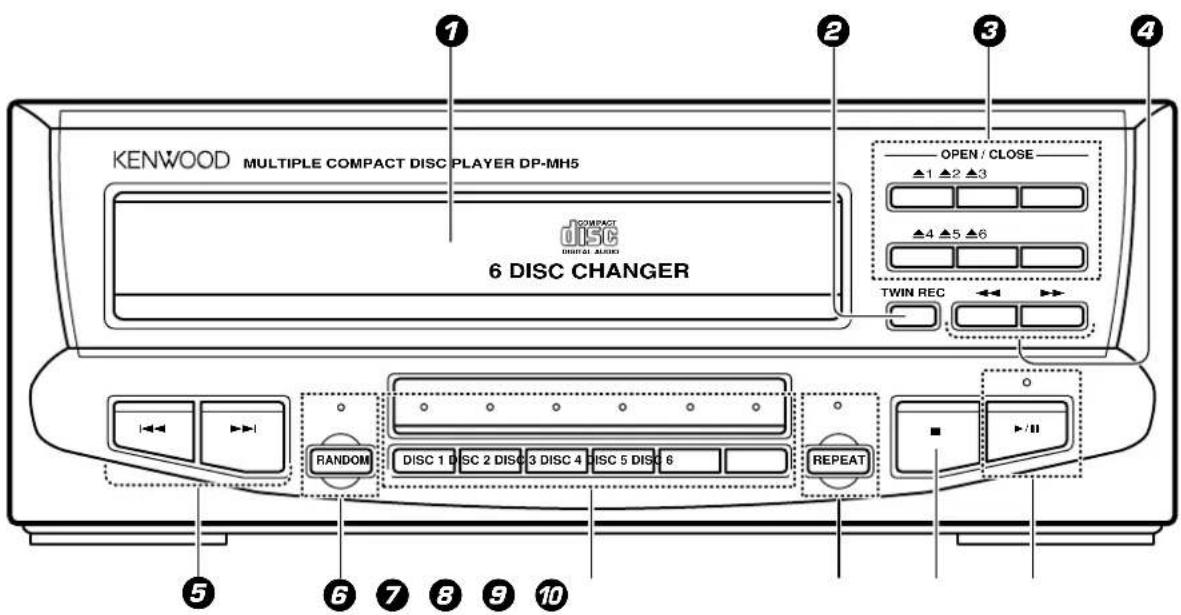
① Disc tray
Up to 6 CDs can be held.
→ 20
② TWIN REC key
Simultaneous recording of a CD to MD and tape.
③ OPEN/CLOSE (▲1\~▲6) keys
Used to insert and remove CDs.
④ SEARCH (◀◀, ▶▶) key
Used for quick title search forward and reverse.
⑤ SKIP (|◀◀, ▶▶▶) keys
Used to skip titles or to jump back to the start of a title.
5 RAMDOM key/indicator
Used for random playback.
⑦ DISC SELECTOR (DISC 1 \~DISC 6) keys/indicators → Selects the disc to be played (or recorded). The indicator lights when there is a disc in the tray, and it flashes during playback.
⑧ REPEAT key/indicator
Used for repeated playback.
⑨ Stop (■) key → 21
10 Play/pause (▶/Ⅱ) key/indicator → 20
MD recorder section
XD-9580MD (En)
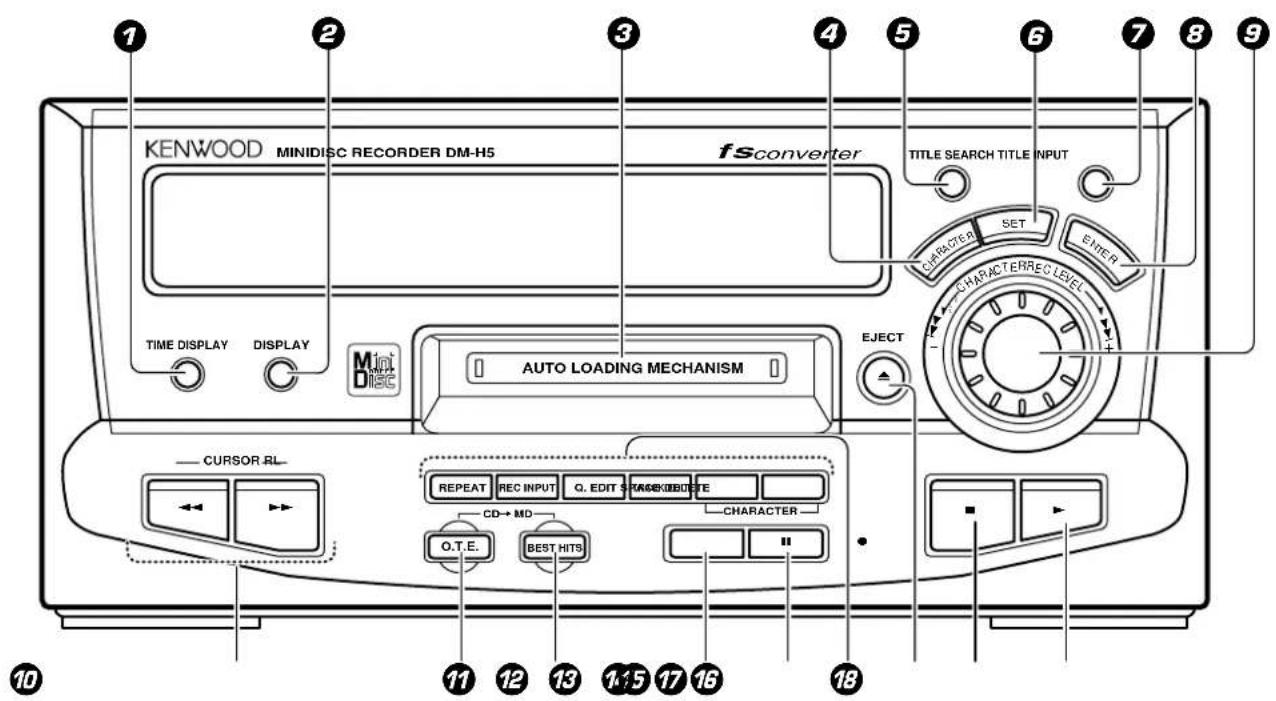
① TIME DISPLAY key
The time display type is switched.
② DISPLAY key
This is used to switch the title display mode etc.
⑦ Minidisc insertion slot → 22
④ CHARACTER key
This selects the character group at the time of title input.
⑤ TITLE SEARCH key
This is used for title search.
⑥ SET key
This is used for title input and editing.
⑦ TITLE INPUT key
This is used for title input.
ENTER key
This is used for execution of edit processing, confirmation of entered titles, etc.
⑨ Jog dial (|◀◀, ▶▶)
This is used as the skip key at the time of playback.
It is also used for track search and editing.
⑩ Fast forward, fast reverse (◀◀, ▶▶) keys → 23 → 56
At the time of playback, this is used for fast forward and fast backward.
At the time of title input, this is used for cursor movement.
70 O.T.E. key
When this key is pressed during CD playback, only the track being played at that time will be recorded to MD. When this key is pressed in stopped condition, the CD selected at that time will be recorded to MD from the first track on.
⑫ BEST HITS key
The first tracks of all CDs in the unit are recorded sequentially on MD.
⑬ REC (●) key
This is used at the time of recording.
⑭ Pause (II) key -23
⑤ Keys related to title input, editing, edit recording, and playback
REPEAT key → 37
This is used for repeated playback.
REC INPUT key → 30
This is used to select digital or analog input.
Q. EDIT key
Used to change the title sequence and for deletion.
→ 58 → 63
TRACK EDIT key → 59
Used for track editing and for erasing of tracks or the entire disc.
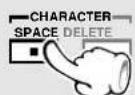
CHARACTER SPACE key → 57
This is used at the time of title input to enter a blank space.
CHARACTER DELETE key → 57
This is used at the time of title input to delete one character.
⑯ EJECT (▲) key This key is pressed to remove discs.
⑰ STOP (■) key → 23
18 PLAY (▶) key → 22
XD-9580MD (En)
Display (MD recorder section)
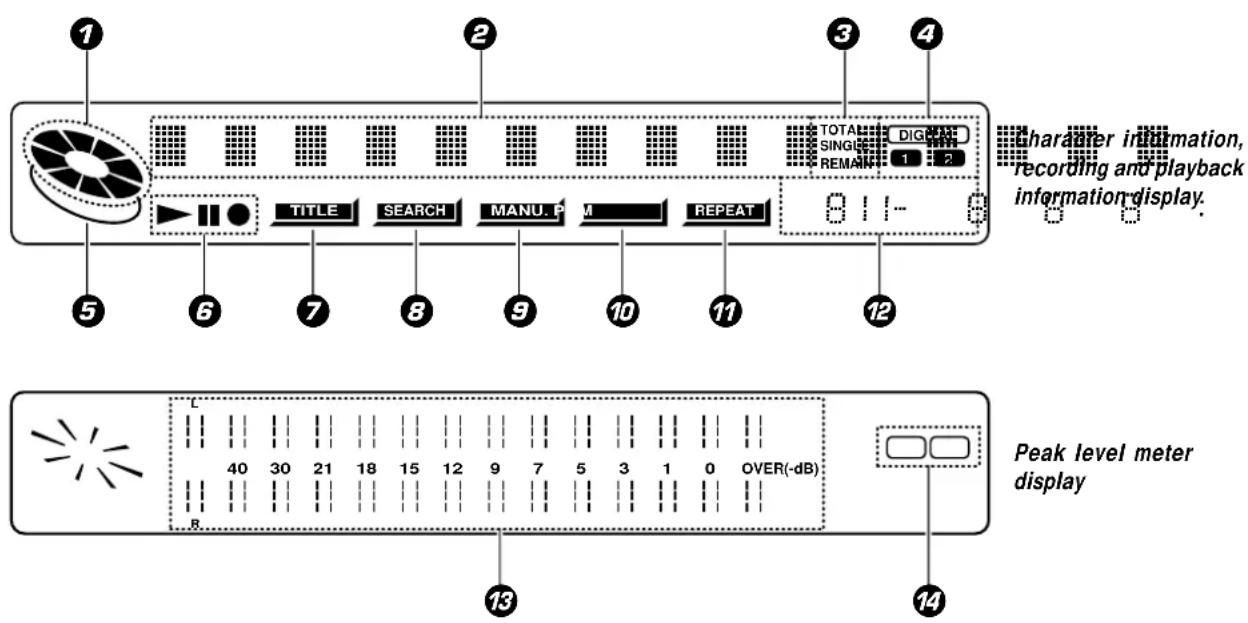
① Running indication
②Character information display
Indication of track and disc titles, title numbers, editing information, etc.
③ TOTAL, SINGLE, REMAIN indication ∞ Indication of the time indication mode.
④DIGITAL 1, 2 indication This lights when digital input is selected.
5Recording prohibition indication This lights when recording is prohibited for an MD recording.
⑥Playback, pause, recording indication This indicates the running status of the MD.
⑦TITLE indication → 24 → 56 This flashes during title input, title search, and title editing.
③SEARCH indication This flashes during title search.
⑨MANU. indication → 30 This lights when MANU. is selected with the AUTO/MANU. key.
IDPGM indication This lights at the time of program playback.
⑰REPEAT indication This lights at the time of repeat playback.
12 Time display section ∞
78 Peak level indicator This is used mainly as an indication of the recording level at the time of analog recording.
⑭Digital input indication At the time of digital recording, the frame on the selected side lights. (1 or 2)
Remote control unit
Model : RC-H9R
Infrared ray system
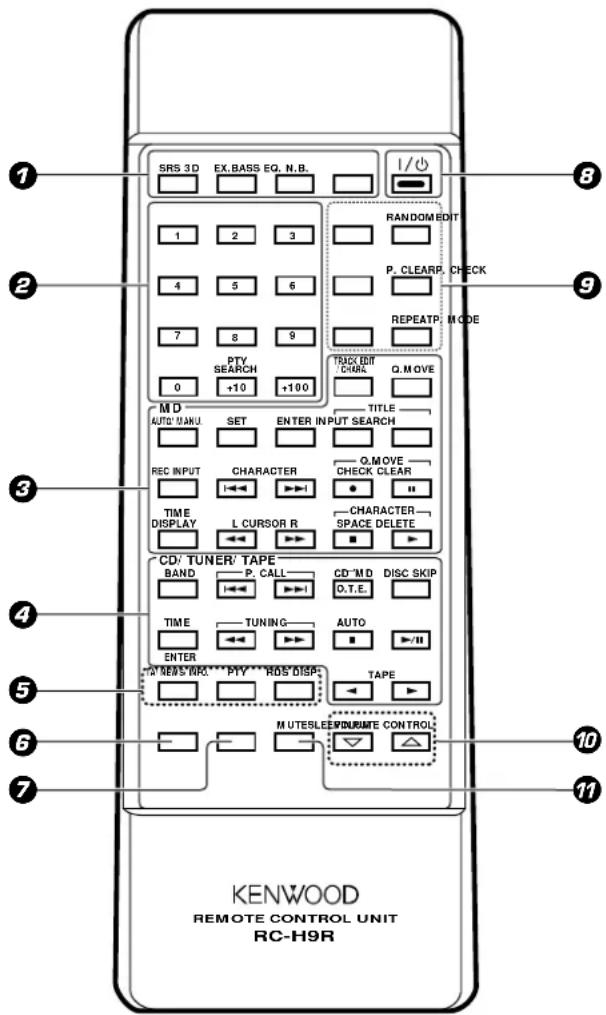
The keys on the remote control unit with the same names as on the main unit have the same function as the keys on the main unit.
⑦ Keys related to sound quality and sound field
SRS 3D key
EX.BASS key
EQ. key
: The equalizer effect is switched ON/OFF and the type of equalizer effect is selected.
$$ \rightarrow \boxed {6 7} $$
$$ \rightarrow \boxed {1 9} $$
N.B. key
② Numeric keys
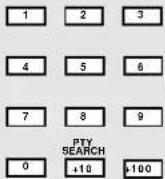
These are used to select CD or MD tracks and as number keys for the tuner. (The +100 key is used only for the MD recorder.)
The PTY SEARCH (+10) key is used to search for the program type with RDS broadcasts.
③ Keys related to the MD recorder
TRACK EDIT/CHARA. key
Used for track editing and for erasing of tracks or the entire disc.
This selects the character group at the time of title input.
Q.MOVE key
AUTO/MANU. key
This is used for selection of automatic (AUTO) or manual (MANU.)
track number assignment at the time of recording.
SET key
ENTER key
TITLE INPUT key
XD-9580MD (En)
TITLE SEARCH key
$$ \rightarrow \boxed {2 4} $$
: This is used at the time of title search.
REC INPUT key
CHARACTER/ Skip (◀◀, ▶▶) keys
Q.MOVE CHECK/Record (●) key
Q.MOVE CLEAR/Pause (II) key
TIME DISPLAY key
$$ \infty $$
: The time display type is switched.
L CURSOR R/Fast forward, fast reverse (◀◀, ▶▶) keys
CHARACTER SPACE/Stop (■) key
CHARACTER DELETE/Playback (▶) key
④ Keys related to CD/tuner/tape deck (option) BAND key (tuner) key
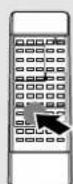
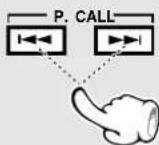
P.CALL/skip (|◀◀, ▶▶) keys (tuner/CD)
: These are used to receive memorized radio stations. → 21 → 26
CD→MD O.T.E. key (CD) : Same operation as the O.T.E. key on the unit.
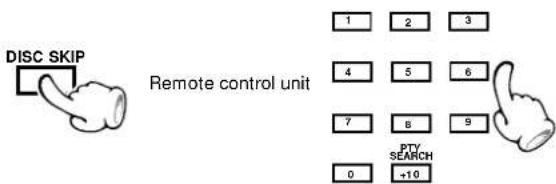
DISC SKIP key (CD) : This selects the disc to be played. → 21
TIME/ ENTER key (CD) : This switches the CD time display mode.
This is used to memorize stations. →21→27
TUNING/Fast forward, fast reverse (◀◀, ▶▶) keys (tuner/CD, tape deck (option))
AUTO/Stop (■) key (tuner/CD, tape deck (option))
Playback/pause (▶/II) key (CD)
Playback (◀, ▶) keys (tape deck (option))
⑤ RDS-related keys
TA/NEWS/INFO. key : Used at the time of EON reservation. → 42
PTY key : Used at the time of program type detection. → 40
RDS DISP. key : Switches the contents of RDS-related display. → 39
6 INPUT key
$$ \rightarrow \boxed {1 8} $$
: This selects the input source for listening or recording.
⑦ SLEEP key
$$ \rightarrow \boxed {7 1} $$
: This is used to set the sleep timer.
⑧ ON/STANDBY key
$$ \rightarrow \boxed {1 8} $$
⑨ Keys related to special playback with CD and MD
EDIT key (CD) : This is used for edit recording of a CD onto tape. → 52
RANDOM key (CD) : Playback of the CD tracks in random order. → 34
P.CHECK key (CD, MD) : The programmed track sequence is displayed for confirmation. → 32 → 36
P.CLEAR key (CD, MD) : The programmed track sequence is cleared. → 32 → 36
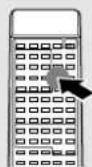
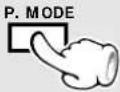
P.MODE key (CD, MD) : This is used to program the track sequence. → 31 → 35
REPEAT key (CD, MD) : This is used for repeated playback. → 33 → 37
(Common keys for CD and MD function for CD or MD according to the input selection.)
⑩ VOLUME CONTROL (▽, △) keys
11 MUTE key
$$ \rightarrow \boxed {1 9} $$
This is used to suppress the sound temporarily.
XD-9580MD (En)
Loading batteries
① Remove the cover.
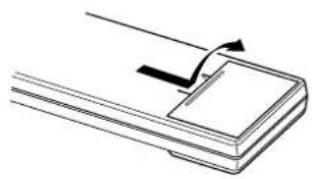
natural_image
Simple line drawing of a mechanical component with an arrow indicating motion (no text or symbols)② Insert batteries. ③ Close the cover.
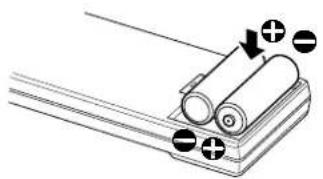
natural_image
Diagram of a battery pack with two cylindrical cells and three battery terminals, no text or symbols present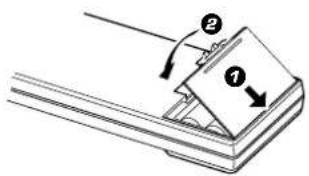
Insert two R6 ("AA"-size) batteries following the polarity indications.
Operation
After plugging the power cord of this unit, press the ON/STANDBY (|/_) key of the remote control unit to turn the system ON. When the system is turned ON, press the key of the function to be operated.
Press the ON/STANDBY (I) key again for OFF (STANDBY). Only the time display will remain lit and standby status will be reached.
When pressing more than one remote control keys successively, press the keys securely by leaving an interval of 1 second or more between keys.
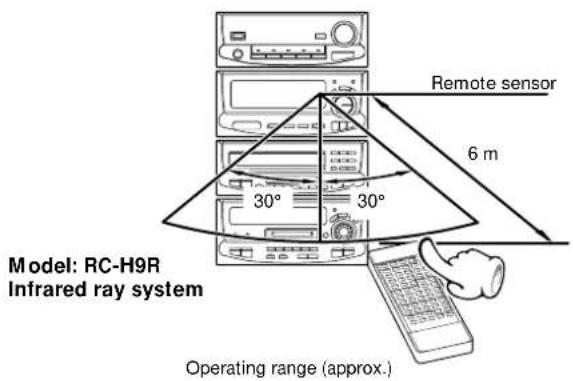

- The provided batteries are intended for use in operation checking, and their service life may be short.
- When the remote controllable distance becomes short, replace both of the batteries with new ones.
- If direct sunlight or the light of a high-frequency fluorescent lamp (inverter type, etc.) is incident to the remote sensor, malfunction may occur. In such a case, change the installation position to avoid malfunction.
Basic use method
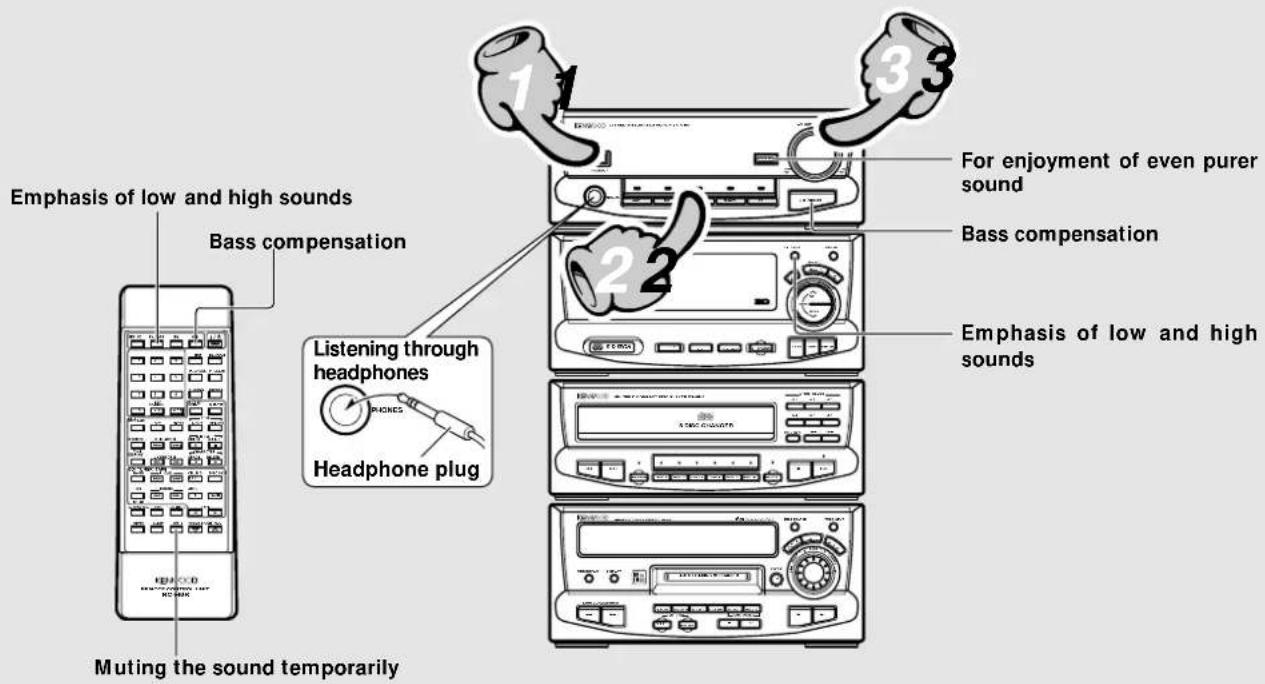
Press the ON/STANDBY key of the unit.
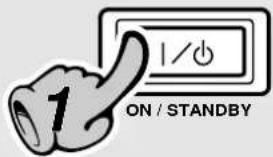
1. Set the ON/STANDBY key to ON (STANDBY).
When the ON/STANDBY (1)/key is pressed while the unit is ON, the unit will be switched OFF (STANDBY).
This system can be switched on and off (STANDBY) simply with the ON/STANDBY (1) key of the amplifier section (A-H5).
The display part becomes dark when the unit is switched OFF (STANDBY). (DIMMER function)
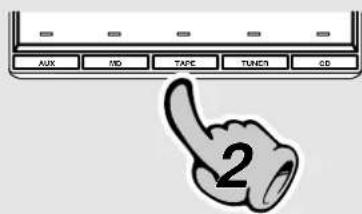
2. Selecting the desired output.
When using the remote control, press the INPUT key repeatedly to select.
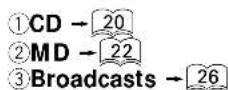
When CD or MD is selected, playback will start when a disc has already been inserted.
For listening to tapes, read the section "Tape playback" in the operation manual of the cassette deck X-H9 (option).
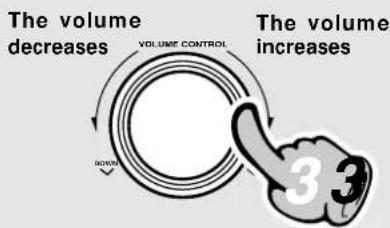
flowchart
graph TD
    A["The volume decreases"] --> B["VOLUME CONTROL"]
    B --> C["The volume increases"]
    C --> D["3 3"]
3. Volume adjustment.
|Quick turning produces a larger change amount. (Dynamic rotary volume control function)
The display shows a reference value.
For enjoyment of even purer sound (SOURCE DIRECT)
(only on the main unit)
When SOURCE DIRECT is switched on, the signal path becomes simple and the sound purity is improved.
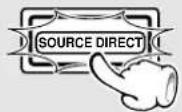
Lights
Other functions than the balance control cannot be used because the audio signals bypass the circuits.
| Press the key again to cancel this function.
Bass compensation (N.B.CIRCUIT : Natural Bass circuit)
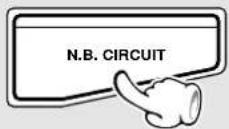
Lights
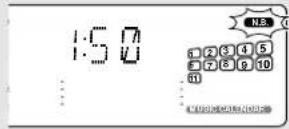
Each press switches the modes as follows.
①NB1...... The bass range is compensated according to the volume (effective at low volume).
②NB2...... Bass range compensation independent of the volume.
③NBOFF ...... N.B. cancellation.
Emphasis of low and high sounds (EX. BASS)
The factory default is ON.

Lights
Switching between ON and OFF each time the key is pressed.
Muting the sound temporarily (only on the remote control)
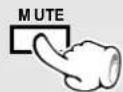
Blinks
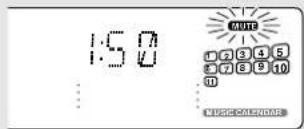
|Press again to resume the original volume.
This is also cancelled when the volume is changed.
Listening through headphones
⑦ Insert the headphone plug into the PHONES jack.
The sounds from all speakers are cut off.
② Adjust the volume.
Always turn down the volume before inserting or pulling the plug.
AUTO POWER SAVE function
When the unit is ON and neither recording nor playback is executed for 30 minutes or more, the unit is switched off automatically by this function. This function can be made active or not active by the following operation.
Press at the time of power off.

ER SAVE ON
Each press switches the modes as follows.
①“ON”.... Auto power save is used.
②“OFF” ... Auto power save is not used.
This is not effective when the input selection is set to AUX. When TUNER is selected, this works only when the volume indication is zero.
When CD has been selected.
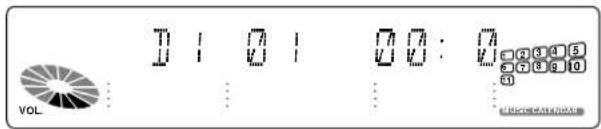
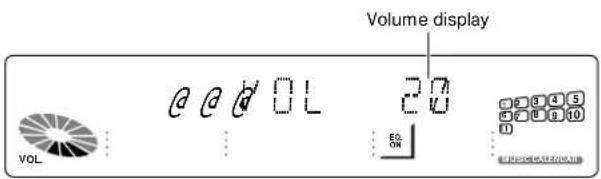
Standby mode
When the plug of the power cord of this unit is plugged into an outlet, the time indication lights in OFF (STANDBY) condition. This indicates that a small amount of current is being supplied to the unit to back up the memory contents. This mode is referred to as the standby mode. While the time indication is lit, the system can be switched ON from the remote control unit.
Playback of CD
Six discs can be stored. During playback of one disc, the other five can be exchanged.
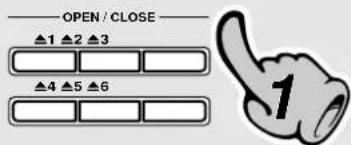
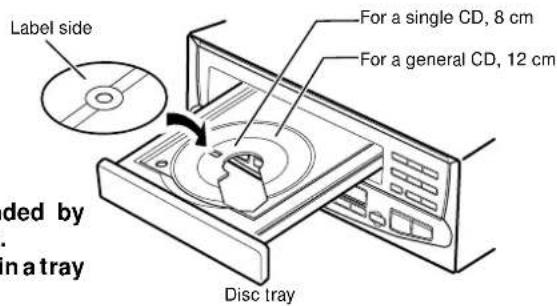
When a key is pressed, the tray opens. When the key is pressed again, the tray closes. When a different number key is pressed while a tray is open, the tray closes automatically, and then the tray with the pressed number opens.
1. Load a disc.
① Open the tray.
②Place a disc.
③Close the tray.
Up to six discs can be loaded by repeating the above ① to ③. Stacking more than one disc in a tray will cause trouble.
Lights
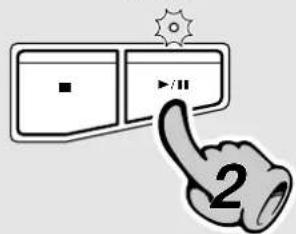
2. Start playback.
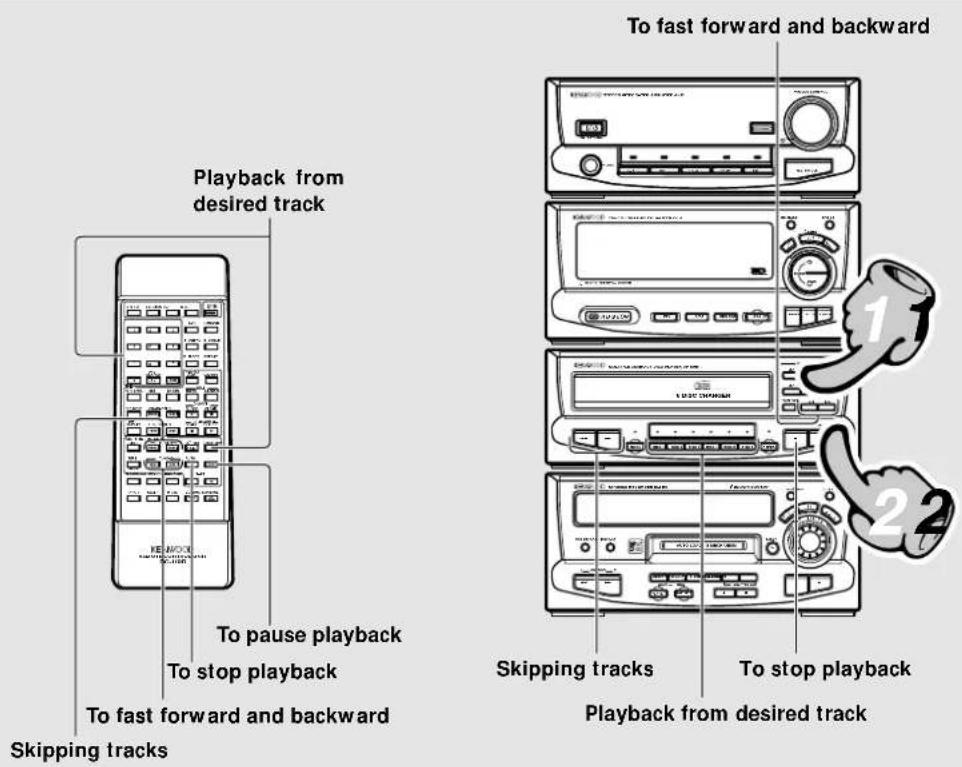
Skipping tracks
To skip backward To skip fo
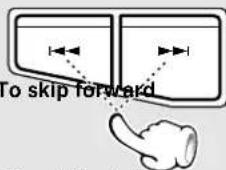
The track in the direction of the button pressed is skipped, and the selected track will be played from the beginning.
When the ◀◀◀ key is pressed once during playback, the track being played will be played from the beginning.
Playback from desired track
⑦Select the disc.

Main unit

②Select the desired track No.
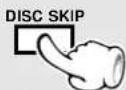
Remote control unit

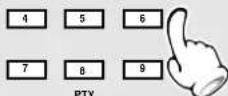
SEARCH
0 +10
Remote control unit
Press the numeric keys as shown below....
To enter track No. 23 : +10 +10 3
To select track No. 40 : +10 +10 +10 +10 0
To fast forward and backward
Backward search
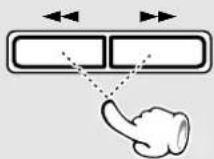
Forward search
|Playback starts from the position where the key is released.
To pause playback
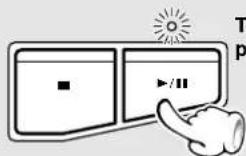
This flashes during pause.
Each press pauses and plays the CD alternately.
To stop playback
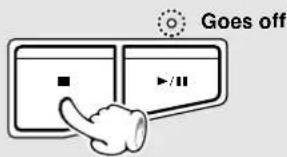
The indicator for the number of the open tray flashes.
Do not touch the played side of disc.
Place the disc properly along the groove on the tray. (If the disc is not placed horizontally, malfunction will result.)
Commercial CD single disc (8 cm) disc adapters can not be used.
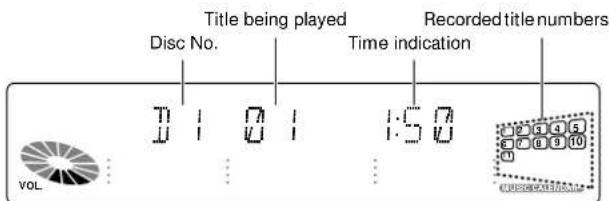
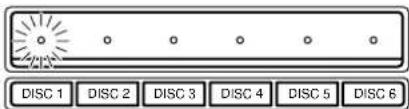
|After a few seconds, playback of the first title of tray No. 1 starts.
For start from a desired disc, select with the DISC 1 \~ DISC 6 (disc selector) key.

When the unit is switched off (STANDBY) and then on again, all disc indicators will light, independent of the presence or absence of discs.
Time display for CD player (only during playback)
The display indication is switched each time the TIME/ENTER key of the remote control is pressed.
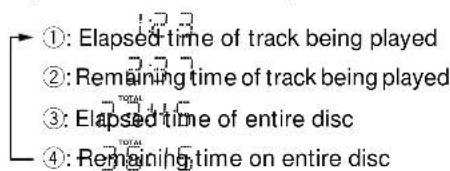
There is no TOTAL indication in PROGRAM mode, in EDIT mode, and in RANDOM mode.
Playback of Mini Disc
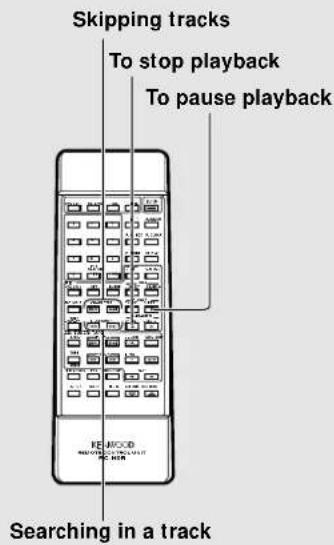
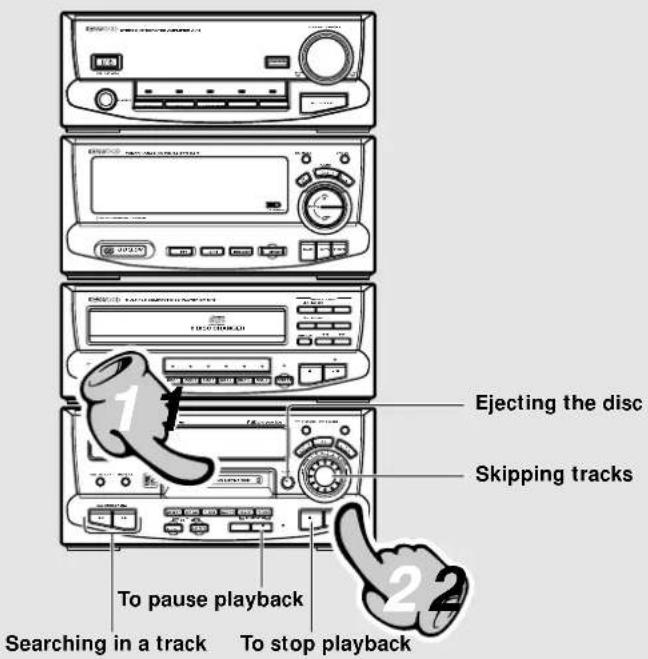
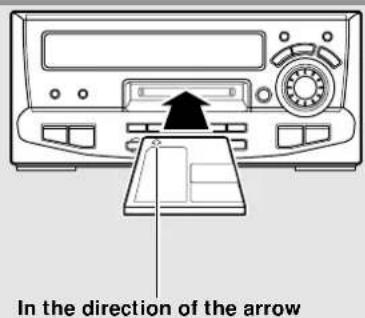
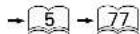
1. Load a Mini Disc.
Insert the disc a little, and it will be pulled in automatically.
When a title has been recorded for the disc or the track, the title is displayed.
When commercial MD music software or recorded MD with recording prohibited is inserted, playback starts automatically.
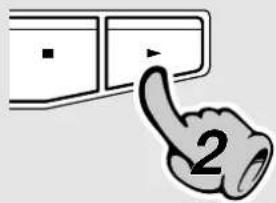
2. Start playback.
To listen from the track No. 1
In a few seconds, playback starts from track No. 1.
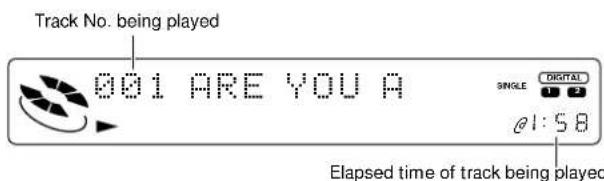
During playback, the track title is displayed at the beginning of each track.
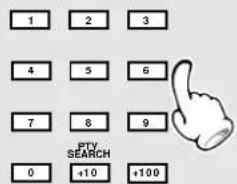
To select a track Press the numeric keys as shown below....
To enter track No. 23: ...... +10 +10 3 To enter track No. 40: ...... +10 +10 +10 +10 0
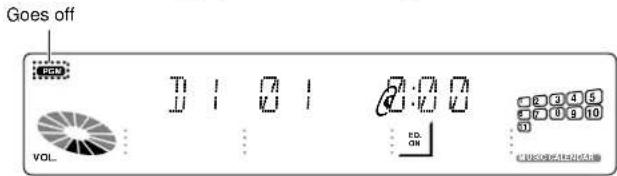
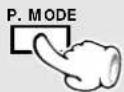
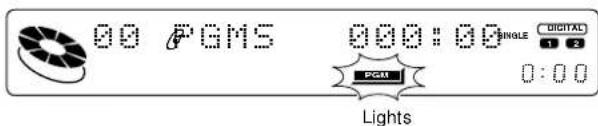
If the "PGM" indicator is lit, press the P.MODE key of the remote control unit to not lit.
If a track NO. which does not exist on the disc is selected while "DISC READING" is blinking, the last track on the disc will be played.
Remote control unit
When the playback (▶) key is pressed again during playback of a track, the title of that track will scroll. “In regard to display scrolling” → 23 “Assigning a title to a disc or track” → 56

Searching in a track
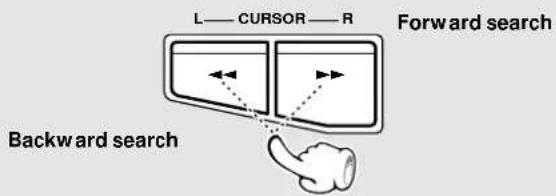
|Playback restarts when the key is released. (When the key is pressed in pause mode, unit returns to the pause mode at the reached position.)
Sound is output when using forward or reverse search during playback.
If forward or reverse search is started during play-pause, the disc can be searched at a high speed but sound is not output.
Ejecting the disc (only on the main unit)
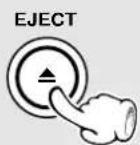
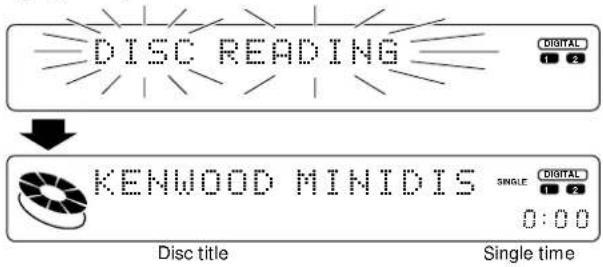
The minidisc comes out from the minidisc insertion slot.
The display changes.

Discs with application of equalizer or SRS 3D effect to the recorded sound (analog input) should be played without sound effect application.
$$ \rightarrow \boxed {6 6} \rightarrow \boxed {6 7} $$
Skipping tracks
To skip backward To

The track in the direction of rotating the jog dial is skipped, and the selected track will be played from the beginning.
When the jog dial is rotated a little in the direction of counterclockwise once during playback, the track being played will be played from the beginning. (If it is rotated within 1 second from the start of a track, the previous track to the current track will be played from the beginning.)
To pause playback
Each press pauses and plays the MD alternately.
To stop playback
In regard to display scrolling
When the character information for the titles of mini discs or titles is too long, it cannot be displayed all at once. In such a case, the characters on the display scroll from the right to the left and the rest of the information can be seen. This is called scrolling.
Scrolling image
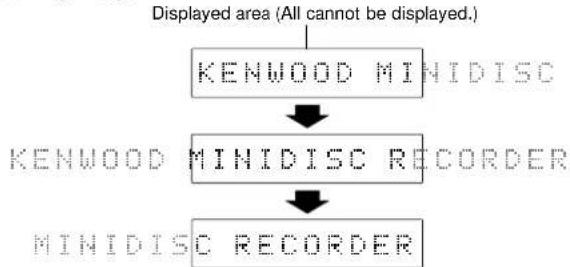
flowchart
graph TD
    A["Displayed area (All cannot be displayed.)"] --> B["KENWOOD MINIDISC"]
    B --> C["KENWOOD MINIDISC RECORDER"]
    C --> D["MINIDISC RECORDER"]
Disc recorded in monaural mode
This unit is capable of playing a disc recorded in the monaural mode.
As the amount of data required to record information in the monaural mode is half the amount required in the stereo mode, the play (record) time of a disc recorded in the monaural mode is twice (max. 148 minutes) that of a disc recorded in the stereo mode.
Searching a desired track by its title (TITLE SEARCH)
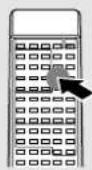
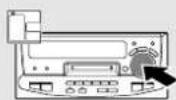
⑦ Confirm that the "PGM" indicator is not lit.
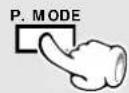
Press during stop.
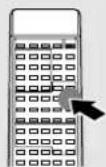
②Press the TITLE SEARCH key.
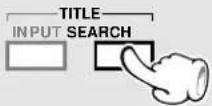
To abort operation, press the TITLE SEARCH key again.
③Select the desired title.
To smaller track No.
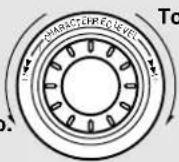
To larger track No.
④ Start playback.
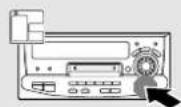
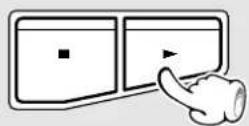
In regard to automatic title search
It is possible to play a track by displaying the track titles automatically and pressing the playback key while the desired title is being displayed.
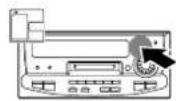
⑦Execute step ⑦ of "Searching a desired track by its title".
②Press the TITLE SEARCH key for at least 2 seconds.
TITLE SEARCH
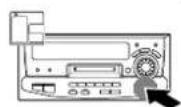
All titles of the minidisc will be displayed sequentially.
To cancel, press the TITLE SEARCH key again.
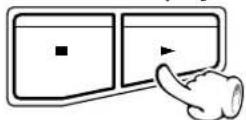
③Press the playback key during display of the title to be played.
When the titles of the tracks recorded on a minidisc for recording are entered in advance, search by title is possible for the tracks to be played.
When the "PGM" display is lit, press the P.MODE key on the remote control unit to switch it off.
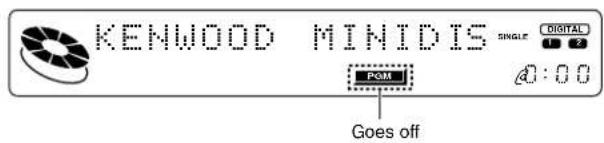
The characters will scroll to the left.

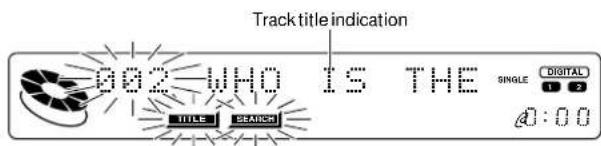
| Titles can also be selected with the keys ◀◀◀ and ▶▶◀.


natural_image
Cartoon illustration of a scientist holding a bag and making a peace sign (no text or symbols)In regard to the TIME DISPLAY key
This can be used to change the time display type at the MD recorder section.
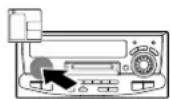
Main unit
TIME DISPLAY
Each press switches the modes as follows.
During playback
① Elapsed time of track being played ② Remaining time of track being played ③ Recordable time for the entire minidisc
In stopped condition
① Elapsed time of track (0:00 indication)
② Remaining time of track (-0:00 indication)
③ Total recorded time for the entire minidisc
④ Recordable time for the entire minidisc
During recording
① Elapsed time of the track being recorded
②Recordable time for the entire minidisc
Elapsed time of track being played

Remaining time of track being played

Total recorded time for the entire minidisc

Recordable time for the entire minidisc

| "BLANK DISC" is displayed when not even one track has been recorded. (When there is a disc title, the disc title will be displayed.)
In regard to DISPLAY key
The MD title display type (minidisc name, track name) can be switched.
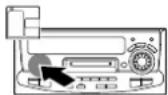
Main unit
DISPLAY
Each press switches the modes as follows.
During playback
①Track title indication and peak level meter (independent L and R) indication
②Track title indication and peak level meter (L + R) indication
③ Peak level meter (independent L and R) indication
④Track title indication
During stop
①Disc title indication and peak level meter (independent L and R) indication
②Disc title indication and peak level meter (L + R) indication
③Peak level meter (independent L and R) indication
④Disc title indication
When the key is pressed while only the peak level meter of item ③ is being indicated, the indication will switch to ② Character indication and peak level meter indication only when required, and it will return to the original indication after a few seconds.
Track title indication (during playback) and peak level meter (independent L and R) indication

Track title indication (during playback) and peak level meter (L + R) indication

Peak level meter (independent L and R) indication

Track title indication (during playback)

Receiving broadcast station
It is also possible to receive them by one-touch operations by storing up to 40 stations in the preset memory.
One-by-one presetting
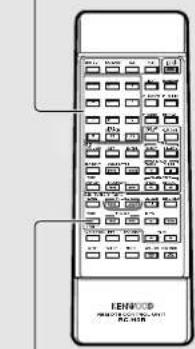
Collective presetting of stations One-by-one presetting
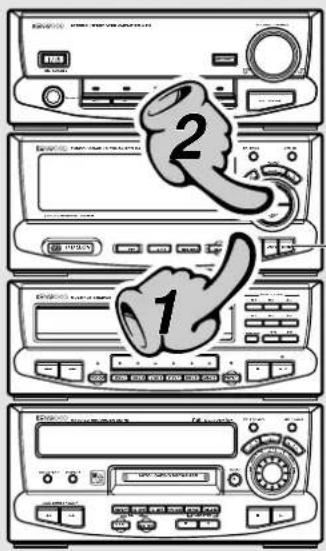
Collective presetting of stations One-by-one presetting
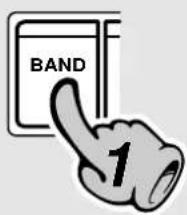
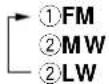
1. Select the broadcast band.
Each press changes the band.
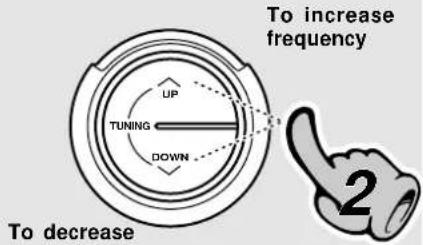
2. Select a station.
When no stations have been memorized
Auto tuning : The next broadcasting station will be received automatically each time this key is pressed. Manual tuning : Press the key repeatedly or hold it depressed until a station is received.
To decrease frequency
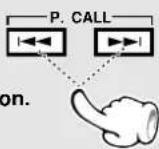
Select a station.
Remote control unit
When stations have been memorized (preset call)
Every time the key is pressed, the preset stations are switched over as follows.
Press ▶▶ for the order of 1→2→3 ... 38→39→40→1... Press ◀◀ for the order of 40→39→38 ... 3→2→1→40...

XD-9580MD (En)
Collective presetting of stations (auto preset)
Keep the ENTER key depressed (about 2 seconds).
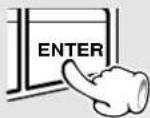
One-by-one presetting (manual preset)
①Press the ENTER key during reception.

Presetting is cancelled when no operation is executed for 5 seconds or more.
②Select one of the preset numbers from 1 to 40.
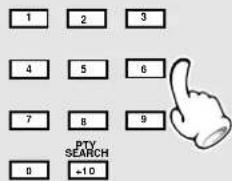
Press the numeric keys as shown below....

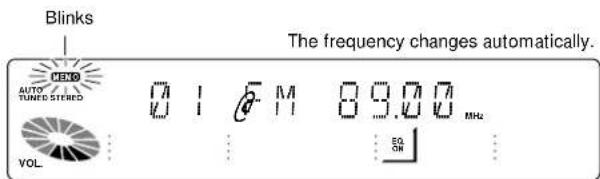
A maximum of 40 stations of the band presently being received will be preset.
When there are many stations and the intended station has not been preset, please also use "One-by-one presetting (manual preset)".
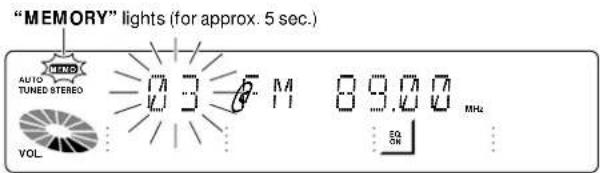
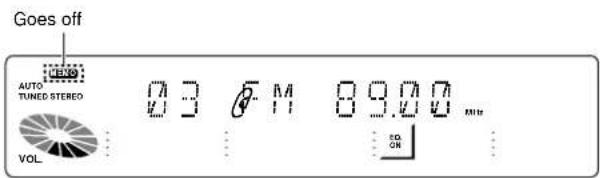
Repeat steps 1,2 to preset other stations.
If several stations are preset under the same number, the previous memory is replaced with the latest memory contents.
Reception band indication
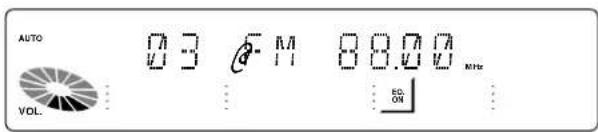
The "TUNED" indicator lights when a station is received.
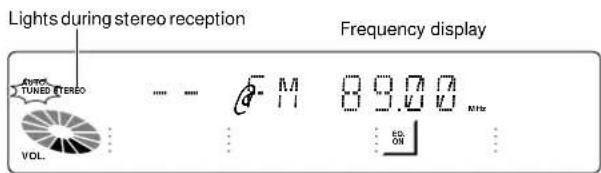
When a key is held depressed, preset stations will be skipped at an interval of about 0.5 second.
Select the tuning mode
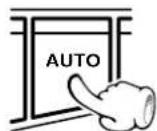
Each press alternates the mode.

Use the manual tuning mode when reception is noisy due to weak reception. (In the manual mode, stereo broadcasts are received in monaural.)
|Normally, use the AUTO (Auto tuning) mode.
XD-9580MD (En)
This unit cannot record audio in monaural mode.
Recording on MD
MD recording is possible as “digital recording”, where the digital signal of the CD is used as it is, and as “analog recording”, where the analog signal of a broadcast etc. is converted to a digital signal.

When equalizer or SRS 3D is applied to the sound, the sound will be recorded with applied effect in the case of analog recording. → 66 → 67
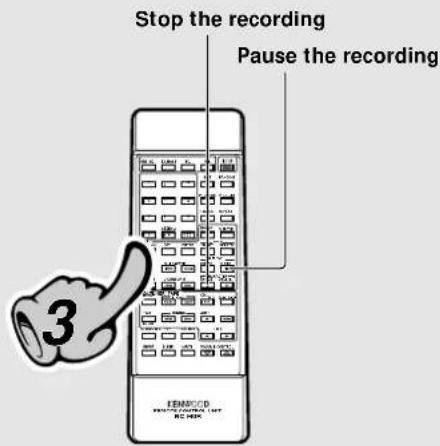
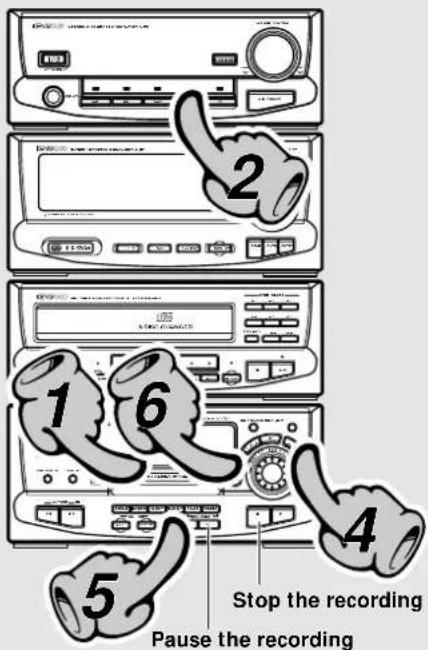
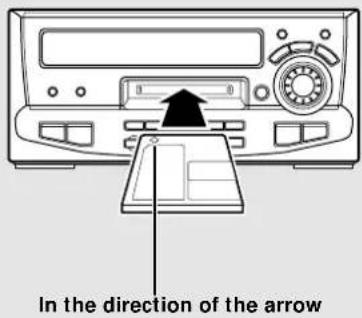
1. Make the preparations for recording.
①Open the write protect tab of the Mini Disc to make it recordable.→ 5
② Load the Mini Disc.
③Check the remaining recording time.
∞
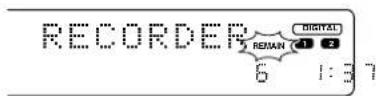
Remaining recording time (when "REMAIN" is lit)
Go to step 5 for CD digital recording.
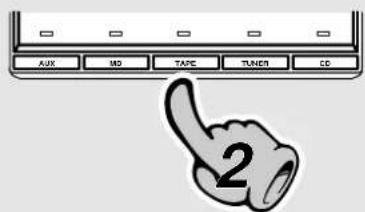
2. Select the source to be recorded.
AUX : Digital 2 or analog recording MD : Only Digital 2
TAPE : Only analog recording Broadcasts : Only analog recording CD : Digital 1 or analog recording
For CD analog recording, refer to "How to use the REC INPUT key".
→30
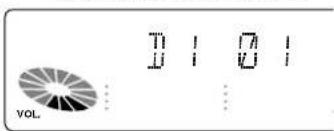
Indication of the input source to be recorded. (example of CD input)
While a CD or MD is set, play will start, so that the STOP (■) key must be pressed to stop the disc. For recording from the cassette deck X-H9 (option), please read "Listening to tapes" in the accessory operation manual.
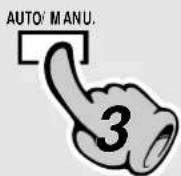
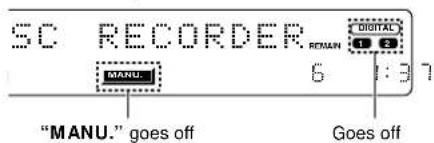
3. Selecting how track numbers are assigned.
(only analog recording) The normal setting is to AUTO ("MANUAL" is not lit). "How to use the AUTO/MANU. key."
→30
Pause the recording
Press the key again to resume recording. At this time, the track number is incremented by "1".
|Recording can also be started by pressing the record (●) key.
Stop the recording
In regard to display messages
Recording is not possible when one of the following messages is displayed.
“DISC FULL”: The minidisc is full.
→ Erase unrequired tracks. → 64
"PROTECTED": The write protect tab is open.
→ Close it. → 5
"UNRECORDABLE": The minidisc is only for playback.
→ Insert a recordable disc. → 77
Sampling Frequencies
Normally the following three types of digital signals are used and they are called sampling frequencies.
48 kHz
44.1 kHz
32 kHz
As this unit has a built-in sampling rate converter, digital signals of 32 kHz and 48 kHz are converted to 44.1 kHz for recording.
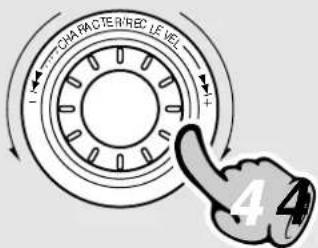
Level decreases
Level increases
Level value
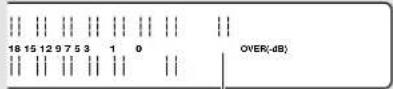
Display on the MD
recorder section
0dB
4. Adjust the recording level (only analog recording).
① Play the source to be recorded.
②Set to recording pause.
Always press the record (●) key in stopped condition, and then press the pause (II) key.
③Adjust the recording level.
Adjustment is possible in the range from -∞ dB to 0 dB (81 steps).
Adjust so that 0 dB lights only once in a while. Lower the level when the red part of the level meter lights.
5. Start recording.
① Press the record (●) key.
②Play the music source to be recorded.
During recording, the EJECT (▲) key will not be accepted.
To start recording simultaneously with CD play-back, please read "Tips for recording from a CD".
EJECT
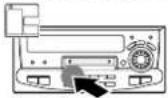
6. Remove the minidisc after the end of recording.
Always remove the minidisc after recording.
“DISC WRITING” displayed during the minidisc ejection operation indicates that the data associated with recording or editing is being written on the disc. Do not apply vibration or shock to the unit while this message is displayed.
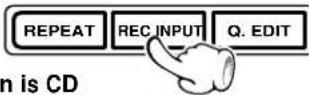
How to use the REC INPUT key
When the input selection is CD and recording is started, digital recording is selected automatically and adjustment of the recording level is not required.
When the playback level of a digitally recorded MD is not suitable (too loud or too low), the recording level can be adjusted by using the REC INPUT key to switch to analog recording, and then recording can be repeated with adjustment to the most suitable level.
When the input selection is CD
Each press switches the modes as follows.

When the input selection is not CD
Each press switches the modes as follows.

When the input selection is M D, only "DIGITAL 2" can be selected.
When the input selection is TAPE or Broadcast, only "ANALOG" can be selected.
When analog input is selected

When DIGITAL 1 input is selected

The frame part of the selected input side lights in red.
Tips for recording from a CD
When recording is started according to the following procedure, recording (MD) and playback (CD) will start at the same time and there is no worry of sound being skipped.
⑦ Select the disc or the track to be recorded.
②Pause the CD.
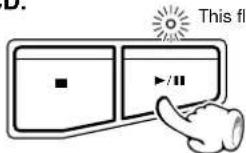
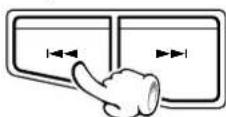
③Press the ◀◀◀ key of the CD once.
The CD will pause at the beginning of the selected disc (track).
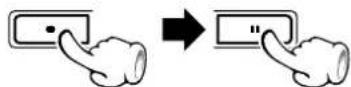
④Bring the MD recorder to recording pause.
⑤ Start CD playback.
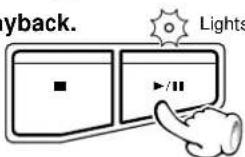
In case of analog recording, it may not be possible to record the sound at the beginning of the title. In such a case, use digital recording.
How to use the AUTO/MANU. Key
This selects whether the track numbers are set automatically during analog recording or manually during or after recording. The track numbers are used at the time of playback to find the start of tracks, for programming, etc.
AUTO
When a part without sound continues for 2 sec. or more during recording, the track number is automatically increased by "1" when the next sound enters. Use this mode for normal recording such as recording of all tracks of a CD. When music, such a classical music, continues with low sound, the track number may be increased by "1". The erroneously set track number can be erased later.
In case of such music, use MANUAL for recording.
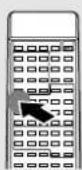
Select before the start of recording
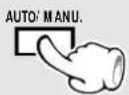
MANUAL
Recording is executed without automatically increasing the track number. Track numbers can be set during and after recording. This is convenient for recording of live performances or classical music with continuous sound at extremely low levels.
Each press switches the modes as follows.
①“MANUAL” not lit : AUTO mode ②“MANUAL” lit : MANUAL mode
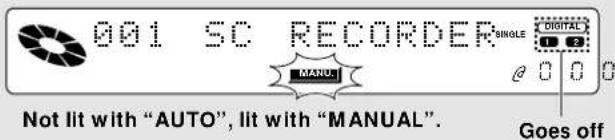
When the TRACK EDIT key is pressed during recording, a track number is assigned at that position.
XD-9580MD (En)
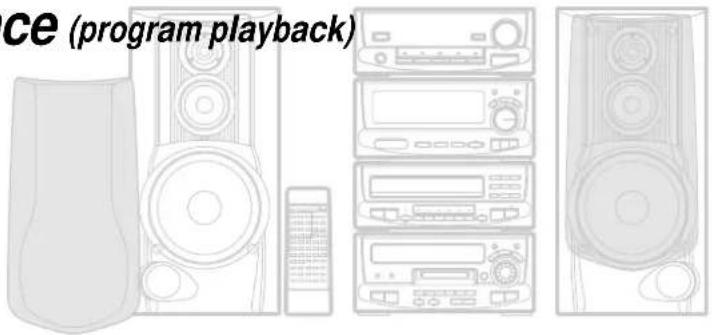
Listening in the desired sequence (program playback)
Any titles on the discs in the tray can be listened to in the desired sequence. (Max. 32 titles)
Character information display cannot be displayed while the spectrum analyzer display mode is used. Switch to the superposed display or character display mode to see the information.
→11→69
Select the "CD" input.
1 Check that the CD player is in the stop mode.
If it is in play mode
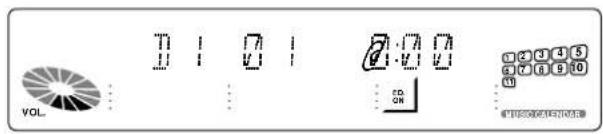
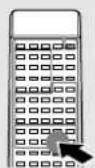
2 Light the "PGM" indicator.
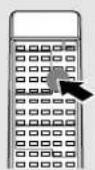
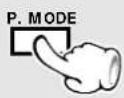
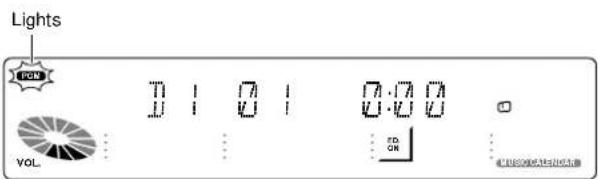
3 Enter track Nos. in the order you want to play them.
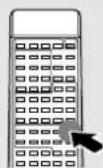
⑦Select the disc.
Go to step ② within 8 seconds.
②Select the track.
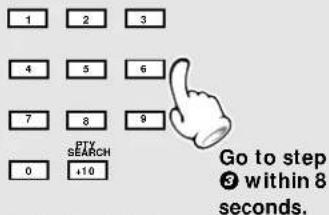
③Confirm the selection.
To select tracks from more than one disc, repeat ①, ② and ③.
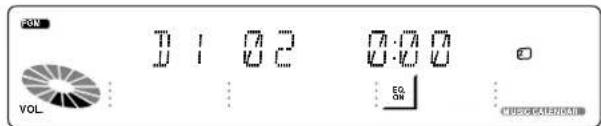
The disc can also be selected with the DISC 1\~DISC 6 key. Up to 32 tracks can be programmed. When "FULL" is displayed, no more tracks can be programmed. To program all tracks of a CD, select the disc and then press P.MODE key without selecting any tracks. If you make a mistake, press the P.MODE key to quit the program mode and restart from step 2.
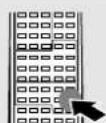
Press the numeric keys as shown below....
To enter track No. 23 : +10 +10 3
To select track No. 40: +10 +10 +10 +10 0

4 Start playback.

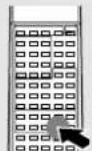
Tracks will be played in the order they were programmed (in order of P Nos.).
When the ◀◀ or the ▶▶◆ key is pressed during play, the program will jump to the preceding or the following track respectively.
When the ◀◀◀ key is pressed once during playback, the play position returns to the beginning of the current track being played.
Character information display cannot be displayed while the spectrum analyzer display mode is used. Switch to the superposed display or character display mode to see the information.
→11→69
To stop playback
To check the programmed tracks
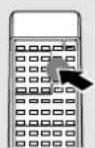
To add a track to the program
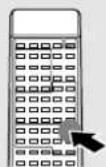
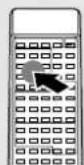
⑦Select the disc.
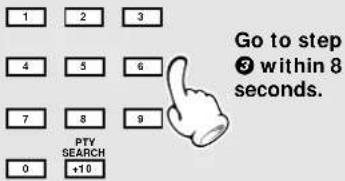
Go to step ② within 8 seconds.
②Select the track.
③ Confirm the selection.
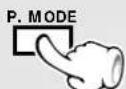
To quit the program mode
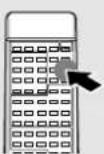
Press to clear tracks from the end.
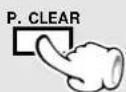
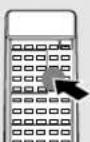
To clear all track.
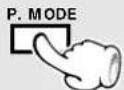
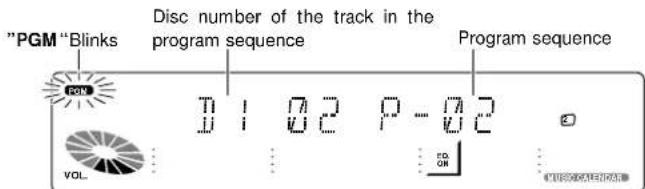
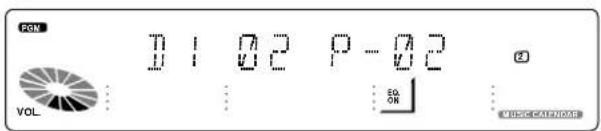
Each time the key is pressed, the program No. (P-NO) and the track No. on CD are displayed.
When a track No. is entered, the track will be added to the end of the existing program.
Each time the key is pressed, the last track in the program is cleared.
The track being played cannot be changed.
The entire program contents are erased when the disc tray is opened.
Repeated playback
You can repeatedly listen to a favorite track or disc.
XD-9580MD (En)
natural_image
Line drawing of various household electronic devices including speakers, audio equipment, and a remote control unit (no text or symbols)Select the "CD" input.
To repeat all discs
7 Confirm that the "PGM" indicator is not lit. If the "PGM" indicator is lit, press the P.MODE key to turn it off.
Confirm that this is not lit.

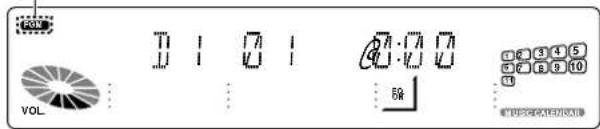
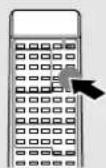
②Let the REPEAT indicator light.
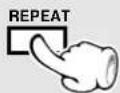

Each press switches the repeat mode.
①REPEAT (Lights)
②Repeat OFF (Goes off)

Lights
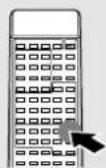
③Select the disc to be played first.
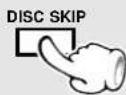
To stop repeated playback
Press the REPEAT key again.
The REPEAT indicator goes off and the playback following the current mode of the CD player starts.
To repeat only the programmed tracks
7 Program the track sequence according to steps 7 to 8 of "Listening in the desired sequence".
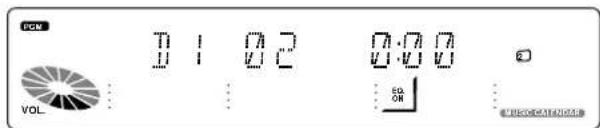
①REPEAT (Lights)
②Repeat OFF (Goes off)

Lights
③Start playback.
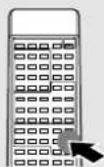

To stop repeated playback
Press the REPEAT key again.
The REPEAT indicator goes off and the playback following the current mode of the CD player starts.
XD-9580MD (En)
Listening to an unexpected title sequence (random playback)
As the titles each time are selected randomly, the music can be enjoyed without getting tired of it.
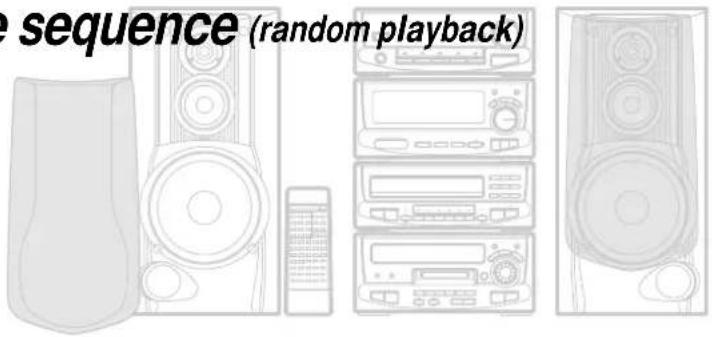
Select the "CD" input.
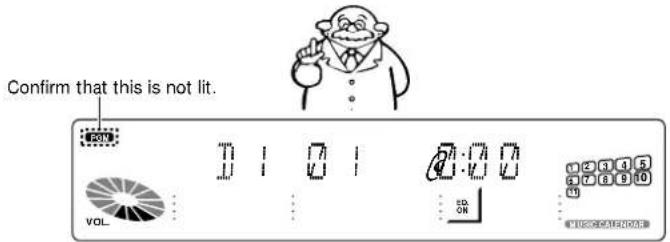
1 Confirm that the "PGM" indicator is not lit.
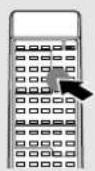
If the "PGM" indicator is lit, press the P.MODE key to turn it off.
2 Select the RANDOM mode.
Please select the disc before selecting DISC RANDOM.
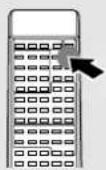
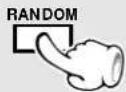
Each press switches the modes as follows.
①DISC RANDOM (Lights) .... Random play of one disc. ②ALL RANDOM (Lights) ..... Random play of all discs. ③Normal playback (Goes off)

natural_image
Cartoon illustration of a professor holding a pointer (no text or symbols present)For random playback of one disc For random playback of all discs
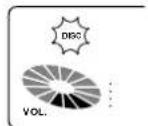
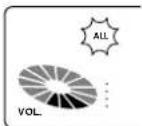
|Playback stops after each title has been played once. The random playback can also be repeated by pressing the REPEAT key.
To select another track in the middle of playing one To cancel random playback
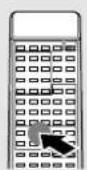
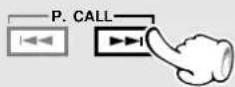
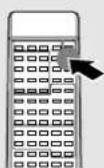
Pressing the ◀◀ key once returns to the beginning of the track being played.
Press so that the RANDOM indicator goes off.

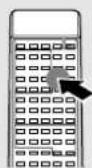
The "RANDOM" indicator goes off and the playback in order of the tracks starts from the track being played.
XD-9580MD (En)
Listening in the desired sequence (program playback)
Use the following procedure to program desired tracks in a desired order. (up to 25 tracks)
Select the "MD" input.
1 Let the "PGM" indicator light.
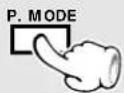
Press in stop mode.
2 Select track numbers in the order you want to play them.
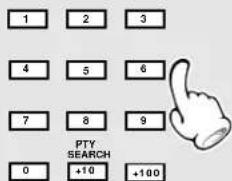
⑦Select the track.
② Confirm the selection.
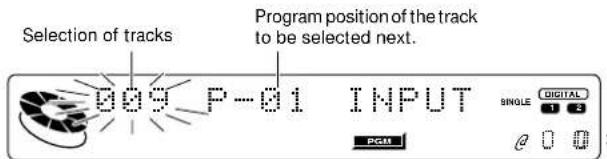
Press the numeric keys as shown below....

Up to 25 tracks can be programmed. More than 25 tracks cannot be selected.
If you made a mistake, press the P.CLEAR key and enter the track No. again.
An extremely short track cannot be programmed.
“-- -- --:-- --” is displayed when the total programmed period has attained 200 minutes or more.
3 Start playback.
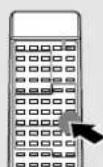
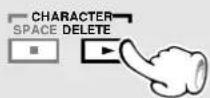
Tracks will be played in the order they are programmed.
When the ◀◀◀ or ▶▶▶ key is pressed during playback, tracks will be skipped in the direction of the pressed key.
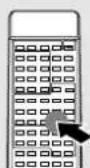
To stop playback
XD-9580MD (En)
natural_image
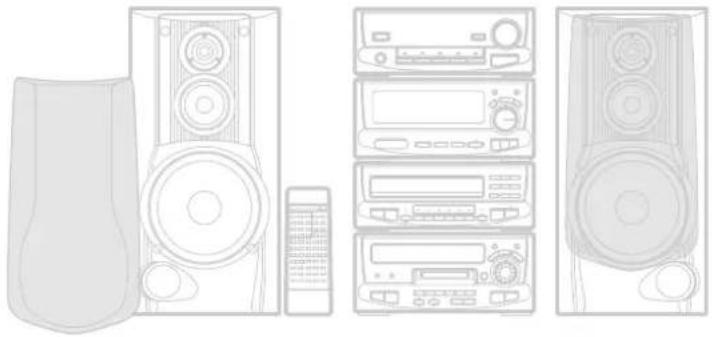
Line drawing of various household electronic devices including speakers, washing machines, and a remote control unit (no text or symbols)To add a track to the program
⑦Select the track.
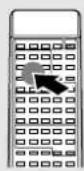
Press in stop mode.
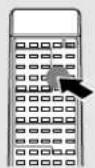
② Confirm the selection.
Repeat ① and ② for selection of two or more tracks.
Checking the order of tracks
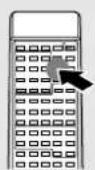
To clear tracks from the program
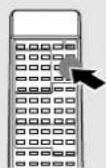
Clearing tracks from the end
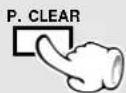
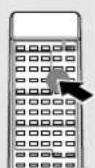
Clearing all tracks
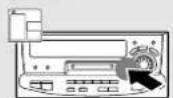
Remote control unit
Main unit EJECT
Press in stop mode.
When a track No. is entered, the track will be added to the end of the existing program.
The "PGM" indicator blinks

Each press displays the next track in the program.
Display after clearing

(P-01 has been deleted.)
Each time the key is pressed, the last track in the program is cleared.
| The entire program is cleared.
Repeated playback
XD-9580MD (En)
natural_image
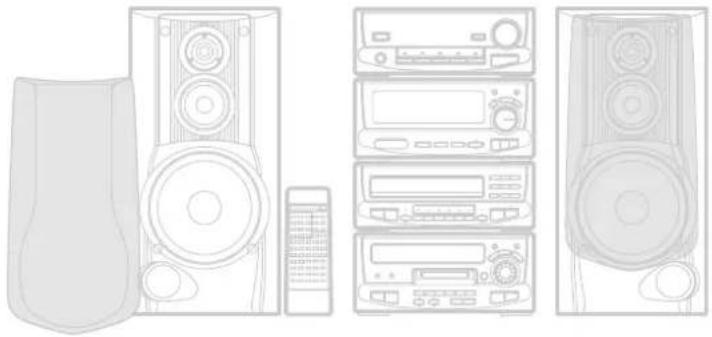
Line drawings of various electronic devices including speakers, audio equipment, and a control panel (no text or symbols)Select the "MD" input.
To repeat only the programmed tracks
7 Program the track sequence according to steps 7 to 2 of "Listening in the desired sequence".
②Let the "REPEAT" indicator light.
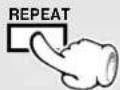
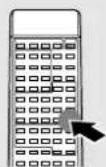
③Start playback.
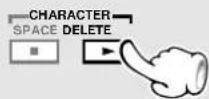
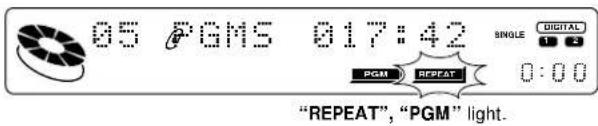
All of the programmed tracks will be repeated. In case only one track is programmed, only that track will be repeated.
To stop repeated playback
Press the REPEAT key again.
The "REPEAT" indicator goes off and the playback following the current mode of the MD recorder.
To repeat the entire disc
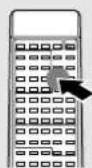
① Confirm that the "PGM" indicator is not lit.
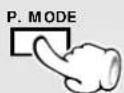
Press in stop mode.
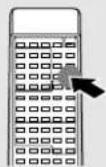
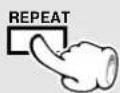
②Let the "REPEAT" indicator light.
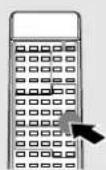
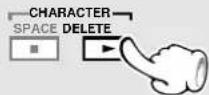
③Start playback.
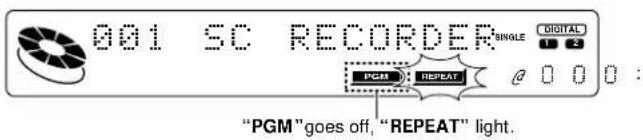
To stop repeated playback
Press the REPEAT key again.
The "REPEAT" indicator goes off and the playback following the current mode of the MD recorder.
XD-9580MD (En)

natural_image
Stylized illustration of a striped armchair with musical notes and a small glass, surrounded by floral elements (no text or symbols)XD-9580MD (En)
RDS is a system which transmits useful information (digital data) for FM broadcasts together with the broadcast signal. Tuners and receivers designed for RDS reception can extract the information from the broadcast signal for use with various functions such as automatic display of the station name.
natural_image
Line drawing of various household electronic devices including speakers, washing machines, and a remote control unit (no text or symbols)This unit is equipped with the following functions utilizing RDS data :
PTY (Program Type Identification) Search : → 40
The tuner automatically searches for a station which is currently broadcasting a specified program type (genre).
PS (Program Service Name) Display : (See below.)
When an RDS broadcast is received, the station name is automatically displayed.
EON (Enhanced Other Network) : → 42
When the information to be received is set in advance and any RDS station in the same network starts broadcasting of such information, the reception automatically will be switched to that station.
The "RDS" indicator lights up when an RDS broadcast (signal) is received.
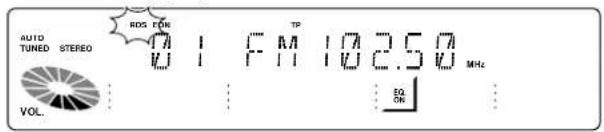
Some functions may not be provided or be given different names depending on countries or areas.
Before using RDS
For reception of RDS stations, the auto presetting function must be used to preset the stations. With the auto presetting function, RDS stations are preset with priority. "NO DATA" will be flashed when a station is not preset by auto presetting.
Set the reception band to FM. Preset RDS stations with the auto preset function.
→26
To switch the display contents
Pressing the RDS DISP. key changes the display contents.
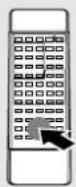
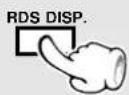
Display mode priority ranking
When an RDS broadcast is received
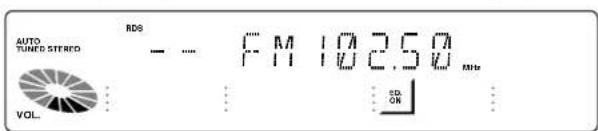
①PS (Program Service Name) Display : When an RDS broadcast is received, the station name is automatically displayed. If no PS data was sent, "NO PS" is displayed.
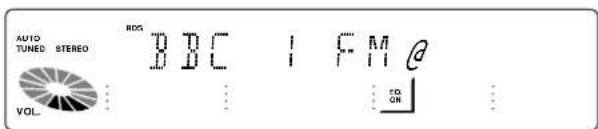
②Frequency Display : The frequency of the current station is displayed.
XD-9580MD (En)
Searching for a desired program type (PTY search)
By specifying the type of program (genre) you want to listen to, the tuner automatically searches for a station which is currently broadcasting a program of the specified type.
Set the reception band to FM. Preset RDS stations with the auto preset function.
26
1 Select the PTY search mode.
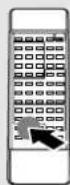
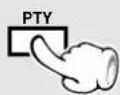
2 Select the desired program type. Use program type table on the right for your convenience.
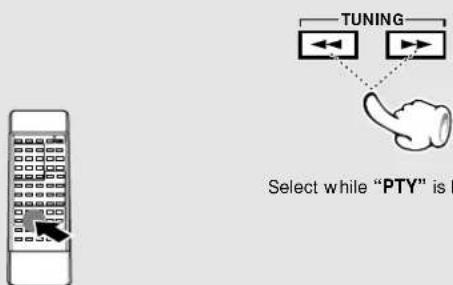
The desired program type can be selected with the TUNING keys from 31 types. Press the key and release it when the desired type is displayed.
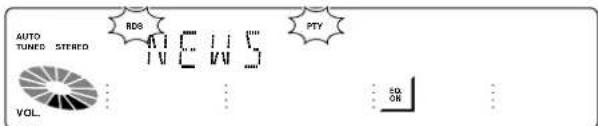
When an RDS broadcast is received, the program type is shown on the display. If no PTY data is available, or if the station is not an RDS station, "NONE" is displayed.
Program type table
| TUNING keys | Program Type Name | Display |
| DOWNUP | Pop Music | POP M |
| Rock Music | ROCK M | |
| *M.O.R. Music | M.O.R. M | |
| Light Classical | LIGHT M | |
| Serious Classical | CLASSICS | |
| Other Music | OTHER M | |
| News | NEWS | |
| Current Affairs | AFFAIRS | |
| Information | INFO | |
| Sport | SPORT | |
| Education | EDUCATE | |
| Drama | DRAMA | |
| Culture | CULTURE | |
| Science | SCIENCE | |
| Varied | VARIED | |
| Weather | WEATHER | |
| Finance | FINANCE | |
| Children's programs | CHILDREN | |
| Social affairs | SOCIAL A | |
| Religion | RELIGION | |
| Phone in | PHONE IN | |
| Travel | TRAVEL | |
| Leisure | LEISURE | |
| Jazz music | JAZZ | |
| Country music | COUNTRY | |
| National music | NATION M | |
| Oldies music | OLDIES | |
| Folk music | FOLK M | |
| Documentary | DOCUMENT | |
| Alarm test | TEST | |
| Alarm | ALARM |
* M.O.R. Music (Middle of the Road Music)
XD-9580MD (En)
natural_image
Line drawing of various household electronic devices including speakers, washing machines, and a remote control unit (no text or symbols)
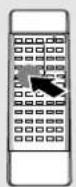
Start the search.

To change to a different program type :
Repeat steps 1, 2, 3.
When searching for a Rock Music broadcast
Display while the tuner is searching.
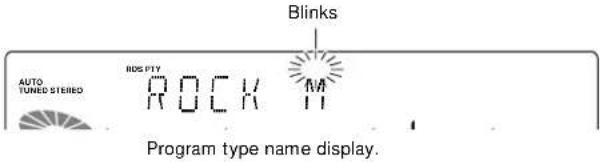
When a station is received.
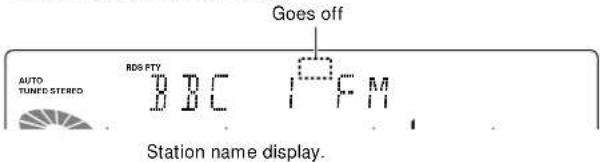
No sound is heard while "PTY" is blinking.
If a program of the desired type cannot be found, "NO PROG" is displayed, then after several seconds the display returns to the original display.
If a program of the desired type is found, that program is received and the program type name display changes temporarily to the frequency display, and then to the station name display.
XD-9580MD (En)
To be able to listen to the desired information at any time
By using the EON function, which manages the information of other stations, listening to desired information like traffic information or news etc. can be reserved even when it is not being transmitted at the present. When listening to a station with the "EON" display lit and another station of the same network starts to broadcast an information program for which a reservation has been made, then that station will be selected automatically. When the desired information program ends, return is made to the original program.
Set the reception band to FM.
→24
1 Auto preset the stations.
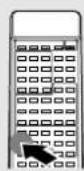
① Receive a broadcast.
②Keep the ENTER key pressed (2 sec or longer).
The EON data presently being broadcasted are taken in automatically.

This is not required when auto presetting has already been executed. ∞
When all 40 stations have already been preset by the procedure for "One-by-one presetting (manual preset)", the EON function will not operate. Auto presetting must be used.
2 Select the desired information.
Each press switches the modes as follows.
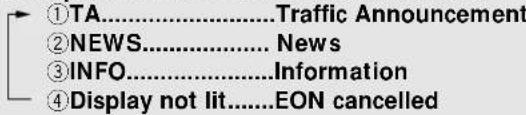
Please execute automatic presetting when TA, NEWS, and INFO cannot be selected.
3 Receive an RDS station.
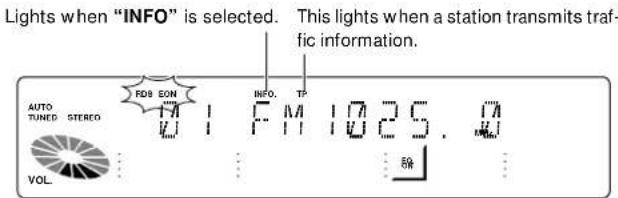
Select a station where "RDS" and "EON" are lit.
"RDS" and "EON" are lit.
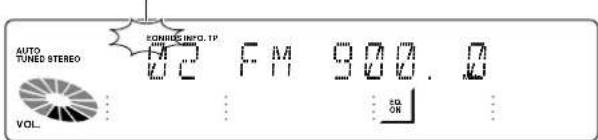
When "EON" does not light although an RDS station is received, that station is not transmitting EON data. Please select a different station.
When TA is desired, select a station where the "TP" display lights.
XD-9580MD (En)
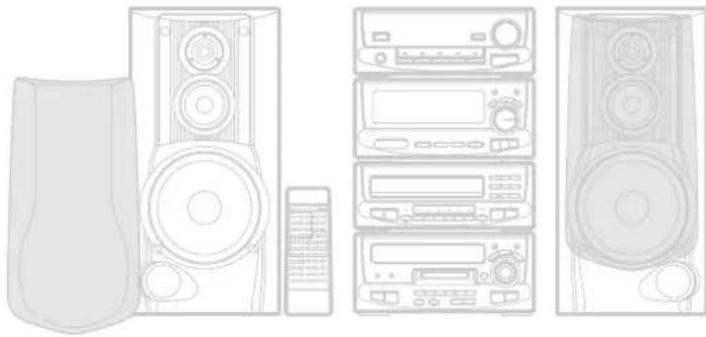
natural_image
Line drawing of various household electronic devices including speakers, washing machines, and a remote control unit (no text or symbols)
Wait for the desired information.
CD or MD playback may also be started. As long as the unit is ON, the unit is always ready for the reception.
When one of the stations of the network of the station received in 3 starts broadcasting the program contents selected in 2, that station will be received automatically. At this time, MD playback and CD playback will pause. However, external equipment (AUX, TAPE) will remain as it is.
When the unit is OFF and during recording (including dubbing), the EON function does not operate.
When the transmission of the selected program contents ends in case of automatic reception with the EON function, return will be made to the status directly before operation of the EON function. When MD or CD playback has been interrupted, it will be continued from the point of interruption.
In case of waiting for information with an RDS station without EON function
When there is no "EON" display with the operations of steps ③ and ④ and the desired information is selected in advance, waiting for the desired information will be done only with the presently received RDS station.
In regard to TP (Traffic Program) indicator
When the "TP" indicator is lit, this indicates that the station or another station in the same network is broadcasting traffic information. Even without an EON reservation, traffic information can be heard from the station when "TP" indicator is lit for the presently received station.
Selection of the recording type
This chapter explains also the cassette deck recording functions under consideration of combination with the cassette deck X-H9 (option).
Many convenient recording functions have been provided. Please select them according to the application.
It is possible to record desired tracks in the desired sequence from two or more CDs. In this case, select "Program recording".
For recording to tape, please read "Let's record" in the operation manual of the cassette deck X-H9 (option) carefully.
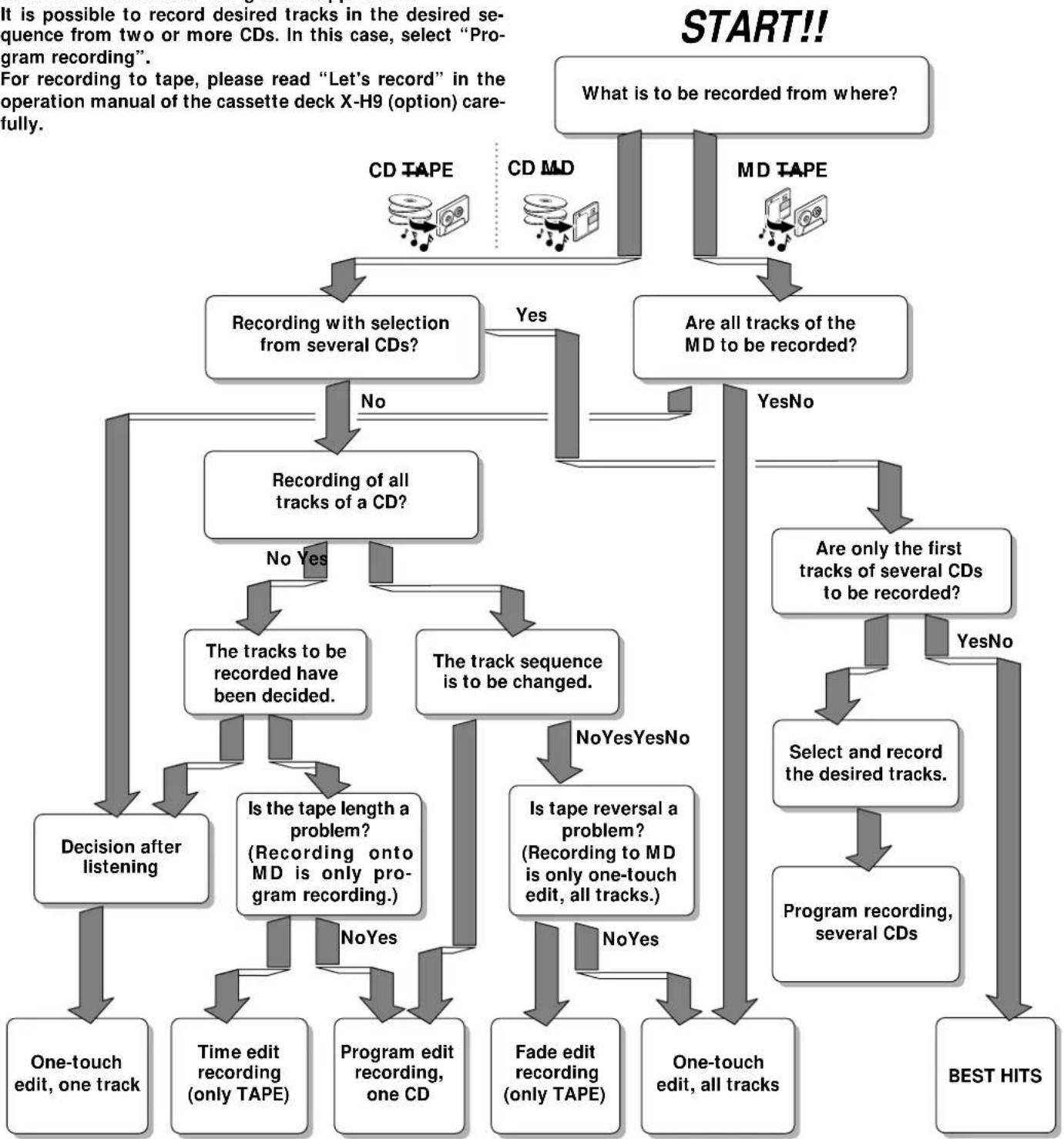
flowchart
graph TD
    A["Start!!"] --> B["What is to be recorded from where?"]
    B --> C["CD TAPE"]
    B --> D["CD MD"]
    B --> E["MD TAPE"]
    C --> F["Recording with selection from several CDs?"]
    D --> G["Are all tracks of the MD to be recorded?"]
    E --> H["Are only the first tracks of several CDs to be recorded?"]
    F --> I["Recording of all tracks of a CD?"]
    G --> J["Are only the first tracks of several CDs to be recorded?"]
    I --> K["The tracks to be recorded have been decided."]
    I --> L["The track sequence is to be changed."]
    K --> M["Decision after listening"]
    L --> N["Is the tape length a problem? (Recording onto MD is only program recording.)"]
    L --> O["Is tape reversal a problem? (Recording to MD is only one-touch edit, all tracks.)"]
    M --> P["One-touch edit, one track"]
    N --> Q["Time edit recording (only TAPE)"]
    N --> R["Program edit recording, one CD"]
    N --> S["Fade edit recording (only TAPE)"]
    O --> T["One-touch edit, all tracks"]
    P --> U["BEST HITS"]
    Q --> V["NoYes"]
    R --> W["NoYes"]
    S --> X["NoYes"]
    T --> Y["Select and record the desired tracks."]
    U --> Z["Program recording, several CDs"]
Convenient function
TWIN RECORDING function : This function permits simultaneous recording from a CD to MD and tape. All titles of a CD are recorded in the same order as on the CD. → 48
XD-9580MD (En)
What is CCRS? (only cassette deck X-H9 (option))
This is a function for one-touch recording of a CD onto tape. When the CCRS key is pressed, the CD contents and the characteristics of the tape to be used are checked for about 60 sec. (depending on the CD contents), the recording level is set automatically, and recording starts. At the end of the recording, stop is executed automatically.
The setting is cancelled when the unit is switched OFF (STANDBY) or the CD is stopped.
Fade-in/fade-out
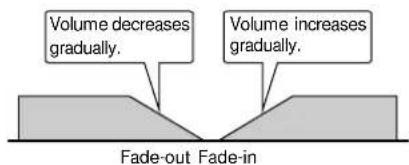
Fade-out : Ending a tune by gradually decreasing the volume. Fade-in : Starting a tune by gradually increasing the volume.
A
One-touch recording of one CD, MD
(One-touch edit recording of all tracks)
→46
All tracks of one CD or MD are recorded. Recording is possible to tape or MD from CD and to tape from MD.
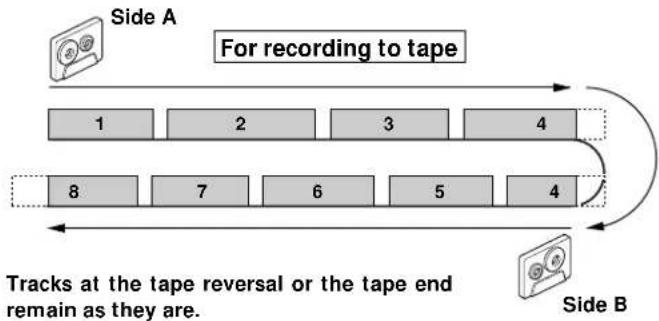
flowchart
graph TD
    A["1"] --> B["2"]
    B --> C["3"]
    C --> D["4"]
    E["8"] --> F["7"]
    F --> G["6"]
    G --> H["5"]
    H --> I["4"]
    style A fill:#f9f,stroke:#333
    style B fill:#f9f,stroke:#333
    style C fill:#f9f,stroke:#333
    style D fill:#f9f,stroke:#333
    style E fill:#f9f,stroke:#333
    style F fill:#f9f,stroke:#333
    style G fill:#f9f,stroke:#333
    style H fill:#f9f,stroke:#333
    style I fill:#f9f,stroke:#333
    note right of A: 'For recording to tape'
    note right of B: 'Side B'
    note right of C: Tracks at the tape reversal or the tape end remain as they are.
B
When a desired track is found, only that track is recorded
(One-touch edit recording of one track)
→47
While listening to a CD or MD, it is possible to record only the track being heard at that time from the beginning of that track. Recording is possible to tape or MD from CD and to tape from MD. This is convenient for recording of desired tracks from a disc being heard for the first time.
C
Producing an MD or a tape collecting only the first titles (BEST HITS function)
This is the function for recording the first title of all set CDs in sequence to an MD or to tape.
D
Recording of one CD or several CDs (CD → MD)
(Program edit recording)
From one CD
Recording is made in the programmed sequence from CD to MD or tape.
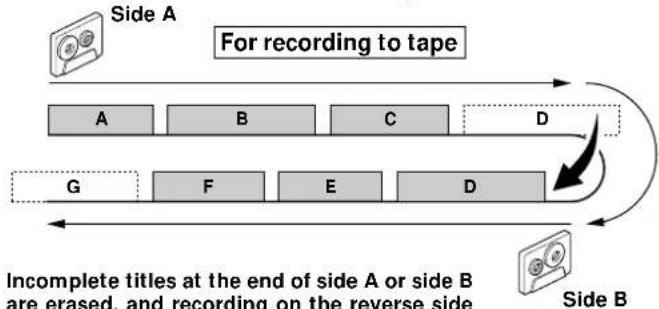
flowchart
graph TD
    A["Side A"] --> B["For recording to tape"]
    B --> C1["A"]
    B --> C2["B"]
    B --> C3["C"]
    B --> C4["D"]
    C1 --> D1["G"]
    C2 --> D2["F"]
    C3 --> D3["E"]
    C4 --> D4["D"]
    D1 --> E1["Side B"]
    D2 --> E2["Side B"]
    D3 --> E3["Side B"]
    D4 --> E4["Side B"]
    style A fill:#f9f,stroke:#333
    style B fill:#ccf,stroke:#333
    style C1 fill:#cfc,stroke:#333
    style C2 fill:#cfc,stroke:#333
    style C3 fill:#cfc,stroke:#333
    style C4 fill:#cfc,stroke:#333
    style D1 fill:#ffc,stroke:#333
    style D2 fill:#ffc,stroke:#333
    style D3 fill:#ffc,stroke:#333
    style D4 fill:#ffc,stroke:#333
    style E1 fill:#fcc,stroke:#333
    style E2 fill:#fcc,stroke:#333
    style E3 fill:#fcc,stroke:#333
    style E4 fill:#fcc,stroke:#333
Incomplete titles at the end of side A or side B are erased, and recording on the reverse side starts at the beginning of that title (up to 32 titles).
→ 50
(CD→TAPE)
→51
From 2 or more CDs
The desired titles from several CDs can be recorded to an MD or to tape.
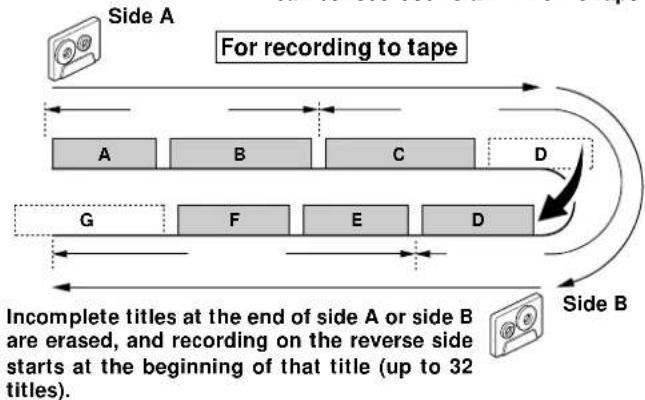
flowchart
graph TD
    A["Section A"] --> B["Section B"]
    B --> C["Section C"]
    C --> D["Section D"]
    D --> E["Section E"]
    E --> F["Section F"]
    F --> G["Section G"]
    style A fill:#f9f,stroke:#333
    style B fill:#f9f,stroke:#333
    style C fill:#f9f,stroke:#333
    style D fill:#f9f,stroke:#333
    style E fill:#f9f,stroke:#333
    style F fill:#f9f,stroke:#333
    style G fill:#f9f,stroke:#333
    note1["For recording to tape"] --> A
    note2["Incomplete titles at the end of side A or side B are erased, and recording on the reverse side starts at the beginning of that title (up to 32 titles)."]
E
Change of the track sequence according to the tape length
(CD→TAPE only) (Time edit recording)
→ 52
The order of CD tracks are changed automatically so that no tune is interrupted at the end of tape sides A and B. (Up to 32 tracks)

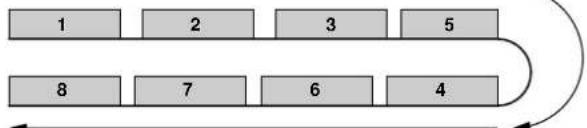
flowchart
graph TD
    A["1"] --> B["2"]
    B --> C["3"]
    C --> D["5"]
    E["8"] --> F["7"]
    F --> G["6"]
    G --> H["4"]

Side B Side B
F
Fade-out/Fade-in at the tape reversal
(CD → TAPE only) (Fade edit recording)
→54
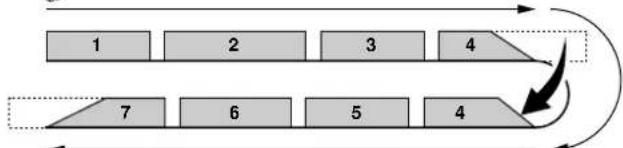
CD tracks are recorded in the order they are recorded. The tune interrupted at the end of tape side A is faded out and side B starts with fading in from the middle of that tune.
Side A

flowchart
graph TD
    A["1"] --> B["2"]
    B --> C["3"]
    C --> D["4"]
    D --> E["7"]
    E --> F["6"]
    F --> G["5"]
    G --> H["4"]
    H --> I["Output"]
    style A fill:#ccc,stroke:#333
    style B fill:#ccc,stroke:#333
    style C fill:#ccc,stroke:#333
    style D fill:#ccc,stroke:#333
    style E fill:#ccc,stroke:#333
    style F fill:#ccc,stroke:#333
    style G fill:#ccc,stroke:#333
    style H fill:#ccc,stroke:#333
    style I fill:#ccc,stroke:#333
The tune interrupted in the middle at the end of tape side B is simply faded out.

One-touch recording of one CD, MD (One-touch edit recording of all tracks)
All tracks of one CD or MD are recorded.
Recording is possible to tape or MD from CD and to tape from MD.
For recording to tape, please read "Let's record" in the operation manual of the cassette deck X-H9 (option) carefully.

When equalizer, SRS 3D, or any other effect is applied to the sound, the sound with applied effect can be recorded (except for digital recording from CD to MD).
→|66→|67|
1 Make the preparations for recording.
CD→MD
⑦Insert a recordable disc into the MD recorder.
②Select "CD" with the input selection key.
③Insert disc(s) in the CD player.
→20
MD → TAPE
① Load a tape.
②Select the tape transport direction.
(◀ or ▶)
③Select "⊃". (two-side recording)
④Select the Dolby NR mode.
⑤Select "MD" with the input selection key.
⑤Insert disc(s) in the MD recorder.
22
⑦Adjust the recording level.
CD→TAPE
⑦Load a tape.
②Select the tape transport direction.
(◀ or ▶)
③Select “⊃”. (two-side recording)
④Select the Dolby NR mode.
⑤Select "CD" with the input selection key.
⑥Insert disc(s) in the CD player.
→20
⑦Adjust the recording level.
2 Start recording.
CD → MD
⑦Select the target disc.
DISC 1 DISC 2 DISC 3 DISC 4 DISC 5 DISC 6

②Start recording.

Press before playback of the CD starts.
CD player and MD recorder must be brought to stopped condition.
MD → TAPE

Press in stop mode.
CD→TAPE
①Select the target disc.
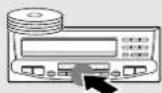
DISC 1 DISC 2 DISC 3 DISC 4 DISC 5 DISC 6

2Start recording.
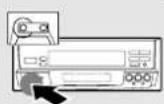
Press before playback of the CD starts.

When the O.T.E. key is pressed after playback has started, only the track being played at that time will be recorded. → 47
With recording onto tape, the track will be interrupted for the part of the guide tape at the tape reversal, where recording is not possible. Please use a different recording method if this is to be avoided.
To interrupt a recording
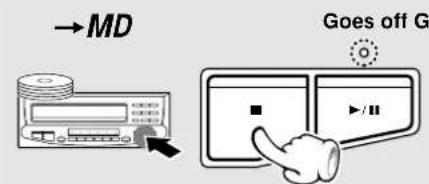
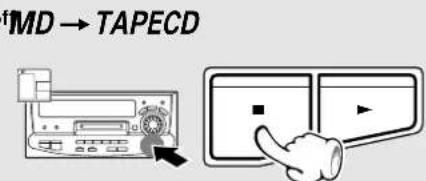
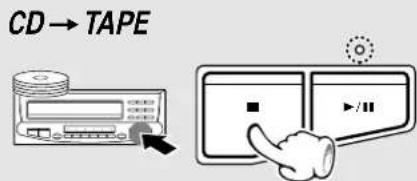
XD-9580MD (En)
When a desired track is found, only that track is recorded
(One-touch edit recording of one track)
While listening to a CD or MD, it is possible to record only the track being heard at that time from the beginning of that track. Recording is possible to tape or MD from CD and to tape from MD.
For recording to tape, please read "Let's record" in the operation manual of the cassette deck X-H9 (option) carefully.

When equalizer, SRS 3D, or any other effect is applied to the sound, the sound with applied effect can be recorded (except for digital recording from CD to MD).
→|66→|67|
1 Make the preparations for recording.
CD→MD
⑦Insert a recordable disc into the MD recorder.
②Select "CD" with the input selection key.
③Insert disc(s) in the CD player.
→20
MD → TAPE
① Load a tape.
②Select the tape transport direction.
(◀ or ▶)
③Select "⊃". (two-side recording)
④Select the Dolby NR mode.
⑤Select "MD" with the input selection key.
⑤Insert disc(s) in the MD recorder.
22
⑦Adjust the recording level.
CD→TAPE
⑦Load a tape.
②Select the tape transport direction.
(◀ or ▶)
③Select “⊃”. (two-side recording)
④Select the Dolby NR mode.
⑤Select "CD" with the input selection key.
⑥Insert disc(s) in the CD player.
→20
⑦Adjust the recording level.
2 Playback of a CD or MD.
3 Press the O.T.E. key during playback of a track to be recorded.
CD → MD MD
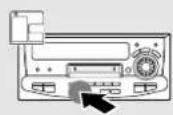
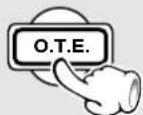
Press during playback. Press during playback.
→ TAPE CD
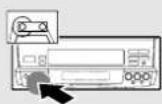

→ TAPE
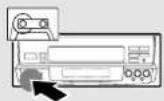
Press during playback.
|Return is made to the beginning of the track being played and recording starts.
To interrupt a recording
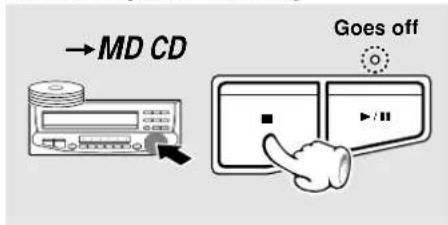
At the end of the recording
MD recorder : Stop.
Cassette deck : Stop is executed after an unrecorded portion of about 4 sec. has been produced.
The unit on the playback side (CD player or MD recorder) pauses.
To record another track ... repeat the steps 2 and 3.
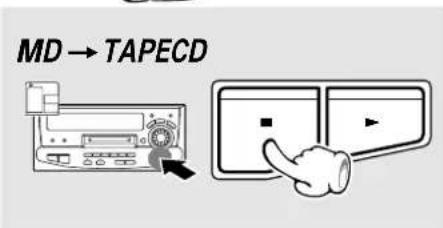
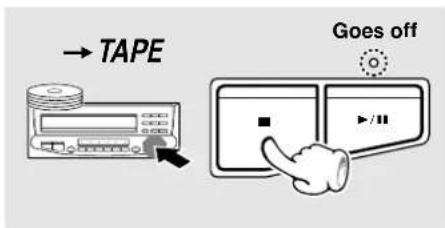
|Recording and playback will be stopped.
XD-9580MD (En)
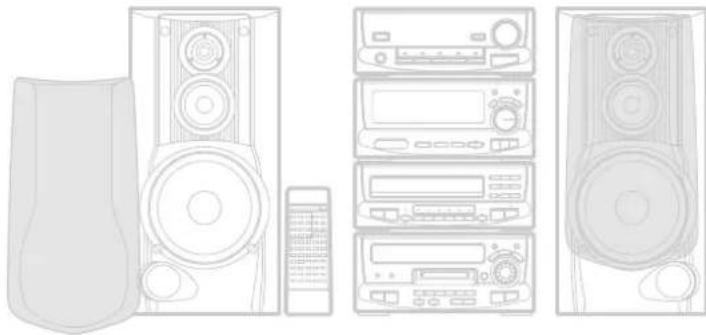
natural_image
Line drawings of various household electronic devices including speakers, washing machines, and a remote control unit (no text or symbols present)Recording preparation is required.
46
TWIN RECORDING Function
This is the function for simultaneous recording from CD to MD and tape. All tracks of a CD are recorded in the sequence on the CD.
For recording to tape, please read "Let's record" in the operation manual of the cassette deck X-H9 (option) carefully.
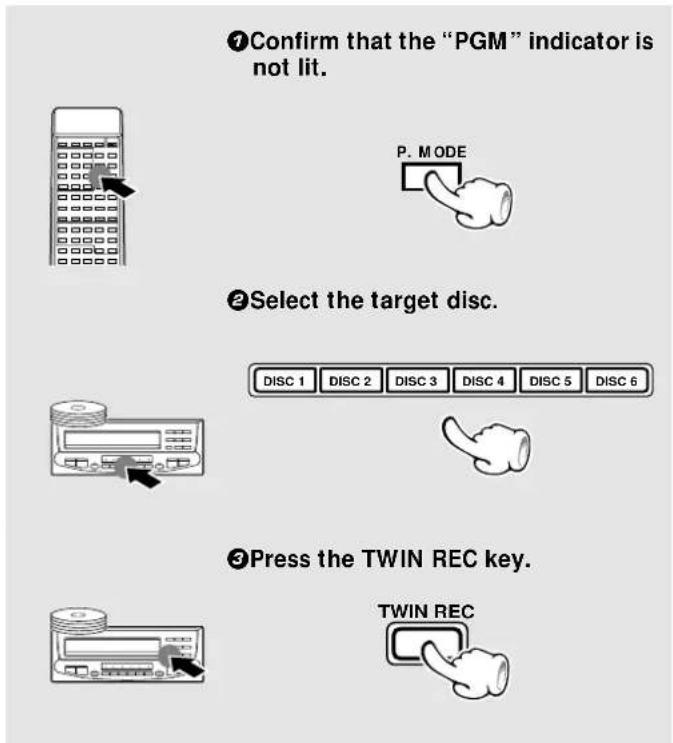
The recording input to the MD recorder automatically becomes "DIGITAL1".
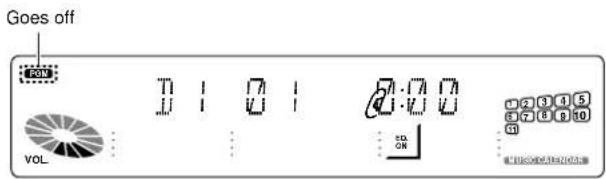
MD recorder display during tape deck recording level adjustment
Track No. of title to be recorded first
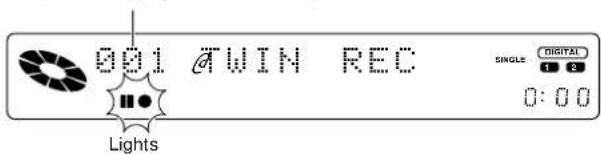
The recording level will be adjusted automatically in approx. 60 seconds (variable depending on CD contents), after which recording starts.
Measures are taken automatically so that no track is interrupted at the tape reversal. Short soundless portions may be inserted between the tracks on the MD because of this processing.
To Interrupt a Recording
Recording and playback are stopped when the ■ key of the CD player is pressed.
XD-9580MD (En)
Producing an MD or a tape collecting only the first titles
(BEST HITS function)
The first tracks of all set CDs will be recorded on MD or tape in sequence from tray 1 on. For recording to tape, please read "Let's record" in the operation manual of the cassette deck X-H9 (option) carefully.

When equalizer, SRS 3D, or any other effect is applied to the sound, the sound with applied effect can be recorded (except for digital recording from CD to MD).
→|66→|67|
1 Make the preparations for recording.
CD→MD
⑦ Insert a recordable disc into the MD recorder.
②Select "CD" with the input selection key.
⑤Insert disc(s) in the CD player.
(Insert CDs in the order to be recorded from tray 1 on.)
→20
2 Confirm that the "PGM" indicator is not lit.
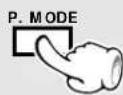
CD→TAPE
⑦Load a tape.
② Select the tape transport direction. (◀ or ▶)
③Select “⊃”. (two-side recording)
④Select the Dolby NR mode.
⑤Select "CD" with the input selection key.
⑥Insert disc(s) in the CD player.
⑦Adjust the recording level.
→20
3 Press the BEST HITS key.

Press in stop mode.
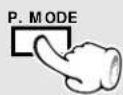

Press in stop mode.
When a disc tray is opened during recording with the BEST HITS function, the recording is ended.
To Interrupt a Recording
Recording and playback are stopped when the ■ key of the CD player is pressed.
XD-9580MD (En)
Recording of one CD or several CDs (CD → MD)
(Program edit recording)
The desired tracks from 6 CDs can be recorded in the programmed sequence on one MD.

When equalizer, SRS 3D, or any other effect is applied to the sound, the sound with applied effect can be recorded (except for digital recording from CD to MD).
→|66→|67|
Recording preparation is required.
46
Character information display cannot be displayed while the spectrum analyzer display mode is used. Switch to the superposed display or character display mode to see the Information.
11 69
1 Check that the CD player is in the stop mode.
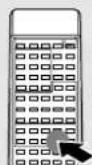
If it is in play mode
2 Light the "PGM" indicator.
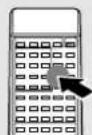
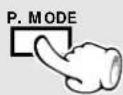
3 Enter disc Nos. and track Nos. in the order you want to record them.
⑦ Select the disc.
Go to step 2 within 8 seconds.
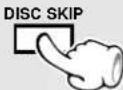
②Select the track.
Go to step ③ within 8 seconds.
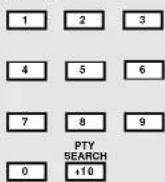
③ Confirm the selection.
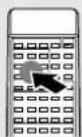
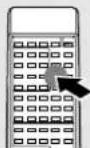
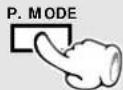
To edit tracks from more than one CD, repeat ①, ②, ③ for each CD.
To check the edited contents ü → 53
To clear the edited contents → 53
4 Start edit recording.
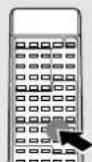
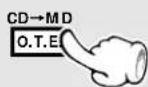

Always remove the minidisc after recording.
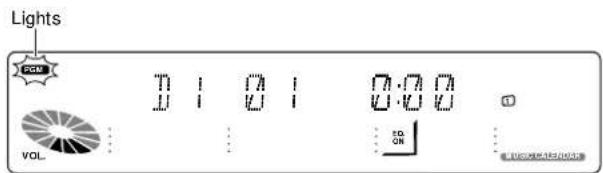
The selected disc No. is shown
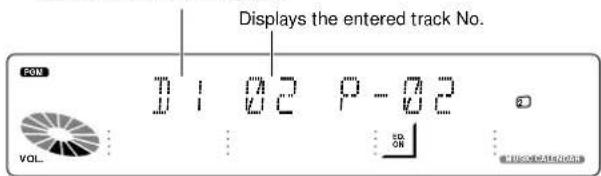
Select so that the usable recording time of the MD is not exceeded.
Up to 32 tracks can be programmed. When "FULL" is displayed, no more tracks can be programmed.
If you make a mistake, press the P.CLEAR key and enter the track No. from the beginning.
When the P.MODE key is pressed without selecting a title after selection of a disc, all titles of the disc are programmed, so that the O.T.E. function does not operate. Please begin again from step 7.
The REPEAT key is not effective.
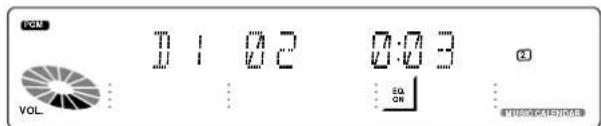
The MD recording is paused while the CD is exchanged in the tray.
Tracks programmed in excess of the MD recording time will be cut off.
XD-9580MD (En)
Recording of one CD or several CDs (CD → TAPE)
(Program edit recording)
The desired tracks from 6 CDs can be recorded in the programmed sequence on one tape.
Please read "Let's record" in the operation manual of the cassette deck X-H9 (option) carefully.

When equalizer, SRS 3D, or any other effect is applied to the sound, the sound with applied effect can be recorded.
$$ \rightarrow \boxed {6 6} \rightarrow \boxed {6 7} $$
Character information display cannot be displayed while the spectrum analyzer display mode is used. Switch to the superposed display or character display mode to see the Information.
$$ \rightarrow \boxed {1 1} \rightarrow \boxed {6 9} $$
Recording preparation is required.
$$ \rightarrow \boxed {4 6} $$
1 Light the "PGM" indicator.
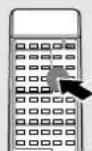
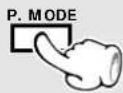
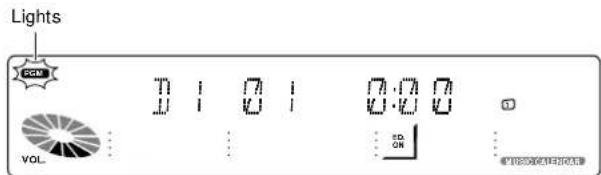
2 Enter disc Nos. and track Nos. in the order you want to record them.
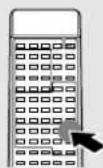
⑦Select the disc.
Go to step ② within 8 seconds.

②Select the track.
Go to step ③ within 8 seconds.



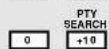
③ Confirm the selection.
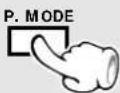
To edit tracks from more than one CD, repeat ⑦, ②, ③ for each CD.
To check the edited contents To clear the edited contents

3 Start edit recording.
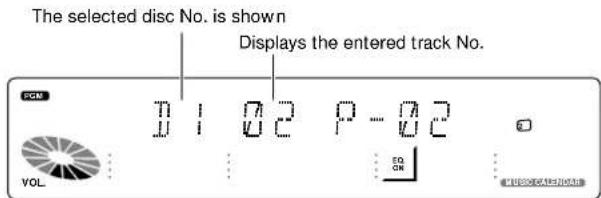
Select CD tracks so that their total playing time does not exceed the recording time of the tape.
Up to 32 tracks can be programmed. When "FULL" is displayed, no more tracks can be programmed.
If you make a mistake, press the P.CLEAR key and enter the track No. from the beginning.
When the P.MODE key is pressed without selecting a title after selection of a disc, all titles of the disc are programmed, so that the CCRS function does not operate. Please begin again from step 7.
The REPEAT key is not effective.
The recording level will be adjusted automatically in approx. 60 seconds (variable depending on CD contents), after which recording starts.
For editing from two or more CDs, CCRS setting is executed each time the disc is changed.
XD-9580MD (En)
Change of the track sequence according to the tape length (CD → TAPE only) (Time edit recording)
By specifying the recording time of the tape used, CD tracks can be recorded with their order automatically changed so that no tune is interrupted at the end of tape sides A and B.
Please read "Let's record" in the operation manual of the cassette deck X-H9 (option) carefully.

When equalizer or SRS 3D is applied to the sound, the sound will be recorded with applied effect.
Character information display cannot be displayed while the spectrum analyzer display mode is used. Switch to the superposed display or character display mode to see the information.
Recording preparation is required.

1 Make sure that the "PGM" indicator is off.
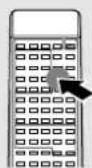
①Select "CD" with the input selection key.
②Make sure that the "PGM" indicator is off. P. MODE
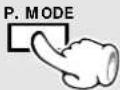
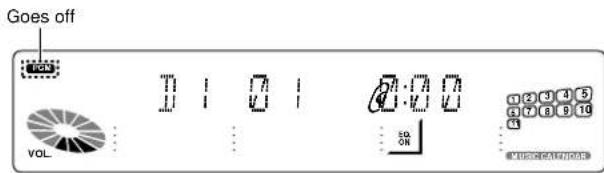
2 Light the "EDIT" indicator.
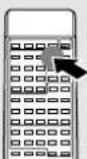
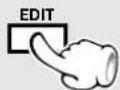
Editing is cancelled in case of waiting for 8 sec. or more.
"PGM", "EDIT", and "SPACE" are lit.
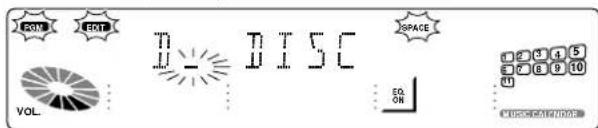
3 Enter the disc and tape conditions.
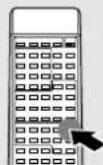
⑦ Select the disc.
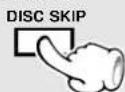
Go to step ② within 8 seconds.
②Press the EDIT key.
Go to step ③ within 8 seconds.
③Enter the recording length of the tape.

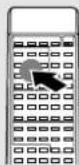
Press the numeric keys as shown below....
30-minute tape (C-30): +10 +10 +10 0 46-minute tape (C-46): +10 +10 +10 +10 6
Selection of 46, 54, 60, or 90 min tape can be done easily by pressing the TIME/ENTER key (CD) of the remote control repeatedly. After entry, press the EDIT key then proceed to step 7.
The recording time can be set up to a maximum of 99 minutes.
Up to 32 tracks can be edited.
CD tracks will be edited automatically onto tape sides A and B. After editing, the "EDIT" indicator stops blinking and starts to light steadily.
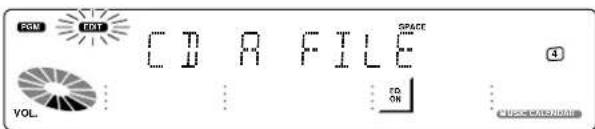
4 Start edit recording.
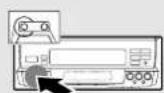
Wait until the "EDIT" indicator stops blinking, and then press the CCRS key.
The recording level will be adjusted automatically in approx. 60 seconds (variable depending on CD contents), after which recording starts.
The tape and CD stop automatically when recording has completed.

Depending on the combination of conditions from CD contents (number of titles and length of the titles) and tape recording time, interruption of a title may not be avoidable. In such a case, the respective title will not be recorded.
XD-9580MD (En)
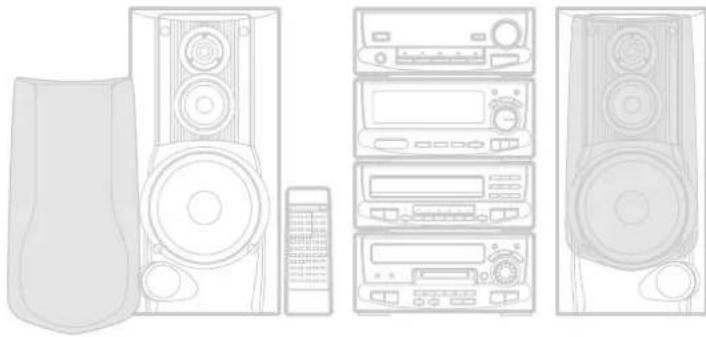
natural_image
Line drawing of various household electronic devices including speakers, audio equipment, and a remote control unit (no text or symbols)To check the edited contents
(Program edit recording, Time edit recording)
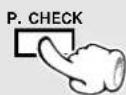
To clear the edited contents
(Program edit recording, Time edit recording)
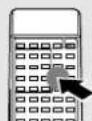
Method 1
or
Press in stop mode
Method 2
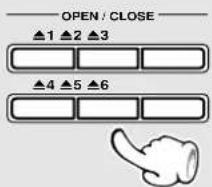
Example of checking the edited contents for program edit recording
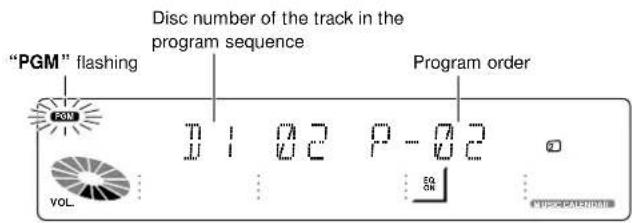
|Program edit recording : Each time the key is pressed, the program No. (P-NO) and the track No. on CD are displayed.
Time edit recording : "EDIT" indicator blinks, and edited contents are shown in order with the music calendar indicators.
When the P.MODE key is pressed at the time of program recording, all editing contents are erased. When the P.CLEAR key is pressed, the tracks are deleted one by one from the end of the program.
When the P.MODE key or the P.CLEAR key is pressed at the time of time editing, the entire editing contents are deleted.
At the time of program recording, all editing contents also are erased when a disc tray is opened.
At the time of time editing, all editing contents are erased only when the edited disc is removed.
Automatic Space Function
This is a convenient function for playback from a cassette deck (option). At the time of CD time edit recording, an unrecorded space of several seconds is produced between titles. With recording to the cassette deck in this condition, the DPSS function (search for unrecorded parts) can be used to find the beginning of a title on the tape.
The "SPACE" indicator is lit during recording.
When play continues from the preceding title to the next title (classical music, live recordings, etc.), an unrecorded part will be created when different title numbers exist.
XD-9580MD (En)
Fade-out/Fade-in at the tape reversal (CD → TAPE only)
(Fade edit recording)
The tune interrupted at the end of tape side A is faded out and side B starts with fading in from the middle of that tune. The tune interrupted at the end of tape side B is simply faded out.
Please read "Let's record" in the operation manual of the cassette deck X-H9 (option) carefully.

When equalizer or SRS 3D is applied to the sound, the sound will be recorded with applied effect.
$$ \rightarrow \boxed {6 6} \rightarrow \boxed {6 7} $$
Recording preparation is required.
$$ \rightarrow \boxed {4 6} $$
1 Make sure that the "PGM" indicator is off.
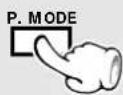
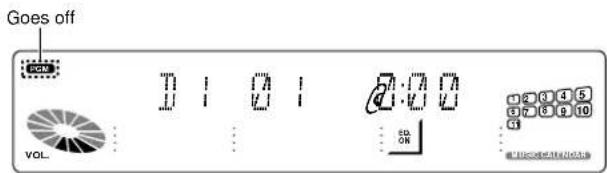
2 Select the disc.
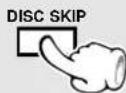
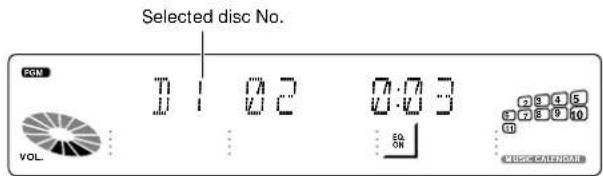
3 Start edit recording.
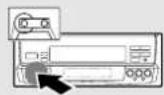
The recording level will be adjusted automatically in approx. 60 seconds (variable depending on CD contents), after which recording starts.
The CD tracks are recorded in the order they are recorded on the CD.
Automatic stop is executed when the recording ends.
XD-9580MD (En)
Selecting the editing function type
When a commercially available Mini Disc fabricated for user recording is used, various editing operations can be applied after recording. Note that editing is not possible with commercially available prerecorded Mini Disc software designed for playback only.
For editing, set the write protect tab of the mini disc to "Write enable" side.
Function Limitations because of the MD Standard Some of the functions are limited because of the MD standard. Please check this before assuming a malfunction.
Assigning a Title to a Disc or a Track - 56
Changing or deleting a title -57
Title input is possible simply by selecting one character after another from the characters shown on the display. As the entered title is compatible between models, it will be displayed also when the disc is set into a different MD recorder (player).
(The title compatibility is limited partly according to the character types which can be displayed, the number of characters, etc.)
Reordering tracks by moving them Dividing a track, combining two tracks
Moving several tracks at a time (QUICK MOVE) → 58 Moving a single track (TRACK MOVE) → 59
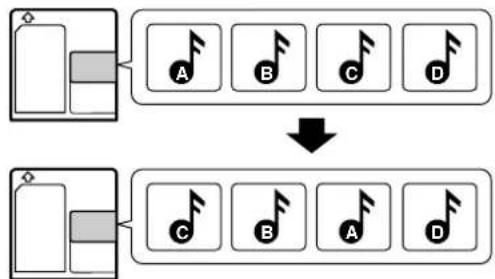
flowchart
graph TD
    A["Device with +"] --> B["A"]
    A --> C["B"]
    A --> D["C"]
    A --> E["D"]
    F["Device with +"] --> G["C"]
    F --> H["B"]
    F --> I["A"]
    F --> J["D"]
combining two tracks
Dividing a track into two
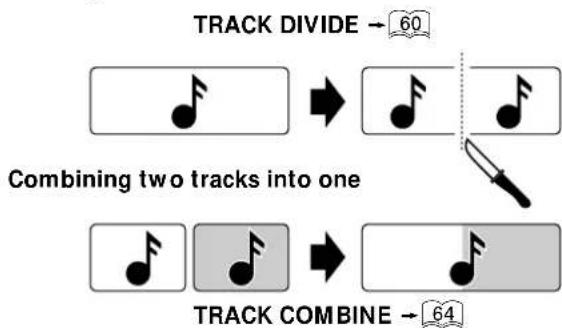
flowchart
graph TD
    A["Start"] --> B["Combining two tracks into one"]
    B --> C["Start"]
    C --> D["Track Combine"]
    D --> E["64"]
    style A fill:#f9f,stroke:#333
    style B fill:#ccf,stroke:#333
    style C fill:#cfc,stroke:#333
    style D fill:#fcc,stroke:#333
    style E fill:#cff,stroke:#333
Erasing track(s)
Erasing several tracks at a time (QUICK ERASE) → 63
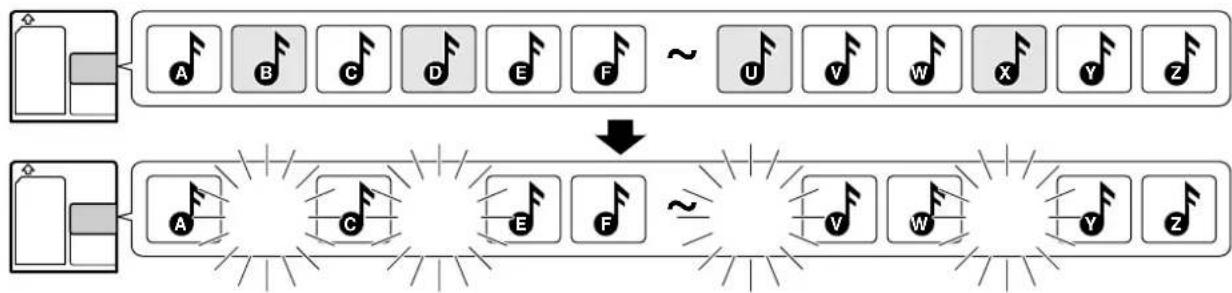
flowchart
graph TD
    A["NOT"] --> B["A"]
    B --> C["B"]
    C --> D["C"]
    D --> E["D"]
    E --> F["E"]
    F --> G["F"]
    G --> H["F"]
    H --> I["F"]
    I --> J["F"]
    J --> K["F"]
    K --> L["F"]
    L --> M["F"]
    M --> N["F"]
    N --> O["F"]
    O --> P["F"]
    P --> Q["F"]
    Q --> R["F"]
    R --> S["F"]
    S --> T["F"]
    T --> U["F"]
    U --> V["F"]
    V --> W["F"]
    W --> X["F"]
    X --> Y["F"]
    Y --> Z["F"]
    Z --> AA["F"]
    AA --> AB["F"]
    AB --> AC["F"]
    AC --> AD["F"]
    AD --> AE["F"]
    AE --> AF["F"]
    AF --> AG["F"]
    AG --> AH["F"]
    AH --> AI["F"]
    AI --> AJ["F"]
    AJ --> AK["F"]
    AK --> AL["F"]
    AL --> AM["F"]
    AM --> AN["F"]
    AN --> AO["F"]
    AO --> AP["F"]
    AP --> AQ["F"]
    AQ --> AR["F"]
    AR --> AS["F"]
    AS --> AT["F"]
    AT --> AU["F"]
    AU --> AV["F"]
    AV --> AW["F"]
    AW --> AX["F"]
    AX --> AY["F"]
    AY --> AZ["F"]
    AZ --> BA["F"]
    BA --> BB["F"]
    BB --> BC["F"]
    BC --> BD["F"]
    BD --> BE["F"]
    BE --> BF["F"]
    BF --> BG["F"]
    BG --> BH["F"]
    BH --> BI["F"]
    BI --> BJ["F"]
    BJ --> BK["F"]
    BK --> BL["F"]
    BL --> BM["F"]
    BM --> BN["F"]
    BN --> BO["F"]
    BO --> BP["F"]
    BP --> BQ["F"]
    BQ --> BR["F"]
    BR --> BS["F"]
    BS --> BT["F"]
    BT --> BU["F"]
    BU --> BV["F"]
    BV --> BW["F"]
    BW --> BX["F"]
    BX --> BY["F"]
    BY --> BZ["F"]
Erasing a single track (TRACK ERASE) → 64
Erasing all tracks on a disc (ALL ERASE) → 64
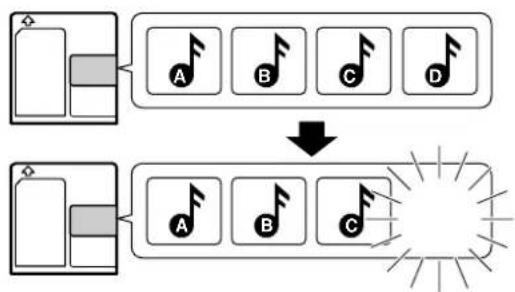
flowchart
graph TD
    A["Input"] --> B["NOT"]
    B --> C["A"]
    B --> D["B"]
    B --> E["C"]
    B --> F["D"]
    G["Input"] --> H["NOT"]
    H --> I["A"]
    H --> J["B"]
    H --> K["C"]
    H --> L["D"]
    M["Starburst"] --> N["End"]
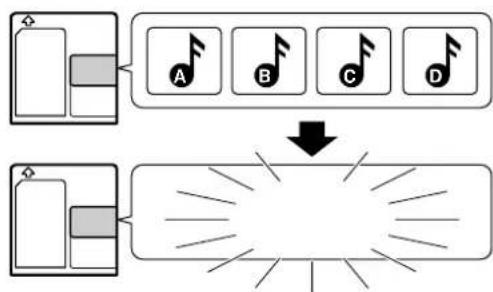
flowchart
graph TD
    A["Input Block 1"] --> B["A"]
    C["Input Block 2"] --> D["B"]
    E["Input Block 3"] --> F["C"]
    G["Input Block 4"] --> H["D"]
    B --> I["Down Arrow"]
    D --> I
    F --> I
    H --> I
    I --> J["Output"]
    style A fill:#f9f,stroke:#333
    style C fill:#f9f,stroke:#333
    style E fill:#f9f,stroke:#333
    style G fill:#f9f,stroke:#333
Assigning a title to a disc or track
When titles are assigned to a disc and its tracks, the titles cannot only be displayed during playback but title search (searching a track by the title) is also made possible. The assigned titles can be changed or deleted with the same procedure.
Execute operation in stopped condition or during playback.
1 Activate the title input mode.
①Press the TITLE INPUT key.
TITLE INPUT
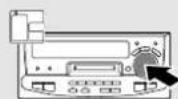
②Select whether the disc title or track title input.
To return
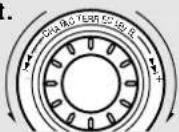
To advance
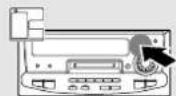
③Set the selection.
To abort operation, press the TITLE INPUT key again.
When the ▶ ( playback) key is pressed before step ③ while assigning a title to a track, the title can be entered while listening to that track. However, listening is not possible when assigning a disc title.
It takes a while because data should be read out of the disc.
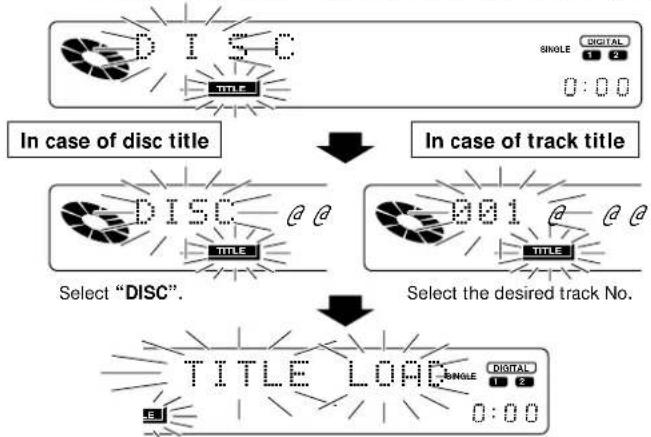
flowchart
graph TD
    A["In case of disc title"] --> B["Select "DISC"."]
    B --> C["Select the desired track No."]
    C --> D["TITLE LOAD"]
    D --> E["SINGLE DIGITAL 1 2 0:00"]
    F["DISC"] --> G["SINGLE DIGITAL 1 2 0:00"]
    H["001"] --> I["SINGLE DIGITAL 1 2 0:00"]
2 Input the title.
① Select the group of the characters used in the title.

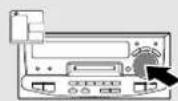
② Select a desired character by placing the selection cursor on it.
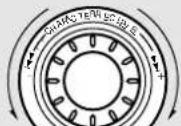
To advance
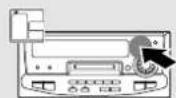
③Set the selected character.
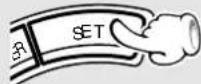
Input the title characters by repeating ⑦ to ③ for each of them.
Each press of the CHARACTER (TRACK EDIT/CHARA.) key switches the group.
① A\~Z, space (blank space corresponding to one character), comma, period, etc.
② a\~z, space
③ 0\~9, symbols, space

When the jog dial is turned, the display scrolls and all characters (in the same group) can be selected.
| Pressing the DISPLAY MODE key allows to change the display characters on a per-screen (5 characters) basis.
Example of disc title
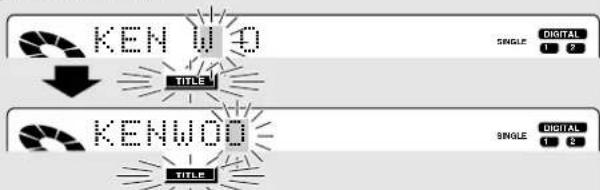
The cursor moves and waits for input of the next character.
The input cursor can be moved with the ◀◀, ▶▶ (L CURSOR R) keys.
3 Execute title assignment.
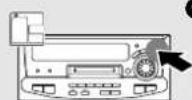
①Enter the title in memory.
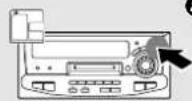
②Complete the operation.
TITLE INPUT
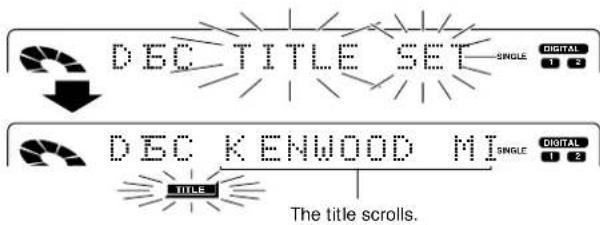
Changing or deleting a title
Total number of title characters
Up to 1792 characters can be input per disc and up to 80 characters can be input per track.
A space (blank character) also require the same amount of data as alphanumeric characters. When deleting a title, it is not recommended to overwrite spaces on previous characters but use the CHARACTER DELETE function.
Always remove the minidisc after title input or editing. The names in brackets in the explanations are the names of the remote control keys.
1 Perform step 1 of "Assigning a title to a disc or track".
→ 56
2 Change or delete characters one by one.
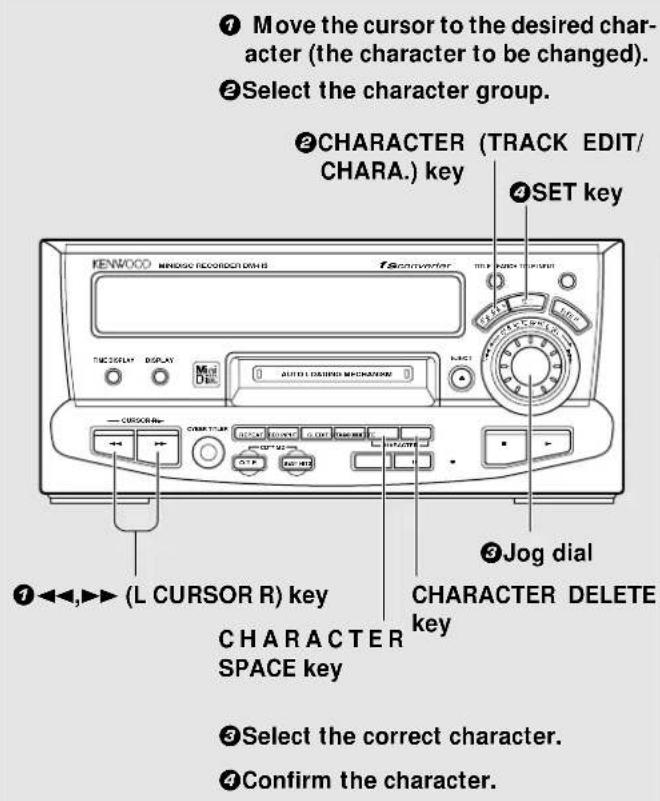
All characters of a title can be changed by repeating steps ① to ④.
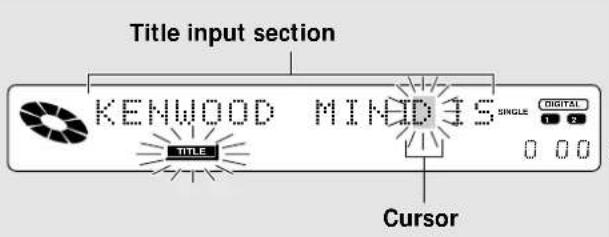
In regard to the key functions
CHARACTER (TRACK EDIT/CHARA.) key :
The group of characters displayed at the character selection section is switched.
CHARACTER DELETE key :
The character at the cursor is deleted (erased) and the following characters move up by one character each. Titles can be erased easily by continuous pressing (or by holding the key down for repeated input).
A space (blank corresponding to one character) is entered (inserted) directly before the character at the cursor position, and the following characters all are moved back by one character. Continuous pressing (or repeated input by keeping the key pressed) is also possible. This is used mainly to provide space for adding characters to a title.
If the title to be changed is too long to be displayed on the display section, press the ◀◀, ▶▶ (L CURSOR R) key to scroll the display so that the characters hidden until then appear.
When the jog dial is turned, the display scrolls and all characters (in the same group) can be selected.
3 Execute title change or deletion.
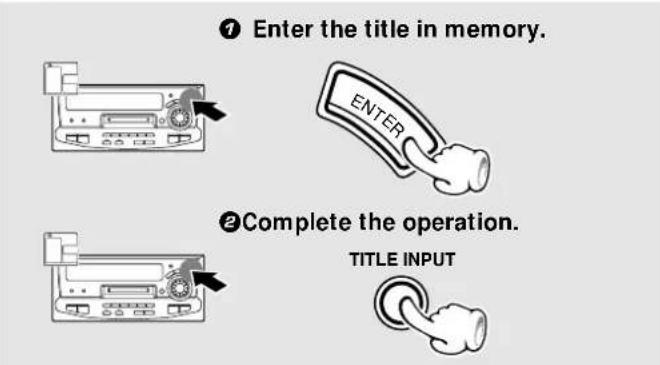
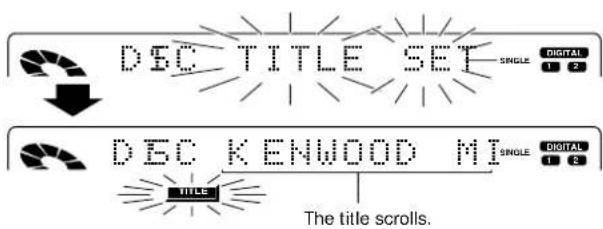
Moving several tracks at a time (QUICK MOVE)
Use the following procedure to change the current order of tracks by selecting a desired order and moving the tracks together.
40 continuous tracks within the specified range can be reordered at a time.
Please execute operation in stopped condition.
1 Select Q.MOVE.
⑦Select Q.MOVE.
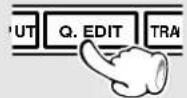
②Set it.
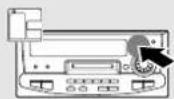
To cancel, press the Q.EDIT key twice.
Switching is done each time the Q.EDIT key is pressed.
①Q.MOVE ? (Moving several tracks at a time)
②Q.ERASE ? (Erasing several tracks at a time)
③Editing canceled
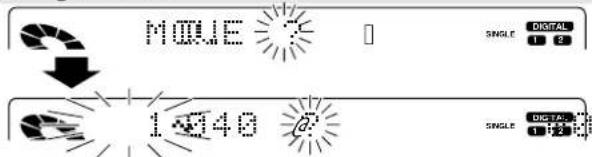
Editing is ended when no action is taken for 8 seconds.
2 Select the range of tracks to be reordered.
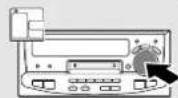
To decrease track No.
⑦Select the first track in the reordered range.
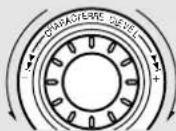
To increase track No.
Selected track No.
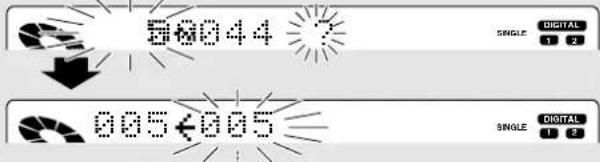
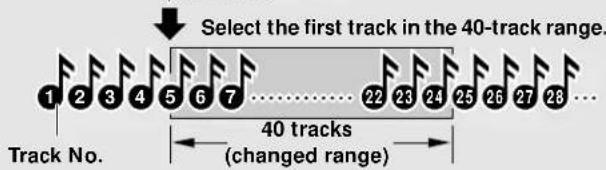
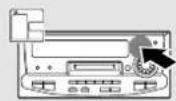
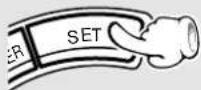
② Set the reordered range.
3 Select tracks numbers in the desired order.
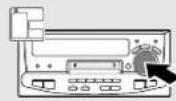
To decrease track No.
①Select a track number.
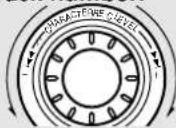
To increase track No.
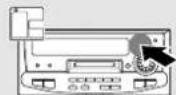
②Set it.
Repeat steps ① and ② until all tracks have been arranged in the desired order.
4 Execute the track move operation.
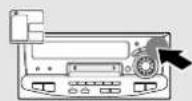

Press the key again after "Q.MOVE ok?" has been displayed.
5 After editing, eject and remove the mini disc.
“DISC WRITING” displayed during the minidisc ejection operation indicates that the data associated with recording or editing is being written on the disc. Do not apply vibration or shock to the unit while this message is displayed.
Moving the present track No. 7 to track No. 5
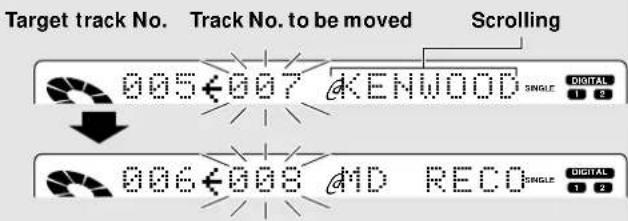
Use the Q.MOVE CHECK key and the Q.MOVE CLEAR key of the remote control to confirm the selected title sequence and to delete selected titles. For details, refer to "Confirmation or deletion of selected titles".

COMPLETE !!!


0:00
It takes a while until the execution completes.
If the ENTER key is pressed before reordering all tracks, the tracks which have not been selected are added to the end of the reordered range in the same order as before.
| You can suspend track reordering by pressing the EJECT key (▲) or the ON/STANDBY key while "COMPLETE" is flashing.
Moving a single track (TRACK MOVE)
This procedure shows you how to select and move (insert) a track to the track number you desire. The surrounding tracks are renumbered automatically.
Repeating this procedure lets you arrange the tracks in the order you desire.
XD-9580MD (En)
natural_image
Line drawing of various household appliances including speakers, TVs, and a control unit (no text or symbols)Please execute operation in stopped condition.
1 Select "MOVE".
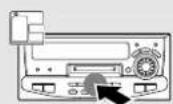
⑦Select "MOVE".
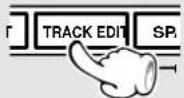
②Set it.
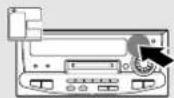
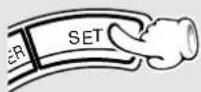
2 Select the track to be moved.
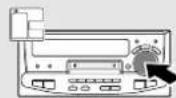
① Select a track number.
To decrease track No.
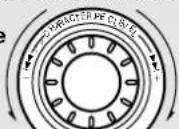
To increase
track No.
② Set it.
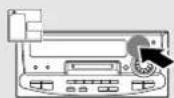
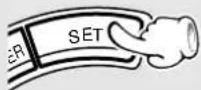
Each press switches the operation.
①ALL ERASE ? (Erasing of all tracks)
②MOVE ? (Moving a single track)
③COMBINE ? (Combining tracks)
④Editing cancelled
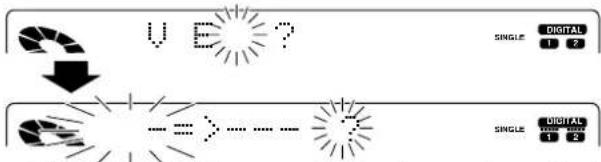
flowchart
graph TD
    A["Input"] --> B["Pixelation"]
    B --> C{Decision}
    C -->|Yes| D["Output 1"]
    C -->|No| E["Output 2"]
    D --> F["Digital Signal"]
    E --> G["Single Signal"]
Editing is aborted if no operation has been performed for 8 seconds.
Track to be moved

3 Select the moving destination track.
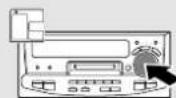
①Select a track number.
To decrease track No.
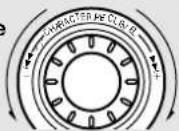
To increase track No.
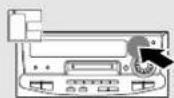
②Set it.
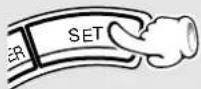
4 Execute the track move operation.
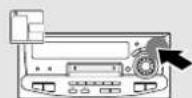

5 After editing, eject and remove the mini disc.
Destination track No.

Selected
destination
Track to be moved
Selected destination
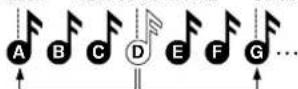
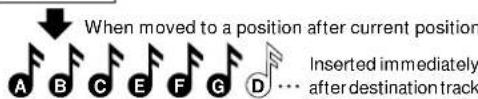
When moved to a position before current position

Inserted immediately before destination track

COMPLETE !!
0:00
“DISC WRITING” displayed during the mini disc ejection operation indicates that the data associated with recording or editing is being written on the disc. Do not apply vibration or shock to the unit while this message is displayed.
XD-9580MD (En)
Dividing a track (TRACK DIVIDE)
Use the following procedure to divide a track into two by inserting a track number in its middle. For example, by inserting an additional track number before the passage you are specially fond of, it is easy to skip to there when you play the disc later. Note that the track numbers of the tracks located after the divided track are automatically incremented. Fine adjustment is possible by using the preview function to listen repeatedly to the part to be divided.
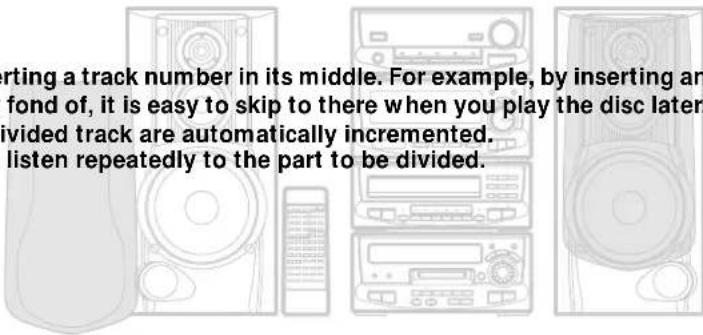
1 Play the track to be divided.
This operation is also possible during play-pause.
2 Press the TRACK EDIT key at the desired position.
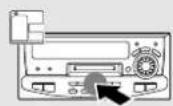
① Select "DIVIDE".
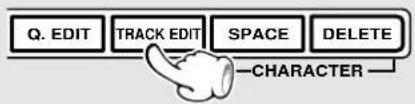
flowchart
graph TD
    A["CHARACTER"] --> B["Q. EDIT"]
    A --> C["TRACK EDIT"]
    A --> D["SPACE"]
    A --> E["DELETE"]
During playback, playback pause will be reached.
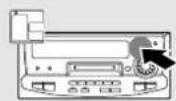
②Set it.
Each press switches the operation.
①ERASE ? (Erasing one track)
②DIVIDE ? (Dividing a track)
③COMBINE ? (Combining tracks)
④Editing cancelled
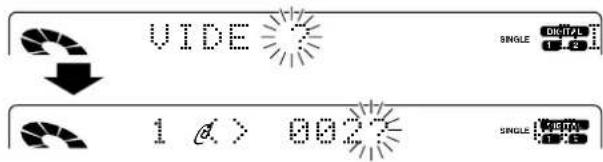
Editing is aborted if no operation has been performed for 8 seconds.
When you don't want to execute fine adjustment of the division point, press the ENTER key after step 2, and then go to step 4. (DIVIDE ok? will be displayed.)
3 Execute fine adjustment for the division location. (Preview function)
① Execute preview playback.
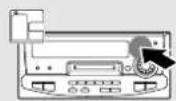
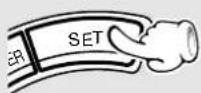
The approximately four seconds after the pause location will be played repeatedly.
②Execute fine adjustment for the division location.
The step number decreases
The step number increases
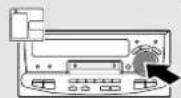
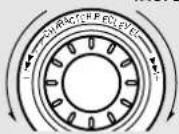
Repeated playback will be executed from the start of the adjusted location to the end of the part played back in step ⑦.
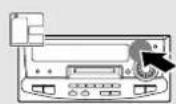
③Set it.

Fine adjustment can be made while listening to the sound. The possible adjustment range is 64 steps back from the pause location where the TRACK EDIT key has been pressed in step 2. (1 step is approximately 6/100 sec.)

XD-9580MD (En)
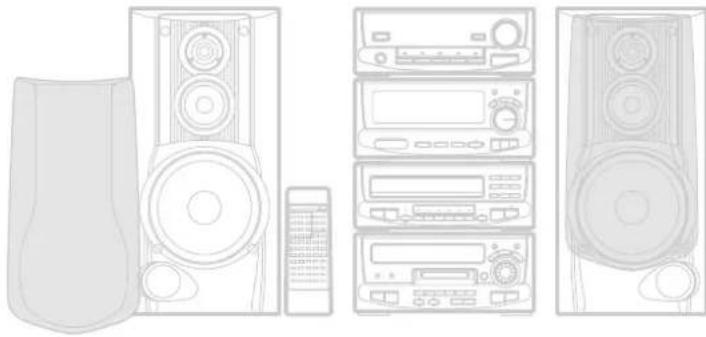
natural_image
Line drawings of various household electronic devices including speakers, audio equipment, and a remote control unit (no text or symbols present)4 Execute the track divide operation.
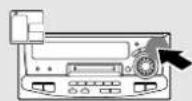

Up to 255 track numbers can be inserted additionally by repeating 1 to 4 for each of them.

The track is divided into two tracks.
|Playback starts from the track made from the second half of the divided track.
There is no blank space left between the two tracks.
5 After editing, eject and remove the mini disc.
"DISC WRITING" displayed during the mini disc ejection operation indicates that the data associated with recording or editing is being written on the disc. Do not apply vibration or shock to the unit while this message is displayed.
Title division image
Should be approx. 2 sec. or longer.
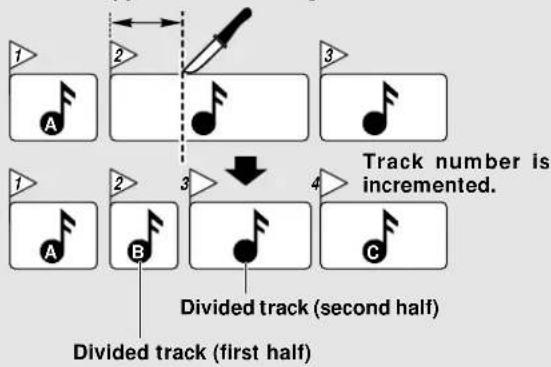
Preview playback image
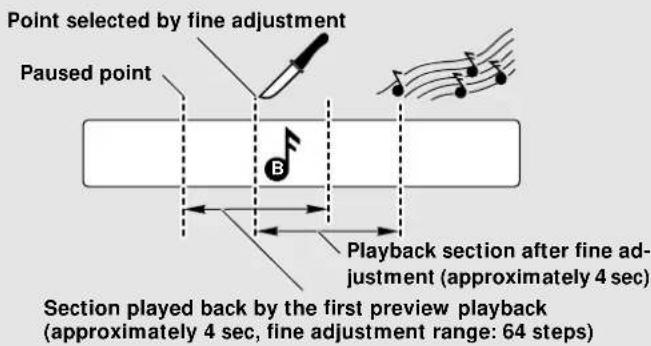
Combining two tracks (TRACK COMBINE)
Use the following procedure to combine two tracks adjoining each other into one by deleting a track number. This operation allows to connect several tracks or a piece of music divided into several parts. After this operation, the track numbers of tracks located after the combined tracks are decreased automatically.
XD-9580MD (En)
1 Select "COMBINE".
⑦Select "COMBINE".
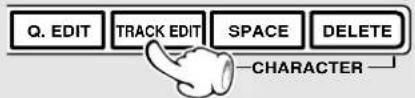
flowchart
graph TD
    A["Q. EDIT"] --> B["CHARACTER"]
    C["TRACK EDIT"] --> B
    D["SPACE"] --> B
    E["DELETE"] --> B
②Set it.
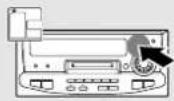
If you combine tracks during playback, go to step 3.
COMBINE can not be selected during playback of the last title of an MD.
Each press switches the operation.
When pressed in stop mode:
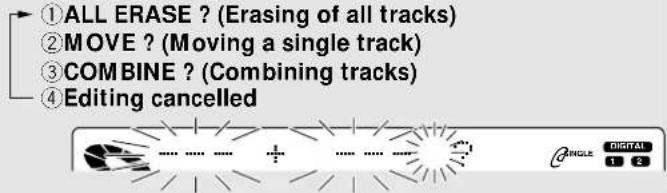
When pressed in play mode:
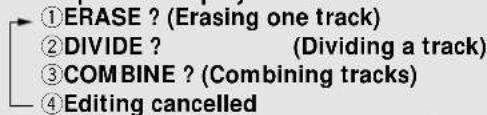

When two titles are to be combined during playback, press the TRACK EDIT (TRACK EDIT/CHARA.) key while the first of the two titles to be combined is being played. (The title being played will be combined with the immediately following title.) If the operation is started during playback, it pauses automatically. Editing is aborted if no operation has been performed for 8 seconds.
2 Select the track to be combined.
⑦Select the track number.
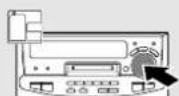
To decrease track No.
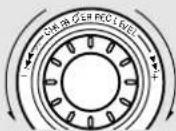
To increase track No.
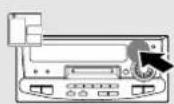
② Set it.
Should be approx. 2 sec. or longer.
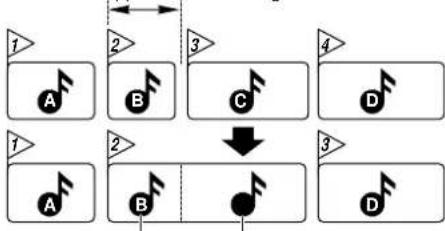
flowchart
graph TD
    A1["①"] --> B1["②"]
    B1 --> C1["③"]
    C1 --> D1["④"]
    A2["①"] --> B2["②"]
    B2 --> C2["③"]
    C2 --> D2["③"]
    A3["①"] --> B3["②"]
    B3 --> C3["③"]
    C3 --> D3["③"]
Track No. and title of the first track are left.
Track No. and title of the second track are cleared.
Connecting tracks 2 and 3.

3 Execute the track combine operation.
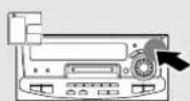


If editing has been started during playback, playback restarts automatically from the current track.
4 After editing, eject and remove the mini disc.
“DISC WRITING” displayed during the mini disc ejection operation indicates that the data associated with recording or editing is being written on the disc. Do not apply vibration or shock to the unit while this message is displayed.
Erasing several tracks at a time (QUICK ERASE)
Titles (track numbers) can be selected to be erased together.
40 tracks can be erased at a time.
Please execute operation in stopped condition.

Select Q.ERASE.
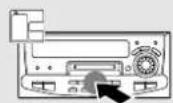
①Select Q.ERASE.
②Set it.
To abort the operation, press the Q.EDIT key again.
Switching is executed each time the Q.EDIT key is pressed.
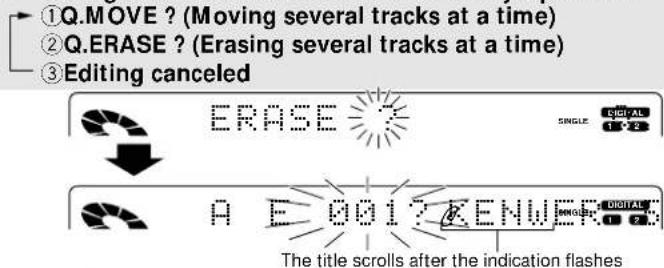
Editing is ended when no action is taken for 8 seconds.

Select the titles to be erased.
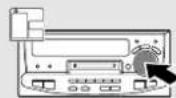
To decrease track No.
①Select the title (track number).
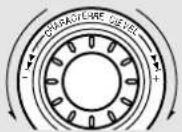
To increase track No.
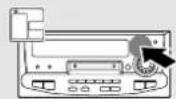
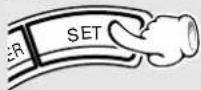
Repeat the steps ① and ② to select the titles to be erased.
When the title of track No. 3 has been selected.
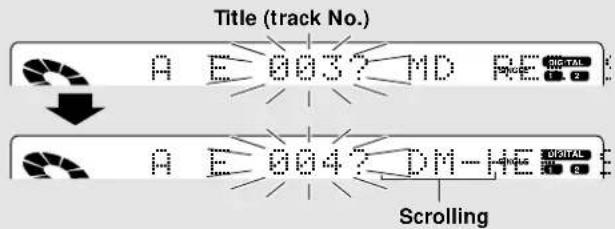
After confirmation, the next track number is shown.

Execute the erase operation.

Press the key again after "Q.MOVE ok?" has been displayed.
For confirmation of the selected titles and for clearing of selected titles, please refer to the following "Confirmation or cancellation of selected titles".
Some time is required until completion of the processing. When the ENTER key is pressed during erase operation, the not selected titles will be moved in their present order to the end of the range being erased. When the EJECT key (▲) or the ON/STANDBY key is pressed while the "COMPLETE" indication flashes, the erase operation may be stopped before completion.

After editing, eject and remove the mini disc.
“DISC WRITING” displayed during the minidisc ejection operation indicates that the data associated with recording or editing is being written on the disc. Do not apply vibration or shock to the unit while this message is displayed.
Confirmation or cancellation of selected titles
⑦Press the Q.MOVE CHECK key for confirmation. Q.MOVE CHECK
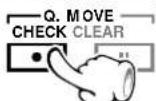
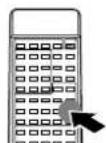
② Press the Q.MOVE CLEAR key during display of the title to be canceled for cancellation. —Q.MOVE —
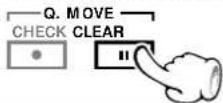

Each time the key is pressed, the title with the next higher selected track No. will be displayed.

The selected titles will be erased only when the Q.MOVE CHECK key is pressed and then the Q.MOVE CLEAR key is pressed.
Erasing a single track (TRACK ERASE) or erasing all tracks on a disc (ALL ERASE)
TRACK ERASE
During playback, it is possible to erase only the track being played. The track numbers of the tracks after the erased track will be adjusted.
Be careful in using this operation because a track cannot be recovered once it has been erased.
ALL ERASE
During stop, all tracks can be erased. Be careful in using this operation because the tracks cannot be recovered once the entire minidisc has been erased.
1 Make the preparations.
To erase one track (TRACK ERASE)
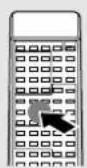
Select the track to be erased.
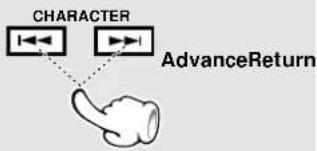
flowchart
graph TD
    A["CHARACTER"] --> B["AdvanceReturn"]
    C["Terminal"] --> A
To erase all tracks (ALL ERASE)
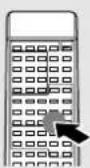
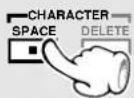
Enter stop status.
2 Select the ERASE mode.
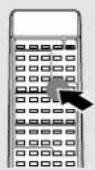
⑦Select "ERASE".
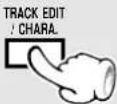
Each press switches the operation.
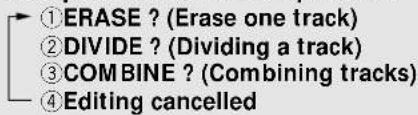
3 Execute the erase operation.
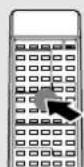

Press the key again after "ERASE ok?" has been displayed.

COMPLETE !!!
The track is erased (together with the track title).
If editing has been started during playback, playback restarts automatically from the track after the erased track.
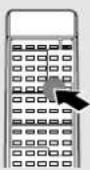
⑦Select "ALL ERASE".
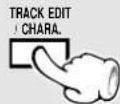
Each press switches the operation.
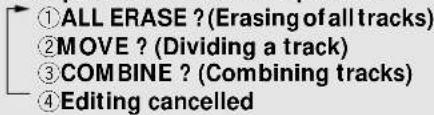
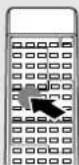
②Set it.

ALL ERASE OK?
Editing is aborted if no operation has been performed for 8 seconds.
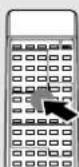

Press the key again after "ERASE ok?" has been displayed.

OPLETE !!

BANK DISC
All tracks on a disc are erased (together with the disc title).
XD-9580MD (En)
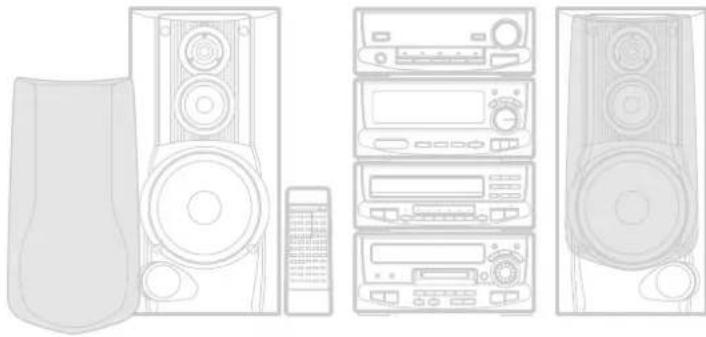
natural_image
Line drawing of various household electronic devices including speakers, audio equipment, and a remote control unit (no text or symbols)
After editing, eject and remove the mini disc.
“DISC WRITING” displayed during the mini disc ejection operation indicates that the data associated with recording or editing is being written on the disc. Do not apply vibration or shock to the unit while this message is displayed.
Image of erasing one track (TRACK ERASE)
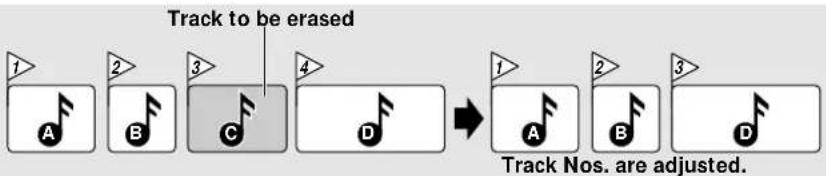
flowchart
graph LR
    A["1: A"] --> B["2: B"]
    B --> C["3: C"]
    C --> D["4: D"]
    D --> E["Track Nos. are adjusted."]
    style A fill:#fff,stroke:#000
    style B fill:#fff,stroke:#000
    style C fill:#ccc,stroke:#000
    style D fill:#fff,stroke:#000
    note right of C Track to be erased
Erasing a part of a track
①Turn the part to be erased into one track by using the TRACK DIVIDE function.
②Erase it by using the TRACK ERASE function.
Use the following procedure to erase the desired part of a track.
⑦Turn the part to be erased into one track.
Use the TRACK DIVIDE function to turn the part you want to erase into one track.

②Erase the part to be erased.
Use the TRACK ERASE function to erase the "track" (part you want to erase) made in step ⑦.
③After editing, eject and remove the mini disc.
"DISC WRITING" displayed during the mini disc ejection operation indicates that the data associated with recording or editing is being written on the disc. Do not apply vibration or shock to the unit while this message is displayed.
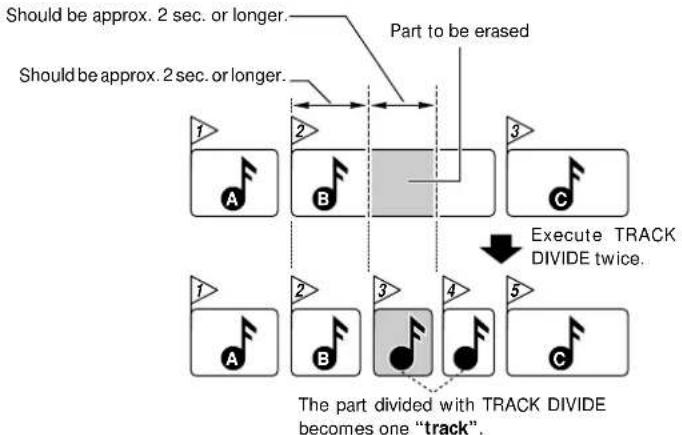
flowchart
graph TD
    A["Should be approx. 2 sec. or longer."] --> B["Part to be erased"]
    C["Should be approx. 2 sec. or longer."] --> D["Start"]
    E["Start"] --> F["Execute TRACK DIVIDE twice"]
    F --> G["The part divided with TRACK DIVIDE becomes one "track""]
TRACK DIVIDE → 60
If it is required to erase only the first or second half of a track, only one TRACK DIVIDE operation is enough.
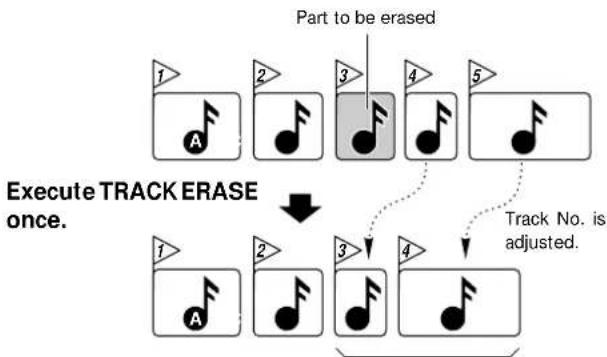
flowchart
graph TD
    A["1: A"] --> B["2: Note"]
    B --> C["3: Note"]
    C --> D["4: Note"]
    D --> E["5: Note"]
    E --> F["Start"]
    G["Part to be erased"] --> H["3: Note"]
    H --> I["4: Note"]
    I --> J["5: Note"]
    J --> K["Start"]
    L["Execute TRACK ERASE once."] --> M["2: Note"]
    M --> N["3: Note"]
    N --> O["4: Note"]
    O --> P["5: Note"]
    P --> Q["Start"]
    R["Track No. is adjusted."] --> S["End"]
The space left after erasing is filled by subsequent tracks which move along.
TRACK ERASE → 64
Effective sound field and sound quality adjustment
XD-9580MD (En)
This unit permits selection of equalizer and sound field playback. Please select the equalizer as desired according to the music genre. Select the sound field mode according to the desired atmosphere.
Enjoying sound field effects
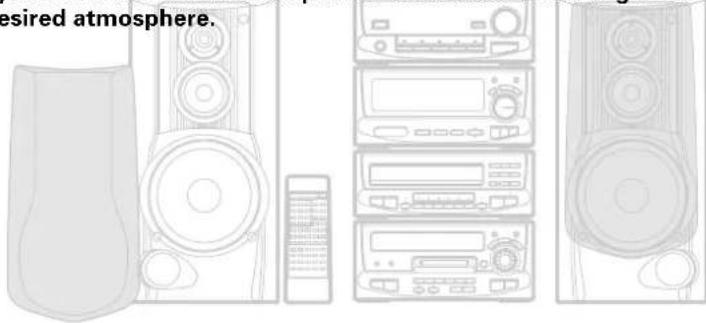
Experiencing SRS 3D stereo (Sound Retrieval System)
The Sound Retrieval System is an epochal system which produces a three-dimensional sound space by applying the most suitable processing to the sound signal on the basis of the human listening mechanism. This permits real depth and sound location, considered as difficult to realize with conventional 2-channel stereo (general stereo). A sufficient effect can be obtained for any source (CD, MD, broadcasts, etc.). Recording with applied SRS 3D stereo also is possible.
① Switch on SRS 3D.
SRS 3D

Lights
ON/OFF is switched each time the key is pressed.
②Adjust the effect strength (level).
(1) "LEVEL" will be displayed.
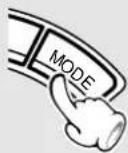
(2) Adjust the strength of the effect.
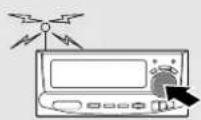
The level decreases.
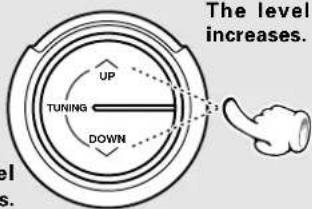
The characters will scroll to the left.
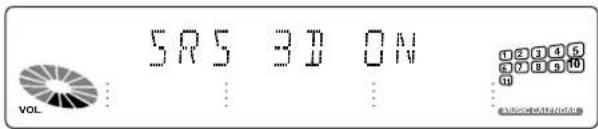
Each press switches the modes as follows.
①Strength of the SRS 3D stereo effect (LEVEL)
②Spectrum analyzer display switching (DISPLAY)
③Left and right volume balance
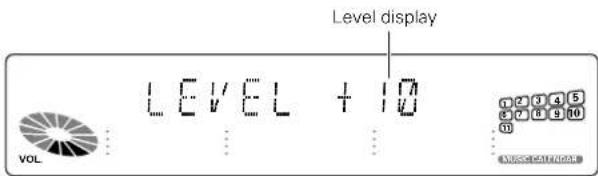
- Adjustment is possible in the range from -10 to +10.
- Please set as desired according to the titles being played back etc.
- SRS 3D stereo ON/OFF switching is not possible during recording.

When equalizer or SRS 3D is applied to the sound, the sound will be recorded with applied effect in the case of analog recording. (Analog recording only. Recording and playback of the sound with sound effect are impossible with a component connected to the TAPE jacks). → 28
XD-9580MD (En)
Listening with the desired sound (equalizer function)
In addition to the five types of equalizer patterns, you can establish and store your own equalizer patterns and can call it when desired.

Set the equalizer to OFF to listen to tapes or discs (only recordings with analog input) recorded with equalizer ON.
Equalizer (frequency band) adjustment
The setting items for each frequency band are displayed only when the equalizer is set to MANUAL (user memory).
Selection of the equalizer pattern
The equalizer patterns can be selected according to the genre of music played. Recording with applied equalizer effect also is possible.
⑦Play the desired music.
②Select the genre for listening.
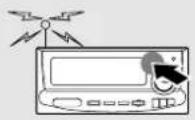
The pattern is switched each time the key is pressed.
①ROCK ...... (Rock)
②POP ...... (Popular)
③DISCO ..... (Disco)
④JAZZ ...... (Jazz)
⑤CLASSIC...... (Classic)
⑥MANUAL ...... An equalizer pattern can be created and memorized.
⑦EQ. OFF ...... (EQ.ON not lit ... Equalizer function canceled)
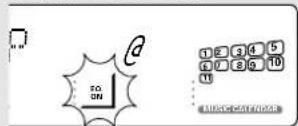
Lights
Creation and memorizing of an equalizer pattern
A desired equalizer pattern can be created and memorized.

When equalizer or SRS 3D is applied to the sound, the sound will be recorded with applied effect in the case of analog recording. (Analog recording only. Recording and playback of the sound with sound effect are impossible with a component connected to the TAPE jacks). → 28
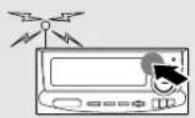
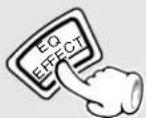
Continue to step ② within 4 seconds.
②Adjust the equalizer pattern.
(1) Select the frequency band.
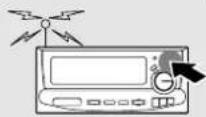
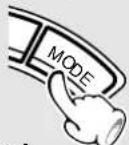
(2) Adjust the level.
The pattern is switched each time the key is pressed.
①ROCK
②POP
③DISCO
④JAZZ
⑤CLASSIC
⑥MANUAL
⑦EQ. OFF
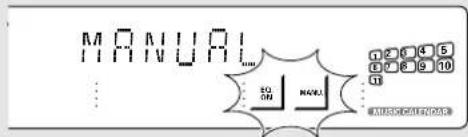
Lights
The pattern is switched each time the key is pressed.
①68 Hz
②130 Hz
③400 Hz
④1 kHz
⑤2 kHz
⑥6.3 kHz
⑦16 kHz
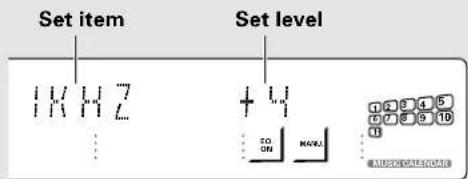
The level decreases.
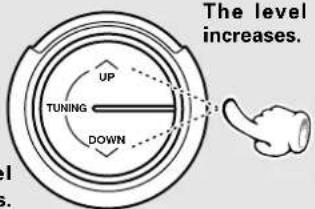
(3) Repeat the steps (1) and (2) and adjust the individual items.
③Memorize the setting.
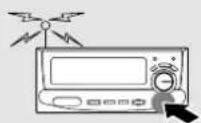

- Adjustment is possible in the range from +4 to -4.
- When the input has been switched during setting, please repeat from step 1 on.
XD-9580MD (En)
Adjustment of balance and input level
Balance ...... Adjusts the balance of left and right volume.
Input level ..... This adjusts the volume from external equipment connected to the AUX input terminal (video deck etc.) and from external equipment connected to the TAPE PLAY terminal (tape deck etc.). Adjust as required when the volume from the external equipment is too high.
Balance adjustment
⑦Select balance adjustment.
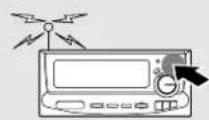
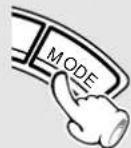
Return to volume adjustment is made when no input is made for 4 sec. or more.
2Adjust.
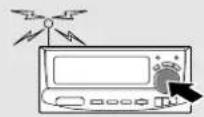
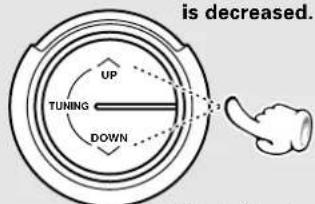
The left volume is decreased.
Each press switches the modes as follows.
①Strength of the SRS 3D stereo effect (LEVEL)
②Spectrum analyzer display switching (DISPLAY)
③Left and right volume balance
- "LEVEL" is displayed only when SRS 3D is ON.
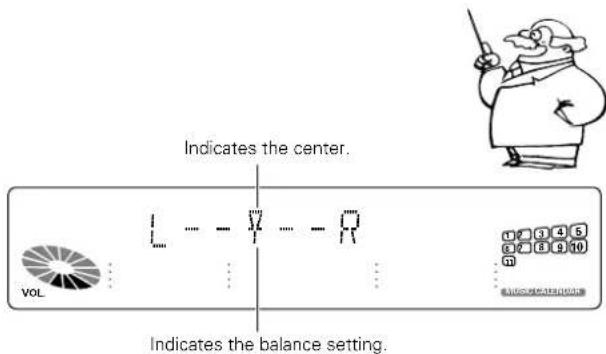
Input level adjustment
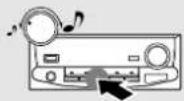
⑦Select TAPE adjustment or AUX adjustment.
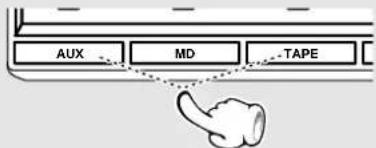
Press either one twice and go to step ② within 4 seconds.
②Adjust.
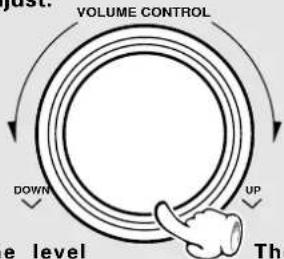
flowchart
graph TD
    A["VOLUME CONTROL"] --> B["UP"]
    B --> C["Down"]
    C --> D["the level"]
    D --> E["Th"]
The level decreases.
The level increases.
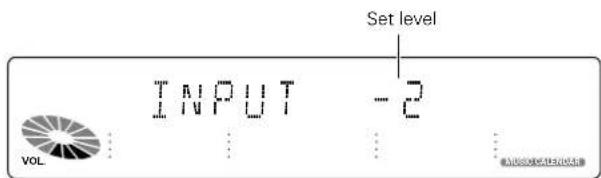
- Adjustment is possible over the range from -5 to 0.

When the input level is adjusted, the recording level from the external equipment connected to the AUX input terminal or the TAPE PLAY terminal also changes.
"Recording on MD" → 28
XD-9580MD (En)
Multi-function display switching (demonstration function)
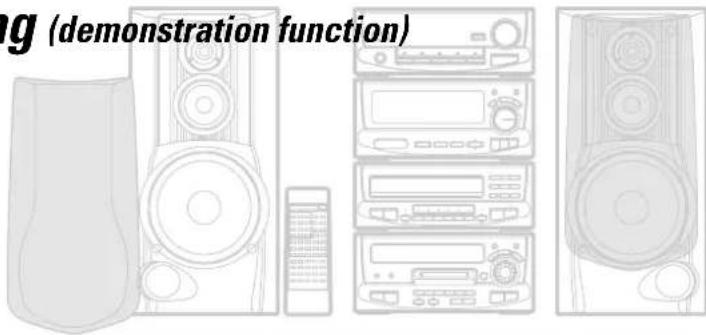
Demonstration display
The effects of equalizer, SRS 3D, EX. BASS, N.B. CIRCUIT, etc. are demonstrated one after another.
Display "DEMO ON".
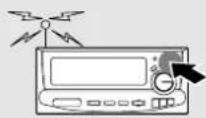
DEMO
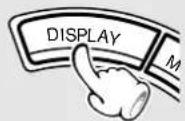
Press for at least 2 seconds.
DEMO ON

- To end the demonstration, press the same key again. The message "DEMO OFF" will be scrolled and the demonstration will be canceled.
- When the unit is switched off (STANDBY) while demonstration is ON, the demonstration will continue. To end the demonstration, press the DEMO key again.
- When there is no MD in the MD recorder while demonstration is ON, demonstration will be executed also on the display of the MD recorder.
Display switching
The display of this unit shows two types of display contents in three-dimensional superposition. Display of one type at a time also can be selected.
Switching the superposed display
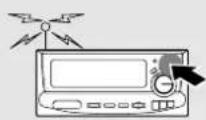
■ DEMO
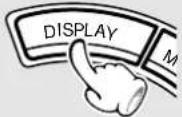
Each press switches the modes as follows.
①Superposed display
②Character display
③Spectrum analyzer display
①Superposed display
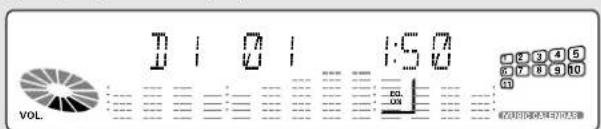
②Character display
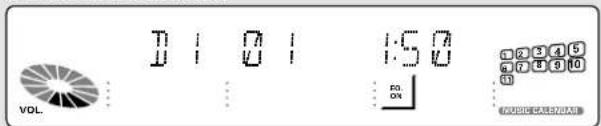
③Spectrum analyzer display
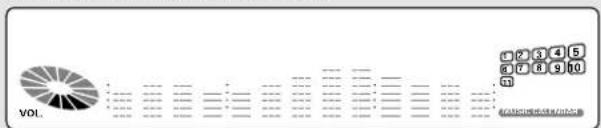
bar
| Category | Value | |---|---| | Category 1 | 2 | | Category 2 | 3 | | Category 3 | 4 | | Category 4 | 5 | | Category 5 | 6 | | Category 6 | 7 | | Category 7 | 8 | | Category 8 | 9 | | Category 9 | 10 | VOL. (Values not explicitly labeled) but visually present as a single bar chart.Switching the spectrum analyzer display
⑦Select DISPLAY.
Go to step ② within 4 seconds.
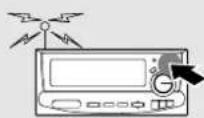
Each press switches the modes as follows.
①Strength of the SRS 3D stereo effect (LEVEL)
②Spectrum analyzer display switching (DISPLAY)
③Left and right volume balance
- "LEVEL" is displayed only when SRS 3D is ON.
②Select the desired spectrum analyzer display.
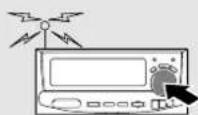
The numbers increase.
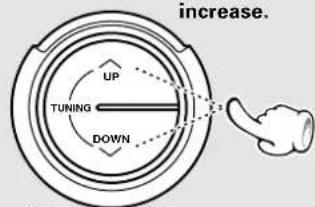
The numbers decrease.
- Selection is possible from 7 types. (DISPLAY1\~DISPLAY7)
When the AC cord is connected to a receptacle, the clock display starts to flash. Set the correct time following the instructions.
XD-9580MD (En)
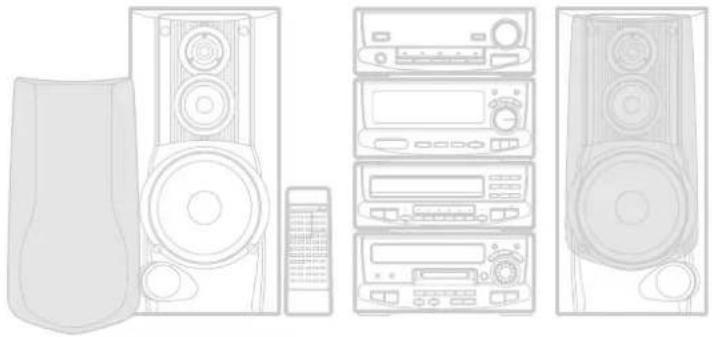
natural_image
Line drawing of various household electronic devices including speakers, audio equipment, and a remote control unit (no text or symbols)Ensure that the unit is OFF (STANDBY).

Activate the clock adjustment mode.
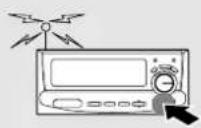
Example: Adjustment to 8:45
The time display starts to blink.

Enter the figure of hour.
1
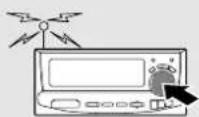
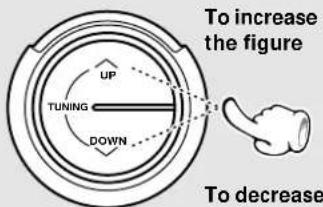

To decrease the figure
2

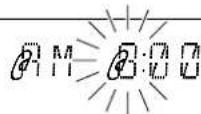
The time of the day is represented in 12-hour AM/PM method. Press the ENTER key. The hour is entered and the minute display starts to blink.

Enter the figure of minute.
1
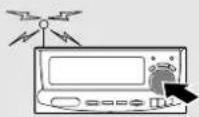
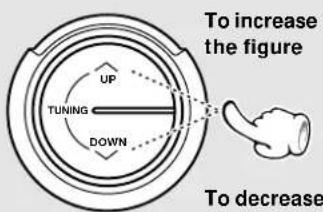

To decrease the figure
2

R M
If you make a mistake, restart from the beginning.
To adjust correct time, press the ENTER key at the same moment as a time announcement.
The time display flashes when a power failure has occurred or when the power plug has been pulled and inserted again. In such a case, set the clock again.
XD-9580MD (En)
Operate easy To use Timer (O.T.T.)
Playback of the selected input source starts at the specified time, and the unit is switched off (STANDBY) after one hour. This timer operates only once directly after setting.
Sleep timer (SLEEP)
The unit is turned OFF (STANDBY) automatically after the specified period has elapsed.
Timer playback, timer recording (PROG.1, PROG.2)
With each of the two timer programs, a selected source can be played (or radio broadcast can be recorded) in the previously set time period.
AI timer playback (PROG.1, PROG.2)
The volume increases gradually after start of timer playback, and it stops at the volume preset in the factory.

The MD operates on the basis of the information read from the disk into memory.
Before timer setting with the MD, leave the unit ON for 10 min. or more to make the memory backup function effective. → 81
Operate easy To use Timer (O.T.T.)
Timer playback is possible simply by setting the time. The source selected last before the unit was switched off (STANDBY) will be played. One hour after start of timer playback, the unit will be switched off (STANDBY) automatically.
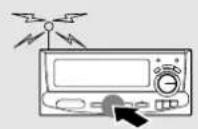
① Select the source to be played.
②Press the O.T.T. key.
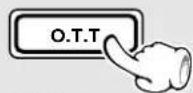
③Set the ON time.
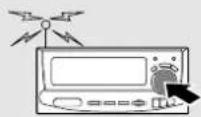
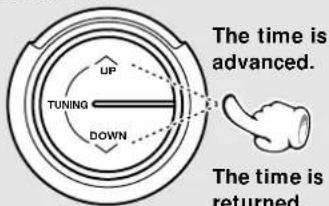
④Press the ENTER key.
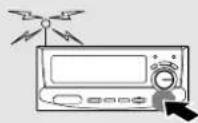

⑤Switch OFF (STANDBY) the unit supply.
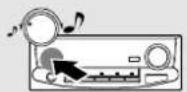
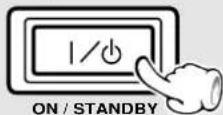
Sleep timer
Set the number of minutes after which the unit is to be turned OFF (STANDBY).
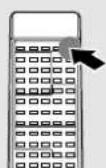
⑦Turn the unit ON.
②Set the time.

The program timer does not operate until the end of operation of the O.T.T. timer.
Timer playback for a CD is possible only when the CD is set into the tray No. 1.
When the O.T.T. key is pressed, the input source and the ON time are displayed.
Each press switches the modes as follows.
①“O.T.T.” lit.... The timer is used. ②“O.T.T.” not lit.... The timer is not used.
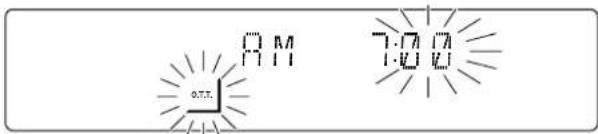
ON time display
The ON time can be set in steps of 5 minutes.
In case of combination with another timer, the input source which has operated last will be played back.
O.T.T. timer setting is possible even when the unit is OFF (STANDBY).
To cancel
Press the O.T.T. key twice.
The unit is turned OFF (STANDBY) automatically after the set time has elapsed.
Each press decreases the time by 10 minutes. The maximum time that can be set is 90 minutes.
Duration for sleep timer
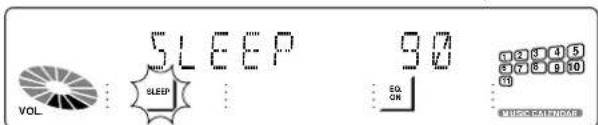
Lights
To cancel
Turn the unit OFF (STANDBY) or press the SLEEP key until the sleep time is cancelled.
Timer programming
Two 24-hour timer systems (PROG.1, PROG.2) (which can be used every day) are available.
In each of PROG.1 and PROG.2, the timer data including the operating period and played contents can be set and selected to be activated or not as required.
For tape timer operation, please read the operation manual of the cassette deck X-H9 (option) carefully.
Timer reservation is possible for the two types PROG.1 and PROG.2 at the same time.
Please make reservations with an interval of at least one minute, so that the operation times of PROG. 1 and PROG. 2 do not overlap.

The MD operates on the basis of the information read from the disk into memory.
Before timer setting with the MD, leave the unit ON for 10 min. or more to make the memory backup function effective. → 81
Connect the related equipment under reference to "System connection".
6
1 Make preparations for the play (recording).
To listen to radio
The station should be pre-set prior to the above.

To listen to CD
Insert a disc. (Program playback is not possible.)
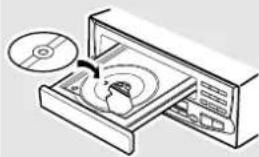
natural_image
Illustration of a microwave oven with a CD inside, showing internal components (no text or symbols)Timer playback is not possible when the CD is not set in tray No. 1.
Playing the auxiliary input source
Make timer setting of the component connected to the AUX or TAPE jacks.
To listen to MD
Load a disc.
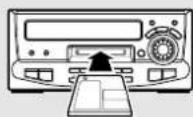
To listen to tape
Set a tape into. Cassette deck X-H9 (option)
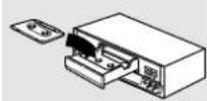
For recording
Make preparations for recording.
Cassette deck X-H9 (option)
MD

2 Adjust the listening volume.
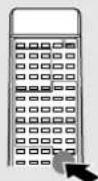
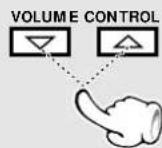
For recording of broadcasts, the minimum volume is set automatically when the unit is switched on by the timer.
3 Set the ON/STANDBY key to STANDBY position.
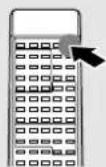
4 Select a program No.
1
Continue to step ② within 8 seconds.
Each press of the key switches the program numbers as follows.
①PROG.1..... Program 1
②PROG.2..... Program 2
③Normal operation
@100:

2
Press during display of the program contents.
The selected program No. lights.
If a program No. under which a timer program has already been reserved, it is replaced by the new timer program.
XD-9580MD (En)
5 Enter the ON time.
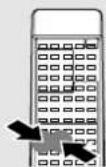
1
The time is returned.
2
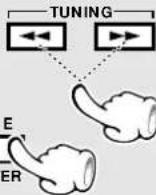
The time is advanced.
6 Enter the OFF (STANDBY) time.
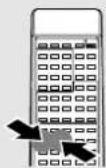
1
The time is returned.
2
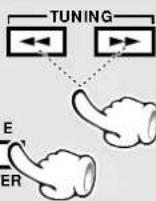
The time is advanced.
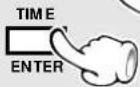
After entering the figure of "hour" with the procedure in ① and ②, enter the figure of "minute" using the same procedure.
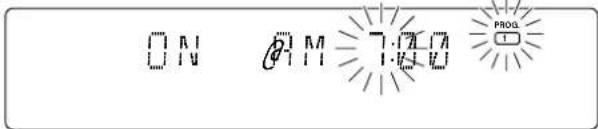
If you make a mistake, restart from step 4.
After entering the figure of "hour" with the procedure in ① and ②, enter the figure of "minute" using the same procedure.
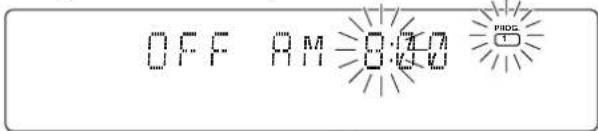
If you make a mistake, restart from step 4.
7 Make the desired reservation.
For timer playback or AI timer playback Timer recording of radio
①Select the mode.
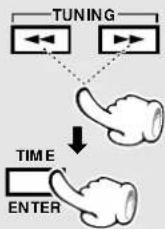
(1)Select "PLAY" or "AI".
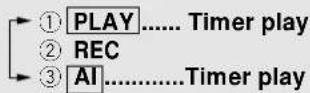
(2)Enter it.
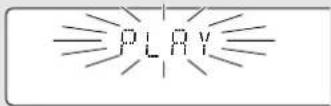
②Select the input source.
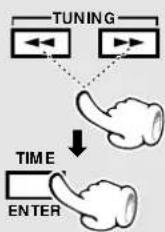
(1)Select the source to be played.
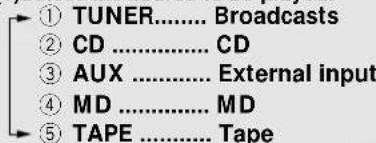
(2)Enter it.
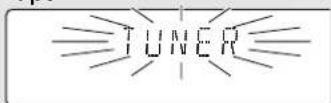
③Select the broadcast station (only when TUNER is selected above).
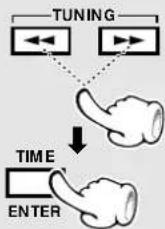
(1)Select the preset station No.
(2)Enter it.
The station to be received with timer must be preset beforehand. → 27
broadcasts
①Select the mode.
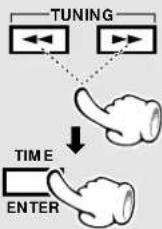
(1)Select "REC".
(2)Enter it.
②Select the broadcast station.
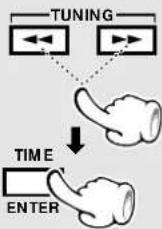
(1) Select the preset station No.
(2)Enter it.
③Select the recording equipment.
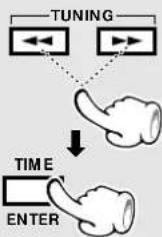
(1)Select.
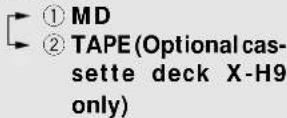
(2)Enter it.
8 Select the timer program No. to be used.
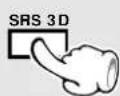
Each press of the key switches the program numbers as follows.
① PROG.1...... Execution of program 1 only.
② PROG.2...... Execution of program 2 only.
③ PROG.1, 2... Execution of programs 1 and 2.
④ Timer OFF
The selected program No. lights.
The timer will not function unless a program No. is selected.
XD-9580MD (En)
Ensure that the unit is OFF (STANDBY).
Check the reservation content

Select the program number to be checked.
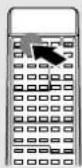

The reservation contents cannot be cleared. The contents are cleared only when they are changed.
Each press of the key switches the program numbers as follows.
①PROG.1 ...... Display of program 1
②PROG.2 ...... Display of program 2
③Normal mode
The reserved contents will be displayed for 3 seconds per item. After this, the previous display content appears again.
To change the reserved contents
Restart the procedure of "Timer programming" from the beginning.
When timer operation is not required
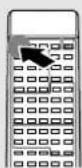
Press so that all PROG. indicators are OFF.
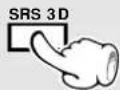
Each press of the key switches the program numbers as follows.
①PROG.1 ...... Program 1 operates.
②PROG.2 ...... Program 2 operates.
③PROG.1, 2 .... Programs 1 and 2 operate.
④Not lit ...... No program operates.
To set the same timer program again
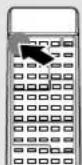
Press so that the desired PROG. indicators lights.
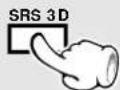
The reservation contents are held in memory.
Each press of the key switches the program numbers as follows.
①PROG.1 ...... Program 1 operates.
②PROG.2 ...... Program 2 operates.
③PROG.1, 2 .... Programs 1 and 2 operate.
④Not lit ...... No program operates.
Also prepare the disc or MD and adjust the listening volume.
XD-9580MD (En)

natural_image
Stylized black-and-white illustration of a piano with a microphone and musical notes, surrounded by floral elements (no text or symbols)Maintenance
Maintenance of the Set
When the front panel, the case, etc. becomes dirty, wipe with a soft, dry cloth. Do not use thinner, alcohol, etc., as these can cause discoloration.
Reference
Beware of condensation
When water vapor comes into contact with the surface of a cold material, condensation is produced.
If condensation occurs, correct operation may not be possible, or the unit may not function correctly.
This is not a malfunction, however, and the unit should be dried-out. (To do this, turn the ON/STANDBY key ON and leave the unit as it is for several hours.)
In regard to contact cleaners
Do not use contact cleaners because it could cause a malfunction. Be specially careful not to use contact cleaners containing oil, for they may deform the plastic component.
Be especially careful in the following conditions:
When the unit is brought from a cold place to a warm place, and there is a large temperature difference.
When a heater starts operating.
When the unit is brought from an air-conditioned place to a place of high temperature with high humidity.
When there is a large difference between the internal temperature of the unit and the ambient temperature, or in conditions where condensation occurs easily.
| Memory backup function | |
| Stored contents which are cleared immediately when power plug is unplugged from power outlet | Clock display |
| Stored contents which are cleared in at least a day after power plug is unplugged from power outlet | Amplifier sectionON/STANDBY status (ON or STANDBY)Input selectionVolume control valueBalance settingEqualizer user memoryTuner/ equalizer sectionReceiving bandFrequencyPreset stationsProgram settingsSRS 3D level |
| Memory contents which are lost after at least one day with unit OFF (STANDBY) or the power plug pulled from the outlet. | MD recorder sectionDisplay modeRecording level →81 |
WARNING NOTICE:
IN MOST CASES IT IS AN INFRINGEMENT OF COPYRIGHT TO MAKE COPIES OF TAPES OR DISCS WITHOUT THE PERMISSION OF THE COPYRIGHT OWNERS. ANYONE WISHING TO COPY COMMERCIALLY AVAILABLE TAPES OR DISC SHOULD CONTACT THE MECHANICAL COPYRIGHT PROTECTION SOCIETY LIMITED OR THE PERFORMING RIGHTS SOCIETY LIMITED.
Sound Retrieval System manufactured under licence from SRS Labs, Inc. "SOUND RETRIEVAL SYSTEM" and the SRS Symbol (●) trademarks of SRS Labs, Inc.
Purchase of this product does not convey the right to sell recordings mode with the SOUND RETRIEVAL SYSTEM.
Note related to transportation and movement
Before transporting or moving this unit, carry out the following operations.
-
Press the ▲ key and remove all CDs and MD.
-
Verify that the display shown appears.
Tuner/ equalizer section
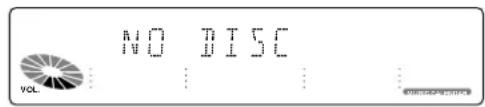
MD Recorder Section

- Wait a few seconds and turn the unit OFF (STANDBY).
When your unit needs to be repaired, bring the entire set (Speakers excluded) to your dealer.
MD system
The Mini Disc system has the features as summarized in the following.
①Like CD (Compact Disc), playback can be started from any position. (Random access)
②It uses a disc with a diameter of 64 mm that is accommodated in a cartridge.
③ Two types of discs can be used.
④ Up to 74 minutes of recording or playback is possible using high-efficiency coding technology.
⑤ Countermeasure against vibration is taken using semiconductor memory chip.
Two Mini Disc types
There are two types of Mini Disc, the one designed exclusively for playback and the other which is both recordable and playable.
Playback-only Mini Disc
This type of MD can be used only for playback, and is used by the commercially-available music MD software packages. The playback-only MD is an optical disc like the Compact Disc (CD). The signals are recorded as the presence or absence of small pits and read out by an optical, non-contact pickup.
High-efficiency coding technology "ATRAC"
The Mini Disc has only a half the size of the Compact Disc but provides the same recording time. This is made possible by ATRAC*, a newly developed high-efficiency coding technology.
* ATRAC: Adaptive TRansform Acoustic Coding
The ATRAC compresses the music data to about 1/5 the amount of data which would be obtained with conventional technology, by cutting off the sound components which do not pose problem in audition even when they are not present. This has made it possible to record or play up to 74 minutes.
Sound does not affect the sensitivity of ears
Lowest and highest frequencies are not audible unless the sound has a certain level of volume.
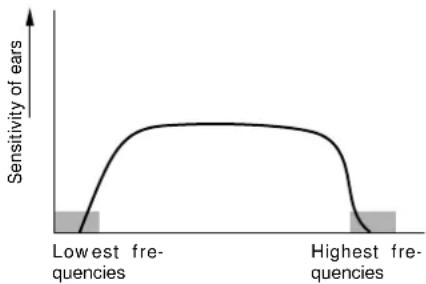
line
| Frequency Category | Sensitivity of ears | | ------------------------ | ------------------- | | Lowest frequencies | Low | | Highest frequencies | High |Small sound near large sound
A small sound is not audible to human ears if it is produced at the same time as a large sound. (Masking effect)
natural_image
Illustration of a speaker emitting sound waves with musical notes and clock (no text or symbols)
Recordable Mini Disc
This MD is a magneto-optical disc which can be recorded by magnetic field modulation. To record signals, laser light is irradiated from the bottom side of the magneto-optical disc and magnetic field is applied from the upper side of it.
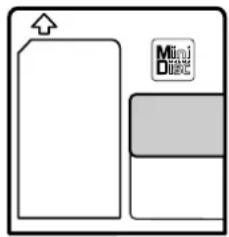
Sound-skip prevention memory
During playback, this unit always stores signals in memory temporarily to prevent sound from being skipped in case of vibration. As a result, even when the data from the optical pickup is interrupted due to vibration, etc., the music will not be interrupted because the memory holds the data for several seconds.
During normal playback
The sound data for several seconds is always stored during playback.
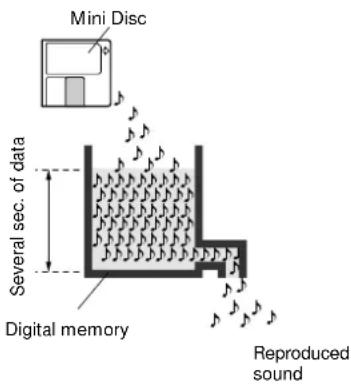
In case of vibration
Even when the read-out from disc is interrupted momentarily due to vibration or shock, the reproduced sound from the memory will not be interrupted.
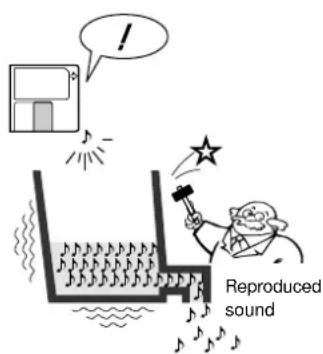
XD-9580MD (En)
Digital recording and SCMS
The Mini Disc cannot record digital input signals from all sources. Note that digital recording is not possible with the following case.
In case the source contains the copy prohibit code (SCMS - Serial Copy Management System).
— "001 SCMS" is displayed and the unit enters the record-pause mode.
SCMS (Serial Copy Management System)
Designed for copyright protection, the SCMS is a prescription that copying of digital signals as they are in the digital form between digital audio equipment is allowable only for one generation.
natural_image
Simple line drawing of a person holding a pointer (no text or symbols)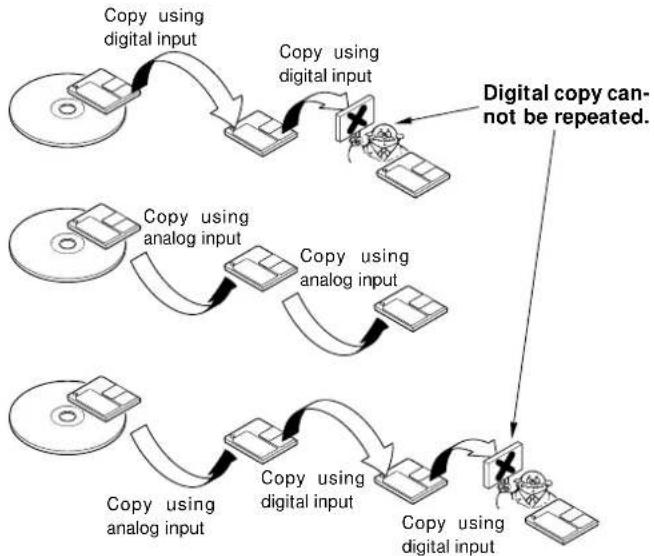
flowchart
graph TD
    A["Copy using digital input"] --> B["Copy using digital input"]
    B --> C["Copy using digital input"]
    C --> D["Copy using digital input"]
    D --> E["Copy using digital input"]
    E --> F["Copy using digital input"]
    F --> G["Copy using digital input"]
    G --> H["Copy using digital input"]
    H --> I["Copy using digital input"]
    I --> J["Copy using digital input"]
    J --> K["Copy using digital input"]
    K --> L["Copy using digital input"]
    L --> M["Copy using digital input"]
    M --> N["Copy using digital input"]
    N --> O["Copy using digital input"]
    O --> P["Copy using digital input"]
    P --> Q["Copy using digital input"]
    Q --> R["Copy using digital input"]
    R --> S["Copy using digital input"]
    S --> T["Copy using digital input"]
    T --> U["Copy using digital input"]
    U --> V["Copy using digital input"]
    V --> W["Copy using digital input"]
    W --> X["Copy using digital input"]
    X --> Y["Copy using digital input"]
    Y --> Z["Copy using digital input"]
    Z --> AA["Copy using digital input"]
    AA --> AB["Copy using digital input"]
    AB --> AC["Copy using digital input"]
    AC --> AD["Copy using digital input"]
    AD --> AE["Copy using digital input"]
    AE --> AF["Copy using digital input"]
    AF --> AG["Copy using digital input"]
    AG --> AH["Copy using digital input"]
    AH --> AI["Copy using digital input"]
    AI --> AJ["Copy using digital input"]
    AJ --> AK["Copy using digital input"]
    AK --> AL["Copy using digital input"]
    AL --> AM["Copy using digital input"]
    AM --> AN["Copy using digital input"]
    AN --> AO["Copy using digital input"]
    AO --> AP["Copy using digital input"]
    AP --> AQ["Copy using digital input"]
    AQ --> AR["Copy using digital input"]
    AR --> AS["Copy using digital input"]
    AS --> AT["Copy using digital input"]
    AT --> AU["Copy using digital input"]
    AU --> AV["Copy using digital input"]
    AV --> AW["Copy using digital input"]
    AW --> AX["Copy using digital input"]
    AX --> AY["Copy using digital input"]
    AY --> AZ["Copy using digital input"]
    AZ --> BA["Copy using digital input"]
    BA --> BB["Copy using digital input"]
    BB --> BC["Copy using digital input"]
    BC --> BD["Copy using digital input"]
    BD --> BE["Copy using digital input"]
    BE --> BF["Copy using digital input"]
    BF --> BG["Copy using digital input"]
    BG --> BH["Copy using digital input"]
    BH --> BI["Copy using digital input"]
    BI --> BJ["Copy using digital input"]
    BJ --> BK["Copy using digital input"]
    BK --> BL["Copy using digital input"]
    BL --> BM["Copy using digital input"]
    BM --> BN["Copy using digital input"]
    BN --> BO["Copy using digital input"]
    BO --> BP["Copy using digital input"]
    BP --> BQ["Copy using digital input"]
US and foreign patents licensed from Dolby Laboratories Licensing Corporation.
XD-9580MD (En)
Operation to reset
The microcomputer may fall into malfunction (impossibility to operate, erroneous display, etc.) when the power cord is unplugged while unit is ON or due to an external factor. In this case, execute the following procedure to reset the microcomputer and return it to normal condition.
Please note that resetting the microcomputer clears the contents stored in and it returns to condition when it left the factory.
Pull the power plug, keep the ENTER key of the tuner/equalizer section pressed, and insert the power plug again into the outlet.
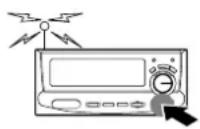

Amplifier section/Speakers
| RemedyCauseSymptom | ||
| Sound is not produced. | |The speaker cords are disconnected.|The volume control is set to the minimum position.|The MUTE key of remote control unit is switched ON.|The headphone plug is inserted into the jack.|The system connection cord is disconnected. | |Connect properly referring to “ System connection”. |Adjust to an required volume.|Switch MUTE OFF.|Unplug the headphone plug.|Check the connection of the system connection cord. |
| “PROTECT” is displayed and no sound is put out. | |The speaker cords are short-circuited. | |Turn the unit OFF (STANDBY), remove the short-circuit and turn the unit ON again. |
| No sound from the headphones. | |Imperfect insertion. | |Insert correctly. |
| Sound is not produced from the left or right speakers. | |The speaker cords are disconnected.|The BALANCE is set completely to the left or right channel. | |Connect properly referring to “ System connection”. |Adjust the optimum left and right balance. |
| The unit suddenly is switched off (STANDBY). | |The AUTO POWER SAVE function has operated. | |Cancel the AUTO POWER SAVE function. |
Tuner/equalizer section
| RemedyCauseSymptom | ||
| The clock display blinks without changing the figures. | |There was a power failure.|The power cord was unplugged from the outlet. | |Adjust the present time again. |Adjust the present time again. |
| Timer operation is not possible. | |The present time has not been adjusted or there was a power failure.|The timer ON time and OFF (STANDBY) time have not been set.|The timer execution was not set up. | |Adjust the present time referring to “Clock adjustment”. |Set the timer ON time and OFF (STANDBY) time. |Press the SRS 3D key to set up the execution. 72 73 |
| Radio stations cannot be received. | |The antennas have not been connected.|A proper broadcasting band has not been selected.|The frequency of the station to be received is not tuned. | |Connect antennas. |Select a band. |Tune to the frequency of the desired station. 626 |
| Noise interferes. | |Car ignition noise.|Influence of an electric appliance.|A TV set is installed near the system. | |Install the outdoor antenna in an apart position from the road.|Switch the suspected electric appliance OFF. |Install the TV or the system at an increased distance between them. |
| A station has been preset but it cannot be received by pressing the P.CALL key. | |The frequency of the preset station is not tunable.|The preset memory has been cleared because the power cord has been unplugged for a long period. | |Preset stations with tunable frequencies.|Preset stations again. 27 |
| Demonstration has started suddenly. | |The power plug has been pulled or a power failure has occurred during the unit ON. | |This is no defect. Press the DISPLAY/ DEMO key to cancel the demonstration. 69 |
| An error message is displayed. (“ERROR* (number)”) | |This indicates some trouble. The number differs according to the trouble contents. | |Please contact the nearest Kenwood dealer. |
Symptoms related to MD standard
| Symptom | Cause |
| “DISC FULL” is displayed while the disc still has a remaining recordable time. | More than 255 tracks (track No. 256 or more) cannot be recorded. (There may be also cases in which recording is impossible while the track number is less than 256.)In such a case, the REMAIN time display shows “0:00”. |
| The possible recording time does not increase even when a short track is erased. | When the remaining time of the entire disc is less than 12 sec, the remaining time indication on the display becomes “0:00”. When the total time of the deleted tracks exceeds 12 sec, the display changes to the recordable time.When a short track is deleted on a repeatedly edited disc, the remaining time may not increase. |
| Tracks can not be connected. | Connection of the track resulting from edit processing may not be possible. |
| The time which has been recorded on the MD and the remaining time do not add up to the maximum recording time (60 or 74 min.). | As recording is executed with 2 sec. as the minimum unit, the display time may not coincide. |
| When search is performed in a track which has been compiled by editing, the sound is sometimes interrupted. | This derives from the restriction in the MD system standard and not a malfunction. |
| The track numbers are not assigned correctly. | Depending on the contents of the recorded source (CD etc.), the track numbers may not be assigned correctly.The track number may be increased in case of dirt or scratches on the CD. |
| “DISC READING” is displayed for an abnormally long time. | When a new recordable MD (with nothing recorded) is inserted, “DISC READING” is displayed longer than usual. |
| The time display becomes inaccurate with a monaurally recorded disc. | Monaural recording and stereo recording are executed according to different formats. This is not a malfunction. |
| Input of 1792 title characters is not possible. | The title recording area is used in units of 7 characters, so that input of 1792 characters may not be possible. |
MD recorder section (other symptoms)
| Symptom | Cause | Remedy |
| Sound is not output even when the play key is pressed. | |The cords are connected erroneously.|No disc has been loaded.|A non-recorded disc has been loaded. | |Connect the cords in accordance with “System connections”. →622|Load a disc. →77|Load a prerecorded disc or playback-only disc. |
| Recording is not possible | |The disc is write-protected.|An attempt is made to record digital signal from a source while its digital copy has been prohibited by SCMS.|The recording level is too low. (with use of AUX or TAPE)|A playback-only disc has been loaded.|The disc does not have a recordable area.|The input selector is set to MD. | |Change the position of the write protect tab to the write position or use a recordable disc. →5Recording is not possible. →78|Adjust the input level. →68|Use a recordable disc. →77|Use another disc. ∞|Set the input selector to the source to be recorded. →28 |
| Sound is distorted. | |The recording level has not been adjusted(with use of AUX or TAPE).|A disc in which distorted sound has been recorded is played. | |Adjust the input level. →68|Record again. →28 |
| Noise is noticeable. | |An external noise is induced. | |Install the unit at a position apart from an electric appliance or TV set. |
| The recorded volume changes during the recording. | |The jog dial has been moved during analog recording. | |Do not move the knobs during recording. →28 |
| The display goes out for a moment after the unit has been turned ON. | |Switching is operated too quickly. | |This is not a malfunction. |
XD-9580MD (En)
MD recorder section (Displayed messages and actions to be taken against them)
| Displayed Message | Meaning | Action |
| NO DISC | |No disc is placed on the tray. | |Load a disc. →22 |
| 001 SCMS | |An attempt is made to record digital signal from a source while its digital copy has been prohibited by SCMS. | |Switch to analog recording. →78 |
| DISC FULL | |There is no recordable area on the disc. |An attempt is made to record a 256th track. | |Use another recordable disc. |More than 256 tracks cannot be recorded per disc. |
| TITLE FULL | |An attempt is made to assign a title with more characters than usable. | |Refer to “Total number of title characters”. →57 |
| BLANK DISC | |The disc does not contain any recordings. | |When playback is required, use a recorded disc. |
| NO TRACKS | |The disc does not contain any tracks but has a disc title. | |The disc can be used for recording without any problem. |
| DISC READING | |The TOC *1 data of the disc is being read. | |This is a normal operation. |
| DISC WRITING | |The data related to editing or recording is being written in the disc. | |This is a normal operation. |
| DISC ERROR | |The contents of UTOC *2 are abnormal. | |Perform “ALL ERASE” operation. If this is not possible, use another disc. →64 |
| CAN NOT EDIT | |An attempt is made to perform editing beyond the restrictions, for example to erase a track which is too short. | |Perform editing following the restrictions. |
| ok?(blinking) | |This is a message for confirming if editing can really be executed. | |Press the ENTER key to execute editing. |
| PROTECTED | |The minidisc is write-protected. | |Cancel the write protection. →5 |
| UNRECORDABLE | |The minidisc is only for playback. | |Insert a minidisc for recording. →77 |
*1 All minidiscs contain a Table of Contents (TOC) in addition to sound signals. The TOC is similar to the table of contents in a book and contains information, such as track numbers, track length, and character information, that cannot be rewritten.
* 2 In addition to the TOC, minidiscs also contain a special User's Table of Contents (UTOC) that contains track number, track length, and character information, that can be rewritten.
Memory Backup for the MD Recorder Section
At the time of unit OFF (STANDBY), or when the power plug is pulled from the outlet, the memory contents will remain stored for about one day. In case of long power failures or long times with the plug pulled from the receptacle, the information in regard to recording or editing (recorded when the minidisc is removed) may be erased or destroyed) before recording on the minidisc. Once the information has disappeared, it can not be recovered.
After recording or editing, always remove the minidisc to record the recording or editing information.
XD-9580MD (En)
CD player section
| RemedyCauseSymptom | ||
| A CD is placed in the player but it cannot be played. | |The disc is placed upside down.|The disc position is displaced.|The disc is extremely dirty.|The disc is scratched.|Dew is condensed on the optics lens. | |Place the disc properly, with the label side facing upward.|Place the disc properly.|Clean the disc referring to “Disc handling precautions”.→5|Try another disc.|Refer to “Beware of condensation” and remove the condensation by evaporation.→76 |
| Sound is not produced. | |The disc has not been placed.|The player is not put to the play mode.|The disc is extremely dirty.|The disc is scratched. | |Place a disc in the CD player.→20|Press the ▶/II key.→20|Clean the disc referring to “Disc handling precautions”.→5|Try another disc. |
| Sound skips. | |The disc is dirty.|The disc is scratched.|The player is subject to vibration. | |Clean the disc referring to “Disc handling precautions”.→5|Try another disc.|Install the unit in a place not subject to vibrations. |
Remote control unit
| Symptom Cause Remedy | ||
| Remote control operation is not possible. | Batteries are exhausted.The remote control is too far away from the system, the controlling angle is deviated or there is an obstacle in between.There is no CD or MD set in the component to be played. | Replace with new batteries.→17Operate the unit inside the remote controllable range.→17Set a CD or MD in the component to be played. |
Tuner/equalizar unit (C-H7) / Amplifier unit (A-H5)
XD-9580MD (En)
[Amplifier section]
Rated power output 80 W + 80 W (1 kHz, 10 % T.H.D. at 6 Ω) 60 W + 60 W (1 kHz, 0,7 % T.H.D. at 6 Ω)
Total harmonic distortion....0,09 % (1 kHz, 30 W, 6 Ω)
Signal to noise ratio AUX, TAPE.... 90 dB (IHF-A)
Input sensitivity / Impedance AUX, TAPE..... 200 mV / 47 kΩ (SOURCE DIRECT)
Output level / Impedance TAPE REC.... 200 mV / 2,2 kΩ SUPER WOOFER PRE OUT ..... 2 V / 2,2 kΩ (SOURCE DIRECT)
[ FM tuner section ] Tuning frequency 87,5 MHz \~ 108 MHz
Sensitivity (DIN) MONO .... 1,8 ∝ V (75 Ω) / 16,2 dBf (40 kHz dev., S/N 26 dB)
[ MW tuner section ] Tuning frequency 531 kHz \~ 1.602 kHz
[ LW tuner section ] Tuning frequency .... 153 kHz \~ 279 kHz
[ General (C-H7) ] Dimensions ...... W : 270 mm (10-5/8") H : 124 mm (4-7/8") D : 322 mm (12-11/16") Weight (net)...... 2,1 kg (4,6 lb)
[ General (A-H5) ] Consumption .... 180 W Dimensions .... W : 270 mm (10-5/8") H : 104 mm (4-1/8") D : 343 mm (13-1/2") Weight (net).... 4,6 kg (10,1 lb)

KENWOOD follows a policy of continuous advancements in development. For this reason specifications may be changed without notice.
Sufficient performance may not be exhibited at extremely cold locations (where water freezes).
CD player unit (DP-MH5)
D/A conversion 1 bit
Oversampling 8 fs (352,8 kHz)
Frequency response.... 8 Hz \~ 20 kHz, ± 1 dB
Signal to noise ratio .... More than 96 dB
Dynamic range ...... More than 90 dB
Total harmonic distortion.... Less than 0,007 % (at 1 kHz)
Channel separation .... More than 90 dB (at 1 kHz)
Wow & Flutter .... Less than unmeasurable limit
Digital output OPTICAL ....-21 dBm \~ -15 dB (wave length 660 nm)
[General]
Dimensions ...... W : 270 mm (10-5/8")
H : 104 mm (4-1/8")
D : 326 mm (12-13/16")
Weight (net).... 3,4 kg (7,5 lb)
XD-9580MD (En)
MD recorder unit (DM-H5)
Laser Semiconductor laser
Recording method Field modulation overwrite method
Audio compression ATRAC (Adaptive TRansform Acoustic Coding)
D/A conversion 1 bit
Oversampling 128 fs (4096 kHz, 5644,8 kHz, 6144 kHz)
A/D conversion method ....sigma-delta method Sampling frequency....32 kHz, 44,1 kHz, 48kHz
Frequency response ( playback mode) ...... 20 Hz \~ 20 kHz, ± 1 dB
Signal to noise ratio ( playback mode) ...... More than 92 dB
Dynamic range (playback mode) .... More than 90 dB Total harmonic distortion (playback mode)
Less than 0,01 % (at 1 kHz)
Channel separation (playback mode) .... More than 86 dB (at 1 kHz)
Wow & Flutter .... Less than unmeasurable limit
Digital output OPTICAL 1, 2 ....-21 dBm \~ -15 dB (wave length 660 nm)
[General]
Dimensions W : 270 mm (10-5/8")
H : 124 mm (4-7/8")
D : 327 mm (12-/8")
Weight (net).... 2,5 kg (5,5 lb)
Speakers (LS-H6)
Enclosure ...... Bass-refrex type, magnetically shielded
Speaker configuration .... 3-way type Woofer .... 160 mm, cone type Tweeter .... 65 mm, cone type Super-tweeter .... 25 mm, dome type
Impedance 6 Ω
Maximum input level.... 80 W
Frequency response.... 43 Hz \~ 20,000 Hz
[General]
Dimensions W : 230 mm (9-1/16")
H : 456 mm (17-15/16")
D : 295 mm (11-5/8")
Weight (net).... 5,7 kg (12,6 lb)(1 piece)

KENWOOD follows a policy of continuous advancements in development. For this reason specifications may be changed without notice.
Sufficient performance may not be exhibited at extremely cold locations (where water freezes).
KENWOOD
For your records
Record the serial number, found on the back of the unit, in the spaces designated on the warranty card, and in the space provided below. Refer to the model and serial numbers whenever you call upon your dealer for information or service on this product.
Model Serial Number

- For the United Kingdom
- Factory fitted moulded mains plug
- Safety precautions
- WARNING: TO PREVENT FIRE OR ELECTRIC SHOCK, DO NOT EXPOSE THIS APPLIANCE TO RAIN OR MOISTURE.
- REQUIREMENT BY NEDERLAND GAZETTE
- The marking of products using lasers (Except for some areas)
- Contents
- Preparation section
- Basic section
- Application section
- Knowledge section
- Special features
- An MD recorder is standard equipment
- Sampling Frequencies
- SRS 3D stereo system
- Convenient recording methods
- Versatile tone and sound field adjustment
- Convenient timer functions
- Unpacking
- Accessories Please confirm that the following accessories are present.
- Handling of discs
- Disc handling precautions
- Discs which can be played with this unit
- CD (12 cm, 8 cm), CDV (only the audio part)
- CD accessories
- Caution on disc used
- Never play cracked or warped disc.
- Handling of Mini Disc
- Do not touch the disc directly.
- Storage position
- Dust countermeasure
- Care
- Write protect tab
- Connection of the System Accessories
- FM indoor antenna
- Malfunction of microcomputer
- AM loop antenna
- Digital output terminal
- Digital input terminal
- Speaker cord
- Speaker Section
- Note on connection of optical-fiber cable
- Caution regarding placement (Front view)
- Connection of other components and accessories
- Super woofer (SW-500) (optional)
- FM outdoor antenna
- Connection of system control cord
- Tuner/equalizer section
- Display (Tuner/equalizer section)
- Amplifier section
- CD player section
- MD recorder section
- Display (MD recorder section)
- Remote control unit
- ⑦ Keys related to sound quality and sound field
- ② Numeric keys
- ③ Keys related to the MD recorder
- ④ Keys related to CD/tuner/tape deck (option) BAND key (tuner) key
- ⑤ RDS-related keys
- INPUT key
- ⑦ SLEEP key
- ⑧ ON/STANDBY key
- ⑨ Keys related to special playback with CD and MD
- ⑩ VOLUME CONTROL (▽, △) keys
- MUTE key
- Loading batteries
- Operation
- Basic use method
- Set the ON/STANDBY key to ON (STANDBY).
- Selecting the desired output.
- Volume adjustment.
- For enjoyment of even purer sound (SOURCE DIRECT)
- Bass compensation (N.B.CIRCUIT : Natural Bass circuit)
- Each press switches the modes as follows.
- Emphasis of low and high sounds (EX. BASS)
- Muting the sound temporarily (only on the remote control)
- Listening through headphones
- ⑦ Insert the headphone plug into the PHONES jack.
- ② Adjust the volume.
- AUTO POWER SAVE function
- Press at the time of power off.
- Standby mode
- Playback of CD
- Load a disc.
- Start playback.
- Skipping tracks
- To skip backward To skip fo
- Playback from desired track
- To fast forward and backward
- To pause playback
- To stop playback
- Time display for CD player (only during playback)
- Playback of Mini Disc
- Load a Mini Disc.
- Searching in a track
- Ejecting the disc (only on the main unit)
- The display changes.
- In regard to display scrolling
- Scrolling image
- Disc recorded in monaural mode
- Searching a desired track by its title (TITLE SEARCH)
- In regard to automatic title search
- In regard to the TIME DISPLAY key
- During playback
- In stopped condition
- During recording
- In regard to DISPLAY key
- During stop
- Receiving broadcast station
- Select the broadcast band.
- Select a station.
- Collective presetting of stations (auto preset)
- One-by-one presetting (manual preset)
- Select the tuning mode
- Recording on MD
- Make the preparations for recording.
- Select the source to be recorded.
- Selecting how track numbers are assigned.
- Pause the recording
- Stop the recording
- In regard to display messages
- Adjust the recording level (only analog recording).
- Start recording.
- Remove the minidisc after the end of recording.
- How to use the REC INPUT key
- When the input selection is CD
- When the input selection is not CD
- Tips for recording from a CD
- How to use the AUTO/MANU. Key
- AUTO
- MANUAL
- Listening in the desired sequence (program playback)
- Check that the CD player is in the stop mode.
- Light the "PGM" indicator.
- Enter track Nos. in the order you want to play them.
- Start playback.
- Repeated playback
- Select the "CD" input.
- To repeat all discs
- P R B 0 10
- P R B 0 1
- To stop repeated playback
- To repeat only the programmed tracks
- Listening to an unexpected title sequence (random playback)
- Confirm that the "PGM" indicator is not lit.
- Select the RANDOM mode.
- To select another track in the middle of playing one To cancel random playback
- Press so that the RANDOM indicator goes off.
- Let the "PGM" indicator light.
- Select track numbers in the order you want to play them.
- Start playback.
- To add a track to the program
- Checking the order of tracks
- To clear tracks from the program
- To repeat the entire disc
- This unit is equipped with the following functions utilizing RDS data :
- PTY (Program Type Identification) Search : → 40
- PS (Program Service Name) Display : (See below.)
- EON (Enhanced Other Network) : → 42
- Before using RDS
- Set the reception band to FM. Preset RDS stations with the auto preset function.
- To switch the display contents
- Display mode priority ranking
- Searching for a desired program type (PTY search)
- Select the PTY search mode.
- Select the desired program type. Use program type table on the right for your convenience.
- Start the search.
- To change to a different program type :
- When searching for a Rock Music broadcast
- To be able to listen to the desired information at any time
- Auto preset the stations.
- Select the desired information.
- Receive an RDS station.
- Wait for the desired information.
- In case of waiting for information with an RDS station without EON function
- In regard to TP (Traffic Program) indicator
- Selection of the recording type
- Convenient function
- What is CCRS? (only cassette deck X-H9 (option))
- A
- One-touch recording of one CD, MD
- B
- When a desired track is found, only that track is recorded
- C
- Producing an MD or a tape collecting only the first titles (BEST HITS function)
- D
- Recording of one CD or several CDs (CD → MD)
- E
- Change of the track sequence according to the tape length
- F
- Fade-out/Fade-in at the tape reversal
- One-touch recording of one CD, MD (One-touch edit recording of all tracks)
- Make the preparations for recording.
- CD→MD
- MD → TAPE
- CD→TAPE
- Start recording.
- CD → MD
- To interrupt a recording
- (One-touch edit recording of one track)
- Playback of a CD or MD.
- Press the O.T.E. key during playback of a track to be recorded.
- At the end of the recording
- TWIN RECORDING Function
- Producing an MD or a tape collecting only the first titles
- (BEST HITS function)
- Confirm that the "PGM" indicator is not lit.
- Press the BEST HITS key.
- (Program edit recording)
- Enter disc Nos. and track Nos. in the order you want to record them.
- Start edit recording.
- Recording of one CD or several CDs (CD → TAPE)
- Light the "PGM" indicator.
- Enter disc Nos. and track Nos. in the order you want to record them.
- Start edit recording.
- Change of the track sequence according to the tape length (CD → TAPE only) (Time edit recording)
- Make sure that the "PGM" indicator is off.
- Light the "EDIT" indicator.
- Enter the disc and tape conditions.
- To check the edited contents
- To clear the edited contents
- Example of checking the edited contents for program edit recording
- Automatic Space Function
- Fade-out/Fade-in at the tape reversal (CD → TAPE only)
- (Fade edit recording)
- Select the disc.
- Selecting the editing function type
- Reordering tracks by moving them Dividing a track, combining two tracks
- combining two tracks
- Erasing track(s)
- Assigning a title to a disc or track
- Execute operation in stopped condition or during playback.
- Activate the title input mode.
- Input the title.
- Execute title assignment.
- Changing or deleting a title
- Total number of title characters
- Perform step 1 of "Assigning a title to a disc or track".
- Change or delete characters one by one.
- In regard to the key functions
- CHARACTER (TRACK EDIT/CHARA.) key :
- CHARACTER DELETE key :
- Execute title change or deletion.
- Moving several tracks at a time (QUICK MOVE)
- Please execute operation in stopped condition.
- Select Q.MOVE.
- To cancel, press the Q.EDIT key twice.
- Select the range of tracks to be reordered.
- Select tracks numbers in the desired order.
- Execute the track move operation.
- After editing, eject and remove the mini disc.
- Moving a single track (TRACK MOVE)
- Select "MOVE".
- Select the track to be moved.
- Select the moving destination track.
- Dividing a track (TRACK DIVIDE)
- Play the track to be divided.
- Press the TRACK EDIT key at the desired position.
- Execute fine adjustment for the division location. (Preview function)
- Execute the track divide operation.
- Combining two tracks (TRACK COMBINE)
- Select "COMBINE".
- Select the track to be combined.
- Execute the track combine operation.
- After editing, eject and remove the mini disc.
- Erasing several tracks at a time (QUICK ERASE)
- To abort the operation, press the Q.EDIT key again.
- Confirmation or cancellation of selected titles
- Erasing a single track (TRACK ERASE) or erasing all tracks on a disc (ALL ERASE)
- TRACK ERASE
- ALL ERASE
- Make the preparations.
- Select the ERASE mode.
- Execute the erase operation.
- After editing, eject and remove the mini disc.
- Erasing a part of a track
- Effective sound field and sound quality adjustment
- Enjoying sound field effects
- Experiencing SRS 3D stereo (Sound Retrieval System)
- Listening with the desired sound (equalizer function)
- Equalizer (frequency band) adjustment
- Selection of the equalizer pattern
- Creation and memorizing of an equalizer pattern
- Adjustment of balance and input level
- Balance adjustment
- Input level adjustment
- Multi-function display switching (demonstration function)
- Demonstration display
- Display switching
- Switching the spectrum analyzer display
- Operate easy To use Timer (O.T.T.)
- Sleep timer
- To cancel
- Timer programming
- Make preparations for the play (recording).
- To listen to radio
- To listen to CD
- Playing the auxiliary input source
- To listen to MD
- To listen to tape
- For recording
- Adjust the listening volume.
- Set the ON/STANDBY key to STANDBY position.
- Select a program No.
- Enter the ON time.
- Enter the OFF (STANDBY) time.
- Make the desired reservation.
- For timer playback or AI timer playback Timer recording of radio
- ③Select the broadcast station (only when TUNER is selected above).
- broadcasts
- Select the timer program No. to be used.
- Check the reservation content
- To change the reserved contents
- When timer operation is not required
- To set the same timer program again
- Maintenance
- Maintenance of the Set
- Reference
- Beware of condensation
- In regard to contact cleaners
- WARNING NOTICE:
- Note related to transportation and movement
- MD system
- Two Mini Disc types
- Playback-only Mini Disc
- High-efficiency coding technology "ATRAC"
- Sound does not affect the sensitivity of ears
- Small sound near large sound
- Recordable Mini Disc
- Sound-skip prevention memory
- During normal playback
- In case of vibration
- Digital recording and SCMS
- SCMS (Serial Copy Management System)
- Operation to reset
- Memory Backup for the MD Recorder Section
- Tuner/equalizar unit (C-H7) / Amplifier unit (A-H5)
- CD player unit (DP-MH5)
- MD recorder unit (DM-H5)
- Speakers (LS-H6)
- KENWOOD
- For your records
Brand : KENWOOD
Model : XD-9580
Category : Hi-Fi