
K-531-SB - Hi-Fi KENWOOD - Free user manual and instructions
Find the device manual for free K-531-SB KENWOOD in PDF.


| Type | Hi-Fi System |
| Brand | Kenwood |
| Model | K-531-SB |
| Main Unit Dimensions (W x H x D) | 200 mm x 95 mm x 299 mm |
| Main Unit Weight | 2.3 kg |
| Speaker Dimensions (W x H x D) | 140 mm x 237 mm x 236 mm each |
| Speaker Weight | 3.4 kg each |
| Power Supply | AC 230 V, 50 Hz (Europe) / AC 240 V, 50 Hz (Australia) |
| Power Consumption | 45 W |
| Standby Power Consumption | 0.5 W or less |
| Output Power (Stereo) | 40 W + 40 W RMS (1 kHz, 10% THD, 4 Ω) |
| Playback Sources | CD, FM/AM Tuner, Bluetooth, iPod/iPhone, USB, AUX, Digital Input (optical) |
| Bluetooth Version | 2.1 + EDR, Class 2, A2DP, AVRCP |
| USB Recording | MP3 format, selectable quality (128 kbps or 192 kbps) |
| Audio Features | D-BASS (super bass), Tone control (bass/mid/treble), CONEQ (room acoustic correction), Supreme EX (sound quality enhancement) |
| Timer Functions | Sleep timer (10-90 min), Program timer (2 timers) for playback or recording |
| Supported Audio File Formats | MP3, WMA, WAV (CD and USB) |
| Display | Brightness adjustment (DIMMER) and display saver |
| Accessories Included | Remote control (RC-RP0503E), AM loop antenna, FM indoor antenna, speaker cords (2 m x2), batteries (R03/AAA x2) |
| Safety | Class 1 Laser product; do not open cover; keep ventilation clear; do not expose to rain or moisture |
| Maintenance | Wipe with soft dry cloth; do not use solvents; clean discs radially |
| Reparability | No user-serviceable parts; refer servicing to qualified personnel |
Frequently Asked Questions - K-531-SB KENWOOD
User questions about K-531-SB KENWOOD
0 question about this device. Answer the ones you know or ask your own.
Ask a new question about this device
Download the instructions for your Hi-Fi in PDF format for free! Find your manual K-531-SB - KENWOOD and take your electronic device back in hand. On this page are published all the documents necessary for the use of your device. K-531-SB by KENWOOD.
USER MANUAL K-531-SB KENWOOD
Caution: Read this page carefully to ensure safe operation.
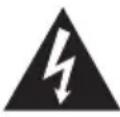 | THE LIGHTNING FLASH WITH ARROWHEAD SYMBOL, WITHIN AN EQUILATERAL TRIANGLE, IS INTENDED TO ALERT THE USER TO THE PRESENCE OF UNINSULATED “DANGEROUS VOLTAGE” WITHIN THE PRODUCT’S ENCLOSURE THAT MAY BE OF SUFFICIENT MAGNITUDE TO CONSTITUTE A RISK OF ELECTRIC SHOCK TO PERSONS. |
 | THE EXCLAMATION POINT WITHIN AN EQUILATERAL TRIANGLE IS INTENDED TO ALERT THE USER TO THE PRESENCE OF IMPORTANT OPERATING AND MAINTENANCE (SERVICING) INSTRUCTIONS IN THE LITERATURE ACCOMPANYING THE APPLIANCE. |
Before Applying Power
Units are designed for operation as follows.
Australia: AC 240 V only
Europe: AC 230 V only
WARNING : TO PREVENT FIRE OR ELECTRIC SHOCK, DO NOT EXPOSE THIS APPLIANCE TO RAIN OR MOISTURE.
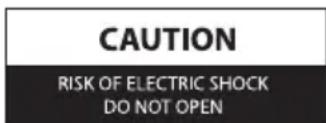

CAUTION: TO REDUCE THE RISK OF ELECTRIC SHOCK, DO NOT REMOVE COVER (OR BACK). NO USER-SERVICEABLE PARTS INSIDE. REFER SERVICING TO QUALIFIED SERVICE PERSONNEL.
IMPORTANT FOR LASER PRODUCTS
- CLASS 1 LASER PRODUCT
- CAUTION: Do not open the top cover or cabinet. There are no user serviceable parts inside the unit; leave all servicing to qualified service personnel.
CAUTION
- Do not block the ventilation openings or holes. (If the ventilation openings or holes are blocked by a newspaper or cloth, etc., the heat may not be able to get out.)
- Do not place any naked flame sources, such as lighted candles, on the apparatus.
- When discarding batteries, environmental problems must be considered and local rules or laws governing the disposal of these batteries must be followed strictly.
- Do not expose this apparatus to rain, moisture, dripping or splashing and that no objects filled with liquids, such as vases, shall be placed on the apparatus.
Information on Disposal of Old Electrical and Electronic Equipment and Batteries (applicable for EU countries that have adopted separate waste collection systems)
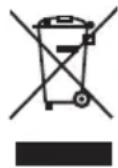
Products and batteries with the symbol (crossed-out wheeled bin) cannot be disposed as household waste.
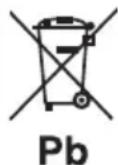
Old electrical and electronic equipment and batteries should be recycled at a facility capable of handling these items and their waste by products.
Contact your local authority for details in locating a recycle facility nearest to you.
Proper recycling and waste disposal will help conserve resources whilst preventing detrimental effects on our health and the environment.
Notice: The sign "Pb" below the symbol for batteries indicates that this battery contains lead.
● Declaration of Conformity with regard to the EMC Directive 2004/108/EC
● Declaration of Conformity with regard to the R&TTE Directive 1999/5/EC
Manufacturer:
JVC KENWOOD Corporation
3-12, Moriya-cho, Kanagawa-ku, Yokohama-shi, Kanagawa 221-0022, Japan
EU Representative's:
Kenwood Electronics Europe BV
Amsterdamseweg 37, 1422 AC UITHOORN, The Netherlands
English
Hereby, KENWOOD declares that this System R-K531 is in compliance with the essential requirements and other relevant provision of Directive 1999/5/EC.
Français
⚠️ Safety precautions ...... 2
Introduction...... 6
Connection...... 8
Part names and functions ...... 10
Important information ...... 14

CD
Starts playback 18
Other operations during playback 19
Random play 20
Repeat play 20
Program play 21

Radio
Listening to FM/AM radio 22
Presetting stations automatically (AUTO MEMORY) 23
Presetting stations manually.... 23

Radio Data System
Displaying Program Service (PS) name ... 24
Searching for a desired Program Type (PTY Search).... 24

BLUETOOTH
Pairing this System with a BLUETOOTH device 25
Listening to a BLUETOOTH device 26
Other operations during playback 26
To improve the sound of the BLUETOOTH device (BLUETOOTH sound enhancer) 26
Other BLUETOOTH settings 27

iPod/iPhone
Starts playback 28
Other operations during playback 29

USB playback
Starts playback 30
Deleting the audio files from the USB device 30
Other operations during playback 31

External components
Starts playback 32
Adjusting the input level for AUX source.... 32

Digital audio players, etc.
Starts playback 33
Adjusting the input level 33

USB recording
Recording all tracks of a CD 34
Recording a single track of a CD 34
Recording desired tracks in desired order 34
Recording from TUNER, AUDIO IN, AUX source.... 34
Selecting the recording sound quality .... 35
Dividing the recorded file automatically ... 35

Audio settings
Adjusting super-bass tones (D-BASS) ..... 36
Adjusting the range levels (TONE) 36
Matching the acoustic effect to the listening environment (CONEQ) ...... 37
Setting Supreme EX 37
Adjusting the volume balance of the left and right speakers 37

Timer settings
Setting the sleep timer (SLEEP) 38
Setting the program timer (TIMER SET)... 39

Other settings
Setting the display brightness (DIMMER)....41
Setting the display saver (DISP. SAVER) 41
Setting the System clock 41
Setting the Auto Power Save (A.P.S) ..... 42
Troubleshooting......43
Specifications......46
How to read this manual
● The explanations in this manual primarily describe operation procedures using the remote control. If the main unit has the same or similar button names, they can also be used for the operations.
● The displays shown in this instruction manual may differ from the actual displays.
Accessories
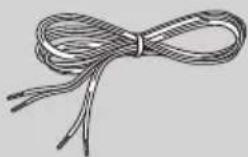
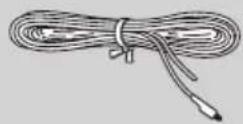
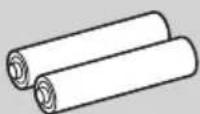
If any accessories are missing, or if the unit is damaged or fails to operate, notify your dealer (or shipper) immediately. We recommend that you retain the original carton and packing materials in case you need to move or ship the unit in the future.
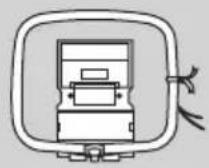
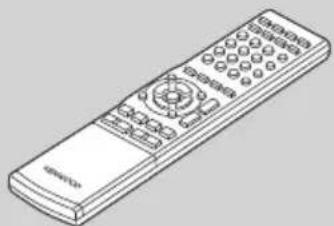
AM loop antenna (×1) Remote control (
×1)
Speaker cords (2 m) (×2)
natural_image
Line drawing of a remote control with scroll and keypad (no text or symbols)RC-RP0503E
natural_image
Illustration of a rope tied with a bow (no text or symbols)FM indoor antenna (×1) Batteries for remote control
(R03/AAA) (×2)
Transporting or moving the System
Before transporting or moving the System....
1 Remove any disc from the main unit. (P.18)
Press [CD ▶/II] to make sure that "NO DISC" appears on the display.
2 Turn off the System.
3 Make sure any other components connected to the System are turned off.
4 Disconnect all the cords and cables.
Installing the System
● Always install the System on a flat, stable surface. When installing the System on a stand of some sort, be sure to check the strength of the stand.
● The speakers are not magnetically shielded. The magnets used in the speakers may cause color irregularities on CRT TVs or CRT monitors. Do not set up the speakers too close to a TV or a monitor.
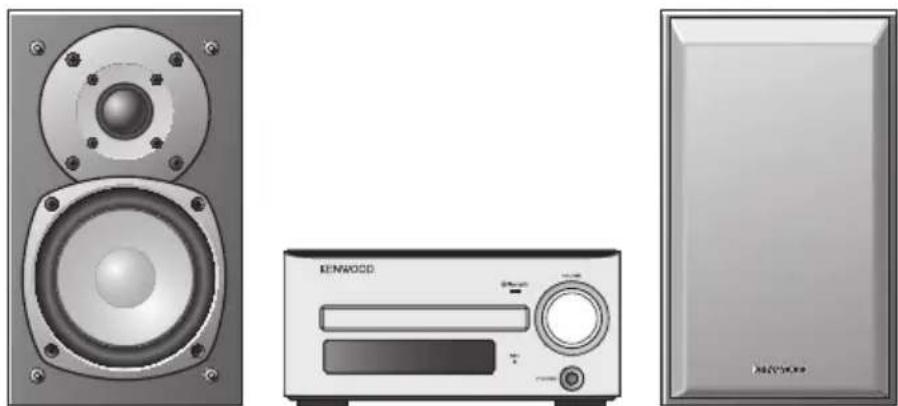
Left speaker Right speaker Main unit

CAUTION
Proper ventilation
- Do not place any object on the System that may hinder heat radiation.
- Do not place the System upside-down or lay it on its side.
- Do not cover the System with a cloth or place it on a carpet or blanket.
- Do not place the System in a narrow space that hinders the ventilation.
- Leave the spaces specified below around the cabinets of the main unit.
Top panel: 50 cm or more
Side panel: 10 cm or more
Back panel: 10 cm or more
Power supply
- Install the System so the power outlet is easily accessible, and unplug the power cord from the power outlet immediately in case of any trouble.
- The power supply to the System is not shut down completely by simply setting the power switch to "OFF."
To shut down the power supply completely, unplug the power cord.
Installing the speakers
The sound will vary depending on the positioning of the speakers. To get the best possible sound quality or the best acoustic effect, note the guidelines below.
- Ensure that the areas around the left and right speakers are as identical as possible. Set up the left and right speakers away from the wall and hang thick curtains on any windows to minimize echoes or reverberation.
- Place the left and right speakers as far apart as possible.
- Position the speakers at the same height as your ears when you are using the System.

CAUTION
- Do not plug the AC power cord into an AC wall outlet until all the connections are completed.
- Before disconnecting any cords or cables, always turn the System off and unplug the power cord from AC wall outlet.
- Since antenna installation requires skill and experience, always consult your dealer before installation. The antenna should be located away from power lines. If the antenna falls over, contact with a power line creates the risk of electric shock.
Main connections
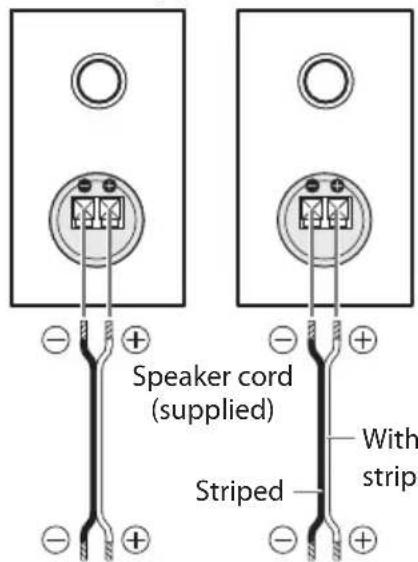
Speakers\*
* Both left and right speakers are the same type.
Preparing the ends of the speaker cords
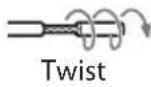
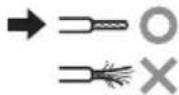
Loose cords may short-circuit and cause damage to the System.
Connecting the speaker cords to the speaker

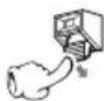


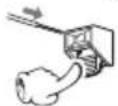


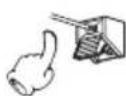
Connecting the speaker cords to the main unit


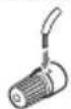


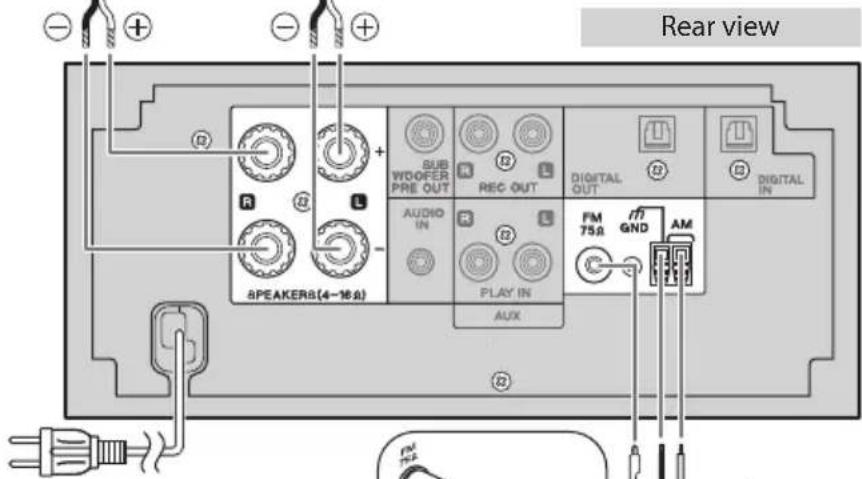
To AC wall outlet
Connecting the FM antenna cord
Use some force to insert the FM antenna cord into the terminal if it is hard to connect.
Point in the direction that gives the best reception, and fix using tape, etc.
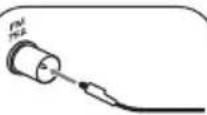
FM indoor antenna
(supplied)
Black

natural_image
Illustration of a computer monitor with a stylized screen and stand (no text or symbols)

natural_image
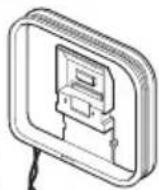
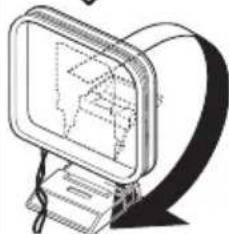
Simple line drawing of a device with a downward arrow indicating compression or disassembly (no text or symbols)AM loop antenna (supplied)
Keep the AM loop antenna cable wrapped around the AM loop antenna frame, otherwise the effectiveness and sensitivity of the AM loop antenna may be reduced.
Insert by pushing until a clicking sound is heard.
Connecting the AM antenna cord
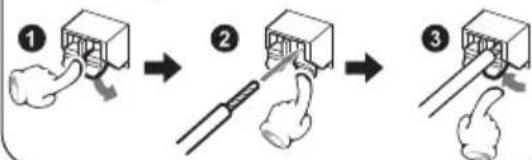
flowchart
graph TD
    A["Step 1: Hand press"] --> B["Step 2: Pinning"]
    B --> C["Step 3: Touching with thumb and index finger"]
Ensure that all the cords are securely connected. Loose or incomplete connections may result in noise interference or no sound at all.
Other connections (commercially available accessories)
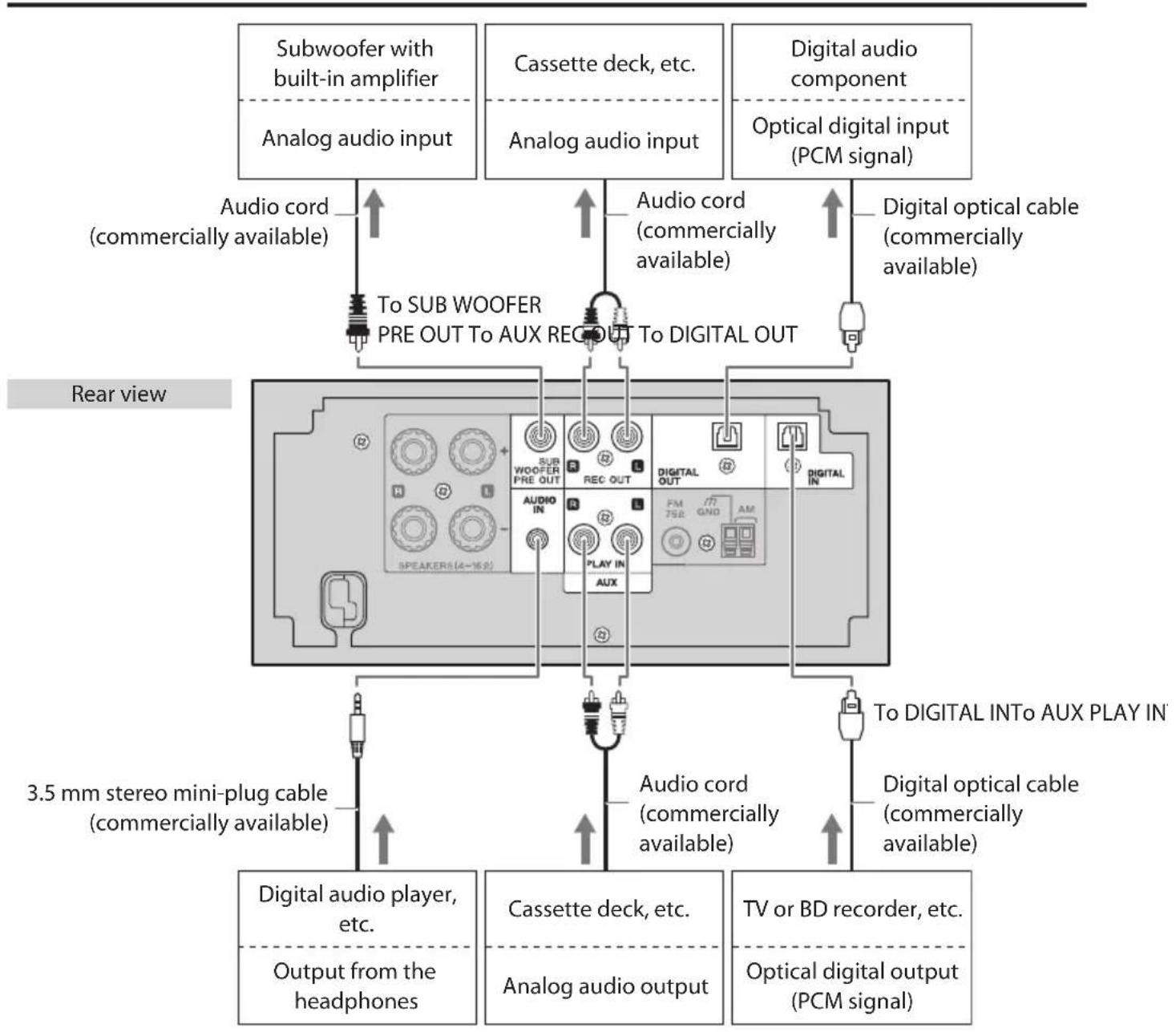
flowchart
graph TD
    A["Subwoofer with built-in amplifier"] -->|Audio cord (commercially available)| B["To SUB WOOFER PRE OUT To AUX REC OUT To DIGITAL OUT"]
    C["Cassette deck, etc."] -->|Audio cord (commercially available)| B
    D["Digital audio component"] -->|Digital optical cable (commercially available)| B
    E["Optical digital input (PCM signal)"] -->|Digital optical cable (commercially available)| B
    F["Rear view"] --> G["SPEAKERS(4-162)"]
    G --> H["Digital audio player, etc. Output from the headphones"]
    G --> I["Cassette deck, etc. Analog audio output"]
    G --> J["TV or BD recorder, etc. Optical digital output (PCM signal)"]
    H --> K["3.5 mm stereo mini-plug cable (commercially available)"]
    I --> L["To DIGITAL INTo AUX PLAY IN"]
    J --> M["To DIGITAL INTo AUX PLAY IN"]

- Microcomputer malfunctions: If the System is connected correctly and still does not operate normally or shows display errors, reset the microcomputer. (P.45)
- Refer also to the instruction manual that comes with the component connected to the System.
- AUDIO IN terminal: When you are not using the component, unplug the mini-plug cable from the main unit.
- DIGITAL IN (optical) terminal: Select "PCM" for output signal setting of the connected component.
- DIGITAL OUT (optical) terminal: The audio signals from an Audio CD or a CD-R/CD-RW recorded with CD-DA format are output as digital signals. The audio signals from audio files (MP3/WMA) recorded on a CD-R/-CD-RW, or "iPod", "USB", "BLUETOOTH", "TUNER", "AUDIO IN", "AUX" or "D-IN" cannot be output.
● AUX REC OUT terminals: The audio signals from the source played are output as analog signals.
Part names and functions
Main unit
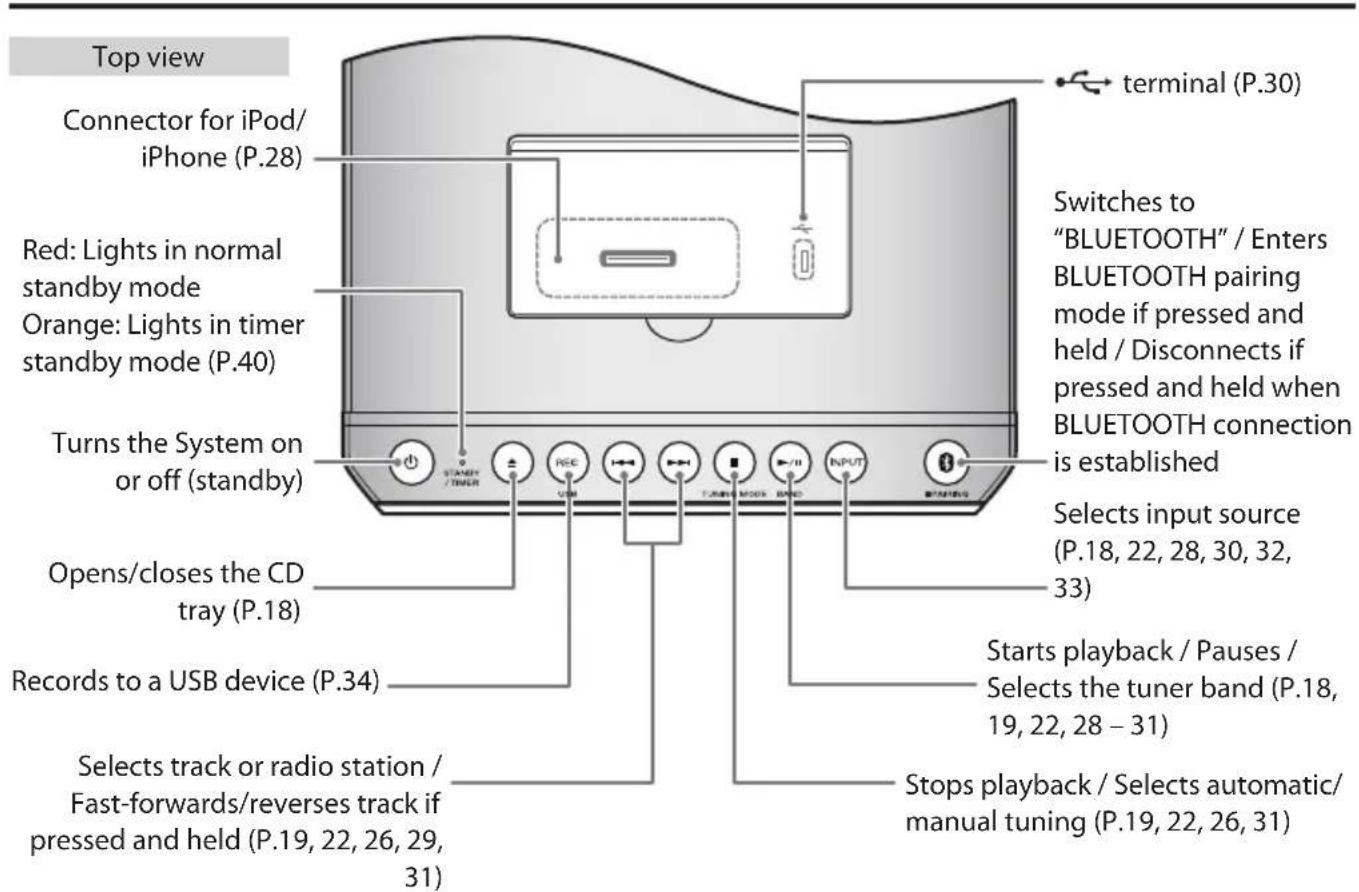
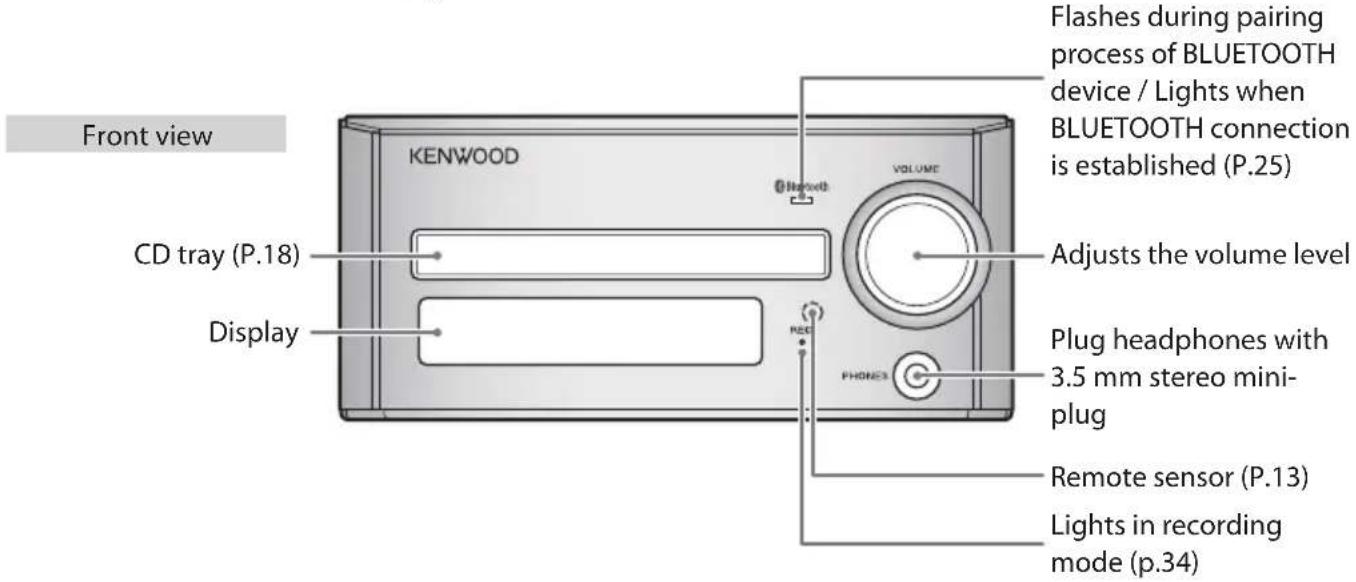

CAUTION
Excessive sound pressure from headphones can cause hearing loss.

● While the STANDBY/TIMER LED on the main unit lights up, the System is using very weak current to maintain the built-in memory (Standby mode). While in Standby mode you can turn the System on using the remote control.
- When the headphones are connected, no sound is emitted from the speakers.
Display
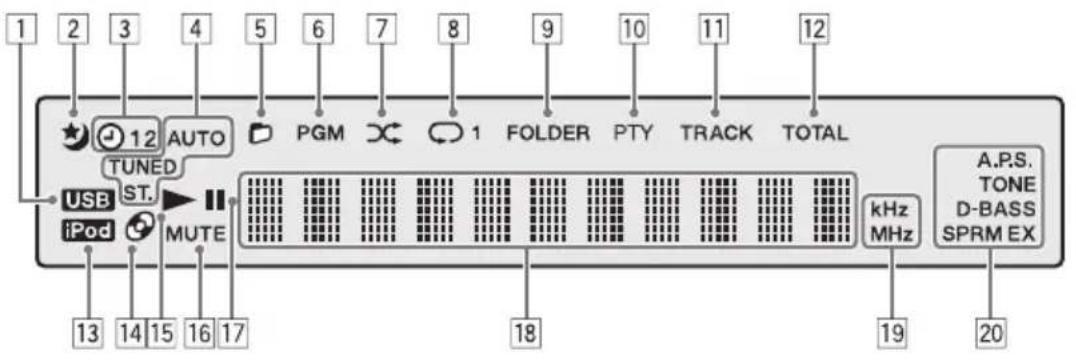
① Lights during USB connection. (P.30)
2 Lights while the sleep timer is set. (P.38)
3 Lights while the program timer is set. (P.39, 40)
4 AUTO
Lights during automatic tuning. Goes off during manual tuning. (P.22)
TUNED
Lights when you are tuned to the radio station. (P.22)
ST.
Lights when you are receiving the stereo broadcast. (P.22)
5 Lights in folder playback mode. (P.31)
6 Lights in program playback mode. (P.21)
7 Lights in random playback mode. (P.20, 31)
8 Lights during CD/USB repeat playback. (P.20, 31)
: Lights during all-track repeat playback
: Lights during single-track repeat playback
9 Lights when the audio file folder is displayed.
10 Lights in the PTY search mode. (P.24)
11 Lights when a track is displayed.
12 Lights during stop of CD-DA disc playback while the total time is displayed.
13 Lights while iPod/iPhone is connected. (P.28)
14 Lights when there is a disc in the CD tray. (P.18)
15 Lights during playback. (P.18, 26, 28, 30)
16 Flashes when the sound is muted.
17 Lights when playback is paused. (P.19, 26, 29, 31)
18 Shows numbers and text.
19 kHz
Lights when the AM reception frequency is displayed. (P.22)
Lights when the sampling frequency is displayed.
MHz
Lights when the FM reception frequency is displayed. (P.22)
20 Lights when audio settings, such as the sound quality, are completed.
A.P.S.
Lights when Auto Power Save (A.P.S.) is set. (P.42)
TONE
Lights when a TONE is set. (P.36)
D-BASS
Lights when a super-bass (D-BASS) level is set. (P.36)
SPRM EX
Lights when Supreme EX is on. (P.37)
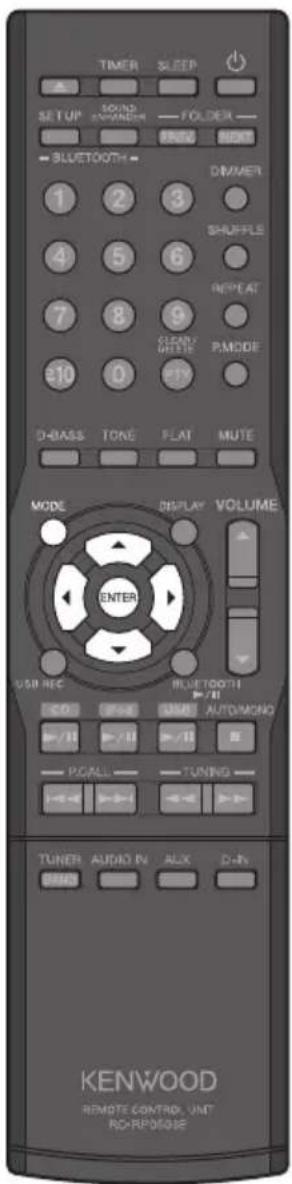
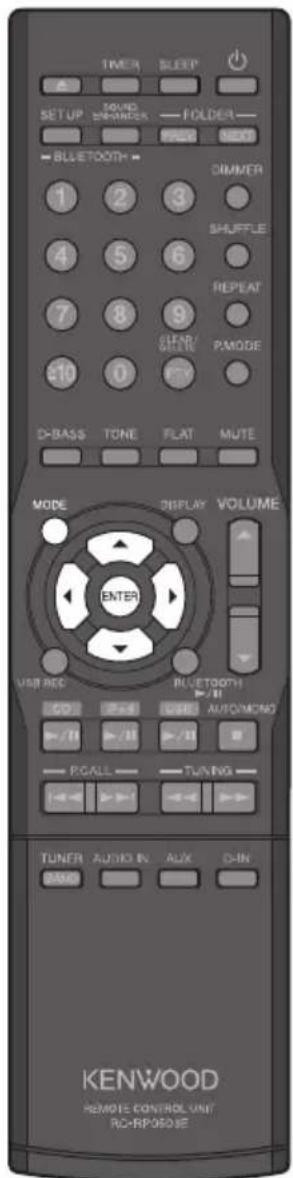
Remote control (RC-RP0503E)
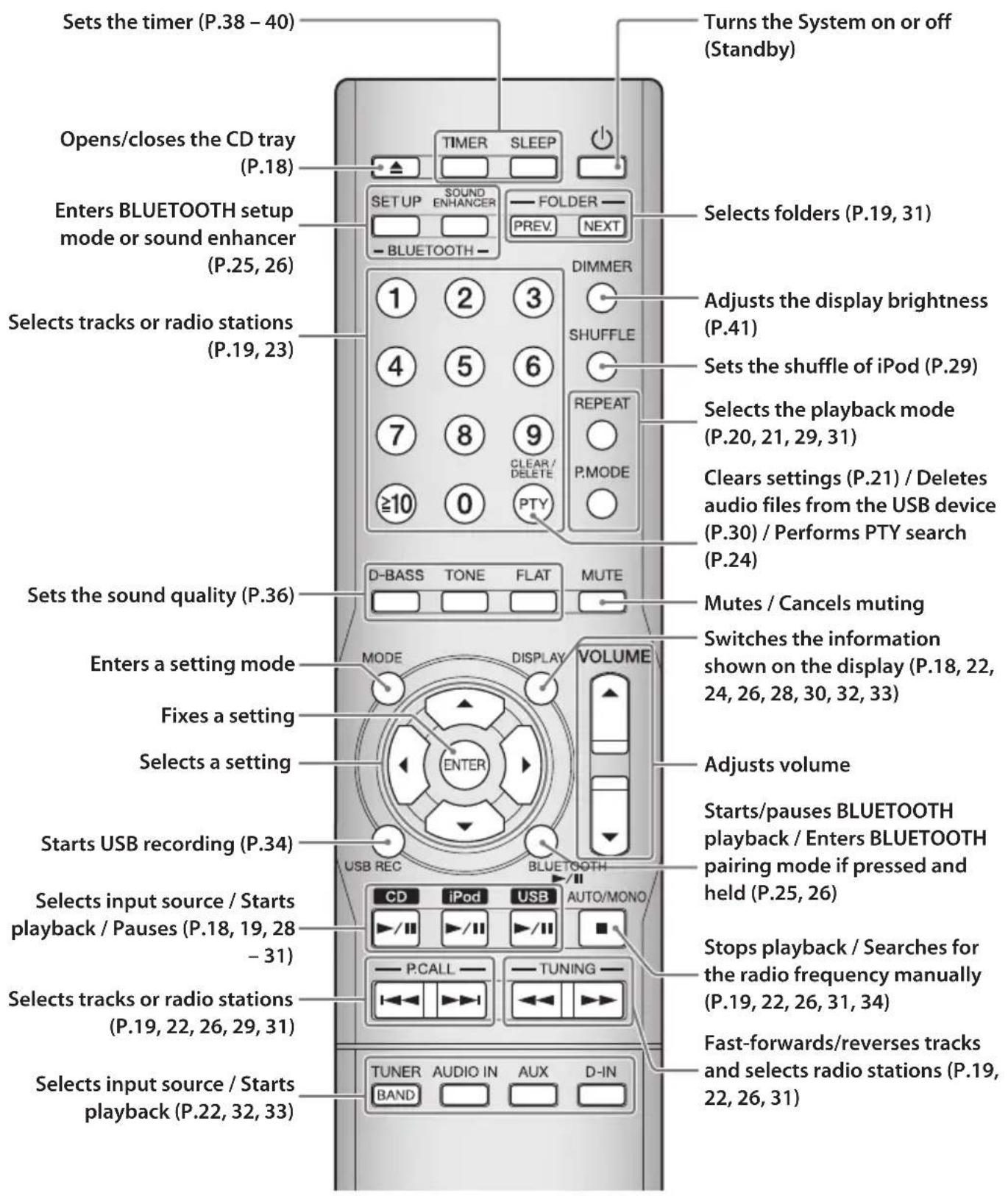

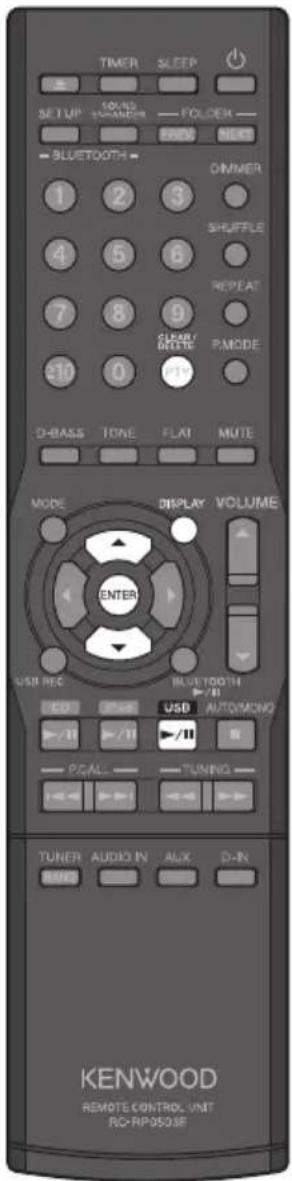
One-Touch Operation: While in Standby mode, pressing [BLUETOOTH▶/II], [CD▶/II], [iPod▶/II], [USB▶/II], [TUNER/BAND], [AUDIO IN], [AUX], or [D-IN] also turns on the power, and switches the input source.
Using the remote control
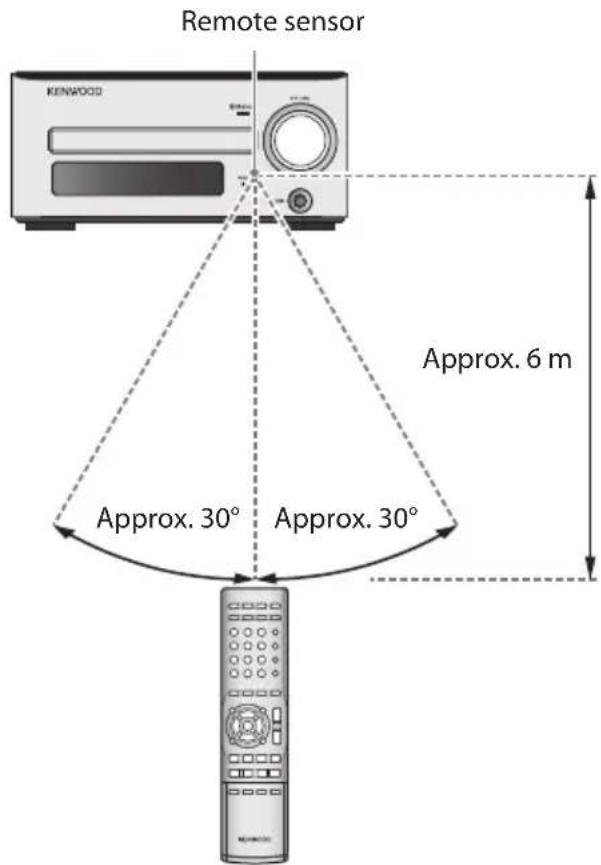
- The remote control may not operate correctly if direct sunlight or light from a high-frequency fluorescent lamp (such as an inverter type) is shining on the remote sensor. If this happens, move the System to a different location to avoid this type of malfunction.
Loading the batteries
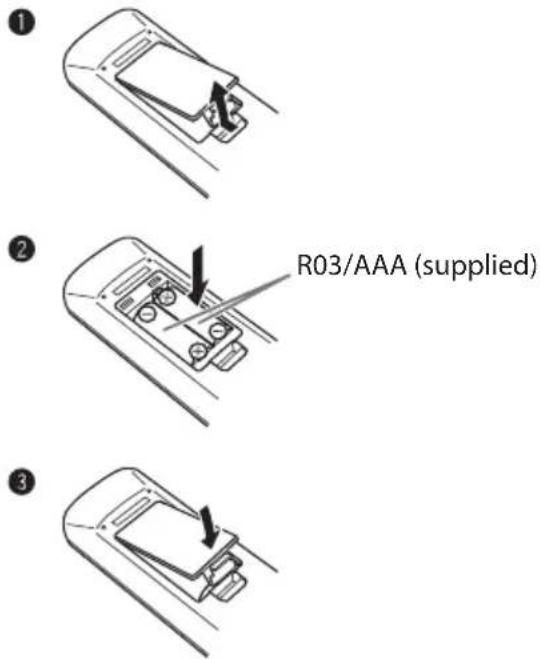
- The batteries supplied with the System are for operational testing and may last only for a short time. - When replacing the batteries, always load 2 new batteries.

CAUTION
Do not leave the batteries near fire or under direct sunlight. A fire, explosion or excessive heat generation may result.
How to use the number buttons on the remote control
Use the number buttons to select tracks on a disc/preset stations.
To select 3rd item, press [3].
To select 17th item, press [0], [1], and then [7].
To select 20th item, press [10], [2], and then [0].
To select 123rd item, press [10], [10], [1], [2], and then [3].
Important information
Supported media
| Media Explanation | ||
| USB | USB flash memory | ● Never connect any other device besides USB flash memory or a USB mass storage class compliant digital audio player to the √ terminal. Note that we will not be held liable for any losses related to malfunction, damage, or data loss due to connection of any other type of device. |
| USB mass storage class compliant digital audio player | ||
| CD Commercially available music CDs | ● You may not be able to play discs that do not conform to the CD standard, such as Copy Control CDs. | |
Compatible device with this unit
| About compatible iPod/iPhone Made for iPod class● iPod nano (2nd, 3rd, 4th, 5th, and 6th generation)● iPod touch (1st*, 2nd, 3rd, and 4th generation)● iPhone 4S● iPhone 4● iPhone 3GS● iPhone 3G* Compatible with software newer than version 3.1.3. | |
| ● If iPod/iPhone does not play correctly, update iPod software to the latest version.● For details about updating iPod/iPhone, check on the Apple web site. | |
| About compatible USB device | ● USB flash memory● USB mass storage class compliant digital audio player |
About BLUETOOTH function
BLUETOOTH is a short-range wireless radio communication technology for the mobile device such as mobile phones, digital audio players, and other devices. The BLUETOOTH devices can be connected without cables and communicate with each other.
This System supports the following BLUETOOTH profiles
● A2DP (Advanced Audio Distribution Profile)
● AVRCP (Audio/Video Remote Control Profile)
If a BLUETOOTH device compatible with AVRCP is connected, the BLUETOOTH device can be operated from the System. (P.26)
Supported audio files
On this System, you can play the audio file types listed below.
- MP3, WMA and WAV files are referred to collectively as "audio files".
| Media Audio file type Extension Sampling frequency Bit rate | ||||
| CD MP3 .mp | 3 32 kHz – 48 kHz 32 kbps – 320 kbps | |||
| WMA .wma 32 kHz – 48 kHz 32 kbps – 320 kbps | ||||
| USB MP3 .mp | p3 32 kHz – 48 kHz 32 kbps – 320 kbps | |||
| WMA .wma 32 kHz – 48 kHz 32 kbps – 320 kbps | ||||
| WAV | .wav | 32 kHz – 96 kHz*, 16/24 bit | — | |
* When playing a wave file whose sampling frequency is 88.2 kHz or 96 kHz while an iPod/iPhone is connected, the playback sound may be interrupted. In this case, disconnect the iPod/iPhone from the System.
Disc formats
ISO 9660 Level 1, ISO 9660 Level 2, Joliet, Romeo
Number of file limits
| CD | Max. files/folders: 512 in total |
| Max. folders: 255 | |
| Files per folder: 511 | |
| USB | Max. files: 2000 |
| Max. folders: 999 | |
| Files per folder: 999 | |
| Max. folder layers: 16 |
Maximum number of displayable characters
| CD | File names: 28Folder names: 28Tag display (Title/Album name/Artist name): 31Available ID3 tags: 1.0/1.1/2.2/2.3 |
| USB | File names: 64Folder names: 64Tag display (Title/Album name/Artist name): 64Available ID3 tags: 1.0/1.1/ 2.2/ 2.3/ 2.4 |
This System is capable of displaying alphanumeric characters. Other characters are displayed as asterisks (*).
Other notes
- Note that even where audio files comply with the above standards, playback may fail due to factors such as the disc characteristics or recording conditions.
- Playback also may fail depending on the specifications of the encoding software or the settings used for encoding.
- DRM (Digital Rights Management) files cannot be played.
- WMA Pro, WMA Lossless, WMA Voice files cannot be played.
- Audio files encoded using VBR (Variable Bit Rate) may use bit rates that fall outside the supported range. Audio files with bit rates outside the supported range cannot be played.
- Be aware to back up audio files to be used in the System. Certain conditions while using a USB device can cause contents stored on the USB device to be lost. Please note that we will not be held liable for any losses caused by loss of stored data.
Precautions when writing data to media
● Discs recorded in Packet Write mode or UDF (Universal Disc Format) cannot be played.
- When writing data to a disc, always close the session or finalize the disc. The disc may not play properly if you do not close the session or finalize the disc.
- Depending on the specifications of the writing software used, the recorded folder names and file names may not be displayed correctly.
- Playback for multi-session discs or discs that contain large numbers of folders may take longer to begin than for normal discs.
- If you write audio files and music CD tracks (CD-DA format) to the same disc, the disc may not play correctly.
- Before writing audio files to a disc, check that the files play back correctly on the PC being used to write the files.
After you finish writing, check that the written files are played back correctly.
- Use the correct file extensions (mp3, wma, wav) in the names of audio files. Files without file extensions will not play. Also, do not use audio file extensions (mp3, wma, wav) for files that are not audio files.
For more information on file extensions, see "Supported audio files." (P.15)
Playback sequence for folders and files (MP3/WMA/WAV)
When you play a disc containing recorded audio files, the track files on the disc are played sequentially beginning with the files in the ROOT folder, as shown in the figure.
Sample folder configuration
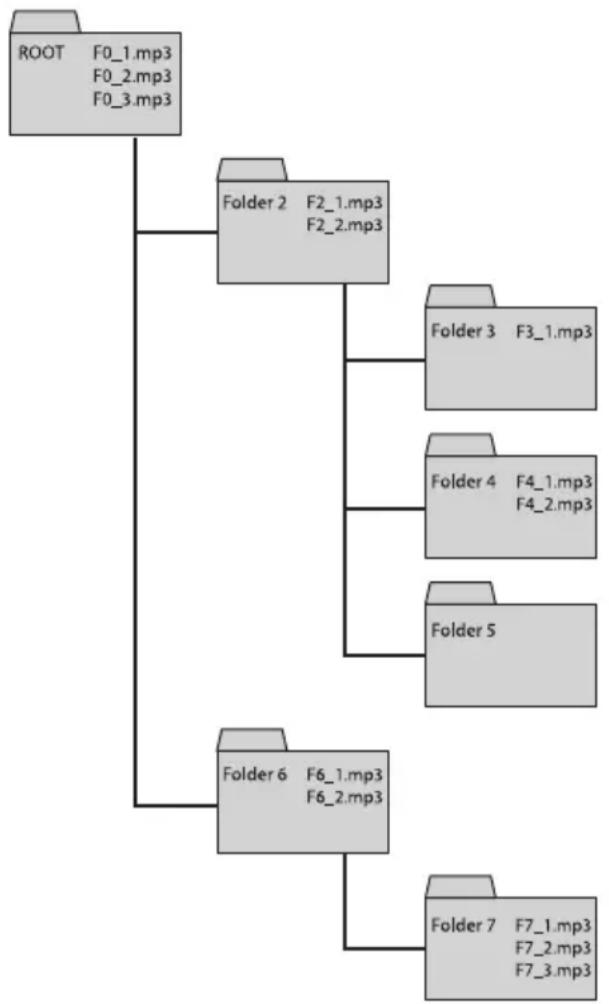
flowchart
graph TD
    A["ROOT"] --> B["F0_1.mp3\nF0_2.mp3\nF0_3.mp3"]
    B --> C["Folder 2\nF2_1.mp3\nF2_2.mp3"]
    C --> D["Folder 3\nF3_1.mp3"]
    C --> E["Folder 4\nF4_1.mp3\nF4_2.mp3"]
    C --> F["Folder 5"]
    C --> G["Folder 6\nF6_1.mp3\nF6_2.mp3"]
    G --> H["Folder 7\nF7_1.mp3\nF7_2.mp3\nF7_3.mp3"]
File playback sequence
| Track 1 | ...... F0_1.mp3 |
| Track 2 | ...... F0_2.mp3 |
| Track 3 | ...... F0_3.mp3 |
| Track 4 | ...... F2_1.mp3 |
| Track 5 | ...... F2_2.mp3 |
| Track 6 | ...... F3_1.mp3 |
| Track 7 | ...... F4_1.mp3 |
| Track 8 | ...... F4_2.mp3 |
| Track 9 | ...... F6_1.mp3 |
| Track 10 | ...... F6_2.mp3 |
| Track 11 | ...... F7_1.mp3 |
| Track 12 | ...... F7_2.mp3 |
| Track 13 | ...... F7_3.mp3 |
● A folder that does not contain any tracks cannot be selected.
- Audio files are played back in accordance with the sequence where these files are recorded into the disc. You can specify the playback sequence by adding a number from "01" to "99" at the beginning of each folder and file name before you record the files onto the disc.
Handling discs
● Handling precautions
When holding a disc, take care not to touch the played surface.
● Discs playable on the System
This System can play back a CD (12 cm, 8 cm), CD-ROM, CD-R, CD-RW or the audio part of a CD-EXTRA.
● Notes on CD-ROM/CD-R/CD-RW
If the CD-ROM, CD-R or CD-RW being used has a printable label surface, the label surface may cause sticking that makes it impossible to remove the disc from the System. To prevent malfunction of the System, do not use such a disc.
● Cautions on discs
Always use a disc carrying the back correctly.) COMPACT DISC DIGITAL AUDIO marking. (A disc without this marking may be unable to be play
- The disc rotates at a high speed during playback. Never use a cracked, chipped or greatly warped disc. Otherwise, damage or malfunction of the player may result.
- Also, do not use a disc with a non-circular shape as this may result in malfunction.
Care and storage
Main unit
- Keep the System out of the following locations
– Areas exposed to direct sunlight.
- Areas subjected to excessive humidity or dust.
– Areas exposed to direct heat from heating equipment.
● Be careful against condensation
Extreme differences between System temperature and air temperature can cause water droplets (condensation) to form on the System. The System will not operate properly while condensation is present. If condensation forms, do not use the System for a few hours to allow the condensation to dry.
Take special care against condensation when the System is moved between two locations of very different temperatures, or into a room where high humidity is present.
- When a main unit becomes dirty
When the front panel or case gets dirty, wipe it with a soft dry cloth. Never use lacquer, thinner, benzine, alcohol or contact revitalizer, which will cause discoloration or deformation.
Discs
- Storing a disc
If you do not plan to use a disc for a long time, remove it from the main unit and store it in its case.
- Cleaning a disc
- When a disc is contaminated with fingerprints or other stains, wipe gently in the radial direction using a soft dry cloth.
- Do not use a phonograph record cleaner, lacquer thinner, benzine or alcohol to clean discs.
- Do not use any disc accessory (stabilizer, protective sheet, protective ring, etc.) or lens cleaner.
- Other cautions
- Do not write on a disc with a pencil or ballpoint pen.
- Do not use a disc if its sticker or label is peeling or if any adhesive is coming out from under the sticker or label.
- Do not affix paper, stickers or labels to discs.
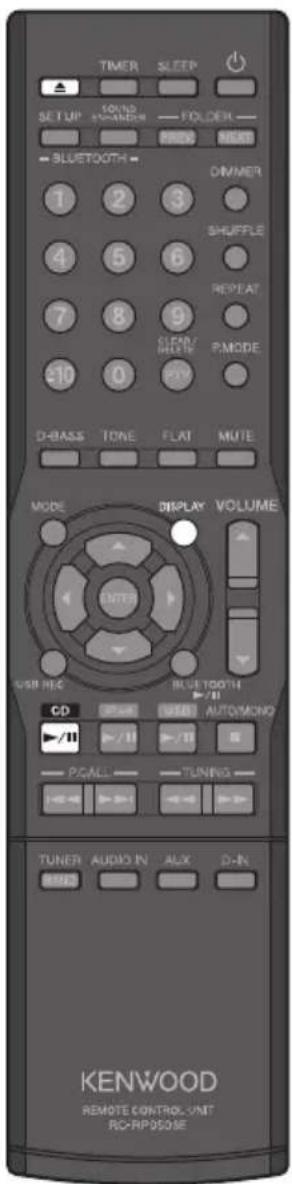
The explanations in this manual primarily describe operation procedures using the remote control. If the main unit has the same or similar button names, they can also be used for the operations.
Starts playback
1 Press [▲] to open the CD tray and then insert the disc.
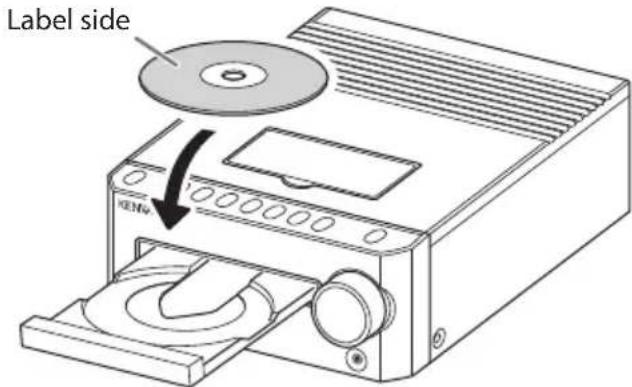
2 Press [▲] again to close the CD tray.
"READING" flashes on the display while the System is reading the information on the disc.
3 Press [CD ▶/II] to start playback.
- You can also start playback on the main unit by pressing [INPUT] to change the input source to "CD", and then pressing [▶/II].
To change the display information
Press[DISPLAY] repeatedly.
Each time you press the button, the display changes as....
● Audio CD or CD-R/CD-RW recorded in the CD-DA format: Elapsed playing time → Day/Clock → (back to the beginning)
- CD-R/CD-RW containing MP3/WMA files: Track number/Elapsed playing time → File format ("MP3" or "WMA")/ Folder number/Track number → File name → Folder name → Title (TAG) → Artist name (TAG) → Album name (TAG) → Day/Clock → (back to the beginning)

Track numbers may not be displayed correctly for the following types of discs.
● Discs recorded in Mix mode *
● Discs recorded in multiple sessions
● Discs recorded in mixed formats of CD-DA format and formats that are not music data
* Mix mode combines the CD-DA format with audio files, such as MP3 and WMA.
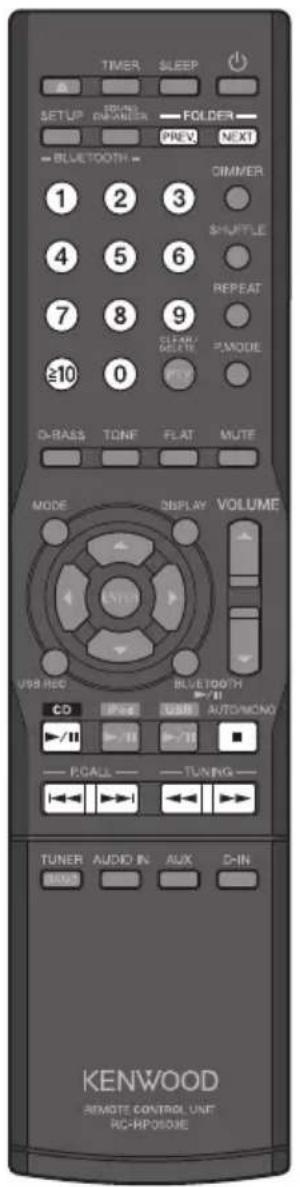
Other operations during playback
To pause playback
Press [CD ▶/II].
To stop playback
Press [■].
To playback a specified track number
Press [3] to play the 3rd track.
Press [≥10], [1], and then [7] to play the 17th track.
Press [≥10], [2], and then [0] to play the 20th track.
Press [≥10] , [≥10] , [1] , [2] , and then [3] to play the 123rd track.
To fast-forward or reverse
Press and hold [▶▶] to fast-forward.
Press and hold [◀◀] to reverse.
To skip tracks
Press [▶▶▶] to skip to the next track.
Press [I◀◀] to skip to the beginning of a track.
Press [I◄◄] repeatedly to skip to a previous track.
To skip folders (MP3/WMA)
Press[NEXT] to skip to a track in the next folder.
Press[PREV.] to skip to a track in the previous folder.

About Resume function (for MP3/WMA only)
- When you stop playback by pressing [■] the track being played is stored. Pressing the [CD ▶/II] restarts playback from the beginning of that track. (Resume function)
● The Resume function is canceled if you change the input source or turn off the power.
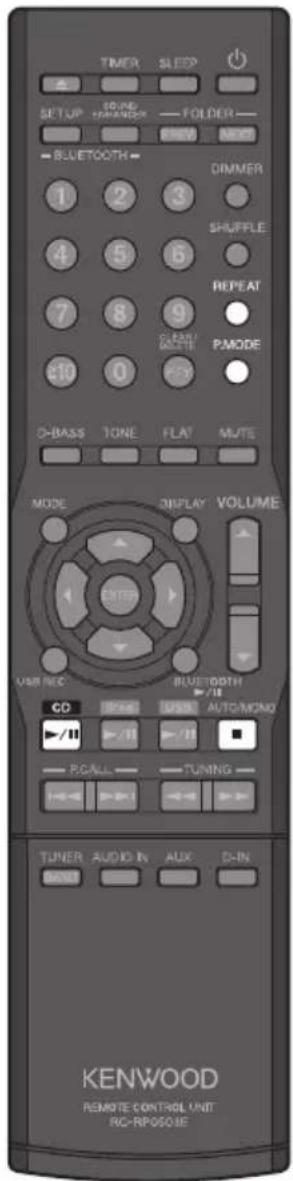
Random play
You can play all tracks in the disc in random order.
- If a disc is already playing, press [■] to stop playback.
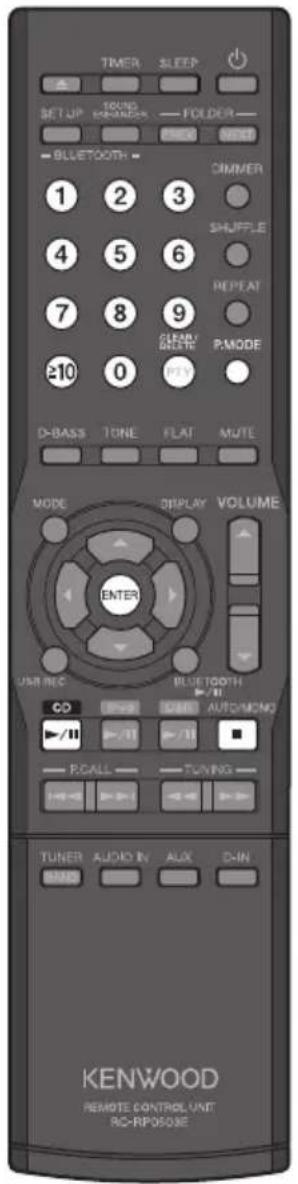
1 Press [P.MODE] repeatedly until "×" indicator lights up.
2 Press [CD ▶/II] to start playback.
To cancel random play
Press [■] to stop playback, then press [P.MODE] repeatedly until "×" indicator goes off.
Repeat play
You can play desired track(s) repeatedly.
1 Press [CD ▶/II] to play the track you want to repeat.
2 Press [REPEAT] repeatedly to select repeat play.
Each time you press the button, the mode changes as.... Single-track repeat playback (" Indicator lights up) → For MP3/ WMA only: Folder repeat playback (" Indicators light up) → All-track repeat playback (" Indicator lights up) → Normal playback → (back to the beginning)
To cancel repeat play
Press [REPEAT] repeatedly until "☐ 1", "☐ ☐" or "☐" indicator goes off.

- If you press [REPEAT] during program play, "C" and "PGM" indicators light up and repeat playback begins for the selected tracks.
- If you press [REPEAT] during random play to activate all-track repeat playback, "○" and "×" indicators light up and random playback begins with different sequence once the current random sequence ends.
Program play
You can select up to 50 tracks and play them in the order you like.
- Press [CD ▶/II] to switch the input source to "CD". Playback begins when you switch the input source, so press [■] to stop playback.
- If the disc is already playing, press [■] to stop playback.
1 Press [P.MODE] repeatedly until "PGM" indicator lights up.
2 For MP3/WMA:
① Press the number buttons to select the folder (P.13), then press [ENTER].
② Press the number buttons to select the file you want to listen to.
For Audio CD:
Press the number buttons to select the track you want to listen to (P.13).
3 Repeat step 2 to select more tracks.
If you attempt to select more than 50 tracks, "PGM FULL" appears on the display.
4 Press [CD▶/II] to start the program playback.
To cancel program playback
Press [■] to stop playback, then press [P.MODE] repeatedly until "PGM" indicator goes off.
To delete a track from a program
Press [■] to stop playback, then press [CLEAR/DELETE] to delete the last programmed track.
Holding [CLEAR/DELETE] clears all the tracks in the program.
To add a track to the end of a program
Press [■] to stop playback, then perform step 2 above.

The specified program is deleted if....
● You change the input source or turn off the System.
● You remove the disc for which program playback is set.
Preparation:
Connect the antenna cords. (P.8)
Listening to FM/AM radio
1 Press [TUNER/BAND] to select "FM" or "AM".
- You can also select "FM" or "AM" on the main unit by pressing [INPUT] to change the input source to "TUNER", and then pressing [BAND] to select "FM" or "AM".
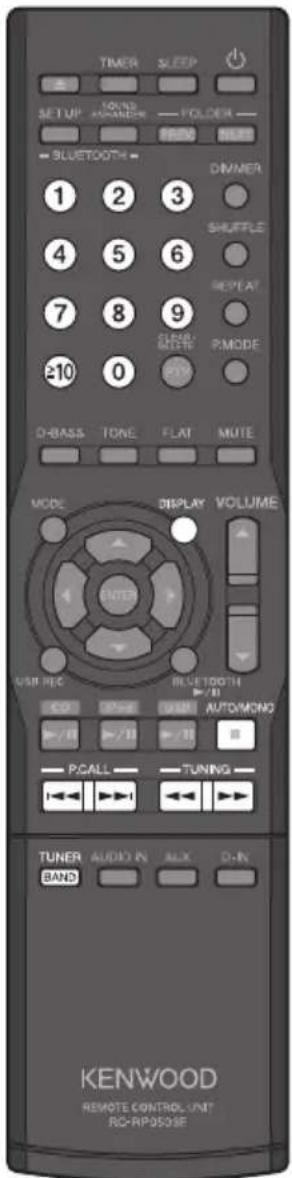
2 Press [AUTO/MONO] to select the tuning mode (automatic search or manual search).
- You can also select the tuning mode on the main unit by pressing [TUNING MODE].
- If the reception is good, select automatic search. ("AUTO" indicator lights up.)
- If the reception is poor, select manual search.
3 Press [TUNING ◀◀] / [TUNING ▶▶] to tune into a station.
- You can also tune into a station on the main unit by pressing [I◄◄◄] or [►►►].
- If automatic search is selected in step 2, the System automatically tunes in to the next station. Repeat this procedure until you are tuned in to your preferred station.
- If manual search is selected in step 2, press and hold the button until you reach your desired frequency.
When a station is tuned in, "TUNED" indicator lights up. "ST." indicator also lights up when receiving a stereo signal (only for FM stations).
To select a preset station
Store preset stations beforehand (P.23).
- Press [P.CALL ◀◀◀] or [P.CALL ▶▶▶] to select the previous/next stored station. To browse through the stored stations, press and hold the button.
- Press the number buttonsto select the desired preset station. (P.13)
To change the display information
Press[DISPLAY] repeatedly.
Each time you press the button, the display changes as....
● FM: Program service name* → Frequency → Day/Clock → (back to the beginning)
● AM: Frequency → Day/Clock → (back to the beginning)
* "NO PS" appears if the program service name is not received.

● There is no sound while tuning (automatic/manual) is in progress.
● Automatic tuning provides stereo reception while manual tuning provides monaural reception.
- There is no sound while tuning (automatic/manual) is in progress. - Automatic tuning provides stereo reception while manual tuning provides monaural reception.
Presetting stations automatically (AUTO MEMORY)
You can preset up to 40 FM stations.
Preparation:
Press [TUNER/BAND] to select "FM"
1 Press [MODE].
2 Press [◀] or [▶] to select "AUTO MEMORY", then press [ENTER].
"AUTO MEMORY" flashes on the display and the receivable stations are preset automatically.
Presetting stations manually
You can preset up to 40 (in total) FM/AM stations.
1 Tune in to a station you want to preset (P.22), then press [ENTER].

2 Press [▲] or [▼] or use the number buttons (P.13) to select the desired preset number (P01 to P40), then press [ENTER] to store.
Selected preset number
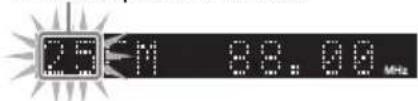

- Radio Data System stations are given priority during automatic presetting. If there is memory left after presetting, this unit continues presetting regular FM and AM stations.
- Preset stations cannot be received if the reception is poor.
- If the selected preset number is already assigned to a station, the existing station is overwritten by the new station.
Preparation:
- Press [TUNER/BAND] to select "FM".
● Preset Radio Data System stations with AUTO MEMORY function. (P.23)
Displaying Program Service (PS) name
When an Radio Data System broadcast is received, the station name is displayed automatically.
To change the display information
Press[DISPLAY] repeatedly.
Each time you press the button, the display changes as....
Program service name → Frequency → Day/Clock → (back to the beginning)
Searching for a desired Program Type (PTY Search)
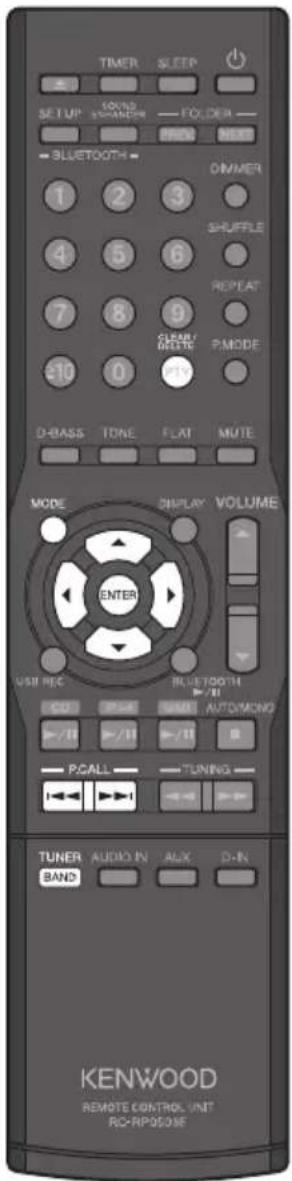
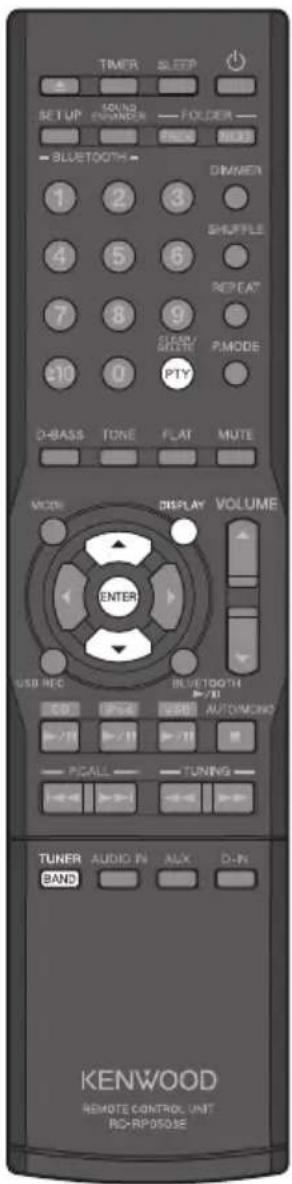
1 Press [PTY].
● "PTY" indicator lights up.
- When a Radio Data System broadcast is received, the program type is shown on the display.
If no PTY data is available or if the station is not a Radio Data System station, "None" appears on the display.
2 Press [▲] or [▼] to select the desired program type, then press [ENTER].
● "PTY" indicator flashes.
- If a program of the desired type is found, that program is received and the program type name display changes to the station name display.
If a program of the desired type cannot be found, "NO PROGRAM" flashes, then after several seconds the display returns to the original display.
- Program type (genre): Pop M (music), Rock M (music), Easy M (music), Light M (music), Classics, Other M (music), News, Affairs, Info, Sport, Educate, Drama, Culture, Science, Varied, Weather, Finance, Children, Social, Religion, Phone In, Travel, Leisure, Jazz, Country, Nation M (music), Oldies, Folk M (music), Document
To cancel PTY Search
Press [PTY].

● There is no sound while searching is in progress.
- Some stations may not be provided or may be given different names depending on countries or areas.
![[MHz] [PAIRING] BLUETOOH LED](/content/2026/05/758635/images/2d4041c732170a37662a76c442004beb440343cfaa0a519bc9020a1c28b996fd.jpg)
Main unit
You can listen to music from your BLUETOOTH mobile phone or BLUETOOTH device over a wireless connection.
Pairing this System with a BLUETOOTH device
When you connect a BLUETOOTH device to the System for the first time, make pairing between the System and the device.
- Once the pairing operation is complete, the BLUETOOTH device is registered on the System.
- You can register up to five devices*, but only one device can be connected at a time.
* When a sixth BLUETOOH device is registered, the registration of the first connected device is deleted.
1 Turn on the BLUETOOTH device.
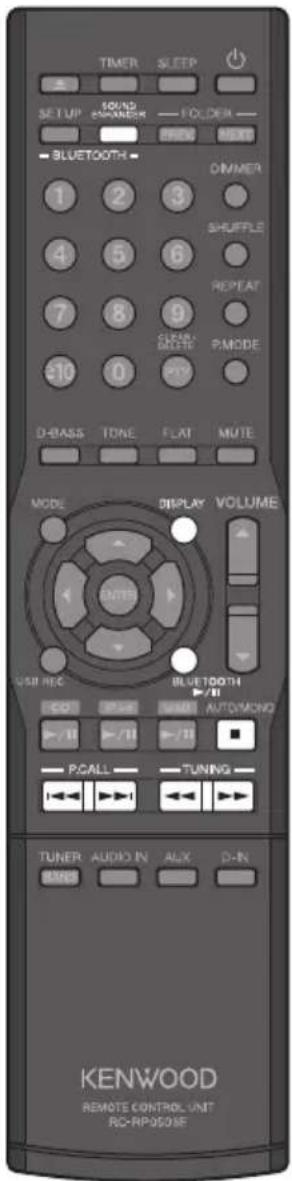
2 Press [BLUETOOTH▶/II] to select "BLUETOOTH" source.
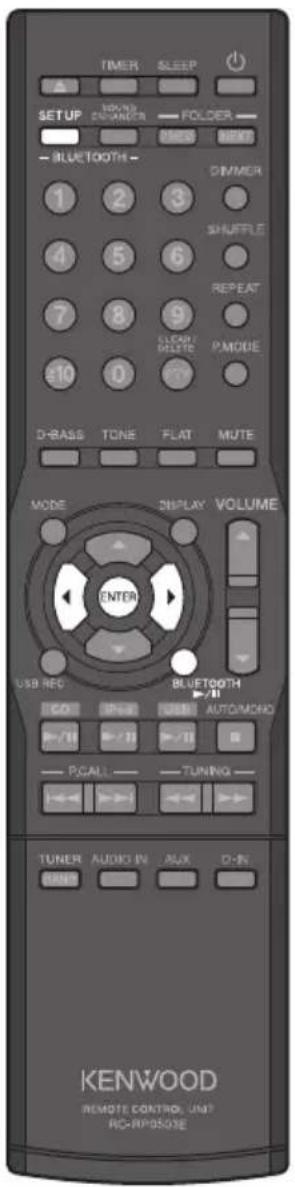
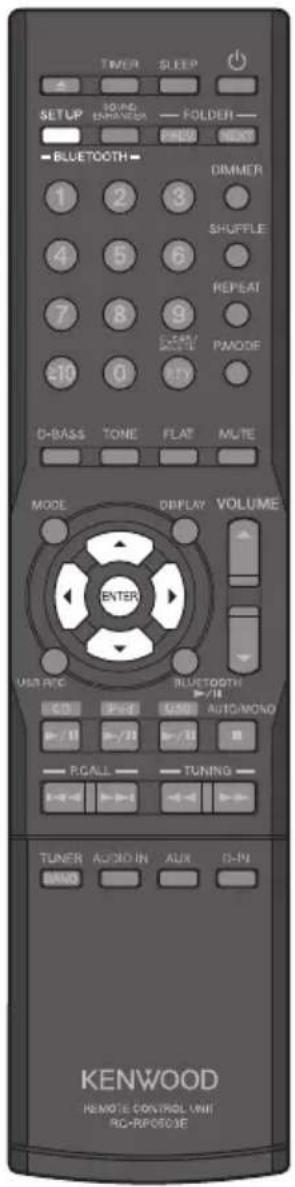
3 Press [BLUETOOH SETUP].
4 Press [◀] or [▶] to select "PAIRING?", then press [ENTER]. The System enters pairing mode.
- If no operation is done for about 5 minutes, pairing mode is cancelled.
5 Operate the BLUETOOTH device to perform the pairing operation.
"SUCCESS" appears on the display when pairing is completed.
- When searching for this System with the BLUETOOTH device, this System appears as "K-531".
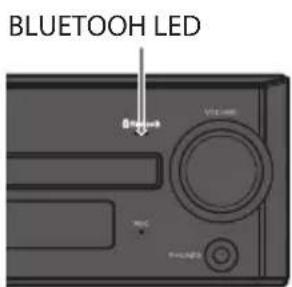
- BLUETOOTH LED on the main unit flashes during the pairing process.
- If you are required to enter PIN code during pairing operation, input "0000".
● After pairing is successful, the System will establish connection with the BLUETOOTH device. (The BLUETOOTH LED on the main unit lights up while the BLUETOOTH device is connected.)
You can also enter the pairing mode by holding [BLUETOOTH▶/II] or [✗■PAIRING] on the main unit while the BLUETOOTH device is turned on.

Refer also to the instruction manual that comes with your BLUETOOTH device.
Listening to a BLUETOOTH device
Once the BLUETOOTH device is registered with the System, connect the BLUETOOTH device and start playing music.
1 Press [BLUETOOTH ▶/II] to start playback of the BLUETOOTH device.
- You can also start playback on the main unit by pressing [INPUT] to change the input source to "BLUETOOTH", and then pressing [▶/II].
To change the display information
Press [DISPLAY] repeatedly.
Each time you press the button, the display changes as....
"BLUETOOTH" → Day/Clock → (back to the beginning)
Other operations during playback
To pause and resume playback
Press [BLUETOOTH ▶/II].
To stop playback
Press [■].
To fast-forward or reverse
Press and hold [▶▶] to fast-forward.
Press and hold [◀◀] to reverse.
To skip tracks
Press [▶▶▶] to skip to the next track.
Press [I◀◀] to skip to the beginning of a track.
Press [I◀◀] repeatedly to skip to a previous track.
To improve the sound of the BLUETOOTH device (BLUETOOH sound enhancer)
BLUETOOTH sound enhancer function allows natural listening of the music from the BLUETOOTH device by correcting the unnatural sound range.
1 Press [BLUETOOTH SOUND ENHANCER].
Each time you press the button, BLUETOOTH sound enhancer is switched between "ENHANCE ON" (activated) and "ENHANCE OFF" (deactivated).
![KENWOOD K-531-SB - Press [BLUETOOTH SOUND ENHANCER]. - 1](/content/2026/05/758635/images/8748a46b3bc530220a25029f8e9392fe46bd1be7726da6c34b0365859732dfcf.jpg)
-
For some BLUETOOTH devices, fast-forward/fast-reverse does not work.
● The BLUETOOTH device will be disconnected automatically if... -
you turn off the BLUETOOTH device or the System.
- you change the input source.
- you press and hold [ ⚙■ PAIRING] until "CANCEL" appears on the display.
Main unit
Other BLUETOOTH settings
1 Press [BLUETOOTH SETUP].
2 Press [◀] or [▶] to select an item, then press [ENTER].
● PAIRING? *1: Enters pairing process. (P.25)
- RECEIVE? *1: Establishes the connection with the last connected BLUETOOTH device.
- CANCEL? *^2 : Disconnects the BLUETOOTH device.
- SEL DEVICE? * ^1 : Selects the registered BLUETOOTH device you want to connect.
- DEL DEVICE? *1: Deletes the registered BLUETOOTH device.
- SYS INFO?: Shows the System name ("K-531") and the BLUETOOTH address.
3 Use [◀], [▶], [▲], [▼] or [ENTER] to change the setting if necessary.
*1 You can select the item when no BLUETOOTH device is connected (when the BLUETOOTH LED on the main unit is turned off).
*2 You can select the item when a BLUETOOTH device is connected (when the BLUETOOTH LED on the main unit lights up).
![KENWOOD K-531-SB - Use [◀], [▶], [▲], [▼] or [ENTER] to change the setting if necessary. - 1](/content/2026/05/758635/images/1bb89d0b43f3d6a05a112cbaa9158a69fe4d855ff5e7046cea4840ac10e8a78c.jpg)
Starts playback
1 Connect an iPod/iPhone.
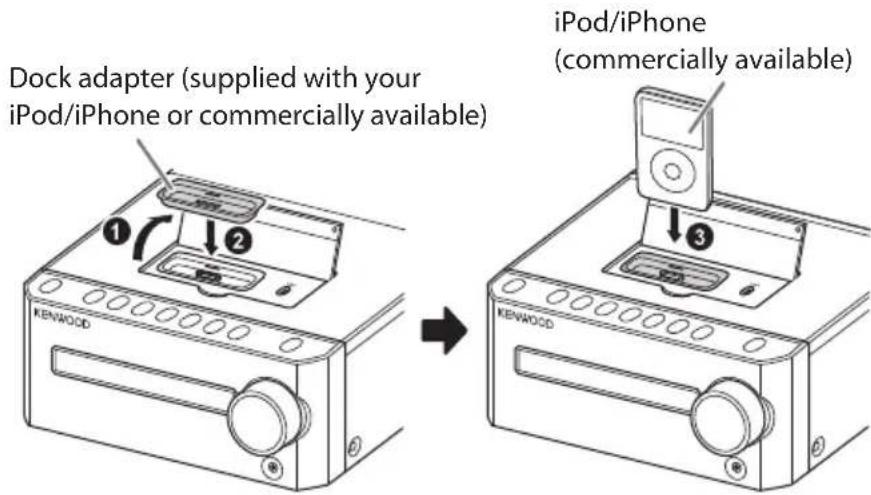
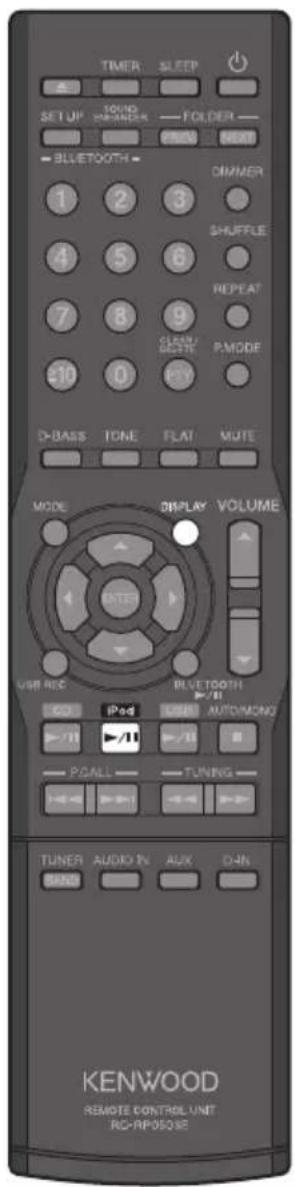
2 Press [iPod ▶/II] to start playback.
- You can also start playback on the main unit by pressing [INPUT] to change the input source to "iPod", and then pressing [▶/II].
To change the display information
Press[DISPLAY] repeatedly.
Each time you press the button, the display changes as.....
Elapsed playing time → Title (TAG) → Artist name (TAG) → Album name (TAG) → Day/Clock → (back to the beginning)
To remove the dock adapter
When detaching the dock adaptor from the dock, pull up the dock adaptor with your fingernail or a sharp pointed tool using the slot.
Be careful not to injure your fingertips or damage the terminal of the dock.
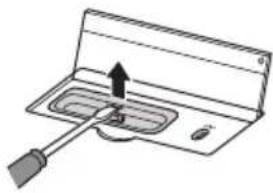
natural_image
Diagram of a device with a screwdriver inserted into a tray (no text or symbols)
- You cannot connect an iPod/iPhone to the System if it is in a cover, case, or with other accessories. Always remove it.
- Connecting an iPod/iPhone to the System without using the dock adapter may deteriorate or damage the connector. Always use the dock adapter. (For some iPod models such as iPod nano 6th generation, dock adapter is not necessary.)
- Keep the iPod/iPhone on a straight position while connecting/disconnecting it.
- Once the iPod/iPhone is connected, it can be charged.
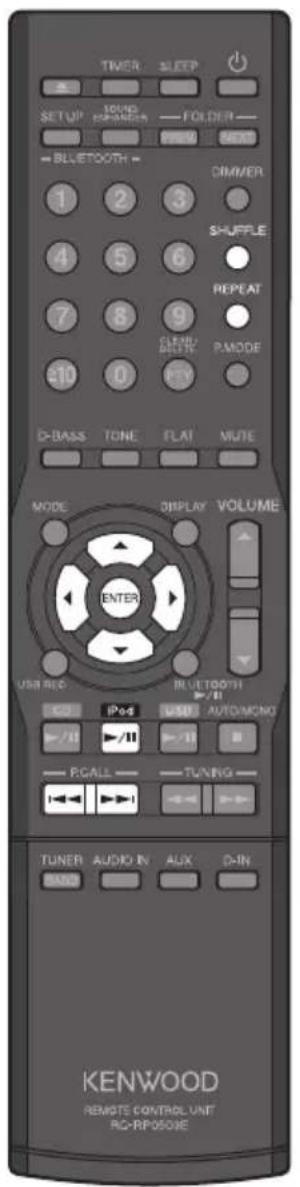
Other operations during playback
To pause and resume playback
Press [iPod ▶/II].
To fast-forward or reverse
Press and hold [▶▶] to fast-forward.
Press and hold [◀◀] to reverse.
To skip tracks
Press [▶▶] to skip to the next track.
Press [I◀◀] to skip to the beginning of a track.
Press [I◄◄] repeatedly to skip to a previous track.
To select the shuffle mode
Press[SHUFFLE]repeatedly.
Each time you press the button, the shuffle setting changes.
To select repeat play
Press[REPEAT]repeatedly.
Each time you press the button, the repeat setting changes.
To select an item from the menu
Press [◀] to go back to the previous layer.
Press [▲] or [▼] to select an item.
Press [ENTER] to confirm the selection.
Press [▶] to play currently selected item.
To put the iPod/iPhone in sleep mode
Press and hold [iPod▶/II].

- You cannot record tracks onto iPod/iPhone from the System.
● Refer also to the instruction manual that comes with the iPod/iPhone.
- Update the software for iPod/iPhone to the latest version.
- You can also perform operation from your iPod/iPhone.
- To select the other Album, perform the "To select an item from the menu" operation above. You cannot skip to the previous/next Album directly.
Starts playback
1 Connect a USB device to the terminal.
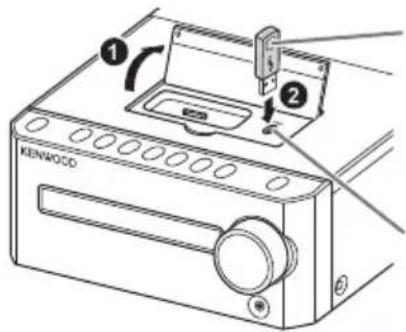
USB flash memory or USB mass storage class compliant digital audio player, etc. (commercially available)
terminal
2 Press [USB ▶/II] to start playback.
- You can also start playback on the main unit by pressing [INPUT] to change the input source to "USB", and then pressing [▶/II].
To change the display information
Press [DISPLAY] repeatedly.
Each time you press the button, the display changes as....
Elapsed playing time → Folder number/Track number → File name → Folder name → Title (TAG) → Artist name (TAG) → Album name (TAG) → Day/Clock → (back to the beginning)
Deleting the audio files from the USB device
Be aware that you cannot restore the deleted files.
1 Start or pause the playback of an audio file you want to delete.
Refer to P.31 for selecting a file.
2 Press [CLEAR/DELETE].
3 Press [▲] or [▼] to select "DEL.OK", then press [ENTER].
"DELETED" appears on the display and the selected file is deleted.
- To cancel deleting, select "DEL CANCEL", then press [ENTER].
![KENWOOD K-531-SB - Press [▲] or [▼] to select "DEL.OK", then press [ENTER]. - 1](/content/2026/05/758635/images/17a7ffc02fa6704952b22d314be10b3ebe3da321f3e4ace8944df113eabdcaca.jpg)
● Refer also to the instruction manual that comes with the USB device.
- You cannot use an iPod/iPhone by connecting to the ↕ terminal on the System.
- When connecting using a USB cable, use a USB cable whose length is less than 1 m.
- Depending on the USB device being connected, it may take some time for the System to recognize it.
- If no playable files are found, playback does not start.
- When playback resumes on a digital HDD audio player, sound may jump due to the mechanism specific to HDD.
● You cannot delete folders from the System.
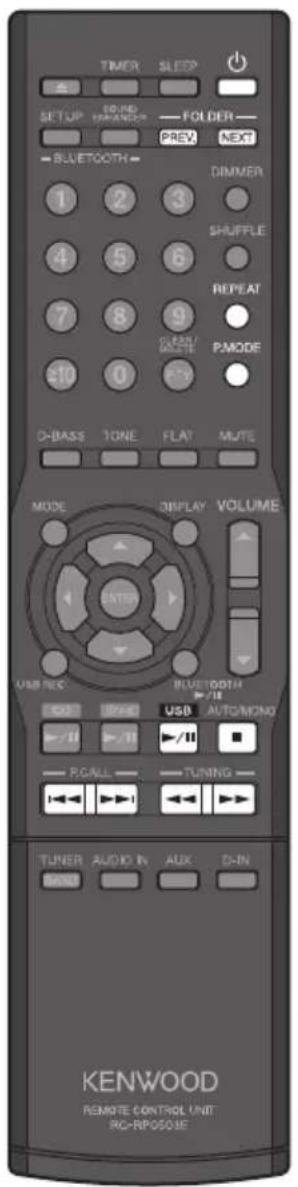
Other operations during playback
To pause and resume playback
Press [USB ▶/II].
To stop playback
Press [■].
To skip folders
Press[NEXT] to skip to a track in the next folder. Press[PREV.] to skip to a track in the previous folder.
To fast-forward or reverse
Press and hold [▶▶] to fast-forward. Press and hold [◀◀] to reverse.
To skip tracks
Press [▶▶] to skip to the next track. Press [|◀◀] to skip to the beginning of a track. Press [|◀◀] repeatedly to skip to a previous track.
To play the files in the selected folder (Folder playback)
Press [■] to stop playback, then press [P.MODE] repeatedly until "☐" indicator lights up.
To select random play
Press [■] to stop playback, press [P.MODE] repeatedly until "×" indicator lights up, then press [USB ▶/II] to start playback. Each time you press [P.MODE], the mode changes as... Folder playback(" indicator lights up) → Random playback (" indicator lights up) → Folder Random playback (" indicators light up) → Normal playback → (back to the beginning)
To select repeat play
Press[REPEAT]repeatedly. Each time you press the button, the mode changes as.... Single-track repeat playback (" Indicator lights up) → All-track repeat playback (" Indicator lights up) → Normal playback → (back to the beginning)
To disconnect the USB device
Press [■] to stop playback, press [◎] to turn off the power, then disconnect the USB device.

- When you stop playback by pressing [■] the track being played is stored ("▶" indicator flashes). Pressing the [USB ▶/II] restarts playback from the beginning of that track. (Resume function)
● The Resume function is canceled if you press [■] again or turn off the power. - Skip folder may not work with some USB devices.
● Program play is not available for USB playback. - It is recommended to use a USB device whose capacity is less than 16 GB.
Preparation:
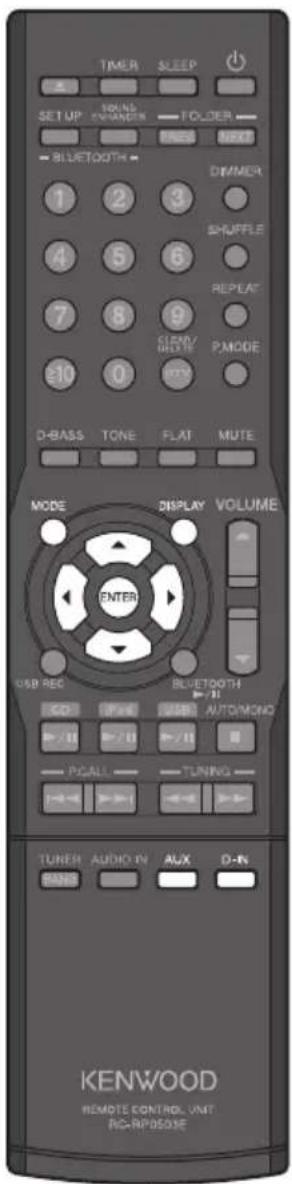
Connect an external component to the AUX PLAY IN or DIGITAL IN terminals on the rear panel. Refer to "Other connections (commercially available accessories)" for connection (P.9).
Starts playback
1 For playing a component connected to the AUX PLAY IN terminals: Press [AUX].
- You can also start playback on the main unit by pressing [INPUT] to change the input source to "AUX".
For playing a component connected to the DIGITAL IN terminal: Press [D-IN].
- You can also start playback on the main unit by pressing [INPUT] to change the input source to "D-IN".
- When [D-IN] is selected, the input signal sampling frequency is displayed.
![KENWOOD K-531-SB - For playing a component connected to the AUX PLAY IN terminals: Press [AUX]. - 1](/content/2026/05/758635/images/84d23a82617fa0df2f0fdfca64bee2a1d0d20802774c6a28f0378282b680ba02.jpg)
2 Operate the connected external component to start playback.
Adjusting the input level for AUX source
- Use this adjustment when the volume from an external component is noticeably higher or lower than other input sources at the same volume setting.
1 Press [AUX].
- You can also start playback on the main unit by pressing [INPUT] to change the input source to "AUX".
2 Operate the component connected to AUX PLAY IN terminals to start playback.
3 Press [MODE].
4 Press [◀] or [▶] to select "INPUT LEVEL", then press [ENTER].
5 Press [▲] or [▼] to adjust the input level (-3 to +5), then press [ENTER].
To change the display information
Press[DISPLAY] repeatedly.
Each time you press the button, the display changes as....
"AUX" or "D-IN" → Day/Clock → (back to the beginning)

- Refer also to the instruction manual that comes with the external component.
● This System can play PCM (32 kHz, 44.1 kHz, 48 kHz, 88.2 kHz, 96 kHz) digital signals.
Preparation:
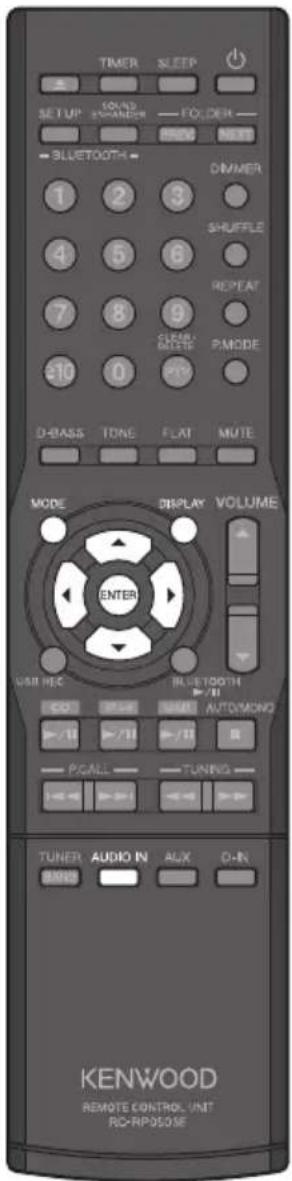
Connect a component (such as a digital audio player) to the AUDIO IN terminal on the rear panel. Refer to "Other connections (commercially available accessories)" for connection (P.9).
Starts playback
1 Press [AUDIO IN].
- You can also start playback on the main unit by pressing [INPUT] to change the input source to "AUDIO IN".
2 Operate the component (such as a digital audio player) to start playback.
Adjusting the input level
- Use this adjustment when the volume from a component (such as a digital audio player) is noticeably higher or lower than other input sources at the same volume setting.
1 Press [AUDIO IN].
- You can also start playback by pressing [INPUT] to change the input source to "AUDIO IN" on the main unit.
2 Operate the component (such as a digital audio player) to start playback.
3 Press [MODE].
4 Press [◀] or [▶] to select "INPUT LEVEL", then press [ENTER].
5 Press [▲] or [▼] to adjust the input level (-3 to +5), then press [ENTER].
To change the display information
Press [DISPLAY] repeatedly.
Each time you press the button, the display changes as....
"AUDIO IN"→Day/Clock→(back to the beginning)
Main unit
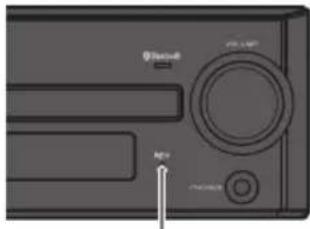
REC LED
(Lights up during recording)
You can record the sound from an Audio CD, FM/AM radio broadcast, or an external component to the USB device in MP3 format.
Preparation:
Connect a USB device (with sufficient free space) for recording to the terminal. (P.30)
Recording all tracks of a CD
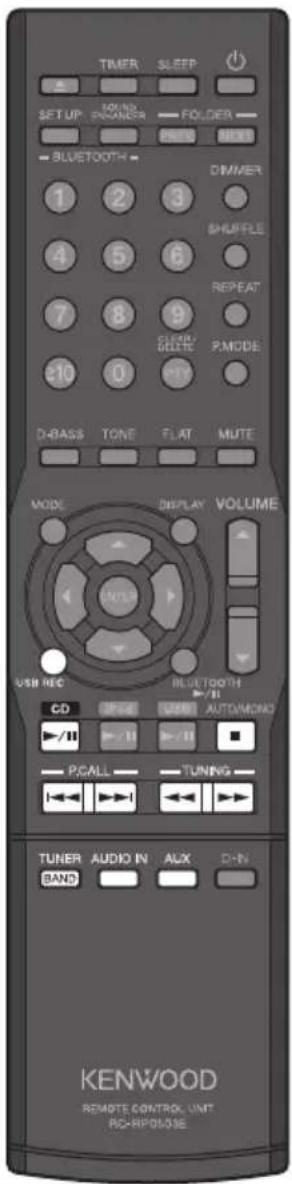
1 Press [CD▶/II] to select "CD" source, then press [■].
2 Press [USB REC] to start recording.
Playback and recording stop automatically when all tracks have been recorded.
Recording a single track of a CD
1 Start or pause playback of the track you want to record.
2 Press [USB REC] to start recording.
Playback starts from the beginning of the selected track, and playback and recording stop automatically when the selected track has been recorded.
Recording desired tracks in desired order
1 Program the tracks and playback order for recording. (Step 1 to 3, P. 21)
2 Press [USB REC] to start recording.
Playback and recording stops when all the programmed tracks have been recorded.
Recording from TUNER, AUDIO IN, AUX source
1 Press [TUNER/BAND], [AUDIO IN], or [AUX] to select the desired source you want to record.
2 For "TUNER": Tune in to the station you want to record. (P.22) For "AUDIO IN" and "AUX": Start playback of the component you want to record.
3 Press [USB REC] to enter the recording standby mode. The REC LED on the main unit flashes while recording standby mode.
4 Press [USB REC] to start recording.
To stop recording
Press □.

- Do not disconnect the USB device during recording process.
● You cannot record MP3/WMA files recorded on a CD-R/CD-RW. - USB recording does not function while the sleep timer is activated.
Selecting the recording sound quality
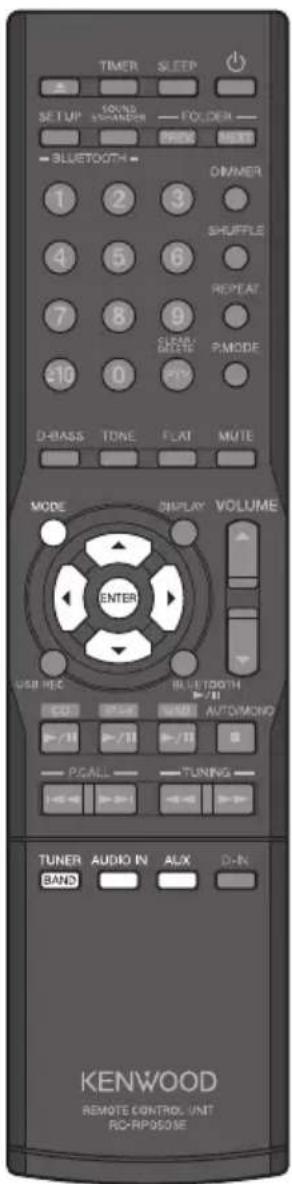
1 Press [CD ▶ /II], [TUNER/BAND ], [AUDIO IN], or [ AUX] to select an input source.
2 Press [MODE].
3 Press [◀] or [▶] to select "REC FORMAT", then press [ENTER].
4 Press [▲] or [▼] to select the recording sound quality, then press [ENTER].
● SQ Records with normal quality (bit rate: 128 kbps)
● HQ Records with high quality (bit rate: 192 kbps)
Dividing the recorded file automatically
You can divide the file during recording from a tuner or an external component, etc. automatically with 15 or 30 minute intervals.
● You can select the dividing time for each input source.
1 Press [TUNER/BAND], [AUDIO IN], or [AUX] to select the input source.
2 Press [MODE].
3 Press [◀] or [▶] to select "AUTO DIVIDE", then press [ENTER].
4 Press [▲] or [▼] to select the interval for dividing the file, then press [ENTER].
- OFF Divide the file manually. The file is divided at the point you press [ENTER].
● 15 min. The file is divided every 15 minutes.
● 30 min. The file is divided every 30 minutes.
You can divide the file manually by pressing [ENTER] even though "15 min." or "30 min." is selected.

● Recording sound quality setting affects all input sources.
● Recording stops automatically if...
- you turn off the System.
- the USB device run out of space.
- the number of files/folders on the USB device reaches the limit for the number that the System can recognize.
- When you divide the file, short silence is inserted between tracks during playback.
- The recorded files are saved in the "KWD" folder which is created automatically on the root of the USB device.
Adjusting super-bass tones (D-BASS)
The System has a digital signal processor (DSP), which allows you to adjust the impact of super-bass tones.
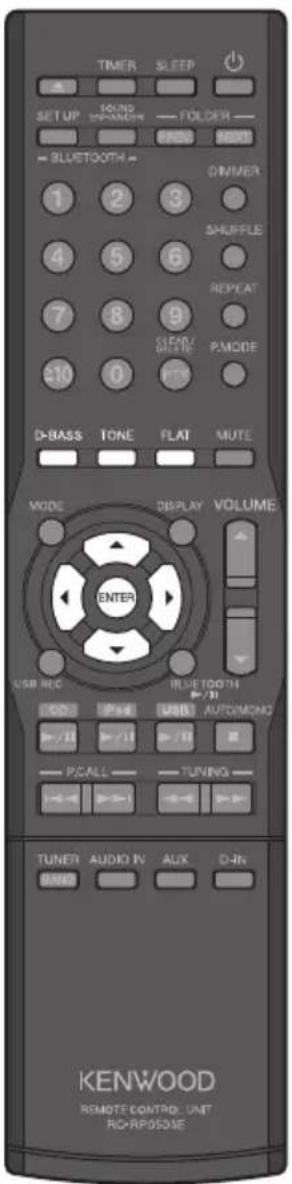
1 Press [D-BASS].
2 Press [▲] or [▼] to adjust the level (0 to 10), then press [ENTER].
● Higher numbers give more pronounced super-bass tones.
● "D-BASS" indicator lights up (except if the level is set at 0).
Adjusting the range levels (TONE)
With the built-in digital signal processor (DSP), you can adjust also the levels of low-, mid-, and high-range tones.
1 Press [TONE] to select the range tones.
Each time you press the button, the range tone changes as.... BASS (low-range tones) → MID (mid-range tones) → TREBLE (high-range tones) → Canceled → (back to the beginning)
2 Press [◀] or [▶] to select the frequency.
● BASS 100 Hz, 150 Hz, 200 Hz
● MID 1 kHz, 2 kHz, 3 kHz
● TREBLE 5 kHz, 7 kHz, 10 kHz
You can adjust 1 frequency for each range tone.
3 Press [▲] or [▼] to adjust the level (-8 to +8).
4 Repeat steps 1 to 3 to adjust the other range tones (if acquired).
5 Press [ENTER] to confirm.
- "TONE" indicator lights up (except if the level is set to 0).
To cancel super-bass tones or range levels
Press [FLAT].
All level values are set to "0".
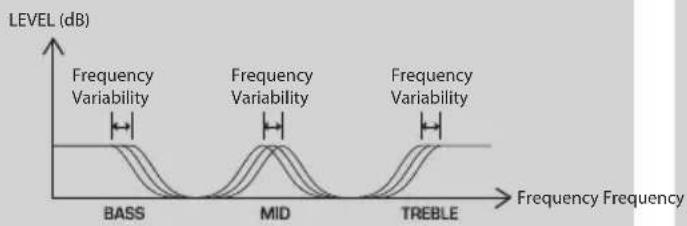
line
| Frequency Type | Level (dB) | | -------------- | ---------- | | BASS | Low | | MID | High | | TREBLE | Low |Adjusted levelVariable frequencies
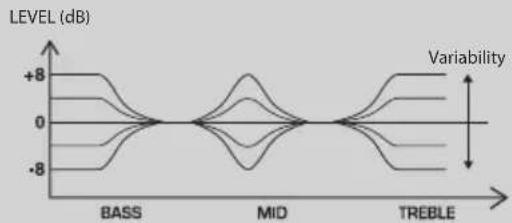
line
| Frequency | Level (dB) | | --------- | ---------- | | BASS | +8 | | BASS | 0 | | BASS | -8 | | MID | +8 | | MID | 0 | | MID | -8 | | TREBLE | +8 | | TREBLE | 0 | | TREBLE | -8 |
Audio setting adjustments do not affect the sound from components connected to the DIGITAL OUT terminal or AUX REC OUT terminals, or the sound during recording.
Matching the acoustic effect to the listening environment (CONEQ)
The CONEQ (Convolution Equalizer) digital sound correction technology allows you to select the suitable acoustic effect to your room.
1 Press [MODE].
2 Press [◀] or [▶] to select "CONEQ SET", then press [ENTER].
3 Press [▲] or [▼] to select a mode suitable to the room environment, then press [ENTER].
● CONEQ MODE1: For a room with an average acoustic environment
- CONEQ MODE2: For a room where sound is not echoed easily—having a lot of sound-absorbing materials, e.g. curtains
- CONEQ MODE3: For a room where sound is echoed easily—having a lot of hard materials, e.g. cement or floor boards
Setting Supreme EX
Supreme EX is our original sound quality enhancement technology and is used for playing CDs and audio files or for playback using components connected to the DIGITAL IN terminal.
- Supreme EX works when "CD", "D-IN", "iPod", or "USB" is selected. Supreme EX does not work when the sampling frequency of the wave file is more than 48 kHz or when the input frequency for "D-IN" is 96 kHz, 88.2 kHz or 48 kHz ("SPRM EX" indicator goes off).
1 Press [MODE].
2 Press [◀] or [▶] to select "SPRM SET", then press [ENTER].
3 Press [▲] or [▼] to select "SPRM ON" or "SPRM OFF", then press [ENTER].
● "SPRM EX" indicator lights up when "SPRM ON" is selected.
Adjusting the volume balance of the left and right speakers
This function is not available while headphones are connected.
1 Press [MODE].
2 Press [◀] or [▶] to select "BALANCE", then press [ENTER].
3 Press [▲] or [▼] to adjust the volume balance for the left and right speakers, then press [ENTER].
Setting the sleep timer (SLEEP)
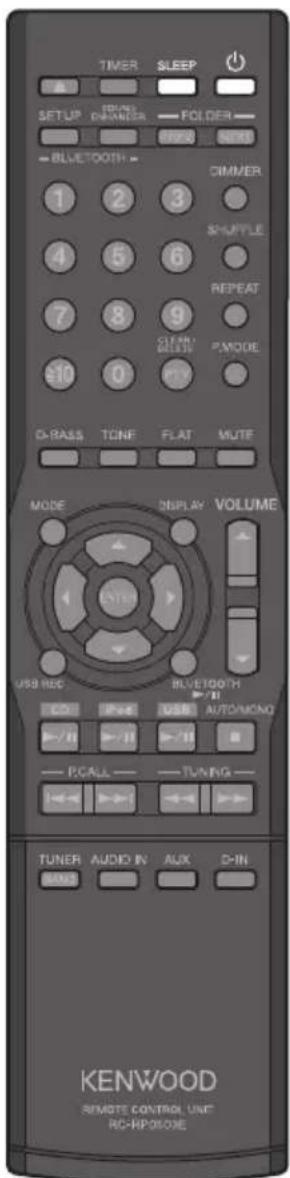
This function automatically turns the System off after a set interval. You can set an interval from 10 to 90 minutes (in 10-minute increments).
1 Press [SLEEP] repeatedly to select the time interval to turn off the System.
Each time you press the button, the timer (minutes) changes as.... 10 → 20 → 30 → 40 → 50 → 60 → 70 → 80 → 90 → Canceled ("Indicator goes off) → (back to the beginning)
To check the remaining time (when sleep timer is activated) Press [SLEEP].
To cancel the sleep timer
Press [∅] to turn off the System (Standby), or press [SLEEP] repeatedly until "Indicator goes off.
Setting the program timer (TIMER SET)
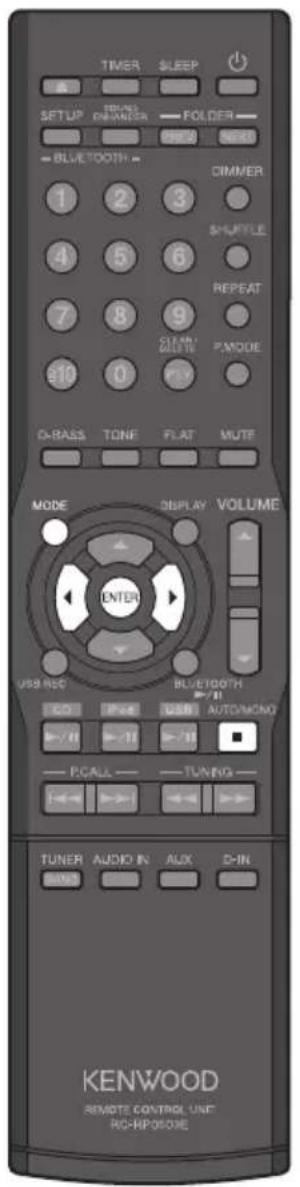
This function allows you to use the timer to start playback or recording automatically at a specified time. You can set two timers ("PROG. 1" and "PROG. 2").
The available sources for program timer are as follows:
- For playback: TUNER, CD, iPod, USB, D-IN, AUX or AUDIO-IN
- For recording: TUNER
- Set the System clock to the correct time before performing this procedure. (P.41)
● Prepare the input source and check whether it works. - For recording with a timer, connect a USB device (with sufficient free space) to the terminal. (P.30)
● To go back to the previous step, press [◀].
1 Press [MODE].
2 Press [◀] or [▶] to select "TIMER SET", then press [ENTER].
![KENWOOD K-531-SB - Press [◀] or [▶] to select "TIMER SET", then press [ENTER]. - 1](/content/2026/05/758635/images/71aa6cac8ee5adf47f6d8537e46eba9303245233532d950ae0281036ea8e779c.jpg)
![KENWOOD K-531-SB - Press [◀] or [▶] to select "TIMER SET", then press [ENTER]. - 2](/content/2026/05/758635/images/fcd8fae87103312755d9673804ef3812ee40eb99d086723f153b5581699653a0.jpg)
- For "AUX" or "AUDIO-IN", connect a component equipped with a timer function. You cannot activate or deactivate the timer function of the connected component by operating on the System.
- When recording with a timer, the System is turned on and paused 2 minutes before the start time of the recording.
- When you activate two programs, make sure the times for each program are different by at least 3 minutes to ensure that their operations do not overlap.
- If you select "PLAY" or "AI PLAY", turn off the System more than 1 minute before the start time.
- If you select "REC", turn off the System more than 3 minutes before the start time.
- When the System is in Standby mode, you can display the timer setting (on or off) and the current time for 5 seconds by pressing [■]
Continued to next page
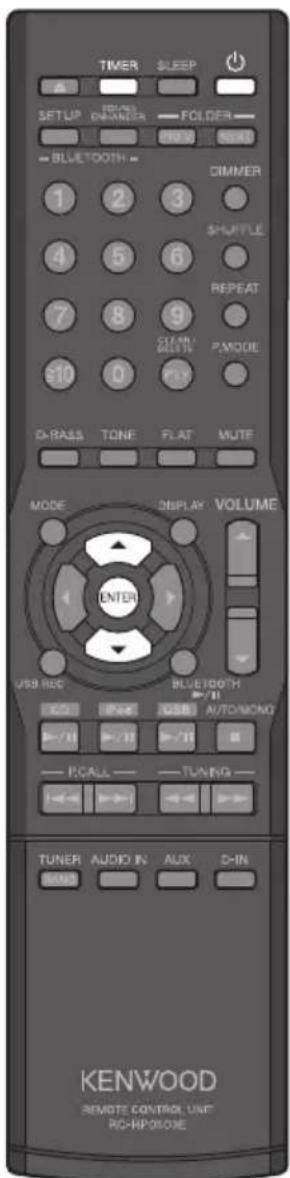
3 Press [▲] or [▼] to make selection, then press [ENTER].
① Select "PROG. 1" or "PROG. 2".
② Select "ON" or "OFF".
Selecting "OFF" ends the procedure and restores the original display.
③ Select the day(s) to activate the timer.
EVERYDAY, SUNDAY, MONDAY, TUESDAY, WEDNESDAY, THURSDAY, FRIDAY, SATURDAY, MON-FRI, TUE-SAT, SAT-SUN
④ Select "EVERY WEEK" or "ONETIME".
⑤ Set the "ON" time (start time).
⑥ Set the "OFF" time (end time).
⑦ Select "PLAY", "AI PLAY" or "REC".
● PLAY: Timer playback with the volume set for program timer
● AI PLAY : Timer playback with the volume gradually increased to the level set for program timer
● REC : Timer recording
⑧ Set the volume level (0 to 80) for program timer.
You cannot use the [VOLUME ▲] or [VOLUME ▼] to make this setting.
⑨ Select the input source (TUNER, CD, iPod, USB, D-IN, AUX or AUDIO-IN).
- If you select an input source other than "TUNER", press [ENTER] to complete the settings.
- If you select "TUNER", press [▲] or [▼] to select a preset number, then press [ENTER] to complete the settings.
- If you select "REC" in step ⑦, "TUNER" source is automatically selected. Press [▲] or [▼] to select a preset number, press [ENTER], then press [▲] or [▼] to select the recording sound quality ("SQ" or "HQ") and press [ENTER] to complete the settings.
When the settings are completed, "COMPLETE" appears and restores the original display.
4 Press [⏻] to turn off the power (in order to activate the program timer).
● The STANDBY/TIMER LED on the main unit lights orange.
To turn the timer off and on
Press [TIMER] repeatedly (when the System is turned on).
Each time you press the button, the mode changes as....
PROG. 1 turns on (" " indicator lights up) → PROG. 2 turns on ("④ 2 indicator lights up) → PROG. 1 and 2 turn on ("④ indicator lights up) → Timer off ("④ indicator goes off)
To modify the program settings
Reconfigure the program timer from the beginning.
Setting the display brightness (DIMMER)
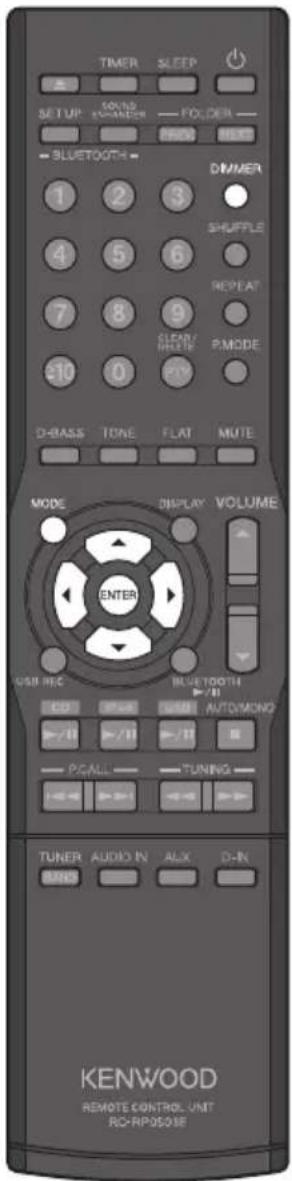
Adjust the display brightness according to your preferences and the conditions in the room.
1 Press [DIMMER] repeatedly.
Each time you press the button, the mode changes as.... DIMMER OFFormal brightness) → DIMMER 1 (reduces the display brightness) → DIMMER 2 (reduces the display brightness and turn off the dial lighting) → DIMMER 3 (restores the normal display brightness and turn off the dial lighting) → (back to the beginning)
Setting the display saver (DISP. SAVER)
Turn on the display saver if the System is not used at all for a set period. The display information scrolls to prevent burn-in of the text on the display and uneven display brightness.
1 Press [MODE].
2 Press [◀] or [▶] to select "DISP. SAVER", then press [ENTER].
3 Press [▲] or [▼] to select "ON" or "OFF", then press [ENTER].
● ON Activates the display saver if the System is not in used at all for about 10 minutes after playback stops or a button is pressed.
● OFF Deactivates the display saver.
Setting the System clock
1 Press [MODE].
2 Press [◀] or ▶] to select "TIME ADJUST", then press [ENTER].
3 Press [▲] or [▼] to set the day (of the week), then press [ENTER].
4 Press [▲] or [▼] to set the hour, then press [ENTER].
5 Press [▲] or [▼] to set the minute, then press [ENTER].

- If a power failure occurs or the System is unplugged then plugged in again, set the System clock to the correct time again.
- When the System is in Standby mode, you can display the clock time for 5 seconds by pressing [■].
Setting the Auto Power Save (A.P.S.)
1 Press [MODE].
2 Press [◀] or ▶] to select "A.P.S. SET", then press [ENTER].
3 Press [▲] or [▼] to select "ON" or "OFF", then press [ENTER].
ON : Activates the auto power save if no operation is performed for 15 minutes in the following conditions.
● The volume is set to 0 ("VOLUME 0") or sound is muted.
- Disc or USB device is not played with the target input source ("CD" or "USB") selected.
- BLUETOOTH device is not connected with "BLUETOOTH" source selected.
- iPod/iPhone is not connected with "iPod" source selected.
- No audio signals come in and "UNLOCK" appears on the display with "D-IN" source selected.
OFF: Deactivates the auto power save.

● Auto Power Save does not work while recording on the USB device.
- When recording audio signals from the AUX REC OUT terminals to the other component, Auto Power Save activates. To avoid the interruption of the recording due to Auto Power Save activating, deactivate Auto Power Save (select "OFF") or set the volume anything other than "0".
Troubleshooting
Whenever the System is not operating as expected, check the following tables to see if you can resolve the problem yourself before requesting service.
| Symptoms Solution | ||
| Amplifier / Speakers | No sound comes out from the speakers. | Check all connections as described in “Connection.” (P.8, 9)Increase the volume. (P.10, 12)Cancel muting. (P.12)Unplug any headphones plugged into the main unit. (P.10) |
| No sound can be heard when “D-IN” source is selected. | Check all connections as described in “Connection.” (P.9)Check whether “PCM” is selected for the digital audio output setting on the connected component. | |
| No sound comes out from one of the speakers. | Check all connections as described in “Connection.” (P.8)Check the volume balance for the left and right speakers. (P.37) | |
| The clock display is flashing. Set the clock as described in “Setting the System clock.” (P.41) | ||
| The timer does not work. Set the clock as described in “Setting the System clock.” (P.41)Set a start time and end time for the program timer. (P.39) | ||
| CD | A disc does not play back when loaded. | Load the disc correctly with the label side facing upward. (P.18)Clean the disc. (See “Care and storage.”) (P.17)Allow any condensation to evaporate. (See “Care and storage.”) (P.17) |
| No sound can be heard. | Press the [CD ▶/II].Clean the disc. (See “Care and storage.”) (P.17) | |
| Playback skips. | Clean the disc. (See “Care and storage.”) (P.17) | |
| Some audio files are not played. | The System will not play audio files that are corrupted.Make sure the audio file is supported for playback on the System. (P.15) | |
| It takes time to start playback. | There may be a delay prior to playback if there are large numbers of folders. (P.16) | |
| Tag information is not displayed correctly. | Refer to “Supported audio files” to check which tag information can be displayed on this System. (P.15) | |
| Tuner | A radio broadcast cannot be received. | Connect the antennas. (P.8)Connect the black and white cords of the AM loop antenna correctly. (P.8)Select the broadcast band (AM or FM). (P.22)Tune the radio to the frequency of the desired station. (P.22) |
| A radio broadcast has interference from noise. | Install an outdoor antenna away from roads.Turn off any electrical appliances that may be causing interference.Move the System away from the TV. | |
| Automatic presetting does not work. | Perform automatic presetting again. (P.23)Manually preset stations with frequencies that you can receive. (P.23) | |
| BLUETOOTH | Pairing cannot be done. Reduce the distance between the System and the BLUETOOTH device.Pairing may not be possible if there are other BLUETOOTH devices around the System. In this case, turn off the other BLUETOOTH devices. | |
| Connection failed. Check whether the connected audio player supports A2DP (Advanced Audio Distribution Profile) or AVRCP (Audio/Video Remote Control Profile). (P.14)Disconnect and connect again. (P.25)Delete the registered information and pair the device again. (P.25, 27) | ||
| The sound skips or fluctuates, or the connection is lost. | Reduce the distance between the System and the BLUETOOTH device.Make sure there is no obstacle between the System and the BLUETOOTH device.Turn down the volume of the connected BLUETOOTH device. | |
| iPod/iPhone | The iPod/iPhone cannot be attached firmly. | Check to see whether the correct dock adapter is used. Then check to see whether the connector between the iPod/iPhone and the System is not damaged, and reconnect them. (P.28) |
| No sound can be heard from the iPod/iPhone. | The iPod/iPhone is not properly connected. Remove the iPod/iPhone from the System, and then connect it again. (P.28) | |
| The iPod/iPhone cannot be charged. | The iPod/iPhone is not properly connected. Disconnect the iPod/iPhone from the System, and then connect it again. (P.28) | |
| The iPod/iPhone does not play, or the iPod/iPhone cannot be recognized. | Reset the iPod/iPhone while disconnected from the System, then unplug and plug the power cord. (For reset of iPod/iPhone, refer to the Apple web site.)The iPod/iPhone is connected to the terminal. The terminal of the System does not support the iPod/iPhone connection. | |
| USB | No sound can be heard when USB flash memory or a USB audio player is connected. | Plug in the USB flash memory correctly. (P.30)Connect the USB cable correctly. (P.30)Check to make sure the USB audio player is turned on.Format the USB flash memory with the FAT32 format on a PC. (Be aware that the all recorded data on the USB flash memory is deleted if formatted.)Use other USB flash memory. |
| The iPod/iPhone does not play, or the iPod/iPhone cannot be recognized. | The iPod/iPhone is connected to the terminal. The terminal of the System does not support the iPod/iPhone connection. | |
| Recording | Unable to record to the USB device. | Make sure the USB device is not full.Make sure the USB device is not copy-protected.Make sure the connected USB device is compatible with this System. (P.14)The number of files/folders on the USB device reaches the limit for the number that the System can recognize. Erase unwanted files/folders. |
| Others | The remote control does not work. | Load new batteries. (P.13)Use the remote control within its effective range. (P.13) |
| Microcomputer malfunction. | Mifunctions may occur due to an external cause or because a connection cord was unplugged while the System was turned on. Follow the procedure below to reset the microcomputer.Unplug the power cord from the AC wall outlet.Plug the power cord back in while holding down [∅] on the main unit. Press and hold the button until the display below is shown. Resetting of the microcomputer starts.INITIALIZEWhen resetting is complete, the main unit returns to Standby Mode. Bear in mind that resetting will erase any stored information and will restore the System's default settings. | |
● Manufactured under license from Real Sound Lab, SIA.
● CONEQ is a trademark of Real Sound Lab, SIA.
- "Made for iPod" and "Made for iPhone" mean that an electronic accessory has been designed to connect specifically to iPod, or iPhone, respectively, and has been certified by the developer to meet Apple performance standards. Apple is not responsible for the operation of this device or its compliance with safety and regulatory standards. Please note that the use of this accessory with iPod, or iPhone may affect wireless performance.
- iPhone, iPod, iPod classic, iPod nano, and iPod touch are trademarks of Apple Inc., registered in the U.S. and other countries.
● Windows Media is a trademark of Microsoft Corporation registered in the U.S. and other countries.
- The Bluetooth® word mark and logos are owned by the Bluetooth SIG, Inc. and any use of such marks by JVC KENWOOD Corporation is under license.
Specifications
| Amplifier | |||
| Effective output power during STEREO operation 40 W + 40 W, RMS (1 kHz, 10% T.H.D., 4 Ω) | |||
| Total harmonic distortion 0.03% (1 kHz, 1 W, 4 Ω) | |||
| Tone control characteristics | BASS (TURN OVER 100 Hz) ±4.0 dB (at 100 Hz) | ||
| MID (TURN OVER 1 kHz) ±8.0 dB (at 1 kHz) | |||
| TREBLE (TURN OVER 5 kHz) ±7.6 dB (at 10 kHz) | |||
| D-Bass (+10) +15.9 dB (60 Hz, Vol. 60) | |||
| Input terminals (Sensitivity/Impedance) AUX PLAY IN 500 mV / 47 kΩ | |||
| Output terminals (Level/Impedance) SUB W OOFER PRE OUT 2 V / 160 Ω | |||
| Digital unit | ||
| Sampling frequencies 32 kHz, 44.1 kHz, 48 kHz, 88.2 kHz, 96 kHz | ||
| Supreme EX (CD, D-IN, iPod, USB) | Playable frequencies | 1 Hz to 24 kHz |
| Input terminals (Sensitivity/Wave length) | Optical | -15 dBm to -24 dBm, 660 nm ±30 nm |
| Output terminals (Level/Wave length) | Optical | -21 dBm to -15 dBm, 660 nm |
| USB | |
| Usable USB device | USB Mass storage class device |
| Interface | USB2.0 (Full speed) USB1.1 compatible |
| File system | FAT 16/FAT 32 |
| Output | DC 5 V=500 mA |
| iPod/iPhone | |
| Output | DC 5 V==1 A |
| Tuner | ||
| FM tuner Reception frequency range | 87.5 MHz to | 108 MHz |
| Antenna impedance | 75 Ω unbalanced | |
| AM tuner | Reception frequency range | 531 kHz to 1,602 kHz |
| CD player | |
| Scanning method Semiconductor laser | |
| BLUETOOTH | |
| Version BLUETOOTH ver. 2.1 +EDR Class 2 | |
| Compatible BLUETOOTH profile A2DP (Advanced Audio Distribution Profile)*AVRCP (Audio Video Remote Control Profile) | |
| Communication format 2.4 GHz FHSS | |
| Maximum communication range Line of sight approx. 10 m | |
* For reception only, compatible with SCMS-T.
| Power supply, etc. | ||
| Power supply Europe AC 230 V, 50 Hz | ||
| Australia AC 240 V, 50 Hz | ||
| Standby power consumption 0.5 W or less | ||
| Power consumption 45 W | ||
| Dimensions (Width × Height × Depth) 200 mm | ×95 mm × 299 mm | |
| Weight (net) 2.3 k | g | |
| Speaker | ||
| Enclosure Bass-reflex | ||
| Speaker unit Woofer 110 mm Cone type | ||
| Tweeter | 25 mm Dome type | |
| Rated impedance | 4 Ω | |
| Max input power | 40 W | |
| Dimensions (Width × Height × Depth) 140 mm | × 237 mm × 236 mm | |
| Weight (net) 3.4 k | g(each) | |
Notes:
- JVC KENWOOD follows a policy of continuous advancements in development. For this reason specifications may be changed without notice.
● Sufficient performance may not be exhibited at extremely cold locations (where water freezes).
KENWOOD
For your records
Record the serial number, found on the back of the unit, in the spaces designated on the warranty card, and in the space provided below. Refer to the model and serial numbers whenever you call upon your dealer for information or service on this product.
Model
Serial Number

- Before Applying Power
- IMPORTANT FOR LASER PRODUCTS
- CAUTION
- Information on Disposal of Old Electrical and Electronic Equipment and Batteries (applicable for EU countries that have adopted separate waste collection systems)
- Manufacturer:
- EU Representative's:
- English
- Français
- CD
- Radio
- Radio Data System
- BLUETOOTH
- iPod/iPhone
- USB playback
- External components
- Digital audio players, etc.
- USB recording
- Audio settings
- Timer settings
- Other settings
- How to read this manual
- Accessories
- Transporting or moving the System
- Installing the System
- Proper ventilation
- Power supply
- Installing the speakers
- Main connections
- Speakers\*
- Connecting the FM antenna cord
- Part names and functions
- Main unit
- Display
- TUNED
- ST.
- MHz
- A.P.S.
- TONE
- D-BASS
- SPRM EX
- Remote control (RC-RP0503E)
- How to use the number buttons on the remote control
- Important information
- About BLUETOOTH function
- Supported audio files
- Disc formats
- Number of file limits
- Maximum number of displayable characters
- Other notes
- Precautions when writing data to media
- Playback sequence for folders and files (MP3/WMA/WAV)
- Handling discs
- ● Handling precautions
- ● Discs playable on the System
- ● Notes on CD-ROM/CD-R/CD-RW
- ● Cautions on discs
- Care and storage
- - Keep the System out of the following locations
- ● Be careful against condensation
- - When a main unit becomes dirty
- Discs
- - Storing a disc
- - Cleaning a disc
- - Other cautions
- Starts playback
- Press [▲] to open the CD tray and then insert the disc.
- Press [▲] again to close the CD tray.
- Press [CD ▶/II] to start playback.
- To change the display information
- Other operations during playback
- To pause playback
- To stop playback
- To playback a specified track number
- To fast-forward or reverse
- To skip tracks
- To skip folders (MP3/WMA)
- Random play
- To cancel random play
- Repeat play
- To cancel repeat play
- Program play
- Press [P.MODE] repeatedly until "PGM" indicator lights up.
- For MP3/WMA:
- Repeat step 2 to select more tracks.
- Press [CD▶/II] to start the program playback.
- To cancel program playback
- To delete a track from a program
- To add a track to the end of a program
- Preparation:
- Listening to FM/AM radio
- Press [TUNER/BAND] to select "FM" or "AM".
- Press [AUTO/MONO] to select the tuning mode (automatic search or manual search).
- Press [TUNING ◀◀] / [TUNING ▶▶] to tune into a station.
- To select a preset station
- Presetting stations automatically (AUTO MEMORY)
- Presetting stations manually
- Displaying Program Service (PS) name
- When an Radio Data System broadcast is received, the station name is displayed automatically.
- Searching for a desired Program Type (PTY Search)
- Press [PTY].
- Press [▲] or [▼] to select the desired program type, then press [ENTER].
- To cancel PTY Search
- Pairing this System with a BLUETOOTH device
- Turn on the BLUETOOTH device.
- Press [BLUETOOTH▶/II] to select "BLUETOOTH" source.
- Press [BLUETOOH SETUP].
- Press [◀] or [▶] to select "PAIRING?", then press [ENTER]. The System enters pairing mode.
- Operate the BLUETOOTH device to perform the pairing operation.
- Listening to a BLUETOOTH device
- Press [BLUETOOTH ▶/II] to start playback of the BLUETOOTH device.
- To pause and resume playback
- To improve the sound of the BLUETOOTH device (BLUETOOH sound enhancer)
- Press [BLUETOOTH SOUND ENHANCER].
- Other BLUETOOTH settings
- Press [BLUETOOTH SETUP].
- Press [◀] or [▶] to select an item, then press [ENTER].
- Use [◀], [▶], [▲], [▼] or [ENTER] to change the setting if necessary.
- Connect an iPod/iPhone.
- Press [iPod ▶/II] to start playback.
- To remove the dock adapter
- To select the shuffle mode
- To select repeat play
- To select an item from the menu
- To put the iPod/iPhone in sleep mode
- Connect a USB device to the terminal.
- Press [USB ▶/II] to start playback.
- Deleting the audio files from the USB device
- Start or pause the playback of an audio file you want to delete.
- Press [CLEAR/DELETE].
- Press [▲] or [▼] to select "DEL.OK", then press [ENTER].
- To skip folders
- To play the files in the selected folder (Folder playback)
- To select random play
- To disconnect the USB device
- For playing a component connected to the AUX PLAY IN terminals: Press [AUX].
- Operate the connected external component to start playback.
- Adjusting the input level for AUX source
- Press [AUX].
- Operate the component connected to AUX PLAY IN terminals to start playback.
- Press [MODE].
- Press [◀] or [▶] to select "INPUT LEVEL", then press [ENTER].
- Press [▲] or [▼] to adjust the input level (-3 to +5), then press [ENTER].
- Press [AUDIO IN].
- Operate the component (such as a digital audio player) to start playback.
- Adjusting the input level
- Recording all tracks of a CD
- Recording a single track of a CD
- Recording desired tracks in desired order
- Recording from TUNER, AUDIO IN, AUX source
- To stop recording
- Selecting the recording sound quality
- Dividing the recorded file automatically
- Adjusting super-bass tones (D-BASS)
- Press [D-BASS].
- Press [▲] or [▼] to adjust the level (0 to 10), then press [ENTER].
- Adjusting the range levels (TONE)
- Press [TONE] to select the range tones.
- Press [◀] or [▶] to select the frequency.
- Press [▲] or [▼] to adjust the level (-8 to +8).
- Repeat steps 1 to 3 to adjust the other range tones (if acquired).
- Press [ENTER] to confirm.
- To cancel super-bass tones or range levels
- Matching the acoustic effect to the listening environment (CONEQ)
- Setting Supreme EX
- Adjusting the volume balance of the left and right speakers
- Setting the sleep timer (SLEEP)
- Press [SLEEP] repeatedly to select the time interval to turn off the System.
- To cancel the sleep timer
- Setting the program timer (TIMER SET)
- Press [MODE].
- Press [◀] or [▶] to select "TIMER SET", then press [ENTER].
- Press [▲] or [▼] to make selection, then press [ENTER].
- Press [⏻] to turn off the power (in order to activate the program timer).
- To turn the timer off and on
- To modify the program settings
- Setting the display brightness (DIMMER)
- Press [DIMMER] repeatedly.
- Setting the display saver (DISP. SAVER)
- Setting the System clock
- Setting the Auto Power Save (A.P.S.)
- Troubleshooting
- Specifications
- Notes:
- KENWOOD
- For your records
Brand : KENWOOD
Model : K-531-SB
Category : Hi-Fi