
TCD128 - Mobile Phone PHILIPS - Free user manual and instructions
Find the device manual for free TCD128 PHILIPS in PDF.



| Product Type | Mobile Phone |
| Brand | Philips |
| Model | TCD128 |
| Network | GSM 900/1800 |
| Dimensions (approx.) | 108 x 44 x 20 mm |
| Weight (with battery) | 90 g |
| Display | Monochrome LCD, 3 lines + icons |
| Battery Type | Rechargeable Li-Ion, 3.7V |
| Standby Time | Up to 250 hours |
| Talk Time | Up to 3 hours |
| Charging | AC adapter via base connector |
| Phonebook | Names and numbers, up to 20 digits |
| Messages | SMS with pre-defined and custom texts, emotion icons |
| Call Records | Last 20 calls (dialed, received, missed) |
| Keypad Lock | Press and hold # to lock/unlock |
| Security | PIN, PIN2, Fixed Dialing Numbers |
| Tools | Calculator, Euro Converter, Biorhythm, Stopwatch, Alarm Clock |
| Call Features | Call Waiting, Automatic Redial, Scratchpad, DTMF, Caller ID Hide |
| Call Forwarding | To voicemail or another number, cancel |
| Ringer Volume | Adjustable, silent mode |
| Language | Multi-language, automatic country detection |
| Antenna | Internal |
| Compliance | CE, EMC and Low Voltage directives |
Frequently Asked Questions - TCD128 PHILIPS
User questions about TCD128 PHILIPS
0 question about this device. Answer the ones you know or ask your own.
Ask a new question about this device
Download the instructions for your Mobile Phone in PDF format for free! Find your manual TCD128 - PHILIPS and take your electronic device back in hand. On this page are published all the documents necessary for the use of your device. TCD128 by PHILIPS.
USER MANUAL TCD128 PHILIPS
| SWITCH ON | ADD A NAME | ACCESS TO MENU |
| Press and hold. | Network | Enter or exit the menus. |
| Enter phone number. | NAVIGATION | |
| Enter PIN: | OK | |
| - | 01234_ | Move Up or Back. |
| Enter your PIN code. | ||
| OK | Move Right. | |
| OK | 01234 | Move Left. |
| MAKE A CALL | Store no. | |
| Enter phone number. | OK | Move Down or Forward or Validate. |
| Name: | ||
| Call the number. | - | |
| (e.g.: 112 for emergency see p. 9) | Enter name. | SWITCH OFF |
| ANSWER A CALL | OK | Press and hold. |
| 12345678 | ||
| Number: | When your phone is switched off, you cannot receive calls. | |
| Accept. | 01234_ | |
| If number is OK. | ||
| END A CALL | OK | |
| Stored | ||
| End. |
![graph TD A["FORWARDING"] --> B["MENU"] B --> C["NAMES"] C --> D["CALLS"] D --> E["EXTRA"] E --> F["BioCalendar"] F --> G["Converted"] H["MESSAGE"] --> I["CALLS"] I --> J["Search View Add Own number"] J --> K["NAMES"] K --> L["EXIT"] L --> M["STOPwatch Clock"] M --> N["Alarm clock"] N --> O["Calculat…](/content/2026/05/768925/images/7387454af751bb33a8eb6644c8346c0fad21bb2a00415f6d9c07fcb5a9f1a041.jpg)

©
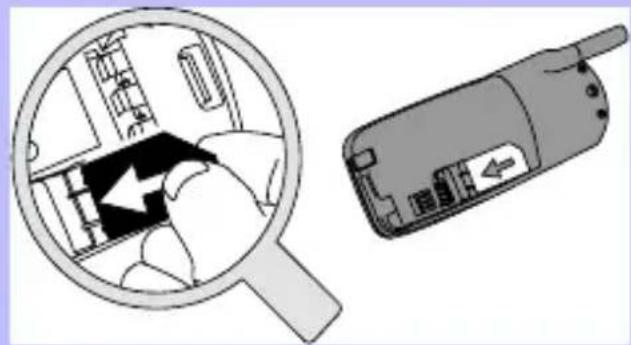
Insert the micro-SIM card
First, place the micro-SIM card into the appropriate slot in the battery compartment (the clipped corner should be at the top left). Then, slide the card with your finger until it stops.
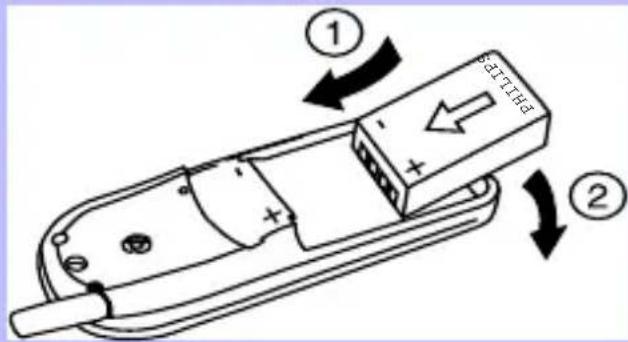
Insert the battery
- Keep the battery - and + on the top facing the - and + of the telephone.
- Slide the battery onto the contacts points and press.
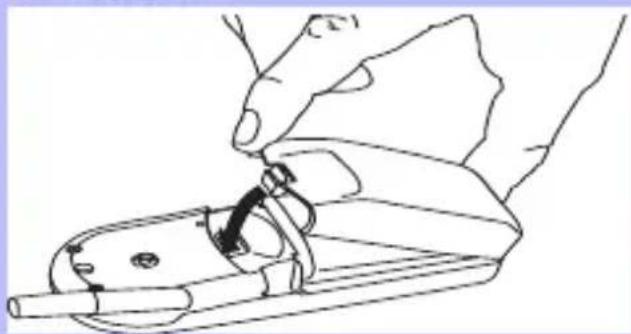
Replace the battery cover
Hook the battery cover onto the hinges on bottom of phone and press forward until the latch catches.
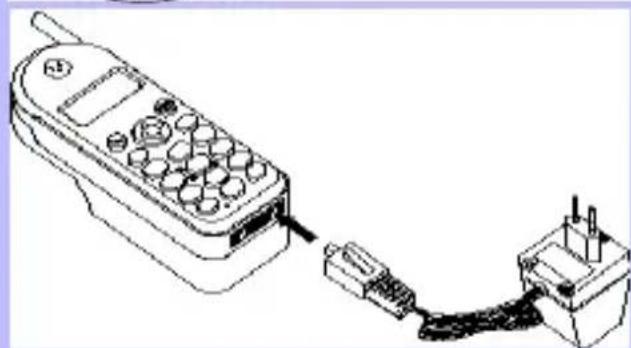
Charge the battery
With the battery inserted in the phone, plug the connector into the right socket at the base of the phone. Next, plug the transformer unit into an AC power socket.
The only way to turn off the charger is to unplug it, so use an easily accessible AC power socket.
The battery icon on your phone's display indicates the state of the charge process:
- Bars moving = battery is charging.
- Bars steady = battery is fully charged.
- Battery outline flashing (see Troubleshooting p. 32)
You can switch the phone on and use it during charging.
The first time you charge the battery and later, if it is completely discharged, the battery icon will only appear 2 to 3 minutes after you connect the charger.
DISCOVER YOUR PHONE
"Compass Key"
Use this key to navigate the menus; the OK key is used to validate information.
Earpiece
Listen here.
Antenna
Display
See next page.
Green "CALL" key
Press this key to call the number or name on the display, or use it to answer a call.
Red "POWER/
END" key
A long press on this key switches the phone on/off; a short press ends a call.
"CLEAR" key
to delete numbers and letters on the display
Menu key
to enter and exit the menus
Keypad
to enter numbers and text
Microphone
speak here
If you encounter the symbol in this manual, it means that you have to press and hold the key to activate the function.
ANSWER OR REJECT
A CALL

0123456789
The caller number is displayed only if your subscription supports caller line identification. If the number is in your Names list, the name will appear instead.

Accept the call
or
Reject the call.
EARPIECE VOLUME
While on a call you can adjust the earpiece volume.

Helen
17:24

Raise earpiece volume.
OR

Helen
17:24
Lower earpiece volume.

Helen
17:24
CONSULT LAST CALLS
Your phone automatically stores a list of the last 10 calls you dialled and the last 10 callers who dialled you (including missed calls).

Network
Display the last call made, received or missed.

Calls
Florence

To view other calls.

To call.

For information on viewing the last 20 calls you placed or received, see "Calls Section" p. 19.
ADJUST RINGER VOLUME
You can adjust and turn off the ringer volume.

Network

Display ringer volume selection.

Volume
Medium
HighMediumL

Select the volume.

Volume
Silent


Validate volume selection.

Set
EMERGENCY CALL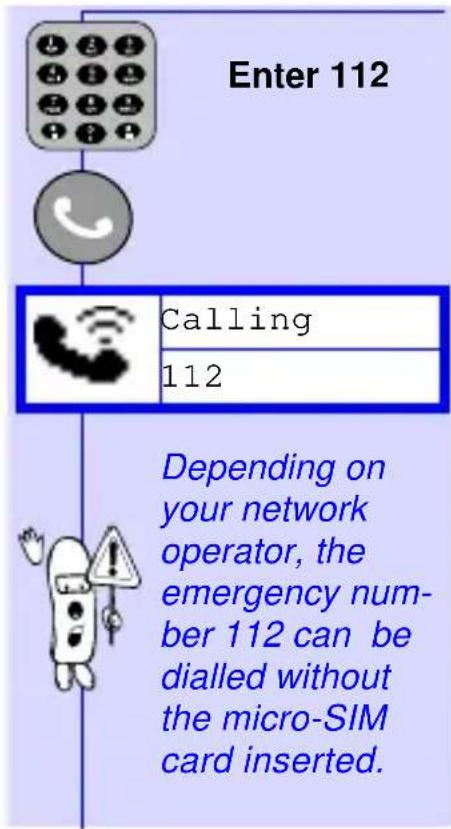
CHANGE LANGUAGE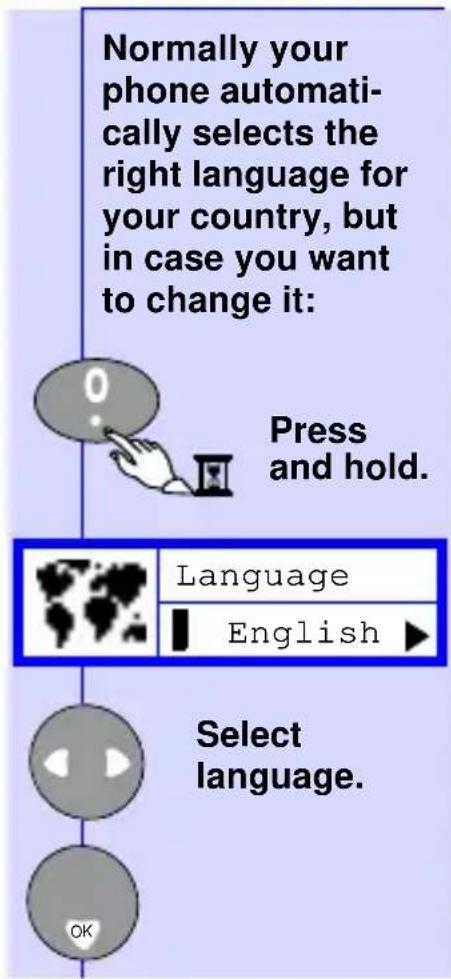
INTERNATIONAL CALL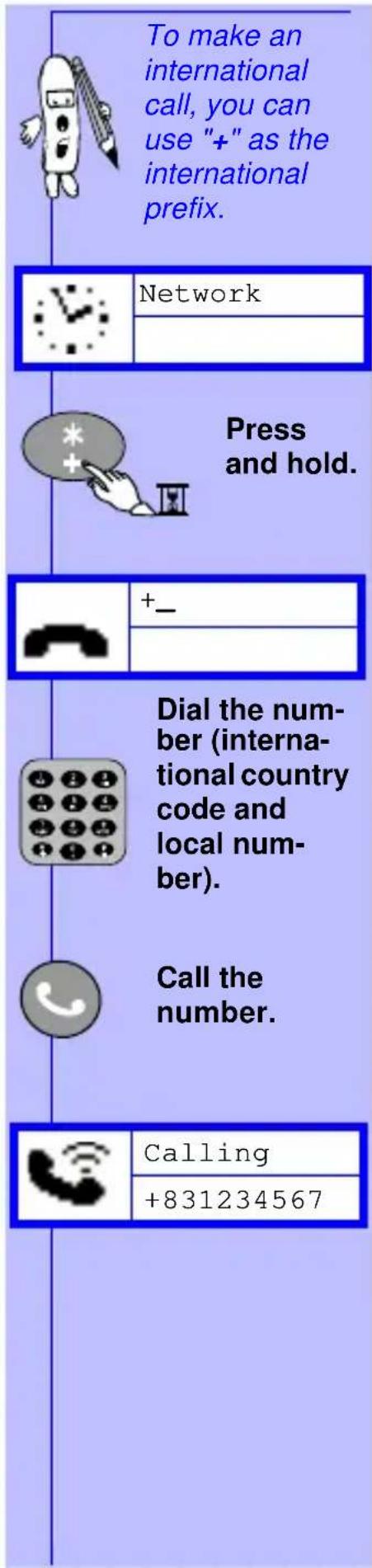
KEYPAD LOCK/UNLOCK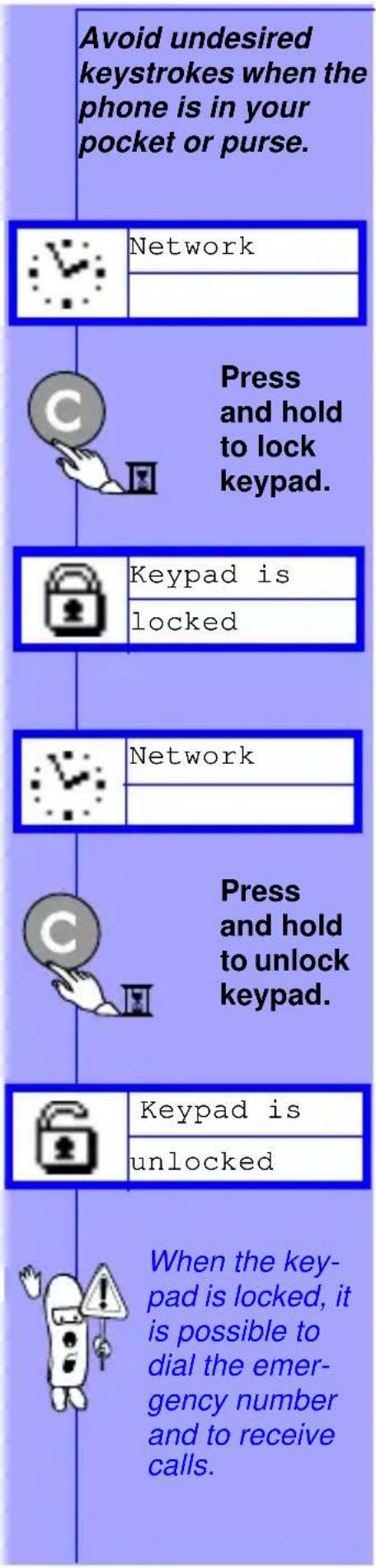
SPECIAL FUNCTIONS
ANSWER A SECOND CALL (CALL WAITING)
| This feature depends on the network. If a second person calls you, you will hear a beep. Check the display for a second call. |
AUTOMATIC REDIAL
| When you dial a number and your correspondant is busy, your phone offers the function of automatically redialling. |
Failed
SCRATCHPAD
| The scratchpad feature is useful if you want to store a telephone number during a call. |
| The number can be dialled or viewed later. |
Rob Waiting
| Rejectsecond call |
OR
| Acceptsecond call |
Call failed or recipient is busy.
| 0123456789 |
| Autoredial? |
Confirm. OR
| 0123456789 |
05:12
| Enter the number you want to keep. |
| 67890123_ |
Call 1 is put on hold. Rob
| 00:02 |
Any other key cancels autoredial.
| 0123456789 |
The display automatically returns to your call.
| 0123456789 |
12:15 End the call.
Switch between Call 1 and Call 2. Kim Rob
| 0123456789 |
00:01
| 67890123_ |
To end the call on display and return to other call. Return to single call state. Kim
| 01:16 |
A beep informs you when the connection has been made. An incoming call or any use of the phone will end automatic redial. Call the number on the scratchpad. OR OK For options. 67890123 Store no.
TOUCHTONES (DTMF) ... H
During a call or in direct dialling, the numeric keys always transmit DTMF tones (Dual Tone Multi Frequency) also known as “touchtones”.
These tones are used to operate services that you can reach with your phone, like a pager or an answering machine.
You can also link numbers and codes together and record and dial them from your names list.

See "Names section" for information on how to store the number in the names list.
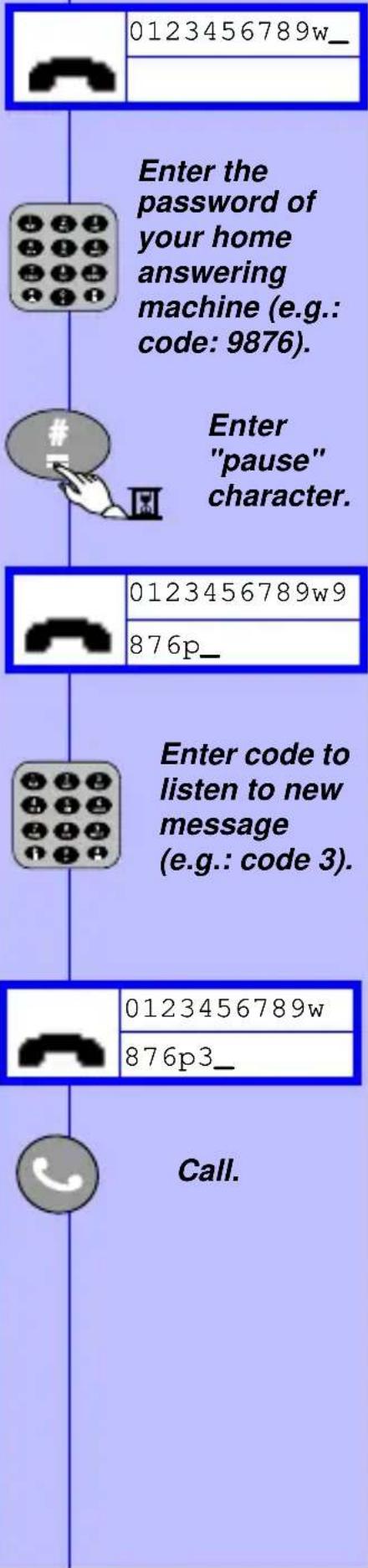
Example to consult your home answering machine:
Enter telephone number of your home answering machine.

0123456789_

Enter a "wait" signal to give time for the phone to connect.
IDE YOUR IDENTITY
If you type #31# followed by the phone number you call, your phone number is hidden to the other person.
| #31#0123456 |
| 78_ |

Availability of this feature depends on your network.

Enter "pause" character.
| 0123456789w9 | |
| 876p_ |
Enter code to listen to new message (e.g.: code 3).
| 0123456789w | |
| 876p3_ |

Call.
DISCOVER THE COMPASS KEY
The Compass Key is your navigator while in the menus.
Press to enter or exit the menus.
Move one menu-level back.
Switches to option on the left.
Switches to option on the right.
OK
Move forward or validate the displayed option.
Here's an example:
What you see on the display
Press this key
The Names list menu options
Network
MENU
Menu
Names
OK
Messages Names Calls
Names
View
OK
Search View Add
Names
Anders
OK
Zara Anders Barbara
0199251213
Number
OK
Anders
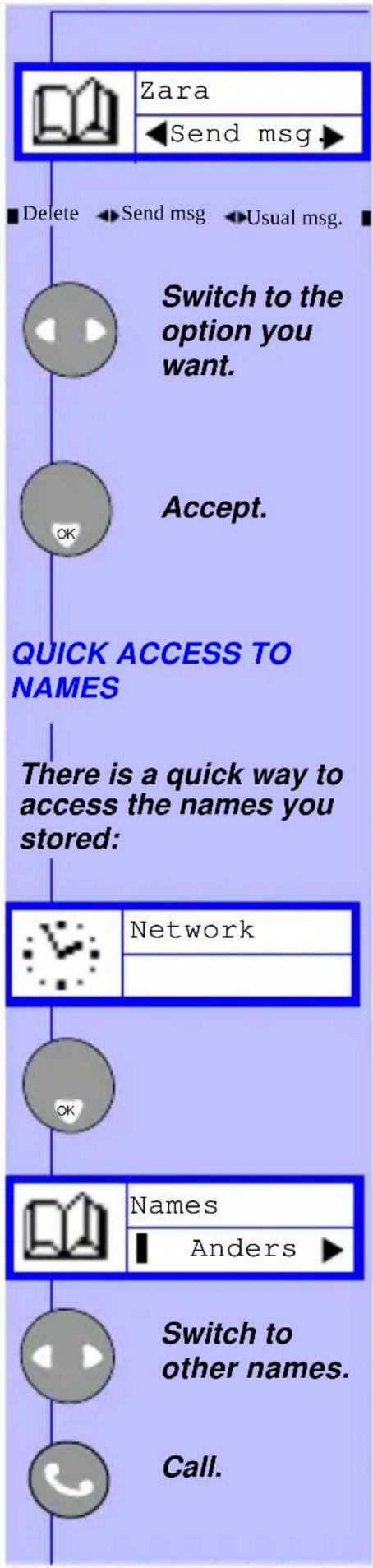
Send msg.
OK
Delete send message. Usual message.
NAMES... ... ...
![graph TD A["With your phone, you can store the names and phone numbers of people you call frequently."] --> B["ADD A NAME"] B --> C["MENU"] C --> D["OK"] D --> E["Names"] E --> F["View ▶"] F --> G["Switch to "Add"."] G --> H["Names"] H --> I["Add ▶"] I --> J["Accept."] J --> K["OK"] K -->…](/content/2026/05/768925/images/2ab59ebe339607adc4064e4b8ab5cd304b04c11e605b4870820b30d674de5082.jpg)
![graph TD A["Delete one character."] --> B["OR"] B --> C["Press and hold to delete all characters."] C --> D["Name: Jim_"] D --> E["OK"] E --> F["Number: _"] F --> G["Enter number (20 digits max)."] G --> H["Number: 0123456789_"] H --> I["Accept number."] I --> J["Stored"]](/content/2026/05/768925/images/b9fe91b92b9885d2abf14d0cceaa39676278bad9004a19f98b01d33442acb35d.jpg)
![graph TD A["VIEW NAMES IN THE NAMES LIST"] --> B["MENU"] B --> C["Menu"] C --> D["Names"] D --> E["Accept."] E --> F["Names"] F --> G["View"] G --> H["Accept."] H --> I["Names"] I --> J["Adam"] J --> K["To scroll through the list."] K --> L["OR"] L --> M["Use the keypad to quickly jump to a name."]](/content/2026/05/768925/images/a5a57763ac6b0666c819538eafeae27dd225ab481cc3b529f7b8bde48b0359e7.jpg)
NAMES... ... ...
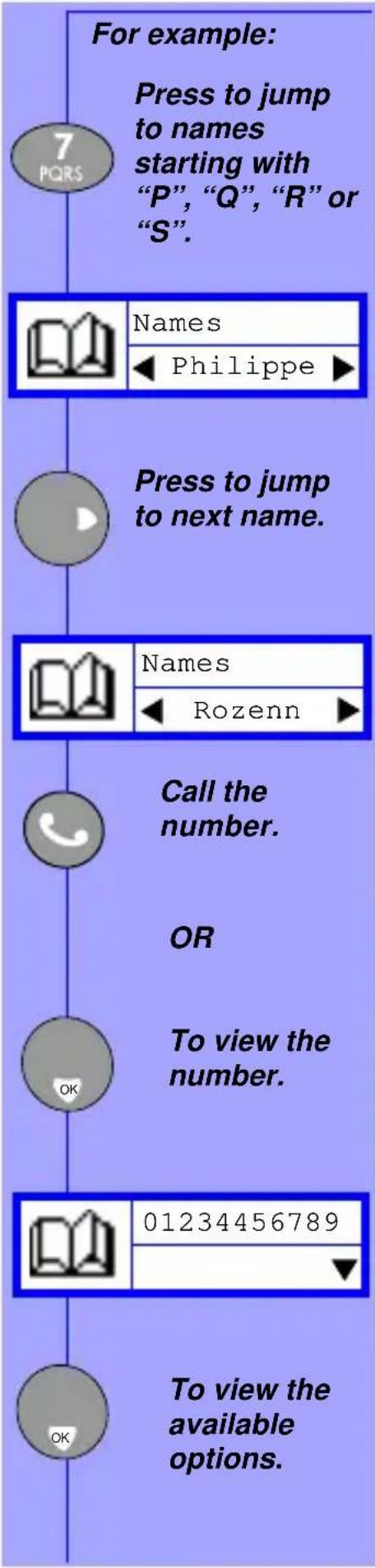
![graph TD A["SEARCH FOR A SPECIFIC NAME"] --> B["MENU"] B --> C["Menu"] C --> D["Names"] D --> E["Accept."] E --> F["Names"] F --> G["View"] G --> H["Switch to "Search"."] H --> I["Accept."] I --> J["Example: Search for: Ur_"] J --> K["Enter first few letters of name."] K --> L["U 8 TUV Twi…](/content/2026/05/768925/images/5d00e1998a206938fb3d31565e79024c7286683d2c52d929b8667731e66890b9.jpg)
©
©
©
MESSAGES

Save

Yes

No Yes
Decide to save or not.
To see the image the receiver needs a Philips Savvy™ phone, otherwise the equivalent code will be displayed at the end of the receiver's message.
Emotion Icons
| Image | Code sent | |
| Smiley | :-) | |
| Wink | ;-) | |
| Cool | B-) | |
| Pfrrt... | :-P | |
| Sad | :-( | |
| Grrr... | :-/ | |
| Meow! | :<* | |
| Woof! | :># | |
| Teddy | 8<) |
















Magic
Love
Broken
Yo!
Well done!
Party
Hooray!
Flowers
Drink
Coffee
Cloudy
Sunny
Holidays
Ball
BOOM!
Deadly
=:1
(0)
(X)
Yo!
==b
0<I
iii
@>-
-I
ID
;;
0<
— Y —
(1)
* <
%-I
USUAL MESSAGES
Your phone contains a number of pre-defined text messages like:
"Please call me back" "I will be late"
"I will call you back" etc.

From Messages switch to "Usual msg.".
Messages
Usual msg.
Accept.
Usual msg.
Please call

Switch to the desired message.

Accept.
To number:

Enter number.
Accept.
Please call
me back _

Change text (if wished).
Accept.

Etc.
CALLS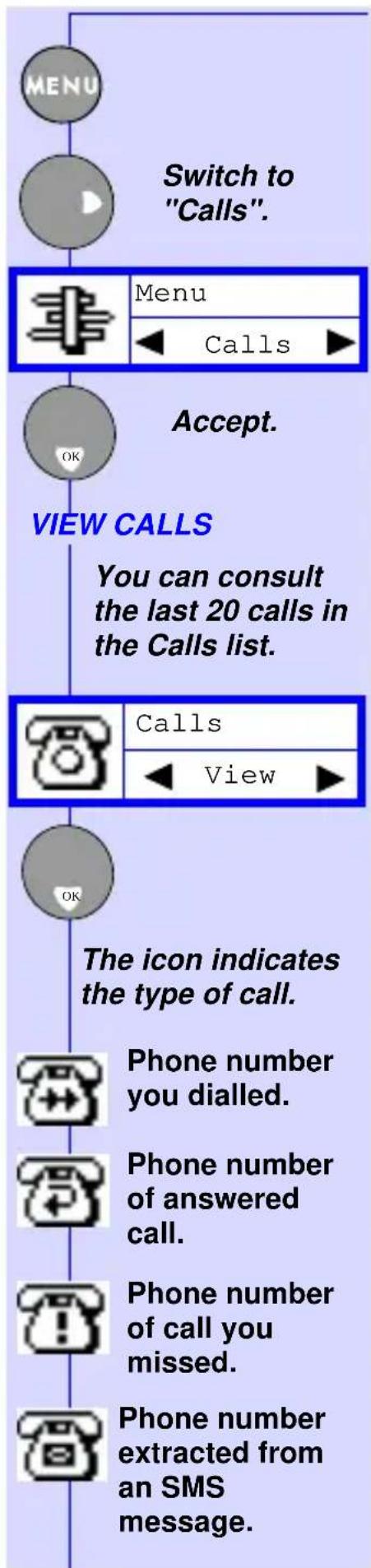
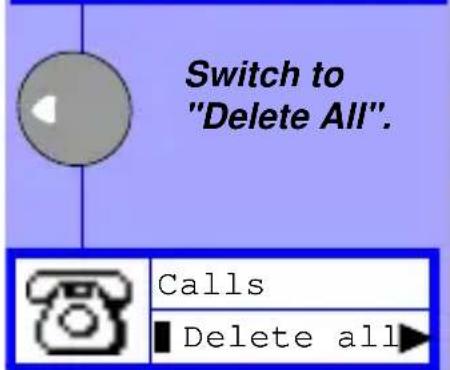
You can consult the last 20 calls in the Calls list.
The icon indicates the type of call.
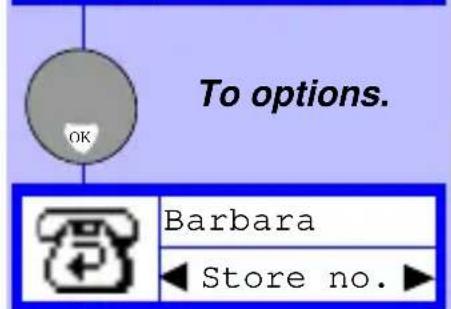
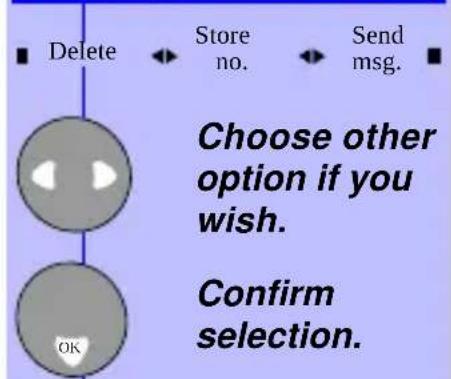
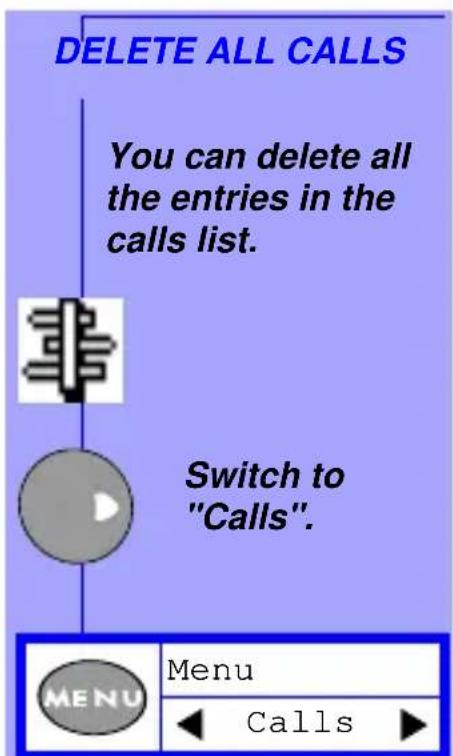
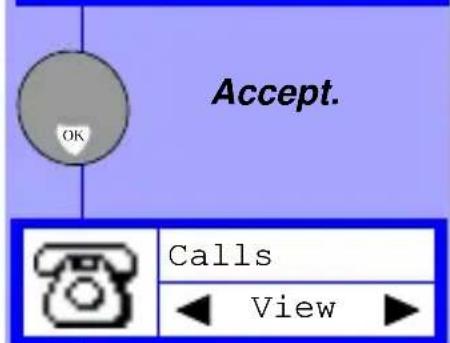
CALLS....
| Press C to delete | VIEW METERS | RESET METERS | |
| You must confirm the deletion. | Meters Show | Meters Show | |
| To delete. | OK | Switch to "Reset". | |
| Deleted | Show Duration OK | Accept. | |
| METERS Your phone has meters that allow you to see the total cost of your calls. | Credit CostDuration Switch to the meter you want. | Reset Duration Select "Duration" or "Cost". | |
| It also allows you to set limits on cost and check your consumption. | OK Accept. | ||
| Duration 00:55:26 OK | To reset. | ||
| Calls View | |||
| Switch to "Meters". | For some of these options you might need your PIN or PIN2 code (depending on your operator). | ||
| Calls Meters | |||
| The cost counters and limits will only work if the network supports this feature. | |||
SECURITY
PIN codes protect your phone from misuse.

Switch to "Security".

PIN REQUEST
You can (de)activate the request for the PIN code at power-on.

Security
PIN code
■ ■ ■ ■ ■ ■
CHANGE PIN AND PIN 2 CODES

Security
Change PIN

Accept.

Old PIN:
-
Enter old PIN code.
Accept.


New PIN:
-


PIN code
Set off
▶

Switch to desired option.


Enter PIN:
Enter the PIN code.

Deactivated
Enter new PIN code.
Accept.

Repeat PIN:
-
Enter new PIN code again.
Accept.

Changed
FIXED NAMES
Your network operator may have provided you with a SIM card which supports fixed names (FDN). You can restrict the use of your phone to the numbers stored in the fixed names list.
VIEW FIXED NAMES

From Security switch to "Fixed names".

Security
Fixed names

Fixed names
View
▶

Restric-

Fixed names
Thomas
▶

To view other names.
OR
To call.

©
EXTRA....
| SET ALARM ON | SET CLOCK | CALCULATOR | |
| ExtraAlarm clock | From Extraswitch to"Set clock". | Your phone has acalculator to add (+),substract (-), multiply(*), and divide (/). | |
| OK | ExtraSet clock | Network | |
| Alarm clockSet on | Press andhold tousecalculator. | ||
| Set off | Set on | OK | |
| Set clock | |||
| OK | 11:37 | OR | |
| Alarm clock | Minutesdecrease | From Extraswitch to"Calculator". | |
| 18:44 | Minutesincrease | ||
| Minutesdecrease | OR | Extra | |
| Minutesincrease | Enter hourand minutes(eg: 19:42). | Calculator | |
| OR | OK | ||
| Enter hourand minutes(eg: 07:45). | Set clock19:42 | Calculate:0_ | |
| Accept. | TO+*/-PRESS | ||
| OK | Once TwiceThree timesFour times | ||
| Set | Set | For example:3x6=18. | |
| You have toreset the clockif you removethe battery. | |||
EXTRA... ... ...
![graph TD A["Calculate:"] --> B["3_"] C["*+"] --> D["Three times for "*”."] E["Calculate:"] --> F["3 * _"] G["6 MNO"] --> H["Calculate:"] I["#="] --> J["To obtain result."] K["Calculate:"] --> L["3 * 6 _"] M["Calculate:"] --> N["=18"]](/content/2026/05/768925/images/7d114695d8aab7f3706dc7216177966793448485e2b2c17a59703983d7096b51.jpg)


EXTRA... ... C
STOPWATCH
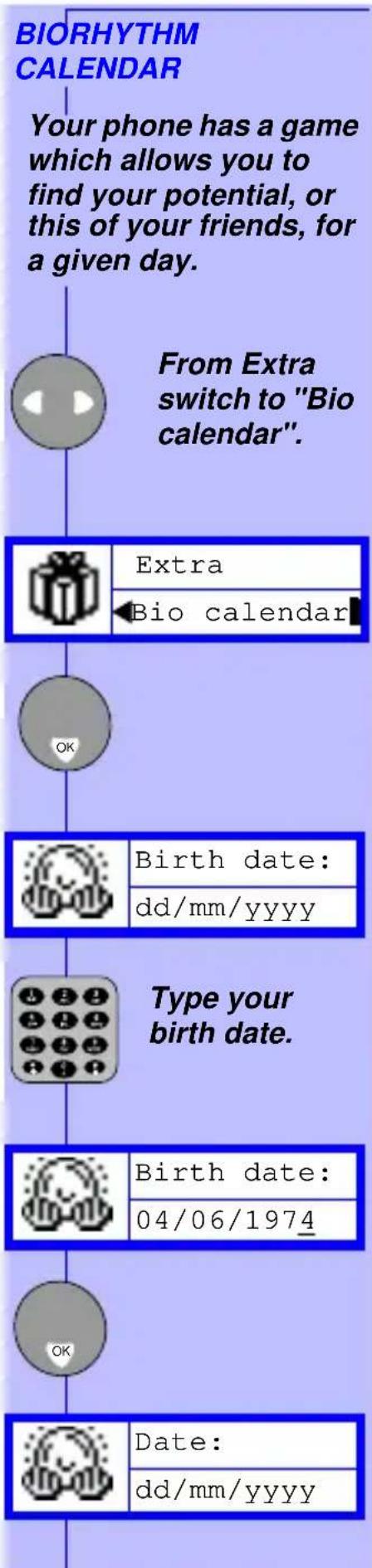
Enter the date for which you want to know the bio-rhythm results.
Date:
30/03/1999
You can time a race or other event.
This stopwatch
is not a
professional
measuring
device. Its
measurements
cannot be
applied in an
official context.
ALL FORWARDING...
Depending on your network operator your phone will allow you to divert all your calls to voicemail or to another number.
FORWARD TO VOICEMAIL
OK
The results can be:
Chance
From Extra switch to "Stopwatch".
Extra
Stopwatch
Switch to "Forwarding"
Menu
Forwarding
OK
OK
Love
Stopwatch:
00:00:00.00
Forwarding
Cancel
Cancel
To
mailbox
To
number
Switch to "Mailbox"
OK
Start the stopwatch.
Forwarding
To mailbox
Energy
Stop the stopwatch.
OK
OK
OK
Restart the stopwatch.
Requesting
Success
Reset the stopwatch to zero (when stopped).
Activated
CALL FORWARDING...
...

Your phone will not ring as long as your calls are forwarded to your voicemail.
To be able to forward calls to your voicemail, check that your voicemail number has been set correctly (see "Settings" section, page 23).
FORWARD TO NUMBER

From the forwarding switch, select "To number".
Forwarding
To number
Number:
Enter the number to which you want to divert your calls.

Requesting
Activated

Your phone will not ring as long as your calls are forwarded.
CANCEL CALL FORWARDING

From the forwarding switch, select "Cancel".

Forwarding
Cancel

Requesting

Deactivated
Your phone will now receive calls as normal.
RADIO WAVES
- Your phone transmits/receives radio waves in the GSM frequency.
- The GSM network controls transmission power (0.02 to 2 watts).
- Your phone complies with all relevant safety standards.
- The CE mark on your phone shows compliancy with European electromagnetic compatibility (Ref. 89/336/EEC) and low voltage directives (Ref. 73/23/EEC).
SAFETY PRECAUTIONS
- Careless use can cause harm to you and others.
- Please inquire and respect local laws and regulations.
- Use your phone in the normal operating position (to ear).
- Avoid touching the antenna while a call is in progress.
- Do not use your phone if the antenna is damaged (risk of minor skin burn).
- Keep your phone in a safe place, out of reach of small children.
- Check with other manufacturers that consumer electronics will not be affected by radio energy.
- Avoid use of phone while driving. It affects your concentration.
- Switch phone off in an aircraft. It is illegal to use cellular phones when airborne.
- Switch phone off near hospitals or medical equipment.
- Ask manufacturer about radio wave shielding of electronic medical devices you may use (pacemaker, hearing aid).
- Switch phone off where blasting is in progress (for example in quarries).
- Switch phone off in potentially flammable atmosphere (petrol stations, fuel depot, chemical plants).

- The phone must ALWAYS be switched OFF by pressing the Red Power/End key and never by removing the battery while the phone is ON. Otherwise, the stability of the settings, alarm clock and ring cannot be guaranteed.
- The phone is equipped with an alarm clock that, if set, will ring. If the phone is off and the alarm rings, no radio waves are transmitted. Press any key to turn off the alarm.




- INSERT THE MICRO-SIM CARD
- INSERT THE BATTERY
- REPLACE THE BATTERY COVER
- CHARGE THE BATTERY
- DISCOVER YOUR PHONE
- COMPASS KEY
- EARPIECE
- ANTENNA
- DISPLAY
- GREEN "CALL" KEY
- RED "POWER
- END" KEY
- CLEAR" KEY
- MENU KEY
- KEYPAD
- MICROPHONE
- ANSWER OR REJECT
- A CALL
- EARPIECE VOLUME
- CONSULT LAST CALLS
- ADJUST RINGER VOLUME
- SPECIAL FUNCTIONS
- TOUCHTONES (DTMF) ... H
- IDE YOUR IDENTITY
- DISCOVER THE COMPASS KEY
- NAMES
- MESSAGES
- USUAL MESSAGES
- SECURITY
- FIXED NAMES
- VIEW FIXED NAMES
- EXTRA
- EXTRA... ... C
- STOPWATCH
- ALL FORWARDING
- FORWARD TO VOICEMAIL
- THE RESULTS CAN BE
- CALL FORWARDING
- FORWARD TO NUMBER
- CANCEL CALL FORWARDING
- RADIO WAVES
- SAFETY PRECAUTIONS
Brand : PHILIPS
Model : TCD128
Category : Mobile Phone