
Xenium X100 - Mobile Phone PHILIPS - Free user manual and instructions
Find the device manual for free Xenium X100 PHILIPS in PDF.


| Product Type | Mobile Phone |
| Brand | Philips |
| Model | Xenium X100 |
| Network Technology | GSM 900/1800 MHz |
| Form Factor | Bar phone (candybar) |
| SIM Card | Dual SIM (standard SIM) |
| Memory Card Slot | Micro-SD (up to 88K for MMS download) |
| Battery Type | Rechargeable Li-ion (standard battery included) |
| Charger | AC charger (included) |
| Other Accessories | Earphone, USB cable |
| Display | Color LCD (not specified, estimated 1.8-2.0 inches) |
| Keypad | Numeric keypad with navigation keys |
| Main Functions | Call, SMS, MMS, FM Radio, Games, Calculator, To-do List, Speed Dial |
| Text Input | Smart English (predictive) and Multi-tap |
| Internet Browser | WAP browser support |
| Security | SIM PIN, Phone lock (default 0000), Keypad lock |
| SAR Value (Head) | 0.986 W/kg (ICNIRP) |
| Warranty | 1 year for product, 6 months for battery |
| Maintenance | Keep dry, avoid extreme temperatures, clean with soft dry cloth |
| Spare Parts & Repairability | Use only Philips Authentic Accessories; repairs by unauthorized persons void warranty |
Frequently Asked Questions - Xenium X100 PHILIPS
User questions about Xenium X100 PHILIPS
0 question about this device. Answer the ones you know or ask your own.
Ask a new question about this device
Download the instructions for your Mobile Phone in PDF format for free! Find your manual Xenium X100 - PHILIPS and take your electronic device back in hand. On this page are published all the documents necessary for the use of your device. Xenium X100 by PHILIPS.
USER MANUAL Xenium X100 PHILIPS
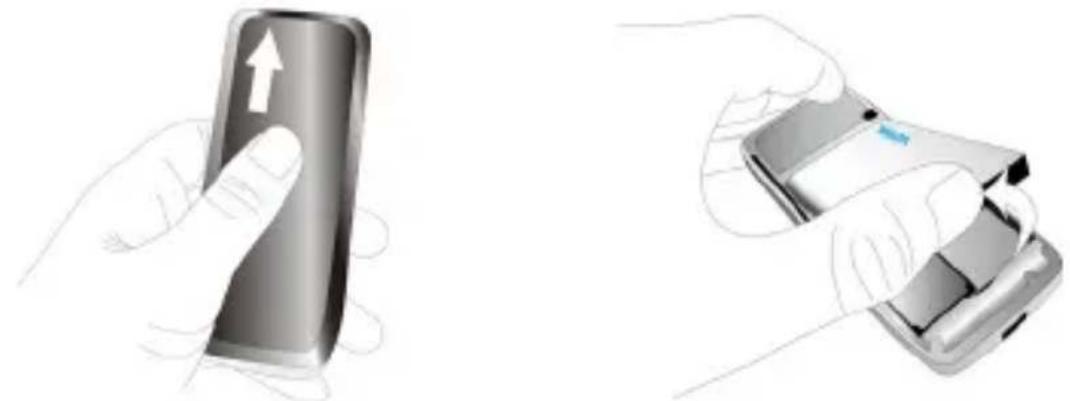
Inserting the SIM card
Press on the back cover and slide it off as shown. Then, as shown in the right picture, remove the battery.
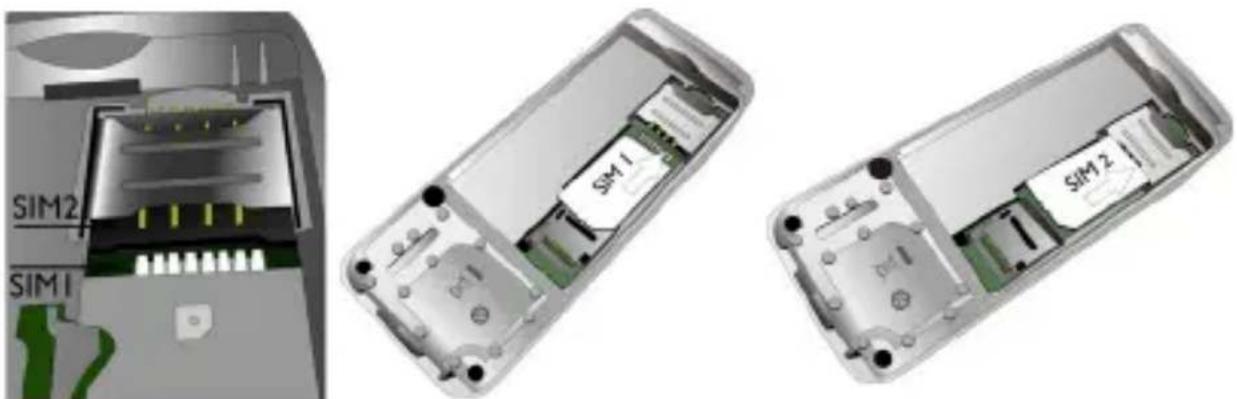
- Insert your SIM card. Make sure the beveled corner faces you and the gold contacts face downward.
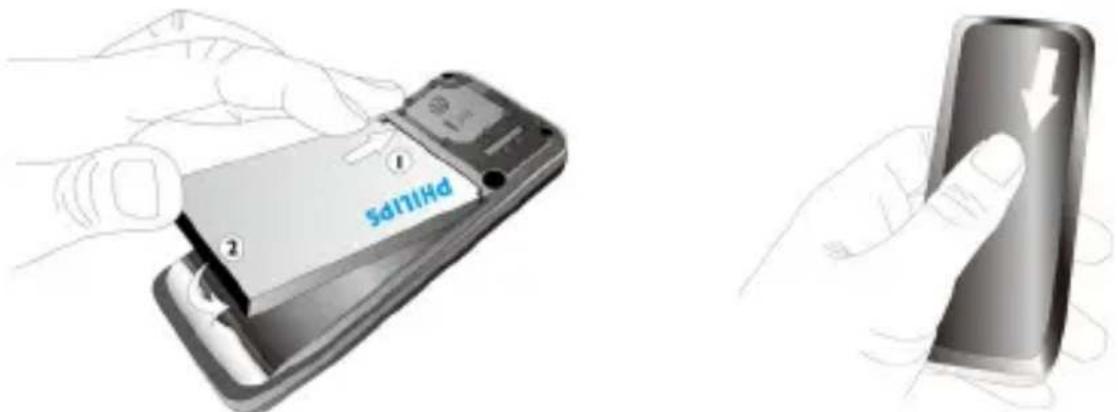
- As shown, reinstall the battery and the back cover.
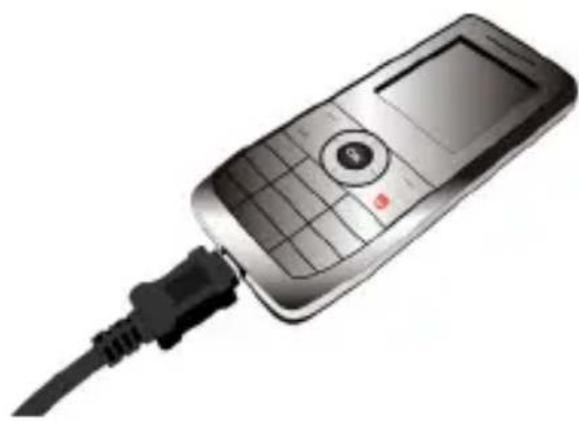
Charging the battery
Plug in the connector as shown. Then plug the other end into a power outlet.
Insert a Micro-SD card (memory card)
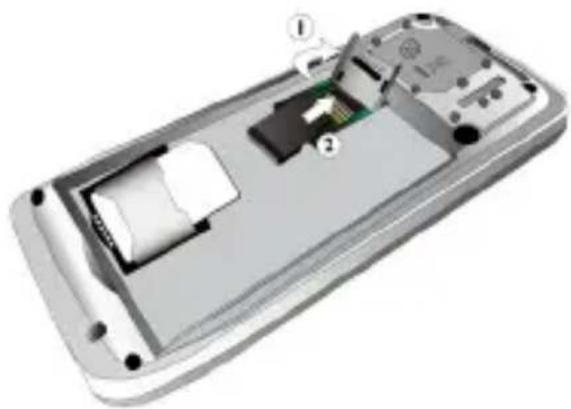
Push down the card holder and lift it up. Align your micro-SD card with the slot, place it in, then press down the card holder and slide it until it locks.
To transfer files from your PC, use a compatible card reader.
Remove the SIM card
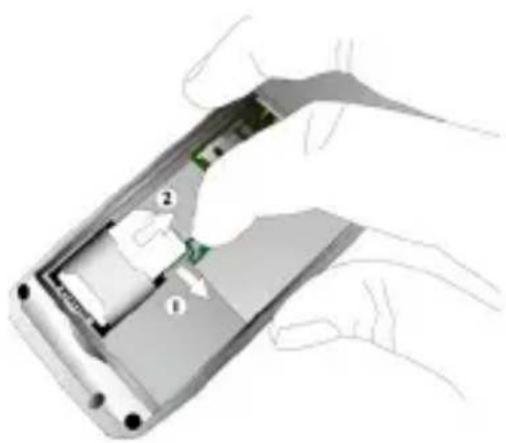
Press the slot to unlock the SIM card. Slide the SIM card out and remove it.
How to...
Switch the phone on / Long press to turn off
Unlock the keypad: Press Unlock, then press *.
Lock the keypad: Long press *. To set an idle time for the keypad to lock automatically, go to Menu > Settings > Security > Auto keypad lock.
Make a call: Enter the phone number using the keypad and press the call key.
Answer a call: When the phone rings, press the answer key.
End a call: Press the end key.
Access Contacts: Press Menu > Contacts on the idle screen. You can search for and edit a contact, make a call, or send a message.
Select text entry methods: Press #* repeatedly.
Access the main menu: Press Menu on the idle screen. Use the navigation keys (up, down, left, right) to browse through the menus. Press OK to select.
Quickly return to idle: Press the end key while browsing menus.
Silent on/off: Long press #* on the idle screen.
| Dual SIM settings | On idle screen, press Go to >Dual SIM. Select SIM1 setup or SIM2 setup, and then press OK to edit operator/ Card name and choose alert for incoming callings and messages. If you want to choose SIM1 or SIM2 as primary SIM, select Primary SIM swap, and then press Swap. |
| Select ringtones and adjust ring volume | Go to Menu > Settings > User profiles. Select your desired profile. Go to Edit to select your options. Press to activate the profile. |
| Check call history | Go to Menu > Calls. |
| Browse the Internet | Go to Menu > Browser. |
| To receive push messages (specially formatted SMS messages that contain a URL). | Go to Menu > WAP > Settings > Service message settings > Enable push. Press OK. To check push messages, go to Menu > WAP > Service inbox. |
| Play games | Go to Menu > Games. |
| STK | Go to Menu > Browser > STK1 or STK2 (depending on whether your SIM card supports STK). |
| Use calculator | Go to Menu > Tools > Calculator. |
| Access FM radio Plug the supplied earphone into your phone and go to Menu > Multimedia > FM radio. | |
| Make a list of important things | Go to Menu > Tools > To do list. |
| Select an image as the wallpaper of your phone | Go to ☑ Menu > Settings > Display > Wallpaper.(If you want to use a customized wallpaper from Micro SD card, you need to set it again every time you turn off the phone.) |
| Select the duration of backlight | Go to ☑ Menu > Settings > Display > LCD backlight. |
| Set a navigation key as direct access to a menu | Go to ☑ Menu > Settings > General > Dedicated key. Press ☑ Edit to change current settings. |
| Set PIN password protection for your SIM card | Go to ☑ Menu > Settings > Security > Change password > SIM PIN or SIM PIN2.(The default PIN is provided by the network operator.) |
| Set password protection for your phone | Go to ☑ Menu > Settings > Security > Phone lock.(The default phone lock password is 0000.) |
| Restore factory settings | Go to ☑ Menu > Settings > Restore factory settings. |
Text entry
I. Press #* repeatedly to select your desired input method.
ABC/abc/Abc: for Smart English entry
ABC/abc/Abc: for multi-tap English entry
123: for numeric entry.
- Press the symbol key to enter a symbol and punctuation.
- Press the space key to enter a space.
Smart English input (ABC/abc/Abc)
You need to press only once on the key corresponding to each letter needed to spell a word: keystrokes are analyzed and the word suggested is displayed at the pop-up window.
Example: how to enter the word "home":
I. Press 4GHI, 6MNO, 6HNO, 3DEF.
The screen displays the first word of a list: Good.
- Press > to scroll and select Home.
- Press ☐ Select to confirm.
Multi-tap input (ABC/abc/Abc)
Press repeatedly on the key corresponding to each letter, until the desired character appears.
Example: how to enter the word "home":
Press 4_GHI, 4_GHI (GHI) 6_MNO, 6_MNO, 6_MNO (MNO), 6_MNO (MNO), 3_DEF, 3_DEF (DEF).
Call settings
Speed dial
On the idle screen, you can call a preset speed dial number by long pressing a numeric key ( 2ABC to 9WXYZ ). To assign a speed-dial key to a contact, go to Settings > Call > Speed dial.
Handle multiple calls (network-dependent)
1. Go to Menu > Settings > Call. Activate call waiting, and deactivate call divert. 2. Make a second call: During an active call, enter the number or select a contact, and press ☐. Answer a second call: During an active call, press ☐.
Messages
Write and send SMS
1. Go to Menu > Messaging > SMS > Write message. 2. Write your message. To use templates, press ☐ Options > Use templates. 3. To send the message, press OK. If you want to choose a SIM to send the message, press Options > Send (Primary SIM) / Send (Secondary SIM).
Read and reply to SMS
Go to Menu > Messaging > SMS > Inbox. Press Ⓞ to read the current message, and ☐ Options > Reply to reply to the current message.
Write and send MMS
1. Go to Menu > Messaging > MMS > Write MMS. 2. To add recipients, select To, Cc and/or Bcc, and press Edit to enter phone number or E-mail. 3. To edit contents, select MMS Edit content and press Edit. Press Options to select your editing options.
Read and reply to MMS
Go to Menu > Messaging > MMS > Inbox. Press ☐ Options > View to play the current message, and ☐ Options > Reply or Reply by SMS to reply to the current message.
(The maximum for downloading an MMS is 88K.)
Contacts
Add a new contact
You can save contacts on the phone or SIM card. For contacts on the phone, you can add detailed information, like home number, office number, and group.
1. Go to Menu > Contacts > New contact. Select a storage location: To SIM1, To SIM2, or To phone.
- Enter your information, or press Edit. To select a group, press ◀ or ▶ repeatedly.
Search for a contact
In Contacts > Phonebook, enter the contact name. To select input methods, press #•• repeatedly.
Group your contacts on the phone
1. Go to Menu > Contacts > Caller groups. 2. Select a desired group. To add a group member, press OK > Member list > Add. To set group ringtone, select Ring type, and then press ◀ or ▶ repeatedly.
FM radio
Tune to a radio station
To tune to a radio station, always plug the supplied earphone into your phone.
- Auto tune:
In Multimedia > FM radio, press ☐ Options > Preset auto search. The radio frequency starts scanning automatically. Up to 20 available radio stations are saved to Channel list. The first preset radio station starts to play. On the radio playback screen, select ☐ Options > Search channels > On to enable the auto search function. Press ◀ or ▶ to start auto tuning.
- Manual tune:
In Multimedia > FM radio, press ☐ Options > Manual input to enter your desired radio frequency. On the radio playback screen, select ☐ Options > Search channels > Off to disable the auto search function. Press ◀ or ▶ repeatedly for fine tuning.
Edit the channel list
You can assign a preset to a certain location. When pressing the numeric key on the radio playback screen, you tune to the station immediately.
1. In Multimedia > FM radio, press ☐ Options > Channel list to select a location for your preset.
- Press ☐ Options > Edit: Channel name: Name or rename the channel. Frequency: Enter your desired frequency.
Or
1. Tune to your desired station. 2. On the radio playback screen, long press your desired numeric key (1-9).

Precautions
Radio Waves

Your cellular mobile phone is a low power radio transmitter and receiver. When it is operating, it sends and receives radio waves. The radio waves carry your voice or data signal to a base station that is connected to the telephone network. The network controls the power at which the phone transmits.
Your phone transmits/receives radio waves in the GSM frequency (900 / 1800 MHz).
The GSM network controls transmission power (0.01 to 2 watts). Your phone complies with all relevant safety standards.
The CE mark on your phone shows compliancy with European electromagnetic compatibility (Ref. 89/336/EEC) and low voltage directives (Ref. 73/23/EEC).
Your cellular mobile phone is your responsibility. To avoid damage to yourself, to others or to the phone itself, read and follow all the safety instructions and make them known to anyone borrowing your phone. Furthermore to prevent unauthorised use of your phone:

Keep your phone in a safe place and keep it out of small children's reach.
Avoid writing down your PIN code. Try to remember it instead.
Switch off the phone and remove the battery if you are going to leave it unused for a long time.
Change your PIN code after purchasing the phone and to activate call restriction options.

The design of your phone complies with all applicable laws and regulations. However, your phone may cause interference with other electronic devices. Consequently, you should follow all local recommendations and regulations when using your cellular phone both at home and when away. Regulations on the use of cellular phones in vehicles and aircraft are particularly stringent.
Public concern has been focused for some time on the possible health risks for users of cellular phones. The current research on
Philips Authentic Accessories
Some accessories, such as a standard battery, headset, USB cable, and a charger, are included as standard accessories in your mobile phone package. Additional accessories may also be provided or sold separately. Package contents may therefore vary.
To maximize the performance of your Philips mobile phone and not to void the warranty, always purchase Philips Authentic Accessories that are specially designed for use with your phone. Philips Consumer Electronics cannot be held liable for any damages due to use with non-authorized accessories.
Charger
Charges your battery in any AC outlet. Small enough to carry in a briefcase or handbag.
Trademark Declaration
PHILIPS

PHILIPS and PHILIPS' Shield Emblem are registered trademarks of Koninklijke Philips Electronics N.V. manufactured by Shenzhen Sang Fei Consumer Communications Co., Ltd. under license from Koninklijke Philips Electronics N.V.
Limited Warranty
I. What Does This Limited Warranty Cover?
Philips warrants to the original retail purchaser (“Consumer” or “You”) that this Philips cellular product and all accessories originally provided by Philips in the sales package (“Product”) are free from defects in materials, design, and workmanship under normal use in accordance with the operating instructions and pursuant to the following terms and conditions. This limited warranty extends only to the Consumer for Products purchased and used in the original country of purchase. The limited warranty is valid only in Philips’ intended country of sales of the product.
- How Long is The Limited Warranty Period?
The limited warranty period for the Product extends for ONE (1) YEAR from the date of purchase of the Product, documented by valid proof of purchase. The limited warranty for original Philips rechargeable battery extends for six (6) months from the date of purchase.
- What Will Philips Do if The Product is Not Free From Material Defects in Materials and Workmanship During The Limited Warranty Period?
During the limited warranty period, Philips or its authorized service representative will, at its option, either repair or replace, without charge for parts or labor, a materially defective Product with new or refurbished parts or Product and return such repaired or replaced Product to the Consumer in working condition. Philips will retain defective parts, modules, or equipment. Repaired or replaced Product will be covered by this limited warranty for the balance of the original limited warranty period or ninety (90) days from the date of repair or replacement, whichever is longer. Repair or replacement of Product, at Philips' option, is your exclusive remedy.
- What is Not Covered By This Limited Warranty?
This limited warranty does not cover:
a) Product that has been subjected to misuse, accident, shipping or other physical damage, improper installation, abnormal operation or handling, neglect, inundation, fire, water or other liquid intrusion; or
b) Product that has been damaged due to repair, alteration, or modification by anyone not authorized by Philips; or c) Product that has reception or operation problems caused by signal conditions, network reliability, or cable or antenna systems; or d) Product defects or problems caused by uses with non-Philips products or accessories; or e) Product whose warranty/quality stickers, product serial number, or electronic serial number have been removed, altered, or rendered illegible; or f) Product purchased, used, serviced, or shipped for repair from outside the original country of purchase, or used for commercial or institutional purposes (including but not limited to Products used for rental purposes); or g) Product returned without valid proof of purchase or whose proof of purchase has been altered or is illegible. h) Normal wear and tear or Force Majeure.
- How Do You Get Warranty Service?
a) Return the Product to an authorized service center of Philips. You may contact the local Philips office for the location of the nearest authorized service center. b) The SIM card must be removed from the Product before it is given to Philips. Philips assumes no liability for damaged or loss of the SIM card or the data contained therein. c) If the Product failure is not covered by this limited warranty, or this limited warranty is inapplicable, void or invalid due to any terms and conditions stated herein, the Consumer will be charged for the cost of repair or replacement of the Product and all other related cost incurred in repairing or replacing the Product. d) IMPORTANT - you are required to return the Product together with a valid proof of purchase which must identify the point of purchase, date of purchase, Product model and Product serial number clearly.
- Other Limitation: This Warranty is The Entire Agreement. EXCEPT FOR THE EXPRESS WARRANTIES SET FORTH ABOVE AND THOSE IMPLIED BY LAW AND WHICH CANNOT BE EXCLUDED OR MODIFIED BY AGREEMENT, PHILIPS PROVIDES NO OTHER WARRANTY WHETHER EXPRESS OR IMPLIED (WHETHER BY STATUTE, UNDER
Specific Absorption Rate Information International standards
THIS MOBILE PHONE MEETS THE INTERNATIONAL RECOMMENDATIONS FOR EXPOSURE TO RADIO WAVES
Your mobile phone is a radio transmitter and receiver. It is designed and manufactured not to exceed the limits for exposure to radio frequency (RF) energy defined by the international standards. These recommendations have been established by the International Commission on Non-Ionizing Radiation Protection (ICNIRP) and, the Institute of Electrical and Electronics Engineers (IEEE) that forecast a substantial safety margin for assuring the protection of all persons, regardless of age and health.
The exposure recommendations for mobile phones use a measurement unit known as the Specific Absorption Rate (SAR). The SAR limit recommended by the ICNIRP for the mobile phones used by the general public is 2.0W/kg averaged over ten grams of tissue and, is 1,6W/kg averaged over one gram of tissue by IEEE Std 1528 for the head.
Tests for SAR have been conducted using recommended operating positions with the mobile phone transmitting at its highest certified power level in all tested frequency bands. Although the SAR is determined at the highest certified power level, the actual SAR levels of the mobile phone while operating are generally below the maximum SAR value. This is because the phone is designed to operate at multiple power levels so as to use only the power required to reach the network. In general, the closer you are to a base station antenna, the lower the power output.
While there may be differences between the SAR levels of various phones and at various positions, they all meet the international protection standards for exposure to radio waves.
The highest SAR value for this Philips X100 model phone when tested for compliance against the standard was 0.986 W/kg for IC-NIRP recommendation.
To limit exposure to radio waves, it is recommended to reduce the duration of mobile phone calls or to use a headset. The purpose of these precautions is to keep the mobile phone away from the head and body.



- INSERTING THE SIM CARD
- CHARGING THE BATTERY
- INSERT A MICRO-SD CARD (MEMORY CARD)
- REMOVE THE SIM CARD
- HOW TO
- TEXT ENTRY
- SMART ENGLISH INPUT (ABC/ABC/ABC)
- EXAMPLE: HOW TO ENTER THE WORD "HOME
- MULTI-TAP INPUT (ABC/ABC/ABC)
- CALL SETTINGS
- SPEED DIAL
- HANDLE MULTIPLE CALLS (NETWORK-DEPENDENT)
- MESSAGES
- WRITE AND SEND SMS
- READ AND REPLY TO SMS
- WRITE AND SEND MMS
- READ AND REPLY TO MMS
- CONTACTS
- ADD A NEW CONTACT
- SEARCH FOR A CONTACT
- GROUP YOUR CONTACTS ON THE PHONE
- FM RADIO
- TUNE TO A RADIO STATION
- AUTO TUNE
- MANUAL TUNE
- EDIT THE CHANNEL LIST
- OR
- PRECAUTIONS
- RADIO WAVES
- PHILIPS AUTHENTIC ACCESSORIES
- CHARGER
- TRADEMARK DECLARATION
- PHILIPS
- LIMITED WARRANTY
- SPECIFIC ABSORPTION RATE INFORMATION INTERNATIONAL STANDARDS
Brand : PHILIPS
Model : Xenium X100
Category : Mobile Phone