
DELTA-50 - Loudspeaker Qtx - Free user manual and instructions
Find the device manual for free DELTA-50 Qtx in PDF.


| Type of product | Desktop PA System with Bluetooth |
| Model | DELTA-50 |
| Brand | Qtx |
| Power supply | 12-15Vdc adaptor or internal rechargeable battery |
| Battery life | Up to 8 hours |
| Output power | 50W RMS |
| Signal-to-noise ratio | 85 dB |
| HF driver | 2 x 25mm balanced dome |
| LF driver | 200mm (8") reinforced paper cone |
| Bluetooth version | 2.1 |
| Wireless microphones | 2 x VHF handheld (174.1MHz + 175.0MHz) |
| Inputs | 2 x 6.3mm mic, RCA line in, 3.5mm aux, USB, SD, FM, Bluetooth |
| Outputs | RCA mix out |
| Controls | Volume, Echo, Treble, Bass, VHF volume, mode, transport, VCV |
| Remote control | Yes (IR) |
| Construction | Injection-moulded polypropylene |
| Dimensions (W x H x D) | 380 x 295 x 220 mm |
| Weight | 7.2 kg |
| Cleaning | Soft cloth with neutral detergent |
| Safety | Do not expose to rain/moisture; no user-serviceable parts |
| Package contents | 1x unit, 2x VHF mic, 1x IR remote, 1x shoulder strap, 1x power adaptor, 1x manual |
Frequently Asked Questions - DELTA-50 Qtx
User questions about DELTA-50 Qtx
0 question about this device. Answer the ones you know or ask your own.
Ask a new question about this device
Download the instructions for your Loudspeaker in PDF format for free! Find your manual DELTA-50 - Qtx and take your electronic device back in hand. On this page are published all the documents necessary for the use of your device. DELTA-50 by Qtx.
USER MANUAL DELTA-50 Qtx
Desktop PA with Bluetooth®
Item ref: 178.808UK
User Manual

Version 1.1

Caution: Please read this manual carefully before operating Damage caused by misuse is not covered by the warranty
Introduction
Thank you for choosing the DELTA-50 desktop PA unit. Please read this manual prior to use to gain the best from your product and to avoid damage through misuse.
This versatile portable PA unit is packed with features in a compact, manageable enclosure and is suitable for a wide array of applications ranging from public address for presentations to outdoor karaoke.
- Internal 12V rechargeable battery
- 2 x VHF handheld microphones included
• 2 wired microphone inputs (6.3mm jack)
• Master 2 band EQ and Echo effect for microphones - Internal USB/SD/FM media player with Bluetooth
- Wireless remote control for media player
- Carry handle & Shoulder strap
Package Contents
Please check the contents to ensure that the product has been received in good condition.
• DELTA-50 desktop PA unit
- 2 x VHF handheld microphone transmitters
• IR Remote control for media player
- Shoulder strap
- Power adaptor
- User manual
If you find any accessory is missing or the product has arrived with any problems, please contact your retailer at once.
This product contains no user-serviceable parts so make no attempt to try to fix or modify this item yourself as this will invalidate the warranty. We recommend you keep the original package and proof of purchase for any possible replacement or returned demand.
Warning
To prevent the risk of fire or electric shock, do not expose this appliance to rain or moisture. To prevent electric shock do not remove the cover. No user serviceable parts inside. Refer servicing to qualified service personnel.
Safety
Prior to connecting mains, ensure that the supply voltage is correct and the mains lead is in good condition. Avoid ingress of water or particles into the enclosure. If the VHF microphones are to be unused for a long period of time, remove the battery and store for later use.
Placement
Keep the unit out of direct sunlight and away from heat sources. Place the unit in an upright position during use and storage. Keep the unit away from moisture or dusty environments.
Cleaning
Use a soft cloth with a neutral detergent to clean the cabinet, panel and controls. To avoid damage, do not use solvents to clean this equipment.
Controls

1 SD card slot
2 USB input
3 Media player LCD display
4 IR remote receiver
5 Wired microphones volume
6 Microphone Echo level control
7 Treble EQ control
8 Bass EQ control
9 Music volume control
10 Media player mode control
11 Media player transport/record controls
12 VHF antenna
13 VHF Mic A volume control
14 Radio Frequency indicator (channel A)
15 VHF Mic B volume control
16 Radio Frequency indicator (channel B)
17 Power on indicator
18 VHF power on/off switch
19 VCV activation switch
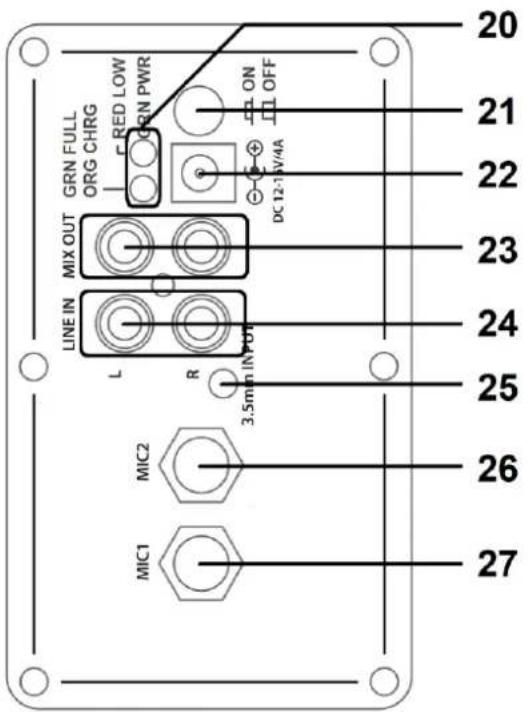
20 Power and battery charge indicators
21 Power switch
22 12-15Vdc power input
23 Mix line output (RCA)
24 Auxiliary line input (RCA)
25 Auxiliary line input (3.5mm jack)
26 MIC 2 input (6.3mm jack)
27 MIC 1 input (6.3mm jack)
Operation
Connection
Your new DELTA-50 desktop PA unit may arrive with you with the internal battery charged. Before connecting the 12Vdc adaptor to the mains, switch the unit on and see if the power LED lights. If not, you will need to charge the battery before using away from a mains supply (see "Charging the battery" below)
Connect the DELTA-50 to the mains supply by connecting the power adaptor provided to the 12-15Vdc power input (22). Observe the LEDs (20) adjacent to the DC power input. The lower LED is orange for charging and green when charged. The upper LED is green when powered on and red if the battery is low.
Power Up
Turn VOLUME, ECHO, MIC VOLUME and VHF MIC controls down (anti-clockwise) and turn the POWER switch on (the power LED should light). BASS and TREBLE controls should remain pointing vertically (12-o-clock position) – these can be altered later to give the overall appropriate tone shape. Your DELTA-50 desktop PA unit should now be ready to operate.
VHF Handheld Microphones
Insert the supplied AA batteries into the handheld microphones by carefully unscrewing the base of each and aligning the "+" and "-" ends of each cell as imprinted in the battery compartment. Take care to observe the correct polarity.
Press the VHF ON/OFF button on the DELTA-50 so that the VHF POWER LED lights.
Switch on each wireless mic by sliding up the switch fully – the RF LEDs on the DELTA-50 unit should light as a result. If the LED on the handset does not light or stays on dimly lit, change the battery and try again.
Gradually increase VHF VOL control, testing each microphone in turn for output through the DELTA-50 speaker. Take care not to incur "feedback" (howling or screeching sound through the speaker) by keeping the microphone a sensible distance from the speaker and pointing away from the speaker so that it doesn't "hear" the speaker output.
Turning the ECHO control clockwise introduces the echo effect for singing and special effects.
When not in use, switch the wireless microphones off. Remove batteries if not being used for long periods of time.
External Inputs
In addition to the unit's own VHF microphones, 6.3mm jack inputs are provided to connect external microphones, which are both governed by the MIC VOLUME control.
A VCV switch activates the Voice Controlled Volume feature.
This function gives priority to microphones over playback, so that announcements are more easily heard. When the VCV is on, any sound through the microphones will cause the music playback to "duck" (drop in volume). The music volume is restored after there is no sound through the microphone (after a short, preset period of time)
Also, an RCA LINE IN input is provided for line input sources such as CD player or personal audio player.
To use this input, select the AUX input mode using the media player MODE button
The LINE IN is governed by the VOLUME control at the top of the panel and volume settings in the media player.
Below the RCA connectors is a 3.5mm jack input which operates in a similar way for a smart phone or mp3 player.
Above the LINE IN input is a pair of RCA connectors for MIX OUT, carrying the overall main mix to connected equipment.
Internal USB/SD player & Bluetooth receiver
The DELTA-50 onboard media player can play back files from USB/SD/FM media or a paired Bluetooth device.
Insert a USB memory stick or an SD card with compressed digital audio files stored on it into the relevant slot on the top panel. Playback will normally start automatically from the last media inserted (USB or SD).
If the LCD display shows a jack plug, press the USB/SD button and check that the LCD display shows that media is being read from the USB or SD device. If not, press the ▶II button or try removing and re-inserting the memory device.
Increasing the Master Volume control (21) should result in the audio being played through the speakers.
Panel controls are detailed below...

MODE switches input between USB/SD/FM media or Bluetooth
◀ press for previous track
▶▶ press for next track
Repeat mode
▶ Play/Pause playback
To connect a smart phone or other Bluetooth device to the DELTA-50 media player, open the Bluetooth menu on your device and search for "PA SYSTEM". Pair with this ID and connect (re-name if desired) in order to be able to play audio from the Bluetooth device to the DELTA-50.
Pressing the MODE button will select between Bluetooth and USB/SD playback sources.
(Note: there is also an AUX setting which is not used, since the mixer section has separate line inputs)
Mute, volume and track navigation can be achieved via the media player control panel. Bluetooth pairing is always available for a single device so long as the device is within reception range. It may be necessary to re-connect if the device has moved out of range and disconnected.
Remote Control
In addition to the panel controls, an infra-red remote control is provided for the USB/SD player which adds some further functions to allow greater control over the media player.
To operate, remove the clear plastic tab from the remote to activate the battery.

1 Media player MODE select
2 Power On / Standby
3 Previous track or FM radio station
4 *not used*
5 Decrease volume
6 *not used*
7 Select track by number (first digit - second digit - third digit)
8 Direct access track number keys
9 Mute / Unmute
10 Play / Pause
11 Next track or FM radio station
12 Repeat mode (RPT ONE, RPT ALL)
13 Increase volume
14 Select media USB or SD card
15 Enter track selection
Charging the internal battery
When not in use but connected to the mains, if the POWER switch is in the off position, the internal battery will be re-charged from the mains supply. This can be observed by the green battery status LEDs being lit.
Note: it is recommended to store the PA unit at an ambient temperature and not with the battery fully discharged.
Specifications
| Power supply | 12-15Vdc (adaptor supplied) or internal battery |
| Battery life | Up to 8 hours |
| HF driver | 2 x 25mm∅ balanced dome |
| LF Driver | 200mm (8") reinforced paper cone |
| Bluetooth version | 2.1 |
| Output power | 50Wrms |
| SNR | 85dB |
| Construction | Injection-moulded polypropylene |
| Power supply: Handheld transmitters | 2 x AA batteries each microphone |
| Wireless microphone frequencies | 174.1MHz + 175.0MHz |
| Dimensions | 380 x 295 x 220mm |
| Weight | 7.2kg |
Troubleshooting
| No output and no LEDs lit | Check POWER switch is on |
| Check battery is not drained fully | |
| Check mains lead is connected if not on battery power | |
| Power LED lit but no VHF output | Check AA batteries in handheld transmitters |
| Check VHF POWER is switched on | |
| Check VOL controls are not turned down on top panel | |
| Check RF LED is lit for each channel (check transmitter frequency) | |
| Bluetooth not connecting | Ensure that the smart phone or tablet is paired to "PA System" |
| Check that the sending device is within range – usually 5 to 8m | |
| Power LED lit but no media player output | Check USB or SD has mp3 audio files stored |
| Check USB or SD is connected properly | |
| Ensure media is formatted to the FAT32 file system | |
| Press MODE button and try Play/Pause button | |
| In FM tuner mode, ensure that a station is tuned in | |
| Check VOLUME is not turned down | |
| Press and hold "VOL +" button to ensure media player volume is up | |
| Check LCD display to see moving numbers | |
| Power LED lit but no sound from external inputs | Check leads are in good condition and connected properly |
| Check volume and on/off switch on external mic or line source | |
| Check VOLUME or MIC VOLUME control is not fully down | |
| In AUX mode, press Play/Pause to ensure input is not muted |



Disposal: The "Crossed Wheelie Bin" symbol on the product means that the product is classed as Electrical or Electronic equipment and should not be disposed with other household or commercial waste at the end of its useful life. The goods must be disposed of according to your local council guidelines.
Hereby, AVSL Group Ltd. declares that the radio equipment type 178.808UK is in compliance with Directive 2014/53/EU
The full text of the EU declaration of conformity for 178.808UK is available at the following internet address:
http://www.avsl.com/assets/exportdoc/1/7/178808UK%20CE.pdf
Errors and omissions excepted. Copyright© 2021.
AVSL Group Ltd. Unit 2-4 Bridgewater Park, Taylor Rd. Manchester. M41 7JQ
AVSL (EUROPE) Ltd, Unit 3D North Point House, North Point Business Park, New Mallow Road, Cork, Ireland


Brand : Qtx
Model : DELTA-50
Category : Loudspeaker