X3 - Keyboard Satechi - Free user manual and instructions
Find the device manual for free X3 Satechi in PDF.


User questions about X3 Satechi
0 question about this device. Answer the ones you know or ask your own.
Ask a new question about this device
Download the instructions for your Keyboard in PDF format for free! Find your manual X3 - Satechi and take your electronic device back in hand. On this page are published all the documents necessary for the use of your device. X3 by Satechi.
USER MANUAL X3 Satechi
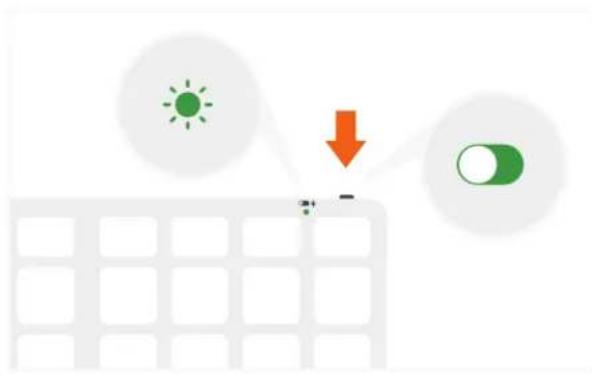
To turn on the keyboard, move the switch on the top of the keyboard to the "on" position.
The power indicator light should turn green for \~3 seconds, then turn off
natural_image
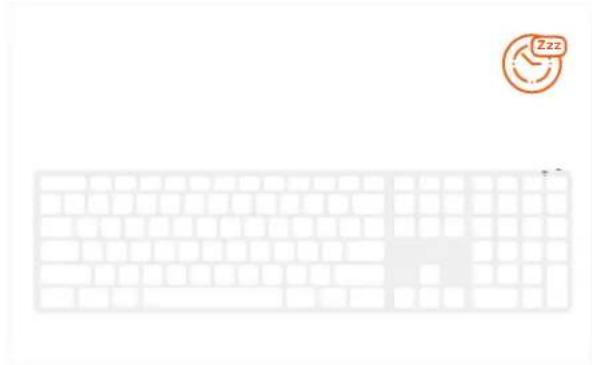
Diagram showing light sources and a switch over a grid, with no readable text or symbols.3 After 30 minutes of inactivity, the keyboard will go into sleep mode to preserve battery.
Press any key to wake and the keyboard will automatically connect.
natural_image
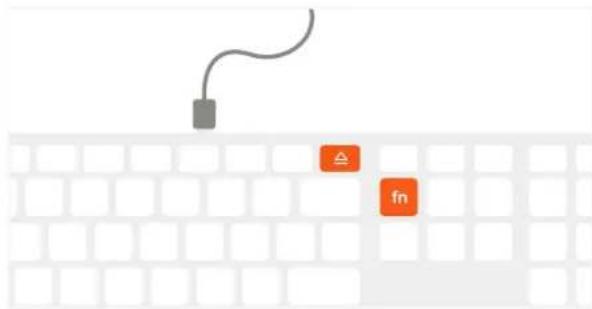
Illustration of a white brick keyboard with a small orange 'Zzz' icon on top-right (no text or symbols on the keyboard)5 The keyboard can be used in wired mode by pressing "Fn + Eject" while the cable is connected.
Press "Fn + Bluetooth key" to switch back to wireless mode
text_image
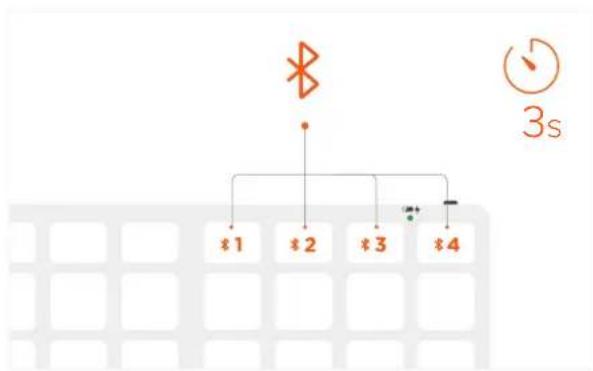
Diagram showing a cable with a square connector above a brick wall, with three orange squares labeled '△', 'fn', and 'fn' below.2 Press and hold one of the keyboard's Bluetooth keys for \~3 seconds, until the LED light starts to blink.
Select "Slim X3 Keyboard" on the host device's Bluetooth settings to complete the pairing process. Repeat for each button to connect up to four devices
flowchart
graph TD
    A["×"] --> B["*1"]
    A --> C["*2"]
    A --> D["*3"]
    A --> E["*4"]
    B --> F["+"]
    C --> F
    D --> F
    E --> F
    F --> G["3s"]
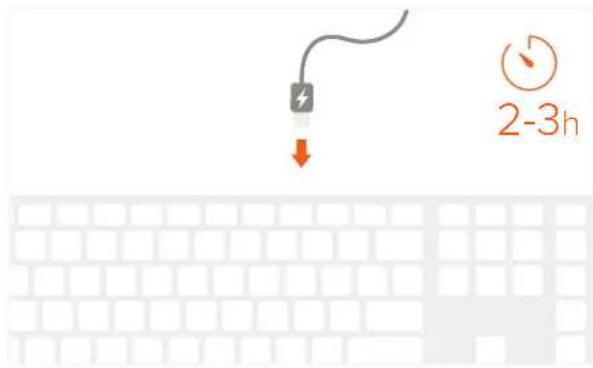
4 To recharge, connect the keyboard to a powered USB-C port using the included cable. Charge for 2-3 hours or until the red charging light turns green.
Power indicator light will flash green when on low battery
text_image
2-3h6 Press "Fn + Esc" to swap between Media and Fn keys.