
19PFL3403S - Uncategorized PHILIPS - Free user manual and instructions
Find the device manual for free 19PFL3403S PHILIPS in PDF.


| Product Type | LCD TV |
| Brand | Philips |
| Model | 19PFL3403S |
| Screen Size | 19 inches (48 cm) |
| Aspect Ratio | 16:9 |
| Display Resolution | 1366 x 768 (typical) |
| TV System | PAL BG, D/K, I SECAM L'/L |
| Antenna Input | 75 Ω coaxial (IEC75) |
| Power Supply | AC 100-240 V, 50/60 Hz |
| Standby Power | Minimal (less than 1 W) |
| Remote Control | Yes, with 2 x AAA batteries |
| Connections | HDMI, VGA, SCART (EXT1), Component (EXT2), S-Video (EXT3), Headphone out, Antenna |
| Wall Mount | VESA 100 x 100 mm |
| Operating Temperature | 5 °C to 35 °C |
| Picture Modes | Personal, Vivid, Standard, Movie, Power Saver |
| Sound Modes | Personal, Speech, Music, Movie, Multimedia |
| Sound Enhancement | Incredible Surround, Auto Volume Level |
| Teletext | Yes, with Fastext and TOPtext |
| Parental Control | PIN code, program lock, front panel lock, timer lock, installation lock |
| Timers | Sleep timer, wake-up timer, turn-off timer |
| Energy Saving | Power Savings Mode (auto standby after 10 min no signal) |
| Screen Care | Clean with soft, dry cloth; avoid stationary images |
| Safety | Two people for lifting >25 kg; do not expose to liquids or heat sources |
Frequently Asked Questions - 19PFL3403S PHILIPS
User questions about 19PFL3403S PHILIPS
0 question about this device. Answer the ones you know or ask your own.
Ask a new question about this device
Download the instructions for your Uncategorized in PDF format for free! Find your manual 19PFL3403S - PHILIPS and take your electronic device back in hand. On this page are published all the documents necessary for the use of your device. 19PFL3403S by PHILIPS.
USER MANUAL 19PFL3403S PHILIPS
Register your product and get support at
www.philips.com/welcome
natural_image
Front view of a Philips computer monitor with a blank screen and stand (no visible text or symbols on the screen)EN USER MANUAL
19PFL3403S/60
20PFL3403S/60
22PFL3403S/60
26PFL3403S/60
Country Number Tariff
Austria 0810 000205 €0.07/min
Belgium 078250145 €0.06/min
Bulgaria +3592 489 99 96 local
Croatia 01 3033 754 local
Czech Rep 800142840 free
Denmark 3525 8759 local
Finland 09 2311 3415 local
France 0821 611655 €0.09/min
Germany 01803 386 852 €0.09/min
Greece 0 0800 3122 1280 free
Hungary 0680018189 free
Ireland 01 601 1777 local
Italy 840320086 €0.08/min
Luxembourg 40 6661 5644 local
Netherlands 0900 8407 €0.10/min
Norway 2270 8111 local
Poland 0223491504 local
Portugal 2 1359 1442 local
Romania 1-203-2060 local
Russia (495) 961-1111 local
Serbia +381 114 440 841 local
Slovakia 0800 004537 free
Slovenia 01 280 95 22 local
Spain 902 888 784 €0.10/min
Sweden 08 5792 9100 local
Switzerland 0844 800 544 local
Turkey 0800 261 3302 local
UK 0870 900 9070 local
Ukraine 044 254 2392 local
This information is correct at the time of press. For updated contact information, refer to www.philips.com/support.
Table of contents
- Important .... 3
Safety 3
Screen care 4
Environmental care .... 4
- Your TV 6
TV overview 6
Back connectors....6
Remote control....8
- Get started 9
Position the TV 9
Wall mount the TV 9
Connect the antenna cable .... 10
Connect the mains cord.....10
Insert remote control batteries . 10
Switch on/off or to standby .... 11
- Install programs..... 12
Initial set-up.....12
Rearrange programs ..... 12
Auto install programs ..... 13
Manually install programs ..... 14
- Use your TV 16
Switch programs ..... 16
Access your favourite programs. 16
Access AV programs ..... 16
Adjust volume 16
Display status information ..... 16
Display a list of programs ..... 16
- Use more of your TV ..... 17
Adjust sound settings ..... 17
Adjust picture settings ..... 18
Set the clock and timers.....20
Use parental control.....21
Customize your TV....24
Use Teletext 25
-
Technical specifications .... 27
-
Troubleshooting ..... 28
2007 © Koninklijke Philips Electronics N.V. All rights reserved. Specifications are subject to change without notice. Trademarks are the property of Koninklijke Philips Electronics N.V. or their respective owners.
Philips reserves the right to change products at any time without being obliged to adjust earlier supplies accordingly.
The material in this manual is believed adequate for the intended use of the system. If the product, or its individual modules or procedures, are used for purposes other than those specified herein, confirmation of their validity and suitability must be obtained. Philips warrants that the material itself does not infringe any United States patents. No further warranty is expressed or implied.
Warranty
No components are user-serviceable. Do not open or remove covers to the inside of the product. Repairs may only be done by Philips Service Centres and official repair shops. Failure to do so shall void any warranty, stated or implied. Any operation expressly prohibited in this manual, any adjustments, or assembly procedures not recommended or authorised in this manual shall void the warranty.
Pixel characteristics
This LCD product has a high number of color pixels. Although it has effective pixels of 99,999% or more, black dots or bright points of light (red, green or blue) may appear constantly on the screen. This is a structural property of the display (within common industry standards) and is not a malfunction.
Compliance with EMF
Koninklijke Philips Electronics N.V. manufactures and sells many products targeted at consumers, which, like any electronic apparatus, in general have the ability to emit and receive electromagnetic signals.
One of Philips' leading Business Principles is to take all necessary health and safety measures for our products, to comply with all applicable legal requirements and to stay well within the EMF standards applicable at the time of producing the products.
Philips is committed to develop, produce and market products that cause no adverse health effects.
Philips confirms that if its products are handled properly for their intended use, they are safe to use according to scientific evidence available today.
Philips plays an active role in the development of international EMF and safety standards, enabling Philips to anticipate further developments in standardisation for early integration in its products.
Mains fuse (UK only)
This TV is fitted with an approved moulded plug. Should it become necessary to replace the mains fuse, this must be replaced with a fuse of the same value as indicated on the plug (example 10A).
Remove fuse cover and fuse.1.
The replacement fuse must 2. comply with BS 1362 and have the ASTA approval mark. If the fuse is lost, contact your dealer in order to verify the correct type.
Refit the fuse cover.3.
In order to maintain conformity to the EMC directive, the mains plug on this product must not be detached from the mains cord.
Copyrights

VESA, FDMI and the VESA Mounting Compliant logo are trademarks of the Video Electronics Standards Association.
Windows Media is either a registered trademark or trademark of Microsoft Corporation in the United States and/or other countries.
® Kensington and Micro Saver are registered US trademarks of ACCO World Corporation with issued registrations and pending applications in other countries throughout the world. All other registered and unregistered trademarks are the property of their respective owners.
Important1.
Congratulations on your purchase and welcome to Philips!
Read this user manual before you start to use this product.
Pay close attention to this section and follow the safety and screen care instructions. The product warranty does not apply if damage is caused by failing to follow these instructions.
To fully benefit from the support that Philips offers, register your product at www.philips.com/welcome.
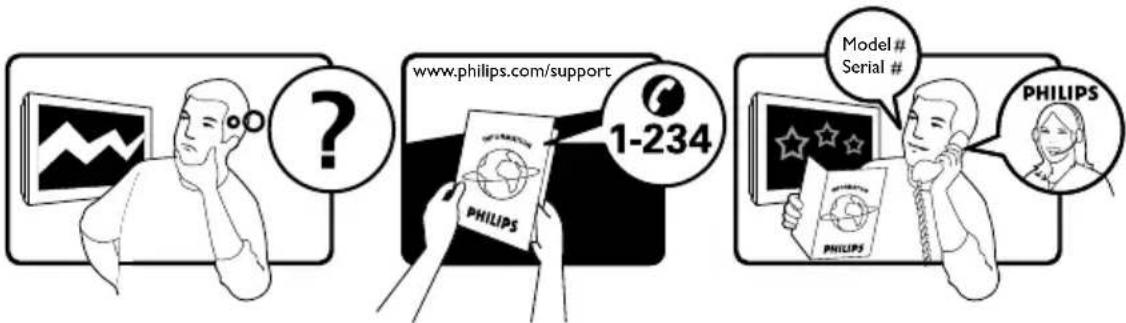
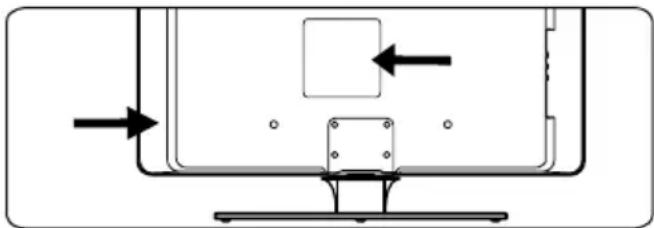
The model and serial number of your TV can be found on the back of the TV as well as on the packaging.
natural_image
Pure diagram of a mechanical or electrical component with arrows indicating direction, no text or symbols presentSafety 1.1
Two people are required to lift and carry a • TV that weighs more than 25 kilos (55lb). Improper handling of the TV can result in serious injury.
If transporting the TV in low temperatures • (less than 5°C), open the box and wait until the TV matches the ambient temperature of the room before unpacking.
To avoid short circuit, do not expose the • TV, remote control or remote control batteries to rain or water.
Do not place vessels of water or other • liquids on top of or near the TV. Spilling liquids on the TV can cause electric shock. If liquids are spilt on the TV, do not operate the TV. Immediately disconnect the TV from the mains and have the TV checked by a qualified technician.
Do not insert any strange object into the ventilation slots. This might lead to damage of the TV.
If the TV is mounted on a swivel base or • swivel arm, ensure no strain is placed on the power cord when the TV is swivelled. Strain on the power cord can loosen connections and cause arcing or fire.
To avoid risk of fire or electric shock, do not place the TV, remote control or remote control batteries near naked flame sources (e.g. lighted candles) and other heat sources including direct sunlight.
Do not install the TV in a confined space • such as a bookcase. Leave a space of at least 10cm (four inches) around the TV for ventilation. Be sure air flow is not obstructed.
If placing the TV on a flat, solid surface be sure to use only the supplied stand. Do not move the TV if the stand is not properly screwed to the TV.
- Wall mounting of the TV should only be performed by qualified personnel. The TV must only be mounted on an appropriate wall bracket and on a wall that can safely hold the weight of the TV. Improper wall mounting can result in severe injury or damage. Do not attempt to wall mount the TV yourself.
If the TV is mounted on a swivel base or • swivel arm, ensure no strain is placed on the power cord when the TV is swivelled. Strain on the power cord can loosen connections and cause arcing or fire.
- Disconnect the TV from the mains and antenna before lightning storms. During lightning storms do not touch any part of the TV, mains cord or antenna cable.
Be sure that you have full access to the • mains cord for easy disconnection of the TV from the mains.
When disconnecting the TV from the mains, be sure to:
Turn off the TV, then the mains power (if available).
Unplug the mains cord from the mains • socket outlet.
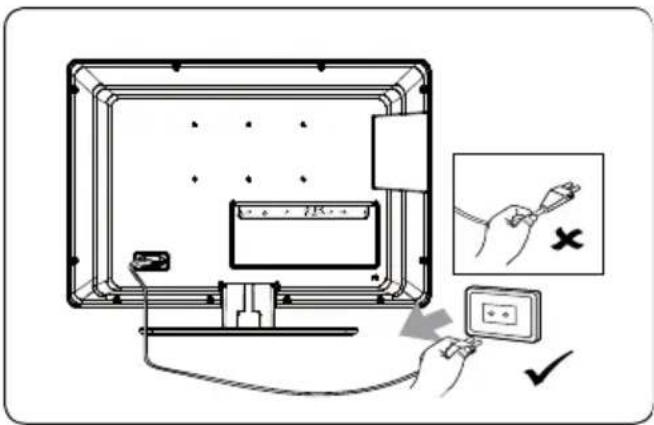
Unplug the mains cord from the power • connector at the back of the TV. Always pull the mains cord by the plug. Do not pull the mains cord.
Permanent hearing loss can occur if you use earphones or headphones at high volumes. Though high volume may sound normal over time, it can damage your hearing. To protect your hearing, limit the amount of time you use earphones or headphones at high volume.
1.2 Screen care
Turn off and unplug the mains cord before • cleaning the screen. Clean the screen with a soft, dry cloth. Do not use substances such as household cleaning agents as these may damage the screen.
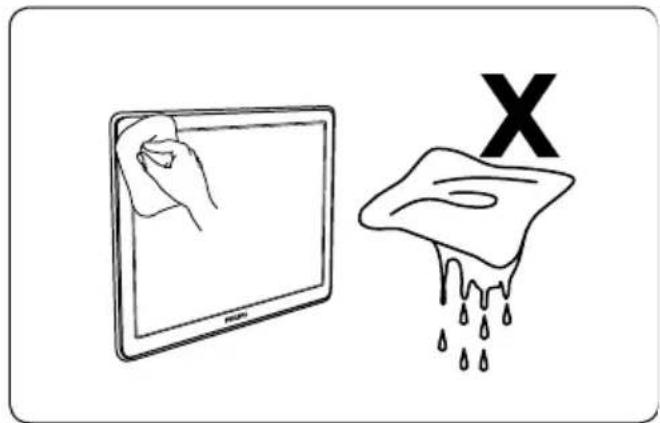
To avoid deformations or colour fading, • wipe off water droplets as soon as possible.
Do not touch, push, rub or strike the • screen with hard objects as this may damage the screen permanently.
Where possible, avoid stationary images • that remain on-screen for extended periods of time. Examples include screen menus, teletext pages, black bars or stock market tickers. If you must use stationary images, reduce the screen contrast and brightness to avoid screen damage.
Environmental care1.3
Recycling your packaging
The packaging of this product is intended to be recycled. Contact your local authorities for information on how to recycle the packaging.
Disposing your used product
Your product is manufactured with high-quality materials and components that can be recycled and reused. When you see the crossed-out wheel bin symbol attached to a product, it means the product is covered by the European Directive 2002/96/EC:
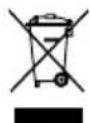
Do not dispose your used product with household waste. Ask your dealer for
information on how to safely dispose of the product. Uncontrolled waste disposal harms both the environment and human health.
Disposing used batteries
The supplied batteries do not contain mercury or cadmium. Dispose supplied and all other used batteries according to your local regulations.
Power consumption
The TV consumes minimal energy in standby mode to minimise environmental impact. Active power consumption is displayed at the back of the TV.
For more product specifications, see the product leaflet at www.philips.com/support.
Your TV2.
This section gives you an overview of commonly-used TV controls and functions.
TV overview2.1
Side controls and indicators
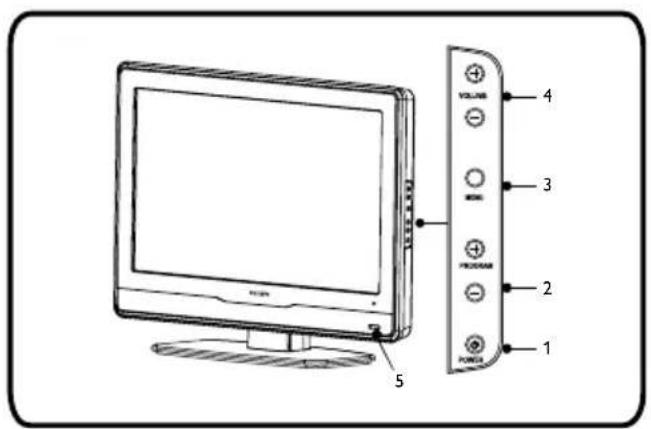
POWER1.
PROGRAM +/-2.
MENU3.
VOLUME +/-4.
Standby indicator / Remote control sensor5.
• 1. Earphone sockets (input)
For headphones or stereo earphones.
- TV (75Ω)•
TV antenna
- EXT 3 - S-VIDEO socket (input)•
Provides better picture quality than the regular video socket. The S-Video cable carries only picture signals, not sound. Connect the left and right audio cables to the AUDIO L and R sockets.
• 4. EXT 2 - CVBS/YPbPr component sockets (input)
For DVD players. Remember to connect the left and right audio cables to the AUDIO L and R sockets because the component cables carry only the picture signal, not the sound.
• 5. EXT 1 - SCART (input-output)
For a range of equipment, including video recorders, camcorders (VHS, 8 mm or Hi 8 format), decoders, satellite receivers, DVD players, games consoles or devices producing an RGB signal.
Back connectors2.2
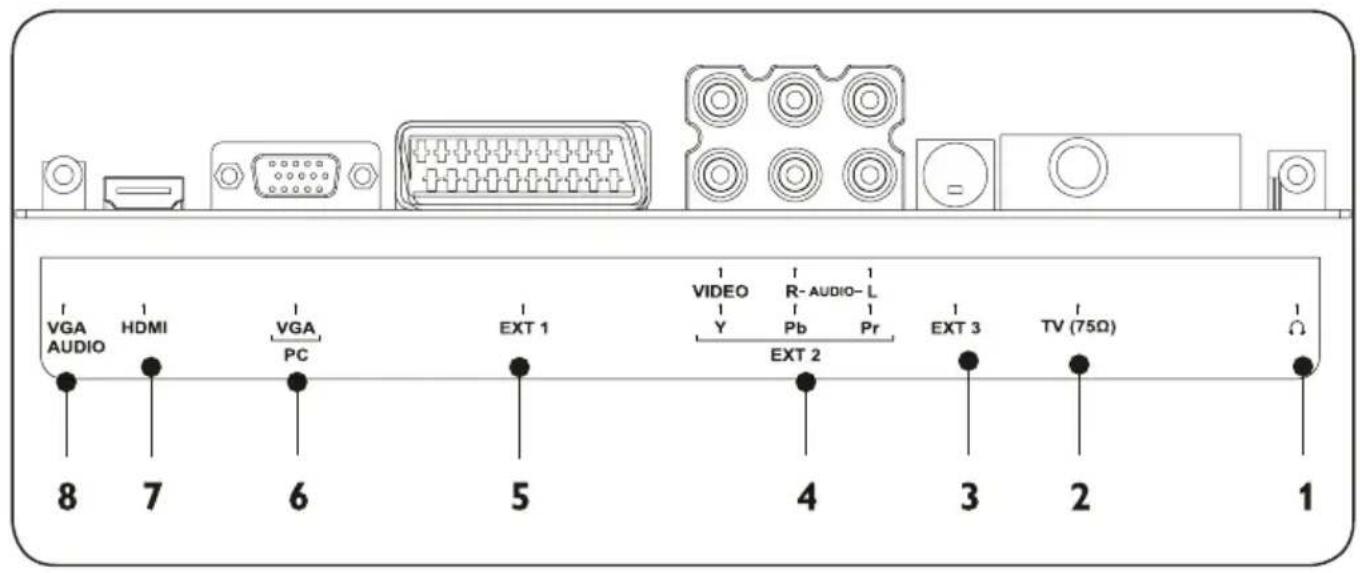
6. VGA (PC) socket (input)•
For a computer. To display images using the equipment connected, press the SOURCE button on the remote control: once to select EXT 1, twice to select EXT 2, etc. For some equipment (connected to the SCART socket), this selection is done automatically.
7. HDMI (input)•
HDMI input connectors for Blu-ray Disc players, digital receivers, game consoles and other high-definition devices.
Notes

Do not connect a device supplying analogue RGB signals to this socket. The HDMI socket is compatible with HDCP format. HDMI, the HDMI logo and High-Definition Multimedia Interface are trademarks or registered trademarks of HDMI Licensing LLC.
• 8. VGA AUDIO sockets (input)
Remote control2.3
This section describes the remote control.
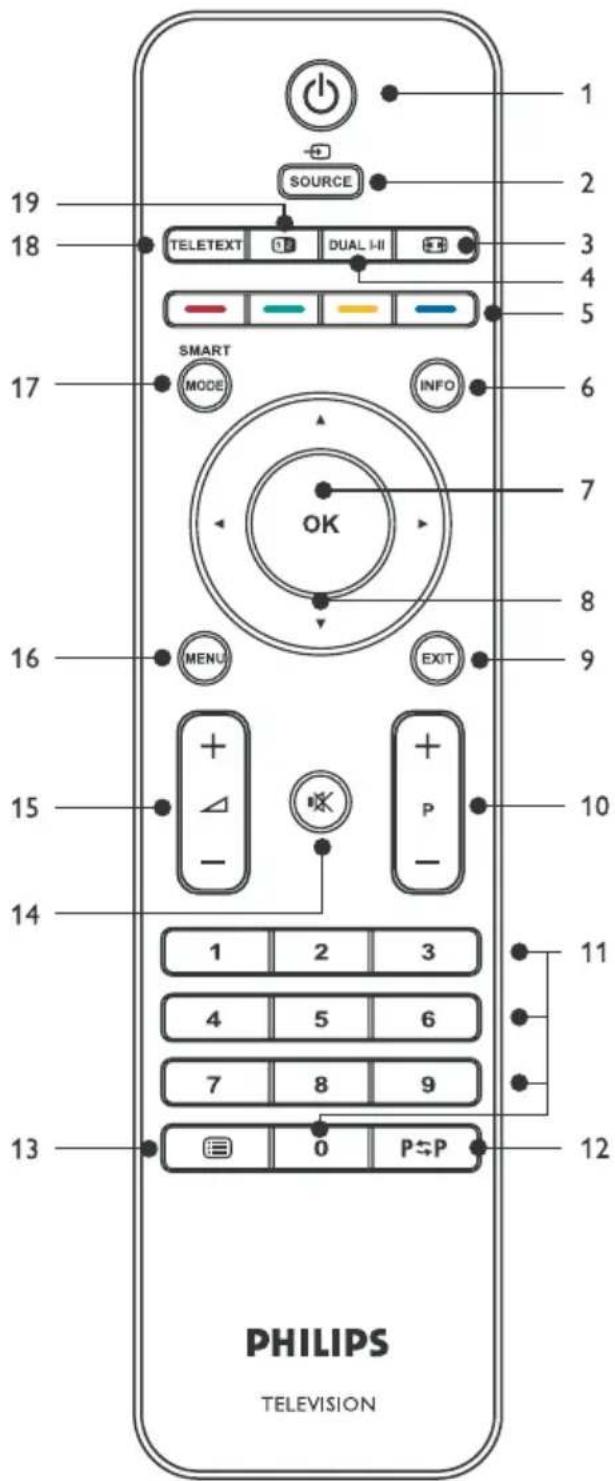
- TELETEXT
Toggles teletext on or off.
- DUAL SCREEN
Function not available.
- POWER
Switches the TV on from standby or back to standby.
- SOURCE
Selects connected devices.
- PICTURE FORMAT
Selects a picture format.
- DUAL I-II
Function not available.
- COLOUR KEYS
Selects tasks or teletext pages.
- INFO
Displays program information, if available.
- OK
Accesses the All programs menu or activates a setting.
- ▲ ▼ ◀ ▶
Cursor keys to navigate the menu.
- EXIT
Exit a menu.
- PROGRAM (P) +/-
Switches to the next or previous program.
- NUMBER KEYS
Selects a program, page or setting.
- PREVIOUS PROGRAM
Returns to the previously-viewed program.
- PROGRAM LIST
Displays the list of programs.
- MUTE
Mutes or restores sound.
- VOLUME (△)+/-
Increases or decreases volume.
- MENU
Toggles the menu on or off.
- SMART MODE
Toggles between smart picture and sound settings.
Get started3.
This section helps you position and install the TV and supplements the information provided in the Quick Start Guide.
Note
Refer to the Quick Start Guide for stand mounting instructions.
Position the TV3.1
In addition to reading and understanding the safety instructions in Section 1.1, consider the following before positioning your TV:
- The ideal viewing distance for watching TV is three times its screen size.
Position the TV where light does not fall on • the screen.
Connect your devices before you position • your TV.
Wall mount the TV3.2
WARNING
Wall mounting of the TV should only be performed by qualified installers. Koninklijke Philips Electronics N.V. bears no responsibility for improper mounting that results in accident or injury.
Step 1 Purchase a VESA-compatible wall bracket
Depending on the size of your TV screen, purchase one of the following wall brackets:
| TV screen size (inches/cm) | VESA-compatible wall bracket type (millimeters) | Special instructions |
| 19"/48cm20"/51cm22"/56cm | Adjustable 100 x 100 | None |
| 26"/66cm | Adjustable 100 x 200 |
Step 2 Connect cables
Connect the antenna cable, mains cord and all other devices to the back of the TV as described in the following sections.
Step 3 Secure the VESA-compatible wall bracket to the TV
WARNING
Only use the bolts (M4 for all 19 inch, 20 inch, 22inch and 26 inch models) and spacers to secure the VESA-compatible wall bracket to your TV. The bolts are designed to match the weight of your TV; spacers are designed for easy cable management.
Note
Depending on your VESA-compatible wall bracket, you may need to separate the mounting plate from the wall bracket for easier installation. Refer to your VESA-compatible wall bracket documentation for instructions.
Connect the antenna cable 3.3
Connect the outside antenna or cable network to the TV (75Ω) socket at the back of the TV set.
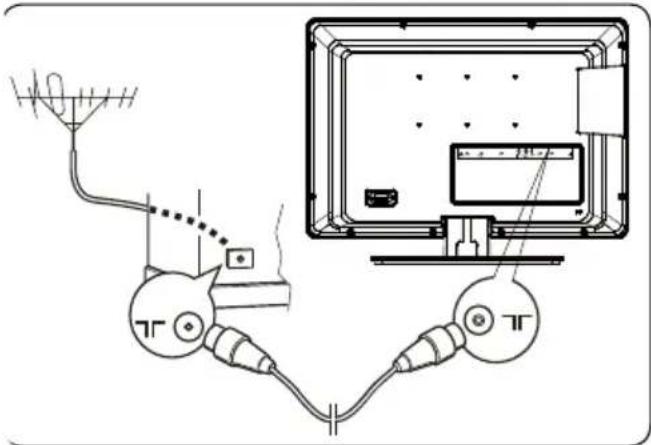
The antenna socket (75 OHM - VHF / UHF / cable) can be used for connecting an external antenna or other equipment fitted with a modulator (video recorder, satellite receiver, etc.).
We recommend that you do not connect other equipment (video recorder, satellite receiver, etc.) to your TV set to begin with, so as not to complicate the set-up procedure with the additional steps involved. Connect them when you have finished setting up the programs.
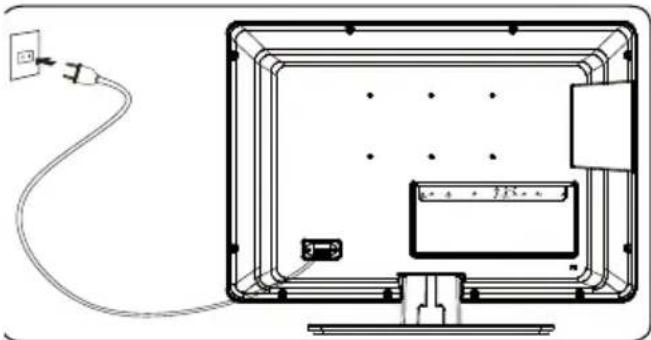
Connect the mains cord3.4
Connect the power cable to a mains socket.
natural_image
Diagram of a computer monitor setup with cable and power outlet, no text or symbols presentWarning: ⚠️Your TV set must be connected to an AC supply, not to a DC supply. If the plug is detached from the cable, do not, under any circumstances, connect it to a mains socket, because there is a risk of electric shock.
Note
The picture is for illustration only. The location of the mains connector varies according to TV model.
Insert remote control 3.5 batteries
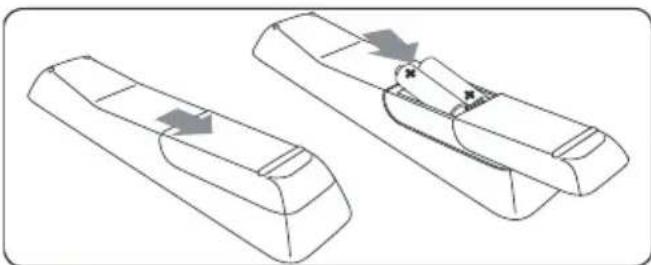
Slide the battery cover off the back of the 1. remote control.
Insert the two supplied batteries (Size AAA, 2. Type LR03). Be sure the + and - ends of the batteries line up with the markings inside the case.
natural_image
Technical line drawing of two mechanical components with arrows indicating motion or assembly (no text or symbols)Slide the cover back into position.3.
Precautions on using batteries:
Use only the specified type of battery.
• Do not mix new and used batteries.
Do not use rechargeable batteries. •
- Do not expose batteries to excessive heat, throw them in a fire, recharge them or try to open them. This could cause them to leak or explode.
- Remove the batteries from the remote control if you are not using it for a long period of time.
Switch on/off or to standby 3.6
The first time you switch on the TV, check that the mains cord is properly connected. When ready, turn on the mains (if mains switch is available), then press POWER on the side of the TV.
Switch on the TV from standby
- If the standby indicator is on (red), press ⏻ POWER on the remote control.
Switch your TV to standby
- Press ⏻ POWER on the remote control. The TV set remains powered up, but with low energy consumption.
Switch off your TV
Press • POWER on the side of the TV.
Install programs4.
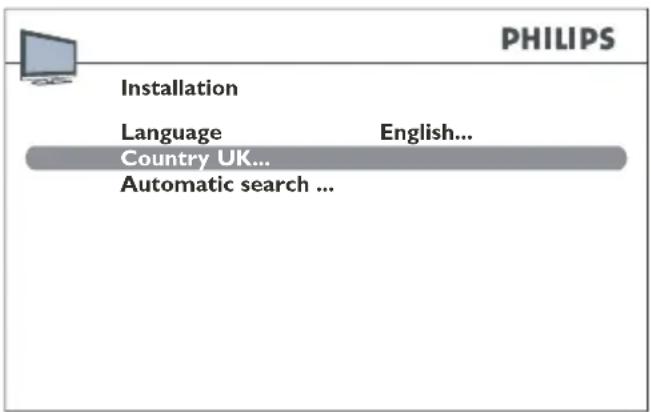
Initial set-up4.1
The first time you switch the television on, the Installation menu appears. The Country option is highlighted.
Rearrange programs4.2
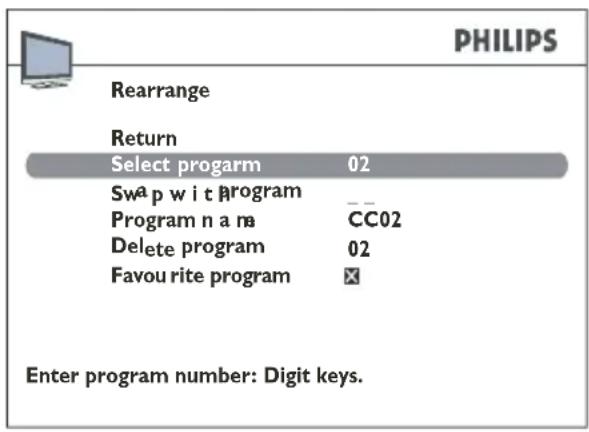
The Rearrange menu allows you to change the order of the programs, name or rename programs, delete programs, and set a list of favourite programs.
Follow the instructions at the bottom of the screen.
Press 1. ◀ or ▶ to select a country. Select the country you are in, or the country whose programs you want to receive if you live near its borders.
Press 2. ▲ and then ◀ or ▶ to select a language.
Press 3. ▼ to select Automatic search.
Press 4. OK to start the search.
The Auto installation menu appears and progress bars are shown.
Note
The automatic set-up process takes several minutes. Do not close the menu until you see a message saying that the set-up is complete.
To name or rename programs or to 5. delete programs, press OK and go to the following procedures. Otherwise, press EXIT to exit.
Access the Rearrange menu
- Press MENU and select Installation > Rearrange.
Swap a program number
Select1. the Select program option from the Rearrange menu.
-
Press P +/-, ◀ and ▶, or the numeric buttons to display the number of the program to be moved.
-
Press ▲ or ▼ to select the Swap with program option.
-
Press P +/-, ◀ and ▶, or the numeric buttons to enter the number you want to assign the program to.
Press 5. OK.
Change a program name
Select1. the Select program option from the Rearrange menu.
- Press P +/-, ◀ and ▶, or the numeric
buttons to display the number of the program whose name you want to change.
- Press ◀ or ▶ to select a character space.
- Press ▲ and ▼ to select a letter, number or symbol.
Press • ▶ to go to the next character. A name can have a maximum of six characters.
Press • OK to confirm.
Delete a program
Select1. the Select program option from the Rearrange menu.
Press 2. P +/-, ◀ and ▶, or the numeric buttons to display the number of the program to delete.
Select 3. Delete program and press OK.
Define a list of favourite programs
Select1. the Select program option from the Rearrange menu.
Press 2. P +/-, ◀ and ▶, or the numeric buttons to display the number of the program you want to select as favourite.
- Select Favourite program and press OK. You can define up to six favourite programs.
Press 4. EXIT to close the menu.
Auto install programs4.3
After initial set-up, you can search and store all active programmes in one operation.
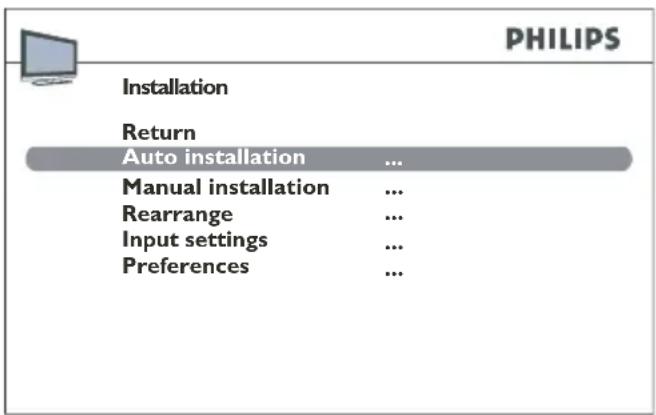
Press 1. MENU and select Installation > Auto installation.
Press 2. OK to enter Country.
Note
To search for missing programs, select Other instead of Country.
- Press ▲,▼, ◀ or ▶ to select the country you are in, or the country whose programmes you want to receive if you live near its borders.
Press 4. OK to confirm. The Auto installation menu appears.
Select 5. Automatic search and press OK to start the automatic search.
Note
Automatic search takes several minutes.
When the automatic set-up is complete, 6. press OK to review the programmes or press EXIT to quit.
Manually install programs4.4
Programs that were not stored during the initial set-up can be installed manually. This might be necessary if you are setting up cable network programs.
Access the Manual installation menu
Press 1. MENU and select Installation > Manual installation.
Manually install programs
Select the 1. Standard menu from the Manual installation.
Press 2. ◀ or ▶ to select the standard for your country.
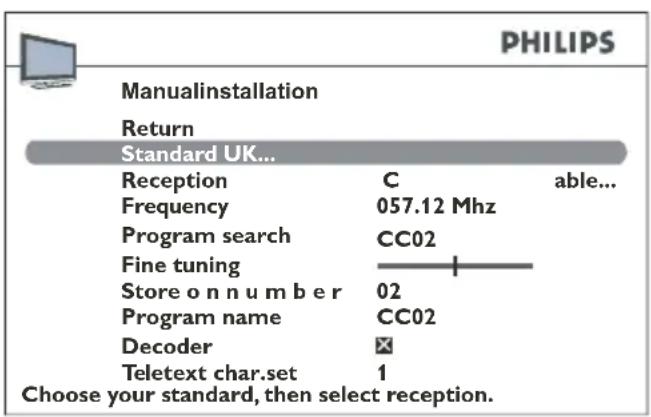
Select 3. Reception and press ◀ or ▶ to select the reception method for the programs (antenna or cable network).
Select 4. Program search and press ◀ or ▶ to select the reception program. When a program has been found, the picture is displayed. The frequency of the current programs displays under the Frequency option.
- If the picture is not clear, adjust the setting. Select Fine tuning and press ◀ or ▶ to adjust the tuning.
Select 6. Program name and edit the name as follows:
- Press ◀ or ▶ to select a character space.
- Press ▲ and ▼ to select a letter, number or symbol.
- Press ▶ to go to the next character.
-
Press OK to confirm.
-
If the program is encoded you can connect a decoder to the EXT 1 socket. Select the Decoder option and press OK, or press ◀ or ▶ to check the box.
Select the 8. Teletext char. set option and press ◀ or ▶ to choose the character set to use for Teletext on this program.
The following character sets are available:
- Western Europe
- Eastern Europe
Greek •
• Russian - Bulgarian
• Russian - Ukrainian
• Russian - Byelorussian - Arabic
Select the 9. Store on number option and press the number keys to enter the number assigned to the program (for instance, for BBC1 type 01).
Press OK.
Note: Whenever you change a value in the Manual installation menu, the Store on number option starts flashing. To confirm your change, select the Store on number option and press OK. If you do not confirm the change, it is cancelled when you change programs or put the TV in standby.
- Repeat the procedure to find other programs.
Note
For cable networks, to search for missing • programs, select the Other option instead of a country from the country list. Then select Automatic update in the Auto installation menu.
For subsequent set-up: •
The • Automatic update function allows you to set up programs just launched or any programs that are missing or wrongly set up.
The • Automatic search function is used for setting up programs after the initial set-up (e.g. after moving house). This process deletes all programs previously stored. To set up a new program, it is better to use Automatic update or Manual installation.
Use your TV5.
Press • MUTE on the remote control to mute the sound. Press MUTE again to unmute on the sound.
Switch programs5.1
- Press a number (1 to 99) or press P +/- on your remote control.
Press • PROGRAM +/- on the side controls of the TV.
Access your favourite 5.2 programs
For information about how to define a list of favourite programs, see Define a list of favourite programs.
Access favourite programs by pressing P +/- on the remote control.
Press 1. SMART MODE on the remote control.
Select the 2. PR+/PR- keys option.
- Press ◀ or ▶ to select Favourites.
To cancel this option, select All programs in the PR+/PR- keys option.

Note:
You can select programs that are not in your list by pressing the number keys on the remote control or the PROGRAM +/- buttons on the TV.
5.3 Access AV programs
- Press the SOURCE button on the remote control to toggle through the audio-visual programs. Select from: TV, EXT 1, EXT 2-CVBS, EXT 3, EXT 2-YPbPr, HDMI, PC.
5.4 Adjust volume
- Press + or - on the remote control.
- Press VOLUME + or - on the side controls of your TV.
5.5 Display status information
In TV mode, press the INFO button on the remote control to display the number and name of the program, the time, the type of sound and picture size. If the Turn-off timer is set, a symbol indicates the time remaining until the TV set is switched off.
In PC mode, press the INFO button on the remote control to display the time, the type of sound and the picture size, as well as the source of the signal being received, and the resolution. If the Turn-off timer is set, a symbol indicates the time remaining until the TV set is switched off.
When you switch the TV set on or change programs, the program number and name are displayed.

Note
If you activate the Program number function in the Preferences menu, the program number is displayed permanently.
5.6 Display a list of programs
Press 1. PROGRAM LIST on the remote control to display the list of programs.
The program list contains up to 11 pages and shows the name and number of every program. The last page contains devices connected to the AV connectors.
The list appears on the page featuring the TV program or AV program that you are currently watching. The TV program or AV program you are watching is indicated by a symbol.
Press 2. ▲ or ▼ select the program and press OK.
Press 3. ◀ or ▶ to scroll through the pages.
Press 4. EXIT to close the menu.
6. Use more of your TV
Adjust sound settings6.1
Access the sound menu
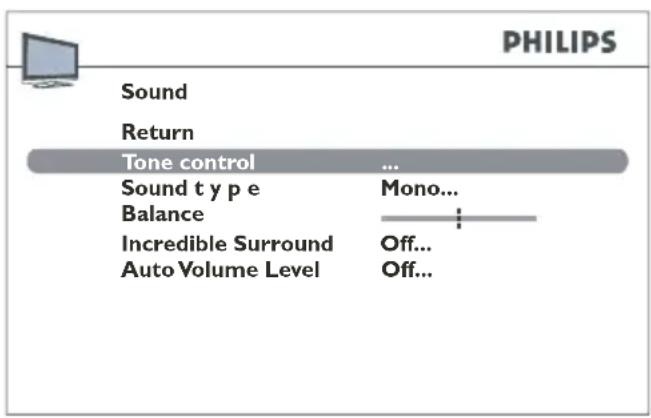
Press 1. MENU on the remote control and select Overview > Sound.
The Sound menu appears.
Press 2. EXIT to close the menu.
Select 3. Return and press OK to return to the Overview menu.
Description of sound options
- Tone control: Accesses the Tone control menu (for more information, see below).
- Sound type: Press ◀ or ▶ to select a sound type from the list.

Note
The options available depend on the program you are watching.
• Balance: Press ◀ or ▶ to balance the sound between the left and right speakers.
- Incredible Surround: Adds greater depth and dimension to TV sound. Press ◀ or ▶ to select an option from the list.
• Auto Volume Level: Keeps the same sound level for all programs. Press ◀ or ▶ to select an option from the list.
Adjust tone
Press 1. MENU on the remote control and select Overview > Sound.
Select 2. Tone control and press OK to display the menu.
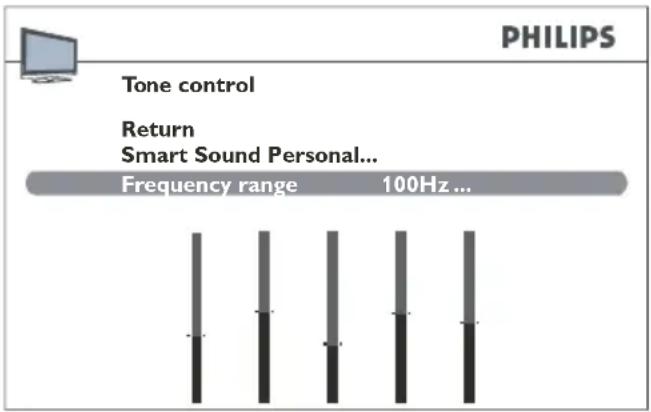
You can select a predefined setting and choose your own settings by using the graphic equalizer. It offers the following options:
Use Smart Sound
Press 1. ◀ or ▶ to select a setting from the list for the programs you are watching: Personal/Speech/Music/Movie/Multimedia.
The Personal setting stores your graphic equalizer settings.
You can access a list of preset sound settings directly by pressing the SMART MODE button on the remote control, selecting the Smart Sound option and choosing one of the preset settings from the list. Your selection is applied to all programs.
Adjust the frequency range
The graphic equalizer has five frequency bands. Adjust each band in turn.
Press 1. MENU on the remote control and select Overview > Sound > Tone control > Frequency range.
Press 2. ◀ or ▶ to select a frequency band.
Press 3. ▲ and ▼ to adjust each band.
Repeat for the other frequency bands.4.
Press 5. OK to confirm.
Note

When you are setting the graphical equalizer, Personal appears under the
Smart Sound option and your settings are stored as your new personal settings.
6.2 Adjust picture settings
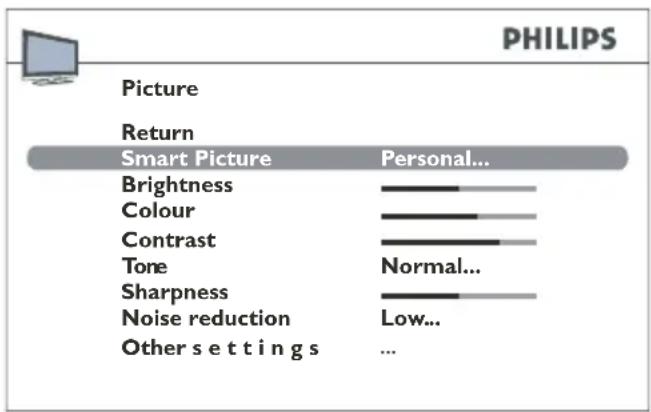
Adjust picture settings according to your preferences, the type of program you are watching and the ambient lighting. When you adjust a setting the selected option is displayed allowing you to see the changes on screen. The entire menu is displayed again when you select another option or when the time for making the adjustment has elapsed.
Access the picture menu
Press 1. MENU on the remote control and select Overview > Picture.
The Picture menu appears.
bar
| Category | Value | | ------------------ | ----- | | Picture | 0 | | Return | 0 | | Smart Picture | Personal... | | Brightness | 0 | | Colour | 0 | | Contrast | 0 | | Tone | Normal... | | Sharpness | 0 | | Noise reduction | Low... | | Other settings | ... |Press 2. EXIT to close the menu.
Select 3. Return and press OK to return to the Overview menu.
Description of picture options
- Smart Picture:
Press ◀ or ▶ to select a setting from the
list for the programs you are watching:
Personal/Vivid/Standard/Movie/Power saver. Personal contains the values you have defined for Brightness, Colour, Contrast, and Sharpness.
You can access the list of preset picture settings directly by pressing the SMART MODE button on the remote control.
Select the Smart Picture option and choose one of the preset settings from the list. Your selection is applied to all programs. You must select a preset setting for each AV program.
Note
Smart mode is not available for VGA(PC) mode.
- Brightness, Colour, Contrast, Tone, Sharpness: Press ◀ or ▶ to adjust these settings.
- Noise reduction: Improves the quality of the picture in poor reception. Press ◀ or ▶ to select an option from the list.
- Other settings: Accesses the Other settings menu (more details below).
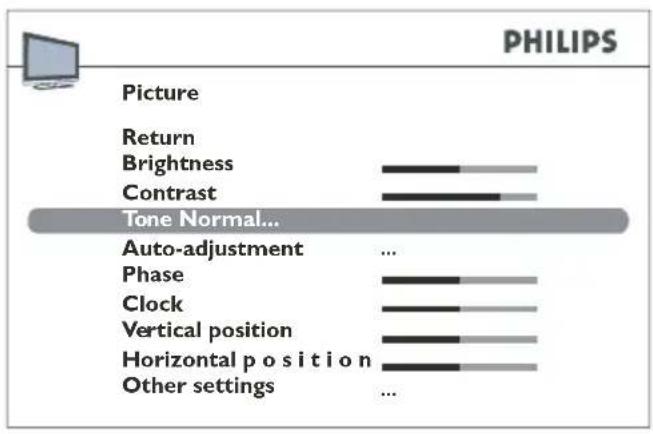
In VGA mode you can access a number of specific functions:
- Auto-adjustment: Press OK to automatically adjust the following functions: Phase, Clock, Vertical position and Horizontal position.
- Phase, Clock: Press ◀ or ▶ to adjust these settings in order to enhance picture quality.
- Vertical position: Press ◀ or ▶ to move the picture vertically on the screen.
- Horizontal position: Press ◀ or ▶ to move the picture horizontally on the screen.
bar
| Category | Value | | ------------------ | ----- | | Picture | 0 | | Return | 0 | | Brightness | 1 | | Contrast | 1 | | Tone Normal... | 0 | | Auto-adjustment | 0 | | Phase | 1 | | Clock | 1 | | Vertical position | 1 | | Horizontal position| 1 | | Other settings | 0 |Other picture settings
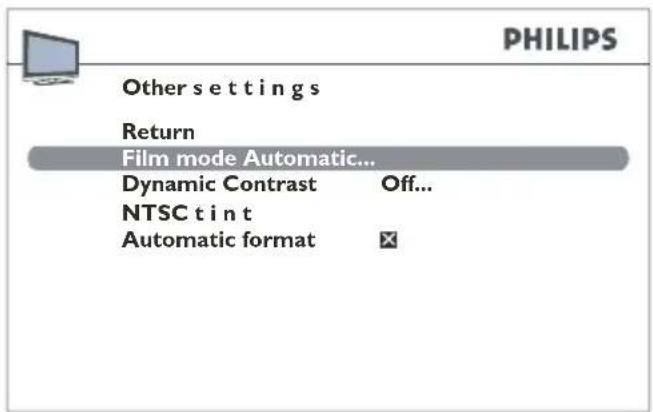
Press 1. MENU on the remote control and select Overview > Picture > Other settings.
The Other settings menu appears.
Press 2. EXIT to close the menu.
Select 3. Return and press OK to return to the Picture menu.
Description of the Other settings options
Film mode• : Detects when films are being broadcast and enhances picture quality for films. Press ◀ or ▶ to select an option from the list.
Note
The Automatic option is selected by default. This function is only available for
certain audio-visual sources.
• Dynamic Contrast: Press ◀ or ▶ to select On or Off.
Note
This function is not available for VGA (PC) mode.
- NTSC tint: Press ◀ or ▶ to adjust the picture tint.
Note
This function is only available for NTSC audio-visual sources.
• Automatic format: automatically applies the appropriate format to the picture. Check the box by pressing OK, or press ◀ or ▶ to enable this function.
Note
This function is only available for certain audio-visual sources. Not available on all TV models.
Set the clock and timers6.3
You can set the time on your TV and program an automatic turn-off or wake-up timer.
Set the time
Press 1. MENU on the remote control and select Overview > Features > Time.
The Time menu appears.
Select the 2. Time reference option.
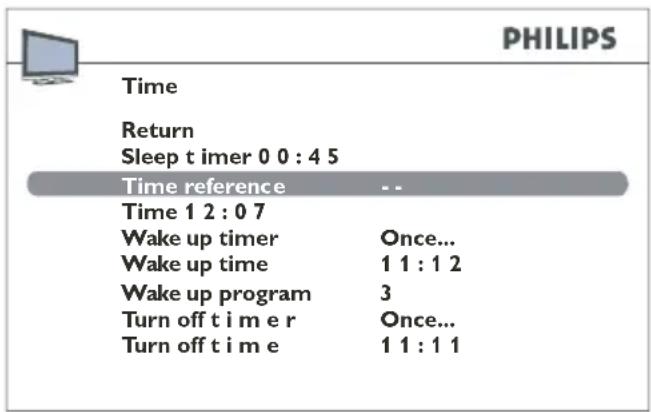
Set the time in one of the following ways.3.
From a teletext program: •
Switch to a program that displays
Teletext. If the time is available on the program, the time is displayed in a couple of seconds.
- Manually:
Select the Time option and press ◀ or ▶ to enter the current time. The setting -- appears under the Time reference option.

Note
If the power supply is cut off (the TV set is unplugged or there is an electrical fault), the time is lost if it has been entered manually. You need to enter it again. Consult a program which has this information to check that it is correct.
Program a turn-off timer
You can set a time at which the TV goes into standby mode or a delay after which the TV goes into standby mode.
Set delay after which the TV goes into standby mode
Press 1. MENU on the remote control and select Overview >Features >Time >Sleep timer.
The Sleep timer menu appears.
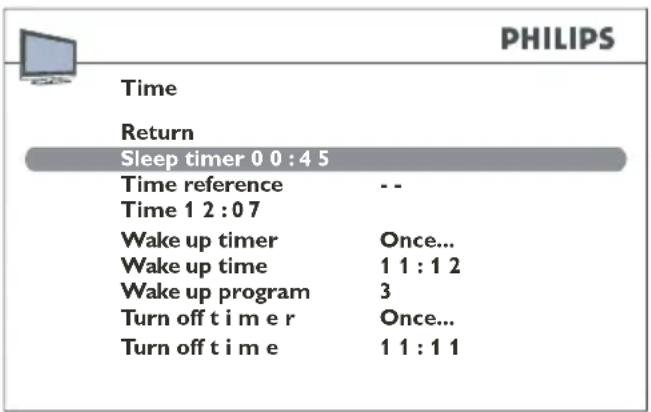
- Press ◀ or ▶ to set the delay after which the TV set automatically goes into standby mode. (4 hours maximum, at 5-minute intervals.)
- To disable this function, select Off.
Set a time at which the TV goes into standby mode
Press 1. MENU on the remote control and select Overview > Features > Time > Turn off timer.
-
Press ◀ or ▶ to choose Once or Daily. Select Off to disable this function.
-
Select Turn off time.
-
Press ◀, ▶ or the numeric keys to enter the time at which you want the TV set to go into standby mode.
Program a wake-up timer
Press 1. MENU on the remote control and select Overview > Features > Time > Wake up timer.
- Press ◀ or ▶ to choose Once or Daily. Select Off to disable this function.
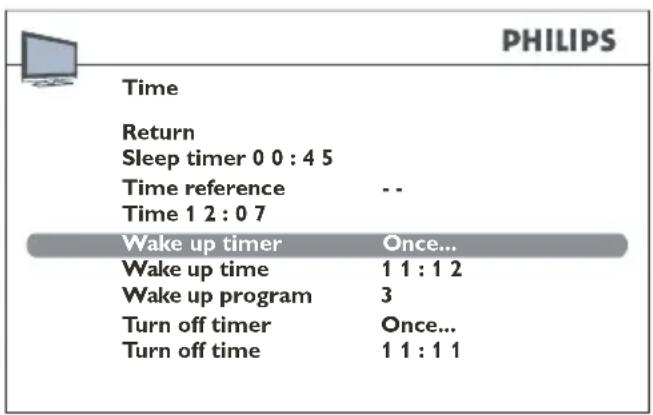
Select 3. Wake up timer.
- Press ◀, ▶ or the numeric keys to enter the time at which you want the TV to turn on from standby.
Select 5. Wake up program.
- Press ◀, ▶ or the numeric keys to enter the number of the program to wake up on.
Press 7. EXIT to close the menu.
- Press the POWER button on the remote control to put the TV into standby mode.
The TV automatically comes on at the programmed time if you do not interrupt it by using the remote control. Once the TV is on:
• you can use all its functions as normal;
- you can put the TV into standby mode. In this case, the Wake up timer function is disabled for the relevant day;
- if the program selected from the menu is locked, you need to enter your code to access it.
6.4 Use parental control
You can set a PIN code and restrict access to the TV in the following way:
- Prevent access to TV programs and/or AV programs.
- Prevent modification of turn-off and wake-up timers.
- Prevent access to the installation menu to prevent any programs from being set up without your consent.
Access the Parental control menu
Press 1. MENU on the remote control and select Features > Parental control.
Define a PIN code
Press 1. MENU on the remote control and select Features > Parental control > PIN code.
P2. ress the numeric keys on the remote control to enter a 4-digit code. The numbers are replaced by asterisks on screen.
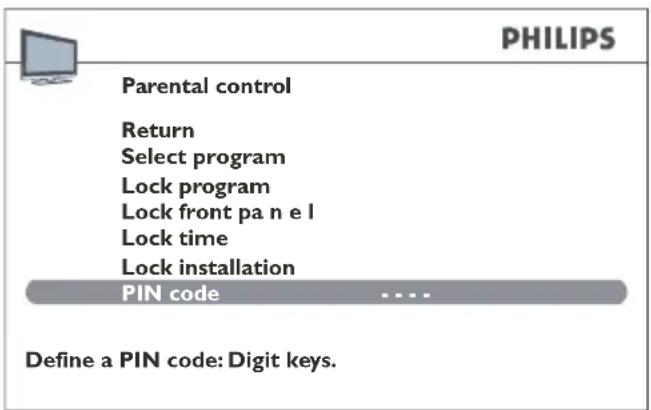
- Enter the code again to confirm it.
Note
Choose a code that you can easily remember:
Note
When a parental control function is enabled, you must enter your PIN code to access
the Parental control menu.
Reset your PIN code
You can use the master code 0711 to reset your PIN code.
Lock a TV program or AV prgram
Note

This function is only available if a PIN code has been defined. To watch a TV program or AV program which is locked, try accessing it and follow the procedure on the screen. The lock is applied again when you put the television in standby.
Press 1. MENU on the remote control and select Features > Parental control > Select program.
- Press ◀, ▶ or the numeric keys to select the TV program to be locked. Press ◀ or ▶ to access the AV programs.
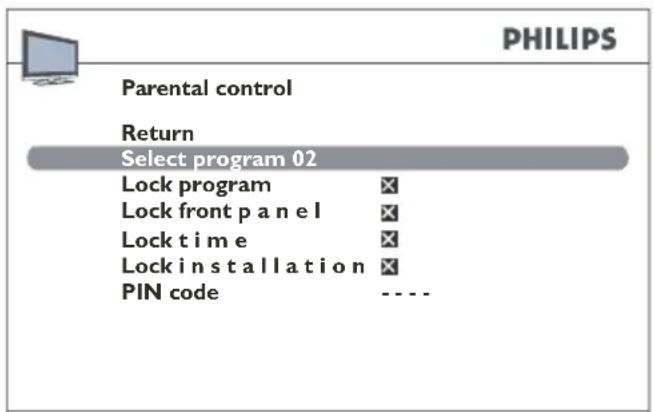
P3. ress ◀ or ▶ to check the box under the Lock program option.
To unlock a TV programor AV program:
- Go to the Parental control menu by entering your code.
- Select the Lock program option.
- Press ◀ or ▶ to uncheck the box.
- Press EXIT to close the menu.
Lock the buttons on the TV

This function is only available if a PIN code has been defined. You need the remote control to be able to use the television.
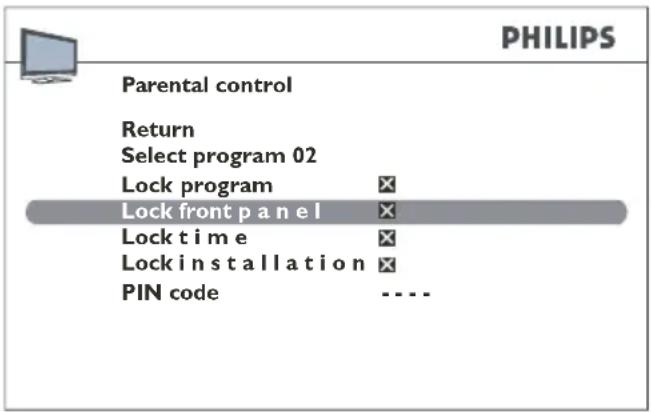
Press 1. MENU on the remote control and select Features > Parental control > Lock front panel.
P2. ress ◀ or ▶ to check the box.
To unlock the buttons:
- Go to the Parental control menu by entering your code.
- Select the Lock front panel option.
- Press ◀ or ▶ to uncheck the box.
- Press EXIT to close the menu.
Lock the Time menu

This function is only available if a code has been defined. When this function is active you need to enter your PIN code to be able to access the Time menu.
Press 1. MENU on the remote control and select Features > Parental control > Lock time.
P2. ress ◀ or ▶ to check the box.
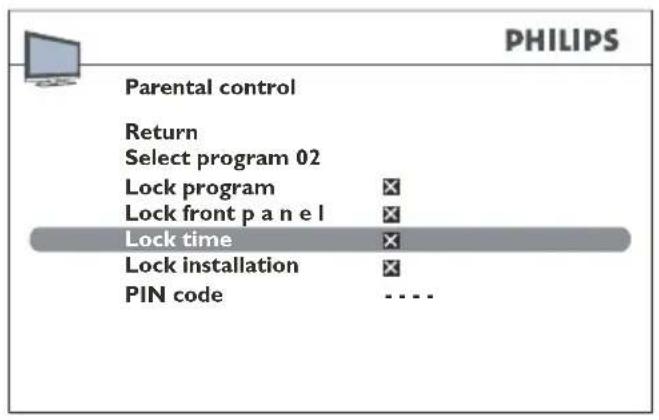
To unlock the Time menu:
Go to the • Parental control menu by entering your PIN code.
Select the • Lock time option.
- Press ◀ or ▶ to uncheck the box.
Press • EXIT to close the menu.
Lock the Installation menu
Notes
This function is only available if a code has been defined. When this function is active you need to enter your PIN code to be able to access the Installation menu.
Press 1. MENU on the remote control and select Features > Parental control > Lock installation.
- Press ◀ or ▶ to check the box.
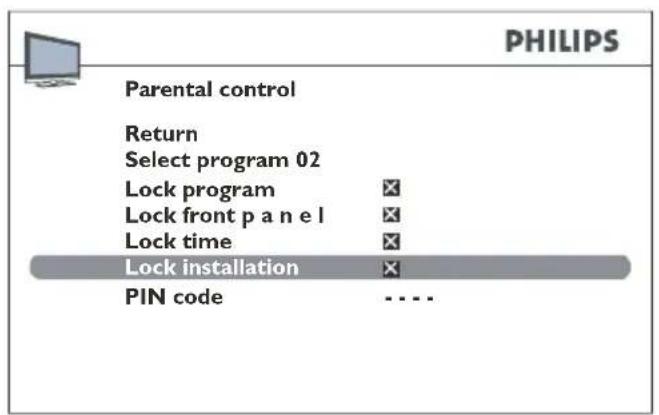
To unlock the Installation menu:
Go to the • Parental control menu by entering your code.
Select the • Lock installation option.
- Press ◀ or ▶ to uncheck the box.
Press • EXIT to close the menu.
Customize your TV6.5
Set preferences
When preferences are configured, they remain in operation until they are reconfigured.
Press 1. MENU on the remote control and select Installation > Preferences.
The Preferences menu appears.
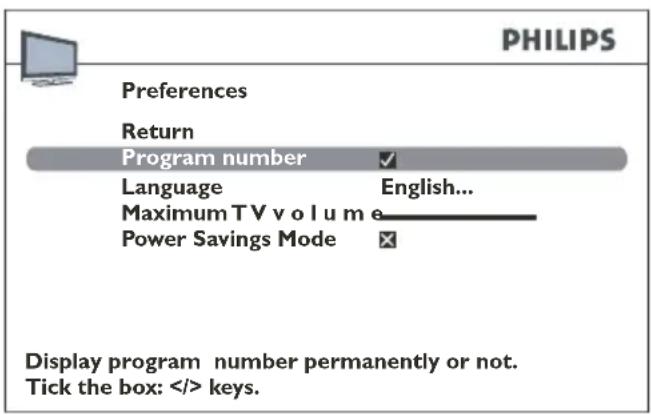
Press 2. EXIT to close the menu.
Select 3. Return and press OK to return to the Installation menu.
Description of preferences
Program number• : Permanently displays the number of the program being watched. To enable the function, press ◀, ▶ or OK to check the box.
- Language: Press ◀ or ▶ to select the menu language.

Note
When you select a language, it is applied to the menus immediately.
- Maximum TV volume: Sets the maximum volume. Press ◀ or ▶ to set the volume. To hear the level that you have just set, press the OK button and hold it for a few seconds.
• Power Savings Mode: When this mode is active the TV set automatically goes into standby mode after ten minutes if it
does not receive any signal on the selected program. To enable the mode, press ◀, ▶ or OK to check the box.
Configure AV sockets
You can configure your TV according to the equipment you connect to it.
Press 1. MENU on the remote control and select Installation > Input settings.
The Input settings menu appears.
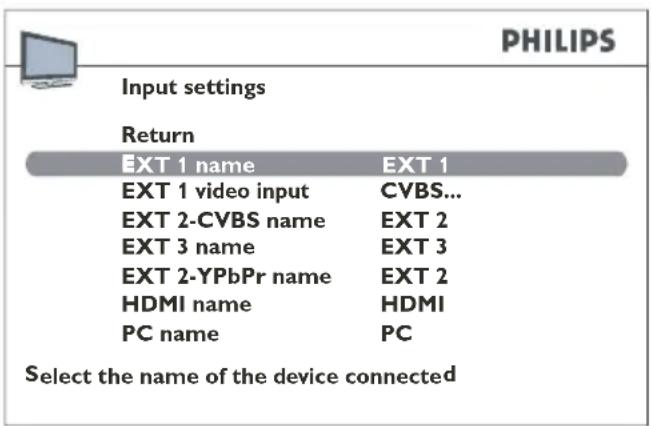
Use the messages on screen and the following instructions to configure the AV sockets.
- EXT 1 name:
If required, change the name as follows:
- Press ▶ to select EXT 1____.
- Press ▲ and ▼ to select a letter, number or symbol.
- Press ▶ to go to the next character.
- Repeat the above steps until the name is set.
- Press OK to confirm.
- EXT 1 video input: Press ◀ or ▶ to select the type of video signal transmitted by the equipment connected to the EXT 1 socket. Select RGB if no picture is displayed when you connect a games console.
EXT 2-CVBS name• : If required, change the name as described for EXT1 name. Replace EXT 1____ with EXT 2____.
EXT 3 name• : If required, change the name as described for EXT1 name. Replace EXT 1____ with EXT 3____.
EXT 2-YPbPr name• : If required, change the name as described for EXT 1 name. Replace EXT 1____ with EXT 2____.
HDMI name• : If required, change the name ^3 . as described for EXT 1 name. Replace EXT 1____ with HDMI____.
PC name• : If required, change the name as described for EXT 1 name. Replace EXT 1____ with PC____.
Press • EXIT to close the menu. Select Return and press OK to return to the Installation menu.
6.6 Use Teletext
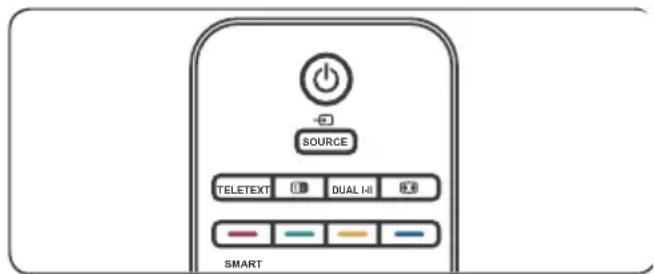
Teletext is available in many countries under a variety of names (TOP Text, Fastext, FLOF text, Videotext). Teletext is provided as a free service by television broadcasters. This service provides a real wealth of information, available at any time, on weather, sports results, news, games, etc. The information is presented in pages or organized in topics specified in colour on the screen. You can access this information by simply pressing the colour buttons on the remote control.
Access Teletext
-
Press the TELETEXT button on the remote control. The main index page appears.
-
To select a page with the remote control:
-
Enter the page number with the number keys.
- Press P +/- to view the next or the previous page.
- Press a colour key to select one of the colour coded items at the bottom of the screen.
Press TELETEXT again to switch off Teletext.
Select Teletext subpages
A teletext page can hold several subpages. If the current page includes subpages, the page number is displayed in green.
Press 1. TELETEXT on the remote control
- Select a teletext page.
- Press ◀ or ▶ to enter the subpage direct access mode. The display looks like this: 185 0001.
- Key in the 4-digit number (e.g. 0003) to enter the subpage.
- Or press P +/- to step through all the subpages.
Navigate Teletext pages
In the navigator, press ▲ and ▼ to select one of the following functions:
Note
For 20 inch models, press MENU in TXT mode to activate the following four icons.
- Stop
Information is spread over several subpages, displayed one after the other. To stop subpage scrolling, select STOP and press OK. Press OK again to restart scrolling
If you select STOP and the symbol changes colour, there are no subpages.
Hidden answers•
To reveal a hidden answer (for example, in games), select ? and press OK.
- Press OK again to hide the answer.
- Press C, the ? icon is replaced with a C in the navigator. Then press ◀ or ▶ to select the character set (See page 14 for all available character set).
Zoom•
Select P and press OK: once to zoom in on the top part of the screen, twice to zoom in on the bottom part of the screen, three times to return to normal display.
Mixed display•
Select 📋 and press the OK. Teletext is displayed in the right half of the screen only. Press the TELETEXT button to toggle between full screen and mixed display.
Other Teletext functions
Newsflash•
When a newsflash is detected, the icon is replaced with a N in the navigator. Select it and press OK to display the newsflash. In the case of an update, the Teletext function is enabled and displays the new information.
Subtitles•
Some programs provide subtitles. The number of the relevant pages is specified on the Teletext index page.
To display subtitles, enable Teletext and key in the page number that is displaying the subtitles. When the page is found, subtitles appear in the TV picture. The navigator disappears after a couple of seconds. To display it again, press TELETEXT.
Alarm page•
In some countries (Spain, Benelux, etc.) you can set a time to display certain Teletext alarm pages.
To do this, display the relevant alarm page and enter subpage mode. Enter the time instead of the subpage number (e.g. 1705 for 17:05) and press EXIT. The page disappears and appears again at the set time, as long as you do not change programs or switch off the TV beforehand.
Direct access•
The yellow and blue buttons on the remote control give direct access to pages whose numbers are displayed in yellow and blue at the bottom of the screen.
Fastext (FLOF)•
A band displayed at the bottom of the screen in Fastext teletext is divided into coloured sections. The colours represent links to the topics. Press the colour button on the remote control to access the topic.
TOPtext•
TOPtext displays a yellow and blue bar at the bottom of the page. The blue bar displays a topic you can access directly by pressing the blue button. The next topic will then appear in the blue section.
The yellow section displays an article you can access directly by pressing the yellow button. The next article will then appear in the yellow section.
Press EXIT to quit Teletext.
T7. echnical specifications
Supported display resolutions
• Computer formats
| Resolution | Refresh rate |
| 640 × 480 | 60Hz |
| 800 × 600 | 60Hz |
| 1024 × 768 | 60Hz |

Note
Model 20PFL3403 supports the format 640x480 60Hz only.
- Video formats
| Resolution | Refresh rate |
| 480i | 60Hz |
| 480p | 60Hz |
| 576i | 50Hz |
| 576p | 50Hz |
| 720p | 50Hz, 60Hz |
| 1080i | 50Hz, 60Hz |

Note
Model 20PFL3403 supports the format 480i 60Hz, 480p 60Hz, 576i 50Hz and 576p 50Hz only.
Tuner / Reception / Transmission
• Antenna input: 75ohm coaxial (IEC75).
• TV system: PAL BG, D/K, I SECAM L'/L
Remote control
• Batteries: 2 x AAA size (LR03 type)
Connections
Headphone out (stereo mini-jack)•
TV ANTENNA•
EXT 3: S-VIDEO•
EXT 2: YPbPr/CVBS, Audio L/R in.
EXT 1 (SCART): Audio L/R, CVBS in/out, . • RGB
VGA (PC)•
HDMI•
VGA AUDIO: Mini-jack audio in.
Power
Mains power: AC 100-240V (±10%).•
Power and standby power consumption: • See technical specifications at www.philips.com
Ambient temperature: 5°C - 35°C.
Specifications are subject to change without notice. For detailed specifications of this product go to www.philips.com/support.
8. Troubleshooting
Some problems you encounter with your TV can be corrected by consulting the following list.
No picture, no sound
Check if the fuse or circuit breaker is 1. working.
- Plug another electrical device into the outlet to make sure it is working or turned on.
- Power plug is in a bad contact with the outlet.
- Check the signal source.
No colour
- Change the colour system.
- Adjust the saturation.
- Try another program. Black-white program may be received.
Remote control does not work
- Change the batteries.
- Batteries are not installed correctly.
- Main power is not connected.
No picture, normal sound
- Adjust the brightness and contrast.
- Broadcasting failure may happen.
Normal picture, no sound
- Press the VOLUME + button to increase volume.
- Volume is set to mute, press MUTE to restore sound.
- Change the sound system.
- Broadcasting failure may happen.
Ripples on the picture
Usually caused by local interference such as cars, daylight lamps and hair driers. Adjust the antenna to minimize the interference.
Blank screen in VGA(PC) mode
Perhaps the TV can not recognize the resolution set by the PC. Change to the best resolution or other standard resolutions of the PC system.
Check the connections.
Snowy dots and interference
If the antenna is located in the fringe area of a television signal where the signal is weak, the picture may be marred by dots. When the signal is extremely weak, it may be necessary to install a special antenna to improve the reception.
Adjust the position and orientation of • the indoor/outdoor antenna.
Check the connection of antenna.
Fine tune the program.
Try another program. Broadcasting • failure may happen.
Ignition
Black spots or horizontal streaks appear, or the picture flutters or drifts. This is usually caused by interference from car ignition system, neon lamps, electric drills, or other electrical appliance.
Ghost
Ghosts are caused by the television signal • following two paths. One is the direct path, the other is reflected from tall buildings, hills, or other objects. Changing the direction or position of the antenna may improve the reception.
Radio frequency interference
This interference produces moving ripples • or diagonal streaks, and in some case, loss of contrast in the picture. Find out and remove the radio interference source.


- Table of contents
- Warranty
- Pixel characteristics
- Compliance with EMF
- Mains fuse (UK only)
- Copyrights
- Important1.
- Safety 1.1
- Screen care
- Environmental care1.3
- Recycling your packaging
- Disposing your used product
- Disposing used batteries
- Power consumption
- Your TV2.
- TV overview2.1
- VGA (PC) socket (input)•
- HDMI (input)•
- Notes
- • 8. VGA AUDIO sockets (input)
- Remote control2.3
- Get started3.
- Note
- Position the TV3.1
- Wall mount the TV3.2
- WARNING
- Step 1 Purchase a VESA-compatible wall bracket
- Step 2 Connect cables
- Step 3 Secure the VESA-compatible wall bracket to the TV
- Connect the antenna cable 3.3
- Connect the mains cord3.4
- Insert remote control 3.5 batteries
- Switch on/off or to standby 3.6
- Switch on the TV from standby
- Switch your TV to standby
- Switch off your TV
- Install programs4.
- Initial set-up4.1
- Rearrange programs4.2
- Access the Rearrange menu
- Swap a program number
- Change a program name
- Delete a program
- Define a list of favourite programs
- Auto install programs4.3
- Manually install programs4.4
- Access the Manual installation menu
- Manually install programs
- Use your TV5.
- Switch programs5.1
- Access your favourite 5.2 programs
- Note:
- Access AV programs
- Adjust volume
- Display status information
- Display a list of programs
- Use more of your TV
- Adjust sound settings6.1
- Access the sound menu
- Description of sound options
- Adjust tone
- Use Smart Sound
- Adjust the frequency range
- Adjust picture settings
- Access the picture menu
- Description of picture options
- Other picture settings
- Description of the Other settings options
- Set the clock and timers6.3
- Set the time
- Program a turn-off timer
- Set delay after which the TV goes into standby mode
- Set a time at which the TV goes into standby mode
- Program a wake-up timer
- Use parental control
- Access the Parental control menu
- Define a PIN code
- Reset your PIN code
- Lock a TV program or AV prgram
- Lock the Time menu
- Lock the Installation menu
- Customize your TV6.5
- Set preferences
- Description of preferences
- Configure AV sockets
- - EXT 1 name:
- Use Teletext
- Access Teletext
- Select Teletext subpages
- Navigate Teletext pages
- - Stop
- Hidden answers•
- Zoom•
- Mixed display•
- Other Teletext functions
- Newsflash•
- Subtitles•
- Alarm page•
- Direct access•
- Fastext (FLOF)•
- TOPtext•
- T7. echnical specifications
- Supported display resolutions
- Tuner / Reception / Transmission
- Remote control
- Connections
- Power
- Troubleshooting
- No picture, no sound
- No colour
- Remote control does not work
- No picture, normal sound
- Normal picture, no sound
- Ripples on the picture
- Blank screen in VGA(PC) mode
- Snowy dots and interference
- Ignition
- Ghost
- Radio frequency interference
Brand : PHILIPS
Model : 19PFL3403S
Category : Uncategorized