ActivPanel AP4-70E - Desktop computer Promethean - Free user manual and instructions
Find the device manual for free ActivPanel AP4-70E Promethean in PDF.


User questions about ActivPanel AP4-70E Promethean
0 question about this device. Answer the ones you know or ask your own.
Ask a new question about this device
Download the instructions for your Desktop computer in PDF format for free! Find your manual ActivPanel AP4-70E - Promethean and take your electronic device back in hand. On this page are published all the documents necessary for the use of your device. ActivPanel AP4-70E by Promethean.
USER MANUAL ActivPanel AP4-70E Promethean
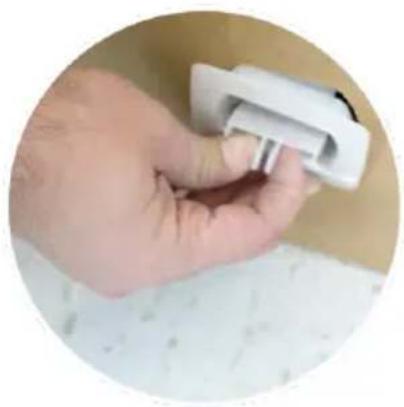
To open the ActivPanel carton, you will need to remove the plastic locks by squeezing the tabs and pulling outward.
② Lift the cover off the ActivPanel carton.
natural_image
Close-up of a hand holding a white plastic clip attached to a wall (no text or symbols visible)③ Assess the room or wall where the ActivPanel will be installed.
- Check for pipes, electrical, etc.
• Determine what wall anchors are necessary - Locate mounting studs
4 Reference the ActivPanel Installation Guide for measurements. Mark the measurements on the wall and drill the holes.
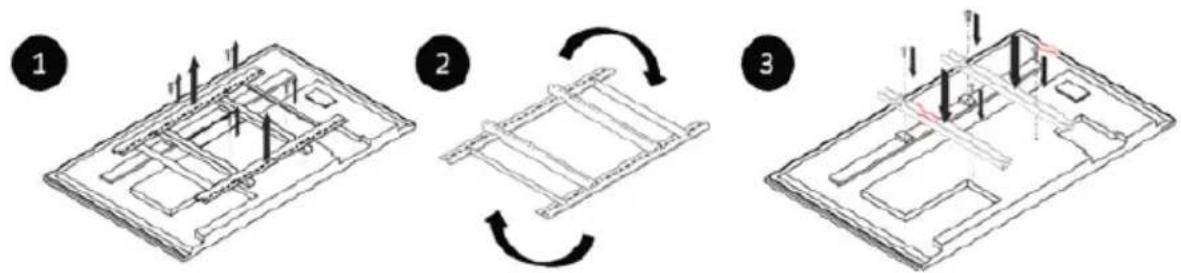
5 Remove the ActivPanel wall bracket from ActivPanel, rotate it 180 degrees, and attach to the wall. The flat side goes against the wall.
6 Remove the vertical wall mounting bars from the ActivPanel.
7 Flip the vertical ActivPanel mounting bars over and reinstall them.
flowchart
graph TD
    A["1: Initial structural assembly with arrows indicating direction"] --> B["2: Rotation of structural components"]
    B --> C["3: Final assembly with arrows indicating rotation"]
8 Install the ActivConnect G-Series bracket on the ActivPanel using the following instructions depending on the model of the ActivPanel. Please reference your ActivPanel packaging or packaging label to find the size and model number.
| ActivPanel v4.5 - 70" and 80" | ActivPanel v4.5 - 70" and 80" |
Install the mounting bracket included in the ActivPanel packaging on the bottom center of the back of the ActivPanel.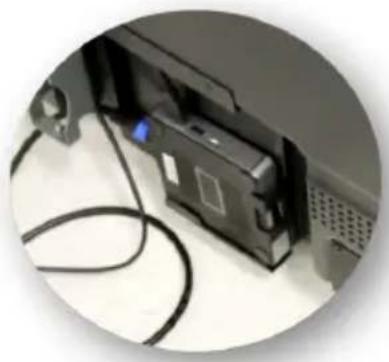 Rear bottom of ActivPanel v4 - 55", 65", 75", 84" Rear bottom of ActivPanel v4 - 55", 65", 75", 84" | Install the mounting bracket included in the ActivConnect G-Series box by using the pre-mounted screws provided on the back of the ActivPanel in the upper corner.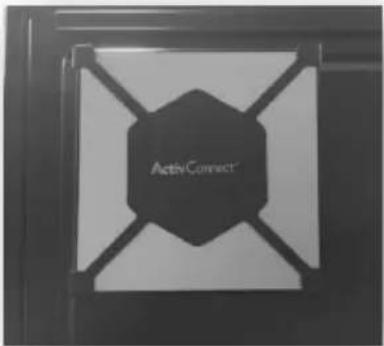 Rear of the ActivPanel v4.5 - 70", 80" Rear of the ActivPanel v4.5 - 70", 80" |
| Place the ActivConnect in the mounting bracket with the port sides facing the left and upward. | |
To connect the ActivConnect G-Series to the ActivPanel, please follow the connectivity instructions below.
- Plug the power cable into the DC 5V port, USB cable into the USB port (NOT the USB/OTG), HDMI cable into the HDMI port, and the Ethernet cable into the LAN port on the ActivConnect.
- In order for the touch and video to work together, you must install the USB and HDMI connection from the ActivConnect to the ActivPanel. Reference the table below to ensure that you are using the correct active touch port that corresponds with the video source.
ActivPanel v4 - 55", 65", 75" and 84"
| VIDEO SOURCE WORKS WITH | TOUCH PORT |
| HDMI 1 Touch 1 | |
| HDMI 2 Touch 2 | |
| HDMI 3 Touch 3 | |
| HDMI 4 Touch 4 |
ActivPanel v4.5 - 70" and 80"
| VIDEO SOURCE WORKS WITH | TOUCH PORT |
| HDMI 1 Touch 1 | |
| HDMI 2 Touch 1 | |
| HDMI 3 (CONNECT G-SERIES TO THIS PORT) | Touch 2 |
| VGA 1 Touch 1 | |
| VGA 2 Touch 1 | |
| YPbPr Touch 1 | |
| CVBS Touch 1 |
Promethean ^TM
10 Hang the ActivPanel on the wall bracket.
11 Power on the ActivPanel.
- If the ActivConnect screen is not displayed, select the correct source with the source button on the ActivPanel or remote.
12 If you prefer to connect to a wireless network, please do so at this point.
- Tap the Apps icon in the bottom-left corner.
- Tap the gear icon.
- Tap Settings.
- Tap Wi-Fi.
NOTE: The ActivConnect G-Series uses the Bonjour® service with Apple® devices. Make sure this service is not blocked.
13 Update your software when you are prompted to do so.
- You will not be able to bypass this step. The update will run in the background if you leave this screen.
- If you are connected to a wireless network and need to unblock the update, please whitelist this URL on your server, https://otaupdate.prometheanworld.com.
NOTE: This step will need to be performed by a network administrator.
- The device will reboot itself when the update has completed. The system will then be ready to use.
Getting Started
Please refer to the ActivConnect-G Series User Guide to learn more about the user interface, menus and other features. Select the Help App on your home screen or visit our support website below for manuals, documentation, software downloads, articles, videos and more.
www.PrometheanWorld.com/ActivConnect-G-Series-Help