
Wireless Charger - Wireless Charger RAZER - Free user manual and instructions
Find the device manual for free Wireless Charger RAZER in PDF.


| Product Type | Wireless Charger |
| Brand | Razer |
| Model | Wireless Charger (RZ-xxxxx) |
| Compatibility | Qi-enabled devices; Razer Phone 2 recommended |
| Input | USB-C; power adapter (5V/2A or 9V/1.67A typical) |
| Output | Up to 10W (Qi standard) |
| Charging Surface | Adjustable (base and stand modes) |
| Lighting | Underglow Chroma RGB; customizable via app |
| Night Mode | Button to toggle underglow lighting |
| Connectivity | Bluetooth for app pairing |
| App Support | Razer Chroma Configurator (Android) / Razer Wireless Charger (iOS) |
| Safety | Overheat, overcurrent protection; Qi certification |
| Warranty | 1 year limited (register online) |
| Operating Temperature | 0°C to 40°C (32°F to 104°F) |
| Maintenance | Clean with soft cloth; avoid liquids |
| Dimensions | Approx. 150 x 80 x 20 mm (estimated) |
| Weight | Approx. 200 g (estimated) |
Frequently Asked Questions - Wireless Charger RAZER
User questions about Wireless Charger RAZER
0 question about this device. Answer the ones you know or ask your own.
Ask a new question about this device
Download the instructions for your Wireless Charger in PDF format for free! Find your manual Wireless Charger - RAZER and take your electronic device back in hand. On this page are published all the documents necessary for the use of your device. Wireless Charger by RAZER.
USER MANUAL Wireless Charger RAZER
*May vary for specific regions.
PRODUCT REQUIREMENTS
Hardware requirements
■ Razer Phone 2
or
Qi TM enabled or with external Qi TM receivers / case smartphones
Mobile app requirements
- iOS or Android mobile device with Bluetooth compatibility
■ Internet connection
2. LET'S GET YOU COVERED
You've got a great device in your hands—now maximize its potential by registering online! You score exclusive Razer benefits, information on your wireless charger's 1 year warranty, and more.
Register now at razerid.razer.com/warranty

Got a question? Ask the Razer Support Team at support.razer.com
3. EXPLORING YOUR WIRELESS CHARGER

A. USB-C port
B. Adjustable wireless charging surface
C. Underglow lighting Powered by Razer Chroma TM
D. Night Mode button
E. Power adapter*
F. USB-C charging cable
*May vary for specific regions.
4. GETTING STARTED
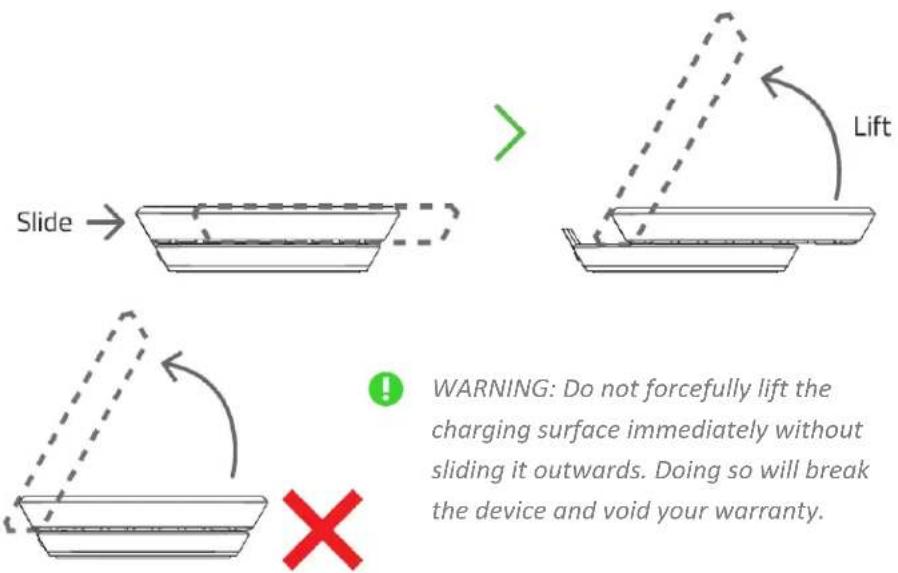
- Optional: While firmly holding the base of the wireless charger, slide the charging surface away from the Night mode button, and then gently lift the charging surface upwards.
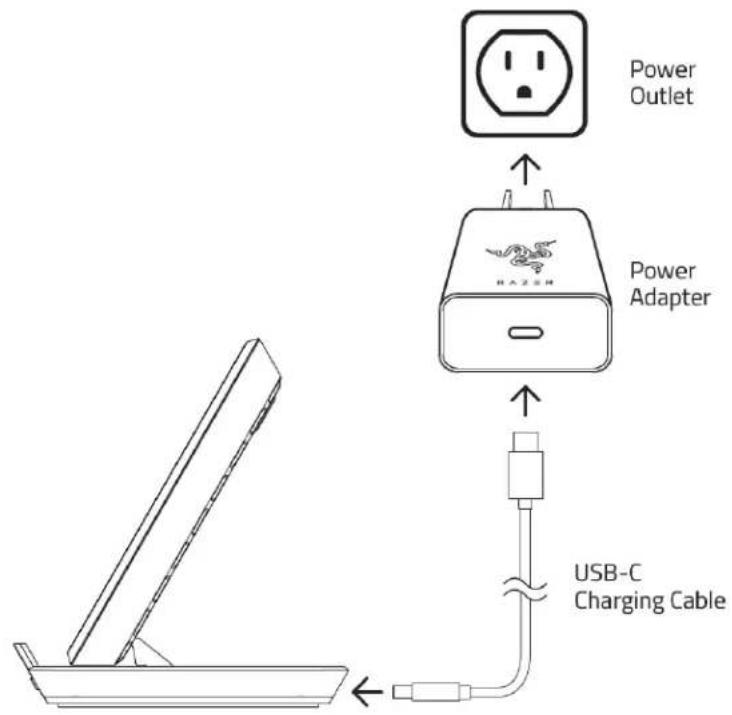
- Use the USB-C charging cable to connect the power adapter to your wireless charger, and then plug it in. The underglow lighting will display the default spectrum of colors.
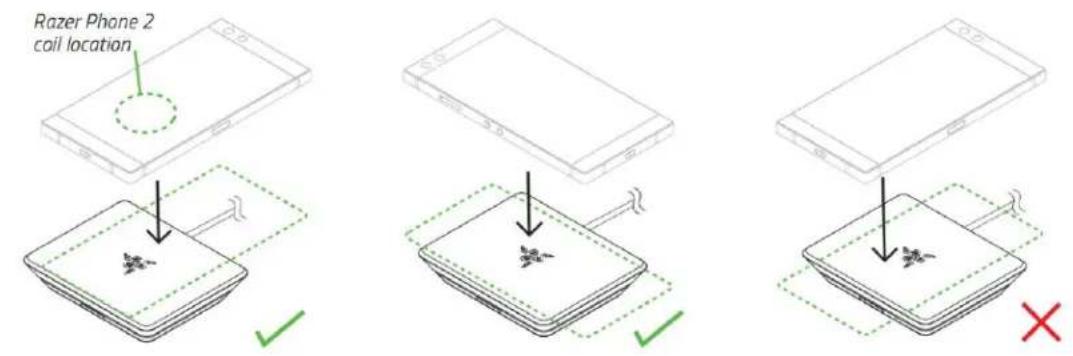
- Place your mobile device on the charging surface and wait for it to fully charge. The underglow lighting will briefly flash in green to indicate that your device is charging.
BASE MODE
STAND MODE
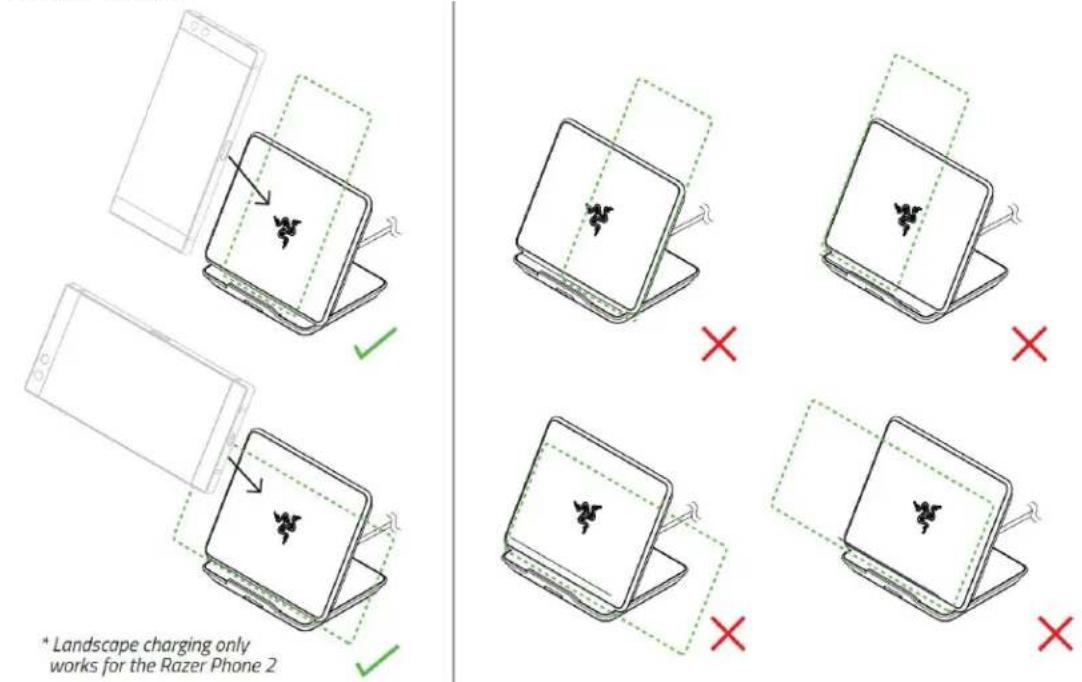
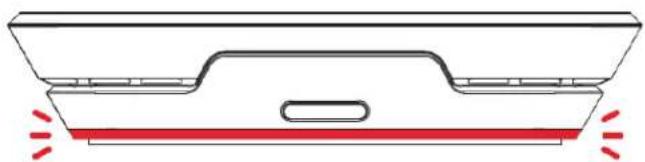
If the underglow lighting continuously flashes in red due to a charging error, check if your device is compatible and/or properly placed at the center of the charging surface.
The Razer Wireless Charger is designed to work with all Qi-compatible devices. Like all wireless chargers, the charging coils must be aligned to function properly. If you're not able to charge your non-Razer, Qi-compatible device while the Razer Wireless Charger is in STAND MODE, try adjusting the position of your device to both portrait and landscape positions. If this does not work, try putting the Razer Wireless Charger into BASE MODE and then adjust your device's position and location to where it can charge successfully.

UNDERGLOW LIGHTING
The underglow lighting momentarily displays the status of the wireless charger before reverting to its current lighting effect
| Mode | Charging | Pairing | Paired | Charging Failure* |
| Status |
Check if your device is compatible and/or properly placed at the center of the charging surface.
NIGHT MODE BUTTON
Press the Night Mode button to turn on / off the underglow lighting of the wireless charger.

6. PERSONALIZING THE UNDERGLOW LIGHTING
From customizing the lighting effects of both charging and standby modes to configuring each mode's duration – download and launch the Razer Chroma Configurator app from Google Play or the Razer Wireless Charger app from the App Store to begin customizing the awesome features of your Razer Wireless Charger's underglow lighting through your phone.
DOWNLOAD

RAZER CHROMA
CONFIGURATOR APP

*
PAIRING YOUR WIRELESS CHARGER WITH THE APP
The wireless charger must be first paired with the app for you to customize its lighting on your phone. Simply follow the instructions provided in setting it up.

Android iOS
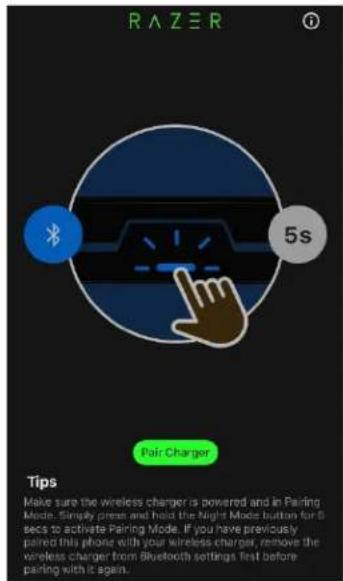
If you are using the Razer Chroma Configurator app on the Razer Phone 2, swipe left to access the pairing page.
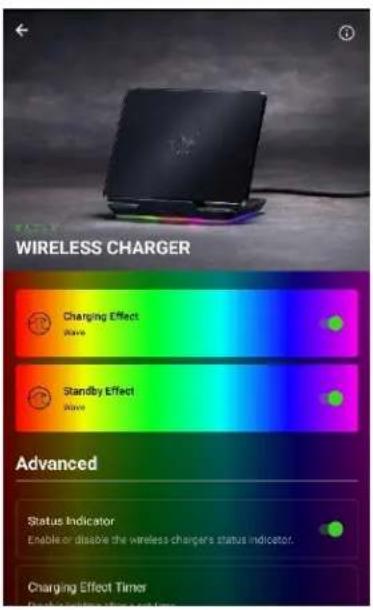
Upon launching the Razer Chroma Configurator app (on other devices) or the Razer Wireless Charger app, the Razer Wireless Charger's default page will appear.
If you are using the Razer Chroma Configurator app on the Razer Phone 2, tap the expand button ( ↗) to fully show all of your wireless charger's available settings.
Android iOS

Info
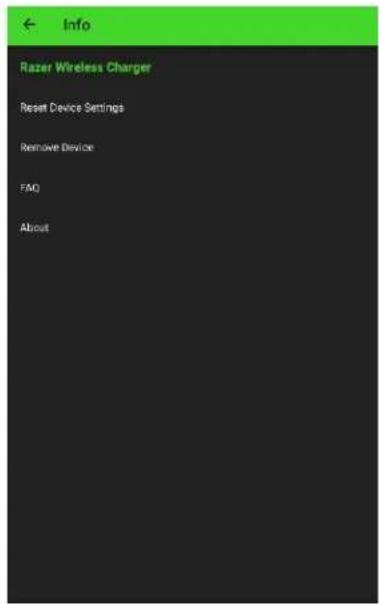
Tap the Info button ( ⓘ ) to either reset your device to its default settings, unpair a wireless charger from the app, view its FAQ, or view the app's info and other relevant links.
Android iOS
![Back Info PAIRED DEVICE Razer Wireless Charger [69:dd] Firmware v.0.10.4.0 Connected MORE FAQ > About > UNPAIR CHARGER](/content/2026/05/763073/images/11522efd27569af19e43259dd0450e89b6e623a55832cdfb8292a63df0e6ea17.jpg)
Charging and Standby Effects
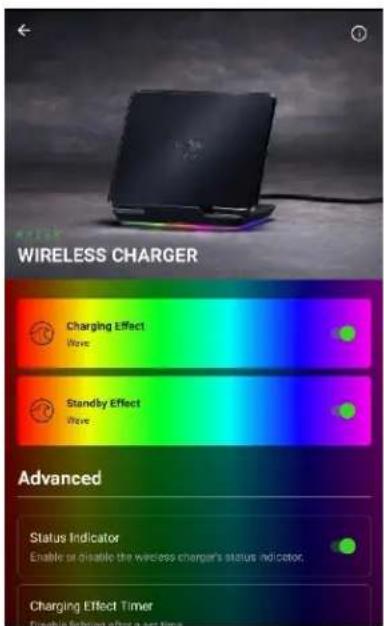
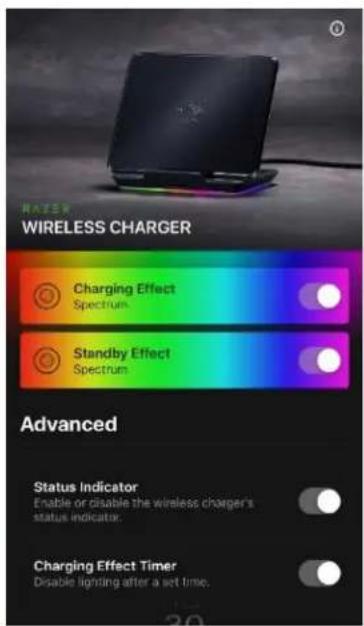
Enable or disable the wireless charger's lighting effect while charging and/or while on standby by toggling each mode's corresponding switch. Tapping on any of these modes opens the Chroma Effect page where you can change and customize (if applicable) the selected mode's lighting effect.
Android iOS
Chroma Effect page
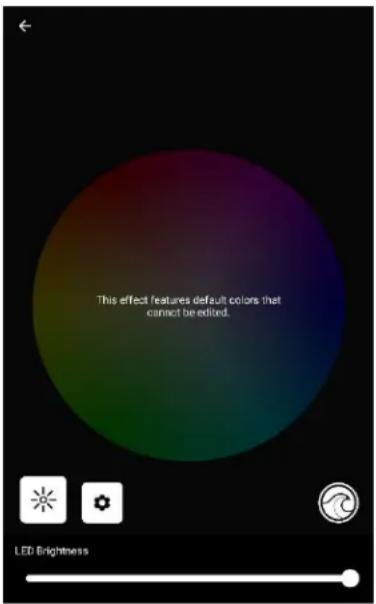
The Chroma Effect page allows you to change and customize further (if applicable) the selected mode's lighting effect or change its brightness level if needed.
Adjusting Brightness
Tap the Brightness button ( *to adjust the brightness level of the selected mode's lighting using the LED Brightness slider.
Changing Chroma Effects
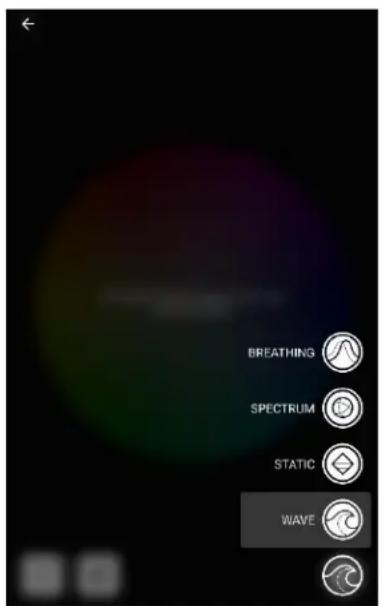
Tap the Effect button (found on the lower right portion of the Chroma Effect screen) to change the selected mode's lighting effect.
The following lighting effects listed below can be applied to the underglow lighting of your wireless charger:
| Effect | How it works | |
 | Breathing | The lighting will fade in and out of the selected color |
 | Spectrum cycling | The lighting will cycle between 16.8 million colors indefinitely. |
 | Static | The underglow lighting will remain lit in the selected color |
 | Wave | A default spectrum of colors will scroll in the direction selected |
Changing Colors for Selected Effects

The color for Breathing and Static effects can be changed using the color picker or by specifically entering a hexadecimal color code upon tapping the hash button ( # ).
A selected color's intensity can be changed by tapping the color button (found beside the brightness button) and adjusting the now visible Color Intensity slider to your preferred tone.
Advanced Settings
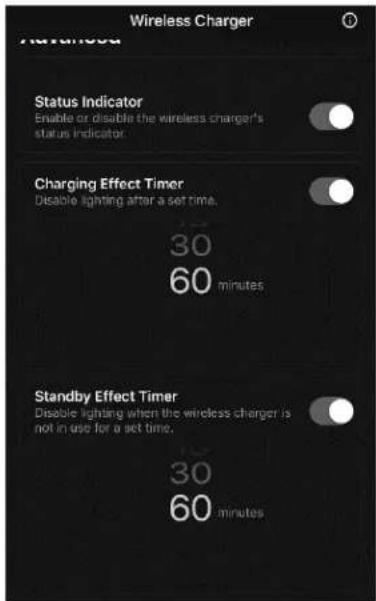
Customize other wireless charger settings such as enabling or disabling the brief status display and setting a duration for the charging and standby mode effects.

Android iOS
Status Indicator
Enable or disable the wireless charger's brief status display.
Charging Effect Timer
Enable or disable a set duration for the underglow lighting to remain active while charging a device for a set time. Simply tap the shown time to change the timer's duration.
Charging Effect must be enabled to configure this setting.
Standby Effect Timer
Enable or disable a set duration for the underglow lighting to remain active when the wireless charger is not in use. Simply tap the shown time to change the timer's duration.
Standby Effect must be enabled to configure this setting.
7. SAFETY AND MAINTENANCE
SAFETY GUIDELINES
In order to achieve maximum safety while using your Razer Wireless Charger, we suggest that you adopt the following guidelines:
- Should you have trouble using the wireless charger properly and troubleshooting does not work, unplug the charger and contact the Razer hotline or go to support.razer.com for support. Don’t attempt to service or fix the charger yourself at any time.
- Don't take apart the device (doing so will void your warranty) and don't attempt to operate it under abnormal current loads.
- Use only the power adapter that came with your Razer Wireless Charger, or the Razer-authorized power adapter compatible with this product. Make sure the charging cable is fully inserted into the power adapter before plugging the power adapter into a power outlet.
- Place your Razer Wireless Charger on a stable surface that allows adequate air ventilation. Don't place the wireless charger on any unstable surface as the device may fall which may cause injury, damage to property, and even the product itself.
- Don't use or place the device near water, moisture, or other wet surfaces.
- Don't use or place near any heat, naked flame, or other hot surfaces such as radiators, stoves, fireplaces, and candles.
- Don't place the wireless charger close to any magnetic stripes or chip cards (e.g. ID card, bank cards, etc.) to avoid magnetic failures.
- Keep at least a 20 cm distance between the wireless charger and any implantable medical devices (pacemakers, implantable cochlear, etc) to avoid potential interferences to the medical device.
- Use caution when using the wireless charger to avoid electrical shock or damage, such as unplugging the charger during thunderstorms, ensuring that your hands are dry before using (and handling) the device, keeping it away from any source of liquid and/or heat source, and using all other reasonable precautions needed under the circumstances.
- Protect the charging cable from being walked on or pinched, particularly at plugs, convenience receptacles, or the point where they exit from the device.
- Don’t puncture nor insert foreign objects into any of the wireless charger’s openings.
- Don't overload wall electricity outlets, extension cords and plugs. This may result in fire or electrical shock.
-
If the wireless charger is not working, check if the charging cable is firmly connected and/or its power adapter is plugged in.
-
The Razer Wireless Charger should be used for compatible mobile devices only. Please check the packaging to know if the wireless charger is compatible with your mobile device. Razer shall not be responsible for any damages incurred to any device when using the wireless charger.
- Don't use the wireless charger under pillows, blankets or near flammable surfaces as the device will generate heat while charging.
- The Razer Wireless Charger should only be operated using the type of power source indicated on the device. Only use the charging cable and power adapter provided with your product or by your local distributor and/or retailer. If you are unsure of the power source, please consult the local power company or a qualified technician.
- Refer all servicing to qualified service personnel. This is required when the device has been damaged in any way, such as if the charging cable or power adapter is damaged, liquid has been spilled or objects have fallen on the device; the device has been exposed to rain or moisture, does not operate normally, or has been dropped.
- Keep the device away from liquid, humidity or moisture. Operate the device only within the specific temperature range of 0°C (32°F) to 40°C (104°F). Should the temperature exceed this range, unplug and/or switch off the device in order to let the temperature stabilize to an optimal level.
MAINTENANCE AND USE
The Razer Wireless Charger requires minimum maintenance to keep it in optimum condition. Once a month, we recommend you unplug it from the power adapter, remove the attached cable, and gently clean it using a soft cloth or cotton swab to prevent dirt buildup. Don't use soap or harsh cleaning agents.
8. LEGALESE
COPYRIGHT AND INTELLECTUAL PROPERTY INFORMATION
©2019 Razer Inc. All rights reserved. Razer, the triple-headed snake logo, Razer logo, "For Gamers. By Gamers.", "Powered by Razer Chroma" logo and Razer Phone 2 are trademarks or registered trademarks of Razer Inc. and/or affiliated companies in the United States or other countries.
©2018 Google LLC All rights reserved. Android, Google, the Google Logo, Google Play, and the Google Play logo are registered trademarks of Google LLC.
Apple, the Apple logo and App store are trademarks of Apple Inc., registered in the U.S. and other countries. IOS is a trademark or registered trademark of Cisco in the U.S. and other countries and is used under license.
The Bluetooth ® word mark and logos are registered trademarks owned by Bluetooth SIG, Inc., and any use of such marks by Razer is under license.
The ‘Qi’ symbol is a trademark of the Wireless Power Consortium.
All other trademarks and trade names are the property of their respective owners and other company and product names mentioned herein may be trademarks of their respective companies.
Razer Inc. ("Razer") may have copyright, trademarks, trade secrets, patents, patent applications, or other intellectual property rights (whether registered or unregistered) concerning the product in this guide. Furnishing of this guide does not give you a license to any such copyright, trademark, patent or other intellectual property right. The Razer Wireless Charger (the "Product") may differ from pictures whether on packaging or otherwise. Razer assumes no responsibility for such differences or for any errors that may appear. Information contained herein is subject to change without notice.
LIMITED PRODUCT WARRANTY
For the latest and current terms of the Limited Product Warranty, please visit razer.com/warranty.
LIMITATION OF LIABILITY
Razer shall in no event be liable for any lost profits, loss of information or data, special, incidental, indirect, punitive or consequential or incidental damages, arising in any way out of distribution of, sale of, resale of, use of, or inability to use the Product. In no event shall Razer's liability exceed the retail purchase price of the Product.
GENERAL
These terms shall be governed by and construed under the laws of the jurisdiction in which the Product was purchased. If any term herein is held to be invalid or unenforceable, then such term (in so far as it is invalid or unenforceable) shall be given no effect and deemed to be excluded without invalidating any of the remaining terms. Razer reserves the right to amend any term at any time without notice.
- PRODUCT REQUIREMENTS
- HARDWARE REQUIREMENTS
- MOBILE APP REQUIREMENTS
- LET'S GET YOU COVERED
- EXPLORING YOUR WIRELESS CHARGER
- GETTING STARTED
- UNDERGLOW LIGHTING
- NIGHT MODE BUTTON
- PERSONALIZING THE UNDERGLOW LIGHTING
- PAIRING YOUR WIRELESS CHARGER WITH THE APP
- INFO
- CHARGING AND STANDBY EFFECTS
- CHROMA EFFECT PAGE
- ADJUSTING BRIGHTNESS
- CHANGING CHROMA EFFECTS
- CHANGING COLORS FOR SELECTED EFFECTS
- ADVANCED SETTINGS
- STATUS INDICATOR
- CHARGING EFFECT TIMER
- STANDBY EFFECT TIMER
- SAFETY AND MAINTENANCE
- SAFETY GUIDELINES
- MAINTENANCE AND USE
- LEGALESE
- COPYRIGHT AND INTELLECTUAL PROPERTY INFORMATION
- LIMITED PRODUCT WARRANTY
- LIMITATION OF LIABILITY
- GENERAL
Brand : RAZER
Model : Wireless Charger
Category : Wireless Charger