
KV-S7097 - Scanner PANASONIC - Free user manual and instructions
Find the device manual for free KV-S7097 PANASONIC in PDF.


| Product Type | Document Scanner (ADF & Flatbed) |
| Dimensions (Width x Depth x Height) | 755 mm x 508 mm x 289 mm (29.7 in x 20 in x 11.4 in) |
| Weight | 29 kg (64 lb) |
| Power Requirements | AC 100-127 V, 1.5 A; AC 100-240 V, 1.5-0.8 A; AC 220-240 V, 0.8 A; 50/60 Hz |
| Power Consumption (Scanning) | 90 W |
| Power Consumption (Ready) | 38 W |
| Power Consumption (Sleep) | 1.4 W or less |
| Power Consumption (Power OFF) | 0.3 W or less |
| Scanning Speed (ADF, 300 dpi, Landscape, Binary/Color) | Simplex: Approx. 95 pages/min; Duplex: 190 images/min (Letter/A4) |
| Scanning Speed (Flatbed, 300 dpi) | 0.704 s (Letter) / 0.748 s (A4) |
| Optical Resolution | 600 dpi |
| Scanning Resolution (Software) | 100 - 600 dpi (1 dpi step), 1,200 dpi |
| Paper Size (ADF Continuous) | 48 mm x 70 mm to 302 mm x 432 mm |
| Paper Size (ADF Manual) | 48 mm x 70 mm to 302 mm x 5461 mm |
| Paper Thickness (ADF) | 0.05 mm to 0.15 mm (2.0 mils to 5.9 mils) |
| Paper Weight (ADF) | 31 g/m² to 127 g/m² (8.3 lb to 34 lb) |
| Hopper Capacity | 200 sheets (80 g/m² paper) |
| Interface | USB 2.0 / USB 3.0 |
| Double Feed Detection | Ultrasonic sensor with Skip and DFS functions |
| Push Scan | Yes (Touch Free or Single Touch via 7-segment LED) |
| Cleaning Mode | Yes (rotates rollers for easy cleaning) |
| Control Sheets Support | Yes (for changing scanning conditions/batch separation) |
| Options / Accessories | Roller Exchange Kit (KV-SS015), Roller Cleaning Paper (KV-SS03), Imprinter Unit (KV-SS014), Ink Cartridge (KV-SS021) |
Frequently Asked Questions - KV-S7097 PANASONIC
User questions about KV-S7097 PANASONIC
0 question about this device. Answer the ones you know or ask your own.
Ask a new question about this device
Download the instructions for your Scanner in PDF format for free! Find your manual KV-S7097 - PANASONIC and take your electronic device back in hand. On this page are published all the documents necessary for the use of your device. KV-S7097 by PANASONIC.
USER MANUAL KV-S7097 PANASONIC
These instructions contain information on operating the scanner. Before reading these instructions, please read the Quick Installation Guide enclosed with this unit.
Keep all documentation in a safe place for future reference.
Current model availability depends on your country/area. Please contact your dealer.
Introduction
Thank you for purchasing a Panasonic Document Scanner.
■ Feature Highlights
High-speed Double Sided Scanning
- This scanner can scan documents at high speed, regardless of the image type (monochrome / color).
Flatbed Scanning
- This scanner can scan documents (maximum size 297 mm x 432 mm [11.7 in. x 17 in.]) with a flatbed at high speed.
Double Feed Detection Function
- This scanner contains an ultrasonic sensor for the detection of double feeding. Double feeding can be detected even if you scan documents that contain paper of various thicknesses.
Double Feed Skip (DFS) Function
- If scanning has been stopped because a double feed was detected, you can easily resume scanning by pressing the Skip button. When you scan documents that include items that you do not want to be detected as double feeding (for example, documents that have receipts attached, envelopes, etc.), the double feed detection function can be enabled and still scan these documents.
Push Scan
This scanner has a push scan function to perform scanning without operating a computer. Scanning settings should be registered as Jobs in advance. You can start scanning by pressing the Start/Stop button after selecting a job with the cursor buttons. This scanner also has a function that starts scanning when documents are simply placed on the hopper tray (Touch Free Scanning).
Other Features
- The paper feed path can be opened widely to easily remove jammed paper and perform maintenance.
- User Utility helps you perform maintenance for the scanner.
- You can configure and check the counters that indicate the approximate time for cleaning and replacement of the rollers.
- You can clear notification messages for the rollers after cleaning or replacing the rollers.
- You can enable Cleaning Mode. During Cleaning Mode, the conveyor rollers rotate a small amount every time the Start/Stop button on the scanner is pressed. You do not have to rotate the rollers by using your fingers in order to clean the entire surface of each roller.
- You can configure the time until the scanner enters sleep mode following a period of non-operation.
Abbreviations
- Windows® refers to the Microsoft® Windows® operating system (hereafter Windows).
- Windows® XP refers to the Microsoft® Windows® XP operating system (hereafter Windows XP).
- Windows Vista® refers to the Microsoft® Windows Vista® operating system (hereafter Windows Vista).
- The explanations and screen shots in this manual are based on the Windows 7 operating system.
- The illustrations in this manual are based on the KV-S7097.
Trademarks
- Microsoft, Windows, and Windows Vista are either registered trademarks or trademarks of Microsoft Corporation in the United States and/or other countries. • ISIS is a registered trademark or trademark of EMC Corporation in the United States and/or other countries. • IBM is a trademark of International Business Machines Corporation, registered in many jurisdictions worldwide.
- Intel and Intel Core are trademarks of Intel Corporation in the U.S. and/or other countries.
- Adobe and Reader are either registered trademarks or trademarks of Adobe Systems Incorporated in the United States and/or other countries.
- All other trademarks identified herein are the property of their respective owners.
■ About the Documentation
The scanner documentation consists of 2 manuals: the Operating Manual (this manual), and the Quick Installation Guide.
| Operating Manual(this manual) | This manual provides information about the operation of the unit. |
| Quick Installation Guide | The Quick Installation Guide explains about safety precautions and other important information, and outlines brief installation procedures of the unit and software. |
■ About the Software Help
Each software contains help files.
For details about viewing the help files, see "To view the help" (page 12).
■ Software / Manual CD-ROM Contents
| Drivers | Device Driver |
| TWAIN | |
| ISIS | |
| Applications Image Capture Plus *1 | |
| Utilities | User Utility |
| Scan Button Setting Tool | |
| Documents*2 | Operating Manual |
| Control sheet*3 | |
*1 Image Capture Plus is a Panasonic original application for configuring advanced scanning settings. *2 Each document is a PDF document. To view documents correctly, install Adobe® Reader®. *3 For details about the control sheet, see "Using Control Sheets" (page 28).
■ System Requirements
| Computer IBM | PC/AT or compatible machine with a CD-ROM drive |
| CPU Intel | Core TM 2 Duo 1.8 GHz or higher |
| Interface USB 2.0 / USB | 3.0 |
Note
- For details about the system requirements, refer to [Read me first] in the Software / Manual CD-ROM.
- The scanning speed differs depending on the host computer's operating environment or the application used.
- Due to the slower speed of USB 1.1, it is recommended to use a USB 2.0 / USB 3.0 interface.
- If you connect the unit to a USB hub, it is not guaranteed to work.
Options
| Part Name Part Number Notes | ||
| Roller exchange kit KV-SS015 | See "Replacing Consumable Roller Modules" (page 43). | |
| Roller cleaning paper | KV-SS03 | See "Roller Cleaning Paper" (page 7). |
| Ink cartridge KV-SS021 See the "Information" leaflet of the optional imprinter unit. | ||
| Imprinter unit KV-SS014 See the "Information" leaflet of the optional imprinter unit. | ||
Note
- To purchase separately sold items, contact your dealer.
Table of Contents
Page
Before You Start
Precautions.... 6
Component Identification 8
• Operation Panel 10 - About LED 11
Viewing Operating Manual and Help Installed.... 12
- To view the Operating Manual 12
- To view the help.... 12
Operation
Loading Documents on the ADF.... 13
- Notes about documents for scanning. 15
- Scanning documents with pages of same sizes 16
- Scanning documents with pages of different sizes 20
- Adjusting the left and right document guides to their original position ..... 23
Loading Documents on the Flatbed 24
- When scanning with the flatbed 24
- Scanning thick documents 25
Using Push Scan 26
- Setting the scanning conditions 26
- Selecting the behavior of push scan 26
- Performing push scan 26
- Checking events. 27
Using Control Sheets.... 28
- Control sheet functions 28
- About Printing Control Sheets 29
- Printing control sheets 29
Changing the Reference Plate Setting 30
- ADF reference plate setting 30
- Flatbed sheet setting 31
Care and Maintenance
Clearing Paper Jams 32
- Removing paper jams from the paper slot 32
- Removing paper jams from the exit path 33
Cleaning the Unit 34
- Outside of the scanner 34
- Inside the scanner 34
- Cleaning the paper feed roller, separation roller, and double feed prevention roller 35
- Cleaning the drive rollers and free rollers 37
- Cleaning the drive rollers, free rollers, and exit rollers 38
- Cleaning the reference plates and ADF glasses 39
- Cleaning the paper and waiting sensors, double feed detector ..... 40
- Cleaning the starting and ending sensors 41
- Cleaning the flatbed glass 42
Replacing Consumable Roller Modules.... 43
- Replacing paper feed roller modules 43
- Replacing Double Feed Prevention Roller 45
Troubleshooting.... 47
Shading Adjustment.... 49
Appendix
Uninstalling the Software 50
Repacking Instructions 51
Specifications.... 52
■ Illegal Duplication
It is unlawful to make duplication of certain documents. Duplicating certain documents may be illegal in your country/area. Penalties of fines and/or imprisonment may be imposed on those found guilty. The following are examples of items that may be illegal to duplicate in your country/area.
- Currency • Bank notes and checks • Bank and government bonds, and securities • Passports, licenses, official or private documents, identification cards, and the like • Copyright materials, or trademarks without the consent of the owner
- Postage stamps, and other negotiable instruments
This list is not inclusive, and no liability is assumed for either its completeness or accuracy. In case of doubt, contact your legal counsel.
Notice
Install your machine near a supervised area to prevent illegal duplication from being made.
Installation
- Do not place the unit in direct sunlight, in a cold draft, or near heating apparatus.
- Do not place the unit near apparatus which generate electronic or magnetic noise.
- Protect the unit from static electricity.
- Do not move the unit immediately from a cold place to a warm place. It may cause dew.
- When the unit is not used over an extended period of time, turn the unit off, and unplug the power cord. The unit consumes approximately 0.3 W of electricity even when the main unit is turned off.
- Do not turn ON the unit's power before installing the software.
CD-ROM
- Do not write or stick paper on the front and/or back of CD-ROM.
- Do not touch the data side of the CD-ROM. When handling the CD-ROM, be careful not to leave fingerprints or otherwise damage the CD-ROM.
- Do not leave the CD-ROM where it is directly exposed to sunlight or near a heater for extended periods.
- Do not throw or bend the CD-ROM.
■ Roller Cleaning Paper
Notice
- Keep the roller cleaning paper out of reach of small children.
- Do not store the roller cleaning paper in direct sunlight or in a place with a temperature over 40°C (104°F).
- Only use the roller cleaning paper to clean the rollers.
- For details about the roller cleaning paper, please refer to the Safety Data Sheet (SDS). Please ask your Panasonic sales company about obtaining the Safety Data Sheet.
Note
- If the bag is left opened for a long period of time before using it, the alcohol will evaporate. Please use the roller cleaning paper immediately after opening the bag.
- To purchase the roller cleaning paper (KV-SS03), please contact your dealer, or call our Supplies and Accessories department at 1-800-726-2797 (U.S.A. only).
KEEP AWAY FROM FIRE.
■ Security Notice
The management of documents and scanned data is the responsibility of the user. In particular, pay attention to the following points.
- Make sure you have the same number of pages for important documents both before and after scanning, and take care not to leave any pages in the scanner. Periodically back up important data.
- When having your computer or hard disk serviced, or when disposing of your computer or hard disk, completely erase any stored image data.
Others
- Make sure to remove paper clips and staples from documents before scanning. Failing to do so can damage the unit, document, or both.
- Do not use thinner, benzine, or cleaners containing abrasives or surfactants, for cleaning the outside of scanner.
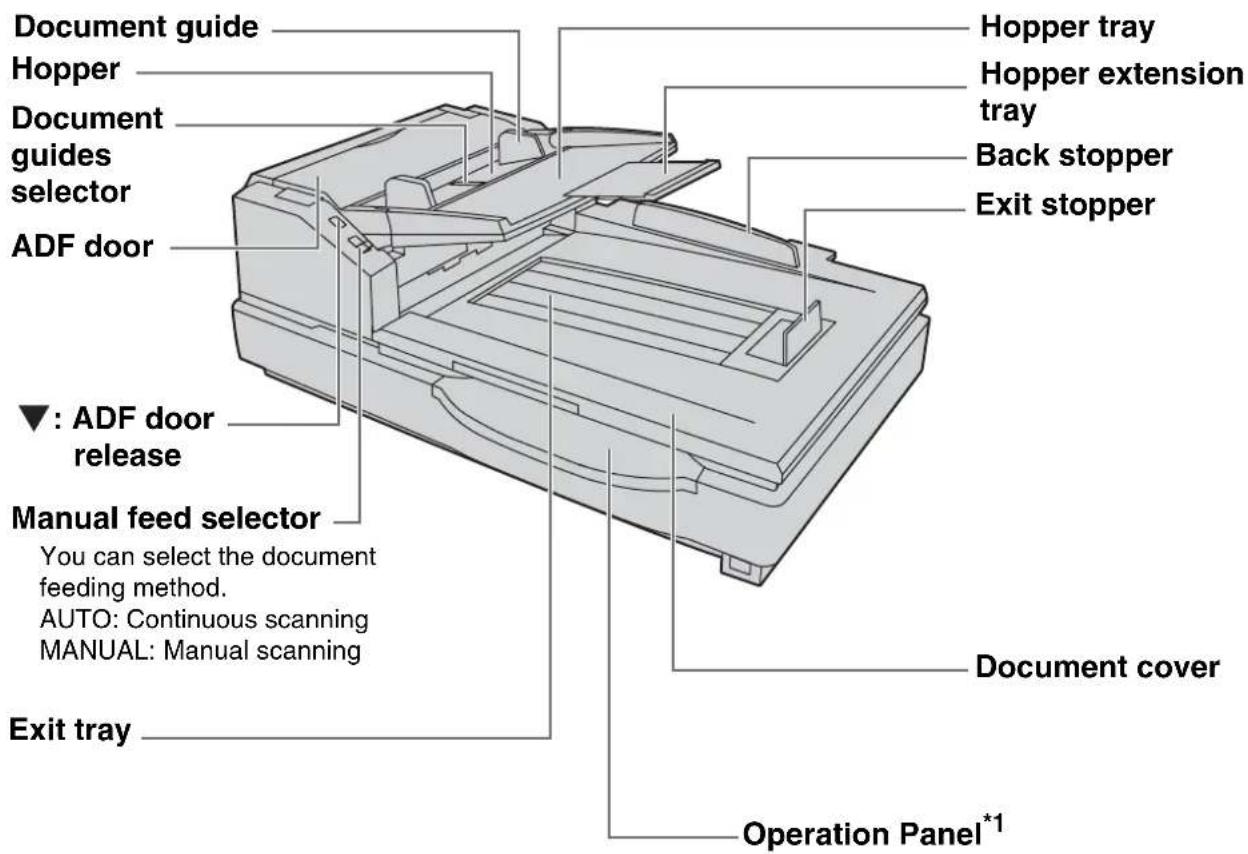
*1 For details, see "Operation Panel" (page 10).
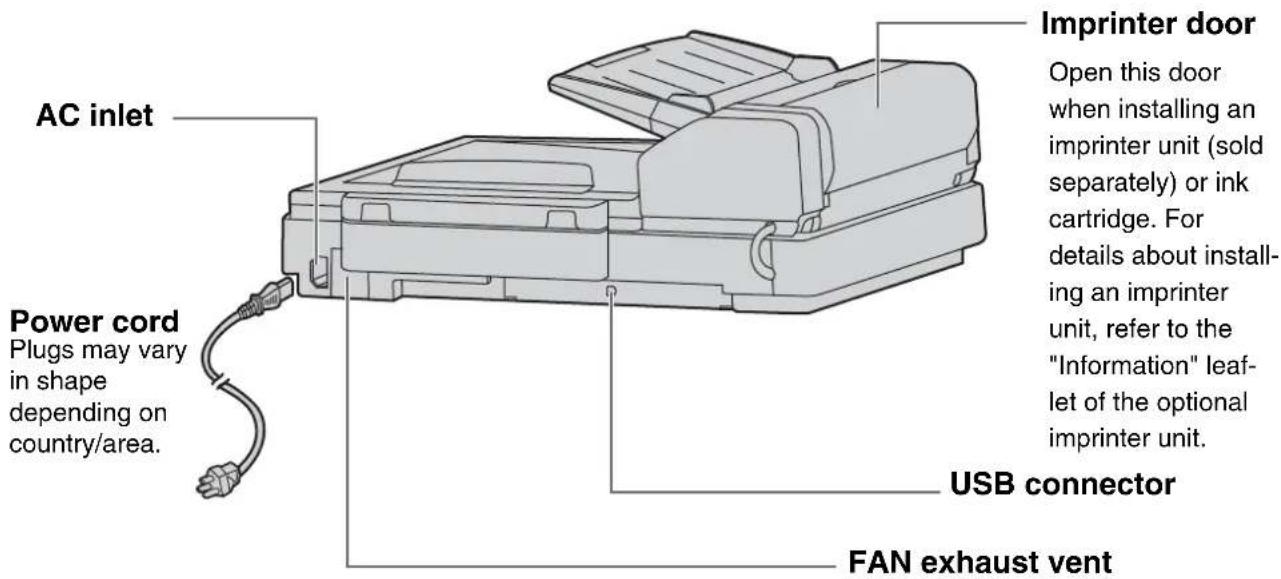
Operation Panel
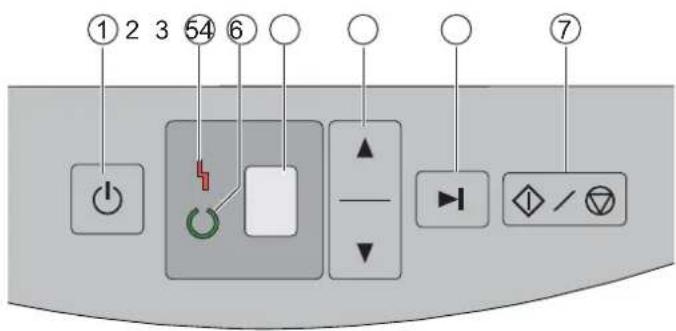
① Power button
Press the power button for more than one second to turn the unit off.
② LED (Red)
Lights when an error occurs.
③ LED (Green)
Shows the scanner's status.
④ 7-segment LED
If you are using the scanner with Image Capture Plus, you can perform a push scan using the 7-segment LED. A registered job number is displayed on the 7-segment LED. Use the cursor button (5) to select a job.
⑤ Cursor button
⑥ Skip button
If you press this button after a double feed or a dog-eared document is detected and scanning has been paused, the document (or documents) detected as a double feed or the dog-eared document will be scanned, and then ejected from the scanner. Scanning will continue after the document is scanned and ejected.
⑦ Start/Stop button
- During scanning, pushing this button stops scanning.
- If you press this button after a double feed or a dog-eared document is detected and scanning has been paused, the document (or documents) detected as a double feed or a dog-eared document will be ejected from the scanner without being scanned. Scanning will stop.
- If you set [Wait Key] for "Manual Feed Mode" in your application software, pushing this button starts scanning. For details about "Manual Feed Mode", refer to the Image Capture Plus, TWAIN, or ISIS help.
About LED
The status of the scanner is displayed by the LED (Red) ( ) and the LED (Green) (), as shown in the table below:
| 1 LED (Red) | 2 LED (Green) | Status |
| OFF OFF Power OFF | *1 | |
| OFF Blinking (Fast) Warming up | ||
| OFF ON Ready mode or Scanning | ||
| Blinking (Slow) ON Notification mode | ||
| OFF Blinking (Slow) Sleep mode | *2 or Cleaning mode | |
| Blinking (Slow) Blinking (Slow) Sleep mode | *2 and Notification mode | |
| ON OFF Error | *3 | |
| OFF Blinking (Fast, 2 times consecutively) | Double feed skip mode | |
| OFF Blinking (Fast, 3 times consecutively) | Dog-ear Detection Skip mode |
*1 If the power off feature in sleep mode is enabled, and if no operation is performed for a certain period of time, the scanner will be turned off automatically. Press the power button of the scanner to turn it on. You can enable/disable the power off feature, and change the time until the scanner turns off in User Utility. *2 If no operation is performed for 15 minutes or longer, the scanner will enter sleep mode automatically to conserve energy. Press any button (except the power button) on the scanner's operation panel to return to ready mode. The time until the scanner enters sleep mode can be changed in User Utility. *3 For details about the error, check in User Utility.
You can view the Operating Manual and the software help installed on the computer.
■ To view the Operating Manual
1 Select [Start] - [All Programs] [Panasonic] [Scanner Manuals]. 2 Select the manual.
- The manual will open.
Note
- In Windows 8, select the [Panasonic Document Scanner] section on the Apps screen.
■ To view the help
For Image Capture Plus
1 Select [Start] –[All Programs] [Panasonic] [Image Capture Plus] → [Image Capture Plus Help].
For User Utility or Scan Button Setting Tool
1 Select [Start] - [All Programs] [Panasonic] [Scanner Tools]. 2 Select that item's help.
Note
- In Windows 8, select the [Panasonic Document Scanner] section on the Apps screen.
For TWAIN or ISIS
1 Click the help button on any driver screen.
ADF (Auto Document Feeder) enables multiple sheet scanning.
Acceptable documents
Document size:
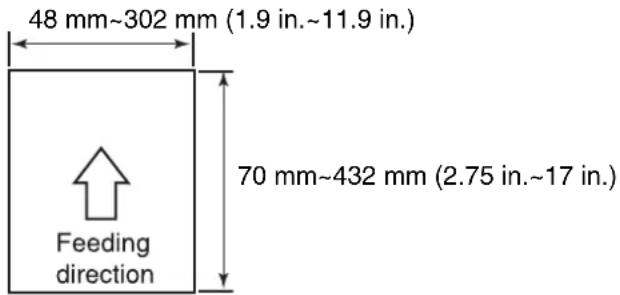
Paper weight: 31 g/m² -127 g/m² (8.3 lb.-34 lb.)
Maximum number of sheets (new paper) loadable on the hopper
| Paper weight | 80 g/m2 (21 lb.) Less than 40 g/m | 2 (10.6 lb.) |
| Number of sheets 200 150 |
- The number of sheets depends on the paper quality. If a paper jam or double feed occurs, reduce the number of sheets of the document loaded on the hopper.
Notice
- Use "Thin Paper Feeding Mode" when scanning a document less than 40g / m2 (10.6 lb.). For details about "Thin Paper Feeding Mode", refer to the Image Capture Plus, TWAIN, or ISIS help.
Recommendable paper: Plain paper
Documents must also meet the following conditions
| Curl | 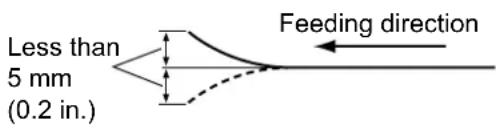 |
| Folding | 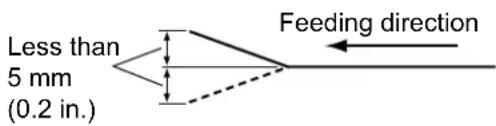 |
For documents with mixed page sizes and thicknesses
| Document thickness | The ratio of page thickness between the thickest and thinnest pages must be less than 1.5. |
| Document size | The ratio of width and height between the largest page and smallest page must be less than 1.5. (The smallest page is A6.)Example: If the smallest page is A4 size, then the largest page can be up to A3 size, and if the smallest page is A6, then the largest can be A5. |
Unacceptable Documents
Notice
The following types of documents may not be scanned properly:
- Torn or frayed documents
- Curled, wrinkled or folded documents
- Carbon paper • Perforated or punched paper • Non-rectangular or irregularly shaped paper
- Coated paper
- Bound or glued documents • Chemical paper such as carbonless copy paper • Paper with wood content
- Photographs
- Extremely smooth, shiny paper, or paper that is highly textured
Do not scan the following types of paper:
- Documents out of specified size, thickness, and weight • Thermal or photosensitive paper • Cloths or metallic sheets
- Transparent or partially transparent documents such as OHP sheet, tracing paper, plastic film, etc.
- Documents containing hard attachments such as metal or plastic (ex. clips or staples)
- Document with wet ink or cinnabar seal ink • Damaged or notched documents
Note
- Paper with a glossy surface such as coated paper or photographs that are susceptible to damage such as scratching.
- If you scan following types of documents, the rollers will need to be cleaned frequently and the lifetime of the rollers may be shortened.
– Documents with toner or graphite (pencil) powder
– Documents treated chemically or containing impurities
■ Notes about documents for scanning
- Depending on the paper type, scanning results may be poor when you scan unacceptable documents, or even documents that should be acceptable.
If a paper jam or double feeding occurs, or
if the scanned image is stretched or distorted, or
if scanning levels are uneven around the leading or rear edges of the document,
try scanning again after doing the following:
– Clean the rollers and sensors.
- Reduce the number of sheets of paper loaded on the hopper.
- Change the orientation of documents placed in portrait orientation to landscape orientation, or vice versa.
- Scan the documents using manual feeding.
- In the scan settings, set "Feeding Speed" to [Slow].*1
- Scan the documents with the flatbed.
- Make sure to remove paper clips and staples from documents before scanning. Failing to do so can damage the unit, document, or both.

- Curled documents may cause a paper jam or damaging the document, therefore, set the document flat before scanning.
- When scanning important documents, confirm that the number of scanned images matches the number of pages in the hopper tray. Also, check the condition of the scanned documents.
- Remove documents from the exit tray after they have been scanned.
■ Scanning documents with pages of same sizes
Notice
- Please remove any staples from the document before scanning.
- Glued or curled documents may cause a paper jam or damage the unit, so please scan using the flatbed.
1 Set the manual feed selector to [Continuous scanning] (AUTO) or [Manual scanning] (MANUAL).
- When [Manual scanning] is selected, feed the document 1 page at a time.
- When scanning important documents or thick (bound) documents, select [Manual scanning].
[Continuous scanning]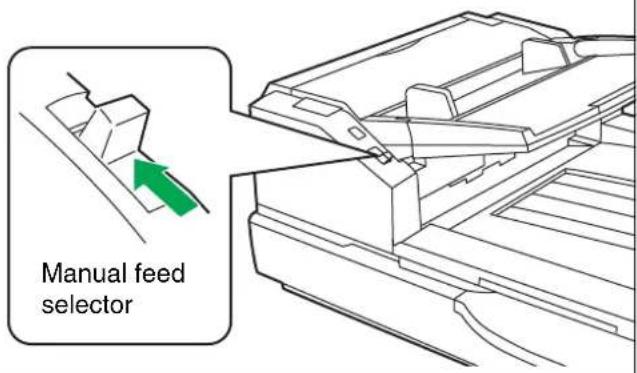
[Manual scanning]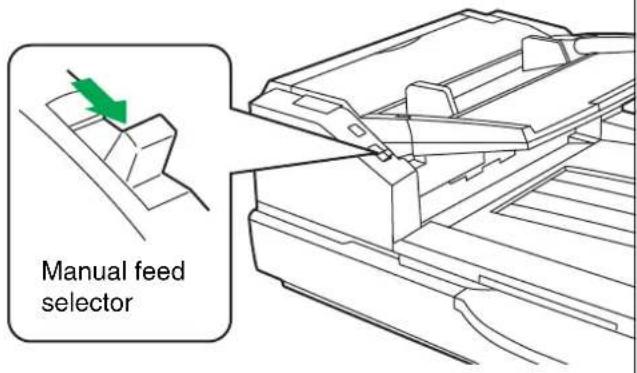
2 Documents that have been stapled together or stacked together (as in a file folder) will need to be separated.
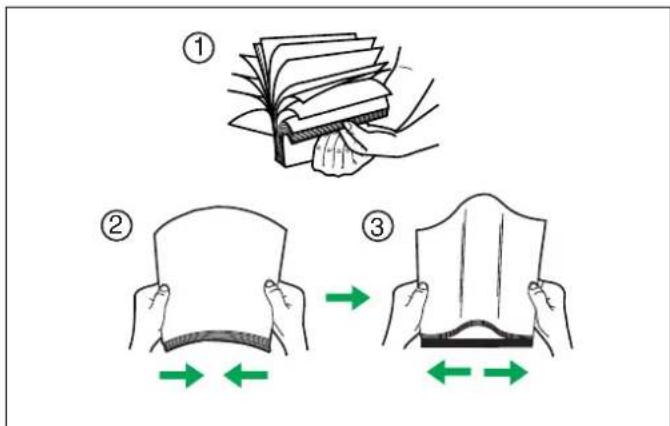
① Fan the stack of documents to separate all the edges. ② Hold both ends and bend the documents as shown in the illustration. ③ To flatten the documents, hold firmly and pull them apart as shown in the illustration.
Repeat these steps as necessary.
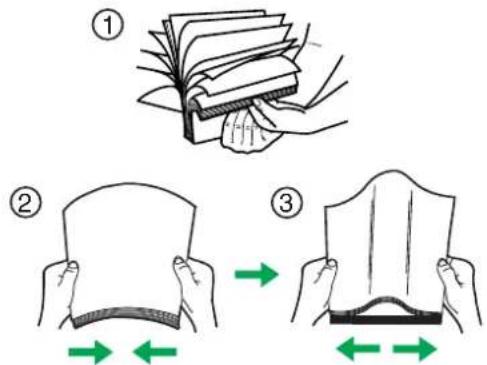
3 Carefully align the documents.
4 Adjust the document guides slightly larger than the actual size of the documents.
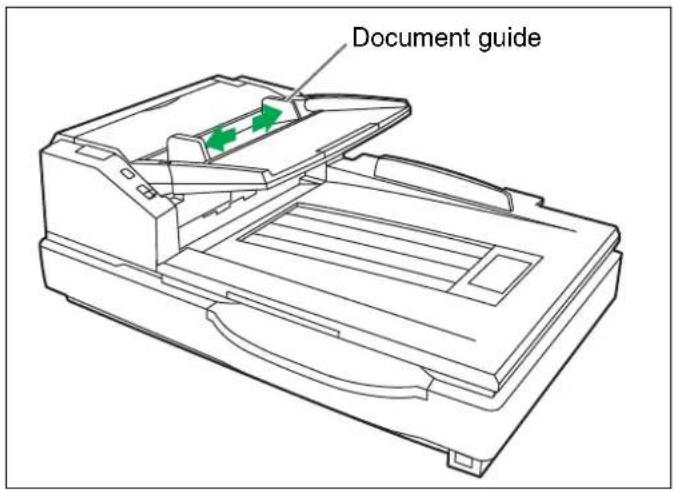
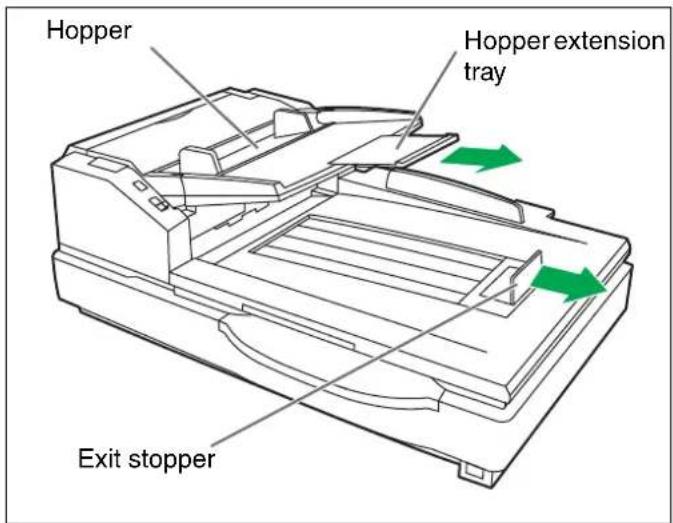
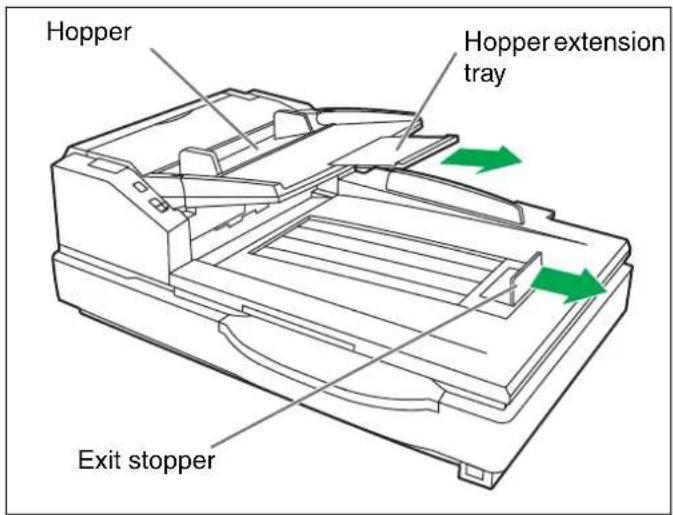
5 When using long paper, pull out the hopper extension tray from the hopper. Then raise and adjust the exit stopper to the position a little longer than the actual length of the document.
6
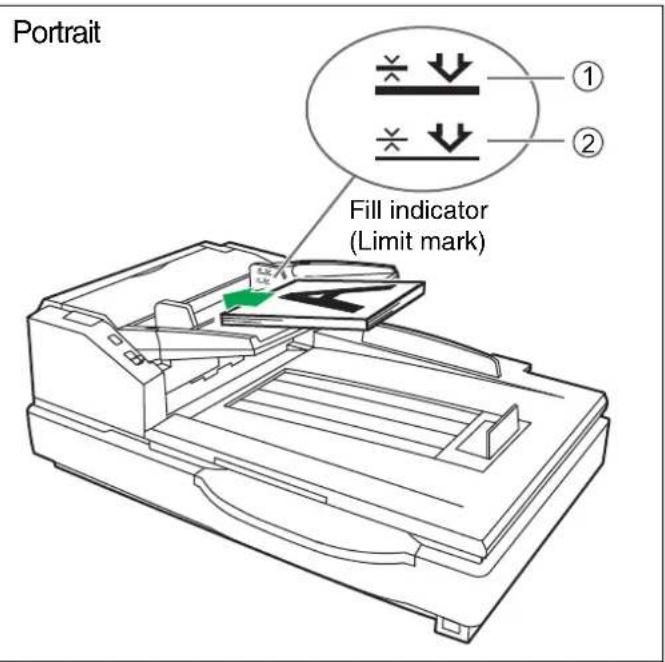
Place the documents on the hopper with the side to be scanned facing up. Then push them in the direction of the arrow until they stop.
- The number of sheets that can be loaded on the hopper at a time is approximately 200 sheets (paper weight: 80 g/m² [21 lb.]), or approximately 150 sheets (paper weight: less than 40 g/m² [10.6 lb.]) when in "Thin Paper Feeding Mode".
Notice
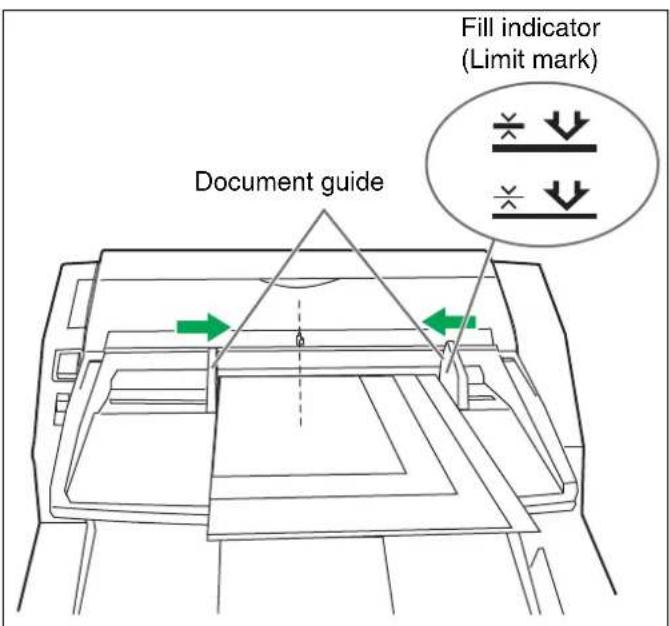
• The amount of documents should not exceed the limit mark on the document guide. This may cause a paper jam or skew.
① Paper weight: 40 g/m² (10.6 lb.) or more ② Paper weight: Less than 40 g/m² (10.6 lb.)
Landscape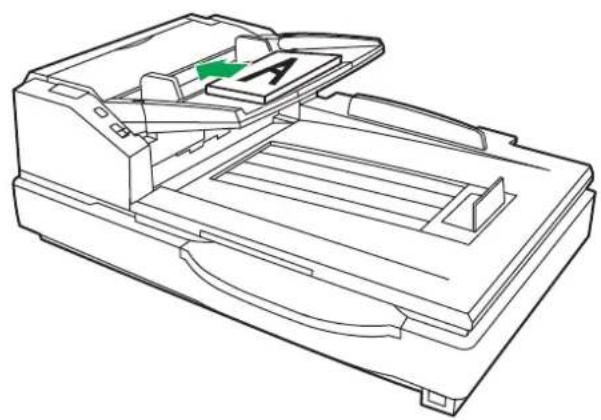
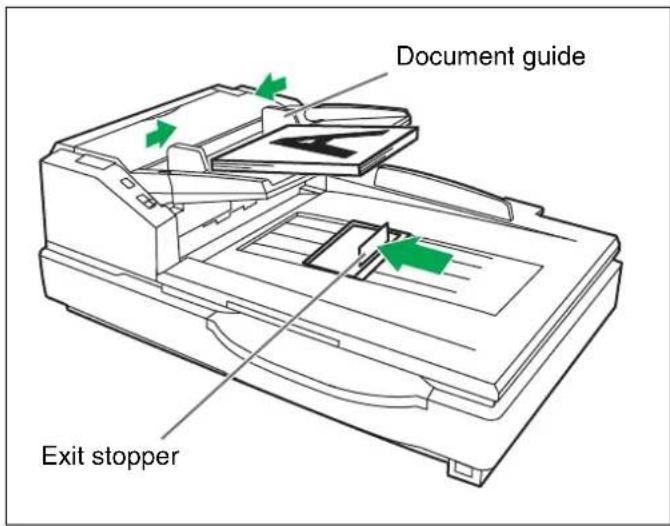
7 Adjust the document guide to the size of the document to be scanned. Adjust the exit stopper to the size of the document to be output.
- When scanning the document that exceeds 432 mm (17 in.), close the exit stopper.
8 Open your scanning application *1 and scan the documents.
*1 The software Image Capture Plus, included with the scanner, can be used for scanning the documents.
■ Scanning documents with pages of different sizes
For conditions when scanning documents with mixed page sizes, see "For documents with mixed page sizes and thicknesses" (page 14).
- When scanning different size documents, scanned sheets may need to be reordered for optimum performance.
1 Set the manual feed selector to [Continuous scanning] (AUTO).
![[Continuous scanning] Manual feed selector](/content/2026/05/762840/images/510abfa5e08dc4acd79c0569ad475188122bedae6b59652ed9c8db20108718ae.jpg)
2 Documents that have been stapled together or stacked together (as in a file folder) will need to be separated.
① Fan the stack of documents to separate all the edges. ② Hold both ends and bend the documents as shown in the illustration. ③ To flatten the documents, hold firmly and pull them apart as shown in the illustration. Repeat these steps as necessary.
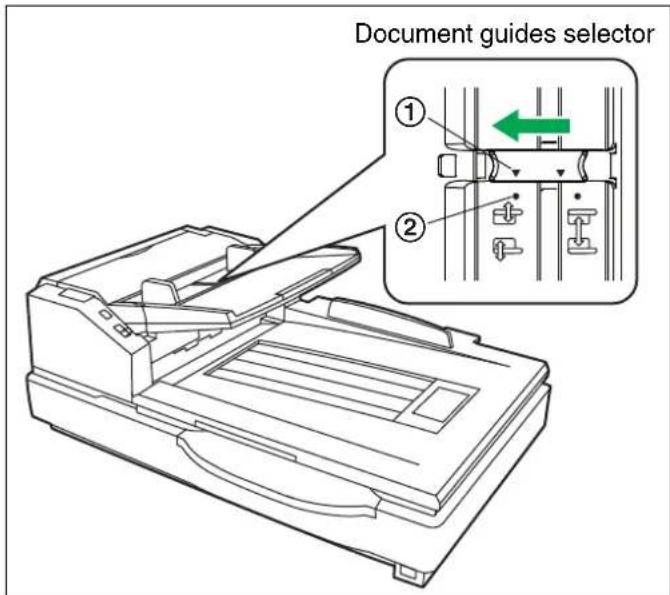
3 Unlock the document guide. Slide the document guides selector in the direction shown in the illustration until the ▼ and ● marks are aligned to unlock the document guide.
4 Align the document pages along one side.
![graph TD A["2"] --> B["2"] B --> C["2"]](/content/2026/05/762840/images/4998ac6804580e4101f2659a482d36c20f16df470fe4bf0d204352a711c42c64.jpg)
5 When using long paper, pull out the hopper extension tray from the hopper. Then raise and adjust the exit stopper to a position a little longer than the actual length of the document.
6 Align the document position so that the center of the smallest sheet will be fed to the center of the paper slot. If the document is not properly aligned, the pages will not be fed correctly.
• The amount of documents should not exceed the limit mark on the document guide. This may cause a paper jam or skew. - Depending on the types of paper, the document may not be fed smoothly. In such case, reduce the number of sheets of the document.
7 Remove the document and lock the document guide.
Slide the document guides selector in the direction shown in the illustration until the ▼ and ● marks are aligned to lock the document guide.
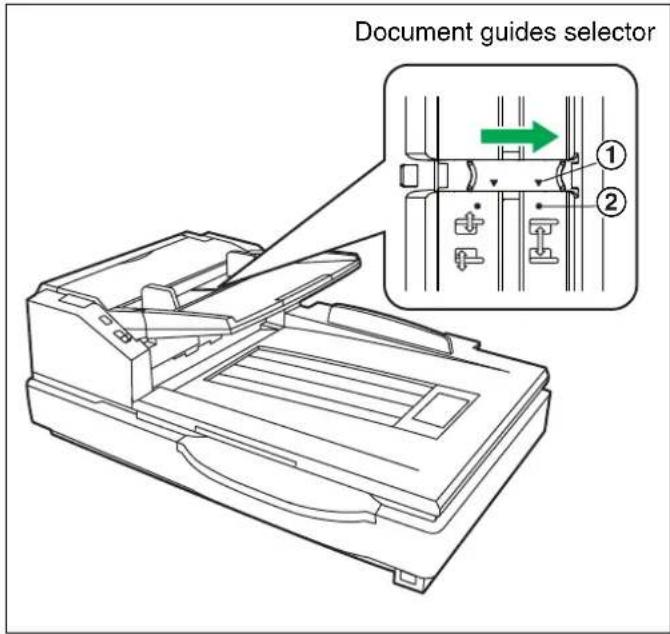
8 Place the document on the hopper again and adjust the document guide according to the size of the document to be scanned.
- Make sure to align the document pages along one side.
• Make sure that the center of the smallest sheet of the document will be fed to the center of the paper slot.
9 Open your scanning application *1 and scan the documents.
*1 The software Image Capture Plus, included with the scanner, can be used for scanning the documents.
■ Adjusting the left and right document guides to their original position
1 Unlock the document guide. Slide the document guides selector in the direction shown in the illustration until the ▼ and ● marks are aligned to unlock the document guide.
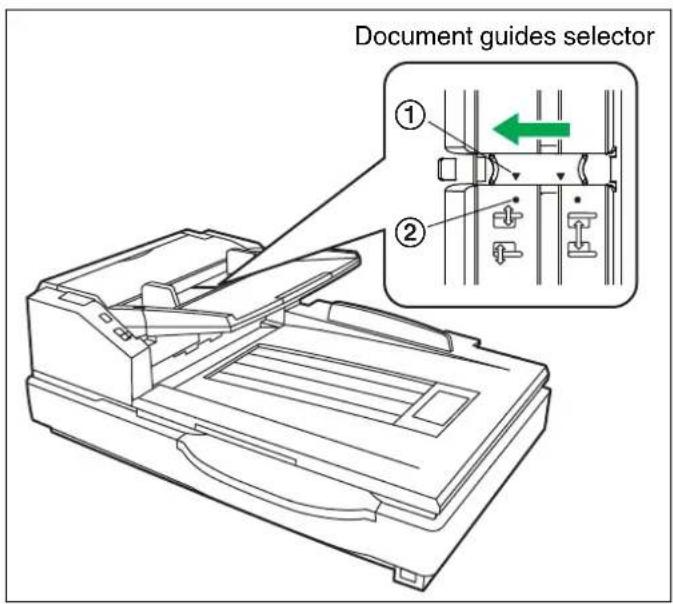
2 Completely spread apart the document guides.
3 Lock the document guide. Slide the document guides selector in the direction shown in the illustration until the ▼ and ● marks are aligned to lock the document guide.
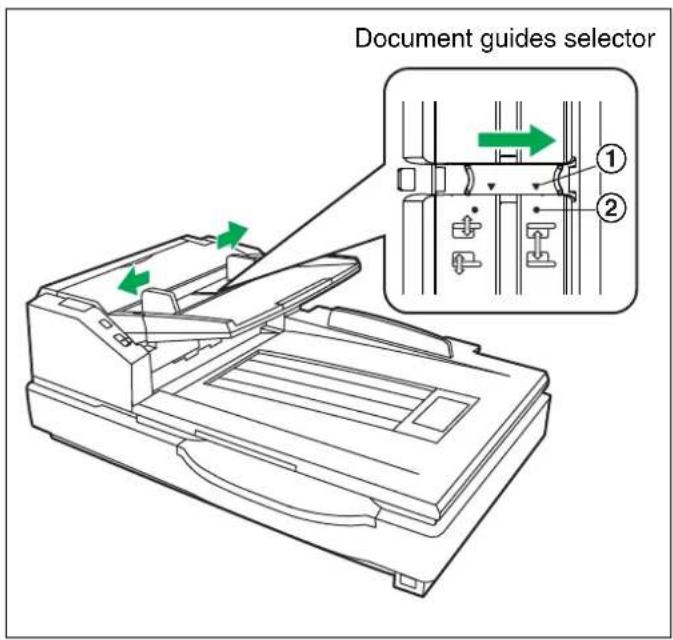
Loading Documents on the Flatbed
One sheet or an entire book document can be scanned on the document glass. Scanning documents in this way is known as "scanning with the flatbed".
Caution
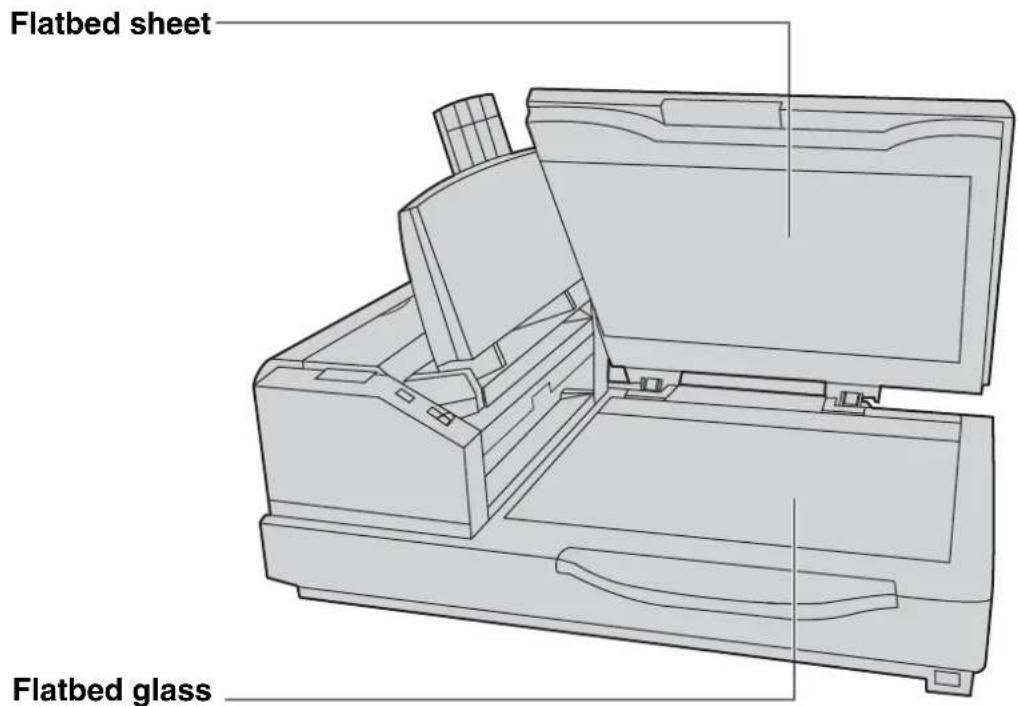
- Do not place printed materials containing magnetic ink characters or magnetic strip cards on the flatbed. Magnets are located in the flatbed cover (flatbed sheet) and may damage data stored on printed materials and cards.
■ When scanning with the flatbed
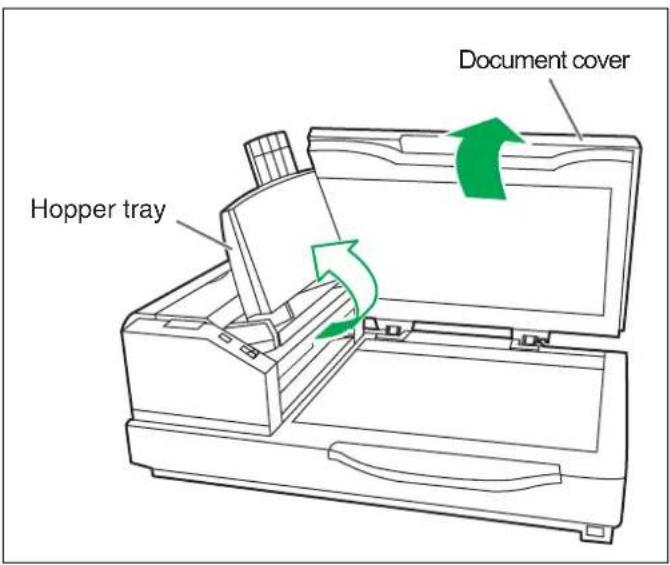
1 Raise the hopper tray.
2 Open the document cover.
Notice
• Make sure to always lift up the hopper tray first before opening the document cover. (Otherwise, there is a possibility that the hopper will be damaged.)
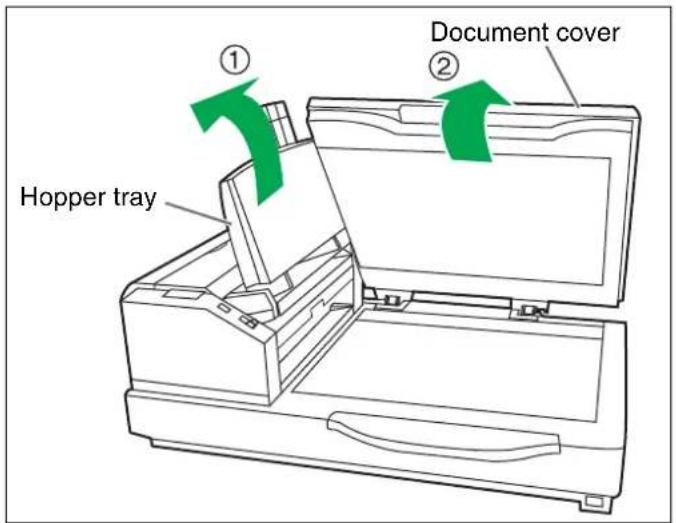
3 Place the scanning side of the document face down on top of the flatbed glass towards the upper left corner.
- If the document is bent or folded, straighten it.
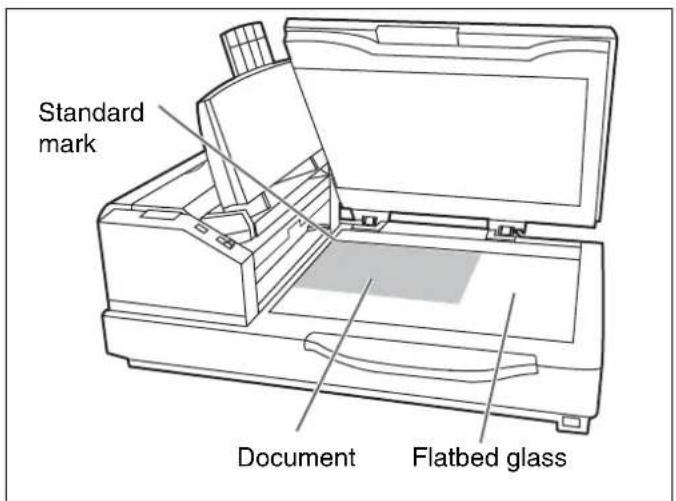
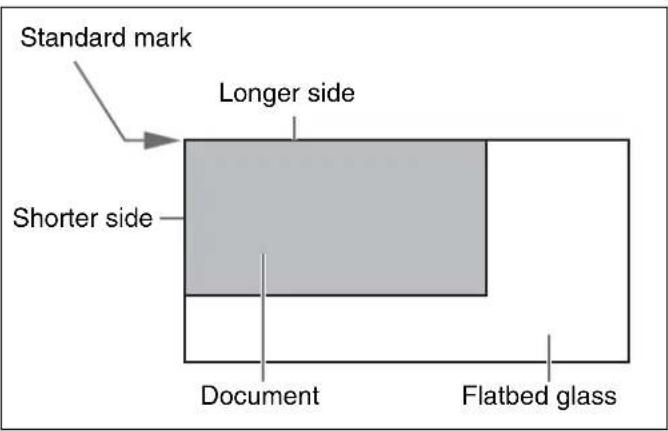
4 Match the shorter side of the document with the left edge of the flatbed glass.
5 Match the longer side of the document with the standard mark.
- If the document is slanted, it will not be scanned properly.
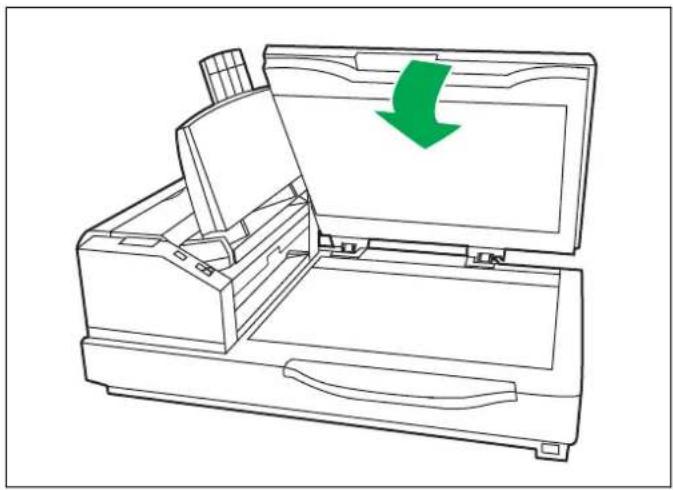
6 Close the document cover gently.
- If the document cover is slammed, the document will move and may not be scanned properly.
- Do not open or press down on the document cover during scanning.
- Be sure to close the document cover before use. • After scanning, open the document cover and remove the document.
7 Open your scanning application *1 and scan the documents.
*1 The software Image Capture Plus, included with the scanner, can be used for scanning the documents.
■ Scanning thick documents
When scanning thick documents such as a book, please note the following items:
- Please note that areas of the document which are not touching the flatbed glass will not be scanned properly.
- If the document moves during scanning, please note that it will not be scanned properly.
This scanner has a push scan function for starting scanning without operation through a computer.
■ Setting the scanning conditions
Scanning conditions are set on the setting screen of each application. For details about the setting screen of each application, refer to the manual or help for that application.
Note
- Press and hold the Start/Stop button for more than 2 seconds to open the application setting screen.
- If the unit is in sleep mode, press any button (except the power button) on the scanner's operation panel to return to ready mode first.
■ Selecting the behavior of push scan
Select the behavior of push scan using the Scan Button Setting Tool.
1 Double click the ( ) icon in the notification area of the task bar to open the Scan Button Setting Tool.
- In Windows 8, open the Scan Button Setting Tool on the Desktop screen.
2 Select [Touch Free Scanning] or [Single Touch Scanning].
Note
- In Image Capture Plus and Scan Button Setting Tool, [Single Touch Scanning] means performing push scanning using the 7-segment LED.
- For details about the Scan Button Setting Tool, refer to the Scan Button Setting Tool help.
■ Performing push scan
Note
- Register jobs in advance. For details about registering jobs, refer to the Image Capture Plus help.
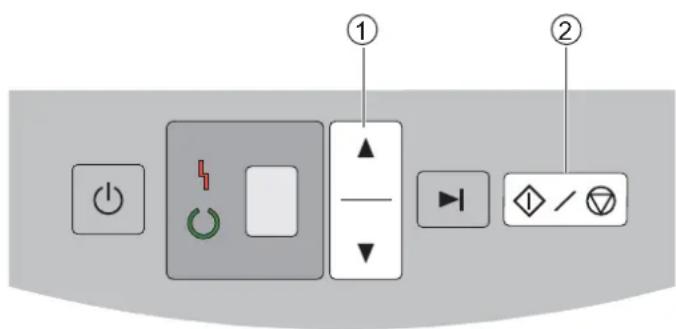
1 Use or of the cursor button () to select a job. 2 Place the documents on the hopper tray.
- When [Touch Free Scanning] is selected, scanning will start.
- When [Single Touch Scanning] is selected, press the Start/Stop button (②) to start scanning.
- Checking events
Check the following if an application does not start up after being set by the Scan Button Setting Tool.
1. Display the Scan properties screen.
• If you are using Windows 10:
Right-click [Start], select [Control Panel] → [Devices and printers], right-click the scanner icon, and then display the [Scan properties] screen.
- If you are using Windows 8 / Windows 7:
[Start] → [Control Panel] → [View devices and printers], right-click the scanner icon, and display the [Scan properties] screen.
• If you are using Windows Vista:
[Start] → [Control Panel] → [Scanners and Cameras], select the scanner icon, and then click the Properties button.
- If you are using Windows XP:
[Start] → [Control Panel] → [Scanners and Cameras], right-click the scanner icon, and display the Properties screen.
2. Click the [Events] tab. 3. Check that Scan Button Setting Tool is selected as the program to start for each event.
- If an application other than Scan Button Setting Tool is selected, change the application to Scan Button Setting Tool. 4. Click [OK]. 5. Restart the computer.
Using Control Sheets
Placing a control sheet in the middle of documents lets you change the scanning conditions for pages scanned after the control sheet. Also, you can change the folder used to save the scan data of documents scanned after the control sheet.
- Print out control sheets from the included CD-ROM.
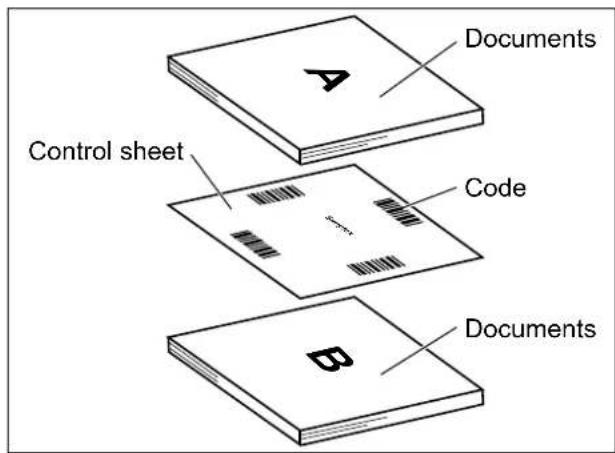
■ Control sheet functions
Simplex, Duplex, Binary, 256 level gray, Color, Dynamic Threshold, Dither, Error diffusion, Function #1-#9, Separation Sheet
- For details about control sheets, refer to "Detect Control Sheet" in the Image Capture Plus, TWAIN, or ISIS help.
- For details about separation sheets, refer to "Detect Separation Sheet" in the Image Capture Plus, TWAIN, or ISIS help.
■ About Printing Control Sheets
- Print the control sheet at the specified size; do not enlarge or reduce the size.
- When printing the control sheet, make sure that the pattern is 25 mm (1 in.) from the top of the page and centered horizontally.
Center of the page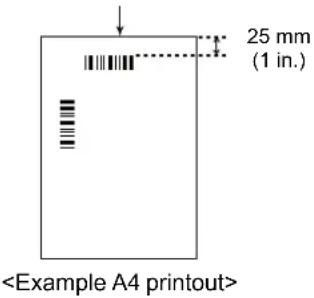
- Use the control sheet that is the same size as the document you are scanning.
- Be careful not to get the control sheet dirty. Do not fold or crease the control sheet. Scanning will not be performed properly.
- For details about control sheets, refer to "Detect Control Sheet" in the Image Capture Plus, TWAIN, or ISIS help.
■ Printing control sheets
Note
- In order to print control sheets, Adobe Reader must be installed on your computer.
- Refer to the instruction manual for your printer for details about changing print settings.
1 Insert the included CD-ROM into the CD/DVD drive on your computer.
- The setup window will appear.
Note
- If the AutoPlay dialog box is displayed, select [CDRun.exe].
- If the setup window does not appear, double-click [CDRun.exe] in the Software / Manual CD-ROM.
2 Select [Control Sheet] from "Documents" on the right side of the screen. 3 Print the control sheets at the same size as your document.
Changing the Reference Plate Setting
You can choose a background color to be scanned from white (black) to black (white). The scanner comes from factory set to black. The reference plate (B), reference plate (F) and flatbed sheet setting must be changed simultaneously.
■ ADF reference plate setting
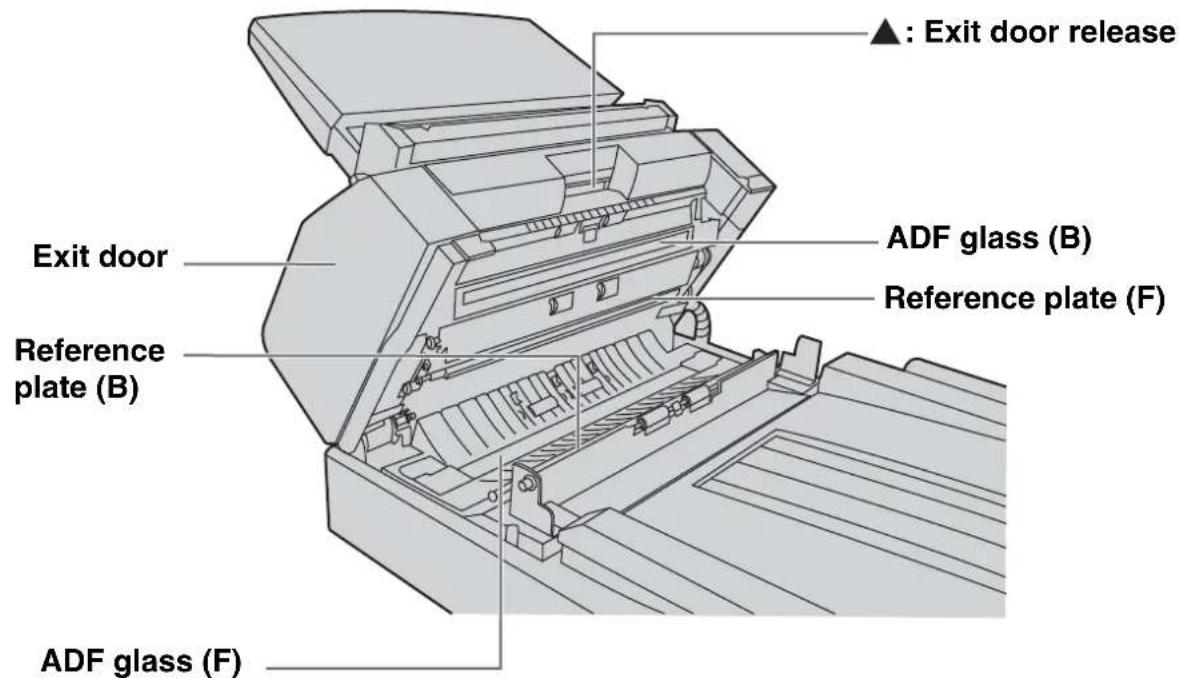
1 Turn off the scanner. 2 Pull the exit door release to open the exit door.
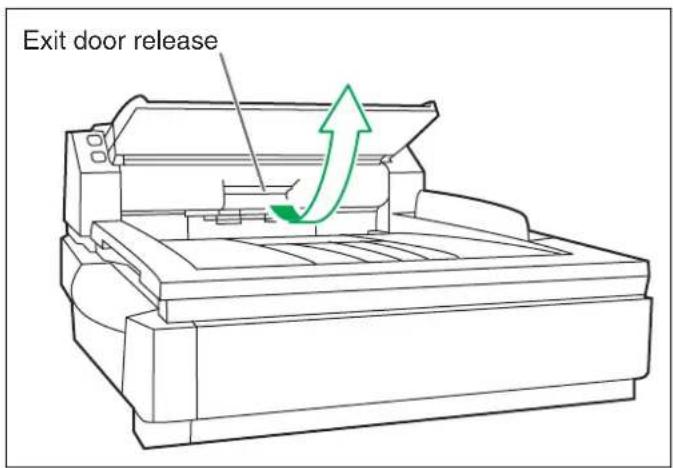
3 Using your finger, turn the reference plate (B) over.
- Confirm that the reference plate has changed and is locked in its proper position.
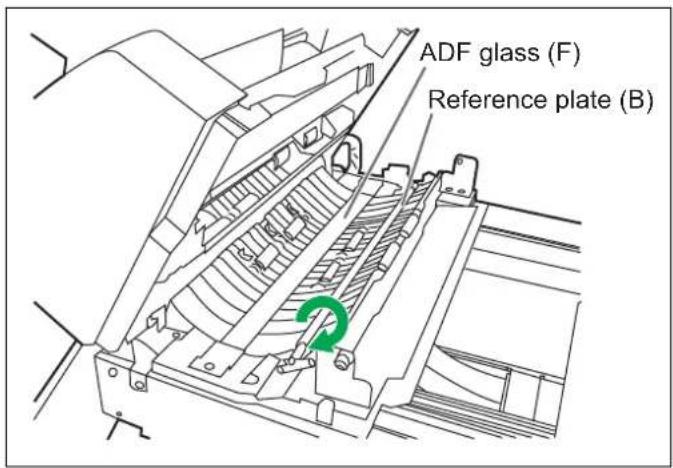
4 Using your finger, turn the reference plate (F) over.
- Confirm that the reference plate has changed and is locked in its proper position.
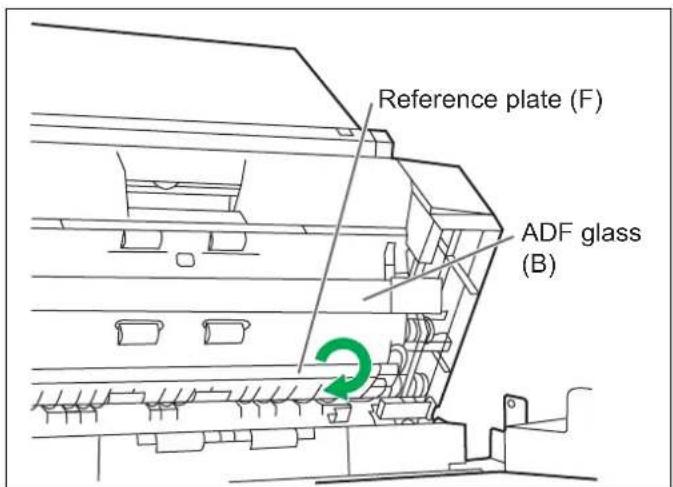
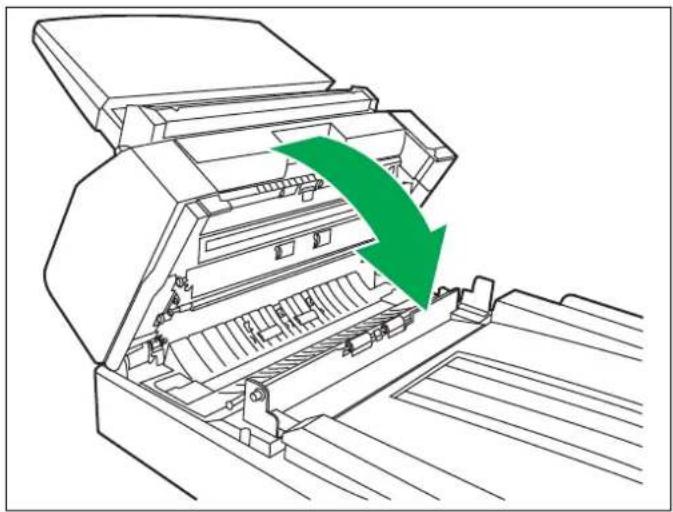
5 Close the exit door slowly until it clicks into place.
Flatbed sheet setting
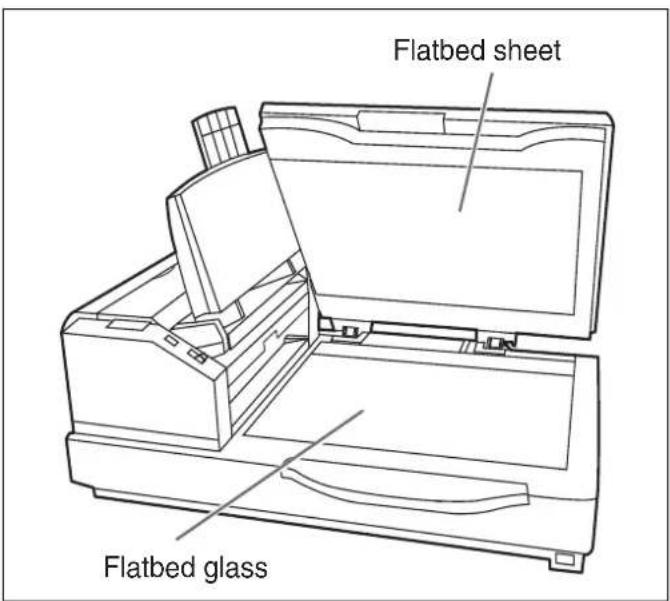
1 Turn off the scanner. 2 Fold the hopper tray in the direction of the arrow (①). 3 Open the document cover (②) and remove the flatbed sheet from the flatbed cover (③).
- The flatbed sheet is attached to the document cover with magnets.
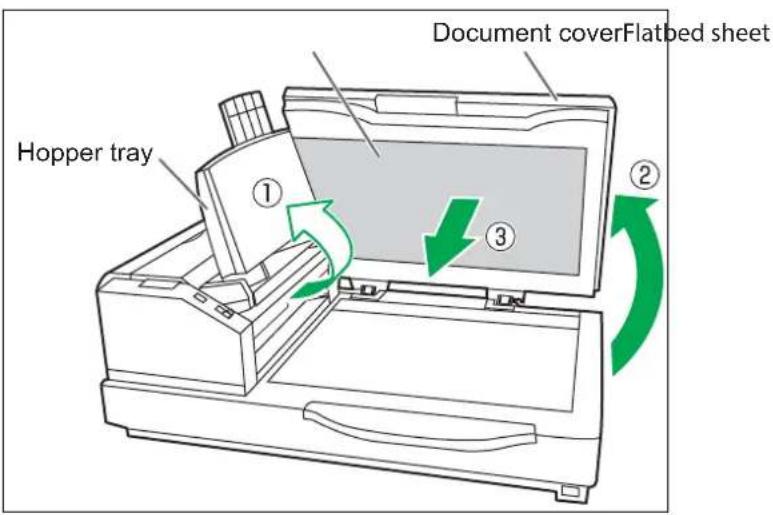
4 Turn the flatbed sheet over, and then place it in the upper left corner of the flatbed glass.
- Place the flatbed sheet to the left.
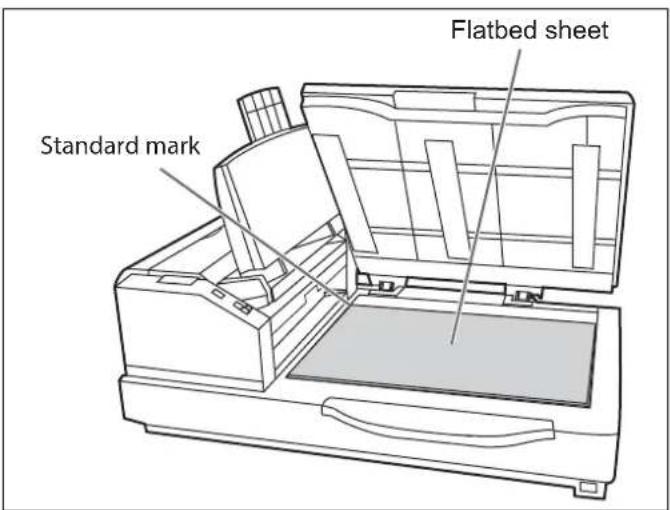
5 Close the document cover.
- When you close the document cover, close it securely until it is locked. The flatbed sheet will become magnetically attached to the document cover.
Torn documents, thin documents or documents that are creased on the top edge may cause paper jams. If a paper jam occurs, remove the jammed sheet according to the following procedure.
■ Removing paper jams from the paper slot
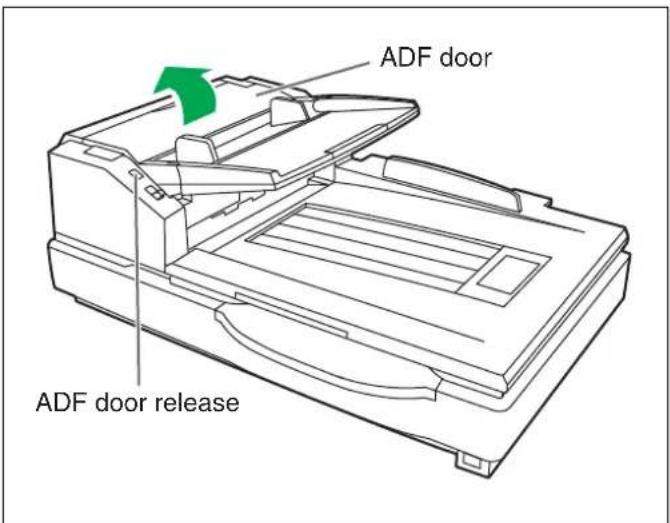
1 Push the ADF door release to open the ADF door.
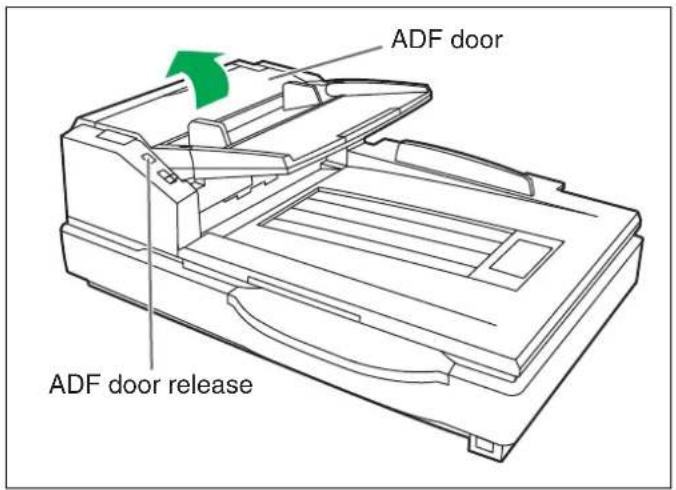
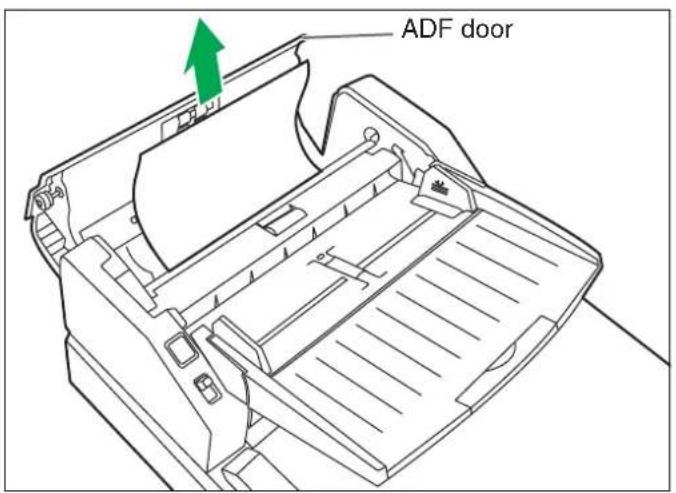
2 Pull the jammed document towards the paper slot.
- When the jammed paper cannot be removed, remove it from the exit path. Refer to page 33.
- When only the bottom end of jammed paper is visible, open the exit door while leaving the ADF door open to remove the jammed paper. Pulling the jammed paper with the ADF door closed may damage the document.
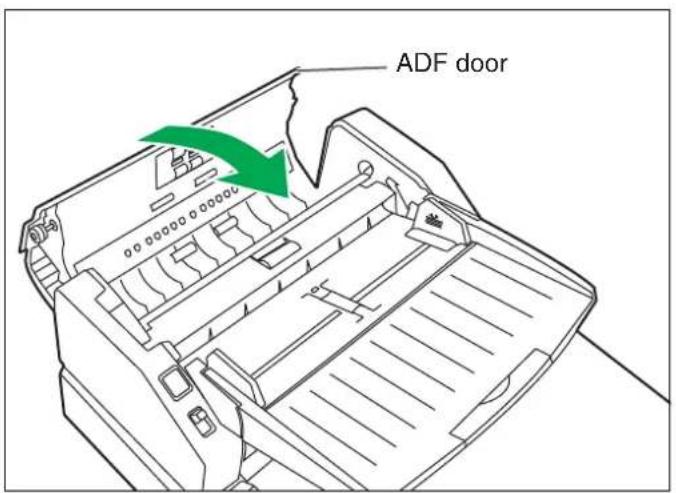
3 Close the ADF door.
- When you close the ADF door, close it securely until it is locked.
■ Removing paper jams from the exit path
1 Pull the exit stopper and raise the hopper tray.
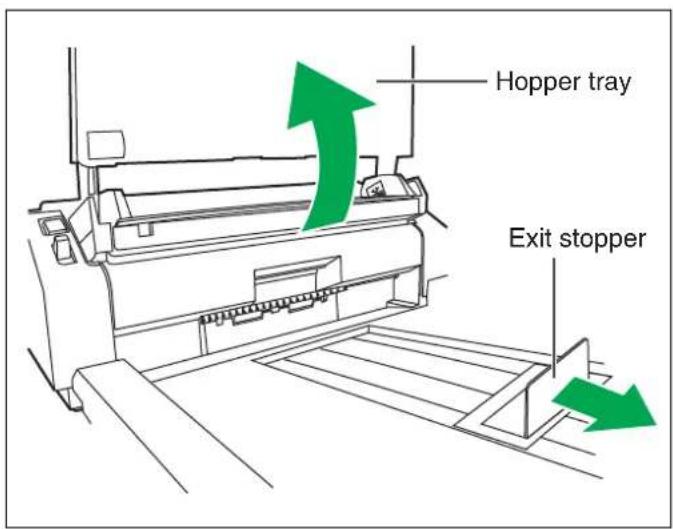
2 Pull the exit door release, open the exit door and pull the jammed document.
- When the jammed paper cannot be removed, remove it from the paper slot. Refer to page 32.
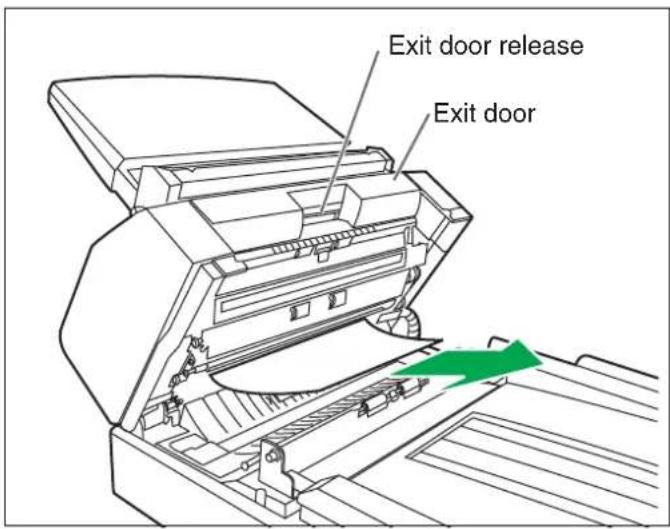
3 Close the exit door.
- When you close the exit door, close it securely until it is locked.
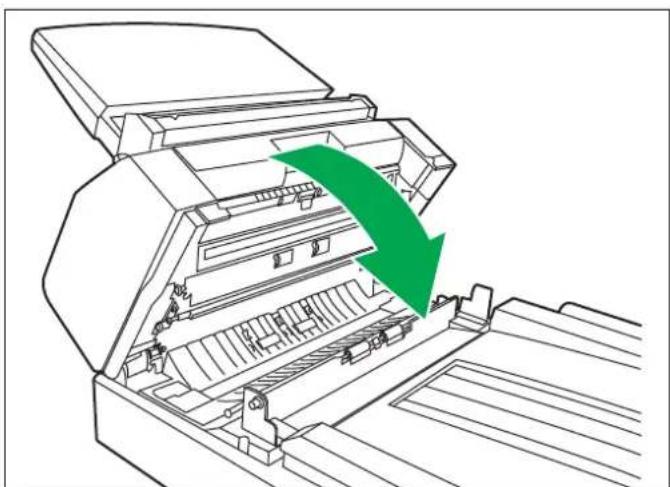
■ Outside of the scanner
- Do not use commercially available cleaners, detergent, thinner, or benzine. (Doing so may cause deformation, discoloration or damage.)
- Clean the unit at least once a month.
1 Turn the power off. 2 Clean the cover with a soft cloth.
- The ADF insertion and exit slots get dirty easily, therefore, proper cleaning is required.
3 Remove dirt and dust from the fan exhaust vent with a brush.
■ Inside the scanner
• Prepare the following cleaning supplies:
| Soft and dry cloth Used to clean the conveyor and scanning glasses. | |
| Thin cotton swab Used to clean the sensors. | |
| Roller cleaning paper (KV-SS03) | Use of the roller cleaning paper is recommended. If you do not have the roller cleaning paper, use a soft cloth with a small amount of isopropyl alcohol or water. Do not use commercially available cleaners, detergent, thinner, or benzine. (Doing so may cause deformation, discoloration or damage.) |
- Be careful not to damage any parts of the unit.
- Do not use flammable aerosol cleaners.
- Clean the inside of the scanner when approximately 20,000 sheets have been scanned. The time for cleaning may differ depending on documents you scan. To maintain proper scanning, clean the scanner parts frequently.
If paper jams or double feeding occurs frequently:
- Clean the rollers, paper sensor, double feed detector (G) and double feed detector (R). (Refer to pages 35–41.)
If black or white lines appear on the scanned image:
- Clean the ADF glass and reference plates. (Refer to page 39.)
If black dots or white patches occur when scanning with the flatbed:
- Open the document cover and clean the flatbed glass and flatbed sheet using the accessory roller cleaning paper. (Refer to page 42.)
Roller cleaning paper
Open the bag on the dotted line and take out the roller cleaning paper.
- If the roller cleaning paper bag is left opened for a long period of time before using it, the alcohol will evaporate. Please use the roller cleaning paper immediately after opening the bag.
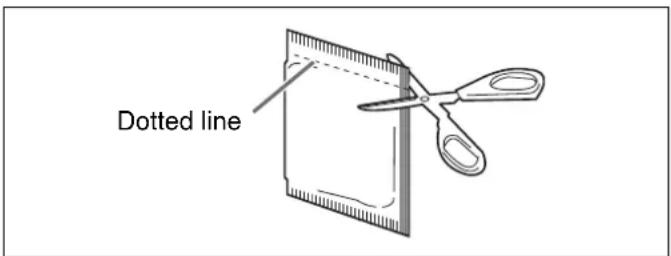
* The roller cleaning paper (Model No. KV-SS03) is available from the dealer where you purchased your scanner. For supplies and accessories: Call 1-800-726-2797 (U.S.A. only) or your dealer.
■ Cleaning the paper feed roller, separation roller, and double feed prevention roller
1 Turn the power off. 2 Push the ADF door release to open the ADF door.
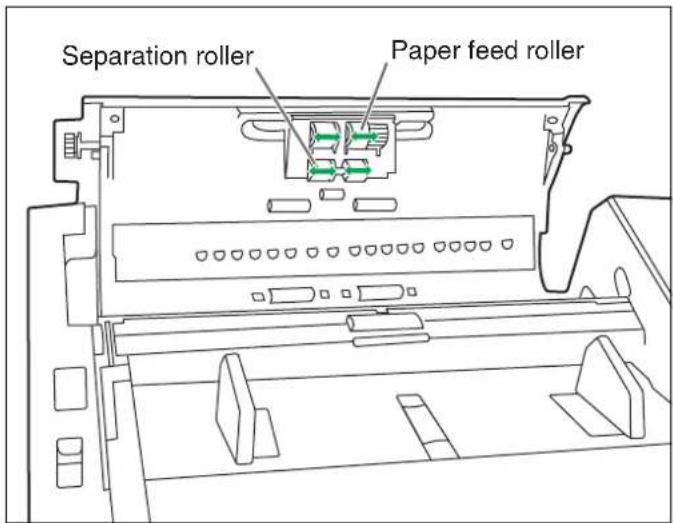
3 Use the roller cleaning paper (KV-SS03) to remove the dirt from the surfaces of the paper feed roller and separation roller.
Note
- When wiping off the dirt on the roller surfaces, hold the rollers to prevent them from rotating, and wipe the roller all the way around them proceeding from one end to the other in the direction of the arrows shown in the figure.
4 Open the double feed prevention conveyor in the direction of the arrow shown in the figure by using the indent on the back side.
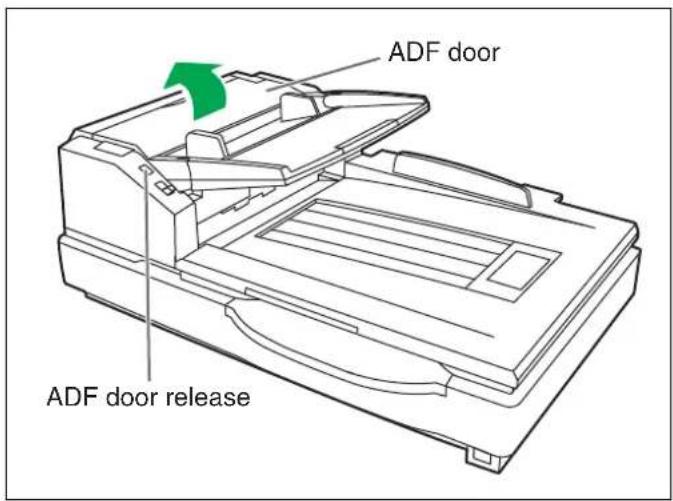
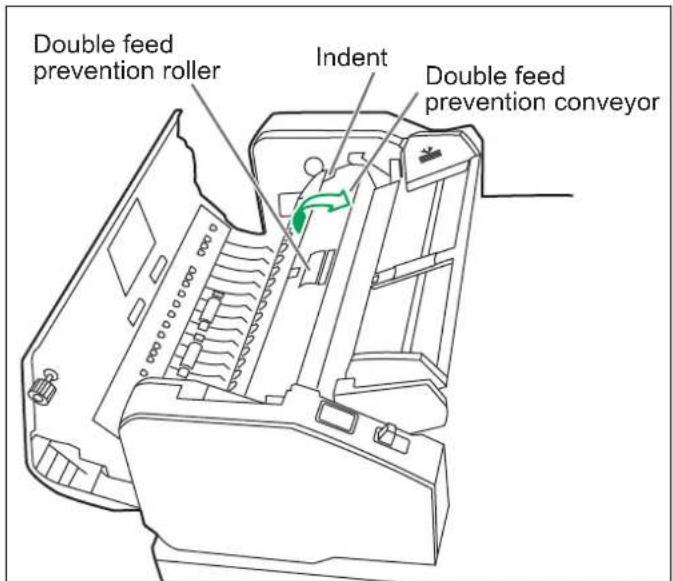
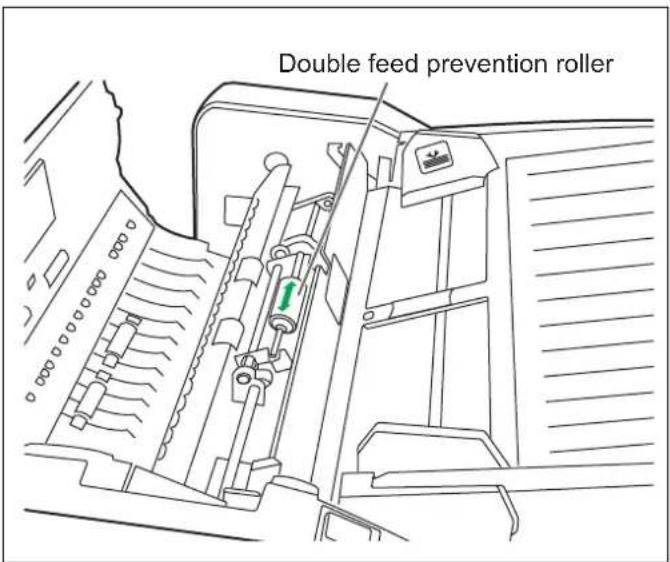
5 Use the roller cleaning paper (KV-SS03) to remove the dirt from the surface of the double feed prevention roller.
Note
- When wiping off the dirt on the roller surfaces, hold the rollers to prevent them from rotating, and wipe the roller all the way around them proceeding from one end to the other in the direction of the arrows shown in the figure.
6 Close the double feed prevention conveyor in the direction of the arrow shown in the figure.
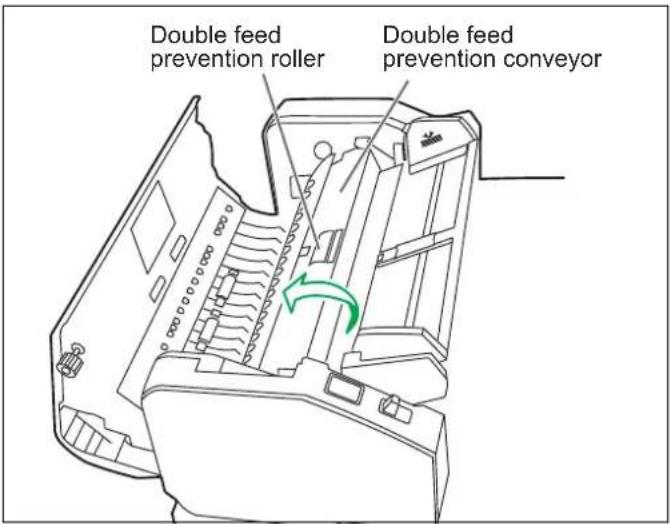
7 Close the ADF door.
- When you close the ADF door, close it securely until the door is locked.
Note
- If roller cleaning notifications via the After Clean Roller Counter are enabled, reset the After Clean Roller Counter in User Utility to 0 after turning ON the unit's power. For details, refer to the User Utility help.
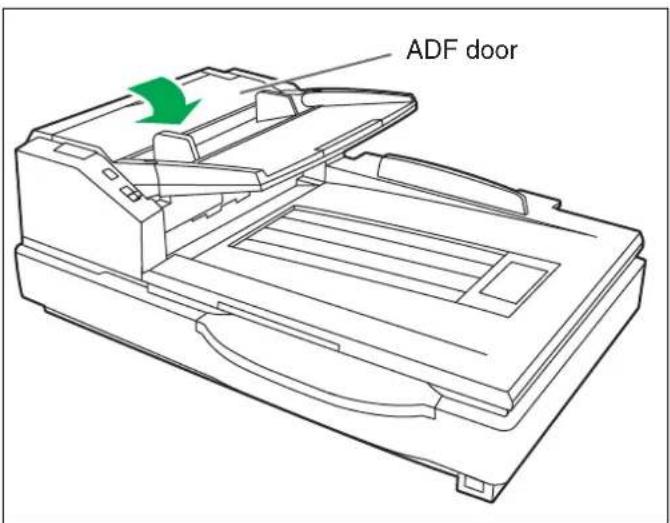
■ Cleaning the drive rollers and free rollers
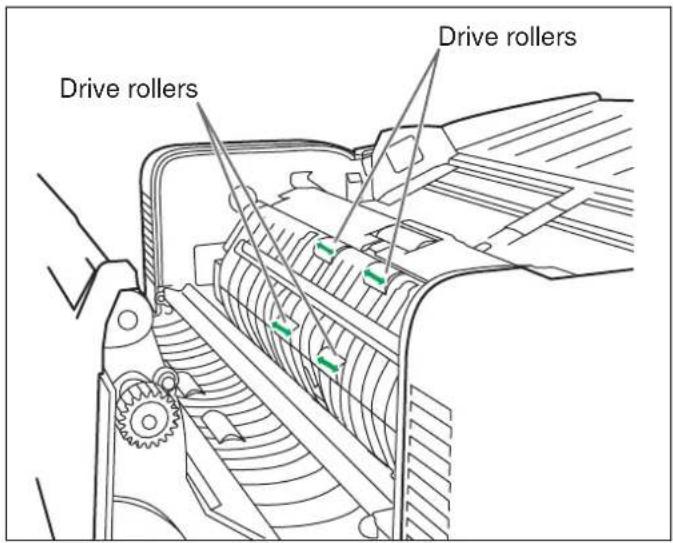
1 Turn the power off. 2 Push the ADF door release to open the ADF door. 3 Use the roller cleaning paper (KV-SS03) to remove the dirt from the surfaces of the 4 drive rollers.
- When wiping off the dirt on the roller surfaces, hold the rollers to prevent them from rotating, and wipe the roller all the way around them proceeding from one end to the other in the direction of the arrows shown in the figure.
Note
- Cleaning Mode can be used to help when cleaning the drive rollers.
Use Cleaning Mode with the power turned on.
Cleaning Mode can be set in User Utility.
During Cleaning Mode, the drive rollers rotate a small amount every time the Start/Stop button on the scanner is pressed.
For details, refer to the User Utility help.
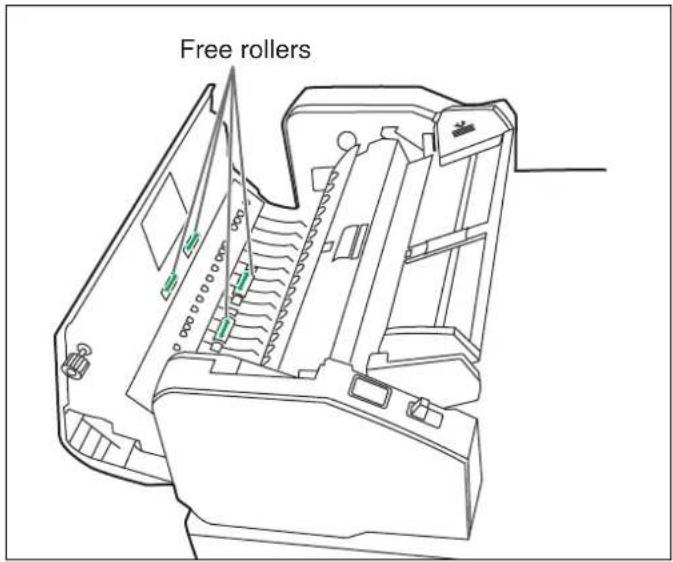
4 Use the roller cleaning paper (KV-SS03) to remove the dirt from the surfaces of the 4 free rollers.
- When wiping off the dirt on the roller surfaces, hold the rollers to prevent them from rotating, and wipe the roller all the way around them proceeding from one end to the other in the direction of the arrows shown in the figure.
5 Close the ADF door.
- When you close the ADF door, close it securely until it is locked.
■ Cleaning the drive rollers, free rollers, and exit rollers
1 Turn off the scanner. 2 Pull the exit door release to open the exit door.
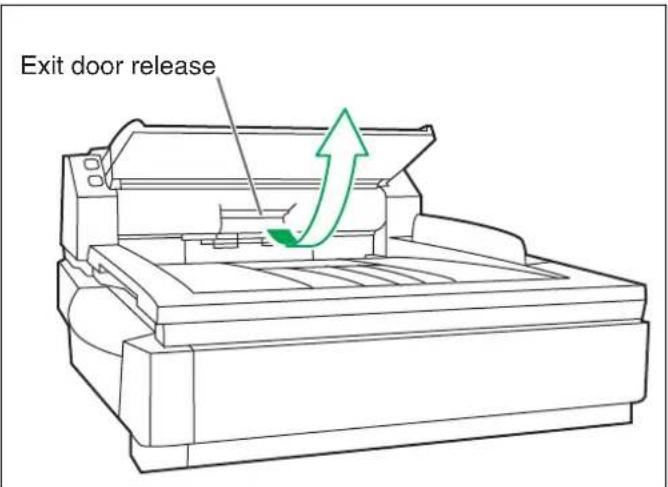
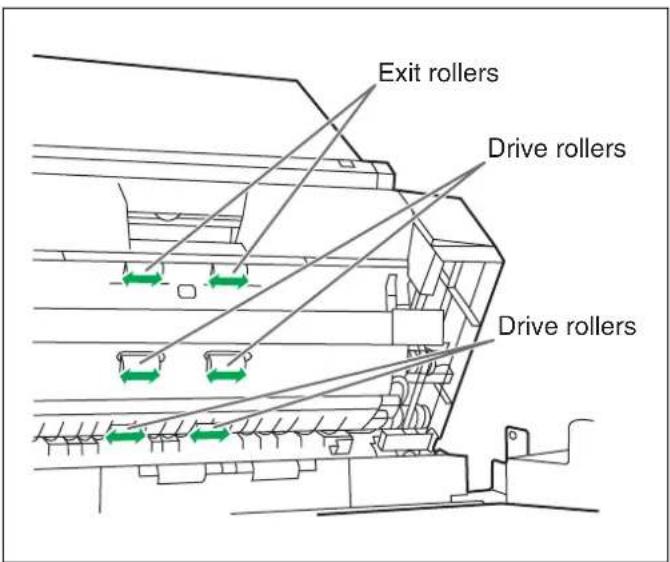
3 Use the roller cleaning paper (KV-SS03) to remove the dirt from the surfaces of the 4 drive rollers and the 2 exit rollers.
- When wiping off the dirt on the roller surfaces, hold the rollers to prevent them from rotating, and wipe the roller all the way around them proceeding from one end to the other in the direction of the arrows shown in the figure.
Note
- Cleaning Mode can be used to help when cleaning the drive rollers and the exit rollers. Use Cleaning Mode with the power turned on.
Cleaning Mode can be set in User Utility. During Cleaning Mode, the drive rollers and the exit rollers rotate a small amount every time the Start/Stop button on the scanner is pressed.
For details, refer to the User Utility help.
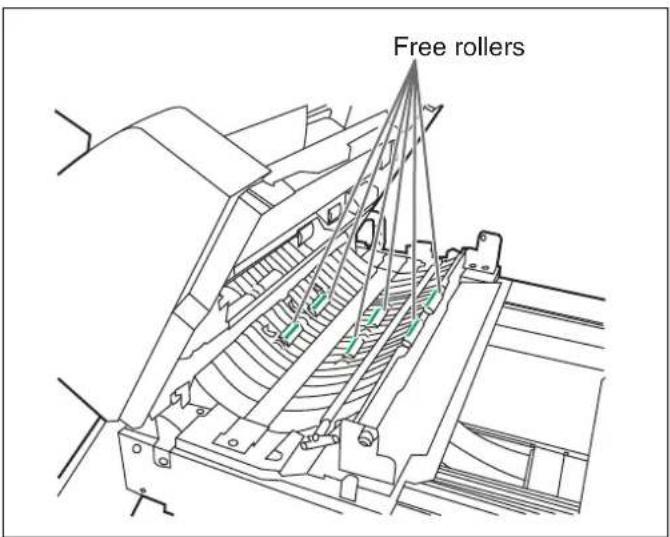
4 Use the roller cleaning paper (KV-SS03) to remove the dirt from the surfaces of the 6 free rollers.
- When wiping off the dirt on the roller surfaces, hold the rollers to prevent them from rotating, and wipe the roller all the way around them proceeding from one end to the other in the direction of the arrows shown in the figure.
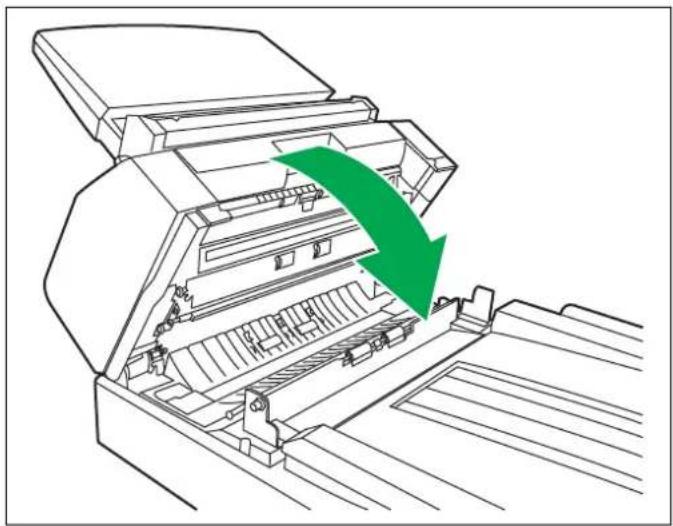
5 Close the exit door.
- When you close the exit door, close it securely until it is locked.
■ Cleaning the reference plates and ADF glasses
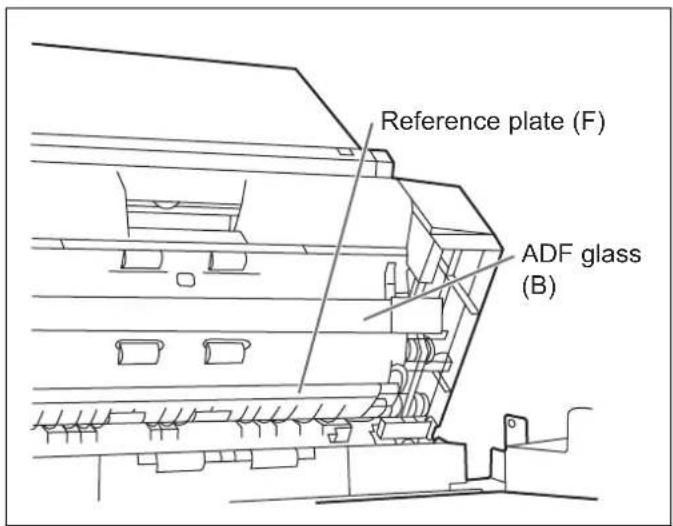
1 Turn off the scanner. 2 Pull the exit door release to open the exit door. 3 Clean the ADF glass (F) and reference plate (B) with the roller cleaning paper (KV-SS03).
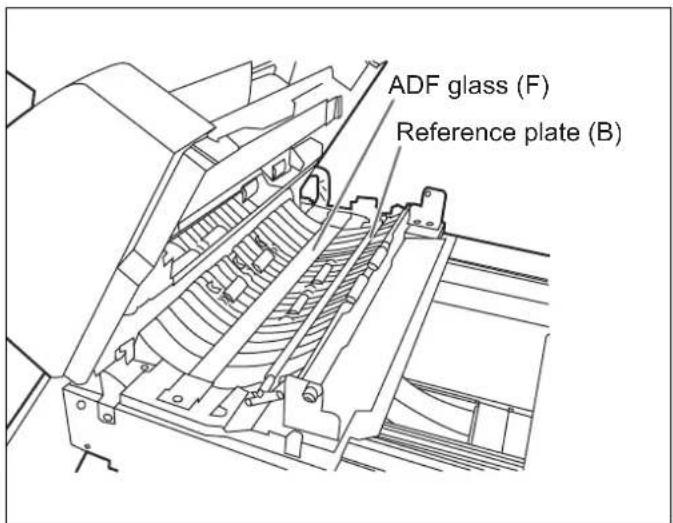
4 Clean the ADF glass (B) and reference plate (F) with the roller cleaning paper (KV-SS03). 5 Close the exit door.
- When you close the exit door, close it securely until it is locked.
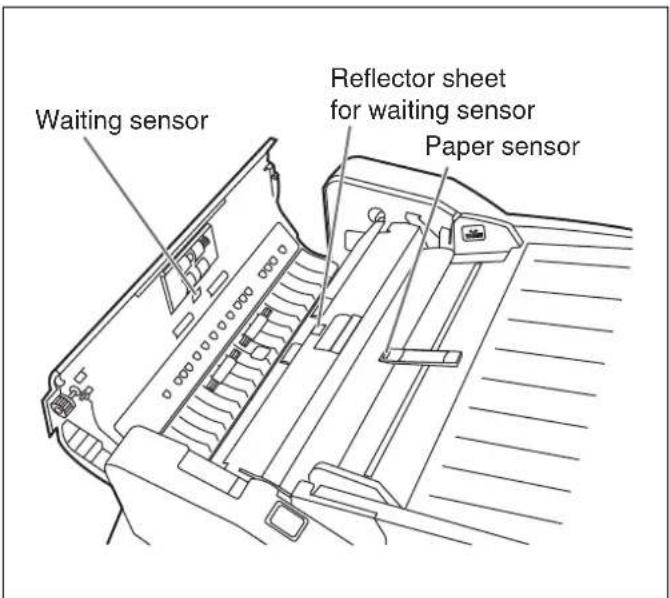
■ Cleaning the paper and waiting sensors, double feed detector
1 Turn off the scanner. 2 Push the ADF door release to open the ADF door. 3 Remove dust from the paper sensor and waiting sensor with a cotton swab. 4 Remove dust on the surface of the reflector sheet for the waiting sensor with a cotton swab.
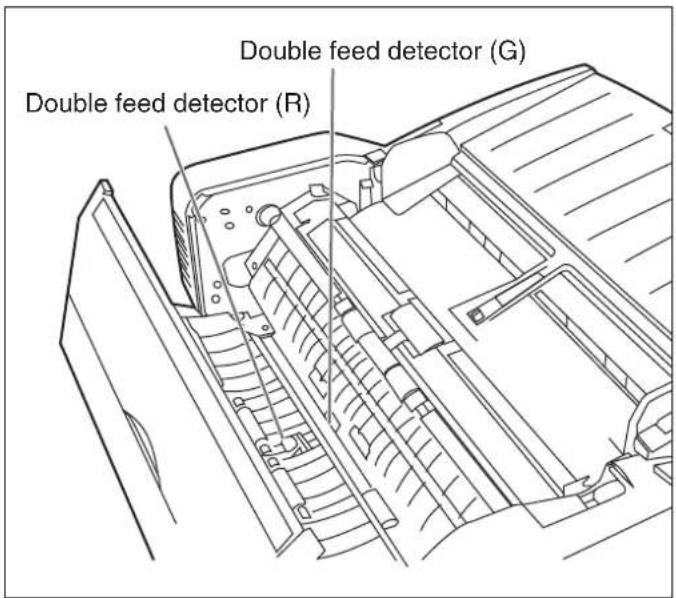
5 Remove dust from the double feed detector (G) and double feed detector (R) with a cotton swab. 6 Close the ADF door. - When you close the ADF door, close it securely until it is locked.
■ Cleaning the starting and ending sensors
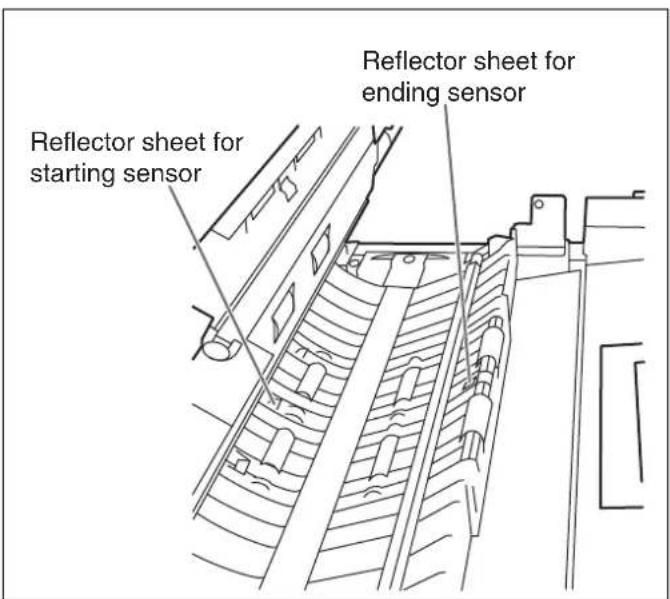
1 Turn off the scanner. 2 Pull the exit door release to open the exit door. 3 Remove dust from the starting and ending sensors with a cotton swab.
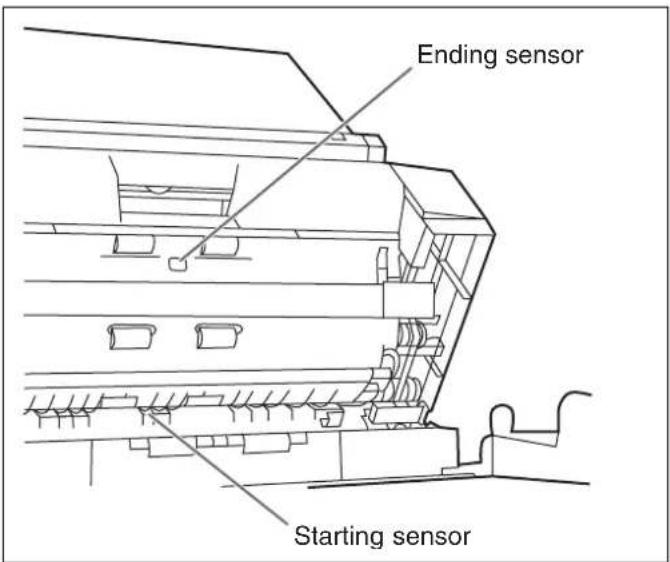
4 Remove dust from the reflector sheet for the starting and ending sensors with a cotton swab. 5 Close the exit door.
- When you close the exit door, close it securely until it is locked.
■ Cleaning the flatbed glass
1 Turn off the scanner. 2 Fold the hopper tray in the direction of the arrow. 3 Open the document cover.
4 Clean up the surface of flatbed glass with the roller cleaning paper (KV-SS03) to remove the dirt. (Also clean up the surface of the flatbed sheet, as required.) 5 Close the document cover and put back the hopper tray to the original position.
Replacing Consumable Roller Modules
■ Replacing paper feed roller modules
Recommended change: 300,000 scans
1 Turn the power off. 2 Push the ADF door release to open the ADF door.
3 Pull down the paper feed roller module in the direction of the arrow.
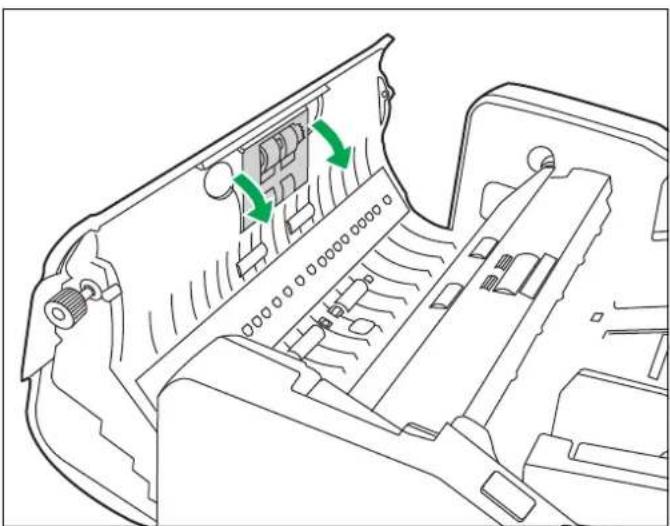
4 Remove the paper feed roller module as shown on the figure. 5 Open the optional roller exchange kit (KV-SS015), and take out the new paper feed roller module.
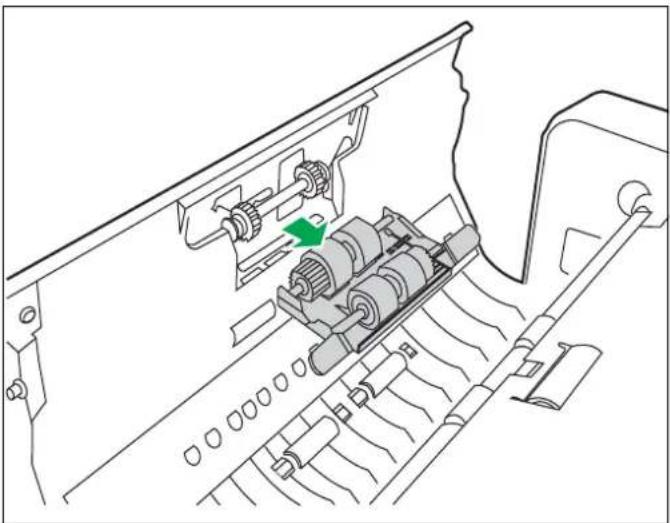
6 Install the new paper feed roller module.
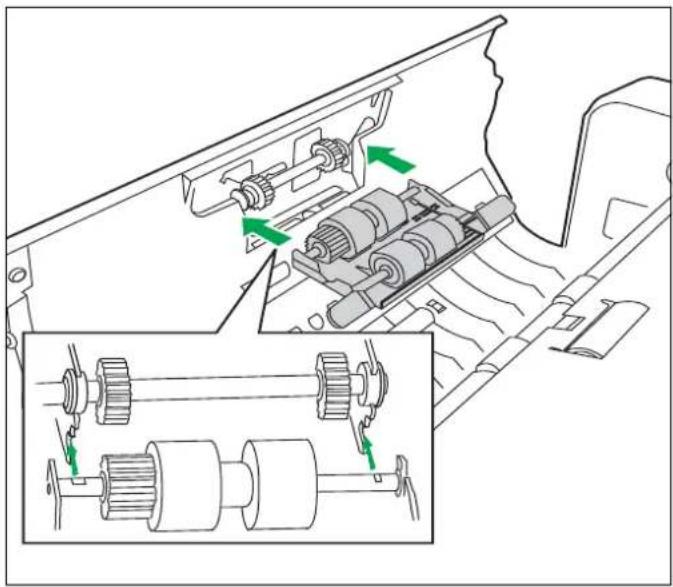
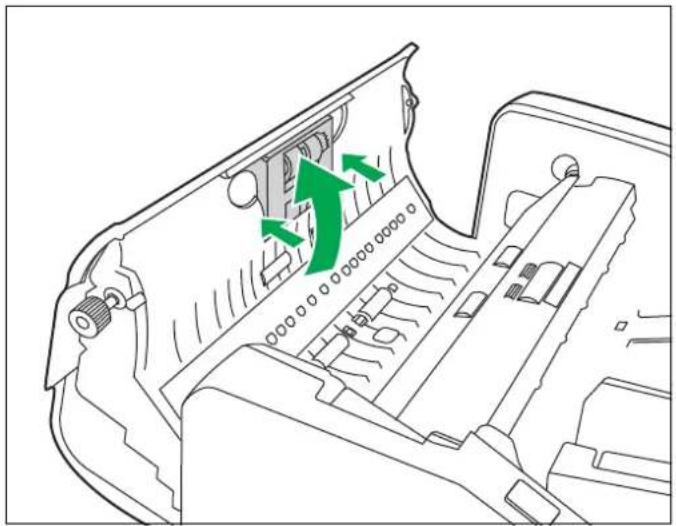
7 Push the new paper feed roller module upwards in the direction of the arrow, so that it is locked by the magnets on both sides.
8 Close the ADF door. - When you close the ADF door, close it securely until it is locked.
Replacing Double Feed Prevention Roller
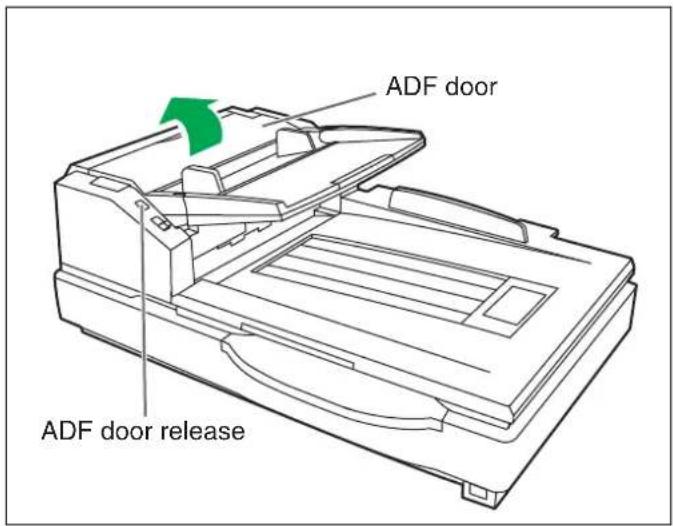
1. Turn the power off. 2. Push the ADF door release to open the ADF door.
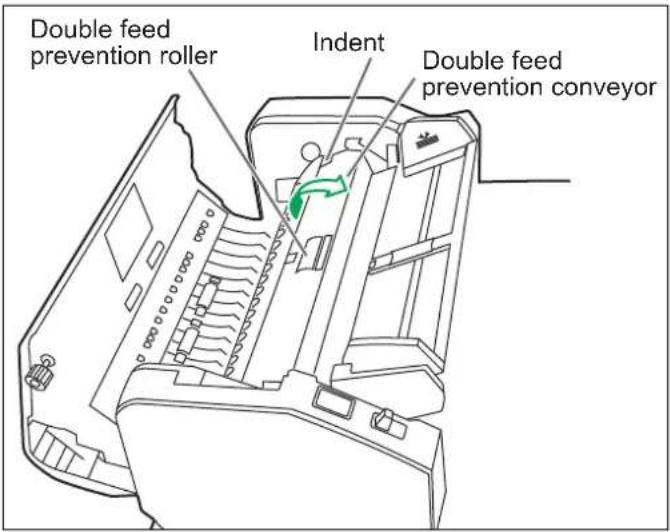
3. Open the double feed prevention conveyor in the direction of the arrow shown in the figure by using the indent on the back side.
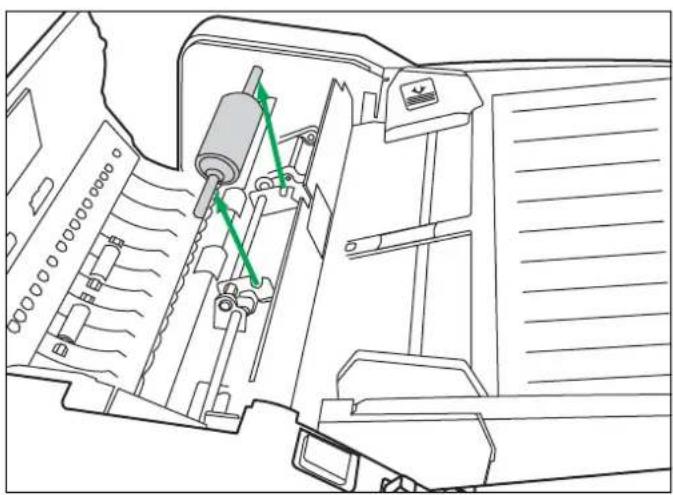
4. Remove the double feed prevention roller, pulling up the shaft in the direction of the arrow. 5. Take out the new double feed prevention roller from the optional roller exchange kit (KV-SS015).
6. Install the new double feed prevention roller by matching the groove of its shaft with the groove of the metal holder.
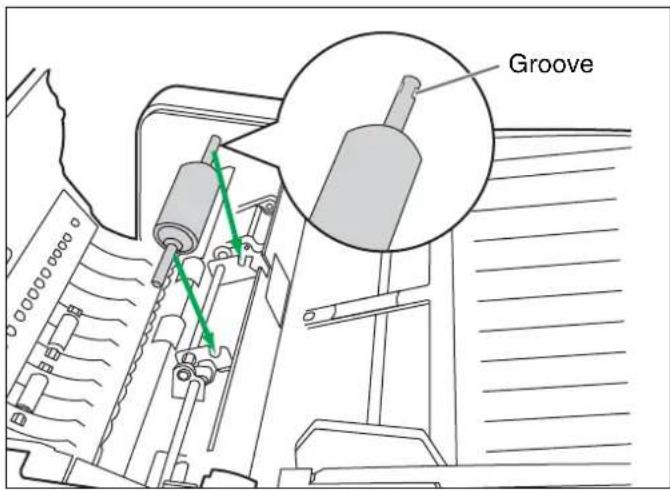
7. Close the double feed prevention conveyor. 8. Close the ADF door.
- When you close the ADF door, close it securely until it is locked.
9. Reset the After Replace Roller Counter in User Utility to 0.
- For details, refer to the User Utility help.
If a problem occurs while the unit is being used, check the following items and check the scanner status with the User Utility. If the unit still malfunctions, turn it OFF, unplug the power cord and call for service.
| Symptom Possible Cause Remedy | ||
| The LED (Green) does not light when the unit's power is turned ON. | The power cord is not plugged in. Insert | the power plug firmly. |
| The computer does not recognize the scanner. | The scanner is not connected to the computer correctly. | Connect the cables correctly. |
| The software is not installed correctly. | Uninstall the software from the computer (page 50), and then install the software again (See "Quick Installation Guide"). | |
| The USB interface of the computer is not installed correctly. | Check the computer whether the USB interface of your computer is installed correctly using the device manager's property. | |
| The scanner is connected via USB hub. | Do not connect via USB hub. | |
| There is a problem with the USB cable. | Make sure to use the included USB cable. | |
| The unit's power was turned OFF because no operation was performed for a certain period of time. | Press the power button to turn ON the unit's power. | |
| Scan speed is slow. | The scanner is connected with USB 1.1. | Connect over USB 2.0 / USB 3.0 |
| The ADF does not open when the ADF door release is pushed. | The ADF door is not closed properly. | Push the ADF door release again after you close the ADF door until it is locked. |
| (ADF) The document has been loaded on the hopper tray. But the scanner does not start scanning. | The document is not loaded properly. | Load the document correctly. (See page 13.) |
| The sensor cannot detect the document as the edge of the document is curled. | Flatten the document and load it again. | |
| (ADF) Double feeding problems occurs frequently or the scanner stops loading while scanning. | The rollers are dirty. | Clean all of the rollers. (See page 35.) |
| The rollers have reached their life expectancy. | Replace the paper feed roller module and the double feed prevention roller module. (See page 43 and page 45.) | |
| The document is curled or folded. | Flatten the document and load it again after reducing the pages. | |
| The document is printed on an unsupported type of paper or thick paper. | Make a copy of the document on paper of an acceptable type and thickness (See page 13), and scan the copy. | |
| The document has a length of less than 70 mm (2.75 in.). | Make a copy of the document on paper of the specified size and scan the copy. (See page 13.) | |
| (ADF)Scanned image is aslant. | The document guides are not adjusted to the size of the document to be scanned. The document to be scanned is set aslant on the hopper tray. | Adjust the document guides properly to the size of the document to be scanned. |
| Right and left sides of the document to be scanned are not the same in height, because of curl and fold. | Remove curl and fold then reduce the amount of the document. | |
| (ADF)The scanned document is blank. | The document to be scanned was loaded face down (upside down). | Load the document correctly.(See page 18.) |
| Vertical lines appear on the scanned document. | The ADF glasses and flatbed glass are dirty. | Clean the ADF glasses and flatbed glass. (See page 39 and page 42.) |
| The reference plate and flatbed sheet are dirty. | Clean the reference plate and flatbed sheet. (See page 39 and page 42.) | |
| The scanning density is uneven. | The ADF glass, reference plate, flatbed glass and flatbed sheet are dirty. | Clean the ADF glass, reference plate, flatbed glass and flatbed sheet. (See page 39 and page 42.) |
| The quantity distribution of light varies. | Adjust shading. (See page 49.) | |
| The color of the scanned document is extremely different from the original document. | The settings of the computer monitor is wrong. | Adjust the computer monitor settings. |
| Depending on the documents scanned, the color of documents may not be scanned properly. For example, the color of a highlighter pen may be scanned lighter than it appears. | Setting the value for [Chroma] higher in the scanning conditions may solve this problem. | |
| Dark spots or noise appear on the scanned documents. | The ADF glass, reference plate, flatbed glass and flatbed sheet are dirty. | Clean the ADF glass, reference plate, flatbed glass and flatbed sheet. (See page 39 and page 42.) |
| Scanned image has moire fringes such as stripe or wavy pattern noise. | It is caused by printing pattern of the document and the congeniality of the scanning resolution. | Please use the moire reduction function or change the resolution and try to scan. |
| " "or " " is displayed on the 7-segment LED. | An error has occurred. | Check the scanner status in User Utility. |
If you still experience problems after following these suggestions, please contact our Technical Support Department at 1-800-726-2797 for further assistance. (U.S.A. only)
• What is the purpose of the shading adjustment?
The shading adjustment function corrects variations in the lamp intensity and pixel sensor sensitivity, and reduces unevenness in density in scanned images. It can be carried out by means of the User Utility using the special shading paper, which is provided with this scanner.
- When shading adjustment is required
Proceed with the compensation when the colors in some parts of the scanned images differ in the extreme, or when the image quality fails to be improved even after the inside of the scanner is cleaned.
•Before proceeding with the shading adjustment
Before proceeding, be absolutely sure to thoroughly clean the ADF glass (F) area, ADF glass (B) area, reference plate (F) and reference plate (B) as well as the transport path and drive rollers of the scanning unit. If the shading adjustment is carried out while these parts are still dirty, it will not be possible to eliminate the lines that form on the scanned images.
•Shading adjustment procedure
- Start the User Utility.
- Click "User Shading" on the main menu, and operate as the image display dictates.
Note
- For further details, refer to section "[User Shading]" in the help for User Utility.
Notice
- If the scanned images are still lined after the shading adjustment has been performed and if these lines are not eliminated even after the ADF glass areas have been cleaned, it means that the shading has not been compensated properly. Clean the parts again, and then proceed with the shading adjustment.
If you want to remove the software that is installed on your computer, follow the procedure below to uninstall them.
1 In [Control Panel], open [Uninstall a program].
- In Windows XP, select [Add or Remove Programs].
2 Uninstall the following software programs.
| Program Name Publisher | |
| Image Capture Plus Panasonic System Networks Co., Ltd. | |
| Scan Button Setting Tool Panasonic System Networks Co., Ltd. | |
| IDREngine Panasonic System Networks Co., Ltd. | |
| Panasonic Scanner Manuals Panasonic System Networks Co., Ltd. | |
| Panasonic Document Scanner Device Driver Panasonic System Networks Co., Ltd. | |
| MCD Panasonic System Networks Co., Ltd. | |
| KV-S7097 KV-S7077 ISIS Driver Panasonic System Networks Co., Ltd. | |
| Panasonic Document Scanner TWAIN Driver Panasonic System Networks Co., Ltd. | |
| Panasonic Scanner User Utility | Panasonic System Networks Co., Ltd. |
| OCREngine | Panasonic System Networks Co., Ltd. |
3 Follow the instructions on the screen.
Repacking Instructions
It is highly recommended that you keep the original carton and ALL packing materials. If you need to transport or ship your scanner, please follow these instructions:
- Use the original carton and all of the original packing materials.
- Improper repacking of the scanner may result in a service charge to repair the unit.
- The scanner should be handled in the correct (horizontal) position.
Materials Required:
• Original scanner carton & packing materials • Shipping tape and scissors
1 Turn off the scanner and disconnect your scanner from the electrical outlet and USB cable.
2 Remove the hopper tray.
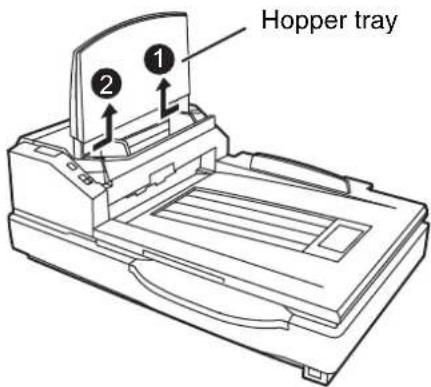
3 Pack the scanner.
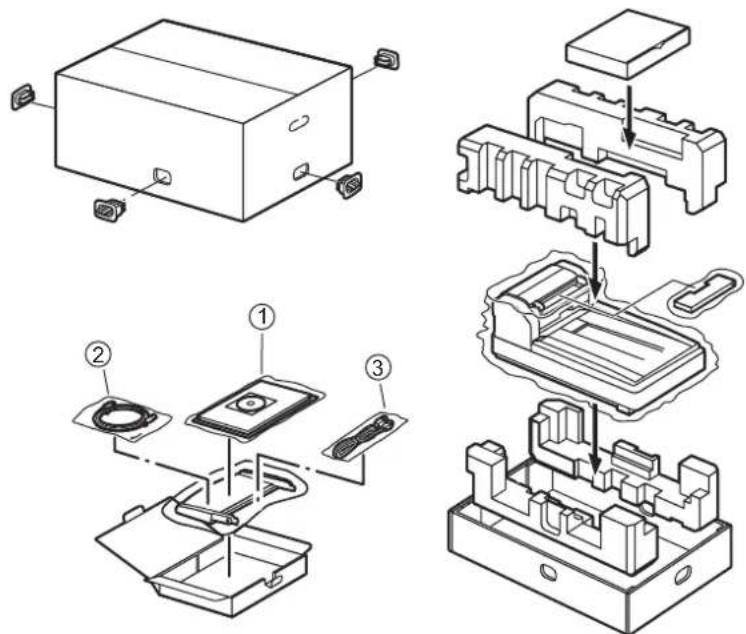
① Quick Installation Guide, Software / Manual CD-ROM, Shading paper ② USB cable ③ Power cord
| Model No. | KV-S7097/KV-S7077 | ||
| Item | |||
| Scanner | Scanning face Duplex scanning | ||
| Scanning method Hybrid CIS | |||
| Readout speed*1(landscape)(Binary/color)(300 dpi) | ADF | KV-S7097Simplex: Approx. 95 pages/min.Duplex: 190 images/min.(Letter/A4)KV-S7077Simplex: Approx. 75 pages/min.Duplex: 150 images/min.(Letter/A4) | |
| Readout speed*1(portrait) (300 dpi)(Binary/color) | Flatbed | KV-S7097: 0.704 s (Letter) / 0.748 s (A4)KV-S7077: 0.719 s (Letter) / 0.764 s (A4) | |
| Resolution*2 | Flatbed/ADF | 100 - 600 dpi (1 dpi step), 1,200 dpiOptical resolution: 600 dpi | |
| Paper | Size for Flatbed | 297 mm x 432 mm (11.7 in. x 17 in.) | |
| Size for ADF | Continuous scanning: 48 mm (1.9 in.) x 70 mm(2.8 in.) to 302 mm (11.9 in.) x 432 mm (17 in.)Manual scanning: 48 mm (1.9 in.) x 70 mm (2.8 in.) to302 mm (11.9 in.) x 5461 mm (215 in.) | ||
| Thickness forADF | 0.05 mm to 0.15 mm (2.0 mils to 5.9 mils)Business card: Thicker than 0.15 mm (5.9 mils)Note: 1 mil = 1/1000 in. | ||
| Weight for ADF 31 g/m2to 127 g/m2(8.3 lb. to 34 lb.)*3 | |||
| Hopper capacity 200 sheets [80 g/m | 2(21 lb.) | ||
| Unit | External dimensions(Width x Depth x Height) | 755 mm x 508 mm x 289 mm(29.7 in. x 20 in. x 11.4 in.) | |
| Weight 29 kg (64 lb.) | |||
| Power requirement | AC 100 - 127 V, 50/60 Hz, 1.5 AAC 100 - 240 V, 50/60 Hz, 1.5 - 0.8 AAC 220 - 240 V, 50/60 Hz, 0.8 A | ||
| Powerconsumption | Scanning | 90 W | |
| Ready | 38 W | ||
| Sleep 1.4 W or less | |||
| Power OFF 0.3 W or less | |||
| Environment*4 | Operating environment | Temperature: 5 °C - 35 °C (41 °F - 95 °F)Humidity: 20 % - 80 % RH | |
| Non-operating environment | Temperature: -20 °C - 60 °C (-4 °F - 140 °F)Humidity: 8 % - 95 % RH | ||
| Storage environment | Temperature: -10 °C - 50 °C (14 °F - 122 °F)Humidity: 8 % - 75 % RH | ||
*1 The scanning speed differs depending on the host computer, the operating system, the application, the measuring method, the quantity of data in the image, and the paper type. The scanning speed depends on a measuring method of Panasonic.
*2 When scanning a document larger than A5 size at high resolutions over 600 dpi, the scanning may fail due to insufficient memory.
*3 Use "Thin Paper Feeding Mode" when scanning the document less than 40g / m2 (10.6 lb.). For details about "Thin Paper Feeding Mode", refer to the Image Capture Plus, TWAIN, or ISIS help.
*4 About the environmental conditions of Imprinter Unit (KV-SS014), refer to the "Information" leaflet of the optional imprinter unit. When printing in conditions outside of the imprinter unit's operating environment, the printing result may be faded or printing may not occur.


- INTRODUCTION
- FEATURE HIGHLIGHTS
- HIGH-SPEED DOUBLE SIDED SCANNING
- FLATBED SCANNING
- DOUBLE FEED DETECTION FUNCTION
- DOUBLE FEED SKIP (DFS) FUNCTION
- PUSH SCAN
- OTHER FEATURES
- ABBREVIATIONS
- TRADEMARKS
- ABOUT THE DOCUMENTATION
- ABOUT THE SOFTWARE HELP
- SOFTWARE / MANUAL CD-ROM CONTENTS
- SYSTEM REQUIREMENTS
- NOTE
- OPTIONS
- TABLE OF CONTENTS
- BEFORE YOU START
- PRECAUTIONS
- COMPONENT IDENTIFICATION
- VIEWING OPERATING MANUAL AND HELP INSTALLED
- OPERATION
- LOADING DOCUMENTS ON THE ADF
- LOADING DOCUMENTS ON THE FLATBED
- USING PUSH SCAN
- USING CONTROL SHEETS
- CHANGING THE REFERENCE PLATE SETTING
- CARE AND MAINTENANCE
- CLEARING PAPER JAMS
- CLEANING THE UNIT
- REPLACING CONSUMABLE ROLLER MODULES
- TROUBLESHOOTING
- SHADING ADJUSTMENT
- APPENDIX
- UNINSTALLING THE SOFTWARE
- REPACKING INSTRUCTIONS
- SPECIFICATIONS
- ILLEGAL DUPLICATION
- NOTICE
- INSTALLATION
- CD-ROM
- ROLLER CLEANING PAPER
- SECURITY NOTICE
- OTHERS
- OPERATION PANEL
- ABOUT LED
- TO VIEW THE OPERATING MANUAL
- TO VIEW THE HELP
- ACCEPTABLE DOCUMENTS
- MAXIMUM NUMBER OF SHEETS (NEW PAPER) LOADABLE ON THE HOPPER
- DOCUMENTS MUST ALSO MEET THE FOLLOWING CONDITIONS
- UNACCEPTABLE DOCUMENTS
- DO NOT SCAN THE FOLLOWING TYPES OF PAPER
- NOTES ABOUT DOCUMENTS FOR SCANNING
- SCANNING DOCUMENTS WITH PAGES OF SAME SIZES
- SCANNING DOCUMENTS WITH PAGES OF DIFFERENT SIZES
- ADJUSTING THE LEFT AND RIGHT DOCUMENT GUIDES TO THEIR ORIGINAL POSITION
- CAUTION
- WHEN SCANNING WITH THE FLATBED
- SCANNING THICK DOCUMENTS
- SETTING THE SCANNING CONDITIONS
- SELECTING THE BEHAVIOR OF PUSH SCAN
- PERFORMING PUSH SCAN
- CHECKING EVENTS
- CONTROL SHEET FUNCTIONS
- ABOUT PRINTING CONTROL SHEETS
- PRINTING CONTROL SHEETS
- ADF REFERENCE PLATE SETTING
- FLATBED SHEET SETTING
- REMOVING PAPER JAMS FROM THE PAPER SLOT
- REMOVING PAPER JAMS FROM THE EXIT PATH
- OUTSIDE OF THE SCANNER
- INSIDE THE SCANNER
- IF PAPER JAMS OR DOUBLE FEEDING OCCURS FREQUENTLY
- CLEANING THE PAPER FEED ROLLER, SEPARATION ROLLER, AND DOUBLE FEED PREVENTION ROLLER
- CLEANING THE DRIVE ROLLERS AND FREE ROLLERS
- CLEANING THE DRIVE ROLLERS, FREE ROLLERS, AND EXIT ROLLERS
- CLOSE THE EXIT DOOR
- CLEANING THE REFERENCE PLATES AND ADF GLASSES
- CLEANING THE PAPER AND WAITING SENSORS, DOUBLE FEED DETECTOR
- CLEANING THE STARTING AND ENDING SENSORS
- CLEANING THE FLATBED GLASS
- REPLACING PAPER FEED ROLLER MODULES
- REPLACING DOUBLE FEED PREVENTION ROLLER
- WHAT IS THE PURPOSE OF THE SHADING ADJUSTMENT
- WHEN SHADING ADJUSTMENT IS REQUIRED
- BEFORE PROCEEDING WITH THE SHADING ADJUSTMENT
- SHADING ADJUSTMENT PROCEDURE
- MATERIALS REQUIRED
Brand : PANASONIC
Model : KV-S7097
Category : Scanner