
bit Play HD - Media player AUDISON - Free user manual and instructions
Find the device manual for free bit Play HD AUDISON in PDF.


| Product Type | Multimedia Player |
| Brand | Audison |
| Model | bit Play HD |
| Power Supply Voltage | 8.5 ÷ 14 VDC |
| Idling Current | 1.0 A (with internal SSD) |
| Fuse | 3 A blade fuse |
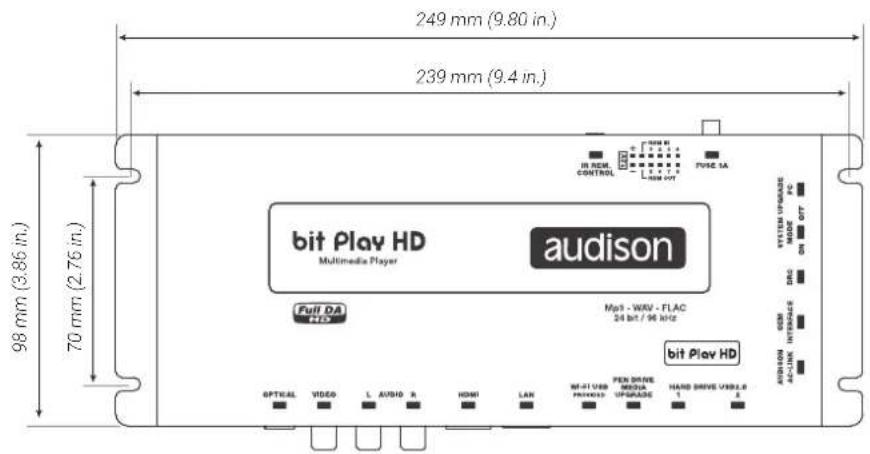
| Dimensions (W x H x D) | 249 x 98 x 41 mm (9.80 x 3.85 x 1.61 in) |
| Weight | 0.9 kg (1.98 lb) |
| Operating Temperature | 0°C to 50°C (32°F to 122°F) |
| Audio Formats | WAV, FLAC (up to 96kHz/24bit), OGG, AAC, MPEG Audio (MP1, MP2, MP3, MPA) |
| Video Formats | WMV, DivX, Xvid, MPEG, H264 |
| Image Formats | JPG, BMP, PNG, GIF |
| Analog Audio Output | 2 x RCA (L/R), 1 VRMS, THD 0.003% |
| Digital Audio Output | 1 x TOSLINK S/PDIF up to 96kHz/24bit |
| Video Output | 1 x HDMI v1.3, 1 x RCA composite video |
| Data Storage | Internal 2.5" SATA SSD (up to 2TB), external USB HDD/Pendrive/DVD |
| Wi-Fi | 802.11n with external USB dongle (included) |
| Remote Controls | ARC (advanced) and USR (user) infrared remotes, optional DRC |
| Control Connections | Audison AC Link, DRC, OEM interface, steering wheel control wires |
| Safety Features | Video inhibition when driving unless parking brake engaged; operating temperature range |
| Maintenance | Firmware updates via USB or PC; avoid disconnecting during transfer; handle with care |
| Spare Parts | Replacement fuse 3A, AAA and CR2025 batteries, Wi-Fi dongle, IR receiver, cables included |
| General Information | Full DA system, compatible with Audison bit processors, Android and iOS app control |
Frequently Asked Questions - bit Play HD AUDISON
User questions about bit Play HD AUDISON
0 question about this device. Answer the ones you know or ask your own.
Ask a new question about this device
Download the instructions for your Media player in PDF format for free! Find your manual bit Play HD - AUDISON and take your electronic device back in hand. On this page are published all the documents necessary for the use of your device. bit Play HD by AUDISON.
USER MANUAL bit Play HD AUDISON
natural_image
Futuristic white and blue concept car on gray background with 'bit' watermark text above (no other signage or text)

bit Play HD bit Play HD SSD
USER'S MANUAL
rev. 2.0a
Valid for any of the below software versions or above:
• Control Firmware 2.0
• Media Firmware 2.0
- Android APP. 2.0
- IOS APP 2.0

1.1 SAFETY CONSIDERATIONS ....3
1.2 PACKAGING CONTENT 4
1.3 DIMENSIONS AND FASTENING ....5
2. DESCRIPTION OF THE CONNECTION PANELS 6
3. REMOTE DESCRIPTION 9
3.1 ARC (Advance Remote Control) REMOTE 9
3.2 USR (User Remote Control) REMOTE 10
3.3 DRC MP Remote control (optional) 11
3.3.1 NAVI COMMAND 11
3.3.2 BIT PLAY HD SETTINGS 11
4 CONNECTIONS....12
4.1 POWER SUPPLY AND REMOTE CONTROL 12
4.2 AUDIO OUTPUT SIGNALS 13
4.2.1 ANALOG OUTPUT SIGNALS.... 13
4.2.2 S/PDIF DIGITAL OUTPUT SIGNALS 14
4.2.3 S/PDIF DIGITAL OUTPUT SIGNALS WITH HI-DEFINITION VOLUME CONTROL 15
4.2.4 HOW TO CONNECT THE bit Play HD TO THE AUDISON bit DMI 16
4.3VIDEO OUTPUT SIGNALS 17
4.3.1 COMPOSITE VIDEO SIGNAL....17
4.3.2 HDMI VIDEO SIGNAL 17
4.4 AUX/OPTICAL INPUT AUTO SWITCH 18
4.5 STORAGE DEVICES/EXTERNAL FILE READING 20
4.6 INFRARED RECEIVER....21
4.7 Wi-Fi AND MOBILE DEVICES 21
5 HOW TO USE THE bit Play HD WITH AN EXTERNAL MONITOR 22
6 HOW TO USE THE bit Play HD ON MOBILE DEVICES 24
8 TROUBLESHOOTING 53
8.1 MEDIA FIRMWARE UPGRADE 53
8.2 CONTROL FIRMWARE UPGRADE 53
8.3 FAQ 55
9 TECHNICAL SPECIFICATIONS 59
1. BIT PLAY HD - BIT PLAY HD SSD DESCRIPTION
1.1 SAFETY CONSIDERATIONS
- For the safety of the driver and third parties, the driver should not watch any video and/or operate the controls of the device while driving. While driving, we also recommend to adjust the volume to a level that allows you to hear sounds from outside the vehicle. The law prohibits the display and use of video while driving. For this reason, the unit is equipped with a function that inhibits the viewing of such content, unless the car is parked and the parking brake is engaged (see sections 2.1 and 4.3). We accept no responsibility if you choose to ignore this warning and do not install the product correctly to inhibit video content while in motion.
- Operate the bit Play HD only when the internal temperature is between 0^ C ( 32^ F) and 55^ C ( 131^ F). The bit Play HD must be a minimum of 3 cm (1.5") from other structures and there must be good air circulation around the chassis.
- Make sure your car has a 12VDC negative ground.
- Make sure the location you choose for the product and its accessories does not affect the vehicle's other mechanical and electrical devices.
- Make sure the power cable does not short circuit during installation and connection.
- Use extreme caution when cutting or drilling the car chassis, checking that there is no electrical wiring or structural elements underneath.
- Use rubber grommets to protect wires running through holes in metal and use proper materials if close to heat-generating devices.
- Make sure all the cables are properly secured along their entire length. Also, make sure their outer protective jacket is flame resistant and self-extinguishing. Secure the wiring near the terminals.
SAFE SOUND
Use common sense while listening; long exposure to excessive sound levels may damage your hearing. Safety while driving must always come first.
1.2 PACKAGING CONTENT
- bit Play HD: ____

- 2,5" SATA 250GB SSD HARD DISK (only for the bit Play HD SSD): ____

- NR. 4 Hard Disk assembling/fastening screws (only for the bit Play HD): ____

- Input/Rem cable with multi-pin connector: ____
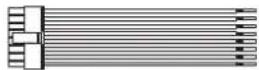
- 2 m. (79 in.) USB extension cable: ____

natural_image
Simple line drawing of a cord with a connector, no text or symbols present- 5 m. (196 in.) infrared receiver cable: ____

- Wi-Fi USB dongle:
- ARC remote (Advanced Remote Control): ____
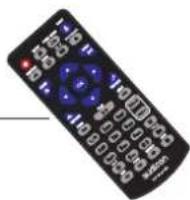
- USR remote (User Remote Control): ____
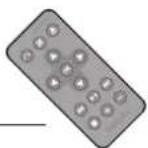
- 1m (40 in.) AC-LINK (RJ12) cable ____

natural_image
Coiled cable or wire with two connectors at ends (no text or symbols visible)- NR. 1 (3A) replacement fuse:

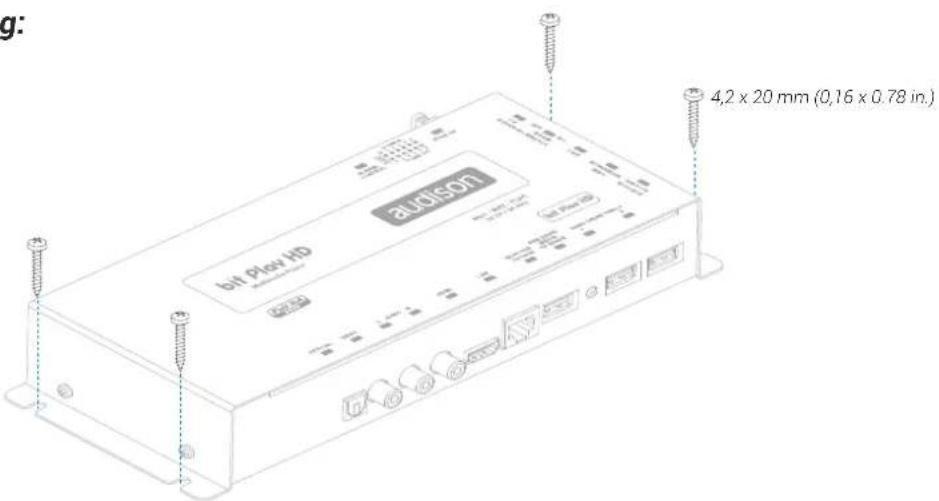
- NR. 4 4.2 x 20 mm crosshead self-tapping fastening screws:

- Quick Start Guide: ____
- Warranty: ____
1.3 DIMENSIONS AND FASTENING
Dimensions:


ARC Advanced Remote Control
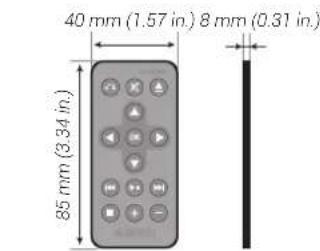
USR User Remote Control
Fastening:
2. DESCRIPTION OF THE CONNECTION PANELS
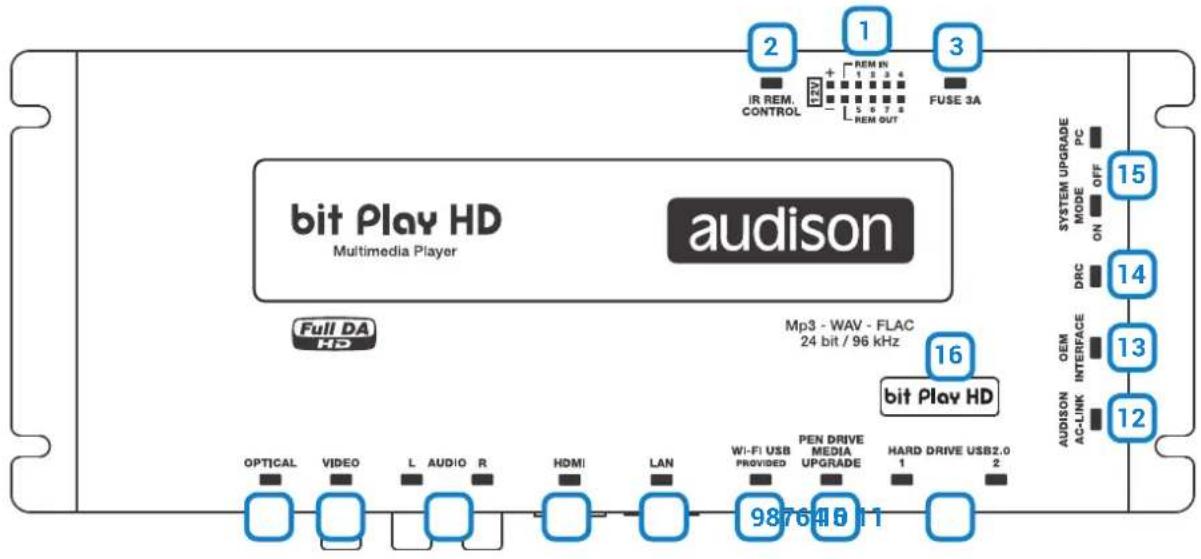
1 The bit Play HD comes with a 12-pin multi-pin connector through which you can manage the power and different control connections.

A +12 VOLT - RED: 12V positive connection terminal from the car power supply.
B -12 VOLT GROUND - BLACK: negative power connection terminal (GND).
C REMOTE IN - BLUE: input to turn on the bit Play HD through the audio signal source Remote Out
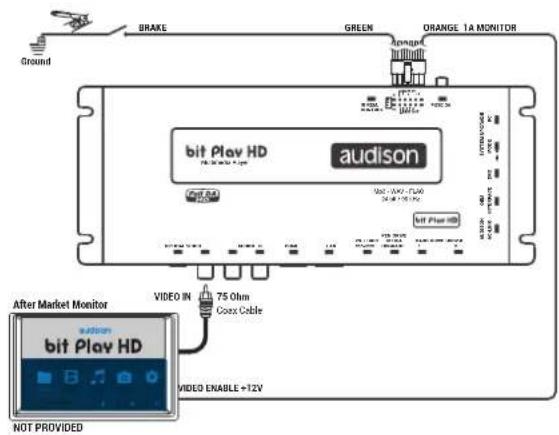
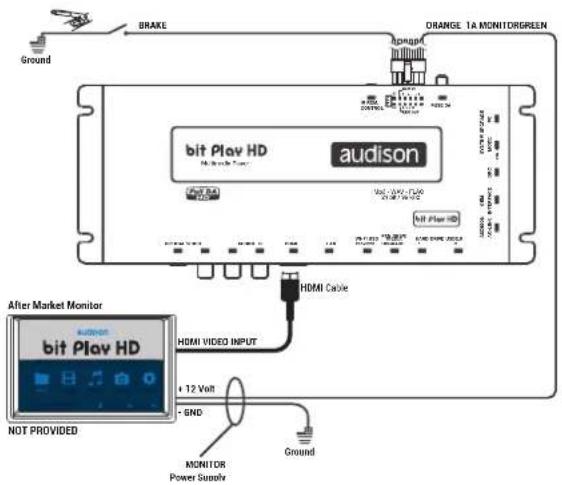
D BRAKE - GREEN: this terminal prevents viewing video contents while driving. Connect this terminal to the parking brake on the power supply side, and the "1A MONITOR" terminal to the power or consent terminal to enable the monitor used.
E 1A MONITOR - ORANGE: consent terminal to enable the external monitor. This terminal reaches +12V when the vehicle parking brake is engaged. The 1A MONITOR terminal can be connected to the power consent terminal of the external monitor or directly to the power supply (MAX. 1 A).
F OPTICAL/AUX SEL BROWN: this terminal can be used for AUX and OPTICAL IN on the products with OPTICAL/SEL AUX SEL activation input.
G STATUS LED PINK: connect a LED (not supplied) as shown in the figure (optional). This LED duplicates the one in the infrared receiver sensor (see section 2). If the LED flashes, the product is processing information and is not ready, while if it starts normally the bit Play HD is ready for use.
H REMOTE OUT - BLUE/WHITE: output to remotely control other devices/amplifiers connected to the bit Play HD. After turning on, the device takes 2 seconds to output the REM OUT signal. This output has a current capacity of 130 mA.
STEERING WHEEL CONTROL: terminals for future use.
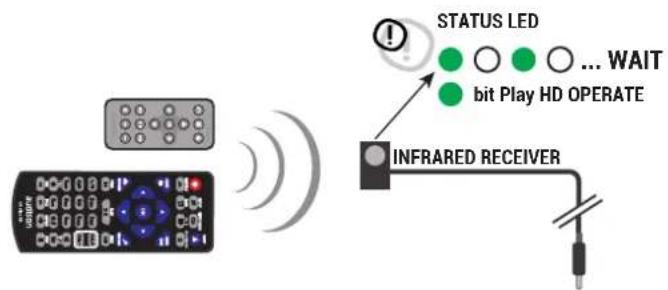
2 IR REM CONTROL: connector for the infrared receiver of the bit Play HD remote controls supplied with the product. Point the remote at the sensor from within 2 meters (see sections 3.1 and 3.2). The sensor incorporates a green status LED. If the LED flashes, the product is processing information and is not ready. If it starts normally, the bit Play HD is ready for use.
flowchart
graph TD
    A["STATUS LED"] --> B["... WAIT"]
    B --> C["bit Play HD OPERATE"]
    D["INFRARED RECEIVER"] --> E["Power Supply"]
WARNING: if you choose to use the bit Play HD using the APP, the management via remote control may be disabled.

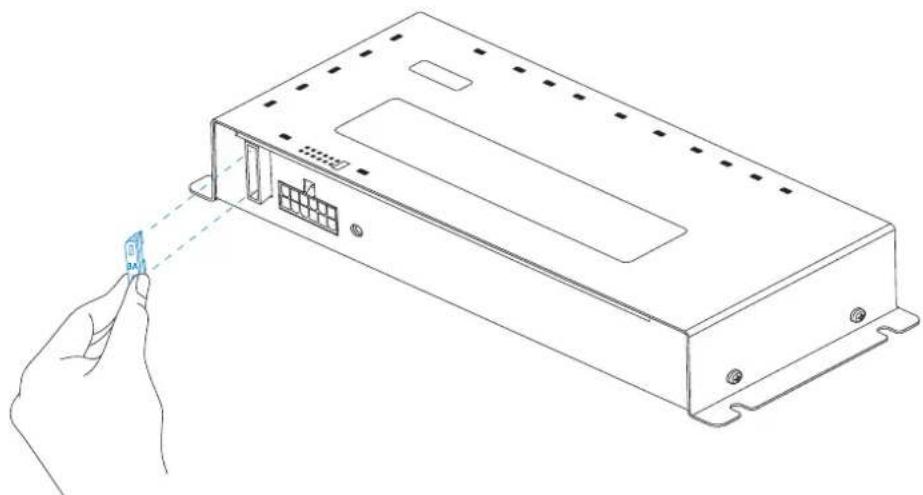
3 FUSE: blade 3A protection fuse. If you need to replace the fuse, use only the same type and value of the original.
natural_image
Line drawing of a computer chassis with a hand pointing to a small electronic component (no text or symbols present)4 OPTICAL: connect a fibre optic cable with a TOSLINK connector to a processor or Audison amplifier with S/PDIF optical input. In this way, you create a Full DA system capable of achieving a new quality benchmark that goes well beyond the CD standard, since you can play FLAC encoded audio files up to 24 bit/96 kHz. This output is subject to volume control via the remote or APP for mobile devices (see section 6).
5 VIDEO: composite video output for an external monitor, 75-Ohm impedance. Connect an RCA male cable with 75-Ohm impedance to an external monitor. The external display is enabled by connecting the consent terminal (active at +12V) to the power supply of the monitor (Max. Consumption 1A) or to the appropriate monitor terminal. Default resolution set to 480P; to modify the video resolution see section 7.2.
6 AUDIO L-R: stereo output. Analog connection for a processor or amplifier. The output volume is controlled via the remote (see sections 3.1 and 3.2) or Android App for mobile devices.
7 HDMI: HDMI video output for high definition external monitors. External display is enabled by connecting the consent terminal (active at +12V) to the power supply of the monitor (Max. Consumption 1A) or to the appropriate monitor terminal. To modify the video resolution see section 7.2
BAN: plug not enabled, used for future applications.
9 Wi-Fi USB: USB plug to connect the Wi-Fi DONGLE and interface with external mobile devices (see section 6).
10 PEN DRIVE MEDIA UPGRADE: button to enable bit Play HD firmware updates (see section 8.1).
11 HARD DRIVE USB 2.0: USB plugs to connect external data storage devices (Hard Disk, Pen Drive, DVD ROM ...). Compatible storage device formats: FAT 32, NTFS, HFS+, EXT 3.
WARNING: for the USB memory device to work properly, the folders it includes must not contain more than 99 files. Make sure the music tracks are divided into folders according to their extension (mp3, Wav, Flac), with special attention to not include files that are not supported by the bit Play HD.
WARNING: Audison assumes no responsibility for the loss of data from USB storage devices connected to the bit Play HD. The prevent malfunction or damage, please observe the following:
- Do not disconnect USB devices while copying or executing a file.
- Carefully read the manual of the USB mass storage device used.
- Do not touch the USB terminals with your hands or metal objects.
- Do not strike the USB mass storage device.
- Do not modify or disassemble the USB mass storage device.
- Use only certified USB mass storage devices.
Avoid using and storing USB mass memories in the following places:
- In a car exposed to direct sunlight or high temperatures.
- In damp areas or near corrosive substances.
12 AUDISON AC-LINK: connection plug to control the volume of Audison processors with an AC LINK connection. By connecting the AC LINK cable and the DRC to the bit Play HD, it is possible to build a system with High Definition volume control (see section 4.2.3).
DEM INTERFACE: plug not enabled, used for future applications.
14 DRC: connection to remotely control the DRC volume (OPTIONAL) of the bit Play HD (see section 12).
15 SYSTEM UPGRADE: switch to enable bit Play HD firmware updates (see section 8.2).
16 STATUS LOGO: the bit Play HD incorporates an internal control that manages the state of the product;
The BLUE logo indicates:
the bit Play HD is on.
The flashing RED logo indicates:
the "UPGRADE MODE" switch is "ON"; the product is ready for firmware updates.
The flashing BLUE logo indicates:
the "UPGRADE MODE" switch is "ON"; the product firmware is updating.
3 REMOTE DESCRIPTION
3.1 ARC (Advanced Remote Control) REMOTE

| 1. SETUP:open the Settings Menu. | 13. FWD: fast-forward Audio/Video tracks. |
| 2. POWER:bit Play HD power on/off. | 14. REV: rewind Audio/Video tracks.. |
| 3. SUBTITLE:select Video subtitle language. | 15. VIDEO MODE: change the video resolution. |
| 4. ZOOM:zoom in Video mode. | 16. EJECT: extract DVD from the external player if installed. |
| 5. HOME:go to the main menu. | 17. 16:9:select 16:9 video format. |
| 6. CURSORS: navigate the bit Play HD internal menus. | 18. BOOKMARK:bookmark function. |
| 7. RETURN: return to the previous menu. | 19. AUDIO:select Video audio language. |
| 8. PREV: select previous Audio/Video tracks. | 20. TIME SEEK:seek rendering time. |
| 9. PLAY/PAUSE: audio/Video track Play/Pause. | 21. VOLUME:VOL+ -> increase volume.VOL- -> decrease volume. |
| 10. NEXT:select next Audio/Video track. | 22. MUTE:audio muting. |
| 11. ALPHA NUMERIC KEYBOARD: alpha numeric interface keyboard. | 23. TITLE: show the title of the current file. |
| 12. FILE: transfer file key. | 24. STOP:stop Audio/Video tracks. |
| 25. REPEATrepeat Audio/Video tracks. |
*WARNING: AAA batteries not included in the package.

NOTES ON USING THE REMOTE.
- Point the remote at the bit Play HD control infrared sensor which can receive input at 30^ in all directions.
- Remove the batteries if you will not be using the remote for more than a month.
- Do not store the remote in a place subject to direct sunlight or near heat sources.
- The remote batteries last 6 months under normal use. If the remote does not work, replace the batteries.
- Use only AAA 1.5 V batteries.
- Do not recharge, disassemble, heat or expose the batteries to heat.
- Insert the batteries in the remote with the correct polarity (+) and (-).
- Keep the batteries and the remote control out of the reach of children.
INSERT THE BATTERIES.
Remove the back cover. Insert the AAA batteries with the correct polarity (+) and (-). Close the cover.

natural_image
Diagram of a cylindrical battery with two internal compartments and one top section marked with plus signs (no text or symbols present)REMOVE THE BATTERIES.
Remove the back cover. Remove the batteries and replace them if necessary. Close the cover.
3.2 USR (User Remote Control) REMOTE
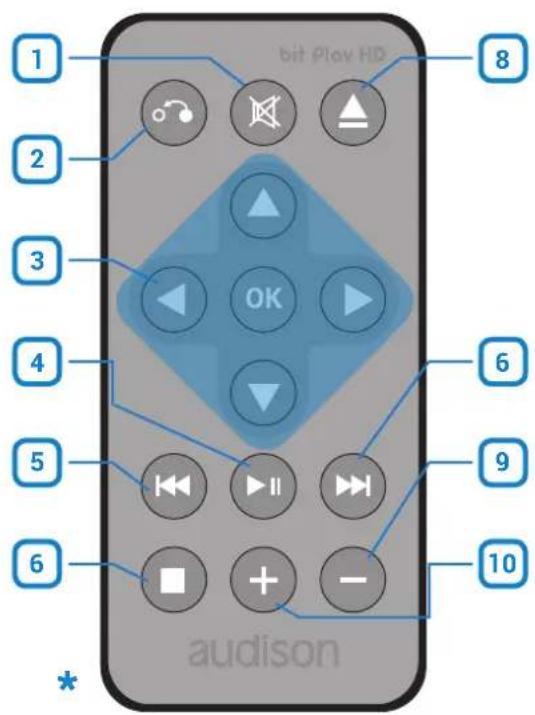
*WARNING: CR2025 battery not included in the package.

| 1. MUTE: enable / disable Audio muting. |
| 2. RETURN: return to the previous menu. |
| 3. CURSORS: cursors to navigate the menu. |
| 4. PLAY/PAUSE: Audio/Video track Play/Pause. |
| 5. PREV: select previous track. |
| 6. NEXT: select next track. |
| 7. STOP: stop Audio/Video tracks. |
| 8. EJECT: extract DVD from the external player if installed. |
| 9. VOLUME -: decrease audio volume. |
| 10. VOLUME +: increase audio volume. |
NOTES ON USING THE REMOTE.
- Point the remote at the bit Play HD control infrared sensor which can receive input at 30^ in all directions.
- Remove the battery if you will not be using the remote for more than a month.
- Do not store the remote in a place subject to direct sunlight or near heat sources.
- The remote battery last 6 months under normal use. If the remote does not work, replace the battery.
- Use only coin CR 2025 3 V batteries.
- Do not recharge, disassemble, heat or expose the battery to heat.
- Insert the battery in the remote with the correct polarity (+) and (-).
- Keep the battery and the remote control out of the reach of children.
INSERT THE BATTERY.
Slide the back cover downwards. Insert the CR2025
3 V battery with the correct polarity (+) and (-).
Close the cover

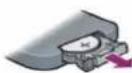
REMOVE THE BATTERY.
Slide the back cover downwards.
Remove the battery and replace it if necessary.
Close the cover.

3.3 DRC MP REMOTE CONTROL (Optional)
3.3.1 NAVI COMMAND
When the DRC MP is connected to an Audison bit Play HD (see section 4.2.3), the DRC MP "Navi Command" function is enabled. When activated, the player menu can be browsed with the use of the multi-function Joystick and the available keys, like when using the remote control.

flowchart
graph TD
    A["Master vol bal fad sub"] --> B["3 sec"]
    B --> C["audison Master vol bal fad sub"]
    C --> D["available only with bit Play HD connected"]
    D --> E["bit Play HD* menu active"]
    E --> F["Next TRACK STOP PLAY: IPAUSE PREV TRACK"]
    F --> G["audison Master vol bal fad sub"]
    G --> H["Press to go back to main Menu"]
    H --> I["3 sec"]
    I --> J["audison Master vol bal fad sub"]
    J --> K["Menu UP"]
    K --> L["Menu Left"]
    L --> M["Menu Down"]
    M --> N["ESC ENTER"]
    N --> O["Volume -"]
    O --> P["Menu UP"]
    P --> Q["Volume +"]
    Q --> R["Menu Right"]
    R --> S["ESC"]
    S --> T["ESC ENTER"]
3.3.2 BIT PLAY HD SETTINGS
This menu enables the user to set the time for the player stand-by mode, after the turn off signal has been sent to the "Remote-In". By default it is set to fifteen minutes, but it can be set to 1 to 60 minutes or disabled. This function ensures that the bit Play HD restart time drops to zero in case of temporary lack of power supply (i.e. start&stop vehicles or similar), pausing the tracks being reproduced and starting them again when the ignition is on.

flowchart
graph TD
    A["Master vol bal fad sub"] --> B["DRC settinas"]
    B --> C["PLAYER menu"]
    C --> D["bPlay HD OFF dly 15 +"]
    D --> E["Master vol bal fad sub"]
    E --> F["Press ESC to go back to main Menu"]
4. CONNECTIONS
4.1 POWER SUPPLY AND REMOTE CONTROL

flowchart
graph TD
    A["Ground"] --> B["Battery"]
    B --> C["FUSE HOLDER"]
    C --> D["Red"]
    D --> E["STATUS LED"]
    E --> F["(optional)"]
    E --> G["LED"]
    G --> H["Ground"]
    C --> I["Ground"]
    I --> J["Black"]
    J --> K["+12V"]
    K --> L["REMOTE IN"]
    L --> M["Blue"]
    M --> N["REMOTE OUT"]
    N --> O["Blue/White"]
    O --> P["to other device"]
    N --> Q["IR REM. CONTROL"]
    Q --> R["FUSE 3A"]
    R --> S["Chip 1"]
    R --> T["Chip 2"]
    R --> U["Chip 3"]
    R --> V["Chip 4"]
    R --> W["Chip 5"]
    R --> X["Chip 6"]
    R --> Y["Chip 7"]
    R --> Z["Chip 8"]
    style A fill:#f9f,stroke:#333
    style B fill:#ccf,stroke:#333
    style C fill:#cfc,stroke:#333
    style D fill:#fcc,stroke:#333
    style E fill:#cff,stroke:#333
    style F fill:#ffc,stroke:#333
    style G fill:#fcc,stroke:#333
    style H fill:#ffc,stroke:#333
    style I fill:#fcc,stroke:#333
    style J fill:#ccf,stroke:#333
    style K fill:#ccf,stroke:#333
    style L fill:#ccf,stroke:#333
    style M fill:#ccf,stroke:#333
    style N fill:#ccf,stroke:#333
    style O fill:#ccf,stroke:#333
    style P fill:#ccf,stroke:#333
    style Q fill:#ccf,stroke:#333
    style R fill:#ccf,stroke:#333
    style S fill:#ccf,stroke:#333
    style T fill:#ccf,stroke:#333
    style U fill:#ccf,stroke:#333
    style V fill:#ccf,stroke:#333
TURN THE bit Play HD ON AND OFF
The bit Play HD is on when the logo on the top cover turns blue. You can turn it on/off by connecting the Remote In terminal to an external source or the car subkey terminal.
4.2 AUDIO OUTPUT SIGNALS
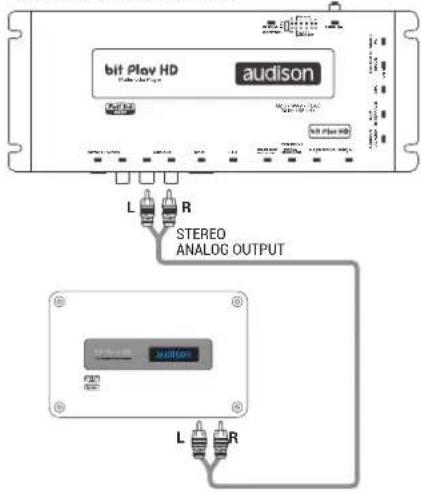
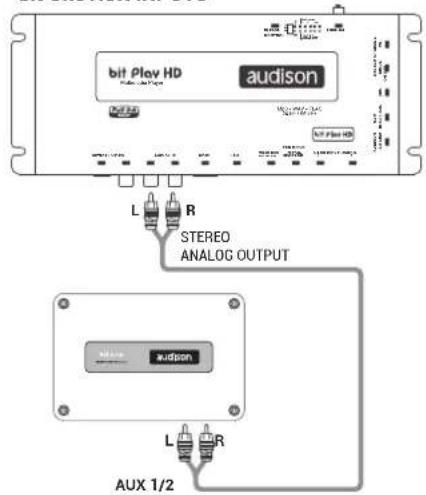
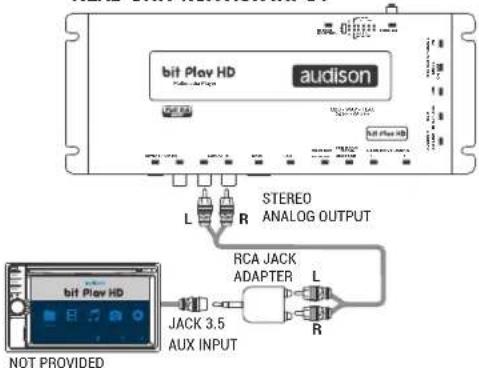
4.2.1 ANALOG OUTPUT SIGNALS\*
ANALOG OUTPUT TO
bit One HD AUX INPUTS
ANALOG OUTPUT TO
bit One AUX INPUTS
ANALOG OUTPUT TO
bit Ten AUX INPUTS

ANALOG OUTPUT TO
PRE-AMPLIFIER INPUTS

ANALOG OUTPUT TO
HEAD UNIT RCA AUX INPUT

ANALOG OUTPUT TO
HEAD UNIT RCA AUX INPUT
4.2.2 S/PDIF DIGITAL OUTPUT SIGNALS\*
OPTICAL OUT: bit One HD OPTICAL INPUT, MAX 96KHz / 24 bit

OPTICAL OUT: bit One OPTICAL INPUT, MAX 48KHz / 24 bit

OPTICAL OUT: bit One + SFC
OPTICAL INPUT, MAX 96KHz / 24 bit

OPTICAL OUT: bit Ten D OPTICAL INPUT, MAX 96KHz / 24 bit

OPTICAL OUT: AP bit Prima OPTICAL INPUT, MAX 96KHz/24bit

OPTICAL OUT: TH AMPLIFIERS
OPTICAL INPUT, MAX 96KHz / 24 bit


*WARNING: volume is controlled by the bit Play HD
4.2.3 S/PDIF DIGITAL OUTPUT SIGNALS WITH HI-DEFINITION VOLUME CONTROL
OPTICAL OUT: bit One HD OPTICAL
INPUT, MAX 96KHz / 24 bit

OPTICAL OUT: bit One OPTICAL
INPUT, MAX 48KHz / 24 bit
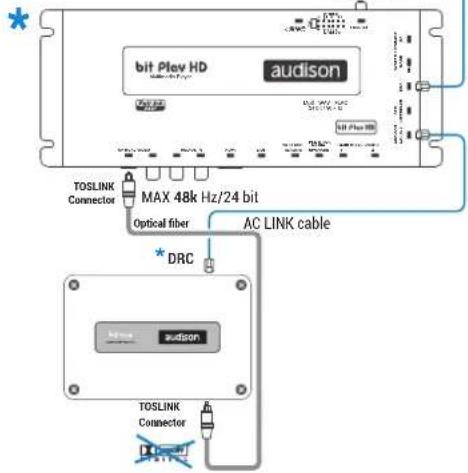
OPTICAL OUT: bit One + SFC OPTICAL
INPUT, MAX 96KHz / 24 bit
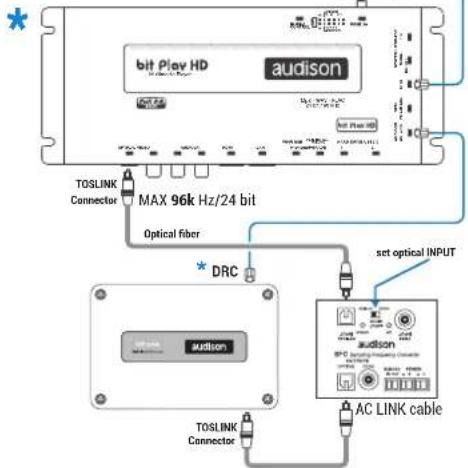
OPTICAL OUT: bit Ten D OPTICAL
INPUT, MAX 96KHz / 24 bit

OPTICAL OUT: AP bit Prima OPTICAL
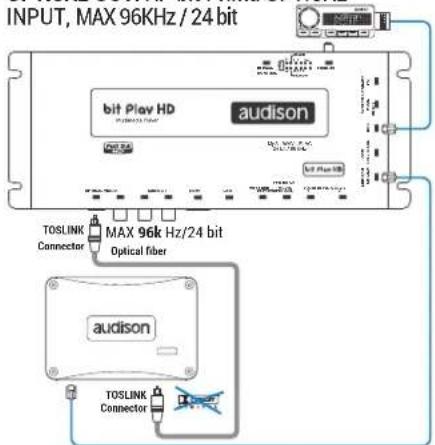
OPTICAL OUT: TH AMPLIFIERS OPTICAL

*WARNING: connect the AC-LINK cable to the DRC input.

* Set to MAX the bit play HD Volume
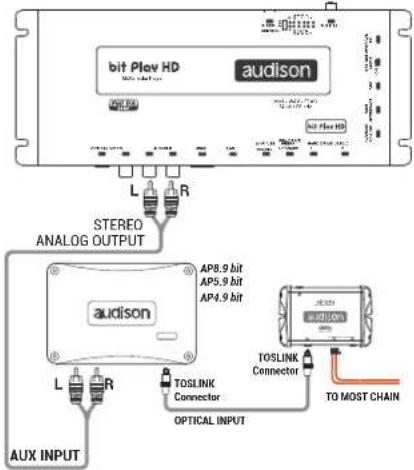
4.2.4 HOW TO CONNECT THE bit Play HD TO THE AUDISON bit DMI
bit Play HD + BIT DMI WITH
AUDISON BIT ONE HD PROCESSOR

bit Play HD + BIT DMI WITH
AUDISON BIT ONE PROCESSOR

flowchart
graph TD
    A["bit Plov HD"] --> B["audison"]
    B --> C["TOSLINK Connector"]
    C --> D["Optical fiber"]
    D --> E["set optical INPUT"]
    E --> F["audison"]
    F --> G["TO MOST CHAIN"]
    G --> H["TOSLINK Connector"]
    H --> I["TOSLINK Connector"]
    I --> J["OPTICAL INPUT"]
    J --> K["COAXIAL INPUT"]
    K --> L["COAXIAL OUTPUT"]
bit Play HD + BIT DMI WITH
AUDISON BIT TEN D PROCESSOR
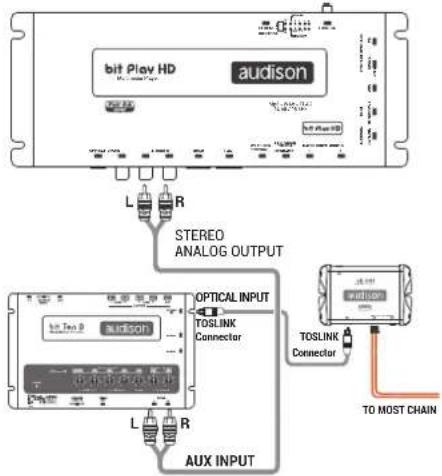
flowchart
graph TD
    A["bit Play HD"] -->|L R| B["STEREO ANALOG OUTPUT"]
    C["audison"] -->|L R| D["TOSLINK Connector"]
    D --> E["TO MOST CHAIN"]
    B --> F["AUX INPUT"]
    F --> G["TOSLINK Connector"]
    G --> H["OPTICAL INPUT"]
bit Play HD + BIT DMI WITH
AUDISON AP BIT PROCESSOR
4.3 VIDEO OUTPUT SIGNALS
4.3.1 COMPOSITE VIDEO SIGNAL


4.3.2 HDMI VIDEO SIGNAL
4.4 AUX/OPTICAL INPUT AUTO SWITCH
AUX SELECT with bit Bit One HD

AUX SELECT with bit Ten D

AUX SELECT with AP bit

OPTICAL SELECT with bit One HD
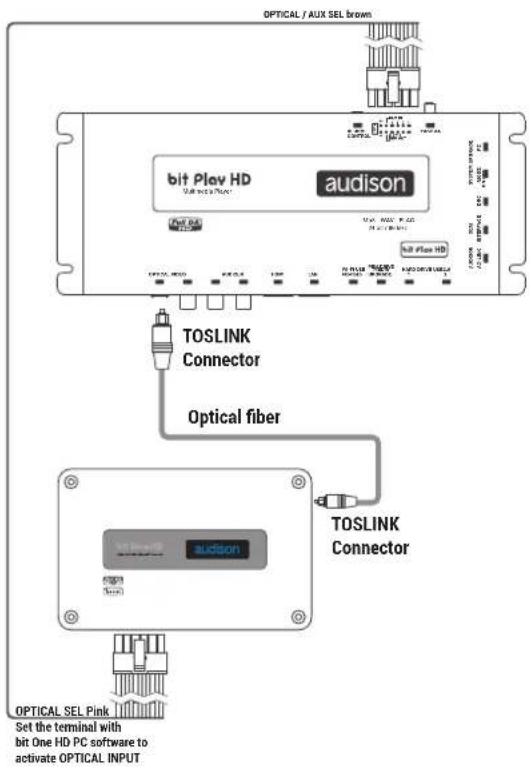
OPTICAL SELECT with bit Ten D

OPTICAL SELECT with AP bit

4.5 STORAGE DEVICES/EXTERNAL FILE READING
External USB PEN DRIVE

External HARD DISK

External SD CARD READER

*WARNING: compatible File Systems:
FA-32; NTFS; HFS+; EXT 3

*WARNING: for the USB memory device to work properly, the folders it includes must not contain more than 99 files. Make sure
the music tracks are divided into folders according to their extension (mp3, Wav, Flac), with special attention to not include files that are not supported by the bit Play HD.
4.6 INFRARED RECEIVER
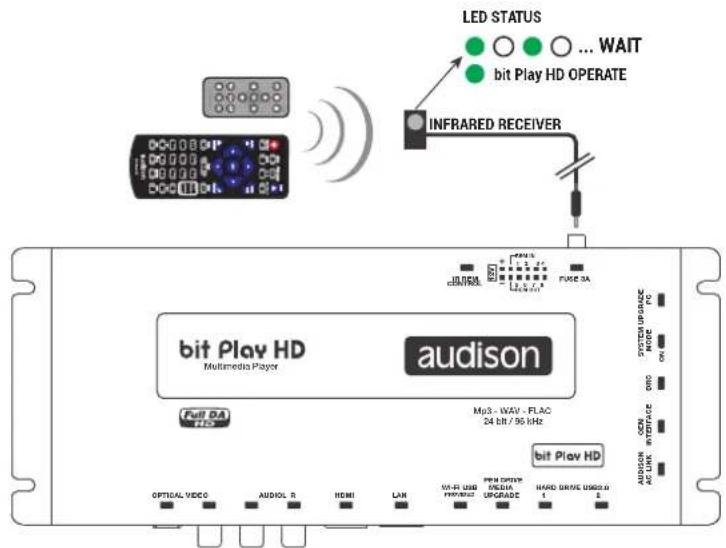
WARNING: if you choose to use the bit Play HD using the APP, the management via remote control may be disabled.

4.7 WI-FI AND MOBILE DEVICES
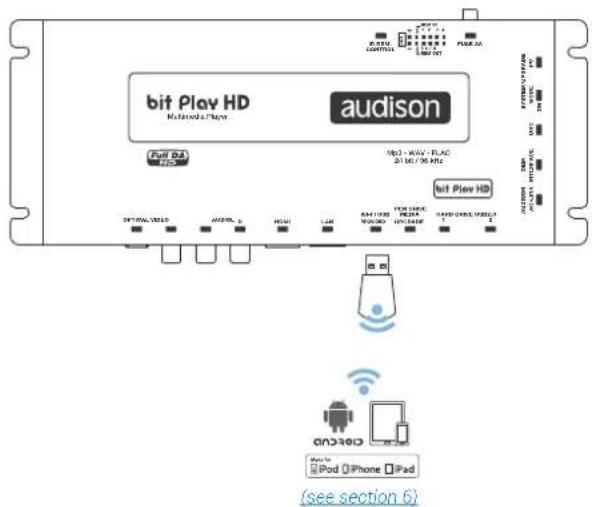

5. HOW TO USE THE bit Play HD WITH AN EXTERNAL MONITOR
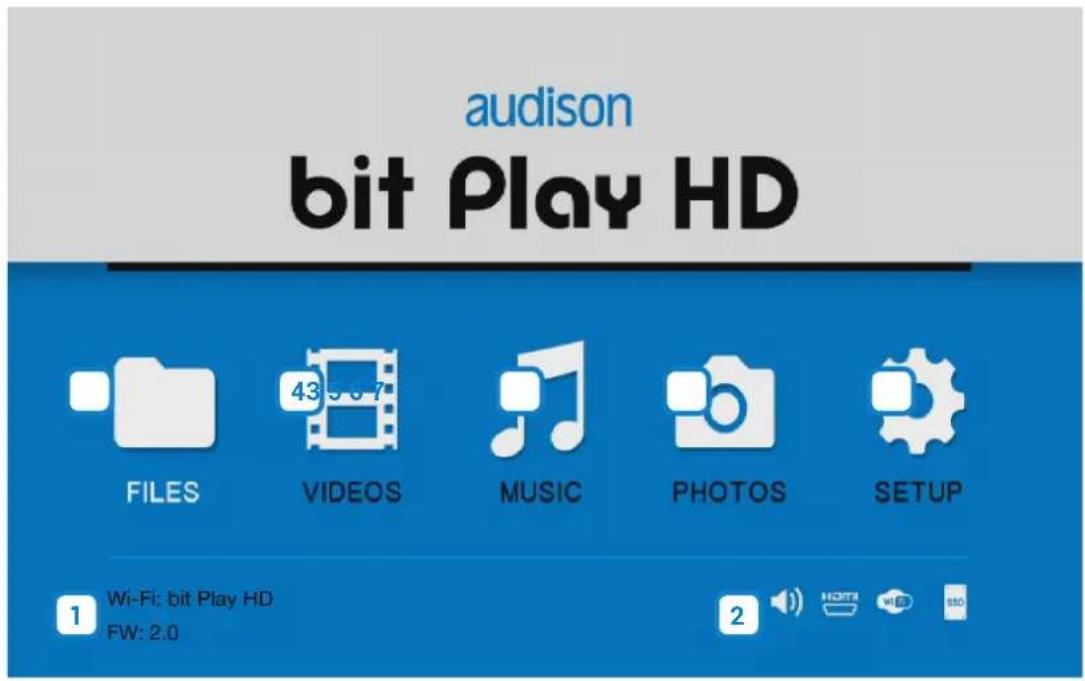
1 DEVICE INFO: this window indicates whether the Wi-Fi interface is working properly and is initialized. This window also shows the device firmware version (FW Media).
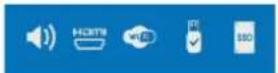
This window shows the active peripherals connected to the device
A. When this logo is on, audio output is active.
B. When this logo is on, the HDMI port is connected to an external monitor.
C. When this logo is on, the external Wi-Fi USB is turned on.
D. When this logo is on, USB storage devices are connected to the bit Play HD.
E. When this logo is on, an internal HDD is present.
FILE MANAGER: the File Manager menu allows you to navigate the storage directory of the device and open, copy, delete, move, or rename multimedia files.
ABCDE

How to copy your multimedia files in the bit Play HD.
A. Transfer the multimedia (audio/video/photo) files to a USB storage device.
B. Connect the bit Play HD to the USB storage device using the HARD DRIVE USB 2.0 plugs.
C. Select "File Manager" from the main menu of the bit Play HD then select the USB device containing the multimedia data to transfer.
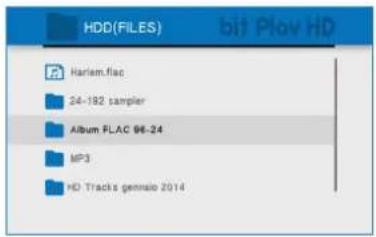
FILE
D. Press the button on the ASR remote control and select:
- "COPY" to copy individual files or folders;
- "MULTIPLE SELECT" to select multiple files or folders.
E. Select the destination folder for the files to be copied on the Hard Disk Drive (HDD) and press the PLAY key on the USR remote.


F. Wait until the selected files are copied to the destination folder, and then press OK.

To perform other operations such as deleting, moving and renaming files, select the desired entry from section D.
WARNING: do not turn off or disconnect the device while transferring files in order to avoid possibly damaging them and making them inaccessible.

4 FILM: By clicking on the Film menu you can navigate the device storage directory only displaying video files.
It is possible to open, copy, delete, move or rename them (see point 3)
5 MUSIC: By clicking on the Music menu you can navigate the device storage directory only displaying music files.
It is possible to open, copy, delete, move or rename them (see point 3).
6 PHOTO: By clicking on the Photo menu you can navigate the device storage directory only displaying photo files.
It is possible to open, copy, delete, move or rename them (see point 3).
7 SETTINGS: By clicking on the Settings menu, you can select the bit Play HD system settings. The navigation buttons
on the remote allow you to navigate the submenus: Audio; Video; Network; Advanced; System.
In the default configuration, system settings are optimized for an ideal installation of the product, but you can customize settings according to your needs.

6. HOW TO USE THE BIT PLAY HD ON MOBILE DEVICES
6.1 ANDROID DEVICES
The Audison bit Play HD App is an application providing the ability to control the Audison bit Play HD multimedia player through the Wi-Fi network of your smartphone or tablet.
Once you install the bit Play HD player in your car, this App will allow you to listen to the music stored in your smartphone or tablet directly through your car audio system. You can also control the bit Play HD player to listen to music stored inside the SSD or USB mass storage devices connected to the USB plugs.
Through the Audison bit Play HD App as well as the Apps using the DLNA protocol you can select and start playing a music track, adjust volume and manage playback controls. Only with the Audison bit Play HD App you can transfer files between the USB mass storage devices or within the internal SSD.
Compatibility: the App has been tested with:
- Android: version 4.2 or higher
- Smartphones: Samsung Galaxy S5, S6, S7, Y56, HUAWEI P8 / P9
- Tablets: Samsung Galaxy Tab 3 10.1; Galaxy Tab 3 7.0
REMARK: the bit Play HD player, with some limitations, is compatible with Apps using the DLNA protocol (see section 8.3).
Only the Audison bit Play HD App provides the ability to transfer files between the USB mass storage devices or the internal SSD.
6.1.1 DOWNLOAD THE AUDISON BIT PLAY HD APP FROM PLAY STORE
The App is available for download as freeware, however if you turn on a mobile data connection, costs might be charged by the mobile network operator. The App supports all Android cell phones and tablets provided that an Android 4.2 or higher operating system is installed. A list of compatible devices is available in the Play Store. To install the App, proceed as follows:
1 Launch the Play Store App

-
Search for the Audison bit Play HD v.2.0 App.
-
Select Install to download and install the App
Otherwise, if the Play Store App is not available for your device, go to the Google Play website with your device, search for the Audison bit Play HD v.2.0 App and download the App from there.
PRECAUTIONS FOR AN APPROPRIATE USE
- For a proper interface between the APP and the bit Play HD, the battery level of the Android device must be at least 30%.
- We recommend to switch off the phone stand-by mode while using the APP to improve the connection performance.
- Two devices can not be connected simultaneously to the same bit Play HD.
The bit Play HD features three modes to interface with Android devices: Wi-Fi Client, Wi-Fi Direct, Wi-Fi Hotspot, as described below.
6.1.2.1 Wi-Fi HOT SPOT
This connection mode between the bit Play HD and the Android device enables the access to all contents stored in the mobile device and in the player through Wi-Fi. When using this mode the access to navigation through the mobile device is disabled.
By default the pre-set device user name and password are bit Play HD and 00000000. To modify them connect an external monitor to the bit Play HD and proceed as described below.
REMARK: to stay connected to external networks for the navigation using the mobile device, select the "Wi-Fi Direct" mode ____(see section 6.1.2.2).
A) bit Play HD "Wi-Fi Hotspot" mode selection.
1) Access the bit Play HD "SETUP" menu by remote control.

2) Select the "Wi-Fi setup" menu.

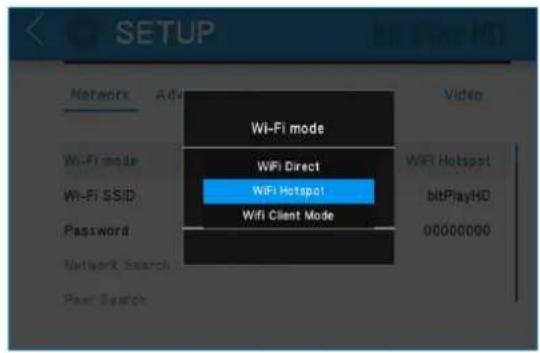
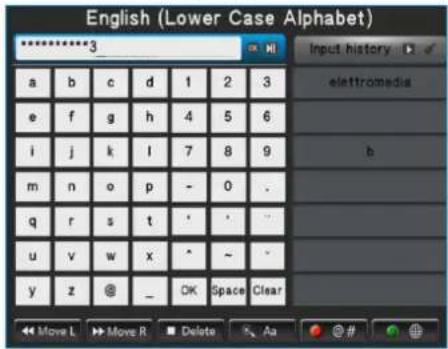
3) Select "Wi-Fi mode" and then "Hotspot" operating mode.
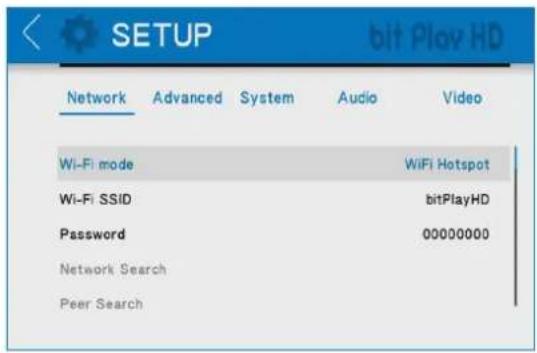

4) To rename the device, select the "Wi-Fi SSID" menu and enter the name with the keyboard using the remote. The pre-set default name is bit Play HD.

5) Confirm the entry with the OK button, after moving the pointer to the name box.

6) To rename the device password select the "Password" menu and then enter the desired numerical password.
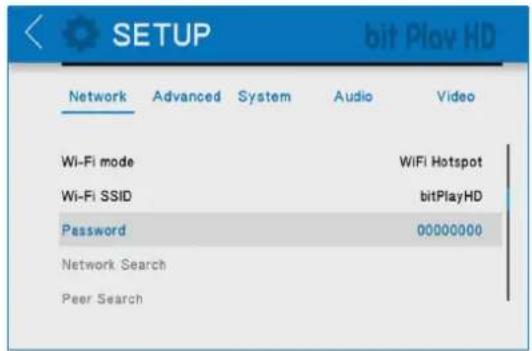

7) Confirm the entry with the OK button, after moving the pointer to the name box.

8) Select the "Save Change" function and then exit the "SETUP" menu with the remote control <> button and wait for a few seconds.

B) Android device setup in "Hotspot" mode.
- Before turning the bit Play HD on, check and make sure that the Wi-Fi USB dongle is inserted into the device "Wi-Fi USB" plug (see section 4.7).
- Connect the power and turn the bit Play HD on; check and make sure that, once started, a Wi-Fi connection is available (see section 5.1). If not, restart the device and check if the Wi-Fi USB dongle is correctly inserted.
- From the Home window of your Android device, select in sequence Menu, Settings, Wireless and Networks.
- Select Wi-Fi Settings and then Wi-Fi to enable the wireless antenna. Select the Wi-Fi menu, wait for your mobile device to detect the available Wi-Fi networks and select the network and the password previously set up in the bit Play HD.
REMARK: if the device user name and password have not been changed the default ones are:
User name: bit Play HD
Password: 00000000
- The Android mobile device is now correctly set up and ready for use.
WARNING: after the operating mode (HOT SPOT) is enabled and saved, we recommend to reboot the bit Play HD.

6.1.2.2 Wi-Fi Direct
This connection mode between the bit Play HD and the Android device enables the access to all contents stored in the mobile device and in the Player through Wi-Fi, while keeping the internet connection enabled through the mobile device.
WARNING: before activating this mode, make sure your mobile device supports the Wi-Fi Direct connection.

A) bit Play HD "Wi-Fi Direct" mode selection.
1) Access the bit Play HD "SETUP" menu by remote control.
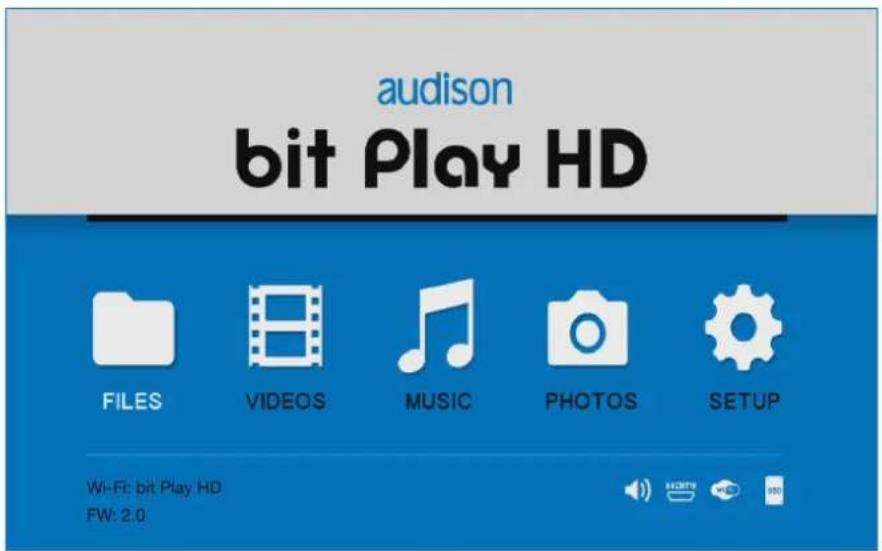
2) Select the "Wi-Fi setup" menu.

3) Select the "Wi-Fi mode" menu and then the "Wi-Fi Direct" mode.

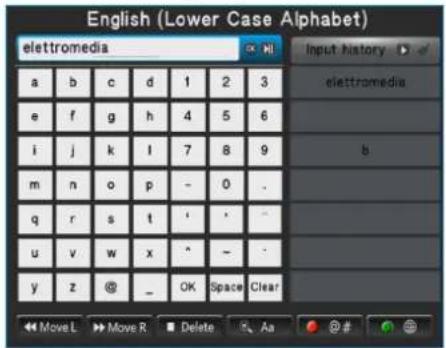
4) Select the "Wi-Fi SSID" menu to set up the device name and then enter the name chosen.

5) Confirm the entry with the OK button, after moving the pointer to the name box.
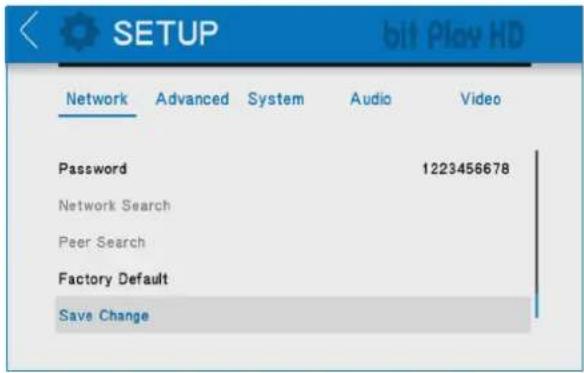
6) To rename the device password select the "Password" menu and then enter the desired numerical password.
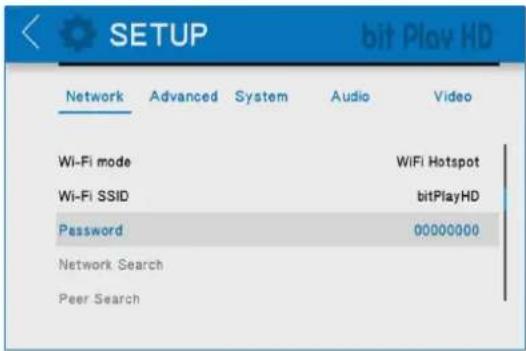

7) Confirm the entry with the OK button, after moving the pointer to the name box.
8) Select the "Save Change" function and then exit the "SETUP" menu with the remote control <> button and wait for a few seconds.
B) Android device setup in "Wi-Fi Direct" mode.
- Before turning the bit Play HD on, check and make sure that the Wi-Fi USB dongle is inserted into the device "Wi-Fi USB" plug (see section 4.7).
- Connect the power and turn the bit Play HD on; check and make sure that, once started, a Wi-Fi connection is available (see section 5.1). If not, restart the device and check if the Wi-Fi USB dongle is correctly inserted.
- From the Home window of your Android device, select in sequence Menu, Settings, Wireless and Networks.
- Select Wi-Fi Settings and then Wi-Fi to enable the wireless antenna. Select the Wi-Fi direct menu, wait for your mobile device to detect the available Wi-Fi networks and select the network and the password previously set up in the bit Play HD.
REMARK: if the device user name and password have not been changed the default ones are:
User name: bit Play HD
Password: 11111111
- The Android mobile device is now correctly set up and ready for use.
WARNING: after the operating mode (Wi Fi Direct) is enabled and saved, we recommend to reboot the bit Play HD.

6.1.2.3 Wi-Fi Client
This mode enables the connection between the bit Play HD and an existing Wi-Fi network installed in the vehicle, while keeping the internet connection (when provided by the vehicle) active, to access all the multimedia contents.
A) bit Play HD "Wi-Fi Client" mode selection.
1) Access the bit Play HD "SETUP" menu by remote control.
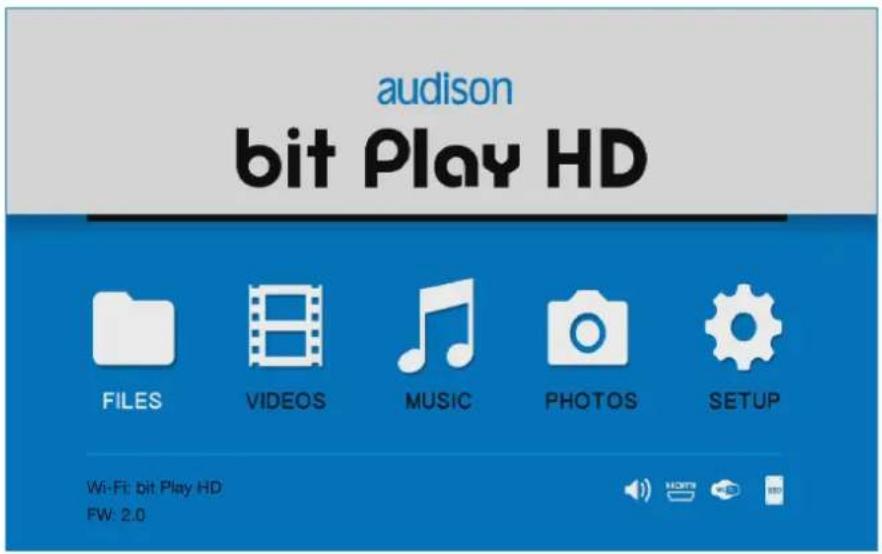
2) Select the "Wi-Fi setup" menu.
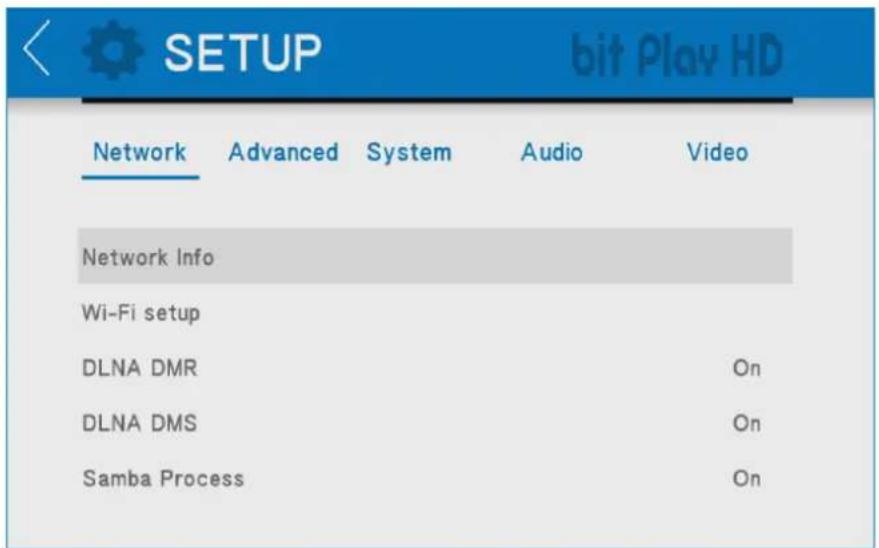
3) Select the "Wi-Fi mode" menu and then the "Wi-Fi Client" mode.

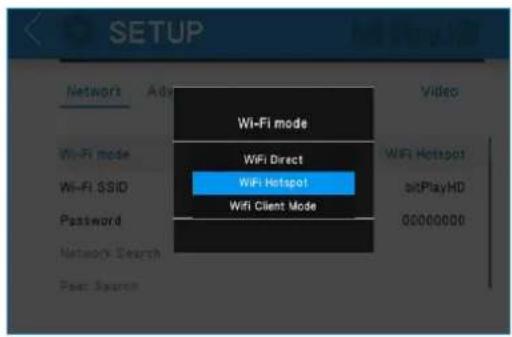
4) Select the "Network Search" menu to choose the desired network.
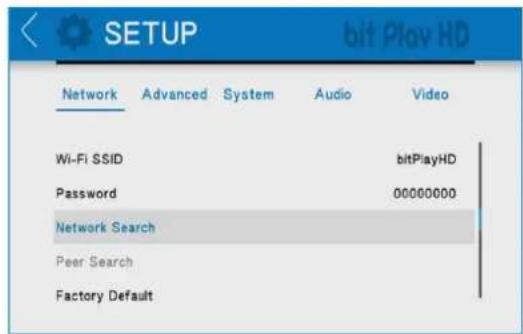
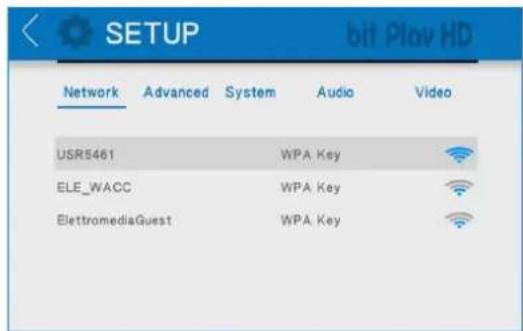
5) Select the "Save Change" function and then exit the "SETUP" menu with the remote control <> button and wait for a few seconds.

-
Before turning the bit Play HD on, check and make sure that the Wi-Fi USB dongle is inserted into the device "Wi-Fi USB" plug (see section 4.7).
-
Connect the power and turn the bit Play HD on; check and make sure that, once started, a Wi-Fi connection is available (see section 5.1). If not, restart the device and check if the Wi-Fi USB dongle is correctly inserted.
-
From the Home window of your Android device, select in sequence Menu, Settings, Wireless and Networks.
-
Select Wi-Fi Settings and then Wi-Fi to enable the wireless antenna. Wait for your mobile device to detect the available Wi-Fi networks and select the network and the password previously set up in the bit Play HD.
-
The Android mobile device is now correctly set up and ready for use.
WARNING: after the operating mode (Wi-Fi Client) is enabled and saved, we recommend to reboot the bit Play HD.

Select the "bit Play HD" application previously installed from the mobile device Home page.
POSSIBLE ERROR MESSAGE
If, when starting the App, the message shown to the right of this page is displayed, the connection between bit Play HD and the mobile device needs to be verified. Select:
- OK to verify the availability of a Wi-Fi network and the connection with the bit Play HD;
- Cancel to stop the connection.

PRECAUTIONS FOR AN APPROPRIATE USE
- For a proper interface between the APP and the bit Play HD, the battery level of the Android device must be at least 30%.
- We recommend to switch off the phone stand-by mode while using the APP to improve the connection performance.
- Two devices can not be connected simultaneously to the same bit Play HD.
WARNING: each time a new storage device is connected to the bit Play HD (for example, a USB PEN DRIVE), the files may not immediately show in the App menu. Wait the necessary time for the indexing of the files to complete. Time varies according to the amount of files and levels of sub-folders, and the process may require up to one minute. Before opening the "Audison bit Play HD" APP we recommend to first close any unused APPs still active.
APP USER GUIDE.
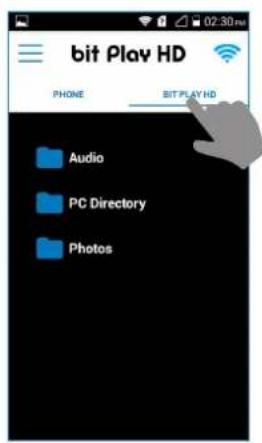
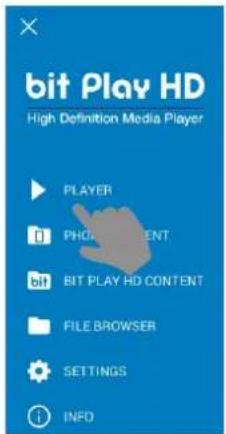
A. bit Play HD content:
- Select the bit Play HD device

natural_image
Blue arrow pointing right, no text or symbols present- Select a folder
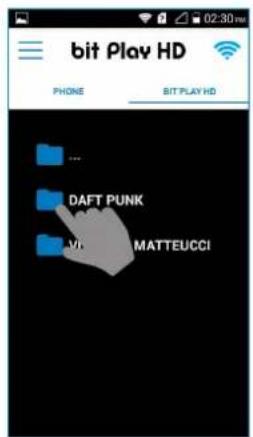
- Select the track to be played. To go back to the previous level click on the folder icon


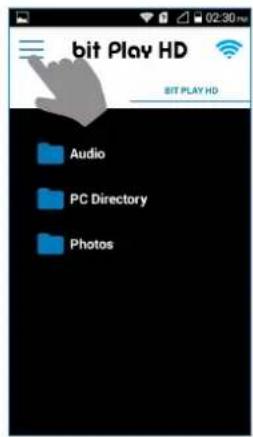
- Select the menu icon to access the Player management window
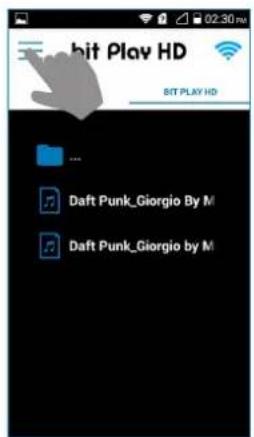
- Reproduction

- Play track.
- Pause track.
- Next track.
- Previous track.
- Track progress bar.
- bit Play HD volume adjustment.
- Track title.
- Album or folder cover for the selected track.
- Repeat.
- Shuffle.
WARNING: to end a track reproduction, close the APP using the specific function in your Android device called "Kill APP".
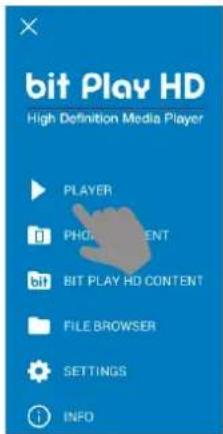
B. Android device content
- Select PHONE 2. Select a folder


natural_image
Blue arrow pointing right, no text or symbols present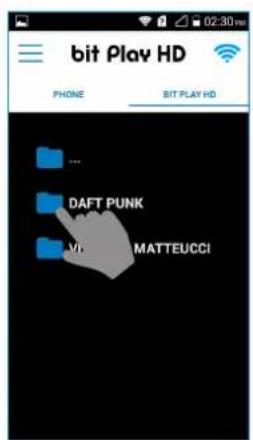
- Select the track to be played. To go back to the previous level click on the folder icon

- Select the menu icon to access the Player management window

- Reproduction
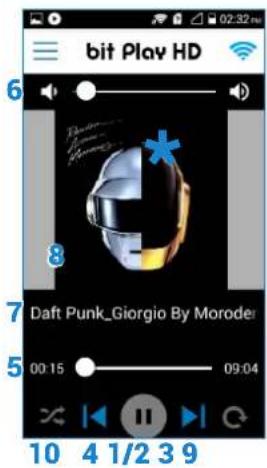
- Play track.
- Pause track.
- Next track.
- Previous track.
- Track progress bar.
- bit Play HD volume adjustment.
- Track title.
- Album or folder cover for the selected track.
- Repeat.
- Shuffle.
WARNING: to end a track reproduction, close the APP using the specific function in your Android device called "Kill APP".
*WARNING: the tag of the file being reproduced may sometimes be unavailable.

C. FILE MANAGER:
This "File Manager" allows you to navigate the memory devices of the bit Play HD as well as any connected devices and copy/move/cancel the stored files.
How to copy multimedia files in the bit Play HD
- Connect the bit Play HD to the USB storage device using the HARD DRIVE USB 2.0 plugs.
- From the OPTIONS menu of the App, select the USB storage device where the files to be transferred are stored.
WARNING: the COPY function from the APP allows the transfer of Folders/Files of max 1 Gb. If you want to transfer Folders/Files over 1 Gb, use the specific function, using the remote control, or remove the internal HDD from the bit Play HD, and use a PC to transfer the files more safely.
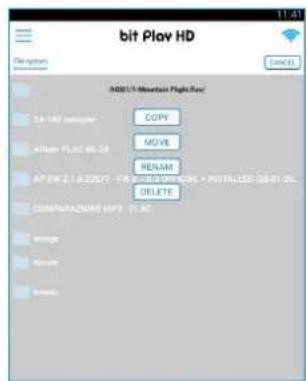
- Select the files or folders to be copied into the internal HDD of the bit Play HD. Then press "SELECT" and after "COPY".

- Select the HDD destination directory for the files/folders previously selected and then select "COPY".

- If the operation is successful, the copied files will be displayed in the HDD directory. Wait for the progress bar to disappear before starting a new operation.
WARNING: do not turn off or disconnect the device while transferring files in order to avoid possibly damaging them and making them inaccessible. During the file transfer, performing any other operations is prevented. Wait for this operation to end before performing others.
D. SETTINGS:
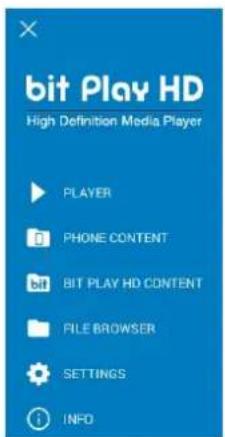
- Select the menu icon

- Select SETTINGS

- Select the menu to customize
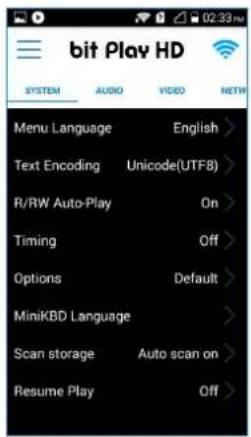
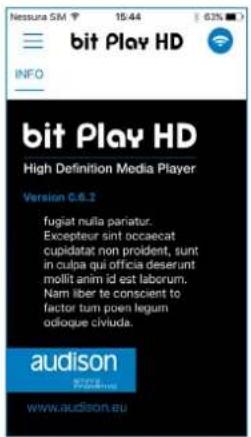
E. INFO:
- Select the menu icon
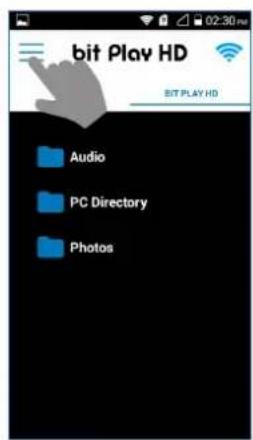
- Selec INFO
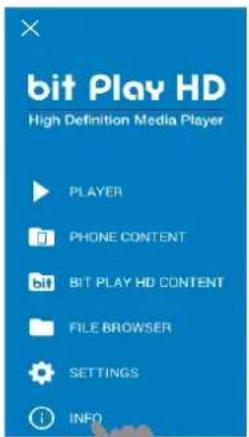
- Firmware version of the APP in use
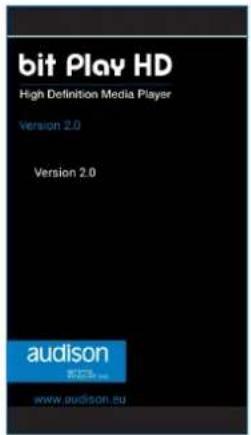
6.2 APPLE IOS DEVICES
The Audison bit Play HD App is an application providing the ability to control the Audison bit Play HD multimedia player through the Wi-Fi network of your smartphone or tablet.
Once you install the bit Play HD player in your car, this App will allow you to control bit Play HD to listen to the music stored in its internal SSD or USB mass storage devices connected to the USB plugs.
Through the Audison bit Play HD App as well as the Apps using the DLNA protocol you can select and start playing a music track, adjust volume and manage playback controls.
Compatibility.
The Audison bit Plat HD App has been tested with:
- Iphone: IOS 10 or higher.
- Ipad: IOS 10 or higher, it only supports vertical display mode.
WARNING: if you want to use the Air Play function to play the tracks included in your IOS device, the

Play HD 2.0"APP must be shut down and vice versa.
6.2.1 DOWNLOAD THE AUDISON BIT PLAY HD APP FROM THE APP STORE.
The App is available for download as freeware, however if you turn on a mobile data connection, costs might be charged by the mobile network operator. The App supports all IOS Iphone/Ipad/Ipod devices. A list of compatible devices is available in the Store App.
To install the App, proceed as follows:
- Launch the App Store

- Search for the Audison bit Play HD App v 2.0
- Select "Install" to start the download and the automatic installation of the App.
6.2.2 APPLE DEVICE SETUP.
How to connect your IOS mobile device to the bit Play HD.
- Before turning the bit Play HD on, check and make sure that the Wi-Fi USB dongle is inserted into the "Wi-Fi USB" plug of the device (see section 5.7).
- Connect the power and turn the bit Play HD on; check and make sure that, once started, a Wi-Fi connection is available (see section 5.1). If not, restart the device and check if the Wi-Fi USB dongle is correctly inserted.
- From the Home window of your IOS device, select Settings, then select Wi-Fi.
- Select Wi-Fi to enable the wireless antenna. Wait until your mobile device automatically detects the available Wi-Fi networks and select the network bit Play HD XXX (see section 5.1).
- The IOS mobile device is now correctly set up and ready for use.
PRECAUTIONS FOR AN APPROPRIATE USE
- For a proper interface between the APP and the bit Play HD, the battery level of the Apple device must be at least 30%.
- Two devices can not be connected simultaneously to the same bit Play HD.
6.2.2.1 Wi-Fi Hotspot
This connection mode between the bit Play HD and the IOS device enables the access to all contents stored in the mobile device and in the player through Wi-Fi. When using this mode the access to navigation through the mobile device is disabled.
By default the pre-set device user name and password are bit Play HD and 00000000. To modify them connect an external monitor to the bit Play HD and proceed as described below.
A) bit Play HD "Wi-Fi Hotspot" mode selection.
1) Access the bit Play HD "SETUP" menu by remote control.

2) Select the "Wi-Fi setup" menu.

3) Select "Wi-Fi mode" and then "Hotspot" operating mode.
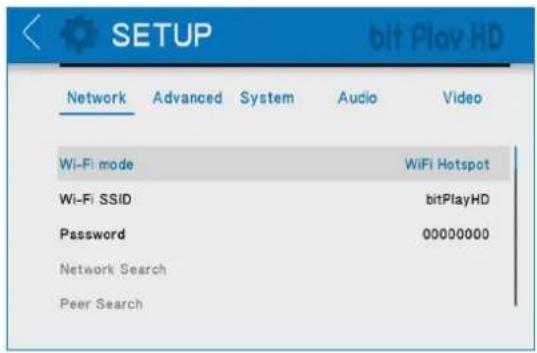

4) To rename the device, select the "Wi-Fi SSID" menu and enter the name with the keyboard using the remote. The pre-set default name is bit Play HD.
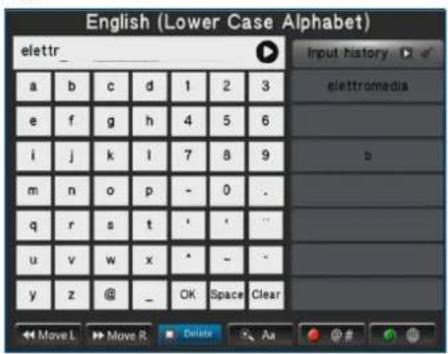
5) Confirm the entry with the OK button, after moving the pointer to the name box.
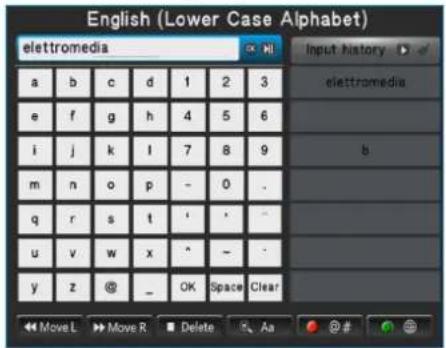
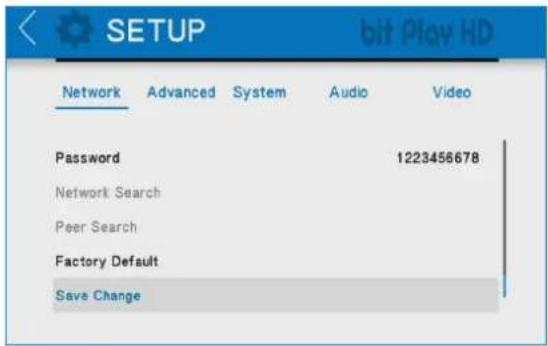
6) To rename the device password select the "Password" menu and then enter the desired numerical password.
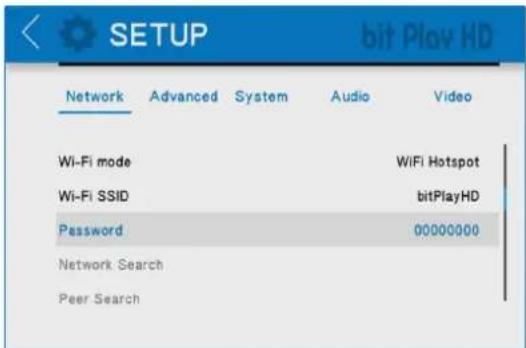

7) Confirm the entry with the OK button, after moving the pointer to the name box.

8) Select the "Save Change" function and then exit the "SETUP" menu with the remote control <> button and wait for a few seconds.
A) IOS device setup in "Hotspot" mode
Connecting your IOS mobile device to the bit Play HD.
- Before turning the bit Play HD on, check and make sure that the Wi-Fi USB dongle is inserted into the device "Wi-Fi USB" plug (see section 4.7).
- Connect the power and turn the bit Play HD on; check and make sure that, once started, a Wi-Fi connection is available (see section 5.1). If not, restart the device and check if the Wi-Fi USB dongle is correctly inserted.
- From the Home window of your IOS device, select in sequence Menu, Settings, Wireless and Networks.
- Select Wi-Fi Settings and then Wi-Fi to enable the wireless antenna. Wait for your mobile device to detect the available Wi-Fi networks and select the network and the password previously set up in the bit Play HD
REMARK: if the device user name and password have not been changed the default ones are:
User name: bit Play HD
Password: 00000000
- The IOS mobile device is now correctly set up and ready for use.
WARNING: after the operating mode (HOT SPOT) is enabled and saved, we recommend to reboot the bit Play HD.

6.2.3 AUDISON APP FOR IOS
Select the "Audison bit Play HD" application previously installed from the mobile device Home page.


WARNING: if you want to use the "bit Play HD 2.0"APP, the connection through Air Play must be shut down.

POSSIBLE ERROR MESSAGE
If, when starting the App, the message shown to the right of this page is displayed, the connection between bit Play HD and the mobile device needs to be verified.. Select:
- OK to verify the availability of a Wi-Fi network and the connection with the bit Play HD;
- Cancel to stop the connection.
PRECAUTIONS FOR AN APPROPRIATE USE
- For a proper interface between the APP and the bit Play HD, the battery level of the Apple device must be at least 30%.
- Two devices can not be connected simultaneously to the same bit Play HD.

WARNING: each time a new storage device is connected to the bit Play HD (for example, a USB PEN DRIVE), the files may not immediately show in the App menu. Wait the necessary time for the indexing of the files to complete. Time varies according to the amount of files and levels of sub-folders, and the process may require up to one minute. Before opening the "Audison bit Play HD" APP we recommend to first close any unused APPs still active.
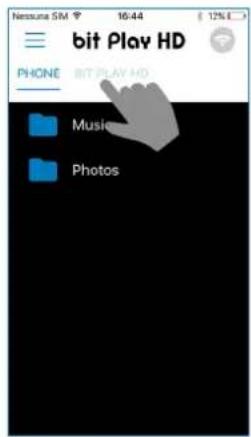
APP USER GUIDE.
A. bit Play HD content:
- Select the bit Play HD device
natural_image
Blue arrow pointing right, no text or symbols present- Select a folder
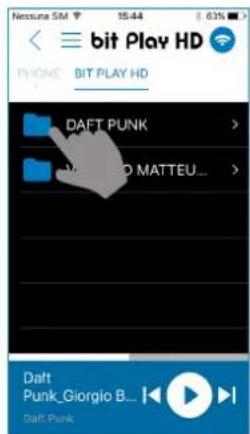
- Select the track to be played. To go back to the previous level click on the folder icon
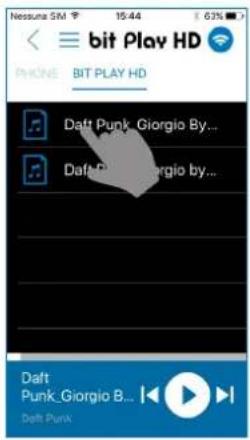

- Select the menu icon to access the Player management window

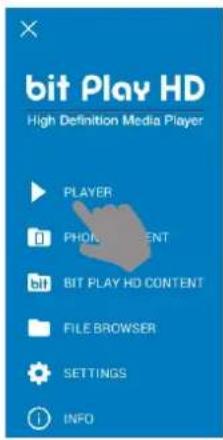
- Reproduction
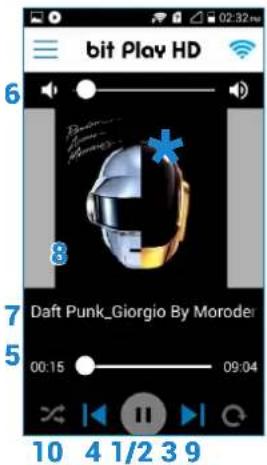
- Play track.
- Pause track.
- Next track.
- Previous track.
- Track progress bar.
- bit Play HD volume adjustment.
- Track title.
- Album or folder cover for the selected track.
- Repeat.
- Shuffle.
WARNING: to end a track reproduction, close the APP using the specific function in your Job device called "Kill APP".
*WARNING: the tag of the file being reproduced may sometimes be unavailable.
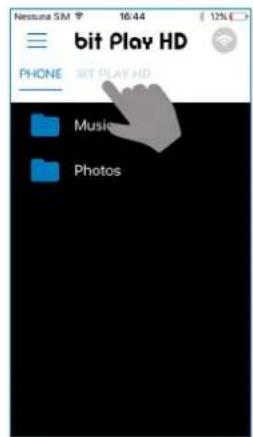
B. IOS device content:
- Select PHONE 2. Select a folder
natural_image
Blue arrow pointing right, no text or symbols present
- Select the track to be played. To go back to the previous level click on the folder icon


- Select the menu icon to access the Player management window

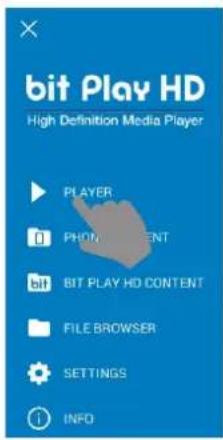
- Reproduction

- Play track.
- Pause track.
- Next track.
- Previous track.
- Track progress bar.
- bit Play HD volume adjustment.
- Track title.
- Album or folder cover for the selected track.
- Repeat.
10.Shuffle.
WARNING: to end a track reproduction, close the APP using the specific function in your Job device called "Kill APP".
*WARNING: the tag of the file being reproduced may sometimes be unavailable.

C. FILE MANAGER:
This "File Manager" allows you to navigate the
memory devices of the bit Play HD as well as any connected devices and copy/move/cancel the stored files.
How to copy multimedia files in the bit Play HD.
-
Connect the bit Play HD to the USB storage device using the HARD DRIVE USB 2.0 plugs.
-
From the OPTIONS menu of the App, select the USB storage device where the files to be transferred are stored.
WARNING: the COPY function from the APP allows the transfer of Folders/Files of max 1 Gb. If you want to transfer Folders/Files over 1 Gb, use the specific function, using the remote control, or remove the internal HDD from the bit Play HD, and use a PC to transfer the files more safely.

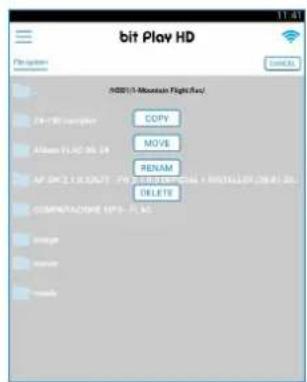
- Select the files or folders to be copied into the internal HDD of the bit Play HD.
Then press "SELECT" and after "COPY".
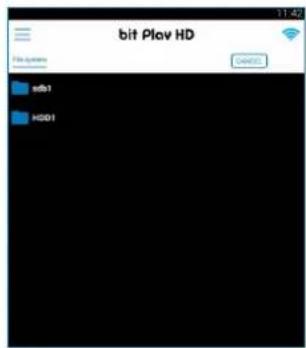
- Select the HDD destination directory for the files/folders previously selected and then select "COPY".
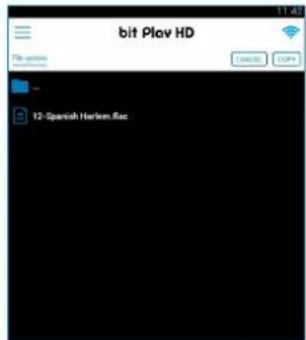
- If the operation is successful, the copied files will be displayed in the HDD directory. Wait for the progress bar to disappear before starting a new operation.
WARNING: do not turn off or disconnect the device while transferring files in order to avoid possibly damaging


D. SETTINGS:
- Select the menu icon
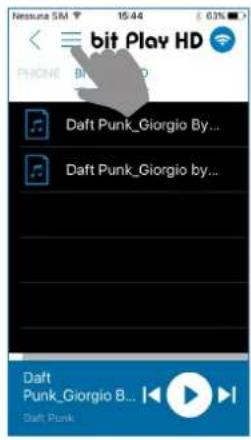

- Select SETTINGS

- Select the menu to customize
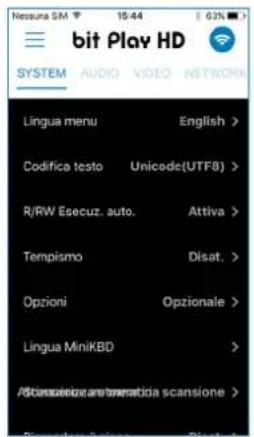
- Firmware version of the APP in use
6.2.4 AIRPLAY
AirPlay enables the bit Play HD to reproduce musical files in streaming from an iOS mobile device.
WARNING: if you want to use the Air Play function to play the tracks included in your IOS device, the "bit Play HD 2.0"APP must be shut down and vice versa.

Reproduction of the iOS device contents in streaming using AirPlay
-
Connect the iOS device and the device where you would like to reproduce in streaming with AirPlay to the same Wi-Fi network (see section 6.2.2.1).
-
To open the "Control Panel" on a iOS device, slide the screen from bottom to top.
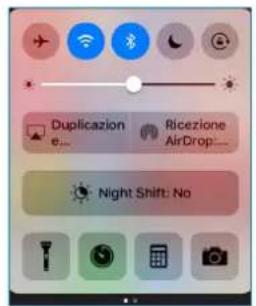
- From the "Control Panel", slide the screen from right to left to access the "Player" window.
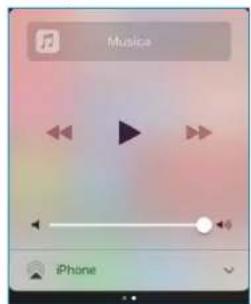
- Select the bit Play Audison Air Play.

- Play the tracks stored in the iOS device using iTunes.
REMARK: The bit Play HD, using AirPlay, only reproduces audio files and not video.
7. MAIN SYSTEM SETTINGS
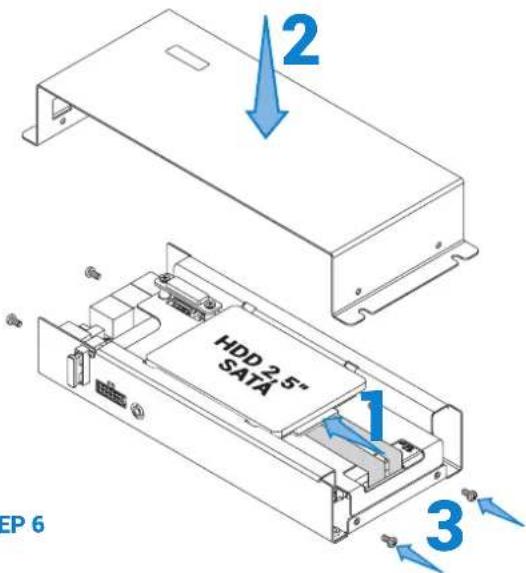
7.1 INTERNAL HDD INSTALLATION

natural_image
Line drawing of a rectangular electronic device with a screwdriver inserted, showing no text or symbols.STEP 1

natural_image
Isometric line drawing of a rectangular electronic device with directional arrows indicating flow or movement (no text or symbols)STEP 2

natural_image
Technical line drawing of an electronic device chassis showing front and internal components (no text or symbols)STEP 3

STEP 4
STEP 5
STEP 6
7.1.1 INTERNAL HDD FORMAT
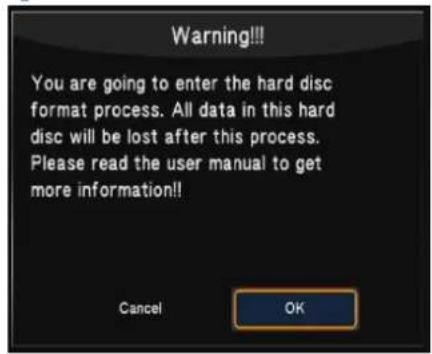
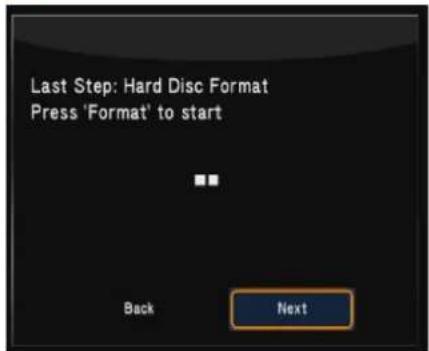
After installing the hard drive in the bit Play HD (see section 7.1) proceed as follows:
- Turn on the bit Play HD SSD.
- Use the remote control to select:
1

SETUP
2
SYSTEM -> FORMAT

3

INTERNAL HD
4
OK
5
NEXT
6
OK

- Return to the main screen using the RETURN button on the remote control and then turn off the product.
7.2 EXTERNAL MONITOR GRAPHIC RESOLUTION
Procedure by remote control
VIDEO MODE
To change the VIDEO resolution, press the button 📋 on the ARC remote, until a suitable resolution for your monitor is displayed.
It is also possible to select the size of the VIDEO depending on the monitor you are using, via the remote control button 16:9. Press the button until you get the best possible picture quality.
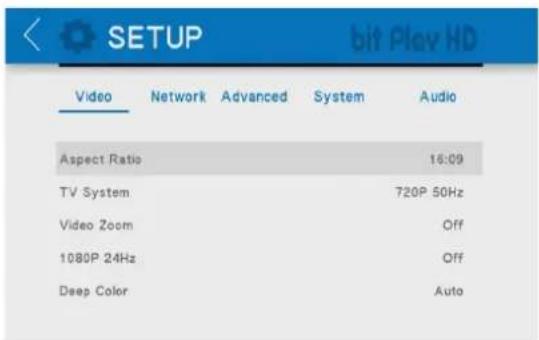
Procedure using the Settings Menu.
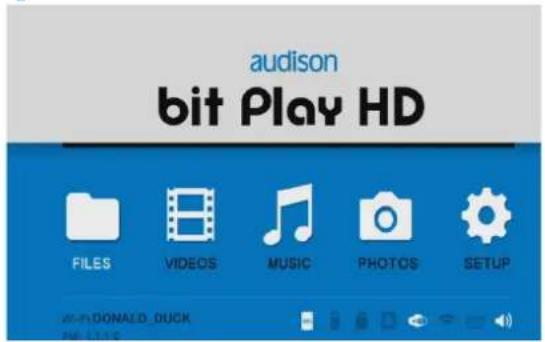
Use the remote control to select:
1
SETUP
3
Select the desired resolution

4
Confirm the selected resolution

5
Video -> Aspect Ratio
6
Select the desired ratio

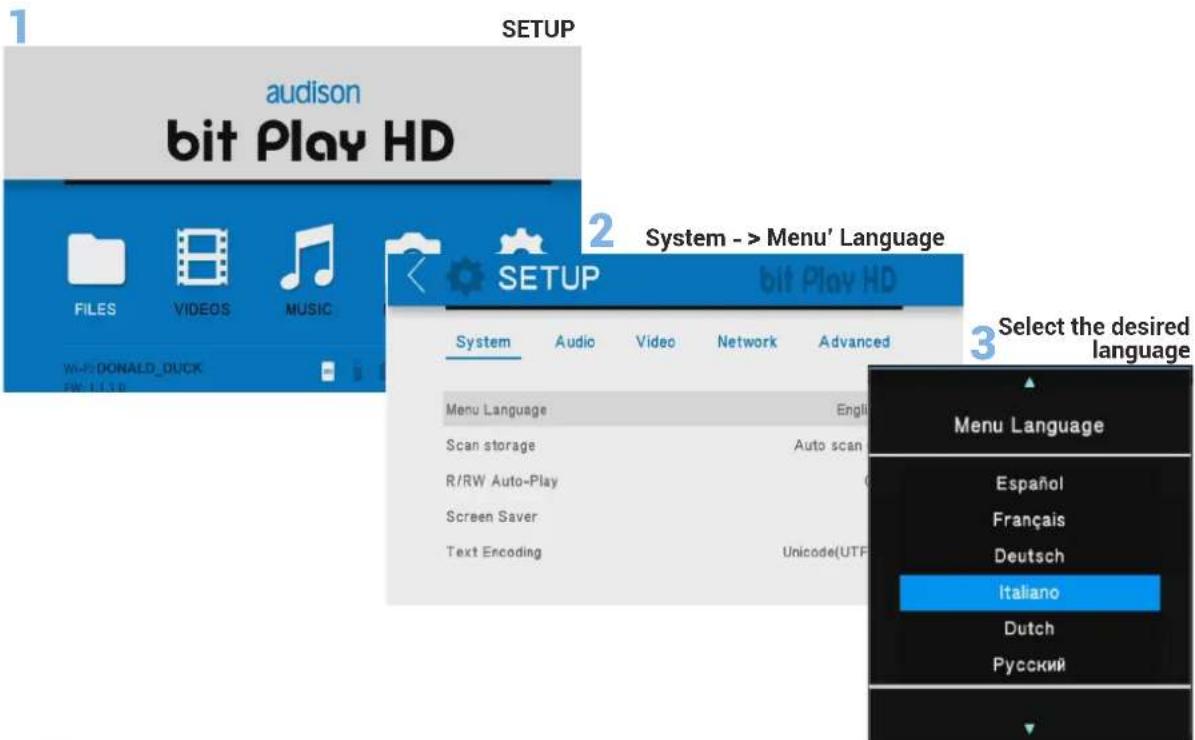
7.3 SELECT SYSTEM LANGUAGE
Use the remote control to select:
7.4 SELECT AUDIO/VIDEO LANGUAGE
Use the remote control to select:

7.5 RESTORING FACTORY SETTINGS
Use the remote control to select:

WARNING: each time a new storage device is connected to the bit Play HD (for example, a USB PEN DRIVE), the files may not

mediately show in the App menu. Wait the necessary time for the indexing of the files to complete. Time varies
cording to the amount of files and levels of sub-folders, and the process may require up to one minute.
Before opening the "Audison bit Play HD" APP we recommend to first close any unused APPs still active.
8. TROUBLESHOOTING
8.1 MEDIA FIRMWARE UPGRADE
All FIRMWARE updates must be performed in strict accordance with the following procedures. The FIRMWARE update must be performed with utmost care, following the precautions displayed on the monitor, to prevent damage to the product.
1 Turn off the bit Play HD.
2. Go to the bit Drive Portal URL: www.bitdrive.it to download the latest firmware version, if available.
3. Download the "install.img" file and copy it to the main directory of a USB flash drive.
4. Connect the USB flash drive to the "Wi-Fi USB" connector.
5. Press the "PEN DRIVE UPGRADE MEDIA" button releasing it about 30 seconds after turning the bit Play HD on.
6. Release the "PEN DRIVE MEDIA UPGRADE" button when the window shown below is displayed. Wait about 2 minutes for the firmware update.

WARNING: do not turn off the bit Play HD or disconnect the USB Flash drive while updating.

- After the upgrade the product will reboot. Wait for the restart, then shut it down and pull out the USB flash drive used to update the device.
8.2 CONTROL FIRMWARE UPGRADE
All FIRMWARE updates must be performed in strict accordance with the following procedures. The FIRMWARE update must be performed with utmost care, following the precautions displayed on the monitor, to prevent damage to the product.
- Turn off the bit Play HD.
-
Go to the bit Drive Portal URL: www.bitdrive.it, and follow the instructions below:
A) Download the "Audison bit Play HD control firmware update" file and copy it to the PC Desktop.
B) Download the "bitPlayHD_v1.1.0.0.hex" file and copy it to the PC Desktop. -
Connect the PC to bit Play HD "PC" plug, with USB cable.
-
Power and turn On the bit Play HD.
-
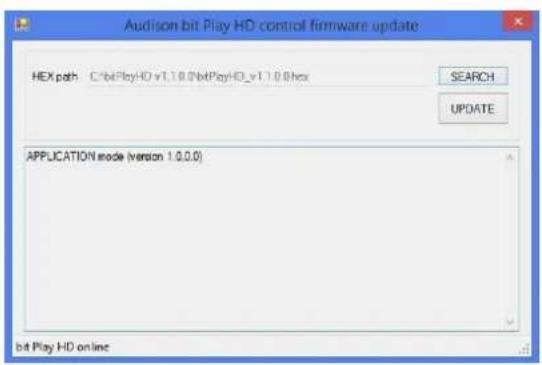
Launch the "Audison bit Play HD control firmware update" previously downloaded.

- Select the entry "SEARCH"; the software will ask you to select the file "bitPlayHD_v1.1.0.0.hex", that you previously saved in your PC.
-
Select the entry "UPDATE"; the software will offer the following warnings:
-
close all running applications;
- disable standby and energy saving features;
- disable anti-virus and anti-spyware systems.
Select "Yes" to continue.

- Once the update has been successfully completed the window you can see on your right will appear. Select "OK" to continue.

- Exit the program, by clicking on X; then turn the bit Play HD off.
- Disconnect the USB cable located between the PC and the bit Play HD.
8.3 FAQ
FREQUENTLY ASKED QUESTIONS
| BIT PLAY HD INTERNAL MEMORY | |
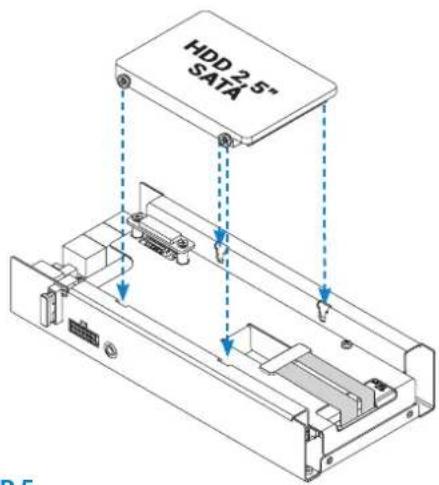
| How do I install the solid state drive (SSD) in the bit Play HD? | To install an SSD unit in the bit Play HD proceed as follows:1. Acquire a 2.5-inch SATA SDD unit.2. Turn off the power to the bit Play HD.3. Remove the 4 screws on the lid of the product.4. Apply the 4 anti-vibration fasteners to the SSD unit (supplied in the box).5. Fasten the SSD unit inside the bit Play HD, using the anti-vibration fasteners previously attached.6. Attach the SATA connector inside the bit Play HD to the SSD unit.7. Put back the bit Play HD lid and screws.8. Power the bit Play HD and turn it on.9. Format the SDD from the product menu:SETUP -> SYSTEM -> FORMAT -> INTERNAL HDD10. Wait until formatting has completed successfully. |
| Which solid state drives (SSD) are compatible with the bit Play HD? | 2.5-inch SATA interface SSDs. |
| Can I install a 3.5-inch SSD unit? | The SSD HDD to be installed inside the bit Play HD must be 2.5 inches. Bigger HDD cases are not compatible. |
| Can I install a 2.5-inch SATA HDD hard disk instead of a 2.5-inch SATA SSD? | Both kinds of memory are compatible, but we recommend using solid state memory (SSD) to prevent damage caused by vibration while driving the vehicle. |
| USB EXTERNAL MEMORY | |
| What kind of USB ports are available on the bit Play HD? | USB 2.0 plugs are available with type A connectors. Compatibility is also guaranteed for USB 3.0 devices with type A connectors. |
| How many external USB devices can I connect to the bit Play HD? | The bit Play HD has 2 USB ports. An external USB HUB can increase the number of ports but may occasionally result in errors. |
| Can I connect an external USB HDD to the bit Play HD USB plug? | It is possible, but it is not recommended while driving the vehicle to avoid prolonged vibrations that could damage the HDD. |
| What is the maximum size of the USB device that can be installed in the bit Play HD? | Up to 2 TB. |
| EXTERNAL OPTICAL DRIVES | |
| Can the bit Play HD read FLAC/MP3 formats from a portable DVD-ROM drive connected externally via USB? | Yes, but the DVD must use the ISO file. |
| Can I install an external DVD-ROM drive and an internal SSD at the same time? | Yes. You can use an external DVD ROM by connecting it to one of the two USB ports on the bit Play HD. |
| DRC | |
| Where should the DRC be connected in a system with an Audison bit processor? | If you wish, it is possible to connect the DRC to the bit Play HD; however, it won't be possible for the DRC to control the bit Play HD in any way. In such case, for the DRC to be operational and communicate with an Audison bit processor, the AC-LINK output cable of the bit Play HD has to be connected to the DRC input of the Audison bit processor. |
FILE MANAGER
| How do I transfer files within the bit Play HD SSD? | You can transfer files or folders:• Through the ARC remote, using a monitor as a video interface:• Connect the USB device (USB pen drive, USB external HDD, etc.) containing the files/folders you want to copy to the bit Play HD.• From the main menu of the bit Play HD, select the menu “File Manager”.• Select the USB device.• Using the “FILE” button on the ARC remote, you can manage the files/folders (Copy, Delete, Move, Rename, Multi-Select). (see section 5 of the bit Play HD user’s manual).• Through the official Audison bit Play HD Android App, without the need to connect an external monitor as a video interface:• Connect the USB device (USB pen drive, USB external HDD, etc.) containing the files/folders you want to copy to the bit Play HD.• Select the “Option” menu in the Audison bit Play HD App.• Use the controls for managing files/folders (Copy, Delete, Move, Rename, Multi-Select). (see section 6.1.3 of the bit Play HD user’s manual). |
| APP | |
| Is it possible to use the remote control and the App simultaneously? | Not if there is a file running. |
| Does the bit Play HD only work with the official App or is it possible to use a compatible App? | 1.Bubble UPnP.Manages only bit Play HD and Android device contents. |
| MALFUNCTION | |
| POWER | |
| The bit Play HD does not turn on. | 1. Check the charge level of your car battery. If the power is low, it is necessary to recharge the battery.2. Check the integrity of the 3 Amp fuse in the product side panel.3. Make sure the "+" (red wire) and "-" (black wire) terminals are connected properly and that there is a 12V nominal voltage when the car is off.4. Make sure that the "REM IN" terminal (blue wire) is properly connected to a power consent terminal of the audio system. |
| The bit Play HD logo flashes red. | Verify that the "SYSTEM UPGRADE MODE" switch on the product side panel is in the "OFF" position. |
| DISPLAY | |
| The monitor connected to the bit Play HD doesn't display anything. | Make sure the monitor is turned on.Check that the video cable is properly connected.Set a suitable video resolution for the monitor used. |
| General issues:- The monitor flashes;- The image is blurred;- The image is not scaled to fit the screen;- The image is not displayed on the monitor. | Check that the video cable is working and is properly connected.Set a suitable video resolution for the monitor used. |
| AUDIO | |
| You cannot hear the audio signal. | Verify that the volume of the sound system is set correctly.If you use the TOSLINK optical connection, the S/PDIF LPCM setting from the main menu:SETTING -> AUDIO -> SPDIF OUTPUT must be active. |
| Noise is heard while playing songs using the bit One with TOSLINK input. | Check the integrity of the optical cable and connections.If you are using the bit Play HD with bit One, make sure that you are playing files with 48KHz 24-bit resolution MAX. In case you want to play files with higher resolution, place an SRC (SAMPLE RATE CONVERTER) between the bit Play HD and the bit One.(see section 13.1 of the bit One user's manual v.1.5d) |
| USB DEVICE | |
| The bit Play HD does not recognize any USB storage device. | Verify that the system file of your USB device is NTFS, FAT/FAT32 or HFS+. |
| REMOTE CONTROL | |
| The multimedia player remote control does not work. | Make sure the batteries are properly installed.The batteries may be depleted. Replace them with new batteries.Press only one button at a time.Verify that the line of sight between the remote and the IR receiver is not obstructed.Make sure that the IR receiver is properly connected to the bit Play HD. |
| REPRODUCTION OF CONTENTS | |
| The file does not play. | ·Check the list of supported multimedia file formats (refer to section 8).·Use a multimedia program to convert the file to a suitable format. |
| The selected folder does not contain any supported multimedia files. | ·Select another folder that contains multimedia files in the correct format.·Disconnect and reconnect the USB device from the bit Play HD.·Connect the USB device to the computer and verify that the stored files are supported and not corrupt. |
| CONNECTIVITY | |
| You cannot establish a connection between Apps and the bit Play HD. | ·Check that the Wi-Fi USB key (Wi-Fi Dongle) is inserted correctly.·Using the external monitor (if installed), verify that the bit Play HD has generated the Wi-Fi network, then verify that “bit Play-HD_xxxx” is displayed on the main screen, on the lower left.·Ensure that the Wi-Fi setting on your mobile device is enabled and detects the “bit Play-HD_xxxx” network;·Verify that the mobile device is connected to the “bit Play-HD_xxxx” Wi-Fi network.·Shut down and restart the application. |
| The connection between the bit Play HD and the mobile device is not stable. | ·Check that the Wi-Fi USB key (Wi-Fi Dongle) is placed in an open area of the passenger compartment and as close as possible to the point of use of the mobile device. Avoid installing the bit Play HD and the Wi-Fi USB key in close proximity to metal surfaces, vehicle control units or possible electromagnetic shields.·Use the USB extension cable (included) or a compatible type A USB extension cable to reposition the Wi-Fi USB key (Wi-Fi Dongle). |
| You cannot access the bit Play HD internal SSD contents through your App. | ·Verify that the LED status light is not flashing; wait until it stays on.·Close the App and restart the bit Play HD.·Check that the internal SSD unit is correctly installed. |
| You cannot play the files stored on the mobile device. | ·Check that the file format is supported by the bit Play HD.·Use an App able to play the content stored on the mobile device. |
9. TECHNICAL SPECIFICATIONS
Power Supply
| Voltage 8.5÷14 VDC |
| Idling current 1.0 A with internal SSD A |
| Fuse 3 A |
| Remote IN 7÷15 VDC (1 mA) |
| Remote OUT 12 VDC (130 mA) |
General Features
| User Interface Dual mode:1) Advanced control on Video cut via Remote control2) Basic control via iOS/Android App | |
| Smartphone Control Dedicated Audison App for Androidand iOS smartphone, to allow:1) Wi-Fi Streaming of smartphone multimediacontents to bit Play HD output (Android only).Alternatively standard DLNA Apps (iOS/Android).2) Play the bit PlayHD storage multimedia contents.3) File management of bit Play HD storage contents,with copy, delete and move functions | |
| Media Storage 1) 240GB SSD 2.5" (Included in bit Play HD SSD,internal, up to 2TB support)2) External USB HDD/Pendrive/DVD drive | |
| File System - Media Storage FAT32, NTFS, EXT3, HFS+ (Mac OS X) | |
| Wi-Fi 802.11n - Internal Hotspot withexternal USB Wi-Fi Dongle (supplied) |
Multimedia Format
| Audio Formats | Hi-Res Uncompressed:WAV, FLAC (Up to 96kHz/24bit)Compressed:OGG, AAC, MPEG Audio (MP1, MP2, MP3, MPA) |
| Video Formats | WMV, DivX, Xvid, MPEG, H264 |
| Subtitle Formats | MicroDVD [.sub], SubRip [.srl],Sub Station Alpha [.ssa], Sami [.smil], Idx+Sub, PGS |
| Image Formats | JPG, BMP, PNG, GIF |
Analog Signal stage
| Distortion - THD @ 1 kHz, 1 VRMS | 0.003% |
| Bandwidth | 20 ÷ 20k Hz |
| S/N RATIO (A weighted) | 100 dBA |
| Output Level | 1 VRMS |
Signal Connection
| Digital Video Output | 1 x HDMI v1.3 (type A receptacle)Resolution: 480p, 576p, 720p@50Hz/60Hz, 1080i@50Hz/60Hz, 1080p@50Hz/60Hz |
| Analog Video Output | 1 x RCA - Composite videoResolution: 576i (PAL), 480i (NTSC) |
| Toslink Optical Output | 1 x S/P-DIF - PCM 96 kHz/24 bit |
| Analog Pre Out | 2 x RCA, Left / Right |
Data Connection
| USB Hard Drive / Pen Drive | 2 x USB/A (1.1/2.0),USB extension supplied | |
| LAN | 1 x 10/100M Ethernet / RJ45 port for future upgrade (Car NAS; 3G/LTE router, etc.) | |
| SATA | 1 x internal mini SATA 2.0 port for 2.5" SSD Drive(Available version with SSD 240GB built-in) | |
| Firmware Media Upgrade | USB Pen Drive 1.1/2.0 (not supplied) | |
Control Connection
| Audison AC Link | 1 x RJ12 - To Audison AC link provided devices |
| Audison DRC | 1 x RJ12 |
| OEM Interface | 1 x RJ12 - Ready for external interface |
| Steering Wheel Control | Wires - Ready for In / Out control signal BUS for external interface |
| IR Remote Control | 1x 3.5mm 4 way mini-jack for IR receiver with status LED (supplied) |
| Parking Brake Video Inhibition | Wires - GND control to the parking brake; monitor power supply |
| Optical Receiver Enable | Wire - Control to enable optical In for external devices |
| Status Led | Wire - To external status LED (not supplied) |
Infrared Remote Controls (Supplied)
| USR | User Remote Control - Ultra-Compact 14 keys for audio control |
| ARC | Advanced Remote Control - Compact 40 keys for audio/video control |
Size / Weight & Temperature
| W x H x D (mm / in.) | 249 x 98 x 41 / 9.80 x 3.85 x 1.61 in. |
| Weight (kg / lb.) | 0,9 Kg /1.98 lb. |
| Ambient Operating Temperature | 0°C to 50°C (32°F to 122°F) |
www.audison.eu

- bit Play HD bit Play HD SSD
- USER'S MANUAL
- DESCRIPTION OF THE CONNECTION PANELS 6
- REMOTE DESCRIPTION 9
- CONNECTIONS....12
- HOW TO USE THE bit Play HD WITH AN EXTERNAL MONITOR 22
- HOW TO USE THE bit Play HD ON MOBILE DEVICES 24
- TROUBLESHOOTING 53
- TECHNICAL SPECIFICATIONS 59
- BIT PLAY HD - BIT PLAY HD SSD DESCRIPTION
- SAFETY CONSIDERATIONS
- SAFE SOUND
- PACKAGING CONTENT
- DIMENSIONS AND FASTENING
- DESCRIPTION OF THE CONNECTION PANELS
- REMOTE DESCRIPTION
- ARC (Advanced Remote Control) REMOTE
- NOTES ON USING THE REMOTE.
- INSERT THE BATTERIES.
- REMOVE THE BATTERIES.
- USR (User Remote Control) REMOTE
- INSERT THE BATTERY.
- REMOVE THE BATTERY.
- DRC MP REMOTE CONTROL (Optional)
- NAVI COMMAND
- BIT PLAY HD SETTINGS
- CONNECTIONS
- POWER SUPPLY AND REMOTE CONTROL
- TURN THE bit Play HD ON AND OFF
- AUDIO OUTPUT SIGNALS
- ANALOG OUTPUT SIGNALS\*
- S/PDIF DIGITAL OUTPUT SIGNALS\*
- S/PDIF DIGITAL OUTPUT SIGNALS WITH HI-DEFINITION VOLUME CONTROL
- HOW TO CONNECT THE bit Play HD TO THE AUDISON bit DMI
- VIDEO OUTPUT SIGNALS
- AUX/OPTICAL INPUT AUTO SWITCH
- STORAGE DEVICES/EXTERNAL FILE READING
- INFRARED RECEIVER
- WI-FI AND MOBILE DEVICES
- HOW TO USE THE bit Play HD WITH AN EXTERNAL MONITOR
- How to copy your multimedia files in the bit Play HD.
- FILE
- HOW TO USE THE BIT PLAY HD ON MOBILE DEVICES
- ANDROID DEVICES
- DOWNLOAD THE AUDISON BIT PLAY HD APP FROM PLAY STORE
- PRECAUTIONS FOR AN APPROPRIATE USE
- Wi-Fi HOT SPOT
- A) bit Play HD "Wi-Fi Hotspot" mode selection.
- Wi-Fi Direct
- A) bit Play HD "Wi-Fi Direct" mode selection.
- Wi-Fi Client
- A) bit Play HD "Wi-Fi Client" mode selection.
- POSSIBLE ERROR MESSAGE
- APP USER GUIDE.
- FILE MANAGER:
- How to copy multimedia files in the bit Play HD
- SETTINGS:
- INFO:
- APPLE IOS DEVICES
- Compatibility.
- DOWNLOAD THE AUDISON BIT PLAY HD APP FROM THE APP STORE.
- APPLE DEVICE SETUP.
- Wi-Fi Hotspot
- A) IOS device setup in "Hotspot" mode
- AUDISON APP FOR IOS
- bit Play HD content:
- Innocence
- How to copy multimedia files in the bit Play HD.
- AIRPLAY
- Reproduction of the iOS device contents in streaming using AirPlay
- MAIN SYSTEM SETTINGS
- INTERNAL HDD INSTALLATION
- INTERNAL HDD FORMAT
- EXTERNAL MONITOR GRAPHIC RESOLUTION
- Procedure by remote control
- Procedure using the Settings Menu.
- SELECT SYSTEM LANGUAGE
- SELECT AUDIO/VIDEO LANGUAGE
- RESTORING FACTORY SETTINGS
- TROUBLESHOOTING
- MEDIA FIRMWARE UPGRADE
- CONTROL FIRMWARE UPGRADE
- FAQ
- TECHNICAL SPECIFICATIONS
Brand : AUDISON
Model : bit Play HD
Category : Media player