
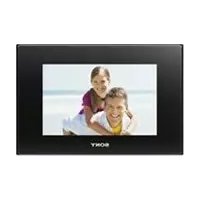
DPF-A700 - Digital photo frame SONY - Free user manual and instructions
Find the device manual for free DPF-A700 SONY in PDF.


| Product Type | Digital Photo Frame |
| Brand | Sony |
| Model | DPF-A700 |
| Display Size | 7 inches |
| Display Resolution | 800 x 480 pixels |
| Supported Memory Cards | SD, SDHC, MMC, MS, MS Pro, MS Duo, xD |
| USB Port | USB 2.0 (for PC connection) |
| Internal Memory | 256 MB (approx. 200 photos) |
| Supported Image Formats | JPEG, BMP, TIFF, RAW |
| Slideshow Features | Transition effects, interval setting, random play |
| Calendar & Clock | Built-in calendar and clock display |
| Orientation Sensor | Automatic portrait/landscape detection |
| Dimensions (W x H x D) | Approx. 205 x 152 x 105 mm |
| Weight | Approx. 480 g (without stand) |
| Power Supply | AC adapter (included), 100-240V 50/60Hz |
| Power Consumption | Max. 6W |
| Stand Type | Detachable, adjustable tilt |
| Key Features | Slideshow with music, zoom, rotate, thumbnail view |
| Cleaning Instructions | Wipe with a soft dry cloth; avoid solvents |
| Safety Warnings | Do not expose to moisture or extreme temperatures |
| Spare Parts / Repairability | Contact Sony service center for repairs |
Frequently Asked Questions - DPF-A700 SONY
User questions about DPF-A700 SONY
0 question about this device. Answer the ones you know or ask your own.
Ask a new question about this device
Download the instructions for your Digital photo frame in PDF format for free! Find your manual DPF-A700 - SONY and take your electronic device back in hand. On this page are published all the documents necessary for the use of your device. DPF-A700 by SONY.
USER MANUAL DPF-A700 SONY
Digital Photo Frame Handbook
Before operation
Basic operations
Advanced operations
Using with a computer
Error messages
Troubleshooting
Additional information
Table of Contents
Before operation
Enjoying your photo frame in various ways ....4
Features 5
Identifying the parts .....7
Digital photo frame 7
Remote control (except for DPF-A700/
Basic operations
Preparing the remote control (except for DPF-A700/D700)....10
Turning the photo frame on .....11
Setting the current time .....12
Inserting a memory card .....13
Changing the display .....14
Slideshow display ....16
Clock and Calendar display .....17
Single view mode (single image display) 18
Index image display 19
Playing a video file (DPF-D1020/D820/D720 only) 21
Advanced operations
Enjoying a slideshow ....22
Changing the settings of the slideshow 22
Playing a slideshow with
background music
(DPF-D1020/D820/D720 only) .....25
Importing a music file .....25
Selecting a music file to play .....25
Playing background music with a slideshow 26
Refresh mode (DPF-D1020/D820/
D720 only) 27
Importing images from a memory card to the internal memory .....27
Specifying the playback device .....29
Exporting an image from the internal memory to a memory card ....30
Deleting an image ....31
Registering a mark (except for DPF-A710/A700) 32
Sorting images (Filtering) (except for DPF-A710/A700) 34
Adjusting image size and orientation ....35
Enlarging/reducing an image .....35
Rotating an image ....35
Changing the settings of the auto power on/off function ....36
Changing the settings ....38
Setting procedure ....38
Items to set 40
Displaying an image stored in a USB memory device
(except for DPF-A710/A700) .....42
Using with a computer
Connecting to a computer .....43
System requirements ....43
Connecting to a computer to exchange images ....43
Disconnecting your computer .....44
Error messages
If an error message appears .....45
Troubleshooting
If trouble occurs ....47
Additional information
About memory cards ....52
"Memory Stick" 52
SD memory card ....53
Notes on using a memory card .....53
Index 54
On the illustrations and screen shots used in this manual
The illustrations and screen shots used in this manual are of the DPF-D1020 unless noted otherwise.
The illustrations and screen shots used in this manual may not be identical to those actually used or displayed.
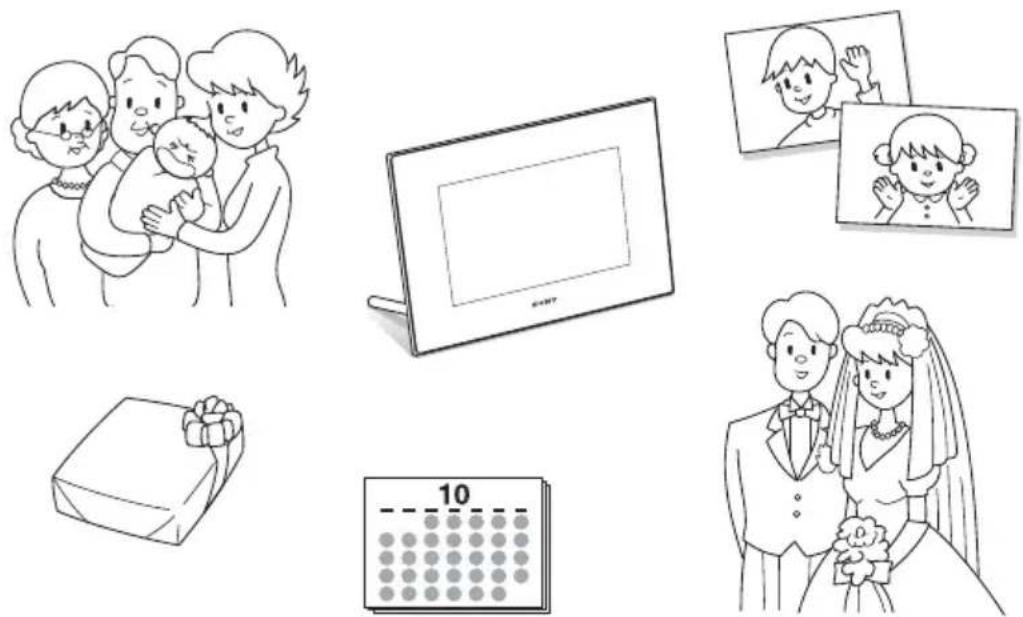
Enjoying your photo frame in various ways
This Sony digital photo frame allows you to easily display images taken with a digital camera or other devices without using a computer.
Features
■Various display functions
You can enjoy various viewing modes, such as the Slideshow display, Clock and Calendar display, Single view mode, and Index image display. (page 14)
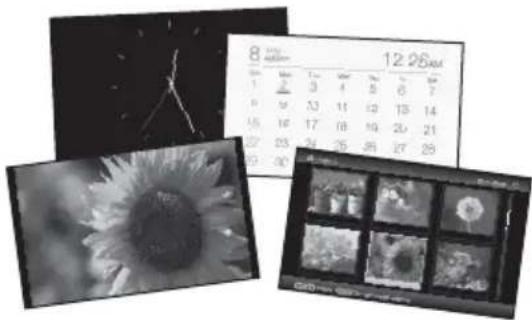
■Various Slideshow styles
The displayed image can be switched automatically as though you are turning the pages of an album yourself. You can select from various slideshow styles, including the ones displaying a clock or calendar. You can also change playback settings such as the playback order. (page 22)

■Displaying memory card images and importing them to the internal memory
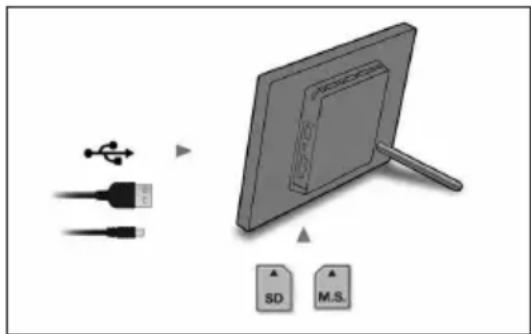
Just insert a memory card, such as a "Memory Stick" and SD memory card, removed from a digital camera or other device, and you will be able to view the images immediately.
You can import and save the memory card images in the internal memory. (page 27)
![graph TD A["Device 1"] --> B["Device 2"] B --> C["Device 3"] C --> D["Device 4"] style A fill:#f9f,stroke:#333 style B fill:#ccf,stroke:#333 style C fill:#cfc,stroke:#333 style D fill:#fcc,stroke:#333](/content/2026/05/762589/images/f91b4eb17667eecbc4f6d79acd1f11c997c2d7797edaa32517956bc5bbc84968.jpg)
* When using a miniSD/miniSDHC ①, microSD/microSDHC ② or “Memory Stick Micro” media ③, be sure to insert it in an appropriate adaptor.
■Exporting images
You can export images in the internal memory to your memory card. (page 30)
![graph TD A["Device with PC"] --> B["Assembly Module 1"] A --> C["Assembly Module 2"] A --> D["Assembly Module 3"] B --> E["Cell with Battery"] C --> F["Cell with Battery"] D --> G["Cell with Battery"]](/content/2026/05/762589/images/5e36969c952e0fe97a3a08a5de41347d7a205429bdef2d050c676087635b0720.jpg)
* When using a miniSD/miniSDHC ①, microSD/microSDHC ② or “Memory Stick Micro” media ③, be sure to insert it in an appropriate adaptor.
■Playback of video files/playback of background music (BGM) with photos (DPF-D1020/D820/D720 only)
You can enjoy viewing a video file shot with your digital camera as well as photos and also add background music to the images (pages 21, 25).
■Sorting function
You can sort images by the date, folder, image orientation, mark and videos/photos (page 34).
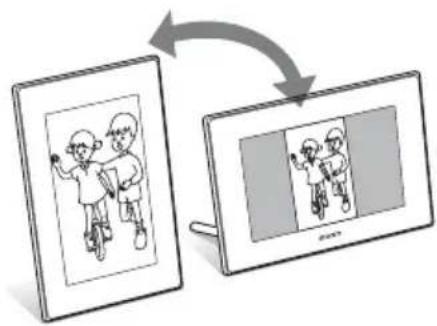
■Automatic rotation of images
The photo frame automatically rotates images to their proper orientation. Images are also automatically rotated when the photo frame is set in either the portrait or landscape position*. (supplied Operating Instructions – “Stand”)
* A video file is not rotated automatically even if you change the orientation of the photo frame (DPF-D1020/D820/D720 only).
■ Displaying images on a wall
You can hang the photo frame on the wall. (supplied Operating Instructions – “Stand – To display the photo frame on the wall”)
Identifying the parts
■ Digital photo frame
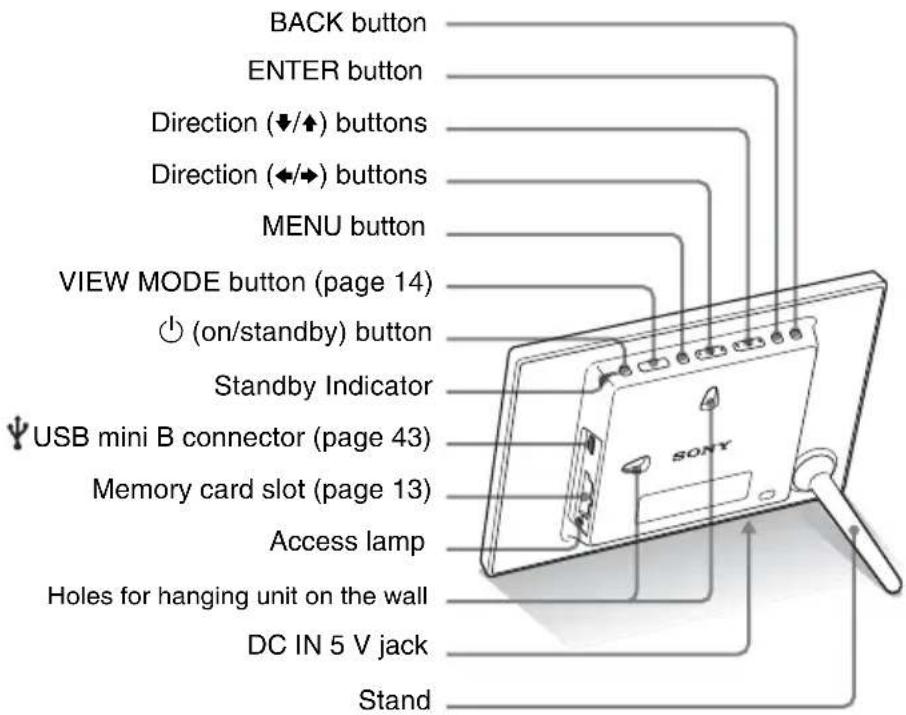
DPF-A710/A700
Front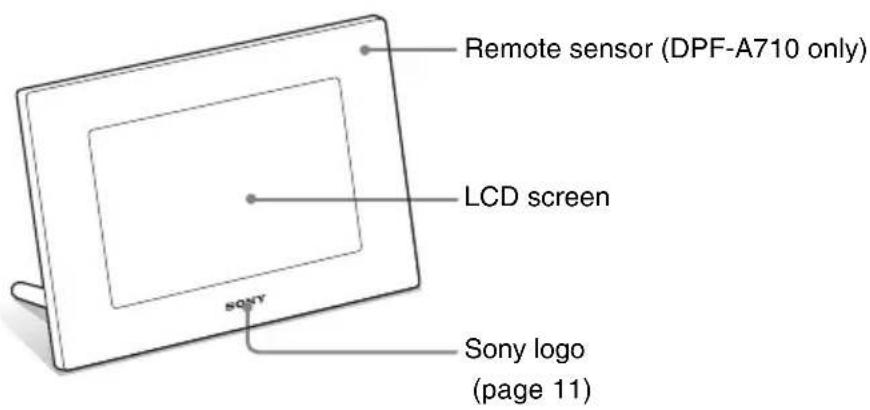
Rear
DPF-D1020/D1010/D820/D810/D720/D710/D700
Front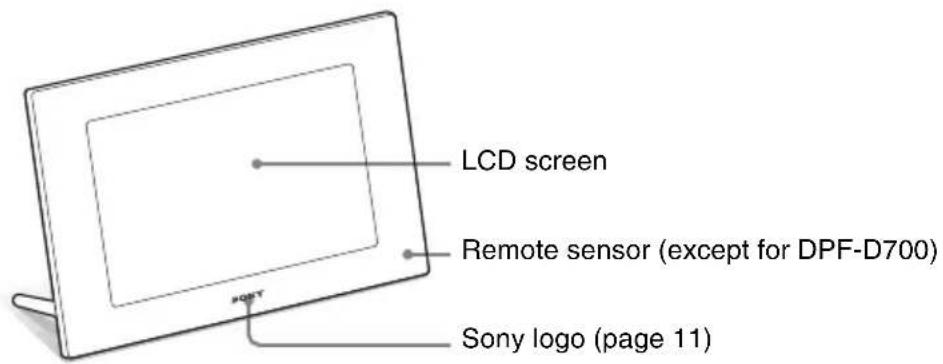
Rear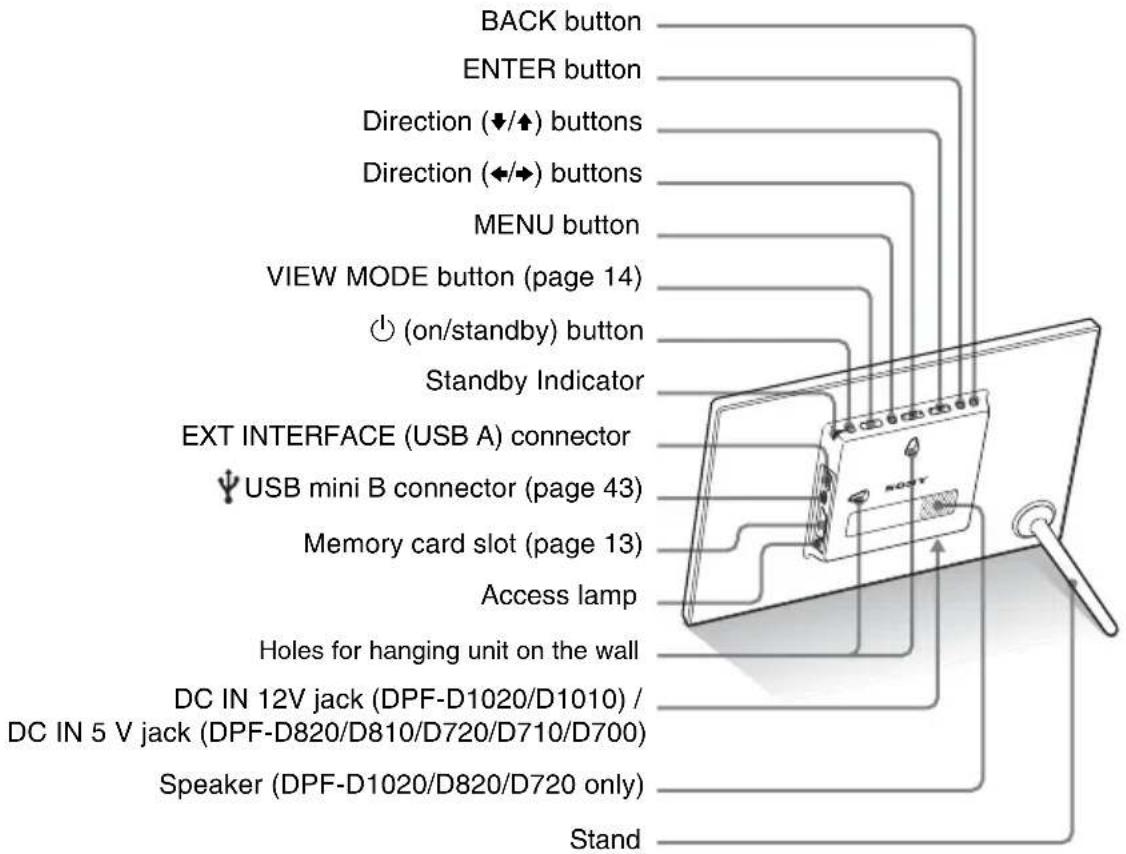
■ Remote control (except for DPF-A700/D700)
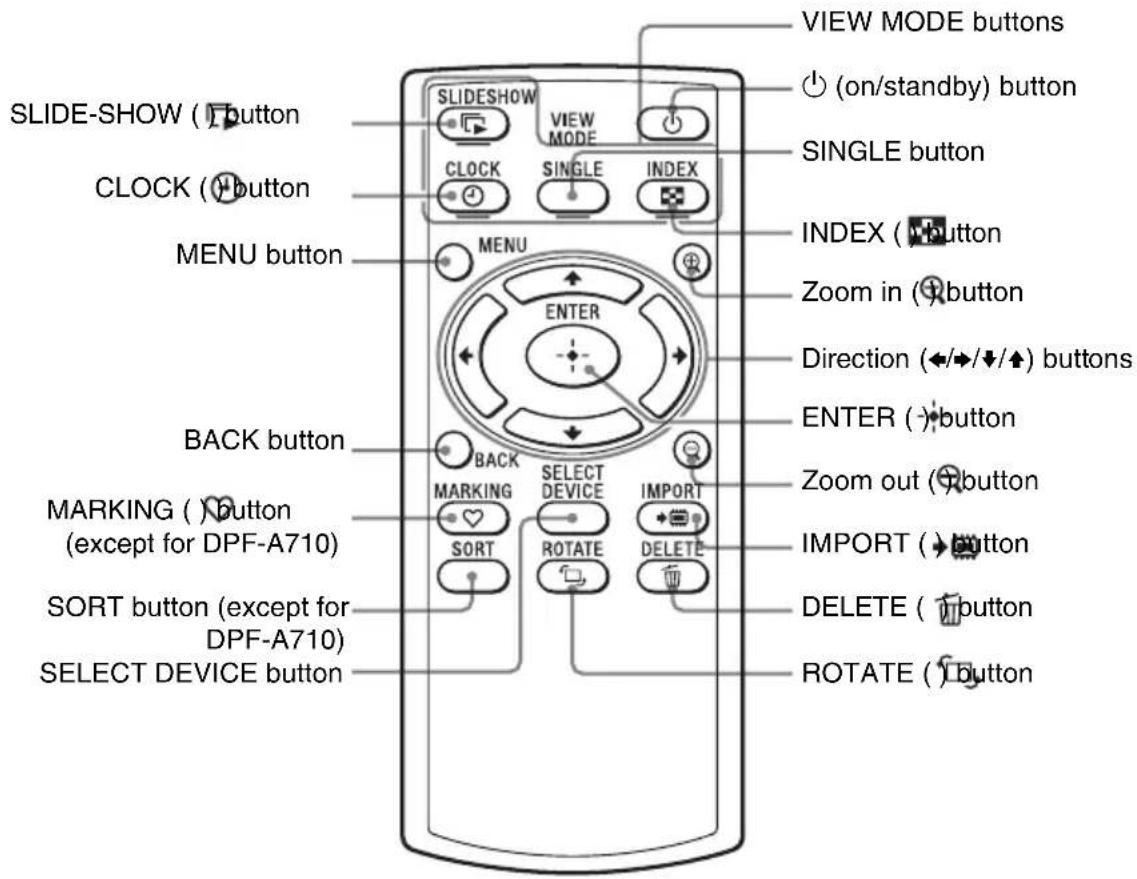
About descriptions in this manual
The operations described in this manual are based on those with the buttons on the photo frame. When an operation is performed differently, for example, with the remote control and the buttons on the photo frame, it will be explained in a tip.
Preparing the remote control (except for DPF-A700/D700)
The supplied lithium battery (CR2025) has already been inserted into the remote control. Pull out the protective sheet before use as shown in the figure.
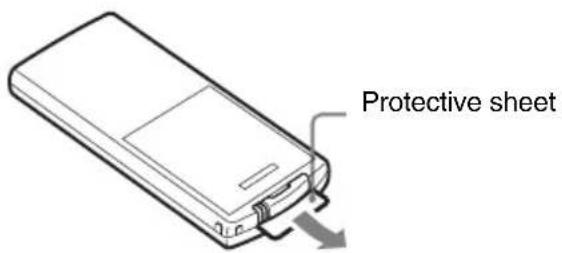
Using the remote control
Point the top end of the remote control towards the remote sensor on the photo frame.
DPF-A710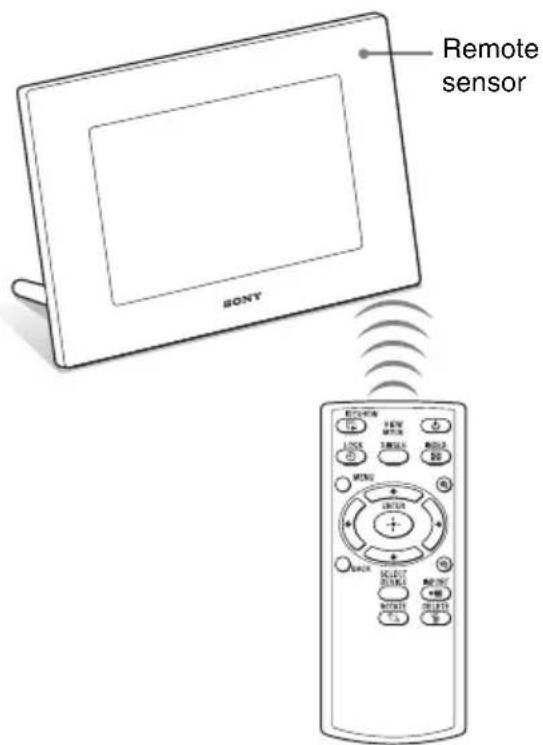
DPF-D1020/D1010/D820/D810/D720/D710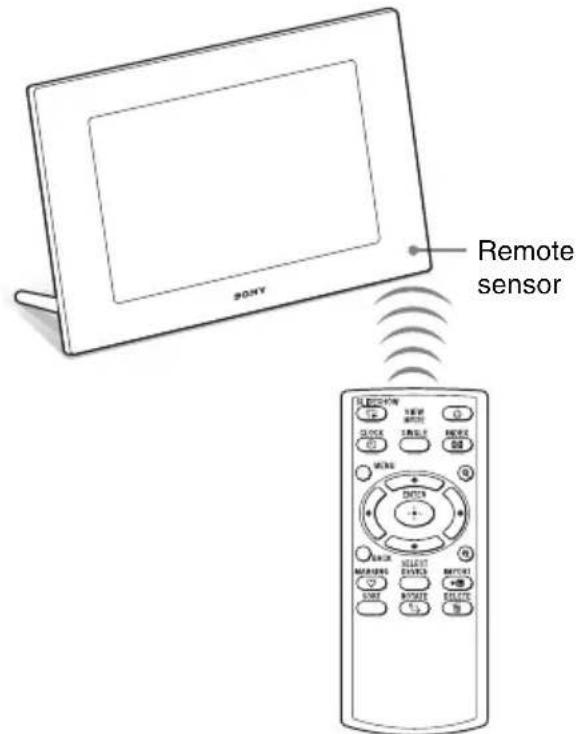
The photo frame may fall if you use the buttons on the photo frame when it is hanging on a wall. Operate the photo frame while holding it firmly so that it will not fall down.
Replacing the battery of the remote control
If the remote control does not operate, replace the battery (CR2025 lithium battery) with a new one.
1 Press the tab in.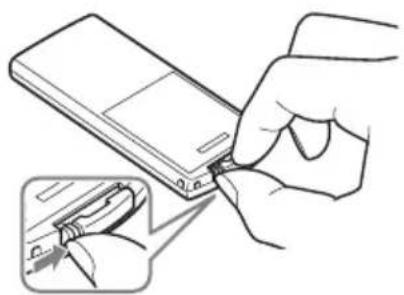
2 Pull the battery holder out.
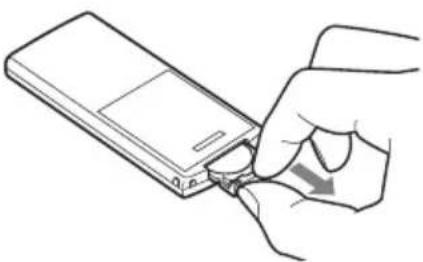
3 Insert a new battery and slide the battery holder back into the remote control.
Insert the battery so that “+” is facing upwards.
Notes
- Using a battery other than the specified one may result in the battery rupturing.
- Dispose of used batteries as specified by the local authorities.
- Do not leave the remote control in a very hot and humid place. Take care that no foreign objects get inside the remote control when you, for example, replace the battery.
- Incorrect use of the battery may cause leaking and corrosion.
- Do not recharge the battery.
- When the remote control will not be used for a long period of time, remove the battery from the remote control to prevent leaking and corrosion.
- Incorrectly inserting, shorting, dismantling, or heating the battery, or throwing it into a fire may cause the battery to rupture or leak.
Turning the photo frame on
When you have already turned on your photo frame by connecting it to the AC power source, skip to the next section.
Turning on the power
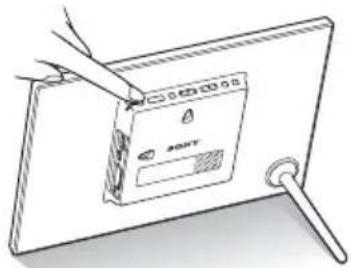
Press ⏻ (on/standby) on the photo frame to turn on the power. The standby indicator turns to green from red. The Sony logo on the front panel lights up.
Using the remote control (except for DPF-A700/D700)
You can turn on/off the photo frame with the ⏻ (on/standby) button on the remote control.
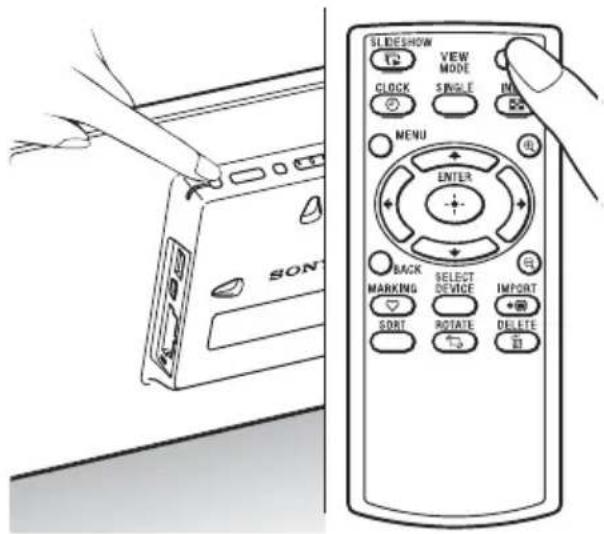
Turning off the power
Hold ⏻ (on/standby) on the photo frame until the power turns off. The standby indicator turns from green to red.
Note
Do not turn the photo frame off or disconnect the AC adaptor from an AC outlet or the photo frame. Doing so may damage the photo frame.
Operations in an initial state
When the photo frame is turned on without a memory card inserted, the initial display below appears on the screen.
If the photo frame is not operated for 10 seconds, the demo mode is displayed. If any other button than the power button is pressed, the screen returns to the initial display.
First, press MENU during the initial display, and then set the date and time.
Setting the current time
1 Press MENU. 2 Press ↔ to select the (Settings) tab. 3 Press ↓/↑ to select [Date/time Settings] and press ENTER.
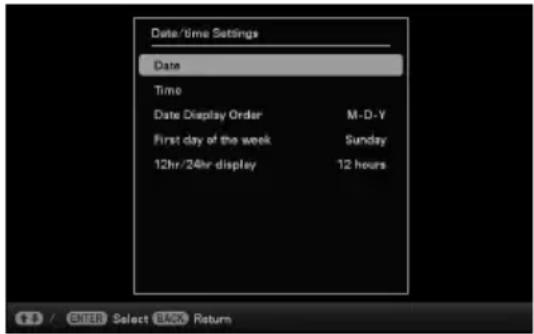
4 Adjust the date.
①Press ↓/↑ to select [Date] and press ENTER. ②Press ↔/→ to select month, day and year, press ↓/↑ to select a value, then press ENTER.
5 Adjust the time.
①Press ↓/↑ to select [Time] and press ENTER. ②Press ↔/→ to select hour, minute and second, press ↓/↑ to select a value, then press ENTER.
6 Select the format of the date.
①Press ↓/↑ to select [Date Display Order], and press ENTER. ②Press ↓/↑ to select a format and press ENTER.
• Y-M-D • M-D-Y • D-M-Y
7 Set the day to start the week for the calendar.
You can set the day of the week that appears on the very left when the calendar is displayed.
① Press ↓/↑ to select [First day of the week] and press ENTER. ② Press ↓/↑ to select [Sunday] or [Monday] and press ENTER.
8 Select the time display.
① Press ↓/↑ to select [12hr/24hr display] and press ENTER. ② Press ↓/↑ to select [12 hours] or [24 hours] and press ENTER.
9 Press MENU.
The menu screen is closed.
Inserting a memory card
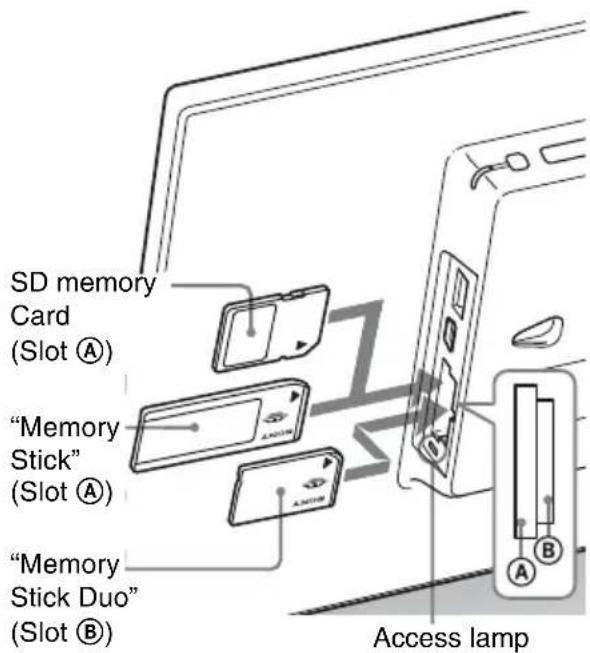
Insert the memory card firmly into the corresponding slot with its label side facing toward you (when you are facing the back side of the photo frame).
The access lamp flashes when the memory card is inserted correctly. Reinsert the memory card after checking the label side of the memory card if the access lamp does not flash.
Note
When using a miniSD/miniSDHC ①, microSD/microSDHC ② or “Memory Stick Micro” media ③, be sure to insert it in an appropriate adaptor.
![graph TD A["1: casing"] --> B["2: housing"] B --> C["3: product with internal structure"]](/content/2026/05/762589/images/a7a5fb69a3183d9a611a8d4bb4b08f3d4374c9879d15600f7e01fb7bd5e27b4a.jpg)
For details on compatible memory cards, see "About memory cards" (page 52). For supported file formats, see the Operating Instructions.
When you insert a memory card
When you insert a memory card, the images on it are automatically displayed. If you switch off the power while they are being displayed and then switch the power back on, the same images continue to be displayed.
To change the playback device
See “Specifying the playback device” (page 29).
To remove a memory card
Remove the memory card from its slot in the opposite direction from which it was inserted. Do not remove the memory card while the access lamp is flashing.
Notes
- The slot is both a “Memory Stick” standard and Duo size compatible slot, so you do not need a “Memory Stick” adaptor.
- The “Memory Stick” (Standard/Duo)/SD memory card multi-purpose slot automatically detects the card type.
- Do not insert multiple memory cards into Ⓐ, Ⓑ slots simultaneously. If multiple memory cards are inserted, the photo frame will not work properly.
Changing the display
You can change the view style by pressing the VIEW MODE buttons.
1 Press VIEW MODE repeatedly to select the view mode you want to display.
The view mode screen is displayed.
Display selection area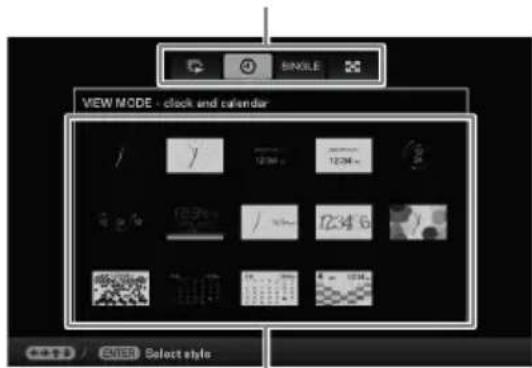
Style selection area
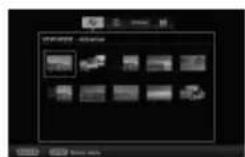
Slideshow (page 16)
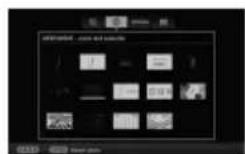
Clock and Calendar (page 17)
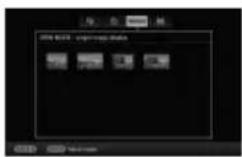
SINGLE
Single image
display
(page 18)
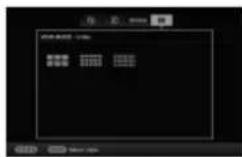

Index
(page 19)
Using the remote control (except for DPF-A700/D700)
Press the VIEW MODE button corresponding to the view mode you want to display.
VIEW MODE buttons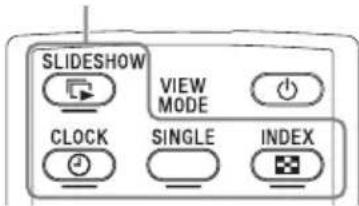
The selected view mode screen is displayed.
2 Select a style with the arrow buttons and press ENTER.
The display changes to the selected view style.
Tips
- When the cursor is in the display selection area, move it to the style selection area by pressing ↓.
- You can move the cursor in the style selection area by pressing the VIEW MODE button on the remote control (except DPF-A700/D700) corresponding to
the currently selected view mode


SINGLE OR PRESSING VIEW
MODE on the photo frame repeatedly.
Note
If you have not operated the photo frame for an extended period of time, the style the cursor is on will be selected automatically.
Slideshow display
| Display Style Description | ||
| Slideshow |  Single view Single view | Displays a single screen, one after another. |
 Multi image view Multi image view | Displays multiple images at the same time.For a video file only the first frame of the file is displayed (DPF-D1020/D820/D720 only). | |
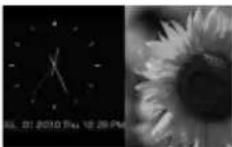 Clock view Clock view | Displays images, one after another, while showing the current date and time. | |
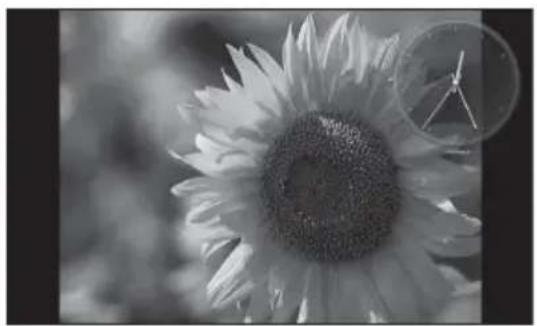
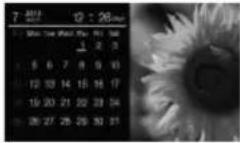 Calendar view Calendar view | Displays images, one after another, while showing a calendar.The current date and time are also displayed. | |
 Time Machine(except for DPF-A710/A700) Time Machine(except for DPF-A710/A700) | Displays images, one after another, while showing the shooting date and time. The current date and time are not displayed. | |
 Random view Random view | Displays images while randomly switching between a number of different slideshow styles and effects.When displaying images randomlyThis is available when [Shuffle] of [Slideshow Settings] is set to [ON] (page 23). | |
Tips
- You can set the interval, effect, listing order, or color effect when you select the Slideshow display. See “Changing the settings of the slideshow” (page 22).
- If you press ENTER during slideshow, the display changes to the Single image display.
- If you turn the photo frame off during slideshow and back on with the ⏻ (on/standby) button, the slideshow restarts from the last image viewed.
Clock and Calendar display
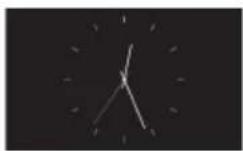
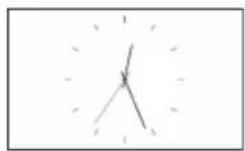
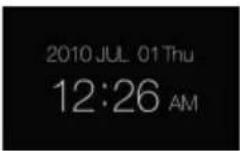
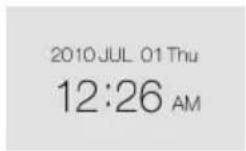
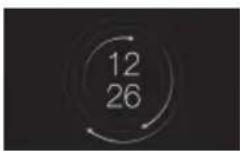
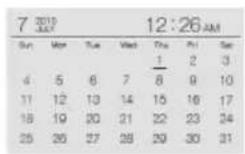
Clock1 Clock2 Clock3 Clock4 Clock5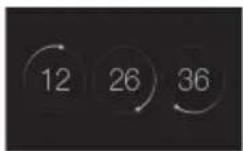
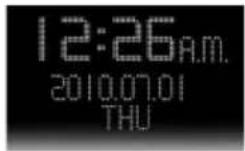
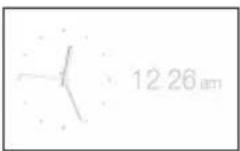
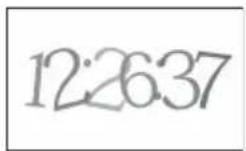
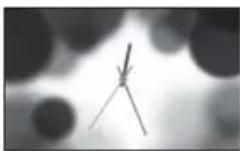
Clock6 Clock7 Clock8 Clock9 Clock10 Clock11*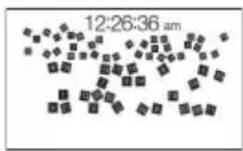
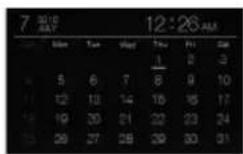
Lunar Calendar* (when you select [Simplified Chinese] in [Language Setting])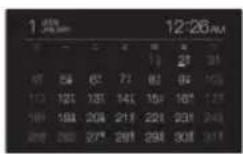
Arabic Calendar* (when you select [Arabic] in [Language Setting])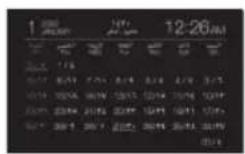
Farsi Calendar* (when you select [Persian] in [Language Setting]) *: except for DPF-A700/A710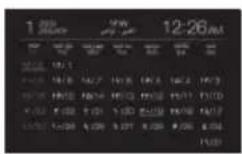
Note
You can select only the Settings tab when the Clock and Calendar are displayed.
Single view mode (single image display)
| Display Style Description | ||
| SINGLE | 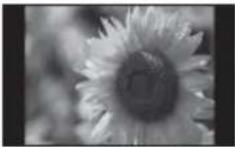 Entire image Entire image | Displays an entire image in the screen.You can switch the images to be displayed by pressing ◀/►. |
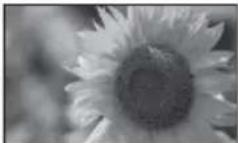 Fit to screen Fit to screen | Displays an image over the whole screen.(Depending on the aspect ratio of the recorded image, the border of the image may only be partially displayed.)You can switch the images to be displayed by pressing ◀/►. | |
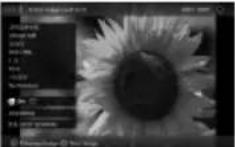 Entire image (with Exif) Entire image (with Exif) | Displays image information, such as the image number, file name, and shooting date while displaying the entire image.You can switch the images to be displayed by pressing ◀/►.See “About the information displayed on the LCD screen”(page 20) for details on the image information. | |
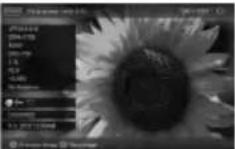 Fit to screen (with Exif) Fit to screen (with Exif) | Displays image information, such as the image number, file name, and shooting date in fit to screen mode.(Depending on the aspect ratio of the recorded image, the border of the image may only be partially displayed.)You can switch the images to be displayed by pressing ◀/►.See “About the information displayed on the LCD screen”(page 20) for details on the image information. | |
Index image display
| Display Style Description | ||
| Index | 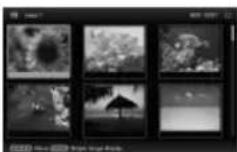 Index 1 Index 1 | Displays a list of large thumbnails. Move the cursor to select an image by pressing ◀/►/↓/↑. |
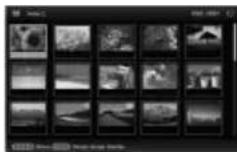 Index 2 Index 2 | Displays a list of thumbnails. Move the cursor to select an image by pressing ◀/►/↓/↑. | |
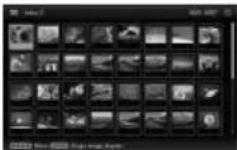 Index 3(except for DPF-A710/A700) Index 3(except for DPF-A710/A700) | Displays a list of small thumbnails. Move the cursor to select an image by pressing ◀/►/↓/↑. | |
Tips
- Thumbnails are small-sized images for index use that are recorded in a file of the pictures taken by a digital camera.
- On the index image display, you can select an image by pressing ◀/►/↓/▲ then ENTER. The display changes to the Single view mode.
About the information displayed on the LCD screen
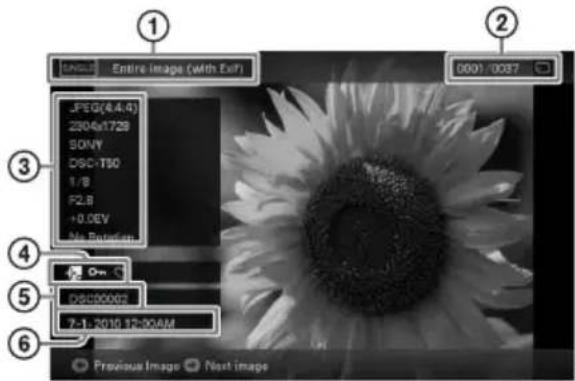
The following information is displayed.
①Display type (In the Single view mode)
- Entire image
- Fit to screen
- Entire image (with Exif)
- Fit to screen (with Exif)
②Ordinal number of the displayed image/Total number of images
Input media indication for the displayed image is shown as follows:.
| Icons Meaning | |
| Internal memory | |
| “Memory Stick” input | |
| SD Memory Card input | |
③Image details
■When the photo is displayed
- File format (JPEG(4:4:4), JPEG(4:2:2), JPEG(4:2:0), BMP, TIFF, RAW)
- Number of pixels (width × height) – Manufacturer name of image input device
- Model name of image input device
- Shutter speed (e.g.: 1/8)
- Aperture value (e.g.: F2.8)
- Exposure value (e.g.: +0.0EV)
- Rotation information
■When the video file is played (DPF-D1020/D820/D720 only)
- File format (AVI, MOV)
- Number of pixels (width × height)
- Playback duration
- Video file size
④Setting information
| Icons Meaning | |
 | Protect indication |
 | Associated file indication(Displayed when there is an associated file such as a motion file or a miniature e-mail image file.) |
 | Displays when you have registered a mark. (except for DPF-A710) |
 | Displays a video file.(DPF-D1020/D820/D720 only) |
⑤Image number (folder-file number)
This is displayed if the image is DCF compliant.
If the image does not comply with DCF, its file name is displayed.
If you named or renamed the file on your computer and the file name includes characters other than alphanumeric characters, the file name may not be displayed properly on the photo frame. Also, for a file created on a computer or other device, a maximum of 10 characters from the beginning of the file name can be displayed.
Note
Only alphanumeric characters can be displayed.
⑥ Shooting date/time
Playing a video file (DPF-D1020/D820/D720 only)
The operations described in this section are based on those with the buttons on the supplied remote control.
1 Select a video file.
Press SINGLE. Press ◀/▶ to select the desired style and press ENTER. Press ◀/► to advance/reverse the files to select a video file you want to play.
Using the Index display
Press (INDEX). Press ◀/►/↓/↑ to select a video file you want to play.
Press ENTER.
The selected video file starts playback.
To adjust the volume
Press ↓/↑ during playback or playback pause of the video file.
To pause playback
Press ENTER during playback of the video file.
To resume playback, press ENTER again.
Fast forward/backward playback
Press ◀/▶ during playback of the video file. The file is played forward or backward at high speed while you hold down the ▶ or ◀ button. When you release the button, normal playback starts from that point.
Depending on the video file, fast forward/backward playback may not be available with the photo frame.
To stop playback
Press BACK while a video file is being played.
Notes
- You cannot play the following type of video file: – Video files processed with other video codec than Motion JPEG
- Video files that exceed maximum number of pixels either in width or height (We cannot guarantee operation with video files not mentioned above.)
- Fast forward/backward playback and playback pause are not available during Slideshow display. • Video paused during fast forward/reverse playback.
Enjoying a slideshow
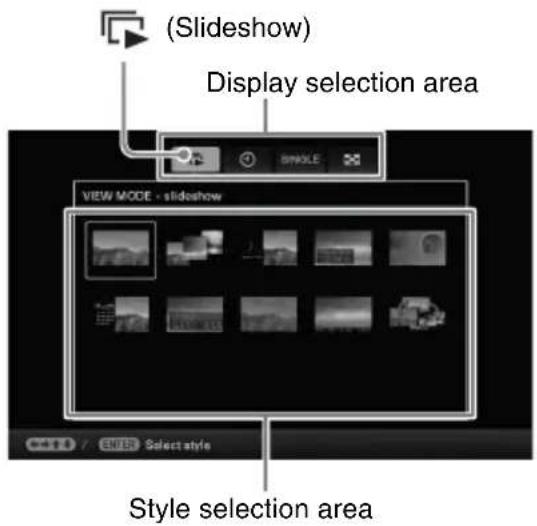
1 Press VIEW MODE repeatedly to select (Slideshow) in the display selection area.
Using the remote control (except for DPF-A700/D700)
Press
(SLIDE-SHOW).
2 Press ←/→/↓/↑ to select the desired style and press ENTER.
Tips
- When the cursor is in the display selection area, move it to the style selection area by pressing ↓.
- You can move the cursor in the style selection area by pressing the VIEW MODE button on the remote control corresponding to the currently selected view mode (☑ or SINGLE ☐) (except for DPF-A700/D700), or pressing
VIEW MODE on the photo frame repeatedly.
See “Slideshow display” (page 16) for details on the slideshow styles.
Changing the settings of the slideshow
1 Press MENU. 2 Press ↔ to select the (Settings) tab. 3 Press ↓/↑ to select [Slideshow Settings] and press ENTER.
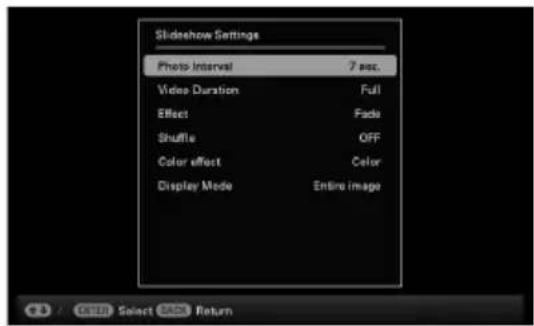
4 Press ↓/↑ to select the item you want to change and press ENTER. See the tables on the next page for details on the setting items.
Notes
- Note the following when you select a slideshow using the image stored on the memory card.
- Due to the characteristics of memory card devices, images may be subject to data error when read too often.
- Do not run a slideshow for a long time with a small number of images. This may cause data error.
- We recommend you back up images on the memory card often.
- When the photo frame is, for instance, displaying a slideshow, changes to the settings of some items are unavailable. These items are shown in gray and cannot be selected.
- The slideshow starts from the first image if you turn off the photo frame, or if you reset the photo frame.
- When the screen is too bright, it may make you feel nauseous. Be careful that you do not make the brightness settings too bright when you use the photo frame.
| Item Setting | Description | ||
| Slideshow Settings | Interval*2 | Set a value from 3 sec., 7 sec.*1, 20 sec., 1 min., 5 min., 30 min., 1 hour, 3 hours, 12 hours, 24 hours for the interval between images. Note An image may not switch at the intervals you set on the menu, depending on the style of the slideshow, color effect, or image size. | |
| Photo Interval*3 | Set a value from 3 sec., 7 sec.*1, 20 sec., 1 min., 5 min., 30 min., 1 hour, 3 hours, 12 hours, 24 hours for the interval between images. | ||
| Video Duration*3 | Set the interval based on playback time from the beginning of the file. Set a value from among First 10 sec., First 15 sec., First 30 sec., First 1 min., First 3 min., or Full Playback*1 | ||
| Note An image may not switch at the intervals you set on the menu, depending on the style of the slideshow, color effect, or image size. | |||
| Effect Center cross Transitions to the next image as though the previous image is being pushed from the center to the four corners. | |||
| Fade*1 | Transitions to the next image by fading out the current image and fading in the next image. | ||
| Wipe Transitions to the next image as though the current image is being wiped off the screen to reveal the next image. | |||
| Random Uses the above five effects randomly. | |||
| Shuffle ON Displays images randomly. | |||
| Color effect Color*1 | Displays an image in color. | ||
*1: Factory default settings *2: DPF-D1010/D810/D710/D700/A710/A700 only *3: DPF-D1020/D820/D720 only
| Item Setting | Description | ||
| Slideshow Settings | Display Mode Select the desired display size from the following:NotesThe original image data will not change.While the video file is played, the video image is always displayed inEntire image mode (DPF-D1020/D820/D720 only). | ||
*: Factory default settings
Playing a slideshow with background music (DPF-D1020/D820/D720 only)
Importing a music file
1 Insert a memory card that contains a music file into the photo frame. 2 Press MENU, select the (Settings) tab with left/right arrows, then press down/up arrows to select [Slideshow BGM Settings]. 3 Press down/up arrows to select [Import BGM] and press ENTER. 4 Press down/up arrows to select the memory card inserted in step 1. 5 Select a music file you want to import from the music file list with down/up arrows and press ENTER.
A check mark (√) is displayed next to the selected file.
6 Repeat step 5 when you want to select two or more files.
Tip
To clear the selection, select the file to be cleared then press ENTER. The check mark (√) next to the selected file disappears.
7 Press MENU after you finish selecting the music file(s). 8 Press ENTER when the confirmation screen is displayed. The selected music file is imported to internal memory of the photo frame.
Tip
To delete a music file imported to internal memory, select [Delete BGM] on the [Slideshow Settings] screen in step 2 then press ENTER. Press down/up arrows to select the music file you want to delete from the music file list and press ENTER. A check mark will be displayed next to the selected file. Press MENU then press ENTER when the confirmation screen appears. The file will be deleted from the music file list.
Notes
- Playback of the imported music file is enabled only as BGM on a slideshow.
- Only music files imported to internal memory can be played as BGM.
- Up to 40 music files can be imported to internal memory of the photo frame.
- Up to 200 music files in the inserted memory card can be displayed.
- A music file shows only the file name. A music title and artist's name cannot be shown.
Selecting a music file to play
1 Press MENU, select the (Settings) tab with ←/→, then press ↓/↑ to select [Slideshow BGM Settings]. 2 Press ↓/↑ to select [Select BGM] and press ENTER. 3 Select a music file you want to play from the imported music file list with ↓/↑ and press ENTER.
A check mark (√) is displayed next to the selected file.
4 Repeat step 3 if you want to select two or more music files. 5 Press MENU. When you select (Slideshow) on the view mode screen, the music file with a check mark (√) is played.
Playing background music with a slideshow
Proceed as follows when you play the music file imported to internal memory as BGM with a slideshow using photos.
1 Press MENU, select the

(Settings) tab with ←/→, then press ↓/↑ to select [Slideshow BGM Settings].
2 Press ↓/↑ to select [BGM ON/OFF] and press ENTER.
[ON]: Background music is played while a slideshow is run.
[OFF]: Background music is not played while a slideshow is run.
Notes
- Fast forward/backward playback of background music is not available. Also, you cannot change the playback order of background music files.
- Background music cannot be played during playback of the video. The sound of the video file is played with the video. The background music for the photo displayed after playback of the video will start playback from the beginning of the next music file.
- If a music file to play is not selected from the imported music file list even if [BGM ON/OFF] is set to [ON], background music will not be played.
- The music files registered in internal memory at the factory BGM1, BGM2, and BGM3 cannot be deleted.
| Item Setting | Description | ||
| Slideshow BGM Settings | BGM ON/OFF | ON* BGM is played while a slideshow is run. | |
| OFF BGM is not played while a slideshow is run. | |||
| Select BGM Displays the list of music files in internal memory and you can select a BGM.(BGM1*, BGM2*, BGM3*) | |||
| Import BGM Imports music files for BGM stored on a “Memory Stick”, SD memory card or USB external device to internal memory. | |||
| Delete BGM Deletes music files imported to internal memory. | |||
*: Factory default settings
Refresh mode (DPF-D1020/D820/D720 only)
Due to one of the characteristics of the device, images stored for a long time or read many times may be subject to data error.
The photo frame refreshes the internal memory automatically to prevent these errors, depending on the status of the internal memory. The confirmation screen for refreshing the internal memory is displayed automatically when the refresh is needed.
The refresh starts automatically when you select [Yes] or when no operation is attempted for 30 seconds. If you select [No], the confirmation screen for refreshing is displayed again when the refresh is needed.
![Do you want to refresh internal memory? Refreshing starts automatically if you select [Yes], or after 30 sec. Do not turn power off when refreshing up. Yes No.](/content/2026/05/762589/images/8758a492e5b5d3e1b3e3a06ff2b0bedba69bab4316aff448ccd8f7de6d7adcb5.jpg)
Do not turn off the photo frame while the internal memory is being refreshed. It may cause a malfunction.
It may take approximately 5 minutes to refresh the internal memory.
Notes
- We recommend that you perform a backup of your data periodically to avoid losing it.
- Avoid running a slideshow continuously with fewer than 10 images with the interval set to 3 sec. Doing so could corrupt image data in internal memory.
Importing images from a memory card to the internal memory
You can use the photo frame as a digital album by saving important images in the internal memory.
Tips
- When saving images to the internal memory, you can use [Image import size] in the menu to preset whether to resize images to the optimum size or save them as they are without compressing them (page 41).
- When [Image import size] is set to [Resize], up to approximately 4000 images for the DPF-D1020/D820/D720, 200 images for the DPF-D1010/D710/D700, 150 images for DPF-D810, and 250 images for DPF-A710/A700 can be saved in the internal memory. When set to [Original], the number of images that can be saved may vary, depending on the original image file size.
1 Press MENU when an image stored in the memory card is displayed on the screen.
The menu screen is displayed.
Using the remote control (except for DPF-A700/D700)
Press [IMPORT] when an image stored in the memory card is displayed on the screen. The [Import] screen described in step 2 below is displayed. Go to step 3.
2 Press ←/→ to select the ☐ (Editing) tab, select [Import] with ↓/↑, and press ENTER.
Single view mode
(Single image display)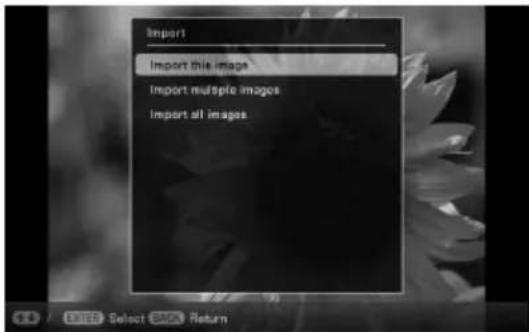
Slideshow display
Index image display
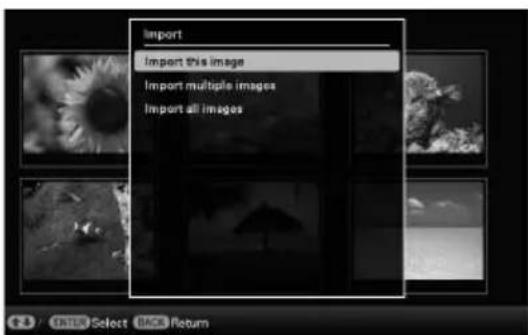
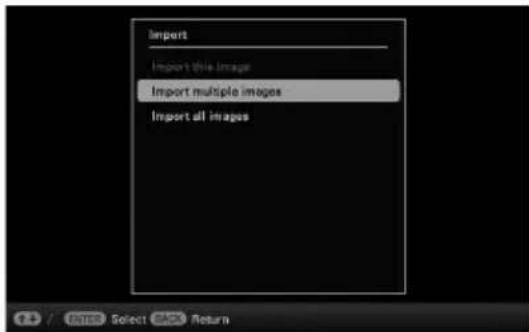
3 Press ↓/↑ to select [Import this image], [Import multiple images] or [Import all images] and press ENTER.
If you select [Import this image], the image currently displayed is imported to the internal memory. Go to step 6. (This item cannot be selected on the Slideshow display.)
If you select [Import multiple images], you can select the image you want to import from the image list. Go to step 4. If you select [Import all images], an image list with check marks in the check boxes for all the images is displayed. Go to step 5.
4 Press ←/→/↓/↑ to select the image to be imported from the image list and press ENTER.
"√" is added to the selected image.
If you want to import multiple images at a time, repeat this step.
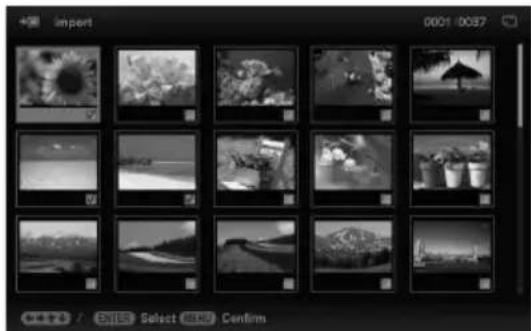
If you want to clear the selection, select the image and press ENTER. "√" disappears from the image.
5 Press MENU.
The folder selection screen is displayed.
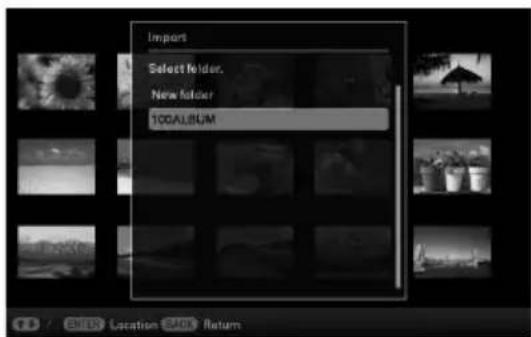
6 Press ↓/↑ to select the folder where you want to save and press ENTER. The confirmation screen for importing image to the internal memory is displayed.
Tip
A new folder is created automatically when you select [New folder].
7 Press ↓/↑ to select [Yes] and press ENTER.
The image is saved in the specified folder in the internal memory.
8 Press ENTER when the confirmation screen is displayed.
Notes
- “Import to the internal memory” is not available for images in the internal memory.
- Avoid doing the following while an image is being imported to the internal memory. Doing so may damage the photo frame, memory card, or data:
– Turning off the power
- Removing a memory card
- Inserting another memory card
- Importing video files to internal memory using the buttons on the photo frame is not available (DPF-D1020/D820/D720 only). To import a video file, connect a computer to the photo frame and copy a video file on the computer to internal memory on the photo frame. For details, see “Connecting to a computer” (page 43).
Tip
You can change the thumbnail size for the image list using [⊕/⊖] on the remote control (except for DPF-A700/D700).
Specifying the playback device
You can specify whether to display a memory card or the internal memory.
1 Press MENU then select the (Select device) tab with ◀/→.
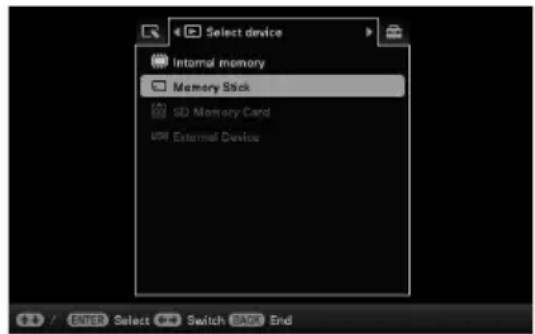
Using the remote control (except for DPF-A700/D700)
Press SELECT DEVICE.
Tip
If the memory card you want to select is not inserted, insert it now.
Note
During Clock and Calendar display, you cannot select the (Select device) tab.
2 Press ↓/↑ to select the device you want to display and press ENTER. The images of the selected device are displayed.
Exporting an image from the internal memory to a memory card
You can export the images in the internal memory to a memory card.
1 Press MENU when an image stored on the internal memory is displayed on the screen. 2 Press ↔ to select the (Editing) tab. 3 Press ↓/↑ to select [Export] and press ENTER.
Single view mode (Single image display)
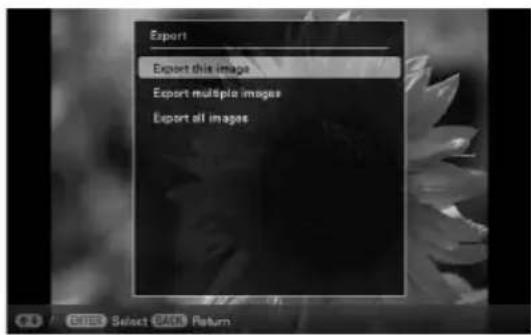
4 Press ↓/↑ to select [Export this image], [Export multiple images] or [Export all images] and press ENTER.
If you select [Export this image], the image currently displayed is exported to the device. Go to step 7. (This item cannot be selected on the Slideshow display.) If you select [Export multiple images], you can select the image you want to export from the image list. Go to step 5.
If you select [Export all images], the image list with check marks in the check boxes for all the images is displayed. Go to step 6.
5 Press ←/→/↓/↑ to select the image to be exported from the image list, and press ENTER.
“√” is added to the selected image.
If you want to export multiple images at a time, repeat this step.
If you want to clear the selection, select the image and press ENTER. "√" disappears from the image.
6 Press MENU.
The screen for selecting the memory card to which the image is exported is displayed.
7 Press ↓/↑ to select a memory card to which the image is exported, and press ENTER.
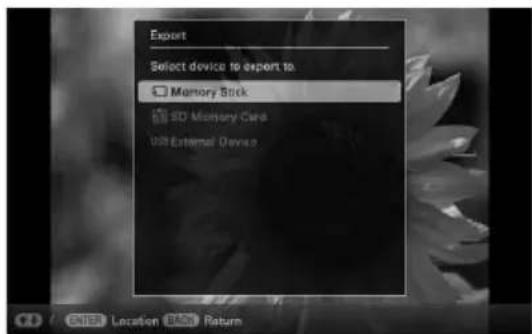
8 Press ↓/↑ to select a destination folder and press ENTER.
The confirmation screen for exporting the image is displayed.
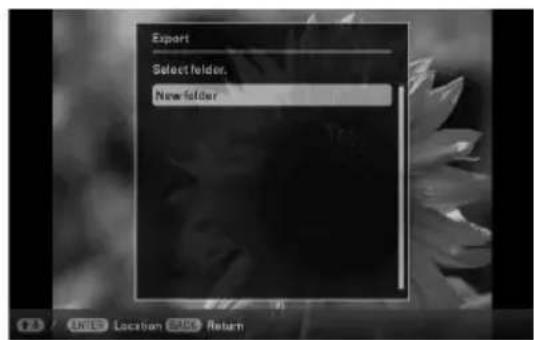
Tip
A new folder is created automatically when you select [New folder].
9 Press ↓/↑ to select [Yes] and press ENTER. The image is exported.
10 Press ENTER when the confirmation screen is displayed. The image is copied to the specified memory card.
Note
Avoid doing the following while an image is being exported. Doing so may damage the photo frame, memory card, or data:
- Turning off the power
- Removing a memory card
- Inserting another memory card
Tips
- You can change the thumbnail size in the image list using [⊕/∓] on the remote control (except for DPF-A700/D700).
- Any device that is not recognized by the photo frame is shown in gray and you cannot select it.
Deleting an image
1 Press MENU when an image you want to delete is displayed on the screen.
Using the remote control (except for DPF-A700/D700)
Press (DELETE) when an image you want to delete is displayed on the screen. The screen for deleting an image described in step 2 below is displayed. Go to step 3.
2 Press ↔ to select the (Editing) tab, select [Delete] with ↓/↑, and press ENTER.
3 Press ↓/↑ to select [Delete this image], [Delete multiple images] or [Delete all images] and press ENTER.
If you select [Delete this image], the image currently displayed is deleted. Go to step 6. (This item cannot be selected on the Slideshow display.)
If you select [Delete multiple images], you can select the image you want to delete from the image list. Go to step 4.
If you select [Delete all images], an image list with check marks in the check boxes for all the images is displayed. Go to step 5.
4 Press ←/→/↓/↑ to select the image to be deleted from the image list, and press ENTER.
“√” is added to the selected image.
If you want to delete multiple images at a time, repeat this step.
If you want to clear the selection, select the image and press ENTER. “√” disappears from the image.
5 Press MENU.
The delete confirmation screen is displayed.
6 Press ↓/↑ to select [Yes] and press ENTER.
The image is deleted.
7 Press ENTER when the confirmation screen is displayed.
Notes
- Avoid doing the following while an image is being deleted. Doing so may damage the photo frame, memory card, or data:
- Turning off the power
- Removing a memory card
- Inserting another memory card
- When the message [Cannot delete a protected file.] appears on the screen, the image file was set to "Read Only" on a computer. In this case, connect the photo frame to a computer, and delete this file using the computer.
- The total capacity of the internal memory is not equal to the remaining capacity even immediately after initialization.
- Once deletion has started, the deleted image cannot be recovered even if you stop deletion. Delete images only after confirming you actually want to delete them.
Tip
You can change the thumbnail size in the image list using [⊕/⊕] on the remote control (except for DPF-A700/D700).
To format the internal memory
1 Press MENU. 2 Press ↔ to select the (Settings) tab. 3 Press ↓/↑ to select [Initialize] and press ENTER. 4 Press ↓/↑ to select [Format internal memory] and press ENTER. The confirmation screen for initializing the internal memory is displayed. 5 Press ↓/↑ to select [Yes] and press ENTER.
Registering a mark (except for DPF-A710/A700)
You can produce a slideshow only with images which have been selected beforehand and have been marked. You can easily check for images with marks using the index image display or single view mode.
1 Press MENU when an image is displayed on the screen.
Using the remote control (except for DPF-D700)
Press (MARKING) when an image is displayed on the screen. The Marking screen described in step 2 below is displayed. Go to step 3.
2 Press ↔ to select the (Editing) tab, select [Marking] with / , and press ENTER.
3 Press ↓/↑ to select the mark you want and press ENTER.
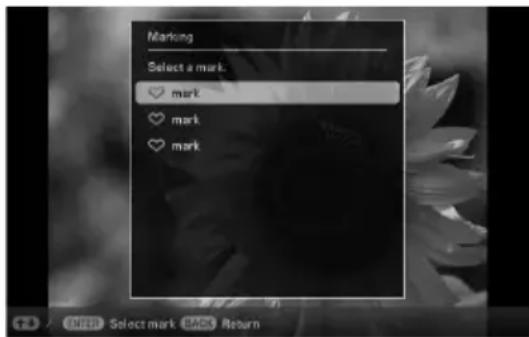
4 Press ↓/↑ to select [Mark this image], [Mark/Unmark multiple images] or [Mark all images] and press ENTER.
If you select [Mark this image], the image currently displayed will be marked and showed in the future. (This item cannot be selected on the slideshow display.)
If you select [Mark/Unmark multiple images], you can select the image to which you want to attach a mark from the image list. Go to step 4.
If you select [Mark all images], the image list is displayed. A check mark is attached to the check box of all the images. Go to step 5.
5 Press ←/→/↓/↑ to select the image from the image list to be marked, and press ENTER.
“√” is added to the selected image.
If you want to mark multiple images at a time, repeat this step.
If you want to clear the selection, select the image and press ENTER. “√” disappears from the image.
About image sorting in the image list
During a sort:
Lists all images that meet the sorting criteria.
Not during a sort:
Lists all images in the device that contains the image currently displayed.
Refer to "Sorting images (Filtering)"
(except for DPF-A710/A700)” (page 34).
6 Press MENU.
The confirmation screen appears.
7 Press ↓/↑ to select [Yes] and press ENTER.
The mark is attached to the selected image.
To delete the registration of a mark
Select [Unmark this image] or [Unmark all images] and press ENTER in step 3. You can also cancel the selection when you remove the check mark from the check box.
• [Unmark this image]:
Removes a mark from the image currently displayed. (This item cannot be selected on the slideshow display.)
• [Unmark all images]:
Unmark all images in the device that contains the image currently displayed.
During a sort:
Unmarks all images that meet the sorting criteria.
Note
A mark is saved only when it is registered with an image in the internal memory. A mark registered with an image on a memory card is removed when the power is turned off, or if you change the device being displayed.
Tips
- You can select a mark from among 3 types.
- You can change the thumbnail size in the image list using [⊕/¬] on the remote control (except for DPF-A700/D700).
Sorting images (Filtering) (except for DPF-A710/A700)
You can sort for images stored in the internal memory or on a memory card according to date, folder, image orientation, marks or videos/photos.
1 Press MENU when an image is displayed on the screen.
Using the remote control (except for DPF-A700/D700)
Press SORT when an image is displayed on the screen. The Sort screen described in step 2 below is displayed. Go to step 3.
2 Press ←/→ to select the (Editing) tab, select [Sort] with ↓/↑, and press ENTER. 3 Select a sort style using ↓/↑ and press ENTER.
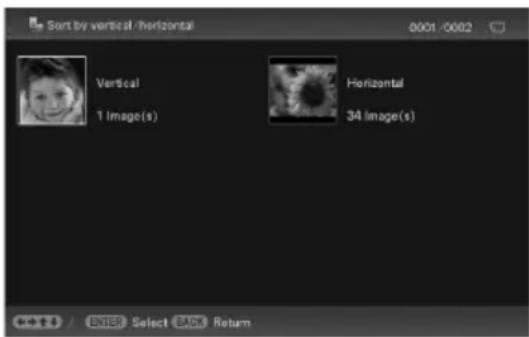
- [Sort by date]: Filters by the shooting date.
- [Sort by folder]: Filters by the folder.
- [Sort by vertical/horizontal]: Filters by the image orientation.
- [Sort by mark]: Filters by the mark.
- [Sort by videos/photos] (DPF-D1020/D820/D720 only): Filters according to files that contain videos or photos.
Either the video files or photos are sorted.
4 Press ←/→/↓/↑ to select the item you want and then press ENTER. 5 When you want to sort images in another sort style, press MENU then repeat steps 3 and 4.
To cancel the sort
Press MENU while the sorted images are displayed, select [Exit sort (show all photos)] and press ENTER.
To change the sort style
Press BACK while the sorted images are displayed then select [Reselect].
Notes
- Do not turn the photo frame off or remove the memory card during sort. Doing so may damage the photo frame or the memory card or corrupt the data.
- Sort is automatically canceled in the following cases:
- When the playback device is changed
- When images on a memory card are sorted and the memory card is removed.
Adjusting image size and orientation
Enlarging/reducing an image
You can enlarge or reduce an image in Single view mode.
1 Press MENU in Single view mode. 2 Press ◀/▶ to select the (Editing) tab. 3 Press ▼/▲ to select [Zoom] and press ENTER. 4 Press ▼/▲ to select the enlargement factor and press ENTER.
You can enlarge an image from 1.5 times to 5 times (maximum) the original scale. You can move an enlarged image up, down, left and right.
Using the remote control (except for DPF-A700/D700)
To enlarge an image, press ☑ (zoom in) on the remote control in Single view mode. To reduce an enlarged image, press ☑ (zoom out).
To save an enlarged or reduced image (Crop and save)
① Press MENU while the enlarged or reduced image is displayed. ② Press ▼/▲ to select the saving method.
If you select [Save as new image], a copy of the image is saved. Go to step ③.
If you select [Overwrite], the new image overwrites the old image. Go to step ⑤.
③ Press ▼/▲ to select the device on which the image is saved and press ENTER. ④ Press ▼/▲ to select a destination folder and press ENTER. ⑤ Press ▼/▲ to select [Yes] and press ENTER. The image is saved.
⑥ When the confirmation screen appears, press ENTER.
Tip
If you move the enlarged image with ◀/▶/▼/▲ and press MENU in step ①, the image is trimmed into the displayed image size and saved.
Notes
- You cannot overwrite files except for a JPEG file (extension: .jpg).
- Enlarging an image may reduce the quality depending on the image size.
- A video file cannot be enlarged or reduced.
Rotating an image
You can rotate an image during Single view mode.
1 Press MENU in Single view mode. 2 Press ↔ to select the (Editing) tab. 3 Press ↓/↑ to select [Rotate] and press ENTER.
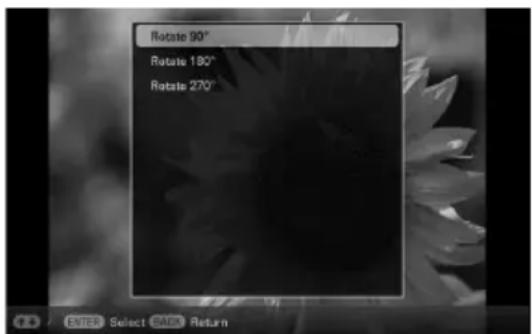
4 Press ↓/↑ to select the angle of rotation and press ENTER.
You can select an angle of rotation from among 90 degrees, 180 degrees, and 270 degrees clockwise.
Using the remote control (except for DPF-A700/D700)
You can also rotate an image with (ROTATE) on the remote control. The image rotates 90 degrees
Continued
counterclockwise every time you press the button.
Tips
- For an internal memory image, image rotation data will be retained even after the power is turned off.
- You can also rotate the index image display.
Note
You cannot rotate a video file.
Changing the settings of the auto power on/off function
You can use the timer function to turn the photo frame on or off automatically when the photo frame is turned on.
1 Press MENU. 2 Press ◀/▶ to select the (Settings) tab. 3 Press ↓/↑ to select [Auto Power ON/OFF] and press ENTER.
The [Auto Power ON/OFF] screen is displayed.
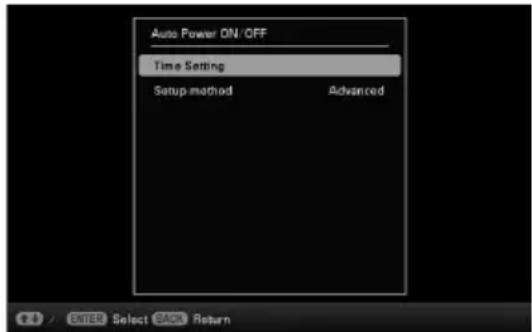
4 Press ↓/↑ to select [Setup method] and press ENTER. Press ↓/↑ to select [Simple], [Advanced] (except for DPF-A710/A700) or [Auto off] and press ENTER.
[Simple]:
Sets the auto power on/off function in one minute increments.
[Advanced]:
Sets the auto power on/off function according to a day of the week in one hour increments.
[Auto off]:
Sets the auto power off time when the specified time has elapsed with no operation after the photo frame is turned
on. You can specify two or four hours as an elapsed time.
5 Press ↓/↑ to select [Time Setting] and press ENTER.
[Simple]
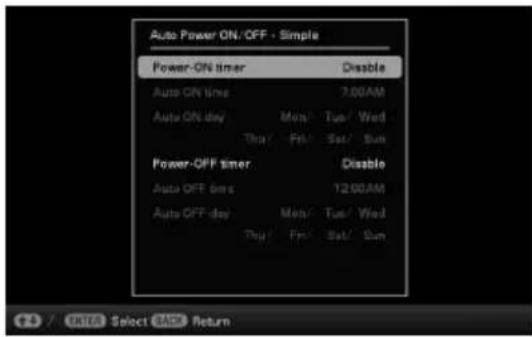
Select an item for which you want to set the time.
Press ↓/↑ to select [Power-ON timer] or [Power-OFF timer] and press ENTER. Press ↓/↑ to select [Enable] and press ENTER.
Set the time at which you want to activate the Power-ON timer or Power-OFF timer.
Press ↓/↑ to select [Auto ON time] or [Auto OFF time] and press ENTER.
Press ←/→ to select the hour or minute, press ↓/↑ to set the hour or minute, and press ENTER.
Set the day of the week on which you want to activate the timer.
Press ↓/↑ to select [Auto ON day] or [Auto OFF day] and press ENTER.
Press ↓/↑ to select the day of the week on which you want to activate the timer and press ENTER. The selected day of the week is checked.
Press ↓/↑ to move the cursor to [OK] and press ENTER.
[Advanced]
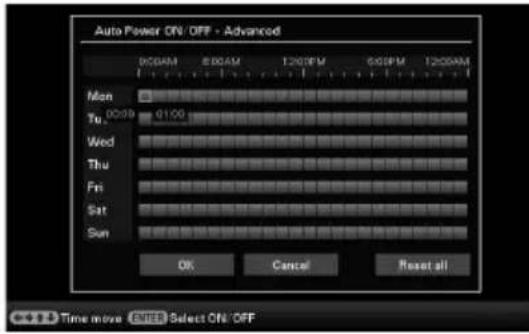
Press ◀/▶/▼/▲ to select the time you want to use the auto power on/off function.
You can set this function according to a day of the week by one hour units. The color of the selected time zone changes to blue after you press ENTER. The power supply of the photo frame will be turned on when the blue time zone time occurs. The color of the selected time zone changes to gray, after you select the blue time zone and then press ENTER. The power supply of the photo frame is turned off while it is in the gray time zone.
Tip
The power is turned off automatically at the time you set for [Power-OFF timer] when you are using the photo frame.
The power is turned on automatically at the time you set for [Power-ON timer] during the standby mode.
② Press ◀/◆/↓/↑ to select [OK] and then press ENTER.
[Auto off]
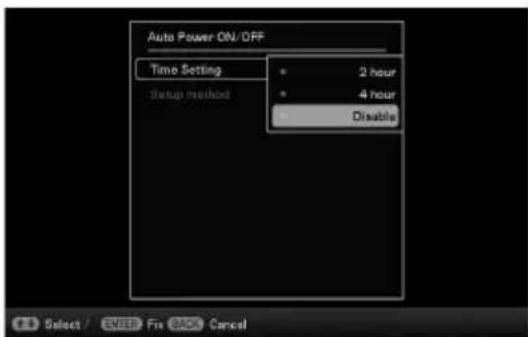
Press ↓/↑ to select an elapsed time which you want to turn off the photo frame automatically: 2 hours, 4 hours or Disable. Then press ENTER.
6 Press MENU.
Changing the settings
You can change the following settings.
- Slideshow Settings
- Slideshow BGM Settings (DPF-D1020/D820/D720 only) • Auto Power ON/OFF
- Date/time Settings
- General Settings (Listing Order, Sony logo ON/OFF etc.,)
- Language Setting
- Initialize
Setting procedure
1 Press MENU. 2 Press ◀/▶ to select the (Settings) tab.
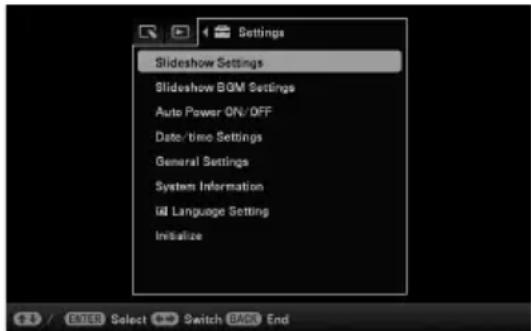
3 Press ↓/↑ to select the item you want to change and press ENTER. The setting screen of the selected item is displayed.
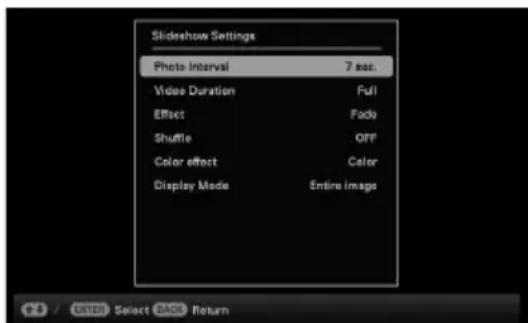
For example, when [Slideshow Settings] is selected.
4 Press ↓/↑ to select the item you want to change and press ENTER. This enables you to set each of the items (page 40).
Note
When the photo frame is, for instance, displaying a slideshow, some settings of some items cannot be changed. They are displayed in gray and cannot be selected.
5 Press ↓/↑ to select a setting value and press ENTER.
Each time you press ↓/↑, the setting value changes. In the case of a numerical value, press ↑ to increase the value and press ↓ to decrease it.
If you press ENTER, the setting is executed.
6 Press MENU.
The menu closes.
To reset to factory default settings
1 Press MENU, and select the Settings) tab by pressing ↕/→. 2 Press ↓/↑ to select [Initialize] and press ENTER. 3 Press ↓/↑ to select [Initialize settings] and press ENTER.
All adjusted values, except for the date/time settings, are reset to the default settings.
Items to set
| Item Setting | Description | ||
| Slideshow Settings | See “Enjoying a slideshow” (page 22). | ||
| Slideshow BGM Settings (DPF-D1020/D820/D720 only) | See “Playing a slideshow with background music (DPF-D1020/D820/D720 only)” (page 25). | ||
| Auto Power ON/OFF | Simple Sets the timer which turns the power of the photo frame on or off automatically. You can set the Auto Power ON/OFF time in one-minute increments. (page 36) | ||
| Advanced* Sets the auto power on/off function according to a day of the week by one hour units. | |||
| Auto off Sets the timer that turns the power of the photo frame off automatically at a certain elapsed time with no operation after the photo frame is turned on. When you select [Disable], the Auto off function is not activated. | |||
| Date/time Settings | Sets the date, time, First day of the week, etc. (page 12) | ||
| General Settings | Listing Order Sets the display order of images. This setting affects the order in [Slideshow Settings]. | ||
| Auto display orientation | ON*/OFF: You can rotate the orientation of images automatically according to the orientation of the photo frame. | ||
| LCD backlight Sets the brightness of the backlight of the LCD screen to a level from 1 to 10*. | |||
*: Factory default settings
| Item Setting | Description | ||
| General Settings | Image import size | Resize* Resizes the images and saves them to internal memory when importing images from a memory card. You can save more images. However, when the images are displayed on a large monitor via a computer, etc., image quality is deteriorated compared with the original. | |
| Original Saves images to the internal memory without compressing them. There is no deterioration, but you can save fewer images. | |||
| Sony logo ON/OFF | ON*/OFF: You can set whether the photo frame's Sony logo lights or not. | ||
| System Information | Version Displays | the version of the firmware of the photo frame. | |
| Internal memory | Memory capacity | Indicates the maximum amount of space available in internal memory in the initial state. | |
| Remaining capacity | Indicates the amount of free space currently available in internal memory. | ||
| Language Setting | Sets the display language on the LCD screen.DPF-A710/A700Japanese, English*, French, Spanish, German, Italian, Russian, Simplified Chinese, Traditional Chinese, Dutch, PortugueseDPF- D1020/D1010/D820/D810/D720/D710/D700Japanese, English*, French, Spanish, German, Italian, Russian, Korean, Simplified Chinese, Traditional Chinese, Dutch, Portuguese, Arabic, Persian, Hungarian, Polish, Czech, Thai, Greek, Turkish, Malay, Swedish, Norwegian, Danish, FinnishNoteDefault language setting may vary in some regions. | ||
| Initialize Format | internal memory | You can format the internal memory.NotesAll the images added to the internal memory will be deleted.Do not format the internal memory by using a connection to a computer. | |
| Initialize settings | Returns all settings to their factory defaults except for the current date and time setting of [Date/time Settings]. | ||
*: Factory default settings
Displaying an image stored in a USB memory device (except for DPF-A710/A700)
You can display images stored in a USB memory device on the screen of the photo frame.
Notes
- We cannot guarantee connection with all types of USB memory devices.
- The playback device will be switched to the USB external device if you connect the USB memory to the USB A connector during playback of the image in the internal memory.
1 Connect the AC power adaptor to the photo frame and connect the AC power adaptor to an AC outlet. (supplied Operating instructions – "Turning the photo frame on").
2 Turn on the photo frame (page 11).
3 Connect the USB memory device to the EXT INTERFACE (USB A) connector on the photo frame.
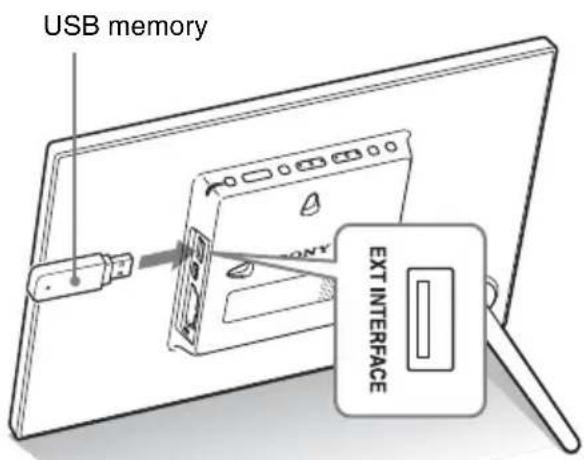
4 Select the [USB] External Device in Select device (page 29).
An image in the USB memory device is displayed on the screen.
For details on the slideshow, see page 22. For details on adding images to the internal memory, see page 27.
Notes
- Do not disconnect the USB memory, or turn off the photo frame while the access lamp on the photo frame is flashing. Doing so may damage the data stored in the USB memory. Sony assumes no responsibility for any damage or loss of data.
- The photo frame cannot use USB memory data that has been encrypted or compressed using, for instance, fingerprint authentication or a password.
- Do not connect a computer to the USB mini B connector on the photo frame simultaneously when a USB memory is connected to the EXT INTERFACE (USB A) connector.
- The photo frame may not be able to access files normally from a USB hub, or a USB device with a built-in USB hub may not operate properly.
Connecting to a computer
Connecting to a computer allows you to view images in the internal memory of the photo frame with a computer, copy them to a computer, and copy images from a computer to the photo frame.
System requirements
To connect a computer to the photo frame, your computer must satisfy the following recommended system requirements.
Windows
Recommended OS: Microsoft Windows 8 / Windows 7 SP1 / Windows Vista SP2 / Windows XP SP3
Port: USB port
Macintosh
Recommended OS: Mac OS X (v10.4 or later) Port: USB port
Notes
- If multiple USB devices are connected to a computer or if a hub is used, a problem may occur. In such a case, simplify the connections.
- You cannot operate the photo frame from another USB device being used simultaneously.
- Do not disconnect the USB cable during data communication. Operation with all computers that satisfy the recommended system requirements is not guaranteed.
- The photo frame has been demonstrated as operable when connected to a computer or Sony digital photo printer. When other devices are connected to the photo frame, these devices may not recognize the internal memory of the photo frame.
- Do not connect a computer to the USB mini B connector on the photo frame simultaneously when a USB memory or external device is connected to the EXT INTERFACE (USB A) connector.
Connecting to a computer to exchange images
Note
This section shows an example for a connection for Windows Vista. Depending on the OS you use, the screen display and procedures may vary.
1 Connect the AC power adaptor to the photo frame and connect the AC power adaptor to an AC outlet. (supplied Operating Instructions – "Turning the photo frame on") 2 Connect the computer and photo frame with a commercially available USB cable.
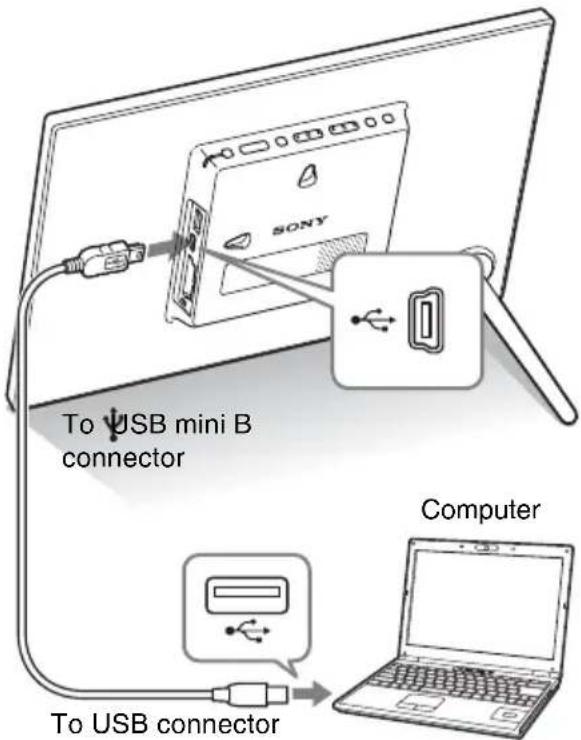
Note
Use a B-Type USB cable that is less than 3 meters long.
3 Turn the photo frame on. (page 11)
4 When the [AutoPlay] window appears on the computer display, click [Open folder to view files]. If the [AutoPlay] window does not appear, click [Computer (My Computer)] in the Start menu, then open the removable disc.
5 Move the cursor in this window and right-click, then click [New] - [Folder]. Name this new folder. In this manual, the folder name "sony" is used as an example.
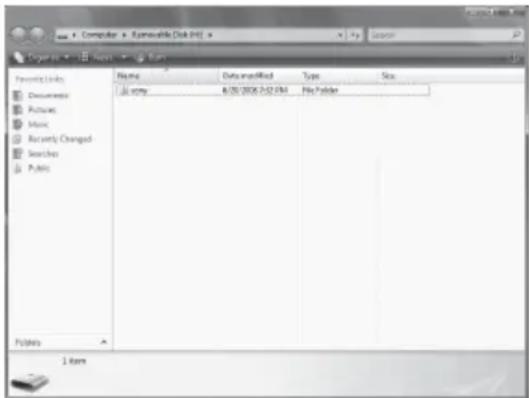
6 Double-click to open this "sony" folder. 7 Open the folder that contains the image files you want to copy, and copy the image files by using drag-and-drop.
Notes
- When saving images from a computer in the internal memory, make a folder in the internal memory and save the images in this folder. If you do not make a folder, you can only save up to 512 images. In addition, the number of images may be reduced depending on the file name length or character type.
- If you edit or save an image file on a computer, the shooting date of the file may be changed or erased. In this case, images may not be displayed in order of the shooting date on the index image display.
- When images from the computer are saved in the internal memory of the photo frame, the image files are saved without being compressed. As a result, fewer images may be able to be saved to the internal memory of the photo frame.
- Image files made or edited on a computer may not be displayed. Image files set to "Read Only" on a computer cannot be deleted on the photo frame. Cancel "Read Only" before saving image files from a computer on the photo frame.
Disconnecting your computer
Disconnect the USB cable or turn the photo frame off after disconnecting the photo frame from your computer.
1 Double-click on the Task Tray. 2 Click (USB Mass Storage Device) - [Stop]. 3 Click [OK] after checking the drive you want to remove.
If an error message appears
If an error occurs, one of the following error messages may be displayed on the LCD screen of the photo frame. Follow the corresponding solution below to solve the problem.
| Error message Meaning/Solutions | |
| No Memory Stick. / No SD Memory Card. | A memory card is not inserted in a slot.Insert a memory card in the corresponding slot. (page 13) |
| An incompatible Memory Stick is inserted. / An incompatible SD Memory Card is inserted. | An unsupported memory card is inserted. Use a memory card that is supported by the photo frame. |
| No images on file. • There is no image file that can be displayed on the screen of the photo frame on the memory card. Use a memory card containing image files that can be displayed with the photo frame. | |
| Cannot delete a protected file. • To delete a protected file, cancel the protection on your digital camera or computer. | |
| Memory card is protected. Remove protection then try again. | The memory card is write-protected. Slide the write-protect switch to the enable position. (page 52) |
| The Memory Stick is full. / The SD Memory Card is full. / The internal memory is full. | No more data can be saved because the memory card or the internal memory is full. Delete images, or use a memory card with free space available. |
| Error reading the Memory Stick. / Error reading the SD Memory Card. / Error reading the internal memory. | For a memory card:An error has occurred. Check that the memory card is inserted correctly. If this error message is displayed frequently, check the status of the memory card with a device other than the photo frame.For the internal memory:Initialize the internal memory.NoteWhen you initialize the internal memory, please note that all the image files imported to the internal memory are deleted. |
| Write error on the Memory Stick. / Write error on the SD Memory Card. / Write error on the internal memory. | |
| The Memory Stick is read only. • A “Memory Stick-ROM” is inserted. To save the images, use the “Memory Stick” recommended. | |
| The Memory Stick is protected. • A protected “Memory Stick” is inserted. To edit and save the images with the photo frame, use some device to remove protection. | |
| Memory card format not supported. • | For a memory card, use your digital camera or other device to format the memory card.• Use the photo frame to initialize the internal memory.NoteWhen you initialize the memory card, all the files on the memory card will be deleted. |
| Cannot open the image. • The photo frame cannot display or open an image file whose format is not supported. | |
If trouble occurs
Before submitting the photo frame for repair, try using the following guidance to solve the problem. If the problem persists, consult with your Sony dealer or Sony service facilities.
Power supply
| Symptom Check | item Cause/Solutions | |
| The power is not turned on. | • Is the AC power plug inserted correctly? | →Insert the power plug properly. |
Displaying images
If the power is turned on but images are not displayed or the settings of the operation screen cannot be configured, confirm the following check items.
| Symptom Check | item Cause/Solutions | |
| No images are displayed on the screen. | • Is a memory card inserted properly? | →Insert a memory card properly. (page 13) |
| • Does the memory card contain images saved with a digital camera or other device? | →Insert a memory card containing images. →Check the file formats that can be displayed. (See Operating Instructions – “Specifications”) | |
| • Is the file format compatible with DCF? | →A file that is not compatible with DCF may not be able to be displayed with the photo frame, even if it can be displayed with a computer. | |
| Images are not played back in the order of shooting date. | • Were these images saved from a computer? • Were these images edited on a computer? | →If you edit or save an image file on a computer, the date of the file was modified. Images are thus displayed in order of the modified date instead of the shooting date. |
| Some images are not displayed. | Are the images displayed in the index view? | →If the image is displayed in the index view but cannot be displayed as single image, the image file may be damaged even though its thumbnail preview data is fine.→A file that is not compatible with DCF may not be able to be displayed with the photo frame, even if it can be displayed with a computer. |
Does the mark displayed below appear in the index view? Were the images created with an application on a computer? Were the images created with an application on a computer? | →If the mark shown on the left is displayed, the image file may not be supported by the photo frame because, for example, it is a JPEG file that was created with your computer. Also, the image file may be supported, but may not contain thumbnail data. Select the mark and press ENTER to change the screen to the single image display. If the mark on the left is displayed again, the image cannot be displayed because the image file is not supported by the photo frame. | |
Does the mark displayed below appear in the index view? | →If the mark shown on the left is displayed, the image file is supported by the photo frame, but the thumbnail data or image itself cannot be opened. Select the mark and press ENTER. If the mark shown on the left is displayed again, the image cannot be displayed. | |
| Are there more than 4,999 images in the internal memory or in the memory card? | →The photo frame can play, save, delete, etc. up to 4,999 image files. | |
| Did you rename the file with a computer or other device? | →If you named or renamed the file on your computer and the file name includes characters other than alphanumeric characters, the image may not be able to be displayed on the photo frame. | |
| Is there a folder with more than 8 levels in its hierarchy on the memory card? | →The photo frame cannot display images saved in a folder that is more than 8 levels deep. | |
| The file name is not displayed properly. | Did you rename the file with a computer or other device? | →If you named or renamed the file on your computer and the file name includes characters other than alphanumeric characters, the file name may not be able to be displayed properly on the photo frame. Also, for a file created on a computer or other device, a maximum of 10 characters from the beginning of the file name can be displayed.NoteOnly alphanumeric characters can be displayed. |
Playing a video file
| Symptom Check | item Cause/Solutions | |
| A video file is not played. | • Does the mark displayed below appear in the index or single view display?  | →If the mark shown on the left is displayed, the video file may not supported by the photo frame. For video files that cannot be played, see “Playing a video file (DPF-D1020/D820/D720 only)” (page 21). |
| Fast forward/backward playback is not available. | →Fast forward/backward playback of some video files may not be available with the photo frame. | |
Saving and deleting images
| Symptom Check | item Cause/Solutions | |
| Cannot save an image. | • Is the memory card write-protected? | →Cancel write-protection and try saving again. |
| • Is the write-protect switch of the memory card in the [LOCK] position? | →Slide the write-protect switch to the enable position. | |
| • Is the memory card full? | →Replace the memory card with one with sufficient free space. Or, delete any unwanted images. (page 31) | |
| • Is the internal memory full? | →Delete any unwanted images. (page 31) | |
| Cannot save an image. | Did you save images from a computer to the internal memory without making a folder in the internal memory? | →If you do not make a folder, you can only save up to 512 images. In addition, the number of images to be saved may be reduced depending on the file name length or character type. When you save images in the internal memory from a computer, be sure to make a folder in the internal memory and save the images in this folder. |
| Cannot delete an image. | Is the memory card write-protected? | →Use the device you are using to cancel write-protection and try deleting again. |
| Is the write-protect switch of the memory card in the [LOCK] position? | →Slide the write-protect switch to the enable position. | |
| Are you using a “Memory Stick-ROM”? | →It is not possible to delete an image from or format a “Memory Stick-ROM”. | |
| Is this image protected? | →Check the image information displayed in Single view mode. (page 20)→An image with a mark is set to “Read Only”. You cannot delete it on the photo frame. | |
| An image was deleted accidentally. | — | →An image cannot be recovered once it is deleted. |
Photo frame
| Symptom Check | item Cause/Solutions | |
| Nothing happens even if you operate the photo frame. | — | →Turn off the power (page 11) and turn it on again. |
Remote control (except for DPF-A700/D700)
| Symptom Check | item Cause/Solutions | |
| Nothing happens even if you operate the remote control. | • Is the battery inserted in the remote control properly? | →Replace the battery. (page 10)→Insert a battery. (page 10)→Insert a battery in the proper orientation. (page 10) |
| — | →Point the top end of the remote control towards the remote sensor on the photo frame. (page 10)→Remove any obstruction between the remote control and the remote sensor. | |
| • Is there a protective sheet inserted? | →Remove the protective sheet. (page 10) |
About memory cards
"Memory Stick"
Types of “Memory Stick” that the photo frame can use
With the photo frame, you can use the following types of “Memory Stick”¹:
| Type of “Memory Stick” | Displaying | Deleting/ Saving |
| “Memory Stick” *2 (Not compatible with “MagicGate”) | OK OK | |
| “Memory Stick” *2 (Compatible with “MagicGate”) | OK *5 | OK *5 |
| “MagicGate Memory Stick” *2 | OK *5 | OK *5 |
| “Memory Stick PRO” *2 | OK *5 | OK *5 |
| “Memory Stick PRO-HG” *2 | OK *5*6 | OK *5*6 |
| “Memory Stick Micro” *3 (“M2” *4 ) | OK *5 | OK *5 |
*1 The photo frame supports FAT32. The photo frame has been demonstrated as operable with a “Memory Stick” with a capacity of 32 GB or less manufactured by Sony Corporation. However, we do not guarantee the operations of all the “Memory Stick” media. *2 The photo frame is equipped with a slot compatible with both standard-size and Duo-size media. Without a “Memory Stick Duo” adaptor, you can use both a standard-size “Memory Stick” and the compact-size “Memory Stick Duo”. *3 When using a “Memory Stick Micro” with the photo frame, always insert it into an M2 adaptor. *4 “M2” is an abbreviation for “Memory Stick Micro”. In this section, “M2” is used to describe a “Memory Stick Micro”. *5 Data reading/recording that requires “MagicGate” copyright protection cannot be performed. “MagicGate” is the general name of a copyright
protection technology developed by Sony using authentication and encryption.
*6 The photo frame does not support 8 bit parallel data transfer.
Notes on use
- For the latest information on the “Memory Stick” types that the photo frame supports, see the “Memory Stick” compatibility information on the Sony web site: http://www.memorystick.com/en/support/support.html (Select the area where you use your photo frame, and then select “Digital Photo Frame” from each area page.)
- Do not insert more than one “Memory Stick” at the same time, or this may cause trouble with the photo frame.
- If you use a “Memory Stick Micro” with the photo frame, the “Memory Stick Micro” needs to be inserted into an “M2” adaptor.
- If you insert a “Memory Stick Micro” into the photo frame without an “M2” adaptor, you may be unable to remove the “Memory Stick Micro”.
- If you insert a “Memory Stick Micro” into an “M2” adaptor, and insert the “M2” adaptor into a “Memory Stick Duo” adaptor, the photo frame may not operate properly.
- When you initialize a “Memory Stick”, use the initialization function of your digital camera. If you initialize it with your computer, images may not be displayed properly.
- When you perform initialization, all the protected images are erased. To avoid erasing important data by accident, make sure to check the contents of the “Memory Stick” before initialization.
- You cannot record, edit, or delete data if you slide the write-protect switch to LOCK.
- Do not attach any other material than the supplied label on the labelling position. When you attach the supplied label, be sure to attach it to the labelling position. Be careful that the label does not stick out.
SD memory card Notes on using a memory card
The SD memory card slot of the photo frame allows you to use the following:
- SD memory card *1
- miniSD card, microSD card (An adaptor is necessary.) *2
- SDHC memory card *3
- miniSDHC card, microSDHC card (An adaptor is necessary.) *2
We do not guarantee proper operations for all types of SD memory cards.
*1 The photo frame has been demonstrated as operable with an SD memory card with a capacity of 2 GB or less. *2 Some commercially available card adaptors have projected terminals on the back. This type of adaptor may not work properly with the photo frame. *3 The photo frame has been demonstrated as operable with an SDHC memory card with a capacity of 32 GB or less.
Notes on use
- Data reading/recording that requires copyright protection cannot be performed.
- SDXC memory cards are not supported.
- When using a card, make sure to check the correct insertion direction of the card. Incorrect insertion may cause damage to the photo frame.
- When inserting the memory card, it will only insert part of the way, so do not try to force it, as this could damage the memory card and/or photo frame.
- Do not remove a memory card or turn off the photo frame while the photo frame is reading or writing data, or the access indicator is flashing. Otherwise, data may be rendered unreadable or be erased. • We recommend that you back up important data.
- Data processed with the computer may not be displayed with the photo frame.
- When you carry or store a card, put it in the case supplied with it.
- Do not touch the terminal of a card with your hand or a metal object.
- Do not strike, bend or drop a card.
- Do not disassemble or modify a card.
- Do not expose a card to water.
- Do not use or store a card under the following conditions:
- Locations beyond the required operational conditions including locations such as the hot interior of a car parked in the sun and/or in summer, the outdoors exposed to direct sunlight, or a place near a heater
– Humid locations or locations with corrosive substances present - Locations subject to static electricity or electrical noise
Index
A
Access lamp 7, 8, 13
Associated file 20
Auto Power ON/OFF 36, 40
Advanced 36, 40
Auto off 36, 40
Simple 36, 40
C
Changing the settings 38
Clock and Calendar display 17
Connecting
Computer 43
External device 42
USB memory device 42
D
Date/time settings 12, 40
Deleting an image 31
Enlarge and reducing an image size 35
Error messages 45
Exporting an image 30
EXT INTERFACE
connector 42
F
Factory default settings 39, 40, 41
Features 5
Format internal memory 32, 41
G
General Settings 40
Image import size 41
Importing to the internal memory 27
Index image display 19
Information display 20
Initialize 41
Initialize settings 41
L
Language setting 41
Listing Order 40
M
Marking 32
Memory card slot 13
Memory cards 52
"Memory Stick" 52
Notes on use 53
SD memory card 53
P
Playback device 29
Playing a slideshow with background music 25
Playing a video file 21
Power on/off 11
R
Refresh mode 27
Registering a mark 32
Remote control 10
Removing a memory card 14
Replacing the battery of the remote control 10
Rotating an image 35
S
Single view mode 18
Slideshow BGM Settings 40
Slideshow display 16
Slideshow Settings 23, 40
Color effect 23
Display Mode 24
Effect 23
Interval 23
Photo Interval 23
Shuffle 23
Video Duration 23
Sorting images 34
System Information 41
System requirements
Macintosh 43
Windows 43
T
Troubleshooting 47
USB A connector 42


- TABLE OF CONTENTS
- BEFORE OPERATION
- BASIC OPERATIONS
- ADVANCED OPERATIONS
- USING WITH A COMPUTER
- ERROR MESSAGES
- TROUBLESHOOTING
- ADDITIONAL INFORMATION
- ON THE ILLUSTRATIONS AND SCREEN SHOTS USED IN THIS MANUAL
- ENJOYING YOUR PHOTO FRAME IN VARIOUS WAYS
- FEATURES
- VARIOUS DISPLAY FUNCTIONS
- VARIOUS SLIDESHOW STYLES
- DISPLAYING MEMORY CARD IMAGES AND IMPORTING THEM TO THE INTERNAL MEMORY
- EXPORTING IMAGES
- PLAYBACK OF VIDEO FILES/PLAYBACK OF BACKGROUND MUSIC (BGM) WITH PHOTOS (DPF-D1020/D820/D720 ONLY)
- SORTING FUNCTION
- AUTOMATIC ROTATION OF IMAGES
- DISPLAYING IMAGES ON A WALL
- IDENTIFYING THE PARTS
- DIGITAL PHOTO FRAME
- DPF-D1020/D1010/D820/D810/D720/D710/D
- REMOTE CONTROL (EXCEPT FOR DPF-A700/D700)
- ABOUT DESCRIPTIONS IN THIS MANUAL
- PREPARING THE REMOTE CONTROL (EXCEPT FOR DPF-A700/D700)
- USING THE REMOTE CONTROL
- REPLACING THE BATTERY OF THE REMOTE CONTROL
- PULL THE BATTERY HOLDER OUT
- INSERT A NEW BATTERY AND SLIDE THE BATTERY HOLDER BACK INTO THE REMOTE CONTROL
- NOTES
- TURNING THE PHOTO FRAME ON
- TURNING ON THE POWER
- USING THE REMOTE CONTROL (EXCEPT FOR DPF-A700/D700)
- TURNING OFF THE POWER
- NOTE
- OPERATIONS IN AN INITIAL STATE
- SETTING THE CURRENT TIME
- INSERTING A MEMORY CARD
- WHEN YOU INSERT A MEMORY CARD
- TO CHANGE THE PLAYBACK DEVICE
- TO REMOVE A MEMORY CARD
- CHANGING THE DISPLAY
- SINGLE
- SELECT A STYLE WITH THE ARROW BUTTONS AND PRESS ENTER
- TIPS
- SLIDESHOW DISPLAY
- CLOCK AND CALENDAR DISPLAY
- SINGLE VIEW MODE (SINGLE IMAGE DISPLAY)
- INDEX IMAGE DISPLAY
- ABOUT THE INFORMATION DISPLAYED ON THE LCD SCREEN
- ①DISPLAY TYPE (IN THE SINGLE VIEW MODE)
- ②ORDINAL NUMBER OF THE DISPLAYED IMAGE/TOTAL NUMBER OF IMAGES
- ③IMAGE DETAILS
- WHEN THE PHOTO IS DISPLAYED
- WHEN THE VIDEO FILE IS PLAYED (DPF-D1020/D820/D720 ONLY)
- ④SETTING INFORMATION
- ⑤IMAGE NUMBER (FOLDER-FILE NUMBER)
- ⑥ SHOOTING DATE/TIME
- PLAYING A VIDEO FILE (DPF-D1020/D820/D720 ONLY)
- SELECT A VIDEO FILE
- USING THE INDEX DISPLAY
- PRESS ENTER
- TO ADJUST THE VOLUME
- TO PAUSE PLAYBACK
- FAST FORWARD/BACKWARD PLAYBACK
- TO STOP PLAYBACK
- ENJOYING A SLIDESHOW
- CHANGING THE SETTINGS OF THE SLIDESHOW
- PLAYING A SLIDESHOW WITH BACKGROUND MUSIC (DPF-D1020/D820/D720 ONLY)
- IMPORTING A MUSIC FILE
- TIP
- SELECTING A MUSIC FILE TO PLAY
- PLAYING BACKGROUND MUSIC WITH A SLIDESHOW
- PRESS MENU, SELECT THE
- PRESS ↓/↑ TO SELECT [BGM ON/OFF] AND PRESS ENTER
- REFRESH MODE (DPF-D1020/D820/D720 ONLY)
- IMPORTING IMAGES FROM A MEMORY CARD TO THE INTERNAL MEMORY
- PRESS MENU WHEN AN IMAGE STORED IN THE MEMORY CARD IS DISPLAYED ON THE SCREEN
- PRESS ←/→ TO SELECT THE ☐ (EDITING) TAB, SELECT [IMPORT] WITH ↓/↑, AND PRESS ENTER
- PRESS ENTER WHEN THE CONFIRMATION SCREEN IS DISPLAYED
- SPECIFYING THE PLAYBACK DEVICE
- PRESS MENU THEN SELECT THE (SELECT DEVICE) TAB WITH ◀/→
- PRESS ↓/↑ TO SELECT THE DEVICE YOU WANT TO DISPLAY AND PRESS ENTER. THE IMAGES OF THE SELECTED DEVICE ARE DISPLAYED
- EXPORTING AN IMAGE FROM THE INTERNAL MEMORY TO A MEMORY CARD
- DELETING AN IMAGE
- PRESS MENU
- PRESS ↓/↑ TO SELECT [YES] AND PRESS ENTER
- TO FORMAT THE INTERNAL MEMORY
- REGISTERING A MARK (EXCEPT FOR DPF-A710/A700)
- PRESS MENU WHEN AN IMAGE IS DISPLAYED ON THE SCREEN
- USING THE REMOTE CONTROL (EXCEPT FOR DPF-D700)
- PRESS ↔ TO SELECT THE (EDITING) TAB, SELECT [MARKING] WITH / , AND PRESS ENTER
- PRESS ↓/↑ TO SELECT THE MARK YOU WANT AND PRESS ENTER
- PRESS ↓/↑ TO SELECT [MARK THIS IMAGE], [MARK/UNMARK MULTIPLE IMAGES] OR [MARK ALL IMAGES] AND PRESS ENTER
- PRESS ←/→/↓/↑ TO SELECT THE IMAGE FROM THE IMAGE LIST TO BE MARKED, AND PRESS ENTER
- ABOUT IMAGE SORTING IN THE IMAGE LIST
- TO DELETE THE REGISTRATION OF A MARK
- SORTING IMAGES (FILTERING) (EXCEPT FOR DPF-A710/A700)
- TO CANCEL THE SORT
- TO CHANGE THE SORT STYLE
- ADJUSTING IMAGE SIZE AND ORIENTATION
- ENLARGING/REDUCING AN IMAGE
- TO SAVE AN ENLARGED OR REDUCED IMAGE (CROP AND SAVE)
- ROTATING AN IMAGE
- CHANGING THE SETTINGS OF THE AUTO POWER ON/OFF FUNCTION
- PRESS ↓/↑ TO SELECT [TIME SETTING] AND PRESS ENTER
- [SIMPLE]
- [ADVANCED]
- [AUTO OFF]
- CHANGING THE SETTINGS
- SETTING PROCEDURE
- TO RESET TO FACTORY DEFAULT SETTINGS
- ITEMS TO SET
- DISPLAYING AN IMAGE STORED IN A USB MEMORY DEVICE (EXCEPT FOR DPF-A710/A700)
- SELECT THE [USB] EXTERNAL DEVICE IN SELECT DEVICE (PAGE 29)
- CONNECTING TO A COMPUTER
- SYSTEM REQUIREMENTS
- WINDOWS
- MACINTOSH
- CONNECTING TO A COMPUTER TO EXCHANGE IMAGES
- DISCONNECTING YOUR COMPUTER
- IF AN ERROR MESSAGE APPEARS
- IF TROUBLE OCCURS
- DISPLAYING IMAGES
- ABOUT MEMORY CARDS
- MEMORY STICK
- TYPES OF “MEMORY STICK” THAT THE PHOTO FRAME CAN USE
- NOTES ON USE
- SD MEMORY CARD NOTES ON USING A MEMORY CARD
- INDEX
- A
- C
- D
- F
- G
- L
- M
- P
- R
- S
- T
Brand : SONY
Model : DPF-A700
Category : Digital photo frame