
DEH-P920R - Car stereo PIONEER - Free user manual and instructions
Find the device manual for free DEH-P920R PIONEER in PDF.


| Product Type | Car stereo with CD player and FM/AM tuner |
| Brand | PIONEER |
| Model | DEH-P920R |
| Dimensions (DIN) | 178 (W) × 50 (H) × 157 (D) mm (chassis) |
| Dimensions (D) | 178 (W) × 50 (H) × 162 (D) mm (chassis) |
| Weight | 1.8 kg |
| Power supply | 14.4 V DC (10.8 to 15.1 V allowable), negative ground |
| Maximum current consumption | 10.0 A |
| Maximum output power | 45 W × 4 channels |
| Load impedance | 4 Ω (4 to 8 Ω allowable, 2 Ω for 1 channel) |
| Built-in CD player | Yes, single disc (12 cm or 8 cm) |
| FM tuner | Range 87.9 – 107.9 MHz, sensitivity 10 dBf |
| AM tuner | Range 530 – 1710 kHz, sensitivity 18 μV |
| RDS functions | Station name display, PTY, TA, text messages |
| Graphic equalizer | 13 bands, range ±12 dB (presets and custom) |
| Sound functions | Loudness correction, ASL, SLA, position selector |
| DFS alarm (anti-theft) | Yes, with break-in detection and starter cut-off |
| Detachable front panel | Yes, anti-theft protection |
| Remote control included | Yes, with dedicated keys (ATT, VOL, etc.) |
| AUX input | Yes, with ability to name the source |
| CD TEXT compatibility | Yes, display track titles and artists |
| Maintenance | Clean with a soft cloth, avoid chemical products |
Frequently Asked Questions - DEH-P920R PIONEER
User questions about DEH-P920R PIONEER
0 question about this device. Answer the ones you know or ask your own.
Ask a new question about this device
Download the instructions for your Car stereo in PDF format for free! Find your manual DEH-P920R - PIONEER and take your electronic device back in hand. On this page are published all the documents necessary for the use of your device. DEH-P920R by PIONEER.
USER MANUAL DEH-P920R PIONEER
● Head Unit
- Remote Controller
Before Using This Product .... 5
About This Product 5
About This Manual 5
Important 5
Resetting the Microprocessor 5
About the Demo Mode 6
- Reverse Demo
- Feature Demo
When using the DAB (Digital Audio Broadcasting) Tuner ...... 7
- About This Product’s Indications
- Operation
Precaution 10
After-sales Service for Pioneer Products ..... 10
Remote Controller and Care .... 11
Using the Remote Controller 11
Batteries 12
Basic Operation 13
To Listen to Music 13
Basic Operation of Tuner 14
● Manual and Seek Tuning
- Preset Tuning
- Band
Basic Operation of Built-in CD Player ..... 15
- Switching the Display
- Eject
● Switching the Display (only for CD TEXT Discs)
● Track Search and Fast Forward/Reverse - Disc Loading Slot
- Open
Basic Operation of Multi-CD Player 17
- Switching the Display
● Track Search and Fast Forward/Reverse - Disc Search
- Switching the Display
(When playing a CD TEXT disc on a CD TEXT compatible Multi-CD player)
● Disc Number Search (for 6-Disc, 12-Disc types)
● Disc Number Rough Search (for 50-Disc type only)
Corresponding Display Indications and Buttons.... 19
Entering the Function Menu 19
Function Menu Functions ...... 20
Entering the Detailed Setting Menu 22
Detailed Setting Menu Functions ...... 23
Tuner Operation 24
● Local Seek Tuning (LOCAL)
- Selecting Stations by Station List (Station List)
● Best Stations Memory (Best Stations Memory)
Using the RDS Functions ...... 26
PTY Function 26
- Searching the PTY
- PTY Alarm
- Canceling Announcements
Display Modes 28
TA Function (Traffic Announcement) ...... 29
● Activating/Deactivating the TA Function
- Canceling Traffic Announcements
● Adjusting the TA Volume
Radio Text 31
● Radio Text Display
● Storing Radio Text in Memory
● Recalling Preset Radio Text
Using the Built-in CD Player 33
- Repeat Play (Play Mode)
● Random Play (RandomPlay) - Scan Play (Scan Play)
- Pause (Pause)
- Selecting Tracks by Track Title List (Track List)
● Disc Title Input (Title Input ABC)
Using Multi-CD Players 36
- Repeat Play (Play Mode)
● Random Play (RandomPlay) - Scan Play (Scan Play)
- Pause (Pause)
Compression and DBE (Compression) ...... 38
● Comp./DBE ON/OFF Switching
ITS (Instant Track Selection) 38
● ITS Programming (ITS Memory)
- ITS Play (ITS Play)
- Erase a Track Program
- Erase a Disc Program
Disc Title 40
● Disc Title Input (Title Input ABC)
- Selecting Discs by Disc Title List (Disc List)
- Selecting Tracks by Track Title List (Track List)
Audio Adjustment 42
Selecting the Equalizer Curve 42
Entering the Audio Menu 1 42
Audio Menu 1 Functions 43
● Balance Adjustment (FAD/BAL)
Graphic Equalizer 43
● About the Flat and Custom
● Recalling the Equalizer Curves (Equalizer)
- Adjusting the Equalizer Curves (Equalizer)
Sound Field Control and Octaver 46
● Recalling the Sound Field Program (SFC & OCT)
Position Selector 47
● About the Position Indicator
- Setting the Listening Position (Position)
Entering the Audio Menu 2 48
Audio Menu 2 Functions 49
● Subwoofer Output (Sub W-1)
● Subwoofer Setting Adjustment (Sub W-2)
● Non-Fading Output (Non Fade-1)
● Non-Fading Output Level Adjustment (Non Fade-2)
● High Pass Filter (High Pass)
● Loudness Adjustment (Loudness)
● Automatic Sound Levelizer (ASL) Function
● Source Level Adjustment (SLA) Function
Auto-equalizing Function 53
● Before Operating the Auto-equalization
● Auto-equalizing
- Error Codes of Auto-equalizing Function
Detaching and Replacing the Front Panel 57
Theft Protection 57
- Detaching the Front Panel
● Replacing the Front Panel
● Warning Tone
Initial Setting 59
Entering the Initial Setting Menu 59
Initial Setting Menu Functions 60
- Setting the Calendar and Time (Calendar&Time)
- Setting the DAB Priority Function (DAB Priority)
- Setting the Warning Tone (Warning Tone)
- Switching the “Multi-CD” Display (“Multi-CD” display)
● Switching the AUX Mode (AUX)
● Switching the Rear Speaker Output (Rear Speaker Out)
- Setting the Subwoofer Control (Sub woofer control)
- Setting the Dimmer (Dimmer)
- Selecting the Digital Attenuator (Digital Attenuator)
- Selecting the Wall Paper (Wall Paper)
- Selecting the Brightness (Brightness)
DFS Alarm Function 64
Activating the DFS Alarm Feature 64
Setting Entry Delay Time 64
Activating Internal Speaker ON/OFF ...... 65
● Speaker Volume Output Adjustment
Setting the Selectable Output (Pulsed/Constant Output) 66
Selecting Door Switching Systems 66
● Door System Confirmation
Starter Disable 68
Central Door Lock Systems 69
- Selecting the Door Lock Type
● Door Lock Confirmation
Operation of "DFS Alarm" 70
Arming Alarm 70
Disarming Alarm 71
Entry Detection 71
Other Functions 72
Time Display 72
- Displaying the Time
Off Clock 72
Switching the Entertainment Display 73
Using the PGM Button (Program Function) .... 74
- Setting PGM Button
● Using the PGM Button
Using the AUX Source 76
- Selecting the AUX Source
- AUX Title Input
Cellular Telephone Muting 76
CD Player and Care 77
Precaution 77
Built-in CD Player's Error Message 77
Specifications 78
Dear Customer:
Selecting fine audio equipment such as the unit you’ve just purchased is only the start of your musical enjoyment. Now it’s time to consider how you can maximize the fun and excitement your equipment offers. This manufacturer and the Electronic Industries Association’s Consumer Electronics Group want you to get the most out of your equipment by playing it at a safe level. One that lets the sound come through loud and clear without annoying blaring or distortion—and, most importantly, without affecting your sensitive hearing.
Sound can be deceiving. Over time your hearing “comfort level” adapts to higher volumes of sound. So what sounds “normal” can actually be loud and harmful to your hearing. Guard against this by setting your equipment at a safe level BEFORE your hearing adapts.
To establish a safe level:
- Start your volume control at a low setting.
- Slowly increase the sound until you can hear it comfortably and clearly, and without distortion.
Once you have established a comfortable sound level:
- Set the dial and leave it there.
Taking a minute to do this now will help to prevent hearing damage or loss in the future. After all, we want you listening for a lifetime.
We Want You Listening For A Lifetime
Used wisely, your new sound equipment will provide a lifetime of fun and enjoyment. Since hearing damage from loud noise is often undetectable until it is too late, this manufacturer and the Electronic Industries Association's Consumer Electronics Group recommend you avoid prolonged exposure to excessive noise. This list of sound levels is included for your protection.
Decibel
| Level | Example |
| 30 | Quiet library, soft whispers |
| 40 | Living room, refrigerator, bedroom away from traffic |
| 50 | Light traffic, normal conversation, quiet office |
| 60 | Air conditioner at 20 feet, sewing machine |
| 70 | Vacuum cleaner, hair dryer, noisy restaurant |
| 80 | Average city traffic, garbage disposals, alarm clock at two feet. |
THE FOLLOWING NOISES CAN BE DANGEROUS UNDER CONSTANT EXPOSURE
| 90 | Subway, motorcycle, truck traffic, lawn mower |
| 100 | Garbage truck, chain saw, pneumatic drill |
| 120 | Rock band concert in front of speakers, thunderclap |
| 140 | Gunshot blast, jet plane |
| 180 | Rocket launching pad |
Information courtesy of the Deafness Research Foundation.
Head Unit
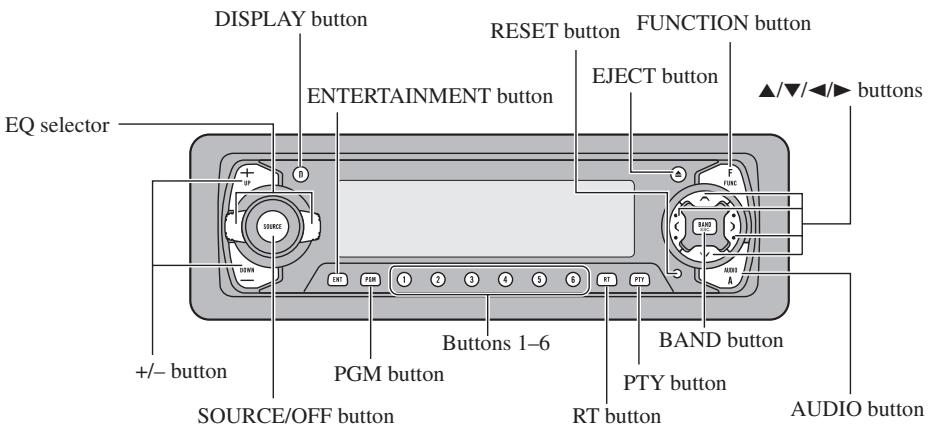
text_image
DISPLAY button RESET button FUNCTION button EJECT button ▲/▼/◄/► buttons ENTERTAINMENT button EQ selector +/- button PGM button BAND button SOURCE/OFF button RT button PTY button AUDIO buttonRemote Controller
A remote controller that enables remote operation of the head unit is supplied.
Operation is the same as when using buttons on the head unit.
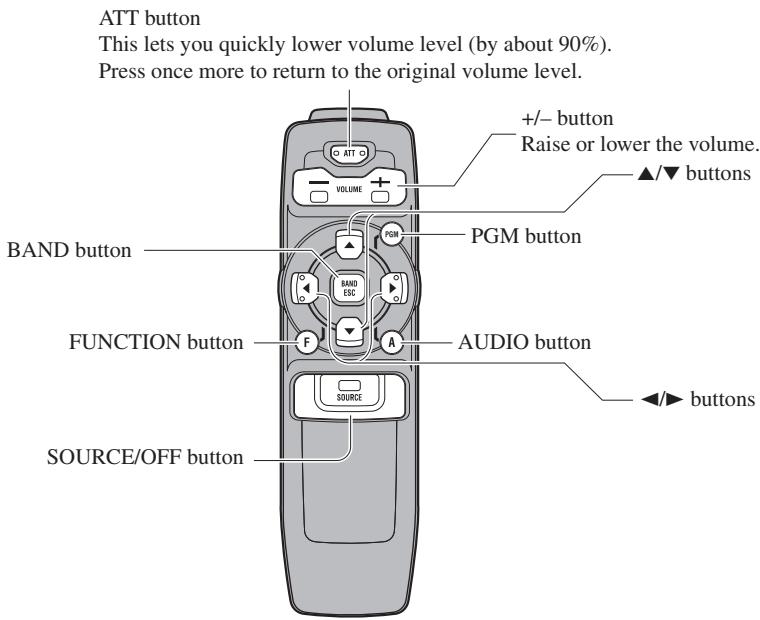
text_image
ATT button This lets you quickly lower volume level (by about 90%). Press once more to return to the original volume level. +/- button Raise or lower the volume. ▲/▼ buttons VOLUME PGM button BAND button PGM BAND ESC FUNCTION button F A AUDIO button SOURCE/OFF button ◀/► buttonsAbout This Product
The tuner frequencies on this product are allocated for use in North America. Use in other areas may result in improper reception.
About This Manual
This product features a number of sophisticated functions ensuring superior reception and operation. All are designed for the easiest possible use, but many are not self-explanatory. This operation manual is intended to help you benefit fully from their potential and to maximize your listening enjoyment.
We recommend that you familiarize yourself with the functions and their operation by reading through the manual before you begin using this product. It is especially important that you read and observe the “Precaution” on page 10 and in other sections.
This manual explains head unit operation. You can perform the same operations with the remote controller. The remote controller offers the convenience of ATT, a function not provided on the head unit.
Important
The serial number of this device is located on the bottom of this product. For your own security and convenience, be sure to record this number on the enclosed warranty card.
Resetting the Microprocessor
The microprocessor must be reset under the following conditions:
When using this product for the first time after installation.
When the machine fails to operate properly.
When strange (incorrect) messages appear on the display.
- To reset the microprocessor, press the RESET button on the head unit with a pen tip or other pointed instrument.
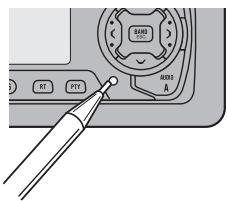
text_image
BT PTY A1023 AAbout the Demo Mode
This product features two demonstration modes. One is the Reverse Demo mode, the other is the Feature Demo mode.
Reverse Demo
If you do not perform an operation within about 30 seconds, screen indications start to reverse, and then continue reversing every 10 seconds. Pressing button 5 when power to this product is switched OFF while the ignition switch is set to ACC or ON cancels the Reverse Demo mode. Pressing button 5 again to start the Reverse Mode.
Feature Demo
The Feature Demo automatically starts when power to this product is switched OFF while the ignition switch is set to ACC or ON. Pressing button 6 during Feature Demo operation cancels the Feature Demo mode. Pressing button 6 again to start the Feature Mode.
Remember that if the Feature Demo continues operating when the car engine is switched OFF, it may drain battery power.
Note:
- You cannot cancel a Demo mode when the front panel is open.
- The red lead (ACC) of this product should be connected to a terminal coupled with ignition switch ON/OFF operations. If this is not done, the vehicle battery may be drained.
When using the DAB (Digital Audio Broadcasting) Tuner
You can use this product with a separately sold hide-away DAB tuner (GEX-P900DAB, GEX-P900DABII) in Canada. For details concerning operation, refer to the DAB Tuner's Operation Manuals.
This section provides information on DAB operations with this product which differs from that described in the DAB Tuner's Operation Manual.
About This Product's Indications
The following is an explanation of this product's indications.
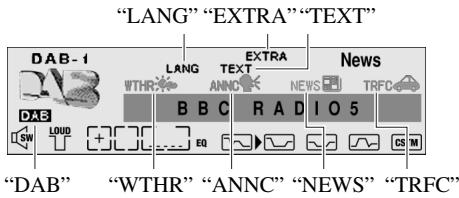
text_image
"LANG" "EXTRA" "TEXT" DAB-1 WTHR B B C EQU EXTRA NEWS TRFC News DAB SW LOUD EQ R A D I O 5 CS M "DAB" "WTHR" "ANNC" "NEWS" "TRFC"■ Indications that light when Function is switched ON
| Indicator | Function |
| LANG | Language Filter (Language Filter) |
| WTHR* | Area Weather Flash (Weather) |
| ANNC* | Announce (Announce) |
| NEWS* | News Flash (News) |
| TRFC* | Road Traffic Flash or Transport Flash |
* If the set Announcement Support is received, the icon on the right lights.
■DAB Status Indications
| Indicator | Status |
| EXTRA | The currently received Service has a Secondary Service Component. |
| TEXT | The currently received Service has a Dynamic Label. |
| DAB | When DAB reception is possible. |
Operation
With this product, operation of the following five functions differs. (Reference pages are in the Hide-away DAB Tuner's Operation Manual.)
- Changing the Label (Refer to page 12.)
- Changing Display Indications (Refer to page 13.)
- Switch Announcements ON/OFF (Refer to page 17.)
- Searching the PTY (Refer to page 20.)
• Service List Function (Newly equipped for this product)
■ Changing the Label
Each press of the DISPLAY button changes the display in the following order:
Service Component Label (Service) → Dynamic Label (Text)
→ Ensemble Label (Ensemble) → Service Label
Note:
- With a Service Component that has no Service Component Label or Dynamic Label, switching to Service Component Label and Dynamic Label is not possible. With displays other than Service Label, if you do not perform an operation within 8 seconds or press a button other than the DISPLAY button, the display returns to Service Label Indicators.
■ Changing Display Indications
This product doesn't have this function.
■ Switch Announcements ON/OFF
With this product, you can switch announcements ON/OFF in the Function Menu or by pressing the PTY button.
In the Function Menu, each time you press the ◀/▶ button at step 2, the mode changes as follows:
News Flash (News) → Area Weather Flash (Weather) → Announce (Announce)
Note:
- The Announce mode (Announce) unifies three modes such as Warning/Service, Event Flash and Special Event.
The next announcement switches ON/OFF each time you press the PTY button.
- Road Traffic Flash
- Transport Flash
Note:
- When ON, the "TRFC" indicator lights.
- To cancel a Road Traffic Flash or Transport Flash interruption and return to the original source, press the PTY button during an announcement interruption.
■ Searching the PTY
- Select the PTY Search setting mode at step 1 with the PTY button. (You cannot switch to this mode in the Function Menu.)
■ Service List Function
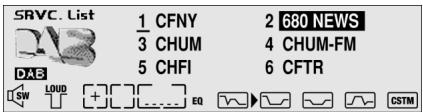
This product is also equipped with the Service List Function in the Function Menu. It is possible to select the desired Service among the memorized Services in the Service List. Function Menu Functions appear on the display in the following order:
Service List (SRVC. List) → Language Filter (Language Filter) → Announcement Support (Announcement Support) → Service Follow (Service Follow) → Service Component (Primary/Secondary) → Dynamic Label (DAB Text)
-
Press the FUNCTION button and select the Service List mode (SRVC. List) in the Function Menu.
-
Select the desired Service with the ◀/▶ buttons.

text_image
SRVC. List 1 CFNY 2 680 NEWS 3 CHUM 4 CHUM-FM 5 CHFI 6 CFTR SW LOUD + [ ] EQ CSTMNote:
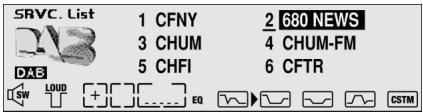
- You can also select and recall the desired Service directly with the 1 to 6 buttons.
- Recall the selected Service with the ▲ button.

text_image
SRVC. List 1 CFNY 2 680 NEWS 3 CHUM 4 CHUM-FM 5 CHFI 6 CFTR SW LOUD + EQ CSTMPrecaution
CAUTION: USE OF CONTROL OR ADJUSTMENT OR PERFORMANCE OF PROCEDURES OTHER THAN THOSE SPECIFIED HEREIN MAY RESULT IN HAZARDOUS RADIATION EXPOSURE.
CAUTION: THE USE OF OPTICAL INSTRUMENTS WITH THIS PRODUCT WILL INCREASE EYE HAZARD.
- Keep this manual handy as a reference for operating procedures and precautions.
• Always keep the volume low enough for outside sounds to be audible. - Protect the product from moisture.
- If the battery is disconnected, the preset memory will be erased and must be reprogrammed.
After-sales Service for Pioneer Products
Please contact the dealer or distributor from where you purchased the product for its after-sales service (including warranty conditions) or any other information. In case the necessary information is not available, please contact the companies listed below:
Please do not ship your product to the companies at the addresses listed below for repair without advance contact.
■ U.S.A.
Pioneer Electronics Service, Inc.
CUSTOMER SERVICE
DEPARTMENT
P.O. Box 1760
Long Beach, CA 90801
800-421-1404
CANADA
Pioneer Electronics of Canada, Inc.
CUSTOMER SERVICE DEPARTMENT
300 Allstate Parkway
Markham, Ontario L3R 0P2
(905) 479-4411
1-877-283-5901
For warranty information please see the Limited Warranty sheet included with your product.
Using the Remote Controller
This product is equipped with a remote controller for convenient operation.
- Point the remote controller in the direction of the front panel to operate.
- When the remote controller is not in use, attach it firmly to the provided Mounting base.
Precaution:
- Do not store the remote controller in high temperatures or direct sunlight.
- The remote controller may not function properly in direct sunlight.
- Do not let the remote controller fall onto the floor, where it may become jammed under the brake or accelerator pedal.
- If you press the FUNCTION button on the remote controller while pressing the BAND button on it, the remote controller will not function properly. To cancel this setting, press the AUDIO button on the remote controller while pressing the BAND button on it to return to the previous setting.
Batteries
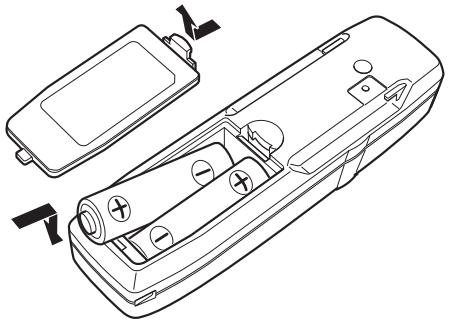
- Remove the cover on the back of the remote controller and insert the batteries with the (+) and (−) poles pointing in the proper direction.
natural_image
Line drawing of a handheld electronic device with internal components and directional arrows indicating movement (no text or symbols)Precaution:
- Use only AAA or IEC R03 1.5 V batteries.
- Remove the batteries if the remote controller is not used for a month or longer.
- Do not attempt to recharge the supplied batteries.
- Do not mix new and used batteries.
- If the event of battery leakage, wipe the remote controller completely clean and install new batteries.
To Listen to Music
The following explains the initial operations required before you can listen to music.
Note:
- Loading a disc in this product. (Refer to page 15.)
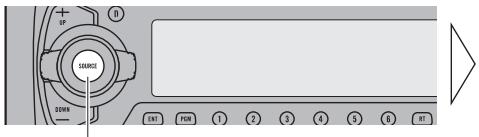
1. Select the desired source (e.g. Tuner).
text_image
UP SOURCE DOWN ENT FLOW T 7 3 4 5 6 RTEach press changes the Source ...
text_image
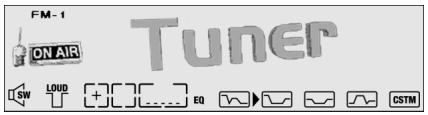
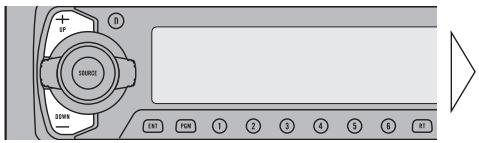
FM-1 ON AIR Tuner SW LOUD + [ ] ... EQ CSTMEach press of the SOURCE/OFF button selects the desired source in the following order: Built-in CD player (Compact Disc) → TV (Television) → Tuner → DAB (Digital Audio Broadcasting) Tuner → Multi-CD player → External Unit → AUX
Note:
- External Unit refers to a Pioneer product (such as one available in the future) that, although incompatible as a source, enables control of basic functions by this product. Only one External Unit can be controlled by this product.
- In the following cases, the sound source will not change:
* When a product corresponding to each source is not connected to this product.
* No disc is set in this product.
* No magazine is set in the Multi-CD player.
* AUX (external input) is set to OFF. (Refer to page 61.)
- When this product's blue/white lead is connected to the car's Auto-antenna relay control terminal, the car's Auto-antenna extends when this product's source is switched ON. To retract the antenna, switch the source OFF.
2. Raise or lower the volume.
text_image
SOURCE EWR EN1 FOR 1 2 3 4 5 6 RT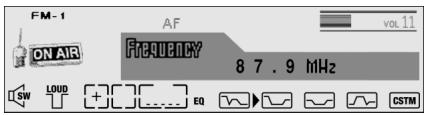
text_image
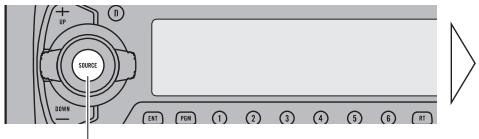
FM-1 ON AIR AF Frequency 8 7 . 9 MHz SW LOUD EQ CSTM3. Turn the source OFF.
text_image
UP SOURCE DOWN ENT FOR 1 7 3 4 5 B RTHold for 1 second
natural_image
Blank white rectangle with black border (no text or symbols)Manual and Seek Tuning
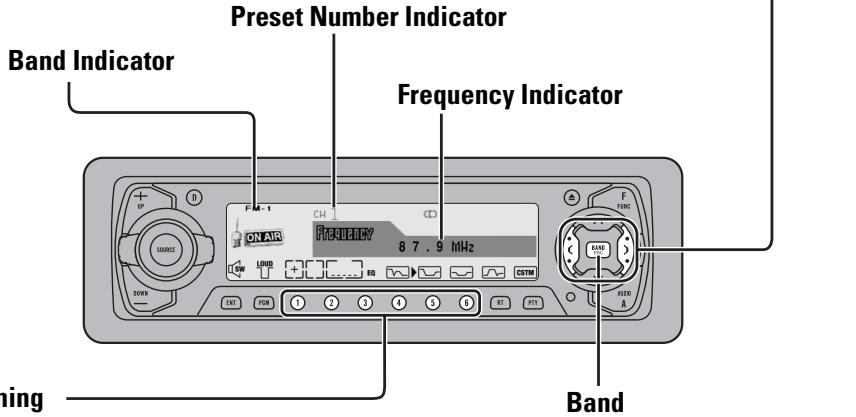
- You can select the tuning method by changing the length of time you press the ◀/▶ button.
| Manual Tuning (step by step) | 0.5 seconds or less |
| Seek Tuning | 0.5 seconds or more |
Note:
- If you continue pressing the button for longer than 0.5 seconds, you can skip broadcast stations. Seek Tuning starts as soon as you release the button.
- Stereo indicator “○” lights when a stereo station is selected.
text_image
Preset Number Indicator Band Indicator Frequency Indicator ON-18 F 4.1 CH CD 8 7 . 9 MHz RNR EWR B INT PWM 1 2 3 4 5 6 RT PVT Banding BandPreset Tuning
- You can memorize broadcast stations in buttons 1 through 6 for easy, one-touch station recall.
$$ \mathrm{FM-1} \rightarrow \mathrm{FM-2} \rightarrow \mathrm{FM-3} $$
$$ \rightarrow \mathrm{AM} $$
| Preset station recall | 2 seconds or less |
| Broadcast station preset memory | 2 seconds or more |
Note:
- Up to 18 FM stations (6 in FM-1, FM-2 and FM-3) and 6 AM stations can be stored in memory.
- You can also use the ▲ or ▼ buttons to recall broadcast stations memorized in buttons 1 through 6.
Basic Operation of Built-in CD Player
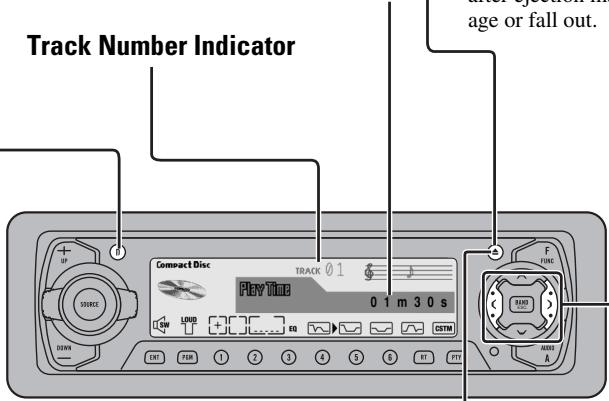
Switching the Display
Each press of the DISPLAY button changes the display in the following order: Playback mode (Play Time) → Disc Title
Note:
- If you switch a display when the disc title has not been input, “No Title” is displayed.
Play Time Indicator
text_image
Track Number Indicator Compact Disc TRACK 0 1 Play Time 0 1 m 3 0 s F TIME RHOOD RHOOD RHOOD RHOOD RHOOD RHOOD RHOOD RHOOD RHOOD RHOOD RHOOD RHOOD RHOOD RHOOD RHOOD RHOOD RHOOD RHOOD RHOOD RHOOD RHOOD RHOOD RHOOD RHOOD RHOOD RHOOOD RHOOD RHOOD RHOOD RHOOD RHOOD RHOOD RHOOD RHOOD RHOOD RHOOD RHOOD RHOOD RHOOD RHOOD RHOOD RHOOD RHOOD RHOOD RHOOD RHOOD RHOOD RHOOD RHOOD RHOOD RHHOOD RHHOOD RHHOOD RHHOOD RHHOOD RHHOOD RHHOOD RHHOOD RHHOOD RHHOOD RHHOOD RHHOOD RHHOOD RHHOOD RHHOOD RHHOOD RHHOOD RHHOOD RHHOOD RHHOOD RHHOOOD RHHOOOD RHHOOOD RHHOOOD RHHOOOD RHHOOOD RHHOOOD RHHOOOD RHHOOOD RHHOOOD RHHOOOD RHHOOOD RHHOOOD RHHOOOD RHHOOOD RHHOOOD RHHOOOD RHHOOOD RHHOOOD RHHOOOD RHHOOD RHHOOD RHHOOOD RHHOOOD RHHOOOD RHHOOOD RHHOOOD RHHOOOD RHHOOOD RHHOOOD RHHOOOD RHHOOOD RHHOOOD RHHOOODEject
Press the EJECT button, and you can open the front panel before ejection. In case of opening the front panel, you can just eject a CD.
Note:
- The CD function can be turned ON/OFF with the disc remaining in this product. (Refer to page 13.)
- A disc left partially inserted after ejection may incur damage or fall out.
Switching the Display (only for CD TEXT Discs)
Each press of the DISPLAY button changes the display in the following order: Playback mode (Play Time) → Disc Title → Disc Artist → Track Title → Track Artist With text longer than 20 letters, you can scroll to see the rest of the text by pressing the DISPLAY button for 2 seconds.
Note:
- A CD TEXT disc is a CD featuring recorded text information such as Disc Title, Artist Name and Track Title.
- If certain text information is not recorded on a CD TEXT disc, “No \~” (e.g. “No Title”) is displayed.
Track Search and Fast Forward/Reverse
- You can select between Track Search or Fast Forward/Reverse by pressing the ◀/▶ button for a different length of time.
| Track Search | 0.5 seconds or less |
| Fast Forward/Reverse | Continue pressing |
natural_image
Technical line drawing of a device rear panel with buttons and a central vertical line (no text or symbols)Disc Loading Slot
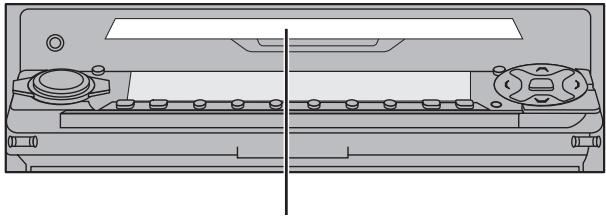
If a CD is inserted, the front panel is closed automatically. The Built-in CD player plays one standard 12 cm or 8 cm (single) CD at a time. Do not use an adapter when playing 8 cm CD.
Note:
- If a disc cannot be inserted fully or playback fails, make sure the recorded side is down. Push the EJECT button and check the disc for damage before reinserting it.
- If the Built-in CD player cannot operate properly, an error message (such as “ERROR-14”) appears on the display. Refer to “Built-in CD Player’s Error Message” on page 77.
Open
Press the EJECT button for 1 second, and you can open the front panel without ejecting a CD.
In case of opening the front panel, you can close it.
Note:
- When opening the front panel, the 1 to 6 buttons are not available.

WARNING:
- Do not use with the front panel left open. If you do leave it open, it may result in injury in the event of an accident.
Basic Operation of Multi-CD Player
This product can control a Multi-CD player (sold separately).
Switching the Display
Each press of the DISPLAY button changes the display in the following order: Playback mode (Play Time) → Disc Title
Note:
- If you switch displays when disc titles have not been input, "No Title" is displayed.
Track Search and Fast Forward/Reverse
- You can select between Track Search or Fast Forward/Reverse by pressing the ◀/▶ button for a different length of time.
| Track Search | 0.5 seconds or less |
| Fast Forward/Reverse | Continue pressing |
Track Number Indicator
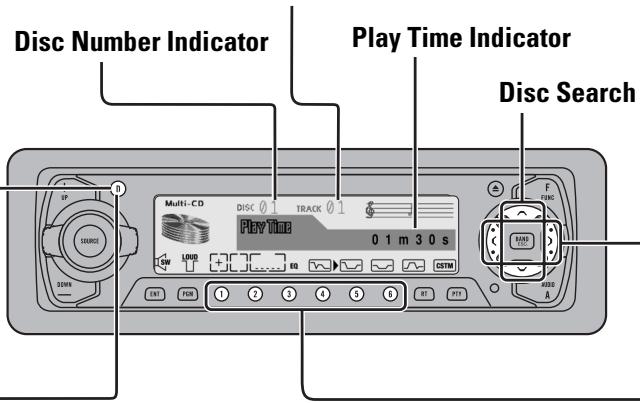
text_image
Disc Number Indicator Play Time Indicator Disc Search Multi-CD DISC 0 1 TRACK 0 1 Play Time 0 1 m 3 0 s F FUNC R LOAD RQ CUSTOM EXT FOR ① ② ③ ④ ⑤ ⑥ RT PPTSwitching the Display (When playing a CD TEXT disc on a CD TEXT compatible Multi-CD Player)
Each press of the DISPLAY button changes the display in the following order:
Playback mode (Play Time) → Disc Title → Disc Artist → Track Title → Track Artist With text longer than 20 letters, you can scroll to see the rest of the text by pressing the DISPLAY button for 2 seconds.
Note:
- A CD TEXT disc is a CD featuring recorded text information such as Disc Title, Artist Name and Track Title.
- If certain text information is not recorded on a CD TEXT disc, “No \~” (e.g. “No Title”) is displayed.
- You cannot switch to the Disc Title Input mode in the Detailed Setting Menu.
Disc Number Search (for 6-Disc, 12-Disc types)
- You can select discs directly with the 1 to 6 buttons. Just press the number corresponding to the disc you want to listen to.
Note:
- When a 12-Disc Multi-CD Player is connected and you want to select disc 7 to 12, press the 1 to 6 buttons for 2 seconds.
Disc Number Rough Search (for 50-Disc type only)
This handy function lets you select discs loaded in a 50-Disc Multi-CD Player using the 1 to 5 buttons. The 50 discs are divided into five blocks, with each of the 1 to 5 buttons assigned to a block.
- Select the desired block with the 1 to 5 buttons.
Note:
- After completing a rough search, use the ▲ and ▼ buttons to select a desired disc.
Note:
- The Multi-CD player may perform a preparatory operation, such as verifying the presence of a disc or reading disc information, when the power is turned ON or a new disc is selected for playback. "READY" is displayed.
- When a magazine is loaded into a 50-Disc type Multi-CD Player, information on all the discs in the magazine is read.
If you start playing a disc on a 50-Disc type Multi-CD Player before reading of information on all discs has been completed, reading of information stops part way through. This will prevent you from using the ITS function. (If you try and use this function, “Not Ready” is displayed.)
If this happens, reading of information begins again when you switch to a component other than the 50-Disc Type Multi-CD Player.
- If the Multi-CD player cannot operate properly, an error message such as “ERROR-14” is displayed. Refer to the Multi-CD Player Owner’s Manual.
- If there are no discs in the Multi-CD player magazine, “No Disc” is displayed.
- “LOADING” will be displayed in the following cases:
* If the disc in the extra tray is selected.
* If the disc is moved from the extra tray to the magazine.
(Refer to the 50-Disc Type Multi-CD Player Owner's Manual.)
- You cannot use the “Ejecting a Single Disc”, “Frequency Play”, “Music Group Play” or “ABC Disc Title Search” functions with this product.
Corresponding Display Indications and Buttons
This product's display features Key Guidance Indicators. These light to indicate which of the ▲/▼/◄/► buttons you can use. When you're in the Function Menu (refer to next section), Detailed Setting Menu (refer to page 22), Initial Setting Menu (refer to page 59) or Audio Menu 1, 2 (refer to pages 42 and 48), they also make it easy to see which ▲/▼/◄/► buttons you can use to switch functions ON/OFF, switch repeat selections and perform other operations.
Indicator and corresponding buttons are shown below.
■ Head Unit
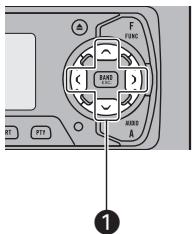
text_image
F FUNC BAND A MUND A PTT RT ①■ Remote Controller
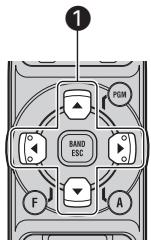
text_image
1 PGM BAND ESC F A■ Display
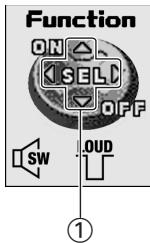
text_image
Function ON SEL OFF SW .0UD ①When ① is lit in the display, perform appropriate operations with the ① buttons.
Entering the Function Menu
The Function Menu lets you operate simple functions for each source.
Note:
- After entering the Function Menu, if you do not perform an operation within about 30 seconds, the Function Menu is automatically canceled.
1. Select the desired mode in the Function Menu. (Refer to next section, "Function Menu Functions".)

text_image
Function Random Play SW LOUD EQ CSTMEach press changes the Mode ...
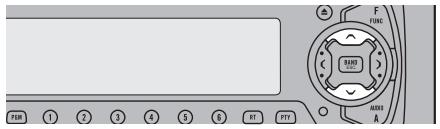
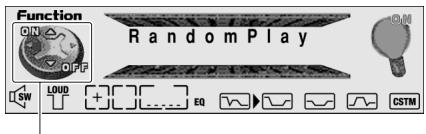
2. Operate a mode. (e.g. Random Play)
text_image
FUR 1 2 3 4 5 6 RT PYT FUNG RUST A RUST
text_image
Function ON OFF Random Play LOUD EQ CSTMThe button used and the operation it performs are indicated by the key guidance indicator. Press the ▲ button to switch the key guidance indicator ON, and the ▼ button to switch it OFF.
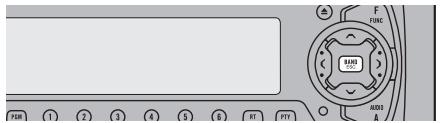
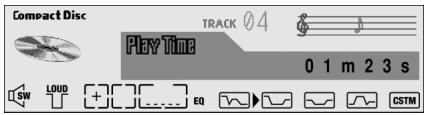
3. Cancel the Function Menu.
text_image
F FING RUBS A RUT PTT PWR 1 2 3 4 5 6 RT PTT
text_image
Compact Disc TRACK 04 Play Time 0 1 m 2 3 s SW LOUD + [ ] EQ CSTMFunction Menu Functions
The following chart shows functions for each source in the Function Menu.
The chart also shows indications for each function, operations and buttons used to perform operations. For more details, or when you want to know about an operation, refer to the page number indicated in the chart.
■ Tuner
| Function name (Display) | Button: Operation | Page |
| Best Stations Memory(Best Stations Memory) | ▲: ON▼: OFF | 25 |
| Selecting Stations by Station List(Station List) | 1 ◀ or ▶: Select (Station)2 ▲: Recall | 24 |
| Local Seek Tuning (LOCAL) | 1 ▲: ON▼: OFF2 ◀ or ▶: Select (Sensitivity) | 24 |
| TA Function (Traffic Announcement) | ▲: ON▼: OFF | 29 |
■ Built-in CD Player
| Function name (Display) | Button: Operation | Page |
| Selecting Tracks by Track Title List(Track List) | 1 ◀ or ▶: Select (Track Title)2 ▲: Play | 35 |
| Repeat Play (Play Mode) | ▲: ON▼: OFF | 33 |
| Random Play (RandomPlay) | ▲: ON▼: OFF | 33 |
| Scan Play (Scan Play) | ▲: ON▼: OFF | 34 |
| Pause (Pause) | ▲: ON▼: OFF | 34 |
■ Multi-CD Player
| Function name (Display) | Button: Operation | Page |
| Repeat Play (Play Mode) | ◀ or ▶: Select (Play Range) | 36 |
| Selecting Discs by Disc Title List (Disc List) | 1 ◀ or ▶: Select (Disc Title)2 ▲: Play | 41 |
| Selecting Tracks by Track Title List (Track List) | 1 ◀ or ▶: Select (Track Title)2 ▲: Play | 41 |
| Random Play (RandomPlay) | ▲: ON▼: OFF | 36 |
| Scan Play (Scan Play) | ▲: ON▼: OFF | 37 |
| ITS Play (ITS Play) | ▲: ON▼: OFF | 39 |
| Pause (Pause) | ▲: ON▼: OFF | 37 |
| Compression and DBE (Compression) | ▲ or ▼: Select(Sound Quality Function) | 38 |
Entering the Detailed Setting Menu
In the Detailed Setting Menu, you can operate convenient, complex functions for each source.
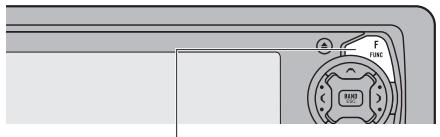
1. Enter the Detailed Setting Menu.

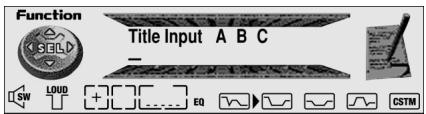
2. Select the desired mode. (Refer to next section, "Detailed Setting Menu Functions".)
natural_image
Diagram of a device panel with buttons and control knob (no text or symbols)Each press changes the Mode ...

text_image
Function Title Input A B C SW LOUD + [ ] EQ CSTM3. Operate a mode.
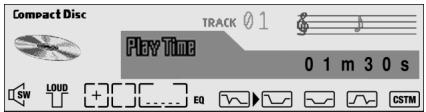
4. Cancel the Detailed Setting Menu.
text_image
F FING R100 A R100 A
text_image
Compact Disc TRACK 0 1 Play Time 0 1 m 3 0 s SW LOUD EQ CSTMNote:
- You can cancel the Detailed Setting Menu by pressing the FUNCTION button again for 2 seconds.
Detailed Setting Menu Functions
The following chart shows functions for each source in the Detailed Setting Menu. The chart also shows indications for each function, operations and buttons used to perform operations. For more details, or when you want to know about an operation, refer to the page number indicated in the chart.
Tuner
| Function name (Display) | Button: Operation | Page |
| Program Function (Program Function) | 1 ◀ or ▶: Select (Function)2 ▲: Memory | 74 |
■Built-in CD Player
| Function name (Display) | Button: Operation | Page |
| Disc Title Input (Title Input ABC) | 1 ▲ or ▼: Select (Character)2 ◀ or ▶: Select (Position)3 ▶: Memory | 35 |
| Program Function (Program Function) | 1 ◀ or ▶: Select (Function)2 ▲: Memory | 74 |
■ Multi-CD Player
| Function name (Display) | Button: Operation | Page |
| Disc Title Input (Title Input ABC) | 1 ▲ or ▼: Select (Character)2 ◀ or ▶: Select (Position)3 ▶: Memory | 40 |
| ITS Programming (ITS Memory) | ▲: Memory | 38 |
| Program Function (Program Function) | 1 ◀ or ▶: Select (Function)2 ▲: Memory | 74 |
Local Seek Tuning (LOCAL)
When Local mode is ON (“LOC” indicator lights), you can only select broadcast stations providing strong reception.
- Press the FUNCTION button and select the Local mode (LOCAL) in the Function Menu.
- Switch the Local ON/OFF with the ▲/▼ buttons.
- Select the desired Local Seek sensitivity with the ◀/▶ buttons.

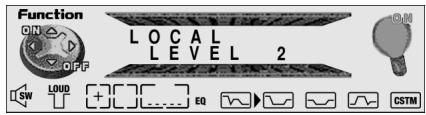
text_image
Function ON OFF LOCAL LEVEL 2 SW LOUD +EQ EQ CSTM
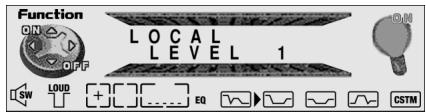
text_image
Function ON △ OFF LOCAL LEVEL 1 SW LOUD + [ ] EQ CSTMFM : LEVEL 1 ↔ LEVEL 2 ↔ LEVEL 3 ↔ LEVEL 4
AM : LEVEL 1 ↔ LEVEL 2
Note:
- The LEVEL 4 setting allows reception of only the strongest stations, while lower settings let you receive progressively weaker stations.
Selecting Stations by Station List (Station List)
This function makes it possible to look the stations stored in memory at a glance, and to select the desired station in the list.
- Press the FUNCTION button and select the Station List mode (Station List) in the Function Menu.
- Select the desired station with the ◀/▶ buttons.

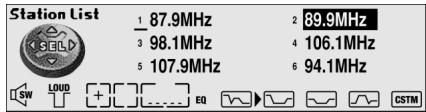
text_image
Station List _ 87.9MHz _ 98.1MHz _ 107.9MHz _ 89.9MHz _ 106.1MHz _ 94.1MHzNote:
- You can also select the desired station directly by pressing the 1 to 6 buttons.
- Recall the selected station with the ▲ button.

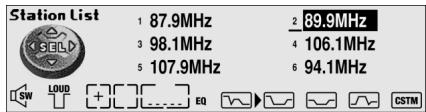
text_image
Station List 1 87.9MHz 2 89.9MHz 3 98.1MHz 4 106.1MHz 5 107.9MHz 6 94.1MHzBest Stations Memory (Best Stations Memory)
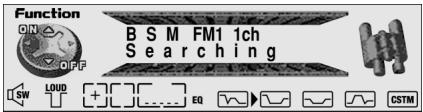
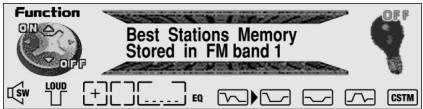
The BSM (Best Stations Memory) function stores stations in memory automatically.
- Press the FUNCTION button and select the BSM mode (Best Stations Memory) in the Function Menu.
- Switch the BSM ON with the ▲ button.
The stations with the strongest signals will be stored under buttons 1–6 and in order of their signal strength.
- To cancel the process, press the ▼ button in the Function Menu before memorization is complete.

text_image
Function ON △ OFF B S M FM1 1ch S e a r c h i n g SW LOUD + [ ] EQ CSTM
text_image
Function ON OFF Best Stations Memory Stored in FM band 1 SW LOUD EQ CSTMThis product features a tuner with RDS functions.
RDS (Radio broadcast Data System) is a system that transmits broadcast station information together with FM programs.
You get display of Program Service Name and PTY (Program Type ID code), tuning to stations broadcasting a desired PTY, automatic tuning to traffic information and emergency broadcasts, and radio text display.
Note:
- The RDS service does not provide AM broadcast information.
- The RDS service may not be provided by all FM stations.
PTY Function
This product allows you to look for a station by PTY information (Program Type ID code). The information is divided into 8 types, such as ROCK, COUNTRY, NEWS and TALK.
| PTY | Corresponding PTY |
| ROCK | TOP 40 |
| CLS Rock | |
| Rock | |
| Soft Rck | |
| EASY LIS | Soft |
| ADLT Hit | |
| Oldies | |
| CLS/JAZZ | Classicl |
| Jazz | |
| Nostalga | |
| Public | |
| COUNTRY | Country |
| R & B | R and B |
| Soft R&B | |
| INFO | Sports |
| News | |
| Talk | |
| Inform | |
| Persnity | |
| RELIGION | REL Musc |
| REL Talk | |
| MISC | Language |
| PTY 23–29 |
Searching the PTY
1. Select PTY Search mode.

Each press of the PTY button changes the method in the following order:
PTY Search (“PTY” indicator lights) → Frequency Search
Note:
- To search for the same PTY as the currently received broadcast station, perform step 3 only.
2. Select a PTY.

text_image
FM-1 ON AIR Frequency ——— · —— MHz SW LOUD EQ CSTM RCKA station broadcasting a program with a different PTY from the PTY of the currently received broadcast station is selected.
Press the ▲ button to select stations with the next PTY, and the ▼ button to select stations with the preceding PTY.
3. Select a station.

text_image
FM-1 ON AIR FREQUENCY ——— · mHz SW LOUD + [ ] ... EQ RCK CSTMA station broadcasting a program with the same PTY as the currently received broadcast station is selected.
Press the ▶ button to select a station with a higher frequency and the ◀ button to select a station with a lower frequency.
Note:
- The program of some stations may differ from that indicated by the transmitted PTY.
- If no station broadcasting the selected programming type is found, “NOT FOUND” is displayed for about 2 seconds, and the tuner returns to the original station.
PTY Alarm
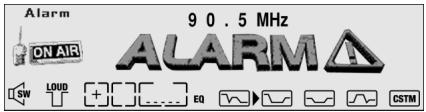
The PTY Alarm function automatically lets you hear broadcasts of emergency announcements concerning natural disasters and other emergencies, regardless of the source you are listening to (Tuner, Built-in CD player or Multi-CD player).
- If the tuner receives a radio alarm code, “ALARM” is indicated in the display, and the tuner switches to reception of an emergency announcement.
text_image
Alarm ON AIR 90.5 MHz ALARM SW LOUD + [ ] EQ CSTMNote:
- The system switches back to the original source following emergency announcement reception.
- In the Built-in CD player or Multi-CD player mode, the tuner automatically seeks out the RDS station with the strongest signal in the current area 10 seconds after RDS station reception has become impossible. (This function does not operate when the TA function is active.)
Canceling Announcements
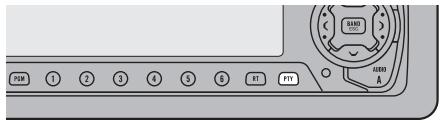
- Press the PTY button during announcement reception to cancel the announcement and return to the original source.
text_image
PIN 1 2 3 4 5 6 RT PTR HARD ADisplay Modes
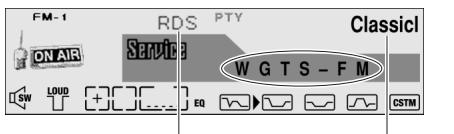
This function can be used to scroll through the various display modes for Frequency and Program Service Name when receiving the RDS Services (“RDS” indicator lights).
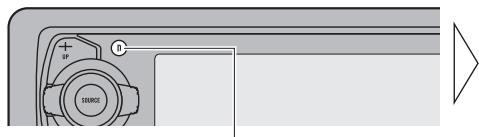
- Select the desired display mode.
text_image
SOURCEEach press changes the Display ...
text_image
FM-1 RDS PTY Classic ON AIR Service W G T S - F M SW LOUD [+] EQ CSTM“RDS”
PTY Information
Each press of the DISPLAY button changes the display in the following order:
Frequency → Program Service Name
■ PTY Information
PTY (Program Type ID code) information for the currently tuned station appears on the display. The information is correlated with the list on page 26.
Note:
- If a PTY code of zero is received from a station, “None” will be displayed. This indicates that the station has not defined its program contents.
TA Function (Traffic Announcement)
The TA (Traffic Announcement standby) function lets you receive traffic announcements automatically, no matter what source you are listening to. The TA function can be activated for a TP station (a station that broadcasts traffic information) or an EON TP station (a station carrying information which cross-references TP stations).
Activating/Deactivating the TA Function
1. Tune in a TP or EON TP station.
The TP indicator (“💡”) lights when the tuner is tuned to a TP station or an EON TP station.
2. Activate the TA function.

text_image
Hold for 2 seconds FM-1 RDS PTY Frequency 8 7.9 MHz ON-AIR SW LOUD EQ "TRFC" "Car"The “TRFC” indicator lights, indicating that the tuner is waiting for traffic announcements. Repeat the preceding operation when no traffic announcement is being received to deactivate the TA function.
Note:
- You can also switch the TA Function ON/OFF in the Function Menu.
- The system switches back to the original source following traffic announcement reception.
- The TA function can be activated from sources other than tuner if the tuner was last set to the FM band but not if it was last set to the AM band.
- In the Built-in CD player or Multi-CD player mode, the tuner automatically seeks out the TP station with the strongest signal in the current area 10 seconds after the TP indicator (“💡”) disappears from the display. (During seek operation, the TP indicator (“💡”) flashes.)
- Only TP or EON TP stations are tuned in during the Seek Tuning mode when the “TRFC” indicator is ON.
- Only TP or EON TP stations are stored by BSM when the “TRFC” indicator is ON.
Canceling Traffic Announcements
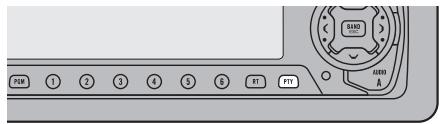
- Press the PTY button while a traffic announcement is being received to cancel the announcement and return to the original source.
text_image
PWR 1 2 3 4 5 RT PWR START AThe announcement is canceled but the tuner remains in the TA mode until the TA function is deactivated.
Adjusting the TA Volume
When a traffic announcement begins, the volume adjusts automatically to a preset level to enable you to hear the announcement clearly.
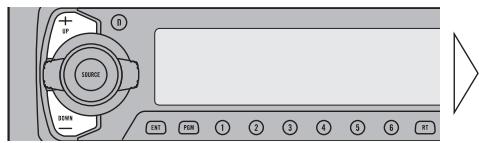
- Set the volume by adjusting it during reception of a traffic announcement.
text_image
SOURCE EXIT FOM 1 2 3 4 5 6 NET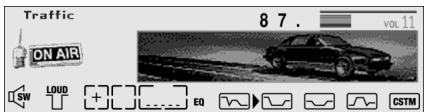
text_image
Traffic ON AIR 8 7 . VOL 11 SW LOUD + EQ CSTMThe newly set volume is stored in memory and recalled for subsequent traffic announcements.
Note:
- Volume Attenuator is canceled if a traffic announcement is received in the Volume Attenuator mode. (Refer to page 4 for details concerning the Volume Attenuator.)
Radio Text
This tuner can display Radio Text data transmitted by RDS stations, such as station information, the name of the currently broadcast song and the name of the artist.
Note:
- When Radio Text is received, the “RT” indicator lights.
- The tuner automatically memorizes the three latest Radio Text broadcasts received, replacing text from the least recent reception with new text when it is received.
- You can store data from up to six Radio Text transmissions in buttons 1–6.
- If you do not perform an operation within 15 seconds, the Radio Text mode is canceled.
Radio Text Display
1. Switch to the Radio Text mode.

text_image
Current Christian Music For To day - Positive Life Ra dio SW LOUD EQ CSTMRadio Text data currently being received is automatically scrolled in the display.
Note:
- Press the RT button once more, and the Radio Text mode is canceled.
- The Radio Text mode is canceled after text data has been scrolled through twice in the display.
- When no Radio Text is currently being received, “NO TEXT” is displayed, and the Radio Text mode is canceled after 15 seconds.
2. Recalling the three latest Radio Text broadcasts from the tuner's memory.

text_image
Message 2 >>98.5<< KLUC THE... NUMBER1...HIT MUSIC. ..STATION IN VEGASPressing the button switches between the three Radio Text data displays.
Note:
- If there is no Radio Text data stored in the tuner, this button does not operate.
Storing Radio Text in Memory
- Perform “Radio Text display” steps 1 and 2, and then select the Radio Text you want to store in memory.
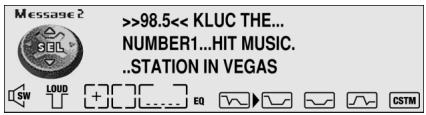
text_image
Message 2 >>98.5<< KLUC THE... NUMBER1...HIT MUSIC. ..STATION IN VEGAS- Press one of buttons 1–6 for 2 seconds to store the desired Radio Text. (e.g. Press button 4 for 2 seconds.)
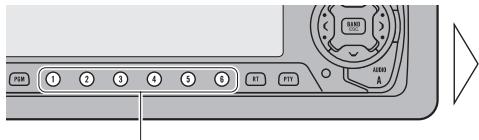
text_image
PWM ① ② ③ ④ ⑤ ⑥ RT FY HND AHold for 2 seconds
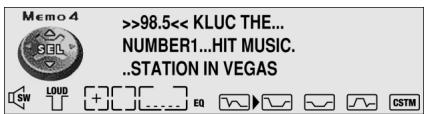
text_image
Memo 4 >>98.5<< KLUC THE... NUMBER1...HIT MUSIC. ..STATION IN VEGAS SW LOUD [+]EQ CSTMThe Radio Text is stored in memory under the selected button.
Recalling Preset Radio Text
- Switch to the Radio Text mode.
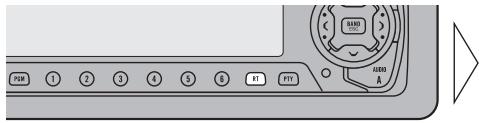
text_image
PWM ① ② ③ ④ ⑤ ⑥ ⑦ A PWM A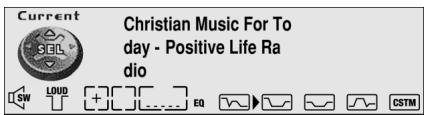
text_image
Current Christian Music For To day - Positive Life Ra dio SW LOUD + [ ] EQ CSTM- Press one of buttons 1–6 to recall a Radio Text preset under that button. (e.g. Press button 4.)
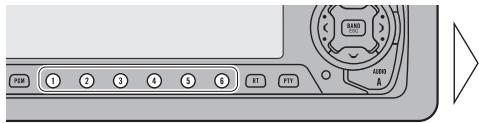
text_image
PWM 1 2 3 4 5 6 RT PT1 A B C D E F G H I J K L M N O P Q R S T U V W X Y Z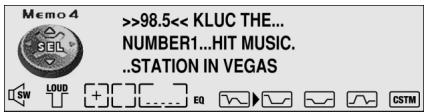
text_image
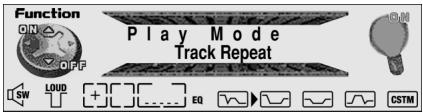
Memo 4 >>98.5<< KLUC THE... NUMBER1...HIT MUSIC. ..STATION IN VEGASRepeat Play (Play Mode)
Repeat Play plays the same track repeatedly.
- Press the FUNCTION button and select the Repeat mode (Play Mode) in the Function Menu.
- Switch the Repeat Play ON/OFF with the ▲/▼ buttons.

text_image
Function ON OFF Play Mode Track Repeat SW LOUD EQ CSTMNote:
- If you perform Track Search or Fast Forward/Reverse, Repeat Play is automatically canceled.
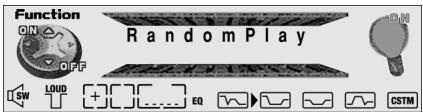
Random Play (RandomPlay)
Random Play plays the tracks on a CD in random order for variety.
- Press the FUNCTION button and select the Random mode (RandomPlay) in the Function Menu.
- Switch the Random Play ON/OFF with the ▲/▼ buttons.

text_image
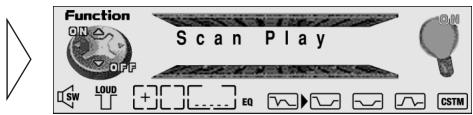
Function ON OFF Random Play SW LOUD EQ CSTMScan Play (Scan Play)
Scan Play plays the first 10 seconds or so of each track on a CD in succession.
- Press the FUNCTION button and select the Scan mode (Scan Play) in the Function Menu.
- Switch the Scan Play ON with the ▲ button.
- Switch the Scan Play ON with the ▲ button.
text_image
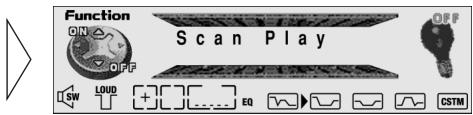
Function ON OFF Scan Play SW LOUD EQ CSTM- When you find the desired track, cancel the Scan Play with the ▼ button.
If the Function Menu has been canceled automatically, select the Scan mode in the Function Menu again.
text_image
Function ON OFF Scan Play OFF 1 SW LOUD + EQ CSTMNote:
- Scan Play is canceled automatically after all the tracks on a disc have been scanned.
Pause (Pause)
Pause pauses the currently playing track.
- Press the FUNCTION button and select the Pause mode (Pause) in the Function Menu.
- Switch the Pause ON/OFF with the ▲/▼ buttons.
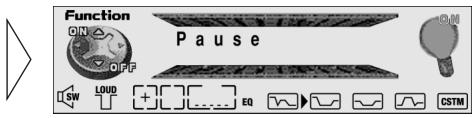
text_image
Function ON OFF Pause SW LOAD + EQ CSTMSelecting Tracks by Track Title List (Track List)
Every 6 track titles on a CD TEXT disc are displayed. You can scroll the display.
-
Press the FUNCTION button and select the Track List mode (Track List) in the Function Menu.
-
Select the desired track title with the ◀/▶ buttons.
“No T. Title” is displayed for track whose titles have not been input.

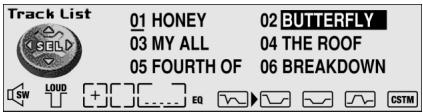
text_image
Track List 01 HONEY 02 BUTTERFLY 03 MY ALL 04 THE ROOF 05 FOURTH OF 06 BREAKDOWN SW LOUD + [ ] EQNote:
- You can also select and play the desired track title directly with the 1 to 6 buttons.
- Play the selected track with the ▲ button.

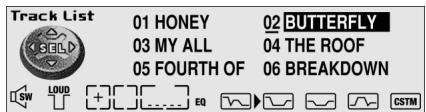
text_image
Track List 01 HONEY 02 BUTTERFLY 03 MY ALL 04 THE ROOF 05 FOURTH OF 06 BREAKDOWN SW LOUD + EQ CSTMNote:
- When only playing a CD TEXT disc on this product, you can switch to this mode.
Disc Title Input (Title Input ABC)
You can input up to 48 disc titles for CDs in the Built-in CD player. (Refer to “Disc Title Input” on page 40 under “Using Multi-CD Players”).
Note:
• After the title for 48 discs have been entered, data for a new disc will overwrite the oldest one.
- If you connect a Multi-CD player, you can input disc titles for up to 100 discs.
- When playing a CD TEXT disc on this product, you cannot switch to this mode.
Repeat Play (Play Mode)
There are three repeat play ranges: One-track Repeat, Disc Repeat, and Multi-CD player Repeat. Default repeat play range is Multi-CD player Repeat.
-
Press the FUNCTION button and select the Repeat selecting mode (Play Mode) in the Function Menu.
-
Select the desired repeat play range with the ◀/▶ buttons.
Multi-CD player Repeat (“Magazine Repeat” is displayed) → One-track Repeat (“Track Repeat” is displayed) → Disc Repeat (“Disc Repeat” is displayed)

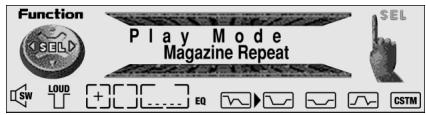
text_image
Function SEL Play Mode Magazine Repeat SW LOUD +EQ CSTMNote:
- If you select other discs during the repeat play, the repeat play range changes to Multi-CD player Repeat.
- If you perform Track Search or Fast Forward/Reverse during One-track Repeat, the repeat play range changes to Disc Repeat.
Random Play (RandomPlay)
Tracks are played at random within the selected repeat play range as explained in “Repeat Play” above.
-
Press the FUNCTION button and select the Random mode (RandomPlay) in the Function Menu.
-
Switch the Random Play ON/OFF with the ▲/▼ buttons.
After selecting the desired repeat play range from those referred to in “Repeat Play” above, switch Multi-CD Player Random Play ON.

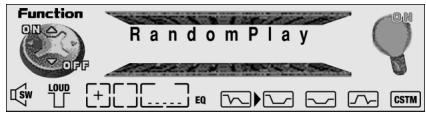
text_image
Function ON OFF Random Play SW LOUD EQ CSTMNote:
- One-track Repeat changes to the Disc Repeat when you switch the Random Play ON.
Scan Play (Scan Play)
In the Disc Repeat, the beginning of each track on the selected disc is scanned for about 10 seconds. In the Multi-CD player Repeat, the beginning of the first track on each disc is scanned for about 10 seconds.
- Press the FUNCTION button and select the Scan mode (Scan Play) in the Function Menu.
- Switch the Scan Play ON with the ▲ button.
After selecting the desired repeat play range from those referred to in “Repeat Play” on page 36, switch Multi-CD Player Scan Play ON.
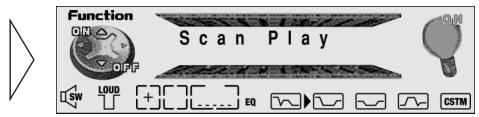
text_image
Function OFF Scan Play SW LOUD EQ CSTM- When you find the desired track (or disc), cancel the Scan Play with the ▼ button.
If the Function Menu has been canceled automatically, select the Scan mode in the Function Menu again.
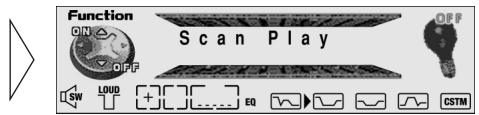
text_image
Function ON OFF Scan Play OFF 1 SW LOAD + EQ CSTM| Display | Play range |
| T. Scan | Disc Repeat |
| D. Scan | Multi-CD player Repeat |
Note:
- Scan Play is canceled automatically after all the tracks or discs have been scanned.
- One-track Repeat changes to the Disc Repeat when you switch the Scan Play ON.
Pause (Pause)
Pause pauses the currently playing track.
- Press the FUNCTION button and select the Pause mode (Pause) in the Function Menu.
- Switch the Pause mode ON/OFF with the ▲/▼ buttons.
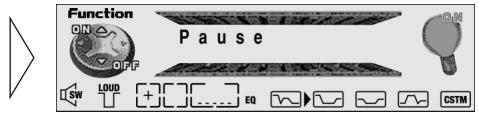
text_image
Function ON OFF Pause SW LOAD EQ CSTMCompression and DBE (Compression)
Using the Comp. (Compression) and DBE (Dynamic Bass Emphasis) functions enables Multi-CD player sound quality adjustment. Each of the functions enables two-step adjustment.
■ Comp.
The Comp. (Compression) function adjusts imbalances between loud and subdued sounds at higher volumes.
■ DBE
DBE (Dynamic Bass Emphasis) boosts bass levels to give a fuller sound.
Comp./DBE ON/OFF Switching
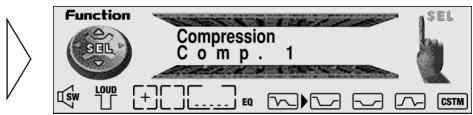
- Press the FUNCTION button and select the Comp./DBE Switching mode (Compression) in the Function Menu.
- Select the desired mode with the ▲/▼ buttons.
Comp. OFF → Comp. 1 → Comp. 2
→ Comp. OFF → DBE 1 → DBE 2
text_image
Function SEIL Compression C o m p . 1 SEL 1 SW LOAD EQ CSTMNote:
- You can use these functions with a Multi-CD player that has them. If the player does not feature the Comp./DBE functions, “No Comp.” is displayed if you try to use them.
ITS (Instant Track Selection)
The ITS function allows you to search for the track you wish to play when a Multi-CD player is installed. You can use ITS to program automatic playback of up to 24 tracks per disc from up to 100 discs. (You can store ITS program and Disc Title data for up to 100 discs in memory.)
ITS Programming (ITS Memory)
Programmed tracks are played within the selected repeat play range in the “Repeat Play” on page 36.
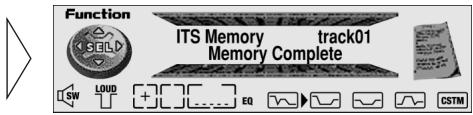
- Play the track you wish to program.
- Select the ITS Programming mode (ITS Memory) in the Detailed Setting Menu. (Refer to page 22.)
- Program the desired track with the ▲ button.
text_image
Function ITS Memory track01 Memory Complete SW LOUD EQ CSTMNote:
- After 100 discs have been programmed, data for a new disc will overwrite the data for the disc that has not been played back for the longest time.
ITS Play (ITS Play)
ITS Play of tracks is performed within the play range explained in the “Repeat Play” section.
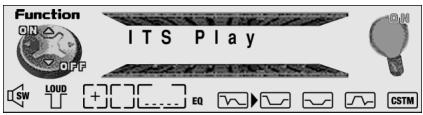
- Press the FUNCTION button and select the ITS Play mode (ITS Play) in the Function Menu.
- Switch the ITS Play ON/OFF with the ▲/▼ buttons.
After selecting the desired repeat play range from those referred to in “Repeat Play” on page 36, switch ITS Play ON.

text_image
Function ON ON OFF ITS Play SW LOUD EQ CSTMNote:
- If no track in the current range is programmed for ITS Play, “ITS Empty” is displayed.
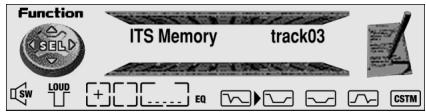
Erase a Track Program
- Select the track you wish to erase, during ITS Play.
- Select the ITS Programming mode (ITS Memory) in the Detailed Setting Menu. (Refer to page 22.)
- Erase the track program with the ▼ button.
ITS is canceled and playback of the next ITS-programmed track begins. If there are no more programmed tracks in the current range, “ITS Empty” is displayed and normal play resumes.
text_image
Function ITS Memory track03 SW LOUD +EQ CSTMErase a Disc Program
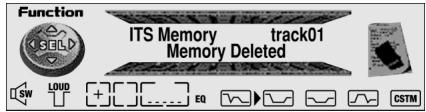
- Select the disc you wish to erase, while the disc is playing.
- Select the ITS Programming mode (ITS Memory) in the Detailed Setting Menu. (Refer to page 22.)
- Erase the disc program with the ▼ button.

text_image
Function ITS Memory track01 Memory Deleted SW LOUD EQ CSTMDisc Title Input (Title Input ABC)
You can input Titles up to 10 letters long for up to 100 discs. Using this function lets you easily search for and select a desired disc for play. (You can store ITS program and Disc Title data for up to 100 discs in memory.)
-
Play the disc you wish to input the disc title.
-
Select the Disc Title Input mode (Title Input ABC) in the Detailed Setting Menu. (Refer to page 22.)
Note:
- When playing a CD TEXT disc on a CD TEXT compatible Multi-CD player, you cannot switch to this mode.
-
A CD TEXT disc is a CD featuring recorded text information such as Disc Title, Artist Name and Track Title.
-
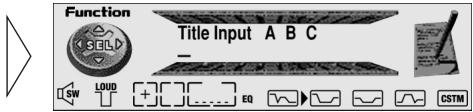
Switch the desired Character type with button 1.
Each press of button 1 changes the Character type in the following order:
Alphabet (Upper case), Numbers and Symbols → Alphabet (Lower case)
text_image
Function Title Input A B C - 1 SW LOUD + + ... EQ CSTMNote:
- You can select to the Numbers and Symbols by pressing button 2.
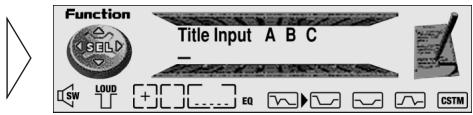
- Select letters, numbers and symbols with the ▲/▼ buttons.
To insert a space, select the flashing cursor “_”.
text_image
Function Title Input A B C - SW LOUD + EQ CSTM- Move the box left and right with the ◀/▶ buttons.
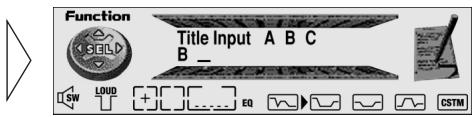
text_image
Function Title Input A B C B _ SW LOUD + + - - EQ CSTM- When you have completed title input, make the 10th letter flash, then memorize by pressing the ▶ button.
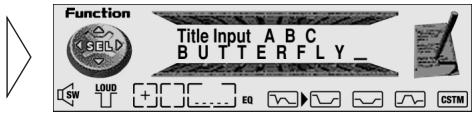
text_image
Function TITLE INPUT A B C BUTTERFLY _ 1 SW LOUD EQ CSTMNote:
- Titles remain in memory, even after the disc has been removed from the magazine, and are recalled when the disc is reinserted.
- After the titles for 100 discs have been entered, data for a new disc will overwrite the data for the disc that has not been played back for the longest time.
- You can display the disc title of the disc currently playing. For details, refer to “Switching the Display” on page 17.
Selecting Discs by Disc Title List (Disc List)
Every 6 discs are displayed. You can scroll the display.
Follow the procedures below to play a disc for which you have input the title in a Multi-CD player or a CD TEXT disc on a CD TEXT compatible Multi-CD player.
- Press the FUNCTION button and select the Disc Title List mode (Disc List) in the Function Menu.
- Select the desired disc title with the ◀/▶ buttons.
“No D. Title” is displayed for disc whose titles have not been input.
“No Disc” is displayed next to the disc number when no disc is set in the magazine.

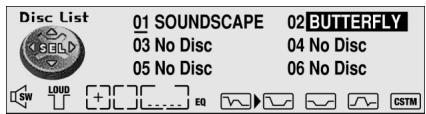
text_image
Disc List 01 SOUNDSCAPE 02 BUTTERFLY 03 No Disc 04 No Disc 05 No Disc 06 No Disc SW LOUD + EQ CSTMNote:
- You can also select and play the desired disc title directly with the 1 to 6 buttons.
- Play the selected disc with the ▲ button.

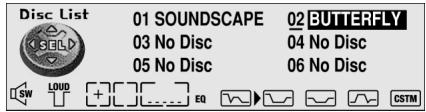
text_image
Disc List 01 SOUNDSCAPE 02 BUTTERFLY 03 No Disc 04 No Disc 05 No Disc 06 No Disc SW LOUD + [ ] EQ CSTMSelecting Tracks by Track Title List (Track List)
Every 6 tracks on a CD TEXT disc are displayed. You can scroll the display.
- Press the FUNCTION button and select the Track List mode (Track List) in the Function Menu.
Note:
- When only playing a CD TEXT disc on a CD TEXT compatible Multi-CD player, you can switch to this mode.
- Select the desired track title with the ◀/▶ buttons.
“No T. Title” is displayed for track whose titles have not been input.

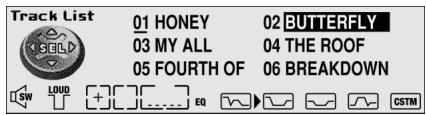
text_image
Track List 01 HONEY 02 BUTTERFLY 03 MY ALL 04 THE ROOF 05 FOURTH OF 06 BREAKDOWN SW LOUD +EQ CSTMNote:
- You can also select and play the desired track title directly with the 1 to 6 buttons.
- Play the selected track with the ▲ button.

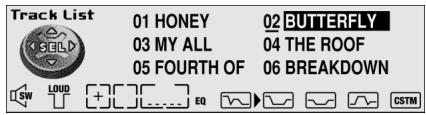
text_image
Track List 01 HONEY 02 BUTTERFLY 03 MY ALL 04 THE ROOF 05 FOURTH OF 06 BREAKDOWN SW LOUD +EQ CSTMSelecting the Equalizer Curve
You can switch between Equalizer curves.
- Rotate the EQ selector up or down to select the desired Equalizer curve.
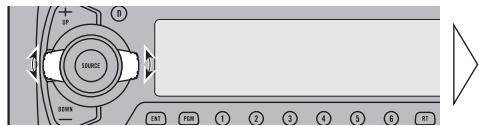
text_image
SOURCE ENL FOR T7 7 3 4 5 B NT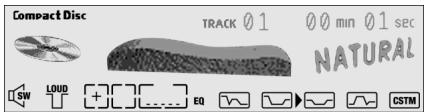
text_image
Compact Disc TRACK 01 00 min 01 sec NATURAL SW LOUD + EQ CSTMSUPER BASS ↔ POWERFUL ↔ NATURAL ↔ VOCAL ↔ CUSTOM ↔ FLAT
Note:
- “CUSTOM” stores an equalizer curve you have made adjustments to. (Refer to “Adjusting the Equalizer Curves” on page 44.)
- You can create different “CUSTOM” curves for different sources. (The Built-in CD player and Multi-CD player are set to the same Equalizer Curve Adjustment setting automatically.)
Entering the Audio Menu 1
With this menu, you can adjust the sound quality.
Note:
- After entering the Audio Menu 1, if you do not perform an operation within about 30 seconds, the Audio Menu 1 is automatically canceled.
-
Audio Menu 1 functions change depending on the Rear Speaker Output setting in the Initial Setting Menu. (Refer to “Switching the Rear Speaker Output” on page 61.)
-
Select the desired mode in the Audio Menu 1.
text_image
RAB 1 2 3 4 5 6 7 8 9 10 RAB AEach press changes the Mode ...
text_image
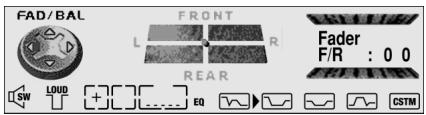
FAD/BAL FRONT L R Fader F/R : 0 0 REAR SW LOUD + EQ CSTM- Operate a mode.
- Cancel the Audio Menu 1.
text_image
F TUNG RAN A FRM 1 2 3 4 5 6 RT PTT
text_image
Compact Disc TRACK 0 1 Play Time 0 0 m 0 1 s SW LOUD + [ ] EQ CSTMAudio Menu 1 Functions
The Audio Menu 1 features the following functions.
Balance Adjustment (FAD/BAL)
This function allows you to select a Fader/Balance setting that provides ideal listening conditions in all occupied seats.
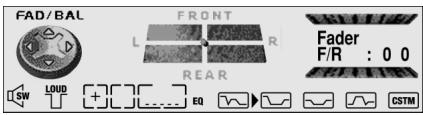
- Press the AUDIO button and select the Fader/Balance mode (FAD/BAL) in the Audio Menu 1.
- Adjust front/rear speaker balance with the ▲/▼ buttons.
“Fader Front:15” – “Fader Rear:15” is displayed as it moves from front to rear.

text_image
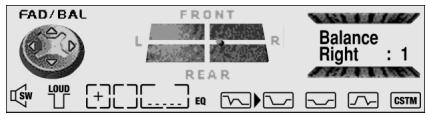
FAD/BAL FRONT L R REAR Fader F/R : 0 0 SW LOUD +EQ CSTM- Adjust left/right speaker balance with the ◀/▶ buttons.
“Balance Left:9” – “Balance Right:9” is displayed as it moves from left to right.

text_image
FAD/BAL FRONT L R REAR Balance Right : 1 SW LOUD + EQ CSTMNote:
- When the Rear Speaker Output setting is “Sub woofer output”, you cannot adjust front/rear speaker balance. (Refer to page 61.)
- “Fader F/R:0 0” is the proper setting when 2 speakers are in use.
Graphic Equalizer
Compared to compensation for car interior acoustic characteristics provided by the Auto-equalizing function, this lets you create your own equalization curves as desired.
There are two types of equalizer curves: Default equalizer curves (Factory curves) and a user-defined equalizer curve (Custom).
Note:
- Four factory curves are provided: Super Bass, Powerful, Natural and Vocal.
About the Flat and Custom
Flat
No supplement or correction is made to the sound. A useful function to check the effect of the equalizer curves by switching alternatively between Flat and a set equalizer curve.
■ Custom
Custom can be stored as an adjusted equalizer curve.
Adjustment can be made by either using Graphic Equalizer or 13-Band Graphic Equalizer Adjustment.
| Button | Display | Equalizer Curve |
| 1 | Super Bass | Super Bass |
| 2 | Powerful | Powerful |
| 3 | Natural | Natural |
| 4 | Vocal | Vocal |
| 5 | Custom | Custom |
| 6 | Flat | Flat |
Recalling the Equalizer Curves (Equalizer)
You can easily recall equalizer curves. There are two ways to do it.
■ Direct Recall
- Press the AUDIO button and select the Graphic Equalizer mode (Equalizer) in the Audio Menu 1.
- Select the desired Equalizer curve. (e.g. Press button 1.)
text_image
SOURCE 200A FAT FLOW 1 2 3 4 5 6 NET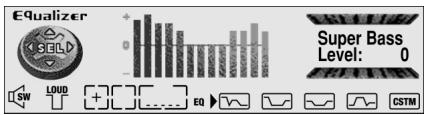
text_image
Equalizer Super Bass Level: 0 SW LOUD + EQ CSTMNote:
- When you have performed Auto-equalizing (refer to page 54), you can turn AUTO EQ ON and OFF by pressing the button for the equalizer curve that was called.
■ Sequential Recall
- Press the AUDIO button and select the Graphic Equalizer mode (Equalizer) in the Audio Menu 1.
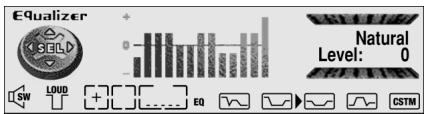
- Select the desired Equalizer curve in the following order:
text_image
F FUNG MART A FRM 1 2 3 4 5 6 RT FPT
text_image
Equalizer + - - - - - - - - - - - - - - - - - - - - - - - - - - - - - - - - - - - - - - - - - - - - - - - - - - - - - - - - - - - - - - - - - - - - - - - - - - - - - - - - - - - - - - - - - - - - - - - - - - - - - SW LOUD + EQ CSTM Natural Level: 0Super Bass ↔ Powerful ↔ Natural ↔ Vocal ↔ Custom ↔ Flat
Adjusting the Equalizer Curves (Equalizer)
All curves but Flat can be adjusted (fine adjustment).
Adjustment can be made by either using Graphic Equalizer or 13-Band Graphic Equalizer Adjustment.
■ Graphic Equalizer
The factory curves can be adjusted at fine levels (nuance control).
- Press the AUDIO button and select the Graphic Equalizer mode (Equalizer) in the Audio Menu 1.
- Recall the Equalizer curve you want to adjust. (Refer to previous section.)
- Adjust the Equalizer curve.

text_image
F FRC NWD A FOR 1 2 3 4 5 6 IT FY Equalizer CSOLD + - SW LOUD + - EQ Natural Level: + 4 CSTMDisplay shows “+6” – “-6”.
Note:
- Adjustment range is subject to the curve.
- You can store the equalizer curve in CUSTOM by pressing button 5 for 2 seconds.
■ 13-Band Graphic Equalizer Adjustment
You can select this mode only when you select Custom.
- Press the AUDIO button and select the Graphic Equalizer mode (Equalizer) in the Audio Menu 1.
- Recall Custom. (Refer to previous section.)
- Select the 13-Band Graphic Equalizer Adjustment mode (Equalizer) in the Audio Menu 1.

text_image
Equalizer 50Hz Level: 0 SW LOUD + ... EQ CSTM- Select the band to be adjusted.

text_image
F FUNC RND RND Equalizer GOLD + - SW LOUD + EQ 125Hz Level: 0 CSTM
text_image
50 ↔ 80 ↔ 125 ↔ 200 ↔ 315 ↔ 500 ↔ 800 ↔ 1.3k ↔ 2k ↔ 3.2k ↔ 5k ↔ 8k ↔ 12.5k (Hz)5. Adjust the level.
text_image
F F/UNC RANS A FRM 1 2 3 4 5 6 RT FPT
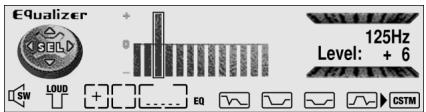
text_image
Equalizer 125Hz Level: + 6 SW LOUD + EQ CSTMDisplay shows “+6” – “-6”.
6. Repeat steps 4–5 above for the other band adjustments.
Sound Field Control and Octaver
The sound field control function (SFC) incorporates 3 programs for reproducing typical sound fields of a studio etc. This function makes it possible to reproduce a realistic sound field of a studio etc. in your car.
Octaver makes the bass sound loud effectively.
Octaver 2 is more effective than Octaver 1.
Recalling the Sound Field Program (SFC & OCT)
There are two ways to recall a sound field program.
| Button | Display | Sound Field Program/Octaver |
| 1 | Studio | Studio |
| 2 | Jazz club | Jazz club |
| 3 | Club | Club |
| 4 | Octaver 1 | Octaver 1 |
| 5 | Octaver 2 | Octaver 2 |
■ Direct Recall
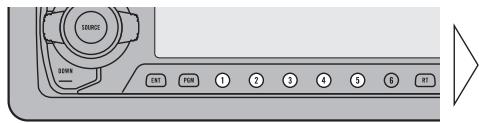
- Press the AUDIO button and select the SFC mode (SFC & OCT) in the Audio Menu 1.
- Select the desired sound field program. (e.g. Press button 1.)
text_image
SOURCE TIME TAB TAB 1 2 3 4 5 6 SET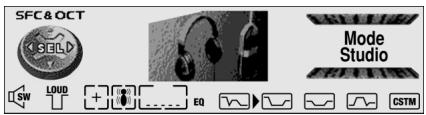
text_image
SFC & OCT XGELD Mode Studio SW LOUD + EQ CSTMTo cancel the sound field program, press the same button again.
■ Sequential Recall
- Press the AUDIO button and select the SFC mode (SFC & OCT) in the Audio Menu 1.
- Select the desired sound field program in the following order:

text_image
SFCA OCT MODE Jazz club CSTMStudio ↔ Jazz club ↔ Club ↔ Octaver 1 ↔ Octaver 2 ↔ OFF
Position Selector
One way to assure a more natural sound is to clearly position the stereo sound image (putting you in the center of the sound field).
The Position Selector function adjusts volume level of sound from each speaker to match seat positions and the number of people in the car, and lets you recall settings at the touch of a button. The result is a natural sound regardless of the seat you are sitting in.
| Button | Position |
| ▲ | Front Seat Right & Left |
| ▼ | All Seats |
| ◀ | Front Seat Left |
| ▶ | Front Seat Right |
About the Position Indicator
This lets you confirm current Position setting without switching to the Position Selector mode.
Front Seat
Left

Front Seat
Right

Front Seat
Right&Left

All Seats

Setting the Listening Position (Position)
- Press the AUDIO button and select the Position Selector mode (Position) in the Audio Menu 1.
- Press one of buttons ▲/▼/◄/► to select the desired Position. (e.g. Press button ◀.)

text_image
Position GOLD RIGAR FRONT EQ Front Seat Left CSTMTo cancel the listening position, press the same button again.
Note:
- If the Rear Speaker Output setting is “Sub woofer output”, “Front Seat Right&Left” and “All Seats” are not available.
Entering the Audio Menu 2
In the Audio Menu 2, you can operate convenient, complex functions for each source.
Note:
- After entering the Audio Menu 2, if you do not perform an operation within about 30 seconds, the Audio Menu 2 is automatically canceled.
- Audio Menu 2 functions change depending on the Rear Speaker Output and Subwoofer Controller setting in the Initial Setting Menu. (Refer to “Switching the Rear Speaker Output” on page 61 and “Setting the Subwoofer Control” on page 62.)
1. Enter the Audio Menu 2.

text_image
Sub W-1 ON OFF SW LOAD EQ Sub. W:OFF CSTMHold for 2 seconds
2. Select the desired mode.

text_image
SLA FM CD AM AUX Level: 0 SW LOUD EQ C D CSTMEach press changes the Mode ...
Continued overleaf.
- Operate a mode.
- Cancel the Audio Menu 2.
text_image
Compact Disc TRACK 04 Play Time 0 1 m 2 3 s SW LOUD + [ ] ... EQ CSTMAudio Menu 2 Functions
The Audio Menu 2 features the following functions.
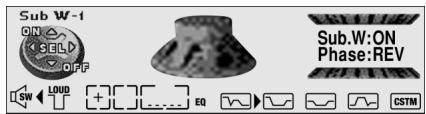
Subwoofer Output (Sub W-1)
When a Subwoofer is connected, switch Subwoofer output ON.
Initially, Subwoofer output is OFF.
The Subwoofer output phase can be switched between normal, or 0^ (“Phase:NOR”), and reverse, or 180^ (“Phase:REV”). 0^ is the default phase.
Note:
- When the Subwoofer Controller setting is “Sub woofer control External”, you cannot switch the Subwoofer ON/OFF mode. In this case, this setting is not necessary. (Refer to page 62.)
-
Select the OFF setting when you do not want the Subwoofer to operate.
-
Select the Subwoofer ON/OFF mode (Sub W-1) in the Audio Menu 2. (Refer to page 48.)
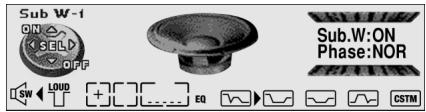
- Switch the Subwoofer output ON/OFF with the ▲/▼ buttons.

text_image
Sub W-1 ON SEL OFF SW LOUD + EQ Sub.W:ON Phase:NOR CSTM- Change the phase of Subwoofer output with the ◀/▶ buttons.

text_image
Sub W-1 ON SELD OFF SW LOUD Sub.W:ON Phase:REV EQ CSTMSubwoofer Setting Adjustment (Sub W-2)
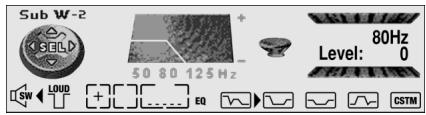
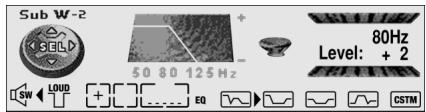
When the Subwoofer output is ON, you can adjust the cut-off frequency and the output level of Subwoofer.
- Press the AUDIO button and select the Subwoofer setting mode (Sub W-2) in the Audio Menu 2. (Refer to page 48.)
- Select the frequency to 50 Hz, 80 Hz or 125 Hz with the ◀/▶ buttons.
- Increase or decrease the output level with the ▲/▼ buttons.
The display shows “+6” – “-6”.

text_image
Sub W-2 50 80 125 Hz Level: 80Hz 0 SW LOUD + EQ CSTM
text_image
Sub W-2 50 80 125 Hz Level: + 2 SW LOUD EQ CSTMNote:
- You can select the Subwoofer setting mode only when Subwoofer output is switched ON in the Subwoofer ON/OFF mode.
Non-Fading Output (Non Fade-1)
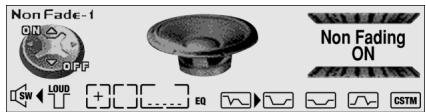
When the Non-Fading Output setting is ON, the audio signal does not pass through this unit's low pass filter (for the Subwoofer), but is output through the RCA output.
Note:
- When the Subwoofer Controller setting is only “Sub woofer control External”, you can switch the Non-Fading Output ON/OFF mode. (Refer to page 62.)
- Select the Non-Fading Output ON/OFF mode (Non Fade-1) in the Audio Menu 2. (Refer to page 48.)
- Switch the Non-Fading output ON/OFF with the ▲/▼ buttons.

text_image
Non Fade-1 ON △ OFF SW LOUD EQ Non Fading ON CSTMNon-Fading Output Level Adjustment (Non Fade-2)
When the Non-Fading output is ON, you can adjust the level of Non-Fading output.
- Select the Non-Fading Output setting mode (Non Fade-2) in the Audio Menu 2. (Refer to page 48.)
Continued overleaf.
2. Increase or decrease the output level with the ▲/▼ buttons.
The display shows “0” – “-15”.

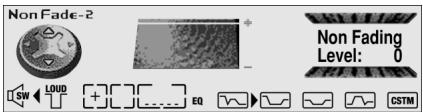
text_image
NonFade-2 SW LOUD + EQ Non Fading Level: 0 CSTMNote:
- You can select the Non-Fading Output setting mode only when Non-Fading output is switched ON in the Non-Fading Output ON/OFF mode.
High Pass Filter (High Pass)
When you do not want sound in the Subwoofer output frequency range output from the front or rear speakers, switch the High Pass Filter ON. Only higher frequencies than those in the selected range are output from the front and rear speakers.
1. Select the High Pass Filter Function mode (High Pass) in the Audio Menu 2. (Refer to page 48.)
2. Switch the High Pass Filter Function ON/OFF with the ▲/▼ buttons.


text_image
High Pass ON SEL OFF 50 80 125 Hz Frequency 80Hz SW LOUD + EQ CSTM3. Select the desired frequency with the ◀/▶ buttons.
$$ 5 0 \leftrightarrow 8 0 \leftrightarrow 1 2 5 (\mathrm{Hz}) $$

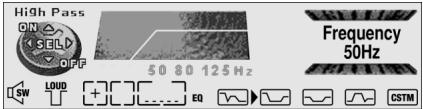
text_image
High Pass ON SEL OFF 50 80 125 Hz Frequency 50Hz SW LOUD + EQ CSTMLoudness Adjustment (Loudness)
The Loudness function compensates for deficiencies in the low and high sound ranges at low volume. You can select a desired Loudness level.
1. Select the Loudness mode (Loudness) in the Audio Menu 2. (Refer to page 48.)
2. Switch the Loudness function ON/OFF with the ▲/▼ buttons.

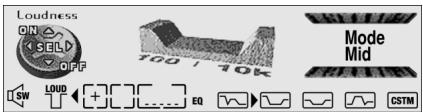
text_image
Loudness ON SEL OFF 100 / 10k Mode Mid SW LOUD EQ CSTM3. Select the desired level with the ◀/▶ buttons.
$$ \text { Low } \leftrightarrow \text { Mid } \leftrightarrow \text { High } $$

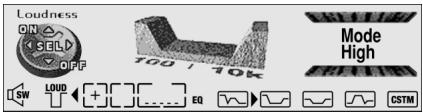
text_image
Loudness ON SEL OFF 100 / 70k Mode High SW LOUD + [ ] ... EQ CSTMAutomatic Sound Levelizer (ASL) Function
During driving, noise in the car changes according to the driving speed and road conditions. The automatic sound levelizer (ASL) monitors such varying noise and automatically increases the volume level, if this noise becomes greater. The sensitivity (variation of volume level to noise level) of ASL can be set to one of five levels.
-
Select the Auto Sound Levelizer mode (ASL) in the Audio Menu 2. (Refer to page 48.)
-
Switch the Auto Sound Levelizer ON/OFF with the ▲/▼ buttons.
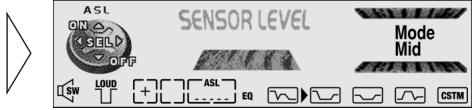
text_image
ASL ON SELLD OFF 1 SW SUSP SENSOR LEVEL Mode Mid ASL EQ CSTM- Select the desired level in the following order with the ◀/▶ buttons:
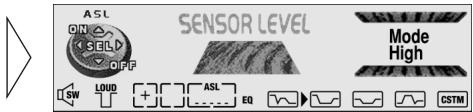
text_image
ASL ON SOLD OFF SENSOR LEVEL Mode High LOW + ASL EQ CSTMLow Mid-Low Mid Mid-High High
The SLA (Source Level Adjustment) function prevents radical leaps in volume level when switching between sources. Settings are based on the FM volume level, which remains unchanged.
-
Compare the FM volume with the volume of the other source. (e.g. Built-in CD player)
-
Select the SLA mode (SLA) in the Audio Menu 2. (Refer to page 48.)
-
Increase or decrease the level with the ▲/▼ buttons.
The display shows “+4” – “-4”.
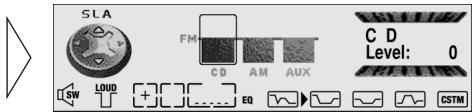
text_image
SLA FM CD AM AUX C D Level: 0 1 SW LOUD + + EQ CSTMNote:
- Since the FM volume is the control, SLA is not possible in the FM modes.
- The AM volume level, which is different from the FM base setting volume level, can also be adjusted similar to sources other than tuner.
- The Built-in CD player and Multi-CD player are set to the same volume adjustment setting automatically.
Auto-equalizing Function
This product's Auto-equalizer automatically measures car interior acoustic characteristics, and then creates the Auto-equalizer curve based on that information.
Before Operating the Auto-equalization
■ WARNING:
- To prevent accidents, never perform Auto-equalizing when driving. When this function measures car interior acoustic characteristics to create an Auto-equalizer curve, a loud measurement tone (noise) may be output from the speakers.
■ Precaution:
- Performing Auto-equalizing under the following conditions may damage the speakers. Be sure to check conditions thoroughly before performing Auto-equalizing.
* When speakers are incorrectly connected. (e.g. When a rear speaker is connected to a subwoofer output.)
* When a speaker is connected to a power amp delivering output higher than the speaker's maximum input power capability. - If the microphone is placed in an unsuitable position the measurement tone may become loud and measurement may take a long time, resulting in a drain on battery power. Be sure to place the microphone in the specified location. (Refer to page 54.)
■ Read this before performing Auto-equalizing
- Perform Auto-equalizing in as quiet a place as possible, with the car engine and air conditioning switched off. Also cut power to car or portable telephones in the car, or remove from the car before performing Auto-equalizing. Sounds other than the measurement tone (surrounding sounds, engine sound, telephones ringing etc.) may prevent correct measurement of car interior acoustic characteristics.
- Be sure to perform Auto-equalizing with the supplied microphone. Using another microphone will prevent measurement, or result in incorrect measurement of car interior acoustic characteristics.
- With no front or rear speaker connected, Auto-equalizing cannot be performed.
- When connected to a power amp with input level control, Auto-equalizing may not be possible if you lower power amp input level. Set the power amp's input level to the standard position.
- After normal completion of Auto-equalizing, fader/balance settings (refer to page 43) return to the center position (initial settings).
- If you perform Auto-equalizing when Auto-equalizer curve already exists, the previous curve is erased.
- If you change the rear speaker output setting or the Subwoofer output setting after you performed Auto equalizing, Auto-equalizer curve is erased. In this case, perform Auto-equalizing again.
- If you perform Auto-equalizing, the equalizer curve switches to flat.
- If you perform Auto-equalizing while a Subwoofer is connected to this product, it will be adjusted automatically either Subwoofer output and High Pass Filter output settings or Non-Fading output level setting. (Subwoofer output or Non-Fading output is automatically turned on adjusted even if you have turned it off before.)
- After the Auto-equalizing function countdown has started, if you switch a source ON by loading a CD or with the voice controller, source Audio Menu 1 settings change. Do not switch a source ON after Auto-equalizing has begun.
Auto-equalizing
- Select the position for the seat on which the microphone is placed.
(Refer to "Position Selector" on page 47.)
- When not setting for the “Front Seat Left” or “Front Seat Right”, if you start Autoequalizing, “Front Seat Left” is automatically selected.
- Stop the car in a place that's as quiet as possible, close all doors, windows, the sun roof, and switch the engine off.
If the engine is left running, engine noise may prevent correct Auto-equalizing.
- Fix the provided microphone in the center of the headrest of the driver's seat, facing forward, using the belt (sold separately).
The Auto-equalizer curve may differ depending on where you place the microphone. If desired, place the microphone on the front passenger seat and perform Auto-equalizing.
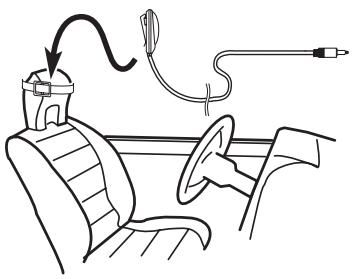
natural_image
Diagram of a car interior showing seat, steering wheel, and medical device (no text or labels)- Switch the ignition switch to ON or ACC.
If the car's air conditioner or heater is switched on, switch it off. Noise from the fan in the air conditioner or heater may prevent correct Auto-equalizing.
- Switch the source OFF.
Continued overleaf.
6. Enter the Auto-equalizing mode (Auto Equalizer).

The front panel opens automatically.
7. Plug the provided microphone into the microphone input jack on this unit.
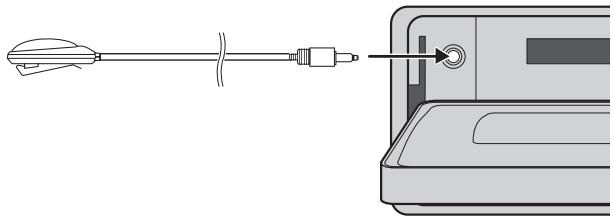
natural_image
Technical line drawing showing a tool interacting with a device inside a container (no text or symbols)8. Start the Auto-equalizing.

text_image
F FUNC Auto EQ Auto Equalizer Count Down 109. Get out of the car and close the door within 10 seconds, if a 10-second countdown starts.
The measurement tone (noise) is output from the speakers, and Auto-equalizing (acoustic characteristics measurement and compensation) begins.
Note:
- When all speaker units are connected, Auto-equalizing is completed in about 7 or 8 minutes.
- To cancel Auto-equalizing part way through, press any button.
10. When Auto-equalizing is completed, a message is displayed as below.
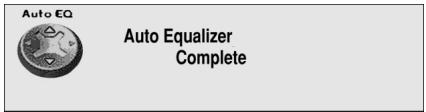
text_image
Auto EQ Auto Equalizer CompleteWhen correct measurement of car interior acoustic characteristics is not possible, an error message is displayed. (Refer to “Error Codes of Auto-equalizing Function” on the next page.)
11. To cancel the Auto-equalizing mode, press any button.
12. Store the microphone carefully in the glove compartment.
Store the microphone carefully in the glove compartment or other safe place. If the microphone is subjected to direct sunlight for an extended period, high temperatures may cause it to deform, change color and malfunction.
■ When Auto-equalizing was performed correctly:
AUTO EQ ON applies to, and the “AUTO EQ” indicator lights for, all equalizer curves that are called (refer to page 43). The called equalizer curve is set after it is corrected by Auto-equalizing.
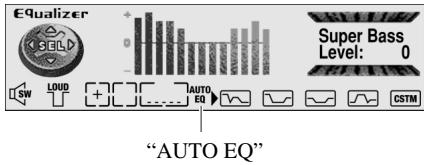
text_image
Equalizer SIELD 0 Super Bass Level: 0 SW LOUD AUTO EQ CSTM "AUTO EQ"Error Codes of Auto-equalizing Function
When correct measurement of car interior acoustic characteristics is not possible with the Auto-equalizer, the following error messages are displayed. After checking, try again.
| Display | Cause | Remedy |
| Error Check Mic | Microphone is not connected. | Plug in the supplied microphone securely into the jack. |
| Error Check Speakers | The microphone cannot pick up the measuring tone of the front and rear speakers. | Confirm that the speakers are connected correctly. |
| Set the input level setting of the power amp connected to the speakers correctly. | ||
| Correctly set the microphone. | ||
| Error Check System | The surrounding noise level is too high. | Stop your car in a place that's as quite as possible, and switch off the engine and air conditioner or heater. |
| Correctly set the microphone. |
Theft Protection
The front panel of the head unit is detachable to discourage theft.
Precaution:
- Never use force or grip the display tightly when removing or replacing the front panel.
- Avoid subjecting the front panel to excessive shocks.
- Keep the front panel out of direct sunlight and high temperatures.
Detaching the Front Panel
1. Open the front panel.
natural_image
Line drawing of a 3D rectangular box with a separate triangular shape on the left (no text or symbols)Precaution:
- A few seconds after turning the ignition switch to ON/OFF, the front panel automatically moves. When this happens, your fingers may become jammed in the panel, so keep your hands away from it.
2. Slide and remove the front panel toward you.
Take care not to grip it tightly or drop it.
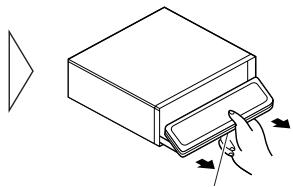
natural_image
Illustration of a hand placing a stack of papers into a larger box, with arrows indicating motion (no text or symbols)Release Section
Precaution:
- When removing the front panel, be sure to press the corrugated release section on the rear of the front panel while pulling.
3. Use the protective case provided to store/carry the detached front panel.
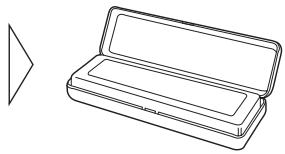
natural_image
Line drawing of an open box with a triangular shape beside it (no text or symbols)Replacing the Front Panel
- Make sure the inner cover is closed.
- Replace the front panel by clipping it into place.
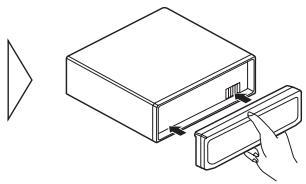
natural_image
Line drawing of a box being inserted into a clip, with no text or symbols presentWarning Tone
If the front panel is not detached within 5 seconds after the ignition is turned off, a warning tone will sound.
Note:
- You can cancel the warning tone function. (Refer to page 61.)
Entering the Initial Setting Menu
With this menu, you can perform initial settings for the product.
- Switch the sources OFF.
- Enter the Initial Setting Menu.

flowchart
graph LR
    A["Setup ON OFF"] --> B["DFS Alarm/RFP Alert"]
    B --> C["ON"]
Hold for 2 seconds
- Select the desired mode.

text_image
Setup Calendar&Time YEAR: 1999 SELEach press changes the Mode ...
- Operate a mode.
- Cancel the Initial Setting Menu.

text_image
Diagram of a CD-ROM interface with labeled buttons and a triangular navigation arrow pointing to the right panel.Note:
- ALARM is a new feature of the “Detachable Face Security Alarm”. Refer to “DFS Alarm Function” for details and instructions on how to use this function.
- Holding down the FUNCTION button for 2 seconds also cancels the Initial Setting Menu.
The Initial Setting Menu features the following functions.
Setting the Calendar and Time (Calendar&Time)
This is the mode for setting the time on the unit's clock display. (Refer to page 72 for details concerning the clock display.)
-
Press the FUNCTION button and select the Calendar and Time setting mode (Calendar&Time) in the Initial Setting Menu.
-
Select the desired calendar or time with the ◀/▶ buttons.
YEAR ↔ MONTH ↔ DAY ↔ HOUR ↔ MINUTE
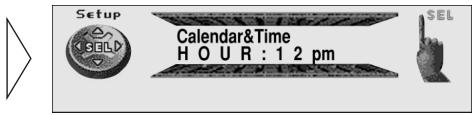
text_image
Setup CSGLD Calendar&Time H O U R : 1 2 pm SEL- Set as desired calendar and time with the ▲/▼ buttons.
As soon as you switch to “MINUTE”, the seconds start counting from 00.
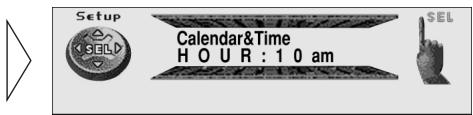
text_image
Setup SET Calendar&Time H O U R : 10 am SELSetting the DAB Priority Function (DAB Priority)
When a Hide-away DAB tuner (e.g. GEX-P900DABII) is connected, you can set the product in this mode so that the interruption of traffic information from the Hide-away DAB tuner takes precedence over this product's RDS Traffic Announcement (TA) function.
■ When it is ON
During DAB reception, when the selected Service Component supports Road Traffic Flashes and Transport Flashes, reception is not interrupted by this product's RDS Traffic Announcement (TA).
■ When it is OFF
Interruption is by the first received news flash from among this product's RDS and the hide-away DAB traffic information broadcasts.
-
Press the FUNCTION button and select the DAB Priority Setting mode (DAB Priority) in the Initial Setting Menu.
-
Switch the DAB Priority Setting ON/OFF with the ▲/▼ buttons.
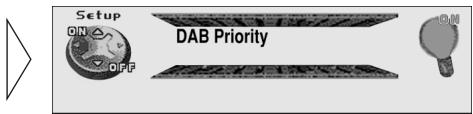
text_image
Setup ON OFF DAB Priority ONNote:
- You can only select to the DAB Priority Setting mode when a separately sold Hide-away DAB tuner (e.g. GEX-P900DABII) is connected.
Setting the Warning Tone (Warning Tone)
You can switch the Warning Tone function ON/OFF. (Refer to “Warning Tone” on page 58.)
- Press the FUNCTION button and select the Warning Tone mode (Warning Tone) in the Initial Setting Menu.
- Switch the Warning Tone ON/OFF with the ▲/▼ buttons.

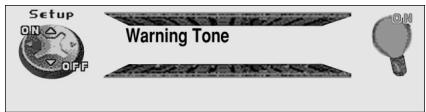
text_image
Setup ON OFF Warning ToneSwitching the "Multi-CD" Display ("Multi-CD" display)
Even if a Multi-CD player is not connected to the product, you can switch the source to select a Multi-CD player. (If you do this, “Multi-CD” is indicated in the display.) You can switch this display ON/OFF, but if you switch it OFF when there is no Multi-CD player connected, the source does not switch to Multi-CD player.
- Press the FUNCTION button and select the “Multi-CD” mode (“Multi-CD” display) in the Initial Setting Menu.
- Switch the “Multi-CD” display ON/OFF with the ▲/▼ buttons.

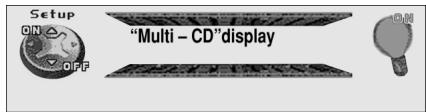
text_image
Setup ON OFF "Multi – CD"displaySwitching the AUX Mode (AUX)
It is possible to use auxiliary (AUX) equipment with this product.
Activate the AUX mode when using external equipment with this product.
- Press the FUNCTION button and select the AUX Setting mode (AUX) in the Initial Setting Menu.
- Switch the AUX ON/OFF with the ▲/▼ buttons.

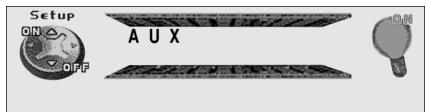
text_image
Setup ON OFF AUXSwitching the Rear Speaker Output (Rear Speaker Out)
This product's rear speaker leads can be used for full-range speaker (“Full Range output”) or Subwoofer (“Sub woofer output”) connection.
If you switch Rear Speaker Lead setting to the “Sub woofer output”, you can connect a rear speaker lead directly to a Subwoofer without using an auxiliary amp.
-
Press the FUNCTION button and select the Rear Speaker Output mode (Rear Speaker Out) in the Initial Setting Menu.
-
Select the desired Rear Speaker Out with the ▲/▼ buttons.
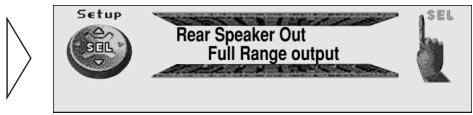
text_image
Setup Rear Speaker Out Full Range output $ELNote:
- When no Subwoofer is connected to the rear speaker lead, select “Full Range output”.
- Even if you change to “Sub woofer output”, there is no output unless you switch the Subwoofer Output (refer to page 49) in the Audio Menu 2 ON.
Setting the Subwoofer Control (Sub woofer control)
When rear speaker leads are connected to full range speakers (when “Full Range output” is selected), you can connect the RCA Subwoofer output to a Subwoofer.
In this case, you can select whether to use the Subwoofer controller's (Low Pass Filter, Phase) built-in “Internal” or the auxiliary “External”.
-
Press the FUNCTION button and select the Subwoofer Control mode (Sub woofer control) in the Initial Setting Menu.
-
Change the Subwoofer Controller with the ◀/▶ buttons.
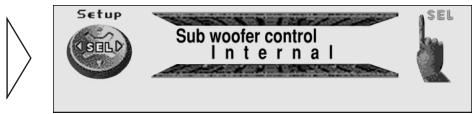
text_image
Setup SEL Sub woofer control Internal SELNote:
- When the Rear Speaker Output is “Sub woofer output”, you cannot change the Subwoofer Controller.
- If you change the Subwoofer Controller, Subwoofer output and Non-Fading Output in the Audio Menu 2 return to the factory settings.
- Even if you change this setting, there is no output unless you switch the Non-Fading Output (refer to page 50) or Subwoofer Output (refer to page 49) in the Audio Menu 2 ON.
Setting the Dimmer (Dimmer)
To enable this product's display from being too bright at night, when the vehicle's head lights are turned ON the display is dimmed.
You can switch this function ON/OFF.
-
Press the FUNCTION button and select the Dimmer mode (Dimmer) in the Initial Setting Menu.
-
Switch the Dimmer ON/OFF with the ▲/▼ buttons.
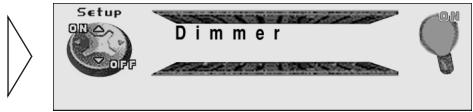
text_image
Setup ON OFF Dimmer ONSelecting the Digital Attenuator (Digital Attenuator)
When listening to a CD or other source on which the recording level is high, setting the equalizer curve level to “High” may result in distortion.
You can switch the digital attenuator to “Low” to reduce distortion. (Sound quality when the setting is “High” is better than when the setting is “Low”, so usually set to “High”.)
-
Press the FUNCTION button and select the Digital Attenuator mode (Digital Attenuator) in the Initial Setting Menu.
-
Select the desired attenuation level with the ◀/▶ buttons.
Low High

text_image
Setup Digital Attenuator High SELSelecting the Wall Paper (Wall Paper)
This product is equipped with three types of wall paper.
-
Press the FUNCTION button and select the Wall Paper mode (Wall Paper) in the Initial Setting Menu.
-
Select the desired Wall Paper with the ◀/▶ buttons.

text_image
Setup WALL Paper SELSelecting the Brightness (Brightness)
You can select the display brightness. The display shows “0” – “31”.
-
Press the FUNCTION button and select the Brightness mode (Brightness) in the Initial Setting Menu.
-
Select the desired Brightness with the ◀/▶ buttons.

text_image
Setup Brightness 1 8 SELIn addition to the Detachable Face Security, Pioneer has incorporated a new feature “Detachable Face Security Alarm”. This feature is designed to protect your new Pioneer car stereo as well as your vehicle contents.
Activating the DFS Alarm Feature
Pioneer has developed a menu display that allows you to set-up your DFS Alarm to meet your personal needs. By scrolling through this menu it is possible to select your own “Entry Delay Time”, “Speaker Output Volume”, “Selectable Output”, “Door System Type”, “Starter Disable” and “Remote Disarm”.
Initially from the factory the DFS Alarm feature is not activated.
- Select the DFS Alarm Feature ON/OFF mode (DFS Alarm/RFP Alert) in the Initial Setting Menu. (Refer to page 59.)
- Press the ▲ button to switch the DFS Alarm Feature ON. Press the ▼ button to deactivate the DFS Alarm Feature.
- Press the FUNCTION button for 2 seconds to enter the DFS Alarm Setting Menu.

text_image
Setup ON OFF DFS Alarm/RFP Alert OFF
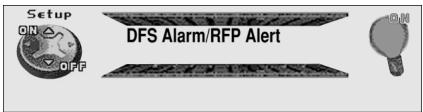
text_image
Setup ON OFF DFS Alarm/RFP Alert ON
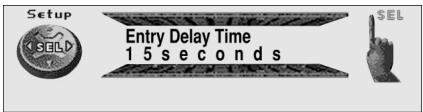
text_image
Setup CEL Entry Delay Time 15 seconds SELSetting Entry Delay Time
Initially the “Entry Delay Time” is set to 15 seconds. The “Entry Delay Time” can be adjusted to be 0, 5, 15, 30, 45 or 60 seconds.
- Decrease or increase the "Entry Delay Time" with the ◀/▶ buttons.
- Press the FUNCTION button to move to the next selection.

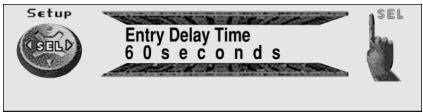
text_image
Setup SEL Entry Delay Time 60 seconds SEL
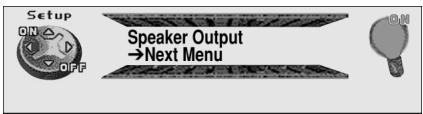
text_image
Setup ON OFF Speaker Output →Next MenuActivating Internal Speaker ON/OFF
This feature allows you to select whether or not the speaker output is sounded when the “DFS Alarm” is triggered. Initially from the factory the speaker output is activated. Toggling between ▲, ▼ buttons allows you to deactivate or activate the “Speaker Output”. If you switch the speaker output OFF, you cannot change the “Test Mode”.
Speaker Volume Output Adjustment
If the “Speaker Output” has been selected then it is possible to adjust the volume of the speaker output for when the Alarm is triggered. To adjust the volume you must engage the “Test Mode”.
Note:
- If the “Speaker Output” is turned OFF, then this menu will not appear.
- Select the "Test Mode" with the ▶ button.
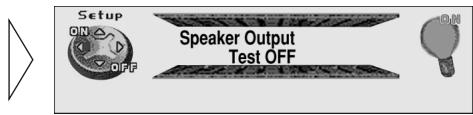
text_image
Setup ON OFF Speaker Output Test OFF- Press the ▲ button to switch the “Test Mode” ON.
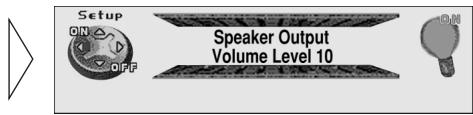
text_image
Setup ON OFF Speaker Output Volume Level 10In this mode the speakers will sound.
- Decrease or increase the volume with the +/- button.
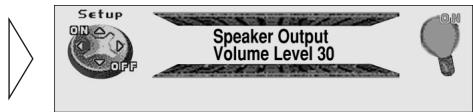
text_image
Setup ON OFF Speaker Output Volume Level 30Display shows “10” – “40”.
- After setting volume, switch the "Test Mode" OFF with the ▼ button.
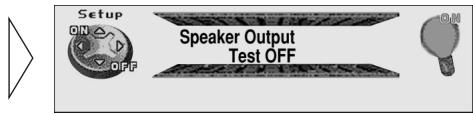
text_image
Setup ON OFF Speaker Output Test OFF- Cancel the "Test Mode" with the ◀ button.
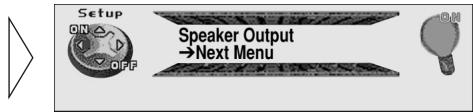
text_image
Setup ON OFF Speaker Output →Next Menu- Press the FUNCTION button to move to the next selection.


text_image
Setup SELECTable Output Pulsed Output SELSetting the Selectable Output (Pulsed/Constant Output)
This mode enables you to select a “Constant Output” or “Pulsed Output”. When connecting a Siren the “Constant Output” should be selected. When connecting the horn or lights the “Pulsed Output” should be selected.
- Select your desired output type with the ◀/▶ buttons.
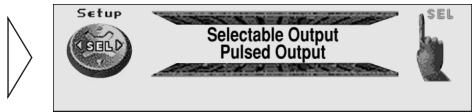
text_image
Setup SEL Selectable Output Pulsed Output SEL- Press the FUNCTION button to move to the next selection.
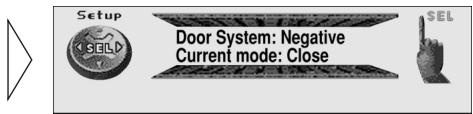
text_image
Setup Door System: Negative Current mode: Close SELSelecting Door Switching Systems
It is necessary to select the correct “Door System Type” (Negative or Positive switching) for that of your vehicle. Initially, the system is set for vehicles with the grounding type (Negative switching).
Select the correct “Door System Type” of your vehicle from below.
■ Vehicles to select "Door System: Negative, Current Mode: Close"
GM, CHRYSLER, JAPANESE, EUROPEAN
■ Vehicles to select "Door System: Positive, Current Mode: Close"
FORD, JAGUAR, MERCEDES*, etc.
* Some Models Only.
- Select “Door System: Negative” or “Door System: Positive” with the ◀/▶ buttons.

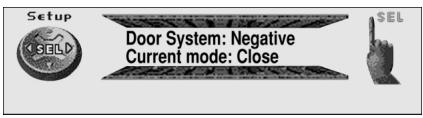
text_image
Setup SEL Door System: Negative Current mode: Close SELDoor System Confirmation
The door system confirmation feature was incorporated to ensure that the correct door system type has been selected. (e.g. Set to “Door System: Negative” for GM vehicles.)
- First, close all the vehicle's doors. If the correct door system type has been selected then the Display will show "Current mode: Close".
If not, select the alternative door system type by pressing the ◀ or ▶ button. Lastly, confirm each door triggers the Alarm by opening and closing each vehicle's door.
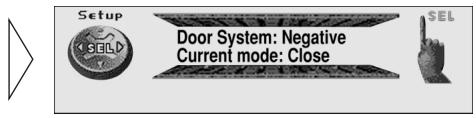
text_image
Setup COLD Door System: Negative Current mode: Close $EL- As the vehicle's door is opened the display should change accordingly (“Current mode: Close”–“Current mode: Open”).
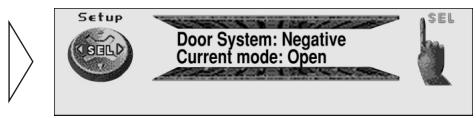
text_image
Setup SBOLD Door System: Negative Current mode: Open SEL- Press the FUNCTION button to move to the next selection.
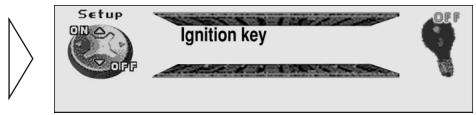
text_image
Setup DIM OFF Ignition key OFFStarter Disable
This function makes it virtually impossible for a would be thief to start your car when activated. This function is initially set “OFF”. If a “SPDT” relay, sold separately, is installed it can be used.
The method for disarming the “DFS Alarm” differs on whether or not this function is “ON” or “OFF”.
■ If this function is "ON" or "OFF"
The “DFS Alarm” can be disarmed if the Detach face is reattached within the “Entry Delay Time”.
■ If this function is "ON"
The “DFS Alarm” can be disarmed if the ignition key is inserted in the ignition within the “Entry Delay Time”, then the key is turned from “OFF” to “ON” 5 times within 1 minute.
■ If this function is "OFF"
The “DFS Alarm” can be disarmed if the ignition key is inserted in the ignition and turned from “OFF” position to the “ON” within the “Entry Delay Time”.
Note:
- In order for the “DFS Alarm” to operate when a window is broken, connect this product’s white/red (ALARM SENSOR) lead to glass sensor securely.
- In order for the “DFS Alarm” to operate when a door is forced open, connect this product’s white/yellow (DOOR SWITCH) lead securely.
1. Press the ▲ button to switch the Starter Disable function ON.
Press the ▼ button to deactivate the Starter Disable function.
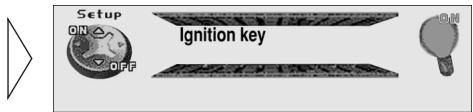
text_image
Setup ON OFF Ignition key ON2. Press the FUNCTION button to move to the next selection.
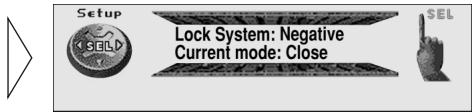
text_image
Setup Lock System: Negative Current mode: Close SELCentral Door Lock Systems
The “DFS Alarm” can be disarmed by unlocking the doors with a remote keyless entry system. If this product’s standby state is disarmed, the LED’s blinking speed becomes faster. (It can be understood if the “DFS Alarm” has been disarmed by the change in the LED’s blinking speed.)
Note:
- If the “DFS Alarm” is disarmed by the keyless entry system, it will remain disarmed. To reset, turn the ignition on after reattaching the face, then turn the ignition to the off position and remove the detachable face.
- If your vehicle is equipped with a central door lock but the glass or shock sensor is not connected, if the window is broken and the central door lock is released, this product's DFS Alarm will not operate.
- Pioneer recommends that both a shock sensor and glass sensor be installed when you are using the “Remote Disarming” feature.
Selecting the Door Lock Type
- Select the “Lock System: Negative” or “Lock System: Positive” for the correct door lock type with the ◀/▶ buttons.

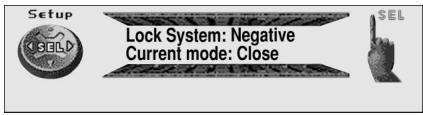
text_image
Setup Lock System: Negative Current mode: Close SELDoor Lock Confirmation
The door lock confirmation feature was incorporated to ensure that the correct door lock type has been selected. (e.g. Set to “Lock System: Negative, Current mode: Close”.)
- As the vehicle's doors are unlocked with central door lock system the display should flash "Lock System: Negative, Current mode: Open" accordingly.
If not, select the alternative door lock type by pressing the ◀ or ▶ button.
- Press the BAND button and cancel the DFS Alarm Setting Menu.
Setting of the “DFS Alarm” is now complete.

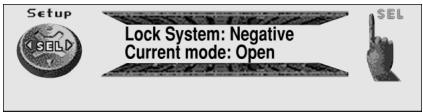
text_image
Setup Lock System: Negative Current mode: Open SEL
natural_image
Blank white image with no visible content, text, or symbolsNote:
- In case that the battery is disconnected or the RESET button is pressed, it may be necessary to reprogram the DFS Alarm Menu, otherwise this setting needs to be done only once.
- When the DFS Alarm is armed, you cannot disarm it by pressing the RESET button.
Operation of "DFS Alarm"
Providing the installation and setting of the “DFS Alarm Setting Menu” has been performed correctly, operation of the “DFS Alarm” is very simple.
Arming Alarm
To arm your Alarm simply turn off the ignition and detach the front panel, as described on page 57. After detaching the front panel the “DFS Alarm” will automatically arm itself after 30 seconds, providing all of the doors are closed. If after 30 seconds, a door still remains open the DFS Alarm will not arm until the last door has been closed. After closing all of the doors, ensure that they are securely locked. The LED indicator on the head unit will flash as a visual deterrent. Your vehicle is now protected by your “DFS Alarm”.
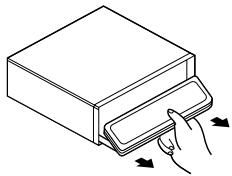
natural_image
Line drawing of a hand inserting a card into a rectangular box (no text or symbols)
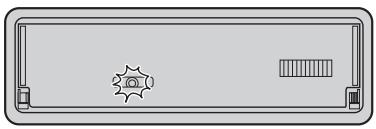
natural_image
Front view of a rectangular electronic device with a central button and two side buttons (no text or symbols)Disarming Alarm
Upon entering your vehicle, and within the “Entry Delay Time” set within the “DFS Alarm Menu”, attach your Pioneer Detachable Face as described on page 58.
■ If you have forgotten the Detachable Face Panel:
If the “Starter Disable” is “ON”, insert the ignition key in the ignition within the “Entry Delay Time”, then turn the key from “OFF” to “ON” 5 times within 1 minute.
If the “Starter Disable” is “OFF”, insert the ignition key in the ignition and turn the key from “OFF” to “ON” within the “Entry Delay Time”.

CAUTION:
- If the starter motor will not run, the cause may be the DFS Alarm. To check whether the DFS Alarm is the cause, try switching the position of the switch installed according to the “Avoiding Trouble” section of the installation manual.
- If the DFS Alarm is the cause of the trouble, then the starter motor will run. In this case, confirm DFS Alarm operation in a safe place. If there is no problem, switch the switch back to its original position. If left at the newly switched position, some functions of the DFS Alarm will not operate.
- If the starter motor will not run after switching the switch, something other than the DFS Alarm may be causing the problem. Have the vehicle checked at a nearby dealer.
Entry Detection
If the “DFS Alarm” was not disarmed in accordance with “Disarming Alarm,” the “DFS Alarm” will be triggered. The “DFS Alarm” will sound for 60 seconds and will repeat 5 times if any door is left open or reopened. After the fifth time the “DFS Alarm” will reset to prevent continuous sounding and prevent your battery from discharging.
Precaution:
- Upon returning to your vehicle and before opening any doors, check to see if the LED indicator is still flashing. If the LED is no longer flashing, it indicates that the Alarm has sounded. Disarming, as described above, is still necessary.
Time Display
Displaying the Time
- To turn the time display ON with the source ON.

text_image
1 0 : 3 0 am Track 0 1 Play Time 0 1 m 0 0 s Hold for 2 seconds SW LOUD EQ CSTMThe time display disappears temporarily when you perform another operation, but the time indication returns to the display after 25 seconds.
Off Clock
When the sources and the Feature Demo are OFF, the Calendar and Time appears on the display.

text_image
SAT 1.JAN. 2000 1 0 : 0 9 am Hold for 2 secondsSwitching the Entertainment Display
You can change the display to the movie screens, etc. while listening to each source.
(e.g. MOVIE SCREEN MODE 1)
- Select the desired Entertainment Display.

Each press changes the Display ...
Each press of the ENTERTAINMENT button changes the display in the following order:
SPECTRUM ANALYZER MODE 1 → SPECTRUM ANALYZER MODE 2
→ SPECTRUM ANALYZER MODE 3 → MOVIE SCREEN MODE 1
→ MOVIE SCREEN MODE 2 → MOVIE SCREEN MODE 3
→ ASL LEVEL INDICATOR → Display before entering the Entertainment Display
Using the PGM Button (Program Function)
The PGM button can memorize one of the functions in the Function Menu.
It is possible to memorize a different function for each source.
Setting the PGM Button
- Select the PGM button's setting mode (Program Function) in the Detailed Menu. (Refer to page 22.)

text_image
Function S E L D Program Function P a u s e S E L SW LOUD EQ CSTMHold for 2 seconds
- Select the function you want to memorize in the PGM button.

text_image
Function SOLD Program Function Repeat SEL SW LOUD EQ CSTM- Memorize the function in the PGM button.

text_image
Function SOLD Program Function Repeat SW LOUD EQ CSTMTo cancel the PGM button setting mode, press the BAND button.
Using the PGM Button
The PGM button operates in a different way depending on the function programmed (memorized).
- Use the PGM button.
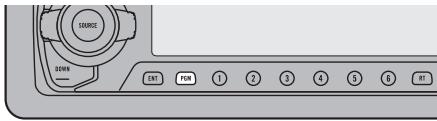
text_image
SOURCE SOURCE TNT PUM 1 2 3 4 5 6 RTTuner
| Function Name (Display) | Press | Hold for 2 seconds |
| Best Stations Memory (BSM) | OFF | ON |
| Local Seek Tuning (Local) | ON/OFF | Entering the Local Seek Sensitivity mode |
■ Built-in CD Player
| Function Name (Display) | Press | Hold for 2 seconds |
| Pause (Pause) | ON/OFF | —— |
| Repeat Play (Repeat) | ON/OFF | —— |
| Random Play (Random) | ON/OFF | —— |
■ Multi-CD Player
| Function Name (Display) | Press | Hold for 2 seconds |
| Pause (Pause) | ON/OFF | —— |
| Repeat Play (Repeat) | Selecting the mode | —— |
| Random Play (Random) | ON/OFF | —— |
| Disc List (List) | Enter the LIST mode | —— |
| ITS (ITS) | ITS Memory | ON/OFF |
Using the AUX Source
It is possible to use auxiliary (AUX) equipment with this product.
To listen to auxiliary equipment, switch the AUX Mode in the Initial Setting Menu ON, and then select the desired source.
Selecting the AUX Source
- Select AUX. (Refer to page 13.)
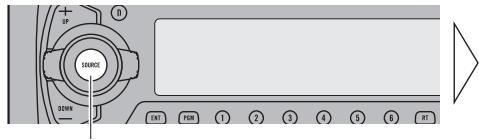
text_image
SOURCE EN1 FCM T 2 3 4 5 B ITEach press changes the Source ...
text_image
AUX AUX SW LOUD + EQ CSTMAUX Title Input
The display title for AUX Source can be changed.
1. Select the AUX Title Input mode (Title Input ABC) in the Detailed Setting Menu.
natural_image
Diagram of a door panel with labeled buttons and a triangular arrow symbol (no readable text or symbols)Hold for 2 seconds
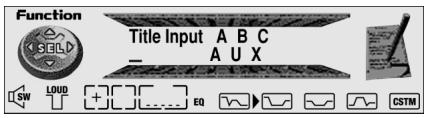
text_image
Function Title Input A B C _ A U X SW LOUD + [ ] ... EQ W CSTM2. Input the AUX Title.
Refer to “Disc Title Input” on page 40, and perform procedures 3 to 6 in the same way.
Cellular Telephone Muting
Sound from this system is muted automatically when a call is made or received using a cellular telephone connected to this product.
- The sound is turned off, “MUTE” is displayed and no audio adjustment is possible.
Operation returns to normal when the phone connection is ended.
text_image
Compact Disc TRACK 01 M U T E Play Time 0 1 m 3 0 s SW LOUD + [ ] EQ CSTMPrecaution
- Play only CDs bearing the Compact Disc Digital Audio mark. (If a CD features the top right mark on its disc title side, that disc is a CD TEXT disc. There are also some CD TEXT discs that do not feature the top right mark.)
- This product is designed for use with conventional, fully circular CDs only. Use of shaped CDs are not recommended for this product.


text_image
COMPACT DISC DIGITAL AUDIO TEXT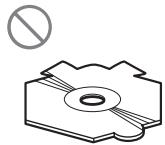
natural_image
Technical drawing of a mechanical component with a circular feature and a prohibition symbol (no text or labels)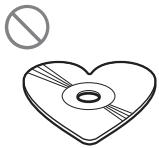
natural_image
Simple line drawing of a heart-shaped CD or DVD with a prohibition symbol above (no text or labels)- Check all CDs before playing and discard cracked, scratched or warped discs.
- Playback by this product of a CD-R disc recorded on a CD recorder may not be possible due to characteristics of the disc, scratches or dirt on the disc, or dirt or condensation on
this product's optical pickup lens. - Read the precautions with the CD-R discs before using.
- Wipe dirty or damp discs outward from the center with a soft cloth.
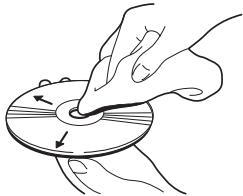
natural_image
Illustration of hands using a tool to press or rotate a circular object on a disc (no text or symbols present)- Avoid touching the recorded (iridescent) surface when handling discs.
- Store discs in their cases when not in use.
- Keep discs out of direct sunlight and high temperatures.
- Do not affix labels or apply chemicals to discs.
- Condensation may collect inside the player when using the heater in cold weather, interfering with playback. Turn it off for an hour or so and wipe damp discs with a soft cloth.
- Road shocks may interrupt CD playback.
Built-in CD Player's Error Message
When problems occur with CD playback, an error message appears on the display. Refer to the table below to identify the problem, then take the suggested corrective action. If the error persists, contact your dealer or your nearest PIONEER Service Center.
| Message | Possible cause | Recommended action |
| ERROR- 11, 12, 17, 30 | Dirty disc. | Clean the disc. |
| ERROR- 11, 12, 17, 30 | Scratched disc. | Replace the disc. |
| ERROR- 14 | Unrecorded CD. | Check the disc. |
| ERROR- 10, 11, 12, 14, 17, 30, A0 | Electrical or mechanical problem. | Turn the ignition ON and OFF, or switch to a different source, then back to the CD player. |
| HEAT | CD player overheating. | Discontinue play until the machine temperature drops. |
General
Power source ...... 14.4 V DC (10.8 – 15.1 V allowable)
Grounding system ...... Negative type
Max. current consumption 10.0 A
Dimensions
(DIN) (chassis) ..... 178 (W) × 50 (H) × 157 (D) mm
[7 (W) × 2 (H) × 6-1/8 (D) in.]
(nose) 188 (W) × 58 (H) × 20 (D) mm
[7-3/8 (W) × 2-1/4 (H) × 3/4 (D) in.]
(D) (chassis) ..... 178 (W) × 50 (H) × 162 (D) mm
[7 (W) × 2 (H) × 6-3/8 (D) in.]
[6-3/4 (W) × 1-3/4 (H) × 5/8 (D) in.]
Weight 1.8 kg (4.0 lbs.)
Audio/DSP
Continuous power output is 22 W per channel min. into 4 ohms, both channels driven 50 to 15,000 Hz with no more than 5% THD.
Maximum power output 45 W × 4
45W× 2ch / 4 +70W× 1ch / 2 (for Subwoofer)
Load impedance
...... 4 Ω (4 - 8 Ω [2 Ω for 1 ch] allowable)
Preout maximum output level/
output impedance 6.5 V/100 Ω
Loudness contour
(Low) ....+3.5 dB (100 Hz), +3 dB (10 kHz)
(Mid) ....+10 dB (100 Hz), +6.5 dB (10 kHz)
(High) ....+11 dB (100 Hz), +11 dB (10 kHz)
(volume: -30 dB)
Equalizer (13-Band Graphic Equalizer)
Frequency 50/80/125/200/315/500/800 Hz
1.3/2/3.2/5/8/12.5 kHz
Equalization range ....±12 dB (2 dB)
Auto Equalizer (Front & Rear & Subwoofer 13-Band Graphic)
Frequency 50/80/125/200/315/500/800 Hz
1.3/2/3.2/5/8/12.5 kHz
Equalization range ....±6 — -12 dB (2 dB)
Network
HPF
Frequency 50/80/125 Hz
Slope ...... -12 dB/oct.
Subwoofer output
Frequency 50/80/125 Hz
Slope ...... -18 dB/oct.
Gain ±12 dB
Phase Normal/Reverse
CD player
System .... Compact disc audio system
Usable discs .... Compact disc
Signal format ...... Sampling frequency: 44.1 kHz
Number of quantization bits: 20; linear
Frequency characteristics .... 5 - 20,000 Hz (±1 dB)
Signal-to-noise ratio .... 110 dB (1 kHz) (IHF-A network)
Dynamic range 94 dB (1 kHz)
Number of channels 2 (stereo)
FM tuner
Frequency range 87.9 - 107.9 MHz
Usable sensitivity 10 dBf
(0.9 μV/75 Ω, mono, S/N: 30 dB)
50 dB quieting sensitivity .... 15 dBf (1.5 μV/75 Ω, mono)
Signal-to-noise ratio 70 dB (IHF-A network)
Distortion 0.3% (at 65 dBf, 1 kHz, stereo)
Frequency response 30 - 15,000 Hz (±3 dB)
Stereo separation 40 dB (at 65 dBf, 1 kHz)
Selectivity 70 dB (2ACA)
Three-signal intermodulation
(desired signal level) 30 dBf
(two undesired signal level: 100 dBf)
AM tuner
Frequency range 530 - 1,710 kHz (10 kHz)
Usable sensitivity 18 μV (S/N: 20 dB)
Selectivity 50 dB ( ± 10 kHz)
Note:
- Specifications and the design are subject to possible modification without notice due to improvements.
Cher Client 3
Fonction TA (Traffic Announcement) ...... 29
● Filtre passe-haut (High Pass)
text_image
"LANG" "EXTRA" "TEXT" DAB-1 LANG EXTRA NEWS B B C R A D I O 5 DAB LOUD EQ CS M "DAB" "WTHR" "ANNC" "NEWS" "TRFC"text_image
SRVC. List 1 CFNY 2 680 NEWS 3 CHUM 4 CHUM-FM 5 CHFI 6 CFTR DAB SW LOUD + [ ] EQ CSTMRemarque:
text_image
SRVC. List 1 CFNY 2 680 NEWS 3 CHUM 4 CHUM-FM 5 CHFI 6 CFTR SW LOUD + [ ] EQ CSTMPrécaution
Pioneer Electronics Service, Inc.
CUSTOMER SERVICE
DEPARTMENT
P.O. Box 1760
Long Beach, CA 90801
800-421-1404
CANADA
Pioneer Electronics of Canada, Inc.
CUSTOMER SERVICE
DEPARTMENT
300 Allstate Parkway
Markham, Ontario L3R 0P2
(905) 479-4411
1-877-283-5901
natural_image
Line drawing of a remote control box with internal components and directional arrows indicating movement (no text or symbols)Précaution:
text_image
UP SOURCE ITEM ENT FOR T 2 3 4 5 6 RTnatural_image
Technical line drawing of a device rear panel with ports and buttons (no text or symbols)text_image
Function ON SEL OFF SW .0UD ①text_image
Function Random Play OFF OFF SW LOUD EQ CSTMChaque pression change le mode ...
text_image
Function ON OFF Random Play SW LOUD EQ CSTMtext_image
Compact Disc TRACK 04 Play Time 0 1 m 2 3 s SW LOUD + [ ] EQ CSTMtext_image
Function Title Input A B C - SW LOUD EQ CSTMChaque pression change le mode ...
text_image
Compact Disc TRACK 0 1 Play Time 0 1 m 3 0 s SW LOUD EQ CSTMRemarque:
text_image
Function ON △ OFF LOCAL LEVEL 1 SW LOUD + [ ] EQ W→ V → CSTMFM : LEVEL 1 ↔ LEVEL 2 ↔ LEVEL 3 ↔ LEVEL 4
AM : LEVEL 1 ↔ LEVEL 2
Remarque:
text_image
Function ON △ OFF B S M FM1 1ch S e a r c h i n g SW LOUD + ... EQ CSTMtext_image
Function ON OFF Best Stations Memory Stored in FM band 1 SW LOUD + EQ CSTMtext_image
Alarm ON AIR 90.5 MHz ALARM SW LOUD +EQ CSTMRemarque:
natural_image
Pure diagram of a mechanical component with no text, numbers, or symbols visibletext_image
FM-1 RDS PTY Classic ON AIR Service W G T S - F M SW LOUD [+] ... EQ CSTM“RDS”
Codes PTY
Fonction TA (Traffic Announcement)
text_image
Traffic ON AIR 87. voll 11 SW LOUD + EQ CSTMtext_image
Current Christian Music For To day - Positive Life Ra dio SW LOUD EQ CSTMtext_image
Message2 >>98.5<< KLUC THE... NUMBER1...HIT MUSIC. ..STATION IN VEGAS SW LOUD + EQ CSTMtext_image
Current Christian Music For To day - Positive Life Ra dio SW LOUD + [ ] EQ CSTMtext_image
Memo4 >>98.5<< KLUC THE... NUMBER1...HIT MUSIC. ..STATION IN VEGAS SW LOUD + [ ] EQ CSTMtext_image
Function ON OFF Play Mode Track Repeat SW LOUD EQ CSTMRemarque:
text_image
Function ON OFF Random Play LOW EQ CSTMtext_image
Function ON OFF Scan Play SW LOUD EQ CSTM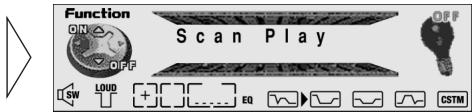
text_image
Function ON OFF Scan Play OFF SW LOAD EQ CSTMRemarque:
text_image
Function ON OFF SW LOUD Pause EQ CSTMtext_image
Function SIELD Play Mode Magazine Repeat 1 SW LOAD + EQ - CSTM SELRemarque:
text_image
Function ON OFF Random Play SW LOUD EQ CSTMRemarque:
text_image
Function ON OFF Scan Play SW LOUD EQ CSTMtext_image
Function ON OFF Scan Play LOUD EQ CSTMtext_image
Function ON OFF Pause SW LOUD EQ CSTMCompression et DBE (Compression)
Comp. OFF → Comp. 1 → Comp. 2 → Comp. OFF → DBE 1 → DBE 2
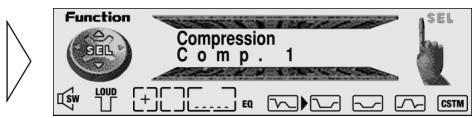
text_image
Function SEIL Compression C o m p. 1 SEL 1 SW LOAD + EQ CSTMRemarque:
text_image
Function ITS Memory track01 Memory Complete SW LOUD EQ CSTMRemarque:
Lecture ITS (ITS Play)
text_image
Function O N O F I T S P l a y L O U D E Q C S T MRemarque:
text_image
Function GOLD ITS Memory track03 SW LOUD EQ CSTMtext_image
Function ITS Memory track01 Memory Deleted SW LOUD EQ CSTMtext_image
Function Title Input A B C SW LOUD + [ ] EQ W [ ] CSTMRemarque:
text_image
Function Title Input A B C SW LOUD + [ ] EQ W [ ] CSTMtext_image
Function Title Input A B C B _ SW LOUD + [ ] EQ W [ ] CSTMtext_image
150Hz 300N EXT FOR 1 2 3 4 5 6 RT Compact Disc TRACK 0 1 00 min 01 sec NATURAL SW LOUD EQ CSTMSUPER BASS ↔ POWERFUL ↔ NATURAL ↔ VOCAL ↔ CUSTOM ↔ FLAT
Remarque:
text_image
FAD/BAL FRONT L R REAR Fader F/R : 0 0 SW LOUD EQ CSTMChaque pression change le mode ...
text_image
Compact Disc TRACK 01 Play Time 0 0 m 0 1 s SW LOUD EQ CSTMtext_image
FAD/BAL FRONT L R REAR Fader F/R : 0 0 SW LOUD + EQ CSTMtext_image
FAD/BAL FRONT L R Balance Right : 1 REAR SW LOUD + EQ CSTMRemarque:
text_image
SOURCE SOURCE END FOR 1 2 3 4 5 6 NET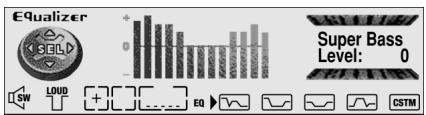
text_image
Equalizer Super Bass Level: 0 SW LOUD + EQ CSTMRemarque:
text_image
Equalizer + - 0 Natural Level: 0 SW LOUD + [ ] EQ CSTMSuper Bass ↔ Powerful ↔ Natural ↔ Vocal ↔ Custom ↔ Flat
text_image
Equalizer 50Hz Level: 0 SW LOUD EQ CSTMtext_image
F FUNC VREF RACE A Equalizer 125Hz Level: 0 SW LOUD EQ CSTM50 ↔ 80 ↔ 125 ↔ 200 ↔ 315 ↔ 500 ↔ 800 ↔ 1,3k ↔ 2k ↔ 3,2k ↔ 5k ↔ 8k ↔ 12,5k (Hz)
text_image
F FUNC RSP A E Equalizer 125Hz Level: + 6 SW LOAD EQ CSTMtext_image
SFC&OCT MODE Studio SW LOUD + EQ CSTMtext_image
F FUNC SFC&OCT SCLD Mode Jazz club SW LOUD EQ CSTMStudio ↔ Jazz club ↔ Club ↔ Octaver 1 ↔ Octaver 2 ↔ OFF (Hors)
text_image
Position FRONT RISKAR EQ Front Seat Left SW LOAD EQUITY CSTMtext_image
Sub W-1 ON OFF LSW LOAD EQ Sub. W:OFF CSTMtext_image
SLA FM CD AM AUX C D Level: 0 SW LOUD EQ CSTMChaque pression change le mode ...
(à suivre)
text_image
Compact Disc TRACK 04 Play Time 0 1 m 2 3 s SW LOUD + EQ CSTMtext_image
Sub W-1 ON SELECT OFF SW LOUD + EQ Sub.W:ON Phase:NOR CSTM
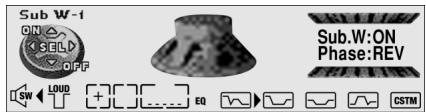
text_image
Sub W-1 ON △ SEL D OFF SW LOUD EQ Sub.W:ON Phase:REV CSTMtext_image
Sub W-2 50 80 125 Hz Level: 80Hz 0 Loud EQ CSTM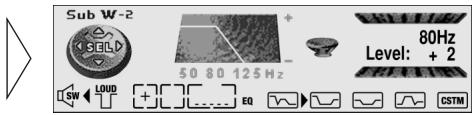
text_image
Sub W-2 50 80 125 Hz Level: + 2 1 SW LOAD EQ 80Hz CSTMRemarque:
text_image
Non Fade-1 ON OFF 1 SW Loud + EQ Non Fading ON CSTMtext_image
NonFade-2 SW LOUD + EQ Non Fading Level: 0 CSTMRemarque:
text_image
High Pass ON SELECT OFF 50 80 125 Hz Frequency 80Hz SW LOUD + EQ CSTMtext_image
High Pass ON SEL OFF 50 80 125 Hz Frequency 50Hz SW LOUD + [ ] EQ CSTMtext_image
Loudness ON SEL OFF 100 / 10k Mode Mid SW LOUD EQ CSTMtext_image
Loudness ON SEL OFF 100 / 70k Mode High SW LOUD + [ ] ... EQ CSTMLow Mid High
text_image
ASL ON SOLD OFF SENSOR LEVEL Mode Mid SW LOUD + ASL EQ CSTM
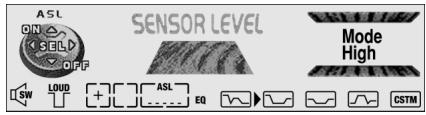
text_image
ASL ON SEL OFF SENSOR LEVEL Mode High LSW LOUD + ASL EQ CSTMLow Mid-Low Mid Mid-High High
text_image
SLA FM CD AM AUX SW LOUD EQ C D Level: 0 CSTMRemarque:
natural_image
Diagram of a car interior showing a seat, steering wheel, and medical device (no text or labels)natural_image
Technical line drawing showing a tool interacting with a device, no text or symbols presenttext_image
F FUNC AUTO A Auto EQ Auto Equalizer Count Down 10text_image
Auto EQ Auto Equalizer Completetext_image
Equalizer S E L D + - 0 Super Bass Level: 0 SW LOUD AUTO EQ CSTM "AUTO EQ"natural_image
Simple line drawing of a rectangular box with a folded paper clip beside it, alongside a separate triangular shape (no text or symbols)Précaution:
natural_image
Illustration of a hand placing a stack of papers into a box, with arrows indicating motion (no text or symbols)natural_image
Line drawing of an open rectangular box with a triangular shape on the left (no text or symbols)natural_image
Technical line drawing of a mechanical assembly with a rectangular block and a hand holding a bracket (no text or symbols)Tonalité d'alarme
text_image
Diagram showing a device control panel with labeled buttons and a triangular warning symbol on the right side.Remarque:
text_image
Setup CBOLD Calendar&Time H O U R : 12 pm SEL
text_image
Setup CSGLD Calendar&Time H O U R : 1 0 am SELtext_image
Setup ON OFF Warning ToneAffichage de l'indication "Multi-CD" ("Multi-CD" display)
text_image
Setup ON/OFF A U Xtext_image
Setup SEL Rear Speaker Out Full Range output SELRemarque:
text_image
Setup Sub woofer control Internal SELRemarque:
text_image
Setup Brightness 1 8 SELtext_image
Setup ON OFF DFS Alarm/RFP Alert
text_image
Setup Entry Delay Time 1 5 seconds SELtext_image
Setup Entry Delay Time 60 seconds SEL
text_image
Setup ON OFF Speaker Output →Next Menutext_image
Setup ON/OFF Speaker Output Test OFF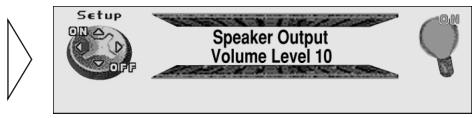
text_image
Setup ON/OFF Speaker Output Volume Level 10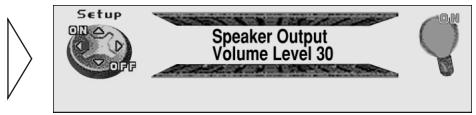
text_image
Setup ON/OFF Speaker Output Volume Level 30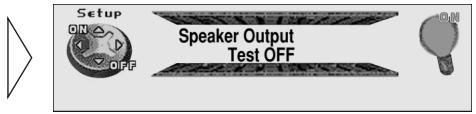
text_image
Setup ON OFF Speaker Output Test OFF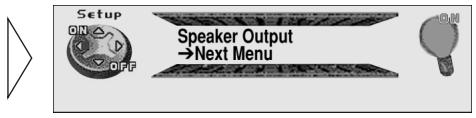
text_image
Setup ON OFF Speaker Output → Next Menutext_image
Setup SELECTable Output Pulsed Output SELtext_image
Setup SELECTable Output Pulsed Output SELtext_image
Setup SEL Door System: Negative Current mode: Close SELtext_image
Setup SEL Door System: Negative Current mode: Close SELtext_image
Setup COLD Door System: Negative Current mode: Close SEL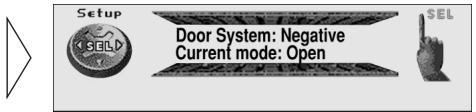
text_image
Setup CARL Door System: Negative Current mode: Open SEL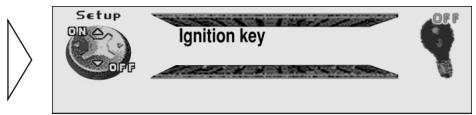
text_image
Setup ON OFF Ignition key OFFtext_image
Setup ON OFF Ignition key ON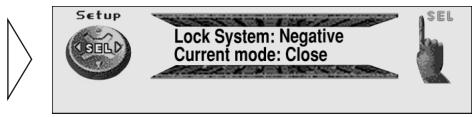
text_image
Setup Lock System: Negative Current mode: Close SELtext_image
Setup X SELD Lock System: Negative Current mode: Close SELtext_image
Setup SET Lock System: Negative Current mode: Open SEL
natural_image
Simple geometric shape: a triangle pointing right and a rectangle with a horizontal line inside (no text or symbols)Remarque:
natural_image
Illustration of a hand inserting a card into a box (no text or symbols)
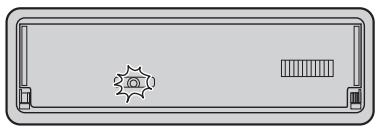
natural_image
Front view of a rectangular electronic device with a central star-shaped icon and two side buttons (no text or symbols)text_image
Function SEL Program Function Pause $EL SW LOUD EQ CSTMtext_image
F TIME NMD A Function SOLD Program Function Repeat SEL 1 SW LOAD EQ CSTMtext_image
Function Program Function Repeat SW LOUD EQ CSTMtext_image
AUX A U X SW LOUD + EQ CSTMChaque pression change la source ...
natural_image
Diagram of a door panel with labeled buttons and a triangular arrow symbol (no readable text or symbols)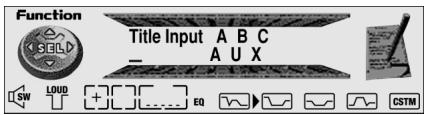
text_image
Function Title Input A B C — A U X SW LOUD + [ ] EQ CSTMtext_image
Compact Disc TRACK 01 M U T E Play Time 0 1 m 3 0 s SW LOUD + EQ CSTMPrécaution
natural_image
Technical line drawing of a mechanical component with a no-smoking symbol above (no text or labels)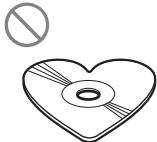
natural_image
Simple line drawing of a heart-shaped CD or DVD with a prohibition symbol above (no text or labels)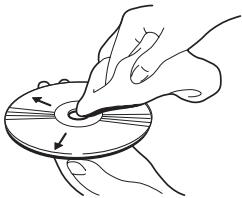
natural_image
Illustration of hands holding a circular object with arrows indicating direction (no text or symbols)PIONEER ELECTRONICS (USA) INC.
P.O. Box 1760, Long Beach, California 90801, U.S.A. TEL: (800) 421-1404
PIONEER EUROPE N.V.
Haven 1087 Keetberglaan 1, 9120 Melsele, Belgium TEL: (0) 3/570.05.11
PIONEER ELECTRONICS AUSTRALIA PTY. LTD.
178-184 Boundary Road, Braeside, Victoria 3195, Australia TEL: (03) 9586-6300
PIONEER ELECTRONICS OF CANADA, INC.
300 Allstate Parkway, Markham, Ontario L3R 0P2, Canada TEL: (905) 479-4411
PIONEER ELECTRONICS DE MEXICO, S.A. de C.V.
San Lorenzo Num 1009 3er piso Desp. 302 Col. Del Valle, Mexico D.F. C.P. 03100 TEL: 5-688-52-90
Published by Pioneer Corporation.
Copyright © 2000 by Pioneer Corporation.
All rights reserved.
Publication de Pioneer Corporation.
Copyright © 2000 Pioneer Corporation.