
ROG Strix Arion - External hard drive ASUS - Free user manual and instructions
Find the device manual for free ROG Strix Arion ASUS in PDF.


| Product Type | External SSD Enclosure |
| Brand | ASUS |
| Model | ROG Strix Arion |
| Dimensions (L x W x H) | 124.57 x 47.76 x 10.85 mm |
| Weight | 98 g |
| Interface | USB 3.2 Gen 2 Type-C (compatible with USB 3.2 Gen 1, USB 2.0) |
| Transfer Speed | Up to 10 Gbps |
| SSD Support | M.2 PCIe (NVMe) only, sizes 2280, 2260, 2242, 2230 |
| Power Supply | DC 5V (bus-powered via USB) |
| Operating Temperature | 0°C to 40°C (32°F to 104°F) |
| Operating System Compatibility | Windows 7 or later, Mac OS X 10.6 or later |
| Aura Sync Requirement | Windows 10/8 (64-bit) |
| LED Lighting | Aura RGB (customizable via Aura Sync) |
| Cooling | Thermal pad included for heat dissipation |
| Connector Type | USB Type-C |
| Included Accessories | USB cable, thumb screw, thermal pad |
| Material | Aluminum alloy (estimated) |
| Maintenance | Clean with a dry soft cloth; avoid liquids |
| Safety | Do not disassemble; use only with specified voltage |
| Repairability | Not user-serviceable; contact ASUS support |
| Certifications | FCC, CE, UKCA, EAC, KCC, RoHS, WEEE |
Frequently Asked Questions - ROG Strix Arion ASUS
User questions about ROG Strix Arion ASUS
0 question about this device. Answer the ones you know or ask your own.
Ask a new question about this device
Download the instructions for your External hard drive in PDF format for free! Find your manual ROG Strix Arion - ASUS and take your electronic device back in hand. On this page are published all the documents necessary for the use of your device. ROG Strix Arion by ASUS.
USER MANUAL ROG Strix Arion ASUS
User Manual
In 36 Languages
| English | Norsk | Slovensky | Polski | 한국어 |
| 繁體中文 | Svenska | Magyar | Русский | ไทย |
| 簡体中文 | Eesti | Română | Português | Tiếng Việt |
| Français | Lietuvių | Українська | Ελληνικά | ي ب ع |
| Deutsch | Latviešu | Қазақша | 日本語 | أى س راف |
| Italiano | Български | Türkçe | Bahasa | |
| Dansk | Slovenščina | Español | Indonesia | |
| Suomi | Čeština | Nederlands | Bahasa Melayu |
Copyright © 2025 ASUSTeK Computer Inc. All Rights Reserved.
No part of this manual, including the products and software described in it, may be reproduced, transmitted, transcribed, stored in a retrieval system, or translated into any language in any form or by any means, except documentation kept by the purchaser for backup purposes, without the express written permission of ASUSTek Computer Inc. ("ASUS").
Product warranty or service will not be extended if: (1) the product is repaired, modified or altered, unless such repair, modification of alteration is authorized in writing by ASUS; or (2) the serial number of the product is defaced or missing.
Products and corporate names appearing in this manual may or may not be registered trademarks or copyrights of their respective companies, and are used only for identification or explanation and to the owners' benefit, without intent to infringe.
安全說明:
- Use this product in environments with ambient temperatures between 0°C(32°F) and 40°C(104°F) .
- Refer to the rating label on your product and ensure your power supply complies with this rating.
- DO NOT place on uneven or unstable work surfaces. Seek servicing if the casing has been damaged.
- DO NOT place or drop objects on top and do not shove any foreign objects into the product.
- DO NOT expose to or use near liquids, rain, or moisture. DO NOT use the product during electrical storms.
- DO NOT use damaged cables, accessories, or other peripherals.
- If your product is broken, do not try to fix it by yourself. Contact a qualified service technician or your retailer.
- To prevent electrical shock hazard, disconnect the cable from the electrical outlet before relocating the system.
• Product name: External SSD Enclosure
• Product model: ESD-S1C, ESD-S1CL - Rating: DC 5V
ASUS Recycling / Takeback Services
ASUS recycling and takeback programs come from our commitment to the highest standards for protecting our environment. We believe in providing solutions for our customers to be able to responsibly recycle our products, batteries and other components as well as the packaging materials. Please go to https://esg.asus.com/en/Takeback.htm for detail recycling information in different region.
Vietnam RoHS
ASUS products sold in Vietnam, on or after September 23, 2011, meet the requirements of the Vietnam Circular 30/2011/TT-BCT.
Per FCC Part 2 Section 2.1077

Responsible Party: Asus Computer International
Address: 48720 Kato Rd, Fremont, CA 94538
Phone/Fax No: (510)739-3777/(510)608-4555
hereby declares that the product
Product Name : External SSD Enclosure
Model Number : ESD-S1C, ESD-S1CL
compliance statement:
This device complies with part 15 of the FCC Rules. Operation is subject to the following two conditions: (1) This device may not cause harmful interference, and (2) this device must accept any interference received, including interference that may cause undesired operation.
Ver. 180620
Australia Statement Notice
From 1 January 2012 updated warranties apply to all ASUS products, consistent with the Australian Consumer Law. For the latest product warranty details please visit http://support.asus.com. Our goods come with guarantees that cannot be excluded under the Australian Consumer Law. You are entitled to a replacement or refund for a major failure and compensation for any other reasonably foreseeable loss or damage. You are also entitled to have the goods repaired or replaced if the goods fail to be of acceptable quality and the failure does not amount to a major failure. If you require assistance please call ASUS Customer Service 1300 2787 88 or visit us at http://support.asus.com.
User Manual : Class B(section 15.105)
This equipment has been tested and found to comply with the limits for a Class B digital device, pursuant to part 15 of the FCC Rules. These limits are designed to provide reasonable protection against harmful interference in a residential installation. This equipment generates, uses and can radiate radio frequency energy and, if not installed and used in accordance with the instructions, may cause harmful interference to radio communications. However, there is no guarantee that interference will not occur in a particular installation. If this equipment does cause harmful interference to radio or television reception, which can be determined by turning the equipment off and on, the user is encouraged to try to correct the interference by one or more of the following measures:
- Reorient or relocate the receiving antenna.
- Increase the separation between the equipment and receiver.
- Connect the equipment into an outlet on a circuit different from that to which the receiver is connected.
- Consult the dealer or an experienced radio/TV technician for help.
India RoHS
This product complies with the "India E-Waste (Management) Rules, 2016" and prohibits use of lead, mercury, hexavalent chromium, polybrominated biphenyls (PBBs) and polybrominated diphenyl ethers (PBDEs) in concentrations exceeding 0.1% by weight in homogenous materials and 0.01% by weight in homogenous materials for cadmium, except for the exemptions listed in Schedule II of the Rule.
EU REACH and Article 33
Compliance Statement of Innovation, Science and Economic Development Canada (ISED)
This device complies with Innovation, Science, and Economic Development Canada licence exempt RSS standard(s). Operation is subject to the following two conditions: (1) this device may not cause interference, and (2) this device must accept any interference, including interference that may cause undesired operation of the device.
CAN ICES-003(B)/NMB-003(B)
EU RoHS
This product complies with the EU RoHS Directive. For more details, see https://esg.asus.com/Compliance.htm.
Declaration of Compliance for Product Environmental Regulation ____
ASUS follows the green design concept to design and manufacture our products, and makes sure that each stage of the product life cycle of ASUS product is in line with global environmental regulations. In addition, ASUS disclose the relevant information based on regulation requirements.
Please refer to https://esg.asus.com/Compliance.htm for information disclosure based on regulation requirements ASUS is complied with.
France sorting and recycling information

FR
These products meet the requirements of technical regulations of the Customs Union TR CU 020/2011 "Electromagnetic compatibility of technical equipment" approved. Decision of the CCC from 09.12.2011. N°879
Russian:
ASUSTeK Computer Inc. 1F., No. 15, Lide Rd., Beitou Dist., Taipei City 112
EAC
KCC
The Waste Electrical and Electronic Equipment (WEEE) Directive (Directive 2012/19/EU) is a European Union law that aims to reduce the environmental impact of electrical and electronic equipment. It mandates producers to take responsibility for the end-of-life management of their products, promoting collection, treatment, and recycling to minimize waste and encourage resource recovery.
Do not throw your electrical and electronic equipment in municipal waste. The symbol of the crossed-out wheeled bin on the product or packaging indicates that this product (including any batteries it contains) must not be disposed of with your household waste.
To prevent potential harm to the environment and human health, a collection framework should be used to return, recycle, and recover waste electrical and electronic equipment (WEEE), and this product has been designed to enable the reuse of parts and facilitate the recycling of certain materials.
Improper disposal may involve risks due to the presence of hazardous substances within electrical and electronic equipment, such as lead and BFR and other harmful components.
Check your local recycling services for electronic products.
(https://esg.asus.com/en/circular-economy/resource-regeneration/global-take-back-service)
For more information on the multi-language version please scan below:
UK Declaration of Conformity for Non-RF Equipment
ASUSTek Computer Inc. hereby declares that this device is in compliance with the essential requirements and other relevant provisions of related Regulations. Full text of UKCA declaration of conformity is available at: https://www.asus.com/support/.
EU Declaration of Conformity for Non-RF Equipment
English ASUSTek Computer Inc. hereby declares that this device is in compliance with the essential requirements and other relevant provisions of related Directives. Full text of EU declaration of conformity is available at: https://www.asus.com/support/.
ASUSTek Computer Inc. 1987 https://www.asus.com/support
產品一覽及規格
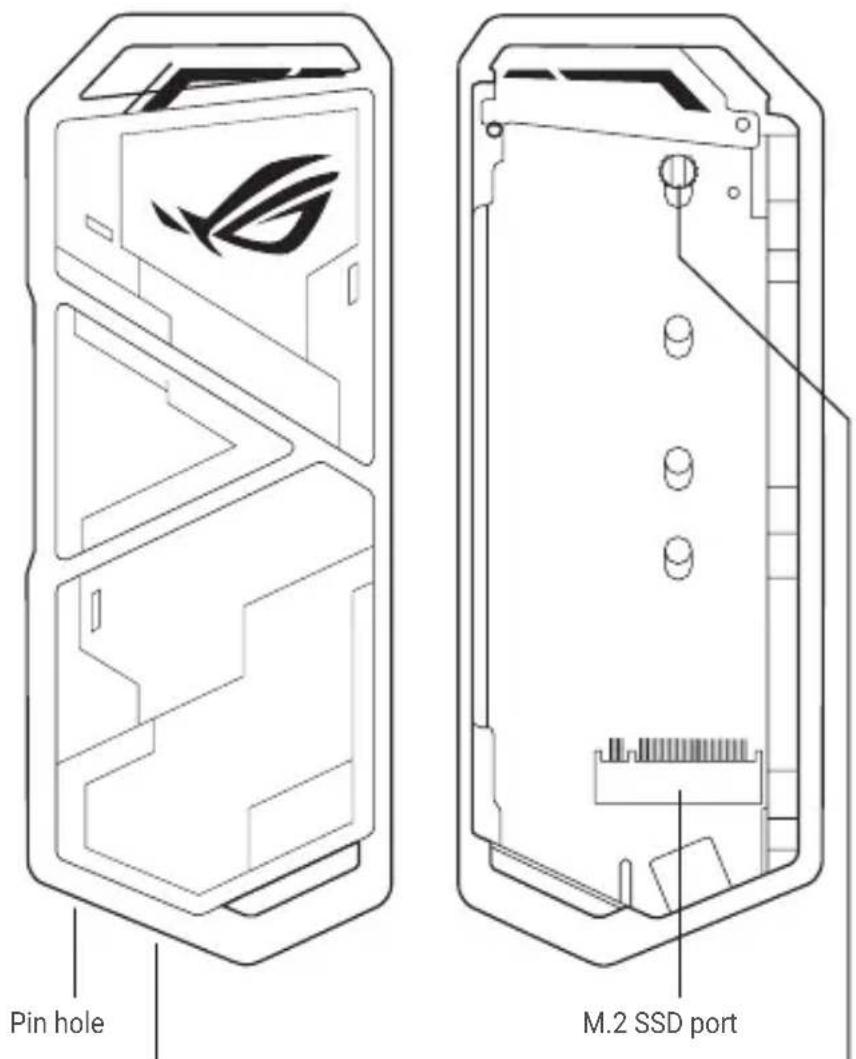
USB3.2 GEN2 Type-C ® port Thumb screw
Specifications Summary
| Dimension 124.57mm(L)x47. | 76mm(W)x10.85mm(H) |
| Weight 98g | |
| OS Compatibility | Windows 7 or later |
| Mac OS X 10.6 or later | |
| Aura System requirement Win | dows 10/ 8 64bit |
| Interface | USB 3.2 GEN 2 Type-C® ( Compatible with USB 3.2 GEN 1/ USB 2.0) |
| Transferring speed Up to 10 Gbps | |
| SSD Compatibility | M.2 PCIe(NVMe) SSD only with 2280, 2260, 2242, 2230 |
| Voltage DC 5V | |
| Working Temperature 0°C(32°F) ~40°C(104°F) | |
* Specifications, content and product availability are all subject to change without notice and may differ from country to country.
以上產品之規格、圖片及其他資訊僅供參考,如與實際產品有任何不相符之處,應以實際產品為準。
* Actual performance may vary depending on applications, usage, environment and other factors.
本產品所標示之各項效能表現為各晶片廠商或各制定介面官方組織所提出的最大理論值,實際效能可能因規格及設備而有所不同。
English
- The transfer speed may vary depending on your devices and SSDs.
- To take advantage of USB 3.2 Gen 2's high transfer rate, ensure that you have connected your product to your computer's USB 3.2 Gen 2 port.
- For the best power efficiency, ensure that you have connected your product to your computer using the bundled cables.
- For the best heat dissipation effects, please do not remove the attached thermal pad.
- If you want to change the preset lighting mode or synchronize lighting effects with other Aura-enabled devices, install the Aura Sync Utility. The latest version of the Aura Sync Utility is available at https://www.asus.com/campaign/aura/global/download.html.
- Ensure that you have backed-up all your data before sending your unit in for RMA service. We do not accept liability beyond this limited hardware warranty.
- This Warranty does not cover accessories, which were delivered together with this product, such as R-hook, protective holder, pin ejector, and USB cables.
繁體中文
- To take of advantage USB 3.2 Gen 2's high transfer rate, ensure that you have connected your product to your computer's USB 3.2 Gen 2 port.
.https://www.asus.com/campaign/aura/global/download.html
.https://www.asus.com/campaign/aura/global/download.html
If you are using a brand new SSD, you may need to follow the steps below for the PC to display the ROG Strix Arion's disk.
- Please install your new SSD into the ROG Strix Arion, then plug it into the PC via a USB port.
- Right click "Start menu" -> "Disk Management"
- If your PC detects a new blank SSD on the ROG Strix Arion, an "unallocated" partition will appear.
- The "unallocated" partition might not appear for your new blank SSD due to the following reasons:
- Your SSD may have already been formatted.
- Your new blank SSD is not being detected by the PC, please make sure the ROG Strix Arion is properly connected to the PC.
- Right-click on the unallocated partition and select "New Simple Volume" to start the New Simple Volume Wizard.
- Specify the desired size of the partition (you may also choose to use the default setting) and click "Next".
- Assign a drive letter or path (you may also choose to use the default setting) and click "Next".
- Select your file system type and allocation unit size, then type your volume label (you can also choose to use the default setting). Check the "Perform a quick format" option and click "Next".
- Confirm all the selected settings then click "Finish" to complete the New Simple Volume Wizard and the program will help setup your disk volume.
- After the disk format is completed, the PC should display and allow you to access the disk properly.
繁體中文
1st Floor, Sackville House, 143-149 Fenchurch Street, London, EC3M 6BL, England, United Kingdom
Stay cool. Stay fast


- COPYRIGHT © 2025 ASUSTEK COMPUTER INC. ALL RIGHTS RESERVED
- 安全說明
- ASUS RECYCLING / TAKEBACK SERVICES
- VIETNAM ROHS
- AUSTRALIA STATEMENT NOTICE
- USER MANUAL : CLASS B(SECTION 15.105)
- INDIA ROHS
- EU REACH AND ARTICLE
- COMPLIANCE STATEMENT OF INNOVATION, SCIENCE AND ECONOMIC DEVELOPMENT CANADA (ISED)
- EU ROHS
- DECLARATION OF COMPLIANCE FOR PRODUCT ENVIRONMENTAL REGULATION
- FRANCE SORTING AND RECYCLING INFORMATION
- FR
- RUSSIAN
- EAC
- KCC
- UK DECLARATION OF CONFORMITY FOR NON-RF EQUIPMENT
- EU DECLARATION OF CONFORMITY FOR NON-RF EQUIPMENT
- ENGLISH
- 繁體中文
- STAY COOL. STAY FAST
Brand : ASUS
Model : ROG Strix Arion
Category : External hard drive