
Wireless Duo - External hard drive ASUS - Free user manual and instructions
Find the device manual for free Wireless Duo ASUS in PDF.


| Product Type | Wireless External Hard Drive |
| Brand | Asus |
| Model | Wireless Duo |
| Storage Capacity | 1 TB (3.5" HDD) |
| Wireless Connectivity | Wi-Fi 802.11 b/g/n, 2.4 GHz |
| Wired Connectivity | USB 2.0 (Type A), Ethernet (RJ-45) |
| Dimensions | 130 x 80 x 20 mm |
| Weight | 200 g |
| Power Source | Rechargeable Li-ion battery (3000 mAh) or USB powered |
| Battery Life | Up to 10 hours of continuous use |
| Media Streaming | Supports DLNA, iTunes Server, FTP, Samba |
| Backup Feature | Automatic backup via Wi-Fi (Windows/Mac) |
| Cloud Access | Remote access via Asus WebStorage |
| Supported File Systems | NTFS, FAT32, EXT3 |
| Operating Temperature | 5°C to 35°C |
| Storage Temperature | -20°C to 60°C |
| Cleaning | Wipe with a soft, dry cloth |
| Safety Warnings | Do not expose to water or high humidity; avoid dropping |
| Spare Parts | Replacement battery, USB cable, power adapter (if applicable) available from Asus service |
| Repairability | Repair should be performed by authorized service centers |
| General Information | Compatible with Windows, macOS, iOS, Android; supports up to 5 users simultaneously |
Frequently Asked Questions - Wireless Duo ASUS
User questions about Wireless Duo ASUS
0 question about this device. Answer the ones you know or ask your own.
Ask a new question about this device
Download the instructions for your External hard drive in PDF format for free! Find your manual Wireless Duo - ASUS and take your electronic device back in hand. On this page are published all the documents necessary for the use of your device. Wireless Duo by ASUS.
USER MANUAL Wireless Duo ASUS
Copyright © 2013 ASUSTeK Computers, Inc. All Rights Reserved.
No part of this manual, including the products and software described in it, may be reproduced, transmitted, transcribed, stored in a retrieval system, or translated into any language in any form or by any means, except documentation kept by the purchaser for backup purposes, without the express written permission of ASUSTeK Computers Inc ("ASUS"). Product warranty or service will not be extended if: (1) the product is repaired, modified or altered, unless such repair, modification of alteration is authorized in writing by ASUS; or (2) the serial number of the product is defaced or missing.
ASUS PROVIDES THIS MANUAL "AS IS" WITHOUT WARRANTY OF ANY KIND, EITHER EXPRESS OR IMPLIED, INCLUDING BUT NOT LIMITED TO THE IMPLIED WARRANTIES OR CONDITIONS OF MERCHANTABILITY OR FITNESS FOR A PARTICULAR PURPOSE. IN NO EVENT SHALL ASUS, ITS DIRECTORS, OFFICERS, EMPLOYEES OR AGENTS BE LIABLE FOR ANY INDIRECT, SPECIAL, INCIDENTAL, OR CONSEQUENTIAL DAMAGES (INCLUDING DAMAGES FOR LOSS OF PROFITS, LOSS OF BUSINESS, LOSS OF USE OR DATA, INTERRUPTION OF BUSINESS AND THE LIKE), EVEN IF ASUS HAS BEEN ADVISED OF THE POSSIBILITY OF SUCH DAMAGES ARISING FROM ANY DEFECT OR ERROR IN THIS MANUAL OR PRODUCT.
SPECIFICATIONS AND INFORMATION CONTAINED IN THIS MANUAL ARE FURNISHED FOR INFORMATIONAL USE ONLY, AND ARE SUBJECT TO CHANGE AT ANY TIME WITHOUT NOTICE, AND SHOULD NOT BE CONSTRUED AS A COMMITMENT BY ASUS. ASUS ASSUMES NO RESPONSIBILITY OR LIABILITY FOR ANY ERRORS OR INACCURACIES THAT MAY APPEAR IN THIS MANUAL, INCLUDING THE PRODUCTS AND SOFTWARE DESCRIBED IN IT.
Products and corporate names appearing in this manual may or may not be registered trademarks or copyrights of their respective companies, and are used only for identification or explanation and to the owners' benefit, without intent to infringe.
SAFETY INFORMATION
In order to maintain compliance with the FCC RF exposure guidelines, this equipment should be installed and operated with minimum distance [20cm] between the radiator and your body. Use only with supplied antenna. Unauthorized antenna, modification, or attachments could damage the transmitter and may violate FCC regulations.
CAUTION! Any changes or modifications not expressly approved in this manual could void your authorization to use this device.
WIRELESS DUO DEVICE CARE
- Please fully charge your Wireless Duo until the power indicator goes out before first use.
- Do not attempt to open your Wireless Duo device casing. There are no user serviceable parts inside and you might damage sensitive electronic circuits and components. Unauthorized disassembly will void the warranty.
- Do not leave your Wireless Duo device exposed to strong sunlight or excessive heat for a prolonged period. This may damage it.
- Do not handle your Wireless Duo device with wet hands or expose it to moisture or liquids of any kind. Continuous changes from a cold to a warm environment may lead to condensation inside your Wireless Duo device, resulting in corrosion and possible damage.
- If you pack your Wireless Duo device in your suitcase during travel, beware of damage. Cramming a suitcase may crack the device. Remember to switch off your wireless connections during air travel.
- Use your Wireless Duo device in an environment with ambient temperatures between 5°C and 35°C.
THE BATTERY
CAUTION! Risk of explosion if battery is replaced by an incorrect type. Dispose of used batteries according to the instructions.
Your Wireless Duo is equipped with a high performance non-detachable Li-ion battery. Observe the maintenance guidelines for a longer battery life.
- Avoid charging in extremely high or low temperature.
- Do not try to remove or replace the battery.
- Do not use any cell or battery which is not designed for use with Wireless Duo.
- Never try to open the battery as it contains substances that might be harmful if swallowed or allowed to come into contact with unprotected skin.
- Do not remove and short-circuit the battery, as it may overheat and cause a fire. Keep it away from metal objects.
- Do not remove and dispose of the battery (or Wireless Duo) in fire. It could explode and release harmful substances into the environment.
- Do not remove and dispose of the battery (or Wireless Duo) with your regular household waste. Take it to a hazardous material collection point.
- In the event of a cell leaking, do not allow the liquid to come in contact with the skin or eyes. If contact has been made, wash the affected area with copious amounts of water and seek medical advice.
THE CHARGER
- Do not use any charger other than that specifically provided for use with Wireless Duo.
- Do not leave a battery on prolonged charge when not in use.
- Never pull the charger cord to release it from the mains – pull the charger itself.
FEDERAL COMMUNICATIONS COMMISSION STATEMENT
This device complies with Part 15 of the Federal Communications Commission (FCC) Rules. Operation is subject to the following two conditions:
- This device may not cause harmful interference, and
- This device must accept any interference received including interference that may cause undesired operation.
This equipment has been tested and found to comply with the limits for a Class B digital device, pursuant to Part 15 of the FCC Rules. These limits are designed to provide reasonable protection against harmful interference in a residential installation. This equipment generates, uses and can radiate radio frequency energy and, if not installed and used in accordance with instructions, may cause harmful interference to radio communications. However, there is no guarantee that interference will not occur in a particular installation. If this equipment does cause harmful interference to radio or television reception, which can be determined by turning the equipment off and on, the user is encouraged to try to correct the interference by one or more of the following measures:
- Reorient or relocate the receiving antenna.
- Increase the separation between the equipment and receiver.
- Connect the equipment to an outlet on a circuit different from that to which the receiver is connected.
- Consult the dealer or an experienced radio/TV technician for help.
CAUTION! Changes or modifications not expressly approved by the party responsible for compliance could void your authority to operate the equipment.
RF EXPOSURE INFORMATION (SAR)
This device meets the government's requirements for exposure to radio waves. This device is designed and manufactured not to exceed the emission limits for exposure to radio frequency (RF) energy set by the Federal Communications Commission of the U.S. Government.
The exposure standard employs a unit of measurement known as the Specific Absorption Rate, or SAR. The SAR limit set by the FCC is 1.6 W/kg. Tests for SAR are conducted using standard operating positions accepted by the FCC with the EUT transmitting at the specified power level in different channels.
The highest SAR value for the device as reported to the FCC is 0.475 W/kg when placed next to the body.
REACH
Complying with the REACH (Registration, Evaluation, Authorisation, and Restriction of Chemicals) regulatory framework, we published the chemical substances in our products at ASUS REACH website at http://scr.asus.com/english/REACH.htm
CONTENTS
Copyright information ii Safety information iii Wireless Duo Device care jjj Federal Communications Commission Statement iv REACH iv
Getting to know your Wireless Duo 01
Package content 01
Product Overview 01
Wireless Duo Features 02
Wireless Duo Specifications 02
Getting Started your Wireless Duo 03
Wireless Duo App Overview 08
Quick View 08
SD card one-click data backup 09
Setup 10
Search 11
Play and Viewing media contents 12
Watching Video 12
Playing Music 13
Viewing Photos 15
Viewing Documents 16
Appendix: Trouble Shooting 17
Appendix: Android third-party license 19
Appendix: iOS third-party license 21
GETTING TO KNOW YOUR WIRELESS DUO
01. PACKAGE CONTENT
1. Main Drive 3. Adapter2. USB Cable 4. Quick Install Guide & Safety Notice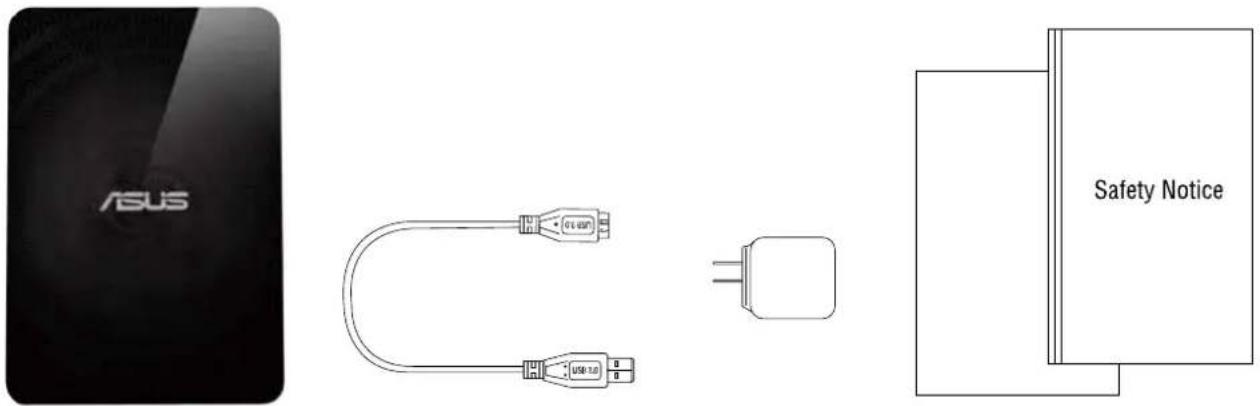
02. PRODUCT OVERVIEW
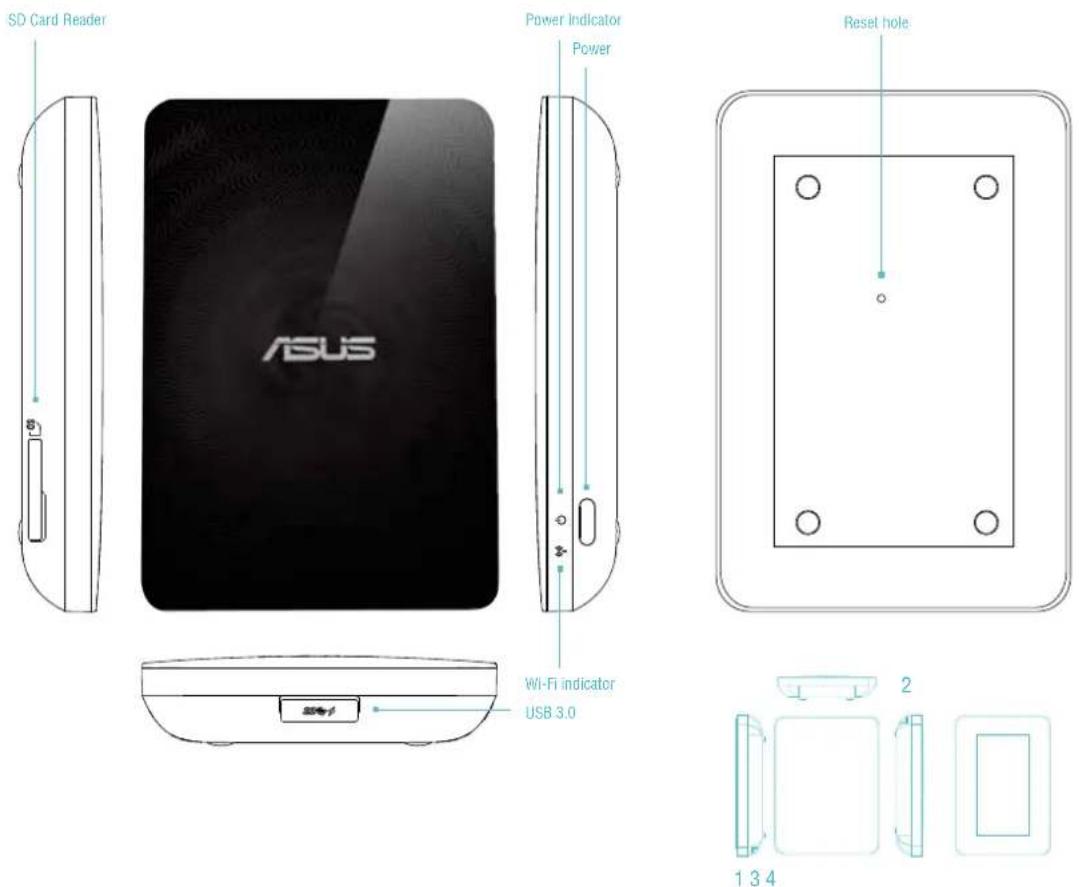
- Left Side
- Front Side
- Right Side
- Back Side
03. WIRELESS DUO FEATURES
Here are features of Wireless Duo:
- With 1TB capacity, you can store huge amounts of movies, songs, photos and documents. This is about 15 times the storage of your handheld devices.
- Wireless Duo works with up to 5 devices at the same time when sharing content, and up to 3 when streaming movies in HD.
- Stream and enjoy media content for up to 6 hours between charges – that's three feature-length movies!
- Wireless Duo has a built-in SD card reader so you can easily expand storage, giving you massive room to grow. It comes with an app that lets you easily read, share, and save content to and from SD storage, making the most of all that space.
- Bundled with apps for iOS and Android devices, including Amazon Kindle Fire, plus a custom web browser for Windows Phone.
- Quickly and easily stream your multimedia content from and across compatible devices, such as smart TVs, game consoles, and media players.
- SAMBA Support, allowing users to play media contents on third-party apps.
04. WIRELESS DUO SPECIFICATIONS
A. General
| Model | Wireless Duo |
| Interface USB3.0 | |
| Drive Capacity 1TB | |
| Dimensions 140x90x25.5mm | |
| Weight 300g | |
B. Hardware Specifications
- Super-Speed USB 3.0 port (required for USB 3.0 transfer speeds)
- Battery: Non-user replaceable lithium-ion battery
- File Format: NTFS (default) *Note: Mac OS needs 3rd party driver (e.g., NTFS-3G, aragon) to write to NTFS partition.
- Security: WPA2 PSK
- UPnP
- SAMBA
C. Supported Devices
Wireless Duo can be used with these devices as below: - iPad, iPhone, iPod touch: iOS 5 and above. - Android-based tablet and smartphone: Android release 2.3 and above. - Windows® computer running Windows 8, Windows 7, Windows Vista® or Windows XP. - Mac® computer running Mac OS® X 10.6 or later operating systems.
D. Supported Browser
- Safari® 5 or later (Mac OS or iOS Device)
- Google Chrome™ (Mobile device or PC)
- Internet Explorer 10 for Windows Phone
E. System Requirements
Smartphone, tablet, or computer with a web browser and Wi-Fi connectivity (802.11 b/g/n)
USB port (for computers only)
F. Supported File Types
For iOS devices:
- Video: H.264 video, MPEG-4, Motion-JPEG
- Audio: M4A (AAC or Apple Lossless), AIFF, WAV. Image: BMP, JPG, PNG, GIF, TIF
- Documents: .doc, .docx, .html, .htm, .key, .numbers, .pages, .pdf, .ppt, .pptx, .txt, .rtf, .vcf, .xls, .xlsx
For Android or other devices: Depends on your device's applications
05. GETTING STARTED WITH YOUR WIRELESS DUO
A. Basic Operation
Power button: Press for 3 seconds to turn on/off
| Status Wi-Fi Indicator Power Indicator | ||
| Booting N/A Fast Blinking White | ||
| System / Wi-Fi Ready N/A Solid White | ||
| Wireless Data Transmitting | Blinking Blue | Solid White |
| Shutting Down Blinking Blue | Blinking White | |
| System Abnormal N/A Solid Orange and White | ||
| Battery Status N/A Charging | ||
| Charging: Solid OrangeFull charged: N/AWorking:Battery <10% Blinking OrangeBattery >10% Solid White | ||
| F/W Upgrade N/A Slow Blinking Orange | ||
Reset hole:
If you would like to revert the device to its factory default configuration, press and hold the reset button for 10 seconds. Please note that this will not format the data stored in the device.
SD card reader:
You can use the "One-Click Backup" feature to save data from your SD memory card to your Wireless Duo in Wi-Fi mode. This feature is available only in single-user mode, not in multi-user or DAS mode*.
*DAS mode:
When you connect the Wireless Duo to a computer via a USB cable, it automatically switches to DAS mode. In DAS mode, Wi-Fi is disabled.
B. Connect to a computer
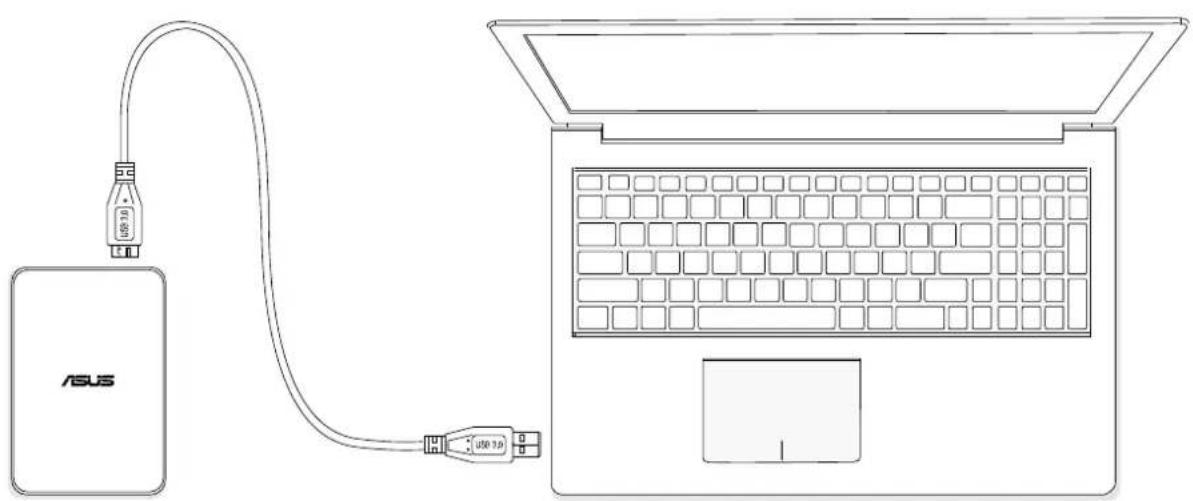
- Connect your Wireless Duo to a computer using the USB cable that came with the device to switch to DAS mode. In DAS mode, Wi-Fi is disabled.
- Drag the files you wish to back up from the connected computer and drop them into your Wireless Duo. When connected to a computer, the Wireless Duo works like any standard external hard drive. In this mode (DAS mode), the Wireless Duo does not broadcast a wireless signal. You cannot access the drive from other mobile devices.
- After finishing loading contents, safely remove your Wireless Duo from your computer.
C. Disconnect from a computer
To avoid losing data or damaging your files, follow the instructions below to safely remove the Wireless Duo device from your computer:
- Make sure that no files are open or in the process of being saved or copied on the Wireless Duo.
- Safely eject the drive from your computer.
- You can now safely remove the Wireless Duo device from the connected computer. * The power indicator will remain on until you remove the USB cable.
D. Wireless setting
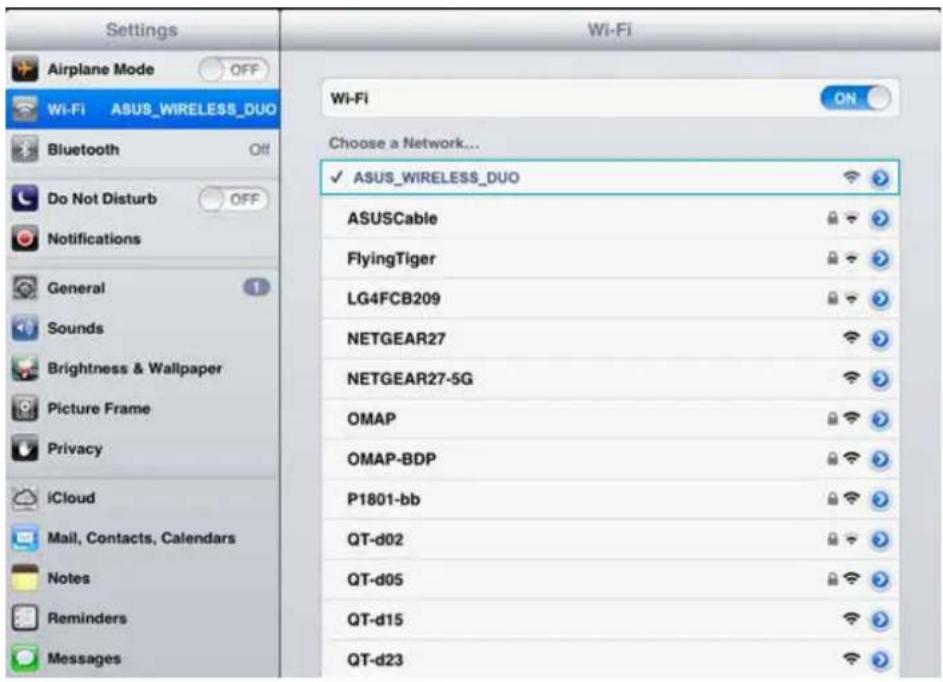
Search for and install the Wireless Duo app in Google Play/App Store/Kindle Fire. Press the power button of the Wireless Duo; it takes about 20 seconds to start up. When the Wi-Fi indicator blinks blue, your Wireless Duo is Wi-Fi ready.
E. Charging your Wireless Duo
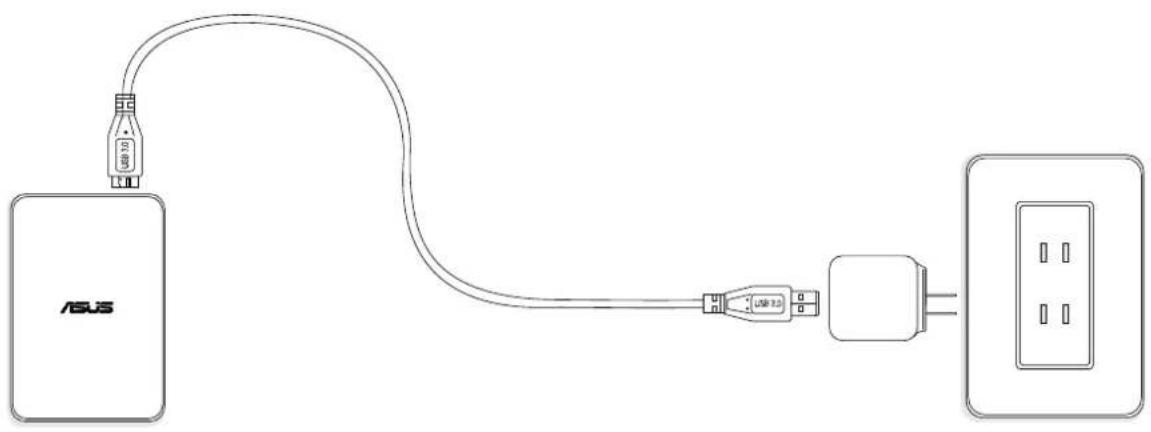
- Connect your Wireless Duo device to the adaptor via USB cable.
- You can check the charging status by the power indicator. The power indicator is a solid orange while charging the battery. The indicator light will be solid white after fully charged.
F. Install Wireless Duo App
- Go to the Apple App store, Amazon website, or Google Play
- Search app for: ASUS Wireless Duo.
- Click "install" to start the installation.
WIRELESS DUO APP OVERVIEW
01. QUICK VIEW
Tap the App and access into the loading process.

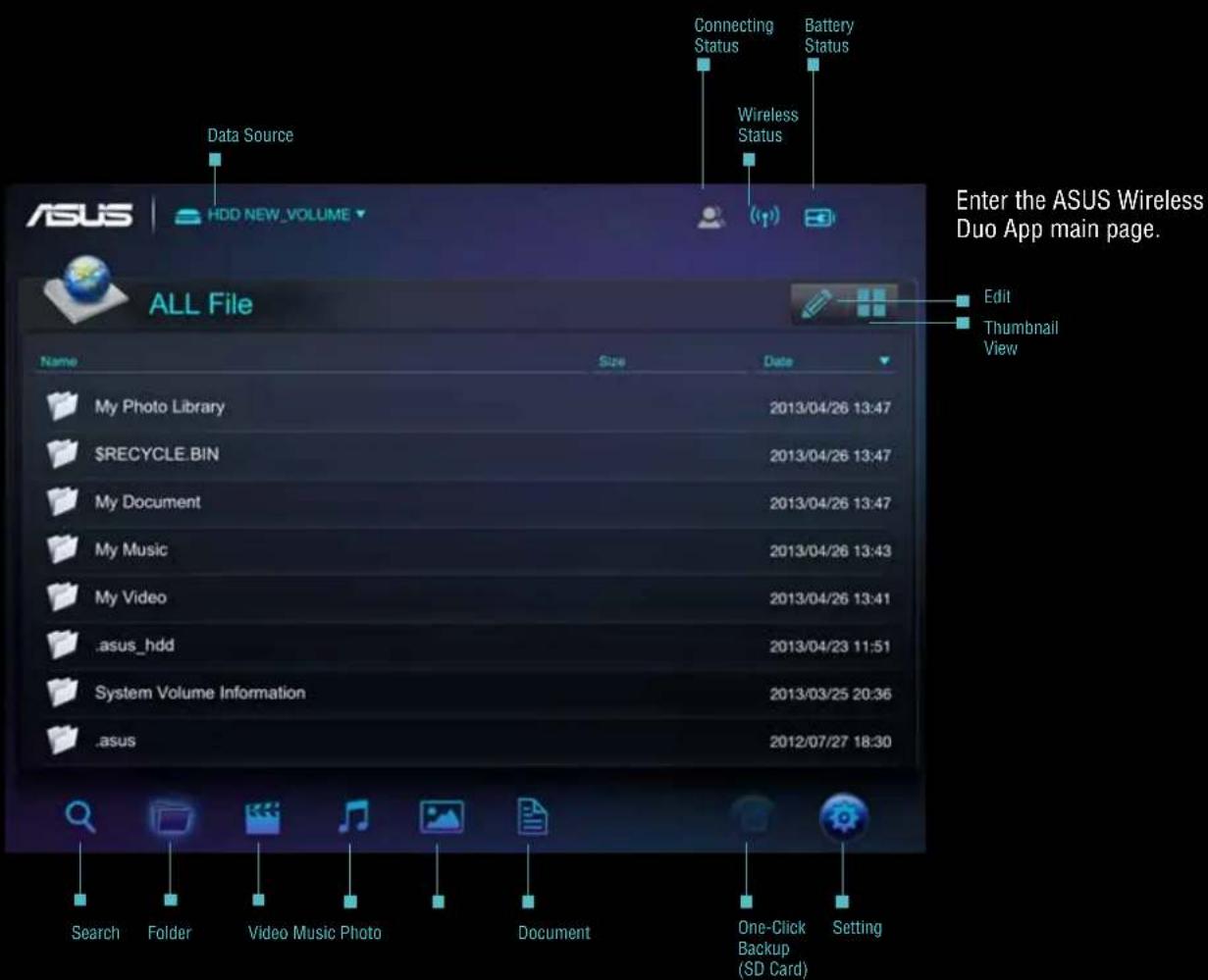
A. Source Selection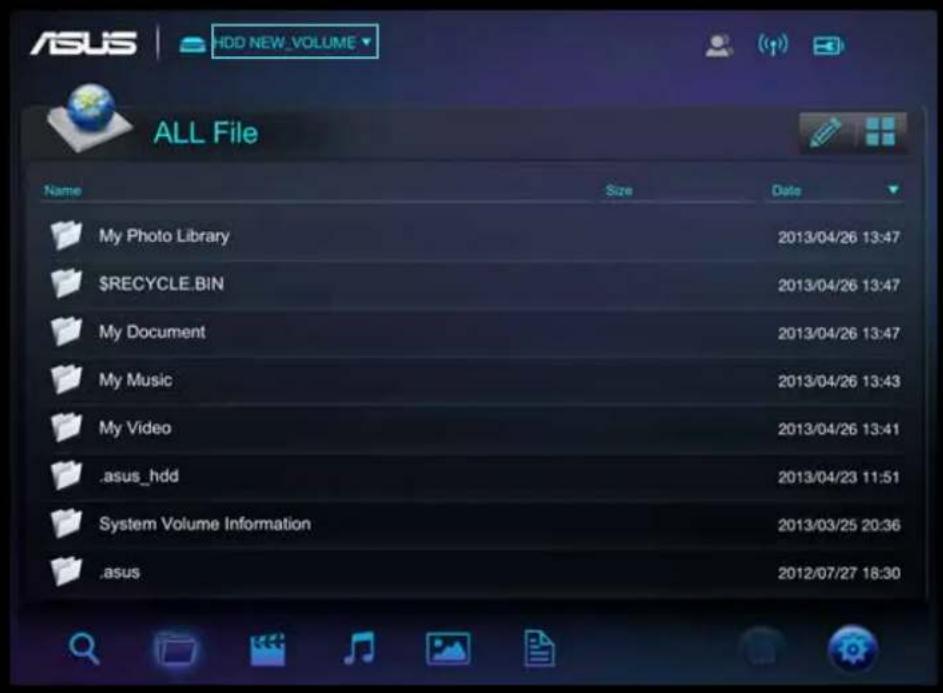
- Tap the drop-down menu
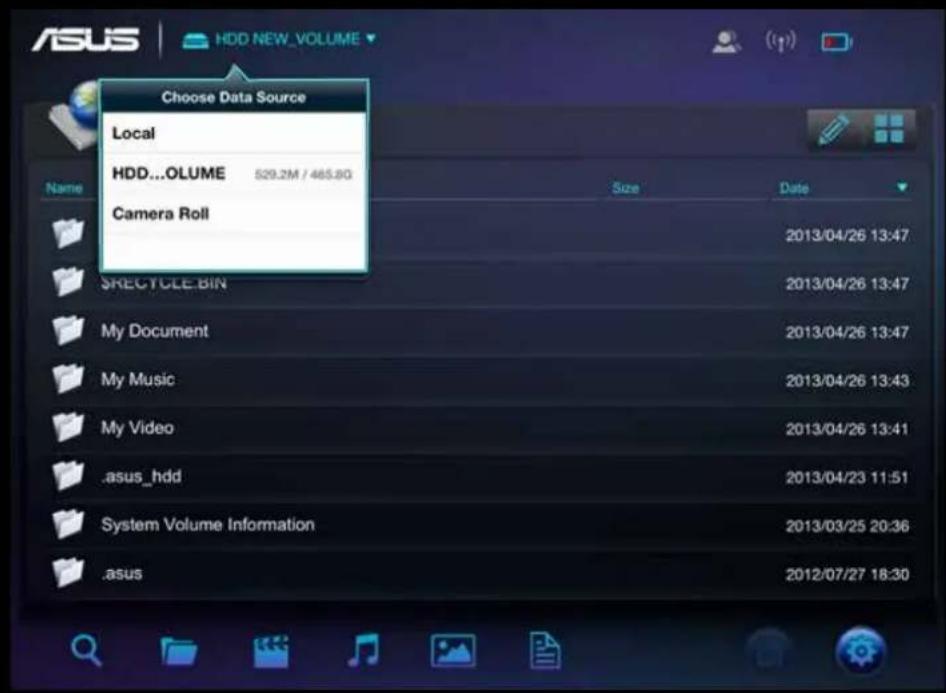
- Tap the source to connect to your Wireless Duo.
B. The indicator will be highlighted while more than one mobile device is connected to your Wireless Duo device.

SINGLE-USER

MULTI-USER
C. You can check Wi-Fi signal quality with the Wi-Fi indicator.
NO CONNECTION

POOR

FAIR

GOOD
D. The indicator shows the battery status.

LOW BATTERY

30%-60%

FULL

CHARGING
E. While using a smart phone, tap ... and a menu will pop up.
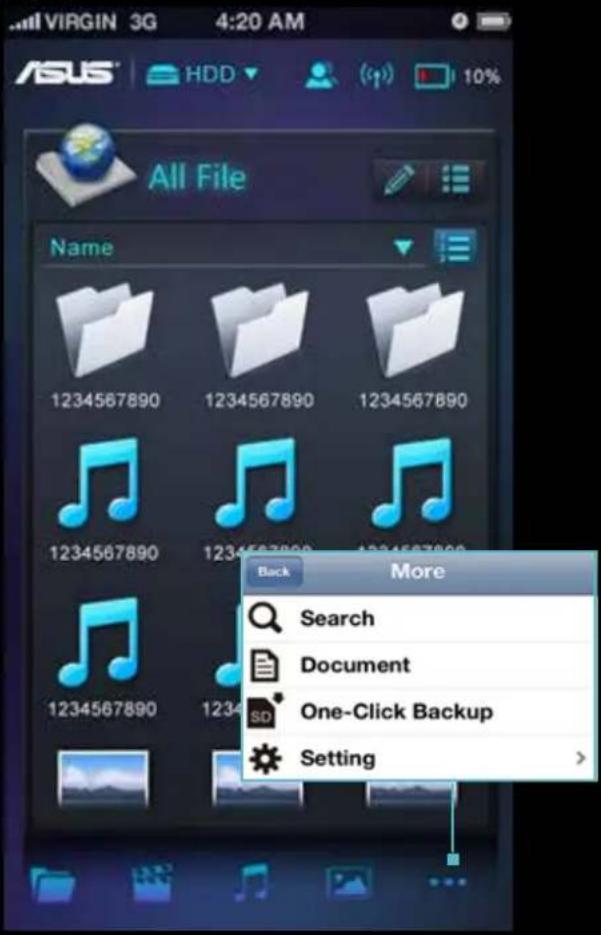
F. Tap the 📋 button if you wish to manage files.
Management icons will pop up after tapping the pencil tool.
Management includes the following functions:

UPLOAD FILE
Copy file to your Wireless Duo

COPY FILE
Copy file to your Wireless Duo

DELETE FILE
Delete file from your Wireless Duo

ADD TO PLAYLIST
Add songs to your playlist

DOWNLOAD FILE
Download files to your handheld device
G. Changing display mode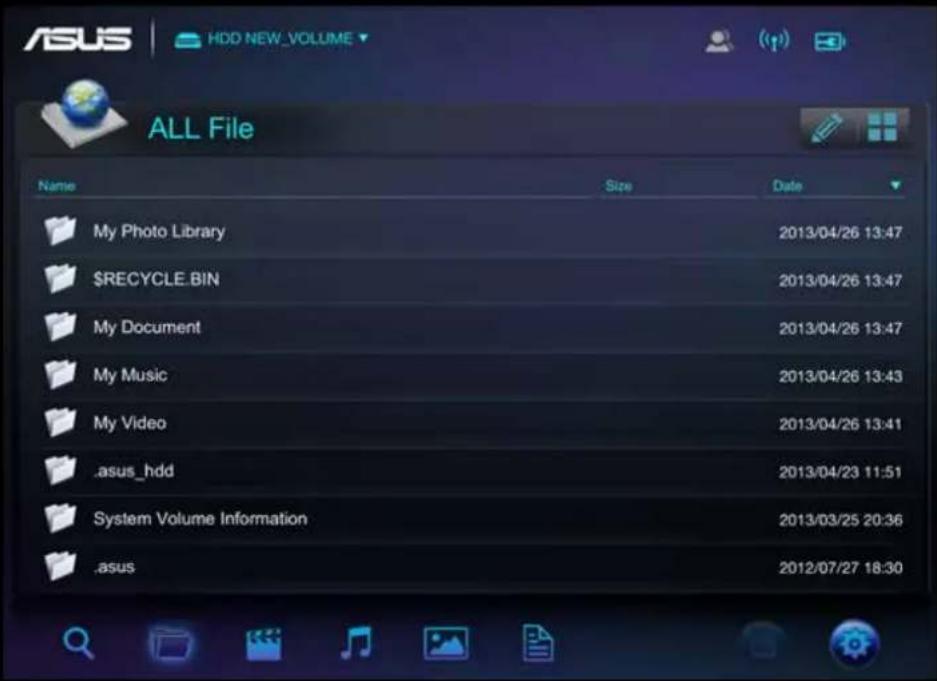
H. Tap the 🔒 icon, and then type all or part of the name of what you are looking for
02. SD CARD ONE-CLICK DATA BACKUP
You can backup SD card contents to your Wireless Duo by tapping the icon. This function is only available in single-user mode.
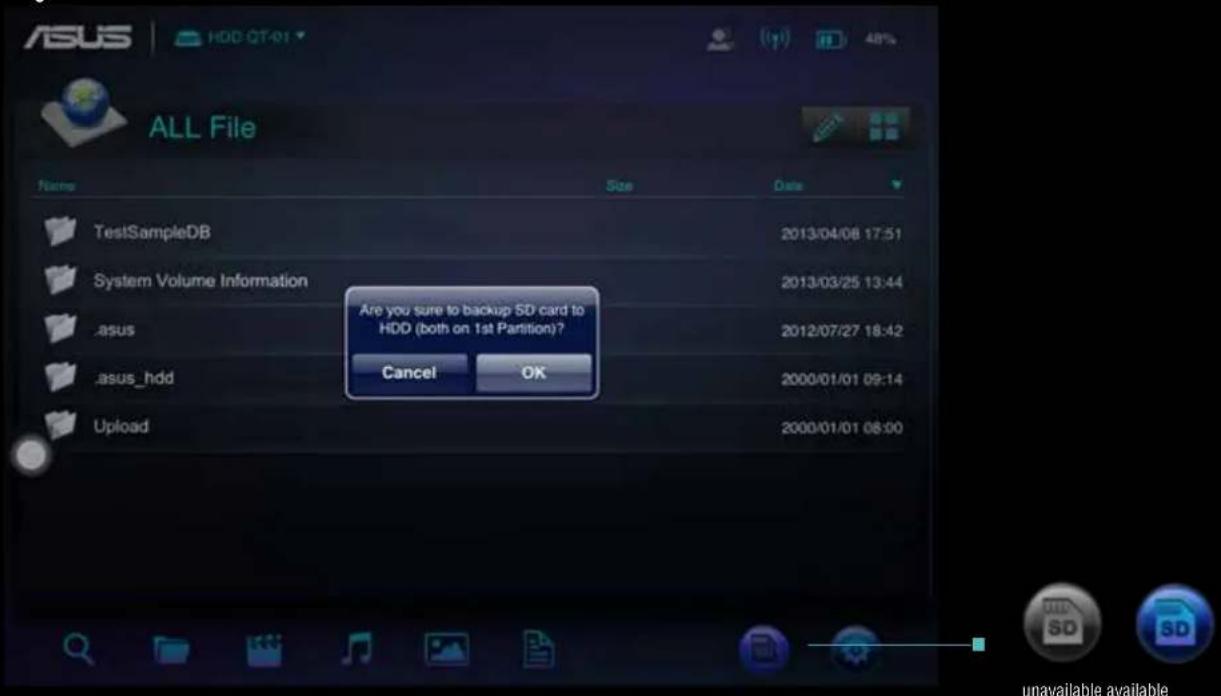
Please follow the instructions to backup contents stored in SD cards to the Wireless Duo device
A. Insert the SD card into the Wireless Duo SD card reader. B. The SD card button will turn blue when it's ready to work; tap the button if you wish to back up the contents. C. Tap OK if you want to back up the SD card to your Wireless Duo.
03. SETUP
A. Tap the button if you want to change your Wireless Duo settings.
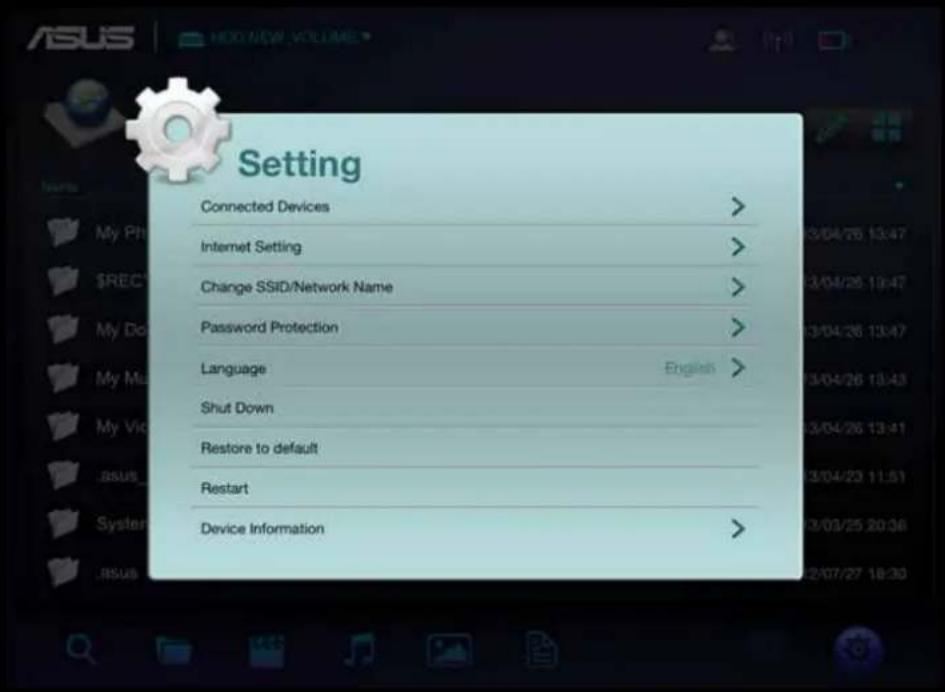
The Setup view
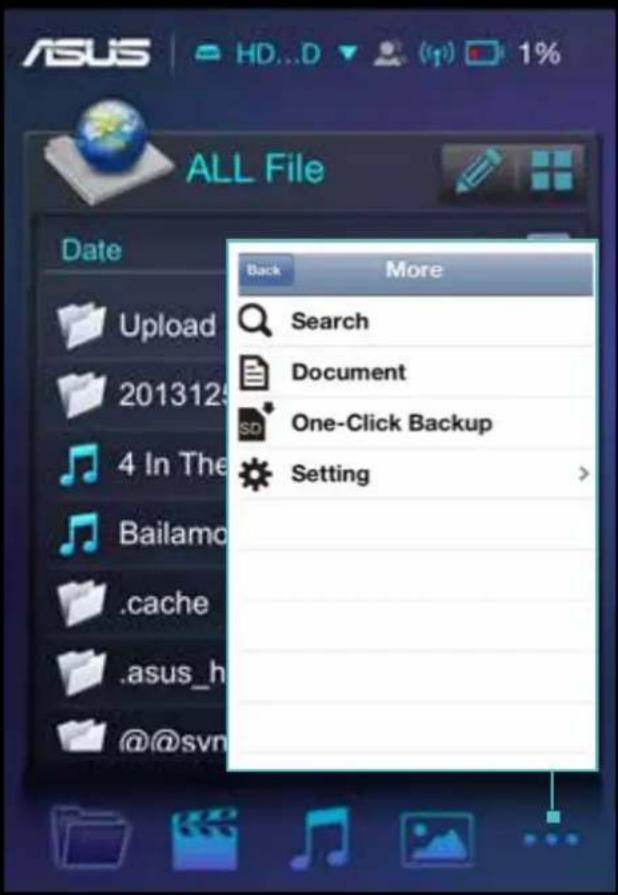
For iPhone: Tap for more functions.
B. Connected devices
- Tap "Connected Devices"
- Then you can see all the devices that are connecting to your Wireless Duo. Wireless Duo works with up to 5 devices at the same time when sharing content, and up to 3 when streaming movies in HD.* Please note that if you connect to the Internet, then only 4 other devices can be connected.
C. Internet setting
- If a password is needed, 🔒 will show up.
- You can also check the wireless signal here.
- Tap "Add New" if you want to connect to a hidden SSID wireless AP manually. Enter the name, security type, and password, and then tap OK.
- Wireless Duo supports WEP/WPA/WPA2 security protocols.
D. Password protection
- You can enable/disable password protection by tapping Password Protection.
- After password changing, Wireless Duo will be disconnected automatically. You need to re-connect manually if you wish to access Wireless Duo.
E. Language
Tap "Language" if you want to change language. The message window "successfully changed" will pop-up, please tap OK.
F. Shut down
You can turn off Wireless Duo by tapping “Shut Down” button. After Wireless Duo device is shut down, the app will still be functioning. All of the contents you access are from memory of your mobile devices.
- If you would like to revert the device to its factory default configuration, tap "restore to default". Please note that this will not format the data stored in the device.
- While restoring, the app will still work with local device.
- This function is not available under multi-user mode.
- After the restoring is complete, Wireless Duo will not connect to you device automatically.
H. SAMBA setting
The default setting of SAMBA is on and you can turn it off manually.
I. UPnP
The default setting of UPnP is on and you can turn it off manually.
J. Low battery Alert
The default setting of Low battery alert is on and you can turn it off manually
04. SEARCH
Tap change to search mode. Enter file name in the search bar, and tap "OK" button.
Tap ⓘ button, and the path information of this file will pop-up.
PLAYING AND VIEWING MEDIA CONTENTS
Here are the instructions for viewing photos, listening to music and playing videos with ASUS Wireless Duo app. The app creates connections between Wireless Duo device and your mobile devices.
01. Watching Video
You can stream media contents stored on Wireless Duo to your mobile devices. Follow these steps to play videos stored on Wireless Duo.
Select and tap the file you'd like to play.
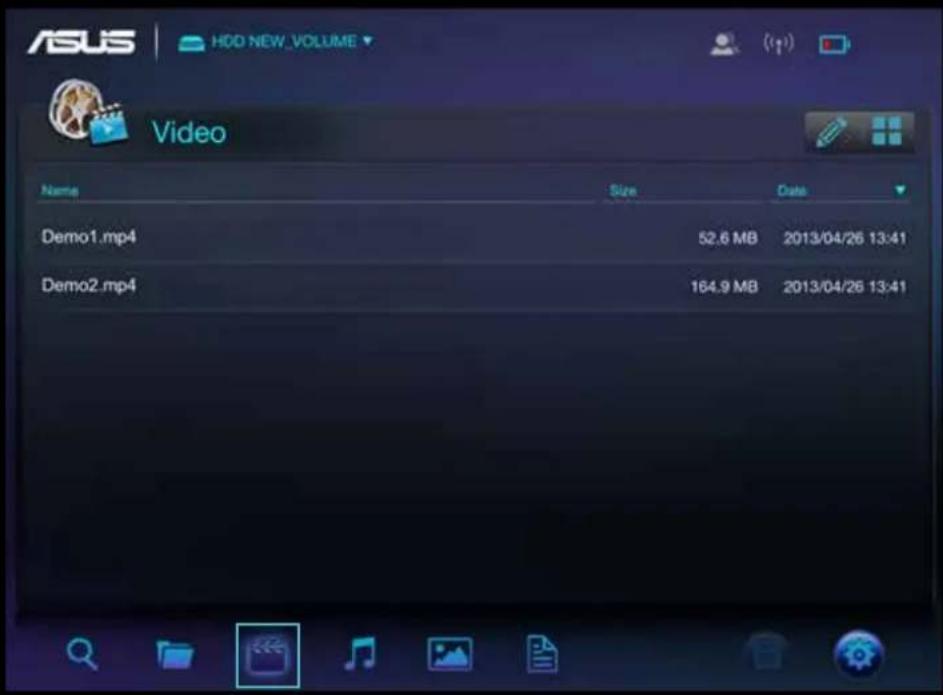
- The built-in video player of Wireless Duo may not support all the video format you want to play. Please long-tap to use the third party apps you have installed to play.
- Wireless Duo app supports third-party app playback. The third-party app playback functionality depends on capability of your mobile devices.
- Tap and hold the file for 3 seconds, and the app windows will pop-up if you have already installed any third party Apps.
02. Playing Music
Follow these steps to play music on your Wireless Duo.
A. Select and tap the file you'd like to play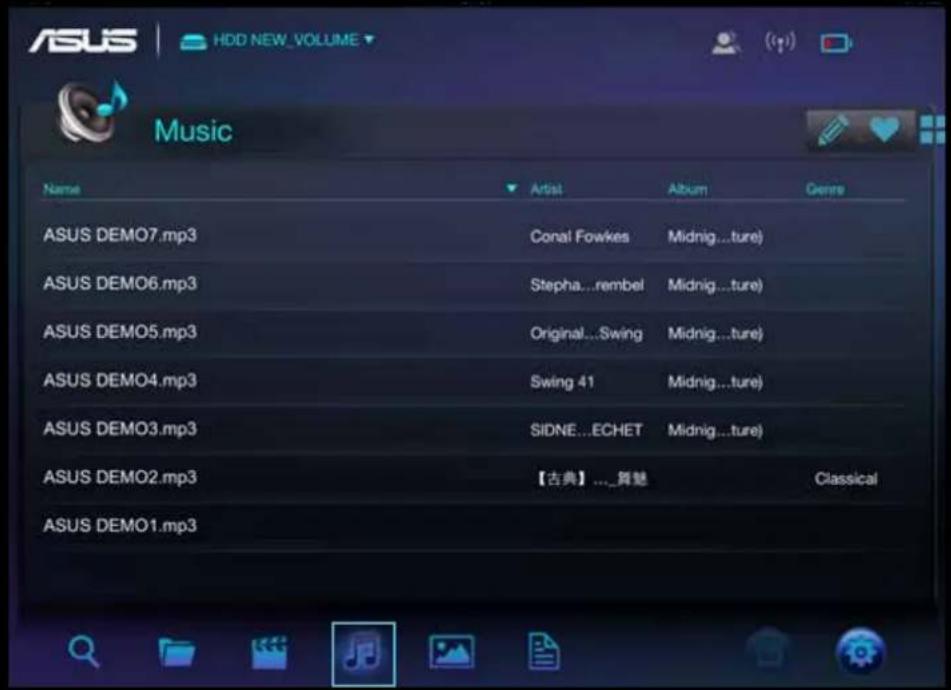
B. You can add a song to your playlist while playing the music. Tap, and then choose a playlist to add it.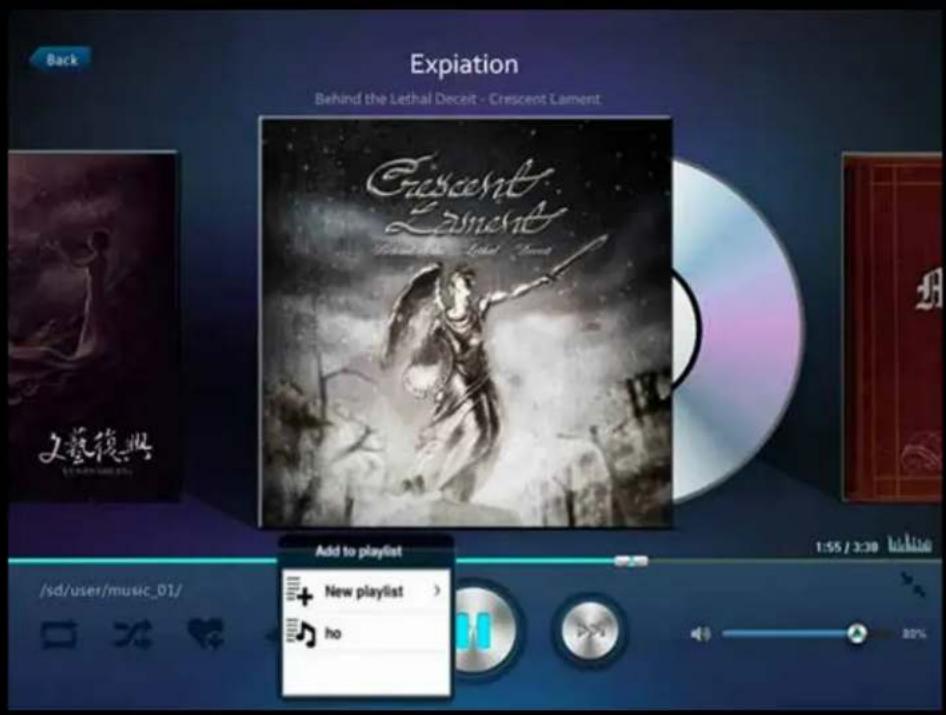
C. Tap the icon to create a new playlist.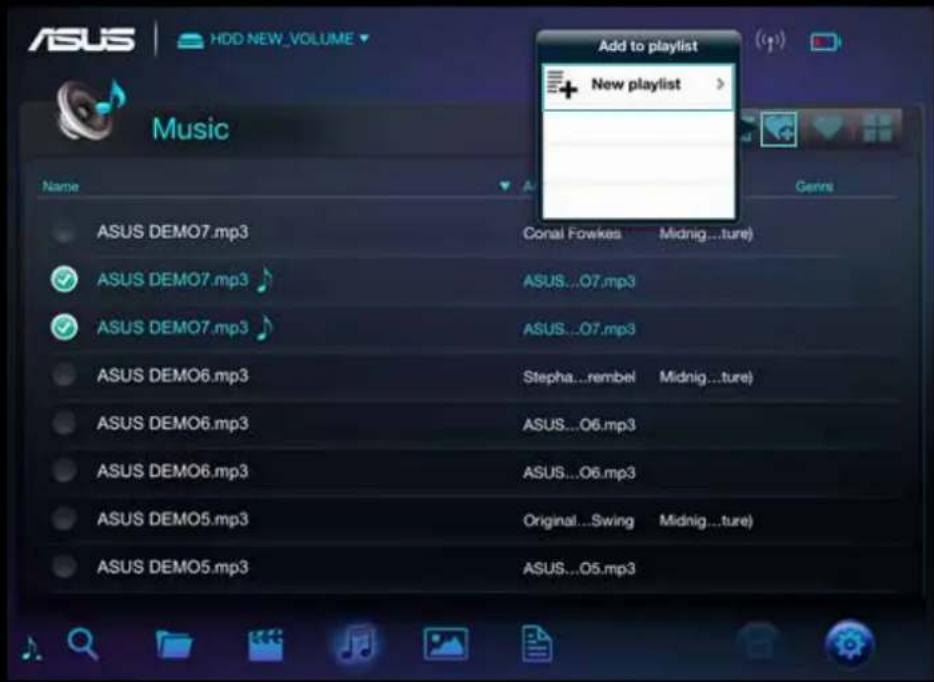
D. Next, enter the playlist name. E. You can create up to 20 playlists, and check them in "Playlist" view. You can tap the 📋 icon to edit the playlist. F. You can only delete a playlist when editing via the app; tap the 📋 icon to delete a playlist. G. You can also edit your playlist via the icon by following the steps.
- Local drive:
For single user:
You can upload songs from your mobile device to your Wireless Duo, add songs to a playlist, and delete songs on your mobile devices.


For multi-users:
You can only add songs to your playlist. Other functions such as delete, copy, or download may not be available under this mode.


- HDD/SD drive:
For single user:
You can add songs to your playlist, delete songs in your Wireless Duo, download songs from your mobile device to your Wireless Duo, and copy songs to your Wireless Duo.


For multi-users:
You can only add songs to your playlist. The other functions such as delete, copy, or download may not be available under this mode.


H. The Wireless Duo app supports third-party app playback. Long-tap the file for 3 seconds, and the app windows will pop up if you have installed a supported third-party app.
03. Viewing Photos
Wireless Duo allows you to browse, view, and share photos. Follow these steps to view photos on your Wireless Duo. Both "All file" view and "Photo" view are available.
A. In the "All file" view, tap the photo file or tap the icon to enter the photo section. Tap the sorting bar to sort photo files by name, size, or date.
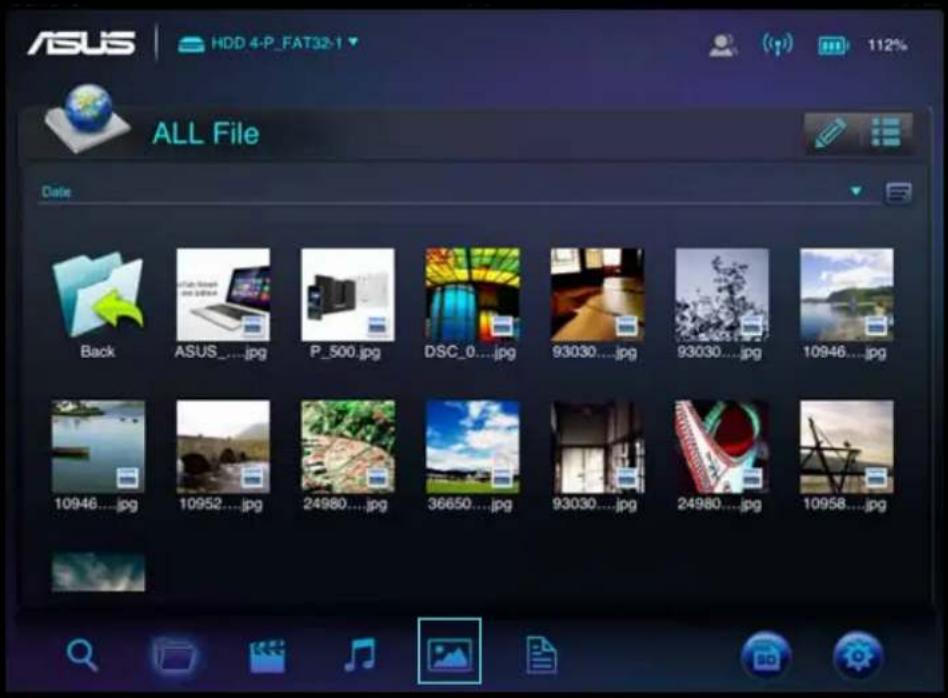
B. In the photo view, you can delete a photo or share it to your Facebook, Flickr and Twitter accounts. You can also email the photo to a friend. C. Tap the 📋 icon if you want to share a photo with social media or e-mail it to a friend. D. In the slideshow view, you can select slideshow transition effects and playback time interval. E. You can also edit your photo files via the icon by following the steps.
- Local drive:
For single user:
You can upload photos from your mobile device to your Wireless Duo, or delete photos on your mobile devices.


For multi users:
Functions of upload and delete photos are not available.


- HDD/SD drive:
For single user:
You can copy or delete photos in your Wireless Duo, or download photos from your Wireless Duo to your mobile device.


For multi-users:
The other functions such as delete, copy or download may not be available under this mode.


04. Viewing Documents
Wireless Duo allows you to view, edit and email documents stored on your Wireless Duo.
A. Tap to enter document view.
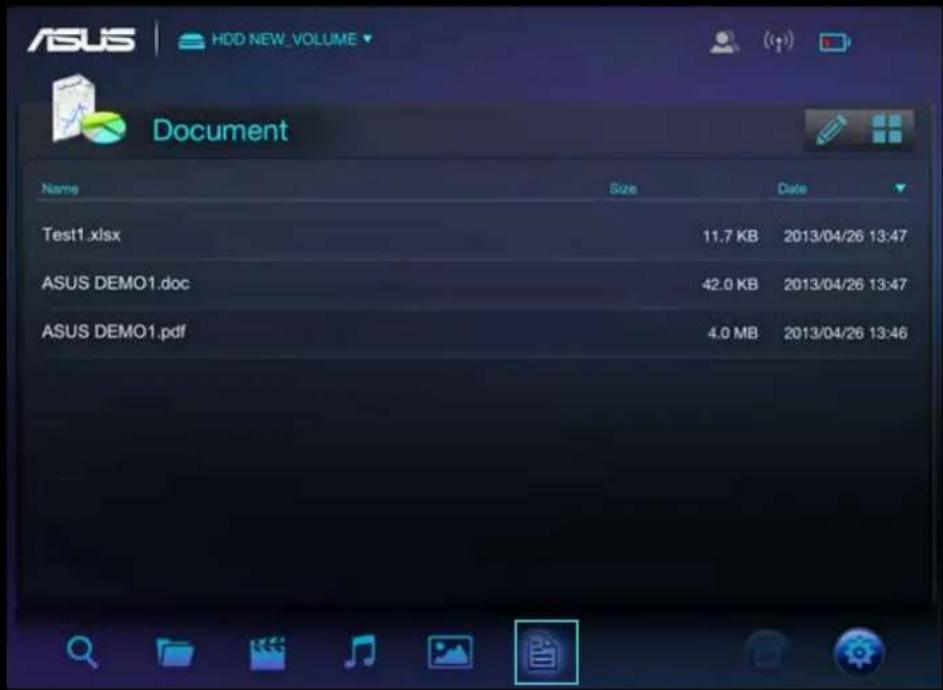
B. Tap the document you want to view. C. You can delete or share this document by tapping D. Tap the ➕ button, you can mail, print, or copy this document.
APPENDIX: TROUBLESHOOTING
01. Cannot connect to Wireless Duo
A. Please make sure the Wireless Duo device is powered on and the indicator is a solid blue. B. Please make sure to select ASUS_Wireless_Duo from the Wi-Fi list of your mobile device's wireless network. If you leave the Wireless Duo Wi-Fi broadcasting range, your mobile device will lose connection with the Wireless Duo. C. ASUS Wireless Duo is able to connect up to 5 Wi-Fi enabled devices at the same time. Please be aware that internet access will also occupy one connection. D. If you have trouble connecting to the Wireless Duo while the Wireless Duo and the Wi-Fi enabled mobile device are both powered on, please restart the Wireless Duo. Reset the Wireless Duo if you still cannot connect to it after restart.
02. How to upgrade firmware?
A. Please go to the ASUS official website and download the latest firmware to your computer. B. Please connect the Wireless Duo to your computer via a USB cable. C. Copy the firmware from your computer to the root directory of your Wireless Duo. D. To avoid losing data or damaging your files, please remove your Wireless Duo device from your computer safely. Depending on the operating system you are using, safely eject the drive from your computer: For Mac OS users, drag your Wireless Duo device icon from the desktop to the trash. For Windows users, click the Safely Remove Hardware icon. Windows operating systems list the drive as a USB Mass Storage Device. E. Please connect your Wireless Duo to the adapter via the USB cable that came with your Wireless Duo, and turn on the Wireless Duo. F. The Wireless Duo will execute the upgrading procedure automatically and restart after the procedure is finished.
To avoid undesired results, please do NOT interrupt the firmware upgrade process and make sure the Wireless Duo is connected to the adapter that came with it.
03. Why can't I upgrade the firmware?
If the latest firmware has been copied to the root directory of your Wireless Duo but it doesn't upgrade automatically, please make sure the adapter is connected to your Wireless Duo.
04. How to reset the Wireless Duo?
Please use a pin to press the reset hole for 10 seconds; the system will reset automatically. The reset hole is at the bottom of the Wireless Duo.
05. I cannot connect to my Wireless Duo after firmware updating.
In these situations below, please change the settings of your Wireless Duo and connect to your mobile devices manually: Your Wi-Fi enabled device is connected to another network. The SSID of your Wireless Duo has been changed.
06. Cannot access Wireless Duo on Mac.
The default format of the Wireless Duo is NTFS format. Please install NTFS-access software on your Mac.
07. Cannot execute some operation.
Please be noticed that when more than one Wi-Fi enabled device is connecting to Wireless Duo, it turns into multi-user mode. Under multi-user mode, some operations will be unavailable.
08. Wi-Fi signal is poor or intermittent.
The wireless range of Wireless Duo is limited. Any obstructions, such as walls, metal materials or electronic appliances between your mobile device and your Wireless Duo may affect the strength of the signal.
09. Wi-Fi signal is poor under multi-user mode.
The more mobile devices connected to your Wireless Duo, the less bandwidth each gets. Please decrease accesses mobile devices.
10. A song, video or other file won't play.
Please make sure this file format is supported by Wireless Duo or your mobile device.
11. Why is Wi-Fi mode unavailable while connecting to a computer via a USB cable?
While connected to your computer, Wireless Duo does not broadcast a wireless signal. Therefore you cannot access it from your mobile device in this state.
- LazyLoader Image Library. (Using to load image in Listview)
Apache License ☐ Version 2.0, January 2004 ☐
http://www.apache.org/licenses/
- QuickAction Library. (Popup dialog when click on sort or files detail in search list)
Apache License ☐ Version 2.0, January 2004 ☐
http://www.apache.org/licenses/
- TouchImageView Library. (used to make Photo Gallery View)
Copyright (c) 2012 Michael Ortiz
Permission is hereby granted, free of charge, to any person obtaining a copy of this software and associated documentation files (the "Software"), to deal in the Software without restriction, including without limitation the rights to use, copy, modify, merge, publish, distribute, sublicense, and/or sell copies of the Software, and to permit persons to whom the Software is furnished to do so, subject to the following conditions:
The above copyright notice and this permission notice shall be included in all copies or substantial portions of the Software.
THE SOFTWARE IS PROVIDED "AS IS", WITHOUT WARRANTY OF ANY KIND, EXPRESS OR IMPLIED, INCLUDING BUT NOT LIMITED TO THE WARRANTIES OF MERCHANTABILITY, FITNESS FOR A PARTICULAR PURPOSE AND NONINFRINGEMENT. IN NO EVENT SHALL THE AUTHORS OR COPYRIGHT HOLDERS BE LIABLE FOR ANY CLAIM, DAMAGES OR OTHER LIABILITY, WHETHER IN AN ACTION OF CONTRACT, TORT OR OTHERWISE, ARISING FROM, OUT OF OR IN CONNECTION WITH THE SOFTWARE OR THE USE OR OTHER DEALINGS IN THE SOFTWARE
- Jackrabbit webDav Library. (used to access webDav)
Apache License Version 2.0, January 2004
http://www.apache.org/licenses/
[1] All Files under /External/UIImage-categories/
Created by Trevor Harmon on 9/20/09.
Free for personal or commercial use, with or without modification.
No warranty is expressed or implied.
[2] TSMiniWebBrowser
Copyright (c) 2012 Toni Sala
Permission is hereby granted, free of charge, to any person obtaining a copy of this software and associated documentation files (the "Software"), to deal in the Software without restriction, including without limitation the rights to use, copy, modify, merge, publish, distribute, sublicense, and/or sell copies of the Software, and to permit persons to whom the Software is furnished to do so, subject to the following conditions:
The above copyright notice and this permission notice shall be included in all copies or substantial portions of the Software.
THE SOFTWARE IS PROVIDED "AS IS", WITHOUT WARRANTY OF ANY KIND, EXPRESS OR IMPLIED, INCLUDING BUT NOT LIMITED TO THE WARRANTIES OF MERCHANTABILITY, FITNESS FOR A PARTICULAR PURPOSE AND NONINFRINGEMENT. IN NO EVENT SHALL THE AUTHORS OR COPYRIGHT HOLDERS BE LIABLE FOR ANY CLAIM, DAMAGES OR OTHER LIABILITY, WHETHER IN AN ACTION OF CONTRACT, TORT OR OTHERWISE, ARISING FROM, OUT OF OR IN CONNECTION WITH THE SOFTWARE OR THE USE OR OTHER DEALINGS IN THE SOFTWARE.
[3] REComposeViewController
REComposeViewController is available under the MIT license.
Copyright © 2013 Roman Efimov.
Permission is hereby granted, free of charge, to any person obtaining a copy of this software and associated documentation files (the "Software"), to deal in the Software without restriction, including without limitation the rights to use, copy, modify, merge, publish, distribute, sublicense, and/or sell copies of the Software, and to permit persons to whom the Software is furnished to do so, subject to the following conditions:
The above copyright notice and this permission notice shall be included in all copies or substantial portions of the Software.
THE SOFTWARE IS PROVIDED "AS IS", WITHOUT WARRANTY OF ANY KIND, EXPRESS OR IMPLIED, INCLUDING BUT NOT LIMITED TO THE WARRANTIES OF MERCHANTABILITY, FITNESS FOR A PARTICULAR PURPOSE AND NONINFRINGEMENT. IN NO EVENT SHALL THE AUTHORS OR COPYRIGHT HOLDERS BE LIABLE FOR ANY CLAIM, DAMAGES OR OTHER LIABILITY, WHETHER IN AN ACTION OF CONTRACT, TORT OR OTHERWISE, ARISING FROM, OUT OF OR IN CONNECTION WITH THE SOFTWARE OR THE USE OR OTHER DEALINGS IN THE SOFTWARE.
[4] GMGridView
Copyright (C) 2011 by Gulam Moledina.
Permission is hereby granted, free of charge, to any person obtaining a copy of this software and associated documentation files (the "Software"), to deal in the Software without restriction, including without limitation the rights to use, copy, modify, merge, publish, distribute, sublicense, and/or sell copies of the Software, and to permit persons to whom the Software is furnished to do so, subject to the following conditions:
The above copyright notice and this permission notice shall be included in all copies or substantial portions of the Software.
THE SOFTWARE IS PROVIDED "AS IS", WITHOUT WARRANTY OF ANY KIND, EXPRESS OR IMPLIED, INCLUDING BUT NOT LIMITED TO THE WARRANTIES OF MERCHANTABILITY, FITNESS FOR A PARTICULAR PURPOSE AND NONINFRINGEMENT. IN NO EVENT SHALL THE AUTHORS OR COPYRIGHT HOLDERS BE LIABLE FOR ANY CLAIM, DAMAGES OR OTHER LIABILITY, WHETHER IN AN ACTION OF CONTRACT, TORT OR OTHERWISE, ARISING FROM, OUT OF OR IN CONNECTION WITH THE SOFTWARE OR THE USE OR OTHER DEALINGS IN THE SOFTWARE.
[5] GDataXMLNode
Copyright (c) 2008 Google Inc.
Licensed under the Apache License, Version 2.0 (the "License"); you may not use this file except in compliance with the License. You may obtain a copy of
the License at http://www.apache.org/licenses/LICENSE-2.0. Unless required by applicable law or agreed to in writing, software distributed under the License is distributed on an "AS IS" BASIS, WITHOUT WARRANTIES OR CONDITIONS OF ANY KIND, either express or implied. See the License for the specific language governing permissions and limitations under the License.
[6] AFNetworking
Copyright (c) 2013 AFNetworking (http://afnetworking.com/)
Permission is hereby granted, free of charge, to any person obtaining a copy of this software and associated documentation files (the "Software"), to deal in the Software without restriction, including without limitation the rights to use, copy, modify, merge, publish, distribute, sublicense, and/or sell copies of the Software, and to permit persons to whom the Software is furnished to do so, subject to the following conditions:
The above copyright notice and this permission notice shall be included in all copies or substantial portions of the Software.
THE SOFTWARE IS PROVIDED "AS IS", WITHOUT WARRANTY OF ANY KIND, EXPRESS OR IMPLIED, INCLUDING BUT NOT LIMITED TO THE WARRANTIES OF MERCHANTABILITY, FITNESS FOR A PARTICULAR PURPOSE AND NONINFRINGEMENT. IN NO EVENT SHALL THE AUTHORS OR COPYRIGHT HOLDERS BE LIABLE FOR ANY CLAIM, DAMAGES OR OTHER LIABILITY, WHETHER IN AN ACTION OF CONTRACT, TORT OR OTHERWISE, ARISING FROM, OUT OF OR IN CONNECTION WITH THE SOFTWARE OR THE USE OR OTHER DEALINGS IN THE SOFTWARE.
[7] FPPopover
Copyright (c) 2012, Fifty Pixels Ltd. All rights reserved.
Redistribution and use in source and binary forms, with or without modification, are permitted provided that the following conditions are met:
* Redistributions of source code must retain the above copyright notice, this list of conditions and the following disclaimer. * Redistributions in binary form must reproduce the above copyright notice, this list of conditions and the following disclaimer in the documentation and/or other
materials provided with the distribution.
* Neither the name of Fifty Pixels Limited nor the names of its contributors may be used to endorse or promote products derived from this software without specific prior written permission.
THIS SOFTWARE IS PROVIDED BY FIFTY PIXELS LIMITED "AS IS" AND ANY EXPRESS OR IMPLIED WARRANTIES, INCLUDING, BUT NOT LIMITED TO, THE IMPLIED WARRANTIES OF MERCHANTABILITY AND FITNESS FOR A PARTICULAR PURPOSE ARE DISCLAIMED. IN NO EVENT SHALL FIFTY PIXELS LIMITED BE LIABLE FOR ANY DIRECT, INDIRECT, INCIDENTAL, SPECIAL, EXEMPLARY, OR CONSEQUENTIAL DAMAGES (INCLUDING, BUT NOT LIMITED TO, PROCUREMENT OF SUBSTITUTE GOODS OR SERVICES; LOSS OF USE, DATA, OR PROFITS; OR BUSINESS INTERRUPTION) HOWEVER CAUSED AND ON ANY THEORY OF LIABILITY, WHETHER IN CONTRACT, STRICT LIABILITY, OR TORT (INCLUDING NEGLIGENCE OR OTHERWISE) ARISING IN ANY WAY OUT OF THE USE OF THIS SOFTWARE, EVEN IF ADVISED OF THE POSSIBILITY OF SUCH DAMAGE.
[8] XMLDictionary
Created by Nick Lockwood on 15/11/2010.
Copyright 2010 Charcoal Design. All rights reserved.
This software is provided 'as-is', without any express or implied warranty. In no event will the authors be held liable for any damages arising from the use of this software.
Permission is granted to anyone to use this software for any purpose, including commercial applications, and to alter it and redistribute it freely, subject to the following restrictions:
- The origin of this software must not be misrepresented; you must not claim that you wrote the original software. If you use this software in a product, an acknowledgment in the product documentation would be appreciated but is not required.
- Altered source versions must be plainly marked as such, and must not be misrepresented as being the original software.
- This notice may not be removed or altered from any source distribution.
[9] FMWebDAVRequest
Copyright 2010 Flying Meat Inc. All rights reserved.
Redistribution and use in source and binary forms, with or without modification, are permitted provided that the following conditions are met:
- Redistributions of source code must retain the above copyright notice, this list of conditions and the following disclaimer.
- Redistributions in binary form must reproduce the above copyright notice, this list of conditions and the following disclaimer in the documentation and/or other materials provided with the distribution.
THIS SOFTWARE IS PROVIDED BY FLYING MEAT INC. ``AS IS'' AND ANY EXPRESS OR IMPLIED WARRANTIES, INCLUDING, BUT NOT LIMITED TO, THE IMPLIED WARRANTIES OF MERCHANTABILITY AND FITNESS FOR A PARTICULAR PURPOSE ARE DISCLAIMED. IN NO EVENT SHALL FLYING MEAT INC. OR CONTRIBUTORS BE LIABLE FOR ANY DIRECT, INDIRECT, INCIDENTAL, SPECIAL, EXEMPLARY, OR CONSEQUENTIAL DAMAGES (INCLUDING, BUT NOT LIMITED TO, PROCUREMENT OF SUBSTITUTE GOODS OR SERVICES; LOSS OF USE, DATA, OR PROFITS; OR BUSINESS INTERRUPTION) HOWEVER CAUSED AND ON ANY THEORY OF LIABILITY, WHETHER IN CONTRACT, STRICT LIABILITY, OR TORT (INCLUDING NEGLIGENCE OR OTHERWISE) ARISING IN ANY WAY OUT OF THE USE OF THIS SOFTWARE, EVEN IF ADVISED OF THE POSSIBILITY OF SUCH DAMAGE.
The views and conclusions contained in the software and documentation are those of the authors and should not be interpreted as representing official policies, either expressed or implied, of Flying Meat Inc.
[10] FGallery
(The MIT License)
Copyright © 2010 Grant Davis Interactive, LLC
Permission is hereby granted, free of charge, to any person obtaining a copy of this software and associated documentation files (the 'Software'), to deal in the Software without restriction, including without limitation the rights to use, copy, modify, merge, publish, distribute, sublicense, and/or sell copies of the Software, and to permit persons to whom the Software is furnished to do so, subject to the following conditions:
The above copyright notice and this permission notice shall be included in all copies or substantial portions of the Software.
THE SOFTWARE IS PROVIDED 'AS IS', WITHOUT WARRANTY OF ANY KIND, EXPRESS OR IMPLIED, INCLUDING BUT NOT LIMITED TO THE WARRANTIES OF MERCHANTABILITY, FITNESS FOR A PARTICULAR PURPOSE AND NONINFRINGEMENT. IN NO EVENT SHALL THE AUTHORS OR COPYRIGHT HOLDERS BE LIABLE FOR ANY CLAIM, DAMAGES OR OTHER LIABILITY, WHETHER IN AN ACTION OF CONTRACT, TORT OR OTHERWISE, ARISING FROM, OUT OF OR IN CONNECTION WITH THE SOFTWARE OR THE USE OR OTHER DEALINGS IN THE SOFTWARE.
[11] KKGridView
Copyright (C) 2011 by Kolin Krewinkel, Giulio Petek, Jonathan Sterling, Kyle Hickinson, Matthias Tretter, Kyle Hickinson.
Permission is hereby granted, free of charge, to any person obtaining a copy of this software and associated documentation files (the "Software"), to deal in the Software without restriction, including without limitation the rights to use, copy, modify, merge, publish, distribute, sublicense, and/or sell copies of the Software, and to permit persons to whom the Software is furnished to do so, subject to the following conditions:
The above copyright notice and this permission notice shall be included in all copies or substantial portions of the Software.
THE SOFTWARE IS PROVIDED "AS IS", WITHOUT WARRANTY OF ANY
KIND, EXPRESS OR IMPLIED, INCLUDING BUT NOT LIMITED TO THE WARRANTIES OF MERCHANTABILITY, FITNESS FOR A PARTICULAR PURPOSE AND NONINFRINGEMENT. IN NO EVENT SHALL THE AUTHORS OR COPYRIGHT HOLDERS BE LIABLE FOR ANY CLAIM, DAMAGES OR OTHER LIABILITY, WHETHER IN AN ACTION OF CONTRACT, TORT OR OTHERWISE, ARISING FROM, OUT OF OR IN CONNECTION WITH THE SOFTWARE OR THE USE OR OTHER DEALINGS IN THE SOFTWARE.
[12] Facebook iOS SDK
Apache License
Version 2.0, January 2004
http://www.apache.org/licenses/
TERMS AND CONDITIONS FOR USE, REPRODUCTION, AND DISTRIBUTION
1. Definitions.
"License" shall mean the terms and conditions for use, reproduction, and distribution as defined by Sections 1 through 9 of this document.
"Licensor" shall mean the copyright owner or entity authorized by the copyright owner that is granting the License.
"Legal Entity" shall mean the union of the acting entity and all other entities that control, are controlled by, or are under common control with that entity. For the purposes of this definition, "control" means (i) the power, direct or indirect, to cause the direction or management of such entity, whether by contract or otherwise, or (ii) ownership of fifty percent (50%) or more of the outstanding shares, or (iii) beneficial ownership of such entity.
"You" (or "Your") shall mean an individual or Legal Entity exercising permissions granted by this License.
"Source" form shall mean the preferred form for making modifications,
including but not limited to software source code, documentation source, and configuration files.
"Object" form shall mean any form resulting from mechanical transformation or translation of a Source form, including but not limited to compiled object code, generated documentation, and conversions to other media types.
"Work" shall mean the work of authorship, whether in Source or Object form, made available under the License, as indicated by a copyright notice that is included in or attached to the work (an example is provided in the Appendix below).
"Derivative Works" shall mean any work, whether in Source or Object form, that is based on (or derived from) the Work and for which the editorial revisions, annotations, elaborations, or other modifications represent, as a whole, an original work of authorship. For the purposes of this License, Derivative Works shall not include works that remain separable from, or merely link (or bind by name) to the interfaces of, the Work and Derivative Works thereof.
"Contribution" shall mean any work of authorship, including the original version of the Work and any modifications or additions to that Work or Derivative Works thereof, that is intentionally submitted to Licensor for inclusion in the Work by the copyright owner or by an individual or Legal Entity authorized to submit on behalf of the copyright owner. For the purposes of this definition, "submitted" means any form of electronic, verbal, or written communication sent to the Licensor or its representatives, including but not limited to communication on electronic mailing lists, source code control systems, and issue tracking systems that are managed by, or on behalf of, the Licensor for the purpose of discussing and improving the Work, but excluding communication that is conspicuously marked or otherwise designated in writing by the copyright owner as "Not a Contribution."
"Contributor" shall mean Licensor and any individual or Legal Entity on behalf of whom a Contribution has been received by Licensor and subsequently incorporated within the Work.
- Grant of Copyright License. Subject to the terms and conditions of this License, each Contributor hereby grants to You a perpetual, worldwide, non-exclusive, no-charge, royalty-free, irrevocable copyright license to reproduce, prepare Derivative Works of, publicly display, publicly perform, sublicense, and distribute the Work and such Derivative Works in Source or Object form.
- Grant of Patent License. Subject to the terms and conditions of this License, each Contributor hereby grants to You a perpetual, worldwide, non-exclusive, no-charge, royalty-free, irrevocable (except as stated in this section) patent license to make, have made, use, offer to sell, sell, import, and otherwise transfer the Work, where such license applies only to those patent claims licensable by such Contributor that are necessarily infringed by their Contribution(s) alone or by combination of their Contribution(s) with the Work to which such Contribution(s) was submitted. If You institute patent litigation against any entity (including a cross-claim or counterclaim in a lawsuit) alleging that the Work or a Contribution incorporated within the Work constitutes direct or contributory patent infringement, then any patent licenses granted to You under this License for that Work shall terminate as of the date such litigation is filed.
- Redistribution. You may reproduce and distribute copies of the Work or Derivative Works thereof in any medium, with or without modifications, and in Source or Object form, provided that You meet the following conditions:
(a) You must give any other recipients of the Work or Derivative Works a copy of this License; and (b) You must cause any modified files to carry prominent notices stating that You changed the files; and (c) You must retain, in the Source form of any Derivative Works that You distribute, all copyright, patent, trademark, and attribution notices from the Source form of the Work, excluding those notices that do not pertain to any part of the Derivative Works; and (d) If the Work includes a "NOTICE" text file as part of its distribution, then any Derivative Works that You distribute must
include a readable copy of the attribution notices contained within such NOTICE file, excluding those notices that do not pertain to any part of the Derivative Works, in at least one of the following places: within a NOTICE text file distributed as part of the Derivative Works; within the Source form or documentation, if provided along with the Derivative Works; or, within a display generated by the Derivative Works, if and wherever such third-party notices normally appear. The contents of the NOTICE file are for informational purposes only and do not modify the License. You may add Your own attribution notices within Derivative Works that You distribute, alongside or as an addendum to the NOTICE text from the Work, provided that such additional attribution notices cannot be construed as modifying the License.
You may add Your own copyright statement to Your modifications and may provide additional or different license terms and conditions for use, reproduction, or distribution of Your modifications, or for any such Derivative Works as a whole, provided Your use, reproduction, and distribution of the Work otherwise complies with the conditions stated in this License.
- Submission of Contributions. Unless You explicitly state otherwise, any Contribution intentionally submitted for inclusion in the Work by You to the Licensor shall be under the terms and conditions of this License, without any additional terms or conditions.
Notwithstanding the above, nothing herein shall supersede or modify the terms of any separate license agreement you may have executed with Licensor regarding such Contributions.
- Trademarks. This License does not grant permission to use the trade names, trademarks, service marks, or product names of the Licensor, except as required for reasonable and customary use in describing the origin of the Work and reproducing the content of the NOTICE file.
- Disclaimer of Warranty. Unless required by applicable law or agreed to in writing, Licensor provides the Work (and each Contributor provides its Contributions) on an "AS IS" BASIS, WITHOUT WARRANTIES OR CONDITIONS OF ANY KIND, either
express or
implied, including, without limitation, any warranties or conditions of TITLE, NON-INFRINGEMENT, MERCHANTABILITY, or FITNESS
FOR A
PARTICULAR PURPOSE. You are solely responsible for determining the
appropriateness of using or redistributing the Work and assume any risks associated with Your exercise of permissions under this License.
- Limitation of Liability. In no event and under no legal theory, whether in tort (including negligence), contract, or otherwise, unless required by applicable law (such as deliberate and grossly negligent acts) or agreed to in writing, shall any Contributor be liable to You for damages, including any direct, indirect, special, incidental, or consequential damages of any character arising as a result of this License or out of the use or inability to use the Work (including but not limited to damages for loss of goodwill, work stoppage, computer failure or malfunction, or any and all other commercial damages or losses), even if such Contributor has been advised of the possibility of such damages.
- Accepting Warranty or Additional Liability. While redistributing the Work or Derivative Works thereof, You may choose to offer,
and charge a fee for, acceptance of support, warranty, indemnity, or other liability obligations and/or rights consistent with this License. However, in accepting such obligations, You may act only on Your own behalf and on Your sole responsibility, not on behalf of any other Contributor, and only if You agree to indemnify, defend, and hold each Contributor harmless for any liability incurred by, or claims asserted against, such Contributor by reason of your accepting any such warranty or additional liability.
END OF TERMS AND CONDITIONS
APPENDIX: How to apply the Apache License to your work.
To apply the Apache License to your work, attach the following boilerplate notice, with the fields enclosed by brackets "[]" replaced with your own identifying information. (Don't include the brackets!) The text should be enclosed in the appropriate comment syntax for the file format. We also recommend that a file or class name and description of purpose be included on the same "printed page" as the copyright notice for easier
identification within third-party archives.
Copyright [yyyy] [name of copyright owner]
Licensed under the Apache License, Version 2.0 (the "License"); you may not use this file except in compliance with the License. You may obtain a copy of the License at
http://www.apache.org/licenses/LICENSE-2.0
Unless required by applicable law or agreed to in writing, software distributed under the License is distributed on an "AS IS" BASIS, WITHOUT WARRANTIES OR CONDITIONS OF ANY KIND, either express or implied.
See the License for the specific language governing permissions and limitations under the License.



- SAFETY INFORMATION
- WIRELESS DUO DEVICE CARE
- THE BATTERY
- THE CHARGER
- FEDERAL COMMUNICATIONS COMMISSION STATEMENT
- RF EXPOSURE INFORMATION (SAR)
- REACH
- CONTENTS
- GETTING TO KNOW YOUR WIRELESS DUO
- PACKAGE CONTENT
- PRODUCT OVERVIEW
- WIRELESS DUO FEATURES
- WIRELESS DUO SPECIFICATIONS
- HARDWARE SPECIFICATIONS
- SUPPORTED DEVICES
- SUPPORTED BROWSER
- SYSTEM REQUIREMENTS
- SUPPORTED FILE TYPES
- GETTING STARTED WITH YOUR WIRELESS DUO
- BASIC OPERATION
- RESET HOLE
- SD CARD READER
- CONNECT TO A COMPUTER
- DISCONNECT FROM A COMPUTER
- WIRELESS SETTING
- CHARGING YOUR WIRELESS DUO
- INSTALL WIRELESS DUO APP
- WIRELESS DUO APP OVERVIEW
- QUICK VIEW
- SD CARD ONE-CLICK DATA BACKUP
- SETUP
- CONNECTED DEVICES
- INTERNET SETTING
- PASSWORD PROTECTION
- LANGUAGE
- SHUT DOWN
- SAMBA SETTING
- UPNP
- LOW BATTERY ALERT
- SEARCH
- PLAYING AND VIEWING MEDIA CONTENTS
- WATCHING VIDEO
- PLAYING MUSIC
- LOCAL DRIVE
- HDD/SD DRIVE
- VIEWING PHOTOS
- VIEWING DOCUMENTS
- APPENDIX: TROUBLESHOOTING
- CANNOT CONNECT TO WIRELESS DUO
- HOW TO UPGRADE FIRMWARE
- WHY CAN'T I UPGRADE THE FIRMWARE
- HOW TO RESET THE WIRELESS DUO
- I CANNOT CONNECT TO MY WIRELESS DUO AFTER FIRMWARE UPDATING
- CANNOT ACCESS WIRELESS DUO ON MAC
- CANNOT EXECUTE SOME OPERATION
- WI-FI SIGNAL IS POOR OR INTERMITTENT
- WI-FI SIGNAL IS POOR UNDER MULTI-USER MODE
- A SONG, VIDEO OR OTHER FILE WON'T PLAY
- WHY IS WI-FI MODE UNAVAILABLE WHILE CONNECTING TO A COMPUTER VIA A USB CABLE
- [4] GMGRIDVIEW
- [5] GDATAXMLNODE
- [6] AFNETWORKING
- [7] FPPOPOVER
- DEFINITIONS
- FOR A
- END OF TERMS AND CONDITIONS
Brand : ASUS
Model : Wireless Duo
Category : External hard drive