
DV-320-S - DVD player PIONEER - Free user manual and instructions
Find the device manual for free DV-320-S PIONEER in PDF.



| Product Type | DVD Player |
| Brand | Pioneer |
| Model | DV-320-S |
| Dimensions (W × H × D) | 420 × 49.5 × 215 mm |
| Weight | 1.7 kg |
| Power Supply | AC 220-240 V, 50/60 Hz |
| Power Consumption | 11 W (standby: 0.5 W) |
| Compatible Disc Formats | DVD-Video, DVD-R/RW, DVD+R/+RW, Video CD, CD-Audio, CD-R/RW, JPEG, DivX, WMV, MP3, WMA, MPEG-4 AAC |
| Video Outputs | Composite (RCA), S-Video (via SCART), Component Video (Y/Pb/Pr), SCART (RGB/Composite) |
| Audio Outputs | Analog Stereo (RCA), Digital Coaxial Audio |
| USB Port | Type A (front) for file playback |
| Playback Functions | Continuous play, pause, slow motion, frame advance/reverse, search, repeat, program, random, zoom, image rotation |
| Audio Settings | Equalizer, Virtual Surround, DRC, Dialog, Sound Retriever |
| Video Settings | Sharpness, Brightness, Contrast, Gamma, Hue, Chrominance Level |
| Parental Control | Parental lock by password and levels |
| Operating Temperature | +5 °C to +35 °C |
| Operating Humidity | 5% to 85% (no condensation) |
| Laser Class | Class 1 |
| Maintenance | Clean with a soft, dry cloth; do not use solvents |
| Safety | Do not expose to humidity, ensure ventilation of at least 10 cm around the unit |
| Supplied Accessories | Remote control, AA batteries (×2), audio/video cable, power cord, warranty card, instructions |
Frequently Asked Questions - DV-320-S PIONEER
User questions about DV-320-S PIONEER
0 question about this device. Answer the ones you know or ask your own.
Ask a new question about this device
Download the instructions for your DVD player in PDF format for free! Find your manual DV-320-S - PIONEER and take your electronic device back in hand. On this page are published all the documents necessary for the use of your device. DV-320-S by PIONEER.
USER MANUAL DV-320-S PIONEER
DV-420V-S DV-420V-K DV-320-S DV-320-K
Discover the benefits of registering your product online at http://www.pioneer.co.uk (or http://www.pioneer.eu).
Thank you for buying this Pioneer product.
Please read through these operating instructions so you will know how to operate your model properly.
After you have finished reading the instructions, put them away in a safe place for future reference.
IMPORTANT

The lightning flash with arrowhead symbol, within an equilateral triangle, is intended to alert the user to the presence of uninsulated "dangerous voltage" within the product's enclosure that may be of sufficient magnitude to constitute a risk of electric shock to persons.
CAUTION
RISK OF ELECTRIC SHOCK DO NOT OPEN
CAUTION:
TO PREVENT THE RISK OF ELECTRIC SHOCK,DO NOT REMOVE COVER (OR BACK).NO USER-SERVICEABLE PARTS INSIDE.REFER SERVICING TO QUALIFIED SERVICE PERSONNEL.

The exclamation point within an equilateral triangle is intended to alert the user to the presence of important operating and maintenance (servicing) instructions in the literature accompanying the appliance.
D3-4-2-1-1_A1_En
CAUTION
This product is a class 1 laser product, but this product contains a laser diode higher than Class 1. To ensure continued safety, do not remove any covers or attempt to gain access to the inside of the product. Refer all servicing to qualified personnel. The following caution label appears on your unit. Location: inside of the unit
CLASS 1 LASER PRODUCT
CAUTION : CLASS 1M LASER RADIATION WHEN OPEN. DO NOT VIEW DIRECTLY WITH OPTICAL INSTRUMENTS.
ATTENTION : RADIATION CLASSE LASER 1M: LORSQUE L'APPAREIL EST OUVERT NE REGARDEZ PAS VERS L'OUVERTURE, SURTOUT SI VOUS PORTEZ DES LUNETTES OU D'AUTRES TYPES DE CORRECTIONS OPTIQUES.
Vorsicht : KLASSE 1M LASER Strahlung: Bei geöffnetem Gerät nicht mit optischen Geräten in den Laserstrahl blichen.
PRECAUCION : RADIACION LASER CLASE 1M, AL ABRIR NO MIRAR DIRECTAMENTE CON INSTRUMENTOIS OPTICOS.
VIKTIG : KCLASS 1M LASER STRALNING: NAR APPARATEN AR ÖPPEN. TITTA INTE RAKT IN I DEN. SPECIELLT INTE OM DU HAR GLASÖGON PÄ DIG.
Varoitus! : Luokka 1M:n Lasersäteily: Åla koskaan katso laitteen sisään sen ollessa auki-ei myoskän silmäseilla tai muilla optisila laitteilla!
ADVARSEL : LASERSTRÄLER KLASSE 1M KIG IKKE DIREKTE IND I APPARATET NAR DETTE ER ABENT IS/ER IKKE MED BRILLER ELLER ANDRE OPTISK OEJEKTER
D3-4-2-1-8*CEn
WARNING
This equipment is not waterproof. To prevent a fire or shock hazard, do not place any container filled with liquid near this equipment (such as a vase or flower pot) or expose it to dripping, splashing, rain or moisture. D3-4-2-1-3_B_En
VENTILATION CAUTION
When installing this unit, make sure to leave space around the unit for ventilation to improve heat radiation (at least 10cm at top, 10cm at rear, and 10cm at each side).
WARNING
Slots and openings in the cabinet are provided for ventilation to ensure reliable operation of the product, and to protect it from overheating. To prevent fire hazard, the openings should never be blocked or covered with items (such as newspapers, table-cloths, curtains) or by operating the equipment on thick carpet or a bed. D3-4-2-1-7b_A_En
WARNING
Before plugging in for the first time, read the following section carefully.
The voltage of the available power supply differs according to country or region. Be sure that the power supply voltage of the area where this unit will be used meets the required voltage (e.g., 230 V or 120 V) written on the rear panel. D3-4-2-14_A_En
WARNING
To prevent a fire hazard, do not place any naked flame sources (such as a lighted candle) on the equipment. D3-4-2-1-7a_A_En
Operating Environment
Operating environment temperature and humidity: +5^ to +35^ (+41^ to +95^) ; less than 85% RH (cooling vents not blocked)
Do not install this unit in a poorly ventilated area, or in locations exposed to high humidity or direct sunlight (or strong artificial light)
D3-4-2-1-7c*A1_EN
If the AC plug of this unit does not match the AC outlet you want to use, the plug must be removed and appropriate one fitted. Replacement and mounting of an AC plug on the power supply cord of this unit should be performed only by qualified service personnel. If connected to an AC outlet, the cut-off plug can cause severe electrical shock. Make sure it is properly disposed of after removal. The equipment should be disconnected by removing the mains plug from the wall socket when left unused for a long period of time (for example, when on vacation). D3-4-2-1a_A_En
CAUTION
The 念 STANDBY/ON switch on this unit will not completely shut off all power from the AC outlet. Since the power cord serves as the main disconnect device for the unit, you will need to unplug it from the AC outlet to shut down all power. Therefore, make sure the unit has been installed so that the power cord can be easily unplugged from the AC outlet in case of an accident. To avoid fire hazard, the power cord should also be unplugged from the AC outlet when left unused for a long period of time (for example, when on vacation). D3-4-2-2a_A_En
This product is for general household purposes. Any failure due to use for other than household purposes (such as long-term use for business purposes in a restaurant or use in a car or ship) and which requires repair will be charged for even during the warranty period.
POWER-CORD CAUTION
Handle the power cord by the plug. Do not pull out the plug by tugging the cord and never touch the power cord when your hands are wet as this could cause a short circuit or electric shock. Do not place the unit, a piece of furniture, etc., on the power cord, or pinch the cord. Never make a knot in the cord or tie it with other cords. The power cords should be routed such that they are not likely to be stepped on. A damaged power cord can cause a fire or give you an electrical shock. Check the power cord once in a while. When you find it damaged, ask your nearest PIONEER authorized service center or your dealer for a replacement. S002*En
Information for users on collection and disposal of old equipment and used batteries
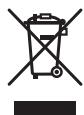
(Symbol for equipment)
(Symbol examples) for batteries

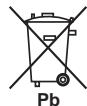
These symbols on the products, packaging, and/or accompanying documents mean that used electrical and electronic products and batteries should not be mixed with general household waste.
For proper treatment, recovery and recycling of old products and used batteries, please take them to applicable collection points in accordance with your national legislation.
By disposing of these products and batteries correctly, you will help to save valuable resources and prevent any potential negative effects on human health and the environment which could otherwise arise from inappropriate waste handling.
For more information about collection and recycling of old products and batteries, please contact your local municipality, your waste disposal service or the point of sale where you purchased the items.
These symbols are only valid in the European Union.
For countries outside the European Union:
If you wish to discard these items, please contact your local authorities or dealer and ask for the correct method of disposal.
K058a_A1_En
01 Before you start
What's in the box. 5
Loading the batteries in the remote control. 5
Playable discs 6
Playable files. 7
Part Names and Functions
Front Panel. 9
Remote control. 10
Front Panel Display. 11
03 Connections
Connecting using an audio/video cable.....12
Connecting using a SCART AV cable. 12
Connecting using an HDMI cable
(DV-420V only) 13
Connecting using a component video
cable 15
Connecting using a digital audio cable. 16
04Playback
Playing discs or files 17
Playing files stored on USB devices 22
Recording audio CD tracks on USB devices .... 22
Playing using the Disc Navigator 23
Playing using the Play Mode function 24
Adjusting the audio. 26
Adjusting the picture quality. 27
05 Changing the Settings (Initial Settings)
Operating the Initial Settings menu 28
06 Additional information
Troubleshooting 35
Language Code Table and Country/Area
Code Table 42
Setting the TV system 43
Cautions on use 43
Handling discs 44
Specifications. 46
What's in the box
Remote Control
Audio/video cable
Power cable
AA batteries (R6) x 2
Warranty card
- Operating instructions (this document)
Loading the batteries in the remote control
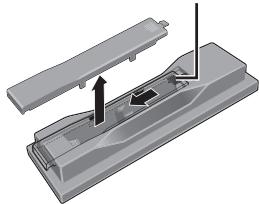
1 Open the back cover.
Press lightly on this part and slide into the direction of the arrow.
2 Insert the included batteries (two size AA batteries).
Insert the batteries in the proper direction, as indicated by the and marks inside the case.
Insert one at a time from the top.
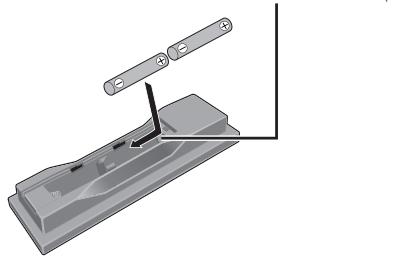
3 Close the back cover.
Close the cover securely (a click should be heard).
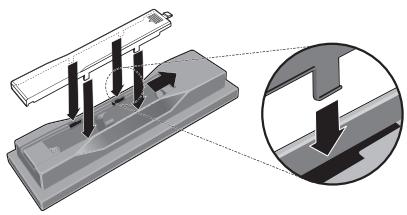

Notes
WARNING
- Do not use any batteries other than the ones specified. Also, do not use a new battery together with an old one.
- When loading the batteries into the remote control, set them in the proper direction, as indicated by the polarity marks ( and ).
- Do not heat batteries, disassemble them, or throw them into flames or water.
- Batteries may have different voltages, even if they are the same size and shape. Do not use different types of batteries together.
- To prevent leakage of battery fluid, remove the batteries if you do not plan to use the remote control for a long period of time (1 month or more). If the fluid should leak, wipe it carefully off the inside of the case, then insert new batteries. If a battery should leak and the fluid should get on your skin, flush it off with large quantities of water.
- When disposing of used batteries, please comply with governmental regulations or environmental public instruction's rules that apply in your country/area.
Do not use or store batteries in direct sunlight or other excessively hot place, such as inside a car or near a heater. This can cause batteries to leak, overheat, explode or catch fire. It can also reduce the life or performance of batteries.
Playable discs
| DVD-Video | • Commercially available DVD-Video discs • DVD-R/-RW/-R DL and DVD+R/+RW/+R DL discs recorded in the Video mode and finalized |
| DVD VR | DVD-R/-RW/-R DL discs recorded in the VR mode |
| Video CD | Video CDs (including Super VCDs) |
| CD(R/RW) | • Commercially available audio CDs • CD-R/-RW-ROM discs containing music recorded in the CD-DA format |
| JPEG | JPEG files recorded on DVD-R/-RW/-R DL discs, CD-R/-RW-ROM discs or USB devices |
| DivX® | DivX video files recorded on DVD-R/-RW/-R DL discs, CD-R/-RW-ROM discs or USB devices |
| WMV | WMV files recorded on DVD-R/-RW/-R DL discs, CD-R/-RW-ROM discs or USB devices |
| WMA | WMA files recorded on DVD-R/-RW/-R DL discs, CD-R/-RW-ROM discs or USB devices |
| MP3 | MP3 files recorded on DVD-R/-RW/-R DL discs, CD-R/-RW-ROM discs or USB devices |
| MPEG-4 AAC | MPEG-4 AAC files recorded on DVD-R/-RW/-R DL discs, CD-R/-RW-ROM discs or USB devices |
| Fujicolor CD | |
| KODAK Picture CD | |
DVD is a trademark of DVD Format/Logo Licensing Corporation.
is a trademark of FUJIFILM Corporation.
RW
COMPATIBLE
This label indicates playback compatibility with DVD-RW discs recorded in VR format (Video Recording format). However, for discs recorded with a record-only-once encrypted program, playback can only be achieved using a CPRM compatible device.

Notes
This player does not support multisession discs or multiborder recording.
- Multisession/multiborder recording is a method in which data is recorded on a single disc in two or more sessions/borders. A "session" or "border" is one recording unit, consisting of a complete set of data from lead-in to lead-out.
Discs that cannot be played
DVD Audio discs
DVD-RAM discs
SACDs
CD-G
- Blu-ray discs
HD DVDs
Discs that have not been finalized
- Discs recorded with packet writing
About region numbers
DVD player and DVD- Video discs are assigned region numbers according to the region in which they are sold. This player's region number(s) is (are) as shown below.
DVD-Video: 2
Discs not including these numbers cannot be played.
Discs playable on this player are as shown below.
DVDs: 2 (including 2) and ALL
Regarding copy protected CDs
This player is designed to conform to the specifications of the audio CD format. This player does not support the playback or function of discs that do not conform to these specifications.
About playing DualDiscs
- A DualDisc is a new two-sided disc, one side of which contains DVD content — video, audio, etc. — while the other side contains non-DVD content such as digital audio material.
- The DVD side of a DualDisc can be played on this player (excluding any DVD-Audio content).
- The non-DVD, audio side of the disc is not compatible with this player.
It is possible that when loading or ejecting a DualDisc, the opposite side to that being played will be scratched. Scratched discs may not be playable. - For more detailed information on the DualDisc specification, please refer to the disc manufacturer or disc retailer.
Playing discs created on computers or BD/DVD recorders
- It may not be possible to play discs recorded using a computer due to the application settings or computer's environment settings. Record discs in a format playable on this player. For details, contact the dealer.
It may not be possible to play discs recorded using a computer or a BD/DVD recorder, if burn quality is not good due to characteristics of the disc, scratches, dirt on the disc, dirt on the recorder's lens, etc.
Playable files
- Only discs recorded in ISO9660 Level 1, Level 2 and Joliet can be played.
- Files protected by DRM (Digital Rights Management) cannot be played.
Supported video file formats Windows Media™ Video (WMV)
Resolution: Up to 720 x 480/720 x 576 pixels
This player supports files encoded using Windows Media Player 9 Series.
This player does not support Advanced Profile.
- Windows Media is either a registered trademark or trademark of Microsoft Corporation in the United States and/or other countries.
This product includes technology owned by Microsoft Corporation and cannot be used or distributed without a license from Microsoft Licensing, Inc.
DivX
DivX is a media technology created by DivX, Inc. DivX media files contain image data.
- DivX files may also include such advanced playback functions as menu screens and selection of multiple subtitle languages/audio tracks.
Plays DivX® video, including premium content
DivX® is a registered trademark of DivX, Inc., and is used under license.
Displaying external subtitle files
- The font sets listed below are available for external subtitle files. You can see the proper font set on-screen by setting the Subtitle Language on page 32 to match the subtitle file.
- This player supports the following language groups:
| Group 1 | Afrikaans (af), Basque (eu), Catalan (ca), Danish (da), Dutch (nl), English (en), Faroese (fo), Finnish (fi), French (fr), German (de), Icelandic (is), Irish (ga), Italian (it), Norwegian (no), Portugu- guese (pt), Rhaeto-Romantic (rm), Scot- tish (gd), Spanish (es), Swedish (sv) |
| Group 2 | Albanian (sq), Croatian (hr), Czech (cs), Hungarian (hu), Polish (pl), Romanian (ro), Slovak (sk), Slovenian (sl) |
| Group 3 | Bulgarian (bg), Byelorussian (be), Macedonian (mk), Russian (ru), Ser- bian (sr), Ukrainian (uk) |
| Group 4 | Hebrew (iw), Yiddish (ji) |
| Group 5 | Turkish (tr) |
- Some external subtitle files may be displayed incorrectly or not at all.
- For external subtitle files the following subtitle format filename extensions are supported (please note that these files are not shown within the disc navigation menu): .srt, .sub, .ssa, .smi
- The filename of the movie file has to be repeated at the beginning of the filename for the external subtitle file.
- The number of external subtitle files which can be switched for the same movie file is limited to a maximum of 10.
Supported image file formats
JPEG
Resolution: Up to 3 072 x 2 048 pixels
This player supports baseline JPEG.
This player supports Exif Ver.2.2.
- This player supports JPEG HD. Images are output with a high resolution of 720p or 1080i (DV-420V only).
This player does not support progressive JPEG.
Supported audio file formats
-
This player does not support VBR (Variable Bit Rate).
-
This player does not support lossless encoding.
Windows Media Audio (WMA)
- Sampling frequencies: 32 kHz, 44.1 kHz and 48 kHz
Bit rate: Up to 192 kbps - This player supports files encoded using Windows Media Player Ver. 7/7.1, Windows Media Player for Windows XP and Windows Media Player 9 Series.
MPEG-1 Audio Layer 3 (MP3)
- Sampling frequencies: 32 kHz, 44.1 kHz and 48 kHz
MPEG-4 Advanced Audio Coding (MPEG-4 AAC)
- Sampling frequencies: 44.1 kHz and 48 kHz
- This player supports files encoded using iTunes.
Depending on the version of iTunes used for encoding, it may not be possible to play some files. - Apple and iTunes are trademarks of Apple Inc., registered in the U.S. and other countries.
Playable file extensions
Video files
<divx .avi .wmv
- Files not containing DivX video signals cannot be played, even if they have the extension“.avi”.
Image files
.jpg .jpeg
Audio files
.wma .mp3 .m4a
Front Panel
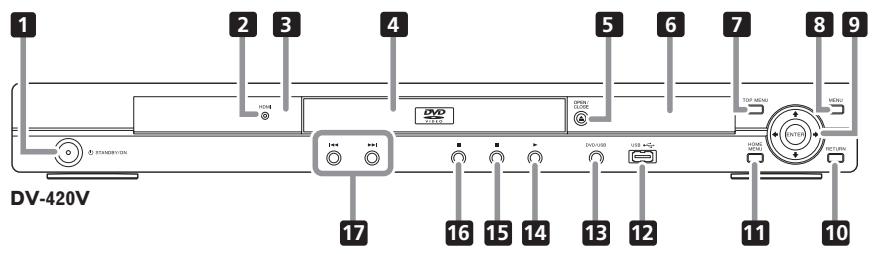
1 STANDBY/ON (page 17)
2 HDMI (page 13) (DV-420V only)
This lights when the device connected to the HDMI terminal is recognized.
Remote control sensor
Point the remote control to this, then operate it within a distance of approximately 7m
- Reception of remote control signals may be poor when exposed to direct sunlight or strong artificial light from a fluorescent bulb, etc.
4 Disc tray
5 △ OPEN/CLOSE (page 17)
6 Front panel display (page 11)
7 TOP MENU
Press to display the top menu of the DVD-Video.
8 MENU
Press to display the menu screen or Disc Navigator.
9 / / /
Use these to select items, change settings and move the cursor.
ENTER
Use this to implement the selected item or enter a setting that you have changed.
RETURN
Press to return to the previous screen.
11 HOME MENU
Press to display/hide the Home Menu.
USB port (type A) (page 22)
DVD/USB (page 22)
14 (page 17)
15 (page 17)
16 II (page 17)
17 141/101 (page 19)
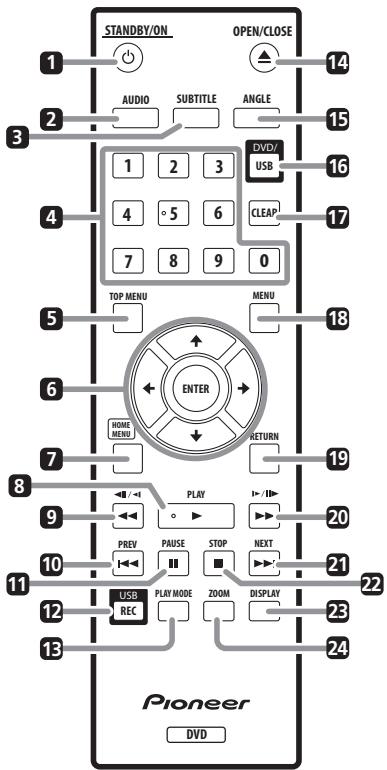
Remote control
4 Number buttons (0 to 9)
1 STANDBY/ON (page 17)
2 AUDIO (page 19)
SUBTITLE (page 20)
Use these to specify and play the title, chapter, track or file you want to view/ listen to. Also use them to select items on menu screens, etc.
5 TOP MENU
Press to display the top menu of the DVD-Video.
6 / / /
Use these to select items, change settings and move the cursor.
ENTER
Use this to implement the selected item or enter a setting that you have changed.
7 HOME MENU
Press to display/hide the Home Menu.
8 PLAY (page 17)
9 1/111 page 18)
10 PREV (page 19)
II PAUSE (page 17)
12 USB REC (page 22)
13 PLAY MODE (page 24)
14 ▲ OPEN/CLOSE (page 17)
15 ANGLE (page 20)
DVD/USB (page 22)
17 CLEAR
Press to clear the selected item. Use this for example if you input the wrong number.
18 MENU
Press to display the menu screen or Disc Navigator.
RETURN
Press to return to the previous screen.
20 /1 /1 (page 18)
21 NEXT (page 19)
STOP (page 17)
23 DISPLAY (page 21)
24 ZOOM (page 20)
Front Panel Display
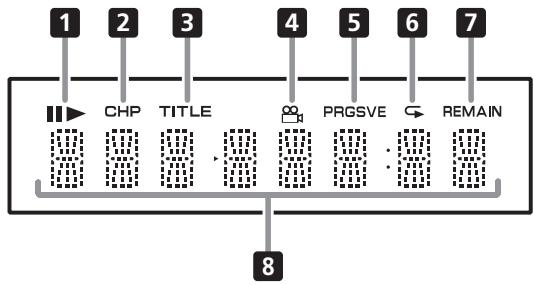

1 Lights when playback is paused.
Lights during playback.
CHP Lights when the chapter number is displayed.
3 TITLE Lights when the title number is displayed.
4 (page 20) Lights when switched to a different angle (DVD-Video only).
5 PRGSVE (page 31) Lights when Component Out is set to Progressive.
6 (page 24) Lights when in the Repeat Play mode.
7 REMAIN Lights when the remaining time of the currently playing title, chapter or track is displayed.
Counter display Displays the title, chapter, track or file number, the elapsed time, etc.
- Be sure to turn off the power and unplug the power cord from the power outlet whenever making or changing connections.
- Connect the power cord after all the connections between devices have been completed.
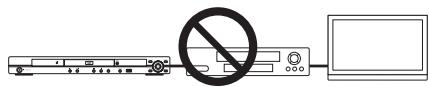
- Connect the player's video output directly to the TV.
This player supports analog copy protection technology. Therefore the picture may not be displayed properly if connected to a TV via a DVD recorder/video deck or when playing the player's output material that is recorded by a DVD recorder/video deck. Furthermore, the picture may not be displayed properly due to the copy protection when the player is connected to a TV with a built-in video deck. For details, contact the manufacturer of your TV.
Connecting using an audio/video cable
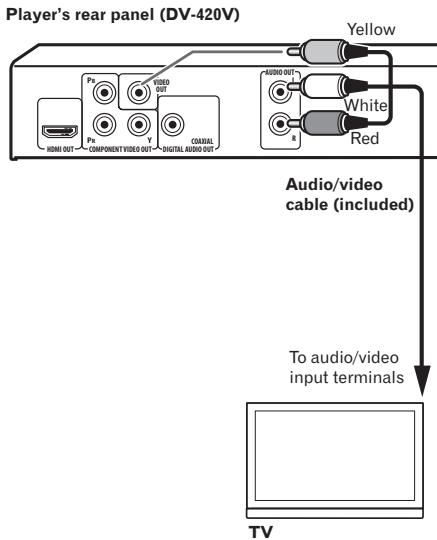
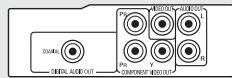
Player's rear panel (DV-320)

Connecting using a SCART AV cable
The video signal to be output can be selected (AV Connector Out on page 31).
- Analog audio signals are also output from the SCART AV connector.
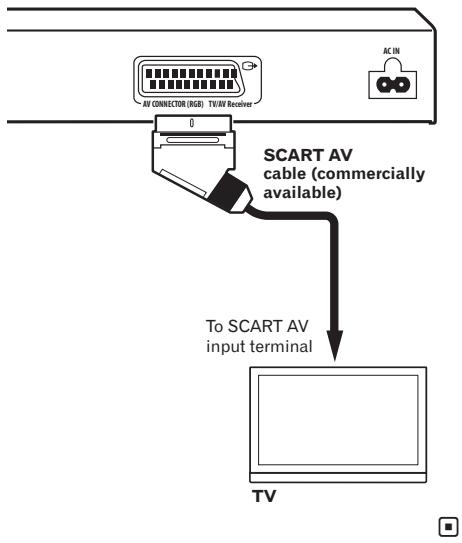
Player's rear panel (DV-420V)
Connecting using an HDMI cable (DV-420V only)
By using an HDMI cable, digital signals can be transferred to an HDMI-compatible TV on a single cable with no loss of picture or sound quality. After connecting, make the player's resolution and HDMI color settings according to the HDMI-compatible TV. Also refer to the HDMI-compatible TV's operating instructions.
- HDMI, the HDMI Logo and High-Definition Multimedia Interface are trademarks or registered trademarks of HDMI Licensing, LLC.

Notes
- This player's interface is designed based on the High-Definition Multimedia Interface specification.
- When an HDMI-compatible device is connected, the resolution is displayed on the front panel display.
- The resolution of the video signals output from the player's HDMI OUT terminal is changed manually. Change the HDMI Resolution setting (page 31). Settings for two units can be stored in the memory.
- This player is designed for connection to HDMI-compatible devices. It may not operate properly if connected to DVI devices.
Connecting to a TV
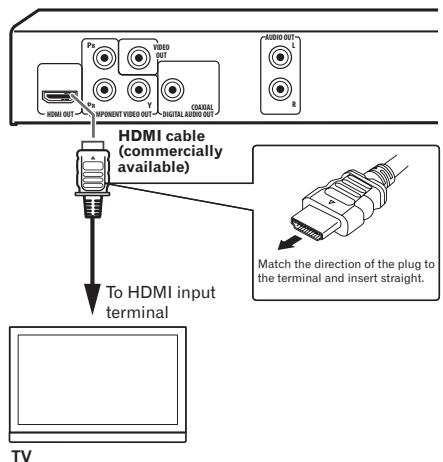
Player's rear panel (DV-420V)
Connecting to an AV receiver or amplifier
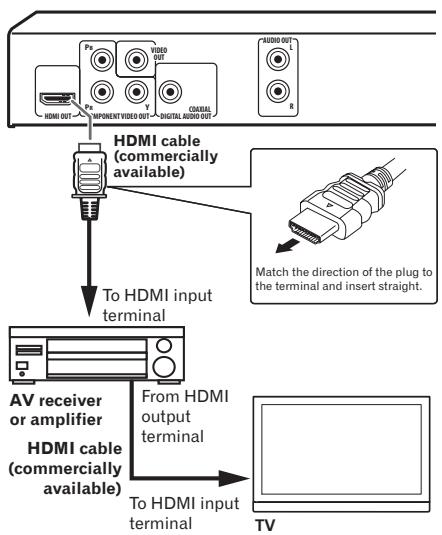
Player's rear panel (DV-420V)
About video/audiosignals output from the HDMI OUT terminal
Video signals (resolution of) that can be output from the player's HDMI OUT terminal
- 720 × 480 / 720 × 576 pixel progressive or interlaced video
1 280 x 720 pixel progressive video
1920x1080pixel progressive or interlaced video
Audio signals that can be output from the player's HDMI OUT terminal
44.1 kHz to 96 kHz, 16-bit/20-bit/24-bit 2-channel linear PCM audio (including 2-channel downmixing)
Dolby Digital 5.1-channel audio
- DTS 5.1-channel audio
MPEG audio

Manufactured under license from Dolby Laboratories. Dolby and the double-D symbol are trademarks of Dolby Laboratories.

Manufactured under license under U.S. Patent #: 5,451,942 & other U.S. and worldwide patents issued & pending. DTS and DTS Digital Out are registered trademarks and the DTS logos and Symbol are trademarks of DTS, Inc. © 1996-2008 DTS, Inc. All Rights Reserved.
About KURO LINK function
- The functions listed below can be used when a Pioneer KURO LINK compatible Flat Screen TV, AV system (AV receiver or amplifier, etc.) and HD AV Converter is connected to the player using an HDMI cable.
Refer to the operating instructions of the Flat Screen TV, etc.
To use the KURO LINK function
- The KURO LINK function operates when KURO LINK is set to On for all devices connected to the HDMI OUT terminal.
- Once connections and the settings of all the devices are finished, be sure to check that the player's picture is output to the Flat Screen TV. (Also check after changing the connected devices and reconnecting HDMI cables.) The KURO LINK function may not operate properly if the player's picture is not properly output to the Flat Screen TV.
Connections
- Use High Speed HDMI™ cables when using the KURO LINK function. The KURO LINK function may not operate properly if other HDMI cables are used.
- For some models, the KURO LINK function may be referred to as "HDMI Control".
- The KURO LINK function does not work with devices of other brands, even if connected using an HDMI cable.
What the KURO LINK function can do
Operating the player with the Flat Screen TV's remote control.
- Such player operations as starting and stopping playback and displaying the menus can be performed from the Flat Screen TV. For details on the functions that can be operated, see the Flat Screen TV's operating instructions.
The player's playback picture is displayed on the Flat Screen TV's screen. (Auto-select function)
- The input switches automatically on the Flat Screen TV, AV system (AV receiver or amplifier, etc.) and HD AV Converter when playback is started on the player or the Home Menu or the Disc Navigator is displayed. When the input is switched, the playback picture, the Home Menu or the Disc Navigator appears on the Flat Screen TV.
The power of the Flat Screen TV turns on automatically. (Simultaneous power function)
- When playback on the player is started or the Home Menu or Disc Navigator is displayed, if the Flat Screen TV's power was off, its power turns on automatically.
Connecting using a component video cable
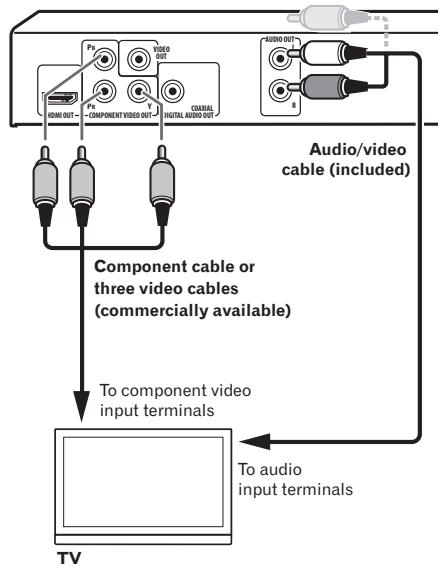
Player's rear panel (DV-420V)
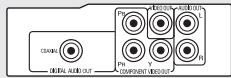
Player's rear panel (DV-320)

Connecting using a digital audio cable
- Connect an AV receiver or amplifier, etc., compatible with Dolby Digital or DTS audio to one of the DIGITAL AUDIO OUT COAXIAL terminals.
- For instructions on connecting the AV receiver or amplifier to the TV and speakers, refer to the AV receiver or amplifier's operating instructions.
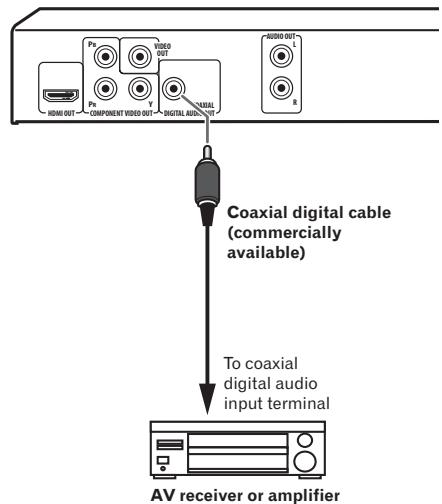
Player's rear panel (DV-420V)
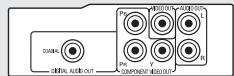
Player's rear panel (DV-320)

Playing discs or files
- Before starting, turn the TV's power on and switch the TV's input.
The player's screen display language can be changed (OSD Language on page 32).
1 Turn the power on.
Press 品 STANDBY/ON.
2 Open the disc tray and load the disc.
Press OPEN/CLOSE.
Set the disc with the printed side facing up.
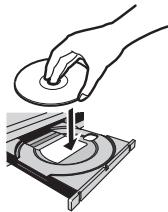
3 Starts playback.
Press PLAY.
To pause, press PAUSE during playback.
- To stop, press STOP during playback.
To turn the power off, press STANDBY/ON.

Notes
Some discs start playing automatically when they are loaded.
- For some discs, black bars may be displayed along the top and bottom of the TV screen.
If the menu screen appears
For some discs, the menu screen appears automatically when playback starts. The contents of the menu screen and how the screen is operated differ from disc to disc.
Various playback functions
It may not be possible to use some of these functions, depending on the type of disc or file.
| Starting playback from where it was stopped (Resume Play) | DVD-Video DVD VR Video CD CD(R/RW) DivX° WMV | When STOP is pressed during playback, the point at which playback was stopped is stored in the memory. When PLAY is pressed, playback resumes from the point at which it was stopped. To cancel the resume play, press STOP while play-back is stopped. Resume Play may not possible for certain discs. |
| Storing the stop point for ejected discs (Last Memory) | DVD-Video Video CD | The player stores the point at which ejected DVD-Video discs (for up to five discs) and Video CDs (for one disc) were stopped. When the disc is reloaded and PLAY is pressed, playback starts from the point at which the disc was stopped before it was ejected. To cancel the last memory setting, press STOP while playback is stopped. If you do not want the player to store the point at which playback was stopped, press ▲ OPEN/CLOSE during playback to eject the disc. For some discs, the point at which playback was stopped cannot be stored. When the limit for the number of discs for which the stop point can be stored is exceeded, the older settings are overwritten. |
| Forward and reverse scanning | DVD-Video DVD VR Video CD CD(R/RW) DivX° WMV WMA MP3 MPEG-4 AAC | During playback, press ←/←/II/ or >/I> /II>. The speed changes each time the button is pressed. The speed steps differ according to the disc or file. With DVD-Video and DVD VR discs, when >/I> /II> is pressed once during playback, the picture and sound are played at about 1.4 times the regular speed. Note that the sound may not be output or may be broken. To resume normal playback, press PLAY. |
| Frame-by-frame forward/ frame-by-frame reverse play | DVD-Video DVD VR Video CD DivX° WMV | While playback is paused, press ←/←/II/ or >/I> /II>. The picture moves a frame forward or backward each time the button is pressed. To resume normal playback, press PLAY. No sound is produced during frame-by-frame forward/reverse play. The picture may shake during frame-by-frame reverse play. Frame-by-frame reverse play is not possible for Video CDs and video files. |
| Playing in slow motion | DVD-Video DVD VR Video CD DivX® WMV | While playback is paused, press and hold in /Press and hold the button until Slow is displayed on the TV screen. The speed changes each time the button is pressed. The speed steps differ according to the disc or file. To resume normal playback, press PLAY. No sound is output during slow motion playback. Reverse playback in slow motion is not possible for Video CDs and video files. |
| Skipping content | DVD-Video DVD VR Video CD CD(R/RW) DivX® WMV WMA MP3 MPEG-4 AAC | During playback, press PREV or NEXT. When NEXT is pressed, playback skips ahead to the beginning of the next title, chapter, track or file. When PREV is pressed, playback skips back to the beginning of the currently playing title, chapter, track or file. When pressed twice, playback skips back to the previous title, chapter, track or file. It is not possible to return to previous titles, chapters, groups, tracks or files during random play. Operation is different during PBC playback of Video CDs. Check the disc's jacket, etc. |
| Playing specific titles, chapers or tracks | DVD-Video DVD VR Video CD CD(R/RW) | Use the number buttons (0 to 9) to input the number of the title, chapter or track you want to play, then press ENTER. Playback starts automatically 2 seconds after the number is input. For DVD-Video chapter searching, only chapters within the currently playing title can be specified. |
| Switching the audio stream/channel | DVD-Video DVD VR Video CD CD(R/RW) DivX® | For discs or files including multiple audio streams/channels, the audio stream/channel can be switched during playback. During playback, press AUDIO. The audio stream/channel switches each time the button is pressed. The types of audio streams/channels depend on the disc or file. For some DVD-Videos, the audio stream/channel is switched using a menu screen. The picture may stop momentarily when the audio stream/channel is switched. If the Resume Play or Last Memory setting has been canceled, the Audio Language setting is restored (page 32). |
| Switching the subtitle | DVD-Video DivX® | ·On DVD-Video or DivX discs containing subtitles in multiple languages, the subtitle can be switched during playback. ·During playback, press SUBTITLE. ·The subtitle switches each time the button is pressed. ·The recorded subtitles depend on the disc or file. ·-/- is displayed if the disc or file does not contain any subtitles. ·For some DVD-Videos, the subtitle is switched using a menu screen. ·If the Resume Play or Last Memory setting has been canceled, the Subtitle Language setting is restored (page 32). |
| Changing the angle (Multi-Angle) | DVD-Video | ·On DVD-Video discs containing multiple angles, the angle can be switched during playback. ·During playback, press ANGLE. ·For some DVD-Videos, the angle is switched using a menu screen. ·The mark appears on the TV screen at scenes for which there are multiple angles. If you do not want the mark to be displayed, set Angle Indicator to Off (page 32). |
| Zooming on the image | DVD-Video DVD VR Video CD DivX® WMV JPEG | ·Press ZOOM. ·The zoomed area is displayed. ·Use ↑/↓/←/→ to move the zoom area. ·The magnification (2x → 4x → normal) changes each time the button is pressed. ·When playing slideshows of JPEG files, the zoomed area is not displayed. ·When a JPEG file is zoomed, normal slideshow play-back can be resumed by pressing▶PLAY. |
| Rotating (inverting) the image | JPEG | ·When playing a slideshow, press one of ↑/↓/←/→. ·When ↑ is pressed, the image is inverted vertically. ·When ↓ is pressed, the image is inverted horizontally. ·When ← is pressed, the image is rotated 90° count-clockwise. ·When ⇒ is pressed, the image is rotated 90° clockwise. ·To return to the normal slideshow, press▶PLAY. |
| Viewing the disc's or file's information | DVD-Video DVD VR Video CD CD(R/RW) DivX° WMV WMA MP3 MPEG-4 AAC | During playback, press DISPLAY. The elapsed time, amount remaining, etc., is dis-played. For some discs and files, the contents displayed switch each time the button is pressed. To turn the information off, press DISPLAY again until it turns off. Some information is not displayed during PBC play-back of Video CDs. To display such information, cancel PBC playback (see below). If On Screen Display is set to Off, no information is displayed when DISPLAY is pressed (page 32). |
| Playing Video CDs from their menu screen (PBC playback) | Video CD | Playing Video CDs using their menu screens is called PBC (playback control) playback. The contents displayed and operations differ from disc to disc. Also refer to the operating guide included with the disc. To display the menu screen, load a PBC playback-compatible disc then press PLAY. To start PBC playback, use the number buttons (0 to 9) while the menu screen is displayed to select the track, then press ENTER. To return to the menu screen, press RETURN during playback. To switch pages, press PREV or NEXT. To play the disc without displaying the menu screen (with PBC off), use the number buttons (0 to 9) while playback is stopped to select the track, then press ENTER (or select the track using PREV and NEXT while playback is stopped). |

Playing files stored on USB devices
- The player may not recognize the USB device, may not play files or may not supply power to the USB device. For details, see When a USB device is connected on page 40.
- Pioneer does not support that all files recorded on all USB devices will play or that power will be supplied to the USB device. Also note that Pioneer will accept no responsibility whatsoever for loss of files on USB devices caused by connection to this player.
1 Turn the power on.
Press STANDBY/ON.
2 Switching the input to the USB mode.
Press DVD/USB.
USB MODE is displayed on the front panel display.
3 Connecting USB devices.
The Disc Navigator appears automatically.
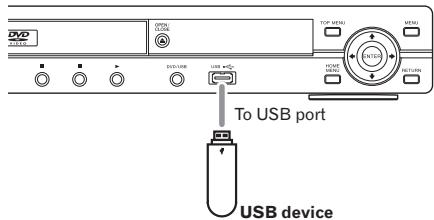
Player's front panel
4 Starts playback.
Use / / / to select the file, then press ENTER.
- Turn the power off before removing the USB device.
- The input will remain in the USB mode the next time the power is turned on. To return to the DVD mode, press DVD/USB (or press OPEN/CLOSE to open the disc tray).
Recording audio CD tracks on USB devices
- The tracks of audio CDs loaded in the player can be recorded on a USB device connected to the USB port.
- It may not be possible to record tracks of audio CDs on a USB device. For details, see When a USB device is connected on page 40.
Recording all the tracks
1 Load the audio CD.
If playback starts automatically, press STOP to stop playback.
2 Display the CD -> USB Rec screen.
Press USB REC.
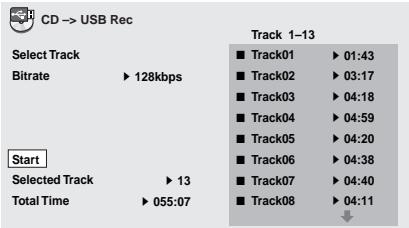
3 Start recording.
Use / / / to select Start, then press ENTER.
Selecting the track(s) to be recorded
1 Load the audio CD.
If playback starts automatically, press STOP to stop playback.
2 Display the Home Menu.
Press HOME MENU.
3 Select CD->USB Rec.
Use / / / to select, then press ENTER.
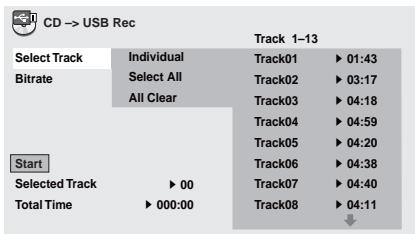
4 Select Select Track Individual the track(s) you want to record.
Use / / / to select.
Individual: Select 1 track at a time.
- Select All: Select all the tracks.
- All Clear: Deselect all the tracks.
5 Select Bitrate (transfer rate).
Use / / / to select, then press ENTER.
- Select 128kbps, 192kbps or 320kbps.
6 Start recording.
Use / / / to select Start, then press ENTER.

Notes
- CD -> USB Rec can only be selected when the audio CD is stopped.
- When recording is completed, a folder named "PIONEER" is automatically created on the USB device. The recorded tracks are stored in this folder.
Playing using the Disc Navigator
Playing discs
DVD-Video DVD VR Video CD
1 Display the Home Menu.
Press HOME MENU.
2 Select Disc Navigator.
Use / / / to select, then press ENTER.
3 Select the type of Disc Navigator.
Use / to select, then press ENTER.
The Disc Navigator is displayed.
- The contents displayed on the Disc Navigator differ from disc to disc.
4 Playing specific titles, chapters or tracks.
Use / / / to select, then press ENTER.
To switch pages, press PREV or NEXT.
- Press RETURN to return to the previous screen.
Press HOME MENU to exit the Disc Navigator.

Notes
- The Disc Navigator cannot be displayed for some DVD-Video discs.
- The Disc Navigator cannot be displayed during PBC playback of Video CDs. To display such information, cancel PBC playback (page 21).
Playing files
DivX WMV WMA MP3 MPEG-4 AAC JPEG
1 Display the Home Menu.
Press HOME MENU.
2 Select Disc Navigator.
Use / / / to select, then press ENTER.
3 Select the folder.
Use / to select, then press ENTER.
4 Select and play the file.
Use / to select, then press ENTER.
-
When JPEG files are played, the files switch automatically (slideshow playback).
-
Press to return to the previous screen. (It is also possible to return to the previous screen by selecting then pressing ENTER.)
Press HOME MENU to exit the Disc Navigator.

Note
When a disc contains both audio files and JPEG files, they can be played simultaneously. To do so, first select the audio file, then select the JPEG file.
Playing using the Play Mode function
The Play Mode function may not work for some discs or files.
- Display the Play Mode screen.
During playback, press PLAY MODE.
It is also possible to display the Home Menu by selecting Play Mode from the home menu then pressing ENTER.
- The Play Mode screen cannot be displayed during PBC playback of Video CDs. In this case, cancel PBC playback (page 21).
Playing a specific section repeatedly (A-B Repeat Play)
DVD-Video DVD VR Video CD CD(R/RW)
The specified section within a single title or track is played repeatedly.
1 Display the Play Mode screen.
During playback, press PLAY MODE.
2 Select A-B Repeat.
Use / to select, then press ENTER or .
3 Select the point at which you want to start A-B play.
Use / to select A (Start Point), then press ENTER.
4 Select the point at which you want to stop A-B Repeat play.
Use / to select B (End Point), then press ENTER.
A-B repeat play starts.
- To cancel A-B repeat play, select Off, then press ENTER.
Playing repeatedly (Repeat Play)
DVD-Video DVD VR Video CD CD(R/RW)
DivX WMM
1 Display the Play Mode screen.
During playback, press PLAY MODE.
2 Select Repeat.
Use / to select, then press ENTER or .
3 Select the type of Repeat play.
Use / to select, then press ENTER or . Repeat play starts.
- To cancel repeat play, select Repeat Off, then press ENTER. (Repeat play is canceled automatically when playback is stopped.)
- The types of repeat play available depend on the disc and file.
Playing in random order (Random Play)
DVD-Video Video CD CD(R/RW)
1 Display the Play Mode screen.
Press PLAY MODE.
2 Select Random.
Use / to select, then press ENTER or .
3 Select the type of Random play.
Use / to select, then press ENTER or .
Random play starts.
To cancel random play, select Random Off, then press ENTER. (Random play is canceled automatically when playback is stopped.)
- The types of random play available depend on the disc and file.

Note
The same title, chapter or track may be played twice during random play.
Playing in the desired order (Programmed Play)
DVD-Video
Video CD
CD(R/RW)
DivX
WMV
WMA
MP3
MPEG-4 AAC
1 Display the Play Mode screen.
Press PLAY MODE.
2 Select Program.
Use / to select, then press ENTER or .
3 Select Create/Edit.
Use / to select, then press ENTER.
- The Create/Edit screen differs according to the disc or file.
4 Select the title, chapter, track or file to be played.
Use / / / to select, then press ENTER.
- To add to a program, first select the place in the program (the program step), next select the title, chapter or track, then press ENTER (files are added at the end of program).
- Press RETURN to return to the previous screen. If you return to the previous screen when inputting it, the settings you have programmed are cleared.
To delete a step, highlight it and press CLEAR.
5 Starts playback.
Press PLAY.
To play a program that has already been set, select Playback Start from the program screen, then press ENTER.
To resume normal playback, select Playback Stop from the program screen, then press ENTER. The program remains in the memory.
- To cancel the entire program, select Program Delete from the program screen, then press ENTER.

Notes
- Programs can be played repeatedly. During programmed play, select Program Repeat from Repeat on the Play Mode screen (page 24).
- Programs cannot be played in random order (random play is not possible during programmed play).
Playing by specifying a number or time (Search Mode)
DVD-Video
DVD VR
Video CD
CD(R/RW)
DivX
WMV
This function allows you to specify the title, chapter or track number or time to be played.
1 Display the Play Mode screen.
Press PLAY MODE.
2 Select Search Mode.
Use / to select, then press ENTER or .
3 Select the type of Search Mode.
Use / to select, then press ENTER.
- The types of search mode available depend on the disc and file.
4 Input the number of the title, chapter or track or the time you want to play.
Use the number buttons (0 to 9) to input, then press ENTER. (For example, to specify 1 hour and 4 minutes (64 minutes), input 6, 4, 0 and 0.)
Playback starts.

Notes
- For some DVD-Videos, the number or time can be specified using a menu screen.
- For video files, only the time can be specified (only Time Search (time searching) is possible).
Time searching (Time Search) is not possible on DVD+R/+RW discs.
Adjusting the audio
1 Display the Home Menu.
Press HOME MENU.
2 Select Audio Settings.
Use / / / to select, then press ENTER.
3 Change the settings.
Use / / / to select, then press ENTER.
- Press RETURN to return to the previous screen.
4 Enter the changes.
Press HOME MENU.
The changed settings are stored in the memory.

Notes
The effect may be weak for some discs or files.
These settings also affect the sound output from the DIGITAL AUDIO OUT COAXIAL terminals and the HDMI OUT terminal (DV-420V only).
Note that there is no effect when Dolby Digital, DTS or MPEG audio signals are being output.
Audio Settings parameters
| Parameters (settings) | |
| Sound Retriever (High/Low/Off) | WMA, MP3 and MPEG-4 AAC audio is played with high sound quality. This is only valid for files with the extension '.wma', '.mp3' or '.m4a'. The effect depends on the file. Try different settings, and choose the one providing the good effect. |
| Equalizer (Off/ Rock/Pop/Live/ Dance/Techno/ Classic/Soft) | Select according to the genre of music to be listened to. |
| Virtual Surround (On/Off) | A surround sound field with a sense of presence can be created with two speakers. When set to On, linear PCM audio signals of 96 kHz or greater are converted to 48 kHz. |
| Audio DRC (High/Medium/ Low/Off) | This makes loud sounds weaker and weak sounds louder. Change the setting for example when watching movies late at night. This setting only affects Dolby Digital sound. The effect depends on the volume of the connected TV, AV receiver or amplifier, speakers, etc. Try different settings, and choose the one providing the strongest effect. |
| Dialog (High/ Medium/Low/ Off) | Change this setting if the sound of dialogs is low and the dialogs are hard to hear. |
The factory default settings are indicated in italic.
About Sound Retriever function
- When audio data is removed during the compression process, sound quality often degrades. The Sound Retriever function automatically enhances compressed audio and restores CD quality sound.
Adjusting the picture quality
1 Display the Home Menu.
Press HOME MENU.
2 Select Video Adjust.
Use / / / to select, then press ENTER.
3 Change the settings.
Use / / / to select, then press ENTER.
- Press RETURN to return to the previous screen.
4 Enter the changes.
Press HOME MENU.
The changed settings are stored in the memory.

Notes
The effect depends on the connected TV, the disc or the file.
- The settings affect the video signals output from the HDMI OUT terminal (DV-420V only).
Video Adjust parameters
| Parameters (settings) | |
| Sharpness (Fine/Standard/ Soft) | Adjusts the picture's sharpness. |
| Brightness (-20 to 20) | Adjusts the picture's brightness. |
| Contrast (-16 to 16) | Adjusts the ratio of the brightness of the brightest and darkest portions of the picture. |
| Gamma (-3 to 3) | Adjusts the look of the dark portions of the picture. |
| Hue (green 9 to red 9) | Adjusts the balance between green and red. |
| Chroma Level (-9 to 9) | Adjusts the density of the colors. This setting is effective for sources with many colors, such as cartoons. |
The factory default settings are indicated in italic.
- Brightness, Contrast, Gamma, Hue and Chroma Level are set to 0 upon purchase.

Changing the Settings (Initial Settings)
Operating the Initial Settings menu
Initial Settings cannot be selected during playback. Stop the disc first.
1 Display the Home Menu.
Press HOME MENU.
2 Select Initial Settings.
Use / / / to select, then press ENTER.
3 Select the item and change the setting.
Use / / / to select, then press ENTER.

Notes
- HDMI Out, HDMI Resolution and HDMI Color can only be set when the player is connected to an HDMI-compatible device using an HDMI cable (DV-420V only).
- Digital Audio Out, AV Connector Out and Component Out cannot be set when the player is connected to an HDMI-compatible device using an HDMI cable (DV-420V only).
Setting the Component Out and HDMI Resolution settings back to their defaults
1 Turn the player's power off.
Press 品 STANDBY/ON
2 Press STANDBY/ON while pressing
Use the buttons on the player's front panel. The power turns on.
Restoring all the settings to the defaults
1 Turn the player's power off.
Press 品 STANDBY/ON.
2 Press STANDBY/ON while pressing.
Use the buttons on the player's front panel.
Changing the Settings (Initial Settings)
Digital Audio Out settings
| Options settings | Settings | |
| HDMI Out(DV-420V only) | LPCM (2CH) | Multichannel audio signals are converted to 2-channel linear PCM audio signals for output. This can be selected when the connected HDMI-compatible device does not support multichannel audio. |
| Auto | Audio signals supported by the connected HDMI-compatible device (Dolby Digital, DTS, MPEG and linear PCM) are output. Audio signals not supported by the connected HDMI-compatible device are converted to linear PCM for output. | |
| Off | No audio signals are output from the HDMI OUT terminal. | |
| The settings can only be changed when the player and HDMI-compatible device are connected using an HDMI cable.If the connected HDMI-compatible device is not compatible with DTS audio, the DTS audio signals are not output (the DTS audio signals are not converted to linear PCM signals for output). | ||
| Digital Out | On | Audio signals are output from the DIGITAL AUDIO OUT termi-nals. |
| Off | No audio signals are output from the DIGITAL AUDIO OUT ter-minal. | |
| When Digital Out is set to Off, the audio signals output from the HDMI OUT terminal are converted to linear PCM(DV-420V only). | ||
| Dolby Digital Out | Dolby Digital | Dolby Digital audio signals are output. Select this when the con- nected AV receiver or amplifier supports Dolby Digital audio. |
| Dolby Digital > PCM | Dolby Digital audio signals are converted to linear PCM audio signals for output. Select this when the connected AV receiver or amplifier does not support Dolby Digital audio. | |
| DTS Out | DTS | DTS audio signals are output. Select this when the connected AV receiver or amplifier supports DTS audio. |
| Off | DTS audio signals are not output. Select this when the connected AV receiver or amplifier does not support DTS audio. | |
| When the connected AV receiver or amplifier does not support DTS audio, set Off. Noise may be generated if DTS is set. | ||
| 96 kHz PCM Out | 96kHz > 48kHz | 96 kHz audio signals are converted to 48 kHz/44.1 kHz audio signals for output. Select this when the connected AV receiver or amplifier does not support 96 kHz audio. |
| 96kHz | 96 kHz audio signals are output. Select this when the connected AV receiver or amplifier supports 96 kHz audio. | |
| MPEG Out | MPEG | MPEG audio signals are output. Select this when the connected AV receiver or amplifier supports MPEG audio. |
| MPEG > PCM | MPEG audio signals are converted to linear PCM audio signals for output. Select this when the connected AV receiver or amplifier does not support MPEG audio. | |
The factory default settings are indicated in italic.
Changing the Settings (Initial Settings)
About the HDMI Out setting and the type of audio signal that is output (DV-420V only)
| Audio format | HDMI Out settings | ||||
| LPCM (2CH) | Auto | ||||
| DVD-Video | DVD VR | Dolby Digital | 2ch downmix | Dolby Digital1 | |
| Dolby Digital Karaoke | Left/right | Dolby Digital1 | |||
| Linear PCM | Left/right | Left/right | |||
| DTS | Not output | DTS2 | |||
| MPEG | Left/right | MPEG1 | |||
| CD(R/RW) | WMA | MP3 | MPEG-4AAC | Left/right | Left/right |
| DTS-CD | Not output | DTS2 | |||
| Video CD | Left/right | Left/right | |||
1 When the connected HDMI-compatible device is not compatible with Dolby Digital or MPEG audio, the signals are automatically converted to linear PCM audio signals for output.
2 If the connected HDMI-compatible device is not compatible with DTS audio, the DTS audio signals are not output (the DTS audio signals are not converted to linear PCM signals for output).
Video Output settings
| Options settings | Settings | |
| TV Screen | 4:3 (Letter Box) | Select this to view 16:9 images on a 4:3 TV screen, with black bars at the top and bottom of the screen. |
| 4:3 (Pan & Scan) | Select this to view 16:9 images over the entire 4:3 TV screen, with the left and right sides of the 16:9 images cut off. | |
| 16:9 (Wide) | Select this when connected to a widescreen (16:9) TV. | |
| 16:9 (Compressed) (DV-420V only) | Select this to view 4:3 images on a high definition TV (16:9). The image will be displayed on the TV screen properly, with black bars along the sides. This can only be selected when the player and TV are connected using an HDMI cable and HDMI Resolution is set to 1920x1080p, 1920x1080i or 1280x720p. | |
| When you have a conventional size TV (4:3) | When you have a widescreen TV (16:9) | ||
| Player setting | Picture on screen | Player setting | Picture on screen |
| 4:3 (Letter Box) | 16:9 picture 4:3 picture | 16:9 (Wide) | 16:9 picture 4:3 picture |
| 4:3 (Pan & Scan) | 16:9 picture 4:3 picture | 16:9 (Compressed) | 16:9 picture 4:3 picture |
The setting is only reflected if the disc allows the screen's aspect ratio to be switched. Check the disc's jacket, etc.
Changing the Settings (Initial Settings)
| Options settings | Settings | |
| Component Out | Progressive | Select this when a TV or projector supporting progressive video signals is connected to the COMPONENTVIDEO OUT terminals. PRGSVE appears on the front panel display. |
| Interlace | Select this when a TV or projector that does not support progressive video signals is connected to the COMPONENTVIDEO OUT terminals. | |
| · When Progressive is selected and ENTER is pressed, a confirmation message appears. To change the setting, select Yes then press ENTER. If you do not want to change the setting, select No then press ENTER. · The picture may be disturbed when switching between Progressive and Interlace. · When HDMI Resolution is set to 720x480i/720x576i, Interlace is set (DV-420V only). · If the picture no longer appears after changing the setting to Progressive, set it back to Interlace. For instructions on how to do so, see Setting the Component Out and HDMI Resolution settings back to their defaults on page 28. | ||
| AV Connector Out | Video | Regular video signals (composite) are output. |
| RGB | Select this when connected to a TV compatible with RGB video signals. Note, however, that no video signals are output from the composite video output terminals when set to RGB. | |
| HDMI Resolution (DV-420V only) | 720x480i/720x576i | 720 x 480 pixel (NTSC)/720 x 576 pixel (PAL) interlaced images are output. |
| 720x480p/720x576p | 720 x 480 pixel (NTSC)/720 x 576 pixel (PAL) progressive images are output. | |
| 1280x720p | 1 280 x 720 pixel progressive images are output. | |
| 1920x1080i | 1 920 x 1 080 pixel interlaced images are output. | |
| 1920x1080p | 1 920 x 1 080 pixel progressive images are output. | |
| · When the setting is changed, the picture may be disturbed or some time may be required for it to appear. · When the setting is changed, a confirmation message appears. If the picture is properly displayed, select Yes then press ENTER. If it is not properly displayed, select No then press ENTER. · If the picture no longer appears after changing the setting, set it back to 720x480p/720x576p. See Setting the Component Out and HDMI Resolution settings back to their defaults on page 28. | ||
| HDMI Color (DV-420V only) | Full range RGB | The colors become denser. Select this if dark colors seem displayed in a uniform black. |
| RGB | The colors become lighter. Select this if the dark colors seem too light. | |
| Component | Select this when connected to an HDMI-compatible TV. The signals are sent in color difference (8-bit) format. | |
| The settings can only be changed when the player and HDMI-compatible device are connected using an HDMI cable. | ||
The factory default settings are indicated in italic.
Language settings
Some discs will not change to the selected language.
- On some discs, the language is changed on a menu screen. For such discs, change the language on the menu screen.
Changing the Settings (Initial Settings)
| Options settings | Settings | |
| Audio Language | English | Select this to listen to the sound of a DVD-Video disc in English. |
| available languages | Choose a language from the listed languages to set the default audio language for DVD-Video playback. | |
| Other Language | Select one of 136 languages. See Language Code Table on page 42 when performing this operation. If a language not included on the DVD-Video disc is selected, the language is set to one of the languages on the disc. | |
| Subtitle Language | English | Select this to display the subtitles of a DVD-Video disc in English. |
| available languages | Choose a language from the listed languages to set the default subtitle language for DVD-Video playback. | |
| Other Language | Select one of 136 languages. See Language Code Table on page 42 when performing this operation. If a language not included on the DVD-Video disc is selected, the language is set to one of the languages on the disc. | |
| DVD Menu Lang. | w/Subtitle Lang. | Select this to display the DVD-Video disc's menu screens in the same language as selected for Subtitle Language. |
| available languages | Choose a language from the listed languages to set the default language for DVD-Video menus. | |
| Other Language | Select one of 136 languages. See Language Code Table on page 42 when performing this operation. If a language not included on the DVD-Video disc is selected, the language is set to one of the languages on the disc. | |
| Subtitle Display | On | Select this to display the subtitles. |
| Off | Subtitles are always off by default when you play a DVD disc. Note that some discs override this setting. | |
The factory default settings are indicated in italic.
Display settings
| Options settings | Settings | |
| OSD Language | English | Select this to display the operation indicators (Play, Stop, etc.) in English. |
| available languages | Choose a language for the on-screen displays from the listed languages. | |
| Angle Indicator | On | Select this to display the mark on the TV screen. |
| Off | Select this if you do not want to display the mark on the TV screen. | |
| On Screen Display | On | Select this to display operation indications (Play, Stop, etc.) on the TV screen. |
| Off | Select this if you do not want to display operation indications (Play, Stop, etc.) on the TV screen. | |
The factory default settings are indicated in italic.
Changing the Settings (Initial Settings)
Options settings
| Options settings | Settings | |
| KURO LINK(DV-420V only) | On | Select this to operate the player using the remote control of the AV device connected using an HDMI cable. For details, see About KURO LINK function on page 14. |
| Off | Select this when you do not want to control the player with the remote control of the AV device connected using an HDMI cable. | |
| Parental Lock | Password | Register (change) the password required for playing discs for which the Parental Lock function is set. For details, see Register (changing) the password on page 34. |
| Level Change | Change the player's Parental Lock level. For details, see Changing the Parental Lock level on page 34. | |
| Country Code | Change the country/area. Refer to Country/Area Code Table on page 42 when performing this operation. | |
| DivX VOD | Activate | Display the player's registration code required to play DivX VOD files. |
| Deactivate | Display the VOD deactivation code. | |
| • DivX VOD files are protected by DRM. They can only be played on registered devices. • If the registration code has not been authorized, DivX VOD files cannot be played. Authorization Error appears on the TV screen if you attempt to play such files. • For some DivX VOD files, the number of viewings is restricted. The remaining number of authorized views is displayed on the TV screen when such files are played. Rental Expired is displayed when the remaining number of viewings reaches 0. | ||
| Auto Power Off | On | Select this to turn the power off automatically (the power turns off automatically if no operation is performed for over 30 minutes). |
| Off | Select this if you do not want the power to turn off automatically. | |
The factory default settings are indicated in italic.
When Other Language is selected
Select one of 136 languages. See Language Code Table on page 42 when performing this operation. If a language not included on the DVD-Video disc is selected, the language is set to one of the languages on the disc.
1 Select Other Language.
Use / to select, then press ENTER.
2 Select List of Languages or Code.
Use / to select, then press ENTER.
There are some languages for which only the code number is displayed. For details, see Language Code Table on page 42.
3 Select the language code.
Use / or number buttons (0 to 9) to select, then press ENTER.
Changing the Settings (Initial Settings)
Registering (changing) the password
Some DVD-Video discs have Parental Lock levels (check the disc's jacket, etc.). Viewing of such discs can be restricted by setting the player's level to a level lower than the disc.
1 Select Password.
Use / to select, then press ENTER.
2 Input the password.
Use the number buttons (0 to 9) to input the password, then press ENTER.
- To change the password, first input the registered password, then input the new password.

Notes
We recommend making a written note of the password.
- If you forget the password, restore the player's settings to the defaults, then register a new password.
- On some DVD-Video discs, a screen for inputting the password appears during playback. Input the password to continue playing the disc.
Changing the Parental Lock level
1 Select Level Change.
Use / to select, then press ENTER.
2 Input the password.
Use the number buttons (0 to 9) to input the password, then press ENTER.
3 Change the level.
Use to select, then press ENTER.
Changing the country/area code for the Parental Lock function
Refer to Country/Area Code Table on page 42 when performing this operation.
1 Select Country Code.
Use / to select, then press ENTER.
2 Input the password.
Use the number buttons (0 to 9) to input the password, then press ENTER.
3 Select the country code.
Use / to select, then press ENTER.
Troubleshooting
- Incorrect operation is often mistaken for trouble or malfunction. If you think that there is something wrong with this component, check the points below. Sometimes the trouble may lie in another component. Inspect the other components and electrical appliances being used. If the trouble cannot be rectified after checking the items below, ask your nearest Pioneer authorized service center or your dealer to carry out repair work.
- The player may not operate properly due to static electricity or other external influences. In such cases, normal operation may be restored by unplugging the power cord then plugging it back in.
General problems
| Problem | Check | Remedy |
| Settings you have made have been cleared. | Was the power cord unplugged forcibly while the player's power was on? | The settings may be cleared if the power cord is unplugged or if there is a power failure while the player's power is on. Be sure to press STANDBY/ON on the player's front panel or press STANDBY/ON on the remote control and wait for the - OFF - indicator on the front panel display to turn off before unplugging the power cord. Be particularly careful when the player's power cord is plugged into the AC outlet of another component, since the supply of power to the player turns off together with the power supply of the other component. We recommend plugging the power cord directly into a wall outlet, etc., whenever possible. |
| Difference in volume between DVDs and CDs. | This is not a problem with the player. | The volume may sound different due to differences in how the signals are recorded on the disc. |
| Player cannot be operated with the remote control. | Are you operating from far away? | Operate from within a distance of 7 meters from the remote control sensor. |
| Is the remote control sensor exposed to direct sunlight or strong artificial light from a fluorescent bulb, etc.? | The remote control signals may not be received properly if the remote control sensor is exposed to direct sunlight or strong artificial light from a fluorescent bulb, etc. | |
| Are the batteries dead? | Replace the batteries (page 5). | |
| Disc cannot be played or disc tray opens automatically. | Is the disc scratched? | Scratched discs may not play. |
| Is the disc dirty? | Wipe the dirt off the disc (page 44). | |
| Is the disc properly set in the disc tray? | Set the disc with the printed side facing up. | |
| Set the disc within the groove in the disc tray. | ||
| Does the disc have the right region number? | Discs with the region number "2 (including 2)" and "ALL" can be played on this player. | |
| Is the player placed in a humid location? | There could be condensation inside. Wait a while for the condensation to evaporate. Do not place the player near an air-conditioner, etc. (page 44). | |
| The player's power turns off automatically. | Is Auto Power Off set to On? | If Auto Power Off is set to On, the player's power turns off automatically if no operation is performed for over 30 minutes (page 33). |
| Power turns on or off automatically. | Is KURO LINK set to On? (DV-420V only) | The player's power may turn on together with the power of the TV connected to the HDMI OUT terminal. If you do not want the player's power to turn on when the TV's power is turned on, set KURO LINK to Off (page 33). |
| Input of connected TV and AV system switches automatically. | Is KURO LINK set to On? (DV-420V only) | The input of the TV, AV system (AV receiver or amplifier, etc.) and HD AV Converter connected to the HDMI OUT terminal may automatically switch to the player when playback starts on the player or the menu screen (Home Menu, etc.) is displayed. If you do not want the inputs of the connected TV, AV system (AV receiver or amplifier, etc.) and HD AV Converter to switch automatically, set KURO LINK to Off (page 33). |
| Picture is not displayed. | Is the video cord properly connected? | Connect the cord properly, inserting the plug all the way in. |
| Is the video cord damaged? | If the video cord is damaged, replace it with a new cord. | |
| Is the input on the connected TV or AV receiver or amplifier properly set? | Switch to the proper input, referring to the connected device's operating instructions. | |
| Picture is stretched, or aspect ratio cannot be switched. | Is the aspect ratio properly set on the connected TV? | Refer to the TV's operating instructions and set the TV's aspect ratio properly. |
| Is TV Screen properly set? | Set TV Screen properly (page 30). | |
| During playback, picture is disturbed or dark. | This is not a problem with the player. | This player supports Macrovision copy protection. With some TVs, the picture may not display properly when playing discs including copy prevention signals. This is not a malfunction. |
| Are the player and TV connected via a video deck? | When the player and TV are connected via a video deck, the player's analog copy protect function may cause the picture being played on the video deck not to display properly. Connect the player and TV directly. | |
| Is the TV system properly set? | The factory default setting is AUTO. If the picture is distorted, switch the TV system to the one used in your country or region (NTSC or PAL) (page 43). | |
| Playback stops momentarily or the disc is not properly played. | Are you playing a disc that was edited on a DVD recorder, etc.? | When edited images are played, the picture may stop momentarily at points where images were combined, and the disc may not play as edited. |
Additional information
| Problem | Check | Remedy |
| Sound is not produced or is distorted. | Is the pause, frame-by-frame forward or reverse, or slow play mode set? | No sound is output during pause, frame-by-frame forward/reverse or slow motion playback. |
| Are the connected devices (AV receiver or amplifier, etc.) properly set? | Refer to the TV's operating instructions and check the settings (volume, input, speaker settings, etc.). | |
| Is the disc scratched? | Scratched discs may not play. | |
| Is the disc dirty? | Wipe the dirt off the disc (page 44). | |
| Are the audio cords properly connected? | Connect the cord properly, inserting the plug all the way in. | |
| Are the audio cords damaged? | If the audio cord is damaged, replace it with a new cord. | |
| Is the player properly connected to the other devices (AV receiver or amplifier, etc.)? | Check whether you are mistakenly connected to the other device's audio output terminals, etc. | |
| Check whether you are mistakenly connected to the AV receiver or amplifier's PHONO input terminals, etc. | ||
| Is the other device (AV receiver or amplifier, etc.) connected to the DIGITAL AUDIO OUT COAXIAL terminals? | When connected to the DIGITAL AUDIO OUT COAXIAL terminals, set Digital Out to On (page 29). | |
| Refer to the connected AV receiver or amplifier's operating instructions and check the audio signals it supports. | ||
| Set Digital Audio Out according to the audio signals supported by the AV receiver or amplifier, etc. (page 29). | ||
| Digital audio signals are not output from the DIGITAL AUDIO OUT COAXIAL terminals. | Is Digital Out set to On? | When connected to the DIGITAL AUDIO OUT COAXIAL terminals, set Digital Out to On (page 29). |
| Multichannel audio signals are not output. | Is the audio output properly set on the connected AV receiver or amplifier, etc.? | Refer to the connected AV receiver or amplifier's operating instructions and check the audio output settings. |
| Switch the disc's audio to multichannel audio using the menu screen or AUDIO. | ||
| Is Digital Audio Out set to audio signals the AV receiver or amplifier, etc., supports? | Refer to the connected AV receiver or amplifier's operating instructions and check the audio signals it supports. | |
| Set Digital Audio Out according to the audio signals supported by the AV receiver or amplifier, etc. (page 29). | ||
| DTS audio signals are not output. | Are connections proper? | Properly connect the AV receiver or amplifier, etc., to the DIGITAL AUDIO OUT COAXIAL terminals. |
| Does the connected AV receiver or amplifier, etc., support DTS audio signals? | If the connected AV receiver or amplifier, etc., does not support DTS audio signals, set DTS Out to Off (page 29). | |
| Is the audio output properly set on the connected AV receiver or amplifier, etc.? | If the connected AV receiver or amplifier, etc., supports DTS audio signals, change the audio output of the AV receiver or amplifier, etc., to a setting allowing output of DTS audio signals. | |
| 96 kHz/88.2 kHz digital audio signals are not output from the DIGITAL AUDIO OUT COAX-IAL terminals. | Is 96 kHz PCM Out set to 96kHz? | Set 96 kHz PCM Out to 96kHz > 48kHz. |
| Are you playing a copyright-pro-tectiond disc? | The 96 kHz/88.2 kHz digital audio signals of copyright-protected discs cannot be output. | |
| Folder or file names are not recognized. | Have you exceeded the maximum number of folder or file names the player can recognize? | Up to 299 folders can be recognized on one disc. Up to 648 files can be recognized within one folder. Depending on the folder structure, however, the player may not be able to recognized certain folders or files. |
| Time is required to play JPEG files. | Are you playing large files? | Some time may be required to display large files. |
| Black bars are displayed when playing JPEG files. | Are you playing files with different aspect ratios? | Black bars may be displayed along the top and bottom or sides when JPEG files with different aspect ratios are played. |
When connected to an HDMI-compatible device (DV-420V only)
| Problem | Check | Remedy |
| HDMI indicator does not light. | Is a DVI device connected? | The picture may not be output properly when a DVI device is connected. |
| Is the input properly set on the connected HDMI-compatible device? | Refer to the operating instructions of the connected HDMI-compatible device and switch to the proper input. | |
| Picture is not displayed. | Is the resolution properly set? | Set HDMI Resolution properly for the con- nected device (page 31). |
| Restore HDMI Resolution to the default setting (720x480p/720x576p) (page 31). | ||
| Is the HDMI cable properly con- nected? | Connect the cable securely (all the way in). | |
| With some cables, 1 080p video signals will not be output. | ||
| Is the HDMI cable damaged? | If the cable is damaged, replace it with a new cable. | |
| Is a DVI device connected? | The picture may not be output properly when a DVI device is connected. | |
| Sound is not produced or is distorted. | Is HDMI Out properly set? | Set HDMI Out to LPCM (2CH) or Auto (page 29). |
Additional information
| Problem | Check | Remedy |
| Multichannel audio signals are not output. | Is HDMI Out properly set? | Set HDMI Out to Auto (page 29). |
| Colors are not properly displayed on TV screen. | Is HDMI Color properly set? | Change the HDMI Color setting (page 31). |
| Is the input properly set on the connected TV? | Refer to the TV's operating instructions and switch to the proper input. | |
| KURO LINK function does not work. | Is the HDMI cable you are using a High Speed HDMI™ cable? | Use a High Speed HDMI™ cable. The KURO LINK function may not work properly if HDMI cable other than a High Speed HDMI™ cable is used. |
| Is KURO LINK set to On on the player? | Set KURO LINK to On on the player (page 33). | |
| Does the connected device support the KURO LINK function? | The KURO LINK function does not work with devices of other brands, even if connected using an HDMI cable. | |
| The KURO LINK function will not work if devices that do not support the KURO LINK function or devices of other brands are connected between the KURO LINK-compatible device and the player. | ||
| Even when connected to a Pioneer product compatible with the KURO LINK function, some of the functions may not work. | ||
| Also refer to the operating instructions of the connected device. | ||
| Is KURO LINK set to On on the connected device? | Set KURO LINK to On on the connected device. The KURO LINK function operates when KURO LINK is set to On for all devices connected to the HDMI OUT terminal. Once connections and settings of all the devices are finished, be sure to check that the player's picture is output to the Flat Screen TV. (Also check after changing the connected devices and connecting and/or disconnecting HDMI cables.) If the player's picture is not being output to the Flat Screen TV, the KURO LINK function may not work properly. For details, refer to the operating instructions of the connected device. | |
| Are multiple players connected? | The KURO LINK function may not work if three or more players, including this player, are connected by HDMI cable. | |
| The message CEC200 appears. | Is the player's power turned off? | When the Disc Navigator is selected using the Flat Screen TV's remote controller, the message CEC200 is displayed if the player's power is turned off. This is not a malfunction. You may continue using the player and Flat Screen TV as such. |
When a USB device is connected
| Problem | Check | Remedy |
| USB device is not recognized. | Is the USB device properly connected? | Connect the device securely (all the way in). |
| Is the USB device connected via a USB hub? | This player does not support USB hubs. Connect the USB device directly. | |
| This player only supports USB mass storage class devices. | ||
| This player supports portable flash memory and digital audio playback devices. | ||
| Only the FAT16 and FAT32 file systems are supported. Other file systems (exFAT, NTFS, etc.) are not supported. | ||
| This is not a problem with the player. | Turn the power off then back on. | |
| This is not a problem with the player. | Some USB devices may not be recognized properly. | |
| File cannot be played. | Is the file copyright-protected (by DRM)? | Copyright-protected files cannot be played. |
| This is not a problem with the player. | Files stored on a computer cannot be played. | |
| This is not a problem with the player. | It may not be possible to play some files. | |
| Folder or file names are not displayed or are not properly displayed. | Do the folder of file names contain more than 14 characters? | The maximum number of characters displayable for the folder and file names on the Disc Navigator is 14. |
| Folder or file names are not displayed in alphabetical order. | This is not a problem with the player. | The order of the folder and file names displayed on the Disc Navigator depends on the order in which the folders or files were recorded on the USB device. |
| Much time is required to recognized the USB device. | What is the USB device's capacity? | Some time may be required to load the data when large capacity USB devices are connected (this could take several minutes). |
| Power is not supplied to the USB device. | Is USB ERR displayed on the front panel display? No power is supplied if the power consumption is too high. | Turn the power off then back on. |
| Turn the power off, then disconnect and reconnect the USB device. | ||
| Press DVD/USB to switch back to the DVD mode, then switch again to the USB mode. (When the input is switched back to the DVD mode, LOADING is displayed on the front panel display and the disc is recog-nized. When the input is switched back to USB, USB MODE is displayed on the front panel display.) | ||
| If the USB device is equipped with an AC adapter, use the USB device with the AC adapter connected. |
Additional information
| Problem | Check | Remedy |
| Audio CD tracks cannot be recorded on a USB device. | Is there enough free space on the USB device? | Recording is not possible if there is not enough free space left on the USB device. In this case, Available USB space is low is displayed. |
| Are there 300 or more folders on the USB device? | Recording is not possible if the USB device contains 300 or more folders. | |
| Are there already 99 PIONEER folders on the USB device? | Recording is not possible if there are already 99 PIONEER folders on the USB device. |

Language Code Table and Country/Area Code Table Language Code Table
Language names (codes) and input codes
Japanese (ja), 1001
English (en), 0514
French (fr), 0618
German (de), 0405
Italian (it), 0920
Spanish (es), 0519
Chinese (zh), 2608
Dutch (nl), 1412
Portuguese (pt), 1620
Swedish (sv), 1922
Russian (ru), 1821
Korean (ko), 1115
Greek (el), 0512
Afar (aa), 0101
Abkhazian (ab), 0102
Hungarian (hu), 0821
Armenian (hy), 0825
Interlingua (ia), 0901
Interlingue (ie), 0905
Inupiak (ik), 0911
Indonesian (in), 0914
Icelandic (is), 0919
Hebrew (iw), 0923
Yiddish (ji), 1009
Javanese (jw), 1023
Georgian (ka), 1101
Kazakh (kk), 1111
Greenlandic (kl), 1112
Cambodian (km), 1113
Kannada (kn), 1114
Kashmiri (ks), 1119
Kurdish (ku), 1121
Kirghiz (ky), 1125
Latin (la), 1201
Lingala (In), 1214
Laothian (Io), 1215
Lithuanian (lt), 1220
Latvian (lv), 1222
Malagasy (mg), 1307
Maori (mi), 1309
Macedonian (mk), 1311
Malayalam (ml), 1312
Mongolian (mn), 1314
Moldavian (mo), 1315
Marathi (mr), 1318
Malay (ms), 1319
Maltese (mt), 1320
Burmese (my), 1325
Nauru (na), 1401
Nepali (ne), 1405
Norwegian (no), 1415
Occitan (oc), 1503
Oromo (om), 1513
Oriya (or), 1518
Panjabi (pa), 1601
Polish (pl), 1612
Pashto,Pushto (ps),1619
Quechua (qu), 1721
Rhaeto-Romance (rm), 1813
Kirundi (rn), 1814
Romanian (ro), 1815
Kinyarwanda (rw), 1823
Sanskrit (sa), 1901
Sindhi (sd), 1904
Sangho (sg), 1907
Serbo-Croatian (sh), 1908
Sinhalese (si), 1909
Slovak (sk), 1911
Slovenian (sl), 1912
Samoan (sm), 1913
Shona (sn), 1914
Somali (so), 1915
Albanian (sq), 1917
Serbian (sr), 1918
Siswati (ss), 1919
Sesotho (st), 1920
Vietnamese (vi), 2209
Volapuk (vo), 2215
Wolof (wo), 2315
Xhosa (xh), 2408
Yoruba (yo), 2515
Zulu (zu), 2621
Country/Area Code Table
Country/Area name, Input codes and Country/Area code
United States, 2119, us
Argentina, 0118, ar
United Kingdom, 0702, gb
Italy, 0920, it
India, 0914, in
Indonesia, 0904. id
Australia, 0121, au
Austria, 0120, at
Netherlands, 1412, nl
Canada, 0301, ca
Korea, Republic of, 1118, kr
Singapore, 1907, sg
Switzerland, 0308, ch
Sweden, 1905, se
Spain, 0519, es
Thailand, 2008, th
Taiwan, 2023, tw
China, 0314, cn
Chile, 0312, cl
Denmark, 0411, dk
Germany, 0405, de
Japan, 1016.jp
New Zealand, 1426, nz
Norway, 1415, no
Pakistan, 1611, pk
Philippines, 1608, ph
Finland, 0609, fi
Mexico, 1324, mx
Russian Federation, 1821, ru
Brazil, 0218, br
France, 0618, fr
Belgium, 0205, be
Portugal, 1620, pt
Hong Kong, 0811, hk
Malaysia, 1325, my

Setting the TV system
If the picture of the disc being played is distorted, switch the TV system to the one used in your country or region.
- When the TV system is switched, the types of discs that can be played are limited.
The factory default setting is AUTO.
1 Turn the player's power off.
Press 品 STANDBY/ON.
2 Press STANDBY/ON while pressing
▶▶.
Use the buttons on the player's front panel. The power turns on and the TV system switches as shown below.
AUTO NTSC
NTSC PAL
PAL AUTO
| Types of discs/files | Format | Player setting | ||
| NTSC | PAL | AUTO | ||
| DVD-Video | NTSC | NTSC | PAL | NTSC |
| DVD VR | PAL | NTSC | PAL | PAL |
| Video CD | ||||
| DivX® | ||||
| WMV | ||||
| CD(R/RW) | — | NTSC | PAL | NTSC or PAL |
| WMA | ||||
| MP3 | ||||
| MPEG-4 AAC | ||||
| JPEG no disc | ||||

Cautions on use
When moving the player
When moving the player, check first that there is no disc loaded and that the disc tray is closed. Then press STANDBY/ON on the player (or STANDBY/ON on the remote control), wait for the - OFF - indicator on the front panel display to turn off, then unplug the power cord. Moving the player with a disc inside it could result in damage.
Place of installation
- Choose a stable place near the TV or stereo system being used with the player.
- Do not place the player on top of a TV or color monitor. Also install it away from cassette decks and other devices easily affected by magnetic forces.
Avoid the following types of places:
Places exposed to direct sunlight
- Humid or poorly ventilated places
- Extremely hot places
Places exposed to vibrations
Dusty places
- Places exposed to soot, steam or heat (kitchen, etc.)
Do not place objects on the player.
Do not place any objects on top of the player.
Do not obstruct the ventilation holes.
Do not use the player on shaggy rugs, beds, sofas, etc., or wrapped in cloth, etc. Doing so will prevent the heat from dispersing, leading to damage.
Do not expose to heat.
Do not place the player on top of an amplifier or other component that generates heat. When placing it in a rack, to avoid the heat given off by the amplifier or other audio component, place it on a shelf below the amplifier.
Turn off the player's power when not using it.
Depending on signal conditions, striped patterns may appear on a TV screen and noise may enter the sound of radio broadcasts when the player's power is on. If this happens, turn the player's power off.
About condensation
If the player is moved suddenly from a cold place into a warm room (in winter, for example) or if the temperature in the room in which the player is installed rises suddenly due to a heater, etc., water droplets (condensation) may form inside (on operating parts and the lens). When condensation is present, the player will not operate properly and playback is not possible. Let the player stand at room temperature for 1 or 2 hours with the power turned on (the time depends on the extent of condensation). The water droplets will dissipate and playback will become possible. Condensation can also occur in the summer if the player is exposed to the direct wind from an air-conditioner. If this happens, move the player to a different place.
Cleaning the product
- Unplug the power cord from the power outlet when cleaning the player.
- Clean the player using a soft cloth. For tough dirt, apply some neutral detergent diluted in 5 to 6 parts water to a soft cloth, wring out thoroughly, wipe off the dirt, then wipe again with a soft, dry cloth.
- Alcohol, thinner, benzene, insecticides, etc., could cause the print or paint to peel off. Also, leaving rubber or vinyl products in contact with the player for long periods of time could mar the cabinet.
- When using chemical-impregnated wipes, etc., read the cautions included with the wipes carefully.
Caution for when the unit is installed in a rack with a glass door
Do not press OPEN/CLOSE on the remote control to open the disc tray while the glass door is closed. The door will hamper the movement of the disc tray, and the unit could be damaged.
Cleaning the lens
The player's lens should not become dirty in normal use, but if for some reason it should malfunction due to dust or dirt, consult your nearest Pioneer authorized service center. Although lens cleaners for players are commercially available, we advise against using them since some may damage the lens.
About copyrights
This product incorporates copyright protection technology that is protected by method claims of certain U.S. patents and other intellectual property rights owned by Macrovision Corporation and other rights owners. Use of this copyright protection technology must be authorized by Macrovision Corporation, and is intended for home and other limited viewing uses only unless otherwise authorized by Macrovision Corporation. Reverse engineering or disassembly is prohibited.
Handling discs
Storing
Always place discs in their cases and store them vertically, avoiding hot, humid places, places exposed to direct sunlight and extremely cold places.
- Be sure to read the cautions included with the disc.
Cleaning discs
- Discs may not play if there are fingerprints or dust on them. In this case, use a cleaning cloth, etc., to gently wipe the disc from the inside towards the outside. Do not use dirty cleaning cloths.
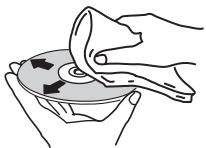
- Do not use benzene, thinner or other volatile chemicals. Also do not use record spray or antistatic agents.
- For tough dirt, apply some water to a soft cloth, wring out thoroughly, wipe off the dirt, then wipe off the moisture with a dry cloth.
- Do not use damaged (cracked or warped) discs.
- Do not let the signal surface of discs get scratched or dirty.
- Do not place two discs in the disc tray, one on top of the other.
- Do not attach pieces of paper or stickers to discs. Doing so could warp discs, making it impossible to play them. Also note that rental discs often have labels attached to them, and the label's glue may have oozed out. Check that there is no glue around the edges of such labels before using rented discs.
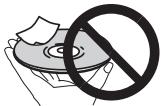
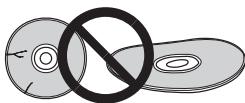
About specially shaped discs
Specially shaped discs (heart-shaped, hexagonal, etc.) cannot be played on this player. Do not attempt to play such discs, as they could damage the player.
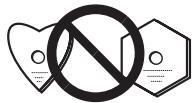
About condensation on discs
Water droplets (condensation) may form on the surface of discs if they are moved from a cold place (particularly in winter) into a warm room. Discs may not play normally if there is condensation on them. Carefully wipe the water droplets off the surface of the disc before loading it.
Specifications
Power requirements.....AC 220 V to 240 V, 50 Hz/60 Hz
Power consumption. 11 W
Power consumption (standby)
DV-420V. .0.7 W
DV-320 .0.5 W
Weight 1.7 kg
External dimensions
420 mm (W) x 49.5 mm (H) x 215 mm (D)
Tolerable operating temperature +5^ to +35^
Tolerable operating humidity . 5 % to 85%
(no condensation)
AV Connector (21-pin connector assignment)
AV connector output. 21-pin connector This connector provides the video and audio signals for connection to a compatible colour TV or monitor.
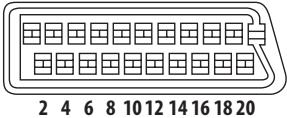
13579111315171921
PIN no.
1 Audio 2/R out
3. Audio 1/L out
4. GND
7. Bout
8. Status
11. Gout
15. Rout
17..GND
19. Video out
21. GND
Video output
Output level 1 Vp-p (75 Ω)
Output terminal.RCA terminal
Component video output (Y, C_B / P_B, C_R / P_R)
Y output level 1 Vp-p (75 Ω)
C_B / P_B, C_R / P_R Output level. 0.7 Vp-p (75 Ω)
Output terminal.RCA terminal
HDMI output (DV-420V only)
Output terminal. 19-pin
Audio output (stereo L/R)
Audio output level. 200 mVrms (1 kHz, -20 dB)
Output terminal.RCA terminal
Frequency response. 4 Hz to 44 kHz
S/N ratio. 115 dB
Dynamic range. 88 dB
Total harmonic distortion .0.0065 %
Digital audio output
Coaxial digital output. RCA terminal
Additional information
USB port. A type

Notes
- The specifications and design of this product are subject to change without notice.
- This product includes FontAvenue® fonts licensed by NEC Corporation. FontAvenue is a registered trademark of NEC Corporation.
Published by Pioneer Corporation.
Copyright © 2009 by Pioneer Corporation.
All rights reserved.

Additional information
2 Scegliere Initial Settings.
Portuguese (pt), 1620
Swedish (sv), 1922
Russian (ru), 1821
Korean (ko), 1115
Greek (el), 0512
Afar (aa), 0101
Abkhazian (ab), 0102
Hungarian (hu), 0821
Armenian (hy), 0825
Interlingua (ia), 0901
Interlingue (ie), 0905
Inupiak (ik), 0911
Indonesian (in), 0914
Icelandic (is), 0919
Hebrew (iw), 0923
Yiddish (ji), 1009
Javanese (jw), 1023
Georgian (ka), 1101
Kazakh (kk), 1111
Greenlandic (kl), 1112
Cambodian (km), 1113
Kannada (kn), 1114
Kashmiri (ks), 1119
Kurdish (ku), 1121
Kirghiz (ky), 1125
Latin (la), 1201
Lingala (In), 1214
Laothian (Io), 1215
Lithuanian (It), 1220
Latvian (lv), 1222
Malagasy (mg), 1307
Maori (mi), 1309
Macedonian (mk), 1311
Malayalam (ml), 1312
Mongolian (mn), 1314
Moldavian (mo), 1315
Marathi (mr), 1318
Malay (ms), 1319
Maltese (mt), 1320
Burmese (my), 1325
Nauru (na), 1401
Nepali (ne), 1405
Norwegian (no), 1415
Occitan (oc), 1503
Oromo (om), 1513
Oriya (or), 1518
Panjabi (pa), 1601
Polish (pl), 1612
Pashto,Pushto (ps),1619
Quechua (qu), 1721
Rhaeto-Romance (rm), 1813
Kirundi (rn), 1814
Romanian (ro), 1815
Kinyarwanda (rw), 1823
Sanskrit (sa), 1901
Sindhi (sd), 1904
Sangho (sg), 1907
Serbo-Croatian (sh), 1908
Sinhalese (si), 1909
Slovak (sk), 1911
Slovenian (sl), 1912
Samoan (sm), 1913
Shona (sn), 1914
Somali (so), 1915
Albanian (sq), 1917
Serbian (sr), 1918
Siswati (ss), 1919
Sesotho (st), 1920
Vietnamese (vi), 2209
Volapuk (vo), 2215
Wolof (wo), 2315
Xhosa (xh), 2408
Yoruba (yo), 2515
Zulu (zu), 2621
http://www.pioneer.co.uk
http://www.pioneer.it
http://www.pioneer.eu

J2L90121C SH 09/07
Published by Pioneer Corporation.
Copyright © 2009 Pioneer Corporation.
All rights reserved.
PIONEER CORPORATION
4-1, Meguro 1-Chome, Meguro-ku, Tokyo 153-8654, Japan
PIONEER ELECTRONICS (USA) INC.
P.O. BOX 1540, Long Beach, California 90801-1540, U.S.A. TEL: (800) 421-1404
PIONEER ELECTRONICS OF CANADA, INC.
300 Allstate Parkway, Markham, Ontario L3R 0P2, Canada TEL: 1-877-283-5901, 905-479-4411
PIONEER EUROPE NV
Haven 1087, Keetberglaan 1, B-9120 Melsele, Belgium TEL: 03/570.05.11
PIONEER ELECTRONICS ASIACENTRE PTE. LTD.
253 Alexandra Road, #04-01, Singapore 159936 TEL: 65-6472-7555
PIONEER ELECTRONICS AUSTRALIA PTY. LTD.
178-184 Boundary Road, Braeside, Victoria 3195, Australia, TEL: (03) 9586-6300
PIONEER ELECTRONICS DE MEXICO S.A. DE C.V.
Blvd. Manuel Avila Camacho 138 10 piso Col.Lomas de Chapultepec, Mexico,D.F. 11000 TEL: 55-9178-4270


- DV-420V-S DV-420V-K DV-320-S DV-320-K
- IMPORTANT
- CAUTION
- RISK OF ELECTRIC SHOCK DO NOT OPEN
- CAUTION:
- CLASS 1 LASER PRODUCT
- WARNING
- VENTILATION CAUTION
- Operating Environment
- POWER-CORD CAUTION
- Information for users on collection and disposal of old equipment and used batteries
- Before you start
- Part Names and Functions
- Connections
- 04Playback
- Changing the Settings (Initial Settings)
- Additional information
- What's in the box
- Loading the batteries in the remote control
- Open the back cover.
- Insert the included batteries (two size AA batteries).
- Close the back cover.
- Notes
- Playable discs
- RW
- COMPATIBLE
- Discs that cannot be played
- About region numbers
- Regarding copy protected CDs
- About playing DualDiscs
- Playing discs created on computers or BD/DVD recorders
- Playable files
- Supported video file formats Windows Media™ Video (WMV)
- DivX
- Displaying external subtitle files
- Supported image file formats
- JPEG
- Supported audio file formats
- Windows Media Audio (WMA)
- MPEG-1 Audio Layer 3 (MP3)
- MPEG-4 Advanced Audio Coding (MPEG-4 AAC)
- Playable file extensions
- Video files
- Image files
- Audio files
- Front Panel
- ENTER
- Front Panel Display
- Connecting using an audio/video cable
- Connecting using a SCART AV cable
- Connecting using an HDMI cable (DV-420V only)
- Connecting to a TV
- Connecting to an AV receiver or amplifier
- About video/audiosignals output from the HDMI OUT terminal
- Video signals (resolution of) that can be output from the player's HDMI OUT terminal
- Audio signals that can be output from the player's HDMI OUT terminal
- About KURO LINK function
- To use the KURO LINK function
- Connections
- What the KURO LINK function can do
- Operating the player with the Flat Screen TV's remote control.
- The player's playback picture is displayed on the Flat Screen TV's screen. (Auto-select function)
- The power of the Flat Screen TV turns on automatically. (Simultaneous power function)
- Connecting using a component video cable
- Connecting using a digital audio cable
- Playing discs or files
- Turn the power on.
- Open the disc tray and load the disc.
- Starts playback.
- If the menu screen appears
- Various playback functions
- Playing files stored on USB devices
- Switching the input to the USB mode.
- Connecting USB devices.
- Starts playback.
- Recording audio CD tracks on USB devices
- Recording all the tracks
- Load the audio CD.
- Display the CD -> USB Rec screen.
- Start recording.
- Selecting the track(s) to be recorded
- Display the Home Menu.
- Select CD->USB Rec.
- Select Select Track → Individual → the track(s) you want to record.
- Select Bitrate (transfer rate).
- Start recording.
- Playing using the Disc Navigator
- Playing discs
- Display the Home Menu.
- Select Disc Navigator.
- Select the type of Disc Navigator.
- Playing specific titles, chapters or tracks.
- Playing files
- Select the folder.
- Select and play the file.
- Note
- Playing using the Play Mode function
- - Display the Play Mode screen.
- Playing a specific section repeatedly (A-B Repeat Play)
- Display the Play Mode screen.
- Select A-B Repeat.
- Select the point at which you want to start A-B play.
- Select the point at which you want to stop A-B Repeat play.
- Playing repeatedly (Repeat Play)
- Select Repeat.
- Select the type of Repeat play.
- Playing in random order (Random Play)
- Select Random.
- Select the type of Random play.
- Playing in the desired order (Programmed Play)
- Select Program.
- Select Create/Edit.
- Select the title, chapter, track or file to be played.
- Starts playback.
- Playing by specifying a number or time (Search Mode)
- Select Search Mode.
- Select the type of Search Mode.
- Input the number of the title, chapter or track or the time you want to play.
- Adjusting the audio
- Select Audio Settings.
- Change the settings.
- Enter the changes.
- Audio Settings parameters
- About Sound Retriever function
- Adjusting the picture quality
- Changing the Settings (Initial Settings)
- Operating the Initial Settings menu
- Select Initial Settings.
- Select the item and change the setting.
- Setting the Component Out and HDMI Resolution settings back to their defaults
- Turn the player's power off.
- Press STANDBY/ON while pressing
- Restoring all the settings to the defaults
- Press STANDBY/ON while pressing.
- About the HDMI Out setting and the type of audio signal that is output (DV-420V only)
- Video Output settings
- Language settings
- Options settings
- When Other Language is selected
- Select Other Language.
- Select List of Languages or Code.
- Select the language code.
- Registering (changing) the password
- Select Password.
- Input the password.
- Changing the Parental Lock level
- Select Level Change.
- Change the level.
- Changing the country/area code for the Parental Lock function
- Select Country Code.
- Select the country code.
- Troubleshooting
- Additional information
- Language Code Table and Country/Area Code Table Language Code Table
- Language names (codes) and input codes
- Country/Area Code Table
- Country/Area name, Input codes and Country/Area code
- Setting the TV system
- ▶▶.
- Cautions on use
- When moving the player
- Place of installation
- Avoid the following types of places:
- Do not place objects on the player.
- Do not obstruct the ventilation holes.
- Do not expose to heat.
- Turn off the player's power when not using it.
- About condensation
- Cleaning the product
- Caution for when the unit is installed in a rack with a glass door
- Cleaning the lens
- About copyrights
- Handling discs
- Storing
- Cleaning discs
- About specially shaped discs
- About condensation on discs
- Specifications
- AV Connector (21-pin connector assignment)
- Video output
- Component video output (Y, C_B / P_B, C_R / P_R)
- HDMI output (DV-420V only)
- Audio output (stereo L/R)
- Digital audio output
- PIONEER CORPORATION
- PIONEER EUROPE NV
Brand : PIONEER
Model : DV-320-S
Category : DVD player