
MX Ergo - Mouse LOGITECH - Free user manual and instructions
Find the device manual for free MX Ergo LOGITECH in PDF.


Pick your language and provide your email: we'll send you a specifically translated version.
| Product Type | Wireless Trackball Mouse |
| Brand | Logitech |
| Model | MX Ergo |
| Dimensions (L x W x H) | 132.5 x 100.4 x 51.4 mm |
| Weight | 259 g (including battery) |
| Power Supply | Internal rechargeable lithium-polymer battery (500 mAh) |
| Connectivity | Bluetooth Low Energy or Logitech Unifying receiver (USB 2.0) |
| Tracking Sensor | Advanced Optical Tracking |
| Buttons | 8 programmable buttons including scroll wheel tilt |
| Scroll Wheel | SmartShift™ scroll wheel (click-to-click and free-spin modes) |
| Ergonomic Design | Adjustable hinge for 0° or 20° tilt |
| Compatibility | Windows, macOS, iPadOS, Android, Linux, Chrome OS |
| Battery Life | Up to 4 months on a full charge |
| Charging | Micro-USB cable (included) |
| Software | Logitech Options (customization and firmware updates) |
| Cleaning and Maintenance | Clean the trackball and sensor with a soft, lint-free cloth; use compressed air for crevices |
| Safety | CE, FCC, IC, RCM certified; low RF emission |
| Spare Parts and Repairability | Battery replaceable by user (CR2032? no, internal LiPo, officially not user-serviceable but possible with care); no other user-replaceable parts |
| Warranty | 1 year limited hardware warranty |
| General Information | Ergonomic trackball designed to reduce wrist strain; works on any surface; supports Flow for multi-device control |
Frequently Asked Questions - MX Ergo LOGITECH
How do I connect the MX Ergo to my computer?
You can connect via Bluetooth or the included Logitech Unifying receiver. For Bluetooth, press the Easy-Switch button to select a channel, then pair via your device's Bluetooth settings. For the Unifying receiver, plug it into a USB port and press the connect button on the mouse.
How do I adjust the tilt of the MX Ergo?
The MX Ergo has an adjustable hinge. Press the hinge release button on the bottom and rotate to choose between 0° (flat) or 20° tilt position.
How long does the battery last and how do I charge it?
The battery lasts up to 4 months on a full charge. Charge via the included Micro-USB cable. A full charge takes about 2 hours. You can use the mouse while charging.
Can I customize the buttons on the MX Ergo?
Yes, install Logitech Options software to customize the 8 buttons. You can assign shortcuts, gestures, or application-specific functions. The software is available for Windows and macOS.
Is the MX Ergo compatible with iPad or Android tablets?
Yes, it works with iPadOS and Android via Bluetooth. Some features may require the Logitech Options app (available on iPadOS, not on Android for full customization).
How do I clean the trackball and sensor?
Remove the trackball by turning the mouse over and pushing it out. Clean it with mild soap and water, then dry it. Use a cotton swab or compressed air to gently clean the sensor cavity. Do not use solvents.
What is the Logitech Flow feature and how do I use it?
Logitech Flow allows you to control multiple computers seamlessly by moving the cursor across screens. Enable it in Logitech Options. All computers must be on the same network and have the software installed.
Does the MX Ergo work on glass surfaces?
The MX Ergo uses advanced optical tracking and works on most surfaces, including glass (at least 4 mm thickness). It may require cleaning the surface for optimal performance.
How do I replace the battery?
The battery is internal and officially not user-replaceable. However, if you are experienced, you can open the case (voids warranty) and replace the 500 mAh LiPo battery. For most users, contact Logitech support for battery issues.
What is the range of the wireless connection?
The range is about 10 meters (30 feet) in typical usage. Bluetooth and Unifying receiver both provide reliable connectivity within that range.
User questions about MX Ergo LOGITECH
0 question about this device. Answer the ones you know or ask your own.
Ask a new question about this device
No questions yet. Be the first to ask one.
Download the instructions for your Mouse in PDF format for free! Find your manual MX Ergo - LOGITECH and take your electronic device back in hand. On this page are published all the documents necessary for the use of your device. MX Ergo by LOGITECH.
USER MANUAL MX Ergo LOGITECH
A NEW STANDARD OF COMFORT AND PRECISION.
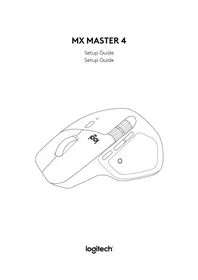
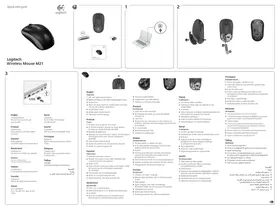


Table of contents
Click a title to access it
Manual assistant
Powered by Anthropic
Waiting for your message
Product information
Brand : LOGITECH
Model : MX Ergo
Category : Mouse