
MX Vertical - Mouse LOGITECH - Free user manual and instructions
Find the device manual for free MX Vertical LOGITECH in PDF.


| Product Type | Mouse |
| Brand | Logitech |
| Model | MX Vertical |
| Dimensions (approx) | 71 x 79 x 120 mm |
| Weight (approx) | 135 g |
| Power Source | Rechargeable lithium-ion battery |
| Battery Life | Up to 4 months on full charge |
| Charging | USB-C; fast charge: 1 min = 3 hours |
| Connectivity | USB-C, Bluetooth, Unifying USB receiver |
| Sensor | High precision, 4000 DPI adjustable |
| Ergonomic Design | 57° vertical angle, textured rubber grip |
| Scroll Wheel | Precision wheel with middle click |
| Buttons | Island keys, durable up to 10 million clicks |
| Cursor Speed Switch | Two programmable speeds (default 1000/1600 DPI) |
| Easy-Switch | Connect up to 3 devices |
| Customization | Logitech Options software (Windows/macOS) |
| Maintenance | Clean with soft, dry cloth |
| Spare Parts | USB-C cable, Unifying receiver |
| Safety | No specific safety instructions |
| Repairability | Contact Logitech support for service |
Frequently Asked Questions - MX Vertical LOGITECH
User questions about MX Vertical LOGITECH
0 question about this device. Answer the ones you know or ask your own.
Ask a new question about this device
Download the instructions for your Mouse in PDF format for free! Find your manual MX Vertical - LOGITECH and take your electronic device back in hand. On this page are published all the documents necessary for the use of your device. MX Vertical by LOGITECH.
USER MANUAL MX Vertical LOGITECH
Time to make yourself comfortable!
Thank you for getting the new MX Vertical. We hope you will enjoy this ergonomic mouse. Please download Logitech Options to unlock the full potential of your MX Vertical.
Let's get started
MX Vertical can connect in three different ways. Please follow the instructions below to connect the USB cable, or wirelessly using Bluetooth or the USB receiver.
Connect with the USB cable
To connect through the USB cable, please make sure your MX Vertical is turned on. Then plug the USB cable into your MX Vertical to use it corded.
Connect Wirelessly using Bluetooth or USB receiver
You can connect your MX Vertical wirelessly using Bluetooth or the Unifying USB receiver. Below you can find the instructions to get connected:
Connect via Bluetooth
- Make sure the cable is unplugged and then turn on your MX Vertical.
- Press the Easy-Switch button to select the channel you want to pair to. (Make sure the LED is blinking fast — if it's not, press and hold the button for 3 seconds.)
- Open Bluetooth settings on your computer.
- On MacOS: Open System Preferences > Bluetooth > Add "MX Vertical"
- On Windows: Select Start > Settings > Devices > Add Bluetooth device > Add "MX Vertical"
- MX Vertical is connected.

Connect via Unifying USB Receiver

- Make sure the cable is unplugged and then turn on your MX Vertical.
- Press the Easy-Switch button to select the channel you want to pair to.
- Plug the Unifying USB receiver into a port on your computer.
- MX Vertical is connected.
Product Overview
MX Vertical at a glance
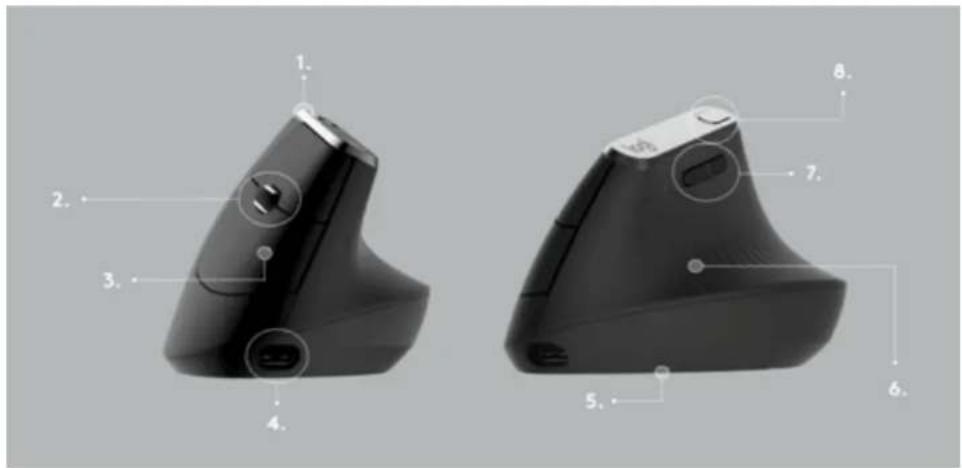
1 – Natural angle 5 – High precision sensor 2 – Precision scroll-wheel6 – Textured thumb rest 3 – Island keys 7 – Customizable shortcuts 4 - USB-C charging port 8 - Cursor speed switch
Advanced Features
Ergonomic shape
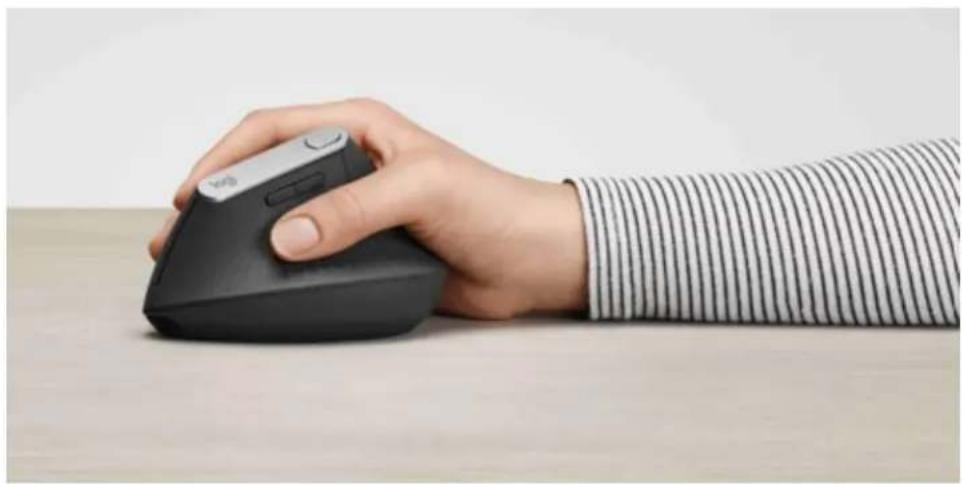
MX VERTICAL is designed to promote a natural handshake position through a unique 57-degree vertical angle. The textured rubber panel provides a soft comfortable feel while giving a good grip.
Try to keep your hand in a natural, relaxed position while using, to avoid any unnecessary extension in your wrist. Also, use the cursor speed switch to increase the speed to reduce the overall movement needed.
Learn more about the ergonomic design.
High precision sensor and cursor speed switch
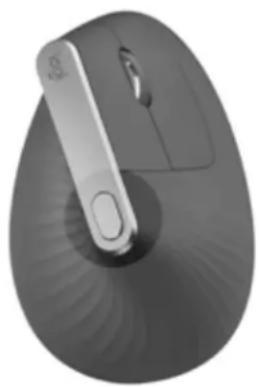
MX Vertical has an advanced high-precision sensor with 4000 adjustable DPI and an instant cursor speed switch.
Cursor speed switch
The cursor speed switch allows you to toggle between two cursor speeds with the press of a button.
Cursor speed 1: 1000 DPI
Cursor speed 2: 1600 DPI
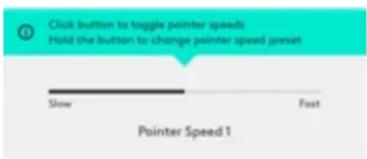
With Logitech Options, you will receive an on-screen notification when switching between cursor speed 1 and cursor speed 2.
You can also fully customize the speed to your needs. All you have to do is to press and hold the cursor speed switch until the overlay appears (see example below) and then simply move the mouse left or right to adjust the speed.
Power Management
MX Vertical has a rechargeable battery.
- Battery life — four months on a full charge
- Fast charge — one minute of charge gives three hours of battery
The battery indicator LED will let you know when the power is low, and when to recharge. You can install Logitech Options to get on-screen notifications.
| LED Description | |
| Green More than 10% battery life | |
| Red Less than 10% battery life | |
| Breathing effectCharging | |
NOTE: When charging, the MX Vertical will be connected through the cable.
Easy-Switch
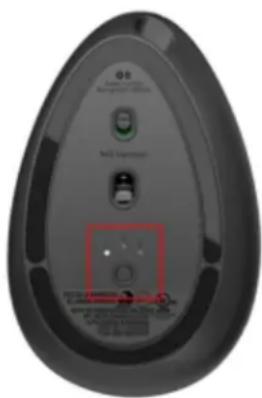
MX Vertical can connect up to three devices and seamlessly switch between them with a press of a button.
The Easy-Switch button is located on the bottom of the MX Vertical.
Downloads
Use Logitech Options software for MacOS and Windows.
Additional Information
1. Natural Grip
MX VERTICAL is designed to promote a natural handshake position through a unique 57-degree vertical angle. The textured rubber panel provides a soft, comfortable, yet solid grip.
2. Precision Wheel
The precision scroll wheel provides precise line-by-line scrolling and has an integrated middle click.
3. Island Keys
Island keys with quality switches that last up to 10 million clicks.
4. Rechargeable USB-C
MX Vertical is rechargeable and lasts up to four months. One minute of charge will give three hours of usage.
5. High Precision Sensor
4000 adjustable DPI.
6. Textured Thumb Rest
7. Customizable Shortcuts
Easily accessible shortcuts. All extra buttons and shortcuts can be customized using Logitech Options.
8. Cursor Speed Switch
The cursor speed switch allows you to switch cursor instantly with a press of a button.



- TIME TO MAKE YOURSELF COMFORTABLE
- LET'S GET STARTED
- CONNECT WITH THE USB CABLE
- CONNECT WIRELESSLY USING BLUETOOTH OR USB RECEIVER
- CONNECT VIA BLUETOOTH
- CONNECT VIA UNIFYING USB RECEIVER
- PRODUCT OVERVIEW
- MX VERTICAL AT A GLANCE
- ADVANCED FEATURES
- ERGONOMIC SHAPE
- HIGH PRECISION SENSOR AND CURSOR SPEED SWITCH
- POWER MANAGEMENT
- EASY-SWITCH
- DOWNLOADS
- ADDITIONAL INFORMATION
- NATURAL GRIP
- PRECISION WHEEL
- ISLAND KEYS
- RECHARGEABLE USB-C
- HIGH PRECISION SENSOR
- TEXTURED THUMB REST
- CUSTOMIZABLE SHORTCUTS
- CURSOR SPEED SWITCH
Brand : LOGITECH
Model : MX Vertical
Category : Mouse