
Theta SC2 - Security Camera RICOH - Free user manual and instructions
Find the device manual for free Theta SC2 RICOH in PDF.


| Product Type | 360-degree camera (still image and video) |
| Brand | Ricoh |
| Model | Theta SC2 (R03030) |
| Dimensions | Approximately 45.2 × 130.6 × 22.9 mm |
| Weight | Approximately 102 g |
| Power Supply | Built-in rechargeable battery via USB (Micro-B, included cable) |
| Battery Charging Time | Approximately 3 hours (connected to computer via USB) |
| Main Functions | 360° still image and video capture, wireless LAN and Bluetooth connectivity, remote control via smartphone app, self-timer, multiple shooting modes (still, video, preset) |
| Shooting Modes | Still image, video, preset shooting mode (selectable via app) |
| Connectivity | Wi-Fi (wireless LAN), Bluetooth, USB 2.0 (Micro-B) |
| Compatible OS | iOS, Android (via smartphone app) |
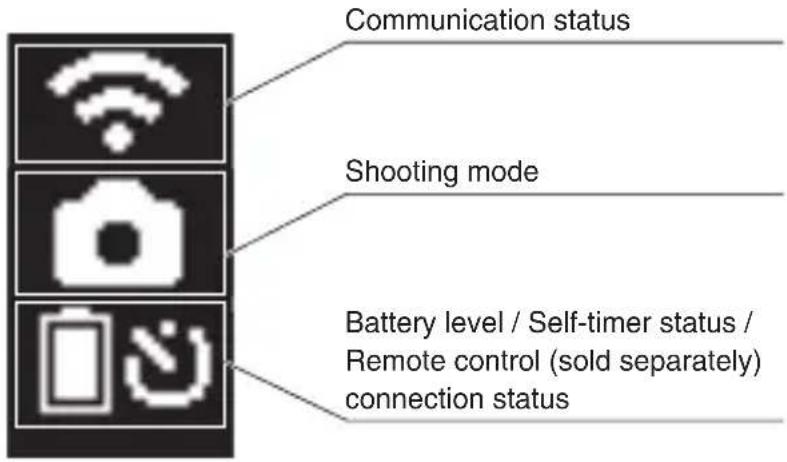
| Display | OLED panel showing shooting mode, battery level, etc. |
| Storage | Internal memory (approx. 8 GB) |
| Lens | Dual fisheye lenses (front and back) for 360° capture |
| Shutter Button | Press to capture still images or videos |
| Care and Cleaning | Store in soft case when not in use; handle lenses carefully; clean with dry soft cloth |
| Safety Precautions | Do not disassemble; avoid water and extreme temperatures; use only specified USB cable |
| Spare Parts and Repairability | Spare parts not listed; repairs should be done by authorized service center |
| General Information | Supports sharing to SNS via smartphone app; user guide and support available at https://support.theta360.com/ |
Frequently Asked Questions - Theta SC2 RICOH
User questions about Theta SC2 RICOH
0 question about this device. Answer the ones you know or ask your own.
Ask a new question about this device
Download the instructions for your Security Camera in PDF format for free! Find your manual Theta SC2 - RICOH and take your electronic device back in hand. On this page are published all the documents necessary for the use of your device. Theta SC2 by RICOH.
USER MANUAL Theta SC2 RICOH
natural_image
Simple line drawing of a remote control panel with two circular buttons and an oval button (no text or symbols)natural_image
Pure geometric lines forming an L-shape with no text, numbers, or symbols
natural_image
Simple geometric diagram with a circle intersected by two perpendicular lines (no text or symbols)
natural_image
Pure geometric lines forming an L-shape with no text, numbers, or symbols
natural_image
Simple geometric diagram with a circle intersected by two perpendicular lines (no text or symbols)English 1
Deutsch 10
Français 19
日本語 28
natural_image
Simple geometric diagram with a circle centered at the intersection of two perpendicular lines (no text or labels)Model : R03030
natural_image
Pure geometric lines forming an L-shape with no text, numbers, or symbols
natural_image
Simple geometric diagram with a circle intersected by two perpendicular lines (no text or symbols)
natural_image
Pure geometric lines forming an L-shape with no text, numbers, or symbolsEnglish
A New Way to Enjoy Photography
Product Website
For the latest product information and useful hints and tips on using this product, see the following website. https://theta360.com/en/
●Support Information
For support information and the entire warranty provisions, see the following website. https://support.theta360.com/en/
User Guide
For details on how to use this product, access the user guide on the following website. https://support.theta360.com/en/manual/
Brand Website
For the tips on how to enjoy this product, various events, and other information, see the following website. https://www.thetalab.ricoh/en/
- Facebook, the Facebook logo, and "f" logo are trademarks or registered trademarks of Facebook, Inc.
- Twitter, the Twitter logo, Twitter "t" logo, and Twitter blue bird are registered trademarks of Twitter, Inc. in the United States and other countries.
● Wi-Fi is a registered trademark of Wi-Fi Alliance.
● Bluetooth is a registered trademark of Bluetooth SIG, Inc.
● The images, illustrations, and screen captures used in this guide may differ from those of the actual device.
Names of Parts
This camera has a simple design that is easy to handle, and that enables you to capture images of your surroundings with the simplest operations. First, familiarize yourself with the names and uses of the parts.
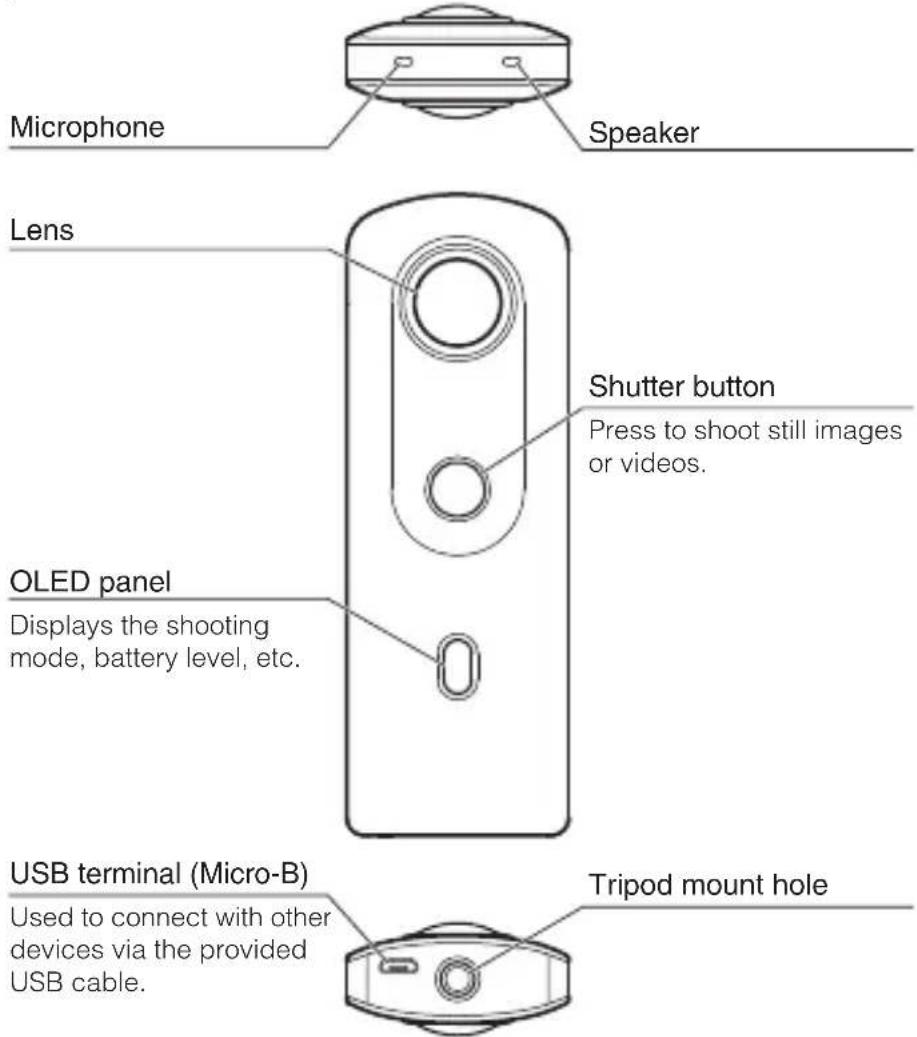
● Before using the camera, charge the battery by connecting it to a computer using the provided USB cable. The power lamp lights green during charging, and the lamp turns off when charging is complete.
- Be careful when handling the lens section. Always store the camera in the provided soft case when the camera is not used.
natural_image
Pure geometric lines forming an L-shape with no text, numbers, or symbols
natural_image
Simple geometric diagram with a circle intersected by two perpendicular lines (no text or symbols)
natural_image
Pure geometric lines forming an L-shape with no text, numbers, or symbols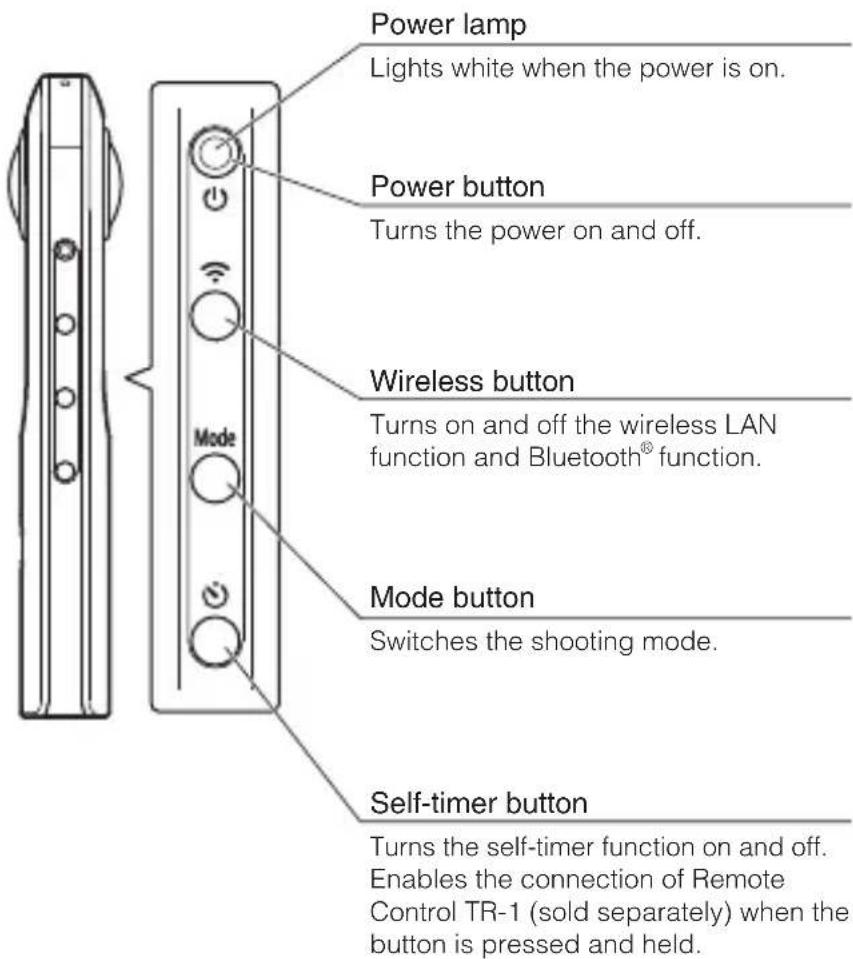
natural_image
Simple geometric diagram with a circle centered at the intersection of two perpendicular lines (no text or labels)
natural_image
Simple geometric diagram with a circle intersected by two perpendicular lines (no text or symbols)- Pressing and holding the mode button and self-timer button simultaneously turns off the OLED panel and lamps and mutes the shutter sound. When a button other than the shutter button is pressed, this state is canceled.
●Turning the Camera On
Press the power button to turn the camera on. The power lamp and OLED panel turn on.
●Information Displayed on the OLED Panel
natural_image
Pure geometric lines forming an L-shape with no text, numbers, or symbols
natural_image
Simple geometric diagram with a circle intersected by two perpendicular lines (no text or symbols)
natural_image
Pure geometric lines forming an L-shape with no text, numbers, or symbolsDownloading the App
This camera captures great images. You can also use a smartphone app for shooting, viewing, and sharing images from your smartphone.
Download the basic app that is compatible with your smartphone.

natural_image
Simple icon with a white oval inside a circle on a dark gray square background (no text or symbols)
https://support.theta360.com/en/download/
natural_image
Simple geometric diagram with a circle centered at the intersection of two perpendicular lines (no text or labels)The app for editing captured still images and videos is also available.
natural_image
Simple geometric diagram with a circle intersected by two perpendicular lines (no text or symbols)Connecting to a Smartphone via Wireless LAN
When the camera is connected to a smartphone via a wireless LAN, you can use the smartphone to shoot and view still images and videos remotely, and make function settings.
Turn the camera on, and then press the wireless button to turn the wireless LAN function on. (flashes on the OLED panel.)
Then, turn on the Wi-Fi™ function of the smartphone. Start the basic app for smartphone, tap ⏻, and follow the instructions on the screen. (When the wireless LAN connection is complete, ≈ stops flashing.)
When establishing the connection manually, select the SSID of the camera in the network list of the Wi-Fi™ settings on the smartphone and enter the password.
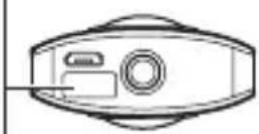
The serial number printed on the bottom of the camera is the same as the SSID and password.
Password(00001017 in this case)
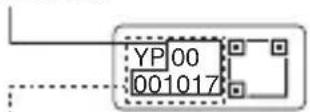
SSID THETA + Serial number + .OSC (THETAYP00001017.OSC in this case)
- You can change the password from the smartphone.
● The password is initialized by pressing and holding the wireless button and mode button simultaneously while the power is on.
Connecting to a Smartphone via Bluetooth®
When the camera is connected to a smartphone supporting Bluetooth ^® , you can use the smartphone to shoot still images and videos remotely, and make function settings.
Turn on the Bluetooth ^® function of the smartphone, and connect the camera to the smartphone via a wireless LAN.
Then, start the basic app for smartphone, and select [Settings] → [Cam Bluetooth settings] → [Register].
natural_image
Simple geometric diagram with a circle intersected by two perpendicular lines (no text or symbols)
natural_image
Simple geometric diagram with a circle intersected by two perpendicular lines (no text or symbols)
natural_image
Pure geometric lines forming an L-shape with no text or symbols
natural_image
Simple geometric diagram with a circle intersected by two perpendicular lines (no text or symbols)Shooting and Viewing Still Images and Videos
●Switching the Shooting Mode
Press the mode button to switch the shooting mode. The current shooting mode is displayed on the OLED panel.
: Still image shooting mode
■: Video shooting mode


et shooting mode (You can change the preset shooting mode according to the shooting scene using the basic app for smartphone.)
●Shooting Still Images and Videos
You can shoot still images and videos from the camera or your smartphone.
To shoot still images and videos using the camera, press the shutter button.
To shoot still images and videos using the smartphone, tap the shutter button on the shooting screen of the basic app for smartphone.
●Viewing Still Images and Videos
You can send captured still images and videos to the smartphone for viewing, using the basic app for smartphone. You can also view the still images and videos already saved on the smartphone.
natural_image
Pure geometric lines forming an L-shape with no text, numbers, or symbols
natural_image
Simple geometric diagram with a circle intersected by two perpendicular lines (no text or symbols)
natural_image
Pure geometric lines forming an L-shape with no text, numbers, or symbolsSharing on SNS
You can share still images captured with the camera on social networking services such as Twitter and Facebook. Tap the “Share” button on the image viewing screen of the basic app for smartphone.
Next, configure the settings for the service that you want to share the image in, and tap [Done]. The image is uploaded.
- You need to register with an account on each service in order to use the services.
- See the user guide for details on viewing and sharing images from a computer.
https://support.theta360.com/en/manual/
natural_image
Simple geometric diagram with a circle intersected by two perpendicular lines (no text or symbols)
natural_image
Simple geometric diagram with a circle centered at the intersection of two perpendicular lines (no text or labels)Unauthorized reproduction of this document in whole or in part is strictly prohibited.
The content of this document may be changed at any time without prior notice.
© 2019 RICOH COMPANY, LTD.
Deutsch
natural_image
Pure geometric lines forming an L-shape with no text, numbers, or symbols
natural_image
Simple geometric diagram with a circle intersected by two perpendicular lines (no text or symbols)
natural_image
Pure geometric lines forming an L-shape with no text, numbers, or symbols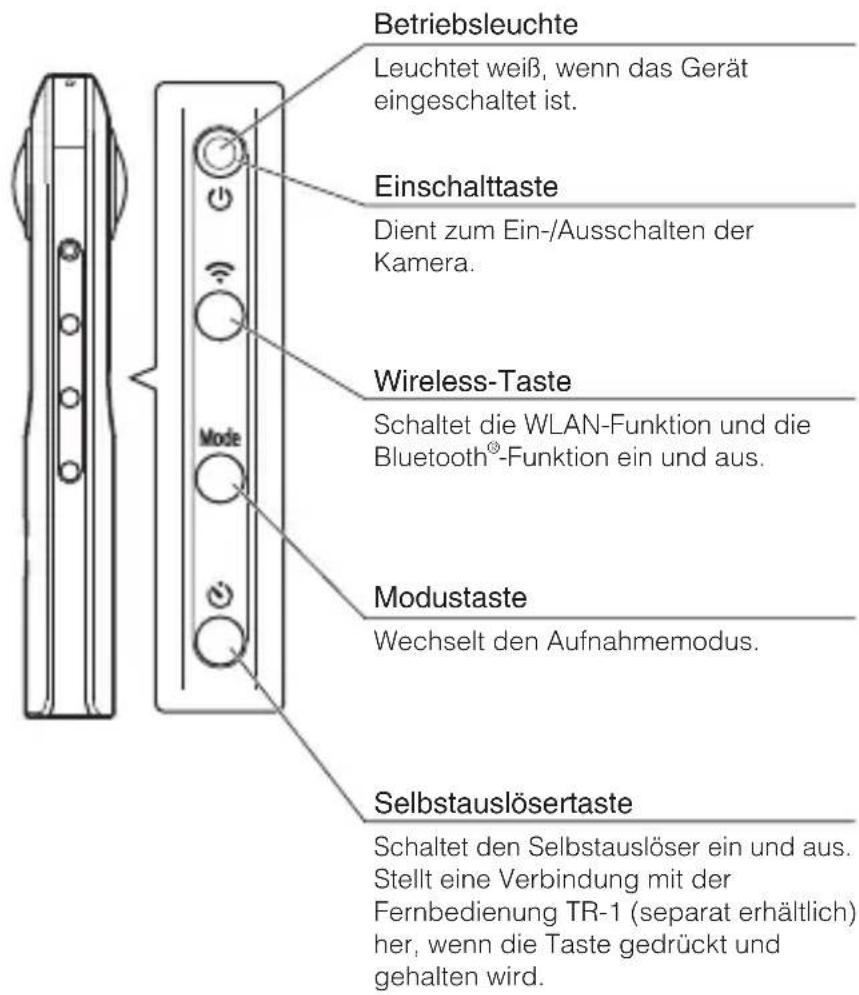
natural_image
Simple geometric diagram with a circle intersected by two perpendicular lines (no text or symbols)natural_image
Simple icon with a white oval inside a circle on a dark gray square background (no text or symbols)
https://support.theta360.com/de/download/
● Informations de support
natural_image
Pure geometric lines forming an L-shape with no text, numbers, or symbols
natural_image
Simple geometric diagram with a circle intersected by two perpendicular lines (no text or symbols)
natural_image
Pure geometric lines forming an L-shape with no text, numbers, or symbols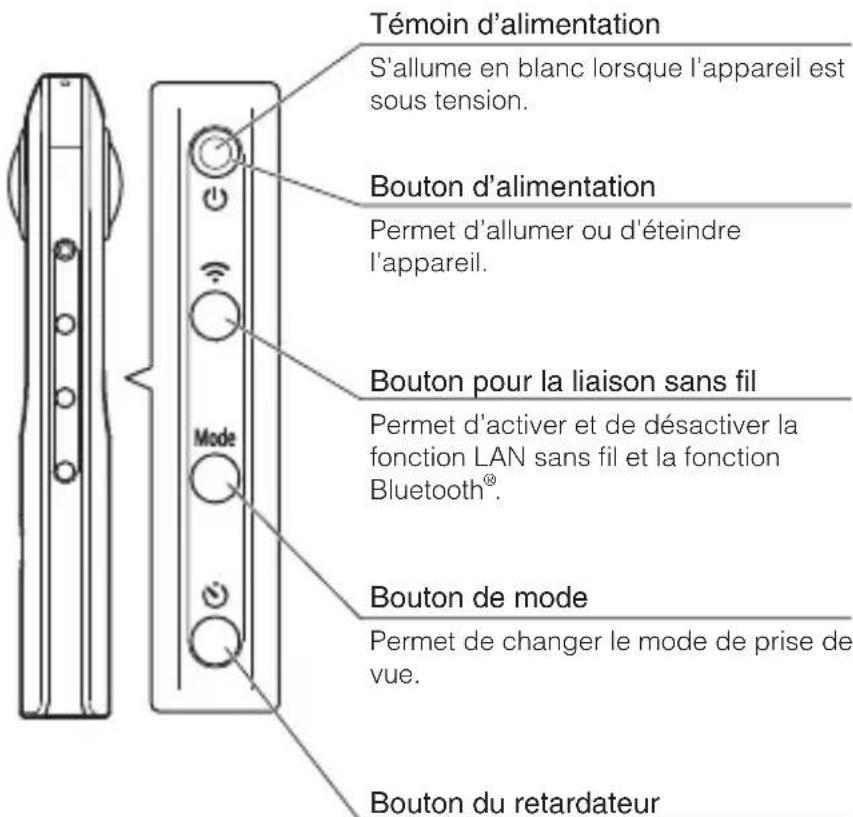
natural_image
Simple geometric diagram with a circle intersected by two perpendicular lines (no text or symbols)
natural_image
Simple geometric diagram with a circle intersected by two perpendicular lines (no text or symbols)natural_image
Simple icon with a white oval inside a circle on a dark gray square background (no text or symbols)
https://support.theta360.com/fr/download/
https://theta360.com/ja/
●サポートのご案内
https://support.theta360.com/ja/
●使用説明書のご案内
https://support.theta360.com/ja/manual/
●ブランドサイトのご案内
natural_image
Pure geometric lines forming an L-shape with no text, numbers, or symbols
natural_image
Simple geometric diagram with a circle intersected by two perpendicular lines (no text or symbols)
natural_image
Pure geometric lines forming an L-shape with no text, numbers, or symbols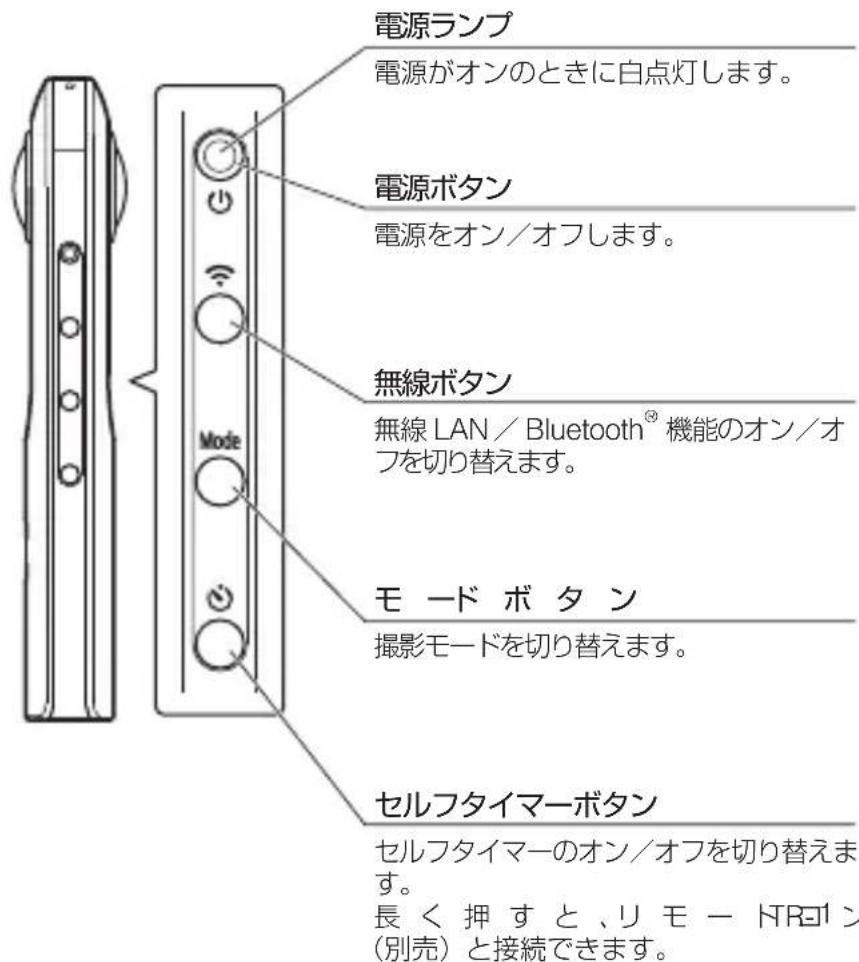
natural_image
Simple geometric diagram with a circle intersected by two perpendicular lines (no text or symbols)
natural_image
Simple icon with a white oval inside a circle, no text or symbols present.
https://support.theta360.com/ja/download/
natural_image
Facebook logo icon (no text or symbols present)
facebook.com/ricoh.theta

@theta360official

youtube.com/c/RICOHTHETA
* L 8 5 7 1 9 7 1 A *
- English
- A New Way to Enjoy Photography
- Product Website
- ●Support Information
- User Guide
- Brand Website
- Names of Parts
- ●Turning the Camera On
- ●Information Displayed on the OLED Panel
- Downloading the App
- Connecting to a Smartphone via Wireless LAN
- Connecting to a Smartphone via Bluetooth®
- Shooting and Viewing Still Images and Videos
- ●Switching the Shooting Mode
- ●Shooting Still Images and Videos
- ●Viewing Still Images and Videos
- Sharing on SNS
- ● Informations de support
- ●サポートのご案内
- ●使用説明書のご案内
- ●ブランドサイトのご案内
Brand : RICOH
Model : Theta SC2
Category : Security Camera