Bolt 500 XT - Hi-Fi System Teradek - Free user manual and instructions
Find the device manual for free Bolt 500 XT Teradek in PDF.


User questions about Bolt 500 XT Teradek
0 question about this device. Answer the ones you know or ask your own.
Ask a new question about this device
Download the instructions for your Hi-Fi System in PDF format for free! Find your manual Bolt 500 XT - Teradek and take your electronic device back in hand. On this page are published all the documents necessary for the use of your device. Bolt 500 XT by Teradek.
USER MANUAL Bolt 500 XT Teradek
The Bolt is a zero delay wireless video transmission system designed for the most demanding cinema, broadcast, and UAV applications. At less than 1ms latency, Bolt can transmit 1080p60 4:2:2 video at up to 500ft line of sight over the unlicensed 5GHz band.
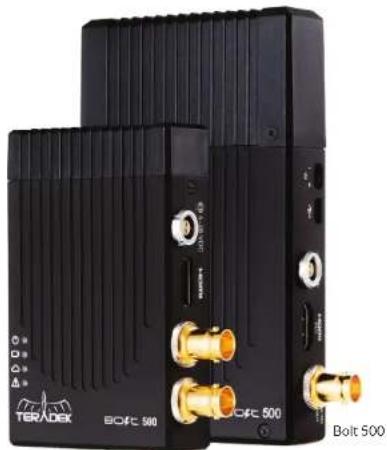
natural_image
Exterior view of two black TerAdek BOPC 500 devices with gold connectors and ventilation slots (no visible text or symbols on the devices themselves)1 Connect the output from your video source to the SDI/HDMI input (C,I) on the Bolt transmitter. Connect either the SDI or HDMI output (H,L) from the Bolt receiver to the video input on your monitor.
2 Connect power to your Bolt transmitter using the included P-Tap to Connector cable. Power the Bolt receiver with the included A/C adapter or battery plate accessory. If using the battery plate, connect a compatible battery (AB Gold mount or V-Lock) to the plate, and connect the short cable from the plate to the receiver's DC input (F).
3 Move the power switches on both the transmitter and receiver (1) to the ON position. Video appears within a few seconds.
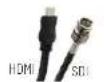

P-Tap to 2 pin
Connector
Status Screens - Connect your receiver to a monitor and activate the OSD by depressing the 'Menu Joystick' button (N), and cycle through screens by pressing the button up or down. Hide the status screen by pressing left.
- Main Status Screen - This screen displays the status of the wireless receiver, along with the current video resolution, frequency, link quality (if connected).
• Time Code Screen - Displays the current time code if received from the transmitter.
• Temperature Status Screen - Displays the current internal temperature of the unit.
Menu Operation - Launch the menu by pressing right while the OSD is active. Exit from the menu by pressing left.
- HDMI/SDI Out Format - Select the video output format. You can choose to match the video source resolution by selecting 'Same as Input,' or choose from the resolutions listed.
- Test pattern - Select a video output format from this menu to output a test pattern over HDMI and SDI. Return to the previous video by pressing left on the 'Menu' joystick.
- Pairing - Select Pairing to link your receiver with another transmitter. Once pairing is activated on the receiver, turn on the transmitter and use a paper clip to hold the reset button (P) for 1 second and release. The red warning LED and link LEDs will blink to indicate that pairing is active.
- OSD Settings - Choose when to display the OSD. By default, the OSD is displayed when the link is down. "Hidden by default" hides the OSD until it is activated by the joystick. If "Always show OSD" is
selected, the OSD will be displayed unless deactivated by the joystick. - Reset All Settings - Use this to reset all configurable options to their factory defaults.
• Device Info - Displays the model and serial number.
text_image
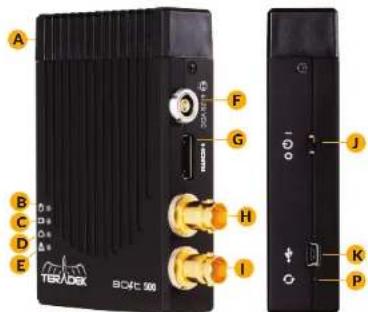
A B C D E TERADEK BOC 500 F G H I J K PBolt TX
text_image
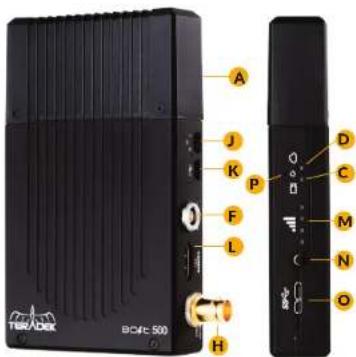
TESLADEC BCEC 500 A J K P F L H D C M N OBolt RX
A: Internal Antenna
B: Power Status
C: Video Status
D: Link Status
E Fault LED
F:6-28V DC Input
G: HDMI Input
H: 3G-SDI Output
3G-SDI Input
J. Power Switch
K:Mini USB Port
HDMI Output
M Link Quality Indicator
N: Menu Joystick
0: USB 3.0 Part
P: Reset Button
NEED MORE HELP?
Support: http://support.teradek.com → Contains tips, information and all the latest firmware & software updates. TERADEK SUPPORT STAFF: support@teradek.com or call 888-941-2111 ext2 (Mon-Fri 7am to 6pm PST)
- Keep the transmitter and receiver at close range for 60 seconds after powering on the devices. This allows them to scan for and select the best wireless channel.
- For best results when using multiple Bolt systems in the same area, place the transmitters and receivers a few feet apart from each other.
- Operation of other wireless equipment may interfere with the Bolt. Try to separate other wireless transmitters and receivers as much as possible.
BOLT MANAGER SOFTWARE
Boll Manager allows you to configure and upgrade your Boll 500. It is available at www.teradek.com/pages/downloads. The following configuration is available:
- Region Selection - Configure Bolt to comply with your region's regulations governing use of the 5GHz spectrum.
CUSTOM/3RD PARTY CABLES
- Test the power cable polarity with ONLY the power cable connected to Bolt. Do not connect video cables.
- Check the power cable for shorts and proper grounding.
CAUTION: Using a reverse polarity or improperly-constructed power cable can damage the product and is not covered under warranty.
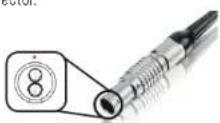
BOLT CONNECTOR/PIN-OUT
Bolt uses a 2-pin power connector.
Pin Description
1° GND
2 +DC
* Pin 1 is closest to the red dot on the connector
MOUNTING
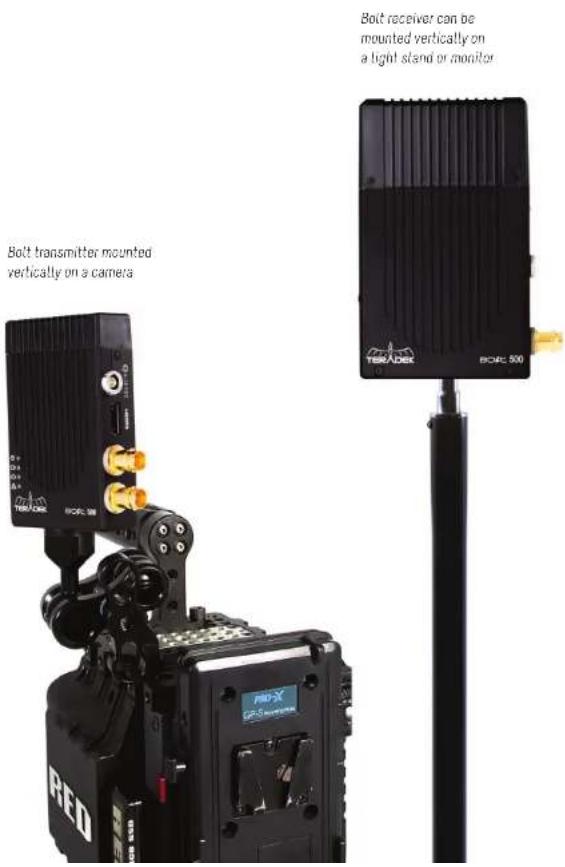
- Mount the Bolt 500 transmitter vertically, keeping the antennas clear of any obstructions.
- Orient the transmitter and receiver antennas so they are parallel to each other.
- For best results, orient the transmitter so it has clear line-of-sight to the receiver.