
Kaira Pro Xbox - Headphones RAZER - Free user manual and instructions
Find the device manual for free Kaira Pro Xbox RAZER in PDF.


| Product Type | Wireless gaming headset for Xbox |
| Brand | Razer |
| Model | Kaira Pro Xbox |
| Driver Size | 50 mm with Neodymium magnets |
| Frequency Response (Headphones) | 20 Hz – 20 kHz |
| Impedance | 32 Ω at 1 kHz |
| Sensitivity (Headphones) | 108 dB @ 1 kHz |
| Microphone Frequency Response | 100 – 10,000 Hz |
| Microphone Sensitivity | -54 ± 3 dB @ 1 kHz |
| Microphone Pick-up Pattern | Unidirectional |
| Signal-to-Noise Ratio (Microphone) | > 60 dB |
| Wireless Range | 10 m / 30 ft |
| Wireless Frequency | 2.4 GHz / 5 GHz |
| Battery Life | Up to 15 hours |
| Charging Time | Approximately 4 hours |
| Connection Type | Direct to Xbox or via Xbox Wireless Adapter for Windows 10 |
| Compatibility | Xbox One, Xbox Series X|S, PC (Windows 10 64-bit or higher) |
| Warranty | 2-year limited warranty |
| Key Features | Auto-adjusting headband, breathable memory foam ear cushions, game/chat balance wheel, EQ presets, bendable HyperClear cardioid mic, volume wheel, mic mute switch, status indicator, Razer Headset Setup for Xbox app |
| Inner Ear Cup Diameter | Width 56 mm / Length 67 mm |
| Ear Cushion Material | Breathable memory foam with heat-transfer fabric |
| Operating Temperature | 0°C to 40°C (32°F to 104°F) |
| Maintenance | Clean monthly with soft cloth or cotton swab; do not use soap or harsh cleaners |
| Safety Precautions | Avoid liquid exposure; do not disassemble; avoid prolonged high volume to prevent hearing damage |
Frequently Asked Questions - Kaira Pro Xbox RAZER
User questions about Kaira Pro Xbox RAZER
0 question about this device. Answer the ones you know or ask your own.
Ask a new question about this device
Download the instructions for your Headphones in PDF format for free! Find your manual Kaira Pro Xbox - RAZER and take your electronic device back in hand. On this page are published all the documents necessary for the use of your device. Kaira Pro Xbox by RAZER.
USER MANUAL Kaira Pro Xbox RAZER
natural_image
Abstract black line drawing on green background with no text or symbolsRAZER KAIRA FOR XBOX
MASTER GUIDE
Take your competitive advantage to the next level and exert true console dominance with the Razer Kaira for Xbox—a wireless Xbox Series X headset that offers superior audio immersion with our most powerful drivers ever, and crystal-clear voice comms with the best headset mic we've ever designed.
CONTENTS
- WHAT'S INSIDE / WHAT'S NEEDED....3
- LET'S GET YOU COVERED 5
- TECHNICAL SPECIFICATIONS....6
- GETTING STARTED .... 7
- USING YOUR RAZER KAIRA FOR XBOX....11
- SAFETY AND MAINTENANCE 16
7.LEGALESE....17
A. Auto-adjusting headband
B. Breathable memory foam ear cushions
C. Game / Chat balance wheel
D. EQ / Xbox Pairing button
E. Bendable Razer™ HyperClear cardioid mic
F. Charging port
G. Power button
H. Status indicator
I. Volume wheel
J. Mic mute switch
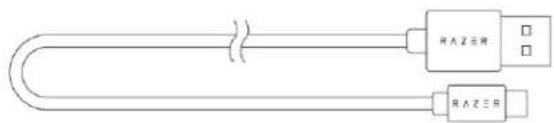
- Charging cable
- Xbox One™ / Xbox One™ S / Xbox One™ X / Xbox Series™ X OR
- PC (Windows® 10 64-bit or higher) with a free USB port*
■ Internet connection for app installation
*May require the Xbox Wireless Adapter for Windows 10 (not included).
SAFETY STATEMENT
IMPORTANT! Before using your Xbox console with this product, read its instruction manual for safety, health, and other information regarding the use of your Xbox console.
2. LET'S GET YOU COVERED
You've got a great device in your hands, complete with a 2-year limited warranty coverage. Now maximize its potential and score exclusive Razer benefits by registering at razerid.razer.com

Got a question? Ask the Razer Support Team at support. razer.com
3. TECHNICAL SPECIFICATIONS
HEADPHONES
■ Frequency response: 20 Hz – 20 kHz
■ Impedance: 32Ω at 1 kHz
■ Sensitivity (@1 kHz): 108 dB
- Drivers: 50 mm, with Neodymium magnets
■ Inner ear cup diameter: Width 56mm / Length 67mm
- Oval ear cushions: Designed for full-ear coverage with heat-transfer fabric, perfect for long-wearing comfort
■ Connection type: Direct to Xbox / via Xbox Wireless Adapter for Windows 10
■ Wireless range: 10 m / 30 ft
■ Wireless frequency: 2.4 GHz / 5 GHz
■ Battery life: Up to 15 hours
MICROPHONE
■ Frequency response: 100 – 10,000 Hz
■ Signal-to-noise ratio: > 60 dB
■ Sensitivity (@1 kHz): -54 ± 3 dB
■ Pick-up pattern: Unidirectional
4. GETTING STARTED
CHARGING YOUR HEADSET
Connect your Razer Kaira for Xbox to a powered USB port using the charging cable. For best results, please fully charge your headset before using it for the first time. A depleted headset will fully charge in about (4) hours.

While charging, your Razer Kaira for Xbox will continuously show its battery level on the status indicator.

PAIRING YOUR HEADSET
A. TO YOUR XBOX CONSOLE
- Press the Connect button on your console.
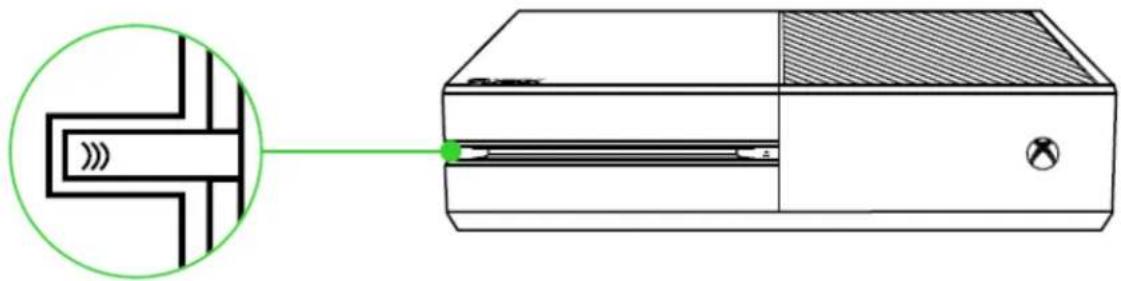
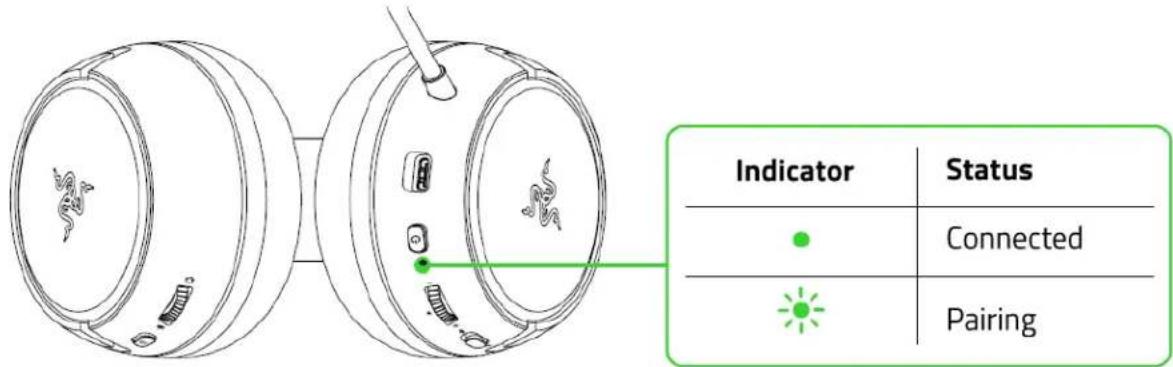
- Press and hold the power button until the status indicator is briefly lit or until you hear a tone.

- Wait until the status indicator becomes static green, indicating that the headset is now paired to the Xbox console.
B. TO YOUR PC VIA XBOX WIRELESS ADAPTER FOR WINDOWS 10\*
Make sure that your Xbox Wireless Adapter for Windows 10 is up-to-date. Some systems have Xbox Wireless built in which allows you to pair your headset by using Bluetooth & other devices in Settings.
- Plug in your Xbox Wireless Adapter for Windows 10* to your PC and then press its Connect button.

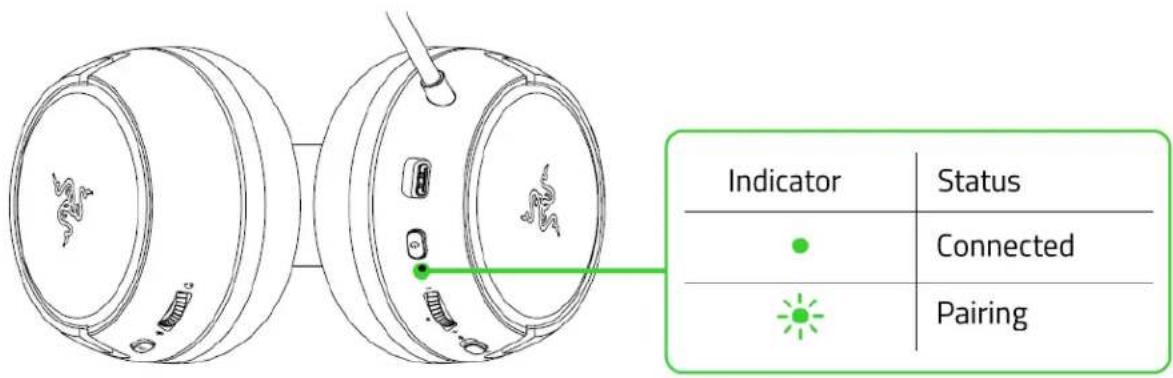
- While powered off, press and hold the power button until the status indicator is lit, or until you hear a tone.

- Wait until the status indicator becomes static green, indicating that the headset is now paired to the wireless adapter.
5. USING YOUR RAZER KAIRA FOR XBOX
POWER BUTTON
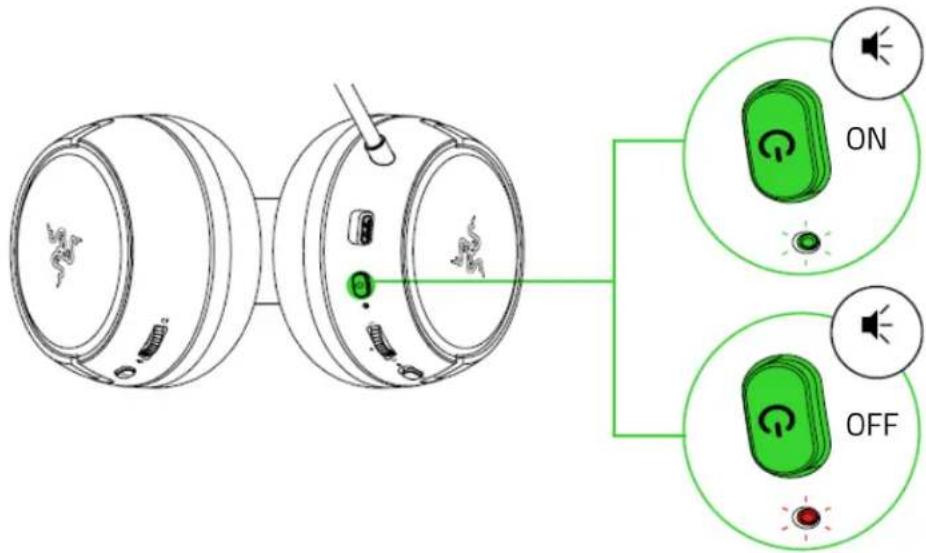
Power on or off your headset by holding the power button until the status indicator is on; and press and hold the button again to turn off. Two distinct tones will help notify you that the headset is powered on or off.
BATTERY LEVEL
When unplugged and powered on, the status indicator will briefly show the connection and battery status. While in use, there will be a tone notification when the headset needs to be recharged; during such time, the indicator will continue showing the battery status until you charge the headset.

EQ / XBOX PAIRING BUTTON
Pairing Mode
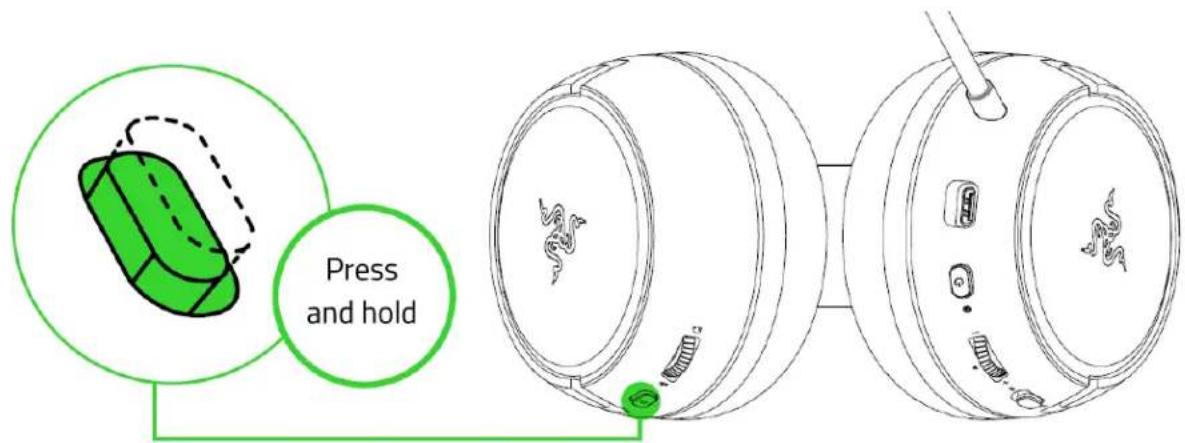
When pairing the headset to a different Xbox console or wireless adapter, use the EQ / Xbox Pairing button to activate its pairing mode. While powered on, press and hold the EQ / Xbox Pairing button until the status indicator starts to blink in green or until you hear a tone, indicating that the headset can now be paired to a different Xbox console or wireless adapter.
EQ presets
Double press the EQ / Xbox Pairing button to switch between the equalizer presets available on the headset.

| Preset | Description |
| Default | All-around balance of audio clarity and bass |
| Bass Boost | Immerse more on solid, realistic bass |
| FPS | Hear the most subtle of footsteps sneaking from behind |
| Custom* | Your own custom balance of audio clarity |
*This preset will only be available when you customize a preset on the Razer Headset Setup for Xbox app.
VOLUME WHEEL
Rotate the volume wheel to increase or decrease the volume.

GAME / CHAT BALANCE
Rotate the Game / Chat balance wheel to increase the in-game volume and decrease the voice chat volume or vice versa. By default, the notch on the wheel is set to the middle to indicate 50% chat and 50% game volume.

MICROPHONE
Bend the mic until it is parallel to your mouth. Make sure the mic diaphragm is in front and the air vent is facing away from your mouth.

natural_image
Line drawing of a pair of headphones with earplands and a green directional arrow indicating compression (no text or symbols)Slide the mic mute switch to mute or unmute the microphone.

natural_image
Diagram of a device showing front and side views with internal components and a magnified view of the internal component (no text or symbols)COMFORT
It's recommended to gently stretch the headset before placing it over your head to minimize headband stress however, don't stretch the headset beyond its limits.

natural_image
Line drawing of a headset with green directional arrows indicating head movement (no text or symbols)RAZER HEADSET SETUP FOR XBOX APP
Use the Razer Headset Setup for Xbox app to personalize your own EQ preset which you can set as the Custom preset of your headset, enable mic monitoring to hear your own voice through the headset, and even adjust other mic features for a truly immersive gaming experience.
*Download and install the Razer Headset Setup for Xbox app from the Microsoft Store on your gaming console or PC.
6. SAFETY AND MAINTENANCE
SAFETY GUIDELINES
In order to achieve maximum safety while using your Razer Kaira for Xbox, we suggest that you adopt the following guidelines:
Should you have trouble operating the device properly and troubleshooting does not work, unplug the device and contact the Razer hotline or go to support.razer.com for assistance.
Do not take apart the device (doing so will void your warranty) and do not attempt to operate it under abnormal current loads.
Keep the device away from liquid, humidity or moisture. Operate the device only within the specific temperature range of 0^ (32°F) to 40^ (104°F). Should the temperature exceed this range, unplug and/or switch off the device in order to let the temperature stabilize to an optimal level.
The device isolates external ambient sounds even at low volumes, resulting in lowered awareness of your external surroundings. Please remove the device when engaging in any activities that requires active awareness of your surroundings.
Listening to excessively loud volumes over extended periods of time can damage your hearing. Furthermore, legislation of certain countries permits a maximum sound level of 86db to affect your hearing for 8 hours a day. We therefore recommend that you reduce the volume to a comfortable level when listening for prolonged periods of time. Please, take good care of your hearing.
MAINTENANCE AND USE
The Razer Kaira for Xbox requires minimum maintenance to keep it in optimum condition. Once a month we recommend you clean it using a soft cloth or cotton swab to prevent dirt buildup. Do not use soap or harsh cleaning agents.
7. LEGALESE
COPYRIGHT AND INTELLECTUAL PROPERTY INFORMATION
©2020 Razer Inc. All rights reserved. Razer, the triple-headed snake logo, Razer logo, and "For Gamers. By Gamers." are trademarks or registered trademarks of Razer Inc. and/or affiliated companies in the United States or other countries. All other trademarks are the property of their respective owners.
Microsoft, Windows, the Windows logo, Xbox and the Xbox logos are trademarks of the Microsoft group of companies and are used under license from Microsoft.
Razer Inc. ("Razer") may have copyright, trademarks, trade secrets, patents, patent applications, or other intellectual property rights (whether registered or unregistered) concerning the product in this guide. Furnishing of this guide does not give you a license to any such copyright, trademark, patent or other intellectual property right. The Razer Kaira for Xbox (the "Product") may differ from pictures whether on packaging or otherwise. Razer assumes no responsibility for such differences or for any errors that may appear. Information contained herein is subject to change without notice.
LIMITED PRODUCT WARRANTY
For the latest and current terms of the Limited Product Warranty, please visit razer.com/warranty.
LIMITATION OF LIABILITY
Razer shall in no event be liable for any lost profits, loss of information or data, special, incidental, indirect, punitive or consequential or incidental damages, arising in any way out of distribution of, sale of, resale of, use of, or inability to use the Product. In no event shall Razer's liability exceed the retail purchase price of the Product.
GENERAL
These terms shall be governed by and construed under the laws of the jurisdiction in which the Product was purchased. If any term herein is held to be invalid or unenforceable, then such term (in so far as it is invalid or unenforceable) shall be given no effect and deemed to be excluded without invalidating any of the remaining terms. Razer reserves the right to amend any term at any time without notice.

- CONTENTS
- SAFETY STATEMENT
- LET'S GET YOU COVERED
- TECHNICAL SPECIFICATIONS
- HEADPHONES
- MICROPHONE
- GETTING STARTED
- CHARGING YOUR HEADSET
- PAIRING YOUR HEADSET
- TO YOUR XBOX CONSOLE
- TO YOUR PC VIA XBOX WIRELESS ADAPTER FOR WINDOWS 10\*
- USING YOUR RAZER KAIRA FOR XBOX
- POWER BUTTON
- BATTERY LEVEL
- EQ / XBOX PAIRING BUTTON
- Pairing Mode
- EQ presets
- VOLUME WHEEL
- GAME / CHAT BALANCE
- COMFORT
- RAZER HEADSET SETUP FOR XBOX APP
- SAFETY AND MAINTENANCE
- SAFETY GUIDELINES
- MAINTENANCE AND USE
- LEGALESE
- COPYRIGHT AND INTELLECTUAL PROPERTY INFORMATION
- LIMITED PRODUCT WARRANTY
- LIMITATION OF LIABILITY
- GENERAL
Brand : RAZER
Model : Kaira Pro Xbox
Category : Headphones