DaVinci Resolve - Pilote Blackmagic Design - Free user manual and instructions
Find the device manual for free DaVinci Resolve Blackmagic Design in PDF.


User questions about DaVinci Resolve Blackmagic Design
0 question about this device. Answer the ones you know or ask your own.
Ask a new question about this device
Download the instructions for your Pilote in PDF format for free! Find your manual DaVinci Resolve - Blackmagic Design and take your electronic device back in hand. On this page are published all the documents necessary for the use of your device. DaVinci Resolve by Blackmagic Design.
USER MANUAL DaVinci Resolve Blackmagic Design
natural_image
Circular portrait photo of a smiling man in a black polo shirt against a gray textured background (no text or symbols)Welcome
Welcome to DaVinci Resolve for Mac, Linux and Windows!
DaVinci is the world's most trusted name in color and has been used to grade more Hollywood films, TV shows, and commercials than anything else. With DaVinci Resolve, you get a complete set of editing, advanced color correction, professional Fairlight audio post production tools and Fusion visual effects combined in one application so you can edit, compose, grade, mix and master deliverables from start to finish, all in a single tool!
DaVinci Resolve has the features professional editors, colorists, audio engineers and VFX artists need, and is built on completely modern technology with advanced audio, color and image processing that goes far beyond what any other system can do. With this release, we hope to inspire creativity by letting you work in a comfortable, familiar way, while also giving you an entirely new creative toolset that will help you cut and finish projects at higher quality than ever before!
We hope you enjoy reading this manual. With its customizable interface and keyboard shortcuts, DaVinci Resolve is easy to learn, especially if you're switching from another editor, and has all of the tools you need to create breathtaking, high end work!
The DaVinci Resolve Engineering Team
Grant Petty
Grant Petty
CEO Blackmagic Design
Contents
Getting Started 10
PART 1
DaVinci Resolve Interface
1 Introduction to DaVinci Resolve 13
2 Using the DaVinci Resolve User Interface 50
PART 2
Setup and Workflows
3 Managing Projects and Databases 68
4 System and User Preferences 86
5 DaVinci Control Panels Setup 113
6 Project Settings 119
7 Camera Raw Settings 141
8 Improving Performance, Proxies, and the Render Cache 164
9 Data Levels, Color Management, and ACES 186
10 HDR Setup and Grading 215
11 Image Sizing and Resolution Independence 237
12 Data Burn-In 251
13 Frame.io & Dropbox Replay Integration 257
14 Resolve Live 266
15 Stereoscopic Workflows 271
16 Using Variables and Keywords 291
PART 3
Ingest and Organize Media
17 Using the Media Page 297
18 Adding and Organizing Media with the Media Pool 315
19 Using Clip Metadata 347
20 Using the Inspector in the Media Page 359
21 Syncing Audio and Video 367
22 Modifying Clips and Clip Attributes 373
23 Using Scene Detection 385
24 Ingesting From Tape 393
25 Capturing From the Cintel Film Scanner 400
PART 4
The Cut Page
26 Using the Cut Page 419
27 Importing and Organizing Media in the Cut Page 432
28 Fast Editing in the Cut Page 448
29 Trimming in the Cut Page 474
30 Using the Inspector in the Cut Page 488
31 Video and Audio Effects in the Cut Page 500
32 Quick Export 512
PART 5
Edit
33 Using the Edit Page 515
34 Creating and Working with Timelines 551
35 Preparing Clips for Editing and Viewer Playback 566
36 Editing Basics 584
37 Using the Inspector in the Edit Page 612
38 Modifying Clips in the Timeline 624
39 Three- and Four-Point Editing 642
40 Marking and Finding Clips in the Timeline 668
41 Multicam Editing 693
42 Take Selectors, Compound Clips, and Nested Timelines 703
43 Trimming 713
44 Working with Audio in the Edit Page 745
45 Media Management 773
PART 6
Editing Effects and Transitions
46 Editing, Adding, and Copying Effects and Filters 781
47 Using Transitions 794
48 Titles, Generators, and Stills 811
49 Using the DaVinci Resolve Speed Editor and Editor Keyboard 823
50 Compositing and Transforms in the Timeline 859
51 Speed Effects 874
52 Subtitles and Closed Captioning 886
53 Keyframing Effects in the Edit Page 897
54 VFX Connect 909
PART 7
Import and Conform Projects
55 Preparing Timelines for Import and Comparison 917
56 Conforming and Relinking Clips 930
57 Creating Digital Dailies for Round Trip Workflows 953
58 Conforming XML Files 959
59 Conforming AAF Files 964
60 Conforming EDL Files 978
PART 8
Fusion Fundamentals
61 Introduction to Compositing in Fusion 985
62 Exploring the Fusion Interface 990
63 Getting Clips into Fusion 1036
64 Rendering Using Saver Nodes 1057
65 Working in the Node Editor 1080
66 Node Groups, Macros, and Fusion Templates 1121
67 Using Viewers 1141
68 Editing Parameters in the Inspector 1179
69 Animating in Fusion's Keyframes Editor 1202
70 Animating in Fusion's Spline Editor 1219
71 Animating with Motion Paths 1247
72 Using Modifiers, Expressions, and Custom Controls 1264
73 Bins 1276
74 Fusion Connect 1295
75 Preferences 1308
76 Controlling Image Processing and Resolution 1351
77 Managing Color for Visual Effects 1360
78 Understanding Image Channels 1372
79 Compositing Layers in Fusion 1405
80 Rotoscoping with Masks 1427
81 Paint 1449
82 Using the Tracker Node 1473
83 Planar Tracking 1505
84 Using Open FX, Resolve FX, and Fuse Plug-Ins 1511
85 3D Compositing Basics 1514
86 3D Camera Tracking 1565
87 Particle Systems 1582
88 Optical Flow and Stereoscopic Nodes 1590
PART 9
Fusion Page Effects
89 3D Nodes 1602
90 3D Light Nodes 1712
91 3D Material Nodes 1725
92 3D Texture Nodes 1752
93 Blur Nodes 1777
94 Color Nodes 1801
95 Composite Nodes 1856
96 Deep Pixel Nodes 1870
97 Effect Nodes 1886
98 Film Nodes 1917
99 Filter Nodes 1934
100 Flow Nodes 1950
101 Flow Organizational Nodes 1953
102 Fuses 1958
103 Generator Nodes 1960
104 I/O Nodes 1997
105 LUT Nodes 2019
106 Mask Nodes 2028
107 Matte Nodes 2066
108 Metadata Nodes 2119
109 Miscellaneous Nodes 2126
110 Optical Flow 2160
111 Paint Node 2174
112 Particle Nodes 2183
113 Position Nodes 2240
114 Resolve Connect 2258
115 Shape Nodes 2264
116 Stereo Nodes 2295
117 Tracker Nodes 2325
118 Transform Nodes 2370
119 VR Nodes 2395
120 Warp Nodes 2405
121 Modifiers 2433
PART 10
Color
122 Introduction to Color Grading 2470
123 Using the Color Page 2481
124 Viewers, Monitoring, and Video Scopes 2498
125 Color Page Timeline and Lightbox 2532
126 Automated Grading Commands and Imported Grades 2547
127 Camera Raw Palette 2561
128 Primaries Palette 2567
129 HDR Palette 2584
130 Primary Grading Controls 2606
131 Curves 2610
132 Color Warper 2629
133 Secondary Qualifiers 2646
134 Secondary Windows and Tracking 2671
135 Magic Mask 2684
136 Motion Tracking Windows 2702
137 Using the Gallery 2725
138 Grade Management 2741
139 Node Editing Basics 2775
140 Image Processing Order of Operations 2793
141 Serial, Parallel, and Layer Nodes 2796
142 Combining Keys and Using Mattes 2803
143 Channel Splitting and Image Compositing 2825
144 Keyframing in the Color Page 2839
145 Copying and Importing Grades Using ColorTrace 2853
146 Using LUTs 2862
147 DaVinci Resolve Control Panels 2870
PART 11
Color Page Effects
148 Using Open FX and Resolve FX 2949
149 Sizing and Image Stabilization 2960
150 The Motion Effects and Blur Palettes 2976
151 Dust Removal 2986
PART 12
Resolve FX Overview
152 Resolve FX 2990
153 Resolve FX Blur 2992
154 Resolve FX Color 2997
155 Resolve FX Generate 3009
156 Resolve FX Key 3012
157 Resolve FX Light 3024
158 Resolve FX Refine 3034
159 Resolve FX Revival 3044
160 Resolve FX Sharpen 3062
161 Resolve FX Stylize 3066
162 Resolve FX Temporal 3078
163 Resolve FX Texture 3082
164 Resolve FX Transform 3090
165 Resolve FX Warp 3113
PART 13
Fairlight
166 Using the Fairlight Page 3121
167 Setting Up Tracks, Buses, and Patching 3162
168 Transport Controls, Timeline Navigation, and Markers 3179
169 Recording 3187
170 ADR (Automated Dialog Replacement) 3194
171 Editing Basics in the Fairlight Page 3203
172 Audio Clip Specific Inspector Adjustments 3243
173 Mixing in the Fairlight Page 3255
174 Automation Recording 3280
175 Audio Effects 3290
176 Fairlight FX 3299
177 Audio Meters and Audio Monitoring 3325
178 Signal Flow Diagrams 3335
179 Immersive Audio Workflows 3337
180 Using the Fairlight Desktop Console 3351
181 Using the Fairlight Audio Editor 3402
182 Modular Fairlight Consoles 3449
183 Fairlight Studio Utility 3483
PART 14
Deliver
184 Delivery Effects Processing 3493
185 Using the Deliver Page 3498
186 Rendering Media 3505
187 Delivering DCP and IMF 3533
188 Delivering to Tape 3547
189 Exporting Timelines and Metadata 3554
PART 15
Advanced Workflows
190 Workflow Integrations 3565
191 Creating DCTL LUTs 3569
192 TCP Protocol for DaVinci Resolve Transport Control 3574
PART 16
Project Databases, Collaborative, and Remote Workflows
193 Managing Databases and Project Servers 3579
194 Collaborative Workflow 3586
195 Remote Grading 3599
PART 17
Menu Descriptions
196 Menu Descriptions 3603
PART 18
Other Information
197 Regulatory Notices, Safety Information, and Warranty 3620
DaVinci Resolve 17
Getting Started
When you install DaVinci Resolve and then open it for the first time, there are a few things you're going to want to know before you begin learning how to work.
Automatic DaVinci Resolve Updates
To make it easier to ensure you're using the latest version of DaVinci Resolve, you can now choose DaVinci Resolve > Check For Updates to notify you of new versions and download them when available.
Why Is This Manual So Big?
Over the years, DaVinci Resolve has evolved to encompass professional editing, compositing, and audio mixing tools and workflows in addition to the grading tools that were the original core of DaVinci Resolve. Each one of these domains of functionality is incredibly deep. Consequently, the documentation has grown with each new page, tool, and parameter that's been added, to make life easier and to solve the countless problems that can emerge during the postproduction process.
While it is regretted that this user manual contains such a staggeringly overwhelming amount of information, our emphasis has always been to ensure that (hopefully) every control and workflow you encounter in DaVinci Resolve is explained somewhere within the contents of these pages.
Consequently, we hope that you find the hyperlinked table of contents (TOC) and search functionality of your preferred PDF browser helpful in finding the information you need, along with context and tips to help you get the most out of the tools provided.
Navigation Guide
Chapter 3
Managing Projects and Databases
This chapter covers how to use the Project Manager to organize the projects you're working on in DeVinci Resolve, as well as how to deal with marriage the databases that serve as the organizational foundation of the Project Manager. You'll also see how to export and import projects, and how to archive a project and its media for long-term storage.
Contents
Using the Project Manager 69
Project Management 10
Imaging DoVinci Resources Projects (DRP Files) 70
Project Manager View Options 71
Searching for Projects 72
Organizing Projects in Foders 73
Managing Databases with the Databases Schedule 73
Opening the Databases Sidebar 74
Moving Projects From One Database to Another on the Same Workstation 74
Managing Databases in the Databases Section 75
Legacy User Organization in the Distributions Sideby: 79
Saving Projects 79
Live Save 80
Project Backups
Project Notes
Dynamic Project Switching 92
Archiving and Restoring Projects
B1
14
Chapter 3 Managing Projects and Databases
68
By clicking the Contents heading, you will be taken to the Contents page at the beginning of this manual.
By clicking each title or the page number, you will be taken to the appropriate page.
By clicking the footer on each page, you will be taken to the Contents page of that particular Chapter.
Edit
Undo - Page 65
Under the previous change
Redo - Page 65
Heve the previous charge.
History - Page 55
Open the Jroo History subman.
Cut - Page 635
Perform a c.i. operation on the current selection
Ripple Cut - Page 635
Performance ripple on operation on the
Current stock data
Cut Head - Page 3229
On the clip from the playhand backwards
-
-
-
-
-
-
-
-
-
-
-
-
-
-
-
-
-
-
-
-
-
-
-
-
-
-
-
-
-
-
-
-
-
-
-
-
-
-
-
-
-
-
-
-
-
-
-
-
-
-
-
-
-
-
-
-
-
-
-
-
-
-
-
-
-
-
-
-
-
-
-
-
-
-
-
-
-
-
-
-
-
-
-
-
-
-
-
-
- 90.
-
-
-
-
-
-
-
-
-
-
-
-
-
-
-
-
-
-
-
-
-
-
-
-
-
-
-
-
-
-
-
-
-
-
-
-
-
-
-
-
-
-
-
-
-
-
-
-
-
-
-
-
-
-
-
-
-
-
-
-
-
-
-
-
-
-
-
-
-
-
-
-
-
-
-
-
-
-
-
-
-
-
-
-
-
-
-
Cut Tail - Page 3229
5 is the zip (from 1) = please for you?
It is the light source
Copy Page 025
Performance: a copy operator on the
(1) 2017年8月-9月
Copy Head - Page 3229
Copies the tip from the playhead Backward
1.12. of 13. p.s.c.
Copy Tail - Page 3229
Copets the clip from the playband forwards in the
(四)基金产品概况
Paste Page 635
Passes the previously canonical selection.
Paste Insert - Page 635
For example, the same
Paste Attributes - Page 792
Passes video and audio distributors.
Paste Value - Page 2753
Passes a the value of a species
1984-001 between color channels.
Remove Attributes - Pag
Remove audio and video art effects.
Dolby Vision® - Page 219
Copy and Fable Tree negotiation for Ruby Vision
Duplicate Clip or Current Timeline – Page 335
Makes a copy of the current clip at timeline.
Duplicate Selection - Proc 3229
• Applications are to choose selection rules in Fairight.
Delete Selected
Performance: a delete factor on all selected items.
Ripple Delete - Page 603
Perform a simple discrete on the selected city
Delete Gaps - Page 805
Balance gap in the other timeline
Select All
Performance a Series, All series and active panel
Dunelect All
Clear any selections in the active panel
Select Page 685
Opens up a submena or specing adjacent clips
1.0 timeline
Insert - Page 657
Performance an insert tool using the selected tip.
Overwrite - Page 556
Performance: an Overview Fair using the
sichmed clp
Replace - Page 658
Performance: a Pargos-Fui, using 1 = select=1.1 in
Performance a Place on Top Edit using the
selected clip
Ripple Overwrite - Page 462
Performance: a ripple noise to following
selected clip
Fit to Fill - Page 601
Perfume a full of 100% of the selected clp.
Append at End of Timeline - Page 665
Adds the selected clp to the end of the timeline.
Multicam - Page 694
Exposes the Multicam-coding controls.
Swan Cluss Towards Left - Page 631
Swan the selected class who the clip is the left of
the selection
Swan Clips Towards Right - Page 531
- Same the selected clips, the clip to the right
of the selection
Switch to Timeline After Edit
Automatically sadness (occur to) frontline after
in credit rather than the Source Maker.
Decompose Compound Clips on Edit
Page 710
Automatically decomposes nested clips or
(1) 12 (2) 13 (3) 14 (4) 15 (5) 16 (6) 17 (7) 18 (8) 19 (9)
DeVinci Receive Menu Descriptions
3606
By clicking on the name of the menu function, you will be taken to the appropriate part of the manual that describes that function.
By clicking the footer, you will be taken to the beginning of that section.
PART 1
DaVinci Resolve Interface
natural_image
Colorful abstract logo with three petal shapes inside a circular frame (no text or symbols)Chapter 1
Introduction to DaVinci Resolve
DaVinci Resolve integrates editing, compositing and motion graphics, color correction, audio recording and mixing, and finishing within a single, easy to learn application. The editing, compositing, grading, and audio tools found in DaVinci Resolve should be immediately familiar to experienced artists who've used other applications, but they're also approachable to folks who are new to post-production.
Additionally, dedicated tools available for on-set workflows integrate tasks such as media duplication, shot and metadata organization, and on-location look management into a complete toolset that lets you smoothly segue from the camera original media being acquired in the field to the organization and use of that media in a wide variety of post-production workflows with DaVinci Resolve at their heart. In particular, the tight integration in DaVinci Resolve means that you can freely move from one task to the next of your project's workflow without skipping a beat, making it easy to back up and organize a shoot's media before immediately diving into editing, while switching over to add a quick composite or to color-correct clips in the middle of your editing spree, and then getting right back to cutting, with a bit of mixing to make sure things sound right, all without needing to export projects or launch other applications.
And you can go further, using the collaborative features of DaVinci Resolve to enable multiple artists, for example an editor, a colorist, and assistants, to work together on the same timeline simultaneously, for the ultimate integrated workflow.
Of course, no post-production professional works in a vacuum, and DaVinci Resolve makes it easy to work with other facilities by importing projects and exporting project exchange formats and rendered or managed media among applications such as Apple's Final Cut Pro X, Adobe's Premiere Pro, Avid's Media Composer and Pro Tools, Autodesk's Flame Premium, and many other applications via robust support of XML, AAF, and EDL import and export workflows.
This chapter introduces the DaVinci Resolve user interface (UI), explaining where to find each group of features, and how the highly focused and tightly integrated Media, Edit, Fusion, Color, Fairlight, and Deliver pages work together to let you pursue nearly any post-production workflow you can imagine. After this brief tour, the rest of Part 1 of this manual provides much more in-depth information about project management, preferences, project settings, and other topics of general interest for getting started.
Contents
The Project Manager 15
Preferences and Project Settings 15
Individual Preferences
and Settings Based on Login 16
Preferences 16
System Preferences 16
User Preferences 17
Project Settings 18
Switching Among Pages 19
Minimizing the Resolve Page Bar 19
Switching Pages Using Keyboard Shortcuts 19
Hide Pages You Don't Use 19
Hide Page Navigation Altogether 19
The Media Page 20
The Media Storage Browser 20
Viewer 21
Media Pool 22
Metadata Editor 22
Audio Panel 23
The Cut Page 23
The Media Pool 24
The Viewer 25
Audio Meter 25
The Timeline 26
The Edit Page 27
The Media Pool 27
Effects Library Browsing 28
Edit Index 28
Source/Offline and Timeline Viewers 29
Inspector 30
Toolbar 30
Timeline 30
Floating Timecode Window 31
Motion Graphics and Visual Effects
in DaVinci Resolve 31
VFX Connect 31
The Fusion Page 32
The Work Area 33
Viewers 33
Toolbar 34
Effects Library 34
Node Editor 34
Inspector 35
Thumbnail Timeline 36
Media Pool 36
Status Bar 37
The Console 37
The Color Page 37
Viewer 38
Gallery 39
Node Editor 39
Timeline 40
Left Palettes 40
Center Palettes 41
Keyframe Editor 41
The Fairlight Page 42
The Audio Timeline 42
Toolbar 44
Mixer 44
Dedicated Channel Strip Controls 44
The Monitoring Panel 46
Floating Timecode Window 47
The Deliver Page 47
The Render Settings List 47
The Deliver Page Timeline 48
The Viewer 49
The Render Queue 49
The Project Manager
For most users, Project Manager is the first window you'll see when you open DaVinci Resolve. The Project Manager is a centralized interface for managing all projects belonging to the user who's currently logged in, whose name appears at the upper right-hand corner in a project title bar. The Project Manager is also the place where you import and export projects to and from DaVinci Resolve, whether you're moving projects around from user to user, or moving projects from one DaVinci Resolve workstation to another. Finally, the Project Manager also lets you organize the databases that are used to manage everything in DaVinci Resolve using the Database Sidebar.
To open any project, double-click it. To create a new project, double-click the Untitled Project icon, or click the New Project button.
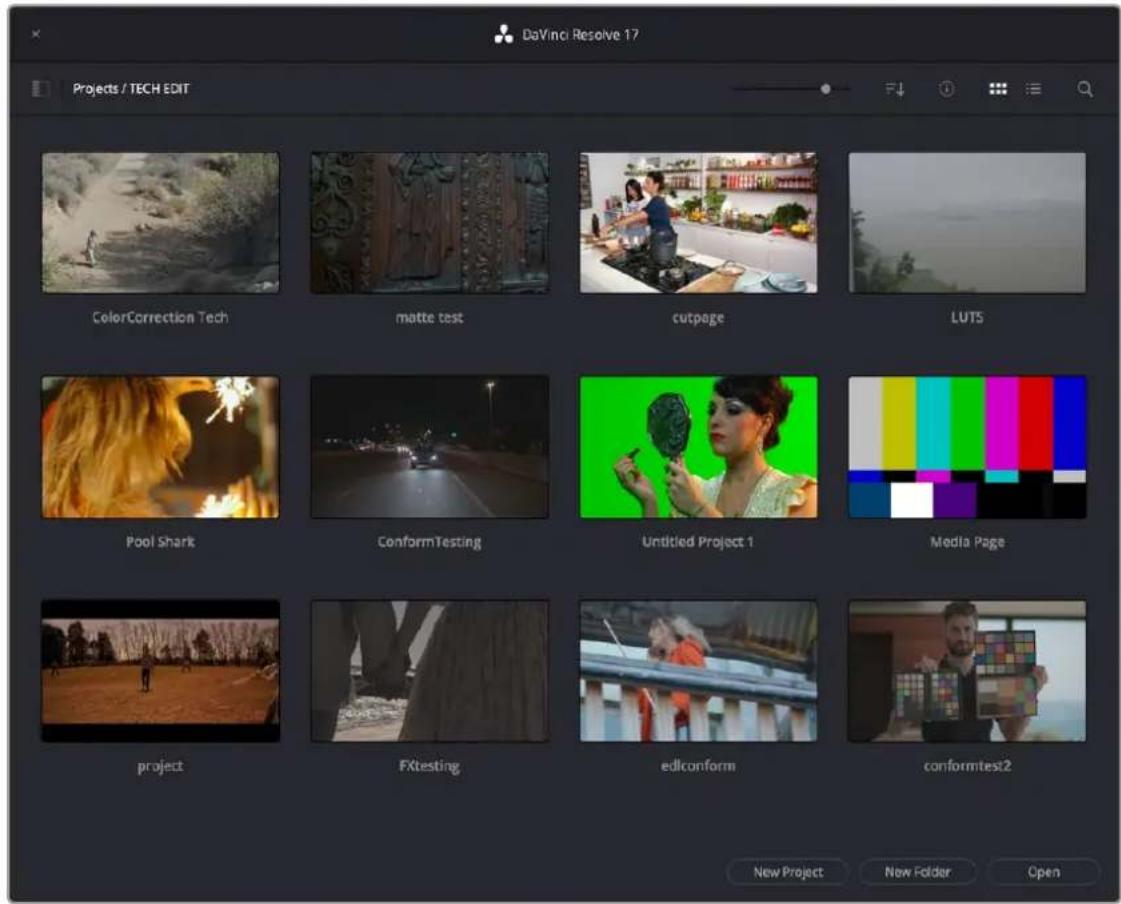
The Project Manager shows all projects belonging to the current user.
For more information about the Project Manager, see Chapter 3, "Managing Projects and Databases."
Preferences and Project Settings
Once you open a project, you have the option of adjusting the System and User Preferences that govern the installation of DaVinci Resolve on your workstation, and the Project Settings governing the currently open project. When you first install DaVinci Resolve, the most important of these settings are selected via the installer's on boarding questions. However, if you're opening DaVinci Resolve for the first time, you should probably check these settings to make sure they're optimal for your system.
Individual Preferences and Settings Based on Login
As of DaVinci Resolve 16, there are individual preferences and settings for each login account on a given computer. This means that multiple artists can each have their own login, and DaVinci Resolve will maintain separate workspace layouts and preference states for each artist, depending on who's logged in.
Preferences
The Preferences window, divided into System preferences and User preferences panels, lets you set up the overall environment of your DaVinci workstation, choosing what hardware to use with DaVinci Resolve and what user interface settings you prefer as you work.
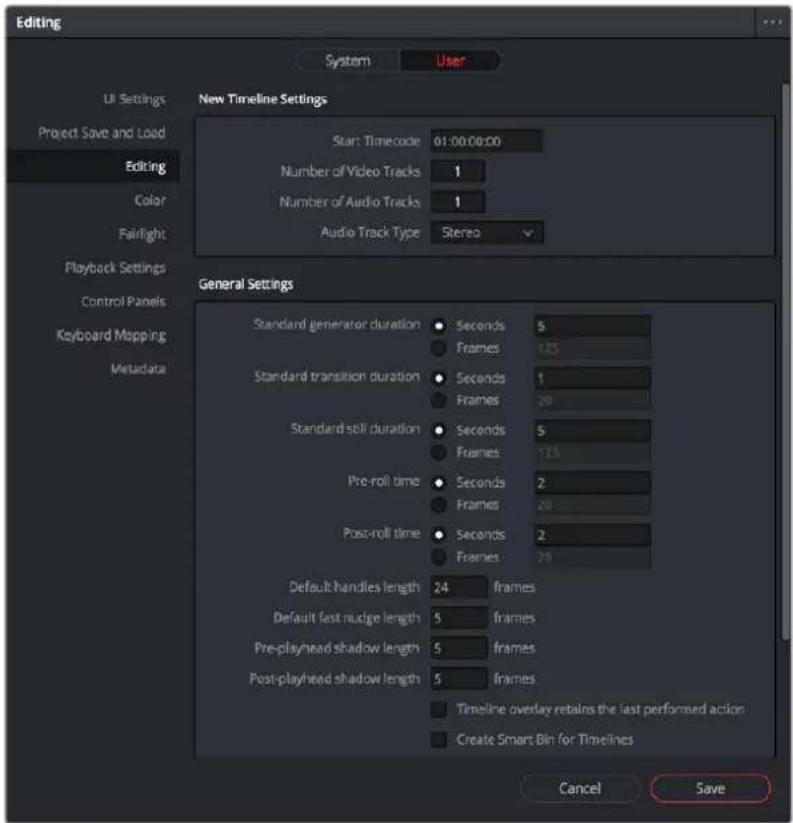
The DaVinci Resolve preferences let you set up your environment
A quick overview of the most important System and User preferences appears below, with guidance about the first settings you should adjust when you first set DaVinci Resolve up on your workstation. However, for a comprehensive overview and for more information, see Chapter 4, "System and User Preferences."
System Preferences
The System preferences let you configure the hardware DaVinci Resolve works with. If you have a system that doesn't change very often, then you may only rarely use the Preferences window. On the other hand, if you're working with a mobile system with changing video interfaces, control panels, and scratch volumes, then you may use this window more frequently.
NOTE: Whenever you change certain core System Settings in the Preferences, you may have to quit and restart DaVinci Resolve for those changes to take effect.
Hardware Configuration
Lets you choose various options governing how to use the GPUs attached to your computer, and how to configure Viewers in different pages. This panel also provides an overview, for reference, of all hardware and computer characteristics that are relevant to DaVinci Resolve running smoothly, including a listing of installed GPUs.
Media Storage
This is a list within which you define the scratch disk used by your system. The first volume in this list is where Gallery stills and cache files are stored, so you want to make sure that you choose the fastest storage volume that's connected.
Video and Audio I/O
The preferences in this panel let you choose which video and audio interfaces you want DaVinci Resolve to use on your workstation. If you have multiple Blackmagic Design I/O interfaces connected to your computer, you can choose one to use for monitoring video output, and one to use for Resolve Live, a feature that lets you grade camera output during a shoot as part of an onset workflow.
Control Panels
Lets you choose and configure (if necessary) a control panel that's connected for use during grading in DaVinci Resolve.
User Preferences
User preferences govern the setup of the user interface in DaVinci Resolve, letting you customize it to work the way you like.
UI Settings
A Language drop-down at top lets you specify which language the DaVinci Resolve user interface displays. DaVinci Resolve currently supports English, Chinese, Japanese, and Spanish. Additional checkboxes let you choose options for which project to open during startup, and how to configure the Viewers that appear in every page of DaVinci Resolve.
Project Save and Load
This panel contains the all-important auto-save controls, including the Live Save option that enables Resolve to incrementally save your changes as you work.
Editing
Numerous controls in this panel let you customize the editing experience in the Edit page, including default settings to use when making new timelines, and general settings that govern standard effects durations and trim behaviors.
Color
These controls let you customize the grading experience in the Color page, with options controlling video scope display, the look of UI overlays, and other color-specific functions.
Keyboard Mapping
This panel has all the controls you need for searching for and customizing the keyboard shortcuts used for different commands throughout DaVinci Resolve.
Project Settings
Once you've created a project, all project-specific settings are found in the Project Settings window. To open the Project Settings window, just click the gear button at the bottom right on any page.
Project Manager and Project Settings buttons
The Project Settings open in the middle of the screen, divided into a series of panels which can be selected from a sidebar to the left. Each panel contains a collection of related settings that affects some category of DaVinci Resolve functionality. To open a panel of settings, simply click its name in the sidebar at the left.
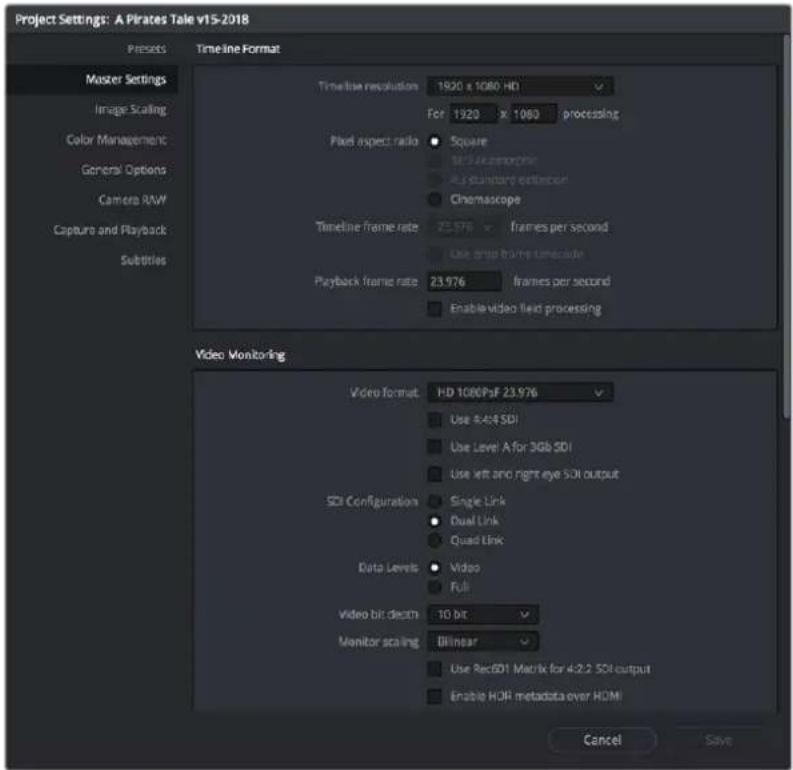
The Project Settings show all project-specific settings and attributes.
The Master Settings define the principal attributes of a project, such as the timeline resolution, timeline frame rate, color science, and bit depth. Image Scaling settings define how clips that don't match the timeline resolution are scaled to fit. There are other panels for Color Management, Camera Raw, Capture and Playback, etc.
For more information about Project Settings, see Chapter 4, "System and User Preferences."
Switching Among Pages
| Media | Cut | Edit | Fusion | Color | Fairlight | Deliver |
Buttons for switching pages appear at the bottom of the UI.
DaVinci Resolve is divided into seven main pages of functionality, each of which facilitates a different specialization of a typical post production workflow, and each of which can be accessed using buttons at the very bottom of the DaVinci Resolve interface. These buttons are organized in order of workflow, and they're always available, letting you quickly switch between importing media, fast editing, detailed editing, compositing, grading, audio mixing, and outputting your project in a structured manner.
Minimizing the Resolve Page Bar
If you right-click anywhere within the Resolve Page bar at the bottom of the DaVinci Resolve UI, two options appear in a contextual menu: "Show Icons and Labels" and "Show Icons Only." If you show icons only, the Resolve Page bar at the bottom takes less room.

The Page bar showing icons only, to save space
Switching Pages Using Keyboard Shortcuts
You can also switch pages using the following keyboard shortcuts, which can be referenced from the Workspace > Switch to Page submenu.
Hide Pages You Don't Use
You can leave the page navigation bar showing and just hide the buttons of specific pages. For example:
- If you like the quick navigation of this bar but there are pages you simply don't want to use
- If you're setting up a DaVinci Resolve workstation for an artist making specific contributions to a project, and you want to hide easy access to pages of functionality they won't (or shouldn't) be using; this can be especially useful in collaborative workflow projects
You can disable/re-enable each page's buttons using the Workspace > Show Page submenu. Effects and adjustments that have been applied on hidden pages continue to affect
the current project, they're only hidden, and you can still navigate to them using the Workspace >Switch to Page submenu commands or keyboard shortcuts.
Hide Page Navigation Altogether
If you're an artist that only uses a single page of the DaVinci Resolve experience, or if you want more screen real estate to work with given your existing computer display's parsimonious resolution, you can choose Workspace > Show Page Navigation to hide the page navigation bar at the bottom of the DaVinci Resolve user interface. While this bar is closed, you can still navigate to other pages using the Workspace > Switch to Page submenu commands or keyboard shortcuts.
To toggle the Show Page Navigation function:
- Check Workspace > Show Page Navigation.
With this interface element hidden, you can use keyboard shortcuts to access the individual pages (Shift - 2 through 8), Project manager (Shift - 1), and Project settings (Shift - 9). You can also access these functions from DaVinci Resolve's main menu bar.
The Media Page
The Media page is the primary interface for clip import, media management, and clip organization in DaVinci Resolve. It's central to the way DaVinci Resolve works that the source media used by a project is organized separately from the project data that you import and manage in the Edit page. In this way, you can manage and update the clips used by timelines in the current project with ease, switching between offline and online media, reorganizing clips, and troubleshooting any problems that occur.
The Media page also contains much of the core functionality that will be used for on-set workflows, and in the ingest, organizational, and sound-syncing steps of digital dailies workflows. This chapter covers most of the functionality found in the Media page, including functions in detail that are referenced throughout this manual.
The Media page is divided into six different areas, designed to make it easy to find, select, and work with media in your project. Much of the functionality and most of the commands are found within the contextual menus that appear when you right-click clips in the Library, File Browser, or Media Pool.
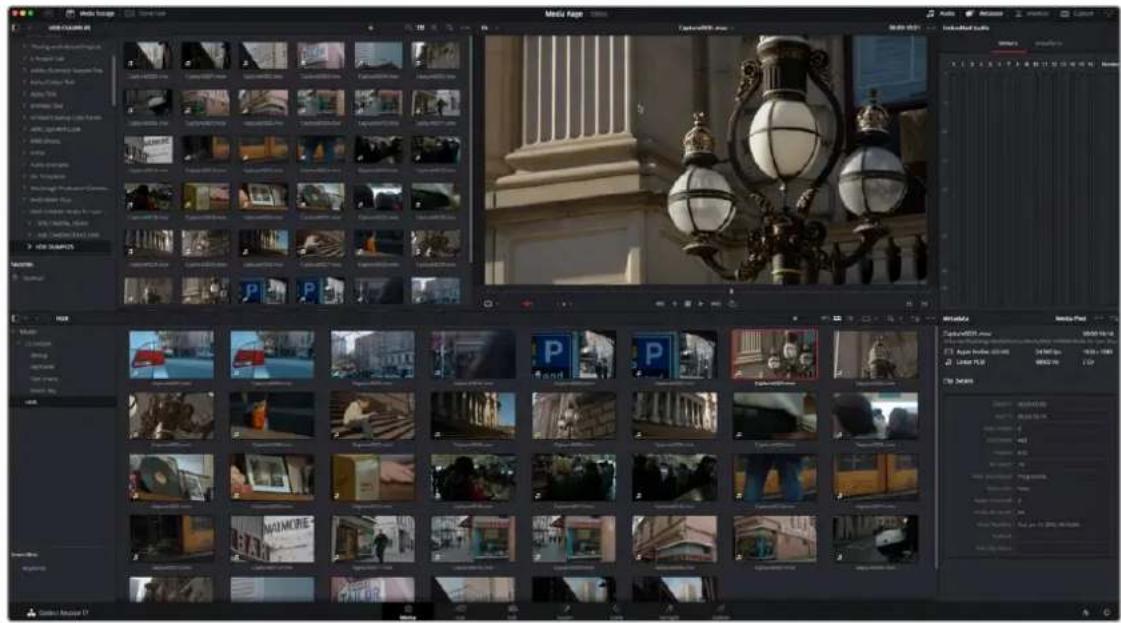
Media page
For more information on using the Media page, see Chapter 17, "Using the Media Page."
The Media Storage Browser
The Media Storage browser shows a list of all volumes that are currently available to your Resolve workstation. It's used to locate media that you want to import manually into your project.
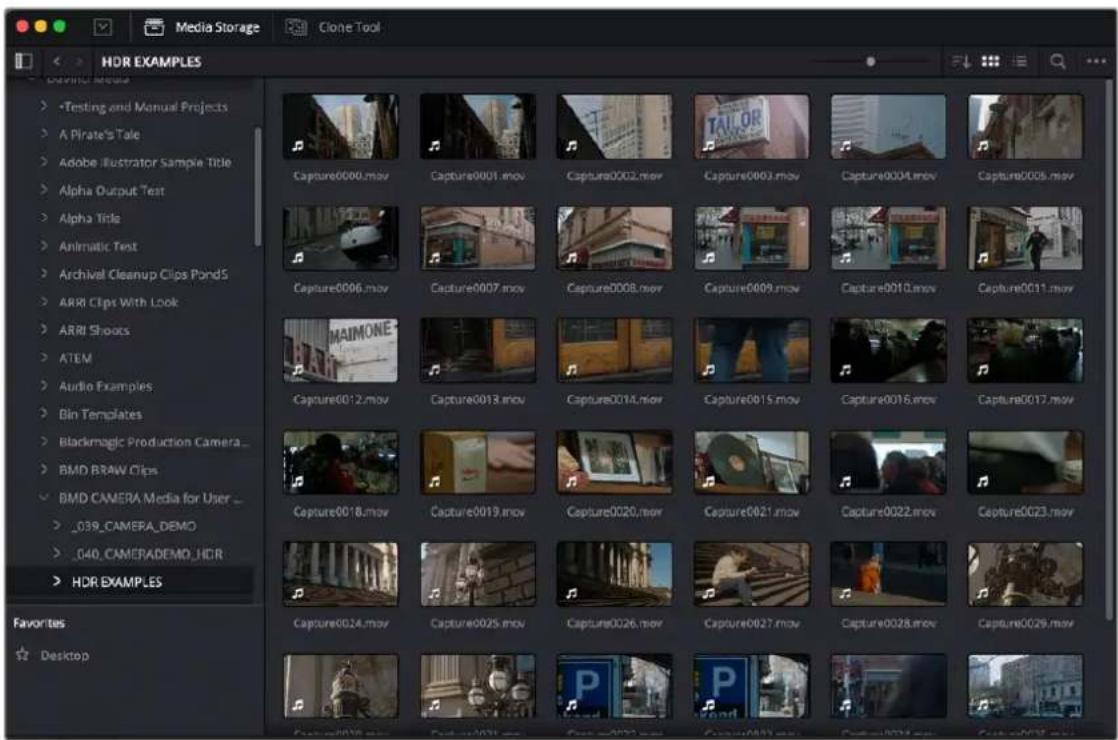
Media Storage with scrubbable Clip view
Viewer
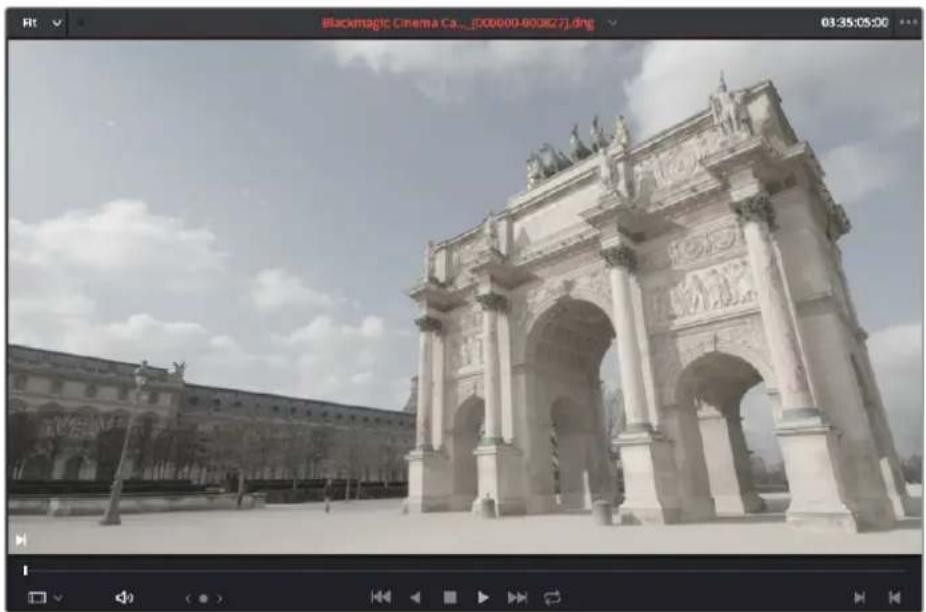
Clips that you select in any area of the Media page show their contents in the Viewer. A jog bar appears at the bottom, letting you drag the playhead directly with the pointer, while a jog control between the mode drop-down and transport controls lets you move through a long clip more slowly. The full width of the jog bar represents the full duration of the clip in the Viewer. The current position of the playhead is shown in the timecode field at the upper right-hand corner of the Viewer. Simple transport controls appear underneath the jog bar, letting you Jump to First Frame, Play/Stop, and Jump to Last Frame. Audio levels can be adjusted by right-clicking on the speaker icon and dragging the slider.
natural_image
Exterior view of a grand stone archway in Paris, France, under a cloudy sky (no signage or text visible)Media page Viewer
You can also put the Viewer into Cinema Viewer mode by choosing Workspace > Viewer Mode > Cinema Viewer (Command-F), so that it fills the entire screen. This command toggles Cinema Viewer mode on and off.
If you have two monitors connected to your computer, you can make the Viewer fill one entire screen and keep the Resolve UI in the other monitor by choosing Workspace > Full Screen Viewer On, and selecting the display you wish to use for the Viewer.
Media Pool
The Media Pool contains all of the video, audio, and still image media that you import into the current project. It also contains any media that's automatically imported along with timelines that have been imported into DaVinci Resolve. Ordinarily, all media imported into a project goes into the Master bin, however the Media Pool can be organized into as many user-definable bins as you like, depending on your needs. Media can be freely moved from one bin to another from within the Media Pool. The Media Pool also appears on the Edit, Fusion, Color, and Fairlight pages, making it possible to browse and open clips and timelines everywhere they're relevant.
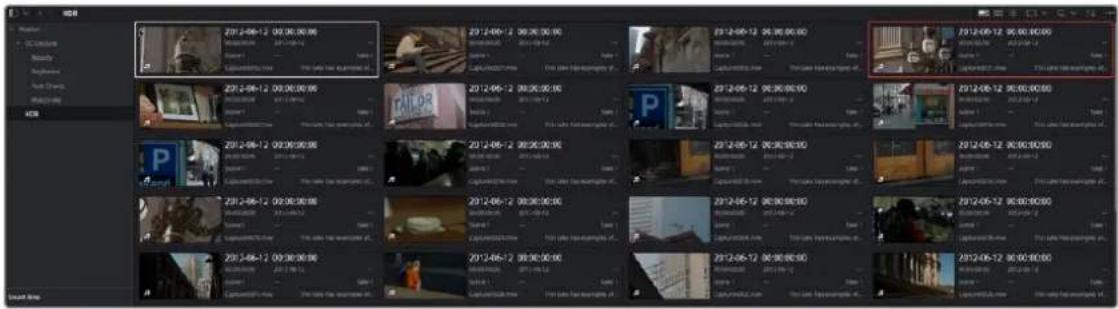
Media Pool showing the selected bins' clips
Metadata Editor
When you select a clip in any area of the Media page, its metadata is displayed within the Metadata Editor. If you select multiple clips, only the last clip's information appears. The Metadata Editor's header contains uneditable information about the selected clip, including the file name, directory, duration, frame rate, resolution, and codec. A series of editable fields within the Metadata Editor lets you review and edit the different metadata items that are available.
A drop-down menu at the upper-right of the Metadata Editor lets you choose from many different sets of metadata fields and checkboxes, each grouped for a specific task or workflow.
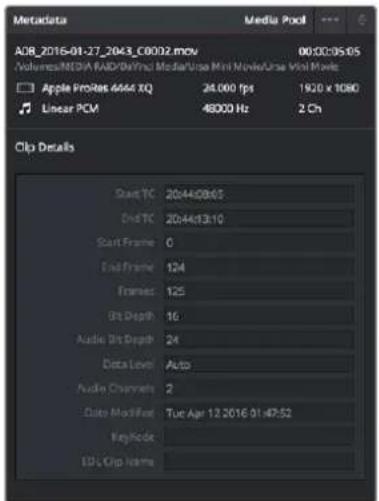
Clip Metadata Editor
Audio Panel
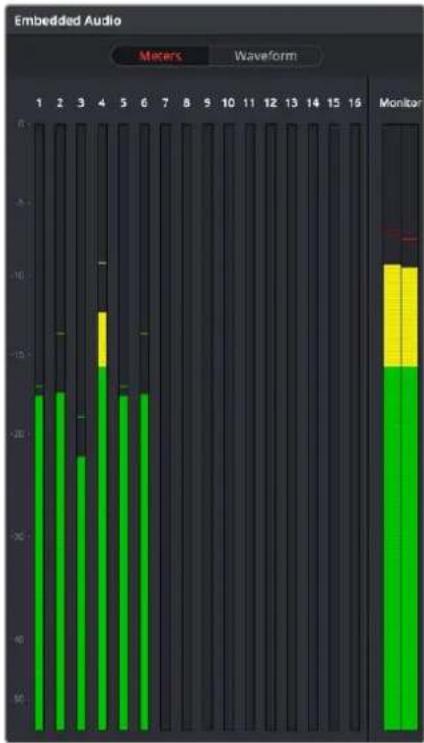
The Audio panel can be put into one of two modes via a pair of buttons above the audio meters. In the default Meters mode, Audio Meters are displayed that show the levels of audio in clips you're playing. In Waveform mode, you can load audio clips side by side with video clips opened in the Viewer in order to sync them together manually. The Audio panel can also be hidden.
bar
Embedded Audio | Channel | Meters (m) | Waveform (m) | |---|---|---| | 1 | -18 | -2 | | 2 | -17 | -3 | | 3 | -20 | -4 | | 4 | -15 | -5 | | 5 | -18 | -6 | | 6 | -18 | -7 | | 7 | -18 | -8 | | 8 | -18 | -9 | | 9 | -18 | -10 | | 10 | -18 | -11 | | 11 | -18 | -12 | | 12 | -18 | -13 | | 13 | -18 | -14 | | 14 | -18 | -15 | | 15 | -18 | -16 | | 16 | -18 | -17 | MonitorAudio Meters exposed
The Cut Page
The Cut page is a focused environment for fast editing. It's useful in situations where you need to quickly cut a news segment, build an episode of web content, edit a straightforward program, experiment with multiple arrangements of a scene, or put together a first assembly edit.
The Cut page is also a good introductory editing interface for people who are new to editing, as it presents a streamlined set of tools that are fast to learn and simple to use. Whatever your background, you'll find the Cut page to be a valuable addition to your editing experience in DaVinci Resolve.
The default workspace of the Cut page consists of the Media Pool, a single Viewer, and the Timeline area. These three regions let you quickly import and organize clips, edit clips, and even export the result, all from within the Cut page.
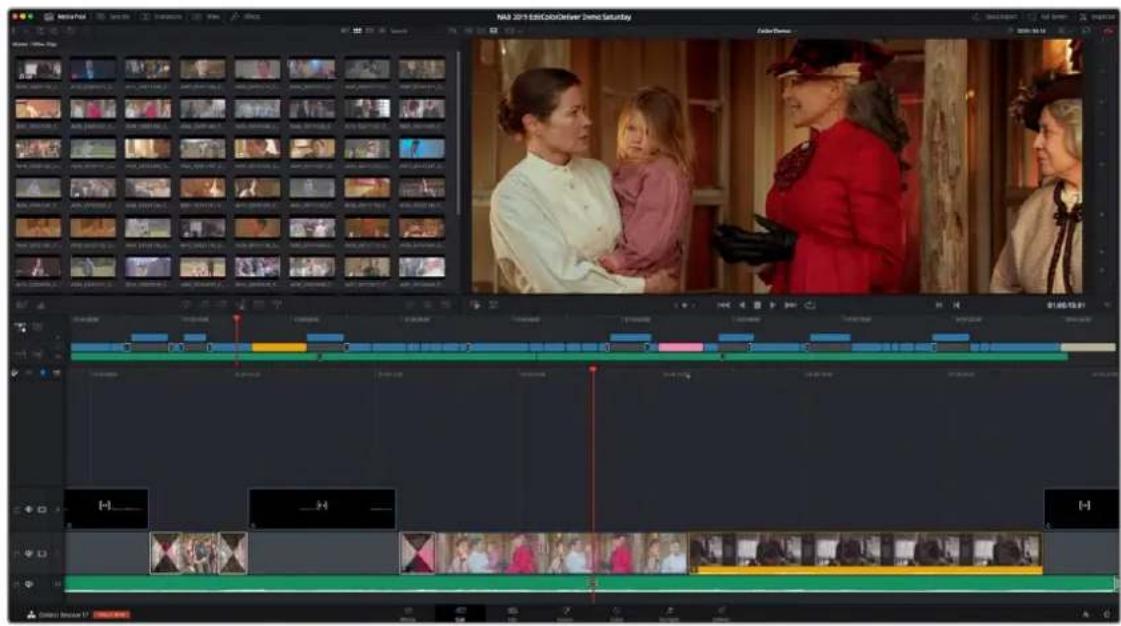
The Cut page default workspace, with the Media Pool in filmstrip view
For more information on the Cut page, see Chapter 26, "Using the Cut Page."
The Media Pool
The Media Pool appears in the Cut page as well, and contains all video clips, audio clips, graphics, and other media that you import into your project. You can create Bins with which to organize all of this media, to make it easier to find what you need quickly. These bins are opened via the bin drop-down at the upper left-hand corner.
Each piece of media you import, whether it's video, audio, or graphics, appears as an individual clip, and they can be selected, scrubbed for fast viewing, reorganized into bins, opened into the Viewer for playback, or edited into a timeline using the edit buttons or via drag and drop.
Owing to the Cut page's mission to make editing faster, the Media Pool has different options for viewing (such as the filmstrip view) and customizing.
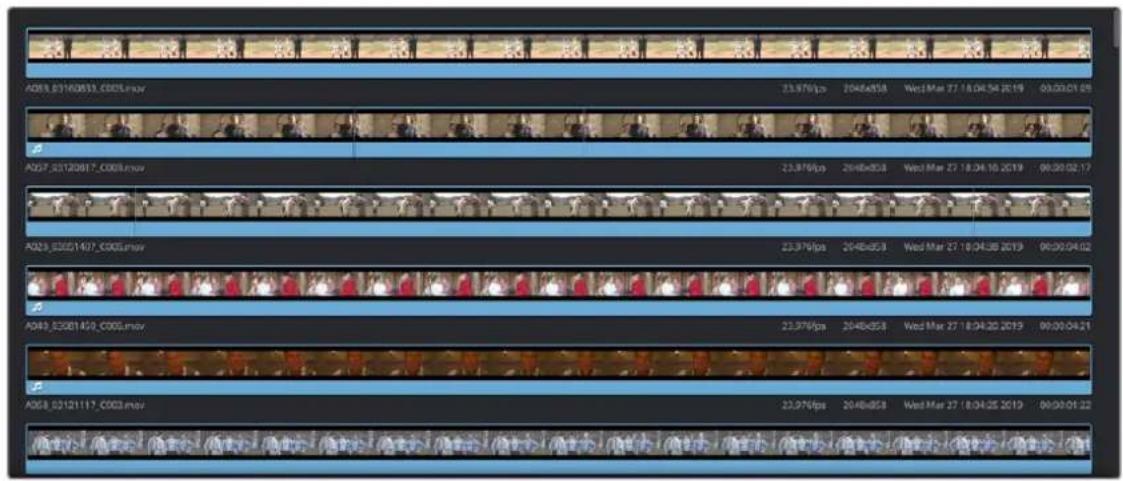
The Filmstrip View mode
The Viewer
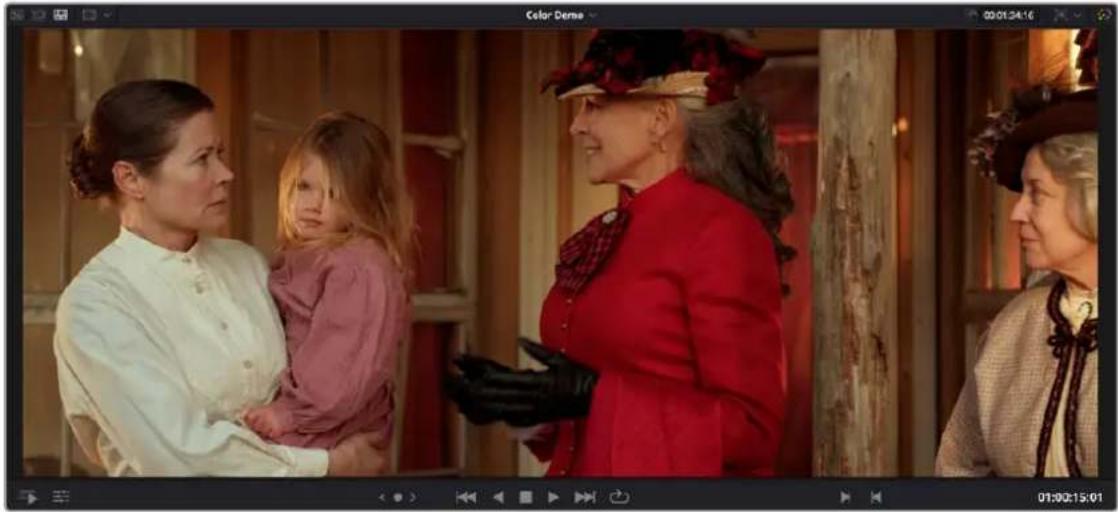
The Viewer lets you see clips from the Media Pool or clips in the Timeline play, and has numerous controls to control what you see and how things play.
natural_image
Interior scene with three women in period costumes, one holding a child, in a rustic room with wooden doors (no visible text or symbols)The single Viewer in the Cut page
The Viewer has three options. Which option is currently in use can be seen, and switched, by three buttons in the upper lefthand corner of the Viewer.

The Viewer option buttons
Different options are entered automatically by various actions:
- You can double-click any clip to open it into the Viewer as a Source Clip (the left button)
- You can view an entire bin full of clips in the Source Tape (the middle button)
- You can play your edited program in the Timeline (the right button)
Eight controls sit at the bottom of the Viewer. These let you play through and otherwise navigate clips and the Timeline in different ways.
Clicking the Tools button in the lower left of the Viewer reveals an effects toolbar that you can use to add and edit clip effects, right within the Viewer with no Inspector needed. The Tools button reveals a variety of controls over sizing, cropping, audio, speed effects, stabilization, dynamic zoom, and compositing, covered in more detail later in this chapter.

The Tools bar shown opened
Audio Meter
An audio meter to the right of the Viewer shows you a graphical representation of the audio levels playing in the current clip or in the Timeline as you play through the Viewer, via animated vertical bars that are tinted to indicate how loud the levels are.
The Timeline
The word “timeline” refers both to an edited sequence of clips which constitutes a program that is stored in the Media Pool, and to the area of the Cut page interface where you can open this sequence of clips to see its contents, and for playback and editing.
For the Cut page user, the timeline is divided into an Upper Timeline at the top, and a larger and more detailed Timeline Editor showing a zoomed in portion of the timeline around the playhead at the bottom. Working together, these two views of your edited sequence make it possible to navigate your entire project and cut in great detail.
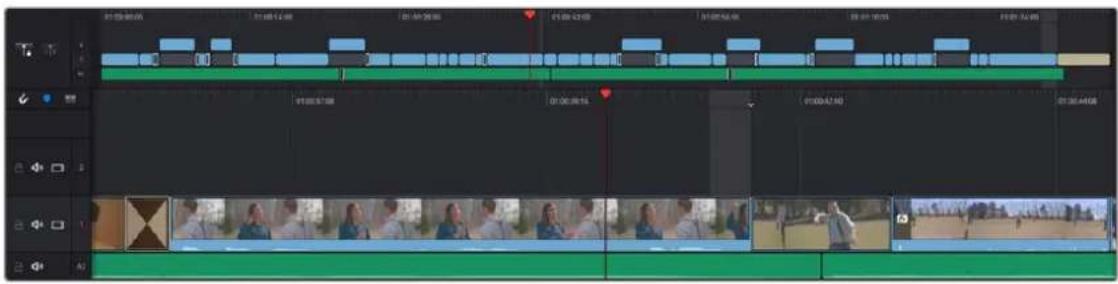
The Timeline of the Cut page, comprising the Upper Timeline and the zoomed in Timeline
A pair of buttons at the upper left-hand corner of the Timeline lets you choose whether you use a locked or free playhead.
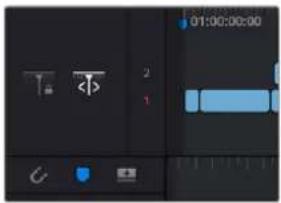
Two buttons let you choose to use a locked or free playhead
The Timeline is divided into multiple tracks, with each track capable of holding a sequence of clips in order to create a program. The main tracks, which are labeled numerically, combine a clip's video and audio into a single item in the Timeline, for simplicity. Editing the In or Out point of a clip edits the video and audio together.
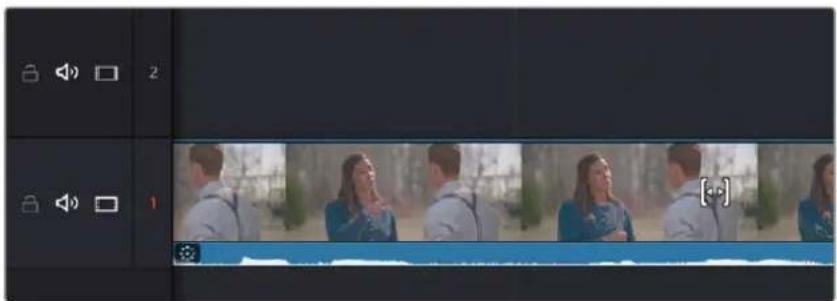
natural_image
Video editing timeline interface showing multiple video frames with a blue clip at the bottom (no text or symbols visible)Track 1 shows combined Video+Audio tracks in the Cut page Timeline.
TIP: In the Edit page, Video+Audio clips are presented as separated Video and Audio items on different tracks. When you open the Fairlight page, audio is presented on tracks with lanes, where each audio channel can be seen. In this way, each page gives you different sets of controls over the contents of the timeline that are appropriate for each page.
The Edit Page
The Edit page exposes a source-record style NLE that incorporates many specialized features for both creative editing and finishing. The Edit page is divided into three main regions: the browsers found at the left, the Viewers at the top, and the Timeline at the bottom, all of which work together to let you import, edit, and trim timelines with a flexible variety of tools and methods.
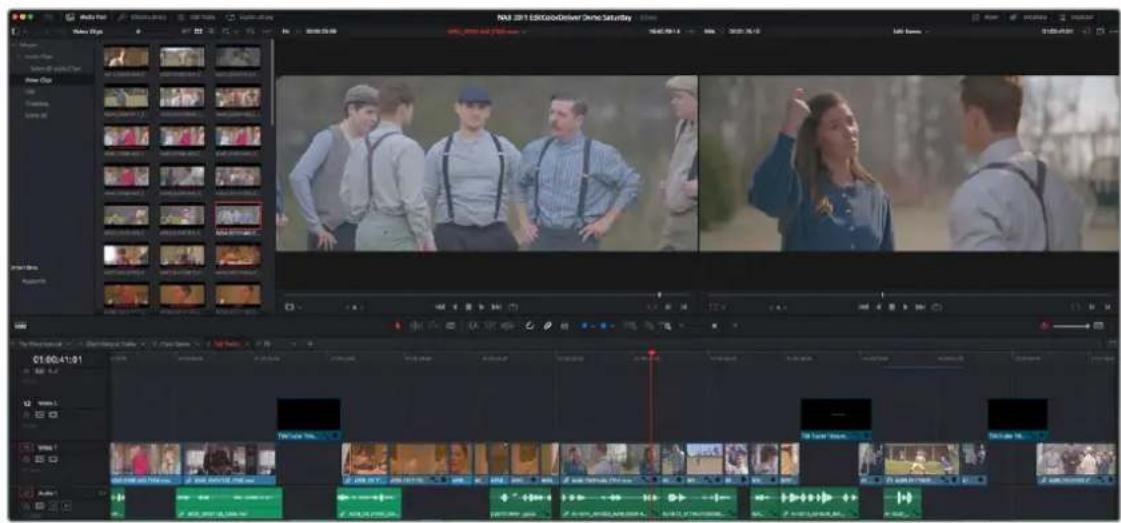
The Edit page
For more information on the Edit page, see Chapter 33, "Using the Edit Page."
The Media Pool
As with everywhere else it appears in DaVinci Resolve, the Media Pool lets you organize and peruse all of the media and timelines in a project. DaVinci Resolve projects may contain one or more edited timelines (sometimes called a sequence in other applications).
The Media Pool in the Edit page is identical to that shown on the Media, Fusion, Color, and Fairlight pages, and shows you all of the source clips and timelines that are available for editing. A Bin list at the left shows a hierarchical list of folders that you can use to organize your media. By default, the Media Pool has a single bin, named "Master," but you can add more bins as necessary to organize your clips, opening any of them to expose their contents with a single click. The Bin list can be hidden or shown via the button at the upper-left of the Media Pool. A browser to the right shows the contents of the currently selected bin.
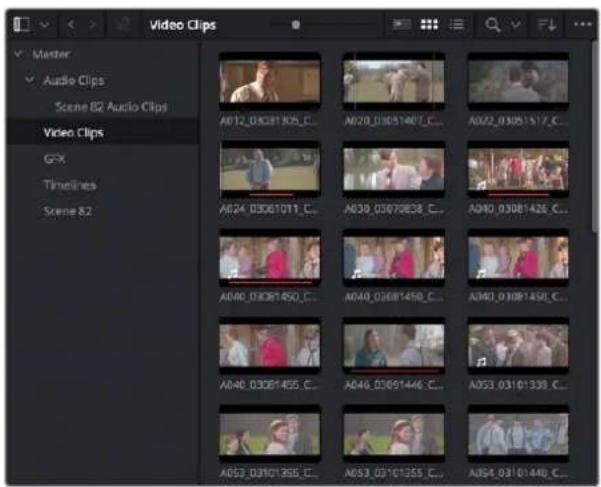
The Media Pool in Thumbnail mode
Effects Library Browsing
The Effects Library contains a folder with the different Video Transitions, Title Effects, Generators, and Filters that are available for editing in the Timeline. The Effects Library has two panels, a Toolbox panel that contains the default Transitions, Titles, and Generators that Resolve comes with, and an OpenFX panel that contains any OpenFX transitions and generators you might have installed on your system.
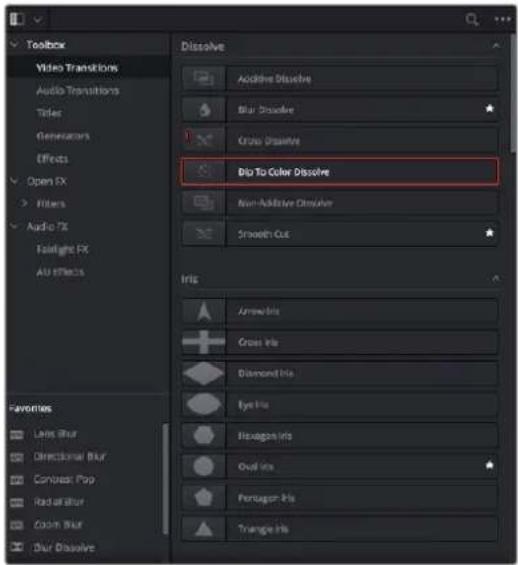
The Effects Library
Edit Index
Clicking the Edit Index button opens the Edit Index. By default, this shows an EDL-style list view of all the edit events in the current timeline. Whichever timeline is selected in the Timeline list displays its events here; each clip and transition is shown as an individual event, each of which contains multiple columns of information. If you re-edit a timeline, your changes are automatically reflected in this list.
| # | Res | V' | C | Dur | Source In | Source Out | Record In | Record Out | Name | Comments |
| 1 | VI | C | 00:59:45:00 | 00:59:50:00 | 00:59:45:00 | 00:59:50:00 | SMPTE Color... | |||
| 2 | VI | C | 00:59:50:00 | 00:59:55:00 | 00:59:50:00 | 00:59:55:00 | Text | |||
| 3 | VI | C | 00:59:55:00 | 00:59:55:01 | 00:59:55:00 | 00:59:55:01 | Text | |||
| 4 | VI | C | 00:59:55:01 | 01:00:00:00 | 00:59:55:01 | 01:00:00:00 | Solid Color | |||
| 5 | VI | C | 12:36:48:14 | 12:36:51:07 | 01:00:00:00 | 01:00:02:17 | BMC test_B1... | |||
| 6 | V2 | C | 01:00:00:00 | 01:00:04:15 | 01:00:00:00 | 01:00:04:15 | Text | |||
| 7 | AI | C | 12:36:48:14 | 12:36:51:07 | 01:00:00:00 | 01:00:02:17 | BMC test_B1... | |||
| 8 | VI | C | 11:00:01:20 | 11:00:03:04 | 01:00:04:15 | 01:00:05:23 | BMC test_B1... | |||
| 9 | AI | C | 11:00:01:20 | 11:00:03:04 | 01:00:04:15 | 01:00:05:23 | BMC test_B1... | |||
| 10 | VI | C | 12:05:36:15 | 12:05:39.11 | 01:00:05:23 | 01:00:08:19 | BMC test_B2... | |||
| 11 | AI | C | 12:05:36:15 | 12:05:39.11 | 01:00:05:23 | 01:00:08:19 | BMC test_B2... | |||
| 12 | VI | C | 11:39:48:18 | 11:39:53.13 | 01:00:08:19 | 01:00:13.14 | BMC test_B1... | |||
| 13 | AI | C | 11:39:48:18 | 11:39:53.13 | 01:00:08:19 | 01 : 0 : 1 : 3 : 4 : 4 : 4 : 4 : 4 : 4 : 4 : 4 : 4 : 4 : 4 : 4 : 4 : 4 : 4 : 4 : 4 : 4 : 4 : 4 : 4 : | ||||
| 14 | VI | C | 12 : 25 : 46 : 15 | 12 : 25 : 51. 29 . 9. 9. 9. 9. 9. 9. 9. 9. 9. 9. 9. 9. 9. 9. 9. 9. 9. 9. 9. 9. 9. 9. 9. 9. 9. 9. 9. 9. 9. 9. 9. 9. 9. 9. | ||||||
| 15 | AI | C | 12 : 26 : 48 : 23 : 5 . 5. . . . . . . . . . . . . . . . . . . . . . . . . . . . . . . . . . . . . . . . . . . . . . . . . . . . . . . . . . . . . . . . . | |||||||
Edit Index List shown open
Source/Offline and Timeline Viewers
The Source Viewer lets you view individual clips from the Media Pool to prepare them for editing. Meanwhile, the Timeline Viewer shows the frame at the position of the playhead in the Timeline. You can select either viewer by clicking, and the name of the viewer that currently has focus appears in orange. The color shown in the Source Viewer usually reflects that of the original source media, while the Timeline Viewer shows whatever grading you've done in the Color page.
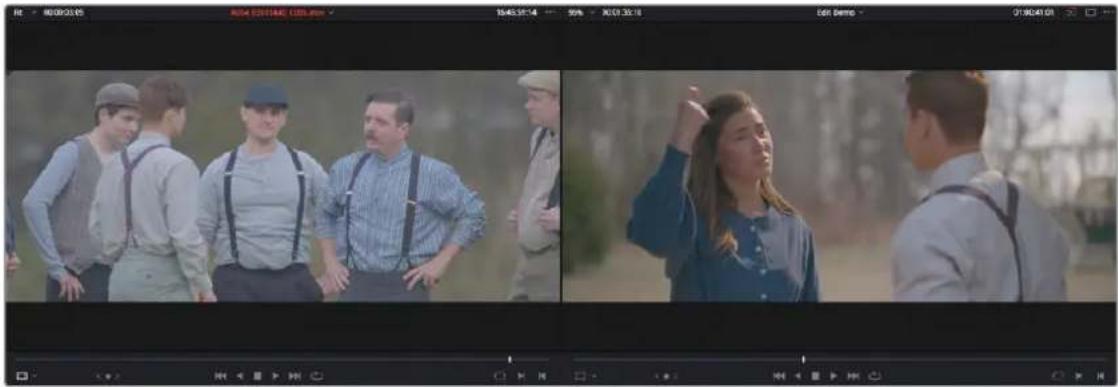
natural_image
Two-panel video frame showing a group of people outdoors, one gesturing with hand on chest, the other looking up with hand in front (no visible text or symbols)Source and Timeline Viewers
If you want to change the Edit page layout to hide the Source Viewer, you can choose Workspace > Single Viewer Mode to hide the Source Viewer and instead use just a single viewer to contextually display either a selected Source Clip or the current frame of the Timeline.
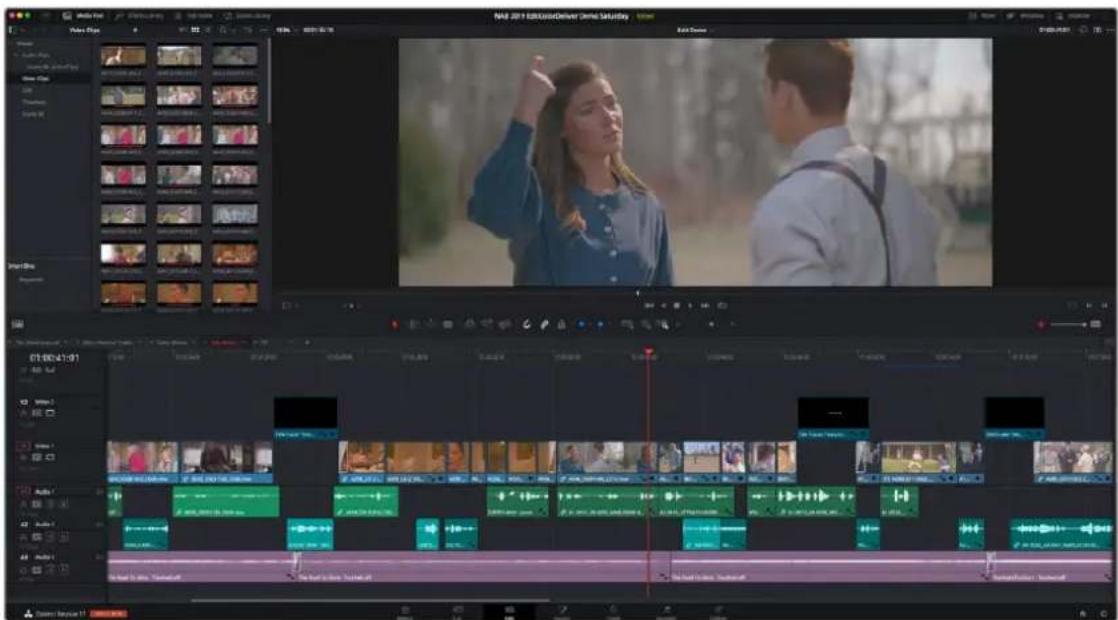
Single Viewer mode
In Single Viewer mode, whatever you select in the Media Pool or Timeline determines which controls appear in the Viewer, which lets you do nearly everything you can do with two simultaneously open viewers.
You can also put either the Source or Timeline Viewers into Cinema Viewer mode by choosing Workspace > Viewer Mode > Cinema Viewer (Command-F), causing whichever viewer is currently selected to fill the entire screen. This command toggles Cinema Viewer mode on and off.
Inspector
The Inspector can be opened to let you customize compositing, transform, and cropping parameters for clips, as well as clip-specific retime and scaling options. Furthermore, the Inspector lets you edit the parameters of transitions, titles, and generators used in the Timeline, in order to customize their effect. Ordinarily, the Inspector opens alongside the Source and Timeline Viewers, but on smaller displays, opening the Inspector switches the Edit page to a single-viewer mode, showing you the Timeline item that you're inspecting alongside the Inspector with that clip's parameters.
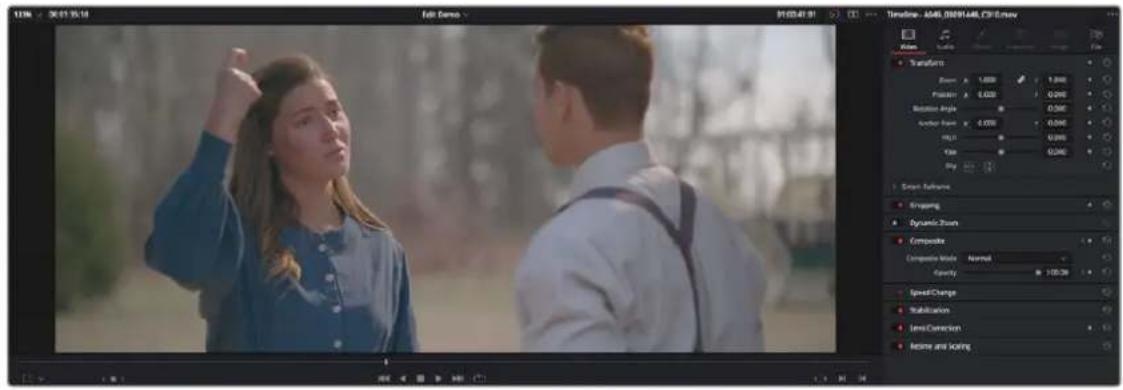
The Inspector, opened and showing a clip's parameters
Toolbar
Eleven buttons starting from the left, running along the top of the Timeline, let you choose different tools for performing various editing functions.

Buttons in the toolbar
Timeline
The Timeline shows whichever timeline you've double-clicked in the Timelines browser. It's the workspace where you either edit programs together from scratch, or import sequences from other applications to work on inside of Resolve. You can only have one Timeline open at a time.
The Timeline is divided into audio and video tracks, each of which has a series of header controls at the left that let you choose destination tracks for editing, name tracks, and turn tracks on and off, among other things. The appearance of the Timeline can be customized using the Timeline View Options drop-down in the toolbar.
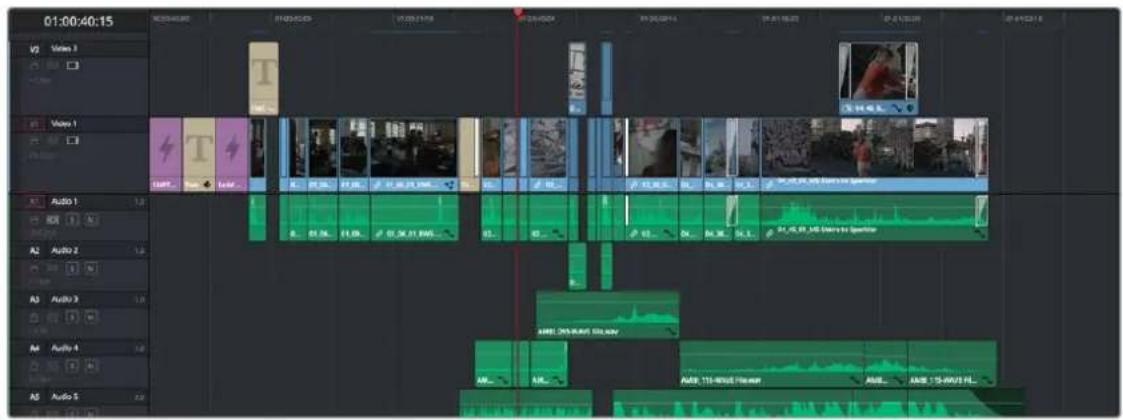
An edited timeline
Floating Timecode Window
A timecode window is available from the Workspace menu on every page, including the Edit page. Choosing this option displays a floating timecode window that shows the timecode of the Viewer or Timeline that currently has focus. This window is resizable so you can make the timecode larger or smaller.
22:46:37:20
A new floating timecode window is available
Motion Graphics and Visual Effects in DaVinci Resolve
To begin with, DaVinci Resolve has a wealth of effects in both the Edit and Color pages for creating titles, transforming and animating clips, compositing and creating transparency effects, cutting mattes, applying filters, image stabilization, lens dewarping, and so on.
Then of course there's the Fusion page, which adds considerably more powerful VFX and motion graphics capabilities via its node-based interface and deep toolset of effects nodes, keyframing and curve editing controls, and 2D and 3D compositing features.
To use DaVinci Resolve to the best effect, it's prudent to begin to think of the Edit, Fusion, and Color pages as complementary sets of controls.
- For editors, the Fusion and Color pages are really just two giant inspectors; one filled with every compositing tool you could hope to use, and the other filled with every control for color and visual adjustment you could want, each of which are only one click away.
- For compositing artists, the Edit page can be considered a robust shot management interface as well as an opportunity to do VFX work that's deeply integrated with the edit of the program you're working on.
- For colorists, the Edit page is a refined environment for dealing with conform issues and taking care of myriad finishing tasks quickly and easily, that itself is only one click away. For more information on the effects that are available in DaVinci Resolve, see the chapters available within Part 4, “Edit Page Effects,” and Part 7, “Color Page Effects.”
VFX Connect
As robust as the built-in compositing capabilities of DaVinci Resolve now are, when you run into instances where the various capabilities found in the Edit, Fusion, and Color pages aren't enough to achieve the effect you require, you can use the VFX Connect features of DaVinci Resolve to send one or more clips from the Edit page Timeline to Blackmagic Fusion, the powerful node-based compositing application from Blackmagic Design, in order to do more robust compositing and effects work there. Furthermore, the VFX Connect feature can also be used to round-trip media to and render results from third-party applications such as The Foundry's Nuke, Autodesk Flame, or Blender.
This is a simple round-trip operation that lets you send clips from the DaVinci Resolve timeline to Fusion or another application, where you'll add effects and do whatever work needs to be done before rendering a finished effect file that, if properly named, will automatically appear back in your timeline. When you use VFX Connect with Blackmagic Fusion, a project file is automatically generated
and the render path is automatically named for automatic linking from the DaVinci Resolve timeline. If you use this feature with third-party applications, you'll need to set up the naming of your rendered effect file manually. For more information, see Chapter 61, "Introduction to Compositing in Fusion."
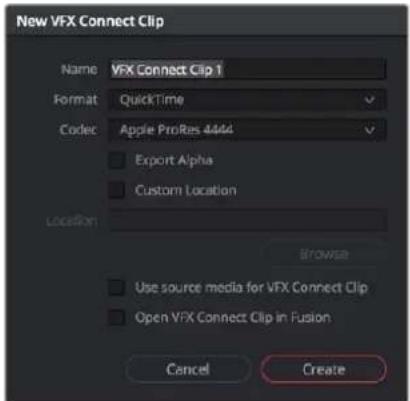
The New VFX Connect Clip dialog
The Fusion Page
The Fusion page is intended, eventually, to be a feature-complete integration of Blackmagic Design Fusion, a powerful 2D and 3D compositing application with over thirty years of evolution serving the film and broadcast industry, creating effects that have been seen in countless films and television series.
Merged right into DaVinci Resolve with a newly updated user interface, the Fusion page makes it possible to jump immediately from editing right into compositing, with no need to export media, relink files, or launch another application to get your work done. Everything you need now lives right inside DaVinci Resolve.
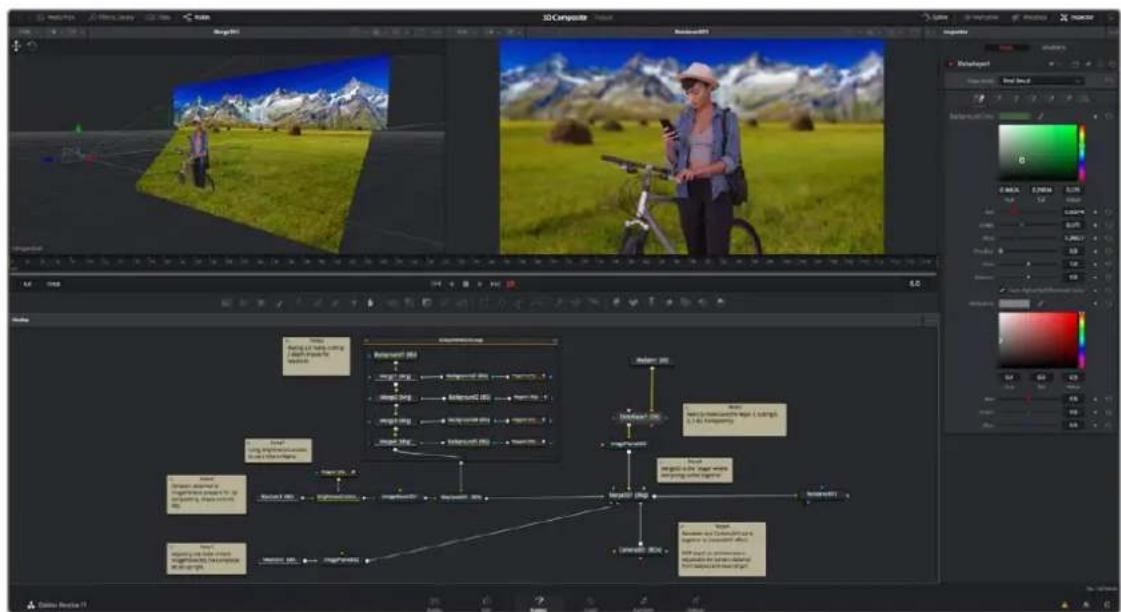
The Fusion page showing Viewers, the Node Editor, and the Inspector
For more information on using the Fusion page, see Chapter 61, "Introduction to Compositing in Fusion."
The Work Area
You'll probably not see this term used much, in favor of the specific panels within the work area that you'll be using, but the area referred to as the Work Area is the region at the bottom half of the Fusion page UI, within which you can expose the three main panels used to construct compositions and edit animations in the Fusion page. These are the Node Editor, the Spline Editor, and the Keyframes Editor. By default, the Node Editor is the first thing you'll see, and the main area you'll be working within, but it can sit side-by-side with the Spline Editor and Keyframes Editor as necessary, and you can make more horizontal room on your display for these three panels by putting the Effects Library and Inspector into half-height mode, if necessary.
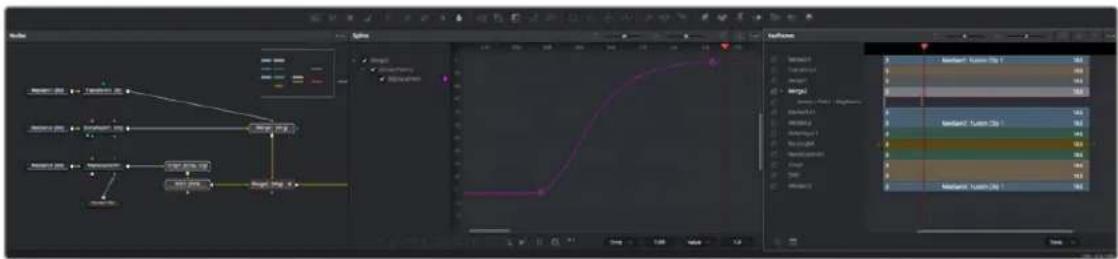
flowchart
graph TD
    A["Input Data"] --> B{Condition 1}
    B -->|Yes| C["Process Step"]
    B -->|No| D["Process Step"]
    C --> E{Condition 2}
    E -->|Yes| F["Output Result"]
    E -->|No| G["End"]
The Work Area showing the Node Editor, the Spline Editor, and Keyframes Editor
Viewers
The Viewer Area area encompasses the Time Ruler and transport controls. The Time Ruler is the principal "timeline" of the Fusion page, which focuses exclusively on the current composition you're working on and may consist of one clip or several. This area can be set to display either one or two viewers at the top of the Fusion page, chosen via the Viewer button at the far right of the Viewer title bar. Each viewer can show a single node's output from anywhere in the node tree. You assign which node is displayed in which viewer. This makes it easy to load separate nodes into each viewer for comparison. For example, you can load a Keyer node into the left Viewer and the final composite into the right Viewer, so you can see the image you're adjusting and the final result at the same time.
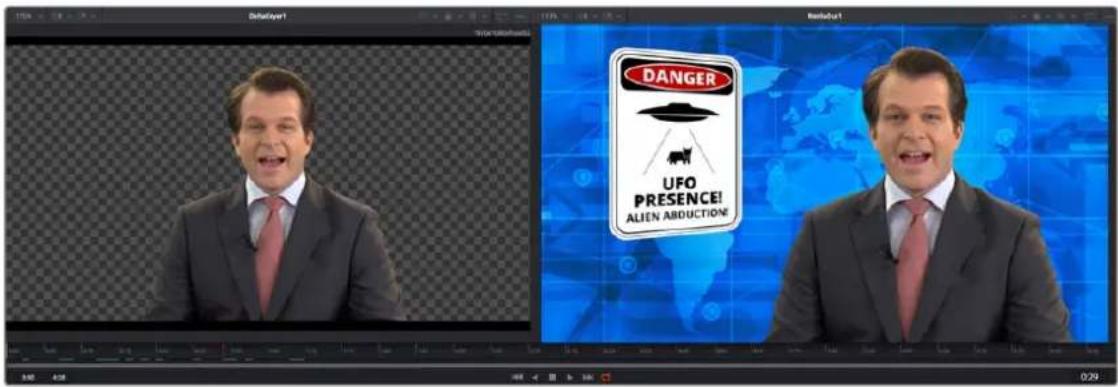
Dual viewers let you edit an upstream node in one while seeing its effect on the overall composition in the other
Ordinarily, each viewer shows 2D nodes from your composition as a single image. However, when you're viewing a 3D node, you have the option to set that viewer to one of several 3D views, including a perspective view that gives you a repositionable stage on which to arrange the elements of the world you're creating, or a quad view that lets you see your composition from four angles, making it easier to arrange and edit objects and layers within the XYZ axes of the 3D space in which you're working.
Toolbar
The toolbar, located underneath the Time Ruler, contains buttons that let you quickly add commonly used nodes to the Node Editor. Clicking any of these buttons adds that node after the currently selected node in the node tree, or adds an unconnected instance of that node if no nodes are selected. The toolbar is divided into six sections that group commonly used nodes together. As you hover the pointer over any button, a tooltip shows you that node's name.

The toolbar has buttons for adding commonly used nodes to the Node Editor
Effects Library
The Effects Library on the Fusion page shows all of the nodes and effects that are available in the Fusion page, including effects that come with DaVinci Resolve and third-party OFX, if available. While the toolbar shows many of the most common nodes you'll be using in any composite, the Effects Library contains every single tool available in the Fusion page, organized by category, with each node ready to be quickly added to the Node Editor. Suffice it to say there are many, many more nodes available in the Effects Library than on the toolbar, spanning a wide range of uses.
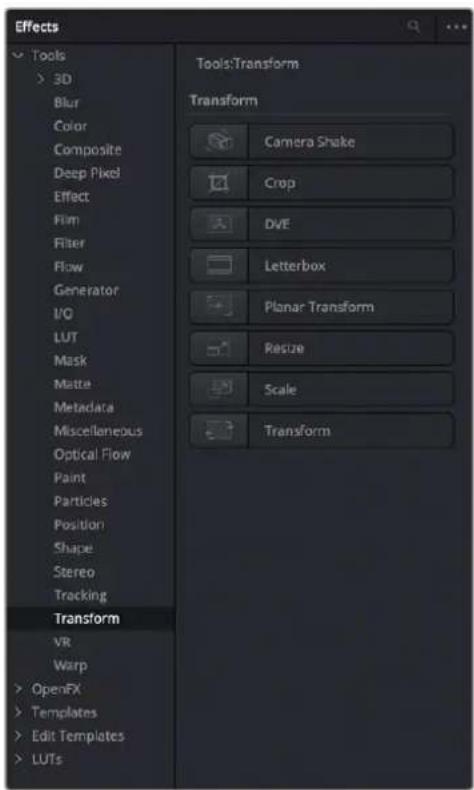
The Effects Library with Tools open
Node Editor
The Node Editor is the heart of the Fusion page, because it's where you build the tree of nodes that makes up each composition. Each node you add to the node tree adds a specific operation that creates one effect, whether it's blurring the image, adjusting color, painting strokes, drawing and adding a mask, extracting a key, creating text, or compositing two images into one.
You can think of each node as a layer in an effects stack, except that you have the freedom to route image data in any direction to branch and merge different segments of your composite in completely nonlinear ways. This makes it easy to build complex effects, but it also makes it easy to see what's happening, since the node tree doubles as a flowchart that clearly shows you everything that's happening, once you learn to read it.
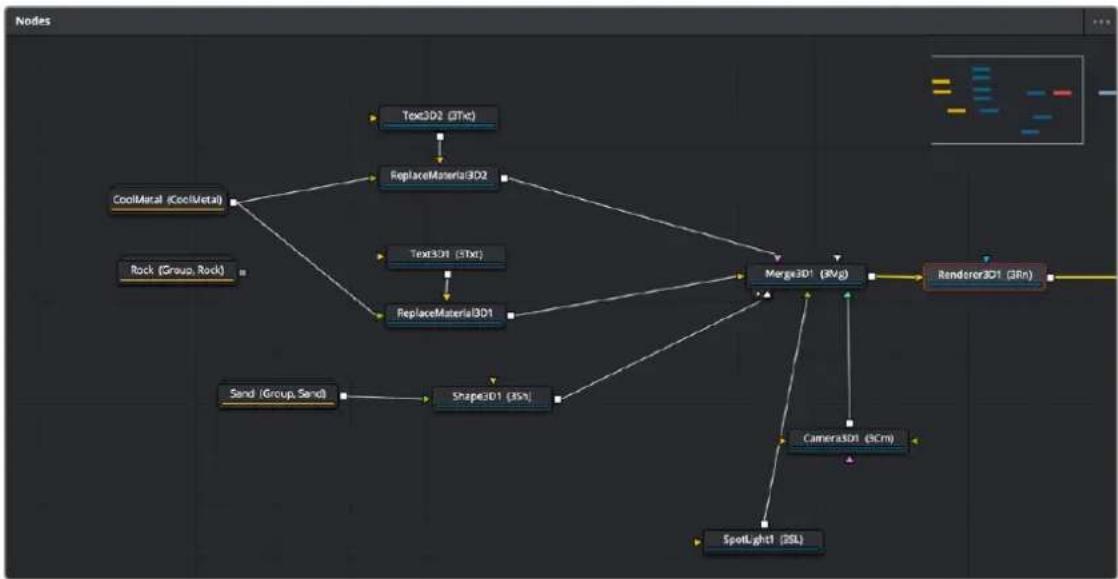
flowchart
graph TD
    A["CoolMeral (CoolMetal)"] --> B["ReplaceMaterial3D2"]
    C["Rock (Group, Rock)"] --> B
    D["Sand (Group, Sand)"] --> E["Shape3D1 (35%)"]
    F["Text3D1 (35%)"] --> B
    G["ReplaceMaterial3D1"] --> B
    H["Mask3D1 (RV/g)"] --> I["Renderor3D1 (3Rn)"]
    J["Camera3D1 (6Cm)"] --> I
    K["SpotLight1 (SSL)"] --> I
The Node Editor displaying a node tree creating a composition
Inspector
The Inspector is a panel on the right side of the Fusion page that you use to display and manipulate the parameters of one or more selected nodes. When a node is selected in the Node Editor, its parameters and settings appear in the Inspector, ready for you to modify. The Fusion Inspector is divided into two panels. The Tools panel shows you the parameters of selected nodes. The Modifiers panel shows you different things for different nodes. For all nodes, it shows you the controls for Modifiers, or adjustable expressions, that you've added to specific parameters to automatically animate them in different ways.
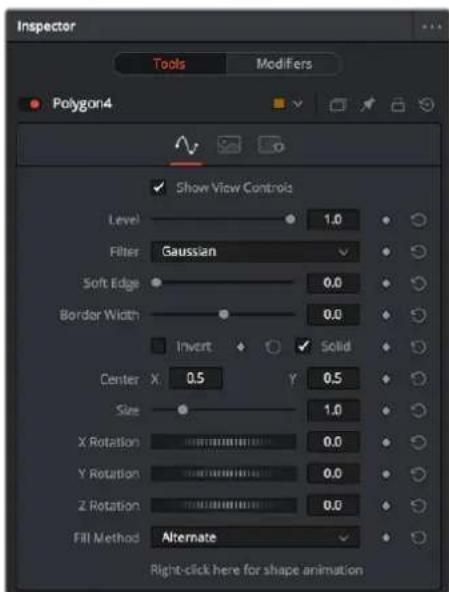
The Inspector shows parameters from one or more selected nodes
Additionally, many nodes expose multiple tabs' worth of controls in the Inspector, seen as icons at the top of the parameter section for each node. Click any tab to expose that set of controls.
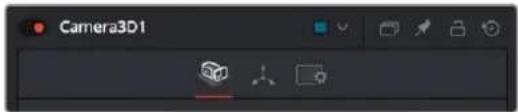
Nodes with several tabs worth of parameters
Thumbnail Timeline
Hidden by default, the Thumbnail timeline can be opened by clicking the Clips button in the UI Toolbar and appears underneath the Node Editor when it's open. The Thumbnail timeline shows you every clip in the current Timeline, giving you a way to navigate from one clip to another when working on multiple compositions in your project and providing an interface for creating and switching among multiple versions of compositions and resetting the current composition, when necessary.

The Thumbnail timeline lets you navigate the Timeline and manage versions of compositions
Media Pool
In the Fusion page, the Media Pool continues to serve its purpose as the repository of all media you've imported into your project. This makes it easy to add additional clips to your compositions simply by dragging the clip you want from the Media Pool into the Node Editor. The media you add appears as a new Medialn node in your composition, ready to be integrated into your node tree however you need.
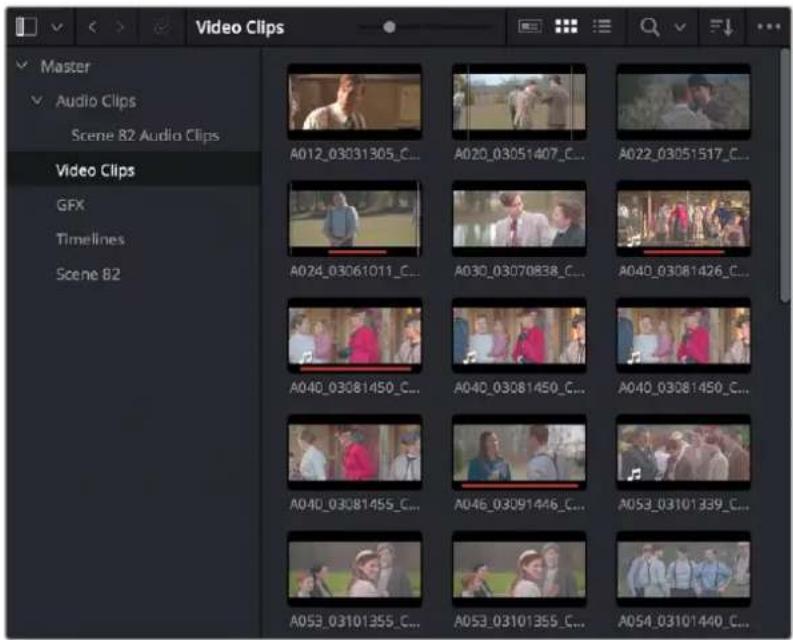
The Media Pool in Thumbnail mode showing video clips
Status Bar
The status bar at the bottom of the Fusion page, immediately above the Resolve Page bar, shows you a variety of up-to-date information about things you're selecting and what's happening in the Fusion page. For example, hovering the pointer over any node displays information about that node in the status bar (as well as in a floating tooltip), while the currently achieved frame rate appears whenever you initiate playback, and the percentage of the RAM cache that's used appears at all times. Other information, updates, and warnings appears in this area as you work.
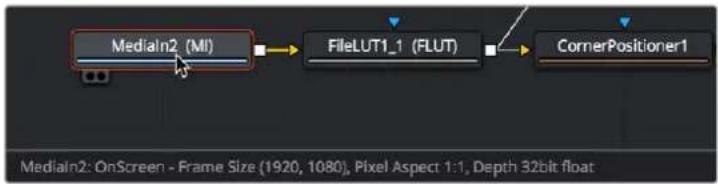
flowchart
graph LR
    A["Medialn2 (MI)"] --> B["FileLUT1_1 (FLUT)"]
    B --> C["CornerPositioner1"]
The status bar under the Node Editor showing you information about a node under the pointer
The Console
The console, available by choosing Workspace > Console, is a window in which you can see the error, log, script, and input messages that may explain something the Fusion page is trying to do in greater detail. The console is also where you can read FusionScript outputs or input FusionScripts directly. Occasionally, the status bar (described above) will display a badge to let you know there's a message in the console you might be interested in. The badge will indicate if the message is an error, log, or script message.
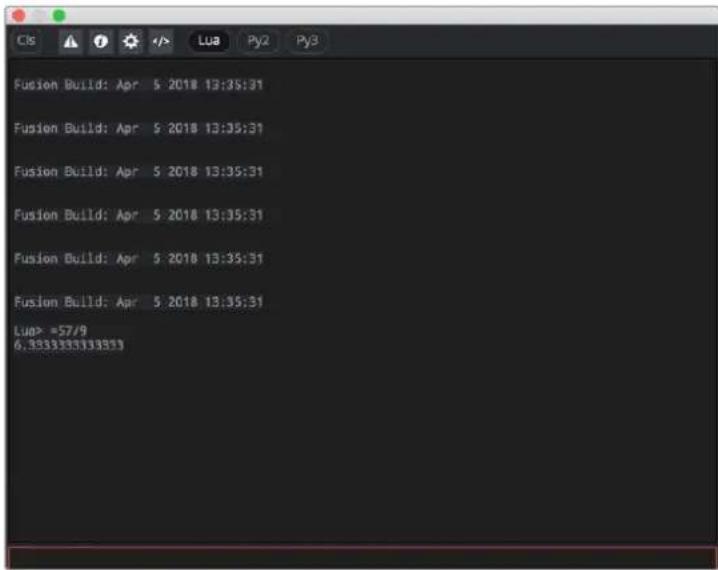
The Console window
The Color Page
The Color page is where you color correct, or grade, your program. It has all of the controls available for manipulating color and contrast, reducing noise, creating limited secondary color corrections, building image effects of different kinds, adjusting clip geometry, and making many other corrective and stylistic adjustments. The Color page is divided into seven main areas that work together to let you build a grade.
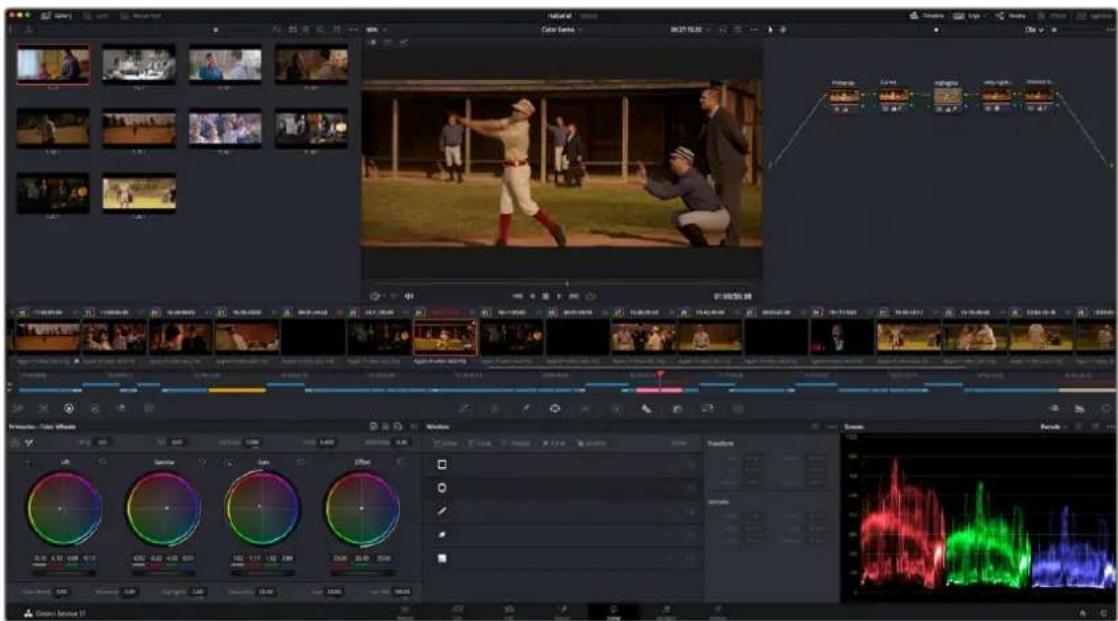
The Color page
For more detailed information about the Color page, see Chapter 123, "Using the Color Page."
Viewer
The Viewer shows the frame at the current position of the playhead in the Timeline. The contents of the Viewer are almost always output to video via whichever I/O interface you have connected. At the top of the Viewer is a header that displays the Project and Timeline names, as well as a Viewer Timecode display that shows the source timecode of each clip by default. The Timeline name is also a drop-down display that lets you switch to any other timeline in the project. A jog bar (sometimes referred to as a scrubber bar) underneath the image lets you drag the playhead across the entire duration of the clip, while transport controls underneath that let you control playback. A toolbar at the top provides controls governing Image Wipes, Split-Screen controls, and Highlight display. Additional controls let you turn audio playback on and off, or adjust them by right-clicking on the speaker icon and dragging the slider. You can also choose which onscreen controls are currently displayed.
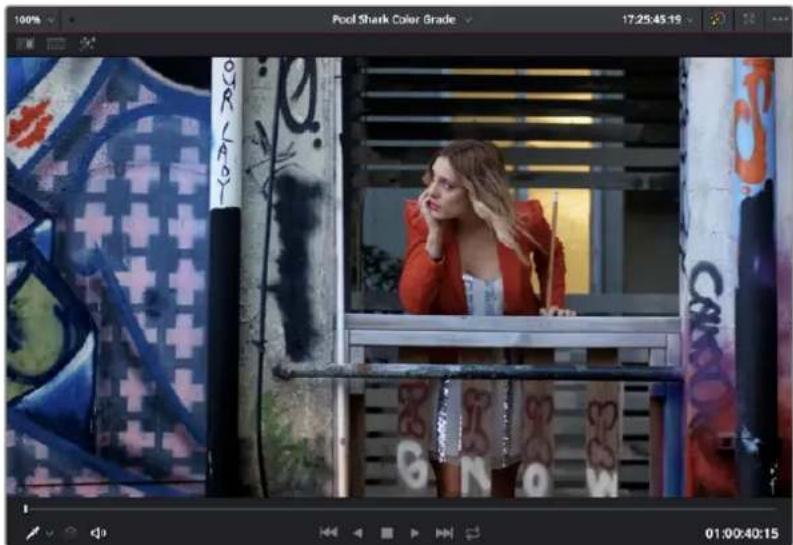
Viewer with transport controls
You can also put the Viewer into Cinema Viewer mode by choosing Workspace > Viewer Mode > Cinema Viewer (Command-F), so that it fills the entire screen. This command toggles Cinema Viewer mode on and off. Two other modes, Enhanced Viewer (Option-F) and Full Screen Viewer (Shift-F), are available to provide more working area for tasks such as window positioning and rotoscoping.
Gallery
The Gallery is used for storing still frames to use as reference when comparing clips to one another. Each still frame also stores that clip's grade so you can copy it later; stills and grades are stored together. A button lets you open up the Album browser, used for organizing your stills. At the top of the Gallery, Memories let you store grade information that you can apply using a control panel or keyboard shortcuts. You can also open a larger Gallery window within the Color page that provides more room for organizing your saved stills and grades. For more information on the Gallery page, see Chapter 137, "Using the Gallery."
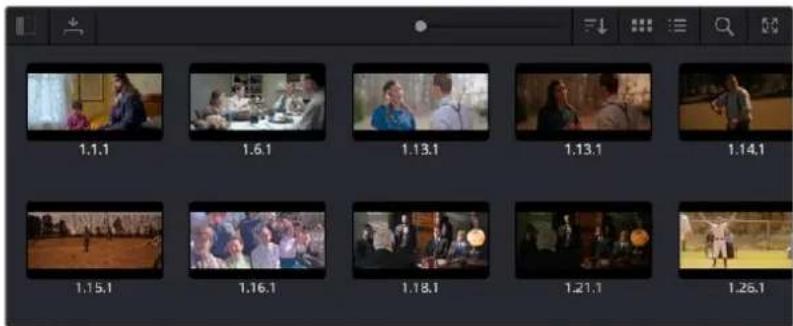
The Gallery has Memories, stills saved in albums, and your PowerGrades
Node Editor
The Node Editor is where you assemble one or more individual corrections (nodes) together to create multi-correction grades (seen as node trees). This is a powerful way of assembling grades, since different combinations of nodes let you create different corrections and very specific adjustments by reordering operations, combining keys, or changing the layer order of different adjustments. For more information about the Node Editor, see Chapter 139, "Node Editing Basics."
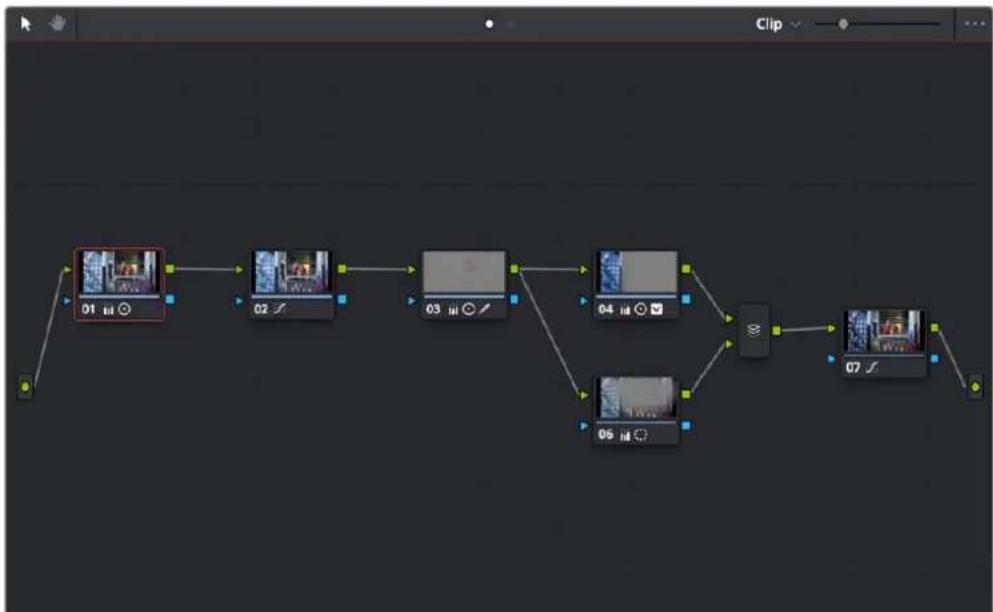
flowchart
graph TD
    A["01"] --> B["02"]
    B --> C["03"]
    C --> D["04"]
    D --> E["05"]
    E --> F["06"]
    F --> G["07"]
Node Editor to construct your grade processing signal flow
Timeline
The Timeline in the Color page reflects the contents of the Timeline in the Edit page, but has a different appearance that's tailored to the requirements of the colorist. However, the content is identical, and changes made to the Timeline in the Edit page are immediately seen in the Color page as you switch back and forth. The Color page Timeline provides several ways of navigating the clips in your project, as well as keeping track of what has been done to which clips.
The Timeline is divided into three parts, each of which shows different information and provides differing controls. A Timeline Ruler at the top lets you scrub the playhead across multiple clips, and can be zoomed out enough to show every clip in your entire program. Underneath, the Mini-Timeline (which can be opened or closed via a button at the right of the palette bar) shows a small representation of the Timeline in the Edit page wherein each clip is as long as its actual duration. At the bottom of the Timeline is the Thumbnail timeline, in which each clip is represented by a single frame. The currently selected clip is outlined in orange, and information appears above and below each thumbnail such as each clip's source timecode, clip number and track number, version name, whether it's been graded, whether it's been tracked, if it's been flagged, and so on.

The Color page Timeline
Left Palettes
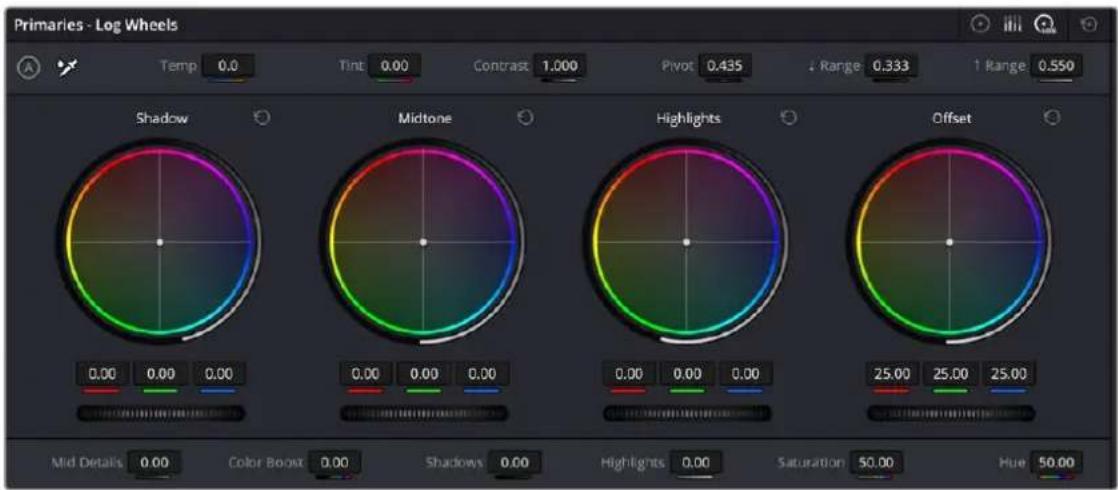
A series of palettes at the bottom left of the Color page provide access to different sets of grading tools, used principally for manipulating color, contrast, and raw media format settings. Each individual palette is opened by clicking the corresponding icon at the top of the Palette panel.
The available palettes are the Camera Raw palette (for making metadata adjustments to raw media formats), the Color Match palette (for creating automatic grades by sampling on-camera color charts), the Color Wheels (graphical color balance controls and master wheels or sliders for adjusting YRGB Lift/Gamma/Gain), HDR Grade for enhanced High Dynamic Range grading, the RGB Mixer (for mixing color channels into one another), and the Motion Effects palette (with controls for noise reduction and artificial motion blur).
Left palette selection buttons in the top bar
Center Palettes
At 1920x1080 resolution or higher, a second set of palettes is organized at the bottom center of the Color page. These palettes span a wide range of functionality, and the adjustments you make with them can be combined with those made using the Color palettes.

natural_image
Toolbar with application icons including grid, camera, lens, and 3D view (no text or labels visible)Center palette selection buttons
NOTE: At lower resolutions, the Left and Center palettes are merged to fit the DaVinci Resolve interface into a smaller area.
The eight available Center palettes include the Curves palette, the Color Warper palette, the Qualifiers palette, the Windows palette, the Tracker palette, the Magic Mask palette, the Blur palette, the Key palette, the Sizing palette, and the Stereoscopic 3D palette.
Keyframe Editor
The Keyframe Editor provides an interface for animating Color, Sizing, and Stereo Format adjustments over time. Each node in the Node Editor corresponds to a track in the Keyframe Editor, which lets you animate each node's adjustments independently.
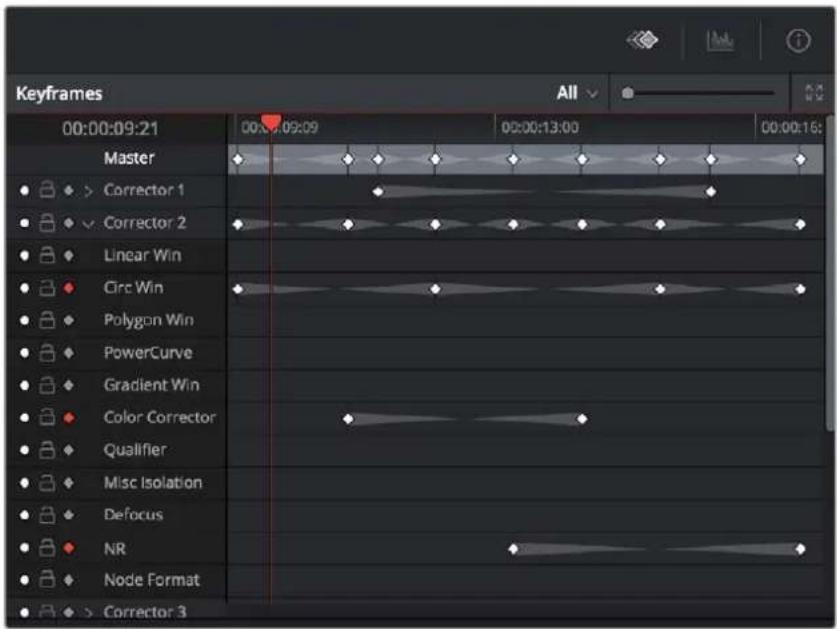
Keyframe Editor displaying dynamic grade changes
Furthermore, each node's track can be opened up to reveal parameter groups, so that you can animate subsets of an individual node's functions independently of other functions within the same node.
The Fairlight Page
In single monitor mode, the Fairlight page is an optimized look at the audio tracks of your project, with an expanded mixer and custom monitoring controls that make it easy to evaluate and adjust the levels of your program in order to create a smooth and harmonious mix.
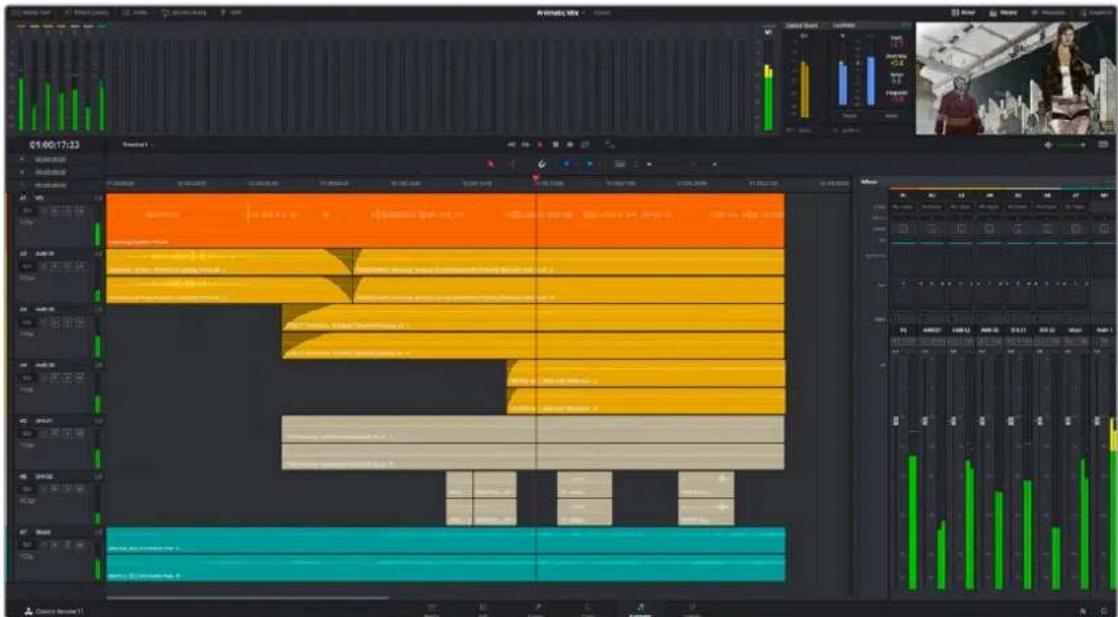
Fairlight page
About Audio Monitoring and Audio Input
The audio processing throughout DaVinci Resolve, including on the Fairlight page and audio processing using Fairlight FX plug-ins, is equally compatible with all platforms that DaVinci Resolve runs on, including macOS, Windows, and Linux.
DaVinci Resolve supports audio monitoring using:
a. The audio of a supported Blackmagic Design I/O device such as an UltraStudio or Decklink.
b. Your macOS, Windows, or Linux workstation's on-board audio.
c. Any Core Audio compatible, Windows compatible, or Advanced Linux Sound Architecture (ALSA)-supported third-party audio interface.
d. The Fairlight Audio Accelerator, MADI Upgrade, and Fairlight Audio Interface
DaVinci Resolve supports audio input using the embedded audio on an incoming SDI video feed when capturing incoming A/V source, via system audio and also via the Fairlight Audio Accelerator, MADI Upgrade, and Fairlight Audio Interface.
The Audio Timeline
The heart of the Fairlight page, the Audio Timeline presents the audio channels and tracks of the currently selected timeline differently than the Edit page does, in a one-channel-per-track format that's optimized for audio mixing and sweetening. The Audio page Timeline cannot be closed.
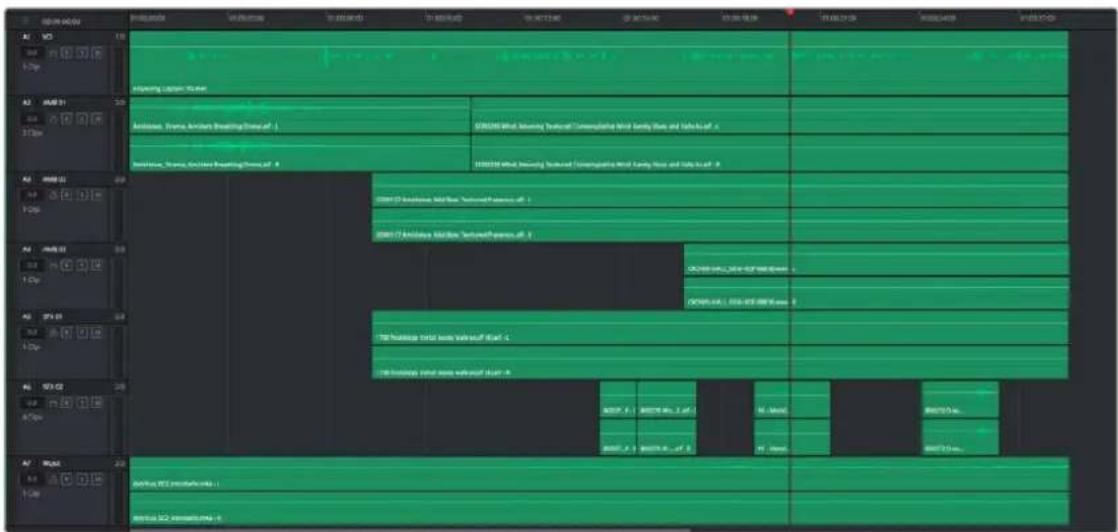
The Audio Timeline
The Fairlight page of DaVinci Resolve supports multiple audio tracks, and each audio track may contain multiple lanes. The clips edited into the Timeline appear within each track, with the recorded channels within each clip occupying as many lanes as that clip has available. At the left of each track is a header area that contains a number of controls.
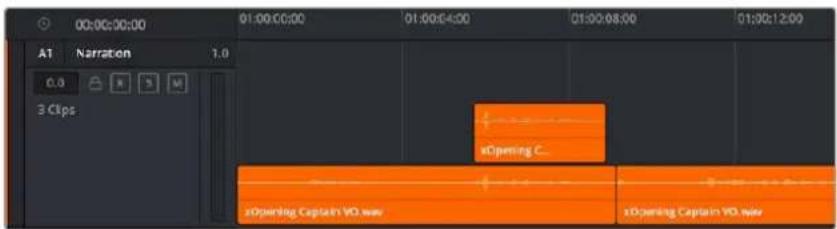
Audio layering in a mono audio track
The Fairlight page differs in another unique respect from the Edit page Timeline, in that it supports audio layering. Audio layering is a special audio editing mode that lets you superimpose multiple audio clips in the same track, and whatever audio clip is on top dictates which audio will play. In a way, when audio layering is enabled, superimposed audio clips are treated the same as superimposed video clips that all have opacity set to 100%, with clips on top obscuring (or muting) clips underneath.
Audio layering is incredibly useful for any situation where you're combining pieces of multiple takes together to create a single VO, audio vocal track, or dramatic performance, as you can choose which pieces to prioritize via their superimposed position in the track, while you're preserving the other takes underneath in case you want them later.
TIP: Track Layering can be used on the Edit page as well.
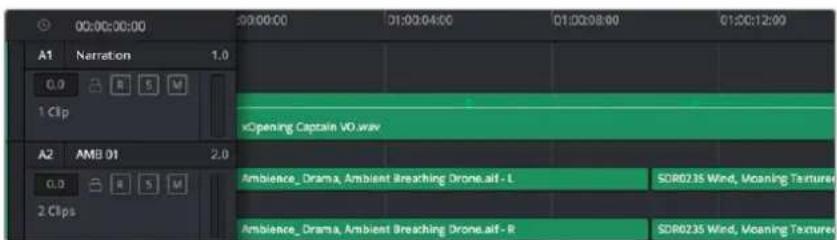
Turning on Track Layers opens up space to edit more audio into each track
Toolbar
The toolbar has buttons that let you choose modes of audio-specific functionality and other buttons that let you execute commands, such as placing markers and flags.

Buttons in the Fairlight page toolbar
Mixer
The Audio Mixer provides a set of graphical controls you can use to assign track channels to output channels, adjust EQ and Dynamics, set levels and record automation, pan stereo and surround audio, and mute and solo tracks, all while you continue to edit.
The Audio Mixer exposes a set of channel strips with controls that correspond to the tracks in the Timeline, one for each track, plus a Master strip corresponding to the Master audio track in the Timeline, that lets you choose the number of audio channels to output, and also lets you adjust the overall level of the mix.
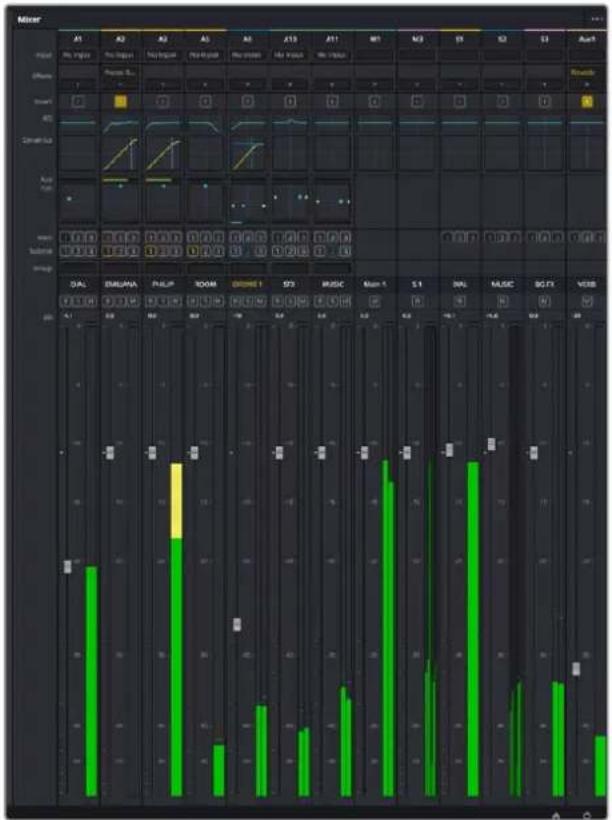
bar
| Track | Value | |---|---| | A1 | 0.2 | | A2 | 0.3 | | A3 | 0.4 | | A4 | 0.5 | | A5 | 0.6 | | A6 | 0.7 | | A7 | 0.8 | | A8 | 0.9 | | A9 | 1.0 | | A10 | 1.1 | | A11 | 1.2 | | A12 | 1.3 | | A13 | 1.4 | | A14 | 1.5 | | A15 | 1.6 | | A16 | 1.7 | | A17 | 1.8 | | A18 | 1.9 | | A19 | 2.0 | | A20 | 2.1 | | A21 | 2.2 | | A22 | 2.3 | | A23 | 2.4 | | A24 | 2.5 | | A25 | 2.6 | | A26 | 2.7 | | A27 | 2.8 | | A28 | 2.9 | | A29 | 3.0 | | A30 | 3.1 | | A31 | 3.2 | | A32 | 3.3 | | A33 | 3.4 | | A34 | 3.5 | | A35 | 3.6 | | A36 | 3.7 | | A37 | 3.8 | | A38 | 3.9 | | A39 | 4.0 | | A40 | 4.1 | | A41 | 4.2 | | A42 | 4.3 | | A43 | 4.4 | | A44 | 4.5 | | A45 | 4.6 | | A46 | 4.7 | | A47 | 4.8 | | A48 | 4.9 | | A49 | 5.0 | | A50 | 5.1 | | A51 | 5.2 | | A52 | 5.3 | | A53 | 5.4 | | A54 | 5.5 | | A55 | 5.6 | | A56 | 5.7 | | A57 | 5.8 | | A58 | 5.9 | | A59 | 6.0 | | A60 | 6.1 | | A61 | 6.2 | | A62 | 6.3 | | A63 | 6.4 | | A64 | 6.5 | | A65 | 6.6 | | A66 | 6.7 | | A67 | 6.8 | | A68 | 6.9 | | A69 | 7.0 | | A70 | 7.1 | | A71 | 7.2 | | A72 | 7.3 | | A73 | 7.4 | | A74 | 7.5 | | A75 | 7.6 | | A76 | 7.7 | | A77 | 7.8 | | A78 | 7.9 | | A79 | 8.0 | | A80 | 8.1 | | A81 | 8.2 | | A82 | 8.3 | | A83 | 8.4 | | A84 | 8.5 | | A85 | 8.6 | | A86 | 8.7 | | A87 | 8.8 | | A88 | 8.9 | | A89 | 9.0 | | A90 | 9.1 | | A91 | 9.2 | | A92 | 9.3 | | A93 | 9.4 | | A94 | 9.5 | | A95 | 9.6 | | A96 | 9.7 | | A97 | 9.8 | | A98 | 9.9 | | A99 | 10.0 | | B00 | 10.1 | | B01 | 10.2 | | B02 | 10.3 | | B03 | 10.4 | | B04 | 10.5 | | B05 | 10.6 | | B06 | 10.7 | | B07 | 10.8 | | B08 | 10.9 | | B09 | 11.0 | | B10 | 11.1 | | B11 | 11.2 | | B12 | 11.3 | | B13 | 11.4 | | B14 | 11.5 | | B15 | 11.6 | | B16 | 11.7 | | B17 | 11.8 | | B18 | 11.9 | | B19 | 12.0 | | B20 | 12.1 | | B21 | 12.2 | | B22 | 12.3 | | B23 | 12.4 | | B24 | 12.5 | | B25 | 12.6 | | B26 | 12.7 | | B27 | 12.8 | | B28 | 12.9 | | B29 | 13.0 | | B30 | 13.1 | | B31 | 13.2 | | B32 | 13.3 | | B33 | 13.4 | | B34 | 13.5 | | B35 | 13.6 | | B36 | 13.7 | | B37 | 13.8 | | B38 | 13.9 | | B39 | 14.0 | | B40 | 14.1 | | B41 | 14.2 | | B42 | 14.3 | | B43 | 14.4 | | B44 | 14.5 | | B45 | 14.6 | | B46 | 14.7 | | B47 | 14.8 | | B48 | 14.9 | | B49 | 15.0 | | B50 | 15.1 | | B51 | 15.2 | | B52 | 15.3 | | B53 | 15.4 | | B54 | 15.5 | | B55 | 15.6 | | B56 | 15.7 | | B57 | 15.8 | | B58 | 15.9 | | B59 | 16.0 | | B60 | 16.1 | | B61 | 16.2 | | B62 | 16.3 | | B63 | 16.4 | | B64 | 16.5 | | B65 | 16.6 | | B66 | 16.7 | | B67 | 16.8 | | B68 | 16.9 | | B69 | 17.0 | | B70 | 17.1 | | B71 | 17.2 | | B72 | 17.3 | | B73 | 17.4 | | B74 | 17.5 | | B75 | 17.6 | | B76 | 17.7 | | B77 | 17.8 | | B78 | 17.9 | | B79 | 18.0 | | B80 | 18.1 | | B81 | 18.2 | | B82 | 18.3 | | B83 | 18.4 | | B84 | 18.5 | | B85 | 18.6 | | B86 | 18.7 | | B87 | 18.8 | | B88 | 18.9 | | B89 | 19.0 | | B90 | 19.1 | | B91 | 19.2 | | B92 | 19.3 | | B93 | 19.4 | | B94 | 19.5 | | B95 | 19.6 | | B96 | 19.7 | | B97 | 19.8 | | B98 | 19.9 | | B99 | 20.0 | The chart displays the 'Value' values for each track (A) in the timeline from the start to end of the timeline, with each track's value represented by a colored bar segment on the timeline.The Audio Mixer, with channel strips corresponding to the tracks in the Timeline
Dedicated Channel Strip Controls
The Mixer also has a series of dedicated channel strip controls that add powerful mastering capabilities to DaVinci Resolve. These include:
- EQ: Double-clicking exposes a four-band parametric equalizer with additional Hi and Lo Pass filters, that has both graphical and numeric controls for tuning the frequencies of the audio on each track. You can select from among four types of EQ filtering from the Equalizer Type dropdown menu, with options for Earth (the default), Air, Ice, and Fire. Each band has controls for the filter type (Bell, Lo-Shelf, Hi-Shelf, Notch), Frequency, Gain, and Q-factor (sharpness of the band).
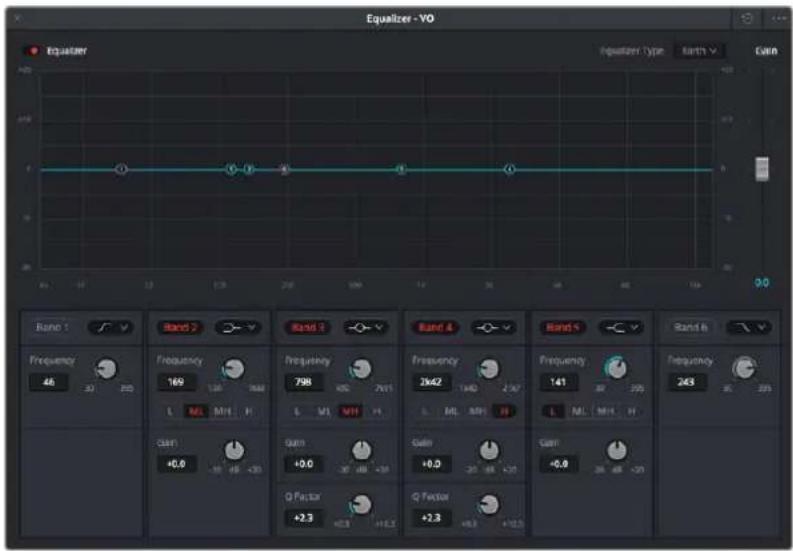
The channel strip EQ window
- Dynamics: Double-clicking exposes a set of dynamics controls with compressor, limiter, and expander or gate sections. The Equalizer button at the upper left-hand corner lets you turn all EQ on and off. The first section can be switched between working as an Expander or a Gate, with attendant Threshold/Range/Ratio and Attack/Hold/Release controls. The second section provides Compressor controls, while the third section provides Limiter controls. These controls may be used either singly or in concert to manage the dynamics of the audio on that track.
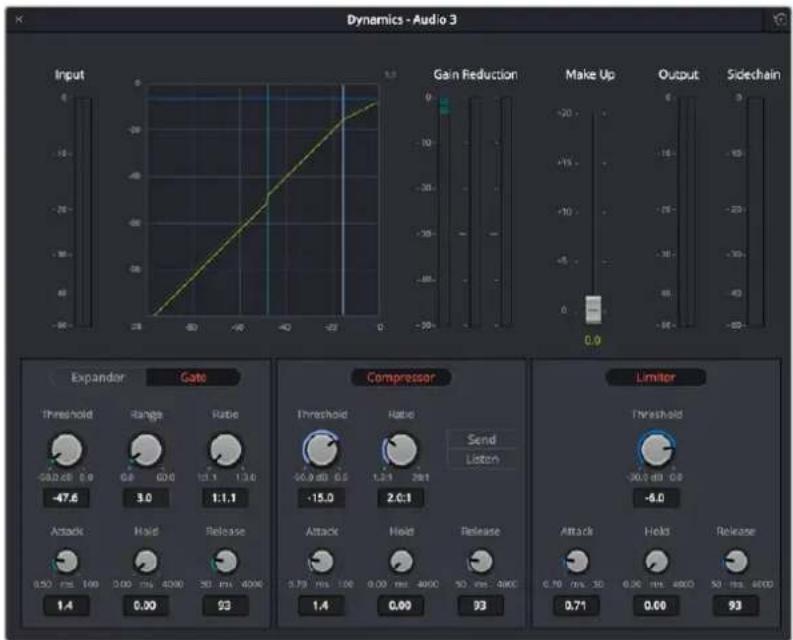
The channel strip Dynamics control window
- Pan: A pan control compatible with stereo and surround panning. You can drag within this control to adjust pan, or you can double-click to expose a Pan window. What controls are available in the Pan window depend on the mapping of the audio track, but both stereo and surround panning controls are available, with corresponding numeric controls.
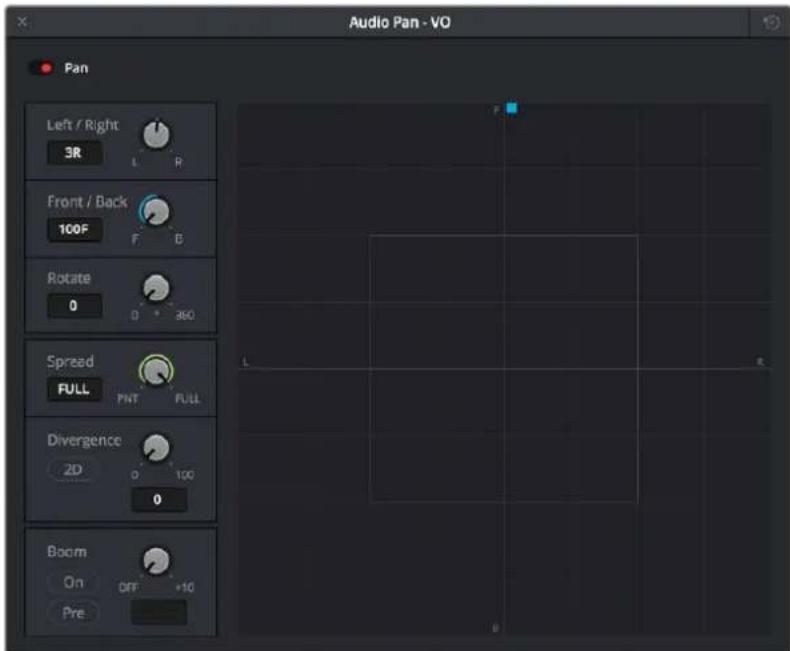
The Pan control window
The Monitoring Panel
The Monitoring panel shows all of the audio meters corresponding to the tracks in the Timeline, as well as the Master Output meter, Control Room meters, and a video viewer.
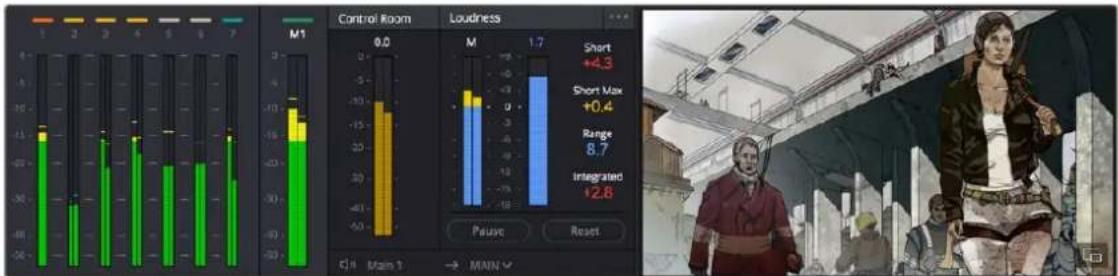
bar
| Category | Value | |---|---| | Control Room | 0.0 | | Loudness | 1.7 | | Duration | Short +4.3 | | Short Max | +0.4 | | Range | 8.7 | | Integrated | +2.8 | C: Main 1 → MAINThe Monitoring panel
At left, a row of audio meters corresponds to the channel strips of the Mixer, one meter for every audio track in the Timeline. To the right of these, all buses appear, showing you meters for the Mains and Subs (submixes) you're using to mix down your show. Farther to the right of these, a set of Control Room meters show you the monitored output and loudness meters for a precise analysis of your mix's perceived loudness.
Finally, a small viewer to the right of the Monitoring panel shows the frame of video at the position of the playhead. This viewer can be undocked via a button at the lower right-hand corner.
Floating Timecode Window
A timecode window is available from the Workspace menu on every page, including the Fairlight page. Choosing this option displays a floating timecode window that shows the timecode of the Viewer or Timeline that currently has focus. This window is resizable so you can make the timecode larger or smaller.
22:46:37:20
A new floating timecode window is available
The Deliver Page
Once you've finished grading your project, you need to either render it, or output it to tape to deliver it to your client. This is where the Deliver page comes in. The Deliver page can be used both to output digital deliverables, or to output tape, depending on which mode you enable. Either way, the Deliver page is divided into five areas of functionality, each of which lets you set up a different part of a render or output to tape.
The Deliver page is set up to let you queue a series of individual jobs, each of which can have different settings, or be set up to render different parts of the Timeline. In this way, you can output multiple deliverables, or re-render multiple areas of a timeline, as your needs require.
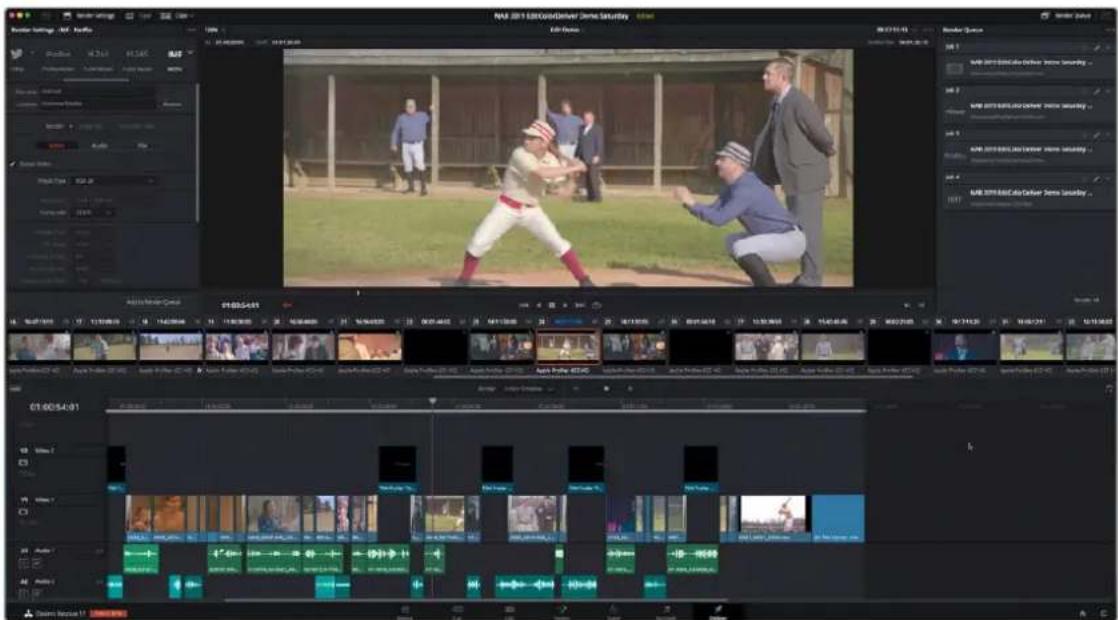
The Deliver page
For more information about using the Deliver page, see Chapter 185, "Using the Deliver Page."
The Render Settings List
The Render Settings list contains the customizable settings that affect how media is rendered out of DaVinci Resolve. These settings are covered in more detail later in "Output Scaling." The Render Settings you can choose from for outputting from DaVinci Resolve appear in three panels, separating the Video, Audio, and File information-based settings in a logical fashion. By default, this list shows
only the most important criteria necessary for defining a render. However, additional controls can be exposed by clicking the “Advanced settings” disclosure triangle at the bottom of each group of settings.
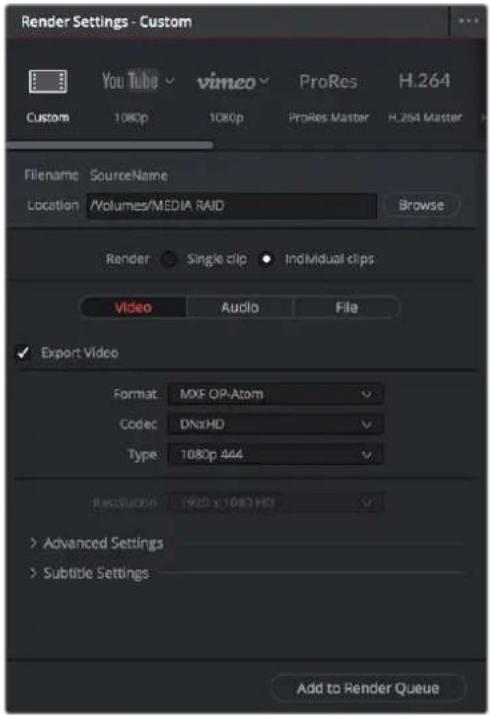
Render settings
The Deliver Page Timeline
The Timeline mirrors the Timeline seen in the Color page. You can use the Timeline in the Deliver page to turn off tracks with clips you don't want to include in the operation, define the range of clips you want to render or output to tape, and to choose which versions for each clip you want to output. You also have the option of switching the Deliver page Timeline to look like the Color page Timeline instead, if that's what you're more comfortable with.
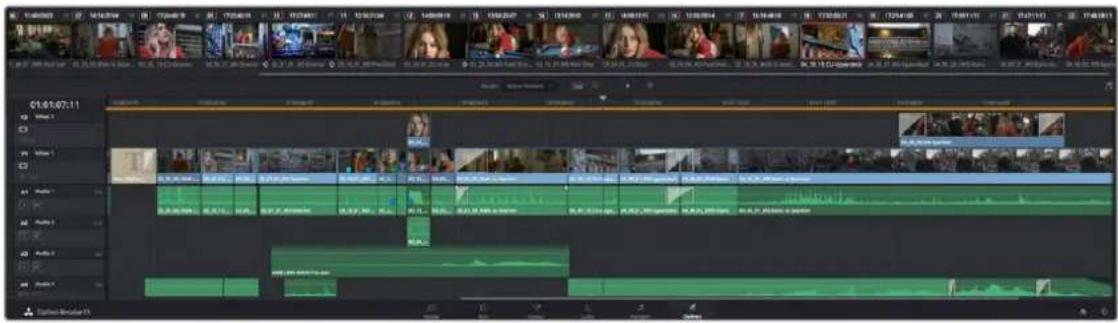
The Deliver page's Thumbnail and Mini-Timeline match the Color page
The Deliver page Timeline also has the Timeline Filter drop-down at the right-hand side of the toolbar. Using this drop-down to filter the contents of the Timeline lets you restrict the range of media you want to output in different ways. For example, if you've already rendered a timeline, but you've since made some changes, you can use the "Show Modified Clips" option to display only the clips that have changed within a particular timeframe. Another possibility is to choose the "Show Unrendered Clips" option to show all clips that have not yet been rendered.
The Viewer
When rendering file-based media, the Viewer shows you exactly how the media being output will look using the current settings, and the transport controls move the playhead throughout the current Timeline. Audio levels can be adjusted by right-clicking on the speaker icon,and dragging the slider.
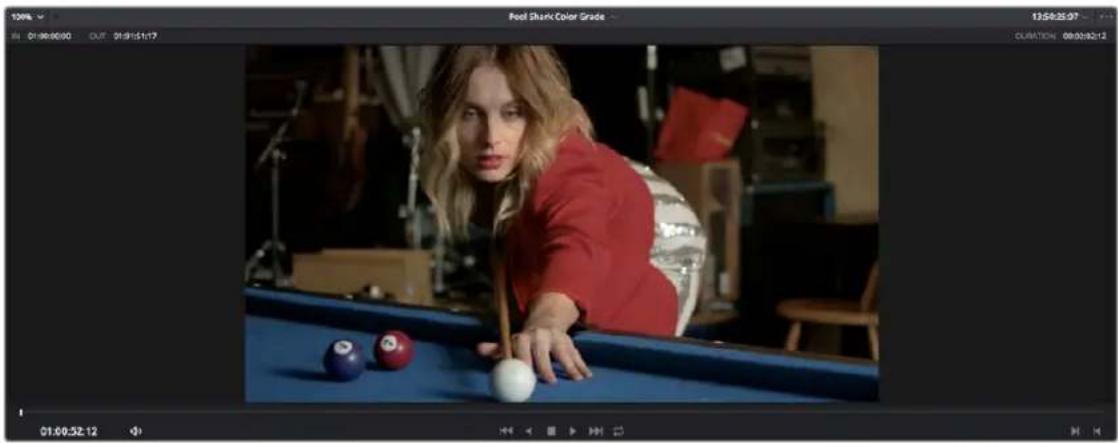
natural_image
Woman in red jacket leaning over a blue table with three balls, focused on playing pool (no visible text or symbols)Deliver page Viewer
When outputting to tape, the Viewer shows you the tape output so you can set up insert or assembly edit points, and the transport controls move the tape in the deck if device control is enabled. You can also put the Viewer into Cinema Viewer mode by choosing Workspace > Viewer Mode > Cinema Viewer (Command-F), so that it fills the entire screen. This command toggles Cinema Viewer mode on and off.
The Render Queue
The Render Queue is a list of all the jobs you've queued up for file-based rendering. Each job can have an individualized range of clips and render settings, which you can use to render multiple sections or clips of a timeline, the same timeline output to multiple formats, or multiple timelines.
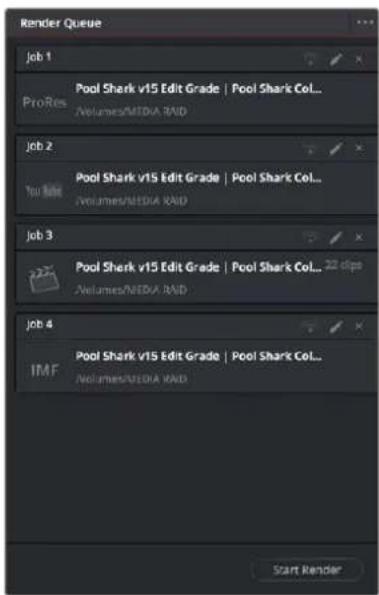
The Render Queue displays all jobs
The Render Queue also has the option to show either just the jobs within the current project, or jobs queued up and saved within all projects for the current user.
Chapter 2
Using the DaVinci Resolve User Interface
This chapter provides an overview of the various unspoken conventions and interaction methods employed by the DaVinci Resolve graphical user interface (GUI). These include how the various buttons of your mouse, pen and tablet, or trackpad are used by different windows and interface widgets, how commands are distributed throughout the application using the menu bar, contextual menus, and option menus, and how to interact with fields and other controls. While many of these conventions overlap with common user interface conventions found in the file system of your platform of choice, and with other media applications, some of these are unique to DaVinci Resolve, so this chapter is worth reviewing even if you consider yourself an expert user of other applications.
Contents
Basic Documentation Terminology 51
What Is the "UI" or "GUI" 51
What Is "the Pointer" 51
About Keyboard Shortcuts 51
Customizing the DaVinci Resolve Interface 51
Working Full Screen vs. Within a Floating Window 52
Panels and Panel Focus 52
Showing and Hiding Panels Using the Interface Toolbar 53
Showing and Hiding Panels in the Workspace Submenu 53
Adjusting the Size of Different Panels 53
Using Single vs. Dual Monitor Layouts 55
Video Clean Feed 56
Saving Custom Screen Layouts 57
Resetting to the Default Layout 57
Undocking Specific Panels of the Interface 57
DaVinci Resolve User Interface Conventions 59
Contextual Menus 59
Drop-down Menus 59
Adjusting Parameters 60
Using a Mouse or Other Input Device 61
Mouse, Trackpad, and Tablet Behaviors 62
Timeline Scroll Behavior 63
Viewer Behavior 63
Keyboard Shortcuts 64
Undo and Redo in DaVinci Resolve 64
Basic Documentation Terminology
Here is a brief word about some of the basic terminology used in this manual for brand new users.
What Is the "UI" or "GUI"
In this documentation, UI refers to "user interface," while GUI refers to "graphical user interface."
This refers to the windows, screens, and controls that let you create in DaVinci Resolve. If you didn't know this, don't be embarrassed, you'd be surprised how many times this question gets asked.
What Is "the Pointer"
Whenever this documentation refers to “the pointer,” the reference is to the on-screen arrow you use to click on elements of the user interface, which is controlled by the mouse, trackpad, pen and tablet, trackball, or any other device you may be using. Because there are so many different ways to control computers, simply referring to “the mouse” is inaccurate.
About Keyboard Shortcuts
Since the majority of DaVinci Resolve users currently appear to be on macOS, this manual presents all keyboard shortcuts using the macOS conventions of the Command key and the Option key.
For compatibility with Windows and Linux, the Control key in macOS is not used by default for any keyboard shortcuts (although it can be assigned if you customize your keyboard shortcuts).
All keyboard shortcuts that use the Option key in macOS use the ALT key in Windows and Linux, and all keyboard shortcuts that use the Command key in macOS use the Control key in Windows and Linux.
Customizing the DaVinci Resolve Interface
While the DaVinci Resolve interface may not seem very customizable at first, there are actually many ways in which you can tailor the panels found within each page to your specific needs.
Working Full Screen vs. Within a Floating Window
Depending on how you like to work, you can choose to work with DaVinci Resolve in a floating window with a title bar that can be resized, moved, minimized, and used alongside other windows. Or, you can choose Workspace > Full Screen to put DaVinci Resolve into Full Screen mode, where the title bar disappears and DaVinci Resolve takes up the full dimensions of your computer display.
Editors may prefer to work within a window if they're working among multiple applications. Colorists and mixers may prefer Full Screen mode as it hides the light-colored title bar that some find distracting and provides a tiny bit more screen real estate for the rest of the application.
Panels and Panel Focus
Each page of DaVinci Resolve consists of multiple panels. Each panel contains all the controls and information necessary for a particular aspect of that page's functionality. In the following partial screenshot of the top of the Media page, the Media Storage panel lets you browse files, the Viewer is a panel that lets you watch video, and the Audio panel lets you see the strength of audio playing back via a set of audio meters. Each of these panels has separate controls, but they all appear within the main window of the DaVinci Resolve user interface.
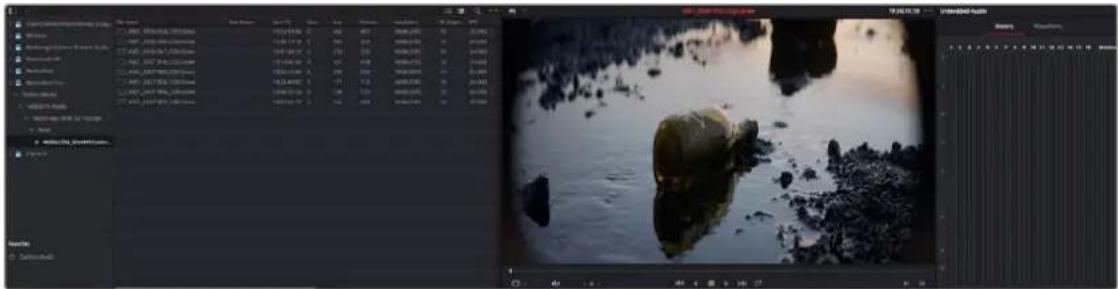
Three panels side by side on the Media Page, showing Media Storage, the Viewer, and the Audio panel
Each panel you use has “focus,” meaning that clicking an item or control within a particular panel makes that panel the active panel, which serves to direct keyboard shortcuts that are shared among many panels to the particular panel you’re using. If you want to see which panel is in focus, you can turn on the “Show focus indicators in the User Interface” checkbox in the UI Settings panel of the User Preferences. When on, a red line at the top of the active panel indicates that it has focus.
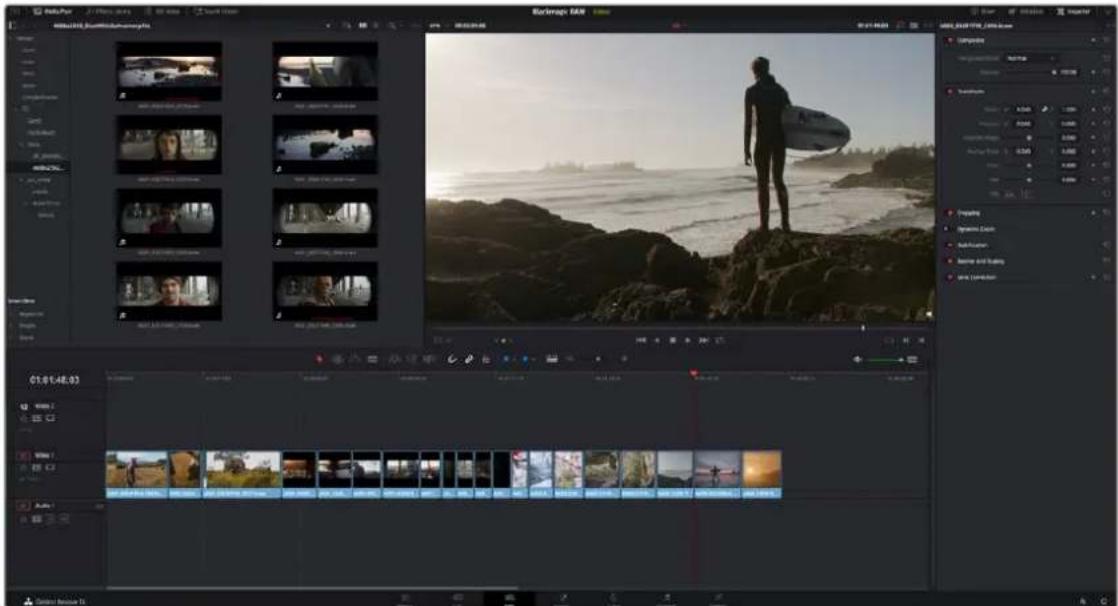
A red line at the top of the Media Pool in the Edit page shows that it has focus
Showing and Hiding Panels Using the Interface Toolbar
Each page in DaVinci Resolve has an Interface Toolbar that runs along the top. This toolbar contains buttons that let you show and hide different panels of functionality to accomplish different things:
- You can show panels that aren't displayed by default, since most pages have many available panels of functionality that are hidden until you need them.
- You can assign keyboard shortcuts to show and hide individual panels in your workspace for instant configuration of the UI. Keyboard shortcuts to toggle these panels on or off can be assigned using the Keyboard Customization window.
- You can switch which panel appears within a particular geographical location of the UI, for example switching between showing the Media Pool or Effects in the upper-lefthand corner of the Cut or Edit pages.
- You can hide panels you don't need in order to create more room in the specific panels you're working within.

The Interface toolbar for the Color page lets you customize the Color page controls
If you right-click anywhere within the UI toolbar, two options appear: "Show Icons and Labels" and "Show Icons Only." If you show icons only, the UI toolbar becomes less cluttered.

The UI Toolbar for the Edit page, showing icons only, to save space
Each page has a different set of options that reflect the capabilities of that page.
Showing and Hiding Panels in the Workspace Submenu
This function provides the ability to turn on or off panels by choosing them in the Workspace > Show Panel in Workspace drop-down menu. The exact panels, such as Inspector, Media Pool, Metadata, etc., are dependent on which page you are working in. Alternatively, you can assign these panels keyboard shortcuts as well.
Adjusting the Size of Different Panels
You can resize adjacent panels in the interface by positioning the pointer at the border between any two panels, and dragging it to enlarge one and shrink the other.
(Before/After) Resizing UI regions
Certain panels and palettes can be expanded, in the process rearranging another part of the UI, by clicking a small gray Expand button. For example, an expand button at the top right of the Keyframe Editor in the Color page can be clicked to make the Keyframe Editor wider, while at the same time hiding controls at the center to make room.


(Before/After) Expanding the Keyframe Editor
Certain vertically oriented panels, such as the Media Pool, Effects Library, Metadata Editor, and Inspector, can be set to either half-display-height or full-display-height sizes to quickly create more or less room for contents or controls whenever necessary. This is done by clicking a small button in the UI toolbar that toggles between expanding or contracting the UI element it controls.
(Left) The button for expanding a panel to full height,
(Right) The button for contracting a panel to half height
The result is that the panel in question expands or contracts. The following screenshots show the Inspector of the Edit page in half height mode, where the Timeline is given room to expand, and in full height mode, where the Timeline becomes shorter, but there's more room in the Inspector to see all of the controls.
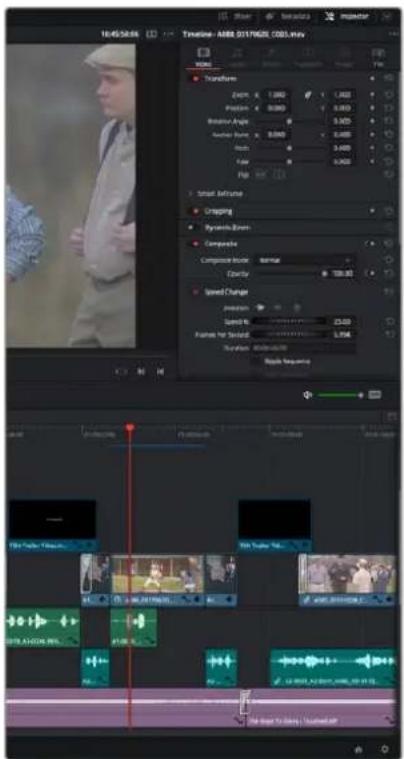
(Left) A half-height Inspector with more room for the Timeline,
(Right) A full-height Inspector with more room for controls
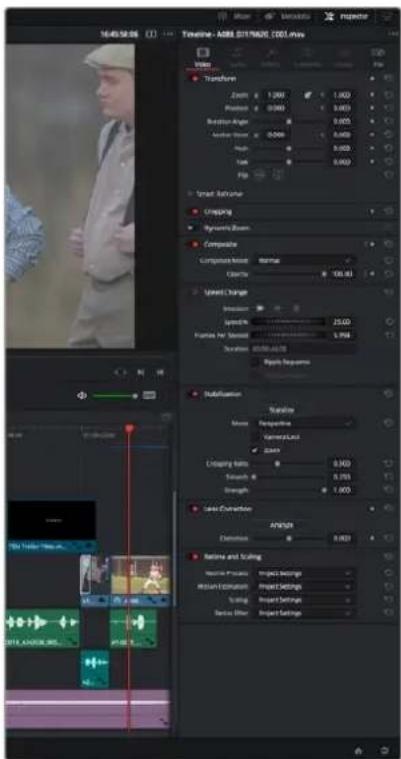
Using Single vs. Dual Monitor Layouts
The Media, Edit, Color, and Fairlight pages can be switched between single screen and dual screen layouts by choosing Workspace > Dual Screen > On. Each dual-screen layout makes it possible to see many more controls at once, often in a larger workspace that lets you manage more clips, more Gallery stills, etc.
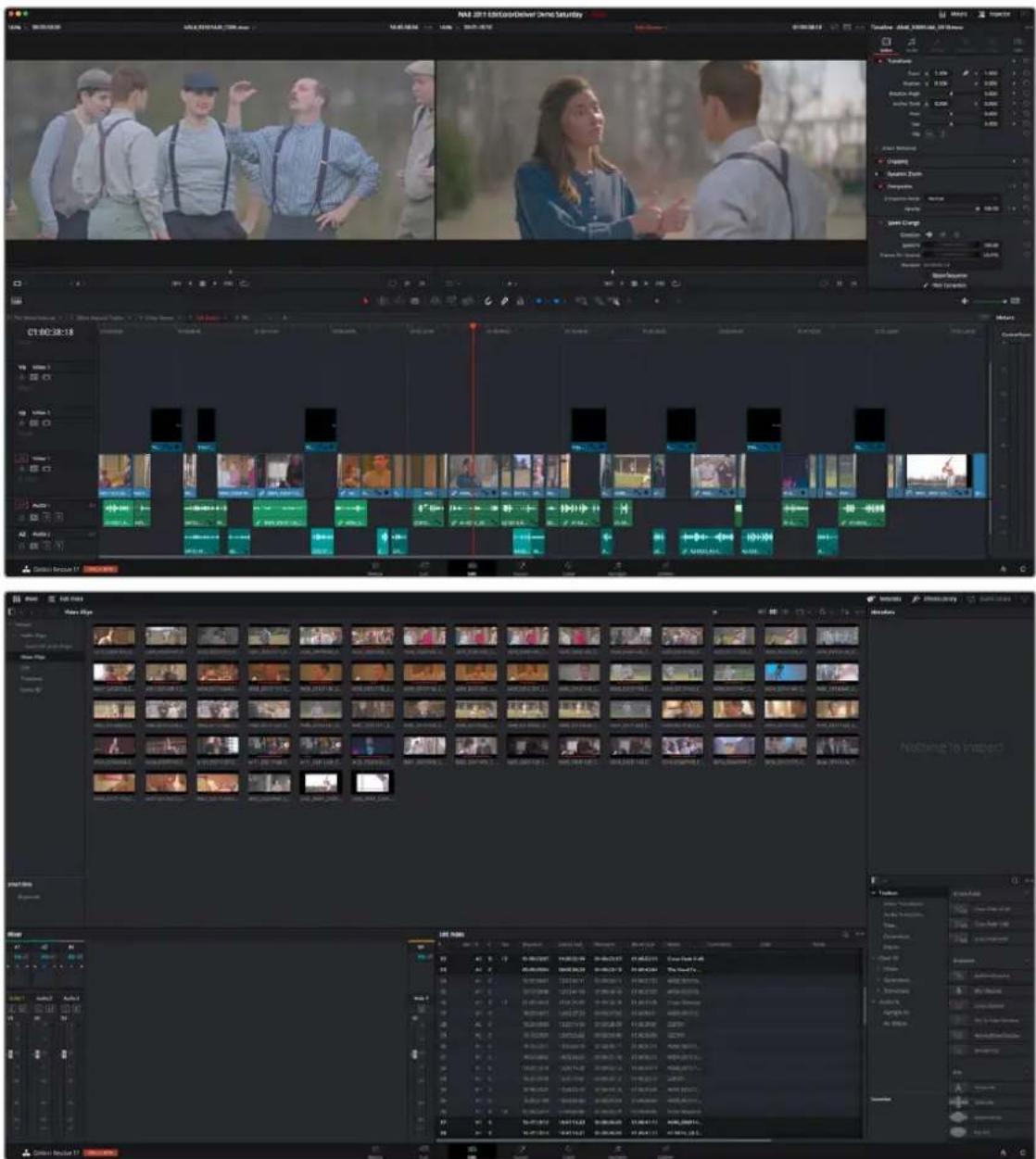
The Edit page in Dual-screen mode
In Single-screen mode, you can choose which display shows the DaVinci Resolve UI by choosing Workspace > Primary Display > (Monitor Name). In Dual-screen mode, this reverses the contents of both monitors.
Using the Full Screen Timeline Option in the Edit Page
If you're working in the Edit page in Dual-screen mode and you need the biggest timeline you can get for working through your program, you can choose Workspace > Dual Screen > Full Screen Timeline to expose a layout with one large full screen timeline, and all the other Edit page panels on the other screen.
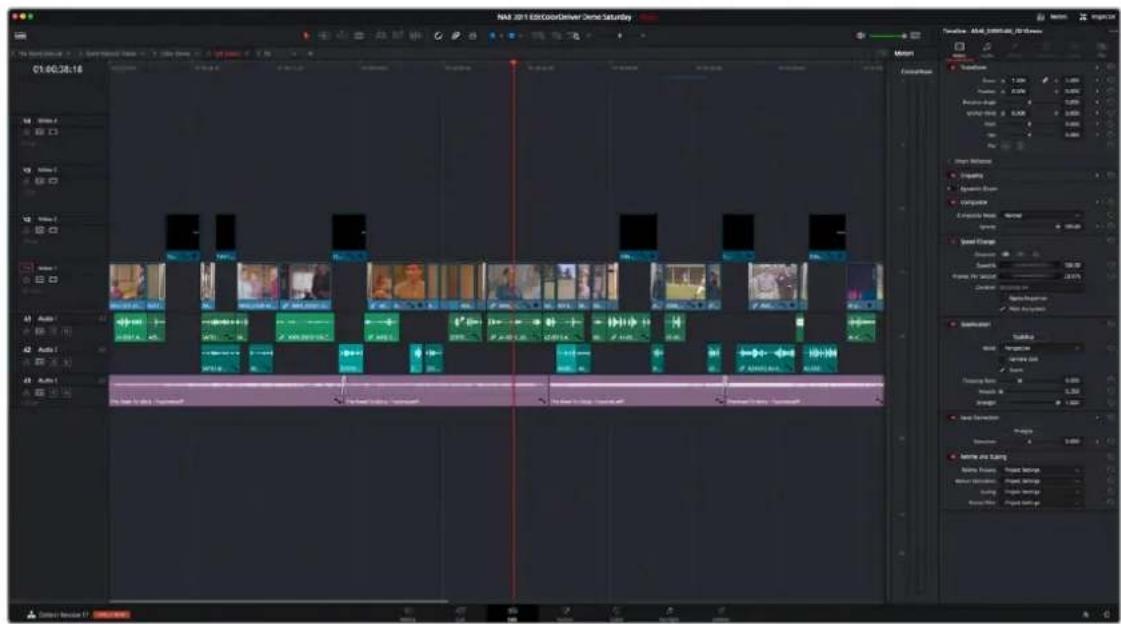
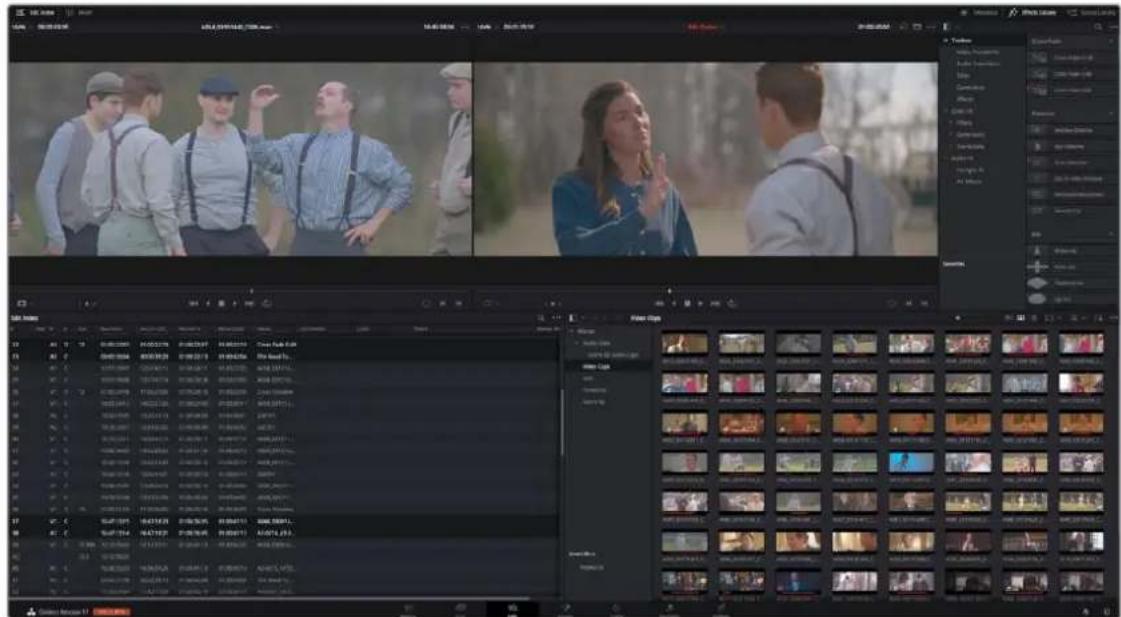
The Edit page in Dual-screen Timeline mode
Video Clean Feed
A full screen Viewer for a secondary monitor connected directly to your computer is now available. To activate this monitor select Workspace > Video Clean Feed, and select your display in the submenu.
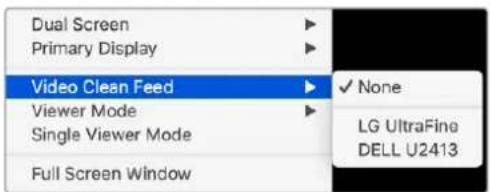
Selecting a secondary monitor for full screen display
Saving Custom Screen Layouts
If you've created a particular set of resized panels that you'll want to use often, you can save it, alongside other frequently useful screen layouts you may have saved.
Methods of working with custom screen layouts:
- To save a custom screen preset: Customize the various pages of DaVinci Resolve for the purpose at hand, then choose Workspace > Layout Presets > Save Layout As Preset. Enter a name into the Save Layout as Preset dialog, and click OK.
- To choose a previously saved screen preset: Choose Workspace > Layout Presets > LAYOUT NAME > Load.
- To update a previously saved screen preset: Choose the layout you want from the Workspace > Layout submenu, make your changes, and then choose Workspace > Layout Presets > LAYOUT NAME > Update Preset.
- To delete a screen preset: Choose Workspace > Layout Presets > LAYOUT NAME > Delete Preset.
- To export a screen preset for use on another DaVinci Resolve installation: Choose Workspace > Layout Presets > LAYOUT NAME > Export Preset.
- To import a screen preset: Choose Workspace > Layout Presets > Import Layout as Preset.
Resetting to the Default Layout
If you don't like the current layout and you want to go back to the default, choose Workspace > Reset UI Layout.
Undocking Specific Panels of the Interface
There are certain interface elements that can either be docked in their respective pages, or opened in separate windows.
Media Pool bins can be opened into floating windows simply by right-clicking on the bin and choosing Open As a New Window in the contextual menu. Even though you're opening up the contents of the selected bin, you're really creating another Media Pool, complete with Bin list, Browsing area, and all of the organizational controls found in the docked Media Pool. You can have as many floating Media Pools as you like. They can be dragged to other monitors, and they can be closed via a button at the upper left-hand corner of the title bar.
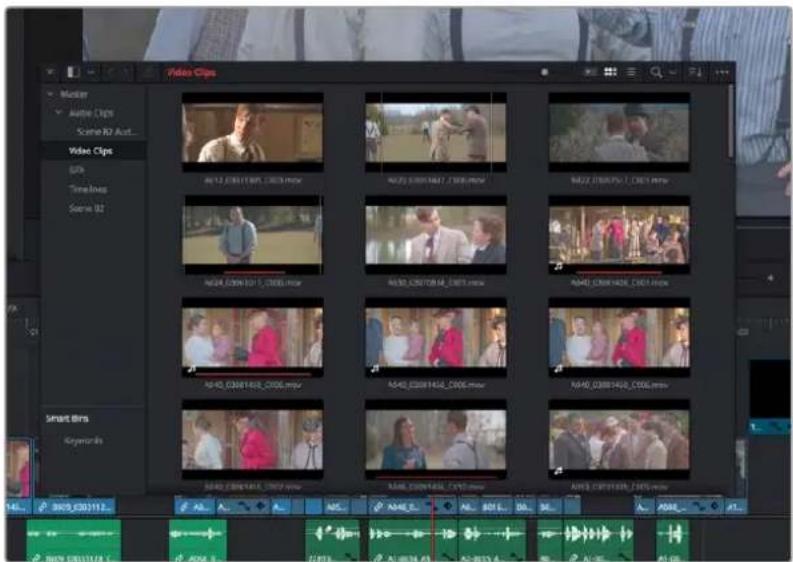
A floating Media Pool window
The video scopes let you precisely analyze the color and contrast of clips in the Color page. They can be exposed in their docked position to the right of the Color page palettes by clicking the Video Scope button in the Color page toolbar.
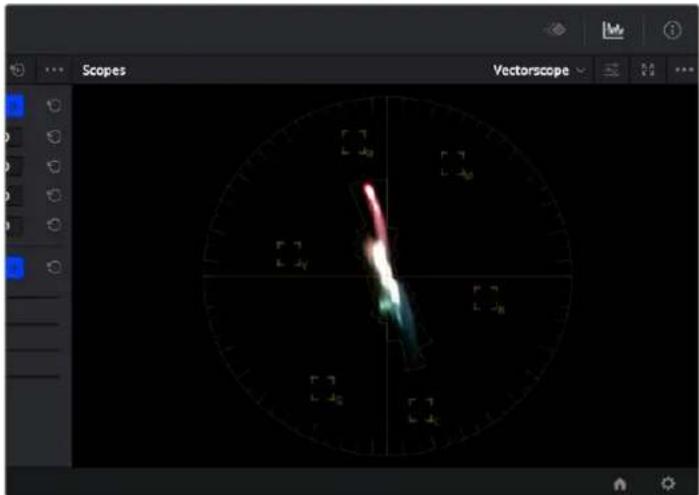
The video scope, docked next to the other palettes at the bottom of the Color page
Optionally, you can click the expand button at the top right of the video scope to open the video scopes into a floating window, within which you can display all four video scopes together, or individually, on any monitor connected to your workstation.
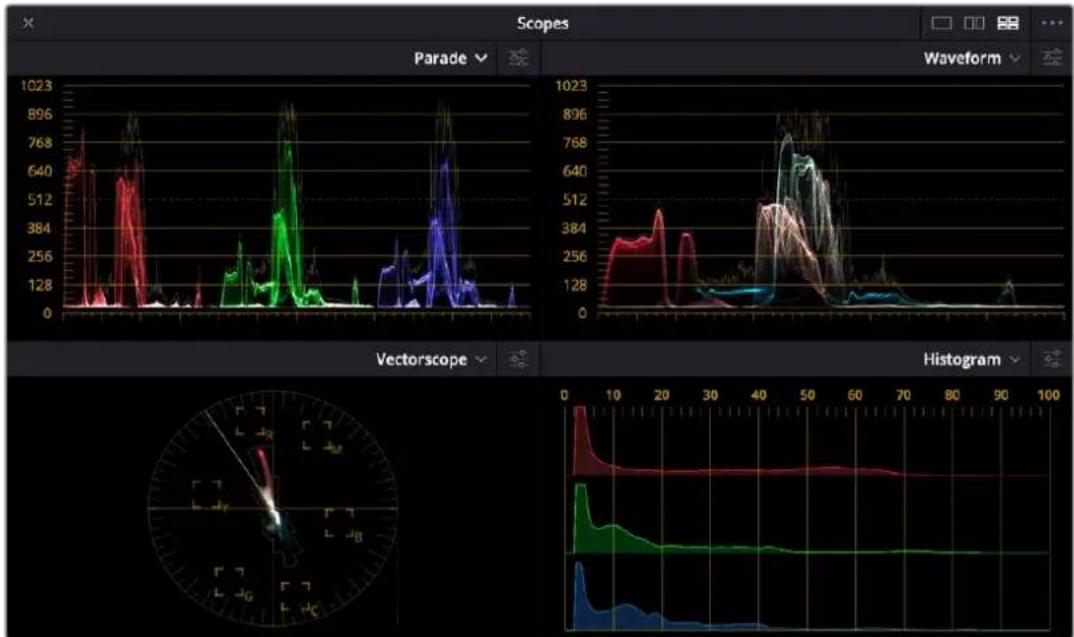
line
| Chart Type | Line Color | Description | |------------|------------|-------------| | Parade | Red | Peak at position 512 | | Parade | Green | Peak at position 512 | | Parade | Blue | Peak at position 512 | | Waveform | Red | Peak at position 512 | | Waveform | Black | Peak at position 512 | | Waveform | White | Peak at position 512 | | Vectorscope| Black | Peaks at position 512 | | Histogram | Red | Peaks at position 512 | | Histogram | Green | Peaks at position 512 | | Histogram | Blue | Peaks at position 512 | | Histogram | Black | Peaks at position 512 |Video scopes in a floating window
Additionally, the Audio Mixer and video scopes are available in many of the dual-screen layouts available in DaVinci Resolve. The video scopes aren't just available in the Color page. They're also available in the Media and Deliver pages for whenever you need to evaluate the video signal more objectively, such as when you're setting up to capture from tape or scan from film, or when you're setting up for output.
In the DaVinci Resolve single screen layout, the Audio Mixer and video scopes can be moved to a second computer display if one's available, and both disappear temporarily if you change pages or switch to another application.
DaVinci Resolve User Interface Conventions
While each chapter covers the unique onscreen controls found in each page of DaVinci Resolve, this section summarizes how to use some of the more common controls you'll see.
Contextual Menus
Nearly every panel on every page exposes additional functionality via contextual menus, which appear when you right-click on the appropriate item. Sometimes, different commands become available depending on whether you right-click the background of a particular panel, or directly on an item such as a still or node.
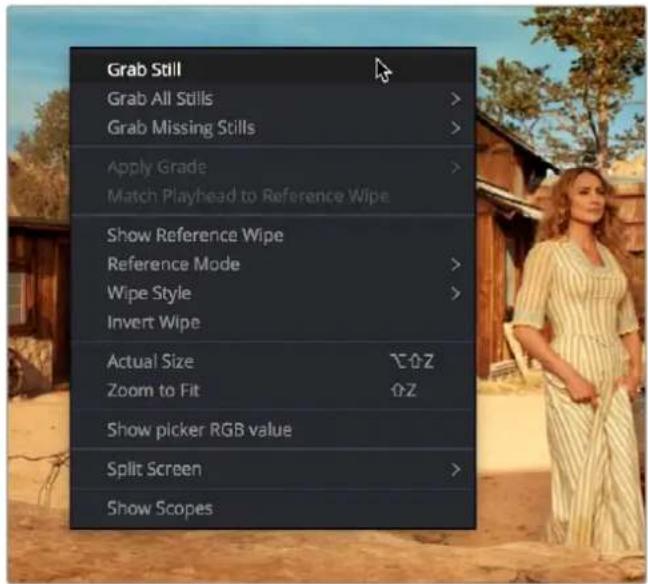
Contextual menus expose additional controls in the Color page Viewer
Drop-down Menus
Most of the buttons and drop-down menus that appear in various toolbars are activated with a single click. For example, many panels, palettes, and windows expose an Option menu, that appears as three horizontal dots (people like to refer to these as the "three dot menus," but they're option menus), which expose additional options and/or commands that are related to that particular panel's function.
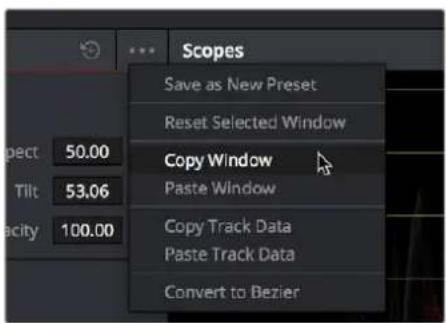
Option menus
Additionally, many (but not all) panels and palettes appear with a "Mode" drop-down at the upper right-hand corner that lets you choose a different type of function within that palette.
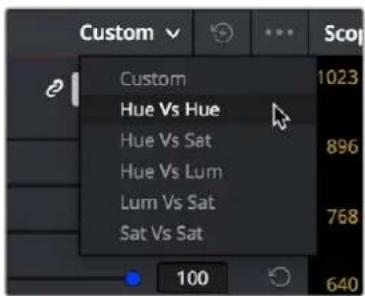
Mode drop-down
Some buttons, such as transport controls and toolbar icons, display a little downward facing arrow when you hover the pointer over them, to indicate that you can right-click on these controls to access checkmark options that govern the functionality of those controls.
(Left) Hovering over a button to reveal it has a hidden menu, (Right) Right-clicking a button to reveal options in a drop-down menu
Adjusting Parameters
Numeric parameters can usually be edited in a few different ways.
Sliders and Dials
Sliders can be dragged to change the value of a parameter within a specific range. If you see a dial, that means a value can be endlessly edited with no restrictions to the value. Sliders are typically best for making large coarse adjustments to parameters. The "virtual sliders" described next let you make finer adjustments.
A slider and a dial with their accompanying number fields
Virtual Sliders and Fields
When number fields appear, they can be used as a "virtual slider" by hovering the pointer over them until you see the "virtual slider cursor" and then clicking and dragging to the right to raise the value, or to the left to lower the value (white arrows indicate the direction of change). Typically, using a field's virtual slider lets you make more precise adjustments than the actual slider to the left.
Using virtual sliders
Double-clicking fields containing most number values highlights the number so that you can type a new value using the keyboard, pressing Return to confirm the change.
Editing of Number Field Values Using Arrow Keys
You can manually edit numerical parameter values by using the arrow keys to navigate and make adjustments to the decimal level in number fields.
To use the arrow keys to adjust numerical parameters:
1 Double-click to select a numeric value in a field, and a highlight appears around that value.
2 Use the left/right arrows to navigate the cursor to the right of the decimal value you want to adjust.
3 Use the Up/Down arrows to change the value of that decimal place.
4 If you select the entire number, the Up/Down arrows will adjust the minimum value.
This cursor is in place to adjust the tenths position using the Up and Down arrows.
Icons and Buttons
Some controls are exposed as icons and buttons, which you simply click to invoke whatever functionality they encompass.
A pair of buttons with icons to illustrate their functionality
Resetting Parameters
To reset any editable parameter to its default setting, double-click its text label, or click the reset button, if one appears. Master reset buttons, typically found in the headers of groups of controls, reset all controls in that group. Individual reset controls that appear to the right of parameters typically only reset that one parameter. If you don't see a reset control, then double-clicking the name of the parameter should work.
Reset buttons
Using a Mouse or Other Input Device
Resolve uses all three buttons of a multi-button mouse, or the three buttons available on other type of input devices, when available. This section provides a brief summary of all the different ways these three mouse buttons can be used.
Left Button
The left button is always referred to as a click, as in, "click the auto select button." You click to turn buttons or other controls on or off, to make selections, and to give areas of the Resolve UI focus so that keyboard shortcuts will do whatever is specific to that panel or area of the user interface.
Double-clicking the left button usually opens items that are openable, such as opening a clip from the Media Pool into the Source Viewer. You can also use double-clicking to do things like selecting nodes in the Node Editor of the Color page.
Right Button
The right button is referred to as a right-click, as in, "right-click a clip in the Media Pool." Right-clicking an item or area of the Resolve interface usually opens a contextual menu, exposing additional commands that are specific to the item or area you've right-clicked.
However, some areas of the UI use right-clicking in special ways. For example, when you're using a color adjustment curve in the Curve palette of the Color page, right-clicking a control point deletes that point.
Middle Button
The middle button (usually the scroll wheel button, but you may have to turn this on in the Mouse panel of the System Preferences) is referred to as a middle-click, which does different things in different places.
– In all pages, rolling the scroll wheel while the pointer is within a viewer lets you zoom into and out of the image being displayed when you need to do more detailed work.
- In all pages and panels, pressing and holding middle-click and dragging inside a panel allows you to scroll the view of the panel's data in the direction that you drag.
- In the Color page, you can move the pointer over the Thumbnail timeline and roll up to scroll to the right or roll down to scroll to the left. You can also roll the scroll wheel while the pointer is within the Mini-timeline to zoom into or out of the currently displayed area. Rolling up zooms out, while rolling down zooms in.
- Middle-clicking and dragging within a viewer lets you drag the image to pan it around, which is useful after you've used the scroll wheel (or scroll behavior) of your mouse to zoom in.
- You can middle-click and drag within the Edit page Timeline to quickly pan around your edit.
- You can also use middle-click to copy a grade in the Thumbnail timeline of the Color page, by first selecting the clip that you want to copy TO (with a simple click) and then middle-clicking the clip or gallery still you want to copy a grade FROM.
- Lastly, if you're drawing a Bezier window in the Color page Viewer using the Window palette, then middle-clicking a control point will delete that point.
TIP: If you're using a pointing device that lacks a third button option, check to see if there are any third party utilities or drivers that can enable this for you.
Mouse, Trackpad, and Tablet Behaviors
Different input devices use different gestures to trigger specific behaviors in DaVinci Resolve. Here is a current breakdown of these gestures and the behaviors that they control.
| TimelineScrollBehavior | Standard Mouse | Mac Magic Mouse | Trackpad | Tablet and Pen |
| Scroll timeline vertically | Magic Mouse1 Finger PanVertical and Horizontal panning | |||
| Scroll timeline horizontally | Magic Mouse1 Finger PanVertical and Horizontal panning | |||
| Zoom timeline width horizontallyWith ability to zoom where cursor pointsCan be enabled in User Workspace preferences | ||||
| Zoom timeline track height verticallyZooms Video and Audio section separately | ||||
| Drag Timeline with Hand Tool |
| Viewer Behavior | Standard Mouse | Mac Magic Mouse | Trackpad | Tablet and Pen |
| Zoom towards mouse pointerCan change in preferences | Scroll | Pinch to Zoom Press and hold the middle pen buttonWhile moving it left and right on the tablet. | ||
| 2 Finger Pan | ||||
| Free Pan | Middle Mouse Button | Magic Mouse 1 Finger Pan | 2 Finger Pan Press and hold the middle pen buttonLift the pen nib a few millimeters above the pac, moving the pen will move the frame in the viewer. | |
| Pan with Hand Cursor | Middle Mouse Button | shiftan optionLeft Button | Press and hold the middle pen buttonLift the pen nib a few millimeters above the pac, moving the pen will move the hand in the viewer. | |
Gestures used in DaVinci Resolve for common input devices
| Viewer Behavior | Standard Mouse | Mac Magic Mouse | Trackpad | Tablet and Pen | ||
| Zoom towards mouse pointerCan change in preferences | Scroll | Pinch to Zoom Press and hold the middle pen buttonWhile moving it left and right on the tablet. | ||||
| 2 Finger Pan | ||||||
| Free Pan | Middle Mouse Button | Magic Mouse 1 Finger Pan | 2 Finger Pan Press and hold the middle pen buttonLift the pen nib a few millimeters above the pac, moving the pen will move the frame in the viewer. | |||
| Pan with Hand Cursor | Middle Mouse Button | shiftan optionLeft Button | Press and hold the middle pen buttonLift the pen nib a few millimeters above the pac, moving the pen will move the hand in the viewer. | |||
| Viewer Behavior | Standard Mouse | Mac Magic Mouse | Trackpad | Tablet and Pen | ||
| Tilt Up and Down |  |  Scroll Scroll | ||||
| Pan Left and Right |  |  ---- ---- | ||||
| Context Menu |  Right Button Right Button |  | 2 Finger Touch |  uton on the pen. uton on the pen. | ||
Keyboard Shortcuts
Since the majority of DaVinci Resolve users are on macOS, this manual presents all keyboard shortcuts using the macOS conventions of the Command key and the Option key. For users of other systems, all keyboard shortcuts that use the Option key in macOS use the ALT key in Windows and Linux, and all keyboard shortcuts that use the Command key in macOS use the Control key in Windows and Linux.
TIP: To keep controls identical between macOS, Windows, and Linux, the Control key in macOS is not used by default for any keyboard shortcuts. However, you can assign your own keyboard shortcuts to the Control key if you like, opening up a whole new set of keyboard shortcuts for your own use on macOS.
Undo and Redo in DaVinci Resolve
No matter where you are in DaVinci Resolve, Undo and Redo commands let you back out of steps you've taken or commands you've executed, and reapply them if you change your mind.
DaVinci Resolve is capable of undoing the entire history of things you've done since creating or opening a particular project. When you close a project, its entire undo history is purged. The next time you begin work on a project, its undo history starts anew.
Because DaVinci Resolve integrates so much functionality in one application, there are three separate sets of undo "stacks" to help you manage your work.
– The Media, Edit and Fairlight pages share the same multiple-undo stack, which lets you backtrack out of changes made in the Media Pool, the Timeline, the Metadata Editor, and the Viewers.
– Each clip in the Fusion page has its own undo stack, so that you can undo changes you make to the composition of each clip, independently.
– Each clip in the Color page has its own undo stack, so that you can undo changes you make to grades in each clip, independently.
In all cases, there is no practical limit to the number of steps that are undoable (although there may be a limit to what you can remember). To take advantage of this, there are three ways you can undo work to go to a previous state of your project, no matter what page you're in.
To simply undo or redo changes you've made one at a time:
- Choose Edit > Undo (Command-Z) to undo the previous change.
- Choose Edit > Redo (Shift-Command-Z) to redo to the next change.
- On the DaVinci control panel, press the UNDO and REDO buttons on the T-bar panel.
TIP: If you have the DaVinci control panel, there is one other control that lets you control the undo stack more directly when using the trackballs, rings, and pots. Pressing RESTORE POINT manually adds a memory of the current state of the grade to the undo stack. Since discrete undo states are difficult to predict when you're making ongoing adjustments with the trackball and ring controls, pressing RESTORE POINT lets you set predictable states of the grade that you can fall back on.
You can also undo several steps at a time using the History submenu and window. At the time of this writing, this only works for multiple undo steps in the Media, Cut, Edit, and Fairlight pages.
To undo and redo using the History submenu:
1 Open the Edit > History submenu, which shows (up to) the last twenty things you've done.
2 Choose an item on the list to undo back to that point. The most recent thing you've done appears at the top of this list, and the change you've just made appears with a check next to it. Steps that have been undone but that can still be redone remain in this menu, so you can see what's possible. However, if you've undone several changes at once and then you make a new change, you cannot undo any more and those steps disappear from the menu.
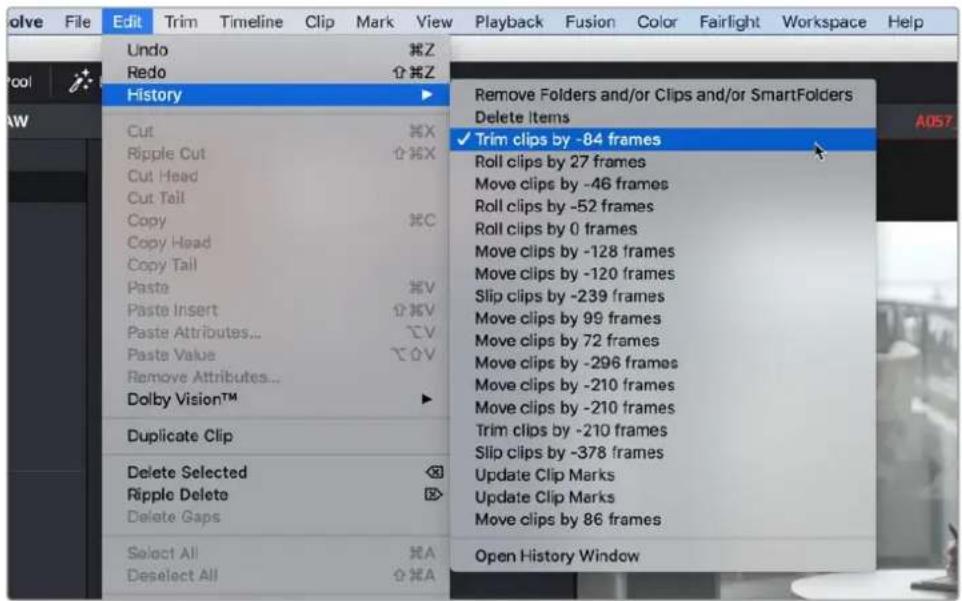
The History submenu, which lets you undo several steps at once
Once you've selected a step to undo to, the menu closes and the project updates to show you its current state.
To undo and redo using the Undo window:
1 Choose Edit > History > Open History Window.
2 When the History dialog appears, click an item on the list to undo back to that point. Unlike the menu, in this window the most recent thing you've done appears at the bottom of this list. Selecting a change here grays out changes that can still be redone, as the project updates to show you its current state.
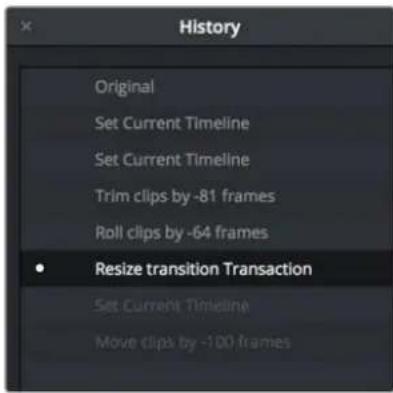
The Undo History window that lets you browse the entire available undo stack of the current page
3 When you're done, close the History window.
PART 2
Setup and Workflows
natural_image
Colorful abstract logo with three colored droplets inside a circular gradient border (no text or symbols)Chapter 3
Managing Projects and Databases
This chapter covers how to use the Project Manager to organize the projects you're working on in DaVinci Resolve, as well as how to deal with managing the databases that serve as the organizational foundation of the Project Manager. You'll also see how to export and import projects, and how to archive a project and its media for long-term storage.
Contents
Using the Project Manager 69
Project Management 70
Importing DaVinci Resolve Projects (.DRP Files) 70
Project Manager View Options 71
Searching for Projects 72
Organizing Projects in Folders 73
Managing Databases with the Databases Sidebar 73
Opening the Databases Sidebar 74
Moving Projects From One Database to Another on the Same Workstation 74
Managing Databases in the Databases Sidebar 75
Legacy User Organization in the Databases Sidebar 79
Saving Projects 79
Live Save 80
Project Backups 81
Project Notes 83
Dynamic Project Switching 83
Archiving and Restoring Projects 84
Using the Project Manager
Ordinarily, the Project Manager is the first window you'll see when DaVinci Resolve starts up. It's a convenient, centralized browser for creating, organizing, and managing all of your projects. Unlike other applications that rely on your file manager for organizing projects, DaVinci Resolve requires you to do most project organization in the Project Manager.
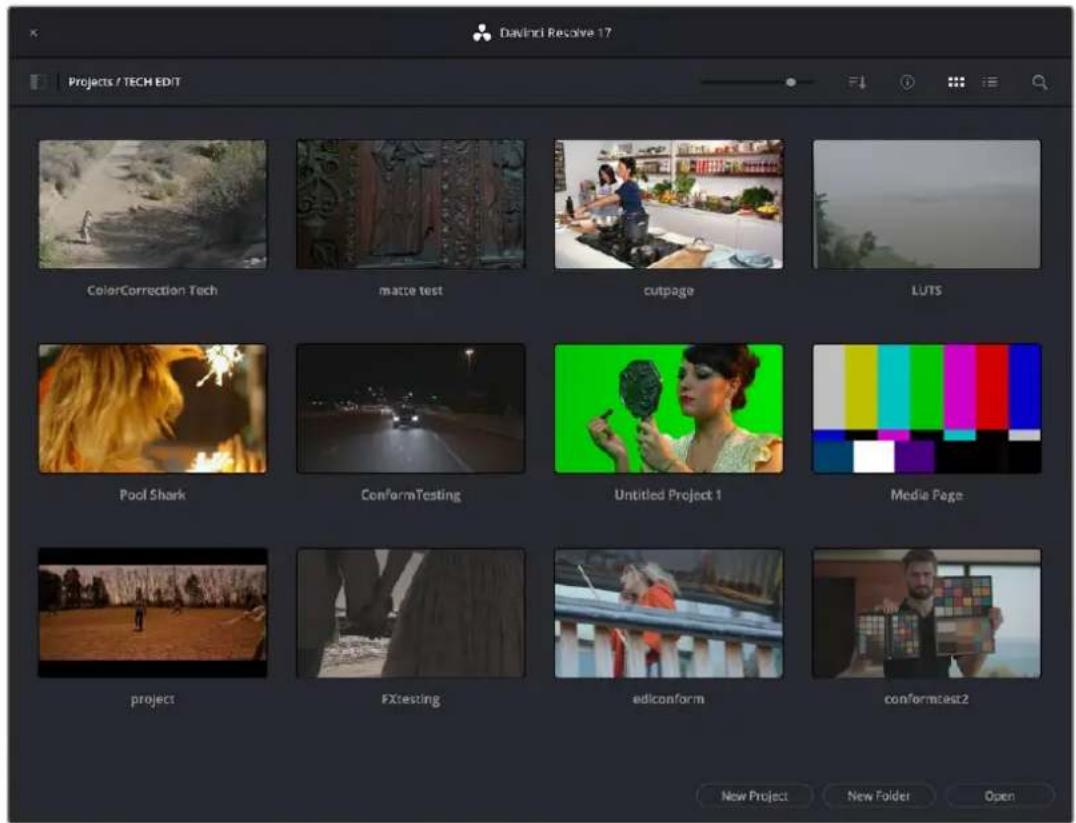
Project Manager
If you've already opened a project, you can reopen the Project Manager at any time by clicking the Home button at the bottom right-hand corner of the DaVinci Resolve window, in the Page Navigation bar. If you've hidden the Page Navigation bar at the bottom of the DaVinci Resolve window, you can open the Project Manager by choosing File > Project Manager.
The Project Manager button at the bottom right corner of the DaVinci Resolve interface
Launching DaVinci Resolve for the First Time?
If you've just installed DaVinci Resolve and have opened it for the first time, it's time to set the preferences in order to specify your language, scratch disk volume, and hardware configuration for video and audio I/O and control panels (if you have one). For more information about setting the preferences in DaVinci Resolve, see Chapter 4, "System and User Preferences."
Project Management
The Project Manager provides an in-application interface for creating, renaming, and deleting projects. Many of these commands exist within the contextual menu that appears when you right-click the background of the Project Manager.
Methods of project management:
- To create a new project: Double-click the Default Project icon, or click the New Project button at the bottom of the window. A new project is created, and DaVinci Resolve opens up the Media page. Once a project is open, you can alter its project settings by clicking the gear icon.
- To open a previously saved project: Double-click any Project icon, or Item if you're in List view. You can also select a project and click the Open button.
- To open a project in Read-Only Mode: Right-click a Project icon or Item, and choose Open in Read Only Mode. This lets you open a project without danger of altering it. If you make changes, you can use the Save As command to save a new copy of the project with a new name.
- To rename a project: Right-click a Project icon or Item, choose Rename, and type a new name in the dialog that appears, clicking OK when you're finished.
- To load project settings from another project to the currently open project: Right-click a Project icon or Item (other than the currently open project), and choose “Load Project Settings to Current Project.” This lets you change a project’s settings prior to opening it in cases where the project settings are causing some kind of problem that prevents you from opening the project.
- To update the thumbnails of a project in the Project Manager: Right-click any project, and choose "Update Thumbnails."
- To delete a project: Select one or more projects, then either press the Backspace key, or right-click one of the selected projects and choose Delete. Click OK when a dialog asks you to confirm the operation.
NOTE: You cannot move or delete the currently open or loaded project.
Importing DaVinci Resolve Projects (.DRP Files)
DaVinci Resolve projects are saved with the file extension .drp and enable you to exchange files with other DaVinci Resolve users. If you double-click a DaVinci Resolve .drp file in the Windows or macOS file system, this will automatically open DaVinci Resolve, import that project into the Project Manager regardless of what kind of database you're using, and open that project so that you're ready to work.
Importing and Exporting Projects in Disk Databases
If you're using Disk Databases to manage your projects, you can copy and import projects using the project folders in the file manager of either macOS or Windows. This method does not work for DaVinci Resolve on Linux.
Moving projects from one disk database into another using macOS or Windows:
1 Locate the disk database directory in which the project you want to copy is stored. If you don't know where the designated disk database directory is, you can open DaVinci Resolve and check the directory path for the current disk database in the Databases sidebar.
2 Copy the project folder from the source workstation to the designated disk database directory on the destination workstation. If you don't know where the designated disk database directory is, you can open DaVinci Resolve on the workstation you're copying the project to and check the directory path for the current disk database in the Databases sidebar.
3 Once you've copied the project folder into the correct location, you'll need to quit and reopen DaVinci Resolve. Afterwards, the imported project should appear in the Project Manager.
Importing and Exporting Projects in PostgreSQL Databases
If you're using a PostgreSQL database, another set of commands let you import and export projects using the .drp file format. You can also export .drp files from Disk Databases if you want to export a more self-contained item to transport.
To import a .drp project file, do one of the following:
- Drag the .drp file you want to import from your file system and drop it anywhere into the Project Manager window.
- Right-click any empty area of the Project Manager and choose Import, then find and select a .drp project file using the Import Project File dialog, and click Open.
To import a .drp project file and reconfigure the gallery path at the same time:
- Hold the Option key down while right-clicking any empty area of the Project Manager, and choose Import+, then find and select a .drp project file, and click Open. Upon opening, the gallery path will automatically be updated to that of your workstation.
To export the currently open project as a .drp file:
- Choose File > Export Project, and when the Save dialog appears, choose a location, enter a name, and click Save. The result is a self-contained file with a .drp file suffix saved at the location you chose.
To export a .drp project file from the Project Manager:
1 Right-click a Project icon or Item in the Project Manager, then choose one of the following commands:
- Export: Exports project data, with no LUTs and no stills. Best when you need to export the smallest possible file.
- Export With Stills and LUTs: Exports the project including both still frames in the Gallery and LUTs used in grades. Best when you want to export the most self-contained file and you can't guarantee the recipient will have the same LUTs you do.
2 When the Save dialog appears, choose a location, enter a name, and click Save. The result is a self-contained file with a .drp file suffix saved at the location you chose.
Project Manager View Options
Four buttons at the top right let you control how projects are viewed in the Project Manager.

Select Thumbnail or List View
- Zoom slider: (Only appears in Thumbnail view) Lets you adjust the size of the thumbnails in Thumbnail view.
- Project Sort Order drop-down: (Only appears in Thumbnail view) Lets you choose the sort order of projects in Thumbnail view.
Information: (Only appears in Thumbnail view) Lets you show or hide additional project information displayed underneath each project's thumbnail, including the frame size, number of timelines within, and when that project was last modified. - Thumbnail view: Each project is represented by a large image that can be hover-scrubbed to reveal five representative images from that project.
Hover-scrub over Project icon; information is enabled
- List view: Every project appears as an item in a list that has seven columns: Name, Last Modified, Timelines, Format, Frame Rate, Date Created, and Note. You can click any column header to sort the contents of the Project Manager by that criteria; clicking the header a second time toggles that column between ascending and descending sorting.
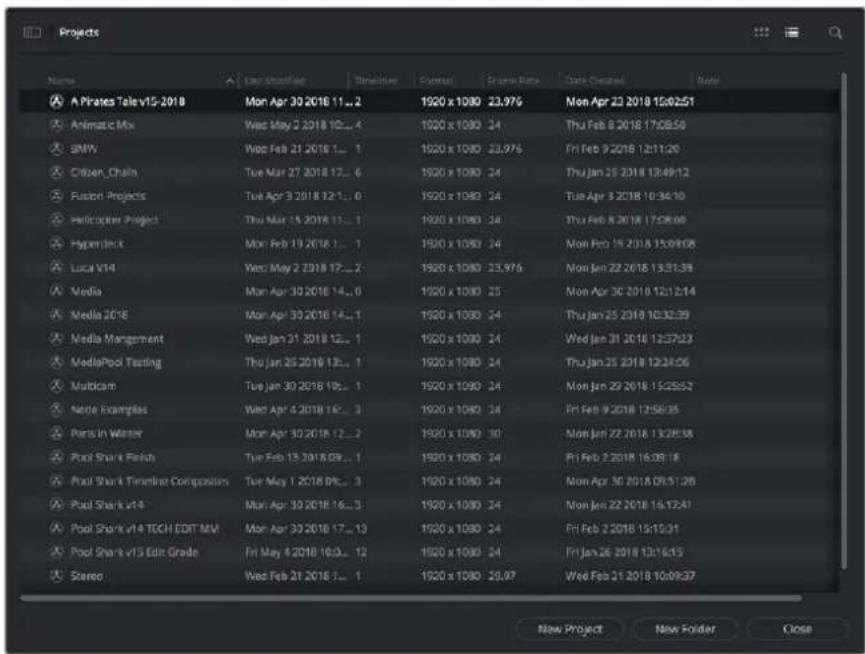
Project List view
Searching for Projects
Clicking the magnifying glass button at the upper right-hand corner of the Project Manager exposes the Search Options, which can be used to locate one or more projects based on the metadata that's selected in the Filter By drop-down menu to the right of it.

Search field open with Filter by search criteria selected
Using the drop-down menu, you can choose to search by name, or by project format. Once you've chosen a criteria, begin typing into the search field, and the Project Manager will immediately and dynamically begin to be filtered by your search text.
Organizing Projects in Folders
If you're organizing a lot of projects, you can create folders to put them into.
natural_image
Gray folder icon labeled 'Base Projects' on dark background (no other text or symbols)A folder in the Project Manager
Methods of working with project folders:
- To create a folder: Click the New Folder button, then enter a name into the Create New Folder dialog and click Create.
- To delete a folder: Right-click a folder, choose Delete, and click Yes when prompted. All projects inside a deleted folder will be deleted as well.
- To rename a folder: Right-click a folder, choose Rename, then enter a new name and click OK.
- To open a folder: Double-click a folder to open it and view its contents. At the upper left-hand corner of the Project Manager, a folder path view shows you which folder is open, as well as where you are within a nested series of folders if that's what you've set up.
- To exit a folder: Use the path control at the bottom left of the Project Manager.
- To move a project into a folder: Drag the project onto a folder icon, and drop it to place it inside the folder.
- To move a project out of a folder: Open a folder, select one or more projects you want to move, then right-click the selection and choose Cut from the contextual menu. Then, navigate to the next place in the Project manager where you want to place the cut projects, right-click the background of the Project Manager, and choose Paste. The projects should appear in the new location.
Managing Databases with the Databases Sidebar
Unlike other applications which save self-contained project files to user-specified locations wherever you like in your file system, DaVinci Resolve takes a more centrally organized approach to project management, using databases. By default, DaVinci Resolve uses a disk database to keep track of every project you create. The Database sidebar lets you manage the projects found within this database, which are saved to a specific directory on your system (particular to that database). The default location of this disk database depends on the operating system you use.
However, you can create additional databases with which to store other projects, if you like. For example, you might create one database each for each year in which you work. If you work on series television, you could create multiple databases for each program you work on. Or, you could create separate databases for each client you do work for. There's no hard and fast rule; ultimately how you use databases is entirely up to you and your individual organizational preferences.
TIP: However you elect to organize your databases, keep in mind that projects saved within smaller databases with less project data will load and save faster.
Opening the Databases Sidebar
If you already have multiple databases, then clicking the button at the upper-left hand corner of the Projects Browser reveals a sidebar at the left of the Project Manager that lists every database on your workstation, with various options for managing these databases and for browsing the projects found within them.
Databases Sidebar button
You can use this sidebar to open different databases and browse the projects found inside.
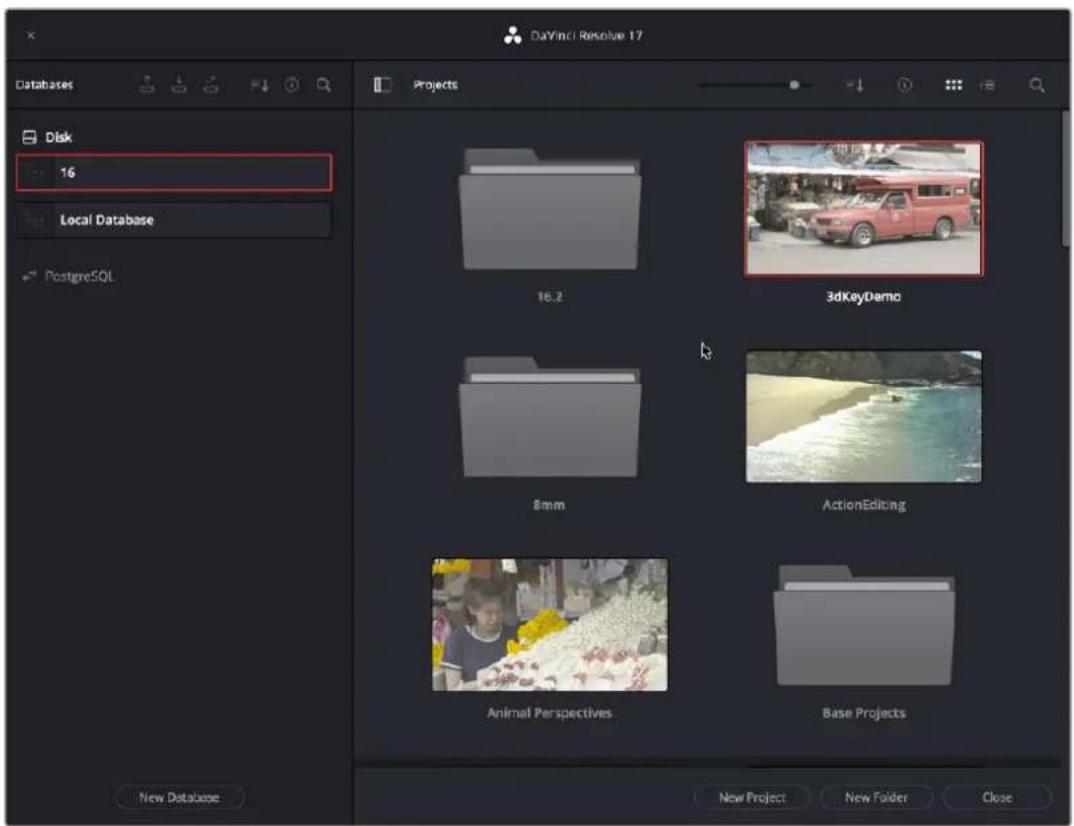
Project Manager with Databases sidebar displayed
Moving Projects From One Database to Another on the Same Workstation
If you've used multiple databases to organize your projects, you can browse the contents of each database to search for what you're looking for, and then copy one or more projects from one database to another if you need to rearrange how they're organized.
To view the contents of a database:
1 Click the button at the upper-left hand corner of the Projects window to open the Databases sidebar.
2 Click to select a database in the sidebar, and an orange highlight will appear
If you had a project already open, you'll be asked if you want to save it before closing, because all open projects must be closed prior to viewing the contents of another database. Then, the projects corresponding to that user within the selected database appear in the Project Manager window.
To import a project from another database using the Databases sidebar:
1 Click the button at the upper-left hand corner of the Projects window to open the Databases sidebar.
2 Click to select a database in the sidebar, and if necessary use the drop-down menu at the right of the database listing to choose a specific user. The projects corresponding to that user within the selected database appear in the Project Manager window.
3 Select a project you want to import, and press Command-C to copy it.
4 Click to select the current database again (the database you want to work within).
5 Press Command-V to paste the project you copied. A copy appears in the current database.
NOTE: For more detail on shared database setup and operation, see Chapter 193, "Managing Databases and Project Servers."
To import Project Settings from another project using the Databases sidebar:
1 Click the button at the upper-left hand corner of the Projects window to open the Databases sidebar.
2 Select a project you want to import Project Settings to so that it's highlighted.
3 If necessary, click to select another database in the sidebar, and optionally use the drop-down menu at the right of the database listing to choose a specific user. The projects corresponding to that user within the selected database appear in the Project Manager window.
4 Right-click any project and choose "Load Project Settings to Current Project." That project's settings will be copied to the project you selected in step 2.
Managing Databases in the Databases Sidebar
Controls within the Databases sidebar make it easy to create new databases (via the button at the bottom), upgrade databases that have been flagged (via circular badges), import and export databases (via buttons at the top), and reveal additional information about each database (via buttons at the top of this sidebar).
Databases sidebar controls
The five controls at the top of the Databases sidebar have the following functions:
- Backup Database: You can back up databases just like any other file. This provides added protection should your system drive fail, but a database backup can also be used to move multiple projects between systems (particularly if you're using PostgreSQL). Clicking this button exports the currently selected database, with all enclosed projects, to a self contained .resolve.backup file.
- Import Database: Imports .resolve.backup files to restore a backed up database.
- Connect Database: Allows connection to an existing database, either on a local disk or on a PostgreSQL server.
- Sort Order drop-down menu: This menu lets you choose how to sort the various Disk and PostgreSQL databases displayed in the sidebar. You can sort by Database Name, Schema (by date), Status, or Location in Ascending or Descending order.
- Display Database Info toggle: Turning this control on shows additional information underneath each database in the sidebar. What information depends on the type of database. Disk databases display their status (compatible/incompatible) and location (directory path). PostgreSQL databases display their schema (a date), their status (compatible/incompatible), their IP location, and any remarks that were appended when that database was updated.
- Show Search Field: Displays a search field and search criteria drop-down that lets you search for databases in the side bar by Name, Schema, Status, or Location.
Disk Vs. PostgreSQL Databases
When you first install DaVinci Resolve on a workstation it's never been installed on before, you are set up to use a Disk database by default, which saves user-accessible project files to a disk location of your choosing.
In many respects, Disk databases are simple to use. They're easier to back up, as they're located in an easily found directory, and in fact you can create Disk databases in custom locations, if you like. Disk databases avoid the need to know or care which version of PostgreSQL is installed on your machine, as PostgreSQL isn't used. Furthermore, projects in Disk databases don't need to go through an explicit "upgrade" process when you upgrade significant versions of DaVinci Resolve, as the project is automatically upgraded when you open it (the upgraded project can be saved independently from the original project using the Save As command if you want to leave the un-upgraded version intact).
However, many users prefer to use PostgreSQL database project management, particularly for situations where you want to use a shared database server so multiple rooms can access the same project files, and for collaborative workflow, where multiple editors, colorists, and audio professionals can work within the same project file.
Fortunately, it's easy to create and use either type of project database for maximum flexibility in organizing your projects. Then, using the Databases sidebar, it's easy to go back and forth between the two types of database management simply by creating the type of database you need and then switching over to it using the sidebar.
Creating New Disk and PostgreSQL Databases
You can use Disk databases and PostgreSQL databases side by side for switching to the use of one or the other, depending on your needs.
To create a new Disk database:
1 Click the button at the upper-left hand corner of the Projects window to open the Databases sidebar.
2 Click the New Database button at the bottom of the sidebar.
3 Leave Type set to Disk. The New Database window should look like the following screenshot:
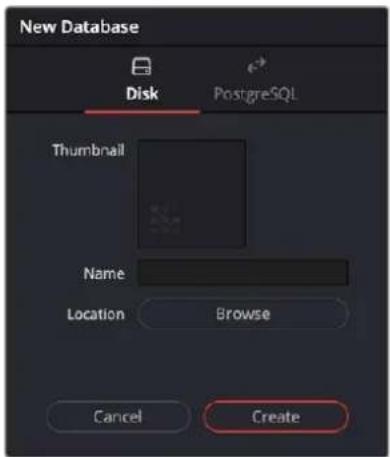
Creating a Disk database
4 In the remaining fields, do the following:
a Type a name for the new database into the Name field
b Click within the Location field and use the Filesystem navigation dialog to choose where to put the directory that will contain all of the DaVinci Resolve project directories
3 Click Create, and the new disk database will appear in the Disk database section of the Databases sidebar.
To create a new PostgreSQL database:
1 Click the button at the upper-left hand corner of the Projects window to open the Databases sidebar.
2 Click the New Database button at the bottom of the sidebar.
3 Change Type to PostgreSQL, and different options will appear at the bottom of the New Database dialog. The New Database window should look like the following screenshot:
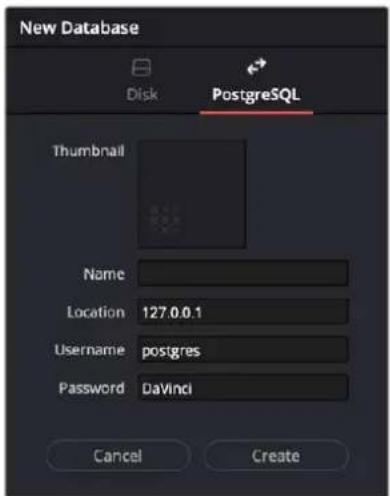
Creating a PostgreSQL database
4 Type a name for the new database into the Name field. Because all projects in a PostgreSQL database are saved internally within the PostgreSQL database, no other changes are necessary.
5 Click Create, and the new disk database will appear in the PostgreSQL database section of the Databases sidebar.
Backing Up and Restoring Databases
You can also back up databases by exporting them, and then reimport them later.
To backup/export a database:
1 Click the button at the upper-left hand corner of the Projects window to open the Databases sidebar.
2 Select the database you want to back up.
3 Click the Backup button at the top of the Databases sidebar.
The Backup Database button
4 Choose a location to which to save the backup in the Backup Database dialog, and click Save.
To import a database:
1 Click the button at the upper-left hand corner of the Projects window to open the Databases sidebar.
2 Click the Import Database button at the top of the Databases sidebar.
The Import Database button
3 Find the database you need to import using the file import dialog, and click Open.
Upgrading Databases
Databases display an upgrade badge (circular arrows) only when you've installed a new version of DaVinci Resolve and you have databases that were created in older versions of DaVinci Resolve that need upgrading.

UpgradeDatabase
A badge at the right of a database indicates that database needs to be upgraded
It's generally a good idea to back up a database prior to upgrading it, in case something goes wrong. In general, upgrading from a whole version release to the next whole version release of DaVinci Resolve usually requires an upgrade, while upgrading to a dot release of the same version may or may not. If the currently used database requires an update, you'll be told on application startup.
To upgrade a database from an old version of DaVinci Resolve:
- Right-click a database that needs updating, and choose Upgrade from the contextual menu. A dialog appears to confirm if you really want to upgrade that database. Click Upgrade to proceed.
Disconnecting and Deleting Databases
You cannot actually delete databases in DaVinci Resolve; you can only disconnect them so they don't appear in the Database list. However, disconnected databases can still be reconnected if you remember their name. The only way to completely delete a database entry in PostgreSQL is to do so from the command line, or to use the PGAdmin III application that accompanies the PostgreSQL installation that's part of the DaVinci Resolve installation process.
To disconnect a database you no longer need:
- Right-click a database that is not currently selected, and choose Disconnect from the contextual menu. A dialog appears to confirm if you really want to disconnect that database. Click Disconnect to proceed.
Locating Disk Database Directories in Your File System
Because Disk databases have a link to a specific directory in your file system, there's a way of locating that directory.
To locate a database on your system:
- Right-click any Disk database, and choose "Reveal in Finder." A file system window opens up showing you the location of that Disk database, inside which are all of its projects.
Optimizing Databases
Only available for PostgreSQL databases. Sometimes, databases in DaVinci Resolve can become so large that the size affects performance. In these cases you may need to optimize them to improve access speed by “vacuuming” the database of unnecessary spaces and reindexing it. Using the Optimize command can also be a valuable troubleshooting step in certain cases where you’re having problems opening, importing, or otherwise using projects saved within PostgreSQL databases.
To optimize a database:
- Right-click a database, and choose Optimize from the contextual menu. A dialog appears to confirm if you really want to optimize that database. Click Optimize to proceed.
Legacy User Organization in the Databases Sidebar
DaVinci Resolve was originally designed as a multi-user application for use in commercial suites. While DaVinci Resolve is still very much used in that capacity in high-end facilities around the world, starting in DaVinci Resolve 14 the interface that was previously used to create and manage multiple users on a single workstation has been eliminated in favor of a simpler method of managing multiple databases right in the Project Manager, via the Databases sidebar. However, if you've upgraded databases that were previously organized using multiple users, the Database > User > Project structure of older databases is maintained via a drop-down menu to the right of that database's name in the Databases sidebar.
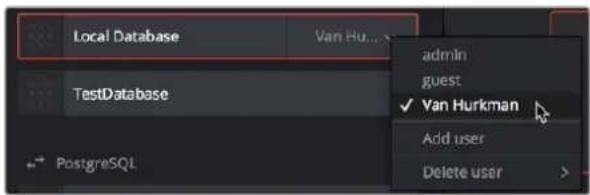
Legacy users in a database
Saving Projects
Once you've created and opened a project, you want to make sure that you regularly save your work.
Methods of saving projects:
- Choose File > Save Project (Command-S).
- Push the SAVE button on the DaVinci control panel.
- To save the current state of your project as a copy with a new name, choose File > Save Project As (Command-Shift-S), then enter a name into the Save Current Project window and click Save.
To revert to the last saved state of a project:
- To save the current state of your project as a copy with a new name, choose File > Save Project As (Command-Shift-S), then enter a name into the Save Current Project window and click Save. If you chose to save as the same name as an existing project, a dialog box will appear allowing you to confirm if you want to overwrite the existing project or to cancel out and choose another name.
As you work on your project, the word “Edited” appears to the right of the project name at the top of the DaVinci Resolve UI to let you know that you have unsaved changes. If you don’t save in over 15 minutes, the word “Edited” turns yellow, and if you still don’t save in over 30 minutes, it turns red to let you know that you probably should save. If you move the pointer over the word “Edited,” a tooltip appears letting you know when the last save was performed.

The word "Edited" to the right of the project name lets you know you have unsaved changes
DaVinci Resolve also has two auto save mechanisms that you can enable in the Save Settings group of controls, called Live Save and Project Backups.
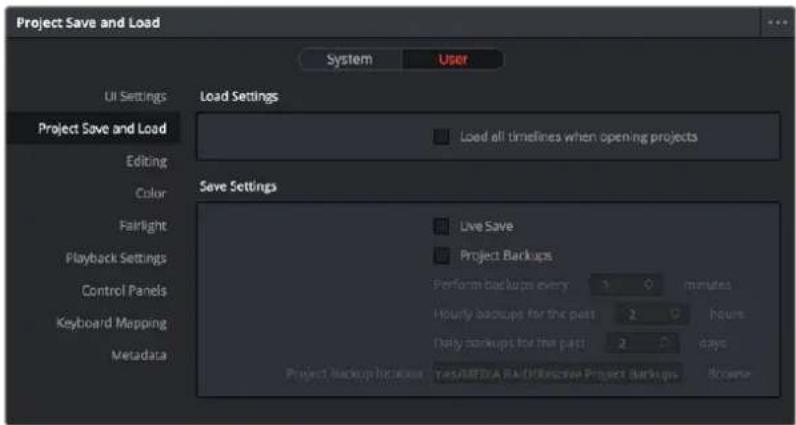
Auto Save controls in the User Preferences
Live Save
Enabling Live Save sets DaVinci Resolve to incrementally save changes as you make changes to your project, with no user intervention required. Disabling Live Save puts DaVinci Resolve back into a state where you have to manually save by pressing Command-S (this can be useful when doing demos when you don't want to save your changes to a project). Using Live Save is turned on by default and highly recommended to prevent the loss of work in the event you have a problem. It even works for previously unsaved projects that you've forgotten to save if anything goes wrong.
NOTE: When you use Collaborative Workflow to enable multiple artists to work together in the same project, Live Save is automatically turned on and cannot be disabled.
Project Backups
Turning on the Project Backups checkbox in the Project Save and Load panel of the User Preferences enables DaVinci Resolve to save multiple backup project files at periodic intervals, using a method that's analogous to a GFS (grandfather father son) backup scheme. This can be done regardless of whether or not Live Save is turned on. Each project backup that's saved is a complete project file, excluding stills and LUTs, which are omitted in order to save storage space.
Once you've enabled Project Backups for a long enough time, whatever saved project backups have been created are retrievable in the Project Manager via the contextual menu that appears when you right-click a project, by choosing Project Backups to open the backups list dialog. The backups list dialog shows you all backups that are available for a particular project, and has controls for sorting the list via different columns, deleting some or all of the backups in the list, and loading backups that you want to retrieve. Opening a project backup does not overwrite the original project; project backups are always opened as independent projects.
To enable Project Backups:
1 Choose DaVinci Resolve > Preferences, and open the Project Save and Load panel.
2 Turn on the Project Backups checkbox.
3 Choose the settings that determine how many Project Backups will be maintained. Project Backups are saved on a first in, first out basis. Three fields let you specify how often to save new backups and how many backups to maintain, while the fourth lets you choose where the backups will be saved.
- Perform backups every X minutes: The first field specifies how often to save a new backup within the last hour you've worked. By default, a new backup is saved every 10 minutes, resulting in six backups within the last hour. Once an hour of working has passed, an hourly backup is saved and the per-minute backups begin to be discarded on a "first in, first out" basis." By default, this means that you'll only ever have six backups at a time that represent the last hour's worth of work.
- Hourly backups for the past X hours: The second field specifies how many hourly backups you want to save. By default, 8 hourly backups will be saved for the current day you're working, which assumes you're working an eight hour day (wouldn't that be nice). Past that number, hourly backups will begin to be discarded on a "first in, first out" basis.
– Daily backups for the past X days: The third field specifies for how many days you want to save backups. The very last project backup saved on any given day is preserved as the daily backup for that day, and by default daily backups are only saved for five days (these are not necessarily consecutive if you take some days off from editing for part of the week). Past that number, daily backups will begin to be discarded on a “first in, first out” basis. If you’re working on a project over a longer stretch of time, you can always raise this number. - Project backup location: Click the Browse button to choose a location for these project backups to be saved. By default they're saved to a "ProjectBackup" directory on your scratch disk, although you could change this to a volume that better fits into your data backup methodology.
4 Click Save to confirm your change, and then close the Preferences window.
NOTE: When using this feature, the very first backup that's saved for a given day may be a bit slow, but all subsequent backups should be unnoticeable.
Once one or more Project Backups have been saved, you can access them in the Project Browser.
To open a Project Backup that's been saved:
1 Open the Project Manager.
2 Right-click a project, and choose Project Backups from the contextual menu.
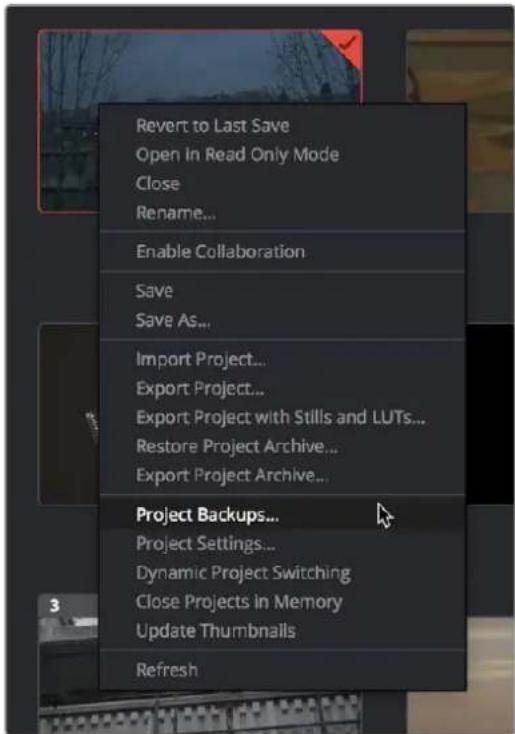
Restoring a project backup in the Project Browser
3 Select a backup that you want to restore from the Auto Backups list. If you don't see the particular backup you want, you can click the Refresh button to update the list, or you can try sorting by one of the columns (Auto Backup, Date Modified, Width, Height) to better navigate the list.
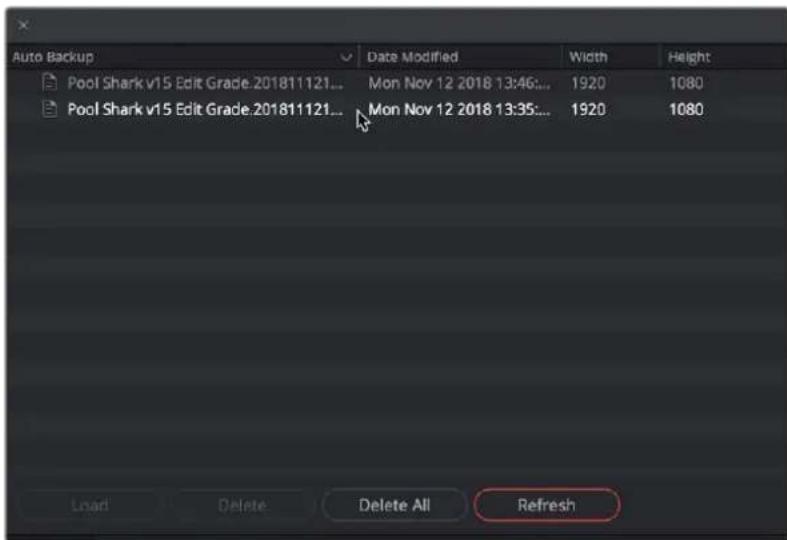
Selecting a backup that you want to restore
4 Once you've selected the backup you want to restore, you can click Load to open that backup as a new project. If the project it was saved from is already open, it won't be overwritten.
Project Notes
Each DaVinci Resolve project now provides access to Project Notes, which is a simple “scratch pad” for keeping track of text notes associated with each project. These notes can be accessed using the File > Project Notes command, and there’s also a Project Notes command in the contextual menu for project icons in the Project Manager, which makes these notes accessible to everyone who’s connected to that database.
Dynamic Project Switching
Dynamic Project Switching is an option in the Project Manager contextual menu that lets you open multiple projects into RAM simultaneously, so you can quickly switch between projects when you want to copy and paste clips, timelines, and node settings back and forth. If you plan on opening many projects, or even just a few very large projects, you should be sure your workstation has an appropriate amount of RAM installed or you could experience a slowdown in performance.
Methods of using Dynamic Project Switching:
- To enable Dynamic Project Switching: Open the Project Manager, right-click anywhere within the Project Manager and choose Dynamic Project Switching so that it's checked. Dynamic Project Switching will remain enabled until you turn it off.
- To open multiple projects in RAM: Open any project, then reopen the Project Manager and open any other project. All projects you open are kept available in RAM.
- To switch among open projects: Choose File > Switch Project and select the project you want to switch to from the submenu. You can also choose other projects that have been opened into RAM from the drop-down menu that appears to the right of the project name at the top center of the DaVinci Resolve user interface.
- To close a specific project: Choose File > Close Project and select the project you want to close from the submenu. You may be prompted to save, after which the project closes.
- To close all other open projects: Open the Project Manager. All open projects appear with a check mark in the upper right-hand corner; the currently open project has an orange corner mark, while other projects open in memory have a gray corner mark. Right-click anywhere within the Project Manager, and choose Close Projects in Memory to close all projects other than the current one.
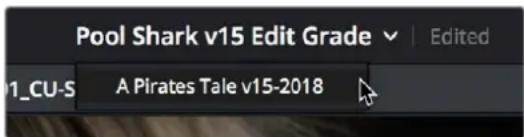
Switching among open projects using the Project Title drop-down at the top of the DaVinci Resolve UI
Using dynamic project switching, you can do the following:
– Copy and paste clips from the Media Pool of one project into another.
– Copy and paste timelines from the Media Pool of one project into another. When you paste a timeline from another project, all of the clips used in that timeline will be pasted to the same location as well.
– Copy and paste clips from a timeline in one project to a timeline in another.
- Copy a node's settings from one project and paste them to a node in another project.
You can also copy and paste clips, timelines, and node settings from one project to another without using dynamic project switching, but using switching makes this process faster.
Archiving and Restoring Projects
DaVinci Resolve has a convenient feature for quickly archiving every single media file used by a project, including subtitle files, along with the project itself, to a single location. This can be done to hand a project off to another DaVinci Resolve user, or to bundle a project and its media up for either short- or long-term archiving using the backup methodology of your choice. The process is simple.
To Archive a project:
1 Open the Project Manager.
2 Locate and right-click the project you want to archive, and choose Archive.
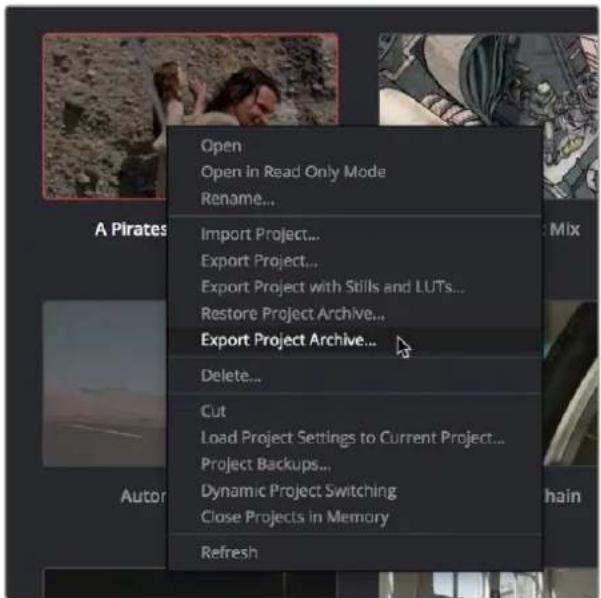
The contextual menu command for archiving projects
3 When the Archive Project window appears, choose a location to save the archive. Make sure you choose a volume that's large enough to accommodate the size of all the media from the project you're archiving, and click Save.
4 When the Archive dialog appears, verify the location the archive will be saved to, and choose which optional media you want to save within the archive. You can optionally save Optimized media and/or Render Cache media associated with a project.
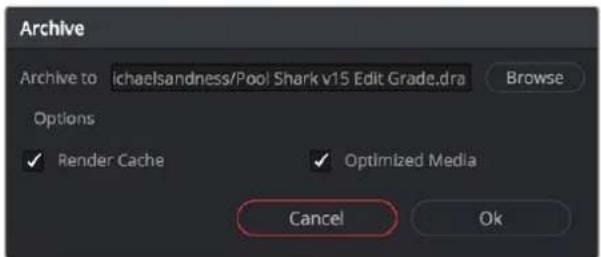
A dialog letting you choose whether to save Optimized and/or Render Cache media
5 Click Ok, and a dialog with a progress bar will show you how long the archive operation will take to finish. If any errors come up, resulting from missing or offline media, they'll be presented at the end of the process.
The resulting archive that is written is a directory with the .dra file extension. Inside this folder are a series of subdirectories containing all of the media that's used by the archived project. Each directory of media files used is saved within a directory path that mirrors the exact path it came from, so you have a reference for where each clip came from originally.
To restore an Archived project:
1 Copy the .dra archive directory you want to restore to the volume where you want those media files to be. Restoring doesn't move this directory, it only adds the project file within to the Project Manager, so you should make sure the .dra archive directory is located on a storage volume with suitable performance for you to work.
2 Open the Project Manager, right-click anywhere, and choose Restore from the contextual menu.
3 Choose the .dra archive directory you just copied, and click Open.
4 At the prompt, enter a unique project name for the restored project, and click OK. The project is restored to the Project Manager, and remains linked to the media located inside the .dra archive.
If, after restoring an archive, you want to move its media to another location, you can use Media Management to do a move operation for all clips in that project. For more information on Media Management, See Chapter 45, “Media Management.”
Chapter 4
System and User Preferences
This chapter covers the settings used for customizing the DaVinci Resolve environment. System Preferences govern setup options that control the hardware and software environment, while User Preferences control various user controls within the software.
Contents
DaVinci Resolve Preferences 87
Adjusting Preferences 88
Individual Preferences and Settings Based on Login 88
Resetting Preferences 88
System 88
Memory and GPU 88
Media Storage 89
Decode Options 91
Video & Audio I/O 91
Video Plug-ins 94
Audio Plug-ins 95
Control Panels 95
General 96
Internet Accounts 97
Advanced 98
User 98
Saving User Preference Presets 98
UI Settings 98
Project Save and Load 99
Editing 101
Color 103
Fairlight 105
Playback Settings 106
Control Panels 106
Metadata 107
Keyboard Customization 108
Choosing Keyboard Shortcut Emulation Presets 108
Viewing Commands Assigned to Specific Key Combinations 109
Searching for Keyboard Shortcuts 109
Managing Keyboard Mappings 110
Remapping a Command to One or More Keys 111
DaVinci Resolve Preferences
The DaVinci Resolve Preferences window contains workstation-specific settings for customizing how DaVinci Resolve works, divided into System and User panes, selectable via buttons at the top of this window.
To open the Project Settings window, do one of the following:
- Choose DaVinci Resolve > Preferences.
- Press Command-Comma.
TIP: You can open the preferences while the Project Manager is open when you first run DaVinci Resolve by pressing Command-Comma.
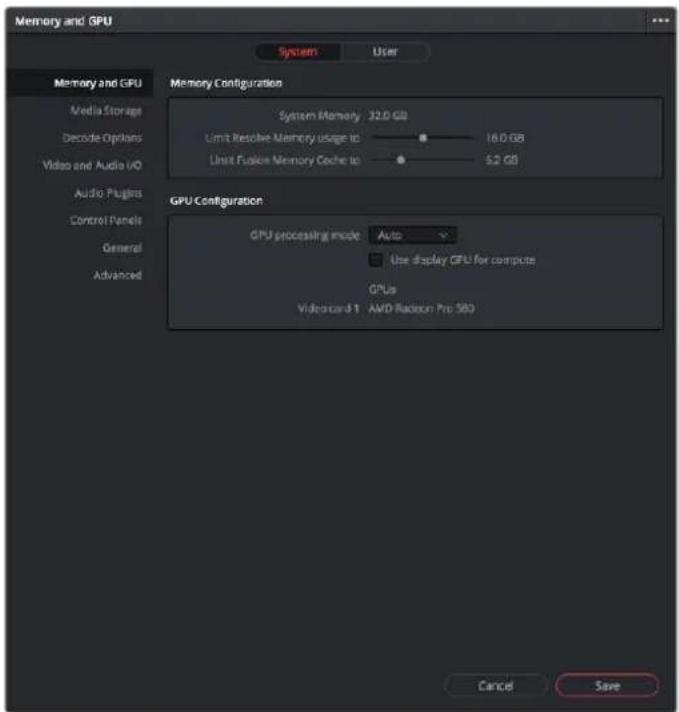
System Settings of the Preferences window
Adjusting Preferences
The System and User panes are each divided into a series of panels which can be selected from a sidebar at the left. Each panel contains a collection of related settings that affects some category of DaVinci Resolve functionality.
To alter any preference setting:
1 Click on the name of any group of settings in the sidebar at the left to open that panel.
2 Change whatever settings you need to change.
3 Click Save to apply the changes you've made and close the Preferences window.
If you've updated certain System Preferences, you'll be prompted to restart DaVinci Resolve, but if you've updated the User Preferences, this will probably be unnecessary.
Individual Preferences and Settings Based on Login
As of DaVinci Resolve 16, there are individual preferences and settings for each login account on a given computer. This means that multiple artists can each have their own operating system login, and DaVinci Resolve will maintain separate workspace layouts and preference states for each artist, depending on who's logged in.
Resetting Preferences
Resetting all preferences to their defaults is simple. Click the Option menu at the upper right corner of the Preferences window and choose Reset System Preferences.
System
The System pane of the Preferences window consists of a series of panels that configure the computer and other hardware that comprises your DaVinci Resolve workstation.
Memory and GPU
The top section of this panel provides Memory Configuration options, while the bottom section of this panel provides controls over how GPU processing is handled.
Memory Configuration
This section has the following preference settings handling memory usage.
– System Memory: The total available RAM on your workstation is listed here.
- Limit Resolve Memory Usage to: This preference limits the total amount of system memory that Resolve uses, keeping memory available for other applications. The maximum and default setting for this preference is 75 percent of your system's RAM.
- Limit Fusion Memory Cache to: Lets you limit how much RAM the playback cache on the Fusion page is allowed to use. Depending on the length of clips you're working on in the Fusion page, the playback cache can occupy a considerable amount of available memory. The amount you allocate here is taken from the total amount of memory allocated by the "Limit Resolve Memory Usage to" setting.
GPU Configuration
This section lets you choose how GPU processing should be handled.
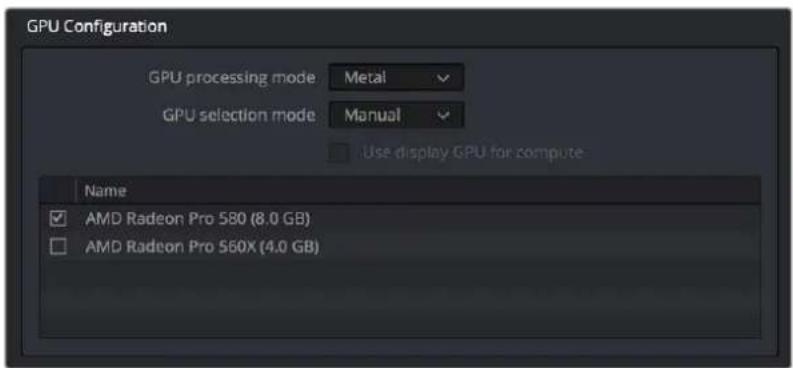
Options for configuring the GPUs on your workstation
- GPU processing mode: Lets you set DaVinci Resolve to use the OpenCL, CUDA, or Metal GPU computing APIs for doing effects processing. Which is best depends on the GPUs that are installed in your computer. Most users can leave this set to Auto to let DaVinci Resolve choose what's appropriate. Otherwise, here are specific recommendations. If you have a macOS system, you should use Metal. Linux and Windows users with AMD GPUs should use OpenCL. Linux and Windows users with Nvidia GPUs should use CUDA, but make sure you have the correct drivers for your system, and that you have the latest update to CUDA installed. Additionally, when you manually choose an option from this drop-down menu, the GPU selection mode drop-down also appears.
- GPU selection mode: Lets you choose between Auto, which lets DaVinci Resolve choose which of the available GPUs on your computer to use for processing, and Manual, which lets you choose which GPUs to enable or disable for processing from a list that appears below. This can be useful in instances where you have multiple GPUs installed on a machine and you want to choose only the most powerful GPUs for processing. This can also be useful in instances where an external eGPU is connected to a laptop or all-in-one with a weaker GPU, so you can choose the more powerful eGPU for processing.
- Use Display GPU For Compute: By default, a single GPU system uses the same GPU for the DaVinci user interface and also for image processing. As greater processing speeds are achievable with two or more GPUs, if two GPUs are installed for image processing, this checkbox enables the shared use of the display GPU instead of dedicating it to just the DaVinci user interface. Users of the non-studio version of DaVinci Resolve are restricted to the use of a single GPU, unless DaVinci Resolve is installed on a 2013 or later Mac Pro, in which case both installed GPUs will be used.
- GPU selection list: This list only appears when GPU processing mode is set to either OpenCL, CUDA, or Metal, and when GPU selection mode is set to Manual. A list of every GPU installed in your computer appears, and you can use checkboxes to the left of each GPU to enable or disable specific GPUs from being used for processing.
- Optimized Viewer Updates: This only appears on multi-GPU macOS and Windows systems or on single- and multi-GPU Linux systems; enables faster viewer update performance.
Media Storage
This panel lets you define the scratch disk and other media storage locations used by DaVinci Resolve, as well as the default cache directories locations to be used when creating new projects.
- Media Storage Locations: This list lets you define the scratch disk of the system. The first volume in this list is where Gallery stills and cache files are stored, so you want to make sure that you choose the fastest storage volume to which you have access.
- Mapped Mount: This column allows you to specify translatable media path mapping between Mac, Linux, and Windows file system conventions.
- Direct I/O: This Linux-only option allows DaVinci Resolve to write directly to the drive using the kernel buffers, bypassing the normal storage cache in RAM. This allows access to the full performance of the drive.
- Automatically display attached local and network storage locations: This checkbox lets DaVinci Resolve access media on all temporarily and permanently mounted volumes, including SATA and eSATA, SAS, USB, FireWire, Thunderbolt, Gigabit Ethernet (GbE or GigE), Fibre Channel, and otherwise connected hard drives, without having to add them to this list. This is on by default.
If you're using the Apple App store version of DaVinci Resolve, turning on "Automatically display attached local and network storage locations" automatically prompts you via a dialog to add "Macintosh HD" as a storage location. Clicking Add Location prompts you to select the Macintosh HD volume with another dialog, and clicking Open then adds that volume to the Media Storage Volumes list. After you click Save to close the Preference windows, Resolve should now auto-mount any volumes attached to your computer in the Media Storage browser of the Media page. Don't do this until after you've added a fast storage volume to the Media Storage Locations list, because you don't want Macintosh HD as the first volume in this list – the very first volume in this list should always be reserved for your fast scratch volume.
Adding Storage Locations Manually
Some versions of DaVinci Resolve do not allow automatic display of attached volumes. In this case, you can right-click anywhere in the background of the Media Storage panel's volumes list on the Media page and choose "Add New Location" to open a dialog you can use to choose a volume you want to add.
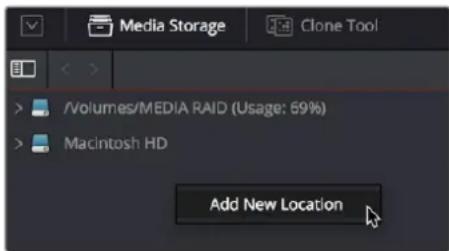
Manually adding a volume to the Media Storage panel's volumes list
Using Path Mapping to Access Volumes From Other Operating Systems
Shared media path mapping support for Mac, Linux and Windows makes it easier for multi-system shops to share Resolve projects among different platforms that use different file path conventions.
To add a mapped mount string:
1 Open the Media Storage panel of the Resolve Preferences window.
2 Add the volume you want to map to the Scratch Disks list.
3 Double-click the Mapped Mount column of the drive you added to edit it.
4 Enter the alternate file path you want that volume to have. For example, if you're on a Windows workstation and you want to access a Linux volume, type the Linux file path into the Mapped Mount column.
NOTE: If the volume you've selected to use for the cache becomes unavailable, DaVinci Resolve will warn you with a dialog.
Decode Options
This panel contains all options available for using the GPU to accelerate the decoding and debayering of various formats.
- Use GPU for Blackmagic RAW decode: Lets you use your GPU to accelerate the decoding of Blackmagic RAW (BRAW) media.
- Decode H.264/HEVC using hardware acceleration: Allows the use of hardware acceleration for H.264 or HEVC playback, if available on the computer you're using.
- Use easyDCP decoder: Since DaVinci Resolve has its own DCP encoder and decoder built in, this checkbox lets you switch over to using easyDCP to do DCP decoding, if you have a license installed on your workstation.
- Automatically refresh growing files in the media pool: If you're using a third-party application that records live to a growing video file, you can now begin to edit that file while it's still recording. Simply import the growing file into the Media Pool, and when this box is checked, DaVinci Resolve will continuously refresh to determine if the file has changed, and automatically update its attributes in the Media Pool.
-
Use GPU for RED Debayer: Lets you use your GPU to accelerate debayering of R3D media. The latest RED API enables accelerated 8K debayering using either Metal or Cuda. There are three options:
-
None
- Debayer
– Decompression and Debayer
- Use Red Rocket if available: (Only appears if a RED ROCKET-X or RED ROCKET is installed.) This checkbox lets you disable Red Rocket support if you need to force DaVinci Resolve to use standard RED software CPU debayering to accommodate your specific workflow or when troubleshooting. If you are required to debayer R3D media using your CPU, turn this checkbox off. Additional options appear letting you choose decompression and debayer settings.
Video & Audio I/O
The preferences in this panel let you choose video and audio interfaces on your workstation.
Video I/O
This section lets you choose which Blackmagic Design video interfaces you want to use for monitoring, capture, playback, and Resolve Live, assuming you have any connected to your workstation. If you have more than one Blackmagic Design video device connected to your computer, you can independently configure them for playback and capture. If no interfaces are connected, no options will be available.
- Capture Device: If you have a compatible video capture card for video input, you should choose from the card options that appear here. This setting also sets the selected input device for use in Resolve Live, allowing you to monitor and color correct a live video signal. Any changes to this setting require a restart of the program.
-
Monitor Device: If you have a compatible video output card, you should choose from the card options that appear here. Leaving this set to "None" disables external video output. Disabling video output can improve real time performance when external monitoring and output is not a priority. You can also choose "None" when you're using DaVinci Resolve with another application open at the same time that's using your workstation's video output interface. When you've quit the other application, you can reselect the video output interface for use by DaVinci Resolve. Any changes to this setting require a restart of the program.
-
Release video device when not in focus: When turned on, DaVinci Resolve releases control of the video output device whenever you switch to another application.
- Enable discrete audio output: This enables sending audio to individual outputs per channel from your designated device.
- Audio monitoring delay: Allows you to adjust any latency between the video images and the audio monitoring.
Audio I/O
This section lets you define the audio hardware and different sets of speakers with which to monitor audio playback. To access more than the default stereo system output that most workstations default to, you must use whatever software is available for your operating system to choose the desired audio hardware you want to use, and define how many audio outputs are required for the type of monitoring you want to do (stereo, immersive, and so on). For example, on macOS you'll use the Audio Midi Setup utility to choose output hardware and select a speaker configuration to be made available on your system.
- I/O Engine: Lets you choose the audio hardware that DaVinci Resolve uses to process audio. Choices include System Audio, Desktop Video, Fairlight Audio Accelerator, and ASIO (Windows only).
-
System Audio: System Audio interfaces with your computer's native audio hardware and enables the following parameters.
-
Playback processing buffer size: Lets you determine the size of the Playback buffer; to the right a latency display indicates the approximate latency of your choice in milliseconds.
- Record buffer size: Lets you determine the size of the Record buffer; to the right a latency display indicates the approximate latency of your choice in milliseconds.
- Input Device: Lets you chose the audio input device from the hardware attached to your system.
- Output Device: Lets you chose the audio output device from the hardware attached to your system.
- Automatic speaker configuration: Checking this box sets DaVinci Resolve to output audio via your workstation's built-in audio output, even if a compatible video I/O interface is enabled for capture and playback or for Resolve Live. Unchecking this box exposes additional controls with which you can define your own speaker setup.
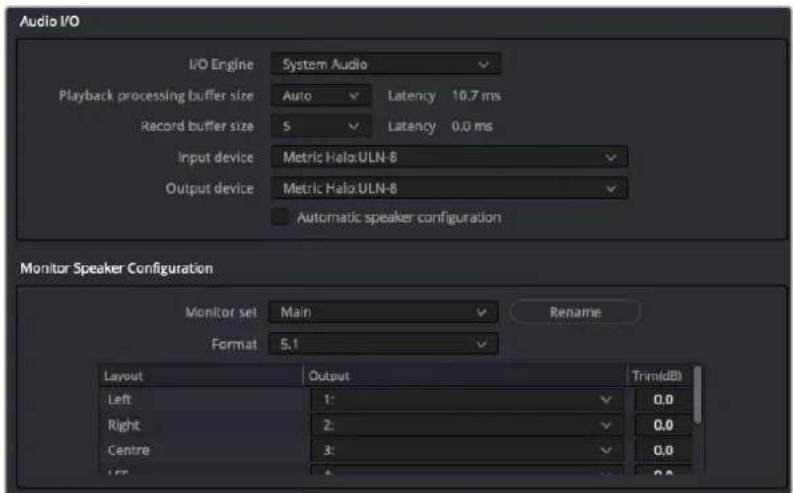
Assigning different audio I/O devices and required buffer adjustments
About Audio Monitoring and Audio Input
The audio processing throughout DaVinci Resolve, including on the Fairlight page and audio processing using Fairlight FX plug-ins, is equally compatible with all platforms that DaVinci Resolve runs on, including macOS, Windows, and Linux. In particular, DaVinci Resolve supports audio monitoring and audio input using (i) the audio of a supported Blackmagic Design I/O device such as an UltraStudio or Decklink, (ii) your macOS, Windows, or Linux workstation's on-board audio, (iii) any Core Audio-compatible, Windows-compatible, ASIO, or Advanced Linux Sound Architecture (ALSA)-supported third party audio interface.
Alternately, you can monitor audio with the optional Fairlight Audio Accelerator, which is a PCI card that's designed to handle even more channels of audio I/O monitoring and recording, and that's also capable of accelerating audio processing operations to provide better performance for audio operations.
NOTE: ASIO is a trademark and software of Steinberg Media Technologies GmbH.
Monitor Speaker Configuration
When the Automatic Speaker Configuration box is unchecked it reveals another panel in the Video and Audio I/O Preferences. Here you can assign your monitors to the default Main or Near sets, and you can also create an additional 15 monitor sets specific to your needs.
- Monitor Set: Choose the default Main or Near or create up to 15 other user-definable configurations.
- Rename: This button allows you to rename any of the monitor sets to something more meaningful for your individual needs.
- Format: A drop-down menu allows you to choose the desired format type from Mono up to Dolby Atmos 9.1.6. Below the Format type there are three windows to create the Monitor Set:
- Layout: Breaks out the channels that correspond to the chosen format.
- Output: Where you can assign the Output channels to your system.
- Trim: Where you can reduce each individual level by up to -24dB of gain or add up to +10dB of gain for fine tuning the speaker calibration required for your particular playback space.
Monitor System External Inputs
You can create multiple sets of monitoring with up to 16 user-definable setups from the Control Room and Studio tabs in this panel. This allows flexibility to have different combinations of monitoring speakers that you can switch among for checking, reviewing, and creating different mixes.
– External Monitor Source: Chose None or up to 16 definable configurations.
- Format: When a Format is chosen, a drop-down menu appears allowing you to choose the desired format type from Mono up to Dolby Atmos 9.1.6. Once a format has been chosen, three more windows appear:
- Layout: Which breaks out the channels that correspond to the chosen format.
– Source: Where you can assign either Input Destination or Audio Repro.
- Input: Where you can assign an individual track when in Audio Repro, or assign the specific channel when in Input Destination.
- Rename: This button allows you to rename any of the numerically labeled monitor sets to something more meaningful for your individual needs.
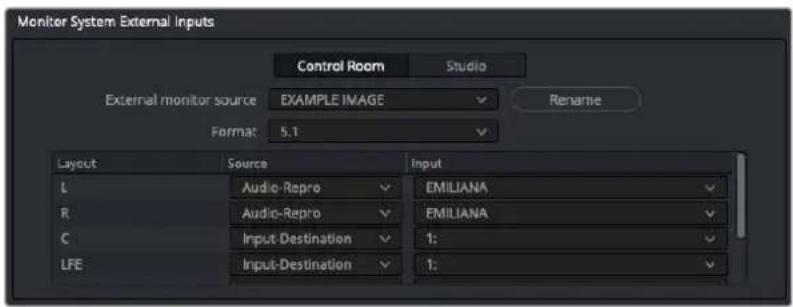
Patching and renaming different external inputs in Preferences
Immersive Audio Controls
These two Preference panels allow you to configure for the type of Immersive Audio that you want to have available in your project and also for linking to a Dolby RMU for doing Dolby Atmos mixing.
- Immersive Audio: This panel allows you to enable the various types of Immersive Audio offered within DaVinci Resolve. Those formats are: Auro-3D, Dolby Atmos, MPEG-H Audio, SMPTE ST 2098, and 22.2 Surround.
- Dolby Atmos: Checking this box allows the use of an external Dolby Atmos Renderer. Once checked you can enter the IP address of the RMU and choose the base audio output.
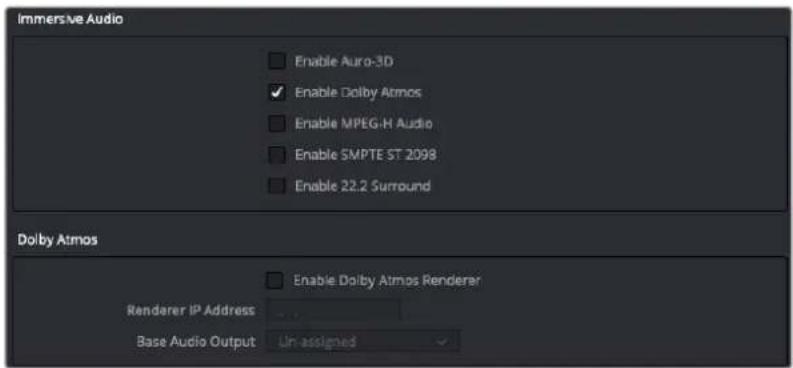
Video Plug-ins
You can selectively enable and disable specific Open FX plug-ins on startup. You can use this function to streamline and organize the Open FX list to just the plug-ins you commonly use, or to exclude a problematic plug-in that causes instability in the system. Additionally, DaVinci Resolve automatically checks the last plug-in loading result on startup, and skips any plug-ins that previously caused a crash or hang.
Individual Open FX plug-ins can be manually enabled and disabled in the Video Plugins panel by checking or unchecking the boxes corresponding to the plug-ins.
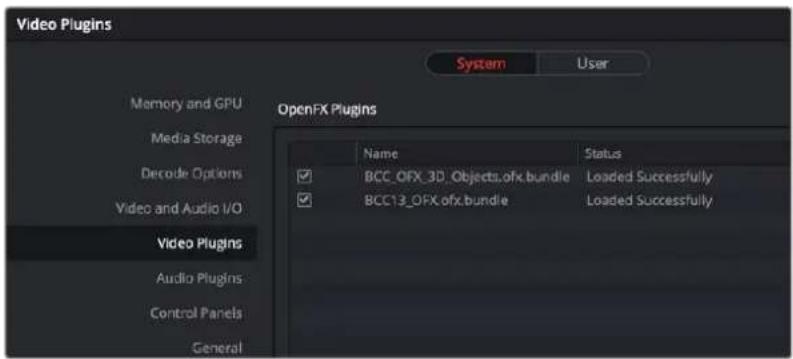
The Video Plugins panel allows you to enable or disable specific Open FX plug-ins at startup.
Audio Plug-ins
Three sections of parameters let you manage VST Effects, enabled plug-ins, and external audio processes.
- VST Effects: A list at top lets you manually add and remove VST plug-in effects directories, if necessary. VST effects aren't installed in a standard location, so it may sometimes be necessary to add a newly installed directory of VST plug-ins that you've just installed on your system.
- Available Plug-ins: Once you've added one or more VST directories to the list, a second list underneath shows all audio plug-ins that are available within these directories. Each plug-in on the list has a checkbox that shows whether or not it's currently enabled. Any VST plug-ins that cause DaVinci Resolve to crash while loading them during startup will be automatically disabled. You can use this list to see which plug-ins have been disabled, for troubleshooting purposes, and to reenable such "blacklisted" plug-ins by turning their checkboxes back on.
- Setup External Audio Processes: While working in the Fairlight page, you have the ability to process an audio file using a third-party application, if necessary, in the event you need to use another application's capabilities to create an effect or solve an issue that can't be accomplished in the Fairlight page itself. To do this, you must first add one or more applications to the External Audio Process list in the Audio Plug-ins panel of the System Preferences.
NOTE: VST is a trademark of Steinberg Media Technologies GmbH.
To add an External Audio Process:
1 Click the Add button.
2 Double-click the text in the Name column and change the name to that of the application or process you're going to link to.
3 Click once in the Path column, and then use the file dialog to locate and select the application or script you want to use as the external audio process.
4 Open the drop-down menu in the Type column, and choose how you want the selected audio process to work: Reveal (open the application), Command Line (use from Terminal), or Clipboard (copy the audio clip file path to the clipboard to paste into the open command of an application or utility).
5 When you're done, click Save, and restart DaVinci Resolve if you're prompted to.
Control Panels
Two sections let you specify which Color Grading Panel and Audio Console is connected to your workstation.
- Color Grading Panel: A menu lets you choose which color grading panel you have connected to your workstation. Some panels expose additional controls.
If you have a DaVinci Resolve Mini or Micro Panel, leave this setting set to None and these panels will be auto-detected by Resolve when you plug them in.
If you have a control panel that connects via USB, choose your panel from the list.
If you have a DaVinci Resolve Mini Panel connected over Ethernet, choose "DaVinci Resolve Mini Panel (Ethernet)" and then choose your panel from the drop-down that appears.
If you're using a JLCooper Eclipse, choose "JLCooper Eclipse CX" and then enter the IP and Port number into the fields that appear.
- Use MIDI Audio Console: A checkbox lets you enable the use of a third-party audio console that's connected to your workstation. Turning this on exposes three additional menus.
- MIDI Protocol: Lets you choose either the HUI or MCU protocol, whichever is compatible with the audio console you want to use.
- MIDI Input: Lets you choose the MIDI input used to connect your console.
- MIDI Output: Lets you choose the MIDI output used to connect your console.
General
This panel provides various options for scripting, audio processing, monitoring, and sending problem reports.
- External Scripting Using: (Resolve Studio only) Options include None, Local, and Network. When set to None, only scripting in the Console window is allowed. When set to Local, external scripts and applications on the same computer can control DaVinci Resolve. When set to Network, external scripts and applications from other computers on the network (or via the internet) can control DaVinci Resolve.
- Audio Processing Block Size: Lets you increase the sample block size to add processing headroom to the system, at the expense of adding latency to audio playback. The default value is Auto, which automatically chooses a suitable setting for the audio I/O device you're using.
For those who have specific needs and are interested in setting this manually, here are some examples of use. In a first example, when a system is under a heavy load (there are many plug-ins being used on many tracks), then increasing the block size to add processing headroom will result in a longer delay every time your audio hardware requests samples to feed the speakers. If you're only mixing, the resultant latency may not be a problem, so this gives you the option to add headroom so your system can run a few more plug-ins or tracks.
On the other hand, this increased delay in the processed audio running through the mixer is a much bigger problem if you're recording an artist in an ADR session, where they need to hear themselves in the headphones, or when you're recording foley or voice over and there's an increased delay between what you see and what you're recording, so in this case sticking with the default value (or smaller) will sacrifice processing headroom for diminished latency.
TIP: A common strategy when you need to force more cooperation from a particular combination of workstation and audio interface is to reduce Audio Processing Block Size when you're about to do a recording session, when track and plug-in use is lower. Later, when you start mixing in earnest and adding plug-ins, you can increase Audio Processing Block Size to give you better performance once you're finished recording.
- Use 10-bit precision in viewers if available: This checkbox only appears on Mac OS X 10.11 (El Capitan) and higher installations of DaVinci Resolve. Turning this checkbox on lets DaVinci Resolve display 10-bit images in the Viewer.
- Use Mac Display Color Profile for viewers: If you're using DaVinci Resolve on macOS, this checkbox enables all viewers in DaVinci Resolve to use whatever display profile is selected in the Displays panel of the System Preferences. This lets DaVinci Resolve use ColorSync on macOS so your Viewer image should better match your output display.
- Automatically Tag Rec.709 Scene Clips as Rec.709-A: Turn this checkbox on to automatically tag any Rec. 709 QuickTime files for Rec. 709-A playback. This setting is useful if your final QuickTime video does not match what you see in the Resolve viewers (gamma shift), and you wish to export for the web rather than broadcast.
- Automatically Scan other databases for remote rendering jobs: Turn this checkbox on to scan all connected databases, rather than just the current database for possible remote rendering jobs.
- Automatically Check for Updates: Turn this checkbox on to make it easier to ensure you're using the latest version of DaVinci Resolve. You can also choose DaVinci Resolve > Check For Updates to notify you of new versions and download them when available.
- Automatically opt-in for new beta program notifications: Lets you know when public beta versions of DaVinci Resolve become available, in case you're interested in living on the edge.
- Send report when application quits unexpectedly: When this checkbox is turned on, this setting enables DaVinci Resolve to automatically prepare a problem report whenever DaVinci Resolve unexpectedly quits. You get to fill out some information (please be as specific as you can about what you were doing when DaVinci Resolve had its issue) and click a button to send the report.
- Automatically send problem reports: When this checkbox is turned on, problem reports are automatically sent, with no user intervention. You have the option of adding your name and email address to be automatically included, but this information is optional.
Internet Accounts
DaVinci Resolve has tight integration with YouTube, Vimeo, Twitter, Dropbox, and Frame.io that allows you to render and upload directly to each service. This panel provides buttons that let you sign into your YouTube, Vimeo, Twitter, Dropbox, and Frame.io accounts, as well as specify a local cache location for media being synced with Frame.io.
For each service you sign into, a floating window presents the interface in which you'll need to enter your login name and password to enable integration, followed by whatever two-factor identification and other required steps are necessary. Once entered, DaVinci Resolve will sign in to each of these services automatically when DaVinci Resolve opens.
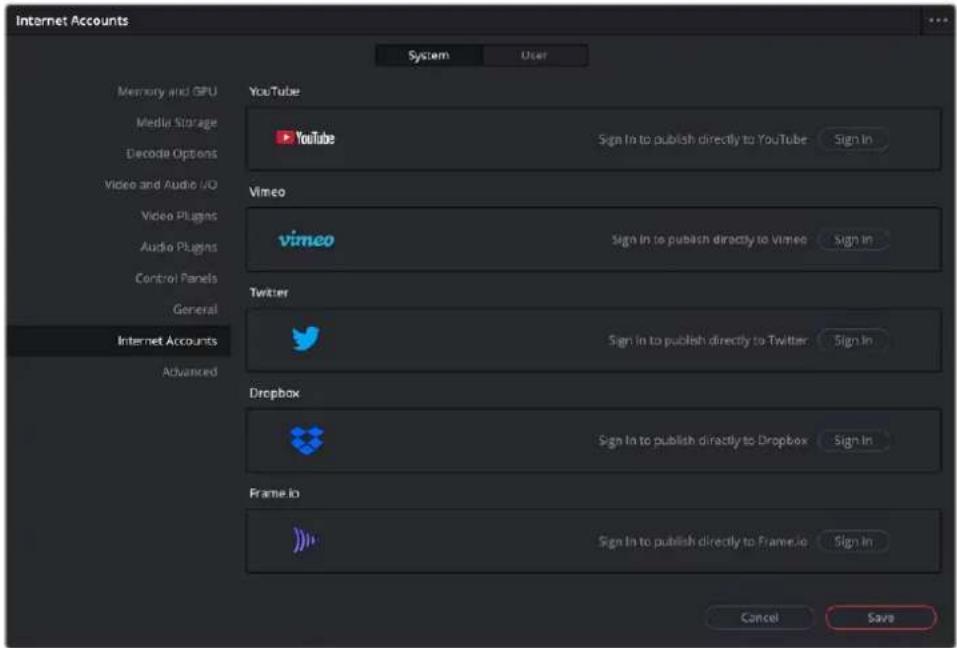
The Internet Accounts panel of the System tab of the DaVinci Resolve Preferences window
NOTE: For Frame.io, the local cache location is used to store clips you import into a DaVinci Resolve project from the Frame.io volume in the Media Storage panel of the Media page.
Advanced
This tab is used for special Resolve configurations and SAN parameters that are applicable to older file systems.
User
This panel lets you choose user preferences, specific to your workstation, that govern such things as UI behaviors and appearance, auto save settings, editing and color defaults, control panel action, and keyboard shortcut mappings.
TIP: Many of the settings in the User panel used to be found in the Project Settings window prior to version 14, but they were moved here to accommodate collaborative workflows with each user having their own independent general, editing, and color settings, as well as their own keyboard shortcuts.
Saving User Preference Presets
It's possible to save multiple presets for instant recall of different User Preference settings, using the Option menu in the UI Settings window.
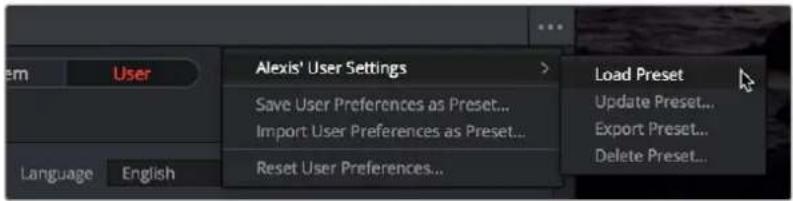
The commands for managing User Preference presets in the Option menu of the UI Settings window
Methods of managing User Preference presets:
- To save a preset: Choose whatever settings you want to use, then click the UI Settings window Option menu, and choose Save User Preferences as Preset. Enter a name into the dialog, and click OK. That preset will now appear at the top of the Option menu.
- To load a preset: Click the UI Settings window Option menu, and choose Load Preset from the submenu of the preset you want to load.
- To update a preset: Load a preset you want to edit, then change whatever settings you need to, and choose Update Preset from the submenu of that preset in the Option menu.
- To export a preset: Choose Export Preset from the submenu of any preset in the Option menu. A file with the .userprefs extension is saved at the location you chose.
- To import a preset: Choose Import User Preferences as Preset in the Option menu, use the dialog to find the exported .userprefs preset file you want to import, and click Open.
- To delete a preset: Choose Delete Preset from the submenu of any preset in the Option menu.
- To reset all presets: Choose Reset User Preferences from the Option menu to restore all User Preferences to their default settings.
UI Settings
A collection of operational preferences.
- Language: A Language drop-down at the top lets you specify which language the DaVinci Resolve user interface displays. DaVinci Resolve currently supports English, Chinese, Japanese, Spanish, Portuguese, French, Russian, Thai, and Vietnamese.
- Reload last working project when logging in: Automatically reopens the last project a user had open whenever that user logs back into DaVinci Resolve. This checkbox can only be enabled when editing a preset configuration in the Presets panel, so that it's always on no matter which project you open as long as you're using that particular preset. Ideally, enable it for your User config (if you're using a multi-user configuration of DaVinci Resolve) or your Guest Default config (if you're using a single-user configuration).
- Show focus indicators in the User Interface: Lets you enable or disable a red line at the top of each panel that indicates which panel currently has focus.
- Use gray background for user interface: By default, DaVinci Resolve uses a blue-gray UI background, intended to provide a more attractive experience for users focused on the less color-critical aspects of DaVinci Resolve, namely editing. Turning this checkbox on switches DaVinci Resolve to a totally neutral, desaturated gray UI, which can be valuable as a point of reference for colorists concerned about the blue-gray UI's potential to bias the eye in the dark environment of the grading suite.
- Use gray background in viewers: When turned on, sets the background of all viewers to gray, making it easier to evaluate image blanking or minor sizing adjustments than with the default dark background.
- Resize image in viewer to square pixels: This control will select between using a square or non-square pixel aspect ratio within the Viewer. This is important when working with SD images which do not have a square pixel aspect ratio.
- Delay viewer display by X frames: When turned on, you can enter a number of frames to delay DaVinci Resolve Viewers as they appear on your computer displays so that the image on your computer display better syncs up with the same image shown on external displays that are delayed due to various signal processing processes.
- Output single field when paused: This setting will reduce flicker when grading using a computer monitor or when working with interlaced material. Ordinarily, when viewing interlaced material in Stop or Pause mode, field one is displayed followed by field two. Depending on the image, this can result in a flicker on the display. When this option is enabled, only field one will be shown on the monitor when playback is paused; however both fields will be shown when the clips are played.
- Stop playback when a dropped frame is detected: When enabled, sets DaVinci Resolve to stop playback whenever a frame is dropped on output, to warn you that there are performance issues on your workstation. This is particularly useful when you're outputting to tape.
- Stop renders when a frame or clip cannot be processed: When enabled, this will halt a render if DaVinci Resolve detects an error in the encoding, rather than continue to try to process it.
- Timeline sort order: A user setting that allows you to determine the default sort order of the Timelines that appear in the Viewer drop-down menus throughout DaVinci Resolve.
– Alphabetic: Sorts Timelines alphabetically A-Z.
– Creation Date: Sorts Timelines by oldest creation date first.
- Recently Used (default): Sorts Timelines by the last actively used Timeline first.
Project Save and Load
The Project Save and Load panel lets you control how projects are opened, and how they're saved.
Load Settings
The Load Settings preference lets you control a key aspect of project opening performance, namely whether or not all timelines within a given project are loaded into memory at the time of opening.
- Load all timelines when opening projects: To improve the performance of longer projects with multiple timelines, the "Load all timelines when opening projects" checkbox in the Project Save and Load panel of the User Preferences defaults to off.
- When this checkbox is off, opening a project only results in the last timeline you worked on being opened into memory; all other timelines are not loaded into RAM. This speeds up the opening of large projects. However, you may experience brief pauses when you open other timelines within that project, as each new timeline must be loaded into RAM as you open it. If you open a particularly gigantic timeline, a progress bar will appear letting you know how long it will take to load. Another advantage of this is the reduction of each project's memory footprint, which is particularly valuable when working among multiple projects using Dynamic Project Switching.
- If you turn this on, all timelines will be loaded into RAM, and you'll experience no pauses when opening timelines you haven't opened already. However, projects with many timelines may take longer to open and save.
Save Settings
The Save settings allow you to control how DaVinci Resolve handles automated saving and project backups. These features can save you from the heartache of lost work resulting from an unexpected problem.
- Live Save: Enabled by default, Live Save is a progressive, fast, always-on autosave mechanism that "saves as you go." All changes in the Cut, Edit, and Fairlight pages are saved as you make them. All changes in the Fusion and Color pages are automatically saved when you switch to another clip, and also periodically and invisibly in the background while you work to ensure that your work is saved even if you haven't switched clips in a while.
- Project Backups: Turning on the Project Backups checkbox in the Project Save and Load panel of the User Preferences enables DaVinci Resolve to save multiple backup project files at periodic intervals, using a method that's analogous to a GFS (grandfather father son) backup scheme. This can be done regardless of whether or not Live Save is turned on. Each project backup is a complete project file, excluding stills and LUTs.
Once you've enabled Project Backups for a long enough time, whatever saved project backups have been created are retrievable in the Project Manager via the contextual menu that appears when you right-click a project, by choosing Project Backups. Opening a project backup does not overwrite the original project; project backups are always opened as independent projects.
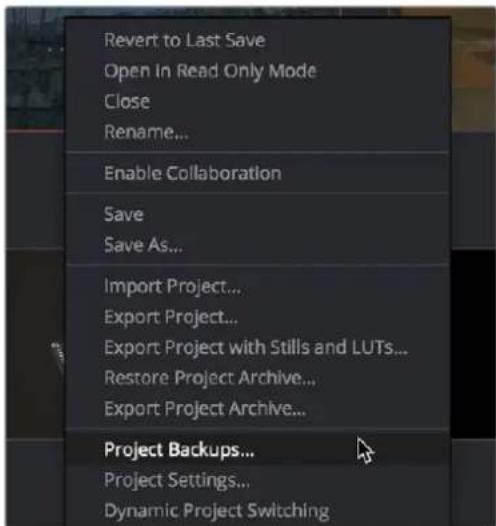
Restoring a project backup in the Project Browser
Project backups are only saved when changes have been made to a project. If DaVinci Resolve sits idle for any period of time, such as when your smart watch tells you to go outside and walk around the block, no additional project backups are saved, preventing DaVinci Resolve from overwriting useful backups with unnecessary ones.
Three fields let you specify how often to save a new project backup, while the fourth lets you choose where the backups will be saved.
- Perform backups every X minutes: The first field specifies how often to save a new backup within the last hour you've worked. By default, a new backup is saved every 10 minutes, resulting in six backups within the last hour. Once an hour of working has passed, an hourly backup is saved and the per-minute backups begin to be discarded on a first in, first out basis. By default, this means that you'll only ever have six backups at a time that represent the last hour's worth of work.
- Hourly backups for the past X hours: The second field specifies how many hourly project backups you want to save. By default, 8 hourly backups will be saved for the current day you're working, which assumes you're working an eight hour day (wouldn't that be nice). Past that number, hourly backups will begin to be discarded on a first in, first out basis.
– Daily backups for the past X days: The third field specifies for how many days you want to save backups. The very last project backup saved on any given day is preserved as the daily backup for that day, and by default daily backups are only saved for five days (these are not necessarily consecutive if you take some days off of editing for part of the week). Past that number, daily backups will begin to be discarded on a first in, first out basis. If you're working on a project over a longer stretch of time, you can always raise this number.
- Project backup location: Click the Browse button to choose a location for these project backups to be saved. By default they're saved to a "ProjectBackup" directory on your scratch disk, although you could change this to a volume that better fits into your data backup methodology.
NOTE: When using this feature, the very first project backup that's saved for a given day may be a bit slow, but all subsequent backups should be unnoticeable.
Editing
The settings in this panel affect new timeline settings, editorial default values, trim behaviors, timeline UI appearance, and frame interpolation settings.
New Timeline Settings
These settings define the presets that populate the New Timeline Options window whenever you create a new timeline.
- Start Timecode: You can change the Start Timecode if a specific start time is required.
- No. of Video Tracks: Enter how many video tracks you want to have. You can also drag within this field to adjust the number of video tracks with a virtual slider.
- No. of Audio Tracks: Enter how many audio tracks you want to have. You can also drag within this field to adjust the number of audio tracks with a virtual slider.
– Audio Track Type: Choose the channel mapping you want the new audio tracks to use.
Automatic Smart Bins
These settings let DaVinci Resolve automatically create Smart Bins whenever clips with relevant metadata appear in the Media Pool, or whenever such metadata is added to clips that are already in the Media Pool. You can choose which Smart Bins are automatically created via a series of checkboxes.
General Settings
These settings define the timing of resolve-generated effects and editing operations.
- Standard generator duration: Defines the default duration of generators you edit into the Timeline, in Seconds or Frames. The default value is 5 seconds.
- Standard transition duration: Defines the duration of transitions, in Seconds or Frames, that you add to an edit point in DaVinci Resolve. The default value is 1 second.
- Standard still duration: Defines the duration of stills that you import such as TIFF, PNG and other supported graphic file formats, in Seconds or Frames. The default value is 5 seconds.
- Pre-roll time: Determines how much of the Timeline before the current position of the playhead to play when using the Play Around command.
- Post-roll time: Determines how much of the Timeline after the current position of the playhead to play when using the Play Around command.
- Default handles length: The value used when creating a timeline with handles. The default is one second worth of frames.
- Default fast nudge length: The number of frames that are nudged when you use the Shift-Comma (,) and Shift-Period (.) keyboard shortcuts.
- Pre-playhead shadow length: The number of frames in the Timeline prior to the playhead covered by the Playhead Shadow, if enabled by choosing View > Show Playhead Shadow.
- Post-playhead shadow length: The number of frames in the Timeline after the playhead covered by the Playhead Shadow, if enabled by choosing View > Show Playhead Shadow.
- Timeline overlay retains the last performed action: Turn this checkbox on if you want DaVinci Resolve to always remember the last edit type you used in the Timeline Viewer Overlay, and highlight it on this Overlay whenever you drag another clip over the Timeline Viewer to let you know that the last edit you performed is the new default edit if you drop clips to the left of the overlay.
- Always highlight current clip in the media pool: When turned on, any clips at the position of the playhead on the Edit or Color pages will be automatically highlighted in the Media Pool.
- Sync the Master Timeline to the current frame: If you turned on “Automatically match master timeline with media pool” in the Color settings, then this option lets you make sure that whenever you open the Master Timeline, the playhead is at the same clip and frame that it was in the previous Timeline you were working on.
-
Show offline reference for timeline gaps: If there's a missing clip in a conformed timeline that results in a gap in the Timeline Editor, turning this option on sets DaVinci Resolve to show the corresponding frames of an "offline reference movie," if one has been assigned to that timeline, instead of black. This can be helpful in emergency situations when you're missing timeline clips right before a screening or review session; this feature lets you play or output the missing frames using the corresponding media from the offline reference movie, instead of outputting black. For more information on using and assigning Offline Reference Movies, see Chapter 55, "Preparing Timelines for Import and Comparison."
-
Show offline reference for non-conformed edits: If there's missing media in a project that results in an unlinked clip in the Timeline Editor (represented by a red exclamation point overlay on that clip), turning this option on sets DaVinci Resolve to show the corresponding frames of an "offline reference movie," if one has been assigned to that timeline, instead of black. This can be helpful in emergency situations when you're missing source media right before a screening or review session; this feature lets you play or output the missing frames using the corresponding media from the offline reference movie, instead of outputting black. For more information on using and assigning Offline Reference Movies, see Chapter 55, "Preparing Timelines for Import and Comparison."
- Use custom safe area overlays: When turned on, displays Action Area and Title Area fields that let you set a custom percentage for each. The default values are 93% for Action Area and 90% for Title Area.
- Align audio edits to frame boundaries: When turned on, the In and Out points of audio clips always align themselves with whole frame boundaries, just like video clips. When turned off, you can perform subframe audio edits to audio-only clips, or to linked audio when you've suspended linked selection.
- Limit media pool audio sync to first timecode match: When two or more audio clips overlap timecode with a video clip, the default behavior is to sync all overlapping audio clips by making as many new tracks as necessary. Checking this box replaces this behavior by having DaVinci Resolve choose what it thinks is the most likely single audio track, and sync just that single audio clip, ignoring the others.
NOTE: Even when Align audio edits to frame boundaries is turned off, if linked selection is on, you'll be unable to make subframe edits while you're resizing both the audio and video of linked clips.
Color
The settings in this panel govern different behaviors in the Color page.
General Settings
Affect a variety of behaviors while working in the Color page.
- Master reset maintains RGB balance: Defines how the DaVinci control panel trackball/ring reset buttons reset primary color adjustments. When this option is turned off (the default), pressing the ALL Reset button returns the primary correction values to their default values. When this checkbox is turned on, then pressing the ALL Reset button (a) resets the YRGB values so that the overall values are kept and the ratio of YRGB to each other is maintained, and (b) pressing the RGB Reset button sets the three color channels to the average of what they were previously set to.
- Wipe wraps when viewing reference stills: Turning this on (the default) lets stills wrap around the edge of the screen while you're adjusting the wipe using the mouse, rather than stopping at the screen's edge. If you find this behavior awkward when trying to quickly create full-frame comparisons with stills to flip on and off, it can be disabled.
- High-Visibility Power Window Outlines: Turning this on sets Power Window outlines to be drawn as green (for the center shape) and yellow (for the softness shapes), to make these windows easier to see in certain circumstances, instead of the default white and gray.
-
Mattes display high contrast black and white: When enabled, the HILITE command, which displays the current key, shows a black and white matte (i.e., high contrast) rather than the standard gray matte. For more information on this setting, and on use of the HILITE command, see Chapter 133, "Secondary Qualifiers."
-
Next scene switches to visible track: When grading a project with multiple tracks, you can use this option to alter the “next scene” command to work better in projects with multi-clip composites. With this option turned off, pressing NEXT SCENE on the DaVinci control panel, or using the Down Arrow keyboard shortcut, moves the playhead to the very next clip in the Thumbnail timeline, regardless of whether it’s in front of or behind another clip. Turning this option on causes the NEXT SCENE command to move the playhead to the clip in the highest track if the next clip is part of a multi-clip composite with multiple clips stacked over one another.
- Previous or Next node navigates only to correctors: Node navigation only selects corrector nodes and bypasses mixer, splitter and combiner nodes, etc.
- Preserve node numbers when adding nodes: Checking this box increments the node numbering by the order in which they are created, regardless of its position in the node tree. Unchecked reflows the node numbering automatically based on the node's position in the tree.
- Always perform copy and paste on selected nodes: Bypasses the interface focus-based selection for copying and pasting full grades vs. individual nodes. When checked, DaVinci Resolve will only copy and paste between selected nodes regardless of the interface focus.
- Use Legacy Auto Color: As of DaVinci Resolve 16, the A button in the Color Wheels palette and the Shot Match command available from the Thumbnail Timeline contextual menu both now use advanced algorithms, based on the DaVinci Neural Engine, to provide superior results when automatically adjusting color balance and contrast. This checkbox lets you set the A button to use the older algorithm instead.
- Use Legacy Shot Match: As of DaVinci Resolve 16, the Shot Match command available from the Thumbnail Timeline contextual menu uses an advanced algorithm, based on the DaVinci Neural Engine, to provide superior results when automatically adjusting color balance and contrast. This checkbox lets you set the Shot Match command to use the older algorithm instead.
- Histogram Background on Grading Tools: This drop-down menu lets you turn the histogram that appears in the background of the Curves palette either Off, On based on the node's Input (changes made to the curve do not affect the background histogram), or On based on the node's Output (changes made to the curve do affect the background histogram).
- Automatically cue x frames into timeline clips: This setting affects the operation of the NEXT SCENE and PREV SCENE commands in the Color page. The default cue point when moving from one clip to the next is the first frame of each clip. Entering a value, in frames, in this field sets the default cue point to the specified number of frames after the first frame of each clip you move the playhead to. This can be convenient if the source material has black or camera rollup flashes at the beginning of every clip while you're trying to grade dailies.
- Neighboring Clips in Split Screen: Lets you choose how many neighboring clips next to the current clips are shown in a grid in the Color page Viewer when you turn on the Neighbor Clips option of the Split-Screen shot comparison control.
- Switching clips: (this setting can also be changed from the Option menu in the Node Editor) When switching clips, DaVinci Resolve can switch to the same or another node in the node graph. The four options below determine which node is selected:
- Selects last adjusted node: The default setting, where each clip in the Timeline retains its own independent node selection that's remembered whenever you move back to that clip.
- Selects first node: The first node is always selected when you move to another clip.
- Selects last node: The last node is always selected when you move to another clip.
- Selects same node: If the clip you've moved to has as many or more nodes as the last clip, the node of the same number will be selected. If the clip you've moved to has fewer nodes than the last clip, the next highest node will be selected.
- Color picker: Changes the way that colors are selected when using the Secondary color correction controls. DaVinci Resolve is the normal and modern mode, however some colorists who are familiar with the legacy 2K prefer the DaVinci 2K mode.
Ripple Mode
This setting determines the behavior of the Ripple command that's initiated when using the RIPPLE VALUE button on the DaVinci Advanced control panel.
- Target clips are set to: The Ripple mode that's used when you press the RIPPLE VALUE button on the DaVinci control panel. For more information on using this function, see Chapter 138, "Grade Management."
- Exact values changed: Changes made to the current clip are rippled to the specified clips using the exact parameters that were changed. For example, if the Master Gain level in the current clip is changed to 0.75 of its range, each clip you ripple will have a Master Gain level of 0.75. Only parameters you adjust are rippled.
- Percent value changed: Changes made to the current clip are rippled to the specified clips by the percentage of change you made to the altered parameters. For example, if the current clip has a Master Gain level of 1.00 and is changed to 0.90 units, then the Master Gain level of each clip you ripple will have a relative reduction of 10% relative to its previous value.
- Unit values changed: Changes made to the current clip are rippled to the specified clips by the same delta of change, using whichever units make sense for the affected parameter. For example, if the current clip had a Master Gain of 0.80 and you increased it to 0.90, each rippled scene's Master Gain level increases by 0.10.
- All values are copied: The current clip's grade is rippled to the specified clips in its entirety. No comparison is made with the original clip's parameters, and all memory parameters are rippled.
Printer Light Step Calibration
For film projects, when you have tight integration with a film lab, it is possible to adjust the printer light calibration sets to match the lab you are using. You should work with your lab technician to set up the Lab Aim settings, the Steps adjustments, which is an incremental value, and the Density Increment adjustment, which is the amount of correction applied within each step. Usually, the Step and Density values will be identical, but this will be up to your lab and your preference.
Fairlight
Video I/O Offset
The two preferences found in this section let you offset overall video playback up to 7 frames earlier than your audio playback, to account for situations where image processing applied to your video output is causing delays that make the video out of sync with your audio. For example, let's say your video output is going through a video convertor that adds a 1 frame delay, and then connects to a video projector that adds another 1 frame of delay. You can set your Video Monitor Offset to 2 frames to compensate, so the audio/video sync is solid.
- Video Monitor Offset: This drop-down menu lets you choose an offset from 0 to 7 frames.
- Apply Offset during Jog and Shuttle: Turning this checkbox on ensures that the offset you choose is also applied when you use Jog and Shuttle to move through your program.
General Settings
The two preferences found in the General Settings section both let you customize the Loop Jog behavior that's currently available only on the Fairlight page. Choosing Timeline > Loop Jog enables a brief sample preview to be heard while scrubbing the playhead through the Timeline. This can make it easier to recognize bits of dialog or music as you're quickly scrubbing through tracks, in situations where you're trying to locate specific lines or music cues. It also enables this brief sample preview to
loop endlessly when you hold the playhead on a frame, so you can pause while scrubbing and hear (by default) the current 80 ms prior to the playhead as it loops. A pair of settings let you customize this behavior.
- Loop Jog Alignment: Three options let you choose whether you loop audio Pre the position of the playhead, Centered on the playhead, or Post the position of the playhead.
- Loop Jog Width: A field lets you choose how many milliseconds of audio to loop when Loop Jog is enabled. How many milliseconds of audio corresponds to one frame depends on the frame rate of the video. For example, at a frame rate of 25 fps, there are 1000 / 25 = 40 ms per frame, so the default value of 80 ms equals two frames of looping.
Playback Settings
These preferences let you improve realtime performance in DaVinci Resolve by disabling specific UI features and optimizing the quality of some operations.
– Hide UI overlays: When using a single GPU for both display and CUDA, OpenCL, or Metal processing, or if your display GPU is underpowered, or if you lack the PCIe bandwidth required for the currently specified resolution or frame rate, you may be able to improve real time performance by turning this option on. When enabled, onscreen controls such as the cursor, Power Window outlines, and split-screen views are disabled and hidden during playback. When playback is paused, all onscreen controls reappear.
- Minimize interface updates during playback: When enabled, gives priority to real time performance during playback by reducing user-interface updates. This is helpful when you're creating complex grades on systems with low processing power, or when working on projects at high resolutions.
- Performance Mode Automatic/Manual: A trio of radio buttons let you choose between Automatic (default) and Manual (user selectable) behaviors when you turn on Performance Mode in DaVinci Resolve, or you can turn Performance Mode Off altogether. Set to Automatic, Performance mode automatically optimizes a variety of operations in a bid to balance performance with the necessary level of image quality, for fast onscreen performance while always maintaining the highest level of quality for video output. Set to Manual, there are three different settings you can choose to disable for instances where a particular performance tradeoff Resolve is making results in an undesirably noticeable reduction in image quality in Performance Mode:
- optimized Sizing: Relates to how image resizing is handled.
- Optimized Decode Quality: Relates to how clip resolution vs. timeline resolution is handled.
- Optimized Image Processing: Relates to how image processing operations are handled.
Control Panels
The parameters in this panel let you customize the functionality of the DaVinci Control panel. Some, but not all, of these settings apply to third party panels.
Panel Sensitivity
Lets you choose the orientation of red on the trackballs, how sensitive trackballs and rings are, and how sensitive the qualifier knobs are.
- Classic DaVinci trackball alignment: When enabled, this checkbox sets all color balance controls in DaVinci Resolve to the traditional orientation they've always used, which is close to, but not exactly the same as, the vectorscope alignment of hues. When disabled, the alignment of color balance controls is exactly the same as the vectorscope alignment of hues, which is similar to how other color grading applications work. You should choose the mode you're most familiar with.
- Grading style: Controls the orientation of the trackballs relative to the corrections they make. There are two options:
- DaVinci: Most users will be familiar with the standard DaVinci controls as this mimics the vectorscope (how closely depends on the Classic DaVinci trackball alignment setting).
- Rank: The Rank settings are somewhat different, so this option is for users who are familiar with color controls that the Rank control system offered. In this mode, the orientation of red and green are reversed.
- Lift RGB balance: Controls how quickly adjustments made to the Lift trackball (on the left) will adjust the Lift Color Balance parameters in the Color page. This setting affects third-party panels.
- Lift master: Controls how quickly adjustments made to the Lift ring (surrounding the leftmost trackball) will adjust the Lift Contrast parameter in the Color page. This setting affects third-party panels.
- Gamma RGB balance: Controls how quickly adjustments made to the Gamma trackball (second from the left) will adjust the Gamma Color Balance parameters in the Color page. This setting affects third-party panels.
- Gamma master: Controls how quickly adjustments made to the Gamma ring (surrounding the second trackball from the left) adjust the Gamma parameter in the Color page. This setting affects third-party panels.
- Gain RGB balance: Controls how quickly adjustments made to the Gain trackball (third from the left) will adjust the Gain Color Balance parameters in the Color page. This setting affects third-party panels.
- Gain master: Controls how quickly adjustments made to the Gain ring (surrounding the third trackball from the left) will adjust the Gain Contrast parameter in the Color page. This setting affects third-party panels.
- Cursor offset: Controls how quickly adjustments made to the fourth trackball affect the cursor, window position, log-mode offset, and other controls that can be manipulated via this trackball.
- Cursor master: Controls how quickly adjustments made to the fourth ring affect log-mode master offset, and other controls that can be manipulated via this ring.
– Hue/Saturation/Luminance qualifier: Controls the sensitivity of the HSL panel control knobs.
– Jog: Controls the sensitivity of the jog wheel. - Shuttle: Controls the sensitivity of the shuttle dial.
Display Settings
Lets you adjust the display of your Blackmagic Design control panels.
– LCD brightness: Controls the overall brightness of the DaVinci control panel displays.
- Key backlighting: Depending on which control panel you have selected, two controls let you choose LCD Brightness and Key backlighting of the DaVinci Resolve Mini panel, or three controls let you adjust the color balance of the lit buttons of the DaVinci Resolve Advanced control panel (the default is red).
Metadata
The metadata panel lets you create custom sets of metadata parameters that will be exposed in the Metadata Editor. For more information on using this panel, see Chapter 19, "Using Clip Metadata."
Keyboard Customization
Choosing DaVinci Resolve > Keyboard Customization opens the standalone Keyboard Customization window. This window lets you choose which set of keyboard shortcuts you want to use, discover which keyboard shortcuts are available, or create your own custom keyboard mappings that more closely adhere to the way you like to work, in whichever pages you find yourself working.
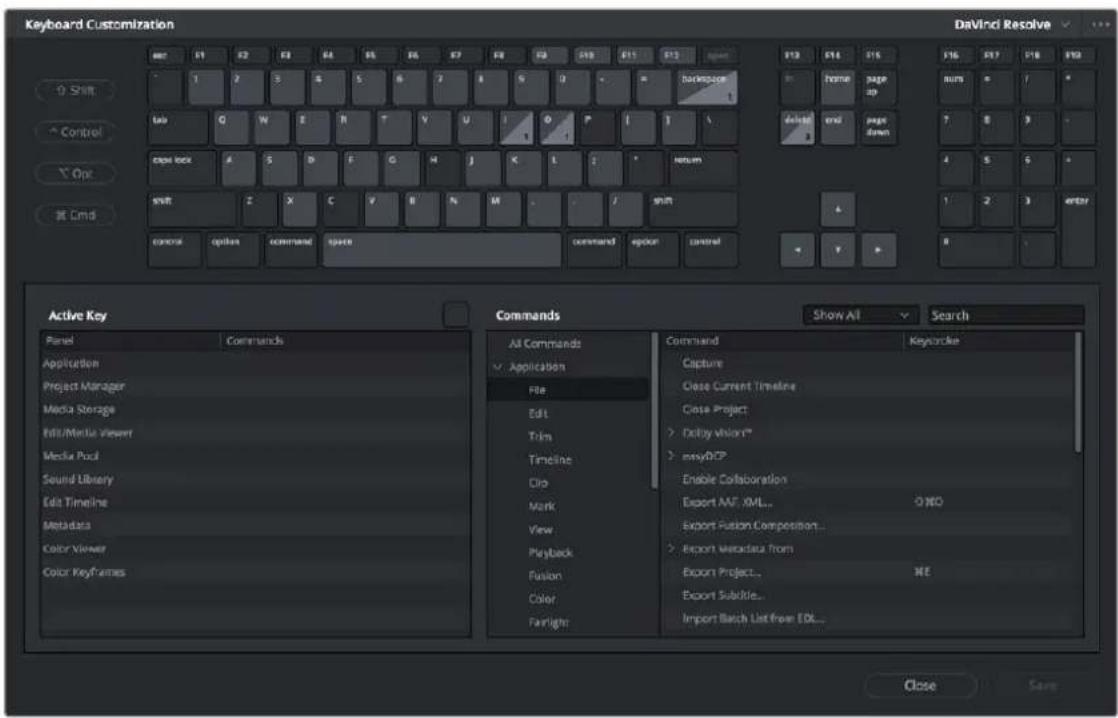
The Keyboard Customization window
Choosing Keyboard Shortcut Emulation Presets
Using a drop-down at the top right of this menu, you can choose the default DaVinci Resolve set or any one of the other sets that attempt to mimic other NLEs you might be more familiar with. Please note that keyboard shortcuts can only be remapped to commands that functionally exist within DaVinci Resolve, so if a specific feature of another NLE does not have an equivalent in DaVinci Resolve, that key shortcut may not be mapped in the same way. Fortunately, the editorial feature set of DaVinci Resolve broadly overlaps with common features in other NLEs, so you should find that most features you're used to have a functional equivalent.
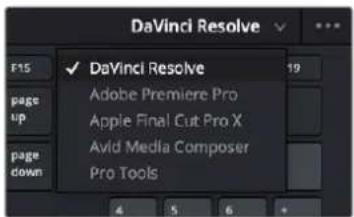
You can choose one of the preset keyboard mappings to emulate another NLE you're familiar with or the default DaVinci Resolve keyboard mapping.
You also have the ability to create your own custom sets of keyboard shortcuts. The Commands list below shows a hierarchical list of commands organized by the menu they appear within. This list lets you select individual commands to remap and can be searched if you're having a hard time finding what you're looking for. This is described in more detail later in this section.
Viewing Commands Assigned to Specific Key Combinations
To see what command a particular key of the keyboard is mapped to, you can click any combination of modifier and other keys on the virtual keyboard at the top of this window. The currently selected keys reveal how they're mapped in the "Active Key" list below.
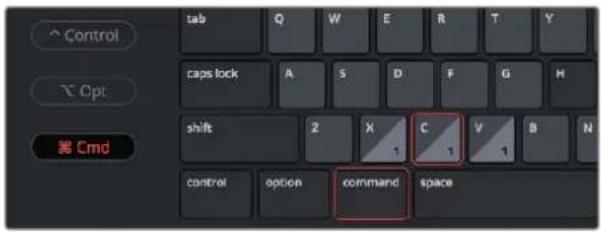
Selecting keys and modifiers on the virtual keyboard displays their command mapping below
TIP: Starting in DaVinci Resolve 15.2, commands can have multiple keys or key combinations assigned to them, and number keys on the numeric keypad of an extended keyboard can be assigned independently from keys at the top of a keyboard.
Panel-Specific Keyboard Mappings
When customizing keyboard shortcuts, they can be assigned to the "Application" so that shortcut works identically within every part of the DaVinci Resolve UI that's applicable, or you can map a particular keyboard shortcut to do a particular command within a specific panel.
Panel-specific keyboard shortcuts let you use a single key to do different things depending on which panel has focus; for example, one key can do different things in the Media Pool, the Edit Timeline, the Metadata Editor, and the Sound Library, to give a few Edit Page examples. This provides enormous flexibility, but if you go this route, you need to be aware of which panel has focus. Fortunately, starting in DaVinci Resolve 15.2, focus is indicated by a colored highlight at the top of each panel.
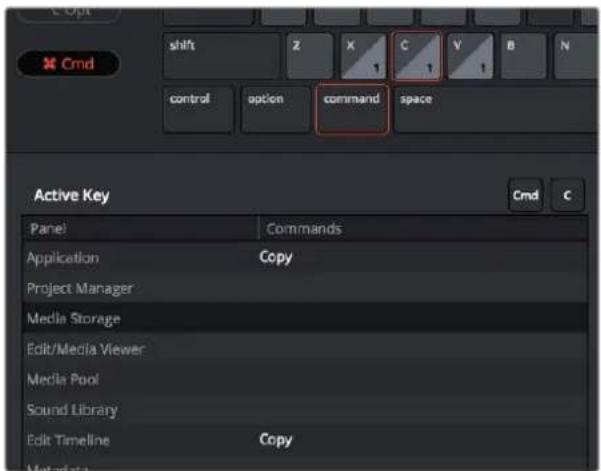
Keyboard shortcuts can now be mapped to specific panels so that different panels can use the same shortcut to accomplish different things
Searching for Keyboard Shortcuts
Whether you're looking to see what keyboard shortcuts are available or looking for a particular command you want to customize, a Search field above the Commands list is available for searching whichever group of commands you want (including All Commands).
To search for specific keyboard shortcuts:
1 Choose DaVinci Resolve > Keyboard Customization.
2 Choose a command group from the Commands list to search within. If you want to search all of DaVinci Resolve, choose "All Commands."
3 Type a term into the Search field, and the Command/Keystroke list will update to show whatever commands match the search criteria you've entered.
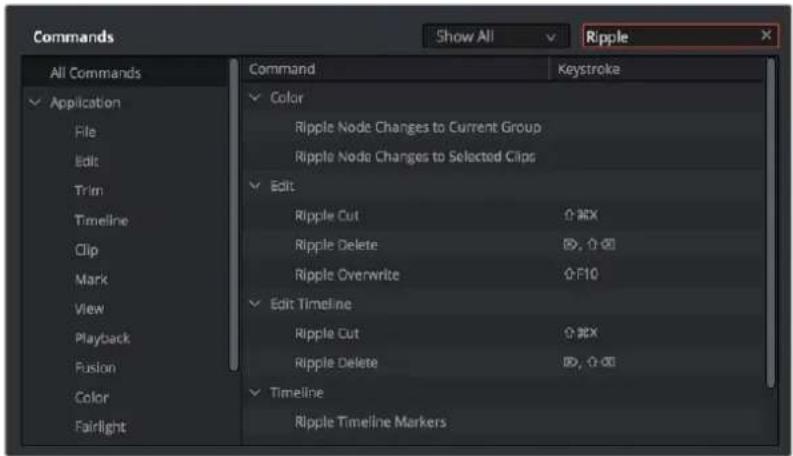
Selecting "All Commands" and searching for every keyboard shortcut corresponding to the word "ripple"
Managing Keyboard Mappings
DaVinci Resolve provides the following methods for creating and managing keyboard mappings in the Option menu of the Keyboard Customization menu:
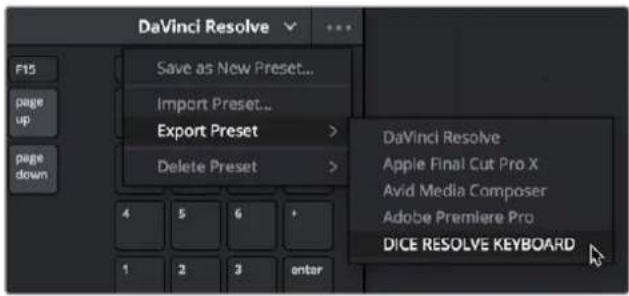
The Option menu of the Keyboard Customization window lets you export, import, and delete keyboard mappings.
- To create a new keyboard mapping: Choose a keyboard mapping from the drop-down to use as your starting point, choose Save As New Preset from the Keyboard Customization Option menu, then enter a preset name in the dialog, and click OK. That preset will now appear in the preset drop-down menu.
- To export a keyboard shortcut file for use by another DaVinci Resolve workstation: Choose a preset from the Export Preset submenu of the Keyboard Customization Option menu, then choose a name and a location for the new file, and click Save.
- To import a keyboard shortcut file: Choose Import Preset from the Keyboard Customization Option menu, choose a DaVinci Resolve keyboard shortcut file, and click Open.
- To delete a keyboard mapping: Choose a keyboard mapping preset you want to delete, then click the trash can button.
Remapping a Command to One or More Keys
Changing the keyboard mapping for any given command is easy. You can even map a single command to multiple keys, if necessary.
To change the keyboard shortcut for a particular command:
Find the command you want to remap in the Commands list by selecting a category. If necessary, use the Search field. Whether a command is mapped generally to the entire application or specifically to a particular panel depends on what you've selected from the list.
a. If you want the keyboard character you plan to map to work application-wide, choose a menu name from underneath the Application category of the Commands list. Each menu shows all commands associated with it and can be individually searched.
b. If you want the keyboard character you plan to map to this command to be specific to a particular panel, then choose one from the Panels category underneath. Each panel shows all commands associated with it and can be individually searched.
2 Click within the Keystroke column of the list, to the right of the command, and when a selection appears type a new character using any combination of modifier keys you like.
![Commands Show All Search All Commands Command Keystroke ✓ Application Normal Edit Mode A File > Nudge Edit Range Selection Mode R Trim > Resize ✓ Ripple Timeline End to Playhead ✕# Clip Start to Playhead ✕[●●] Mark > Roll Playback Select Nearest Audio Edit Point O E Fusion > Select Nearest Clip to Color Select Nearest Clip/Gap O V Color Select Nearest Edit Point V](/content/2026/05/760192/images/edd5562bbb70398294102a44e1cacb1278de339d2951570f20bc34dd40704d8a.jpg)
Clicking to select a keyboard shortcut you want to modify
Please note that if you remap a key that was already assigned to another command, you'll see a warning that the key you're about to remap is already assigned to another command, giving you a chance to cancel and change key assignments if you like.
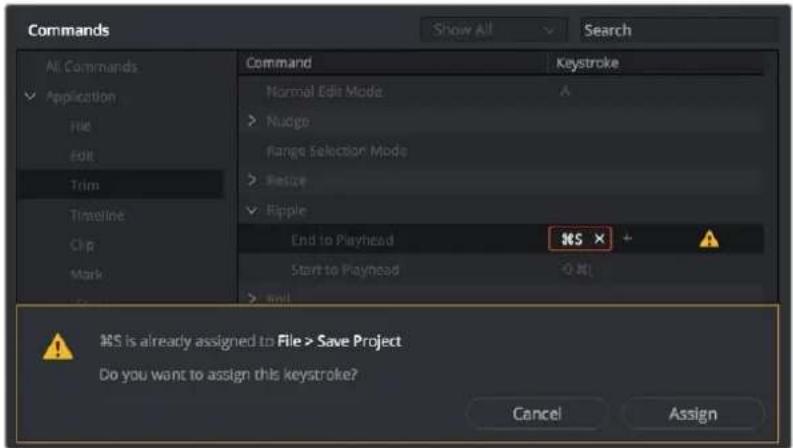
The warning you see if you try to map the same key to multiple commands.
You can override the warning and make the assignment, but having the same character or combination applied to multiple commands can cause problems, so a warning badge appears next to affected commands, making it easy to see where the duplicate is, so you can remap one or the other command as necessary.
3 (Optional) You also have the option of assigning multiple keyboard shortcuts to a single command. For example, if you want to use keys on the numeric keypad of an extended keyboard in addition to other keys for a particular command, you can now set this up by clicking the "plus" button to the right of a currently assigned keyboard shortcut. This makes another highlight appear, within which you can type any secondary character or combination you like to make the additional assignment. You can do this as many times as you like. When you're done, all keyboard shortcuts applied to that command appear, separated by commas.
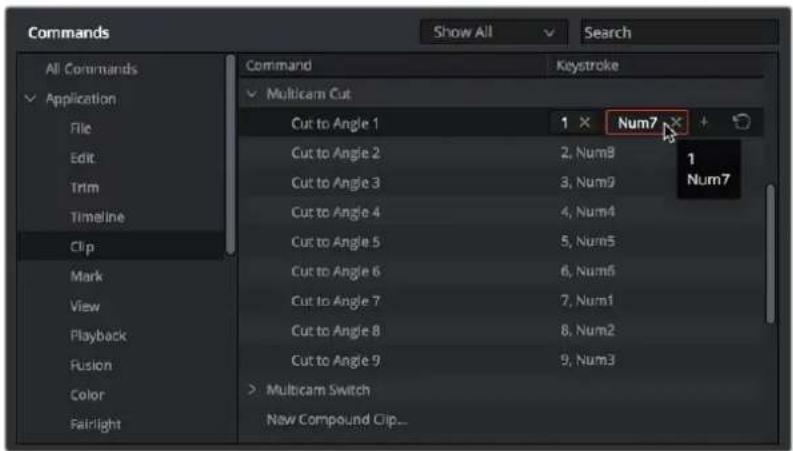
You can map multiple keys to the same command, if necessary
4 When you're finished changing keyboard shortcuts, click the Save button at the bottom right of the Keyboard Mapping list, and then click Cancel to close the window.
Chapter 5
DaVinci Control Panels Setup
There are several hardware control interfaces that are dedicated to more efficient workflows for specific pages in DaVinci Resolve. The DaVinci Control Panels Setup app is where you connect and configure these hardware interfaces.
Contents
DaVinci Control Panels Setup 114
DaVinci Control Panels Setup Layout 114
Using DaVinci Control Panels Setup 115
Firmware 116
Ethernet Connection 117
Settings 117
DaVinci Control Panels Setup
DaVinci Resolve has many different hardware interfaces designed to increase your efficiency when working within certain pages. Specialized keyboards, color control surfaces, and audio mixing panels can be connected to your system, and the DaVinci Control Panels Setup is where you configure these devices.
The DaVinci Control Panels Setup utility is a separate application automatically installed alongside DaVinci Resolve. You can access this program directly from within DaVinci Resolve by choosing Help > DaVinci Control Panels Setup, or you can launch the program from the DaVinci Resolve folder in your OS.
Make sure your hardware is connected and powered on before launching the application.
The DaVinci Control Panels Setup icon
DaVinci Control Panels Setup Layout
When you launch DaVinci Control Panels Setup, you will be presented with an interface showing you the detected hardware device on your system. If you have multiple hardware devices, you can scroll through them by clicking on the Left and Right Arrows on the sides of the window. If no devices are detected, the interface will tell you "No DaVinci control panels found."
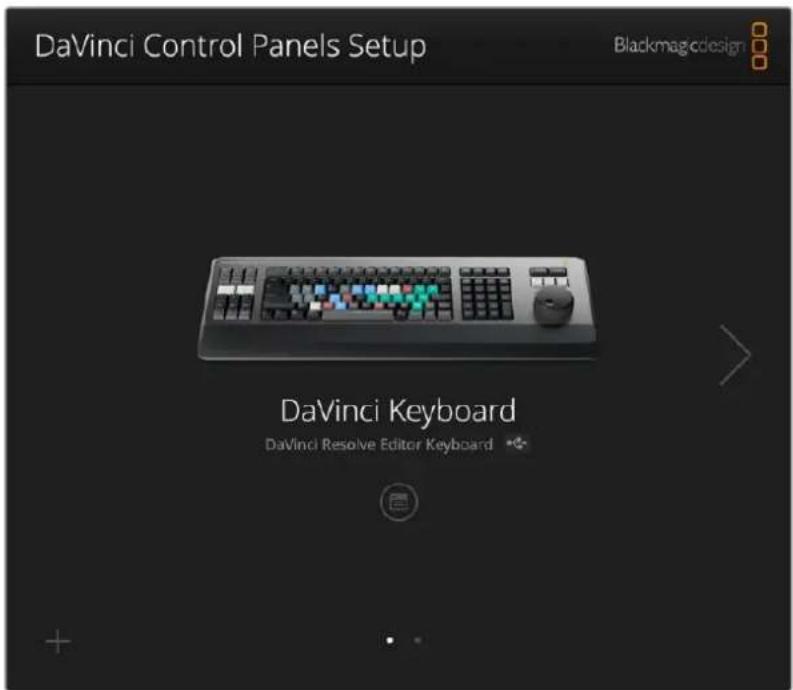
The DaVinci Control Panels Setup window showing a DaVinci Editor Keyboard attached. The two dots below and the triangle to the right show another device connected as well.
The DaVinci Control Panels Setup showing no detected hardware
Using DaVinci Control Panels Setup
The DaVinci Control Panels Setup presents a simple interface to connect to your devices, update their firmware, and modify their settings.
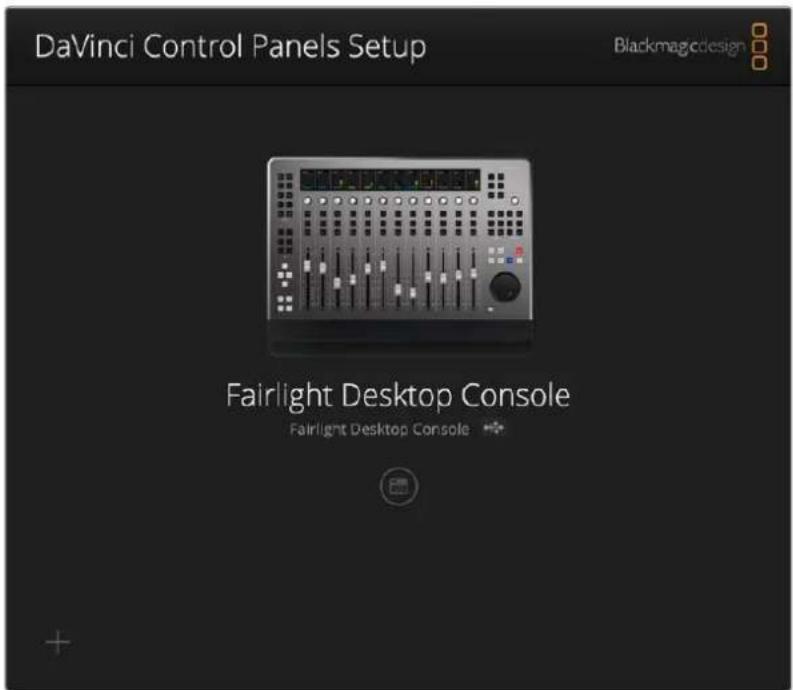
The DaVinci Control Panels Setup showing the Fairlight Desktop Console attached
Firmware
On startup, the DaVinci Control Panels Setup application will automatically check for any possible firmware updates for your device from the Blackmagic Design servers. If the application finds a newer firmware version it will ask you if you wish to update your device, or cancel and remain on your current firmware version. When updating, it's important not to unplug or power-down the device during the process as that can cause firmware corruption. Firmware updates include bug fixes and are required, in some cases, to use your device with new features in DaVinci Resolve. It is recommended to always update your device to the latest firmware unless you have a specific reason not to.
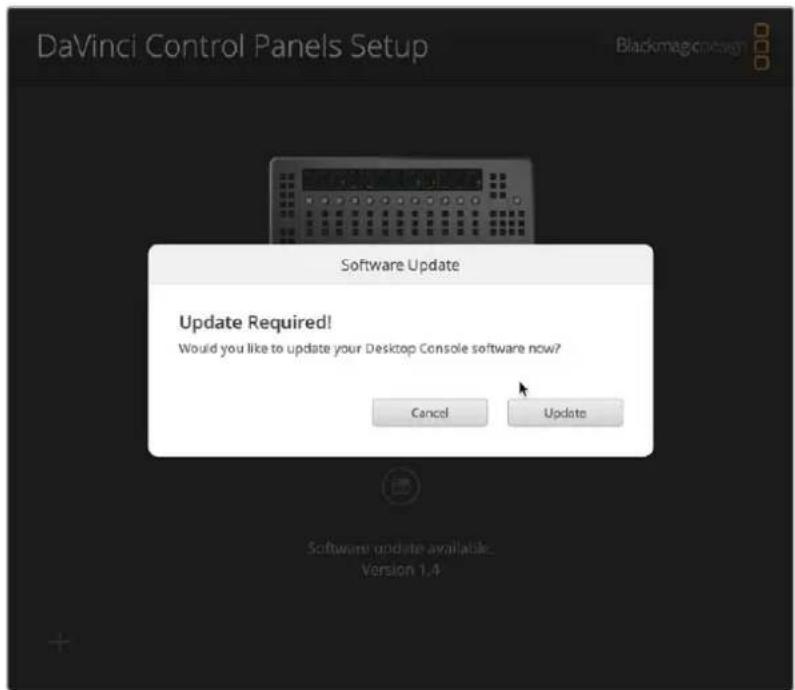
The firmware update dialog box
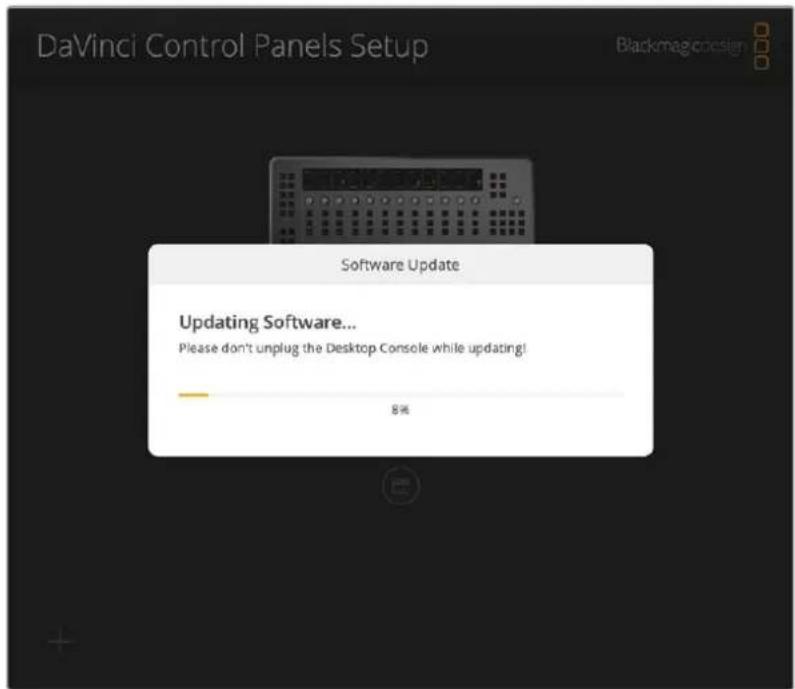
The firmware updating
Ethernet Connection
If you are connecting your device via Ethernet, you may need to enter its IP address before it can be configured in DaVinci Control Panels Setup. To do so, click on the "+" icon in the lower left corner of the interface. An Add DaVinci Control Panel window will appear, allowing you to type in the device's IP address. The device must be on the same Ethernet network as the computer you're connecting it to.
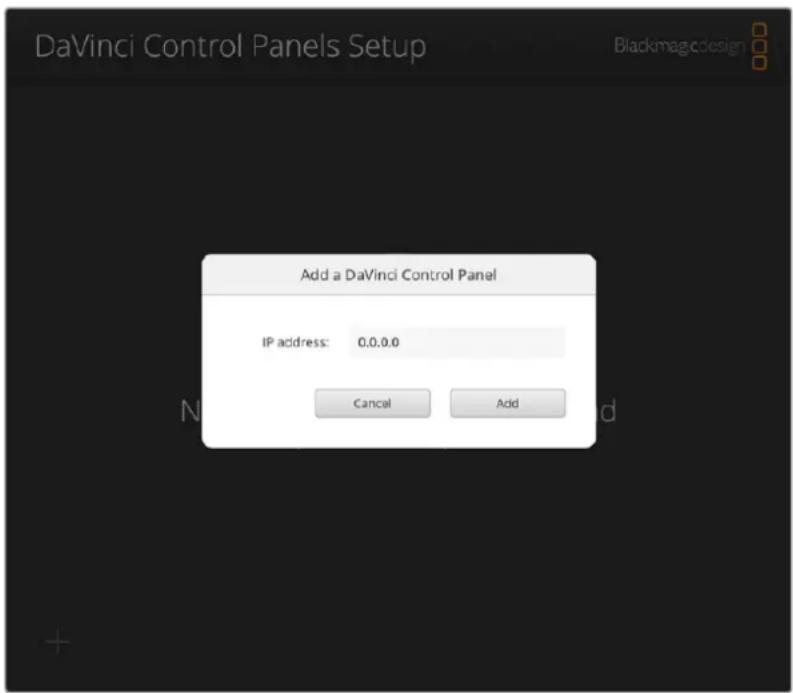
You can manually add an ethernet connected device by typing in its IP address.
Settings
You can access your device's settings by clicking on the setup icon directly below your device.
Different hardware devices will have different settings, but generally they will be broken down into the following categories:
Setup
- Name: You can set a specific name for your hardware device to differentiate it in the interface and bluetooth selection preferences.
- Software: The current firmware version of the device.
Network
If your device has an ethernet connection, you can set up its networking settings. If you are new to networking, it is suggested that you leave the Protocol setting to DHCP, and let the computer figure it out. If you are part of a larger facility, you may want to consult with your IT department for the appropriate manual settings instead.
- Protocol: Choose whether you want the device's IP address to be set automatically by DHCP or to provide your own manual static IP address below.
- IP Address: You can manually assign the IP address for the device.
- Subnet Mask: You can manually assign the Subnet Mask for the device.
- Gateway: You can manually assign the Gateway address for the device.
Reset
- Factory Reset: Resets your device back to the factory defaults. This maybe useful in some troubleshooting situations.
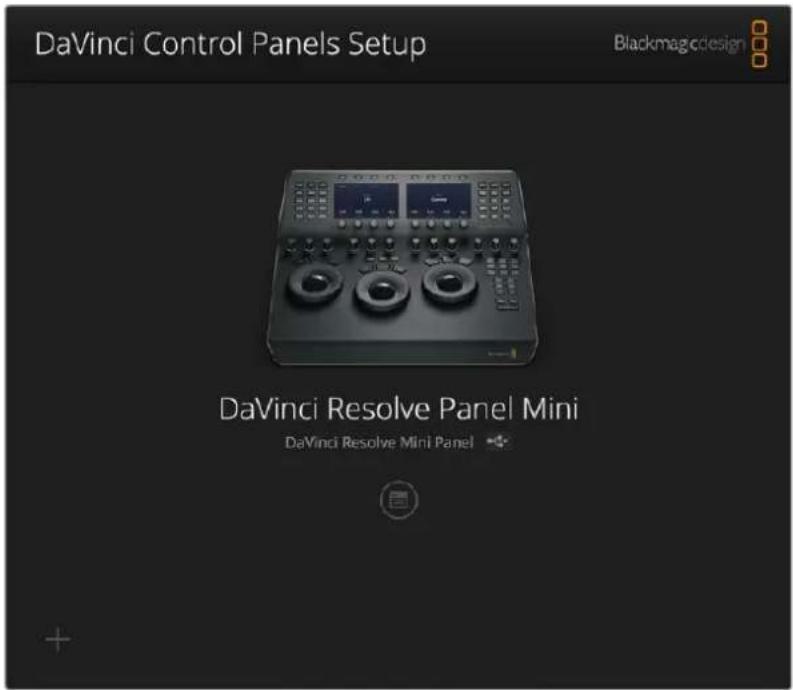
The DaVinci Control Panels Setup showing the DaVinci Resolve Mini Panel attached
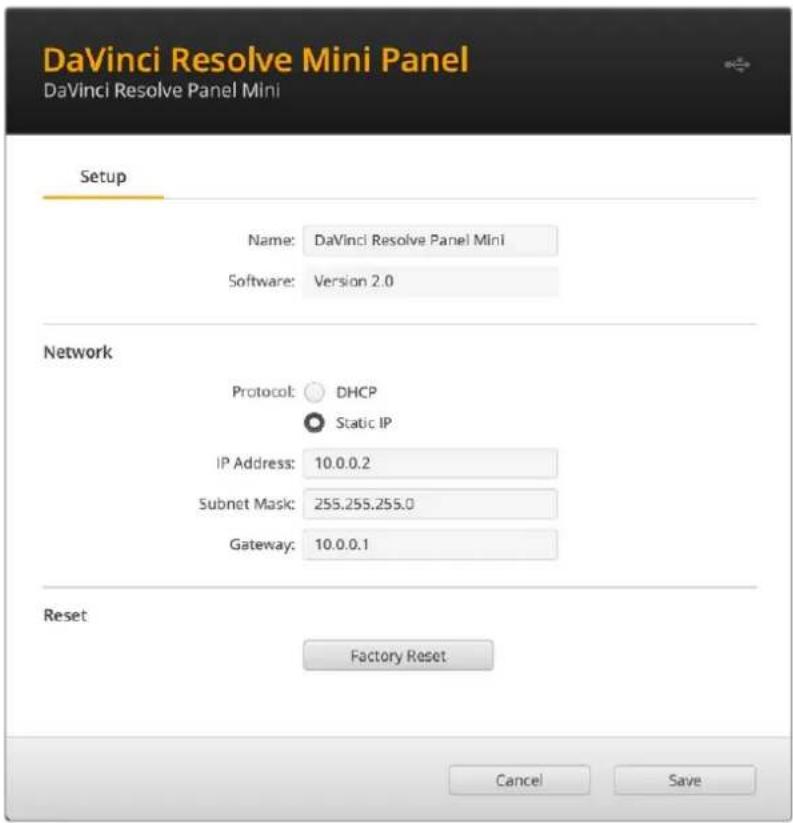
The Settings for the DaVinci Resolve Mini Panel
Chapter 6
Project Settings
This chapter covers the settings used for defining the properties of each individual project. It's a good idea to familiarize yourself with the information in this chapter prior to setting up your first project.
Contents
What Are the Project Settings? 120
Opening and Editing Project Settings 120
Presets 121
Master Settings 122
Timeline Format 122
Video Monitoring 123
Optimized Media and Render Cache 125
Working Folders 125
Frame Interpolation 126
Image Scaling 127
Image Scaling 127
Input Scaling 128
Output Scaling 128
Color Management 128
Color Space and Transforms 129
Dolby Vision ^™ 129
HDR10+ 130
Lookup Tables 130
Broadcast Safe 132
General Options 132
Conform Options 132
Color 134
Dynamics Profile 136
Versions 136
Camera Raw 137
Capture and Playback 137
Deck Settings 137
Capture 138
Playout 138
Subtitles 139
Fairlight 139
Audio Metering 140
Immersive Audio 140
What Are the Project Settings?
The Project Settings window contains all project-specific parameters that are saved along with that project. These include essential project properties such as the timeline format, video monitoring settings, how to optimize media, and where to save cache files. It also includes image scaling properties, color management settings, and many other properties that affect projects in fundamental ways.
Opening and Editing Project Settings
All of these project-specific settings are easily accessed from anywhere in DaVinci Resolve by clicking the gear button at the bottom right of the page bar.
Project Manager and Project Settings buttons
The Project Settings window opens in the middle of the screen.
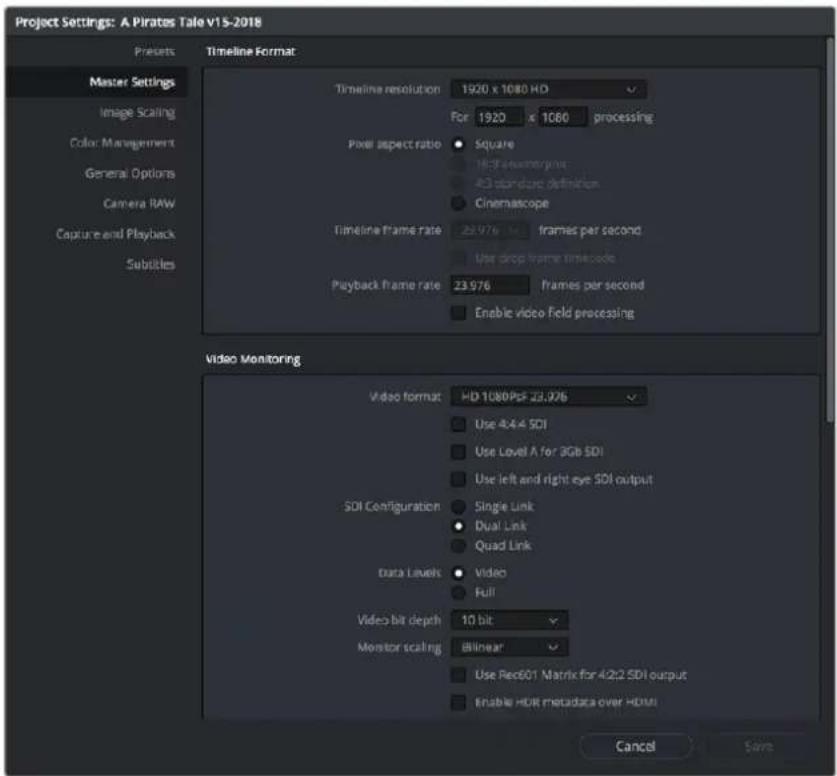
Project Settings window
The Project Settings window is divided into a series of panels which can be selected from a sidebar at the left. Each panel contains a collection of related settings that affects some category of DaVinci Resolve functionality.
To alter project settings:
1 Click on the name of any group of settings in the sidebar at the left to open that panel.
2 Change whatever settings you need to change.
3 Do one of the following to apply your changes:
- Click Save to apply the changes you've made and close the Project Settings.
- Option-click Save to apply the changes you've made and keep the Project Settings window open, so you can make other changes. This option is available because it's sometimes necessary to keep the Project Settings window open as you continue making changes that may visibly affect the clips and timelines in your project.
Presets
The Presets panel lets you save customized collections of Project Settings for future recall. Presets can save the state of nearly every parameter and setting in every panel of the Project Settings window, and make it easy to switch among different setups for different tasks, or to accommodate different types of projects.
There are three default items in the Presets list:
- Current Project: The current project's settings. If you load a preset, the current project becomes selected, showing that the preset you loaded has been applied to the current project.
- System Config: The System Config contains the default Project Settings that are used for all new projects that you create, and consists of the installed defaults that accompanied DaVinci Resolve. This config is uneditable, but you can use the Save As button to duplicate it as the basis for a new preset.
- Guest default config: This setting is a holdover from previous versions of DaVinci Resolve that had multi-user support. The default configuration for all new projects created by the currently logged in user. The actual name of this config reflects the current user name. This config can no longer be altered.
If you like, you can create your own presets, adding as many as you need to accommodate the types of projects you work on.
To create a new preset:
1 Do one of the following:
- Right-click a project in the Project Manager, and choose Project Settings from the contextual menu.
- Open any project, then open the Project Settings, and select the Presets panel.
2 Select any config in the Presets list that you want to use as the starting point of a new project preset, and click Save As.
3 Enter a name for the new preset you're creating into the Preset Name dialog, and click OK. A new preset should now appear in the Presets list.
4 Select the new preset you've just created.
5 Now, use the different panels of the Project Settings window to alter whichever settings you need to. There's no need to save your changes as you go, you'll save them all at once later.
6 When you're finished customizing the Project Settings, reopen the Presets panel and click Save. Your new preset is updated with the new settings you've chosen.
Once you've created one or more custom presets, you can load them into a project at any time.
To load a preset's settings into a project:
1 Open a project with a preset you want to update.
2 Click an item in the Presets list.
3 Click Load.
If a dialog appears saying either "Do you want to replace current project's config with this selected Preset" or "Apply Current Configuration to System?", click Yes.
4 If there's a custom preset that you've created that has outlasted its usefulness, you can delete it.
To delete a custom preset:
1 Do one of the following:
- Right-click a project in the Project Manager, and choose Project Settings from the contextual menu.
- Open any project, then open the Project Settings, and select the Presets panel.
2 Click an item in the Presets list to select it.
3 Click Delete.
4 When the Confirm Delete dialog appears, click Yes.
Master Settings
This panel is project specific and lets you set up and adjust the most essential properties of the timelines in your project, including the timeline format, video monitoring method, and conform options. In many workflows, you'll want to adjust these settings before getting started with your project.
By default, all timelines use these project-wide settings. However, beginning with DaVinci Resolve 16, you can optionally create timelines with individual Format, Monitoring, and Output Sizing settings. However, if you change a timeline to use "Basic Settings," then that timeline will mirror the project-wide options that are selected in the Project Settings.
Timeline Format
This group of settings affects the geometry and image processing of the current project.
Timeline resolution: A drop-down menu that lets you choose a frame resolution preset to use for image processing while grading. DaVinci Resolve is resolution independent, so you can change the resolution at any time and all windows, tracks, sizing changes, and keyframe data will be automatically recalculated to fit the new size. For example, you can work on a 4K project while monitoring at HD resolutions if your room is only set up with an HD monitor, and then render the finished project at 4K resolution for final delivery. Alternately, you can downsize an HD project to an SD resolution to create another set of deliverables. For more information on Resolve's resolution independence, see Chapter 149, "Sizing and Image Stabilization."
- Frame size (Labeled "For X x Y processing"): Lets you set resolutions not found in the "Timeline resolution" drop-down menu.
- Pixel aspect ratio: Used to select PAR settings for image formats that don't use the default square pixel format. You can apply a 16:9 anamorphic PAR, a 4:3 PAR for SD projects, or a Cinemascope ratio.
- Timeline frame rate: Determines the primary frame rate used by the project. A variety of standard and high frame rate (HFR) settings are available. If you're importing an AAF or XML file, this setting is automatically set via an option in the Project Import dialog. Ideally, you should choose a frame rate before importing media into the Media Pool. However, the first time you import media into an empty Media Pool, you're prompted if the incoming media frame rate doesn't match the Timeline
frame rate set here, and you have the option of automatically updating this setting to match that of the media you're importing. Once one or more files have been added to the Media Pool, this setting cannot be changed.
- Use drop frame timecode: Enables or disables drop frame timecode for the current project. Off by default.
- Enable interlace processing: Interlaced media is supported throughout DaVinci Resolve. The "Enable interlace processing" checkbox forces DaVinci Resolve to process all operations internally using separated fields, in order to properly maintain the field integrity of interlaced clips in your program. In addition, each clip in the Media Pool has a Field Dominance drop-down menu in the Video panel of the Clip Attributes window that lets you specify whether clips are upper- or lower-field dominant; an Auto setting makes this choice by default.
There is also a corresponding checkbox in the Render Settings panel of the Deliver page, named "Field rendering," that lets you enable and disable field rendering when you're rendering file-based output.
There are two instances where you want to leave this setting turned off:
– If you're working with progressive-frame media, it is not necessary to turn this checkbox on. Doing so will unnecessarily increase processing time.
- If you're using interlaced clips in a progressive-frame project and you're intending to deinterlace those clips using the Enable Deinterlacing checkbox in the Clip Attributes window, then you must keep "Enable video field processing" off. Otherwise, the Enable Deinterlacing checkbox will be disabled for all clips. For more information about deinterlacing clips, see Chapter 22, "Modifying Clips and Clip Attributes."
If you're working on a project with interlaced media that you intend to keep interlaced, then whether or not it's necessary to turn field processing on depends on what types of corrections you're applying to your clips. If you're mastering your program to an interlaced format, and you're applying any adjustments that would cause pixels from one field to move or bleed into adjacent fields, then field processing should be enabled; effects requiring field processing include filtering operations such as blur, sharpen, and OpenFX operations, as well as sizing transforms that include pan, tilt, zoom, rotate, pitch, and yaw.
On the other hand, regardless of whether you're outputting interlaced or progressive-frame media, if you're not filtering or resizing your clips, and you're only applying adjustments to color and contrast, it's not necessary to turn on field processing for interlaced material, and in fact, leaving it off may somewhat shorten your project's rendering time.
- Playback frame rate: Usually mirrors the frame rate selected in the "Video format" setting (in the Video Monitoring section below), which is typically based on the frame rate of the external display that's connected to your video interface, given the "Timeline Frame Rate" setting. For example, a 50Hz monitor requires a 25 fps playback frame rate for synchronous display without dropped frames. If you want to monitor playback at a slower frame rate, type the frame rate of your choice in this field and DaVinci Resolve will make the appropriate calculations to drop or repeat frames as necessary to match it. This can be useful for temporarily seeing how clips look in slow motion.
Video Monitoring
The settings available in this group control the signal that's output by the video output interface that's connected to your workstation, and let you specify what standard of signal is output, and via which signal path.
By default the frame size and frame rate match those in the Timeline resolution and Playback frame rate options. However, if necessary you can change these settings to match those of the external display you're using to monitor your work. For example, if you're working with 2K files for 2K output, but you're color correcting using a high definition monitor set to 1080 resolution, you can select the appropriate HD standard for that monitor without changing the Timeline Resolution settings.
- Video format: Lets you choose a video standard combination of frame size and frame rate to be output via your connected video output interface.
- Video connection checkboxes: Lets you choose the signal standard to output from your connected video output interface to the video monitor. Make sure to choose a standard that's supported by both your video interface and your monitor. The options are:
- Use 4:4:4 SDI: A signal path for monitoring image data to monitors that supports 4:4:4 chroma sampling, typically over SDI connections.
- Use Level A for 3Gb SDI output: A signal path for monitoring image data via a single 3 Gb/s SDI connection.
- Use dual outputs on SDI output: All DaVinci Resolve systems can generate a side-by-side display that can be sent to a Stereoscopic monitor via the HD-SDI output of an UltraStudio 4K or DeckLink card. When dual SDI 3D monitoring is enabled, each eye is output separately at full resolution. In this mode, split-screen wipes and cursors will not be visible on the grading monitor.
- SDI Configuration: Lets you choose from among Single Link, Dual Link, and Quad Link SDI, depending on what your display supports.
- Data Levels: This setting only affects the data levels being output via the video interface that connects the DaVinci Resolve workstation to your external display. It has no effect on the data that's processed internally by DaVinci Resolve, or on the files written when you render in the Deliver page. It is imperative that the option you choose in DaVinci Resolve matches the data range to which your external display is set. Otherwise, the video signal will appear to be incorrect, even though the internal data is being processed accurately by DaVinci Resolve. There are two options:
- Video: This is the correct option to use when using a broadcast display set to the Rec. 709 video standard.
- Full: If your monitor or projector is capable of displaying "full range" video signals, and you wish to monitor the full 10-bit data range (0–1023) while you work, this is the correct option to use.
For more information about data levels, see Chapter 9, "Data Levels, Color Management, and ACES."
- Retain sub-black and super-white data: Turning this checkbox on lets DaVinci Resolve output the undershoots (sub-black) and overshoots (super-white) within the headroom of video encoded data levels to video. When this is turned off, these out-of-bounds values are clipped in video output.
- Video bit depth: Choose the bit depth that corresponds to the capability of your display. You can choose between 8-bit and 10-bit. Monitoring in 10-bit is more processor intensive, but preferable to avoid the appearance of banding that may not in fact be in the image data being processed by DaVinci Resolve.
- Monitor scaling: Defaults to basic, and is only enabled to smooth the edges of video being viewed on a projector with very large screens. These settings minimize high frequency artifacts that may be seen. This may also be noticeable if you have a 2K or HD project but are monitoring on an SD monitor. The other option, Bilinear, has different effects on the monitored image depending on your display device, so you may need to check to verify that it's appropriate for your environment.
- Use Rec601 Matrix for 4:2:2 SDI output: Don't use this checkbox unless you know what it does. You know who you are.
- Enable HDR metadata over HDMI: (only available in Studio version) Turning on this checkbox outputs the metadata necessary to send High Dynamic Range signals over HDMI 2.0a and have it be correctly decoded by an HDR-aware video display. When this checkbox is enabled, it's recommended to also enable the "HDR mastering is for X nits" checkbox in the Color Management page, and set the "nit" level (slang for cd/m2) to whatever peak luminance level your HDMI connected HDR display is capable of.
Optimized Media and Render Cache
These settings govern the resolution and codec of optimized media that DaVinci Resolve can generate in order to facilitate greater real time performance, as well as cached media that's generated by the Smart and User Cache.
- Proxy media resolution: A drop-down list lets you choose whether to generate proxy media at each clip's Original size, or at Half, Quarter, One-Eighth, or One-Sixteenth the resolution of the original media, or allow DaVinci Resolve to choose this automatically for you based on your timeline settings.
- Proxy media format: Specifies the format in which proxy media files will be written. You can choose from among a variety of Uncompressed, ProRes, and DNxHD formats, depending on your requirements.
- Optimized media resolution: A drop-down list lets you choose whether to generate optimized media at each clip's Original size, or at Half, Quarter, One-Eighth, or One-Sixteenth the resolution of the original media, or allow DaVinci Resolve to choose this automatically for you based on your timeline settings.
- Optimized media format: Specifies the format in which optimized media files will be written. You can choose from among a variety of Uncompressed, ProRes, and DNxHD formats, depending on your requirements.
- Render cache format: Specifies the format in which render cache files will be written. You can choose from among a variety of Uncompressed, ProRes, and DNxHD formats, depending on your requirements.
- Enable background caching after X seconds: Specifies the duration of inactivity after which automatic background caching will begin.
A series of checkboxes let you force specific types of effects to be cached when you use the User Cache, which is a more selective manner of caching than the Smart Cache. These include:
- Automatically cache transitions in User Mode: If you're using User mode and you find that your workstation does not have adequate performance to play transition effects in real time, you can force these categories of effects to be automatically included in the Sequence Cache and cached when you're using the User mode of caching.
- Automatically cache composites in User Mode: If you're using User mode and you find that your workstation does not have adequate performance to play composite mode or opacity effects in real time, you can force these categories of effects to be automatically included in the Sequence Cache and cached when you're using the User Mode of caching.
- Automatically cache Fusion Effects in User Mode: If you've created effects for a clip in the Fusion page and you find that your workstation does not have adequate performance to play that clip in real time, you can force these categories of effects to be automatically included in the Sequence Cache and cached when you're using the User Mode of caching.
Working Folders
These fields let you specify to which folders cache and gallery files are written.
- Proxy generation location: All proxy media files that you create are saved in the directory path specified by this field.
- Cache files location: All render cache files that you create are saved in the directory path specified by this field. This path defaults to a hidden "CacheClip" directory that's created at the location of the first Media Storage Volume you specify in the DaVinci Resolve Preferences window.
- Gallery stills location: By default, all stills you save are saved in the DPX format, and are placed in the directory path specified by this field. This path defaults to a hidden “.gallery” directory that’s created at the location of the first Media Storage Volume you specify in the DaVinci Resolve Preferences window.
NOTE: If the volume you've selected to use for the cache becomes unavailable, DaVinci Resolve will warn you with a dialog.
Frame Interpolation
These settings determine the default state for all retiming and speed change effects, including when clips are in mixed frame rate timelines.
- Retime Process: This drop-down menu lets you choose a default method of processing clips that don't match the project frame rate in mixed frame rate timelines and clips with speed effects (fast forward or slow motion) applied to them, throughout the project. Since each clip in every timeline defaults to "Project Settings," changing this setting will change the way most mixed frame rate and speed effected clips will be processed, except for those with custom settings selected. There are three options:
- Nearest: The most processor efficient and least sophisticated method of processing; frames are either dropped for fast motion, or duplicated for slow motion.
- Frame Blend: Also processor efficient, but can produce smoother results; adjacent duplicated frames are dissolved together to smooth out slow or fast motion effects. This option can provide better results when Optical Flow displays unwanted artifacts.
- Optical Flow: The most processor intensive, but highest quality method of speed effect processing. Using motion estimation, new frames are generated from the original source frames to create slow or fast motion effects. The result can be exceptionally smooth when motion in a clip is linear. However, two moving elements crossing in different directions or unpredictable camera movement can cause unwanted artifacts.
- Motion estimation mode: When using mixed frame rate clips in a timeline that has Optical Flow retiming enabled, when using Optical Flow to process speed change effects, or when using Image Stabilization or Temporal Noise Reduction controls in the Color page, the Motion Estimation drop-down of the Master Settings (in the Project Settings window) lets you choose options that control the trade-off between speed and quality.
There are additional “Enhanced” Optical Flow settings available in the “Motion estimation mode” drop-down in the Master Settings panel of the Project Settings. The “Standard Faster” and “Standard Better” settings are the same options that have been available in previous versions of DaVinci Resolve. They’re more processor-efficient and yield good quality that are suitable for most situations. However, “Enhanced Faster” and “Enhanced Better” should yield superior results in nearly every case where the standard options exhibit artifacts, at the expense of being more computationally intensive, and thus slower on most systems.
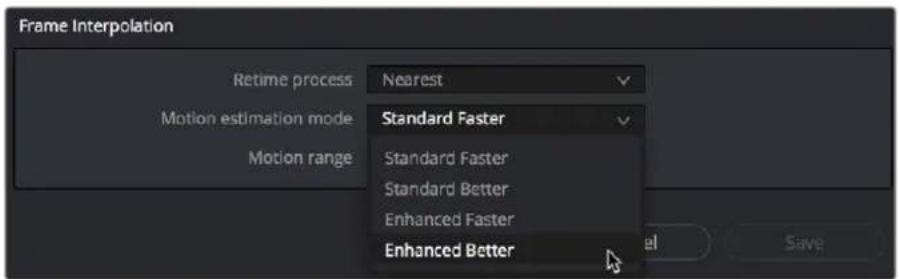
New improved Motion estimation mode settings in the Master Settings panel of the Project Settings
- Motion range: When using mixed frame rate clips in a timeline that has Optical Flow retiming selected, or when using Optical Flow to process speed change effects, this drop-down menu lets you choose the default setting to use, small, medium or large motion, for all speed and motion related calculations so you can try and improve the result by matching the type of motion in the source media. This setting can also be changed on a clip by clip basis in the Edit page Inspector.
Image Scaling
The Image Scaling panel contains settings that determine how and when clips are resized for various reasons.
Image Scaling
These settings affect the methods used to resize clips in various situations.
- Resize Filter: The first group of settings lets you choose the filter method used to interpolate image pixels when resizing clips:
- Smoother: May provide higher quality for projects using clips that must be scaled down to fit an SD resolution frame size.
- Bicubic: While the Sharper and Smoother options are slightly higher quality, Bicubic is still an exceptionally good resizing filter and is less processor intensive than either of those options.
- Bilinear: A lower quality setting that is less processor intensive. Useful for previewing your work on a low-performance computer before rendering, when you can switch to one of the higher quality options.
- Sharper: Usually provides the best quality in projects using clips that must be scaled up to fill a larger frame size or scaled down to HD resolutions.
- Custom: This setting lets you take control of the exact algorithm used in all resizing operations. The custom Resize Filter options available are: Bessel, Box, Catmul-Rom, Cubic, Gaussian, Lanczos, Mitchell, Nearest Neighbor, Quadratic, and Sinc. In practice, the difference between these methods can be quite subjective. However, if you need to match a specific resizing method used from another application, you can do it here. For everyday use, the normal resizing filters in DaVinci Resolve should be sufficient.
- Override input scaling: Checking this box lets you choose an Input Sizing preset to apply to the project.
- Override output scaling: Checking this box lets you choose an Output Sizing preset to apply to the project.
- Anti-alias edges: A second group of settings lets you choose how to handle edge anti-aliasing for source blanking.
- Auto: Adds anti-aliasing when any of the Sizing controls are used to transform the image. Otherwise, anti-aliasing is disabled.
- On: Forces anti-aliasing on at all times.
- Off: Disables anti-aliasing. It might be necessary to turn anti-aliasing off if you notice black blurring at the edges of blanking being applied to an image.
- Deinterlace quality: (only available in Studio version) A fourth group of settings lets you choose the quality/processing time tradeoff when deinterlacing Media Pool clips using the Enable Deinterlacing checkbox in the Clip Attributes window. There are two settings:
- Normal: A high-quality deinterlacing method that is suitable for most clips. For many clips, Normal is indistinguishable from High. Normal is always used automatically during playback in Resolve.
- High: A more processor-intensive method that can sometimes yield better results, depending on the footage, at the expense of slower rendering times.
- DaVinci Neural Engine: This option uses the advanced machine learning algorithms of the DaVinci Neural Engine to analyze motion between the fields of interlaced material and reconstructs them into a single frame. This option is very computationally intensive but, ideally, will deliver an even more aesthetically pleasing result than the "high" setting.
Input Scaling
Contains one setting, Mismatched resolution files, that lets you choose how clips that don't match the current project resolution are handled. There are four options:
- Center crop with no resizing: Clips of differing resolution are not scaled at all. Clips that are smaller than the current frame size are surrounded by blanking, and clips that are larger than the current frame size are cropped.
- Scale full frame with crop: Clips of differing resolution are scaled so that the clip's shortest dimension is fit to match the frame. Excess pixels are cropped.
- Scale entire image to fit: The default setting. Clips of differing resolution are scaled so that the clip's longest dimension is fit to match the frame. The shorter dimension has blanking inserted (letterboxing or pillarboxing).
- Stretch frame to all corners: Useful for projects using anamorphic media. Clips of differing resolutions are squished or stretched to match the frame size in all dimensions. This way, anamorphic media can be stretched to match full raster, or full raster media can be squished to fit into an anamorphic frame. An added benefit of this setting is that it makes it easy to mix anamorphic and non-anamorphic clips in the same project.
Output Scaling
These settings let you optionally choose a different resolution to be output via your video output interface, for monitoring, outputting to tape, or rendering. In particular, if you set the resolution in the Render Settings list of the Deliver page to something other than the Timeline Resolution, these settings are used to make the change (for example, if you're rendering a downconversion of the current timeline). This can be used in situations where you're working on a high resolution 4K project, but you want to monitor using an HD display and output HD resolution media for approval.
- Match timeline settings: Turned on by default, so that these settings mirror the Timeline Resolution, Image Scaling, and Input Image Scaling settings described above. Turning this checkbox off lets you choose different settings for monitoring, outputting to tape, or rendering, using the other settings in this group.
- Output resolution: Lets you choose an alternate resolution.
- For: Lets you specify a different custom alternate resolution.
- Pixel aspect ratio: Lets you specify an alternate pixel aspect ratio to match the alternate timeline format.
- Mismatched resolution files: Lets you choose an alternate way of handling mismatched resolution files given the alternate resolution you've chosen. These options work identically to those of the "Input Image Scaling" group.
- Super Scale: Sets a very processor-intensive and high quality upscaling algorithm that actually creates new pixels for the resized image. The possible values are: None, 2x, 3x, 4x, and Auto. For more information on Super Scale, see Chapter 11, "Image Sizing and Resolution Independence."
Color Management
The various options found in the Color Management panel let you configure DaVinci Color Management (RCM) or ACES if you have either enabled, and they also allow you to pre- or post-process the DaVinci Resolve image processing pipeline using LUTs and Broadcast Safe settings, in order to accommodate a wide range of different color workflows.
Color Space and Transforms
If you choose DaVinci YRGB Color Managed or ACES in the Color Science menu at the top, then the other drop-down menus in this section become enabled. For more information about DaVinci Resolve Color Management and ACES, see Chapter 9, "Data Levels, Color Management, and ACES." If you're new to color or color management, you're strongly recommended to read this chapter.
If you choose to use Resolve Color Management (RCM), ACEScc, or ACEScct, the settings in this panel give you extensive control over how color is transformed, starting with choosing the default color settings for the source media in your project (via the Input Color Space), through choosing how you want your grading controls in DaVinci Resolve to behave (via the Timeline Color Space), and then specifying how the final color will look on your monitor and output device (via the Output Color Space).
- Color science: There are four options that let you choose whether to work with manual or automated color management.
- DaVinci YRGB color science: DaVinci Resolve's original color science, in which you manage all and any color transforms from one color space to another manually, using either LUTs or manual adjustments.
- DaVinci YRGB Color Managed: Enables the Resolve color-managed workflow (RCM) for grading.
- DaVinci ACEScc or ACEScct: Both of these are standardized color management schemes that are available for facilities using ACES workflows. Of the available settings, ACEScct is the most intuitive way of working for most colorists, as it handles the lifting of shadows in a creatively useful way. For more information about Color Management and ACES, see Chapter 9, "Data Levels, Color Management, and ACES."
- ACES version: This drop-down only appears if you choose one of the DaVinci ACES options from the Color science drop-down menu. Lets you switch between different versions of the ACES specification. This lets you choose the appropriate older version of ACES whenever you open an older project. As of DaVinci Resolve 14, ACES 1.0.3 is the minimum supported version. In version 16, DaVinci Resolve also supports ACES 1.1.
- Use Separate Color Space and Gamma: If this checkbox is turned off (the default), the Color Management panel of the Project Settings exposes one drop-down each for the Input, Timeline, and Output Color Space settings, and each setting simultaneously transforms the gamut and gamma, depending on which option you choose. If you turn this checkbox on, then the Color Management panel changes so that the Input, Timeline, and Output Color Space settings each display two pop-ups. The first drop-down lets you explicitly set the gamut, while the second drop-down lets you explicitly set the gamma.
To provide more detailed information, the simple and advanced global controls available for Resolve Color Management (RCM) are covered in a dedicated chapter. For more information, see Chapter 9, "Data Levels, Color Management, and ACES."
Dolby Vision™
DaVinci Resolve includes a GPU-accelerated software version of the Dolby Vision CMU (Content Mapping Unit) for doing Dolby Vision grading and finishing workflows right in either the free version of DaVinci Resolve or in DaVinci Resolve Studio. This is enabled and set up in the Color Management panel of the Project Settings with the Enable Dolby Vision checkbox.
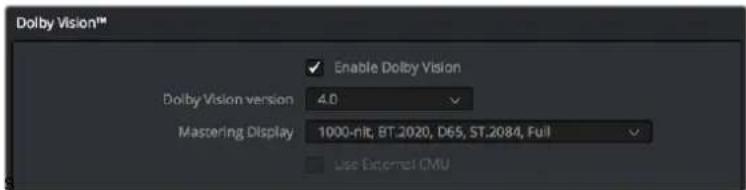
Dolby Vision settings in the Color Management panel of the Project Settings
There are five controls available:
- Enable Dolby Vision: Turns Dolby Vision on and off. When on, this checkbox enables the Dolby Vision palette in the Color page.
- Dolby Vision version drop-down: Lets you choose which version of the Dolby Vision algorithms to use. Options at the time of this writing include 2.9 and 4.0.
- Master Display drop-down: Lets you choose the nit level and gamut of the master HDR display you're grading on.
- Use External CMU: A checkbox lets you choose whether to use the built-in software CMU or a hardware CMU that you have connected to your DaVinci Resolve workstation.
NOTE: Dolby Vision controls are available to all DaVinci Resolve users for monitoring and automatically generating Dolby Vision metadata for creating other HDR and SDR deliverables from the HDR grade you've made. However, if you want to be able to make manual trims on top of this automatic analysis, you must email dolbyvisionmastering@dolby.com for more information on obtaining a license.
HDR10+
DaVinci Resolve supports the new HDR10+ HDR format by Samsung. Please note that this support is a work in progress as this is a new standard. When enabled, an HDR10+ palette exposes trimming parameters that let you trim an automated downconversion of HDR to SDR, creating metadata to control how HDR-strength highlights look on a variety of supported televisions and displays. This is enabled and set up in the Color Management panel of the Project Settings with the Enable HDR10+ checkbox. Turning HDR10+ on enables the Dolby Vision palette in the Color page.

HDR10+ settings in the Color Management panel of the Project Settings
Lookup Tables
This group of controls lets you add LUTs to the Resolve image processing pipeline that affect every timeline in the entire project all at once. These LUTs can be used for a wide variety of functions, such as to trim Timeline grades, apply Log to Linear conversions, simulate film output, and limit the signal to accommodate Broadcast Safe requirements. Different options let you insert image processing to different stages of the pipeline as seen in the following diagram:
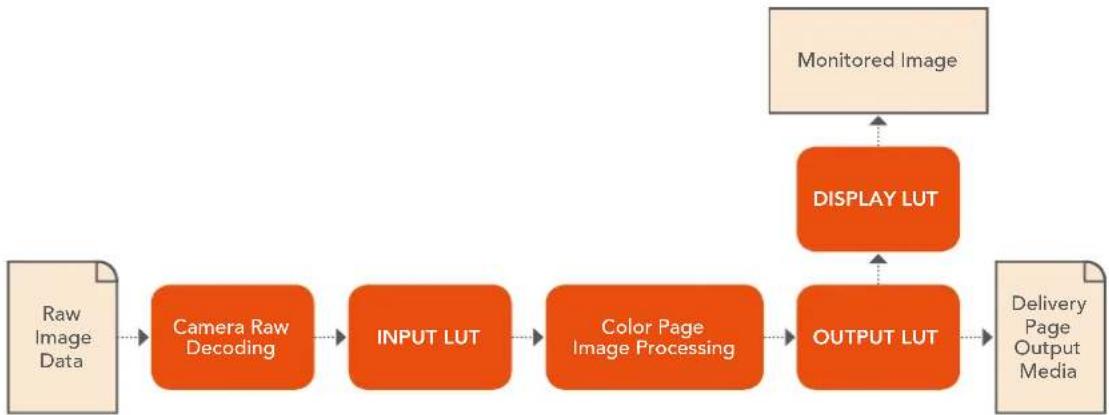
flowchart
graph LR
    A["Raw Image Data"] --> B["Camera Raw Decoding"]
    B --> C["INPUT LUT"]
    C --> D["Color Page Image Processing"]
    D --> E["OUTPUT LUT"]
    E --> F["Delivery Page Output Media"]
    G["Monitored Image"] --> H["DISPLAY LUT"]
    H --> E
Keep in mind that since you can apply both 1D and 3D LUTs simultaneously, 1D LUTs at each step are always applied before 3D LUTs.
- Input Lookup Table: Two drop-down menus let you add 1D and/or 3D LUTs that process the current Timeline before every other image processing operation in DaVinci Resolve.
- Output Lookup Table: Two drop-down menus let you add 1D and/or 3D LUTs that process the current Timeline after the operations applied in the Color page, but before the temporarily applied Display LUT.
- Video Monitor Lookup Table: Two drop-down menus let you add 1D and/or 3D LUTs that process the current Timeline after every other image processing operation in DaVinci Resolve. However, Display LUTs are only temporarily applied for purposes of monitoring; they're never applied to rendered media, or to the signal that is output to tape using the controls in the Deliver page. Display LUTs are particularly valuable for applying a film print emulation LUT in a Log workflow, or for applying a monitor calibration LUT if you're outputting to a single display and you don't have dedicated outboard calibration hardware.
Here's an example. It's common, when grading for film output using a Log workflow, that you'll use the Display LUT drop-down menu to apply a film emulation LUT that simulates the image as it will be output from the film recorder, taking into account the film lab and print stock used, in order to make sure that the image you're grading will appear as close as possible to what the eventual release print will look like in the cinema.
- Color Viewer Lookup Table: Two drop-down menus let you add 1D and/or 3D LUTs that process the image shown in the Viewer on your computer display, independently of the Display LUT that's used to output to your broadcast display. By default, this follows the Video Monitor LUT setting, but you can also use this option to apply a specific calibration transform for your computer monitor. Alternately, you could use it to desaturate the GUI Viewer to be able to specifically evaluate image contrast, or if you don't want to have to argue with your client over which display looks correct.
- Scopes Lookup Table: Ordinarily, DaVinci Resolve's internal software video scopes provide an unbiased analysis of the actual video data levels within the Resolve image processing pipeline. However, you can choose to have the software scopes use the Video Monitor LUT selection, or any other LUT installed on your system, to transform this analysis to reflect the monitored output.
- 3D Lookup Table Interpolation: Lets you choose the processing quality of both LUT and DCTL operations in DaVinci Resolve. 3D Lookup tables (LUTs) are 3D tables of red, green, and blue values that specify an output color value for each input color value, thereby providing a method of making color transformations using pre-calculated data. While powerful, 3D LUTs have finite detail; for example, one might have a 17x17x17 LUT that specifies 4913 individual color transforms. When applied to a floating point image that contains more data than the LUT specifies transforms for, color values falling between the 17x17x17 color transforms specified by the LUT need to be interpolated. You can choose from two methods that trade off processing efficiency for higher quality:
- Trilinear: (Default) Trilinear is backward compatible with grades that use LUTs from previous versions of DaVinci Resolve and matches the look of LUTs being applied in other applications.
- Tetrahedral: Tetrahedral is slightly more processor-intensive, but results in higher image quality LUT and DCTL processing, with reduced color-banding. Tetrahedral is recommended for projects that don't need backward compatibility with previous versions of DaVinci Resolve or LUTs created in other applications.
- Update Lists button: Refreshes the LUT drop-down menus if you've added new LUTs to your system since DaVinci Resolve has been opened.
- Open LUT Folder button: This selection opens the master folder in your file system, as described in the list of DaVinci Resolve LUT paths shown above.
Adding Lookup Tables to Your DaVinci Resolve Installation
The drop-down menus in the Color Management panel include a series of factory preset LUTs that were installed with DaVinci Resolve, along with any LUTs that have been generated by DaVinci Resolve, or that you've imported into the proper directory for your operating system.
On macOS: Library/Application Support/Blackmagic Design/DaVinci Resolve/LUT/
On Windows: C:\ProgramData\Blackmagic Design\DaVinci Resolve\Support\LUT
On Linux: /opt/resolve/LUT
If you downloaded the non-studio version of DaVinci Resolve from the Apple App Store, LUTs are saved in a different location in order for DaVinci Resolve to remain totally self-contained. In this case, you can click the "Open LUT Folder" button in the Lookup Tables panel of the Project Settings, to open up a Finder window at the location these LUTs are stored. You can use this window to copy LUTs that you want Resolve to have access to, or delete LUTs that you no longer need.
If you add a LUT to one of these directories after DaVinci Resolve has been opened, you can click the Update Lists button to refresh the contents of the drop-down menus.
DaVinci Resolve uses both 1D and 3D LUTs. 3D LUTs that are created by DaVinci Resolve are in the .cube format, configured as 33x33x33 cubes with 32-bit floating point processing. DaVinci Resolve can also read and use LUTs in the Shaperlut format.
Broadcast Safe
Broadcast Safe settings can be enabled while you grade to limit both the luma and chroma of the video signal to one of three levels of acceptable overshoots and undershoots.
- Broadcast safe IRE (mV) levels: A drop-down menu for choosing one of three levels of aggressiveness when limiting the signal. Choose the range that corresponds to your QC requirements.
- Make Broadcast Safe: A checkbox that turns broadcast safe limiting on and off.
NOTE: The clipping imposed by Broadcast Safe itself does not have an inherently soft roll-off. For best results, Broadcast Safe should be used in conjunction with the Soft Clip controls in the Color page.
General Options
This panel presents a selection of general preferences that affect the interface and operation of DaVinci Resolve.
Conform Options
The settings in this group determine how clips are conformed to match imported project files with source media on disk by extracting timecode, reel names, file names, file paths, and so on. For more information on conforming and relinking, see Chapter 58, "Conforming and Relinking Clips."
- Use Timecode: Determines how DaVinci Resolve extracts timecode from referenced media files. There are two options:
- Embedded in the source clip: The preferred setting for most projects to conform automatically and apply grades to the resulting clips. As long as DaVinci Resolve can reference the timecode in either a media file's timecode track, or in the header metadata of the frames in a DPX sequence, you can use timecode to reconform clips, or even completely change the media file to which a clip refers.
- From the source clip frame count: This setting is useful if the source media lacks timecode metadata, and all that's available is a frame count that identifies frames via sequentially numbered integer values.
- Conform partial clips with black gaps: Inserts black frames whenever you conform a clip that doesn't contain all the required frames. When this option is selected, partial clips are flagged in the Edit page with a P in the thumbnail of the clip that it is lacking frames.
- Automatically conform missing clips added to Media Pool: Enabled by default, must be disabled to use collaborative workflow. When this checkbox is turned on, DaVinci Resolve maintains a dynamic relationship between clips in the Media Pool and those in a project's various timelines. When this checkbox is on and you import clips with matching timecode/file names/reel names to clips in a timeline, DaVinci Resolve will automatically reconform all matching missing clips, and all other timeline clips that have force conform turned off.
- Assist using reel names from the: When this checkbox is turned on, DaVinci Resolve uses reel numbers when conforming clips to match any imported project. This setting must also be turned on if you want to choose different reel name extraction methods for individually selected clips using the Clip Attributes window. Turning this checkbox off forces DaVinci Resolve to identify clips using file names when conforming XML and AAF projects. File names can only be used for conforming XML or AAF files, or when importing a DaVinci Resolve project.
There are four options:
- Source clip file pathname: Obtains the reel number by extracting it from each media file's path. This makes it possible to extract a reel number from all or part of the file name, or from all or part of the name of any folder in the path that encloses that file. This extraction is defined using the Pattern field.
- Pattern: A code that defines how a reel number should be extracted from the source clip path name. For more information about creating patterns, see "Using the Pattern Field" in Chapter 58, "Conforming and Relinking Clips."
- Media Pool folder name: The reel number is obtained from the name of the bin in the Media Pool that encloses that clip. This option is often used for stereo projects, deriving the reel number from "Left" and "Right" named directories. It's also useful for projects that are inheriting new VFX clips on a daily basis.
- Embedding in source clip file: Useful for file formats where the reel number is embedded within the media file itself. QuickTime files created by Final Cut Pro, DPX frame files, and CinemaDNG files are all formats that are capable of containing reel number header data.
- Source clip filename: If there is no defined reel number, often it's easy to just use the source clip filename. This is a safe option to use in situations where you want to manually choose different reel name extraction methods for individual clips using the Clip Attributes window.
- Limit reel name matching to X characters: For situations where you've been provided with media files with extra characters in the reel name that don't correspond to the names used in the project file you've been given, "Limit reel name matching to X characters" lets you omit a specific number of characters from the end of a reel name. This works in conjunction with the following setting.
- Ignore the first X characters of the reel name: For situations where you've been provided with media files with extra characters in the reel name that don't correspond to the names used in the project file you've been given, "Ignore the first X characters of the reel name" lets you omit a specific number of characters from the beginning of the reel name. Combined with the previous setting, you can trim any reel name to a conformable subset of characters.
- Extract reel names from EDL comments: Media file formats such as R3D have reel names, obtained from the file names, that are longer than the eight characters that are allowable in a standard EDL. This option allows DaVinci Resolve to extract reel names from appropriately formatted EDL comments, such as those output from Final Cut Pro 7.
- Sort timeline using reel number and timecode: Lets you change the behavior of C mode sorting in the Timeline. With this checkbox turned on (the default), all clips in the Timeline are sorted by reel number first, and then by source timecode. This way, clips with similar timecode from the same reel will appear next to one another in C mode. If you turn this checkbox off, reel number is ignored, and all clips in the Timeline are sorted only by source timecode. This may result in clips from multiple sources being mixed together, but it is useful in specific situations.
-
Mixed frame rate format: (Only available prior to importing media into a project) This drop-down menu lets you choose the method used to conform mixed frame rates for rendering and playback. Which option you choose dictates the accuracy with which retimed clips in DaVinci Resolve match the same clips that were retimed in other editing applications when you import those timelines into DaVinci Resolve via XML or AAF. This drop-down menu also appears in the Load AAF or XML dialogs.
-
If you're editing from scratch in DaVinci Resolve: You should leave this setting set to "Resolve."
- When importing timelines via XML from Apple software: Choose the "Final Cut Pro 7" or "Final Cut Pro X" methods of conform.
- When importing timelines via XML or AAF from Premiere Pro, Media Composer, Smoke, or other NLEs: You should choose "Resolve."
- When none is selected: DaVinci Resolve conforms and processes all clips in the Timeline to play at the frame rate that's selected in the "Timeline frame rate" drop-down menu. For example, 23.98, 29.97, 30, 50, 59.94 and 60 fps clips will all play at 24 fps if that's what "Timeline frame rate" is set to in the Master Project Settings, and clips will play slower or faster accordingly.
How clips in mixed frame rate timelines are rendered out depends on whether the Render Settings are set to render individual source clips or one single clip. When you render the Timeline as individual source clips, all clips are rendered individually at their original frame rate. If you select "single clip," all clips are converted to the "Timeline frame rate" frame rate and rendered as a single media file.
Color
These settings affect clip versions and timeline interactions when working in the Color page.
- Automatically label gallery stills using: When enabled, DaVinci Resolve automatically generates labels for all gallery stills you take based on the following controls:
- Naming drop-down: Lets you choose what name to use for new stills. Options include: Clip Name, Clip Version Name, Source Timecode, Timeline Timecode, Timeline Name, Display LUT Name, Custom Label Using Tags (using metadata variables).
- Append still number on export checkbox: When enabled, each new still has an appended still number. Where the number appears depends on the following radio buttons.
- As Suffix/As Prefix buttons: Lets you choose to place still numbers at the end of an auto generated gallery label or at the beginning.
- Luminance mixer defaults to zero: Selecting this option sets the Y channel of the YRGB parameters for all grades to zero. This is required to be able to export a compliant ASC-CDL, and will impact all grades that use the Lum Mix control.
- Use legacy Log grading ranges and curve: DaVinci Resolve 12.5 introduced a modification to the Log grading controls that provides smoother, more pleasing results using the same controls. To maintain backward compatibility with older projects, a “Use legacy Log grading ranges and curve” checkbox in the Color panel of the Project Settings lets you switch your project between the older Log control behavior and the newer one. Older projects that are opened in DaVinci Resolve have this checkbox turned on by default, while new projects have this turned off by default.
- Use S-curve for contrast: On by default, this checkbox sets the contrast control in the Color Wheels palette to apply an "S-curve" to the image, such that the shadows and highlights of a signal will not be clipped when you increase the value. If you would prefer for these contrast adjustments to be made linearly, and for the signal to be allowed to clip when you reach the upper and lower boundaries of the video signal, you can turn this checkbox off.
- Use legacy sizing interactions for windows and effects: DaVinci Resolve 14.1.1 improved how window tracking applies transformations, to correctly handle things like pixel aspect ratio (par). New projects should leave this setting disabled, however older projects should leave this checkbox enabled to ensure tracking and transforms remain applied the way they were before.
- Apply stereoscopic convergence to windows and effects: When enabled, DaVinci Resolve correctly maintains the position of a window that's been properly placed over each eye as convergence is adjusted in the 3D palette. Enabling this checkbox also enables an additional Convergence parameter in the Window palette that lets you create properly aligned convergence for a window that's placed onto a stereoscopic 3D clip, as seen in the following screenshot.
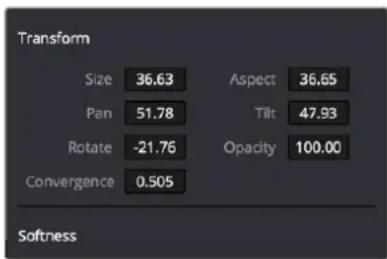
The Convergence control in the Transform section of the Window palette appears when you enable “Apply stereoscopic convergence to windows and effects”
- Use local version for new clips in timeline: Automatically sets all new clips that are added to existing timelines, or all clips that are added to new timelines that are imported via AAF, EDL, or XML, to use local grades by default. If you want all clips added to new timelines to use remote grades instead, as with DaVinci Resolve version 9 and earlier, you can turn this checkbox off.
- Automatically match master timeline with media pool: If you turn on this option before importing any media into the Media Pool, or importing any timelines that will in turn import media into the Media Pool, you can create projects with a Master Timeline. When enabled, clips are added to and removed from the Master Timeline as they're added to and removed from the Media Pool, so that the Master Timeline always contains all media in the Media Pool. Once media has been imported into a project, this setting cannot be changed.
-
Save timeline thumbnails with project: To minimize project size, and maximize the speed of saving and loading projects, you should leave this checkbox unchecked. If you select the checkbox, all of your Timeline thumbnails will be stored inside every project, instead of in the default directory that's ordinarily dedicated to stills, during both Save and Auto Save operations. This provides a good history of the project but takes much longer to complete and uses more hard disk space.
-
Use BGR pixel order for DPX v2: Lets you choose a different pixel order for projects using DPX version 2 media.
- Embed timecode in audio output: When turned on, directs DaVinci Resolve to output LTC timecode that's embedded in channel 16 of the SDI stream and channel 2 of the analog audio output from your video interface.
- Use Timelines Bin: This option is only available to be changed before you add clips to the Media Pool; after you've added clips, it's no longer available. Turning Use Timelines Bin on creates a dedicated Timelines bin in the Media Pool, at the top of the Bin List. When enabled, the Timelines bin contains all timelines in a project, and you're prevented from putting timelines into any other bin in the Media Pool. Whenever you create or import a new timeline, it automatically appears in the Timelines bin. You can add subfolders to the Timelines bin for more specific organization.
Dynamics Profile
Defines the default transition from one dynamic keyframe to the next for keyframed effects in the Color page. By default this transition is linear, with the "Dynamic profile start" and "Dynamic profile end" parameters set to 1. However, if you need to alter the acceleration of the interpolation of values from one dynamic keyframe to the next, then you can change that keyframe's Dissolve Type in order to "ease" the effect transition you're creating. The values in these settings correspond to the graph curves found in the Dynamic Attributes dialog when editing keyframes in the Color page. For more information, see "Changing Dynamic Attributes" in Chapter 144, "Keyframing in the Color Page."
Versions
Ten text fields provide a way for you to designate automatic names for the versions of grades that you select in the Color page. To the right of each text field, a drop-down menu lets you add a name from a handy list of predefined terms that's been provided. Alternately, you can simply click any field and type your own custom name.
When you change the name of a version in the Color page, the names you define in this list are available from a drop-down menu in the Version Name dialog.
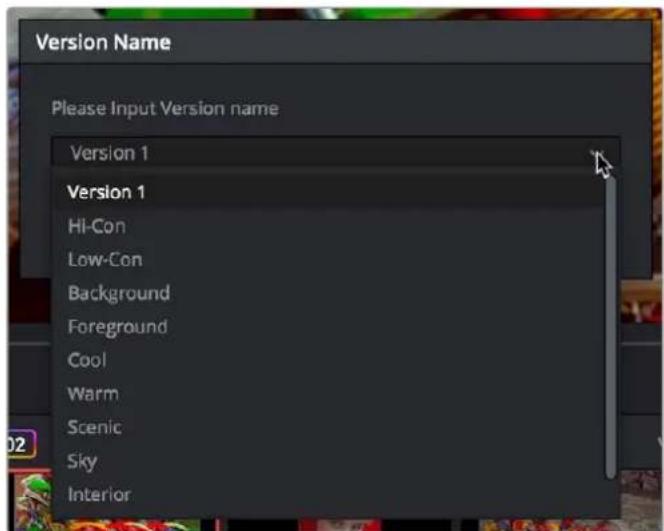
Using the named drop-down when editing the name of a version
Using a predefined list of names for your different versions avoids typos that can later create folder naming issues when you use the "Commercial Workflow" options for rendering your media in the Deliver page.
Camera Raw
This panel contains groups of parameters that correspond to every camera raw media format that's supported by DaVinci Resolve. Using these parameters in the Camera Raw panel, you can override the original camera metadata that was written at the time of recording, and make simultaneous adjustments to all camera raw clips using the "project" raw settings.
To provide more detail, these settings are covered in detail in a dedicated chapter. For more information, see Chapter 127, "Camera Raw Palette."
Capture and Playback
All settings in this panel let you define the functionality of capture and playout to tape using device controlled VTRs connected to your Resolve workstation via the connected video capture and output interface. For more information on deck capture, see Chapter 24, "Ingesting from Tape." For more information on video output to tape, see Chapter 188, "Delivering to Tape."
Deck Settings
These settings affect both capture and playback when using the tape ingest options of the Media page, or the tape output options of the Deliver page.
- Video capture and playback: You can choose the video format (frame size and frame rate) with which to output to tape from this drop-down menu. HD timelines can be downconverted to SD, and SD timelines can be upconverted to HD using the format conversion of your DeckLink card.
- Use left and right eye SDI: A checkbox that enables supported video interfaces to ingest and output muxed stereoscopic video when used with supported VTRs, such as HDCAM SR decks with 4:2:2 x 2 mode. (When muxed stereoscopic signals are ingested, each eye is separated into individual left-eye and right-eye image files.) This parameter only appears when your hardware is set up appropriately.
- Video connection operates as: Selects between the available signal options: Use 4:4:4 SDI and Enable Single Link. Which options are available depend on which video capture card you are using.
- Data Levels: Lets you specify the data range (normally Video or Full) that's used when ingesting from or outputting to tape. This option switches the data range of the signal output by your video capture card, but only during capture from tape in the Media page, or output to tape in the Deliver page. When capture or output is not currently occurring, your video capture card goes back to using the identically named data range setting in the Master Project Settings pane, which governs how you monitor the signal being output on an external broadcast display or projector.
- Video bit depth: Choose the bit depth that corresponds to the capability of your deck. Depending on your workstation's configuration, you can choose between 8-bit and 10-bit. Outputting to 10-bit is more processor intensive, but higher quality for compatible devices, and is the default setting.
- Use deck autoedit: If supported by your video deck, this is the best method to record video to the deck, as it enables the deck to roll the edit using the specified preroll, and control the edits via serial device control. If this checkbox is turned off, a basic edit On/Off mode is used by the deck, with the potential for frame inaccuracies if the "Non auto edit timing" setting is not properly adjusted.
- Non auto edit timing: Adjusts the edit synchronization of the connected deck when auto edit is turned off.
-
Deck preroll: Sets the number of seconds for preroll. How much is appropriate depends on the performance of your deck.
-
Video output sync source: When using a DeckLink card this is set to Auto. Other capture cards may require you to set the sync source to "Reference" for playout and "Input" for ingest. This setting is only available if you have a DVS card installed on your system.
- Add 3:2 pulldown: Inserts or removes the 3:2 pulldown required to record or play 23.98 fps media to or from a 29.97 tape format.
Capture
These settings are used when you use the Capture mode in the Media page to capture clips from tape into the Media Pool.
- Capture: Lets you choose whether to capture both Video and Audio, or Video Only.
- Video Format: The format that scanned film frames are saved as. When capturing from tape, the available options are DPX and QuickTime. When capturing from the Cintel film scanner, this is restricted to Cintel Raw Image (CRI), which is a raw data format that DaVinci Resolve automatically debayers as a Cineon log-encoded image for grading.
- Codec: The codec used to write captured media. When capturing from tape, these include the various type of Apple ProRes, 8- and 10-bit YUV 422, 10-bit RGB, and the various types of DNxHD. Cintel Raw Image files default to rgb.
- Save clips to: A field that displays the directory path to which media files captured from tape are written. You want to choose a volume that's fast enough to accommodate the data rate of the media format you're capturing.
- Browse: Click this button to choose a directory to write captured media to. The directory you choose appears in the field above.
- Save in this folder path: A series of checkboxes let you specify what other information to use to define the directory hierarchy that will hold the captured media. Every checkbox you turn on adds an additional directory with a name defined by that checkbox's metadata. You can choose any or all of the following: Program name, Clip number, Reel number, and Roll/Card.
- Apply reel number to: Lets you choose how to write the reel name. Two checkboxes let you write the reel number to the file's name, and/or to the Header data.
- Use prefix: A field lets you type in a prefix to be used in the media file's name. This lets you add text identification that will make the media more easily identifiable and searchable.
- Apply prefix to: Two checkboxes let you choose to use the prefix you typed in the file name, and/or in the folder name.
- Use frame number with: When capturing to image sequences, you can choose how many digits to use when writing the frame number into the name of each frame file.
- Set batch ingest handles to: When capturing to image sequences from a batch list, defines how many frames of additional handles to ingest along with each logged clip.
- Input: Lets you choose how many tracks of audio to capture, from 2 to 16.
Playout
These settings only affect the video signal that's output when you use the Edit to Tape mode of the Deliver page.
- Output: Lets you choose whether to output both Video and Audio, Video Only, or Audio Only if you're doing an audio layback.
-
Output Source Timecode: Turn this checkbox on to output each individual clip's source timecode. This option is only applicable when assemble editing to tape.
-
Output LTC: With a Blackmagic Design DeckLink or UltraStudio device using HD-SDI, longitudinal timecode (LTC) is available on track 16 of the HD-SDI video signal, making it easy to use a Mini Converter de-embedder to extract this analog timecode audio signal and feed it directly to a recording device. This is particularly helpful if you have outboard video processing equipment such as a noise reducer or format converter that passes through the VITC timecode.
- Delay LTC by x frames: When outputting LTC to bypass outboard processing gear, such as a noise reducer or format converter, you can compensate for the processing delay by delaying the timecode by a matter of frames to ensure that the processed image and timecode reach the deck at the same time. With a DVS card there is a separate timecode output.
- Offset audio by x frames: Lets you specify an offset between the audio track and video to achieve proper A/V sync in cases where the video is being delayed by outboard processing hardware.
- Output x channels of audio: Choose the number of audio tracks to output to tape.
- Set batch playout head handle to x seconds: When batch outputting multiple clips, you can specify a number of frames before the In point of each clip to be output as well.
- Set batch playout tail handle to x seconds: When batch outputting multiple clips, you can specify a number of frames after the Out point of each clip to be output as well.
Subtitles
The Subtitles panel lets you adjust presets that govern subtitles being created in subtitle tracks of the timeline.
- Max Character Per Line: Defaults to 60. Lets you choose the maximum number of characters allowed on one line in a subtitle.
- Minimum Caption Duration: Defaults to 3 seconds. Lets you choose the minimum duration allowed for subtitles in the timeline.
- Maximum Characters Per Second: Defaults to 30. Automatically calculates the maximum allowable characters per second based on a subtitle clip's duration.
Fairlight
The Fairlight panel lets you set up your project's audio sample rate, as well as setting up various audio-specific tools in the Fairlight page.
Timeline Sample Rate
This setting can only be changed prior to creation of your first timeline. Once one or more timelines have been created in a project, the Audio Sample Rate is locked to whatever was chosen.
The Audio Sample Rate, measured in kilohertz, is the number of samples per second used for audio processing in DaVinci Resolve. This setting defaults to 48000 (or 48 kHz), which is typical for broadcast and cinema work. However, you can change this to 96000 or 192000 if you want to mix and process audio at higher precision. Be aware that using a higher sample rate, such as 96 kHz instead of 48 kHz, will use twice as much processing power and result in media that's twice the size.
NOTE: Regardless of the Timeline Sample Rate you select, when you import audio files at different sample rates, they will be automatically re-sampled to the Timeline Sample Rate so they play correctly.
Audio Metering
Two options in the General Options of the Project Settings let you customize the Loudness Meters on the Fairlight page, while the others affect all other audio meters in DaVinci Resolve.
- Target Loudness level: Lets you set the LUFS value that's used as a reference level for loudness metering. Defaults to -23 LUFS, which conveniently makes the display of these meters scale similarly to traditional audio meters that you're already used to.
- Loudness Scale: Lets you choose which scale you want to use with which to measure the meters. Options currently include the default of EBU +9 Scale (-18 to +9), and EBU +18 Scale (-36 to +18).
- Bus Meter Alignment Level: Sets the peak of the bus meter.
- Bus Meter High Level: Sets the dB level at which the meter starts showing red.
- Bus Meter Low Level: Sets the dB level at which the meter starts showing yellow.
- Track Meters: Lets you choose how meters in the Fairlight page display their audio analysis. There are two options:
- Post Fader: Meters always display the level of each clip's signal after whatever fader adjustments have taken place. Fading a track's level down diminishes the visible level of that audio signal in the meter. This setting is good if you prefer a visual indication of the relative levels you've set your various audio tracks to, which is a very NLE-oriented behavior.
- Track Source: Meters always use the volume levels of the audio clips in that track, even if you've lowered the level using the sliders. If you've keyframed a clip's volume, that change will be reflected by the audio meters, even though fader changes are not. Viewing meters this way means you can always see how much level is available to clips in your mix regardless of what the current fader levels are set to, in the event you want to keep track of audio you want to bring back into the mix later on. This is a very DAW-oriented behavior.
Immersive Audio
You can enable these audio surround formats in the Fairlight panel of the Project Settings.
Once enabled, all supported channel configurations of each format become available for timeline track mappings, clip attributes channel mappings, Fairlight bus mappings, and output settings.
For more information, see Chapter 179, "Immersive Audio Workflows."
Chapter 7
Camera Raw Settings
This chapter discusses in detail each of the settings available for every camera raw format that is supported in DaVinci Resolve. These settings are available in the Camera Raw panel of the Project Settings, via a contextual menu command in the Media Pool that exposes a floating window, or in the Camera Raw palette of the Color page.
Contents
Camera Raw Decoding Explained 142
Camera Raw Project Settings 142
Camera Raw Image Inspector 143
ARRI ALEXA 144
Master Settings 144
Project Settings 144
Use Camera Metadata 145
Blackmagic RAW 146
BRAW Sidecar Metadata Files 146
Master Settings 146
Project Settings 146
Use Camera Metadata 148
Canon RAW 149
Master Settings 149
Project Settings 149
Use Camera Metadata 150
CinemaDNG 150
Master Settings 151
Project Settings 151
Use Camera Metadata 153
Panasonic Varicam RAW 153
Master Settings 153
Project Settings 154
Use Camera Metadata 154
Phantom Cine 155
Master Settings 155
Project Settings 155
RED 156
Master RED Settings 156
Master 156
Project Settings 157
Decoder Settings 160
Use Camera Metadata 161
Sony RAW 161
Master Settings 161
Project Settings 162
Use Camera Metadata 163
Camera Raw Decoding Explained
Camera raw media formats are so named because they capture raw color space data directly from the sensor of whatever digital cinema camera did the recording. Raw image data is not human readable, and must be debayered or demosaiced to convert the original raw data into image data that can be handed off to DaVinci Resolve's image processing pipeline.
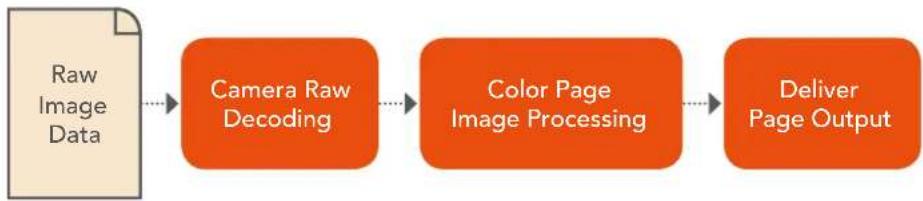
flowchart
graph LR
    A["Raw Image Data"] --> B["Camera Raw Decoding"]
    B --> C["Color Page Image Processing"]
    C --> D["Deliver Page Output"]
Raw decoding is the very first image processing operation that takes place, and it takes place before all other operations in the Color page, before even the Source bar in the Node Editor. For this reason, it's important to understand that the ideal transformation of raw image data to DaVinci Resolve-friendly image data is one that preserves the maximum amount of image data for continued processing. Since the 32-bit floating point accuracy of DaVinci Resolve's image processing pipeline preserves all transformed raw data with exceptional fidelity, the Camera Raw parameters are primarily useful for making whatever initial adjustments will produce the most optimum starting point for grading.
Each group of Camera Raw settings is available from the Raw Profile menu. This description covers the settings that are available for each of the camera raw media formats supported by DaVinci Resolve.
Camera Raw Project Settings
The Camera Raw panel of the Project Settings contain groups of parameters that correspond to every camera raw media format that's supported by DaVinci Resolve. Using these parameters in the Camera Raw panel, you can override the original camera metadata that was written at the time of recording, and make simultaneous adjustments to all camera raw media throughout your project.
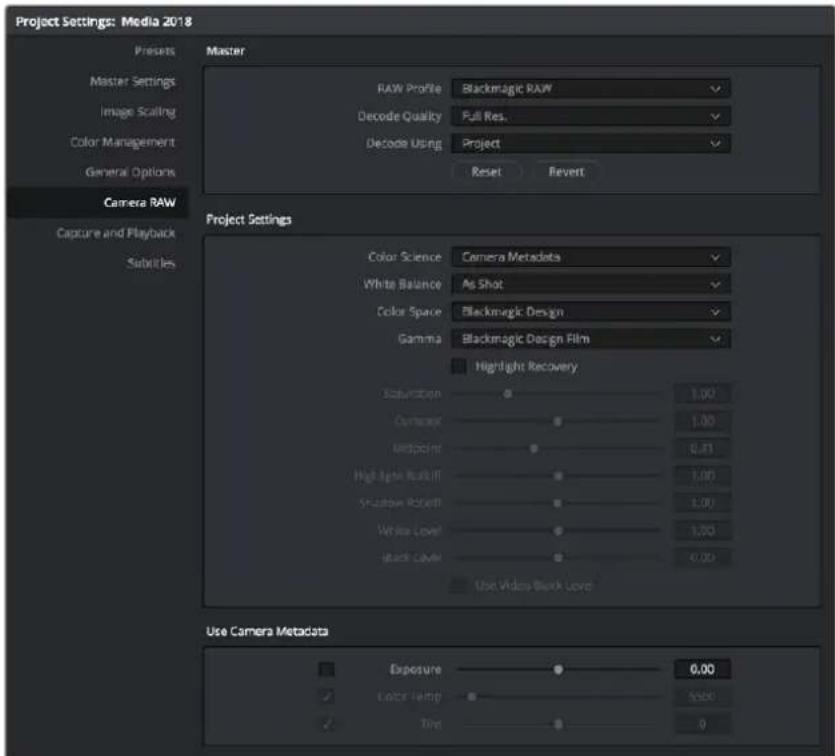
Camera Raw project settings
Each supported camera format has different controls that are specific to that format. These controls are also mirrored in the Camera Raw palette in the Color page, which lets you individually adjust the Camera Raw parameters for individual clips in a Timeline when you set Decode Using to Clip.
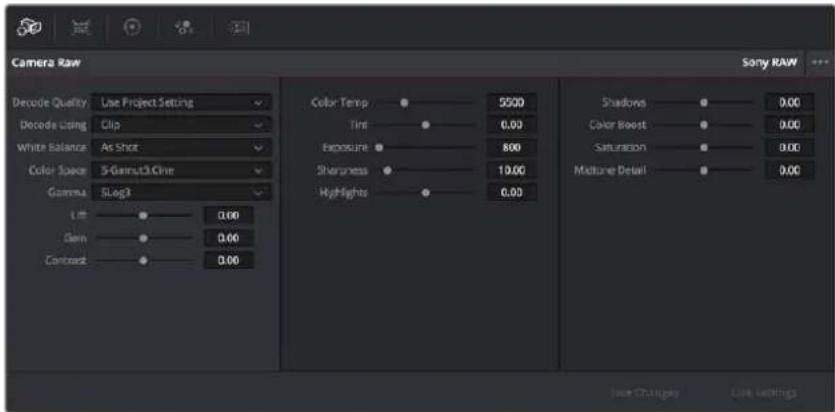
Camera Raw project palette in the Color page
Camera Raw Image Inspector
The Image panel in the Inspector exposes the Camera Raw parameters. If the video clip is in a Raw format, the specific camera's Raw controls will be exposed for user manipulation. Raw still images from Nikon (NEF) and Canon (CR2) cameras can also be adjusted in this panel.
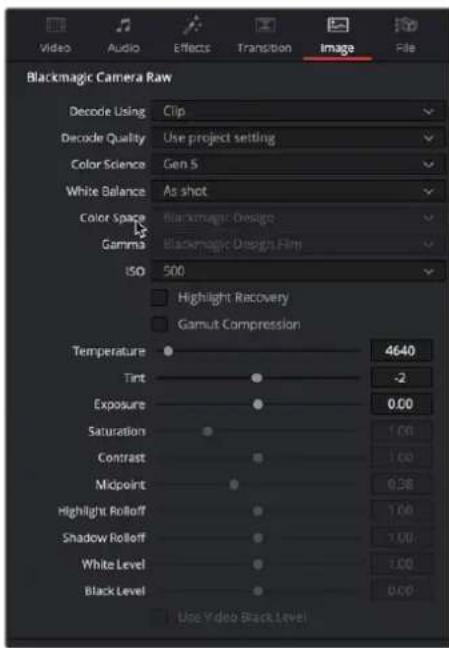
The Image Inspector for a Blackmagic RAW file
ARRI ALEXA
The ARRI ALEXA can record ProRes, DNxHD, or raw image data. When shooting raw, image data is recorded straight from the Bayer sensor, and must be debayered by DaVinci Resolve.
Master Settings
ARRI ALEXA media is extremely simple to debayer. There are only three Master settings.
- Decode Quality: Lets you debayer ARRI ALEXA raw files at Full, Half, or Quarter resolution to improve performance on slower systems. Lower resolution media is lower quality, but faster to work with and process. If necessary, you can choose a lower resolution setting that provides better real time playback on systems with limited performance while you work, and then switch to a higher quality when rendering the final output. A "Force debayer res to highest quality" checkbox in the Render Settings list of the Deliver page makes it easy to follow this workflow.
- Decode Using: The option you select determines whether all ARRI ALEXA media throughout the project is decoded using the original Camera Metadata settings (the default selection), using Project settings in which you choose custom settings to be applied to all clips, or using the ARRI default settings.
- Import Media at Open Gate Resolution: Enables DaVinci Resolve to access the “open gate” area of clips from ALEXA cameras capable of shooting in this mode, which produces a 3.4K image with extra area for stabilization and repositioning.
Project Settings
The following decoder settings let you adjust the color and exposure of ALEXA clips.
- Lift: Adjusts the black point of the media, raising it or lowering it while scaling all midtone values between it and the white point. Regardless of how you adjust this control, all image data is preserved and can be retrieved in subsequent adjustments. The range is -100 to +100 .
- Gain: Adjusts the white point of the media, raising or lowering it while scaling all midtone values between it and the black point. Regardless of how you adjust this control, all image data is preserved and can be retrieved in subsequent adjustments. 0 is unity. The range is -100 to +100.
- Contrast: Raising contrast reduces shadows and raises highlights, while leaving midtones at 50 percent unaffected. Regardless of how you adjust this control, all image data is preserved and can be retrieved in subsequent adjustments. 0 is unity. The range is -100 to +100 .
- Tint: Adjusts color balance to push the image between magenta and green; useful for balancing images with a green or magenta color cast, such as fluorescent or sodium vapor bulbs. 0 is unity. The range is -150 to +150 .
- Sharpness: A debayer-specific sharpness filter applied to provide the appearance of enhanced image detail. 0 is unity, and 10 is the default. The range is 0 to 100.
- Highlights: Makes it easy to selectively retrieve blown-out highlight detail in high-dynamic-range media by lowering this parameter, and achieves a smooth blend between the retrieved highlights and the unadjusted midtones for a naturalistic result. 0 is unity. The range is -100 (minimum) through +100 (maximum).
- Shadows: Lets you selectively lighten or darken shadow detail. Raising this value retrieves shadow detail recorded below 0 percent, while leaving the midtones alone. 0 is unity. The range is -100 (minimum) through +100 (very high).
-
Color Boost: Lets you naturalistically raise the saturation of regions of low saturation, sometimes referred to as a vibrance operation. Can be used also to lower the saturation of regions of low saturation. 0 is unity. The range is -100 (minimum) through +100 (very high).
-
Saturation: Adjusts the color intensity of the image. 0 is unity. The range is -100 (minimum) through +100 (very high).
- Midtone Detail: When this parameter is raised, the contrast of regions of the image with high edge detail is raised to increase the perception of image sharpness, sometimes referred to as definition. When this parameter is lowered to a negative value, regions of the image with low amounts of detail are softened while areas of high detail are left alone. 0 is unity. The range is -100 (minimum) through +100 (very high).
Use Camera Metadata
The most elemental camera metadata settings for exposure and color that are available.
- Color Temp: Adjusts color balance to alter the “warmth” of the image. Adjustable in Kelvin. Lower values correct for “warmer” lighting, while higher values correct for “cool” lighting. +2000 is unity. The range is +2000 to +11,000.
- Tint: Only available when White Balance is set to something other than As Shot. Designed to alter the green to magenta balance of the image, for images with fluorescent tinting. Lower values add green to compensate for magenta lighting, while higher values add magenta to compensate for green lighting. 0 is unity. The range is -12 to +12 .
- Exposure: Increases or lowers image lightness in units relative to ASA values. If your intended exposure adjustment lifts image data above the maximum white level, don't worry; all image data is preserved and can be retrieved in subsequent adjustments. 160 is unity. The range is +160 to +3200.
– Finetune Red: Advanced debayer setting.
– Finetune Green: Advanced debayer setting.
– Finetune Blue: Advanced debayer setting.
ARRI Media and Log-C
ALEXA media is usually recorded using Log-C gamma and color processing, which is very similar to the Cineon Log gamma curve, developed by Kodak to produce flat-contrast, wide-gamut image data that preserves image detail with a wide latitude for adjustment. There is no ALEXA raw parameter to adjust this, so for Rec. 709 monitoring and deliverables you need to "normalize" Log-C clips in one of three ways.
You can use Resolve Color Management (RCM) to automatically normalize log-encoded media according to the type of media it is.
You can create your own adjustment to normalize Log-C clips as part of the grading process, using the parameters of the Color page. This approach gives you the most flexibility, as you'll be making custom settings that maximize the image data that's available in every scene.
Alternately, you can use a LUT to normalize Log-C clips to obtain a fast starting point for additional grading. Used in this way, LUTs can be applied either as an output LUT, if the entire Timeline is nothing but ALEXA raw media, or as a LUT that's applied to an individual node of a grade, if you're mixing ALEXA raw media with other formats. This provides a fast and easy solution to linearizing ALEXA media that can be useful for creating dailies for offline editing. However, one LUT may not be suitable for all clips. If you're applying individual LUTs to each clip, you can create multiple LUTs, each with differing contrast settings, in order to gain the speed benefits of using LUTs, while taking into account the individual differences among clips.
ARRI has a LUT generator available online that you can use to create custom LUTs for use with a variety of color correction applications at: www.arri.com/camera/alexa/tools/lut_generator.html
Blackmagic RAW
A raw format developed by Blackmagic Design and used by a variety of Blackmagic cameras. This format relies on the increased processing capabilities of modern cameras to perform a certain amount of in-camera pre-processing (including noise management, sensor profiling, and edge reconstruction) to partially de-mosaic the image and then re-encode the result, factoring in the characteristics of the originating image sensor. The image is encoded in such a way as to later enable typical raw controls but with efficiently compressed files (using a custom non-linear 12-bit space) that are not computationally challenging to decode and use. BRAW media can be encoded at either a Constant Bitrate (with variable compression of 3:1, 5:1, 8:1, and 12:1) or at Constant Quality (with a variable bitrate).
BRAW Sidecar Metadata Files
BRAW files have been designed to accommodate descriptive metadata that enables look management from on-set through post. This metadata is both embedded in the .braw files and included within .sidecar files that are saved alongside the media. Metadata .sidecar files that are present always takes precedence over the embedded metadata for purposes of decoding. However, if there's no .sidecar file, decoding of the .braw file falls back on the embedded metadata.
Modifying Sidecar Files
You can use the Camera Raw palette of the Color page to Update a BRAW clip's sidecar file with changes made to the Camera Raw settings. Click Update Sidecar to save changes, and click Export Frame to export a one-frame image for reference.
Master Settings
These parameters let you choose the decode quality and method that raw clips will be transformed to use when debayered.
- Decode Quality: Lets you debayer .braw files at Full, Half, Quarter, or Eighth resolution to improve performance on slower systems. Lower resolution media is lower quality but faster to work with and process. If necessary, you can choose a lower resolution setting that provides better real time playback on systems with limited performance while you work, and then switch to a higher quality when rendering the final output. A “Force debayer res to highest quality” checkbox in the Render Settings list of the Deliver page makes it easy to follow this workflow.
- Decode Using: The option you select determines whether all .braw media throughout the project is decoded using the original Camera Metadata settings (the default selection), using Project settings in which you choose custom settings to be applied to all clips, or using the Blackmagic Raw default settings.
Project Settings
These parameters let you choose the color science, white balance color space, gamma, and other visual settings guiding how the image will be transformed to suit your program and RCM.
- Color Science: Lets you choose what version of camera color science you want to use to decode .braw media.
- Camera Metadata: Chooses whichever version of color science was selected by the camera at the time of shooting.
- Gen 4: The original version of color science available for recording and decoding .braw media.
- Gen 5: A newer more film-like curve designed for better skin tones and high contrast/saturation color response.
- White Balance: The first seven options offer White Balance presets, which automatically adjust the Color Temp and Tint parameters. These options include: Daylight, Cloudy, Shade, Tungsten, Fluorescent, and Flash. An eighth option, Custom, makes the Color Temp and Tint parameters user-adjustable. The default is As Shot.
-
Color Space: Debayering .braw data requires choosing a color space to convert the raw signal into. Bear in mind that the color space you choose is merely a starting point for further correction. There is no requirement that you choose one or the other color space for any given workflow, and all settings will yield high-quality image data suitable for further color correction. You should choose the color space that provides the most pleasing starting point for your particular project.
-
Blackmagic Design: A wide gamut color space designed for digital cinema workflows on Blackmagic Design cameras.
- Rec. 709: Decodes into the standard color space specified by the Rec. 709 standard for high definition video. While you may find this option useful as a starting point, it is not required for programs being output to video.
- Rec. 2020: Decodes into the standard color space specified by the Rec. 2020 standard for high definition video, UHD video, and beyond. While you may find this option useful as a starting point, it is not required for programs being output to video.
- DCI-P3 D65: Decodes RGB-encoded image data with a D65 white point, intended for monitoring with a P3-compatible display.
- DCI-P3 Theater: A setting designed for adaptive viewing of DCI-P3 in a theater with a projector using a D60 white point.
– CIE 1931 XYZ D65: A specialty setting for outputting to an XYZ color space with a D65 adaptive white point.
– CIE 1931 XYZ D50 (PCS): A specialty setting for outputting to an XYZ color space with a D50 adaptive white point, as used by the profile connection space of the DNG image format.
- Gamma: There are several options available for choosing a gamma profile to be used when debayering .braw media. Which one is best really depends on how you like to work, as all will yield high-quality image data without clipping the signal internally within DaVinci Resolve's image processing pipeline. Even though some of these options will produce a range of image data that will clip on output, all of that image data is preserved “under the hood” and can be used and retrieved in your grade.
- Blackmagic Design Film: A log-encoded “film workflow” oriented option that’s specifically designed for version 4 of the Blackmagic Design color science. This option is designed to fit the maximum amount of information from wide latitude BMD cameras into the data range of 0–1023. Using this setting provides all the dynamic range from the source media into a signal that can be transcoded to other formats with no compromise. However, this is not a viewable image and requires grading to normalize it into an image that can be delivered to audiences.
- Blackmagic Design Video: The standardized gamma curve for standard-dynamic-range HD and UHD display. For wide-latitude images, highlights will be clipped, but all image data will be preserved internally for retrieval via grading as necessary.
- Blackmagic Design Extended Video: An SDR-compatible gamma curve similar to the above but with compressed highlights that preserve more highlight detail in the visible range of the image. Intended to be a fast starting point for grading SDR images. Fewer highlights are clipped, but nonetheless all image data is preserved internally for retrieval via grading as necessary.
– Blackmagic Design Custom: For specialty workflows.
- Linear: A scene linear setting, suitable for visual effects and specialty workflows.
– Rec. 2100 Hybrid Log Gamma: The standardized gamma curve for the HLG standard of high-dynamic-range (HDR) video jointly developed by the BBC and NHK. - Rec. 2100 ST2084 (PQ): The standardized gamma curve for high-dynamic-range (HDR) video as encoded by Dolby Vision and HDR10+. Also referred to as the PQ curve.
- Highlight Recovery: A checkbox that lets you include additional highlight sensor data that's usually clipped by the standard decoding matrix. In cases where you have extremely clipped peak highlights, you may obtain additional image detail this way, although it may contain unusual color artifacts.
- Gamut compression: Prevents monochromatic highly saturated light sources (LEDs, neon signs, etc.) from clipping the gamut.
- Apply LUT: Applies color metadata to the BRAW file from the selected LUT source.
- LUT source: Choose the color metadata from the sidecar file, or the metadata embedded in the clip.
- Saturation: Adjusts the color intensity of the image. 1 is unity. The range is 0 (desaturated) through +4 (extremely high).
- Contrast: Increases contrast by raising the top of the signal and lowering the bottom of the signal about the Midpoint slider (described below). Raising this value increases contrast, while lowering this value lowers contrast. 1 is unity. The range is 0 (minimum contrast) to +2 (maximum contrast).
- Midpoint: The level about which contrast is either expanded or contracted. 0.41 is unity. The range is 0 (black) to +1 (maximum white).
- Highlight Rolloff: Makes it easy to selectively retrieve blown-out highlight detail in high-dynamic-range media by lowering this parameter and achieves a smooth blend between the retrieved highlights and the unadjusted midtones for a naturalistic result. 1 is unity. The range is 0 (minimum) through +2 (maximum).
- Shadow Rolloff: Lets you selectively lighten or darken shadow detail. Raising this value retrieves shadow detail recorded below 0 percent while leaving the midtones alone. 1 is unity. The range is 0 (minimum) through +2 (very high).
– White Level: A gain setting for adjusting the highlights. - Black Level: A lift setting for adjusting the shadows.
- Use Video Black Level: A legacy video setting that adds pedestal to the video signal. For people using video equipment dating from when shoulder pads were cool.
Use Camera Metadata
The most elemental camera metadata settings for exposure and color that are available. Deselect the Use Camera Metadata checkboxes to activate the controls.
- Exposure: Increases or lowers image lightness in units relative to f -stops. If your intended exposure adjustment lifts image data above the maximum white level, don't worry; all image data is preserved and can be retrieved in subsequent adjustments. 0 is unity. The range is -5 to +5.
- Color Temp: Only available when White Balance is set to something other than As Shot. Designed to alter the “warmth” of the image. Adjustable in Kelvin. Lower values correct for “warmer” lighting, while higher values correct for “cool” lighting. +5500 is unity. The range is +2000 to +50,000.
- Tint: Only available when White Balance is set to something other than As Shot. Designed to alter the green to magenta balance of the image, for images with fluorescent tinting. Lower values add green to compensate for magenta lighting, while higher values add magenta to compensate for green lighting. 0 is unity. The range is -150 to +150 .
BRAW Files and Blackmagic Design Film
Blackmagic Design's logarithmically encoded Blackmagic Design Film gamma setting, which produces flat-contrast, wide-gamut image data that preserves image detail with a wide latitude for adjustment, is a modified version of the standard Cineon curve. However, the modifications are designed to emphasize the strengths of the sensors used by the Blackmagic Design cameras. Similarly to working with clips using Cineon, the ARRI ALEXA's Log-C gamma, or Sony's proprietary S-Log or S-Log2 formats, you need to normalize clips using Blackmagic Design Film by using Resolve Color Management (RCM), by making a manual adjustment to color and contrast, or by applying a LUT, using techniques discussed previously.
Canon RAW
Canon RAW (CRW) is produced by a variety of Canon cameras.
Master Settings
These parameters let you choose the decode quality and method that raw clips will be transformed to use when debayered.
- Decode Quality: Lets you debayer Canon RAW files at Full, Half, or Quarter resolution to improve performance on slower systems. Lower resolution media is lower quality but faster to work with and process. If necessary, you can choose a lower resolution setting that provides better real time playback on systems with limited performance while you work, and then switch to a higher quality when rendering the final output. A “Force debayer res to highest quality” checkbox in the Render Settings list of the Deliver page makes it easy to follow this workflow.
- Decode Using: The option you select determines whether all Canon RAW media throughout the project is decoded using the original Camera Metadata settings (the default selection), using Project settings in which you choose custom settings to be applied to all clips, or using the Canon RAW default settings.
Project Settings
Canon RAW has a variety of settings that can be adjusted to alter the image quality of the debayered result. The Color Temp and Tint parameters are only available if the White Balance drop-down menu is set to Custom.
- White Balance: The first seven options offer White Balance presets, which automatically adjust the Color Temp and Tint parameters. These options include Daylight, Cloudy, Shade, Tungsten, Fluorescent, and Flash. An eighth option, Custom, makes the Color Temp and Tint parameters user-adjustable.
– Color Space: No color spaces are selectable at the time of this writing. - Gamma: No gamma settings are selectable at the time of this writing.
- Tint: Color balance correction for images with a green or magenta color cast, such as fluorescent or sodium vapor bulbs. 0 is unity. The range is -150 to +150 .
- Sharpness: A debayer-specific sharpness filter applied to provide the appearance of enhanced image detail. 20 is unity. The range is 0 to 100.
-
Highlights: Makes it easy to selectively retrieve blown-out highlight detail in high-dynamic-range media by lowering this parameter and achieves a smooth blend between the retrieved highlights and the unadjusted midtones for a naturalistic result. 0 is unity. The range is -100 (minimum) through +100 (maximum).
-
Shadows: Lets you selectively lighten or darken shadow detail. Raising this value retrieves shadow detail recorded below 0 percent, while leaving the midtones alone. 0 is unity. The range is -100 (minimum) through +100 (very high).
- Color Boost: Lets you naturalistically raise the saturation of regions of low saturation, sometimes referred to as a vibrance operation. Can be used also to lower the saturation of regions of low saturation. 0 is unity. The range is -100 (minimum) through +100 (very high).
- Saturation: Adjusts the color intensity of the image. 0 is unity. The range is -100 (minimum) through +100 (very high).
- Midtone Detail: When this parameter is raised, the contrast of regions of the image with high edge detail is raised to increase the perception of image sharpness, sometimes referred to as definition. When this parameter is lowered to a negative value, regions of the image with low amounts of detail are softened while areas of high detail are left alone. 0 is unity. The range is -100 (minimum) through +100 (very high).
- Lift: Adjusts the black point of the media, raising it or lowering it while scaling all midtone values between it and the white point. Regardless of how you adjust this control, all image data is preserved and can be retrieved in subsequent adjustments. The range is -100 to +100 .
- Gain: Adjusts the white point of the media, raising or lowering it while scaling all midtone values between it and the black point. Regardless of how you adjust this control, all image data is preserved and can be retrieved in subsequent adjustments. 0 is unity. The range is -100 to +100 .
- Contrast: Raising contrast reduces shadows and raises highlights, while leaving midtones at 50 percent unaffected. Regardless of how you adjust this control, all image data is preserved and can be retrieved in subsequent adjustments. 0 is unity. The range is -100 to +100 .
Use Camera Metadata
The most elemental camera metadata settings for exposure and color that are available.
- Exposure: Increases or lowers image lightness in units relative to f -stops. If your intended exposure adjustment lifts image data above the maximum white level, don't worry; all image data is preserved and can be retrieved in subsequent adjustments. 0 is unity. The range is -5 to +5.
- Color Temp: Only available when White Balance is set to something other than As Shot. Designed to alter the “warmth” of the image. Adjustable in Kelvin. Lower values correct for “warmer” lighting, while higher values correct for “cool” lighting. +6500 is unity. The range is +2000 to +50,000.
- Tint: Only available when White Balance is set to something other than As Shot. Designed to alter the green to magenta balance of the image, for images with fluorescent tinting. Lower values add green to compensate for magenta lighting, while higher values add magenta to compensate for green lighting. 0 is unity. The range is -150 to +150 .
CinemaDNG
CinemaDNG is an open format capable of high-resolution raw image data with a wide dynamic range and is one of the formats recorded by the Blackmagic Design Camera when you shoot in raw mode. CinemaDNG images are decoded with full dynamic range when the Highlight Recovery checkbox is selected.
DaVinci Resolve version 11.2.1 introduced improved debayering for raw CinemaDNG media acquired using any of the Blackmagic Design cameras. The “Apply Pre Tone Curve” setting controls whether you’re using the older debayering method (when turned on) or the newer, visually improved debayering method (when turned off).
Master Settings
These parameters let you choose the decode quality, white balance, color space, and gamma that raw CinemaDNG clips will be transformed to use when debayered.
- Decode Quality: Lets you debayer CinemaDNG raw files at Full, Half, or Quarter resolution to improve performance on slower systems. Lower resolution media is lower quality but faster to work with and process. If necessary, you can choose a lower resolution setting that provides better real time playback on systems with limited performance while you work, and then switch to a higher quality when rendering the final output. A “Force debayer res to highest quality” checkbox in the Render Settings list of the Deliver page makes it easy to follow this workflow.
- Decode Using: The option you select determines whether all CinemaDNG media throughout the project is decoded using the original Camera Metadata settings (the default selection), using Project settings in which you choose custom settings to be applied to all clips, or using the CinemaDNG default settings.
- Apply Pre Tone Curve: When this checkbox is turned off (the default for new projects created in DaVinci Resolve 11.2.1 or later), DaVinci Resolve debayers CinemaDNG raw media using an improved method that delivers better-looking results, specifically for media acquired using any of the Blackmagic Design cameras. When this checkbox is turned on (the default for projects created in earlier versions of DaVinci Resolve), the older debayering method is reenabled for backward compatibility. However, turning Pre Tone Curve on may also provide better results for CinemaDNG raw files coming from other sources. If you're importing .dng media from cameras other than those from Blackmagic Design, you should try both settings to see which type of debayering you prefer.
- Apply Soft Clip: This checkbox is only available when Apply Pre Tone Curve is turned off. When turned on, high dynamic range parts of the signal (super-white highlights) are brought back into the picture as visible image detail you can adjust, similar to using the Highlights control to retrieve these otherwise clipped parts of the signal.
Project Settings
CinemaDNG has a variety of settings that can be adjusted to alter the image quality of the debayered result. The Color Temp and Tint parameters are only available if the White Balance drop-down menu is set to Custom.
- Color Science: Lets you choose what version of camera color science you want to use to decode CinemaDNG media.
- Camera Metadata: Chooses whichever version of color science was selected by the camera at the time of shooting.
- Gen 4: The original version of color science available for recording and decoding CinemaDNG media.
- White Balance: The first seven options offer White Balance presets, which automatically adjust the Color Temp and Tint parameters. These options include: Daylight, Cloudy, Shade, Tungsten, Fluorescent, and Flash. An eighth option, Custom, makes the Color Temp and Tint parameters user-adjustable.
– Color Space: Multiple color spaces are adjustable, depending on your intended workflow:
- Rec. 709: Decodes into the standard color space specified by the Rec. 709 standard for high definition video.
- P3 D60: Decodes into the standard P3 color space specified by the DCI standard for digital cinema projection.
- Blackmagic Design: Decodes into a log-encoded color space that remaps the raw data into an approximation of the Log-C standard. Choosing Blackmagic Design Film also forces the Gamma setting to Blackmagic Design Film. This setting produces flat-contrast image data that preserves image detail with a wide latitude for adjustment, which is suitable as a starting point for detailed grading and is also compatible with log workflows intended for film output.
- Gamma: Five gamma settings are available, depending on what starting point you want to use for further grading.
- 2.4: A simple power-function gamma setting commonly used for broadcast.
- 2.6: A simple power-function gamma setting commonly used for digital cinema projection.
– Rec. 709: A gamma of 2.35, with a linear segment near black, approximating the EBU recommended gamma for broadcast.
- sRGB: A gamma of 2.2, with a linear segment near black, intended for reproduction on computer displays alongside the sRGB color space.
– Linear: A simple linear gamma setting.
- Blackmagic Design Film: A log-encoded gamma setting that approximates Cineon encoding, the main difference being that more data is encoded in the darkest portion of the Blackmagic Design Film signal. When you choose this setting, the appropriate variation of gamma will be applied based on your particular sensor, be it 4K or 4.6K.
- Blackmagic Design Video: A normalized gamma setting that provides a fast starting point for grading if you don't want to begin with a log-encoded image.
- Highlight Recovery: A checkbox that lets you include additional highlight sensor data that's usually clipped by the standard decoding matrix. In cases where you have extremely clipped highlights, you may obtain additional image detail this way, although it may contain unusual color artifacts.
- Sharpness: A debayer-specific sharpness filter applied to provide the appearance of enhanced image detail. 20 is unity. The range is 0 to 100.
- Highlights: Makes it easy to selectively retrieve blown-out highlight detail in high-dynamic-range media by lowering this parameter and achieves a smooth blend between the retrieved highlights and the unadjusted midtones for a naturalistic result. 0 is unity. The range is -100 (minimum) through +100 (maximum).
- Shadows: Lets you selectively lighten or darken shadow detail. Raising this value retrieves shadow detail recorded below 0 percent, while leaving the midtones alone. 0 is unity. The range is -100 (minimum) through +100 (very high).
- Color Boost: Lets you naturalistically raise the saturation of regions of low saturation, sometimes referred to as a vibrance operation. Can be used also to lower the saturation of regions of low saturation. 0 is unity. The range is -100 (minimum) through +100 (very high).
- Saturation: Adjusts the color intensity of the image. 0 is unity. The range is -100 (minimum) through +100 (very high).
- Midtone Detail: When this parameter is raised, the contrast of regions of the image with high edge detail is raised to increase the perception of image sharpness, sometimes referred to as definition. When this parameter is lowered to a negative value, regions of the image with low amounts of detail are softened while areas of high-detail are left alone. 0 is unity. The range is -100 (minimum) through +100 (very high).
- Lift: Adjusts the black point of the media, raising it or lowering it while scaling all midtone values between it and the white point. Regardless of how you adjust this control, all image data is preserved and can be retrieved in subsequent adjustments. The range is -100 to +100 .
- Gain: Adjusts the white point of the media, raising or lowering it while scaling all midtone values between it and the black point. Regardless of how you adjust this control, all image data is preserved and can be retrieved in subsequent adjustments. 0 is unity. The range is -100 to +100 .
- Contrast: Raising contrast reduces shadows and raises highlights, while leaving midtones at 50 percent unaffected. Regardless of how you adjust this control, all image data is preserved and can be retrieved in subsequent adjustments. 0 is unity. The range is -100 to +100 .
Use Camera Metadata
The most elemental camera metadata settings for exposure and color that are available.
- Exposure: Increases or lowers image lightness in units relative to f -stops. If your intended exposure adjustment lifts image data above the maximum white level, don't worry; all image data is preserved and can be retrieved in subsequent adjustments. 0 is unity. The range is -5 to +5.
- Color Temp: Only available when White Balance is set to something other than As Shot. Designed to alter the “warmth” of the image. Adjustable in Kelvin. Lower values correct for “warmer” lighting, while higher values correct for “cool” lighting. +6500 is unity. The range is +2000 to +50,000.
- Tint: Only available when White Balance is set to something other than As Shot. Designed to alter the green to magenta balance of the image, for images with fluorescent tinting. Lower values add green to compensate for magenta lighting, while higher values add magenta to compensate for green lighting. 0 is unity. The range is -150 to +150 .
CinemaDNG Files and Blackmagic Design Film
Blackmagic Design's logarithmically encoded Blackmagic Design Film gamma setting, which produces flat-contrast, wide-gamut image data that preserves image detail with a wide latitude for adjustment, is a modified version of the standard Cineon curve. However, the modifications are designed to emphasize the strengths of the sensors used by the Blackmagic Design cameras. Similarly to working with clips using Cineon, the ARRI ALEXA's Log-C gamma, or Sony's proprietary S-Log or S-Log2 formats, you need to normalize clips using Blackmagic Design Film by using Resolve Color Management (RCM), by making a manual adjustment to color and contrast, or by applying a LUT, using the same techniques discussed previously.
Panasonic Varicam RAW
Panasonic Varicam RAW (CRW) is produced by a variety of Panasonic cameras (such as the VariCam 35 and VariCam Pure 4K) recording to Codex VRAW recorders.
Master Settings
These parameters let you choose the decode quality, white balance, color space, and gamma that raw clips will be transformed to use when debayered.
- Decode Quality: Lets you debayer Varicam RAW files at Full, Half, or Quarter resolution to improve performance on slower systems. Lower resolution media is lower quality but faster to work with and process. If necessary, you can choose a lower resolution setting that provides better real time playback on systems with limited performance while you work, and then switch to a higher quality when rendering the final output. A “Force debayer res to highest quality” checkbox in the Render Settings list of the Deliver page makes it easy to follow this workflow.
- Decode Using: The option you select determines whether all Varicam RAW media throughout the project is decoded using the original Camera Metadata settings (the default selection), using Project settings in which you choose custom settings to be applied to all clips, or using the Varicam RAW default settings.
Project Settings
Panasonic Varicam RAW has a variety of settings that can be adjusted to alter the image quality of the debayered result. The Color Temp and Tint parameters are only available if the White Balance dropdown menu is set to Custom.
- White Balance: The first seven options offer White Balance presets, which automatically adjust the Color Temp and Tint parameters. These options include: Daylight, Cloudy, Shade, Tungsten, Fluorescent, and Flash. An eighth option, Custom, makes the Color Temp and Tint parameters user-adjustable.
- Sharpness: A debayer-specific sharpness filter applied to provide the appearance of enhanced image detail. 20 is unity. The range is 0 to 100.
- Highlights: Makes it easy to selectively retrieve blown-out highlight detail in high-dynamic-range media by lowering this parameter and achieves a smooth blend between the retrieved highlights and the unadjusted midtones for a naturalistic result. 0 is unity. The range is -100 (minimum) through +100 (maximum).
- Shadows: Lets you selectively lighten or darken shadow detail. Raising this value retrieves shadow detail recorded below 0 percent, while leaving the midtones alone. 0 is unity. The range is -100 (minimum) through +100 (very high).
- Color Boost: Lets you naturalistically raise the saturation of regions of low saturation, sometimes referred to as a vibrance operation. Can be used also to lower the saturation of regions of low saturation. 0 is unity. The range is -100 (minimum) through +100 (very high).
- Saturation: Adjusts the color intensity of the image. 0 is unity. The range is -100 (minimum) through +100 (very high).
- Midtone Detail: When this parameter is raised, the contrast of regions of the image with high edge detail is raised to increase the perception of image sharpness, sometimes referred to as definition. When this parameter is lowered to a negative value, regions of the image with low amounts of detail are softened while areas of high-detail are left alone. 0 is unity. The range is -100 (minimum) through +100 (very high).
- Lift: Adjusts the black point of the media, raising it or lowering it while scaling all midtone values between it and the white point. Regardless of how you adjust this control, all image data is preserved and can be retrieved in subsequent adjustments. The range is -100 to +100 .
- Gain: Adjusts the white point of the media, raising or lowering it while scaling all midtone values between it and the black point. Regardless of how you adjust this control, all image data is preserved and can be retrieved in subsequent adjustments. 0 is unity. The range is -100 to +100 .
- Contrast: Raising contrast reduces shadows and raises highlights, while leaving midtones at 50 percent unaffected. Regardless of how you adjust this control, all image data is preserved and can be retrieved in subsequent adjustments. 0 is unity. The range is -100 to +100 .
Use Camera Metadata
The most elemental camera metadata settings for exposure and color that are available.
- Color Temp: Only available when White Balance is set to something other than As Shot. Designed to alter the “warmth” of the image. Adjustable in Kelvin. Lower values correct for “warmer” lighting, while higher values correct for “cool” lighting. +6500 is unity. The range is +2000 to +50,000.
- Tint: Only available when White Balance is set to something other than As Shot. Designed to alter the green to magenta balance of the image, for images with fluorescent tinting. Lower values add green to compensate for magenta lighting, while higher values add magenta to compensate for green lighting. 0 is unity. The range is -150 to +150 .
Phantom Cine
The Phantom line of high-speed digital cinema cameras record wide latitude, high-gamut media using the Cine Raw format.
Master Settings
These parameters let you choose the decode quality, white balance, color space, and gamma that raw Phantom Cine clips will be transformed to use when debayered.
-
Decode Using: The option you select determines whether all Phantom Cine media throughout the project is decoded using the original Camera Metadata settings (the default selection), using Project settings in which you choose custom settings to be applied to all clips, or using the Cine default settings.
– Timecode: There are four types of timecode that Phantom Cine files can be set to use: -
Set to zero: Camera timecode is ignored, instead using a simple frame count with the first frame considered 0.
– Time of day (Local): Time of day timecode recording.
– Time of day (GMT): Time of day timecode recording based on Greenwich Mean Time. - SMPTE: Standard SMPTE timecode.
Project Settings
The following settings for exposure, color, and sharpness are available.
- Gamma: Three options are available for setting the gamma of the debayered output:
- Rec. 709
- Log 1
-
Log 2
-
Lift: Adjusts the black point of the media, raising it or lowering it while scaling all midtone values between it and the white point. Regardless of how you adjust this control, all image data is preserved and can be retrieved in subsequent adjustments. The range is -100 to +100 .
- Gain: Adjusts the white point of the media, raising or lowing it while scaling all midtone values between it and the black point. Regardless of how you adjust this control, all image data is preserved and can be retrieved in subsequent adjustments. 0 is unity. The range is -100 to +100 .
- Contrast: Raising contrast reduces shadows and raises highlights, while leaving midtones at 50 percent unaffected. Regardless of how you adjust this control, all image data is preserved and can be retrieved in subsequent adjustments. 0 is unity. The range is -100 to +100 .
- Sharpness: A debayer-specific sharpness filter applied to provide the appearance of enhanced image detail. 20 is unity. The range is 0 to 100.
- Highlights: Makes it easy to selectively retrieve blown-out highlight detail in high-dynamic-range media by lowering this parameter and achieves a smooth blend between the retrieved highlights and the unadjusted midtones for a naturalistic result. 0 is unity. The range is -100 (minimum) through +100 (maximum).
- Shadows: Lets you selectively lighten or darken shadow detail. Raising this value retrieves shadow detail recorded below 0 percent, while leaving the midtones alone. 0 is unity. The range is -100 (minimum) through +100 (very high).
-
Color Boost: Lets you naturalistically raise the saturation of regions of low saturation, sometimes referred to as a vibrance operation. Can be used also to lower the saturation of regions of low saturation. 0 is unity. The range is -100 (minimum) through +100 (very high).
-
Saturation: Adjusts the color intensity of the image. 0 is unity. The range is -100 (minimum) through +100 (very high).
- Midtone Detail: When this parameter is raised, the contrast of regions of the image with high edge detail is raised to increase the perception of image sharpness, sometimes referred to as definition. When this parameter is lowered to a negative value, regions of the image with low amounts of detail are softened while areas of high detail are left alone. 0 is unity. The range is -100 (minimum) through +100 (very high).
RED
R3D source media, recorded by the various models of RED DIGITAL CINEMA cameras, contains one of the most elaborate sets of raw parameters of any of the camera formats. These settings are divided into four different groups.
Master RED Settings
The Master RED settings are the most important, handling decode quality and the control governing whether the original camera metadata is used, or if you're overriding the camera metadata project-wide with custom settings.
These settings also contain the drop-down menus that let you choose the color space and gamma curve used to transform the raw image data into image data for processing in DaVinci Resolve when debayering R3D clips. Which Color Space and Gamma Curve settings you use are solely a matter of preference; there is no absolute requirement to use one or the other for any given type of workflow. You're simply looking for settings that provide the best starting point for the media you have, given the type of grading you're looking to do.
For example, in many cases combining the REDcolor3 Color Space setting and REDlog Film gamma curve will offer a starting point that retains the most image detail with the greatest latitude for adjustment. On the other hand, if you're working in a hurry, for example to generate dailies for offline editing, using one of the REDcolor Color Space settings with one of the REDgamma settings can offer an image that's more immediately pleasing and that requires fewer adjustments to achieve an acceptable result. These are not recommendations, they're only examples. As always, the ideal settings for your project depend heavily on the quality of the source media, so you should experiment with media from your own projects to find the most suitable results to your eye.
Master
These top settings determine the image quality that you're choosing to extract from the R3D source media. The tradeoff is that higher quality media at higher resolution will be more processor-intensive to debayer, depending on your workstation's capabilities.
- Decode Quality: Determines the image quality of the decoded R3D data that's handed off to the DaVinci Resolve image processing pipeline. The Decode Quality you select has a direct impact on real time performance. Decoding performance depends entirely on the hardware capabilities of your system.
On the most modern systems, R3D files can be decoded using accelerated GPU-based debayering if you set the Use GPU for R3D drop-down menu to Debayer in the Decode Options panel of the DaVinci Resolve System Settings. DaVinci Resolve 16.1.2 introduced the latest RED API-enabling 8K-accelerated debayering using Cuda. Otherwise, R3D files can be decoded with high performance using multi-core CPU processing if your workstation has fast enough CPUs.
If necessary, you can also choose a lower quality setting that provides better real time playback on systems with limited performance while you work, and then switch to a higher quality when rendering the final output. A “Force debayer res to highest quality” checkbox in the Render Settings list of the Deliver page makes it easy to follow this workflow.
- Bit Depth: DaVinci Resolve can decode R3D files with 8-, 10-, or 16-bit image data for processing. Choosing 16-bit for maximum quality may impact playback performance on some hardware.
- Timecode: The timecode recorded for R3D media depends on the camera setting in use when it was shot. There are three choices:
- Camera: This setting automatically selects between Absolute and Edge depending on what was chosen as the default timecode mode on the camera. This setting needs to be selected before you add R3D media to the Media Pool. If you're browsing R3D media when you change this setting, you should refresh the folder in the Library of the Media Pool before adding media to the Media Pool.
- Absolute: The default. Records "time of day" timecode. If an external timecode source was connected and the camera was put into Jam Sync mode, the external timecode would have been recorded instead.
- Edge: The first recorded clip for each magazine starts at 01:00:00:00, and the timecode of each subsequent clip is recorded sequentially and continuously.
- Decode Using: The option you select determines whether all R3D media throughout the project is decoded using the original Camera Metadata settings (the default selection), using Project settings in which you choose custom settings to be applied to all clips, or using the RED default settings.
Project Settings
These settings control the fundamental methods used to debayer R3D media. The selections you make to these settings determine the basic color and contrast that you're choosing to extract from the camera raw image data.
- Color Science: The options are Original, which was the color science used by early builds of the REDone camera, Version 2, and IPP2, which is the current version of color science used by the entire RED camera line. Unless you need to match the look of older projects using the older color science, the newest color science is generally preferable.
- Color Space: Because RED cameras record R3D data which uses a raw color space, debayering the native R3D data requires choosing a color space to convert the raw signal into. Bear in mind that the color space you choose is merely a starting point for further correction. There is no requirement that you choose one or the other color space for any given workflow. You should choose the color space that provides the most pleasing starting point for your particular project.
- DragonColor2: A further optimized version of DragonColor that is especially recommended for underwater footage.
- REDcolor4: A further optimized version of REDcolor3 that is especially recommended for underwater footage.
- REDWideGamutRGB: Part of RED's IPP2 (image processing pipeline 2) initiative; this is a camera color space designed to encompass all colors that can be recorded by RED cameras without clipping, and is meant to provide a single common starting point for all models of RED cameras, for convenient grading to HDR or SDR workflows.
- Rec. 2020: Decodes into the standard color space specified by the Rec. 2020 standard for high definition video, UHD video, and beyond. While you may find this option useful, it is not required for programs being output to video.
- Rec. 709: Decodes into the standard color space specified by the Rec. 709 standard for high definition video. While you may find this option useful, it is not required for programs being output to video.
- sRGB: Decodes into the standard color space defined by the sRGB standard, typically used for computer display.
- Adobe1998: Decodes into Adobe's unique version of the sRGB standard.
- DCI-P3: Decodes to an RGB-encoded image data with a D61 white point, intended for use when outputting media for DCI mastering.
- DCI-P3 D65: Decodes RGB-encoded image data with a D65 white point, intended for monitoring with a P3-compatible display.
- ProPhoto RGB: A color space developed by Kodak that offers a large gamut intended for photography. An idiosyncrasy of this color space is that the green and blue primary points are outside the boundaries of visible color, meaning this gamut encompasses “imaginary” colors in order to achieve an extremely large gamut.
- CameraRGB: Outputs the original, unmodified sensor data. Not a recommended setting.
- REDspace: Fits the raw R3D image data into a color space that's larger than that of Rec. 709. Appropriate for digital cinema mastering and film output. REDspace was the predecessor to the REDcolor setting.
- REDcolor: A color space that's similar to the Rec. 709 option, but modified to balance accuracy with pleasing color rendition, emphasizing accurate skin tones.
- REDcolor2: Similar, but less saturated than, REDcolor.
- REDcolor3: Similar saturation to REDcolor, but with additional modifications to improve the color rendition of skin tone. Introduced as the optimum color space for Epic cameras, but also appropriate for previous generations of RED cameras.
- DragonColor: A color space optimized for cameras with the RED Dragon sensor, although this color space can be used for previous generations of RED cameras as well.
- Gamma Curve: There are several options available for choosing a gamma profile to be used when debayering the raw R3D data:
- REDgamma4: The latest iteration of the REDgamma curve, designed to give a good in-camera look without the need for grading, while retaining great dynamic range and highlight handling. REDgamma4 is suitable for all RED cameras.
- REDlog Film: An improved logarithmic gamma setting that's designed to remap the original 12-bit R3D data to the standard Cineon gamma curve. This setting produces flat-contrast image data that preserves image detail with a wide latitude for adjustment, and is compatible with log workflows, including those intended for film output.
- Linear: No gamma adjustment is made, this is a linear-to-light representation of data from the RED camera's sensor.
- Rec. 709: A gamma curve typical for Rec. 709 display. Does not provide an abundance of latitude for grading.
- Gamma 2.4: A simple power-function gamma setting commonly used for broadcast.
- Gamma 2.6: A simple power-function gamma setting commonly used for digital cinema projection.
- sRGB: Similar gamma setting to that employed by Rec. 709.
- HDR ST.2084: The standardized gamma curve for high-dynamic-range (HDR) video. Also referred to as the PQ curve.
- Hybrid Log Gamma: The standardized gamma curve for the HLG standard of high-dynamic-range (HDR) video jointly developed by the BBC and NHK.
-
BT.1886: The standardized gamma curve for standard-dynamic-range HD and UHD display. Does not provide an abundance of latitude for grading.
-
Log3G12: An expanded option for RED's IPP2 (image processing pipeline 2) initiative, this is a wide dynamic range log space designed to encode camera data from all RED models to a common starting point in RWG color space for convenient grading to HDR or SDR workflows. Log3G12 provides 12 stops of dynamic range above mid gray, 2 more stops than Log3G10. However, this is at the expense of a slight loss of precision.
- Log3G10: Part of RED's IPP2 (image processing pipeline 2) initiative, this is a wide dynamic range log space designed to encode camera data from all RED models to a common starting point in RWG color space for convenient grading to HDR or SDR workflows. 3G represents the mapping of 18% mid gray to 1/3, and 10 represents the 10 stops of dynamic range above mid gray this supports.
– PDlog 685: A logarithmic gamma setting that maps the native 12-bit RED image data into the linear portion of a Cineon or film transfer curve.
– PDlog 985: A logarithmic gamma setting with different mappings.
- Custom PDlog: A logarithmic gamma setting that exposes user adjustable Black Point, White Point, and Gamma PDlog parameters so you can customize your own log gamma curve.
- REDspace: Similar to Rec. 709, but slightly altered to be more appealing, primarily through higher contrast and lighter midtones. The predecessor to the REDgamma curve.
- REDlog: A logarithmic gamma setting that maps the original 12-bit R3D image data to a 10-bit curve. The blacks and midtones occupying the lowest 8 bits of the video signal maintain the same precision as in the original 12-bit data, while the highlights that occupy the highest 4 bits are compressed. While reducing the precision of highlight detail, the tradeoff is that there's an abundance of precision throughout the rest of the signal. This is a good setting for maintaining maximum latitude.
- REDgamma: An improved gamma curve designed to be perceptually appealing on displays calibrated for Rec. 709, with an improved soft roll-off in the highlights to maintain highlight detail while grading.
- REDgamma2: Similar to REDgamma, with higher contrast.
- REDgamma3: The most recent iteration of the REDgamma curve. Based on a log starting point, but with a pleasing “ready to view” contrast curve applied, designed to be a visually pleasing starting point that maintains excellent dynamic range. REDgamma3 is also designed to work with REDcolor3.
- Blend Type: Works to control how RED HDRX media is used. When using either Simple or Magic Motion to blend HDRX exposures, there's no need to use the second output in the Node Editor. You can choose from three options:
– None: Only the regular exposure is used.
– Simple: Blends the two HDRX exposures to achieve a pleasing middle ground.
- Magic Motion: Uses a proprietary algorithm to combine the dual exposures to combine overexposed and well-exposed regions of the picture in a more targeted fashion, while blending the sharpness of the regularly exposed source with the motion blur of the underexposed source.
- Blend Bias: Lets you adjust how much of the regular exposure and how much of the underexposure are combined.
- Apply Metadata Curves: If the R3D media files were preprocessed in REDCINE X Pro, and saved with color curve metadata, you can use this setting to either use or discard that metadata.
- D.E.B. (Dragon Enhanced Blacks): A checkbox that enables the elimination of red noise in RED cameras using the Dragon sensor.
- Embedded Audio: Enables embedded audio in R3D media.
Decoder Settings
This second group of settings contains additional controls for finessing the debayering of RED raw image data. Which controls are exposed depends on which Color Science setting is selected above. Many of the settings in this group are color correction adjustments, some of which resemble analogous controls in the Color page. However, the FLUT and DRX controls manage the exposure of the debayered media being fed to the DaVinci Resolve image processing pipeline, and so can be used to retrieve image detail from R3D source media in cases where the default settings are clipping or crushing detail in the highlights or shadows that would be unavailable to DaVinci Resolve as a result.
- De-noise: Applies image-wide noise reduction. There are seven settings available, from mild to maximum, that you can use to balance noise reduction against any possible image degradation.
- OLPF Compensation: (color science versions 1 and 2) OLPF compensation applies a low pass filter to reduce color moiré. There are four options: Off (the default), Low, Medium, and High.
- Image Detail: (color science versions 1 and 2) Controls the demosaicing algorithm that's used for the software decoding of R3D media. You can choose a level of sensor detail extraction: Low, Medium, and High (recommended). If you're using a RED ROCKET card, this setting is ignored as there is a fixed algorithm that's used.
- FLUT: (color science versions 1 and 2) A gain operation that lets you boost or attenuate the ISO in smaller increments. 0 is unity. The range is -8 to +8.
- Contrast: Raising contrast reduces shadows and raises highlights, while leaving midtones at 50 percent unaffected. The image is compressed rather than clipped at the limits of 100 and 0 percent. 0 is unity. The range is -1 to +1 .
- Saturation: (color science versions 1 and 2) Adjusts the color intensity of the image. 1 is unity. The range is 0 (minimum) through 5.0 (very high).
- DRX: (color science versions 1 and 2) A Dynamic Range control (X) that lets you recover highlights while taking into account Color Temperature (degrees Kelvin) and Tint. 0 is unity, and 1.0 is the maximum value.
- Shadow: (color science version 1 and 2) Provides control over the toe (low range) of the FLUT adjustment. 0 is unity. The range is -2 to +2.
- Brightness: Adjusts image lightness. Image data is compressed rather than clipped at 100 and 0 percent. 0 is unity. The range is -10 to +10.
- Flashing pixel adjust: A setting to apply noise reduction for removing or minimizing any flashing pixels recorded from the sensor. Levels are: None, Low, Medium, and High.
Three additional parameters are available for IPP2 workflows, but they only function when DaVinci Resolve is set to use DaVinci YRGB Color Managed color science and the Timeline to Output Gamut Mapping in the Color Management panel of the Project Settings is set to RED IPP2 Gamut Mapping. These controls (which are also mirrored in the Color Management panel when enabled) are designed to let you tone map wide gamut media that's being graded to a smaller gamut, such as Rec. 709.
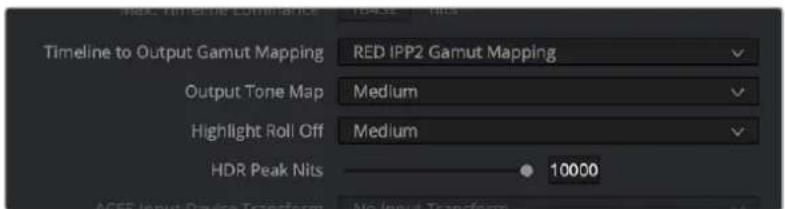
The RED IPP2 Gamut Mapping controls that appear in the Color Management tab of the Project Settings
- Output Tone Map: (color science IPP2) Provides an easy setting for setting the resulting contract when tone mapping wide dynamic range images to standard dynamic range (SDR) output. Settings are: None, Low, Medium, and High. Low results in less contrast; High results in more contrast.
- Highlight Roll Off: (color science IPP2) Five settings let you adjust how much to roll off the highlights to fit within the current gamut. These are: None, Hard, Medium, Soft, and Very Soft. Hard provides a minimum of roll-off; Very Soft provides a maximum of roll-off. This setting interacts with the HDR Peak Nits slider below.
- HDR Peak Nits: (color science IPP2) Adjusts the amount of highlight compression that's done by Highlight Roll Off.
Use Camera Metadata
The most elemental camera metadata settings for exposure and color that are available.
- ISO: A gain operation that keeps the black point at 0 while raising or lowering the white point of the image, linearly scaling everything in between. Raising the ISO results only in boosted highlights being more compressed; no clipping will occur. 320 is unity. The range is 50–6400.
- Exposure Adjust: Increases or lowers image lightness in units relative to f -stops. Using exposure to boost the image beyond 100 or to lower it below 0 will clip, not compress, the image data that's passed along to the DaVinci Resolve image processing pipeline. 0 is unity. The range is -7 to +7.
- Color Temp: Designed to alter the “warmth” of the image while keeping white elements of the scene looking neutral. Adjustable in degrees Kelvin. Lower values correct for “warmer” lighting, while higher values correct for “cool” lighting. This parameter is designed specifically to adjust RED linear light image data to make the most photometrically accurate correction. 5600 is unity. The range is 1700 to 10,000.
- Tint: Color balance correction for images with a green or magenta color cast, such as fluorescent or sodium vapor bulbs. This parameter is designed specifically to adjust RED linear light image data to make the most photometrically accurate correction. 0 is unity. The range is -100 to +100 .
Sony RAW
Sony makes several digital cinema cameras, such as the F65 and F55, that record wide latitude, high-gamut media either using Sony's 12-bit SR codec, or as 16-bit raw media files. Since Sony's cameras do not use a traditional Bayer pattern, special debayering is necessary when working with F65 raw media, and the image data is demosaiced using the following raw controls and parameters.
Master Settings
These parameters let you choose the decode quality, white balance, color space, and gamma that Sony raw clips will be transformed to use when debayered.
- Decode Quality: Determines the image quality of the decoded Sony raw data that's handed off to the DaVinci Resolve image processing pipeline regardless of the Play Quality setting. The Decode Resolution you select has a direct impact on real time performance, and decoding performance depends entirely on the hardware capabilities of your system.
If necessary, you can choose a lower resolution setting that provides better real time playback on systems with limited performance while you work, and then switch to a higher quality when rendering the final output. A “Force debayer res to highest quality” checkbox in the Render Settings list of the Deliver page makes it easy to follow this workflow. - Decode Using: The option you select determines whether all F65 media throughout the project is decoded using the original Camera Metadata settings (the default selection), using Project settings in which you choose custom settings to be applied to all clips, or using the Sony default settings.
Project Settings
These settings control the fundamental methods used to debayer Sony raw media. The selections you make to these settings determine the basic color and contrast that you're choosing to extract from the camera raw image data.
-
White Balance: The first seven options offer White Balance presets, which automatically adjust the Color Temp and Tint parameters. These options include: Daylight, Cloudy, Shade, Tungsten, Fluorescent, and Flash. An eighth option, Custom, makes the Color Temp and Tint parameters user-adjustable.
– Color Space: Multiple color spaces are adjustable, depending on your intended workflow: -
Rec. 709: Decodes into the standard color space specified by the Rec. 709 standard for high definition video.
- P3 D60: Decodes RGB-encoded image data with a D60 white point, intended for monitoring with a P3-compatible display.
- SGamut: Decodes into Sony's wider S-gamut color space, designed to provide the widest range of image data for adjustment.
- SGamut3: The gamut is identical to SGamut, but color reproduction is more accurate, according to Sony's "Technical Summary for S-Gamut3Cine/S-Log3 and S-Gamut3/S-Log3" whitepaper.
- SGamut3.Cine: According to Sony's "Technical Summary for S-Gamut3Cine/S-Log3 and S-Gamut3/S-Log3" whitepaper, S-Gamut3.Cine is designed to provide a more traditionally log-encoded workflow with color reproduction that is slightly wider than the P3 gamut.
- P3: Decodes to an RGB-encoded image data with a D61 white point, intended for use when outputting media for DCI mastering.
- ACES: Decodes to image data that maps to the ACES profile for the camera that was used.
- Gamma: Five gamma settings are available, depending on what starting point you want to use for further grading.
- Gamma 2.4: A simple power-function gamma setting commonly used for broadcast.
- Gamma 2.6: A simple power-function gamma setting commonly used for digital cinema projection.
– Rec. 709: A gamma curve typical for Rec. 709 display. - SLog: Not designed for viewing, Sony's SLog gammas are designed to provide a wide latitude for grading; 14-stops according to Sony. 18% gray is at 38% .
- SLog2: This version has a half stop offset from SLog to allow for a higher dynamic range. 18% gray is at 32% .
- SLog3: An “easier to grade” version of SLog. 18% gray is at 40%. According to Sony’s “Technical Summary for S-Gamut3Cine/S-Log3 and S-Gamut3/S-Log3,” SLog3 is designed to provide a more traditionally log-encoded workflow, with a gamma curve that is similar, but not identical, to Cineon workflows.
– Linear: A simple linear gamma setting.
- Lift: Adjusts the black point of the media, raising it or lowering it while scaling all midtone values between it and the white point. Regardless of how you adjust this control, all image data is preserved and can be retrieved in subsequent adjustments. The range is -100 to +100 .
- Gain: Adjusts the white point of the media, raising or lowering it while scaling all midtone values between it and the black point. Regardless of how you adjust this control, all image data is preserved and can be retrieved in subsequent adjustments. 0 is unity. The range is -100 to +100 .
-
Contrast: Raising contrast reduces shadows and raises highlights, while leaving midtones at 50 percent unaffected. Regardless of how you adjust this control, all image data is preserved and can be retrieved in subsequent adjustments. 0 is unity. The range is -100 to +100 .
-
Sharpness: A debayer-specific sharpness filter applied to provide the appearance of enhanced image detail. 20 is unity. The range is 0 to 100.
- Highlights: Makes it easy to selectively retrieve blown-out highlight detail in high-dynamic-range media by lowering this parameter, and achieves a smooth blend between the retrieved highlights and the unadjusted midtones for a naturalistic result. 0 is unity. The range is -100 (minimum) through +100 (maximum).
- Shadows: Lets you selectively lighten or darken shadow detail. Raising this value retrieves shadow detail recorded below 0 percent, while leaving the midtones alone. 0 is unity. The range is -100 (minimum) through +100 (very high).
- Color Boost: Lets you naturalistically raise the saturation of regions of low saturation, sometimes referred to as a vibrance operation. Can be used also to lower the saturation of regions of low saturation. 0 is unity. The range is -100 (minimum) through +100 (very high).
- Saturation: Adjusts the color intensity of the image. 0 is unity. The range is -100 (minimum) through +100 (very high).
- Midtone Detail: When this parameter is raised, the contrast of regions of the image with high edge detail is raised to increase the perception of image sharpness, sometimes referred to as definition. When this parameter is lowered to a negative value, regions of the image with low amounts of detail are softened while areas of high-detail are left alone. 0 is unity. The range is -100 (minimum) through +100 (very high).
Use Camera Metadata
The most elemental camera metadata settings for exposure and color that are available.
- Exposure: Increases or lowers image lightness in units relative to ASA values. If your intended exposure adjustment lifts image data above the maximum white level, don't worry; all image data is preserved and can be retrieved in subsequent adjustments. +800 is unity. The range is +1 to +65,535.
- Color Temp: Designed to alter the “warmth” of the image. Adjustable in degrees Kelvin. Lower values correct for “warmer” lighting, while higher values correct for “cool” lighting. +6500 is unity. The range is +2000 to +50,000.
- Tint: Only available when White Balance is set to something other than As Shot. Designed to alter the green to magenta balance of the image, for images with fluorescent tinting. Lower values add green to compensate for magenta lighting, while higher values add magenta to compensate for green lighting. 0 is unity. The range is -150 to +150 .
Sony Media and SLog
Sony's proprietary SLog gamma setting, which produces flat-contrast, wide-gamut image data that preserves image detail with a wide latitude for adjustment, is also available on some other Sony cameras. Similarly to working with clips using the ARRI ALEXA's Log-C gamma, you need to normalize SLog clips by using Resolve Color Management (RCM), by making a manual adjustment to color and contrast, or by applying a LUT, using the same techniques discussed previously.
When applying a LUT, there are two methods that Sony recommends. A 1D LUT can be used to transform SLog clips into the standard Cineon (or Log-C) curve if your ultimate goal is to output Log media for film printing. If you're planning to output to a normalized format, you can use a dedicated LUT to make this transformation.
For more information, search the web for Sony's document "SLog: A new LUT for digital production mastering and interchange applications."
Chapter 8
Improving Performance, Proxies, and the Render Cache
DaVinci Resolve is a high-performance piece of software designed to enable real time effects on a variety of workstations. This section describes the various ways you can monitor your performance to make sure you're maintaining real time playback, along with different methods of optimizing real time performance, including using on-the-fly proxies and the background Render Cache.
Contents
Understanding the GPU Status Display 166
Prioritizing Audio or Video Playback in the Edit Page 166
Performance Mode Improves Overall Performance 167
Adjusting Performance Mode 167
Timeline Proxy Mode Improves Effects Performance 167
Reducing Decode Quality Improves Raw Media Performance 168
Optimized Media Improves Overall Performance 169
Creating Optimized Media 169
Optimized Media for Raw Source Clips 170
Customizing the Type of Optimized Media You Create 170
Switching Between Optimized and Original Media 171
Sharing Optimized Media Between Projects 171
Rediscovering Lost Optimized Media 172
Deleting Optimized Media 172
Using Optimized Media for Delivery 172
Using the Smart or User Cache Improves Effects Performance 172
How Cached Media Is Organized 173
Choosing a Cache Format and Location 175
When Caching Happens 175
The Difference Between the Smart Cache and User Cache Modes 176
Manually Controlling the Cache 177
Controlling Fusion Output Caching 177
Controlling Node Caching 177
Controlling Color Output Caching 177
Controlling Edit Page Filter Caching 178
Clearing Cached Media 178
Using Cached Media When Rendering in the Deliver Page 178
Using Proxy Media 178
Creating and Using Proxy Media 178
Generating Proxy Media in Other Applications 179
Managing Proxy Media 180
Using Proxy Files for Delivery 181
Moving Proxies Using a DaVinci Resolve Archive (.dra) 181
Working Remotely Using Proxy Media 182
Proxy Media vs. Other Playback Optimizations in DaVinci Resolve 183
Using Optimized Media, Proxy Media, and Caching Together 183
Which Playback Optimization Method Should I Use? 184
Other Project Settings That Improve Performance 184
Understanding the GPU Status Display
Every viewer in DaVinci Resolve exposes a GPU status indicator and a frame-per-second (FPS) meter, which appears in the Viewer's title bar, which shows you your workstation's performance whenever playback is initiated. Since DaVinci Resolve uses one or more GPUs (graphics processing units) to handle all image processing and effects, the GPU status display shows you how much processing power is being used by whichever clip is playing.
23.976
Frame rate and GPU
indication, green is good
A green status indicator shows there is plenty of GPU processing headroom available. As the GPU resources is increasingly taxed, this green graph eventually turns red to show that the available GPU power is insufficient for consistent real time playback.
• 15
Red indicates that playback
is at slower than real time
Eventually, as you add more and more effects and corrections, you'll reach the limits of available performance, forcing DaVinci Resolve to either drop frames, or play video at a slower speed in order to maintain high image quality, shown by the red FPS indicator.
When real time performance falls short, DaVinci Resolve provides a variety of controls and options that let you enhance real time playback and effects. Each is useful for different situations, and all can work together so you can choose the best trade-off between image quality and performance while you work. All of these methods can be set up to have no effect on your delivered output.
Prioritizing Audio or Video Playback in the Edit Page
When available processing power is insufficient to play the clip or clips at the position of the playhead due to the grade, transforms, or effects that are applied at that moment in the Timeline, you have the ability to choose exactly how performance in DaVinci Resolve degrades, by turning the “Show All Video Frames” on or off in the Option menu of the Edit page Viewers.
- Show All Video Frames off: The default setting, ideal for video editing. Prioritizes audio playback at the expense of dropping video frames when processing power is tight, resulting in a more conventional playback experience.
- Show All Video Frames on: An alternate setting that's ideal when you're doing effects work, for which you need to see every single frame play back, sequentially. Audio quality is compromised while every frame of video plays in slower-than-real-time, if necessary, to maintain playback.
Keep in mind that this setting only affects playback when GPU performance is lacking. In areas of the Timeline where performance is adequate, playback remains uncompromised.
Performance Mode Improves Overall Performance
Performance Mode, which is found in the Playback Settings of the User Preferences, analyzes your computer's configuration, the CPU, GPU, connected video interface, and so on, and automatically tunes DaVinci Resolve's under-the-hood image processing settings to provide the best interactivity on your machine. It's set to Automatic by default, although you can choose to adjust its effect manually, or disable it altogether. When enabled, Performance Mode dramatically improves the experience of editing, mixing, and grading on less powerful computers.
While Performance Mode is turned on, DaVinci Resolve still outputs to video, renders in the Delivery page, and processes via the Media Management command at the highest quality. As a result, using Performance Mode makes no compromise in the quality of your output, so creative editors and audio mixers can leave this setting on always.
Finishing editors and colorists might notice subtle differences between the image on your computer monitor on less powerful computers when Performance Mode is on versus when it's off, which is why this setting can be disabled, either entirely or in part using checkboxes in the Playback Settings panel of the User Preferences for instances where GUI interactivity is less important than your onscreen display.
Adjusting Performance Mode
A pair of radio buttons in the Playback Settings panel of the User Preferences let you choose between Automatic (default) and Manual behaviors when you turn on Performance Mode in DaVinci Resolve. Set to Automatic, Performance mode automatically optimizes a variety of operations in a bid to balance performance with the necessary level of image quality, for fast onscreen performance while always maintaining the highest level of quality for video output.
Set to Manual, there are three different settings you can choose to disable for instances where a particular performance tradeoff results in an undesirably noticeable reduction in image quality in Performance Mode:
- Optimized Sizing: Relates to how image resizing is handled.
- Optimized Decode Quality: Relates to how clip resolution vs. timeline resolution is handled.
- Optimized Image Processing: Relates to how image processing operations are handled.
Timeline Proxy Mode Improves Effects Performance
If you don't want to either drop frames or play at slower than real time speed whenever the GPU Status indicator is in the red, an immediate way of improving performance is to turn on the Use Timeline Proxies option in the Playback menu. Using timeline proxies reduces processing demands by taking advantage of the resolution independence of DaVinci Resolve to lower the resolution of your clips on-the-fly, thereby increasing real time playback performance without the need to spend time caching part or all of the timeline, or create optimized media (both discussed later).
To turn Use Timeline Proxies on and off, do one of the following:
- Choose Playback > Timeline Proxy Mode > Half Resolution, Quarter Resolution, or None.
- Press PROXY ON/OFF on the T-bar panel of the DaVinci control panel (Defaults to the last proxy resolution you selected from the menu. Half is the default if you haven't selected a resolution yet.).
Turning on one of the proxy resolutions reduces the working resolution by either half or a quarter of whatever the current Timeline resolution is for your project. Working at a temporarily reduced resolution increases your workstation's real time performance, while the resolution independence of Resolve guarantees that every window you draw and sizing operation you make scales correctly to the actual resolution of your project.
Proxy Resolution Width Height
| Full 8K UHD 7680 4320 | ||
| Full UHD/Half 8K UHD 3840 2160 | ||
| Full-HD/Half UHD/Quarter 8K UHD 1920 1080 | ||
| Half-HD/Quarter UHD/Eighth 8K UHD 960 540 | ||
| Quarter-HD/Eighth UHD/Sixteenth 8K UHD 480 270 |
Table of half and quarter proxy resolutions for different television frame sizes
Important
Timeline Proxy Mode is entirely different and independent of the creation of Proxy Media as described later in this chapter. The two functions, Timeline Proxy Mode and Proxy Media, have no relation to each other.
Reducing Decode Quality Improves Raw Media Performance
The Use Proxy command will improve performance when grades and effects are responsible for your project's slower than real time playback, but Use Proxy won't help when real time performance is being used up by the need to debayer raw media. While you could improve playback performance by taking the time to either generate optimized media (see below) or render to the Fusion Output Cache by enabling the Smart Cache (see later in this chapter), the fastest solution is to open the Camera Raw panel of the Project Settings and reduce the Decode Quality of the raw media formats you're using:
- Decode Quality: Camera raw formats such as R3D and F65 can be debayered at different levels of quality. For higher real time performance, you can choose a lower quality setting while you work, and then switch to a higher quality when rendering the final output.
Options for reducing resolution vary by each raw format's differing capabilities, but at the very least include full, half, and quarter resolution (R3D and Sony Raw have options for full, half, quarter, eighth, and sixteenth). Exceptions include the Canon RAW, Panasonic Varicam RAW, and Phantom Cine formats, which only decode to full resolution.
If you reduce the decode quality of raw media formats in your project to improve performance, you can use the “Force debayer res to highest quality” checkbox in the Render Settings list of the Deliver page to ensure that DaVinci Resolve renders all raw formats at the highest quality available, so you don’t have to worry about forgetting to change the decode quality back when it’s time to render your deliverables.
Optimized Media Improves Overall Performance
If you're editing processor-intensive source formats such as camera raw, H.264, or 8K media, and your computer isn't fast enough to work with it easily in real time, you can create pre-rendered, low-overhead duplicate media to use instead, that's automatically managed alongside the original media. This is called "Optimized Media." Optimized Media lets you work more quickly by allowing you to edit with a more processor-efficient media format and resolution, while providing the ability to easily switch your project back to the original source media whenever you want. So, you can use Optimized media to edit, and switch back to the original source media when it's time to finish and output. Switching is as easy as choosing Playback > Use Optimized Media if Available to toggle Optimized media on and off.
The advantage of using optimized media to help you work faster is that it's pre-generated, meaning you can render it once and then use the files for the duration of your work in that project (unless you change the debayering settings of the raw media). Also, optimized media improves the playback performance of clips throughout DaVinci Resolve, including in the Media page and in the Media Pool and Source Viewer of the Edit page, whereas the similar but different Fusion Output Cache component of the Smart Cache only improves the performance of clips that are already in the Timeline by caching them at the Timeline resolution. This makes optimized media ideal for editing workflows of all kinds.
Choosing the Appropriate Optimized Media Format for Your Project
You have the option of choosing the Format of the optimized media you create, using controls in the Master Settings panel of the Project Settings. Be aware that the format you choose via the “Optimized Media Format” menu will determine whether out-of-bounds image data (also known as “overshoots”) and Alpha Channels are preserved when the clip is cached.
- Preventing Clipping: You should use 16-bit float, ProRes 4444, ProRes 4444 XQ, or DNxHR 444 if you plan on grading using optimized media. This is particularly true for HDR grading.
- Preserving Alpha Channels: Also be aware that the format you choose will determine whether Alpha Channels will be preserved if they're present in the clips being optimized. Currently, the Uncompressed 10-bit, Uncompressed 16-bit Float, ProRes 4444, ProRes 4444 XQ, and DNxHR 444 formats preserve alpha channels.
Creating Optimized Media
Creating optimized media to work with is easy. Resolve automatically manages the relationship between source clips and the optimized media you create, so all you need to do is choose which clips to make optimized media for. You can manually choose which clips to optimize, or you can use a Smart Bin to collect all of the media corresponding to one or more formats you need to optimize to gather it procedurally. In either case, this gives you the option of only optimizing clips in formats that require optimization, saving you time.
For example, if you're editing a project that consists half of camera raw media, and half of DNxHD media, you probably only need to optimize the camera raw media, so you can create a Smart Bin that gathers all of it, based on Resolution, Codec, File Name, or whatever other metadata is appropriate. Once gathered, it's an easy thing to select all of these clips in preparation for the next step.
To create optimized media for one or more selected clips:
- Right-click one of the selected clips, and choose Generate Optimized Media from the contextual menu.
All optimized media is written to the same directory as the Cache files are written, which defaults to the first scratch disk listed in the Preference dialog's Media Storage panel. The location of Cache and Optimized files is also selectable via the "Cache files location" setting in the Master Settings panel of the Project Settings.
Optimized Media for Raw Source Clips
In general, once you create optimized media, DaVinci Resolve keeps track of it and continues using it regardless of whatever changes you make to your project, including changing the Timeline resolution. However, any change to the camera raw settings of optimized clips will automatically discard the optimized media, requiring you to re-generate optimized media for them.
Customizing the Type of Optimized Media You Create
The Master Settings panel of the Project Settings has a set of controls that govern what kind of media files are created when you create optimized media.
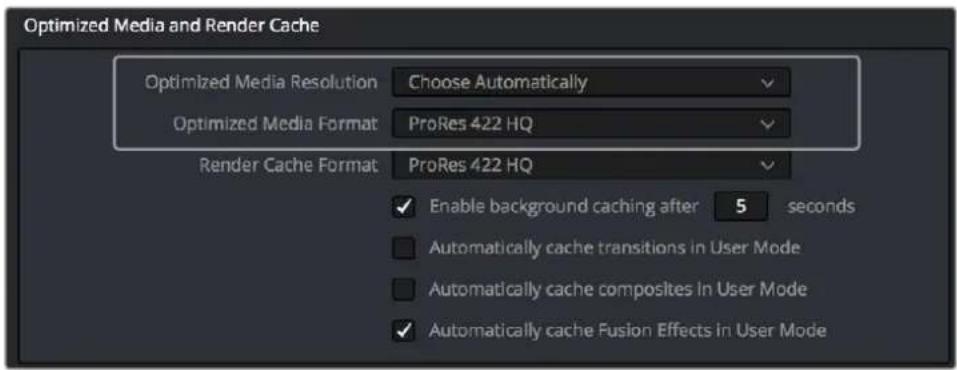
Options available for creating optimized media in the Master Settings panel of the Project Settings
There are two settings affecting Optimized Media in the Optimized Media and Render Cache section:
- Resolution: Lets you choose whether to create optimized media at the same size as your original media files (by choosing Original), or to reduce the bandwidth of your optimized media further by reducing its resolution by a Half, Quarter, Eighth, or Sixteenth. The “Choose automatically” option tries to balance visual quality with efficiency by only reducing the resolution of media files that are larger than the currently selected Timeline resolution, using whatever reduction ratio best matches the Timeline resolution.
- Optimized Media Format: Lets you choose the format and codec with which to generate optimized media. Options include Uncompressed 10-bit, and Uncompressed 16-bit float for maximum quality. Other options include ProRes Proxy through 4444 XQ, and DNxHR LB through 444. All options will store image data in the optimized and proprietary .dvcc image format. While smaller formats take less room on your scratch disk, there are two good reasons to use higher-quality formats for creating Optimized Media.
- Preventing Clipping: Be aware that the format you choose will determine whether out-of-bounds image data is preserved when the signal is optimized. If you find that image data (typically super-white levels) are clipped after optimization, you should switch to 16-bit float, ProRes 4444, or ProRes 4444 XQ; in particular, any of these three codecs are appropriate optimized formats for HDR grading.
- Preserving Alpha Channels: Also be aware that the format you choose will determine whether Alpha Channels will be preserved, if they're present in the clips being Optimized. Currently, the Uncompressed 10-bit, Uncompressed 16-bit Float, ProRes 4444, ProRes 4444 XQ, and DNxHR 444 formats preserve alpha channels.
Choosing Resolution Automatically
The “Choose automatically” option of the Resolution setting bears a bit more explanation. When selected, only source media with a higher resolution than the selected Timeline resolution will generate downsized optimized media. How much each clip will be downsized depends on how much larger each clip is than the Timeline resolution. For example, if you’re working within a 1080 resolution project, then 8K clips will generate quarter-resolution optimized media, and 4K clips will generate half-resolution optimized media, such that all optimized media is somewhere around 1080 resolution. All clips that are 1080 and smaller generate optimized media at the same resolution as the source clips.
In the example of a 4K project, 8K clips will generate half-resolution optimized media, and all other clips that are 4K and smaller will generate optimized media at the same resolution as the source clips.
| Proxy Resolution Width Height | ||
| Full 8K UHD 7680 4320 | ||
| Full UHD/Half 8K UHD 3840 2160 | ||
| Full-HD/Half UHD/Quarter 8K UHD 1920 1080 | ||
| Half-HD/Quarter UHD/Eighth 8K UHD 960 540 | ||
| Quarter-HD/Eighth UHD/Sixteenth 8K UHD 480 270 | ||
| Eighth-HD/Sixteenth UHD 240 135 | ||
Table of optimized resolutions for different television frame sizes
Switching Between Optimized and Original Media
Choosing whether or not you're using optimized media is easy. Simply choose Playback > Use Optimized Media if Available to switch your entire project between using optimized media (if it's been generated), or the original media. Furthermore, a checkbox in the Render Settings of the Deliver page lets you choose whether you want to use optimized media to speed up rendering, or render using the original media only.
NOTE: Optimized media is not included in Media Management operations, nor is it included as part of Archive operations in the Project Manager.
Sharing Optimized Media Between Projects
Optimized Media is shared across projects in the same database (previously optimized media was confined to a single project). This means that if you create optimized media for a clip in one project, that same optimized media will be used for that clip in any other project that's in the same database. This happens automatically and requires no user input. This will dramatically cut down the space requirements for working with the same media across different projects.
Rediscovering Lost Optimized Media
It's difficult, but it is possible to lose track of optimized media you've generated in certain rare circumstances. For example, if you generate optimized media on another workstation, but failed to save the project, DaVinci Resolve may lose the relationship between the clips in the Media Pool and the optimized media files you created. In these cases, it's possible to rediscover the optimized media so you don't have to regenerate it.
To rediscover lost optimized media:
Select the clips in the Media Pool for which you know you have optimized media, then right-click one of the selected clips and choose Rediscover Optimized Media from the contextual menu.
Deleting Optimized Media
The optimized media you generate within a project is persistent; it's saved for future use even when the project is closed and later reopened. If you need to delete optimized media to free up space on your scratch volume (or wherever you've decided to locate your project's cache files), you must delete the optimized media manually in your OS. By default, the Optimized Media is stored in the first volume in the Media Storage tab of the System Preferences.
Using Optimized Media for Delivery
An option in the More options section of the Render Settings in the Deliver page, "Use Optimized Media," lets you output using Optimized Media, rather than the original media, in order to save rendering time. If you're planning on using this option, it's advisable to set the Optimized media format to a suitably high-quality HDR-capable format to guarantee the best results.
Using the Smart or User Cache Improves Effects Performance
Another option for achieving real time performance when the GPU Status indicator is in the red due either to Timeline effects, Color page grading, or processor-intensive media in the Timeline, is to use the Smart Cache or User Cache modes of the Render Cache. What DaVinci Resolve calls “caching” is sometimes referred to by other applications as “rendering.” Both terms refer to the behind-the-scenes creation of new media, with all effects “baked in,” which DaVinci Resolve plays back in real time in place of the original source media containing processor-intensive effects at the same time. This results in smooth playback without the risk of dropped frames.
The DaVinci Resolve Smart Cache and User Cache automatically render and cache clips, including simple video clips, compound clips, Fusion clips, and nested timelines that have processor-intensive grades and effects applied to them, or that you manually flag for caching by right-clicking any clip in the Color page or Edit page timeline and enabling the Render Cache Clip Output option. When the Smart or User Caches are enabled, frames of each automatically or manually flagged clip are cached either during playback in the Timeline, or automatically whenever you pause work, to the "Cache files location" specified in the Master Settings panel of the Project Settings.

The settings governing caching in the Master Settings panel of the Project Settings
Once you've cached clips in the Timeline, they play back in real time until they're modified, which automatically flushes the now out-of-date cache files for those modified clips and triggers the need to re-cache.
To use clip caching on any page, do one of the following:
- Choose Playback > Render Cache > Smart to set DaVinci Resolve to automatically cache computationally intensive effects and timeline clips in formats judged too processor-intensive to play in real time.
- Choose Playback > Render Cache > User to set DaVinci Resolve to cache clips and effects that you manually choose to cache, as well as automatically caching processor-intensive effects (transitions, composites, and Fusion Effects) you specify in the Master Settings of the Project Settings.
- Choose Playback > Render Cache > Off to disable all render caching.
– In the Color and Edit pages, press Option-R to cycle among Off, Smart, and User. - Press CACHE MODE on the T-bar panel of the DaVinci control panel to toggle among the available options.
Choosing the Appropriate Cache Media Format for Your Project
You have the option of choosing the Format of the cached media you create, using controls in the Master Settings panel of the Project Settings. Be aware that the format you choose via the "Render Cache Format" menu will determine whether out-of-bounds image data (also known as "overshoots") and Alpha Channels are preserved when the clip is cached.
- Preventing Clipping: You should use 16-bit float, ProRes 4444, ProRes 4444 XQ, or DNxHR 444 if you plan on grading using cached media. This is particularly true for HDR grading.
- Preserving Alpha Channels: Also be aware that the format you choose will determine whether Alpha Channels will be preserved, if they're present in the clips being cached. Currently, the Uncompressed 10-bit, Uncompressed 16-bit Float, ProRes 4444, ProRes 4444 XQ, and DNxHR 444 formats preserve alpha channels.
How Cached Media Is Organized
The cache mechanism in DaVinci Resolve actually comprises three independently managed media caches that interact with one another. This is done to keep you working quickly by ensuring that changes you make to your timeline don't require a grade to be re-cached, and that changes you make to a grade don't require the timeline to be re-cached. The three levels of caching are:
First, Fusion Output Caching
Formerly called the “Source Cache” in previous versions of DaVinci Resolve. When enabled by turning on the Smart Cache, by individually turning on Render Cache Fusion Output for a particular clip, or by enabling the automatic caching of clips with Fusion Effects applied in the Project Settings, this caches the portion of each source media file that appears in the Timeline in its pre-graded state for clips that have the following characteristics:
- Clips in media formats DaVinci Resolve considers to be processor-intensive to decode, such as H.264, HEVC, and various raw camera formats
– Clips with Speed or Retime effects
– Clips with Fusion Effects that have been added in the Fusion page
– Titles and Generators that are processor intensive
Effectively, this is a “pre-Color page” cache. By caching all processor-intensive clips in the Timeline, you’ll experience vastly improved trimming and grading performance. However, you also have the option to turn the Fusion Output Cache on or off for individual clips, or for multiple selected clips all at once. This lets you switch between using the native source of each clip with live effects, or the cached clip in the cache format you’ve chosen.
The advantage of the Fusion Output Cache over Optimized Media is that you only cache clips that are used in a timeline, which is ideal for finishing workflows. However, the Smart and User caches aren't useful for speeding up work done with source media in the Media Pool and Source Viewer when you're at the very beginning of an edit; that's what Optimized Media is for (as described in the previous section).
If Optimized media exists for a given clip, and “Use Optimized Media if available” is turned on, then Optimized media will be used instead of the Fusion Output Cache if there are no Speed effects or Fusion Effects applied to a particular clip.
Second, Node Caching
The Node Cache, which is a separate level of caching from the Fusion Output Cache, can be triggered in several different ways, corresponding to the three different purposes it serves.
- When enabled by turning on the Smart Cache, nodes with processor-intensive operations (along with all nodes appearing upstream in that grade's node tree) are automatically cached, meaning that, for example, if Nodes 1 and 2 are cached, you can continue adjusting Nodes 3, 4, and 5 to your heart's content without needing to re-render your grade to the cache. Operations that trigger caching include Noise Reduction, Motion Blur, and any Resolve FX or OFX plug-in that's added to a node. If you've added a Resolve FX to a node that's capable of playing in real time but that node is being flagged for caching anyway, you can force caching off for that node by right-clicking it and choosing Node Cache > Off from the contextual menu.
- You can manually force any node to cache if it and its upstream nodes are compromising performance but somehow not being automatically flagged, by right-clicking a node and choosing Node Cache > On from the contextual menu.
- You can also turn on the “Render Cache Color Output” option for a clip in the Timeline of either the Edit or Color pages. This forces that clip’s entire grade to be cached via the Node Cache, all the way through the Node tree’s output. This can result in higher real time performance in the Edit page, at the expense of needing to completely re-cache that clip whenever you adjust any part of its grade.
- If you apply Resolve FX or OFX filters to clips in the Edit page, these will also be cached via the Node Cache. If necessary, you can choose which OFX to cache via the Render Cache OFX Filter submenu in the contextual menu for clips in the Timeline. This is useful when you have a combination of realtime and non-realtime filters applied to a clip; caching the non-realtime filters only enables you to continue adjusting realtime filters without the need to re-cache. However, be aware that making changes to a filter being cached in the Edit page timeline will force that clip's grade to be re-cached in the Color page, and vice versa.
If multiple nodes are flagged for caching in a particular node tree, then each node will be individually cached. That way, you can turn a cached node off and on to get a before-and-after look without needing to re-cache the entire node tree. If a clip is part of a group in the Color page, you can enable a Group Cache in the Group Pre-Clip and Group Post-Clip Node Editor modes, which cache these parts of a group grade as part of the Node Cache.
Third, the Sequence Cache
The Sequence Cache is a separate cache for effects that are specifically applied within the Timeline in the Edit page. These include transitions, opacity adjustments, and composite mode superimpositions. Sequence Cache effects can be auto-cached in both the Smart and User caches.
Choosing a Cache Format and Location
The cache format is user selectable by opening the Master Settings panel of the Project Settings, and using the "Render Cache Format" drop-down menu to choose one of the ProRes, DNxHR, or uncompressed 10- or 16-bit float uncompressed .dvcc formats. Selecting a higher quality cache format guarantees high quality image playback, but makes more demands on the throughput and size of your available disk storage. On the other hand, choosing a more highly compressed cache format makes real time playback possible on less capable computers with slower and smaller storage, at the expense of slightly compromised image quality. Ideally, you should choose the highest quality cache format that your workstation's storage can accommodate.
The format you choose via the "Render Cache Format" menu will determine whether out-of-bounds image data (including "super white" or HDR strength highlights) is preserved when the signal is cached. Formats in this menu that end in "− HDR" preserve out-of-bounds image data, while formats that don't, wont. If you find that image data (typically bright highlights) is clipped after caching or optimizing, you should switch to 16-bit float, ProRes 4444, ProRes 4444 XQ, or DNxHR 444; in particular, any of these codecs are appropriate for HDR grading.
The Cache files location defaults to the first volume you add to the Scratch Disks list of the Media Storage panel of the System Preferences. If no scratch disk is specified, your System disk will be used, which may pose problems with capacity and/or performance depending on the size and type of System disk you're using, and on the media format you choose to cache to. For this reason, it's nearly always advisable to set your first scratch disk to the largest, fastest storage volume available to your workstation.
When Caching Happens
When caching is enabled, cache indicators along the bottom of the Timeline Ruler of the Edit page timeline shows the status of the cache. Red means "to be cached," while blue means "has been cached."

Source, Clip, and Sequence Cache bars seen in the Timeline of the Edit page; red bars show areas of the Timeline that need caching, blue shows areas that have been cached
In the Color page, cache indicators are node specific, showing the node in your grading node tree (including all upstream nodes) at which caching will take place.
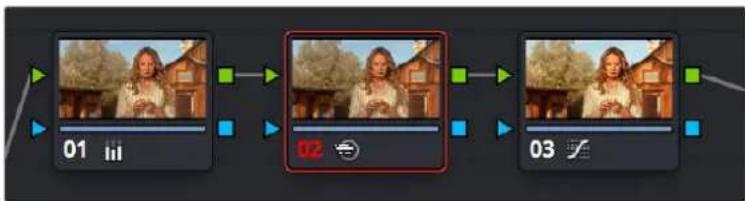
flowchart
graph LR
    A["01"] --> B["02"]
    B --> C["03"]
Node Cache indicator seen as a red colored node number on node two of the Node Editor of the Color page
Caching happens in two ways. First, when either Smart or User caching is enabled, caching always happens whenever you play clips with red caching indicators.
Second, if background caching is enabled in the Project settings (it's turned on by default), and you don't make any changes to your project for a user-definable number of seconds (this is adjustable in the Master Settings panel of the Project Settings), caching will automatically begin during periods of user inactivity. So feel free to use this as an excuse to take those coffee, mate, or tea breaks; DaVinci Resolve will keep on working for you.
The Difference Between the Smart Cache and User Cache Modes
The Smart Cache option of the Render Cache submenu provides the easiest user experience when you want to “set it and forget it.” Choosing Smart triggers a variety of automatic caching behaviors designed to optimize playback in DaVinci Resolve by rendering clip formats, grading operations, and timeline effects that are known to be performance-intensive, while also letting you manually flag clips that you’d like to cache that the Smart Cache hasn’t.
The User Cache, on the other hand, does not automatically cache clips in processor-intensive formats, so this is a good option to choose when your workstation is capable of playing all media formats you're using in real time. Ordinarily, the User cache relies on you to control what is cached and what is not by manually flagging specific clips and effects. However, the Master Settings panel of the Project Settings has three options you can enable for automatically caching transitions, composites, and Fusion Effects while in User Cache mode (these options are found in the Optimized Media and Render Cache group). Of these settings, only "Automatically cache Fusion Effects in User Mode" is turned on by default.
Here are the differences between the Smart and User cache modes for each type of caching DaVinci Resolve does.
Fusion Output Caching
- In Smart mode: For all clips with "Render Cache Fusion Output" set to either Auto (by default) or On, three types of effects are rendered. First, H.264, H.265, DCP, JPEG2K, or camera raw clips that have been edited into a timeline are cached. Camera Raw clips are cached using the currently selected project or clip debayer settings. Second, Speed effects are cached at the source level, which makes it possible to move cached speed effects clips on the Timeline without needing to re-cache them. Finally, Fusion Clips or clips with Fusion Effects applied to them are also cached, and manually flagged clips are also cached in Smart mode.
- In User mode: Clips with Render Cache Fusion Output set to On are cached, while clips set to Auto are ignored, except for clips with Fusion Effects, which are automatically cached in Auto mode when the "Automatically cache Fusion Effects in User Mode" Project Setting is on.
Caching Specific Nodes in the Color Page
- In Smart mode: DaVinci Resolve automatically caches all nodes that use Motion Blur, Noise Reduction, or Resolve FX and OFX plug-ins. Manually flagged nodes are also cached in Smart mode.
- In User mode: DaVinci Resolve only caches nodes that have been manually flagged by right-clicking them and choosing Node Cache > On to force that node to cache in User mode, along with all upstream nodes to the left of them.
Cache Color Output Is Actually Node Caching for the Whole Grade
- In Smart mode: Manually flagged clips with Render Cache Color Output turned on cache the entire output of the Color page node graph, effectively caching that clip's entire grade. This is most useful when you want to improve trimming and playback performance in the Edit page. Flagging a clip for caching also causes EVERY SINGLE VERSION associated with that clip to be cached as well.
- In User mode: Manually flagged clips with Render Cache Color Output turned on also cache the entire output of the Color page node graph.
Caching of Resolve FX and OFX in the Edit Page Is Also Node Caching
Caching of Resolve FX and OFX filters applied to clips in the Edit page can only be set manually, whether you're in Smart or User mode. Only filters that you have flagged to cache by right-clicking the clip they're applied to and choosing them in the Render Cache OFX Filter submenu are cached.
Sequence Caching
- In Smart mode: DaVinci Resolve automatically caches all superimposed clips that use composite modes other than "Normal," any clips with opacity or speed effects, and any transitions. Clips cannot be manually flagged for Sequence caching.
- In User mode: If you've enabled User mode and you find that your workstation does not have adequate performance to play composite and opacity effects in the Edit page, you can force these categories of effects to be automatically cached in User mode via a set checkboxes in the Optimized Media and Render Cache section of the Master Settings of the Project Settings. When these options are enabled, you also gain the ability to exclude specific tracks from being cached, by right-clicking the track header of any video track you want to exclude from caching, and choosing Exclude track from caching. Excluding an entire track from caching is a convenient way of keeping a track full of effects that are capable of playing in real time on your workstation, such as a track of titles, from wasting time and storage by being cached when it's not necessary.
Manually Controlling the Cache
This section describes how to manually control each type of caching that is manually controllable in DaVinci Resolve.
Controlling Fusion Output Caching
You can manually control which clips in the Timeline are cached, and which are not. You can select one or more clips in the Timeline of the Edit page, or in the Thumbnail Timeline of the Color page, right-click one of the selected clips or thumbnails, and choose an option from the Render Cache Fusion Output submenu. There are three options:
- Auto: The clip will only be cached in Smart mode if it's a format designated for caching or if there's a speed effect applied. The clip will only be cached in User Mode if "Automatically cache transitions in User Mode" is enabled.
- On: The clip will be cached in either Smart or User mode, no matter what format or effects are applied.
- Off: The clip will not be cached at all, in either Smart or User modes.
Controlling Node Caching
You can manually control which nodes in a grade are cached, and which are not. Right-click any node in a node tree, and choose an option from the Node Cache submenu. There are three options:
- Auto: The flagged node and all upstream nodes will only be cached in Smart mode if it contains an operation that's designated for caching.
- On: The node will always be cached in either Smart or User mode, no matter what operations it performs.
- Off: The node will not be cached, in either Smart or User modes. This lets you exclude nodes from caching in Smart mode if they're capable of real time operation on your system.
Controlling Color Output Caching
Each clip in the Timeline (including Adjustment clips) has a Color Output setting that you can turn on or off by right-clicking that clip in the Timeline of the Edit page, and choosing Render Cache Color Output from the contextual menu. A check mark indicates when this setting is turned on.
Controlling Edit Page Filter Caching
You can choose which of the Resolve FX or OFX filters applied to a particular clip should be cached by right-clicking that clip in the Timeline of the Edit page, and choosing which of the filters in the Render Cache OFX Filter submenu you want to cache.
Each filter applied to that clip appears in this submenu in the order in which it's applied to the clip, and you can turn the caching of specific filters on and off (selected filters appear with a check mark to the left of their menu item).
Clearing Cached Media
Each project's cache is persistent; the cache is saved for future use even when the project is closed and later reopened. If you need to delete a project's cache to free up space on a storage volume, there are three options in the Delete Render Cache submenu:
- All: You can delete all media in the cache to reset every single cached clip.
- Unused: You can choose to delete only Unused cache clips that no longer correspond to clips or effects in the Timeline.
- Selected clips: You can make a manual selection of clips in the Timeline, and delete the cache corresponding to just those clips.
To clear a project's cache:
Open the project, and choose Playback > Delete Render Cache > All, Unused, or Selected Clips.
Using Cached Media When Rendering in the Deliver Page
The “Use Render Cached Images” option in the “More options” section of the Video panel of the Render Settings in the Deliver page lets you write media directly from the cache, rather than re-rendering the effects from scratch, in order to save rendering time when you output your project. If you’re planning on using this option, it’s advisable to set the cache format to a suitably high-quality format to guarantee the best results.
Using Proxy Media
DaVinci Resolve includes a Proxy Media workflow to provide a playback optimization option that makes it easier to exchange projects online, work on projects remotely, and work with external media asset management systems. It creates a simple and flexible system for editing collaboration that can be custom configured to your specific requirements.
Creating and Using Proxy Media
Proxy Media is essentially more highly compressed (and potentially lower resolution) versions of your source media that are linked to your source media in DaVinci Resolve via metadata. This is done in such a way as to make it easy to switch back and forth between the original and proxy media as your needs require.
Typically, this lets you use lower bandwidth proxy media for increased real-time effects performance and full speed playback while editing, while easily reverting back to more bandwidth and processor-intensive source media for color correction, finishing, and final output. In addition to enabling better performance, these proxy files are fully portable, which lets you move your whole project easily from workstation to workstation, and even across the internet, accompanied by much more compact proxy media.
You set the resolution and format of your proxies in the Optimized Media and Render Cache section of the Master Settings panel in the Project Settings. There are two settings that control the actual media files created by the Generate Proxy Media command.
- Proxy Media Resolution: Choose "Original" to keep proxies the same resolution as the source media. If you prefer, reduce the resolution of the proxy media files by choosing Half, Quarter, Eighth, or Sixteenth to save bandwidth. The "Choose Automatically" option balances visual quality with efficiency by only reducing the resolution of media files that are larger than the currently selected Timeline resolution, using whatever reduction ratio best matches the Timeline resolution.
- Proxy Media Format: Lets you choose the specific QuickTime format and codec that the proxy files will be created with. There are several ProRes and DNxHR varieties to chose from, as well as H.264 and H.265 options. Which format you chose will be determined by the bandwidth and quality tradeoffs that you need for a particular project. For example, if you simply want better playback speed from RAW media while preserving image quality, you may want to pick a high-quality codec like ProRes 422 HQ, or DNxHR HQX. If your goal is to send your media across the internet to another editor, you may want to chose a more compressed format, such as ProRes Proxy, or even H.264 or H.265, to keep file sizes small.

The Proxy Media Resolution and Format settings
To generate proxy media in DaVinci Resolve:
1 Select all of the clips you wish to generate proxies for in the Media Pool.
2 Right-Click any selected clip and choose "Generate Proxy Media" from the contextual menu.
DaVinci Resolve will display a progress bar and give you a time estimate for completion as it renders out your selected clips to the format and codec determined by the Proxy Media Resolution and Format settings.
NOTE: If your source clip has a separate audio file synced to it in the Media Pool, any proxies generated from that clip will include the synced audio, but that audio will be embedded in the video clip instead of being created as a separate file.
Where is Proxy Media Saved?
Proxy media is created in the "Proxy generation location" destination, found in the Working Folders section of the Master Settings of the Project Settings. The proxies are further organized into subfolders by original source clip location. It is important to have enough free space on this drive to contain the proxies. Once created, these proxy files can then be moved to any other drive location on the system, if you wish, and then re-linked to their source files.
Generating Proxy Media in Other Applications
Proxy files can also be generated in applications outside of DaVinci Resolve, such as other NLEs or various media asset management systems. To properly link the proxy to its source media in DaVinci Resolve, the proxy file must meet the following criteria:
– Proxy files must have identical timecode to the source file.
– Proxy files must have the same file name as the source file (excluding extensions).
– Proxy files must have the same frame rate as the source file.
- The format and codec used for proxy files must be supported in DaVinci Resolve.
If your proxy file meets these criteria, you'll be able to manually link proxy media created in other applications to source clips in the Media Pool as described below.
Managing Proxy Media
You can check the status and location of all your proxy media in the List view of the Media Pool. Right-click on any column heading and click the checkboxes of "Proxy" and "Proxy Media Path."
– Proxy: This column shows the current proxy status.
– None: Indicates no proxy media has been created.
- Offline: Indicates a proxy has been created but cannot be found in the Proxy Media path.
– (Resolution): A number indicating the resolution of the created proxy and that it is online.
- Proxy Media Path: The location of where DaVinci Resolve is looking for the proxy file. If this location is incorrect, you can relink the proxy to a new path manually.
| Clip Name | Proxy | Proxy Media Path | Fax | |
| A054_08251201_C159.mov | ☐ | 2304x1296 | Users/john/Movies/Cathec/Clip/ProxyMedia/DaVncI Media/BMD BRAW Clips/Blackmagic RAW_Nose_Suwanchera_Welding_Puetzr:A054_08251201_C159.mov | |
| A054_08251956_C074.mov | ☐ | 2304x1296 | Users/john/Movies/Cathec/Clip/ProxyMedia/DaVncI Media/BMD BRAW Clips/Blackmagic RAW_Nose_Suwanchera_Welding_Dating/A056_08251956_C074.mov | |
| A057_08251041_O056.mov | ☐ | Offline | Users/john/Movies/Cathec/Clip/ProxyMedia/DaVncI Media/BMD BRAW Clips/Blackmagic RAW_Nose_Suwanchera_Welding_Wirding/A057_08251041_C056_S000.mov | |
| Mean 4.6K_1_2016-03-08_2219_00033.mov | ☐ | 1623x1680 | Users/john/Movies/Cathec/Clip/ProxyMedia/DaVncI Media/A Pirates Tai/Pirates 4QC/Fotuger/A Cam/A Cam Car #1/Mos# 4.6K_1_2616-03-08_2219_00033/Mos# 4.6K_1_2016-03-08_2219_00033.mov | |
| Mean 4.6K_1_2016-03-08_2223_00034.mov | ☐ | 1583x1680 | Users/john/Movies/Cathec/Clip/ProxyMedia/DaVncI Media/A Pirates Tai/Pirates 4QC/Fotuger/A Cam/A Cam Car# #1/Mos# 4.6K_1_2616-03-08_2223_00034/Mos# 4.6K_1_2016-03-08_2223_00034.mov | |
| Mean 4.6K_1_2016-03-09_9005_0007.mov | None |
The proxy columns in List view, showing Proxy Media status and location
Linking Clips to Proxy Media
If you've created proxy media in another application, or moved the internally created proxy media out of its default location in "ProxyMedia," you'll need to manually link the proxies to their source media files in your Media Pool.
To link proxy media to a source clip:
1 Select one or more clips in the Media Pool you wish to link proxy media to.
2 Right-click one of the selected clips, and choose "Link Proxy Media" from the contextual menu.
3 Use the file browser to find the specific proxy file or directory (in the case of multiple clips) to set a new Proxy Media path, and click Open. If you select an incorrect file or directory, a warning dialog box will appear and no linking will occur.
To unlink proxy media from a source clip:
1 Select a clip or clips in the Media Pool you wish to unlink proxy media from.
2 Right-click on any clip and select "Unlink Proxy Media" from the contextual menu. This will remove the metadata link from proxy to source and will set the status in the Proxy column to "None."
NOTE: Unlinking a proxy file does not delete it. The proxy file remains on the hard drive where it was created. As of this writing, proxy files must be deleted manually using your OS file system outside of DaVinci Resolve.
Re-generating Proxy Media
You can generate more than one proxy file per clip. This can be useful if you want to set multiple Camera Raw parameters and choose between them, or to create proxy files of different resolutions.
To generate a new proxy:
1 Make your desired changes to the current clip's settings.
2 Right-click on the same clip and select "Generate Proxy Media" from the contextual menu.
A new proxy file is created in the same directory as the previously linked proxy file, and its file name is appended with “_s00x” to differentiate it. The latest proxy generated is automatically linked to the source file, but previous proxy versions are retained on disk, so you can then manually relink the different versions as needed.
Switching Between Proxy Media and Source Media
You can switch between using your original source media and the proxy media for playback at any time by checking or unchecking Playback > Use Proxy Media If Available in the Menu bar.
Using Proxy Files for Delivery
By default, the Deliver page always reverts proxies to the original source media for final output to ensure the highest quality render. Checking the "Use proxy media" box in the Advanced Settings of the Video Render settings in the Deliver page overrides this so DaVinci Resolve uses proxy media for final output instead. This can be useful if you need to save rendering time while making dailies, or to quickly create outputs of your timeline for producers or audio engineers where master quality is not necessarily needed. You will also need to check the "Use proxy media" box if you are editing with proxies and do not have access to the original source media.
Moving Proxies Using a DaVinci Resolve Archive (.dra)
When moving proxies from one DaVinci Resolve system to another, it can be time consuming and problematic to manually copy many individual assets (proxies, graphics, source files, etc.) from different folders and locations. By far the easiest way to move complete projects from system to system is by letting DaVinci Resolve do all that file management for you, by creating a DaVinci Resolve Archive (.dra). An archive file contains not only your project, but all its media as well, maintaining the file paths and organization of the original project.
To create a DaVinci Resolve Archive file, right-click on any project in the Project Manager, and choose "Export Project Archive" from the drop-down menu. Within this mechanism, a new Archive setting in DaVinci Resolve makes working with proxies simple and elegant.
Creating a Proxy-Only Archive to Share
In the Archive Options dialog, if you check Proxy Media, and uncheck Media Files and Render Cache, DaVinci Resolve will make an Archive using only the proxy media. This allows you to create a compact and easily transported version of your project to either move to another computer, or to give to an editor working remotely. If proxy media is not available for a clip (say a graphic or a media file you didn't create a proxy for in the first place), the original media is automatically exported to ensure that nothing goes offline.
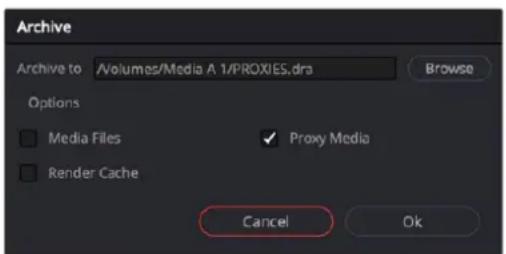
Archive Setting options for exporting only Proxy Media
The resulting .dra is a folder that is a fully self-contained version of your project and proxy media. This folder can easily be moved from drive to drive, or zipped up and sent across the internet.
Working Remotely Using Proxy Media
The proxy workflow in DaVinci Resolve opens up many new possibilities for editing collaboration and media management. For example, one common workflow is to use the RAW camera master source clips in the editing suite but to then generate low resolution proxies to take home to edit on a laptop.
To create a portable set of proxies for editing on a laptop:
1 Set up the Resolution and Format settings for the proxies in the Project Settings. In this case, you may want to use "Choose Automatically" and a low-bandwidth, easily editable codec like ProRes LT or DNxHR LB.
2 Select all source media in the Media Pool and Generate Proxy.
3 Export a DaVinci Resolve Archive (.dra) onto an external drive, with only Proxy Media checked.
4 Go away. Once at home, connect that drive to your home laptop, and use the Restore Project Archive command in the Project Manager to import the archive.
5 When you've finished working at home, export a timeline, bin, or project from your laptop when finished, and bring just that file back into the edit suite to continue working with the original source media.
Another common scenario might involve sending proxies over the internet to an editor in another city or country.
To send a project to another editor over the internet:
1 Set up the Resolution and Format settings for the proxies in the Project Settings. In this case, you may want to use a low resolution like "quarter" or "one-eighth," and a low-bandwidth, highly-compressed codec like H.265 for the smallest file sizes possible.
2 Select all of the source media in the Media Pool and Generate Proxy.
3 Export a DaVinci Resolve Archive (.dra), with only Proxy Media checked.
4 Using the file compression tools in your OS, zip the archive folder so it becomes one large file.
5 Upload the resulting .zip to the online file sharing service you prefer, and send the download link to the remote editor.
6 Once the other editor unzips and imports the archive, you and they can then simply send timelines, bins, and/or project files back and forth to collaborate. These files are small enough to transfer over email or an instant messaging service.
Additionally, you may have your editing computer connected via ethernet to a Media Asset Management system that can create its own proxies. In order to edit smoothly via the network, you need to use low bandwidth proxies instead of the source media.
To create proxy media externally to edit over a local network:
1 Import the original source media files to your Media Pool from the network storage system you're using.
2 Set up the proxy generation settings in your Media Asset Management software to accommodate the amount of network bandwidth you expect to have access to.
3 Make sure the timecode and frame rate of the proxies match the original source media, and render the proxies to a network location.
4 Select all of your original source media in the Media Pool, and choose "Link Proxy Media."
5 Choose the proxy media at the network location where they've been rendered.
Proxy Media vs. Other Playback Optimizations in DaVinci Resolve
There continue to be other methods of optimizing real time performance in DaVinci Resolve, so it's natural that one might wonder how this is different from Optimized media, Timeline Proxy Mode, and other performance optimization techniques available in DaVinci Resolve. The key aspect of proxy media that differentiates it is that proxy media is independent, portable, and can be created by applications outside of DaVinci Resolve, if desired.
Proxy Media vs. Timeline Proxy Mode
One of the oldest performance optimization options, originally named “Proxy Mode” in previous versions of DaVinci Resolve, has been renamed “Timeline Proxy Mode” in DaVinci Resolve 17 to differentiate it from Proxy Media. While the new Proxy Media feature creates actual media files on disk, “Timeline Proxy Mode” simply reduces the resolution of the timeline on-the-fly, allowing for increased real time playback performance. To be clear, Proxy Media and Timeline Proxy Mode are two entirely different features, which are wholly independent of one another.
Proxy Media vs. the Render Cache
Proxy Media is designed to create easy-to-edit primary source material on the Timeline, for improved performance before you start editing. The Render Cache is designed to improve the real time performance of clips that have enough computationally intensive effects (such as Resolve FX, color corrections, noise reduction, compound clips, fusion compositions, etc.) to slow playback, even at the current Timeline resolution. Proxy Media is independent and portable (you can move clips wherever you want; you just have to relink them afterward), while the Render Cache media is not designed to be moved or interacted with externally and only works with the project it was made for.
Proxy Media vs. Optimized Media
On the surface, Proxy Media and Optimized Media appear similar in function. Both options are designed to create lower bandwidth, easier to edit versions of source media. However, Optimized Media is managed internally by DaVinci Resolve, cannot be exported, and is not user accessible. In contrast, Proxy Media creates fully portable and independent media that can be easily managed by the user.
Using Optimized Media, Proxy Media, and Caching Together
How you use DaVinci Resolve's various performance-enhancing features together is entirely up to you, but you should know that they're not an either/or proposition. For example, you can create optimized media from the camera raw original clips in your project, then enable Timeline Proxy Mode playback to enhance the performance of your 4K timeline, and turn on Smart Cache to speed up your work in the Color page as you add Fusion effects, noise reduction, and Resolve FX or OFX to every clip. All of these optimization methods work happily and seamlessly together to improve your performance while keeping the image quality of your project as high as the Optimized, Proxy, and Cache formats you've selected in the Master Settings panel of the Project Settings.
Which Playback Optimization Method Should I Use?
DaVinci Resolve's various playback optimization features are designed to specifically increase performance to make up for hardware, storage, and bandwidth deficiencies, but knowing when to use each method is essential to proper functionality. Included below is a quick reference.
– Timeline Proxy Mode: My timeline is playing back, just a little bit too slowly.
- Cache Clip: I need help playing back a few clips in real time that have heavy effects applied.
- Optimized Media: I need help playing back all my source media in real time, and I will only be editing on this computer.
- Proxy Media: I need help playing back all my source media in real time, and I need to collaborate and share this media with other users, programs, or outside storage locations.
Other Project Settings That Improve Performance
In addition to working with proxies, using reduced raw decoding quality, generating optimized media, and enabling the Smart and User caches, there are five additional options in the Project Settings window and one setting in the UI Settings panel of the User Preferences that you can use to further improve real time performance if you're working on an underpowered computer, at the expense of lower image quality while you work. These settings can then be changed back to higher quality modes prior to rendering.
- Set timeline resolution to: (Master Project Settings, Timeline Format) DaVinci Resolve is resolution independent, so you can change the resolution at any time and all windows, tracks, sizing changes, and keyframe data will be automatically recalculated to fit the new size. Lowering the Timeline resolution while you're grading will improve real time performance by reducing the amount of data being processed, but you'll want to increase Timeline resolution to the desired size prior to rendering. This is effectively the same as using the Proxy command, but you get to choose exactly what resolution you want to work at.
- Enable video field processing: (Master Project Settings, Timeline Format) You can leave this option turned off even if you're working on interlaced material to improve real time performance. When you're finished, you can turn this setting back on prior to rendering. However, whether or not it's necessary to turn field processing on depends on what kinds of corrections you're making. If you're applying any filtering or sizing operations such as blur, sharpen, pan, tilt, zoom, or rotate, then field processing should be on for rendering. If you're only applying adjustments to color and contrast, field processing is not necessary.
- Video bit depth: (Master Project Settings, Video Monitoring) Monitoring at 8-bit improves real time performance, at the expense of possibly introducing banding to the monitored image.
- Monitor scaling: (Master Project Settings, Video Monitoring) Lets you choose which transform filter to use when scaling video to fit into the Video format resolution you've specified. Options are Bilinear and Basic.
- Resize Filter: (Image Scaling) A drop-down menu that lets you choose an alternate image transform filter (such as Bilinear) that is lower quality but less processor intensive. A “Force sizing highest quality” checkbox in the Render Settings list of the Deliver page helps make sure you don’t accidentally render your final media at this lower quality setting, however.
- Hide UI overlays: (User Preferences, Playback Settings) Off by default. When using a single GPU for both display and CUDA or OpenCL processing, or if your display GPU is underpowered, or if you lack the PCIe bandwidth required for the currently specified resolution or frame rate, you may be able to improve real time performance by turning this option on. When enabled, onscreen controls such as the cursor, Power Window outlines, and split-screen views are disabled and hidden during playback. When playback is paused, all onscreen controls reappear.
- Minimize interface updates during playback: (User Preferences, Playback Settings) On by default. While enabled, this setting improves real time performance by hiding on-screen controls that appear in the Viewer, such as the cursor, Power Window outlines, and split-screen views during playback. When playback is stopped, onscreen controls reappear.
Chapter 9
Data Levels, Color Management, and ACES
This chapter covers operational details that affect how color is managed for media that is imported into and exported from DaVinci Resolve. If color accuracy is important to you, then it's a good idea to learn more about how Resolve handles the data levels of each clip, how DaVinci Resolve Color Management helps you to work with different formats, and how to use ACES.
Contents
Data Levels Settings and Conversions 187
Converting Between Ranges and Clipping 188
Internal Image Processing and Clip Data Levels 188
Assigning Clip Levels in the Media Pool 189
Video Monitoring Data Levels 189
Deck Capture and Playback Data Level 190
Output Data Level Settings in the Deliver Page 190
So, What's the "Proper" Data Range for Output? 191
Introduction to DaVinci Resolve Color Management 191
Display Referred vs. Scene Referred Color Management 191
Updated RCM In DaVinci Resolve 17 192
Resolve Color Management for Editors 192
The Input, Timeline, and Output Color Space 193
The RCM Image Processing Pipeline 194
Identifying the Input Color Space of Different Clips 194
Simple RCM Setup 196
Automatic Color Management 196
Resolve Color Management Presets 197
Output Color Space 198
Advanced RCM Setup 199
Single Setting vs. Dual Setting RCM 199
Setting the Input Color Space 200
Choosing a Timeline Color Space 200
Timeline Working Luminance 203
203 Nit Support for SDR to HDR 203
Gamut Limiting, Restricting Values Within a Larger Gamut 204
Output DRT Tone Mapping 205
Use Inverse DRT for SDR to HDR Conversion 206
Use White Point Adaptation 207
Color Space Aware Grading Tools 207
Apply Resize Transformations In 207
Graphics White Level 208
Display HDR On Viewers If Available 208
HDR Mastering Is For (Studio Version Only) 208
Resolve Color Management and the Fusion Page 208
Ability to Bypass Color Management Per Clip 209
Exporting Color Space Information to QuickTime Files 209
Color Management Using ACES 210
Setting Up ACES in the Project Settings Window 210
The Timeline Color Space in ACES Workflows is Fixed 214
Tips for Rendering Out of an ACES Project 214
Data Levels Settings and Conversions
Different media formats use different ranges of values to represent image data. Since these data formats often correspond to different output workflows (cinema vs. broadcast), it helps to know where your project's media files are coming from, and where they're going, in order to define the various data range settings in DaVinci Resolve and preserve your program's data integrity.
To generalize, with 10-bit image values (with a numeric range of 0–1023), there are two different data levels (or ranges) that can be used to store image data when writing to media file formats such as QuickTime, MXF, or DPX. These ranges are:
- Video: Typically used by Y'CBCR video data. All image data from 0 to 100 percent must fit into the numeric range of 64–940. Specifically, the Y' component's range is 64–940, while the numeric range of the CB and CR components is 64–960. The lower range of 4–63 is reserved for "blacker-than-black," and the higher ranges of 941/961–1019 are reserved for "super-white." These "out of bounds" ranges are recorded in source media as undershoots and overshoots, but they're not acceptable for broadcast output.
- Full: Typical for RGB 444 data acquired from digital cinema cameras, or film scanned to DPX image sequences. All image data from 0 to 100 percent is simply fit into the full numeric range of 4 to 1023.
Keep in mind that every digital image, no matter what its format, has absolute minimum and maximum levels, referred to in this section as 0–100 percent. Whenever media using one data range is converted into another data range, each color component's minimum and maximum data levels are remapped so that the old minimum value is scaled to the new data level minimum, and the old maximum value is scaled to the new data level maximum:
- (minimum Video Level) 64 = 4 (Data Level minimum)
- (maximum Video Level) 940 or 960 = 1023 (Data Level maximum)
Converting Between Ranges and Clipping
Simply converting an image from one data range to another should result in a seamless change. All "legal" data from 0–100 percent is always preserved and is linearly scaled from the previous data range to fit into the new data range.
The exceptions to this are undershoots and overshoots that you've deliberately set, also referred to as out-of-bounds levels. The overshoots and undershoots that are allowable in "Video Levels" media (known as sub-black or super-black and super-white) are usually clipped when converted to full-range "Full Levels." However, DaVinci Resolve preserves this data internally, and these clipped pixels of detail in the undershoots and overshoots are still retrievable by making suitable adjustments in the Color page to bring them back into the "legal" range.
The out-of-bounds image data that's preserved within the headroom of Video Levels by DaVinci Resolve while working is usually clipped, however, when you either output to video or render your output. There are two settings that let you get around this for instances where you want to preserve these levels:
– A checkbox in the Video Monitoring group of the Master settings, "Retain sub-black and super-white data," lets DaVinci Resolve output undershoots (sub-black) and overshoots (super-white) to video when Data Level is set to Video. When this is turned off, these out-of-bounds values are clipped on output.
- A checkbox in the Advanced settings of the Render settings in the Deliver page, "Retain sub-black and super-white data," lets DaVinci Resolve render undershoots (sub-black) and overshoots (super-white) to exported media when Data Level is set to Video.
Internal Image Processing and Clip Data Levels
It's useful to know that, internally to DaVinci Resolve, all image data is processed as full range, uncompressed, 32-bit floating point data. What this means is that each clip in the Media Pool, whatever its original bit-depth or data range, is scaled into full-range 32-bit data. How each clip is scaled depends on its Levels setting in the Clip Attributes window, available from the Media Pool contextual menu.
Selecting Auto, Video, or Full levels
By converting all clips to uncompressed, full-range, 32-bit floating point data, Resolve guarantees the highest quality image processing that's possible. As always, the quality of your output is dependent on the quality of the source media you're using, but you can be sure that Resolve is preserving all the data that was present in the original media.
Assigning Clip Levels in the Media Pool
When you first import media into the Media Pool, either manually in the Media page or automatically by importing an AAF or XML project in the Edit page, Resolve automatically assigns the "Auto" Levels setting. When a clip is set to Auto, the Levels setting used is determined based on the codec of the source media.
DaVinci Resolve generally does a good job of figuring out the appropriate Levels setting of each clip on its own. However, in certain circumstances, such as when you're working with media that was originated in one format but transcoded into another, you may find that you need to manually choose the appropriate settings so that the levels of each clip are interpreted correctly. This can be done using each clip's Levels setting in the Clip Attributes window, available from the Media Pool contextual menu in either the Media or Edit pages.
To change a clip's Data Level setting:
1 Open the Media or Edit page.
2 Select one or more clips, then right-click one of them and choose Clip Attributes.
3 Click the Levels ratio button corresponding to the data level setting you want to assign, then click OK.
TIP: If you need to change the Levels setting of a range of clips that share a unique property such as reel name, resolution, frame rate, or file path, you can view the Media Pool by column, and sort by the particular column that will best isolate the range of media to which you need to make a data level assignment.
Once you change a clip's Levels setting, that clip will automatically be reconverted based on the new assignment. If it appears to be correct, then you're ready to work. If it doesn't, then you may want to reconsider the Levels assignment you've made, and you should check with the person who provided the media to find out how it was generated, captured, and exported.
So long as the Levels settings used by your clips are accurate, you should be ready to work. However, problems can still occur based on what external video hardware you're using with your workstation, and how you need to deliver the finished media to your client. For this reason, there are three additional data level settings that you can use to maintain data integrity, while at the same time seeing the proper image as you work.
Video Monitoring Data Levels
Superficial problems may result if the settings used by your external display differ from the settings you're using to process data levels in Resolve. Accordingly, there is a Video/Full Level setting in the Master Settings panel of the Project Settings (in the Video Monitoring section).
When you change this setting, the image being output to your external display should change, but the image you see in your Viewer will not. That's because this setting only affects the data levels being output via the video interface connecting the Resolve workstation to your external display. It has no effect on the data that's processed internally by Resolve, or on the files written when you render in the Deliver page.
There are two options:
- Video: This is the correct option to use when using a broadcast display set to the Rec. 709 video standard (10-bit 64–940).
- Full: If your monitor or projector is capable of displaying "full range" video signals, and you wish to monitor the full 10-bit data range (4–1023) while you work, then this is the correct option to use.
It is imperative that the option you choose in DaVinci Resolve matches the data range the external display is set to. Otherwise, the video signal will appear to be incorrect, even though the internal data is being processed accurately by DaVinci Resolve.
Auto/Video/Full Level selection for monitoring
Deck Capture and Playback Data Level
There is a separate "Video/Data Level" setting that is specific to when you're capturing from or outputting to VTRs. This setting also affects the video signal that is output via the video interface connecting the Resolve workstation to your VTR (which is usually also in the signal chain used for monitoring). However, it only takes effect when you're capturing from tape in the Media page, or editing to tape in the Deliver page. If you never capture or output to tape, this setting will never take effect.
This setting is found in the Deck Capture and Playback panel of the Project Settings.
The reason for a separate option for tape capture and output is that often you'd want to monitor in one format (normally scaled Rec. 709), but output to tape in another (full range RGB 444). This way, you can set up Resolve to accommodate this workflow, and then not have to worry about manually switching your video interface back and forth.
There are two options:
- Video: This is the correct option to use when you want to output conventional Rec. 709 video to a compatible tape format.
- Full: This is the correct option to use when you want to output "full range" RGB 444 video to a compatible tape format.
Once tape ingest or output has finished, your video interface goes back to outputting using the setting specified by the "Colorspace conversion uses" setting in the Master Settings panel of the Project Settings (in the Video Monitoring section).
Output Data Level Settings in the Deliver Page
Finally, there's one last set of data level settings, available in the Render Settings list, within the Format group. It's the "Set to video or data level" drop-down menu. It's there to give you the ability to convert the data level of your rendered output, if necessary.
All media is output using a single data level, depending on your selection. There are three options:
- Automatic: The output data level of all clips is set automatically based on the codec you select to render to in the "Render to" drop-down menu.
- Video: All clips are rendered as normally scaled for video (10-bit 64–940).
– Full: All clips are rendered as full range (10-bit 4–1019).
For most projects, leaving this setting on “Automatic” will yield the appropriate results. However, if you’re rendering media for use by another image processing application (such as a compositing application) that is capable of handling “full range” data, then full range output is preferable for media exchange as it provides the greatest data fidelity. For example, when outputting media for VFX work as a DPX image sequence, or as a ProRes 4444 encoded QuickTime file, choosing “Unscaled full range data” guarantees the maximum available image quality. However, it is essential that the application you use to process this media is set to read it as “full range” data, otherwise the images will not look correct.
So, What's the "Proper" Data Range for Output?
Strictly speaking, there is no absolutely “proper” data range to use when outputting image data. As long as the Levels setting of each clip in the Media Pool is set to reflect how each clip was created, your primary consideration is which data range is compatible with the media format or application you’re delivering to. If the media format you’re exporting to supports either normally scaled or full range, and the application that media will be imported into supports either normally scaled or full range, then it’s really your choice, as long as everyone involved with the project understands how the data range of the media is meant to be interpreted once they receive it.
Outputting to hardware is a bit trickier, in that you need to make sure that the external display or VTR you're outputting to is set up to receive a signal using the data range you've chosen. If the device is limited to only one data range, then you need to be sure that you're outputting to it using that data range, or the levels of the image will appear to be incorrect, even though the image data being processed by Resolve is actually fine.
Introduction to DaVinci Resolve Color Management
How color is managed in DaVinci Resolve depends on the "Color Science" setting at the top of the Color Management panel of the Project Settings. There are four options: DaVinci YRGB, DaVinci YRGB Color Managed, DaVinci ACEScc, and DaVinci ACEScct. This section discusses the second setting, DaVinci YRGB Color Managed. ACEScc and ACEScct is discussed in the following section in this chapter.
Display Referred vs. Scene Referred Color Management
The default DaVinci YRGB color science setting, which is what DaVinci Resolve has always used, relies on what is called “Display Referred” color management. This means that Resolve has no information about how the source media used in the Timeline is supposed to look; you can only judge color accuracy via the calibrated broadcast display you’re outputting to. Essentially, you are the color management, in conjunction with a trustworthy broadcast display that’s been calibrated to ensure accuracy.
DaVinci Resolve 12 introduced a color science option called “DaVinci YRGB Color Managed,” or more simply “Resolve Color Management” (RCM). This introduced a so-called “Scene Referred” color management scheme, in which you have the option of matching each type of media you’ve imported into your project with a color profile that informs DaVinci Resolve how to represent each specific color from each clip’s native color space within the common working color space of the timeline in which you’re editing, grading, and finishing.
This is important, because two clips that contain the same RGB value for a given pixel may in actuality be representing different colors at that pixel, depending on the color space that was originally associated with each captured clip. This is the case when you compare raw clips shot with different cameras made by different manufacturers, and it's especially true if you compare clips recorded using the differing log-encoded color spaces that are unique to each camera.
This Scene Referred component of color management via RCM doesn't do your grading for you, but it does try to ensure that the color and contrast from each different media format you've imported into your project are represented accurately in your timeline. For example, if you use two different manufacturer's cameras to shoot green trees, recording Blackmagic Film color space on one, and recording to the Sony SGamut3.Cine/SLog3 color space on the other, you can now use RCM to make sure that the green of the trees in one set of clips match the green of the trees in the other, within the shared color space of the Timeline.
It should be mentioned that this sort of thing can also be done manually in a more conventional Display Referred workflow, by assigning LUTs that are specific to each type of media, or using Color Space Transform Resolve FX in order to transform each clip from the source color space to the destination color space that you require. However, RCM's automation can make this process faster by freeing you from the need to locate and maintain a large number of LUTs to accommodate your various workflows. Also, the matrix math used by RCM (as well as the Color Space Transform operation) extracts high-precision, wide-latitude image data from each supported camera format, preserving high-quality image data from acquisition, through editing, color grading, and output. These are all advantages when compared to lookup tables, which can have plenty of precision, but can clip out-of-bounds image data and introduce issues when differing lookup table interpolation methods cause minor inconsistencies with color space transformations from application to application.
The preservation of wide-latitude image data deserves elaboration. LUTs clip image detail that goes outside of the numeric range they're designed to handle, so this often requires the colorist to make a pre-LUT adjustment to "pull back" image data in the highlights that you want to retrieve. Using RCM eliminates this two-step process, since the input color space matrix operations used to transform the source preserves all wide-latitude image data, making highlights easily retrievable without any extra steps.
Updated RCM In DaVinci Resolve 17
In version 17, DaVinci Resolve introduced the biggest improvements to Resolve Color Management (RCM) since it was originally introduced, adding numerous features to simplify setup, improve image quality, and make the "feel" of your grading controls more consistent. Specific improvements include improved metadata management for incoming media files that support color metadata, a new wide gamut color space suitable for using as your default Timeline working color space for any program, a new Input Tone Mapping option (Input DRT) that makes it easier to mix media formats for SDR and HDR grading, improved Timeline to Output Tone Mapping (Output DRT) that offers improved shadow and highlight handling, and select color space-aware grading palettes that make controls feel and perform well no matter what you're grading.
This updated Resolve Color Management has the same name as the previous version. However, older projects using the previous version of RCM will have Color science set to Legacy, to preserve the older color management settings and color transformations effect on your work. For more information on how the previous generation of RCM works, see the September 2020 version of the DaVinci Resolve 16 Manual.
How Is DaVinci Resolve Color Management Different from ACES?
This is a common question, but the answer is pretty simple. Resolve Color Management (RCM) and ACES are both Scene Referred color management schemes designed to solve the same problem. However, if you're not in a specific ACES-driven cinema workflow, DaVinci Resolve Color Management can be simpler to use, and will give you all of the benefits of color management, while approximating the "feel" that the DaVinci Resolve Color page controls have always had.
Resolve Color Management for Editors
RCM isn't just for Colorists. RCM can be easier for editors to use in situations where the source material is log-encoded. Log-encoded media preserves highlight and shadow detail, which is great for grading and finishing, but it looks flat and unpleasant, which is terrible for editing.
Even if you have no idea how to do color correction, it's simple to turn RCM on in the Color Management panel of the Project Settings, and then use the Media Pool to assign the particular Input Color Space that corresponds to the source clips from each camera. Once that's done, each log-
encoded clip is automatically normalized to the default Timeline Color Space of Rec. 709 Gamma 2.4. So, without even having to open the Color page, editors can be working with pleasantly normalized clips in the Edit page.
The Input, Timeline, and Output Color Space
The foundation of Resolve Color Management rests on three core settings. Not only do you have the ability to either automatically or manually identify the color science of each individual source clip (the Input Color Space), but you also have explicit control over the working color space within which all color adjustments and operations are made (the Timeline Color Space), and you have separate control over the Output Color Space that defines how your graded image will be monitored and output.
This means that, basically, Resolve Color Management consists of two color transforms working together, converting each source clip via its Input Color Space definition into the Timeline Color Space in which you work, and then converting the adjusted image from the Timeline Color Space to whatever Output Color Space you require to deliver the project.
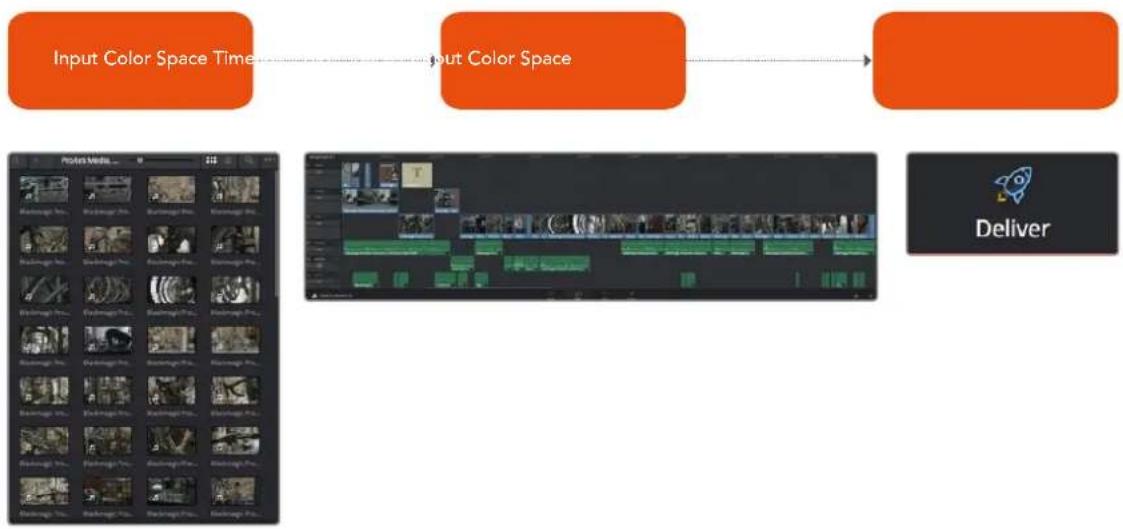
flowchart
graph LR
    A["Input Color Space Time"] --> B["Output Color Space"]
    B --> C["Deliver"]
Resolve Color Management consists of three color transforms working together.
This means that, as a colorist, you can set the Timeline Color Space that you're working in to whatever you prefer. If you prefer grading wide-gamut log media because you like the way the grading controls behave in that color space, you can set the Timeline Color Space in the Color Management panel of the Project Settings to DaVinci Wide Gamut (more on this below), or any of the available log formats, including ARRI Log C, REDWideGamutRGB/Log3G10, and Cineon Film Log. If you instead prefer grading in the Rec. 709 color space because you're mastering a standard dynamic range (SDR) program to Rec. 709 and you're more comfortable with how the controls in DaVinci Resolve have always felt in that color space, you can choose that instead. Whatever Timeline Color Space you assign is what all source clips will be transformed to for purposes of making grading adjustments in the Color page, so you can make this choice using a single setting.
A key benefit of the color space conversions that RCM applies is that no image data is ever clipped during the Input to Timeline color space conversion. For example, even if your source is log-encoded or in a camera raw format, grading with a Rec. 709 Timeline Color Space does nothing to clip or otherwise limit the image data available to the RCM image processing pipeline. All image values greater than 1.0 or less than 0.0 are preserved and made available to the next stage of RCM processing, the Timeline to Output color space conversion.
Consequently, if you're grading in a color space other than the one you need to output to, you don't have to worry about data loss during the color transformation back to the color space you actually want to output to. The Output Color Space setting gives you the freedom to work using whatever Timeline Color Space you like while grading, with Resolve automatically converting your output to the specific color space you want to monitor with and deliver to. And thanks to the precision of the image
processing in DaVinci Resolve, you can convert from a larger color space to a smaller one and back again without clipping or a loss of quality. Of course, if you apply a LUT or use Soft Clip within a grade, then clipping will occur, but that's a consequence of using those particular operations.
TIP: If you want to use Resolve Color Management, but you want the Input and Output Color Spaces to match whatever you set the Timeline Color Space to, you can choose "Bypass" in the "Input Colorspace" and "Output Colorspace" drop-down menus.
Finally, it is the Output Color Space that determines the final color space of your rendered result. While no image data is clipped during the Source to Timeline color space conversion, image data will be clipped during the Timeline to Output color space conversion in order for the final image to conform to the color space being rendered and output, unless you use the Gamut Mapping options to compress image data during the Timeline to Output Color Space conversion.
The RCM Image Processing Pipeline
The previous explanation is, of course, simplified. To clarify the inner workings of Resolve Color Management for advanced users, the following flowchart presents a rudimentary overview of how every parameter works together to automatically manage the color of clips in your program.
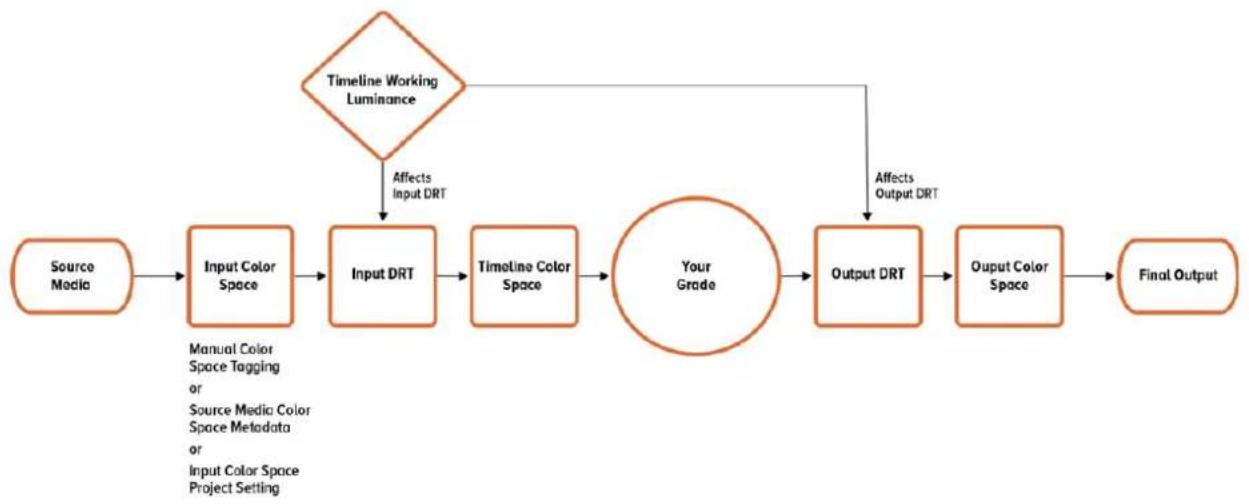
flowchart
graph LR
    A["Source Media"] --> B["Input Color Space"]
    B --> C["Input DRT"]
    C --> D["Timeline Color Space"]
    D --> E["Your Grade"]
    E --> F["Output DRT"]
    F --> G["Output Color Space"]
    G --> H["Final Output"]
    I{Timeline Working Luminance} --> C
    I --> F
    J["Affects Input DRT"] --> C
    K["Affects Output DRT"] --> F
    B --> L["Manual Color Space Tagging or Source Media Color Space Metadata or Input Color Space Project Setting"]
Resolve Color Management's image processing pipeline, illustrated
Identifying the Input Color Space of Different Clips
Central to the process of automated color management is knowing the color space and transfer function used by every clip of source media in your project. There are a variety of ways DaVinci Resolve can figure this out, in a cascading decision-tree that can be manually overridden if necessary. Deriving the Input Color Space involved the following stages of automated decision making:
1 If the source media is a camera raw format like .braw, .R3D, .ari, etc., DaVinci Resolve uses manufacturer-supplied colorimetry to automatically debayer the clip and identify its Input Color Space.
2 Otherwise, if the source media has embedded color space metadata (QuickTime or .MXF make this possible), then use that to identify the Input Color Space.
3 Otherwise, if there is no embedded color space metadata, use the default Input Color Space setting of the Project Settings to assign an Input Color Space to all otherwise unidentified clips.
4 If necessary, you can manually set the Input Color Space of clips in the Media Pool, which overrides both embedded color space metadata (in case it's wrong), or the default Input Color Space setting (if you're dealing with multiple color spaces). You cannot override the Input Color Space of camera raw media.
The following sections discuss each of these steps in more detail.
Using Camera Raw Formats
When you use RCM in a project that uses Camera Raw formats, color science data from each camera manufacturer is used to debayer each camera raw file to specific color primaries with linear gamma, so that all image data from the source is preserved and made available to DaVinci Resolve's color managed image processing pipeline. As a result, the Camera Raw project settings and Camera Raw palette of the Color page are disabled, because RCM now controls the debayering of all camera raw clips, and all image data from the raw file is available no matter which Timeline Color Space you choose to work within.
Using Source Media Color Space Metadata
When enabled, RCM automatically identifies the color space information of imported media that's been either transcoded or recorded directly to supported non-raw media formats, reading the NCLC metadata of QuickTime-wrapped files, the color space metadata of .mxf-wrapped files, and the XML sidecar files that track color management in ACES workflows. This behavior is automatic; there are no visible controls governing this behavior aside from the individual Input Color Space and Input Gamma settings associated with each clip in the Media Pool.
Color Space Metadata in QuickTime
DaVinci Resolve is capable of reading the NCLC metadata found within media files wrapped within a QuickTime container for proper color management. This metadata consists of three values formatted as (for example) 1-1-1. From left to right, these three digits specify the Color Primary (or color space), Transfer Function (or gamma), and Color Matrix used by that media file.
These values are standardized in the SMPTE Registered Disclosure Document RDD 36:2015. For your information, the different codes are listed in the following table. In the previous example, the code of 1-1-1 indicates a standard dynamic range clip that uses the BT.709 primaries, transfer function, and color matrix.
Color Primary Transfer Function Color Matrix
| 0 Reserved 0 Reserved 0 GBR | |||||
| 1 | ITU-R BT.709 | 1 | ITU-R BT.709 | 1 | BT709 |
| 2 | Unspecified | 2 | Unspecified | 2 | Unspecified |
| 3 | Reserved | 3 | Reserved | 3 | Reserved |
| 4 | ITU-R BT.470M | 4 | Gamma 2.2 curve | 4 | FCC |
| 5 | ITU-R BT.470BG | 5 | Gamma 2.8 curve | 5 | BT470BG |
| 6 | SMPTE 170M | 6 | SMPTE 170M | 6 | SMPTE 170M |
| 7 | SMPTE 240M | 7 | SMPTE 240M | 7 | SMPTE 240M |
| 8 | FILM | 8 | Linear | 8 | YCOCG |
| 9 | ITU-R BT.2020 | 9 | Log | 9 | BT2020 Non-constant Luminance |
| 10 | SMPTE ST 428-1 | 10 | Log Sqrt | 10 | BT2020 Constant Luminance |
| 11 | DCI P3 | 11 | IEC 61966-2-4 | – | – |
Color Primary Transfer Function Color Matrix
| 12 P3 D65 12 ITU-R BT.1361 Extended Colour Gamut -- | |||||
| -- | 13 IEC 61966-2-1 -- | ||||
| -- | 14 ITU-R BT.2020 10 bit -- | ||||
| -- | 15 ITU-R BT.2020 12 bit -- | ||||
| -- | 16 SMPTE ST 2084 (PQ) -- | ||||
| -- | 17 SMPTE ST 428-1 | -- | |||
| - | - | 18 | ARIB STD-B67 (HLG) | - | - |
The Default Input Color Space
The default Input Color Space can only be set if the "Resolve color management preset" drop-down menu is set to Custom. Otherwise, it defaults to "Rec. 709 Gamma 2.4" for all presets. Or else, this setting is the default color space that all otherwise unidentified clips in the Media Pool will default to.
Manually Tagging Clip Color Space
If necessary, you can manually identify the color space of one or more selected clips in the Media Pool by right-clicking them and choosing the Input Color Space (and optionally the Input Gamma) from the contextual menu.
Simple RCM Setup
When you first choose DaVinci YRGB Color Managed from the Color science drop-down menu of the Color Management panel in the Project Settings, you're presented with a simple pair of menus for setting up how you want to work with Resolve Color Management: the "Resolve color management preset," and the "Output Color Space."
Automatic Color Management
The first option when using RCM is to decide to use either Automatic Color Management or the Manual Presets. When the Automatic Color Management box is checked, DaVinci Resolve presents you with a simplified set of options for the most common use cases. For the Color Processing Mode, you choose SDR or HDR, and based on the file types and codecs in the Media Pool, DaVinci Resolve will automatically choose the appropriate input color space. Then, select from a list of common Output color spaces for delivery. If you want specific control of these parameters, uncheck Automatic Color Management box and select from the Color Management Presets below.
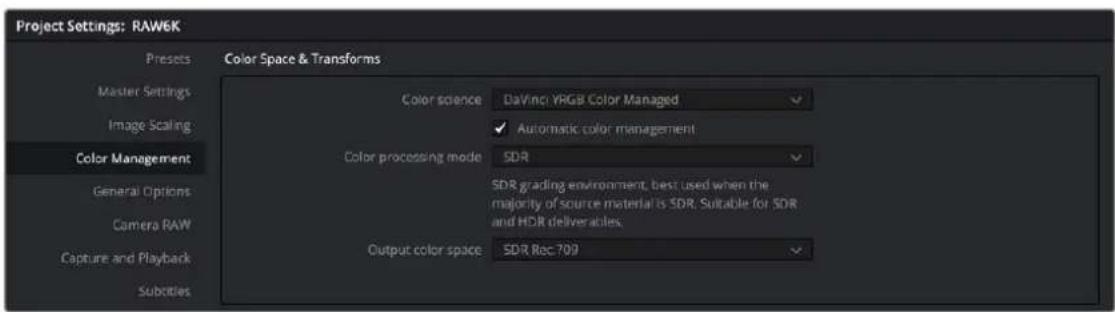
Automatic Color Management presets for fast, simple color management setup
Resolve Color Management Presets
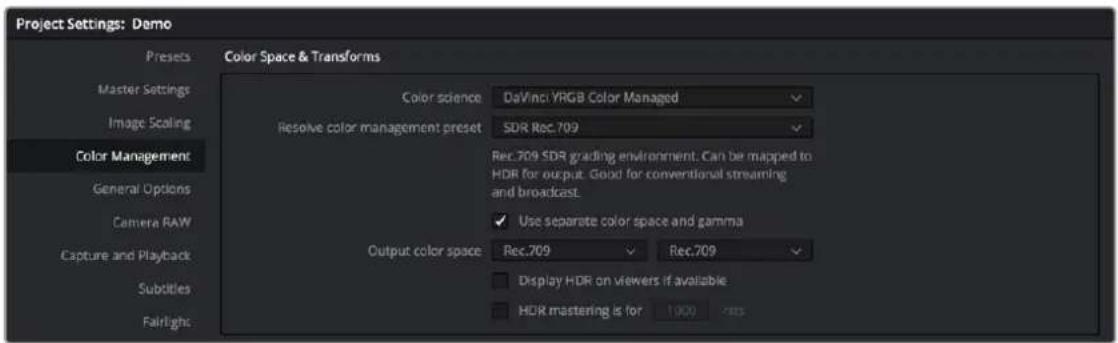
Resolve Color Management presets for manual color management setup
The Resolve Color Management preset menu lets you choose how you want to use RCM to grade your program. Each of these presets fully configures your project's use of color management, and the setting you select directly impacts how you'll grade your program. Because of this, once you choose a method of working and you grade every clip in your program, those grades rely on the preset you used being selected in order to appear as they should.
When it comes to choosing a preset, a good way to think about which to use is to choose an SDR or HDR preset that corresponds to the primary deliverable you plan on outputting. Both SDR and HDR presets have several variations that you can choose among.
While these presets correlate to how you plan on outputting your program, they don't lock you in, since you can always change the Output Color Space (described below). This makes it possible to export multiple versions of your program, each intended for different venues, no matter which color management preset you're using.
Whenever you choose a preset, a brief description explains the workflow that preset is intended to facilitate. Here's a list of the available presets, with slightly more detailed explanations.
- SDR Rec.709: (default) Sets up a Rec. 709 SDR grading environment. Your work can be converted to HDR on output, if specified, but is limited to a Rec. 709 gamut with out-of-bounds colors being clipped. Gamma 2.4 is not mentioned in the name because scene versus display OOTF is managed automatically. Suitable for conventional streaming and broadcast.
- SDR P3 Broadcast: Sets up a P3-D65 SDR grading environment. Your work can be mapped to HDR for output, if specified, but it is limited to a P3-D65 gamut with out-of-bounds colors being clipped. Gamma 2.4 is not mentioned in the name because scene versus display OOTF is managed automatically. Suitable for wider gamut streaming and broadcast at SDR levels.
- SDR P3 Cinema: Sets up a P3-D60 SDR grading environment. Your work can be mapped to HDR for output, if specified, but it is limited to a P3-D60 gamut with out-of-bounds colors being clipped. Suitable for conventional Cinema projection.
- SDR Rec.2020: Sets up a Rec. 2020 SDR grading environment. Your work can be mapped to HDR for output, if specified. Good for wide gamut streaming and broadcast.
- DaVinci Wide Gamut: Sets up an extra wide gamut grading environment that's suitable for grading either SDR or HDR. Capable of exporting with maximum image fidelity, preserving highlight details of up to 10,000 nits. This is a log-encoded grading space for colorists wishing to work that way. Suitable for creating mezzanine intermediates or final deliverables, or for grading HDR with high nit levels.
-
HDR P3 Broadcast: Sets up a P3-D65 HDR grading environment. Output gamut is limited to P3-D65, with out-of-bounds colors being clipped. Suitable for grading wide gamut SDR or HDR up to 1000 nits.
-
HDR Rec.2020: Sets up a Rec. 2020 HDR grading environment. Suitable for wide gamut SDR or HDR deliverables up to 1000 nits.
- Custom: If none of the available presets suits how you need to work, you can choose Custom, which exposes the full set of RCM settings for you to set up to suit your needs.
IMPORTANT
For all presets, importing media that's in an identical or smaller gamut maps the image data into the larger color space of the preset without transforming it. Importing media with a wider gamut than the color space of the preset remaps the image data to fit into the smaller color space, while preserving as much image detail as possible.
Output Color Space
For most DaVinci Resolve installations and projects, you'll set your Output Color Space to match the needs of your program, according to your display's capabilities (or the capabilities your display is set to use for the project at hand). You'll also typically use a Resolve Color Management preset that matches those capabilities.
However, RCM gives you the flexibility of grading in one color space and then outputting to others, when necessary. For example, it's easy to grade an SDR Rec. 709 version of a program for streaming or broadcast, and then switch the Output Color Space to SDR P3 Cinema to output an additional deliverable for theatrical exhibition.
To facilitate this, you can set the Output Color Space to any setting, independent of the Resolve Color Management preset you've selected, and DaVinci Resolve will automatically convert from your Color Management Preset to the Output Color Space of your choice. When you do so, here are the rules that govern the resulting image transform.
When going SDR to HDR:
- 0-50 nits (18% mid-gray) in your program is mapped to 0-50 nits on output (no change).
- Everything from 51-90 nits in your program is remapped from 51 to 100 nits (slightly expanded).
- Everything from 91-100 nits in your program is remapped from 101 to 1000 nits (greatly expanded).
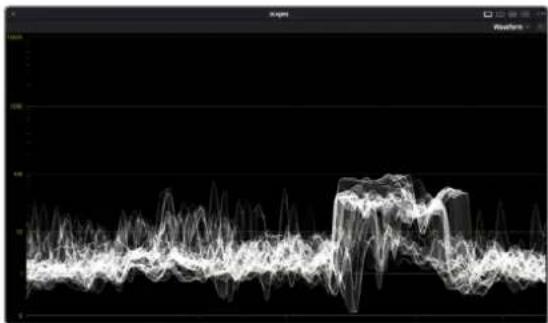
natural_image
Abstract waveform visualization with no visible text, numbers, or symbols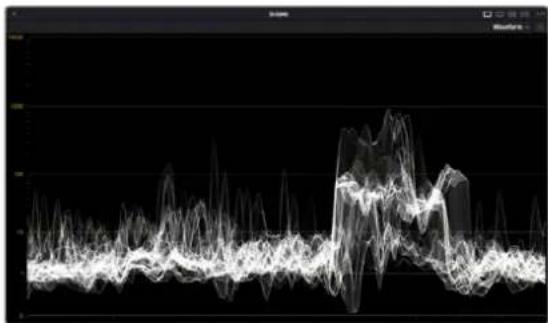
line
| Time | Value | |------|-------| | 0 | 0 | | 1 | 1 | | 2 | -1 | | 3 | 2 | | 4 | 3 | | 5 | -2 | | 6 | 4 | | 7 | 5 | | 8 | -3 | | 9 | 6 | | 10 | 7 | | 11 | -4 | | 12 | 8 | | 13 | 9 | | 14 | -5 | | 15 | 10 | | 16 | 11 | | 17 | -6 | | 18 | 12 | | 19 | 13 | | 20 | -7 | | 21 | 14 | | 22 | 15 | | 23 | -8 | | 24 | 16 | | 25 | 17 | | 26 | -9 | | 27 | 18 | | 28 | 19 | | 29 | -10 | | 30 | 20 | | 31 | 21 | | 32 | -11 | | 33 | 22 | | 34 | 23 | | 35 | -12 | | 36 | 24 | | 37 | 25 | | 38 | -13 | | 39 | 26 | | 40 | 27 | | 41 | -14 | | 42 | 28 | | 43 | 29 | | 44 | -15 | | 45 | 30 | | 46 | 31 | | 47 | -16 | | 48 | 32 | | 49 | 33 | | 50 | -17 | | 51 | 34 | | 52 | 35 | | 53 | -18 | | 54 | 36 | | 55 | 37 | | 56 | -19 | | 57 | 38 | | 58 | 39 | | 59 | -20 | | 60 | 40 | | 61 | 41 | | 62 | -21 | | 63 | 42 | | 64 | 43 | | 65 | -22 | | 66 | 44 | | 67 | 45 | | 68 | -23 | | 69 | 46 | | 70 | 47 | | 71 | -24 | | 72 | 48 | | 73 | 49 | | 74 | -25 | | 75 | 50 | | 76 | 51 | | 77 | -26 | | 78 | 52 | | 79 | 53 | | 80 | -27 | | 81 | 54 | | 82 | 55 | | 83 | -28 | | 84 | 56 | | 85 | 57 | | 86 | -29 | | 87 | 58 | | 88 | 59 | | 89 | -30 | | 90 | 60 | | 91 | 61 | | 92 | -31 | | 93 | 62 | | 94 | 63 | | 95 | -32 | | 96 | 64 | | 97 | 65 | | 98 | -33 | | 99 | 66 | | Note: The actual values may vary due to the random nature of the data generation. The provided values are just an example. I have used the label 'Data' in the code.(Left) Original SDR grade seen within an HDR scale. (Right) After an automatic SDR to HDR conversion
When going from HDR to SDR, the reverse is done:
- 0-50 nits (18% mid-gray) in your program is mapped to 0-50 nits on output (no change).
- Everything from 51 to 100 nits in your program is remapped from 51-90 nits (slightly compressed).
- Everything from 101 to 1000 nits in your program is remapped from 91-100 nits (greatly compressed).
While these methods of converting between SDR and HDR provide an effective starting point for conversion, they're not meant to be an automatic solution. It's critical that you do a trim pass whenever outputting a deliverable in a new color space and EOTF, so you can check every clip and make adjustments to improve the result when necessary.
NOTE: When converting SDR to HDR, this behavior may exaggerate noise in imported SDR media that happens to have large flat expanses of bright colors. If you see particular clips that show this issue, you can disable this behavior on a clip by clip basis in the Media Pool clip contextual menu, or the Thumbnail Timeline contextual menu in the Color page, by toggling "Inverse DRT for SDR to HDR Conversion."
Advanced RCM Setup
Advanced users who need more detailed control over every aspect of RCM can choose Custom from the Resolve Color Management preset menu. This exposes every control that's available, which opens a world of workflow possibilities for advanced users and post production facilities.
Because each of the settings encompasses a significant amount of functionality, the following sections cover each particular parameter in detail.
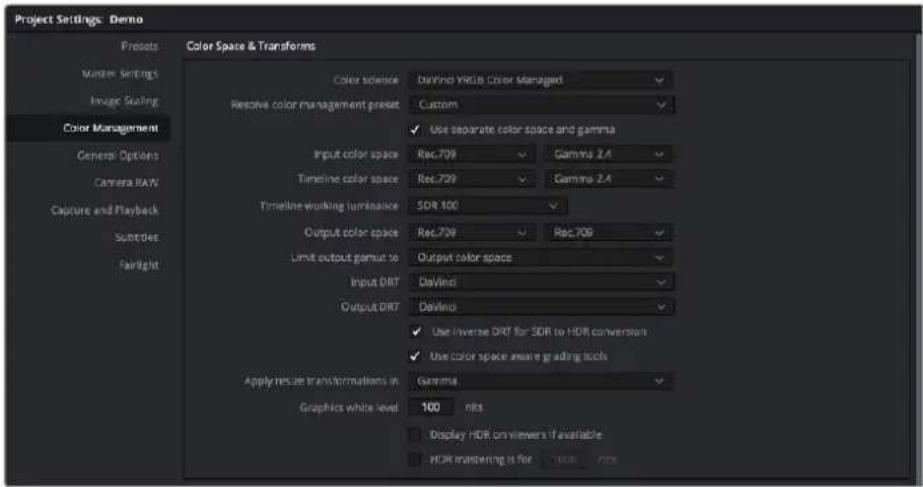
Custom Color Management settings of Resolve Color Management, as updated in DaVinci Resolve 17
NOTE: Older projects using RCM will have Color science set to Legacy, to preserve the older color management settings and color transformations effect on your work. For more information on how the previous generation of RCM works, see the September 2020 version of the DaVinci Resolve 16 Manual.
Single Setting vs. Dual Setting RCM
There are two ways you can set up RCM. When the "Use Separate Color Space and Gamma" checkbox is turned off, the Color Management panel of the Project Settings exposes one drop-down each for the Input, Timeline, and Output Color Space settings. Each setting lets you simultaneously transform the gamut and gamma, depending on which option you choose. This makes it a bit simpler to set up the transform you need.
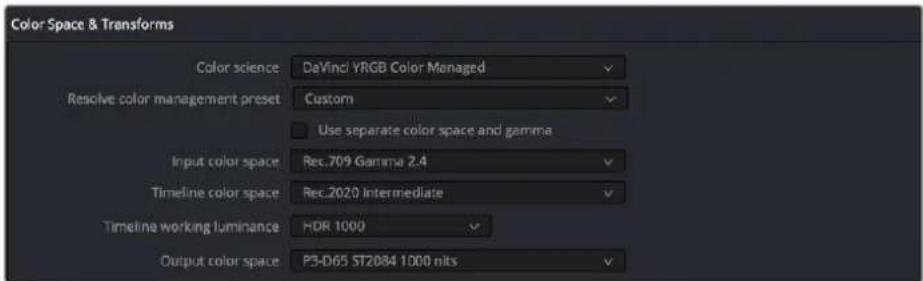
Single setting Resolve Color Management
If you turn the "Use Separate Color Space and Gamma" checkbox on, then the Color Management panel changes so that the Input, Timeline, and Output Color Space settings each display two pop-ups. The first drop-down lets you explicitly set the gamut, while the second drop-down lets you explicitly set the gamma. This makes it easier to see exactly which pair of transforms is being used at each stage of RCM.
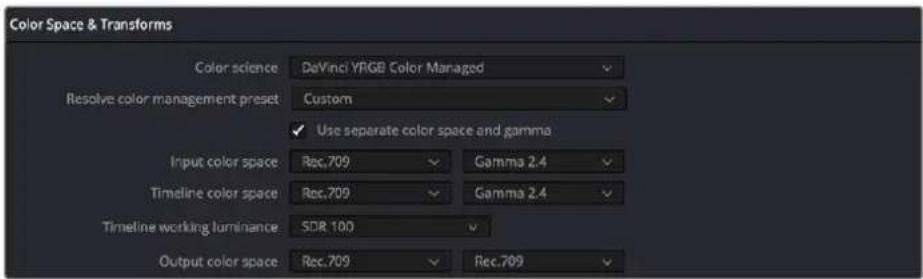
Dual setting Resolve Color Management
Additionally, Dual Setting RCM enables you to assign separate gamut and gamma transforms to clips in the Media Pool.

Dual setting Resolve Color Management assignments for Media Pool clips
Setting the Input Color Space
This setting is the default color space that all otherwise unidentified clips in the Media Pool will default to, unless you manually identify the color space of these clips by right-clicking them and choosing an Input Color Space (and optionally Input Gamma) from the contextual menu.
This setting does not affect media in camera raw formats, or media with embedded color space metadata.
Choosing a Timeline Color Space
The Timeline Color Space is the “working” color space that determines how each clip’s contrast and color are mapped for adjustment, which in turn has an impact on how sensitive the effects and grading controls are as you work. Some colorists prefer to work in the classic “video” color space of Rec. 709, since the controls feel comfortable and familiar, particularly if you’re mastering SDR content. On the other hand, colorists who are used to working with log-encoded media (likely using the Log controls) often prefer to work in a more film-oriented workflow using Cineon, LogC, or other wide gamut, logarithmically encoded formats.
If you're outputting an SDR deliverable, any color space that you're comfortable will produce good results. However, if you're outputting an HDR deliverable, it's in your best interest to choose a wide gamut Color Space (and Gamma) to obtain the best results on output. In this instance, DaVinci Wide Gamut is a great choice (see below for more information).
No matter which Timeline Color Space you choose to work in, all clips in an edit are transformed from the Input Color Space that's either automatically or manually assigned to them, to the Timeline Color Space setting to provide the final output. This is how you can grade within a Log-encoded timeline color space and yet view a normalized or de-logged image.
IMPORTANT
Once you choose a Timeline Color Space and begin grading, do not change your Timeline Color Space, or you'll end up changing all of the grades that are built using the mathematics it defines. You can always change the Output Color Space to create a new deliverable, but all of your grades depend on the Timeline Color Space to render correctly.
DaVinci Wide Gamut Color Space and DaVinci Intermediate Gamma
DaVinci Wide Gamut (DaVinci WG) and DaVinci Intermediate are Timeline Color Space and Gamma settings developed by Blackmagic Design that provide a reliable universal internal working color space, which encompasses a practical maximum of what image data any given camera can capture. The DaVinci Wide Gamut color space is greater than BT.2020, ARRI Wide Gamut, and even ACES, so you don't ever lose image data, no matter where your media is coming from.
Furthermore, the primary color values of the DaVinci WG color space are set such that the process of automatically mapping source media from different cameras into this gamut is extremely accurate as part of the Input to Timeline Color Space conversion, and tone and saturation mapping from one color space to another can be done more accurately in the Timeline to Output Color Space conversion.
This also helps to produce greater consistency among media from different cameras when making manual grading adjustments (though some variations due to differences in camera and lens systems will remain).
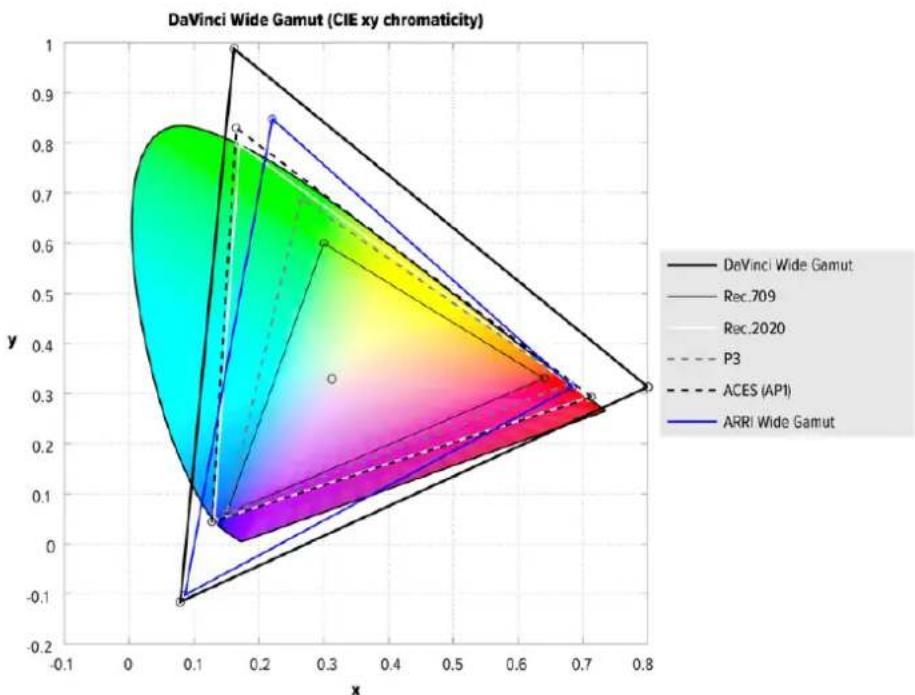
radar
| Model | x | y | | ------------------ | ---- | ---- | | DeVinci Wide Gamut | 0.8 | 0.3 | | Rec_709 | 0.7 | 0.3 | | Rec_2020 | 0.6 | 0.3 | | P3 | 0.5 | 0.3 | | ACES (AP1) | 0.4 | 0.3 | | ARRI Wide Gamut | 0.3 | 0.3 |The DaVinci Wide Gamut color space
The DaVinci Intermediate OETF gamma setting has been designed to work with DaVinci Wide Gamut to provide a suitable internal luminance mapping of high precision image data, in preparation for mastering to either HDR or SDR standards, as your needs require, without losing image data.
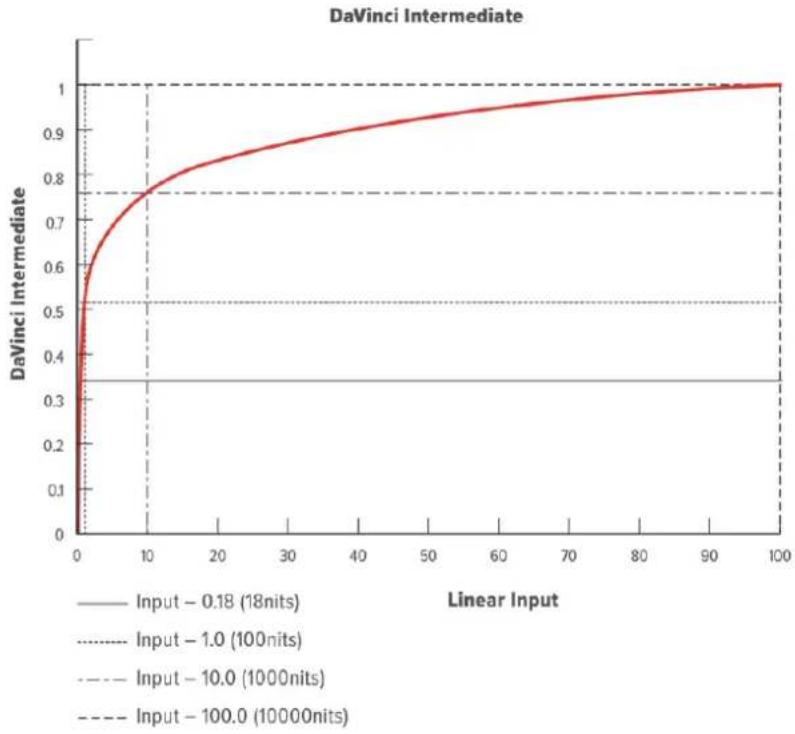
line
| Linear Input | DaVinci Intermediate | | ------------ | -------------------- | | 0 | 0.5 | | 10 | 0.78 | | 30 | 0.85 | | 50 | 0.9 | | 70 | 0.95 | | 90 | 0.98 | | 100 | 1.0 |The DaVinci Intermediate OETF seen encoding HDR levels
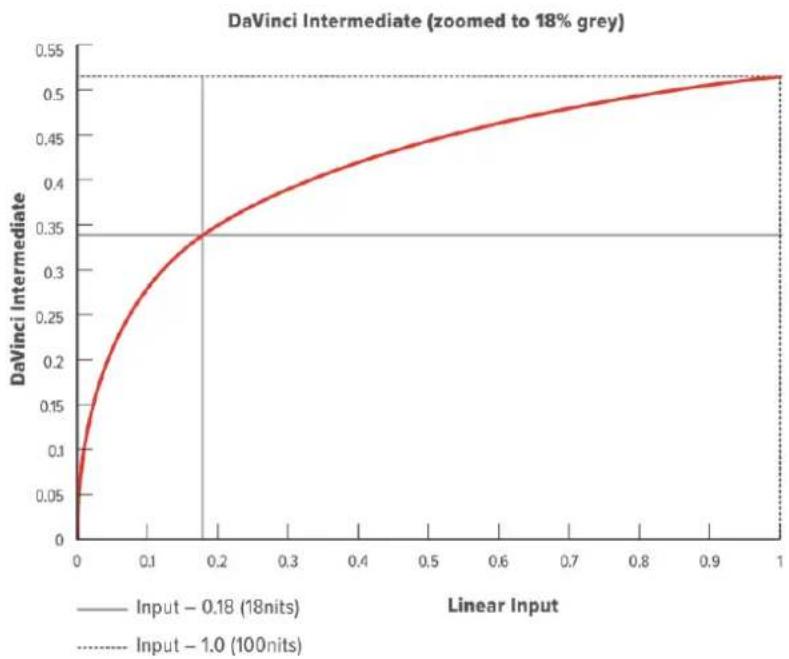
line
| Linear Input | DaVinci Intermediate | | ------------ | -------------------- | | 0.18 | 0.18 | | 1.0 | 1.0 |The DaVinci Intermediate OETF encoding SDR levels
Resolve Color Management is extremely flexible, so you don't have to use DaVinci Wide Gamut/DaVinci Intermediate as your Timeline color space if you don't want. However, it presents many advantages and is worth trying out to see if it can improve your workflow.
For more information, see the “DaVinci Resolve Wide Gamut Intermediate” document at https://www.blackmagicdesign.com/support/family/davinci-resolve-and-fusion.
Timeline Working Luminance
This control is only visible while the Resolve Color Management presets menu is set to Custom Settings. The Timeline Working Luminance drop-down menu lets you choose how the Input DRT (described below) maps the maximum level of a source image to the currently selected Timeline Color Space. This setting also defines the maximum highlight level that's possible to output into the currently selected Output Color Space using the Output DRT.
While it's typical to set this according to the mastering standard you're grading to via a collection of SDR and HDR labeled settings, there are additional settings available that make it possible to add more automatic compression of highlights as you grade.
- SDR 100: The conventional setting for grading SDR material with a maximum level of 100 nits.
- HDR 500-4000: Conventional settings for grading HDR material at a variety of maximum mastering levels. So long as output DRT isn't set to None, there will be some manner of rolloff in the highlights, unless inverse DRT is enabled, in which case there will be no rolloff.
- SDR and HDR ER settings: These “extended range” settings each specify two values and provide more headroom for aggressive grading of highlights by enabling DaVinci Resolve to compress a greater range of out-of-bounds image data without clipping, which can result in a smoother look.
Here's how it works. Suppose you choose the setting "HDR ER 1000/2000." In this case, the Input DRT is used to map the maximum brightness of each source image to the range specified by the first value, which is 1000 nits. Then, when you grade, the signal isn't clipped until it reaches the maximum range specified by the second value, which is 2000 nits. This provides an additional 1000 nits of out-of-bounds headroom before the image data is hard clipped by RCM's image processing pipeline. The Output DRT is then used to map from the maximum brightness specified by the second number (2000 nits) to the output value defined by the currently selected Output Color Space, in the process compressing this out-of-bounds headroom to preserve as much highlight detail as is possible given the range you've selected.
- Custom: Exposes a field where you can enter a specific nit value.
203 Nit Support for SDR to HDR
This control is only visible while the Resolve Color Management presets menu is set to Custom Settings. Resolve Color Management has support for remapping SDR content to HDR by mapping 100 nits to 203 nits (defined as the diffuse white level) according to the BT.2100 recommendation. This enables the peak highlights of SDR material to compete more favorably against the significantly brighter highlights of HDR content in programs that combine both (such as documentaries), so that SDR whites continue to appear white, rather than gray, when compared to diffuse white in HDR.
The checkbox that enables this is hidden by default. Whenever you set the Output to an HDR standard while the Timeline is set to an SDR standard, the "Use 203 nits reference for Rec.2100 HDR" checkbox for remapping SDR highlights to HDR appears in both the RCM settings of the Color Management panel of the Project Settings and in the Color Space Transform Resolve FX plug-in.
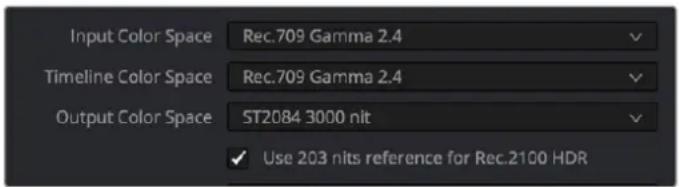
The "Use 203 nits reference for Rec.2100 HDR" checkbox in Resolve Color Management for scaling SDR levels appropriately into HDR color space
Gamut Limiting, Restricting Values Within a Larger Gamut
This control is only visible while the Resolve Color Management presets menu is set to Custom Settings. In the emerging world of larger gamuts for distribution, it's increasingly common for delivery specifications to specify output to a large gamut, such as Rec. 2020, yet require that image values be restricted to a smaller gamut, such as P3. This is to allow delivery to "future-proofed" delivery standards, while preventing saturation values that are too high to be displayed on consumer displays that aren't capable of implementing the full scope of those standards.
In this case, you'll choose a larger gamut in Output Color Space, but you'll then choose a smaller gamut in "Limit Output Gamut To." When you do this, all image values falling outside the "Limit Output Gamut To" standard specified will be hard clipped. This setting defaults to None.
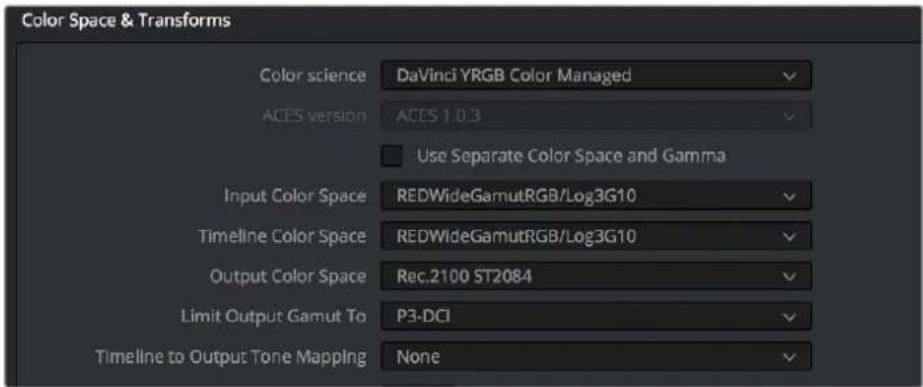
Choose a setting from the Limit Output Gamut To menu to limit image values within a larger gamut
This control is only visible while the Resolve Color Management presets menu is set to Custom Settings. RCM has always transformed the color primaries of different media formats to match one another within the shared Timeline Color Space. In this updated version, the Input DRT (Display Rendering Transform) drop-down menu provides a variety of different options to enable DaVinci Resolve to automatically tone map the image data of SDR and HDR clips to better match one another when they're fit into the currently selected Timeline Color Space. While each option varies in the details, they are all automated input-to-timeline color transforms that do the following:
- Log-encoded media, or media using a 2.4 gamma transfer function, is mapped so the black point, midtones at 18% gray, and white levels match those of HDR media. Highlight data will be carefully stretched as necessary so that the highlights of all clips in the Timeline, whether SDR or HDR, are treated similarly.
– Raw formats such as BRAW, RED, and ARRI RAW, and media using HDR transfer functions are minimally mapped along an HDR range of tonality. - All color transforms into the Timeline Color Space are done without clipping.
The idea is to distribute the image data of each clip in the Timeline, be it SDR or HDR media, along a similar histogram, with shadows, midtones, and highlights spread out in such a way as to create an easier starting point for grading. One result of this is that grades made for one type of media mostly work well with other types of media.
Different options are provided governing the details of how this Input to Timeline Color Space transform is achieved. They all do the same thing but have different advantages.
- None: This setting disables Input DRT Tone Mapping. No tone mapping is applied to the Input to Timeline Color Space conversion at all, resulting in a simple 1:1 mapping to the Timeline Color Space.
- Simple: A good mapping for color transforms from HDR to SDR.
- Luminance Mapping: Same as DaVinci, but more accurate when the Input Color Space of all your media is in a single standards-based color space, such as Rec. 709 or Rec. 2020.
- DaVinci: This option tone maps the transform with a smooth luminance roll-off in the shadows and highlights, and controlled desaturation of image values in the very brightest and darkest parts of the image. This setting is particularly useful for wide-gamut camera media and is a good setting to use when mixing media from different cameras.
- Saturation Preserving: This option has a smooth luminance roll-off in the shadows and highlights, but does so without desaturating dark shadows and bright highlights, so this is an effective option for colorists who like to push color harder. However, because over-saturation in the highlights of the image can look unnatural, two parameters are exposed to provide some user-adjustable automated desaturation.
- Sat. Rolloff Start: Lets you set a threshold, in nits (cd / m^2) , at which saturation will roll off along with highlight luminance. Beginning of the rolloff.
- Sat. Rolloff Limit: Lets you set a threshold, in nits (cd / m^2) , at which the image will be totally desaturated. End of the rolloff.
Output DRT Tone Mapping
This control is only visible while the Resolve Color Management presets menu is set to Custom Settings. To accommodate workflows where you need to transform one color space into another that has a dramatically larger or smaller gamut, an additional group of settings have been added that can help to automate the expansion or contraction of image data necessary to give a pleasing result.
Using the available options in the Output DRT drop-down menu will compress or expand your image data as necessary during the Timeline to Output Color Space transformation that RCM performs when monitoring or rendering a timeline, in order to make sure that the final result is either not clipping, or to ensure that it's taking better advantage of the new color space. This is not meant to provide your final grade. Rather, it's meant to give you a faster starting point, when you need it, for proceeding with your own more detailed grade of the result.
Here are some examples of what the Gamut Mapping controls of RCM can be used for:
1 If you're working with high-dynamic-range log-encoded media and you're outputting to Rec. 709 as you work, turning on Gamut Mapping lets RCM use saturation and tone mapping to give you a more immediately pleasing image with highlight detail that's not clipped.
2 If you're working with standard-dynamic-range log-encoded media and you're outputting to an HDR format as you work, turning on Gamut Mapping lets RCM use saturation and tone mapping to expand the highlights of the image to HDR strength to give you an image with more immediate visual impact on HDR screens.
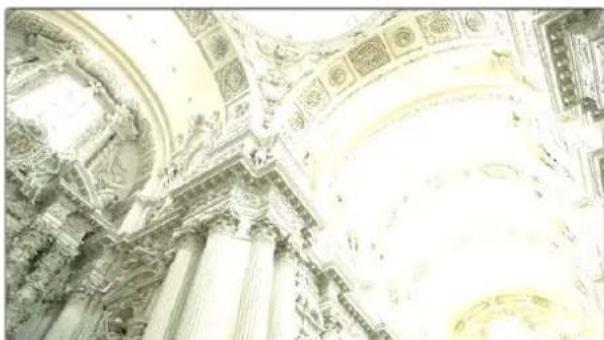
natural_image
Interior view of a grand, ornate architectural ceiling with arched ceilings and columns (no visible text or symbols)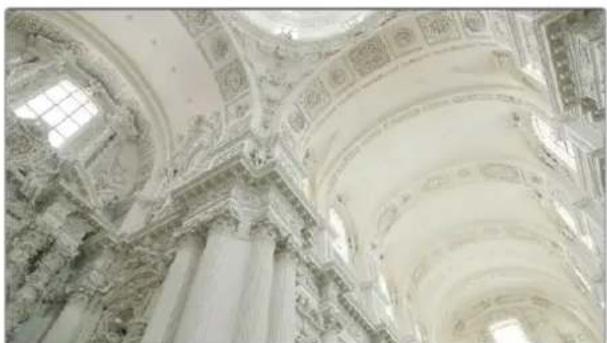
natural_image
Interior view of a grand, ornate cathedral with arched ceilings and columns (no visible text or symbols)(Before/After) Gamut Mapping used to automatically fit high-dynamic-range media into the Rec. 709 color space
The Output DRT (Display Rendering Transform) drop-down menu provides the following options.
- None: No tone mapping is applied to the Timeline to Output Color Space conversion at all, resulting in a simple 1:1 output with no softness or rolloff applied. All image data outside of gamut will be clipped.
- Simple: A good mapping for color transforms from HDR to SDR.
- Luminance Mapping: Same as DaVinci, but more accurate when all your media is in a single standards-based color space, such as Rec. 709 or Rec. 2020, set to the Timeline and Output.
- DaVinci: This option tone maps your output with a smooth luminance roll-off in the shadows and highlights, and controlled desaturation of image values in the very brightest and darkest parts of the image. It's been designed to give smooth, naturalistic highlights and shadows as you push and pull the values of your images, without the need for additional settings. This setting is particularly useful for wide-gamut camera media and is a good setting to use when mixing media from different cameras.
- Saturation Preserving: This option has a smooth luminance roll-off in the shadows and highlights to prevent clipping. It does so without desaturating dark shadows and bright highlights, so this is an effective option for colorists who like to push color a bit harder. However, because over saturation in the highlights of the image can look unnatural, two parameters are exposed to provide some user-adjustable automated desaturation.
- Sat. Rolloff Start: Lets you set a threshold, in nits (cd / m^2) , at which saturation will roll off along with highlight luminance. Beginning of the rolloff.
- Sat. Rolloff Limit: Lets you set a threshold, in nits (cd / m^2) , at which the image will be totally desaturated. End of the rolloff.
- RED IPP2: This setting lets you use RED IPP2 tone mapping to output to an SDR format, such as Rec. 709; two settings are exposed with which to choose how your output will be shaped.
- Output Tone Map: Lets you choose what kind of tone mapping you want to use for your output. Options include: None, Low, Medium, and High.
- Highlight Roll Off: Lets you choose what kind of highlight rolloff you want to use to prevent clipping. Options include: None, Hard, Medium, Soft, and Very Soft.
- HDR peak nits: A slider lets you choose the peak nit level you want to tone map to. Defaults to 10,000 nits.
Use Inverse DRT for SDR to HDR Conversion
This control is only visible while the Resolve Color Management presets menu is set to Custom Settings. A device rendering transform (DRT) is typically used when converting high dynamic range media to a lower dynamic range color space/mastering standard. Thus, setting up a color transform from SDR to HDR is an "inverse" operation to expand the dynamic range of SDR media to HDR
standards. The way this works is that levels at 100 nits are mapped to the maximum value set for the Timeline Working Luminance parameter, and all other image levels are strategically tone mapped in order to give yourself a good starting point for grading SDR media into an HDR program.
This setting also has a secondary use. With this setting turned on, you can output Rec. 709 clips with color that's identical to the input, with no compression in the highlights.
NOTE: Turning on "Use Inverse DRT for SDR to HDR Conversion" may exaggerate noise in imported SDR media with large flat expanses of bright colors.
Use White Point Adaptation
This control applies a chromatic adaptation transform to account for different white points between color spaces.
- Uncheck this box if you simply want to view the input color space's white point unaltered in the output color space. For example, wanting to use a P3-D60 mastered clip inside a P3-D65 timeline for reference purposes.
- Check this box to apply the chromatic adaptation transform to convert the input white point to match the output color space's white point. For example, wanting a P3-D60 mastered clip to cut in with other clips mastered in a P3-D65 timeline.
NOTE: This control is only visible while the Resolve Color Management presets menu is set to Custom Settings.
Color Space Aware Grading Tools
In DaVinci Resolve version 17, both Resolve Color Management and ACES enables “color space aware” palettes, such as the new HDR palette, to have controls that feel consistent, no matter what color space the original media is from, or what Timeline Color Space you’re using.
Other palettes, such as the Qualifier and Curves palettes, become color space aware when you turn on the "Use Color Space Aware Grading Tools" checkbox in the Color Management panel of the Project Settings (this is turned on by default). When you're using color space aware grading tools, you should not turn on HDR Mode for the node you're working on.
- In the case of the Qualifier palette, this enables Qualifiers to create high-quality keys as you would expect, no matter what the color space of the original media is, or what Timeline Color Space you're using.
– In the case of the Curves palette, this makes the overall range of each curve better fit the overall data range of the current clip, making curves adjustments easier and more specific.
NOTE: This control is only visible while the Resolve Color Management presets menu is set to Custom Settings.
Apply Resize Transformations In
When you're using Resolve Color Management, a new "Apply Resize Transformations In" Project Setting is available in the Color Management panel while the Resolve Color Management presets menu is set to Custom Settings. This setting lets you choose which color space is used for resizing
operations. Ordinarily, resizing is done in Linear, but certain specialty workflows benefit from doing resizing in other color spaces, so this option lets you choose which is best. The available options are:
– Timeline: Uses the Timeline Color Space to perform all resizing operations.
- Log: Uses a Log Color Space for resizing. Good for avoiding artifacts in certain high-contrast images, such as titles and star fields.
– Linear: Usually provides the best results with most SDR media.
– Linear Mapped: Usually provides the best results with most HDR media.
- Gamma: Provided in case you find a need for this option.
- Gamma Mapped: Usually provides best results when mixing SDR media with wide gamut and log-encoded media on the same timeline.
Graphics White Level
The “Graphics white level” setting lets you define a shared maximum level in nits (cd/m ^-2 ) for titles, generators, and selected effects that generate color. Changing this setting lets you change the maximum level of all DaVinci Resolve-generated titles, generator graphics, and effects at once to accommodate different mastering and output requirements.
Display HDR On Viewers If Available
Turn this checkbox on if your computer monitors and operating system are capable of accommodating HDR display. This allows the Viewers to show true HDR, according to the capabilities of your computer monitor.
HDR Mastering Is For (Studio Version Only)
If you have a DeckLink 4K Extreme 12G or an UltraStudio 4K Extreme video interface, then DaVinci Resolve 12.5 and above can output the metadata necessary to correctly display HDR video signals to display devices using HDMI 2.0a when you turn on the "Enable HDR metadata over HDMI" checkbox in the Master Project Settings.

Enable HDR metadata over HDMI
The Enable HDR metadata over HDMI option in the Master Project Settings lets you output HDR via HDMI 2.0a.
When you do so, a setting in the Color Management panel of the Project Settings, "HDR mastering is for X" lets you specify the output, in nits, to be inserted as metadata into the HDMI stream being output, so that the display you're connecting to correctly interprets it. The output you specify should match what your display is expecting.

HDR mastering is for
1000
nits
The "HDR mastering is for" setting lets you insert metadata for HDR output via HDMI 2.0a.
Resolve Color Management and the Fusion Page
Enabling RCM also allows the Fusion page to handle the color of clips automatically. Images output by Medialn nodes are automatically converted to Linear color space, which is the preferred color space with which to perform high-quality compositing operations. Setting the LUT menu of each Viewer in
the Fusion page to Managed ensures that you're looking at the image in Rec. 709, so that the image looks correct to the artist even though they're really working in the Linear color space. Each MediaOut node then converts the image back to the timeline color space for handoff to the Color page.
With RCM off, you must manage color in the Fusion page manually, either using the Source Color Space and Source Gamma Space settings of each Medialn node, or using the CineonLog or FileLUT nodes in your node tree.
For more information on how color management affects the Fusion page, and why the Linear color space is preferable for compositing, see Chapter 76, "Controlling Image Processing and Resolution."
Ability to Bypass Color Management Per Clip
When you right-click a clip in the Thumbnail Timeline of the Color page, a "Bypass Color Management" setting appears underneath the Input Color Space and Input Gamma submenus that let you identify a clip's color characteristics. Choosing this option so that it appears checked lets you exclude that clip from color management altogether, in the event you want to manually manage that clip using LUTs, the Color Space Transform node, or simply by doing manual grading.
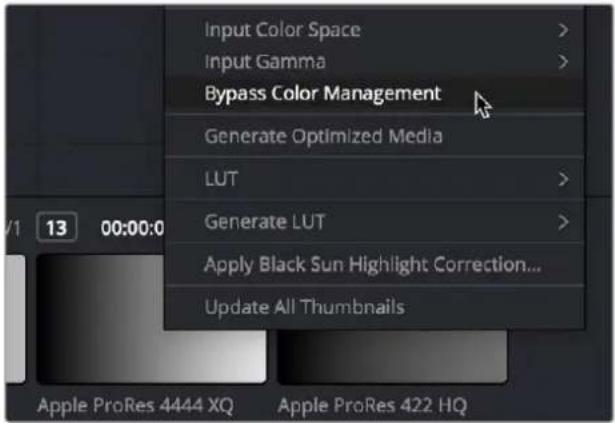
The Bypass Color Management option for clips in the contextual menu of the Thumbnail Timeline
Exporting Color Space Information to QuickTime Files
If you render QuickTime files from the Deliver page, then color space tags will be embedded into each file based on either the Timeline Color Space (if Resolve Color Management is disabled) or the Output Color Space (if Resolve Color Management is enabled). Two settings in the Advanced Settings of the Render Settings let you choose how color space metadata will be embedded into your output for supported media formats, "Color Space Tag," and "Gamma Tag." These default to "Same as Project," which will match the Output Color Space currently selected in the Project Settings.
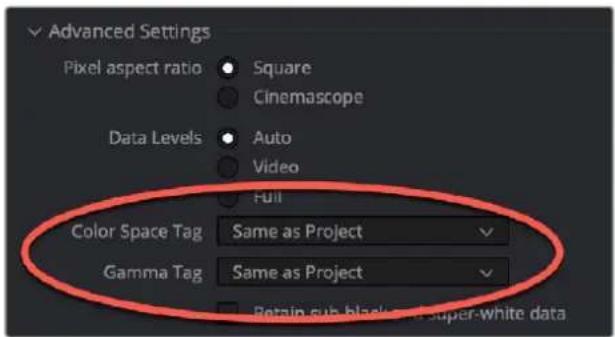
The Color Space Tag and Gamma Tag settings in the Render Settings
Color Management Using ACES
The ACES (Academy Color Encoding Specification) color space has been designed to make scene-referred color management a reality for high-end digital cinema workflows. ACES also makes it easier to extract high-precision, wide-latitude image data from raw camera formats, in order to preserve high-quality image data from acquisition through the color grading process, and to output high-quality data for broadcast viewing, film printing, or digital cinema encoding.
An oversimplification of the way ACES works is that every camera and acquisition device is characterized to create an IDT (Input Device Transform) that specifies how media from that device is converted into the ACES color space. The ACES gamut has been designed to be large enough to encompass all visible light, with more than 25 stops of exposure latitude. In this way ACES has been designed to be future-proof, taking into consideration advances in image capture and distribution.
Meanwhile, an RRT (Reference Rendering Transform) is used to transform the data provided by each image format's IDT into standardized, high-precision, wide-latitude image data that in turn is processed via an ODT (Output Device Transform). Different ODT settings correspond to each standard of monitoring and output, and describe how to accurately convert the data within the ACES color space into the gamut of that display in order to most accurately represent the image in every situation. The RRT and ODT always work together.
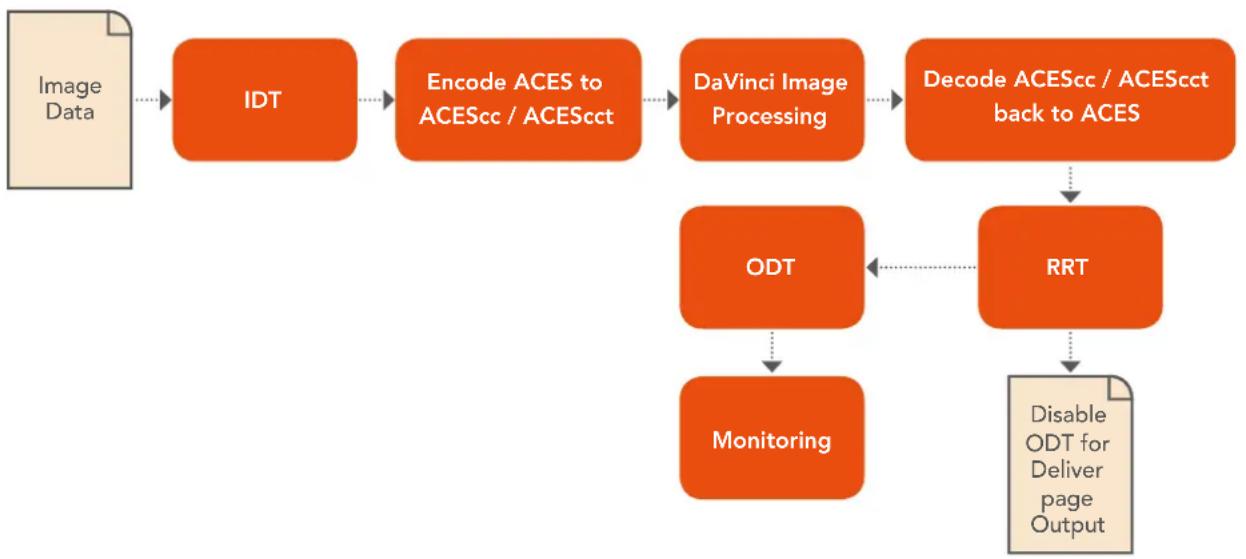
flowchart
graph TD
    A["Image Data"] --> B["IDT"]
    B --> C["Encode ACES to ACEScc / ACEScct"]
    C --> D["DaVinci Image Processing"]
    D --> E["Decode ACEScc / ACEScct back to ACES"]
    E --> F["RRT"]
    F --> G["ODT"]
    G --> H["Monitoring"]
    H --> I["Disable ODT for Deliver page Output"]
ACES signal and processing flow
By using the ACES color space and specifying an IDT and an ODT, you can ingest media from any capture device, grade it using a calibrated display, output it to any destination, and preserve the color fidelity of the graded image.
Setting Up ACES in the Project Settings Window
There are four parameters available in the Color Science drop-down of the Color Management panel of the Project Settings that let you set up DaVinci Resolve to use the ACES workflow:
- Color science is: Using this drop-down menu, you can choose either DaVinci ACES, or DaVinci ACEScc color science, which enables ACES processing throughout DaVinci Resolve.
- ACEScc: Choose DaVinci ACEScc color science to apply a standard Cineon-style log encoding to the ACES data before it is processed by DaVinci Resolve. This well defined common encoding makes it possible for ASC CDL values to be used across systems using the same ACEScc encoding. After processing, a reverse encoding is applied in order to output ACES linear data.
- ACEScct: A variation of ACEScc that adds a roll-off at the toe of the image that's different from the encoding of ACEScc, in order to make color correction lift operations "feel" more like they do with film scans and LogC encoded images, which makes it easier to raise the darkest values of the image and get milky shadows, something that can be difficult with ACEScc. After processing, a reverse encoding is applied in order to output ACES linear data.
- ACES Version: When you've chosen one of the ACES color science options, this drop-down becomes available to let you choose which version of ACES you want to use. You can choose from ACES 1.0.3, ACES 1.1, ACES 1.2, or ACES 1.3 (the latest version).
-
ACES Input Device Transform: This drop-down menu lets you choose which IDT (Input Device Transform) to use for the dominant media format in use. DaVinci Resolve currently supports the following IDTs:
-
ACEScc/ACEScct/ACEScg: Standardized transforms for each of these ACES standards.
- ADX (10 or 16): 10-bit or 16-bit integer film-density encoding transforms meant for use if you're working with film scans that were initially encoded in an ACES workflow. This transform is designed to maintain the variation in look between different film stocks.
- ALEXA: Color management settings for all ARRI ALEXA cameras.
– BMD Film/4K/4.6K: Color management settings for Blackmagic Design cameras. - Canon 1D/5D/7D/C200/C300/C300MkII/C500/C700: Color management settings for Canon cameras.
- DCDM: This IDT transforms X'Y'Z'-encoded media with a gamma of 2.6.
- DCDM (P3D65 Limited): This IDT transforms X'Y'Z'-encoded media with a gamma of 2.6, specifically hard clipped to a P3 gamut with a D65 white point.
- DRAGONcolor/2 and REDgamma3/4/REDlogFilm combinations: Different combinations of the DRAGONcolor, REDgamma, and REDlogFilm settings are provided for legacy RED workflows.
- P3-D60: Transforms RGB-encoded image data with a D60 white point, intended for monitoring with a P3-compatible display using a D60 white point.
- P3-D65: Transforms RGB-encoded image data with a D65 white point; intended for monitoring with a P3-compatible display using a D65 white point.
- P3-D65 (D60 sim.): Transforms RGB-encoded image data with a D65 white point; intended to simulate monitoring with a P3-compatible display using a D60 white point on a display with D65.
- P3-D65 ST2084 (108/1000/2000/4000 nits): Transforms an image that's compatible with the P3 color gamut, using the SMPTE standard PQ (ST.2084) tone curve for High Dynamic Range (HDR) post-production. Three settings for four different peak luminance ranges are provided; which one is appropriate to use depends on the maximum white level of the display used to create the media. Preliminary standards exist for HDR displays with peak luminance at 1000 nits, 2000 nits, and 4000 nits. A setting of 108 nits is provided for Kodak laser projection.
- P3-D65: Transforms RGB-encoded image data with a D65 white point, intended for monitoring with a P3-compatible display using a D65 white point.
- P3-D65 ST2084 (1000/2000/4000 nits): Transforms an image that's compatible with the P3 color gamut, using the SMPTE standard PQ (ST.2084) tone curve for High Dynamic Range (HDR) post-production. Three settings for three different peak luminance ranges are provided; which one is appropriate to use depends on the maximum white level of the display used to create the media. Preliminary standards exist for HDR displays with peak luminance at 1000 nits, 2000 nits, and 4000 nits.
-
P3-DCI (D60 sim.): Produces output that's specifically for output on a DCI projector with a D60 white point. This output may look magenta on other display devices that aren't set up for DCI display.
-
P3-DCI (D65 sim.): Produces output that's specifically for output on a DCI projector with a D65 white point. This output may look magenta on other display devices that aren't set up for DCI display.
- Panasonic V35: Color management settings for each listed camera.
- Rec.2020: This IDT transforms media created with the wide-gamut standard for consumer and broadcast television.
- Rec.2020 ST2084 (1000/2000/4000 nits): This IDT transforms media created within the wide-gamut standard for consumer and broadcast television, using the SMPTE standard PQ (ST.2084) tone curve for High Dynamic Range (HDR) post-production. Three settings provided for HDR televisions with different peak luminance capabilities.
– Rec.2020 HLG (1000 nits): This IDT transforms media within the wide-gamut standard for consumer and broadcast television and uses the Hybrid Log-Gamma (HLG) standard tone curve for High Dynamic Range (HDR) post-production. A single setting is provided for HDR televisions with peak luminance at 1000 nits. - Rec.709 (Camera): A deprecated legacy IDT for Rec. 709 that's included for backward compatibility. Converts the source data to linear based on Rec. 709 and transforms the result to ACES, but while this transformation is technically correct, it's not necessarily pleasing after conversion through the matching ODT. For this reason, the academy updated to the following Rec. 709 IDT, which is the inverse of the Rec. 709 ODT.
- Rec.709: A standard transform designed to move media in the Rec. 709 color space into the ACES color space. This option is used for any other file type that might be imported, such as ProRes from Final Cut Pro, DNxHD from Media Composer, and any media file captured from tape.
- Rec.709 (D60 sim.): A standard transform designed to move media in the Rec. 709 color space with a white point of D60 into the ACES color space.
- REDColor2/3/4/REDGamma3/4/REDLogFilm combinations: Different combinations of the REDcolor, REDgamma, and REDlogFilm settings are provided for legacy RED workflows.
- RWGLog3G10: The standardized RED IPP2 color pipeline transform for all RED camera media.
If you're working on a project that mixes media formats that require different IDTs, then you can assign different IDTs to clips using the Media Pool's contextual menu, or using the Clip Attributes window, which is also accessible via the Media Pool's contextual menu.
- ACES Output Device Transform: This drop-down menu lets you choose an ODT (Output Device Transform) with which to transform the image data for monitoring on your calibrated display, and when exporting a timeline in the Deliver page. You can choose from the following options:
- ADX (10 and 16): A standardized ODT designed for media destined for film output. Two settings accommodate 10-bit and 16-bit output. This ODT is not meant to be used for monitoring.
- DCDM: This ODT exports X'Y'Z'-encoded media with a gamma of 2.6 intended for handoff to applications that will be re-encoding this data to create a DCP (Digital Cinema Package) for digital cinema distribution. This can be displayed via an XYZ-capable projector.
- DCDM (P3D60 Limited): Outputs a P3 hard-limited signal with a D60 white point.
- DCDM (P3D65 Limited): Outputs a P3 hard-limited signal with a D65 white point.
- P3 D60: Outputs RGB-encoded image data with a D60 white point; intended for monitoring with a P3-compatible display using a D60 white point.
- P3 D65: Outputs RGB-encoded image data with a D66 white point; intended for monitoring with a P3-compatible display using a D66 white point.
- P3 D65 (D60 sim.): Outputs RGB-encoded image data to simulate monitoring with a P3-compatible display using a D60 white point on a display with a D65 white point.
– P3 D65 (Rec.709 Limited): Outputs RGB-encoded image data with a D65 white point within a P3 gamut that's hard-limited to the color range of Rec. 709.
- P3 D65 ST2084 (108/1000/2000/4000 nits): Outputs an image that's compatible with the P3 color gamut, using the SMPTE standard PQ tone curve for High Dynamic Range (HDR) post-production. Three settings for three different peak luminance ranges are provided; which one is appropriate to use depends on the maximum white level of your display. Preliminary standards exist for HDR displays with peak luminance at 1000 nits, 2000 nits, and 4000 nits. A setting of 108 nits is provided to simulate an HDR signal clipped to an SDR range.
- P3 DCI (D60 sim.): Outputs RGB-encoded P3 image data that appears as if with a D60 white point on a DCI projector with a DCI white point.
- P3 DCI (D65 sim.): Transforms RGB-encoded image data with a D61 white point (the DCI mastering standard) that appears as if with a D65 white point.
- P3-D65 ST2084 (1000/2000/4000 nits): Transforms an image that's compatible with the P3 color gamut, using the SMPTE standard PQ (ST.2084) tone curve for High Dynamic Range (HDR) post-production. Three settings for three different peak luminance ranges are provided; which one is appropriate to use depends on the maximum white level of the display used to create the media. Preliminary standards exist for HDR displays with peak luminance at 1000 nits, 2000 nits, and 4000 nits.
- Rec.2020: This ODT is for compatibility with the full range of this wide-gamut standard for consumer and broadcast television.
- Rec.2020 (P3D65 Limited): Outputs a P3D65 hard-limited signal within this wide-gamut standard for consumer and broadcast television.
– Rec.2020 (Rec.709 Limited): Outputs a Rec. 709 hard-limited signal within this wide-gamut standard for consumer and broadcast television.
– Rec.2020 HLG: Outputs the full Rec. 2020 gamut to the Hybrid Log-Gamma standard for HDR.
– Rec.2020 HLG (1000 nits, P3D65 Limited): Outputs a 1000 nit, P3D65 hard-limited signal within the Rec. 2020 gamut and the Hybrid Log-Gamma standard for HDR.
- Rec.2020 ST2084 (1000/2000/4000 nits): This ODT transforms media created within the wide-gamut standard for consumer and broadcast television, using the SMPTE standard PQ (ST.2084) tone curve for High Dynamic Range (HDR) postproduction. Three settings are provided for HDR televisions with different peak luminance capabilities.
- Rec.2020 ST2084 (1000/2000/4000 nits, P3D65 Limited): This ODT transforms media within the wide-gamut standard for consumer and broadcast television but with hard clipping at the boundary of the P3 gamut for televisions that are limited to the smaller P3 gamut for digital cinema; also uses the SMPTE standard PQ (ST.2084) tone curve for High Dynamic Range (HDR) post-production. Three settings are provided for HDR televisions with different peak luminance capabilities.
– Rec.709: This ODT is used for standard monitoring and deliverables for TV.
- Rec.709 (D60 Sim): A standard transform designed to move media in the Rec. 709 color space with a white point of D60 into the ACES color space.
- sRGB: A standardized transform designed for media created for computer display in a consumer environment.
- sRGB (D60 Sim.): A standardized ODT designed for media destined for computer display in a consumer environment. Suitable for monitoring when grading programs destined for the web.
- ACEScc/ACEScct/ACEScg: Standardized transforms for each of these ACES standards.
You must manually select an ODT that matches your workflow and room setup when working in ACES.
- Process Node LUTs in: This drop-down menu lets you choose how you want to process CLF LUTs that are added to nodes in your grades while working in ACES, such as Look LUTs in on-set or VFX workflows. There are two choices: ACEScc AP1 Timeline Space (the default), and ACES APO Linear.
- ACEScc AP1: For LUTs that have been designed to take the specific range of ACEScc data using the AP1 primary coordinates.
- ACES AP0: For LUTs that have been designed for normal ACES data from 65504 to -65504 floating point values.
NOTE: ACES grades require CLF LUTs that have been specifically created for ACES workflows. If you want to apply a regular LUT within a grade, you must do a color space transform to convert the image from ACES to whatever space the LUT was designed to work within, and then another color space transform to convert the image back to ACES; however, this workflow does not always provide ideal results.
The Initial State of Clips When Working in ACES
Don't worry if the initial state of each image file appears differently than what was monitored originally on set. What's important is that if the camera original media was well exposed, the IDT used in ACES mode will retain the maximum amount of image data, and provide the maximum available latitude for grading, regardless of how the image initially appears on the Timeline.
The Timeline Color Space in ACES Workflows is Fixed
When you're working in ACES, you do not get to change the Timeline Color Space as you do in Resolve Color Management. The ACES working color space is a log-encoded color space, which encourages a more traditional, film-oriented approach to grading.
Tips for Rendering Out of an ACES Project
When choosing an output format in the Deliver page, keep the following in mind:
– If you've delivering graded media for broadcast, set the ACES Output Device Transform to be Rec. 709, then you can output to whatever media format is convenient for your workflow.
- When you're delivering graded media files to another ACES-capable facility using the DCDM or ADX ODCs, you should choose the OpenEXR RGB Half (uncompressed) format in the Render Settings, and set the ACES Output Device Transform to "No Output Device Transform."
- When you're rendering media for long-term archival, you should choose the OpenEXR RGB Half (uncompressed) format in the Render Settings, and set the ACES Output Device Transform to "No Output Device Transform."
Chapter 10
HDR Setup and Grading
High Dynamic Range (HDR) grading for cinema, television, and streaming is the latest evolution of the consumer media experience. While HDR workflows in high-end cinema and television aren't new, this way of mastering media has been slow to expand to less expensive programming. However, new developments and an expanding array of affordable HDR-capable consumer devices are poised to make HDR mastering of visual content increasingly ubiquitous. This chapter describes what HDR is for the uninitiated and covers the operational details that will let you set up DaVinci Resolve to do HDR grading.
Contents
High Dynamic Range (HDR) Grading in DaVinci Resolve 216
HDR Isn't Just for Televisions 217
The Different Ways of Mastering HDR 217
What Do I Do With HDR? 218
Analyzing HDR Signals Using Video Scopes 218
Dolby Vision ^® 219
Organizing Your Timeline for Dolby Vision Mastering 221
Letterboxing for Dolby Vision Mastering 221
Setting Up Color Management for Dolby Vision Mastering 222
Choosing Mastering Displays for Dolby Vision 222
Using the Dolby Vision Internal Content Mapping Unit (iCMU) 222
Simultaneous Master and Target Display Output for Dolby Vision 223
External Content Mapping Unit (eCMU) for Dolby Vision 223
Auto Analysis is Available to All Studio Users 224
Licensing DaVinci Resolve to Expose Dolby Vision Trim Controls 224
Dolby Vision ^® Trim Controls in DaVinci Resolve 225
Previewing and Trimming At Different Levels 227
Managing Dolby Vision Metadata 228
Setting Up Resolve Color Management for Grading HDR 229
DaVinci Resolve Grading Workflow For Dolby Vision 230
Delivering Dolby Vision 230
SMPTE ST.2084 and HDR10 231
Monitoring and Grading to ST.2084 in DaVinci Resolve 233
Connecting to HDR-Capable Displays using HDMI 2.0a 233
HDR10 ^+ 233
Monitoring and Grading to ST.2084 for HDR10+ 234
HDR10+ Grading Workflow 234
Simultaneous Master and Target Display Output for HDR10+ 234
HDR10+ Auto Analysis Commands 235
Delivering HDR10+ 235
Hybrid Log-Gamma (HLG) 235
Grading Hybrid Log-Gamma in DaVinci Resolve 236
Ouputting Hybrid Log-Gamma 236
High Dynamic Range (HDR) Grading in DaVinci Resolve
The HDR features found in DaVinci Resolve are only available in DaVinci Resolve Studio.
High Dynamic Range (HDR) video describes an emerging family of video encoding and distribution technologies designed to enable a new generation of television displays to play video capable of intensely bright highlights and increased saturation. The general idea is that the majority of an HDR image will be graded similarly to how a Standard Dynamic Range (SDR) image is graded now, with the shadows and midtones being mostly the same between traditionally SDR and HDR-graded images. This is mostly because shadows are shadows and are meant to be dark; however this philosophy also maintains a comfortable viewing experience and easier backward compatibility when you need to master both SDR and HDR versions of a program. The difference is that HDR provides abundant additional headroom for very bright highlights and color saturation that far exceed what has been previously visible in SDR television and cinema. This enables the colorist to create more vivid and life-like highlights in images, such as sunsets, lit clouds, firelight, explosions, sparkles, and other intensely bright and colorful imagery. In short, you can now “open up” the highlights in an image just as you’ve always been able to open up, or expand, the detail of the shadows. This not only provides more life-like lighting intensity and saturation, but it also dramatically expands the contrast available in the scene. For example, a calibrated SDR display should have a peak luminance level of 100 nits (cd/m ^2 ), but existing HDR displays can provide peak luminance levels of 700, 1000, or even 4000 nits.
However, because it's an evolving technology, the technical standards that have been developed far exceed what current consumer televisions, projectors, phones, and tablets are capable of. At the time of this writing, consumer televisions are capable of outputting 700 to 1600 nits. Furthermore,
consumer displays are often saddled with automatic brightness limiting (ABL) circuits that limit power consumption to acceptable levels for home use, which means that only a certain percentage of the picture may reach these peak values at any one time. This is fine, because the point of HDR is not that you're making the entire image brighter, it's that you have more headroom for specific bright highlights and additional saturation.
For all of these reasons, HDR standards focus on describing what displays should be capable of, not how these levels are to be used. That is a creative decision.
HDR Isn't Just for Televisions
Lest you think that living room televisions and projectors are the only way to watch HDR content, certain flagship iOS and Android phones and tablets have implemented HDR viewing capabilities that are capable of meeting or even exceeding the UltraHD requirements for HDR content on an OLED display. This makes HDR, surprisingly, a widely available mobile experience.
The Different Ways of Mastering HDR
While different HDR technologies use different methods to map the video levels of your program to an HDR display's capabilities, they all output a "near-logarithmically" encoded signal that requires a compatible television that's capable of correctly stretching this signal into its "normalized" form for viewing. This means if you look at an HDR signal that's output from the video interface of your grading workstation on an SDR display, it will look flat, desaturated, and unappealing until it's plugged into your HDR display of choice.
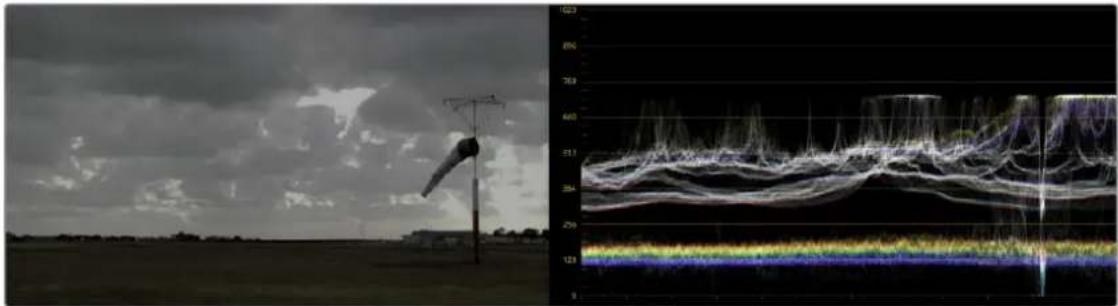
natural_image
Split image: left shows a lightning pole over a cloudy sky; right displays a multi-channel waveform graph (no text or symbols)A graded HDR image being output looks similar to a log-encoded image
At the time of this writing, there are four principal approaches to mastering HDR that DaVinci Resolve is capable of supporting, including:
- Dolby Vision ^
-HDR10
-HDR10+ - Hybrid Log-Gamma (HLG)
Each of these HDR standards define how an HDR signal is encoded for export and later mapped to the visible output of an HDR or SDR display. Grading to each of these standards requires some degree of color management, and DaVinci Resolve gives you three main ways to handle this:
- The easiest way is to enable Resolve Color Management (RCM) or ACES in the Color Management panel of the Project Settings, and use the Color Space conversion options that are available. There are options there for each supported type of HDR.
- The transforms that are available in RCM are also available as Resolve FX operations, if you want to organize your grading pipeline more manually using the Color Transform Resolve FX adjustment.
– LUTs are also available to accomplish each of these color space conversions if you want to develop your own specific image processing pipeline based on custom-made LUT or DCTL transforms.
Overall, Resolve Color Management and ACES are reliable and recommended approaches to handling HDR grading in DaVinci Resolve in most instances. For more information about Resolve Color Management, see Chapter 9, "Data Levels, Color Management, and ACES."
What Do I Do With HDR?
While these standards make HDR mastering and distribution possible, they have nothing to say about how these HDR-strength levels should be used creatively. That's up to you, because the question of how to utilize the expansive headroom for brightness and saturation that HDR enables is fully within the domain of the colorist, as a series of creative decisions that must be made regarding how to assign the range of highlights that are available in your source media to the above-100 nit HDR levels you're mastering to as you grade, given the peak luminance level that you're assigned to master with. Which HDR peak luminance level you use (1000 nit, 3000 nit, 4000 nit) probably depends on which display you have access to and who's distributing the resulting program.
Analyzing HDR Signals Using Video Scopes
When you're using waveform scopes of any kind, including parade and overlay scopes, the signal will fit within the 10-bit scale used to analyze the signal much differently owing to the way HDR is encoded. The following chart of values will make it easier to understand how each level in "nits" (i.e., cd/m ^-2 ) corresponds to a code value within the 10-bit image scale:
| 10-Bit Code | Nearest Value in cd/m2 | HDR Display Peak Luminance Capability |
| 1019† 10,000 No commercially available display | ||
| 920 4000 Dolby Pulsar | ||
| 889 3000 Flanders Scientific XM310K w/L20 test pattern | ||
| 844 2000 Dolby PRM 32FHD | ||
| 767 1000 | Sony BVM X300 w/L10 test pattern, EIZO Prominence CG3145, or Flanders Scientific XM311K | |
| 756 900 Flanders Scientific XM650U w/L20 test pattern | ||
| 742 800 Panasonic TC-55FZ1000U w/L10 test pattern | ||
| 728 700 Measured on an iPhone XS displaying 50% white | ||
| 711 | 600 | Canon V2411 (not in burst mode) |
| 691 | 500 | Minimum standard for an “UltraHD” OLED display |
| 635 | 300 | Flanders Scientific DM250 in “HDR preview mode” w/L40 pattern |
| 593 203 | BT.2408 recommendation for diffuse white of SDR content being intercut with 1000 nit max HDR content | |
| 528 108 Dolby Cinema projector | ||
| 520 | 100 | Standard peak luminance for SDR displays |
| 447 | 48 | Standard peak luminance for SDR DCI projection, Dolby Cinema 3D peak luminance |
| 4† | 0 | Absolute black |
^1 0–3 and 1020–1023 are reserved values
While this table of values is useful for understanding where HDR nit levels fall on legacy external scopes, if you're monitoring with the built-in video scopes in DaVinci Resolve, you can turn on the "Enable HDR Scopes for ST.2084" checkbox in the Color panel of the User Preferences, which replaces the 10-bit scale of the video scopes with a scale based on nit values (or cd/m ^-2 ) instead.
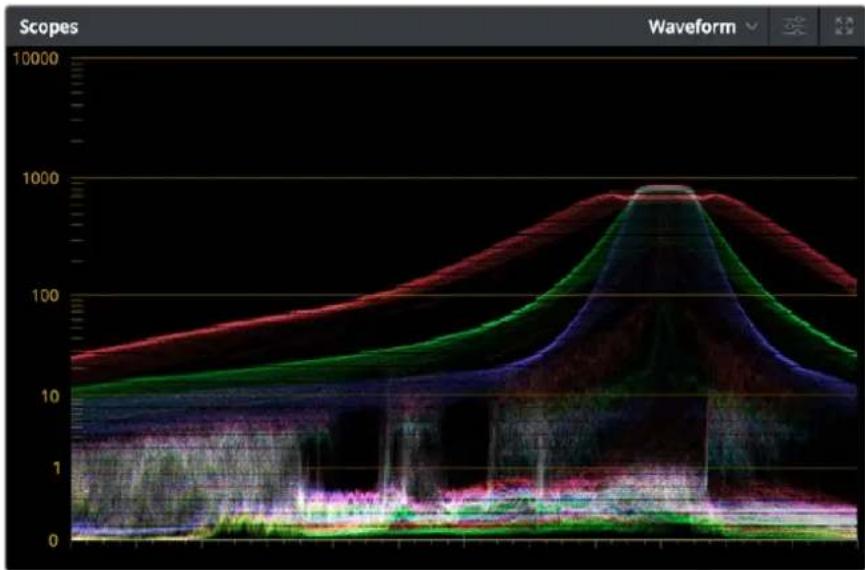
line
| Time | Red Area | Green Area | Blue Area | Purple Area | |------|----------|------------|-----------|-------------| | 0 | 20 | 10 | 5 | 2 | | 1 | 30 | 15 | 8 | 4 | | 2 | 40 | 20 | 12 | 6 | | 3 | 50 | 25 | 18 | 9 | | 4 | 60 | 30 | 25 | 12 | | 5 | 70 | 35 | 30 | 15 | | 6 | 80 | 40 | 35 | 18 | | 7 | 90 | 45 | 40 | 20 | | 8 | 100 | 50 | 45 | 22 | | 9 | 110 | 55 | 50 | 25 | | 10 | 120 | 60 | 55 | 28 | | 11 | 130 | 65 | 60 | 30 | | 12 | 140 | 70 | 65 | 32 | | 13 | 150 | 75 | 70 | 35 | | 14 | 160 | 80 | 75 | 38 | | 15 | 170 | 85 | 80 | 40 | | 16 | 180 | 90 | 85 | 42 | | 17 | 190 | 95 | 90 | 45 | | 18 | 200 | 100 | 95 | 48 | | 19 | 210 | 105 | 100 | 50 | | 20 | 220 | 110 | 105 | 52 | | 21 | 230 | 115 | 110 | 55 | | 22 | 240 | 120 | 115 | 58 | | 23 | 250 | 125 | 120 | 60 | | 24 | 260 | 130 | 125 | 62 | | 25 | 270 | 135 | 130 | 65 | | 26 | 280 | 140 | 135 | 68 | | 27 | 290 | 145 | 140 | 70 | | 28 | 300 | 150 | 145 | 72 | | 29 | 310 | 155 | 150 | 75 | | 30 | 320 | 160 | 155 | 78 | | 31 | 330 | 165 | 160 | 80 | | 32 | 340 | 170 | 165 | 82 | | 33 | 350 | 175 | 170 | 85 | | 34 | 360 | 180 | 175 | 88 | | 35 | 370 | 185 | 180 | 90 | | 36 | 380 | 190 | 185 | 92 | | 37 | 390 | 195 | 190 | 95 | | 38 | 400 | 200 | 195 | 98 | | 39 | 410 | 205 | 200 | 100 | | 40 | 420 | 210 | 205 | nan | | ... (approx) - Curve (approx) - Waveform - X-axis: Time Point; Y-axis: Value; Legend: Scopes - Red, Green, Blue, Purple, Pink; Values - Scale: Approx. (approx for each curve).The video scopes with "Enable HDR Scopes for ST.2084" enabled in the Color panel of the User Preferences
TIP: If you're unsatisfied with the amount of detail you're seeing in the 0–519 range (0–100 nits) of the video scope graphs, then you can use the 3D Scopes Lookup Table setting in the Color Management panel of the Project Settings to assign the appropriate "HDR X nits to Gamma 2.4 LUT," with X being the peak nit level of the HDR display you're using. This converts the way the scopes are drawn so that the 0–100 nit range of the signal takes up the entire range of the scopes, from 0 through 1023. This will push the HDR-strength highlights up past the top of the visible area of the scopes, making them invisible, but it will make it easier to see detail in the midtones of the image.
Dolby Vision®
Long a pioneer and champion of HDR for enhancing the consumer video experience, Dolby Laboratories has developed a method for mastering and delivering HDR called Dolby Vision. As with most HDR standards discussed in this chapter, Dolby Vision uses the PQ (perceptual quantizer) electrical-optical transfer function (EOTF, which defines how an electronic video signal is presented on a display), which is defined by SMPTE ST.2084, along with a hierarchy of metadata that's embedded alongside the video stream. All metadata used by Dolby Vision is organized into levels, of which the following are important to the colorist:
– Level 0 metadata, which is global metadata that defines the Mastering Display (what the colorist is using), including aspect ratio, frame rate, color encoding and information on all the target displays that are used for the Level 2 and Level 8 trim metadata below.
– Level 1 metadata, which is the Dolby Vision v2.9 analysis metadata that's generated automatically when you use the Dolby Vision controls to analyze the clips in the timeline. The controls for automatically generating Level 1 metadata are available to all DaVinci Resolve Studio users.
- Level 2 metadata, which is the Dolby Vision v2.9 trimming metadata that's set by the colorist via the version 2.9 trim controls available in the Dolby Vision palette of the Color page. This trimming allows adjustment of how the Dolby Vision image is to be mapped to a target display (such as a 100 nit BT.709 display) that's different from the mastering display (such as a 1000 nit BT.2020 display). The purpose of this metadata is to maintain a program's artistic intent by providing guidance from the colorist over how the program's signal should be fit into the differing luminance ranges of a variety of displays with different peak luminance capabilities. Manually adjustable Level 2 metadata is only available to DaVinci Resolve Studio users via a license obtained from Dolby.
– Level 3 metadata, which is the offset for Dolby Vision v4.0 added to Level 1 metadata generated by the analyze buttons in the Dolby Vision controls. It also stores the mid tone offset data.
– Level 5 metadata, which provides information about the aspect ratio of the deliverable format, and the aspect ratio of the actual image within that format. This metadata is also applicable at the per clip level.
– Level 6 metadata, which stores the MaxCLL and MaxFALL levels required by the HDR10 mastering standard of HDR.
– Level 8 metadata, which is the updated Dolby Vision v4.0 trimming metadata that's set by the colorist via the v4.0 trim controls available in the Dolby Vision palette of the Color page. This evolved set of trimming commands allows more detailed adjustment of how the Dolby Vision image is to be mapped to a target display (such as a 100 nit BT.709 display) that's different from the mastering display (such as a 1000 nit BT.2020 display). Just like Level 2 metadata, the purpose of Level 8 metadata is to maintain a program's artistic intent by providing guidance from the colorist over how the program's signal should be fit into the differing luminance ranges of a variety of displays with different peak luminance capabilities. Manually adjustable Level 8 metadata is only available to DaVinci Resolve Studio users via a license obtained from Dolby. Whether you use Level 2 trim controls or Level 8 trim controls depends on the Dolby Vision version setting you choose in the Color Management panel of the Project Settings.
NOTE: It's currently recommended for all users to choose Dolby Vision v4.0 for analysis and trimming, as it provides superior results. If you're required to deliver Dolby Vision v2.9 metadata when mastering for backwards compatibility, DaVinci Resolve can now export v2.9 metadata from projects using v4.0 workflows.
The metadata levels described above are current of this writing. However Dolby Vision is a rapidly evolving technology, and as Dolby adds new features and metadata levels you should reference Dolby's website to keep track of the latest developments: https://professionalsupport.dolby.com/s/article/Dolby-Vision-Metadata-Levels?language=en_US
For the foreseeable future, the current consumer display landscape encompasses a wide variety of differently performing televisions and projectors that are guaranteed to improve year over year. This means that mastering for today's displays may render content less vibrant than content that emerges five years from now. This can be especially vexing for narrative content that will have a long lifespan on streaming services as new generations of viewers discover them. While one way of solving this would be to re-grade your program many times at a variety of nit levels to create deliverables suitable to a range of display capabilities, that's an enormous amount of work.
Dolby Vision offers a shortcut by using sophisticated algorithms to derive automatically analyzed metadata that intelligently guides how an image graded at one nit level (say 4000 nits) can be adjusted to be perceptually similar to viewers watching a 1000 nit display. Highlights and saturation that are too bright for a particular display will be adjusted to provide as close to the same experience without clipping or flattening image detail.
Furthermore, this automatic analysis can be manually trimmed by a colorist to account for the artistic intentions of the authors of a program, in cases where the automatic analysis doesn't do exactly what's wanted. This combination of auto-analysis and manual trimming is key to how Dolby Vision streamlines
the process of mastering programs to accommodate backward compatibility with SDR displays, as well as the varying peak luminance capabilities of different makes and models of HDR consumer displays, both now and in the future. You're only required to make a 100 nit trim pass to guide the HDR program's conversion all the way down to SDR, and the Dolby Vision system can use that information to guide how intermediate presentations (such as at 700 or 1200 nits) should be adjusted. You can even do multiple trim passes at specific nit levels, such as a 100 nit pass and a 1000 nit pass, to give the Dolby Vision system more information to accurately guide intermediate presentations on different displays. Additionally, you don't have to trim every clip. If the analysis is good, you can skip those clips and only trim clips that need it. The overall system has been created to make it as efficient as possible for colorists to ensure that the widest variety of viewers see the image as it's meant to be seen.
This, in a nutshell, is the advantage of the Dolby Vision system. You can grade a program on a more future-proofed 4000 nit display, and use auto-analysis plus one or two manual trim passes to make the program backward compatible with SDR televisions, and capable of intelligently scaling the HDR highlights to provide the best representation of the mastered image for whatever peak luminance and color volume a particular television is capable of. All of this is guided by decisions made by the colorist during the grade.
At the time of this writing, all seven major Hollywood studios are mastering in Dolby Vision for cinema. Studios that have pledged support to master content in Dolby Vision for home distribution include Universal, Warner Brothers, Sony Pictures, and MGM. Content providers that have agreed to distribute streaming Dolby Vision content include Netflix, Vudu, and Amazon. If you want to watch Dolby Vision content on television at home, consumer television manufacturers LG, TCL, Vizio, HiSense, Sony, Toshiba, and Bang & Olfusen have all shipped models with Dolby Vision support.
Organizing Your Timeline for Dolby Vision Mastering
One of the first things you need to do before doing a Dolby Vision grade is to organize your timeline accordingly. Because each clip undergoes a visual analysis to facilitate the Dolby Vision workflow, there are specific limitations to how clips can appear in a timeline.
– All clips to be analyzed in a Dolby Vision workflow need to be on video track V1; clips on other tracks will be ignored.
– All clips that overlap one another as part of a composite must be turned into a single item in the timeline in order to be correctly analyzed. This means that each group of clips that create a composite in a timeline, be it multiple overlapping clips combined via keys or alpha channel transparency, multiple overlapping clips combined using composite or blend modes, or text generators appearing above one or more video clips, must be turned into a compound clip for Dolby Vision analysis to work correctly.
Letterboxing for Dolby Vision Mastering
The analysis of clips in a Dolby Vision workflow keeps track of the timeline aspect ratio, as well as the image aspect ratio of each clip in that timeline. Programs that mix different aspect ratios of letterboxing (or blanking) will be accommodated by the Dolby Vision analysis, however Dolby Vision does not support letterbox on two sides (both pillarbox and letterbox), only one at a time.
If you choose Show Blanking Clip Override in the Output Sizing mode of the Sizing palette, you have the option of overriding the overall Timeline Blanking settings with individual Clip Blanking settings. You can do this by choosing the Clip option and then turning off the Use Timeline Blanking checkbox. At this point, you can choose any letterboxing format you want, and the correct letterboxing ratio will be stored as part of the metadata.
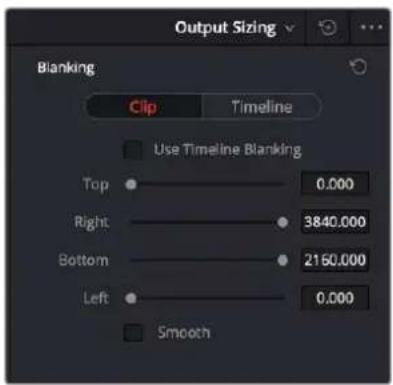
The Show Blanking Clip Override options with the Use Timeline Blanking box unchecked
Setting Up Color Management for Dolby Vision Mastering
For an HDR signal to look correct, you need to output your graded program using the right EOTF for the HDR standard you're mastering. The EOTF maps the different levels DaVinci Resolve outputs to your HDR display using the SMPTE ST.2084 PQ setting required for outputting Dolby Vision. You can set this up in one of three different ways, as:
- Output Color Space and Gamma settings in RCM or ACES
– Color Space and Gamma settings within a series of Resolve FX Color Transform plug-ins that can be used at the end of each grade or at the end of a Timeline grade - 3D LUTs used for converting signals from one standard to another that can be used at the end of each grade or at the end of a Timeline grade
While Dolby Vision content is not limited to a particular color space, Resolve Color Management provides a P3 D65 setting that matches the capabilities of most mastering displays in use at the time of this writing.
Choosing Mastering Displays for Dolby Vision
To do HDR grading, you need a suitable HDR display. Technically any monitor that supports SMPTE ST.2084 (aka PQ) will work. Happily, a growing number of professional displays from Sony, Flanders Scientific, TV-Logic, Canon, and Eizo are suitable for use in HDR grading suites. EBU Tech 3320 specifies the requirements for a Grade 1 HDR mastering monitor. Dolby recommends the following minimum requirements for HDR monitors:
– A minimum Peak Luminance of 1000 nits
- A 200,000:1 contrast ratio
- Minimum black at 0.005 nits
- Capable of at least 99% of P3 gamut
For more information on Dolby best practices for color grading Dolby Vision, visit: https://www.dolby.com/us/en/technologies/dolby-vision/dolby-vision-for-creative-professionals.html.
Using the Dolby Vision Internal Content Mapping Unit (iCMU)
DaVinci Resolve has a GPU-accelerated "internal" software version of the Dolby Vision CMU (Content Mapping Unit) for previewing Dolby Vision mapping right in DaVinci Resolve. iCMU support can be enabled and set up in the Color Management panel of the Project Settings by turning on the Enable Dolby Vision checkbox. This is a DaVinci Resolve Studio-only feature.
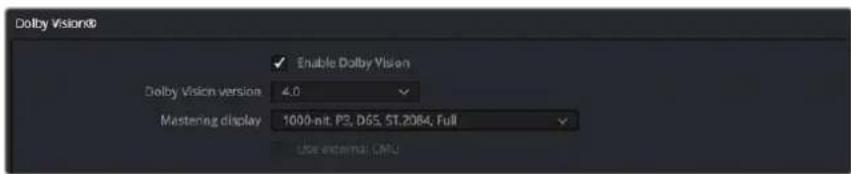
Dolby Vision settings in the Color Management panel of the Project Settings
The Dolby Vision group of settings also exposes menus for choosing the version of Dolby Vision you want to use, what kind of Master Display you're using, and whether or not to use an eCMU (assuming you possess the option). Finally, turning Dolby Vision on also enables the Dolby Vision palette and controls in the Color page, which are described in greater detail later in this chapter.
To master with Dolby Vision in DaVinci Resolve using the built-in iCMU, you still need a more specific hardware setup than the average grading and finishing workstation, consisting of the following equipment:
- Your DaVinci Resolve grading workstation, outputting via either a DeckLink 8K Pro or DeckLink 4K Extreme 12G video interface
- A mastering display capable of outputting HDR nit levels suitable for the deliverable you're required to produce
Simultaneous Master and Target Display Output for Dolby Vision
When mastering HDR and trimming versions for more limited displays, it's extremely useful to be able to evaluate your HDR grade and SDR trim pass side-by-side. It's possible to output both the Master Display output and the Target Display output simultaneously when you're grading with either Dolby Vision or HDR10+ enabled.
Necessary Hardware
To work in this manner, you must have the following equipment:
- Your DaVinci Resolve grading workstation must output via a DeckLink 8K Pro or DeckLink 4K Extreme 12G.
- Your Mastering Display must be capable of HDR nit levels suitable for the deliverable you're required to produce.
- A display that can be set to output calibrated SDR, probably using the BT.709 gamut
Enabling Simultaneous Monitoring
When you set up your display hardware, the HDR Master Display must be connected to output A, and the Target Display must be connected to output B of whichever BMD video output device you're using. Then, you need to turn on the "Use dual outputs on SDI" checkbox in the Master Settings of the Project Settings. At this point, assuming all of your connections are compatible with one another, you should see an HDR image output to your HDR display, and a trimmed image output to your SDR display.
External Content Mapping Unit (eCMU) for Dolby Vision
DaVinci Resolve supports the use of a Dolby External Content Mapping Unit (eCMU) for studios doing more intensive HDR mastering work, as it lets you monitor and adjust an HDR display simultaneously to an SDR display for side-by-side trimming at high resolutions via hardware. The eCMU also has the ability to preview Dolby Vision on a consumer display in real time via HDMI tunneling to view directly what the audience will see at home.
Auto Analysis is Available to All Studio Users
Resolve Studio enables either unlicensed or licensed users to automatically analyze the image and generate Dolby Vision analysis metadata. This metadata is used to deliver Dolby Vision content and to render other HDR and SDR deliverables from the HDR grade that you've made. This enables any DaVinci Resolve Studio user to create Dolby Vision deliverables with Level 1 metadata. However, manual trimming of the analysis metadata requires a license from Dolby.
The commands governing Dolby Vision auto-analysis, which are available to all Resolve Studio users, are available in the Color > Dolby Vision™ submenu, as well as the Dolby Vision palette, and consist of the following:
- Analyze All Shots: Automatically analyzes each clip in the Timeline and stores the results individually.
– Analyze Selected Shot(s): Only analyzes selected shots in the Timeline. - Analyze Selected And Blend: Analyzes multiple selected shots as if they were a single sequence. The result is the same analysis being saved to each clip. Useful to save time when analyzing multiple clips that have identical content.
- Analyze Current Frame: A fast way to analyze clips where a single frame is representative of the entire shot.
Once you analyze a clip, the Min, Max, and Average fields automatically populate with the resulting L1 data; these fields are not editable.

The metadata fields for each clip
Additionally, clips that have been analyzed show an HDR badge in the Thumbnail timeline, to help you keep track of which clips have been analyzed and which have yet to be.
Analyzed clips have HDR badges to identify them
Licensing DaVinci Resolve to Expose Dolby Vision Trim Controls
To expose the Dolby Vision controls in DaVinci Resolve Studio that let you make manual trims on top of the automatic analysis that any copy of DaVinci Resolve Studio can do, you must email dolbyvisionmastering@dolby.com to receive more information about obtaining a license.
Once you've obtained a license file from Dolby, you can import it by choosing File > Dolby Vision > Load License, and its successful installation will enable the Dolby Vision controls to be enabled in the Color page. You should also receive a display configuration file, which can be loaded via the File > Dolby Vision > Load Configuration command and lets you populate the Dolby Vision drop-down menus with the most up to date options.
Dolby Vision® Trim Controls in DaVinci Resolve
Once you've analyzed a clip, you're in a position to trim the result. The latest version of the Dolby Vision palette exposes four sets of controls. The first are the main controls:
- Target Display Output: This drop-down specifies what Dolby refers to as the Target Display, used to display the tone mapped image. This menu lets you choose specific display properties to obtain a preview of what the trimmed image will look like on different displays with different gamuts and peak luminance capabilities.
- Trim Controls for: Which Target Display you're currently trimming for. The default setting (100-nit, BT.709, BT.1886, Full) lets you monitor an SDR version of the HDR image, so you can see how the trim metadata tone maps the image on non-HDR televisions.
- Analyze controls: The commands governing Dolby Vision auto-analysis are available as buttons, which perform the same functions as their similarly named counterparts in the Color > Dolby Vision submenu. Please note that most trim controls are disabled until you perform an analysis, which is a necessary first step.
- All: Automatically analyzes each clip in the current Timeline and stores the results individually.
– Selected: Only analyzes selected shots in the Timeline.
- Blend: Analyzes multiple selected shots as if they were a single sequence. The result is the same analysis being saved to each clip. You need to use the blend option when analyzing two clips that meet at a through edit separating otherwise contiguous frames. It's also typical to use the Blend option when analyzing a scene of clips that take place at the same location at the same time, to ensure that natural variations in lighting don't add unwanted variations between the analyses of clips that are supposed to already be balanced with one another. Blend also saves time when analyzing multiple clips that have identical content.
- Frame: Useful in situations where part of a clip has an extreme level of color or lightness that's not typical of the rest of the clip, that incorrectly biases the analysis and produces a poor result. Placing the playhead on a frame that's representative of how the clip is supposed to look and using the Frame option bases the analysis on only that frame. This is also a fast way to analyze clips where a single frame is representative of the entire shot.
- Enable Tone Mapping Preview: Lets you see the target display output in the Color page Viewer and video output, so you can evaluate how the tone mapped version looks on your HDR display. This control is disabled when you enable "Use dual-outputs on SDI" in the Master Settings of the Project Settings, since the second output SDI now automatically displays the target display output.
- Mid Tone Offset (CM v4.0 only): This control is used to match the overall exposure between the tone mapped SDR signal to the HDR master. This offset is applied to the L1 Mid values, allowing the adjustment of mid tones without affecting the blacks and highlights. It can be used to shift overall L1 analysis to ensure the best preservation of artistic intent. This setting is shared among all trim passes you do at all nit levels, so if you've done two trim passes, one at 100 nits and another at 1000 nits, adjusting this setting always adjusts both trim passes at once. Changes made to this control are recorded to the L3 metadata for each clip.
The second are the Min, Mid, and Max metadata fields that are populated by the analyzed values of the current clip. These fields cannot be edited, although analysis metadata can be copied and pasted among clips. These values represent the L1 analysis and are used to calculate how the HDR image should be trimmed to fit into the video standard specified by the Target Display.
The third are the Primary Trims, which are only editable if you've performed an analysis and if you have a license from Dolby. Which controls are exposed depends on the version of Dolby Vision you've selected in the Color Management panel of the Project Settings.
Dolby Vision CM v2.9 Controls
If you choose Dolby Vision 2.9 in the Color Management panel of the Project Settings, it activates the 2.9 version of Dolby's content mapping algorithm and exposes the original Dolby Vision trim controls. It is no longer suggested to use these, since you can do a Dolby Vision 4.0 analysis and trim, and still export converted 2.9 metadata for legacy workflows.
- Lift/Gamma/Gain: These controls function similarly to the Y-only Lift, Gamma, and Gain master wheels of the Color Wheels palette, to let you trim the overall contrast levels of the image. The Dolby Best Practices Guide recommends to limit positive Lift to no more than 0.025, and mostly restrict yourself to using Gamma and Gain if necessary to lighten the image.
- Saturation Gain: Lets you trim the saturation of the most highly saturated areas within a scene. Lesser saturated values will be less affected.
- Chroma Weight: Darkens saturated parts of the image to preserve colorfulness in areas of the image that are clipped by smaller gamuts that don't have enough headroom for saturation in the highlights.
- Tone Detail: Lets you preserve contrast detail in the highlights that might otherwise be lost when the highlights are mapped to lower dynamic ranges, usually due to clipping. Increasing Tone Detail Weight increases the amount of highlight detail that's preserved. When used, can have the effect of sharpening highlight detail.
Dolby Vision CM v4.0 Controls
If you choose Dolby Vision 4.0 in the Color Management panel of the Project Settings, it activates the 4.0 version of Dolby's content mapping algorithm, and exposes the following controls.
- Lift/Gamma/Gain: These controls function similarly to the Y-only Lift, Gamma, and Gain master wheels of the Color Wheels palette, to let you trim the overall contrast levels of the image. The Dolby Best Practices Guide recommends to limit positive Lift to no more than 0.025, and mostly restrict yourself to using Gamma and Gain if necessary to lighten the image.
- Saturation Gain: Lets you trim the saturation of the most highly saturated areas within a scene. Lesser saturated values will be less affected.
- Chroma Weight: Darkens saturated parts of the image to preserve colorfulness in areas of the image that are clipped by smaller gamuts that don't have enough headroom for saturation in the highlights.
- Tone Detail: Lets you preserve contrast detail in the highlights that might otherwise be lost when the highlights are mapped to lower dynamic ranges, usually due to clipping. Increasing Tone Detail Weight increases the amount of highlight detail that's preserved. When used, can have the effect of sharpening highlight detail.
- Mid Contrast Bias: Affects image contrast in the region around the computed average picture level. This lets you increase or decrease contrast in the midtones of the image.
- Highlight Clipping: Reduces details and affects the roll-off the brighter part of the image by clipping the highlights as required. This is useful when the tone mapped image is displaying unwanted details.
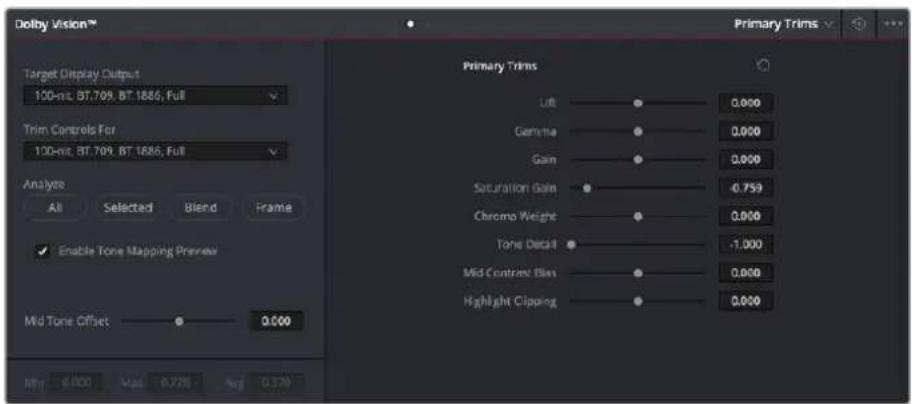
The Primary Trims controls that are found in the Dolby Vision palette are only enabled once you've authorized your system with a special license, available from Dolby.
The fourth set of controls is available via a second palette mode, the Secondary Trims. These are only editable if you've performed an analysis and if you have a license from Dolby.
- Secondary Saturations: A set of slider-based vector-style controls (similar to the Hue vs. Sat curve) lets you adjust the Saturation of Red, Yellow, Green, Cyan, Blue, and Magenta to help you selectively fine tune the results.
- Secondary Hues: Another set of slider-based vector-style controls (similar to the Hue vs. Hue controls) lets you adjust the Hue of Red, Yellow, Green, Cyan, Blue, and Magenta to help you fine tune the results.
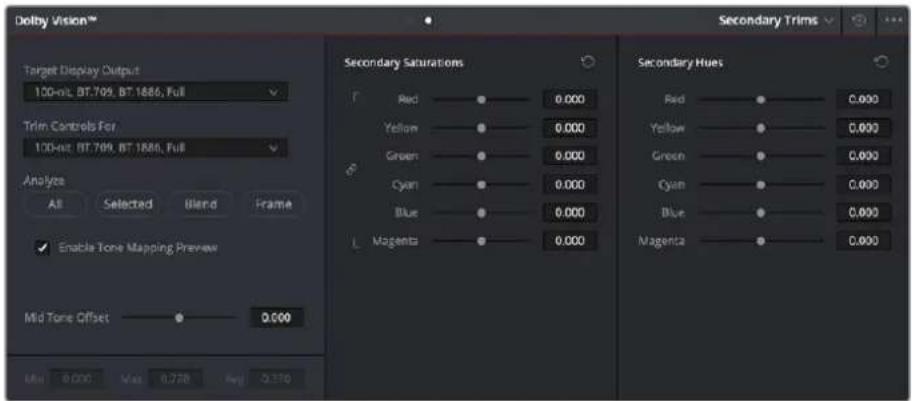
The Secondary Trims controls, as seen on a licensed Dolby Vision system
Together, all of this trimming metadata lets the colorist guide how the iCMU or eCMU transforms the image from the Mastering Display specified in the Project Settings to the Target Display specified in the Dolby Vision palette. This metadata is carried throughout the ecosystem so that your artistic intent is preserved on a variety of platforms and displays.
Previewing and Trimming At Different Levels
Additionally, the iCMU or eCMU can be used to preview 100 nit, 600 nit, 1000 nit, and 2000 nit versions of your program, with different gamuts, if you want to see how your master will scale to those combinations of peak luminance levels and standards. This, of course, requires your DaVinci Resolve workstation or eCMU to be connected to a display that's capable of being set to those peak luminance output levels.
Though it's not at all typical, you also have the option to set the "Trim Controls For" drop-down menu to different combinations of peak luminance, gamut, and color temperature, in order to visually trim the grades of your program at up to four different peak luminance levels, including 100 nit, 600 nit,
1000 nit, and 2000 nit reference points. Choosing a setting from the “Trim Controls For” drop-down menu sets you up to adjust trim metadata for that setting.
Choosing different settings from the “Trim Controls For” drop-down menu lets you can optimize a program’s visuals for the peak luminance and color volume performance of many different televisions with a much finer degree of control. If you take this extra step of doing a complete trim pass of your program at multiple nit levels (using the Dolby Vision controls), the Level 2, or Level 8 metadata you generate in each trim pass ensures that the artistic intent is preserved as closely as possible across a wide variety of displays, in an attempt to provide the viewer with the best possible representation of the director’s intent, no matter where it appears.
For example, if a program were graded relative to a 4000 nit display, along with a single 100 nit BT.709 trim pass, then a Dolby Vision-compatible television with 750 nit peak output will reference the 100 nit trim pass metadata in order to come up with the best way of “splitting the difference” to output the signal correctly. On the other hand, were the colorist to do three trim passes, the first at 100 nits, -cond at 600 nits, and a third at 1000 nits, then a 750 nit-capable Dolby Vision television would be able to use the 600 and 1000 nit trim metadata to output more accurately scaled color volume and HDR-strength highlights, relative to the colorist’s adjustments, that take better advantage of the 750 nit output of that television.
Managing Dolby Vision Metadata
As you go through the process of analyzing and trimming the HDR grades displayed on your Master Display to look appropriate on your Target Display, you'll sometimes find it useful to copy and paste metadata from one clip to another. You can copy and paste Analysis Metadata separately from Trim Metadata and Mid Tone Offset, and you can choose to copy and paste metadata for all Target Displays when you're trimming multiple passes, or you can copy and paste metadata for only the current Target Display if you're trimming multiple passes and you only want to overwrite metadata for a single pass.
Methods of Copying and Pasting Dolby Vision Metadata:
- To copy and paste Analysis Metadata: Select a clip you want to copy from, choose Copy Analysis Metadata from the Dolby Vision palette option menu, then select a clip you want to paste to, and choose Paste Analysis Metadata from the Dolby Vision palette option menu.
-
To copy and paste Trim Metadata for all Target Displays: Do one of the following:
-
Select a clip you want to copy from, choose Edit > Dolby Vision > Copy Trim Metadata, then select a clip you want to paste to, and choose Edit > Dolby Vision > Paste Trim Metadata.
- Select a clip you want to copy from, choose Copy Trim Metadata from the Dolby Vision palette option menu, then select a clip you want to paste to, and choose Paste Trim Metadata from the Dolby Vision palette option menu.
- Select a clip you want to paste to, then press and hold the Option-Shift keys, and middle-click the clip you want to copy from.
- To copy and paste Trim Metadata for the current Target Display: Do one of the following:
- Select a clip you want to copy from, choose Copy Trim Metadata from the Dolby Vision palette option menu, then select a clip you want to paste to, and choose Paste Trim Metadata to Current from the Dolby Vision palette option menu.
- Select a clip you want to paste to, then press and hold the Option key, and middle-click the clip you want to copy from.
- To copy and paste Mid Tone Offset: Select a clip you want to copy from, choose Copy Mid Tone Offset from the Dolby Vision palette option menu, then select a clip you want to paste to, and choose Paste Mid Tone Offset from the Dolby Vision palette option menu.
Setting Up Resolve Color Management for Grading HDR
Once the hardware is set up, setting up Resolve itself to output HDR for Dolby Vision mastering is easy using Resolve Color Management (RCM). This procedure is pretty much the same no matter which HDR mastering technology you're using; only specific Output Color Space settings will differ.
1 Set Color Science to DaVinci YRGB Color Managed in the Color Management panel of the Project Settings.
2 Then, open the Color Management panel, and set the Output Color Space drop-down to the ST.2084 setting that corresponds to the peak luminance, in nits, of the grading display you're using. For example, if you're grading with a Sony BVM X300, choose ST.2084 1000 nit, but if you're grading with a Flanders Scientific XM310K, choose ST.2084 3000 nit, in order to use the full capabilities of each display. Be aware that whichever HDR setting you choose will impose a hard clip at the maximum nit value supported by that setting. This is to prevent accidentally overdriving HDR displays for which there are negative consequences (not all HDR displays have this limitation).
- ST.2084 300 nit
- ST.2084 500 nit
- ST.2084 800 nit
- ST.2084 1000 nit
- ST.2084 2000 nit
- ST.2084 3000 nit
- ST.2084 4000 nit
This setting is only the output EOTF (a sort of gamma transform, if you will, using the terminology that DaVinci Resolve's UI has used up until now).
3 Next, choose a setting in the Timeline Color Space that corresponds to the gamut you want to use for grading, and that will be output. For example, if you want to grade the Timeline as a log-encoded signal and "normalize" it yourself, you can choose ARRI Log C or Cineon Film Log (this workflow is highly recommended for the best results). If you would rather save time by having DaVinci Resolve normalize the Timeline to P3-D65 and grade that way, you can choose that setting as well. In terms of defining the output gamut, the rule is that if "Use Separate Color Space and Gamma" is turned off, the Timeline Color Space setting will define your output gamut. If "Use Separate Color Space and Gamma" is turned on, then you can specify whatever gamut you want in the left Output Color Space drop-down menu, and choose the EOTF from the right drop-down menu (as described in step 2).
4 Be aware that, when it's being properly output, HDR ST.2084 signals appear very "log-like," in order to pack a wide dynamic range into the bandwidth of a standard video signal. It's the HDR display itself that "normalizes" this log-encoded image to look as it should. For this reason, the image you see in your Color page Viewer is going to appear flat and log-like, even though the image being displayed on your HDR reference display looks vivid and correct. If you're using a typical SDR computer display, and you want to make the image in the Color Page Viewer look "normalized" at the expense of clipping the HDR highlights (in the Viewer, not in the grade), you can use the 3D Color Viewer Lookup Table setting in the Color Management panel of the Project Settings to assign the appropriate ST.2084 setting with a peak nit level that corresponds to the HDR broadcast display you're outputting to.
5 Additionally, the "Timeline resolution" and "Pixel aspect ratio" (in the project settings) that your project is set to use is saved to the Dolby Vision metadata, so make sure your project is set to the final Timeline resolution and PAR before you begin grading.
DaVinci Resolve Grading Workflow For Dolby Vision
Once the hardware and software is all set up, you're ready to begin grading HDR. The workflow is fairly straightforward.
1 First, grade the HDR image on your HDR Monitor to look as you want it to. Dolby recommends starting by setting the look of the HDR image, to set the overall intention for the grade.
2 When using various grading controls in the Color page to grade HDR images, you may find it useful to enable the HDR Mode of the node you're working on by right-clicking that node in the Node Editor and choosing HDR Mode from the contextual menu. This setting adapts that node's controls to work within an expanded HDR range. Practically speaking, this makes controls that operate by letting you make adjustments at different tonal ranges, such as Custom Curves, Soft Clip, and so on, work more easily with wide-latitude signals.
3 When you're happy with the HDR grade, click the Analysis button in the Dolby Vision palette. This analyzes every pixel of every frame of the current shot, and performs and stores a statistical analysis that is sent to the iCMU or eCMU to guide its automatic conversion of the HDR signal to an SDR signal.
4 Choose "Target Display Output" and "Trim Controls For" settings that you want to trim to. By default, these are set to "100-nit, BT.709, BT.1886, Full," which is a typical SDR deliverable. However, other options are available if you want to do multiple trim passes to obtain a more accurate result. Whichever setting you choose from, "Trim Controls For" dictates which trim pass you're doing. You can do multiple trim passes by choosing another option from this menu.
5 If you're not happy with the automatic conversion, use the trim controls in the Dolby Vision palette to manually trim the result to the best possible BT.709 approximation of the HDR grade you created in step 1.
6 If you obtain a good result, then move on to the next shot and continue work. If you cannot obtain a good result, and worry that you may have gone too far with your HDR grade to derive an acceptable SDR tone mapping, you can always trim the HDR grade a bit, and then retrim the SDR grade to try and achieve a better tone mapping. Dolby recommends that if you make significant changes to the HDR master, particularly if you modify the blacks or the peak highlights, you should reanalyze the scene. However, if you only make small changes, then reanalyzing is not strictly required.
As you can see, the general idea promoted by Dolby is that a colorist will focus on grading the HDR picture relative to the 1000, 2000, 4000, or higher nit display that is being used, and will then rely on the colorist to use the Dolby Vision controls to "trim" this into a 100 nit SDR version. This metadata is saved as part of the mastered media, and it's used to more intelligently tone map the entire image to fit within any given display's parameters. The colorist's artistic intent is used to guide all dynamic adjustments to the content.
Delivering Dolby Vision
Once you're finished grading the HDR and trimming the SDR tone mapping, you need to output your program correctly in the Deliver page.
Rendering a Dolby Vision Master
To deliver a Dolby Vision master after you've finished grading, you want to make sure that the Output Color Space of the Color Management panel of the Project Settings is set to the appropriate HDR ST.2084 setting based on the peak output you want to deliver (any values above will be clipped). Then, you want to set your render up to use one of the following Format/Codec combinations:
- TIFF, RGB 16-bit
- EXR, RBG-half (no compression)
When you render for tapeless delivery, all Dolby Vision metadata is recorded into a Dolby Vision XML and delivered along side either the Tiffs or EXR renders. To export a Dolby Vision XML file, select your timeline in the media pool and choose File > Export >Timeline. Navigate to where you want to save the file and select Dolby Vision v2.9 (or v4.0) MXF files from the file type selector and click save. These two sets of files are then delivered to a facility that's capable of creating the Dolby Vision deliverable file.
Rendering a Dolby Vision IMF
You can deliver directly to an IMF that includes an MXF with embedded Dolby Vision metadata in the package. To export a Dolby Vision IMF use the following Video settings in the Deliver page:
- Format: IMF
- Codec: Kakadu JPEG 2000
– Type: Dolby Vision (HD, 2K, UHD, or 4K) depending on your deliverable resolution.
Configure the rest of the IMF settings as necessary for your project.
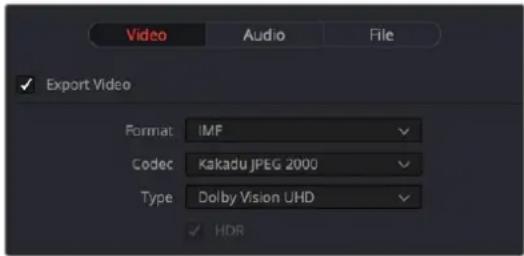
The Video Settings to use for creating a Dolby Vision IMF in the Deliver page
Rendering an Ordinary SDR Media File or Other Specific HDR Trim Pass
If you want to export the SDR trim pass, then you can choose Dolby Vision from the Tone Mapping drop-down menu in the Advanced Settings of the Render Settings list on the Deliver page, and choose the 100-nit, BT.709, BT.1886, Full setting below. With this enabled, you can output the SDR version of your program to any format you like.
You can also export the trims for other HDR nit levels for specific displays, at 600, 1000 or 2000 nits and in the either the BT.2020 or P3 gamuts.

The Tone Mapping setting in the Advanced Settings of the Render Settings list
SMPTE ST.2084 and HDR10
Many display manufacturers who have no interest in licensing Dolby Vision for inclusion in their displays are instead going with the simpler method of engineering their displays to be compatible with SMPTE ST.2084. It requires only a single stream for distribution, there are no licensing fees, no special hardware is required to master for it (other than an HDR mastering display), and there's no special metadata to write or deal with.
Interestingly, SMPTE ST.2084 ratifies the "PQ" EOTF that was originally developed by Dolby, and which is used by Dolby Vision, into a general standard that accommodates encoding HDR at peak luminance values up to 10,000 cd/m ^2 . This standard requires at minimum a 10-bit signal for distribution, and the EOTF is mathematically described such that the video signal utilizes the available code values of a 10-bit signal as efficiently as possible, while allowing for such a wide range of luminance in the image.
SMPTE ST.2084 is also part of the "Ultra HD Premium" industry specification, which stipulates that televisions bearing the Ultra HD Premium logo have the following capabilities:
- A minimum UHD resolution of 3840 x 2160
– A minimum gamut of 90% of P3
– A minimum dynamic range of either 0.05 nits black to 1000 nits peak luminance (to accommodate LCD displays), or 0.0005 nits black to 540 nits peak luminance (to accommodate OLED displays) - Compatibility with SMPTE ST.2084
Finally, ST.2084 has been included in the HDR 10 standard adopted by the Blu-ray Disc Association (BDA) that covers Ultra HD Blu-ray. HDR 10 stipulates that Ultra HD Blu-ray discs have the following characteristics:
- UHD resolution of 3840 x 2160
- Up to the Rec. 2020 gamut
- SMPTE ST.2084
– Mastered with a peak luminance of 1000 nits
The downside is that, by itself, an HDR10 mastered program is not backward compatible with BT.709 displays using BT.1886 (although the emerging HDR10+ standard described later addresses this). Furthermore, no provision is made to scale the above-100 nit portion of the image to accommodate different displays with differing peak luminance levels. For example, if you grade and master an image to have peak luminance of 4000 nits, and you play that signal on an HDR10-compatible television (using ST.2084) that's only capable of 800 nits, then everything above 800 nits will be clipped, while everything below 800 nits will look exactly as it should relative to your grade.
This is because ST.2084 is referenced to absolute luminance. If you grade an HDR image referencing a 1000 nit peak luminance display, as is recommended by HDR10, then any display using ST.2084 will respect and reproduce all levels from the HDR signal that it's capable of reproducing as you graded them, up to the maximum peak luminance level it can reproduce. For example, on an HDR10-compatible television capable of outputting 500 nits, all mastered levels from 501–1000 will be clipped, as seen in the screenshot below.
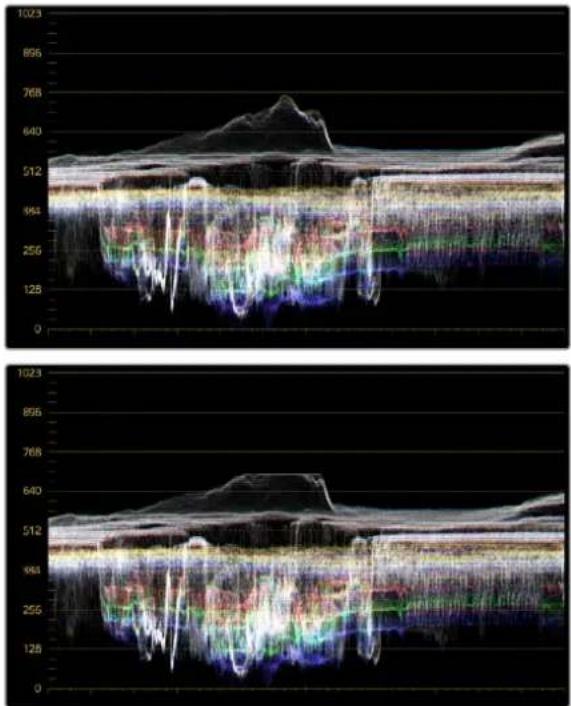
line
| Time | Value | |------|-------| | 0 | 0 | | 512 | 512 | | 944 | 944 | | 128 | 128 | | 160 | 160 | | 192 | 192 | | 224 | 224 | | 256 | 256 | | 288 | 288 | | 320 | 320 | | 352 | 352 | | 384 | 384 | | 416 | 416 | | 448 | 448 | | 480 | 480 | | 512 | 512 | | 544 | 544 | | 576 | 576 | | 608 | 608 | | 640 | 640 | | 672 | 672 | | 704 | 704 | | 736 | 736 | | 768 | 768 | | 800 | 800 | | 832 | 832 | | 864 | 864 | | 896 | 896 | | 928 | 928 | | 960 | 960 | | 992 | 992 | | 1023 | 1023 |Comparing the original 1000 nit waveform representing the grading monitor to a 500 nit clipped waveform representing the consumer television
How much of a problem this is really depends on how you choose to grade your HDR-strength highlights. If you're only raising the most extreme peak highlights to maximum HDR-strength levels, then it's entirely possible that the audience might not notice that the display is only outputting 800 nits worth of signal and clipping any image details from 801–1000 nits because there weren't that many details above 800 anyway. Or, if you're grading large explosive fireballs up above 800 nits in their entirety because it looks cool, then maybe the audience will notice. The bottom line is, when you're grading for displays that are only capable of ST.2084, you need to think about these sorts of things.
Monitoring and Grading to ST.2084 in DaVinci Resolve
Monitoring an ST.2084 image is as simple as obtaining a ST.2084-compatible HDR display and connecting it to the output of your DeckLink 8K, DeckLink 4K Extreme 12G, or UltraStudio 4K Extreme.
Setting up Resolve Color Management to grade for ST.2084 is identical to setting up to grade for Dolby Vision. You'll also monitor the video scopes identically, and output a master identically, given that both standards rely upon the same PQ curve.
TIP: If you're monitoring with the built-in video scopes in DaVlnci Resolve, you can turn on the "Enable HDR Scopes for ST.2084" checkbox in the Color panel of the User Preferences, which will replace the 10-bit scale of the video scopes with a scale based on nit values (cd / m^2) instead.
Connecting to HDR-Capable Displays using HDMI 2.0a
If you have a DeckLink 4K Extreme 12G or an UltraStudio 4K Extreme video interface, then DaVinci Resolve 12.5 and above can output the metadata necessary to correctly display HDR video signals to display devices using HDMI 2.0a when you turn on the "Enable HDR metadata over HDMI" checkbox in the Master Settings panel of the Project Settings.

Enable HDR metadata over HDMI
The Enable HDR metadata over HDMI option in the Master Settings panel of the Project Settings lets you output HDR via HDMI 2.0a
When you do so, a setting in the Color Management panel of the Project Settings, "HDR mastering is for X" lets you specify the output, in nits, to be inserted as metadata into the HDMI stream being output, so that the display you're connecting to correctly interprets it. The output you specify should match what your display is expecting.

HDR mastering is for
1000
nits
The "HDR mastering is for" setting lets you insert metadata for HDR output via HDMI 2.0a
HDR10+™
DaVinci Resolve supports the new HDR10+ HDR format by Samsung. Please note that this support is a work in progress as this is a new standard. When enabled, an HDR10+ palette shows the results of the trimming analysis that make an automated downconversion of HDR to SDR, creating metadata to control how HDR-strength highlights look on a variety of supported televisions and displays. This is enabled and set up in the Color Management panel of the Project Settings with the Enable HDR10+ checkbox. Turning HDR10+ on enables the HDR 10+ palette in the Color page.

HDR 10+ settings in the Color Management panel of the Project Settings
Monitoring and Grading to ST.2084 for HDR10+
When you're grading a program for HDR10+ output, you'll need to monitor an ST.2084 image, which is as simple as obtaining a ST.2084-compatible HDR display and connecting it to the output of your DeckLink 8K, DeckLink 4K Extreme 12G, or UltraStudio 4K Extreme.
Setting up Resolve Color Management to grade for ST.2084 is identical to setting up to grade for Dolby Vision or regular HDR10. You'll also monitor the video scopes identically, and output a master identically, given that each of these standards rely upon the same PQ curve.
TIP: If you're monitoring with the built-in video scopes in DaVinci Resolve, you can turn on the "Enable HDR Scopes for ST.2084" checkbox in the Color panel of the User Preferences, which will replace the 10-bit scale of the video scopes with a scale based on nit values (cd / m^2) instead.
HDR10+ Grading Workflow
The idea behind the HDR10+ workflow is that you'll grade the HDR version of each clip in your program first, and then use the automatic analysis to create a downconverted tone mapped version of each shot that's controlled by metadata. Once the HDR10+ trim pass is complete, you'll deliver the rendered HDR output along with a set of HDR10+ JSON metadata files to a facility for final mastering.
Simultaneous Master and Target Display Output for HDR10+
When mastering HDR and trimming versions for more limited displays, it's extremely useful to be able to evaluate your HDR grade and tone mapped trim pass side by side. Starting in DaVinci Resolve 15, it's possible to output both the Master Display output and the Target Display output simultaneously when you're grading with either Dolby Vision or HDR10+ enabled.
Necessary Hardware
To work in this manner, you must have the following equipment:
- Your DaVinci Resolve grading workstation must output via a DeckLink 8K, DeckLink 4K Extreme 12G, UltraStudio 4K Extreme video interface, or better.
- Your Mastering Display must be capable of HDR nit levels suitable for the deliverable you're required to produce.
- An HDR target display that can be set to the appropriate tone mapped output.
Enabling Simultaneous Monitoring
When you set up your display hardware, the HDR Master Display must be connected to output A, and the Target Display must be connected to output B of whichever BMD video output device you're using. Then, you need to turn on the "Use dual outputs on SDI" checkbox in the Master Settings of the Project Settings. At this point, assuming all of your connections are compatible with one another, you should see an HDR image output to your HDR display and a trimmed image output to your SDR display.
HDR10+ Auto Analysis Commands
After you've graded an HDR version of each clip in your program, a set of HDR10+ specific commands let you auto-analyze each clip to create custom HDR to SDR downconversion metadata that give you a starting point for the SDR trim pass you need to do. These commands are available in the Color > HDR10+ submenu:
- Analyze All Shots: Automatically analyzes each clip in the Timeline and stores the results individually.
– Analyze Selected Shot(s): Only analyzes selected shots in the Timeline. - Analyze Selected and Blend: Analyzed multiple selected shots and averages the result, which is saved to each clip. Useful to save time when analyzing multiple clips that have identical content.
- Analyze Current Frame: A fast way to analyze clips where a single frame is representative of the entire shot.
The Enable Tone Mapping Preview checkbox lets you turn the tone mapping trim being applied off and on, so you can evaluate how the downconverted SDR version looks on your HDR display. This control is disabled when you enable "Use dual-outputs on SDI" in the Master Settings of the Project Settings, since the second output SDI now automatically displays the target display output.
Delivering HDR10+
Once you're finished grading the HDR and trimming the SDR downconversion, you need to output your program correctly in the Deliver page.
Rendering an HDR10+ Master
To deliver an HDR10+ master after you've finished grading, you want to make sure that the Output Color Space of the Color Management panel of the Project Settings is set to the appropriate HDR ST.2084 setting based on the peak output you want to deliver (any values above will be clipped). Then, you want to set your render up to use the highest quality Format/Codec combination that can be delivered to whomever is doing the final mastering.
The HDR10+ analysis and manual trim metadata you generated while trimming is saved per clip, in a series of JSON sidecar files, which should then be exported by right-clicking that timeline in the Media Pool, and choosing Timelines > Export > HDR10+JSON.
These two sets of files are then delivered to a facility that's capable of creating an HDR10+ Mezzanine File (this cannot be done in DaVinci Resolve).
NOTE: The HDR10+ mastering workflow is still a work in progress. More information will be provided as it becomes available.
Hybrid Log-Gamma (HLG)
The BBC and NHK jointly developed another method of encoding HDR video, referred to as Hybrid Log-Gamma (HLG). The goal of HLG was to develop a method of mastering HDR video that would support a range of displays of different peak luminance capabilities without additional metadata, that could be broadcast via a single stream of data, that would fit into a 10-bit signal, and that in the words of the ITU-R Draft Recommendation BT.HDR, “offers a degree of compatibility with legacy displays by more closely matching the previous established television transfer curves.”
The basic idea is that the HLG EOTF functions very similarly to BT.1886 from 0 to 0.6 of the signal (with a typical 0–1 range), while 0.6 to 1.0 smoothly segues into logarithmic encoding for the highlights.
This means that, if you just send an HDR Hybrid Log-Gamma signal to an SDR display, you'd be able to see much of the image identically to the way it would appear on an HDR display, and the highlights would be compressed to present an acceptable amount of detail for SDR broadcast.
On a Hybrid Log-Gamma compatible HDR display, however, the log-like highlights of the image (not the BT.1886-like bottom portion of the signal, just the highlights) would be stretched back out, relative to whatever peak luminance level a given HDR television is capable of outputting, to return the image to its true HDR glory. This is different from the HDR10 method of distribution described previously, in which the graded signal is referenced to absolute luminance levels dictated by ST.2084, and levels that cannot be represented by a given display will be clipped.
And while this facility to support multiple HDR displays with differing peak luminance levels is somewhat analogous to Dolby Vision's ability to tailor HDR output to the unique peak luminance levels of any given Dolby Vision-compatible television, HLG requires no additional metadata to guide how the highlights are scaled, which depending on your point of view is either a benefit (less work), or a deficiency (no artistic guidance to make sure the highlights are being scaled in the best possible way).
As is true for most things, you don't get something for nothing. The BBC White Paper WHP 309 states that, for a 2000cd / m^2 HDR display with a black level of 0.01cd / m^2 , up to 17.6 stops of dynamic range without visible quantization artifacts ("banding") is possible. BBC White Paper WHP 286 states that the proposed HLG EOTF should support displays up to about 5000 nits. So, partially, the backward compatibility that HLG makes possible is due in part to discarding long-term support for 10,000 nit displays. However, it's an open question whether or not over 5000 nits is even necessary for consumer enjoyment.
Sony, LG, Panasonic, JVC, Phillips, Hisense, Hitachi, and Toshiba have all either announced or are shipping consumer HDR televisions capable of displaying HLG encoded video, and of course DaVinci Resolve supports this standard through Resolve Color Management.
Grading Hybrid Log-Gamma in DaVinci Resolve
Monitoring an ST.2084 image is as simple as getting a Hybrid Log-Gamma-compatible HDR display, and connecting the output of your video interface to the input of the display.
Setting up Resolve Color Management to grade for HLG is identical to setting up to grade for Dolby Vision, except that there are four HLG settings to choose from for the Output Color Space:
– Rec.709 HLG ARIB STD-B67
– Rec.2020 HLG ARIB STD-B67
- Rec.2100 HLG
- Rec.2100 HLG (Scene)
Optionally, if you choose to enable “Use Separate Color Space and Gamma,” you can choose either Rec. 2020 or Rec. 709 as your gamut, and Rec. 2100 HLG as your EOTF.
The levels you'll be monitoring in your scopes will be different from the table of data to nit values listed previously for grading to the PQ EOTF.
Ouputting Hybrid Log-Gamma
Once you've created an HLG grade for your program, you can output it to any high-quality 10-bit capable media format.
Chapter 11
Image Sizing and Resolution Independence
DaVinci Resolve is a resolution-independent application. This means that, whatever the resolution of your source media, it can be output at whatever other resolution you like, and just about every size-dependent effect in your project, text, windows of grades, edit and input clip scaling, and other effects will scale appropriately to match the new output resolution.
This also means that you can freely mix clips of any resolution, fitting 4K, HD, and SD clips into the same timeline, with each scaling to fit the project resolution as necessary.
Your project's resolution can be changed at any time, allowing you to work at one resolution, and then output at another resolution. This also makes it easy to output multiple versions of a program at different resolutions, for example, outputting 4K, HD, and SD sized versions of the same timeline.
Additionally, most controls that let you transform clips, either to push into a clip for creative intent, or to pan and scan media of one format to fit better into a different output format, are smart enough to always refer back to the source resolution when combining resizing operations to shrink, then enlarge an image for various reasons as you work in the Cut, Edit, Fusion, and Color pages.
This chapter covers the relationship among the different sizing and transform controls found in DaVinci Resolve, showing how they work together to intelligently manage the sizing of clips and effects as you work.
Contents
About Resolution Independence 238
Timeline Resolution 239
Mixing Clip Resolutions 239
Changing the Timeline Resolution 239
You Can Use Separate Timelines to Output Different Resolutions 239
You Don't Need Separate Timelines to Output Different Resolutions 239
Using High Resolution Media in Lower Resolution Projects 240
Clip Source Resolution 240
Pixel Aspect Ratio (PAR) 240
Clip Resolution 241
The DaVinci Resolve Sizing Pipeline 241
"Super Scale" High Quality Upscaling (Studio Version Only) 241
Fusion Effects and Resolution 242
Image Scaling 244
Edit Sizing in the Cut and Edit pages 247
Image Stabilization 248
Input Sizing on the Color Page 248
Node Sizing on the Color Page 249
Output Sizing on the Color Page 249
Output Blanking 249
Format Resolution on the Delivery Page 249
Rendering Sizing Adjustments and Blanking 250
About Resolution Independence
If you only read one paragraph of this chapter, read this: Resolution Independence in DaVinci Resolve means you can add clips to a timeline in any combination of resolutions to fit the project resolution you've chosen to work at, and you can later output that timeline to as many other resolutions as necessary in order to create multiple deliverables. When you do so, all effects and transforms will automatically readjust themselves to match the sizing of each new timeline resolution, and most transforms are calculated and processed using the full native resolution of the source media you've linked to that clip.
In short, what this means is that you can create multiple deliverables in multiple resolutions by simply changing the timeline resolution or by using a lower resolution setting in the Deliver page compared to the timeline resolution when you create a new job to render out, and every effect will be the right size automatically.
Timeline Resolution
The timeline resolution is one of the most fundamental settings of your project, defining its frame size. It's found in the Master Settings panel of the Project Settings, where you can choose a predefined resolution from the "Timeline resolution" drop-down menu, or you can type a custom resolution into the X and Y fields below.
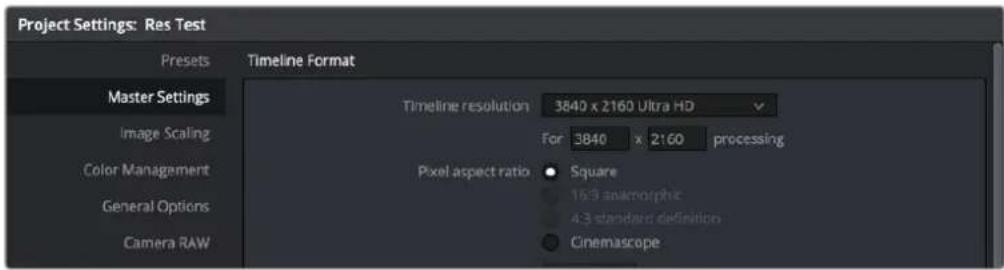
The project-wide Timeline Resolution parameters found in the Master Settings panel of the Project Settings window
Mixing Clip Resolutions
Media used in a project does not have to match the timeline resolution. In fact, it's extremely common to mix multiple resolutions within the same timeline. Clips that don't match the current resolution will be automatically resized according to the currently selected Image Scaling setting (described below).
Changing the Timeline Resolution
As mentioned earlier, you can change the timeline resolution whenever you like. When you do so, each Edit page transform, Fusion clip effects output, Color page Power Window, Input and Output Sizing adjustment, tracking path, spatial keyframing value, as well as any other other resolution-dependent Resolve FX effect or transform operation in DaVinci Resolve is automatically and accurately scaled to fit the new resolution.
You Can Use Separate Timelines to Output Different Resolutions
Beginning in DaVinci Resolve 16, you have the option of creating separate timelines with individual Format (including Input Scaling), Monitoring, and Output Sizing settings for situations where you need to set up multiple timelines to create multiple deliverables with different resolutions, pixel aspect ratios, frame rates, monitoring options, or output scaling options than the overall project, including "Mismatched Resolution Files" settings. For more information, see Chapter 34, "Creating and Working with Timelines."
You Don't Need Separate Timelines to Output Different Resolutions
Because of the way DaVinci Resolve works, it's not necessary to create separate timelines when all you need is to output the same timeline at multiple resolutions. Instead, you can focus on mastering a single timeline, which you can output to as many other resolutions as you need.
For example, with only a single timeline in a project set to 4096x2160 (4K DCI) resolution, you can easily output UHD, HD, center-cut SD, and center-cut Instagram sized deliverables in any format you need by simply changing the Resolution drop-down setting in the Deliver page Render Settings before you create a job to render. DaVinci Resolve takes care of the rest.
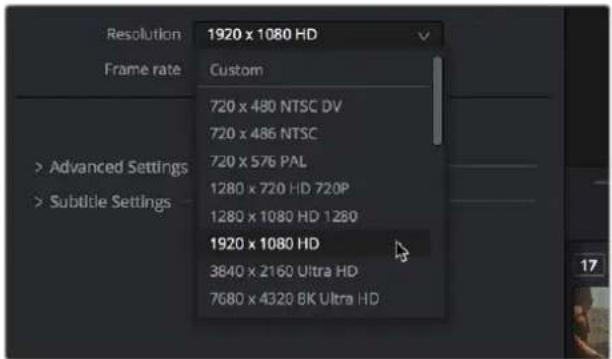
The Deliver page drop-down menu in the Render Settings panel lets you choose what resolution you want to output the current timeline using
Using High Resolution Media in Lower Resolution Projects
Every set of transform and sizing parameters and settings that resize clips is combined intelligently, so that the full resolution of a clip's source media is always used as the source for any transform. For example, if you're using 8K media within a 1920x1080 project, and you need to enlarge a clip using the Input Sizing palette's Zoom parameter to 200% , the image is scaled relative to the native 8K resolution of the source, and the result is fit into the current timeline resolution. This automatically guarantees the highest quality for any image transform you make so long as you don't zoom in past the native resolution of any given clip.
This also applies to situations where, for example, you shrink a clip in the Edit page using the Edit Sizing controls, only to re-enlarge the same clip in the Color page, using the Input Sizing controls. In this situation, DaVinci Resolve is smart enough to do the math combining the project resolution, the Edit Sizing, and the Input Sizing controls so that a single transform is applied to the native source resolution of that clip, giving you the best quality result.
NOTE: This changes when you apply Fusion effects to any clip, as described later in this chapter.
Clip Source Resolution
Clip resolution in DaVinci Resolve is handled by the combination of Pixel Aspect Ratio and Resolution.
Pixel Aspect Ratio (PAR)
The Timeline Format settings, found in the Master Settings of the Project Settings, let you specify a Pixel Aspect Ratio for the project, in addition to the frame size. This setting defaults to Square Pixel, which is appropriate for high definition projects and most digital media. However, there are also options for 16:9 anamorphic, 4:3 standard definition, or Cinemascope. Which options are available depends on what timeline resolution you've selected.
In addition, each clip has individually adjustable PAR settings in the clip attributes, for situations where you're mixing multiple types of media within a single project. For example, if you're mixing SD clips with non-square pixels and HD clips with square pixels, you can sort out all of the SD clips in the Media Pool and assign them the appropriate NTSC or PAL non-square pixel ratio PAR setting. For more information, see Chapter 22, "Modifying Clips and Clip Attributes."
Clip Resolution
Ordinarily, the resolution of a clip is entirely dependent on the resolution that was selected when that media was shot, or rendered out of a compositing, VFX, or 3D application. Once a piece of media has been created, the native resolution of that media cannot be changed, and to maintain the ideal amount of sharpness for that clip, you need to make sure that whatever transforms you apply to resize a clip zoom into that clip no more than 10-20% over its native resolution (if even that), otherwise the image will visibly soften.
However, DaVinci Resolve provides advanced Super Scale image processing in the Clip Attributes of every video and image clip, that make it possible to resize clips beyond their native resolution while maintaining the perceptible sharpness of a clip that's still within it's native resolution. This is an illusion, but it's a convincing one.
The DaVinci Resolve Sizing Pipeline
This section discusses the various sizing controls that are available in DaVinci Resolve, and how they work together.
"Super Scale" High Quality Upscaling (Studio Version Only)
For instances when you need higher-quality upscaling than the standard Resize Filters allow, you can now enable one of three “Super Scale” options in the Video panel of the Clip Attributes window for one or more selected clips. Unlike using one of the numerous scaling options in the Edit, Fusion, or Color pages, Super Scale actually increases the source resolution of the clip being processed, which means that clip will have more pixels than it did before and will be more processor-intensive to work with than before, unless you optimize the clip (which bakes in the Super Scale effect into the optimized media) or cache the clip in some way.
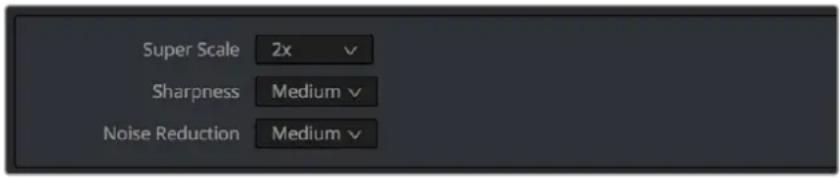
Super Scale options in the Video panel of the Clip Attributes
The Super Scale drop-down menu provides three options of 2x, 3x, and 4x, as well as Sharpness and Noise Reduction options to tune the quality of the scaled result. Note that all of the Super Scale parameters are in fixed increments; you cannot apply Super Scale in variable amounts. Selecting one of these options enables DaVinci Resolve to use advanced algorithms to improve the appearance of image detail when enlarging clips by a significant amount, such as when editing SD archival media into a UHD timeline, or when you find it necessary to enlarge a clip past its native resolution in order to create a closeup.
You may find that, depending on the source media you're working with, setting Sharpness to Medium yields a relatively subtle result that can be hard to notice, but setting Sharpness to high should be immediately more preferable, while also sharpening grain and noise in the image to an undesirable extent at the default settings. However, while raising Noise Reduction will ameliorate this effect, it will also diminish the gains you obtained by raising Sharpness. In these cases, it's worth experimenting with keeping Sharpness at Low or Medium so that Super Scale sharpens all aspects of a clip, but then using the Noise Reduction tools of the Color page (with their additional ability to be fine-tuned) to diminish the unwanted noise.
TIP: Super Scale, while incredibly useful, is a processor-intensive operation, so be aware that turning this on will likely prevent real-time playback. One way to get around this is to create Optimized Media for clips in which you've enabled Super Scale, since Optimized Media "bakes in" the Super Scale effect. Another way to work is to create a string-out of all of the source media you'll need to enlarge at high-quality, turn on Super Scale for all of them, and then render that timeline as individual clips, while turning on the "Render at source resolution" and "Filename uses > Source Name" options.
Fusion Effects and Resolution
All image processing by the Fusion page takes place before effects that are applied by the Edit page, with the sole exception of the Lens Correction effect. When it comes to sizing and image resolution, whether or not the Fusion page affects resolution depends on how you use it.
Fusion Effects Inherit the Source Resolution of a Clip
When you open a clip on the Timeline in the Fusion page, the Fusion page is set to the full source resolution of that clip, regardless of the Timeline resolution. This can be seen if you look at the resolution that's listed above the upper right-hand corner of the Viewer. This means that if you don't apply any operations that reduces the image resolution (described later), subsequent sizing adjustments in other pages will refer to the same resolution as the source clip.
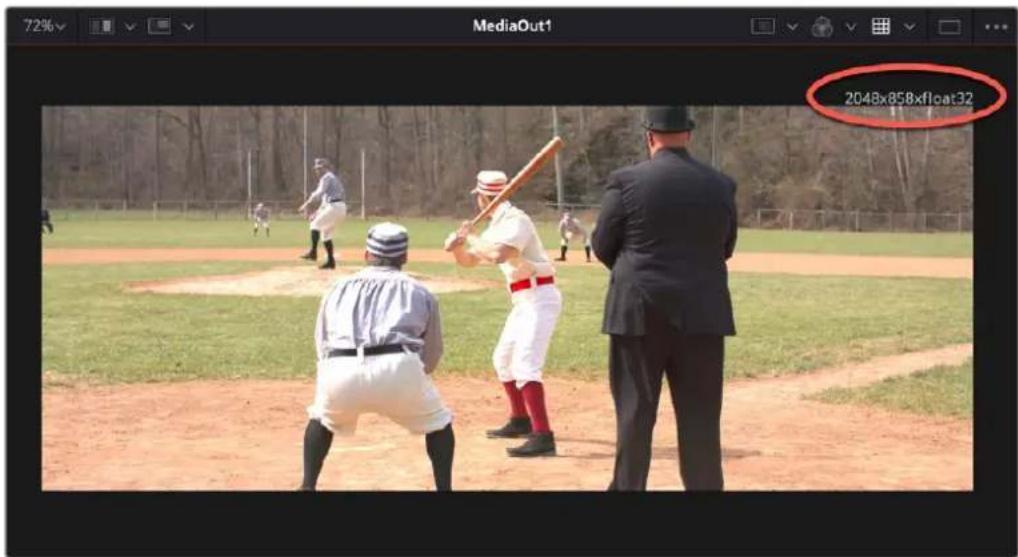
The available resolution and bit depth of the currently selected clip is visible above the upper right-hand corner of the Viewer, circled in red
Fusion Clips Inherit the Timeline Resolution
If you combine multiple clips on the Timeline into a Fusion clip, the Fusion page is set to the timeline resolution, regardless of the source resolution of the clip. The image is then output to the Edit page at this timeline resolution, and all subsequent sizing adjustments are performed relative to the timeline resolution, with no reference to the original resolution in the source clip.
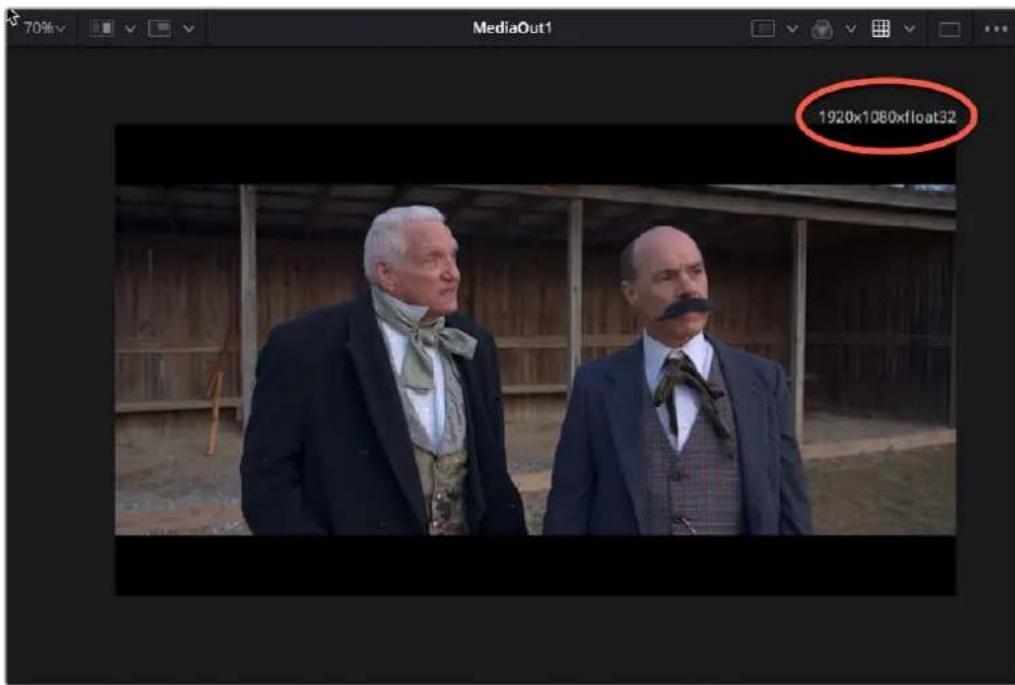
The available resolution and bit depth of a clip that's been turned into a Fusion Clip, that's set to the timeline resolution of 1920x1080
Operations in the Fusion Page That Change Resolution
If you don't do anything to change the size of a clip in the Fusion page, then its resolution stays the same and you'll effectively output the source resolution of that clip to the Edit page.
However, if you Merge the image with a second clip attached to the background which has a different resolution, or if you use a Crop or Resize node to increase or decrease the resolution of the image, then the new resolution will be passed to the Cut and Edit pages as the effective source resolution of that clip.
In short, the Fusion page passes whatever resolution is output by the last node of your composition back to the Edit page as the effective resolution of that clip in the DaVinci Resolve image processing pipeline.
Fusion Page Transform Operations Are Resolution Independent
Within the Fusion page, multiple Transform nodes operate in a resolution independent manner relative to the resolution of the source clip. This means that if you shrink an image to 20% with one Transform node, and then enlarge it back up to 100% using a second Transform node, you end up with an image that has all the resolution and sharpness of the input image.
Fusion Page Resize Operations Are Not
Within Fusion there are two kinds of transform effects, the Transform node and the Resize node. Which of these nodes you use has a dramatic impact on resolution independence.
- The Transform node always refers back to the input resolution of the clip (as defined by the Clip Attributes) to enable resolution-independent sizing, such that multiple Transform nodes can scale the image down and up repeatedly within the Fusion page with no unnecessary loss of image resolution.
- The Resize node actually decreases image resolution when you shrink an image or increases image resolution (with filtering) when enlarging. This means that the Resize node will break resolution independence, and the resolution of the image will be fixed at whatever you specify from that point in your composite's node tree forward.
In most situations, you probably want to use the Transform node to maintain resolution independence relative to the source media, unless you specifically want to alter and perhaps reduce image resolution to create a specific special effect which purposefully degrades the image. For example, if you want a clip to be forced to a standard definition resolution in order to make it look like a low-resolution archival clip, the Resize node will accomplish this. Enlarging the result with a Transform node will then perform a filtered enlargement that will look like a real SD clip being enlarged.
Transforms from the Fusion Page to the Edit Page
All transform operations you apply on the Cut, Edit, and Color pages are resolution independent, referring to the original resolution of the source media, so long as you don't use the Fusion page. For example, if you shrink an image to 20% in the Edit page (using Edit sizing controls) and then enlarge it in the Color page back to 100% (using Input sizing controls), you end up with an image that has all the resolution and sharpness of the original media, because the final resolution is drawn from the original source media.
However, once you use the Fusion page to do anything to a clip, from adding a small effect to creating a complex composition, the resolution-independent relationship of the Edit and Color pages to the source media is broken, and whatever resolution is output from your Fusion composition is the new effective resolution of the clip that appears in the Timeline. This means if you shrink an image to 20% in the Fusion page (using a Transform node) and then enlarge it in the Color page by 150%, you end up with an image that isn't as sharp as the original because the downconverted image in the Fusion page is effectively the new source resolution of that clip.
Image Scaling
DaVinci Resolve has a dedicated mechanism for automatically managing the size of clips with resolutions that don't match the timeline resolution, and it's separate from the Zoom transform controls that are available for making creative adjustments to clips. This is called Image Scaling, and it's customizable in a few different areas.
Resize Filter Project Setting
The Resize Filter setting lets you choose the filter method that's used to interpolate image pixels when resizing clips:
- Smoother: May provide a more pleasing result for projects using clips that must be scaled down to standard definition as this filter exhibits fewer sharp edges at SD resolutions.
- Bicubic: While the sharper and smoother options are slightly higher quality, bicubic is still an exceptionally good resizing filter and is less processor-intensive than either of those options.
- Blinear: A lower quality setting that is less processor-intensive. Useful for previewing your work on a low-performance computer before rendering when you can switch to one of the higher quality options.
- Sharper: Usually provides the best quality for most projects, using an optical quality processing technique that's unique to DaVinci Resolve.
- Custom: This setting lets you take control of the exact algorithm used in all resizing operations. The custom Resize Filter options available are: Bessel, Box, Catmul-Rom, Cubic, Gaussian, Lanczos, Mitchell, Nearest Neighbor, Quadratic, and Sinc. In practice, the difference between these methods can be quite subjective. However, if you need to match a specific resizing method used from another application, you can do it here. For everyday use, the normal resizing filters in DaVinci Resolve should be sufficient.
- Override Input scaling: Checking this box lets you choose an Input Sizing preset to apply to the project.
- Override Output scaling: Checking this box lets you choose an Output Sizing preset to apply to the project.
- Anti-alias edges: A second group of settings lets you choose how to handle edge anti-aliasing for source blanking.
- Auto: Adds anti-aliasing when any of the Sizing controls are used to transform the image. Otherwise, anti-aliasing is disabled.
- On: Forces anti-aliasing on at all times.
- Off: Disables anti-aliasing. It might be necessary to turn anti-aliasing off if you notice black blurring at the edges of blanking being applied to an image.
- Deinterlace quality: (only available in Studio version) A fourth group of settings lets you choose the quality/processing time tradeoff when deinterlacing Media Pool clips using the Enable Deinterlacing checkbox in the Clip Attributes window. There are two settings:
- Normal: A high-quality deinterlacing method that is suitable for most clips. For many clips, Normal is indistinguishable from High. Normal is always used automatically during playback in DaVinci Resolve.
- High: A more processor-intensive method that can sometimes yield better results, depending on the footage, at the expense of slower rendering times.
- DaVinci Neural Engine: This option uses the advanced machine learning algorithms of the DaVinci Neural Engine to analyze motion between the fields of interlaced material and reconstructs them into a single frame. This option is very computationally intensive, but ideally will deliver an even more aesthetically pleasing result than the “high” setting.
Input Scaling Project Setting
If the native resolution of an imported clip doesn't match the timeline resolution, then the currently selected Input Scaling Preset in the Image Scaling panel of the Project Settings dictates how mismatched clips will be handled project-wide. The default setting is “Scale entire image to fit,” which shrinks or enlarges the image to fit the current dimensions of the frame without cropping any part of the image, adding letterboxing or pillarboxing as necessary to fill the unused portion of the frame depending on whether the horizontal or vertical dimension of the image hits the edge of the frame first.
The Mismatched resolution files option let you choose how clips that don't match the current project resolution are handled. The illustrated examples below show an SD clip being fit into an HD project using each of the different options.
- Center crop with no resizing: Clips of differing resolution are not scaled at all. Clips that are smaller than the current frame size are surrounded by blanking, and clips that are larger than the current frame size are cropped. Keep in mind that this is a good setting to use if you're importing a timeline from another NLE in which clip resolution adjustments are imported as scaling adjustments. Choosing "Center Crop with no resizing" prevents DaVinci Resolve from "double scaling" clips in imported timelines.

- Scale full frame with crop: Clips of differing resolution are scaled so that the clip fills the frame with no blanking. Excess pixels are cropped. This is a good setting when you want clips that don't match the project resolution to automatically fill the frame, with no letterboxing or pillarboxing.
- Scale entire image to fit: The default setting. Clips of differing resolution are scaled so that each clip fills the frame without cropping. The dimension that falls short has blanking inserted (letterboxing or pillarboxing). This is a good setting when you want clips that don't match the project resolution to automatically fit into the frame without being cropped in any way, and you're fine with letterboxing or pillarboxing as a result. However, if you've imported a timeline from another NLE and there are clips that are twice as big as they should be, it's because this setting is on by default, and your imported timeline has imported scaling settings used to resize clips that didn't match the timeline resolution. If this happens, switch to "Center crop with no resizing" instead, and that will fix the problem.

- Stretch frame to all corners: Useful for projects using anamorphic media. Clips of differing resolutions are squished or stretched to match the frame size in all dimensions. This way, anamorphic media can be stretched to match full raster or full raster media can be squished to fit into an anamorphic frame. An added benefit of this setting is that it makes it easy to mix anamorphic and non-anamorphic clips in the same project.

Output Image Scaling Project Settings
Another group of settings found in the Image Scaling panel of the Project Settings lets you optionally choose a different resolution to be output, either via the Deliver page, or via your video output interface for monitoring or outputting to tape.
In particular, if you set the “Resolution” in the Render Settings panel of the Deliver page to something other than the timeline resolution, these settings are used to make the change. This is useful in situations where you’re mastering a high resolution 4K project, but you want to monitor using an HD display, and you plan on eventually outputting HD resolution deliverables in addition to the 4K deliverables for which you want to use different Scaling and/or Resize Filter settings that work better at the lower resolution.
- Match timeline settings: This checkbox is turned on by default so that these settings mirror the Image Scaling and Input Scaling settings described above. Turning this checkbox off lets you choose different settings to be used when monitoring, outputting to tape, or rendering, using the other settings below.
- Output resolution: Lets you choose an alternate resolution for monitoring and delivery. You can also set this from the "Resolution" drop-down menu of the Video panel in the Render Settings of the Deliver page.
- For "X x Y" processing: Lets you specify a different custom alternate resolution.
- Pixel aspect ratio: Lets you specify an alternate pixel aspect ratio to match the alternate timeline format.
- Mismatched resolution files: Lets you choose an alternate way of handling mismatched resolution files that works better for the alternate resolution you've chosen. These options work similarly to those of the "Input Scaling" group. For example, for an HD or UHD resolution project you may have the Image Input Scaling set to "Scale Full Frame With Crop" so that all Standard Definition resolution files are center-cut to eliminate blanking. However, if you're using Output Image Scaling to create a Standard Definition deliverable, you may want to set the Output Image Scaling > Mismatched resolution files setting to "Scale entire image to fit" in order to letterbox all HD or UHD resolution clips, while preserving the original aspect ratio of the SD clips.
- Super Scale: Sets a very processor-intensive and high quality upscaling algorithm that actually creates new pixels for the resized image. The possible values are None, 2x, 3x, 4x, and Auto.
Clip-Specific Scaling Settings
There's an additional set of Scaling and Resize Filter settings, available in the Video Inspector for selected clips, that provide the same options as those found in the Project Settings window, except that they let you choose settings that will be specific to a particular clip. These are valuable for situations where the project-wide scaling setting is working for most clips, but you have a handful of specific clips that would benefit from individual settings.
Edit Sizing in the Cut and Edit pages
The Video Inspector contains a set of Transform parameters with which you can alter clips in the Timeline. These parameters operate independently of the Input Sizing controls found in the Color page. Separate Edit sizing controls serve a number of different functions:
– They're convenient for editors and are easily animated for creating motion graphics effects right on the Cut and Edit page timelines. They also keep editor transform adjustments separate from colorist transform adjustments, for a clear division of labor and responsibility.
- Edit sizing parameters also store incoming transform data from imported AAF and XML projects that come from other applications, so that imported transforms are kept separate from adjustments made by colorists and finishing artists.
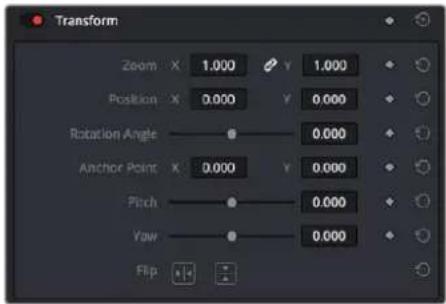
The Transform parameters in the Inspector of the Edit page
If, when importing an AAF or XML project file, you turned on the "Use sizing information" checkbox, then every clip that had position, scale, rotation, or crop settings applied in the originating NLE will have those adjustments applied to these transform parameters, which is convenient for keeping imported transform settings separate from other DaVinci Resolve-native transform settings.
Additionally, a set of Dynamic Zoom parameters also exists in the Video Inspector, which let you make quickly animated transforms using graphical controls that correspond to the start and end states of an animated transform. However, these transforms are lumped in with the other Edit page Transform parameters in terms of the order of sizing operations occurring throughout DaVinci Resolve.
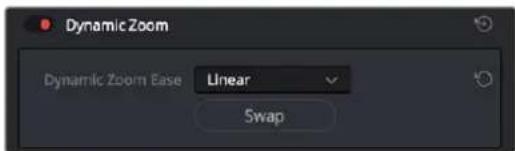
The Dynamic Zoom settings in the Inspector of the Video Inspector
The transform that's made via the Edit Sizing controls refers back to either the source resolution of each clip, or the resolution output by the Fusion page if it's in use.
Image Stabilization
DaVinci Resolve provides Image Stabilization controls in the Cut, Edit, and Color pages that all control the same transform operation that happens between Edit sizing and Input Sizing in the image processing pipeline. The transform that's made via the Image Stabilization controls refers all the way back to either the source resolution of each clip, or the resolution output by the Fusion page if it's in use.
Input Sizing on the Color Page
The Sizing palette on the Color page has another dedicated set of keyframable transform parameters that work with the various DaVinci control panels to let the colorist apply pan and scan adjustments while working through a project. These parameters work independently of the Edit page Transform parameters, allowing you to keep imported transform settings separate from other transform settings that you apply. However, for convenience the Edit sizing controls are available in the Color page as well.
The transform that's made via the Input Sizing controls refers all the way back to either the source resolution of each clip, or the resolution output by the Fusion page if it's in use.
Node Sizing on the Color Page
Using Node Sizing, you can apply individual sizing adjustments to clips on a per-node basis within the Color page, which is similar in principal to using Transform nodes in the Fusion page. All Node Sizing adjustments within a grade are cumulative, and any keyframing done to Node Sizing parameters is stored in that node's Node Format keyframe track in the Keyframe Editor. Two good examples of Node Sizing include realigning color channels individually in conjunction with the Splitter/Combiner nodes or duplicating windowed regions of an image by moving them around the frame. Subsequent Node Sizing operations do not refer back to the source resolution of a clip, so using multiple Node Sizing operations to reduce and enlarge an image will reduce image resolution and sharpness.
Output Sizing on the Color Page
Output sizing is an additional transform that is applied after Edit sizing, Fusion sizing, Input sizing, and Node sizing. It's an overall adjustment that affects every clip at once, which is suitable for making last-minute format alterations that you want to affect the entire program. Technically, Output Sizing includes the Blanking controls, but those are important enough to discuss separately. Output Sizing also does not refer back to the source resolution of clips, so if you use Edit or Input Sizing to shrink a clip, and Output Sizing to enlarge it again, the final result will be somewhat softened as you're enlarging the lower resolution image output by Input Sizing.
Output Blanking
Output blanking is not a sizing operation, but it's often related and so worth mentioning here. Blanking is an adjustment you can use to add black areas to the top, bottom, left, or right of an image, in order to add "letterboxing" (black bars at the top and bottom of the image) or "pillarboxing" (black bars at the left and right of the image) that lets you fill in the unused parts of an image frame that's either shorter or thinner than the current output resolution.
Once all transforms, compositing operations, and color corrections have been applied by the DaVinci Resolve image processing pipeline, the very last operation to be performed is Output blanking, if it's enabled. This guarantees that overlapping images, grading, and other adjustments are properly "blacked out" no matter what you're doing to the program.
Output Blanking controls are found in the Timeline menu (as a series of aspect ratios) as well as in the Output Sizing parameters of the Color page Sizing palette (via Top, Right, Bottom, and Left controls).
TIP: Text and graphics superimposed via the Data Burn-In window, if enabled, are the only effects that will appear in front of picture areas affected by blanking. This lets you add timecode and other information over letterboxed areas that you don't want to obscure the picture.
Format Resolution on the Delivery Page
By default, the Format Resolution setting in the Render Settings of the Deliver page matches the timeline resolution when "Match timeline settings" is enabled in the Output Scaling Preset in the Image Scaling panel of the Project Settings.
Choosing a new resolution from the "Set Resolution to" drop-down menu lets you override the current Format Resolution setting before rendering. Using this control, you can queue up multiple jobs, each set to a different resolution, to output multiple formats during a single render session.
For more information on rendering and setting up jobs for the Render Queue, see Chapter 185, "Using the Deliver Page."
Rendering Sizing Adjustments and Blanking
When rendering your final output, you have the option of choosing whether or not to “bake in” the sizing operations that have been performed. For example, you may have set up a whole set of specific sizing adjustments for the clips in a program, but then you’re requested to render the project and its media as individual clips for round trip re-delivery to the editor for further work. In this case, you can choose to either render the sizing into the final media, or not.
Whether or not sizing is rendered into your final media depends on the "Disable edit and input sizing" checkbox in the Advanced Settings options of the Render Settings panel. You can disable sizing and blanking either when rendering the current timeline as a single clip, or when rendering individual clips.
- If "Disable sizing and blanking output" is turned off: Output Blanking, Cut and Edit page sizing adjustments, Color page Input and Output Sizing adjustments, and Image Stabilization are rendered into the final rendered media using the optical-quality sizing algorithms available to DaVinci Resolve. This is best if your sizing adjustments are approved and final, and you want to "bake" sizing adjustments into the final media you're delivering.
- If "Disable sizing and blanking output" is turned on: Output Blanking, Cut and Edit page sizing adjustments, Color page Input and Output Sizing adjustments, and Image Stabilization are not rendered, and each clip will be rendered either at the source resolution if "Render at source resolution" is enabled in individual clips mode, or to the currently specified resolution of the timeline or project. However, the sizing adjustments you've made will be exported as part of the XML or AAF file that you're exporting. This is best for workflows where the editor wants to continue adjusting sizing after you've handed off the graded project relative to the original size of the clips.
Keep in mind that if you want to render Input Sizing adjustments into the media you're outputting, the "Force sizing to highest quality" checkbox guarantees that DaVinci Resolve will use the highest-quality sizing setting, even if you've temporarily chosen a faster-processing option for a slower computer.
NOTE: "Disable sizing and blanking output" does not disable any transform operations that happen within the Fusion page. Those will continue to be applied to the final output.
Chapter 12
Data Burn-In
This chapter covers how to use the Data Burn-In window that's available to every page in DaVinci Resolve.
Contents
Data Burn-In 252
Project vs. Clip Mode 253
Setting Up Burned-In Metadata 253
Saving and Loading Burn-In Presets 253
Data Burn-In Metadata 254
Custom Output Options 255
Gang Rendered Text Styles 256
Prefix Render Text 256
Data Burn-In
The Data Burn-In window lets you display select metadata as a timeline-wide "window burn" that's superimposed over the image in the Viewer. This window burn is written into files that you render in the Deliver page, and it's also output to video, for viewing on your external display, or for outputting to tape.
The Burn-In window is available by choosing Workspace > Data Burn-In.
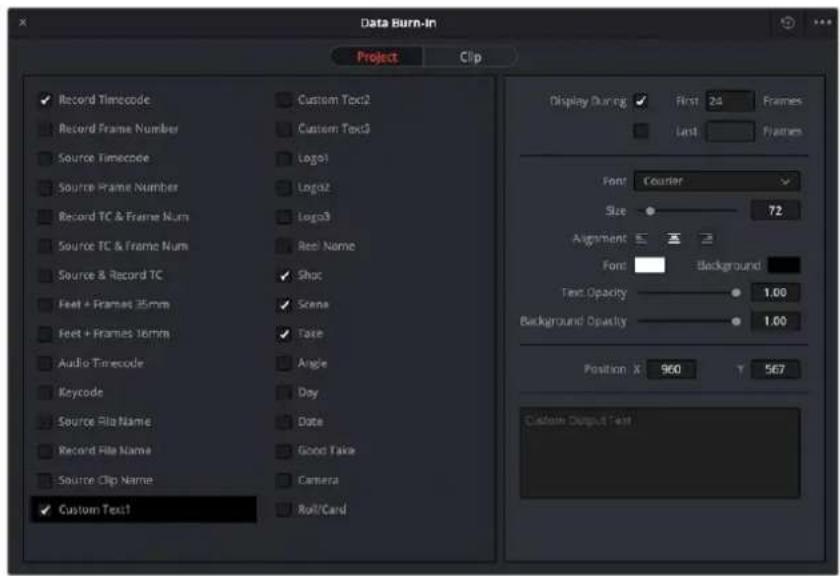
Data Burn-In window
Traditionally, window burns are useful as a reference when creating offline media that you need to keep track of later. However, the Data Burn window is extremely flexible. For example, it's also useful for watermarking review files that you don't want to be distributed accidentally with either custom text or graphics with alpha channels, for adding graphical logos or "bugs" to programs in preparation for broadcast (again, optionally using graphics with alpha channels), for superimposing custom reference guidelines of some sort over the images being monitored, or even just for temporarily displaying timecode or clip names to refer to on your monitor while editing, mixing, or reviewing graded dailies with a client.
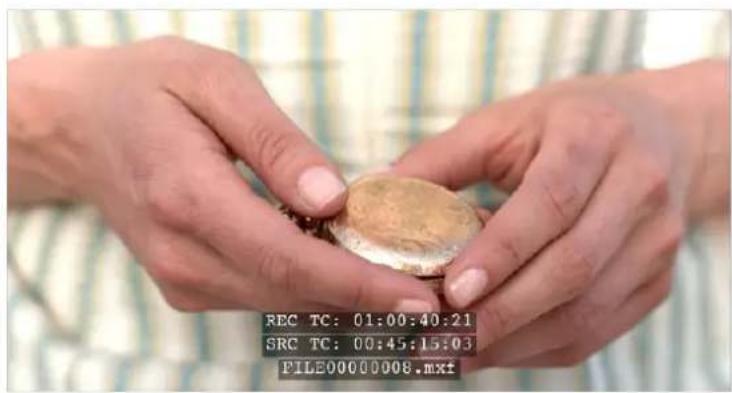
Viewer displaying record timecode, source timecode, and source clip name
Project vs. Clip Mode
Two buttons at the top of the Data Burn window let you choose whether you want to edit one set of burned-in metadata that will be displayed for the entire duration of the Timeline, or edit burned-in metadata on a clip-by-clip basis. You can combine the two, having timeline-wide window burn settings and separate clip-specific window burn settings for a handful of clips in that timeline at the same time.
When rendering in the Delivery page, window burns are applied both when rendering timelines as individual source clips and when rendering as one single clip.
Two separate panels let you adjust project-wide window burns vs. clip-specific window burns
Setting Up Burned-In Metadata
Setting up different clip and project metadata to output as a window burn is easy.
To set up a window burn:
1 Choose Workspace > Data Burn-In.
2 Click Project or Clip at the top of the Data Burn-In window.
3 Turn on the checkboxes of whatever items of metadata you want to display in the "Add to Video Output" column. More information about the available items appears later in this chapter.
The first item of metadata is centered near the bottom of the frame, above Action Safe. Each additional item of metadata you turn on for display is added above whichever items are already displayed, regardless of their position in the “Add to Video Output” list.
4 Click any currently enabled item of metadata from the list to highlight it in black, and edit that item's Custom Output parameters at the right. More information about the available parameters appears later in this chapter.
To reset the current window burn setup:
Click the Reset button next to the Option drop-down menu to reset the current mode of the Data Burn window.
Saving and Loading Burn-In Presets
If there are common sets of metadata that you regularly use and switch among, you can save each set up as a preset for future use.
To save a burn-in preset:
1 Click the Option menu and choose Save As New Preset.
2 Type a name into the Burn In Preset dialog that appears, and click OK. That preset is added to the list of saved presets in the Option menu.
To delete a burn-in preset:
1 Choose a preset from the Option menu.
2 Click the Option menu, and choose Delete.
3 A dialogue box appears asking you to confirm the deletion.
To modify a burn-in preset:
1 Choose a preset from the Option menu.
2 Edit it however you like.
3 Click the Option menu, and choose Update.
Data Burn-In Metadata
The leftmost column in the Data Burn-In window contains a list of all the options that you can add to the video output as a window burn. Each option has a checkbox that lets you turn it on or off. You can also select in the Option drop-down if you would like the item name rendered as a prefix to the burn-in data.
NOTE: If two clips overlap in the Timeline, the metadata that matches the currently visible clip in the Viewer is what will be displayed in the window burn.
- Record Timecode: The timecode relative to the Timeline, as set in the Conform Options section of the General Options panel of the Project Settings.
– Record Frame Number: The number of frames from the first frame of the Timeline.
– Source Timecode: Each clip's individual timecode.
– Source Frame Number: The number of frames from the first frame of the clip.
– Record TC & Frame Num: Both metadata options combined in one line.
– Source TC & Frame Num: Both metadata options combined in one line.
– Source & Record TC: Both metadata options combined in one line. - Feet + Frames 35mm: Displays a Feet + Frames conversion of the program's record timecode, calculated for 35mm film.
- Feet + Frames 16mm: Displays a Feet + Frames conversion of the program's record timecode, calculated for 16mm film.
- Audio Timecode: The timecode of audio that's been synced to a clip.
– Keycode: Also referred to as edge-code, the identification codes running along the edge of film stocks that provide an absolute reference for which digital frames correspond to which film frames. - Source File Name: The full file path, including file name, of the media file that's linked to the current clip.
– Record File Name: The file name as defined in the Render Settings list of the Deliver page. - Source Clip Name: The file name of the media file that's linked to the current clip, without the file path.
- Custom Text1: A line of text that you type into the Text field of the Custom Output parameters. You can use any characters you like. When editing any of the three custom text fields that are available, you can use "metadata variables" that you can add as graphical tags that let you display clip metadata. For example, you could add the corresponding metadata variable tags %scene_%shot_%take and the custom text would display "12_A_3" if "scene 12," "shot A," "take 3" were its metadata. For more information on the use of variables, as well as a list of all variables that are available in DaVinci Resolve, see Chapter 16, "Using Variables and Keywords."
- Custom Tex t2: A second line of text that you can customize.
-
Custom Tex t3: A third line of text that you can customize.
-
Logo1: Lets you superimpose a graphic over the image in a customizable location. Compatible graphics formats include PNG, TGA, TIF, BMP, and JPG. Alpha channels are supported for transparency in logos.
- Logo2: Lets you superimpose a second graphic.
- Logo3: Lets you superimpose a third graphic.
- Reel Name: The currently defined reel number for the current clip.
- Shot: Shot metadata, if it's been written to the file by a camera, or entered into the Metadata Editor on the Media page.
- Scene: Scene metadata, if it's been written to the file by a camera, or entered into the Metadata Editor on the Media page.
- Take: Take metadata, if it's been written to the file by a camera, or entered into the Metadata Editor on the Media page.
- Angle: Angle metadata, if it's been written to the file by a camera, or entered into the Metadata Editor on the Media page.
- Day: Day metadata, if it's been written to the file by a camera, or entered into the Metadata Editor on the Media page.
- Date: Date metadata, if it's been written to the file by a camera, or entered into the Metadata Editor on the Media page.
- Good Take: Corresponds to Good Take metadata, if it's been written to the file by a camera, or entered into the Metadata Editor on the Media page.
- Camera: Corresponds to the Camera metadata, if it's been written to the file by a camera, or entered into the Metadata Editor on the Media page.
- Roll/Card: Corresponds to the Roll/Card metadata, if it's been written to the file by a camera, or entered into the Metadata Editor on the Media page.
Custom Output Options
The parameters in the Custom Output panel let you modify the look, position, and in some cases content, of the selected metadata item. Pan and Tilt are individually customizable for each metadata item.
- Display During First x frames: Turning on this checkbox lets you specify a number of frames during which the current item of metadata will be displayed before dissolving away over one second. When enabled, the current item of metadata will cut onscreen with the beginning of each new clip, remain onscreen for the duration specified, and then dissolve away.
- Display During Last x frames: Turning on this checkbox lets you specify a number of frames before the end of each clip during which the current item of metadata will appear onscreen after fading up over one second, before cutting away with the end of the clip.
- Font: Defaults to Courier, but you can choose any font that's installed on your system.
– Size: Defaults to 48, but you can choose standard increments from 6 to 72.
- Alignment: Defaults to Center. The only other option is Left.
- Font (color): Defaults to white, but you can choose from a range of predefined colors in this dropdown menu.
- Background: Defaults to black, although the apparent color is influenced by the Opacity setting. For a more garish look, you can choose from a range of predefined colors in this drop-down menu.
- Text Opacity: Defaults to 1.00. Lets you define the transparency of the burned-in metadata's text.
- Background Opacity: Defaults to 1.00. Lets you define the transparency of the burned-in metadata's background color.
- X-Y Position: Lets you change the horizontal and vertical orientation of the current item of metadata. The default horizontal value is the center of the frame, relative to the current project's frame size. The first item of metadata is centered vertically near the bottom of the frame, above Action Safe. Each subsequent item of metadata you turn on is automatically placed above the previous item of metadata, regardless of its order in the "Add to Video Output" list.
- Text: (only if one of the Custom Text options is checked) A text field that lets you enter custom text to display as one of three possible custom text items.
- Logo: (only if one of the Logo options is checked) A field that displays the file path of any currently selected graphic that you're displaying as one of the three possible Logo graphics. Compatible graphics formats include PNG, TGA, TIF, BMP, and JPG. Alpha channels are supported for transparency in logos.
- Import File button: (only if one of the Logo options is checked) Lets you choose a graphics file to use as a logo.
Gang Rendered Text Styles
You have the option of independently styling each item of metadata, depending on whether the Gang Render Text Styles option is checked in the Data Burn-In window's Option menu. When turned on, all text metadata share the same font, size, color, background, justification, and opacity. When turned off, each item of metadata can have individual settings.
Prefix Render Text
Another option in the Data Burn-In window's Option menu lets you turn the prefixes, or headers, on or off for all metadata that's enabled to be burned in.
Chapter 13
Frame.io & Dropbox Replay Integration
DaVinci Resolve has sophisticated integrations with Frame.io, and Dropbox Replay video review and collaboration services designed specifically for the postproduction industry.
Contents
Enabling Frame.io Integration in Preferences 258
Deliver and Upload to Frame.io 258
Frame.io Comments Sync with Timeline Markers 259
Importing Media from Frame.io 261
Linking Media Pool Clips and Timelines with Frame.io Clips 261
Enabling Dropbox Replay Integration in Preferences 262
Deliver and Upload to Dropbox Replay 262
Dropbox Replay Comments Sync with Timeline Markers 263
Working With Dropbox Markers 264
Enabling Frame.io Integration in Preferences
An Internet Accounts panel in the System tab of the DaVinci Resolve Preferences lets you sign into your Frame.io account and specify a local cache location for media being synced with Frame.io. You'll need to enter your login name and password to enable Frame.io integration, but once entered, DaVinci Resolve will sign in automatically when DaVinci Resolve opens.
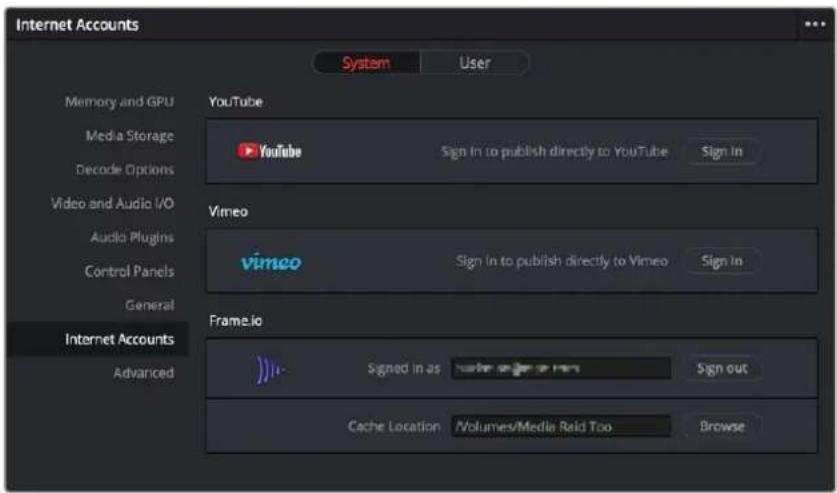
The Internet Accounts panel of the System tab of the DaVinci Resolve Preferences window (login deliberately obscured)
The local cache location is used to store clips you import into a DaVinci Resolve project from the Frame.io volume in the Media Storage panel of the Media page.
Deliver and Upload to Frame.io
A Frame.io preset at the top of the Deliver page's Render Settings panel lets you render and upload a program for review. All options in the Render Settings panel update to present suitable controls for this process.
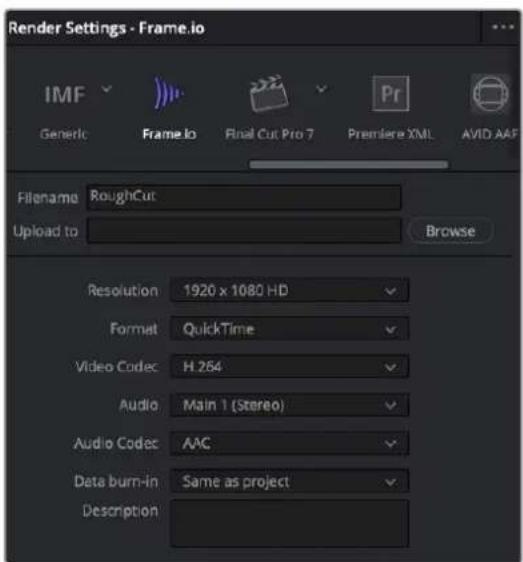
Choosing the Frame.io preset
When you choose the Frame.io preset, the Location field turns into an Upload To field, and the Browse button lets you choose a project and folder path to which to upload the exported result.
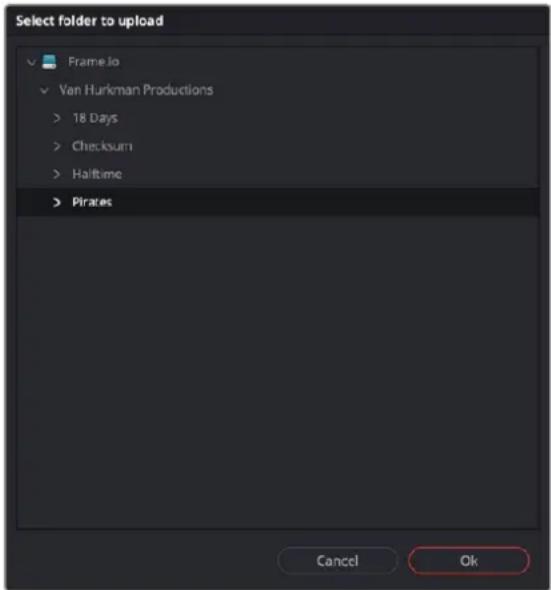
Choosing a Frame.io account to deliver a program to
When you export to Frame.io, the available choices in the Resolution, Format, Video Codec, and Type pop-up menus are limited to those that are most suitable for Frame.io file sharing. Choose the desired export options, then click the Add to Render Queue button to add this job to the Render Queue as you would with any other export. When that job is rendered, it automatically proceeds to upload to Frame.io, and an upload percentage indicator appears in the job listing to show how far along this upload is. When it's finished, the job displays the text "Upload completed."
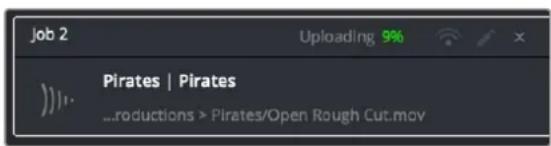
The job in the Render Queue shows you the percentage the file has uploaded so far
This upload is done in the background, so you can continue working on other things in DaVinci Resolve while the file uploads. If you want to see how long the upload will take on any other page, you can choose Workspace > Background Activity to see the Background Activity window.
Frame.io Comments Sync with Timeline Markers
When you render a timeline directly to Frame.io, that timeline is automatically linked to the movie that's been uploaded to Frame.io, and all comments, "Likes," and graphical annotations (drawings and arrows) from reviewers that are added online via the Frame.io interface are automatically synced to Frame.io markers on your timeline (so long as your computer has an active internet connection). Frame.io markers are distinct from all other markers and can be independently shown and hidden, or deleted. Drawings and arrows from Frame.io are converted into their equivalent DaVinci Resolve annotation graphics for visibility in DaVinci Resolve.
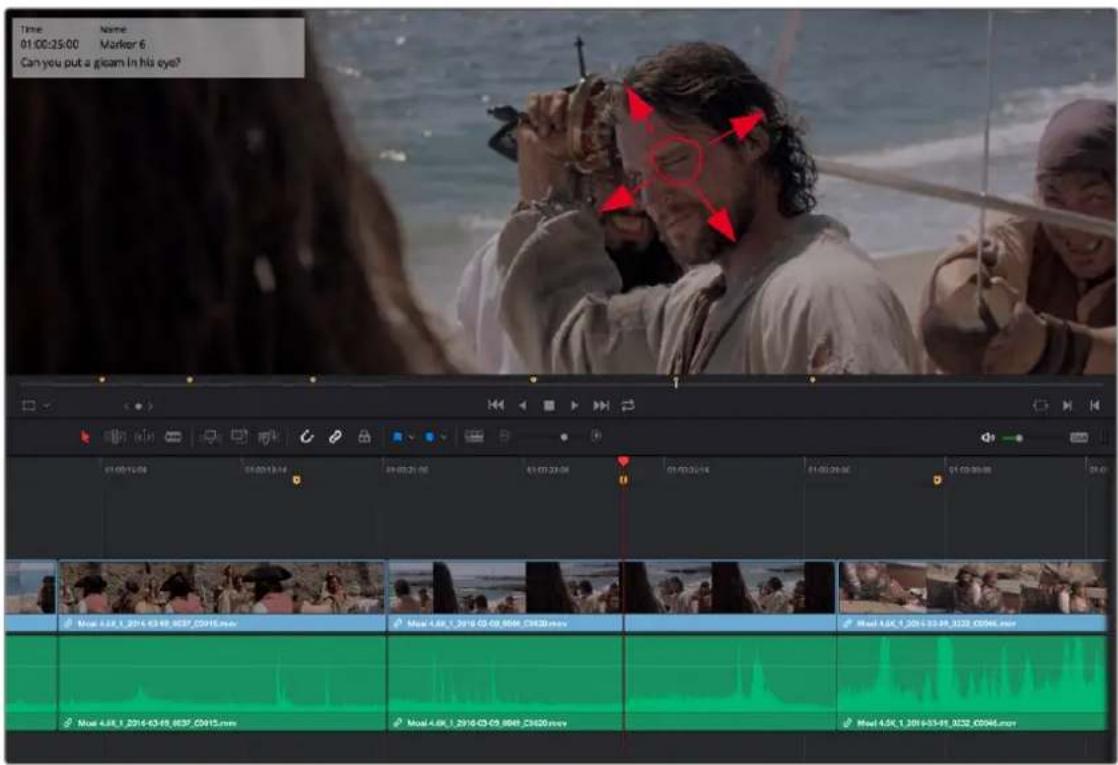
Comments and graphical annotations from Frame.io appear as markers with their corresponding overlays in your DaVinci Resolve Timeline
Working With Frame.io Markers
Double-clicking any Frame.io marker in the Timeline opens a dialog that lets you send replies to comments that appear on Frame.io, enabling editors to respond directly to commenters.
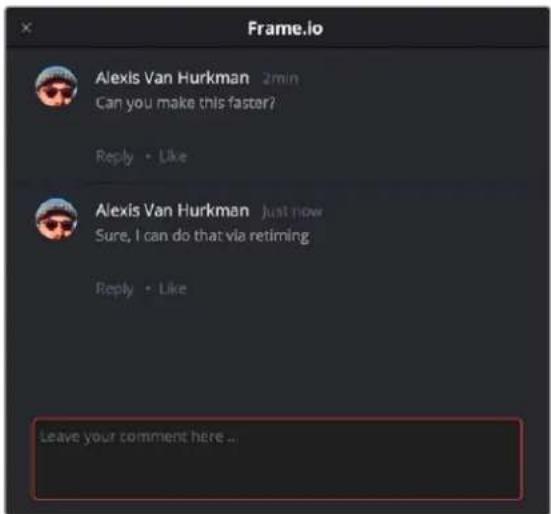
The editor talking to himself using the Frame.io comment dialog that appears when you open a Frame.io marker
You can also place Frame.io markers on the Timeline to have them automatically sync back to Frame.io, giving you the ability to send your own comments back to commenters (be kind).
If you delete one or more Frame.io markers on the DaVinci Resolve timeline, those markers will also be deleted in Frame.io. This includes the Mark > Delete All Markers > Frame.io command. This is not undoable.
Frame.io Marker Navigation
You can specifically navigate only the markers created in Frame.io while in the comment dialog of a Frame.io marker, using the Previous Marker (Shift-UpArrow) and Next Marker (Shift-DownArrow) commands. This allows you to skip directly from comment to comment in Frame.io without having to either navigate all markers in-between, or double-click each Frame.io marker individually to respond. Frame.io interoperability is a Studio Only feature.
Importing Media from Frame.io
A Frame.io volume appears in the Media Storage panel of the Media page that lets you access the media available from your Frame.io account. Within this Frame.io volume, a top-level directory represents your account directory, and within that each project you've created in Frame.io appears as a sub-directory.
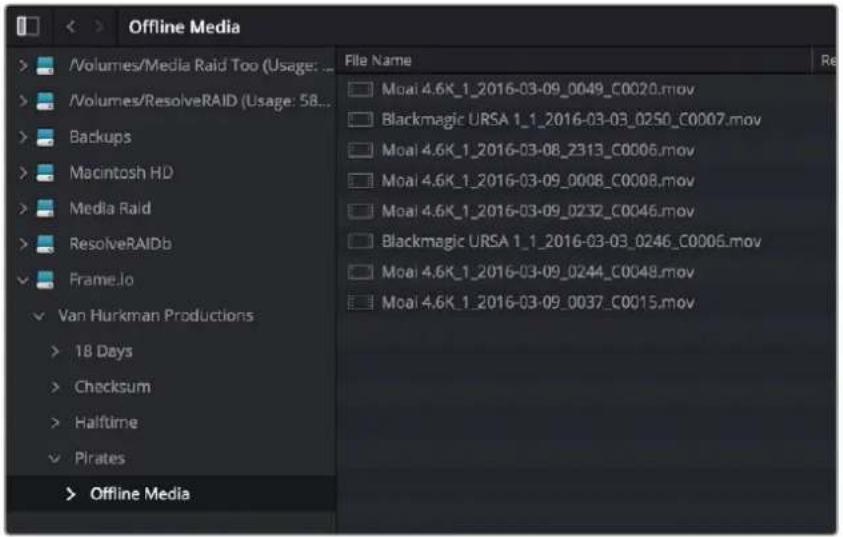
Accessing the directories of a Frame.io account from the Media Storage browser
Any media files that can be accessed in Media Storage can be imported into the Media Pool via the usual methods. Once added to the Media Pool, that media file downloads in the background to the specified local cache location, but it's immediately available via your internet link until the download is complete, so you can begin working immediately. If you want to see how long the download will take, you can choose Workspace > Background Activity to see the Background Activity window.
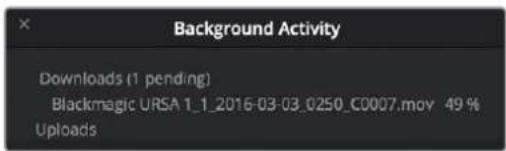
The Background Activity window lets you see what's happening in the background while you work
Linking Media Pool Clips and Timelines with Frame.io Clips
You can also use Frame.io accessibility in the Media Storage panel of the Media page to link clips or timelines with media that's already uploaded to your Frame.io account. Just locate and select a Frame.
io clip in Media Storage, then right-click the clip or timeline you want to link it to in the Media Pool and choose Link to Frame.io Media from the contextual menu.
If you've linked a Frame.io clip to a timeline, comments made on that Frame.io clip appear on the linked timeline as Frame.io markers, just as if you'd exported that timeline directly to Frame.io.
Enabling Dropbox Replay Integration in Preferences
An Internet Accounts panel in the System tab of the DaVinci Resolve Preferences lets you sign into your Dropbox account. You'll need to enter your login name and password to enable Dropbox integration, but once entered, DaVinci Resolve will sign in automatically when DaVinci Resolve opens.
The Dropbox Login window in the Internet Accounts panel of the System tab of the DaVinci Resolve Preferences window.
Deliver and Upload to Dropbox Replay
A Dropbox Replay preset at the top of the Deliver page's Render Settings panel lets you render and upload a program for review. All options in the Render Settings panel update to present suitable controls for this process.
NOTE: The Dropbox Replay Render settings are separate from the normal Dropbox Render settings, and you need to use this specific set of presets to integrate with Dropbox Replay.
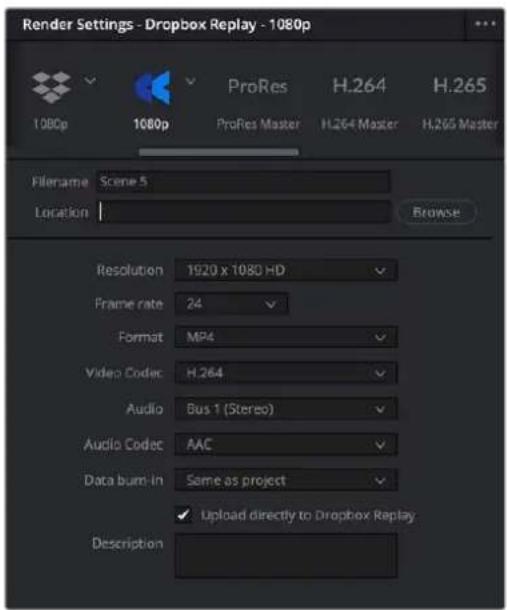
The Dropbox Replay Render settings (highlighted). Note they are different from the normal Dropbox Render settings to the left.
When you export to Dropbox Replay, the available choices in the Resolution, Format, Video Codec, and Audio pop-up menus are limited to those that are most suitable for Dropbox Replay. Choose the desired export options, then click the Add to Render Queue button to add this job to the Render Queue as you would with any other export. When that job is rendered, it automatically proceeds to upload to Dropbox Replay, and an upload percentage indicator appears in the job listing to show how far along this upload is. When it's finished, the job displays the text "Upload completed."
The job in the Render Queue shows you the percentage the file has uploaded, and lets you know when it's completed.
This upload is done in the background, so you can continue working on other things in DaVinci Resolve while the file uploads. If you want to see how long the upload will take on any other page, you can choose Workspace > Background Activity to see the Background Activity window.
Dropbox Replay Comments Sync with Timeline Markers
When you render a timeline directly to Dropbox Replay, that timeline is automatically linked to the movie that's been uploaded to Dropbox Replay, and all comments, and graphical annotations (drawings and arrows) from reviewers that are added online via the Dropbox Replay interface are automatically synced to Dropbox markers on your timeline (so long as your computer has an active internet connection). Dropbox markers are distinct from all other markers and can be independently shown and hidden or deleted. Drawings and arrows from Dropbox Replay are converted into their equivalent DaVinci Resolve annotation graphics for visibility in DaVinci Resolve.
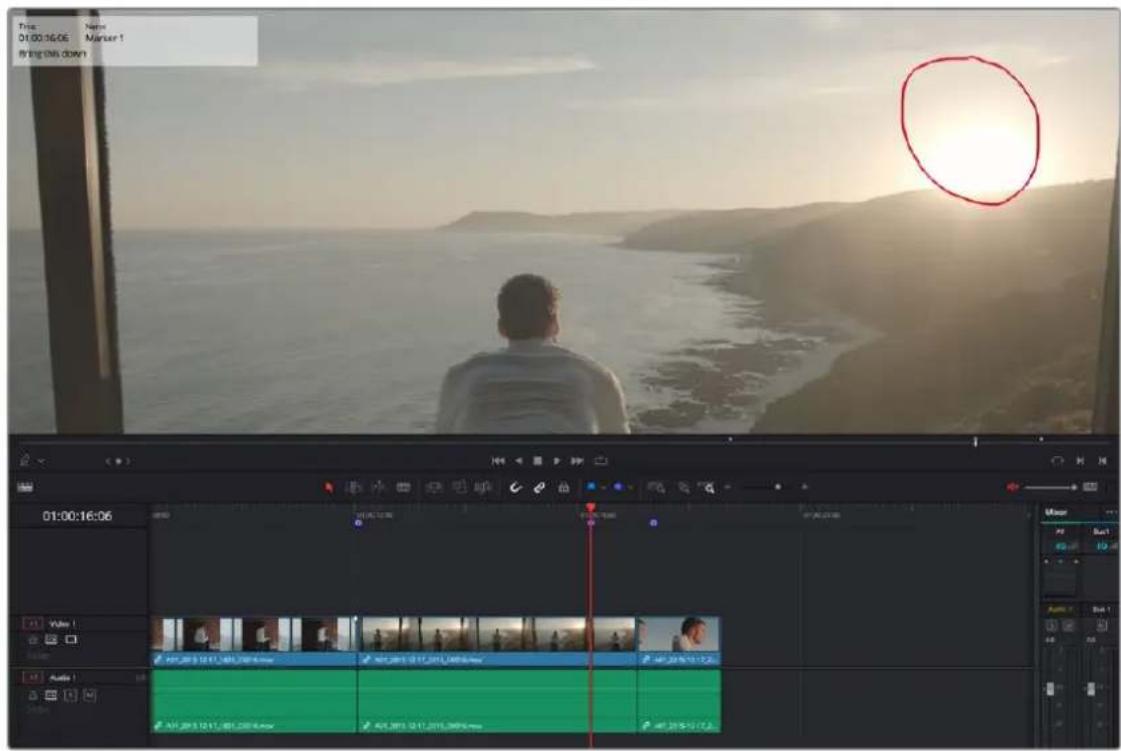
Comments and graphical annotations from Dropbox Replay appear as markers with their corresponding overlays in your DaVinci Resolve timeline.
Working With Dropbox Markers
Double-clicking any Dropbox marker in the Timeline opens a dialog that lets you send replies to comments that appear on Dropbox Replay, enabling editors to respond directly to commenters.
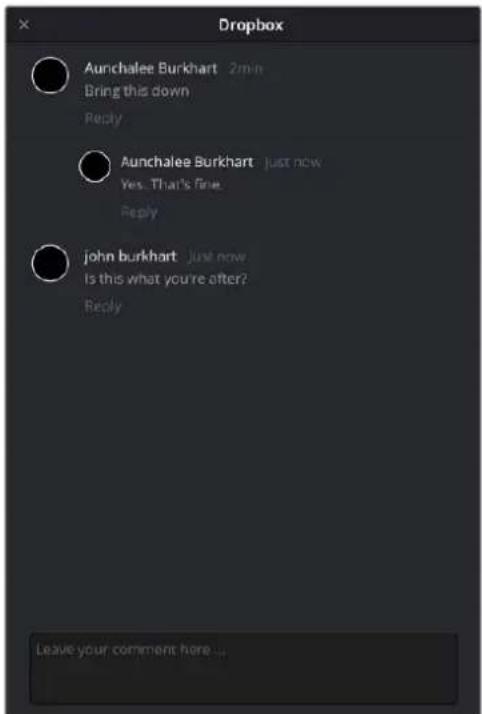
The Dropbox Replay comment dialog that appears when you open a Dropbox marker
You can also place Dropbox markers on the Timeline to have them automatically sync back to Dropbox Replay, giving you the ability to send your own comments back to commenters (be kind). Dropbox markers on the Timeline show solid blue when they are created, and with a circle inside them once they are synced with Dropbox Replay.
If you delete one or more Dropbox markers on the DaVinci Resolve timeline, those markers will also be deleted in Dropbox Replay. This includes the Mark > Delete All Markers > Dropbox command. This is not undoable.
Dropbox Marker Navigation
You can specifically navigate only the markers created in Dropbox Replay while in the comment dialog of a Dropbox marker, using the Previous Marker (Shift-UpArrow) and Next Marker (Shift-DownArrow) commands. This allows you to skip directly from comment to comment in Dropbox Replay without having to either navigate all markers in-between, or double-click each Dropbox marker individually to respond.
Chapter 14
Resolve Live
The Color page has another mode available to aid you in using DaVinci Resolve in on-set grading workflows. Turning the Resolve Live option on puts DaVinci Resolve into a live grading mode, in which an incoming video signal from a camera can be monitored and graded during a shoot.
Contents
More About Resolve Live 267
Configuring Your System for Resolve Live 267
Grading Live 268
Getting Started 268
Going Live 268
Using Freeze 269
Using Snapshot 269
Using Resolve Live Grades Later 270
Using LUTs in Resolve Live Workflows 270
More About Resolve Live
Resolve Live has been designed to let you use all of the features of DaVinci Resolve to grade these on-set video previews, in the process saving video snapshots that contain a captured image, your grade, and reference timecode from the camera. The idea is that, using Resolve Live, you can work with the cinematographer to develop looks and test lighting schemes on the footage being captured during the shoot, and then later you can use those looks to build dailies, and as a starting point for the final grade once the edit has been completed.
Additionally, you can use Resolve Live in conjunction with other Color page features such as the Alpha output to build test composites to check green screen shots, comparing them against imported background images in order to aid camera positioning and lighting adjustments. The built-in video scopes can also be used to monitor the signal levels of incoming video. Finally, you can use 1D and 3D LUTs to monitor and grade log-encoded media coming off the camera.
Configuring Your System for Resolve Live
Setting up Resolve Live is straightforward. Whether you're using a tower workstation or a laptop, any of the Blackmagic Design DeckLink or UltraStudio video interfaces can be used to connect your DaVinci Resolve workstation to a camera and external video display. The important thing to keep in mind is that, if you want to connect to a live incoming signal and output that signal for monitoring at the same time, you need to either use two separate DeckLink PCIe cards or UltraStudio Thunderbolt interfaces, or a single DeckLink Duo or DeckLink Studio card with multiple separate inputs and outputs on a single PCIe card.
The Video and Audio I/O panel of the System Preferences provides two sets of options for configuring video interfaces connected to your computer, one for playback, and one for capture. Resolve Live uses the capture input.
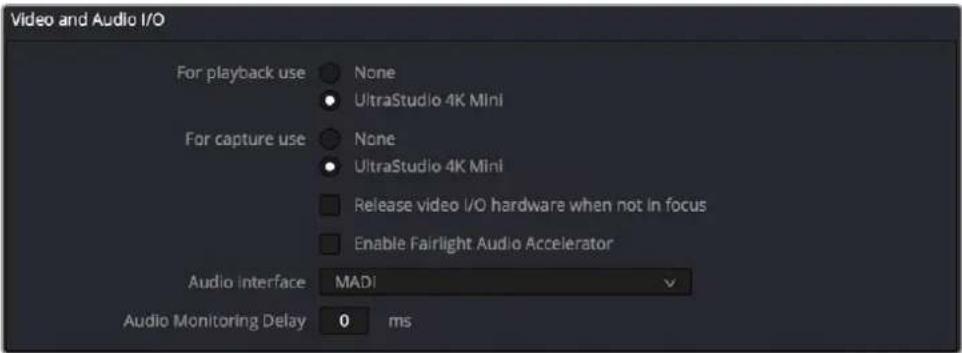
Video input/output options in the System Preferences
During the shoot, the digital cinema camera in use needs to be connected to your DaVinci Resolve workstation via HD-SDI, which must be configured to carry both the video image and timecode that mirrors the timecode being written to each recorded clip. Most cameras allow timecode output over HD-SDI, and both DeckLink and UltraStudio interfaces can pass this timecode to DaVinci Resolve. Without a proper timecode reference, you won't be able to take the shortcut of automatically syncing your saved Snapshots to recorded camera original media using ColorTrace, although you can always apply grades manually.
Grading Live
Once your camera and computer are appropriately connected and configured, using Resolve Live is straightforward. This section describes the live grading workflow as it was designed to be used. Once you're familiar with the capabilities of Resolve Live, you may find your own ways of working that are more in tune to the needs of your particular project.
Getting Started
When working with Resolve Live on a new shoot, you should begin with an empty project and a new empty timeline, since the live grading workflow involves capturing live graded snapshots to an otherwise unoccupied timeline. One recommended way of organizing the live grades of a shoot is to create one new project per day of shooting. This way, snapshots captured during shoots using all 24 hours of time-of-day timecode won't conflict with one another. Also, separate projects can make it easier to use ColorTrace to copy grades from your live grade snapshots to the camera original media you'll be creating dailies from, eventually.
TIP: Having an empty Media Pool and timeline doesn't mean you can't install useful LUTs and pre-import reference stills and saved grades to the Gallery, as these can be valuable tools for expediting your on-set grading.
Once you've created your new project, you also need to choose the disk where all snapshots you take will be saved. By default, snapshots are saved on the scratch disk at the top of the Scratch Disks list in the Media Storage panel of the System Preferences. They're automatically saved in a folder named identically to the current project.
Going Live
Once you've created your day's project, you need to turn on Resolve Live to begin work.
To turn on Resolve Live:
1 Open the Color page.
2 Choose Color > Resolve Live (Command-R).
A red Resolve Live badge at the top of the Viewer indicates that Resolve Live is turned on, and the transport controls are replaced by the Freeze and Snapshot buttons.
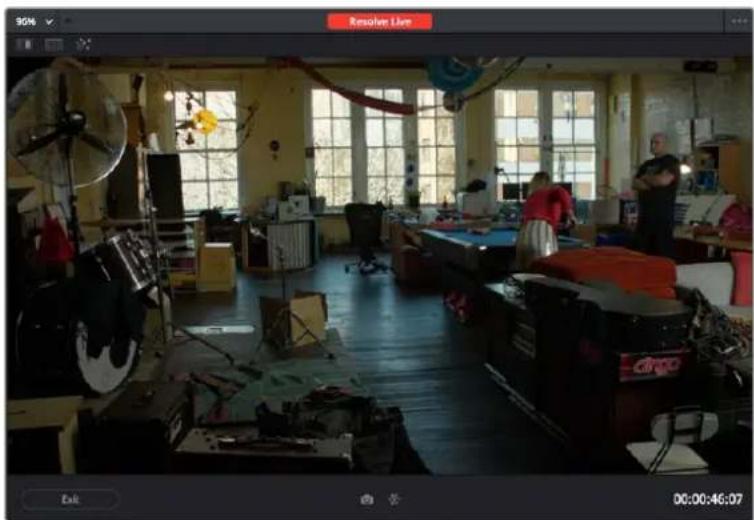
natural_image
Interior view of a cluttered workshop with multiple workbenches, equipment, and large windows (no visible text or symbols)A red badge shows that Resolve Live is active and showing incoming video from the camera.
At this point, the video from the connected camera should become visible within the Viewer, the camera timecode should be displayed in the Viewer's timecode window, and you can begin using all of the capabilities of the Color page to begin grading whatever is onscreen, including Gallery splitscreens for matching and comparing. The current color adjustments in all palettes are automatically applied to both the image in the Viewer and the video output to an external display (if there is one).
While Resolve Live is on, much of DaVinci Resolve's non-grading functionality is disabled, so when you're finished, be sure to turn Resolve Live off.
To turn off Resolve Live, do one of the following:
- Click the Exit button at the bottom left-hand corner of the Viewer.
- Choose Color > Resolve Live (Command-R).
Using Freeze
In Resolve Live mode, the Freeze button (it looks like a snowflake) freezes the current incoming video frame, so you can grade it without being distracted by motion occurring during the shoot. When you've made the adjustment you need, you can unfreeze playback in preparation for grabbing a snapshot.
To freeze incoming video:
- Click the Freeze button (that looks like a snowflake).
- Choose Color > Resolve Live Freeze (Shift-Command-R).
natural_image
Two small icons: a camera and a snowflake with a cursor arrow, on a dark surface (no text or symbols)The snowflake button freezes the image so you can grade a particular frame
Using Snapshot
Once you're happy with a grade, clicking the Snapshot button saves a snapshot of the current still in the Viewer, the incoming timecode value, and your grade into the Timeline. Snapshots are simply one-frame clips. They use grades and versions just like any other clip. In fact, ultimately there's no difference between the timeline created by a Resolve Live session and any other timeline, other than that the Resolve Live timeline only has a series of one frame clips, which appear in the Timeline of the Edit page as a series of 1-frame stills.
To save a snapshot, do one of the following:
- Click the snapshot button (with a camera icon).
- Choose Color > Resolve Live Snapshot (Command-Option-R).
natural_image
Two icons: a camera cursor pointing at a snowflake on a dark surface (no text or symbols)The snapshot button saves a frame and the grade for future use
For example, you may begin the process of building and refining a grade for a particular scene during an unrecorded run-through. Then, once shooting starts, you may take snapshots of each shot's slate, and then of significant takes that follow, tweaking where necessary and in conjunction with the DP's feedback once things get going. New camera setups may require further tweaks, which you'll save as snapshots for those shots, and as you work in this way you'll find yourself building up a timeline of snapshots that correspond to that day's shoot.
As you work, keep in mind that you must temporarily turn Resolve Live off in order to open a grade from a previous snapshot in the Timeline, in order to use it as a starting point for another shot. You can also save grades into the Gallery.
Using Resolve Live Grades Later
Since each Snapshot you capture during a Resolve Live session contains timecode that was captured from the camera, grades from snapshots with timecode that overlaps recorded camera original media can be synced using ColorTrace when the time comes to start making dailies.
Keep in mind that snapshot grades correspond to the monitored output of the camera during the shoot. If you shot using a raw format, you'll need to use whatever in-camera debayering settings were used for monitoring during the shoot if you want the grades from your snapshots to produce the same result.
For more information on using ColorTrace, see Chapter 145, "Copying and Importing Grades Using ColorTrace."
Using LUTs in Resolve Live Workflows
Many on-set workflows use Lookup Tables (LUTs) to calibrate displays, normalize log-encoded media for monitoring, and preview looks in the video village to test how the current lighting scheme will work with the intended grade. You can apply LUTs using the Lookup Tables section of the Project Setting's Color Management panel, or within a grade as part of a node tree.
However, you can also export LUTs, if necessary for monitor previewing, that you can apply by loading them into a compatible LUT box of some kind, connected in-between the camera's video output and a display, or using a display capable of loading LUTs internally.
If you're exporting LUTs using the Generate 3D LUT command of the Thumbnail timeline's contextual menu, you should limit yourself to using only Primaries palette and Custom Curves palette controls within a single node. These are the only grading controls that can be mathematically converted into a LUT.
When exporting a LUT, any nodes that use Windows or OpenFX will be ignored along with all corrections made within these nodes. All other nodes with Primaries palette and Custom Curves palette adjustments that can be translated into a LUT will have their combined result translated into a LUT. For any nodes that mix supported and unsupported adjustments for LUT export (such as sharpening or blur filtering operations), the unsupported adjustments will simply be ignored. For more information on exporting LUTs, see “Exporting Grades and LUTs” in Chapter 138, “Grade Management.”
NOTE: DaVinci Resolve exports LUTs in the .cube format, which is a DaVinci-developed LUT format, with no relation to the Adobe SpeedGrade.cube format.
Chapter 15
Stereoscopic Workflows
DaVinci Resolve has robust support for a wide variety of stereoscopic workflows. Using the built-in tools of the Studio version of DaVinci Resolve, you can edit using stereoscopic clips, grade the resulting program, adjust each clip's stereo-specific properties such as convergence and floating windows, and master stereoscopic output, all within DaVinci Resolve.
Contents
Stereoscopic Workflows 272
Hardware Requirements for Working in Stereo 3D 272
Setting Up to Display Stereo 3D via SDI 273
Setting Up to Display Stereo 3D via HDMI 273
Supported Stereo 3D Media 274
Using Dual Sets of Media in Any Supported Format 274
Using Stereoscopic OpenEXR Media 274
Using Stereoscopic CineForm Media 274
Creating Stereo 3D Clips From Separate Files 275
Step 1—Import and Organize Your Media 275
Step 2—Generate 3D Stereo Clips 275
Step 3—(Optional) Create Optimized Media 277
Monitoring Stereoscopic 3D in the Edit Page 277
Converting Clips Between Stereo and Mono 277
Converting Stereo Clips Back to Mono 277
Converting Mono Clips or an Entire Timeline to Stereo 277
Attaching Mattes to Stereo 3D Clips 278
Organizing and Grading Stereo 3D Dailies 278
Step 1—Create 3D Stereo Clips 278
Step 2—Edit the New Stereo Clips Into One or More Timelines for Grading 278
Step 3—Align Your Media 278
Step 4—Grading Stereo Media 279
Step 5—Output Offline or Online Media for Editing 280
Conforming Projects to Stereo 3D Media 281
Grading Mastered Stereoscopic Media From Tape 281
Adjusting Clips Using the Stereo 3D Palette 282
Stereo Eye Selection 282
Stereo 3D Geometry Controls 283
Swap and Copy Controls 284
Automatic Image Processing for Stereo 3D 285
Stereo 3D Monitoring Controls 287
Floating Windows 288
Stereo Controls on the DaVinci Control Panel 290
Outputting Stereo 3D Media in the Deliver Page 290
Rendering Frame-Compatible Media 290
Rendering Individual Left- and Right-Eye Clips 290
Stereoscopic Workflows
Creating a stereo 3D project is a multi-step process that benefits from careful media organization. This chapter covers how to set up for working on stereoscopic projects, how to import stereoscopic projects, and how to export stereoscopic media.
First, stereoscopic pairs of clips, i.e., the individual left- and right-eye media files, are imported into the Media Pool, organized, and then linked together using the "Stereo 3D Sync" command to create a new set of linked stereo clips. Then, these clips stereo clips can be either edited or conformed to imported project data using a single Timeline. DaVinci Resolve lets you manage left- and right-eye grades and sizing in the Color page using the controls found in the shortcut menu of the Thumbnail timeline, and in the Stereo 3D palette.
If you're using stereoscopic CineForm media, which contains muxed left-eye and right-eye image data that can be decoded by DaVinci Resolve, you still need to go through this process, although you'll be using duplicate clips to populate Left and Right folders with matching sets of clips.
Hardware Requirements for Working in Stereo 3D
With DaVinci Resolve on Mac systems, dual 4:2:2 Y'CbCr stereoscopic video streams are output via SDI from a compatible Blackmagic Design video interface. You can select either Side-by-Side or Line Mesh output to be fed to your stereo 3D-capable display, depending on its compatibility. Alternately, if you turn on the "Enable Dual SDI 3D Monitoring" checkbox in the Video Monitoring group of the Master Settings panel of the Project Settings, your compatible Blackmagic Design video interface outputs full resolution 4:2:2 Y'CbCr for each eye to compatible displays.
When setting up a 3D-capable DaVinci Resolve workstation, keep in mind that the dual video streams of 3D projects make greater demands on disk bandwidth, media decoding via your workstation's CPU, and effects processing via your workstation's available GPU cards.
Setting Up to Display Stereo 3D via SDI
All DaVinci Resolve systems can output a side-by-side frame-compatible signal that can be viewed on a stereo 3D-capable display via a single SDI connection, output from a DeckLink HD Extreme card or better. For higher-quality monitoring, two SDI signals can be used to output the left-eye and right-eye images separately at full resolution using one of the following Blackmagic Design video interfaces:
- DeckLink HD Extreme 3D+
- DeckLink 4K Extreme
- DeckLink 4K Extreme 12G
- DeckLink 8K Pro
- UltraStudio 4K
– UltraStudio 4K Extreme
– UltraStudio 4K Extreme 3
Very old legacy systems accomplish this via NVIDIA dual SDI monitoring outputs.
NOTE: If your stereo display is not capable of multiplexing the two incoming SDI signals by itself, you can accomplish this using an external device to multiplex both SDI signals into a single stereo 3G signal that will be compatible. Check with your display manufacturer in advance to see if this is necessary.
The following procedures describe how to set up stereo 3D monitoring in two different ways.
Monitoring via dual SDI to dual SDI:
1 Open the Master Settings panel of the Project Settings, then do the following:
- Make sure the Use 4:4:4 SDI checkbox is unchecked.
- Turn on the "Use dual outputs on SDI" checkbox.
2 Open the Stereo 3D palette in the Color page, and do the following:
- Set Vision to Stereo.
- Set the Out pop-up menu to None.
NOTE: When “Enable dual SDI 3D monitoring” is turned on, split-screen wipes and cursors will not be visible on the grading monitor, nor will you be able to view image resizing.
Setting Up to Display Stereo 3D via HDMI
If your stereo-capable display only has HDMI input, you'll need to use the HDMI output of a compatible Blackmagic Design video interface that has HDMI 1.4 or better to output stereo 3D signals; see the documentation accompanying your video interface for more information.
Supported Stereo 3D Media
When importing stereo 3D media from other applications, there are two types of media that are compatible with DaVinci Resolve stereoscopic workflows.
Using Dual Sets of Media in Any Supported Format
When originally shot, the media corresponding to stereo 3D workflows consists of two directories, one for the left-eye media, and one for the right-eye media. For the most automated workflow possible, this media must be tightly organized. Each pair of left-eye and right-eye media files in both directories should have matching timecode, and reel numbers that clearly indicate which are the left-eye shots, and which are the right-eye shots. When organized in this way, it's relatively easy to use DaVinci Resolve to convert each matching pair of clips into the stereo 3D clips that you'll need to work in DaVinci Resolve. This process is covered in detail in a subsequent section.
Using Stereoscopic OpenEXR Media
DaVinci Resolve is compatible with stereo OpenEXR files to accommodate professional cinema and specialty workflows. Stereo OpenEXR clips include the media for both eyes stored as separate parts so that a single OpenEXR file may output either a single image or stereo 3D images when used with an application that supports it, such as DaVinci Resolve. This means you can edit stereo OpenEXR media, grade it, and make all of the stereoscopic adjustments that the Stereo palette of the Color page supports.
If you import stereo OpenEXR clips to the Media Pool, they will at first appear to be regular non-stereo clips that output a single image. However, these can easily be converted to stereo 3D clips using the following procedure.
To set stereo OpenEXR clips to be usable as stereo clips:
1 Import the OpenEXR media to the Media Pool as you would any other clips.
2 Select one or more OpenEXR clips, then right-click the selection and choose "Convert to Stereo" from the contextual menu. Those clips will now appear with a stereo 3D badge to indicate that they're stereo.
Using Stereoscopic CineForm Media
DaVinci Resolve is also compatible with CineForm stereo QuickTime files. CineForm clips encode the media corresponding to both eyes and mux (multiplex) it together in such a way so that CineForm files may output either a single frame of image data, if used in an application that is not capable of stereoscopic processing, or stereo 3D media when used with an application that is, such as DaVinci Resolve. This means that you can edit CineForm media using nearly any NLE, export a project via whatever workflow is convenient, and end up with a stereoscopic project that can be graded in DaVinci Resolve.
There are two ways of creating CineForm files. One is by using a camera or recording system that processes dual synchronized video signals to create a single set of CineForm media. The other is to use the CineForm conversion tools that come with GoPro CineForm Studio to reprocess dual sets of stereo 3D assets into the CineForm format.
The CineForm codec itself encodes full-frame image data using wavelet compression, at any resolution, at up to 12-bits, in a choice of RGB, Y'CbCr, or RAW color spaces. DaVinci Resolve is compatible with CineForm in a QuickTime wrapper using any supported color space, allowing access to the dual streams of image data that are provided.
When the time comes to output your program, keep in mind that while DaVinci Resolve can read CineForm files, CineForm files cannot be rendered out of DaVinci Resolve unless you've purchased an encoding license for OS X or Windows from GoPro. Furthermore, DaVinci Resolve cannot render Stereoscopic CineForm files.
If you import stereo CineForm clips to the Media Pool, they will at first appear to be regular non-stereo clips that output a single image. However, these can easily be converted to stereo 3D clips using the following procedure.
To set stereo CineForm clips to be usable as stereo clips:
1 Import the CineForm media to the Media Pool as you would any other clips.
2 Select the CineForm media you need to convert, then right-click the selection and choose "Convert to Stereo" from the contextual menu. Those clips will now appear with a stereo 3D badge to indicate that they're stereo.
Creating Stereo 3D Clips From Separate Files
If you're working with stereo media that was either captured or created as individual left- and right-eye files, then you need to convert each matching pair of clips into the stereo 3D clips that you'll need to work in DaVinci Resolve. This is a two-step procedure.
Step 1—Import and Organize Your Media
You need to import all of the left-eye and right-eye media into separate bins.
1 Open the Media page, and create three Media Pool bins named "Left," "Right," and "Stereo Clips." The exact names are not important, but the way the media is organized is.
2 Import all left-eye media into the "Left" bin, and all right-eye media into the "Right" bin. If you're importing stereoscopic Cineform media, you still need to create this kind of organization, which requires you to place duplicates of each clip into each of the "Left" and "Right" bins.
Step 2—Generate 3D Stereo Clips
Once you've organized your media appropriately, you're set up to synchronize the left- and right-eye clips using timecode.
1 Create a new bin in the Media Pool, and name it "Stereo Clips." This is the bin that will eventually contain the linked stereo clips you're about to create.
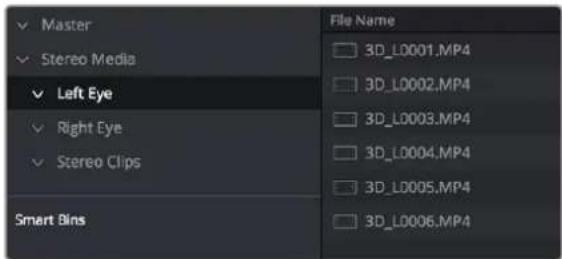
How to organize media for working in stereo 3D
2 Right-click anywhere within the Media Pool and choose Stereo 3D Sync.
The Stereo 3D Sync dialog appears, with buttons for choosing the left-eye folder, choosing the right-eye folder, choosing the output folder, and checkboxes for specifying whether to match reel names and file names, and additional fields for entering characters that identify left- and right-eye clips.
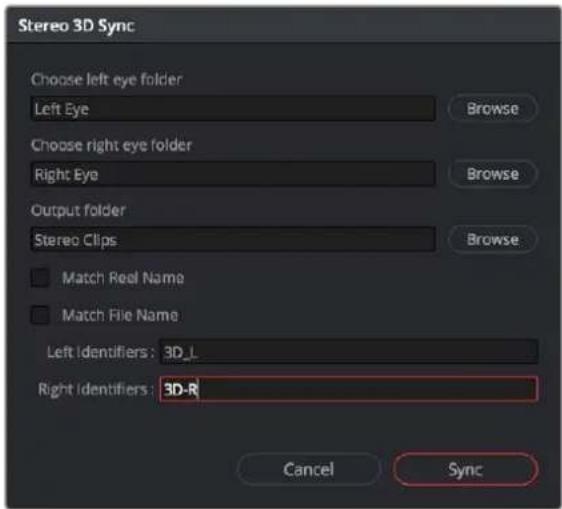
The Stereo Media Sync window
3 Click the Browse button corresponding to "Choose left eye folder" and then use the hierarchical list of bins that appears to choose the bin you named "Left." Follow the same procedure to choose the right-eye media.
4 Click the Browse button corresponding to "Output folder" and then use the hierarchical list of bins that appears to choose the bin you named "Stereo Clips."
5 Choose which matching criteria to use. Ideally, you only need to use whichever one of the three criteria that apply. The three options are:
- Match Reel Name: If the reel names of the left- and right-eye media match, turn this checkbox on.
- Match File Name checkbox: If the file names of the left- and right-eye media match, turn this checkbox on.
- Left Identifiers and Right Identifiers fields: If the left- and right-eye clips are identified by a special subset of characters within the file name (for example, "3D_R" and "3D_L"), then you can type each into the appropriate field, and these characters will be used to match the left and right eyes together.
6 Click Sync.
The original clips in the Left and Right bins disappear, and a full set of Stereo 3D clips appear in the output bin you selected in step four.
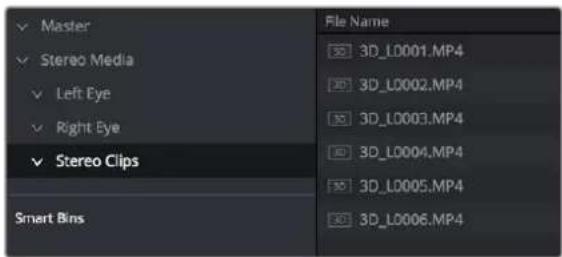
Final stereo clips, ready to be edited and graded
Step 3—(Optional) Create Optimized Media
If your stereo media is excessively large, you can create optimized media.
1 Select the stereo clips you've created.
2 Right-click one of the selected clips, and choose Generate Optimized Media from the contextual menu. A window appears showing you how long it will take to finish creating optimized media.
Monitoring Stereoscopic 3D in the Edit Page
You can now view a Stereoscopic 3D signal directly from the Edit page. Previously, the Edit page was restricted to left eye for both outputs. The Edit Page Viewer now displays Stereoscopic 3D identically to the Color page Viewer. The 3D palette in the Color page has the stereoscopic controls to select the stereo viewing options (Side by Side, Anaglyph, Line by Line, etc.), as well as adjusting the convergence and other stereoscopic parameters.
Converting Clips Between Stereo and Mono
You also have the option of converting clips between mono and stereo 3D using a pair of commands in the Media Pool.
Converting Stereo Clips Back to Mono
If necessary, you can split one or more stereo clips into mono clips using a single command.
To convert stereo clips into mono clips:
1 Select one or more stereo clips in the Media Pool.
2 Right-click one of the selected clips and choose Split Stereo 3D Clips from the contextual menu.
Afterwards, two new bins are created named Left and Right, containing the individual left- and right-eye clips that you've split apart.
Converting Mono Clips or an Entire Timeline to Stereo
Non-stereo clips (for which there are not separate left- and right-eye media files) can be converted into stereo clips either individually or throughout an entire timeline for one of two different reasons:
- You can convert non-stereo clips into stereo for use in a stereo project, so they output properly along with the rest of a stereo timeline, albeit without adjustable convergence or depth effects.
- If you want to grade an HDR and non-HDR version of your program at the same time, converting non-stereo clips to stereo makes it possible for you to a) manage two separate SDR and HDR grades for each clip in a timeline using the left- and right-eye channels, and b) output the SDR and HDR signals separately via your compatible Blackmagic Design interface's left- and right-eye SDI outputs when you turn on the "Use dual outputs on SDI" checkbox in the Video Monitoring section of the Master Settings panel of the Project Settings.
To convert mono clips into stereo clips:
1 Select one or more non-stereo clips in the Media Pool.
2 Right-click one of the selected clips and choose Convert to Stereo from the contextual menu.
Afterwards, that clip appears in the Media Pool as a Stereo 3D clip, and when edited into a timeline, can expose its controls in the 3D Stereo palette in the Color page.
If you have a timeline full of clips that you've just converted into stereo using the above procedure, you need to take the additional step of setting the Timeline to stereo in order to create stereo grades for each clip.
To convert a timeline to have stereo grades for simultaneous HDR/SDR output while grading:
- Right-click a timeline in the Media Pool and choose Timelines > Set Timeline to Stereo.
For more information about using stereo timeline workflows for simultaneous HDR and SDR grading, see Chapter 9, “Data Levels, Color Management, and ACES.”
Attaching Mattes to Stereo 3D Clips
If you have left- and right-eye mattes that need to be attached to stereo clips, the process works identically to importing mattes for regular clips, except that when you've selected a stereo 3D clip in the Media Pool, you have two matte import commands, "Add As Left Eye Matte," and "Add As Right Eye Matte."
Organizing and Grading Stereo 3D Dailies
A common workflow is the creation of digital dailies within DaVinci Resolve before editing in an NLE. This provides the editors, director, and producers with the advantage of having more attractive media to work with, that's also more comfortable to view if handled with the automatic geometry and color-matching functions that match the media of each pair of shots together for a preliminary left- and right-eye balance. The resulting Timelines can then be output to whichever media format is most convenient to use.
Step 1—Create 3D Stereo Clips
The very first step in the process of creating dailies is to import all of the left-eye and right-eye media into individually organized bins, and to then link them together to create stereo 3D clips, as described in the previous section.
Step 2—Edit the New Stereo Clips Into One or More Timelines for Grading
Now that you've created a set of Stereo 3D clips, you're ready to edit them into one or more Timelines for grading. You can do this by simply creating a new Timeline and deselect the Empty Timeline checkbox. A new Timeline will be created with the stereo 3D clips you created.
Step 3—Align Your Media
For the stereoscopic effect to work without causing headaches, it's critical that both eyes are aligned. This can be tricky to adjust using manual controls, but is something that can be automatically analyzed. You can perform stereo 3D alignment to a single clip using the Stereo 3D Palette controls, or you can select a range of clips to align all of them automatically at once. There are two methods of alignment; which is more appropriate depends on the type of geometry issues you have to address.
- Transform Alignment: Analyzes the image and makes vertical and rotational adjustments to line up the left- and right-eye images as closely as possible.
- Vertical Skew: Analyzes the images and makes a vertical-only adjustment to line up the left- and right-eye images.
Controls for aligning the left- and right-eye media
Step 4—Grading Stereo Media
Grade the clips in the Timeline as you would any other digital dailies, with the sole addition of using the controls in the Stereo 3D palette to control monitoring and manage the adjustments made to each eye as necessary. As when creating any other kind of dailies, you can use LUTs, the Timeline Grade, and individual clip grading to make whatever adjustments are necessary to create useful media for editing.
Grading Windows
If you're using windows, The Color group of the General Options panel of the Project Settings has a checkbox called "Apply stereoscopic convergence to windows and effects" that correctly maintains the position of a window that's been properly placed over each eye when convergence is adjusted.

You must turn on a checkbox in the Project Settings to enable stereo convergence for windows
When this option is enabled, the Window palette displays an additional Transform parameter, "Convergence," that lets you create properly aligned convergence for a window placed onto a stereoscopic 3D clip.
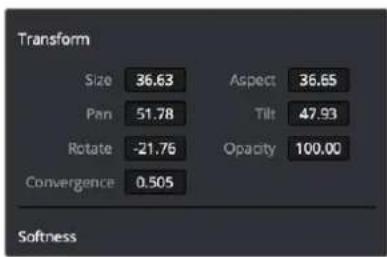
other
Transform | Category | Value | |---|---| | Size | 36.63 | | Pan | 51.78 | | Rotate | -21.76 | | Convergence | 0.505 | | Aspect | 36.65 | | Tilt | 47.93 | | Opacity | 100.00 | SoftnessThe Convergence control in the Transform section of the Window palette
After placing a window over a feature within the image while monitoring one eye, you can enable Stereo output in the Stereo 3D palette and use the Pan and Convergence controls to make sure that window is properly stereo-aligned over the same feature in both eyes. At that point, adjusting the Convergence control in the Stereo 3D palette correctly maintains the position of the window within the grade of each eye.
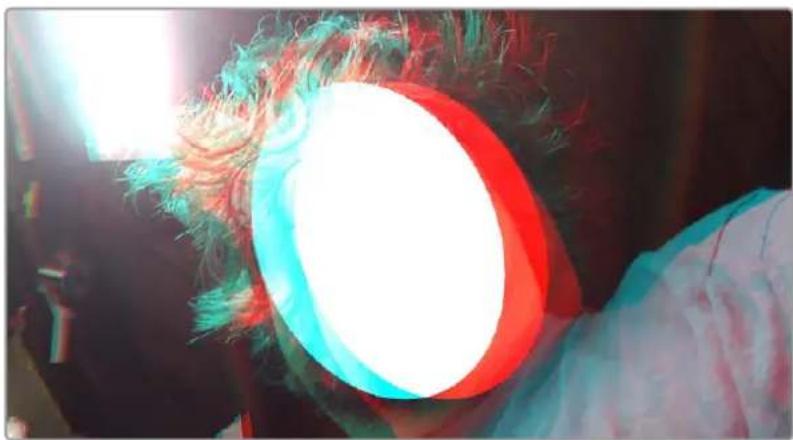
natural_image
Person holding a glowing red and blue circular object with feathered hair, no visible text or symbolsA convergence-adjusted window in stereo
Matching Media From Left and Right Eyes
To help you manage the visual differences between left- and right-eye clips, there are also three automatic color matching commands that can be used to batch process as many clips as you need to adjust at once.
- Stereo Color Match (Primary Controls): Uses the Lift/Gamma/Gain controls to match one eye to the other. The result is a simple adjustment that's easy to customize, but may not work as well as Custom Curves in some instances.
- Stereo Color Match (Custom Curves): Uses the Custom Curves to create a multipoint adjustment to match one eye to the other. Can be more effective with challenging shots.
- Stereo Color Match (Dense Color Match): Performs a pixel by pixel, frame by frame color match that is incredibly accurate. This operation is processor intensive, so if you're going to batch process many clips, or if you're matching long clips, you'll want to make sure you have adequate time. Because this is such a precise match, it's recommended to use Dense Color Match after you've used one of the stereo alignment commands.
Controls for matching the grade of the left and right eye media
Step 5—Output Offline or Online Media for Editing
When you're done applying whatever grading is necessary to make the media suitable for editing, you'll need to export each clip as separate left- and right-eye clips using the controls of the Deliver page.
1 Open the Deliver page, and set up your render to output the format of media you require. Be sure to do the following:
- Set Render Timeline As to Individual source clips.
- Turn on the "Filename uses Source Name" checkbox.
- To render both eyes' worth of media, choose "Both eyes as" from the Render Stereoscopic 3D option, and choose Separate Files from the accompanying pop-up menu. Optionally, you could also choose to render only the left-eye or right-eye media.
2 Choose how much of the Timeline to render from the Render pop-up menu in the Timeline toolbar; to render everything, choose Entire Timeline.
3 Click "Add Job to Render Queue."
4 Click Start Render.
DaVinci Resolve will now render either two sets of left- and right-eye clips, or one set of media corresponding to the eye you chose.
To make sure that the resulting edited project conforms easily to the originating DaVinci Resolve project, it's important to be sure that you render individual source clips, and that you turn on the "Filename user Source Name" checkbox, in order to clone the timecode, reel numbers, and file names of the source media.
Conforming Projects to Stereo 3D Media
Since DaVinci Resolve manages stereo via a single set of specially created stereo 3D clips, you can use the same project import methods to import stereo 3D projects as you would for any other project. Only a single imported timeline is necessary.
This also means that you can edit stereo projects in NLEs that aren't otherwise stereo-aware, and finish them in full stereo 3D in DaVinci Resolve. To do this, you need to make sure that you edit the left-eye media in your NLE, and then export either an EDL or XML file to conform in DaVinci Resolve.
To conform an EDL to stereo 3D media:
1 Open the Media page, and create the necessary set of stereo 3D clips that will correspond to the project you're going to import, as described previously.
Open the Edit page, and then use the Import AAF/EDL/XML command to import your edit.
2 When the Load EDL/XML dialog appears, do the following:
- If importing an EDL, verify that the frame rate is correct, and click OK.
- If importing XML, make sure you turn off the "Automatically import source clips into
Media Pool" checkbox, since you want to relink the imported project to the stereo 3D clips you created in step one.
The left-eye media timecode and reel information that's embedded within each stereo 3D clip will be used to conform the stereo 3D clips with the imported EDL, and you should be ready to work.
Grading Mastered Stereoscopic Media From Tape
If you've been handed a stereo 3D muxed tape with a mastered program that needs to be graded, but you haven't been given a project file or EDL, you can ingest it as individual left- and right-eye media files with a supported VTR, such as HDCAM SR with 4:2:2 x 2 mode, by turning on the "Use left and right eye SDI" checkbox in the Capture and Playback panel of the Project Settings. When muxed stereoscopic signals are ingested, each eye is separated into individual left-eye and right-eye image files
Once ingested, you can use Scene Detection to split the left-eye media in one bin, and to create an EDL, you can use to split the right-eye media in the same way in another bin, so that you can create a sequential set of stereo clips for grading.
Adjusting Clips Using the Stereo 3D Palette
Once you've either created or imported a stereoscopic 3D-identified timeline, you're ready to begin grading. The left eye will be displayed in the Edit and Color pages by default; however, you can right-click on the Timeline and select Stereo 3D Mode to view the other eye. Most colorists work by grading one eye first (typically the left), and rippling their grades to the other eye, making separate adjustments to each eye's clips when necessary to match undesirable variation between cameras. DaVinci Resolve lets you do this automatically.
Setting up stereo 3D media enables the Stereo 3D palette on the Color page. This palette contains all the controls necessary for working on stereoscopic projects. It provides controls for choosing which eye to grade, adjusting convergence, swapping and copying grades and media between matching left- and right-eye clips, auto-processing the color and geometry of left- and right-eye clips to match, stereo 3D monitoring setup, and controls for floating windows.
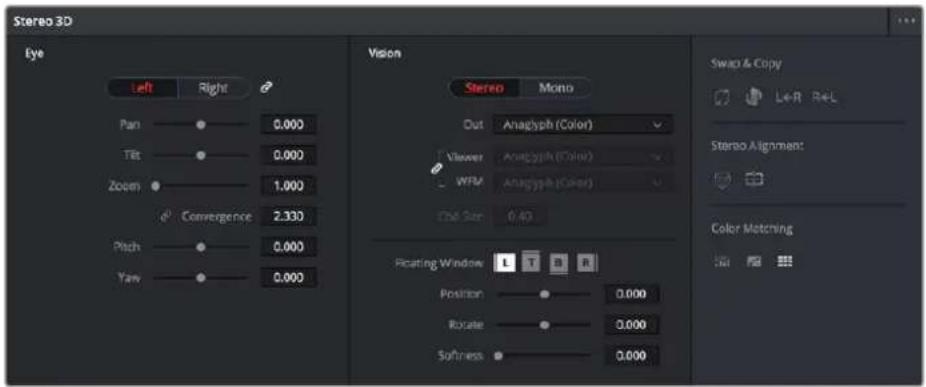
Stereoscopic 3D palette
Your project must contain stereo 3D clips in order to open this palette. For more information on setting up a stereo 3D project, see the “Creating Stereo 3D Clips” section of this chapter.
Stereo Eye Selection
Most colorists work by grading one eye first (typically the left), and rippling their grades to the other eye, making separate adjustments to each eye's clips when necessary to match undesirable variation between cameras.
The first three buttons in the Stereo 3D palette let you choose which eye to grade while you're working, as well as whether or not to ripple each clip's grade to the matching opposite-eye clip. Whenever you switch eyes, the 3D badge above each clip's thumbnail changes color (blue for right, red for left) and the thumbnails themselves update to show that eye's media.
The Left eye is master and ganged with the Right
- Left button: Displays the left-eye image and grade.
- Ripple Link button: When enabled (orange), all changes you make to the grade of the currently selected eye are automatically copied to the correspondingly opposite eye. When disabled (gray), grades made to the currently selected eye are made independently.
- Right button: Displays the right-eye image and grade.
You can also choose which eye you're viewing and grading by right-clicking a clip's thumbnail and choosing Stereo 3D > Switch Eye or by choosing View > Switch Eye To > Left Eye or Right Eye.
Using Ripple Link When Grading Stereo 3D Clips
You would turn Ripple Link off to suspend rippling when you want to make an individual adjustment to the grade of one eye to obtain a better match between the two. When you're finished matching the two clips, you can turn it back on to resume automatic grade rippling.
Stereo 3D grade rippling is always relative, so differences between the grades that are applied to the left- and right-eye clips are preserved. In fact, when you add or remove nodes to or from one eye, the same nodes are automatically added to or removed from the corresponding clip it's paired with, regardless of whether or not Ripple Linked is enabled.
IMPORTANT
Regardless of whether or not Ripple Link is enabled, local versions created for one stereo 3D-identified clip are automatically available to the paired timeline.
Stereo 3D Geometry Controls
The next group of parameters lets you adjust the geometry of stereo 3D clips. The Pan, Tilt, and Zoom controls are provided as a convenience, and simply mirror the same parameters found in the Transform palette's Input mode, but made specific to the geometry of the left- and right-eye media.
Convergence, Pitch, and Yaw are the three parameters that are unique to the Stereo 3D palette.
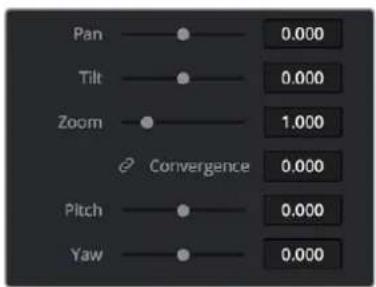
Stereoscopic 3D Geometry controls
- Convergence: Adjusts the disparity between the left and right eyes, to define the point of convergence (POC), or the region within the image where the left- and right-eye features are in perfect alignment. If necessary, Convergence can be animated using the Stereo Format parameter group in the Sizing track of the Keyframe Editor. If you want to adjust convergence in pixels, open the Stereo 3D palette option menu, and turn on "Show convergence in pixels."
Features that overlap perfectly in both right- and left-eye clips are at zero parallax, putting that feature's depth at the screen plane. Matching features that are divergent in the left- and right-eye clips have increasingly positive parallax, and appear to be farther away from the audience. Matching features that are divergent and reversed in the left- and right-eye clips have increasingly negative parallax, and appear to be closer to the audience than the screen plane. - Linked Zoom button: When enabled (white), both the left- and right-eye clips are automatically zoomed whenever Convergence is adjusted so that both eyes always fill the screen. When disabled (gray), changes to Convergence will cause the opposing left and right edges of each eye's clip to have blanking intrude.
- Pitch: Pivots the image around the horizontal center plane of the frame.
- Yaw: Pivots the image around the vertical center plane of the frame.
Sizing Repositioning in Stereo 3D
Generally, you'll want to reposition stereo 3D clips with Ripple Link turned on, but you may occasionally find yourself needing to make a manual adjustment to one eye in particular with Ripple Link disabled. As with color adjustments, Sizing adjustments made with Ripple Link disabled are only applied to the clip in the current Timeline. When Ripple Link is turned on, all Sizing adjustments are automatically copied to the correspondingly numbered shot of the other stereo 3D timeline.
WARNING
It is not advisable to use the Rotate parameter when transforming stereo 3D clips. Geometrically, rotation tilts a stereo pair of clips inappropriately, and ruins the “side-by-side” convergence that’s necessary to create the stereoscopic illusion.
Protecting Stereo Adjustments When Copying Grades
Each version of a grade has independent stereo adjustments stored along with the Sizing settings. To prevent accidental overwrite of convergence and alignment data when copying grades from one clip to another, you can right-click within the Gallery and choose one of the following options to turn them on:
– Copy Grade: Preserve Convergence
– Copy Grade: Preserve Floating Windows
– Copy Grade: Preserve Auto Align
When enabled, these options let you overwrite a clip's grade without overwriting specific Stereo 3D parameters.
TIP: Stereo 3D and Sizing settings are processed before node-based corrections in the DaVinci Resolve image processing pipeline.
Swap and Copy Controls
Another set of controls at the right of the Stereo 3D palette lets you swap and copy grades, and swap clips, in situations where you need to reverse what's applied to a pair of left- and right-eye clips.
Swap and Copy grades between eyes
- Swap Grade: Exchanges the grades that are applied to the left- and right-eye clips.
- Swap Shot: A checkbox that, when enabled, switches the actual media used by two corresponding left- and right-eye clips. Useful in situations where the eyes of a stereo 3D clip were mislabeled, and you want to switch the clips without rebuilding both EDLs.
– Copy Right to Left: Copies the right-clip grade to the corresponding left-eye clip.
– Copy Left to Right: Copies the left-clip grade to the corresponding right-eye clip.
Batch Grade Management for Stereo 3D Projects
There are also a series of batch-processing commands that are useful for stereoscopic grading that are available when you right-click one or more selected clips in the Thumbnail timeline:
- Stereo 3D Batch Copy: Copies every grade from the left-eye clips to the right-eye clips.
- Stereo 3D Batch Sync: Copies grades from one eye to the other only when their node graphs have the same number of nodes. This prevents you from accidentally overwriting a custom grade with a different node structure that was necessary to match two eyes for a problem shot.
The Copy Grade, Swap Grade, Swap Shots, Ripple Link, and Switch Eye commands are also available from the Stereo submenu of the Timeline contextual menu.
Automatic Image Processing for Stereo 3D
It's common during stereoscopic shoots for minor divergences in geometry and color to appear in the source footage. To make the process of grading stereo 3D media less onerous, DaVinci Resolve provides a set of auto-adjustment controls at the right of the Stereo 3D palette that gives you a starting point for matching left- and right-eye clips together.
Auto align and color match buttons
Options for Auto Processing
You can choose which frame should be used to automatically analyze and process stereo clips using the Alignment and Matching controls from the Stereo 3D palette option menu. You can choose Auto Process > First or Middle, depending on what works best for your media.
Auto Process—Stereo Alignment
For the stereoscopic effect to work without causing headaches, it's critical that both eyes are aligned. This can be tricky to adjust using manual controls, but is something that can be automatically analyzed. You can perform stereo 3D alignment to a single clip, or you can select a range of clips to align all of them automatically at once. There are two options. Which is more appropriate depends on the type of geometry issues you're needing to address.
- Transform Alignment: Analyzes the image and makes vertical and rotational adjustments to line up the left- and right-eye images as closely as possible.
- Vertical Skew: Analyzes the images and makes a vertical-only adjustment to line up the left- and right-eye images.
To align one or more clips automatically:
1 Select one or more stereo clips in the Thumbnail timeline of the Color page.
2 Choose which frame of each clip you want to use for the analysis by opening the Stereo 3D palette, clicking the Option menu, and choosing Auto Process > First or Auto Process > Middle.
3 Click either of the Stereo Alignment buttons. The button to the left is for Automatic Transform, while the button to the right is for Automatic Vertical Skew.
If you selected multiple clips, then the Stereo Alignment window appears, and a progress bar shows the remaining time this operation will take.
Auto Process—Color Matching
Due to the design of different stereo 3D rigs, sometimes the color and contrast of one eye's media doesn't precisely match that of the corresponding eye. DaVinci Resolve provides two commands for quickly and automatically matching two eyes together.
- Stereo Color Match (Primary Controls): Uses the Lift/Gamma/Gain controls to match one eye to the other. The result is a simple adjustment that's easy to customize, but may not work as well as Custom Curves in some instances.
- Stereo Color Match (Custom Curves): Uses the Custom Curves to create a multipoint adjustment to match one eye to the other. The result can be more effective with challenging shots.
- Stereo Color Match (Dense Color Match): Performs a pixel by pixel, frame by frame color match that is incredibly accurate. This operation is processor intensive, so if you're going to batch process many clips, or if you're matching long clips, you'll want to make sure you have adequate time. Because this is so precise match, it's recommended to use Dense Color Match after you've used one of the stereo alignment commands.
TIP: For the best results, it's recommended to use automatic color matching in a separate node, independent of other corrections.
Stereo 3D color match works differently depending on whether or not one of the stereo 3D-paired clips has already been graded. The following procedure shows how to match a pair of left- and right-eye clips before you make any manual adjustments of any kind.
To match a pair of left- and right-eye clips automatically:
1 Select one or more clips in the Thumbnail timeline of the Color page.
2 Open the Stereo 3D palette, and click one of the three Color Match controls.
The Color Matching window appears, and a progress bar shows the remaining time this operation will take. You can also use automatic color matching to match an ungraded clip to a paired clip that's already been graded. This only works for grades consisting of one or more primary corrections; secondary corrections cannot be auto-matched.
To match an ungraded clip automatically to a paired stereo clip that's graded:
1 To suspend stereo grade linking temporarily:
- Open the Stereo 3D palette, and turn off the Ripple Link button.
- Right-click the Thumbnail timeline, and choose Stereo 3D > Ripple Link > Solo.
2 Make a primary adjustment to a clip in the left-eye timeline to create a simple base grade. The left-eye clip now has a grade, and the right-eye clip does not.
3 Do one of the following to switch eyes:
– In the Stereo 3D palette, click Right.
- Right-click the Thumbnail timeline again, and choose Stereo 3D > Switch Eye.
This procedure only works when you use the Stereo Color Match commands on the ungraded clip of a left- and right-eye stereo pair, to match it to the graded clip.
4 To make the match, do the following:
– In the Stereo 3D palette, click one of the three color match controls.
Both clips should match one another very closely.
Stereo 3D Monitoring Controls
To output both eyes to a stereo 3D display, you need to click the Vision: Mono or Stereo button, and then choose a display mode from the Out pop-up menu.
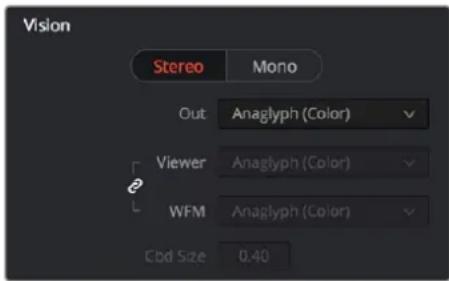
Monitoring controls for Stereo 3D
- Vision: Click a button to choose between Stereo, where both eyes can be displayed in the Viewer and output to video in a variety of different formats, and Mono, where only one eye is monitored in the Viewer and your video output interface.
- Out: A pop-up menu that provides different stereo viewing options for previewing stereo 3D signals in different ways. By default, this option is also linked to the Viewer display Internal Video Scope options. For detailed descriptions of each stereo 3D viewing mode, see the following section, "Stereo 3D Output Options."
- Link button: When enabled, the Viewer and internal video scopes both use the Out pop-up menu's option for stereo 3D viewing. When disabled, you can choose different stereo 3D viewing options for the Viewer and internal video scopes.
- Viewer: Lets you choose a stereo 3D viewing option for the Viewer.
- WFM: Lets you choose a stereo 3D viewing option for the internal video scopes.
- Cbd Size: If any stereo 3D viewing options are set to Checkerboard, this parameter becomes enabled, and lets you define the size of the checkerboard boxes, in pixels.
Dual 4:2:2 Y'CbCr stereoscopic video streams are output via HD-SDI on selected Blackmagic I/O devices when you turn on the "Use left and right eye SDI output" checkbox on the Master Settings panel of the Project Settings. You can select either Side-by-Side or Line-by-Line output to be fed to your stereo-capable display, depending on your display's compatibility.
Stereo 3D Output Options
Additionally, the Viewer and video scopes can be set to display both “eyes” in one of a variety of different modes.
- Side by Side: Displays both images side by side. Each eye is squeezed anamorphically to fit both eyes into the same resolution as the GUI viewer.
- Top and Bottom: Displays both images one over the other. Each eye is squeezed vertically to fit both eyes into the same resolution as the GUI viewer.
- Line by Line (Even/Odd): An interlaced mode where each eye is displayed on alternating lines. The thickness of the lines as seen in the Viewer depends on how zoomed in you are.
- Checkerboard: Displays both eyes via an alternating checkerboard pattern. This is an excellent mode for identifying regions of the image where there's variation in color or geometry between the two eyes.
- Anaglyph (B/W): Each eye is desaturated and superimposed via Red/Cyan anaglyph to show the disparity between both eyes in different regions of the image. Left-eye divergence is red, and right-eye divergence is cyan. Regions of alignment between both eyes appear grayscale.
Anaglyph modes are useful for evaluating the geometric differences between both eyes, as well as for identifying the point of convergence (where both eyes align most perfectly) that places a region of the image at the screen plane.
Red/cyan color coding also identifies the direction of parallax. For any given feature, disparity such that red is to the right and cyan is to the left indicates positive parallax (backward projection away from the audience). Red to the left and cyan to the right indicates negative parallax (forward projection towards the audience).
- Anaglyph (Color): Similar to Anaglyph (B/W), except that regions of close alignment are shown in full color. Incidentally, both anaglyph modes can be previewed on ordinary displays using old-fashioned red/cyan anaglyph glasses, enabling stereo 3D monitoring on non-stereo 3D-capable displays.
- Difference: Superimposes grayscale versions of both eyes using the difference composite mode. Corresponding left/right-eye pixels that are perfectly aligned appear black, while pixels with disparity appear white. This mode is extremely useful for evaluating geometric differences between both eyes, as well as for identifying the point of convergence, without the distraction of color that the anaglyph modes present.
NOTE: Only displays the eye corresponding to the currently selected timeline in the Viewer. However, this option also works in conjunction with the "Use Dual Outputs on SDI" checkbox in the Master Settings of the Project Settings which, when turned on, outputs each eye to an individual HD-SDI output of your Blackmagic I/O card.
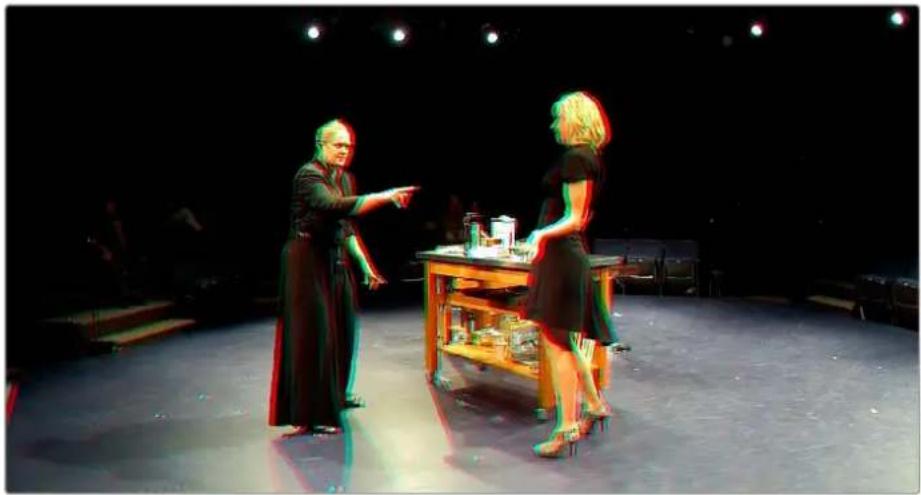
natural_image
Two performers on stage in black dresses, one gesturing toward a table with a cup and glass (no visible text or symbols)The Viewer set to display an anaglyph stereo image in color
Floating Windows
Floating Windows are meant to correct for "Window violations," where elements of the image with negative parallax, that project forward from the screen plane towards the audience, are cut off by the edge of the frame. In these instances, differences between the images being shown to the left and right eyes can result in a visual paradox that's difficult for viewers to reconcile. Specifically, when a forward-projecting element is cut off by the left or right edge of the frame, one eye sees things that the other eye does not.
If the subject is moving quickly, this may not be an issue, but if the cut off (or occluded) element lingers onscreen, it causes problems for viewers that defeat the stereo 3D illusion. The viewer's binocular vision (or stereopsis) is providing one depth cue, while occlusion is providing a completely different depth cue.
To fix this, you can use Floating Windows to crop the cut off object from the eye on the side of the object that's cut off, thus eliminating the portion of the stereo image that is unseen to the other eye that causes the problem.
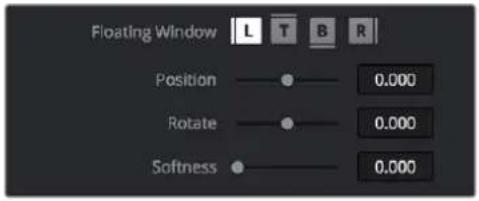
Floating Window controls
The objective of using Floating Windows is to manipulate the illusion of the viewer's "window into the scene." In addition to fixing Window violations, it has been proposed that Floating Windows can be used as a creative tool by manipulating the geometry of this Window to alter subtly the viewer's perception of the screen orientation.
- By cropping the right-hand side of the right-eye frame, you also create the illusion that the right edge of the "window into the image" is tilted farther forward toward the viewer.
- By cropping the left-hand side of the left-eye frame, you create the illusion that the left edge of the Window is tilted toward the viewer.
- If you crop both the left-hand side of the left-eye frame and the right-hand side of the right-eye frame, you create the illusion that the entire plane of the "virtual screen" is coming toward you.
- If you apply opposite-angled Windows to the left- and right-eye clips at one or both of the edges of the frame, it appears to "tilt" the screen toward or away from the viewer.
Animating Floating Windows
Floating Windows can be animated using the Float Window keyframing track, found within the Sizing track of the Keyframe Editor, to push the edge of the frame in as needed, and then pull it back out when the partially occluded subject has moved fully into the frame. For more information about animating keyframing tracks, see Chapter 144, "Keyframing in the Color Page."
Floating Windows have the following controls and parameters.
- L/R/T/B buttons: Lets you choose an edge to which to apply a Floating Window. Click the button corresponding to the edge you want to adjust. Each edge has its own position, rotate, and softness settings.
- Position: Adds masking to the currently selected edge.
- Rotate: Rotates the currently selected edge, letting you create an angled Window.
- Softness: Feathers the edge of the currently selected edge, letting you create a soft Window that can be less noticeable to viewers.
To add a Floating Window to fix a Window violation:
1 Choose to which eye you want to add the Floating Window.
- To apply a Floating Window to eliminate a Window violation on the right-hand side of the screen, click the right eye view.
- To apply a Floating Window to eliminate a Window violation on the left-hand side of the screen, click the left eye view.
2 Choose which edge you want to adjust by clicking the L or R buttons.
- To eliminate a Window violation on the right-hand side, click R.
- To eliminate a Window violation on the left-hand side, click L.
3 Adjust the Position parameter as necessary to crop the portion along the edge of the selected eye that's not visible in the other.
4 Optionally, if you feel that the Window adjustment you've just made is too obvious, increase the Softness parameter to make that edge less noticeable.
Stereo Controls on the DaVinci Control Panel
If you're doing convergence adjustments and stereographic work throughout a program, you can use many of the controls described in this section from the DaVinci control panel.
To show the Stereo transform controls page on the Transport panel:
1 Press the 3D soft key. The Transport panel's knobs and soft keys are remapped with all available Stereoscopic commands.
2 When you're finished, press MAIN.
To show the Floating Windows controls on the Center panel:
1 From the main page of the Center panel, press the 3D soft key. The Floating Windows, Auto Match, and Auto Align controls appear on the Center panel.
2 Press the 3D OVERLAY soft key to expose the Stereoscopic sizing controls on the Transport panel. Press 3D OVERLAY again to return to the ordinary sizing controls.
3 When you're finished, press the MAIN soft key to exit the 3D control page.
Outputting Stereo 3D Media in the Deliver Page
To render full frame media, you'll need to render each stereo 3D eye separately using the controls of the Deliver page, outputting whatever media format is required by the client.
Rendering Frame-Compatible Media
Frame-compatible media has both the left- and right-eye images squeezed anamorphically into a single media file. To create frame-compatible media, choose the "Both eyes as" option from the Render Stereoscopic 3D controls at the bottom of the File output options of the Deliver page, and then choose a method of output from the Mesh Options pop-up menu.
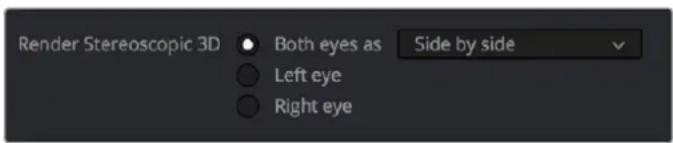
Stereoscopic 3D mesh render options on the Deliver page
You can choose Side-by-Side, Line-by-Line, or Top-Bottom. You can also choose Anaglyph if you want to output a traditional anaglyph red/cyan stereo 3D image for viewing on any display.
Rendering Individual Left- and Right-Eye Clips
If your workflow requires you to deliver separate sets of left- and right-eye media, this is easily accomplished by either setting up a render job with “Render Stereoscopic 3D” set to either “Right eye” or “Left eye,” or selecting “Both eyes as” and choosing the “Separate files” option.
Chapter 16
Using Variables and Keywords
This chapter describes how to use metadata variables and keywords to help you manage your clips.
Contents
Using Metadata Variables 292
Where Variables Can Be Used 292
How to Edit Metadata Variables 292
Available Variables in DaVinci Resolve 293
Using Keywords 295
Using Metadata Variables
If you're an enthusiastic user of clip metadata (and you should be), you can use "metadata variables" that you can add into supported text fields that let you reference other metadata for that clip. For example, you could add the combination of variables and text seen in the following screenshot. Variables, once they've been entered, are represented as graphical tags shown with a background, while regular text characters that you enter appear before and after these tags.
Clip Name
Scene
Shot
Take
Variables and text characters entered to create a display name based on a clip's metadata
As a result, that clip would display "12_A_3" as its name if scene "12," shot "A," and take "3" were its metadata. When you do this, you can freely mix metadata variables with other characters (the underscore, as in the example above) to help format the metadata to make it even more readable.
Be aware that, for clips where a referenced metadata field is empty, no characters appear for that corresponding metadata variable's tag wherever it happens to be used.
Where Variables Can Be Used
Metadata variables are extremely flexible, and can be used to procedurally add metadata to several functions in DaVinci Resolve. Here's a partial list of where you can use variables.
- Clip names: You can use variables in the Clip Name column of the Media Pool in List view, or in the Clip Name field of the Clip Attributes window's Name panel, to use each clip's metadata to generate a more readable and useful display name.
- Other metadata fields in the Metadata Editor: You can use variables to reference metadata in other fields.
- Automatic labeling of stills in the Gallery: You can choose an option from the Color group in the General Options panel of the Project Settings to "Automatically label Gallery stills" in the Gallery, and you can use variables to do so.
- Custom text in the Data Burn palette: You can use variables to automatically populate metadata in different combinations as a window burn.
- The Filename field of the Render Settings in the Deliver page: Using variables, you can automatically set the name of rendered clips to follow any metadata that's associated with a timeline or individual clip. This is especially useful when you want to generate specific file names when rendering individual source clips.
How to Edit Metadata Variables
Every single item of metadata that's available in the Metadata Editor can be used as a variable, and several other clip and timeline properties such as the version name of a clip's grade, a clip's EDL event number, and that clip's timeline index number can be also referenced via variables.
To add a variable to a text field that supports the use of variables:
1 Type the percentage sign (%) and a scrolling list appears showing all variables that are available.
2 To find a specific variable quickly, start typing that variable's name and this list automatically filters itself to show only variables that contain the characters you've just typed.
3 Choose which variable you want to use using the Up and Down Arrow keys, and press Return to choose that variable to add.
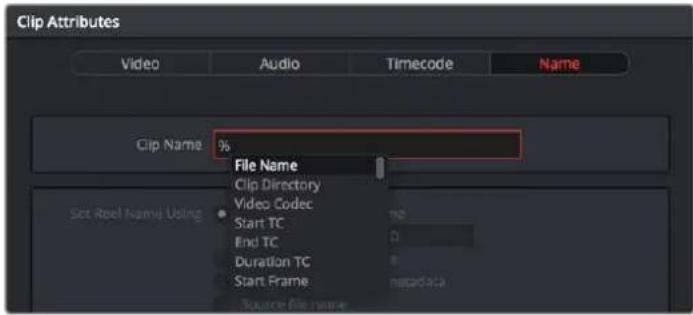
The variable list that appears when you type the % character
As soon as you add one or more metadata variables to a field and press Return, the string is replaced by its corresponding text. To re-edit the metadata string, simply click within that field to edit it, and the metadata variables will reappear as the graphical tags that they are.
To remove a metadata variable:
- Click within a field using variables to begin editing it, click a variable to select it, and press Delete.
Available Variables in DaVinci Resolve
The following list describes what metadata variables are available to add.
Clip Metadata
- File Name
- Clip Directory
- Video Codec
- Data Level
- KeyKode
Metadata Editor Metadata
- All Shot Scene metadata
– All Clip Details metadata (see Metadata Editor for more information)
– All Camera metadata (see Metadata Editor for more information)
– All Tech Details metadata (see Metadata Editor for more information)
– All Stereo 3D VFX metadata (see Metadata Editor for more information)
– All Audio metadata (see Metadata Editor for more information)
– All Audio Tracks metadata (see Metadata Editor for more information)
– All Production metadata (see Metadata Editor for more information)
– All Production Crew metadata (see Metadata Editor for more information)
– All Reviewed By metadata (see Metadata Editor for more information)
Media Pool Metadata
- File name
- Reel name
- File path
- Video Codec
- IDT
- Input LUT
- PAR
- Data Level
- Description
- Comments
- Keyword
- Shot
- Scene
- Take
- Roll/Card #
- Input Color Space
- Input Sizing Preset
- Start TC
- End TC
- Optimized Media
Timeline and Project Metadata
- Group
– Timeline Name
- Project Name
- Track Number
- Track Name
- Render Codec
Legacy Metadata
– EDL Tape Number: Tape number extracted from imported EDL
– Render Resolution: Resolution of the rendered file
- EDL Event Number: DaVinci Resolve-generated index number of the clip in the timeline
– Version: Version Name of the rendered file
– Eye: Stereo session, “Left” or “Right”
- Reel Number: Reel Name extracted by DaVinci Resolve from source filename or clip name
– Timeline Index: Event number from imported EDL
Using Keywords
While most metadata in the Metadata Editor is edited via text fields, checkboxes, or multiple button selections (such as Flags and Clip Color), the Keyword field is unique in that it uses a graphical "tag" based method of data entry. The purpose of this is to facilitate consistency with keyword spelling by making it easy to reference both a built-in list of standardized keywords, as well as other keywords that you've already entered to other clips.
Once added, keywords are incredibly useful for facilitating searching and sorting in the Media Pool, for creating Smart Bins in the Media and Edit pages, and for use in Smart Filters on the Color page. Reaping these benefits by adding and editing keywords is simple and works similarly to the method of entering metadata variables that's described above.
To add a keyword:
1 Select one or more clips, then click in the Keyword field of the Metadata Editor, and begin typing the keyword you want to use. As you begin typing, a scrolling list appears showing all keywords that are available using the string of characters you've just typed.
2 To find a specific keyword in the list, start typing that keyword's name and this list automatically filters itself to show only keywords that contain the characters you've just typed. Choose which keyword you want to use in the list using the Up and Down Arrow keys, and press Return to choose that keyword to add.
3 If you selected multiple clips, don't forget to click Save or you'll lose your changes. If you only selected a single clip, your changes will be saved automatically.
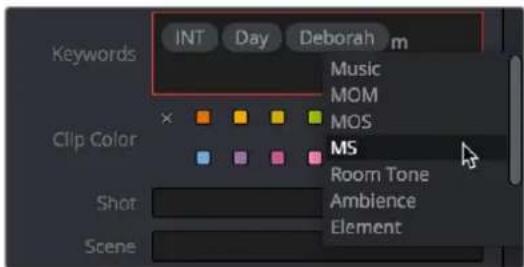
The keyword list that appears when you type within the Keyword field
As soon as you add one or more keywords, they appear as a graphical tag. To re-edit any keyword, simply click anywhere within the Keyword field to edit it.
To edit a keyword:
Double-click any keyword to make it editable, then edit it as you would any other piece of text, and press Return to make it a graphical keyword tag again.
To remove a keyword:
Click any keyword to select it, and press Delete.
PART 3
Ingest and Organize Media
natural_image
Colorful abstract logo with three petal shapes inside a circular gradient border (no text or symbols)Chapter 17
Using the Media Page
The Media page is the primary interface for media import and clip organization in DaVinci Resolve. It's also where all timelines that you edit in DaVinci Resolve or import from other applications are organized. While timelines and clips are both saved in the Media Pool, it's central to the way DaVinci Resolve works that the source media used by a project is managed separately from your timelines. In this way, you can manage and update the clips used by timelines with ease, importing and reorganizing clips, switching between offline and online media, and troubleshooting any problems that occur.
The Media page also contains much of the core functionality used for on-set workflows, as well as most of the functions that are used in the ingest, organization, and sound-syncing procedures corresponding to digital dailies workflows.
Contents
Understanding the Media Page User Interface 298
The Interface Toolbar 298
Showing Which Panel Has Focus 299
The Media Storage Browser 299
Playing Media in the Media Storage Browser 300
The Media Storage Browser's Volume List 300
The Media Storage Browser Area 301
Revealing a Finder Location in the Media Browser 305
Viewer 305
Live Media Preview 306
Media Pool 306
The Bin List 306
Showing Bins in Separate Windows 307
Bins, Power Bins, and Smart Bins 307
Filtering Bins Using Color Tags 308
Sorting the Bin List 309
Thumbnail, List, and Metadata Views in the Media Pool 309
Display Audio Clip Waveforms in Media Pool and Media Storage 309
Metadata Editor 310
Audio Panel 311
Dual Monitor Layout 311
Customizing the Media Page 312
Undo and Redo in DaVinci Resolve 313
Understanding the Media Page User Interface
By default, the Media page is divided into five different areas, designed to make it easy to find, select, and work with media in your project.
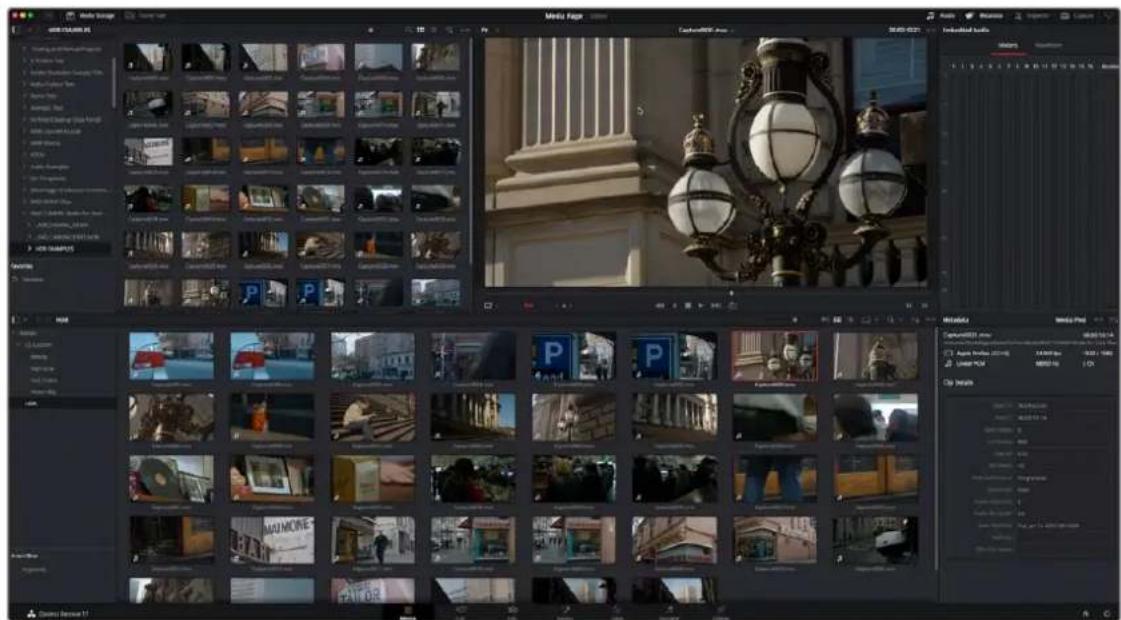
Media page
Much of the functionality and most of the commands are found within the contextual menus that appear when you right-click clips in the Media Storage browser or Media Pool.
The Interface Toolbar
At the very top of the Media page is a toolbar with buttons that let you show and hide different parts of the user interface. These buttons are as follows, from left to right:

The Interface toolbar
- Media Storage full/half height button: Lets you set the Media Storage browser to take up the full height of your display, if you need more area for browsing at the expense of a smaller Media Pool.
– Media Storage: Lets you hide or show the Media Storage browser. Hiding the Media Storage browser creates more room for the Viewer. - Clone Tool: Shows or hides the Clone tool, used for cloning media from camera cards or hard drives.
– Audio Panel: Hides or shows the Audio Panel.
- Metadata: Hides or shows the Metadata Editor.
- Inspector: Hides or shows the Inspector Panels.
- Capture: Switches the Viewer and Audio Panel to Capture Mode, exposing the controls necessary for cuing up a device-controllable deck, and batch recording from tape.
- Audio Panel/Metadata Editor full/half height button: Lets you set the Audio Panel or Metadata Editor to take up the full height of your display, if you need more area for either of those functions.
Showing Which Panel Has Focus
Whenever you click somewhere on the DaVinci Resolve interface using the pointer, or use a keyboard shortcut to "select" a particular panel (such as in the Edit page), you give that panel of the user interface "focus." A panel with focus will capture specific keyboard shortcuts to do something within that panel, as opposed to doing something elsewhere in the interface.
Disabled by default, checking the "Show focus indicators in the user interface" box in the UI Settings section of the User Preferences causes an orange highlight to appear at the top edge of the focused panel, allowing you to keep track of which part of the current page is taking precedence. You can switch focus as necessary to do what you need to do.
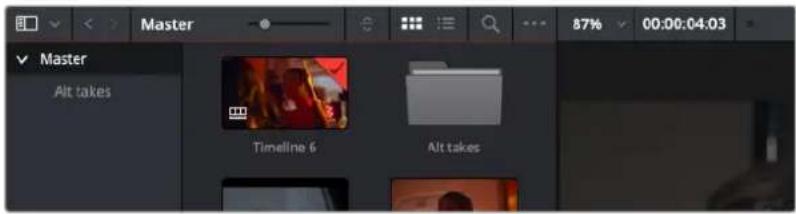
The Focus indicator shown at the top edge of the Media Pool, shown next to a Viewer that doesn't have focus
The Media Storage Browser
The Media Storage browser lets you see all of the volumes connected to your workstation, browsing them for media that you want to preview and eventually import into your DaVinci Resolve project in one way or another. Whereas other applications rely on some sort of import dialog, DaVinci Resolve provides the Media page for doing complex media import tasks. To facilitate media import, the Media Storage browser is divided into two areas, the Volume List, and the Media Browser.
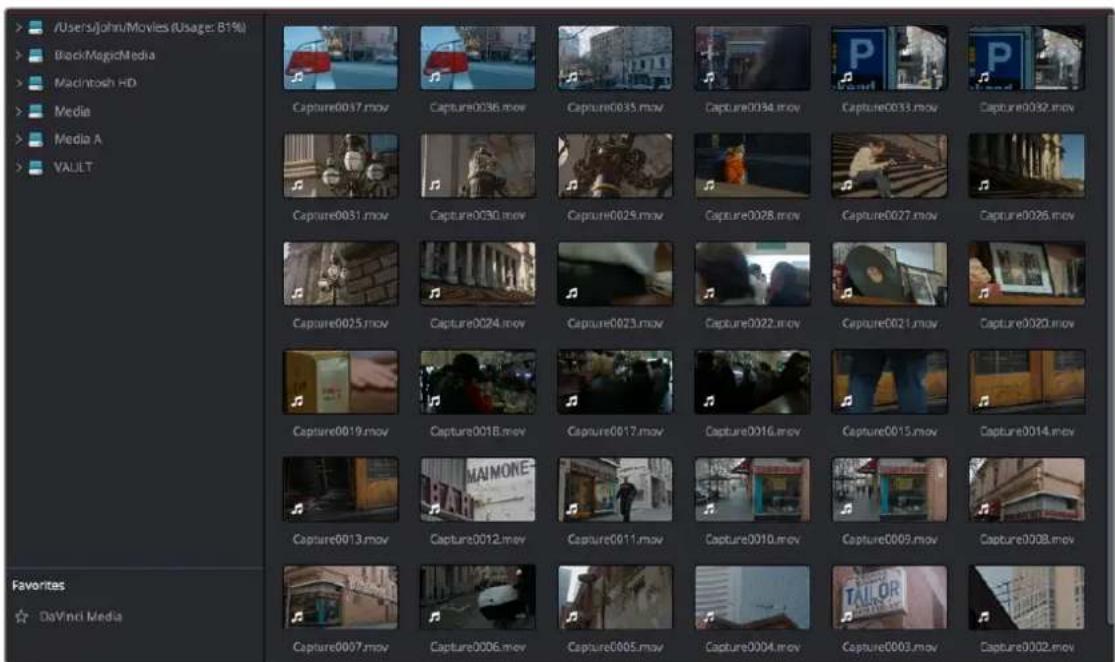
Media Storage browser with scrubbable clip view
Playing Media in the Media Storage Browser
You can select media in the Media Storage Browser to play directly in the Media page Viewer, without importing it, so long as it's in a format that DaVinci Resolve supports. This is useful for previewing clips that you're considering using in a project, but it's also useful for quality control review sessions of media that you've exported from DaVinci Resolve. All clips that are played in the Media page Viewer are also output to video, if you have a supported Blackmagic output interface. You can also output the video to a second monitor by choosing Workspace > Video Clean Feed, and selecting your monitor. Additionally, if you choose Workspace > Dual Screen > On, the second computer display is capable of displaying a set of video scopes on the Media page, which can help you QC a program you're delivering.
Playing DCP and IMF Packages
It's also possible to use the Media Storage Browser to select and play DCP and IMF packages that have been exported either using EasyDCP or using the native DCP/IMF export capabilities of DaVinci Resolve. Simply locate the package, select it, and play it in the Viewer like any other clip. It will be output to video and analyzed by the video scopes.
DCP and IMF packages can also be imported from Media Storage to the Media Pool for various workflows. For more information, see Chapter 187, “Delivering DCP and IMF.”
The Media Storage Browser's Volume List
At the left of the Media Storage browser is a list of all volumes that are currently available to your DaVinci Resolve workstation. It's used to locate media that you want to import manually into your project.
- Scratch volumes: Indicated by a usage statistic to the right of the volume name that lists how full that volume is, these are disks that you've added to the Media Storage panel of the System Preferences window. The topmost of these scratch disks is used to store Gallery stills and cache files.
- Available volumes: Indicated by disk icons, this is a list of all fixed, removable, and network volumes that are currently available to your workstation. When the “Automatically display attached local and network storage locations” checkbox is turned on in the Media Storage panel of the DaVinci Resolve Preferences, new volumes that are attached to your workstation should automatically appear in this list.
This is a hierarchical list; clicking the disclosure triangle to the left of any volume opens up an additional list of that volume's subdirectories, with additional disclosure triangles next to each subdirectory. Using the Media Storage browser, you can drill down into as many subdirectories as you need to.
Adding Volumes That Don't Appear in This List
If you need to access a storage volume that doesn't appear on this list, for example if you're using the version of DaVinci Resolve that is available in the Apple App Store, then you can right-click anywhere in the background of the Volume list and choose "Add New Location" to open a dialog you can use to choose a volume you want to add.
If you're using the Apple App Store version of DaVinci Resolve, auto-mounting of attached storage volumes is not enabled automatically. However, you can enable this in the Media Storage panel of the DaVinci Resolve Preferences. For more information, see the DaVinci Resolve Preferences section of Chapter 4, "System and User Preferences."
Media Storage Browser Favorites
Underneath this is the Favorites area. If there are special directories that you find yourself frequently accessing, you can add them to the Favorites in order to avoid having to traverse complex hierarchies in order to access the media you need. The Favorites can be easily customized and used.
Methods of organizing favorite file system locations in the Media Storage Browser:
- To add a favorite: Right-click any folder in the Media Storage browser folder list, and choose "Add folder to favorites" from the contextual menu. The new favorite appears at the bottom of the Favorites area.
- To open a favorite: Click any favorite to expose the contents of the corresponding directory in the Media Storage browser.
- To remove a favorite: Right-click the favorite you want to remove, and choose "Remove folder from favorites" from the contextual menu.
The Media Storage Browser Area
Once you've selected a volume or subdirectory in the Media Storage browser, you can view its contents in List view, Thumbnail view, or Metadata view to search through the media that's available to you as you try to find what you need.
List View
In List view, the following columns are available for sorting media prior to importing it into the Media Pool:
- File name: The name of a file.
- Reel name: The reel name as it's currently derived according to the Conform Options that are currently chosen in the General Options panel of the Project Settings.
- Start TC: The first timecode value in the source media.
- Start: The first frame number in the source media.
- End: The last frame number in the source media.
– Frames: The duration of each clip in frames.
– Resolution: The frame size of the source media.
- Bit Depth: The bit depth of the source media.
– Video Codec: The codec used for the video track of supported media.
– Audio Codec: The codec used for the audio tracks of supported media.
– FPS: The frame rate of the source media.
– Audio Ch: The number of audio channels within the source media.
– Date Created: The date a media file has been created.
– Date Modified: The date a media file has been changed in some way and saved.
- Shot: Additional metadata from media formats that support it.
- Scene: Additional metadata from media formats that support it.
- Take: Additional metadata from media formats that support it.
– Angle: Additional metadata from media formats that support it.
– Good Take: Additional metadata from media formats that support it.
If you work in List view, you gain additional organizational control by exposing columns that show the metadata that each clip contains, prior to media being added to your timeline. You can use these columns to help organize your media.
Methods of customizing metadata columns in List view:
- To show or hide columns: Right-click at the top of any column in the Media Storage browser and select an item in the contextual menu list to check or uncheck a particular column. Unchecked columns cannot be seen.
- To rearrange column order: Drag any column header to the left or right to rearrange the column order.
- To resize any column: Drag the border between any two columns to the right or left to narrow or widen that column.
- To sort by any column: Click the column header you want to sort with. Each additional time you click, the same header toggles that column between ascending and descending sort order.
You can also customize column layouts in the Media Storage area. Once you've customized a column layout that works for your particular purpose, you can save it for future recall.
Methods of saving and using custom column layout:
- To create a column layout: Show, hide, resize, and rearrange the columns you need for a particular task, then right-click any column header in the Media Pool and choose Create Column Layout. Enter a name in the Create Column Layout dialog, and click OK.
- To recall a column layout: Right-click any column header in the Media Pool and choose the name of the column layout you want to use. All custom column layouts are at the top of the list.
- To delete a column layout: Right-click any column header in the Media Pool and choose the name of the column layout you want to delete from the Delete Column Layout submenu.
Thumbnail View
While in Thumbnail view, you can scrub through a clip's icon to see its contents, and you can also click the Clip Info drop-down menu at the bottom right corner of any clip's thumbnail to see an instant summary of that clip's vital information, including:
- File name: The name of that file.
– In timecode: The first frame in the source media. -
Out timecode: The last frame in the source media.
– Duration: The total duration of the source media.
– Resolution: The frame size of the source media.
– Frame Rate: The frame rate, in fps, of the source media.
– Pixel Aspect Ratio: The aspect ratio of the source media. -
Codec: Which codec is used by the source media.
- Date Created: The date created metadata from the source media file.
- Flags: Flag metadata applied either by the camera that shot the media, in the Metadata Editor, or in the Color page Timeline.
Also while in Thumbnail view, you can use the Thumbnail Sort drop-down menu (between the Search and Option menu) to choose a criteria by which to organize the thumbnails. A wide variety of metadata options appear, including: File Name, Reel Name, Start TC, FPS, Audio Ch, etc. You can also sort in ascending or descending order.
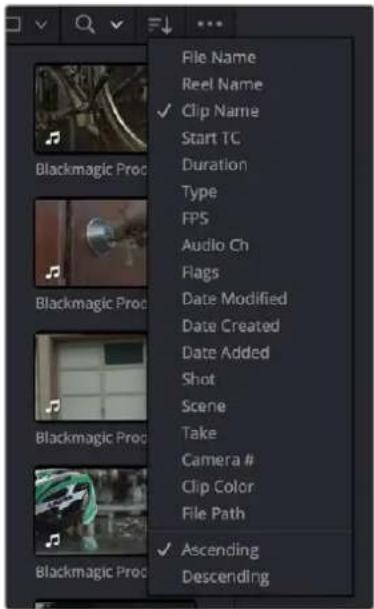
The Thumbnail Sort drop-down in the Media Storage browser
Metadata View
In the Metadata view mode, each clip is represented by its own card with a thumbnail and basic clip metadata information visible. This view is designed to have more metadata information than a thumbnail but more targeted information than the List view. This feature, combined with its sort modes, is a powerful way to organize and reorganize your clips in the Media Pool.
The metadata fields of the Metadata view (from the top down):
- Thumbnail: A scrubbable thumbnail image of your clip.
- Row 1: A main description field that is variable and determined by the sort order selection.
- Row 2: Start Timecode, Date Created, Camera #.
- Row 3: Scene, Shot, Take.
- Row 4: Clip Name, Comment.
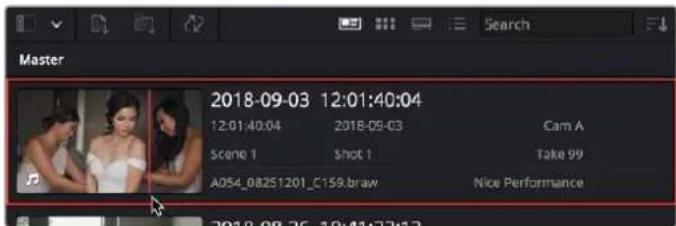
The Meladata View icon view (highlighted icon in the top bar), showing the thumbnail being scrubbed next to the clip's metadata
The strength of the Metadata view is the automatic clustering of your clips based on the sort order you choose in the Media Pool Sort By menu, at the very upper-right corner of the Media Pool.
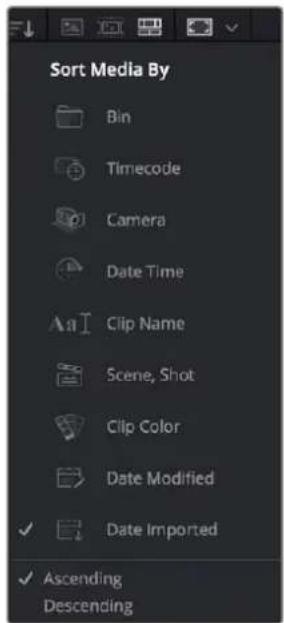
The Media Sort options
Each different sort mode changes the main description field on the card, as well as re-arranging the Media Pool to reflect the selected organization method.
The sort modes available in the Metadata view are:
- Bin: This mode clusters the clips by bin, changes the main description field to clip name, and orders the list by timecode.
- Timecode: This mode clusters the clips by creation date, changes the main description field to creation date and start timecode, and orders the list by timecode.
- Camera: This mode clusters the clips by camera #, changes the main description field to camera # and start timecode, and orders the list by timecode.
- Date Time: This mode clusters the clips by day, changes the main description field to creation date and file name, and orders the list by timecode.
- Clip Name: This mode clusters the clips by the first letter of the clip name in alphabetical order, changes the main description field to clip name, and orders the list by timecode.
- Scene, Shot: This mode clusters the clips by scene, changes the main description field to scene-shot-take, and orders the list by scene-shot-take.
- Clip Color: This mode clusters the clips by clip color name, changes the main description field to creation date and start timecode, and orders the list by timecode.
- Date Modified: This mode clusters the clips by day, changes the main description field to creation date and file name, and orders the list by the last time the clip was modified by the OS filesystem.
- Date Imported: This mode clusters the clips by day, changes the main description field to creation date and file name, and orders the list by the date the clip was added to the Media Pool.
- Ascending: Orders the Media Pool from lowest numerical value to highest, and alphabetically from A to Z.
- Descending: Orders the Media Pool from highest numerical value to lowest, and alphabetically from Z to A.
Revealing a Finder Location in the Media Browser
If you drag a folder from the macOS Finder into the Media Storage browser, the Media Storage browser will immediately update to show the location of that folder.
Viewer
Clips that you select in any area of the Media page show their contents in the Viewer. The current position of the playhead is shown in the timecode field at the upper right-hand corner of the Viewer.
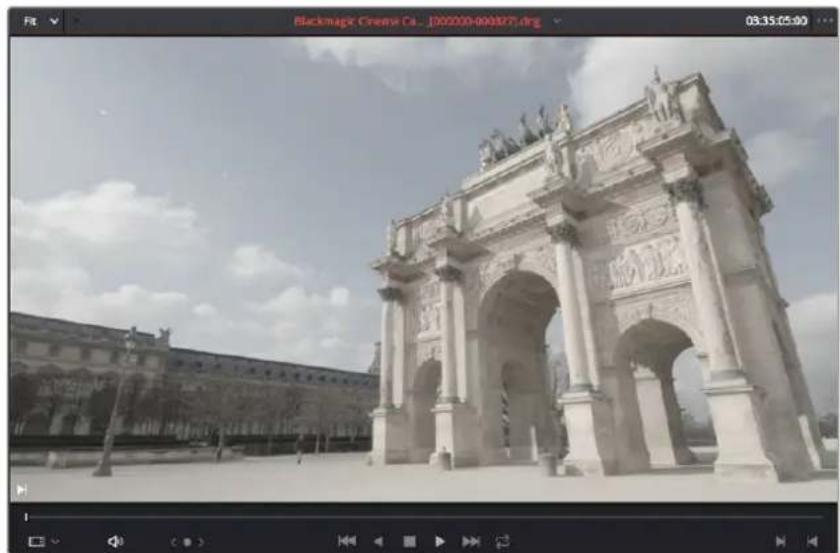
natural_image
Exterior view of a grand stone archway in Paris, France, under a cloudy sky (no signage or text visible)Viewer
Simple transport controls appear underneath the jog bar, letting you Jump to First Frame, Play Backward, Stop, Play Forward, and Jump to Last Frame. A jog control to the left of these buttons lets you move through a long clip more slowly; click it and drag to the left or right to move through a clip a frame at a time.
Audio playback can be turned on or off by clicking on the speaker icon, or adjust the level by right-clicking on the speaker icon and dragging the slider.
To the right of the transport controls, In and Out buttons let you set In and Out points for the current clip. The Cue buttons move the playhead to these In and Out cue points. The clip's timecode is also displayed at the top right.
A jog or scrubber bar appears directly underneath the image, letting you drag the playhead directly with the pointer. The full width of the jog bar represents the full duration of the clip in the Viewer.
There's an additional option for the Media Page Viewer that you can expose by choosing Show Timecode Toolbar from the Viewer option menu. This reveals an info bar at the top of the Viewer that displays the In and Out timecode, as well as the duration of the currently marked section of media.

An optional info bar for showing the timecode and duration of a marked section of media
You can also put the Viewer into Cinema Viewer mode by choosing Workspace > Viewer Mode > Cinema Viewer (Command-F), so that it fills the entire screen. This command toggles Cinema Viewer mode on and off.
Live Media Preview
Enabled by default, the Live Media Preview setting found in the Viewer options menu (the three-dots menu found at the upper right-hand corner of the Viewer) makes it possible for thumbnails that you're skimming in either the Media Storage browser or Media Pool to show the skimmed frame in the Viewer. When skimming with Live Media Preview enabled, the playhead that appears in the thumbnail is locked to the playhead displayed in the Viewer's jog bar. You can turn Live Media Preview on or off.
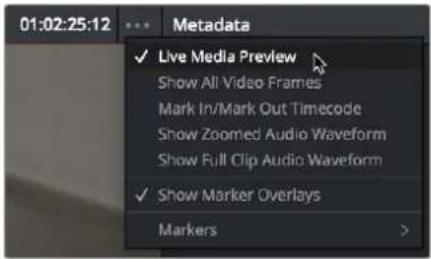
When Live Media Preview is on in the Viewer options menu, skimming thumbnails mirrors to the Viewer
Media Pool
The Media Pool is central to the DaVinci Resolve experience. It contains all of the media that you import into the current project, as well as all of the timelines you create. It also contains all media that's automatically imported along with Projects, Timelines, or Compositions that have themselves been imported into DaVinci Resolve. In the Media page, enough room is given to the Media Pool to make it an ideal place to sort, sift through, and organize the clips in your project. However, the Media Pool is also mirrored in the Cut, Edit, Fusion, Color, and Fairlight pages, so you can access clips as you build timelines, composites, grades, and sound design.
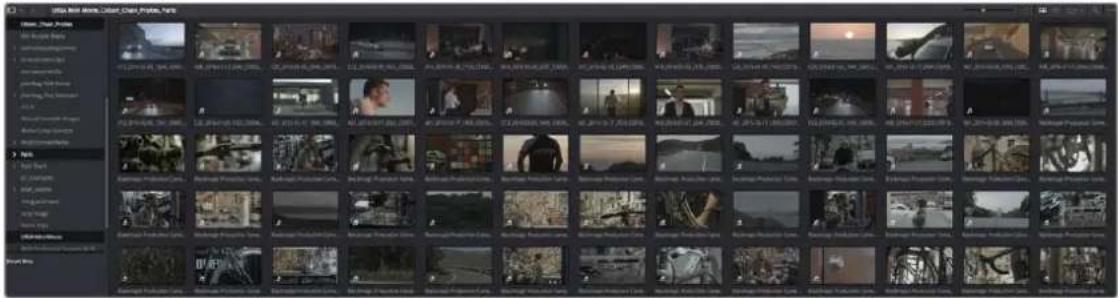
Media Pool with the Bin list open
The Bin List
Ordinarily, all media imported into a project goes into the Master bin, which is always at the top of the Bin list and encompasses everything in a given project. However, you can add bins of your own, and the Media Pool can be organized into as many user-definable bins as you like, depending on your needs. Media can be freely moved from one bin to another from within the Media Pool. When working in projects with multiple bins, you can choose to expose the bin structure in one of two ways:
- Bin list open: The Bin List button at the upper left-hand corner of the Media Pool lets you open a separate List view showing all bins in your project, hierarchically. Bins that contain other bins appear with a disclosure button to their left, that you can use to show or hide the contents. With the Bin list exposed, it's easy to organize clips among a large collection of bins.
- Bin list closed: When the Bin list is closed, all bins are hidden, and contents of whichever bin is currently selected populate the Media Pool browser.
Showing Bins in Separate Windows
If you right-click a bin in the Bin list, you can choose "Open As New Window" to open that bin into its own window. Each window is its own Media Pool, complete with its own Bin, Power Bins and Smart Bins lists, and display controls.
This is most useful when you have two displays connected to your workstation, as you can drag these separate bins to the second display while DaVinci Resolve is in single screen mode. If you hide the Bin list, not only do you get more room for clips, but you also prevent accidentally switching bins if you really want to only view a particular bin's contents in that window. You can have as many additional Bin windows open as you care to, in addition to the main Media Pool that's docked in the primary window interface.
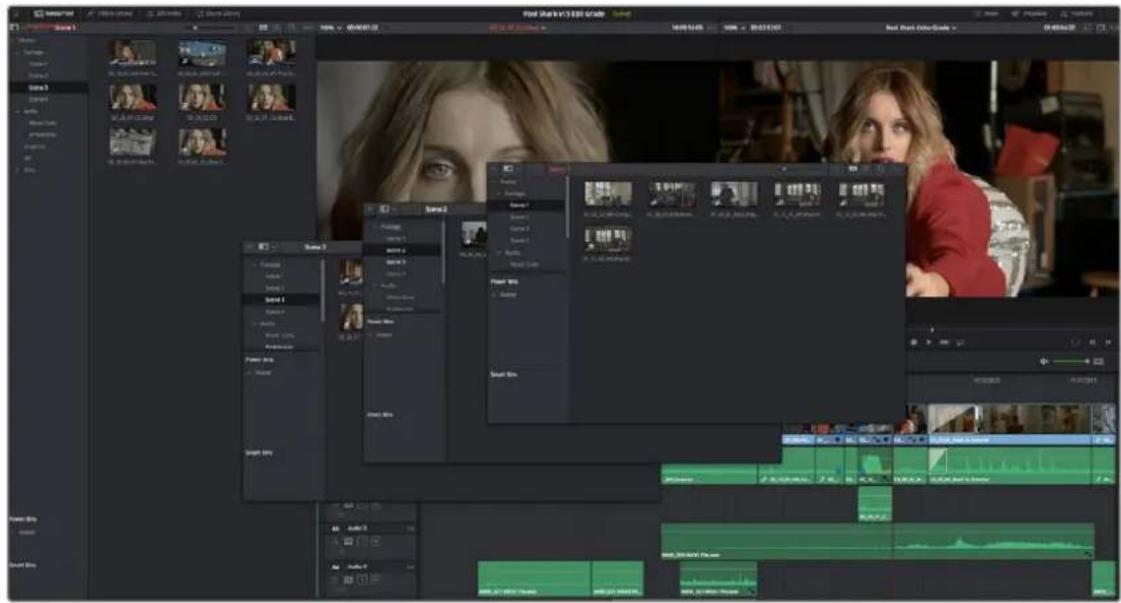
Media Pool bins opened as new windows
Bins, Power Bins, and Smart Bins
There are actually three kinds of bins in the Media Pool, and each appears in its own section of the Bin list. The Power Bin and Smart Bin areas of the Bin list can be shown or hidden using commands in the View menu (View > Show Smart Bins, View > Show Power Bins). Here are the differences between the different kinds of bins:
- Bins: Simple, manually populated bins. Drag and drop anything you like into a bin, and that's where it lives, until you decide to move it to another bin. Bins may be hierarchically organized, so you can create a Russian dolls nest of bins if you like. Creating new bins is as easy as right-clicking within the Bin list and choosing Add Bin from the contextual menu.
- Power Bins: Hidden by default. These are also manually populated bins, but these bins are shared among all of the projects in your current database, making them ideal for shared title generators, graphics movies and stills, sound effects library files, music files, and other media that you want to be able to quickly and easily access from any project. To create a new Power Bin, show the Power Bins area of the Bin list, then right-click within it and choose Add Bin.
- Smart Bins: These are procedurally populated bins, meaning that custom rules employing metadata are used to dynamically filter the contents of the Media Pool whenever you select a Smart Bin. This makes Smart Bins fast ways of organizing the contents of projects for which you (or an assistant) has taken the time to add metadata to your clips using the Metadata Editor, adding Scene, Shot, and Take information, keywords, comments and description text, and myriad other pieces of information to make it faster to find what you're looking for when you need it. To create
a new Smart Bin, show the Smart Bin area of the Bin list (if necessary), then right-click within it and choose Add Smart Bin. A dialog appears in which you can edit the name of that bin and the rules it uses to filter clips, and click Create Smart Bin.
Filtering Bins Using Color Tags
If you're working on a project that has a lot of bins, you can apply color tags to identify particular bins with one of eight colors. Tagging bins is as easy as right-clicking any bin and choosing the color you want from the Color Tag submenu.
For example, you can identify the bins that have clips you're using most frequently with a red tag. A bin's color tag then appears as a colored background behind that bin's name.
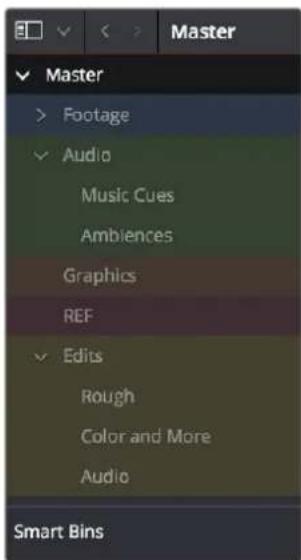
Using Color Tags to identify bins
Once you've tagged one or more Media Pool bins, you can use the Color Tag Filter drop-down menu (the drop-down control to the right of the Bin List button) to filter out all but a single color of bin.
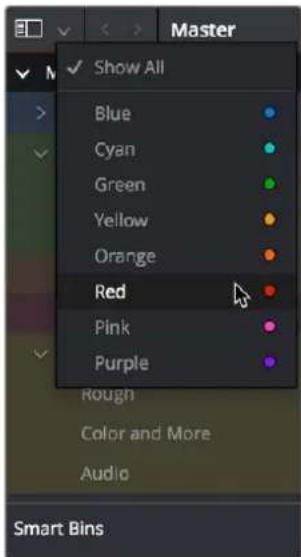
Using Color Tag filtering to isolate the blue bins
To go back to seeing all available bins, choose Show All from the Color Tag Filter drop-down.
Sorting the Bin List
The Bin list (and Smart Bin list) of the Media Pool can be sorted by bin Name, Date Created, or Date Modified, in either ascending or descending order. Simply right-click anywhere within the Bin list and choose the options you want from the Sort by submenu of the contextual menu.
You can also choose User Sort from the same contextual menu, which lets you manually drag all bins in the Bin list to be in whatever order you like. As you drag bins in this mode, an orange line indicates the new position that bin will occupy when dropped.
Dragging a bin to a new position in the Bin list in User Sort mode
If you use User Sort in the Bin list to rearrange your bins manually, you can switch back and forth between any of the other sorting methods (Name, Date Created, Date Modified) and User Sort and your manual User Sort order will be remembered, making it easy to use whatever method of bin sorting is most useful at the time, without losing your customized bin organization.
Thumbnail, List, and Metadata Views in the Media Pool
The contents of the Media Pool can be browsed in the following traditional ways:
- Thumbnail view: Each clip is represented by an icon, with its file name appearing underneath. When you move the pointer over a clip's icon, DaVinci Resolve automatically scrubs through that clip, showing you its contents. Also, a Clip Info drop-down menu appears in the lower right-hand corner. Click the Clip Info drop-down to see an overlay appear showing essential information about that clip. In Thumbnail view, you can use the Sort Order drop-down to choose how clips are sorted.
- List view: Each clip is represented by an item on a text list. Additionally, multiple columns of information appear, organized by headers. Clicking any header lets you sort the list by that column, in either ascending or descending order.
- Metadata view: Each clip is represented by its own card with a thumbnail and basic clip metadata information visible. This view is designed to have more metadata information than a thumbnail but more targeted information than the List view.
For more information about browsing the contents of the Media Pool, see Chapter 18, "Adding and Organizing Media with the Media Pool."
Display Audio Clip Waveforms in Media Pool and Media Storage
The Media Pool option-menu presents an option to Show Audio Waveforms. When you do so, every audio clip in the Media Pool appears with an audio waveform within its thumbnail area. If Live Media
Preview is on in the Source Viewer, you can then scrub through each clip and hear its contents. If you don't want to see audio waveforms, you can turn this option off.
You can now enable waveform thumbnails in the Media Pool that you can scrub with Live Media Preview.
Metadata Editor
Both the Media and Edit pages have a Metadata Editor. When you select a clip in any area of the Media page, its metadata is displayed within the Metadata Editor. If you select multiple clips, only the last clip's information appears. The Metadata Editor's header contains uneditable information about the selected clip, including the file name, directory, duration, video codec, frame rate, resolution, audio codec, sample rate, and number of channels.
Because there are so very many metadata fields available, two drop-down menus at the top let you change which set of metadata is displayed in the Metadata Editor.
- Metadata Presets (to the left): If you've used the Metadata panel of the User Preferences to create your own custom sets of metadata, you can use this drop-down to choose which one to expose. Surprisingly enough, this is set to "Default" by default.
- Metadata Groups (to the right): This drop-down menu lets you switch among the various groups of metadata that are available, grouped for specific tasks or workflows.
The heart of the Metadata Editor is a series of editable fields underneath the header that let you review and edit the different metadata criteria that are available. For more information on editing clip metadata and creating custom metadata presets, see Chapter 19, "Using Clip Metadata."
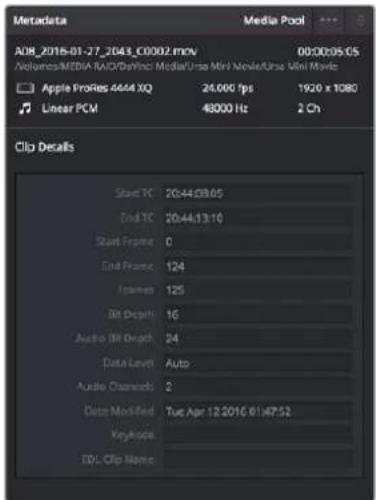
Clip Metadata Editor showing the Clip Details panel
Audio Panel
The Audio Panel can be put into one of two modes via an option menu. In the default Meters mode, audio meters are displayed that show the levels of audio in clips you're playing. In Waveform mode, you can open audio clips side by side with video clips in the Viewer in order to sync them together manually. For more information on manually syncing audio to video, see Chapter 21, "Syncing Audio and Video."
When set to Levels mode, you can check audio embedded within clips you've imported into the Media Pool. As you play a clip, each audio meter shows the levels for whichever of these tracks contain audio. A Mute button in the Viewer lets you disable and enable audio playback.
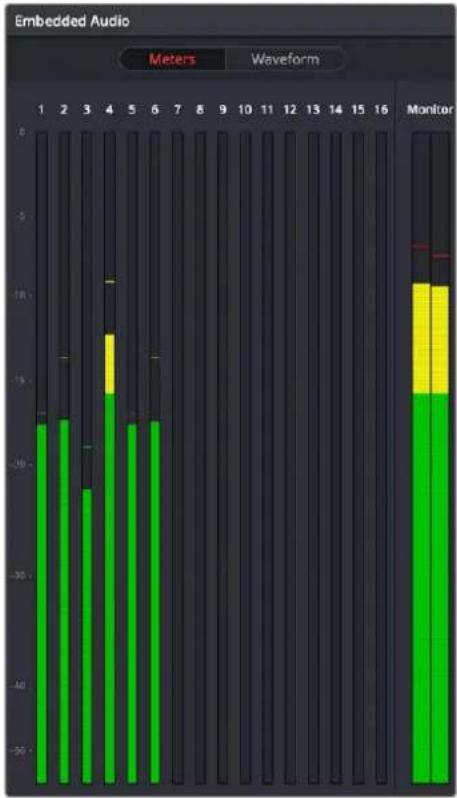
bar
Embedded Audio | Time (s) | Value (meters) | | :--- | :--- | | 1 | -20 | | 2 | -20 | | 3 | -25 | | 4 | -10 | | 5 | -10 | | 6 | -10 | | 7 | -10 | | 8 | -10 | | 9 | -10 | | 10 | -10 | | 11 | -10 | | 12 | -10 | | 13 | -10 | | 14 | -10 | | 15 | -10 | | 16 | -10 | Monitor Meters Waveform MonitorAudio Meters Exposed
Dual Monitor Layout
The Media page has a dual monitor layout that provides maximum space for the Media Storage browser and Media Pool on the primary monitor, and an enlarged Viewer, Audio Panel, and Metadata Editor on the secondary monitor, along with a complete set of video scopes for helping you to evaluate media as you organize it.
To enter dual screen mode:
- Choose Workspace > Dual Screen > On.
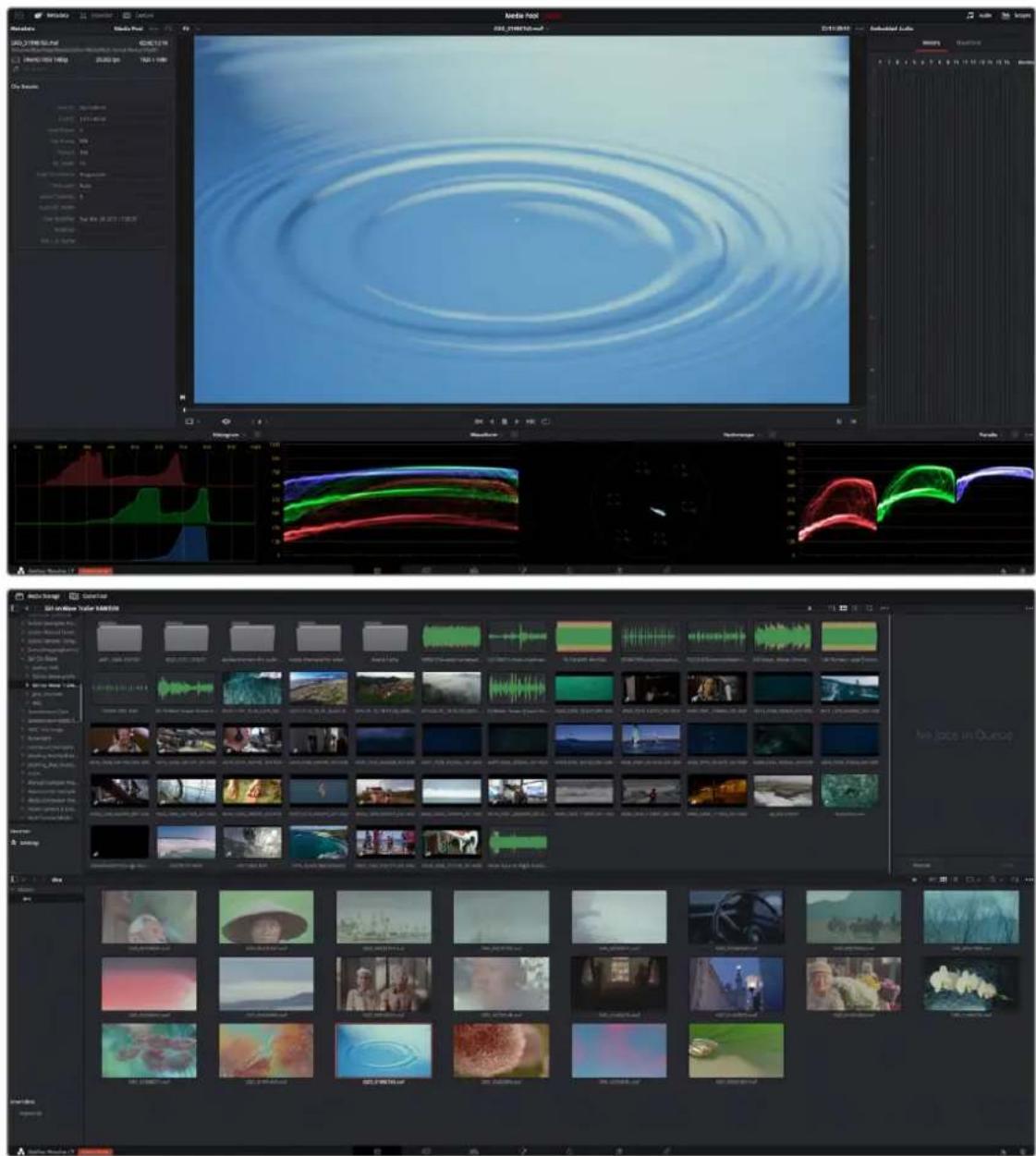
The Media page in dual screen mode
To switch which UI elements appear on which monitors:
- Choose Workspace > Primary Display > Display 1 or Display 2, which reverses the contents of both monitors in dual screen mode.
Customizing the Media Page
The Media Page can be customized to create more room in different areas to accommodate specific tasks.
To resize any area of the Media page:
- Drag the vertical or horizontal border between any two panels to enlarge one and shrink the other.
Methods of hiding different parts of the Media page:
- To toggle the Clone Tool on and off: Click the Clone Tool button in the UI toolbar at the top.
- To toggle the Audio Panel on and off: Click the Audio button in the UI toolbar at the top.
- To toggle the Metadata Editor on and off: Click the Metadata button in the UI toolbar at the top.
- To toggle the Media Storage browser folder list on and off: Click the button at the top-left corner of the Media Browser.
- To toggle the Media Pool Bin list on and off: Click the button at the top-left corner of the Media Pool.
Methods of organizing favorite file system locations in the Media Storage browser:
- To add a favorite: Right-click any folder in the Media Storage browser folder list, and choose "Add folder to favorites" from the contextual menu.
- To remove a favorite: Right-click the favorite you want to remove, and choose "Remove folder from favorites" from the contextual menu.
To return all pages to their default layout:
- Choose Workspace > Reset UI Layout.
Undo and Redo in DaVinci Resolve
No matter where you are in DaVinci Resolve, Undo and Redo commands let you back out of steps you've taken or commands you've executed and reapply them if you change your mind.
DaVinci Resolve is capable of undoing the entire history of things you've done since creating or opening a particular project. When you close a project, its entire undo history is purged. The next time you begin work on a project, its undo history starts anew.
Because DaVinci Resolve integrates so much functionality in one application, there are three separate sets of undo "stacks" to help you manage your work.
– The Media, Cut, Edit, and Fairlight pages share the same multiple-undo stack, which lets you backtrack out of changes made in the Media Pool, the Timeline, the Metadata Editor, and the Viewers.
– Each clip in the Fusion page has its own undo stack so that you can undo changes you make to the composition of each clip, independently.
– Each clip in the Color page has its own undo stack so that you can undo changes you make to grades in each clip, independently.
In all cases, there is no practical limit to the number of steps that are undoable (although there may be a limit to what you can remember). To take advantage of this, there are three ways you can undo work to go to a previous state of your project, no matter what page you're in.
To simply undo or redo changes you've made one at a time:
- Choose Edit > Undo (Command-Z) to undo the previous change.
- Choose Edit > Redo (Shift-Command-Z) to redo to the next change.
- On the DaVinci control panel, press the UNDO and REDO buttons on the T-bar panel.
TIP: If you have the DaVinci control panel, there is one other control that lets you control the undo stack more directly when using the trackballs, rings, and pots. Pressing RESTORE POINT manually adds a memory of the current state of the grade to the undo stack.
Since discrete undo states are difficult to predict when you're making ongoing adjustments with the trackball and ring controls, pressing RESTORE POINT lets you set predictable states of the grade that you can fall back on.
You can also undo several steps at a time using the History submenu and window. At the time of this writing, this only works for multiple undo steps in the Media, Cut, Edit, and Fairlight pages.
To undo and redo using the History submenu:
1 Open the Edit > History submenu, which shows (up to) the last twenty things you've done.
2 Choose an item on the list to undo back to that point. The most recent thing you've done appears at the top of this list, and the change you've just made appears with a check next to it. Steps that have been undone but that can still be redone remain in this menu, so you can see what's possible. However, if you've undone several changes at once and then you make a new change, you cannot undo any more and those steps disappear from the menu.
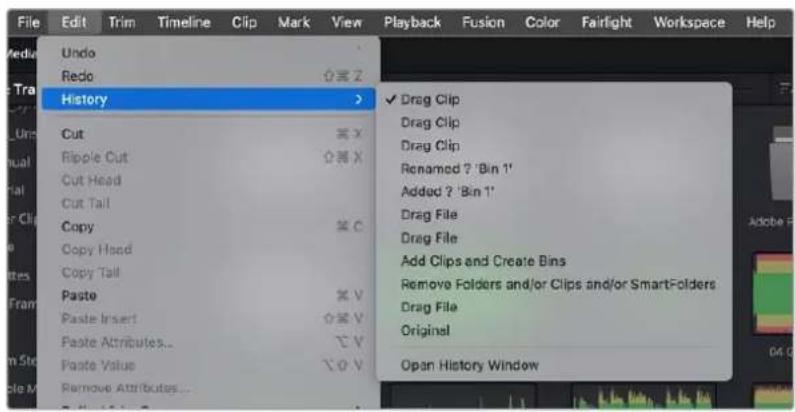
The History submenu, which lets you undo several steps at once
Once you've selected a step to undo to, the menu closes and the project updates to show you its current state.
To undo and redo using the Undo window:
1 Choose Edit > History > Open History Window.
2 When the History dialog appears, click an item on the list to undo back to that point. Unlike the menu, in this window the most recent thing you've done appears at the bottom of this list. Selecting a change here grays out changes that can still be redone, as the project updates to show you its current state.
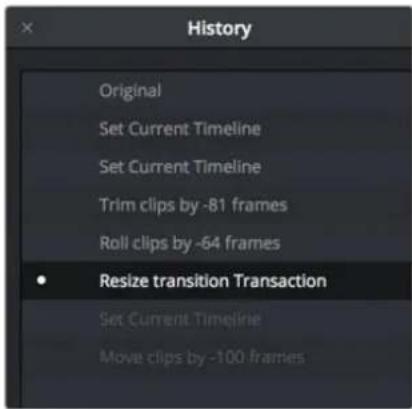
The Undo history window that lets you browse the entire available undo stack of the current page
3 When you're done, close the History window.
Chapter 18
Adding and Organizing Media with the Media Pool
Before you can edit or grade media, you need to add it to the Media Pool, which is the central repository of clips in DaVinci Resolve. The Media Pool is a feature-rich environment, giving you many different methods of importing clips into your project and organizing them.
Contents
Copying Media Using the Clone Tool 317
Adding Media to the Media Pool 319
Basic Methods for Adding Media in the Media Page 319
Adding Subclips From the Media Storage Panel 320
Adding Individual Frames From Image Sequences 321
Adding Media Based on EDLs 321
Splitting Clips Based on EDLs 322
Import Clips With Metadata Via Final Cut Pro 7 XML 322
Adding Media With Offset Timecode 322
Adding Media to the Cut, Edit, Fusion, and Fairlight Pages 323
Removing Media From the Media Pool 323
Adding and Removing External Mattes 324
What Are Mattes For? 325
Adding Mattes 325
Using Embedded Mattes in OpenEXR Files 326
Adding Offline Reference Movies 326
Extracting Audio in Media Storage 327
Manually Organizing the Media Pool 327
To Select Clips in the Media Pool 327
Organizing Media into Bins 327
Import and Export DaVinci Resolve Project Bins (.drb) 328
Import and Export DaVinci Resolve Timelines (.drt) 329
Sharing Media Among Projects Using Power Bins 329
Automated Organization Using Smart Bins 330
Smart Bins Are Only As Good As Your Metadata 330
Smart Bins Update Their Contents Dynamically 331
Automatic Smart Bin Creation 331
Manual Smart Bin Creation 332
Organizing Smart Bins 334
Duplicating Clips in the Media Pool 335
Duplicating Timelines 335
Choosing How to Display Bins 335
Showing Bins in Separate Windows 335
Using the Media Pool in Thumbnail View 336
Working With Columns in List View 336
Editable Description and Comments Columns 339
Using Metadata View in the Media Pool 339
Finding Clips, Timelines, and Media 341
Finding Clips and/or Timelines Within the Media Pool 341
Finding Synced Audio 342
Finding Timeline Clips in the Media Pool 343
Finding Timelines in the Media Pool 343
Finding Media in the Media Storage Panel and Finder 343
Going Immediately to a File System Location in the Media Browser 343
Tracking Media Usage 343
Thumbnail Clip Usage Indicators 343
List View Clip Usage Column 344
Relinking Media Simply 344
Relink Media 344
Relink Selected Clips 345
Change Source Folder 346
Copying Media Using the Clone Tool
One of the few things you may want to do before you add media to your project is to clone all camera original media onto a safe set of backup volumes, for redundancy in case any one volume fails. Additionally, you should consider cloning all media to an off-site backup as well.
Whether you're on-set working as a DIT, or doing data ingest at a post facility, the Clone Tool in the Media page lets you safely and accurately copy media from SD cards, SSDs, or disk drives, to multiple destinations, with a checksum report (based on a choice of six checksum options) written to the root of each destination volume that verifies the absolute accuracy of the duplicate media saved to each destination.
To duplicate media using the Clone Tool:
1 Open the Clone Tool by clicking the Clone button at the far left of the Media Pool toolbar, which reveals the Clone Tool palette.
2 Click the Add Job button at the bottom left to create a new job. A job item appears within the Clone Tool palette, with overlays to guide you through its use.
3 Drag a volume or folder from the Media Storage panel to the "Drop source here" drop zone. Alternately, you can right-click any volume or folder in the Media Storage panel and choose Set As Clone Source.
4 Next, drag one or more volumes or folders from the Media Storage panel to the "Drop destination here" drop zone. Alternately, you can right-click any volume or folder in the Media Storage panel and choose Set As Clone Destination. You can have more than one destination.
5 If you want to preserve the top level folder name from the source volume or folder, click the Clone Tool panel's option menu, and choose "Preserve Folder Name." The overall folder structure of the cloned media is always preserved.
6 If you want to change the checksum method used by DaVinci Resolve to verify that each clip has copied properly, you can choose an option from the Checksum submenu of the Clone Tool's option menu. Each option is a tradeoff between the speed of your file copy operation and the security of the verification process. Greater security generally means a slower copy operation.
The options are:
– None: Disables data verification, sacrificing safety for speed.
- File Size: Fast, but minimal data verification. Data verification is done simply by comparing the file size of a duplicate file with that of the original. "Collision resistance" refers to whether two files (or a file and an incorrectly duplicated file) may coincidentally have the same comparison value (be it file size, an error-detecting code, or a hash). File Size is very fast, but it's minimally collision resistant.
- CRC 32: Faster than MD5, but less secure. An error-detecting code rather than the hash used by the next three options. A “check value” is generated based on the remainder of a polynomial division of the file’s contents. By comparing the check value derived from an original file with that derived from a copy, data integrity can be verified. This is a much faster data verification scheme than MD5 (the default), but it is significantly less collision resistant.
- MD5: This is the default setting. A reasonable tradeoff between speed and security. A hash function generates a 128-bit value that's unique to a particular file; Data integrity is checked by comparing the hash value generated by the original file to that generated by the copied file. MD5 is not as collision resistant as the SHA options, but it's a faster operation, and the probability of such collisions in conventional film and video workflows is probably small.
- SHA 256, SHA 512: Slower, but more secure. SHA is a more collision resistant hash function than MD5; options are provided for 256- and 512-bit value generation, with 512 being even more collision resistant than 256. However, these options are progressively slower than MD5, and will result in significantly slower copy times. Similarly to MD5, data integrity is checked by comparing the hash value generated by the original file to that generated by the copied file.
7 When you're ready, click the Clone button to initiate the cloning process.
To duplicate media quickly using the Clone Tool:
1 Right-click any volume or folder in the Media Storage panel, and choose Set as Clone Source. A job item appears within the Clone Tool palette, populated by the volume or folder you selected.
2 Next, right-click any volume or folder in the Media Storage panel, and choose Set As Clone Destination. You can do this more than once because you can have more than one destination.
3 If you want to preserve the top level folder name from the source volume or folder, click the Clone Tool panel's option menu, and choose "Preserve Folder Name." The overall folder structure of the cloned media is always preserved.
4 When you're ready, click the Clone button to initiate the cloning process.
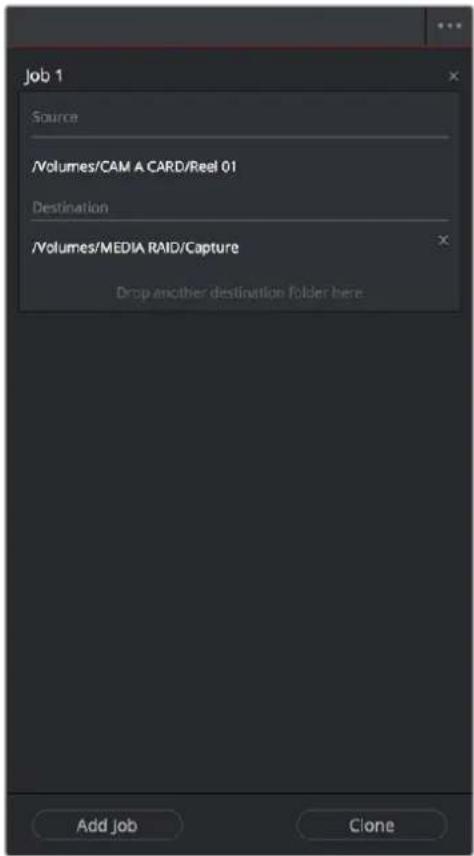
The Clone tool with a job set up
Adding Media to the Media Pool
At minimum, you'll be using the Media page to add clips to a project to begin editing, in preparation to create dailies, or as a prelude to conforming a project using an EDL. All clips you want to work with must first be added to the Media Pool to be available for grading and processing in DaVinci Resolve, regardless of whether or not there's edited project data to go along with it.
If you import XML or AAF projects, you can choose to automatically import all accompanying media as part of the import process you initiate in the Edit page. However, if you find yourself needing to replace updated effects or stock footage in the Timeline, or you're called upon to add additional media such as animated titles or superimposed clips for compositing, then you'll still need to use the Media page to do so.
Whatever kind of project you're working on, you can add clips to the Media Pool from as many different volumes as you need. All imported clips are linked to the original media on whichever disks you found them; files are not moved, copied, or otherwise transcoded when you add them to the Media Pool. Consequently, it's a good idea to make sure that all media you want to import into your project has already been copied to a suitably fast volume before importing it.
Basic Methods for Adding Media in the Media Page
There are several ways of adding clips to the Media Pool.
To add individual clips from the Media Storage panel to the Media Pool:
1 Use the Media Storage panel to find a media file to import.
2 If you have multiple bins available in the Bin list, choose the bin you want to add the incoming media to.
3 Do one of the following:
- Shift-click or Command-click multiple files, then right-click one of the selected files and choose "Add into Media Pool."
- Drag a clip from the Media Storage panel browser to the Media Pool or to a specific bin in the Bin list.
4 If a dialog appears asking if you want to change your project to match the criteria, click "Change" to alter the project's settings, or click "Don't Change" to continue importing the media while leaving the project at its previous frame rate. Once clips have been imported into the Media Pool, the frame rate cannot be changed again, so choose carefully.
You also have the option of dragging media directly from the file system of supported platforms into the Media Pool.
To drag one or more clips from the File System to the Media Pool (supported platforms only):
1 Select one or more clips in your File System.
2 Drag those clips into the Media Pool of DaVinci Resolve or to a specific bin in the Bin list.
Those clips are added to the Media Pool of your project.
If you need to add the contents of all directories and subdirectories to the Media Pool as a flat group of media, that's easily accomplished. A good example of this is when you're importing camera original media from a cloned file structure, in which clips are organized into subdirectories that are many levels deep. DaVinci Resolve can easily import all of these clips and put them all into the same bin.
To add the entire contents of one or more directories of clips to the Media Pool:
1 Use the Media Storage panel to find and select one or more directories containing media files you need to import.
2 If you have multiple bins available in the Bin list, select the specific bin you want to add the incoming media to.
3 Do one of the following:
- Right-click the selected directory or directories in the Media Storage panel, and choose "Add Folder into Media Pool" to add only clips from the selected directory. Subdirectories are ignored.
- Right-click the directory in the Media Storage panel, and choose "Add Folder and SubFolders into Media Pool" to add clips from the selected directory and those from all subdirectories within.
- Drag one or more selected directories you want from the Media Storage panel's browser area to the browser area of the Media Pool to add its contents, and the contents of all subdirectories within, to the currently selected bin in the Bin list.
You also have the option of using the directories and subdirectories that organize media in your file system as bins in the Media Pool, so that you can preserve the original organization of your media.
To add all clips and folders in a directory organized into matching folders in the Media Pool:
1 Use the Media Storage panel to find the directory containing the files you need to import.
2 Do one of the following:
- Right-click the directory and choose "Add Folder and SubFolders into Media Pool (Create Bins)"
- Drag the folder you want to import from the Media Storage panel to the Bin list of the Media Pool to add that folder, and all subfolders within, as a new bin in the Bin list.
A folder appears in the Media Pool with the same name as the folder you dragged in. All clips and all subdirectories appear within, nested hierarchically in the Media Pool as they were in the file system.
Import Hierarchically Organized Nests of Empty Directories
You can also import a nested series of directories and subdirectories that constitutes a default bin structure you'd like to bring into projects, even if those directories are empty, by dragging them from your file system into the Media Pool Bin list of a project. The result is a hierarchically nested series of bins that mimics the structure of the directories you imported. This is useful if you want to use such a series of directories as a preset bin structure for new projects.
Adding Subclips From the Media Storage Panel
If you're browsing long source clips in the Media Storage panel, but you only want to import a small segment of a much longer clip into the Media Pool, you can create subclips directly from the Media Storage panel.
To add a subclip from a clip in the Media Storage panel to the Media Pool:
1 Single-click any clip in the Media Storage panel to open it into the Viewer in order to create a subclip without needing to first import that clip into the Media Pool.
2 Set In and Out points in the Source Viewer to define the section you want to turn into a subclip.
3 Do one of the following:
- Right-click the jog bar and choose Make Subclip from the contextual menu
- Drag the clip from the Viewer to the Media Pool to add it as a subclip
Adding Individual Frames From Image Sequences
If you're working with image sequences, or with sequentially numbered image files from any source, DaVinci Resolve automatically presents them as clips in the Media Storage panel. This is good if that's what they are, but there are instances where sets of photos, of which each frame is in actuality a separate media file, are also sequentially numbered. For this reason, you can import individual frames, rather than entire image sequences.
To choose between adding individual frames from a number sequence of images, or adding them as image sequence clips in the Media Storage panel:
1 Click the Media Storage panel option menu, and choose Frame Display Mode.
2 Close one of the drop-down options:
- Auto: DaVinci Resolve will automatically select Individual Frames or Image Sequence based on file type. For example, DPX and EXR files will be imported as image sequence clips, while JPG files will be imported as individual frames.
- Individual: Each image sequence is now separated into its individual frames, allowing you to select only the frames you need.
- Sequence: Will group sequentially numbered files together as an image sequence clip, regardless of file type.
3 Use any of the previous described methods to add the frames you want to the Media Pool as individual clips or image sequences.
Adding Media Based on EDLs
Another strategy for adding media to the Media Pool is to use an EDL to add only the clips it refers to from a directory. This lets you add only the clips that are necessary for conforming a particular imported project before conforming an EDL, and eliminates the need to add too much media to the Media Pool, which might slow you down in the case of projects referencing terabytes of media. Furthermore, you can choose multiple EDLs to base the import on, and many directories to examine.
The EDLs will reference clips via their timecode and sometimes reel name and path. It is these settings and the conform frame rate that you made previously in the Configuration screen that are now used to place images correctly into the Media Pool.
To add only media used in an EDL to the Media Pool:
If necessary, open the General Options panel of the Project Settings, turn on the "Assist using reel names from the" checkbox, and choose a method with which to extract reel name information from the media files you're about to import. For more information, see Chapter 19, "Using Clip Metadata."
2 Right-click a directory in the Media Storage panel, and choose one of the following commands:
– Add Folder Based on EDLs into Media Pool
– Add Folder and SubFolders Based on EDLs into Media Pool
3 Using the file dialog that appears, select one or more EDLs to use.
DaVinci Resolve searches the directory hierarchy, either one level deep or all levels deep, for every media file matching the source timecode and the reel ID of an event in one of the selected EDLs.
Splitting Clips Based on EDLs
You can also use EDLs to split a media file into multiple clips in the Media Pool, either as an alternate means of “preconforming” a flattened master media file, or to import multiple sections of a longer media file that happen to be referenced by an EDL.
To split and add clips based on an EDL:
1 Right-click a directory in the Media Storage panel, and choose "Split and add into Media Pool."
2 Using the file dialog that appears, select an EDL to use, and click Open.
3 Choose a frame rate to use to conform the clips to in the "File Conform Frame Rate" dialog, and click OK.
4 Choose a handle size, in frames, and whether or not you want to split unreferred clips from the "Enter handle size for splitting" dialog, and click Split & Add. The media file is split into the component clips specified in the EDL, and added to the Media Pool.
TIP: Turning on the Split Unreferred Clips checkbox automatically splits out sections of the file that were not referred to by the EDL you selected, and adds them to the Media Pool separately, giving you access to every piece of media that's available.
Import Clips With Metadata Via Final Cut Pro 7 XML
In order to support workflows with media asset management (MAM) systems, DaVinci Resolve supports two additional Media Pool import workflows that use Final Cut Pro 7 XML to import clips with metadata.
To import clips with metadata using Final Cut Pro 7 XML files, do one of the following:
- Right-click anywhere in the background of the Media Pool, choose Import Media from XML, and then choose the XML file you want to use to guide import from the import dialog.
- Drag and drop any Final Cut Pro 7 XML file into the Media Pool from the macOS Finder.
Every single clip referenced by that XML file that can be found via its file path will be imported into the Media Pool, along with any metadata entered for those clips. If the file path is invalid, you'll be asked to navigate to the directory with the corresponding media. Additionally, the following metadata is imported:
- Clips
- Browser metadata
- Subclips
– Clip Markers, with colors and duration - Bin Hierarchy
- Comments
Adding Media With Offset Timecode
Sometimes source media was created with incorrectly offset timecode, due to mistakes made earlier in the postproduction process. If this offset is consistent, you can use the "Add Folder with Source Offset" command to add media to the Media Pool as clips with a timecode offset.
To add a folder of clips to the Media Pool with offset timecode:
1 Right-click a directory in the Media Storage panel, and choose one of the following commands:
- Add Folder with Source Offset
- Add Folder and SubFolders with Source Offset
2 Choose a number of frames with which to offset the timecode from the "Change Frame Offset" dialog, and click Apply.
The media is imported as clips with offset timecode in the Media Pool. However, the original source timecode of the clips on disk has not been altered. All media rendered out of the Deliver page will reflect the offset timecode.
Adding Media to the Cut, Edit, Fusion, and Fairlight Pages
While adding clips to the Media Pool in the Media page provides the most organizational flexibility and features, if you find yourself in the Cut, Edit, Fusion, or Fairlight page and you need to quickly import a few clips for immediate use, you can do so in a couple of different ways.
To add media by dragging one or more clips from the Finder to the Media Pool (macOS only):
1 Select one or more clips in the Finder.
2 Drag those clips into the Media Pool of DaVinci Resolve, or to a bin in the Bin list.
Those clips are added to the Media Pool of your project.
To use the Import Media command in the Media Pool:
1 Right-click anywhere in the Media Pool, and choose Import Media.
2 Use the Import dialog to select one or more clips to import, and click Open.
Those clips are added to the Media Pool of your project.
Removing Media From the Media Pool
If you've added clips to the Media Pool that you need to eliminate, this is easy to do, either singly, or in the aggregate.
To remove clips from the Media Pool, do one of the following:
- Select one or more clips in the Media Pool, then press the Delete or Backspace key.
- Select one or more clips in the Media Pool, right-click one of the selected clips, and then choose Remove Selected Clips.
- Right-click anywhere in the Media Pool, and choose Remove All Clips in Bin.
NOTE: If you've turned on "Automatically match master timeline with media pool" in the General Options panel of the Project Settings, you cannot remove all clips from the Media Pool if there are other timelines using that media.
To remove clips from the Master Timeline (if it's exposed):
Open the Edit page, then select one or more clips in the Media Pool, right-click one of the selected clips, and choose "Remove Selected Clips from Master Timeline." For more information about using the Master Timeline, see Chapter 33, "Using the Edit Page."
Adding and Removing External Mattes
If you've been provided with matte files to accompany one or more media files used by a program you're grading, you can attach them directly to specific clips in the Media Pool, in order to use them as key sources for a Clip Grade in the Node Editor of the Color page. You can even use matte files that pack multiple mattes within a single piece of media. This can be done by either writing different mattes to each of the red, green, and blue channels of a clip, or by embedding multiple matte passes within a single OpenEXR file.
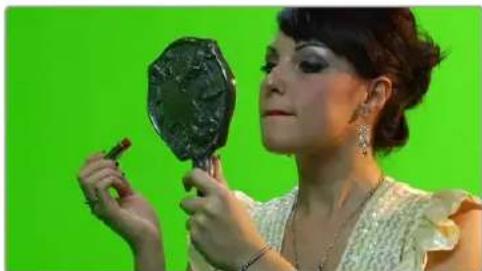
natural_image
Woman holding a mirror and earring against a green background (no text or symbols visible)Matching RGB and Matte images
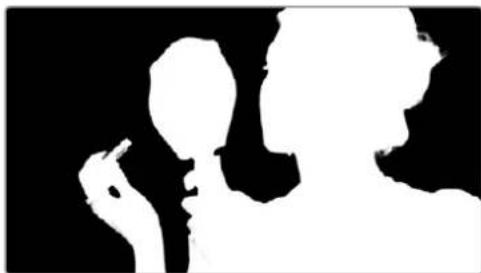
natural_image
Silhouette of two human figures, one holding a cigarette and the other smoking (no text or symbols)When the Media Pool is in Icon view, clips with clip mattes appear with a badge.
A clip matte, seen in Icon view
Clip mattes appear listed underneath a clip in the Media Pool when it's in List view.
| Clip Name | Start TC | End TC |
| Makeup_BG.mov | 07:10:54:04 | 07:11:10:10 |
| Makeup_Green.mov | 07:10:54:04 | 07:11:10:10 |
| Makeup_Matte.mov | 07:10:54:04 | 07:11:10:10 |
A clip matte, seen in List view
Alternately, you can add a timeline matte to the Media Pool, which isn't attached to any clip, that can be used as a key source in the Color page within any clip's Clip grade, or within a Timeline Grade. Timeline mattes appear as stand-alone clips in the Media Pool.
natural_image
Microscopic view of a dust-dirt environment showing scattered particles and fibers (no text or symbols)A timeline matte, seen in Thumbnail view
What Are Mattes For?
Matte files are useful for two things. Traditionally, mattes are grayscale media files that identify regions of varying opacity, with white representing solid areas, and black representing transparency.
For example, exported clips from a compositing application sometimes are accompanied by one or more matte files that correspond to keys or rotoscoped mattes from the composite. By importing these matte files using the "Add as Matte" command, you can attach them to the clips they belong to in the Media Pool, so that they're only available to the clips they're synced to.
However, mattes can also be used as creative tools to apply grain and texture for effect. What a matte does depends on how you connect it in the Node Editor of the Color page. These are media files that you may want to use as mattes for potentially any clip, so they can also be added to the Media Pool as a so-called timeline matte, that can be applied to any clip you want.
TIP: If necessary, you can also apply LUTs to both clip mattes and timeline mattes in the Media Pool, simply by right-clicking a matte, and choosing a LUT from the 1D LUT or 3D LUT submenus. This can be helpful for adjusting incorrectly formatted mattes.
Adding Mattes
To use mattes, you need to add them in very specific ways.
To assign a matte to a clip in the Media Pool:
1 Select a clip in the Media Pool to which you want to attach an external matte.
2 Select the matching external matte file in the Media Storage panel, right-click it, and choose Add to Media Pool as a Matte.
The matte is attached to the clip as a clip matte. A badge indicates that clip has a matte when the Media Pool is in Icon view, and the matte itself can be seen, if you put the Media Pool into List view, appearing as a nested item underneath the clip it's attached to.
Removing mattes from clips in the Media Pool:
1 Put the Media Pool into List view.
2 Right-click the external matte file you need to remove, and choose Remove Selected Clips.
Removing an external matte clip also removes that matte's key from any clip grades that use it, such that any clips using it as a key input change from a secondary operation to a primary operation, where the color adjustment affects the entire image.
To add a timeline matte to the Media Pool:
1 Make sure no clip is selected in the Media Pool.
2 Select an external matte file in the Media Storage panel, right-click it, and choose Add to Media Pool as a Matte.
The external matte appears in the Media Pool as a timeline matte.
You can also assign mattes to clips directly in the Color page, which can sometimes be faster.
To assign a matte to a clip in the Color page:
- Drag any clip from the Media Pool to the Node Editor.
That clip appears an an External matte for the current clip's grade in the Node Editor, and it's also automatically assigned to the current clip in the Media Pool.
For more information on using external matte clips as keys when grading, see Chapter 143, "Combining Keys and Using Mattes."
Using Embedded Mattes in OpenEXR Files
If you're importing OpenEXR files with embedded matte passes, there's nothing special you need to do, as the mattes are within the clip you've just imported into the Media Pool. For more information on how to use mattes within OpenEXR files, see Chapter 142, "Combining Keys and Using Mattes."
Adding Offline Reference Movies
When moving a project from another application to DaVinci Resolve, it's useful to export the entire program as a single media file for use as an Offline Reference Movie. Then, you can import this file in a special way to use for dual Viewer comparison in the Edit page, or as a split-screen comparison for fade wipe in the Color page. As of DaVinci Resolve 16 it's no longer necessary to import reference movies in this way to make an offline comparison, but it can still be convenient when managing multiple timelines and versions that require great specificity.
To add a clip as an offline reference clip:
- Right-click it in the Media Storage panel, and choose "Add As Offline Clip."
That clip appears with a small checkerboard badge in its icon in the Media Pool, or as the icon to the left of the Media Pool.
Checkerboard icon indicating an Offline comparison video
For more information on using an offline video to compare with an imported Timeline in the Edit page, see Chapter 55, "Preparing Timelines for Import and Comparison." For more information on split-screen reference of Offline video in the Color page, see Chapter 123, "Using the Color Page."
Extracting Audio in Media Storage
If there's a video clip in the Media Storage panel that has audio you need, but you don't want the video component, you can use the Extract Audio command to create a self-contained audio clip that you can then import into the Media Pool by itself.
To extract the audio from a media file:
1 Right-click a clip in the Media Storage panel, and choose Extract Audio.
2 Click the Browse button in the Extract Audio dialog to find another disk location for the extracted clip.
3 Click Extract. The audio channels are extracted and written as a .WAV file to the selected destination.
4 After you've extracted the stand-alone .WAV file, you'll need to import it into the Media Pool if you want to use it in your project.
Manually Organizing the Media Pool
Whether you're doing onset work, creating digital dailies, organizing media to edit, or ingesting media to conform to an imported project, it's vitally important to stay organized. The Media Pool provides many different tools for doing so. This section examines how you can create bins to manually organize collections of clips.
To Select Clips in the Media Pool
There are a variety of ways you can make clip selections in the Media Pool in preparation for relinking, unlinking, moving, duplicating, deleting, or doing any other operation to them.
- Click any clip to select it.
- Drag a bounding box around several clips to select them all.
- Hold the Command or Shift keys down and drag a bounding box around another discontinuous group of clips to either add them to the current selection or remove them from the current selection.
- Click one clip, then Shift-click another to select both clips and make a continuous selection of all clips in-between. Shift-clicking another clip can expand or contract the selection.
- Command-click individual clips to select a discontinuous number of clips. Command-click a clip that's already selected to individually de-select it, while leaving the rest of the selection alone.
– With one clip selected, hold the Shift or Command keys down and use the Arrow keys to expand the selection to other clips.
Organizing Media into Bins
You can easily organize clips into different bins in the Media Pool. For some workflows, this is required, while with other workflows it's purely optional.
Methods of working with bins in the Media Pool:
- To add a bin to the Media Pool: Right-click in the Bin list and choose Add Bin. To add a bin inside another bin, right-click any bin and choose Add Bin.
-
To move selected clips into a new bin: Select all the clips you want to put into a new bin, then right-click one of the selected clips, and choose Create Bin With Selected Clips.
-
To rename a bin: Select the bin you want to rename, and then click its name a second time to make it editable. With the bin name highlighted, type a new name and press Return. Alternately, you can right-click a bin, choose Rename Bin, and then type a new name and press Return.
- To add incoming clips to a specific bin in the Media Pool: Click a bin to select it, then use any of the previously described methods to add media from the Media Storage panel directly to that bin.
- To move media from one bin to another: Drag one or more selected clips from their current location in the Media Pool into that bin. Multiple clips in the Media Pool can be selected by Shift-clicking or Command-clicking them, or by dragging a bounding box over a group of clips. You can also drag one bin into another one.
- To delete a bin: Select the bin you want to delete, and press the Backspace or Delete key. Or, right-click a bin and choose Delete Bin. Deleting a bin with nested bins inside of it results in that entire set of bins being deleted.
- To sort bins: Right-click on any bin, and choose an option from the Sort By submenu. You can choose from Name, Date Created, Date Modified, and User Sort.
- To reorganize bins manually: Right-click anywhere within the Bin list, and choose Sort By >User Sort. Then, drag bins up or down in the Bin list to put them into the order you want. An orange dividing line shows where dragged bins will be placed when you drop them and helps you see when a bin you're dragging will become nested within another bin or not. The User Sort order is saved even when you change to another sort order, and selecting User Sort again results in your custom sort order being recalled.
Import and Export DaVinci Resolve Project Bins (.drb)
You can import/export specific bins from one DaVinci Resolve project to another, allowing you to pass bins quickly between projects and workstations that have access to the same media. All Metadata, In/Out points, Timelines, etc. are transferred along with the clips in the bin, but none of the actual media files are included.
To export bins from the Media Pool:
1 Select one or more bins in the Media Pool.
2 Right-click the selection and choose "Export Bin," or choose File > Export > Export Bin.
3 Choose where to save the DaVinci Resolve Bin file (.drb) in the file system dialog, and click Save.
To import bins into the Media Pool:
1 Right-click in the Media Pool and choose "Import Bin," or choose File > Import > Import Bin.
2 Do one of the following:
- Choose a DaVinci Resolve Bin file (.drb) from the file system dialog.
- Double click the .drb file in your file system.
The bin or bins will appear in the Media Pool. Any bins imported this way will have the word "import" appended to their name, to avoid duplicate names. If you import a bin that contains clips that were already in the Media Pool, the potentially duplicate clips are excluded from the import and instead relinked to the media referenced by your project. This keeps your Media Pool tidy. However, if the bin or bins have been moved to another computer, you may have to relink offline media.
Import and Export DaVinci Resolve Timelines (.drt)
You can export and import individual timelines from one DaVinci Resolve project into another previously existing DaVinci Resolve project, allowing you to pass timelines quickly between projects and workstations, without creating additional imported project files. Just the timeline and its associated clip information is exported, none of the actual media files are included.
To export a timeline from the Media Pool:
1 Select a timeline from the Media Pool.
2 Choose File > Export > Export AAF, XML, DRT (Shift-Command-O).
3 Choose "DaVinci Resolve Timeline Files (*.drt)" from the format options popup in the file system dialog.
4 Choose where to save the DaVinci Resolve Timeline file (.drt) in the file system dialog, and click Save.
To import a timeline into the Media Pool:
1 Choose a bin in the Media Pool in which you want the imported timeline to be saved.
2 Do one of the following:
– Choose File > Import Timeline > Import AAF, XML, DRT (Shift-Command-I), then Select a DaVinci Resolve Timeline file (.drt) from the file system dialog, and click Open.
- Double click the .drt file in your file system.
The timeline will appear in the Media Pool, along with all of the clips associated with it. Any timelines imported this way will have the word “import” appended to their name, to avoid duplicate names. The imported timeline will be automatically conformed to corresponding media that’s already in the Media Pool. However, if the timeline has been moved to another computer, you may have to reimport or relink missing or offline media in to bring the imported timeline fully online.
NOTE: Only a single timeline can be imported and exported at a time using this method. To import or export multiple timelines, use the Import/Export Bin function described above.
Sharing Media Among Projects Using Power Bins
Power Bins provide a way of importing and organizing media that you want to be available to all projects in DaVinci Resolve. Power Bins reside in a separate area of the Media Pool, with resizable dividers separating them from both the ordinary bins and Smart Bins areas. Power Bins are hierarchical, just like regular bins, and you can nest as many as you like, one inside another.
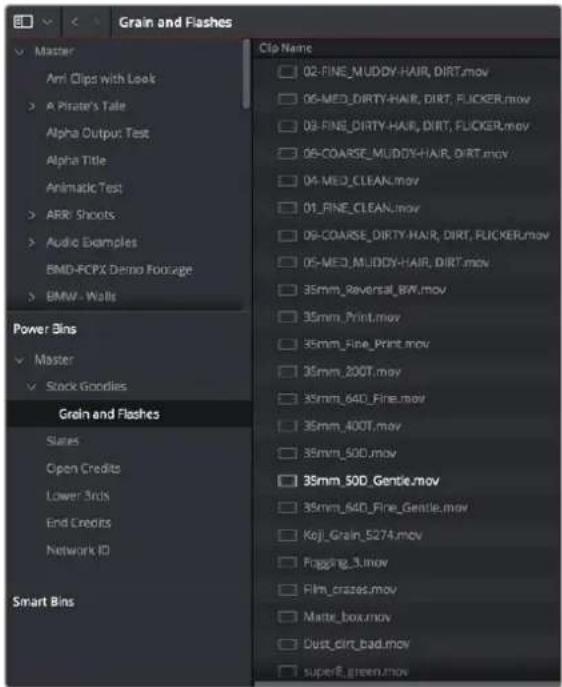
The Power Bins area of the Bin list
Like regular bins, Power Bins must be manually created by right-clicking within the Power Bins area and choosing Add Bin. The difference is that whatever clips you import into Power Bins are shared among all projects in a single-user installation, or all projects belonging to a particular user in a multi-user installation. In this way, they're similar to Power Grades in the gallery of the Color page. This makes Power Bins ideal for storing shared media that's re-used often, such as stock video, sound effects, stills, and things like company slates and network graphics and animations that go into every show of a series.
Power Bins are created and used like any other bin, using the procedures described previously.
To show or hide the Power Bin area of the Bin list:
- Choose View > Show Power Bins to toggle the visibility of all power bins on and off.
Automated Organization Using Smart Bins
A completely automated way of organizing media in the Media Pool is to use Smart Bins that are either automatically or manually created, in order to collect all clips and timelines in the Media Pool that have commonalities based on any of the intrinsic or user-editable metadata that's available in the Metadata Editor and Media Pool. If you're familiar with the Color page, Smart Bins work much the same way as Smart Filters, and they're created and edited using much the same procedures. For more information about Smart Filters, see Chapter 123, "Using the Color Page."
Smart Bins are incredibly flexible. Using one or more metadata-based rules, they can be as simple or sophisticated as you require. They're even capable of using multiple groups of multiple rules for situations where you need to gather clips that match all of one set of criteria, but only one of a second set of criteria. In this way, you can use Smart Bins to solve a wide variety of organizational needs as you edit your program.
Smart Bins Are Only As Good As Your Metadata
It's important to point out, however, that as much intrinsic metadata is available to every clip in DaVinci Resolve automatically (clip properties such as frame rate, frame size, codec, file name, and so
on), the more time you take entering extra metadata in the Metadata Editor to prepare your project for editing and grading, the more powerful Smart Bins can be in helping you to sift and sort through the contents of a program you're grading. Examples of metadata entry that will guarantee immediate benefits from Smart Bins include the entry of scene, shot, and take information, keywords identifying key descriptors (day and night, interior and exterior, framing, and so on), and using Face Detection to assign character names. These categories of metadata can be used for the automatic creation of Smart Bins, but they can also be used in combination when manually creating Smart Bins that are even more specific.
Imagine being able to gather all the clips in a particular scene, find all the interview clips for a particular subject, or find all the edited timelines corresponding to a particular name, all by simply selecting a Smart Bin that automatically examines the current contents of the Media Pool. If you or an assistant can take the time to enter metadata for the source material in a project that identifies these characteristics, you'll be able to work even more quickly to find the clips you need for any given situation.
Smart Bins Update Their Contents Dynamically
Smart Bins are always dynamically up to date and include whatever new media is added to the Media Pool. This makes it easy to stay organized, even when working on projects where new media is being added to the Media Pool every day, such as when editing during a shoot. By using metadata entered either in-camera, by the DIT or media wrangler managing ingest, or by an Assistant Editor who's working with you, Smart Bins will automatically include all clips in the Media Pool that have matching criteria, whether they were added a month ago or a minute ago.
Automatic Smart Bin Creation
The process of adding metadata to your clips can be used for the automatic creation of sets of "Smart Categories," which are Smart Bins that are generated and organized by the presence of specific categories of metadata and appear in the Smart Bins section of the Media Pool sidebar. To enable or disable this behavior, open the Editing panel of the User Preferences, and use the checkboxes in the Automatic Smart Bins group to choose which metadata automatically creates Smart Bins.
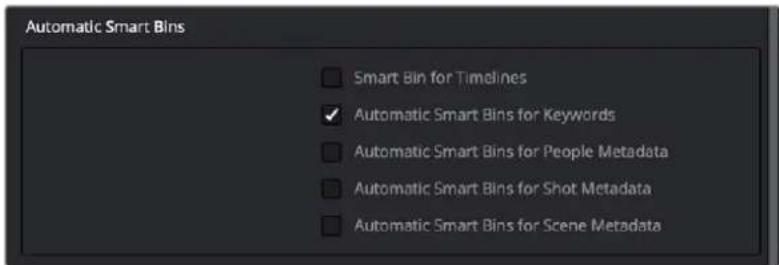
Preferences governing what metadata can automatically create Smart Bins
Metadata capable of creating Smart Bins include:
- Clip Keywords
- Marker Keywords
- People Keywords (added via People Detection)
- Scene metadata
- Shot metadata
These categories are hierarchically organized, with each category closed by default to save space. Click the disclosure triangle of any category to reveal all Keyword, People, Scene, or Shot Smart Bins that are available in the current project. Selecting the Smart Category's top bin lets you see every clip referenced by every Smart Bin inside of it, whereas selecting individual Smart Bins shows you only the clips referenced by that Smart Bin.
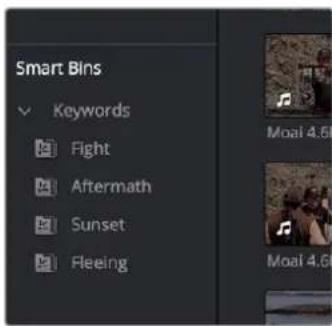
A Smart Category seen in the Smart Bins area of the Media Pool sidebar
Manual Smart Bin Creation
It's easy to manually create Smart Bins with customized rules to filter very specific collections of media and timelines that you want to use.
To show or hide the Smart Bin area of the Bin list:
- Choose View > Show Smart Bins to toggle the visibility of all Smart Bins on and off.
To create a Smart Bin:
1 If necessary, open the Bin list, choose View > Show Smart Bins, then right-click anywhere in the background of the Smart Bin area of the Bin list, and choose Create Smart Bin.
2 In the Create Smart Bin dialog, enter a name for the filter, and use the following controls to create one or more filter criteria (you can have as many filter criteria as you like):
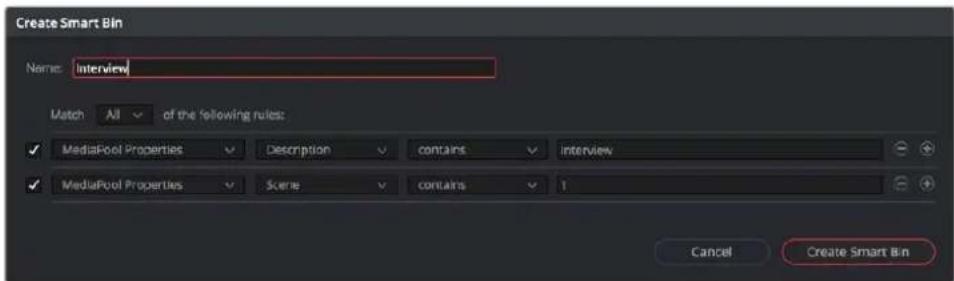
The Create Smart Bin dialog
- Show in all projects checkbox: Lets you create a persistent Smart Bin that appears in all projects in your database. Smart Bins created this way will be found in the User Smart Bins folder inside every project's Smart Bin area in the Media Pool.
- Match options: For multi-criteria filtering, choosing All ensures that every single criteria you specify is met for a clip to be filtered. Choosing Any means that if only one out of several criteria is met, that clip will be filtered.
- Filter criteria enable checkbox: Lets you enable or disable any criteria without having to delete it.
- Metadata category drop-down: Lets you choose which category of metadata you want to select a criteria from. Each category of metadata that's available in the Metadata Editor is available from this drop-down menu. Additionally, Color Timeline Properties (containing many properties unique to the Color page timeline) and Media Pool Properties (containing every column in the Media Pool) provide access to additional metadata you can use for filtering.
-
Metadata type drop-down: For choosing which exact type of metadata to use, of the options available in the selected metadata category.
-
Metadata criteria drop-down: Lets you choose the criteria by which to filter, depending on the metadata you've selected. Options include "true/false," integer ranges, date ranges, string searches, flag and marker colors, et cetera.
- Add filter criteria button: Lets you add additional criteria to create multi-criteria filters. You could use multiple criteria to, for example, find all exterior clips, that also contain the keyword "Sunset," that aren't closeups, in order to find all the exterior long and medium shots in sunset lighting. Additionally, if you Option-click this button, you can add a nested match option in order to create even more sophisticated filters, such as when the filter must match all of one set of criteria, and any of another set of criteria.
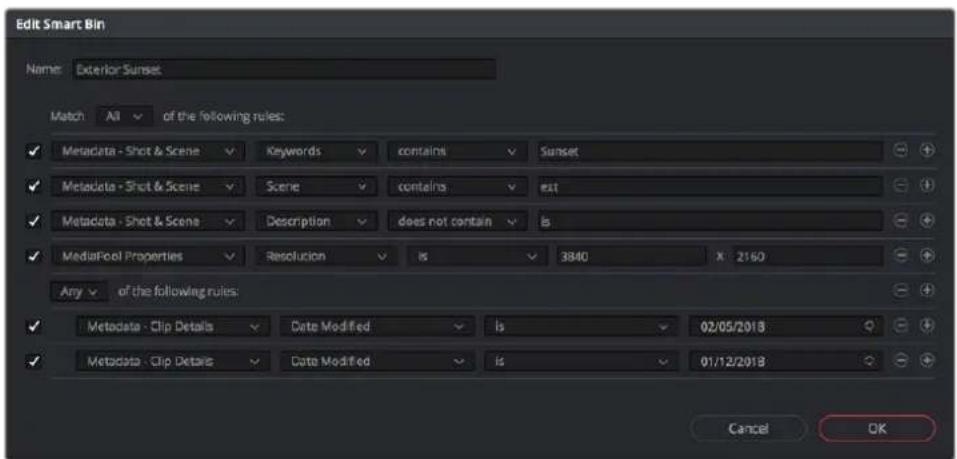
A complicated Smart Bin with multiple criteria and a second match option setting
As you're editing the filter criteria, the thumbnail timeline automatically updates to show you how the Smart Bin you're creating is working.
3 When you're done editing the filter criteria, click Create Smart Bin. The resulting Smart Bin appears in the Smart Bin area of the Bin list, at the left of the Media Pool's browser area.
Once you've created a Smart Bin, it appears in the lower half of the Media Pool's Bin list, alongside every other Smart Bin in that project. This keeps them organized, separate from the manually created bin shown above.
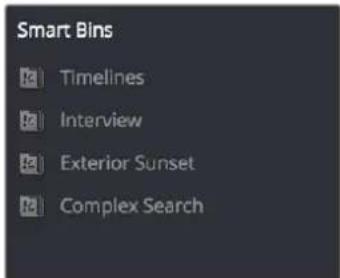
All Smart Bins appear together at the bottom of the Media Pool's Bin list
Once you've created a Smart Bin, you can re-edit it whenever the situation requires.
Methods of modifying existing Smart Bins:
- To rename a Smart Bin: Right-click the Smart Bin you want to rename, choose Rename from the contextual menu, enter a new name, and press Return.
- To edit a Smart Bin: Double-click the Smart Bin, then edit the filter criteria, and click OK.
- To duplicate a Smart Bin: Right-click any Smart Bin and choose Duplicate from the contextual menu. This is a good way to create multiple variations of a Smart Bin that you created with complex rules, where you need to create variations by modifying those rules without needing to reinvent the wheel each time.
- To delete a Smart Bin: Right-click the Smart Bin you want to delete, choose Delete Smart Bin from the contextual menu, and click Delete in the warning dialog. Deleting a Smart Bin does not delete any gathered media associated with that bin.
Smart Bins Work Better With Metadata
Keep in mind that the more metadata you associate with each clip, the more methods you have at your disposal for creating custom Smart Bins (for editing) and Smart Filters (for grading) with which to zero in on the clips you need for any given situation. This will not only make it easier to find what you need, but it'll help you to work faster. At the very least, it would be valuable for you to use the Metadata Editor to add information to each clip such as a Description, Shot and Scene designations, take information, and possibly some useful keywords such as character names, shot framing, interior or exterior keywords, and so on.
For example, if you've entered enough metadata, then you can create multi-criteria Smart Bins or Smart Filters that let you find the equivalent of "every close-up of Sally inside the diner," or "every long shot of Antonio outside in the parking lot." In a documentary, you could easily isolate "every interview shot of Louis from camera 1," or "every B-roll clip with Robyn." All of this will help you find media faster for editing, or quickly isolate similar clips that you need to match together for grading.
For more information about using the Metadata Editor, see Chapter 19, "Using Clip Metadata."
Organizing Smart Bins
Manually created Smart Bins can be organized into Folders and Sub-Folders for better sidebar management, just like regular bins.
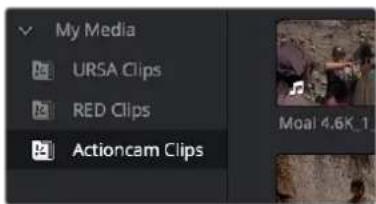
Smart Bins organized into folders
To add a Smart Bin folder:
Right-click in the Smart Bins area and choose Add Folder from the contextual menu to create folders that you can drag Smart Bins into. Each folder has a disclosure triangle, so you can show or hide its contents.
Another benefit of Folders is that when you select a Folder, you can see the full contents of all Smart Bins inside of it in the Media Pool browsing area. Selecting any one Smart Bin then restricts the Media Pool to showing only the media reference by that Smart Bin.
Folders can be renamed, removed, opened as a new window, or sorted along with all other Smart Bins by right-clicking them and using commands in the contextual menu.
Duplicating Clips in the Media Pool
You can duplicate clips in order to create an instance of that media that's treated as a completely new source clip, entirely separate from the original instance of that clip that was imported into DaVinci Resolve. The duplicate is capable of storing individualized metadata and markers that are completely distinct from the original clip that was imported into your project.
To duplicate one or more clips:
1 Select one or more clips to duplicate.
2 Do one of the following:
- Choose Edit > Duplicate Clip
- Hold the Option key down while dragging one or more selected clips to another bin
- Right-click a clip in the Media Pool, and choose Duplicate Clip from the Contextual Menu
Adding Clips From the Timeline to the Media Pool
You can also drag one or more clips from the Timeline back into the Media Pool to create a duplicate.
As with duplicating clips in the Media Pool, each duplicate is created as a new source clip that's entirely separate from the original instance of that clip that was imported into DaVinci Resolve and is capable of storing individualized metadata and markers that are completely distinct from the original clip that was imported into your project.
For example, the original clip in the Timeline remains conformed to the original clip that was first imported into the Media Pool; deleting the original clip from the Media Pool will make that clip “non-conformed” in the Timeline, while the duplicate you just created remains linked and available. If you’re in this situation, you can always turn Conform Lock Enabled off for that clip in the Timeline and reconform the Timeline Clip to the duplicate you just created, but that’s an extra step because the duplicate clip is considered by DaVinci Resolve to be a whole new piece of media that just happens to share the same clip details.
This may seem strange, but there are a variety of finishing workflows that use this capability, so it's good to know about.
Duplicating Timelines
Timelines can be duplicated for a variety of reasons: to create a backup of a timeline at a specific date, to create a variation of an edit, or to create separately graded versions.
To duplicate a Timeline:
- Select a Timeline in the Media Pool, and choose Edit > Duplicate Timeline.
- Press Command-4 to give focus to the Timeline, and choose Edit > Duplicate Timeline.
Choosing How to Display Bins
Once you've created a bin structure for your project, you can customize how your bins are displayed, depending on how you like to work.
Showing Bins in Separate Windows
If you right-click a bin in the Bin list, you can choose "Open As New Window" to open that bin into its own window. That window is basically its own Media Pool, complete with its own Bin list, Power Bins and Smart Bins lists, and display controls.
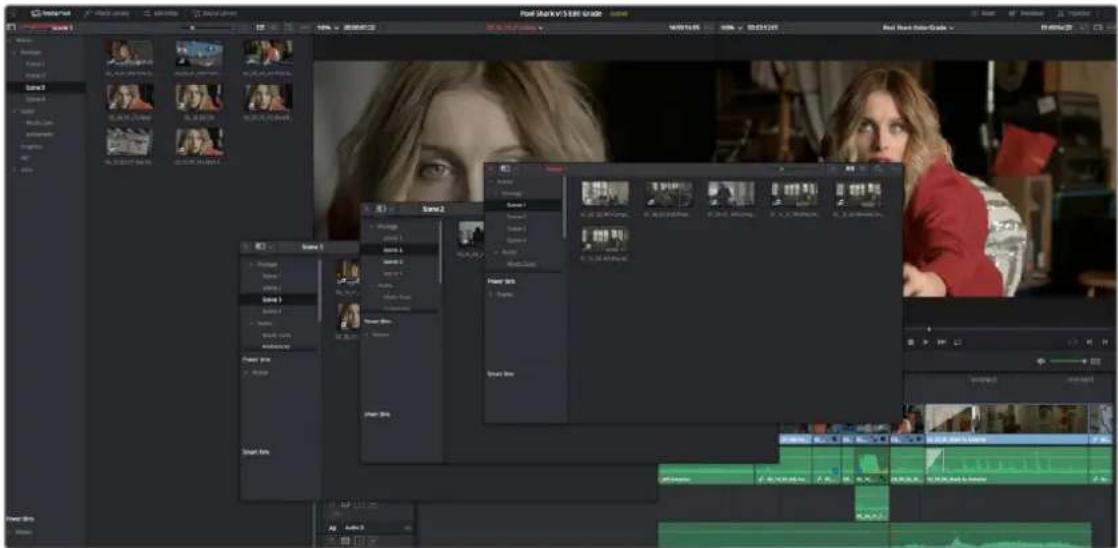
Multiple Media Pool bins opened as new windows
When multiple Media Pool windows are open, the Workspace > Media Pool Windows submenu lets you bring a floating Media Pool window into focus when you have one or more open and hidden.
This is most useful when you have two displays connected to your workstation, as you can drag these separate bins to the second display while DaVinci Resolve is in single screen mode. If you hide the Bin list, not only do you get more room for clips, but you also prevent accidentally switching bins if you really want to only view a particular bin's contents in that window.
Using the Media Pool in Thumbnail View
If you work in Thumbnail view using the controls at the top right of the Media Pool, you have the option to resize the thumbnails to make them easier to see, and you can move the mouse pointer over each clip to hover scrub through its contents. Clicking any clip to select it displays it in the Media page Viewer. Whichever clip is currently selected is also output to video for monitoring.
In Thumbnail view, you can use the Sort Order drop-down, at the top right of the Media Pool, between the Icon Size slider and the Icon/List view buttons, to choose how clips are sorted. There are fourteen options: File Name, Reel Name, Clip Name, Start TC, Duration, Type, FPS, Audio Ch, Flags, Date Modified, Date Created, Shot, Scene, and Take.
Working With Columns in List View
If you work in List view using the controls at the top right of the Media Pool, you gain additional organizational control by exposing columns that show the metadata that each clip contains, prior to media being added to your timeline. You can use these columns to help organize your media.
Methods of customizing metadata columns in List view:
- To show or hide columns: Right-click at the top of any column in the Media Pool to reveal the column list, and while the column list is open, click the checkboxes of any columns you want to show or hide. Unchecked columns cannot be seen. When you're finished, click anywhere else in the Media Pool to dismiss the column list.
- To rearrange column order: Drag any column header to the left or right to rearrange the column order.
- To resize any column: Drag the border between any two columns to the right or left to narrow or widen that column.
- To sort by any column: Click the column header you want to sort with. Each additional time you click, the same header toggles that column between ascending and descending sort order.
Once you've customized a column layout that works for your particular purpose, you can save it for future recall.
Methods of saving and using custom column layouts:
- To create a column layout: Show, hide, resize, and rearrange the columns you need for a particular task, then right-click any column header in the Media Pool, and choose Create Column Layout. Enter a name in the Create Column Layout dialog, and click OK.
- To recall a column layout: Right-click any column header in the Media Pool, choose the name of the column layout you want to use from the contextual menu, and choose Load from that item's submenu. All custom column layouts appear at the top of the list.
- To edit a column layout: Load the column layout you want to edit, make whatever changes you need to, then right-click any column header in the Media Pool, choose the name of the column layout you just edited from the contextual menu, and choose Update from that item's submenu.
- To delete a column layout: Right-click any column header in the Media Pool, choose the name of the column layout you want to delete from the contextual menu, and choose Delete from that item's submenu.
While the available columns of metadata correspond to those fields shown in the Metadata Editor, the available columns in the Media Pool of the Media and Edit pages are a subset of the total amount of metadata that's available, although they represent the most commonly used metadata you'll find yourself referring to when editing and finishing. The available columns in List view include:
| File Name: The name of the file on disk that clip is linked to. |
| Clip Name: Editing the Clip Name lets you change the name with which clips appear throughout DaVinci Resolve when View > Use Clip Name for Clip Titles is enabled. By default, the clip name mirrors the source clip's file name. When editing the clip name in the List view of the Media Pool, you can use "metadata variables" that you can add as graphical tags that let you reference clip metadata.For example, you could add the corresponding metadata variable tags %scene_%shot_%take and that clip would display "12_A_3" as its name if "scene 12," "shot A," "take 3" were its metadata.The clip name can also be edited in the Clip Attributes window. For more information on the use of variables, as well as a list of all variables that are available in DaVinci Resolve, see Chapter 16, "Using Variables and Keywords." |
| Angle: An editable field to contain the angle of the media in a multi-camera shoot. |
| Audio Bit Depth: The bit depth of any audio channels in the media file. |
| Audio Ch: The total number of audio tracks in the media file. |
| Audio Codec: The specific codec used by the audio portion of the media file. |
| Audio Offset: Lists the audio offset, in frames, for clips that have been synchronized to separately recorded audio. This parameter is editable in the Media Pool. |
| Bit Depth: The bit depth of the media file. |
| Camera #: The number assigned to a specific camera. |
| Clip Color: The current color assigned to that clip. |
| Comments: A user-editable field for entering information about that clip. |
| Data Level: The data level setting for the media file. |
| Date Created: The date the media file was created. |
| Date Modified: The last date the media file was modified. |
| Description: A user-editable field for entering information about that clip. |
| Duration: The total duration of the clip, in timecode. |
| End: The last frame number of the media file. |
| End TC: The timecode value of the last frame in the media file. |
| FPS: The frame rate of the media file. |
| File Path: The file path where that media file is located on disk. |
| Flags: Which flags, if any, have been added to a media file. |
| Format: The image format used by that clip, such as QuickTime, MXF, WAVE, and so on. |
| Frame/Field: Whether that media file is progressive or interlaced. |
| Frames: The total duration, in frames. |
| Good Take: An editable field to contain the circled state of media, relative to the script supervisor's notes. |
| H-FLIP: Whether that media file is horizontally flipped in DaVinci Resolve. |
| HDRX: Only displayed for R3D media, indicates whether or not it's HDRX media. |
| IDT: If ACES color science is selected in the Color Management panel of the Project Settings, the IDT used by that clip is listed here. |
| In: The timecode value of the In point, if any, that's stored for that clip. |
| Input Color Space: If Resolve Color Management is selected in the "Color Science" menu of the Color Management panel of the Project Settings, then this column will show the Input Color Space that has been assigned to each clip. By default, all clips inherit the Input Color Space setting that's been selected in the Color Management panel of the Project Settings. |
| Input LUT: Which input Lookup table has been assigned, if any. |
| Input Sizing Preset: The currently selected Input Format Preset, if there is one. |
| Keyword: A user-editable field for entering searchable keywords pertaining to that clip. Only shows clip keywords, not marker keywords. |
| Offline Reference: Lists the offline reference video that has been assigned to a given timeline. |
| Optimized Media: Populated with the resolution of whatever optimized media you've created (Original, Half, Quarter, and so on). Clips that have not been optimized appear with "None." |
| Out: The timecode value of the Out point, if any, that's stored for that clip. |
| PAR: The pixel aspect ratio, if assigned. |
| Reel Name: The reel name of that clip. Dynamically generated by the "Assist using reel names from the" setting in the General Options panel of the Project Settings. |
| Resolution: The frame size of the media file. |
| Roll/Card: An editable field to contain the roll number of media that was scanned from film. |
| S3D Sync: Shows a frame count when you slip an eye to fix non-synced timecode using the "Slip Opposite Eye One Frame Left/Right" commands. This parameter is editable in the Media Pool. |
| Sample Rate: The sample rate of the media file's audio, if there is any.Scene: An editable field to contain the scene number of the media, relative to the script. |
| Shot: An editable field to contain the shot number of the media, relative to the scene. |
| Slate TC: The Slate timecode track used to sync audio with video. |
| Start: The first frame number of the media file. |
| Start KeyKode: The starting KeyKode value of a scanned negative. |
| Start TC: The timecode value of the first frame in the media file. |
| Take: An editable field to contain the take number of the media, relative to the shot. |
| Type: The type of item, such as Video+Audio, Video, Audio, Timeline, Multicam, Still, and so on. |
| Usage: After a timeline has been created by importing an AAF, EDL, or XML project, the Usage column automatically reflects how many times each clip is used in the project. This makes it easy to identify clips that aren't in use, and which can be removed from the Media Pool. |
| V-FLIP: Whether that media file is vertically flipped in DaVinci Resolve. |
| Video Codec: The specific codec used by the video portion of the media file. |
Editable Description and Comments Columns
When the Description and Comments columns are displayed by the Media Pool in List view, you can edit their contents by clicking once within a clip's Description or Comments field, waiting a moment, and then clicking a second time to select that field.
Using Metadata View in the Media Pool
In the Metadata View mode, each clip is represented by its own card with a thumbnail and basic clip metadata information visible. This view is designed to have more metadata information than a thumbnail but more targeted information than the List view. This feature, combined with its sort modes, is a powerful way to organize and reorganize your clips in the Media Pool.
The metadata fields of the Metadata view (from the top down):
- Thumbnail: A scrubbable thumbnail image of your clip.
- Row 1: A main description field that is variable and determined by the sort order selection.
- Row 2: Start Timecode, Date Created, Camera #.
- Row 3: Scene, Shot, Take.
- Row 4: Clip Name, Comment.
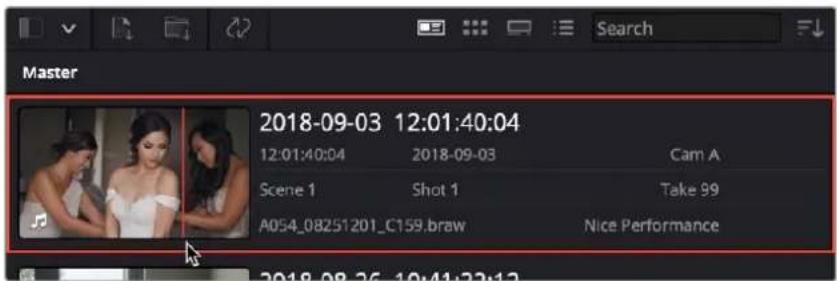
The Metadata View icon view (highlighted icon in the top bar), showing the thumbnail being scrubbed next to the clip's metadata
The strength of the Metadata view is the automatic clustering of your clips based on the sort order you choose in the Media Pool Sort By menu, at the very upper-right corner of the Media Pool.
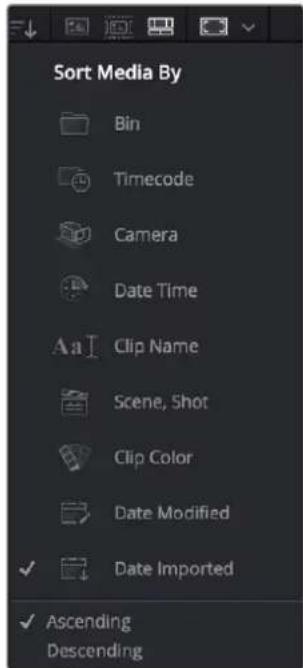
The Media Sort options
Each different sort mode changes the main description field on the card, as well as re-arranging the Media Pool to reflect the selected organization method.
The sort modes available in the Metadata view are:
- Bin: This mode clusters the clips by bin, changes the main description field to clip name, and orders the list by timecode.
- Timecode: This mode clusters the clips by creation date, changes the main description field to creation date and start timecode, and orders the list by timecode.
- Camera: This mode clusters the clips by camera #, changes the main description field to camera # and start timecode, and orders the list by timecode.
- Date Time: This mode clusters the clips by day, changes the main description field to creation date and file name, and orders the list by timecode.
- Clip Name: This mode clusters the clips by the first letter of the clip name in alphabetical order, changes the main description field to clip name, and orders the list by timecode.
- Scene, Shot: This mode clusters the clips by scene, changes the main description field to scene-shot-take, and orders the list by scene-shot-take.
- Clip Color: This mode clusters the clips by clip color name, changes the main description field to creation date and start timecode, and orders the list by timecode.
- Date Modified: This mode clusters the clips by day, changes the main description field to creation date and file name, and orders the list by the last time the clip was modified by the OS filesystem.
- Date Imported: This mode clusters the clips by day, changes the main description field to creation date and file name, and orders the list by the date the clip was added to the Media Pool.
- Ascending: Orders the Media Pool from lowest numerical value to highest, and alphabetically from A to Z.
- Descending: Orders the Media Pool from highest numerical value to lowest, and alphabetically from Z to A .
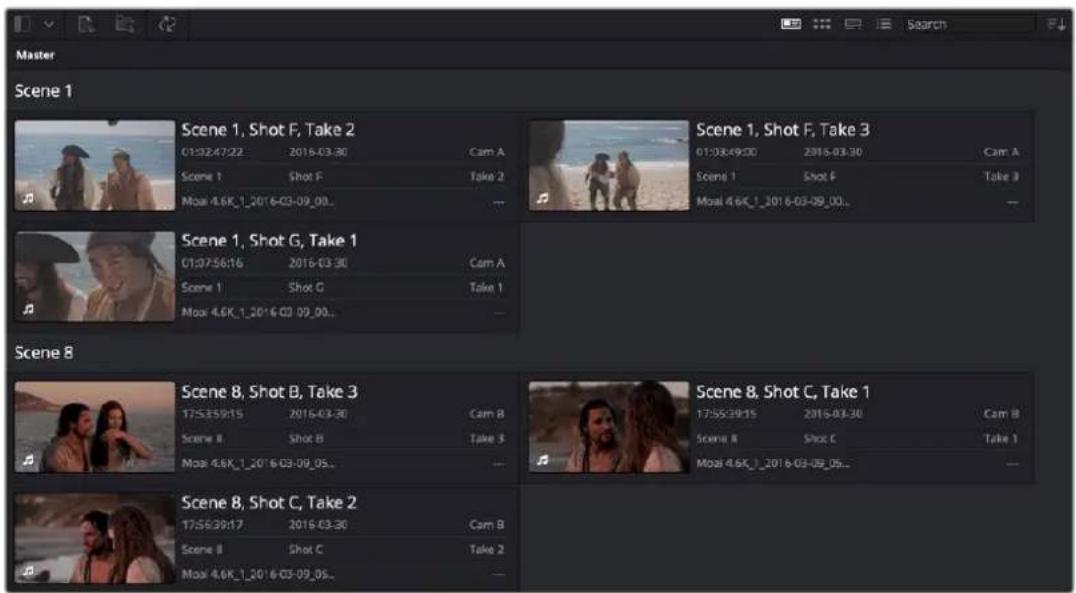
The Metadata view with clips sorted by Scene-Shot-Take
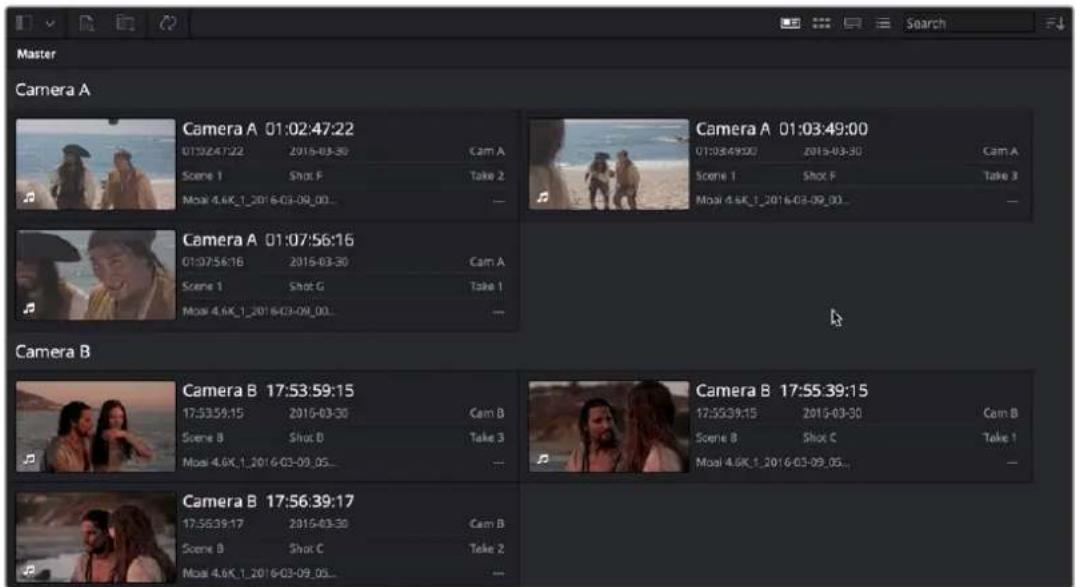
The Metadata view with the same clips sorted by Camera
Finding Clips, Timelines, and Media
There are several ways to locate different items in the Media Pool and Media Storage, be they clips, timelines, or media on disk.
Finding Clips and/or Timelines Within the Media Pool
Clicking the magnifying glass button at the upper right-hand corner of the Media Pool exposes the Search Options, which by default can be used to locate one or more clips in the currently selected bin or bins, based on the metadata that's selected in the Filter By drop-down menu to the left of it.
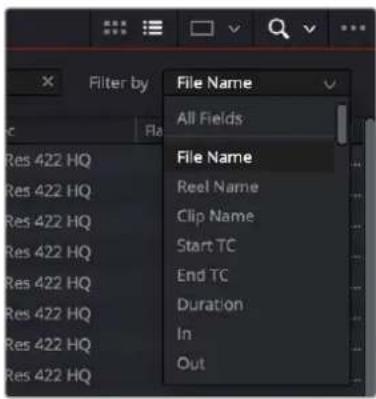
The Search Options drop-down menu (as seen in the Edit page Media Pool) lets you choose what metadata you're searching
A drop-down menu right next to the magnifying glass icon lets you choose the scope of your search. This lets you choose whether a search looks through all bins in the current project for the specified criteria, or just looks at the currently open bin, or currently selected bins in the Bin list, in cases where you're looking for an instance of media in a specific hierarchical location of the Media Pool.
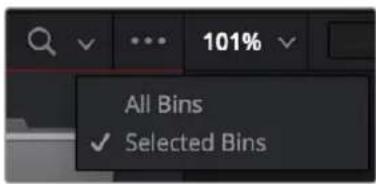
The drop-down menu next to the magnifying glass icon lets you set the bin search parameters
To find a clip in the Media Pool:
1 (Optional) Use the drop-down menu next to the Search button that exposes the Search and Filter by controls in the Media Pool to choose whether you select All Bins or Selected Bins.
2 (Optional) If you're searching Selected Bins, then open the Bin list and select one or more bins in which to search.
3 (Optional) Choose a criteria from the Search Options drop-down menu at the top right of the Media Pool; you can choose All Fields to do a simultaneous search of every metadata column in the Media Pool at once, or you can choose a specific criteria to restrict your search.
4 Type a search term in the Search field. As soon as you start typing, all clips that don't match the search criteria are temporarily hidden. To show all clips in the Media Pool again, click the cancel button at the right of the search field.
Finding Synced Audio
If you've synced dual-system audio and video clips together in DaVinci Resolve, you can find the audio clip that a video clip has been synced to using the following procedure.
To find the audio clip that a video clip has been synced to:
- Show the Media Pool in List view, and reference file name in the Synced Audio column.
- Right-click a video clip that's been synced to audio, and choose "Reveal synced audio in Media Pool" from the contextual menu. The bin holding the synced audio clip is opened and that clip is selected.
Finding Timeline Clips in the Media Pool
If you have a clip in a timeline and you want to find the corresponding clip that it's conformed to in the Media Pool, you can right-click that clip, and choose Find in Media Pool from the contextual menu.
Finding Timelines in the Media Pool
If you'd like to find the currently open timeline's location in the Media Pool, you can choose Timeline > Find Current Timeline in Media Pool.
Finding Media in the Media Storage Panel and Finder
If you find yourself needing to determine the location of a clip's source media file on disk, you can right-click an item in the Media Pool and choose Reveal in Media Storage panel. The Library automatically opens to the folder containing the media file you've selected, with that media file selected in the Library browser to the right.
Another feature that's only available for macOS systems is the ability to right-click an item in the Media Pool and choose Reveal In Finder. A file system window opens up, revealing the media file that clip is linked to.
Going Immediately to a File System Location in the Media Browser
Conversely, if you drag a folder from the macOS Finder into the Media Storage panel, the Media Storage panel will immediately update to show the location of that folder.
Tracking Media Usage
As clips are added to timelines, two mechanisms come into play for keeping track of which clips are used in which timelines.
Thumbnail Clip Usage Indicators
Whenever you open a timeline, all thumbnails in the Media Pool automatically update to show highlighted usage bars to let you know which parts of that clip are used in that timeline.
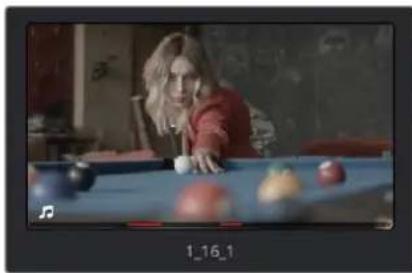
natural_image
Woman playing pool with a ball and fruit on a table (no visible text or symbols)Two colored highlights at the bottom of the thumbnail indicate which parts of a clip are used by the currently open timeline
If you right-click on a thumbnail that shows usage, a Usage submenu shows you a list of each instance of that clip in the currently open timeline. Choosing an instance from this list jumps the playhead to that clip in the Timeline.
List View Clip Usage Column
Exposing the Usage column when the Media Pool is in List view lets you see a value for the number of times a clip appears in all timelines of the current project. This usage column is now automatically updated; no user intervention is required.
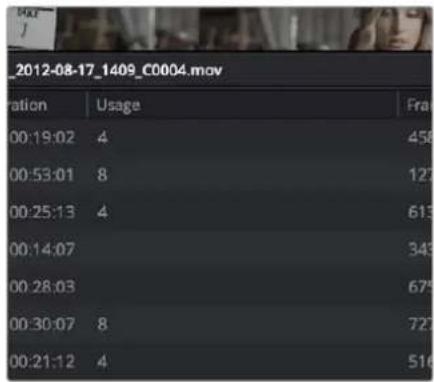
A Usage column shows how many times a clip is used in every timeline, after analysis
NOTE: The usage column increments for each clip item that appears in the Timeline. This means that if a clip consists of one video item and one video item linked together, the usage column will show the number 2.
Relinking Media Simply
DaVinci Resolve keeps track of the relationship between clips in your project and their corresponding source media on disk. If, for whatever reason, source media that links to clips in your project becomes unavailable, DaVinci Resolve has several different methods of relinking those clips in the Media Pool.
This section summarizes the methods of relinking. For more comprehensive information on conforming projects and relinking media, see Chapter 56, "Conforming and Relinking Clips."
Relink Media
If DaVinci Resolve fails to find your media, a Relink Media icon in the Cut and Edit page's Media Pool will highlight orange.
The Relink Media icon that appears for unlinked media
Clicking this icon opens a dialog box showing the volumes that the missing files initially belonged to. You can then use this information to track down the media on your file system, find that specific hard drive, or ask a client if they provided you the media from this volume. Clicking the Locate button lets you re-connect the missing clips to a new file location of your choosing. If the quick search initiated by the Locate buttons doesn't find media that you know is there, you can initialize an exhaustive deep disk search for the media by clicking on the Disk Search button.
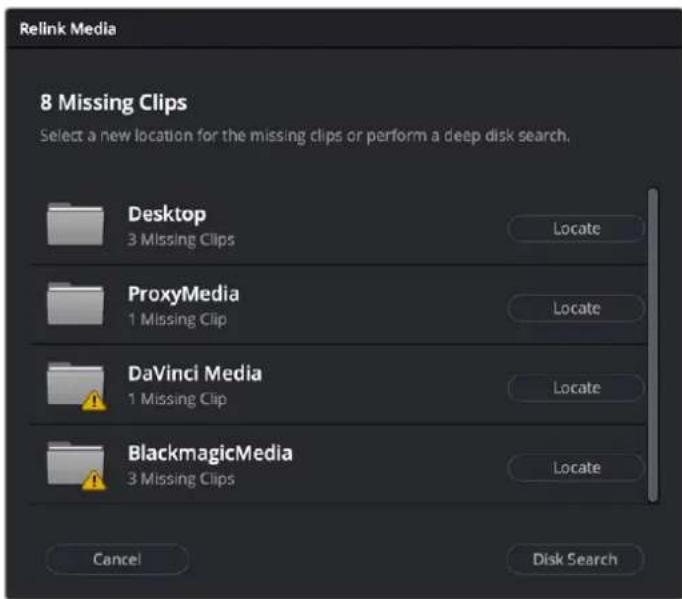
The Relink Media dialog showing the volume names where the missing clips originated
Relink Selected Clips
The easiest method of relinking clips in your project that have gone offline is to use the appropriately named "Relink selected clips" command. This is the most flexible method of relinking clips in your project with clips in a file system directory of your choice, using file name and timecode as the primary criteria for drawing a correspondence between each clip and the corresponding media file on disk. When you relink clips this way, the original file path in DaVinci Resolve is ignored, so this is a good command to use to relink to media that's been reorganized on disk.
To relink selected clips:
1 Do one of the following:
- Select one or more clips in the Media Pool browser that you want to relink, then right-click one of the selected clips or the selected bin, and choose "Relink Selected Clips" from the contextual menu.
- Select a bin in the Media Pool Bin list that contains clips you want to relink, then right-click one of the selected clips or the selected bin, and choose "Relink Clips for Selected Bin" from the contextual menu.
2 When the Relink File dialog opens, choose a directory in which to look for the files you want to relink to, and click OK. DaVinci Resolve attempts to find every clip with a matching file name in the subdirectories of the directory you chose, using the original file paths of the clips being relinked to do this as quickly as possible. By first looking for the clips in the directories they were originally in, relinking can be quite fast.
3 If there are any clips that couldn't be found using the method in step 2, you're prompted with the option to do a "deep search" by a second dialog. If you click Yes, then DaVinci Resolve will look for each clip inside every subdirectory of the directory you selected in step 2. This may take significantly longer, but it should be completely successful so long as the media that's required is within the selected directory structure.
4 If there are still other clips that couldn't be found, you're prompted to either choose another directory altogether to continue searching, or quit.
Change Source Folder
If you've used your file system to move media that's associated with a DaVinci Resolve project, but you haven't changed the directory structure with which it's organized, you can use the Change Source Folder command to quickly relink selected clips in the Media Pool to the new file path of the media on disk, using the original file paths as a guide. This is a good relinking method to use, if possible, for projects on a SAN where you don't want to risk the excessively long search times that could result from using the Relink command to examine a nested hierarchy of folders in a more flexible way.
To relink your Media Pool clips to a new location:
1 Select one or more clips in the Media Pool, then right-click one of the selected clips, and choose Change Source Folder from the contextual menu. The Relink Media window appears displaying the original path for the material, with controls for choosing a new directory.
2 Click the "Browse" button to the right of the Change To field, and then use the file navigation dialog to find the new location of the media file, select it, and click Open.
3 If you succeeded in finding the appropriate media file, click Change. Otherwise, click Cancel.
Chapter 19
Using Clip Metadata
DaVinci Resolve has powerful tools for viewing, editing, exporting, and importing metadata associated with each clip in the Media Pool. Once your metadata house is in order, you can use this metadata in the Edit, Color, and Audio pages to find, sort, and organize the clips in your project, so you can work faster.
Contents
Editing Clip Metadata 348
Automatically Imported Metadata 348
Using the Metadata Editor 348
Editing Keywords 349
Editing Metadata Using the File Inspector 350
Face Detection to Generate People Keywords 352
Creating Custom Metadata Groups 354
Importing and Exporting Media Pool Metadata 355
Different Ways of Using Clip Metadata 356
Renaming Clips Using Clip Names 356
Switching Between File Names and Clip Names 357
Using Metadata to Define Clip Names 357
Editing Clip Metadata
Whether you've imported media in preparation for editing, or you've imported a project for grading that resulted in media being imported automatically, once you've added clips to the Media Pool, it would behoove you to consider taking the time to review and add metadata to your clips.
At the very least, it would be valuable for you to use the Metadata Editor that's available in either the Media page or the Edit page to add information to each clip such as a Description, Shot and Scene designations, Take information, and possibly some useful keywords such as Character Names, Shot Framing, Interior or Exterior keywords, and so on. If you're especially ambitious (or you have a very responsible assistant), you could go further and add Shoot Day, Camera Type, Audio Notes, and other valuable information. Much of the metadata that is useful in the day to day work of editing and grading can be found in the Shot & Scene group, but there are many other potentially useful groups as well that you should explore.
Keep in mind that the more metadata you associate with each clip, the more methods you have at your disposal for creating custom Smart Bins (for editing) and Smart Filters (for grading) with which to zero in on the clips you need for any given situation. This will not only make it easier to find what you need, but it'll help you to work faster.
For example, if you've entered enough metadata, then you can create multi-criteria Smart Bins or Smart Filters that let you find the equivalent of “every close-up of Sally inside the diner,” or “every long shot of Antonio outside in the parking lot.” In a documentary, you could easily isolate “every interview shot of Louis from camera 1,” or “every B-roll clip with Robyn.” All of this will help you to find media faster for editing, or to quickly isolate similar clips that you need to match together for grading.
Automatically Imported Metadata
In many instances, metadata is also imported along with the media you've added to the Media Pool. For example, media recorded on BMD cameras may have had a variety of metadata entered into the camera or automatically generated by the camera, and this metadata is automatically available in the Metadata Editor. Similarly, Broadcast WAVE files can have quite a bit of metadata entered at the time of recording, such as scene and take numbers and channel names describing each microphone. Still images are imported with EXIF metadata. In all cases, available metadata is imported along with the media and exposed in the Metadata Editor to facilitate workflows where valuable organizational metadata is being entered on set during the shoot or immediately after ingest.
Using the Metadata Editor
Whenever you select a clip in the Media Pool, its editable metadata appears in the appropriately named Metadata Editor (so long as it's displayed). You can use this editor to further massage the metadata of the clips in a project, adding information on set that will be of help later during editing and finishing.
By default, clips initially appear with a set of clip metadata called "Clip Details," that shows some of the most fundamental details of the clip such as start and end timecode, duration, bit depth, and so on.
Because there are so very many metadata fields that are available, two drop-down menus at the top right of the Metadata Editor let you change which set of metadata is displayed.
- Metadata Presets (to the left): If you've used the Metadata panel of the User Preferences to create your own custom sets of metadata, you can use this drop-down to choose which one to expose. Surprisingly enough, this is set to "Default" by default.
- Metadata Groups (to the right): This drop-down menu lets you switch among the various groups of metadata that are available, grouped for specific tasks or workflows.
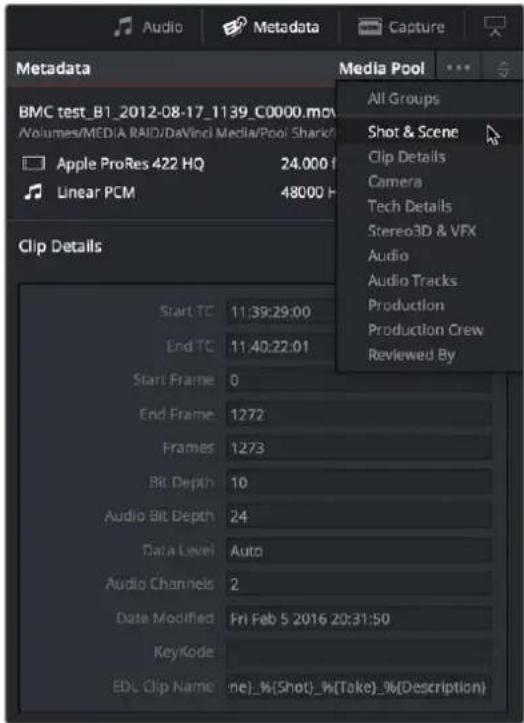
Metadata categories drop-down menu
If you want to see a list of every piece of metadata in a clip, you can choose All Groups. Otherwise, you can choose any set of metadata to narrow your focus to just those items of information.
To edit metadata for a single clip:
Select any clip in the Media Pool, and edit whatever metadata fields you require. The edited metadata is immediately saved.
To edit metadata for multiple clips:
1 Choose a metadata set using the drop-down menu in the Metadata Editor.
2 Select multiple clips in the Media Pool by Shift-clicking, Command-clicking, or dragging a bounding box around them.
3 Edit whichever metadata fields you want to. Checkboxes are automatically turned on for any metadata fields you edit.
4 When you're done, click the Save button at the bottom of the Metadata Editor. When you've edited metadata for multiple clips at once, you'll be prompted to save your changes if you create a new selection in the Media Pool without clicking the Save button first.
Editing Keywords
While most metadata in the Metadata Editor is edited via text fields, checkboxes, or multiple button selections (such as Flags and Clip Color), the Keyword field is unique in that it uses a graphical "tag" based method of data entry. The purpose of this is to facilitate consistency with keyword spelling by making it easy to reference both a built-in list of standardized keywords, as well as other keywords that you've already entered to other clips.
Once added, keywords are incredibly useful for facilitating searching and sorting in the Media Pool, for creating Smart Bins in the Media and Edit pages, and for use in Smart Filters on the Color page. Reaping these benefits by adding and editing keywords is simple, and works similarly to the method of entering metadata variables. For more information on metadata variables, see Chapter 16, "Using Variables and Keywords."
To add a keyword:
1 Select the Keyword field of the Metadata Editor, and begin typing the keyword you want to use. As you begin typing, a scrolling list appears showing all keywords that are available using the string of characters you've just typed.
2 To find a specific keyword in the list, start typing that keyword's name and this list automatically filters itself to show only keywords that contain the characters you've just typed. Choose which keyword you want to use in the list using the Up and Down Arrow keys, and press Return to choose that keyword to add.
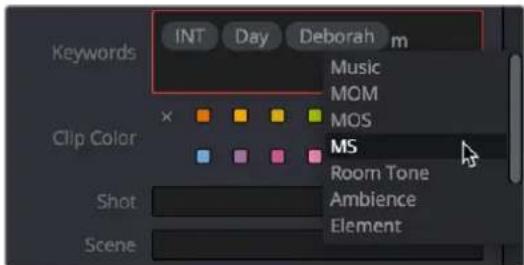
The keyword list that appears when you type within the Keyword field
As soon as you add one or more keywords, they appear as a graphical tag. To re-edit any keyword, simply click anywhere within the Keyword field to edit it.
To edit a keyword:
- Double-click any keyword to make it editable, then edit it as you would any other piece of text, and press Return to make it a graphical keyword tag again.
To remove a keyword:
- Click any keyword to select it, and press Delete.
Editing Metadata Using the File Inspector
The File tab of the Inspector provides a consolidated way to view and edit a subsection of a clip's most commonly used media file metadata. It's easily accessible in the Inspector across the Media, Cut, Edit, and Fairlight pages. The tab is composed of the following parts:
- Clip Details: Presents data about the clip's data format (codec, resolution, frame rate, etc.).
- Metadata: Presents a reduced set of common metadata fields for quick user entry.
- Timecode: The start timecode of the clip. This field is editable if you want to manually change the clip's starting timecode.
- Date Created: The date that the clip was created. This field is editable if you want to manually change the clip's creation date.
- Camera: Sets the Camera # metadata.
- Reel: Sets the Reel/Card ID.
- Scene: The Scene number of the clip.
- Shot: The Shot letter/number of the clip.
- Take: The Take number of the clip.
- Good Take: This checkbox indicates if the clip is a good or circled take.
- Clip Color: Assign a specific color to a clip that is reflected in the Timeline.
- Name: The clip name field; this can be entered manually.
- Comments: Add a text description to the clip.
- Auto Select Next Unsorted Clip: When this box is checked, the next clip in the Media Pool is selected when you hit the return button after entering a metadata field, and the cursor is automatically placed in the same field. This allows rapid sequential metadata entry without having to manually click to load each individual clip in the Media Pool. The Next Clip button will select the next clip in the Media Pool, regardless of the checkbox status.
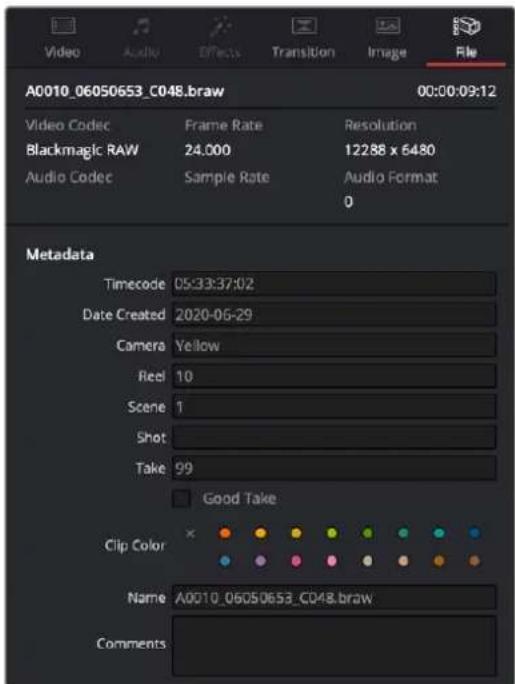
The File Inspector parameters
Tips for Editing Metadata
Editing metadata is like taking vitamins. Nobody wants to, but you know you probably should. To encourage you to undertake this task so you can reap the benefits, here are a few pointers.
- Don't start editing until you review your footage and add metadata. If you get into the habit of entering your clip metadata before you get preoccupied with your edit, you'll be in a much better position to edit faster using organizational tools that leverage the metadata you've entered.
- Enter metadata starting with groups of clips and then moving to individual clips. Since the Metadata Editor lets you add metadata for multiple selected clips at once, it becomes easy to select groups of clips based on their thumbnails for entering information such as Scene designations, Interior or Exterior keywords, Character keywords, and Framing keywords. You'll be surprised how fast this goes, and how useful this information is later on, for both editing and grading.
- After you've entered all the metadata you can in groups of clips, then switch to entering clip-specific metadata such as Shot designations, Take numbers, descriptions of action, and other clip-specific keywords.
– There's no right or wrong way to edit or use metadata, but a lack of consistency will make it less useful. For example, if you're identifying each clip that takes place at the same diner, try to use the same keyword or descriptive text. If you call half the shots "diner" and the other half "restaurant," your ability to easily search for all the diner shots will be compromised.
Face Detection to Generate People Keywords
You can select multiple clips in the Media Pool, then right-click the selection and choose "Analyze clips for people" from the contextual menu to automatically analyze all selected clips using the DaVinci Neural Engine, identifying faces that can be used to help organize the media. A progress dialog shows you how long until the analysis is finished (you can cancel the operation if necessary).
Afterwards, the People Management window appears that shows you the results, automatically organized into a number of bins in a sidebar.
- A "People" bin shows each face that has been recognized as an individual person. Click, pause, then click again underneath any thumbnail to edit the name or role of that person. You must assign a name if you want a keyword to appear for that individual in the People field of the Metadata Editor. Assigning names renames the bins corresponding to each found person and enables retagging to fix mistaken identification.
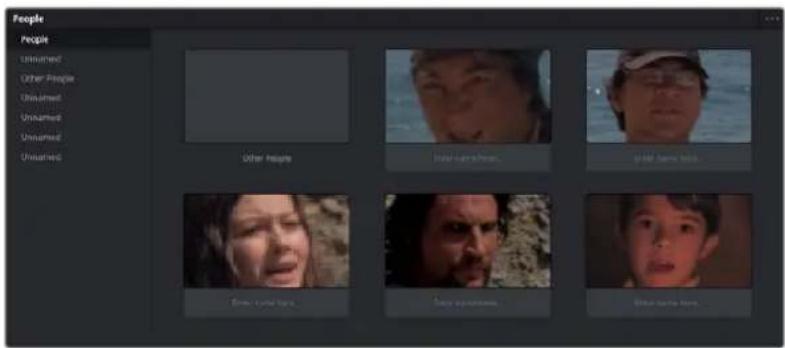
The Face Recognition window seen immediately after a Face Recognition operation
- Individual bins collect all clips with a particular person, allowing you to evaluate whether or not the contents have been identified correctly. If you see an incorrectly identified clip, you can right-click it and re-tag it from the contextual menu, or choose "Untag" if it's a new person that has not been identified at all.
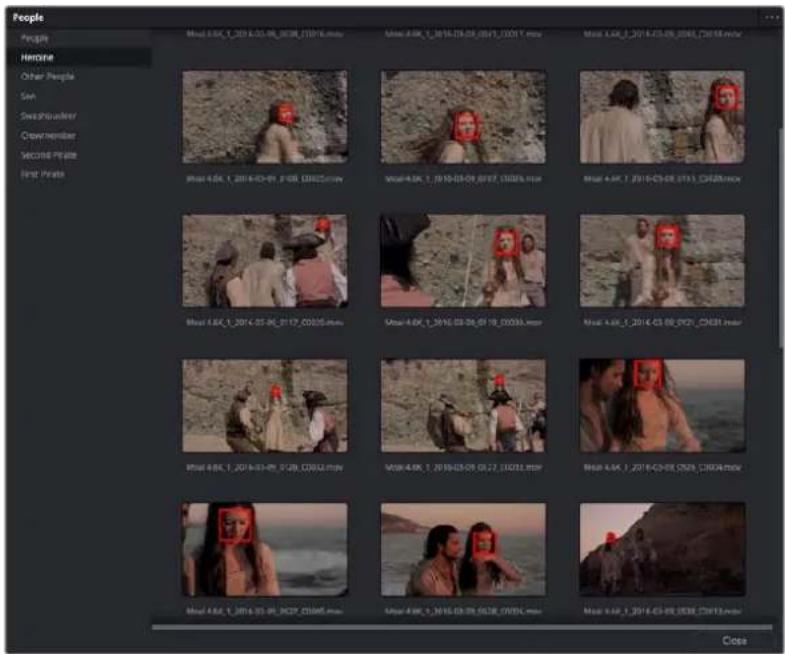
A bin for a particular person lets you evaluate the contents
- An "Other People" bin shows all faces that could not be identified. You can right-click any of these to re-tag it as one of the people that have been already identified, or you can choose New Person if it's someone who wasn't initially identified (this sometimes happens when multiple people have very similar features).
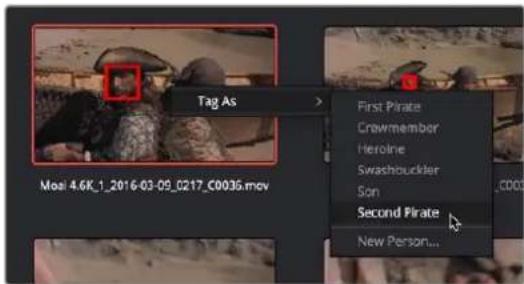
The Face Recognition window seen immediately after a Face Recognition operation
Clicking the Close button closes this window and assigns the names you edited as keywords to the People field of the "Shot & Scene" group in the Metadata Editor. Clips with multiple people who have been identified have multiple keywords assigned.
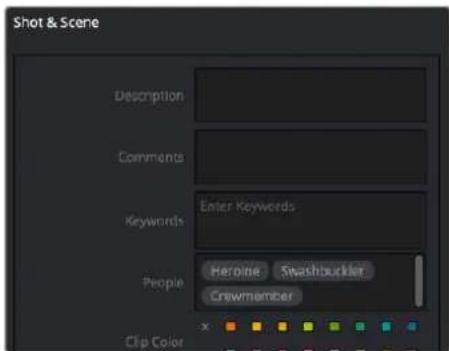
The People keywords field of the Shot & Scene group in the Metadala Editor, populated with who is in that shot
Once People keywords are assigned to one or more clips, a People smart category of smart bins can automatically be created in the Smart Bins sidebar of the Media Pool, making it easy to immediately begin finding clips that have specific people in them. To create this People Smart Bin, select "Automatic Smart Bins for People Metadata" box in the Preferences > User > Editing window.
You can reopen the Face Recognition window at any time to make modifications by choosing Workspace > People. You can reset all faces by clicking the People Management Option menu and choosing "Reset Face Database."
NOTE: A command in the Option menu of the Face Recognition window, Reset Face Database, lets you reset all analyzed results if the results are not acceptable and you don't want to save the resulting metadata.
Creating Custom Metadata Groups
The Metadata panel in the User Preferences lets you create custom sets of metadata parameters that will be exposed in the Metadata Editor. Using this panel, you can create customized subsets of metadata that are focused on your particular needs.
Presets that you create are available from the Option menu that's just to the left of the Metadata categories drop-down menu.
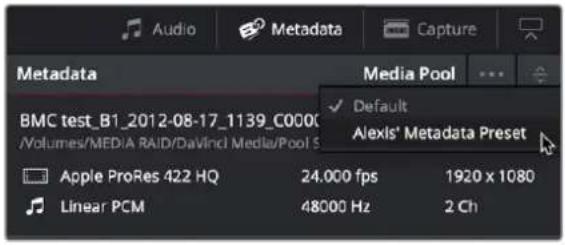
Custom Metadata Categories drop-down menu
Choose any custom preset to restrict the Metadata Editor to only showing the metadata fields in that preset. To see the full set of custom metadata fields you've saved to a particular preset, you should set the Metadata Categories drop-down menu to All Groups. To make the full set of metadata fields reappear, just choose default presets in the same drop-down.
Making and managing metadata presets is simple.
To create a new metadata preset:
1 Open the Metadata panel of the User pane of the Preferences window, and click New.
2 Click the checkboxes of every metadata tag you want to include in this preset, or click the checkbox of a group name on the list to include all metadata tags within it.
Every single metadata tag available in DaVinci Resolve appears within one of several groups that appear as a list. To open any group to see its contents, move the pointer over that group's entry on the list, and click the Open button when it appears.
3 When you're finished, click the Save button under Metadata Options.
4 Click the Save Button for the User Preferences.
To edit an existing metadata preset:
1 Select a preset from the list, and click Edit.
2 Turn checkboxes on and off to include or exclude whatever tags you need.
3 Click the Save button under Metadata Options.
4 Click the Save Button for the User Preferences.
To delete a metadata preset:
Select a preset from the list and click Delete.
Importing and Exporting Media Pool Metadata
Once you've taken the trouble to add metadata to the clips in your project, DaVinci Resolve makes it possible to export metadata from the Media Pool of one project for import into the clips of another project, for instances where you need to move metadata around.
For example, a DIT might have entered a lot of metadata to the DaVinci Resolve project used for generating dailies, but then an impatient editor might have created a separate project to begin editing those dailies. Instead of requiring the editor to enter each clip's metadata all over again, you can export the metadata from the DIT's project and import it into the editor's new project, automatically matching the relevant metadata to each corresponding clip.
To export Media Pool metadata:
1 Open a project containing Media Pool metadata you want to export.
2 Optionally, select which clips in the Media Pool you want to export metadata for.
3 Choose File > Export Metadata From > Media Pool to export metadata from every clip in the Media Pool, or choose File > Export Metadata From > Selected Clips to only export metadata from clips you selected in step 2.
4 When the Export Metadata dialog appears, enter a name and choose a location for the file to be written, then click Save. All metadata is exported into a .csv file that can be viewed and/or edited in any spreadsheet application.
If you open the resulting metadata .csv file, the first line is a header that lists what metadata is to be found for each item listed in this document, and in what order. Only metadata fields that have been populated for at least one clip are exported and listed in this header; unused metadata fields in the Metadata Editor or Media Pool are ignored.
This file can now be imported into another project file to reattach the metadata to the same clips.
To import Media Pool metadata:
1 Open a project containing clips you want to populate with imported metadata.
2 Optionally, select which clips in the Media Pool you want to import metadata to.
3 Choose File > Import Metadata To > Media Pool to import metadata to potentially every clip in the Media Pool, or choose File > Import Metadata To > Selected Clips to only import metadata to clips you selected in step 2.
4 When the Import Metadata dialog appears, choose a metadata .csv file to import, and click Open.
5 When the Metadata Import dialog appears, choose the Import Options you want to use to match the .csv file's metadata to the correct clips in the currently open project. By default, DaVinci Resolve tries to use "Match using filename" and "Match using clip start and end Timecode" to match each line of metadata in the .csv file with a clip in the Media Pool, but there are other options you can use such as ignoring file extensions, using Reel Name, and using source file paths.
6 Next, choose which Merge Option you want to use in the Metadata Import dialog. There are three options:
- Only update metadata items with entries in the source file: The default setting. Only updates a clip's metadata if there's a valid entry in the imported .csv file. Other clip metadata fields are left as they were before the import.
- Update all metadata fields available in the source file: For each clip that corresponds to a line of metadata in the imported .csv file, every single metadata field referenced by the .csv file is overwritten, regardless of whether or not there's a valid entry for that field.
- Update all metadata fields available in the source file and clear others: For each clip that corresponds to a line of metadata in the imported .csv file, every single metadata field referenced by the .csv file is overwritten, regardless of whether or not there's a valid entry for that field. Furthermore, metadata fields that aren't referenced by the imported .csv file are cleared of whatever metadata was there before.
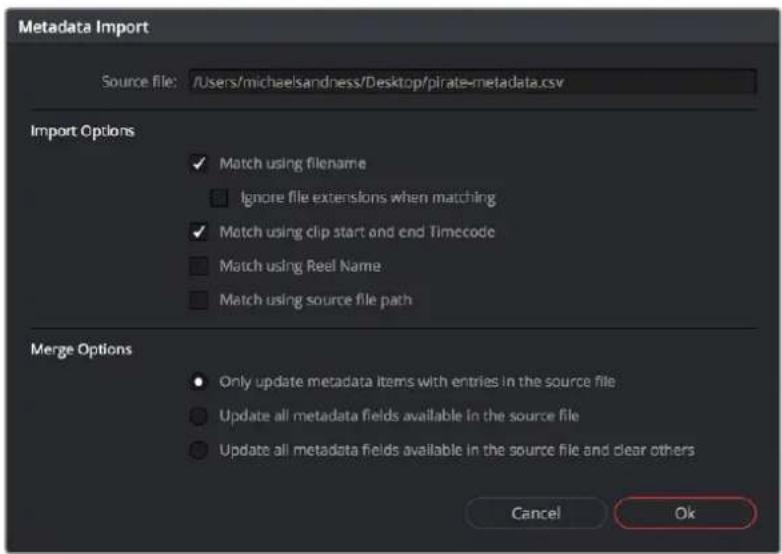
The Metadata Import dialog that lets you choose options for how to match and merge imported metadata
7 When you're finished choosing options, click Ok and all available metadata from the source .csv file will be imported.
Different Ways of Using Clip Metadata
To encourage you to take advantage of the clip metadata tools that exist in DaVinci Resolve, here's a short list of the many different ways you can use clip metadata to help you work faster.
- Searching for clips in the Media Pool
- Searching for clips in the Timeline
- Sorting the Media Pool by metadata columns in list view
- Creating Smart Bins in the Edit page
- Creating Timeline Filters in the Color page
- Using Metadata to create clip Clip Names
- Displaying Metadata in frame using the Color page Burn In palette
Renaming Clips Using Clip Names
The most fundamental piece of clip metadata is each clip's name, which is used to identify clips nearly everywhere they appear inside DaVinci Resolve. By default, clips show the file name of the corresponding media file on disk. Since the dawn of tapeless recording, however, editors have been stuck with camera original media having names that are not exactly "human readable."
Fortunately, you have the option of entering a more user-friendly clip name to use instead, while preserving the original file name that's critical for maintaining the link between a clip and its media, as well as for tracking an offline clip's corresponding link to the online media from which it originated. There are a few ways you can edit the clip name of a clip.
NOTE: You can also edit the clip names of timelines, compound clips, and multicam clips, so that you can have two sets of naming conventions for these items, one for when you're doing creative editing, and one for when you're doing finishing tasks.
To edit a clip's clip name, do one of the following:
- In the Media Pool's Icon view, click a clip's name once, pause a moment, then click a second time to select the name, type a new name, then press return to accept the name.
– In the Media Pool's List view, the Clip Name mirrors the source clip's file name (hidden by default), but you can click the Clip Name column for any clip to add a new name from scratch.
– With the Clip Name column exposed in the Media Pool's List view, Option-click the Clip Name column for any clip to edit the file name, rather than entering a brand new name. - To edit the clip name of multiple clips, select all of the clips for which you want to change the clip name, then right-click one of the selected clips and choose Clip Attributes. Open the Name panel of the Clip Attributes window, edit the Clip Name field, and click OK.
After you've changed a clip's clip name, that clip appears in the following places using the clip name instead of the original file name:
– The Media Pool's Thumbnail view
– The name bar of each clip in the Timeline
– The Source Viewer title bar
– The Clip Name field of the Clip Attributes dialog's Name panel
Switching Between File Names and Clip Names
Since different tasks require different information, you have the ability to switch between using clip file names and clip names. For example, finishing editors will probably have more reason to refer to the file name of each clip, making it easier to troubleshoot problems with reconforming and relinking. Creative editors, on the other hand, will want to use easier-to-read clip names to make it easier to find what they need.
To switch between file names and clip names:
- Choose View > Show File Names to toggle between both naming conventions.
Using Metadata to Define Clip Names
If you're an enthusiastic user of clip metadata (and you should be), you can use "metadata variables" that you can add into a field that let you reference other metadata for that clip. For example, you could add the combination of variables and text seen in the following screenshot to define a clip name automatically. Variables, once they've been entered, are represented as graphical tags shown with a background, while regular text characters that you enter appear before and after these tags.

Variables and text characters entered to create a clip name based on a clip's metadata
As a result, that clip would display "12_A_3" as its name if scene "12," shot "A," and take "3" were its metadata. When you do this, you can freely mix metadata variables with other characters (the underscore, as in the example above) to help format the metadata to make it even more readable.
Every single item of metadata that's available in the Metadata Editor can be used as a variable, and several other clip and timeline properties such as the version name of a clip's grade, a clip's EDL event number, and that clip's timeline index number can be also referenced via variables.
Since the use of metadata variables is a great way to automatically generate names for multiple clips, you may find it more useful to add metadata variable-driven clip names by selecting all of the clips you want to edit, and opening the Clip Attributes window. By editing the Clip Name field found in the Name panel, you can add a single clip name to all selected clips at once.
To add a variable to a text field that supports the use of variables:
1 Type the percentage sign (%) and a scrolling list appears showing all variables that are available.
2 To find a specific variable quickly, start typing the characters of that variable's name and this list automatically filters itself to show only variables that contain the characters you've just typed.
3 Choose which variable you want to use using the Up and Down Arrow keys, and press Return to choose that variable to add.
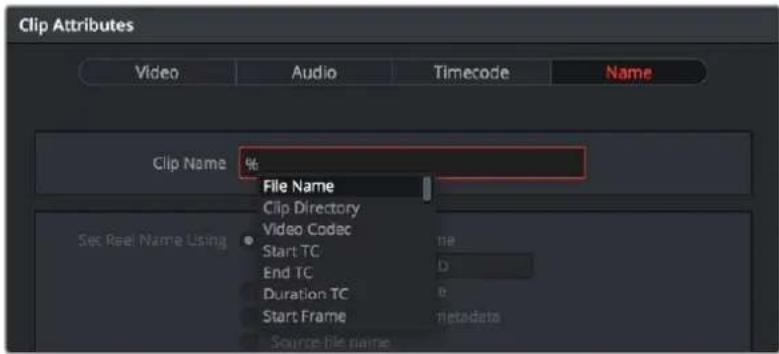
The variable list that appears when you type the % character
As soon as you add one or more metadata variables to a clip's Clip Name column and press Return, the string is replaced by its corresponding text. To re-edit the metadata string, simply click within that column, and the metadata variables will reappear. Be aware that, for clips where a referenced metadata field is blank, no characters appear for that corresponding metadata variable in the Clip Name column.
To remove a metadata variable:
- Click within a field using variables to begin editing it, click a variable to select it, and press Delete.
For more information on the use of variables, as well as a list of all variables that are available in DaVinci Resolve, see Chapter 16, "Using Variables and Keywords."
Chapter 20
Using the Inspector in the Media Page
The Inspector holds all the controls to modify, resize, retime, and generally adjust anything related to a clip, transition, or effect on the Media page Timeline.
Contents
Using the Inspector 360
Adjusting Media Pool Clips in the Inspector 360
Video 360
Audio 364
Image 365
File 365
Using the Inspector
The Inspector has been redesigned to make it easier to find specific controls and to adjust common settings for your clips. Instead of a long vertical list, different aspects of the Inspector have now been organized into panels, with each controlling specific grouped sets of parameters for your clip.
The Inspector is activated by clicking on the Inspector Panel in the upper-right section of the User Interface toolbar. The Inspector is broken up into individual Video, Audio, Effects, Transition, Image, and File panels. Inspector panels that are not applicable to your clip or selection are grayed out.
The Inspector Panel icon in the upper right of the UI toolbar

The Inspector panels showing Video, Audio, and File parameters available for adjustment; others are grayed out.
Methods of using controls in the Inspector:
- To activate or deactivate a control: Click the toggle to the left of the control's name. The orange dot on the right means the control is activated. A gray dot on the left means the control is deactivated.
- To reveal a control's parameters: Double-click the control's name.
- To reset controls to their defaults: Click the reset button to the right of the control's name.
Adjusting Media Pool Clips in the Inspector
You can directly modify Media Pool clips in the Inspector, before you edit those clips into a timeline. This allows you to change the parameters of source media so that clips that are subsequently edited into a timeline carry those new settings with it. For example, you can prepare your material prior to editing by changing the clip's file and RAW settings, adjusting the audio levels and EQ, or assigning it a specific lens correction, etc. Once modified, any part of that clip would have the correct Inspector parameters already in place when you edited them into your timeline.
To adjust Media Pool clips in the Inspector:
1 Select one or more clips in the Media Pool Panel of either the Media, Cut, Edit, or Fairlight pages.
2 Open the Inspector panel, and adjust any parameters in the Video, Audio, Image and File tabs.
These parameter changes are stored with the Media Pool clip, and will be carried over when any part of that clip is edited into the Timeline. Of course, each clip's Inspector parameters can be further modified once it's in the Timeline, and those Timeline parameters are independent from the Media Pool Inspector settings. This means that any further adjustments you make to the clip in the Timeline do not affect that same clip's adjustments already in the Media Pool.
Video
The Video Panel of the Inspector exposes a vast array of controls designed to manipulate the size, speed, and opacity of your clips.
Transform
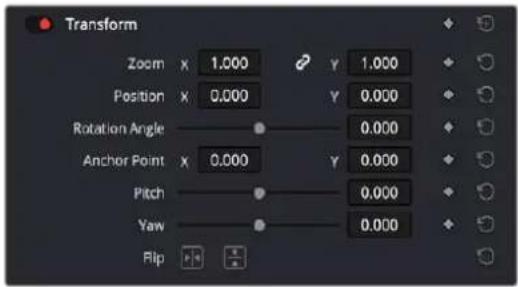
The Transform section of the Video Inspector panel
The Transform group includes the following parameters for resizing and repositioning your clips:
- Zoom X and Y: Allows you to blow the image up or shrink it down. The X and Y parameters can be linked to lock the aspect ratio of the image, or released to stretch or squeeze the image in one direction only.
- Position X and Y: Moves the image within the frame, allowing pan and scan adjustments to be made. X moves the image left or right, and Y moves the image up or down.
- Rotation Angle: Rotates the image around the anchor point.
- Anchor Point X and Y: Defines the coordinate on that clip about which all transforms are centered.
- Pitch: Rotates the image toward or away from the camera along an axis running through the center of the image, from left to right. Positive values push the top of the image away and bring the bottom of the image forward. Negative values bring the top of the image forward and push the bottom of the image away. Higher values stretch the image more extremely.
- Yaw: Rotates the image toward or away from the camera along an axis running through the center of the image from top to bottom. Positive values bring the left of the image forward and push the right of the image away. Negative values push the left of the image away and push the right of the image forward. Higher values stretch the image more extremely.
- Flip Image: Two buttons let you flip the image in different dimensions.
- Flip Horizontal control: Reverses the image along the X-axis, left to right.
- Flip Vertical control: Reverses the clip along the Y-axis, turning it upside down.
Cropping
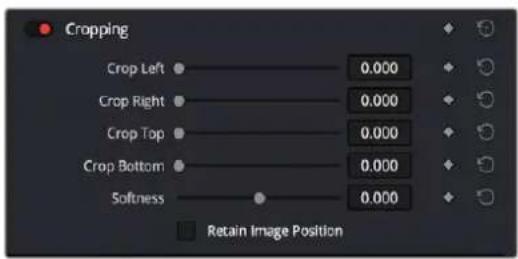
The Cropping section of the Video Inspector panel
The Video Inspector controls the image's cropping parameters:
- Crop Left, Right, Top, and Bottom: Lets you cut off, in pixels, the four sides of the image. Cropping a clip creates transparency so that whatever is underneath shows through.
- Softness: Lets you blur the edges of a crop. Setting this to a negative value softens the edges inside of the crop box, while setting this to a positive value softens the edges outside of the crop box.
- Retain Image Position: Clicking this checkbox will lock the crop parameters in place when you resize the image using the Transform tool above. Unchecking this box will scale and position the crop as well as the image.
Dynamic Zoom
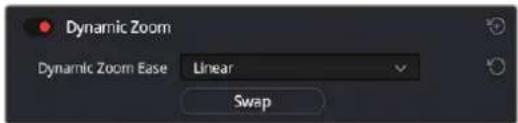
The Smart Reframe section of the Video Inspector panel
The Dynamic Zoom controls, which are off by default, make it fast and easy to do pan and scan effects to zoom into or out of a clip. Turning the Dynamic Zoom group on activates two controls in the Inspector that work hand-in-hand with the Dynamic Zoom onscreen adjustment controls. For more information on using the Dynamic Zoom controls, see Chapter 50, "Compositing and Transforms in the Timeline."
- Dynamic Zoom Ease: Lets you choose how the motion created by these controls accelerates. You can choose from Linear, Ease In, Ease Out, and Ease In and Out.
- Swap: This button reverses the start and end transforms that create the dynamic zoom effect.
Composite
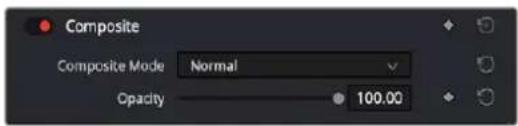
The Composite section of the Video Inspector panel
Composite modes can be used to combine clips that are superimposed over other clips in the Timeline.
- Composite Mode: This selects the type of composite mode to combine the superimposed clips. The default "Normal" means no compositing mode is applied. For more information on Composite Modes, see Chapter 50, "Compositing and Transforms in the Timeline."
- Opacity: This slider makes a clip more or less transparent in addition to compositing already being done.
Lens Correction
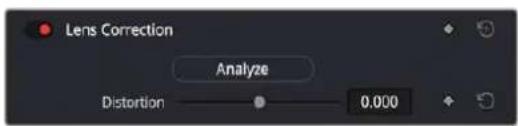
The Lens Correction section of the Video Inspector panel
The Lens Correction group (only available in Resolve Studio) has two controls that let you correct for lens distortion in the image, or add lens distortion of your own.
- Analyze: Automatically analyzes the frame in the Timeline at the position of the playhead for edges that are being distorted by wide angle lens. Clicking the Analyze button moves the Distortion slider to provide an automatic correction. If you're analyzing a particularly challenging clip, a progress bar will appear to let you know how long this will take.
- Distortion: Dragging this slider to the right lets you manually apply a warp to the image that lets you straighten the bent areas of the picture that can be caused by wide angle lenses.
If you clicked the Analyze button and the result was an overcorrection, then dragging this slider to the left lets you back off of the automatic adjustment until the image looks correct.
Retime and Scaling
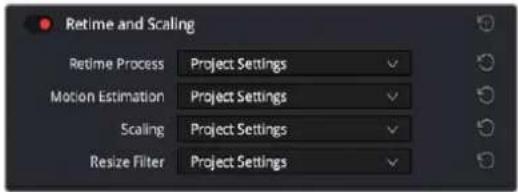
The Retime and Scaling section of the Video Inspector panel
The Retime and Scaling group has four parameters that affect retiming quality and clip scale:
- Retime Process: Lets you choose a default method of processing clips in mixed frame rate timelines and those with speed effects (fast forward or slow motion) applied to them, on a clip-by-clip basis. The default setting is "Project Settings," so all speed-effected clips are treated the same way. There are three options: Nearest, Frame Blend, and Optical Flow, which are explained in more detail in the Speed Effect Processing section of Chapter 51, "Speed Effects."
- Motion estimation mode: When using Optical Flow to process speed change effects or clips with a different frame rate than that of the Timeline, the Motion Estimation pop-up lets you choose the best-looking rendering option for a particular clip. Each method has different artifacts, and the highest quality option isn't always the best choice for a particular clip. The default setting is "Project Settings," so all speed-effected clips are treated the same way. There are several options. The "Standard Faster" and "Standard Better" settings are the same options that have been available in previous versions of DaVinci Resolve. They're more processor efficient and yield good quality that are suitable for most situations. However, "Enhanced Faster" and "Enhanced Better" should yield superior results in nearly every case where the standard options exhibit artifacts, at the expense of being more computationally intensive, and thus slower on most systems. The Speed Warp setting is available for even higher-quality slow motion effects using the DaVinci Neural Engine. Your results with this setting will vary according to the content of the clip, but in ideal circumstances this will yield higher visual quality with fewer artifacts than even the Enhanced Better setting.
- Scaling: Lets you choose how clips that don't match the current project resolution are handled on a clip-by-clip basis. The default setting is "Project Settings," so that all mismatched clips use the same method of being automatically resized. However, you can also choose an individual method of automatic scaling for any clip. The options are Crop, Fit, Fill, and Stretch; for more information see the 2D Transforms section of Chapter 149, "Sizing and Image Stabilization."
-
Resize Filter: For clips that are being resized in any way, this setting lets you choose the filter method used to interpolate image pixels when resizing clips. Different settings work better for different kinds of resizing. There are four options:
-
Sharper: Usually provides the best quality in projects using clips that must be scaled up to fill a larger frame size, or scaled down to HD resolutions.
- Smoother: May provide higher quality for projects using clips that must be scaled down to fit an SD resolution frame size.
- Bicubic: While the Sharper and Smoother options are slightly higher quality, Bicubic is still an exceptionally good resizing filter and is less processor intensive than either of those options.
- Bilinear: A lower quality setting that is less processor intensive. Useful for previewing your work on a low-performance computer before rendering, when you can switch to one of the higher quality options.
- Other Resize Methods: A selection of specific resize algorithms is available if you need to match them to other VFX workflows.
Audio
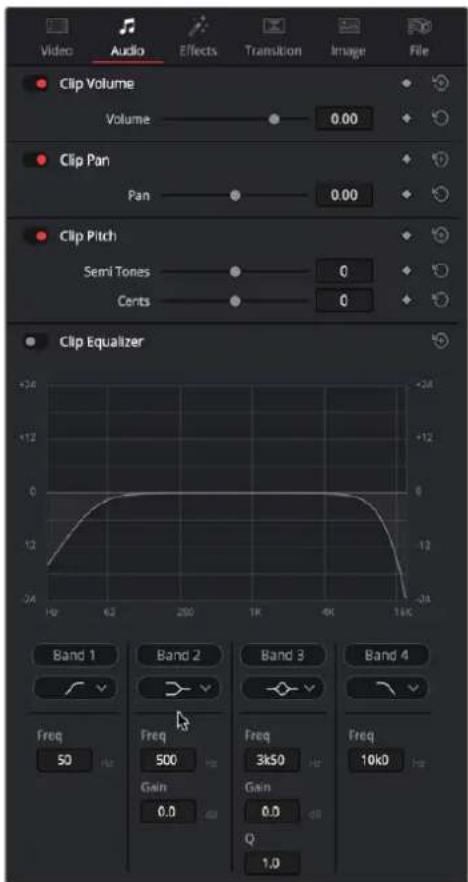
The Audio Inspector parameters
The Audio tab contains four commonly used audio controls for video editing purposes, including Clip Volume, Clip Pan, Clip Pitch, and Clip Equalizer.
- Clip Volume: Each clip has a single volume control that corresponds to the volume overlay over each audio clip.
- Clip Pan: (Only exposed for clips) A simple Pan slider that controls stereo panning.
- Clip Pitch: Lets you alter the pitch of a clip without changing the speed. Two sliders let you adjust clip pitch in semi tones (large adjustments, a twelfth of an octave) and cents (fine adjustments, 100th of an octave).
- Clip Equalizer: Each clip also has a four-band EQ, complete with low-pass, high-pass, and parametric settings for fine tuning and problem-solving audio issues at the clip level.
NOTE: There are many more refined plug-ins and effects for audio clips in the Audio FX library. If you apply any of these, the controls will appear in the Inspector's Effects tab Audio section, instead of here.
Image
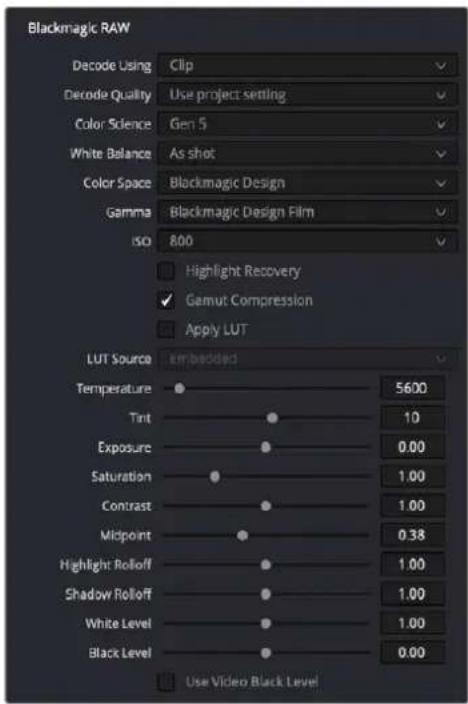
The Image Inspector Controls for BRAW footage
The Image panel contains groups of parameters that correspond to every camera raw media format that's supported by DaVinci Resolve. Using these parameters in the Image panel, you can override the original camera metadata that was written at the time of recording and make simultaneous adjustments to camera raw media throughout your project.
For a detailed explanation of each of the RAW camera parameters supported by DaVinci Resolve, see Chapter 7, "Camera Raw Settings."
File
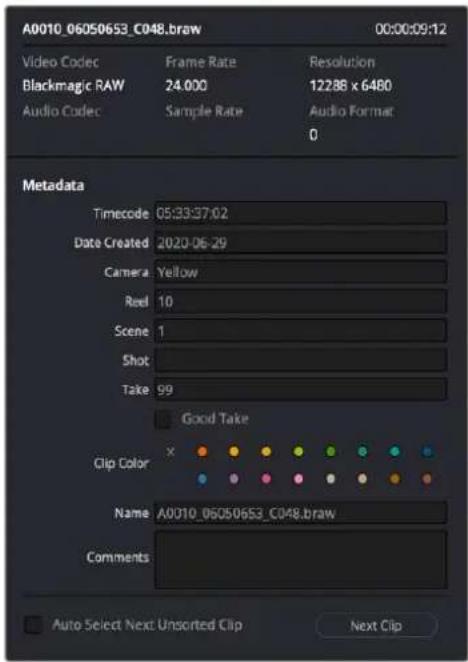
The File Inspector controls
The File panel of the Inspector provides a consolidated way to view and edit a subsection of a clip's most commonly used media file metadata. It's easily accessible in the Inspector across the Media, Cut, Edit, and Fairlight pages. The tab is composed of the following parts:
- Clip Details: Presents data about the clip's data format (codec, resolution, frame rate, etc.).
- Metadata: Presents a reduced set of common metadata fields for quick user entry.
- Timecode: The start timecode of the clip. This field is editable if you want to manually change the clip's starting timecode.
-
Date Created: The date that the clip was created. This field is editable if you want to manually change the clip's creation date.
-
Camera: Sets the Camera # metadata.
– Reel: Sets the Reel/Card ID. - Scene: The Scene number of the clip.
- Shot: The Shot letter/number of the clip.
– Take: The Take number of the clip.
- Good Take: This checkbox indicates if the clip is a good or circled take.
- Clip Color: Assign a specific color to a clip that is reflected in the Timeline.
- Name: This can be entered manually, and changes the Clip Name field across the entire project.
- Comments: Add a text description to the clip.
- Auto Select Next Unsorted Clip: When this box is checked, the next clip in the Media Pool is selected when you hit the Return button after entering a metadata field, and the cursor is automatically placed in the same field. This allows rapid sequential metadata entry without having to manually click to load each individual clip in the Media Pool. The Next Clip button will select the next clip in the Media Pool, regardless of the checkbox status.
Chapter 21
Syncing Audio and Video
When you're working on a program where the production audio was recorded separately from the production video (often referred to as "dual-system recording), DaVinci Resolve provides tools for syncing the audio and video together in a variety of ways to create media that you can edit easily. The process of syncing audio and video together is often referred to as "syncing dailies."
Contents
Syncing Audio to Video 368
Syncing Audio to Video Using Timecode 368
Syncing Audio to Video by Matching Waveforms 369
Manually Syncing Audio to Video 370
Offsetting the Sync of Previously Synced Clips 371
Finding Synced Audio Files 371
Displaying Synced Audio File Names on the Timeline 371
Syncing Audio to Video
If you're processing dailies for a shoot that used dual-system recording, where audio is recorded to a separate device than video, you can "sync the dailies" in DaVinci Resolve in one of two ways. Synced clips can be output as media files with embedded audio or output to tape, whatever your client requires.
Syncing Audio to Video Using Timecode
Ideally, if the sound recordist on set was highly organized, and the camera and audio recorder both used synchronized timecode, you can use a single command to automatically sync every clip in a timeline to a bin of Broadcast .wav files that have matching timecode.
To batch sync audio to video using timecode:
1 Create a new project, open to the Media page by default, and import the video media you need to sync into any bin of the Media Pool.
2 Import the matching Broadcast .wav files into the same bin as the accompanying video media you imported in Step 1. If you want to stay more organized, you can create another bin to contain the audio clips, but it must be inside the bin that contains the video files. The audio bin can be named anything you like.
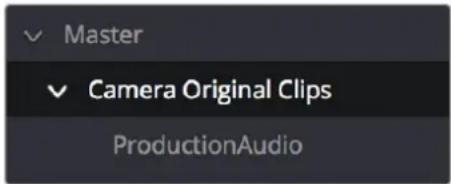
Organizing production audio in a bin created within the accompanying camera media bin
3 Right-click the bin containing the matching audio and video clips, and choose one of the following commands from the contextual menu:
- Auto-Sync Audio Based on Timecode: Replaces each video clip's previous audio channels with audio channels from the newly synced .wav files.
- Auto-Sync Audio Based on Timecode and Append Tracks: Adds new channels in addition to the audio channels that were previously in the media file. The newly synced channels are added to an additional track, so when edited into the Timeline, a clip that's synced this way appears with one video clip and two audio clips that occupy two different audio tracks, so you can edit the camera original audio independently from the synced audio.
Every clip in the selected bin for which there was an accompanying Broadcast .wav file with matching timecode is immediately synced with an audio track. If multiple audio files overlap with matching time code, each file will be synced and a new audio track added to the resulting clip to accommodate each audio file. You can modify this behavior to only sync the single best matching file and ignore others by checking the "Limit media pool audio sync to first timecode match" box in the Editing panel of the User section in the DaVinci Resolve Preferences.
All synced clips appear with an audio icon at the bottom left in the Media Pool when Thumbnail view is selected. Now that the clips are synced, you can edit them in the Edit page or use the Deliver page to export offline dailies or online media with embedded sync audio for use in other applications.
Syncing Audio to Video by Matching Waveforms
If you don't have matching timecode in the audio and video source clips you're syncing, but you had the foresight to record camera audio at the same time as the dual source production audio you want to sync to, DaVinci Resolve can use waveform syncing to compare the audio waveforms of your audio and video source files, and sync the ones that match.
To batch sync dailies using waveform syncing:
1 Create a new project, open to the Media page by default, and import both the video and audio media you need to sync. There's no need to organize your files in any particular way, but it's not a bad idea, on multi-day shoots, to organize the audio and video files so that it's easy to select all of a single day's clips at once so that you can sync your files in smaller batches. Even organizing your clips by scene can make waveform syncing go faster by reducing the number of files that need to be compared at once.
2 If you've placed the audio and video into separate bins, then you can Command-click both bins in the bin list to select them and expose all of their contents in the Media Pool. If you placed your media in the same bin, this is not necessary.
3 Select one of the exposed clips in the Media Pool, and press Command-A to select all audio and video clips you want to sync.
4 Right-click one of the selected clips, choose Auto Sync Audio from the contextual menu, and select one of the methods below.
- Based on Timecode: Synchronizes the timecode between the audio and video clips, and replaces each video clip's previous audio channels with the newly synced .wav files.
- Based on Timecode and Append Tracks: Synchronizes the timecode between the audio and video clips, and adds new channels in addition to the audio channels that were previously in the media file. The newly waveform-synced channels are added to an additional track, so when edited into the Timeline, a clip that's synced this way appears with one video clip and two audio clips that occupy two different audio tracks, so you can edit the camera original audio independently from the synced audio.
– Based on Waveform: Analyzes and compares the waveforms of each of the selected clips, and replaces each video clip's previous audio channels with the newly synced .wav files. - Based on Waveform and Append Tracks: Analyzes and compares the waveforms of each of the selected clips, and adds new channels in addition to the audio channels that were previously in the media file. The newly waveform-synced channels are added to an additional track, so when edited into the Timeline, a clip that's synced this way appears with one video clip and two audio clips that occupy two different audio tracks, so you can edit the camera original audio independently from the synced audio.
A progress bar dialog appears, showing you how long the syncing operation will take. When it's complete, your clips will be synced.
Progress dialog for syncing dialog using waveforms
TIP: After syncing, you may be notified via a dialog that one or more clips could not be synced. Note these clips, as it may be possible to use waveform syncing more successfully on just the selected pair of audio and video items that belong together.
Manually Syncing Audio to Video
If you have a collection of WAV or AIFF audio files with video source media that lacks matching timecode, you need to manually sync each pair of media files together, one-by-one, using a sync reference such as the clap of a clapperboard or any other sharp sound with a distinct audio/visual correspondence.
To manually sync audio to video:
1 Create a new project, and import the video media you need to sync into the Media Pool. If a dialog appears asking whether or not you want to update the project to match the media, click OK.
2 If you want to stay organized, create a second bin in the Media Pool, named Audio Clips, and import the matching Broadcast .wav files into it. The name of the bin is not important, and having all the audio in one bin is simply a matter of convenience.
3 Click the Waveform button at the top of the Audio Panel, which lets you view and scrub along the waveform of audio clips you select in the Media Pool.
4 Select a video clip to sync, and move the Viewer playhead to line up with the first visual sync point in the first clip. This could be the clap of a clapperboard, the red flash of a tablet computer's slate app, a hand clap, or any clear visual cue to which there is a corresponding audible sound.
5 Now, select whichever audio clip corresponds to the current video clip in the Viewer, to open its waveform into the Audio Panel.
6 Use the Audio Panel transport controls and scrubber bar in the Source Viewer to move the playhead to the audio sync point that corresponds to that video sync point. This may be a clap, a beep, or some other staccato sound that's easy to sync to. As you play through the clip, the bottom half of the Viewer shows a zoomed out waveform for the entire clip, while the top half of the Viewer shows a zoomed in section of the waveform that immediately surrounds the playhead. Hopefully, the sync point you're looking for is a distinct, loud spike somewhere towards the beginning or the end (in the case of a tail slate) of the audio clip.
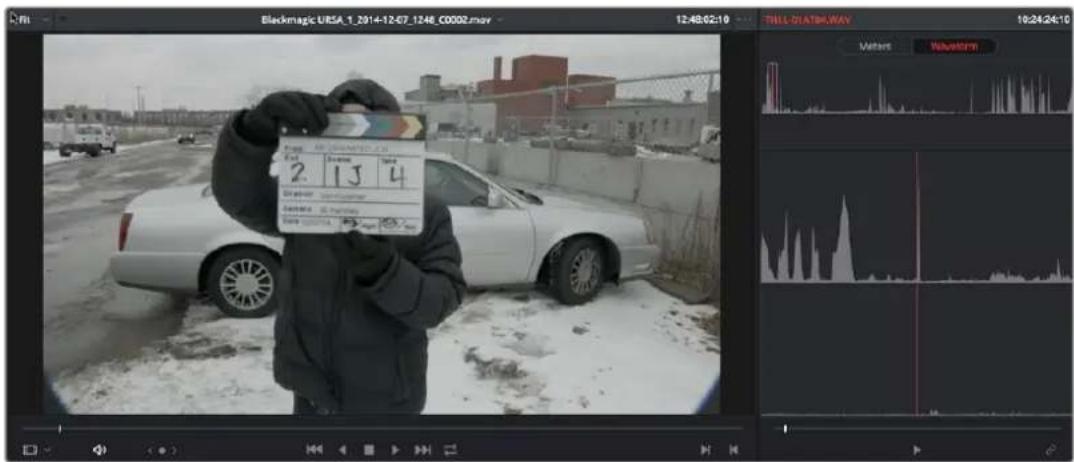
Aligning video and audio sync points with the Audio Panel set to show the Waveform panel
7 When you've found the audio sync point that matches the video sync point, click the Link/Unlink Audio button at the bottom right of the Audio Panel to embed the now synced audio into the video clip.
natural_image
Abstract graphic with a play button and a small icon (no text or symbols)Clicking the sync link button to lock sync
The audio and video items are linked. At this point, you can use the newly synced clips in the Edit page, and use the Deliver page to export offline or online media with embedded audio for editing.
Offsetting the Sync of Previously Synced Clips
If you need to offset the audio (or stereo 3D) sync of the items that make up a clip later on, you need only select the synced clip you want to resync in the Media Pool, then click the Waveform button at the top of the Audio panel to show the clip's audio waveform, turn off the linked clip button, change either the audio or video sync points, and turn the linked clip button back on again.
You can also use two sets of commands for slipping the sync of any clip:
- Trim > Slip Audio > Slip Audio One Frame Forward/Reverse: (Option-Period and Option-Comma) Slips the audio/video sync of any clip in whole frame increments.
- Trim > Slip Audio > Slip Audio One Subframe Forward/Reverse: (Option-Right Arrow and Option-Left Arrow) Slips the audio/video sync of any clip in 1/10th frame increments.
- Trim > Slip Eye > Slip Eye One Frame Forward/Reverse: (Command-Option-Period and Command-Option-Comma) Slips the sync relationship between the eyes within a stereo clip in whole frame increments.
Finding Synced Audio Files
When you've synced dual-system audio and video clips together in DaVinci Resolve, you can find the audio clip that a video clip has been synced to using the following procedure.
To find the audio clip that a video clip has been synced to:
– Show the Media Pool in List view, and reference file name in the Synced Audio column.
- Right-click a video clip that's been synced to audio, and choose "Reveal synced audio in Media Pool" from the contextual menu. The bin holding the synced audio clip is opened and that clip is selected.
Displaying Synced Audio File Names on the Timeline
For certain workflows you may wish to see the name of the original audio file used in a synced dual system audio pair on the timeline tracks, rather than the name of the video clip its attached to.
To display the filename of the original audio file used in a synced pair in the timeline:
1 Choose View > File Names. You cannot see synced audio file names unless you've set DaVinci Resolve to display the original file names.
2 Choose View > Show Synced Audio File Names. You should now see the names of the synced audio files superimposed on the audio clips in the Timelines, and the names of the video files superimposed on the video clips in the Timelines, even when they're synced.

Viewing the synced audio file names in the Edit page Timeline
Chapter 22
Modifying Clips and Clip Attributes
Once you've added clips to the Media Pool, you may find you have to make some changes to prepare it for use in your project. This chapter covers diverse tasks that include redefining the clip attributes associated with each source clip to reinterpret video and audio attributes, timecode values, and clip names, converting LTC timecode recorded on an audio track into usable timecode, chopping long clips into more manageable subclips, and creating stereo clips from left and right eye media.
Contents
Adjusting Media Pool Clips in the Inspector 374
Changing Clip Attributes 374
Video Attributes 374
Real-Time 3:2 Pulldown Removal 377
Audio Attributes 377
Timecode Attributes 380
Reel Name Attributes 381
Update Timecode from Audio – LTC 382
Changing Clip Thumbnails in the Media Pool 382
Creating Subclips 383
Removing or Changing Subclip Limits 383
Organizing Stereo 3D Media 383
Camera Raw Decoding 384
Adjusting Media Pool Clips in the Inspector
You can directly modify Media Pool clips in the Inspector, before you edit those clips into a timeline. This allows you to change the parameters of source media so that clips that are subsequently edited into a timeline carry those new settings with it. For example, you can prepare your material prior to editing by changing the clip's file and RAW settings, adjusting the audio levels and EQ, or assigning it a specific lens correction, etc. Once modified, any part of that clip would have the correct Inspector parameters already in place when you edited them into your timeline.
For more information about using the Inspector in the Media Pool, see Chapter 20, "Using the Inspector in the Media Page"
Changing Clip Attributes
Using the Clip Attributes window, you can alter additional attributes for multiple clips all at once. This window has some overlap with other clip attributes that are editable directly from submenus within the Media Pool clip contextual menu.
To edit the attributes of one or more clips in the Media Pool of any page:
1 Select one or more clips in the Media Pool by Shift-clicking, Command-clicking, or dragging a bounding box around them.
2 Right-click one of the selected clips, and choose Clip Attributes.
3 Click to open the panel of the attributes you want to edit. If you've selected multiple clips, then making your alterations automatically checks the box of the attributes being changed.
4 When you're finished, click OK to accept the changes.
You can also edit select clip attributes for clips that have been edited into the Timeline.
To edit the attributes of one or more clips in the Timeline of the Cut, Edit, or Color pages:
1 Select one or more clips in the Timeline by Shift-clicking, Command-clicking, or dragging a bounding box around them.
2 Right-click one of the selected clips, and choose Clip Attributes.
3 Click to open the panel of the attributes you want to edit. If you've selected multiple clips, then making your alterations automatically checks the box of the attributes being changed.
4 When you're finished, click OK to accept the changes.
Video Attributes
These affect individual clip frame rate, geometry, and data levels.
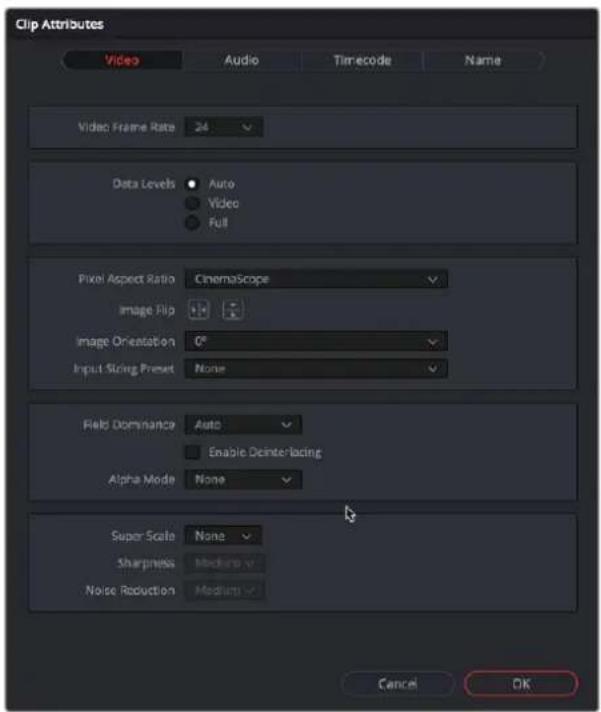
The Video panel of the Clip Attributes Window
- Video Frame Rate: In cases where a clip's frame rate was specified incorrectly by another application or recording device, or if there is no frame rate metadata available at all, you can change what DaVinci Resolve considers the frame rate of the source clip to be by either using this menu to choose a frame rate from 1 to 120 fps, or choosing Custom and entering a value from 1 to 32,000 fps (to accommodate high-speed and specialty format video). Changing a clip's Video Frame Rate will change its duration and relative playback speed in DaVinci Resolve. A clip's audio, however, will be unaffected. Please note, just because extremely high frame rate media is supported, do not expect real time performance at excessively high frame rates, and understand that what performance your workstation is capable of depends on its configuration and the speed of your storage.
- Data Levels: In certain circumstances, you may find that you need to manually choose appropriate data levels for clips that are not being interpreted correctly, choosing between Auto, Video, and Full. For more information on this setting, and how it affects the image data in your project, see Chapter 9, "Data Levels, Color Management, and ACES."
- Pixel Aspect Ratio: In projects using a mix of media with different frame sizes, you can assign specific pixel aspect ratios using this drop-down menu.
- Horizontal and Vertical Image Flip: Modifies the horizontal and vertical image flip camera metadata for r3d clips, which is useful for stereoscopic 3D projects shot with a mirrored camera rig that reverses the media from one eye, or in cases where steadicam rigs result in upside-down clips. These settings are different from the Flip Image controls in the Sizing palette of the Color page.
- Image Orientation: For media that has an orientation setting, this lets you change the rotation of that media so that it's correctly oriented. Four settings let you adjust by 0^ , 90^ right, 180^ , and 90^ left.
-
Input Sizing Preset: You can use this panel to assign a Sizing palette preset to select clips. For example, if you have a special Input Format Preset for standard definition PAL widescreen clips that you've edited into a high definition project, you can do a sort in the Media Pool to isolate them, and then select them all and apply this preset.
-
Field Dominance: By default, the Auto setting enables DaVinci Resolve to automatically determine whether a particular clip is Upper- or Lower-field dominant. If this automatic determination is wrong, you can choose Upper or Lower to manually override this.
- Enable Deinterlacing: (only available in Studio version) This checkbox is only enabled if “Enable video field processing” is turned off in the Master Settings panel of the Project Settings. Turning the Enable Deinterlacing checkbox on sets DaVinci Resolve to deinterlace clips using the Deinterlace quality setting that’s located in the Image Scaling panel of the Project Settings. Normal is a high-quality deinterlacing method that is suitable for most clips, while High is a more processor-intensive method that can sometimes yield better results, depending on the footage. The DaVinci Neural Engine option uses advanced machine learning algorithms to reconstruct the frame, which will ideally give even better results than the High setting.
- Alpha Mode: The options presented here depend on the format of the clip you've selected, since only certain formats (such as ProRes 4444, QuickTime Animation, OpenEXR, TIFF sequences, and so on) are capable of containing alpha channels. If you've imported clips with embedded alpha channels, this panel lets you enable or disable their use in DaVinci Resolve (by choosing None), choose the type of alpha channel (Premultiplied or Straight), or invert the alpha channel. If you select a clip that doesn't contain an alpha channel, then most of these options don't appear.
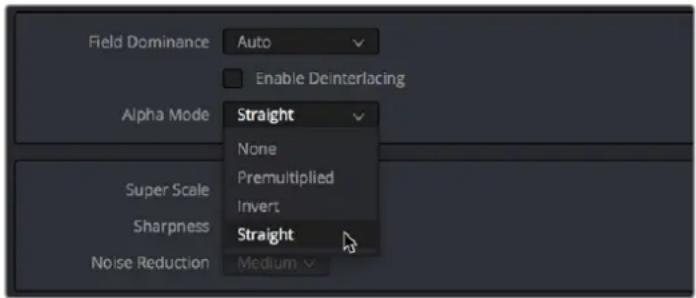
The Alpha Mode options that are available when a clip has an embedded alpha channel
- Super Scale High Quality Upscaling: For instances when you need higher-quality upscaling than the standard Resize Filters allow, you can now enable one of three “Super Scale” options in the Video panel of the Clip Attributes window for one or more selected clips. Unlike using one of the numerous scaling options in the Edit, Fusion, or Color pages, Super Scale actually increases the source resolution of the clip being processed, which means that clip will have more pixels than it did before and will be more processor-intensive to work with than before unless you optimize the clip (which bakes in the Super Scale effect into the optimized media), or cache the clip in some way.
The Super Scale drop-down menu provides three options of 2x, 3x, and 4x, as well as Sharpness and Noise Reduction options to tune the quality of the scaled result. Note that all of the Super Scale parameters are in fixed increments; you cannot apply Super Scale in variable amounts. Selecting one of these options enables DaVinci Resolve to use advanced algorithms to improve the appearance of image detail when enlarging clips by a significant amount, such as when editing SD archival media into a UHD timeline, or when you find it necessary to enlarge a clip past its native resolution in order to create a closeup.
You may find that, depending on the source media you're working with, setting Sharpness to Medium yields a relatively subtle result that can be hard to notice, but setting Sharpness to high should be immediately more preferable, while also sharpening grain and noise in the image to an undesirable extent at the default settings. However, while raising Noise Reduction will ameliorate this effect, it will also diminish the gains you obtained by raising Sharpness. In these cases, it's worth experimenting with keeping Sharpness at Low or Medium so that Super Scale sharpens all aspects of a clip, but then using the Noise Reduction tools of the Color page (with their additional ability to be fine-tuned) to diminish the unwanted noise.
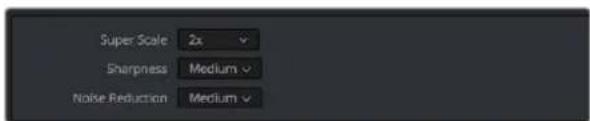
Super Scale options in the Video panel of the Clip Attributes window
TIP: Super Scale, while incredibly useful, is an extremely processor-intensive operation, so be aware that turning this on will likely prevent real-time playback. One way to get around this is to create a string-out of all of the source media you'll need to enlarge at high quality, turn on Super Scale for all of them, and then render that timeline as individual clips, while turning on the "Render at source resolution" and "Filename uses > Source Name" options.
Real-Time 3:2 Pulldown Removal
If you have 29.97fps interlaced material that was encoded with a 3:2 pulldown, DaVinci Resolve can reconstruct the original footage's progressive frame rate in real time. For example, if you have source media from a film camera (24fps progressive) that has been telecined to NTSC video (29.97fps interlaced), DaVinci Resolve can pull the original 24 discrete film frames out of the various interlaced fields that make up the NTSC signal.
To remove 3:2 pulldown in real time:
1 Select one or more 29.97 fps interlaced clips in the Media Pool.
2 Right-click one of the selected clips and select Clip Attributes.
3 In the Video tab, turn on the Remove 3:2 Pulldown checkbox.
4 Set the Frame where the 3:2 cadence started in the "First Frame of Clip" drop-down (this is usually the "A" frame).
5 Click OK.
The footage will now behave like a 24fps progressive clip.
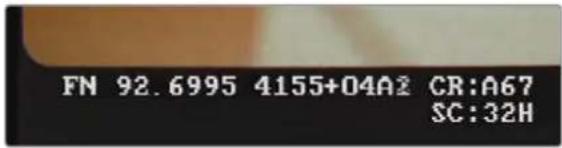
Telecine footage with 3:2 pulldown removed; the scrambled number (mix of the numbers 1 and 2) at the end of the KeyKode is a field indicator, showing that this A frame was created properly from fields 1 and 2 of the interlaced signal.
Audio Attributes
The Audio panel lets you alter the channel format and channel assignments for one or more clips. These settings affect what appears in the audio tracks of the Timeline when you edit a clip into a program. When you first import clips into the Media Pool, you can use the Audio Attributes panel to define which embedded audio channels can be exposed as tracks in the Edit and Fairlight page timelines for editing, and how they will appear.
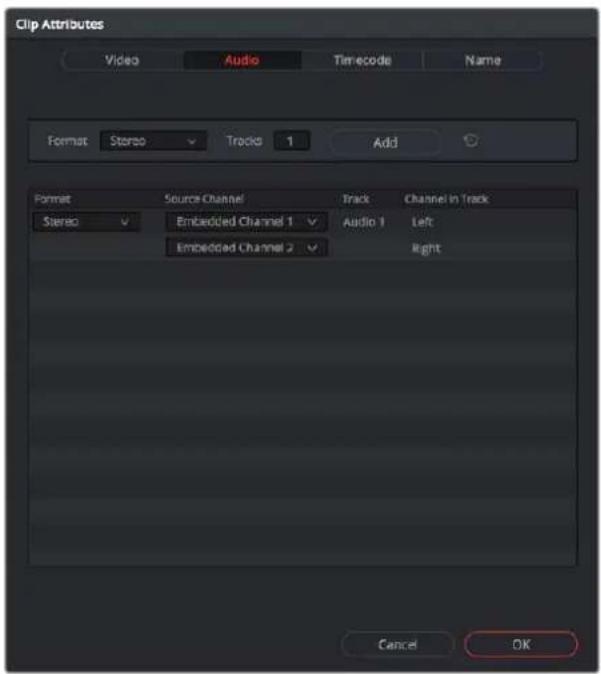
The Audio panel of the Clip Attributes window
Add Track Controls
A set of controls at the top of the Track/Channel list lets you add additional tracks to a clip. Adding additional tracks to a clip lets you remap that clip's available channels to appear in the Timeline when you edit it.
- Format: A drop-down that lets you choose a format for new tracks that you add. The setting you choose here affects how many channels appear in the Channel Assignments list below, as well as what kind of Timeline audio track will be required to expose all channels of that clip. If you choose a Channel Format with fewer channels than are embedded in a clip, all extraneous channels will be disabled. The available options are:
- Mono: Appropriate for single-channel clips
– Stereo: Appropriate for clips with two-channel left/right audio - 5.1: Appropriate for 5.1 surround mixes
- 7.1: Appropriate for 7.1 surround mixes
- Adaptive: Appropriate for multiple-mono production audio, such as multi-channel recordings where a boom microphone, two separate lavaliere microphones, and a mixdown track are recorded simultaneously.
- Tracks: Lets you adjust how many tracks you want to add to the current clip or clips. Each track you add will result in an additional linked audio item being edited into an additional audio track when this clip is edited into the Timeline. For example, if you have a multi-channel production recording with four different microphones, you can add 3 mono audio tracks, and then assign each channel to a separate track to expose each channel as an individual audio clip in the Timeline for purposes of editing each microphone separately.
- Add button: Lets you add the tracks you've specified to the current clip or clips.
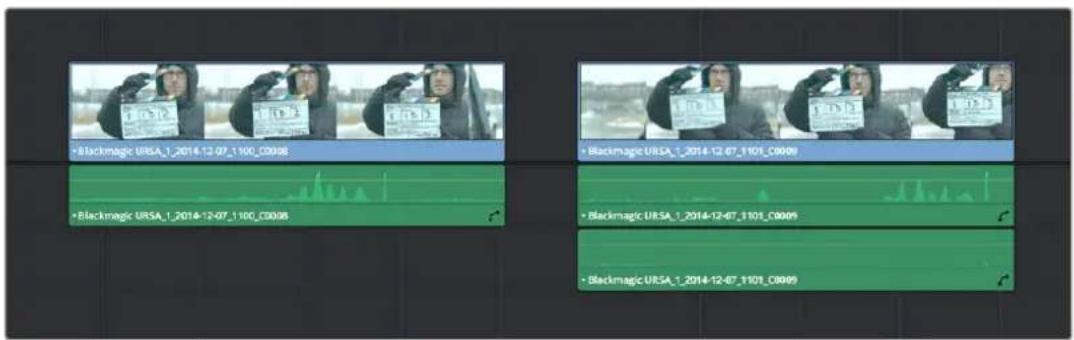
A clip with a single track of two-channel stereo audio at left, compared to a clip with two tracks of single channel mono audio at right
Audio Track and Channel List
The list below the Add Track controls show an entry for each track defined within the currently selected clip or clips. Pop-ups within this list let you redefine and map how that clip's channels are spread across the differently mapped tracks you've created.
- Format: The format of each audio track. Can be Mono, Stereo, 5.1, 7.1, or Adaptive.
- Source Channel: Each track lists however many channels the specified format requires. A Stereo track has two source channels, a 7.1 track has eight source channels. Channels appear hierarchically underneath the track they belong to.
- Track: The name of each track in a clip.
- Channel in Track: The name of each channel in that track.
- Delete Track button: Hovering the pointer over a track reveals a trashcan icon you can click to delete that track.

A trashcan button you can use to delete an audio track within Clip Attributes; it only appears when you hover the mouse over a track
Support for Mixed Audio Track Formats from Source Clips
DaVinci Resolve also supports media with multiple audio tracks that have differently formatted channels embedded within them. For example, a clip with one stereo track, one 5.1 surround track, and six mono tracks can all be appropriately set up in the Audio panel of Clip Attributes after that clip has been imported.
The Audio panel of Clip Attributes now has controls over what format (Mono, Stereo, 5.1, 7.1, Adaptive) the channels embedded within a particular clip should be configured as. This means that you can set up clips with multiple tracks, each one using potentially different formats of audio employing different combinations of clips, which is handy for mastering.
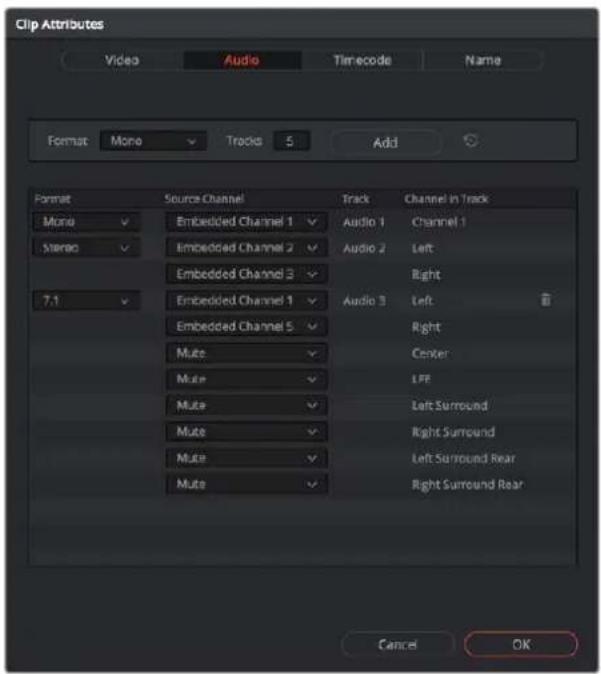
Clip Attributes now lets you assign channels among different tracks with different channel assignments
Timecode Attributes
If you find yourself dealing with clips that have incorrect timecode, or timecode with an incorrect relationship to the EDL, XML, or AAF project you've been given, you can use these attributes to modify the timecode and reel name of clips in the Media Pool. None of these tools alter the source media on disk. They simply change the timecode metadata in your DaVinci Resolve project, which by extension affects the timecode of any media you render.
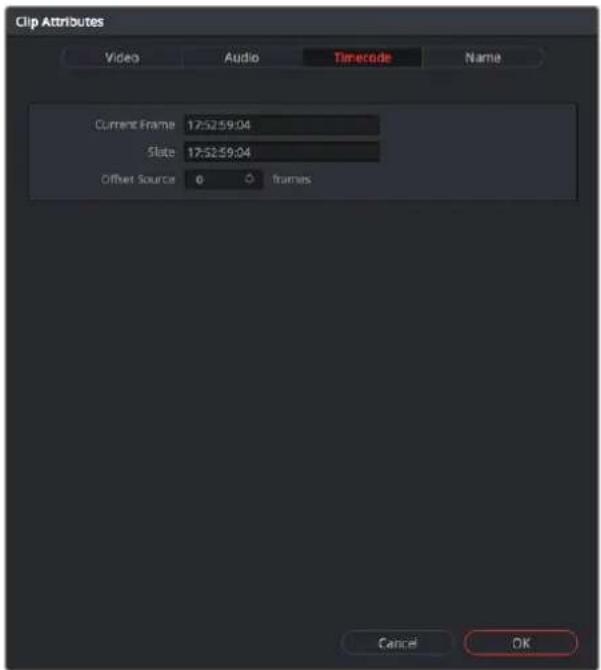
The Timecode panel of the Clip Attributes window
- Current Frame Timecode: Lets you assign a new time for the timecode at the currently viewed frame of the clip.
- Slate Timecode: In situations where source media comes from a shoot where a timecode slate was used during the shoot, then you can assign the slate timecode as a second timecode track that can be used for various operations, without changing the primary timecode of the clip, which may already be in use for program sync.
- To set appropriate Slate timecode, select a clip in the Media Pool with a visible timecode slate, and move the playhead to a frame where the timecode in the slate is clearly readable. Then, open the Timecode panel of the Clip Attributes window, and type the timecode value you see in the image into the Slate Timecode field.
- Offset Source Timecode: If an entire set of clips has timecode that's merely offset, you can correct the timecode offset for as many selected clips as you like.
Reel Name Attributes
The “Assist using Reel Names” checkbox in the General Options panel of the Project Settings is an extremely important setting for controlling how the conform process works. By default it’s turned off, and Reel Names are left blank. This is fine for conform workflows where all you need is the file path or file name and source timecode to successfully identify which media files correspond to what clips. However, if you need more information than that to reconform the clips in your project, you can turn on the “Assist using Reel Names” checkbox to enable DaVinci Resolve to use one of four different methods to automatically define reel names for every clip in the Media Pool.
Using the Clip Attributes dialog, you also have the option of manually defining how one or more selected clips in the Media Pool have their Reel Names defined. This is useful when there are certain clips in a project that need to use a different method of reel name extraction, or manually entered reel names. Once you've used Clip Attributes to change the reel names of clips, those clips no longer automatically update when you change the "Assist using Reel Names" options in the Project Settings.
You must first turn on "Assist using Reel Names" in the General Options of the Project Settings, and choose a Reel Assist setting, for the reel name attributes in the Clip Attributes window to be editable.
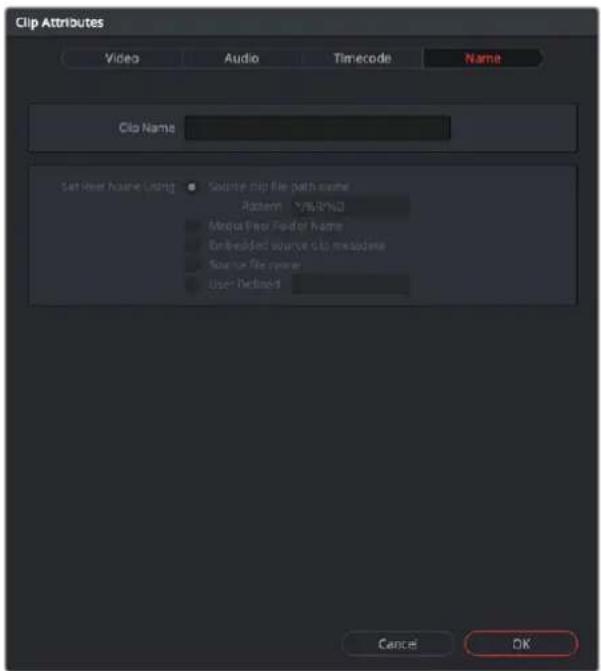
The Reel Name panel of the Clip Attributes Window
- Source clip file pathname: Obtains the reel name by extracting it from each media file's path. This makes it possible to extract a reel name from all or part of the file name, or from all or part of the name of any folder in the path that encloses that file. This extraction is defined using the Pattern field.
- Pattern: A code that defines how a reel name should be extracted from the source clip pathname. More information about creating patters appears later in this chapter.
- Media Pool bin name: The reel name is obtained from the name of the bin in the Media Pool that encloses that clip. For example, in a stereoscopic workflow you might want to export offline stereo media with the "Left" and "Right" bin names in which they're organized as reel names. Another example would be organizing VFX being incrementally processed in individually named bins, such as "VFX_Tuesday_10-12."
- Embedding in Source clip file: Useful for file formats where the reel name is embedded within the media file itself. CinemaDNG and other digital cinema cameras, QuickTime files created by Final Cut Pro, and DPX frame files are formats that can contain reel name header data.
- Source clip filename: If there is no defined reel number, often it's easy to just use the Source clip filename.
- User Defined: This option is only available when you manually alter the reel name for one or more selected clips in the Media Pool using the Clip Attributes dialog. Choosing User Defined lets you type any string of text you like to use as the reel name.
Update Timecode from Audio – LTC
Some cameras do not offer the ability to sync to an external timecode source. Their recorded timecode may be time of day or free run timecode, but it would not be frame accurately synced to other cameras, the dual system audio recorder or the digital slate. This makes multi-cam or dual sound system syncing a time consuming manual operation.
DaVinci Resolve offers a solution to this problem if, by connecting an externally generated timecode to the camera audio input, the video that's recorded by the camera has a timecode reference recorded on the audio track during the shoot.
Select this clip, or clips, in the media pool, then right-click on one of the highlighted clips and select "Update timecode from audio - LTC." DaVinci Resolve automatically and instantly updates the clip timecode using the LTC it finds on the audio tracks. You can now use the clips as though they were synced on set.
Changing Clip Thumbnails in the Media Pool
When the Media Pool is in Thumbnail mode, each clip is represented by a small image that defaults to the first frame of that clip. You can scrub the thumbnail of any clip to view its contents using the pointer after hovering over it for a moment. However, when you're done scrubbing, moving the pointer away from any clip returns its thumbnail to the first frame of media, which may or may not be representative of its contents. You can change this, if you like.
1 To customize the thumbnail of any clip:
2 Move the pointer over a clip you want to customize the thumbnail of.
3 Hover for a moment, then scrub to a representative frame.
4 Right-click that clip, and choose Set Poster Frame, or press Command-P.
To clear the custom poster frame of any clip:
- Right-click a clip, and choose Clear Poster Frame, or press Option-P.
Creating Subclips
Subclips give you another way of organizing media in the Media Pool, letting you break excessively long clips into shorter ones. For example, if the director of a project is fond of “rolling takes” where multiple takes are all recorded within a single clip, you can break these takes up by making them into subclips.
To create a subclip:
1 Select any clip in the Media Pool to open it into the Viewer.
2 Set In and Out points to define the section you want to turn into a subclip.
3 Do one of the following:
- Right-click the jog bar and choose Make Subclip.
- Drag a clip from the Viewer or Source Viewer into the Media Pool.
4 A new subclip dialog appears, allowing you to name the subclip and decide to use its full extents by turning on the checkbox.
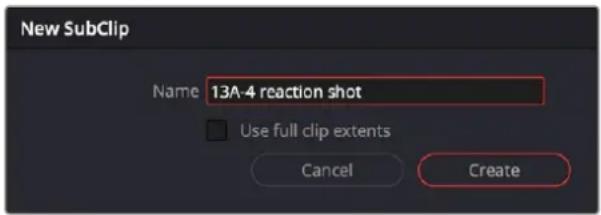
The New SubClip dialog
Once created, subclips appear and work like any other clip in DaVinci Resolve. You can also create subclips in the Media page while performing other organizational tasks there.
Removing or Changing Subclip Limits
Once created, you can right-click any subclip in the Media Pool or a timeline and choose Edit Subclip to open a dialog in which you can turn on a checkbox to use the subclip's full extents, or to change the start or end timecode of the subclip via timecode fields, before clicking Update to modify the subclip.
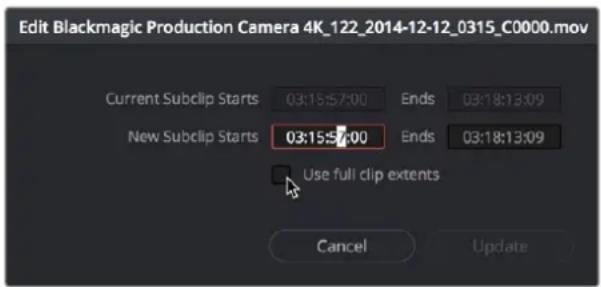
The Edit Subclip dialog
Organizing Stereo 3D Media
When working with stereo media in DaVinci Resolve, one of the first tasks you must perform is that of syncing each stereo pair of clips to act as a single clip. This is easily accomplished so long as you're careful about how you organize your media in the Media Pool.
Each set of right- and left-eye media should always be organized into separate left-eye bins and right-eye bins, to facilitate later syncing of these clips using the Stereo 3D Sync command in the Media Pool contextual menu. For more information about setting up media for stereo workflows, see the "Stereoscopic Workflows" section of Chapter 15, "Stereoscopic Workflows."
Camera Raw Decoding
Camera raw media formats are so named because they capture raw color space data directly from the sensor of whatever digital cinema camera did the recording. Raw image data is not human readable, and must be debayered or demosaiced to convert the original raw data into image data that can be handed off to DaVinci Resolve's image processing pipeline.
There are four ways you can control how camera raw media is debayered into a useful, “normalized” image for adjustment or output:
– The Camera Raw panel of the Project Settings contain groups of parameters that correspond to every camera raw media format that's supported by DaVinci Resolve. Using these parameters in the Camera Raw panel, you can override the original camera metadata that was written at the time of recording, and make simultaneous adjustments to all camera raw media throughout your project.
– The Image Panel in the Inspector also contains the controls for every raw media format that's supported by DaVinci Resolve. Allowing you to select all, some, or individual clips for raw debayering.
– The Camera Raw palette in the Color page lets you individually adjust Camera Raw parameters for individual clips in the Timeline.
- When you use Resolve Color Management (RCM) in a project that uses Camera Raw formats, color science data from each camera manufacturer is used to debayer or demosaic each camera raw file to specific color primaries with linear gamma, so that all image data from the source is preserved and made available to DaVinci Resolve's color managed image processing pipeline. As a result, the Camera Raw project settings and Camera Raw palette of the Color page are disabled, because RCM is controlling the debayering of all camera raw clips, and all image data from the raw file is available for conversion to the Timeline Color Space you choose to work with as you grade.
For more information about each of the Camera Raw formats that can be adjusted in DaVinci Resolve, see Chapter 7, "Camera Raw Settings."
Chapter 23
Using
Scene Detection
If you have a program that someone has delivered as a single media file, with no accompanying EDL with which to split it up, you can use DaVinci Resolve's Scene Detect window to automatically find the cut points and split it into individual clips, ready for grading.
Contents
Scene Cut Detection on the Timeline (Studio Version Only)
386
Scene Detection in the Media Pool 387
The Scene Detect Window Interface 387
The Scene Detect Viewers 387
The Scene Detect Graph 389
Cut List 390
The Scene Detect Options Drop-down Menu 391
An Example Scene Detect Workflow 391
Scene Cut Detection on the Timeline
(Studio Version Only)
If you need to break down a previously edited video into its component clips for re-editing or color correction, you can now do so directly in an Edit or Cut page Timeline. Using the DaVinci Neural Engine, DaVinci Resolve can automatically analyze and split up an edited video into individual clips.
If you prefer, you can continue to use the original Scene Cut Detection tool found in the Media Pool and described later in this chapter.
To use Scene Cut Detection on the Timeline:
1 Select one or more clips you want to split on the Timeline. Alternately, you can limit Scene Cut Detection to just a portion of a clip by setting In and Out points on the Timeline around the section you want to analyze.
2 Choose Timeline > Detect Scene Cuts.
A dialogue box appears, "Detecting scene cuts in clips x of x." This process can take some time, depending on the length, number, and complexity of the clips you've selected. When the Scene Cut Detection has finished, the clip you selected will be broken up into a number of through edits that now can be used as independent clips.
Checking and Fixing Your Results
If the Neural Engine has made an error, you can fix it manually by navigating to the cut using the Up and Down Arrow keys to go back and forth in the Timeline, and by then doing one of the following:
- To remove a Cut: Click the through edit to select it, and press the "Delete" key.
- To make a New Cut: Place the timeline indicator at the cut point, and choose Timeline > Split Clips (Command-).
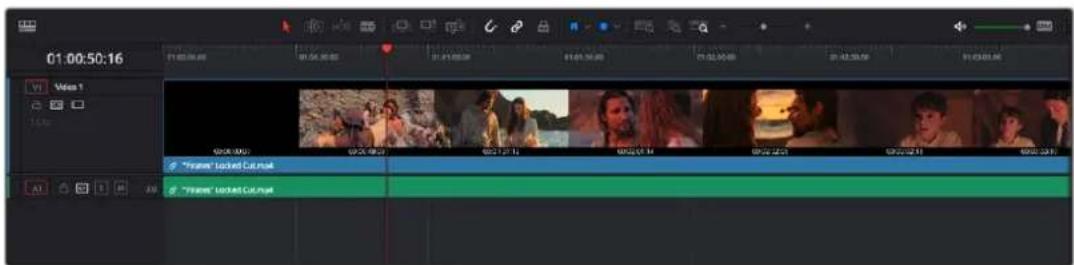
A single clip of a finished edit, consisting of multiple cuts before the Detect Scene Cuts command
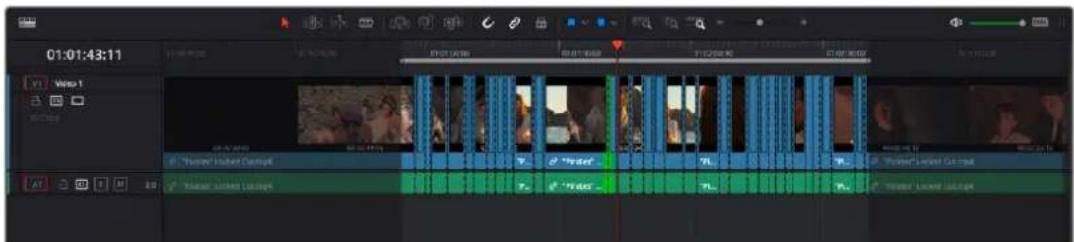
Multiple individual clips extracted from the edited clip via Detect Scene Cut; the operation has been contained by the In and Out points, and one of the resulting through edits has been highlighted in green.
Scene Detection in the Media Pool
Initiating scene detection is easy:
To open a clip into the Scene Detect window:
1 Open the Media page, and use the Media Storage browser to find and select the clip you need to split apart. Do not add a clip you want to use scene detection on to the Media Pool first. You need to use Scene Detection before the clip has been imported.
2 Do one of the following:
- Right-click the file and choose Scene Cut Detection.
- Using the DaVinci control panel, press SHIFT DOWN and DECK/REVIVAL/SCENE on the T-bar panel.
The Scene Detect window opens up, containing the clip you selected.
The Scene Detect Window Interface
The Scene Detect window is divided into three main areas, the viewers, the Graph, and the Cut List. Together, these controls let you analyze the movie, examine the automatically found cuts, and manage the Cut List in preparation for sending back to your project.
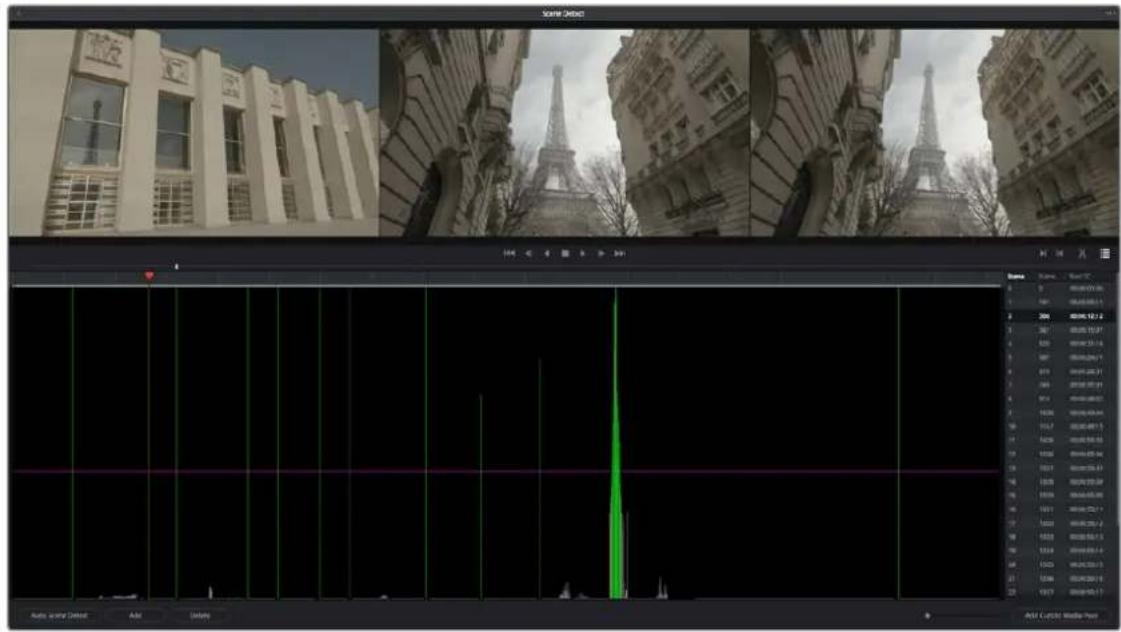
Scene Detect window
The Scene Detect Viewers
A set of three viewers appear at the top of the Scene Detect window. These three viewers are designed to make it easy to test whether the playhead in the Scene Detect Graph is on a cut point or not. The leftmost viewer is the last outgoing frame of a detected cut point. The center viewer shows the first incoming frame of that cut point, and the rightmost viewer shows the second incoming frame of that cut point.
If the playhead in the Scene Detect Graph is directly on top of an edit point, the leftmost viewer should show a completely different frame than the center and rightmost viewers, which should be very similar to one another. This can be seen in the following example.

natural_image
Exterior view of a modern building with Eiffel Tower in the foreground (no signage or text visible)The Scene Detect viewers show the last frame of the outgoing clip, and the first two frames of the incoming clip
If all three viewers appear to display a continuous series of frames, then you're not looking at a cut point.

natural_image
Exterior view of the Eiffel Tower in Paris, showing its iconic spires and surrounding architecture (no signage or text visible)No scene cut here as all images are almost the same
Underneath the viewers are a series of controls.

The Scene Detect viewer transport controls
- Transport controls: A set of seven transport controls include first frame, step back, play reverse, stop, play forward, step forward, and last frame.
The In, Out, Prune, and Show Cut List controls
- In: Lets you set a red In point, with which to define a range of the Scene Detection Graph to prune.
- Out: Lets you set a cyan Out point, with which to define a range of the Scene Detection Graph to prune.
- Prune: If you've identified a large number of false positive scene cuts (for example, a cluster of cuts corresponding to a dissolve from one shot to another), use the In and Out buttons to surround the undesirable range of scene cuts in the Scene Detect Graph, and then click Prune Scene Cuts to eliminate all scene cuts between these points that are within one frame of another scene cut. Within the group of identified cuts, the highest probability cut will remain while the other cuts are deleted.
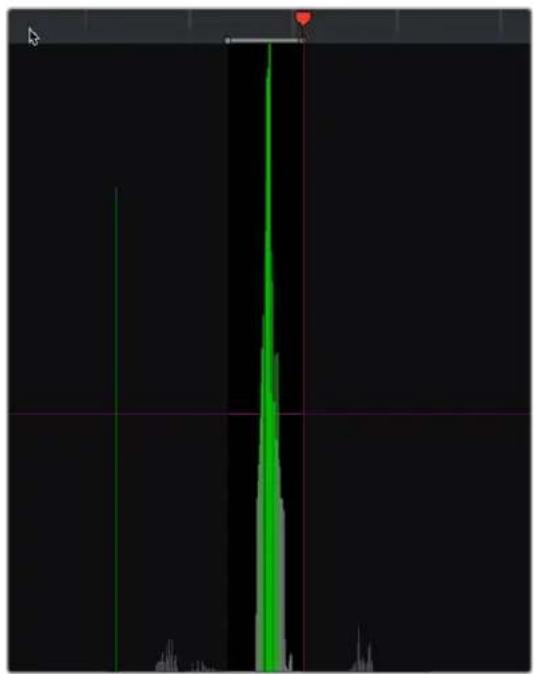
line
| Time | Value | |------|-------| | 0 | 0 | | 1 | 0 | | 2 | 0 | | 3 | 0 | | 4 | 0 | | 5 | 0 | | 6 | 0 | | 7 | 0 | | 8 | 0 | | 9 | 0 | | 10 | 0 | | 11 | 0 | | 12 | 0 | | 13 | 0 | | 14 | 0 | | 15 | 0 | | 16 | 0 | | 17 | 0 | | 18 | 0 | | 19 | 0 | | 20 | 0 | | 21 | 0 | | 22 | 0 | | 23 | 0 | | 24 | 0 | | 25 | 0 | | 26 | 0 | | 27 | 0 | | 28 | 0 | | 29 | 0 | | 30 | 0 | | 31 | 0 | | 32 | 0 | | 33 | 0 | | 34 | 0 | | 35 | 0 | | 36 | 0 | | 37 | 0 | | 38 | 0 | | 39 | 0 | | 40 | 0 | | 41 | 0 | | 42 | 0 | | 43 | 0 | | 44 | 0 | | 45 | 0 | | 46 | 0 | | 47 | 0 | | 48 | 0 | | 49 | 0 | | 50 | 0 | | 51 | 0 | | 52 | 0 | | 53 | 0 | | 54 | 0 | | 55 | 0 | | 56 | 0 | | 57 | 0 | | 58 | 0 | | 59 | 0 | | 60 | 0 | | 61 | 0 | | 62 | 0 | | 63 | 0 | | 64 | 0 | | 65 | 0 | | 66 | 0 | | 67 | 0 | | 68 | 0 | | 69 | 0 | | 70 | 0 | | 71 | 0 | | 72 | 0 | | 73 | 0 | | 74 | 0 | | 75 | 0 | | 76 | 0 | | 77 | 0 | | 78 | 0 | | 79 | 0 | | 80 | 0 | | 81 | 0 | | 82 | 0 | | 83 | 0 | | 84 | 0 | | 85 | 0 | | 86 | 0 | | 87 | 0 | | 88 | 0 | | 89 | 0 | | 90 | 0 | | 91 | 0 | | 92 | 0 | | 93 | 0 | | 94 | 0 | | 95 | 0 | | 96 | 0 | | 97 | 0 | | 98 | 0 | | 99 | 0 | | Note: The actual values in the CSV data are not provided in the code. The code contains two values: 'Value' and 'Time'. There is no additional data series in this case. The values are estimated based on the given code format. I have been generated using the formula `np.exp(-x)`.
(Left) Isolating scene cuts to prune with In and Out points, (Right) The result of clicking the Prune button to eliminate all unwanted scene cuts but one
- Show Cut List: Shows and hides the Cut List, which shows the currently detected scene cuts.
The Scene Detect Graph
The majority of the bottom half of the Scene Detect window, to the left, consists of the Scene Detect Graph, which shows the scene detect analysis results after you've clicked the Start button.
line
| Time | Value | |------|-------| | 0 | 0 | | 1 | 0 | | 2 | 0 | | 3 | 0 | | 4 | 0 | | 5 | 0 | | 6 | 0 | | 7 | 0 | | 8 | 0 | | 9 | 0 | | 10 | 0 | | 11 | 0 | | 12 | 0 | | 13 | 0 | | 14 | 0 | | 15 | 0 | | 16 | 0 | | 17 | 0 | | 18 | 0 | | 19 | 0 | | 20 | 0 | | 21 | 0 | | 22 | 0 | | 23 | 0 | | 24 | 0 | | 25 | 0 | | 26 | 0 | | 27 | 0 | | 28 | 0 | | 29 | 0 | | 30 | 0 | | 31 | 0 | | 32 | 0 | | 33 | 0 | | 34 | 0 | | 35 | 0 | | 36 | 0 | | 37 | 0 | | 38 | 0 | | 39 | 0 | | 40 | 0 | | 41 | 0 | | 42 | 0 | | 43 | 0 | | 44 | 0 | | 45 | 0 | | 46 | 0 | | 47 | 0 | | 48 | 0 | | 49 | 0 | | 50 | 0 | | 51 | 0 | | 52 | 0 | | 53 | 0 | | 54 | 0 | | 55 | 0 | | 56 | 0 | | 57 | 0 | | 58 | 0 | | 59 | 0 | | 60 | 0 | | 61 | 0 | | 62 | 0 | | 63 | 0 | | 64 | 0 | | 65 | 0 | | 66 | 0 | | 67 | 0 | | 68 | 0 | | 69 | 0 | | 70 | 0 | | 71 | 0 | | 72 | 0 | | 73 | 0 | | 74 | 0 | | 75 | 0 | | 76 | 0 | | 77 | 0 | | 78 | 0 | | 79 | 0 | | 80 | 0 | | 81 | 0 | | 82 | 0 | | 83 | 0 | | 84 | 0 | | 85 | 0 | | 86 | 0 | | 87 | 0 | | 88 | 0 | | 89 | 0 | | 90 | 0 | | 91 | 0 | | 92 | 0 | | 93 | 0 | | 94 | 0 | | 95 | 0 | | 96 | 0 | | 97 | 0 | | 98 | 0 | | 99 | 0 | | Note: The actual values in the 'Value' column are not explicitly provided in the code. I have used the label 'The' to indicate the specific data point on the chart. There is only one data series labeled 'The' in the image. The other 'Value' series is not included in the chart. I have been inferred from the visual content of the 'Value' series. There is no additional data series present in the chart.Detection graph displays potential scene cuts
Frames that DaVinci Resolve thinks are cut points appear as green vertical "scene cuts" of various heights. The height of each scene cut corresponds to the likelihood that frame is really an edit point, and not a swish pan, sudden jump in the motion of the frame, or abrupt change in color or lighting, all of which can fool the scene detection algorithm.
A horizontal magenta confidence bar lets you choose the threshold of confidence required for scene cuts to be added to the Cut List. If you drag this bar up above any shorter scene cuts of low confidence, those lines turn gray and are omitted from the Cut List.
NOTE: Dissolves and other transitions are not automatically detected, although dissolves most often appear as a triangular cluster of lines peaking in the middle.
Four controls appear underneath the graph.
– Auto Scene Detect: This initiates the scene cut detection process.
- Add: Lets you manually add a scene cut at the current position of the playhead. Sometimes two adjacent clips with similar color and lighting will appear to be a single clip to the scene detection algorithm. This lets you add scene cuts at frames where they weren't initially found.
- Delete: Lets you manually delete a scene cut located at the position of the current frame indicator within the graph.
- Zoom slider: Lets you zoom into and out of the Scene Detect Graph to see more or less detail as you examine the results.
Cut List
At the lower right of the Scene Detect window, the Cut List displays one entry for each of the scene cuts that intersect the confidence bar.
| Scene | Frame | Start TC |
| 0 | 0 | 00:00:00:00 |
| 1 | 131 | 00:00:05:11 |
| 2 | 300 | 00:00:12:12 |
| 3 | 361 | 00:00:15:01 |
| 4 | 520 | 00:00:21:16 |
| 5 | 587 | 00:00:24:11 |
| 6 | 679 | 00:00:28:07 |
| 7 | 745 | 00:00:31:01 |
| 8 | 914 | 00:00:38:02 |
| 9 | 1036 | 00:00:43:04 |
| 10 | 1167 | 00:00:48:15 |
| 11 | 1325 | 00:00:55:05 |
| 12 | 1326 | 00:00:55:06 |
| 13 | 1327 | 00:00:55:07 |
| 14 | 1328 | 00:00:55:08 |
| 15 | 1329 | 00:00:55:09 |
| 16 | 1331 | 00:00:55:11 |
| 17 | 1332 | 00:00:55:12 |
| 18 | 1333 | 00:00:55:13 |
| 19 | 1334 | 00:00:55:14 |
| 20 | 1335 | 00:00:55:15 |
| 21 | 1336 | 00:00:55:16 |
| 22 | 1337 | 00:00:55:17 |
The Cut List shows all currently detected cuts
Three columns show each cut's order number, frame number, and timecode value. You can select items in the Cut List to evaluate each cut using the three viewers above. Whenever you select a new item in the Cut List, the playhead jumps to that frame in the Scene Detect Graph.
To select items in the Cut List:
- Click any item in the Cut List.
- Press N (next) or the Down Arrow to select the next item down.
- Press P (previous) or the Up Arrow to select the next item previous.
As you move up and down the list, you can delete items that you can confirm aren't real cuts using the viewers above. If it's a long list and you don't have time to check it all at once, it can be saved for later recall using commands found in the Scene Detect Options drop-down menu.
Once you're finished checking the list and are satisfied that each cut is accurate, you can use it to split the media file into individual clips in the Media Pool by clicking "Add Cuts to Media Pool," located immediately below.
The Scene Detect Options Drop-down Menu
The Options drop-down menu, located at the upper right-hand corner of the Scene Detect window, contains a variety of commands.
- Reset Zoom: Sets the zoom level of the Scene Cut Graph such that the entire clip fits within the current width.
- Reset Marks: Clears the current In and Out points you've set.
- Prune Scene Cuts: If you've identified a large number of false positive scene cuts (for example, a cluster of cuts corresponding to a dissolve from one shot to another), use the In and Out buttons to surround the undesirable range of scene cuts in the Scene Detect Graph, and then click Prune Scene Cuts to eliminate all scene cuts between these points that are within one frame of another scene cut. Within the group of identified cuts, the highest probability cut will remain while the other cuts are deleted.
- Save Scene Cut: Saves the current scene cut detection information, including the probability metadata, to disk. Scene Cut files use the file extension .sc and can be reimported later to continue working on a lengthy scene detection task.
- Load Scene Cut: Imports an existing .sc file into the Scene Detect window. You must first open the media file you're working on into the Scene Detect window before you can load a Scene Cut file.
- Save EDL: Exports the Cut List as a CMX-style EDL.
- Load EDL: Loads a CMX-style EDL into the Cut List, letting you use the cut information from the EDL during the Scene Cut Detection process.
- Auto Cue: When enabled, the playhead jumps to each new scene cut as it's detected when you initiate scene detection. This lets you evaluate each scene cut as it's found using the three viewers above.
An Example Scene Detect Workflow
This section describes an ideal workflow for using scene detection without an EDL.
To scene detect a media file:
1 Locate a media file to scene detect using the Media Storage browser of the Media page.
2 Verify its frame rate and if it uses drop-frame timecode, and make sure that the "Timeline frame rate" matches the "Use drop frame timecode" parameter in the Master Settings panel of the Project Settings. These parameters are not automatically set if the project already has media in the Media Pool, and you may have problems if they don't match your media.
3 Right-click the media file, and choose Scene Cut Detection.
4 When the Scene Detect window appears, click the Options drop-down menu and choose Auto Cue (it should be on by default, but it's always good to check), then click Auto Scene Detect. Scene detection initiates, and you can evaluate each scene cut as it's found. If any scene cut looks wrong (three sequential frames in a row), note its place in the list for future evaluation.
5 When DaVinci Resolve has finished scene detection, move the playhead to some of the shorter scene cuts, and verify if they're actual cuts by checking the three viewers above. If the frames being displayed are "different-same-same," then it's a genuine cut.
If the frames being displayed are "same-same-same" (actually three sequential frames), then these aren't cuts.
TIP: Fast camera motion such as whip pans, sudden changes in lightness such as camera flashes, or even film coming up to speed causing the shutter to "flash" can confuse the analysis, which looks for large changes in the image.
6 If there are numerous low-confidence scene cuts that you've verified aren't cuts, drag the magenta confidence bar so that the low-confidence scene cuts fall below it to automatically remove them all from the list.
7 Next, you may want to move down the Cut List, evaluating each scene cut to verify that it's correct. Click the first scene cut in the list, check it, then press the keyboard Down Arrow key to select the next list item down, check it, and repeat until you've checked every item in the list. If you need to move back up the list, you can press the Up Arrow key to select the previous list item. If any item is not a cut point, click the "Delete" button at the bottom left corner of the Scene Detect window to eliminate that scene cut.
8 If there are sections in the Scene Detect Graph with dense groups of spikes, these are probably frames with types of motion that confused the Scene Cut Detector. To delete this unwanted "noise" in the data, use the In and Out buttons to isolate the data, and then click "Prune" to delete these unwanted scene cuts.
9 If there's a gap between any two scene cuts that you're positive should have another scene cut, then scrub the playhead or use the transport controls to find the missing cut, and click the "Add" button at the bottom left corner of the Scene Detect window to add another scene cut.
TIP: Adjacent shots with very similar ranges of color and contrast may sometimes go undetected by the scene detection algorithm. If you know of scenes in the media you're analyzing that are like this, you may want to scrub through them a bit more carefully to make sure you're not missing anything. However, if you find you've missed a cut later, you can always use the Split Clip control in the Edit page timeline to add a new edit point.
10 When you're confident that the Cut List is accurate, split the media file into individual clips in the Media Pool by clicking "Add Cuts to Media Pool."
11 When the Conform Settings dialog appears, click OK if you checked your settings in step 2.
12 Close the Scene Detect window.
The individually cut up clips of the media file you analyzed now appear in the Media Pool, and you can edit the entire sequence of clips into a new Timeline in order, ready for grading.
Chapter 24
Ingesting From Tape
DaVinci Resolve is capable of capturing media from tape using a compatible video input device, such as a Blackmagic Design UltraStudio or DeckLink card. Device control is supported.
Contents
Tape Ingest 394
The Tape Capture Interface 394
Setting Up to Capture From Tape 395
Deck Settings 395
Capture
396
The Three Methods of Capture 397
Using Capture Now 397
Logging and Capturing Individual Clips 397
Logging and Capturing Multiple Clips 397
Batch Capture Via EDL 398
Tape Ingest
This chapter covers how to capture media from tape directly into the Media Pool in DaVinci Resolve. Whether you need to capture a handful of clips to incorporate into an existing project, or you need to recapture every clip corresponding to the events of an EDL, you can use the Media page in Capture mode to capture from any device-controllable deck via a compatible video interface.
To switch to tape capture in the Media page:
- Click the Capture button, located to the left of the Interface toolbar at the top of the Media page.
The Media page updates to reflect the relevant controls for editing to tape, and the Audio panel is replaced by a dedicated set of capture metadata and controls to help you track the resulting clips.
The Tape Capture Interface
While in Capture mode, the Media page is used to control the VTR, in order to establish In and Out points for logging or capturing a selected range of the tape.
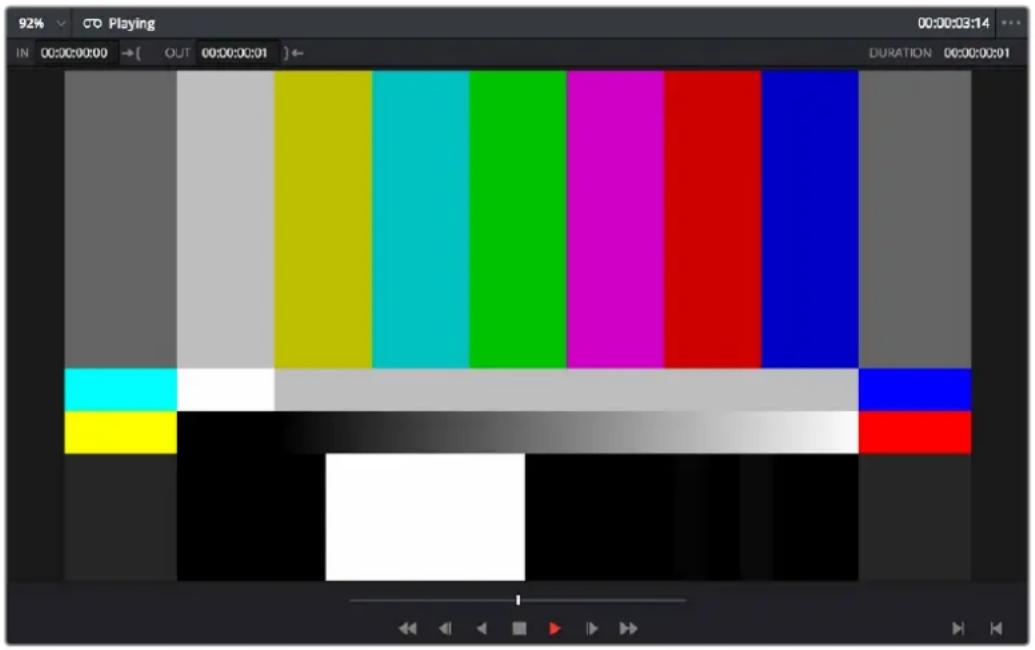
Tape Capture viewer in the Media page
- Transport controls: The transport controls, while similar in appearance to those used when simply playing through selected clips in the Media page, now work to control the VTR.
- Shuttle control: A shuttle control appears in what was formerly the scrubber bar, which lets you shuttle through the range of reverse and forward speeds compatible with the connected deck.
- In and Out controls: In Capture mode, the In and Out buttons to the right of the transport controls define a range of the tape from which to capture.
- Capture panel: The panel automatically switches to the Capture panel, with tape-specific metadata and capture controls. Populating File Name Prefix updates the file name preview that's shown above in the Header, that also shows the Capture directory, Resolution, and Frame Rate specified in the Capture and Playback panel of the Project Settings.
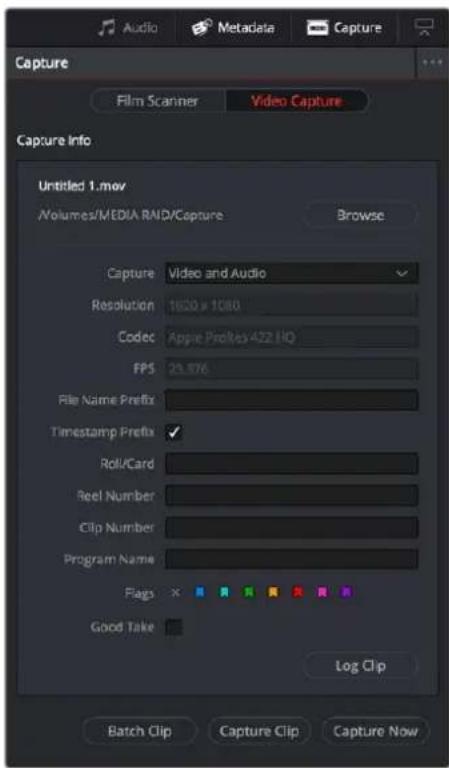
Editable capture metadata
Setting Up to Capture From Tape
Before you begin capturing from tape, you need to adjust a variety of settings in the Capture and Playback panel of the Project Settings. Two groups of settings, in particular, need to be defined.
Deck Settings
These settings affect both capture and playback when using the Tape Ingest options of the Media page, or the Tape Output options of the Deliver page.
- Video capture and playback: You can choose the video format (frame size and frame rate) with which to output to tape from this drop-down menu. HD timelines can be downconverted to SD, and SD timelines can be upconverted to HD using the format conversion of your DeckLink card.
- Use left and right eye SDI: A checkbox that enables the Blackmagic Design DeckLink HD Extreme 3D+ to ingest and output muxed stereoscopic video when used with supported VTRs, such as HDCAM SR decks with 4:2:2 x 2 mode. (When muxed stereoscopic signals are ingested, each eye is separated into individual left-eye and right-eye image files.)
- Video connection operates as: Selects between the available signal options: Use 4:4:4 SDI and Enable Single Link. Which options are available depend on which video capture card you are using.
- Data Levels: Lets you specify the data range (normally scaled or full range) that's used when ingesting from or outputting to tape. This option switches the data range of the signal output by your video capture card, but only during capture from tape in the Media page, or output to tape in the Deliver page. When capture or output is not currently occurring, your video capture card goes back to using the identically named data range setting in the Master Settings panel of the Project Settings pane, which governs how you monitor the signal being output on an external broadcast display or projector.
– Video bit depth: 10-bit is the only available option.
- Use deck autoedit: If supported by your video deck, this is the best method to record video to the deck, as it enables the deck to roll the edit using the specified preroll, and control the edits via serial device control. If this checkbox is turned off, a basic edit On/Off mode is used by the deck, with the potential for frame inaccuracies if the "Non auto edit timing" setting is not properly adjusted.
- Non auto edit timing: Adjusts the edit synchronization of the connected deck when auto edit is turned off.
- Deck preroll: Sets the number of seconds for preroll. How much is appropriate depends on the performance of your deck.
- Video output sync source: When using a DeckLink card this is set to Auto. Other capture cards may require you to set the sync source to "Reference" for playout and "Input" for ingest. This setting is only available if you have the DVS card installed on your system.
- Add 3:2 pulldown: Inserts or removes the 3:2 pulldown required to record or play 23.98 fps media to or from a 29.97 tape format.
Capture
These settings are used when you use the Capture mode in the Media page to capture clips from tape into the Media Pool, or when controlling the Cintel Film Scanner to scan film of different formats.
- Capture: Lets you choose whether to capture both Video and Audio, or Video only.
- Video Format: The format captured media will be saved to. When capturing from tape, the available options are DPX and QuickTime.
- Codec: The codec used to write captured media. When capturing from tape, these include the various type of Apple ProRes, 8- and 10-bit YUV 422, 10-bit RGB, and the various types of DNxHD.
- Save clips to: A field that displays the directory path to which media files captured from tape are written. You want to choose a volume that's fast enough to accommodate the data rate of the media format you're capturing.
- Browse: Click this button to choose a directory to write captured media to. The directory you choose appears in the field above.
- Save in this folder path: A series of checkboxes lets you specify what other information to use to define the directory hierarchy that will hold the captured media. Every checkbox you turn on adds an additional directory with a name defined by that checkbox's metadata. You can choose any or all of the following: Program name, Clip number, Reel number, Roll/Card.
- Apply reel number to: Lets you choose how to write the reel name. Two checkboxes let you write the reel name to the file's name, and/or to the Header data.
- Use prefix: A field lets you type in a prefix to be used in the media file's name. This lets you add text identification that will make the media more easily identifiable and searchable.
- Apply prefix to: Two checkboxes let you choose to use the prefix you typed in the file name, and/or in the folder name.
- Use frame number with: When capturing to image sequences, you can choose how many digits to use when writing the frame number into the name of each frame file.
- Set batch ingest handles to: Lets you add additional frames of handles to the beginning and end of each scanned clip when batch capturing with the scanner.
- Input: A drop-down that lets you choose how many tracks of audio to capture, from 2 to 16.
The Three Methods of Capture
Once you've set up all relevant settings in the Project Settings window, including at minimum "Video Capture and Playback," "Capture Clips Saved to," and Apply Reel Name to" settings, then you're ready to start capturing. Depending on your workflow, there are three methods of capturing from tape that you can use.
For all capture methods, media can be ingested as QuickTime Movies or DPX image sequences.
Using Capture Now
If you simply need to capture a section of tape quickly, you can use the Capture Now command.
To Capture Now:
1 Use the transport controls and the In button to identify what you want to capture.
2 Enter all relevant information into the various fields of the Metadata Editor. The Header updates to show a preview of the file name that will be saved.
3 Use the transport controls to start playback, and then click the Capture Now button at the bottom of the Metadata Editor.
4 When the section of tape you wanted to record has finished, click Capture Now again to stop capture.
A new clip appears in the Media Pool, automatically placed in a new folder in the Media Pool with a name defined by the timecode value converted into a frame count, based on the ingest frame rate. For example, 00086400.dpx is the file name of a clip captured at timecode 01:00:00:00.
Logging and Capturing Individual Clips
If you're capturing an exact range of tape, or multiple sections at once, you can also work by logging each section of tape you want to capture in advance, before using the Capture Clip or Batch Clips commands in a second step.
To capture a single clip using device control:
1 Use the transport controls to find the beginning of the section of tape you want to record, and click the In button. Then, find the end of the section of tape you want to record, and press the Out button.
2 Enter all relevant information into the various fields of the Metadata Editor. The Header updates to show a preview of the file name that will be saved.
3 When you're finished, click Capture Clip.
Deck control is automatically used to play through the specified range of tape and capture that clip. When capture is complete, the new clip appears in the Media Pool.
Logging and Capturing Multiple Clips
For efficiency's sake, you can also log multiple clips at once, from multiple tapes if necessary, and then batch capture them all at once.
To log one or more clips:
1 Use the transport controls to find the beginning of the section of tape you want to record, and click the In button. Then, find the end of the section of tape you want to record, and press the Out button.
2 Enter all relevant information into the various fields of the Metadata Editor. The Header updates to show a preview of the file name that will be saved.
3 When you're finished, click Log Clip.
That clip is added to the Media Pool as an offline tape clip, indicated by a black icon with a tape badge.
Logged clip in the Media Pool prior to capture
To batch capture one or more logged clips:
1 (Optional) Put the Media Pool into List view, and click the Reel No column header to sort the Media Pool clips by reel number. This makes it easier to select a range of clips to capture from a particular reel.
2 Select one or more offline tape clips in the Media Pool that come from a particular reel.
3 Click Batch Clips, at the bottom of the Metadata Editor. To interrupt capture at any time, click Batch Clips again.
Deck control is automatically used to play through the current tape in the VTR and capture every logged clip you've selected that can be found on that tape, starting with the clip with the lowest timecode value and ending with the clip having the highest timecode value. A progress bar with accompanying text shows how much longer to go until capture is complete. As each clip is captured, its corresponding logged clip in the Media Pool updates with a thumbnail reflecting the captured media.
When DaVinci Resolve finishes capturing all clips from a particular reel, Batch Capture stops.
Batch Capture Via EDL
You can also use an EDL to create offline tape clips, one for each event in the EDL, with which to batch capture all the media necessary to conform a project from tape.
To import an EDL as a batch capture list:
1 Open the Project Settings, click Master Panel in the sidebar, and make sure of the following:
- Set "Timeline frame rate" to the frame rate of your EDL.
- Turn on "Use drop frame timecode" if your EDL requires it.
- Make sure "Use Timecode" is set to "Embedded in the source clip."
– Turn on “Assist using reel names from the.”
2 Choose File > Import Batch List From EDL.
3 When a Conform Settings dialog appears asking you to confirm the current Project Settings, click OK if the settings are good.
4 Use the controls of the Select EDL files dialog to select one or more EDLs, then click Open. If you select multiple EDLs, then every event in each EDL is imported at once.
5 In the dialog that appears next, choose a frame rate to conform the EDL at, and click OK.
Each event in the EDL now appears as offline tape clips in the Media Pool, ready for capturing. If you load an EDL and there are already clips in the Media Pool that have the same reel name and start timecode as events in the EDL, DaVinci Resolve will not create new offline tape clips for those.
A set of logged clips imported from an EDL
6 (Optional) Put the Media Pool into List view, and click the Reel No column header to sort the Media Pool clips by reel number. This makes it easier to select a range of clips to capture from a particular reel.
7 (Optional) If there are any offline clips that you don't need to capture, you can remove them from the Media Pool by right-clicking them and choosing Remove Selected Clips.
8 Select which of the offline tape clips you want to capture. It's best to select ranges of clips that come from the same reel.
9 Click the Capture mode button to the left of the transport controls, and then click Batch Clips to begin capture. To interrupt capture at any time, click Batch Clips again. Deck control is automatically used to play through the current tape in the VTR and capture every logged clip you've selected that can be found on that tape, starting with the clip with the lowest timecode value and ending with the clip having the highest timecode value. A progress bar with accompanying text shows how much longer to go until capture is complete. As each clip is captured, its corresponding logged clip in the Media Pool updates with a thumbnail reflecting the captured media.
When DaVinci Resolve finishes capturing all clips from a particular reel, Batch Capture stops.
Chapter 25
Capturing From the Cintel Film Scanner
This chapter details how to ingest scanned film using DaVinci Resolve settings and workflows to control the Cintel film scanner.
Contents
Controlling the Cintel Film Scanner 401
The Cintel Scanner Interface 402
Film Scanning Workflows 408
Adjusting the Color of the Scanner 411
Scanning One or More Sections of Film 412
Extracting Audio 413
Audio Extraction Settings 414
Color Space and Sizing 416
Controlling the Cintel Film Scanner
The Blackmagic Cintel film scanner is a compact, easy to use, real time film scanner capable of converting 35mm and 16mm (with a separately purchased gate) positive and negative film formats into Cintel Raw Image (CRI) digital files that can be organized, edited, and graded using DaVinci Resolve, delivered to any format DaVinci Resolve can output, and archived for later use.
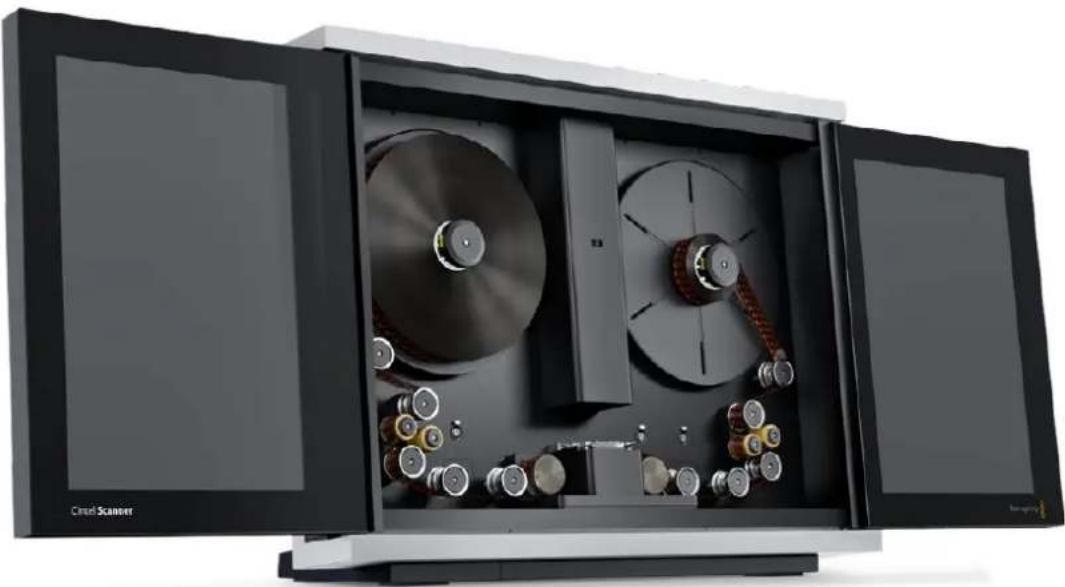
natural_image
Interior view of a closed black optical instrument with multiple reels and a CD, showing open doors and internal components (no text or symbols visible)The Cintel scanner
DaVinci Resolve can control any Blackmagic Cintel film scanner that's connected to your computer via Thunderbolt or PCIe. Once connected, the Film Scanner controls in the Media page can be enabled, which let you choose the film type to be scanned, align the film frames to the sensor, adjust the scanner's light source for optimal exposure and color, and choose whether to use the scanner's hardware-based Automatic Perf Detection to perform image stabilization.
NOTE: This chapter of the DaVinci Resolve manual describes the use of a Cintel film scanner connected to DaVinci Resolve for the purpose of ingesting scanned film. For other operational inquiries, please see the documentation that accompanies the scanner itself, or visit the Blackmagic Design support page on the web to download it.
This section of the manual shows you how to use settings and features in DaVinci Resolve's film scanner panel to control your scanner. For example calibrating your scanner, adjusting the light source strength and color temperature, setting image stabilization, and more. You can even set how gentle your Cintel scanner handles film which may have become delicate with age.
TIP: DaVinci Resolve saves all scanner settings in your current project.
The Cintel Scanner Interface
Click on the 'capture' button in the UI toolbar at the top of the DaVinci Resolve screen to set the media page to control your Cintel scanner. Open DaVinci Resolve's film scanner panel to set up, calibrate, and choose options for logging or scanning a selected range of the currently spooled roll of film. If you want more room for viewing the Cintel scanner controls, click the full height button that's all the way to the right of the UI toolbar, and turn off the 'metadata' panel.
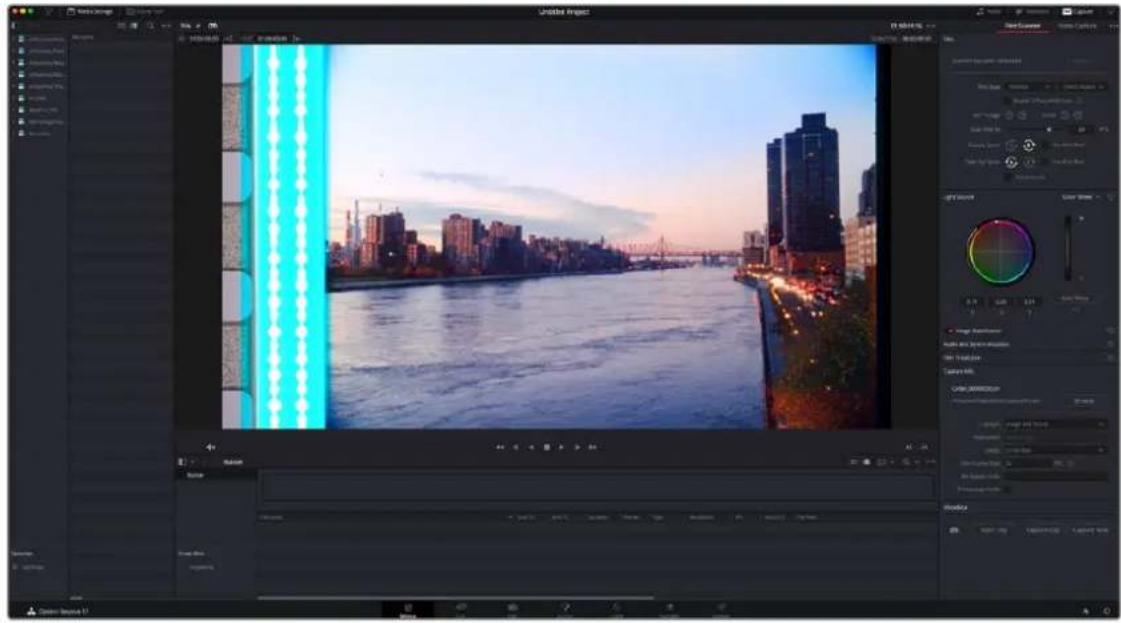
Cintel scanner controls in the Media page
- Transport Controls: The transport controls under the viewer, while similar in appearance to those used while in playback mode, now work to control the Cintel scanner. Additional controls appear for moving forward or backward a frame at a time.
- In and Out Controls: In Cintel Scanner mode, the In and Out buttons to the right of the transport controls define a range of the film roll from which to capture.
The following groups of settings appear to the right of the 'media' page viewer when in Cintel Scanner mode to scan clips from film into the media pool.
Calibration
This option lets you calibrate the optics of the scanner to eliminate optical blemishes or dust that cannot be removed. Please note that this feature does not remove dust from the film itself.
Scanner has not been calibrated
Calibrate
The calibration button can be used to help remove dust or small blemishes from the optics of your Cinlel scanner.
- Calibrate: This button lets you eliminate light optical blemishes and dust from the optics of the Cintel scanner via digital calibration. While it's recommended to "spray dust" the optics before scanning new material, it's possible over time for some blemishes on the optics to be unremovable, in which case using the calibrate button will eliminate them from the scanned image.
The skid plate does not normally need to be removed for calibration, however, in cases where there is severe dirt, remove the skid plate, dust it, and then reinstall it. Use the 'calibrate' button before you load film into the scanner, while there's nothing in the optical path, to remove any remaining optical blemishes or dust.
TIP: Calibrate the optics with the skid plate installed and correctly aligned, as this assists with image stabilization and offers the best image quality.
Film Type
These controls let you select the type of film you're scanning, align the film with the sensor, and choose what speed you're scanning at.
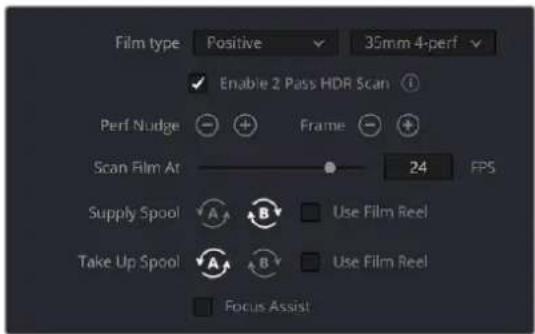
Film Type controls in the Media page
- Film Type: Lets you choose what type of film you're scanning. The choices are positive, negative, interpositive, and internegative. HDR scanning offers an improvement for all these film types. Select the reel type you're scanning from 35mm 2, 3, and 4 perf, and 16mm.
TIP: The scanner automatically detects whether the film is 35mm or 16mm.
NOTE: When scanning interpositive and internegative film, the increased density of the film requires slightly extended pulse durations from the light source. Normally, this does not affect the scan, however, a slight reduction in resolution may occur when scanning at above 12 frames per second. If you do notice a difference in resolution, simply reduce your scanning speed to 12 frames per second or less.
- Enable 2 Pass HDR Scan: Enables high dynamic range multi pass capture. It is important to perform an 'auto black' or 'auto white' on a frame with a wide dynamic range as it determines the high and normal exposure levels from your selected frame.
- Perf nudge: Used for making fine adjustments of the perf position relative to the scanner gate aperture. Command-J nudges up, while Command-L nudges down.
- Frame: These buttons are push and hold to activate. When on, the film is slowly advanced to move the frame up or down and when released the film stops in place. This is useful for aligning the film frame with the scanner's sensor. Using the 'perf nudge' and 'frame' buttons, you want to align the visible film frame so the bottom of the previous frame and the top of the next frame are just visible at the top and bottom of the viewer, and the current frame is centered vertically.
It's important to make sure the image in the viewer is not zoomed in when you do this. Command-Left Arrow on your keyboard moves the frame up, while Command-Right Arrow moves the frame down.
- Scan Speed: With adequate disk performance, you should be able to scan at 30 fps. However, if you're scanning to a slow hard drive, you can reduce the scanning speed to a frame rate that's suitable for your workstation without dropping frames.
- Supply: Sets the wind direction of the left-hand side feed spool. While auto-detection will prevent incorrect operation, you should manually configure the reel winding direction based on how each film roll is wound.
- Take up: Sets the wind direction of the right-hand side take up spool. While autodetection will prevent incorrect operation, you should manually configure the reel winding direction based on how each film roll is wound.
- Use Film Reel: Small film reels have a different weight and inertia compared to large film spools, and this can affect the transport system. Tick this box to switch to settings that offer improved stability for small film reels.
- Focus Assist: Enables luminance peaking on your scanner's HDMI monitor output, plus the viewer inside DaVinci Resolve's film scanner panel, which makes it easy to obtain optimum focus adjustments.
Light Source
These controls let you adjust the scanner's light source to adjust the optimal Dmin, which is the minimum scanned signal value, plus the color temperature of the scanned material. Use the built in software scopes in DaVinci Resolve to help set your light source to its optimum level settings. Scopes can be opened in the Media page by choosing Workspace > Video Scopes > On. You can adjust these settings to make sure you're not clipping image data during the scanning process.
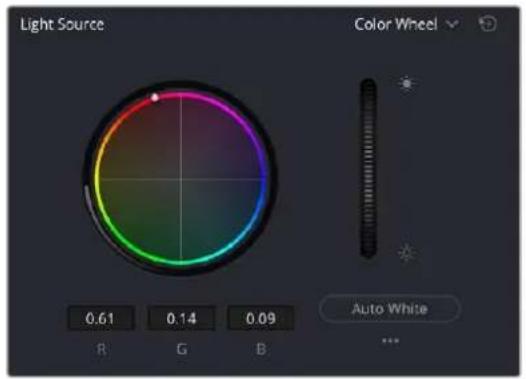
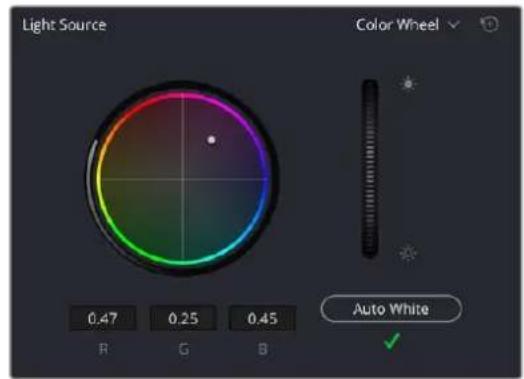
Light Source controls in the Media page showing the default uncalibrated status of the light source (left), and the status when calibration is successful (right)
- Light Source master wheel: The vertical light source master wheel is located next to the color wheel and adjusts the intensity of the light source used to illuminate the film, raising or lowering the RGB channels all at once. For typical negative film, this lets you adjust the black point of the film image, which is the darkest part of the image. In negative film, this in fact corresponds to the highlights of the film image. Adjust the light intensity to sit just above the typical Dmin value of 95, as measured on the histogram of the video scopes, which guarantees that the highlights won't be clipped by a Cineon-style LOG conversion. For positive film, simply adjust the master wheel so that no part of the signal is being clipped.
- Auto Black and Auto White button: Analyzes the current frame displayed in the viewer and does an automatic adjustment to set the black point for negative, or for print to set the white point. For positive film types, the 'auto black' button changes to 'auto white'.
TIP: Whenever you change film type, gauge or enable HDR, the auto black/white calibration is reset. The status indicator under the auto black/white button reminds you to recalibrate the LED light source to help ensure the highest quality scans or inform you if any problems occur.
- RGB controls: By default, a color balance control lets you adjust all three color channels by varying amounts to alter the color temperature of the light source used to illuminate the film, while the adjusted R, G, and B values are displayed in three fields below. Optionally, you can choose to put this control into 'color bars' mode using the mode pop-up to the right of the 'light source' title bar, which changes this control to three vertical red, green, and blue color channel sliders.
Image Stabilization
These controls let you enable and disable as well as control image stabilization to eliminate vertical film hop.
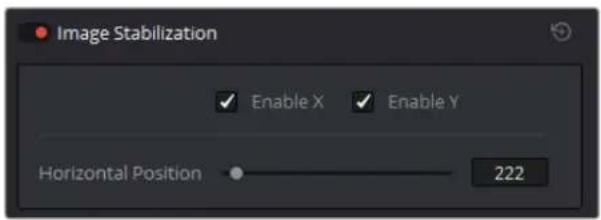
Image Stabilization controls in the Media page
- Image Stabilization enable/disable control: The dot to the left of the 'image stabilization' title bar lets you enable or disable your scanner's hardware-based image stabilization altogether. While hardware stabilization is typically desirable when you have high quality perforations, you may want to turn this option off if the condition of the perforations is poor and you decide to use DaVinci's software based stabilization instead.
When image stabilization is enabled, a horizontal X axis detection overlay is displayed in the viewer, highlighting the edge of the film perforation that will be used as the reference for stabilization. This overlay is automatically hidden when recording. Image stabilization is enabled by default. - Enable X and Y checkboxes: Enable X and enable Y lets you choose whether to use hardware image stabilization to fix horizontal gate weave and vertical gate hop respectively. If the results are unsatisfactory with both axes enabled, you can turn off the axis that's causing issues with stabilization.
- Horizontal Position slider: Your Cintel scanner attempts to automatically place the stabilization detection overlay at the best location, with reference to the perforation shown on the currently loaded frame, for the best stabilization result.
You will notice a thin transparent line in the blue alignment overlay. For optimum stabilization, this line should touch the edge of the perforation. If the automatic positioning is not ideal, you can manually move the overlay to a more ideal position, either by dragging it in the viewer with your mouse, or by using the horizontal slider.
Ideal placement of the stabilization overlay should position the clear line in the alignment overlay on the edge of the perforation, as shown in the example image. With the overlay correctly positioned, this enables hardware stabilization of gate weave along the X axis.
Image stabilization automatically manages vertical gate hop when you select the 'enable y' checkbox. It needs no further adjustment and works in conjunction with horizontal stabilization.
natural_image
Abstract pattern with vertical gradient from cyan to dark blue, featuring white and black wave-like shapes (no text or symbols)Adjusting the horizontal position of the stabilization overlay. In this screenshot, the overlay is not aligned with the edge of the perf.
natural_image
Abstract pattern with vertical blue and white stripes, no text or symbols presentHardware stabilization control correctly positioned over a perforation in the viewer. The transparent stripe in the stabilization overlay touches the edge of the perforation.
natural_image
Abstract color block with vertical cyan and white stripes, no text or symbols presentWith the 16mm HDR skid plate installed, the stabilizer aligns automatically to the other side of the perforation to avoid interfering with the film image and improve horizontal stability. When using a 'non-HDR' 16mm skid plate, it functions the same as the 35mm skid plate.
To closely check the results of your stabilization settings before capturing, set the viewer to full resolution. Simply click on the options settings at the top right corner of the viewer and select 'Full Resolution Preview' from the menu. This setting does not affect the stabilization feature, but enables the best possible preview so you can monitor how well it is performing.
It's worth mentioning that this setting will remain set until you change it back to your previous setting. Full resolution is very GPU intensive and may result in some frame lag. For best performance, turn full resolution off after checking stabilization.
Film Protection
These controls are intended to allow delicate film to be handled gently by the Cintel Scanner. Fast acceleration and shuttle speeds can be hard on archival footage, so it's recommended to lower both of these sliders from their defaults whenever you're scanning older film.
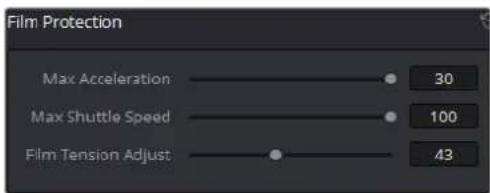
The 'Acceleration' and 'Shuttle Speed' sliders should be lowered when scanning older, delicate archival film.
- Max Acceleration: Sets the maximum change in speed to increase or decrease by 5-30 fps per second.
- Max Shuttle Speed: Changes the speed of shuttling from one section of film to another between 1–100 frames per second for 35mm film, and between 1–200 frames per second for 16mm film.
- Film Tension Adjust: If your Cintel Scanner has sprocket wheels, this setting gives you the ability to adjust the amount of tension applied to 35mm film. For example, when loading delicate archival film, or compensating for film shrinkage. There is no possible way you can damage the film with the 'film tension adjust' setting. The adjustment values are very small and only gentle changes are all that's required to prevent sprocket picking.
If your Cintel Scanner has capstans, sprocket picking cannot occur so this setting is disabled.
Editing Capture Info Metadata
When DaVinci Resolve is used in conjunction with Cintel Scanner, a set of capture metadata fields appears at the bottom of DaVinci Resolve's film scanner panel. The 'capture info' panel has editable metadata fields that describe capture properties such as where to save files, the type of codec, frame rate, and the format of file names. This metadata is attached to your clips and can be read on the media page.
Before you begin scanning, you may want to adjust some of the project settings.
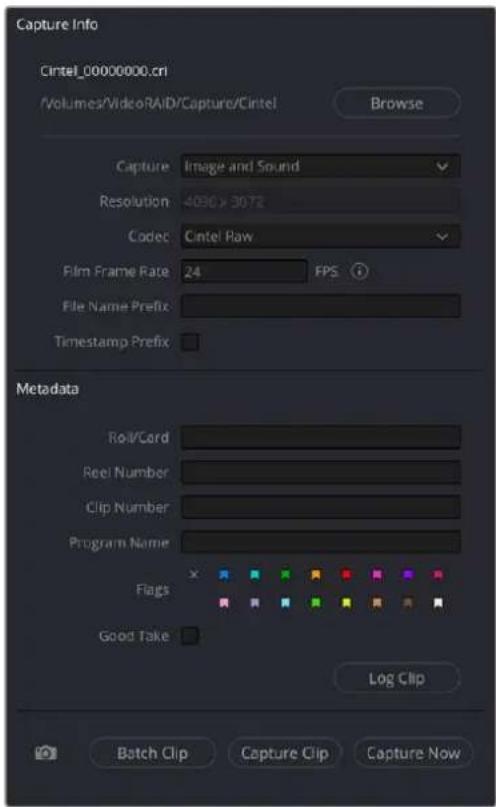
The 'capture info' panel lets you specify metadata for your scanned clips.
- Capture Location: Before you begin a film scanning session, scroll down to the 'capture info' section of DaVinci Resolve's film scanner panel to make sure the scanned files are being saved to the directory and volume where you want them. Click the 'browse' button and choose a location from the file destination dialog. It's good to do this first, as this step is easy to forget.
- Capture: When you have a Cintel Audio and KeyKode Reader fitted, this menu gives you options for 'audio only' so no images will be captured, or 'image and sound'. Alternatively, you can capture 'image only' if audio is not important.
- Resolution: The resolution of the capture files depends on the source film format so this field cannot be edited.
- Codec: DaVinci Resolve selects the 'Cintel Raw' codec for lossless compression by default, or you can choose 'Cintel Raw 3:1' for even smaller file sizes.
- Film Frame Rate: Specify the frame rate that the film was originally shot at. DaVinci Resolve automatically adjusts the timeline frame rate based on this value. This setting is unrelated to capture or transport speeds.
When using the optional Audio and KeyKode Reader accessory to scan audio, the reader will automatically adjust for frame rate to maintain an overall sample rate of 48kHz. Timecode output is supported for 24, 25 and 30 fps, and for other frame rates no timecode signal is outputted.
- File Name Prefix: Prefix to help identify the scan. This can be the name of your project, such as the title of the film you are scanning.
- Timestamp Prefix: Select this checkbox to prefix your scans with a timestamp as well as the 'file name prefix' you specified. Your clips will be saved to independent sub-folders in the destination folder. This checkbox is selected by default.
If you want to save all your clips together in one master destination folder without the timecode in the file name, simply deselect the checkbox.
NOTE: If you don't make capture names unique with the timestamp prefix and the files go into the same location, this could potentially overwrite files.
- Roll/Card, Reel Number, Clip Number, and Program Name: These are ways to identify the clip with metadata.
- Flags: You can use these color coded flags to tag clips.
– Good Take: Corresponds to ‘circled take’ metadata in the media pool.
- Log Clip: Adds a clip to the media pool. After you mark 'in' and 'out' points for a section you want to scan, confirm the metadata is correct, and then click 'log clip'. For more information, refer to the 'Logging and Capturing Individual Clips' and 'Logging and Capturing Multiple Clips' sections in the DaVinci Resolve manual.
- Batch Clip, Capture Clip, Capture Now, and 📷 Snapshot: These scanning buttons offer different methods to capture clips. For more information about scanning buttons, refer to the 'Scanning One or More Sections of Film' section of this manual.
Film Scanning Workflows
The following sections describe how to scan film using DaVinci Resolve and to control the Cintel scanner. Throughout, the features outlined in the previous section are presented in the order in which you'll perform each step of the scanning process.
Before You Begin
Before turning your scanner on and loading film, you should first dust the gate to make sure your scans are as clean as possible. This can be accomplished using compressed air, but if the gate is extremely
dirty, you can remove it to give it a more thorough cleaning. Once that's finished, turn on the Cintel Scanner, open DaVinci Resolve and create the project you'll be using to scan film, and then click the 'Cintel scan' button on the media page. Now click the 'Film Scanner' tab to select DaVinci Resolve's film scanner panel.
Before you load film into the scanner or do anything else, click the 'calibrate' button at the bottom left of the film scanner panel. While you should always dust the gate of the scanner before loading a new reel of film, clicking the calibrate button eliminates any unremovable blemishes in your scanner's optics from the scans you're about to make.
Load and Align the Film
Load the film you want to scan. In the presence of an image the scanner will automatically align a frame. You should note that the image may be framed incorrectly if you first load blank film leader.
Next, choose the film type. If necessary, use the 'perf nudge' and 'frame' buttons to manually improve the alignment of the framing bar to the scanner's sensor such that the bottom of the previous frame and the top of the next frame are just visible at the top and bottom of the viewer, and the current frame is centered vertically. It's important to make sure the image in the viewer is not zoomed in when you do this.
Focus the Scanner
Just as you need to focus the lens on a camera, you'll need to focus the projected film image on your scanner's sensor. To achieve perfect focus, turn on the Focus Assist checkbox in the Film Scanner capture settings of DaVinci Resolve. This superimposes a focus peaking overlay over the Ultra HD image that's output from the scanner's HDMI output, and is also displayed in DaVinci Resolve's capture window. For the best results, connect an Ultra HD display to your Cintel scanner so that you can monitor at the maximum available resolution while you focus.
With Focus Assist turned on, focus peaking will detect the film grain of the scanned image whenever the film plane is in perfect focus. This enables the operator to focus the scanner even if the film image is out of focus. Simply monitor the Ultra HD output of the scanner while you turn the Cintel scanner's focus wheel. Your image will be in focus when the grain running throughout the image displays peaking outlines.
You can verify the focal adjustments you've made by checking the edges of your film's perforations. When these are sharp, your film will be in focus.
Reset the Timecode
To set the timecode for the roll of film you're about to scan, you need to locate the zero frame for that roll. It's standard practice to punch a small physical hole within the frame before the first frame of necessary film on a roll, to use as a permanent reference for whenever that roll is scanned. This is referred to as the marker frame, lab roll hole, or head punch. By always setting the first frame of timecode to match the marker frame, subsequent film scans will have the same frame count as previous scans, making it possible to rescan and reconform the same material whenever necessary.
To reset scanned timecode at the marker frame of a new film roll:
1 Use the transport controls under the viewer to locate the marker frame.
2 Click the 'viewer' option menu and choose 'current frame timecode.'
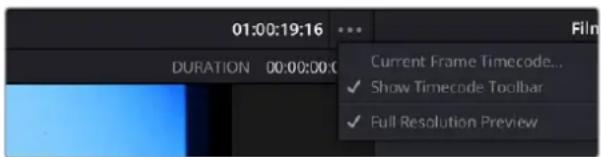
Choosing Current Frame Timecode from the Viewer Option menu
3 Enter a timecode value in the dialog box that appears. For example, if you're scanning the first roll of a project, you can enter 01:00:00:00.
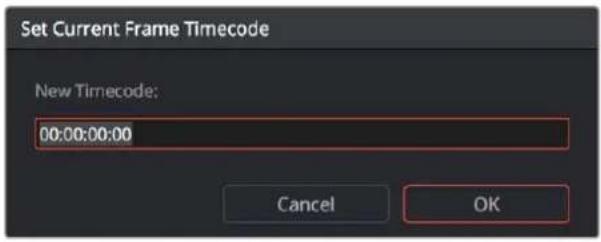
The Set Current Frame Timecode dialog
4 When you're done, click OK.
Timecode cannot be a negative value, so don't set the start frame to zero. Another common organizational technique is to change the hour number whenever you change rolls, to coincide with the film roll's number, which makes it easy to identify a scanned clip with the corresponding source roll and frame range.
Your Cintel Scanner has built in 'Options Interface' ports for adding optional hardware in the future. This offers the ability to add optional features such as reading KeyKode from the camera negative, or optical/magnetic audio. For more information, see the 'Optional Audio and KeyKode Reader' section.
Choose a Location to Save the Scanned Frames
Once all this is done, scroll down to the 'capture info' controls in DaVinci Resolve's film scanner panel, and click the 'browse' button to choose a location for the scanned files. You can use the other fields in this section to set what prefix you want to add to the name of the scanned files and enclosing folders. The 'file name prefix' updates the file name preview that's shown at the top in the header. The header also shows the file path, resolution, frame rate, duration, and the format. Specify what roll, reel, clip, and program information you want associated with the scanned media. The 'timestamp prefix' checkbox in the 'Capture info' controls is selected by default and will save your clips to independent sub-folders within the destination folder, together with a timecode prefix in the file name.
If you want to save all your clips together in one master destination folder, simply deselect the checkbox.
When you capture an HDR clip, the scanner completes a high exposure scan and saves it in a hidden folder named .HDR inside the same folder as the standard scan. If you delete the .HDR folder, the scan converts to a normal clip after refreshing it in the media storage and re-importing the clip into media pool. This is useful if there is a problem with the HDR portion of the scan, as you can easily convert it to a regular CRI clip.
Check the Codec
DaVinci Resolve selects the 'Cintel Raw' codec by default, or you can choose 'Cintel Raw 3:1'.
The Cintel Raw Format
The Cintel Raw Format Bayer pattern of each film frame scanned with your Cintel scanner's sensor is saved with embedded scanner metadata as a 12-bit linear Cintel Raw Image, or CRI, image sequence. When grading in DaVinci Resolve, CRI images are automatically debayered as 12-bit log encoded image data.
The logarithmic encoding is similar, but not identical to Cineon encoding. For example, negative film is encoded using a Gamma of 2.046 for density, while print film is encoded using a full range Gamma 2.2 curve to ensure that no image data is clipped. Both of these
logarithmic encodings can be converted to a linear color space using the 'Cintel to Linear' 1D LUT, before converting to other color spaces you may want to work in.
The film is scanned using the full sensor aperture of 4096x3072 to keep the audio waveform visible for optical audio and to accommodate perforation visibility for stabilization. The image is then cropped and the resolution of the capture files depends on the source film format after overscan for perforations and the audio area are removed. For more information about scanning resolutions for different types of film, see the 'specifications' section.
The Cintel scanner creates Cintel Raw files with variable bitrate lossless compression by default. This is visually lossless compression and achieves approximately 3:2 reduction in file size depending on image content. However, Cintel Raw 3:1 uses lossy compression with a ratio of approximately 3:1. This is still very high quality but may not always be visually lossless.
For example, files for 35mm 4 perf are approximately 12.5MB with Cintel Raw and approximately 6.3MB with Cintel Raw 3:1. Files for 16mm are approximately 4MB with Cintel Raw and approximately 2MB with Cintel Raw 3:1.
CinemaDNG Quality Settings
To control the quality of CRI files, use the 'decode quality' and 'play quality' CinemaDNG settings located in the Camera Raw panel of the project Settings. These settings are 'full' by default. On computers with low processor or memory resources, these settings may be lowered but this will affect the quality of the final render.
Set the Timeline Resolution
DaVinci Resolve displays and renders the output from the scanner using the same resolution as the timeline. For example, for 35mm 4 perforation film, a custom resolution of 4096x3072 would be required for maximum resolution.
For more information on the cropped image area resolutions for all film gauges, refer to the 'effective resolutions' in the 'specifications' section. Alternatively, for the full native resolution of the captured clip, access the 'clips attributes' in DaVinci Resolve.
Adjusting the Color of the Scanner
DaVinci Resolve's film scanner panel gives you control over the exposure and color temperature of the light used to illuminate the film for scanning. You can adjust these via the light source master wheel and RGB controls, in order to maximize the amount of information you're extracting from each frame, while preventing any part of the image from being irretrievably clipped. While it's true that CRI is a raw image format, there's no latitude beyond the internal data range used by DaVinci, so be mindful that if you're clipping data in the built in video scopes while scanning, it might be clipped permanently in the scanned media.
How often you'll adjust the color and exposure of scanned shots depends on how much variety there is in the scenes on a particular film roll. For example, some rolls may have many takes of the same scene, all of which have the same lighting and which can share the same adjustments.
Meanwhile, other rolls may have a variety of different scenes with widely different lighting in each one, necessitating you to make individual adjustments for each scanned clip to maximize data quality.
This is important because the light source master wheel and RGB controls cannot be automatically changed between scanned clips in a log and capture workflow. This means that the current light source settings will be used for all clips you scan until you manually change those settings again, even for clips that you've logged from different parts of a film roll. This means that the log and capture style of working is only advisable in situations where it makes sense to log multiple clips that share the same light source master wheel and RGB control adjustments.
Otherwise, it's recommended you make lighting adjustments on a clip by clip basis, as you scan each clip, in situations where you need maximum image quality for finishing. Keep in mind that the goal for these adjustments is to maximize image data from the scan, not to create the final look of the clips, which you'll accomplish later in the grading phase of work using the controls of the 'color' page.
To adjust the light source settings, find a typical image for the section of roll or for the first series of shots you're going to scan, and adjust the light source while viewing the built in video scopes.
Adjust the light source master wheel to set the intensity of the light source used to illuminate the film, raising or lowering the level of the R, G, and B channels all at once. For a typical camera negative, this lets you adjust the black point of the film image. In a negative print, the darkest part of the image corresponds to the highlights of the film image. Set the light source master wheel to sit just above the typical Dmin value of 95, as measured on the histogram of the video scopes, which guarantees that the highlights won't be clipped by the Cineon LOG conversion that DaVinci uses to debayer the CRI image for grading. For positive film, simply adjust light source so that no part of the highlights or shadows of the signal is being clipped.
You can turn on 'show reference levels' in the waveform, RGB parade, or histogram scopes, and set the 'low' value to indicate the digital Dmin value of 95.
Once that's accomplished, adjust the RGB controls to rebalance all three color channels by varying amounts to alter the color temperature of the light source used to illuminate the film, to produce the most useful, or neutral, color balance in the scanned result.
Scanning One or More Sections of Film
After you've adjusted the light source, it's a good idea to stay organized as you scan each clip by entering all relevant metadata into the metadata editor as you go. The 'capture info' group of metadata fields contains information for defining the file name prefix, roll, reel number, clip number, program name, flags, and whether a particular take is good. If you populate these fields before scanning a clip, that metadata will be written into the clip.
At the bottom of the 'capture info' panel, you will see four buttons for film scanning.
With all of this accomplished, you can scan the film in one of four ways:
- Capture Now: Use the capture now button to capture long sections of a reel all at once. Clicking 'capture now' begins scanning near the current frame, ending whenever you click 'stop'.
If 'Enable 2 Pass HDR Scan' is selected, click 'Capture HDR' after the capture has begun to let DaVinci Resolve know you've reached the end of your desired clip so it can now proceed to capture the high exposure pass. If you scan the entire reel without clicking 'Capture HDR', the scanner automatically proceeds with the high intensity scan from where you started it until the end of the reel.
- Capture Clip: A more controlled means of scanning specific sections of film. After you've used the transport controls and the In and Out button to define a section of film, clicking 'capture clip' scans that one clip and then stops.
If 'Enable 2 Pass HDR Scan' is selected, the high intensity HDR scan uses the same In and Out points as the initial scan.
- Batch Clips: A way you can log multiple clips in advance of scanning them all at once using the current light source settings in DaVinci Resolve's film scanner panel. Log each clip in advance by setting In and Out points for each section of film you want to scan, and click the 'log clip' button to save that frame range as an unscanned clip in the media pool. When you click 'batch clips', all unscanned clips will be scanned one after the other until the job is complete. You can also select one or more unscanned clips, and only the selected clips will be scanned. Furthermore, you can import an EDL that corresponds to a particular film roll, and use the resulting logged clips for scanning.
NOTE: When you click the 'log clip' button, Cintel Scanner applies the same project settings to all clips in the batch, and uses the newest project settings at the time of capture. You are advised to confirm the scanner settings before starting the batch capture.
If 'Enable 2 Pass HDR Scan' is selected, the high intensity HDR scan uses the same sets of In and Out points as the initial batch of scans.
For more information on batch capture workflows, see Chapter 24, "Ingesting From Tape."
- Snapshot: Capture a single frame with normal exposure and current scanner settings.
Once scanning, if DaVinci Resolve detects that your storage bandwidth is too low to capture at the selected speed, the scan speed will automatically adjust to ensure the capture is successful. If you are using the optional Audio and KeyKode Reader accessory, the audio sample rate will also be adjusted to maintain your chosen audio quality.
Extracting Audio
If the film you're scanning also contains an optical sound track, you can extract the audio in a separate step. There is a standard image frame to audio frame offset of 26 frames for 16mm and 21 frames for 35mm that DaVinci automatically aligns when extracting the audio. Select all of the clips that have an optical sound track, then right-click one of the selected clips and choose 'extract audio'. Resolve analyzes the overlapping optical track area of each frame and automatically generates a matching audio track, synchronized with the scanned image sequence.
Each clip's audio will be automatically extracted, embedded in the clip and saved to the same directory the scanned frames have been written to. A small audio icon will appear on the corner of your clip's thumbnail so you know there is a corresponding audio file.
To make extraction easier, you can filter the clips in the media storage by name, resolution, date modified or by film clips only. Filtering your clips makes it easier for you to find and select exactly what you need. You can also make a large selection and extract audio from multiple clips at once by right clicking on your selection and choosing 'extract audio...' from the menu. During audio extraction, an information box indicates the progress. You can click the 'stop' button any time to stop the extraction.
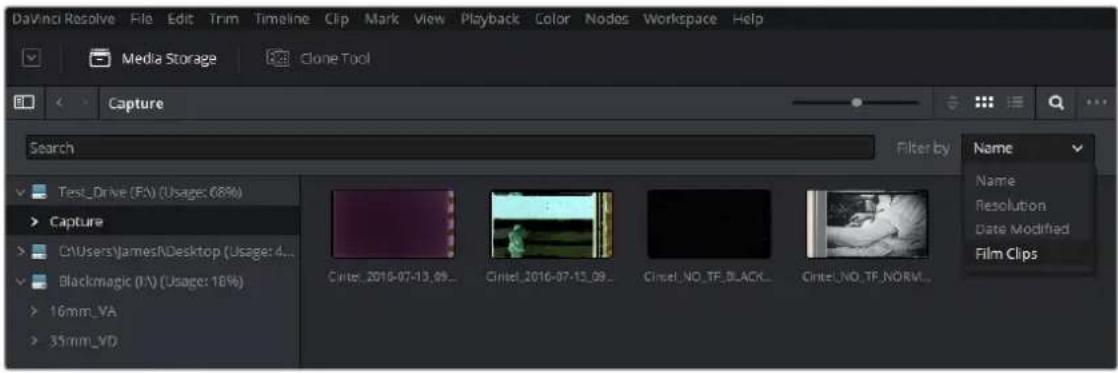
You can filter the contents in the media storage to make it easier to manage them.
If the 'timestamp prefix' checkbox was deselected in the 'capture info' section when your clips were scanned, and you want to have extracted audio automatically embedded in your clips, always remember to extract audio from the clips inside the media pool.
Audio Extraction Settings
Normally, once you have selected the film type, the automatic features in DaVinci Resolve will extract your optical audio perfectly. However, the condition of the optical track can vary with the condition of the film being loaded and in some instances this can confuse the automation. If this happens, you can bypass the automatic features and make adjustments manually.
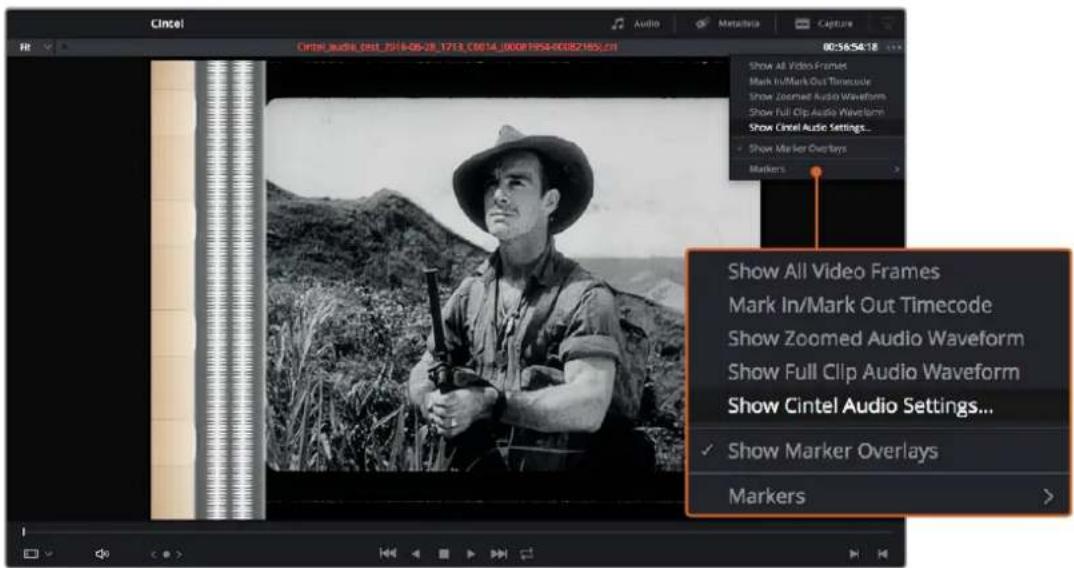
For manual adjustments, simply open the 'Audio Extraction' settings window by clicking on 'Show Cintel Audio Settings' in the inspector options near the top right of the viewer.
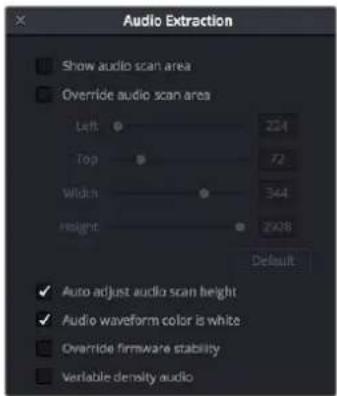
The Audio Extraction settings let you make manual adjustments, if needed.
Audio extraction settings let you make the following manual adjustments:
Show audio scan area
This checkbox turns the audio scan area guides on or off. The guides are displayed as a box on the side of the frame covering the optical audio scan area and shows what optical information will be used during extraction. The position of the guides will conform to the film type you have selected. However, you can change the position manually if you need to. The audio scan area guides are also great indicators to show you what is happening during the extraction process so you can identify any potential troubles and make manual adjustments.
Inside the box is a thin red line. This line is the mid point detector which detects the separation between stereo audio channels. When mono sound is detected during audio extraction, the mid point detector disappears and the guides will adjust automatically to suit the width of the mono optical track.
TIP If you need a closer inspection of the audio scan area guides, you can zoom into the viewer and move the viewer position up or down, and left or right. Simply choose the amount of zoom from the sizing options at the top left corner of the viewer, then click and drag the viewer with your mouse or track pad.
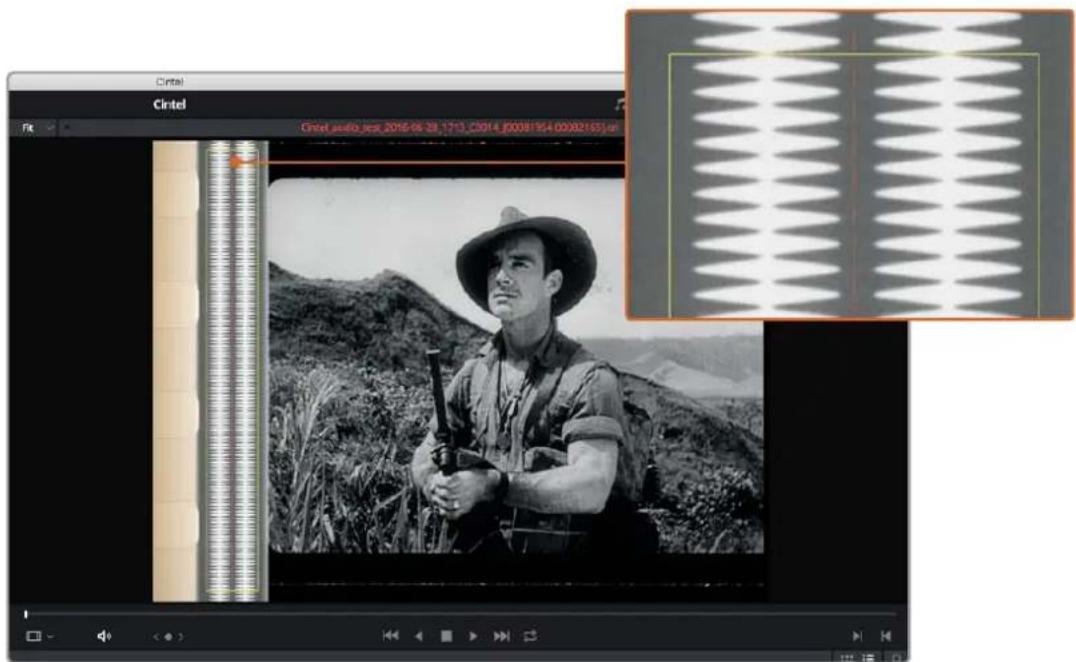
When 'show audio scan area' setting is turned on, the audio area guides will be visible so you can see exactly what information is being used and monitor the extraction process.
Override audio scan area
This setting provides sliders for adjusting the horizontal and vertical positioning, width, and height of the audio scan area guides.
These settings include:
- Left and Width: If your film type is such that audio appears on the right side of the frame, you can simply adjust the 'left' slider to move the guide box to the right. Normally, this will happen automatically if you have the corresponding film type selected, but the setting gives you more flexibility for adjustments if you need it. Similarly, the 'width' setting is used to adjust the width of the scan area.
These are helpful tools for making subtle adjustments to the side edges of the guide box if there are unwanted elements inside the film's optical audio area. This can happen due to perforation wear and tear, or varying print qualities, and can sometimes interfere with the quality of the audio extraction. You can help avoid this by making a subtle movement to the side edges to keep the stray elements outside of the guide box.
- Top: This setting adjusts the vertical position of the guide box.
- Height: Sometimes film frames on older rolls of film may be slightly smaller than normal due to shrinkage over time. When making manual adjustments to the guide box, you can make adjustments for film shrinkage using the 'height' slider.
- Auto adjust audio scan height: This setting is on by default and automatically adjusts the guide box height to align with the audio waveform at the top of each frame. The automatic feature works well for normal audio conditions, however, if during extraction you notice the box moving randomly and the quality of the extraction is affected, it may be due to similar features in the audio track overlapping between frames. If this occurs, deselect the checkbox and try the extraction again.
If deselecting the 'Auto adjust audio scan height' checkbox, make sure the 'height' setting places the guide box at the optimal position for the frame. Making manual adjustments can help if you need them, but don't forget to turn the automatic features back on afterwards!
- Audio waveform color is white: Depending on the scanned film type, the audio waveform may be black or white. If the waveform is white, make sure the corresponding checkbox is enabled. This will ensure the white information in the waveform is used during audio extraction. If the waveform is black and the surrounding audio area is white, disable the checkbox so DaVinci knows to use the black information in the waveform. Other automatic features, such as mid point and mono detection, also rely on this setting being set correctly.
- Override firmware stability: In rare instances, the condition of the film may have created large movements in the frame due to the internal firmware stabilization. This can cause the audio extraction guide box to misalign with the optical track. If this occurs, enabling 'override firmware stability' lets the audio extraction guide box track the film perforations independently and adjust its positioning for potentially better results.
- Variable density audio: If your film contains variable density audio, make sure you select the 'Variable density audio' checkbox so DaVinci Resolve knows the type of audio to extract. The default state is set to 'off' for variable area audio soundtracks.
If you haven't used variable density audio before, you can visually identify it as a tight sequence of shaded lines, similar to a bar code with the lines squeezed closer together. By comparison, 'variable area' soundtracks appear as an audio waveform.
Color Space and Sizing
A pair of 1D LUTs, 'Cintel Negative to Linear,' and 'Cintel Print to Linear,' have been provided to help you convert scanned media to a color space in which you can do further work. You can apply these LUTs via a node in the 'color' page to convert the original scans to a Linear color space. However, if you want to convert the image to Rec. 709 or to Cineon for further adjustment, you'll want to apply a second LUT in a second node. The default color space for print is a 2.2 gamma standard log curve, and all others are 2.046 film density log gamma.
In general for negative film, it's best to "color invert" after the second LUT is applied. Furthermore, normally some grading is required on the Linear data to remove black offsets, due to Dmin, for proper conversion into the destination color space. There are a variety of VFX IO LUTs available in the 3D LUT submenu of each node's contextual menu that let you convert an image from Linear color space to any other color space you want to work within.
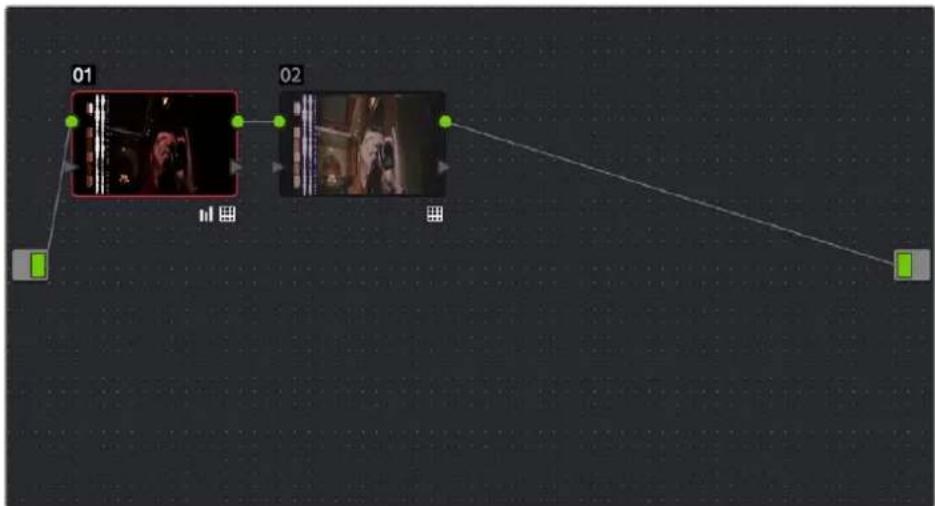
flowchart
graph TD
    A["01"] --> B["Image 1"]
    B --> C["02"]
    C --> D["Output Path"]
    style A fill:#f9f,stroke:#333
    style D fill:#bbf,stroke:#333
Using three nodes to convert a film scan using LUTs; node 1 converts from Negative or Print to Linear, node 2 converts from Linear to Rec. 709, and node 3, if required, inverts the color
Applying a LUT within a node will clip any image data falling below 0 and above 1. To prevent clipping, you can use the Lift/Gamma/Gain controls within any node with a LUT applied to adjust your image levels prior to the transform applied by the LUT within that node.
The format of the film you're scanning and the way the material was originally shot both affect the framing. You can adjust the final framing of your scanned clip by resizing, zooming, stretching, panning, tilting, and more. On the 'color' page, open the 'sizing' palette and use the 'input sizing' mode to create the necessary framing. To save your sizing preferences as a preset, open the menu, select 'save as new preset' and enter a name for your preset.
Once you've created an appropriate sizing preset for a given type of media, you can apply that preset to multiple film scans all at once, in either the color page or in the media pool using the 'change input sizing preset' command, found in the contextual menu of selected clips. For more information on sizing, see Chapter 149, "Sizing and Image Stabilization."
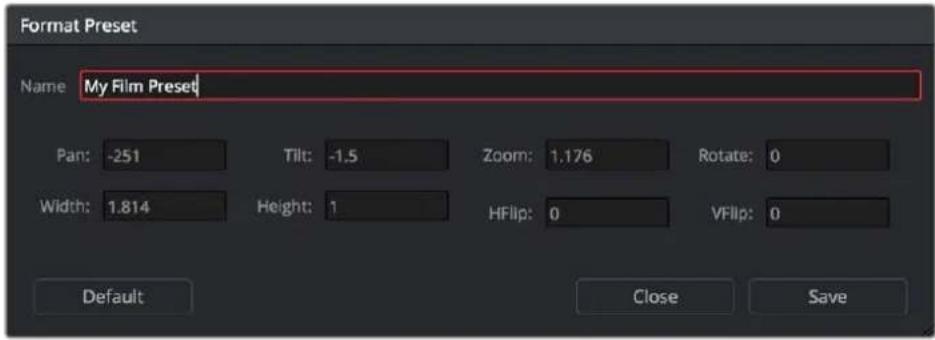
Creating a sizing preset in the Sizing palette of the Color page
PART 4
The Cut Page
natural_image
Colorful abstract logo with three petal shapes inside a circular frame (no text or symbols)Chapter 26
Using the Cut Page
The Cut page is a focused environment for fast editing. It's useful in situations where you need to quickly cut a news segment, build an episode of web content, edit a straightforward program, experiment with multiple arrangements of a scene, or put together a first assembly edit.
The Cut page is also a good introductory editing interface for people who are new to editing, as it presents a streamlined set of tools that are fast to learn and simple to use. Whatever your background, you'll find the Cut page to be a valuable addition to your editing experience in DaVinci Resolve.
Contents
Overview of the Cut Page 420
Overview of the Cut Page User Interface 420
Customizing the UI 420
Choose Settings Before You Start 421
Timeline Resolution Quick Menu 421
The Media Pool 422
The Viewer 423
Playing Clips and Navigating the Timeline 424
Tools 424
Bypass Color Grades and Fusion 425
Audio Meter 425
The Timeline 426
Upper Timeline 426
Lower Timeline 426
Tracks 427
Gaps 429
Timeline Controls 429
Undo and Redo in DaVinci Resolve 430
Overview of the Cut Page
With the addition of the Cut page, DaVinci Resolve now has two editing environments, intended for two different audiences. While the Cut and Edit pages share many of the same panels such as the Media Pool, the Timeline, and the Viewer, the controls that are exposed on the Cut page have been designed for speed, so you can cut professional programs faster than you've ever been able to before.
Overview of the Cut Page User Interface
The default workspace of the Cut page consists of the Media Pool, a single Viewer, and the Timeline area. These three regions let you quickly import and organize clips, edit clips, and even export the result, all from within the Cut page.
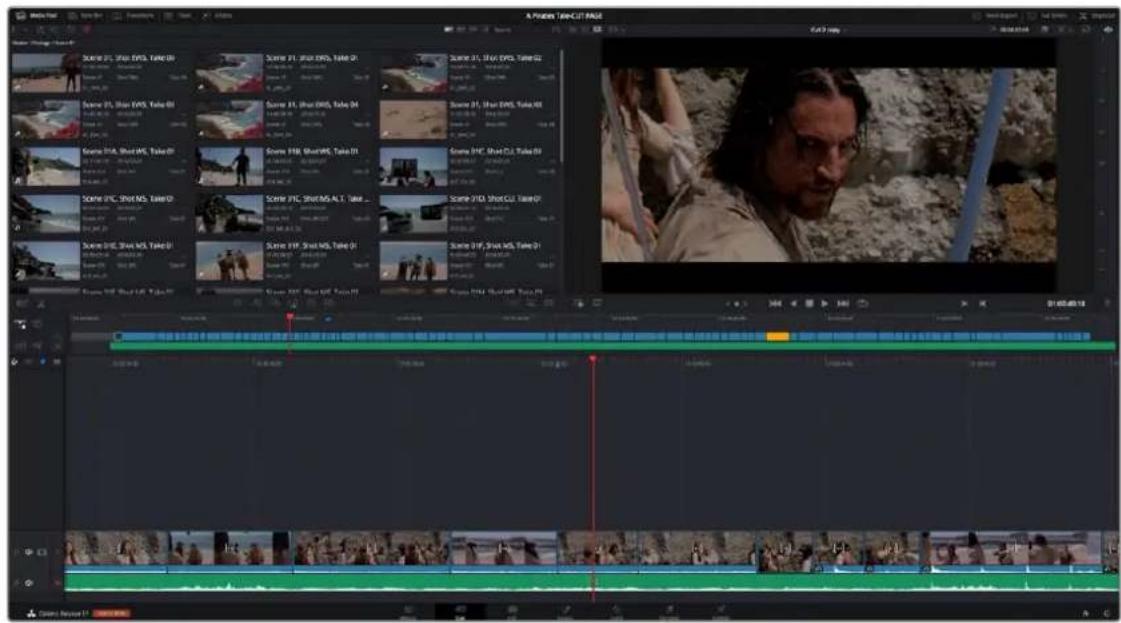
The Cut page default workspace, with the Media Pool in Metadata view
Customizing the UI
A User Interface toolbar at the top of the Cut page lets you hide and show different panels as necessary. For example, you can hide the Media Pool if you wanted more room for the Viewer. You can also replace the Media Pool with other browsers in the Media Pool's default area, showing the Sync Bin, Transitions, Titles, or Effects Browser in order to add those effects to your program in the Timeline. On the right side of the User Interface toolbar you can perform a Quick Export, expand the Viewer to Full Screen, or open the Inspector.

Separate buttons on the left let you open the Media Pool, Sync Bin, Transitions, Tilles, and Effects browser.
You can resize the Media Pool and Viewer by dragging the vertical seam that connects them to the left or right, in the process making one panel bigger and the neighboring panel smaller.
The Viewer resize handle
You can also resize the Timeline area by dragging the timeline handle (at the upper right corner of the Timeline) up or down, making more or less room for the Timeline while simultaneously resizing the Media Pool and Viewer areas.
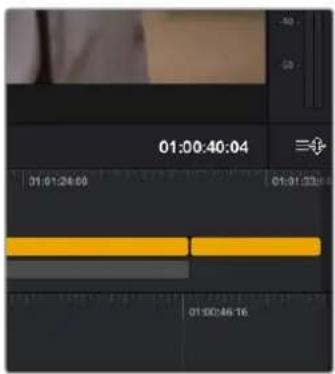
The Timeline resize handle
Choose Settings Before You Start
When you first create a new project, you need to define its Timeline settings; you can optionally choose from common presets or a fully custom setup.
Timeline Resolution Quick Menu
This drop-down menu, to the top-right of the Viewer, lets you quickly choose which resolution you want to work at. A Custom option lets you open up the Timeline Settings panel in order to choose your own options. For more information about the Timeline Settings, see Chapter 6, "Project Settings."
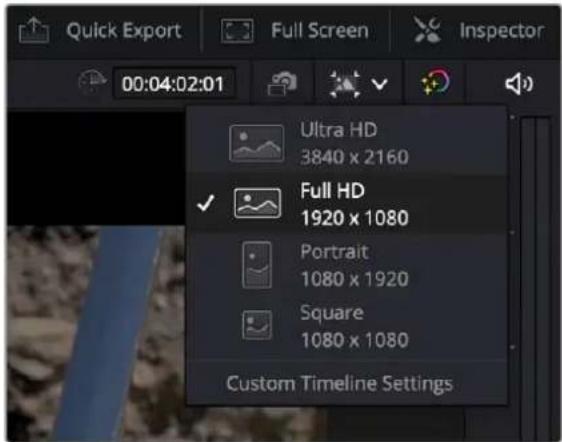
The Project Settings quick menu
The Media Pool
The Media Pool contains all video clips, audio clips, graphics, and other media that you import into your project. You can create bins with which to organize all of this media, to make it easier to find what you need quickly. These bins are opened via the bin drop-down at the upper left-hand corner.
Each piece of media you import, whether it's video, audio, or graphics, appears as an individual clip and can be selected, scrubbed for fast viewing, reorganized into bins, opened into the Viewer for playback, or edited into a timeline using the edit buttons or via drag and drop.
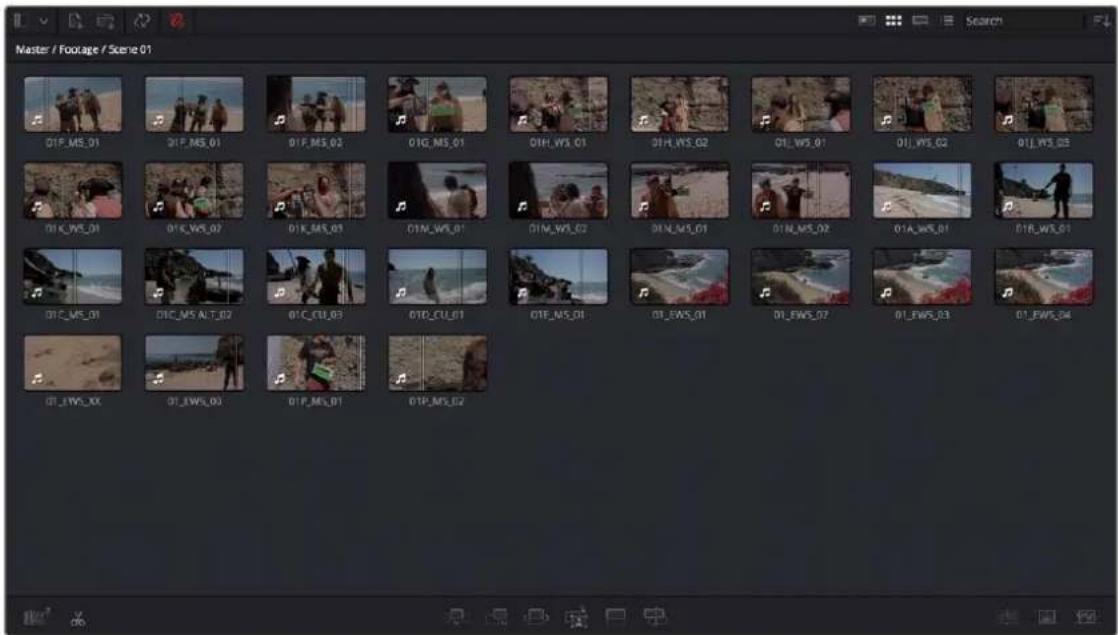
The Media Pool in Thumbnail view
Three buttons at the upper right of the Media Pool let you see your clips in different ways, depending on what you need to accomplish.
The Viewing Modes buttons
- Metadata view: Each clip is represented by its own card with a scrubbable thumbnail and basic clip metadata information visible. This view is designed to have more metadata information than a thumbnail view but more targeted information than the List view.
- Thumbnail view: Each clip is represented by a scrubbable thumbnail. Hover the playhead over each thumbnail and move it left and right to see the clip's image play, and use the I and O keys to mark sections of a clip that you want to use. Clicking on the lower right corner of a thumbnail reveals the clip's metadata.
- Filmstrip view: Each clip is represented by a filmstrip of consecutive frames the length of the Media Pool. Hover the playhead over the clip and move it left and right to see the clip's image play, and use the I and O keys to mark sections of a clip that you want to use.
- List view: Each clip appears as an item in a multi-column list showing a variety of metadata about each clip. In List view, you can click the header of any column to sort the contents by that column's information (clicking again toggles the sort order between Ascending and Descending). Scrolling right reveals additional columns of information.
A Sort Media By drop-down menu lets you choose which criteria defines the order in which clips in the Media Pool are arranged. Options include: Bin, Timecode, Camera, Date Time, Clip Name, Scene Shot, Clip Color, Date Modified and Date Imported, and you can choose to sort in Ascending (bottom to top) or Descending (top to bottom) order.
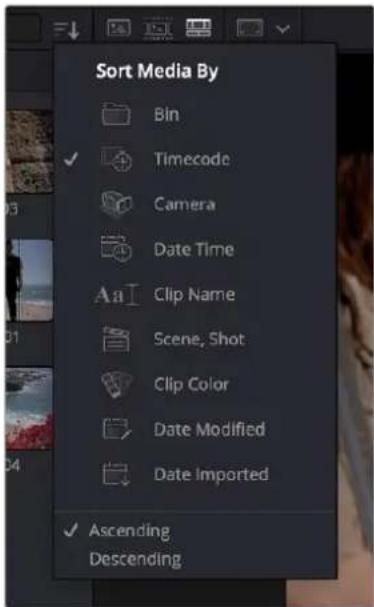
The Sort Media By drop-down menu
Lastly, a search field lets you type a term you want to use to find one or more clips that match that criteria. When you type anything, the contents of the Media Pool shrink to show only clips that match your criteria.
The Viewer
The Viewer lets you see clips from the Media Pool, or clips in the Timeline, and has numerous controls to control what you see and how things play.
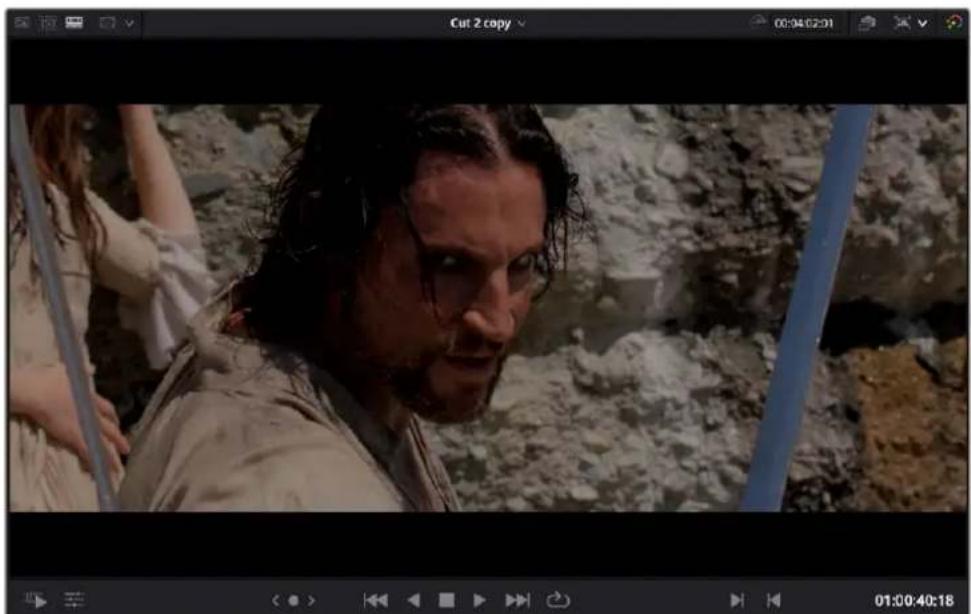
natural_image
Movie still from Cut 2 showing a man in a rocky outdoor setting with water and debris (no visible text or symbols)The single Viewer in the Cut page
The Viewer has four mode options. Which option is currently in use can be seen, and switched, by four buttons in the upper lefthand corner of the Viewer.
The Viewer modes buttons
The Different options are entered automatically by various actions (from left to right):
- You can double-click any clip to open it into the Viewer as a Source Clip.
- You can view an entire bin full of clips in the Source Tape.
- You can play your edited program in the Timeline.
- You can select various framing guides and safe areas for the Viewer.
Playing Clips and Navigating the Timeline
Eight controls sit at the bottom of the Viewer. These let you play through and otherwise navigate clips and the Timeline in different ways. These controls are described from left to right.

The toolbar at the bottom of the Viewer
- Fast Review button: Intended to help you watch through a large collection of media quickly, clicking this button begins accelerated playback through the Source Tape or through the Timeline, where the speed of playback is relative to the length of each clip you're playing through. Long clips play faster, whereas shorter clips play closer to real time. In this way, you can watch a lot of material really quickly.
- Tools button: The Tools button reveals a variety of controls for transform, crop, audio, speed effects, camera stabilization and lens correction, dynamic zoom, and compositing, covered in more detail later in this chapter.
- Jog control: Clicking and dragging within the jog control lets you scrub very precisely through the content of the Viewer.
- Transport controls: A set of Previous Edit (Up Arrow), Stop (Spacebar), Play (Spacebar), Next Edit (Down Arrow), and Loop Playback (Command-/) buttons constitute clickable controls for controlling playback of clips and the Timeline. Each button has a matching keyboard shortcut.
- Mark In/Out: Clickable controls to set In and Out points respectively.
- Playhead timecode: A number field shows you the timecode value at the playhead of a clip or of the Timeline to give you a numeric reference for where you are.
Tools
Clicking the Tools button reveals a toolbar that you can use to add and edit clip effects, right within the Viewer with no Inspector needed. The Tools button reveals a variety of controls for transform, crop, audio, speed effects, camera stabilization and lens correction, dynamic zoom, and compositing, covered in more detail later in this chapter.

The Tools bar shown opened
Bypass Color Grades and Fusion
The Bypass Color Grades and Fusion Effects button/drop-down lets you turn off all grades and effects that you may have applied in the Color page and/or Fusion page in order to improve playback performance on low power computers. Click the button (Shift-D) to disable or reenable grading and effects, or right-click this button to access a menu that lets you choose which things you want this button to control.
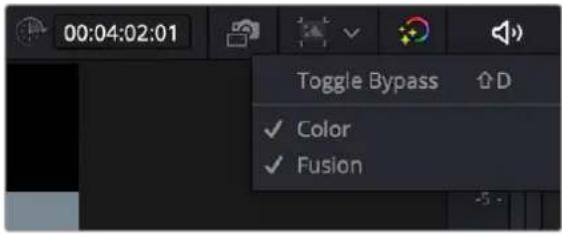
The Bypass Grades and Fusion button, shown being right-clicked to view its options
Audio Meter
An audio meter to the right of the Viewer shows you a graphical representation of the audio levels playing in the current clip or in the Timeline as you play through the Viewer, via animated vertical bars that are tinted to indicate how loud the levels are:
– Green indicates safe levels
– Yellow indicates levels that are peaking at approximately safe levels
- Red indicates levels that may be peaking at levels that are too high, risking clipping the signal and causing distortion
These animated bars serve as a visual reference you can use to help you adjust the volume of different clips to create a pleasing balance, and to make sure you don't exceed the maximum desired level and introduce clipping. A speaker button at the top of the meters lets you mute or unmute audio playback.

The Audio Meter showing an audio signal
The Timeline
The word “timeline” refers both to an edited sequence of clips, which constitutes a program that is stored in the Media Pool, and to the area of the Cut page interface where you can open this sequence of clips to see its contents, and for playback and editing.
Timelines are created and stored in the Media Pool, along with all of your other clips. However, each timeline is assembled and edited in what is sometimes referred to as the Timeline Editor. Different pages of DaVinci Resolve show your timeline differently according to the special requirements of each page focusing variously on different methods of editing, grading, compositing, and audio. However, while the interface of the Timeline Editor changes from page to page, the actual contents of the Timeline are identical, because each page's Timeline Editor is in fact showing the exact same Timeline that is currently open. This means that the advanced user can use every page of DaVinci to do different things to the same Timeline, with only the interface changing to make different functions possible in different pages.
For the Cut page user, the Timeline is divided into an Upper Timeline at the top, and a larger and more detailed Timeline Editor showing a zoomed in portion of the Timeline around the playhead at the bottom. Working together, these two views of your edited sequence make it possible to navigate your entire project and cut in great detail.

The Timeline of the Cut page, comprising the Upper Timeline and the zoomed in Timeline
Upper Timeline
The Upper Timeline always shows the entire program within the full width of your computer's display. The Upper Timeline's playhead is always free, which makes it easy to use your pointer to scroll around the entire program by dragging within the Timeline Ruler at top. This also serves as a visual reference for keeping track of where you are in your program while you're editing within the zoomed-in Lower Timeline below.
Despite the Upper Timeline's relatively small size, you can still edit in it, with most editing and trimming functions that are available in the Lower Timeline also available in the Upper Timeline. Most interestingly, it's also possible to drag clips from one part of your program in the Lower Timeline, to another area of your program in the Upper Timeline, and vice versa.
A set of small numbers to the left of the Upper Timeline lets you click a number to choose the currently selected track; this selection is mirrored on the zoomed in timeline below. The currently selected track affects where incoming clips will be placed when editing, among other things.
Lower Timeline
The zoomed in Lower Timeline (often referred to simply as “the Timeline”) shows you a close-up view of the portion of the currently open timeline that immediately surrounds the playhead. The zoom level is fixed; you cannot change it. The zoomed-in lower timeline is intended for detailed editing, but clips can be dragged between the Timeline and Upper Timeline for fast reordering of clips across the entire duration of your program.
Locked or Free Playhead
A pair of buttons at the upper left-hand corner of the Timeline lets you choose whether you use a locked or free playhead.
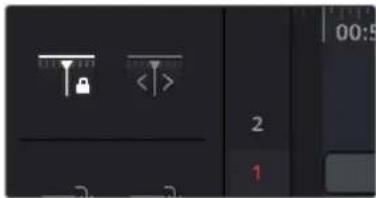
Two buttons let you choose to use a locked or free playhead.
- When set to locked, the playhead is fixed in the center of the Timeline, and your edited clips scroll past it as you play (press the Spacebar), jog, or shuttle (use the JKL keys) in either direction. Locked mode works great when you use the DaVinci Resolve Editor Keyboard. You can also scroll the Timeline using your pointer by dragging the Timeline Ruler at the top to the left or right, which also drags all of your clips to the left or right.
- When set to free, the playhead moves across the clips as you play (press the Spacebar), jog, or shuttle (use the JKL keys) in either direction; the clips stay still. Once the playhead gets to the right or left edge of the Timeline, the Timeline pages over to reveal the next part of your edit. You can also move the playhead by clicking in the Timeline Ruler to jump the playhead to that frame, or by positioning the pointer over the playhead's top handle, or over the playhead itself, and dragging the playhead wherever you want it to go.
Tracks
The Timeline is divided into multiple tracks, with each track capable of holding a sequence of clips in order to create a program. The main tracks, which are labeled numerically, combine a clip's video and audio into a single item in the Timeline, for simplicity. Editing the In or Out point of a clip edits the video and audio together.
![2 1 [sp]](/content/2026/05/760192/images/619405e4c13163cb62c6b1f200820edbcb27fa318f0679ab38a11506ee6e00a1.jpg)
Track 1 shows combined Video+Audio tracks in the Cut page Timeline.
TIP: In the Edit page, Video+Audio clips are presented as separated Video and Audio items on different tracks. When you open the Fairlight page, audio is presented on tracks with lanes, where each audio channel can be seen. In this way, each page gives you different sets of controls over the contents of the Timeline that are appropriate for each page.
Track Header Controls
Separate Lock Track, Audio Mute, and Video Enable buttons in each track's timeline header let you separately Lock and enable or disable the audio and/or video of every clip on that track.
Controls to enable/disable/mute
Video and Audio on a track
The Importance of Track 1
Each track in the Timeline of the Cut page is designed to carry specific parts of your program. Track 1 is intended for the primary video+audio of your program, often called the "A-roll," since these are the primary shots comprising the timing and pacing of the story you're telling. Adding, deleting, inserting, trimming, or otherwise rearranging clips on Track 1 results in the rest of the edited timeline being automatically rippled to accommodate the change you've made, with clips to the right of the changed area moving left to fill the gap of a deleted or shortened clips, or moving right to make room for an inserted or lengthened clip.
Tracks 2 and Above
Tracks 2 and above are intended for "B-roll," which is additional footage you stack on top of other clips in Track 1 to illustrate what someone is saying in the audio of Track 1, or for superimpositions used for compositing effects that combine two images together in creative ways. Moving or resizing clips on Track 2 and above only moves or resizes that one clip; other clips in the Timeline are not rearranged and the Timeline is not rippled when you do this.
For instances where multiple video clips overlap one another on multiple tracks, the video clip on the highest track obscures those on lower tracks, meaning that only the top clips appear during playback. This is useful when you're experimenting with rearranging multiple clips in a complex scene.
For example, you could be editing a scene where an interview clip is on the bottom track, and various b-roll clips are edited on tracks above the interview so you can freely rearrange them in different ways, while it's always easy to reveal the speaker on the bottom track by leaving a gap in the superimposed b-roll clips.
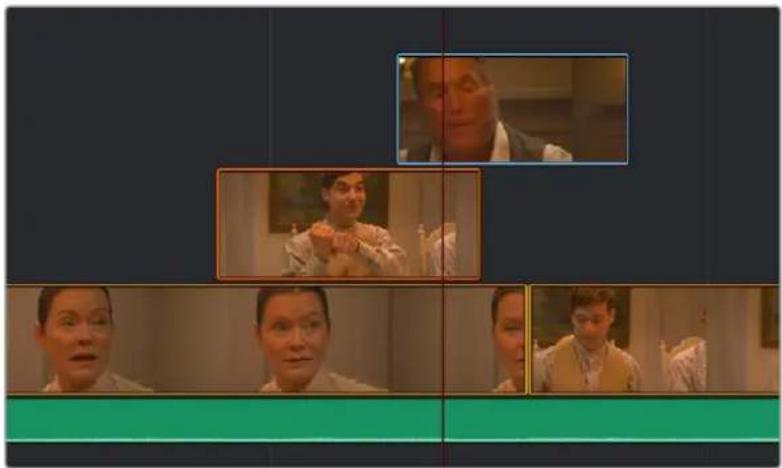
natural_image
Sequence of five individuals in a studio setting, each with a close-up view from the camera (no visible text or symbols)Editing a scene with multiple superimposed clips
However, if you superimpose video-only or video+audio clips for compositing, you can use the composite modes and the opacity slider found in the Composite section of the Viewer Tools controls to mix multiple images together in different ways for artistic effects.
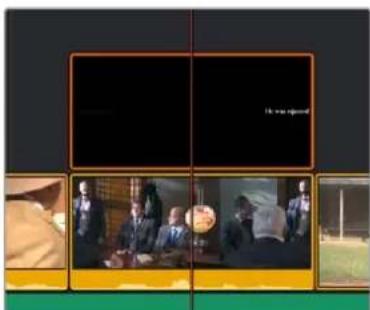
(Left) Superimposing clips you want to composite, (Right) Creating compositing effects with multiple superimposed clips
You can add additional Video+Audio tracks, when necessary, by either dragging a clip to the undefined gray area of the Timeline above the other existing tracks to make a new track automatically, by clicking the New Track button at the upper lefthand corner of the Timeline, or by right-clicking in the timeline header area and choosing "Add Video Track" from the contextual menu.
Audio-Only Tracks
You can also edit audio-only clips such as music, narration, or sound effects, onto separate audio-only tracks underneath, which are then labeled A1, A2, A3, etcetera. If you drag an audio clip to the undefined gray area of the Timeline below the other existing tracks, an audio-only track will automatically be created.
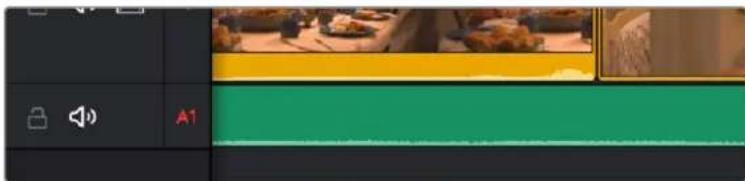
Audio-only tracks in the Cut page Timeline
Gaps
Because Track 1 is meant to hold the principal clips for your program, the Timeline automatically rearranges itself to close gaps that would otherwise result when you move or rearrange clips in Track 1, and superimposed clips in Tracks 2 and above move to keep in sync with the clips they're superimposed over. However, you can move superimposed clips on Tracks 2 and above to place them wherever you want, and gaps will be left between multiple clips on the same superimposed track so they can be edited at specific places.
Timeline Controls
Other buttons at the upper lefthand corner of the Timeline let you enable/disable Snapping that helps you align clips you're dragging in the Timeline with one another, toggle for an enhanced audio trim mode, create Markers that let you keep track of important frames of the Timeline, and add new tracks to the Timeline.
natural_image
User interface toolbar with icons for download, audio, and playback (no text or symbols)The Cut page Timeline controls
Undo and Redo in DaVinci Resolve
No matter where you are in DaVinci Resolve, Undo and Redo commands let you back out of steps you've taken or commands you've executed, and reapply them if you change your mind.
DaVinci Resolve is capable of undoing the entire history of things you've done since creating or opening a particular project. When you close a project, its entire undo history is purged. The next time you begin work on a project, its undo history starts anew.
Because DaVinci Resolve integrates so much functionality in one application, there are three separate sets of undo "stacks" to help you manage your work.
– The Media, Edit and Fairlight pages share the same multiple-undo stack, which lets you backtrack out of changes made in the Media Pool, the Timeline, the Metadata Editor, and the Viewers.
– Each clip in the Fusion page has its own undo stack, so you can undo changes you make to the composition of each clip, independently.
– Each clip in the Color page has its own undo stack, so you can undo changes you make to grades in each clip, independently.
In all cases, there is no practical limit to the number of steps that are undoable (although there may be a limit to what you can remember). To take advantage of this, there are three ways you can undo work to go to a previous state of your project, no matter what page you're in.
To simply undo or redo changes you've made one at a time:
- Choose Edit > Undo (Command-Z) to undo the previous change.
- Choose Edit > Redo (Shift-Command-Z) to redo to the next change.
- On the DaVinci control panel, press the UNDO and REDO buttons on the T-bar panel.
You can also undo several steps at a time using the History submenu and window. At the time of this writing, this only works for multiple undo steps in the Media, Cut, Edit, and Fairlight pages.
To undo and redo using the History submenu:
1 Open the Edit > History submenu, which shows (up to) the last twenty things you've done.
2 Choose an item on the list to undo back to that point. The most recent thing you've done appears at the top of this list, and the change you've just made appears with a check next to it. Steps that have been undone but that can still be redone remain in this menu, so you can see what's possible. However, if you've undone several changes at once and then you make a new change, you cannot undo any more and those steps disappear from the menu.
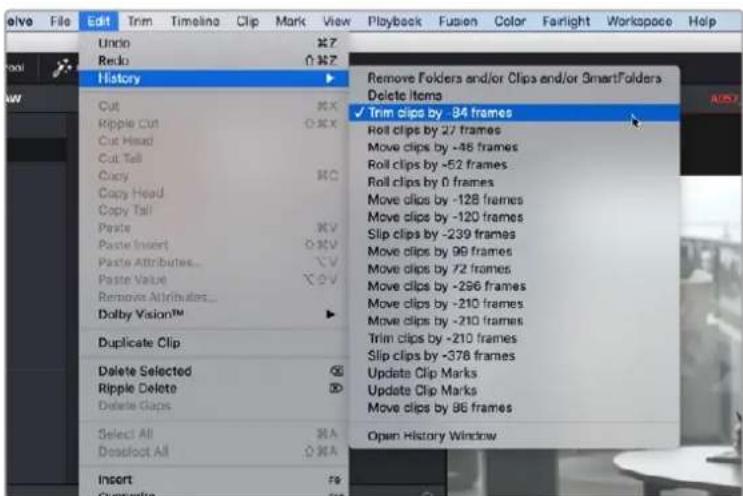
The History submenu, which lets you undo several steps at once
Once you've selected a step to undo to, the menu closes and the project updates to show you its current state.
To undo and redo using the History window:
1 Choose Edit > History > Open History Window.
2 When the History dialog appears, click an item on the list to undo back to that point. Unlike the menu, in this window the most recent thing you've done appears at the bottom of this list. Selecting a change here grays out changes that can still be redone, as the project updates to show you its current state.
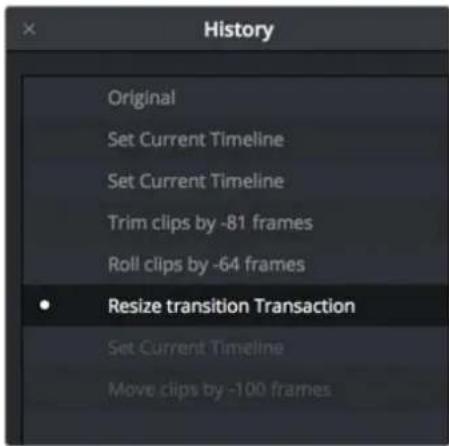
The Undo history window that lets you browse the entire available undo stack of the current page.
3 When you're done, close the History window.
Chapter 27
Importing and Organizing Media in the Cut Page
Before you can start editing, you need to import the clips you want to use for your program into the Media Pool, which is the central repository of clips in your project. This can include video, audio, and graphics files in any format that's supported by DaVinci Resolve.
Once imported, the Media Pool on the Cut page has many organizational tools you can use to make your project's media faster for you to access and sort through as you find the clips you need to create your program.
Contents
Importing Media 433
Removing Media 434
Organizing Media into Bins 434
Master Bin 434
Creating and Using Bins 434
Opening Bins 435
Create Bin With Selected Clips 435
Renaming Bins 435
Import and Export Specific DaVinci Resolve Project Bins 435
Import and Export Individual DaVinci Resolve Timelines 436
ATEM Switcher Integration 437
Importing ATEM Mini Pro ISO Projects 437
Relinking Blackmagic Camera Masters to ATEM ISOs 438
Media Pool Views 439
Metadata View 439
Thumbnail View 441
Filmstrip View 442
List View 442
Sorting and Searching 443
Searching 443
Navigable Clip Paths 443
Sort Media By 443
Finding Timeline Clips in the Media Pool 444
Clip Color 444
Generate Optimized Media 445
Relinking Media 446
Relink Media 446
Relink Selected Clips 446
Importing Media
Two Import buttons at the top of the Media Pool let you use import dialogs to select media you want to bring into the Media Pool for use in your project.
The Import Media and Import Folder buttons
To import individual clips:
1 Do one of the following:
a. Click the Import Media button.
b. Press Command-I.
c. Right-click the Media Pool and choose Import Media.
2 Use the Import dialog to select one or more clips to import, and click Open.
3 If you're prompted to change the frame rate of a currently empty project to match that of the incoming media, click Change.
Each piece of media you import, whether it's video, audio, or graphics, appears as an individual clip in the Media Pool. You can also import an entire folder full of media as a bin in the Media Pool.
To import a folder full of media into a bin:
1 Click the Import Media Folder button.
2 Use the Import dialog to select a folder containing media you want to import, and click Open.
3 If you're prompted to change the frame rate of a currently empty project to match that of the incoming media, click Change.
Each folder you import appears as a bin in the Media Pool. Double-clicking a bin opens its contents into the Media Pool, enabling you to view each individual clip.
TIP: For additional media import features, you can use the Media page, with its Media Storage browser and more feature-rich version of the Media Pool.
Removing Media
If there are clips you no longer want in your project, you can simply select them and press the Delete or Backspace keys. A Dialog asks if you want to remove the selected clip or clips; clicking Remove will remove them from the Media Pool, while leaving them intact on your media storage device.
If you want to remove every clip in the currently open bin (even the Master bin), you can also right-click anywhere within the Media Pool and choose Remove All Clips in Bin from the contextual menu.
Organizing Media into Bins
For short projects, having all your clips together in a single bin (the Master bin is the top level of the Media Pool) can be fast. However, for longer projects, organizing your media into subsets of clips within individual bins can make browsing each bin's contents using the Source Tape of the Viewer more manageable.
TIP: You can move clips you know you don't want, such as instances where the camera rolled on unusable scenery or moments, or completely unusable takes, into another bin so those clips don't present themselves in the Source Tape for bins containing clips you want to use.
Master Bin
At the top level of your project hierarchy is the Master bin. The Master bin contains all of the media content (clips, timelines, graphics, other bins, etc.) for your project. In the Cut page, the Master bin also shows all of your project's timelines for easy access, regardless of where they've been created in your project.
Creating and Using Bins
You can create bins with which to organize your media by choosing File > New Bin (Shift-Command-N), or by right-clicking in the Media Pool and choosing New Bin from the contextual menu. You can create bins inside of other bins, and in so doing hierarchically organize the clips you need in a variety of ways.
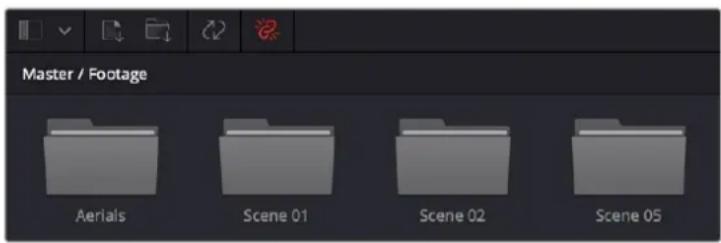
Bins seen in the Media Pool
Once you've created a bin, you can move one or more selected clips into it via drag and drop, just as you would on the desktop of your operating system's file manager.
Opening Bins
Any visible bin in the Media Pool can be opened by double-clicking it, or by clicking the Bin drop-down at the upper left-hand corner of the Media Pool and choosing a bin to open from the menu (they're shown as a hierarchical list). When opened, a bin's contents fill the Media Pool, and a path indicator at the top of the Media Pool lets you see how many levels deep you are in cases where you have bins inside of bins. You can click any level of this path to jump back up the hierarchy, or you can choose another bin from the Bin drop-down.
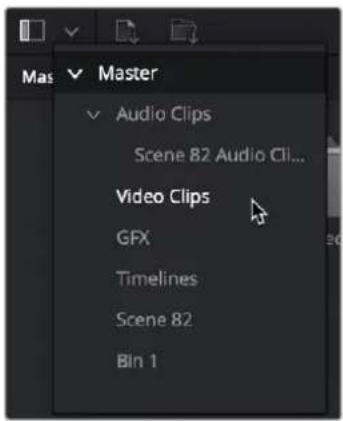
The hierarchical Bin drop-down menu
Create Bin With Selected Clips
You can also create a bin and put clips into it in one step. Select one or more clips in the Media Pool, right-click one of the selected clips, and choose Create Bin With Selected Clips from the contextual menu. A new bin appears called "Bin X" (where X is the next number that's available) displaying the selected clips it now contains.
Renaming Bins
To rename a bin, click its name once, then slowly click a second time (clicking too fast is a "double-click" which opens the bin), and the name becomes highlighted, ready for editing. You can also right-click a bin and choose Rename Bin from the contextual menu, which also highlights the bin's name, ready for editing. When you're done typing a new name, press Return (or Enter).
Import and Export Specific DaVinci Resolve Project Bins
You can import/export specific bins from one DaVinci Resolve project to another, allowing you to pass bins quickly between projects and workstations that have access to the same media. All Metadata, In/Out points, Timelines, etc. are transferred along with the clips in the bin, but none of the actual media files are included.
To export bins from the Media Pool:
1 Select one or more bins in the Media Pool.
2 Right-click the selection and choose "Export Bin," or choose File > Export > Export Bin.
3 Choose where to save the DaVinci Resolve Bin file (.drb) in the file system dialog, and click Save.
To import bins into the Media Pool:
1 Right-click in the Media Pool and choose "Import Bin," or choose File > Import > Import Bin.
2 Do one of the following:
- Choose a DaVinci Resolve Bin file (.drb) from the file system dialog.
- Double click the .drb file in your file system.
The bin or bins will appear in the Media Pool. Any bins imported this way will have the word “import” appended to their name, to avoid duplicate names. If you import a bin that contains clips that were already in the Media Pool, the potentially duplicate clips are excluded from the import and instead relinked to the media referenced by your project. This keeps your Media Pool tidy. However, if the bin or bins have been moved to another computer, you may have to relink offline media.
Import and Export Individual DaVinci Resolve Timelines
You can export and import individual timelines from one DaVinci Resolve project into another previously existing DaVinci Resolve project, allowing you to pass timelines quickly between projects and workstations, without creating additional imported project files. Just the timeline and its associated clip information is exported, none of the actual media files are included.
To export a timeline from the Media Pool:
1 Select a timeline from the Media Pool.
2 Choose File > Export > Export AAF, XML, DRT (Shift-Command-O).
3 Choose "DaVinci Resolve Timeline Files (*.drt)" from the format options drop-down in the file system dialog.
4 Choose where to save the DaVinci Resolve Timeline file (.drt) in the file system dialog, and click Save.
To import a timeline into the Media Pool:
1 Choose a bin in the Media Pool in which you want the imported timeline to be saved.
2 Do one of the following:
– Choose File > Import Timeline > Import AAF, XML, DRT (Shift-Command-I), then Select a DaVinci Resolve Timeline file (.drt) from the file system dialog, and click Open.
- Double click the .drt file in your file system.
The timeline will appear in the Media Pool, along with all of the clips associated with it. Any timelines imported this way will have the word “import” appended to their name, to avoid duplicate names. The imported timeline will be automatically conformed to corresponding media that’s already in the Media Pool. However, if the timeline has been moved to another computer, you may have to reimport or relink missing or offline media in to bring the imported timeline fully online.
NOTE: Only a single timeline can be imported and exported at a time using this method. To import or export multiple timelines, use the Import/Export Bin function described above.
ATEM Switcher Integration
If you've recorded a multi-camera event with the ATEM Mini Pro ISO or ATEM Mini Extreme ISO, it is possible to move that entire project into DaVinci Resolve. ATEM projects include the master program clip, as well as each individual camera's "ISO" (isolated) clips, and each camera angle's audio recordings. All transitions, timecode, and camera number metadata are imported, as well as whatever graphics were stored in the ATEM's Media Pool. Once the project is loaded, you can seamlessly continue your multi-camera edit in the Cut page.
This initial live recording coupled with later post-production editing workflow is often referred to as "Live to Tape." Live to Tape gives you the all the benefits of the spontaneity, verisimilitude, and fast turnaround inherent to live production but with the added benefit of being able to later add and remove sections and adjust the editorial flow of the program. Live to Tape also allows you to fix simple mistakes, such as choosing a better camera angle, or replacing a title or graphic with an updated version. Because of this flexibility, Live to Tape is the preferred method of recording almost all broadcast network game shows, current events shows, and sitcoms. Essentially, any type of multi-camera production that does not primarily depend on being live in real time for its main purpose (like news or sports) is shot Live to Tape instead.
The Live to Tape workflow requires the following elements, all of which are provided by the ATEM Mini Pro ISO and ATEM Mini Extreme ISO.
– A program master clip that was shot live, including all the mixed camera angles, audio, transitions, etc. from the beginning of the show until the end, for reference.
- Separate ISO recordings from each camera used to shoot the program master clip. An ISO is an isolated (ISO) camera recording of the entire show from that camera's perspective only, from the beginning to end and without interruption.
– A timeline of the live recorded show that indicates where all the camera angles were switched, what transitions were used, and what graphics were involved.
Importing ATEM Mini Pro ISO Projects
Importing an ATEM project essentially rebuilds the master program clip as a timeline inside DaVinci Resolve from the camera ISOs, transitions, and graphics. This new timeline will match the master program clip in every way, just created from the original source materials rather than as a single compressed video file.
Refer to your ATEM's specific documentation for how to set up ISO recording, but one important setting is to make sure that you've checked the "ISO Record All Inputs" setting in the ATEM software control before you start shooting.
To import an ATEM Mini Pro ISO Project:
1 (Before you shoot) Check the "ISO Record All Inputs" setting in the ATEM software control.
2 At this point, record your show using the ATEM device, and note the project's folder location.
3 Select File > Import Project.
4 Select the DaVinci Resolve Project file (.drp) in the ATEM project folder, in the file browser.
5 Click on the Open button.
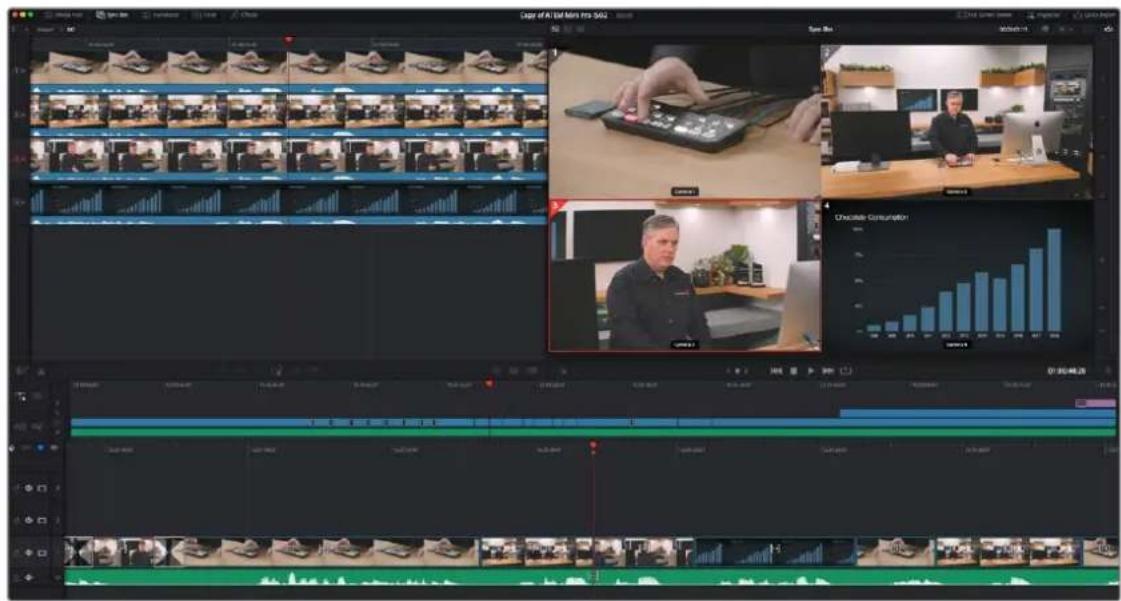
An ATEM Mini Pro project opened in the Cut page Sync bin
Relinking Blackmagic Camera Masters to ATEM ISOs
The ATEM records each camera's ISO as an H.264 HD video stream, which may not be of high enough resolution or quality for some purposes. It's possible to instantly switch your ATEM camera ISOs to the original camera recordings made in a Blackmagic Camera instead. This workflow enables the highest visual quality of Blackmagic RAW and the ability to output in higher resolutions (such as 4K or UHD) than are supported by the ATEM internally. Essentially, the ATEM can reference an additional set of higher quality ISOs recorded in the cameras, rather than those from the ATEM itself. This feature is only available using Blackmagic Cameras.
This workflow requires one more step in the process, namely making sure that you have sufficient recording space attached to each camera to record the show in its entirety. Refer to your ATEM's specific documentation for how to set up ISO recording and camera control, but one important setting is to make sure that you've checked the "ISO Record All Inputs" and the "Record in All Cameras" settings in the ATEM software control before you start shooting.
To relink to Blackmagic Camera masters from ATEM ISO recordings:
(Before you shoot) Check the "Record in All Cameras" setting in the ATEM software control.
2 (Before you shoot) Check the "ISO Record All Inputs" setting in the ATEM software control.
3 At this point, record your show using the ATEM device and note the project's folder location.
4 Copy all the resulting camera masters from each camera's memory card to the ATEM project's "Video ISO Files" folder, and then import the project into DaVinci Resolve.
5 DaVinci Resolve automatically creates a separate Blackmagic RAW folder in your project and moves all the camera masters to that folder.
6 Click the "Show Camera Originals" button in the Cut page Viewer to instantly switch between referencing the ATEM H.264 ISOs and the Blackmagic Camera masters.
The Show Camera Originals button
Once your project is imported successfully into DaVinci Resolve, it can be edited using the variety of specialized Multicam editing tools found in the Cut page, including the Sync Bin, Live Overwrite, and the DaVinci Resolve Speed Editor. For more information on using these tools, see Chapter 28, "Fast Editing in the Cut Page."
Media Pool Views
Once you've imported some clips into the Media Pool, three controls at the upper right-hand side let you control how they look, depending on what you need to accomplish.
The View Mode buttons
Metadata View
In the Metadata view mode, each clip is represented by its own card with a thumbnail and basic clip metadata information visible. This view is designed to have more metadata information than a thumbnail but more targeted information than the List view. This feature, combined with its sort modes, is a powerful way to organize and reorganize your clips in the Media Pool.
The metadata fields of the Metadata view (from the top down):
- Thumbnail: A scrubbable thumbnail image of your clip.
- Row 1: A main description field that is variable and determined by the sort order selection.
- Row 2: Start Timecode, Date Created, Camera #.
- Row 3: Scene, Shot, Take.
- Row 4: Clip Name, Comment.
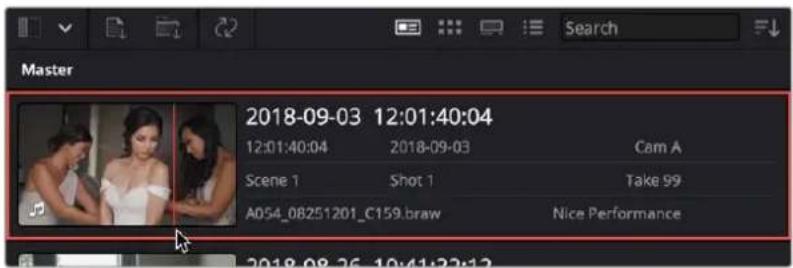
The Metadata View icon view (highlighted icon in the top bar), showing the thumbnail being scrubbed next to the clip's metadata
The strength of the Metadata view is the automatic clustering of your clips in the Source Tape, based on the sort order you choose in the Media Pool Sort By menu at the very upper-right corner of the Media Pool. It is also possible to use these sort options in the Thumbnail, List, and Filmstrip views as well.
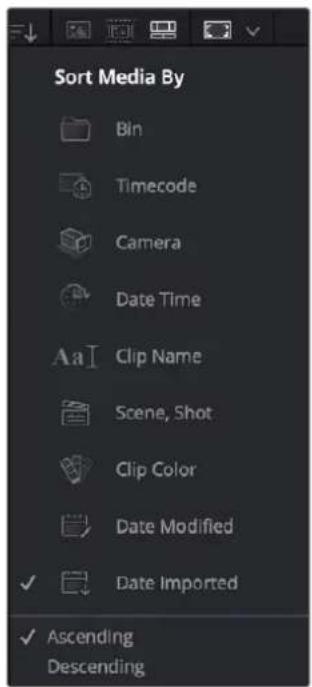
The Media Sort options
Each different sort mode changes the main description field on the card and re-arranges the Source Tape to reflect the selected organization method.
The sort modes available in the Metadata view are:
- Bin: This mode clusters the clips by bin, changes the main description field to clip name, and orders the list by timecode.
- Timecode: This mode clusters the clips by creation date, changes the main description field to creation date and start timecode, and orders the list by timecode.
- Camera: This mode clusters the clips by Camera #, changes the main description field to camera # and start timecode, and orders the list by timecode.
- Date Time: This mode clusters the clips by day, changes the main description field to creation date and file name, and orders the list by timecode.
- Clip Name: This mode clusters the clips by the first letter of the clip name in alphabetical order, changes the main description field to clip name, and orders the list by timecode.
- Scene, Shot: This mode clusters the clips by scene, changes the main description field to scene-shot-take, and orders the list by scene-shot-take.
- Clip Color: This mode clusters the clips by clip color name, changes the main description field to creation date and start timecode, and orders the list by timecode.
- Date Modified: This mode clusters the clips by day, changes the main description field to creation date and file name, and orders the list by the last time the clip was modified by the OS filesystem.
- Date Imported: This mode clusters the clips by day, changes the main description field to creation date and file name, and orders the list by the date the clip was added to the Media Pool.
- Ascending: Orders the Media Pool from lowest numerical value to highest, and alphabetically from A to Z.
- Descending: Orders the Media Pool from highest numerical value to lowest, and alphabetically from Z to A.
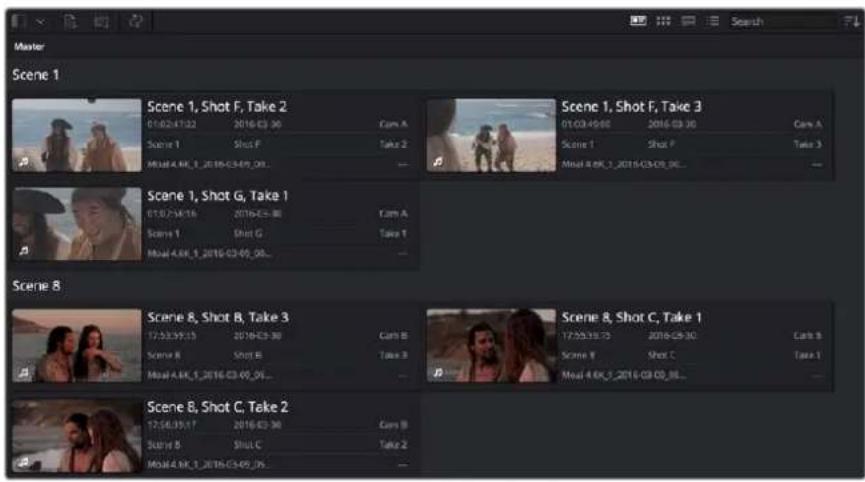
The Metadata view with clips sorted by Scene-Shot-Take
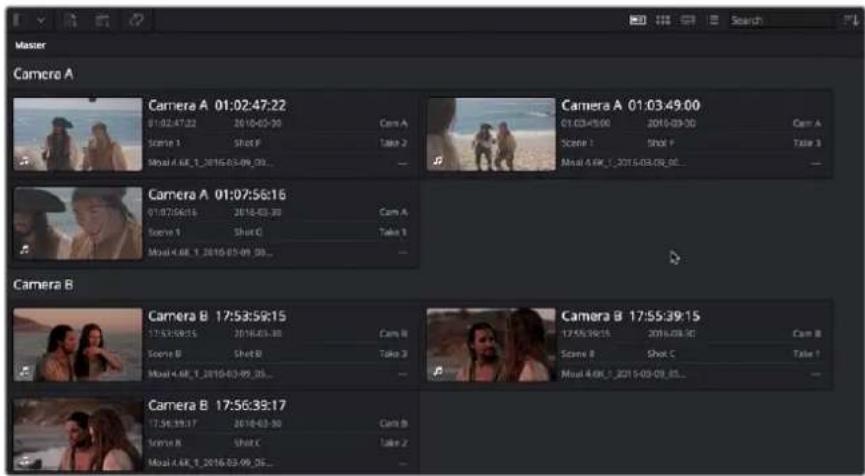
The Metadata view with the same clips sorted by Camera
Thumbnail View
Each clip is represented by a scrubbable thumbnail. Hover the playhead over each thumbnail and move it left and right to see the clip's image play, and use the I and O keys to mark sections of a clip that you want to use. Hover scrub can be enabled and disabled using the Media Pool option menu on the Edit page.
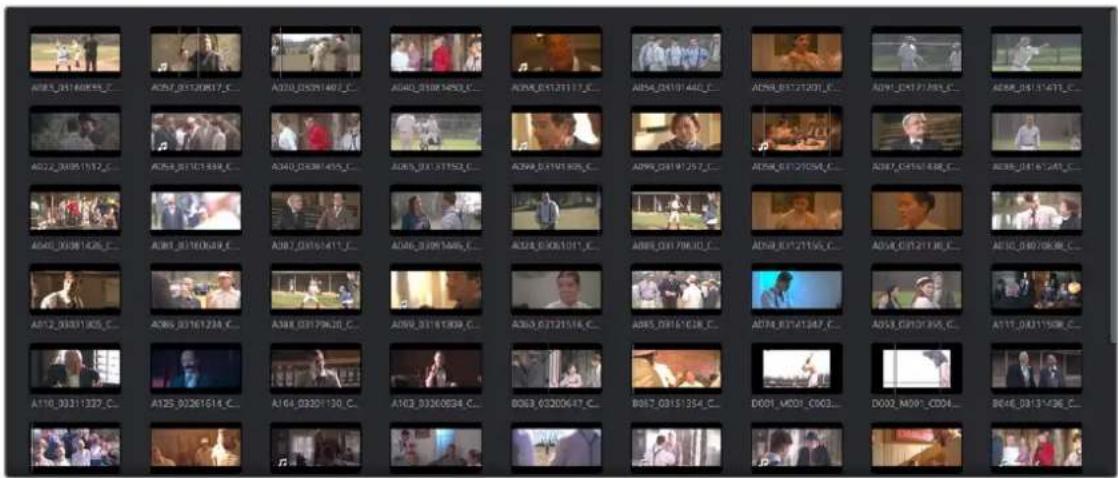
The Icon View mode
Filmstrip View
Each clip is represented by a filmstrip of consecutive frames the length of the Media Pool. Hover the playhead over the clip and move it left and right to see the clip's image play, and use the I and O keys to mark sections of a clip that you want to use.
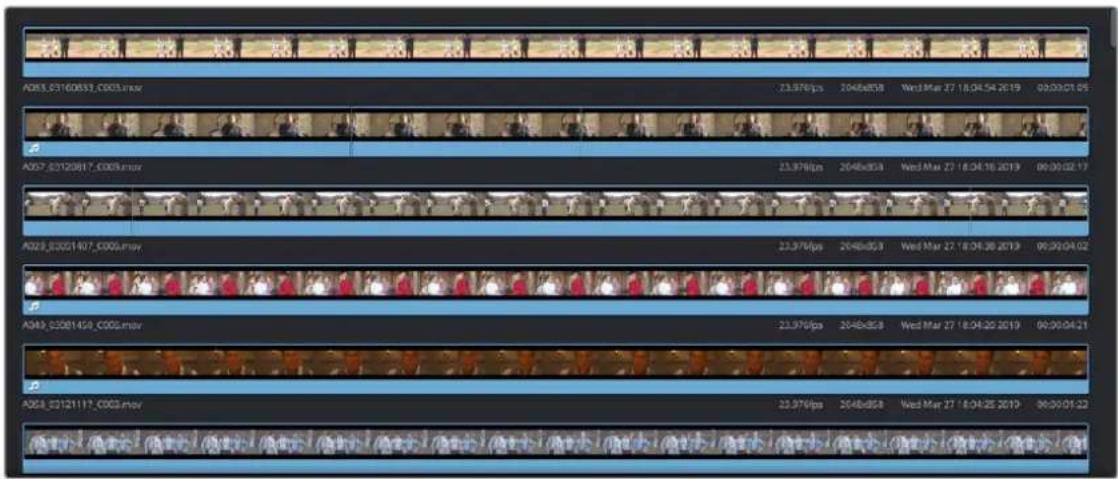
The Filmstrip View mode
List View
Each clip appears as an item in a multi-column list showing a variety of metadata about each clip. In list view, you can click the header of any column to sort the contents by that column's information (clicking again toggles the sort order between Ascending and Descending). Scrolling right reveals additional columns of information.
| File Name | Real Name | Clo Name | Start TC | End TC | Duration | In | Out | Start | End | Frames | Type | Resolution |
| ☐ AC03_0310833_C003.mov | AC03_03109833_C003.mov | 11:35:29:20 | 11:26:21:46 | C0:00:01:06 | 0 | 32 | 33 | Video | 2048x858 | |||
| ☐ AC07_03120817_C009.mov | AC07_03120817_C009.mov | 10:19:29:16 | 10:19:22:83 | C0:00:02:17 | 10:19:26:35 | 16:19:30:26 | 0 | 64 | 65 | Video + Audio | 2048x858 | |
| ☐ AC02_03031497_C006.mov | AC02_03031497_C006.mov | 16:09:19:62 | 16:09:23:94 | C0:00:04:02 | 18:09:19:72 | 18:09:22:17 | 0 | 97 | 98 | Video | 2048x858 | |
| ☐ AC02_03081450_C006.mov | AC02_03081450_C006.mov | 16:52:12:16 | 16:52:17:16 | C0:00:04:21 | 0 | 116 | 117 | Video + Audio | 2048x858 | |||
| ☐ AC58_03121117_C002.mov | AC58_03121117_C002.mov | 13:20:15:08 | 13:20:17:86 | C0:00:01:22 | 0 | 46 | 46 | Video + Audio | 2048x858 | |||
| ☐ AC54_031 01440_C005.mov | AC54_031 01440_C005.mov | 16:45:56:12 | 16:45:59:21 | C0:00:03:05 | 0 | 80 | 81 | Video | 2048x858 | |||
| ☐ AC59_03172391_C003.mov | AC59_03172391_C003.mov | 14:07:27:16 | 14:07:29:38 | C0:00:07:16 | 0 | 95 | 49 | Video | 2048x858 | |||
| ☐ AC91_031 71293_C005.mov | AC91_031 71293_C005.mov | 15:06:09:68 | 15:06:12:91 | C0:00:02:16 | 0 | 66 | 67 | Video | 2048x858 | |||
| ☐ AC68_03131411_C001.mov | AC68_039 31411_C091_mov | 16:13:35:16 | 16:13:37:85 | C0:00:01:12 | 0 | 36 | 37 | Video | 2048x858 | |||
| ☐ AC22_03051517_C091_mov | AC22_ 03051517_C 091_mov | 17.19.13:67 | 17.19.13:11 | C 0. | ||||||||
| ☐ AC53_03131399_COOS_mov | AC53_03877777_COOS_mov | 19:47.27.16 | 19:47.24.13 | C : C : C : C : C : C : C : C : C : C : C : C : C : C : C : C : C : C : C : C : C : C : C : C : C : C : C : C : C : C : C : C : C : C : C : C : C : C : C : C : C : C : C : C : C : C : C : C : C : C : C :C : C : C : C : C : C : C : C : C : C : C : C : C : C : C : C : C : C : C : C : C : C : C : C : C : C : C : C : C : C : C : C : C : C : C : C : C : C : C : C : C : C : C : C : C : C : C : C : C : C / A u a d i o / A u a d i o / A u a d i o / A u a d i o / A u a d i o / A u a d i o / A u a d i o / A u a d i o / A u a d i o / A u a d i o / A u a d i o / A u a d i o / A u a d i o / A u a d i o / A u a d i o /A u a d i o / A u a d i o / A u a d i o / A u a d i o / A u a d i o / A u a d i o / A u a d i o / A u a d i o / A u a d i o / A u a d i o / A u a d i o / A u a d i o / A u a d i o / A u a d i o / A u u a d i o / A u a d i o / A u a d i o / A u a d i o / A u a d i o / A u a d i o / A u a d i o / A u a d i o / A u a d i o / A u a d i o / A u a d i o / A u a d i o / A u a d i o / A u a d i o / A u n a l e / A u a d i o / A u a d i o / A u a d i o / A u a d i o / A u a d i o / A u a d i o / A u a d i o / A u a d i o / A u a d i o / A u a d i o / A u a d i o / A u a d i o / A u a d i o / A u a d i o / |
The List View mode
Sorting and Searching
Once you've imported media into your project, searching and sorting controls help you find what you need.
Searching
A search field lets you type a term you want to use to find one or more clips that match that criteria. When you type anything, the contents of the Media Pool shrink to show only clips that match your criteria.
Navigable Clip Paths
The Media Pool in the Cut page has a navigable title bar that shows a clip's Media Pool hierarchy. As you navigate in the Media Pool, the current clip is highlighted, and its hierarchy will now appear in top of the Media Pool title bar. By clicking directly on bins in this bin path, you can quickly broaden or narrow the scope of the Media Pool, say from Shoot Day to Camera to Card to Clip and vice versa.
The Media Pool title bar showing a clip's Media Pool hierarchy. Clicking directly on these bins will narrow or broaden the scope of the clips in the Source tape.
Sort Media By
A Sort Media By drop-down menu lets you choose which criteria defines the order in which clips in the Media Pool are arranged. Options include: Bin, Timecode, Camera, Date Time, Clip Name, Scene Shot, Clip Color, Date Modified, and Date Imported, and you can choose to sort in Ascending (bottom to top) or Descending (top to bottom) order.
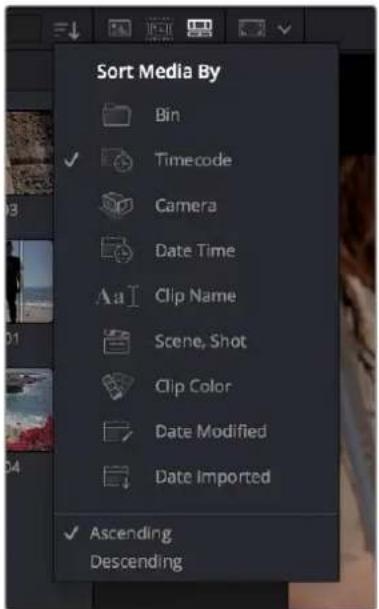
The Sort Media By drop-down menu
Lastly, a search field lets you type a term you want to use to find one or more clips that match that criteria. When you type anything, the contents of the Media Pool shrink to show only clips that match your criteria.
TIP: If you want to sort by a criteria that's not in the drop-down menu, you can switch the Media Pool to List view, then sort by any column you might want (such as "Date Created"), and then switch back to Icon or Filmstrip view.
Finding Timeline Clips in the Media Pool
From time to time, you'll find yourself wanting to find the source clip in the Media Pool that corresponds to a clip in the Timeline. For example, you might want to go back to a part of an interview clip you've already used to find another phrase on the same topic.
To find a timeline clip in the Media Pool:
- Right-click a clip in the Timeline, and choose Find in Media Pool from the contextual menu. The corresponding clip is selected in the Media Pool, which scrolls to show that clip, if necessary.
Clip Color
Clip colors are an organizational tool that make it easier to keep track of different kinds of clips visually. For example, you can assign colors based on good takes, based on characters or subjects in the program, based on type of media (b-roll versus a-roll for example), or using any one of a number of organizational strategies. Whatever helps you keep track of things you need to keep track of.
Changing clip colors:
- You can assign colors to clips by right-clicking one or more selected clips in the Media Pool or Timeline, and choosing one of 16 available colors from the Clip Color submenu of the contextual menu.
Removing clip colors:
- Clip colors can be removed by right-clicking one or more selected clips in the Media Pool or Timeline, and choosing Clear Color from the Clip Color submenu of the contextual menu.
- Clip colors appear as a colored dot on a clip thumbnail when in Thumbnail view, as a clip color in Filmstrip view, and as a patch in the Clip Color column when in Column view.
natural_image
Outdoor scene with two people in a field, no visible text or symbols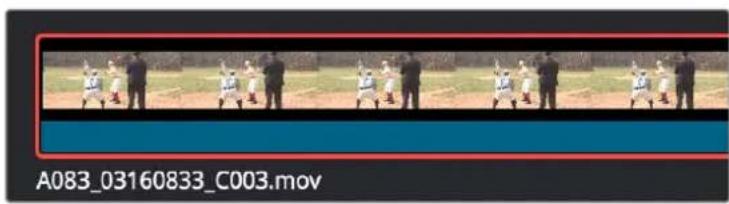
natural_image
Sequence of six photos showing a person in motion on a field, with no visible text or symbols.Clip color in - Thumbnail Clip color in - Filmstrip
Clip color in – Column views
- Clips with assigned colors also appear tinted in the Timeline, similarly to the Filmstrip tint in the Media Pool.
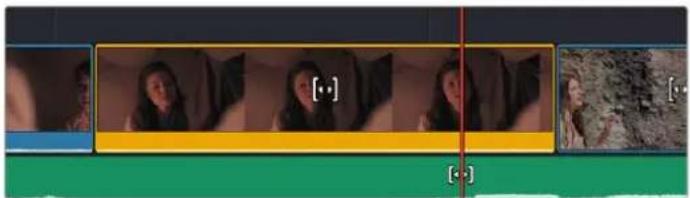
natural_image
Sequence of video frames showing a person in motion, with no visible text or symbolsA timeline with a video clip that has been colored to identify what they are to the editor
Generate Optimized Media
If you're editing processor-intensive source formats such as camera raw, H.264, or 8K media, and your computer isn't fast enough to work with it easily in real time, you can create pre-rendered, low-overhead duplicate media to use instead, that's automatically managed alongside the original media. This is called "Optimized Media." Optimized Media lets you work more quickly by allowing you to edit with a more processor-efficient media format and resolution, while providing the ability to easily switch your project back to the original source media whenever you want. So, you can use optimized media to edit, and switch back to the original source media when it's time to finish and output. Switching is as easy as choosing Playback > Use Optimized Media if Available to toggle optimized media on and off.
DaVinci Resolve automatically manages the relationship between source clips and the optimized media you create, so all you need to do is choose which clips to make optimized media for. For example, if you're editing a project that consists of half camera raw media, and half DNxHD media, you only need to optimize the camera raw media, so you can use the search field to find all the raw clips you've imported based on Resolution, Codec, File Name, or whatever other metadata is appropriate.
To create optimized media:
1 Select one or more clips in the Media Pool that would benefit from being optimized.
2 Right-click one of the selected clips, and choose Generate Optimized Media from the contextual menu.
By default, all optimized media is written to the same directory as the cache files are written, which defaults to the first scratch disk listed in the Preference dialog's Media Storage panel. The location of cache and optimized files is also selectable via the "Cache files location" setting in the Master Settings panel of the Project Settings.
Once you've created optimized media, all you need to do to use it is to choose Playback > Use Optimized Media if Available to toggle optimized media on and off.
For more information on choosing which format to optimize to, creating and managing optimized media, and how optimized media interacts with raw media, see Chapter 8, "Improving Performance, Proxies, and the Render Cache."
Relinking Media
DaVinci Resolve attempts to automatically keep track of the relationship between clips in your project and their corresponding source media on disk. If, for whatever reason, source media that links to clips in your project becomes unavailable because it's been moved, DaVinci Resolve has several different methods of relinking those clips in the Media Pool. This section summarizes two methods of relinking, "Relink Media" and the "Relink selected clips" command. For more information on other methods of conforming projects and relinking media, see Chapter 56, "Conforming and Relinking Clips."
Relink Media
If DaVinci Resolve fails to find your media, a Relink Media icon in the Cut page's and Edit page's Media Pools will highlight orange.
The Relink Media icon that appears for unlinked media
Clicking this icon opens a dialog box showing the volumes that the missing files initially belonged to. You can then use this information to track down the media on your file system, find that specific hard drive, or ask a client if they provided you the media from this volume. Clicking the Locate button lets you re-connect the missing clips to a new file location of your choosing. If the quick search initiated by the Locate buttons doesn't find media that you know is there, you can initialize an exhaustive deep disk search for the media by clicking on the Disk Search button.
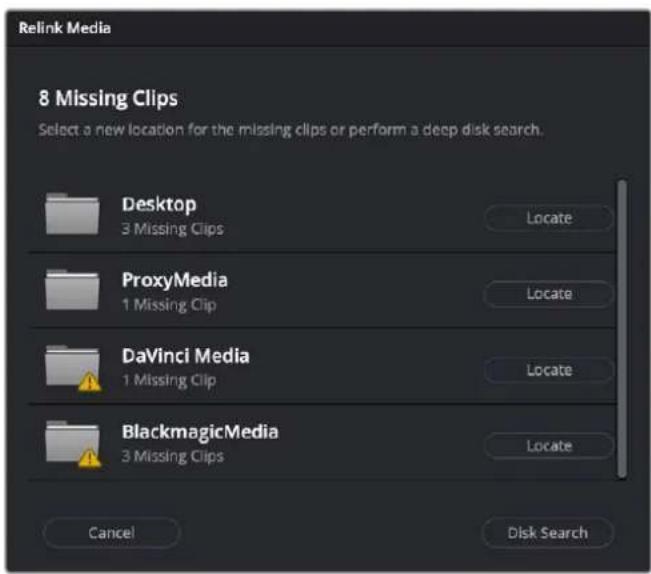
The Relink Media dialog showing the volume names where the missing clips originated
Relink Selected Clips
The appropriately named "Relink selected clips" command is the most flexible method of relinking clips in your project with clips in a directory of your choice, using file name and timecode as the primary criteria for reconnecting the relationship between each clip and its corresponding media file on disk.
To relink selected clips or clips in a selected bin:
1 Do one of the following:
- Select one or more clips in the Media Pool browser that you want to relink, then right-click one of the selected clips or the selected bin, and choose "Relink Selected Clips" from the contextual menu.
– Select a bin in the Media Pool bin drop-down menu that contains clips you want to relink, then right-click the selected bin and choose "Relink Clips for Selected Bin" from the contextual menu.
2 When the Relink File dialog opens, choose a volume and directory in which to look for the files you want to relink to, and click OK. DaVinci Resolve attempts to find every clip with a matching file name in the subdirectories of the directory you chose, using the original file paths of the clips being relinked to do this as quickly as possible. By first looking for the clips in the directories they were originally in, relinking can be quite fast.
3 If there are any clips that couldn't be found using the method in step 2, you're prompted with the option to do a "deep search" by a second dialog. If you click Yes, then DaVinci Resolve will look for each clip inside every subdirectory of the directory you selected in step 2. This may take significantly longer, but it should be completely successful so long as the media that's required is within the selected directory structure.
4 If there are still other clips that couldn't be found, you're prompted to either choose another directory altogether to continue searching, or quit.
Chapter 28
Fast Editing in the Cut Page
The editing methods in the Cut page have been streamlined for fast editing, and the interface of this page and the methods of assembling clips together using different types of edits are designed to be easy to learn and quick to use.
Contents
Creating and Modifying Timelines 449
Creating New Timelines 449
Opening Timelines 450
About Tracks in the Cut Page Timeline 450
Adding Tracks 450
Deleting Tracks 450
Navigating Clips in the Viewer and Timeline 451
Viewer Options 451
Full Screen Viewer 452
Playing Clips and Navigating the Timeline in the Viewer 452
Scrolling Through the Timeline 453
Smart Reframe (Studio Version Only) 454
The Boring Detector 455
Setting In and Out Points 456
Setting In and Out Points Using the Keyboard 456
Setting In and Out Points Using the Pointer 457
Editing the Duration Field in the Cut Page Viewer 457
Change Clip Duration Dialog 457
Video Only and Audio Only Edits 458
Drag and Drop Editing 459
Append 459
Ripple Overwrite 459
Overwrite 460
Using Cut Page Edit Commands 460
Smart Indicators 460
Setting Up and Performing Edits 461
Smart Insert 461
Append 462
Ripple Overwrite 462
Close Up 463
Place On Top 463
Source Overwrite 464
Overwrite 465
Source Tape Editing 465
Metadata Entry Using the File Inspector 465
Using the Source Tape 467
Limiting the Source Tape Scope by Folder Structure 467
Sync Bin Multicam Editing 468
Preparing Footage for Sync Bin Editing 469
Sync Clips Window 469
Sync Bin Editing 471
Creating and Modifying Timelines
After you've imported and organized the media you need to use in a program, the next thing you must do is create a timeline. Timelines are the organizational entities that contain the edited sequences of clips that make up your program. You can have as many timelines as you like in your project, with each timeline being an independent arrangement of clips. Timelines are stored in the Media Pool and can be organized using bins, just like clips.
Creating New Timelines
A timeline is automatically created when you edit your first clip into the Timeline. You'll see an icon for the new timeline in the Media Pool, where you can rename it.
You can also create a new timeline by either choosing File > New Timeline (Command-N), or right-clicking in the background of the Media Pool and choosing Create New Timeline. A dialog appears that lets you choose a start timecode (the default is 01:00:00:00), a name, how many video and audio tracks you want it to have, what kind of audio (the default is stereo), and whether or not you want to create an empty timeline, or a timeline that automatically includes all clips in the Media Pool with or without selected In/Out points (a quick and easy way of creating a stringout of all clips you've imported).
By default, all timelines share the same frame rate, resolution, and monitoring settings as the overall project. If you like, you can also click the Use Custom Settings button to choose individual frame rate, resolution, and monitoring settings for that timeline.
Once you've created a new timeline, double-clicking it will open it into the Timeline Editor.
Opening Timelines
If you only have one timeline in your project, that timeline is always seen in the Timeline Editor. If you have multiple timelines, you can double-click any timeline in the Media Pool to open it into the Timeline Editor, ready for editing. You can also switch from working on one timeline to another by using the drop-down list at the top of the Cut page Viewer. This unifies Viewer Timeline Selection behavior across the Cut, Edit, Color, and Deliver pages.
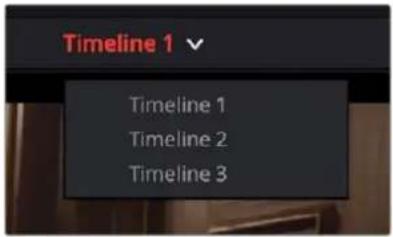
The Timeline Selection drop-down at the top of the Cut page Viewer
About Tracks in the Cut Page Timeline
Tracks in the Cut page timeline combine a clip's audio and video into a single track for convenience, as this makes it easy to keep audio and video organized and in sync when superimposing many clips together. This means that tracks have both video and audio enable controls in the track header controls, so that you can selectively disable video and mute audio when necessary.
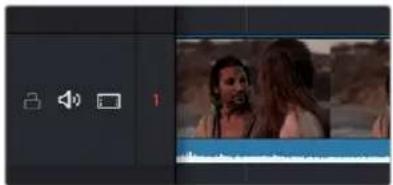
natural_image
Video editing interface showing two people in a scene with sound and audio icons (no readable text or symbols)The Lock, Audio Enable, and Video Enable buttons to the left of the track number, in the header of a timeline track
Each track also has a lock control, which lets you prevent clips on that track from being altered in any way.
Adding Tracks
If your timeline doesn't have enough tracks, you can either click the Add Track button in the track header or right-click anywhere in the Timeline and choose "Add Track" and a new track will be added on top of the previously existing tracks.
TIP: Dragging a new clip to the undefined gray area at the top of the Timeline also adds a new track.
Deleting Tracks
If you want to delete a specific track along with all clips on that track, you can right-click anywhere in that track's header and choose "Delete Track."
If your timeline has too many empty tracks, you can right-click anywhere in the track header and choose "Delete Empty Tracks" and all empty tracks will be removed.
Navigating Clips in the Viewer and Timeline
Before you can start editing, you need to find which parts of which clips you want to use, and define where in the currently open timeline you want to make an edit. The Single Viewer in the Cut page has three options that let you choose what media you want to play through using the transport controls found at the bottom.
Viewer Options
Three options, selectable via buttons at the upper left of the Viewer, let you control what the Viewer shows.
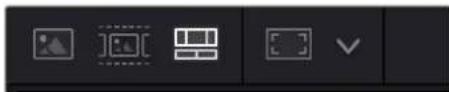
natural_image
Pure UI control buttons without any text or symbolsThe Viewer option buttons, (left to right) Source Clip, Source Tape, Timeline, and Safe Area
- Source Clip: This option shows the currently selected clip in the Media Pool. This is the mode the Viewer automatically switches to whenever you double-click a clip in the Media Pool. In Source Clip, a scroll area appears at the bottom of the Viewer, the width of which represents the duration of the currently open clip. A playhead within the scroll area lets you scrub through the clip as a zoomed-in waveform and shows whatever audio is playing within the clip. Handles to the left and right of the scroll area let you reposition In and Out points within the clip to choose a section you want to edit into the Timeline. These In and Out points can also be set using the I and O keys. Once set, you can drag In and Out points to change them.

natural_image
Pure graphical element with no visible text, numbers, or symbolsThe scroll area in Source Clip option, with In and Out points positioned to either side of the playhead
- Source Tape: Using this option, every single clip in the currently open bin, and any subfolders in that bin, of the Media Pool is shown in the Viewer as a "stringout" in the scroll area at the bottom of the Viewer. In the scroll area, each clip appears one after the other in a long strip, with the order determined by the Sort order. This makes it easy to scrub through a whole collection of clips while you're figuring out what you want to use. As you play through, whichever clip the playhead intersects is selected in the Media Pool, so you know which clip you're looking at.

natural_image
Abstract black-and-white waveform with green and red vertical lines, no text or symbols presentThe scroll area in the Source Tape, with each clip separated by a thin line
- Timeline: This option shows the current frame at the position of the playhead in the Timeline. Whenever you click, drag, or adjust a clip in the timeline area, the Viewer switches to the Timeline. In this option there is no scroll area; you must use the timeline area to scrub through your program. However, in the space where the scroll area would otherwise be, icons appear to indicate when the playhead is positioned at the first or last frame of a clip in the Timeline.

natural_image
Pure black background with no visible text, symbols, or objectsThe scroll area in the Timeline option shows icons to indicate the beginning and end of clips
- Safe Area: This drop-down menu overlays many useful framing guides over the Viewer to let you see what part of the image will be included and what will part will be cropped out if you change the Timeline's aspect ratio. The framing guides can be turned on and off by toggling the Safe Area Framing Guide icon in the Viewer, and the exact guides can be selected in the drop-down menu.
– Social Media: 1:1, 4:5, 9:16, 1.91:1, 16:9.
– Broadcast and Film: 1.33, 1.66, 1.77, 1.85, 2.35.
- Safe Area Guides: These options add additional guide lines on the Viewer to protect your composition from possibly being cut off at the extreme edges of a physical cathode ray tube. While somewhat anachronistic in this age of flat screen digital televisions, many legacy programs still adhere to these guidelines. Safe Areas still can be useful guides in ensuring your image is not inadvertently cropped by the variety of mobile devices and social media sites in use today.
Action Keep all movement and important action within this box.
Title Keep all on screen text within this box.
Center Designates the exact middle of the image.
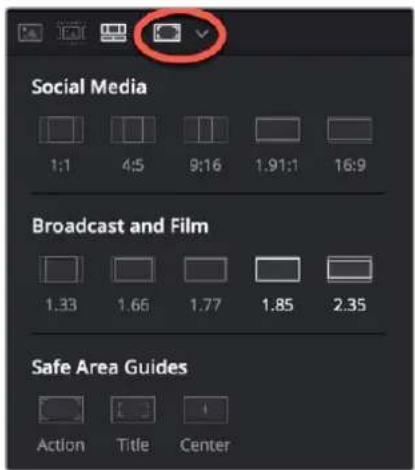
The Safe Area Framing Guide icon (circled) and the possible framing options
Full Screen Viewer
The Cut page has a Full Screen Viewer icon in the upper-right that can be clicked to enable Full Screen view. Press Escape to return to your normal view mode.

The Full Screen Viewer icon
Playing Clips and Navigating the Timeline in the Viewer
Eight controls sit at the bottom of the Viewer. These let you play through and otherwise navigate clips and the Timeline in different ways. These controls are described from left to right.

The toolbar at the bottom of the Viewer
- Fast Review button: Intended to help you watch through a large collection of media quickly, clicking this button begins accelerated playback through the Source Tape or through the Timeline, where the speed of playback is relative to the length of each clip you're playing through. Long clips play faster, whereas shorter clips play closer to real time. In this way, you can watch a lot of material really quickly.
- Tools button: The Tools button reveals a variety of controls for transform, crop, audio, speed effects, camera stabilization and lens correction, dynamic zoom, and compositing, covered in more detail later in this chapter.
- Jog control: Clicking and dragging within the jog control lets you scrub very precisely through the content of the Viewer.
- Transport controls: A set of buttons provide clickable controls to control playback of source clips and the Timeline, whichever the Viewer is set to display; each button has a matching keyboard shortcut. These include Previous Edit (Up Arrow), Stop (Spacebar), Play (Spacebar), Next Edit (Down Arrow), and Loop Playback (Command /).
– Mark In/Out: Clickable controls to set In and Out points respectively. -
Playhead timecode: A number field shows you the timecode value at the playhead of a clip or of the Timeline, to give you a numeric reference for where you are. There is also a dedicated timecode entry mode for the Cut page. There are three ways of telling DaVinci Resolve that you want to perform a timecode action, regardless of what the numeric keypad keys are assigned to in the Keyboard Customization preferences.
-
Select Playback > Goto > Timecode (=) and enter your timecode value.
- Press "+" or "-" keys, and enter your timecode value to move the current position forward or backward by that amount.
- Click on the Timeline Timecode display on the Viewer, and enter your timecode value.
Scrolling Through the Timeline
The playhead in the Cut page is fixed. When you play, shuttle, or jog through your program, the clips in the Timeline flow past the playhead from right to left if you're playing forward, or from left to right if you're playing backward. This means that for playback, editing, or trimming, you bring the frame you want to see to the playhead, rather than bringing the playhead to the frame (as you do on the Edit page).
To scroll or scrub through the Timeline, do one of the following:
- Set the Viewer to show the Timeline, then use any transport or playback controls or keyboard shortcuts to move the clips in the Timeline back and forth, with the playhead indicating the current frame.
- Position the pointer within the Timeline Ruler of the Upper Timeline, and drag to the left or right to scrub through your entire program.
– Position the pointer within the Timeline Ruler of the larger Timeline Editor below, and drag to the left or right to scrub through the immediate vicinity of the current frame. - You can use the navigation tools Playback > Previous / Next > Clip (Up Arrow/Down Arrow) or Marker (Shift - Up Arrow/Shift - Down Arrow) to navigate the Cut page Timelines.
TIP: If at any time you need to analyze the video in the Viewer, DaVinci Resolve's full set of scopes is available in the Cut page by selecting Workspace > Video Scopes > On (Shift-Command-W).
Smart Reframe (Studio Version Only)
The Smart Reframe feature in DaVinci Resolve makes it easier to quickly reframe material across extreme aspect ratio changes. It's useful for situations where you've shot a 16:9 horizontal video and find yourself needing to create a vertically-oriented 9:16 version for mobile phones and social media deliverables, or using 4:3 archival footage in a 2.39:1 widescreen movie. Smart Reframe can be used manually, or automatically executed using the DaVinci Resolve Neural Engine.
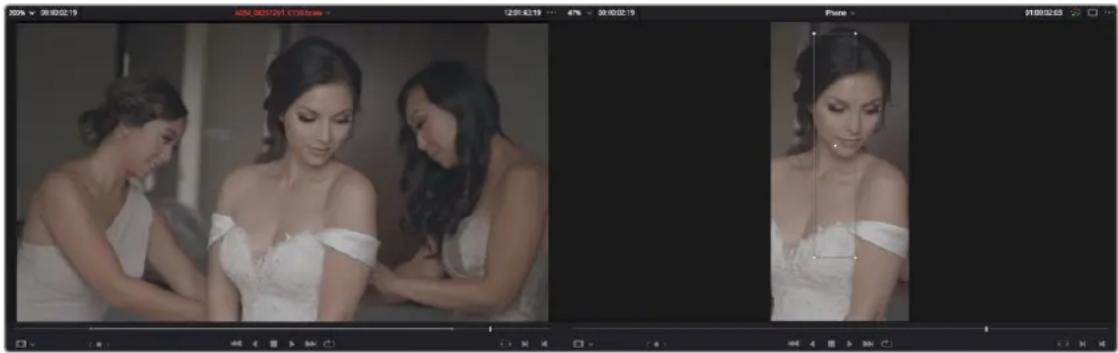
natural_image
Three women in white dresses looking at each other, displayed in a studio setting with no visible text or symbols.Smart Reframe in action, with the Reference Point bounding box active (right)
The Smart Reframe tool is found in the Sizing tab of the Inspector and is available in both the Cut and Edit pages.
To use the Smart Reframe tool:
1 Duplicate your Timeline, right-click the Timeline and choose Timelines > Timeline Settings, and click Use Custom Settings to change the Timeline Resolution to the aspect ratio needed for delivery. Make sure that "Mismatched resolution files" is set to "Scale full frame with crop," and click OK.
2 Select one or more clips you want to reframe, and open the Inspector to the Sizing tab.
3 Open the Smart Reframe controls, leave the Object of Interest drop-down menu set to Auto (if you've selected more than one clip, Auto is the only setting available), and click "Reframe." DaVinci Resolve will analyze your footage and should automatically adjust each individual clip's position to a more aesthetically pleasing framing.
4 (Optional) If the "Auto" setting does not give you desirable results for a particular clip, you can manually select the main subject using the following steps.
a. To manually select the subject area, choose "Reference Point" from the Object of Interest drop-down menu, and click the target icon just to the right of the menu. This automatically sets the Viewer mode to Smart Reframe, exposing the onscreen controls for choosing a reference.
b. Drag the Reference Point bounding box around the main subject of interest in the frame. You may use the Transform controls directly above in the Inspector to move the source clip around if your subject is outside the current framing.
c. Click "Reframe."
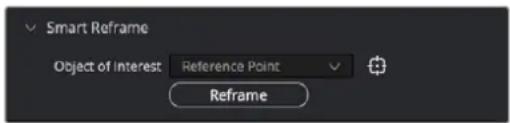
The Inspector's Smart Reframe controls showing the manual reference point selected
DaVinci Resolve locks onto and, if necessary, tracks your subject using the reference you've selected, automatically panning and scanning the original clip as needed to keep the reference within the new aspect ratio. While involving a bit of manual adjustment, this function still dramatically reduces the time involved in pan and scanning footage by manually adjusting and keyframing the sizing controls.
The Boring Detector
The Boring Detector performs a live analysis of the lengths of each of your clips on the Timeline and then highlights areas that are too long or too short and may demand your attention. It's accessed by clicking the Boring Detector Icon on the far left of the Cut page Edit commands and can be toggled off by clicking the icon again.

The Boring Detector icon and the Timeline showing its results
Analyze Timeline Edits
The Boring Detector's parameters are modifiable in its Analyze Timeline Edits window.
- Boring Clips: By adjusting this slider, you can set the minimum number of seconds that a clip's duration has to be before being flagged as too long. Clips that exceed this length are highlighted in light gray on the Upper Timeline.
- Jump Cuts: Adjusting this slider sets the maximum number of frames that a clip's duration has to be before being flagged as too short. Clips that are shorter than this length are highlighted in red on the Upper Timeline. Setting this to 2 frames can help you automatically find accidental "flash frames."
- Cancel: Closes the window without making any changes to the Boring Detector's analysis.
- Analyze: Starts the live analysis of your timeline using the criteria you've selected above. The Boring Detector is persistent and continues to function as you make further edits in the Cut page. It can be turned off by clicking the Boring Detector icon again.
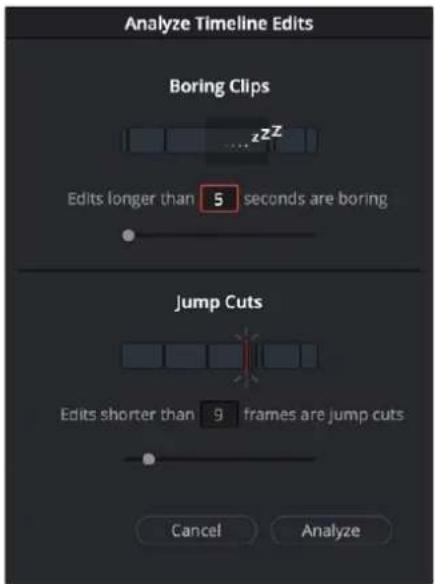
The Boring Detector's Analyze
Timeline Edits window
Setting In and Out Points
Ordinarily, source media is much longer than the actual clips you'll be using in a program, so it's important to be able to define a range of media you want to edit into the Timeline. This is done by setting In and Out points, either in the Media Pool in Thumbnail or Filmstrip mode, or in the Viewer in Source Clip or the Source Tape.
Setting In and Out Points Using the Keyboard
When scrubbing through a thumbnail or filmstrip in the Media Pool, you can press the I (In) or O (Out) keys to define a range of media. The edit points appear superimposed over the thumbnail area of the clip, as well as the scroll area of the Viewer if the clip is being mirrored there.
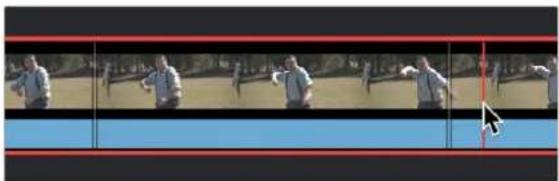
natural_image
Sequence of five photos showing a person in motion, possibly performing martial arts or exercise, with no visible text or symbols.Defining a range of media in the Media Pool using In and Out points (in white)
When scrubbing or shuttling through media in the Viewer in Source Clip or the Source Tape, or through your program with the Viewer in Timeline mode, you can press the I (In) or O (Out) keys to define a range of media.

natural_image
Abstract waveform visualization with green and red signal lines on dark background (no text or symbols)Defining a range of media in the Viewer using In and Out points
When scrubbing or shuttling through the Timeline as you drag the ruler to the left and right, you can press the I (In) or O (Out) keys to define a range for incoming edit operations. The range is marked in both the upper and lower areas of the Timeline.
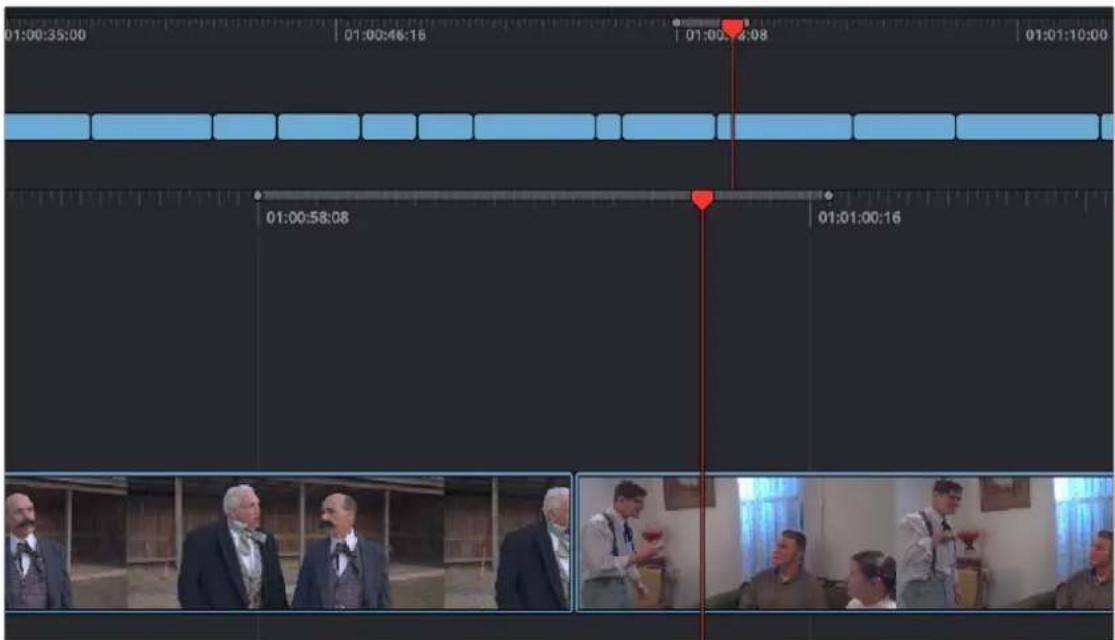
Defining a range of the Timeline for editing operations using In and Out points
Setting In and Out Points Using the Pointer
If you're using a pointing device such as a mouse, trackpad or tablet, you can drag the In and Out handles found underneath the scroll area at the bottom of the Viewer to define a range of media.

The draggable In and Out controls at the bottom of the Viewer
Once you've set In and Out points, the jog In and Out controls, located at the far left and right of the scroll area in the Viewer, let you fine-tune the location of the In and Out points. Click and drag on the Jog In or Jog Out controls to move either edit point in precise increments. While you drag, a filmstrip above shows you how many frames you're trimming.

The draggable Jog In control being used to trim the In point
In and Out points set in the Timeline Ruler (either of the Upper Timeline or the Timeline Editor) can be dragged to the left or right to fine-tune them.
The draggable In and Out points in the Timeline Ruler
Editing the Duration Field in the Cut Page Viewer
When editing in the Cut page, you set In and Out points to insert a specified range of video. The duration of that video range appears in the Duration field, which is in the upper-right corner of the Viewer.
This field is now editable, and updates the Out point to match the value you enter. You can directly enter a certain number of frames, use the + or - modifiers to change the value by that exact amount, or make adjustments to the hh:mm:ss:ff field directly.

The editable duration field in the top right of the Viewer
Change Clip Duration Dialog
The Change Clip Duration dialog in DaVinci Resolve 17 allows you to directly change the duration of a clip by typing in frames, a timecode value, or using time and frame-based presets. You can activate the Change Clip Duration dialog by selecting one or more clips on the Timeline and choosing Clip >
Change Clip Duration (Command-D), or by right-clicking on a clip and choosing Change Clip Duration from the contextual menu. The Change Clip Duration dialog works both on the Cut and Edit pages.
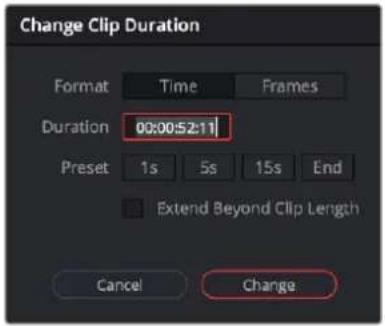
The new Change Clip Duration box in Timecode mode.
Options for the Change Clip Duration Dialog box:
- Format: You can chose between working with Time (Timecode) or Frame values.
- Duration: Type in the timecode value or number of frames you wish to make the new duration of the selected clip.
- Preset: Select a duration by clicking on 1, 5, or 15 seconds (or their equivalent value in frames). End will extend the duration to the last frame of the selected clip, regardless of any Out points set.
- Extend Beyond Clip Length (Cut page only): This will append black filler to any clip whose duration is set longer than the clip itself.
- Cancel/Change: Click Cancel to exit without changing the duration of the clip, or Change to apply the duration change to the selected clip.
TIP: You can change the duration for more than one clip at a time by selecting multiple clips before opening Change Clip Duration. All clips selected will be the changed to the same duration set in the Change Clip Duration dialog box.
Video Only and Audio Only Edits
Normally, any edit function in the Cut page uses both the Audio and Video sections of a clip to insert into the Timeline. However, there are several scenarios where you would only want either the Audio or the Video portions to be used instead.
To perform an Audio Only edit:
- Select the Audio Only icon to the left of the Upper Timeline, deselect to return to the normal audio and video edit.
To perform a Video Only edit:
- Select the Video Only icon to the left of the Upper Timeline, deselect to return to the normal audio and video edit.
(Left) The Audio Only icon, (Right) The Video Only icon
Drag and Drop Editing
Drag and drop editing can be an easy way of assembling clips into a loose edit. Once you've defined a range of media using the Source Clip or the Source Tape, you can click and drag either from the Viewer or the Media Pool to the Upper Timeline or the Timeline below to edit a clip into your program. How and where you drag determines how that clip will be edited.
Append
If you drag a clip onto an empty timeline, or to the dark gray area to the left of clips in the Timeline, that clip will become the first clip of your edit. If you drag a clip to the far left or right edge of all other clips in the the upper or lower areas of the Timeline, you will append that clip to the ending or beginning of the Timeline.
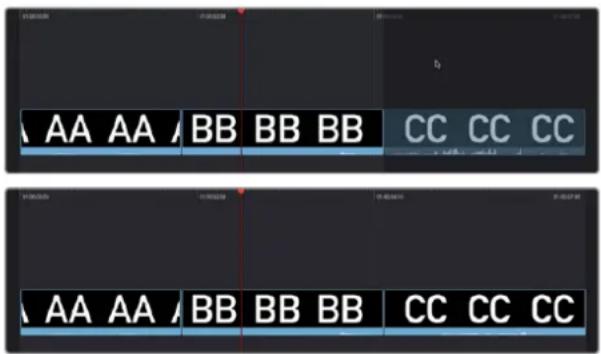
(Top) Dragging a clip to the far right of the Timeline to append it, (Bottom) The appended clip
Ripple Overwrite
If you drag a clip onto a pre-existing clip in either the Timeline or Upper Timeline so that the entire clip highlights and you drop it immediately, you'll perform a Ripple Overwrite edit, substituting the previous clip in the Timeline with the new clip. If you've ripple overwritten a clip on Track 1, all clips to the right of it will be rippled to make room if the incoming clip is longer, or close the gap if the incoming clip is shorter.
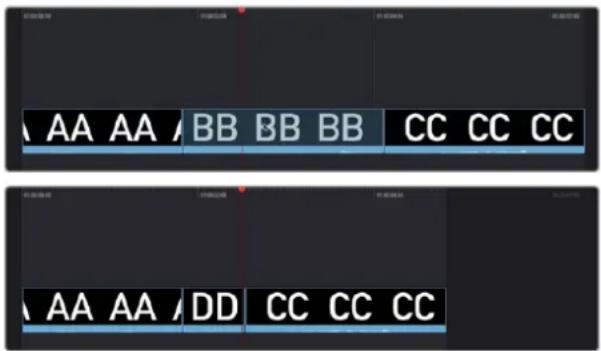
(Top) Dragging clip DD onto clip BB on the Timeline to Ripple Overwrite clip BB, (Bottom) Clip DD is shorter than clip BB, so the Timeline becomes shorter once the edit is done
Overwrite
If you drag a clip onto a pre-existing clip in either the Timeline or Upper Timeline and wait a moment, the Timeline overlay changes from a highlight over the whole clip to a highlight showing just the portion of the incoming clip overlaid on the existing clip. When you drop the clip, you'll perform an Overwrite edit, which writes over the media that's already in the Timeline with the media of the incoming clip. Overwrite edits don't ripple the Timeline.
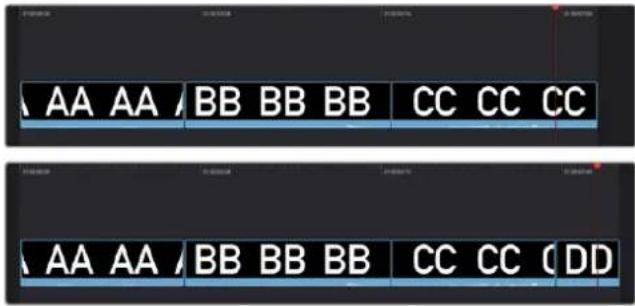
(Top) Dragging clip DD onto clip BB on the Timeline and pausing to perform an Overwrite, (Bottom) Clip DD overwrites the middle of clip BB, breaking it into two pieces while the Timeline remains the same duration
Using Cut Page Edit Commands
At the bottom of the Media Pool is a set of five buttons that let you make other kinds of edits. Some of these edits have keyboard shortcuts assigned to them and are also available via dedicated keys on the DaVinci Resolve Editor Keyboard.

flowchart
graph LR
    A["Input"] --> B["Processing"]
    B --> C["Navigation"]
    C --> D["User Interaction"]
    D --> E["Output"]
The edit buttons underneath the Media Pool, (Left to Right) Smart Insert, Append, Ripple Overwrite, Close Up, Place On Top, Source Overwrite
Smart Indicators
Some of the intelligent tools in the Cut page do not require you to select specific In and Out points in the Timeline. They rely on the playhead's relative position over a clip to guess where you likely will want to make your edit. The point where DaVinci Resolve intends to make that edit is marked using a Smart Indicator icon on the Timeline Ruler.
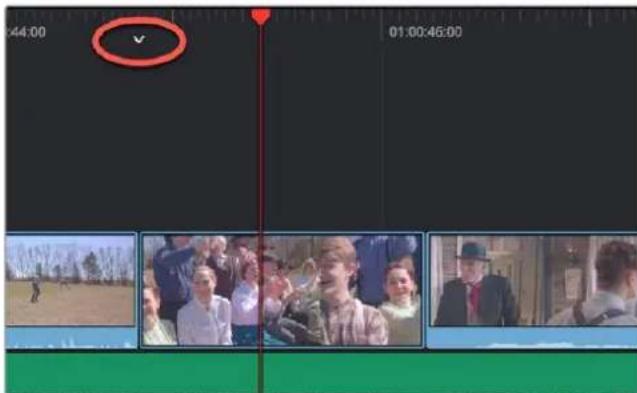
Smart Indicator showing where an edit will occur
Setting Up and Performing Edits
No matter what kind of edit you intend to make, the process of setting them up and performing them is the same. This section describes the general process of setting up an edit, and the following sections will describe how each particular edit works.
To set up and perform an edit:
1 First, locate a clip you want to edit into the Timeline. There are two general ways of doing this:
a. Open a bin with clips you want to use, then click the Source Tape in the Viewer to show a stringout of all clips in the current bin, and its subfolders, in the currently selected sort order. Now, you can scrub around all these clips using JKL or the DaVinci Speed Editor's shuttle/jog/scroll wheel to find the media you're looking for.
b. Open a bin with clips you want to use, and navigate the thumbnails, filmstrips, or columns to select the clip you want, using the Search field if necessary to help find the clip you're looking for.
2 Scrub a thumbnail or filmstrip, or use the controls in the Viewer, or use the controls of your DaVinci Speed Editor to locate frames at which you want to set In and Out points to define an edit range, and use the I (In) and O (Out) keys to set those points.
3 If necessary, choose which video track you want to edit to by clicking in its track header to select it. Selected tracks are highlighted.
4 Perform an edit to put the selected range of the source clip into the selected video track at the desired frame, using either the buttons at the bottom of the Media Pool, or keyboard shortcuts. Different edit commands will put the source clip into different locations.
5 After you've committed your edit, you can press Q (or click the Timeline Viewer button) to switch the Viewer to the Timeline to play and review the edit you've just made, and then press Q again to switch back to the Source Clip or Source Tape (whichever was last used) to locate the next clip you want to edit, starting all over again at Step 1.
Smart Insert
Automatically inserts an incoming clip at the closest edit point to the playhead (as shown by the Smart Indicator) on the selected track, pushing all clips to the right of the edit point forward to make room for the incoming clip if you've inserted to Track 1. Because this is a smart operation, you are prevented from inserting a clip at any arbitrary frame; incoming clips are only inserted at the closest previously existing edit point.
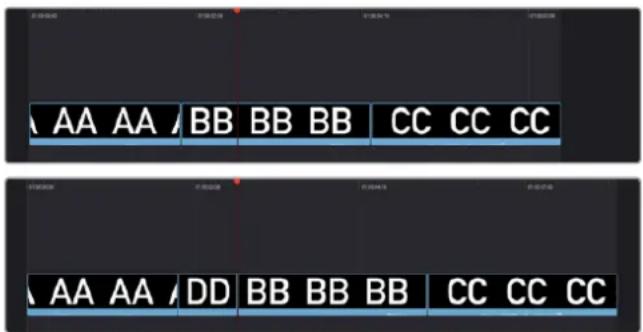
(Top) Before doing a Smart Insert, (Bottom) After inserting clip DD between clips AA and BB
Append
The position of the playhead is ignored; incoming clips are always placed after the last clip in the Timeline.
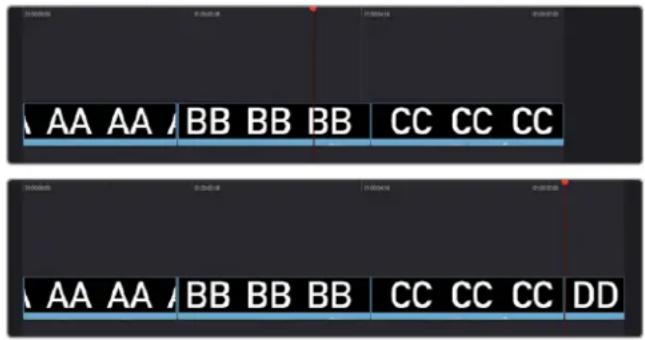
Performing an Append edit of clip DD to the Timeline
Ripple Overwrite
At its simplest, Ripple Overwrite substitutes a clip in the Timeline with an incoming clip. If you use Ripple Overwrite on a clip on Track 1, this will automatically move all clips that are to the right of the affected clip in the Timeline either forward to make room if the incoming clip is longer, or back to eliminate gaps if the incoming clip is shorter.
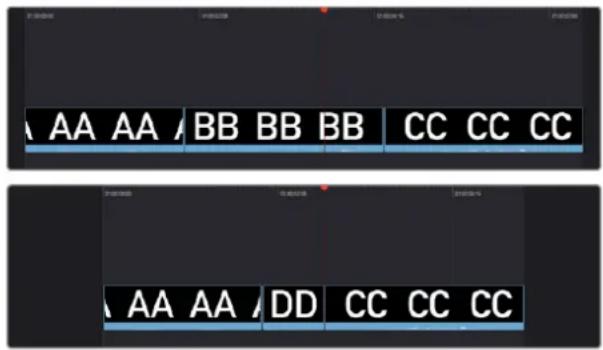
Performing a Ripple Overwrite to substitute an entire clip at the playhead (BB) with the incoming clip (DD)
However, Ripple Overwrite works differently if you've set In and Out points in the Timeline to define a range. In this case, the incoming clip substitutes whatever portion of the Timeline falls within this range, moving all other clips that are to the right of the affected range either forward to make room if the incoming clip is longer, or back to eliminate gaps if the incoming clip is shorter.
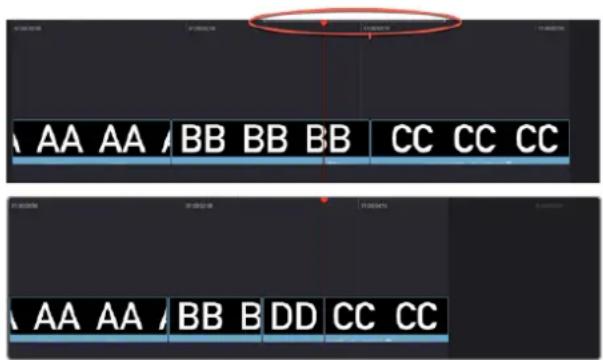
Performing a Ripple Overwrite to substitute a In/Out range of the Timeline (part of clips BB and CC) with the incoming clip DD
Close Up
Lets you edit a clip into the Timeline as a zoomed-in close up, to make up for a lack of actual close ups that would have been shot with either longer lenses or by moving the camera closer to the subject.
This function is particularly useful when you're working with 4K media in a 1080 timeline, or 8K media in a 4K timeline, which enables you zoom into existing wide shots to create medium shots, or medium shots to create close up shots, with no loss of quality.
Performing this edit adds the incoming clip as an approximate 150% scaled close up, also performs a face detection, and if a face or faces are found, automatically re-positions the face in the frame. Which frame of the Timeline the incoming clip aligns with depends on the following:
– If no In or Out points are set on the Timeline, the incoming clip aligns with the Timeline playhead as the In point.
- The incoming clip aligns with a timeline In point if one has been set.
– The incoming clip's Out point will align with a timeline Out point if one has been set without an In point. This “backtimes” the clip.
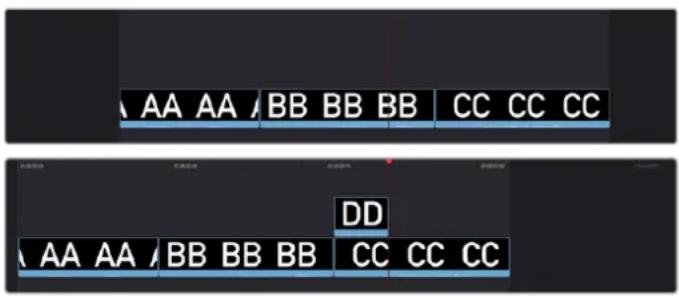
(Top) Before a Close Up edit, (Bottom) After editing clip DD into the Timeline with a Close Up edit
Place On Top
Lets you edit the incoming clip as a superimposition above whatever other clips are in the Timeline; the incoming clip is always placed on top, so if there are clips in tracks 1, 2, and 3, the incoming clip is automatically placed on track 4, regardless of which track is selected. The frame the incoming clip aligns with depends on the following:
- The incoming clip aligns with the closest timeline edit point in proximity to the playhead (as shown by the Smart Indicator) if no timeline In or Out points have been defined. The playhead is ignored.
- The incoming clip aligns with a timeline In point if one has been set.
- The incoming clip's Out point will align with a timeline Out point if one has been set without an In point. This "backtimes" the clip.
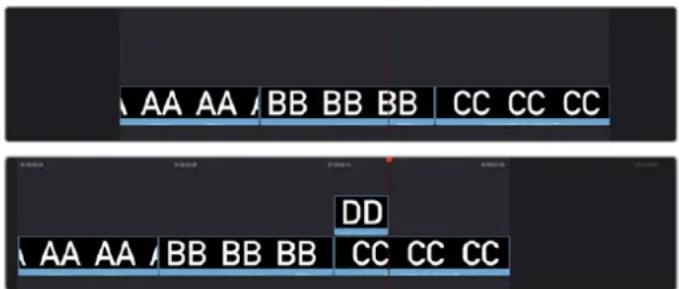
(Top) Before placing a clip on top, (Bottom) After editing clip DD into the timeline with a Place On Top edit
Source Overwrite
This edit requires overlapping timecode in multiple clips to work properly, such as when recording synced timecode to multiple cameras during a multi-cam shoot. If there is no overlapping timecode, this edit does nothing.
If you are working with footage from multiple cameras that have synced timecode, then the easiest way to use this edit type is to set In and Out points over a clip in the Timeline where you want to cut away to another angle. In the following example, a wide shot of a cooking show covers the moment when the chef starts slicing a chili.
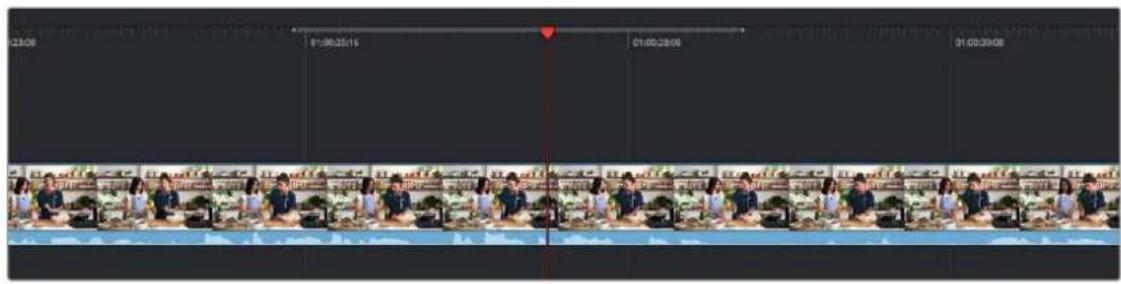
Setting Timeline In and Out points to identify a cutaway
You can then select a clip in the Media Pool that corresponds to the desired angle you want to add as a cutaway, that has synced timecode that overlaps with the clip in the Timeline. Don't set In and Out points; if necessary you can clear previously set In and Out points by pressing Option-X.
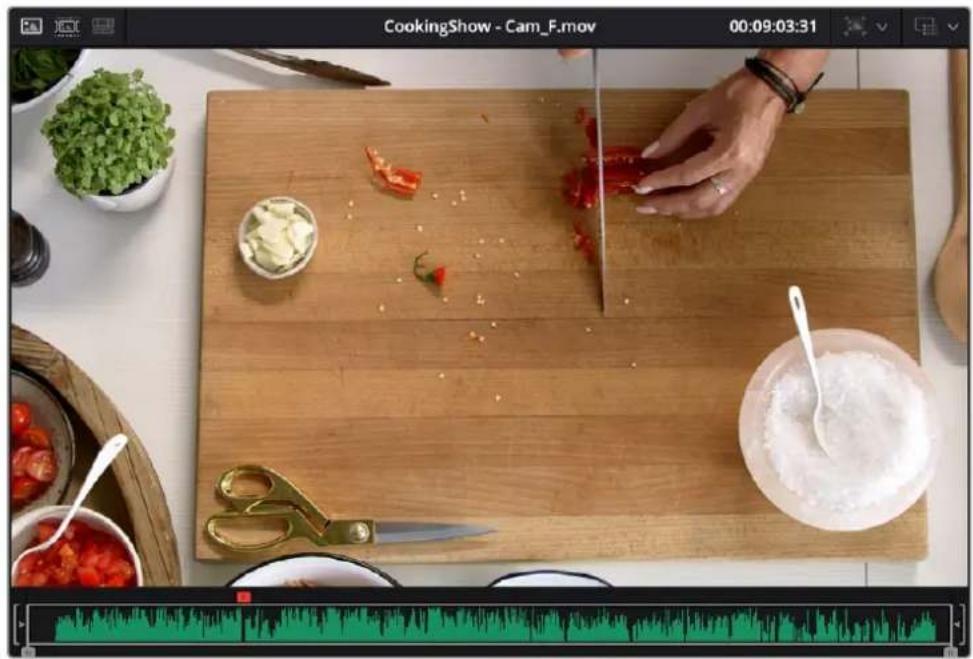
natural_image
Top-down view of a cooking scene with hands slicing tomatoes on a wooden cutting board, surrounded by bowls of vegetables and scissors (no text or symbols visible)Choosing a Media Pool clip from another camera that has overlapping timecode
When you click the Source Overwrite button, a synced section of the selected Media Pool clip will be edited into the Timeline between the In and Out points you placed, superimposed on top. The result is a perfectly timed cutaway.
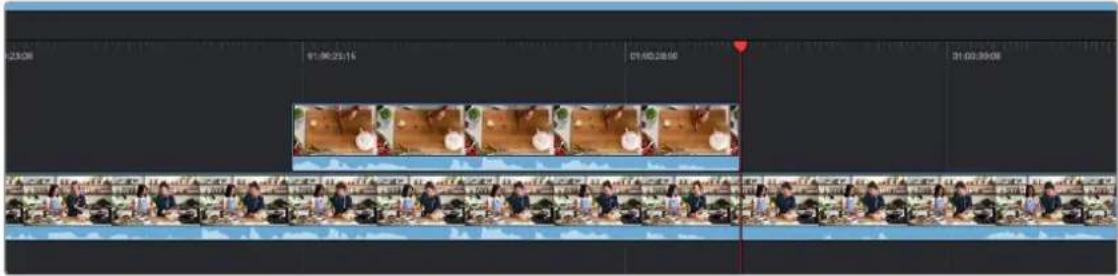
Using Source Overwrite to edit a superimposed and synced section of the source clip into the Timeline between the In/Out points
Alternatively, you can also use Source Overwrite to automatically place a source clip with a marked In/Out region on top of a clip in the Timeline so that its timecode syncs with the timecode of the timeline clip, when you don't know exactly how much of the incoming source clip you want to edit into the Timeline, and you just want it synced appropriately.
Overwrite
While there's no button available for performing an overwrite edit, you can use the F10 key to perform an overwrite edit, which overwrites a section of the Timeline with the incoming clip, without moving other clips in any way. The frame the incoming clip aligns with depends on the following:
- The incoming clip aligns with the playhead if no timeline In or Out points have been defined.
- The incoming clip aligns with a timeline In point if one has been set.
- The incoming clip's Out point will align with a timeline Out point if one has been set without an In point. This "backtimes" the clip.
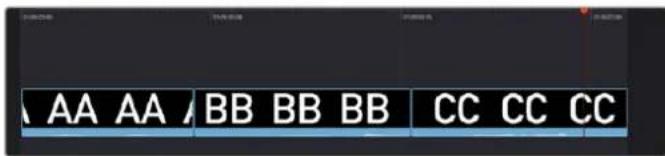
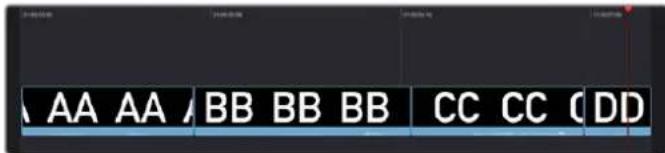
(Top) Before, positioning the playhead at the frame you want to use as the In point for the incoming clip, (Bottom) After overwriting the end of clip CC with incoming clip DD
Source Tape Editing
While all the features of the Cut page can be used individually, certain features are designed to be used in conjunction with each other to make your editing experience more streamlined. For example, combining the File Inspector, Source Tape, Metadata View, and the Navigable Folder Structure can create a well structured and organized project out of a single folder of unorganized clips.
Metadata Entry Using the File Inspector
The first step in organizing any project is metadata entry. In our initial project we have a large amount of clips all residing in a single Master Bin. We need to add appropriate metadata to these clips, and to do this we will be using the File Inspector.
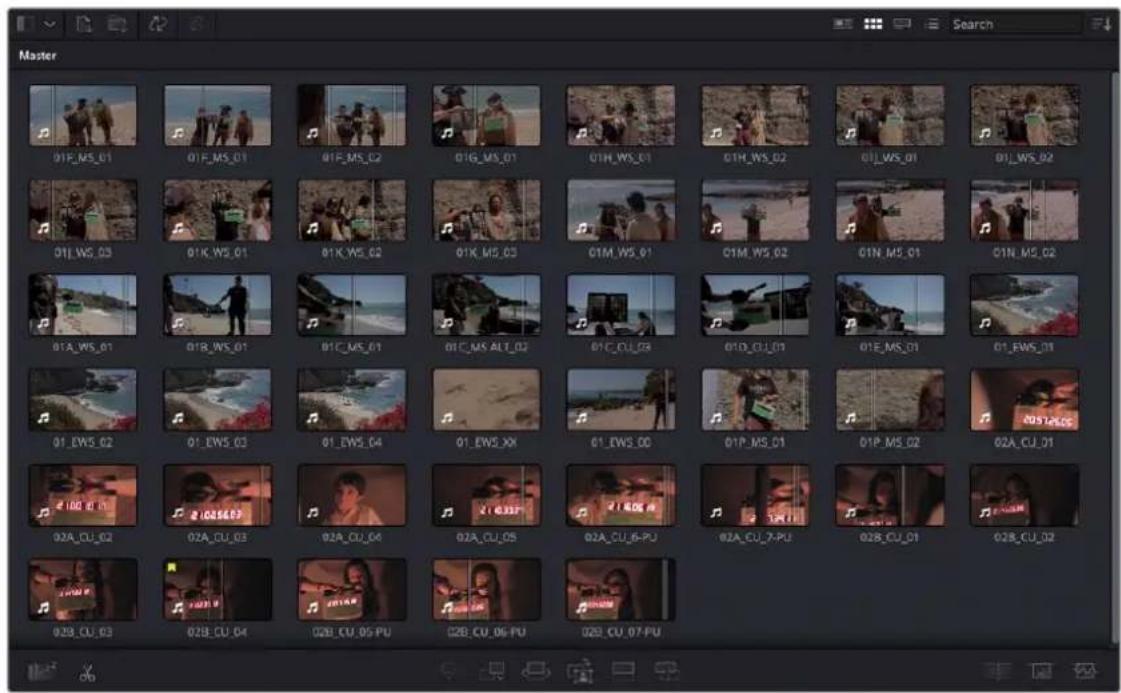
An unorganized Media Pool in the Cut page
After the File Inspector is open, check the box Auto Select Next Unsorted Clip, and this will automatically select the same metadata field in the next clip in the Media Pool, after you hit the return key. Enter in the Scene, Shot, and Take metadata for each clip, based on the information on the slate in each clip.
Once each clip has its scene, shot, and take metadata, select all the clips in the Media Pool, then enter the text string "%{Scene}_%{Shot}_%{Take}" in the Name field of the File Inspector. These variables will replace the clip names for all clips with their scene shot and take numbers separated by underscores, for example: "02A_CU_03".
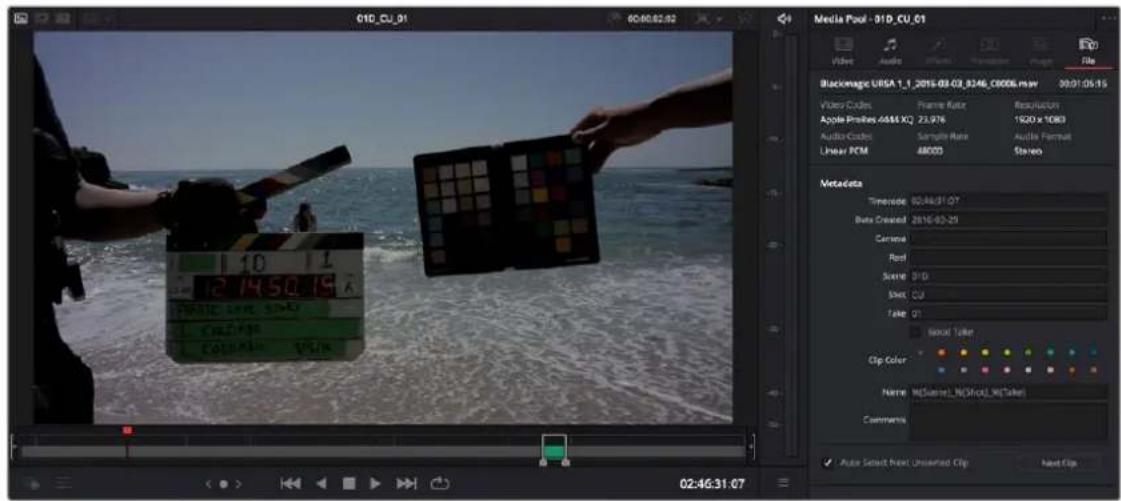
Entering Scene, Shot, and Take metadata in the File Inspector, and renaming all clips via variables
Now make two new bins in the Media Pool, Scene01 and Scene02, and drag all the clips that start with the name 01 into the Scene01 folder, and all the clips that start with the name 02 into the Scene02 folder. Our metadata entry for this project is now done.
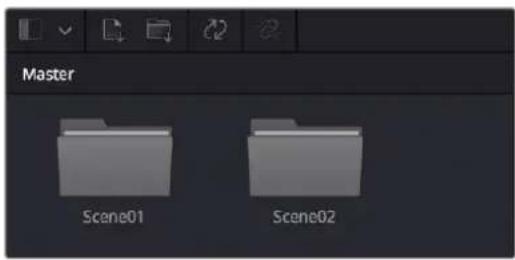
The Media Pool with all scene 1 clips in the Scene01 folder, and scene 2 clips in the Scene02 folder
Using the Source Tape
Now turn on the Source Tape, by clicking on its icon in the Viewer. Select Metadata View from the Media Pool view options, and then Sort By Scene, Shot in the Sort menu. You will now see the clips clustered by scene in the Media Pool, and all clips from both scenes are laid out in scene order in the Source Tape viewer. Selecting a specific clip in the Media Pool will snap the playhead to the first frame of that clip in the Source Tape. From here you can easily see the progression of the shots (take two follows take one, etc.), and continue your editing from here without having to hunt and click in the Media Pool.
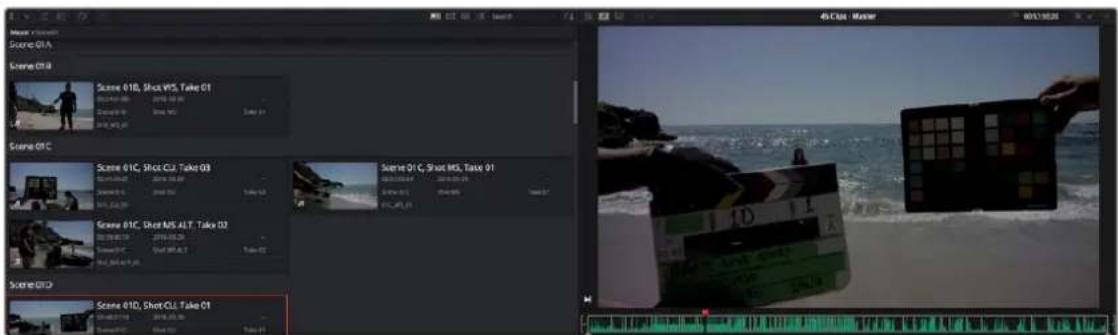
The Source Tape reflecting all clips in the Media Pool, and the Metadata View showing the clips clustered by Scene
Limiting the Source Tape Scope by Folder Structure
As your project grows, it can become unwieldy to constantly have an entire film's worth of media in the Source Tape. It is possible to limit the scope of the Source Tape at the bin level. As you navigate in the Source Tape, the current clip is highlighted, and its hierarchy will now appear in top of the Media Pool title bar. By clicking directly on bins in this bin path, you can quickly broaden or narrow the scope of the Source Tape. If you click on Scene02, the Source Tape will then zoom in to only show you clips in that folder. Clicking back on Master will zoom out the Source Tape to show the clips in all folders again.
The navigable folder structure; clicking on these levels will narrow or broaden the scope of the Source Tape.
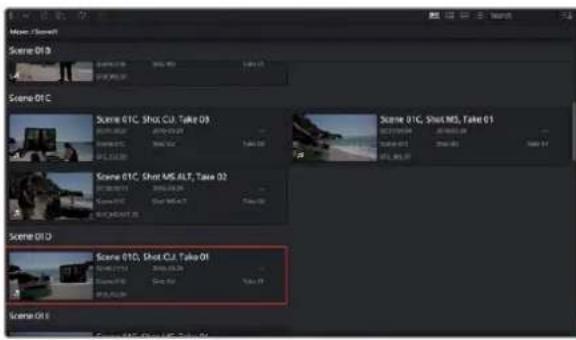
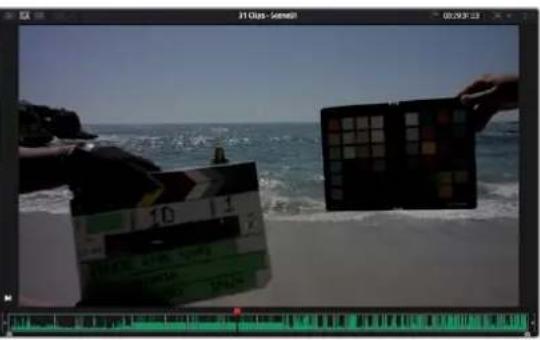
The Source Tape limited to showing only clips from Scene02
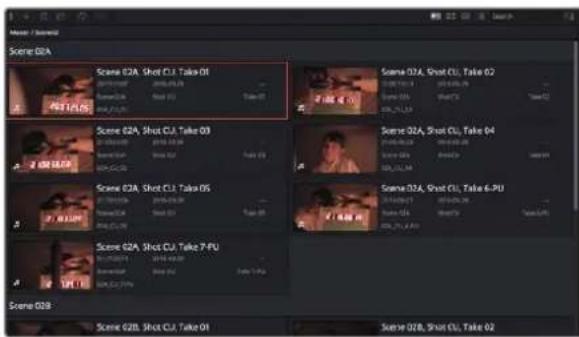
natural_image
Portrait of a young man in a light-colored shirt, looking downward (no visible text or symbols)The Source Tape limited to showing only clips from Scene01
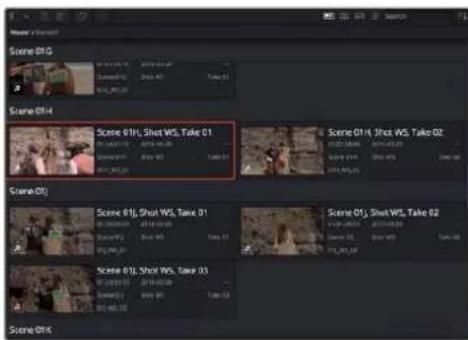
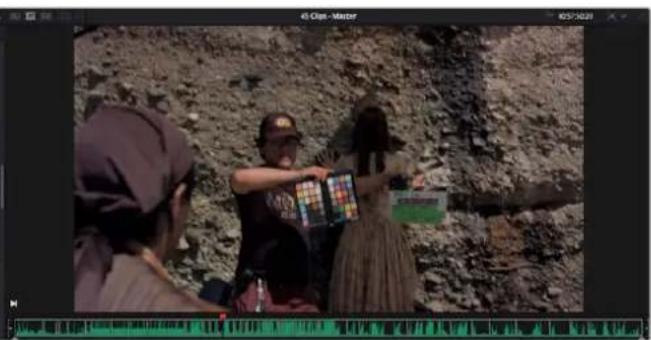
natural_image
Group of people gathered in a rocky, textured outdoor setting, examining colorful objects (no visible text or symbols)The Source Tape broadened to showing all clips in the Master folder
This is also useful when navigating bin structures that reflect the original camera file system. For example, you may have a camera that records each memory card as a separate folder, and then each individual clip is saved as a separate folder inside that folder. When you bring this file system into the Media Pool using the Create Bins option, these nested levels are mirrored in the Media Pool bin structure. Now when you click on a card bin in the Source tape, it will directly show you all the clips on that card, rather than show many individual sub-bins. This view is also viewable in Thumbnail, List, and Filmstrip views.
Sync Bin Multicam Editing
DaVinci Resolve has a number of tools to make editing multi-camera productions more intuitive and efficient. If simultaneously recorded clips from different cameras share common timecode,
DaVinci Resolve can automatically sync all of these different camera angles together as you edit. The tools described in this section act as a sort of digital assistant editor that is constantly searching through all your media, and presenting all of the relevant shots to you at the exactly the right time. This functionality, combined with the DaVinci Resolve Speed Editor, makes the Cut page an extremely powerful multi-camera editor.
Preparing Footage for Sync Bin Editing
In order to properly work with the Sync Bin, every clip in that bin must have the following characteristics.
All Clips Must Have a Common Timecode
Professional video cameras and audio recorders generally have the ability to "jam-sync" their timecodes together so that each separate video and audio source records the exact same timecode at the exact same time. Jam-syncing timecode is the quickest, easiest, and most reliable method to ensure your footage syncs perfectly.
If your footage does not have a common timecode, you will need to go through some extra steps to ensure that all your material matches up at the correct time. For more information, see the Sync Clips Window section below.
All Clips Must Have a Unique Camera Name
Most professional video cameras will have some sort of mechanism for naming the camera in its internal menu system. This camera name is then recorded as metadata in each captured clip, which can be read automatically by DaVinci Resolve. Cameras should be named either alphabetically (A, B, C, etc.), or numerically (1, 2, 3, etc.), and in a sequential order totaling the number of cameras that you are recording with.
If your camera does not automatically record this information (or it's set incorrectly), you can manually set the camera's name by modifying the Camera # field in the Metadata Editor in the Media Pool.
Sync Clips Window
If your footage does not share common timecode, or if the existing timecode needs to be modified for any reason, the Media Pool in the Cut page offers a Sync Clips window that allows you to modify the sync of all clips in a bin. It is accessed by clicking on the Sync Clips Window icon on top of the Media Pool.
The Media Pool Sync Clips window icon
The Sync Clips window opens and shows a live multi-camera sync Viewer on the left, and a standard clip Viewer on the right. There is also a timeline below that shows the temporal relationship of all the clips in the bin.
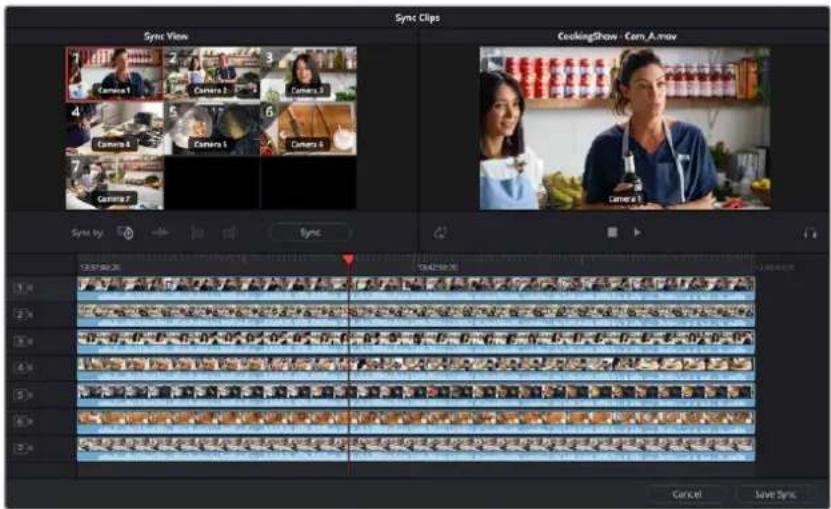
The Media Pool Sync Clips window
Sync By Tools
DaVinci Resolve offers several tools to automatically align your shots into perfect sync.
- Timecode: This button will try to align all the clips in the Sync Clips window by timecode; this is the default option.
- Audio: This button will try to align all the clips in the Sync Clips window by analyzing the audio tracks of each clip. In order for this to work, each clip must have at least a portion of the same audio track recorded clearly enough to analyze. An error message will notify you of which tracks could not be synced by this method.
- In Point: This button will try to align all the clips in the Sync Clips window by their user set In point. This is useful if you have a common mark that was shot across all cameras, for example a slate that claps closed, or a camera flash.
- Out Point: This button will try to align all the clips in the Sync Clips window by their user set Out point. This is useful if there was a common tail slate.
- Sync: This button will execute the Sync By method selected above.
Once all of the clips in the window are synced appropriately, hit the Save Sync button in the lower right-hand side of the window.

The Media Pool Sync By icons (L-R: Timecode, Audio, In point, Out point)
Manually Syncing Clips in the Sync Clips Window
If none of the Sync By tools is appropriate for the clips in your bin, you can manually sync the clips together by dragging each clip to the appropriate position on the Sync Clips Window timeline. For finer control, select the clip you want to sync and press the Comma (,) or Period (,) keys to nudge the clip backward or forward by one frame. Shift-Comma (,) or Shift-Period (,) nudges the clip by 5 frames (default), or by the amount of frames set in the "Default fast nudge length" setting in the General Settings section of the Editing panel in the User settings of the Resolve Preferences. Each clip has its own track, and you can enable sync lock in the right-hand Viewer to prevent accidental slipping.
Once all of the clips in the window are synced appropriately, click the Save Sync button in the lower right-hand corner of the window.
Using Your Newly Synced Clips
After saving the sync on your clips, a new Multicam clip will appear in the Media Pool. If you select the Thumbnail View, a Sync icon appears on all the clips you modified. If you want to modify your sync, right-click on a thumbnail and select Open Sync Group to reopen your clips in the Sync Clips window. Once you place your first clip on the Timeline as a reference, you are now ready to use the Sync Bin to edit.
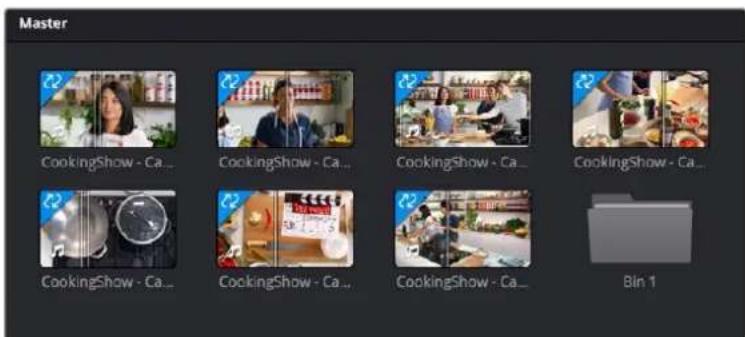
Sync icons (upper left arrows) identifying synced media clips
Sync Bin Editing
The core idea behind the Sync Bin layout is that instead of traditionally scrubbing through your timeline and clips independently, you now only have to scrub through your timeline. In the Media Pool, all of the clips that exist with that same timecode value will automatically scrub in sync with the playhead. This allows you to always have the exact clips that will fit perfectly in your timeline available at your fingertips.
Selecting this mode automatically changes the layout of the Media Pool and the Viewer to better accommodate multi camera editing in the Cut page.
Edit in Your First Clip from the Media Pool
Choose a clip that will be your base layer and place it on Track 1. This clip is used as the reference for all of the other clips in the Sync Bin. Then press the Sync Bin icon.

The Sync Bin Icon
Media Pool in the Sync Bin
All of the clips in the bin, and its subfolders, are presented in filmstrip mode. The clips are ganged together automatically by timecode and sorted by camera number. An additional playhead appears at the current timeline position, and moving any of the three playheads in the Cut page will scrub through all of the clips in the Sync Bin at the same time.
Viewer in the Sync Bin
The Viewer switches to a live Multi Viewer for up to nine cameras. Each camera is labeled, numbered, and the active camera in the Timeline is highlighted in red. Cameras that were not active at the current playhead time are blacked out.
The Sync Bin camera selection can be viewed full screen in the Cinema Viewer by pressing "P" on your keyboard, allowing you to see a larger, more detailed view of each specific camera. In this full-screen mode, the Sync Bin view controls operate identically to those in the normal Viewer.
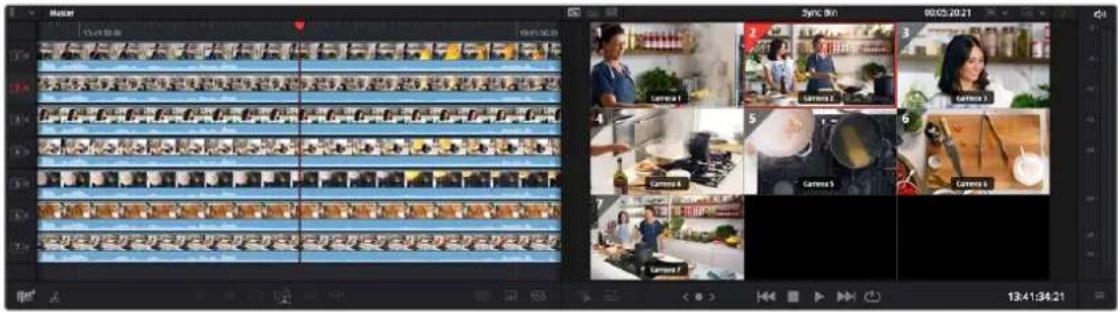
The Media Pool and Viewer in Sync Bin view
Select Your Timeline In Point
Select the In point on your timeline by scrubbing the timeline playhead to the position you wish your media to start. As you do this, all of the clips in the Sync Bin will scrub along with the playhead position. Finding and selecting your edit points in the Sync Bin is greatly simplified, as all of your possible synced media choices are available instantly.
When the "Video Only" mode is activated in the Cut page, audio from the sources in the Sync Bin are now muted, and the audio playback is from the clips in the Timeline only.
Select Your Camera
In the Multicam Viewer, select the camera angle you wish to use as your source material by doing one of the following:
- Clicking on the appropriate camera in the Multicam Viewer
- Clicking on the appropriate camera number icon in the Filmstrip Viewer
- Pressing the number key of the camera on the keyboard
The Viewer will then go into Single Clip mode, showing the camera you selected. To return to the MultiViewer, click on the circled X close icon, or simply press the Escape key.
The clip will automatically set an In point at your current timeline position, with a default duration of five seconds. You can then manually set the Out point of the clip wherever you want.
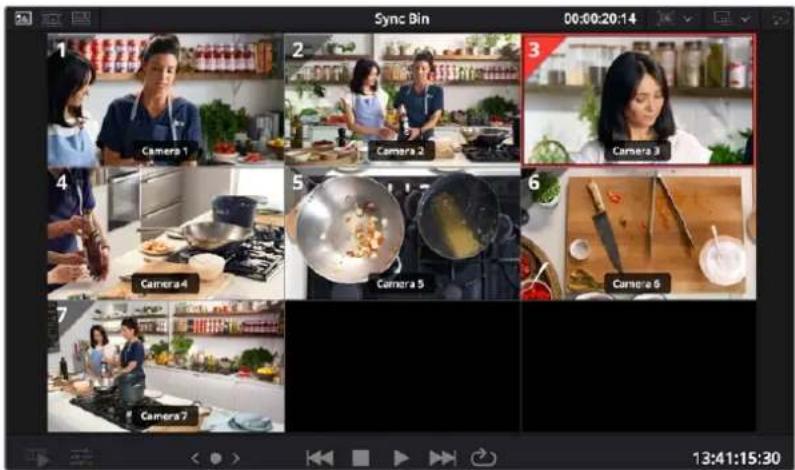
The Multicam Viewer selection
Make the Source Overwrite Edit
Once your clip's edit points are chosen, click on the Source Overwrite button and your selected camera clip will be perfectly positioned in sync on your timeline. The playhead will then automatically advance to the clip's Out point, the Multi Viewer will return, and so be instantly ready for the next edit.
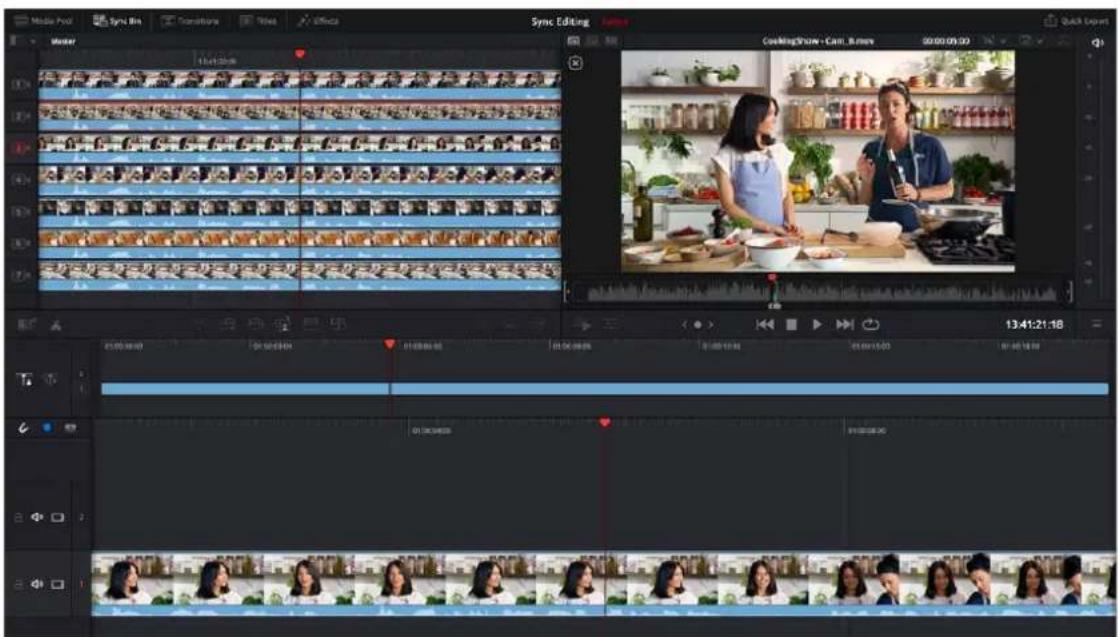
Selected Camera 2 and Playhead In point on the Timeline, ready for Source Overwrite edit.
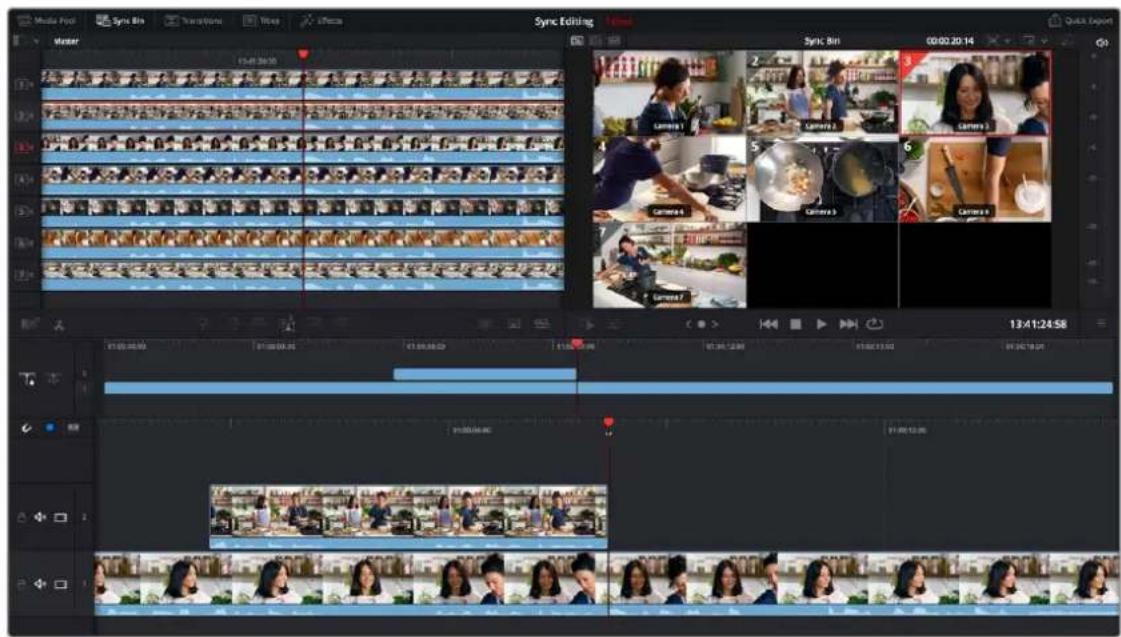
The completed Source Overwrite edit showing Camera 2 edited in, and the Timeline ready for the next edit
TIP: Because the actual media in the Sync Bin determines the overall limit of the clips, and not the Timeline, it is possible to scroll past the end of the Timeline to make an edit. When you are past the end of the Timeline, the playhead now represents the Out point instead, which allows the clip to backfill itself to fit the exact duration required to fill in the Timeline.
Chapter 29
Trimming in the Cut Page
Once you've assembled a sequence of clips together into a loosely edited timeline, the Cut page provides numerous methods for modifying them in the Timeline. These tools are intended to improve the pace of your program by fine-tuning the timing of each clip, as well as the edits that separate them them. The idea is to make these kinds of adjustments easy, so your program's content is clear, and the timing of your program's playback is satisfying. This process of making modifications to the edits in a timeline is referred to as "trimming."
Contents
Tools That Help You Work in the Timeline 475
Snapping 475
Locking, Muting and Disabling Tracks 476
Audio Trim View 477
Timeline Markers 477
Add Track 478
Making Selections 478
Moving Clips in the Timeline 480
Ripple Overwriting An Entire
Clip in Track 1 480
Overwriting the Middle of Other Clips 480
Overwriting The Edges of Other Clips 481
Swapping Clips 481
Copy, Cut, and Paste 482
Splitting Clips 482
Disabling and Deleting Clips 483
Disabling and Muting Clips 483
Deleting Clips 483
Deleting Parts of Clips 484
Trimming Clips 484
Resize Clips While Rippling the Timeline 484
Rolling an Edit 485
Slipping Clip Content 486
Trimming Edits in the Viewer 486
Trimming Transitions in the Viewer 487
Tools That Help You Work in the Timeline
As you begin the process of trimming clips in the Timeline, a series of buttons at the top left of the Timeline help you to align clips and keep track of important frames while you work.
Locked or Free Playhead
A pair of buttons at the upper left-hand corner of the Timeline lets you choose whether you use a locked or free playhead.
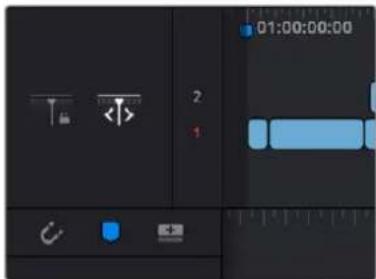
Two buttons let you choose to use a locked or free playhead
- When set to locked, the playhead is fixed in the center of the Timeline, and your edited clips scroll past it as you play (press the Spacebar), jog, or shuttle (use the JKL keys) in either direction. Locked mode works great when you use the DaVinci Resolve Editor Keyboard, because the Timeline flows past the playhead while you use the Jog/Shuttle/Scroll wheel. You can also scroll the Timeline using your pointer by dragging the Timeline Ruler at the top to the left or right, which also drags all of your clips to the left or right.
- When set to free, the playhead moves across the clips as you play (press the Spacebar), jog, or shuttle (use the JKL keys) in either direction; the clips stay still. This mode can be useful when you're doing precision trimming in the Timeline using a pointing device, as the clips stay put while you drag parts of clips to make adjustments. Once the playhead gets to the right or left edge of the Timeline, the Timeline pages over to reveal the next part of your edit. You can also move the playhead by clicking in the Timeline Ruler to jump the playhead to that frame, or by positioning the pointer over the playhead's top handle, or over the playhead itself, and dragging the playhead wherever you want it to go.
Snapping
When dragging clips around the Timeline, you can click the magnet-shaped Snapping button in the toolbar, or press N, to enable or disable snapping.

The magnet-shaped Snapping button in the Timeline track header
When snapping is turned on, clip in and out points, markers, and the playhead all snap to line up with one another, making it easy edit clips together at their boundaries, or to line up clips with markers or the playhead as reference for key frames you want to cut to. When a clip's boundary is snapping, a white line shows you the edges that are being aligned with one another.
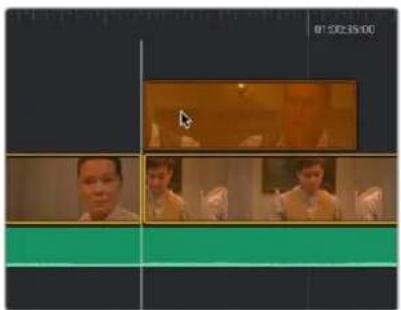
The indicator that appears when clip boundaries are snapping to another edge
NOTE: When the playhead is locked, clips don't snap to it.
However, it's also important to be able to turn snapping off when this behavior impedes your ability to make small adjustments to clips in the Timeline. You can press N to temporarily turn snapping on or off while you're in the middle of dragging a clip in the Timeline, or while scrubbing the playhead using the pointer.
- When you change snapping while dragging a clip, an edge, or the Timeline, it's considered to be a temporary operation, and snapping reverts to its previous state when you release the mouse button.
- When you change snapping in between dragging operations, the snapping state remains set until the next time you change it.
Locking, Muting and Disabling Tracks
As you work in the Timeline, you may find it useful to lock tracks with clips you don't want to accidentally change as you work. For example, you might lock an audio track that has an edited piece of music you're now cutting other video and audio clips to, so you don't accidentally alter or trim the music that serves as the base of your program. Clips on locked tracks appear stippled to let you know they can't be altered.
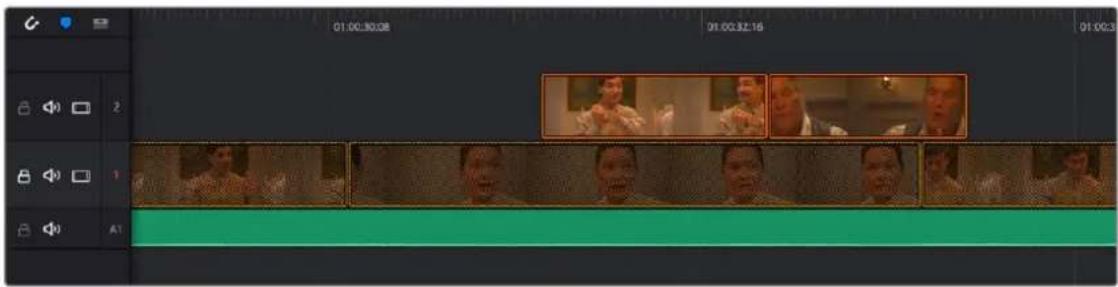
A locked audio track, the Lock icon is closed and clips on that track are stippled
You may also find it useful to mute the audio or disable the video of tracks you don't want to see while playing the Timeline. For example, you might want to disable a track filled with title graphics if you want to get a closer look at the underlying video in the background. Each track has Mute and Enable controls, while audio-only tracks only have Mute controls. White controls are enabled, while gray controls are disabled.
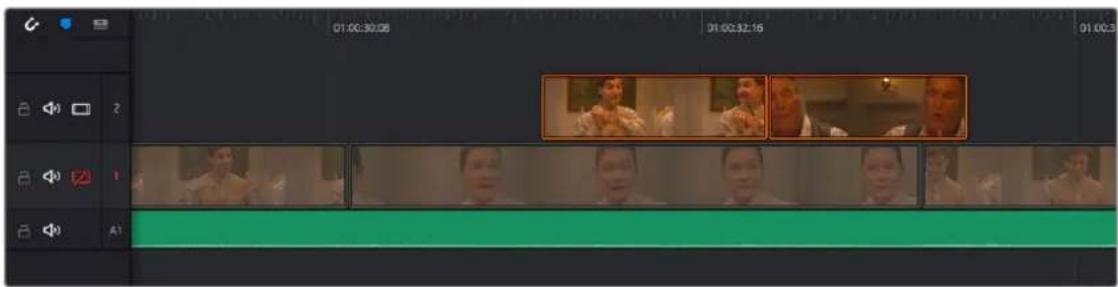
Track 1 is disabled; the Enable button is orange and clips on the track are dimmed
Audio Trim View
When performing a trim operation in the Cut page, you can set the option to expand the audio waveform of a Timeline clip while trimming. This mode gives a much more accurate view of the audio, making it easier to pick a specific edit point between words, beats, etc.
To toggle Audio Trim view:
- Click the Audio Trim icon, between the Snapping and Marker tools.
The Audio Trim View icon activated (circled)
With this option enabled, you'll see an expanded waveform for audio/video clips that are being trimmed in the Timeline, while you're trimming. This shrinks back down after you finish the trim operation.
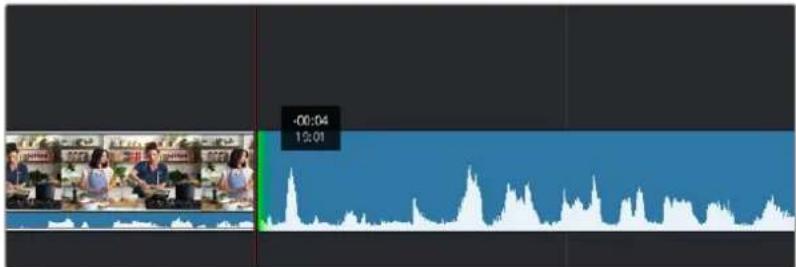
The Audio Trim view showing an expanded audio waveform while trimming in the Timeline
Timeline Markers
You can place markers in the Timeline Ruler (of both the Upper Timeline and the Timeline Editor) to keep track of important frames of clips you want to remember, alternate edit points you're thinking of, key moments in the edit, or to make notes of things you need to do. You can edit marker text, which appears as an overlay in the Viewer, and you can change the color of markers to distinguish them from one another.
The Marker button in the
Timeline track header
Methods of working with markers:
- To add a marker: Move the playhead to a frame you want to mark, then click the Marker button in the Timeline header, or press the M key.
- To jump the playhead among markers: Hold the shift key and press the Up or Down Arrow keys to jump the playhead from marker to marker.
- To edit a marker's name, text, color, or keywords: Double-click a marker, or jump the playhead to a marker and press M again. When the marker dialog opens, edit the Name, Notes field, Keyword field, or color of the marker, then press Return or click Done to close the dialog. Markers with custom notes appear with a dot.
- To move a marker: Drag a marker to another frame in the Timeline Ruler.
- To delete a marker: Select a marker, and press Delete. Or, align the playhead with a marker, and press Option-M. Or, jump the playhead to a marker, press M to open the marker dialog, and then click Remove Marker.

Blue, red, and orange markers in the Timeline; the red marker contains text, the others do not
Add Track
The Add Track button on the right side if the Timeline track header will automatically add a new video track to the Timeline.
The Add Track button, on the far right of Timeline track header
Making Selections
As you continue to work in the Cut page, it becomes increasingly helpful to know how to make different kinds of selections, both in the Media Pool and in the Timeline. Most of these methods of selection should be familiar to you if you have experience with other media applications or file managers.
Methods of selecting clips in the Media Pool:
- To select a single clip: Click a clip in the Media Pool. Once you've selected a clip, you can use the Up and Down arrow keys to move the selection to other clips.
- To select a contiguous range of clips: Drag a selection box over all the clips you want to select, or click to select the first clip in a series, then Shift-click the last clip to select those clips and everything in between.
- To select a noncontiguous range of clips: Command-click each clip you want to include in the selection. Or, you can hold the Command key down while you drag bounding boxes over unselected clips to add them to the current selection, or over selected clips to remove them from the selection.
- To select all clips: Select one clip, then choose Edit > Select All (Command-A).
Methods of selecting clips in the Timeline:
- To select one clip: Click a clip with the mouse. Command-clicking that clip de-selects it.
- To de-select all clips in the Timeline: Click in any empty area of the Timeline to de-select everything, or press Command-Shift-A.
- To select a continuous range of clips by dragging: Drag a bounding box from an empty area of the Timeline to surround a group of clips.
- To select a continuous range of clips by Shift-clicking: Click the first clip you want to select, and then Shift-click the last clip you want to select, and all clips in-between will automatically be selected as well.
- To select a discontinuous range of clips: Command-click any clips to select them no matter where they appear on the Timeline. Command-clicking a selected clip deselects it.
- To select all clips in the Timeline from the playhead forward: Right-click the top handle of the playhead, and click the right button on the radial menu that appears.
- To select all clips in the Timeline from the playhead backward: Right-click the top handle of the playhead, and click the left button on the radial menu that appears.
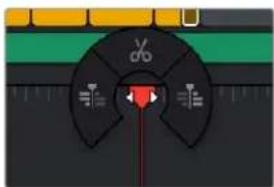
The radial menu that appears when you right-click the top handle of the playhead
Methods of selecting edits in the Timeline using the pointer:
- To select an edit to roll: Move the mouse to the center of an edit point, and when the ripple cursor appears, click to select the edit.
- To select just the incoming or outgoing half of an edit point to resize: Move the mouse to the left or right of the center of an edit, and when the resize/ripple cursor appears, click to select that portion of the edit.
- To select multiple roll points: Command-click the center of multiple edit points. Command-click a selected edit point to deselect it.
- To select multiple resize points: Command-click the left or right sides of multiple edit points.
- To de-select all clips in the Timeline: Click in any empty area of the timeline to de-select everything.
Keyboard shortcuts for selecting edits in the Timeline:
- To select an edit point from the keyboard: Press V to select the nearest edit point to the playhead.
- To change an edit selection from the keyboard: Once you've selected an edit point, press U to toggle among selecting the outgoing half, incoming half, or the entire edit.
- To de-select all edits in the timeline: Press Command-Shift-A.
Moving Clips in the Timeline
Once you've edited some clips into the Timeline, you'll probably want to start fine-tuning the edit by moving clips around. Different operations can be performed depending on how you move these clips. All of these techniques work in both the Upper Timeline and the Timeline Editor.
Ripple Overwriting An Entire Clip in Track 1
Drag a clip in the Timeline or Upper Timeline over another clip in the Timeline so that the pointer overlaps that clip, and quickly drop it onto another clip in Track 1. The clip you dragged replaces the clip you dropped it onto, and all clips to the right are moved to either make room (if the dragged clip is longer) or to close the gap (if the dragged clip is shorter).
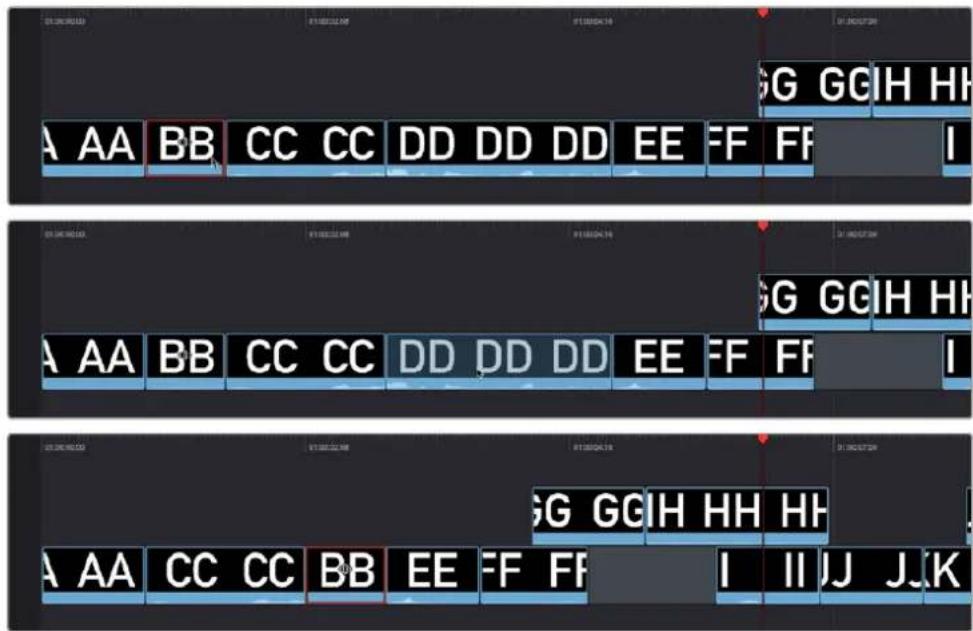
(Top) Clicking clip BB to begin dragging it, (Middle) Dragging clip BB onto clip DD to ripple overwrite it, (Bottom) Clip BB is moved and takes the place of clip DD, while the rest of the Timeline moves left to close the gaps in Track 1
NOTE: If you wait too long, this Ripple Overwrite operation will turn into an overwrite operation. If you drag a clip in Track 1 onto a clip in any other track, you can only do an overwrite, not a ripple overwrite.
Overwriting the Middle of Other Clips
Drag a clip in the Timeline or Upper Timeline over another clip in the Timeline so that the pointer overlaps that clip, and pause until the clip you've selected is overlaid on top of the second clip, and release the mouse button. The target clip is overwritten by the duration of the clip you dragged and split in two.
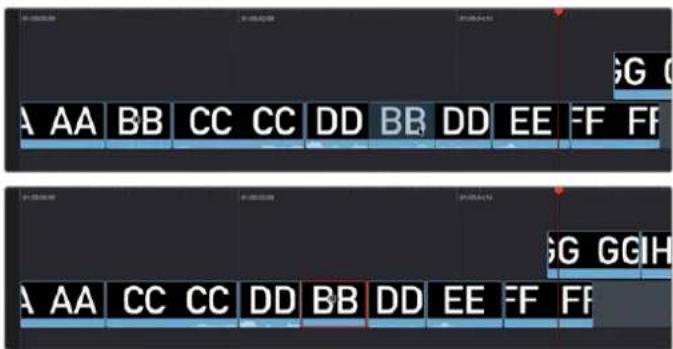
(Top) Dragging clip BB and pausing to overwrite part of clip DD, (Bottom) Clip BB is moved, overwriting the middle of clip DD which is now in two pieces; the rest of the Timeline moves left to fill the gap left by moving clip BB in Track 1
Overwriting The Edges of Other Clips
Drag a clip in the Timeline or Upper Timeline over the edge of a neighboring clip without letting your pointer overlap it, then drop the clip. The overlapping part of the neighboring clip will be overwritten.
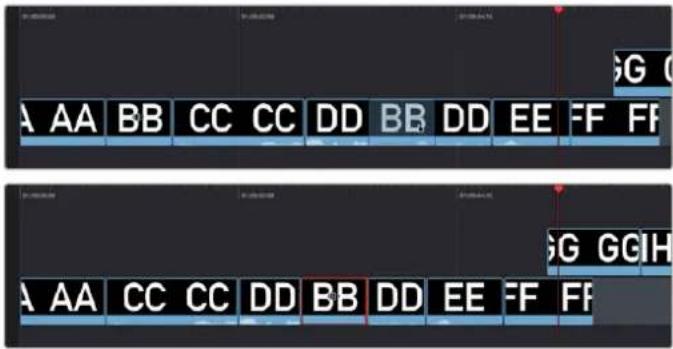
(Top) Dragging clip CC to partially overlap clip DD in order to overwrite it, (Bottom) After dropping clip CC to partially overwrite the beginning of clip DD, clip DD is shortened and the other clips in the Timeline move left to fill the gap in Track 1
Swapping Clips
Drag one or more clips from one part of the Timeline or Upper Timeline to another so that the pointer overlaps an edit between two clips (the edit point turns purple), and drop the clip. The clip(s) you dragged are now moved so that they're inserted at the edit point you targeted.
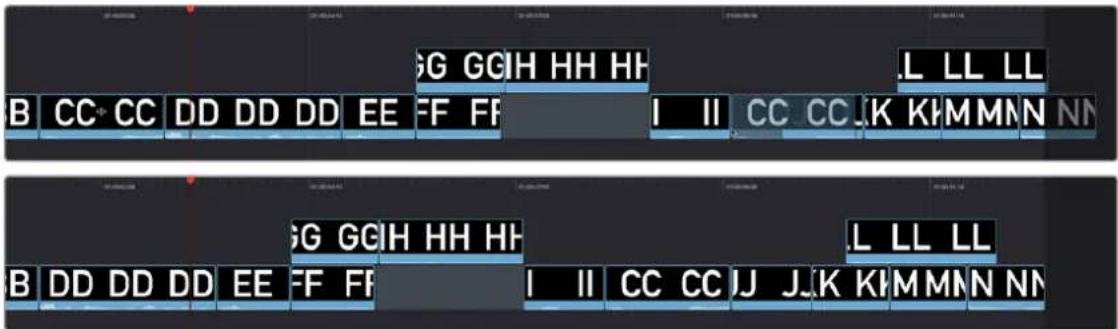
(Top) Dragging clip CC to swap it between clip II and JJ, (Bottom) Dropping clip CC rearranges the Timeline, which automatically closes all gaps and move clips to the right where necessary; superimposed clips are kept in sync with clips in Track 1 that have moved
Copy, Cut, and Paste
Clips can be cut, copied, and pasted in the timeline or Upper Timeline to duplicate them or move them around, just like words in a word processor.
To cut/copy and paste in the Timeline:
1 Select one or more clips in the Timeline.
2 Do one of the following:
a. Press Command-C to copy them (the selected clips remain where they are).
b. Press Command-X to cut them (the selected clips are removed and the Timeline automatically ripples itself to close the gap).
c. Move to another part of the Timeline, then press Command-V to paste the clips. The clips are pasted to the frame at the playhead, to the same track they were copied from, and overwrite whatever other clips are at that part of the Timeline.
Splitting Clips
You can split any clip into two pieces, effectively adding an edit point in the middle, in preparation for moving part of a clip, deleting part of a clip, inserting another clip at that edit point, or adding an effect of some kind to one part of a clip but not another.
To split a clip:
1 Move the playhead to the frame of a clip where you want to split it.
2 Do one of the following:
- Right-click the clip and choose Split from the contextual menu.
- Right-click the top handle of the playhead and click the Split button that appears on the radial menu.
- Press Command-Backslash.
- Press the Split Clips (scissor) icon on the far left of the Cut page Edit commands.
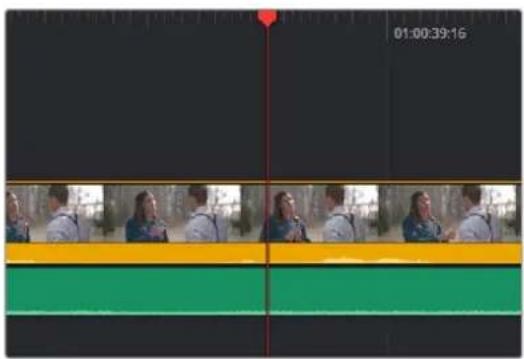
natural_image
Video editing timeline showing multiple tracks with colored frames (no readable text or symbols)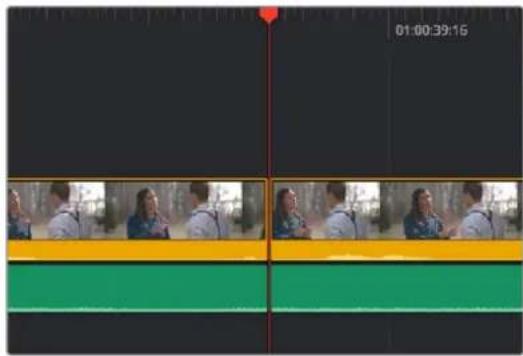
natural_image
Video editing timeline interface showing multiple tracks with colored frames (no readable text or symbols)(Left) Before splitting a clip, (Right) After, a new edit point bisects the clip into two pieces
Disabling and Deleting Clips
Clips that you no longer want can be disabled or deleted.
Disabling and Muting Clips
You can turn off the audio and/or video for a clip in the Timeline, without removing the clip itself. This is useful in instances where you want to use a clip's audio or video selectively, or for instances where you want to disable the audio and video for a clip that you don't want to use, without eliminating it completely from the Timeline in case you change your mind.
Disabling Clips
You can turn off a clip's video while leaving it in the Timeline by selecting it and pressing D, or by right-clicking it and deselecting Enable from the contextual menu. The clip turns dull to show it's disabled. Audio will continue to play for that clip unless you mute it as well.
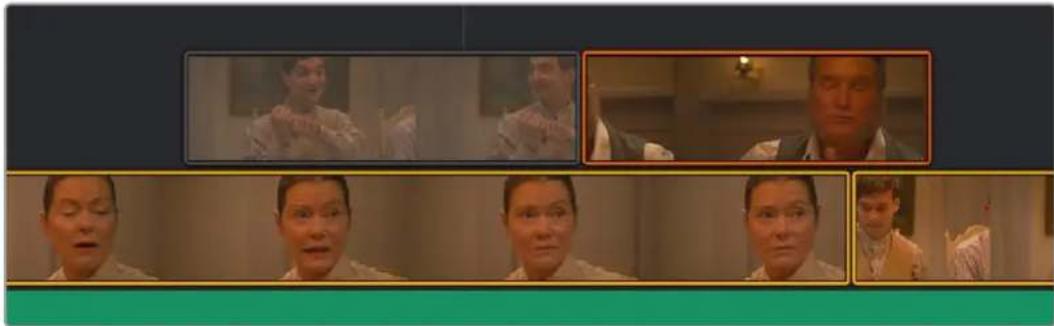
natural_image
Sequence of five individuals in a meeting room setting, each with a close-up view (no visible text or symbols)A disabled clip in the Timeline
Muting Clips
You can turn off a clip's audio while leaving it in the Timeline by right-clicking it and choosing Mute from the contextual menu. A mute icon is superimposed over the beginning of the clip to show audio is disabled. Video will continue to play for that clip unless you disable it as well.
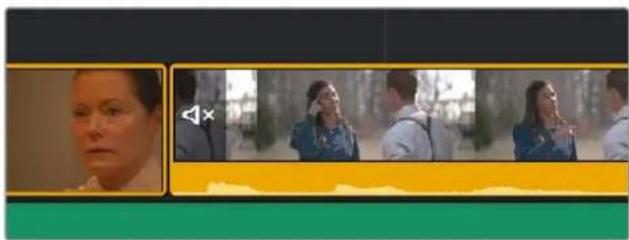
natural_image
Side-by-side video frame showing a woman's face and three people in a forest setting (no visible text or symbols)A muted clip in the Timeline
Deleting Clips
If you want to completely eliminate one or more clips from the Timeline, select them and press the Delete key. The clip(s) will be removed. If you've deleted a clip on Track 1, the Timeline will ripple to close the gap automatically.
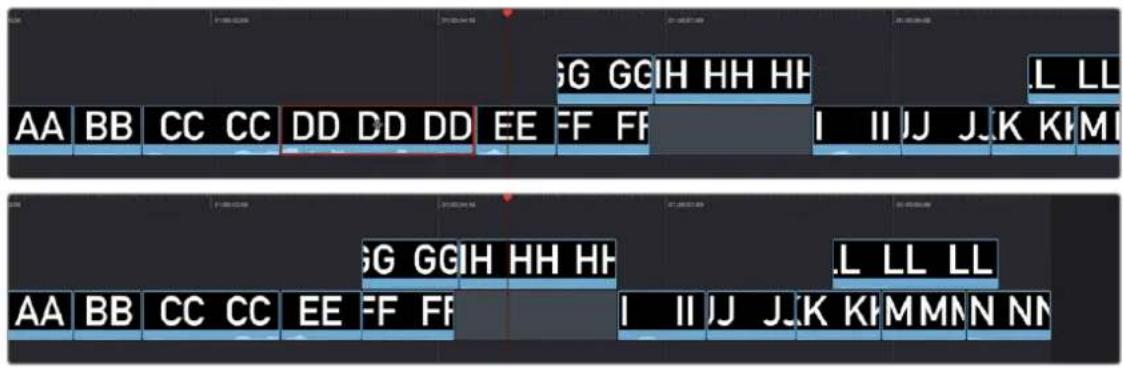
(Top) Selecting clip DD to delete it, (Bottom) Deleting clip DD results in clips EE through NN moving left to fill the gap in Track 1; superimposed clips move to keep in sync with the clips underneath them
Deleting Parts of Clips
If you want to delete only part one or more clips, set In and Out points around the section of the Timeline you want to delete, and press the Delete key. The section of the Timeline between the In and Out points will be removed. If you've deleted part of a clip on Track 1, the Timeline will ripple to close the gap automatically.
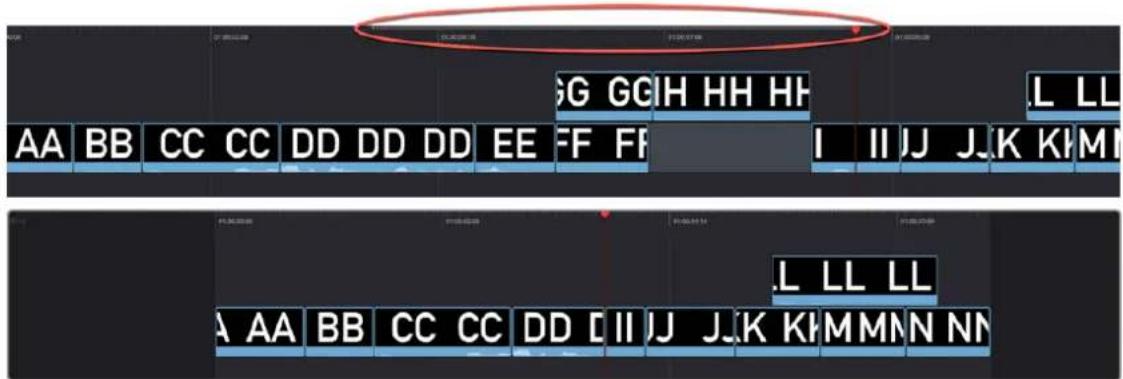
(Top) Marking In and Out points to delete that section of the Timeline, (Bottom) After deleting whatever's between the In and Out points, all clips to the right of the marked section move left to close the gap in Track 1
Trimming Clips
You can also quickly modify your edited timeline by resizing the In and Out points of any clip, moving the edit points between clips, and slipping the contents of a clip.
Resize Clips While Rippling the Timeline
If you move the pointer over the far left or right edge of a clip in the Timeline or Upper Timeline, it turns into a Resize icon to indicate that you can drag the In or Out point of that clip to make it shorter or longer, in the process rippling all clips to the right in the Timeline to accommodate the new length of the clip. While you drag, a tooltip shows you how many frames you've moved the clip and the clip's new duration. As you do so, the audio will scrub along with the Resize cursor.
If you resize a clip in Track 1, the rest of the edited timeline automatically ripples to accommodate the changes you've made, with clips to the right of the changed area moving left to fill the gap of a deleted or shortened clips, or moving right to make room for an inserted or lengthened clip.
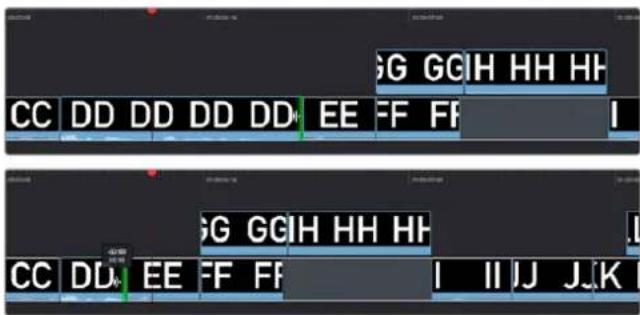
(Top) Clicking the Out point of clip DD in Track 1, (Bottom) Dragging to shorten clip DD ripples the Timeline; a tooltip appears to show you how many frames you've resized
Moving or resizing clips on Track 2 and above only moves or resizes that one clip; other clips in the Timeline are not rearranged and the Timeline is not rippled when you do this.
(Top) Clicking the out point of clip HH in Track 2, (Bottom) Dragging to lengthen the clip doesn't ripple the Timeline
TIP: When you resize the Out point of a clip on Track 1 that's underneath a superimposed clip, and the superimposed clip has an In point that's to the right of the In point of the clip you're resizing, then dragging the Out point of the clip you're trimming past the left of the In point of the superimposed clip will delete that superimposed clip from the Timeline.
Rolling an Edit
You can click and drag any edit point between two clips in the Timeline or Upper Timeline to "roll" it, basically resizing the Out point of the outgoing clip and the In point of the incoming clip simultaneously. This lets you move an edit point without changing the duration of the overall timeline. While you drag, a white overlay in the Timeline lets you see how much media you have available for rolling (depending on the available handles in the source media). As you do so, the audio will scrub along with the right clip's In point.
(Top) Clicking an edit between clips CC and DD, (Bottom) Dragging to the right rolls it forward, simultaneously resizing clips CC and DD
Slipping Clip Content
For each clip in the Timeline, a Slip handle appears at the center of the clip. Dragging this handle lets you slip the contents of that clip to present a different range of media, without changing the position or duration of the clip, and without changing any other part of the Timeline.
You can even select multiple clips, such as two superimposed clips, or a number of clips in a row, and slip them all at the same time. While you drag, a white overlay in the Timeline lets you see how much media you have available for slipping (depending on the source clip's duration).
(Top) Clicking a clip's slip handle, (Bottom) Dragging a clip's slip handle to change the range of media within that clip
Trimming Edits in the Viewer
You can double-click any edit point between two clips in the Timeline or Upper Timeline to open up the Trim Editor, which provides a detailed method of adjusting both halves of an edit point. A graphical A/B roll interface shows two filmstrips with the outgoing clip on top and the incoming clip on the bottom. These controls are draggable:
- Drag the left side of the top filmstrip's handle to trim the Out point of the outgoing clip
- Drag the right side of the bottom filmstrip's handle to trim the In point of the incoming clip
- Drag the white handle between the top and bottom filmstrips to roll the edit point, simultaneously adjusting the outgoing and incoming edit points
Numbers over each frame let you see exactly how many frames you're trimming, while a pair of buttons to the left and right of the transport controls in the Viewer toolbar let you adjust the outgoing clip's Out point and incoming clip's In point in one frame increments.
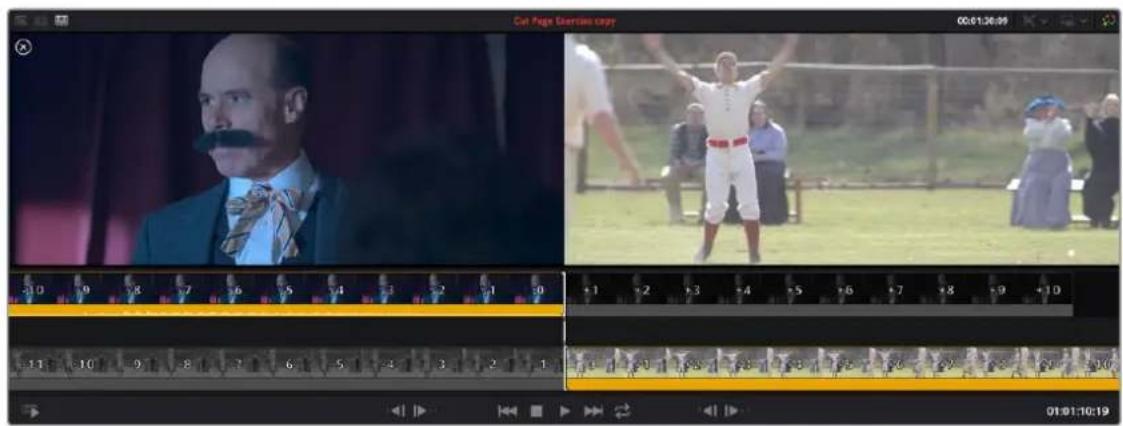
The Viewer Trim Editor seen when you double-click an edit in the Timeline
Trimming Transitions in the Viewer
If you double-click a transition, that transition appears sandwiched between the outgoing and incoming clips, with handles you can use to trim the transition's length, as well as the outgoing and incoming halves of the edit point to which the transition is applied.
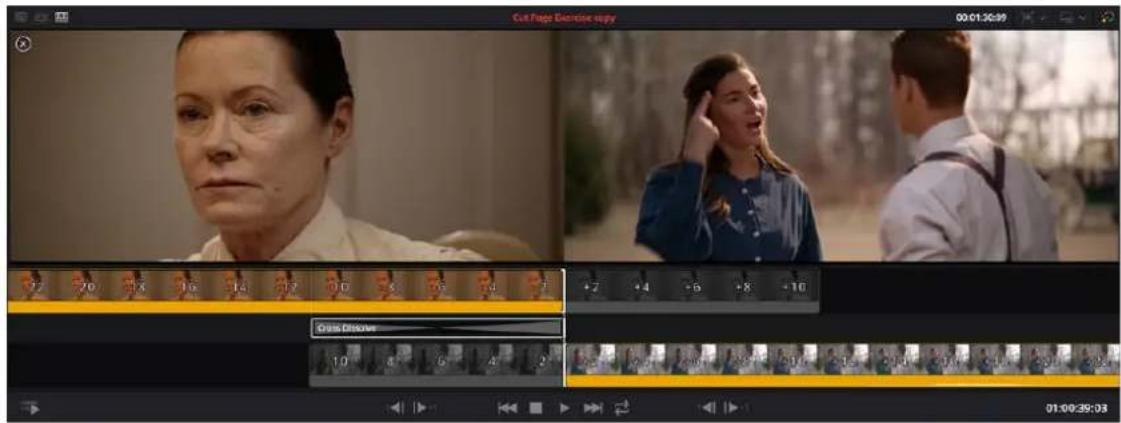
The Viewer Trim Editor seen when you double-click a transition in the Timeline
Chapter 30
Using the Inspector in the Cut Page
The Inspector holds all the controls to modify, resize, retime, and generally adjust anything related to a clip, transition, or effect on the Cut page Timeline.
Contents
Using the Inspector 489
Video 489
Audio 495
Effects 496
Transition 497
Image 498
File 499
Using the Inspector
The Inspector has been redesigned to make it easier to find specific controls and to adjust common settings for your clips. Instead of a long vertical list, different aspects of the Inspector have now been organized into panels, with each controlling specific grouped sets of parameters for your clip.
The Inspector is activated by clicking on the Inspector Panel in the upper-right section of the User Interface toolbar. The Inspector is broken up into individual Video, Audio, Effects, Transition, Image, and File panels. Inspector panels that are not applicable to your clip or selection are grayed out.
The Inspector Panel icon in the upper right of the UI toolbar

The Inspector panels showing Video, Audio, and File parameters available for adjustment; others are grayed out.
Methods of using controls in the Inspector:
- To activate or deactivate a control: Click the toggle to the left of the control's name.
The orange dot on the right means the control is activated. A gray dot on the left means the control is deactivated. - To reveal a control's parameters: Double-click the control's name.
- To reset controls to their defaults: Click the reset button to the right of the control's name.
Video
The Video panel of the Inspector exposes a vast array of controls designed to manipulate the size, speed, and opacity of your clips.
Transform
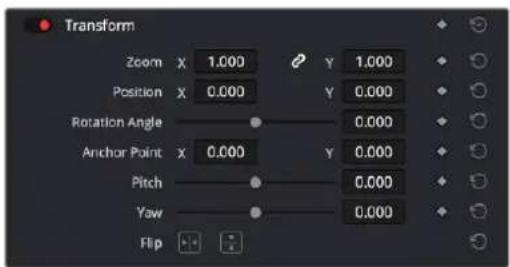
The Transform section of the Video Inspector panel
The Transform group includes the following parameters for resizing and repositioning your clips:
- Zoom X and Y: Allows you to blow the image up or shrink it down. The X and Y parameters can be linked to lock the aspect ratio of the image, or released to stretch or squeeze the image in one direction only.
- Position X and Y: Moves the image within the frame, allowing pan and scan adjustments to be made. X moves the image left or right, and Y moves the image up or down.
- Rotation Angle: Rotates the image around the anchor point.
– Anchor Point X and Y: Defines the coordinate on that clip about which all transforms are centered.
- Pitch: Rotates the image toward or away from the camera along an axis running through the center of the image, from left to right. Positive values push the top of the image away and bring the bottom of the image forward. Negative values bring the top of the image forward and push the bottom of the image away. Higher values stretch the image more extremely.
- Yaw: Rotates the image toward or away from the camera along an axis running through the center of the image from top to bottom. Positive values bring the left of the image forward and push the right of the image away. Negative values push the left of the image away and push the right of the image forward. Higher values stretch the image more extremely.
- Flip Image: Two buttons let you flip the image in different dimensions.
- Flip Horizontal control: Reverses the image along the X-axis, left to right.
- Flip Vertical control: Reverses the clip along the Y-axis, turning it upside down.
Smart Reframe (Studio Version Only)
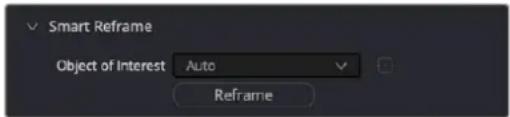
The Smart Reframe section of the Video Inspector panel
The Smart Reframe feature makes it easier to quickly reframe material across extreme aspect ratio changes. It's useful for situations where you've shot a 16:9 horizontal video and find yourself needing to create a vertically-oriented 9:16 version for mobile phones and social media deliverables, or using 4:3 archival footage in a 2.39:1 widescreen movie. Smart Reframe can be used manually, or automatically executed using the DaVinci Resolve Neural Engine.
- Object of Interest: Tools for selecting the subject that the resize will frame around.
- Auto: DaVinci Resolve's Neural Engine will analyze the clip and choose its most representative object. This will be the only option if more than one clip is selected for Smart Reframing.
- Reference Point: Allows you to manually adjust a bounding box around the subject to reframe around.
- Reframe: This button executes the Smart Reframe command. This can take some time depending on the length and number of clips.
Cropping
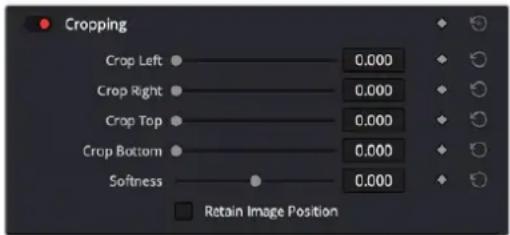
The Cropping section of the Video Inspector panel
The Video Inspector controls the image's cropping parameters.
- Crop Left, Right, Top, and Bottom: Lets you cut off, in pixels, the four sides of the image. Cropping a clip creates transparency so that whatever is underneath shows through.
- Softness: Lets you blur the edges of a crop. Setting this to a negative value softens the edges inside of the crop box, while setting this to a positive value softens the edges outside of the crop box.
- Retain Image Position: Clicking this checkbox will lock the crop parameters in place when you resize the image using the Transform tool above. Unchecking this box will scale and position the crop as well as the image.
Dynamic Zoom
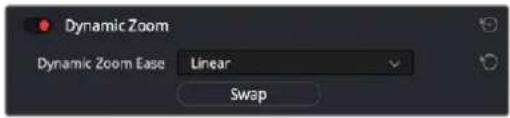
The Smart Reframe section of the Video Inspector panel
The Dynamic Zoom controls, which are off by default, make it fast and easy to do pan and scan effects to zoom into or out of a clip. Turning the Dynamic Zoom group on activates two controls in the Inspector that work hand-in-hand with the Dynamic Zoom onscreen adjustment controls. For more information on using the Dynamic Zoom controls, see Chapter 50, "Compositing and Transforms in the Timeline."
- Dynamic Zoom Ease: Lets you choose how the motion created by these controls accelerates. You can choose from Linear, Ease In, Ease Out, and Ease In and Out.
- Swap: This button reverses the start and end transforms that create the dynamic zoom effect.
Composite
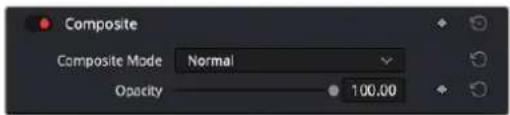
The Composite section of the Video Inspector panel
Composite modes can be used to combine clips that are superimposed over other clips in the Timeline.
- Composite Mode: This selects the type of composite mode to combine the superimposed clips. The default "Normal" means no compositing mode is applied. For more information on Composite Modes, see Chapter 50, "Compositing and Transforms in the Timeline."
- Opacity: This slider makes a clip more or less transparent in addition to compositing already being done.
Speed Change
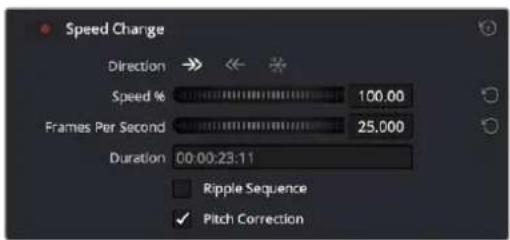
The Speed Change controls in the Video Inspector
You can change the speed of your clip directly in the Video Inspector's Speed Change controls. This method has the benefit of being available in both Cut and Edit pages.
- Direction: Selects the desired motion of the clip, forward, backward, or freeze frame.
- Speed %: Adjusting this slider changes the clips motion on a percentage basis. This value can be keyframed.
- Frames Per Second: Adjusting this slider changes the clips motion by increasing or decreasing the number of frames per second to play the clip back at. This value can be keyframed.
- Duration: You can directly select how long you want the clip to be by setting a specific duration here in HH:MM:SS:FF format. This will then automatically adjust the speed of the clip to playback all frames in that exact amount of time.
- Ripple Sequence checkbox: If you want the speed change you're about to make to ripple the Timeline, pushing or pulling all clips following the current one to accommodate the clip's new size, then turn on this checkbox.
- Pitch Correction checkbox: Checking this box will perform pitch correction on the audio attached to the clip so that while the audio duration is changed to match the picture speed, it will still sound natural. Be aware that pitch correction on large speed adjustments may not sound as good as pitch corrections made to small speed adjustments.
Stabilization
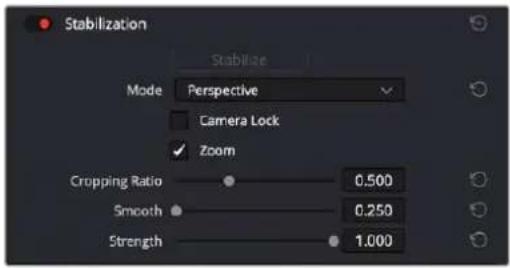
The Stabilization section of the Video Inspector panel
These controls let you smooth out or even steady unwanted camera motion within a clip. The analysis is performed in such a way as to preserve the motion of individual subjects within the frame, as well as the overall direction of desirable camera motion, while correcting for unsteadiness.
These are the same stabilizer controls found in the Color page's Tracker palette (minus the tracker graph), and the resulting stabilization analysis is mirrored on the Color page, where you can see the data visualized on the graph, if necessary.
A pop-up menu provides three different options that determine how the selected clip is analyzed and transformed during stabilization. You must choose an option first, before clicking the Stabilize button above, because the option you choose changes how the image analysis is performed. If you choose another option, you must click the Stabilize button again to reanalyze the clip.
– Perspective: Enables perspective, pan, tilt, zoom, and rotation analysis and stabilization.
- Similarity: Enables pan, tilt, zoom, and rotation analysis and stabilization, for instances where perspective analysis results in unwanted motion artifacts.
- Translation: Enables pan and tilt analysis and stabilization only, for instances where only X and Y stabilization gives you acceptable results.
The other controls let you customize how aggressively the selected clip is stabilized.
- Stabilization Toggle: The toggle control for the Stabilization controls lets you turn stabilization off and on to be able to compare the stabilized and unstabilized image.
-
Camera Lock: Turning on this checkbox disables Cropping Ratio and Smooth, and enables the stabilizer to focus on eliminating all camera motion from the shot in an effort to create a locked shot.
-
Zoom: When this checkbox is turned on, the image is resized by a large enough percentage to eliminate the blanking (black edges) that is the result of warping and transforming the image to eliminate unwanted camera motion. The lower a value Cropping Ratio is set to, the more DaVinci Resolve will need to zoom into an image to eliminate these blanked edges. If you turn this off, the image is not zoomed at all, and whatever blanking intrudes into the image is output along with the image, on the assumption that you'll have dedicated compositing artists deal with eliminating this blanking by filling in the missing image data in a more sophisticated manner. You may also leave this checkbox turned off if you're planning on animating the Input Sizing Zoom parameter to dynamically zoom into and out of a shot being stabilized to eliminate blanking only where it occurs, using only as much zooming as is necessary for each region of the shot.
- Cropping Ratio: This value limits how hard the stabilizer tries to stabilize, by dictating how much blanking or zooming you're willing to accept in exchange for eliminating unwanted motion. A value of 1.0 results in no stabilization being applied. Progressively lower values enable more aggressive stabilization. Changing this value requires you to click the Stabilize button again to reanalyze the clip.
- Smooth: Lets you apply mathematical smoothing to the analyzed data used to stabilize the clip, allowing camera motion in the shot while eliminating unwanted jittering. Lower values perform less smoothing, allowing more of the character of the original camera motion to show through, while higher values smooth the shot more aggressively. Changing this value requires you to click the Stabilize button again to reanalyze the clip.
- Strength: This value is a multiplier that lets you choose how tightly you want to use the stabilization track to eliminate motion from a shot using the current analysis. With a value of 1, stabilization is maximized. Since some clips might look more natural with looser stabilization, choosing a number lower than 1 lets a percentage of the original camera motion show through. Zero (0) disables stabilization altogether. As an additional tip, you can invert the stabilization by choosing -1 when pasting a stabilization analysis from another clip to perform a match move based on the overall motion of the scene, and you can use a negative value either lower than 0 or higher than -1 to under or overcompensate when inverting the stabilization, simulating the effects of parallax where foreground and background planes move together but at different speeds.
Lens Correction
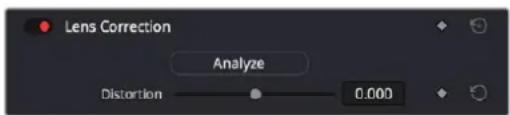
The Lens Correction section of the Video Inspector panel
The Lens Correction group (only available in Resolve Studio) has two controls that let you correct for lens distortion in the image, or add lens distortion of your own.
- Analyze: Automatically analyzes the frame in the Timeline at the position of the playhead for edges that are being distorted by wide angle lens. Clicking the Analyze button moves the Distortion slider to provide an automatic correction. If you're analyzing a particularly challenging clip, a progress bar will appear to let you know how long this will take.
- Distortion: Dragging this slider to the right lets you manually apply a warp to the image that lets you straighten the bent areas of the picture that can be caused by wide angle lenses. If you clicked the Analyze button and the result was an overcorrection, then dragging this slider to the left lets you back off of the automatic adjustment until the image looks correct.
Retime and Scaling
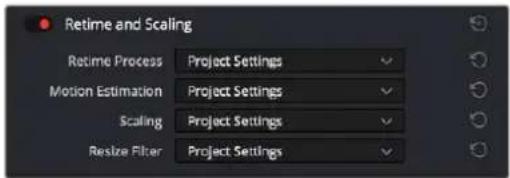
The Retime and Scaling section of the Video Inspector panel
The Retime and Scaling group has four parameters that affect retiming quality and clip scale:
- Retime Process: Lets you choose a default method of processing clips in mixed frame rate timelines and those with speed effects (fast forward or slow motion) applied to them, on a clip-by-clip basis. The default setting is "Project Settings," so all speed-effected clips are treated the same way. There are three options: Nearest, Frame Blend, and Optical Flow, which are explained in more detail in the Speed Effect Processing section of Chapter 51, "Speed Effects."
- Motion estimation mode: When using Optical Flow to process speed change effects or clips with a different frame rate than that of the Timeline, the Motion Estimation pop-up lets you choose the best-looking rendering option for a particular clip. Each method has different artifacts, and the highest quality option isn't always the best choice for a particular clip. The default setting is "Project Settings," so all speed-effected clips are treated the same way. There are several options. The "Standard Faster" and "Standard Better" settings are the same options that have been available in previous versions of DaVinci Resolve. They're more processor efficient and yield good quality that are suitable for most situations. However, "Enhanced Faster" and "Enhanced Better" should yield superior results in nearly every case where the standard options exhibit artifacts, at the expense of being more computationally intensive, and thus slower on most systems. The Speed Warp setting is available for even higher-quality slow motion effects using the DaVinci Neural Engine. Your results with this setting will vary according to the content of the clip, but in ideal circumstances this will yield higher visual quality with fewer artifacts than even the Enhanced Better setting.
- Scaling: Lets you choose how clips that don't match the current project resolution are handled on a clip-by-clip basis. The default setting is "Project Settings," so that all mismatched clips use the same method of being automatically resized. However, you can also choose an individual method of automatic scaling for any clip. The options are Crop, Fit, Fill, and Stretch; for more information see the 2D Transforms section of Chapter 149, "Sizing and Image Stabilization."
-
Resize Filter: For clips that are being resized in any way, this setting lets you choose the filter method used to interpolate image pixels when resizing clips. Different settings work better for different kinds of resizing. There are four options:
-
Sharper: Usually provides the best quality in projects using clips that must be scaled up to fill a larger frame size, or scaled down to HD resolutions.
- Smoother: May provide higher quality for projects using clips that must be scaled down to fit an SD resolution frame size.
- Bicubic: While the Sharper and Smoother options are slightly higher quality, Bicubic is still an exceptionally good resizing filter and is less processor intensive than either of those options.
- Bilinear: A lower quality setting that is less processor intensive. Useful for previewing your work on a low-performance computer before rendering, when you can switch to one of the higher quality options.
- Other Resize Methods: A selection of specific resize algorithms is available if you need to match them to other VFX workflows.
- Deinterlace Quality (Interlaced Clips Only): Allows per clip deinterlace quality adjustments regarding how DaVinci Resolve combines the two fields of interlaced media into progressive frames.
- Normal: A high-quality deinterlacing method that is suitable for most clips. For many clips, Normal is indistinguishable from High. Normal is always used automatically during playback in DaVinci Resolve.
- High: A more processor-intensive method that can sometimes yield better results, depending on the footage, at the expense of slower rendering times.
- DaVinci Neural Engine: This option uses the advanced machine learning algorithms of the DaVinci Neural Engine to analyze motion between the fields of interlaced material and reconstructs them into a single frame. This option is very computationally intensive but, ideally, will deliver an even more aesthetically pleasing result than the "high" setting.
Audio
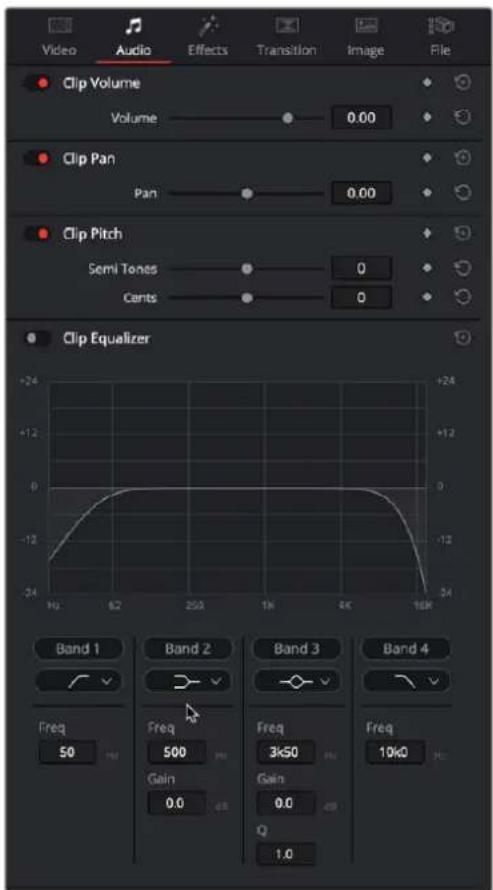
The Audio Inspector parameters
The Audio tab contains four commonly used audio controls for video editing purposes, including Clip Volume, Clip Pan, Clip Pitch, and Clip Equalizer.
- Clip Volume: Each clip has a single volume control that corresponds to the volume overlay over each audio clip.
- Clip Pan: (Only exposed for clips) A simple Pan slider that controls stereo panning.
- Clip Pitch: Lets you alter the pitch of a clip without changing the speed. Two sliders let you adjust clip pitch in semi tones (large adjustments, a twelfth of an octave) and cents (fine adjustments, 100th of an octave).
- Clip Equalizer: Each clip also has a four-band EQ, complete with low-pass, high-pass, and parametric settings for fine tuning and problem-solving audio issues at the clip level.
NOTE: There are many more refined plug-ins and effects for audio clips in the Audio FX library. If you apply any of these, the controls will appear in the Inspector's Effects tab Audio section, instead of here.
Effects
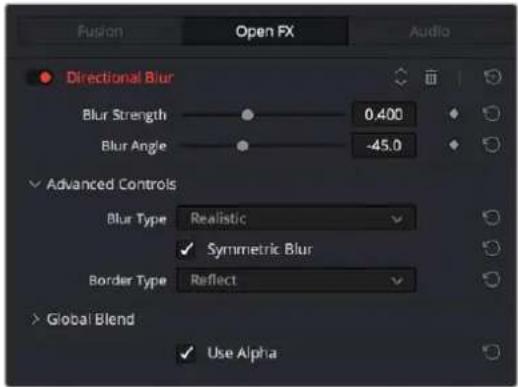
The Effects Inspector controls
Any Fusion FX, Open FX, or Audio FX filters that have been applied to a clip can be modified here in their respective tabs. Different effects in the Timeline expose different controls in the Effects panel. Whichever panels are exposed, parameters within each panel are organized into groups, with a title bar providing the name of that group, along with other controls that let you control all parameters within that group at the same time.
These controls include:
- Enable button: A toggle control to the left of the parameter group's name lets you disable and re-enable every parameter within that group at once. Orange means that track's enabled. Gray is disabled.
- Parameter group title bar: Double-clicking the title bar of any group of parameters collapses or opens them. Even more exciting than that, Option-double-clicking the title bar of one parameter group collapses or opens all parameter groups at once.
- Keyframe and Next/Previous Keyframe buttons: This button lets you add or remove keyframes at the position of the playhead to or from every single parameter within the group. When the button is highlighted orange, a keyframe is at the current position of the playhead. When it's dark gray, there is no keyframe. Left and right arrow buttons let you jump the playhead from keyframe to keyframe for further adjustment.
- Reset button: Lets you reset all parameters within that group to their default settings.
- Use Alpha: Checking this box applies the Open FX alpha channel to the selected clip, compositing it over any background elements that appear in lower tracks. If more than one alpha-modifying effect is applied to a single clip, the alpha channels are mixed together.
For a detailed explanation of each of the Resolve FX plug-ins that accompany DaVinci Resolve, see Part 12, "Resolve FX Overview."
Transition
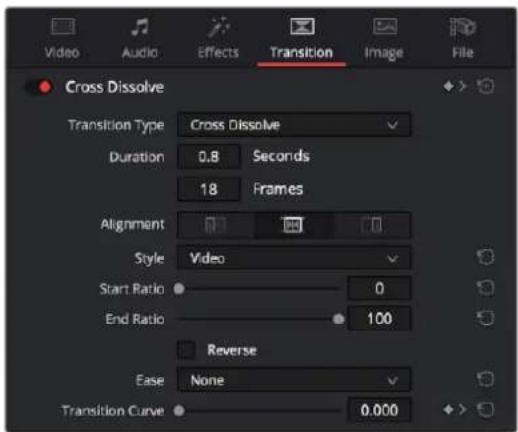
The Transition Inspector controls
Double-clicking a transition in the Timeline opens that Transition Panel in the Inspector. Each transition has the following properties you can edit.
- Transition Type: The currently selected transition. You can change to any other installed transition by selecting one in the drop-down menu.
– Duration: The duration of the transition, shown in both seconds and frames.
- Alignment: A drop-down that lets you choose the transition's position relative to the edit point it's applied to. Your choices are "Start on Edit," "Center on Edit," and "End on Edit."
Additional properties that are specific to each type of transition appear in another group below. Since the Cross Dissolve transition is the most common transition used, its properties will be shown as an example.
- Style: The different Dissolve transitions (Cross Dissolve, Additive Dissolve, and so on) expose this drop-down that lets you choose different ways for the outgoing clip to blend into the incoming clip during the dissolve. There are six different options to choose from:
- Video: A simple linear dissolve; the outgoing clip fades out as the incoming clip fades in.
- Film: A logarithmic dissolve, simulating film dissolves as created by an optical printer.
- Additive: The outgoing and incoming clips are cross faded using the Additive composite mode. As a result, the transition seems to brighten at the halfway point.
- Subtractive: The outgoing and incoming clips are cross faded using the Subtractive composite mode. As a result, the transition seems to darken at the halfway point.
- Highlights: The outgoing and incoming clips are cross faded using the Lighten composite mode. The lightest parts of each clip are emphasized during this transition.
- Shadows: The outgoing and incoming clips are cross faded using the Darken composite mode. The darkest parts of each clip are emphasized during this transition.
- Start Ratio: Defines the percentage of completion for the transition at its first frame, from 0 to 100 percent. Setting the Start Ratio to anything but 0 results in the transition immediately appearing at a more fully cross-dissolved state from the very first frame.
- End Ratio: Defines the percentage of completion for the transition at its last frame. Setting the End Ratio to anything but 0 results in the transition never fully dissolving to the incoming shot at its last frame.
- Reverse: Reverses the transition. This parameter is disabled for Dissolve transitions.
- Ease: A drop-down that lets you apply nonlinear acceleration to the beginning, ending, or overall duration of a transition. The result is to add inertia to the transition from the outgoing clip to the incoming clip, providing a gentler change from each clip into and out of the transition.
- None: The outgoing clip fades away to the next shot in a linear fashion.
– In: The outgoing clip lingers as the beginning of the transition dissolves more slowly than the end.
- Out: The outgoing clip fades away more quickly as the beginning of the transition dissolves more quickly than the end.
- In & Out: Both the outgoing and incoming clips make slower transitions at the beginning and end of the dissolve, but the very center of the transition is faster as a result.
- Custom: Lets you modify the parameters of the fade manually using the Transition Curves below.
- Transition Curve: Allows you to manually set keyframes controlling the progress of the transition along its duration.
Other types of transitions display properties that are specific to that transition's particular effect. For a detailed explanation of each of the transitions that accompany DaVinci Resolve, see Chapter 47, "Using Transitions."
Image
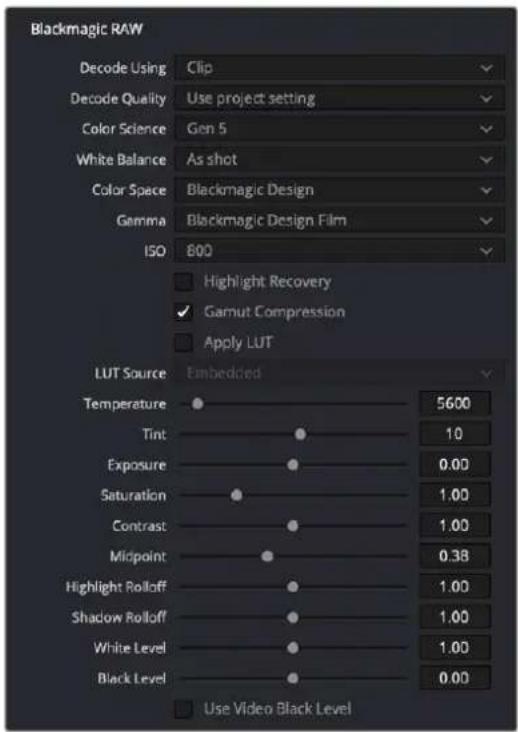
The Image Inspector controls for BRAW footage
The Image panel contains groups of parameters that correspond to every camera raw media format that's supported by DaVinci Resolve. Using these parameters in the Image panel, you can override the original camera metadata that was written at the time of recording and make simultaneous adjustments to camera raw media throughout your project.
For a detailed explanation of each of the RAW camera parameters supported by DaVinci Resolve, see Chapter 7, "Camera Raw Settings."
File
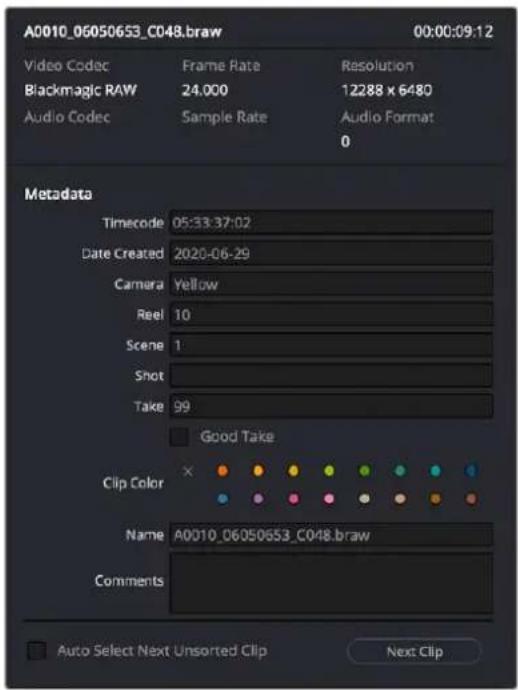
The File Inspector controls
The File panel of the Inspector provides a consolidated way to view and edit a subsection of a clip's most commonly used media file metadata. It's easily accessible in the Inspector across the Media, Cut, Edit, and Fairlight pages. The tab is composed of the following parts:
- Clip Details: Presents data about the clip's data format (codec, resolution, frame rate, etc.).
- Metadata: Presents a reduced set of common metadata fields for quick user entry.
- Timecode: The start timecode of the clip. This field is editable if you want to manually change the clip's starting timecode.
-
Date Created: The date that the clip was created. This field is editable if you want to manually change the clip's creation date.
-
Camera: Sets the Camera # metadata.
- Reel: Sets the Reel/Card ID.
- Scene: The Scene number of the clip.
- Shot: The Shot letter/number of the clip.
- Take: The Take number of the clip.
- Good Take: This checkbox indicates if the clip is a good or circled take.
- Clip Color: Assign a specific color to a clip that is reflected in the Timeline.
- Name: This can be entered manually, and changes a clip's name in that specific timeline only.
- Comments: Add a text description to the clip.
- Auto Select Next Unsorted Clip: When this box is checked, the next clip in the Media Pool is selected when you hit the Return button after entering a metadata field, and the cursor is automatically placed in the same field. This allows rapid sequential metadata entry without having to manually click to load each individual clip in the Media Pool. The Next Clip button will select the next clip in the Media Pool, regardless of the checkbox status.
Chapter 31
Video and Audio Effects in the Cut Page
As you build your edit, you'll often find it necessary to add effects to clips to create titles, blend clips together with compositing, add plug-ins to give clips a particular look, speed clips up or slow them down, or transform clips to zoom into them or move them around the frame. The Cut page has controls to accomplish all of this and more.
Contents
| Adding Transitions 501 | Audio Effects 506 | ||
| Adding Dissolves 501 | Generators | 506 | |
| Adding Dissolve Using Keyboard Shortcuts | 501 | Clip Tools | 507 |
| Shared Controls | 507 | ||
| Changing a Transition to a Cut 502 | Transform | 507 | |
| Adding Smooth Cuts 502 | Crop | 508 | |
| Adding Other Kinds of Transitions 502 | Dynamic Zoom | 508 | |
| Editing and Removing Transitions 503 | Composite | 509 | |
| Titles | 504 | Speed | 509 |
| Adding Titles 504 | Stabilization | 510 | |
| Editing Titles 504 | Lens Correction | 511 | |
| Adding Resolve FX and Other Plug-ins 506 | Color | 511 | |
| Video Effects 506 | Audio | 511 | |
Adding Transitions
You can add transitions such as dissolves or wipes to an edit to indicate a change of topic, a change of location, or the passage of time. You can also add a Smooth Cut transition to patch unwanted cuts in interview clips or other situations where there's not a significant change in the position of the subject or background in the frame. Three buttons, at the bottom right of the Media Pool, make it easy to add and remove dissolves and Smooth Cut transitions.
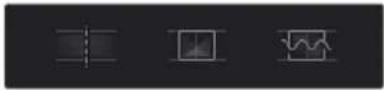
The Cut, Dissolve, and Smooth Cut buttons
Adding Dissolves
Dissolves are the most standard and ubiquitous type of transition, and so they're the easiest to create. Place the playhead on or near an edit you want to turn into a dissolve, and click the Dissolve button at the bottom left of the Media Pool. A one second Cross Dissolve will be added to the edit point that's nearest to the edit point.
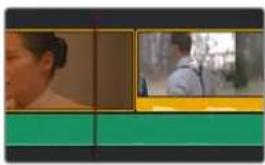
natural_image
Side profile of a person in a casual setting with a background photo (no visible text or symbols)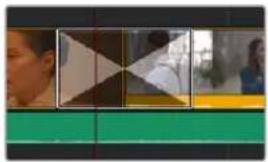
natural_image
Exterior view of a modern office building (no signage)(Left) Moving a playhead near an edit point, (Right) Adding a dissolve
Adding Dissolve Using Keyboard Shortcuts
You can also add a dissolve by selecting one or more edit points (or moving the playhead near an edit you want to select and pressing V to select the nearest edit point), then pressing Command-T to add a dissolve, which is the standard transition.
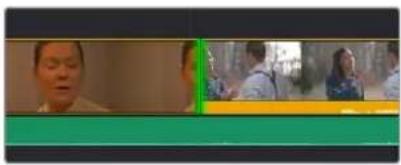
natural_image
Two side-by-side photos showing people in a casual setting, one with a blurred face and the other with a yellow banner (no visible text or symbols)A selected edit point
You can also add a transition that's aligned with the beginning, middle, or end of the edit point using the keyboard. To do so, select an edit point, press the U key repeatedly to cycle among selecting the start, center, or end of the edit, then press Command-T to add the standard transition. The standard transition will be added with its alignment based on the edit selection you made; selecting the start of the edit places a transition that ends on the edit; selecting the end of the edit places a transition that starts on the edit, and choosing the center of the edit places a transition that is similarly centered.
natural_image
Two people in a meeting setting with geometric shapes and a green banner (no visible text or symbols)
natural_image
Three video frames showing a person in profile, a green play button, and a yellow character (no text or symbols visible)
natural_image
Two individuals in a meeting room with a green banner at the bottom (no visible text or symbols)A transition that's aligned with the beginning, center, and end of an edit point
Changing a Transition to a Cut
To remove a dissolve, thereby changing a transition to a cut, move the playhead at or near the edit with the dissolve, and click the Cut button, which is fast to do when you're using the DaVinci Resolve Editor Keyboard which has a dedicated Cut button.
TIP: Alternately, you can select one or more transitions in the Timeline and press the Delete key to remove them.
Adding Smooth Cuts
Smooth Cuts are special-purpose transitions designed to make short jump cuts in the middle of a clip unnoticeable. This is done by using optical flow processing to match the same features on either side of a cut in order to automatically morph a subject from one position to another over the duration of the transition.
To add a Smooth Cut:
1 Place the playhead on or near an edit.
2 Click the Smooth Cut button at the bottom left of the Media Pool. A one second Smooth Cut will be added to the edit point that's nearest to the edit point.
The Smooth Cut effect works best on clips such as sit-down interviews and close-up head shots with a minimum of background and subject motion, and where the subject's position on either side of the cut is not significantly different. A good example of when Smooth Cut is effective is when you're cutting pauses, partial repeats, filler sounds such as "um" or "you know," or other speech disfluencies out of an interview clip to tighten the dialog, and you want to eliminate the little "jump" that occurs at the cut without having to cut away to B-roll. Applying a short two or four frame Smooth Cut transition to the edit can make this kind of edit invisible, as long as the speaker doesn't change position significantly during the cut. The more motion there is in the background of the shot, and the more the speaker changes position, the harder it will be to get a useful result using Smooth Cut. Although the default duration for any transition is one second, you'll find that Smooth Cut transitions may work much better when they're short; 2- to 6-frame Smooth Cut transitions often work best to disguise jump cuts.
Adding Other Kinds of Transitions
In order to make the selection of transitions, titles, and effects more intuitive, DaVinci Resolve shows each effect as a thumbnail representation in addition to the text name. This allows the user to quickly scan through all the numerous options to select the appropriate effect visually, rather than remembering them based on name alone. You can preview transitions and titles before you place them on the Timeline to quickly audition multiple options before making your final decision.
Transitions Thumbnails
To preview a transition before you place it into the Timeline, ensure that "Hover Scrub Preview" is checked in the Transitions option menu, then simply hover your pointer over any transition in the Transitions tab and move it across the thumbnail. The transition will preview in the Viewer using the two clips nearest the Smart Indicator in the Cut page, or the two clips nearest the the playhead in the Edit page.
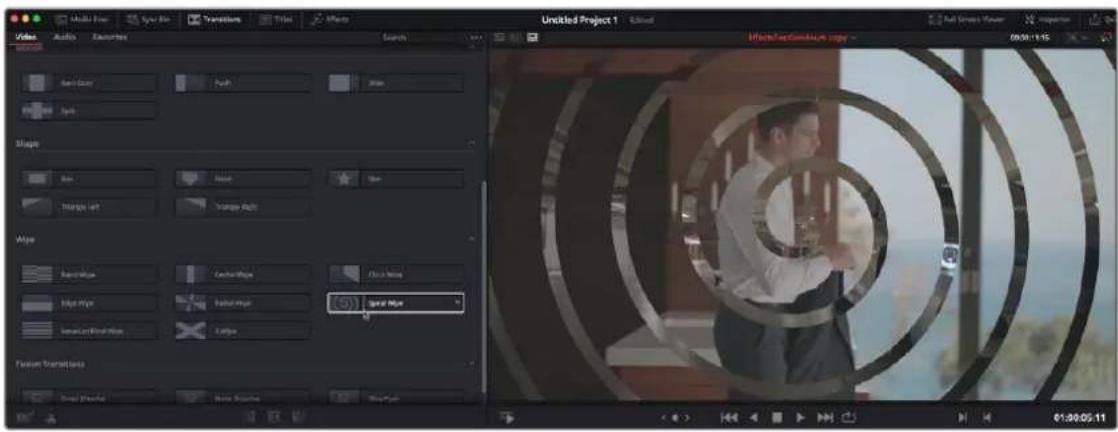
Scrubbing over a Transition Thumbnail previews the transition in the Viewer.
Once you've chosen your transition, it can be applied by to any edit point by using the methods below:
Methods of adding different transitions:
- To add a transition by dragging it from the Transitions Browser: Drag a video transition from the Effects Library to an edit point in the Timeline so that it's centered at, ends at, or starts at the edit point. If there is no overlap between the heads and tails of the two clips, you may not be able to add a transition where you want.
- To add a transition using the Transitions Browser's contextual menu: Select one or more edit points (one per track), then right-click a video transition in the Effects Library and choose Add to Selected Edit Points. That transition will be added to every selected edit point at once.
- To add a transition by double-clicking in the Transition Browser: You can double-click a transition in the Cut page's Transitions Browser to apply it directly to the edit point referenced by the Smart Indicator.
- To add a transition by using the transition alignment icons in the Transition Browser: You can double-click on one of three transition alignment icons at the bottom of the in the Cut page's Transition Browser.
Editing and Removing Transitions
Once you've added a transition, you can edit it in a number of different ways to work best for your program, both in the Timeline and in the Transition Inspector.
Methods of editing transitions in the Timeline:
- To change a transition's duration: Drag the beginning or end of a transition in the Timeline to be longer or shorter symmetrically about the current edit.
- To move a transition from one edit to another: You can drag a transition from its current position to another edit point.
- To copy a transition from one edit to another: Select a transition, then option-drag it to another edit point to add a duplicate transition.
- To change a transition's type: Drag a different transition from the Transition Browser onto the current one in the Timeline.
- To remove a transition: Select a transition in the Timeline and press the Delete key.
Editing transitions in the Transition Inspector:
For more detailed control over your transition, including modifying all transition-specific parameters, use the Transition Inspector. For more information on each specific transition included in DaVinci Resolve, see Chapter 47, "Using Transitions."
Titles
There's a collection of title clips in the Titles Browser that you can use to add superimposed titles, slates, interstitial titles, lower thirds, or otherwise fulfill any textual needs your program has.
Titles Thumbnails
To audition titles before you place them into the Timeline, ensure that "Hover Scrub Preview" is checked in the Titles option menu, then simply hover your pointer over any thumbnail in the Titles tab. If the title is animated (i.e., Fusion titles), moving the pointer across the thumbnail will preview the animation. Once you've chosen your title, you can drag it from the Titles tab to your Timeline in the Edit page or in the Cut page to either the upper or lower Timelines, or use the editing selection modes at the bottom of the tab.
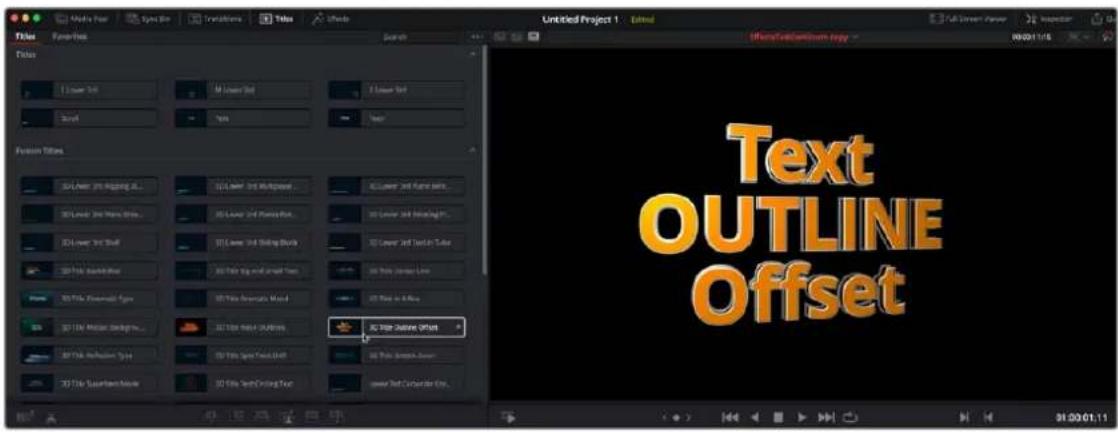
Scrubbing over a Title Thumbnail previews the title in the Viewer.
Two categories present two different kinds of titles. The “Titles” category presents simple, bare-bones titles that you can customize in a variety of different ways. Of the available options, the Text title is the most flexible. The “Fusion Titles” category presents more complicated titles that are more visually sophisticated and have more preset animation.
Adding Titles
You can add a title to the Timeline by opening the Titles Browser and dragging and dropping titles into the Timeline wherever you want them to be, just like any other clip. The default duration of a title clip is 5 seconds. This standard “generator” duration can be customized in the Editing panel of the User Preferences.
Once edited into the Timeline, titles can be moved, resized, and superimposed much like any other clip. Furthermore, when selected, both titles and generators expose the same Transform, Cropping, Speed, and Composite controls as any other clip; these controls can be used to composite titles in various ways to create different text effects.
Editing Titles
Once you add a title to the Timeline, the original title generators that shipped with DaVinci Resolve have onscreen controls that let you edit text and transform and position blocks of text directly within the Timeline Viewer.
Positioning and Transforming Text
So long as the Timeline playhead is positioned over a text generator that's on top of one or more background clips, clicking on the text in the Timeline Viewer reveals onscreen transform controls that correspond to the Position, Zoom, and Rotation parameters in the Inspector.
Transforming a title's text box in the Viewer
While dragging text to reposition it, snapping occurs at the X and Y center of the frame, as well as around the outer third of the frame. Holding the Shift key down while dragging a text object constrains movement to just the X or Y axes. Holding the Option key down turns snapping off.
Editing Text
Double-clicking on text in the Timeline Viewer puts that text into an editable state, wherein you can insert a text cursor or select characters to edit the text as you would in any text editor.
Editing the text of a title in the Viewer
Editing Titles Using the Video Inspector
For more precise control of your titles, double-clicking on any title will bring up its parameters in the Video Inspector. Here you can change fonts, colors, drop shadows, backgrounds, etc. You can also adjust basic transform parameters and cropping as well. For more information on Editing Titles, see Chapter 48, "Titles, Generators, and Stills.
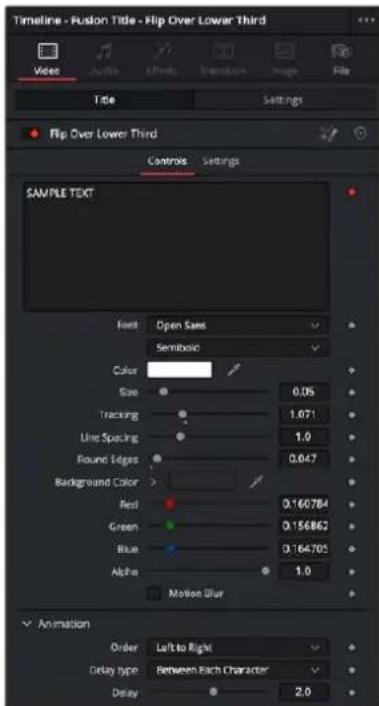
The Title settings of Video Inspector
Adding Resolve FX and Other Plug-ins
The Effects Browser reveals video and audio plug-ins that you can drag and drop onto to your clips. As far as video plug-ins go, there are several categories of Resolve FX plug-ins that accompany DaVinci Resolve, but if you've installed Resolve-compatible OFX plug-ins, those appear here as well, organized into their own categories. For audio plug-ins, a set of Fairlight FX plug-ins comes with DaVinci Resolve, but if you've installed VST plug-ins on macOS or Windows, or you have Audio Units installed on macOS, those will appear in the Audio category also. When you have a lot of video or audio plug-ins, a search field makes it easy to find the one you're looking for.
Video Effects
Each available category of video plug-ins creates different sorts of image effects, such as blurs, lighting effects, or stylization of different kinds. To preview a video effect before placing it on a clip, ensure that "Hover Scrub Preview" is checked in the Effects option menu, then simply hover your pointer over any thumbnail in the Effects tab and move it across the thumbnail. The effect will preview in the Viewer using its default parameters, and scrub through the clip that is selected in the Timeline. If no clip is selected then it will use the clip currently under the playhead.
To activate a specific video effect on a clip, simply drag the thumbnail of the selected effect to a clip on the Timeline. In the Cut page, you can also double-click the thumbnail to apply the effect to the selected clip. To adjust the effect's parameters, open the Effects tab in the Inspector.
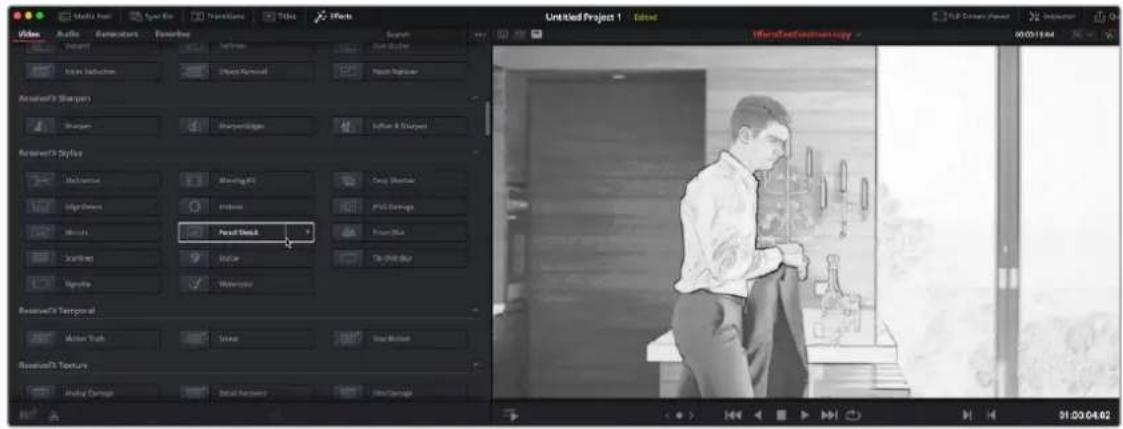
Scrubbing over an Effect Thumbnail previews that effect in the Viewer.
Audio Effects
Audio plug-ins let you process your audio in different ways, adjusting the tone using equalization, changing dynamics with compression, or adding effects such as echo, reverb, flange, or modulation. To activate a specific audio effect on a clip, simply drag the thumbnail of the selected effect to a clip on the upper or lower Timelines in the Cut page, or onto a clip in an audio track on the Edit page. Once the effect has been dropped on a clip, its audio plug-in controls will open for you to adjust the plug-in's parameters.
Generators
The various video generators included in DaVinci Resolve can be previewed by hovering your pointer over any thumbnail in the Generators tab. To edit a generator into your Timeline, simply grab the thumbnail of the generator you wish to use, and place it in your Timeline in the Edit page, or in either the upper or lower Timelines in the Cut page.
For more information on using all the included video and audio effects in DaVinci Resolve, see Chapter 46 "Editing, Adding, and Copying Effects and Filters."
Clip Tools
Clicking the Tools button in the Viewer toolbar opens up additional categories of controls that let you apply various effects to the current clip, or adjust whatever effect is already applied to the current clip. Many of the parameters of these effects have corresponding onscreen controls that let you make visual adjustments directly in the Viewer.
The Tools button
Shared Controls
Every category of effect at the bottom of the Viewer has two shared controls. A toggle control at the far left lets you enable or disable an effect without losing whatever custom adjustments you've made. A reset control at the far right lets you reset every parameter within a particular category of controls to the default settings.

natural_image
Pure electrical circuit lines without any symbolsThe Toggle button (at left) and Reset button (at right)
Transform
When you select Transform, onscreen transform controls appear that let you directly manipulate the image in the Viewer. You can drag anywhere within the clip's bounding box to adjust pan and tilt, drag any diagonal corner to proportionally resize, drag any top/bottom/left/right side to squeeze or stretch width or height, or drag the center handle to rotate.

Onscreen Transform controls in the Viewer
TIP: While dragging a clip using the onscreen controls to reposition it, holding the Shift key down constrains movement to just the X or Y axes.
The onscreen controls also correspond to the following editable parameters, which are also editable in the Video Inspector and in the Edit Sizing mode of the Sizing palette in the Color page:
- Zoom Width and Height: Allows you to blow the image up or shrink it down. The X and Y parameters can be linked to lock the aspect ratio of the image, or released to stretch or squeeze the image in one direction only.
- Position X and Y: Moves the image within the frame, allowing pan and scan adjustments to be made. X moves the image left or right, and Y moves the image up or down.
-
Rotation Angle: Rotates the image around the anchor point.
-
Pitch: Rotates the image toward or away from the camera along an axis running through the center of the image, from left to right. Positive values push the top of the image away and bring the bottom of the image forward. Negative values bring the top of the image forward and push the bottom of the image away. Higher values stretch the image more extremely.
- Yaw: Rotates the image toward or away from the camera along an axis running through the center of the image from top to bottom. Positive values bring the left of the image forward and push the right of the image away. Negative values push the left of the image away and bring the right of the image forward. Higher values stretch the image more extremely.
- Flip Image: Two buttons let you flip the image in different dimensions.
- Flip Horizontal control: Reverses the image along the X axis, left to right.
- Flip Vertical control: Reverses the clip along the Y axis, turning it upside down.
Crop
The Cut page has a set of onscreen controls you can use to directly crop the image in the Viewer. Each side of the image has an individual handle for cropping just that side. These parameters are also editable in the Video Inspector and the Color page Sizing palette.

Onscreen Crop controls in the Viewer
The Crop effects also correspond to an additional set of cropping parameters, with an additional control for softness:
- Crop Left, Right, Top, and Bottom: Lets you cut off, in pixels, the four sides of the image. Cropping a clip creates transparency, so whatever is underneath shows through.
- Softness: Lets you blur the edges of a crop. Setting this to a negative value softens the edges inside of the crop box, while setting this to a positive value softens the edges outside of the crop box.
Dynamic Zoom
The Dynamic Zoom controls, which are off by default, make it fast and easy to do pan and scan effects to zoom into or out of a clip. A set of two onscreen controls let you create a Dynamic Zoom effect. A green box shows the starting size and position of the animated transform, while a red box shows the ending size and position of the animated transform. Drag anywhere within either bounding box to reposition either the start or the end of the animated effect, and drag any of the corners to adjust the size at the start or end. A motion path appears to show you motion that's being created. Adjusting the Dynamic Zoom controls automatically enables dynamic zoom. These controls are also available in the Video Inspector.

natural_image
User interface toolbar with icons for zoom, rotate, and editing tools (no readable text or symbols)Dynamic Zoom controls in the Viewer
These controls correspond to two parameters in the toolbar (Dynamic Zoom is also editable in the Video Inspector).
- Zoom/Pan/Angle Presets: Let you enable or disable preset positions for the zoom level, pan location, and angle of this effect.
- Swap: This button reverses the start and end transforms that create the dynamic zoom effect.
- Ease Buttons: Lets you choose how the motion created by these controls accelerates. You can choose from Linear, Ease In, Ease Out, and Ease In and Out.
TIP: While dragging dynamic zoom outlines to reposition them, holding the Shift key down constrains movement to just the X- or Y-axis.
Composite
Two controls let you create transparency and use composite modes to create different compositing effects (also called Blend modes or Transfer modes). These controls also editable in the Video Inspector.

Composite controls in the Viewer
- Composite Modes: Composite modes blend two superimposed clips together on the Timeline using different kinds of math to achieve differing results, to create transparency effects, increase image exposure, and combine multiple clips into a single image in many creative and useful ways. All Composite modes interact with the Opacity slider. For more information on what each Composite mode does, see Chapter 50, “Compositing and Transforms in the Timeline.”
- Opacity: This slider lets you make a clip more transparent, over a range from 0 (totally transparent) to 100 (totally opaque). When set to a value less than 100, the selected clip is mixed with whatever video clip is underneath it on the Timeline, using the Composite mode that's currently selected. If no clip appears underneath the Timeline, then the clip is mixed with black and will work similarly to a fade.
TIP: If a superimposed video or still image clip in the Timeline has an alpha channel, that alpha channel automatically creates transparency within that clip, compositing it against whatever is in the track underneath. There's no need for you to do anything for this to work.
Speed
Speed effects let you speed up, slow down, or otherwise change the playback speed of clips in the Timeline. When you change the speed of a clip, that clip's duration also changes to reflect a shorter clip that plays faster, or a longer clip that plays more slowly. Speed effects change both video and audio playback, but the audio of speed up or slowed down clips is always pitch corrected. Speed effects applied in the Cut page also appear and are editable via several different methods in the Edit page timeline and the Video inspector.

Speed Effects controls in the Viewer
- Speed: Changing this value lets you speed up or slow down playback by a simple numeric multiplier. You also have the option of choosing a negative value to create reverse speeds.
- Duration: When you retime a clip, the Duration field lets you see how the change you're making affects the new duration based on the original duration of the clip with no speed effect applied.
Stabilization
The Image Stabilization controls use warping and/or translation to let you smooth out or even lock unwanted camera motion within a clip. The analysis is performed in such a way as to preserve the motion of individual subjects within the frame, as well as the overall direction of desirable camera motion, while correcting for unsteadiness.

Stabilization controls in the Viewer
To stabilize an image, all you need to do is to choose a Stabilization Method from the drop-down (see below for more information), and then click the Stabilize button. DaVinci Resolve analyzes the current clip, and applies a stabilization effect.
The rest of the stabilization controls let you refine the result. Whenever you adjust any of these parameters, you must click the Stabilize button again for the effect to be updated.
- Stabilization Method: A drop-down menu provides three different options that determine how the selected clip is analyzed and transformed during stabilization. You must choose an option first, before clicking the Stabilize button, because the option you choose changes how the image analysis is performed. If you choose another option, you click the Stabilize button again to reanalyze the clip.
– Perspective: Enables perspective, pan, tilt, zoom, and rotation analysis and stabilization.
- Similarity: Enables pan, tilt, zoom, and rotation analysis and stabilization, for instances where perspective analysis results in unwanted motion artifacts.
- Translation: Enables pan and tilt analysis and stabilization only, for instances where only X and Y stabilization gives you acceptable results.
- Stabilize: Clicking this button on a previously unstabilized clip analyzes the motion in that clip and applies an initial smoothing effect. Clicking this button on a clip that's already been analyzed lets you recalculate a modified stabilization effect.
TIP: These controls are identical to those found in the Video Inspector and the Color page Tracker palette, and populate the same image processing data. This means that you can use the Stabilization found on the Cut page, and then use the stabilization graph and controls found in the Color page to refine the results, if necessary.
Lens Correction
Lens Correction presents two controls that let you either correct lens distortion in the image, or add lens distortion of your own for effect. These controls are also editable in the Video Inspector and Color page Edit Sizing palette.

Lens Correction controls in the Viewer
- Analyze: Automatically analyzes the frame in the Timeline at the position of the playhead for edges that are being distorted by wide angle lens. Clicking the Analyze button moves the Distortion slider to provide an automatic correction. If you're analyzing a particularly challenging clip, a progress bar will appear to let you know how long this will take.
- Distortion: Dragging this slider to the right lets you manually apply a warp to the image that lets you straighten the bent areas of the picture that can be caused by wide angle lenses. If you clicked the Analyze button and the result was an overcorrection, then dragging this slider to the left lets you back off of the automatic adjustment until the image looks correct.
Color
The Color section of the Tools consists of only one option: Auto Color. The Auto Color command provides a quick way to automatically balance the blacks and whites of a clip based on the current frame at the position of the playhead. Using advanced algorithms, based on the DaVinci Neural Engine, it provides superior results when automatically adjusting color balance and contrast. For more details on using Auto Color, see Chapter 126, "Automated Grading Commands and Imported Grades."

Color controls in the Viewer
Audio
A slider lets you adjust audio levels of the current clip in the Viewer, making the volume of that audio clips softer or louder. This is identical to each clip's volume setting in the Edit and Fairlight pages.

Audio controls in the Viewer
Chapter 32
Quick Export
Once you've finished your program and you want to share it with others, you can use the Quick Export button to output the contents of the Timeline as a self-contained file in one of a variety of different formats in order to share it with people.
Contents
Quick Export 513
Customizing Quick Export 513
Quick Export
You can choose File > Quick Export to use one of a variety of export presets to export your program from any page of DaVinci Resolve. You can even use Quick Export to export and upload your program to one of the supported video sharing services, including YouTube, Vimeo, Twitter, and Dropbox.
To use Quick Export:
In the Edit, Fusion, or Color page, optionally set In and Out points in the Timeline to choose a range of the current program to export. If no timeline In or Out points have been set, the entire timeline will be exported.
2 Choose File > Quick Export or click the Quick Export icon at the upper right-hand corner of the Cut page.
3 Select a preset to use from the top row of icons in the Quick Export dialog, and click Export.
4 Choose a directory location and enter a file name using the Export dialog, then click Save. A progress bar dialog appears to let you know how long the export will take.
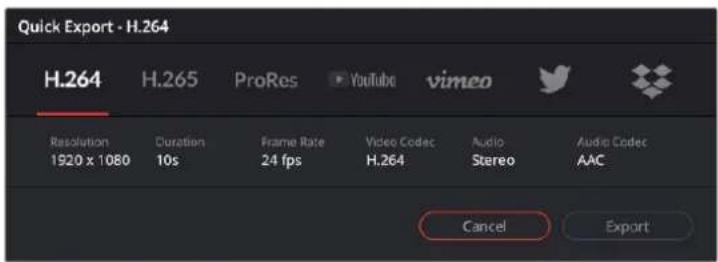
The Quick Export dialog
Customizing Quick Export
While the Quick Export has, by default, a variety of the most important formats currently in use for sharing video files, you may need to export to a format that's not in this dialog. In this case, there are ways of creating additional presets and having them appear in the Quick Export dialog.
To customize Quick Export:
1 Open the Deliver page.
2 Create the preset you want to add using the Render Settings panel.
3 Click the Render Settings panel's Option menu and choose the preset or presets you want to add from the Quick Exports submenu so that they're checked. You can also remove your own presets from the Quick Export window by unchecking them in this menu.
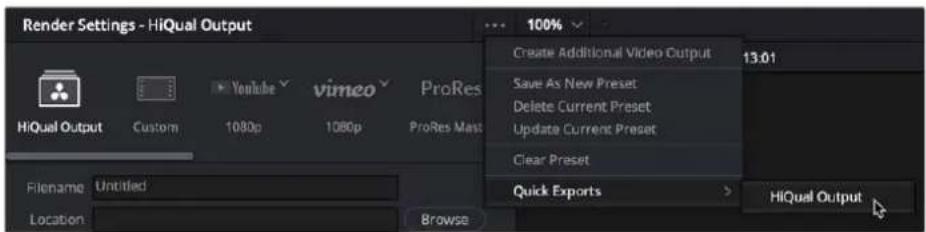
Adding presets to the Quick Export dialog
TIP: For more export options, you can also use the Deliver page
PART 5
Edit
natural_image
Colorful abstract logo with three colored droplets inside a circular gradient border (no text or symbols)Chapter 33
Using the Edit Page
In this chapter, you'll learn how to use and configure the Edit page user interface to prepare for editing projects in DaVinci Resolve. For more information on how to use the Edit page to import and conform projects edited in other applications for color correction and finishing in DaVinci Resolve, see Chapter 56, "Conforming and Relinking Clips."
Contents
The Edit Page User Interface 517
Navigating the Edit Page 518
Showing Which Panel Has Focus 518
The Media Pool 518
Importing Media Into the Media Pool on the Edit Page 519
Bins, Power Bins, and Smart Bins 520
Showing Bins in Separate Windows 520
Filtering Bins Using Color Tags 521
Sorting the Bin List 522
More About Timelines and Grading 523
Timelines, Grades, and Versions 523
Enabling the Use of a Master Timeline 523
Using the Effects Library 524
The Toolbox 525
OpenFX 525
Audio FX 525
Effects Library Favorites 526
Edit Index 526
Navigating the Timeline Using the Edit Index 527
Edit Index Columns 527
Filtering the Edit Index 528
Exporting the Edit Index 529
Source and Timeline Viewers 529
How Each Clip's Grade Looks in Each Viewer 530
Source and Timeline Viewers vs. Single Viewer Mode 530
Viewer Controls 531
Simultaneous Audio Waveform Display in the Source Viewer 534
Cinema Viewer Mode 535
Viewer Indicators 535
Other Viewer Options 535
Fast Review in the Timeline Viewer 536
Opening Clips in the Source Viewer 536
Timeline Viewer Edit Overlays 536
Copy and Paste Timecode in Viewer Timecode Fields 537
Metadata Editor 537
Inspector 538
Timeline 539
Timeline Options 541
Switching Among Multiple Timelines 542
Toolbar 542
Toolbar Audio Monitoring Controls 544
The Mixer and Meters 545
Displaying Audio Meters 545
Using Video Scopes 546
Floating Timecode Window 546
Dual Monitor Layout 547
Customizing the Edit Page 548
Undo and Redo in DaVinci Resolve 548
The Edit Page User Interface
The Edit page has evolved into a source-record style NLE that contains nearly every editorial tool you need for creative editing through finishing. The Edit page is divided into three main regions: the browsers found at the left, the Viewers at the top, and the Timeline at the bottom, all of which work together to let you import, edit, and trim timelines with a flexible variety of tools and methods.
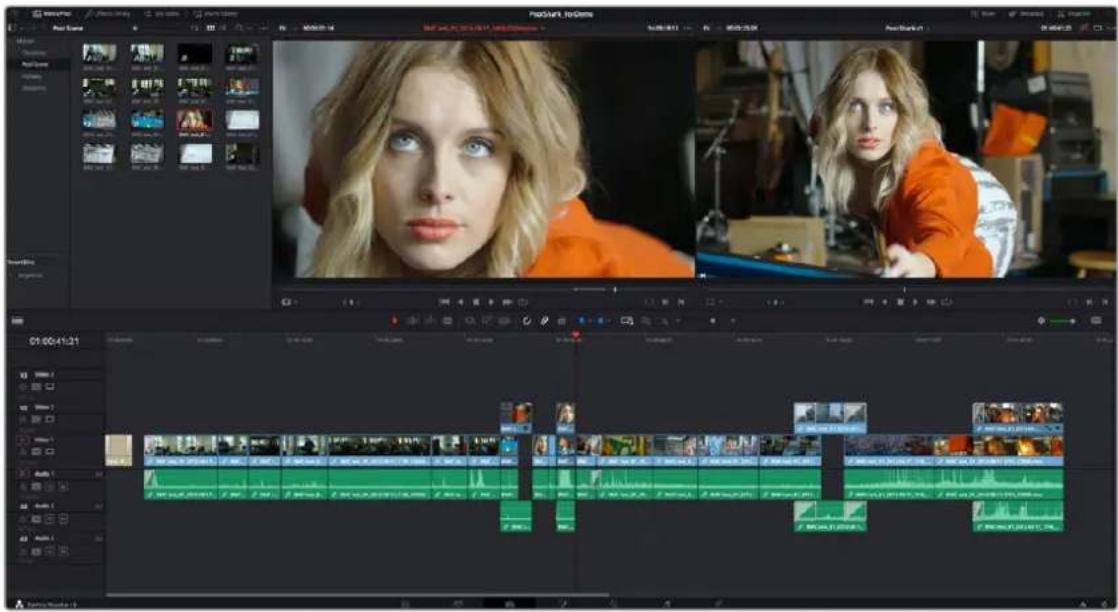
The Interface Toolbar
At the very top of the Edit page is a toolbar with buttons that let you show and hide different parts of the user interface. These buttons are as follows, from left to right:

The Interface toolbar
- Media Pool/Effects Library/Edit Index height button: Lets you set the area used by the Media Pool, Effects Library, and/or Edit Index to take up the full height of your display (you can display two at a time), giving you more area for browsing at the expense of a narrower timeline. At half height, the Media Pool/Effects Library/Edit Index are restricted to the top of the UI (you can only show one at a time), and the timeline takes up the full width of your display.
- Media Pool: Opens or hides a smaller version of the full Media Pool page, allowing access to all the video clips, audio clips, and images used in the project.
- Effects Library: Opens or hides the repository of all transitions, generators, OpenFX, and audio filters available to use in the Edit page.
- Edit Index: Opens or hides the list of all edit events in enabled tracks of the Timeline.
- Sound Library: Opens or hides the databases of sound effects and music registered with DaVinci Resolve. For more information on using the Sound Library, see Chapter 166, "Using the Fairlight Page."
- Mixer: Opens or hides the Audio Mixer, giving you graphical controls to adjust your sound mix.
- Metadata: Hides or shows the Metadata Editor.
- Inspector: Shows or hides the Inspector, which shows you the transform and compositing effects of selected clips, or the editable options of selected effects such as transitions or generators.
Navigating the Edit Page
Each of the panels in the Edit page user interface can be given focus via the Workspace > Active Panel Selection submenu. Additionally, the following keyboard shortcuts can be used to give focus to select bins, clips, the Source and Timeline Viewers, the Timeline, the Effects Library, Edit Index, and Inspector.
| Key Function | |
| Command-1 Media Folders | |
| Command-2 Media Clips | |
| Command-3 Source Viewer | |
| Command-4 Timeline | |
| Command-5 Timeline Viewer | |
| Command-6 Effects | |
| Command-7 Edit Index | |
| Command-8 n/a | |
| Command-9 Inspector | |
| Q Toggle between Source and Timeline Viewers | |
Showing Which Panel Has Focus
Each panel you use has “focus,” meaning that clicking an item or control within a particular panel makes that panel the active panel, which serves to direct keyboard shortcuts that are shared among many panels to the particular panel you’re using. If you want to see which panel is in focus, you can turn on the “Show focus indicators in the User Interface” checkbox in the UI Settings panel of the User Preferences. When on, a red line at the top of the active panel indicates that it has focus.
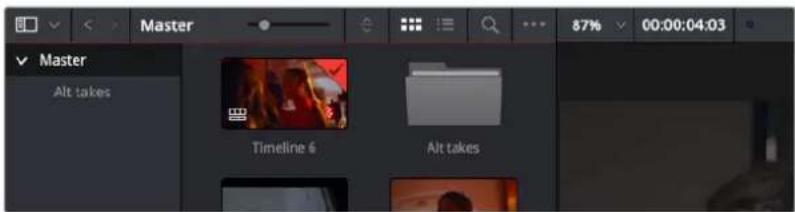
The focus indicator shown at the top edge of the Media Pool, shown next to a Viewer that doesn't have focus
The Media Pool
In the Edit page, the Media Pool contains all of the video, audio, and still image media you've imported for editing into the project at hand, as well as all of the timelines that you're going to be editing into. The Media Pool is also mirrored on the Media, Cut, Fusion, Color, and Fairlight pages, so you can access any audio or video clip, graphic, or timeline from any page where they can be used.
The Bin list at the left shows a hierarchical list of bins used for organizing your media, which is also used to organize your timelines. By default, the Media Pool consists of a single bin, named "Master," but you can add more bins as necessary to organize timelines and clips by right-clicking anywhere in the empty area of the Media Pool and choosing Add Bin. You can rename any custom bin by double-clicking on its name and typing a new one, or by right-clicking a bin's name and choosing Rename Bin.
The Bin list can be hidden or shown via the button at the upper left-hand corner of the Edit page toolbar.
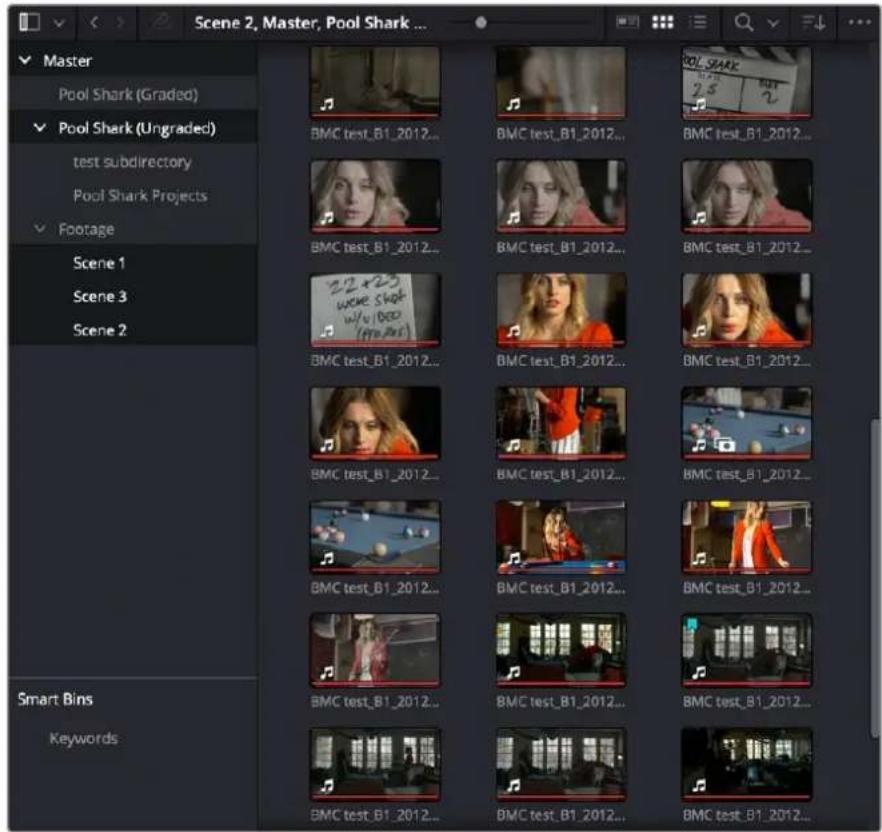
The Media Pool in Thumbnail mode, shown in half-height mode
The browser area to the right shows the contents of the currently selected folder. Every timeline you create, and every AAF, XML, or EDL file you import, appears here. You can create or import as many timelines as you need within a single project.
As in the Media page, the Media Pool can be displayed in either Metadata, Icon, or List view. In List view, you can sort the contents by any one of a subset of the total metadata that's available in the Metadata Editor of the Media page. Of particular interest to editors are columns for Name, Reel Name, different timecode streams, Description, Comments, Keyword, Shot, Scene, Take, Angle, Circled, Start KeyKode, Flags, Usage, Resolution, and Frames Per Second.
For more information on using the myriad features of the Media Pool, see Chapter 18, "Adding and Organizing Media with the Media Pool." In the sections that follow, some key features of the Media Pool are summarized for your convenience.
Importing Media Into the Media Pool on the Edit Page
While adding clips to the Media Pool in the Media page provides the most organizational flexibility and features, if you find yourself in the Edit, Cut, Fusion, Color, or Fairlight page and you need to quickly import a few clips for immediate use, you can do so in a couple of different ways.
To add media by dragging one or more clips from the Finder to the Edit page Media Pool (macOS only):
1 Select one or more clips in the Finder.
2 Drag those clips into the Media Pool of DaVinci Resolve or to a bin in the Bin list.
Those clips are added to the Media Pool of your project.
To use the Import Media command in the Edit page Media Pool:
1 With the Edit page open, right-click anywhere in the Media Pool, and choose Import Media.
2 Use the Import dialog to select one or more clips to import, and click Open.
Those clips are added to the Media Pool of your project.
For more information on using the myriad features of the Media Pool, see Chapter 18, “Adding and Organizing Media with the Media Pool.” Below, some key features of the Media Pool are summarized for your convenience.
Bins, Power Bins, and Smart Bins
There are actually three kinds of bins in the Media Pool, and each appears in its own section of the Bin list. The Power Bin and Smart Bin areas of the Bin list can be shown or hidden using commands in the View menu (View > Show Smart Bins, View > Show Power Bins). Here are the differences between the different kinds of bins:
- Bins: Simple, manually populated bins. Drag and drop anything you like into a bin, and that's where it lives, until you decide to move it to another bin. Bins may be hierarchically organized, so you can create a Russian dolls nest of bins if you like. Creating new bins is as easy as right-clicking within the bin list and choosing Add Bin from the contextual menu.
- Power Bins: Hidden by default. These are also manually populated bins, but these bins are shared among all of the projects in your current database, making them ideal for shared title generators, graphics movies and stills, sound effects library files, music files, and other media that you want to be able to quickly and easily access from any project. To create a new Power Bin, show the Power Bins area of the Bin list, then right-click within it and choose Add Bin.
- Smart Bins: These are procedurally populated bins, meaning that custom rules employing metadata are used to dynamically filter the contents of the Media Pool whenever you select a Smart Bin. This makes Smart Bins fast ways of organizing the contents of projects for which you (or an assistant) has taken the time to add metadata to your clips using the Metadata Editor, adding Scene, Shot, and Take information, keywords, comments and description text, and myriad other pieces of information to make it faster to find what you're looking for when you need it. To create a new Smart Bin, show the Smart Bin area of the Bin list (if necessary), then right-click within it and choose Add Smart Bin. A dialog appears in which you can edit the name of that bin and the rules it uses to filter clips, and click Create Smart Bin.
Showing Bins in Separate Windows
If you right-click a bin in the Bin List, you can choose "Open As New Window" to open that bin into its own window. Each window is its own Media Pool, complete with its own Bin List, Power Bins and Smart Bins lists, and display controls.
This is most useful when you have two displays connected to your workstation, as you can drag these separate bins to the second display while DaVinci Resolve is in single screen mode. If you hide the Bin list, not only do you get more room for clips, but you also prevent accidentally switching bins if you really want to only view a particular bin's contents in that window. You can as many additional Bin windows open as you care to, in addition to the main Media Pool that's docked in the primary window interface.
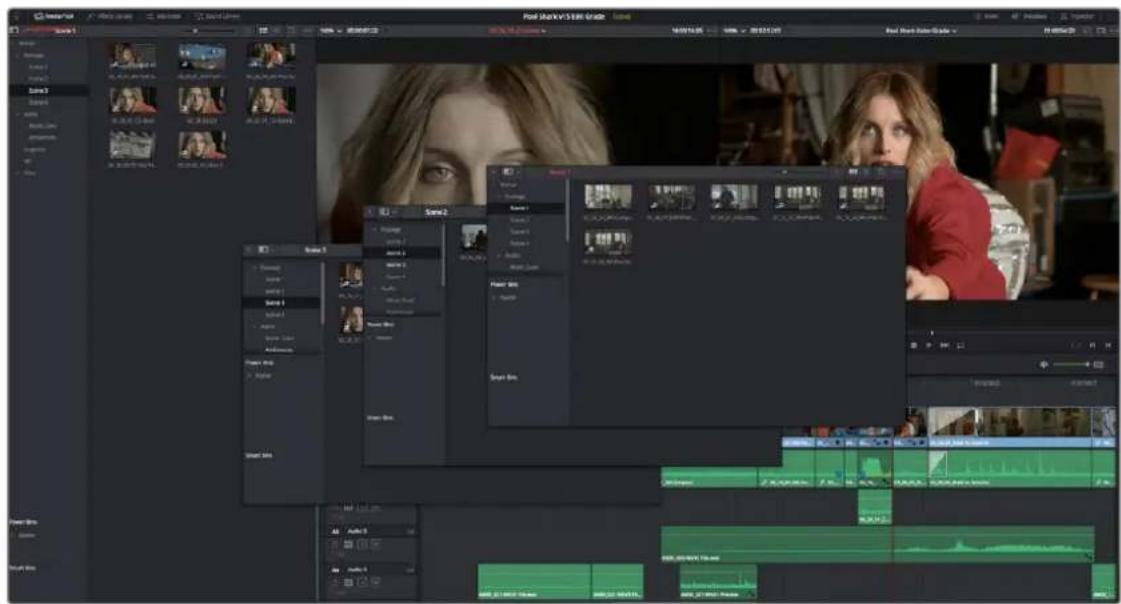
Media Pool bins opened as new windows
Filtering Bins Using Color Tags
If you're working on a project that has a lot of bins, you can apply color tags to identify particular bins with one of eight colors. Tagging bins is as easy as right-clicking any bin and choosing the color you want from the Color Tag submenu.
For example, you can identify the bins that have clips you're using most frequently with a red tag. A bin's color tag then appears as a colored background behind that bin's name.
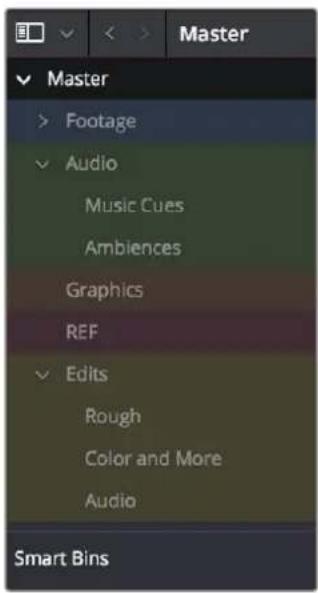
Using Color Tags to identify bins
Once you've tagged one or more Media Pool bins, you can use the Color Tag Filter drop-down menu (the drop-down control to the right of the Bin List button) to filter out all but a single color of bin.
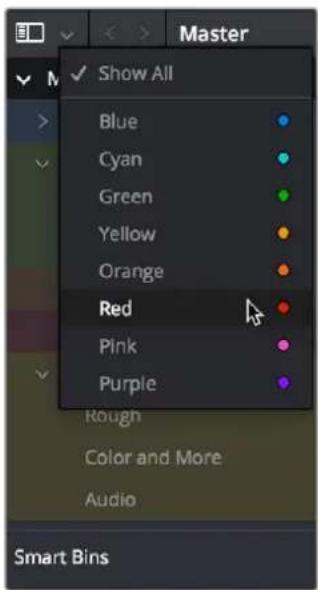
Using color tag filtering to isolate the red bins
To go back to seeing all available bins, choose Show All from the Color Tag Filter drop-down.
Sorting the Bin List
The Bin list (and Smart Bin list) of the Media Pool can be sorted by Bin Name, Date Created, or Date Modified, in either ascending or descending order. Simply right-click anywhere within the Bin list and choose the options you want from the Sort by submenu of the contextual menu.
You can also choose User Sort from the same contextual menu, which lets you manually drag all bins in the Bin list to be in whatever order you like. As you drag bins in this mode, a highlighted line indicates the new position that bin will occupy when dropped.
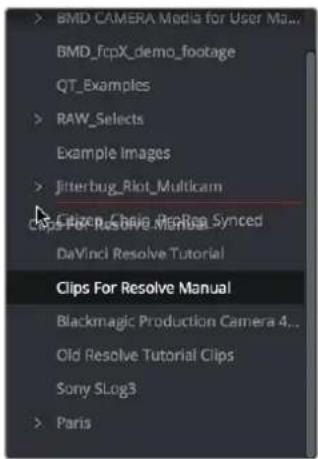
Dragging a bin to a new position in the Bin list in User Sort mode
If you use User Sort in the Bin list to rearrange your bins manually, you can switch back and forth between any of the other sorting methods (Name, Date Created, Date Modified) and User Sort and your manual User Sort order will be remembered, making it easy to use whatever method of bin sorting is most useful at the time, without losing your customized bin organization.
More About Timelines and Grading
DaVinci Resolve projects contain one or more edited timelines (sometimes called a sequence in other applications) which are also organized in the Media Pool, and displayed in the Timeline Editor (referred to as “the Timeline”). Timelines contain clips, the source media of which is kept in the Media Pool, and which also appear as edit events in the Edit Index that can be shown at the right of the Timeline.
Timelines, Grades, and Versions
Within any given timeline, grades are associated with the timecode of the source clip they're applied to. That means that as you alter the timeline, each clip's grade moves along with it, making it extremely easy to move back and forth between editing and grading as your needs require. By default, each timeline in a project has independent sets of grades using local versions; this is true even if your timelines are duplicates. That means each clip within every timeline has a completely independent grade.
However, if you switch the clips in one or more timelines to use Remote versions, a clip's grades are shared by every instance of that clip in all timelines with clips that also use Remote versions. If you import a new timeline that rearranges clips into a different order and switch it to using Remote versions, then grades will automatically follow the clips, so that the clips within each new timeline inherits the grades applied to those same clips in other timelines.
You can switch a timeline between using Local and Remote grades at any time. For more information on using Local versus Remote versions, see Chapter 138, "Grade Management." You can also copy grades from one timeline to another using the ColorTrace feature. For more information about ColorTrace, see Chapter 145, "Copying and Importing Grades Using ColorTrace."
Enabling the Use of a Master Timeline
Previous versions of DaVinci Resolve had a Master Timeline, which consisted of one long timeline containing every clip in the Media Pool, arranged by default in ascending order by timecode. While the Master Timeline was useful for a variety of tasks, architectural improvements have rendered it unnecessary, and by default the Master Timeline does not appear in new projects created by DaVinci Resolve version 10 or later.
However, if you want a Master Timeline in order to have a single timeline that always contains all clips currently in the Media Pool, there's a way you can create one. You need to do it immediately upon creating a new project, before adding any media to the Media Pool. Once you've added one or more clips to the Media Pool, the option you need to do so will be disabled.
To create a new Master Timeline:
1 Create a new project, open the General Options panel of the Project Settings, and turn on the "Automatically match master timeline with media pool" checkbox. If you also want all clips to use Remote versions as you grade by default as in previous versions of DaVinci Resolve, you can turn off the "Use local version for new clips in timeline."
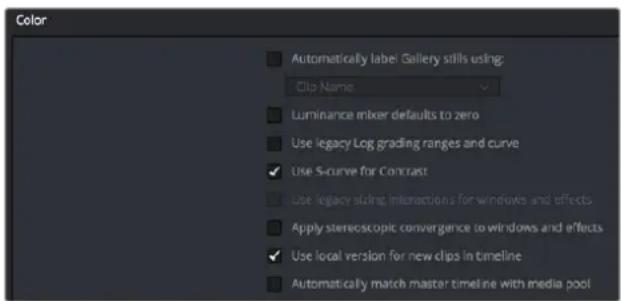
The option to use a Master Timeline is in the Color section of the General Options panel of the Project Settings
2 Click Save to close the Project Settings window.
3 Open the Edit page, and choose File > New Timeline (Command-N).
4 When the New Timeline Properties window appears, turn the Empty Timeline checkbox off, and click Create New Timeline.
Now, in addition to the new timeline, a Master Timeline appears in the Timeline list.
TIP: If you want to make sure that you always have a Master Timeline when you create new projects, you can alter the Project Setting preset for your user account to reflect these settings, or you can create a new Project Setting preset with these settings that you can easily switch to.
Creating a Master Timeline
The Master Timeline consists of one long sequence of every clip in the Media Pool, arranged in ascending order by timecode. Each clip in the Master Timeline appears at its full duration, regardless of the duration of corresponding clips in an EDL-, AAF-, or XML-imported timeline. Whenever you add more clips to the Media Pool, they're automatically added to the Master Timeline.
The Master Timeline is useful for organizing media for which no editing has yet been done, such as when grading digital dailies. The Master Timeline is also useful for identifying a range of similar clips, based on their similar ranges of timecode. For example, you could find all the talking head shots from a particular section of tape clustered together in the Master Timeline.
Using the Effects Library
All effects that you can add to your edit, including filters, transitions, titles, and generators, are found in the Effects Library, which is split into two parts. To the left is a bin list that shows a hierarchical list of all of the different Transitions, Title Effects, Generators, and Filters that are available, sorted by category. To the right is a browsing area in which you can see the contents of whichever bins are selected.
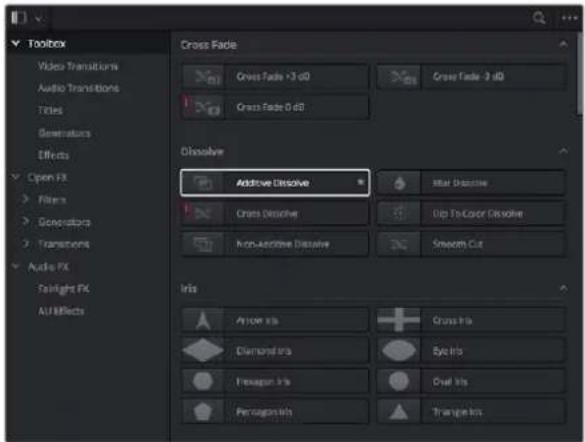
The Effects Library
Similar to the Media Pool, the Effects Library's bin list can be opened or closed using a button at the top left, while a menu just to the right of this button lets you sort the list into different categories.
The Toolbox
All of the video and audio transitions, titles, and generators that ship along with DaVinci Resolve appear in the Toolbox category of the Effects Library.
- Toolbox: Exposes all Transitions, Titles, Generators, and Effects at once.
- Video Transitions: Contains all of the built-in transitions that are available from DaVinci Resolve. You can drag any video transition to any edit point in the Timeline that has overlapping clip handles to add it to your edit; you have the option to drag the transition so that it ends on, is centered on, or starts on the edit point. For more information, see Chapter 47, "Using Transitions."
– Audio Transitions: Contains audio transitions for creating crossfades.
- Titles: Titles can be edited into the Timeline like any other clip. Once edited into the Timeline, you can edit the title text and position directly in the Timeline Viewer, or you can access its controls in the Inspector for further customization.
- Generators: Generators can also be edited into the Timeline like any other clip. Selecting a generator and opening the Inspector lets you access its controls for further customization. You can also choose a standard duration for generators to appear with in the Editing panel of the User Preferences.
- Effects: Contains unique placeholder effects like Adjustment Clip, and Fusion Composition, that can be customized to apply sophisticated effects to your programs.
OpenFX
DaVinci Resolve supports the use of third-party OpenFX filters, transitions, and generators in the Edit page. Once you install these effects on your workstation, they appear in this section of the Effects Library, organized by type and group depending on the metadata within each effect.
- OpenFX: Exposes all Resolve FX and third-party OpenFX installed on your workstation at once.
- Filters: Contains the Resolve FX filters that ship with DaVinci Resolve, as well as any third-party OFX plug-ins you've installed on your workstation. Filters can be dragged onto video clips to apply an effect to that clip. Once applied, filters can be edited and customized by opening the OpenFX panel of the Inspector.
- Transitions: Contains any third-party OFX transitions you have installed on your workstation. OFX transitions can be used similarly to any other transition, but they also expose an OpenFX panel next to the Transition panel in the Inspector, where you can customize settings that are unique to that transition.
- Generators: Contains any third-party OFX generators you have installed on your workstation. Can be edited into the Timeline just like the native generators that ship with DaVinci Resolve, but they also expose an OpenFX panel next to the Transition panel in the Inspector, where you can customize settings that are unique to that transition.
Audio FX
On all platforms, DaVinci Resolve supports Fairlight FX, which are built-in audio plug-ins that come with DaVinci Resolve. Additionally, DaVinci Resolve supports the use of third-party VST audio plug-ins on macOS and Windows, and Audio Unit (AU) audio plug-ins on macOS. Once you install these effects on your workstation, they appear in this panel of the Effects Library. Audio plug-ins let you apply effects to audio clips or an entire track's worth of audio to add creative qualities such as echo or reverb, or to take care of mastering issues using noise reduction, compression, or EQ.
Effects Library Favorites
You can click on the far right of any transition, title, or generator to flag that effect with a star as a favorite effect. When you do so, the favored effects appear in a separate Favorites area at the bottom of the Effects Library Bin list.
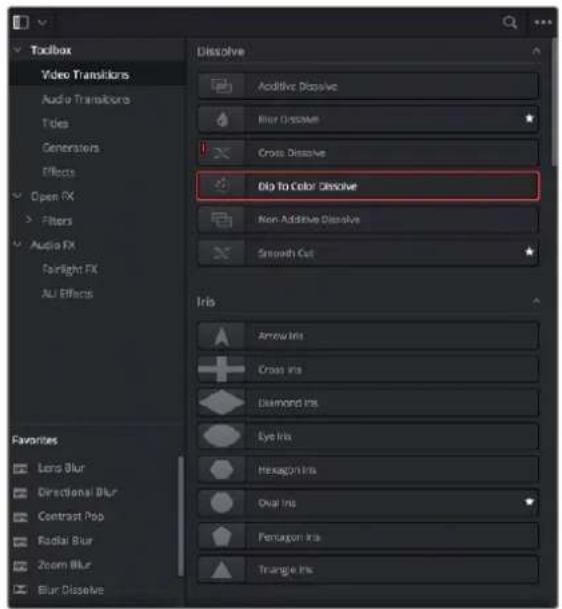
Stars indicate a flagged favorite effect; all favorites are currently filtered.
Edit Index
Clicking the Edit Index button opens the Edit Index. By default, this shows an EDL-style list view of all the edit events in the current timeline. Whichever timeline is selected in the Timeline list displays its events here. However, the contents of the Edit Index can be filtered using commands found in the Option drop-down, described later in this section.
| # | Ree | V | C | Dur | Source In | Source Out | Record In | Record Out | Name | Comments |
| 1 | V1 | C | 00:59:45:00 | 00:59:50:00 | 00:59:45:00 | 00:59:50:00 | SMPTE Color... | |||
| 2 | V1 | C | 00:59:50:00 | 00:59:55:00 | 00:59:50:00 | 00:59:55:00 | Text | |||
| 3 | V1 | C | 00:59:55:00 | 00:59:55:01 | 00:59:55:00 | 00:59:55:01 | Text | |||
| 4 | V1 | C | 00:59:55:01 | 01:00:00:00 | 00:59:55:01 | 01:00:00:00 | Solid Color | |||
| 5 | V1 | C | 12:36:48:14 | 12:36:51:07 | 01:00:00:00 | 01:00:02:17 | BMC test_B1... | |||
| 6 | V2 | C | 01:00:00:00 | 01:00:04:15 | 01:00:00:00 | 01:00:04:15 | Text | |||
| 7 | A1 | C | 12:36:48:14 | 12:36:51:07 | 01:00:00:00 | 01:00:02:17 | BMC test_B1... | |||
| 8 | V1 | C | 11:00:01:20 | 11:00:03:04 | 01:00:04:15 | 01:00:05:23 | BMC test_B1... | |||
| 9 | A1 | C | 11:00:01:20 | 11:00:03:04 | 01:00:04:15 | 01:00:05:23 | BMC test_B1... | |||
| 10 | V1 | C | 12:05:36:15 | 12:05:39.11 | 01:00:05.23 | 01:00:08.19 | BMC test_B2... | |||
| 11 | A1 | C | 12:05:36:15 | 12:05:39.11 | 01:00:05.23 | 01:00:08.19 | BMC test_B2... | |||
| 12 | V1 | C | 11:39:48.18 | 11:39:53.13 | 01:00:08.19 | Q_t : Q_t : Q_t : Q_t : Q_t : Q_t : Q_t : Q_t : Q_t BMC test_B2... | ||||
| 13 | A1 | C | 11:39:48.18 | Q_t : Q_t : Q_t : Q_t : Q_t : Q_t : Q_t : Q_t : Q_t : Q_BB_B ... | ||||||
| 14 | V1 | C | Q_t : Q_t : Q_t : Q_t : Q_t : Q_t : Q_t : Q_t : q_t : q_t : q_t : q_t : q_t : q_t : q_t : q_t : q_B ... | |||||||
| 15 | A1 | C | Q_t : Q_t : Q_t : Q_t : Q_t : Q_t : Q_t : Q_t : q_B ... | |||||||
| 16 | V1 | C | Q_t : Q_t : Q_t : Q_t : Q_t : Q_t : Q_t : q_B ... | |||||||
| 17 | A1 | C | Q_t : Q_t : Q_t : Q_t : Q_t : q_B ... | |||||||
| 18 | A1 | C | Q_t : Q_t : Q_t : Q_t : q_B ... | |||||||
| 19 | A1 | C | Q_t : Q_t : Q_t : q_B ... | |||||||
Edit Index List shown open
Each clip and transition is shown as an individual event, each of which contains multiple columns of information. If you re-edit a timeline, your changes are also reflected in this list. The Edit Index is useful for creative editors that are looking for specific effects that are used in the current timeline, or for finishing editors that need more information about a specific clip, or who might need to filter the entire edit by specific criteria in order to troubleshoot various issues.
Navigating the Timeline Using the Edit Index
Whenever you move the Timeline playhead to intersect a clip, the Edit Index updates to show only the clips on the video track the intersecting clip is on, and that clip's event is highlighted in the Edit Index. This makes it easy to see the correspondence between a clip in the Timeline and its event, which is helpful when troubleshooting problems. There are also commands available in the Option menu to display only clips on enabled tracks, only video clips, and only audio clips.
Edit Index Columns
Each event populates several columns of information. These columns can be rearranged by dragging them to the left or right, depending on what information is most important to you.
The available columns of information are:
-
: The event number (which corresponds to the clip number shown in the Thumbnail timeline of the Color page). – Reel: The reel name of the corresponding clip.
- Match: Flags clips that have clip conflicts, which display a question mark in this column. Once the clip conflict has been resolved, this flag disappears.
- V: Video event.
– C: The event type (C for cut, D for dissolve or transition).
– Dur: A number showing the duration of a transition in frames. - Source In/Source Out: The Source In and Source Out timecode indicating the range of timecode referenced by that clip; corresponds to the timecode locations of each clip's In and Out point relative to the source media it comes from.
- Record In/Record Out: Record In and Record Out timecode indicating that clip's position in the Timeline.
– Name: The name of the clip. - Comments: Whatever comments were present in the EDL that was imported. For example, clip names exported from the original NLE to be used as reel names in RED workflows using EDL import.
- Source Start/ Source End: The very first and last frame of media available in the Source Media for that clip.
– Source Duration: The duration, in timecode, of the total source media available in that clip. - Codec: The codec of the corresponding clip.
– Source FPS: The frame rate of the corresponding clip.
– Resolution: The frame size of the corresponding clip.
– Color: The color of flags or markers applied to that clip. - Notes: Notes entered inside of markers applied to clips or the Timeline.
- EDL Clip Name: Shows the name of the imported EDL, if that's available.
– Marker Keywords: Lists all keywords found in a particular marker.
The columns in the Edit Index can be customized to prioritize the information that's important to you.
Methods of customizing metadata columns in the Edit Index:
- To show or hide columns: Right-click at the top of any column in the Edit Index and select an item in the contextual menu list to check or uncheck a particular column. Unchecked columns cannot be seen.
- To rearrange column order: Drag any column header to the left or right to rearrange the column order.
- To resize any column: Drag the border between any two columns to the right or left to narrow or widen that column.
You can also customize column layouts in the Edit Index. Once you've customized a column layout that works for your particular purpose, you can save it for future recall.
Methods of saving and using custom column layout:
- To create a column layout: Show, hide, resize, and rearrange the columns you need for a particular task, then right-click any column header in the Media Pool and choose Create Column Layout. Enter a name in the Create Column Layout dialog, and click OK.
- To recall a column layout: Right-click any column header in the Media Pool and choose the name of the column layout you want to use. All custom column layouts are at the top of the list.
- To delete a column layout: Right-click any column header in the Media Pool and choose the name of the column layout you want to delete from the Delete Column Layout submenu.
Filtering the Edit Index
You can use options found in the Edit Index's option menu to filter specific things that you want to check out, whether to go through all of the marked clips to see if there are any notes you need to address, or to isolate all offline clips, or to go through edits to see if there's anything you need to fix.
You can filter the Edit Index in the following ways:
- Show All: Shows all entries in the list. Choose this option after using any of the other options to go back to seeing the entire timeline.
- Show Active Track Items: Filters out all clips that appear on tracks above or below tracks identified with a destination control. For example, if you have three video tracks and the destination control is on track V2, then all clips on tracks V1 and V3 will be hidden from the Edit Index.
- Show Video Track Items: Filters out all audio clips so only video clips appear in the list.
- Show Audio Track Items: Filters out all video clips so only audio clips appear in the list.
- Show Flags: Isolates clips with flags in the list. A submenu lets you choose to show all clips with flags or only clips with a particular color of flag.
- Show Markers: Isolates all clips with markers in the list. A submenu lets you choose to show all clips with markers or only clips with a particular color of marker.
- Show Clip Colors: Isolates all clips that have been labelled with clip colors in the list. A submenu lets you choose to show all clips that are labelled using any clip color or only clips labelled with a particular color.
- Show Through Edits: Filters only clips that have through edits, or cuts where continuous timecode appears from the outgoing to the incoming half of the edit, that you may or may not want to remove, depending on why they're there.
-
Show Offline Clips: Isolates all offline clips (clips that have become unlinked from the corresponding source media on disk) in the Timeline, so you can quickly navigate to each one and troubleshoot the issue.
-
Show Clip Conflicts: Filters all clips with clip conflict warning badges (indicating there is reel, name, and timecode metadata that overlap that of another clip) in the Timeline, so you can quickly navigate to each one and check whether they're using the correct clip.
- Show Clips With Speed Effects: Filters all clips with linear or variable Speed Effects in the Timeline.
- Show Clips With Composite Effects: Filters all clips with Composite mode or Opacity settings other than the default (Normal, 100).
- Show Clips With Transform Effects: Filters all clips with altered Transform settings.
- Show Clips With Filters: Filters all clips with Resolve FX or OFX filters applied to them.
- Show Stills and Freeze Frames: Filters all clips that are stills or that have freeze frame speed effects applied to them.
- Show Compound Clips and Nested Timelines: Filters all compound clips and nested timelines in the Timeline.
- Show VFX Connect Clips: Filters all Fusion Connect Clips.
Exporting the Edit Index
If you've filtered a series of edits in the Edit Index that you'd like to share with someone else, this is easy to do. For example, you might filter the Edit Index to show a list of all the offline clips in the current timeline, and then export a list as either a .csv or .txt file to give to your assistant editor so they can chase down the necessary media. Both types of files are widely compatible with spreadsheet and database software in the event you want to import the data into another application.
To export the Edit Index:
1 Right-click the currently open timeline in the Media Pool, and choose Timelines > Export > Edit Index from the contextual menu.
2 Use the Export Edit Index window to choose a location to save the exported file, and choose a format from the drop-down menu at the bottom. You can export either a Comma Separated Values (.csv) file, or a Tab Delimited Values (.txt) file.
3 Click Save.
Source and Timeline Viewers
By default, the Edit page presents a traditional source/record style editing experience. The Source Viewer lets you view individual clips from the Media Pool to prepare them for editing. Meanwhile, the Timeline Viewer lets you play through your program, showing you the frame at the position of the playhead in the Timeline.
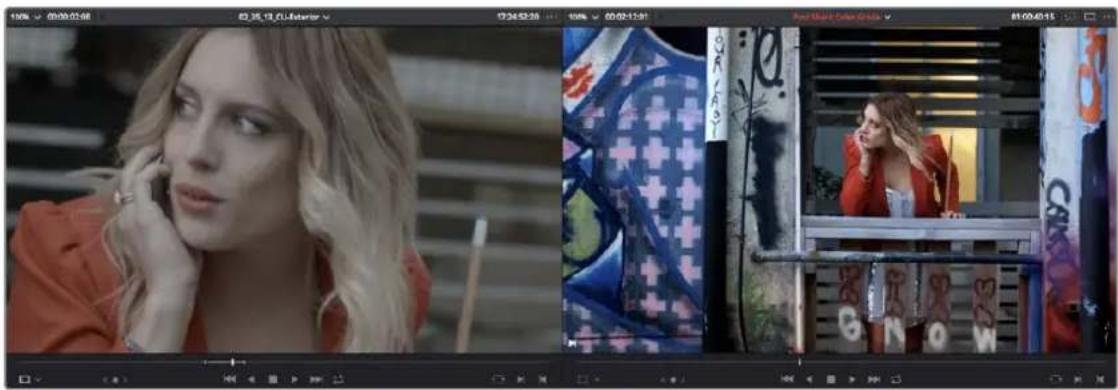
natural_image
Side-by-side comparison of two fashion photos: one with blonde hair and hand on phone, the other with a woman in red clothing looking through a window (no visible text or symbols)Source and Timeline Viewers
You can select either viewer by clicking with the pointer, or by pressing Q (Source/Timeline Viewer), and the name of the viewer that currently has focus appears in orange.
How Each Clip's Grade Looks in Each Viewer
Because of DaVinci Resolve's deep color and effects tools, the state of the image you see in each viewer of the Edit page depends on a number of things.
The Source Viewer
The Source Viewer shows each clip as it looks at the source. If you have Resolve Color Management (RCM) turned on or source LUTs applied, then the Source Viewer will show your clips as they're being processed by RCM and/or the source LUTs, since those are source-level color operations. However, in the absence of RCM and source LUTs, the image in the Source Viewer looks exactly the same as it does on disk. If you have log-encoded media that looks flat and low-contrast, then that's how it's going to look in the Source Viewer.
The Timeline Viewer
The Timeline Viewer follows all of the same rules as the Source Viewer, with the addition that the Timeline Viewer also shows you how each clip in the Timeline looks with Fusion page and/or Color page operations applied, since the Timeline Viewer is actually showing you the output of the Color page, so you can see every clip of your program in context of how the image is being affected by the DaVinci Resolve image processing pipeline.
NOTE: The Color Viewer Lookup Table options in the Color Management panel of the Project Settings only affect the GUI Viewer in the Color page. They do not affect the viewers in the Edit page.
Turning Grades and/or Fusion Effects Off in the Timeline Viewer
The Bypass Color Grades and Fusion Effects button/drop-down from the Color page is also available on the Edit page either via the View > Bypass Color and Fusion drop-down, or via a toggle button/drop-down menu in the Timeline Viewer. If you choose Toggle Bypass or click the Viewer control, you'll turn off whatever is checked in the optional menu, which lets you choose whether or not you want to bypass both Color and Fusion, or just one or the other.
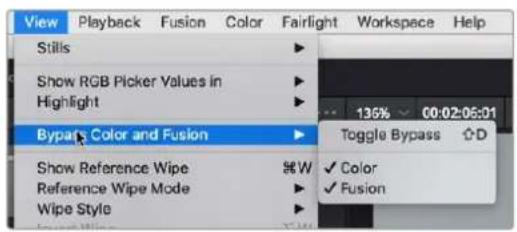
(Left) Menu commands for bypassing Color and Fusion, (Right) Edit page Timeline Viewer controls
Turning off color grades and Fusion effects is an easy way to improve playback performance on low power systems when you just need to make a quick set of edits, and it's also a convenient way to quickly evaluate the original source media.
Source and Timeline Viewers vs. Single Viewer Mode
If you want to change the Edit page layout to hide the Source Viewer, you can choose Workspace > Single Viewer Mode to instead use just a single viewer to contextually display either a selected Source Clip or the current frame of the Timeline.
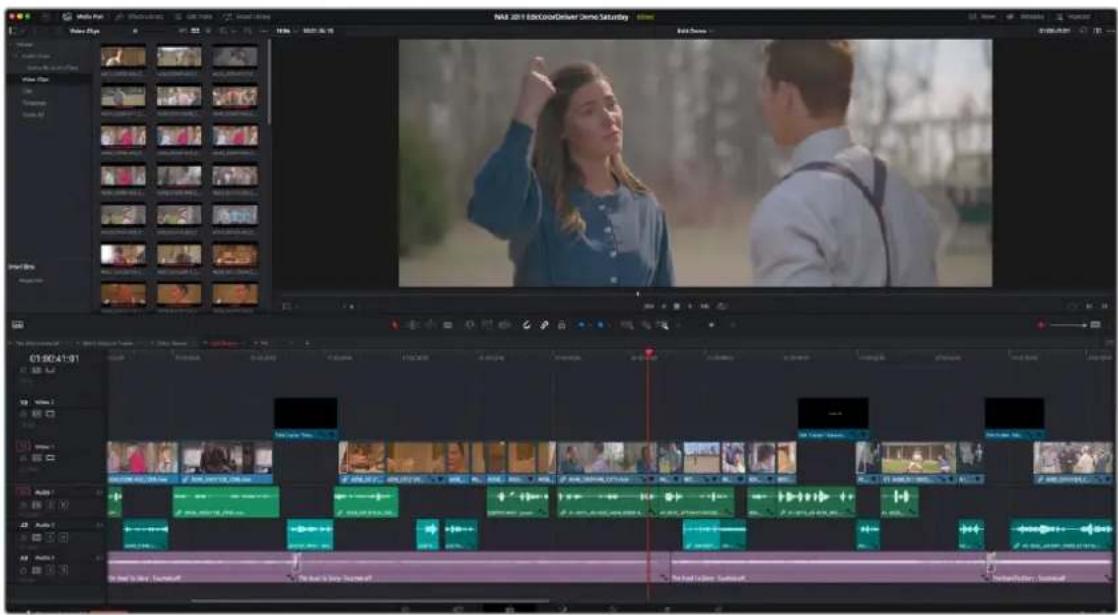
Single Viewer mode turned on
In Single Viewer mode, whatever you select in the Media Pool or Timeline determines which controls appear in the Viewer, which lets you do nearly everything you can do with two simultaneously open viewers.
Viewer Controls
Both viewers share the following onscreen controls:
- Zoom drop-down menu: Choosing Fit fits the currently visible frame to the available size of the viewer. Choosing a percentage zooms the visible frame to that size. You can also use the scroll wheel functionality of your mouse, trackpad, or tablet to zoom in and out of the viewer.
- Duration field: At the top left-hand side of the Source Viewer, this displays the total duration of the clip, or the duration from the In to the Out point, if these have been placed. In the Timeline tab, this displays the total duration of the currently selected timeline.
- GPU Status Display: Every viewer in DaVinci Resolve exposes a GPU status indicator and a frame-per-second (FPS) meter, which appears in the viewer's title bar, which shows you your workstation's performance whenever playback is initiated. Since DaVinci Resolve uses one or more GPUs (graphics processing units) to handle all image processing and effects, the GPU status display shows you how much processing power is being used by whichever clip is playing.
- Clip Name: The clip name is displayed at the center of the Source Viewer title bar.
- The Source Viewer displays a drop-down at the top of the Source Viewer, next to the name of the currently open clip, which lets you open a menu containing a list of the last 10 clips you opened in the Source Viewer. This list is first in, first out, with the most recently opened clips appearing at the top.
– The Timeline Viewer displays the timeline name and is also a drop-down menu that lets you switch among other timelines in the current project. The clip/timeline name is highlighted orange when either the Source or Timeline Viewer has focus.
- Bypass Color Grades and Fusion Effects: The Bypass Color Grades and Fusion Effects button/drop-down from the Color page is also available on the Edit page either via the View > Bypass Color and Fusion drop-down, or via a toggle button/drop-down menu in the Timeline Viewer. Turning off color grades and Fusion effects is an easy way to improve playback performance on low power systems when you just need to make a quick set of edits, and it's also a convenient way to quickly evaluate the original source media.
- Source/Timeline Timecode/Frame/Keykode Display: At the top right-hand side of the Source Viewer, this field shows the timecode of the current frame at the position of the playhead in the Source Viewer's jog bar, and can be switched between source timecode, source frame, and keykode by right-clicking and choosing from the contextual menu. In the Timeline Viewer, this field shows the record timecode of the current frame at the position of the playhead in the Timeline, and can be switched between source and record timecode, source and record frames, and keykode by right-clicking and choosing from the contextual menu.
– Source Viewer Option menu: Contains the following commands:
- Gang Viewers: With Gang Viewers enabled, the movement of the Source and Timeline Viewer playheads is locked together, so that they move in unison. This is useful when you're matching the timing of part of a clip in the Source Viewer to match an event in the Timeline.
-
Live Media Preview: Enabled by default, makes it possible for thumbnails that you're skimming in the Media Pool to show the skimmed frame in the Viewer. When skimming with Live Media Preview enabled, the playhead that appears in the thumbnail is locked to the playhead displayed in the Viewer's jog bar.
-
Show All Video Frames: When available processing power is insufficient to play the clip or clips at the position of the playhead due to the grade, transforms, or effects that are applied at that moment in the Timeline, you have the ability to choose exactly how performance in DaVinci Resolve degrades. When off, DaVinci Resolve prioritizes audio playback at the expense of dropping video frames when processing power is tight, resulting in a more conventional playback experience. When on, audio quality is compromised while every frame of video plays in slower-than-real time to maintain playback.
-
Show Zoomed Audio Waveform: When enabled, shows an audio waveform overlay at the bottom of the Source Viewer with a zoomed in section of the audio surrounding the current position of the playhead.
– Show Full Clip Audio Waveform: When enabled, shows an audio waveform overlay at the bottom of the Source Viewer that displays the audio over the entire duration of the clip. -
Show Marker Overlays: Enabled by default, markers that intercept the playhead when playback is paused appear superimposed in the Viewer.
- Markers submenu: When one or more markers are applied to the clip in the Source Viewer, they appear in this list in chronological order, listed by Name and Note. Choosing a marker from this menu jumps the playhead to that marker in the Source Viewer.
– Timeline Viewer Option menu: Contains the following commands:
- Gang Viewers: With Gang Viewers enabled, the movement of the Source and Timeline Viewer playheads is locked together, so that they move in unison. This is useful when you're matching the timing of part of a clip in the Source Viewer to match an event in the Timeline.
- Show All Video Frames: When available processing power is insufficient to play the clip or clips at the position of the playhead due to the grade, transforms, or effects that are applied at that moment in the Timeline, you have the ability to choose exactly how performance in DaVinci Resolve degrades. When off, DaVinci Resolve prioritizes audio playback at the expense of dropping video frames when processing power is tight, resulting in a more conventional playback experience. When on, audio quality is compromised while every frame of video plays in slower-than-real time to maintain playback.
- Timeline Sort Order: These options allow you to set the sort order that timelines use in the timeline selector in the top middle of the Viewer. Options are: Alphabetical, Creation Date, or Recently Used.
-
Show Marker Overlays: Enabled by default, markers that intercept the playhead when playback is paused appear superimposed in the Viewer.
-
Show Timecode Overlays: When enabled, shows the source timecode of the video and audio clips under the position of the playhead when playback is paused.
- Show Overlays During Playback: When enabled, shows timecode and marker overlays on the Viewer constantly during playback. When disabled, overlays are only visible while playback is paused.
- Markers submenu: When one or more markers are applied to a Timeline, they appear in this list in chronological order, listed by Name and Note. Choosing a marker from this menu jumps the playhead to that marker in the Timeline.
- Source Viewer Mode drop-down (Source Viewer only): This drop-down menu lets you set the Source Viewer to display different views of the clips you're working on, depending on what you need to do.
– Source: Shows the video of the currently open clip in the Source Viewer.
- Offline Reference Movie button: If you've assigned an offline reference movie to the currently selected timeline, clicking the Offline Mode button lets you display the offline movie so you can compare it with the currently open timeline. In this mode, Source and Timeline playback are synced; an Offset field replaces the duration field, letting you re-sync the offline reference movie, if necessary.
- Audio Track: Shows the audio waveforms corresponding to all channels of the currently open clip in the Source Viewer. The top of this audio-only view shows the waveform for the entire duration of the clip, while the main region of the viewer shows a zoomed in section of the audio waveform. The level of zoom displayed is controlled by the zoom drop-down at the upper left-hand corner of the Source Viewer.
- Multicam: Shows you the multi-angle Multicam Viewer that you can use to switch among different angles of video and audio while multicam editing a clip in the Timeline. For more information on multicam editing, see Chapter 41, "Multicam Editing."
- Annotations: Allows you to draw directly onto the current frame to highlight areas for further attention.
- Transform Mode drop-down (Timeline Viewer Only): This functions as both a toggle switch and a drop-down menu. Clicking the button control to the left enables or disables onscreen controls that you can use to transform the clip right in the viewer. Clicking the drop-down control to the right lets you switch between two modes of transforms:
- Transform: Exposes controls for Pan (X) and Tilt (Y), Scale X and Y, and Rotation.
– Crop: Exposes controls to crop from the top, bottom, left, and right.
- Dynamic Zoom: Shows controls to do quick pan and scan effects on the selected clip.
- OpenFX Overlay: Exposes the onscreen controls of an applied OpenFX filter.
– Fusion Overlay: Exposes the onscreen controls of an applied Fusion FX or Title filter.
- Annotations: Allows you to draw directly onto the current frame to highlight areas for further attention.
- Smart Reframe: Exposes the onscreen controls of the Smart Reframe.
- Jog control: Clicking the Jog control and dragging left and right lets you move slowly through a clip or the Timeline a frame at a time.
- Transport controls: These controls include, from left to right, Jump to First Frame, Play Reverse, Stop, Play Forward, Jump to Last Frame.
- Loop Playback: Enables or disables looped playback. Looping is also controllable via the Playback > Loop/Unloop command (Command-/-). When enabled, each playback command loops back to the beginning when the end of that command's range is reached. In and Out points in the Source or Timeline Viewers do not trigger looping. For example, when enabled, the Play
command will play through the entire clip or timeline, and then loop back to the beginning when the end is reached and start playing automatically. The Play Around command, on the other hand, will start at the beginning of pre-roll, play through the post-roll, and then immediately loop back around to the beginning of pre-roll, continuing playback in this manner until you stop it.
- Match Frame: In the Source Viewer, Match Frame attempts to move the playhead in the Timeline to match the current frame of the clip in the Source Viewer. In the Record Viewer, Match Frame opens the Media Pool clip corresponding to the clip at the current position of the playhead into the Source Viewer, setting In and Out points and the playhead position to match those of the clip in the Timeline.
- In/Out buttons: Places In and Out points with which to define a range of the clip, or of the Timeline, in preparation for making different kinds of edits.
- Jog bar: In the Source Viewer, drag within the jog bar to reposition the Source playhead, scrubbing through the clip. In the Timeline tab, drag to reposition the playhead throughout the entire program.
Transport Controls and Important Playback Controls
While the operation of the main transport controls is probably obvious, there are additional playback controls of interest to the editor that may not be so readily found.
For more information about transport controls, see Chapter 35, "Preparing Clips for Editing and Viewer Playback."
Simultaneous Audio Waveform Display in the Source Viewer
When the Source Viewer is set to Source, two options in the Option menu let you see a superimposed audio waveform running along the bottom of the viewer, over the video of the currently selected clip.
- Show Zoomed Audio Waveform: Shows a zoomed-in section of audio that scrolls as you play the clip. Useful for seeing dialog and music cues as you play through a clip.
- Show Full Clip Audio Waveform: Shows the audio waveform for the entire source media of that clip. The section of audio from the In to Out points you've set in the Source Viewer are highlighted. Useful for using the audio waveform to navigate throughout that clip using the waveform as a reference.
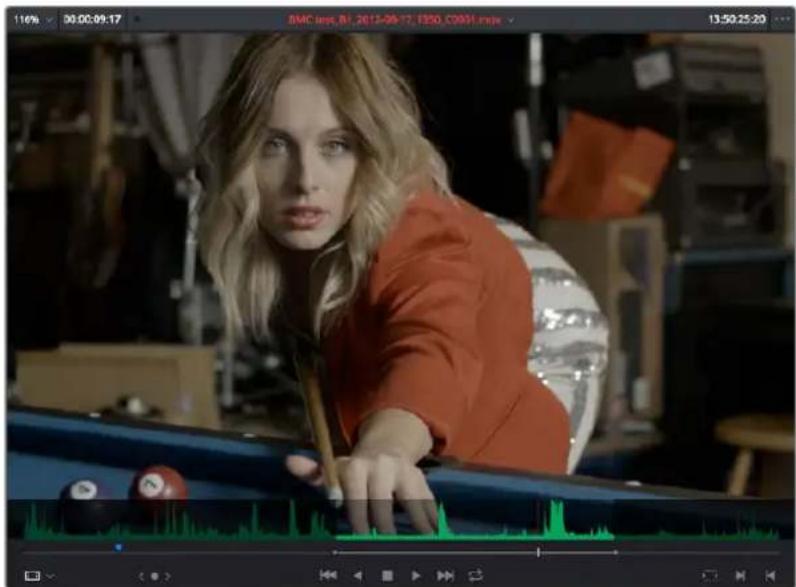
The Source Viewer with "Show Current Frame Audio Waveform" enabled
Cinema Viewer Mode
You can also put either the Source or Timeline Viewers into Cinema Viewer mode by choosing Workspace > Viewer Mode > Cinema Viewer (P), causing whichever viewer is currently selected to fill the entire screen, which is good for doing a test viewing of your edit without the distractions of the DaVinci Resolve Edit Page UI. This command toggles Cinema Viewer mode on and off.
Viewer Indicators
Certain frames trigger visible indicators in either the Source or Timeline viewers. For example, if the playhead is at the very first or last frame of media available to a particular clip, indicators appear in the lower-left or right corner of the frame to let you know there's no more media in that direction.


The first and last frame clip indicators
If the playhead in the Timeline is on the first frame of black immediately after the last video clip in the Timeline, an end of sequence indicator appears in the Timeline Viewer to let you know that you're viewing the last frame of the current sequence of clips, even though the playhead is actually on a frame of black. This makes it easy to see what you're doing while you're first assembling clips together.
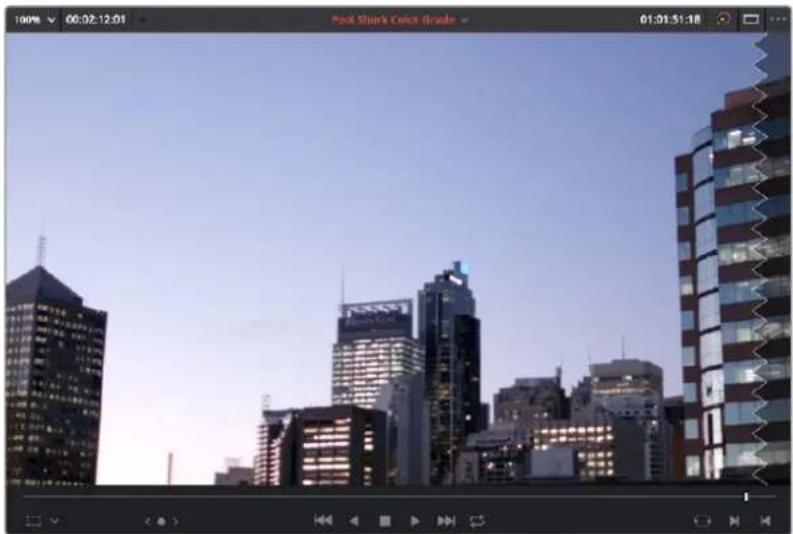
natural_image
City skyline with illuminated skyscrapers under a clear sky, captured in video editing interface (no text or symbols on buildings)The end-of-sequence indicator
Other Viewer Options
There are additional overlays and options you can use to customize how the viewer appears, available in the View menu.
- Safe Area: Choosing View > Safe Area > On lets you turn on Safe Area overlays showing you Title Safe, Action Safe, and other available overlays. If you want to choose the aspect ratio with which these overlays are represented, you can do so from the View > Select Aspect Ratio submenu.
- Show Gray Backgrounds in Viewers: Choosing View > Show Gray Backgrounds in Viewers sets the empty area of the viewer (if there is any) to a lighter gray, making it easier to see which parts of the viewer are black because of blanking, and which parts are simply empty because of the way the image is zoomed or panned.
Fast Review in the Timeline Viewer
Fast Review plays back your timeline at variable fast forward speeds where the speed of playback is dependent on the length of each clip on the Timeline. Longer clips play back at faster speeds than shorter ones. This feature is designed to allow you to quickly scan through a large amount of material on a timeline.
To use the Fast Review feature on your Edit page Timeline, select Playback > Fast Review. Pressing K or the spacebar will return you to the normal JKL playback mode. If you use this feature often you can bind Fast Review to a specific key in the Keyboard Customization window.
NOTE: Fast Review does not work for clips in the Source Viewer, only for timelines in the Timeline Viewer.
Opening Clips in the Source Viewer
There are two methods of opening clips into the Source Viewer. Which is enabled depends on the "Live Media Preview" setting found in the Viewer options menu (the three-dots menu found at the upper right-hand corner of the Viewer).
When Live Media Preview is enabled (by default), skimming a thumbnail in the Media Pool also shows the skimmed frame in the Source Viewer, effectively opening each clip you skim in the Media Pool into the Source Viewer. As you skim, the playhead that appears in the thumbnail is locked to the playhead that's displayed in the Viewer's jog bar.
When Live Media Preview is disabled, you must either double-click a clip in the Media Pool to open it into the Source Viewer, or you can select a clip in the Media Pool and press the Return key to open it into the Source Viewer.
Which method is best is purely a matter of preference.
Timeline Viewer Edit Overlays
Dragging a clip from the Media Pool or Source Viewer onto the Timeline Viewer also exposes edit overlays that let you choose what kind of edit you want to make by choosing which overlay to drop the clip onto.
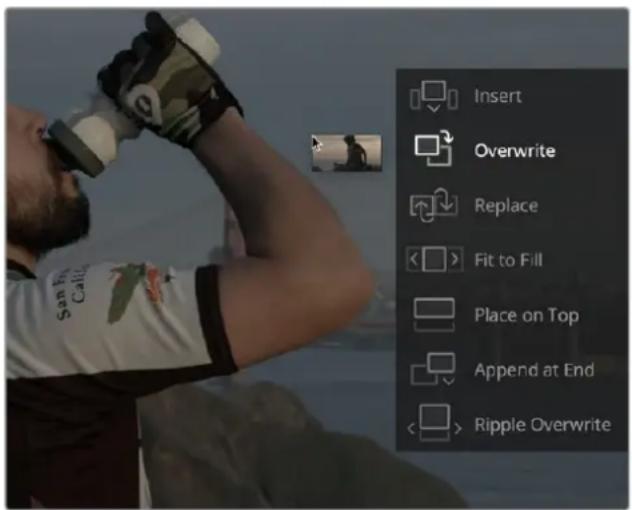
The overlay that appears when you drag a clip onto the Timeline Viewer lets you choose from a variety of edits
This overlay exposes every type of edit that's available in DaVinci Resolve, including the Insert, Overwrite, Replace, Fit to Fill, Place On Top, Ripple Overwrite, and Append at End edits, all of which are also available from the Edit menu. It's a useful method of making three-point edits if you like drag and drop editing, but it also provides a nice reminder of what types of edits are available, given all the different options that are available.
By default, the larger empty area to the left of these overlays defaults to the highlighted Overwrite overlay, while all the smaller buttons let you perform each of the other edit types that are available.
However, the "Timeline overlay retains the last performed action" checkbox in the Editing panel of the User Preferences can be turned on if you want DaVinci Resolve to always remember the last edit type you used, and highlight it on this overlay whenever you drag another clip over the Timeline Viewer to let you know that the last edit you performed is the new default edit if you drop clips to the left of the overlay. For example, with this option enabled, if you perform a place on top edit, then the next time you drop a clip into the empty area to the left of the overlays, the result will be another place on top edit. This option is off by default.
Copy and Paste Timecode in Viewer Timecode Fields
You can right-click on most Viewer timecode fields in the Media, Edit, and Color pages to choose Copy and Paste commands from a contextual menu for copying and pasting timecode values. You can also click in the timecode fields and use the normal Copy (Command-C), and Paste (Command-V) keyboard commands. This works even between pages. The timecode value you're pasting must be valid timecode, for example you can't paste 0 hour timecode onto a 1 hour timeline.
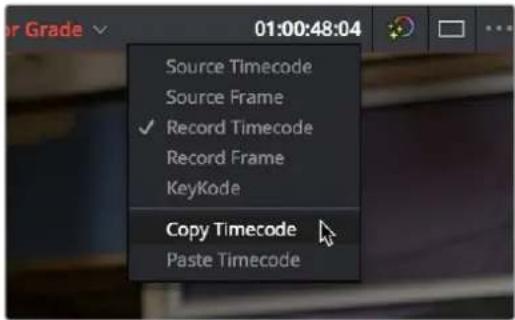
Right-clicking on a timecode field to use the Copy Timecode command
Metadata Editor
Both the Media and Edit pages have a Metadata Editor. In the Edit page, the Metadata Editor opens in the same place as the Inspector, to the right of the Source and Timeline Viewers. When you select a clip in the Media Pool or Timeline, its metadata is displayed within the Metadata Editor, and the title bar indicates whether you're evaluating a clip in the Timeline or Media Pool. If you select multiple clips, only the last clip's information appears. The Metadata Editor's header contains uneditable information about the selected clip, including the file name, directory, duration, frame rate, resolution, and codec.
Because there are so very many metadata fields available, two drop-down menus at the top let you change which set of metadata is displayed in the Metadata Editor.
- Metadata Presets (to the left): If you've used the Metadata panel of the User Preferences to create your own custom sets of metadata, you can use this drop-down to choose which one to expose. Surprisingly enough, this is set to "Default" by default.
- Metadata Groups (to the right): This drop-down menu lets you switch among the various groups of metadata that are available, grouped for specific tasks or workflows.
The heart of the Metadata Editor is a series of editable fields underneath the header that let you review and edit the different metadata criteria that are available. For more information on editing clip metadata, and on creating custom metadata presets, see Chapter 19, "Using Clip Metadata."
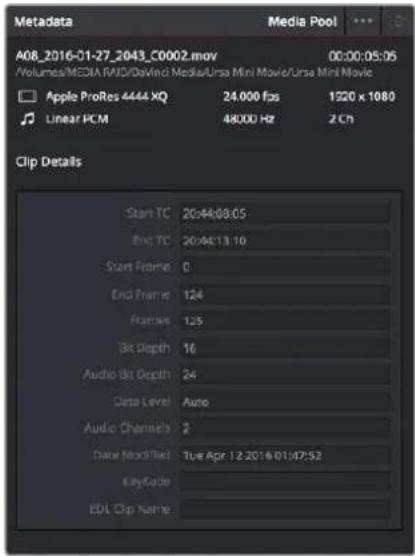
Clip Metadata Editor showing the Clip Details panel for a clip in the Timeline
Inspector
The Inspector can be opened to let you customize compositing, transform, and cropping parameters for clips, as well as clip-specific retime and scaling options. Furthermore, the Inspector lets you edit the parameters of transitions, titles, and generators used in the Timeline, in order to customize their effect.
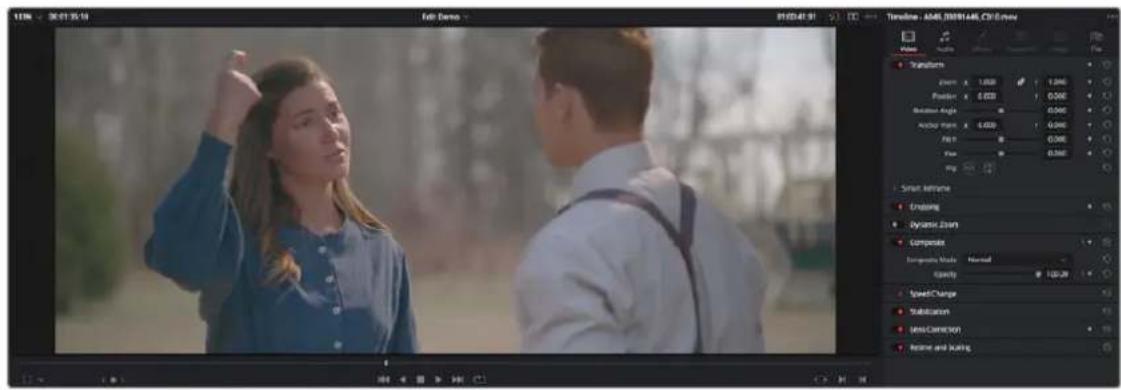
The Inspector, opened and showing a clip's parameters
When the Inspector is open, the Source and Timeline viewers move to the left, to sit alongside the Inspector showing the selected clip's parameters. However, if your computer display's resolution is not high enough, opening the Inspector may result in the Source Viewer being hidden.
Methods of showing parameters in the Inspector:
- To open a video or audio clip's transform settings when the Inspector is closed: Select that clip, and then click the Inspector button at the far right of the Edit page toolbar.
- If the Inspector is already open: You need only select a clip or effect to reveal its controls in the Inspector.
- If the Inspector is closed: Double-clicking any transition will automatically open it.
The Inspector shows different buttons at the top that let you switch among different pages of parameters. For example, when you select a clip with both audio and video components, the Inspector shows Video and Audio buttons at the top that let you switch among each set of controls.
Timeline
The Timeline shows whichever timeline you've double-clicked in the Timelines browser. It's where you either edit programs together from scratch, or import sequences from other applications. For imported programs, the Timeline provides a visual representation of the edited program that's helpful for verifying that the project was imported correctly, checking the media corresponding to each clip in the program, and performing whatever editorial tasks are necessary to prepare a project for grading (such as replacing or adding clips, superimposing composites, and modifying composite modes or transitions).
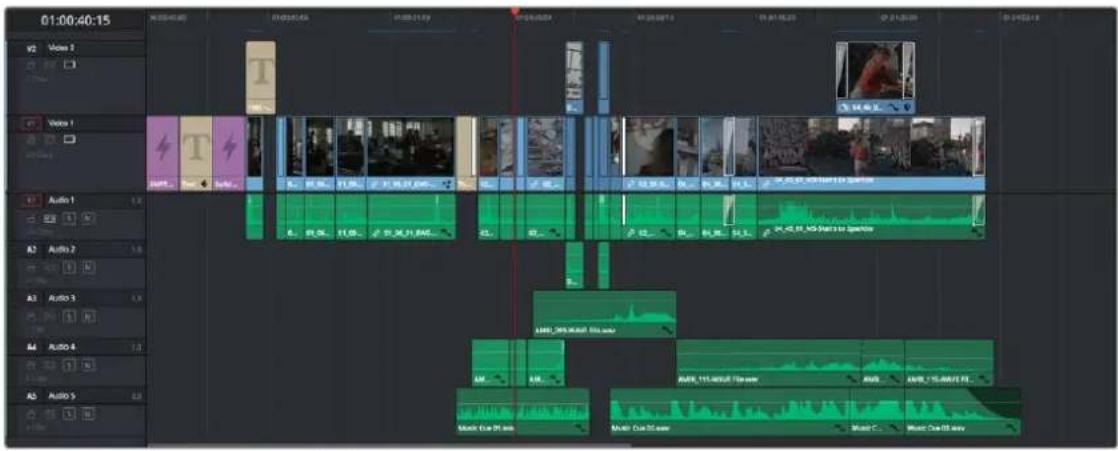
An edited timeline
- Timeline Ruler: The Timeline Ruler shows the program's timecode, and the playhead indicates the current frame of the current clip. Whichever clip intersects the playhead is the one that you'll be working on in the Color page. Dragging within the Timeline Ruler moves the playhead. When you add markers to the timeline, these markers appear within the Timeline Ruler, as well.
- Playhead: The playhead automatically syncs with the Timeline Viewer's jog bar playhead, the playheads in the Mini-Timeline and Thumbnail timeline of the Color page, Cut page, and the playhead on the Deliver page. Furthermore, the Edit Index event that corresponds to the clip intersecting the playhead is automatically highlighted.
– Timecode field: Shows the current timecode value corresponding to the position of the playhead. - Video Tracks: DaVinci Resolve supports multiple video tracks. At the left of each track is a header area that contains a number of controls.
- Track Header: The Track Header contains different controls for selecting, locking/unlocking, and enabling/disabling tracks. Each track header also lists how many clips appear on that track. The Track Header contains the following five controls, from left to right:
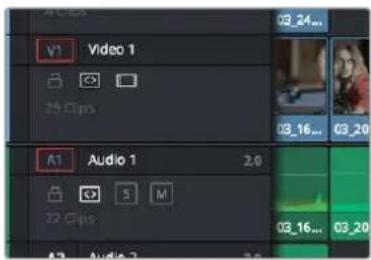
Track Header area showing the controls for each track that are located within
- Track Color: Each track can be color-coded with one of 16 different colors. These color codes correspond to the Edit page Mixer, and to the Fairlight page Mixer and Audio Meters. You can choose a new color for any track by right-clicking the track header and choosing from the Change Track Color submenu.
- Destination control and Track Number: These controls are highlighted orange when that track is selected for editing, dark gray when that track is not selected, and flat gray if that track is disabled for editing. The Destination buttons dictate into which tracks audio and video media in the Source Viewer will be placed when an edit is executed. Ordinarily, there is one video destination control (V1) and one audio destination control (A1). If you add additional tracks, you can see that each destination control is numbered according to its track position. The bottom track is "V1," and subsequently numbered tracks appear higher in the Timeline. Click any track's number to select that track for different editing functions; the selected track is highlighted black.
- Track Name: Each track has a name that defaults to the type of track and the track number, such as Video 1, Audio 1. However, you can click any track's name and edit it to be whatever you like. For example, you can rename each audio track with the type of audio you're editing onto it, such as Production, Ambience, SFX, or Music. These track names are also used to identify each track's channel in the Edit page Mixer and in the Fairlight page Mixer.
- Enable Track/Mute button: A slash indicates when a track is disabled. This control lets you turn tracks on and off. Clips on tracks that are turned off aren't visible in the viewer, don't show up in the Color page, and aren't available for rendering or output. For Audio tracks this is the Mute button.
- Lock Track button: Light gray when turned on, dark gray when turned off. When a track is locked, clips can't be replaced, moved, or otherwise edited, although clips on locked tracks can be graded.
- Auto Select button: On by default. Light gray when that track is selected, dark gray when that track is not selected. When this control is on, clips on that track are automatically included in operations that affect all clips that intersect the position of the playhead, or that intersect a region defined by the Timeline In and Out points. When this control is off, clips on that track are ignored by those same operations. Furthermore, rippling is suspended on tracks with Auto Select turned off for operations that would otherwise ripple the Timeline. Note, manual selections made in the Timeline that highlight specific clips take precedence over the Auto Select controls, so if Auto Select is turned off on track 1, but you've selected a clip on track 1, the selected clip will be still be affected by whatever operation you're about to perform.
- Audio Channel Type indicator: Audio tracks also show which channel configuration that track uses, listing the number of channels for mono, stereo, 5.1, 7.1, and adaptive.
- Number of clips: The number of clips on that particular track of the Timeline is listed, but only if the track is tall enough to have room for them.
- Vertical and horizontal scroll bars: If your project is longer than the current width of the Timeline, or the number of video tracks is taller than the current height of the Timeline, these scroll bars let you drag to navigate around your program.
- Individual Timeline track resizing: Any track in the Timeline can be individually resized by dragging its top divider in the Track Header area.
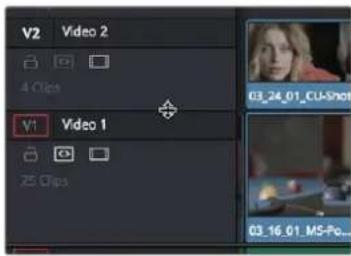
Resizing an individual timeline track by dragging its top border in the Track Header
Timeline Options
Specific elements and behaviors within the Timeline can be customized in various ways.
Selection Follows Playhead
As of DaVinci Resolve 17, the Clip selection no longer automatically moves along with the playhead. Instead, a new set of commands lets you create and move a selection by holding down the Command key and pressing the Up, Down, Left, and Right Arrow keys. This allows you to select clips above and below the current track and to the left and right, independently of the playhead.
You can return the Clip Selection mode back to its previous behavior of automatically selecting the top clip it's intersecting by choosing the option Timeline >Selection Follows Playhead.
Show Playhead Shadow
Ordinarily, the playhead is shown in the Timeline as a single line that indicates the beginning of the frame that you're viewing in the Timeline Viewer. However, you can choose View > Show Playhead Shadow to display an orange-ish background surrounding the playhead.
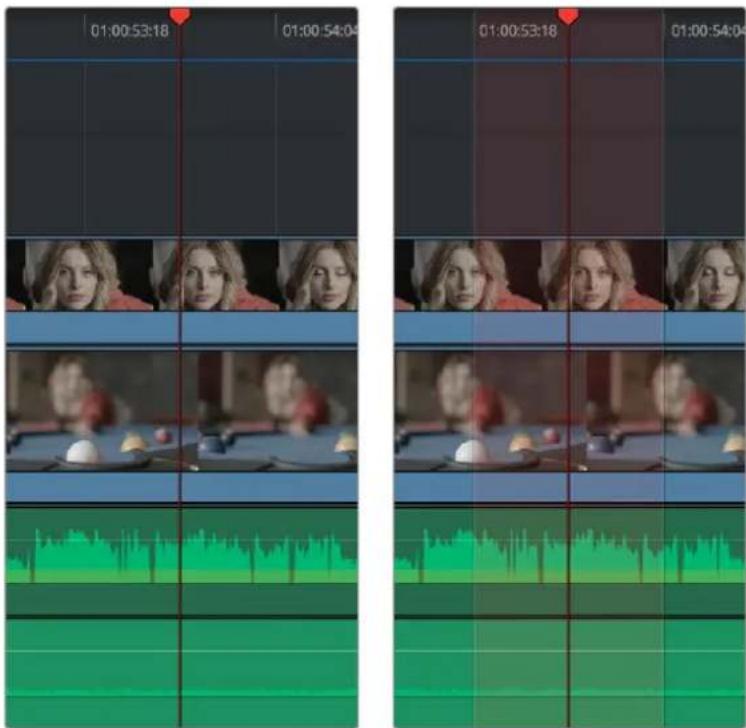
(Left) The playhead's default look, (Right) The playhead showing the optional playhead shadow
This shadow can make it easier to see the playhead's position, and it can also serve as a measuring tool for projects where you have an interest in visualizing a specific offset, in frames, both before and after the current position of the playhead. This offset can be adjusted by changing the Pre- and Post-Playhead Shadow Length parameters in the Editing panel of the User Preferences, which let you specify the number of frames to shadow both before and after the playhead. The default length of the playhead shadow is 5 frames.
TIP: You can set the "Pre-playhead shadow length" to 0, and the "Post-playhead shadow length" to 1 if you want to display a "Media Composer-style" playhead that shows the duration of the current frame.
Enabling and Disabling Audio Scrubbing
Audio scrubbing is enabled by default, meaning that you'll hear audio when dragging the playhead with the mouse back and forth. While this can be useful when you're searching for audio cues, it can also be distracting if you're just focused on the picture.
To enable or disable audio scrubbing:
– Choose Timeline > Audio Scrubbing (Shift-S)
Playback Post-Roll
Enables the playhead to continue playing past the last clip in the Timeline for a duration equal to the "Post-roll time" Project Setting in the Editing panel. This is good for editors that want to experience a few moments of playback after cutting or fading to black after the last frame of audio and video in the Timeline.
To enable or disable playback post-roll:
– Choose Timeline > Playback post-roll
Switching Among Multiple Timelines
Timelines can be organized like any other clip in the Media Pool. To open or switch among timelines, use the following procedures.
To switch timelines, do one of the following:
– Double-click a timeline in the Media Pool on any page.
- Turn on Stacked Timelines in the Timeline View Options menu of the Edit page toolbar, so that all timelines you open appear as tabs. Clicking different tabs switches to that timeline.
– In the Edit page Timeline Viewer, choose a timeline from the Timelines drop-down menu at the top of the viewer.
– In the Color page, choose a timeline from the Timelines drop-down menu at the top of the Viewer.
– In the Fairlight page, choose a timeline from the Timelines drop-down menu to the left of the transport controls.
Toolbar
At the center of the toolbar that sits above the Timeline, several buttons let you choose different tools and options for performing various editing functions.

Buttons in the toolbar

Timeline View Options: The controls let you customize the look of the clips on the tracks (Filmstrip, Thumbnail, or Minimized), audio waveform displays, stacked timelines, subtitles, and the adjustable height of the video and audio tracks.
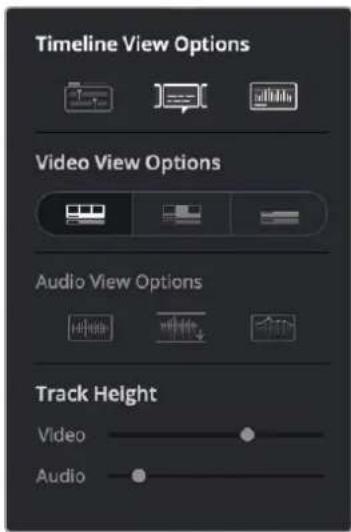
Selecting the Timeline View options

Selection Mode: The default mode in which you can move and resize clips in the Timeline, roll edits, and do other basic editing tasks. In this mode, making specific selections in the Timeline and using the nudge commands of Comma and Period resizes, moves, or rolls the selection, as does absolute or relative timecode entry.

Trim Edit Mode: In this mode, the Trim tool lets you make slip, slide, ripple, and roll edits by dragging different parts of clips in the Timeline, by making specific selections and using the "nudge" keyboard shortcuts of Comma and Period to move the selection left or right, or by making specific selections and using timecode entry to make relative or absolute adjustments.

Dynamic Trim Mode: This mode works in conjunction with either the Selection or Edit modes. With Dynamic Trim mode enabled, you can either resize and move clips (in Selection mode), or ripple, slip, or slide them (in Trim mode) using the JKL keyboard shortcuts that play forward and backward through the Timeline. While enabled, the spacebar triggers the Play Around Current Selection command. The Toolbar button for this mode also changes to show you whether you're in slip or slide mode for nudging, timecode-entry adjustment, or dynamic trim (set by pressing the S key).

Blade Edit Mode: Lets you add cuts to clips at the playhead in the Timeline by clicking.

Insert Clip: Performs an insert edit to the Timeline with whatever clip is in the Source Viewer.

Overwrite Clip: Performs an overwrite edit to the Timeline with whatever clip is in the Source Viewer.

Replace Clip: Performs a replace edit to the Timeline with whatever clip is in the Source Viewer.

Snapping: Enables or disables clip snapping. When turned on, clip In and Out points, markers, and the playhead all snap to one another for reference while you're editing.

Linked Selection: Enables or disables audio/video linking. When turned on, clicking a video clip in the Timeline automatically selects the corresponding audio clip if they're linked together. When turned off, clicking a video clip won't select its audio. Clip linking can be toggled while you work by pressing the Option key while clicking to make selections in the Timeline.

Position Lock: Prevents clips from being moved to the left or right, and it prevents all ripple operations. Essentially ensures all the Timeline elements stay in sync and can't be adjusted accidentally.

Flag Clip/Flag Colors drop-down menu: Flags identify clips, and indicate all clips that correspond to the same item of media in the Media Pool. Clips can have multiple flags. Clicking the Flag button automatically adds a flag to whichever clip is currently selected in the Timeline. A drop-down menu to the right lets you choose differently colored flags, and clear all flags from the currently selected clip.

Add Marker/Marker Colors drop-down menu: Markers identify specific frames of individual clips. Clicking the Add Marker button adds a marker of the currently displayed color to the clip at the position of the playhead in the Timeline. A drop-down menu to the right lets you choose differently colored markers, and clear all markers from the currently selected clip.

Full Extent Zoom: Dynamically adjusts the zoom level to encompass the whole Timeline as you add or remove clips.

Detail Zoom: Zooms the Timeline in on the Playhead to the frame level.

Custom Zoom: Zooms the Timeline to the level selected by the Zoom slider to its immediate right.

Zoom Slider: Lets you zoom into or out of the clips in the Timeline. Use the scroll wheel of your mouse to horizontally zoom into and out of the Timeline. Scrolling up zooms in, while scrolling down zooms out. You can also use Command-Plus to zoom in, and Command-Minus to zoom out, and Shift-Z to fit every clip in your program into the available width of the Timeline.
These functions are described in greater detail in the following sections of this chapter.
Toolbar Audio Monitoring Controls
At the far right of the toolbar, a set of three monitoring controls lets you quickly control the output volume of your mix. An audio Enable/Disable button lets you turn audio playback on and off, while a slider lets you change the volume, and a DIM button lets you temporarily duck the monitored volume being output in order to have a quick chat with your client about sports or the state of the world while keeping half an ear on the mix.
The monitoring controls in the Edit page
When there are multiple audio Mains defined for a project, an additional drop-down dialog appears with the audio monitoring controls in the toolbar that lets you choose which Main you're listening to.
The Mixer and Meters
The Audio Mixer provides a set of graphical controls you can use to set track levels, pan stereo audio, and mute and solo tracks, all while you continue to edit.
To open the Audio Mixer:
- Click the Mixer button on the Interface toolbar.
The Audio Mixer exposes a set of channel strips with controls that correspond to the tracks in the Timeline, and each channel strip displays a number of audio meters equal to the number of channels within that track. By default, a Main 1 channel strip appears all the way to the right that lets you adjust the overall level of the mix. However, if you add subs and mains on the Fairlight page, those will appear at the right of the mixer as well.
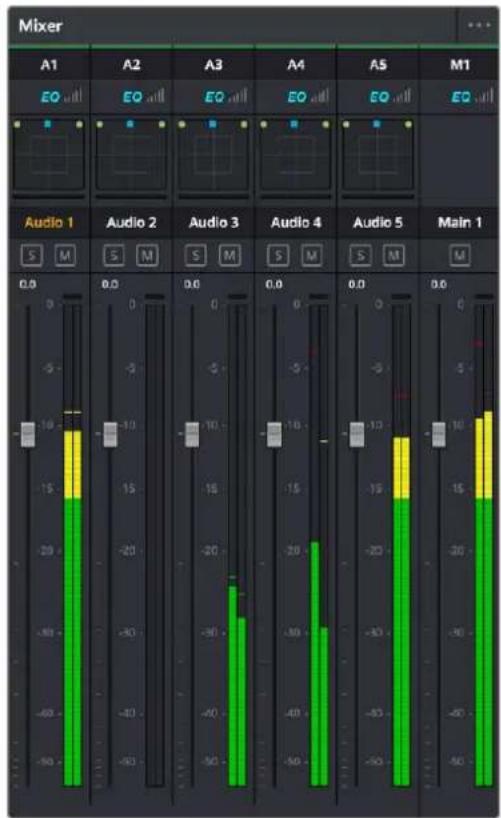
The Audio Mixer, with four channel strips corresponding to the four tracks in the Timeline
For more information about the use of the Mixer in the Edit page, see Chapter 44, "Working With Audio in the Edit Page." For more information about using the Mixer in the Fairlight page, see Chapter 173, "Mixing in the Fairlight Page."
Displaying Audio Meters
If you just want to see your program's levels, you can also switch to display the "Control Room" audio meters instead of the Mixer. How many audio meters appear depends on the current speaker configuration in the Video and Audio I/O panel of the System Preferences.
To show the Audio Meters:
- Click the Mixer button on the Interface toolbar to display the audio panel, and then choose Meters from the option menu at the upper right-hand corner.
Using Video Scopes
DaVinci Resolve has a set of four real-time video scopes that you can use to monitor the internal data levels of clips in your project as you work. Each scope provides an unambiguous graphical analysis of the various characteristics of the video signal, showing you the relative strength and range of individual color components including luma, chroma, saturation, hue, and the red, green, and blue channels that, together, comprise the color and contrast of the images in your program.
To open video scopes from the Media, Cut, Edit, Color, or Deliver pages, do one of the following:
- Choose Workspace > Video Scopes > On/Off (Command-Shift-W) to open video scopes into a floating window.
- Choose Workspace > Dual Screen > On to open video scopes as part of a dual screen layout.
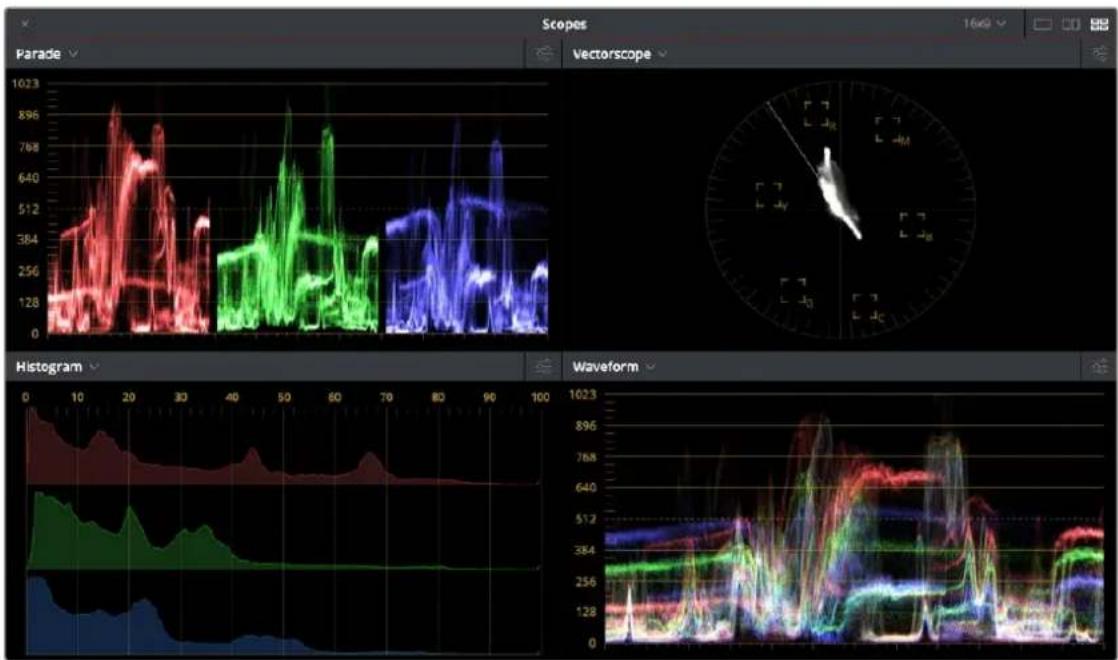
line
| Time | Parade | Histogram | Waveform | |------|--------|---------|----------| | 0 | 1023 | 0 | 0 | | 10 | 896 | 1023 | 256 | | 20 | 768 | 384 | 512 | | 30 | 640 | 256 | 640 | | 40 | 512 | 128 | 768 | | 50 | 384 | 0 | 896 | | 60 | 256 | 0 | 1023 | | 70 | 128 | 0 | 896 | | 80 | 384 | 0 | 768 | | 90 | 512 | 0 | 640 | | 100 | 640 | 0 | 512 |Video scopes in a floating window
The video scopes aren't just available in the Color page. They're also available in the Media, Cut, Edit, and Deliver pages for whenever you need to evaluate the video signal more objectively, such as when you're setting up to capture from tape or scan from film, or when you're setting up for output.
For more information on using the video scopes, see Chapter 123, "Using the Color Page."
Floating Timecode Window
A Timecode Window is available from the Workspace menu on every page except Fusion. Choosing this option displays a floating timecode window that shows the timecode of the Viewer or Timeline that currently has focus. This window is resizable so you can make the timecode larger or smaller.
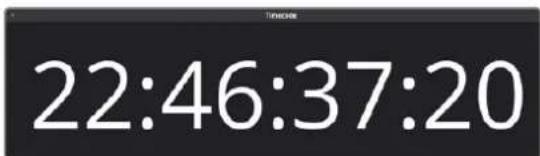
A new floating timecode window is available
Dual Monitor Layout
The Edit page has a dual monitor layout that provides maximum space for the Timeline and Viewers on the primary monitor, and an enlarged Media Pool, simultaneously displayed Timelines browser, Edit Index, Effects Library, and Metadata Editor on the secondary monitor.
To enter dual screen mode:
- Choose Workspace > Dual Screen > On.
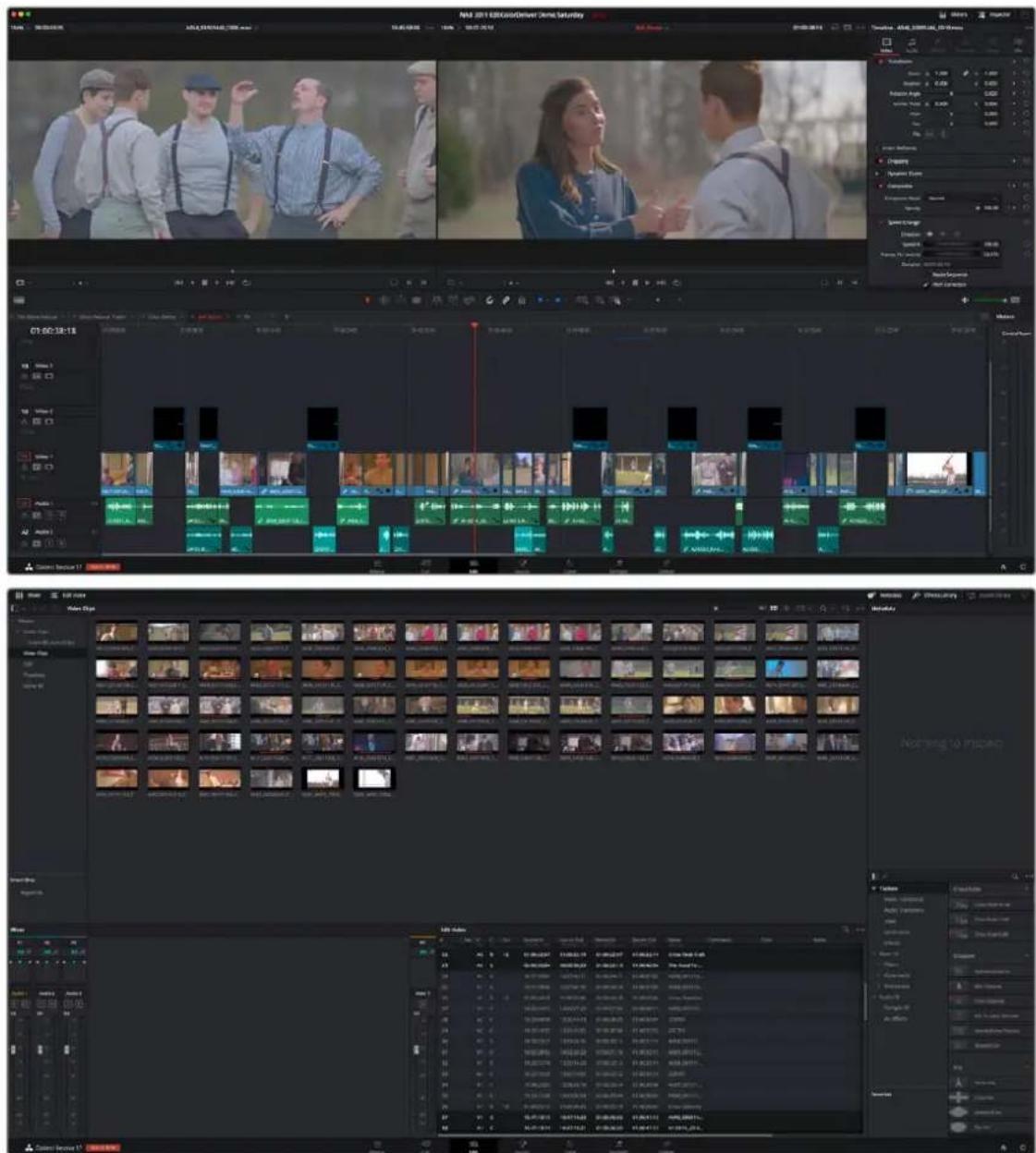
The Edit page in dual-screen mode
To switch which UI elements appear on which monitors:
Choose Workspace > Primary Display > (Monitor Name), which reverses the contents of both monitors in dual screen mode.
Customizing the Edit Page
The default layout is quite efficient for a number of tasks on most displays. You can always return to the default layout by choosing Workspace > Reset UI Layout. However, the Edit page can be customized to create more room for specific areas of the interface to accommodate different tasks.
To resize any area of the Edit page:
- Drag the vertical or horizontal border between any two panels to enlarge one and shrink the other.
To expand the width of the Timeline:
- Click the Media Pool/Effects Library/Edit Index height button to reduce the area used by the Media Pool, Effects Library, and/or Edit Index to shrink to half height. At this size, the Media Pool/Effects Library/Edit Index are restricted to the top of the UI (you can only show one at a time), and the Timeline takes up the full width of your display.
– Hiding the Edit Index and the Effects Library causes the Timeline to expand to the full width of your screen.
To resize the height of individual video or audio tracks:
- Move the pointer to the top border of any video track header, or the bottom border of any audio track header, and when it becomes a resize cursor, drag that border up or down to resize that track. Each track can have an independent size when you do this.
To enable a full-screen timeline in Dual Screen mode:
- Choose Workspace > Dual Screen > Full Screen Timeline, which causes the Timeline to fully occupy the primary display, while the Browser, Viewers, Audio Mixer, Edit Index, and Effects Library appear on the secondary display.
To customize the columns in the Edit Index:
- To show or hide columns in the Edit Index: Right-click any column header, and choose the column you want to show or hide from the contextual menu. Checked columns are shown, unchecked columns are hidden.
To resize any column of the Edit Index:
- Move your pointer over the divider between any two columns and drag when the horizontal resize cursor appears.
To sort the Edit Index by any column:
- Click the Option button at the top right to display all active tracks, just the video, or just the audio tracks.
To rearrange Edit Index columns:
- Drag the header of any column to the left and right to move that column.
To show and hide the Audio Meters or Audio Mixer:
- Click the Mixer button in the UI toolbar.
To switch between the Audio Meters and the Audio Mixer:
- Choose Meters or Mixer from the Option menu at the top right corner of the Mixer.
Undo and Redo in DaVinci Resolve
No matter where you are in DaVinci Resolve, Undo and Redo commands let you back out of steps you've taken or commands you've executed and reapply them if you change your mind.
DaVinci Resolve is capable of undoing the entire history of things you've done since creating or opening a particular project. When you close a project, its entire undo history is purged. The next time you begin work on a project, its undo history starts anew.
Because DaVinci Resolve integrates so much functionality in one application, there are three separate sets of undo "stacks" to help you manage your work.
– The Media, Edit and Fairlight pages share the same multiple-undo stack, which lets you backtrack out of changes made in the Media Pool, the Timeline, the Metadata Editor, and the Viewers.
– Each clip in the Fusion page has its own undo stack so that you can undo changes you make to the composition of each clip, independently.
– Each clip in the Color page has its own undo stack so that you can undo changes you make to grades in each clip, independently.
In all cases, there is no practical limit to the number of steps that are undoable (although there may be a limit to what you can remember). To take advantage of this, there are three ways you can undo work to go to a previous state of your project, no matter what page you're in.
To simply undo or redo changes you've made one at a time:
- Choose Edit > Undo (Command-Z) to undo the previous change.
- Choose Edit > Redo (Shift-Command-Z) to redo to the next change.
- On the DaVinci control panel, press the UNDO and REDO buttons on the T-bar panel.
TIP: If you have the DaVinci control panel, there is one other control that lets you control the undo stack more directly when using the trackballs, rings, and pots. Pressing RESTORE POINT manually adds a memory of the current state of the grade to the undo stack. Since discrete undo states are difficult to predict when you're making ongoing adjustments with the trackball and ring controls, pressing RESTORE POINT lets you set predictable states of the grade that you can fall back on.
You can also undo several steps at a time using the History submenu and window. At the time of this writing, this only works for multiple undo steps in the Media, Cut, Edit, and Fairlight pages.
To undo and redo using the History submenu:
1 Open the Edit > History submenu, which shows (up to) the last twenty things you've done.
2 Choose an item on the list to undo back to that point. The most recent thing you've done appears at the top of this list, and the change you've just made appears with a check next to it. Steps that have been undone but that can still be redone remain in this menu, so you can see what's possible. However, if you've undone several changes at once and then you make a new change, you cannot undo any more and those steps disappear from the menu.
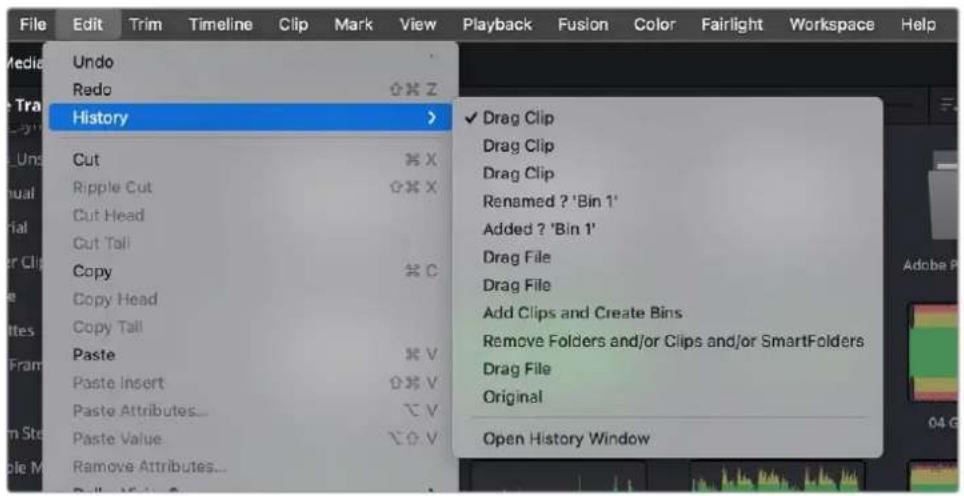
The History submenu, which lets you undo several steps at once.
Once you've selected a step to undo to, the menu closes and the project updates to show you its current state.
To undo and redo using the Undo window:
1 Choose Edit > History > Open History Window.
2 When the History dialog appears, click an item on the list to undo back to that point. Unlike the menu, in this window the most recent thing you've done appears at the bottom of this list. Selecting a change here grays out changes that can still be redone, as the project updates to show you its current state.
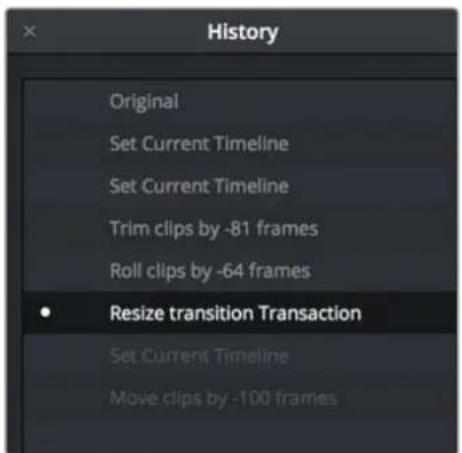
The Undo history window that lets you browse the entire available undo stack of the current page
3 When you're done, close the History window.
Chapter 34
Creating and
Working with
Timelines
In this chapter, you'll learn how to create and modify the timelines into which you edit clips to create the edited sequences that are your programs.
Contents
Keyboard Shortcuts in This Chapter 552
Creating and Duplicating Timelines 552
Individual Timeline Settings for Format, Monitoring, and Output 552
Creating Blank and Stringout Timelines 553
Creating Timelines by Drag and Drop 554
Creating Timelines From Bins and Selections 555
Creating Timelines Using an IMF or DCP
Composition Playlist (CPL) 555
Duplicating Timelines 556
Disabling Timelines 556
Timeline View Options 556
Modifying Timeline Tracks 558
Naming Timeline Tracks 559
Using Timeline Snapping and Zooming 559
Zoom Around Mouse Pointer 560
Scrolling Through the Timeline 560
Scroll Wheel Controls on Timeline 560
Resizing the Timeline's Video and
Audio Track Regions 561
Tabbed and Stacked Timelines 561
Tabbed Timelines 561
Stacked Timelines 562
Duplicate Frame Detection 563
Comparing Timelines 564
The Timeline Comparison Window 564
Keyboard Shortcuts in This Chapter
Here's a list of of keyboard shortcuts you might find helpful that relate to topics found in this chapter.
| Key Shortcut Function | |
| Command-N Create new timeline | |
| Delete/Backspace Remove timeline from Media Pool | |
| Command-Shift-N Create new bin in Media Pool | |
| Command-Minus (−) Zoom out of timeline | |
| Command-Equals (=) Zoom into timeline | |
| Shift-Z Zoom all clips to available width of screen; toggles back to previous zoom level | |
| Home Move playhead to beginning of timeline | |
| End Move playhead to end of timeline | |
| N Toggle timeline snapping off and on | |
| Command-Shift-L Toggle linked selection off and on | |
| Command-4 | Select the timeline panel |
Creating and Duplicating Timelines
If you're not importing a project that's been edited elsewhere, you can create a new timeline to cut together a new edit from scratch, to use to assemble clips for use in a Fusion composition, to grade a set of dailies, or to put together an audio program within the Fairlight page. When you create a new timeline, you can either create a timeline that contains all clips found in the Media Pool to quickly create a big batch of offline dailies, or an empty timeline that's ready for you to add specific clips to. Timelines you create are stored in the currently selected Media Pool bin.
If you'd like an easy way to browse all the timelines in your project at once, regardless of their diverse locations, you can enable the "Smart Bin for Timelines" option, which is in the Editing panel of the User Preferences. This creates a Smart Bin in the Bin list of the Media Pool that filters all timelines in your project, making it easy to see all your timelines without altering your original organization.
Individual Timeline Settings for Format, Monitoring, and Output
When you create a new timeline, there are a number of ways you can customize it, but by default it'll mirror the current project-wide timeline settings for resolution, frame rate, and other format and monitoring parameters.
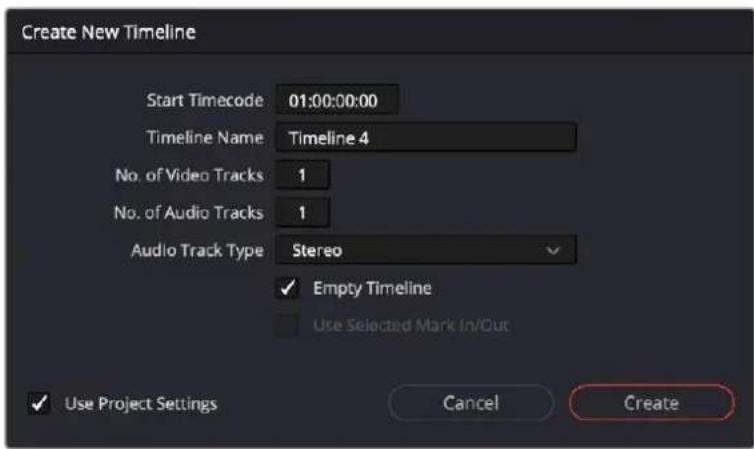
The Create New Timeline dialog with standard customization settings
However, you have the option of creating separate timelines with individual Format (including Input Scaling), Monitoring, and Output Sizing settings, for situations where you need to set up multiple timelines to create multiple deliverables with different resolutions, pixel aspect ratios, frame rates, monitoring options, or output scaling options than the overall project, including "Mismatched Resolution Files" settings. To choose individual settings, uncheck the Use Project Settings box in the New Timeline dialog, and additional controls will appear.
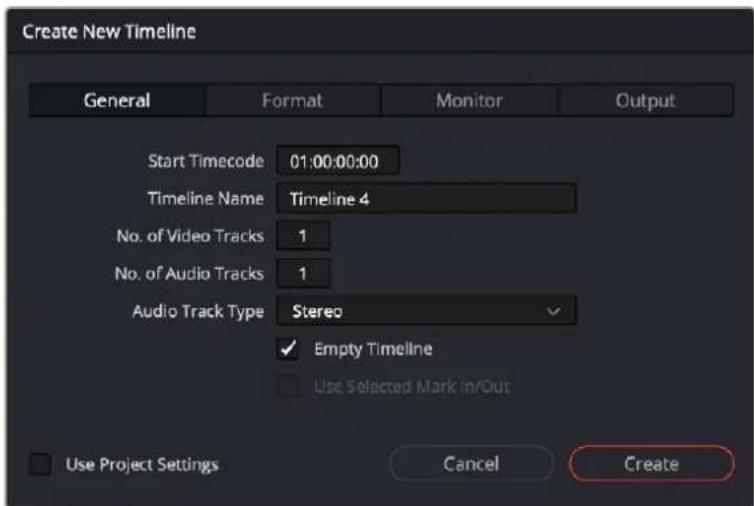
Clicking Use Custom Settings exposes additional panels for individualized timeline settings
Once you've created a timeline with individual settings, you can edit its settings by right-clicking that timeline in the Media Pool, and choose Timelines > Timeline Settings from the contextual menu. An Edit Timeline dialog appears, with separate panels for Format, Monitor, and Output settings that you can choose.
You can also click Use Basic Settings to have that timeline use the project-wide timeline settings instead.
Creating Blank and Stringout Timelines
If you're cutting a new video or audio program, you'll usually want a blank timeline. However, the same command can be used to create stringout timelines when putting together dailies by turning the "Empty Timeline" checkbox off.
To create a new blank timeline:
1 (Optional) Select or create a folder in the Bin list in which to put the new timeline.
2 Do one of the following:
- Choose File > New Timeline (Command-N).
- Right-click within the Media Pool, and choose Timelines > Create New Timeline.
3 When the New Timeline Options window opens, set the following options:
- Start Timecode: You can change the Start Timecode if a specific start time is required.
– Timeline Name: Enter a name into the Timeline Name field. - No. of Video Tracks: Enter how many video tracks you want to have. You can also drag within this field to adjust the number of video tracks with a virtual slider.
- Use Fairlight Preset: If this box is checked, it creates a timeline with pre-assigned audio tracks using a previously created Fairlight Configuration preset. A drop-down menu then appears, allowing you to select the specific preset for the Timeline. The preset is used in lieu of the No. Of Audio Tracks setting below. You can create Fairlight Configuration presets using the Fairlight Presets Library, available from the Fairlight menu. For more information, see Chapter 167, "Setting up Tracks, Buses, and Patching" in the DaVinci Resolve Manual. If you have no Fairlight Configuration presets saved, this option will not appear.
- No. of Audio Tracks: Enter how many audio tracks you want to have. You can also drag within this field to adjust the number of audio tracks with a virtual slider.
- Audio Track Type: Choose the channel mapping you want the new audio tracks to use.
- Empty Timeline: Checked by default, this sets new timelines to be created empty. If you turn off the Empty Timeline checkbox, the new Timeline that's created will contain all media found in every bin within the Media Pool, effectively creating a stringout of everything you've imported.
- Use Selected Mark In/Out: Only available when "Empty Timeline" is turned off. When you turn this checkbox on, each clip's duration in the new Timeline is defined by the In and Out points saved within each clip. If there are no In/Out points in a clip, the clip's entire duration is used.
- Use Custom Settings: Click this button if you want to expose the Format, Monitor, and Output tabs that can expose unique settings for each timeline.
4 Click Create New Timeline.
A new timeline is created. If necessary, you can duplicate an existing timeline in order to alter an edit or create an alternate grade.
TIP: If you're going to be creating several new timelines with a specific set of parameters, you can open the User pane of the Preferences and edit the New Timeline Settings, found in the Editing panel. This will define new presets that populate the New Timeline Options window from that point forward.
Creating Timelines by Drag and Drop
When you first create a new project, no timeline inhabits the Timeline Editor, and you have an opportunity to create a new timeline by drag and drop.
To create a timeline by dragging and dropping a clip:
Drag any clip into the empty Timeline Editor area underneath the Viewers on the Edit page, and a new timeline will automatically be created.
Creating Timelines From Bins and Selections
The “Create Timeline Using Bin” and “Create Timeline Using Selected Clips” commands let you quickly assemble a timeline using the contents of the Media Pool, using whatever In and Out points have been added to each clip, and using the sort order of the enclosing bin to determine the order in which the clips will be assembled.
TIP: These commands are especially useful for putting together quick assembly edits if you have metadata-rich media with scene, shot, and take information that you can use to sort clips into the proper order, and In and Out points that you've already logged.
To create a timeline using the full contents of a bin:
1 (Optional) Put the Media Pool into List mode, set In and Out points for each clip in your Bin, and sort the Media Pool by the column that will put all clips in the order you want them to be assembled.
2 Right-click the bin in the Bin list, and choose Create Timeline Using Bin.
3 Type the name of the new timeline in the New Timeline Properties dialog. If you want to use the In and Out points of each clip, make sure "Use Selected Mark In/Out" is checked, and click Create New Timeline.
To create a timeline using manually selected clips:
1 (Optional) Put the Media Pool into List mode, set In and Out points for each clip in your Bin, and sort the Media Pool by the column that will put all clips in the order you want them to be assembled.
2 Select one or more clips you want to assemble into a new timeline.
3 Right-click one of the selected clips, and choose Create Timeline Using Selected Clips.
4 Type the name of the new timeline in the New Timeline Properties dialog. If you want to use the In and Out points of each clip, make sure "Use Selected Mark In/Out" is checked, and click Create New Timeline. By default, Audio Track Type is set to "Based on selected media," so the timeline audio tracks reflect the track mapping of the clips you've selected, but you can manually choose other specific mappings if you need to.
Creating Timelines Using an IMF or DCP Composition Playlist (CPL)
You can create a timeline in DaVinci Resolve that exactly replicates the Composition Playlist (CPL) of a DCP or IMF package. This is currently a DaVinci Resolve Studio only feature.
To create a timeline using a Composition Playlist (CPL):
1 Import an IMF or DCP package into the Media Pool, like any other piece of media.
2 Right-click on the imported clip and choose "Create New Timeline Using Composition Playlist" from the contextual menu.
3 In the New Timeline dialog box, choose a specific CPL from the package in the "Composition Playlist" drop-down menu.
4 Make any other normal new Timeline adjustments you may need (such as Resolution, Aspect Ratio, etc.), then click the "Create" button.
Duplicating Timelines
You can also duplicate existing timelines in preparation for saving a copy prior to making modifications, or as a starting point for a different version of your content.
To duplicate a Timeline, do one of the following:
- Select a timeline in the Media Pool, and choose Edit > Duplicate Timeline. The duplicate timeline appears with "copy" appended to the name.
- Right-click a timeline in the Media Pool, and choose Duplicate Timeline from the contextual menu.
Disabling Timelines
You can disable/enable timelines in the Media Pool for both performance and organizational purposes. This is particularly useful for editors who like to maintain a history of a program's editing via an ongoing series of periodically duplicated timelines. Since having a large number of timelines within a single project file can affect performance, having the ability to disable timelines lets you maintain these backup/alternate timelines without any penalty.
Disabled timelines are never loaded into RAM, have no effect on the speed at which a project opens, saves, exports, or loads, and have no effect on program performance. A disabled timeline also hides the timeline from the viewer drop-down menus throughout the program. Disabled timelines are still visible in the Media Pool, but have a crossed out eye icon in the lower left to show the status.
A disabled timeline cannot be opened in any page of DaVinci Resolve.
To disable a timeline:
- Select the Timeline, right-click on it and choose "Disable Timeline" from the drop-down menu.
To enable a timeline:
- Select the Timeline, right-click on it and choose "Enable Timeline" from the drop-down menu.
natural_image
Interior view of a modern car garage with a person walking nearby (no visible text or symbols)The crossed-out eye in the lower left of the thumbnail indicates this Timeline is disabled.
Timeline View Options
As you're working on an edit, it can often be useful to modify the appearance of the Timeline, changing the height of video or audio clips, choosing whether audio waveforms are drawn or not, and so on. Using the Timeline View Options drop-down at the far left of the Timeline, you can make these kinds of changes as you work.
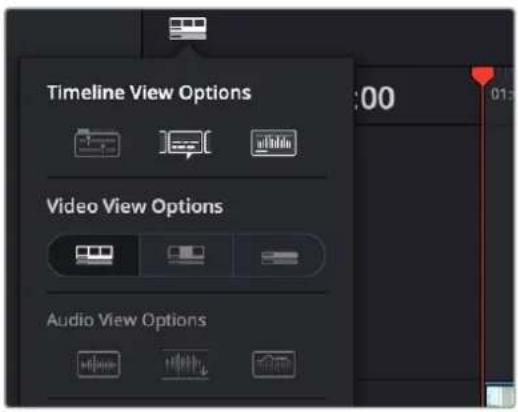
The Timeline View Options drop-down
Timeline View Options
Three buttons let you choose to show or hide specific Timeline interface elements, including the following:

Show tabbed and stacked timelines: This option lets you open multiple timelines by displaying a tabbed interface, and also gives you the ability to show stacked timelines for simultaneous display of timelines one on top of another.

Subtitle Tracks: Lets you display or hide the subtitle tracks region of the Timeline. Hiding subtitle tracks does not disable subtitle display; to do that you must disable the currently displayed subtitle track.

Show Audio Waveforms: Lets you turn audio waveform viewing off and on. When Audio Waveform is turned off, audio tracks are minimized.
Video View Options
Three buttons let you choose the overall appearance of video and audio tracks. From left to right:

Filmstrip: Displays each clip as a series of frames along its length. The number of frames displayed depends on the current zoom level of the clip in the Timeline.

Thumbnail: Displays each clip as a solid color with a thumbnail image of the clip's In point at the beginning of the clip, and a thumbnail image of the Out point at the end. The thumbnails displayed depend on the current zoom level, and track height of the clip in the Timeline. If the clip does not have enough room for both, only the In point thumbnail will appear.

Simple: Minimizes all track height and displays each clip as a solid color along its length. Hovering the mouse over the track selection indicator will reveal the track names in a tooltip.
Audio View Options
Three buttons govern the look of audio waveforms in the Timeline, when visible.

Non-Rectified Waveform: Lets you toggle between the waveform being drawn from the bottom of the audio track up, or centered and mirrored about itself.

Full Waveform: Hides the divider bar that keeps the waveform separate from the file name area of each audio clip, so the waveform occupies the full space of each audio bar in the Timeline.

Waveform Border: Draws a dark border around the edges of each waveform to make them easier to see.
Track Height

Video track height slider: Lets you resize the size of all video tracks at once, independently of the audio tracks.

Audio track height slider: Lets you resize the size of all audio tracks at once, independently of the video tracks.
In addition, any track in the Timeline can be individually resized by dragging its top divider in the Track Header area. Track heights in the Edit page are independent of the Thumbnail and Waveform view settings in the Timeline View options. Previously, specific Timeline viewing options such as Filmstrip or Thumbnail view had minimum track height settings. Now you can freely change track height no matter what options you've chosen, and resizing one or more tracks below the minimum height for filmstrips or thumbnails automatically collapses those tracks into Simple view to avoid clutter.
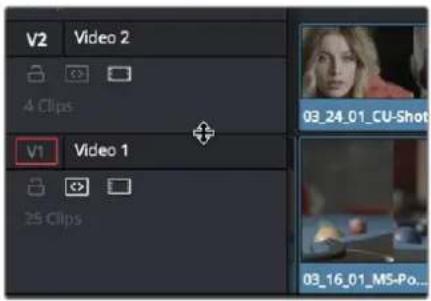
Resizing an individual Timeline track by dragging its top border in the Track Header
Modifying Timeline Tracks
When you're getting ready to edit clips into the Timeline, you need to make sure you've got enough tracks to do the job. The following procedures cover the different methods available for adding, removing, and rearranging tracks as you work. These commands are all available via the contextual menu that appears when you right-click anywhere in the Timeline header area (the header of the Timeline is the area to the left where each track's various buttons and controls are located).
Methods for adding, deleting, and rearranging tracks:
- To add a track to the Timeline: Right-click anywhere in the Timeline header and choose Add Track. If you add an audio track, you can choose what type of channel mapping you want. For more information about audio track channel mappings, see Chapter 44, "Working with Audio in the Edit Page."
- To add multiple tracks to the Timeline at a specific position: Right-click anywhere in the Timeline header and choose Add Tracks. When the Add Tracks dialog appears, choose the number of video and audio tracks you want to add, choose the position you want to insert the tracks above or below, and choose the Audio Track Type you want to add if you're adding audio tracks. When you're done, click "Create New Tracks."
- To delete a track from the Timeline: Right-click within a track's Timeline header and choose Delete Track. If there are clips on a track you remove, they are deleted from the Timeline.
- To delete all unused tracks in the Timeline: Right-click anywhere in the track header area and choose Delete Empty Tracks. All tracks without clips will be deleted at once.
- To move tracks and the clips on them up and down: Right-click within a track's Timeline header and choose Move Track Up or Move Track Down from the contextual menu. That track, along with all clips on it, will be moved up or down relative to the other tracks in the Timeline.
Naming Timeline Tracks
If you're a stickler for organization, you can also name the tracks on a timeline to identify its purpose.
To rename a track:
1 Make sure the Timeline View Options are set to either the Filmstrip view or the Thumbnail view, and that audio tracks are tall enough, so that track names are visible.
2 To edit the name of any track, click the default "Video X" or "Audio X" track name to select it, then type your preferred name and press the Return key.
Using Timeline Snapping and Zooming
When preparing to make an edit into the Timeline, you can set the snapping and zoom controls to whichever state is most useful for the operation you need to perform. For example, if you're editing an insert shot into a rapid-fire section of edits in the Timeline, you may want to zoom in to better see the exact place where you want to place the incoming clip. Since there are many edits at that point, disabling snapping might make it useful to avoid having the clip jump to the nearest edit point if you need to move the incoming clip to a very specific frame.
Playhead Snapping:

To turn clip and playhead snapping on and off: Click the Snapping button in the toolbar, or press N. When snapping is turned on, the In and Out points and markers of clips all snap to one another and to the playhead. You can also press N to temporarily turn snapping on or off while dragging a clip in the Timeline, or while scrubbing the playhead using the pointer (snapping reverts to its previous state when you finish the operation).
Timeline Zoom Presets:

From left to right: Full Extent, Detail, and Custom Zoom controls

Full Extent Zoom: This mode dynamically adjusts the zoom level to encompass the whole Timeline as you add or remove clips. As your timeline grows by adding clips, the zoom level decreases automatically to fit the new clips into your Timeline Viewer. Conversely, the zoom level will increase automatically as you remove clips.

Detail Zoom: This setting zooms the Timeline in on the Playhead to the frame level to quickly make fine timing adjustments.

Custom Zoom: Zooms the Timeline to the level selected by the Zoom Slider to its immediate right.

Zoom Slider: Drag the zoom slider to the left to zoom out, and right to zoom in. You can also press Command-Minus (−) and Command-Equal (=) to zoom out and in. Either way, zooming is always centered on the current position of the playhead, even if the playhead is off screen.
To frame every clip into the width of the Timeline: Press Shift-Z. This is a toggle, so pressing Shift-Z frames your whole edited sequence to the width of the Timeline, and then pressing Shift-Z again returns the Timeline to whatever level of zoom you were using previously. Using this keyboard shortcut makes it really easy to navigate the Timeline when you're zoomed in, as you can press Shift-Z, move the playhead to another part of the Timeline you want to work on, and then press Shift-Z again to zoom back into the new location of the Timeline.
Zoom Around Mouse Pointer
You can set up the Edit Timeline zoom controls to stay centered on the pointer as you zoom in or out, instead of staying centered on the Timeline playhead as usual, by selecting View > Zoom Around Mouse Pointer. This can be helpful when navigating longer timelines.
With this option enabled, zooming in and out of the Timeline using the scroll control of your pointing device while holding the Option key down keeps the Timeline centered on the pointer. Deselect this option to return to the behavior of only zooming in or out centered on the playhead position.
Scrolling Through the Timeline
When you're zoomed into the Timeline, there are several methods you can use to scroll around as you work.
- You can scroll left and right, or up and down, by dragging the Timeline's horizontal and vertical scroll bars.
- You can also scroll up and down the tracks of the Timeline using the scroll wheel, scroll ball, or scroll gestures of your mouse, trackball, trackpad, or other pointing device.
- You can also scroll within the Timeline by middle-clicking and dragging in any direction, which works the same as panning around a viewer that you've zoomed into. This frees you from having to use the scroll bars as you move around your edited clips.
If you scroll past the position of the playhead, a small playhead indicator appears in the bottom scroll bar to let you know where it is relative to the entire duration of your edited sequence.
A small indicator shows the position of the playhead if it's outside of the visible area of the Timeline.
Scroll Wheel Controls on Timeline
Additional scroll wheel and key presses can be used to manipulate the Timeline on the Edit page.
To manipulate the Timeline, rotate the scroll wheel while holding down:
- Shift: Expands or contracts all the Video or Audio track heights, depending on what section the pointer is located at when you scroll.
- Option: Zooms in and out the view of the Timeline.
– Command: Navigates forward and backward in the Timeline.
Resizing the Timeline's Video and Audio Track Regions
If you need to see more of the video or audio tracks in the available area of the Timeline, you can drag the horizontal divider that separates the audio and video tracks up or down to create room where you need it.
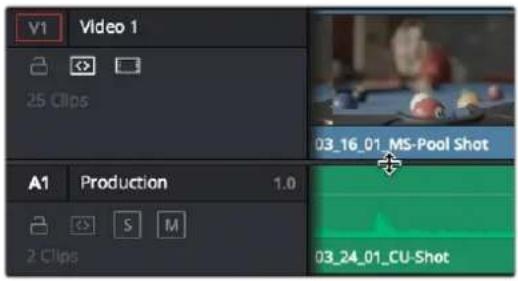
Dragging the Timeline center divider to make more room for audio or video tracks
Tabbed and Stacked Timelines
The Timeline now supports the option to have tabs that let you browse multiple timelines quickly. With tabbed timeline browsing enabled, a second option lets you open up stacked timelines to simultaneously display two (or more) timelines one on top of another.
Tabbed Timelines
The Timeline View Options menu in the toolbar has a button that lets you enable tabbed browsing and the stacking of timelines.
A button in the Timeline View Options enables labbed timelines.
When you first turn this on, a Timeline tab bar appears above the Timeline, displaying a tab for the currently open timeline that contains a Close button and a Timeline drop-down menu. Once you enable Tab mode, opening another timeline from the Media Pool opens it into a new tab.
To the right of the currently existing tabs, an Add Tab button lets you create additional tabs that default to "Select Timeline." Click any tab's drop-down menu to choose which timeline to display in that tab.
Tabs above the Timeline Editor let you switch among multiple timelines quickly
Right-clicking a tab opens a contextual menu that gives access to several commonly used Timeline functions.
Tabbed timeline contextual menu options:
- Close Timeline: Closes the current tab's timeline, and removes the tab. The same as clicking on the "x" inside the tab.
- Close All Other Timelines: Closes all open timelines and tabs except for the one that you right clicked and chose this option on.
- Rename Timeline: Opens the tab's text editing field, allowing you to change the name of the timeline inside the tab. This will change the timeline's name across the project in the Media Pool as well.
- Find Timeline in Media Pool: Opens the bin where the timeline is stored in the Media Pool, and highlights the timeline in orange.
- Duplicate TImeline: Creates a duplicate of the selected timeline in the same bin, with the word "copy" appended to the timeline name. It also automatically opens the copied timeline in a new tab.
| Close Timeline Close All Other Timelines |
| Rename Timeline... Find Timeline in Media Pool Duplicate Timeline |
Right-clicking on a tab will show the timeline options.
Methods of working with tabbed timelines:
- Click any tab to switch to that timeline.
- Use the drop-down menu within any tab to switch that tab to display another timeline from the Media Pool. Each tab's drop-down menu shows all timelines within that project, in alphabetical order, but a timeline can only be open in one tab or stack at a time.
- Drag any tab left or right to rearrange the order of timeline tabs.
- Click any tab's Close button to close that timeline and remove that tab.
– Middle-click any tab to close that timeline and remove that tab.
Stacked Timelines
While tabbed browsing is turned on, an Add Timeline button appears on the far right of the tab bar that enables you to stack two (or more) timelines one on top of another. This lets you have two (or more) timelines open at the same time, making it easy to edit clips from one timeline to another.
A good example of when this is useful is when you've created a timeline that contains a stringout of selects from a particular interview. You can stack two Timeline Editors, one on top of another, and then open the Selects Timeline at the top and the Timeline you're editing into at the bottom. With this arrangement, it's easy to play through the top timeline to find clips you want to use, to drag and drop into the bottom timeline to edit into your program.
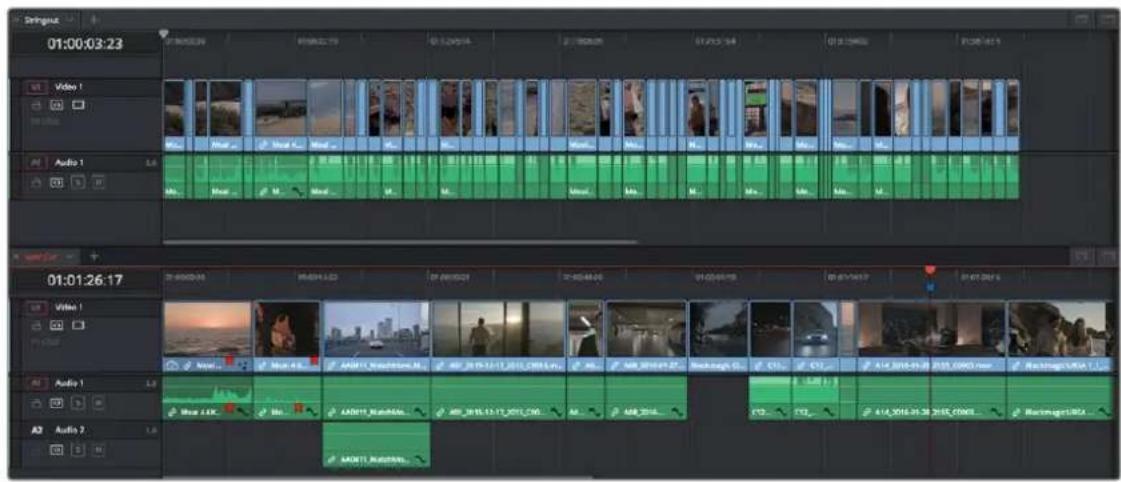
Two timelines stacked on top of one another
To enable or disable stacked timelines:
- Click the Add Timeline button at the right of the Timeline tab bar.
The button for adding a stacked timeline
Once you've enabled stacked timelines, each timeline has its own tab bar and an orange underline shows which timeline is currently selected.
At the right of each Timeline tab bar, a Close Timeline button appears next to the Add Timeline button, which lets you close any timeline and remove that timeline browsing area from the stack.
The button for closing a stacked timeline
Duplicate Frame Detection
You can turn on Duplicate Frame Detection (often referred to as Dupe Detection) for clips in the Timeline by choosing View > Show Duplicate Frames. Doing so shows colored bars at the top of clips in the Timeline whenever a range of frames has been used more than once.
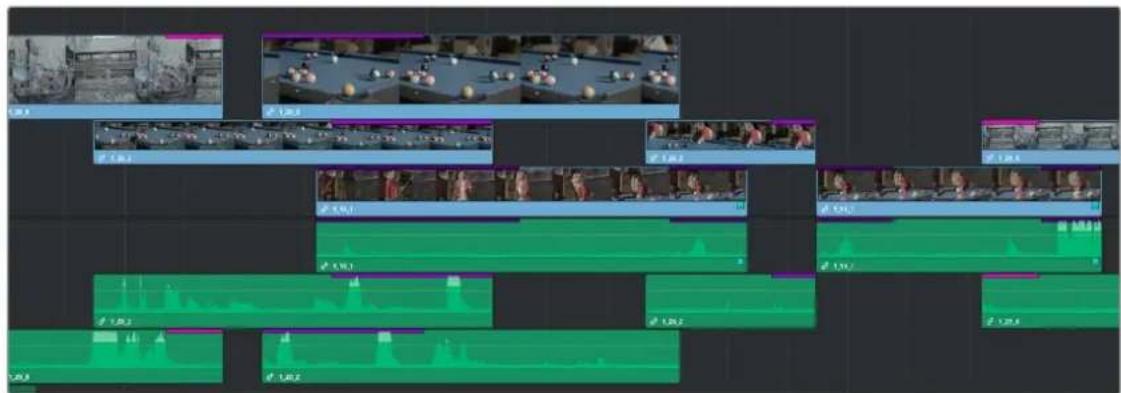
Duplicate Frame Detection shows colored bars where a range of frames is used more than once in a timeline
Comparing Timelines
For instances where you're importing multiple versions of a timeline that's been edited in another application, or where you're working with multiple editors on different versions of the same Timeline in either collaborative mode or on multiple separate DaVinci Resolve installations, DaVinci Resolve provides a method of comparing two timelines with one another. Using the Timeline Comparison window, you can both see a visual comparison of which sections of two timelines differ, and you can derive a more traditional change list by opening up the Difference Index.
To compare two timelines:
1 Open the first timeline you want to compare.
2 Right-click a second timeline in the Media Pool, and choose Compare With Current Timeline.
A Timeline Comparison window appears, showing you the currently opened Timeline at the bottom and the Timeline you right-clicked at the top.
The Timeline Comparison Window
When you first open the Timeline Comparison window, the first thing you see is a pair of miniature timelines. The currently open Timeline appears at the bottom and the Timeline you right-clicked appears at the top.
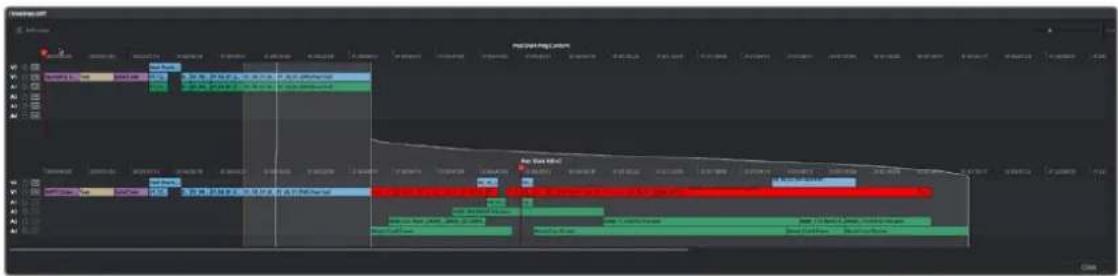
The Timeline Comparison window
Comparison Window Playhead Output
By default, the two playheads are ganged together, with the top playhead being displayed in the Source Viewer, and the bottom playhead being displayed in the Timeline Viewer. These playheads can be unganged if you want to compare different areas of both timelines, simply by turning off Sync Playheads in the option menu.
Highlighting Differences
Special highlights indicate sections of both timelines that are different. Individual changes are not individually highlighted, although they can be seen, on the premise that you're more interested in a section by section analysis of what your collaborating editor has been doing, for purposes of deciding whether to incorporate changes or reversions based on this comparison.
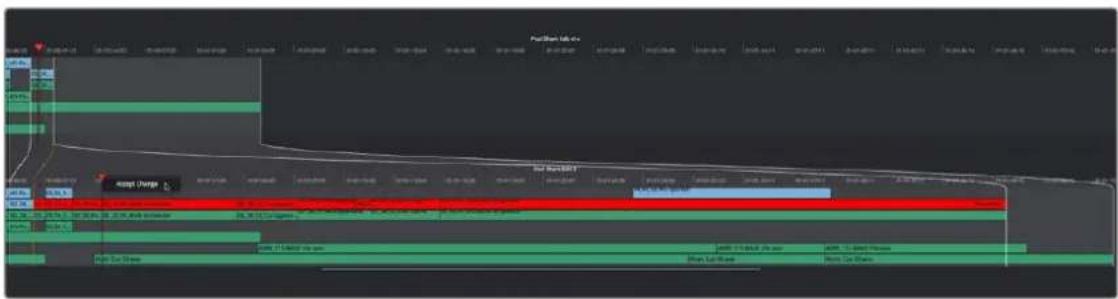
Each section of differences between the two timelines are highlighted
When using this tool, you can change the bottom Timeline to match the top Timeline, on a section by section basis, by right-clicking a highlighted section and choosing Accept Change from the contextual menu. When you do this, the currently open Timeline is immediately changed to incorporate the altered section from the Timeline you're comparing to. If necessary, you can undo this.
Identifying Differences Using Clip Labelling
You can also use the Timeline Comparison window to use clip labeling to indicate all differences between the comparison Timeline and the currently open Timeline. The method for doing this has not yet been defined at the time of this writing.
The Change List
Clicking the Diff Index button opens the change list, which shows you a more conventional item by item comparison of the differences between the two timelines.
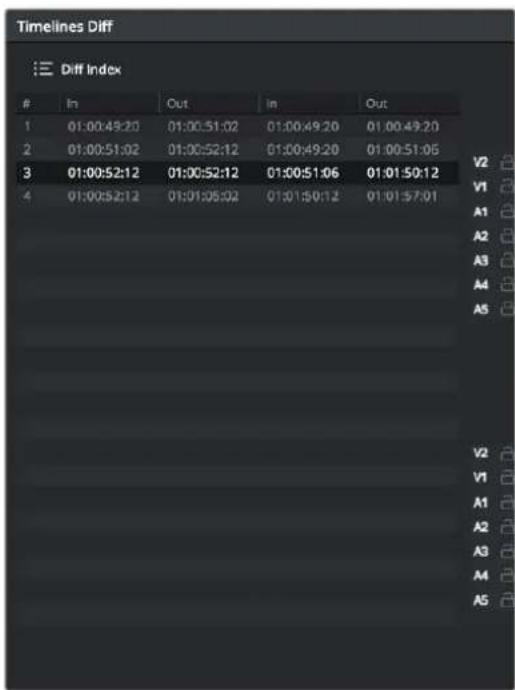
The Change List of the Timeline Comparison window
The method of exporting this change list has not yet been defined at the time of this writing.
Chapter 35
Preparing Clips for Editing and Viewer Playback
Before you start editing, there are a wide variety of things you can do to prepare your clips for editing. In this chapter, you'll learn how to browse, select, and play through clips that you need to log, adding markers, setting In and Out points, and creating subclips as you identify pieces you'll be using later as you edit.
Contents
Keyboard Shortcuts in This Chapter 567
Browsing Clips in the Media Pool 568
Selecting Clips in the Media Pool to Edit 569
Duplicating Clips in the Media Pool 570
Viewer Playback and Navigation 570
Source and Timeline Viewers vs. Single Viewer Mode 570
Opening Clips Into the Source Viewer to Prepare for Editing 571
Viewer Transport Controls 572
Simple Keyboard Shortcuts for Playback and Navigation 573
Using JKL to Control Playback 574
Special-Purpose Playback Commands 574
Option to "Stop and Go to Last Position" 575
Enabling and Disabling Audio Scrubbing 575
Playback Post-Roll 575
Moving the Playhead Using Timecode 576
How to Enter Timecode Values 576
Absolute Timecode Entry 576
Relative Timecode Entry 576
Copy and Paste Timecode in Viewer Timecode Fields 577
Gang Viewers (Playhead Ganging) 577
Adding Markers 577
Adding Markers to Clips 578
Setting In and Out Points 579
Setting Clip In and Out Points in the Media Pool 579
Setting Clip In and Out Points in the Source Viewer 579
Clearing and Navigating In and Out Points 580
Clip Edit Points Are Saved 581
Turning In and Out Points into Markers With Duration and Back Again 581
Organizing Media by Creating Subclips 583
Removing or Changing Subclip Limits 583
Keyboard Shortcuts in This Chapter
Here's a list of of keyboard shortcuts you might find helpful that relate to topics found in this chapter.
| Key Shortcut | Function |
| Arrow Keys (Media Pool) | Move selection in Media Pool; left and right arrow keys also open and close bins in the Bin list |
| Shift (modifier) | Hold Shift down when clicking-to-select clips to select a contiguous range |
| Command (modifier) | Hold Command down when clicking-to-select clips to select non-contiguous clips |
| Command-A | Select all; selects all clips in the Media Pool browser area |
| Return or Enter | Opens selected clip or timeline into the Source Viewer (in dual viewer mode) or Viewer |
| I, O | Set in/out point in Media Pool, Source Viewer, or Timeline |
| Option-Shift-I, O | Set video-only in/out point in Media Pool, Source Viewer, or Timeline |
| Command-Shift-I, O | Set audio-only in/out point in Media Pool, Source Viewer, or Timeline |
| Shift-I, O | Move playhead to in/out point |
| Spacebar | Play and stop |
| J, K, L | Play reverse, stop, play forward; more uses covered later in this chapter |
| Option-L | Play again |
| Option-K | Stop and go to last position (of playhead) |
| / | Play around current selection |
| Up, Down Arrow | Go to previous clip/edit, go to next clip/edit |
| M | Add marker; doesn’t stop playback |
| Command-M | Add marker, open modify marker while pausing playback, then continue playback |
| Shift-M | Modify marker |
Key Shortcut Function
| Option-M Delete marker | |
| Shift-Up, Down Arrow Go to previous/next marker | |
| Option-B Create subclip (in currently selected Media Pool bin) | |
Browsing Clips in the Media Pool
The following procedures show how to select one or more clips in the Media Pool to accomplish various editing tasks, either by opening a clip in the Source Viewer, or selecting a group of clips with which you want to do drag and drop editing. This section starts by presenting different ways you can browse the contents of the Media Pool to find clips you want to use, in preparation for making a selection for your next operation.
Methods of browsing clips in the Media Pool:
In the Metadata View mode, each clip is represented by its own card with a thumbnail and basic clip metadata information visible. This view is designed to have more metadata information than a thumbnail but more targeted information than the List view. This feature, combined with its Sort modes, is a powerful way to organize and reorganize your clips in the Media Pool.
- Using thumbnail hover scrub in the Media Pool's Metadata view: Drag the pointer over a thumbnail to scrub through its contents.
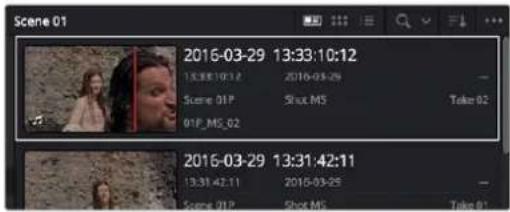
The Metadata View icon view (highlighted icon in the top bar), showing the thumbnail being scrubbed next to the clip's metadata
- Using thumbnail hover scrub in the Media Pool's Thumbnail view: Drag the pointer over a thumbnail to scrub through its contents.
Thumbnail hover scrubbing
- Using the Media Pool Filmstrip in the Media Pool's List view: Select "Show Filmstrip" in the Media Pool's option menu. Select a clip to expose it in the Filmstrip at the top of the Media Pool, and hover the pointer over the Filmstrip to watch it play. At any time, you can double-click a clip in the Filmstrip to open it into the Source Viewer.

Using the Filmstrip when the Media Pool is in List view
TIP: When browsing media, you can open clips you want to have a closer look at in the Source Viewer by double-clicking them in the Media Pool. Meanwhile, you can continue to open other clips in the Filmstrip with a single clip in order to compare different clips with your main selection that remains in the Viewer.
Selecting Clips in the Media Pool to Edit
Once you've found one or more clips that you want to use in your edit, you'll need to make a selection in preparation for performing an edit.
Methods of selecting clips in the Media Pool using the mouse:
- To select a single clip: Click a clip in the Media Pool.
- To select a contiguous range of clips: In either Metadata, Thumbnail, or List view, drag a selection box over all the clips you want to select, or click to select the first clip in a series, then Shift-click the last clip to select those clips and everything in between.
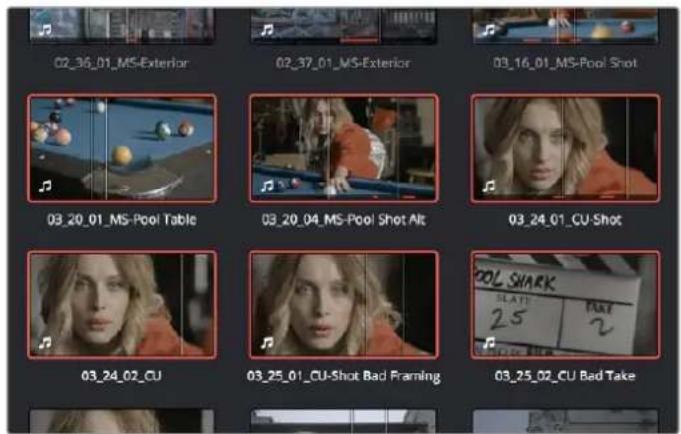
Selecting a contiguous range of clips
- To select a noncontiguous range of clips: Command-click each clip you want to include in the selection. Or, you can hold the Command key down while you drag bounding boxes over unselected clips to add them to the current selection, or over selected clips to remove them from the selection.
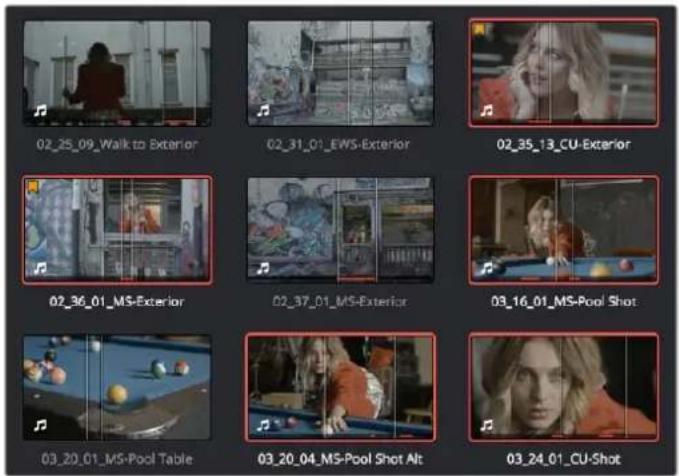
Selecting a noncontiguous range of clips
Methods of selecting clips using the keyboard:
- To navigate the Bin list: Either click any bin in the Bin list to the left of the Media Pool, or press Command-1 to make the Bin list the active pane of the Edit page, then use the Up and Down Arrow keys to move up and down among the available bins. Use the Right Arrow key to open a bin that's closed, and use the Left Arrow key to close the bin again.
- To select a single clip: Press Command-1 to make the Media Pool Bin list the active area, and use the arrow keys to select and open bins. Then press Command-2 to select the clip browser area and use the Arrow keys to move the selection from clip to clip. Once a clip is selected, you can use any of the edit keyboard shortcuts to edit the selected Media Pool clip straight to the currently open Timeline.
- To select multiple clips: Hold the Shift key down while you're using the Arrow keys to move the selection to expand or contract a continuous selection in the Media Pool.
- To select all clips in the Media Pool: Make sure the Media Pool has focus by clicking a clip or clicking anywhere in the background of the Media Pool, then press Command-A to select all clips.
- To open a selected clip or timeline into the Source Viewer: Press the Return key. Once you've opened a clip into the Source Viewer, you can use the transport controls to play through it.
Duplicating Clips in the Media Pool
If you want to create duplicates of clips in the Media Pool, you can Option-drag one or more clips to another bin. You can also select the clip or clips you want to duplicate and select Edit > Duplicate Clips. The duplicated clips will appear in the same bin as the original media. The duplicate clips have their own individual links to the source media on disk.
Viewer Playback and Navigation
By default, the Edit page presents a traditional source/record style editing experience. The Source Viewer lets you view individual clips from the Media Pool to prepare them for editing. Meanwhile, the Timeline Viewer lets you play through your program, showing you the frame at the position of the playhead in the Timeline.
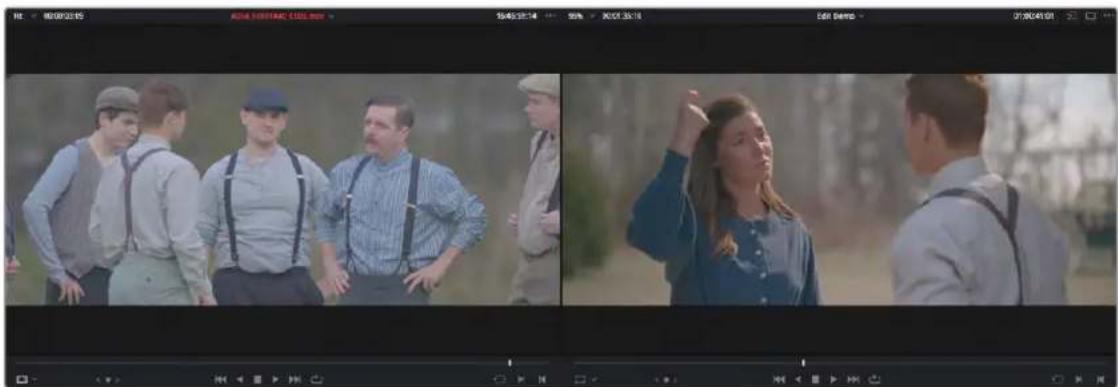
natural_image
Two-panel video frame showing a group of people in casual attire outdoors, one gesturing with hand on chest (no visible text or symbols)Source and Timeline Viewers
Source and Timeline Viewers vs. Single Viewer Mode
If you want to change the Edit page layout to hide the Source Viewer, you can choose Workspace > Single Viewer Mode to instead use just a single viewer to contextually display either a selected Source Clip or the current frame of the Timeline.
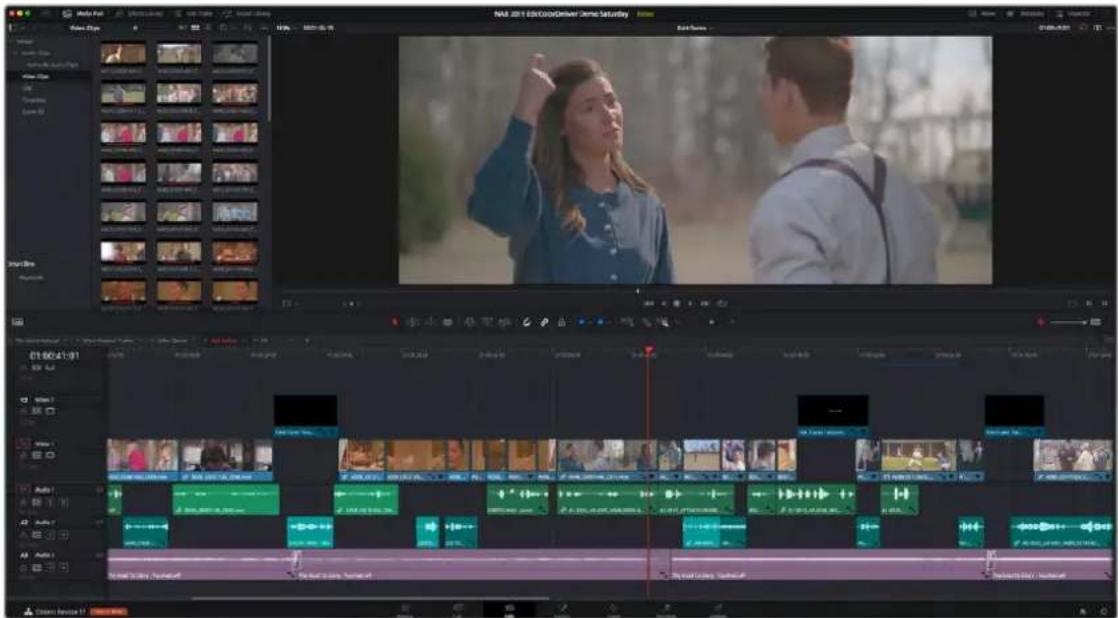
Single Viewer mode
In Single Viewer mode, whatever you select in the Media Pool or Timeline determines which controls appear in the Viewer, which lets you do nearly everything you can do with two simultaneously open viewers.
Opening Clips Into the Source Viewer to Prepare for Editing
Once you've decided which clips you want to use in your program, you can open them into the Source Viewer to review them more completely. How this works depends on the Source Viewer's Live Media Preview setting.
To skim through a Media Pool metadata or thumbnail and view clips in the Source Viewer using Live Media Preview:
1 Turn on Live Media Preview (if necessary) by clicking the Source Viewer option menu and choosing Live Media Preview.
2 With the Media Pool open and in Metadata or Thumbnail mode, position the pointer over a clip, and after a few moments when that clip's thumbnail starts to skim, you can see the clip you're scrubbing in the Source Viewer. Do one of the following:
a. As you skim within the thumbnail, the playhead that appears in the thumbnail is locked to the playhead displayed in the Viewer's jog bar. While skimming, you can add markers and set In and Out points
b. Leaving the pointer positioned over that clip, use the JKL keyboard shortcuts to play through the clip, adding markers and setting In and Out points as you like
3 It takes a moment for skimming to begin, which allows you to quickly move the pointer from that clip back to the Source Viewer without opening any other clip.
Turning off Live Media Preview lets you use more traditional and controlled methods of opening clips into the Source Viewer.
To open a clip into the Source Viewer using the mouse:
- Double-click any clip in the Media Pool, or in the Filmstrip of the Media Pool, to open it into the Source Viewer.
To open a clip into the Source Viewer using the keyboard:
If necessary, press Command-1 to select the Bin list, and press the Up and Down arrows to choose a folder to view its contents. Press the Right Arrow key to open folders and show any nested folders within, or the Left Arrow key to close folders and hide their nested contents.
2 Press Command-2 to select the Media Pool browser, and use the Arrow keys to change the selection from clip to clip in the Media Pool, up, down, left, and right.
3 When the clip you want is highlighted, press Return to open it into the Source Viewer.
To open a timeline into the Source Viewer:
- Drag and drop any timeline into the Source Viewer in preparation for either ganging it to the existing Timeline, or editing it, in whole or in part using In and Out points, into the currently open Timeline.
Monitoring with an External Video Display
While working in the Edit page, the image that's displayed on an external video display (if one is connected) is determined either by the current selection in the Media Pool, or by which part of the Edit page interface has focus. For example, if you select a clip in the Media Pool so it's displayed within the Filmstrip, that clip is output to video. If you then open it into the Source Viewer, then the contents of the Source Viewer are output to video. If you switch to the Timeline Viewer, then your timeline is output to video.
Viewer Transport Controls
The Edit page has two Viewers. The left Viewer, when you're editing, should be set to show either source video or source audio, so it shows the source clip in any edit you're setting up. At right is the Timeline Viewer, that shows the frame at the current position of the playhead in the Timeline. Using the Source and Timeline Viewers, you can set up a wide variety of edits.
There are identical transport controls underneath each of the Viewers.

natural_image
Video player interface with playback controls and a blurred background of indistinct objects (no readable text or symbols)The transport controls at the bottom of the Source Viewer
A jog bar appears directly underneath the transport controls, letting you drag the playhead directly with the pointer. The full width of the Source Viewer's jog bar represents the full duration of a clip, while the full width of the Timeline Viewer's jog bar represents the full duration of the current timeline. The current position of each playhead is shown in the timecode field at the upper right-hand corner of each viewer.
A separate jog control, to the left of the other transport controls, provides a way to jog more slowly through long clips or a long timeline. Click and drag to the left and right to move through a clip or the Timeline a frame at a time.
Transport controls appear above the jog bar. In the Source Viewer, these controls let you Jump to the First Frame, Play Reverse, Stop, Play Forward, and Jump to the Last Frame. In the Timeline Viewer, these controls move to the Previous Edit, Play Reverse, Stop, Play Forward, and move to the Next Edit. A loop control governs the looping behavior during playback.
Simple Keyboard Shortcuts for Playback and Navigation
There are many different keyboard shortcuts you can use to simply navigate clips and timelines, and control playback.
- Spacebar: You can use the Spacebar to start and stop playback.
- Play Again: Press Option-L to immediately restart playback from where the playhead began without stopping; for instances where you quickly want to replay the beginning of what you're listening to.
- Step One Frame Forward/Step One Frame Back: The Left Arrow and Right Arrow keys move the playhead back and forth one frame at a time, while Shift-Left Arrow and Shift-Right Arrow move the playhead in one-second increments.
- Step One Second Forward/Step One Second Reverse: Shift-Left Arrow and Shift-Right Arrow moves the playhead back and forth one second at a time.
- Next Edit/Previous Edit: Up Arrow moves the playhead to the previous edit and selects the edit point, while Down Arrow moves the playhead to the next edit and selects the edit point.
- First Frame/Last Frame of the Current Clip: The Semicolon key moves the playhead to the first frame of the clip intersecting the playhead, while the Apostrophe key moves the playhead to the last frame of the clip intersecting the playhead.
- Previous Keyframe/Next Keyframe: Shift-Semicolon moves the playhead to the next previous keyframe on the left when keyframes are displayed in the Timeline, while Shift-Apostrophe moves the playhead to the next keyframe to the right.
- Previous Marker/Next Marker: If there are markers in either the Timeline Ruler or within clips in the Timeline, Shift-Up Arrow and Shift-Down Arrow moves the playhead left and right from one marker to the next.
- Previous Gap/Next Gap: If any tracks of the Timeline that have Auto Select control enabled have gaps between clips, Option-Command-Semicolon and Option-Command-Apostrophe moves the playhead left and right from one gap to the next.
- Timeline Start/Timeline End: The Home key moves the playhead to the first frame of the Source or Timeline Viewer, while the End key moves the playhead to the last frame of the Source or Timeline Viewer.
Go to - In Point/Go to Out Point: Shift-I moves the playhead to the In point set in either the Viewer or the Timeline. Shift-O moves the playhead to the Out point.
TIP: One of the options in the Editing panel of the User Preferences window, "Always highlight current clip in the media pool," lets you decide whether the current selection in the Timeline is mirrored in the Media Pool.
Using JKL to Control Playback
The JKL keyboard shortcuts are common to many editing applications, and experienced editors know these to be some of the most useful controls for playback and editing there are. Here's a list of the many different ways you can use these three keyboard shortcuts to play through clips and timelines as you work.
| J Plays 100% backward | |
| K Stops playback | |
| L Plays 100% forward | |
| Press J repeatedly | Increases backward play speed each time you press J, for a range of fast-reverse speeds |
| Press L repeatedly | Increases forward play speed each time you press L, for a range of fast-forward speeds |
| Shift-J Plays in fast reverse | |
| Shift-L Plays in fast forward | |
| Shift-K Play Slow at 1/2, 1/4 or 1/8 speeds | |
| Press and hold K+J Plays backward at slow motion (with slow motion audio playback) | |
| Press and hold K+L Plays forward at slow motion (with pitch-corrected audio playback on macOS) | |
| Pressing K while tapping J Moves the playhead back one frame | |
| Pressing K while tapping L Moves the playhead forward one frame | |
| Command-J and Command-L Holding the Command key down while using the J and L keyboard shortcuts lets you dynamically resize or trim selected edit points or clips at 100 percent or faster speed, depending on whether the Selection or Trim tool is enabled.For more information on dynamic trimming, see Chapter 43, “Trimming.” | |
When you're playing back at faster or slower than real-time speed using the JKL commands, a speed indicator appears to the right of the frame per second indicator of the Viewer.

A speed indicator above the Viewer shows that you're playing at 4x speed
Once you learn all the different methods of JKL playback, they will probably become one of the main ways you move the playhead around in DaVinci Resolve.
Special-Purpose Playback Commands
In addition to the standard transport controls, there are some additional playback controls, available via keyboard shortcuts or the Playback menu, that let you perform different playback operations.
- Loop: Command-Forward Slash (/). Toggles looped playback off and on. While looped playback is on, playback initiated with any of the following commands will loop automatically until you stop playback.
- Play around selection: Forward Slash (/). This command works contextually depending on what's selected in the Timeline. Plays a section of the Timeline from x frames before to y frames after (a) the playhead (if nothing's selected), (b) the currently selected edit point, (c) the currently selected
clip, (d) the currently selected transition, (e) a selection of multiple clips. This command is useful for previewing how the current selection plays within the context of the clips immediately surrounding it. The pre-roll and post-roll time is customizable in the Editing panel of the User Preferences.
- Play around current frame: Plays a section of the Timeline from x frames before to y frames after the current position of the playhead. This command is useful for previewing how edits play within the context of the clips immediately surrounding them. The pre-roll and post-roll time is customizable in the Editing panel of the User Preferences.
- Play around current clip: (no default key assigned). Plays a section of the Timeline from x frames before to y frames after the current clip intersecting the position of the playhead. The pre-roll and post-roll time is customizable in the Editing panel of the User Preferences.
- Play Around In: Option-Space. Plays a section of the Timeline from x frames before to y frames after the current assigned In point, letting you preview the transition from one clip to the next. The pre-roll and post-roll time is customizable in the Editing panel of the User Preferences.
- Play Around Out: Shift-Space. Plays a section of the Timeline from x frames before to y frames after the current assigned Out point, letting you preview the transition from one clip to the next. The pre-roll and post-roll time is customizable in the Editing panel of the User Preferences.
- Play In to Out: Option-Forward Slash (/). If you've marked a section of a clip or timeline with In and Out points, this command lets you preview how it will play.
- Play to In: (no default key assigned). Initiates playback and stops at the current In point.
- Play to Out: Option-Command-Forward Slash (/). Initiates playback and stops at the current Out point.
Option to "Stop and Go to Last Position"
Playback > Stop and Go to Last Position lets you set DaVinci Resolve to a mode where the playhead returns to where playback began whenever you stop. This option is most useful when editing audio, although it's available any time. When using the JKL keys to navigate the Viewer in this mode, "K" will pause the playhead in place, while the space bar (stop) will go to last position.
This option is also available when you right-click on the Stop button in the transport controls of any viewer. A contextual menu appears where you can turn "Stop and go to last position" on or off as the default behavior.
Enabling and Disabling Audio Scrubbing
Audio scrubbing is enabled by default, meaning that you'll hear audio when dragging the playhead with the mouse back and forth. While this can be useful when you're searching for audio cues, it can also be distracting if you're just focused on the picture.
To enable or disable audio scrubbing:
- Choose Timeline > Audio Scrubbing (Shift-S).
Playback Post-Roll
Enables the playhead to continue playing past the last clip in the Timeline for a duration equal to the "Post-roll time" Project Setting in the Editing panel. This is good for editors that want to experience a few moments of playback after cutting or fading to black after the last frame of audio and video in the Timeline.
To enable or disable Playback Post-Roll:
- Choose Timeline > Playback Post-Roll.
Moving the Playhead Using Timecode
You can use absolute or relative timecode entry to either move the playhead in both the Source and Timeline Viewers, or to move or trim selected edit points or clips. When navigating the Timeline, timecode entry lets you move the playhead very precisely, or jump to specific timecode values really quickly.
TIP: The method of timecode entry described here is used for many different commands that require timecode entry and is designed for fast and efficient editing.
How to Enter Timecode Values
When entering timecode, type each pair of hour, minute, second, and frame values from left to right, with a period representing a pair of zeros for fast entry. The numbers you enter appear in the timecode field at the upper right-hand corner of the Viewer with focus. When you're finished typing, press the Return key to execute the timecode command. The rules for timecode entry are as follows:
- The right-most pair of timecode values (or period) you enter is always the frame number.
– A period to the left or to the right of any number you type is considered to be a pair of zeroes.
– A single period between two numbers is considered to either be a single zero, or ignored if it's between two pairs of numbers.
– Any untyped pairs of values to the left of what you enter are assumed to be whatever those values were prior to the timecode you entered; this makes it easy to type partial timecode values even when the Timeline starts at hour one. - It's not necessary to enter colons or semicolons.
Absolute Timecode Entry
Absolute timecode is entered simply by typing in a timecode value. So long as no clips or edit points are selected when you press the Return key, the playhead will move to that timecode value. If an edit point or clip is selected, those will be moved or trimmed to the corresponding timecode value, if possible.
Here are some examples of absolute timecode entry using this method:
| Original TC Value User-Typed Value New TC Value | ||
| 01:10:10:10 15245218 15:24:52:18 | ||
| 01:10:10:10 2.. 01:02:00:00 | ||
| 01:10:10:10 15 01:10:10:15 | ||
| 01:10:10:10 12 01:10:10:12 | ||
| 01:10:10:10 1.2 01:10:01:02 | ||
| 01:10:10:10 1115.. 11:15:00:00 | ||
| 01:10:10:10 23... 23:00:00:00 | ||
Relative Timecode Entry
Relative timecode is entered by starting the timecode value with a plus (+) or minus (−). Adding a plus results in the value you type being added to the current timecode value for purposes of offsetting the playhead or moving a selection. Adding a minus will subtract the value you type from the current timecode value.
Here are two examples of relative timecode entry:
| User-Typed Value Result | |
| +20. 00:00:20:00 is added to the current timecode value. | |
| +3.. 00:03:00:00 is added to the current timecode value. | |
| -5 00:00:00:05 is subtracted from the current timecode value. |
Copy and Paste Timecode in Viewer Timecode Fields
You can right-click on most Viewer timecode fields in the Media, Edit, and Color pages to choose Copy and Paste commands from a contextual menu for copying and pasting timecode values. You can also click in the timecode fields and use the normal Copy (Command-C), and Paste (Command-V) keyboard commands. This works even between pages. The timecode value you're pasting must be valid timecode, for example you can't paste 0 hour timecode onto a 1 hour timeline.
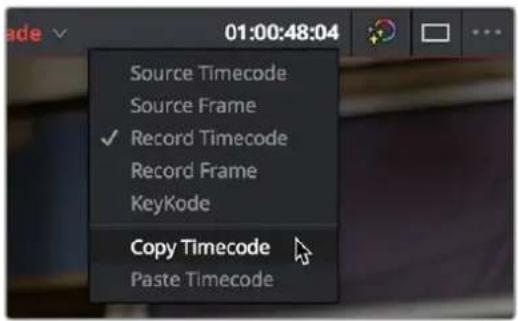
Right-clicking on a timecode field to use the Copy Timecode command
Gang Viewers (Playhead Ganging)
Ordinarily, the playhead movement in the Source and Timeline Viewers is independent. However, if you click the Option menu at the upper right-hand corner of either Viewer and turn Gang Viewers on, the movement of the Source and Timeline Viewer playheads is locked together, so that they move in unison. This is useful when you're marking the In and Out points of a clip in the Source Viewer to match the duration of a clip or other event in the Timeline.
When the Source and Timeline Viewers are ganged, you can still switch focus back and forth between the Source and Timeline Viewers, and your video output device will consistently switch to output whichever Viewer is in focus.
Adding Markers
While markers, flags, and clip labels are covered in much more detail elsewhere in the editing section, the use of markers is so important that a summary of how to add and edit markers appears here. Markers are used to call attention to a particular frame within a specific clip. Markers can be individually colored, and can have customized name and note text. Whenever you enter text into a marker, that marker displays a small dot that indicates there's more information inside of it. Once placed, markers snap to In and Out points, edit points, the playhead, and other markers whenever snapping is enabled, making it easy to use markers to "measure" edits and trims that you make in the Timeline.
Adding Markers to Clips
You can place markers on the jog bar of source clips in the Source Viewer (or in the Media Page Viewer) and on clips that are selected within a timeline.
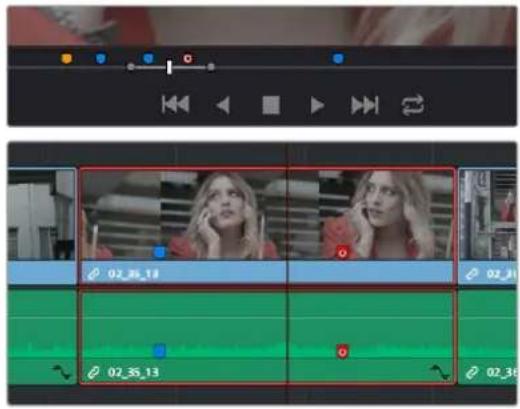
(Top) Markers placed on a source clip, (Bottom) Markers placed on a clip in the Timeline
To mark a source clip in the Source Viewer or Media Page Viewer, do one of the following:
- To place a marker without doing anything else, move the playhead to the frame you want to mark, and then press M.
- To place a marker and immediately open the marker dialog to enter a name or note within it during playback, press Command-M. Playback pauses until you enter the text you want to and close the marker dialog again, at which point playback continues.
- Move the playhead to the frame you want to mark, then right-click in the jog bar and choose a marker color from the Add Marker submenu of the contextual menu.
Once you've added some markers, you may want to edit their contents to make them more useful.
To open a marker's edit dialog to alter its properties:
1 Do one of the following:
- Press Command-M to add a marker during playback and immediately open its edit dialog.
- Double-click any marker you want to edit.
- Move the playhead to the frame containing the marker you want to annotate using Shift-Up Arrow/Down Arrow and press M.
- Select a marker anywhere in the Source Viewer or Timeline, and press Shift-M.
2 When the marker dialog opens, you can modify several properties.
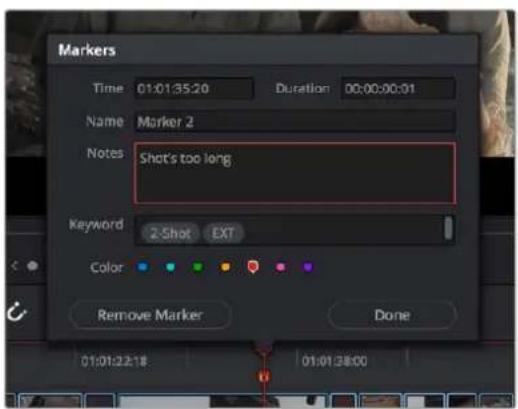
The properties found in the marker dialog
For much more information about markers, see Chapter 40, "Marking and Finding Clips in the Timeline."
Setting In and Out Points
Now that you've used playback commands to review your clips, you can place In and Out points to set the range of each clip that you want to edit into the Timeline. If you don't set In or Out points, then the entire clip will be edited into the Timeline. If you do set In and Out points, those points will be saved in the Media Pool and used the next time you edit that clip.
Setting Clip In and Out Points in the Media Pool
You can set In and Out points right in the Media Pool to prepare for editing.
To set In and Out points while skimming a thumbnail in the Media Pool's Metadata view:
- Set the Media Pool to Metadata view, then move the pointer over the Thumbnail and wait a moment until dragging the pointer begins to skim through that clip. As you skim, press I and O to set In and Out points to encompass the part of that clip you're going to want to use.
To set In and Out points while skimming a thumbnail in the Media Pool's Thumbnail view:
- Set the Media Pool to Thumbnail view, then move the pointer over a clip and wait a moment until dragging the pointer begins to skim through that clip. As you skim, press I and O to set In and Out points to encompass the part of that clip you're going to want to use. When you're finished, that clip's thumbnail will show a range indicator at the bottom to show how much of the clip you've selected.
To set In and Out points using the Media Pool's List view Filmstrip:
- Set the Media Pool to List view, then select a clip to expose it in the Filmstrip at the top of the Media Pool, drag the pointer through the Filmstrip to watch it play, and press I and O to set In and Out points to the appropriate range.
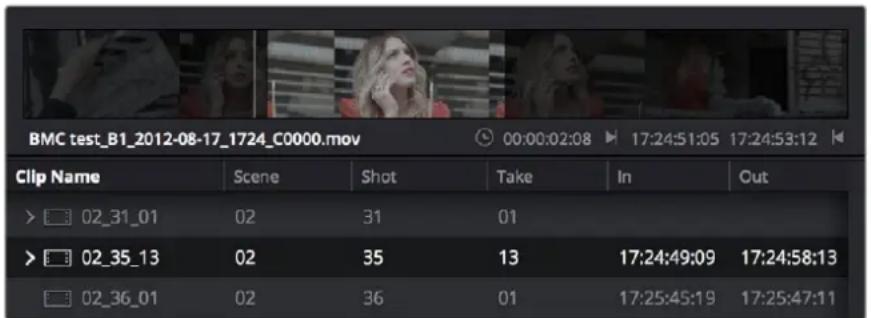
Marking In and Out points in the Filmstrip of the Media Pool in List view
The Filmstrip will dim the heads and tails to let you see the range of media you've marked. Once you've marked In and Out points in the Filmstrip, you can drag them to the left and right to move them.
Setting Clip In and Out Points in the Source Viewer
For a better look at your footage, you can set In and Out points in the Source Viewer in preparation for editing.
To set In and Out points in the Source Viewer:
Either skim a Media Pool thumbnail with Live Media Preview enabled in the Source Viewer's option menu, or open a clip into the Source Viewer.
2 Use JKL, the Spacebar, the transport controls, or drag in the jog bar to move the playhead to where you want to set an In or Out point.
3 Do one of the following:
- To mark simple In and Out points: Use the In and Out buttons to the right of the transport controls, or press the I or O keys.
- To mark split In and Out points in preparation for making a split edit: Right-click the Jog Bar and choose Mark Split > Mark Video In (Shift-Option-I) / Mark Audio In (Command-Option-I) / Mark Video Out (Shift-Option-O) / Mark Audio Out (Command-Option-O).
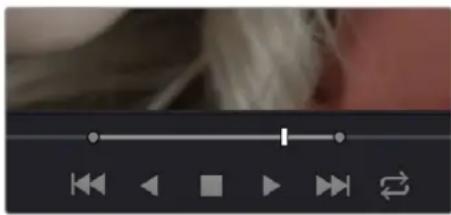
natural_image
Close-up of a media player interface with playback controls and navigation icons (no readable text or symbols)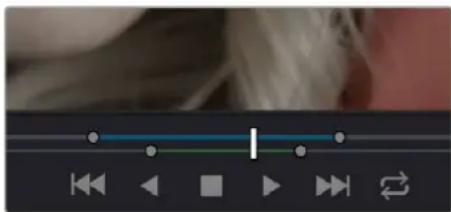
natural_image
User interface control bar with playback controls and navigation icons (no readable text or symbols)Marking In and Out points in the Source Viewer, both as simple (Top) and split edits (Bottom)
Simple In and Out points let you join the audio and video of two clips at a single edit point in the Timeline. However, setting split In or Out points sets you up to create split edits where the video is offset from the audio in a single step.
Clearing and Navigating In and Out Points
Once placed, you can also clear In and Out points you don't want and move the playhead to In and Out points you might want to edit.
To clear In and Out points:
- To clear In or Out points: Move the pointer over a marked thumbnail in the Media Pool or over the Media Pool film strip, or open a clip in the Source Viewer, and then press Option-I to clear the current In point, or Option-O to clear the current Out point.
- To clear Split In or Split Out points: Press Shift-Option-X to clear the Video In and Video Out points. Press Command-Option-X to clear Audio In and Audio Out points.
- To clear both the In and Out points at once: With the pointer over a marked thumbnail in the Media Pool or over the Media Pool film strip, or with the Source Viewer selected, press Option-X.
To jump the playhead to the current In or Out points in the Source or Timeline Viewer:
- Press Shift-I to move the playhead to the current In point (Playback > Go To > In).
- Press Shift-O to move the playhead to the current Out point (Playback > Go To > Out).
The Go to In and Go to Out commands are capable of placing the playhead at the implicit (but unmarked) In and Out points defined by a three point edit you're setting up, even when Preview Marks have not been enabled. For example, if you mark In and Out points in the Timeline, and you then mark an In point for a clip in the Source Viewer, pressing Shift-O (Go to Out) automatically moves the Source Viewer playhead to the frame that will be the Out point of that clip were you to execute this edit.
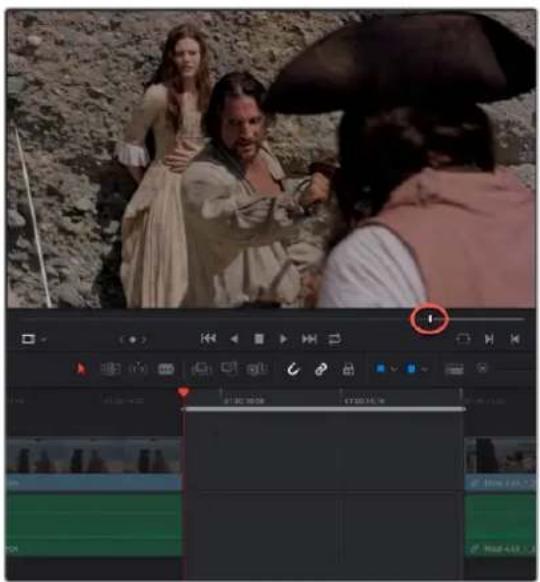
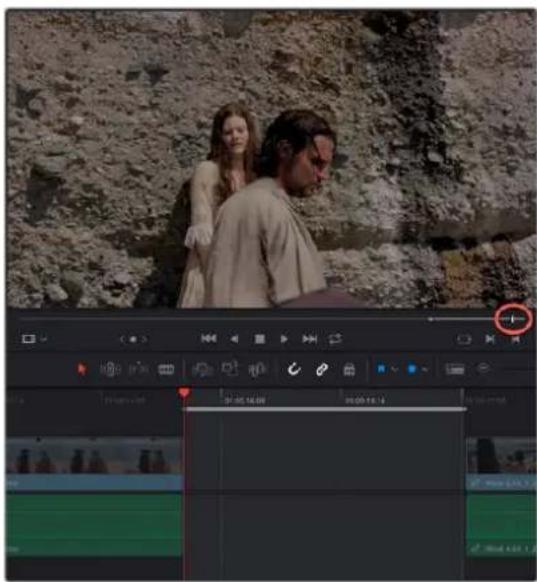
(Left) In and Out points set in the Timeline and an In point set in the Source Viewer set up a three point edit, (Right) Using Go to Out to move the Source Viewer playhead to the implicit Out point defined by a three point edit
Clip Edit Points Are Saved
Once set, In and Out points remain in place within each source clip or timeline until you set new ones. If you quit DaVinci Resolve and later reopen the same project, each clip's In and Out points are saved for future reference.
Turning In and Out Points into Markers With Duration and Back Again
If you want to log the most important sections of clips using In and Out points, you can only log a single section at a time, as In and Out points are used to identify the next section of a clip to be edited in a three point edit. However, two commands in the contextual menu of the Source Viewer jog bar work together to let you turn In and Out points into Markers with Duration, and vice versa:
- Convert In and Out to Duration Marker: Turns a pair of In and Out points into a duration marker. By default, no key shortcut is mapped to this command, but you can map one if you like.
- Convert Duration Marker to In and Out: Turns a duration marker into a pair of In and Out points, while retaining the marker. By default, no key shortcut is mapped to this command, but you can map one if you like.
Using these two commands, you can easily use markers with duration to mark regions of clips that you want to log for future use, turning each region into an In and Out point when necessary for editing. By default, these commands don't have keyboard shortcuts assigned to them, but you can assign them if you use them frequently.
To turn In and Out points into a duration marker:
1 Set In and Out points in the Source Viewer jog bar to identify a region you want to log for future reference.
Marking In and Out points in preparation to log that section of the clip
2 Do one of the following:
- Right-click the jog bar and choose Convert In and Out to Duration Marker.
- Choose Mark > Convert In and Out Into Duration Marker.
A duration marker appears above the In and Out points. To edit its name or notes, double-click the marker, press Shift-M, or choose Mark > Modify Marker.
natural_image
Close-up of a blue horizontal bar with two blue handles and a white vertical bar, mounted on a dark surface (no text or symbols visible)A duration marker is created from the In and Out points
In this way, you can log several regions within a single clip for future use.

natural_image
User interface control bar with playback buttons and navigation icons (no readable text)A clip with multiple logged sections identified via markers with duration
To turn a duration marker into an In and Out point:
1 Find a duration marker you want to convert into In and Out points..
natural_image
User interface element showing a slider and navigation buttons (no text or symbols)Finding a duration marker to convert into In and Out points
2 Do one of the following,
- Right-click the jog bar and choose Set In and Out from Duration Marker.
– Position the playhead over the duration marker and choose Mark > Set In and Out from Duration Marker.
In and Out points appear under the duration marker.
natural_image
Simple horizontal bar with two blue vertical bars and a white center, no text or symbols presentIn and Out points are created from the duration marker
In this way, you can turn a duration marker that you've logged into In and Out points in preparation for executing a three-point edit.
These are extremely useful logging techniques for three reasons. First, markers with duration can be searched for in the Media Pool using the All Fields, Marker Name, and Marker Notes Filter by options. Second, they can be filtered with Smart Bins using the Marker Name and Marker Notes Media Pool Properties options. Lastly, once one or more duration markers have been added to a clip, they can quickly be used to perform three-point edits into the Timeline.
Organizing Media by Creating Subclips
Subclips give you another way of organizing media in the Media Pool, letting you break excessively long clips into shorter ones. For example, if the director of a project is fond of “rolling takes” where multiple takes are all recorded within a single clip, you can break these takes up by making them into subclips.
To create a subclip in the Edit page:
Do one of the following to open a clip into the Source Viewer in either the Media page or the Edit page, in preparation for creating subclips.
– Double-click any clip in the Media Pool.
– Single-click any clip in the Media Library of the Media page to create a subclip without needing to first import that clip into the Media Pool.
2 Set In and Out points in the Source Viewer to define the section you want to turn into a subclip.
3 Do one of the following:
– Choose Mark > Create Subclip.
- Press Option-B.
- Right-click the jog bar and choose Create Subclip from the contextual menu.
– Drag a clip from the Source Viewer to the Media Pool.
4 A new subclip dialog appears, allowing you to name the subclip and decide to use its full extents by turning on the checkbox.
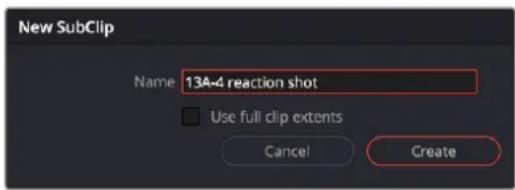
The New SubClip dialog
Once created, subclips appear and work like any other clip in DaVinci Resolve. You can also create subclips in the Media page while performing other organizational tasks there.
Removing or Changing Subclip Limits
Once created, you can right-click any subclip in the Media Pool or a timeline and choose Edit Subclip to open a dialog in which you can turn on a checkbox to use the subclip's full extents, or to change the start or end timecode of the subclip via timecode fields, before clicking Update to modify the subclip.
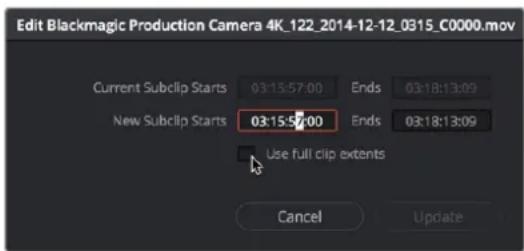
The Edit Subclip dialog
Chapter 36
Editing Basics
In this chapter, you'll learn many of the fundamental methods and commands you'll use when beginning to assemble clips into the Timeline. This includes drag and drop operations to begin assembling a timeline, different ways of selecting and deselecting the clips you've edited in preparation for different tasks, maintaining sync between the audio and video components of clips you're editing, and deleting clips and gaps you don't want.
Contents
Keyboard Shortcuts in This Chapter 585
Drag and Drop Editing 586
Drag and Drop Editing of Individual Clips Into the Timeline 586
Drag and Drop Editing of Several Clips Into the Timeline At Once 587
Drag and Drop Editing of Video-Only or Audio-Only Edits 589
Drag and Drop Insert Editing 589
Dragging Clips From the File System Into the Timeline 590
Inserting Multiple Clips into the Timeline From the Media Pool 590
Insert Selected Clips to Timeline Using Timecode 590
Insert Selected Clips to Timeline With Handles 591
Audio Track Creation While Editing 591
Using Keyboard Shortcuts and Three-Point Editing to Assemble a Program 591
Example: Assembling Clips Into the Timeline From the Source Viewer 592
Example: Assembling Clips Into the Timeline From the Media Pool 593
Making Selections in the Timeline 594
Manually Selecting Clips in the Timeline 594
Selecting Clips Based on Markers, Flags, and Clip Color 595
Selecting Edits in the Timeline 596
A Practical Example of Keyboard-Driven Selections 597
Using Auto Select Controls to Define Selections 598
Defining Selections With the Help of Auto Select Controls 598
Overriding Automatic Selections by Making Manual Selections 599
Using Auto Select Controls to Control Other Operations 599
Locking Tracks You Don't Want to Change 601
Position Lock for Finishing 602
Position Locking All Tracks 602
Position Locking Individual Tracks 602
Disabling and Re-Enabling Clips in the Timeline 603
Deleting Clips and Gaps From the Timeline 603
Finding, Selecting, and Deleting Gaps in the Timeline 605
Deleting Multiple Timeline Gaps at Once 605
Audio/Video Linking 607
Controlling Linked Selection 607
Linked Move Across Tracks 608
Dealing with Audio Video Sync Offsets 609
Manually Unlinking and Relinking Audio and Video 609
Linking Multiple Clips in the Timeline 610
Commands for Slipping Audio/Video Sync 611
Keyboard Shortcuts in This Chapter
Here's a list of of keyboard shortcuts you might find helpful that relate to topics found in this chapter.
| Key Shortcut | Function |
| V | Select nearest edit to playhead |
| Shift-V | Select clip intersecting playhead |
| U | Select incoming, outgoing, or centered part of edit |
| Option-U | Toggle selection among video+audio, video only, and audio only |
| Option-Y | Select clips forward (of the playhead) on all tracks |
| Command-Option-Y | Select clips backward (of the playhead) on all tracks |
| Y | Select clips forward (of the playhead) on current track |
| Command-Y | Select clips backward (of the playhead) on current track |
| Up, Down Arrow Keys | Move selection to previous/next edit or clip |
| Delete | Delete clip and leave gap (lift edit) |
| Forward Delete | Ripple delete; deletes a clip and moves the rest of the timeline left to fill the gap |
| Command-Backslash (\) | Insert edit; adds a cut to the clip(s) at the position of the playhead |
| N | Toggle timeline snapping off and on |
| Command-Shift-L | Toggle linked selection off and on |
| Option-1 through 8 | Set video destination control to that track number; press again to enable/disable |
Key Shortcut Function
| Command-Option-1 thorough 8 | Set audio destination control to that track number; press again to enable/disable |
| Option-Shift-1 through 8 Toggle | lock for individual video tracks |
| Option-Shift-9 Toggle lock for all | video tracks |
| Option-Shift-F1 through F8 Toggle | lock for individual audio tracks |
| Option-Shift-F9 Toggle lock for all | audio tracks |
| F9 Insert Edit selected clip(s) from Media Pool or Source Viewer to the Timeline | |
| F10 | Overwrite Edit selected clip(s) from Media Pool or Source Viewer to the Timeline |
| F11 | Replace Edit the first of selected clip(s) from Media Pool or Source Viewer to the Timeline |
| F12 Place On Top Edit from Media Pool or Source Viewer to the Timeline | |
| Shift-F10 Ripple Overwrite from Media Pool or Source Viewer to the Timeline | |
| Shift-F11 Fit to Fill from Media Pool or Source Viewer to the Timeline | |
| Shift-F12 Append To End Edit from Media Pool or Source Viewer to the Timeline | |
| Undo Command-Z | |
| Redo Command-Shift-Z | |
Drag and Drop Editing
If you've already used other editing programs, the procedures in this section will almost certainly be remedial, but if you're new to editing, this section covers the most basic methods of editing a series of clips into the Timeline to get you started. The absolute simplest method of editing is to drag clips from the Media Pool and drop them into the Timeline. You can do this with individual clips, or with selected groups of clips.
Drag and Drop Editing of Individual Clips Into the Timeline
If you're just editing one clip at a time to create an edited sequence in a timeline, this is how that works.
1 If you need to edit specific ranges of the clips you're editing, you can set In and Out points in source clips first by doing one of the following:
- Setting In and Out points while skimming a thumbnail in the Metadata View: As you're skimming over a clip's thumbnail in the Viewer, press I and O to set In and Out points to encompass the part of that clip you're going to want to use. If you've turned on Live Media Preview in the Source Viewer, then the Source Viewer will show what you're skimming so you can get a closer look. If you don't like the current In and Out points, you can press Option-X to clear them both.
- Setting In and Out points while skimming a thumbnail in the Media Pool: As you're skimming over a clip's thumbnail in the Viewer, press I and O to set In and Out points to encompass the part of that clip you're going to want to use. If you've turned on Live Media Preview in the Source Viewer, then the Source Viewer will show what you're skimming so you can get a closer look. When you're finished, that clip's thumbnail will show a range indicator at the bottom to show how much of the clip you've selected. If you don't like the current In and Out points, you can press Option-X to clear them both.
- Using the Media Pool Filmstrip in the Media Pool's List view: Set the Media Pool to List view, select Show Filmstrip in the option menu, then select a clip to expose it in the Filmstrip at the top of the Media Pool, drag the pointer through the Filmstrip to watch it play and press I and O to set In and Out points to the appropriate range. The Filmstrip will dim the heads and tails to let you see the range of media you've marked. If you've turned on Live Media Preview in the Source Viewer, then the Source Viewer will show what you're skimming so you can get a closer look. If you don't like the current In and Out points, you can press Option-X to clear them both.
- Using the Source Viewer: Open a clip in the Viewer by double-clicking it in the Media Pool, or by selecting it in the Media Pool and pressing the Return or Enter key. Then use the transport controls, jog bar, control panel buttons, Spacebar, or JKL commands to move the playhead, and place In and Out points using the In and Out buttons to the right of the transport controls, or by pressing the I or O keys. If you don't like the current In and Out points, you can press Option-X to clear them both.
2 Drag the clip you want to edit from either the Media Pool or the Source Viewer, and drop it onto the desired position in the Timeline to perform an overwrite edit. If you drag a clip on top of another clip that's already in the Timeline, the clip you're dragging will overwrite the part of the clip that it overlaps.
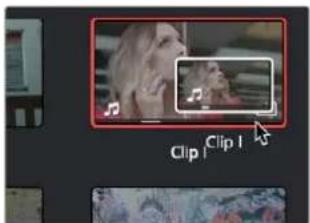
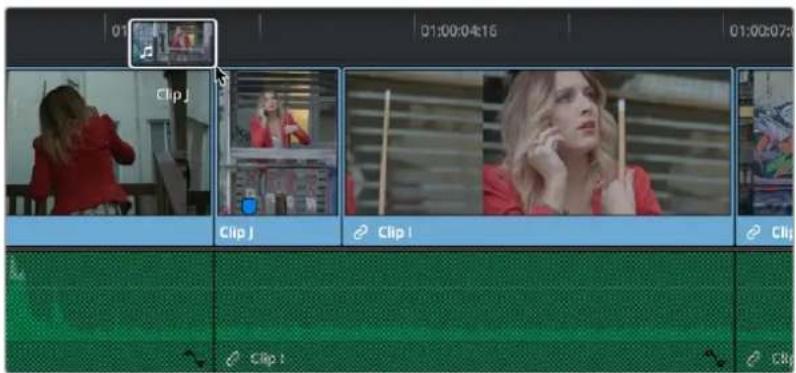
Dragging a clip from the Media Pool to overwrite a clip in the Timeline
TIP: If you drag a clip into the blank area above an existing video track or below an existing audio track, a new track will automatically be created.
Drag and Drop Editing of Several Clips Into the Timeline At Once
The procedure above also works when you want to edit several clips into the Timeline at once by dragging them from the Media Pool.
1 Change the sort order of the Media Pool's browser area to put the clips into the order in which you want them to appear. In Thumbnail view you can use the Sort Order menu, but in List view you can click the header of any metadata column to sort by that column's data. If you've used the Metadata Editor to add Scene, Shot, Take, or other information to identify each clip, you can sort by these metadata criteria.
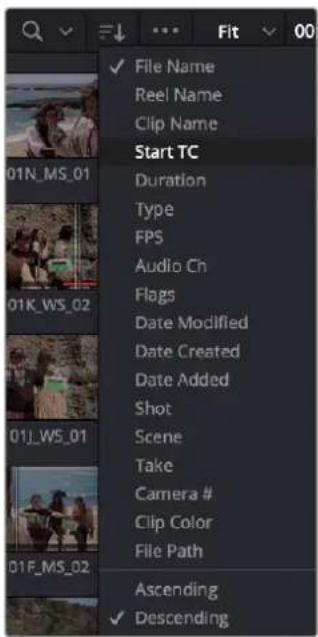
Using the Sort Order menu to change the sort order of clips in the Media Pool
2 Use the Media Pool thumbnails, the Media Pool List view Filmstrip, or the Source Viewer to set In and Out points to define the part of each clip that you want to edit into the Timeline.
3 Select the Media Pool clips you want to edit into the Timeline by dragging a bounding box, Command-dragging multiple bounding boxes over different sets of clips, by Shift-clicking a range of clips, or by Command-clicking individual non-contiguous clips.
4 Drag any of the selected clips to the desired position in the Timeline to perform an overwrite edit.
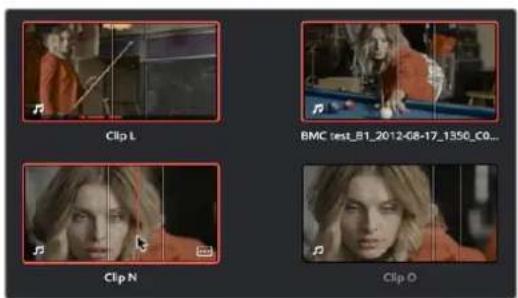
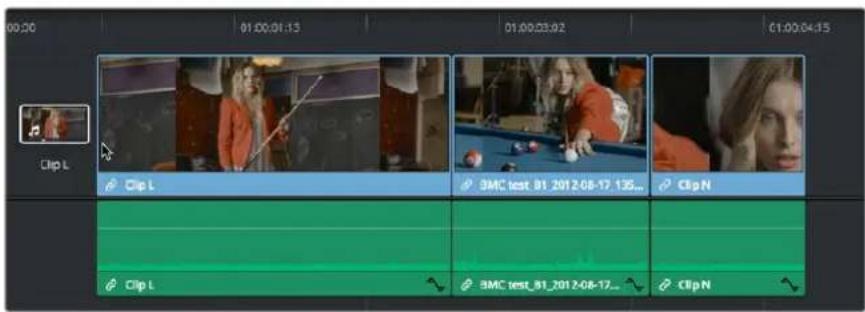
Dragging multiple clips into the Timeline in the sort order of the Media Pool
The clip(s) you drag overwrite whatever other clips they overlap in the Timeline. Multiple clips dragged from the Media Pool will be edited in the order in which they're sorted in the Media Pool, using each clip's In and Out points.
Drag and Drop Editing of Video-Only or Audio-Only Edits
While it's easy to edit just the video or just the audio of a clip by disabling the audio or video destination control in the Timeline prior to doing any sort of edit (described later in Chapter 39, "Three- and Four-Point Editing"), there's also a pair of keyboard modifiers you can use to do the very same thing while you're dragging.
- To edit only the video of a clip from the Media Pool: Option-drag clips from the Media Pool/Filmstrip, Source Viewer, or Finder into the Timeline.
- To edit only the audio of a clip from the Media Pool: Shift-drag clips from the Media Pool/Filmstrip, Source Viewer, or Finder into the Timeline.
- To edit only the video or audio of a clip from the Source Viewer: Open a clip into the Source Viewer, then move the pointer over the Source Viewer and drag from either the Video-only or Audio-only overlays that appear over the bottom of the image.
natural_image
Close-up of a media player interface with playback controls and sound icons (no readable text or symbols)Video and Audio-only overlay controls appear in the Source Viewer that let you drag just the video or just the audio into the Timeline
Drag and Drop Insert Editing
You can also drag multiple clips from the Timeline, or a single clip from the Source Viewer, at any frame of the current timeline to either insert the selection between any two clips or to insert it in the middle of an existing clip, moving (actually rippling) all media to the right of the new edit point you create to make room for the new incoming media.
To shuffle insert multiple clips from the Media Pool or Source Viewer into the Timeline:
1 Select one or more clips in the Media Pool (the sort order dictates the final order of the edited clips), or open a clip in the Source Viewer.
2 Press and hold the Command and Shift keys, and drag the selection from the Media Pool or Source Viewer into the Timeline.
3 As you drag, the clips you're dragging will be inserted into the Timeline at the pointer location. Release the mouse to finish making the edit.
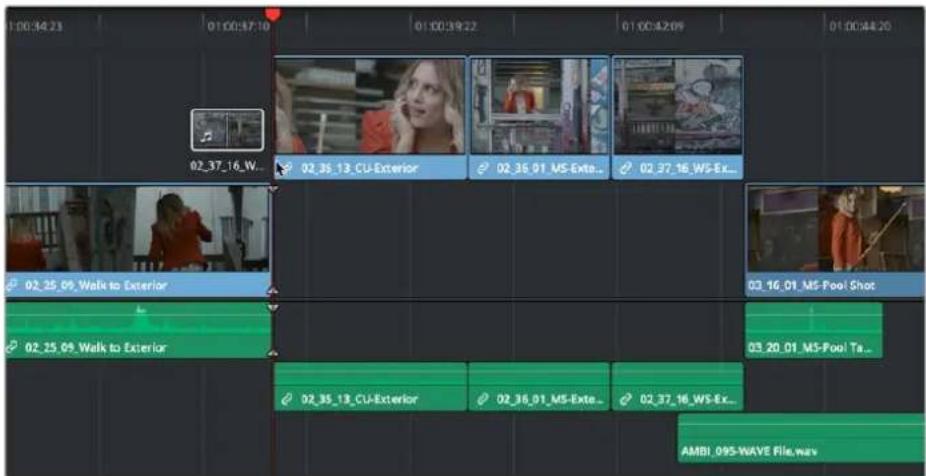
Making an Insert Edit while dragging clips from the Media Pool
Dragging Clips From the File System Into the Timeline
You can also drag a clip directly from your file system to the Timeline on supported platforms.
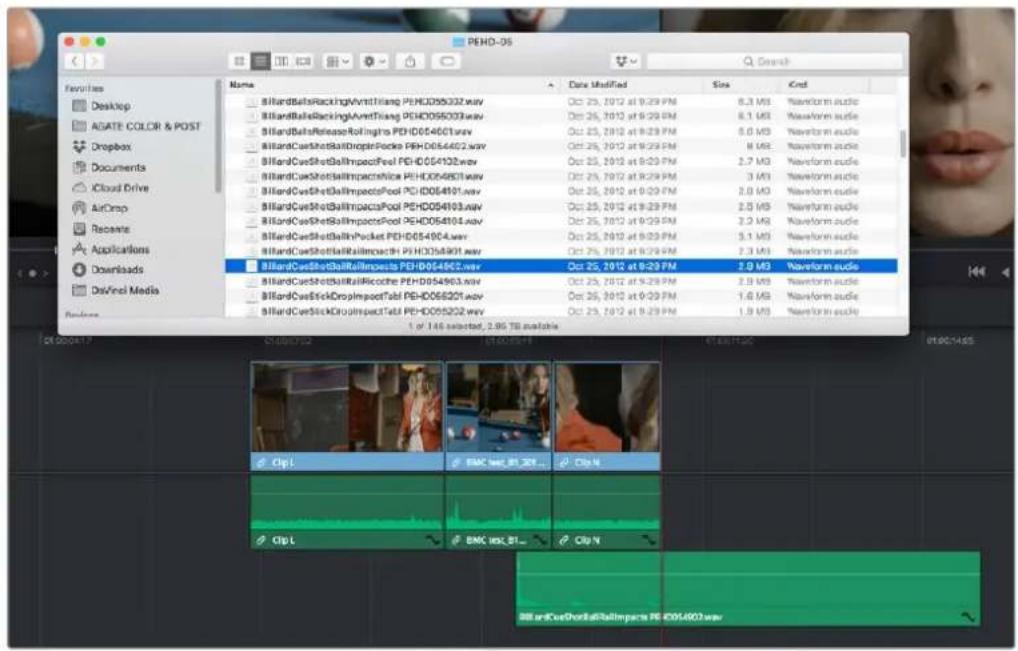
Dragging multiple clips into the Timeline from the macOS Finder
Inserting Multiple Clips into the Timeline From the Media Pool
For certain large volume editing projects, you can insert multiple clips from the Media Pool into a timeline all at once. The parameters for the order and positioning of the clips depend on the method used.
Insert Selected Clips to Timeline Using Timecode
Clips can now be edited directly from the Media Pool into a timeline, such that each clip's source timecode is aligned with an identical record timecode value in the Timeline. This can be useful for long form multi-camera events, like weddings or concerts, where all cameras are linked by the same timecode to ensure all edits are perfectly synced. This function matches the Source Overwrite edit on the Cut page.
IMPORTANT
The timecode of the Timeline must overlap the timecode of the clip(s) for this edit to function. This can be set in the Start Timecode field of the New Timeline settings.
To insert selected clips to timeline using timecode:
1 Select one or more clips to edit into the Timeline in the Media Pool. If there are In and Out points set on the clip, the edit will respect those boundaries. If no In/Out points are set, each selected clip's full duration will be edited in its entirety.
2 Set a destination control to determine which track in the Timeline you want to edit to.
3 Right-click one of the selected clips and choose "Insert Selected Clips to Timeline Using Timecode" from the drop-down menu.
4 All of the selected clips will be overwritten into the Timeline at their appropriate timecode locations onto the destination track.
IMPORTANT
If multiple selected clips have overlapping timecode, no edit will occur.
Insert Selected Clips to Timeline With Handles
This command inserts multiple clips into the Timeline serially, using the current sort order of the Media Pool, with handles subtracted from the current In and Out points of each clip (using the Default Handles Length in the Editing panel of the User Preferences). Combined with the Add Transition tool (Command-T), this function is useful when quickly creating montages from multiple clips.
To insert clips with handles to the Timeline:
1 Select the clips to insert into the Timeline with handles in the Media Pool.
2 Right-click any selected clip, then choose "Insert Selected Clips to Timeline With Handles." The clips will be inserted starting at the Timeline In point with the default handles length already calculated.
TIP: To finish creating the montage, select the clips in the Timeline, then choose "Add Transition" (Command-T) from the Timeline menu. This will apply the default transition to all of the clips at once.
Audio Track Creation While Editing
When dragging an audio clip to the undefined gray area of the Timeline below currently existing audio tracks in order to create a new track, the new track is set to a channel mapping that reflects the number of channels of the audio clip you're dragging.
This also means that if you've used Clip Attributes to map a clip's audio to consist of multiple tracks where each track has a different channel mapping, for example, one 5.1 track, one stereo track, and six mono tracks, then editing that clip into the Timeline so that the audio portion creates new tracks will automatically create eight tracks: one that's 5.1, one that's stereo, and six that are mono.
Using Keyboard Shortcuts and Three-Point Editing to Assemble a Program
While drag and drop editing is intuitive enough, there are other methods of editing clips into the Timeline by using the playhead to define where those clips will start that can be more efficient and precise. These examples all use “overwrite” edits, which delete unwanted media from the Timeline as you’re adding clips that you do want. Here are two examples of how to do this.
Example: Assembling Clips Into the Timeline From the Source Viewer
The following example shows how you can use the Edit page to assemble a quick first cut of edits using different features of the Media Pool, Viewers, and Timeline. Written out with every possible option, this may seem like a lot of steps, but once you learn these fundamentals and develop some muscle memory for the keyboard shortcuts in use, these methods become really fast to do.
1 Press Command-1 to open the Bin list, and use the Arrow keys to select a bin (Up and Down to change the selection, Right and Left to open and close bins). Then press Command-2 to choose the clip browser, and use the Arrow keys to select a specific clip.
2 Press the Return or Enter key to open the selected clip into the Source Viewer.
3 Drag the playhead with the pointer or use the Spacebar or JKL keys to move the playhead and set In and Out points (I and O) to define the section of that clip you want to edit into your program.
4 By default, the destination controls are assigned to tracks V1 and A1. If necessary, choose different video and audio tracks to edit the clip to in the Timeline by doing one of the following:
- Click the destination controls of the tracks you want to edit to. You can also drag them from where they are now to where you want them to be.
– Use the Command-Option Up and Down Arrow (for audio) and Command-Shift Up and Down Arrow (for video) shortcuts to move the destination controls up and down. - Use the Option-1–8 (for video) and Command-Option-1–8 (for audio) key shortcuts to assign the video and audio destination controls to specific tracks.
5 By default, all destination controls are enabled. If you want to edit clips into the Timeline as audio or video only, you can do one of the following:
- Click any destination control itself to disable the video or audio component.
- Press Option-1–8 (for video) or Command-Option-1–8 (for audio) for the currently assigned tracks to toggle the destination controls on those tracks on and off.
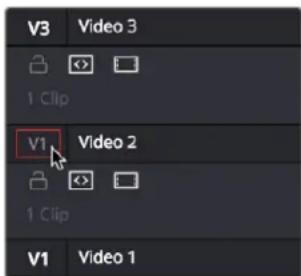
Setting the destination control to the track you want to edit into.
6 In the Timeline Viewer or the Timeline itself, use the pointer, Spacebar, or JKL controls to move the Timeline playhead to the frame you want the beginning of the clip you're about to edit to start. If no In or Out points are set in the Timeline, the playhead position is used as the In point by default.
7 To perform an overwrite edit, do one of the following:
– Drag the clip from the Source Viewer to the Timeline Viewer and drop it on the Overwrite overlay. If you're in single viewer mode, this overlay only appears when you drag a clip from the Media Pool to the Timeline Viewer.
- Click the Overwrite Clip button in the toolbar.
- Choose Edit > Overwrite (or press F10).
The selected clip(s) are overwritten to the selected track at the position of the playhead, and the playhead automatically moves to the end of the newly edited clip, ready for you to perform another edit. If that clip is the last one on the Timeline, you'll see the last frame to the left of the playhead (with a jagged overlay at the right-hand side of the Timeline Viewer) instead of the black that is the actual frame after that clip. This makes it easier for you to line up the next edit. Otherwise, the playhead will show whatever frame happens to be at that point in time.
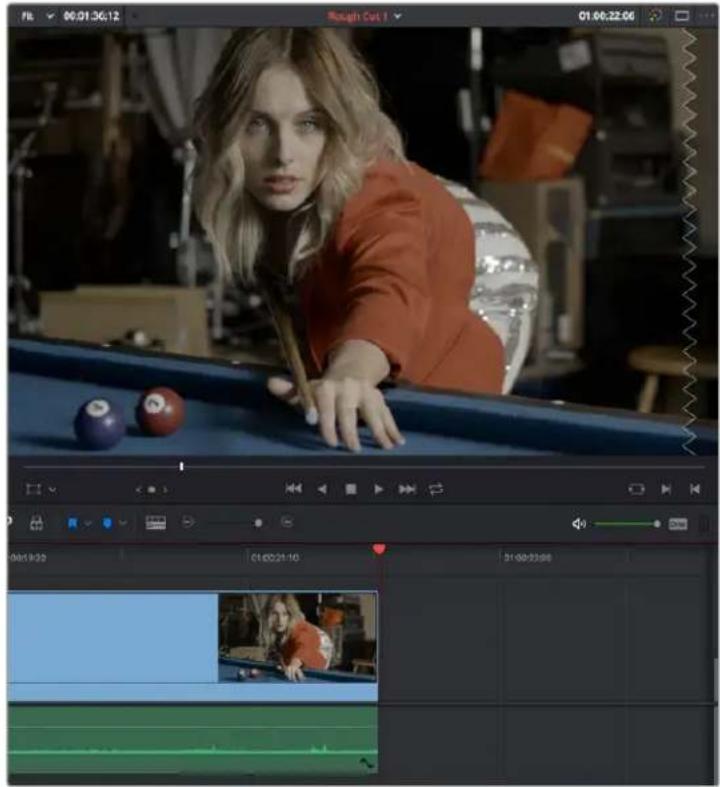
The Timeline playhead at the first frame after the clip you've just edited; the Timeline Viewer shows a jagged overlay at the right to let you know this isn't a real frame
8 To edit another clip, open the next clip you want to edit into the Source Viewer, set In and Out points, and use the Overwrite Clip button or command to edit it into the Timeline. Continue this process until you've edited together the assembly of edits you want.
Example: Assembling Clips Into the Timeline From the Media Pool
If you want, you can also edit clips directly into the Timeline from the Media Pool using a variety of commands. This can be a fast way of appending clips to the end of the Timeline (although you can also perform insert edits this way).
To edit one or more clips from the Media Pool to the Timeline:
1 Press Command-2 or click with the pointer to choose a clip in the Media Pool.
2 Set In and Out points for one or more clips in the Media Pool by doing one of the following:
- In Metadata view, drag the pointer over a clip's thumbnail and use the I and O keys. If Live Media Preview is enabled in the Source Viewer, dragging over a clip's thumbnail mirrors the content in the Source Viewer.
- In Thumbnail view, drag the pointer over a clip's thumbnail and use the I and O keys. If Live Media Preview is enabled in the Source Viewer, dragging over a clip's thumbnail mirrors the content in the Source Viewer.
– In List view, drag over the Media Pool Filmstrip Viewer and use the I and O keys. If Live Media Preview is enabled in the Source Viewer, dragging over the filmstrip mirrors the content in the Source Viewer.
3 Change the sort order of the Media Pool's browser area to put the clips into the order in which you want them to appear. In Thumbnail view you can use the Sort Order menu, but in List view you can click the header of any metadata column to sort by that column's data.
4 Click, drag, use the Command-Option and Command-Shift Up and Down Arrow Key shortcuts, or use the Option-1–8 and Command-Option-1–8 key shortcuts to assign the video and audio destination controls to the tracks you want to edit the video and audio of the incoming clip(s) to. Click any destination control itself to disable it if you want to edit clips into the Timeline as audio or video only.
5 Select one or more clips you want to edit. Insert, overwrite, place on top, ripple overwrite, and append at end edits are all capable of editing multiple clips at once, while replace and fit to fill edits can only edit one clip at a time, and will only edit the first of multiple selected clips into the Timeline.
6 To perform the edit, do one of the following:
- Use any of the editing commands in the Edit menu.
- Use the equivalent keyboard shortcuts to Insert (F9), Overwrite (F10), Replace (F11), Place On Top (F12), Ripple Overwrite (Shift-F10), Fit to Fill (Shift-F11), or Append To End of Timeline (Shift-F12) the selected clips into the Timeline.
- Right-click one or more selected clips in the Media Pool, and choose "Insert Selected Clips to Timeline" or "Append Selected Clips to Timeline."
The selected clip(s) are edited into the Timeline.
Making Selections in the Timeline
Once you've assembled a sequence of clips in the Timeline, you'll probably need to manipulate them further, moving, deleting, trimming, or otherwise adjusting the clips in the Timeline to make the edit play with the pacing and verve you require.
Manually Selecting Clips in the Timeline
Many operations require you to make a selection first, to define the scope of what you're about to do. There are many ways to do so.
Selections you can make using the mouse:
- To select one clip: Click a clip with the mouse.
- To select a continuous range of clips by dragging: Drag a bounding box from an empty area of the Timeline to surround a group of clips.
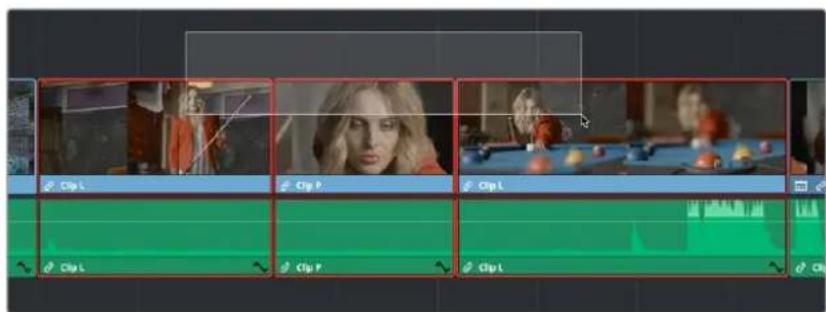
Dragging a bounding box to select a continuous range of clips in the Timeline
- To select a continuous range of clips by Shift-clicking: Click the first clip you want to select, and then Shift-click the last clip you want to select, and all clips in-between will automatically be selected as well.
- To select a discontinuous range of clips: Command-click any clips to select them no matter where they appear on the Timeline. Command-clicking a selected clip deselects it.
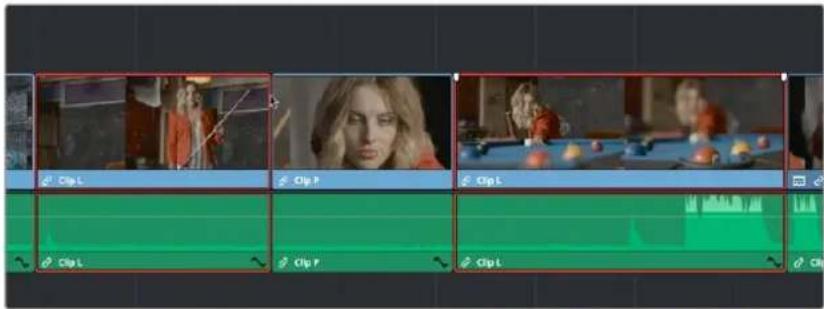
Command-clicking to select a discontinuous range of clips in the Timeline
Selecting clips using the keyboard or menu commands:
- To select one clip: Using the keyboard, make sure the Auto Select button for the track the clip is on is enabled, then move the playhead over that clip and press Shift-V.
- To select a clip using keyboard navigation: Holding down the Command key and pressing the Up, Down, Left, and Right Arrow keys allows you to select clips above and below the current track and to the left and right, independently of the playhead.
- To select all clips forward of the playhead on the current track: Move the playhead to the first clip you want to include in the selection, then press the Y key (Timeline > Select Clips Forward > On This Track) to select that clip and every clip to its right in the same track of the Timeline.
- To select all clips forward of the playhead on all tracks: Move the playhead to the first clip you want to include in the selection, then press Option-Y (Timeline > Select Clips Forward > On All Tracks) to select that clip and every clip to its right in all tracks of the Timeline.
- To select all clips backward from the playhead on the current track: Move the playhead to the last clip you want to include in the selection, then press Command-Y (Timeline > Select Clips Backward > On This Track) to select that clip and every clip to its left in the same track of the Timeline.
- To select all clips backward from the playhead on all tracks: Move the playhead to the last clip you want to include in the selection, then choose Command-Option-Y (Timeline > Select Clips Backward > On All Tracks) to select that clip and every clip to its left in all tracks of the Timeline.
- To select all clips in the Timeline: Make sure the Timeline has focus, then press Command-A.
To change which clip is selected using the keyboard:
- Select a clip, then use the Up Arrow and Down Arrow keys to change the selection to the previous or next clip among all tracks with Auto Select turned on.
Selecting Clips Based on Markers, Flags, and Clip Color
It's also possible to select multiple clips that have a particular color of marker, flag, or clip coloration. This is useful in any situation where you're using these organizational tools to keep track of clips with specific characteristics that you might need to later select for multi-clip operations.
For example, you might add purple markers to a series of audio clips that might need special EQ settings. Later, you can choose Timeline > Select Clips With Marker Color > Purple to select all of those clips in order to move them to another track, where you can apply the same EQ to all of them using an audio filter applied to the track. There are three ways of selecting groups of clips.
To select groups of clips based on marker, flag, or clip color:
- Choose Timeline > Select Clips With Flag Color > Blue - Cream
- Choose Timeline > Select Clips With Marker Color > Blue - Cream
- Choose Timeline > Select Clips With Clip Color > Orange - Chocolate
Selecting Edits in the Timeline
A variety of editing and trimming methods require you to select an edit point, or part of an edit point, in order to resize, ripple, or roll an edit. You can do so using the mouse or using the keyboard.
Methods for selecting edit points using the mouse:
- To select an edit to roll: Move the mouse to the center of an edit point, and when the ripple cursor appears, click to select the edit.
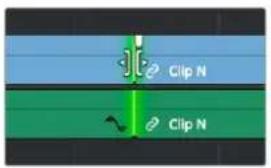
Selecting an edit point to roll
- To select just the incoming or outgoing half of an edit point to resize or ripple: Move the mouse to the left or right of the center of an edit, and when the resize/ripple cursor appears, click to select that portion of the edit.
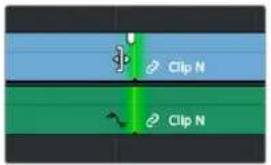
Selecting incoming or outgoing halves of an edit point to resize or ripple
To select multiple edit points, do one of the following:
- To select multiple roll points: Command-click the center of multiple edit points. Command-click a selected edit point to deselect it.

Command-clicking the center of several edits to prepare to roll them all
- To select multiple ripple points: Command-click the left or right sides of multiple edit points.

Command-clicking the left or right of several edits to ripple them all
- To drag to select many edit points: Select the Trim tool (T), and drag a bounding-box over the edit points you want to select. You can press U to switch all selected edit points among rippling incoming edits, rippling outgoing edits, and rolling edits.

Using the Trim tool, you can drag a bounding box to select multiple edits
There is also a flexible set of keyboard shortcuts that makes it easy to select edit points in preparation for various operations if you like to avoid using the mouse.
Keyboard shortcuts for selecting edits:
- V: Selects the nearest edit point to the playhead on the lowest track with Auto Select enabled. Selects both the audio and video edit points of a clip together.
- Option-E: Selects the nearest video edit point to the playhead on the lowest track with Auto Select enabled. Linked audio edit points are not selected.
- Shift-E: Selects the nearest audio edit point to the playhead on the lowest track with Auto Select enabled. Linked video edit points are not selected.
- U: Once you've selected an edit point, this shortcut toggles among selecting the outgoing half, incoming half, or the entire edit.
- Option-U: Once you've selected an edit point, this shortcut toggles among selecting the video+audio of the edit, just the video, or just the audio.
To move the selection to another edit:
- Select a single edit point, then use the Up Arrow key (Previous Edit) or Down Arrow key (Next Edit) to change the selection to the previous or next edit point among all tracks with Auto Select turned on.
To deselect all edit points:
- Using the mouse: Click any empty area of the Timeline.
- Using the keyboard: Press Shift-Command-A.
A Practical Example of Keyboard-Driven Selections
Here's an example of how you would use these keyboard shortcuts together as a sequence of operations.
To select an edit point using the keyboard:
1 Press Command-4 to give focus to the Timeline.
2 Move the Timeline playhead close to the edit point you want to select using the JKL keys.
3 Press the V key to select the nearest edit point to the playhead on the lowest track with Auto Select enabled. If there are overlapping superimposed clips on multiple tracks, turn off the Auto Select controls of tracks with edits you don't want to select using Option-F1 through Option-F8 corresponding to the Auto Select controls on tracks 1–8. Using the mouse, you can solo a track's Auto Select state by Option-clicking its Auto Select button. (Option-F9 toggles the Auto Select controls of all video tracks.)
4 Initially, the entire edit is selected, in preparation for a roll edit. To toggle among selecting the outgoing half, incoming half, and the entire edit, press the U key.
5 To toggle among selecting the video+audio of the edit, just the video, or just the audio, press Option-U.
6 Perform whatever operation you need to. When you're finished, using Up-Arrow or Down-Arrow to move the selection backward or forward in the Timeline, or press Command-Shift-A to deselect it.
Using Auto Select Controls to Define Selections
The Timeline Auto Select controls are extremely useful and versatile controls that serve many purposes. In short, they give you a way to specify which tracks will be affected or considered when you're performing an operation upon multiple superimposed clips on multiple tracks of the Timeline.
Also, the Timeline Auto Select controls are particularly convenient when you're using keyboard shortcuts to edit and you don't want to have to grab your mouse to explicitly select a single clip, since you can turn Auto Select on or off via keyboard shortcuts.
Defining Selections With the Help of Auto Select Controls
Here is the easiest example of when the Auto Select controls are indispensable. In the following example, there are two superimposed video clips and three superimposed audio clips. Supposing you only want to delete the media from tracks V2, V1, and A1, but you want to leave the media on A2 and A3 alone, you can turn off the Auto Select controls for tracks A2 and A3, and set Timeline In and Out points to define the range of the clips you want to delete. When you press the Delete key, only the media on the Auto Select-enabled tracks is deleted.
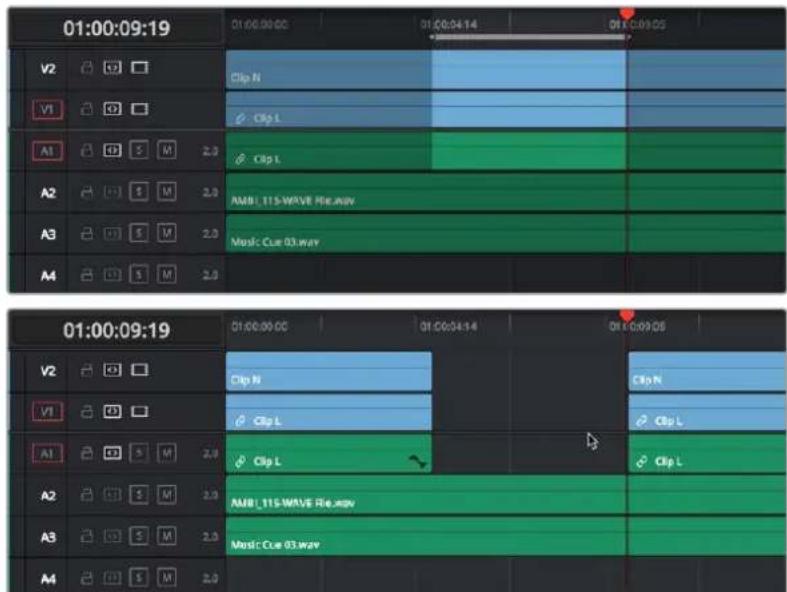
Before and After deleting a clip with Auto Select on Tracks A2, A3, and A4 turned off
TIP: If you set In and Out points to perform an operation and you don't see any shading in the Timeline to indicate which parts of the Timeline will be affected and which won't, chances are you have another selected clip in the Timeline somewhere you can't see that's overriding auto select. Press Command-Shift-A to de-select all and things should go back to normal.
Overriding Automatic Selections by Making Manual Selections
It's important to note that manual selections that you make which highlight specific clips in the Timeline always override whatever the Auto Select control of a track is set to. In the following example, three clips are superimposed and the Auto Select control of every track except V2 has been turned off. Setting Timeline In and Out points now automatically defines that region of the clip on track V2 to be deleted were you to press the Delete key. You can see the affected part of the Timeline because it's highlighted while the rest of the Timeline is dimmed.
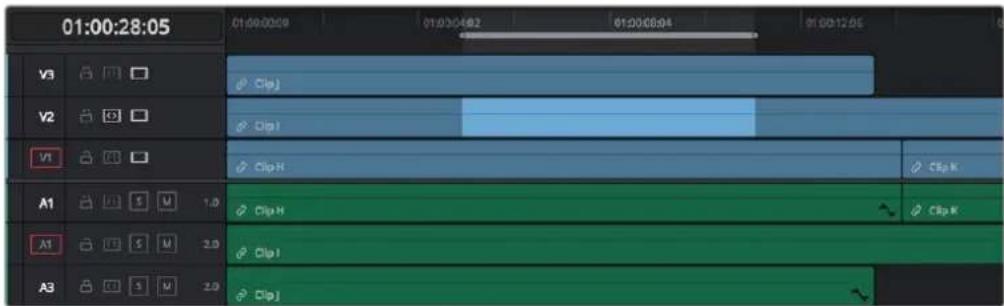
Soloing the Auto Select control on track V2 to limit a Delete operation
However, if you clicked the clip on track V1 to select it manually, the automatic selection defined by the In and Out points disappears in favor of the highlighted clip you just clicked. This is because manual selections almost always take precedence over automatic selections you define using the In and Out points and Auto Select controls.
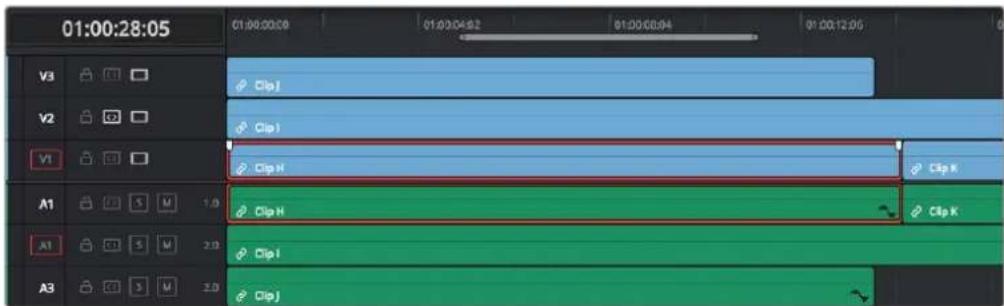
Making a manual selection overrides the Auto Select controls
This is good to keep in mind for situations where the fastest way to do the operation you need to do is to simply manually select the clip you want to define the operation.
Using Auto Select Controls to Control Other Operations
Other operations that are affected by the Auto Select controls include any command that uses "the clip on the lowest-numbered track with Auto Select enabled" to define what happens. This includes Copy and Paste, Mark Clip, Go To Next Edit/Previous Edit, the Selection Follows Playhead mode, Next Gap/Previous Gap, and so on (a full list of affected operations appears later).
A common example of when this is important is whenever you use the Mark Clip command to automatically set In and Out points to match the duration of a clip on the Timeline. If that clip happens to be at a section of the Timeline where there are multiple superimposed clips, each of which has a different duration, then by default the In and Out points (first and last frames) of the clip on the lowest numbered track is used to set Timeline In and Out points when you use Mark Clip.
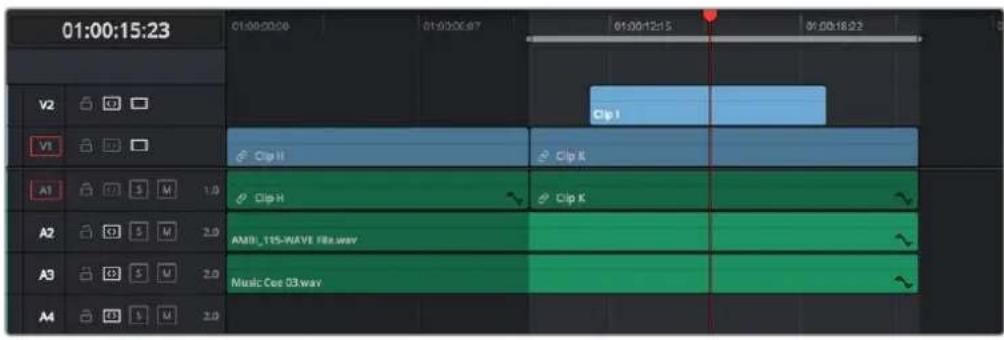
Using Mark Clip with all Auto Select controls enabled, the clip on the lowest-numbered video track with Auto Select enabled defines the result
However, if you disable the Auto Select control of track V1, then whichever clip is on the lowest video track with Auto Select still enabled is used as the target clip for the Mark Clip operation. In this example, the shorter clip on track V2 now sets the locations of the In and Out points.
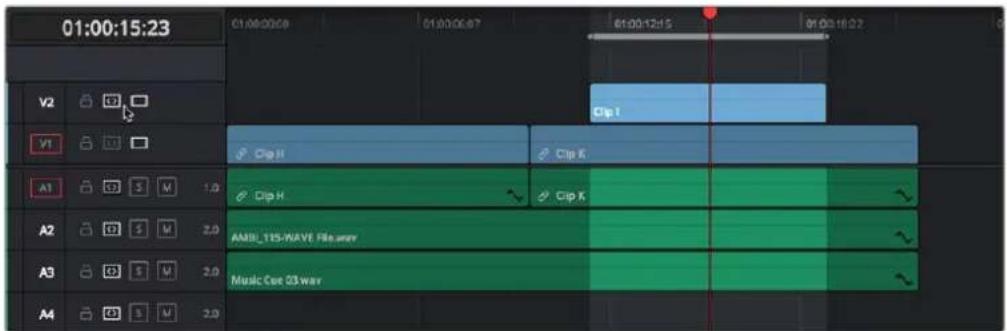
Using Mark Clip with Auto Select controls enabled
Methods of enabling and disabling the Auto Select controls:
- To toggle Auto Select for any track: Click any track's Auto Select control.
- To toggle Auto Select for video tracks: Press Option-F1 through F8 to toggle Auto Select on the corresponding tracks.
- To toggle Auto Select for audio tracks: Press Option-Command-F1 through F8 to toggle Auto Select on the corresponding tracks.
- To toggle all video track Auto Select tracks off and on: Press Option-F9.
- To toggle all audio track Auto Select tracks off and on: Press Option-Command-F9.
- To "solo" Auto Select for a track and disable Auto Select on all other tracks: Option-click any Auto Select control to leave that control on while turning off all other Auto Select controls of that type (video or audio).
- To turn all audio or video Auto Select controls on and off: Shift-click any video or audio Auto Select control to toggle on or off all Auto Select controls of that type (video or audio).
The following operations are affected by the state of each track's Auto Select control:
- Cutting, ripple cutting, copying, or deleting clips: When using Timeline In and Out points to delete a range of media from the Timeline, only media on tracks with an enabled Auto Select control will be cut, copied, or deleted.
-
Deleting gaps: When selecting and deleting gaps in the Timeline, clips on other tracks that overlap the selected gap will also be deleted on tracks with an enabled Auto Select control. Media to the right of affected tracks will ripple left to close the gap.
-
Selecting edit points using the keyboard: When you press V to select the nearest edit point, the edit point on the lowest track with Auto Select enabled is selected. When pressing the Up Arrow and Down Arrow keys to move the selection from edit point to edit point, edit points on tracks with a disabled Auto Select control are ignored.
- Selecting clips using the keyboard: When a clip is selected, you can press the Up Arrow and Down Arrow keys to move the selection from clip to edit clip, but clips on tracks with a disabled Auto Select control are not seen by this operation.
- Using Mark Clip: When using the Mark Clip command, clips on tracks with disabled Auto Select controls are ignored. This lets you choose a target clip to use for marking the clip when there are multiple overlapping superimposed clips.
- Match Frame: When making a Match Frame operation, clips on tracks with disabled Auto Select controls are ignored. This lets you choose a target clip to use for matching a frame when there are multiple overlapping superimposed clips.
- Rippling the Timeline during a trim operation: Tracks with Auto Select turned off will not be rippled. For more information on the rules of ripple trimming, see Chapter 43, "Trimming."
- Pasting clips: All copied clips will be pasted to the lowest numbered track with Source Control enabled. If all tracks of a particular type have their Auto Select controls turned off, then no clips of that type will be pasted at all.
- Paste Insert: Tracks with Auto Select turned off will not be rippled or affected by clips being pasted via a Paste Insert command.
- Using the insert or ripple overwrite edits: Only clips on tracks with Auto Select turned on will be rippled during an insert edit or ripple overwrite edit.
– Finding gaps: When using Playback > Previous Gap (Command-Option-Semicolon) or Next Gap (Command-Option-Apostrophe), gaps on tracks with Auto Select disabled will be ignored. - Using Selection Follows Playhead: When you turn on "Selection Follows Playhead" so that the clip intersecting the position of the playhead is automatically selected. If multiple clips are intersecting the playhead, the clip on the highest track will be selected. Clips on tracks with Auto Select disabled will not be selected.
Locking Tracks You Don't Want to Change
Another step you can take to prepare before performing any kind of editorial operation is to lock tracks with media that you don't want to be affected by whatever it is you're about to do. For example, if you have a complex set of music edits on track A3 that you don't want to be affected by operations that will ripple the Timeline, you can lock track A3 so those clips remain unaffected.
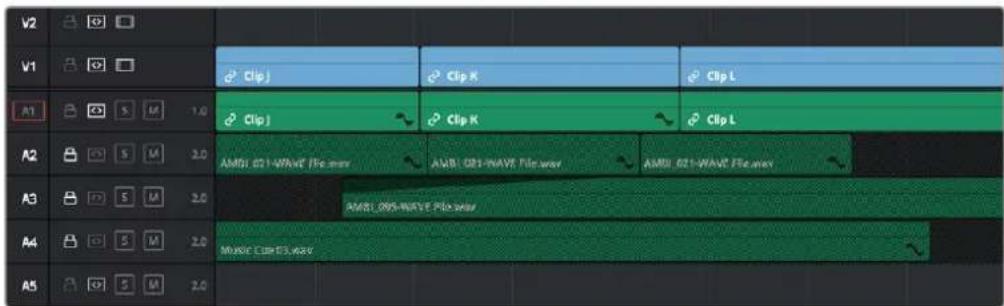
Tracks V2, V1, and A1 are unlocked, while tracks A2, A3, and A4 are locked
Clips on locked tracks cannot be moved, deleted, cut, or otherwise affected by editorial operations. Furthermore, parameters of locked clips cannot be edited in the Inspector. However, clips on locked tracks can be graded and otherwise modified in the Color page.
To toggle the lock or unlock state of tracks, do one of the following:
- Click any track's lock control to toggle lock on and off.
- Shift-click any track's lock control to toggle locking on and off for all tracks.
- Press Option-Shift-1 through 8 to lock or unlock tracks V1 through V8.
- Press Option-Shift-9 to lock or unlock all video tracks.
- Press Option-Shift-F1 through F8 to lock or unlock tracks A1 through A8.
- Press Option-Shift-F9 to lock or unlock all audio tracks.
Position Lock for Finishing
In a nutshell, turning position lock on prevents clips from being moved to the left or right, and it prevents all ripple operations. This is primarily useful when you're near the end of post on a project for which the cut has been locked (or at least as "locked" as directors and producers allow any more), but you still need to make surgical changes that don't risk throwing the video out of sync with audio that may be being edited and mixed elsewhere because of an accidentally rippled edit.
With position lock on, you can still make edits (such as Replace), slip clips, roll edits, add Resolve FX and other Open FX, and alter all manner of effects in the Inspector. You just can't do anything that alters the position of clips in the Timeline, or ripples entire sections of the Timeline.
There are two ways you can enable Position Lock.
Position Locking All Tracks
You can turn Position Lock on and off for all tracks via a button in the toolbar above the Timeline.
The Position Lock button on the toolbar
When you turn position lock on, the Lock button of all tracks changes to show that position lock is enabled instead.
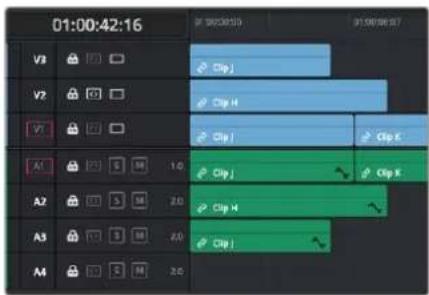
Position lock indicated by each track's Lock icon changing
Position Locking Individual Tracks
You can also be extra tricky and enable position lock on a track-by-track basis by Command-clicking any track's Lock button.
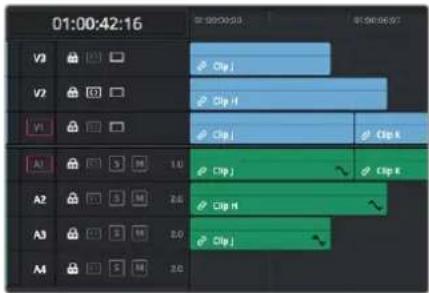
Command-click any track's Lock button to put that track into Position Lock mode
Position lock can be released by simply clicking that track's Lock icon.
Disabling and Re-Enabling Clips in the Timeline
Sometimes there's one or more video or audio clips in the Timeline that you don't want to play along with the rest of the edited sequence, but you don't want to remove from the Timeline either, in case you change your mind later. For this reason, it's possible to Disable clips, effectively turning them off without removing them.
Disabled clips appear dimmed in the Timeline. They don't play back, they're not rendered, and they're not output to video. However, their position is preserved in the Timeline, so you can always re-enable them at a later time if you change your mind and decide you want to use them.
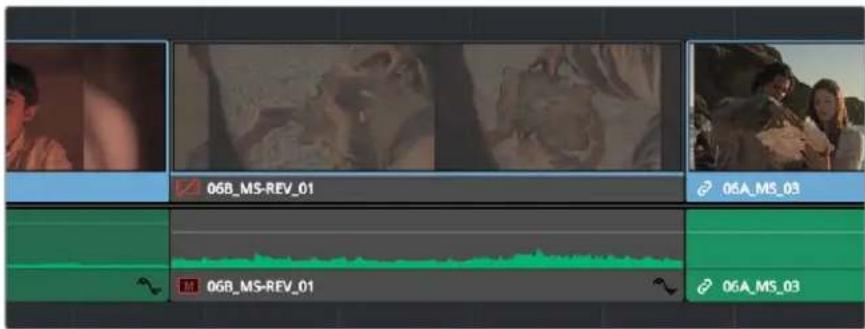
A clip that's been disabled between two enabled clips; the disabled clip is dimmed
To disable or re-enable one or more selected clips:
- Right-click part of the selection and choose Enable Clip from the contextual menu.
- Choose Clip > Enable Clip.
- Press D.
Deleting Clips and Gaps From the Timeline
There are two ways you can delete clips you don't want in the Timeline. Using the Delete key, you can perform what's sometimes called a "lift edit," removing the unwanted clips and leaving a gap. Using the Forward Delete key, you can perform a "ripple delete," removing unwanted clips and closing the gap by rippling the rest of the edited Timeline to the right of the deleted clip(s) by moving it to the left.
Deleting clips as a "lift edit" operation:
- To remove one or more clips from the Timeline, leaving a gap: Select a clip in the Timeline, or Shift-click or Command-click to select the clips you want to remove, and press the Delete key (or right-click the selection and choose Delete).
- To remove a range of media from the Timeline on multiple tracks, leaving a gap: Set Timeline In and Out points defining the range of media you want to delete, then turn off the Auto Select controls of any tracks with media you want to preserve, and press the Delete key (or right-click the selection and choose Delete).
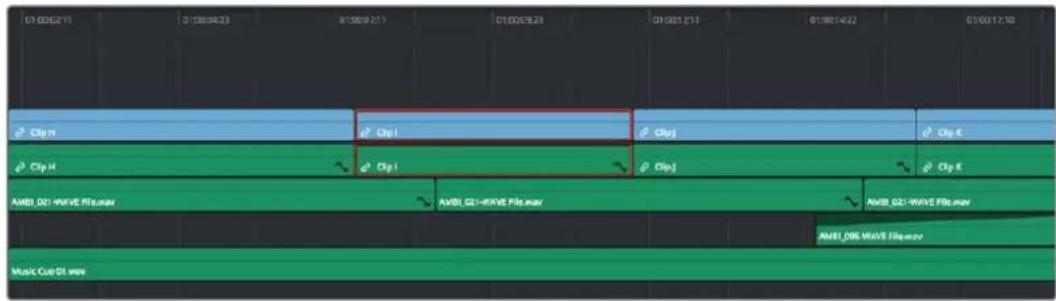
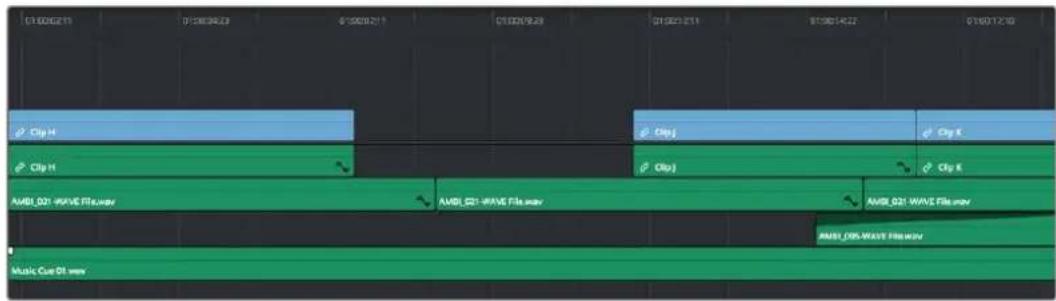
Deleting Clip I using the Backspace or Delete key and leaving a gap
Deleting clips as a "ripple delete" operation:
- To delete one or more clips and close the gap by rippling the Timeline left: Select a clip in the Timeline, or Shift-click or Command-click to select the clips you want to remove, and press the Forward Delete key.
- To delete a range of media and close the gap by rippling the Timeline left: Set Timeline In and Out points defining the range of media you want to delete, then turn off the Auto Select controls of any tracks with media you want to preserve, and press the Forward Delete key.
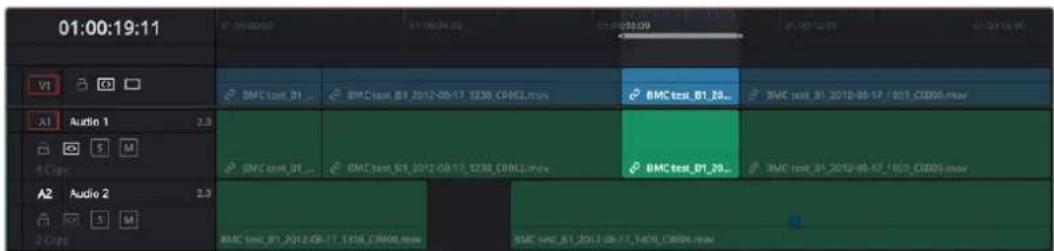
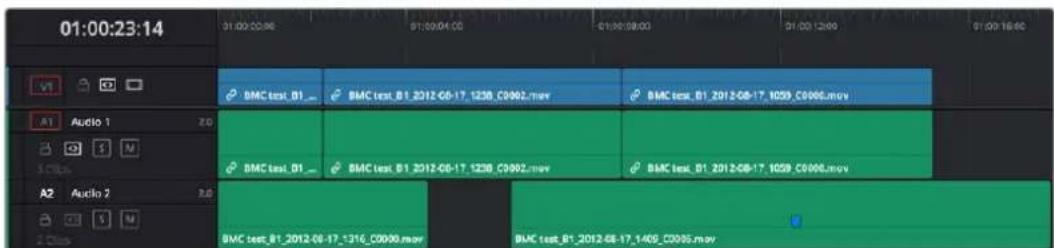
Deleting Clip I using the Forward Delete key to ripple all clips with In points to the right in the Timeline to close the gap
As with any ripple operation, all clips with In points to the right of the deleted range of media on tracks with auto select enabled are rippled to close the gap, and any clips with In points to the left of the In point of the affected range of media are unaffected.
Finding, Selecting, and Deleting Gaps in the Timeline
A gap is defined as a space between any two clips on the same track. Often gaps are desirable as they allow audio or video clips to be spaced apart from one another very specifically, but sometimes they're not. If you want to find accidental gaps in your timeline that may be too small to see, a pair of commands lets you do this.
To move the playhead to the next gap on the Timeline:
1 Turn off the Auto Select controls of any tracks you want to omit from this operation.
2 Do one of the following:
- Choose Playback > Previous Gap, or press Option-Command-Semicolon (;) to move the playhead to the next gap to the left of the playhead's current position.
- Choose Playback > Next Gap, or press Option-Command-Apostrophe (') to move the playhead to the next gap to the right of the playhead's current position.
To select or deselect a gap:
- Click once to select a gap, and click that gap again to deselect it.
You can only select one gap at a time. The principal reason to select a gap is to delete it, in the process rippling the Timeline to close the gap. In the following example, there's a gap between two clips on track V1 that you'd like to close.
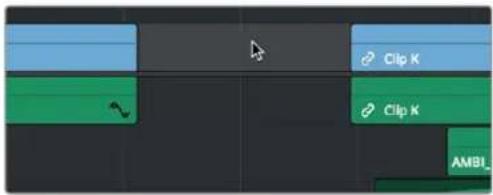
Selecting a gap on track V1
To delete a gap:
- Press the Delete key to close the gap. All clips to the right of it on tracks with Auto Select enabled will be rippled to the left to close the gap. Clips on tracks with Auto Select disabled will not ripple.
If you select a gap in a timeline with clips on multiple tracks, which clips will be deleted depends on the state of the Auto Select controls for each track in the Timeline.
- All tracks with Auto Select enabled: The range of media that overlaps the selected gap will also be deleted. Clips on those tracks will ripple left to fill the gap.
- All tracks with Auto Select disabled: The range of media that overlaps the selected gap will be left intact, and clips on those tracks will not ripple left, going out of sync with whichever clips do ripple.
Deleting Multiple Timeline Gaps at Once
You can also ripple-delete video and audio gaps in the Timeline all at once using the Edit > Delete Gaps command. This removes gaps among consecutive clips in the Timeline on all Auto Select enabled tracks. Each segment of the Timeline with a gap is rippled, in order to move clips that are to the right of each gap left to close that gap.
All gaps are defined for purposes of this command as empty spaces between clips that span all tracks in the Timeline. In the following example, various audio/video, audio-only, and video-only clips have gaps between them. Using Remove Gaps causes the Timeline to be rippled such that these clips abut one another as a continuous sequence, without any of them overlapping any others.
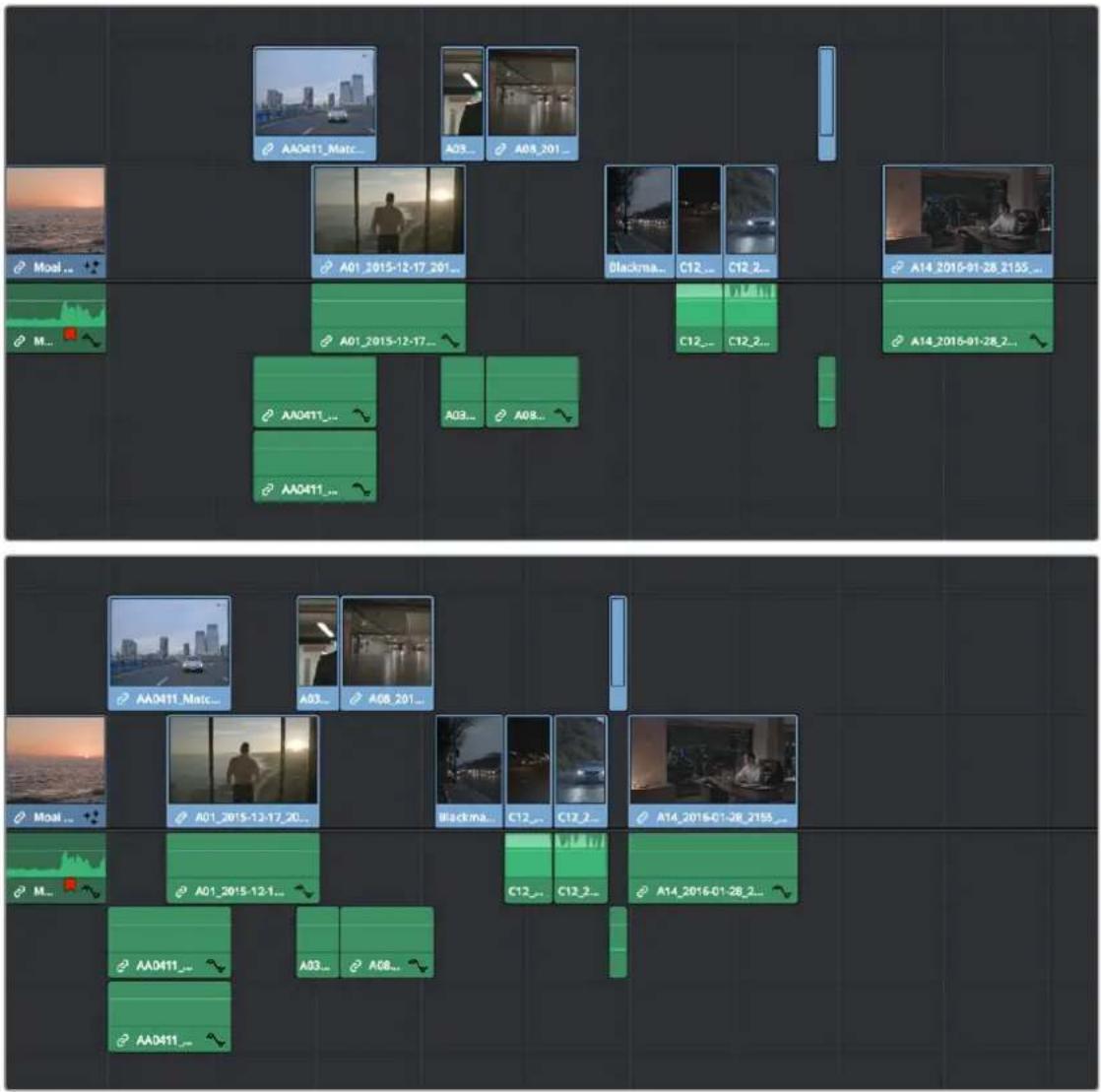
(Top) Before removing gaps, (Bottom) After removing gaps
This is an extremely powerful and wide-ranging command. However, it's made safer by following strict rules in order to maintain overall A/V sync in timelines:
- Gaps will not be removed past the point where video and/or audio clips will overlap one another.
- Gaps will not be removed if they're under superimposed video clips that bridge the gap.
- Gaps will not be removed if one or more continuous audio clips bridge the gap.
- You can limit the range of the gaps to be deleted by setting In/Out points on the Timeline.
- If a linked set of video and audio items has a gap that includes an L or J split edit, it will be closed to the point that the audio or video, whichever extends the farthest, abuts the nearest clip to it.
Disabling a track's Auto Select Control omits that track from consideration when following the above rules. This lets gaps on other tracks be closed so clips overlap those on the Auto Select-disabled track.
WARNING
Performing Remove Gaps with Auto Select disabled on one or more tracks could result in massive loss of video/audio sync if you're not careful. To avoid this, Shift-click one video Auto Select control (or press Option-F9) and one audio Auto Select control (or press Command-Option-F9) to toggle all video and all audio Auto Select controls until they're all turned on at once.
Audio/Video Linking
DaVinci Resolve gives you complete control over the linked relationship between the video and audio associated with a clip. By default, DaVinci Resolve tries its best to keep the video and audio of clips and timelines in sync. However, there are several ways you can suspend automatic syncing when you need to make a specific kind of edit.
Controlling Linked Selection
While selecting edits and clips, you can also choose whether the video and audio associated with a clip should be selected together (linked) or not. This determines whether operations performed to the video of a clip automatically affect the audio of the clip, and vice versa. In most instances, you'll probably want to leave Linked Selection turned on, so that selecting the video of a clip to move it elsewhere in the Timeline also results in the audio being selected and moved at the same time. Disabling A/V linking in this case could cause your video and audio to go out of sync undesirably.
However, there are plenty of instances when you'll want to temporarily suspend this linked A/V relationship, such as when you want to create a split edit, where a clip's audio In point is at a different frame than the video In point. In this case, you can suspend Linked Selection to select just the audio In point, then roll it either farther back or forward to create the split, without changing the In point of that clip's video. When you're finished, you can re-enable A/V linking.
At all times, the state of Linked Selection is visible via the Chain-link button at the right of the toolbar.
The Link Audio/Video button
To turn Linked Selection off and on:
- Click the Link Audio/Video button (or press Shift-Command-L).
To temporarily suspend Linked Selection while making a selection:
- Press the Option key while clicking a clip or edit point to select the video without selecting the audio, or vice versa.
Linked Move Across Tracks
The Timeline > Linked Move Across Tracks setting works in conjunction with Linked Selection to let you change how linked video and audio items move in the Timeline when you drag them up and down to reorganize clips from track to track. Depending on the task at hand, one or the other behaviors might be more convenient, but no matter how you have this mode set, video/audio sync is always maintained when you move clips left and right.
- When Linked Move Across Tracks is enabled: (On by default) Dragging one of a linked pair of video and audio items up or down in the Timeline moves the linked item up or down as well. So, moving a video clip from track V1 to V2 results in its linked audio clip moving from track A1 to A2 as well.
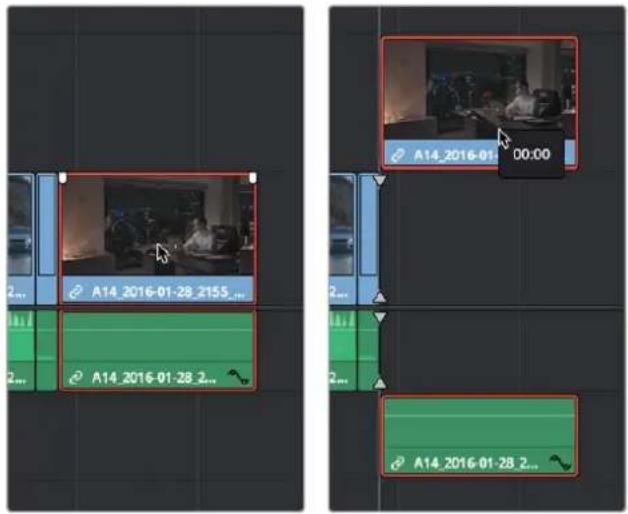
Before and after with Linked Move Across Tracks enabled; if video clip is moved, the linked audio clip moves simultaneously
- When Linked Move Across Tracks is disabled: Dragging one of a linked pair of video and audio items up or down to another track in the Timeline only moves that one item, other linked item(s) remain in the same track. So, moving a video clip from track V1 to V2 leaves the audio clip in track A1, where it was originally. This makes it easy to reorganize video clips into different tracks while leaving your audio clips organized the way they were, or vice versa. Keep in mind that in this mode, while you can move one item of a linked pair up and down freely, moving that item left or right results in all linked items moving by the same amount, so sync is maintained.
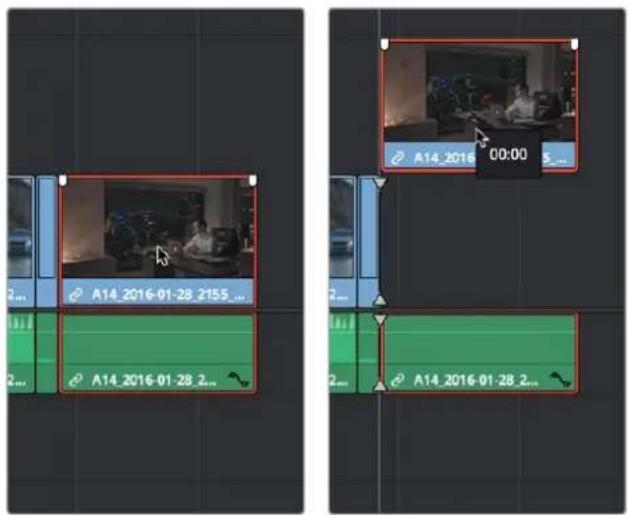
Before and after with Linked Move Across Tracks disabled; if the video clip is moved, the linked audio clip remains in its original position or vice versa
Dealing with Audio Video Sync Offsets
Audio/video sync is one of the most important things to maintain in any edited program. However, there are times when you may want to override the sync relationship of a clip's audio and video to make a particular edit, so moving a clip's audio and video out of sync is allowed.
If you disable Linked Selection and then move the audio or video of a clip independently of its linked video or audio counterpart, you'll see red "out-of-sync" indicators at the left of each clip's name bar, that displays the timecode offset by which the audio and video of that clip are out of sync. In the following example, the audio and video of a clip have been moved out of sync by Option-clicking the video and dragging it to the left.
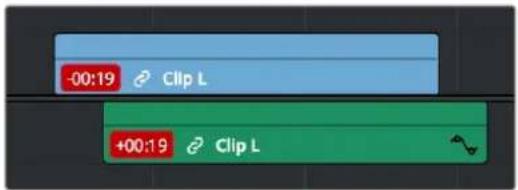
Sync markers on a clip with audio and video out of sync
If you've moved the audio and video of a clip out of sync with one another, there's a really easy way of getting them back into sync, by right-clicking the red out-of-sync indicator of any clip and choosing one of the available commands:
- Slip into place: Slips the content of the selected clip, without moving the clip, so that it's in sync with the other items that are linked to that clip.
- Move into place: Moves the selected clip so that it's in sync with the other items that are linked to that clip.
- Slip others into place: Slips the content of all other items that are linked to the selected clip, without moving them, so that all linked items are in sync.
- Move others into place: Moves all other items that are linked to the selected clip so that all linked items are in sync.
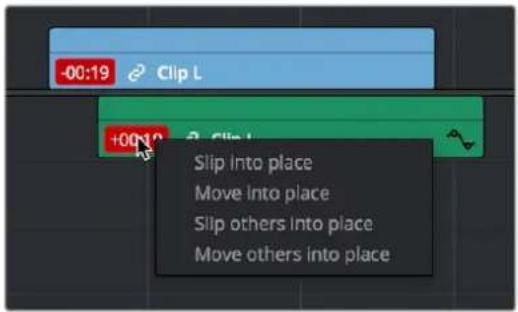
Commands in the contextual menu of sync tooltips
Manually Unlinking and Relinking Audio and Video
By default, clips that you import into DaVinci Resolve have their video and audio linked together, which makes it easy to maintain the relationship and sync of the audio and video components of a clip while you're editing. However, there are many reasons you might want to override this automatic relationship, either breaking the A/V linking of a clip's audio and video completely, or breaking it and relinking in a different way, or to different clips.
Methods of permanently changing audio/video linking in the Timeline:
- To unlink audio and video from one another: Select a clip, then right-click it and choose Link from the contextual menu (or press Option-Command-L). Unlinked clips do not appear with a chain icon before the clip name in the Timeline.
- To link audio and video clips to one another: Command-click an audio clip and a video clip so they're both selected, then right-click the selected clips and choose Link from the contextual menu (or press Option-Command-L). A chain icon appears before the name of linked clips in the Timeline.
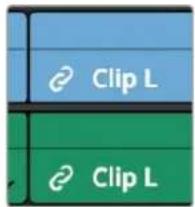
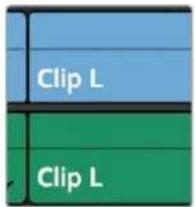
(Left) linked video and audio with a chain icon to the left of the clip name, (Right) unlinked audio and video items have no icon.
Linking Multiple Clips in the Timeline
You don't just have to link audio and video clips that sync together, though. You can actually link any number of video and audio clips that you want to be able to select, move, and edit together as one, even if they were never originally meant to be synced. This makes linking an organizational mechanism as much as a sync management tool. Here are some examples of how you can use this:
- You can link a text generator with a subtitle to the clip it plays along with.
- You can link a sandwich of overlapping audio sound effects with the video clip they accompany.
- You can link off camera audio to an on camera shot.
- You can link the background and foreground clips of a green screen composite, with sound from both.
Linking multiple clips in the Timeline works the same as linking a single audio and video clip together; every single linked item appears with a chain icon to the left of the clip name, and suspending linked selection to force any single clip out of sync will result in the display of an "out-of-sync" indicator.
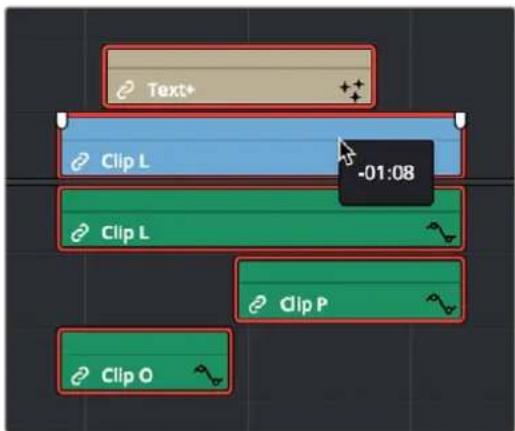
Multiple audio and video items that have been manually linked together to act as a single clip in the Timeline when Linked Selection is enabled
Commands for Slipping Audio/Video Sync
Another set of commands in the Trim > Slip Audio submenu let you slip the contents of one or more selected clips in order to alter the sync between the audio and video, either in whole frame increments, or in sub-frame increments if there are clips with marginal sync that you want to improve.
– One Frame Forward (Option-Period)
– One Frame Reverse (Option-Comma)
– One Subframe Forward (Option-Right Arrow)
– One Subframe Reverse (Option-Left Arrow)
Chapter 37
Using the Inspector in the Edit Page
The Inspector holds all the controls to modify, resize, retime and generally adjust anything related to a clip, transition, or effect on the Edit page Timeline.
Contents
Using the Inspector 613
Video 613
Audio 619
Effects 620
Transition 621
Image 622
File 623
Using the Inspector
The Inspector has been redesigned to make it easier to find specific controls and to adjust common settings for your clips. Instead of a long vertical list, different aspects of the Inspector have now been organized into panels, with each controlling specific grouped sets of parameters for your clip.
The Inspector is activated by clicking on the Inspector panel in the upper-right section of the User Interface toolbar. The Inspector is broken up into individual Video, Audio, Effects, Transition, Image, and File panels. Inspector panels that are not applicable to your clip or selection are grayed out.
The Inspector Panel icon in the upper right of the UI toolbar

The Inspector panels showing Video, Audio, and File parameters available for adjustment; others are grayed out.
Methods of using controls in the Inspector:
- To activate or deactivate a control: Click the toggle to the left of the control's name. The orange dot on the right means the control is activated. A gray dot on the left means the control is deactivated.
- To reveal a control's parameters: Double-click the control's name.
- To reset controls to their defaults: Click the reset button to the right of the control's name.
Video
The Video panel of the Inspector exposes a vast array of controls designed to manipulate the size, speed, and opacity of your clips.
Transform
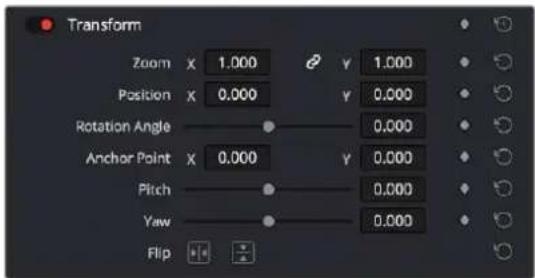
The Transform section of the Video Inspector panel
The Transform group includes the following parameters for resizing and repositioning your clips:
- Zoom X and Y: Allows you to blow the image up or shrink it down. The X and Y parameters can be linked to lock the aspect ratio of the image, or released to stretch or squeeze the image in one direction only.
-
Position X and Y: Moves the image within the frame, allowing pan and scan adjustments to be made. X moves the image left or right, and Y moves the image up or down.
-
Rotation Angle: Rotates the image around the anchor point.
- Anchor Point X and Y: Defines the coordinate on that clip about which all transforms are centered.
- Pitch: Rotates the image toward or away from the camera along an axis running through the center of the image, from left to right. Positive values push the top of the image away and bring the bottom of the image forward. Negative values bring the top of the image forward and push the bottom of the image away. Higher values stretch the image more extremely.
- Yaw: Rotates the image toward or away from the camera along an axis running through the center of the image from top to bottom. Positive values bring the left of the image forward and push the right of the image away. Negative values push the left of the image away and push the right of the image forward. Higher values stretch the image more extremely.
- Flip Image: Two buttons let you flip the image in different dimensions.
- Flip Horizontal control: Reverses the image along the X-axis, left to right.
- Flip Vertical control: Reverses the clip along the Y-axis, turning it upside down.
Smart Reframe (Studio Version Only)
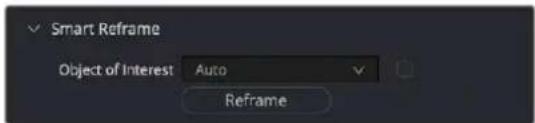
The Smart Reframe section of the Video Inspector panel
The Smart Reframe feature makes it easier to quickly reframe material across extreme aspect ratio changes. It's useful for situations where you've shot a 16:9 horizontal video and find yourself needing to create a vertically-oriented 9:16 version for mobile phones and social media deliverables, or using 4:3 archival footage in a 2.39:1 widescreen movie. Smart Reframe can be used manually, or automatically executed using the DaVinci Resolve Neural Engine.
- Object of Interest: Tools for selecting the subject that the resize will frame around.
- Auto: DaVinci Resolve's Neural Engine will analyze the clip and choose its most representative object. This will be the only option if more than one clip is selected for Smart Reframing.
- Reference Point: Allows you to manually adjust a bounding box around the subject to reframe around.
- Reframe: This button executes the Smart Reframe command. This can take some time depending on the length and number of clips.
Cropping
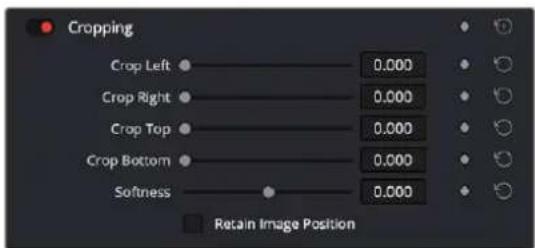
The Cropping section of the Video Inspector panel
The Video Inspector controls the image's cropping parameters.
- Crop Left, Right, Top, and Bottom: Lets you cut off, in pixels, the four sides of the image. Cropping a clip creates transparency so that whatever is underneath shows through.
- Softness: Lets you blur the edges of a crop. Setting this to a negative value softens the edges inside of the crop box, while setting this to a positive value softens the edges outside of the crop box.
- Retain Image Position: Clicking this checkbox will lock the crop parameters in place when you resize the image using the Transform tool above. Unchecking this box will scale and position the crop as well as the image.
Dynamic Zoom
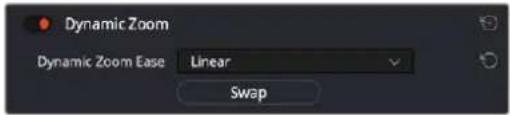
The Smart Reframe section of the Video Inspector panel
The Dynamic Zoom controls, which are off by default, make it fast and easy to do pan and scan effects to zoom into or out of a clip. Turning the Dynamic Zoom group on activates two controls in the Inspector that work hand-in-hand with the Dynamic Zoom onscreen adjustment controls. For more information on using the Dynamic Zoom controls, see Chapter 50, "Compositing and Transforms in the Timeline."
- Dynamic Zoom Ease: Lets you choose how the motion created by these controls accelerates. You can choose from Linear, Ease In, Ease Out, and Ease In and Out.
- Swap: This button reverses the start and end transforms that create the dynamic zoom effect.
Composite
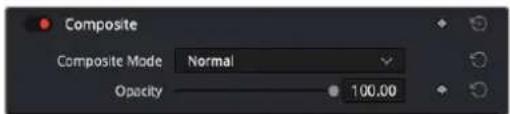
The Composite section of the Video Inspector panel
Composite modes can be used to combine clips that are superimposed over other clips in the Timeline.
- Composite Mode: This selects the type of composite mode to combine the superimposed clips. The default "Normal" means no compositing mode is applied. For more information on Composite Modes, see Chapter 50, "Compositing and Transforms in the Timeline."
- Opacity: This slider makes a clip more or less transparent in addition to compositing already being done.
Speed Change
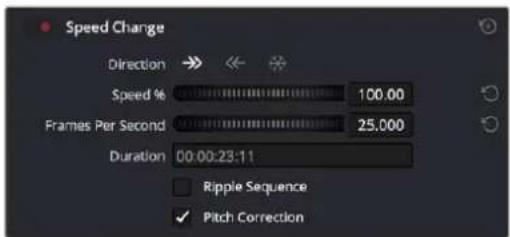
The Speed Change controls in the Video Inspector
You can change the speed of your clip directly in the Video Inspector's Speed Change controls. This method has the benefit of being available in both Cut and Edit pages.
- Direction: Selects the desired motion of the clip, forward, backward, or freeze frame.
- Speed %: Adjusting this slider changes the clips motion on a percentage basis. This value can be keyframed.
- Frames Per Second: Adjusting this slider changes the clips motion by increasing or decreasing the number of frames per second to play the clip back at. This value can be keyframed.
- Duration: You can directly select how long you want the clip to be by setting a specific duration here in HH:MM:SS:FF format. This will then automatically adjust the speed of the clip to playback all frames in that exact amount of time.
- Ripple Sequence checkbox: If you want the speed change you're about to make to ripple the Timeline, pushing or pulling all clips following the current one to accommodate the clip's new size, then turn on this checkbox.
- Pitch Correction checkbox: Checking this box will perform pitch correction on the audio attached to the clip so that while the audio duration is changed to match the picture speed, it will still sound natural. Be aware that pitch correction on large speed adjustments may not sound as good as pitch corrections made to small speed adjustments.
Stabilization
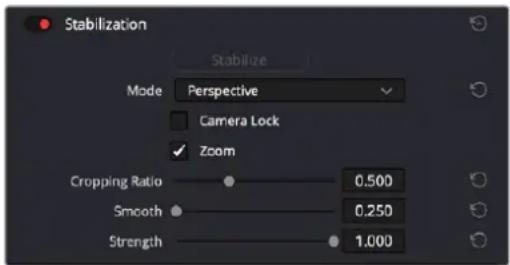
The Stabilization section of the Video Inspector panel
These controls let you smooth out or even steady unwanted camera motion within a clip. The analysis is performed in such a way as to preserve the motion of individual subjects within the frame, as well as the overall direction of desirable camera motion, while correcting for unsteadiness.
These are the same stabilizer controls found in the Color page's Tracker palette (minus the tracker graph), and the resulting stabilization analysis is mirrored on the Color page, where you can see the data visualized on the graph, if necessary.
A pop-up menu provides three different options that determine how the selected clip is analyzed and transformed during stabilization. You must choose an option first, before clicking the Stabilize button above, because the option you choose changes how the image analysis is performed. If you choose another option, you must click the Stabilize button again to reanalyze the clip.
– Perspective: Enables perspective, pan, tilt, zoom, and rotation analysis and stabilization.
- Similarity: Enables pan, tilt, zoom, and rotation analysis and stabilization, for instances where perspective analysis results in unwanted motion artifacts.
- Translation: Enables pan and tilt analysis and stabilization only, for instances where only X and Y stabilization gives you acceptable results.
The other controls let you customize how aggressively the selected clip is stabilized.
- Stabilization Toggle: The toggle control for the Stabilization controls lets you turn stabilization off and on to be able to compare the stabilized and unstabilized image.
- Camera Lock: Turning on this checkbox disables Cropping Ratio and Smooth, and enables the stabilizer to focus on eliminating all camera motion from the shot in an effort to create a locked shot.
- Zoom: When this checkbox is turned on, the image is resized by a large enough percentage to eliminate the blanking (black edges) that is the result of warping and transforming the image to eliminate unwanted camera motion. The lower a value Cropping Ratio is set to, the more DaVinci Resolve will need to zoom into an image to eliminate these blanked edges. If you turn this off, the image is not zoomed at all, and whatever blanking intrudes into the image is output along with the image, on the assumption that you'll have dedicated compositing artists deal with eliminating this blanking by filling in the missing image data in a more sophisticated manner. You may also leave this checkbox turned off if you're planning on animating the Input Sizing Zoom parameter to dynamically zoom into and out of a shot being stabilized to eliminate blanking only where it occurs, using only as much zooming as is necessary for each region of the shot.
- Cropping Ratio: This value limits how hard the stabilizer tries to stabilize, by dictating how much blanking or zooming you're willing to accept in exchange for eliminating unwanted motion. A value of 1.0 results in no stabilization being applied. Progressively lower values enable more aggressive stabilization. Changing this value requires you to click the Stabilize button again to reanalyze the clip.
- Smooth: Lets you apply mathematical smoothing to the analyzed data used to stabilize the clip, allowing camera motion in the shot while eliminating unwanted jittering. Lower values perform less smoothing, allowing more of the character of the original camera motion to show through, while higher values smooth the shot more aggressively. Changing this value requires you to click the Stabilize button again to reanalyze the clip.
- Strength: This value is a multiplier that lets you choose how tightly you want to use the stabilization track to eliminate motion from a shot using the current analysis. With a value of 1, stabilization is maximized. Since some clips might look more natural with looser stabilization, choosing a number lower than 1 lets a percentage of the original camera motion show through. Zero (0) disables stabilization altogether. As an additional tip, you can invert the stabilization by choosing -1 when pasting a stabilization analysis from another clip to perform a match move based on the overall motion of the scene, and you can use a negative value either lower than 0 or higher than -1 to under or overcompensate when inverting the stabilization, simulating the effects of parallax where foreground and background planes move together but at different speeds.
Lens Correction
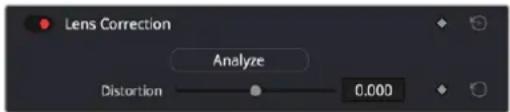
The Lens Correction section of the Video Inspector panel
The Lens Correction group (only available in Resolve Studio) has two controls that let you correct for lens distortion in the image, or add lens distortion of your own.
- Analyze: Automatically analyzes the frame in the Timeline at the position of the playhead for edges that are being distorted by wide angle lens. Clicking the Analyze button moves the Distortion slider to provide an automatic correction. If you're analyzing a particularly challenging clip, a progress bar will appear to let you know how long this will take.
- Distortion: Dragging this slider to the right lets you manually apply a warp to the image that lets you straighten the bent areas of the picture that can be caused by wide angle lenses. If you clicked the Analyze button and the result was an overcorrection, then dragging this slider to the left lets you back off of the automatic adjustment until the image looks correct.
Retime and Scaling
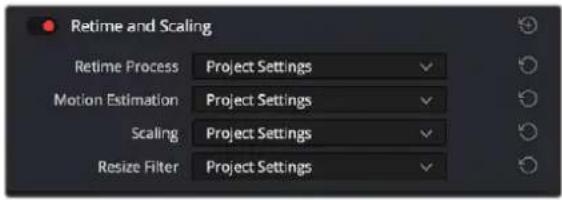
The Relime and Scaling section of the Video Inspector panel
The Retime and Scaling group has four parameters that affect retiming quality and clip scale:
- Retime Process: Lets you choose a default method of processing clips in mixed frame rate timelines and those with speed effects (fast forward or slow motion) applied to them, on a clip-by-clip basis. The default setting is "Project Settings," so all speed-effected clips are treated the same way. There are three options: Nearest, Frame Blend, and Optical Flow, which are explained in more detail in the Speed Effect Processing section of Chapter 51, "Speed Effects."
- Motion estimation mode: When using Optical Flow to process speed change effects or clips with a different frame rate than that of the Timeline, the Motion Estimation pop-up lets you choose the best-looking rendering option for a particular clip. Each method has different artifacts, and the highest quality option isn't always the best choice for a particular clip. The default setting is "Project Settings," so all speed-effected clips are treated the same way. There are several options. The "Standard Faster" and "Standard Better" settings are the same options that have been available in previous versions of DaVinci Resolve. They're more processor efficient and yield good quality that are suitable for most situations. However, "Enhanced Faster" and "Enhanced Better" should yield superior results in nearly every case where the standard options exhibit artifacts, at the expense of being more computationally intensive, and thus slower on most systems. The Speed Warp setting is available for even higher-quality slow motion effects using the DaVinci Neural Engine. Your results with this setting will vary according to the content of the clip, but in ideal circumstances this will yield higher visual quality with fewer artifacts than even the Enhanced Better setting.
- Scaling: Lets you choose how clips that don't match the current project resolution are handled on a clip-by-clip basis. The default setting is "Project Settings," so that all mismatched clips use the same method of being automatically resized. However, you can also choose an individual method of automatic scaling for any clip. The options are Crop, Fit, Fill, and Stretch; for more information see the 2D Transforms section of Chapter 149, "Sizing and Image Stabilization."
-
Resize Filter: For clips that are being resized in any way, this setting lets you choose the filter method used to interpolate image pixels when resizing clips. Different settings work better for different kinds of resizing. There are four options:
-
Sharper: Usually provides the best quality in projects using clips that must be scaled up to fill a larger frame size, or scaled down to HD resolutions.
- Smoother: May provide higher quality for projects using clips that must be scaled down to fit an SD resolution frame size.
- Bicubic: While the Sharper and Smoother options are slightly higher quality, Bicubic is still an exceptionally good resizing filter and is less processor intensive than either of those options.
- Bilinear: A lower quality setting that is less processor intensive. Useful for previewing your work on a low-performance computer before rendering, when you can switch to one of the higher quality options.
- Other Resize Methods: A selection of specific resize algorithms is available if you need to match them to other VFX workflows.
- Deinterlace Quality (Interlaced Clips Only): Allows per clip deinterlace-quality adjustments regarding how DaVinci Resolve combines the two fields of interlaced media into progressive frames.
- Normal: A high-quality deinterlacing method that is suitable for most clips. For many clips, Normal is indistinguishable from High. Normal is always used automatically during playback in DaVinci Resolve.
- High: A more processor-intensive method that can sometimes yield better results, depending on the footage, at the expense of slower rendering times.
- DaVinci Neural Engine: This option uses the advanced machine learning algorithms of the DaVinci Neural Engine to analyze motion between the fields of interlaced material and reconstructs them into a single frame. This option is very computationally intensive but, ideally, will deliver an even more aesthetically pleasing result than the "high" setting.
Audio
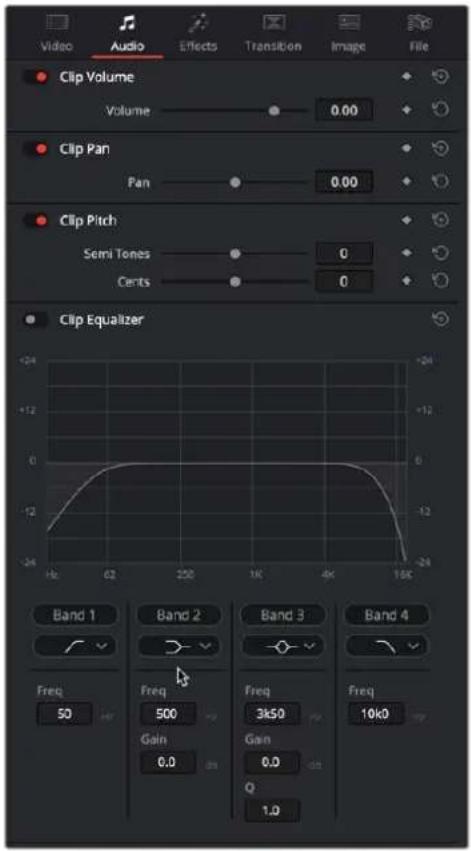
The Audio Inspector parameters
The Audio tab contains four commonly used audio controls for video editing purposes, including Clip Volume, Clip Pan, Clip Pitch, and Clip Equalizer.
- Clip Volume: Each clip has a single volume control that corresponds to the volume overlay over each audio clip.
- Clip Pan: (Only exposed for clips) A simple Pan slider that controls stereo panning.
- Clip Pitch: Lets you alter the pitch of a clip without changing the speed. Two sliders let you adjust clip pitch in semi tones (large adjustments, a twelfth of an octave) and cents (fine adjustments, 100th of an octave).
- Clip Equalizer: Each clip also has a four-band EQ, complete with low-pass, high-pass, and parametric settings for fine tuning and problem-solving audio issues at the clip level.
NOTE: There are many more refined plug-ins and effects for audio clips in the Audio FX library. If you apply any of these, the controls will appear in the Inspector's Effects tab Audio section, instead of here.
Effects
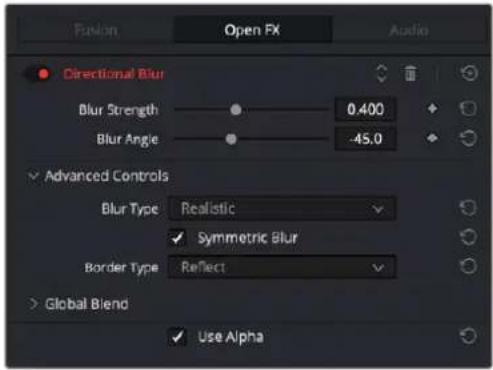
The Effects Inspector controls
Any Fusion FX, Open FX, or Audio FX filters that have been applied to a clip can be modified here in their respective tabs. Different effects in the Timeline expose different controls in the Effects panel. Whichever panels are exposed, parameters within each panel are organized into groups, with a title bar providing the name of that group, along with other controls that let you control all parameters within that group at the same time.
These controls include:
- Enable button: A toggle control to the left of the parameter group's name lets you disable and re-enable every parameter within that group at once. Orange means that track's enabled. Gray is disabled.
- Parameter group title bar: Double-clicking the title bar of any group of parameters collapses or opens them. Even more exciting than that, Option-double-clicking the title bar of one parameter group collapses or opens all parameter groups at once.
- Keyframe and Next/Previous Keyframe buttons: This button lets you add or remove keyframes at the position of the playhead to or from every single parameter within the group. When the button is highlighted orange, a keyframe is at the current position of the playhead. When it's dark gray, there is no keyframe. Left and right arrow buttons let you jump the playhead from keyframe to keyframe for further adjustment.
- Reset button: Lets you reset all parameters within that group to their default settings.
- Use Alpha: Checking this box applies the Open FX alpha channel to the selected clip, compositing it over any background elements that appear in lower tracks. If more than one alpha-modifying effect is applied to a single clip, the alpha channels are mixed together.
For a detailed explanation of each of the Resolve FX plug-ins that accompany DaVinci Resolve, see Part 12, "Resolve FX Overview."
Transition
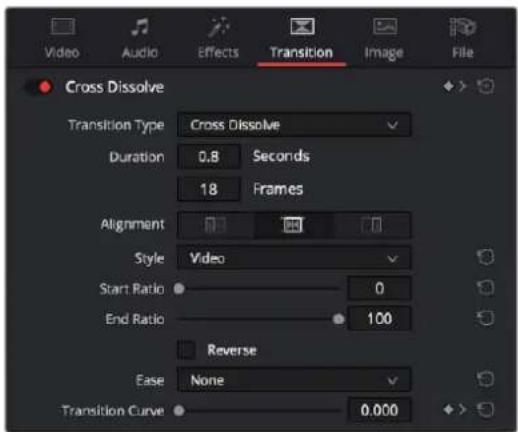
The Transition Inspector controls
Double-clicking a transition in the Timeline opens that Transition Panel in the Inspector. Each transition has the following properties you can edit.
- Transition Type: The currently selected transition. You can change to any other installed transition by selecting one in the drop-down menu.
– Duration: The duration of the transition, shown in both seconds and frames.
- Alignment: A drop-down that lets you choose the transition's position relative to the edit point it's applied to. Your choices are "Start on Edit," "Center on Edit," and "End on Edit."
Additional properties that are specific to each type of transition appear in another group below. Since the Cross Dissolve transition is the most common transition used, its properties will be shown as an example.
- Style: The different Dissolve transitions (Cross Dissolve, Additive Dissolve, and so on) expose this drop-down that lets you choose different ways for the outgoing clip to blend into the incoming clip during the dissolve. There are six different options to choose from:
- Video: A simple linear dissolve; the outgoing clip fades out as the incoming clip fades in.
- Film: A logarithmic dissolve, simulating film dissolves as created by an optical printer.
- Additive: The outgoing and incoming clips are cross faded using the Additive composite mode. As a result, the transition seems to brighten at the halfway point.
- Subtractive: The outgoing and incoming clips are cross faded using the Subtractive composite mode. As a result, the transition seems to darken at the halfway point.
- Highlights: The outgoing and incoming clips are cross faded using the Lighten composite mode. The lightest parts of each clip are emphasized during this transition.
- Shadows: The outgoing and incoming clips are cross faded using the Darken composite mode. The darkest parts of each clip are emphasized during this transition.
- Start Ratio: Defines the percentage of completion for the transition at its first frame, from 0 to 100 percent. Setting the Start Ratio to anything but 0 results in the transition immediately appearing at a more fully cross-dissolved state from the very first frame.
- End Ratio: Defines the percentage of completion for the transition at its last frame. Setting the End Ratio to anything but 0 results in the transition never fully dissolving to the incoming shot at its last frame.
- Reverse: Reverses the transition. This parameter is disabled for Dissolve transitions.
- Ease: A drop-down that lets you apply nonlinear acceleration to the beginning, ending, or overall duration of a transition. The result is to add inertia to the transition from the outgoing clip to the incoming clip, providing a gentler change from each clip into and out of the transition.
- None: The outgoing clip fades away to the next shot in a linear fashion.
- In: The outgoing clip lingers as the beginning of the transition dissolves more slowly than the end.
- Out: The outgoing clip fades away more quickly as the beginning of the transition dissolves more quickly than the end.
- In & Out: Both the outgoing and incoming clips make slower transitions at the beginning and end of the dissolve, but the very center of the transition is faster as a result.
- Custom: Lets you modify the parameters of the fade manually using the Transition Curves below.
- Transition Curve: Allows you to manually set keyframes controlling the progress of the transition along its duration.
Other types of transitions display properties that are specific to that transition's particular effect. For a detailed explanation of each of the transitions that accompany DaVinci Resolve, see Chapter 47, "Using Transitions."
Image
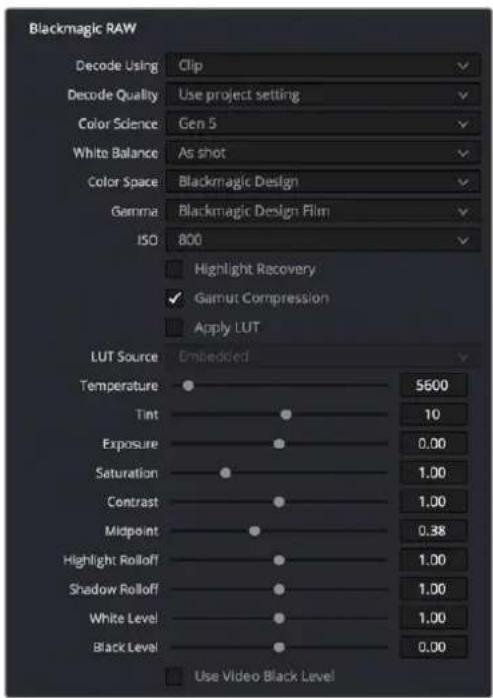
The Image Inspector controls for BRAW footage
The Image panel contains groups of parameters that correspond to every camera raw media format that's supported by DaVinci Resolve. Using these parameters in the Image panel, you can override the original camera metadata that was written at the time of recording and make simultaneous adjustments to camera raw media throughout your project.
For a detailed explanation of each of the RAW camera parameters supported by DaVinci Resolve, see Chapter 7, "Camera Raw Settings."
File
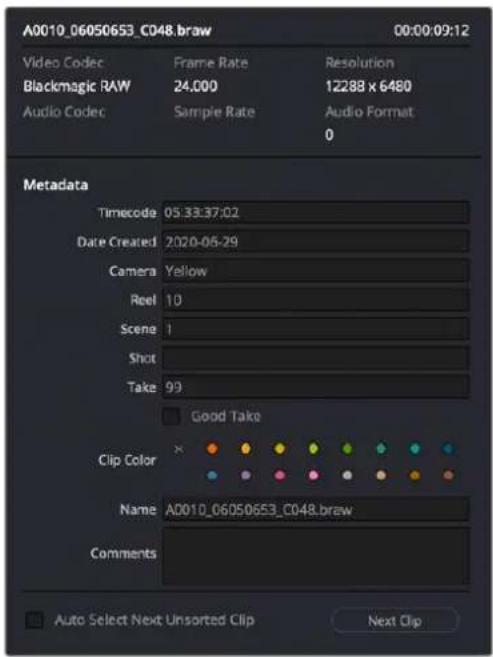
The File Inspector controls
The File panel of the Inspector provides a consolidated way to view and edit a subsection of a clip's most commonly used media file metadata. It's easily accessible in the Inspector across the Media, Cut, Edit, and Fairlight pages. The tab is composed of the following parts:
- Clip Details: Presents data about the clip's data format (codec, resolution, frame rate, etc.).
- Metadata: Presents a reduced set of common metadata fields for quick user entry.
- Timecode: The start timecode of the clip. This field is editable if you want to manually change the clip's starting timecode.
-
Date Created: The date that the clip was created. This field is editable if you want to manually change the clip's creation date.
-
Camera: Sets the Camera # metadata.
- Reel: Sets the Reel/Card ID.
- Scene: The Scene number of the clip.
- Shot: The Shot letter/number of the clip.
- Take: The Take number of the clip.
- Good Take: This checkbox indicates if the clip is a good or circled take.
- Clip Color: Assign a specific color to a clip that is reflected in the Timeline.
- Name: This can be entered manually, and changes a clip's name in that specific timeline only.
- Comments: Add a text description to the clip.
- Auto Select Next Unsorted Clip: When this box is checked, the next clip in the Media Pool is selected when you hit the Return button after entering a metadata field, and the cursor is automatically placed in the same field. This allows rapid sequential metadata entry without having to manually click to load each individual clip in the Media Pool. The Next Clip button will select the next clip in the Media Pool, regardless of the checkbox status.
Chapter 38
Modifying Clips in the Timeline
Once you've edited a variety of clips into the Timeline, you'll start working with them as you refine your edit. In this chapter, you'll learn simple methods of modifying clips, including resizing, splitting, shuffling, disabling, copying and pasting, and duplicating.
Contents
Keyboard Shortcuts in This Chapter 625
Moving, Resizing, and
Rolling Clips in Selection Mode 626
Trimming Gaps 629
Modifying Clip Duration Via Timecode 629
Resizing or Trimming Clips
in the Source Viewer 629
Using the Selection Tool 630
Using the Trim Tool 630
Doing a Slip Edit in the Viewer 630
Shuffle/Swap Insert Edits 630
Splitting and Joining Clips 633
Through Edits 633
Enabling and Disabling Clips and Tracks 634
Copying and Pasting Clips in the Timeline 635
Paste Insert 635
Cut/Copy/Paste of Partial Clip Segments Using In and Out Points 635
Copying and Pasting Clips to a Different Track 636
Audio Channels When Copying and Pasting Audio Clips 636
Auto Align Clips 637
Duplicating Clips and Transitions in the Timeline 639
Smart Reframe (Studio Version Only) 639
Scene Cut Detection on the Timeline 640
Clean Up Video Tracks 641
Keyboard Shortcuts in This Chapter
Here's a list of of keyboard shortcuts you might find helpful that relate to topics found in this chapter.
| Key Shortcut Function | |
| A Selection tool/mode | |
| V Select nearest edit to playhead | |
| Shift-V Select clip intersecting playhead | |
| U Select incoming, outgoing, or centered part of edit | |
| Option-U Toggle selection among video+audio, video only, and audio only | |
| Up, Down Arrow Keys Move selection to previous/next edit or clip | |
| Comma, Period “Nudge” keys to move a selected edit or clip left or right a frame at a time | |
| Shift-Comma, Period | “Fast Nudge” keys to move a selected edit or clip left or right 5 frames at a time (customizable) |
| Shift-Left, Right Bracket ([,]) | Trim Start to Playhead and Trim End to Playhead to trim a clip at the position of the playhead |
| E Extend edit to move a selected edit point to the playhead | |
| B Razor blade tool for adding cuts to clips using the pointer | |
| Command-Backslash (\) | Insert edit; adds a cut to the clip(s) at the position of the playhead |
| Delete Delete clip and leave gap (lift edit) | |
| Forward Delete | Ripple delete; deletes a clip and moves the rest of the Timeline left to fill the gap |
| N Toggle timeline snapping off and on | |
| Command-Shift-L Toggle linked selection off and on | |
| Command-D | Change clip duration |
| Command-Shift (modifier) | While dragging, holding Command-Shift lets you “shuffle” or “swap” edit clips forward or backward to rearrange clips in the Timeline |
| D Disable/Enable selected clips | |
| Command-X | Cut selected clips, leave gap |
| Command-Shift-X | Ripple cut selection; close gap left by cut clip(s) |
| Command-C | Copy selected clips |
| Command-V | Paste clips |
| Command-Shift-V | Paste insert clips |
Moving, Resizing, and Rolling Clips in Selection Mode
After editing a series of clips into a timeline, the next thing even the most careful of editors probably needs to do is to start making changes. The simplest changes are made in Selection Mode, using the regular arrow pointer.
The Selection Mode button at left is enabled; the Trim mode button at right is disabled
This is the default mode when you open DaVinci Resolve, and allows you to move clips to other places in the Timeline, resize them to make them longer or shorter, and roll the edit points between two clips to move the edit to an earlier or later position on the Timeline. What this tool does depends entirely on what you click to select as you work.
Manipulating clips using the mouse:
1 Click the Selection Mode tool (the arrow), or press A.
2 Do one of the following:
- To move clips in the Timeline: Drag any clip in the Timeline to any other position. If you drag a clip to overlap another clip, the clip you're dragging overwrites the clip you're dropping it onto.
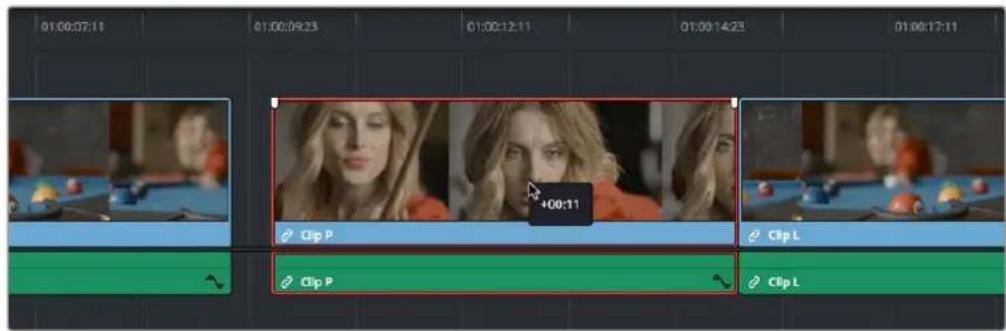
Moving a clip in the Timeline to overwrite part of another clip; a tooltip shows you how many frames you've moved
- To move clips in the Timeline up or down to other tracks while keeping them at the same time: Hold the Shift key down while dragging clips up or down in the Timeline. Or, you can hold the Option key down and press Up or Down Arrow.
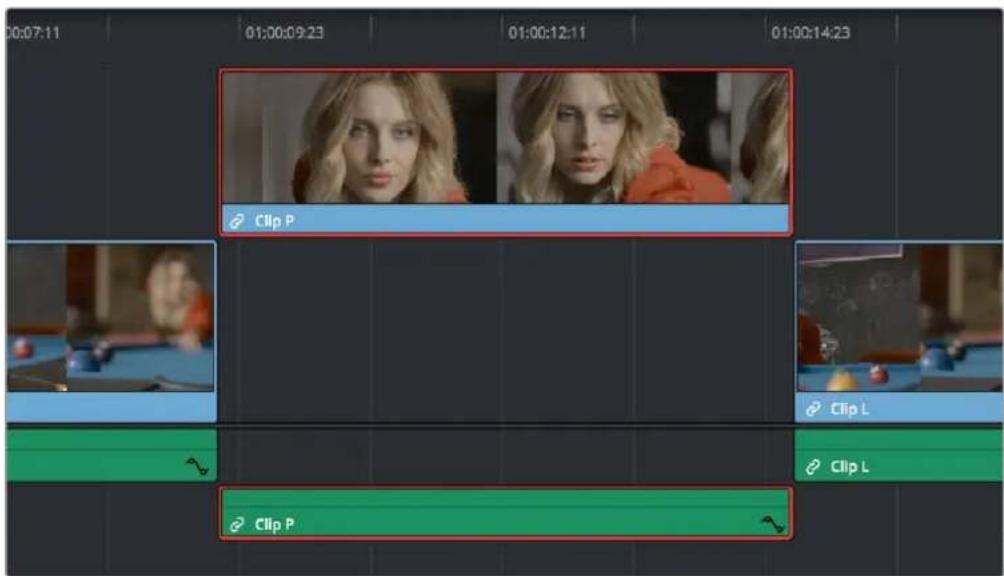
Moving a clip into another track without sliding it in time by holding the Shift key down
- To shorten or lengthen clips: Move the Selection Mode pointer over the beginning or end of a clip, and when it turns into the Resize cursor, drag the In or Out point to the left or right to change the clip's length. As you do so, the audio will scrub along with the Resize cursor.
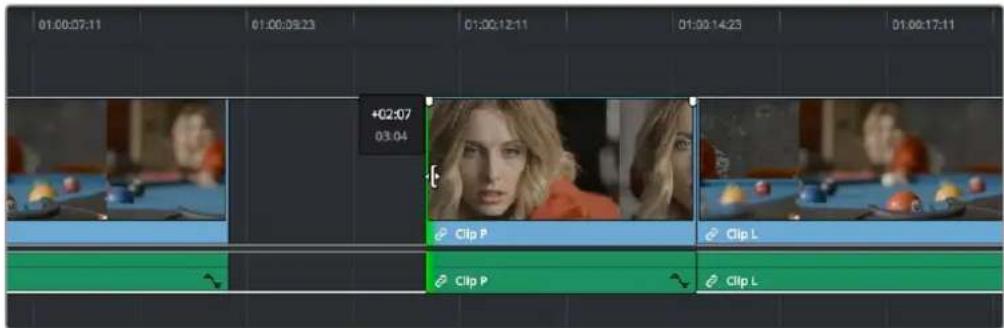
Resizing a clip in the Timeline to create a gap; a tooltip shows the offset, and outlines show you how much media is available in the clip being adjusted
- To roll any edit: Move the Selection Mode pointer over any edit point, and when it turns into the Roll Edit cursor, drag it to the left or right to move the edit point while simultaneously resizing the outgoing and incoming edits points of the two clips surrounding it. As you do so, the audio will scrub along with the right clip's In point.
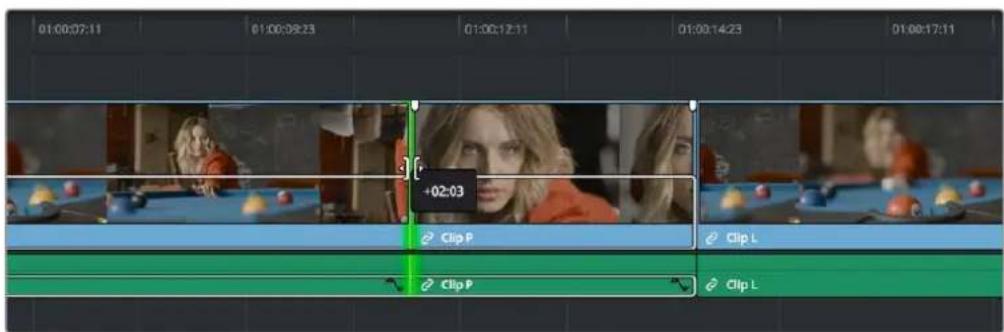
Rolling an edit; a tooltip shows the offset, and an outline shows the available area you can roll within
Manipulating clips using the keyboard:
1 Press A to choose Selection Mode.
2 Do one of the following:
- To roll any edit incrementally: Select the closest edit point to the playhead using the V key, moving the selection to another edit, if necessary, by using the Up Arrow and Down Arrow keys. Then press the Comma key (nudge 1 frame left) or Period key (nudge 1 frame right) to roll the selected edit to the left or right. Shift-Comma and Shift-Period nudges by 5 frames.
- To roll any edit using the playhead: Select the closest edit point to the playhead using the V key, moving the selection to another edit, if necessary, by using the Up Arrow and Down Arrow keys. Then use the JKL keys to move the playhead to the frame you want to move the edit to, and press E to do an “extend” edit.
- To shorten or lengthen clips incrementally: Select the closest edit point to the playhead using the V key, then use the U key to toggle the selection among the end of the outgoing clip and the beginning of the incoming clip. Then, press the Comma key (nudge 1 frame left) or Period key (nudge 1 frame right) to shorten or lengthen that side of the clip. If you nudge one end of a clip to overlap another, the clip you're nudging overwrites the adjacent clip. Shift-Comma and Shift-Period nudges by 5 frames. In Selection mode, this either leaves a gap or overwrites neighboring clips.
- To shorten clips using the playhead: Use the JKL keys to move the playhead over the frame in the Timeline where you want to set a new In or Out point for that clip, then press Shift-Left Bracket (☐) to "trim start," or Shift-Right Bracket (☐) to "trim end." No selection is necessary. In Selection mode, this leaves a gap.
- To lengthen clips using the playhead: Select the closest edit point to the playhead using the V key, then use the U key to toggle the selection among the end of the outgoing clip and the beginning of the incoming clip. Then, use the JKL keys to move the playhead to the frame to want to extend that edit point to, and press E to do an “extend” edit. In Selection mode, this overwrites neighboring clips.
- To move clips forward or back in the Timeline: To select a clip in preparation for moving it, either click it, or use the Spacebar or JKL keys to move the playhead over it and press Shift-V. Then press the Comma key (nudge 1 frame left) or Period key (nudge 1 frame right) to move the clip to the left or right. If you nudge a clip to overlap another clip, the clip you're nudging overwrites the adjacent clip. Shift-Comma and Shift-Period nudges by 5 frames. In Selection mode, this leaves a gap.
- To move clips up or down to other tracks: To select a clip in preparation for moving it, either click it, or use the Spacebar or JKL keys to move the playhead over it and press Shift-V. Then, press Option-Up Arrow to move the Video and Audio of that clip to the next higher-numbered track, or press Option-Down Arrow to move the Video and Audio to the next lower-numbered track.
TIP: You can hold down the Shift key while nudging a selection to do a "fast nudge."
The duration of a fast nudge is customizable in the Editing panel of the User Preferences.
By default it's five frames, but you can set it to whatever you want.
Trimming Gaps
The start and end of gaps can also be rippled using the Trim tool. For more information, see Chapter 43, "Trimming."
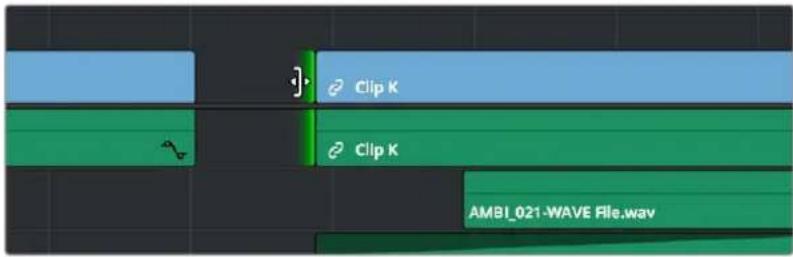
Using the Trim tool to ripple the Out point of a gap to narrow it
Modifying Clip Duration Via Timecode
You can change a clip's duration numerically in one of two ways.
To change a selected clip's duration:
1 Decide if you want to ripple the Timeline or overwrite neighboring clips when you change a clip's duration. If you want to ripple the Timeline, choose the Trim tool. If you want to overwrite neighboring clips or leave a gap, choose the Selection tool.
2 Do one of the following:
- Select a clip and choose Clip > Change Clip Duration.
- Right-click any clip in the Timeline and choose Change Clip Duration from the contextual menu.
3 When the Edit Duration Change dialog appears, enter a new duration in the Timecode field, and click Change. For more information on timecode entry, see "Moving the Playhead Using Timecode" in Chapter 35, "Preparing Clips for Editing and Viewer Playback."
A window for changing the duration of a clip in the Timeline
Resizing or Trimming Clips in the Source Viewer
You can also open a clip from the Timeline into the Source Viewer to perform trimming in different ways. You can do this in one of two ways:
- Double-click a clip in the Timeline to open it into the Source Viewer.
- Move the playhead over a clip in the Timeline, press Shift-V to select that clip, and then press the Return or Enter key to open it into the Source Viewer.
Once you open a clip into the Source Viewer, the Source Viewer has focus, enabling you to use the Spacebar or JKL commands to move the playhead around in the Viewer in order to make edits. How these edits affect the Timeline depends on whether you use the Selection tool or the Trim tool.
TIP: To instead open a match frame of a clip in the Timeline using the pointer, hold the Option key down while double-clicking a clip.
Using the Selection Tool
When the Selection tool is selected, you can drag the In and Out markers, or use the playhead and I and O keyboard shortcuts to resize that clip in the Timeline.
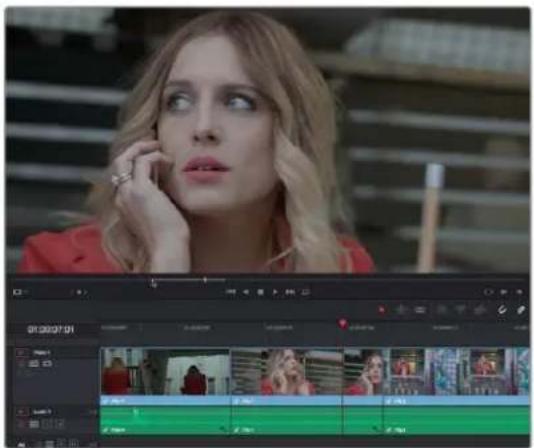
natural_image
Woman in red blazer looking up at a video editing interface with multiple video frames (no visible text or symbols)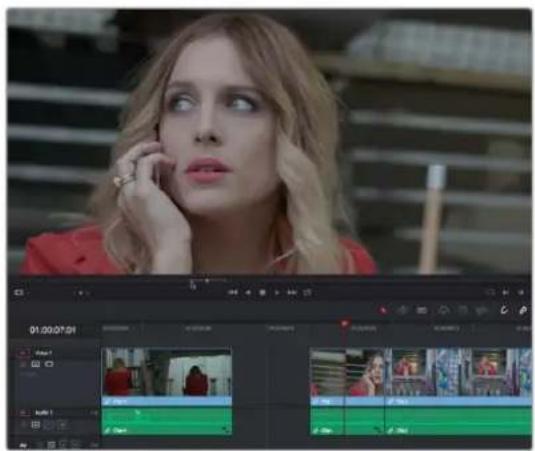
natural_image
Woman in red blazer looking up at a video editing interface with multiple tracks and clips (no readable text or symbols)(Left) A Timeline clip opened in the Source Viewer, (Right) resizing the clip and leaving a gap by dragging its In point in the Source Viewer
Using the Trim Tool
When the Trim tool is selected, dragging the In and Out points, or setting new ones using the I and O keys resizes the clip while rippling the Timeline left or right as necessary.
Doing a Slip Edit in the Viewer
If you hold the Shift key down while dragging the In or Out point of a timeline clip you've opened in the Source Viewer, you'll move both the In and Out points together, doing a slip edit of that clip's content in the Timeline. This works using either the Selection or Edit tools.
Shuffle/Swap Insert Edits
A Shuffle Insert edit (sometimes referred to as a Swap Insert edit) lets you quickly rearrange one or more selected clips in the Timeline simply by Command-Shift dragging them to the left or right. When you do so, the surrounding clips automatically move to the right or left to switch places with the clip or clips that you're dragging. This is a really fast way to reorder clips to try out different arrangements, without needing to drag clips onto multiple tracks to get them out of the way, first.
You have a lot of flexibility in how you shuffle clips around. You can select one clip, or multiple consecutive clips to shuffle. If you select multiple consecutive clips, they'll move together as a single block. You can even select multiple consecutive clips on multiple tracks to shuffle around the Timeline as a single item.
Furthermore, you can also select clips that are part of split edits, where the audio and video In and Out points start or end at different frames. In this case, how other clips move in the Timeline to make room for the split edit clip you're dragging depends on whether you click the video or audio portion of the clip to start dragging:
- If you click-and-drag the video portion of the clip, then all clips will rearrange themselves based on the duration of that video item on that track, so that all video items on that track rearrange themselves without either overwriting one another or leaving gaps. As you drag to shuffle the selection through the Timeline, overlapping linked audio items will either overwrite the audio on neighboring clips, or leave a gap.
- If you click-and-drag the audio portion of the clip, then all clips will rearrange themselves based on the duration of that audio item on that track, so that all audio items on that track rearrange themselves without either overwriting one another or leaving gaps. As you drag to shuffle the selection through the Timeline, overlapping linked video items will either overwrite the video on neighboring clips, or leave a gap.
Given the rules previously described, shuffling clips is really easy, and you can do so in one of two ways.
To shuffle insert clips with adjacent clips in the Timeline:
1 Turn snapping on.
2 Select one or more consecutive clips you want to shuffle.
3 Press and hold the Command and Shift keys down and drag either the video or audio portion of the selected clips to the left or right.
So long as you move clips to the In or Out points of adjacent clips, they'll automatically switch places with the selection of clips you're dragging. Snapping will help make sure that you align clip(s) you're dragging with previously existing edit points until dropped in the desired location.


Before and after clip L being shuffled with clips I, K, and J in a scene to rearrange the sequence
To shuffle insert one clip into adjacent clips in the Timeline:
1 Turn snapping off.
2 Select one or more consecutive clips in the Timeline that you want to shuffle.
3 Press and hold the Command and Shift keys down and drag either the video or audio portion of the selected clips to the left or right.
The selection of clips you're dragging will be more easily inserted in the middle of adjacent clips as you drag with snapping turned off, and the cut portion of each clip will be moved into the gap that's left behind by the clip(s) you're dragging. Drop the clip into the desired location when you're finished.
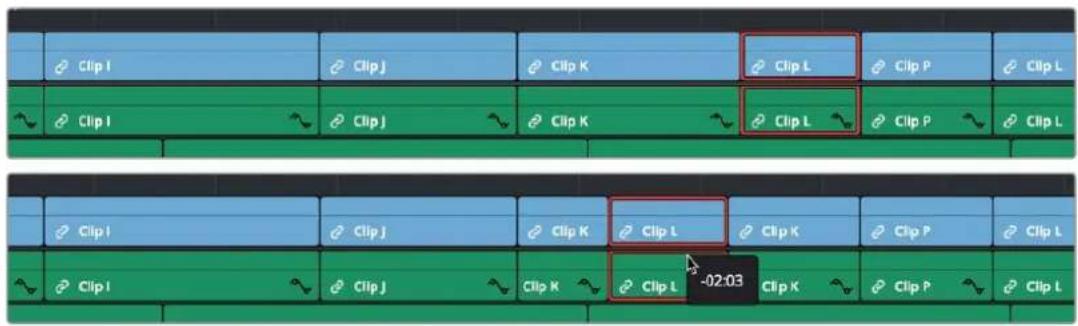
Before and after clip L being inserted into the middle of Clip K, which is split in half to make way for it
To shuffle insert multiple clips to another position in the Timeline:
1 Select all of the clips you want to move to another position on the Timeline.
2 Press and hold the Command and Shift keys, and drag the clips left or right. Make sure the item you click to drag is on the same track as the majority of clips you're rearranging; the item you click defines which track is used to guide the rearrangement of clips.
In the following example, the video item of Clip C is selected on track V1, so as it's dragged to the right, all clips on other tracks are rearranged according to the duration and location of clips B and C on track V1. As a result, clips on tracks other than V1 may be overwritten, or leave gaps, as necessary for the items on track V1 to be rearranged cleanly.
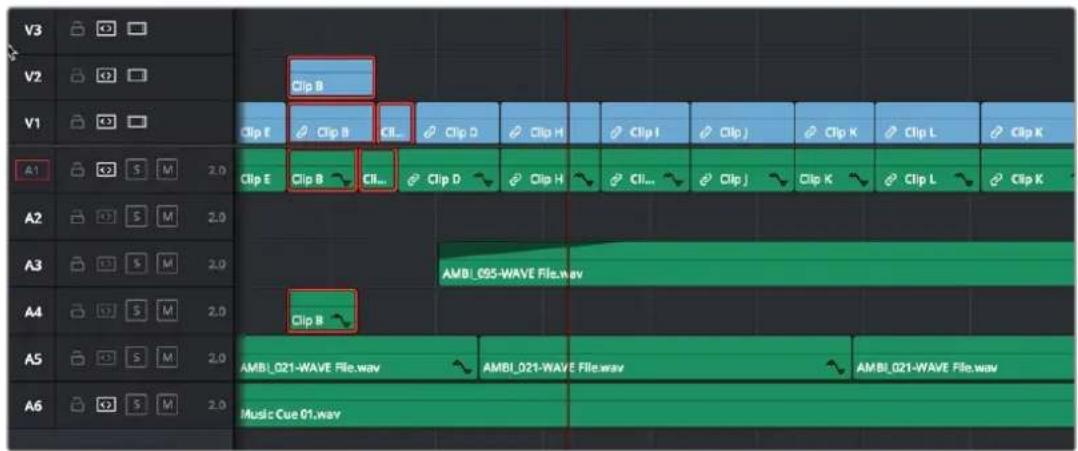
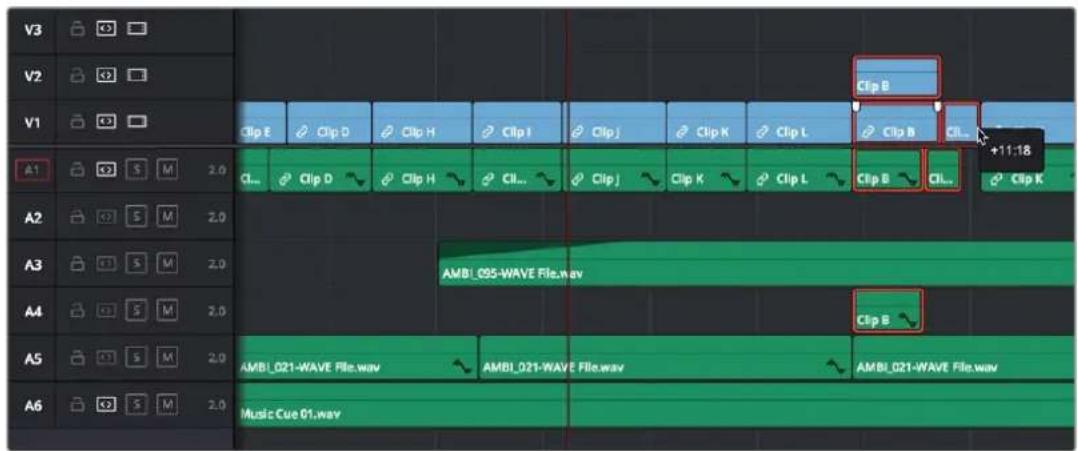
Before and after a group of clips being shuffled to the right. The clip that was clicked to drag defines how all other clips will be rearranged
To shuffle insert multiple clips from the Media Pool or Source Viewer into the Timeline:
1 Either select one or more clips in the Media Pool or open a clip in the Source Viewer.
2 Press and hold the Command and Shift keys, and drag the selection from the Media Pool or Source Viewer into the Timeline.
3 As you drag, the clips you're dragging will be inserted into the Timeline at the pointer location. Release the mouse to finish making the edit.
Splitting and Joining Clips
In many situations you may find yourself splitting clips (adding edits) in order to separate multiple clips that were inadvertently baked together, or to cut up clips into sections that you're planning on applying different effects to or grading differently.
Methods of splitting and joining clips:
- To split a clip once: Drag the playhead to the frame where you want to split a clip, and press Command-Backslash (I) to split every clip on a track with Auto Select enabled.
- To split many clips: Click the Razor Edit mode button (or press B), and then click clips in the Timeline to split as many clips as you want.
- To split clips using the DaVinci control panel on the Color page: Move the playhead to the frame you want to split, then press SHIFT UP and SPLIT/UNDO on the T-bar panel.
- To join clips using the DaVinci control panel on the Color page: Move the playhead to the edit point you want to join, and press SHIFT UP and JOIN/REDO on the T-bar panel. Both clips must be from the same media file, and the frames to either side of the edit point need to be continuous for those clips to be joined.
TIP: Using the Blade Edit Mode or Split Clip command on a clip that's currently selected preserves the selection on the first half of the clip after cutting.
Through Edits
When you split a clip, a through edit appears to show that you currently have an edit with continuous timecode running from the outgoing to the incoming half. This is called a through edit, and is displayed with a dotted line running along its edge so you know that it's special.
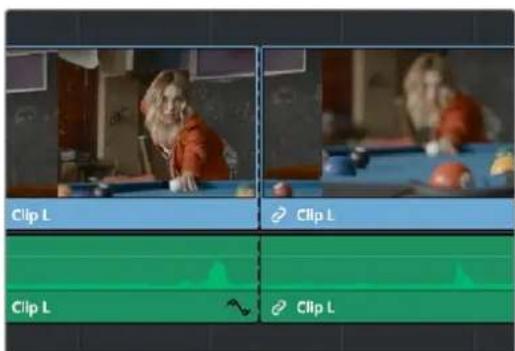
A through edit seen in the Timeline
To eliminate a through edit, do one of the following:
- Select it in the Timeline, and press Delete.
- Right-click a through edit in the Timeline, and choose Delete Through Edit.
TIP: You can show an isolated list of every through edit in the Timeline by opening the Edit Index and choosing "Show Through Edits" in the Edit Index Option menu. Clicking any item in the list jumps the playhead to that through edit, making it easy to check all the through edits in a timeline to see if they're necessary or not.
Enabling and Disabling Clips and Tracks
As you work in the Timeline, you'll find there are times when you want to disable clips that you don't want to appear during playback, without actually removing them from the edit. For example, you may decide to disable superimposed clips that are positioned as insert shots in the middle of a scene because of a client's notes, but you don't want to eliminate the clips because they might change their minds.
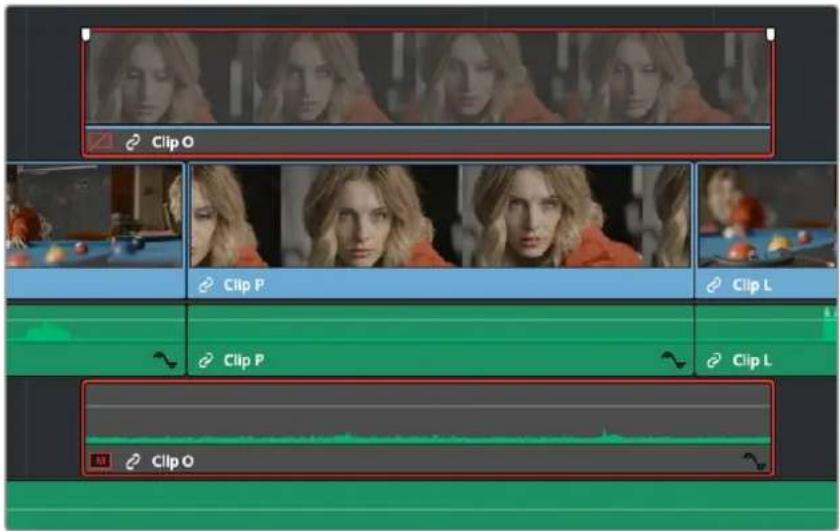
A disabled clip on track V2
In another example, you've edited a series of titles on track V3, so you need to disable track V3 in its entirety to output a textless version of the movie as a deliverable.
When a clip or track is disabled, clips within it appear dimmed, and these disabled clips don't appear in the Color page, and aren't output to tape or rendered to disk in the Deliver page until that track is re-enabled first.
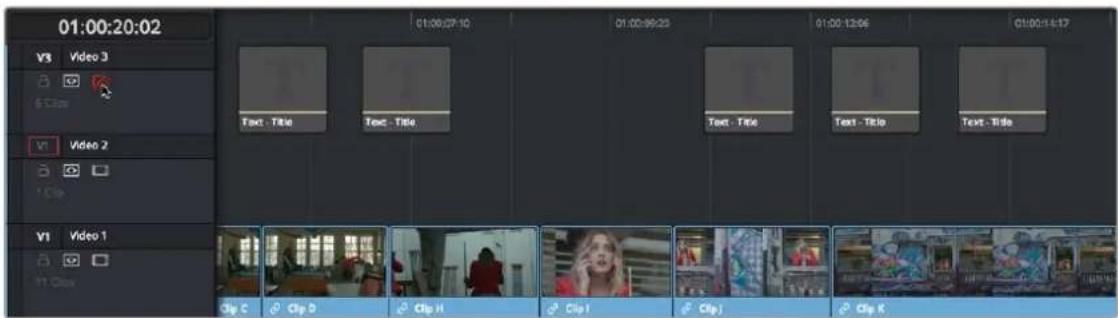
Track V3 is disabled, making the Timeline textless as a result
To disable/enable one or more clips in the Timeline:
- Select one or more clips, then right-click the selection and check or uncheck Enable Clip in the contextual menu, or press D to toggle a clip's enabled state.
To disable/enable an entire track:
- Click the track enable button.
Copying and Pasting Clips in the Timeline
Clips can be cut, copied, and pasted in a variety of ways using standard keyboard shortcuts. You can cut or copy one clip or a selection of several, and you can also choose to copy or cut just the video or audio media of a clip. When pasting, you can paste to the same timeline, or to a different timeline if you want to move media from one to another.
Methods of doing simple cut, copy, and paste:
- To cut one or more clips, leaving a gap: Make a selection, and choose Edit > Cut (Command-X). The selected clip or clips are removed from the Timeline and stored in memory for pasting.
- To ripple cut one or more clips and ripple the Timeline to close the gap: Make a selection, and choose Edit > Ripple Cut (Command-Shift-X). The selected clip or clips are removed from the Timeline and stored in memory for pasting. All clips on tracks with Auto Select enabled will be rippled to the left to fill the gap left by the cut clips.
- To copy one or more clips: Make a selection, and choose Edit > Copy (Command-C). The selected clip or clips are left in the Timeline, but copies are stored in memory for pasting.
- To paste one or more clips to the same track: Move the playhead to the frame where you want the pasted selection to start, and then choose Edit > Paste (Command-V). By default, each copied clip is pasted onto the same track it was copied from. Pasted clips overwrite any clips in that track that are in the way. Pasted clips are automatically selected, ready for nudging left or right, or for other operations.
- To paste one or more clips to a different track: Pasting clips to a different track requires a slightly different procedure. Move the playhead to the frame where you want the pasted selection to start, then either Option-click any empty area on the track you want to paste the clip(s) to or Option-click the Auto Select control of that track to solo that track, and then choose Edit > Paste (Command-V). Pasted clips overwrite any clips in that track that are in the way. Pasted clips are automatically selected, ready for nudging left or right, or for other operations.
Paste Insert
Another paste command, Edit > Paste Insert (Command-Shift-V), lets you paste clips that you cut or copied via an insert edit, so that an edit is added at the position of the playhead to clips that are already in the Timeline, and all media to the right of the playhead is rippled farther right to make room for the clip or clips being pasted. As with all other ripple edits, only clips on tracks with their Auto Select control turned on are affected. Pasted clips are automatically selected, ready for nudging left or right, or for other operations.
Cut/Copy/Paste of Partial Clip Segments Using In and Out Points
You can use the Timeline's In and Out points to cut and copy partial segments of longer clips in various ways. This is a valuable technique for doing in-depth audio and dialog editing, although it's useful for copying partial segments of any kind of clip in the Timeline.
To cut or copy part of a clip to paste elsewhere:
1 Set In and Out points to isolate the part of the clip you want to cut or copy. You can use the Auto Select controls to include or omit clip segments on specific tracks while you do this.
2 Press Command-X to cut or Command-C to copy that clip segment.
3 Clear the In and Out points by pressing Option-X. Otherwise, you'll paste the clip segment right back into the same place it started.
4 Move the playhead to the frame of the Timeline you want the pasted clip to start, and use the Paste or Paste Insert commands to paste the clip segment there. Pasted clips are automatically selected, ready for nudging left or right, or for other operations.
You can also use In and Out points to paste only a partial segment of a much longer clip that you've cut or copied.
To paste only part of a clip:
1 Select a clip, and press Command-X to cut or Command-C to copy that clip.
2 Set In and Out points to identify the region of the Timeline you want to paste into.
3 Use the Paste or Paste Insert commands to paste only as much of the Cut or Copied clip as will fit between the In and Out points you've placed. Pasted clips are automatically selected, ready for nudging left or right, or for other operations.
Copying and Pasting Clips to a Different Track
If all Auto Select controls on all tracks are turned on, clips are always pasted back to the same track they were copied from, starting at the position of the playhead. This is valuable for the many instances where you'll find yourself copying and pasting clips you want to repeat, especially when doing audio editing.
However, if you want to paste the clips you cut or copied to a different track entirely, you need to use the Auto Select controls to specify which track you want to paste to.
Here are the rules:
- You can force paste what you copied to a specific track by Option-clicking that track's Auto Select control to solo it before pasting.
- When one or more Auto Select controls are disabled, then clips are pasted to the lowest-numbered track with an enabled Auto Select control.
- If you've copied clips on multiple tracks, clips on the lowest copied track will be pasted to the lowest Auto Select enabled track, and all other clips will be pasted to higher tracks, with new tracks automatically created, if necessary.
- If Auto Select is disabled on every single track, then a new track will be created above all other video tracks and/or below all other audio tracks, and the clip will be pasted into this new track, which has Auto Select turned on.
Audio Channels When Copying and Pasting Audio Clips
Copying and pasting audio has one other consideration. If you're force pasting a clip into a different track, the track you solo the Auto Select control of could possibly be set to an audio channel mapping that doesn't match the clips you're pasting there. An example of when this would happen is if you copy stereo audio clips from a stereo track and paste them to a mono audio track.
DaVinci Resolve allows you to do this, so you have the freedom of pasting audio clips to any track you want to. However, extra audio channels within clips that exceed the number of channels supported by the audio track they're on will be muted. Fortunately, this situation is easy to rectify. Simply right-click the track header of the problem audio track, and use the Change Track Type To submenu to change its channel mapping to one more appropriate to the clips you've pasted into it.
Auto Align Clips
Auto Align Clips slides one or more selected clips to align with the timecode or audio waveforms of another clip that has matching timecode or audio. This function works for video clips, which can be aligned using timecode, and for audio clips, which can be aligned using either timecode or waveform matching. Waveform matching can also be used if you're working with audio/video clips.
You can only select one clip per video or audio track to align, and they all will align to whichever clip is on the lowest-numbered video or audio track. Clips selected that have no overlapping timecode or audio waveform will not be moved and left in their original position on the Timeline.
For example, clip A on track V1 overlaps with clip B on track V2, but not with clip C on track V3, or clip D on track V4. Selecting all clips and using Auto Align Edits will slide clip B to align with clip A, but clips C and D won't be moved because they don't overlap with clip A.
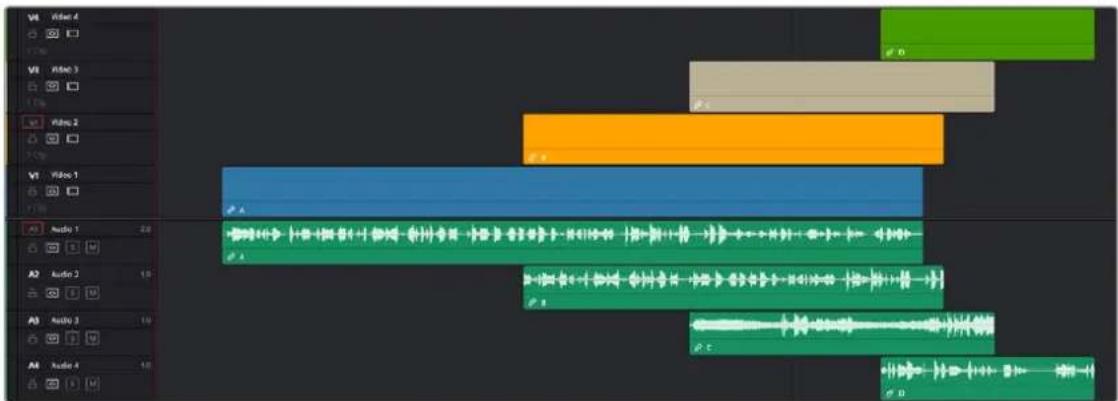
The original Timeline with clip A (blue) and clip B (orange) that have some overlapping audio but are out of sync
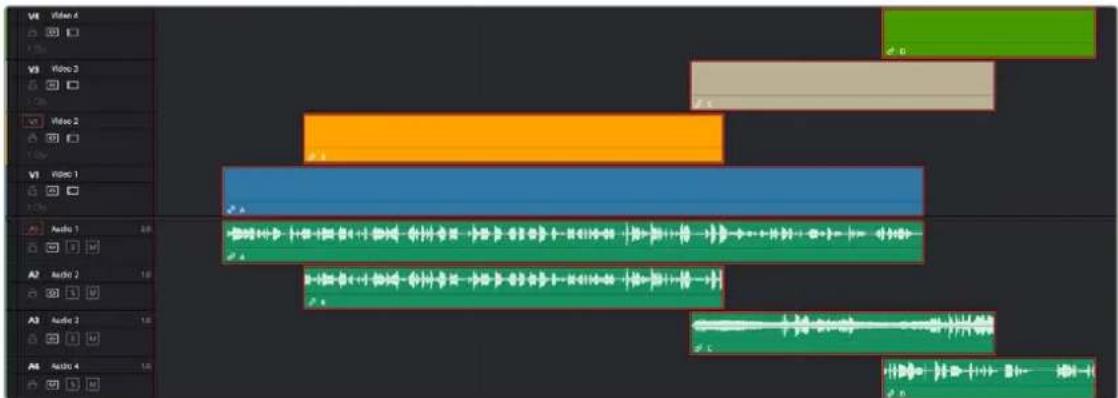
The same Timeline after the Auto Align command; clip B (orange) has been slipped to sync via audio waveform with clip A (blue). Clips C (tan) and D (green) were also selected, but because they had no overlapping timecode or audio, they remained in place.
In another example, clip A on track V1 overlaps with clips B, C, and D on tracks V2, V3, and V4 respectively. Selecting all clips and using Auto Align Edits will slide clips B, C, and D to be aligned with clip A.
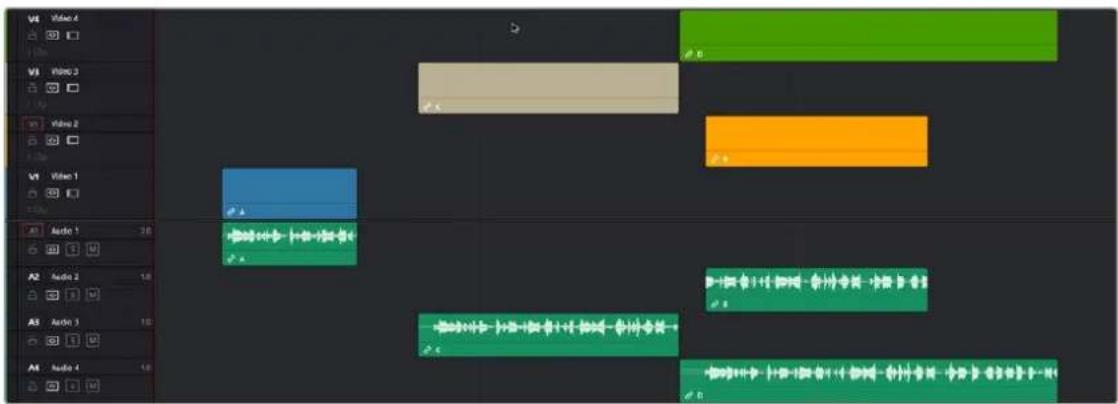
The original Timeline with clip A (blue), and clip B (orange), C (tan), and D (green) all have overlapping audio, but are out of sync.
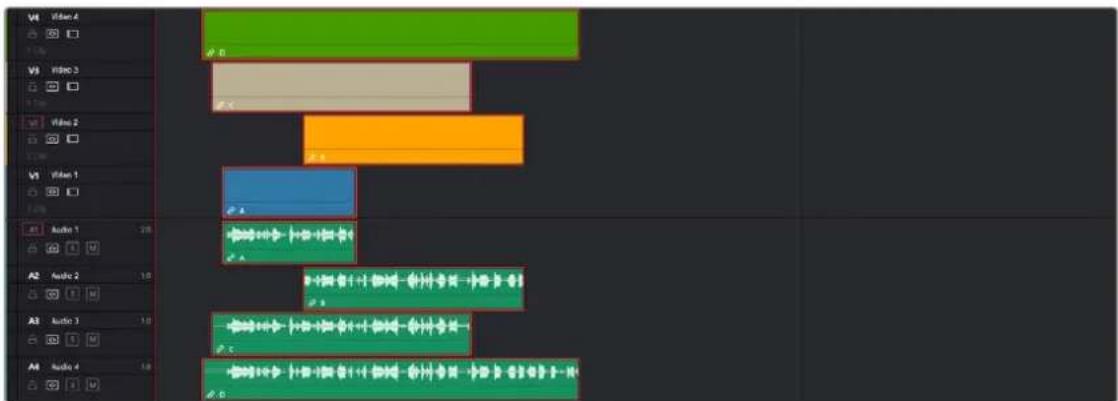
The same timeline after the Auto Align command. All clips are now in sync and the audio waveforms now all match. All the other clips moved to clip A's (blue) position because it was the lowest clip on the Timeline.
To use Auto Align clips:
1 Arrange the clips you want to align with one another on the Timeline so that there's one clip per track. All clips will sync to the clip on the lowest track number. All clips must have overlapping timecode or audio waveforms.
2 Select every clip that you want to align (only one per track).
3 Right-click one of the selected clips, and choose an option from the Auto Align Clips submenu, either "Based on Timecode," or "Based on Waveform."
If Timecode is selected, the operation will be instant. If Waveform is used, a progress bar will appear showing you how long it will take DaVinci Resolve to analyze the selected audio waveforms before your clips are aligned. If you've selected clips that can't be aligned, a warning box will appear and tell you which clips had errors.
For video, this can be useful for multi-camera editing situations where you want to align an insert with the action of an alternate angle. For audio, this is useful for situations where you have multiple recordings of the same audio that you want to align for further editing.
NOTE: Waveform matching won't work for re-recorded audio, such as dialog that's been re-recorded using the ADR tools of the Fairlight page, as the correspondence between two waveforms must be precise for a match to be found.
Duplicating Clips and Transitions in the Timeline
One or more clips can be duplicated by making a selection, and then Option-dragging the selected clips to another position and/or track in the Timeline. When duplicating clips in this way, you must hold the Option key down until you release the mouse button.
Individual selected transitions can also be duplicated by Option-dragging them to another edit point.
Smart Reframe (Studio Version Only)
The Smart Reframe feature in DaVinci Resolve makes it easier to quickly reframe material across extreme aspect ratio changes. It's useful for situations where you've shot a 16:9 horizontal video and find yourself needing to create a vertically-oriented 9:16 version for mobile phones and social media deliverables, or using 4:3 archival footage in a 2.39:1 widescreen movie. Smart Reframe can be used manually, or automatically executed using the DaVinci Resolve Neural Engine.
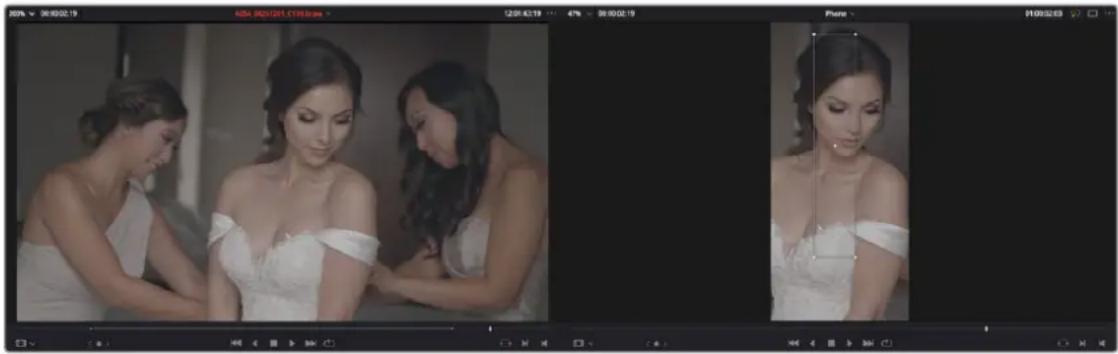
natural_image
Black-and-white photo sequence showing a woman in wedding attire with her hands, displayed in two frames (no visible text or symbols)Smart Reframe in action, with the Reference Point bounding box active (right)
The Smart Reframe tool is found in the Sizing tab of the Inspector and is available in both the Cut and Edit pages.
To use the Smart Reframe tool:
1 Duplicate your timeline, right-click the Timeline and choose Timelines > Timeline Settings, and click Use Custom Settings to change the Timeline Resolution to the aspect ratio needed for delivery. Make sure that “Mismatched resolution files” is set to “Scale full frame with crop,” and click OK.
2 Select one or more clips you want to reframe, and open the Inspector to the Sizing tab.
3 Open the Smart Reframe controls, leave the Object of Interest drop-down menu set to Auto (if you've selected more than one clip, Auto is the only setting available), and click "Reframe." DaVinci Resolve will analyze your footage and should automatically adjust each individual clip's position to a more aesthetically pleasing framing.
4 (Optional) If the "Auto" setting does not give you desirable results for a particular clip, you can manually select the main subject using the following steps.
a. To manually select the subject area, choose "Reference Point" from the Object of Interest drop-down menu, and click the target icon just to the right of the menu. This automatically sets the Viewer mode to Smart Reframe, exposing the onscreen controls for choosing a reference.
b. Drag the Reference Point bounding box around the main subject of interest in the frame. You may use the Transform controls directly above in the Inspector to move the source clip around if your subject is outside the current framing.
c. Click "Reframe."
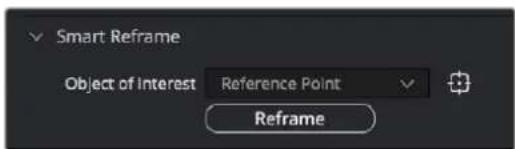
The Inspector's Smart Reframe controls showing the manual reference point selected
DaVinci Resolve locks onto and, if necessary, tracks your subject using the reference you've selected, automatically panning and scanning the original clip as needed to keep the reference within the new aspect ratio. While involving a bit of manual adjustment, this function still dramatically reduces the time involved in pan and scanning footage by manually adjusting and keyframing the sizing controls.
Scene Cut Detection on the Timeline
If you need to break down a previously edited video into its component clips for re-editing or color correction, you can do so directly in the Timeline. Using the DaVinci Neural Engine, DaVinci Resolve can automatically analyze and split up an edited video into individual clips.
Timeline Scene Cut Detection is also available in the Cut page. If you prefer, you can continue to use the original Scene Cut Detection tool found in the Media Pool.
To use Scene Cut Detection on the Timeline:
1 Select one or more clips you want to split on the Timeline. Alternately, you can limit Scene Cut Detection to just a portion of a clip by setting In and Out points on the Timeline around the section you want to analyze.
2 Choose Timeline > Detect Scene Cuts.
A dialogue box appears, "Detecting scene cuts in clips x of x." This process can take some time, depending on the length, number, and complexity of the clips you've selected. When the Scene Cut Detection has finished, the clip you selected will be broken up into a number of through edits that now can be used as independent clips.
Checking and Fixing Your Results
If the Neural Engine has made an error, you can fix it manually by navigating to the cut using the Up and Down Arrow keys to go back and forth in the Timeline, and by then doing one of the following:
- To remove a Cut: Click the through edit to select it, and press the "Delete" key.
- To make a New Cut: Place the timeline indicator at the cut point, and choose Timeline > Split Clips (Command-1).
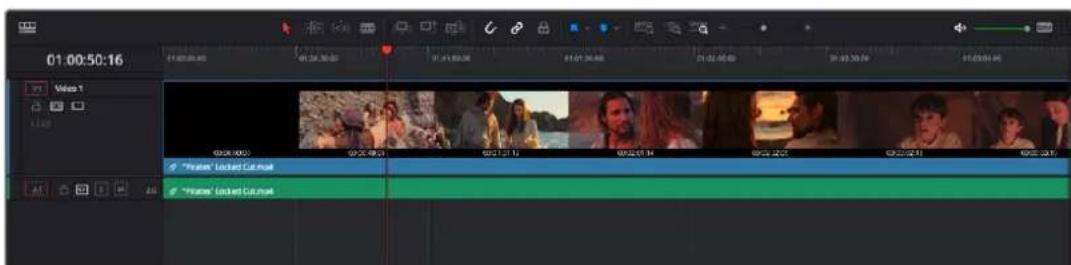
A single clip of a finished edit, consisting of multiple cuts before the Detect Scene Cuts command
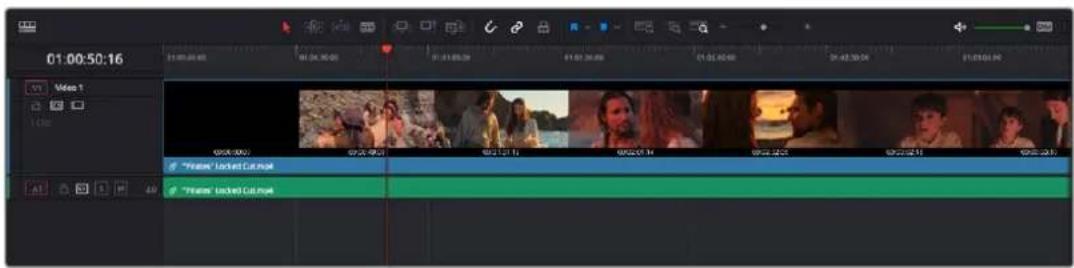
Multiple individual clips extracted from the edited clip via Detect Scene Cut; the operation has been contained by the In and Out points, and one of the resulting through edits has been highlighted in green.
Clean Up Video Tracks
While it's convenient to be able to edit overlapping clips on multiple video tracks to try slipping clips back and forth, or to stack multiple takes or versions of a VFX clip, there comes a time when all those unnecessary clips take a toll on the visual organization of your timeline, not to mention your colorist's sanity. For this reason, a trio of commands for cleaning up your timeline have been added to the Timeline > Clean Up Video Tracks menu. These are:
- Flatten Unused Clips: All superimposed clips with In and Out points that are aligned with clips below them are moved down to track V1, so long as they don't have any kind of opacity, composite mode, transition, or fade effect applied to them making them a compositing effect.
- Disable Unused Clips: All clips that are underneath superimposed clips that don't have any kind of opacity, composite mode, transition, or fade effect applied to them are disabled.
- Change Unused Clips Color: All clips that are underneath superimposed clips that don't have any kind of opacity, composite mode, transition, or fade effect applied to them have their color changed to whatever you select.
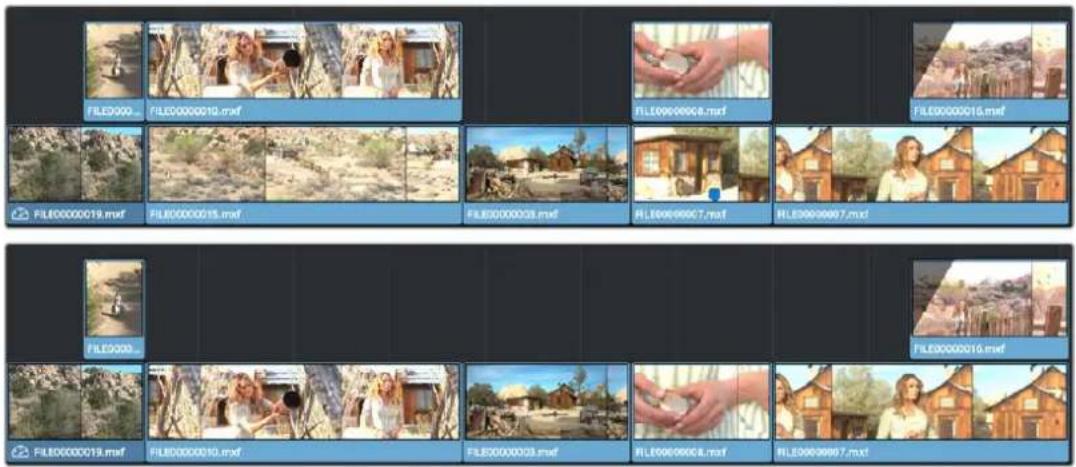
(Top) The original timeline, (Bottom) The Flatten Unused Clips command is used to move superimposed clips with In and Out points that match other clips underneath them to track V1 to simplify the Timeline for future work.
Chapter 39
Three- and Four-Point Editing
A more controlled form of editing is to use three- and four-point editing to make a specific range of source media fit into a specific range of the Timeline. This chapter covers the basics of three- and four-point editing, as well as the wide variety of edit commands that are available.
Contents
Keyboard Shortcuts in This Chapter 643
Introduction to Three-Point Editing 644
Choosing a Track to Edit to Using Destination Controls 644
Setting In and Out Points in the Timeline 645
Mark Clip and Mark Current Selection 647
Preview Marks During Three-Point Editing 648
Dragging Preview Marks to Change an Edit 649
The Rules of Three-Point Editing 650
Editing Rules for Split In and Out Points 652
Editing a Specific Range of the Source Clip Into the Timeline 652
Editing Part of a Source Clip to Fit Into a Specific Range of the Timeline 653
Backtiming a Source Clip When Editing Into the Timeline 654
Switch Focus to Timeline After Edit 655
Different Types of Three- and Four-Point Edits 656
Overwrite Edits 656
Insert Edits 657
Replace Edits 658
Fit to Fill 661
Place on Top 662
Ripple Overwrite 663
Append at End 665
Insert Selected Clips to Timeline Using Timecode 666
Insert Selected Clips to Timeline With Handles 666
Three-Point Editing From the Media Pool 667
Example: Assembling Clips Into the Timeline From the Media Pool 667
Keyboard Shortcuts in This Chapter
Here's a list of of keyboard shortcuts you might find helpful that relate to topics found in this chapter.
| Key Shortcut Function | |
| Command-1 Choose Media Pool Bin list | |
| Command-2 Choose Media Pool browser area | |
| Arrow Keys | Move selection in the Media Pool Bin list or browser area to choose a bin or clip |
| Return or Enter Open selected clip or timeline into the Source Viewer | |
| Q Toggle focus between Source and Timeline Viewers | |
| I, O Set In or Out point | |
| Shift-I, O | Move playhead to In or Out point |
| Option-I, O | Delete In or Out point |
| Shift-A | Set In and Out points to match the current clip selection in the Timeline |
| X | Set In and Out points to fit the current clip at playhead in the Timeline |
| Option-X | Delete both In and Out points |
| Command-Shift-Up, Down Arrow | Move video destination control up or down to another track |
| Command-Option-Up, Down Arrow | Move audio destination control up or down to another track |
| Option-1 through 8 | Set video destination control to that track number; press again to enable/disable |
| Command-Option-1 t horough 8 | Set audio destination control to that track number; press again to enable/disable |
| Option-F1 through F8 | Toggle video auto-select for that track number |
| Option-F9 | Toggle all video auto-select controls off or on |
| Option-Command-F1 t hrough F8 | Toggle audio auto-select for that track number |
| Option-Command-F9 | Toggle all audio auto-select controls off or on |
| Option-Shift-Q | Toggles “Switch to timeline after edit,” to set whether focus stays on the Source Viewer or switches to the Timeline after you make an edit; on by default |
| F9 | Insert Edit selected clip(s) from Media Pool or Source Viewer to the Timeline |
Key Shortcut Function
| F10 | Overwrite Edit selected clip(s) from Media Pool or Source Viewer to the Timeline |
| F11 | Replace Edit the first of selected clip(s) from Media Pool or Source Viewer to the Timeline |
| F12 Place On Top Edit from Media Pool or Source Viewer to the Timeline | |
| Shift-F10 Ripple Overwrite from Media Pool or Source Viewer to the Timeline | |
| Shift-F11 Fit to Fill from Media Pool or Source Viewer to the Timeline | |
| Shift-F12 Append To End Edit from Media Pool or Source Viewer to the Timeline | |
| Undo Command-Z | |
| Redo Command-Shift-Z | |
Introduction to Three-Point Editing
Three-point editing is a standard editorial method that's shared with many other post-production applications, so this procedure should feel familiar. The idea is that you need only set any combination of three In and Out points in the source clip and Timeline to edit a clip into your program at a specific time, and DaVinci Resolve automatically figures out the fourth edit point that's necessary to execute the edit. Three-point editing is most commonly accomplished using overwrite and insert edits.
Choosing a Track to Edit to Using Destination Controls
The orange destination controls, found in the Timeline header area, let you specify which video and audio tracks you want incoming source clips to be edited to when you use editing methods other than drag and drop. No matter how many video or audio channels may be embedded within a single clip of media, only one video and one audio destination control is available. In the case of video, you can only expose one video channel of a clip at a time. In the case of audio, all audio channels for a given clip are embedded within a single Timeline track, making it a snap to edit stereo or other multi-channel audio sources together. For more information about working with audio, see Chapter 44, "Working with Audio in the Edit Page."
Setting the destination control of a track is a vital step in the process of creating an edit, and is easy to do. You can set the video and audio destination controls to be separate tracks.
To assign the destination tracks of incoming source clips, do one of the following:
- Click the destination control of any unassigned track to enable that track as the destination.
- Drag the destination control to any unassigned track in the Timeline.
- Press Command-Shift Up Arrow and Down Arrow to move the Video destination control up and down among different video tracks, or press Command-Option Up Arrow and Down Arrow to move the Audio destination control up and down among different audio tracks.
- Press Option-1 through 8 to set a video destination, or press Option-Command-1 through 8 to set an audio destination on tracks 1 through 8.
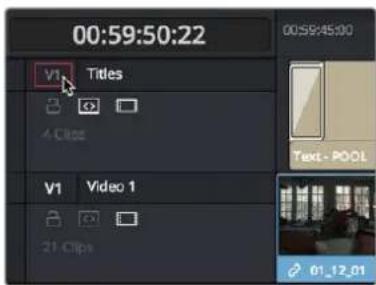
Moving the destination control to track V2, labeled "Titles"
You can also disable the Video or Audio destination controls in situations where you want to edit a source video clip into the Timeline without its audio, or vice versa.
To disable or reenable a destination control, do one of the following:
- Click an already assigned destination control to toggle it off and then on again.
- Pressing the "assign destination control" repeatedly for a given track (Option 1-8 for video, Option-Command-1-8 for audio) toggles the destination track on and off.
Disabled destination controls are highlighted gray.
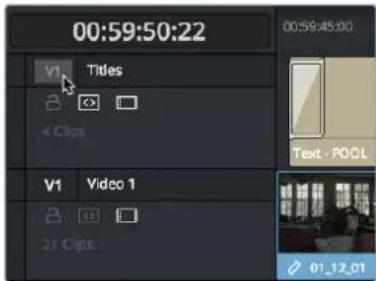
A disabled destination control
Setting In and Out Points in the Timeline
When you're setting up an edit to the Timeline, you can oftentimes get away with simply putting the Timeline playhead at the frame where you want to edit the incoming source clip. In the absence of In or Out points, the playhead is used as the In point. However, you can set up different kinds of edits by setting specific In and Out points to define different ranges of the Timeline.
Methods of setting and clearing In and Out points in the Timeline:
- To set an In or Out point: Select the Timeline or Timeline Viewer by clicking or pressing the Q key, then use the transport controls, jog bar, or control panel buttons to move the playhead, and press the I key to set an In point, or the O key to set an Out point.
- To clear In or Out points: With the Timeline Viewer selected, press Option-I to clear the current In point, or Option-O to clear the current Out point.
- To clear both the In and Out points at once: Press Option-X.
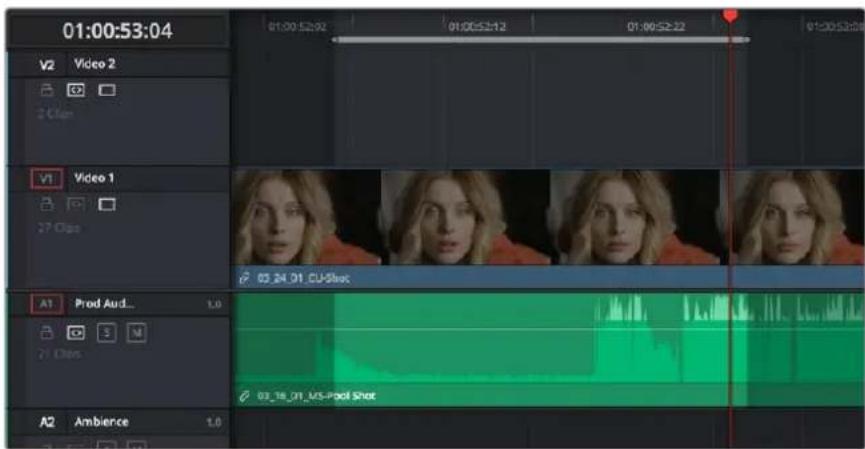
In and Out points shown in the Timeline, with unmarked areas outside the selection dimmed
Methods of moving In and Out points in the Timeline:
- Move the playhead, and then press the I or O keys to change the In or Out points to the new position of the playhead.
- Drag any In or Out point in the Timeline ruler to another position.
The area of the Timeline outside the region that's currently defined by In and Out points is dimmed, to call attention to the portion of the Timeline that will be affected by the next edit you'll make.
To move the playhead to an In or Out point in preparation for making an adjustment:
- Press Shift-I to immediately move the playhead to the current In point, or Shift-O to move the playhead to the current Out point.
The Go to In and Go to Out commands are capable of placing the playhead at the implicit (but unmarked) In and Out points defined by a three point edit you're setting up, even when Preview Marks have not been enabled. For example, if you mark In and Out points in the Timeline, and you then mark an In point for a clip in the Source Viewer, pressing Shift-O (Go to Out) automatically moves the Source Viewer playhead to the frame that will be the Out point of that clip were you to execute this edit.
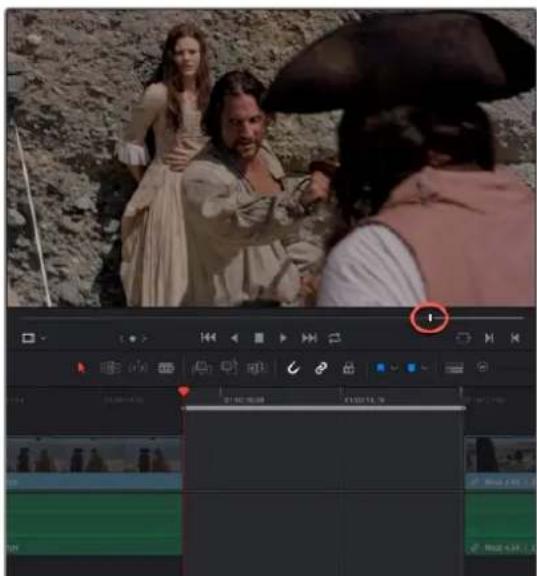
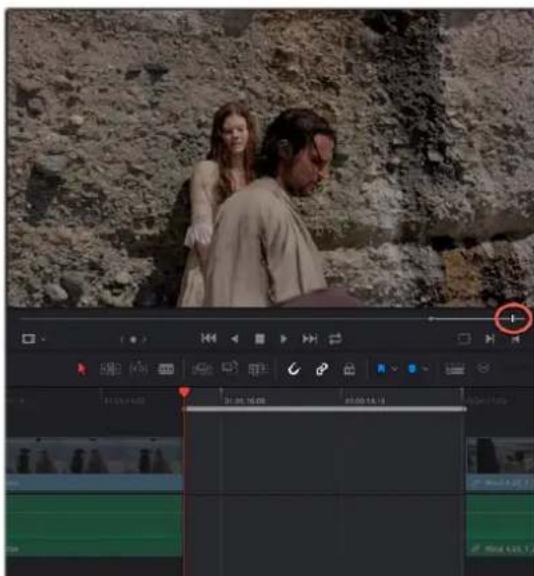
(Left) In and Out points set in the Timeline and an In point set in the Source Viewer set up a three point edit, (Right) Using Go to Out to move the Source Viewer playhead to the implicit Out point defined by a three point edit
Mark Clip and Mark Current Selection
These commands are automatic ways of setting In and Out points in the Timeline both at once, using the timing of other clips. They're both exceptionally handy for defining the range of an incoming edit using clips that are already in the Timeline that you want to replace, or gaps in the Timeline that you want to fill.
In short, Mark Clip uses the first and last frame of a target clip or gap in the Timeline to automatically set Timeline In and Out points for editing. For example, if there's a shot in an edit that you want to replace with a different take of the same action, or there's a gap in a sequence of clips that you'd like to quickly fill with B-roll, you can use the Mark Clip command to help set this up.
Mark Current Selection uses the first and last frames of a range of selected clips to automatically set Timeline In and Out points for editing. A good example is when you have a series of clips in the Timeline, all of which you'd like to overwrite with a single incoming source clip, you can use the Mark Current Selection command.
To use Mark Clip:
1 Move the playhead to intersect either a clip you want to use to set In and Out points, or a gap (empty area) between two other clips that you want to target. The playhead can be on any frame of this clip, it doesn't matter which.
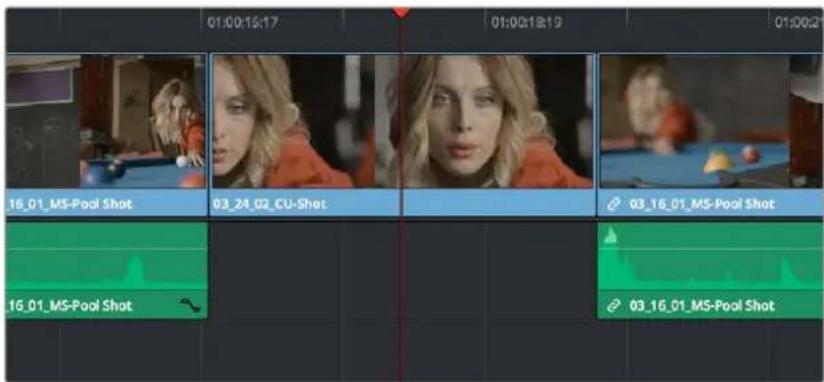
Positioning the playhead at a clip you want to mark
2 If there are other clips on a multi-track timeline that overlap the clip you're targeting for this operation, then the clip on the lowest video track will be used as the target to set the In and Out points. If you want to target a clip on a higher track, then either disable the Auto Selection controls of all timelines underneath, or Option-click the Auto Selection control of the track with the clip you're targeting to solo it, which will force that track to be the target of this operation.
3 Press the X key to automatically set In and Out points that match the first and last frames of the target clip.
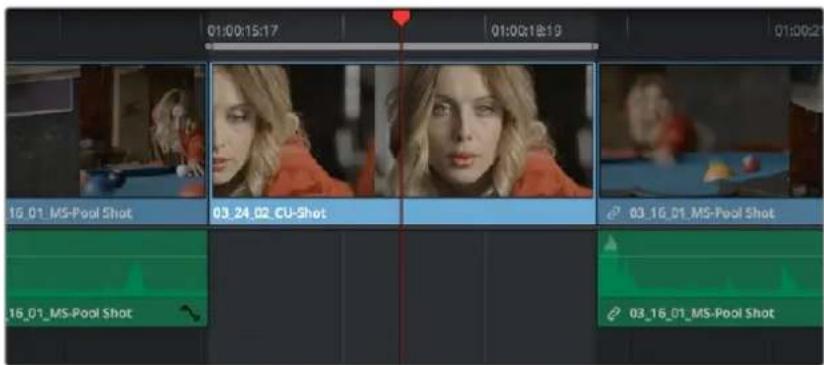
Using Mark Clip to set In and Out points that match a clip's duration
TIP: To clear both In and Out points, press Option-X, which is the opposite of this command.
To use Mark Selection:
1 Select one or more clips in the Timeline.
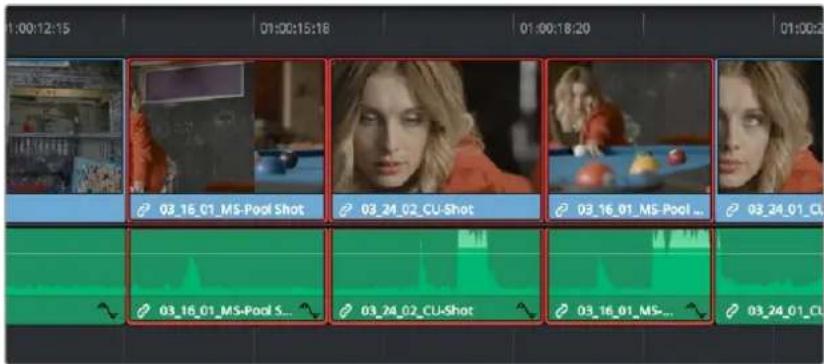
Selecting clips you want to use as a range to mark In and Out points
2 Press Shift-A to automatically set In and Out points that match the first and last frames of the selection. A range of discontinuous clips will produce the same result as a range of continuous clips.
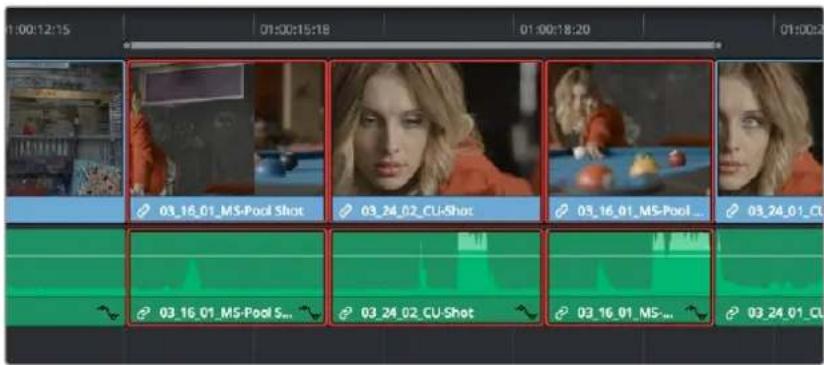
Marking a selection to set In and Out points
TIP: You can also mark gaps in the Timeline with Mark Selection.
Preview Marks During Three-Point Editing
In order to help you see what will happen whenever you execute a three-point edit, preview marks appear in either the Source Viewer or the Timeline Ruler to let you know the exact duration of the Timeline that's about to be affected by the edit you're preparing to make. To prevent them from being a distraction, preview marks only appear once you've explicitly marked three edit points in the Source Viewer and Timeline, and they can be turned on and off by choosing View > Show Preview Marks.
For example, if you set In and Out points in the Source Viewer, and an In point in the Timeline, then a preview marker will appear in the Timeline Ruler to show the implied Out point in the Timeline of the edit you're about to make.
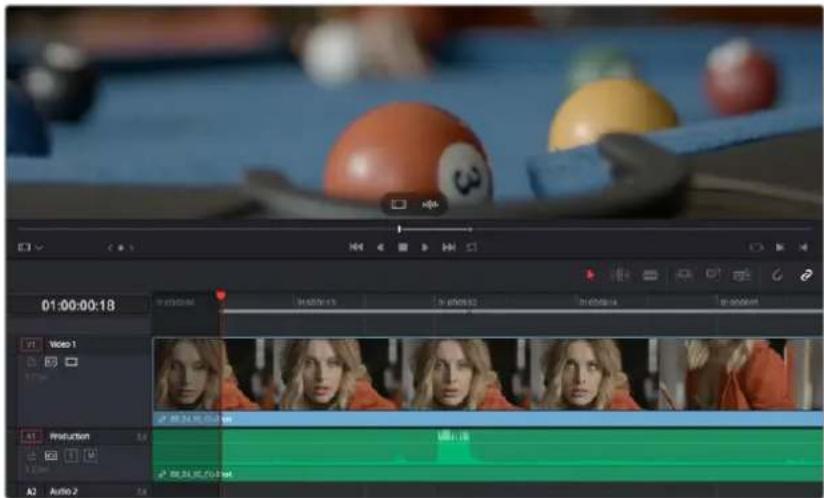
A preview marker in the Timeline shows the Timeline Out point being automatically calculated by DaVinci Resolve based on the In and Out points that are set in the Viewer, and the In point in the Timeline
On the other hand, if you set both In and Out points in the Timeline, and only an Out point in the Source Viewer, a preview marker appears in the jog bar of the Source Viewer to show you the implied In point, in the Source Viewer, of the edit you're about to make.
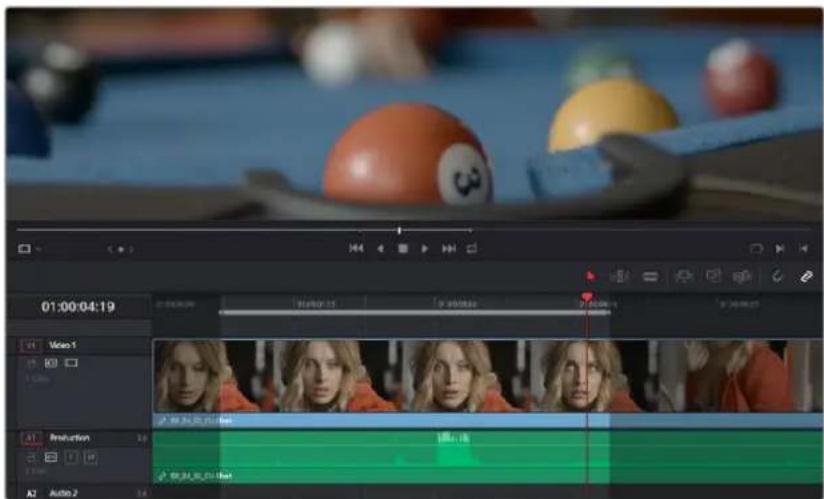
A preview marker in the Source Viewer shows the Source Viewer In point being automatically calculated by DaVinci Resolve based on the In and Out points that are set in the Timeline, and the In point in the Source Viewer
If you like, you can move the playhead to the position of the preview mark by using Shift-I if the preview mark is an In point, or Shift-O if the preview marker is an Out point.
Dragging Preview Marks to Change an Edit
You can drag preview marks to alter the edit you're about to make. When you drag a preview mark, the corresponding In or Out point that's opposite the Viewer with focus is altered to accommodate the new three-point edit you're setting up. For example, if you have an In point in the Source Viewer, and In and Out points set in the Timeline, a preview mark appears in the Source Viewer to show the Out point that will be used to edit the clip in the Source Viewer into the Timeline. However, you can drag this preview mark to the left in the Source Viewer, and the result will be that the Out point in the Timeline will move along with it, since you're retiming the edit.
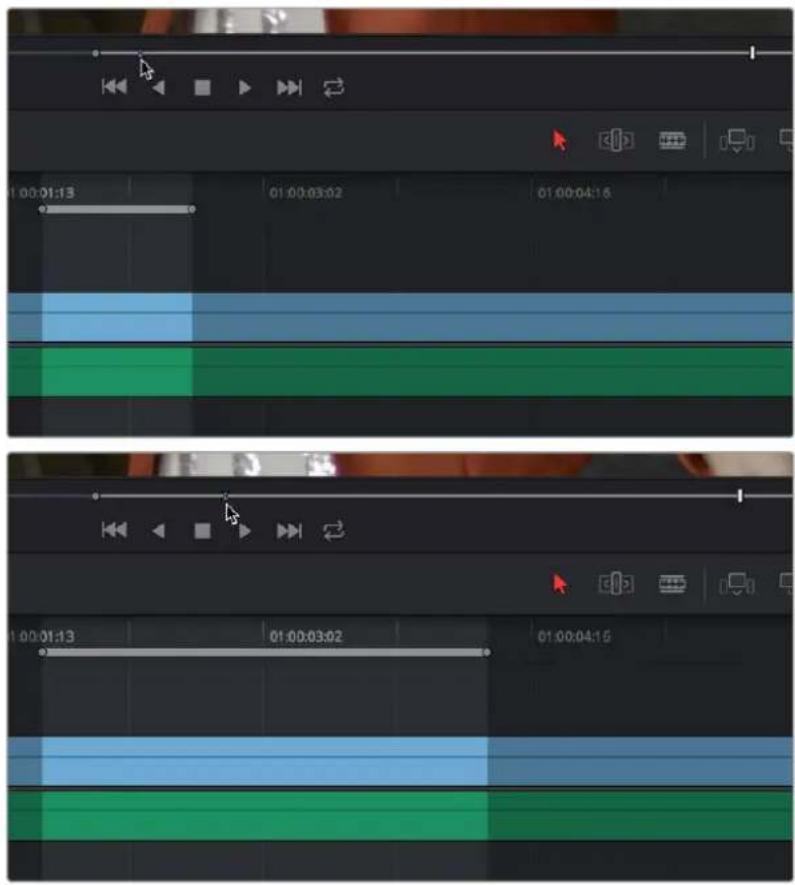
Dragging a preview mark in the Source Viewer changes the opposite edit point in the Timeline
The Rules of Three-Point Editing
In the previous examples, three-point editing was being used by virtue of source In and Out points being set to define a range of the source clip to be edited into the Timeline, and the Timeline playhead being used as the acting Timeline In point; three points defined the edit to be made. However, three-point editing is also very useful when you need to overwrite sections of a previously edited timeline with new source clips in a controlled manner, such as when adding an insert shot to a scene to cover a particular change you're making that would break continuity.
Depending on the combination of Source and Timeline In and Out points you set, the following rules govern three-point editing:
- If there is no In point in the source clip: The first frame of media will be used as the acting source In point. This can be seen by the thick bar that extends to the left of the Out point in the Source Viewer's jog bar.

natural_image
Generic media player interface with playback controls and navigation icons (no readable text or symbols)A thick bar indicates which part of the source clip will be used in the absence of a Source In point
- If there is no Out point in the source clip: The last frame of media will used as the acting source Out point. This can be seen by the thick bar that extends to the right of the In point in the Source Viewer's jog bar.

natural_image
Video player interface with playback controls and playback buttons (no readable text or symbols)A thick bar indicates which part of the source clip will be used in the absence of a Source Out point
- If there are no In or Out points in the Timeline: The playhead will be used as the acting Timeline In point.
- If you set a Timeline In point but no Timeline Out point: The whole range from the In to Out points of the source clip is edited into the Timeline such that the Source In point is aligned with the Timeline In point. This can be seen by the thick bar that extends to the right of the In point in the Timeline Ruler.
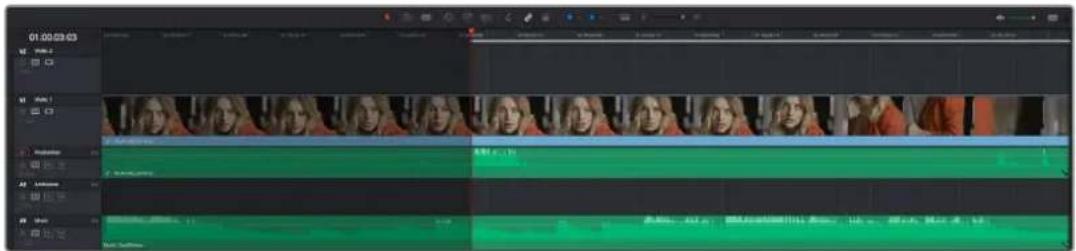
A thick bar indicates where the Source clip will be edited in the absence of a Timeline Out point
- If you set a Timeline Out point but no Timeline In point: The incoming source clip will be backtimed so the Out point of the source clip is aligned with the Timeline Out point. This can be seen by the thick bar that extends to the left of the Out point in the Timeline Ruler.
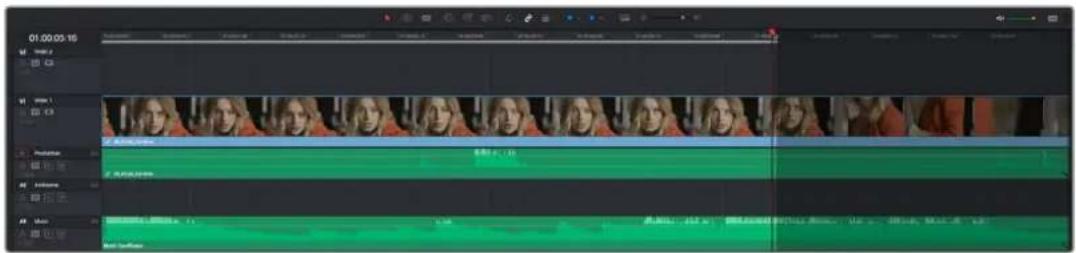
A thick bar indicates a backtimed edit in the absence of a Timeline In point
- If you set Timeline In and Out points but only a Source Out point: In this case, the incoming source clip will also be backtimed so the Out point of the source clip is aligned with the Timeline Out point, with the Timeline edit points defining the duration of the source clip being edited.
- If you set all four Source In and Out and Timeline In and Out edit points: The Timeline edit points dictate the duration of source clip that is edited into the Timeline, and the frame at the Source In point is aligned with the Timeline In point, unless you perform a Fit to Fill or ripple overwrite edit, both of which can be done as four-point edits.
TIP: If you want to use all four Source and Timeline edit points to retime a source clip to fit into a specific range of the Timeline, use a Fit to Fill edit instead of an overwrite edit.
Editing Rules for Split In and Out Points
If you've created split In and Out points in the Source Viewer or Timeline, the following rules apply:
- If the Source Viewer has split In and Out Points: The leftmost split point of the incoming clip, whether video or audio, will be aligned with the playhead when the clip is edited; the other split point will be offset to the right.
- If the Timeline has split In and Out Points: The In point of the incoming clip will be aligned with the leftmost split point, whether video or audio; the accompanying audio or video In point will be offset to the split point to the right.
Editing a Specific Range of the Source Clip Into the Timeline
This section provides some common examples of three-point editing when performing edits in the middle of a previously edited timeline. In the following example, you have a specific range of source media that you need to edit into the Timeline, and you don't particularly care what gets overwritten in the Timeline by the incoming clip.
1 Set In and Out points in a source clip, either in the Media Pool or in the Source Viewer.
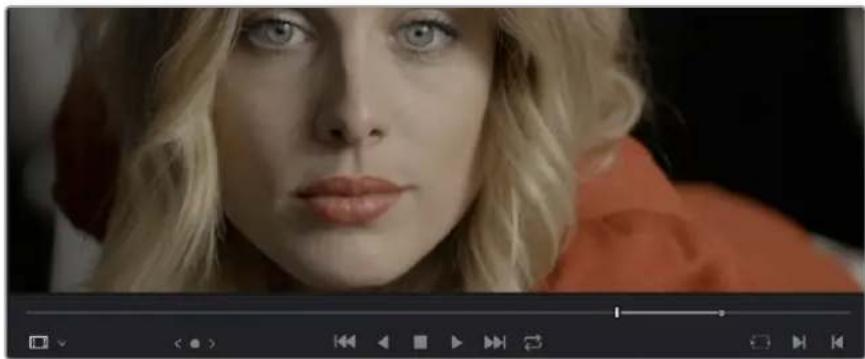
natural_image
Close-up portrait of a woman with blonde hair and red top, looking at the camera (no visible text or symbols)Setting source clip In and Out points
2 To set where you want the incoming clip to go, set the destination control to the tracks you want to edit onto, and then do one of the following:
- Move the Timeline playhead to the frame you want to use as the Timeline In point for the edit.
- Set a Timeline In point for the edit.

Using the playhead to act as a Timeline In point
3 To make the edit, click the Overwrite Clip button in the toolbar, press the F10 key, or drag a clip onto the appropriate overlay in the Timeline Viewer.
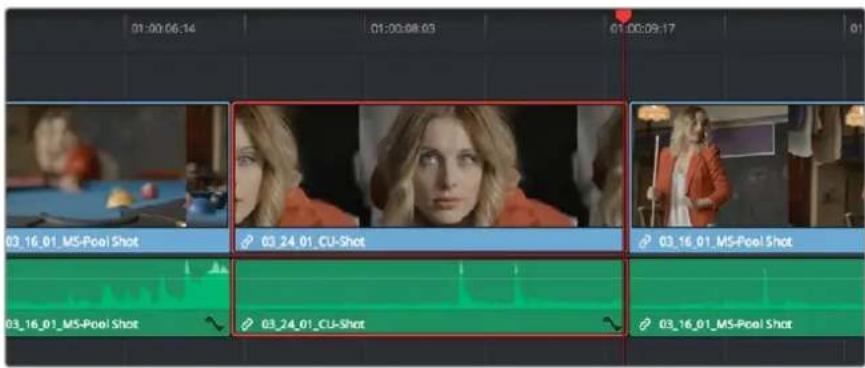
The resulting edit; the duration of the source clip defines the duration of the edit
Editing Part of a Source Clip to Fit Into a Specific Range of the Timeline
In this example, you have a section of a clip or a gap in the edited sequence of clips in the Timeline that you want to fill with as much of the current source clip as it will take to "plug the hole."
1 Set an In point in the source clip, if necessary, to define the first frame of the range of source media that you want to edit into the Timeline.
natural_image
Black-and-white photo of a woman with blonde hair holding a phone, looking upward (no visible text or symbols)Setting a source clip In point only
2 Set In and Out points in the Timeline to set both where you want the incoming clip to go, and how much of the incoming clip you want to use.
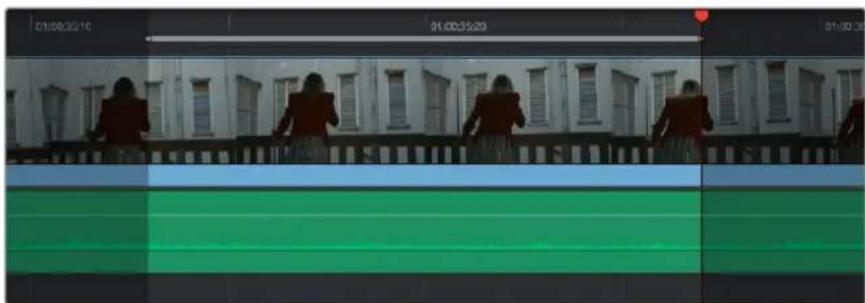
natural_image
Exterior view of a building facade with silhouettes of people standing on balconies (no visible text or symbols)Setting both In and Out points of the Timeline for a gap
3 To make the edit, click the Overwrite Clip button in the toolbar, press the F10 key, or drag a clip onto the appropriate overlay in the Timeline Viewer.
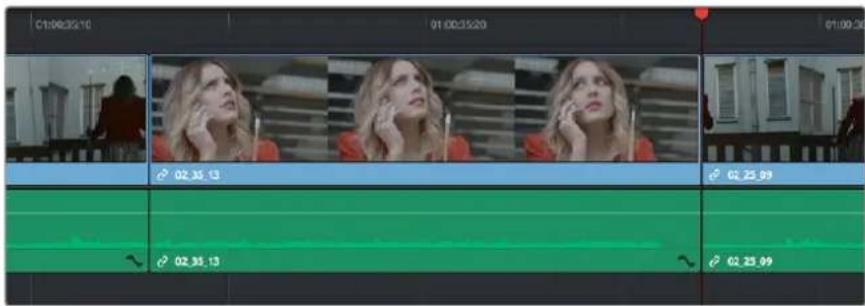
The resulting edit; the duration of the Timeline edit points define how much of the source clip is edited
Backtiming a Source Clip When Editing Into the Timeline
In this last example, you've got a specific moment in the second half of a source clip that you need to align with an Out point in the Timeline, such that the remaining duration of the incoming clip overwrites the edited sequence of clips from the right to the left. This is referred to as backtiming, when you're lining up a Source Out point with a Timeline Out point in order to make an edit, and can be set up one of two ways.
Backtiming method one:
1 Set In and Out points in the source clip, either in the Media Pool or in the Source Viewer.
2 Set an Out point in the Timeline, at the frame where you want the corresponding Out point of the incoming source clip to be aligned.
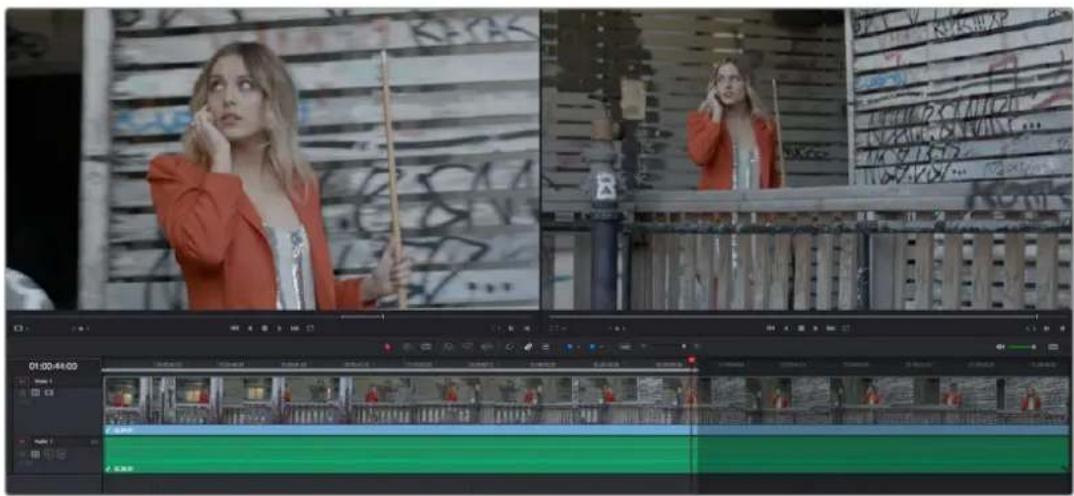
natural_image
Video editing software interface showing two women in a studio with abstract background (no readable text or symbols)Setting up a backtimed match-on-action edit via In and Out points in the Source Viewer, and only an Out point in the Timeline
3 To make the edit, click the Overwrite Clip button in the toolbar, press the F10 key, or drag a clip onto the overwrite overlay in the Timeline Viewer.

The resulting edit, aligning the Out point of the source clip with the Out point of the Timeline
Backtiming method two:
1 Set an Out point in the source clip, either in the Media Pool or in the Source Viewer.
2 Set In and Out points in the Timeline to set both where you want the incoming clip to go, and how much of the incoming clip you want to use.
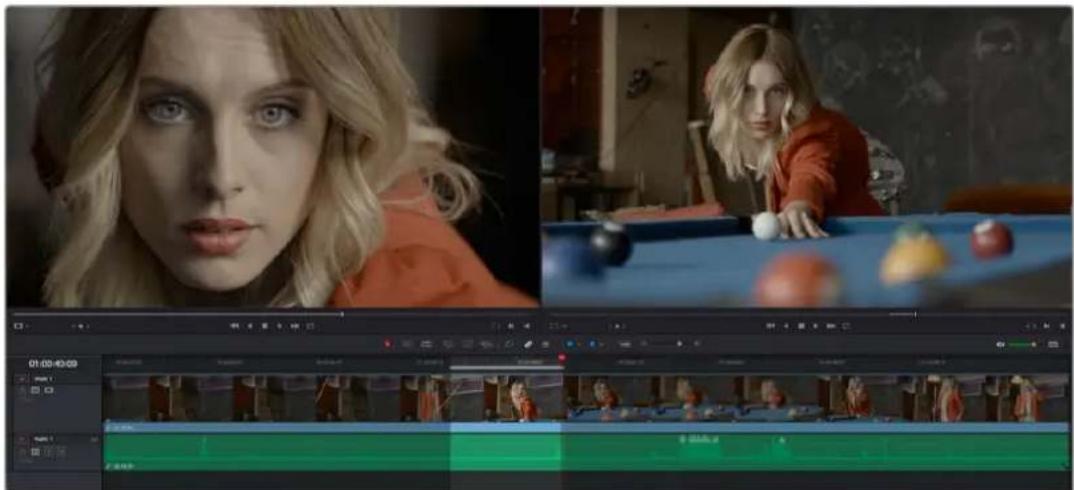
natural_image
Video editing interface showing a close-up of a woman's face with blonde hair, a pool scene, and a video frame with multiple tracks (no visible text or symbols)Setting up a backtimed edit by setting an Out point in the Source Viewer, and In and Out points in the Timeline to define the duration of the edit
3 To make the edit, click the Overwrite Clip button in the toolbar, press the F10 key, or drag a clip onto the appropriate overlay in the Timeline Viewer.

The resulting edit, aligning the Out point of the source clip with the Out point of the Timeline
Switch Focus to Timeline After Edit
A setting in the Edit menu, "Switch focus to timeline after edit" (Option-Shift-Q), lets you set whether or not DaVinci Resolve changes the application focus from the Source Viewer to the Timeline Viewer/ Timeline every time you make an edit. This setting is on by default.
For example, if you're assembling clips from many different source files into the Timeline, and trimming the results as you go, leaving this option on may save you time. In this case, after every edit, the focus switches from the Source Viewer to the Timeline, so you can quickly select the clip or edit point you want to trim and make your adjustments before loading the next clip into the Source Viewer in preparation for the next edit.
On the other hand, if you're editing several pieces from a long interview clip into the Timeline, you may want to turn this setting off to make it easy to continue playing forward in the Source Viewer, setting In and Out points and editing clips into the Timeline as you go. After every edit, focus remains on the Source Viewer, so you can continue making edits from the same source clip without interruption.
Different Types of Three-and Four-Point Edits
This section covers the different types of edits that are available for cutting source clips into the currently open Timeline.
Overwrite Edits
The most common type of edit you'll make, an overwrite edit eliminates whatever media was in the Timeline previously with the incoming source clip taking the place of whatever was there. Overwrite edits are commonly used when initially assembling clips, or doing three-point editing.
Overwrite edits do not ripple the Timeline.
To overwrite one or more clips in the Timeline:
1 Move the playhead to the frame of the Timeline where you want to insert a clip.
2 Click the appropriate audio and video destination controls of the tracks you want to edit the incoming source clip onto. If necessary, create new tracks.
3 Select a single clip in the Media Pool to open it into the Source Viewer, then set In and Out points to define the range of media you want to insert.
4 To make the edit, choose Edit > Overwrite, click the Overwrite Clip button in the toolbar, press the F10 key, or drag a clip onto the Overwrite overlay in the Timeline Viewer.
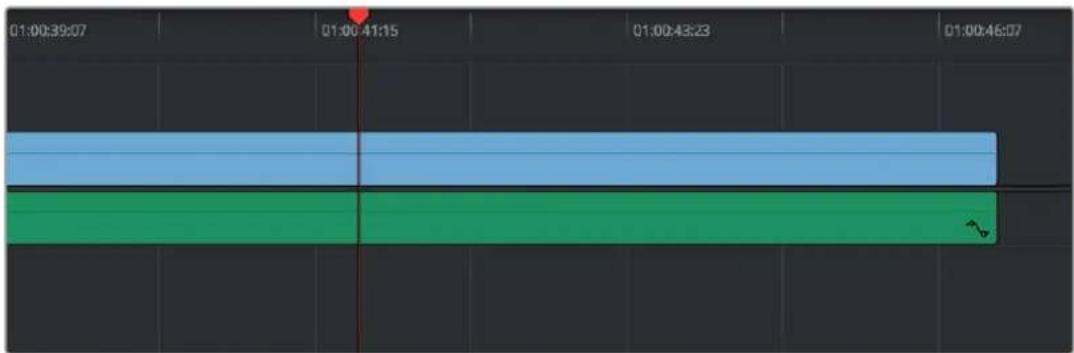
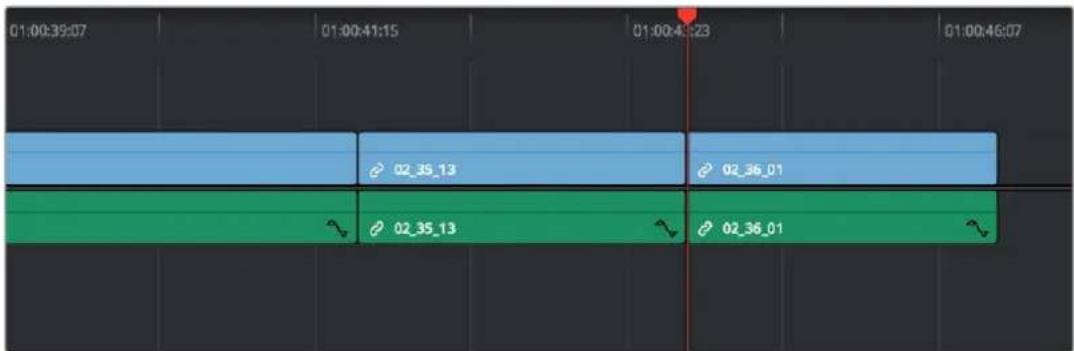
Before and after an overwrite edit, the Timeline duration stays the same
The selected clips in the Media Pool are overwrite edited to the selected track starting at the position of the playhead, eliminating whatever was there originally while adding incoming clip. No other clips are rippled during this operation.
Insert Edits
An insert edit splits whatever media is already in the Timeline at the position of the playhead, and pushes that media to the right to make room for the incoming clip.
Insert edits have the effect of rippling almost all clips in the Timeline that are to the right of the insert edit point you're making, pushing them farther to the right by the duration of the incoming source clip. However, clips in any tracks of the Timeline that overlap to the left of the insert edit point aren't rippled, and remain in place.
For example, if you're insert editing a clip into the middle of a sequence of clips in track V1 and A1 of the Timeline, and there's also a clip of music edited into track A2 that overlaps well to the left of the insert edit point, the music clip remains where it is, but the other clips on track V1 and A1 that are to the right of your edit point on are pushed to the right.
To insert edit one or more clips into the Timeline:
1 Move the playhead to the frame of the Timeline where you want to insert a clip.
2 Click the appropriate audio and video destination controls of the tracks you want to edit the incoming source clip onto. If necessary, create new tracks.
3 If necessary, set In and Out points in the clip or clips you want to insert edit into the Timeline using the controls of the Media Pool or the Source Viewer.
4 Do one of the following:
- Select one or more clips in the Media Pool, right-click one of the selected clips, and choose "Insert Selected Clips to Timeline."
- Choose Edit > Insert, click the Insert Edit button in the toolbar, press the F9 key, or drag any clip onto the Insert overlay in the Timeline Viewer.
The selected clips are insert edited to the selected track at the position of the playhead, pushing all other media in the destination track back by the total duration of the selected clips, except for clips on other tracks that overlap to the left of the edit point (as seen by the overlapping music clip in the example below).
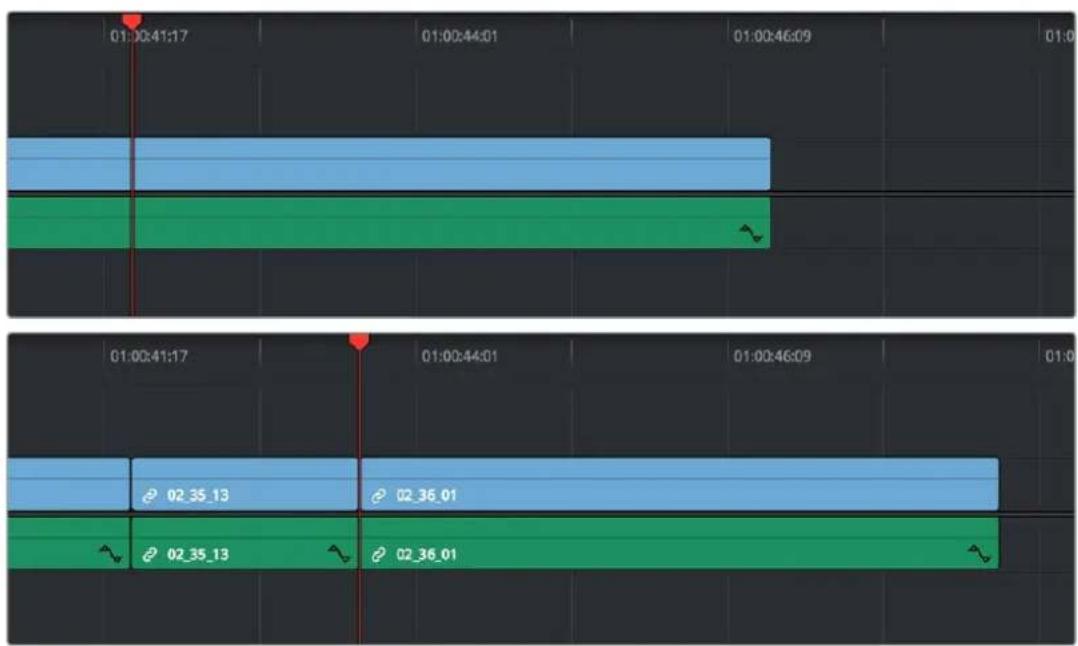
Before and after an insert edit, the Timeline gets longer as non-overlapping clips to the left of the edit point are rippled to the right
Replace Edits
Replace edits are a unique three-point edit type that aligns the frame at the Source Viewer playhead with the frame at the Timeline playhead when the edit is executed. This is the fastest edit type to use when you need to align an action at a specific frame of video, or a sound at a specific frame of audio, to a particular frame's action or sound in the video or audio of the Timeline.
The fastest way of using the replace edit is to not bother setting either In or Out points in the Source Viewer, and to either use the duration of an existing clip intersecting the Timeline to define the edit, or a pair of timeline In/Out points specifying either a section of a clip you want to overwrite, or an empty section of the Timeline to which you want to edit.
Replace edits do not ripple the Timeline.
Replace Edits to Replace Existing Clips in the Timeline
A replace edit automatically replaces an existing clip in the Timeline with a clip in the Source Viewer, so long as that clip overlaps the playhead and is on a track with its destination control enabled. When you make a replace edit in this way, DaVinci Resolve automatically uses the duration of the Timeline clip to define the duration of the incoming media, and the positions of the Viewer and Timeline playheads to line up how the incoming media should be placed. This is an extremely fast edit to make, since you needn't use any In or Out points at all.
To replace a clip in the Timeline:
1 Move the playhead in the Timeline to the clip that you want to replace, and align it with a frame that you want to line up with a frame in the clip you'll be replace editing into the Timeline.
2 Click the appropriate audio and video destination controls of the track containing the clip you want to replace.
3 Open a clip into the Source Viewer.
4 Move the playhead in the Source Viewer to the frame that you want to line up with the frame at the position of the playhead in the Timeline.
In the example shown below, the original clip that was shot on location of a car driving past a slab of real concrete (shown in the Timeline Viewer at right) is going to be replaced by a VFX shot of a concrete wall with a small hole for the car to drive through (shown in the Source Viewer at left). The playhead in the Source Viewer is aligned on the very same frame as the playhead in the Timeline Viewer, which can be seen by the identical position of the white stripe on the road in the lower right-hand corner of the picture.
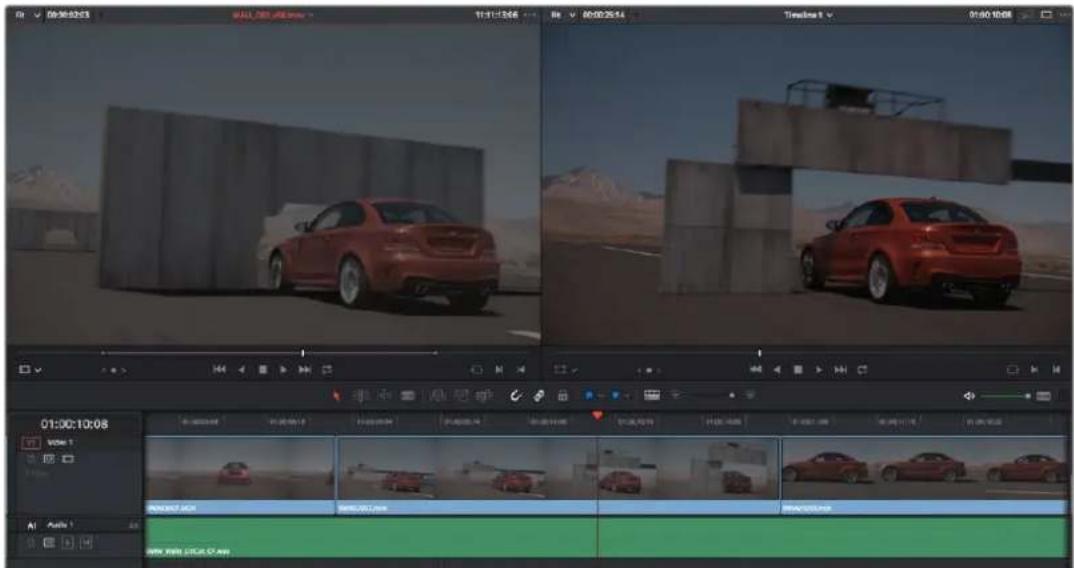
In the Source Viewer to the left is a VFX clip we want to edit into the Timeline to replace the existing Timeline clip, shown in the Timeline Viewer at right
5 Now that the playheads are aligned on the frames that must match one another in both the Source and Timeline Viewers, choose Edit > Replace, click the Replace Clip button in the toolbar, press F11, or drag any clip onto the Replace overlay in the Timeline Viewer.

The resulting replace edit, in which the original timeline clip is replaced by the incoming Source Viewer clip by aligning the frames at each playhead
The camera original clip in the Timeline is now replaced with the VFX source clip from the Media Pool, with the source frame at the Source Viewer playhead aligned with the frame at the Timeline playhead.
Replace Edits to Edit Clips Into Empty Tracks
You can also use a replace edit to edit a clip into an empty track of the Timeline so that the frame at the position of the Source playhead is aligned with the Timeline playhead, and the In and Out points of the incoming clip fall where they may. This is useful when you want to "spot" a particular action of an alternate take or a cue in a sound effect to a specific frame of the Timeline.
To use replace edit to spot a sound effect or action video clip into the Timeline:
1 Move the playhead in the Timeline to the clip that contains the moment you want to align the new incoming audio or video clip with, and position it on the exact frame that you want to line up with a frame of the clip you're going to edit into the Timeline.
2 Click the appropriate audio and video destination controls of the empty track you want to edit the incoming clip into.
3 Open a clip into the Source Viewer.
4 Move the playhead in the Source Viewer to the frame that you want to line up with the frame at the position of the playhead in the Timeline. This may be the sample of a sound effect that corresponds to the action in a particular frame of your program's video, or a frame of video that corresponds to a particular sound in your program's audio.
In the example shown below, the beginning of an audio cue of a billiard ball being hit is being lined up with the frame in which the cue ball is first hit in the video.
5 If necessary, set In and Out points in the Timeline to restrict how much of the incoming clip will be edited. Otherwise, the entire source clip will be edited into the Timeline.
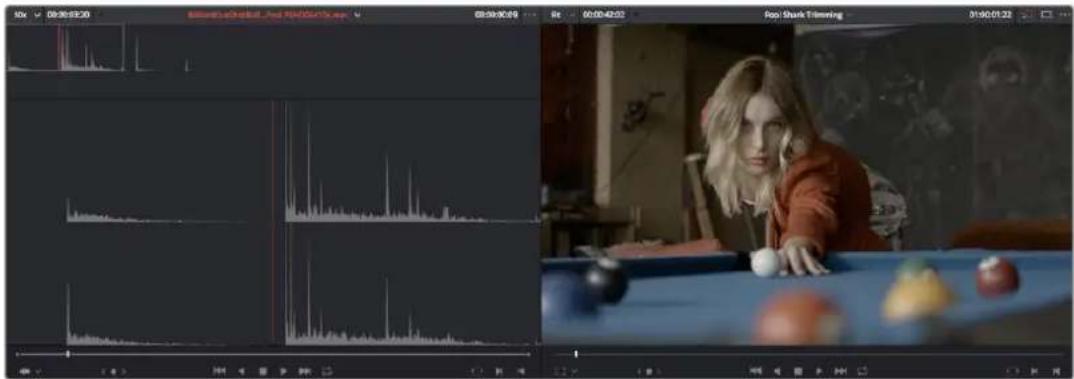
In the Source Viewer to the left is an SFX clip we want to edit into the Timeline to match the visuals of a cue ball being hit, shown in the Timeline Viewer at right
6 Now that the playheads are aligned on the frames that must match one another in both the Source and Timeline Viewers, choose Edit > Replace, click the Replace Clip button in the toolbar, press F11, or drag any clip onto the Replace overlay in the Timeline Viewer.
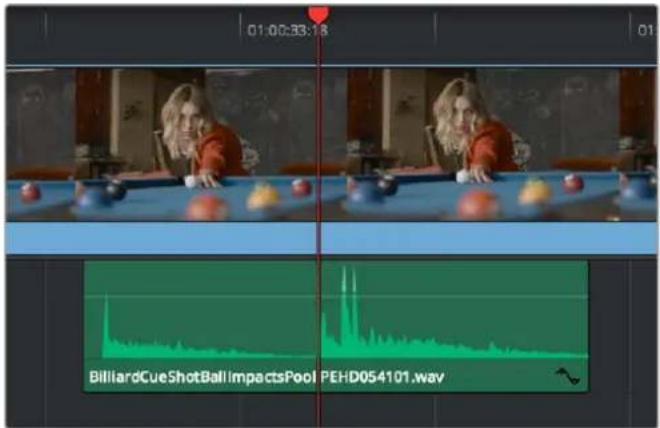
The resulting replace edit, in which the incoming Source Viewer clip is aligned perfectly with the video
The SFX source clip has now been edited into the specified audio track, with the source frame at the Source Viewer playhead perfectly aligned with the frame at the Timeline playhead so that the cue ball hit is in sync with the visuals.
Replace Edit Using Clips Already in the Timeline
To facilitate workflows where multiple clips are stacked in the Timeline to manually track different takes or versions of stock footage, VFX clips, or other versionable media, there's a method of drag and drop replace editing that copies the grade of the clip being replaced to the clip you're replacing it with at the same time, so that newer versions of effects can inherit the same grade as the previous version of the effect being replaced. This only works for clips that have already been edited into the Timeline and that are superimposed (over or under) other clips in the Timeline, such as in the following screenshot. Be aware that this technique can also be used for multiple selected clips on the Timeline to do several replace edits all at once.
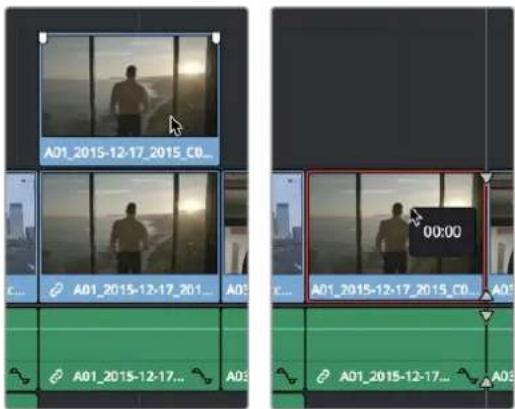
(Left) Before replace editing a clip in the Timeline, (Right) After Command-dragging a clip over one under it in the Timeline to replace edit the one below with the one above.
To replace edit one clip that's stacked on the Timeline into another:
1 Select one or more clips that are already on the Timeline. Typically these will be clips that are superimposed over other clips.
2 Hold the command key down while dragging one superimposed clip on top of another to overwrite a clip and copy its grade to the clip you're overwriting it with.
NOTE: This won't work with clips you're editing into the Timeline from the Media Pool or Source Viewer.
Fit to Fill
Fit to fill edits are the only edit type that actually use all four edit points, and it's the only edit type that retimes clips at the same time as they're being edited. By setting In and Out points in the incoming source clip, and another pair of In and Out points in the Timeline, you can stretch or compress the timing of the specified range of source media to cover the entire specified range of the Timeline. In the process, the speed ratio of the clip changes so the clip plays in either fast or slow motion.
Fit to fill edits are especially valuable when you have a source clip in which the action is slightly slow, and you just want to speed it up by squeezing it into a shorter duration of the Timeline. They're also incredibly handy in situations when you have a gap in an edited sequence of clips to fill with a source clip that's just not long enough, but in which slightly slower motion won't be noticeable.
Fit to fill edits do not ripple the Timeline.
To use fit to fill to edit a clip into the Timeline:
1 Do one of the following to define where in the Timeline to edit the incoming clip:
a You can set both In and Out points in the Timeline, to define the duration you want to fill with the incoming source clip as a three-point edit.
b You can clear the Timeline In and Out points (pressing Option-X), so that you can instead use the duration of whichever clip or gap intersects the playhead on the track with the destination controls assigned to them. In the following screenshot, the clip can easily be edited to take the place of the gap by positioning the playhead anywhere within it.
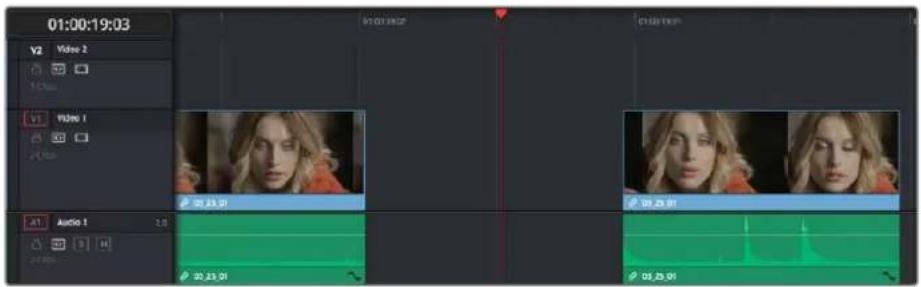
Setting timeline In and Out points to mark a gap
2 Next, you'll need to set both In and Out points in the Source Viewer to define a longer or shorter source clip that you want to fill into the available space. In this example, we have a very short section of the source clip defined that, because of the matching action in the Timeline, must be fit into the larger gap seen above.

Setting In and Out points in a source clip to define a shorter duration segment that you want to completely fill the gap
3 Click the audio and video destination controls of the tracks you want to edit the incoming source clip onto. If necessary, create new tracks.
4 Choose Edit > Fit to Fill, drag any clip onto the Fit to Fill overlay in the Timeline Viewer, or press Shift-F11.
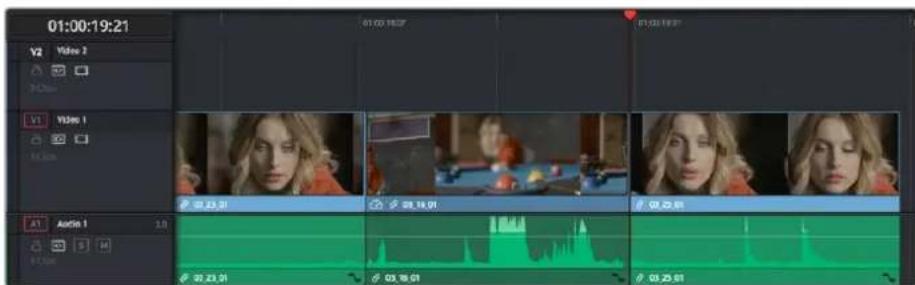
The resulting edit; the shorter source clip is retimed to fit into the longer timeline gap
The incoming source clip is retimed, as necessary, to fit into the specified duration of the Timeline. This can be seen by the retiming badge that appears within the clip that's just been edited into the Timeline.
Place on Top
Place on top edits automatically superimpose clips onto the first empty track above (for video clips) or below (for audio clips) any other clips in the Timeline that either intersect the playhead or fall in between the currently set Timeline In and Out points, regardless of the current track specified by the destination controls. It's designed to make it easy to superimpose titles and other clips you want to composite over another clip, or to add additional versions of clips such as VFX on top of previous versions that you want to preserve.
Place on top edits create new timeline tracks if necessary, and do not ripple the Timeline.
To use place on top to edit a clip into the Timeline:
To choose where in the Timeline the clip will be "placed on top," do one of the following:
Move the playhead to intersect the clip you want to edit the incoming source clip on top of.
Set In and Out points in the Timeline to define the duration within which you want to place the incoming source on top.
2 Set In and Out points in a source clip that you want to edit.
3 Choose Edit > Place on Top, drag any clip onto the Place on Top overlay in the Timeline Viewer, or press F12.
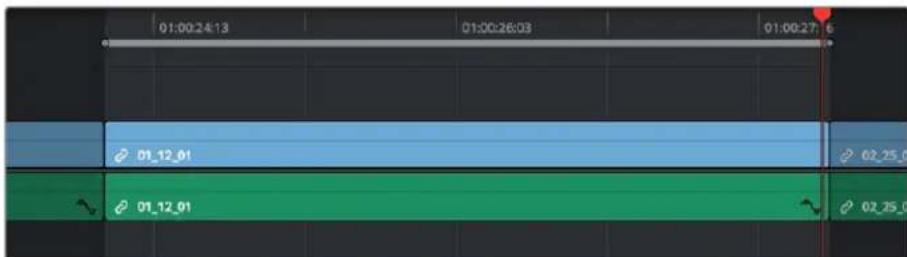
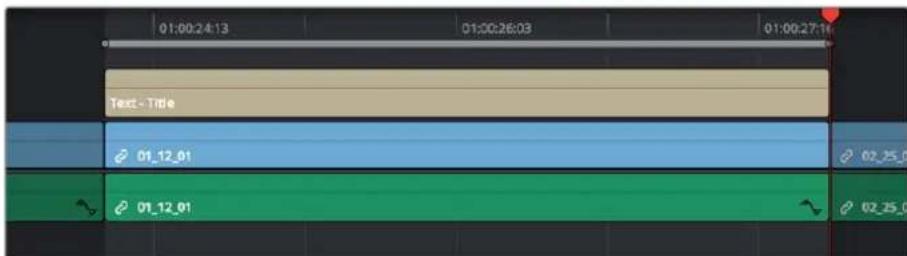
Before and after using place on top, the incoming text generator is superimposed to a track above the clip at the position of the playhead
Incoming video clips will be edited to the topmost video track so they are above any previously existing video in the Timeline. Incoming audio clips are edited to the bottom-most audio track so they are below any previously existing audio. If necessary, new video and/or audio tracks will be created automatically to hold the new incoming clip.
Ripple Overwrite
Ripple Overwrite is a four-point edit that's useful when you can identify a segment of the Timeline you want to overwrite, but the incoming clip is of a different duration and you want DaVinci Resolve to automatically ripple the Timeline to accommodate the difference.
You can use the Ripple Overwrite command one of two different ways:
- You can overwrite an entire clip in the Timeline with another clip of different length.
- You can overwrite a section of the Timeline marked with In and Out points with a another clip of different length.
In both cases, all clips to the right of the clip or timeline section being overwritten are rippled to the right or left to make room or fill the gap. Because of this, the ripple overwrite edit will most likely change the overall duration of your edited sequence of clips.
Using Ripple Overwrite on an Entire Clip in the Timeline
Using ripple overwrite as an automatic four-point edit, you can overwrite whichever clip in the Timeline intersects the playhead on the tracks defined by the destination controls, in its entirety, with the incoming clip. For this to work, there must be no In or Out points set in the Timeline.
After performing a ripple overwrite in this way, the original timeline clip is eliminated and the incoming clip takes its place, and all clips to the right of the clip being replaced are either (a) rippled to the right if the incoming clip is longer than the original timeline clip, or (b) rippled to the left if the incoming clip is shorter than the original timeline clip. All of this is done in a single step.
This is useful in situations where you want to quickly switch one clip in the Timeline with another of unequal duration and have the Timeline automatically make room to allow this all in one step.
To use ripple overwrite to replace an entire clip in the Timeline with another source clip:
1 Move the playhead in the Timeline to intersect the clip that you want to replace; the playhead's exact position is not important.
2 Click the appropriate audio and video destination controls of the track containing the clip you want to replace, and press Option-X to eliminate any In and Out points there might be in the Timeline.
3 Open a clip into the Source Viewer, and set In and/or Out points as necessary to define how much of the clip you want to edit into the Timeline.
4 To execute the edit, choose Edit > Ripple Overwrite, drag the clip to the Ripple Overwrite overlay of the Timeline Viewer, or press Shift-F10.
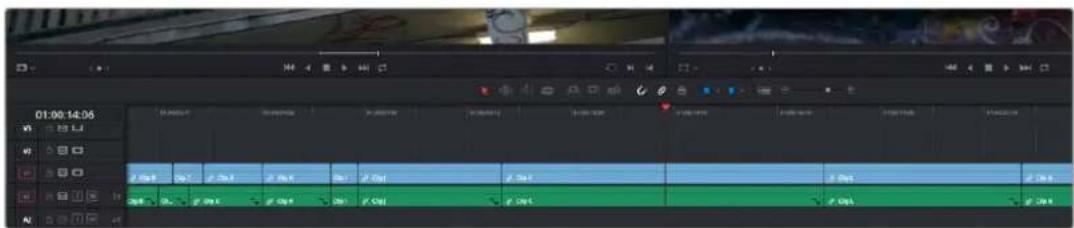
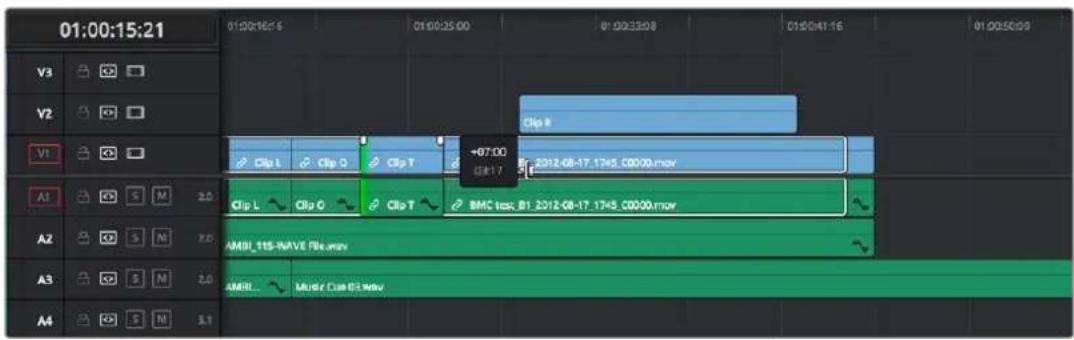
Before and after of using ripple overwrite with no Timeline In or Out points; Clip K at the position of the playhead is replaced in its entirety by the short segment of Clip U from the Source Viewer; all clips with In points to the right are rippled to the left to fill the gap
Using Ripple Overwrite on a Section of the Timeline Defined by In/Out Points
You can also use ripple overwrite as an explicit four-point edit, to overwrite a section of the Timeline that's marked with In and Out points with an incoming clip that's also marked with In and Out points that is of unequal duration.
After performing a ripple overwrite in this way, the section of the Timeline marked with In and Out points is eliminated and the incoming clip takes its place, and all clips to the right of the clip being replaced are either (a) rippled to the right if the incoming clip is longer than the original timeline clip, or (b) rippled to the left if the incoming clip is shorter than the original timeline clip. All of this is done in a single step.
A good example of when this can be useful is when you're cutting a close-up of an actor performing a particular action into a medium shot of the actor performing the same action that's already in the Timeline, and the action you're matching is of different durations in each of the shots.
To use ripple overwrite to replace a section of the Timeline with another source clip:
1 Set In and Out points in the Timeline to mark what part of the clip or clips you want to overwrite. You must set both In and Out points for this to work as expected. In this example, the part of the clip where the woman leans forward is marked.
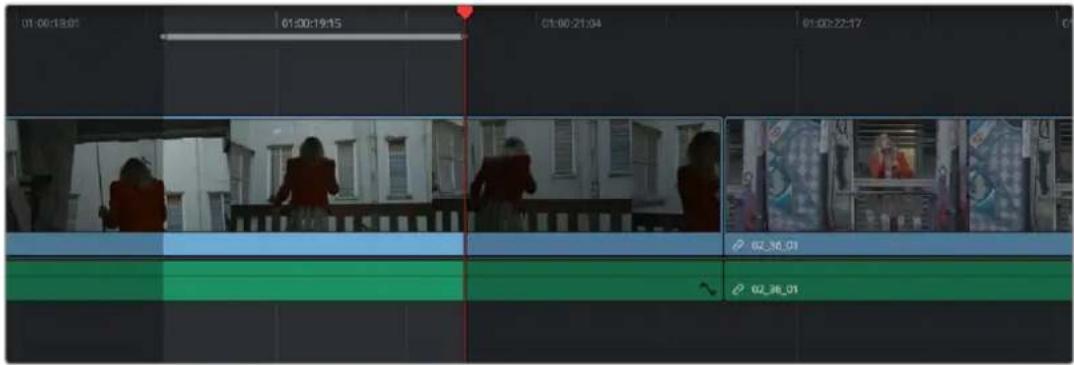
Setting In and Out points to identify an action in the Timeline that you want to overwrite with another clip that has a matching action
2 Open a clip into the Source Viewer, and set In and/or Out points as necessary to define how much of the clip you want to edit into the Timeline. In this example, a section of the woman's close up where she leans forward in a way that matches the same movement in the wider shot is marked.
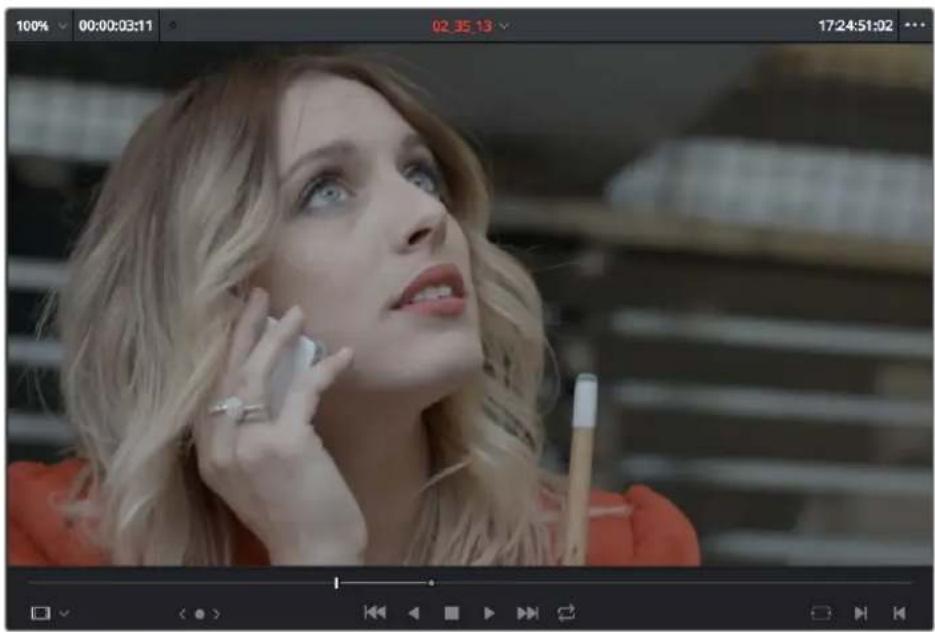
natural_image
Woman applying makeup with a cigarette in her hand, set against a blurred background (no visible text or symbols)Setting In and Out points to identify an action in a source clip that you want to overwrite the action you've marked in the Timeline. It's a matching action, but the timing might be different, and that's okay with this kind of edit.
3 To execute the edit, choose Edit > Ripple Overwrite, drag the clip to the Ripple Overwrite overlay of the Timeline Viewer, or press Shift-F10. As a result, the section of the timeline that was marked in step 1 is overwritten by the section of the source clip marked in step 2, and all clips to the right of this edit in the Timeline are rippled to the right to make room for the much longer source clip. The final result is an edit where the movements match nicely.
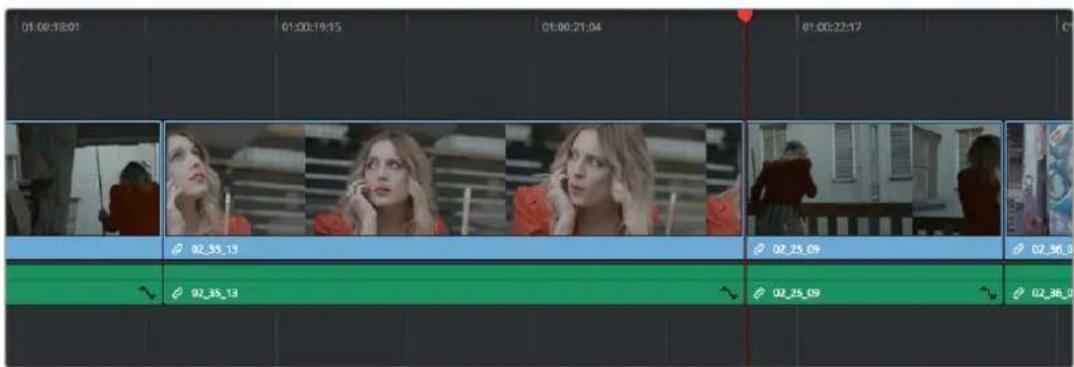
After the ripple overwrite, the part of the Timeline clip marked with In and Out points has been overwritten by the part of the Source clip marked with In and Out points, and all clips to the right of this edit in the Timeline are rippled left or right as necessary
Append at End
Append at end always puts the edited clip at the very end of the current Timeline. It's a very useful edit type when you're quickly stringing together a series of clips.
To use append at end to edit a clip into the Timeline:
1 Set In and Out points in a source clip that you want to add to the end of the current Timeline. If necessary, change the sort order of the Media Pool to put these clips into the order in which you want them to be added to the Timeline.
2 Click the audio and video destination controls of the tracks you want to edit the incoming source clip onto. If necessary, create new tracks.
3 Choose Edit > Append to End Of Timeline, drag the clip to the Append at end overlay of the Timeline Viewer, or press Shift-F12.
Incoming video clips are added after the very end of the last clip in the Timeline.
Insert Selected Clips to Timeline Using Timecode
Clips can be edited directly from the Media Pool into a timeline, such that each clip's source timecode is aligned with an identical record timecode value in the Timeline. This can be useful for long form multi-camera events, like weddings or concerts, where all cameras are linked by the same timecode to ensure all edits are perfectly synced. This function matches the Source Overwrite edit on the Cut page.
IMPORTANT
The timecode of the Timeline must overlap the timecode of the clip(s) for this edit to function. This can be set in the Start Timecode field of the New Timeline settings.
To insert selected clips to timeline using timecode:
1 Select one or more clips to edit into the Timeline in the Media Pool. If there are In and Out points set on the clip, the edit will respect those boundaries. If no In/Out points are set, each selected clip's full duration will be edited in its entirety.
2 Set a destination control to determine which track in the Timeline you want to edit to.
3 Right-click one of the selected clips and choose "Insert Selected Clips to Timeline Using Timecode" from the drop-down menu.
4 All of the selected clips will be overwritten into the Timeline at their appropriate timecode locations onto the destination track.
IMPORTANT
If multiple selected clips have overlapping timecode, no edit will occur.
Insert Selected Clips to Timeline With Handles
"Insert Selected Clips to Timeline With Handles" is a command that's available from the Media Pool contextual menu for editing one or more selected clips to the currently open timeline, such that the default handle length is subtracted from the beginning and end of each clip. The goal is to make it easy to string together a series of clips that you want to connect using transitions by automatically changing the In and Out points of each clip being edited into the Timeline in order to add handles.
To use insert selected clips to timeline with handles to edit one or more clips into the Timeline:
1 Select one or more clips in the Media Pool that you want to add to the Timeline. If necessary, change the sort order of the Media Pool to put these clips into the order in which you want them to be added to the Timeline.
2 Click the audio and video destination controls of the tracks you want to edit the incoming source clip onto, and position the playhead where you want the incoming clips to start. If necessary, create new tracks.
3 Right-click one of the selected clips in the Media Pool and choose "Insert selected clips to timeline with handles" from the contextual menu.
The selected clips are added to the Timeline starting at the position of the playhead.
To change the length of handles that are removed, open the Editing panel of the User Preferences and change the "Default handles length" setting. Handles will not be added in either of the following two cases:
– If any of the selected clips in the Media Pool already have handles because of In and Out points that you've set, then additional handles won't be added.
- If the duration of the frames to be removed to create handles in this operation is greater than the duration of one or more of the clips you've selected in the Media Pool, then handles won't be added at all.
Three-Point Editing From the Media Pool
You can also execute three-point edits directly from the Media Pool, with no need to use the Source Viewer.
Example: Assembling Clips Into the Timeline From the Media Pool
If you want, you can also edit clips directly into the Timeline from the Media Pool using a variety of commands. This can be a fast way of appending clips to the end of the Timeline (although you can also perform insert edits this way).
To edit one or more clips from the Media Pool to the Timeline:
1 If necessary, set In and Out points for each of the clips you want to edit into the Timeline using either the Media pool thumbnails (in Thumbnail view), the Media Pool Filmstrip Viewer (in List view), or by opening each one into the Source Viewer. For each method, press I to set an In point, and O to set an Out point.
2 Change the sort order of the Media Pool's browser area to put the clips into the order in which you want them to appear. In Thumbnail view you can use the Sort Order menu, but in List view you can click the header of any metadata column to sort by that column's data.
3 Position the playhead to where you want to edit the clips.
4 Click, drag, use the Command-Option and Command-Shift Up and Down Arrow Key shortcuts, or use the Option-1–8 and Command-Option-1–8 key shortcuts to assign the video and audio destination controls to the tracks you want to edit the video and audio of the incoming clip(s) to. Click any destination control itself to disable it if you want to edit clips into the Timeline as audio or video only.
5 Select one or more clips you want to edit. Insert, overwrite, place on top, ripple overwrite, and append at end edits are all capable of editing multiple clips at once, while replace and fit to fill edits can only edit one clip at a time, and will only edit the first of multiple selected clips into the Timeline.
6 To perform the edit, do one of the following:
- Drag the selected clips to the Timeline Viewer and drop them on an editing overlay to execute that edit type.
- Right-click one or more selected clips in the Media Pool, and choose "Insert Selected Clips to Timeline," or "Append Selected Clips to Timeline."
The selected clip(s) are edited into the Timeline.
Chapter 40
Marking and Finding Clips in the Timeline
As you work on your project, you'll find it useful to identify important information about each clip, and about significant moments in each timeline, using a combination of Flags, Markers, and clip Label colors. These can be applied to source clips in the Media Pool, or to clips that have already been edited into timelines. In the case of markers, these can also be added to the Timeline ruler itself to help you keep track of important moments or notes, and to help you with snapping. You'll also find yourself modifying clips in different ways, unlinking and relinking the audio and video of different clips, enabling and disabling clips in the timeline.
Contents
Using Flags 669
Using Markers 670
Adding Markers to Clips 670
Adding Markers to Timelines 672
Saving In and Out Point Ranges As Markers with Duration 673
Editing Marker Information and Keywords 673
Changing Marker Timing 675
Drawn Annotations on the Viewer 676
Frame.io Timeline Markers 677
Working With Frame.io Markers 678
Dropbox Replay Timeline Markers 678
Working With Dropbox Markers 679
Reading Marker Information 680
Using Markers for Navigation 681
Using Timeline Markers for Chapters 681
Exposing Markers in Lists 682
Using Markers in the Media Pool 682
Hiding Markers By Color 683
Deleting Markers By Color 683
Renaming Clips in the Timeline 684
Color Labeling Clips in the Timeline 684
Custom Clip Colors 685
Clip Color Appearance 685
Assigning Clip Colors 686
Track Colors 686
Finding Clips, Media, Markers, Gaps, and Timelines 687
Finding Clips in the Timeline 687
Finding Offline Clips in the Timeline 687
Finding Edit Index Events Using Clips in the Timeline 687
Finding Clips 688
Finding Clips Using Markers or Flags 688
Finding Gaps 688
Finding the Currently Open Timeline in the Media Pool 689
Finding Media Using Match Frame Operations 689
Matching From the Timeline 689
Matching From a Source Clip 691
Finding a Clip in the Media Pool Using a Timeline Clip 691
Using a Clip in the Source Viewer to Find a Media Pool Clip 691
Using a Clip in the Timeline to Find a Media Pool Clip 691
Tracking Media Usage 691
Thumbnail Clip Usage Indicators 691
List View Clip Usage Column 692
Using Flags
Flags are meant to mark an entire clip, and they also flag every other clip in the Timeline that shares the same Media Pool source clip, making this a handy way of quickly identifying which clips in a given timeline come from the same Media Pool source.
The Flag and Marker buttons and pop-ups.
You can apply multiple flags to clips, with a variety of colors to choose from. In addition to flagging specific media files, flags can be useful for timeline filtering in the Color page, sorting by column in the Media Pool, and a variety of other operations.
Methods for flagging clips:
- To flag a clip using the toolbar: Select one or more clips, and either click the Flag button to flag that clip with the current color, or click the Flag drop-down in the toolbar to choose a different color and then click the Flag button. In the Edit page, flags appear in the Timeline superimposed in the name bar of each clip.
- To flag a clip: Select one or more clips, and Choose Mark > Add Flag > Current Selected (G) to add a markers of a specific color directly to clips and the Timeline. The individual flag color commands can be assigned specific keyboard shortcuts if you want to be able to place a specific flag color at a keystroke.
- To flag a clip in the Source Viewer: Open a clip in the Source Viewer, and while the Source Viewer has focus, choose Mark > Add Flag > Current Selected (G). The individual flag color commands can be assigned specific keyboard shortcuts if you want to be able to place a specific flag color at a keystroke.
- To remove all flags from a clip: Select one or more clips with flags you want to remove, then click the Flag drop-down in the toolbar, and choose the top "Clear All" option.
- To show or hide a particular color of flags: Choose a color of flag to hide from the View > Show Flags submenu, or choose View > Show Flags > All to show them all.
- To filter all flagged clips in the Edit Index: Click the Option menu of the Edit Index and choose Show Flags. Each flagged clip appears in a list, with a column showing the color(s) of the flags applied to each entry in the list.
Using Markers
Markers are used to call attention to a particular frame within a specific clip. Markers can be individually colored, and can have customized name and note text. Whenever you enter text into a marker, that marker displays a small dot that indicates there's more information inside of it. Once placed, markers snap to In and Out points, edit points, the playhead, and other markers whenever snapping is enabled, making it easy to use markers to "measure" edits and trims that you make in the Timeline.
Adding Markers to Clips
You can place markers on the jog bar of source clips in the Source Viewer (or in the Media page Viewer), and on clips that are selected within a timeline.
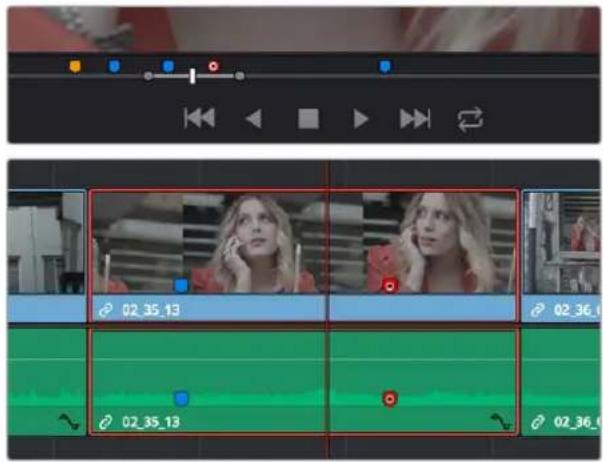
(Top) Markers placed on a source clip, (Bottom) Markers placed on a clip in the Timeline
When you add markers to a source clip, those markers also appear in the Media Pool as hierarchically disclosable items attached to that clip in List view (markers are not visible in Thumbnail view). More information about using markers in the Media Pool's List view appears later in this chapter.
| Clip Name | Scene | Shot | Take |
| ✓ 03_16_01_MS-Pool Shot | 03 | 16 | 01 |
| SLATE | 03 | 16 | 01 |
| Walks In | 03 | 16 | 01 |
| Takes Aim | 03 | 16 | 01 |
| Shot | 03 | 16 | 01 |
| Contact | 03 | 16 | 01 |
| Rack Focus Smile | 03 | 16 | 01 |
| Chalks Cue | 03 | 16 | 01 |
| 03_20_01_MS-Pool Table | 03 | 20 | 01 |
Markers can be viewed as separate clips identified by marker name when the Media Pool is set to List view
The following procedures describe how to add markers to clips and timelines in DaVinci Resolve.
To mark a source clip in the Source Viewer or Media Page Viewer, do one of the following:
- To place a marker without doing anything else, move the playhead to the frame you want to mark, and then press M.
- To place a marker and immediately open the marker dialog to enter a name or note within it during playback, press Command-M (or press M twice). Playback pauses until you enter the text you want to and close the marker dialog again, at which point playback continues.
- Move the playhead to the frame you want to mark, then right-click in the jog bar and choose a marker color from the Add Marker submenu of the contextual menu.
To mark a clip in the Timeline, do one of the following:
- Select one or more clips you want to mark, then move the playhead to the frame of a selected clip in the Timeline, and click the Marker button in the toolbar (or press M) to place a marker at that frame, using the current color (if multiple overlapping clips are selected, you'll add a marker to all clips).
- To place a marker during playback and immediately open the marker dialog to enter a name or note within it, select one or more clips you want to mark, play through the selection until you want to place a mark, then press Command-M (or press M twice). Playback pauses until you enter some text and close the marker dialog again, at which point playback continues.
- Select one or more clips you want to mark, and then click the Marker drop-down to choose a different color, and click the Marker button.
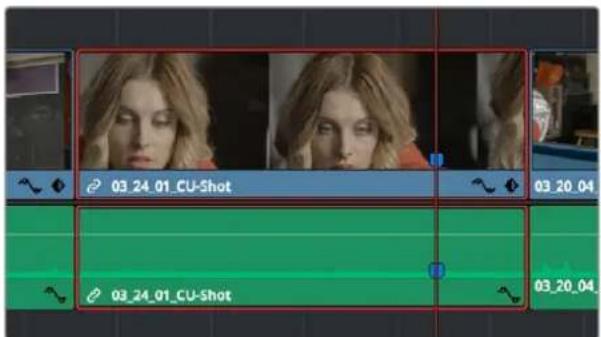
Markers appear in the Timeline at the top of the title bar of the clip to which they're applied
Adding Markers to Timelines
You can also place markers of any color into the Timeline ruler to denote specific times for future reference, or add notes about issues you want to keep track of.

Timeline markers placed for future reference
You should note that all markers placed on clips or in the Timeline also appear within the Mini-Timeline of the Color page, making it easy to place notes for later reference when grading.

Clip and Timeline markers as seen in the Mini-Timeline of the Color page
Once you've added one or more markers placed on clips, snap to clip In and Out points, edit points, the playhead, and other markers whenever snapping is enabled.
To mark the Timeline itself, make sure all clips are deselected, and do one of the following:
- Press M.
- Click the Marker button to place a marker of the currently selected color in the Timeline ruler.
- To place a marker during playback and immediately open the marker dialog to enter a name or note within it, select one or more clips you want to mark, then press Command-M (or press M twice). Playback pauses until you enter some text and close the marker dialog again, at which point playback continues.
- Click the Marker drop-down to choose a different color, and click the Marker button.
- Right-click in the Timeline ruler and choose a marker color from the Add Marker submenu of the contextual menu.
- Choose Mark > Add Marker > Current Color (M) to add the current marker color. Alternatively, you can choose Mark > Add Marker > Blue/Cyan/Green/and so on to add a marker of a specific color directly to clips or the Timeline. These commands can be assigned specific keyboard shortcuts if you want to be able to place a specific marker color at a keystroke.
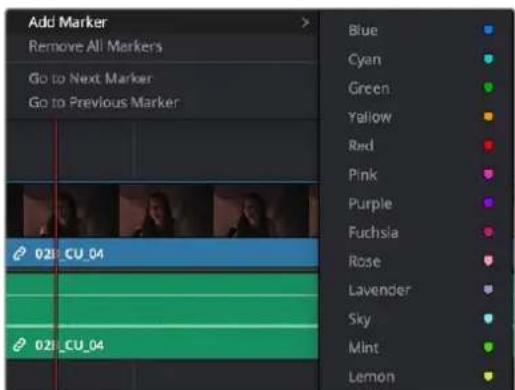
Individually mappable marker color commands
Saving In and Out Point Ranges As Markers with Duration
You can also create markers with duration to keep track of any region of a clip or timeline that you've defined with In and Out points. This lets you identify multiple regions of a clip that you might later want to edit into a program.
To turn In and Out points into a marker with duration:
1 Set In and Out points in the Source Viewer jog bar to identify a region you want to log for future reference.
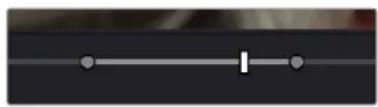
natural_image
Pure electrical circuit lines without any symbolsMarking In and Out points in preparation to log that section of the clip
2 Do one of the following:
- Right-click the jog bar and choose Convert In and Out to Duration Marker
- A marker with duration appears above the In and Out points. To edit its name or notes, double-click the marker, press Shift-M, or choose Mark > Modify Marker.
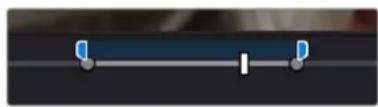
natural_image
Close-up of a blue and white lever handle with a black center (no text or symbols visible)A marker with duration is created from the In and Out points
In this way, you can log several regions within a single clip for future use.
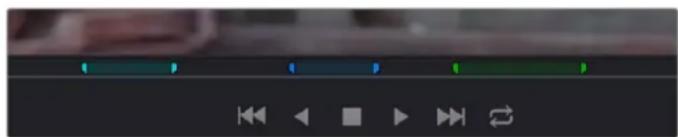
natural_image
Close-up of a media player control bar with playback buttons (no readable text or symbols)A clip with multiple logged sections identified via markers with duration
This an extremely useful logging technique for two reasons. First, markers with duration can be searched for in the Media Pool using the All Fields, Marker Name, and Marker Notes Filter by options. Second, they can be filtered with Smart Bins using the Marker Name and Marker Notes Media Pool Properties options.
Editing Marker Information and Keywords
Once you've added some markers, you may want to edit their contents to make them more useful.
To open a marker's edit dialog to alter its properties:
1 Do one of the following:
- Press Command-M to add a marker during playback and immediately open its edit dialog.
- Double-click any marker you want to edit.
- Move the playhead to the frame containing the marker you want to annotate using Shift-Up Arrow/Down Arrow and press M.
- Select a marker anywhere in the Source Viewer or Timeline, and press Shift-M.
2 When the marker dialog opens, you can modify several properties in separate fields. For fast editing, you can press Tab to select the next field, or you can press Shift-Tab to select the previous field.
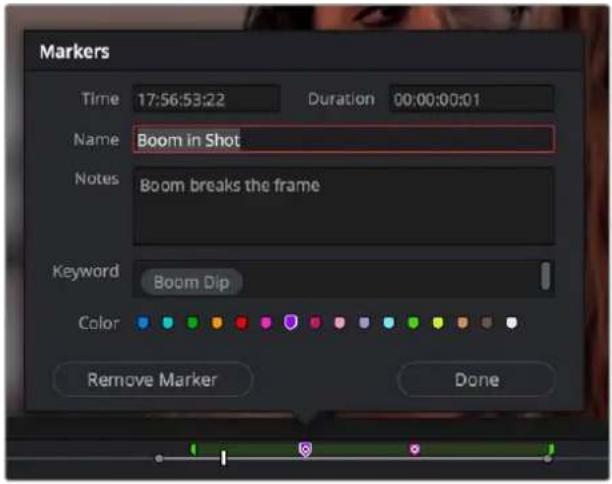
Editable properties in the Marker dialog
- Time: The frame the marker is positioned at relative to that clip or timeline. This is editable, so you can numerically change a marker's position.
- Duration: Optional; the length of a marker that's been assigned a duration. This is also editable, so you can numerically assign a duration to a marker or alter a marker that already has duration.
- Name: The name of the marker, defaults to the number of that marker in the order it was added (Marker 1, Marker 2, etc.).
- Notes: A field where you can enter any information you want to keep track of.
- Color: A series of buttons for choosing the color of the marker.
- Keyword: A keyword field lets you keyword markers in the same way you can keyword clips in the Metadata Editor, which can be a powerful way of identifying sections of clips you want to find later in Smart Bins or Search operations. Typing text in the Keyword field automatically searches the dictionary for matching keywords. Press Return to accept a found keyword (you can choose from a list using the Arrow keys), or press the Up Arrow key back to the Keyword field to manually enter your own new variation instead. For more information about using and editing Keywords, see Chapter 16, "Using Variables and Keywords."
- Remove Marker: Deletes that marker.
- Done: Closes the marker edit dialog.
3 When you're finished, click Done.
Once you add notes to a marker, a small symbol appears on top of that marker to show you it has information.
A small dot on a marker shows that it contains notes
Changing Marker Timing
Once you've placed one or more markers, there are a variety of ways you can move them around to better line up with important events in source footage or the Timeline, or delete them once they're no longer useful. Additionally, you can enable or disable the ability to have markers ripple along with other clips in areas of the Timeline that are affected by rippling operations.
To move one or more markers in the Timeline or Source Viewer:
- Click a marker or Command-click multiple markers you want to move, and drag them to a new location.
- Drag a bounding box from the Timeline up into the Timeline ruler to select multiple markers, and drag them to a new location.
- Open a marker's edit dialog and manually edit the time and duration timecode fields to numerically move that marker, or to create a marker with a specific duration. Furthermore, the timecode in these fields can be copied from or pasted to.
To enable marker rippling:
– Choose Timeline > Ripple Timeline Markers. When checked, all markers to the right of a clip being ripple edited, trimmed, or ripple deleted will ripple to the left along with the rest of the Timeline. You can turn this behavior off and on at will.
To modify marker duration:
- Option-drag any marker to the right or left to create a marker with duration.
- Move the playhead to the frame containing the marker you want to modify and press M, or double-click the marker you want to edit, then type a number into the duration field, and click Done.
- Markers with duration appear as a bar in the Timeline ruler or jog bar of the Source Viewer. Drag the middle of a marker with duration to move it, or drag the left or right edge to change its duration.
- To eliminate a marker's duration, set its numeric duration to 00:00:00:00 in the marker dialog, or drag either end so that it merges with the other as a single marker.
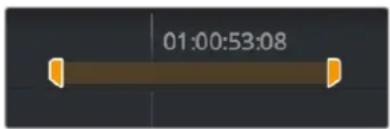
A marker with duration in the Timeline
Methods of deleting markers:
- To remove one or more markers using the mouse: Click to select a marker, or Command-click to select multiple markers, and press the Delete key. You can also double-click a marker to open its dialog, and click the Delete button.
- To remove a marker using the keyboard: Move the playhead to the marker you want to delete, and press Option-M.
- To remove all markers from a clip: Select one or more clips with markers you want to remove, then either press the Backspace key, or click the Marker drop-down in the Toolbar, and choose Clear All.
- To remove all markers from the Timeline: With all clips deselected, choose Clear All from the marker drop-down menu in the Toolbar, or right-click the Timeline ruler, and choose Remove All Markers from the contextual menu.
Drawn Annotations on the Viewer
It's now possible to use the Annotations mode of the Timeline Viewer to draw arrows and strokes of different weights and colors directly on the video frame, in order to point out or highlight things that need to be fixed. These annotations are stored within markers, similarly to marker names and notes. To start, simply choose Annotations mode from the Timeline Viewer mode drop-down menu.
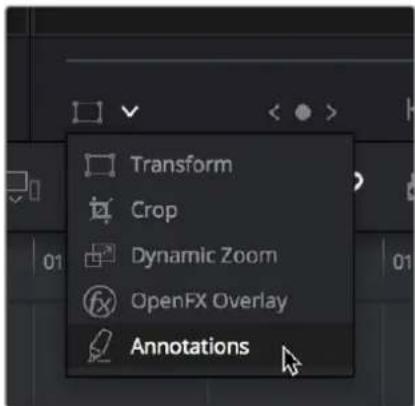
Choosing Annotations from the Viewer Mode drop-down menu
Once in Annotations mode, an Annotations toolbar appears showing the following options:
- Draw tool with line weight drop-down: Click the Draw tool to be able to freeform draw on the Viewer. Click the Line Weight drop-down to choose from one of three line weights to draw with.
- Arrow tool: Click the Arrow tool to draw straight-line arrows pointing at features you want to call attention to. Arrows are always drawn at the same weight, regardless of the weight selected for the Line tool.
- Line Tool: Click the Line tool to draw straight lines on the Viewer.
- Rectangle Tool: Click the Rectangle tool to draw boxes on the Viewer.
- Color drop-down: Choose a color for drawing or lines.

The Annotations toolbar in the Viewer
Methods of making and editing annotations:
- To create an annotation: Simply enable Annotations mode, then park the playhead on any frame of the Timeline and start drawing. A marker will automatically be added to the Timeline at that frame, and that marker contains the annotation data. If you park the playhead over a preexisting timeline marker, annotations will be added to that marker.
- To edit a stroke or arrow you've already created: Move the pointer over a stroke or arrow and click to select it, then choose a new line weight or color from the appropriate drop-down menu, or drag that stroke or arrow to a new location to move it.
- To delete a stroke or arrow: Move the pointer over a stroke or arrow and click to select it, then press the Delete or Backspace keys.
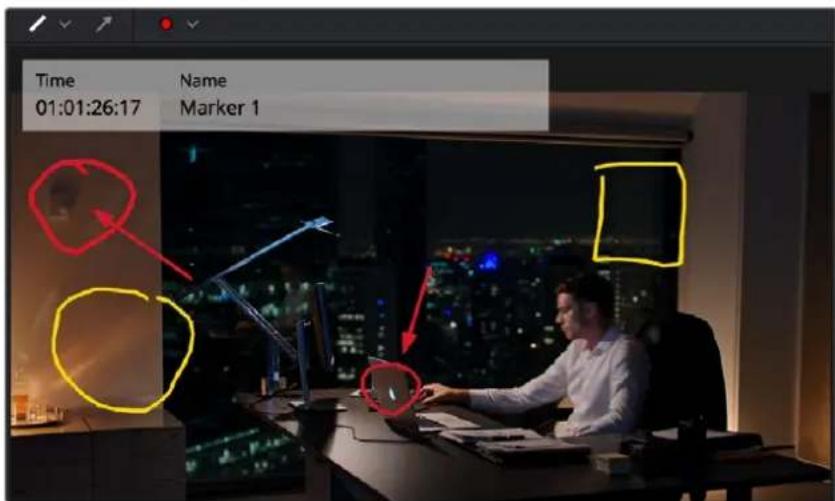
Drawing annotations to highlight feedback
Frame.io Timeline Markers
If you're using DaVinci Resolve alongside a Frame.io account, there is some powerful integration that manifests itself as markers in the Timeline. When you render a timeline directly to Frame.io, that timeline is automatically linked to the movie that's been uploaded to Frame.io, and all comments, "Likes," and graphical annotations (drawings and arrows) from reviewers that are added online via the Frame.io interface are automatically synced to Frame.io markers on your timeline (so long as your computer has an active internet connection). Frame.io markers are distinct from all other markers and can be independently shown and hidden, or deleted. Drawings and arrows from Frame.io are converted into their equivalent DaVinci Resolve annotation graphics for visibility in DaVinci Resolve.
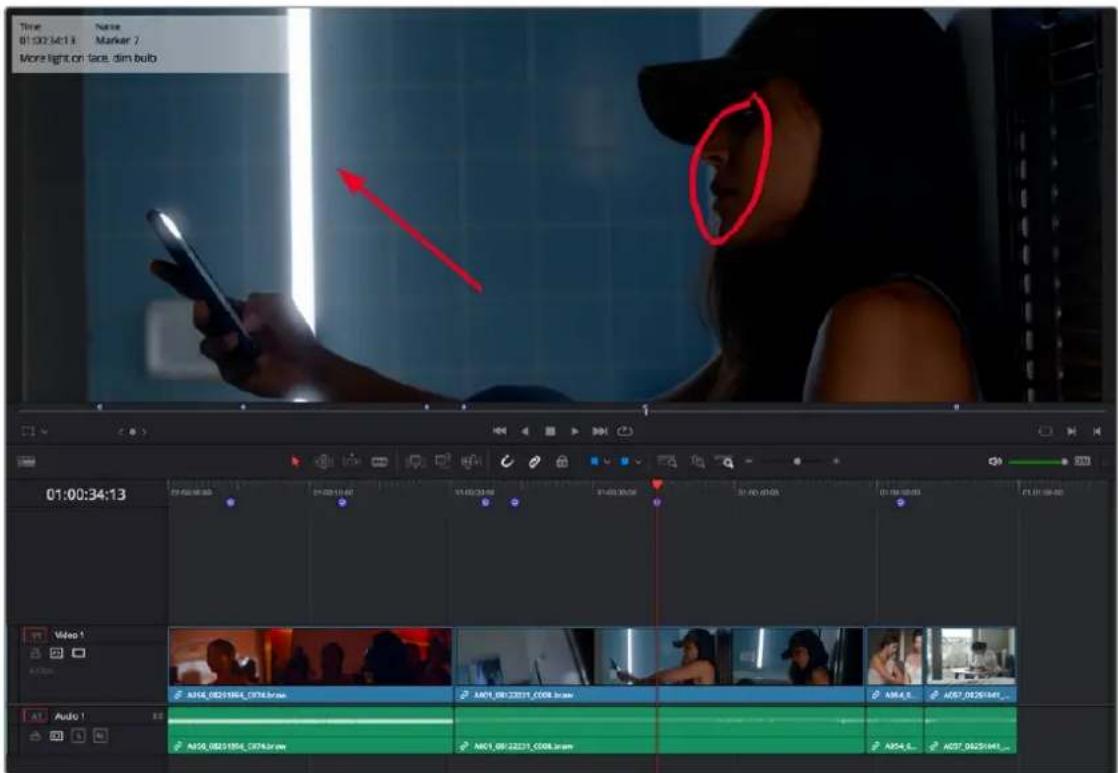
Comments and graphical annotations from Frame.io appear as markers with their corresponding overlays in your DaVinci Resolve timeline
Working With Frame.io Markers
Double-clicking any Frame.io marker in the Timeline opens a dialog that lets you send replies to comments that appear on Frame.io, enabling editors to respond directly to commenters.
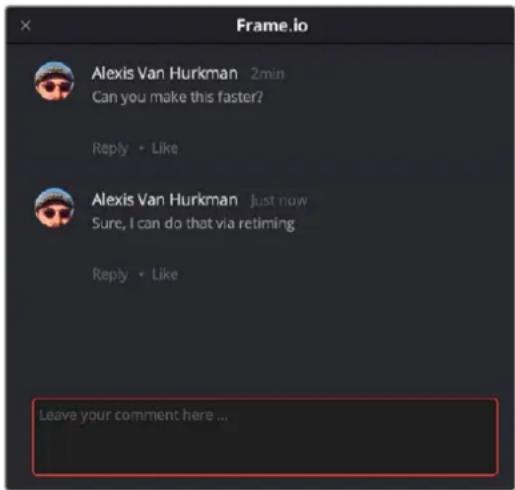
The editor talking to himself using the Frame.io comment dialog that appears when you open a Frame.io marker
If you hover the pointer over any comment, three buttons appear to the right that let you edit that comment, delete it, or "Mark as complete."
Hovering the pointer over a comment reveals buttons to edit it, delete it, or mark it as complete
You can also place Frame.io markers on the Timeline to have them automatically sync back to Frame.io, giving you the ability to send your own comments back to commenters (be kind).
If you delete one or more Frame.io markers on the DaVinci Resolve timeline, those markers will also be deleted in Frame.io. This includes the Mark > Delete All Markers > Frame.io command. This is not undoable.
For more information about Frame.io integration with DaVinci Resolve, see Chapter 13, "Frame.io & Dropbox Relay Integration."
Dropbox Replay Timeline Markers
If you're using DaVinci Resolve alongside a Dropbox Replay account, there is some powerful integration that manifests itself as markers in the Timeline. When you render a timeline directly to Dropbox Replay, that timeline is automatically linked to the movie that's been uploaded to Dropbox Replay, and all comments and graphical annotations (drawings and arrows) from reviewers that are added online via the Dropbox Replay interface are automatically synced to Dropbox markers on your timeline (so long as your computer has an active internet connection).
Dropbox markers are distinct from all other markers and can be independently shown and hidden or deleted. Drawings from Dropbox Relay are converted into their equivalent DaVinci Resolve annotation graphics for visibility in DaVinci Resolve.
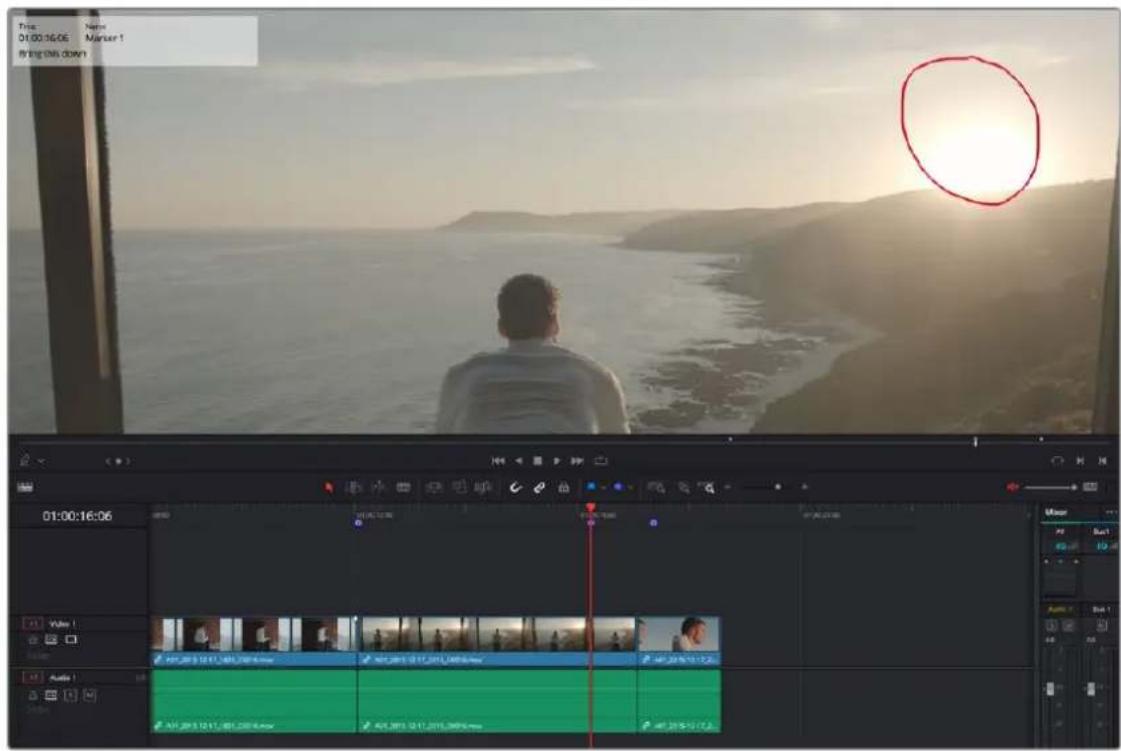
Comments and graphical annotations from Dropbox Replay appear as markers with their corresponding overlays in your DaVinci Resolve timeline.
Working With Dropbox Markers
Double-clicking any Dropbox marker in the Timeline opens a dialog that lets you send replies to comments that appear on Dropbox Replay, enabling editors to respond directly to commenters.
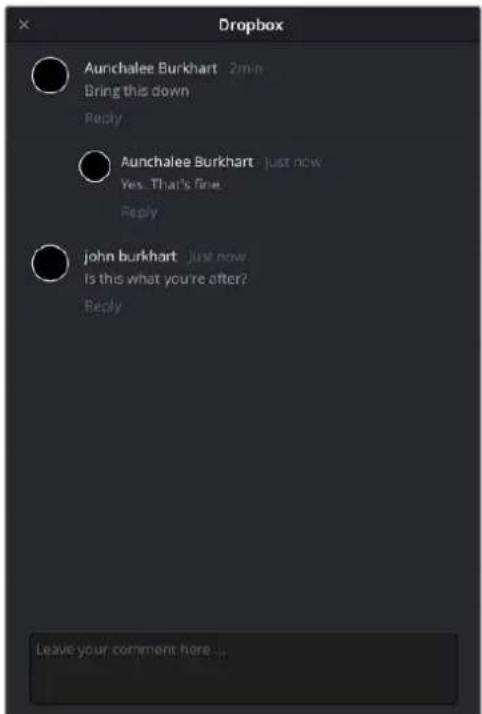
The Dropbox Replay comment dialog that appears when you open a Dropbox marker
You can also place Dropbox markers on the Timeline to have them automatically sync back to
Dropbox Replay, giving you the ability to send your own comments back to commenters (be kind).
Dropbox markers on the Timeline show solid blue when they are created, and with a circle inside them once they are synced with Dropbox Replay.
If you delete one or more Dropbox markers on the DaVinci Resolve timeline, those markers will also be deleted in Dropbox Replay. This includes the Mark > Delete All Markers > Dropbox command. This is not undoable.
Dropbox Marker Navigation
You can specifically navigate only the markers created in Dropbox Replay while in the comment dialog of a Dropbox marker, using the Previous Marker (Shift-UpArrow) and Next Marker (Shift-DownArrow) commands. This allows you to skip directly from comment to comment in Dropbox Replay without having to either navigate all markers in between, or double-click each Dropbox marker individually to respond.
For more information about Dropbox Replay integration with DaVinci Resolve, see Chapter 13, "Frame.io & Dropbox Replay Integration."
Reading Marker Information
Once you've added a number of markers with custom information, there are two ways of viewing this information without having to open the marker dialog.
To read marker notes using your pointer:
– Double-click a marker to open its marker dialog.
- Move the pointer over any marker in the Source Viewer or Timeline to see a tooltip showing that marker's information.
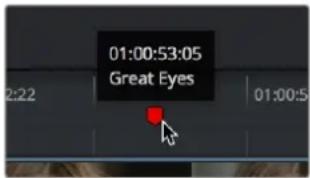
Moving the pointer over a marker displays its information in a tooltip
To read marker information in the Source and/or Timeline viewers:
1 Open the Source or Timeline Viewer's option menu, and turn on Show Marker Overlays.
2 Stop playback, and move the playhead to a marker. That marker's information is displayed in the Viewer, superimposed.
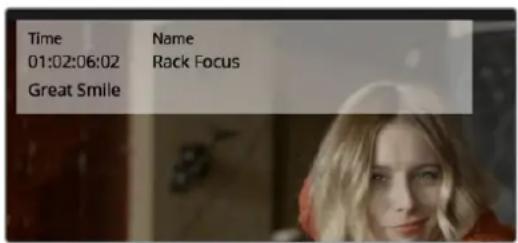
Marker information shown in the Source Viewer
Using Markers for Navigation
Markers can be used to aid navigation, via two keyboard shortcuts that let you jump the playhead from marker to marker. When moving the playhead among markers, Clip and Timeline markers are mixed together.
To move the playhead to the next or previous marker:
- Press Shift-Up Arrow to move the playhead to the next marker to the left in the Timeline.
- Press Shift-Down Arrow to move the playhead to the next marker to the right in the Timeline.
To move the playhead to a specific marker using the Source or Timeline Viewer's Marker list:
- For a source clip or timeline with multiple markers, you can move the playhead immediately to a specific marker by opening the Source or Timeline Viewer's Option menu, and choosing a marker from the Markers submenu, which exposes all the markers that are available in that Viewer, by name and note.
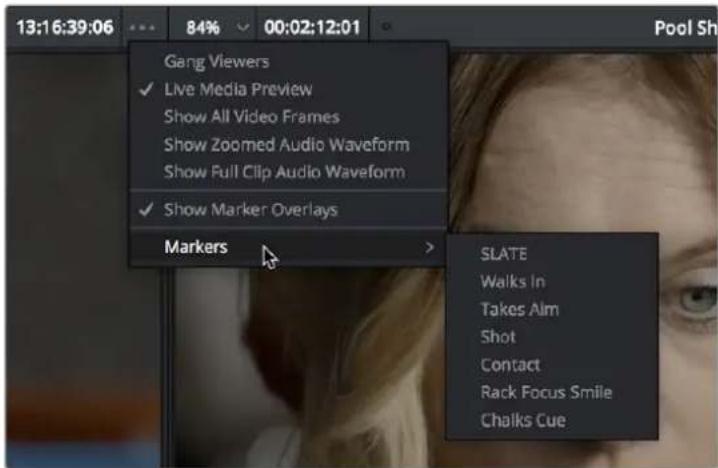
All markers in the currently open clip as seen in the Source Viewer Option menu Markers list
Using Timeline Markers for Chapters
Certain file types, like QuickTime, allow chapter-based navigation in the final video. This allows the viewer to skip back and forth through the video landing at exact points specified by the video's creator. This chapter-based navigation is especially useful in instructional videos or long presentations. Chapter points in DaVinci Resolve are set by timeline markers.
Currently only the QuickTime and MP4 formats support chapter markers in DaVinci Resolve.
To create a chapter marker in the Timeline:
- Put the playhead at the spot in the Timeline you wish to make a chapter point, and choose Add Marker (M).
- Edit the marker by double-clicking on it, or by selecting Modify Marker (Command-M).
- Edit the Name field to create the chapter name that will show up in the player.
- Select a color for the marker. All chapter markers must be assigned the same color.
To export embedded chapter markers in a QuickTime movie:
– In the Deliver page, select Quicktime or MP4 as the Format in the Video Panel.
- Check the box next to Chapters from Markers, and select the chapter marker color you chose earlier from the dropdown menu.
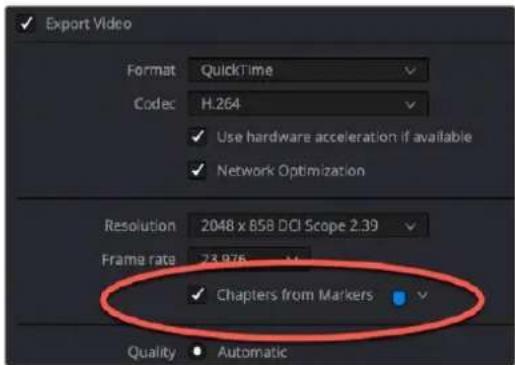
The Chapters from Markers checkbox in the QuickTime Export Video settings of the Deliver page
Exposing Markers in Lists
You can also use the Edit Index to filter out a list of markers appearing within the current Timeline. You can filter all markers at once, in which case columns expose the notes and colors applied to each marker. You can also filter by a specific marker color if you only want to see one type of marker.
Methods of working with markers in the Edit Index:
- To filter all clips with markers in the Edit Index: Click the Option menu of the Edit Index and choose Show Markers > All or choose a specific color. Each clip with a matching marker appears in a list, with columns corresponding to the color(s) and notes of each Timeline and Clip marker.
- To move the playhead to the position of a marker in the Edit Index: Click that marker's entry in the list.
- To show hidden marker columns: Right-click any column header, and turn on either Color or Notes to reveal that column. If necessary, columns can be rearranged by dragging them left or right.
You also have the option to export lists of markers as an EDL, a .txt, or .csv file.
Exporting lists of markers:
- To export Timeline markers as an EDL: Right-click that timeline in the Media Pool, and choose Timelines > Export > Timeline Markers to EDL. Choose a location and export format from the Export Edit Index dialog, and click Save. Each Timeline marker is listed in the resulting EDL, with any notes included along with a duration, where applicable.
- To export all filtered markers in the Edit Index as a .txt or .csv file: After you choose Show Markers in the Edit Index option menu, then right-click that timeline in the Media Pool, and choose Timelines > Export > Edit Index. Choose a location and export format from the Export Edit Index dialog, and click Save.
Using Markers in the Media Pool
Once you've added one or more markers to source clips in the Media Pool, you can use them for editing in a considerably more direct way than just using them to move the playhead around. Markers can be exposed in the List view of the Media Pool, and once exposed, they can be opened into the Source Viewer, edited into the Media Pool, or turned into subclips just like any other clip.
To show markers in the Media Pool:
- Set the Media Pool to List view, then click the disclosure button to the left of the clip with markers you want to work with. They appear as a hierarchical list underneath the clip to which they're attached.
- Use the Right Arrow key to open a clip's marker hierarchy. Use the Up and Down arrows to select a particular marker. Use the Left Arrow key to close the clip's marker hierarchy.
| Clip Name | Scene | Shot | Take |
| ✓ 03_16_01_MS-Pool Shot | 03 | 16 | 01 |
| SLATE | 03 | 16 | 01 |
| Walks In | 03 | 16 | 01 |
| Takes Aim | 03 | 16 | 01 |
| Shot | 03 | 16 | 01 |
| Contact | 03 | 16 | 01 |
| Rack Focus Smile | 03 | 16 | 01 |
| Chalks Cue | 03 | 16 | 01 |
| 03_20_01_MS-Pool Table | 03 | 20 | 01 |
Markers exposed in the Media Pool in List view
To open a marker in the Media Pool into the Source Viewer:
- Double-click any marker to open that clip into the Source Viewer with the playhead at the position of that marker.
To edit a clip defined by the marker into the Timeline:
- Drag any marker into the Timeline. A clip will be edited into the Timeline with the In point defined as the frame at the marker, and the Out point defined by either (a) the frame before the next marker in that clip, or (b) the duration of that marker if the duration is greater than the default 1 frame.
To turn a marker in the Media Pool into a subclip:
- Select one or more markers, and drag the selection into another region of the Media Pool, or into another Bin, and a sub clip will be generated with the clip start defined as the frame at the marker, and the clip end defined by either (a) the frame before the next marker in that clip, or (b) the duration of that marker if the duration is greater than the default 1 frame.
Hiding Markers By Color
View > Show Markers enables users to either show and hide markers based on color, or show them all at once. An example of when this is useful is when you're using the color of markers to send information to specific artists, such as green for Fairlight mixing notes, or orange for Fusion page compositing notes. Users on those pages can then hide all other markers except for the color they're interested in, enabling them to visually prioritize only the markers they care about.
Deleting Markers By Color
Mark > Delete All Markers lets users remove all markers of a specific color all at once, or remove all markers altogether.
Renaming Clips in the Timeline
For organizational purposes, you can create custom clip names that are tied to a specific timeline. This can be useful to display information about a clip that is persistent, readily apparent, and does not require you to click on a flag or marker to view. Clips renamed in this manner are only changed in the current timeline, and do not modify the Clip Name in the Media Pool.
You can rename clips on the Timeline by using the File Inspector and entering a new name in the Name field.
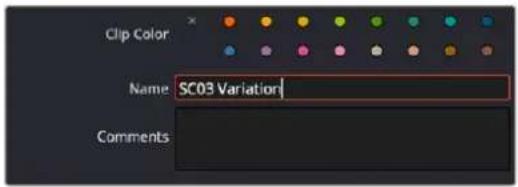
Renaming a clip in the File Inspector's Name field
The new name will show in the Timeline track at bottom of the clip.
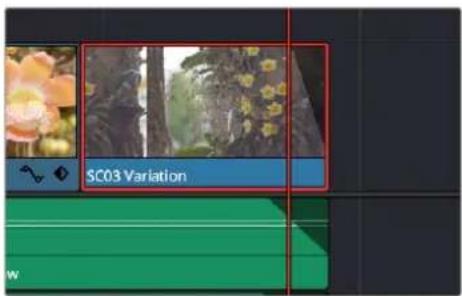
The new clip name shown in the Timeline.
IMPORTANT
Changing a clip name in the Timeline only affects the instance of the clip in that specific Timeline. It does not rename the original Clip Name in the Media Pool, nor does it rename that same clip that may exist in other timelines. If you want to rename a clip across your entire DaVinci Resolve project, modify the Clip Name in the Media Pool instead.
TIP: If you want to use a custom clip name on more than one timeline, you can copy and paste the clip between timelines, and the pasted clip will retain its custom name. However both clip names will be independent from each other from that point forward.
Color Labeling Clips in the Timeline
By default, different clips have specific colors that identify each type of clip. Furthermore, clips with effects applied to them (adjustments in the Inspector, volume level changes, speed changes, and so on), appear as a darker shade of their default color to help you identify at a glance which clips have been modified. The following table lists what these default colors are.
| Clip Type Color | |
| Video Clip Steel Blue | |
| Audio Clip Light Green | |
| Generator Light Purple | |
| Text Beige | |
| Clip with effects Shaded darker | |
Custom Clip Colors
Additionally, you can assign one of 16 colors to clips. Each clip can only have a single color assigned to it. Also, unlike flags, clip colors are clip-specific, so assigning a clip color to one use of a clip in the Timeline has no effect on any other clips that share the same source media in the Media Pool.
Clip Color Appearance
How these colors appear depends on the location of the clip. There are two options:
- Clip thumbnails in the Media Pool or the Thumbnail timeline of the Color page show a small colored dot at the upper-right-hand corner of the thumbnail.
Thumbnails with label colors showing as dots in the corner
- Clips in the Timeline are tinted everywhere but the thumbnail area of video clips. If you edit a clip into a track that has itself been colored, the clip color overrides the track color.
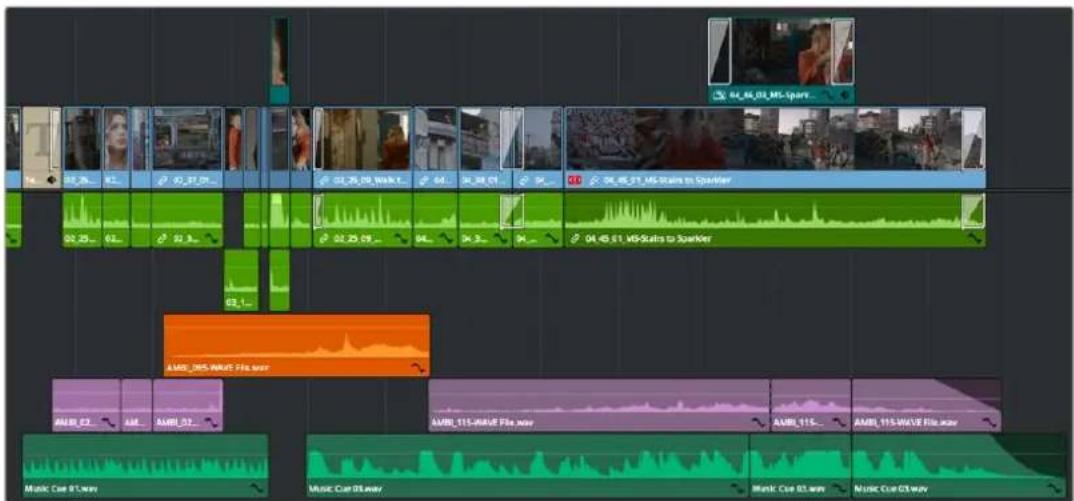
A timeline with audio clips that have been tinted to identify what they are to the editor
NOTE: Clip colors are distinct from flags, which appear as badges in the Timeline, Media Pool, and Color page.
Assigning Clip Colors
Clip colors can be assigned in many different areas of DaVinci Resolve.
To assign a clip color to one or more clips, do one of the following:
- Use the Media page to assign clip colors to clips in the Media Pool using the Shot & Scene preset in the Metadata Editor. Clip colors do not appear in the Media Pool. Clip colors can be removed by clicking the X to the left of the Clip Color buttons in the Metadata Editor.
- Right-click one or more selected clips in the Timeline, and choose a color from the Clip Color submenu of the contextual menu. Clip colors can be removed by choosing Default Color from this same submenu.
- Colorists can right-click one or more selected clip thumbnails in the Color page and choose a color from the Clip Color submenu of the contextual menu. Clip colors can be removed by choosing Default Color from this same submenu.
Track Colors
Another method of visually organizing clips is the use of track colors. Each track can be color coded with one of 16 different colors. These color codes also appear in the Fairlight page, where they also correspond to the Edit page Mixer, and to the Fairlight page Mixer and Audio Meters.
To choose a new color for any track:
- Right-click the track header and choose a color from the Change Track Color submenu.
When you assign a color to a track, that track's color appears in a thin strip to the left of that track's header controls.
Color-coded timeline tracks
All clips that you place onto that track will appear with that color, unless they've been assigned an individual clip color, in which case the individual clip color overrides the track color. This makes track colors a great method of visual organization, because you don't have to do any advance preparation; the very act of placing a clip on a specific track color codes it according to that track's designated purpose.
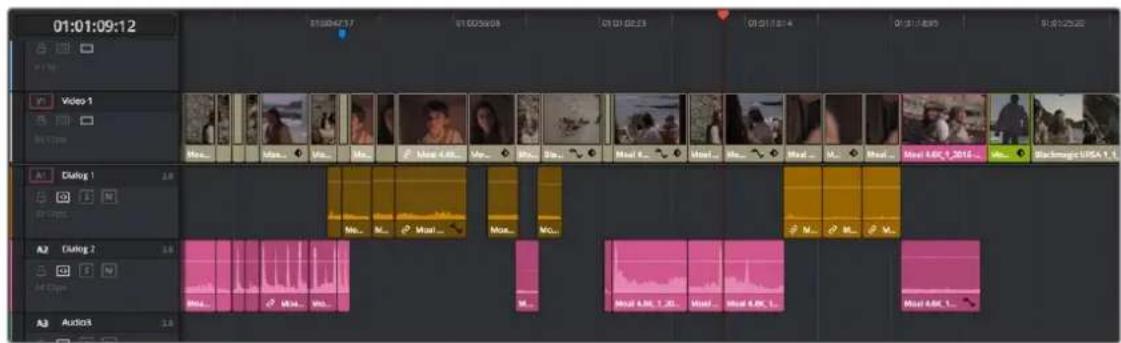
A timeline with color-coded tracks automatically tints the clips on each track; individual colored clips on V1 can be seen at left
Finding Clips, Media, Markers, Gaps, and Timelines
DaVinci Resolve has several methods of locating clips, markers, and gaps, to help you troubleshoot problem timelines, or to find media that you want to edit into a timeline differently.
Finding Clips in the Timeline
DaVinci Resolve makes it easy to find one or more clips in the Timeline that correspond to specific criteria using the Edit Index.
To find a clip in the Timeline:
1 Open the Edit Index.
2 Click the magnifying glass button to open the search controls.
3 Choose a criteria from the Filter By drop-down menu.
4 Type a search term in the Search field at the top right of the Edit Index.
As soon as you start typing, all edit events that don't match the search criteria are temporarily hidden. To show all of the clips in the Edit Index again, click the X at the right of the search field.
5 Click any event in the Edit Index to move the playhead to that clip in the Timeline.
Finding Offline Clips in the Timeline
It's also easy to use the Edit Index to find all of the offline clips that may be in the Timeline.
To locate offline media in the current Timeline via the Edit Index:
1 Open the Edit Index.
2 Click the Option menu of the Edit Index and choose Show Offline Clips Only.
The Edit Index is filtered to only show the offline clips in the currently open Timeline, and you can click any item on the list to jump the playhead to that particular clip in the Timeline.
3 Click any event in the Edit Index to move the playhead to that clip in the Timeline.
Finding Edit Index Events Using Clips in the Timeline
You can also locate specific Edit Index events using the Timeline playhead.
To locate a clip in the Edit Index from the Timeline:
- Move the Timeline playhead to intersect a clip you want to find in the Edit Index. That clip's corresponding event (or events if the playhead intersects multiple clips) are automatically highlighted in the Edit Index.
- To move the playhead to a clip in the Timeline via the Edit Index.
- Click any event in the Edit Index to move the Timeline playhead to the In point of that clip.
Finding Clips
As you work, there are a variety of methods you can use to find clips in the Media Pool or your file system.
Methods of finding clips in the Media Pool or File System:
- To find a clip in the Media Pool: Open the Media Pool, and use the drop-down menu next to the Search button to choose whether to search through all bins in the current project, or just look at the currently selected bin or bins in the Bin List. If necessary, select the bin or bins that you want to search, and click the magnifying glass button to open the search controls. Optionally choose a criteria from the Filter By drop-down menu, then type a search term in the Search field. As soon as you start typing, all clips that don't match the search criteria are temporarily hidden.
- To locate a Timeline clip in the Media Pool: Right-click any clip in the Timeline, and choose Find in Media Pool. That clip appears highlighted in the Media Pool.
- To locate a Source Viewer clip in the Media Pool: With any clip open in the Source Viewer, press Option-F.
- To locate a media file in the Finder from the Media Pool: Right-click any clip in the Media Pool and choose Reveal in Finder. A Finder window, or its equivalent in Windows and Linux, opens to the directory with that clip, which appears highlighted.
- To find the audio clip that a video clip has been synced to: Right-click a video clip that's been synced to audio, and choose "Reveal synced audio in Media Pool" from the contextual menu. The bin holding the synced audio clip is opened and that clip is selected.
Finding Clips Using Markers or Flags
If you're using markers to keep track of notes, issues, or items on your to-do list, there are a few different ways of finding and moving among them.
Methods of finding markers or flags:
- To find all markers or flags via the Edit Index: Click the Option menu of the Edit Index and choose Show Markers or Show Flags. Each clip with one or more markers appears in a list, with columns corresponding to the color(s) and notes of each timeline and clip marker.
- To find a specific marker or flag in the Edit Index: Click the magnifying glass button in the Edit Index, choose Notes in the Filter by drop-down, and type a search term in the Search field.
- To move the playhead to the next marker forward or previous: Choose Playback > Previous Marker (Shift-Up Arrow) or Next Marker (Shift-Down Arrow).
Finding Gaps
Gaps, or spaces between two clips on the Timeline, appear by default as black. Unwanted gaps may appear as black flashes while your program plays back, and are generally to be avoided. DaVinci Resolve makes it easy to find gaps in specific tracks of your timeline.
To find gaps in the Timeline:
1 Make sure that the Auto Select control is enabled on any track you want to search for gaps. Turn Autoselect off on any tracks you don't want to search for gaps (for example, title tracks where gaps are to be expected).
2 Do one of the following:
- Choose Playback > Previous Gap or press Option-Command-Semicolon.
- Choose Playback > Next Gap or press Option-Command-Apostrophe.
The playhead will automatically move to the first frame of the next gap in the Timeline.
To delete gaps in the Timeline:
1 Make sure that the Auto Select control is enabled on any track you want to delete gaps.
Turn Autoselect off on any tracks you don't want to delete gaps (for example, title tracks where gaps are to be expected).
2 Choose Edit > Delete Gaps. If you want to limit the range of the deleted gaps this command respects both In/Out ranges and clip selections on the Timeline.
Finding the Currently Open Timeline in the Media Pool
If you're not using one of the available methods for organizing timelines separately from clips, it can be easy to lose track of where your timeline happens to be. To find the currently open Timeline in the Media Pool, choose Timeline > Find Current Timeline in Media Pool.
Finding Media Using Match Frame Operations
Match frame operations are a terrific time saver when you need to match the original source clip to a clip in the Timeline, or when you want to use a clip in the Source Viewer to find that same clip in the Timeline. With a single command, you can match one clip to another in order to set up a new edit to take care of a variety of tasks.
Matching From the Timeline
A classic example of using Match Frame is when you originally edited a video clip into the Timeline without its corresponding audio, and you later decide you want that audio in the Timeline after all. An easy fix is to move the playhead in the Timeline to intersect the clip you need to fix, and use the Match Frame command to automatically load the original source media for that clip into the Source Viewer, setting Source In and Out points that match those of the Timeline clip, and putting the Source playhead at the same frame as the Timeline playhead. At that point, you can simply edit the source audio and video back into the Timeline to overwrite the video-only clip you started with, confident that you're editing exactly the same range of media at the same place.
Using the pointer to Match Frame from the Timeline to find a source clip:
- Hold the Option key down and double-click the clip in the Timeline.
The original source media for that clip is automatically loaded into the Source Viewer, with In and Out points that match those of the targeted Timeline clip; the Source playhead is at the same frame as the Timeline playhead.
Using keyboard shortcuts or Viewer controls to Match Frame from the Timeline to find a source clip:
1 Move the Timeline playhead to intersect the clip you want to target.
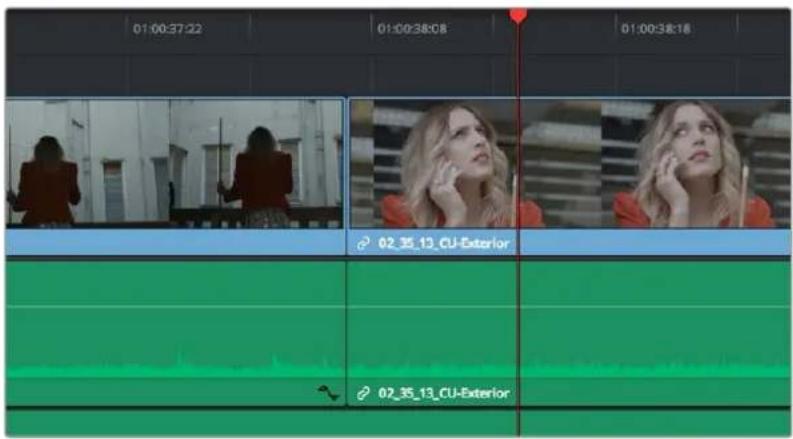
Placing the playhead over a clip to Match Frame
2 If there are other clips on a multi-track timeline that overlap the clip you're targeting for this operation, then the clip on the highest video track will be used as the target for Match Frame operations. If you want to target a clip on a lower track, you can click on the specific clip under the playhead to highlight it. Alternatively you can disable the Auto Selection controls of all timelines above, or Option-click the Auto Selection control of the track with the clip you're targeting to solo it.
3 Press the F key, or click the Match Frame button at the bottom right of the Timeline Viewer (it's at the left of the In and Out buttons).
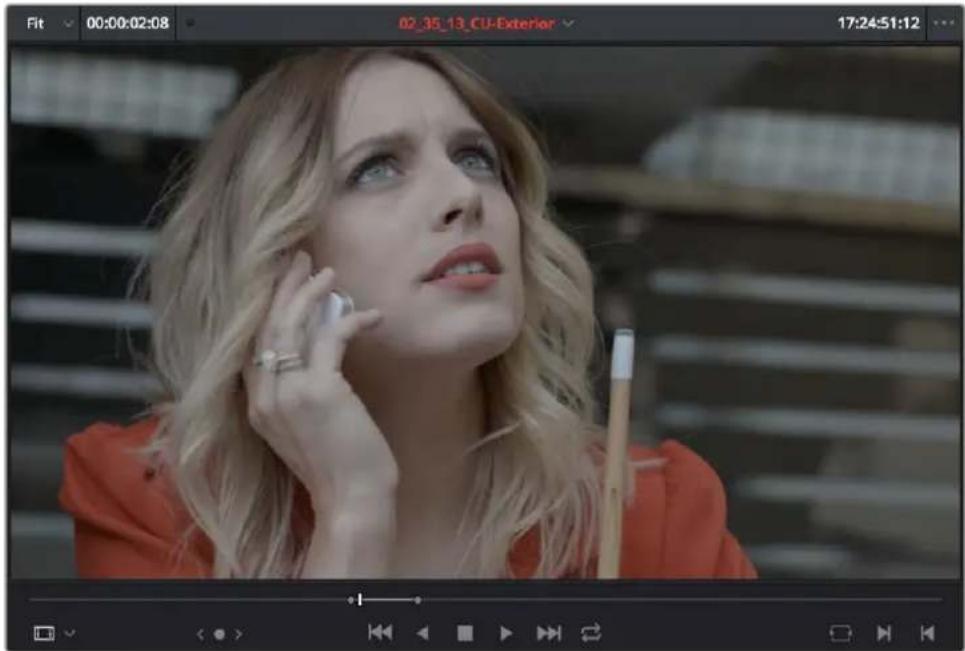
natural_image
Black-and-white photo of a woman with blonde hair holding a phone, looking upward (no visible text or symbols)The frame that's matched to the frame at the playhead in the Timeline; In and Out points are set to match those of the clip in the Timeline
The original source media for that clip is automatically loaded into the Source Viewer, with In and Out points that match those of the targeted Timeline clip; the Source playhead is at the same frame as the Timeline playhead.
Matching From a Source Clip
Match Frame also works in the opposite direction. You can open a source clip into the Source Viewer that you know corresponds to a clip in the Timeline, and then you can use Match Frame to automatically find any clip in the Timeline that corresponds to media found within the source clip.
To use Match Frame in the Source Viewer to find a clip in the Timeline:
1 Open a clip in the Source Viewer that includes a range of media that's already been edited into the Timeline. If no part of the source clip has been edited into the Timeline, source match framing won't work.
2 Move the Source Viewer playhead to a frame that you want to find in the Timeline. Again, if the frame at the position of the playhead in the Source Viewer hasn't already been edited into the Timeline, the Source Match Frame command won't work.
3 Click the Match Frame button at the bottom right of the Source Viewer (it's at the left of the In and Out buttons), or press the F key.
The Timeline playhead automatically moves to the clip and frame after the current playhead position that matches the clip in the Source Viewer.
Finding a Clip in the Media Pool Using a Timeline Clip
There are two ways you can use a clip in the Timeline to find a clip in the Media Pool.
Using a Clip in the Source Viewer to Find a Media Pool Clip
To locate the original clip in the Media Pool that corresponds to a clip in the Timeline:
1 Open a Timeline clip into the Source Viewer by doing one of the following:
– Double-click a clip in the Timeline.
- Move the playhead to a clip in the Timeline, press Shift-V to select it, then press the Return key.
2 Press Option-F to locate the source clip corresponding to the clip that's open in the Source Viewer in the Media Pool. That clip appears highlighted in the Media Pool.
Using a Clip in the Timeline to Find a Media Pool Clip
To locate a Timeline clip's corresponding clip in the Media Pool, right-click any clip in the Timeline, and choose Find in Media Pool from the contextual menu. That clip appears highlighted in the Media Pool.
Tracking Media Usage
As clips are added to timelines, two mechanisms come into play for keeping track of which clips are used in which timelines.
Thumbnail Clip Usage Indicators
Whenever you open a timeline, all thumbnails in the Media Pool automatically update to show highlighted usage bars to let you know which parts of that clip are used in that timeline.
natural_image
Woman playing pool with ball and fruit on table (no visible text or symbols)Two colored highlights at the bottom of the thumbnail indicate which parts of a clip are used by the currently open Timeline
If you right-click on a thumbnail that shows usage, a Usage submenu shows you a list of each instance of that clip in the currently open Timeline. Choosing an instance from this list jumps the playhead to that clip in the Timeline.
List View Clip Usage Column
A Usage column can be optionally shown in the Media Pool while in List view. By default, this column is empty, but if you right-click in the Media Pool and choose the Update Usage command, the project is analyzed, and every use of that clip in every timeline of the entire project is logged in this column.
| _2012-08-17_1409_C0004.mov | ||
| ration | Usage | Fra |
| 00:19:02 | 4 | 458 |
| 00:53:01 | 8 | 127 |
| 00:25:13 | 4 | 613 |
| 00:14:07 | 343 | |
| 00:28:03 | 675 | |
| 00:30:07 | 8 | 727 |
| 00:21:12 | 4 | 516 |
| 00:26:05 | 8 | 638 |
A Usage column shows how many times a clip is used in every timeline, after analysis
NOTE: The usage column increments for each clip item that appears in the Timeline. This means that if a clip consists of one video item and one audio item linked together, the usage column will show the number 2.
Chapter 41
Multicam Editing
If you're working with media that was shot simultaneously using multiple cameras, then you can use the Multicam Editing tools in DaVinci Resolve to create multicam clips that can be edited using a visual switcher. Additional controls let you change the angles of multicam clips that have already been edited into the Timeline.
Contents
Introduction to Multicam Editing 694
Creating and Modifying Multicam Clips 694
Converting Compound Clips or Timelines to Multicam Clips 695
Logging and Editing Multicam Clips 696
Setting up a Timeline for Multicam Editing 696
Opening and Altering Multicam Clips 697
Performing a Multicam Edit 697
Multicam Controls in the Source Viewer 699
Multicam Keyboard Controls 700
Editing Multicam Clips in the Timeline 700
Grading Multicam Clips 701
Introduction to Multicam Editing
If you're working on a program where a performance, interview, or event was recorded using multiple simultaneous cameras, DaVinci Resolve has multi-camera editing tools; multicam editing for short.
Editing using these tools is a three part process:
- First, you have to create multicam clips from the individual camera angles (called "ISOs," or isolated cameras).
- Second, you need to put the multicam clips you've created into a timeline.
- Third, you turn on the Multicam Viewer, and then you're ready to start cutting and switching among angles, as if you were a live multi-camera director.
This section describes all of these steps, and the various options available for each of them.
Creating and Modifying Multicam Clips
Before you do anything else, you need to create one or more multicam clips.
To create a multicam clip:
1 Import all the ISO (isolated camera) clips that correspond to the multi-camera performance or event that you'll be editing into the Media Pool.
2 Select all the clips that you need to sync together, right-click the selection, and choose "Create Multicam Clip Using Selected Clips."
3 When the New Multicam Clip Properties dialog opens, choose from the following options:
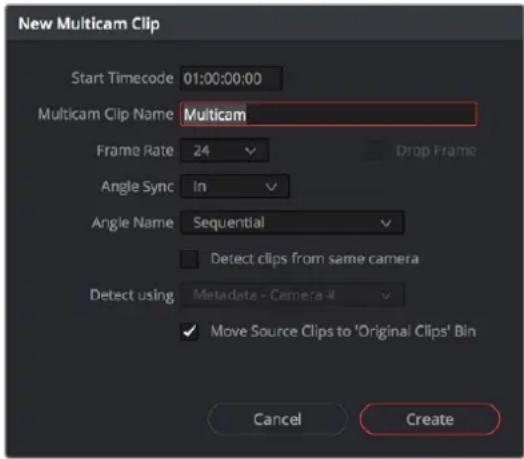
New Multicam Clip Properties dialog
- Start Timecode: Presents the start timecode of the new multicam clip you're about to create, which is determined by either the timecode value of the sync point if Angle Sync is defined by timecode, or by the sync point timecode value of the clip with the earliest timecode if Angle Sync is defined by waveform.
- Multicam Clip Name: Use to choose a more descriptive name than "Multicam 1" for the multicam clip you're about to create.
- Frame Rate: Automatically lists the frame rate associated with the clips you selected.
- Angle Sync: The method used to synchronize all of the different angles. If you're manually syncing all of the angles, you can use In or Out points that you set within each clip. If matching timecode was jam synced to each camera recording an angle, you can choose Timecode for a fast sync that's as accurate as the timecode is. If each camera had a microphone with which to simultaneously record the location audio, you can choose Sound to use the shape of each audio waveform to align all of the angles.
- Angle Name: The method used to name each angle within the multicam clip being created. The angles can have Sequential numbering, use Angle or Camera metadata, or use the Clip or File name.
- Detect clips from same camera: Turning on this checkbox results in multiple clips that are identified as being from the same camera being put into the same angle track of the resulting multicam clip being created. It also enables the "Detect using" drop-down menu.
- Detect Using: The metadata used to determine which clips come from the same camera. You can choose from Camera #, Angle, Reel Number, Reel Name, and Roll/Card #, which are user-editable in the Metadata Editor of the Media page, or you can choose Reel Name which is automatically or manually derived using either the Conform Options of the General Options panel of the Project Settings, or the Name panel of the Clip Attributes window. For more information on the Conform Options, see Chapter 4, "System and User Preferences."
- Move Source Clips to "Original Clips" Bin: A checkbox that lets you move all of the original ISO clips into an Original Clips bin to get them out of the way after the multicam clip has been created.
4 When you're done choosing options, click Create. Depending on the Angle Sync method you chose, a waveform analysis might generate a progress bar, and then the new multicam clip is created in whichever bin is currently selected in the Media Pool. Multicam clips appear with a multicam badge in the lower left-hand corner of the clip thumbnail.
natural_image
Stage performance with dancers and spotlights under dramatic lighting, labeled 'Multicam' at bottom (no other text or symbols)A multicam clip showing its badge in the Media Pool
Converting Compound Clips or Timelines to Multicam Clips
You can convert compound clips and timelines into multicam clips for easier editing using the Edit page's Multicam Editing interface. This conversion is a one-way process. You cannot reconvert a multicam clip back to a timeline or compound clip. If you wish to preserve the original timeline or compound clip, make sure to duplicate it first, and then convert the copy.
To convert a compound clip or timeline to a Multicam clip:
- Right-click on the clip or timeline in the Media Pool and choose "Convert Compound Clips (Timelines) to Multicam Clips" from the drop down menu.
Logging and Editing Multicam Clips
Once you create one or more multicam clips, you can view them in the Media page or in the Source Viewer of the Edit page, and add markers to them (all angles share the same markers) to prepare for the multicam edit you're planning on performing. When viewing multicam clips in the Media page, you can choose how many angles to show in the viewer via the Viewer Option menu.
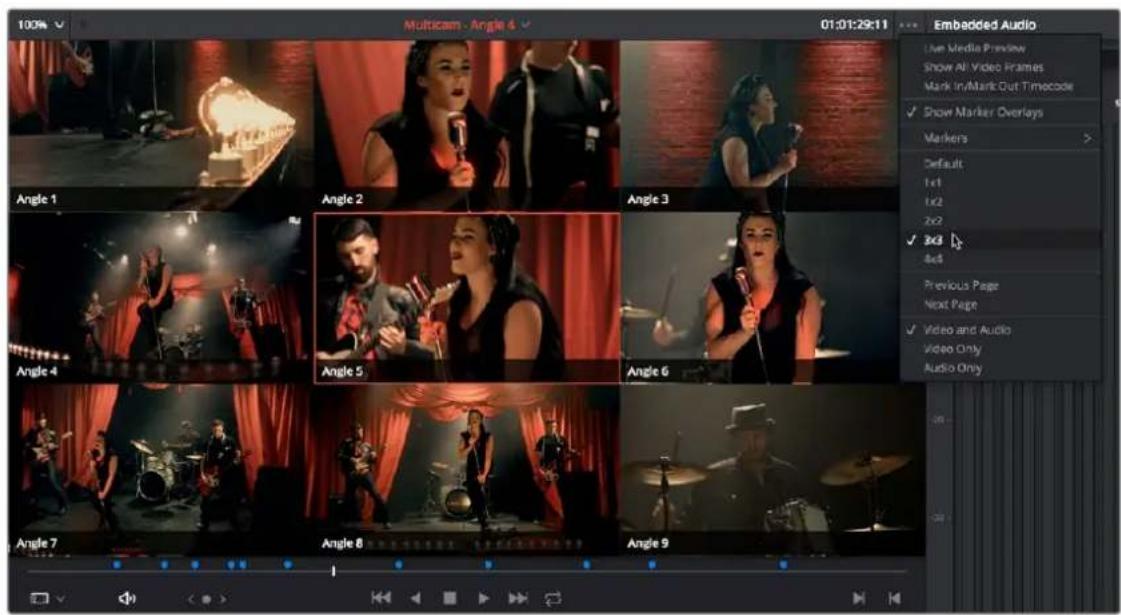
Markers set in a multicam clip in the Media page to prepare for editing
Setting up a Timeline for Multicam Editing
Once you've created one or more multicam clips, preparing them for editing is as simple as editing them into the Timeline, either by dragging and dropping the multicam clip to the Timeline from the Media Pool, or by opening the multicam clip into the Source Viewer, and then using any of the available editing methods to cut it into the Timeline from there. Once edited, they appear in the Timeline like any other clip, just with a multicam badge to the left of the clip name.
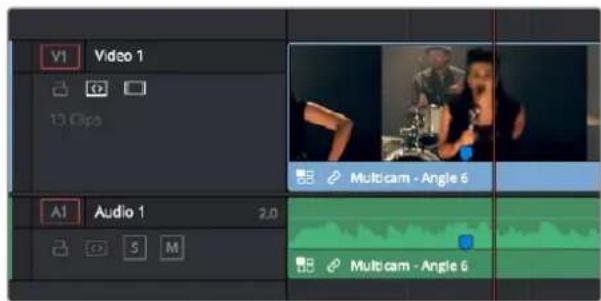
Multicam clip badge in the Timeline
When you perform a multicam edit, DaVinci Resolve plays the entire audio mix while you're editing, so if you want to take the opportunity to edit a master audio mix file or additional piece of music to play along with the multicam clip, you can do so.
Opening and Altering Multicam Clips
After you've created a multicam clip and put it into a timeline, you can modify it in a variety of ways by right-clicking it in the Media Pool and choosing "Open in Timeline." This replaces the contents of the Timeline with a vertical stack of superimposed angles, one per track, each of which is offset from the beginning of the Timeline to align with one another.
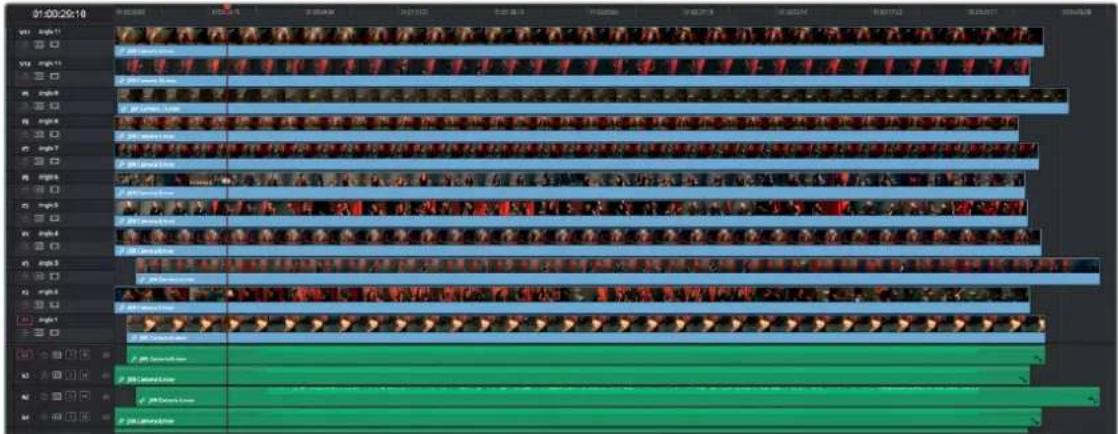
An open multicam clip appears like a timeline with a vertical stack of clips
With the multicam clip open, you can make a variety of changes in preparation for editing:
- You can slide a multicam clip left or right to alter its sync (selecting an angle and using the Period (.) and Comma (.) "nudge" keyboard shortcuts can be a good way of doing this).
- You can delete the track of an angle you don't need (right-click the track header and choose Delete Track).
- You can rearrange tracks to rearrange the order in which angles appear (right-click any track header and choose Move Track Up or Move Track Down).
- You can rename tracks to change the angle name that appears by default in the Multicam Viewer and that will also appear in the Timeline when you do cut and switch editing.
- You can disable audio or video tracks that correspond to angles you don't want to see, but don't want to eliminate, either.
- You can grade each multicam angle separately (discussed later in this section).
When you've finished altering the contents of the multicam clip, you can close it using the path control at the bottom left-hand corner of the Timeline. Click the name of the edited timeline to go back, in preparation for the next steps.
A path control lets you exit the multicam clip
Performing a Multicam Edit
After you've created one or more multicam clips and edited them into a timeline, actually executing a multicam edit is simple.
1 Open the Timeline you created to hold the multicam clip or clips comprising your edit, and position the playhead where you want to start editing.
2 Choose Multicam from the Source Viewer mode drop-down.
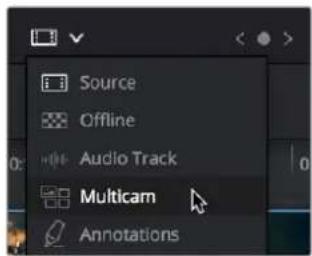
Switching the Source Viewer to Multicam viewing
The Source Viewer changes to display all of the different angles within that clip as switching controls.
3 Choose how many angles you want to display from the drop-down menu at the bottom right of the Source Viewer. If you're using a computer that's not very fast, you may need to reduce the number of angles you're viewing to maintain real time playback.
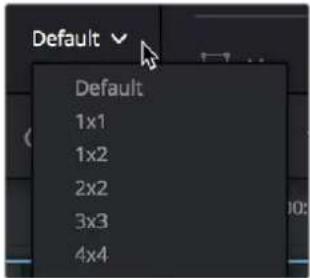
Choosing how many angles to view in the Multicam Viewer
If there are more angles within the multicam clip intersecting the playhead in the Timeline than the Multicam Viewer is set to show, then page controls appear to the left of this drop-down menu that let you choose which set of angles you want to view. You can move to another page of angles by doing one of the following:
- Click any dot to jump to that page of angles.
- Click the arrows to move among next/previous sets of angles.
- Choose Edit > Multicam > Previous Page (Option-Shift-Left Arrow) or Next Page (Option-Shift-Right Arrow).
4 Choose whether you want to switch both the audio and video, just the video, or just the audio using the Audio/Video selection buttons at the bottom center of the Multicam Viewer. You can also choose Edit > Multicam > Video and Audio (Option-Shift-[ ), Video Only (Option-Shift- ] ), Audio Only (Option-Shift-).
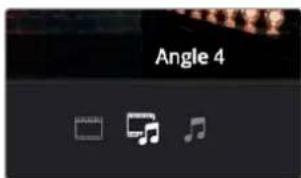
Buttons for choosing whether to switch the video, the audio, or both
5 Start playback, and while watching the program play, do one of the following:
- Click any angle in the Multicam Viewer to insert a cut in the Timeline and switch to that angle. As you cut-and-switch, the cuts immediately appear in the Timeline while you play onward.
- Option-click any angle to switch the angle used by the current clip without adding a cut. This is useful if you later regret the angle you cut to and just want to switch the entire segment since the last cut you made. This can also be accomplished by choosing Edit > Multicam > Previous Angle (Command-Shift-Left Arrow) or Next Angle (Command-Shift-Right Arrow).
As you play, the entire mix in the Timeline will play along with what you're switching, so you can work in context.
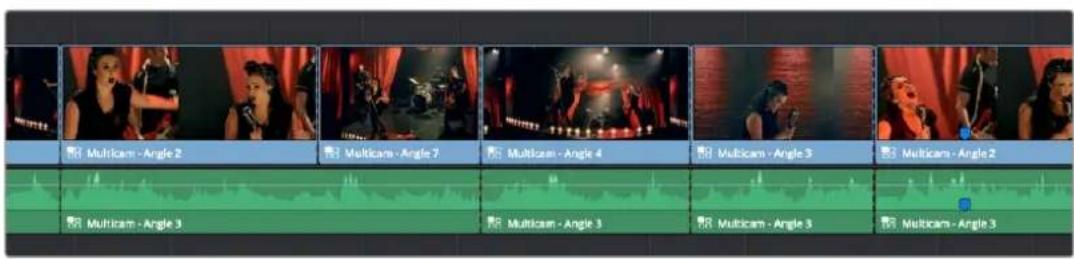
A timeline while it's being edited using cut and switch
6 When you're ready to stop multicam editing, simply stop playback. If you want to start trimming the Timeline to fine-tune what you've done, choose Source from the Source Viewer mode drop-down, and you can re-edit and trim the multicam clips in the Timeline just like any others.
Multicam Controls in the Source Viewer
The Source Viewer, in Multicam mode, has four sets of controls that let you set up and execute multicam editing.
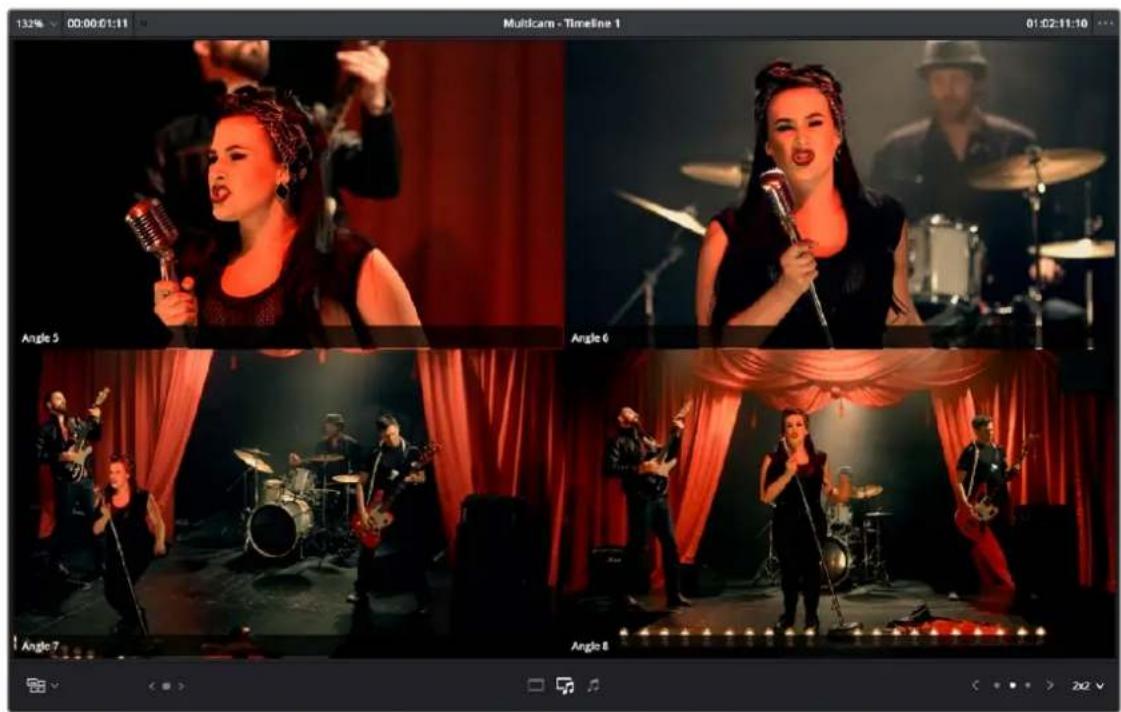
The Source Viewer showing Multicam switching controls
- Multicam Angle buttons: Each multicam angle displayed in the Source Viewer is a button that lists the angle name underneath. Clicking any of these buttons inserts a cut and switches the angle of the next clip, while Option-clicking changes the angle of the clip at the position of the playhead without adding a cut.
- Audio/Video Selection buttons: Clicking any of these buttons inserts a cut and switches the angle of the next clip, while Option-clicking changes the angle of the clip at the position of the playhead without adding a cut.
- Multicam display drop-down: Lets you choose how many angles to view while switching. Depending on your workstation's performance, reducing the number of angles can improve playback performance while you edit. You can choose from a grid of 1x1, 1x2, 2x2, 3x3, or 4x4 angles to view.
- Multicam Page buttons: If there are more angles within the multicam clip intersecting the playhead in the Timeline than the Multicam Viewer is set to show (via the multicam display dropdown), then page controls appear that let you choose which set of angles you want to view. Click any dot to jump to that page of angles, or click the arrows to move among next/previous sets of angles.
Multicam Keyboard Controls
There's also a full set of keyboard shortcuts that can be used for multicam editing.
- Multicam Cut: (Clip > Multicam Cut submenu) Pressing the 1 through 9 number keys performs a cut-and-switch operation, the same as if you'd clicked on an angle button of a multicam clip in the Source Viewer.
- Multicam Switch: (Clip > Multicam Switch submenu) Pressing Option-1 through 9 performs a switch operation, the same as if you'd Option-clicked an angle button of a multicam clip in the Source Viewer.
- Previous/Next Angle: (Edit > Multicam submenu) Pressing Command-Shift-Left or Right Arrow lets you switch to the previous or next angle. These controls will also loop back around to the first or last angles in the multicam clip.
- Audio/Video Switching: (Edit > Multicam submenu) Pressing Option-Shift-[sets the Multicam Viewer to cut or switch both Video and Audio at the same time. Pressing Option-Shift-] sets the Multicam Viewer to cut or switch Video only. Pressing Option-Shift-\sets the Multicam Viewer to cut or switch Audio only.
- Previous/Next Page: (Edit > Multicam submenu) Pressing Option-Shift-Left or Right Arrow lets you move to the previous or next page of multicam angles, if there are more angles than can be displayed in the Viewer's current multi-angle setting.
Editing Multicam Clips in the Timeline
When it comes to editing and trimming, there's no functional difference between multicam clips and any other kind of clip. Because you're technically adding through edits to a single clip, you have the option or deleting any edit by selecting it and pressing the Delete key.
But multicam clips are special in that you always have the option of switching angles, either using the Multicam Viewer, or right in the Timeline via each clip's contextual menu.
To switch the angle of any multicam clip in the Timeline:
- Right-click any clip and choose a new angle from the "Switch Multicam Clip Angle" submenu. This also allows you to change angles without needing to use the Multicam Viewer.
In the event that you want to eliminate all unused angles from a multicam clip and "flatten" it to simply be a single clip in the Timeline, there's a command for that.
To flatten a multicam clip in the Timeline:
- Right-click any clip and choose Flatten Multicam Clip from the contextual menu. All unused angles are deleted, the clip becomes shorter if it included black tails because of another unused angle, and you end up with a single ordinary clip in the Timeline.
To Match Frame to the angle of any multicam clip in the Timeline:
- Place the playhead over the frame in the Timeline you want to match and press F. The exact frame of the multicam clip referenced will appear in the Source Viewer with the appropriate angle already selected.
To Match Frame to the multicam clip in the Source Viewer:
- Open the multicam clip in the Source Viewer. Navigate to the frame you want to find using the jog bar and press F. The playhead in the Timeline will move to the exact frame of the multicam clip referenced in the Source Viewer. If the frame you selected is not in the Timeline, when you press F nothing will happen.
To edit an angle of any multicam clip directly from the Source Viewer:
- You can click and drag any multicam angle directly from the Source Viewer to the Timeline. The length of the clip is bounded by the In and Out point selection of the clip.
Referencing a Line Cut
You may sometimes be provided with what's called a "line cut" from a production. This is a pre-edited version of the program, cut live with the switcher and recorded during the performance or event, that's meant to be used as a reference for what you're doing. If you want to reference a line cut that's been given to you as a movie file, you can add it as an Offline Reference Movie, and compare it to the Timeline using the Offline Reference Movie mode of the Source Viewer in the Edit page. For more information on using an Offline video to compare with a timeline in the Edit page, see Chapter 55, "Preparing Timelines for Import and Comparison."
Grading Multicam Clips
Multicam clips appear like any other clip in the Color page. However, each angle within a multicam clip has its own grade (unlike the Take Selector described later, in which all takes share the same grade). If you grade a multicam clip, you're actually editing the grade of the specific angle that's currently exposed in that clip.
If you want access all of the angles within a multicam clip for grading, right-click it and choose "Open in Timeline" to expose each angle within a superimposed stack. Then you can open the Color page and grade whatever angles you want, whether they're visible back in the Edit page or not. You might do this to make the different angles match one another better, or to pre-grade all of the angles to give them the look you want prior to multicam editing. You also need to use "Open in Timeline" in order to access and manipulate the camera RAW settings if your footage was shot in a RAW format.

An open multicam clip in the Color page exposes all of its angles for individual grading
Because opening multicam clips in the Timeline results in a vertical stack of superimposed clips, you'll want to turn on Unmix in the Color page viewer so that you can actually see the currently selected angle in the Thumbnail Timeline while you work.
The Unmix control lets you see only one of a superimposed stack of clips
When you're done grading the individual angles, go back to the Edit page, and use the path control at the bottom left-hand corner of the Timeline to return to your edited timeline.
Chapter 42
Take Selectors, Compound Clips, and Nested Timelines
This chapter covers a variety of different ways you can turn multiple clips into a single object in the Timeline, to accommodate a variety of different editing tasks. Take Selectors, compound clips, and nested timelines all appear as a single clip in the Timeline, but they all organize multiple clips in different ways. Take Selectors let you organize multiple clips vertically, making it easy to associate clips with one another so you can easily switch among them. Compound clips and nested timelines let you organize multiple clips horizontally, so that you can manage long or short sequences of clips within an edit as a single clip, when convenient.
Contents
Take Selectors 704
Compositing and Grading Take Selectors 705
Compound Clips 705
Compositing With and Grading Compound Clips 708
Nested Timelines 709
Re-Editing a Nested Timeline 709
Swapping the Contents of the Source Viewer and Timeline 710
Editing Source Media From a Timeline or Compound Clip 710
Marking Clips in Timelines Loaded into the Source Viewer 710
Decomposing Nested Timelines 710
Compositing and Grading Nested Timelines 711
Audio Buses in Nested Timelines 711
Converting Compound Clips or Timelines to Multicam Clips 712
Take Selectors
Take Selectors in DaVinci Resolve provide a way for you to manage multiple takes or versions of a particular clip in the Timeline. They're ideal for storing multiple useful takes for scenes where you or the client can't quite decide which one is the best, or for maintaining multiple versions of VFX clips that are going through different iterations.
When you place a number of clips inside a Take Selector, only one clip appears in the Timeline, but you can open that Take Selector and switch to any other take or version that's stored within to switch which clip appears in the Timeline whenever you want.
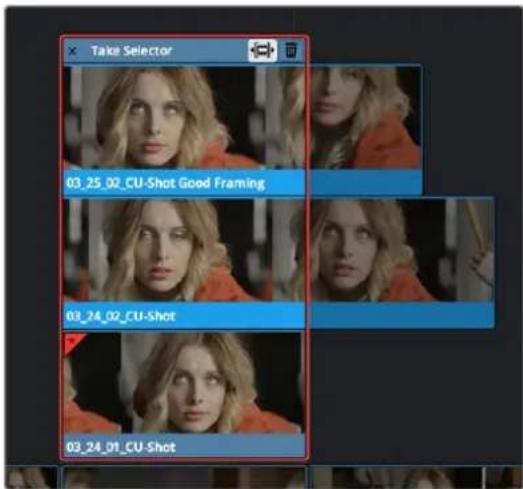
A Take Selector, shown open, with several alternate takes placed within
Take selectors are easy to create and use and populate. Once you've placed a number of clips inside the Take Selector, you can drag any take to slip that clip's range of media to synchronize it with the other takes, or click a take to choose that clip within the Take Selector to appear in the Timeline, before closing the Take Selector to confirm your change.
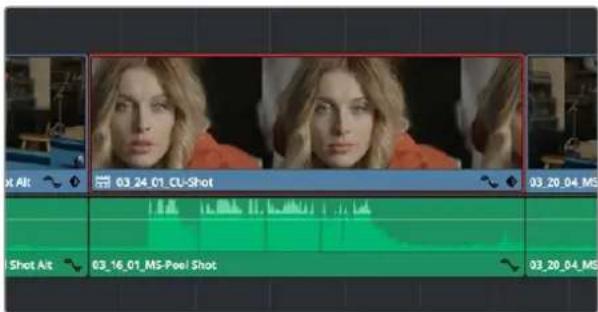
When closed, a Take Selector appears as a regular clip with a badge
When closed, multi-take clips can be edited, trimmed, composited, graded, and rendered like any other single clip in the Timeline. A Take Selector badge appears to the left of the name of a clip to which it's applied to show its status; double-clicking this badge opens the Take Selector so you can adjust its contents.
Methods of using Take Selectors:
- To create a Take Selector: Right-click any clip that's not a title or generator, and choose Take Selector from the contextual menu. The Take Selector interface appears, disabling the rest of the Timeline temporarily while you work with the Take Selector's contents.
- To populate a Take Selector: Drag any clip from the Media Pool into the Take Selector, and it appears "stacked" on top of the original clip in the Timeline.
- To choose the current take: Click any clip within the Take Selector so that it's highlighted, and then click the close button at the upper-left corner of the Take Selector. When next you open the Take Selector, the current clip appears at the bottom of the stack, with a star at the upper-left corner. Absent a choice, the current take will default to the last clip added to the Take Selector.
- To set a Take Selector to ripple the Timeline when a longer or shorter take is selected:
Click the Ripple Take button, at the upper right-hand corner of the Take Selector panel, to the left of the trash can button. With this turned on, selecting a take that's longer or shorter than the current take will ripple the Timeline. With this turned off, selecting a take that's longer or shorter will either overwrite the next clip to the right, or leave a gap. - To slip a clip within the Take Selector: Drag any clip to the left or right to slip the range of media that appears within the Take Selector's duration in the Timeline. This is useful for synchronizing other takes to fit the same narrative beat as the first take you used.
- To remove a clip from a Take Selector: Click the clip you want to remove to select it, then click the trash can button at the upper-right corner of the Take Selector. That take disappears from the Take Selector.
- To close a Take Selector: Click the X close button, or press the escape key. Whichever take was selected is now the clip that appears in the Timeline.
- To reopen a Take Selector: Double-click the Take Selector badge at the left of a clip's name, or right-click a multi-take clip and choose Take Selector from the contextual menu.
- To eliminate a Take Selector leaving only the take you want: Close the Take Selector, if open, then right-click that clip in the Timeline and choose Finalize Take from the contextual menu.
Compositing and Grading Take Selectors
Since compound clips act like a single clip in the Timeline, they appear as a single Medialn node in the Fusion page, and you grade them as you would any other single clip in the Color page. However, for Take Selectors, the composite or grade is applied to the Take Selector itself; when you switch to any other take, it appears with the same composition and grade.
NOTE: Any keyframing you do is relative to the Timeline of the overall Take Selector. This means that if you create a keyframed effect in either the Fusion or Color pages using take 1, and you then switch to takes 2, 3, or 4, the timing might not be exactly the same and you might need to make some adjustments.
Compound Clips
You can select a series of clips in the Timeline, be they edited one after the other in serial or superimposed and stacked in parallel, and turn them into a compound clip, which is a single clip in the Timeline that's actually comprised of many other audio and video clips embedded inside. This allows you to work with a block of clips as if it were a single unit, governed by a single set of Inspector controls, and able to be connected to another clip in your timeline by a single transition.
Editing a compound clip works the same as editing any other type of clip. They can be edited, trimmed, and deleted using all the same methods. In addition, compound clips can be renamed, and decomposed back into their component clips right in the Timeline.
To create a compound clip by selection:
1 Select a range of clips.
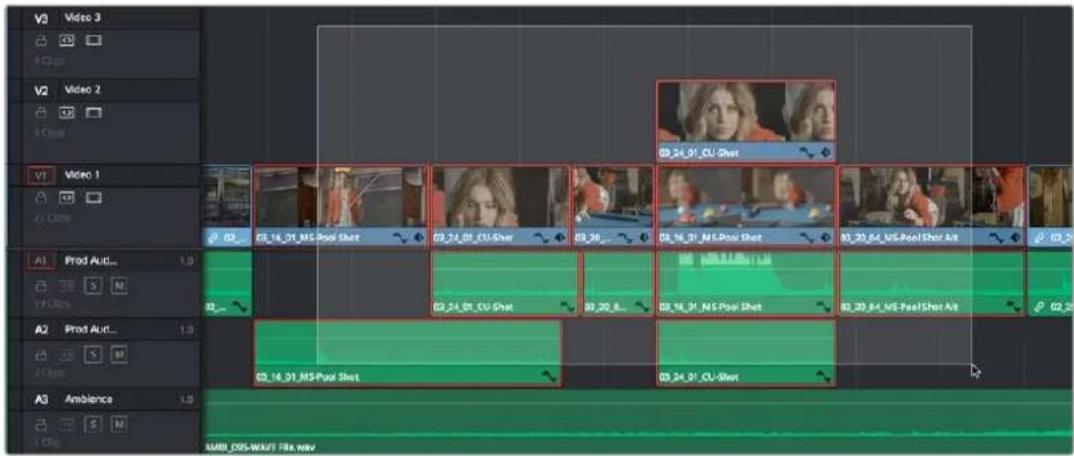
Selecting a range of clips to turn into a compound clip
2 Right-click one of the selected clips and choose New Compound Clip.
3 Enter an optional start timecode and a name, and click Create.
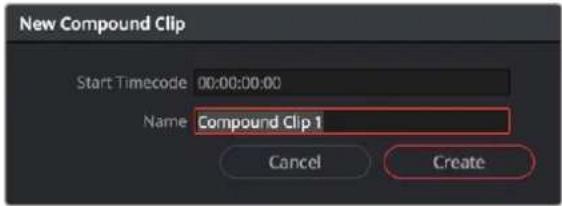
The New Compound Clip Properties dialog
A compound clip is created which takes the place of the original clips you selected on the Timeline. Additionally, a copy of that compound clip appears in the currently selected bin of the Media Pool.
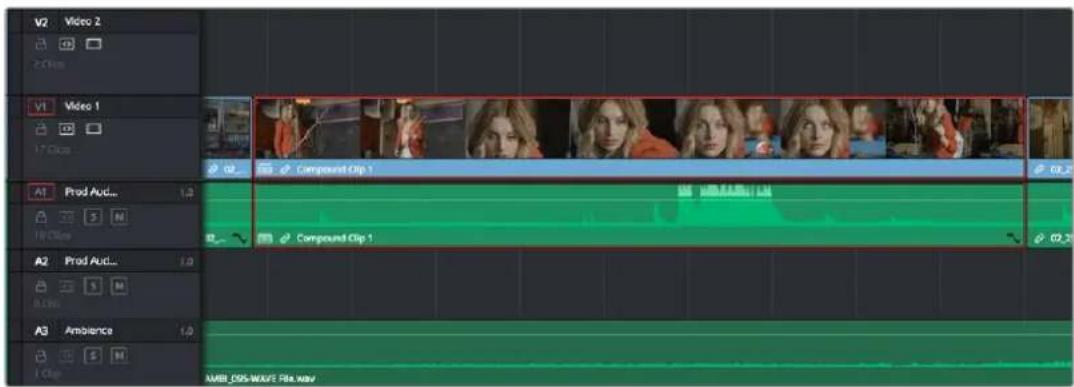
The resulting compound clip
To create a compound clip by In-Out range:
1 Select a range of clips using In and Out points on the Timeline. This allows you to select partial sections of a clip to add to the compound, rather than the whole clip. All tracks between the In-Out range will be included, even if the track is disabled or auto select is off.
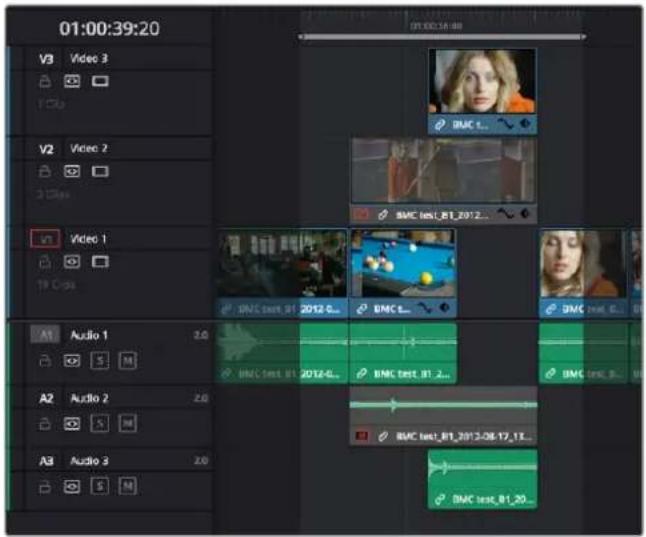
Selecting a range of clips based on In and Out points to turn into a compound clip. Note that this selection includes only parts of the first and last clips in the range.
2 Right-click on the timeline range and choose Convert In and Out to Compound Clip.
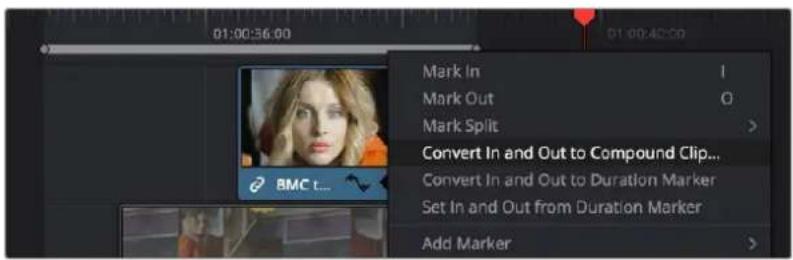
Right clicking on the In-Out range (gray bar) on the Timeline brings up the context menu.
3 Enter an optional start timecode and a name, and click Create.
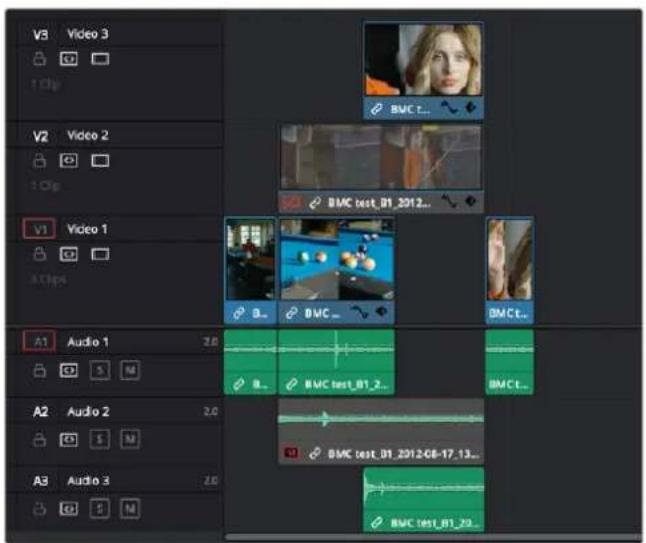
The resulting bounds of the compound clip showing only the media included in the exact In-Out range.
To rename a compound clip:
- Click the name of the compound clip twice in the Media Pool to select the name text. Type a new name, and press the Return key to accept the change.
To edit a compound clip:
1 Right-click any compound clip and choose Open in Timeline from the contextual menu.
The Timeline updates with the contents of the compound clip, which you can re-edit at your discretion.
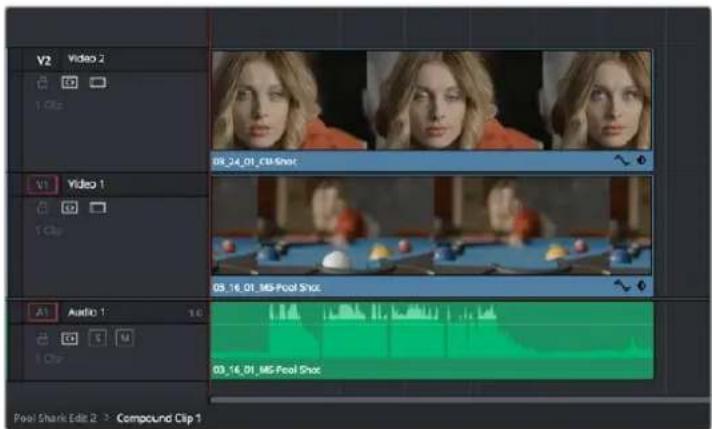
An open compound clip in the Timeline
2 To return to the original timeline when you're finished, double-click the name of the enclosing timeline in the path control at the bottom left-hand corner of the Timeline.
The path control you can use to close the compound clip
To decompose a compound clip into its individual clips in the Timeline:
- Right-click any compound clip and choose Decompose in Place from the contextual menu. The compound clip is replaced by the individual clips it was made from.
To edit a compound clip from the Media Pool to the Timeline as individual clips:
1 Choose Edit > Decompose Compound Clips on Edit so the menu item is checked.
2 Use any editing command except for Fit to Fill or Place on Top to edit a compound clip from the Media Pool or Source Viewer to the Timeline to edit it as a sequence of individual, decomposed clips.
Compositing With and Grading Compound Clips
Since compound clips act like a single clip in the Timeline, they appear as a single Medialn node in the Fusion page, and you can grade them as a single clip in the Color page. However, if you want to individually apply effects, adjust the RAW camera settings, or grade the original clips inside the compound clip, you can use the Open in Timeline command to access its constituent clips, and then open the Fusion or Color pages, where you'll find each of the individual clips available for separate compositing or grading. When you're done, go back to the Edit page and close the compound clip, and you'll go back to seeing it as a single clip whenever you open the Fusion and Color pages.
Nested Timelines
Timelines, and sections of timelines, can be edited inside other timelines, either partially or whole. For example, if you've edited a program in scenes or reels such that each reel is contained in a separate timeline, you can edit all of the timelines together, one after the other, into a single timeline to assemble them into a final program.

Multiple timelines edited together into a single sequence
Nested timeline clips appear with a special badge to the left of the timeline name.
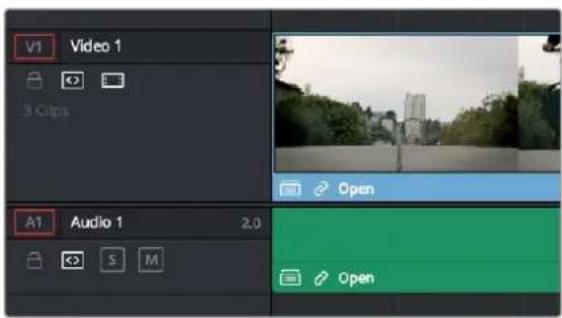
The badge that indicates a nested timeline
Timelines can be edited like any other clip, you can select one or more timelines and drag and drop them into another timeline, drag them onto the Timeline Viewer editing overlay, or use the toolbar editing buttons or keyboard shortcuts to edit them, just as you would any other clip.
Additionally, you can select multiple timelines in the Media Pool, right-click them, and choose Create Timeline Using Selected Clips to quickly assemble a group of timelines into a nested sequence.
The one exception is that you must drag and drop a timeline into the Viewer if you want to use it to set In and Out points, since double-clicking a timeline, or selecting a timeline and pressing Return simply opens it into the Timeline Editor. However, you can set In and Out points for timelines in the Filmstrip of the Media Pool, or you can edit a timeline into another timeline in its entirety, and then trim the head and tail down to just what you need. Double-clicking a nested timeline opens it into the Source Viewer for trimming, exactly like any other clip.
Re-Editing a Nested Timeline
If you want to edit the contents of a nested timeline, you can right-click it and choose Open in Timeline. Unlike compound clips, no path control appears when you do this, because you've simply opened the original timeline. To go back to the previous timeline, find and double-click it in the Media Pool, or choose it from the Timeline drop-down at the top of the Timeline Viewer.
Editing an original timeline does nothing to change the duration of nested instances of that timeline inside other timelines. If you trim or delete clips in the original timeline that appear in nested instances of that timeline, then those areas of the nested timeline simply go black.
Swapping the Contents of the Source Viewer and Timeline
When editing the partial contents of one timeline into another, it can be useful to see the contents of a timeline that's open in the Source Viewer in the Timeline Editor. To do so, choose Timeline > Swap Timeline and Source Viewer (Command-Page Up). This puts the timeline that was open in the Source Viewer into the Timeline Editor, and the timeline that was in the Timeline Editor into the Source Viewer. This makes it easier to mark In and Out points while seeing the exact boundaries of clips, prior to pressing Command-Page Up to swap the contents of the Source Viewer and Timeline Editor once again in preparation for executing the next edit.
Editing Source Media From a Timeline or Compound Clip
If you have a timeline that has clips you want to edit into another timeline, but as source clips and not as nested timeline segments, you can turn on Edit > Decompose Compound Clips on Edit.
This a mode determines whether a timeline is edited into another timeline as a nested timeline, or immediately decomposed into its constituent source clips. Turning this mode on lets you edit source clips from a timeline using drag and drop, 3-point edits, or whatever other method you find convenient. To go back to editing nested timelines, turn Edit > Decompose Compound Clips on Edit off.
This mode is especially useful for workflows where you're assembling “selects” timelines with the best moments of various interviews or performances, which you later want to edit as sources into the actual program you're editing.
Marking Clips in Timelines Loaded into the Source Viewer
While you're editing Source Media from a timeline that's loaded into the Source Viewer, you can use the Mark Clip (the X key) to set Viewer In and Out points that match the start and end of whatever clip intersects the playhead within that timeline. This makes it easy to edit one clip from a Timeline in the Viewer into your program, all by itself.
natural_image
Close-up of a blurred image with no discernible text, symbols, or structured content.
natural_image
Video player interface with playback controls and sound effect (no readable text or symbols)(Left) A timeline in the Source Viewer, (Right) Pressing X marks In and Out points for the clip at the playhead, ready for editing
Decomposing Nested Timelines
There are two main ways you can turn a nested timeline back into its constituent clips.
Decomposing in Place
To decompose a nested timeline that's already been edited into another timeline, right-click it and choose Decompose in Place. You can also do this for multiple selected nested timelines, all at once.
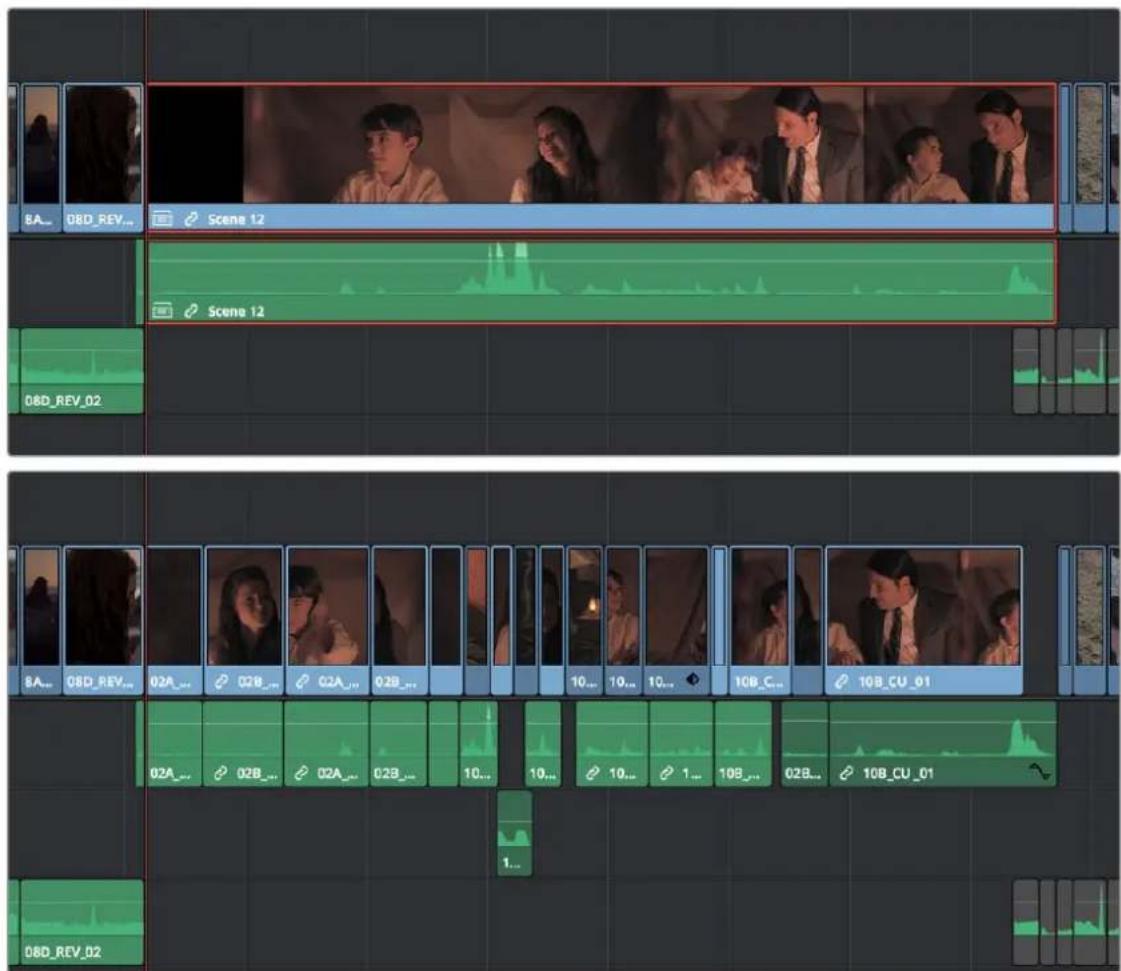
(Top) A nested timeline, (Bottom) The result of using Decompose In Place
If the decomposed clip has more audio, video, or subtitle tracks as a result, then additional tracks will be added to the Timeline to make room. If this is a problem, you can rearrange the clips
Decomposing Nested Timelines While Editing
If you want to edit an entire timeline into another timeline solely as the source clips, you can turn on Edit > Decompose Compound Clips on Edit, and then edit that timeline into your program using whatever method you find convenient, as described previously in this chapter.
Compositing and Grading Nested Timelines
Similarly to compound clips, nested timelines act like a single clip in the Timeline; they appear as a single MediaIn node in the Fusion page for compositing, and you can grade them as a single clip in the Color page. However, if you want to individually add effects to or grade the original clips inside a nested timeline, you can either open that timeline from the Media Pool, or right-click that clip and choose Open in Timeline in order to access its constituent clips for compositing or grading.
Audio Buses in Nested Timelines
When you nest a timeline inside of another timeline that has buses set up for mixing in the Fairlight page, all Sub and Aux routings work as intended within the nested timeline, which exposes all channels of Main 1 in the enclosing timeline. In this sense, the audio of the nested timeline can be considered to be a submix that outputs its resulting audio to the audio track it's edited onto. For more information about Buses and audio mixing in general, see Part 13, "Fairlight."
Converting Compound Clips or Timelines to Multicam Clips
It's possible to convert compound clips and timelines into multicam clips for easier editing using the Edit page's Multicam Editing interface. This conversion is a one-way process. You cannot reconvert a multicam clip back to a timeline or compound clip. If you wish to preserve the original timeline or compound clip, make sure to duplicate it first, and then convert the copy. For more information, see Chapter 41 "Multicam Editing" in the DaVinci Resolve Reference Manual.
To convert a compound clip or timeline to a Multicam clip:
- Right-click on the clip or timeline in the Media Pool and choose "Convert Compound Clips (Timelines) to Multicam Clips" from the drop down menu.
Chapter 43
Trimming
Most editors would agree that trimming is half the job of editing. While you can make many kinds of changes in the Timeline using the selection and razor blade tools, there is a dedicated Trim mode in which you can perform more sophisticated trim operations in fewer steps using either the mouse or keyboard shortcuts, depending on how you like to work. Mastering DaVinci Resolve's trimming operations will save you time when doing the necessary work of fine-tuning your edit.
Contents
Keyboard Shortcuts in This Chapter 714
Summarizing Trim Operations 715
Selection-Based Trimming Using the Trim Tool 715
How the Trim Tool Differs From the Selection Tool 716
Using the Trim Tool With the Mouse 717
Turning Off the Heads Up Display While You Trim 720
Trim Tool Operations With the Keyboard 721
Important Trimming Keyboard Shortcuts 721
Trimming Using Timecode Entry 723
How to Enter Timecode Values 723
Commands to Make Selections and Trim 724
Trimming Clips in the Source Viewer 725
Ripple Editing Rules 726
Using Auto Select Controls to Control Trimming 728
Using Auto Select to Control Which Clips Are Trimmed 728
Using Manual Selections to Control Which Clips Are Trimmed 729
Using Auto Select to Control Which Tracks Are Rippled 730
Trimming Multiple Edits or Clips at Once 732
Resizing and Rolling Multiple Edit Points 732
Rippling Multiple Edit Points 732
Asymmetric Trimming 734
Slipping Multiple Clips 736
Sliding Multiple Clips 736
Keyboard Trimming During Looped Playback 736
Dynamic JKL Trimming 737
Quick Trimming 738
Dynamic Trimming (or "JKL Trimming") 738
Trim Operations that are Targeted Using the Playhead 740
Trim Start and Trim End 740
Resize, Ripple, and Roll Start and End Commands 741
Slip and Slide Playhead to In and Out Commands 742
Extend Edits 742
Keyboard Shortcuts in This Chapter
Here's a list of of keyboard shortcuts you might find helpful that relate to topics found in this chapter.
Key Shortcut Function
| T | Trim mode, ripples edits and slips or slides clips |
| A | Selection mode, resizes edits and moves clips |
| Command-L and J | “Fast trim” dynamically trims the selection at 100% forward and reverse speeds |
| W | Dynamic trim or resize mode, uses JKL to trim the selection |
| S | Toggles between Slip and Slide mode when a clip is selected in Trim mode |
| V | Selects the edit point closest to the playhead and moves the playhead there |
| Shift-V | Selects the clip or gap that intersects the playhead |
| Shift (modifier) | A modifier that temporarily disables the 2- and 4-up display that appears when trimming edits and clips with either the pointer or keyboard shortcuts. |
| Shift-Q | Toggles Enable Preview During Editing to control visibility of the 2- and 4-up displays |
| Option-F1 through F9 | Toggles Auto Select for video tracks 1 through 9 |
| Command-Option F1 through F9 | Toggles Auto Select for audio tracks 1 through 9 |
| U | Toggles edit point selection among the outgoing, centered, or incoming part of the edit |
| Comma, Period | “Nudge” keys to move a selected edit or clip left or right a frame at a time |
| Shift-Comma, Period | “Fast Nudge” keys to move a selected edit or clip left or right 5 frames at a time (customizable) |
| / | Play around current selection |
| Command-/ | Toggles looped playback off and on |
| Down Arrow, Up Arrow | Moves both the playhead and selection to the next or previous edit point |
| E | Extend edit to resize or ripple selected edit points to the position of the playhead |
Key Shortcut Function
| Shift-Left,Right Bracket ([,]) | Trim Start to Playhead and Trim End to Playhead to trim a clip at the position of the playhead and leave a gap (unless you're in Trim mode so the gap will be closed) |
| Shift-Command-Left,Right Bracket ([,]) | Ripple Trim Start to Playhead and Ripple Trim End to Playhead to trim a clip at the position of the playhead and close the gap |
| Command-Shift-X Ripple cut selection; close gap left by cut clip(s) | |
| Command-C Copy selected clips | |
| Command-V Paste clips | |
| Command-Shift-V Paste insert clips | |
Summarizing Trim Operations
Before going into the different methods of trimming that are available, users who are new to editing might benefit from a quick summary of what each trimming operation actually does. Each trim operation is designed to let you move edits and clips in relation to whichever clips are around them, by performing several operations at once. The five primary methods of trimming are:
- Resize: Shortens or lengthens the end of an outgoing clip or the beginning of an incoming clip, while either overwriting a neighboring clip or leaving a gap behind as necessary. While this isn't usually included in a discussion of "trim" operations, it's actually the simplest kind of trimming you can do.
- Roll: Moves an edit point to the left or right by either shortening the outgoing clip while lengthening the incoming clip, or vice versa. Roll edits do not change the duration of the overall Timeline.
- Ripple: Shortens or lengthens the end of an outgoing clip or the beginning of an incoming clip, while simultaneously moving all clips either to the right in the Timeline (if you're rippling to lengthen a clip) or left in the Timeline (if you're rippling to shorten a clip) to fill the gap or prevent overwriting that would otherwise occur if you were doing a resize operation. Ripple edits do change the duration of the overall Timeline and can alter the sync relation between different tracks if you're not careful.
- Slip: Keeps a clip in the same place in the Timeline, while changing the range of media that appears in that spot. Slip edits do not change the duration of the overall Timeline.
- Slide: Keeps a clip's range of media the same, but moves that clip to the left or right by either shortening the outgoing clip to its left while lengthening the incoming clip to its right, or vice versa.
Selection-Based Trimming Using the Trim Tool
Trim mode differs from Selection mode in that operations that would move clips with the Selection tool will either slip or slide clips with the Trim tool. Other operations that would resize edits with the Selection tool instead ripple the Timeline to automatically close gaps when using the Trim tool. The following sections describe the various trim operations that are available, both when using the mouse, and when using the keyboard.
To enter Trim Edit mode:
- Click the Trim Edit button, or press the T key.
How the Trim Tool Differs From the Selection Tool
Aside from the actual trimming operations that are available, there are a few other important differences between the Trim tool and the Selection tool.
Selecting Edit Points
When the Trim tool is selected, dragging a bounding box over a series of clips in the Timeline selects the edit points to join clips together, instead of the clips themselves. This makes it fast and easy to select multiple edit points that you want to operate on simultaneously.
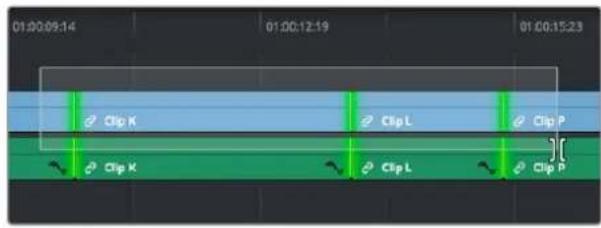
Selecting edit points in the Timeline using the Trim tool
Rippling the Timeline With Different Operations
When the Trim tool is selected, other commands and controls that would ordinarily resize a clip or clips and leave gaps in the Timeline instead move (ripple) clips that are to the right of the clip or edit you're trimming over to the left to prevent gaps whenever clips or edits are moved or resized.
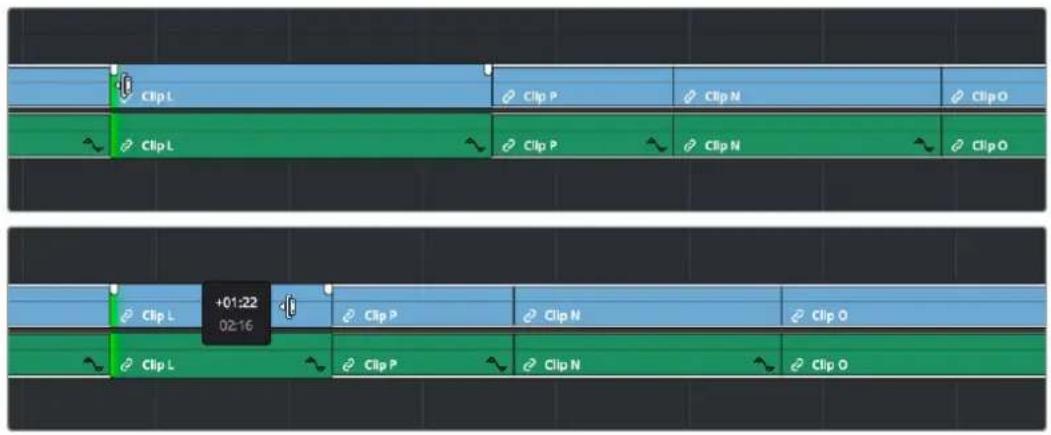
Rippling the incoming edit point of Clip L to resize it and prevent a gap from appearing by moving all clips that are to the right (Clips P, L, and N) over to the left
For example, the Retime controls, the Extend and Trim Start/End commands, and the Nudge keyboard shortcuts all work differently depending on whether you're using the Selection or Trim tools. This lets you use one set of tools to do different operations, depending on what you need to do.
Rippling Gap
You can also use the Trim tool (or other trim operations described later in this chapter) to ripple the start and end of a gap in the Timeline. Rippling a gap lets you grow or shrink the gap while moving the portion of the Timeline to the right of the gap forward or backward in time. Whenever you ripple against gap, a 2-up display appears that lets you see both the clip you're trimming and whatever superimposed clips may be showing through that gap.
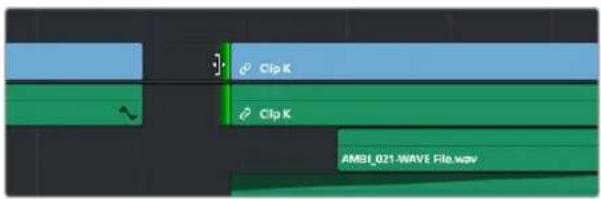
Using the Trim tool to ripple the Out point of a gap to narrow it
TIP: You can temporarily toggle between the selection (A) and trim tools (T) while using these operators to see their effects. Releasing the key will return you to the originally selected mode.
Using the Trim Tool With the Mouse
When trimming using the mouse, you can perform every kind of trim operation that's available using a single tool, simply by clicking the Trim mode/tool button, and then dragging on the appropriate area of a clip in the Timeline.
Methods of trimming with the mouse in Trim Edit mode:
- To slip a clip: To slip a clip's range of content without changing its position in the Timeline, click the middle top region of a clip, and then drag to the left or right to "slip" the clip to contain a different range of frames. A dashed overlay shows the total duration of media available for you to slip with, which moves left and right as you drag.
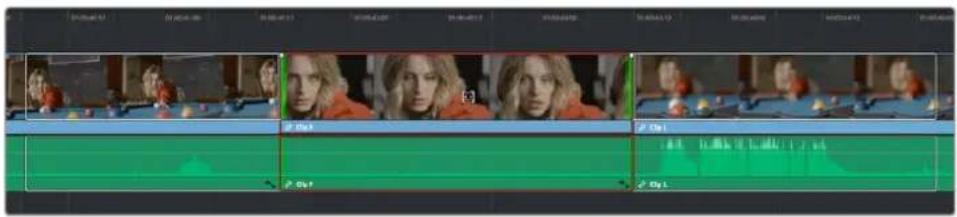
Clicking the top clip area before a slip, an overlay shows the clip's available range of media
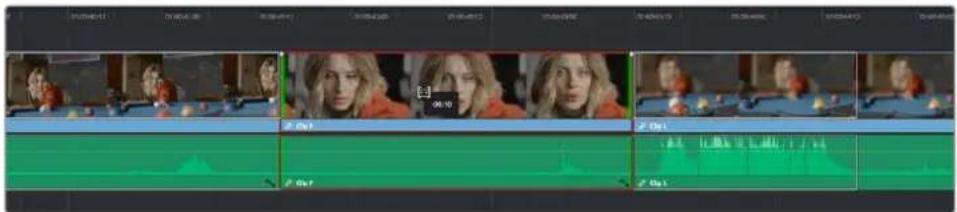
After dragging to slip, clips don't move, but the slipped clip's range of media has changed
When slipping clips, a 4-up display shows all relevant outgoing and incoming frames, so you can compare the continuity of action from one clip to the next. During a slip, the top two frames update to show you the new incoming and outgoing frames of the clip being slipped, relative to the unchanging outgoing frame of the clip to the left and incoming frame of the clip to the right.
TIP: You can temporarily disable this four-up display by pressing the Shift key while you slip so that you only see the frame at the position of the playhead. This makes it possible for you to see which frame passes the playhead by as you ripple the Timeline. You can toggle this two-up display off completely by selecting View > Enable Preview During Editing

natural_image
Two-panel image showing a person in an orange jacket and a blurred background with colorful balls and a blue table (no visible text or symbols)Four-up display when slipping a clip
- To slide a clip: To slide a clip, moving it to another position in the Timeline while simultaneously adjusting the Out point of the previous clip and the In point of the next clip to accommodate the change in position of the current clip being dragged, click the bottom-middle name bar of the clip and drag it to another position.
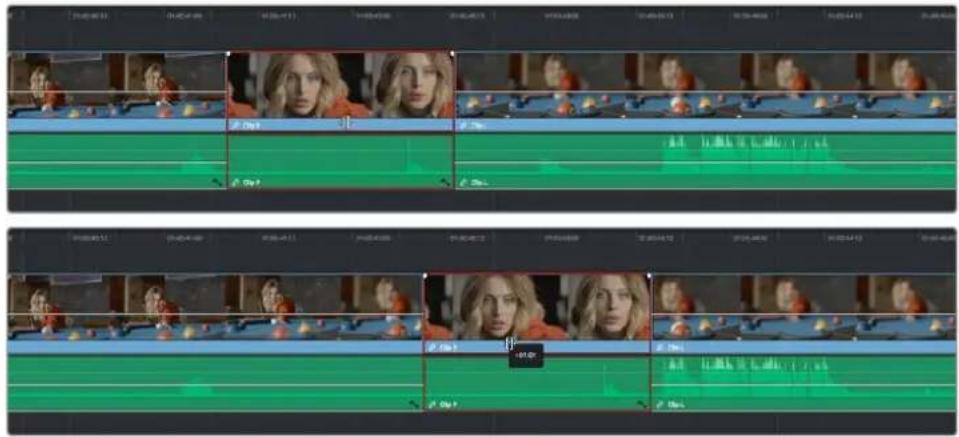
After dragging to slide, the selected clip is at a new location, surrounding clips filled the gap
When sliding clips, a 4-up display shows all relevant outgoing and incoming frames, so you can compare the continuity of action from one clip to the next. During a slide, the bottom two frames update to show you the new outgoing frame of the clip to the left, and the new incoming frame of the clip to the right of the clip being slid.
TIP: You can temporarily disable this four-up display by pressing the Shift key while you slide so that you only see the frame at the position of the playhead. This makes it possible for you to see which frame passes the playhead by as you ripple the Timeline. You can toggle this two-up display off completely by choosing View > Enable Preview During Editing.
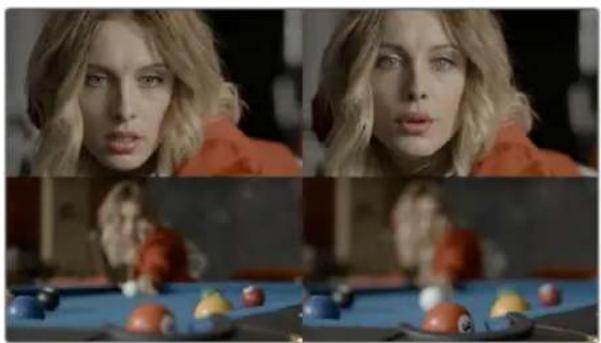
natural_image
Four-panel photo collage showing a person in an orange hoodie, with a pool and balls on the table (no visible text or symbols)4-up display when sliding a clip
- To roll an edit point: To roll an edit, moving the Out point of the outgoing clip and the In point of the incoming clip at the same time, drag an edit point between two clips to the left or right. (Roll edits can also be done in Selection mode.)
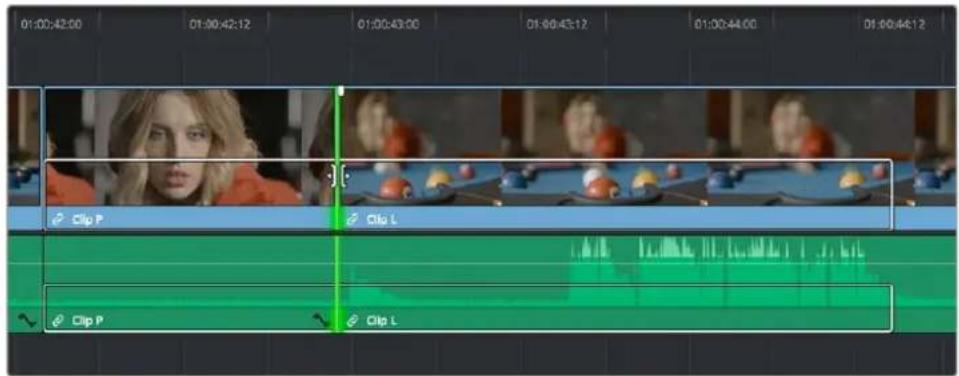
Selected edit point before roll
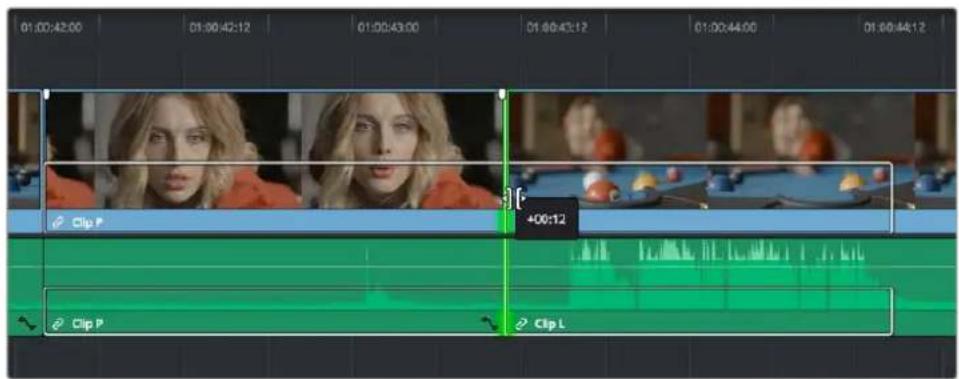
Edit point moved farther to the right, both adjacent clips resized to prevent gap
When rolling an edit, a 2-up display shows the changing continuity of action from the outgoing frame of the clip to the left to the incoming frame of the clip to the right, and you will hear the audio scrubbing of the right clip.
natural_image
Woman in a pool with a blue table and balls, no visible text or symbolsTwo-up display when rolling an edit
- Ripple edit: To ripple the outgoing or incoming part of an edit to add or remove media to a clip while simultaneously moving all other clips at the left in the Timeline to make room, click the Trim tool, and drag an edit point to a new position in the Timeline.
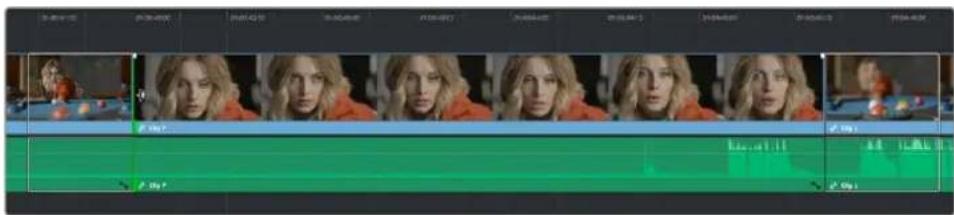
Selected outgoing half of an edit point before ripple
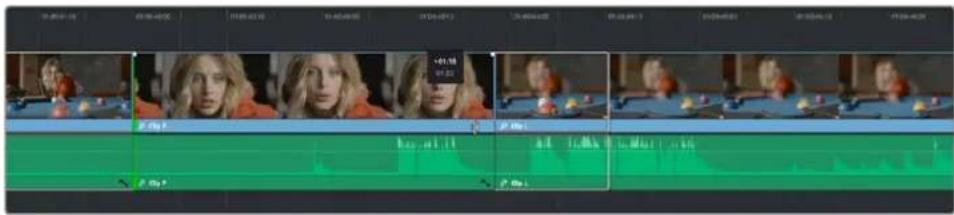
Rippled clip is shorter, the rest of the Timeline has moved left to fill the gap
When rippling an edit, a 2-up display shows the continuity of action from the outgoing frame of the clip to the left to the incoming frame of the clip to the right. Which frame updates depends on which side of the edit you're rippling.
TIP: You can temporarily disable this two-up display by pressing the Shift key while you ripple so that you only see the frame at the position of the playhead. This makes it possible for you to see which frame passes the playhead by as you ripple the Timeline. You can toggle this two-up display off completely by selecting View > Enable Preview During Editing.
natural_image
Two individuals in a pool, one focused on playing table with colorful balls (no visible text or symbols)Two-up display when rippling an edit
Turning Off the Heads Up Display While You Trim
If you press the Shift key while performing most drag and trim operations, you can suspend the multi-frame heads up displays that appear in the Timeline window in order to focus on the frame that intersects the playhead.
To toggle the two- and four-frame heads up displays off or on:
- Choose View > Enable Preview During Editing.
Trim Tool Operations With the Keyboard
You can also perform every trim operation more precisely using the Nudge keyboard shortcuts.
To trim with the keyboard:
1 Press T to select the Trim tool.
2 To trim the selection, do one of the following:
- To slide a clip: Press Shift-V to select a clip, and press the Comma key to slip it one frame to the left, or the Period to slip it one frame to the right. Shift-Comma and Shift-Period slips the clip in 5-frame increments.
- To slip a clip: Press Shift-V to select a clip, then press the S key to toggle to Slip mode (pressing S again toggles back to Slide mode) and press Comma or Period to slide its contents to the left or right. Shift-Comma and Shift-Period slides the contents in 5-frame increments.
- To roll an edit: Press V to select an edit point, then press the Comma key to nudge it one frame to the left, or the Period to nudge it one frame to the right. Shift-Comma and Shift-Period rolls the edit in 5-frame increments.
- To ripple an edit: Press V to select an edit point, then press U to select either the incoming or outgoing side of the edit by itself. Then, press the Comma key to ripple the selected In or Out point of the clip to the left, or the Period to ripple it one frame to the right. Shift-Comma and Shift-Period ripples in 5-frame increments.
3 If you want to suspend the 2- or 4-up display that appears in the Timeline Viewer while trimming, you can Choose View > Enable Preview During Editing to toggle the trimming displays off and on.
TIP: When holding down the Shift key while nudging to do a "fast nudge," the duration of the nudge is customizable in the Editing panel of the User Preferences. By default it's five frames, but you can set it to whatever you want.
Important Trimming Keyboard Shortcuts
When trimming using the keyboard, the following keyboard shortcuts are important for you to remember. Most of these commands, and many more that haven't been assigned to keyboard shortcuts, can also be found in the Trim menu. You can remap many of these commands to different keyboard shortcuts using the Keyboard Mapping panel of the User Preferences. For more information, see Chapter 4, "System and User Preferences."
Key Shortcut Function
| T Trim mode, ripples edits and slips or slides clips. |
| A Selection mode, resizes edits and moves clips. |
| Command-L and J Fast trim commands, lets you dynamically trim the selection at 100% forward and reverse speeds. |
| W Dynamic trim or resize mode, uses JKL to trim the selection. |
| S Toggles between Slip and Slide mode when a clip is selected in Trim mode. |
| V Selects the edit point closest to the playhead, and moves the playhead there. |
Key Shortcut Function
| Shift-V Selects the clip or gap that intersects the playhead. If there are superimposed clips, turn off the Auto Select controls of tracks containing clips you don't want to select. | |
| Shift A modifier that temporarily disables the 2- and 4-up display that appears when trimming edits and clips with either the pointer or keyboard shortcuts. | |
| Option-F1 through F9 | Toggles Auto Select for video tracks 1 through 9, making it possible to restrict certain selection and trim operations performed with the keyboard. |
| Command-Option F1 through F9 | Toggles Auto Select for audio tracks 1 through 9, making it possible to restrict certain selection and trim operations performed with the keyboard. |
| U Toggles the currently selected edit point among the outgoing, centered, or incoming part of the edit. | |
| Option-U Toggles the currently selected edit point or clip among Video+Audio, Video Only, or Audio Only. | |
| Comma (,) After you've made a selection, nudges selected edits or clips one frame to the left. Shift-Comma nudges 5 frames (the duration is customizable in the Editing panel of the User Preferences). | |
| Period (,) After you've made a selection, nudges selected edits or clips one frame to the right. Shift-Period nudges 5 frames (the duration is customizable in the Editing panel of the User Preferences). | |
| Forward-Slash (/) | This command works contextually depending on what's selected in the Timeline. Plays a section of the Timeline from x frames before to y frames after (a) the playhead (if nothing's selected), (b) the currently selected edit point, (c) the currently selected clip, (d) a selection of multiple clips. This command is useful for previewing how the current selection plays within the context of the clips immediately surrounding it. The pre-roll and post-roll time is customizable in the Editing panel of the User Preferences. |
| Command-/ Toggles looped playback off and on. | |
| Down Arrow, Up Arrow Moves both the playhead and selection state to the next or previous edit point. If multiple clips or edits are superimposed, the first clip on the lowest numbered track will be selected first, then the next clip up, and so on until the topmost superimposed clip is selected, before selecting the next clip in the Timeline. | |
| E Extend edit. Resizes or ripples selected edit points to the current position of the playhead. | |
| Shift-[ | Trim Start. Resizes (Selection) or ripples (Trim) the In point of all clips on auto-select-enabled tracks that intersect the playhead to the position of the playhead. |
| Shift-] | Trim End. Resizes (Selection) or ripples (Trim) the Out point of all clips on auto-select-enabled tracks that intersect the playhead to the position of the playhead. |
| Shift-Command-[ | Ripple Trim Start. Regardless of whether Selection or Trim mode is enabled, always ripples the In point of clips on auto-select-enabled tracks that intersect the playhead to the position of the playhead. |
| Shift-Command-] | Ripple Trim End. Regardless of whether Selection or Trim mode is enabled, always ripples the Out point of clips on auto-select-enabled tracks that intersect the playhead to the position of the playhead. |
IMPORTANT
While the Slip, Roll, and Slide tools will change the sync relationship of the clips you're adjusting with a matching soundtrack, the rest of the Timeline won't be affected. Using Ripple can alter the overall sync relationship of large portions of your timeline and its matching soundtrack, so you should use it with extreme care.
Trimming Using Timecode Entry
You can also use absolute or relative timecode entry to trim clips and edits. What is trimmed depends on the selection you've made prior to entering timecode. If you want to use timecode to trim the selection forward relative to its current position, be sure to type an equal sign or plus (= or +) before the timecode value; to trim the selection backward relatively, type minus (−) before the timecode value.
- To roll an edit: Select the center of an edit point, enter a timecode value, and press Return.
- To ripple an edit: Select either the outgoing or incoming half of an edit point, enter a timecode value, and press Return.
- To slip a clip: Select a clip, and press S if necessary to switch to Slip mode, enter a timecode value, and press Return.
- To slide a clip: Select a clip, and press S if necessary to toggle to Slide mode, enter a timecode value, and press Return.
How to Enter Timecode Values
When entering timecode, type each pair of hour, minute, second, and frame values from left to right, with a period representing a pair of zeros for fast entry. The numbers you enter appear in the Timecode field at the upper left-hand corner of the Viewer with focus. When you're finished typing, press the Return key to execute the Timecode command. The rules for timecode entry are as follows:
- The rightmost pair of timecode values (or period) you enter is always the frame number.
– A period to the left or to the right of any number you type is considered to be a pair of zeroes.
– A single period between two numbers is considered to either be a single zero or ignored if it's between two pairs of numbers.
– Any untyped pairs of values to the left of what you enter are assumed to be whatever those values were prior to the timecode you entered; this makes it easy to type partial timecode values even when the Timeline starts at hour one. - It's not necessary to enter colons or semicolons.
Absolute timecode is entered simply by typing in a timecode value. So long as no clips or edit points are selected when you press the Return key, the playhead will move to that timecode value. If an edit point or clip is selected, those will be moved or trimmed to the corresponding timecode value, if possible.
Here are some examples of absolute timecode entry using this method:
Original TC Value User-Typed Value New TC Value
| 01:10:10:10 15245218 15:24:52:18 | ||
| 01:10:10:10 2.. 01:02:00:00 | ||
| 01:10:10:10 15 01:10:10:15 | ||
| 01:10:10:10 12 01:10:10:12 | ||
| 01:10:10:10 1.2 01:10:01:02 | ||
| 01:10:10:10 115.. 01:15:00:00 | ||
| 01:10:10:10 23... 23:00:00:00 |
Relative timecode is entered by starting the timecode value with a plus (+) or minus (−). Adding a plus results in the value you type being added to the current timecode value for purposes of offsetting the playhead or moving a selection. Adding a minus will subtract the value you type from the current timecode value.
Here are two examples of relative timecode entry:
+20. 00:00:20:00 is added to the current timecode value.
-5 00:00:00:05 is subtracted from the current timecode value.
Commands to Make Selections and Trim
A series of commands in the Trim menu make it fast to automatically select the In or Out point of the clip that's nearest to the current position of the playhead, and go into either Selection or Trim mode in preparation for resizing or ripple trimming that edit point. These commands are:
- Select Nearest Edit to Resize In
– Select Nearest Edit to Resize Out
– Select Nearest Edit to Ripple In
– Select Nearest Edit to Ripple Out
– Select Nearest Edit to Roll - Select Nearest Clip to Move
- Select Nearest Clip to Slip
- Select Nearest Clip to Slide
These commands are similar to using the Edit Selection (V) or Clip Selection (Shift-V) keyboard shortcuts along with those for choosing the Selection (A) or Trim tool (T) both at once, to get you ready for trimming in the way that you want. However, they have the added benefit of, in some cases, letting you specifically choose the In or Out points of the clip nearest the current position of the playhead. These commands don't have keyboard shortcuts by default, but if you prefer this way of working, you can assign them to keyboard shortcuts of your choosing using the Keyboard Customization tool (Option - Command - K).
Trimming Clips in the Source Viewer
Additionally, you can double-click a clip in the Timeline to open it into the Source Viewer for trimming. When the Selection tool is selected, you can drag the In and Out markers, or use the playhead and I and O keyboard shortcuts to resize that clip in the Timeline. With the Trim tool selected, you can ripple the In and Out points of the clip.
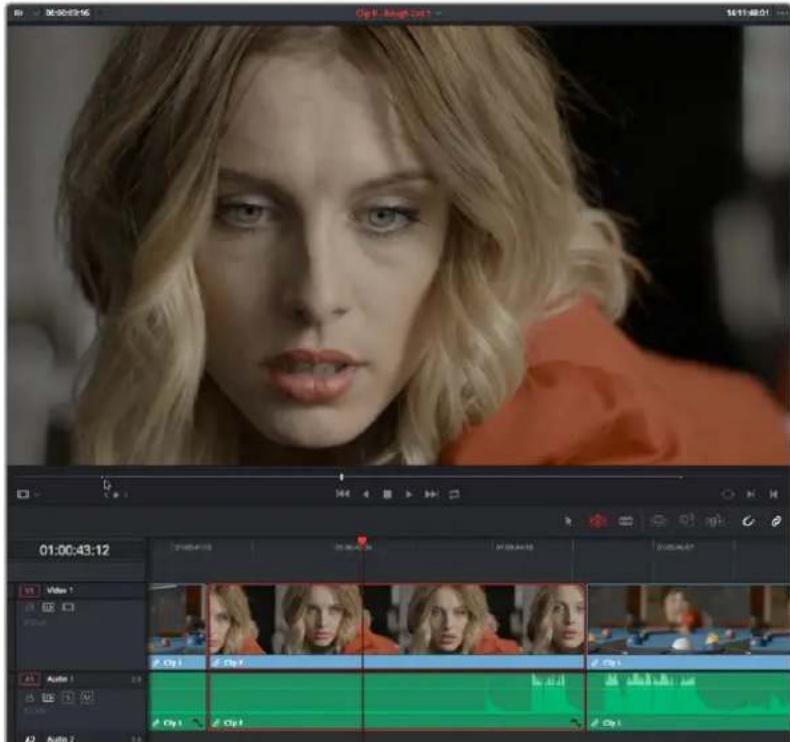
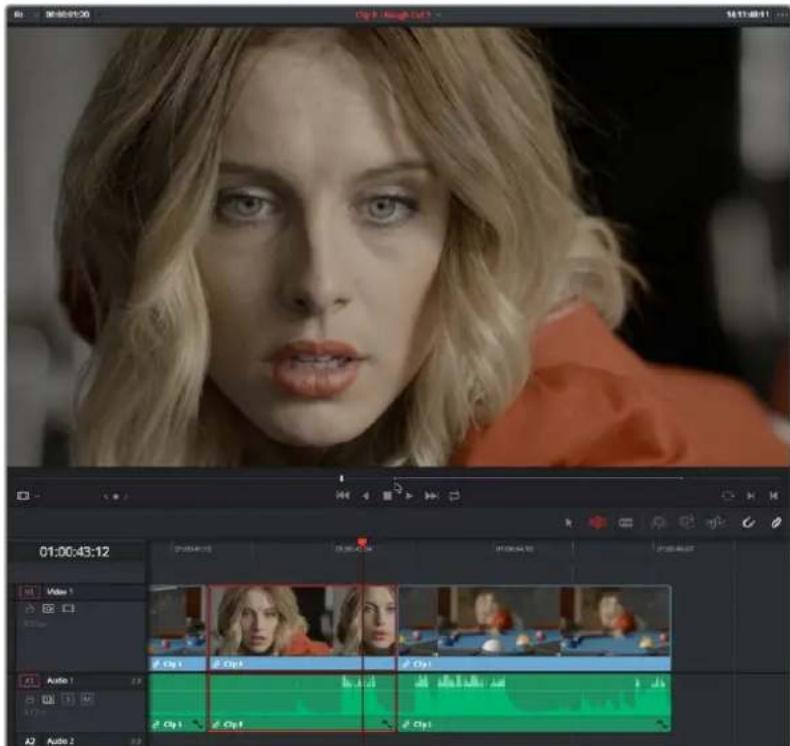
A Timeline clip being ripple-resized by opening it into the Source Viewer dragging its In point using the Trim tool
You can slip the contents of the clip by holding the Shift key down and dragging either the In or Out point.
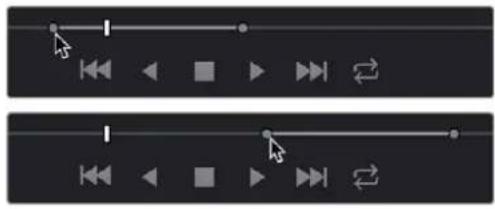
natural_image
Two identical black media player control buttons with directional arrows and play icons (no text or symbols)A Timeline clip being slipped by opening it into the Source Viewer and Shift-dragging its In point using the Trim tool
NOTE: To open a match frame of a clip that's part of an edited sequence into the Source Viewer using the mouse, hold the Option key down while double-clicking a clip in the Timeline.
Ripple Editing Rules
Ripple operations are the only trim functions that change the duration of the overall Timeline, and that can potentially alter the sync relationship between multiple clips on different tracks. This makes them incredibly useful, but it's important to understand which parts of the Timeline will move as part of a ripple operation, and which parts won't.
The following operations ripple the Timeline:
- Ripple deleting a clip or gap (Forward-Delete)
- Ripple cutting a clip (Shift-Command-X)
– Rippling one or more edits or gaps using the Trim tool (press T to choose the Trim tool) - Using the Extend Edit (E), Trim Start (Shift-1), or Trim End (Shift-1) commands in Trim mode
- Using the Ripple Start (Command-Shift-[] or Ripple End (Command-Shift-]) commands in any mode
- Performing an insert edit (F9) or ripple overwrite edit (Shift-F10)
- Using the Retime controls to speed up or slow down a clip in Trim mode
- Using the Change Speed dialog with the Ripple Sequence checkbox turned on
- Changing clips in a Take Selector with the Ripple control enabled
During a ripple edit, superimposed clips with an In point that's to the left of the edit point or clip being rippled are not moved. This can be seen in the previous example via the audio clip at the bottom of the Timeline, which stays in place even as the clips on track V1 and A1 are rippled. All clips with In points to the right of the edit point or clip being rippled move left to follow the trim operation you're making.
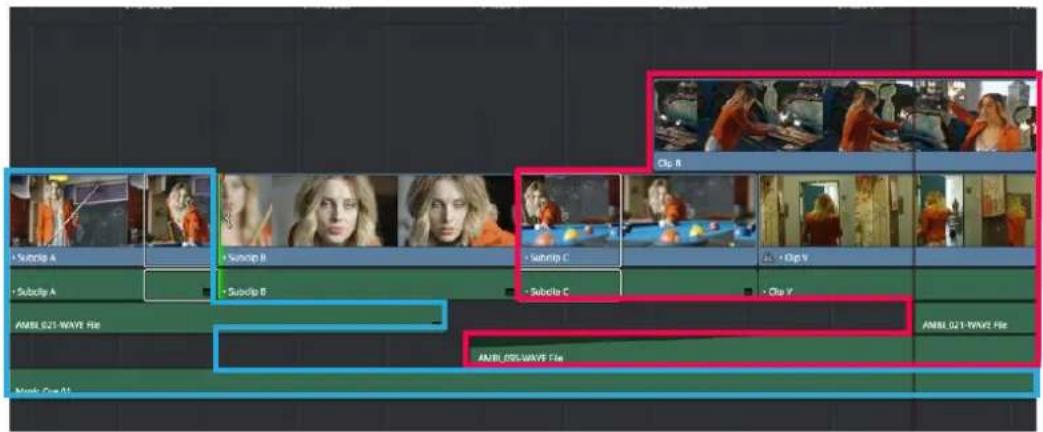
Before Ripple
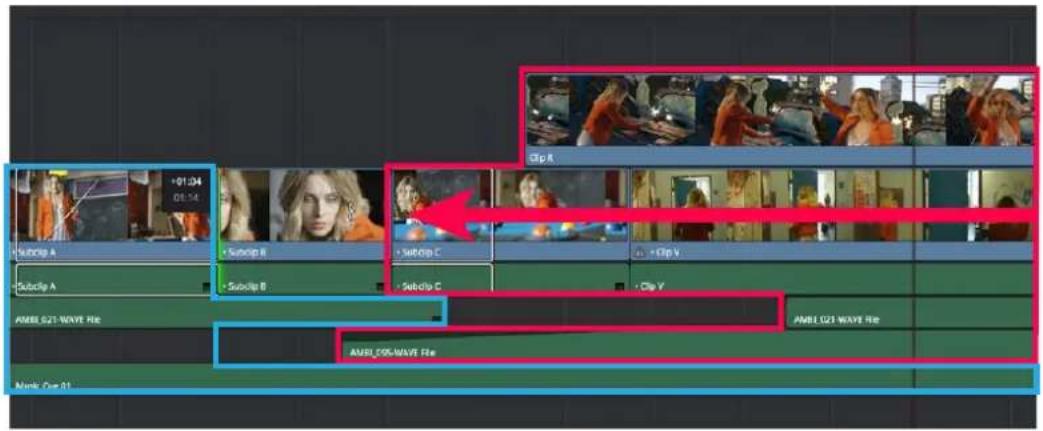
After Ripple
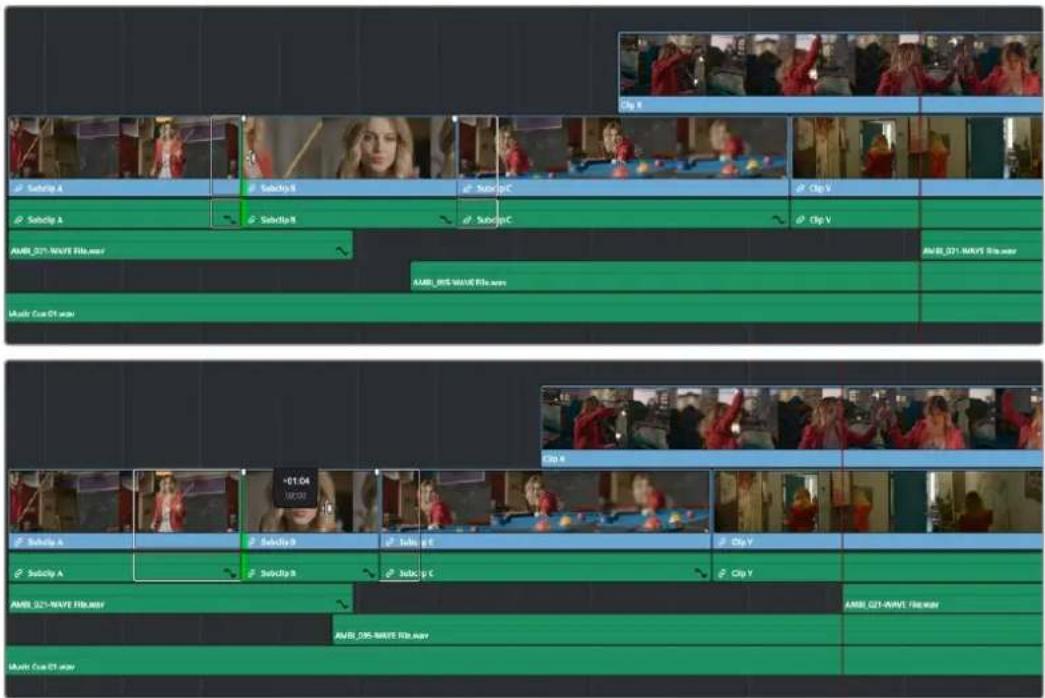
The rules of timeline rippling illustrated. All clips with In points to the left of Subclip B (the clip being rippled) are left in place (area in blue), while all clips to the right of the edit being rippled are moved by the duration of the ripple operation (in red)
This simple rule means that, if you're in the habit of building sequences of clips from left to right, long overlapping superimpositions such as titles, graphics, and music clips will stay in place while you're rippling various clips within a montage that you're editing in relation to these longer clips.
However, there's one exception to this rule. It is often the case that split edits, where linked audio and video are cut at different places, create a situation where the audio In point of a pair of linked audio and video items precedes a video In point that you want to ripple. In other words, the audio In point extends to the left of the video In point, which ordinarily would trigger the rule that clips with edit points to the left of a rippled edit point won't be moved, which would throw the audio and video of this item out of sync. In this case, you probably want to maintain sync, so all items that are linked to a clip being rippled always ripple along with it, even if they do have In points that extend to the left of the edit point being rippled.
Using Auto Select Controls to Control Trimming
The Auto Select buttons on each track in the Timeline control a host of different operations, but while they're deceptively powerful, they're also among the most misunderstood controls of the Timeline. When a track's Auto Select control is on, clips on that track are automatically included in three different types of operations:
– Operations that affect clips intersecting the position of the playhead
– Operations that affect clips intersecting a region defined by timeline In and Out points
– Operations that ripple clips to the right of an affected clip on the Timeline
When a track's Auto Select control is off, clips on that track are ignored by those same categories of operations, unless you manually select one or more clips or edit points.
The next three sections go into detail on how the Auto Select buttons help you control the trimming operations described in this chapter, particularly when it comes to operations that ripple the Timeline, and the kinds of “playhead-targeted” trim operations described later in this chapter. For more information on using the Auto Select controls to define selections and control other editing operations, see Chapter 36, “Editing Basics.”
Using Auto Select to Control Which Clips Are Trimmed
One of the principal uses of the Auto Select controls is to let keyboard shortcut-driven editors choose which specific clips on which tracks will be affected by an operation that would otherwise affect every superimposed clip at the position of the playhead or encompassed by In and Out points set in the timeline.
For example, if multiple clips are superimposed in V1, V2, and V3, and A1, A2, and A3, all six tracks have their Auto Select controls turned on, and you park the playhead over one of them and use the Trim End command in Selection mode, then all six superimposed clips will be trimmed.
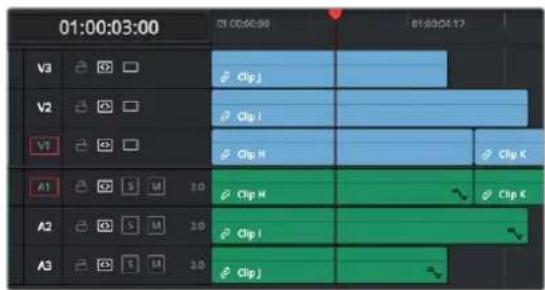
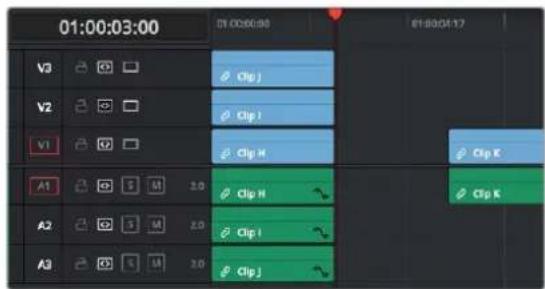
Trimming all clips at the position of the playhead
However, if you only want to trim the clip in track V3, then you can solo the Auto Select control of V3 by Option-clicking it, and then when you use the Trim End command, the clip on V3 is the only one that's trimmed, the other clips are ignored.
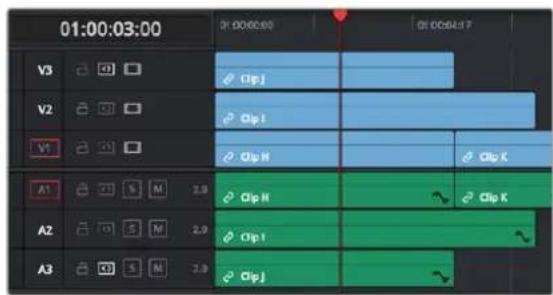
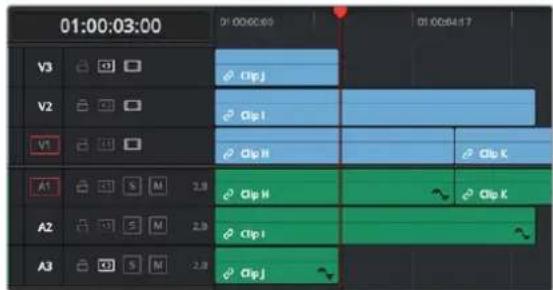
Trimming only the clip in V3 by soloing the V3 Auto Select controls
Using Manual Selections to Control Which Clips Are Trimmed
It's important to know that manual selections you make in the Timeline that highlight specific clips always take precedence over whatever the Auto Select controls are set to. For example, if Auto Select is turned on for tracks V1, V2, and V3, but you've selected a clip on track V1, only the selected clip will be still be affected by whatever operation you decide to perform. For example, if you use Trim End, the clip on track V1 will be affected.
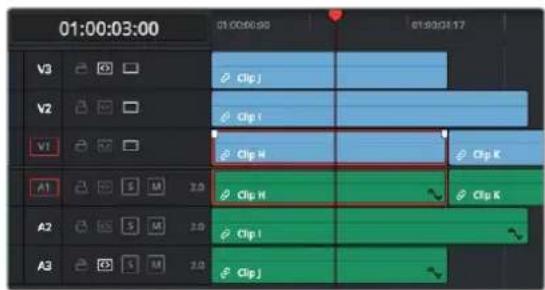
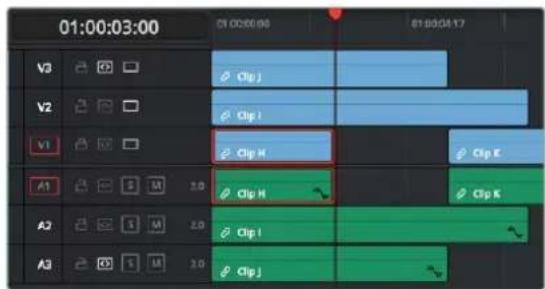
Manual selection of a clip on track V1 overrides the Auto Select controls on all tracks
Using Auto Select to Control Which Tracks Are Rippled
Each track's Auto Select control is also used to control how trimming and editing operations that ripple the Timeline affect timelines with multiple tracks and superimposed clips. Using Auto Select controls, you can turn off rippling on specific tracks, while leaving it on for others.
For ease of use, you'll typically want to leave Auto Select on for all tracks when rippling clips, to ensure that all the parts of your timeline stay in sync with one another. However, when the occasion requires, the Auto Select controls provide the option to suspend rippling on specific tracks while allowing rippling on others.
The rules are simple:
- Tracks with Auto Select enabled: Ripple editing or ripple deleting affects all clips to the right of the clip or clips on that track being trimmed.
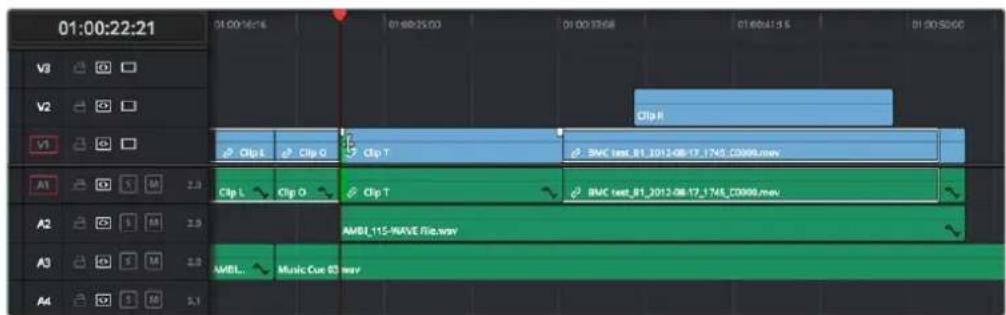
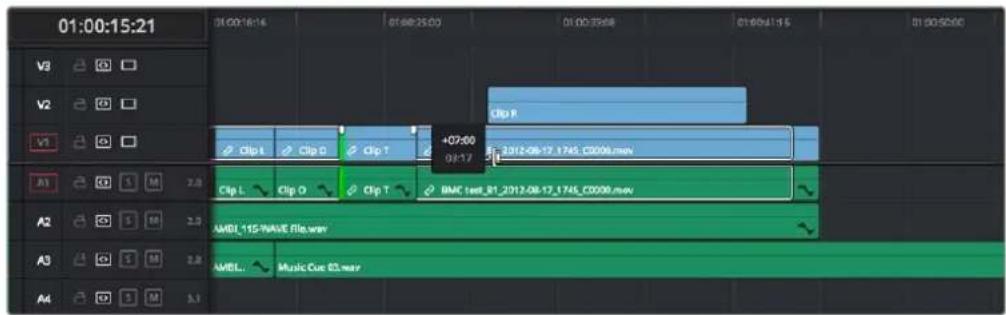
Before and After, clip to the right of Clip T on tracks V2, V1, A1, and A2 are rippling because those tracks' Auto Select controls are enabled
- Tracks with Auto Select disabled: Rippling is disabled on these tracks.
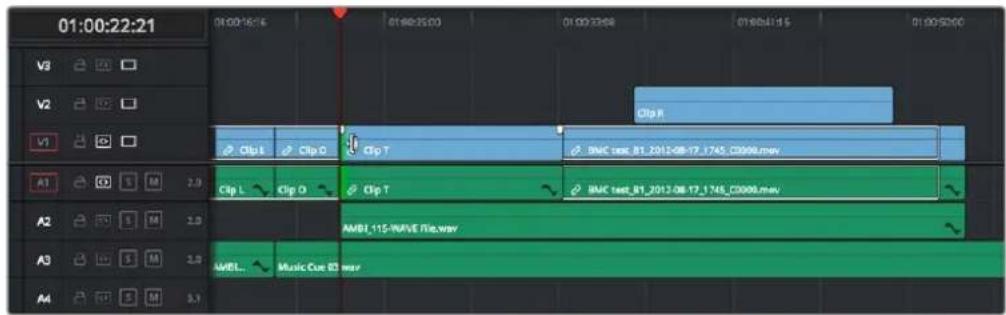
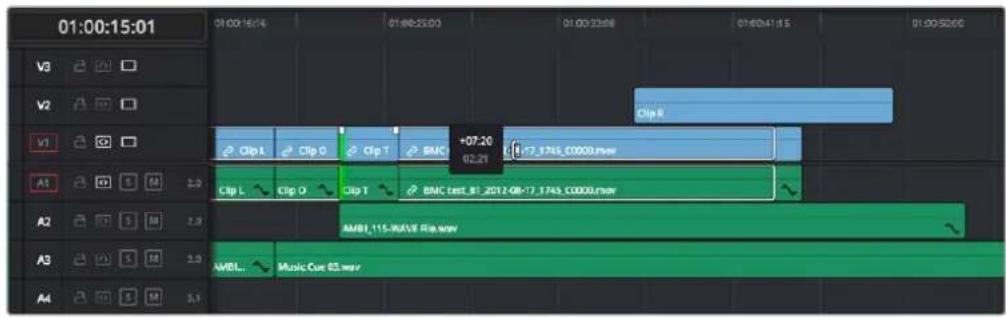
Before and After, clip to the right of Clip T on tracks V1 and A1 are rippling because those tracks' Auto Select controls are enabled, but clips on tracks V2 and A2 aren't rippling because those tracks' Auto Select controls are disabled
Another set of rules govern what happens when you select clips or edits for trimming on tracks with Auto Select disabled:
- Selected Tracks with Auto Select turned off with an edit selection: If you select the outgoing or incoming half of an edit on a track that has Auto Select off, the result will be a resize operation. Ripple deleting clips leaves a gap.
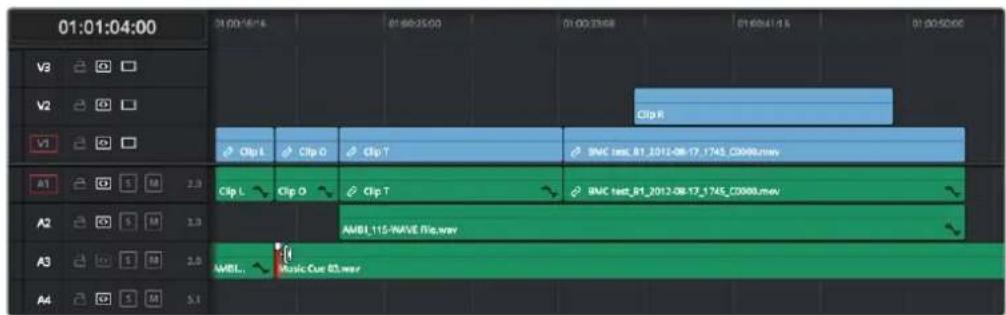
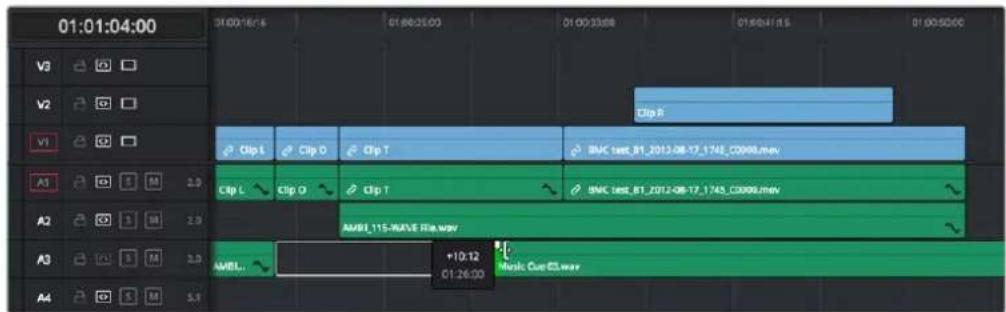
Before and After, clips to the right of Music Cue 03 on tracks V1, V2, A1, and A2 are rippling because Auto Select is enabled on those tracks, but because the clip being trimmed on track A3 has Auto Select disabled, it doesn't ripple, instead resizing to open up a gap
Trimming Multiple Edits or Clips at Once
DaVinci Resolve lets you select multiple edit points or clips for certain trimming operations, making it possible to trim multiple edits and clips at the same time. In simple cases, this makes it easy to resize, ripple, slip, and slide several superimposed clips at the same time, which is a real convenience, or you can select the In point of every title generator in a credit sequence at once in preparation for shortening or lengthening them all at once. In more complicated cases, this lets you create more complicated trimming scenarios, such as multi-track asymmetric trimming, to quickly take care of difficult tasks.
No matter how ambitious a trim operation you want to set up, the procedure is exactly the same as for an ordinary trim operation. Just make sure you follow these three general steps, and you'll be good:
1 Choose Selection mode, and select the edit points or clips you want to trim. To make multiple selections, click once to select the first item, then Command-click each subsequent item you want to add to the selection. You can select as many clips and/or edit points on as many tracks as you like.
2 To ripple, slip, or slide the entire selection at once, choose Trim mode. To resize or move each selected item at once, continue using Selection mode.
3 Use the mouse, keyboard shortcuts, or timecode entry to execute the trimming operation, just as you would if a single edit point or clip were selected.
The following sections describe each of the special-case multi-selection trim operations that are possible, along with each one's special rules and limitations.
Resizing and Rolling Multiple Edit Points
You can resize or roll multiple edit selections at once. In this way, you can adjust the edit points of multiple superimposed clips all together. Trimming multiple edit points essentially lets you “gang” them so that all selected edits move together as one.
- To resize multiple clips at once, select the left (outgoing) or right (incoming) half of each edit point you need to adjust, then use the Selection tool to drag those edit points to resize them all.
- To roll multiple clips at once, select every edit point you need to adjust right at the center, so that both the incoming and outgoing halves of each edit point are selected, then use either the Selection or Trim tools to drag those edit points to roll them all.
NOTE: You cannot combine ripple and roll operations at the same time.
Rippling Multiple Edit Points
It's also possible to select multiple incoming or outgoing edit points on either superimposed video tracks, or on the same video track, in order to ripple them all at once. A good example of when you'd want to ripple multiple clips on the same track is if you've got an end credit sequence of 14 text generators, and you'd like to shorten the entire sequence by a particular amount. This example can be seen below.
When you ripple trim multiple edits on the same track, how many frames are trimmed in a particular trim depends on what method you use to do your trimming.
- If you use use the Trim tool via dragging in the Timeline, then you can choose to ripple the entire selection of edits by an arbitrary duration, for example, shortening or lengthening the entire selection by eight frames. To do this, DaVinci Resolve performs your multi-selection trim operation one edit at a time, removing a frame at a time from each selected edit from the left to the right as you trim, until either you stop the operation, or every single selected edit has had a frame removed, at which point DaVinci Resolve begins trimming the second frame from each selected edit from the left to the right, and then the third, and so on, until you stop trimming. Working this way, you can use the mouse to trim any number of clips to fit into any duration.
- You can also choose to ripple each selected edit by the same amount, for example removing three frames from each of the selected edits, all at once. To do so, hold the Command key down while dragging selected edits with the Trim tool, or use Dynamic JKL trimming, or trim by entering relative timecode values, or use the nudge keys (Period and Comma).
To ripple trim multiple edits on the same track:
1 Click the Trim tool, and drag a bounding box in the Timeline to select all 14 edits.
2 Press the U key to select the incoming half of each selected edit.
3 Use whichever trimming method you prefer to ripple the sequence to be shorter or longer. Dragging using the Trim tool lets you trim by an arbitrary number of frames, while holding the Command key down while dragging with the Trim tool, using timecode entry to trim, using the Comma and Period nudge keys, or using Dynamic JKL trimming lets you trim every selected edit by the same number of frames.
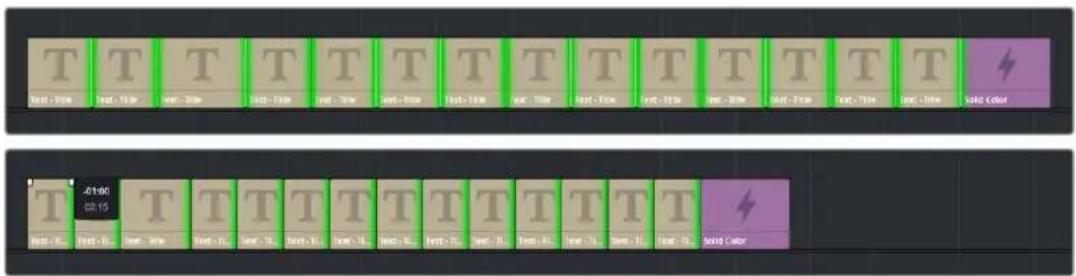
(Before) Selecting 14 incoming credits edit points, (After) Trimming them all at once
In the following example, the incoming edit of three clips in the following montage are selected and simultaneously rippled using the Trim tool. Notice that each overlapping clip ripples along with the nearest selected edit that's to the left of it; this means that the superimposed clip in track V2 and the audio clip in track A4 ripples along with the third selected edit, while the audio clip in track A2 ripples along with the second selected edit. Since the audio clip in track A3 starts to the left of the first selected edit, it does not ripple.
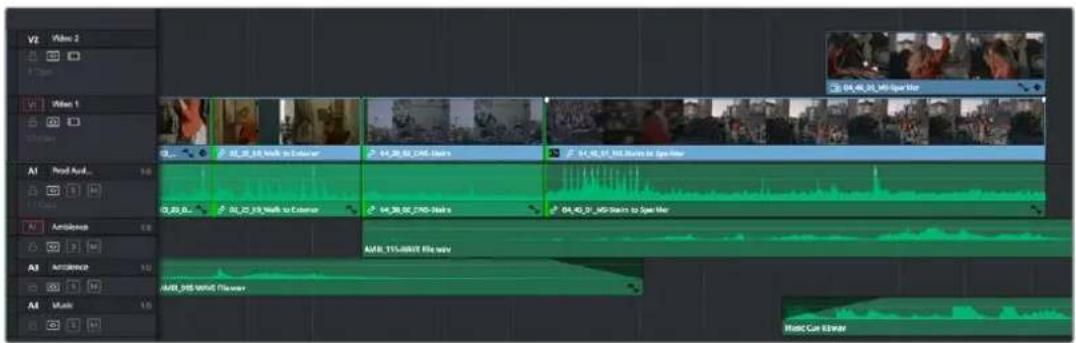
Selecting three incoming edit points,
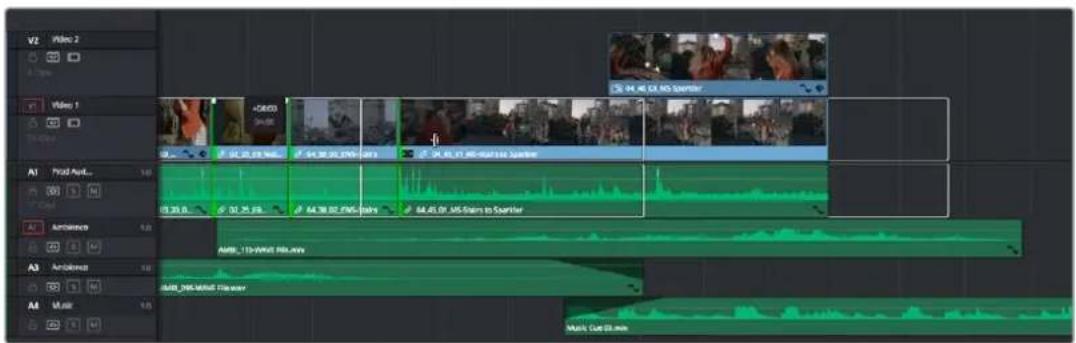
Trimming them all at once
Asymmetric Trimming
Asymmetric resize or ripple trimming can also be done to multiple clips, with one selection per track allowable on as many tracks as you require. To asymmetrically trim two or more clips, select an outgoing edit point on one track, and then Command-click an incoming edit on another track.
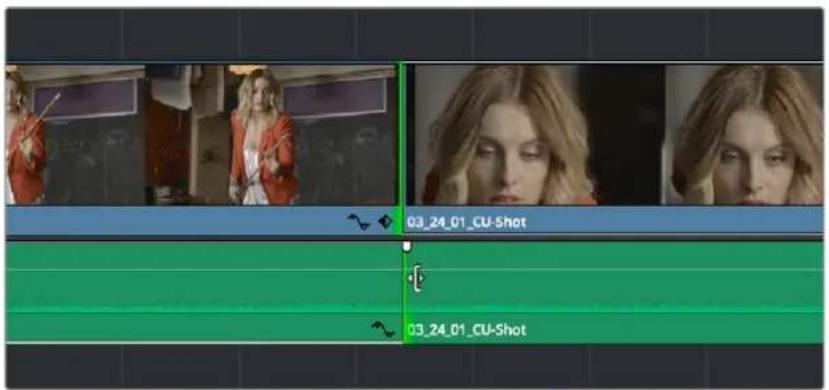
Selecting opposite outgoing video and incoming audio edit points in preparation for performing an asymmetric ripple trim
To select the outgoing video edit of one clips and the incoming audio edit of the next clip in preparation for making a split edit, you can Option-click the outgoing video edit to suspend linked selection, and then Command-click the incoming audio edit to add it individually to the selection. Now when you drag, nudge, or use timecode to trim, each selected edit point will move in the opposite direction.
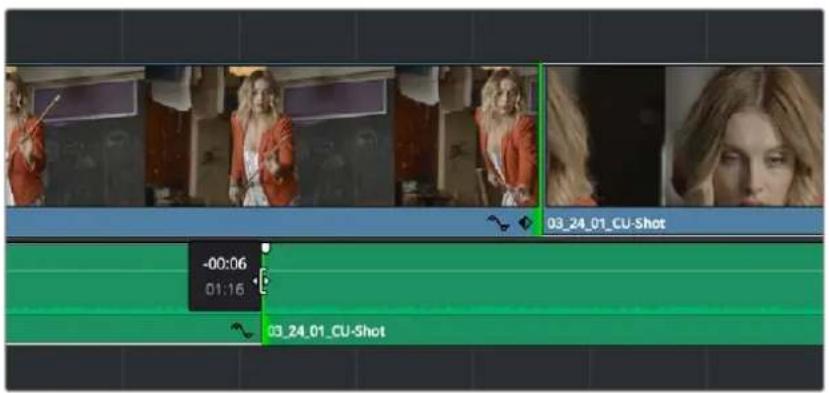
Dragging to perform an asymmetric ripple trim to create a split edit using the Trim tool
DaVinci Resolve allows you to do asymmetric trims to multiple edits in the same video and/or audio track. There are two compelling reasons for doing so:
Select the outgoing half of an edit point (the left side), then Command-click to select the incoming half of the same edit point (the right side) separately. This will not perform a roll edit, but will allow you to either use the Selection tool to resize both edit points away from each other to create a gap, or use the Trim tool to ripple both sides of the edit to shorten both clips while tightening up the Timeline at the same time.
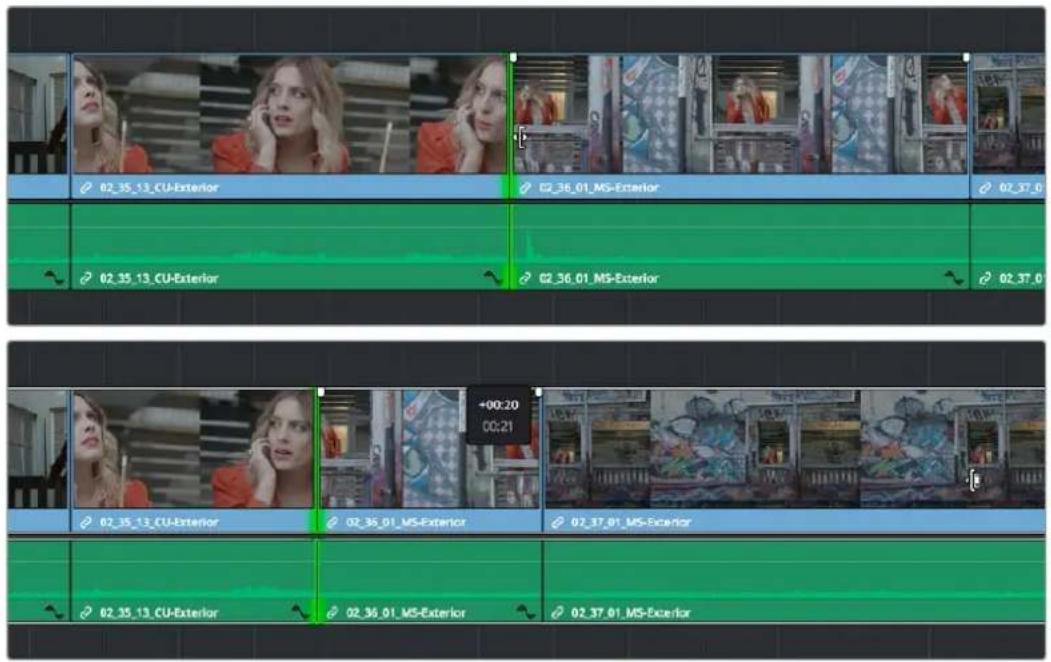
Before and After ripple trimming both the incoming and outgoing halves of an edit to shorten the duration of both clips at once
You can also select the In and Out points of a clip in the Timeline at the same time, and use the Trim tool to ripple both the beginning and end of the clip closer to the center, shortening the clip while preserving the content in the middle, while tightening up the Timeline.
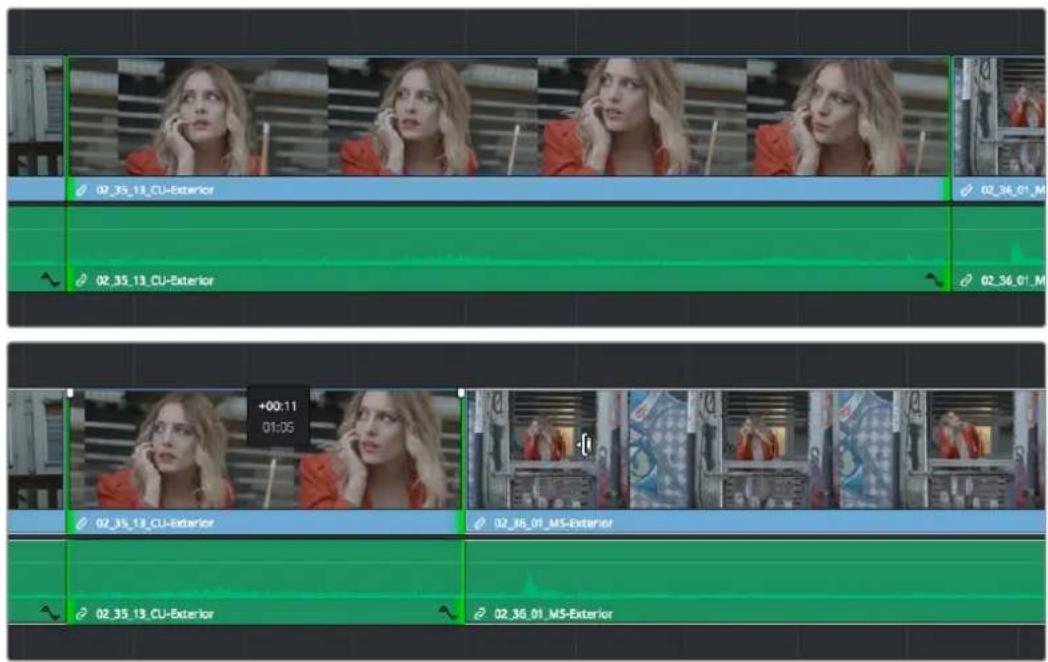
Before and After ripple trimming both the In and Out points of a clip at the same time, shortening the clip by removing heads and tails, and preserving the action in the middle
In short, you can use nearly any combination of edit selections you need to simultaneously trim multiple clips in the same track, in multiple tracks, whatever you need to do to save time. Furthermore, asymmetric trimming can be done in either Selection or Trim mode, either to open and close gaps, or to move edit points to overlap one another to create split edits.
Slipping Multiple Clips
You can simultaneously slip any number of selected clips (so long as they have handles) on any combination of tracks by selecting the clips you want to slip, then choosing the Trim tool, and dragging their name bars or using the Comma and Period keys to nudge the selection.
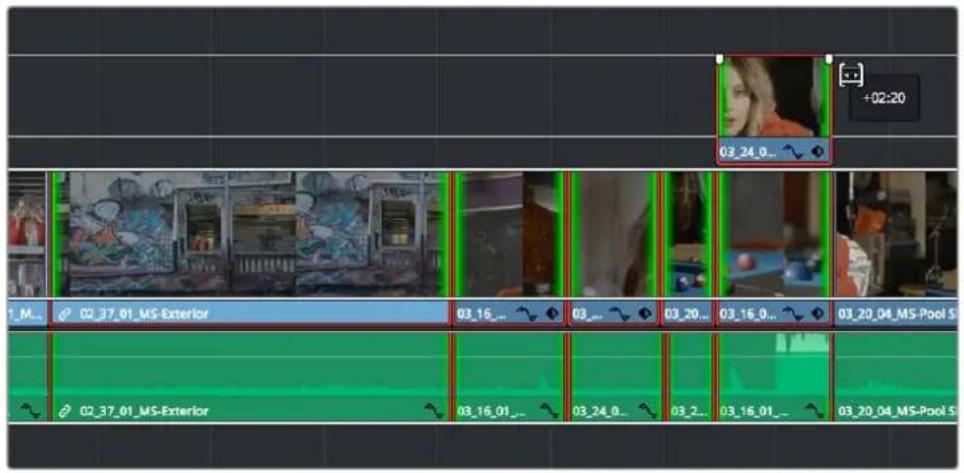
Dragging to slip multiple selected clips at once
Sliding Multiple Clips
You can select as many clips as you like in preparation for a slide operation. If you select multiple contiguous clips, they slide together as one.
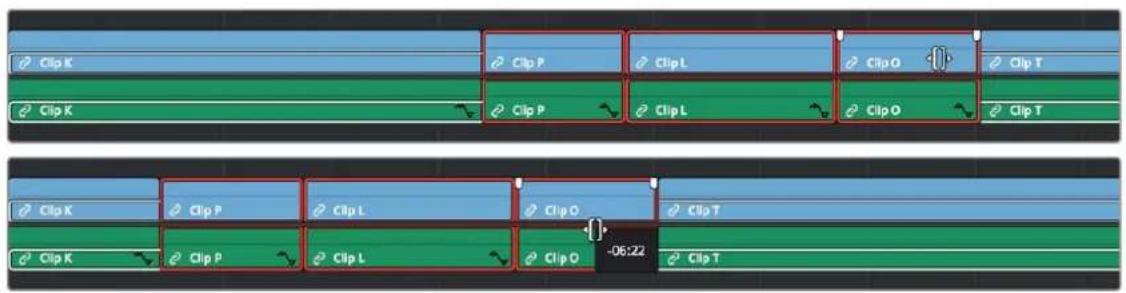
(Before) Selecting four clips to slide, (After) All four clips slid to the right using the mouse
Keyboard Trimming During Looped Playback
A great technique for editors who like to do precision trimming using the Nudge commands is the ability to enable looped-playback so that the Play Around command (Forward Slash) will loop continuously around the edit point you're trimming as you nudge one or five frames at a time to fine-tune the cut.
To trim while looping:
1 Move the playhead near the edit point you want to trim, and press V to select it.
2 Press the U to choose which side of the edit you want to select in order to ripple or roll it, and/or Option-U to choose whether you want to trim video+audio, the video only, or the audio only.
3 Press Command-Forward Slash (/) to enable looped playback.
4 Press Forward Slash (/) to play around the current selection. With looping on, playback will continue until you stop it. Pre-roll and post-roll can be changed in the Edit panel of the User Preferences.
5 During looped playback, press the Comma (,) and Period (.) keys to trim the selection back or forward by a single frame, or Shift-Comma and Shift-Period to trim the selection in 5-frame increments. If you do this during the post-roll of looped playback, the loop immediately replays from the beginning so you waste no time seeing the result.
6 When you're finished, press the Spacebar or K key to stop playback.
TIP: When holding down the Shift key while nudging to do a "fast nudge," the duration of the nudge is customizable in the Editing panel of the User Preferences. By default it's five frames, but you can set it to whatever you want.
Dynamic JKL Trimming
One of DaVinci Resolve's most interactive trimming features is the ability to dynamically resize, ripple, roll, slip, slide, or move selected edit points and clips using the JKL transport control keyboard shortcuts. This means that you can make an appropriate selection in the Timeline (edit points to resize, ripple, or roll, or clips to slip or slide) then trim them during playback, while monitoring audio and watching the video.
Trimming while viewing the selected clip or edit point playing back has the advantage of letting you get emotionally involved in what you're watching, as well as experiencing the timing of a clip as it plays, in order to help you get a better feel for how, exactly, you need to trim a particular cut.
While you're dynamically trimming, you see the same two-up or four-up display, the same Timeline overlays, and the same dynamically updating Timeline that appear when you use the Trim tool with the mouse. The only difference is that you're trimming while your program plays.
There are two methods of doing dynamic trimming:
- Quick Trim: You can select one or more edit points or clips, and immediately trim it by pressing Command-J or Command-L to trim back or trim forward. This is a fast way of dynamically trimming, but you can only trim forward and backward at 100 percent speed or greater.
- Turning on Dynamic mode: If you want to do more detailed work, you can press the W key to enable Dynamic mode (or choose Trim > Dynamic Trim Mode), at which point you are in a special mode where the JKL shortcuts only trim the current selection, whatever it happens to be. However, this mode also gives you additional options for controlling which part of the selection, in the case of multiple selection trims, you want to monitor for audio/video playback.
TIP: If nothing is selected while you're in Dynamic Trim mode, JKL simply plays through the Timeline, as usual.
Quick Trimming
If you're in a hurry and you can accomplish the trim you want via real time or faster playback, then pressing the Command key while using the J or L keyboard shortcuts lets you dynamically trim any selection in the Timeline, with audio/video playback.
To dynamically trim using Command-J or Command-L:
- To dynamically roll an edit: In either Selection or Trim mode, select the center of one or more edit points, and hold the Command key down while using J or L to move the selection around.
- To dynamically ripple an edit: Choose Trim mode, select the outgoing or incoming half of one or more edit points, and hold the Command key down while using J or L to move the selection around.
- To dynamically resize an edit: Choose Selection mode, select the outgoing or incoming half of one or more edit points, and hold the Command key down while using J or L to move the selection around.
- To dynamically move a clip: Choose Selection mode, select one or more clips, and hold the Command key down while using J or L to move the selection around.
- To dynamically slip or slide a clip: Choose Trim mode, select one or more clips to slip, or a single clip to slide, press S to toggle between Slip or Slide modes, then hold the Command key down while using J or L to execute either slip or slide operations.
If you're trimming multiple selections, you can control which edit point you monitor during the trim operation by positioning the playhead at one of the selected edit points.
TIP: When you're finished with a "quick trim" operation and you want to see how that edit plays, you can press the Forward Slash key (/) to play around the current selection to quickly preview that section of the Timeline.
Dynamic Trimming (or "JKL Trimming")
If you want to also have the option of trimming using the JKL shortcut keys in slow motion or frame by frame, in addition to trimming at 100% or greater playback speeds, then you'll need to enable Dynamic Trim mode.
To use Dynamic mode to dynamically trim one or more selected clips or edits:
It's not necessary to make a selection prior to enabling Dynamic mode for trimming, since the act of entering Dynamic mode automatically selects the closest edit point to the playhead. However, if you want to use Dynamic mode to make a complex trim operation, you can select any combination of edit points to resize, ripple, or roll, or you can select one or more clips that you want to slip or slide (using the S key to toggle between slipping and sliding).
2 Press W to enter Dynamic mode, or click the Dynamic tool in the toolbar. If nothing is selected in the Timeline, then the edit point that's nearest to the playhead will be automatically selected. If you've already made a selection, that selection will remain and be used for trimming.
Once you've entered Dynamic mode, the Dynamic Trim tool in the toolbar turns yellow to let you know that you're in Dynamic mode, and the icon shows you whether you're in Slip or Slide mode for trimming. Additionally, the playhead turns yellow to serve as a constant reminder that you're in Dynamic mode, in which all you can do is trim clips.
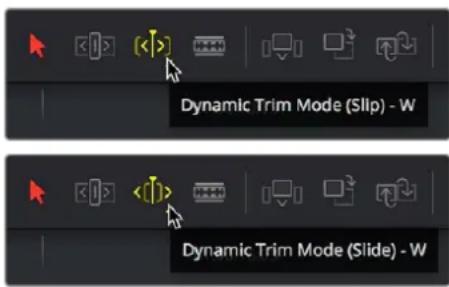
The Dynamic tool highlights in the toolbar to let you know you're in Dynamic mode; this tool also indicates whether you're in Slip (Left) or Slide (Right) mode
3 Choose the type of operation you want to perform by clicking either the Selection tool (or pressing A) or the Trim tool (or pressing T):
In Selection mode:
- You can dynamically resize or roll edits if you've selected one or more edit points in the Timeline.
- You can move or slip clips if you've selected one or more clips in the Timeline. You can choose whether to move or slip selected clips by pressing the S key, or by right-clicking the Dynamic trim tool in the toolbar and choosing Slip or Slide from the drop-down menu.
In Trim mode:
- You can dynamically ripple or roll edits if you've selected one or more clips in the Timeline.
- You can slide or slip clips if you've selected one or more clips in the Timeline. You can choose whether to slide or slip selected clips by pressing the S key, or by right-clicking the Dynamic trim tool in the toolbar and choosing Slip or Slide from the drop-down menu.
4 If you've selected multiple edit points or clips, then you can use the Left and Right arrow keys in Dynamic mode to move the playhead to the selected edit point you want to monitor while you're trimming. If the playhead isn't aligned with a selected edit point, then it will jump to the nearest selected edit point once trimming commences.
5 Use any combination of the JKL keyboard shortcuts to initiate playback and trimming, including:
- J+K or K+L to trim in slow motion, with slow motion audio playback
- Pressing K while tapping J or L to trim a frame at a time
- Pressing J or L to trim with real time playback
- Pressing J or L repeatedly to trim in fast-reverse or fast-forward, at a variety of speeds
As you dynamically trim, all audio clips in all audio tracks will play back as the playhead scrolls across them, so you can hear your entire mix as you're trimming.
6 After you've made a trim, pressing the Spacebar initiates Play Around Current Selection so you can see how that trim plays.
In Dynamic mode, the Spacebar only executes a Play Around Current Selection operation, rather than play forward as it usually does. What is played by Play Around Current Selection depends on what is selected; a selected edit plays around just that edit, a selected clip plays around the whole clip, multiple clips or edits play around the total selection, including the current Pre-Roll and Post-Roll settings in the Editing panel of the User Preferences.
7 When you're finished, you can use the Up and Down Arrow keys to move both the selection and playhead to another edit point or clip you'd like to trim, or you can press W again to toggle Dynamic mode off.
You always want to be sure to turn Dynamic mode off when you're done, because otherwise using JKL will continue trimming selections whenever one or more edits or clips are selected, instead of playing the Timeline.
NOTE: While Dynamic mode is enabled, you can use JKL for playback if no clips or edit points are selected (press Command-Shift-A to deselect all). However, if anything in the Timeline is selected, then JKL will trim the selection as described above.
Trim Operations that are Targeted Using the Playhead
The following series of Trim editing commands let you trim clips and edits in different ways using the position of the playhead to guide the result.
Trim Start and Trim End
The Trim > Trim Start (Shift-[] and Trim End (Shift-]) commands let you move the In or Out point of all clips that intersect the playhead as either a ripple operation (in Trim mode) or a resize operation (in Selection mode). You do not need to make a selection to use Trim Start and Trim End, making these commands fast to use in the right situation. A classic use of Trim End is when you have several superimposed clips of different lengths that you want to either start or end at the same time.
- Trim Start resizes or ripples (depending on what mode you're in) all clips that intersect the playhead, so that each clip's In point is moved to the current playhead position.
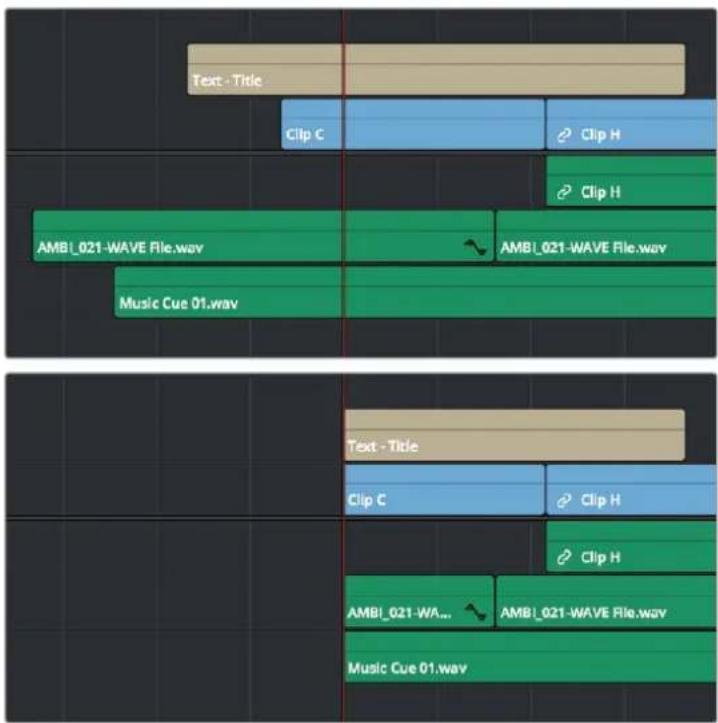
Before and after a Trim Start operation, all clips that intersect the playhead are trimmed
- Trim End resizes or ripples intersecting clips so that each intersecting clip's Out point is moved to the current playhead position.
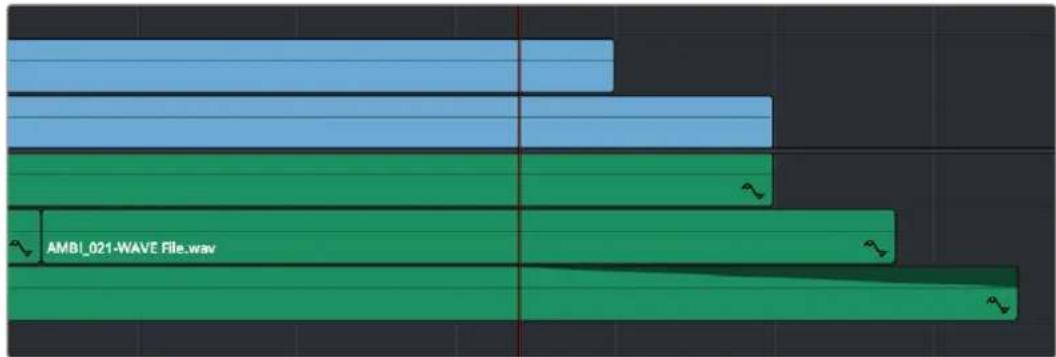
bar
| Category | Value | |---|---| | Blue Bar | 35 | | Light Blue Bar | 45 | | Green Bar | 60 | | Dark Green Bar | 75 |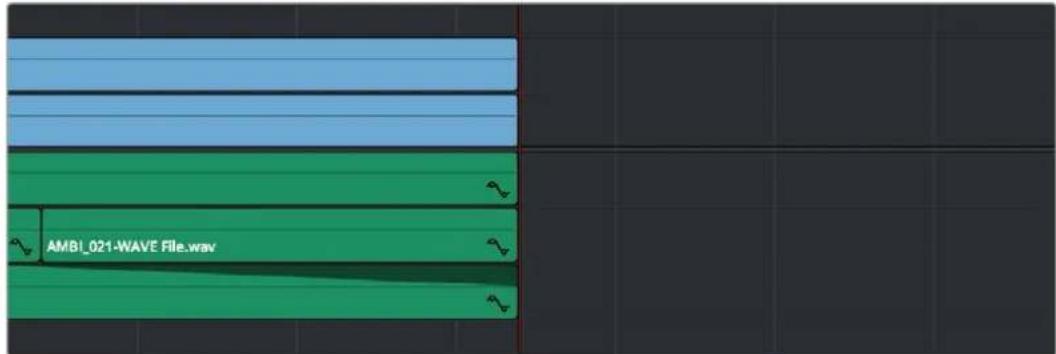
Before and after a Trim End operation, all clips that intersect the playhead are trimmed; clips that don't intersect the playhead are not affected
Clips that don't intersect the playhead are not affected. Furthermore, you can exclude clips on specific tracks from this operation by disabling the Auto Select controls on those tracks.
Resize, Ripple, and Roll Start and End Commands
Another set of commands in the Trim menu lets you combine the Trim Start and Trim End functions with the act of choosing either Selection or Trim mode, and the ability to resize, ripple, or roll, all with single commands.
- Resize Start to Playhead
- Resize End to Playhead
- Ripple Start to Playhead (Command-Shift-[]
- Ripple End to Playhead (Command-Shift-])
- Roll Start to Playhead
- Roll End to Playhead
Just as with Trim Start and Trim End, these commands use the Timeline Auto Select controls to determine, of all clips intersecting the playhead, which clips on which tracks to trim. Many of these commands don't have keyboard shortcuts by default, but if you prefer this way of working, you can assign them to keyboard shortcuts of your choosing using the Keyboard Mapping Customization tool (Option - Command - K).
Slip and Slide Playhead to In and Out Commands
Yet another set of commands in the Trim menu lets you slip a clip from the frame at the current position of the Playhead to the In or Out point of that clip.
- Slip Playhead to In
- Slip Playhead to Out
TIP: The Slip Playhead to In command functions identically to using the extend edit while the playhead intersects a selected clip.
Just as with Trim Start and Trim End, these commands use the Timeline Auto Select controls to determine, of all clips intersecting the playhead, which clips on which tracks to trim. These commands don't have keyboard shortcuts by default, but if you prefer this way of working, you can assign them to keyboard shortcuts of your choosing using the Keyboard Mapping Customization tool (Option - Command - K).
Extend Edits
The Extend Edit command (choose Trim > Extend Edit, or press E) lets you resize or ripple one or more selected edit points or clips. Unlike Trim Start and Trim End, it doesn't matter if the playhead intersects clips when doing an extend edit.
Extend Editing Edit Points
Make one selection per track of any combination of In or Out points, and press the E key to move those edit points to the current position of the playhead.
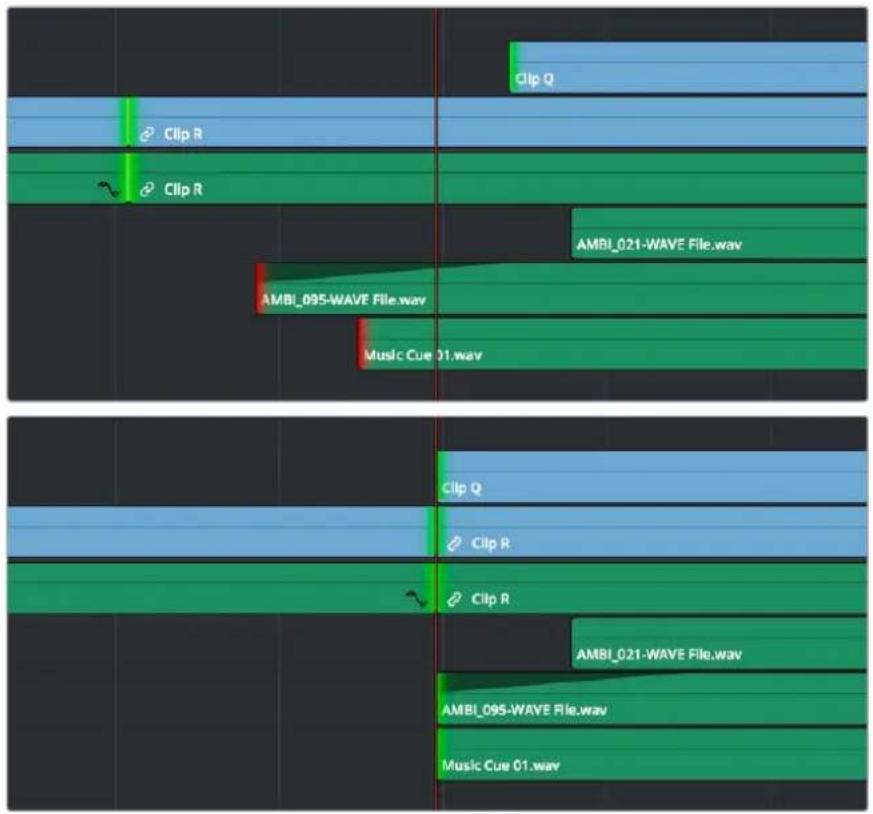
Before and after a multi-track extend edit performed in Selection mode. Before, the red selections indicate that you've selected the first frame of media for those clips. After, the selections turn green to indicate that there's additional frames at the head of the edit for trimming.
In Trim mode, selected edit points will ripple instead of resizing affected clips. However, to simplify multi-track extend edit operations when using the Trim tool, the lowest numbered video track with auto-select enabled defines the amount by which the extend edit will ripple the rest of the Timeline; all selected edit points on other tracks are simply resized to the position of the playhead.
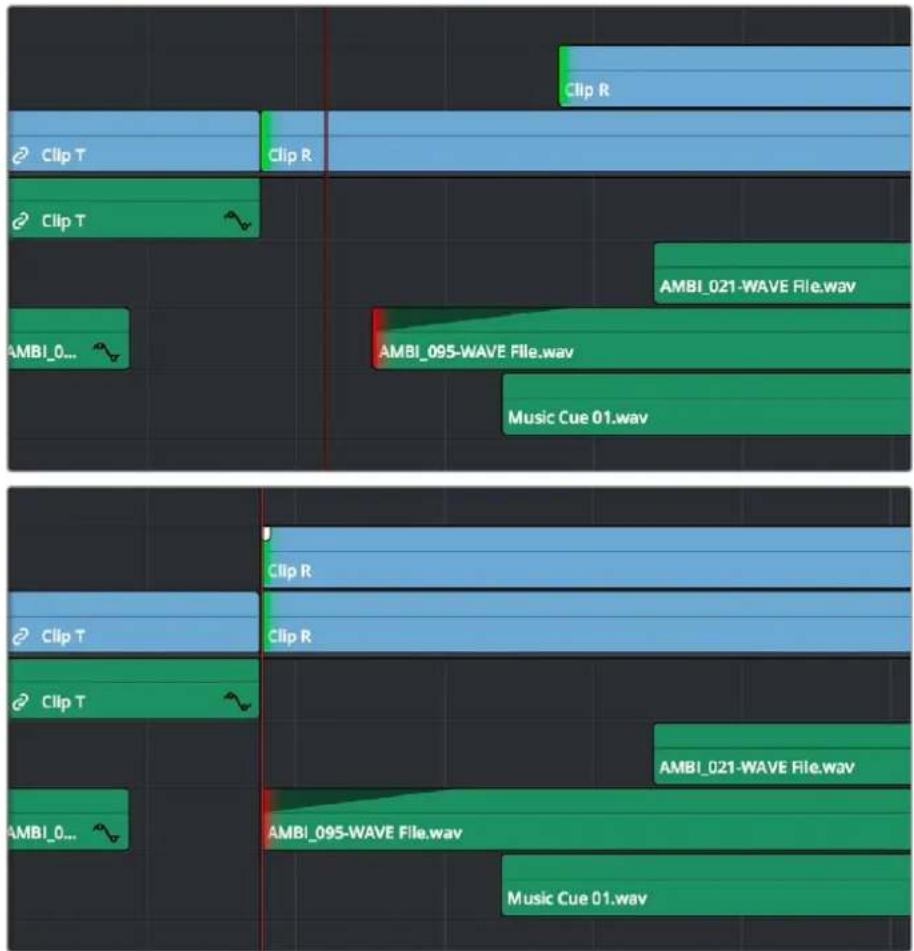
Before and after a multi-track extend edit performed in Trim mode; you can see that the lowest numbered track with a selection defines how far the Timeline will be rippled
Using Extend Edits to Slide Clips
You can also use the Extend Edit command to slide the contents of a single selected clip using either the Selection or Ripple tools. Simply select a clip, position the playhead over the frame of that clip you want to slip to the In point of that clip's position in the Timeline, and press E to perform the slip. You can even do this during playback if you want to watch the clip play and press E to slip that frame back when the moment feels right.
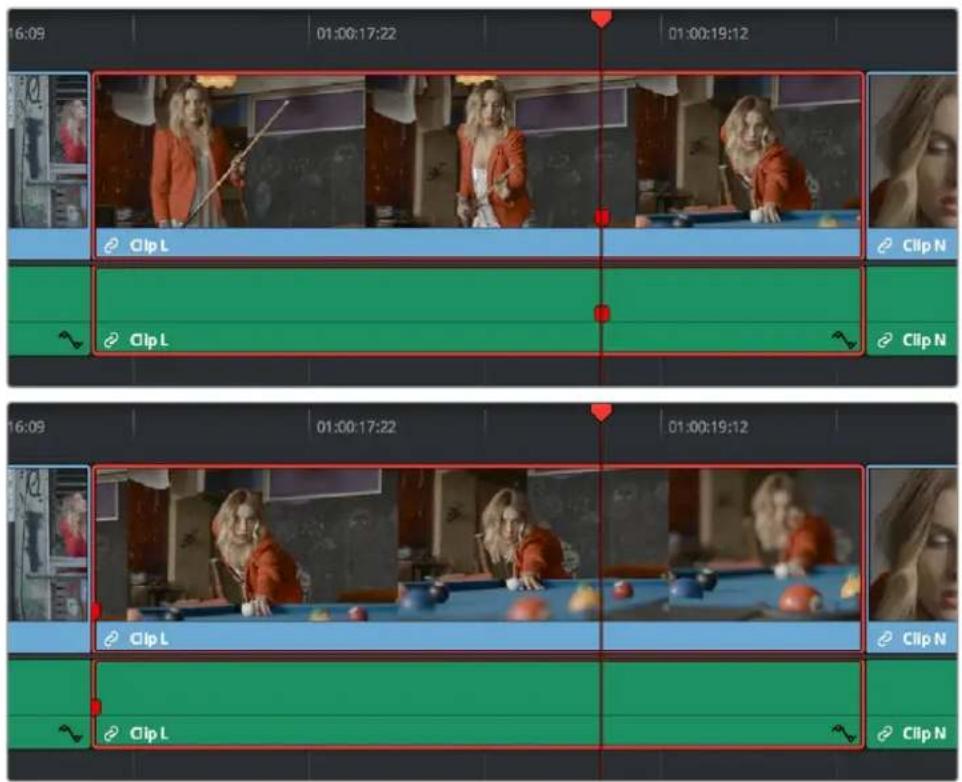
Using the extend edit to slip a clip in the Timeline, the red marker shows that the frame at the playhead is slipped back to the In point of that clip in the Timeline
Chapter 44
Working with Audio in the Edit Page
DaVinci Resolve has a solid set of features for editing, mixing, and mastering audio in your programs right in the Edit page. Whether you're adjusting synced audio for dailies, finessing the levels of an edited project you're assembling, mixing a program for output, or importing and laying in audio mix files from the sound designer to output for mastering, DaVinci Resolve has Level, Pan, and Channel Assignment controls to control your audio output for both monitoring and delivery, automated fader recording at both the track and clip level for mixing, and VST and Audio Unit audio filter support for mastering audio tracks and channels using industry-standard noise reduction, compression, EQ, and other filters. And, if all that's not enough for you, you can export to Pro Tools in the Delivery page to hand off your program and its audio in a state ready for further work.
When you've finished doing the editorial audio work in your program, and you want to really drill into your program's audio for detailed audio editing and mixing, you can use the audio-specific tools of the Fairlight page. For more information, see Chapter 166, "Using the Fairlight Page."
Contents
Audio in the Edit vs. Fairlight Pages 747
Compatible Audio Formats 747
Assigning Audio Channels in the Media Pool 747
How to Assign Audio Channels 747
Support for Mixed Audio Track Formats from Source Clips 750
Editing Audio Into the Timeline 751
Editing Audio Using the Source Viewer 751
Simultaneous Audio Waveform Display in the Source Viewer 751
Using Multi-Channel Timeline Tracks
752
Creating Timelines With Audio Mixer Presets 754
Editing Audio Clips Into the Timeline 754
Changing Audio Clip Attributes After Editing 755
Displaying Waveforms in the Timeline 755
Editing Audio In the Timeline Using In and Out Points 757
Resizing Audio Clips in Subframe Increments 758
Enabling and Disabling Subframe Editing 758
Subframe Editing of In and Out Points 758
Eliminating Subframe Audio Edits 759
Audio Settings in the Inspector 759
Setting Volume 759
Adjusting Audio in the Inspector 760
Adjusting Audio in the Timeline 760
Adjusting Volume Using Keyboard Shortcuts 761
Normalize Audio Volume Command 761
Pan 762
Pitch 762
Equalizer 763
Master EQ Controls 763
Graphical EQ controls 763
Bands 1 and 4 764
Bands 2 and 3 764
Keyframing Audio 764
Overlay Controls for Volume 764
How to Add and Adjust Volume Keyframes 765
Audio Fade Handles 766
Audio Crossfades 767
The Audio Mixer 767
Audio Mixer Controls 768
Mute and Solo Tracks For Output 769
Displaying Audio Meters 769
Audio Compound Clips 769
Audio Playback for Variable Speed Clips 770
Using Audio Filters 770
Installing Audio Filters 771
The Fairlight Page 772
Pro Tools Export 772
Audio in the Edit vs. Fairlight Pages
While the Fairlight page provides dedicated audio editing and mixing capabilities that are suitable for sweetening the audio of your program once it's been edited, the Edit page has extensive audio capabilities of its own. This enables editors to edit and refine audio clips, set levels, and do simple mixes as they assemble the program in the first place. However, once things have been edited together, you're meant to go freely back and forth between the Edit and Fairlight page as you refine your work, using whichever environment is most suitable for the task at hand.
Compatible Audio Formats
DaVinci Resolve is compatible with WAVE, Broadcast WAVE, AIFF, MP3, AAC (M4A), CAF, iOS Voice Memo (macOS only), both MTS and QuickTime containers that use the AC3 audio format, and Enhanced AC-3 (macOS and Windows only). DaVinci Resolve is compatible with audio at sample rates including 32, 44.1, 48, 88.2, 96, and 192 kHz.
Assigning Audio Channels in the Media Pool
When you first import audio into the Media Pool, it's a good idea to make sure that whatever channels those files contain are assigned correctly before you start editing clips into the Timeline. In other words, you want to make sure that stereo files are set to be stereo clips, that 5.1 and 7.1 files are set to be surround clips, and that multi-channel files are set to expose however many tracks you want to edit separately in your program. Clip channel assignments are made in the Audio panel of the Clip Attributes window.
This is particularly important when clips have more than two channels of audio. For example, production sound recordists might record three, six, or even more audio channels, corresponding to multiple microphones used on set to simultaneously record different actors plus a mixdown track. In this case, you need to define how many of these channels you want to play (or mute), and how many audio items you want to appear in the Edit and Fairlight page Timelines.
Mono, stereo, 5.1, and 7.1 clips are handled automatically, but multi-channel clips needing custom assignments in the Media Pool should be remapped as necessary using Clip Attributes, so that DaVinci Resolve can more easily place incoming audio clips into the correct track of the Timeline. You can alter the clip attributes for clips one at a time, or for multiple selected clips at once. For more information on these settings, see Chapter 22, "Modifying Clips and Clip Attributes."
How to Assign Audio Channels
Each clip with audio has the following options in the Audio panel of the Clip Attributes window:
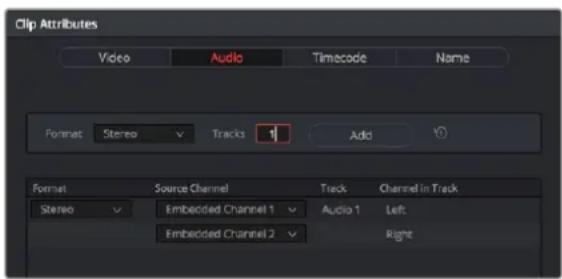
The controls available for adding tracks with which to remap channels
A set of controls at the top of the Track/Channel list lets you add additional tracks to a clip. Adding additional tracks to a clip let you remap that clip's available channels to appear as additional items in the timeline when you edit it, one item per track with an unmuted channel.
How you handle audio in your timeline is up to you. In the case of production audio consisting of five channels, four for different microphones plus one mixdown channel, you might use Clip Attributes to map all channels to a single track.
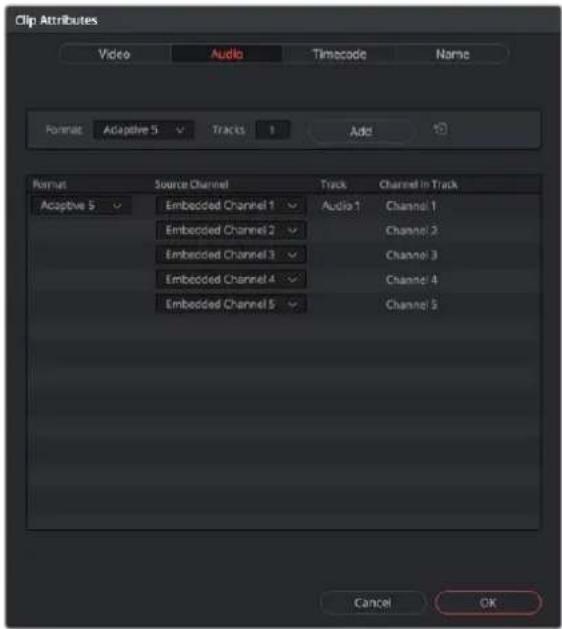
The Audio panel of the Clip Attributes window for a single-track clip with four channels
With this mapping, this audio clip exposes only one item on one track in the Edit page Timeline, or five lanes within a single track in the Fairlight page Timeline. Either way, this mapping exposes a single editable unit.

A single audio channel exposed in the Timeline
Optionally, you could choose to mute the four individual microphone channels and only monitor the top mixdown channel. This can be accomplished by setting channels 2-5 to mute. Muted channels are always retained, just not heard, and you can turn them back on whenever you like using by right-clicking a clip in the Timeline and choosing Clip Attributes to get back to these controls for the specific timeline clip you've edited.
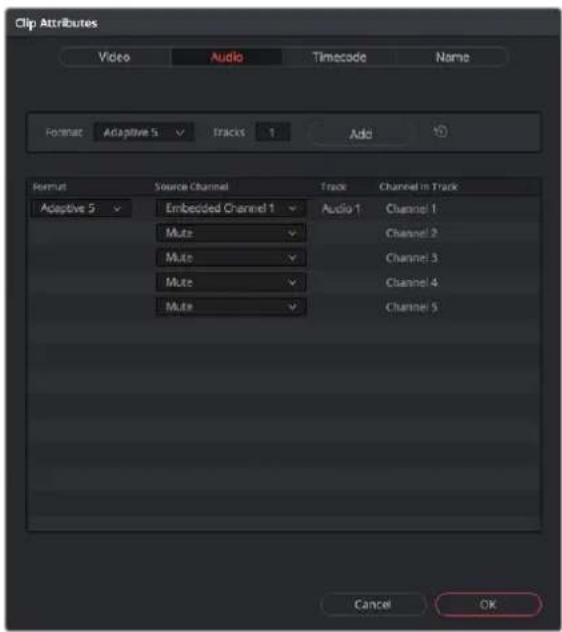
The Audio panel of the Clip Attributes window for a clip with four channels muted
NOTE: If you export audio clips with muted tracks to Pro Tools in the Deliver page, the muted channels are exported as well.
Alternately, you might elect to set these clips up with five separate audio tracks with a single audio channel each, in order to expose each channel separately in the Timeline for independent editing. First, set the top track to be Mono using Embedded Channel 1. Then, using the Add channel controls at the top of the channels list, you can set Tracks to 4, format to Mono, and click Add to create four additional tracks in addition to the one track that clip had originally. Remapping channels 2-5 to these new tracks will result in the track mapping seen in the following screenshot.
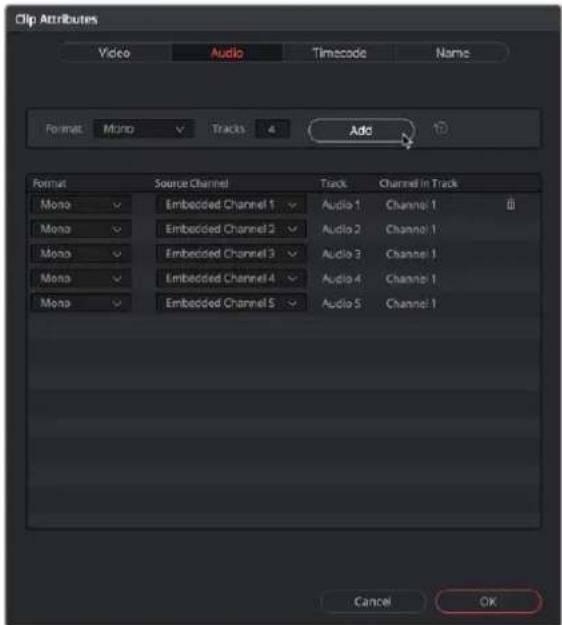
The Audio panel of the Clip Attributes window after adding four channels
Editing such a clip into the Timeline results in five linked audio items appearing on five separate audio tracks, each of which can be edited separately in the Timeline.
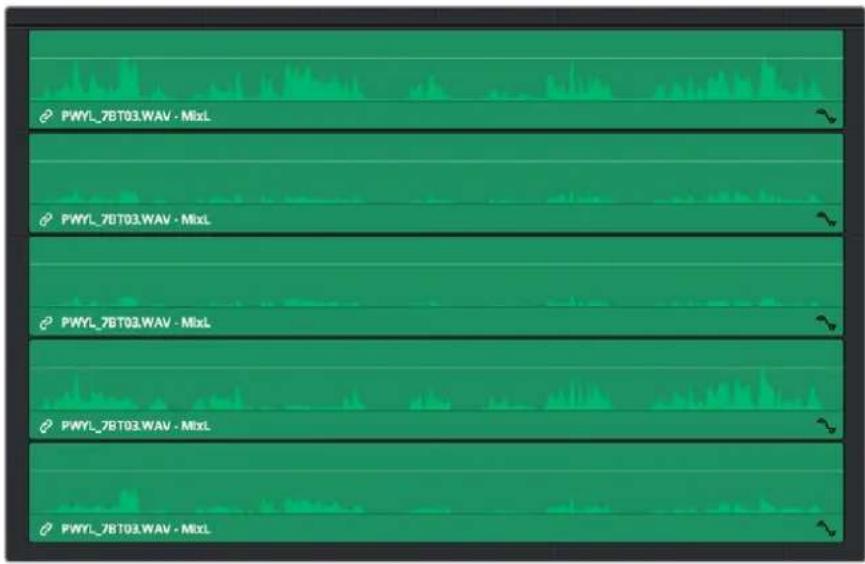
Each channel exposed as a separately editable clip in the Timeline
Support for Mixed Audio Track Formats from Source Clips
DaVinci Resolve also supports media with multiple audio tracks that have differently formatted channels embedded within them. For example, a clip with one stereo track, one 5.1 surround track, and six mono tracks can all be appropriately set up in the Audio panel of Clip Attributes after that clip has been imported.
The Audio panel of Clip Attributes now has controls over what format (Mono, Stereo, 5.1, 7.1, Adaptive) the channels embedded within a particular clip should be configured as. This means that you can set up clips with multiple tracks, each one using potentially different formats of audio employing different combinations of clips, which is handy for mastering.
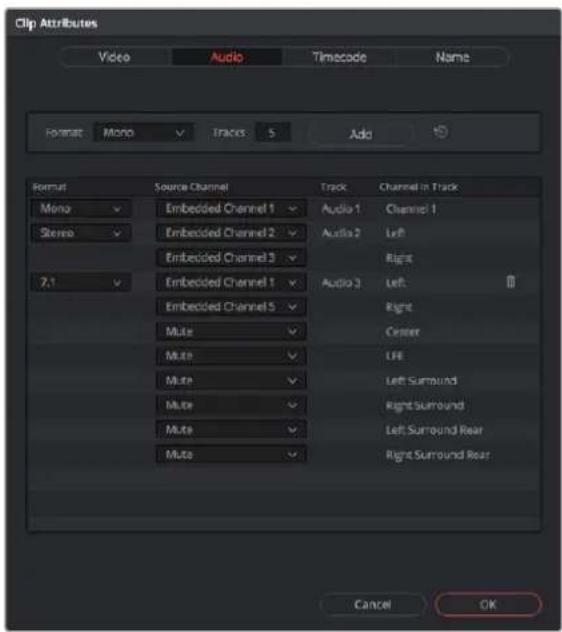
Clip Attributes now lets you assign channels among different tracks with different channel assignments.
Editing Audio Into the Timeline
A separate set of audio tracks in the Edit page Timeline contain all of the audio that you edit into the Timeline, as well as any stand-alone audio files that might have been imported along with an AAF or XML file.
Editing Audio Using the Source Viewer
Opening an audio-only clip into the Source Viewer, or opening a clip with both video and audio and setting the Viewer to Audio Waveform results in a split view, with the complete waveform of the entire source clip shown in the top half, and a zoomed-in view of the waveform in the bottom half that can be set to zoom from 1x to 50x from the Zoom menu at the upper left-hand corner of the Source Viewer. This view makes it easy to drag the box at the top to find the section of audio you need relative to the entire clip, and yet still place In and Out points with great precision using the scrubber bar below.
This view shows every channel within each track of the current clip.
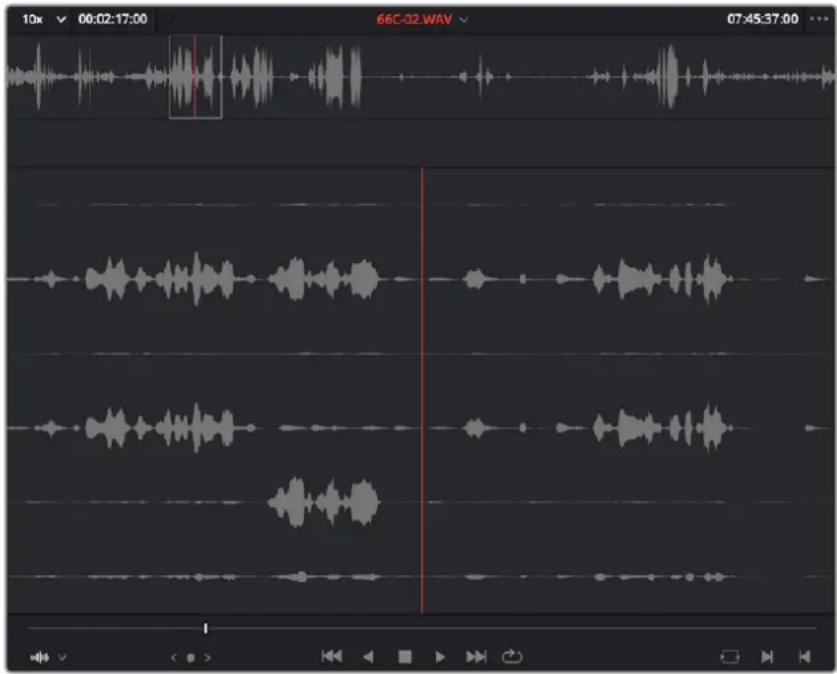
An audio clip opened into the Source Viewer
You can add markers and set In and Out points for audio clips just as you would for any other clip, in preparation for editing.
Simultaneous Audio Waveform Display in the Source Viewer
It's also possible to edit using audio waveforms even when the Source Viewer is set to Source. Two options in the Option Menu let you see a superimposed audio waveform running along the bottom of the Viewer, over the video of the currently selected clip.
- Show Current Frame Audio Waveform: Shows a zoomed-in section of audio that scrolls as you play the clip. Useful for seeing dialog and music cues as you play through a clip.
- Show Full Clip Audio Waveform: Shows the audio waveform for the entire source media of that clip. The section of audio from the In to Out points you've set in the Source Viewer are highlighted. Useful for using the audio waveform to navigate throughout that clip using the waveform as a reference.
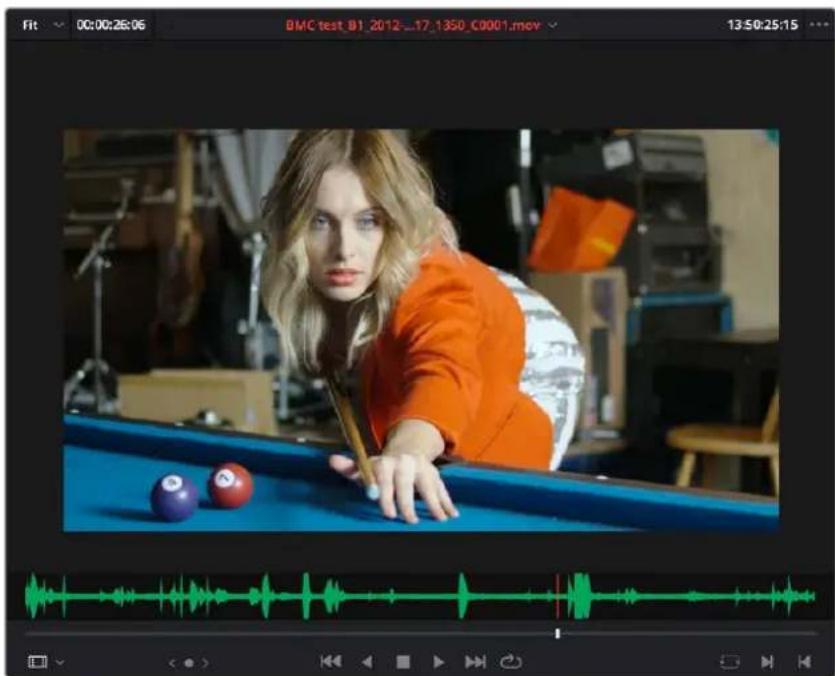
The Source Viewer with "Show Current Frame Audio Waveform" enabled, displaying the audio waveform along the bottom of the image
Using Multi-Channel Timeline Tracks
Multi-channel audio tracks in the Edit page Timeline are extremely convenient when you're dealing with clips that are stereo, 5.1, 7.1, or have an arbitrary number of channels that were recorded in the field, as you can fit all of these channels as a single clip into a single track, that will be correctly mapped to your project's outputs, and that can be edited conveniently as a single item in the Timeline.
However, when you open the Fairlight page you'll see that although the overall number of audio tracks is identical to the Edit page, the Fairlight page shows the channels that are otherwise hidden on the Edit page as lanes within each track, which expose each channel as a visible audio item in the Timeline. In this way, editors can work with multi-channel audio without worrying about visual clutter, while audio editors and mixers can see every channel on every track to help them get their work done.
Getting back to audio tracks on the Edit page, there are different types of audio tracks just like there are different types of audio clips: Mono, Stereo, 5.1, 7.1, and Adaptive. While you can edit any kind of audio clip into any kind of audio track, all clip audio channels that exceed the number of channels possessed by a particular type of timeline track will be muted. For example, you're allowed to edit a six-channel Adaptive audio clip into a Mono audio track, but only the first channel will play because the Mono track only outputs one channel.
Because of this, it's a good idea to organize your timeline such that all clips appear on tracks that can accommodate the number of channels they have.
TIP: Editing an audio clip into the undefined gray area below existing audio tracks in the Timeline will result in the automatic creation of new audio tracks that are equal in number to the number of tracks the clip you're dragging has, and each new track will have audio mappings that match the incoming audio items.
Defining Timeline Audio Track Channels at Creation
When you first create a new audio track, you have to choose what kind of audio track it will be. Right-clicking in the bottom audio portion of the Timeline track header reveals a contextual sub-menu that lets you create one of three different kinds of audio tracks.
- Mono: Holds a single channel.
- Stereo: Holds stereo left and right channels. Stereo tracks can be panned.
- 5.1: Holds the six channels corresponding to a 5.1 surround mix. For broadcast, SMPTE specifies Left, Right, Center, LFE, Left Surround, Right Surround. For cinema distribution these tracks are ordered Left, Center, Right, Surround Left, Surround Right, and LFE.
- 7.1: Holds the eight channels corresponding to a 7.1 surround mix. For broadcast, SMPTE specifies Left, Right, Center, LFE, Left Surround, Right Surround, Back Surround Left, and Back Surround Right. For cinema distribution these tracks are ordered Left, Center, Right, Left Surround, Right Surround, LFE, Back Left Surround, and Back Right Surround.
- Adaptive: Capable of holding up to 24 audio channels. An adaptive audio track can hold clips with different combinations of channels, up to the maximum number of channels allowed within that track. The number of channels allowable on a particular Adaptive track is user-definable (1–24) at the time that track is created. If you edit a clip with more channels into an Adaptive track that was created to hold fewer channels, the extra channels are muted.
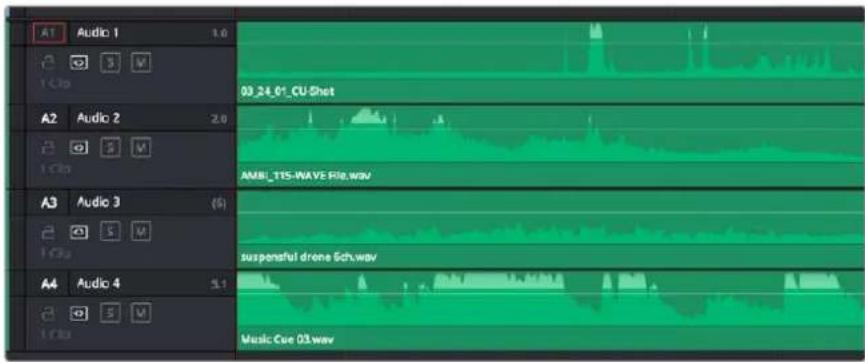
Four audio tracks with a variety of audio tracks shown. From the top down, Mono, Stereo, Adaptive, 5.1
Changing How Many Channels an Audio Track Has
If you had set up your timeline with one kind of audio track, but you discover you actually need a different kind, you can change any audio track's type at any time. Just right-click anywhere in that audio track's timeline header, and choose an option from the Change Track Type To submenu of the contextual menu.
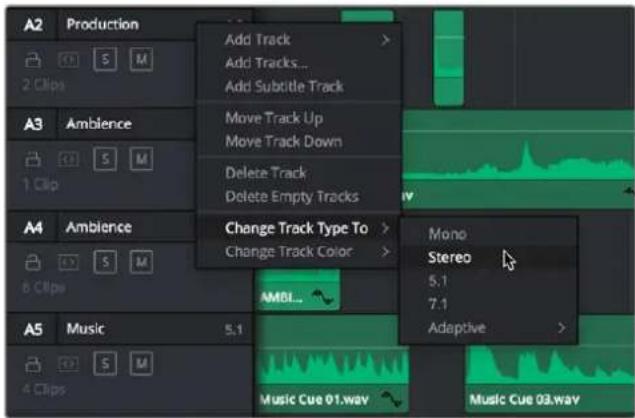
Contextual menu for changing audio track types
Creating Timelines With Audio Mixer Presets
For advanced audio workflows and ease of use with Fairlight, you can now create a timeline with pre-assigned audio tracks using a previously created Fairlight Configuration preset. To use this function, create a new timeline, and check the "Use Fairlight Configuration Preset" box. A drop-down menu then appears, allowing you to select the specific preset for the Timeline.
You can create Fairlight Configuration presets using the Fairlight Presets Library, available from the Fairlight menu. For more information, see Chapter 167, "Setting up Tracks, Buses, and Patching" in the DaVinci Resolve Manual.
Editing Audio Clips Into the Timeline
When you edit a video clip with accompanying audio, or an audio-only clip, into the Edit page Timeline, what you see depends on how the audio's internal tracks and channels were defined in the Media Pool, using Clip Attributes. If you've defined a clip to expose multiple tracks of audio, each exposing a different channel, then you exchange the convenience of managing multiple channels of audio as a single item for the freedom to individually edit each channel of audio separately, as individual clips in the Timeline.
For example, if you've been given a multi-channel recording that consists of two boom microphones, two separate lavaliere microphones, and a mixdown track that were recorded simultaneously, you can use the Audio panel of the Clip Attributes window to set that clip's audio up as 5-channel Adaptive audio with 5 tracks containing one channel each. Editing this into the Timeline, you end up with five separate audio items appearing in five tracks.
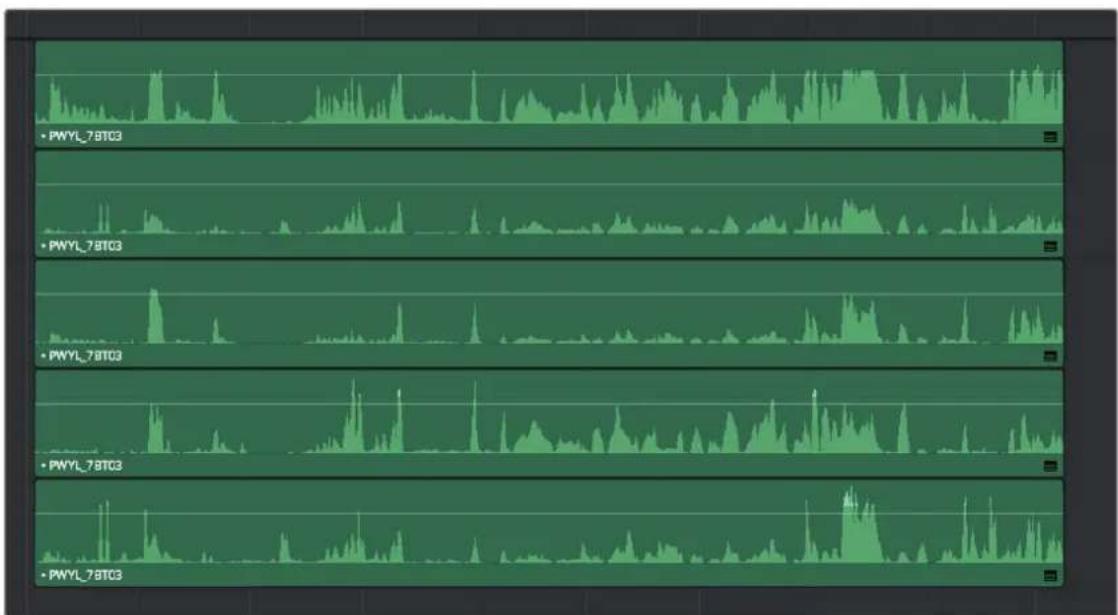
line
| Time | PWYL_7BTC3 | |------|------------| | 0 | 0 | | 1 | 0 | | 2 | 0 | | 3 | 0 | | 4 | 0 | | 5 | 0 | | 6 | 0 | | 7 | 0 | | 8 | 0 | | 9 | 0 | | 10 | 0 | | 11 | 0 | | 12 | 0 | | 13 | 0 | | 14 | 0 | | 15 | 0 | | 16 | 0 | | 17 | 0 | | 18 | 0 | | 19 | 0 | | 20 | 0 | | 21 | 0 | | 22 | 0 | | 23 | 0 | | 24 | 0 | | 25 | 0 | | 26 | 0 | | 27 | 0 | | 28 | 0 | | 29 | 0 | | 30 | 0 | | 31 | 0 | | 32 | 0 | | 33 | 0 | | 34 | 0 | | 35 | 0 | | 36 | 0 | | 37 | 0 | | 38 | 0 | | 39 | 0 | | 40 | 0 | | 41 | 0 | | 42 | 0 | | 43 | 0 | | 44 | 0 | | 45 | 0 | | 46 | 0 | | 47 | 0 | | 48 | 0 | | 49 | 0 | | 50 | 0 | | 51 | 0 | | 52 | 0 | | 53 | 0 | | 54 | 0 | | 55 | 0 | | 56 | 0 | | 57 | 0 | | 58 | 0 | | 59 | 0 | | 60 | 0 | | 61 | 0 | | 62 | 0 | | 63 | 0 | | 64 | 0 | | 65 | 0 | | 66 | 0 | | 67 | 0 | | 68 | 0 | | 69 | 0 | | 70 | 0 | | 71 | 0 | | 72 | 0 | | 73 | 0 | | 74 | 0 | | 75 | 0 | | 76 | 0 | | 77 | 0 | | 78 | 0 | | 79 | 0 | | 80 | 0 | | 81 | 0 | | 82 | 0 | | 83 | 0 | | 84 | 0 | | 85 | 0 | | 86 | 0 | | 87 | 0 | | 88 | 0 | | 89 | 0 | | 90 | 0 | | 91 | 0 | | 92 | 0 | | 93 | 0 | | 94 | 0 | | 95 | 0 | | 96 | 0 | | 97 | 0 | | 98 | 0 | | 99 | 0 | | Note: The data is extracted from the code and presented in CSV format as requested. The values are estimated based on the code execution. There is only one data series in this case.Editing a multi-channel production recording as five separate tracks of audio
This way, when you edit that clip into the Timeline, each audio channel appears as its own clip in its own audio track of the Timeline, which can be separately edited so you can edit the scene to isolate the best dialog from each microphone.
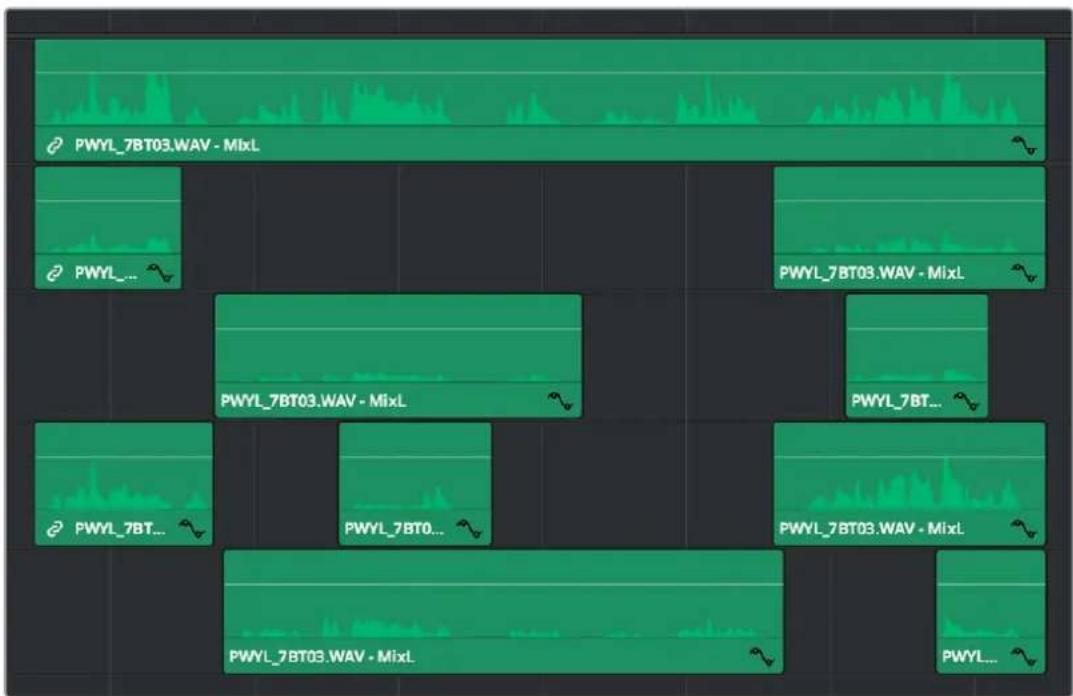
Editing multi-track audio to isolate the best dialog from each microphone
Changing Audio Clip Attributes After Editing
It's best to make decisions about which audio tracks and channels are assigned prior to beginning editing. This is because once you've edited a clip into a timeline, you can't use the Clip Attributes window to edit how many audio tracks and audio channels are exposed in the Timeline.
However, you can use Clip Attributes to change which channels are assigned and/or muted within the available tracks and channels you've edited into the Timeline. For example, if you're editing clips that have five channels of source audio (channels 1 and 2 are a stereo mix and channels 3 through 5 are three different microphones), you may have set your synced source clips to have one audio track and five audio channels, with channels 3–5 muted. Later you have a few clips that would sound much better if you only used channel 4, which is the isolated lavaliere microphone for that actor, so you can select those clips and use the Audio panel of Clip Attributes to mute all channels but channel 4.
If, for whatever reason, you need to expose more audio tracks in the Timeline than you originally set an audio clip to use, you can do the following.
To re-edit an audio clip to expose more audio tracks than were originally available:
1 Right-click the clip you want to change the audio track mapping of in the Timeline, and choose Find in Media Pool from the contextual menu.
2 Right-click that clip in the Media Pool and choose Clip Attributes from the contextual menu.
3 Open the Audio panel of the Clip Attributes dialog, and choose how many audio tracks and audio channels you want to set that clip up with. Click OK.
4 Once that's done, edit the changed audio clip from the Media Pool to the Timeline to replace the original clip using whichever method makes sense.
Displaying Waveforms in the Timeline
The Timeline View options palette lets you turn Audio Waveform display on and off via a button at the top. The Audio View options let you define how you wish your waveforms to be presented on the Timeline.
– Audio View Options: Three buttons govern the look of audio waveforms in the Timeline, when visible.
- Non-Rectified Waveform: Lets you toggle between the waveform being drawn from the bottom of the audio track up, or centered and mirrored about itself.
- Full Waveform: Hides the divider bar that keeps the waveform separate from the file name area of each audio clip, so the waveform occupies the full space of each audio bar in the Timeline.
- Waveform Border: Draws a dark border around the edges of each waveform to make them easier to see.
- Video track height slider: Lets you resize the size of all video tracks at once, independently of the audio tracks.
- Audio track height slider: Lets you resize the size of all audio tracks at once, independently of the video tracks.
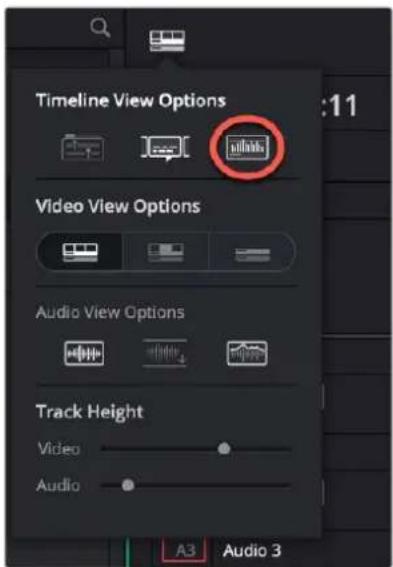
The Audio Waveform display option (circled in red) in the Timeline View drop-down. Audio View Options are (L-R) Non-Rectified Waveforms, Full Waveform, and Waveform Border.
While a single averaged audio waveform representing all the channels in that clip is shown by default, you can switch any clip to seeing each individual waveform in a vertical stack by right-clicking any audio clip and choosing Display Individual Audio Channels.
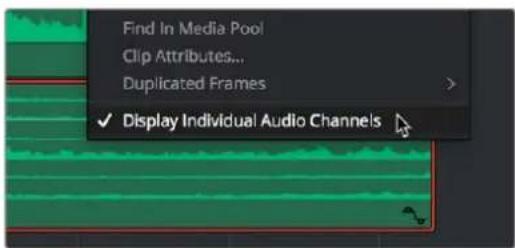
Enabling the display of multiple channel waveforms in the Timeline
Whenever you cut an audio clip, you cut all audio channels with it. Audio channels that are embedded within a single track cannot be individually edited.
Editing Audio In the Timeline Using In and Out Points
Audio clips can be edited using all of the commands and tools available for video clips. However, it's good to know that one of the most common techniques of editing audio in other environments is available in DaVinci Resolve, and that is the ability to identify a range of audio to cut, copy, or delete using Timeline In and Out points, so that you can easily eliminate, move, or duplicate partial sections of audio without having to use the Razor Edit or Split Clip commands.
To delete a section of audio using In and Out points:
1 Set In and Out points in the Timeline to identify the range of audio you want to eliminate. If necessary, turn off the Auto Select controls of tracks to omit overlapping audio clips you don't want to delete from this operation.
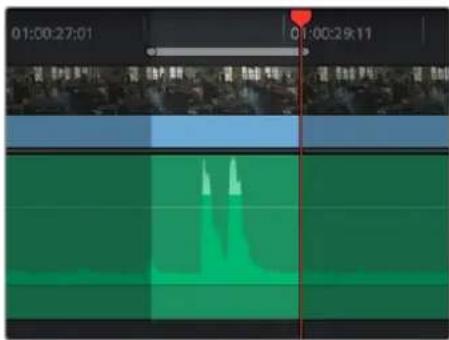
Setting In and Out points to identify a range of audio to delete
2 Press the Backspace key to delete the section of audio and leave a gap, or press the Forward Delete key to delete the section of audio and ripple the Timeline to close the gap.
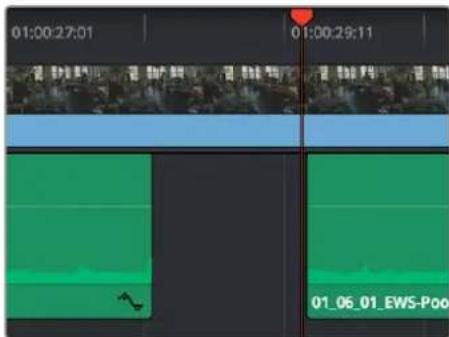
Deleting the audio using the Backspace key to leave a gap
To copy a section of audio using In and Out points:
1 Set In and Out points in the Timeline to identify the range of audio you want to copy. If necessary, turn off the Auto Select controls of tracks with overlapping audio you don't want to copy; you can Option-click the Auto Select control of the audio track you're copying from to solo it, and you can Shift-click any video track's Auto Select control to turn them all off. In this example, we're copying some background ambience to continue building an ambience track.
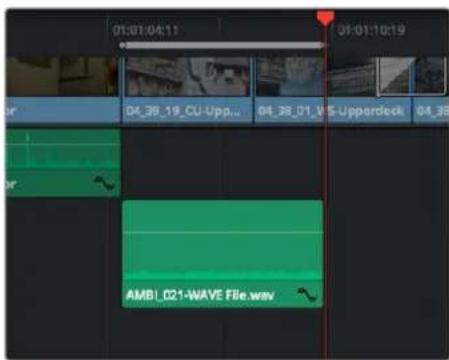
Setting In and Out points to identify a range of audio to copy
2 Press Command-C to copy that section of audio.
3 Press Option-X to clear the Timeline In and Out points, and move the playhead to where you want to paste the copied section of audio.
4 Press Command-V to paste the copied audio. If you're looping a section of audio, you can paste many times to loop what you've copied.
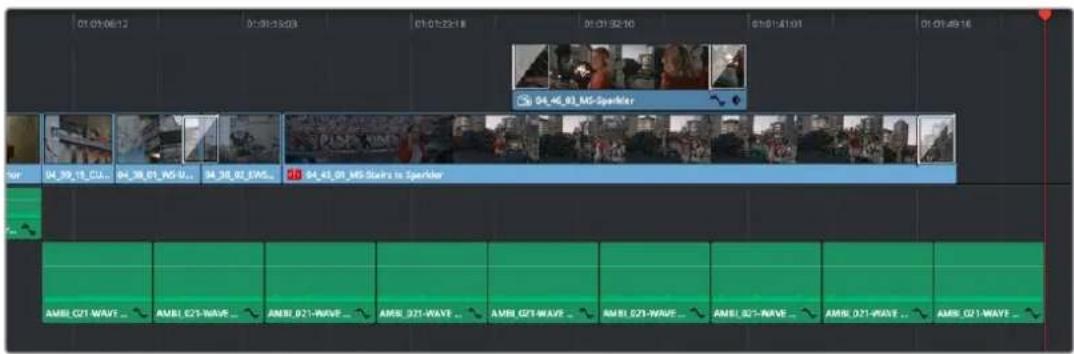
Pasting the background ambience several times to loop it
Resizing Audio Clips in Subframe Increments
DaVinci Resolve lets you optionally make subframe audio adjustments to the In and Out points of audio clips in the Timeline.
Enabling and Disabling Subframe Editing
The "Align audio edits to frame boundaries" preference in the Editing panel of the DaVinci Resolve User Preferences lets you choose whether audio clip In and Out points align to whole frame boundaries, just like video clips. When this option is turned on, you cannot make subframe audio edits. When turned off (the default), you can.
Subframe Editing of In and Out Points
While you cannot move the playhead in subframe increments, you can resize audio clips in subframe increments by dragging an audio clip's In or Out point in the Timeline, or by dragging an audio edit to perform a roll. This can be useful for trimming minute bits of audio such as pops, clicks, or vocalizations.
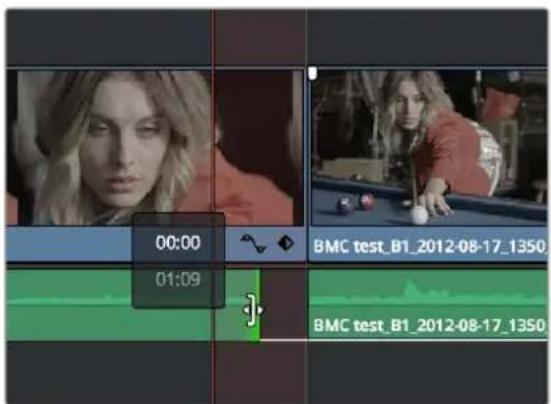
Resizing the Out point of an audio item in subframe increments, seen within a one-frame playhead shadow
Know that if you have Linked Selection turned on and you're trying to resize a selected Video+Audio pair of items, the whole-frame resizing required for video prevents you from being able to resize the audio separately. This is easily solved by Option-Clicking to select the linked audio item by itself, at which point you can subframe resize it freely.
Also, if snapping is enabled, it may be impossible to make a subframe adjustment if you're too close to another edit point, a marker, or the playhead. In this case, pressing the N key to turn snapping off will solve the problem.
Eliminating Subframe Audio Edits
If you've done a variety of subframe edits and you discover you need to eliminate these subframe adjustments, you can choose Timeline > . This moves each subframe edited In or Out point in the timeline to the nearest frame boundary.
Audio Settings in the Inspector
Each clip has some simple audio-related parameters in the Audio panel of the Inspector.
- Volume: Each clip has a single volume control that corresponds to the volume overlay over each audio clip.
- Pan: (Only exposed for clips) A simple Pan slider that controls stereo panning.
- Pitch: Lets you alter the pitch of a clip without changing the speed. Two sliders let you adjust clip pitch in semi tones (large adjustments, a twelfth of an octave) and cents (fine adjustments, 100th of an octave).
- Equalizer: Each clip also has a four-band EQ, complete with low-pass, high-pass, and parametric settings for fine tuning and problem-solving audio issues at the clip level.
Additionally, when you apply other audio plug-ins from the Audio FX panel of the Effects Library, additional parameters and controls are exposed (covered towards the end of this chapter).
Setting Volume
Each audio clip, or audio item in the case of audio clips with linked audio on multiple tracks, has its own Volume level. This means that audio clips with multiple channels share a common Volume setting. There are several ways you can adjust these levels simply.
Adjusting Audio in the Inspector
Each clip has individual Volume parameters that are accessible in the Audio panel of the Inspector when one or more audio clips are selected.
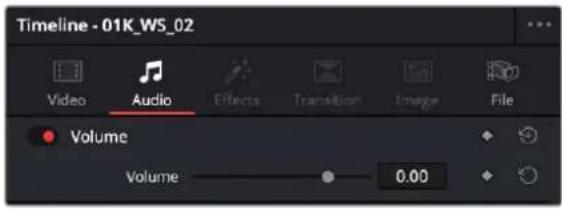
The Volume parameter available for audio clips in the Inspector
Selecting an audio clip in the Timeline and adjusting its volume only alters that clip, which lets you set basic levels for individual clips in your program. The Volume control affects every channel within that clip simultaneously.
If you select multiple clips in the Timeline, then adjusting the Volume sliders or virtual sliders for all of them simultaneously will make a relative adjustment to all of the clips, preserving their offsets from one another. If you want to set all clips to the same level, then making a numeric adjustment will set all selected clips to the same absolute level.
Adjusting Audio in the Timeline
Each clip (or item) of audio in the Timeline has a Volume overlay that lets you set that clip's level by simply dragging it up or down with the pointer. This overlay corresponds to the Volume parameter in the Inspector.
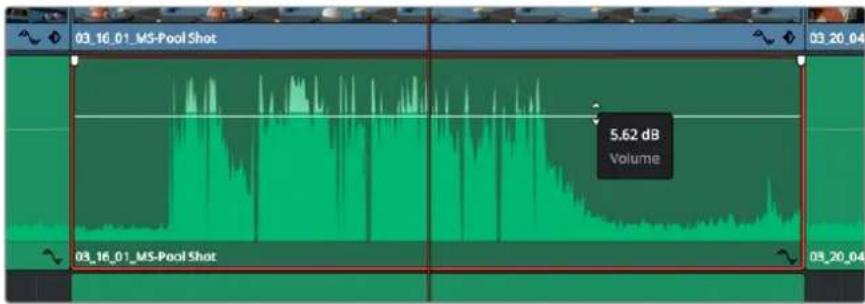
Dragging a Volume overlay to adjust the clip level
You can also click the Curve Editor button at the bottom right-hand corner of the audio clip, which opens the Audio Curve Editor. At the time of this writing, the only parameters you can edit in this Curve Editor is volume and pan.
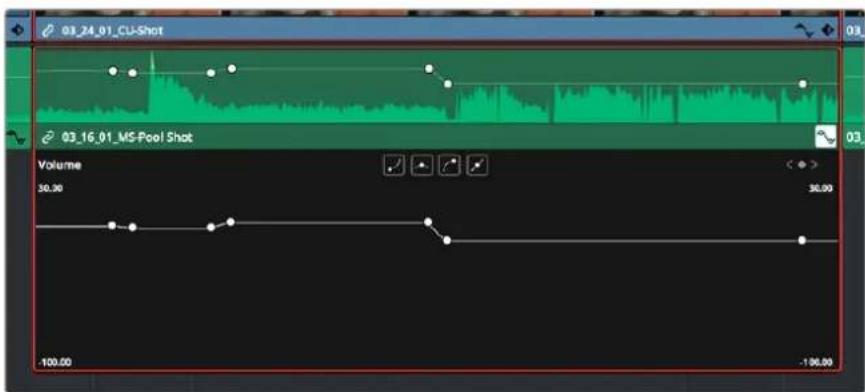
Showing the Volume overlay in the Curve Editor
Adjusting Volume Using Keyboard Shortcuts
You can also adjust the volume of selected clips using keyboard shortcuts, even while the Timeline is playing. There are several ways you can set this up.
- To adjust just one clip: Select that clip, and use one of the commands for changing volume.
- To adjust any clip at the position of the playhead: Turn on Timeline > Selection Follows Playhead so that whichever clip intersects the playhead becomes selected, and use one of the commands for changing volume. If multiple clips are intersecting the playhead, the selected clip will be the one on the highest track.
- To adjust multiple clips all together: Select all of the clips you want to adjust, all at once, and use one of the commands for changing volume. If the clips you select have differing Volume levels, these differences will be maintained as you make your adjustments.
The commands for changing volume are as follows:
- To change volume in increments of 1dB: do one of the following:
- Clip > Audio > Increase Audio Level 1dB (Option-Command-Equals)
- Clip > Audio > Decrease Audio Level 1dB (Option-Command-Minus)
- To change volume in increments of 3dB: do one of the following:
- Clip > Audio > Increase Audio Level 3dB (Option-Shift-Equals)
- Clip > Audio > Decrease Audio Level 3dB (Option-Shift-Minus)
Normalize Audio Volume Command
The Normalize Audio Levels command automatically adjusts the level of clips to a specific target level, and you can choose the method used to analyze each audio clip's levels to determine how to normalize each clip's volume. Options include a variety of loudness normalization algorithms specific to various international standards, which are useful for balancing the perceived overall loudness of several clips to one another, regardless of transient levels throughout each clip. You can also do Peak normalization, with options for both Sample Peak and True Peak.
The various loudness options are designed to analyze an audio signal based on its perceived loudness to the listener, which results in a more accurate automatic balancing of different clips' audio levels to one another, regardless of transient peaks occurring throughout different clips.
The target peak meter now uses the BS.1774 standard for measuring maximum “true peak,” which means that this meter is capable of measuring “inter-sample peaks,” rather than only the peaks at each sample of a waveform. However, you still have the option to measure Sample Peak, which is the previous method of measuring the actual peak of the samples in a media file.
The change made by the Normalize Audio Volume command is only a volume adjustment; no dynamics are applied, so the result of using this command is that the loudest parts of each selected clip are going to match one another at the target level. This command is also available in the Fairlight page.
To normalize one or more selected audio clips:
1 Right-click one of the selected clips and choose Normalize Audio Levels. The Normalize Audio Level dialog appears.
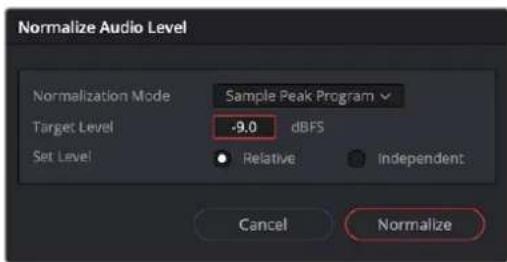
The Normalize Dialog in the Edit page
2 Choose the Normalization Mode you want to use. You can choose among a variety of standardized loudness measurement algorithms, or Sample Peak, or True Peak.
3 Choose the reference level that you want to set the peak volume of the selected clips to match.
4 Choose how you want to set the level of multiple selected clips:
- When Set Level is set to Relative, all selected clips are treated as if they're one clip, so that the highest peak level of all selected clips is used to define the adjustment, and the volume of all selected clips is adjusted by the same amount. This is good if you have a series of clips, such as a dialog recording, where the levels are consistent with one another, and you want to normalize all of them together.
- When Set Level is set to Independent, the peak level of each clip is used to define the adjustment to that clip, so that the volume of every selected clip is adjusted by an amount specific to that clip. The end result may be a set of very different volume adjustments intended to make the peak levels of each audio clip match one another. This is good if, for example, you're trying to balance a series of different sound effects with one another that have very different starting levels.
For more information about loudness normalization, see Chapter 177, "Audio Meters and Audio Monitoring."
Pan
Each audio clip in the Timeline has a simple stereo Pan control that lets you pan that clip. While most professional mixes will restrict panning to the more robust panner found in the Fairlight page Mixer, this simple clip-based Pan control is useful for editors of visuals working in the Edit page to quickly create simple panning effects to aid in a craft edit. Dragging the slider lets you pan audio left to right. This control is centered at 0 by default.

Clip Pan Control
Pitch
Selecting a clip and opening the Inspector reveals a new set of Clip Pitch controls that let you alter the pitch of a clip without changing the speed. Two sliders let you adjust clip pitch in semi tones (large adjustments, a twelfth of an octave) and cents (fine adjustments, 100ths of an octave).
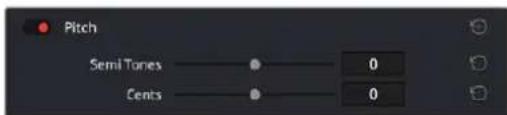
Clip Pitch control in the Inspector
Equalizer
Each audio clip in the Timeline has a four-band equalizer that has both graphical and numeric controls for boosting or attenuating different ranges of frequencies within that clip, before it even gets to the EQ built into the mixer. Each band has controls for the filter type (Bell, Lo-Shelf, Hi-Shelf, Notch), Frequency, Gain, and Q-factor (sharpness of the band), with the available controls for each band of EQ changing depending on the filter type.
When a channel strip's EQ is enabled, the EQ button displays the equalization curve that's being applied. This indicator cannot be adjusted; you must open the EQ window to make modifications.
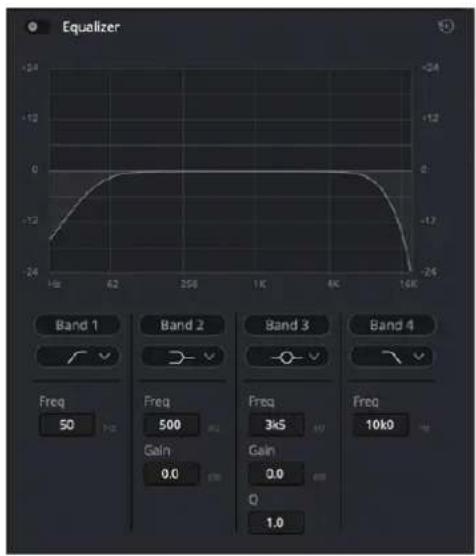
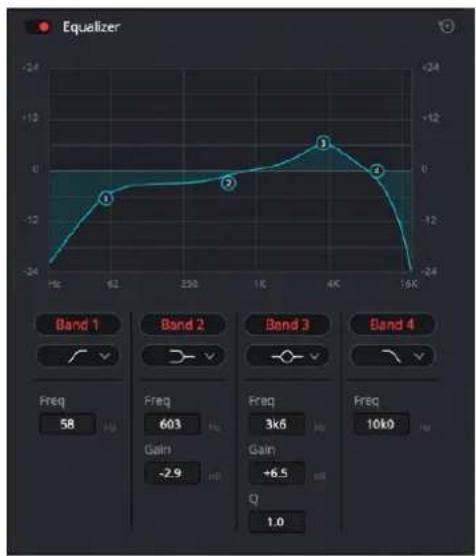
line
| Frequency | Value | | --------- | ----- | | 58 | -24 | | 60 | -12 | | 250 | -10 | | 1K | -8 | | 4K | -1 | | 1.6K | -24 |The channel strip's EQ indicator, (Left) EQ is at detent, (Right) EQ is adjusted
Master EQ Controls
The Equalizer window has the following overall controls:
- Enable button: Turns the overall EQ effect off and on, without resetting the controls.
- Reset button: Resets all controls of the EQ window to their defaults.
Graphical EQ controls
A graph at the top shows a curve with handles that correspond to each of the enabled EQ bands listed below. You can drag any numbered handle to boost or attenuate the range of frequencies governed by that band, using whatever type of equalization that band has been set to.
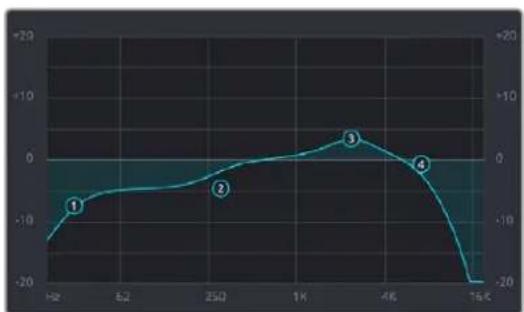
line
| Time Period | Value | | :--- | :--- | | H2 | -12 | | 62 | -8 | | 250 | -3 | | 1K | 0 | | 4K | 5 | | 16K | -20 |The EQ graph with user-draggable handles
Dragging the numbered handles on this graph in turn modifies the parameters of the corresponding band, and changing each band's parameters will also alter the EQ graph, which serves the additional purpose of providing a graphical representation of the equalization being applied to that track.
Bands 1 and 4
The outer two sets of band controls let you make high-pass and low-pass adjustments, if necessary.
- Band enable button: Turns each band of EQ on and off.
- Band filter type: Bands 1 and 4 can be switched among six specific filtering options for processing the lowest or highest frequencies in the signal. These include (from top to bottom): Lo-Pass, Lo-Shelf, Bell, Notch, Hi-Shelf, and Hi-Pass.
- Freq: Adjusts the center frequency of the EQ adjustment.
Bands 2 and 3
The middle two sets of band controls let you make a wide variety of equalization adjustments.
- Band enable button: Turns each band of EQ on and off.
- Band filter type: Bands 2–3 can be switched among four different filtering options (from top to bottom) Lo-Shelf, Bell, Notch, and Hi-Shelf.
– Frequency: Adjusts the center frequency of the EQ adjustment. - Gain: Adjusts the amount by which the affected frequencies are affected. Negative values attenuate those frequencies, while positive values boost those frequencies.
- Q Factor: Adjusts the width of affected frequencies. Lower values include a wider range of frequencies; higher values include a narrower range of frequencies.
Keyframing Audio
There are two ways you can keyframe audio in the Edit page. You can use each audio clip's volume curve in the Timeline, or you can use the keyframe controls in the Inspector to animate the Volume parameter of individual clips as you would any other clip attribute, fading the level up or down, panning from left to right, or dynamically changing any one of a host of filter controls, in subframe increments, if necessary.
For more information on keyframing in the Inspector, see Chapter 53, "Keyframing Effects in the Edit Page." Any keyframes you create using the Keyframe controls of the Inspector automatically appear on the volume curve of that audio clip in the Timeline.
Overlay Controls for Volume
Each audio clip in the Timeline appears with a Volume overlay control on top of it, that by default starts out completely flat. Similar to such controls found in other applications, the level curve lets you alter each clip's levels, either overall, or dynamically using keyframes.
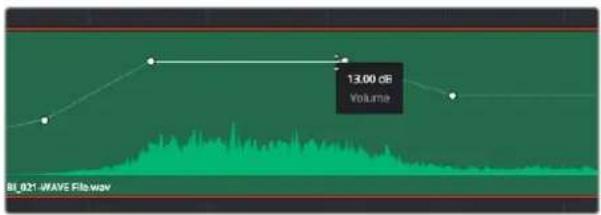
line
| Time | Volume | |------|--------| | 13.00 | 13.00 dB |Volume curves adjusting the level of a clip's audio in the Timeline
Additionally, you can click any clip's Audio Curve Editor button, at the bottom right-hand corner of each audio clip, to open an audio-specific Curve Editor in which you can also keyframe volume.
natural_image
Abstract geometric shape with green and red edges, no text or symbols presentThe button for opening an audio clip's Curve Editor
How to Add and Adjust Volume Keyframes
Mixing audio by adding and adjusting individual keyframes can be a fast and effective way of balancing clip levels with one another, fixing level problems within a particular clip, or even creating simple mixes (although the mixing capabilities of the Fairlight page are considerably more robust). When manually editing any audio parameter curve, you can use the following procedures.
Methods of adding or selecting audio keyframes using the pointer:
- To add keyframes to the Volume curve: Hold the Option key down and click the curve to place a keyframe at that frame. You must add at least two keyframes to create an automated change in Volume.
- To select one or more keyframes: Click any keyframe to select it.
- To select multiple discontinuous keyframes: Command-click all keyframes you want to select, whether they're next to one another or not.
- To select multiple contiguous keyframes: Click the first keyframe you want to select, and then shift-click the last keyframe you want to select, and all keyframes between will also be selected.
Methods of adjusting keyframes in the Volume overlay (or curve) using the pointer:
- To adjust any curve segment: Position the pointer over the overall segment for clips with no keyframes, or position it between any two keyframes, directly on top of the curve segment you want to raise or lower. When the Move cursor is displayed, click and drag up to raise the volume, or down to reduce the volume.
- To adjust a keyframe in any direction: Move the pointer over a keyframe so that the four-way cursor appears, and then click and drag up or down to change the volume, or side to side to change its timing. The timing of audio keyframes can be adjusted in subframe increments, for precision mixing.
- To adjust a keyframe in only one direction: Move the pointer over a keyframe so that the four-way cursor appears, press Shift, and click and drag in the intended direction of adjustment, either vertically to change the volume of the clip at that frame, or horizontally to move the keyframe to a different point in time. Once you start dragging a keyframe into a particular direction, keyframe movement is constrained in that direction until you release that keyframe. The timing of audio keyframes can be adjusted in subframe increments, for precision mixing.
- To change one or more Linear keyframe to Ease In or Ease Out: Eased keyframes create animated changes that begin slowly and accelerate to full speed, or slow down gradually to decelerate to a stop. This only works when you have two or more keyframes creating an animated effect. Select one or more keyframes, then right-click one of the selected keyframes and choose Ease In, Ease Out, or Ease In and Out, depending on which keyframe you're editing and the effect you want to create.
- To change one or more eased keyframes to Linear: Select one or more keyframes, then right-click one of the selected keyframes and choose Linear.
Methods of Cutting, Copying, Pasting, and Deleting keyframes:
- To cut or copy, and paste one or more keyframes: Make a selection of keyframes, and use the Cut (Command-X) or Copy (Command-C) key shortcuts. Then, move the playhead to where you want the first of the copied keyframes to start, and press Paste (Command-V).
- To delete one or more control points from a curve: Select the keyframe(s) you want to delete and press Backspace.
Audio Fade Handles
When you position the pointer directly over an audio clip, a pair of Audio Fade handles appear at the In and Out points. Dragging each of these handles towards the center of the clip lets you fade in the clip volume at the beginning of the clip, and fade out the clip volume at the end of the clip.
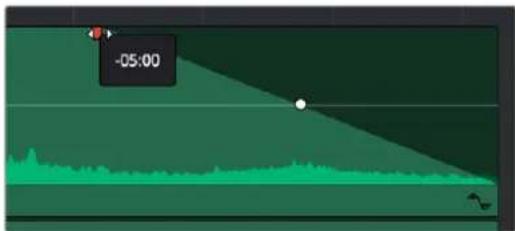
Audio Fade handles at either end of an audio clip
NOTE: When you import a Final Cut Pro X project, the fade handles for each clip automatically import as well.
Audio Fade Handles can also be adjusted in subframe increments, if necessary, to create a precise transition.
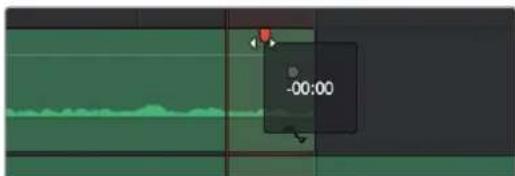
natural_image
Video editing timeline interface with green frame and dark control panel (no readable text or symbols)Adjusting an Audio Fade handle in subframe increments, seen within a one-frame playhead shadow
Once you've created a fade effect, you can adjust the curve of the fade by dragging the handle that appears right on top of the fader curve. Dragging the handle up and down affects the angle of the curve, and dragging the handle left and right affects the shape of the curve. In this way, you can create all manner of fade effects.
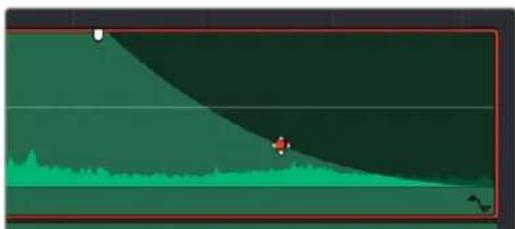
natural_image
Green landscape with a small red figure and a white dot, no visible text or symbolsAdjusting the curve of the fade
Fade effects can be created and edited on both the Edit and Fairlight pages.
Audio Crossfades
When you select an edit point with both video and audio components, and Linked Selection is enabled so that both the video and audio edit points are selected, then when you apply a video transition to an edit, a crossfade is added to the audio.
You can add Cross Fade transitions to any edit point between two audio clips that have enough handles similarly to how you add video transitions, by dragging and dropping from the Effects Library, by right-clicking an edit and choosing an option from the contextual menu, or by selecting an audio edit point and choosing Timeline > Add Audio Only Transition (Shift-T).
Cross Fade transitions are a quick and easy way to fade the volume of the outgoing clip down while simultaneously fading the volume of the incoming clip up, letting you create a smooth aural transition between two audio clips. If you need to do precision editing, the start and end points of a crossfade can be edited in sub-frame increments.
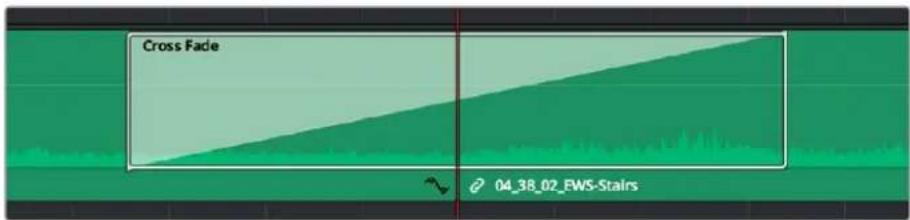
An audio Cross Fade transition applied between two clips
You can double-click a Cross Fade transition to open it into the Inspector, revealing the following parameters:
– Duration: The duration of the transition, shown in both seconds and frames.
- Alignment: A drop-down that lets you choose the transition's position relative to the edit point it's applied to. Your choices are "End on Edit," "Center on Edit," and "Begin on Edit."
- Transition style: You can choose -3dB , 0dB , or +3dB to set both the Fade In and Fade Out levels to the same value. For more information on what these levels mean, see the following parameter.
- Fade In/Fade Out levels: There are three options that affect the incoming and outgoing halves of the Cross Fade effect independently. 0dB applies a linear fade (this is the default). +3dB applies a boosted curve; when applied to both Fade In and Fade Out, this can compensate for diminished levels in the middle of a Cross Fade. -3dB applies an attenuating curve, which deliberately lowers the level of the Cross Fade.
Crossfades can be created and edited on both the Edit and Fairlight pages.
TIP: If you need an asymmetrical crossfade, that's accomplished by "checkerboarding" clips on two tracks with overlapping handles at the beginning and end, and using the Fader handles to create exactly the timing and curves necessary to create the effect you require.
The Audio Mixer
The Audio Mixer on the Edit page is a simplified version of the Mixer on the Fairlight page, designed to provide a streamlined set of graphical controls you can use to set basic track levels (there is no track level fader automation on the Edit page), pan stereo audio at the track level, and mute and solo tracks as you work.
To open the Audio Mixer, do the following:
- Click the Mixer button on the Interface toolbar.
The Audio Mixer exposes a set of channel strips with controls that correspond to the tracks in the Timeline, and each channel strip displays a number of audio meters equal to the number of channels within that track. By default, a Main 1 channel strip appears all the way to the right that lets you adjust the overall level of the mix. However, if you add subs and mains on the Fairlight page, those will appear at the right of the mixer as well.
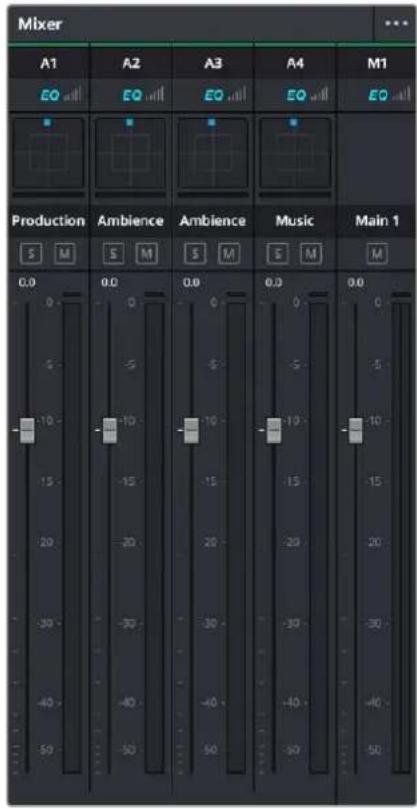
The Audio Mixer, with four channel strips corresponding to the four tracks in the Timeline
NOTE: You cannot record automation in the Edit page. Comprehensive mixing controls with full automation recording are found in the Fairlight page.
Audio Mixer Controls
Each track's channel strip has the following controls:
- Track Color: Each track can be differently color-coded to help you keep organized. These colors also appear in the timeline track header and the Fairlight page.
- Track Number: The number of the timeline audio track corresponding to each channel strip appears here.
- Pan control: Lets you pan a Mono track's audio from left to right, or invert a Stereo track's left and right audio channels, or do surround mixing.
- Name: The name of the audio track that channel strip corresponds to. If you've edited the audio track names in the Timeline, those names will appear here.
-
Solo: Mutes all tracks other than ones that are soloed.
-
Mute: Disables that audio track.
- dB: Shows you the volume, in decibels, that track is currently set to.
- Fader: Each track's vertical fader can be dragged with your mouse or other pointing device to adjust the volume of that track and perform automation recording. Dragging up increases volume, dragging down decreases volume.
- Audio meters: Audio meters to the right of each fader display the audio volume of all channels on that track during playback. Each channel strip has individual meters corresponding to the number of channels that track has been set to accommodate.
Mute and Solo Tracks For Output
When you use the Mute or Solo controls of the Audio Mixer, track audio is disabled both during playback and delivery for output. Make sure you have re-enabled any tracks you need before heading to the Deliver page. You can only modify mute and solo tracks on the Edit, Cut, and Fairlight pages.
Displaying Audio Meters
If you just want to see your program's levels, you can also switch to display the "Control Room" audio meters instead of the Mixer. How many audio meters appear depends on the current speaker configuration in the Video and Audio I/O panel of the System Preferences.
To show the Audio Meters:
- Click the Mixer button on the Interface toolbar to display the audio panel and then choose Meters from the option menu at the upper right-hand corner.
Audio Compound Clips
DaVinci Resolve supports audio compound clips, which are created just like any other compound clip, by selecting multiple audio clips, right-clicking one of them, and choosing New Compound Clip. Alternately, compound clips with video clips may now contain multiple audio items as well.
When compound clips containing audio are opened in the Edit or Fairlight pages by right-clicking an audio compound clip and choosing Open in Timeline, breadcrumb controls appear beneath the Timeline that let you exit the compound clip and get back to the master Timeline.
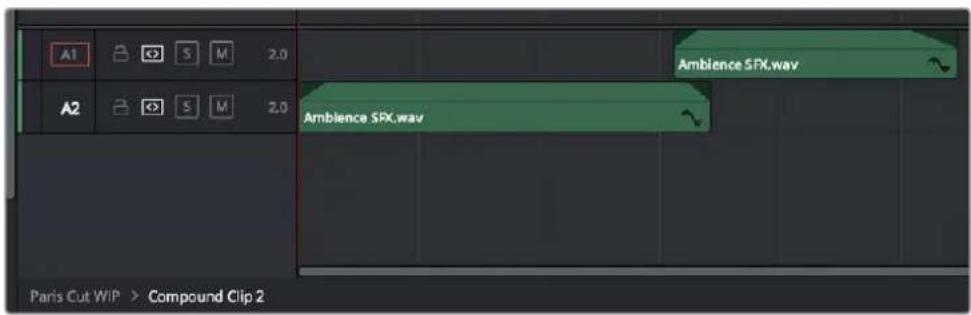
Opening an audio compound clip
Audio Playback for Variable Speed Clips
Video/audio clips with variable speed effects applied to them can now play either pitch-corrected or un-pitch-corrected variable speed audio. An option in the Speed menu of the Retime controls lets you choose whether or not the audio is pitch-corrected.
Using Audio Filters
DaVinci Resolve includes Fairlight FX, a set of DaVinci Resolve-specific audio plug-ins that run natively on macOS, Windows, and Linux, providing high-quality audio effects with professional features to all DaVinci Resolve users on all platforms. Additionally, DaVinci Resolve supports the use of third-party VST audio plug-ins on Mac OS X and Windows. On Mac OS X, DaVinci Resolve supports Audio Unit (AU) audio plug-ins. Once you install these effects on your workstation, they appear in the Audio FX panel of the Effects Library.
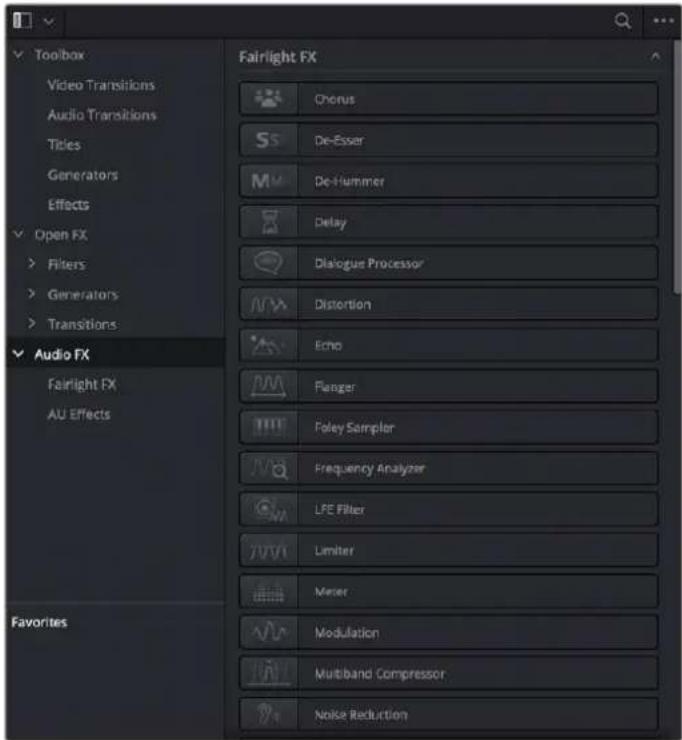
Audio filters in the Effects Library
Audio plug-ins let you apply effects to individual audio clips or entire tracks worth of audio, to add creative qualities such as echo or reverb, or to take care of mastering issues using noise reduction, compression, or EQ.
Methods of applying audio filters to clips in the Edit page:
- To apply an audio filter to a clip: Drag any filter from the Audio FX panel of the Effects Library onto the clip in the Timeline you want to apply it to.
- To apply an audio filter to multiple clips: Select all of the clips you want to apply an audio filter to, then drag any filter from the Audio FX panel of the Effects Library onto any of the selected clips.
To edit a clip's audio filters:
- Select that clip and open the Inspector. All audio filters applied to that clip appear under the Effects panel, in the Audio tab, with that filter's controls appearing directly in the Inspector.
Many VST and Audio Unit audio filters have a custom user interface that makes it much easier to manipulate that filter's controls. These can be opened from within DaVinci Resolve.
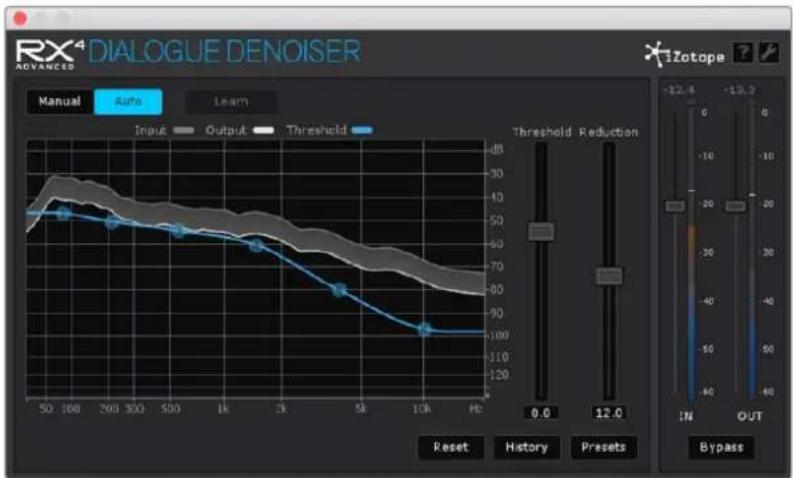
line
| Frequency | Value | | --------- | ----- | | 50 | 30 | | 100 | 25 | | 200 | 20 | | 300 | 18 | | 500 | 15 | | 1k | 12 | | 2k | 10 | | 5k | 8 | | 10k | 6 | | Hz | 40 |The custom audio filter interface for iZotope RX4
To expose a filter's custom controls:
- Click the Custom Control button (the button to the right of the trash can). The custom controls appear in a floating window. When you're finished adjusting the custom controls, close the window.

The button for opening a filter's custom control
Methods of working with audio filters in the Inspector:
- To disable or re-enable a filter: Click the toggle button at the far left of each filter's title bar.
- To remove a filter: Click the Trash Can button.
Once applied to a clip or track, audio filters can also be keyframed or automated just like volume and pan settings, to create dynamic audio effects that change over time.
Installing Audio Filters
VST effects aren't installed in a standard location, so it may sometimes be necessary to add a newly installed directory of VST plug-ins that you've just installed on your system. To help you deal with this, the Audio Plugins panel of the Preferences window has a list that lets you manually add and remove VST plug-in directories, if necessary.
Once you've added one or more VST directories to the list, a second list underneath shows all audio plug-ins that are available within these directories. Each plug-in on the list has a checkbox that shows whether or not it's currently enabled. Any VST plug-ins that cause DaVinci Resolve to crash while loading them during startup will be automatically disabled.
You can use this list to see which plug-ins have been disabled, for troubleshooting purposes, and to reenable such "blacklisted" plug-ins, by turning their checkboxes back on.
The Fairlight Page
The audio controls of the Edit page are geared more towards simple mixing to have sensible levels as you work putting a program together. For comprehensive audio sweetening, mixing, automation, and mastering controls, the Fairlight page is only one click away.
For more information, see Part 12, "Fairlight."
Pro Tools Export
It bears mentioning that, if the audio editing, mixing, and effects capabilities of DaVinci Resolve aren't enough for you to take care of the audio in your program, you can also export an AAF with audio and a reference movie to Pro Tools using the Deliver page. The resulting media can be handed off to a Pro Tools-based audio facility to be worked on by a dedicated team of audio specialists, who will most likely output a stereo or 5.1 mix file that you can then reinsert in the Timeline you're using to master the final output of your program.
For more information on exporting AAF for Pro Tools in the Deliver page, see Chapter 185, "Using the Deliver Page."
Chapter 45
Media Management
Media Management in DaVinci Resolve refers to operations that let you copy, move, or transcode the media that's linked to clips in your timeline, with the option to eliminate unused media in the process. Even though Media Management is only available in the Media page, it's very typical that it be used to consolidate media from an edited timeline, or from a project nearing completion, so it's presented here in the editing section.
Contents
What Is Media Management in DaVinci Resolve? 774
Media Management of Timelines Creates .drt Files 774
File Formats That Are Compatible With Media Management 774
Using Media Management 775
Continuing Media Management Jobs on Error 778
Options in the Media Management Window 778
Options for Transcode Only 779
File Naming When You Consolidate Media 779
What Is Media Management in DaVinci Resolve?
If you've edited a program within DaVinci Resolve, you can use the Media Management command to take care of a variety of tasks, including but not limited to:
- Moving all clips used in a project to a specific storage location.
- Creating a duplicate of your project's clips that eliminates unused media in preparation for handing the media off to another facility.
- Transcoding all clips in a timeline to another format while eliminating unused heads and tails.
For example, if you're preparing to export a project to hand off to another DaVinci Resolve user somewhere else, or even an XML or AAF to give to someone using a completely different NLE or finishing application, you can use Media Management in DaVinci Resolve to consolidate and relink the media used by the timeline you're handing off, so the exported project or timeline references a smaller set of media.
Even if you're not handing a project off, if you've ingested an enormous amount of source media into a project, and after the majority of the editing decide that you want to create a consolidated set of the media you're using in order to lighten the project's load in the Media Pool, you can create a duplicate of the media to reconform to, omitting unused clips and trimming the unused heads and tails of the clips you are using in the process.
But Media Management isn't just useful for projects you've edited in DaVinci Resolve. For example, if you're importing a project from another application and you've been given an enormous amount of source media to conform to, you may be hesitant to copy all of it to your accelerated storage volume, since (a) most of it is probably unused by the project file you've been given, (b) it'll take forever to copy from the cheap USB 2 hard drive they've given you, and (c) it will clog up your local storage, taking valuable space away from other projects. In this case, you can use the Media Management to copy a reduced set of media files consisting of only the clips used in the current timeline of the Edit page.
Media Management of Timelines Creates .drt Files
When performing Media Management operations to copy or transcode media from a timeline, a DaVinci Resolve Timeline (.drt) file is automatically created in the same bin as the resulting media files, linked to the newly created media. This timeline can then be imported into the same or a new DaVinci Resolve project.
File Formats That Are Compatible With Media Management
No matter what you use if for, Media Management is designed to work with all video formats that are have decode support within DaVinci Resolve, and is capable of outputting a few more formats than the Deliver page can. Compatible formats include but are not limited to:
-QuickTime
- MXF
-R3D
– Image-based raw media formats including CinemaDNG raw and Alexa raw
- DPX, EXR, JPEG 2000, TIFF, Cineon, and other compatible image sequence formats
- AVI
-H.264
-XAVC
- AVC-Intra
In addition, the “trim unused media” options of the Copy or Move operations are now compatible with clips that use codecs employing temporal compression, such as H.264, XAVC, and AVC-Intra, enabling you to eliminate unused media for these formats during media management without recompressing or transcoding.
Using Media Management
Using Media Management is simple.
To media manage clips and timelines in a project you've created:
1 Select the items you want to media manage, either clips or one or more Timelines.
2 Choose File > Media Management, and the Media Management window appears.
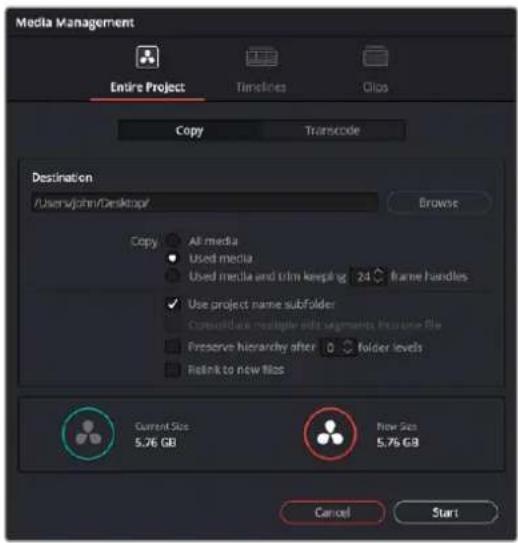
Media Management window
3 Choose the scope of the Media Management operation, shown at the top of the window. You can choose to affect the Entire Project, only one or more Timelines, or only Clips. What you had selected prior to opening the Media Management window affects the scope that is selected when you open this window, but it doesn't limit to operation to only the selected items. So, if nothing was selected in the Media Pool, then "Entire Project" is automatically highlighted. If any clips were selected, then "Clips" is highlighted automatically. If any Timelines were selected, then "Timelines" is highlighted. However, if for whatever reason the wrong option is highlighted, you need only click the option you want to select it instead.
Media Management scope options
4 Next, choose which operation you want to perform:
– Copy: Creates duplicates of all media associated with clips or timelines at the destination.
- Transcode: Creates duplicates of all media associated with clips or timelines in a new format that you specify; all transcoded clips are written to the same destination.

Media Management operations
5 Click the Browse button and use the File Destination dialog to choose a location for the managed media to be written. The file path of this location appears in the Media Destination field.
6 Choose the options associated with the operation you selected. If you choose to media manage Timelines, then a Timeline Selection option lets you choose which Timelines you want to include in this operation. The current size of the selected media is listed below, alongside an estimate of the size of the media after the operation you've selected. Depending on which options you select, the estimate may be larger or smaller, but this will show you if you need to change the selected options to achieve a more desirable final size.
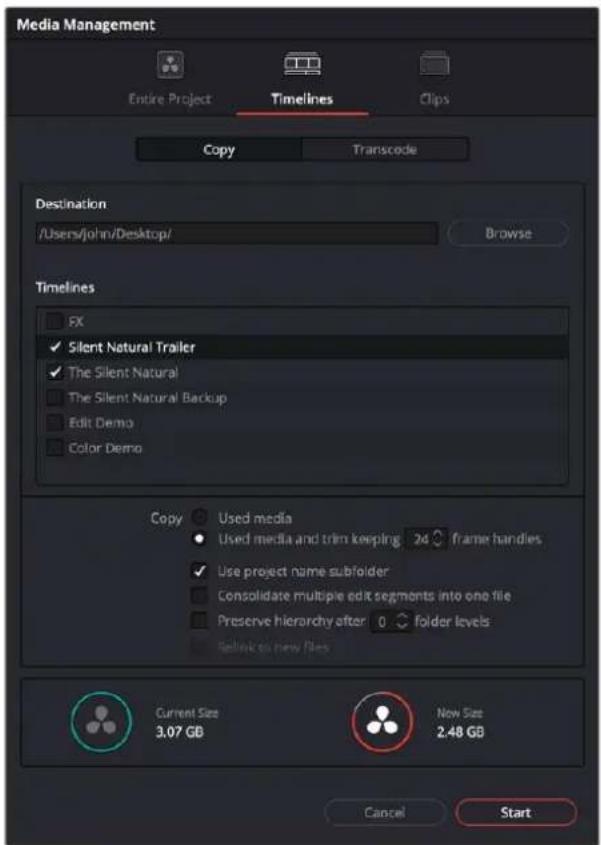
Media Management options shown for copying trimmed media from a specific timeline
7 When you've finished choosing options, click Start. A progress bar appears showing you how long the operation will take.
The following workflow illustrates how you can use Media Management to cut down the amount of media you need to deal with when you're conforming a project imported from elsewhere, and you've been given far more media then you actually need, because you only need what's actually in the timeline you're importing.
To use Media Management to create a consolidated duplicate of media for a project you're conforming:
1 Connect the portable drive containing the media to be conformed to your workstation.
2 Import the AAF or XML project file you were given into the Edit page, and conform it to the media on the portable drive you connected in step 1. You're only doing this to identify what clips you need to media manage, not because you'll be working off that volume.
3 Choose File > Media Management. The Media Management window appears.
4 Choose Timelines at the top of the window, and then open the Timeline selection section and turn on the checkbox of the timeline you want to consolidate the media for.
5 Click the Browse button and choose the volume you want to write the consolidated media to.
6 Choose the following options for consolidating the media. For this operation, you'll want to enable:
- Click the Browse button, and choose the accelerated storage volume you're using for all media you're using with DaVinci Resolve.
- Choose the "Timelines" Media Management scope, if it's not selected already, to manage all media from the selected timeline.
- Choose "Copy" to make a duplicate of the media from the portable storage volume to your accelerated storage.
- Choose "Copy and trim used media keeping 12 frame handles" if you're comfortable with 12 frame handles.
- Turn on "Consolidate multiple edit segments into one media file" if you don't mind having larger media files that preserve the relationship of what clips come from which single media files. This can make grading simpler later on.
- Turn on "Relink to new files" to automatically relink the timeline you've selected to the new media that's being generated.
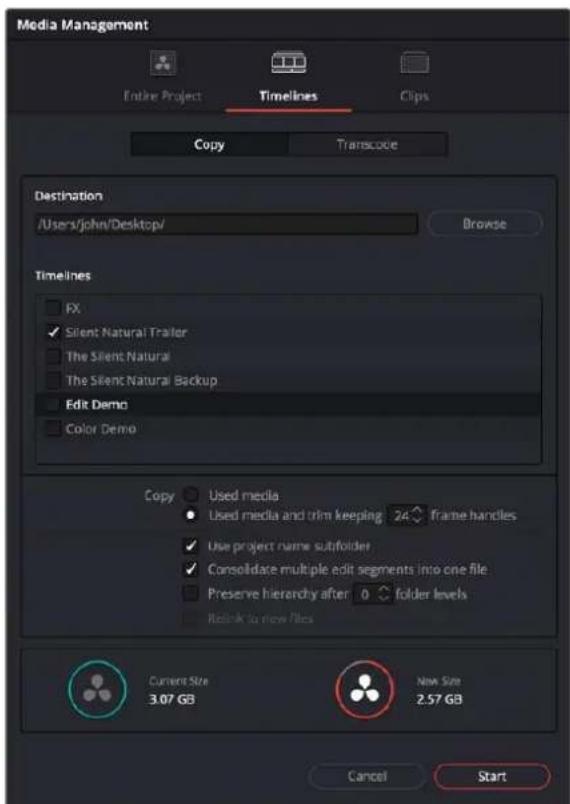
The Consolidate dialog lets you choose how and where to copy the trimmed media.
7 When you're done choosing these settings, click Start. A progress bar appears showing you how long the operation will take.
A subset of media used by that timeline is copied to the specified directory, and a DaVinci Resolve Timeline (.drt) is automatically generated that is relinked to the timeline and clips in the Media Pool. You are now ready to continue working on the project.
Continuing Media Management Jobs on Error
DaVinci Resolve has a more user-friendly behavior when dealing with errors during media management operations. In previous versions, DaVinci Resolve would stop and wait for user input immediately upon encountering an error, meaning that if an error happened while you were out at lunch, nothing would happen until you came back. Now, DaVinci Resolve will skip error-flagged files and continue to perform any remaining media management to all the other clips.
Options in the Media Management Window
The different Media Management operations offer different options.
- Entire Project Copy/Transcode all media: (Not available for Timelines) Choosing this option copies the full amount of source media for every single clip in the project. If you add more media later, and then use the Copy function again, DaVinci Resolve will only copy the additional files needed to reflect the current Media Pool.
- Destination: Click the Browse button to choose a destination to which to copy the managed media. To create a new directory, right-click a Volume icon in the File Browser list, choose New Folder, type a name into the resulting dialog, and click OK.
- Timeline selections: If you've selected the Timelines mode of media management, you can open the Timeline Selection controls and turn on the checkbox by each timeline with media you want to include.
– Copy/Transcode All media: Copies all media available to that operation. - Copy/Transcode Used media: Only copies media files for clips that are used in a timeline, and copies them in their entirety.
- Copy/Transcode Used media and trim keeping x frame handles: Only copies media files that are used in a timeline, but eliminates unused heads and tails except for user-specified handles.
- Use project name subfolder: Automatically creates a subfolder named for the project under the destination directory that contains all the copied or transcoded media.
-
Consolidate multiple edit segments into one media file: This option only becomes available if you've selected "Copy and trim used media" If multiple clips in a timeline come from the same media file, then a single consolidated media file will be generated that contains all frames from all of these clips, along with whatever additional frames lie between them. Even though this option results in more media being copied or moved, it's extremely useful if you're consolidating media that you want to grade using the automatic grade linking of remote versions, as this preserves the original relationship between each Timeline clip and the source media file it's from.
-
Preserve folder hierarchy after x folder levels: Retains a user-specified depth of the original directory structure used by a clip's corresponding source media file, recreating it when rendering new files for output. The number you select determines how many levels of subdirectories DaVinci Resolve will automatically create within the currently specified "Render job to" directory to match the path used by the source files. Defaults to 0, which creates no matching subdirectories. The number of path levels is defined relative to the head of each media file path.
- Relink to new files: (Appears for the Copy operation only) Relinks the selected clips and/or timelines to the new media you've created by copying, wherever you've copied it to.
Options for Transcode Only
The following options appear only when Transcode is the selected Media Management operation.
- Settings: Exposes the default controls for the Media Management operation.
- Video: Exposes the video codec controls for rendering to all available video formats.
– Audio: Exposes the audio codec controls for rendering to all available audio formats.
File Naming When You Consolidate Media
When you're media managing clip-based formats like QuickTime or MXF, if the "Trim Used Media" option is on, and the "Consolidate Multiple Edit Segments Into One Media File" checkbox is off, then timelines that use multiple clips derived from the same media file will generate multiple trimmed media files. To prevent these files from overwriting one another, additional characters are appended to each trimmed media file coming from the same source; which characters are used depends on the video format.
- For DPX files: _0, _1
- For R3D files: _S000.RDC, _S001.RDC
- For QuickTime files: _S000.mov, _S001.mov
PART 6
Editing Effects and Transitions
natural_image
Colorful abstract logo with three colored droplets inside a circular gradient border (no text or symbols)Chapter 46
Editing, Adding, and Copying Effects and Filters
This chapter covers how to browse for and apply effects to clips in the Timeline, how to copy them from clip to clip, how to remove them, and how to edit them in the Inspector once they've been added. For more information about the specific Resolve FX that are available, see Part 12, "Resolve FX."
Contents
Using the Effects Library 782
The Toolbox 782
Open FX 783
Audio FX 783
Effects Library Favorites 783
Converting Fusion Compositions to Edit Effects 784
Seeing Effects in the Timeline 784
Using the Inspector 784
Inspector Effects Controls 785
Adding Filters to Video Clips 786
Render in Place 789
Adjusting Multiple Clips at the Same Time 790
Adjustment Clips 791
Paste Attributes 792
Keyframe Options for Pasting Keyframed Attributes 792
Option to Ripple the Timeline for Pasting Speed Effects 792
Remove Attributes 793
Using the Effects Library
All effects that you can add to your edit, including filters, transitions, titles, and generators, are found in the Effects panel. The Effects panel shows a hierarchical list of all of the different transitions, title effects, generators, and filters that are available, sorted by category.
To preview a video effect before placing it on a clip, ensure that "Hover Scrub Preview" is checked in the Effects option menu, then simply hover your pointer over any thumbnail in the Effects tab and move it across the thumbnail. The effect will preview in the Viewer using its default parameters, and scrub through the clip that is selected in the Timeline. If no clip is selected then it will use the clip currently under the playhead.
To activate a specific video effect on a clip, simply drag the thumbnail of the selected effect to a clip on the Timeline. You can also double click the thumbnail, or drag an effect directly into the Inspector to apply the effect to the selected clip. To adjust the effect's parameters, open the Effects tab in the Inspector.
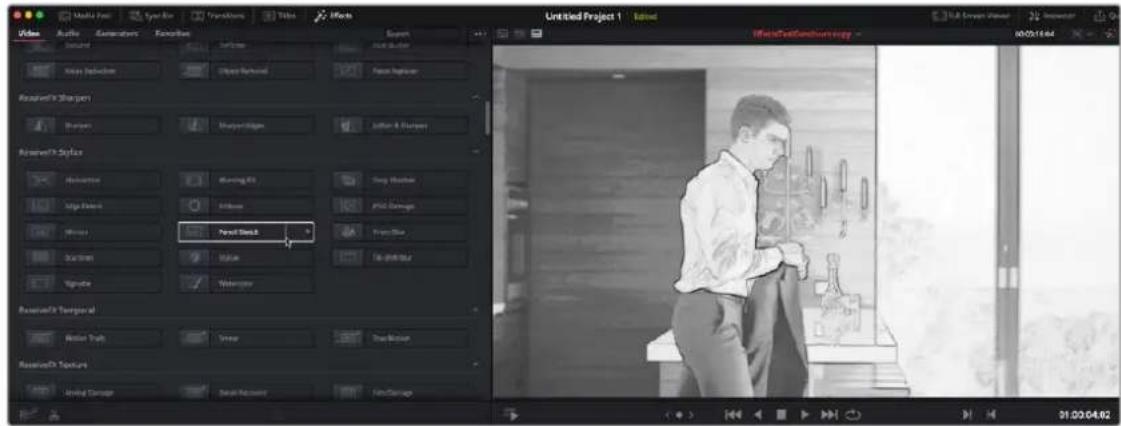
Scrubbing over an Effect Thumbnail previews that effect in the Viewer.
The Toolbox
All of the video and audio transitions, titles, and generators that ship along with DaVinci Resolve:
- Toolbox: Exposes all transitions, titles, generators, and effects at once.
- Video Transitions: Contains all of the built-in transitions that are available from DaVinci, organized by category. At the bottom of the list, a User category shows presets that you've saved. You can drag any video transition to any edit point in the Timeline that has overlapping clip handles to add it to your edit; you have the option to drag the transition so that it ends on, is centered on, or starts on the edit point. For more information, see Chapter 47, "Using Transitions."
– Audio Transitions: Contains audio transitions for creating crossfades.
- Titles: Titles can be edited into the Timeline like any other clip. Once edited into the Timeline, you can edit the title text and position directly in the Timeline Viewer, or you can access its controls in the Inspector for further customization.
- Generators: Generators can also be edited into the Timeline like any other clip. Selecting a generator and opening the Inspector lets you access its controls for further customization. You can also choose a standard duration for generators to appear within the Editing panel of the User Preferences.
- Effects: Effects are essentially placeholders in the Timeline that allow for more specialized compositing in Fusion, or that let you modify the underlying tracks with an adjustment clip.
Open FX
DaVinci Resolve supports the use of third-party Open FX filters, transitions, and generators in the Edit page. Once you install these effects on your workstation, they appear in this section of the Effects Library, organized by type and group depending on the metadata within each effect.
- Open FX: Exposes all Resolve FX and third-party Open FX installed on your workstation at once.
- Filters: Contains the Resolve FX filters that ship with DaVinci Resolve, as well as any third-party OFX plug-ins you've installed on your workstation. Filters can be dragged onto video clips to apply an effect to that clip. Once applied, filters can be edited and customized by opening the Open FX panel of the Inspector.
- Generators: Contains any third-party OFX generators you have installed on your workstation. Can be edited into the Timeline just like the native generators that ship with DaVinci Resolve, but they also expose an Open FX panel next to the Transition panel in the Inspector, where you can customize settings that are unique to that transition.
- Transitions: Contains any third-party OFX transitions you have installed on your workstation. OFX transitions can be used similarly to any other transition, but they also expose an Open FX panel next to the Transition panel in the Inspector, where you can customize settings that are unique to that transition.
Audio FX
On all platforms, DaVinci Resolve supports a set of built-in Fairlight FX, a native audio plug-in format that makes various audio tools and effects available on macOS, Windows, and Linux. On macOS and Windows, DaVinci Resolve supports the use of third-party VST audio plug-ins, which includes most of the professional third-party tools and effects used in the audio postproduction industry. On macOS, DaVinci Resolve supports Audio Unit (AU) audio plug-ins. Once you install these effects on your workstation, they appear in this panel of the Effects Library. Audio plug-ins let you apply effects to audio clips or entire tracks' worth of audio, to add creative qualities such as echo or reverb, or to take care of mastering issues using noise reduction, compression, or EQ.
Effects Library Favorites
You can click on the far right of any transition, title, or generator flag that effect with a star as a favorite effect. When you do so, the favored effects appear in a separate Favorites area at the bottom of the Effects Library Bin list.
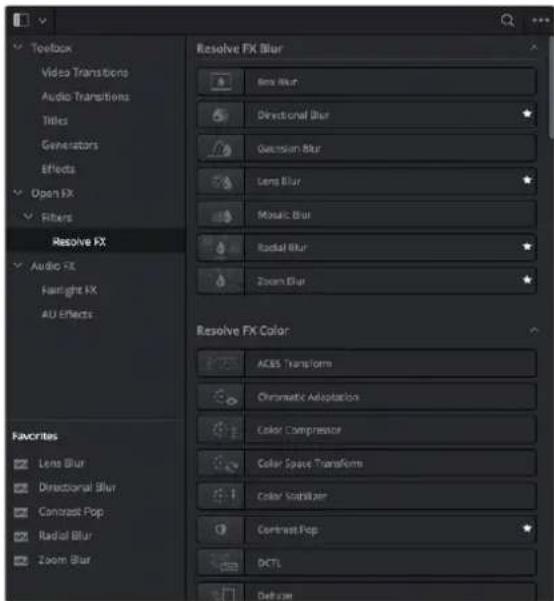
Stars indicate a flagged favorite effect; all favorites are currently filtered.
Converting Fusion Compositions to Edit Effects
If you have created a Fusion Composition that you would like to use across a number of projects, you can now save it to the Effects toolbox in the Edit page. This allows easy access to the effect from the Edit page, and simple application to video clips in the Timeline.
To convert a Fusion composition to an Edit effect:
1 Export the composition as a macro in Fusion, by right clicking on a node and selecting Create Macro from the contextual menu.
2 Save the macro file (.setting) to the following directory:
- MacOS: /Library/Application Support/Blackmagic Design/DaVinci Resolve/Fusion/Templates/Edit/Effects
- Windows: C:\ProgramData\Blackmagic Design\DaVinci Resolve\Fusion\Templates\Edit\Effects
– Linux: /opt/resolve/Fusion/Templates/Edit/Effects
The effect will now be available as a drag and drop effect in the "Fusion Effects" section of the toolbox in the Effects Library on the Edit page.
Seeing Effects in the Timeline
When you apply any kind of an effect to a clip in the Timeline, be it an adjustment in the Inspector, a speed effect, a plug-in you've applied, etc., clips with that effect appear a darker shade of whatever color they are to show you there's an effect applied. Removing all effects from a clip (for example, using the Remove Attributes command) returns that clip to its original color. This makes it easy to see, at a glance, which clips have effects, and which clips don't.
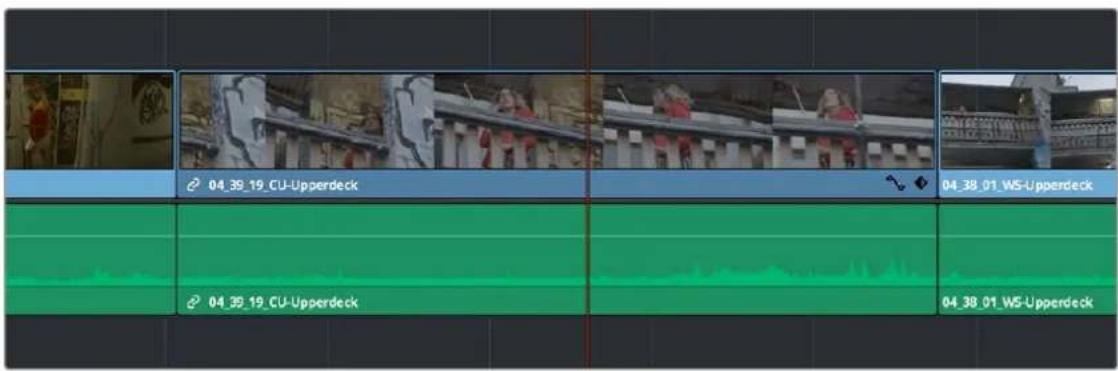
A clip with effects that's shaded darker between two other regularly-shaded clips without effects
Using the Inspector
Once you've added effects to a timeline, the Effects Inspector is where you can edit their parameters. The Inspector is the central area for editing all of the settings relating to filters, compositing, sizing, titling, transitions, generators, and effects of all kinds. Many of the instructions in this section require the use of the Inspector, which can be opened or closed by clicking the Inspector button at the far right of the Edit and Cut page toolbars, or by double-clicking a transition or generator in the Timeline.
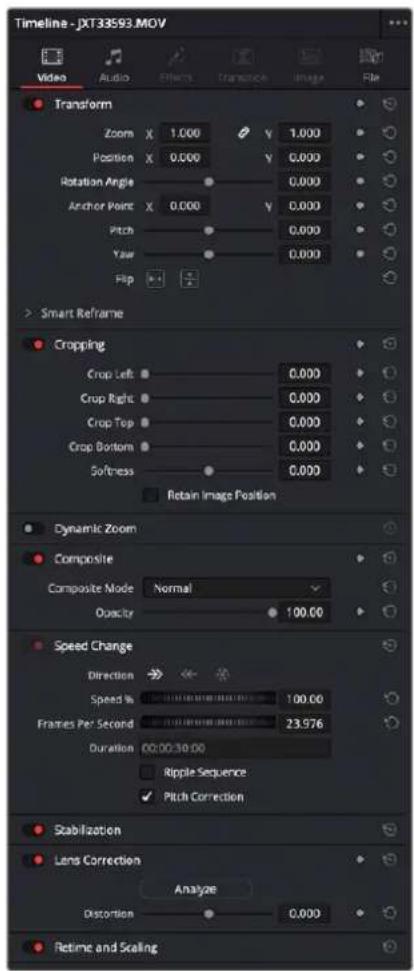
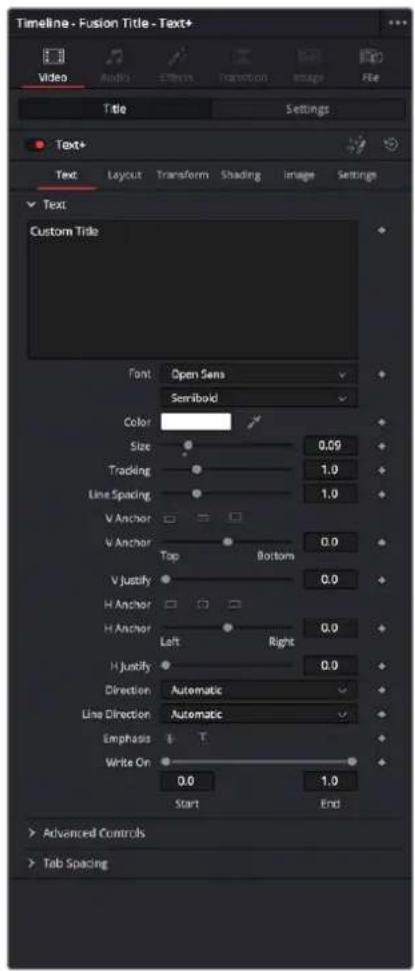
The Inspector displays different parameters depending on what you've selected in the Timeline; (left) parameters of a clip, (right) parameters of a title,
There are three ways that the parameters of clips in the Timeline can be displayed in the Inspector:
- If no clips are selected in the Timeline, then the clip in the highest auto-select-enabled track that intersects the playhead will have its parameters shown in the Inspector.
- The Inspector always shows the parameters of one or more selected items in the Timeline, which will override the clip in the highest track that intersects the playhead, if necessary. Changing the selection changes which parameters are displayed, and the parameters you edit in the Inspector only alter the currently selected clip. If multiple clips are selected, the Inspector displays "Multiple Clips" and allows you to adjust the parameters of all selected clips at the same time.
- Choosing Timeline > Selection Follows Playhead sets DaVinci Resolve to always select whichever clip intersects the playhead in the Timeline. The result is that the Inspector always displays the parameters of the clip at the playhead, with the added bonus that the clip at the playhead is also selected for other editorial functions. If there are multiple superimposed clips intersecting the playhead all at once, the topmost video clip with an enabled Auto Select control will be selected, thus exposing its parameters in the Inspector, and all other clips will be ignored.
Inspector Effects Controls
Different Effects clips in the Timeline expose different controls. Whichever panels are exposed, parameters within each panel are organized into groups, with a title bar providing the name of that group, along with other controls that let you control all parameters within that group at the same time.
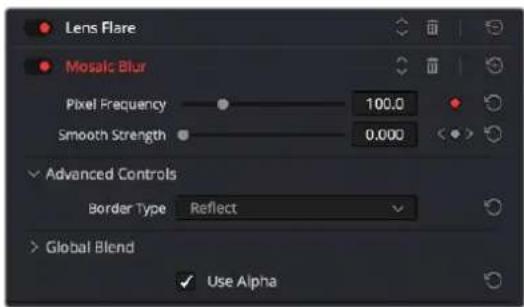
The Effects Inspector controls
These controls include:
- Enable button: A toggle control to the left of the parameter group's name lets you disable and re-enable every parameter within that group at once. Orange means that track's enabled. Gray is disabled.
- Parameter group title bar: Double-clicking the title bar of any group of parameters collapses or opens them. Even more exciting than that, Option-double-clicking the title bar of one parameter group collapses or opens all parameter groups at once.
- Keyframe and Next/Previous Keyframe buttons: This button lets you add or remove keyframes at the position of the playhead to or from every single parameter within the group. When the button is highlighted orange, a keyframe is at the current position of the playhead. When it's dark gray, there is no keyframe. Left and right arrow buttons let you jump the playhead from keyframe to keyframe for further adjustment.
- Reset button: Lets you reset all parameters within that group to their default settings.
Adding Filters to Video Clips
DaVinci Resolve supports both built-in Resolve FX and third-party OFX plug-ins to create various effects. These effects can be applied both to clips in the Edit page, and to nodes in the Color page. This section shows how to apply, edit, and remove these filters in the Edit page. For more information about using video effects in the Color page, see Chapter 148, "Using Open FX and Resolve FX."
For a detailed explanation of each of the Resolve FX plug-ins that accompany DaVinci Resolve, see Part 12, "Resolve FX."
Methods of applying video filters in the Edit page:
- To apply a video filter to a clip:
- Drag any filter from the Effects Library onto the clip in the Timeline you want to apply it to.
- Double Click the filter in the Effects Library to apply it to the selected clip.
- Drag the Filter from the Effects Library to the Inspector to apply it to the selected clip.
- Drag the Filter from the Effects Library to the Viewer to apply it to the clip being viewed.
- To apply a video filter to multiple clips: Select all of the clips you want to apply a filter to in the Timeline, and then drag any filter from the Open FX category of the Effects Library onto any of the selected clips. This is undoable.
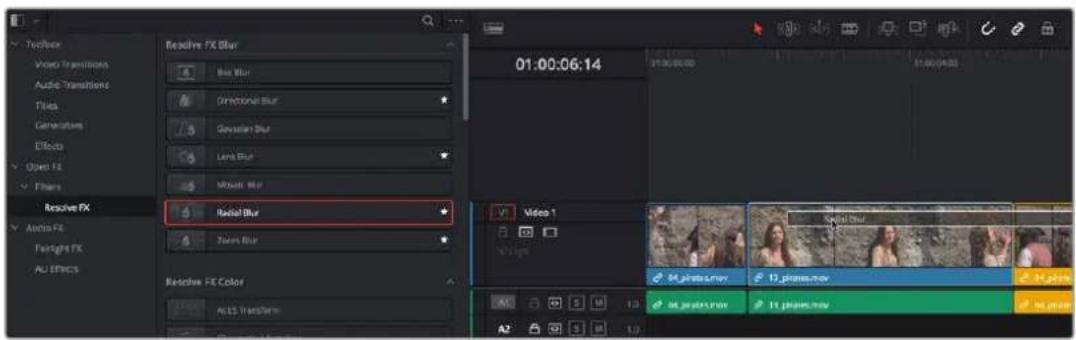
Applying a video filter to a single clip in the Timeline
To edit a clip's video filters:
- Select that clip and open the Inspector's Effects tab. The effects will be further sub-grouped by type: Fusion, Open FX, or Audio. If a clip does not have any effects assigned to it, this panel will be dimmed.
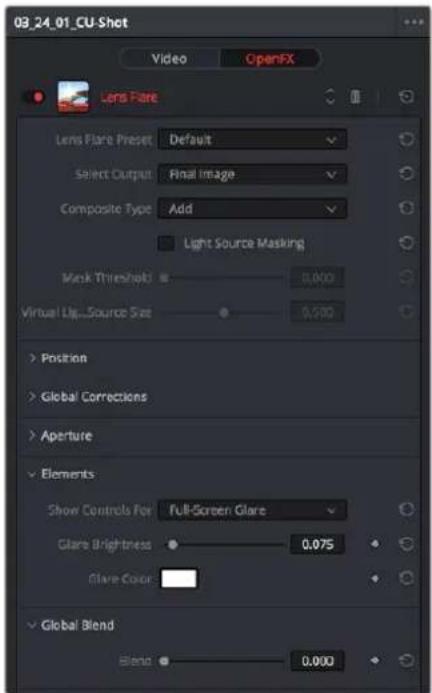
Resolve FX controls appear in the Effects panel of the Inspector.
Some video filters have custom onscreen controls that can be modified in the Viewer. These can be exposed in the Edit page using the OFX mode of the Viewer.
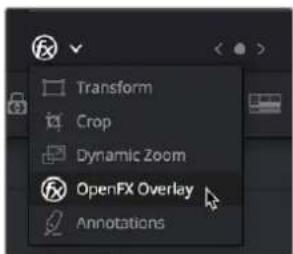
Turning on the onscreen controls for Resolve FX in the Edit page Timeline Viewer
Once enabled, the OFX onscreen controls appear in the Viewer.
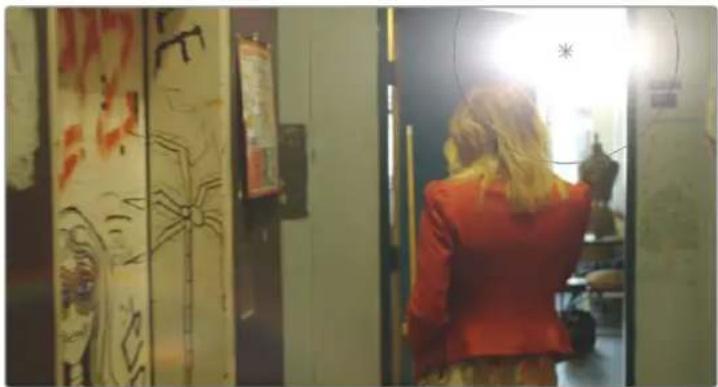
natural_image
Interior view of a hallway with a person in red blazer walking past a doorway; wall decorations and signage visible (no legible text)Modifying onscreen controls for Resolve FX in the Edit page Timeline Viewer
Many audio filters expose custom controls that appear in a floating window.
To expose a filter's custom controls:
- Open the parameters if they're not open already by double-clicking that filter's title bar. A button should appear at the top of the parameters for filters that have custom UI. Clicking this button opens a floating window with all the custom controls. When you're finished adjusting the custom controls, close the window.
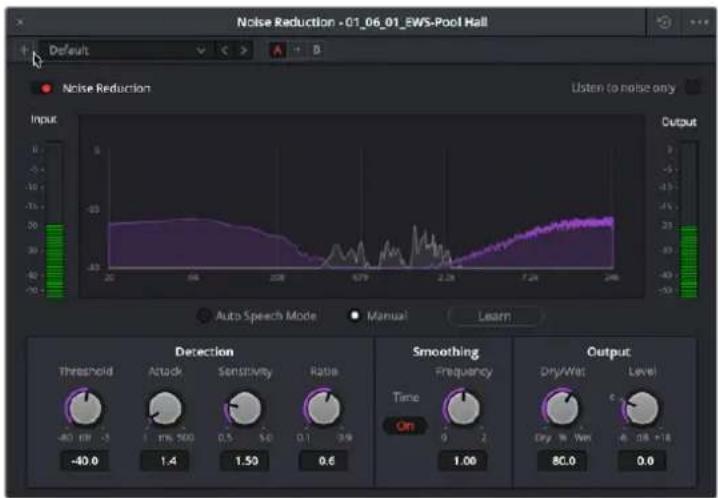
The Fairlight FX Noise Reduction custom UI interface
Methods of working with video filters in the Inspector:
- To rearrange the order of multiple video filters applied to a clip: Click the move up or move down buttons in any filter's title bar, to the left of each filter's Trash Can button.
- To disable or re-enable a filter: Click the toggle control at the far left of each filter's title bar. Orange means that track's enabled. Gray is disabled.
- To remove a filter: Click the Trash Can button.
- To reset a filter: Click the Reset button at the far right of the filter's title bar.
- To open or collapse a filter's parameters: Double-click the title bar.
- To open or collapse the parameters of all filters: Option-click the title bar.
Once applied to a clip, video filters can also be keyframed or automated just like any other Inspector setting, to create dynamic effects that change over time.
Render in Place
Render in Place allows you to render and bake in all effects that are applied to a single clip on the Edit page Timeline. This command, which only works in the Edit page, creates an entirely new media file that replaces the original clip on the Timeline. This new file is created in the same directory as the original source file and is added to the Media Pool automatically.
You can use Render in Place to improve the playback performance of a computationally intensive clip, or use it to create a new high-quality master media with effects that have been finalized baked in. For example, perhaps you have created a clip with a complicated speed ramp, and you want to pass it to another editor or vfx artist in a round-trip rendering scenario, but you are worried about how other programs may interpret the speed effects. In this scenario you could render the clip in place at master quality, and then render and deliver the program.
Render in Place is not a one way operation. Afterwards, you have the option to "Decompose to Original" to bring back the original clip with the original effects, if you need to make a change because the clip was not really as finalized as you were hoping.
To Render in Place:
1 Select one or more clips on the Edit Page timeline. Selecting multiple clips results in each clip being individually rendered in place, but as a batch operation.
2 Right-click the selection, and choose "Render in Place" from the contextual menu.
3 Choose the appropriate Render Clip Options, and then click the "Render" button.
- Start Timecode: Sets the starting timecode value for the clip.
- Format: Selects the media file format.
-
Codec: Selects the video codec.
-
Type: Specifies the compression parameters of the selected codec.
- Include Handles: Gives you the option to specify the number of frames before and after the clip In/Out points to be rendered.
- Include Video Effects: Turn on this checkbox to bake in all effects that have been applied to the clip, such as sizing, Open FX or Resolve FX, and speed effects. Turning this checkbox off renders the clip with speed effects baked in, but no other effects applied.
- Include Fusion Composition: Turn on this checkbox to bake in any compositions attached to the clip.
- Include Color Grading Effects: Turn on this checkbox to bake in any color grading attached to the clip from the Color page.
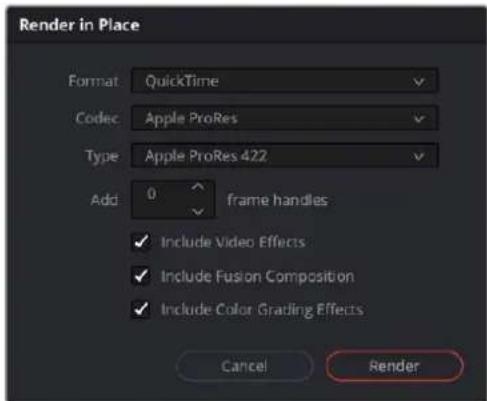
The Render in Place options
4 Use the File dialog that appears to choose where you want to save the resulting media. Choose a location and click Open.
A progress bar appears to show you how long this will take. When finished, your new media is saved in the designated location, added to the Media Pool, and will replace each corresponding source clip on the Timeline.
If you've used Render in Place and end up having buyer's remorse, or a late-breaking change comes back to you later, you can easily decompose to the original clip with its editable effects to make the change.
To Decompose to Original:
1 Select one or more clips that have already been Rendered in Place, on the Edit Page timeline.
2 Right-click the selection, and choose "Decompose to Original" from the contextual menu.
The original clip, along with all of its editable effects, will be returned to the Timeline. The new media created in the Render in Place process will not be deleted from the source folder, nor will it be removed from the Media Pool. It is effectively a new clip.
Adjusting Multiple Clips at the Same Time
There's an easy way to make adjustments to the Inspector parameters of multiple clips at the same time, without needing to use Paste Attributes (described later in this chapter). All you need to do is simultaneously select every clip you want to alter, and then modify the parameter in the Inspector that you want to change. As a result, every selected clip will be adjusted by the same amount. This works for compositing effects, transforms, text parameters, filters, and audio settings, just about anything that can be simultaneously exposed in the Inspector for multiple selected clips.
When you select multiple clips, the Inspector will display "Multiple Clips" as the title. If each of the selected clips have different values in the parameter you're adjusting, that parameter will have two dashes in the value field. There are two ways you can make adjustments to multiple clips:
- If you want to make a relative adjustment to all selected clips while keeping their original offsets from one another, then drag the virtual slider in the parameter field which will display a + or - before however many units your adjustment is.
- However, if you want to set all selected clips to the same value, you can double-click in the number field, type the value, and press Return.
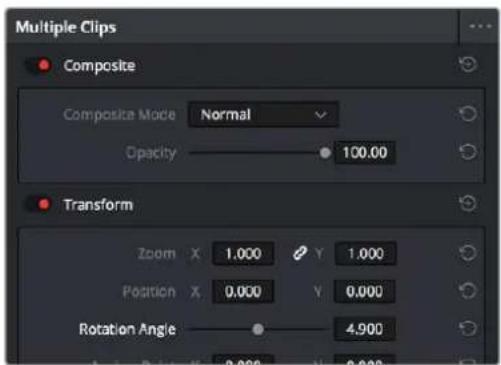
Making a relative adjustment of plus 4.9 in the Rotation Angle of all selected clips
Adjustment Clips
You can also apply all sorts of effects to multiple clips in the Timeline using Adjustment clips, available from the Effects bin of the Toolbox in the Effects Library. When an Adjustment Clip is superimposed above one or more clips in the Timeline, any filters or other effects that are applied to the Adjustment clip are also applied to all clips underneath it.
Adjustment clips can be used to apply the following types of effects:
- Resolve FX and Open FX plug-ins
– Inspector parameters including Composite, Transform, Cropping, and Dynamic Zoom
– Fusion page effects
– Color page grading and sizing
Adjustment clips are a fast and easily revised way to apply one or more effects and grades to a range of clips. Adjustment clips that are difficult to playback in real time can be rendered to cache, just like any normal video clip. Adjustment Clips can be named using the Inspector. To store an Adjustment clip, simply drag it from the Timeline to the Media Pool. You can then manage the Adjustment clip just like any other media type.
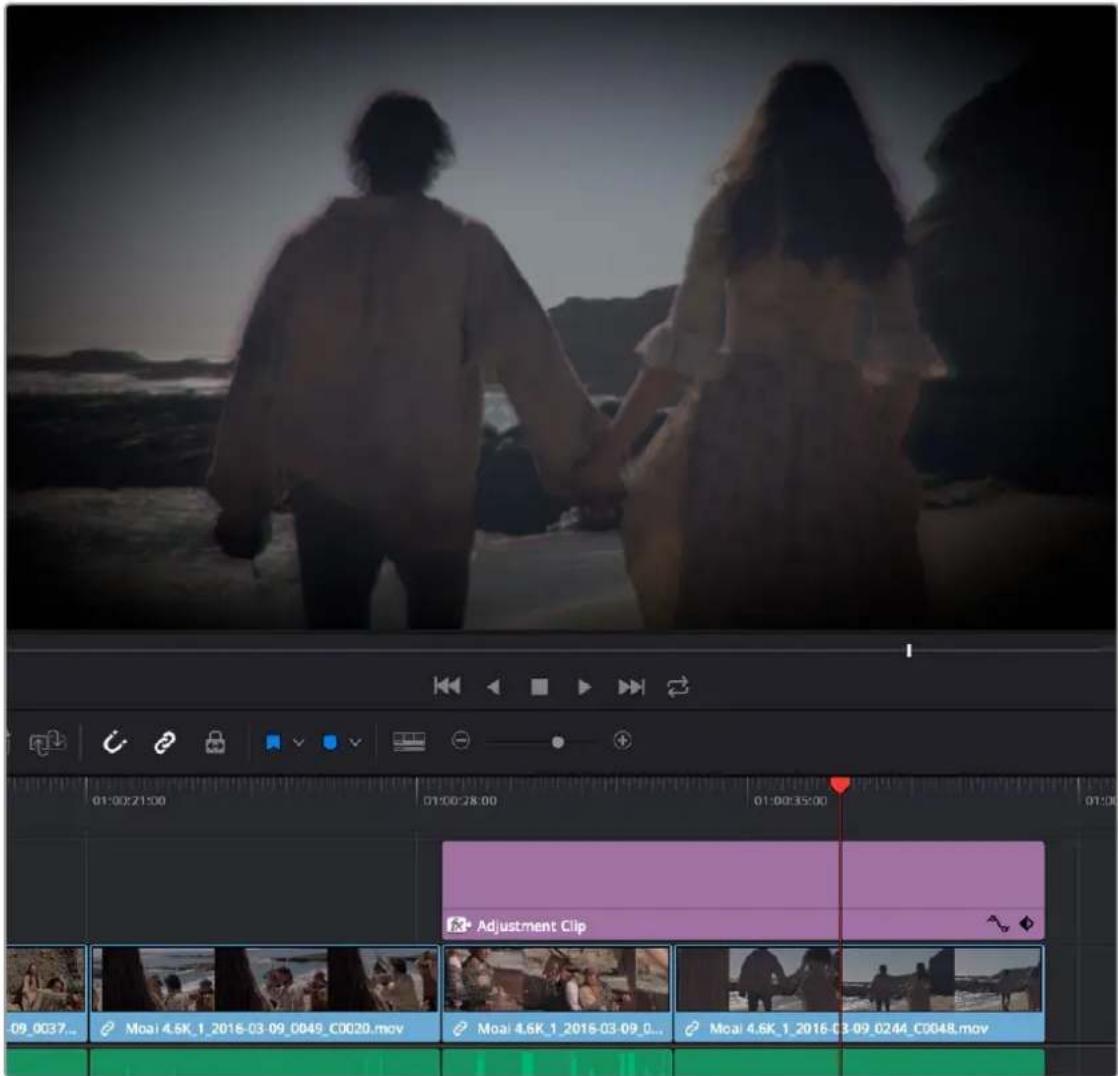
An Adjustment clip applying a Prism Blur Resolve FX's vignette to two other clips
Paste Attributes
You can copy and paste video and audio attributes, as well as color corrections, from one clip to multiple clips using the Paste Attributes command. This is a fast way to apply video and audio adjustments and effects from one clip to many others in the Timeline.
To copy attributes:
1 Select a clip with attributes you want to apply to other clips, and press Command-C.
2 Select one or more other clips to paste to.
3 Choose Edit > Paste Attributes (Option-V), or right-click one of the selected clips and choose Paste Attributes from the contextual menu.
4 When the Paste Attributes window appears, click the checkboxes of each of the attributes you want to paste, and click Apply when you're done.
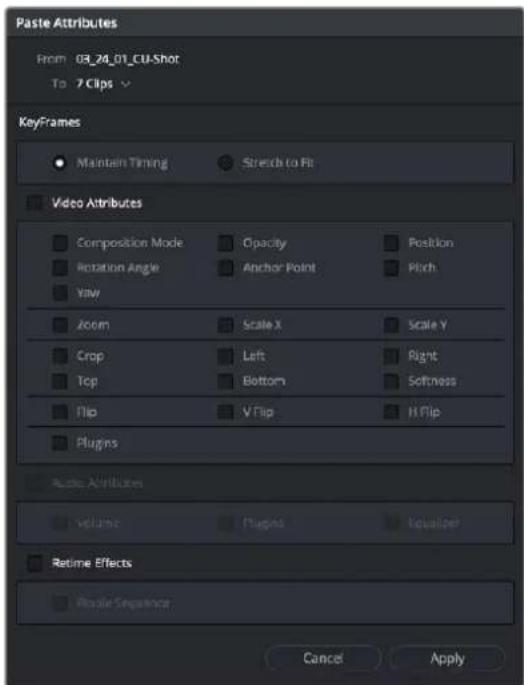
The Paste Attributes window
The Paste Attributes window shows you the clip you're copying from and the clip(s) you're pasting to at the top, and provides checkboxes you can use to select which attributes you'd like to paste.
Keyframe Options for Pasting Keyframed Attributes
A pop-up menu below lets you choose how you'd like to apply any keyframes that are part of the attributes being pasted; the options are Maintain Timing or Stretch to Fit.
Option to Ripple the Timeline for Pasting Speed Effects
When using Paste Attributes to copy speed effects from one clip to another, the Ripple Sequence checkbox lets you choose whether or not the pasted speed effect will ripple the Timeline.
Remove Attributes
You can also eliminate specific attributes from one or more clips, using a window that's the opposite of the Paste Attributes window.
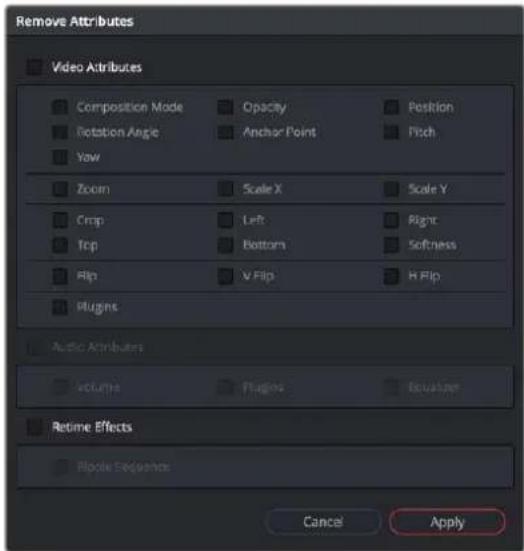
The Remove Attributes window
To remove attributes:
1 Select one or more other clips that have effects you want to remove.
2 Choose Edit > Remove Attributes, or right-click one of the selected clips and choose Remove Attributes from the contextual menu.
3 When the Remove Attributes window appears, the checkboxes of effects that can be removed are enabled, so turn on attributes you want to remove.
4 (Optional) If one of the attributes you're removing is a retime effect, use the Ripple Sequence checkbox to choose whether or not the Timeline will ripple as a result.
5 Click Apply when you're done.
Chapter 47
Using Transitions
Transitions are the connective tissue binding together moments requiring a more significant way of changing from one image to the next than a simple cut. This chapter shows the many ways you can add and edit transitions in your program.
Contents
Working With Transitions 795
Previewing Transitions 795
Adding and Editing Transitions 796
Adding Transitions When There's Not Enough Handles 797
Adding Transitions By Dragging to Create Overlap 798
Transition Properties in the Inspector 799
Using Transition Curves in the Edit Page 800
Favorite Transitions 801
Changing the Standard Transition 801
Creating Transition Presets 802
Changing Transitions to Fusion Compositions 802
Video Transitions 803
Dissolve 803
Iris 804
Motion 805
Shape 806
Wipe 807
User Transitions 808
Fusion Transitions 808
Resolve FX Transitions 808
Burn Away Transition 808
DCTL Transition 810
Audio Transitions 810
OpenFX Transitions 810
Working With Transitions
Transitions provide another way of bridging the change from one clip to another, and are often used to indicate a change in time or location when changing scenes. DaVinci Resolve supports a variety of transitions ranging from various forms of the traditional cross dissolve to different types of wipes, allowing for great flexibility when finishing creative edits. In addition, DaVinci Resolve supports third-party OpenFX transitions that you install on your system. Transitions are applied at edit points, and appear as editable objects in the Timeline.
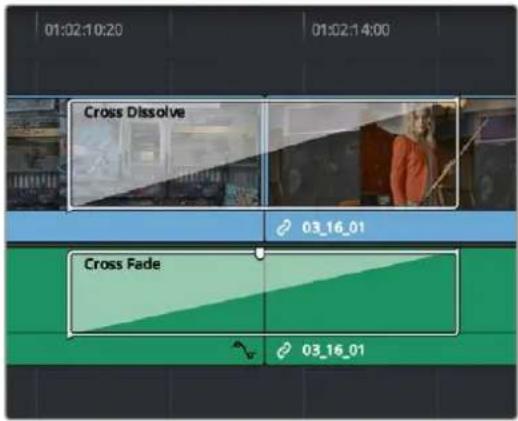
Video and audio transitions in the Timeline
Previewing Transitions
To preview a transition before you place it into the Timeline, ensure that "Hover Scrub Preview" is checked in the Transitions option menu, then simply hover your pointer over any transition in the Transitions tab (Cut page) or Effects Library Toolbox (Edit page) and move it across the thumbnail. The transition will preview in the Viewer using the two clips nearest the smart indicator in the Cut page, or the two clips nearest the the playhead in the Edit page.
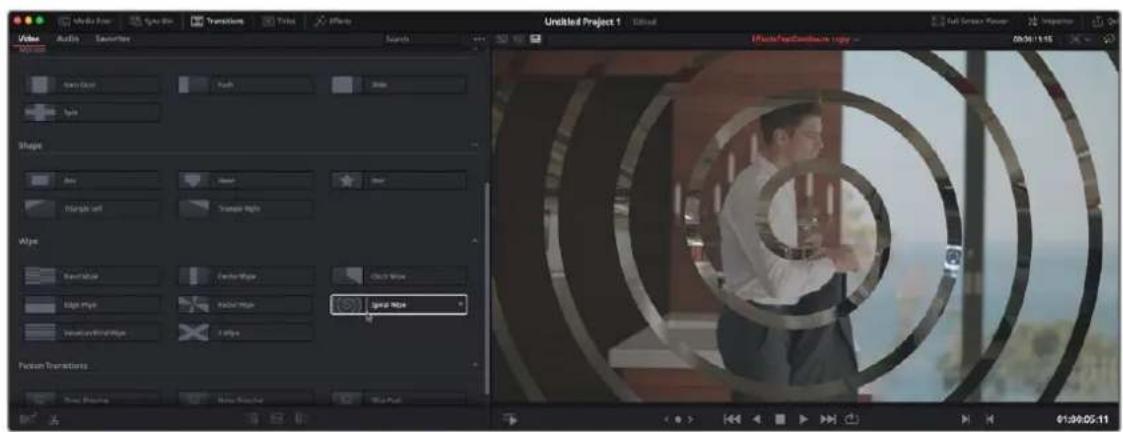
Scrubbing over a Transition Thumbnail previews the Transition in the Viewer.
Adding and Editing Transitions
The following procedures describe how to work with add and edit transitions in the Timeline using both the mouse and keyboard shortcuts.
Methods of adding transitions using the mouse:
- To add a transition by dragging it from the Effects Library: Drag a video transition from the Effects Library to an edit point in the Timeline so that it's centered at, ends at, or starts at the edit point. If there is no overlap between the heads and tails of the two clips, you may not be able to add a transition where you want.
- To add a transition by double-clicking its icon in the Effects Library: Double click a transition's icon in the Effects Library to apply that transition to the edit point indicated by the smart indicator (Cut page), or at the end of the clip that is currently under the playhead (Edit page).
- To add a transition by clicking the Transition Alignment icons: In the Cut page, at the bottom of the Transitions Library, are three Transition Alignment icons. Clicking any of these icons applies the selected transition to the edit point indicated by the smart indicator, with the specified alignment.
- To add a transition using the Effects Library contextual menu: Select one or more edit points (one per track), then right-click a video transition in the Effects Library and choose Add to Selected Edit Points. That transition will be added to every selected edit point at once.
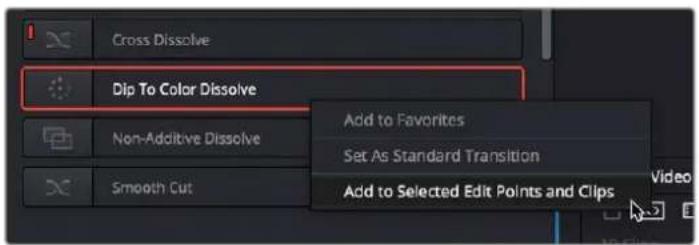
The Transition contextual menu in the Effects Library
- To add a transition using the Edit Point contextual menu: In the Edit page, right-click any edit point between clips with overlapping handles, and choose one of the four durations available for the standard transition; the available choices are quarter-second, half-second, one second, and two seconds, expressed in frames at whatever the current frame rate of the Timeline is.
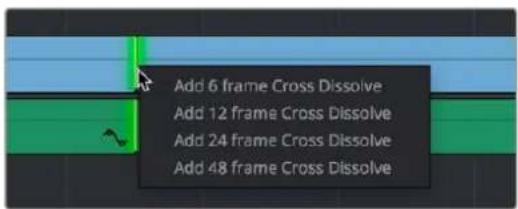
The Transition contextual menu for an edit in the Timeline
Methods of adding transitions using keyboard shortcuts:
- To add a video+audio transition using the keyboard: Select one or more edit points using the Selection tool, or move the playhead near an edit you want to select and press V to select it, then press Command-T (Timeline > Add Transition) to add the standard transition. Transitions are added using the "Standard transition duration" as specified in the Editing panel of the User Preferences, which defaults to one second, or however long the overlapping handles of the selected edit point allow.
- To add a video or audio-only transition using the keyboard: Select one or more edit points, and press Option-T (Timeline > Add Video Only Transition) to add only a video transition, or Shift-T (Timeline > Add Audio Only Transition) to add only an audio transition. Transitions are added using the "Standard transition duration" as specified in the Editing panel of the User Preferences, which defaults to one second, or however long the overlapping handles of the selected edit point allow.
- To add a transition with specific alignment using the keyboard: Select an edit, press the U key to choose the start, center, or end of the edit, then press Command-T. The standard transition will be added with its alignment based on the edit selection; selecting the start of the edit places a transition that ends on the edit; selecting the end of the edit places a transition that starts on the edit, and choosing the center of the edit places a transition that is similarly centered.
Methods of moving and duplicating transitions:
- To move a transition from one edit to another: Select a transition, then drag it to another edit point.
- To copy a transition from one edit to another: Select a transition, then option-drag it to another edit point.
- Copying a transition from one edit to multiple edit points:
- Right-Click on the transition you want to duplicate, and select copy (or hit Command-C).
- Hold down the Command-Key, and select all the edit points in the Timeline you want to copy the transition to, so they're highlighted green. Release the Command-Key.
- Right-Click on any one of the green highlighted edit points, and select Paste (or hit Command-V) to duplicate the selected transition to all selected edit points.
Methods of altering transitions in the Timeline:
- To change a transition's type: Drag a different transition from the Effects Library onto the current one in the Timeline.
-
To change a transition's duration: Drag the beginning or end of the transition in the Timeline to be longer or shorter symmetrically about the current edit. Alternately, you can do one of the following:
-
Right-click any transition and select Change Transition Duration, or select the transition and press Command-D, then alter the duration in the dialog that appears, and click Change.
- Double-click any transition to open it in the Inspector, and set a new duration in seconds or frames.
- Click and drag a transition's edge on the Timeline to alter its duration. Holding down the Command key while you drag allows you to adjust the duration of just one side of the transition.
- To change a transition's alignment: Right-click a transition in the Timeline and choose a new method of alignment from the contextual menu. Alternately, you can double-click any transition to open it in the Inspector, and choose a new option from the Alignment drop-down.
- To remove a transition: Select a transition in the Timeline and press the Delete key. Or, right-click a transition in the Timeline and choose Delete from the contextual menu.
Adding Transitions When There's Not Enough Handles
If the outgoing and incoming overlapping handles at a given edit point don't have enough frames to fit the standard transition duration, and you try to add a transition by selecting one or more edit points and pressing Command-T, or by right-clicking an edit point and using the transition options in the resulting contextual menu, then you'll be presented with a dialog that gives you three choices:
- Trim Clips: You can automatically trim the incoming and outgoing sides of each selected edit point to create the overlap needed for adding the standard transition.
- Skip Clips: Don't add transitions to the selected edit points that lack the appropriate overlap.
- Cancel: Cancel the operation entirely.
Adding Transitions By Dragging to Create Overlap
There's another method you can use to create transitions that makes it easy to create transitions while you're doing drag and drop editing by simply overlapping the beginning and end of two clips where you want a transition to appear. Just press and hold the Option and Shift keyboard modifiers together while you drag a clip or edit to create overlap with another clip. You can do this in three ways:
- Select the In or Out point of a clip, then press and hold Option-Shift down and drag the selected edit point to overlap a neighboring clip where you want to create a transition.
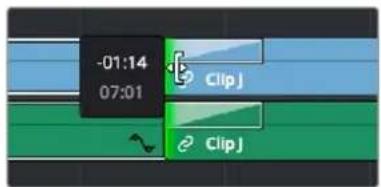
Creating a transition by Option-Shift dragging an edit point to create an overlap between two clips
- Select a clip, then press and hold Option-Shift down and drag the entire clip to overlap a neighboring clip where you want to create a transition.
Creating a transition by Option-Shift dragging a whole clip to create an overlap between it and another clip
- Hold the Option-Shift keys down while you drag a clip from the Media Pool to overlap a clip that's already in the Timeline.
Creating a transition by Option-Shift dragging a clip from the Media Pool to overlap a clip in the Timeline
Transition Properties in the Inspector
Double-clicking a transition in the Timeline opens that Transition tab in the Inspector. Each transition has the following properties you can edit.
- Transition Type: The currently selected transition. You can change to any other installed transition by selecting one in the drop-down menu.
– Duration: The duration of the transition, shown in both seconds and frames. - Alignment: A drop-down that lets you choose the transition's position relative to the edit point it's applied to. Your choices are "Start on Edit," "Center on Edit," and "End on Edit."
Additional properties that are specific to each type of transition appear in another group below.
Since the Cross Dissolve transition is the most common transition used, its properties will be shown as an example.
- Style: The different Dissolve transitions (Cross Dissolve, Additive Dissolve, and so on) expose this drop-down that lets you choose different ways for the outgoing clip to blend into the incoming clip during the dissolve. There are six different options to choose from:
- Video: A simple linear dissolve; the outgoing clip fades out as the incoming clip fades in.
- Film: A logarithmic dissolve, simulating film dissolves as created by an optical printer.
- Additive: The outgoing and incoming clips are cross faded using the Additive composite mode. As a result, the transition seems to brighten at the halfway point.
- Subtractive: The outgoing and incoming clips are cross-faded using the Subtractive composite mode. As a result, the transition seems to darken at the halfway point.
- Highlights: The outgoing and incoming clips are cross faded using the Lighten composite mode. The lightest parts of each clip are emphasized during this transition.
-
Shadows: The outgoing and incoming clips are cross-faded using the Darken composite mode. The darkest parts of each clip are emphasized during this transition.
-
Start Ratio: Defines the percentage of completion for the transition at its first frame, from 0 to 100 percent. Setting the Start Ratio to anything but 0 results in the transition immediately appearing at a more fully cross-dissolved state from the very first frame.
- End Ratio: Defines the percentage of completion for the transition at its last frame. Setting the End Ratio to anything but 0 results in the transition never fully dissolving to the incoming shot at its last frame.
- Reverse: Reverses the transition. This parameter is disabled for Dissolve transitions.
- Ease: A drop-down that lets you apply nonlinear acceleration to the beginning, ending, or overall duration of a transition. The result is to add inertia to the transition from the outgoing clip to the incoming clip, and providing a gentler change from each clip into and out of the transition.
– None: The outgoing clip fades away to the next shot in a linear fashion.
- In: The outgoing clip lingers as the beginning of the transition dissolves more slowly than the end.
- Out: The outgoing clip fades away more quickly, as the beginning of the transition dissolves more quickly than the end.
- In & Out: Both the outgoing and incoming clips make slower transitions at the beginning and end of the dissolve, but the very center of the transition is faster as a result.
- Custom: Lets you modify the parameters of the fade manually using the Transition Curves below.
- Transition Curve: Allows you to manually set keyframes controlling the progress of the transition along its duration.
Other types of transitions display properties that are specific to that transition's particular effect. These are described at length in the following section.
Using Transition Curves in the Edit Page
You can create even more highly customized transition effects using the transition curve associated with each transition you add to the Timeline. Clicking the button at the bottom-right corner of a transition in the Timeline reveals a Keyframe Editor, and clicking the Curve Editor button in the Keyframe Editor track for the transition reveals the Transition Curve Editor.
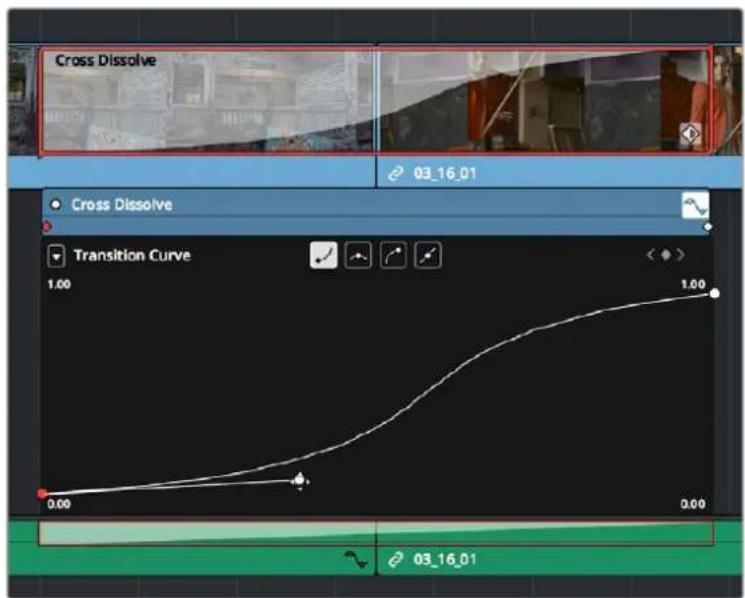
A transition curve opened underneath a Cross Dissolve transition
The Transition Curve Editor works identically to the Curve Editor you can access from any clip, except instead of using the curve to animate image transforms, you use the curve to retime the transition. Combined with eased or bezier keyframes at the beginning and end of a transition curve, you can create transitions that slowly start and quickly end, quickly start and slowly end, or any variation your project requires. A graphical representation of the curve appears as a shaded area on the transition itself in the Timeline.
Methods of editing a transition curve:
- To change the interpolation of a control point: Click the control point you want to edit, and then click one of the four Bezier interpolation buttons in the Curve Editor title bar. Adding Bezier handles to a transition control point lets you create an eased transition. If you chose an option from the Ease drop-down of the Transition Properties in the Inspector, one or both of the transition curve keyframes may already be set to Bezier.
- To adjust a Bezier handle: Drag the Bezier handle in any direction to alter the curve. Whenever you customize Bezier handles on a transition curve, the Ease drop-down of the Transition Properties in the Inspector changes to Custom.
- To add a new control point to a curve: Option-click anywhere on a curve to add a new control point.
-
To drag a control point on a curve: Click any control point and drag left or right to retime it, and up or down to change the value of the control point. Once you begin to move the pointer, the control point is constrained in that direction.
-
To delete a control point from a curve: Right-click a keyframe and choose Delete Selected from the contextual menu. You cannot delete the last two control points of a transition curve.
- To turn a curve on and off: Clicking the white dot at the upper left-hand corner of the Keyframe Editor lets you turn a transition curve's effect on and off, without disabling the transition. When you turn the keyframes off, the transition defaults to a linear transition with no easing.
Favorite Transitions
While DaVinci Resolve provides a wide variety of transitions by default, most editors typically only use a subset of these in their day-to-day work. Also, it's typical to save customized versions of a particular transition in order to reuse that specific set of transition settings over and over again.
To set a transition or other effect as a favorite in the Effects Library:
- Move the pointer over any transition, and click the star button when it appears to set that transition as a favorite. Click any transition's star to "un-favorite" it. Favorites are displayed in the Favorites area of the Effects Library bin list in the Edit page, or the Favorites tab in the Transitions panel in the Cut page.
Changing the Standard Transition
Different projects may require different transitions be used as the standard transition. DaVinci Resolve gives you several tools for dealing with this.
To change the standard transition:
- Right-click any transition or effect and choose "Set as Standard Transition." The standard transition appears with an orange indicator to the left of its name in the Effects Library.
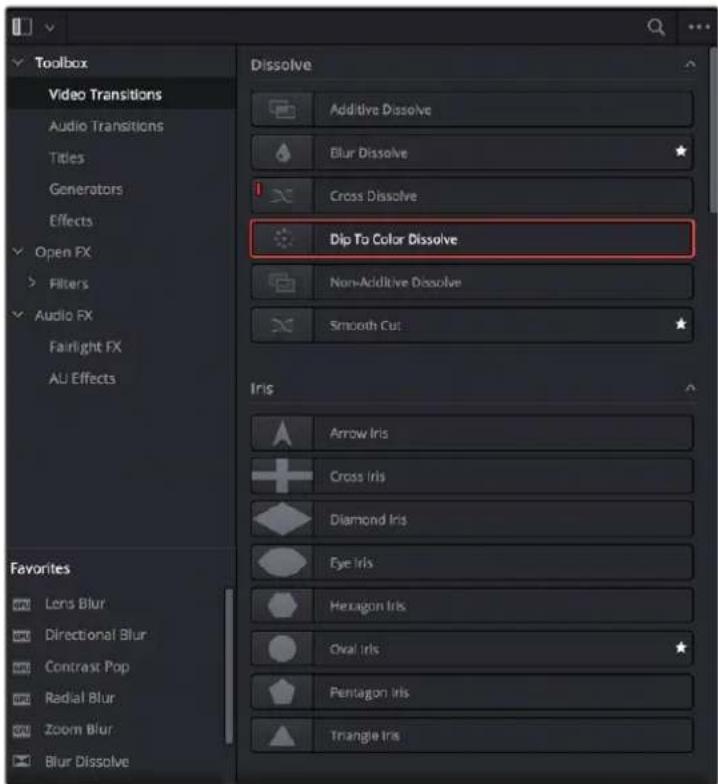
The Effects Library open in the Edit page, showing starred transitions that have been favored, and the standard transition with an orange indicator to the left of its name
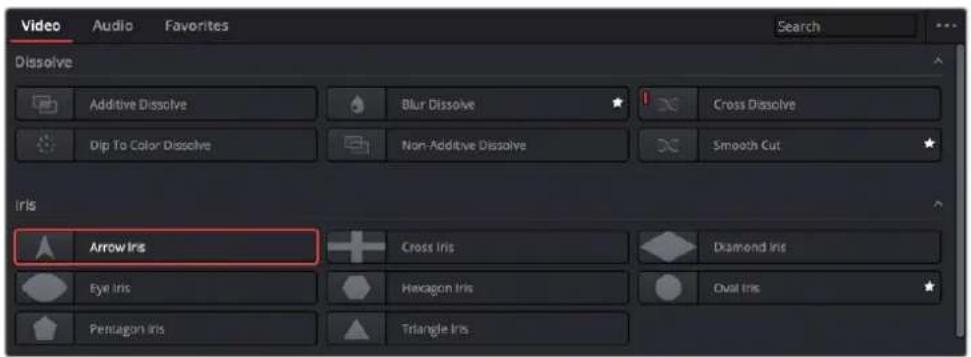
The Transitions tab open in the Cut page, showing starred transitions that have been favored, and the standard transition with an orange indicator to the left of its name
To change the standard transition duration:
- Open the Editing panel of the User Preferences, and change the "Standard transition duration" setting (there are controls for setting the duration in either Seconds or Frames). Click Save when you're finished.
Creating Transition Presets
If you find yourself using a particular transition that's customized in a particular way over and over in your work, you can create a Preset of that transition for easy recall. Once saved, Presets can be favored or set to be the Standard Transition to make them more easily available.
To save a transition preset for future use:
1 Add a transition to the Timeline, then double-click it to open it in the Inspector to adjust its settings to be the way you need it to be.
2 (Optional) if necessary, open the transition's Curve Editor and set the type of curve you want the transition to have. A customized transition curve will be saved inside of that transition's preset.
3 Right-click on the transition you want to save, and choose Create Transition Preset.
4 Type a name for the transition preset in the dialog that appears, and click OK. That transition is saved to the User section at the bottom of the Toolbox Video Transitions area, where you can apply it just like any other transition.
To remove a transition preset:
- Right-click any preset and choose Delete Transition Preset.
Changing Transitions to Fusion Compositions
If you need to create a more complex transition than you can get from the Inspector, it is now possible to change any transition to a Fusion Composition on the Edit page Timeline.
To convert a Resolve transition to a Fusion composition:
1 Add a transition between two clips on your Timeline.
2 Right-click on the transition and select "Convert to Fusion Cross Dissolve."
3 Right-click on the transition again and select "Open in Fusion Page."
A new Fusion composition opens with the base Cross Dissolve nodes and tools already set. You now can use all of the powerful tools in the Fusion page to customize your transition.
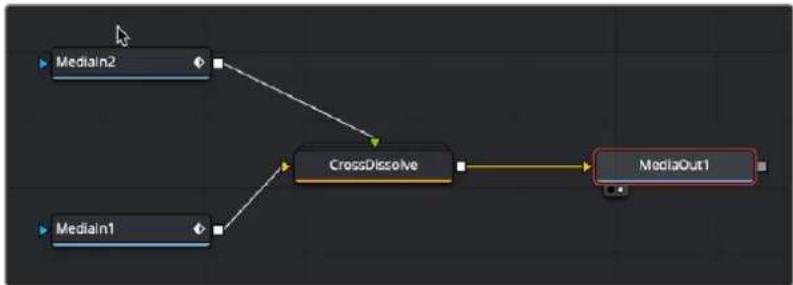
flowchart
graph TD
    A["MediaIn2"] --> C["CrossDissolve"]
    B["MediaIn1"] --> C
    C --> D["MediaOut1"]
The node tree you start with after converting a transition to a Fusion cross dissolve
Video Transitions
The following are transitions that are available within DaVinci Resolve by default, along with the parameters that are available for each of them from the Inspector:
Dissolve
A dissolve in the visual language of film generally denotes a passage of time or place. It indicates to your audience that one scene has ended and another is beginning.
- Additive Dissolve: Style lets you choose what type of cross dissolve you want; choices include: Video, Film, Additive, Subtractive, Highlights, Shadows. Start Ratio lets you adjust how far along the transition is when it first begins. End Ratio lets you adjust how far the transition gets at the very end. The Reverse checkbox reverses the direction of the transition.
- Blur Dissolve: Horizontal/Vertical Strength sets how much blur is performed in the X and Y dimensions during the course of this transition. Start Ratio lets you adjust how far along the transition is when it first begins. End Ratio lets you adjust how far the transition gets at the very end. The Reverse checkbox reverses the direction of the transition.
- Cross Dissolve: Style lets you choose what type of cross dissolve you want; choices include: Video, Film, Additive, Subtractive, Highlights, Shadows. Start Ratio lets you adjust how far along the transition is when it first begins. End Ratio lets you adjust how far the transition gets at the very end. The Reverse checkbox reverses the direction of the transition.
- Dip to Color Dissolve: Start Ratio lets you adjust how far along the transition is when it first begins. End Ratio lets you adjust how far the transition gets at the very end. The Reverse checkbox reverses the direction of the transition. Color lets you choose what color the dissolve dips to at the midpoint.
- Non-Additive Dissolve: Start Ratio lets you adjust how far along the transition is when it first begins. End Ratio lets you adjust how far the transition gets at the very end. The Reverse checkbox reverses the direction of the transition.
- Smooth Cut: A special-purpose transition designed to make short jump cuts in the middle of a clip less noticeable. This is done by using optical flow processing to match the same features on either side of a cut in order to automatically morph a subject from one position to another over the duration of the transition.
A Mode drop-down menu provides two options: Faster and Better. The Better option is default, with excellent quality and the capability of preserving the motion of subjects for the duration of the transition. The Faster option is the original Smooth Cut method, which morphs between stills of the outgoing and incoming frames. In most practical circumstances, the Better mode will give you a superior result, but certain cuts or effects may be better addressed with the Faster option.
The Smooth Cut effect works best on clips such as sit-down interviews and close-up head shots with a minimum of background and subject motion, and where the subject's position on either side of the cut is not significantly different. A good example of when Smooth Cut is effective is when you're cutting pauses, partial repeats, filler sounds such as "um" or "you know," or other speech disfluencies out of an interview clip to tighten the dialog, and you want to eliminate the little "jump" that occurs at the cut without having to cut away to B-roll. Applying a short two or four frame Smooth Cut transition to the edit can make this kind of edit invisible, as long as the speaker doesn't change position significantly during the cut. The more motion there is in the background of the shot, and the more the speaker changes position, the harder it will be to get a useful result using Smooth Cut. Although the default duration for any transition is one second, you'll find that Smooth Cut transitions work much better when they're short; 2- to 6-frame Smooth Cut transitions often work best to disguise jump cuts.
Iris
Irises are directional transitions that are commonly used to both call attention to a specific part of the frame and indicate to the audience that one scene has ended and another begun. Irises were widely used in the silent film era instead of the more technically complicated dissolve.
- Arrow Iris: Color sets the color of the border, if there is one. Border sets the width of the border, in pixels, with 0 creating no border. Aspect Ratio allows you to change the proportions of the shape. Offset to center lets you alter the center point at which this transition is positioned. Rotation changes the angle of the iris. Feather is a checkbox that, when turned on, uses the Border slider to determine the amount of feathering at the edge of the transition. Box mode lets you choose one of the following presets:
- Arrow Up
- Arrow Down
- Arrow Left
-
Arrow Right
-
Cross Iris: Color sets the color of the border, if there is one. Border sets the width of the border, in pixels, with 0 creating no border. Offset to Center identifies the center point at which the cross wipe begins, as X and Y coordinates on the screen. Feather is a checkbox that, when turned on, uses the Border slider to determine the amount of feathering at the edge of the transition.
- Diamond Iris: Color sets the color of the border, if there is one. Border sets the width of the border, in pixels, with 0 creating no border. Offset to Center identifies the center point at which the diamond-shaped wipe begins, as X and Y coordinates on the screen. Feather is a checkbox that, when turned on, uses the Border slider to determine the amount of feathering at the edge of the transition.
- Eye Iris: Color sets the color of the border, if there is one. Border sets the width of the border, in pixels, with 0 creating no border. Feather is a checkbox that, when turned on, uses the Border slider to determine the amount of feathering at the edge of the transition.
- Hexagon Iris: Color sets the color of the border, if there is one. Border sets the width of the border, in pixels, with 0 creating no border. Aspect Ratio allows you to change the proportions of the shape. Offset to center lets you alter the center point at which this transition is positioned. Rotation changes the angle of the iris. Feather is a checkbox that, when turned on, uses the Border slider to determine the amount of feathering at the edge of the transition. Preset lets you choose one of the following presets:
- Hexagon
- Hexagon Vertical
- Oval Iris: Color sets the color of the border, if there is one. Border sets the width of the border, in pixels, with 0 creating no border. Offset to Center identifies the center point at which this circular wipe begins, as X and Y coordinates on the screen. Oval Ratio changes the aspect ratio of the oval, making it either wider or taller. Feather is a checkbox that, when turned on, uses the Border slider to determine the amount of feathering at the edge of the transition.
- Pentagon Iris: Color sets the color of the border, if there is one. Border sets the width of the border, in pixels, with 0 creating no border. Aspect Ratio allows you to change the proportions of the shape. Offset to center lets you alter the center point at which this transition is positioned. Rotation changes the angle of the iris. Feather is a checkbox that, when turned on, uses the Border slider to determine the amount of feathering at the edge of the transition. Preset mode lets you choose one of the following presets:
- Pentagon Up
- Pentagon Down
- Square Iris: Color sets the color of the border, if there is one. Border sets the width of the border, in pixels, with 0 creating no border. Aspect Ratio allows you to change the proportions of the shape. Offset to center lets you alter the center point at which this transition is positioned. Rotation changes the angle of the iris. Feather is a checkbox that, when turned on, uses the Border slider to determine the amount of feathering at the edge of the transition. Preset mode lets you choose one of the following presets:
- Square Flat
- Square Point
- Triangle Iris: Color sets the color of the border, if there is one. Border sets the width of the border, in pixels, with 0 creating no border. Aspect Ratio allows you to change the proportions of the shape. Offset to center lets you alter the center point at which this transition is positioned. Rotation changes the angle of the iris. Feather is a checkbox that, when turned on, uses the Border slider to determine the amount of feathering at the edge of the transition. Preset mode lets you choose one of the following presets:
- Triangle Up
- Triangle Bottom
- Triangle Left
- Triangle Right
Motion
Motion transitions use the movement of the frames to impart simulated physical momentum to the transition between the outgoing and incoming clips.
- Barn Door: Color sets the color of the border, if there is one. Border sets the width of the border, in pixels, with 0 creating no border. Feather is a checkbox that, when turned on, uses the Border slider to determine the amount of feathering at the edge of the transition. Motion Blur smooths out the motion of the transition between frames. Preset mode lets you choose one of the following presets:
– Barn Door Vertical
– Barn Door Horizontal
- Push: Color sets the color of the border, if there is one. Border sets the width of the border, in pixels, with 0 creating no border. Feather is a checkbox that, when turned on, uses the Border slider to determine the amount of feathering at the edge of the transition. Motion Blur smooths out the motion of the transition between frames. Preset mode lets you choose one of the following presets:
- Push Left
- Push Right
- Push Up
- Push Down
- Slide: Direction determines whether or not the incoming clip slides in or the outgoing clip slides out. Color sets the color of the border, if there is one. Border sets the width of the border, in pixels, with 0 creating no border. Feather is a checkbox that, when turned on, uses the Border slider to determine the amount of feathering at the edge of the transition. Motion Blur smooths out the motion of the transition between frames. Preset mode lets you choose one of the following presets:
- Slide, Left-Right
- Slide, Right-Left
- Slide, Bottom-Up
- Slide, Top-Down
- Slide, Top-Left
- Slide, Bottom-Right
- Split: Color sets the color of the border, if there is one. Border sets the width of the border, in pixels, with 0 creating no border. Feather is a checkbox that, when turned on, uses the Border slider to determine the amount of feathering at the edge of the transition. Motion Blur smooths out the motion of the transition between frames.
Shape
Shape transitions use geometrical outlines to define the transition from the outgoing to the incoming clip. Ideally the shape used will be motivated by the content of the scenes involved.
- Box: Color sets the color of the border, if there is one. Border sets the width of the border, in pixels, with 0 creating no border. Feather is a checkbox that, when turned on, uses the Border slider to determine the amount of feathering at the edge of the transition. Box mode lets you choose one of the following options:
- Upper Left
- Upper Right
- Lower Left
– Lower Right - Left Center
- Top Center
- Right Center
- Bottom Center
- Heart: Color sets the color of the border, if there is one. Border sets the width of the border, in pixels, with 0 creating no border. Aspect Ratio allows you to change the proportions of the shape. Offset to Center identifies the center point at which this circular wipe begins, as X and Y coordinates on the screen. Rotation changes the angle of the shape. Feather is a checkbox that, when turned on, uses the Border slider to determine the amount of feathering at the edge of the transition.
- Star: Color sets the color of the border, if there is one. Border sets the width of the border, in pixels, with 0 creating no border. Aspect Ratio allows you to change the proportions of the shape. Offset to Center identifies the center point at which this circular wipe begins, as X and Y coordinates on the screen. Rotation changes the angle of the shape. Feather is a checkbox that, when turned on, uses the Border slider to determine the amount of feathering at the edge of the transition. Preset lets you choose one of the following options:
- 4-Point Star
- 5-Point Star
-
6-Point Star
-
Triangle Left: Color sets the color of the border, if there is one. Border sets the width of the border, in pixels, with 0 creating no border. Feather is a checkbox that, when turned on, uses the Border slider to determine the amount of feathering at the edge of the transition.
- Triangle Right: Color sets the color of the border, if there is one. Border sets the width of the border, in pixels, with 0 creating no border. Feather is a checkbox that, when turned on, uses the Border slider to determine the amount of feathering at the edge of the transition.
Wipe
Wipe transitions are intended to preserve the continuity of motion between two clips. They do this by matching the overall movement and direction of the subjects across the outgoing and incoming clips.
- Band Wipe: Color sets the color of the border, if there is one. Border sets the width of the border, in pixels, with 0 creating no border. Feather is a checkbox that, when turned on, uses the Border slider to determine the amount of feathering at the edge of the transition. Preset lets you choose one of the following presets:
- Horizontal
- Vertical
– Horizontal Bilinear -
Vertical Bilinear
-
Center Wipe: Color sets the color of the border, if there is one. Border sets the width of the border, in pixels, with 0 creating no border. Angle specifies the angle of the wipe as it emerges from the middle of the screen. Feather is a checkbox that, when turned on, uses the Border slider to determine the amount of feathering at the edge of the transition.
- Clock Wipe: Color sets the color of the border, if there is one. Border sets the width of the border, in pixels, with 0 creating no border. Angle specifies the starting angle of the wipe as it spins around the center of the screen. The Clockwise checkbox sets the direction of the clock wipe. Feather is a checkbox that, when turned on, uses the Border slider to determine the amount of feathering at the edge of the transition.
- Edge Wipe: Color sets the color of the border, if there is one. Border sets the width of the border, in pixels, with 0 creating no border. Angle specifies the angle of the wipe as it moves across the screen. Feather is a checkbox that, when turned on, uses the Border slider to determine the amount of feathering at the edge of the transition.
- Radial Wipe: Color sets the color of the border, if there is one. Border sets the width of the border, in pixels, with 0 creating no border. Feather is a checkbox that, when turned on, uses the Border slider to determine the amount of feathering at the edge of the transition.
- Spiral Wipe: Color sets the color of the border, if there is one. Border sets the width of the border, in pixels, with 0 creating no border. Feather is a checkbox that, when turned on, uses the Border slider to determine the amount of feathering at the edge of the transition.
- Venetian Blind Wipe: Color sets the color of the border, if there is one. Border sets the width of the border, in pixels, with 0 creating no border. Repeat specifies how many "blinds" appear within the wipe effect. Angle specifies the angle of this multi-wipe effect. Feather is a checkbox that, when turned on, uses the Border slider to determine the amount of feathering at the edge of the transition.
- X Wipe: Color sets the color of the border, if there is one. Border sets the width of the border, in pixels, with 0 creating no border. Feather is a checkbox that, when turned on, uses the Border slider to determine the amount of feathering at the edge of the transition.
User Transitions
Any transition presets you've created are stored in the User category. These are the only transitions that can be deleted.
Fusion Transitions
The Fusion Transitions section of the Transitions panel contains Fusion effects that have been made into reusable transitions. Fusion Transitions work like any other transition. Once edited into the Timeline, they can be edited like any other transition, and when selected, they expose customizable parameters in the Inspector that let you tailor their effect to meet your needs.
However, Fusion Transitions are highly customizable. Simply right-click a Fusion Transition and choose Open in Fusion Page to expose all of the Fusion nodes that create that transition's effect, enabling you to rebuild it to do whatever you need. When you go back to the Edit page, that transition is automatically saved.
Furthermore, if you know how to create effects in Fusion, you can create your own Transitions by making Fusion Macros and saving them to the Effects Library, so they appear in the Fusion Transitions section of the Effects Library. For more information on how to do this, see Chapter 66, "Node Groups, Macros, and Fusion Templates."
Resolve FX Transitions
Resolve FX Transitions are stylized graphical transitions that are more computationally intensive than the standard wipes and dissolves.
Burn Away Transition
This transition replicates the visual of a film print burning up in the projector. Use this transition to achieve a classically retro effect, or to strike terror into the hearts of projectionists everywhere.

natural_image
Two individuals in traditional headwear standing near a wooden boat, with a large skull partially visible on the left (no text or symbols)Burn Away transition showing two pirates concerned about the state of their release print
The Burn Away effect has the following parameters:
Progression
This set of controls affects the type of movement the burn takes as it passes through the frame.
- Motion: Allows you to pick a type of burning effect. Each option reveals different parameters.
- Directional: The burn moves linearly from one edge of the frame to another. This setting replicates the film being torn away by the take-up reel as it burns. In this mode, the OFX overlay in the Viewer lets you choose the direction.
- Hotspots: The burn erupts from one or more central points. This setting replicates the film jamming in front of a projector bulb and melting away. In this mode, the OFX overlay in the Viewer lets you move the burn points directly in the Viewer.
- Path: Creates a curved path that the burn follows. This setting allows you to specify the burn direction precisely, to account for elements in the frame that you want to burn first. In this mode, the OFX overlay in the Viewer lets you add points to a spline with which to create any curved motion path you want the effect to use.
- Angle: (Directional Only) The angle that the burn moves along. You can also change this in the Viewer directly in Open FX Overlay mode.
- Number of Hotspots: (Hotspots Only) The number of points that the burn erupts from. The possible values are from 1 to 8.
- Randomize Hotspots: (Hotspots Only) Will pick a random distribution of the hotspots in the frame.
- Number of Points: (Path Only) The number of points on the onscreen curve control. The range is from 2 to 5. These points can be manipulated directly in the Viewer in Open FX Overlay mode.
Adjust Timing
This set of parameters allows you to control the start and end progression of the burn.
- Adjust Start: Adjusts how far along in the transition the effect starts. Values are from -1.000 to 1.000.
- Adjust End: Adjusts how far along in the transition the effect ends. Values are from 0.000 to 2.000.
Edge
These controls let you adjust the qualities of the edge of the film as it burns.
- Raggedness: How rough the edge of the burn is. Values are from 0.000 (perfectly flat) to 1.000 (extremely rough).
– Scale: The scale of the raggedness. Values are from 1.00 to 10.00.
Appearance
These controls adjust the look and color of the burn as it moves through the transition.
- Melt: Controls the amount of distortion in the image as it burns away. Values are from 0.000 to 1.000.
- Char: Controls the amount of darkened charring along the edge. Values are from 0.000 to 1.000.
– Char Color: Lets you select the color of the Char effect. -
Burn: Lets you set the thickness of the burn effect. Values are from 0.000 (no burn) to 1.000 (maximum thickness).
– Burn Hue: Lets you select the hue of the Burn effect.
– Burn Sat: Lets you select the intensity of the color of the Burn effect. -
Burn Brightness: Lets you set the brightness of the Burn effect. At lower values, the burning edge assumes a motley, irregular effect. Values are from 0.000 to 1.000.
- Glow Brightness: Lets you control the intensity of a glow effect emanating from the Burn effect. Values are from 0.000 to 2.000.
- Glow Spread: Lets you control the width of the glow effect. Values are from 0.000 to 2.000.
- Ash: Controls how much ash trails behind the burn as it moves through the frame. Values are from 0.000 to 1.000.
- Ash Color: The color of the Ash parameter.
DCTL Transition
DCTL (DaVinci Color Transform Language)-based transitions are now supported in DaVinci Resolve. See the DaVinci Resolve Developer Documentation in the help menu for more details.
Audio Transitions
A single audio transition handles all of your crossfade needs.
- Cross Fade +3/-3/0 dB: An audio-only transition that lets you fade from one audio clip to another. Three different crossfades let you choose the power of the actual transition from one level to the other.
OpenFX Transitions
If you've installed one or more sets of OpenFX plug-ins on your DaVinci Resolve workstation, any transitions within those sets will appear in the OpenFX panel of the Effects Library.
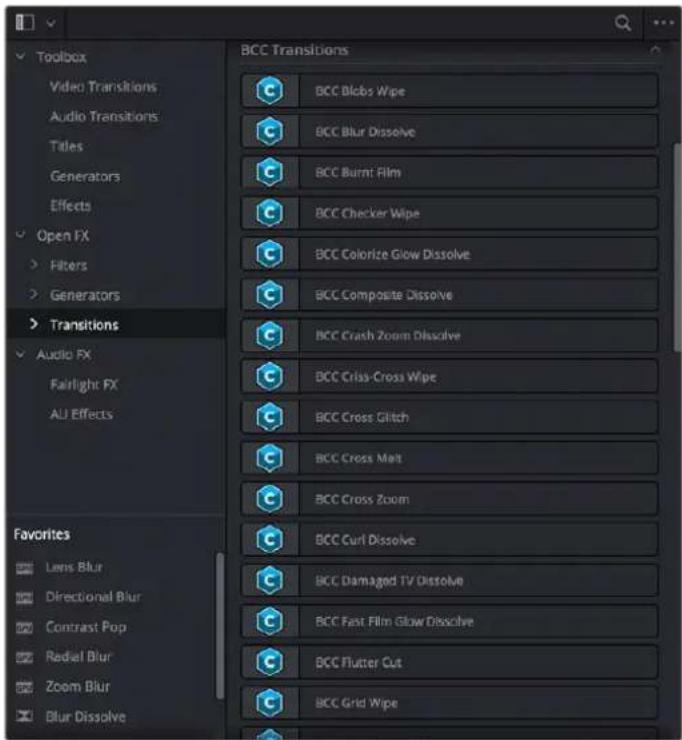
OpenFX transitions in the Effects Library
Chapter 48
Titles, Generators, and Stills
Using the Edit page, you can add titles, effects generators, and stills to your timelines. You can also save customized titles, generators, and stills back to the Media Pool for future use.
Contents
Adding Titles 812
Using Safe Area Overlays 813
Custom Action and Title Safe Areas 813
Types of Title Generators 813
DaVinci Resolve Title Generators 814
Editing Titles Within the Timeline Viewer 814
Title Generator Panels 815
Shared Title Generator Parameters 815
Title Generator Settings Parameters 817
The Text+ Title Generator 817
Fusion Titles and Fusion Templates 818
Saving Titles in the Media Pool for Future Use 819
Using Generators 820
ITU-R BT.2111-1 Color Bar Generators 820
Fusion Generators 821
Using Stills 822
Photoshop File Support 822
Adding Titles
There's a collection of titles and generators in the Toolbox that you can use to create leader when outputting to tape, add slates, create subtitles, and otherwise fulfill any textual needs your program has.
To select and audition titles before you place them into the Timeline, ensure that "Hover Scrub Preview" is checked in the Titles option menu, then simply hover your pointer over any thumbnail in the Titles tab. If the title is animated (i.e., Fusion titles), moving the pointer across the thumbnail will preview the animation. Once you've chosen your title, you can drag it from the Titles tab to your Timeline in the Edit page or in the Cut page to either the upper or lower Timelines, or use the editing selection modes at the bottom of the tab.
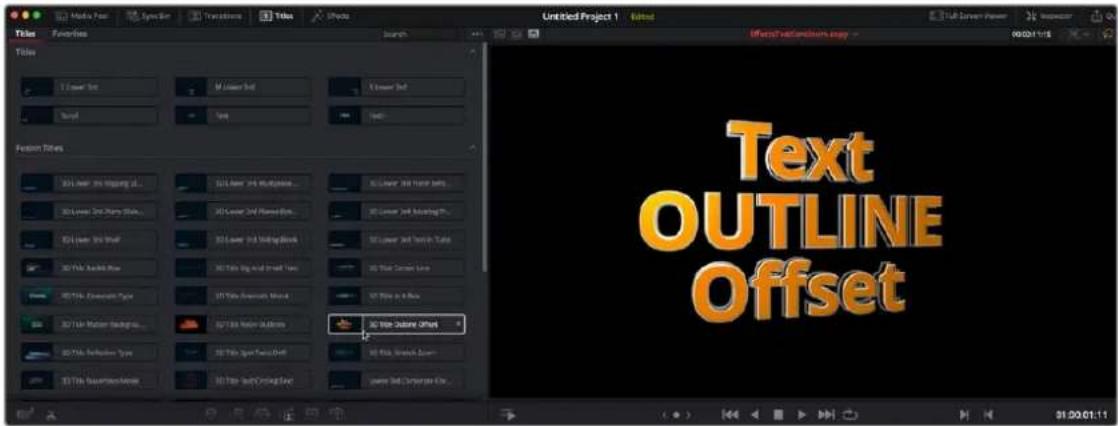
Scrubbing over a Title Thumbnail previews the title in the Viewer.
Titles and generators can be edited much like any other clip. Furthermore, when selected, both titles and generators expose the same Composite, Transform, and Cropping parameter groups as any other clip; these parameters can be used to composite titles and fly them around in order to create different text effects.
Methods of adding and editing generators and titles:
- To drag and drop a generator directly into the Timeline: If you simply drag and drop titles or generators into the Timeline, the default duration of the resulting clip is 5 seconds. This duration can be customized in the Edit panel of the User Preferences.
- To edit a generator using the edit overlays of the Timeline Viewer: Click the destination control of the clip you want to edit a generator into, then set Timeline In and Out points to define the duration of the resulting edit, and drag the generator you want to edit onto the edit overlay of the Timeline Viewer that corresponds to the type of edit you want to perform.
- To reposition the text of a title in the Timeline Viewer: Select the title generator you want to edit in the Timeline, then click the visible text in the Timeline Viewer so that its bounding box is selected; in this state you can reposition, scale, and rotate the text item. As you reposition text, it will snap to key regions of the frame such as the vertical and horizontal center of the Viewer; hold the Option key down to suspend snapping if you want to freely position the text.
- To edit the text of a title in the Timeline Viewer: Select the title generator you want to edit in the Timeline, then double-click the visible text in the Timeline Viewer to insert a text editing cursor. At this point, you can select, delete, or add any text you want by typing directly in the Timeline Viewer.
- To edit the parameters of a generator or title: Open the Inspector, and select the generator or title you want to edit to open it into the Inspector.
Using Safe Area Overlays
If you're working on a broadcast program and you want to adhere to guidelines for title safe and broadcast safe, you can choose to display overlays that indicate where these regions are in the Edit page.
To do so, choose View > Safe Area > On.
natural_image
Woman in red blazer playing pool cue with blue and red balls (no visible text or symbols)The available safe area overlays
If necessary, there are a number of ways you can customize this overlay by choosing one of the other options in the View > Safe Area submenu to toggle specific parts of the safe area overlay on and off. These options include:
- Extents: An outline showing the exact outer edge of the frame. Especially useful when the safe markers are set to an aspect ratio other than that currently used by the Viewer.
- Action: An outline showing the outer 90% action safe area of the frame.
- Title: An outline showing the outer 80% title safe area of the frame.
- Center: A crosshairs showing the center of the frame.
- Aspect: Enables use of the View > Select Aspect Ratio submenu to change the aspect ratio of the safe area markers. You can choose among the following aspect ratios: 1.33 (a.k.a. 4:3), 1.66, 1.77 (a.k.a. 16:9), 1.85, and 2.35.
Custom Action and Title Safe Areas
The Editing panel of the User Preferences has a new “Use custom safe area overlays” checkbox that, when turned on, displays Action Area and Title Area fields that let you set a custom percentage for each. The default values are 93% for Action Area and 90% for Title Area.
Types of Title Generators
When opened into the Inspector, titles expose a set of text parameters that allow you to style the contents of that clip's Text field within the Inspector. Each of the titles supports rich text, so you can individually style words, lines, or paragraphs of text using the available parameters including Color, Font, and Size. Other attributes such as Alignment, Anchor, Position, and Shadow affect the entire title.
The following titles are available:
- L Lower 3rd: (supports rich text) Automatically positions two lines of text at the bottom left corner of title safe, each with a different set of rich text and Position/Zoom/Rotation controls for independent sizing and animating.
- M Lower 3rd: (supports rich text) Automatically positions two lines of text at the bottom middle of title safe, each with a different set of rich text and Position/Zoom/Rotation controls for independent sizing and animating.
- R Lower 3rd: (supports rich text) Automatically positions two lines of text at the bottom right corner of title safe, each with a different set of rich text and Position/Zoom/Rotation controls for independent sizing and animating.
- Scroll: (supports rich text) Automatically automates a scrolling title sequence from the bottom to the top of the screen. The duration of the generator clip in the Timeline determines the speed of the scroll. Identical parameters as the Simple title.
- Text: (supports rich text) Useful for creating titles consisting of a word, line, or paragraph of text. A single body of text shares one set of rich text controls that let you style selected parts of the title text differently.
- Text+: (does not support rich text) An advanced title generator based on the title generation tools on the Fusion page. This generator has significantly more options for styling, rendering, and animating than the simple title generator above, but all title text shares a single style.
- Fusion Titles: A variety of pre-built title templates assembled in Fusion. DaVinci Resolve comes with a library of pre-assembled Fusion titles, but you can also create your own to appear in this category of the Effects browser.
DaVinci Resolve Title Generators
The original title generators that shipped with DaVinci Resolve all share similar controls, and they all share the ability to support rich text styling.
Editing Titles Within the Timeline Viewer
Once you add a title generator to the Timeline, the original title generators that shipped with DaVinci Resolve have onscreen controls that let you edit text and transform and position blocks of text directly within the Timeline Viewer.
Positioning and Transforming Text
So long as the Timeline playhead is positioned over a text generator that's on top of one or more background clips, clicking on the text in the Timeline Viewer reveals onscreen transform controls that correspond to the Position, Zoom, and Rotation parameters in the Inspector.
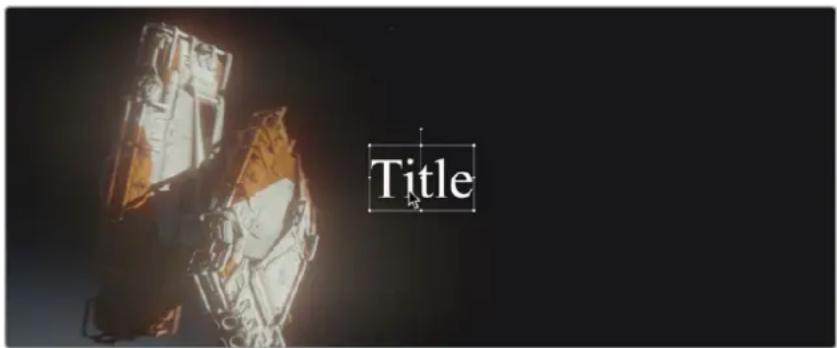
Drag the text to position it in the Viewer
While dragging text to reposition it, snapping occurs at the X and Y center of the frame, as well as around the outer third of the frame. Holding the Shift key down while dragging a text object constrains movement to just the X or Y axes.
Editing Text
Double-clicking on text in the Timeline Viewer puts that text into an editable state, wherein you can insert a text cursor or select characters to edit the text as you would in any text editor.

Double-click on the text to edit it in the Viewer
Title Generator Panels
The parameters of text generators are divided into two panels in the Video Inspector: the Title panel and the Settings panel.
- The Title panel contains all of the text editing, styling, and sizing controls used to edit the contents and look of a title in your project, including the Rich Text, Drop Shadow, Stroke, and Background parameters.
- The Settings panel contains the same Composite, Transform, and Cropping parameters that all other clips in DaVinci Resolve have. These parameters are intended for compositing and animating a title.
Shared Title Generator Parameters
With the exception of the Text+ generator, all other title generators in DaVinci Resolve are capable of rich text styling. This means you can select any portion of a generator's text and style it differently. For example, you could have three lines of text within a single generator and style each line individually to create a particular design.

A single generator with three lines of differently styled text
Each title generator shares the same parameters in the Video Title panel of the Inspector for editing and styling text:
- Rich Text: A control group consisting of a text entry field and parameters that can be used to style different parts of the text independently.
- Text: A text entry field for editing the title being generated. If no characters are selected, the styling controls affect the entire block of text. If you select a specific set of characters, the styling controls only affect the selection. Text in this field can also be edited directly in the Timeline Viewer.
- Font family: A pop-up for choosing one of the font families installed on your workstation.
-
Font face: A pop-up for choosing which face of the font family currently selected to use.
-
Color: Opens the standard color picker for choosing a font color.
– Size: Slider for choosing the text size. -
Tracking: Slider that sets the spacing between characters.
-
Line spacing: Slider for setting the spacing between the selected line of text and the next one below.
- Font style: Buttons to apply underline, overhead line, strikethrough, superscript, and subscript styling.
- Font case: A pop-up for forcing the text selection to be Mixed Case (the default), All Caps, All Lowercase, Small Caps, or Title Caps.
- Alignment: Buttons to select the method of alignment: left, centered, right, or justified.
- Anchor: Buttons for selecting how text is anchored to the current position, both horizontally (top, centered, bottom) and vertically (right, centered, left).
- Position: X and Y parameters determining the bottom left-hand corner (the default Anchor settings) of the rich text block being generated. Corresponds to the act of dragging a selected text box in the Timeline Viewer.
- Zoom: X and Y parameters determining the scale of the text. A link button lets you keep the X and Y parameters locked together. Corresponds to the act of resizing a selected text box in the Timeline Viewer from either the corners (to resize proportionally), or the top/bottom/sides (to stretch or squeeze the text).
- Rotation Angle: A slider for rotating the orientation of the text. Corresponds to the act of rotating a selected text box in the Timeline Viewer using the rotation handle.
- Drop Shadow: A group of controls that lets you apply a customizable drop shadow to every character of text being generated.
- Color: Opens the standard color picker for choosing a drop shadow color.
- Offset: X and Y parameters determining how offset the drop shadow is from the original text.
- Blur: A slider for blurring the drop shadow.
- Opacity: A slider determining how transparent the drop shadow is.
- Stroke: Lets you add an outline to every character of text being generated.
- Color: Opens the standard color picker for choosing the stroke color.
- Size: A slider lets you choose the thickness of the stroke, in pixels.
- Background: This group of controls provides an extremely flexible rectangle or rounded rectangle shape that you can use to add a background, bar, outline, or other intersecting shape to use when designing a title.
- Color: Opens the standard color picker for choosing the interior color of the background shape.
- Outline color: Opens the standard color picker for choosing outline color of the background shape.
- Outline width: A slider lets you choose the thickness of the background shape outline, in pixels.
- Width: A slider lets you choose how wide to make the background shape.
- Height: A slider lets you choose how tall to make the background shape.
- Corner radius: A slider lets you choose the roundness of the rectangle edges.
- Center: X and Y parameters you can use to offset the background shape from the text being generated.
- Opacity: A slider lets you set the transparency of the background shape.
Title Generator Settings Parameters
Additionally, each generator has Composite, Transform, and Cropping parameters in the Settings panel of the Video Inspector that let you composite, resize, and animate titles against other clips in the Timeline for motion graphics effects. These parameters are the same as those available for every clip, as described later in this chapter.
The Text+ Title Generator
A new kind of title generator, named Text+, is available in the Titles category of the Effects Library's toolbox. This is the exceptionally fully-featured 2D text generator from Fusion, available for editing and customizing right in the Edit page. It's capable of most of what the Text generator can do, with the exception of rich text editing and a lack of on-screen controls in the Timeline Viewer. However, it also has many more styling and animation controls than the Text generator has.
TIP: At the time of this writing, the Text generator is still very useful for quickly creating text pages with multiple styles, whereas the Text+ generator excels at creating text for animated motion graphics.
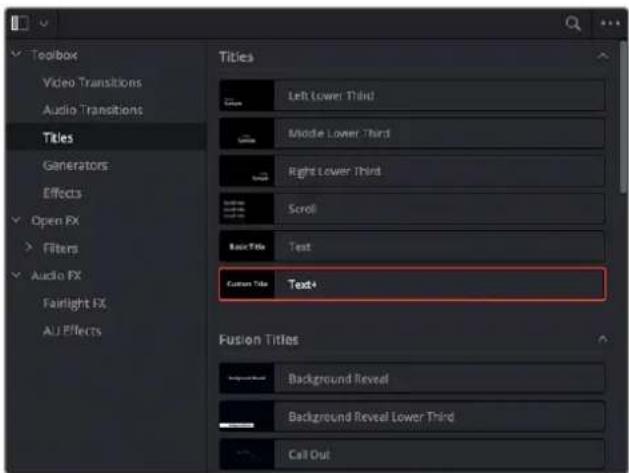
The new Text+ title generator, along with new Fusion titles below
You can use the Text+ generator the same way you use any generator in the Edit page. Simply edit it into a video track of the Timeline, select it, and open the Inspector to edit and keyframe its numerous properties to create whatever kind of title you need.
In addition to having many more styling options, the origin of the Text+ generator in a compositing tool means that it offers many more panels worth of keyframable parameters, along with advanced animation controls built-in. These include keyframable Write On/Write Off controls, layout and animation using shapes (options include point, frame, circle, and path), character, word, and line transforms and animation, advanced shading, and full interlacing support.
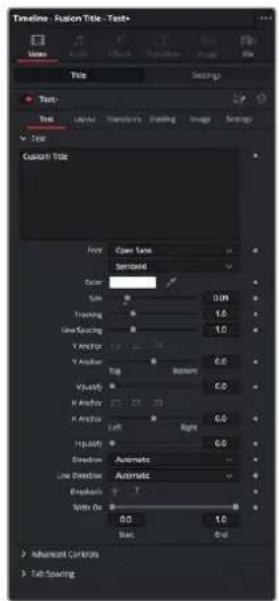
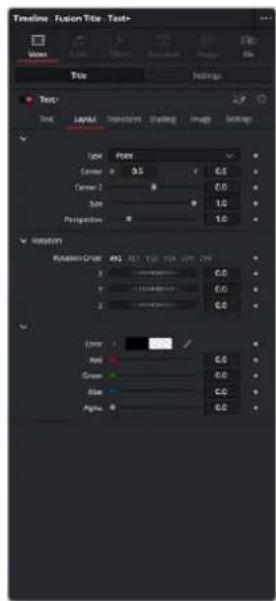
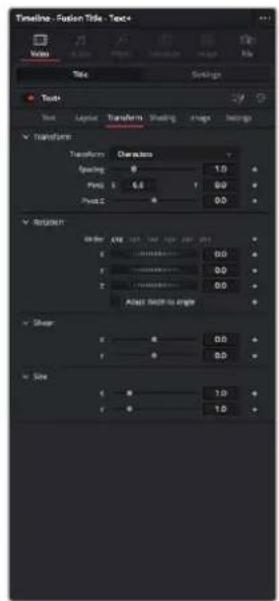
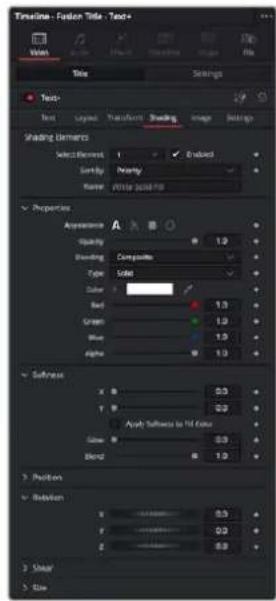
Four panels of the Text+ title generator, including Text, Layout, Transform, and Shading
Better yet, with the playhead parked on your new Text+ "Fusion Title," you can open the Fusion page and access its parameters there too, if you want to start building upon this single generator to create a multi-layered motion graphics extravaganza.
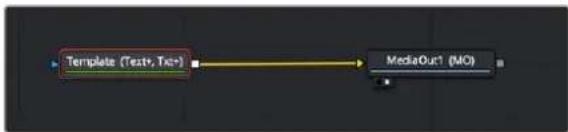
flowchart
graph LR
    A["Template (Text+, Text-)"] --> B["MediaOut1 (MO)"]
Opening the Text+ node in the Fusion page reveals it as an actual Fusion page operation
For more information about the extensive capabilities of the Text+ generator, see Chapter 103, "Generator Nodes."
Fusion Titles and Fusion Templates
The abundance of other Fusion titles in the Effects Library are custom-built text compositions with built-in animation that expose custom controls in the Inspector.
In actuality, these text generators are Fusion templates, which are Fusion compositions that have been turned into macros and come installed with DaVinci Resolve to be used from within the Edit page like any other generator.
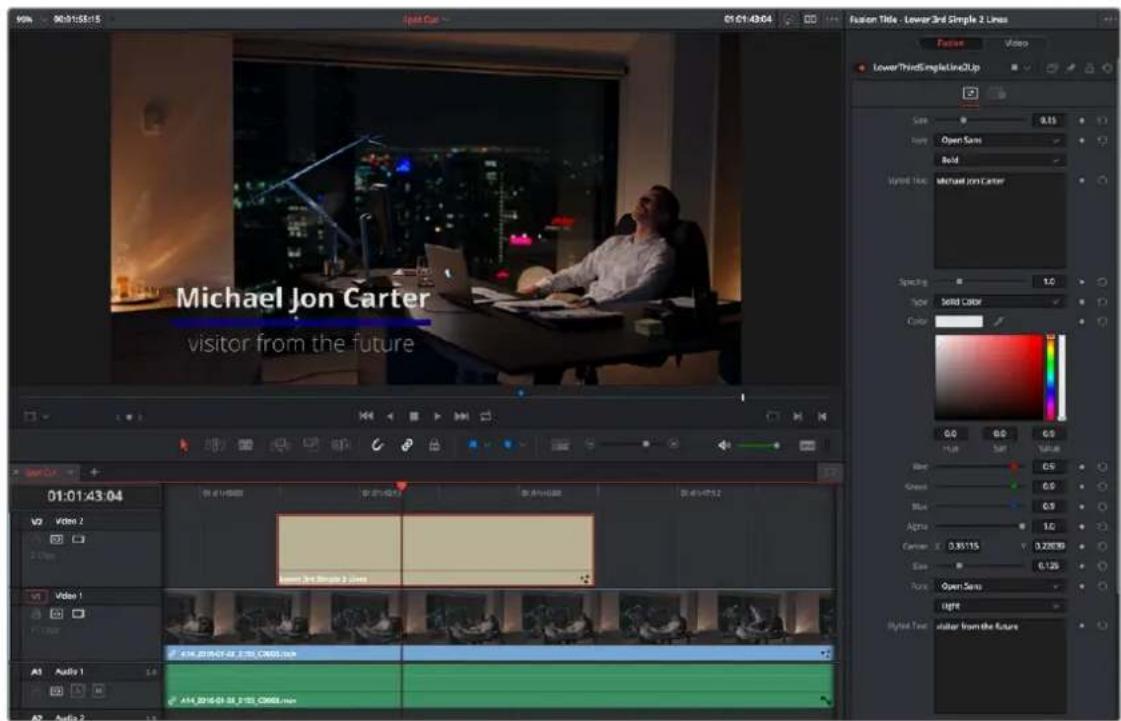
A Fusion title creating an animated lower third, with controls open in the Inspector
It's possible to make all kinds of Fusion title compositions in the Fusion page, and save them for use in the Edit page by creating a macro and placing it within the /Library/Application Support/ Blackmagic Design/DaVinci Resolve/Fusion/Templates/Edit/Titles directory, but this is a topic for another day.
There's one other benefit to Text+ generators and that is they can be graded like any other clip, without needing to create a compound clip first.
Saving Titles in the Media Pool for Future Use
If you've created a title in a style that you want to later reuse, for example, a particularly formatted lower third that will be the basis for every lower-third in your program, you can drag any title from the Timeline to the Media Pool, and it will be saved as a separate clip. Title clips in the Media Pool are shown with a thumbnail showing a preview of the text they contain. If you've keyframed any animated text or video adjustments, those keyframes are also saved with this clip.
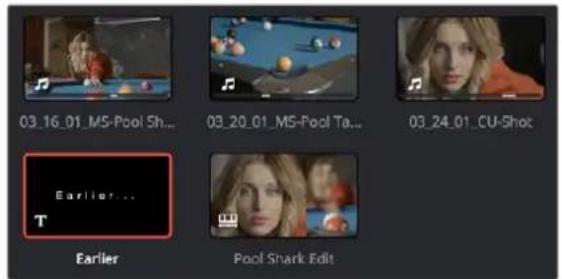
A text generator saved as a clip in the Media Pool
Once saved in the Media Pool, text generators can be opened in the Source Viewer and edited just like any other clip.
Using Generators
Generators, with the exception of Solid Color, lack editable parameters other than the Composite, Transform, Cropping, and Dynamic Zoom parameters that are standard for every clip. Additionally, generators have a Display Name field in the Inspector that lets you give a particular clip a custom name that appears in the Timeline.
The various video generators included in DaVinci Resolve can be previewed by hovering your pointer over any thumbnail in the Generators tab. To edit a generator into your timeline, simply grab the thumbnail of the generator you wish to use, and place it in your Timeline in the Edit page, or in either the upper or lower Timelines in the Cut page.
The following generators are available:
- 10 Step: A grayscale ramp segmented into 10 steps from black to white.
- 100mV Steps: A grayscale ramp segmented into segments of exactly 100mV each.
- BT.2111 Color Bar HLG Narrow: Use these bars if your HDR timeline is using a Hybrid Log Gamma curve (HLG). This is most commonly used in broadcast for its simple backward compatibility with SDR televisions.
- BT.2111 Color Bar PQ Full: While PQ Full is a part of the Rec. 2100 (BT.2100) specification, it is not commonly in use at this time. Use this setting only if you know you need it.
- BT.2111 Color Bar PQ Narrow: Use these bars if your HDR timeline is using a format with a PQ gamma curve (i.e., DolbyVision or HDR10). This is most commonly used for video streaming services and Blu-ray discs.
– EBU Color Bar: A 1.77:1 aspect ratio set of color bars for PAL-using countries. - Four Color Gradient: A gradient that blends four different colors at each corner of the frame. You can adjust the Center X and Center Y parameters to move the center at which all four colors blend together, and you can change the four colors that appear at each corner using corresponding color parameters.
– Grey Scale: A simple grayscale ramp from black to white. - SMPTE Color Bar: An updated 1.77:1 aspect ratio set of color bars for NTSC-using countries.
- Solid Color: A simple fullscreen color generator. A Color parameter lets you choose what color this generator outputs.
- Window: A simple white-on-black shape generator, defaulting to a white rectangle against a black background.
– YCbCr Ramp: A gradient designed to test the Y'CbCr signal.
ITU-R BT.2111-1 Color Bar Generators
DaVinci Resolve now includes a ITU-R BT.2111-1 specification Color Bar Generator for HDR video. These are the color bars to use when calibrating, analyzing, or mastering a Rec. 2100 (BT.2100) HDR signal.
These new color bars have saturation levels set at 100% at the top, and 75% in the middle section. They also contain Rec. 709 (BT.709) color bars in the lower corners for compatibility with HD SDR signals. Commonly referenced levels are indicated on the image below. The full color bar specification can be found on the ITU's web site: https://www.itu.int/rec/R-REC-BT.2111/en.
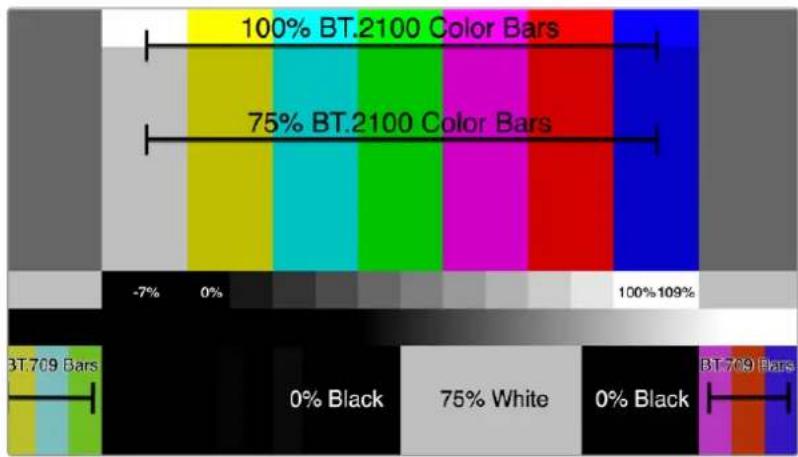
bar
| Color Bar | Percentage (%) | | :--- | :--- | | BT.2100 Color Bars | 100% | | BT.2100 Color Bars | 75% | | BT.709 Bars | -7% | | BT.709 Bars | 0% | | BT.709 Bars | 100% | | BT.709 Bars | 109% | | BT.709 Bars | 0% Black | | BT.709 Bars | 75% White | | BT.709 Bars | 0% Black | | BT.709 Bars | BT.709 Bars |The BT.2111-1 color bars and some of the more commonly used levels
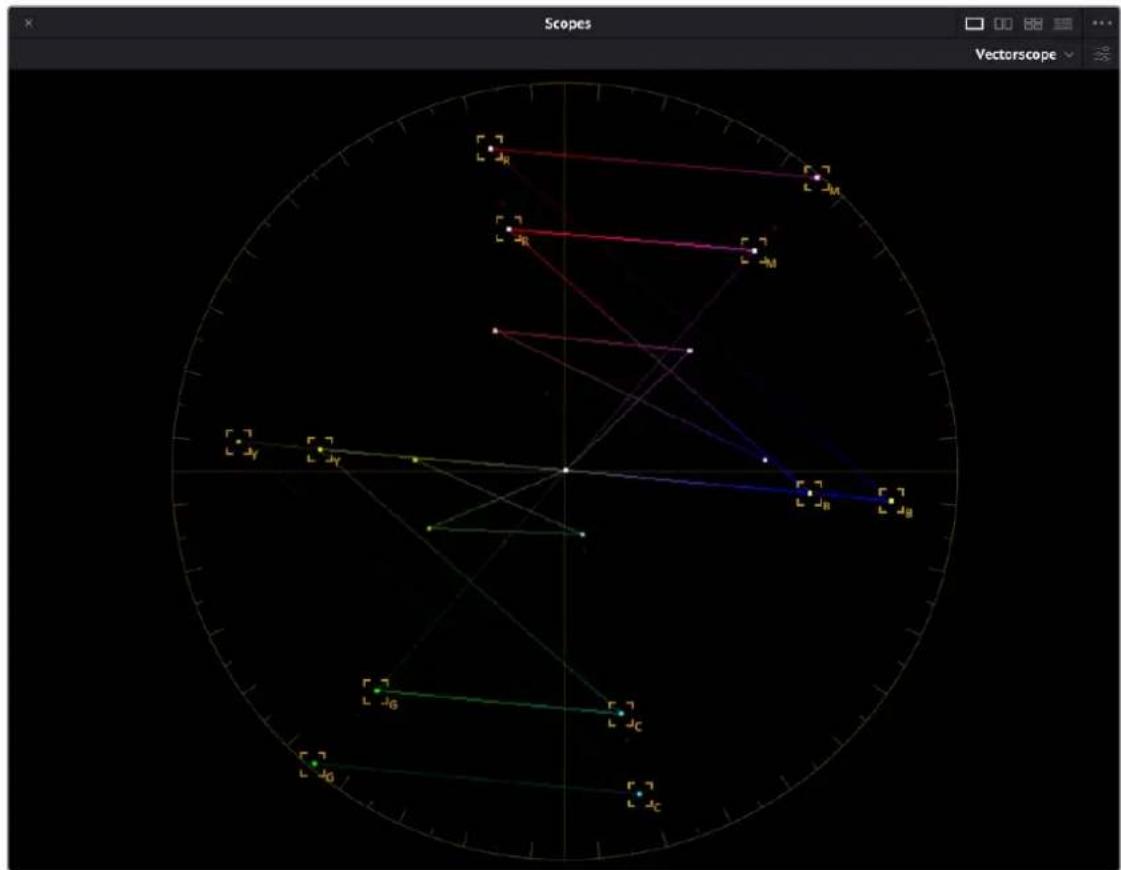
radar
| Category | Value | | -------- | ----- | | -M | 100 | | -R | 80 | | -C | 60 | | -G | 40 | | -C | 20 | | -G | 0 | | -C | -20 | | -G | -40 | | -C | -60 | | -G | -80 | | -C | -100 |The BT.2111-1 color bars on the Vectorscope, hitting their targets at 100% levels on the outside, 75% levels in the middle, and with the Rec. 709 bars represented in the interior
Fusion Generators
The Fusion Generators section of the Generators panel contains Fusion effects that have been made into reusable generators. By default, a single generator, Noise Gradient, appears as an example of how these work. Fusion Generators work like any other generator. Once edited into the Timeline, they act like any other clip, and when selected, they expose customizable parameters in the Inspector that let you tailor their effect to meet your needs.
However, Fusion Generators are highly customizable. Simply opening the Fusion page while the playhead intersects a Fusion Generator on the topmost track of the Timeline exposes all of the Fusion nodes that create that generator's effect, enabling you to rebuild the effect to do whatever you need.
Furthermore, if you know how to create effects in Fusion, you can create your own generators by making Fusion Macros and saving them to the Effects Library, so they appear in the Fusion Generators section of the Effects Library. For more information on how to do this, see Chapter 68, "Node Groups, Macros, and Fusion Templates."
Using Stills
You can import still images into the Media Pool, and edit them into the Timeline as clips with custom durations. By default, imported stills are 10 seconds long, but you can extend a still image's Out point to a maximum of 17 hours and 40 minutes in length, which ought to cover just about any project you're planning on working on, so long as you're not Andy Warhol. DaVinci Resolve is correspondingly capable of importing still image clips referenced by XML or AAF project files, so long as they're in a supported format.
DaVinci Resolve supports the use of stills in the following formats:
File Format Alpha Channel Support
| .tif | Yes |
| .png | Yes |
| .j p g | No |
| .dpx | No |
| .exr | Yes |
| .dng | No |
| .psd | No |
| .tga | Yes |
| .heif | No |
| .NEF | No |
| .CR2 | No |
Once edited into the Timeline, still image clips have the same Composite, Transform, Cropping, Retime, and Scaling attributes as any other clip.
Photoshop File Support
Photoshop (.psd) files appear as a single clip displaying only the bitmapped layers within the Edit page and Color page of DaVinci Resolve. Photoshop text layers and layer effects are not supported at the time of this writing.
Fusion Page PSD Support
The Fusion page has support for multi-layered Photoshop files. You can use the Fusion > Import > .PSD command to import Photoshop files such that each individual layer appears as a separate Medialn node connected to a cascading series of Merge nodes, ready for you to work on.
Chapter 49
Using the DaVinci Resolve Speed Editor and Editor Keyboard
The DaVinci Resolve Speed Editor is an edit controller designed specifically to work hand-in-hand with the Cut page, while the DaVinci Resolve Editor Keyboard increases efficiency in both the Cut and Edit pages.
Contents
Introducing the DaVinci Resolve Speed Editor 825
Connecting the Speed Editor via USB-C 825
Charging the Speed Editor 825
Updating the Speed Editor Firmware 826
Troubleshooting the Speed Editor via USB 826
Connecting the Speed Editor via Bluetooth 826
Troubleshooting the Speed Editor via Bluetooth 828
Resetting the Speed Editor 828
Using the Speed Editor Keys 828
Navigation Using the Search Dial 829
Intelligent Keyboard Edit Modes 830
Search Dial Live Trimming Tools 835
Transition Keys 836
Function Keys 837
Sync Bin Multi Camera Selection 840
Live Overwrite Mode 841
Introducing the DaVinci Resolve Editor Keyboard 844
Connecting the Editor Keyboard via USB-C 844
Updating the Editor Keyboard Firmware 845
Navigation Using the Search Dial 845
Sort Media Pool Keys 846
Editorial Tools 847
Trimming Tools 850
Transition Keys 851
Function Keys 852
Timecode Entry 855
QWERTY Keyboard Commands 856
Editor Keyboard Function (Fn) Key Map 857
Using the Speed Editor and Editor Keyboard In Other DaVinci Resolve Pages 858
Using the Keyboards in the Media Page 858
Using the Keyboards in the Fusion Page 858
Using the Keyboards in the Color Page 858
Using the Keyboards in the Fairlight Page 858
Using the Keyboards in the Deliver Page 858
Introducing the DaVinci Resolve Speed Editor
The DaVinci Resolve Speed Editor is specifically designed for custom integration with the Cut page. It efficiently combines transport control, editing functions, and multi-camera support into a powerful edit controller with a small footprint. Almost all the Speed Editor functions also work the Edit Page, where they differ will be noted in the text.
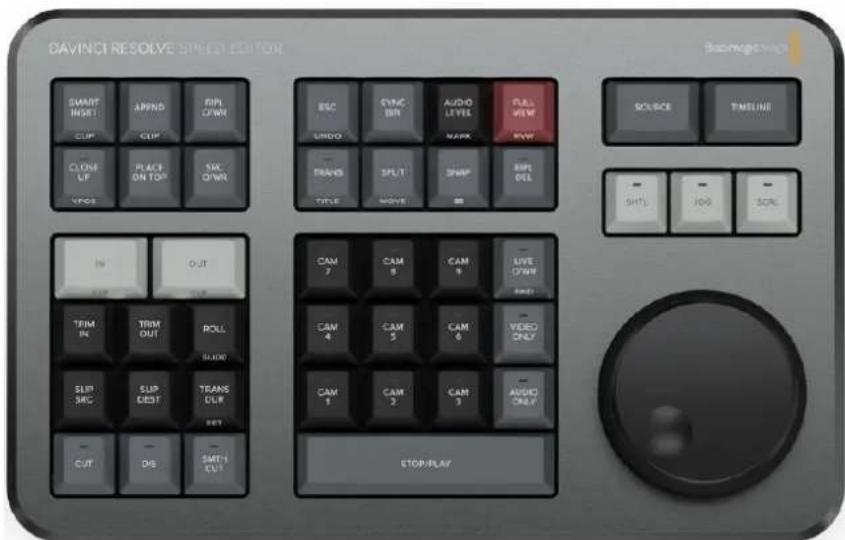
The DaVinci Resolve Speed Editor
Connecting the Speed Editor via USB-C
Connecting the DaVinci Resolve Speed Editor directly via USB-C is the simplest and most reliable way to use the Speed Editor on your Windows or Mac computer. Simply connect the Speed Editor to your computer's USB type C port, using a USB-C cable. No additional configuration is required. The Speed Editor will show up automatically in DaVinci Resolve, and the DaVinci Control Panels Setup applications, ready for use.
Charging the Speed Editor
Connecting the DaVinci Resolve Speed Editor via USB-C will also charge the unit's internal battery allowing it to be used wirelessly via Bluetooth. You can check the current Battery Level of the Speed Editor by going to the Control Panels section of the System Preferences.
The Speed Editor Battery Level indicator in the System Preferences.
Updating the Speed Editor Firmware
From time to time, Blackmagic updates the functionality of the Speed Editor through firmware changes. New firmware can be checked for and installed by opening the separate DaVinci Control Panels Setup utility through the menu Help > DaVinci Control Panels Setup. The speed editor must be connected via USB to update the firmware.
Troubleshooting the Speed Editor via USB
If you are having difficulty using the DaVinci Resolve Speed Editor via direct USB connection, try the following troubleshooting tips:
- Make sure you are using DaVinci Resolve 17 or higher. The Speed Editor is not compatible with any Resolve version lower than 17.
- Check whether the USB-C cable is properly connected on both ends.
- If the Speed Editor is connected to a USB-C Hub, try bypassing the hub and directly connect it to the computer.
– Try bypassing any USB Type-C to Type-A adapters if possible.
– Try using a different USB-C cable. - Make sure you are using the correct USB-3 ports on your computer. The DaVinci Resolve Speed Editor does not work on USB 2 ports or below.
Connecting the Speed Editor via Bluetooth
You can also connect the DaVinci Resolve Speed Editor wirelessly via Bluetooth for more flexible installation options.
To Connect the Speed Editor to MacOS via Bluetooth:
1 Ensure that your Speed Editor's battery is ready by first connecting it via USB-C as described above, and allowing it to charge.
2 Open the Bluetooth Preference Pane in the MacOS System Preferences. Find the device named DaVinci Keyboard, and press the Connect key.
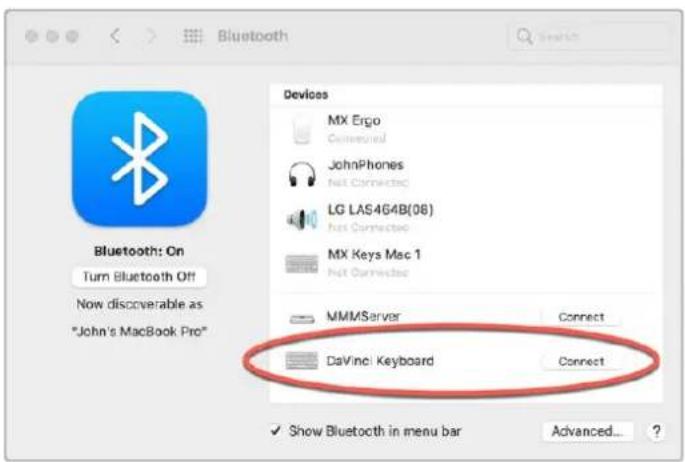
The MacOS Bluetooth Preference Pane
3 If MacOS asks you if you would like to Pair the device, click the Connect key.
4 Once the Speed Editor is Connected, open DaVinci Resolve. The LEDs on the Snap and Jog keys will illuminate to confirm that the Speed Editor is connected properly.
To Connect the Speed Editor to Windows via Bluetooth:
1 Ensure that your Speed Editor's battery is ready by first connecting it via USB-C as described above, and allowing it to charge.
2 In the Windows Settings, select Devices > Bluetooth & other devices. Make sure the Bluetooth slider is set to on.
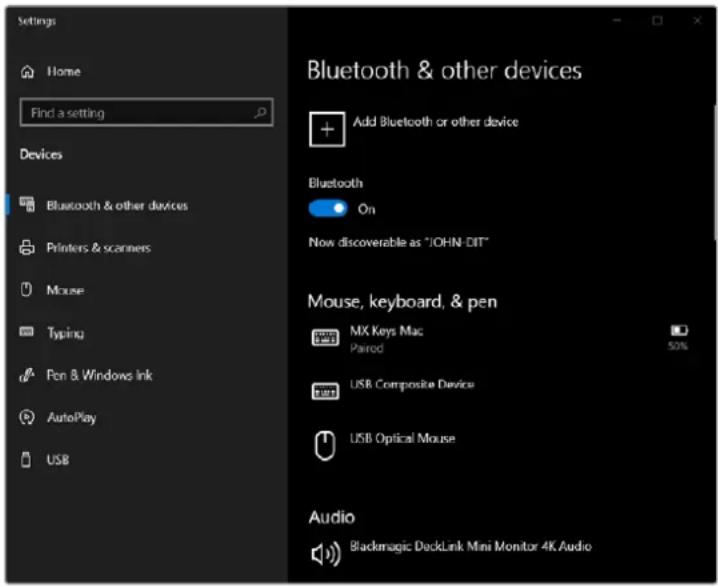
The Windows 10 Bluetooth Settings
3 Click on Add Bluetooth or other device, and select Bluetooth from the Add a Device window.
4 Select DaVinci Keyboard from the list of devices, and press the Done key once connected.
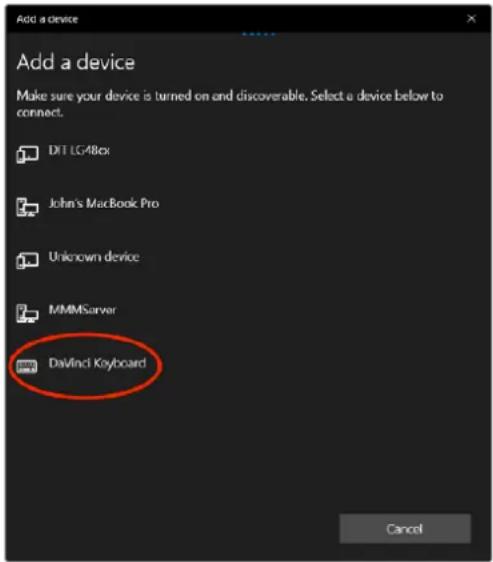
The Windows 10 Bluetooth Device Selection window
5 If Windows asks you if you would like to Pair the device, click the Allow key.
6 Once the Speed Editor is Connected, open DaVinci Resolve. The LEDs on the Snap and Jog keys will illuminate to confirm that the Speed Editor is connected properly.
Troubleshooting the Speed Editor via Bluetooth
If you are having difficulty using the DaVinci Resolve Speed Editor via Bluetooth, try the following troubleshooting tips:
- Make sure you are using DaVinci Resolve 17 or higher. The Speed Editor is not compatible with any Resolve version lower than 17.
- Make sure that the DaVinci Resolve Speed Editor's battery is charged.
- First connect the Speed Editor via USB-C to confirm that the hardware is working.
- If you are having connection problems, systematically disable other nearby connected bluetooth devices to check for interference.
- If you are having bluetooth pairing problems, try resetting the Speed Editor as described below.
Resetting the Speed Editor
Occasionally it may become necessary to perform a factory reset on your DaVinci Resolve Speed editor, this will remove any current pairing information stored on the device, and let you set it up again from scratch.
To Reset the Speed Editor to its defaults:
1 Plug the Speed Editor into the computer via USB-C
2 Hold down both the CUT and SMTH CUT keys until the LEDs cycle off then on.
3 Or open the DaVinci Resolve Speed Editor Control Panels app, and press the Factory Reset key in the Setup options.
TIP: Multiple DaVinci Resolve Speed Editors and Editor Keyboards can be connected and used on the same system.
Using the Speed Editor Keys
To maximize the functionality of all the keys on this reduced-sized edit controller, there are four different finger actions used to modify a key's commands:
- Press: A short tap to the key and release, as if you were typing.
- Double Press: Two short taps to the key and release. The double press triggers the secondary function of the key that is written on the lower side of the keycap.
- Press and Hold: Tap the key and hold it down.
- Double Press and Hold: One short tap, and then tap again and hold the key down.
Navigation Using the Search Dial
The most prominent feature of the DaVinci Resolve Speed Editor is the large Search Dial on its right hand side. Primarily used for navigation, in certain circumstances this dial can also be used for parameter selection and the direct manipulation of the clips, providing an alternative to click and drag mouse input.
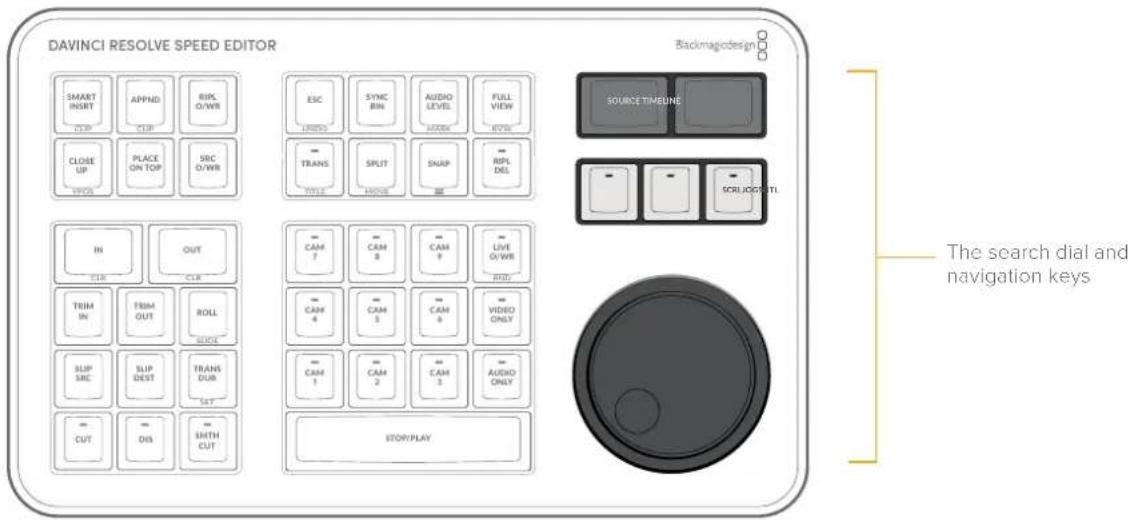
Since navigation of the Timeline is where most editors spend the majority of their time, you will want to decide on how the playhead reacts on the Timeline. In the Cut page you have two options: Lock or Free Playhead.
- When set to Locked, the playhead is fixed in the center of the Timeline, and your edited clips scroll past it as you play (press the Spacebar), jog, or shuttle with the Search Dial in either direction. Locked mode is preferred while using the DaVinci Resolve Speed Editor.
- When set to Free, the playhead moves across the clips as you play (press the Stop/Play bar), jog, or shuttle using the Search Dial in either direction; the clips stay still. Once the playhead gets to the right or left edge of the Timeline, the Timeline pages over to reveal the next part of your edit.
Playhead Lock controls
SOURCE
Pressing this key instantly brings the Source Tape into focus, allowing you to navigate through all the source media in your bin.
In the Edit Page, this key brings the Source Viewer into focus.
TIMELINE
Pressing this key instantly brings the Timeline Viewer into focus, allowing you to navigate through the Timeline.
SHTL (Shuttle)
Puts the Search Dial into Shuttle mode. Used to quickly navigate long clips or sync bins. Rotating the dial left of center "rewinds" through the clip or timeline, rotating it right "fast forwards" through them. The greater the rotation from center, the faster the Shuttle goes. A LED on the keyboard will illuminate to show you that this mode is selected.
JOG
Puts the search dial into Jog mode. Used to navigate to specific frames with accuracy and precision. Traditionally, you place your finger the search dial dimple, and rotate it to the left to go frame-by-frame reverse, and to the right to go frame-by-frame forward. The faster you rotate the search dial, the faster the navigation. A LED on the keyboard will illuminate to show you that this mode is selected.
SCRL (Scroll)
Puts the search dial into Scroll mode. Scroll mode is essentially a "higher geared" Jog mode. Rotating the wheel left reverses the play direction, while rotating it right moves forward. Scroll works in terms of seconds, rather than frames. The speed at which you rotate the search dial determines how fast the playhead moves through the footage. A LED on the keyboard will illuminate to show you that this mode is selected.
TIP: As a rule of thumb, Shuttle is most effective at the scene level, Jog the clip level, and Scroll at the timeline level.
Intelligent Keyboard Edit Modes
The DaVinci Resolve Speed Editor has dedicated keys to perform common editing functions.
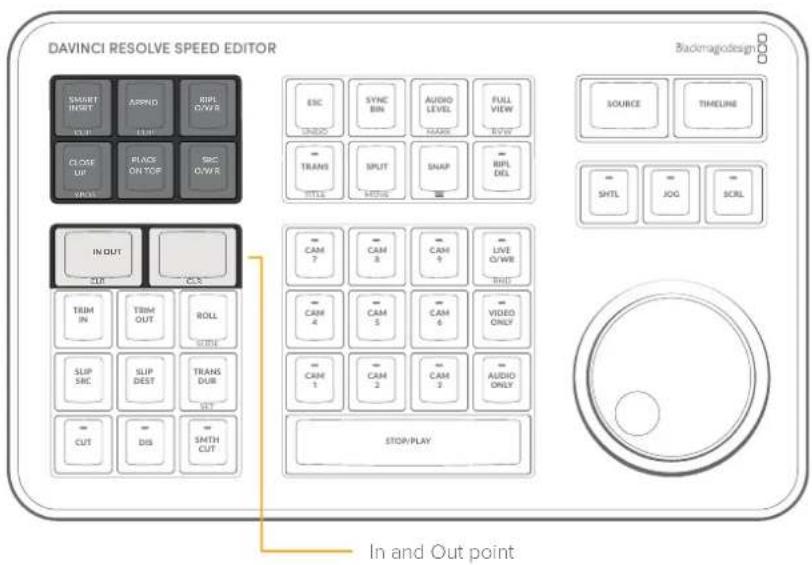
IN / CLR
This key selects the In Point of a clip or timeline. Double press this key (CLR) to clear the In point.
OUT / CLR
This key selects the Out point of a clip or timeline. Double press this key (CLR) to clear the Out point. If you are viewing a bin in the Source tape, you can use the In and Out keys to limit the Source tape between the two points. This allows you to quickly reduce the Source tape to a specific section, regardless of how many clips are in your bin.
To reduce the Source tape based on In and Out points:
In the Source tape, set the newly desired duration using the In and Out keys on the Speed Editor.
2 Press the "Source" key.
3 The Source tape is now limited to the duration between the two points.
4 If you wish top return to the original full Source tape, press the "Esc" key.
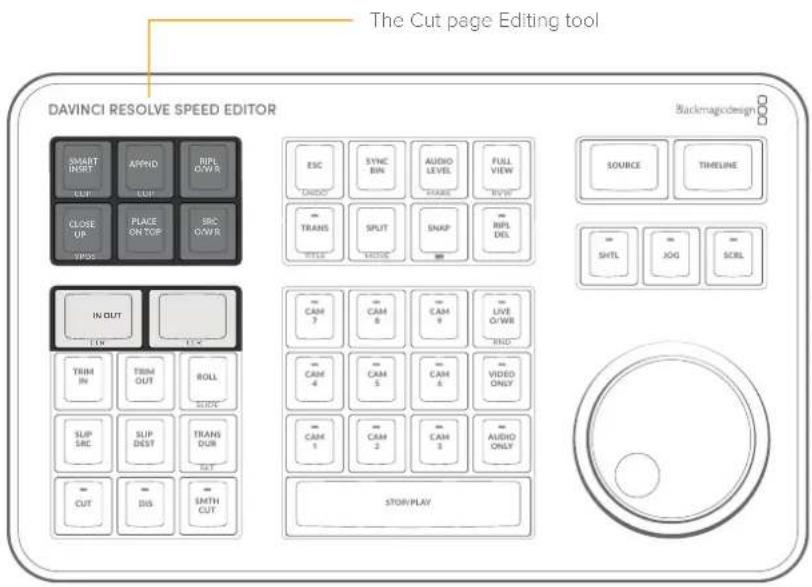
SMART INSRT (Smart Insert) / CLIP
Automatically inserts an incoming clip at the closest edit point to the playhead (as shown by the Smart Indicator) on the selected track, pushing all clips to the right of the edit point forward to make room for the incoming clip you've inserted to Track 1. Because this is a smart operation, you are prevented from inserting a clip at any arbitrary frame; incoming clips are only inserted at the closest previously existing edit point.
Double Press this key (CLIP) to Smart Insert the entire source clip, ignoring any In and Out points previously set on the clip.
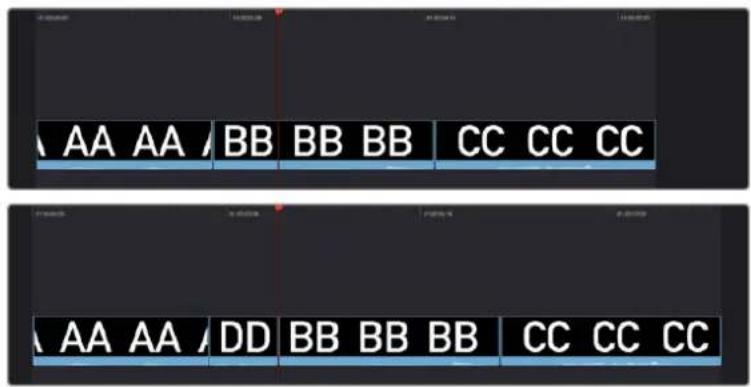
(Top) Before doing a Smart Insert, (Bottom) After inserting clip DD between clips AA and BB
APPND (Append) / CLIP
The position of the playhead is ignored; incoming clips are always placed after the last clip in the Timeline.
Double Press this key (CLIP) to append the entire source clip, ignoring any In and Out points previously set on the clip.
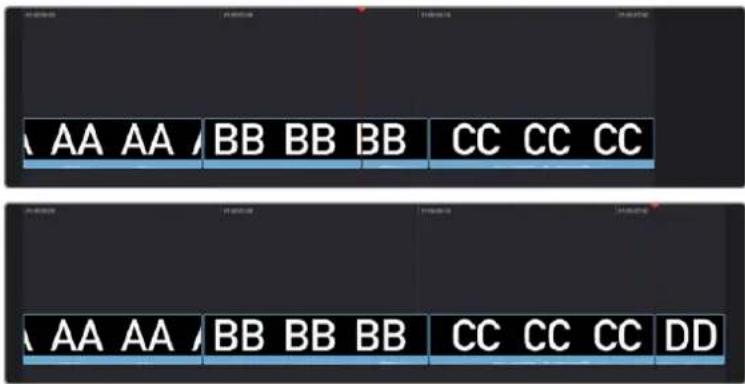
Performing an Append edit of clip DD to the Timeline
RIPL O/WR (Ripple Overwrite)
At its simplest, Ripple Overwrite substitutes a clip in the Timeline with an incoming clip. If you use Ripple Overwrite on a clip on Track 1, this will automatically move all clips that are to the right of the affected clip in the Timeline either forward to make room, if the incoming clip is longer, or back to eliminate gaps, if the incoming clip is shorter.
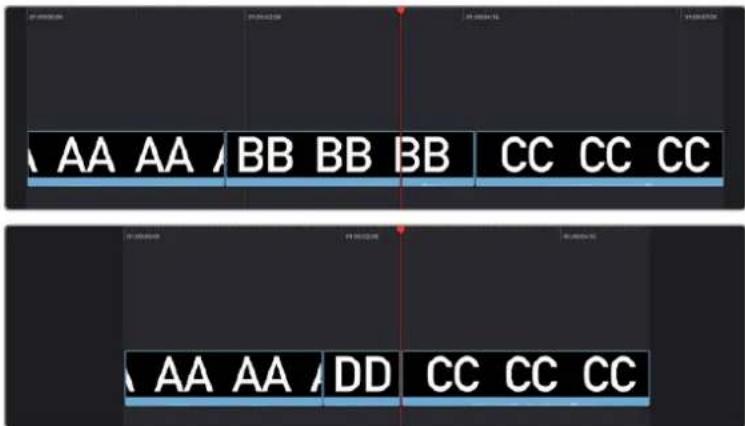
Performing a Ripple Overwrite to substitute an entire clip at the playhead (BB) with the incoming clip (DD)
TIP: Using Ripple Overwrite is an efficient way to audition different takes of the same shot without disrupting the narrative flow of the entire scene.
CLOSE UP / YPOS
Pressing this key reframes a clip as a zoomed-in close up to make up for a lack of actual close ups that would have been shot with either longer lenses, or by moving the camera closer to the subject. This function is particularly useful when you're working with 4K media in a 1080 timeline, or 8K media in a 4K timeline, which enables you zoom into existing wide shots to create medium shots, or medium shots to create close up shots, with no loss of quality.
Performing this edit adds the incoming clip as an approximate 20% to 40% zoomed close up and also performs a face detection. If a face or faces are found, it automatically re-positions the face top center in the frame. You can always reposition the close up manually using the Sizing controls in the Inspector.
Press and Hold this key (YPOS) to adjust the Y position of the Clip using the search dial.
How this key works depends on the mode that is active in the Cut page.
Source mode:
– The selected clip in the Source Tape view is edited into the Timeline as a close up, duration based on the In and Out points set in the clip, and the Smart Indicator on the Timeline.
Timeline mode:
- The clip under the playhead has a Close Up applied to it, and is copied to the track above it, with a 5 second duration starting from the playhead position.
Live Overwrite mode:
- This will perform a Close Up on the selected camera as it's overwritten into the Timeline.
- The LED on this key will then illuminate, to show you that this mode is armed.
PLACE ON TOP
This key lets you edit the incoming clip as a superimposition above whatever other clips are in the Timeline; the incoming clip is always placed on top, so if there are clips in Tracks 1, 2, and 3, the incoming clip is automatically placed on Track 4, regardless of which track is selected. The frame the incoming clip aligns with depends on the following:
– The incoming clip aligns with the closest Timeline edit point in proximity to the playhead (as shown by the Smart Indicator) if no Timeline In or Out points have been defined. The playhead is ignored.
- The incoming clip aligns with a Timeline In point if one has been set.
– The incoming clip's Out point will align with a timeline Out point if one has been set without an In point. This “backtimes” the clip.
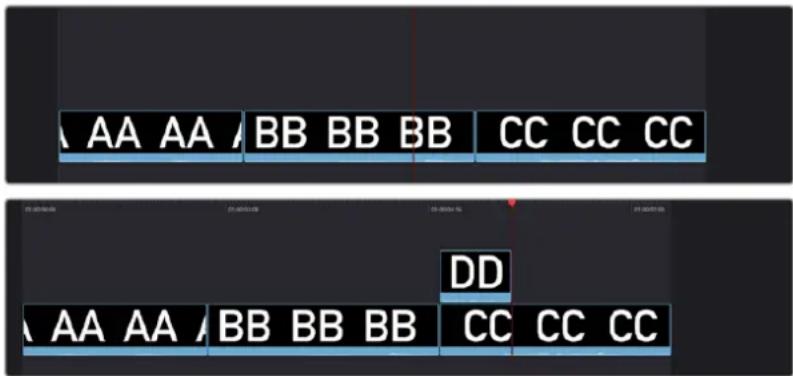
(Top) Before placing a clip on top,
(Bottom) After editing clip DD into the Timeline with a Place on Top edit
SRC O/WR (Source Overwrite)
This edit requires overlapping timecode in multiple clips and Track 1 of the Timeline to work properly, such as when recording synced timecode to multiple cameras during a multi-cam shoot. If there is no overlapping timecode, this edit does nothing.
If you are working with footage from multiple cameras that have synced timecode, then the easiest way to use this edit type is to set In and Out points over a clip in the Timeline where you want to cut away to another angle. In the following example, a wide shot of a cooking show covers the moment when the chef starts slicing a chili.
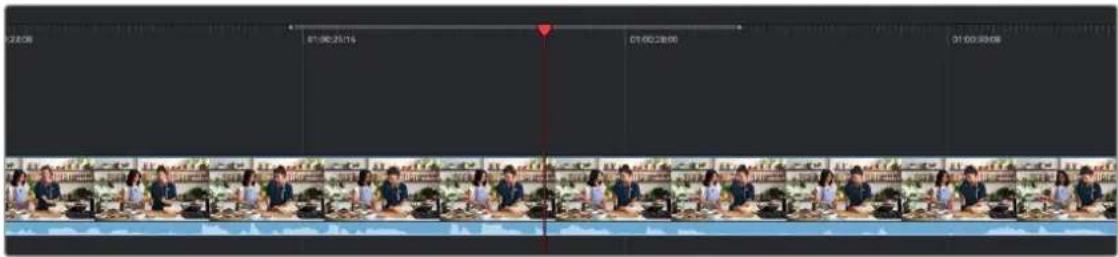
Setting timeline In and Out points to identify a cutaway
You can then select a clip in the Media Pool that corresponds to the desired angle you want to add as a cutaway, which has synced timecode that overlaps with the clip on Track 1 in the Timeline. Don't set In and Out points; if necessary, you can clear previously set In and Out points by pressing Option-X.
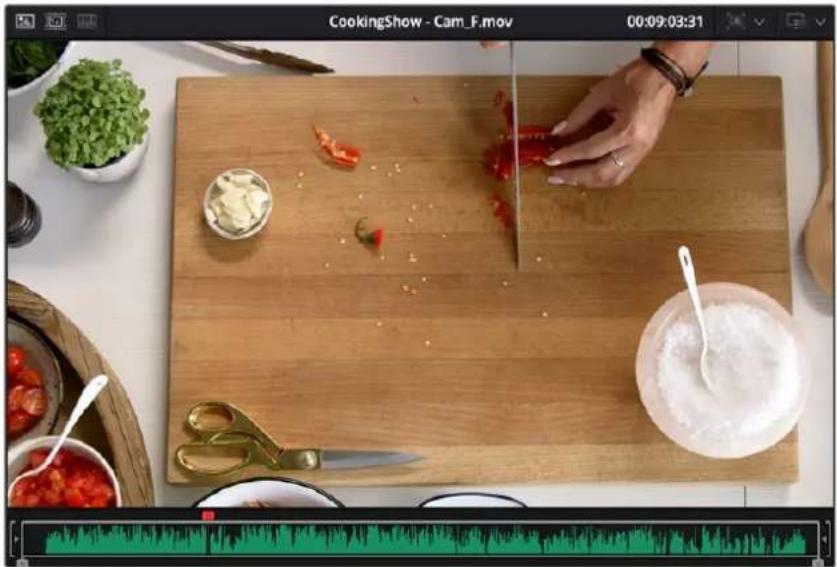
natural_image
Top-down view of a cooking scene with hands slicing red chili peppers on a wooden cutting board, surrounded by bowls of vegetables and scissors (no text or symbols visible)Choosing a Media Pool clip from another camera that has overlapping timecode
When you click the Source Overwrite key, a synced section of the selected Media Pool clip will be edited into the Timeline between the In and Out points you placed, superimposed on top. The result is a perfectly timed cutaway.
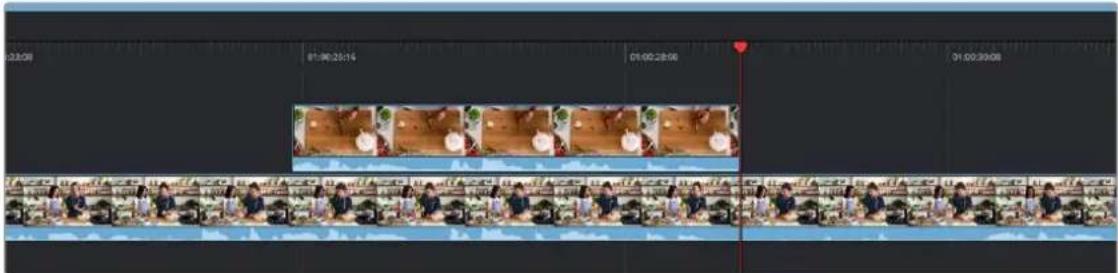
Using Source Overwrite to edit a superimposed and synced section of the source clip into the Timeline between the In/Out points
Alternatively, you can also use Source Overwrite to automatically place a source clip with a marked In/Out region on top of a clip in the Timeline so that its timecode syncs with the timecode of the Timeline clip, when you don't know exactly how much of the incoming source clip you want to edit into the Timeline, and you just want it synced appropriately.
Search Dial Live Trimming Tools
Several of the most powerful features of the DaVinci Resolve Speed Editor involve the intuitive trimming controls afforded by the search dial.
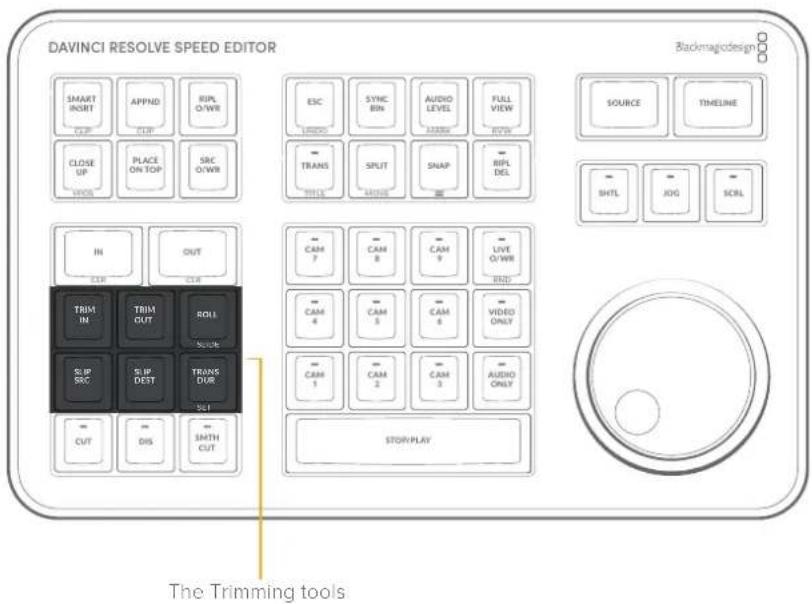
TRIM IN
When this key is pressed and held, it lets the user trim the nearest In point on the Timeline (as shown by the Smart Indicator), by simply rotating the search dial back and forth. The trim point is highlighted in green. Release the key to confirm the edit.
In Source mode, holding this key and rotating the search dial adjusts the In Point of the clip in the Viewer.
TRIM OUT
When this key is pressed and held, it lets the user trim the nearest Out point on the Timeline (as shown by the Smart Indicator), by simply rotating the search dial back and forth. The trim point is highlighted in green. Release the key to confirm the edit.
In Source mode, holding this key and rotating the search dial adjusts the Out Point of the clip in the Viewer.
ROLL / SLIDE
When this key is pressed and held, it lets the user trim the nearest transition point (as shown by the Smart Indicator), and roll the edit point back and forth between the clips by simply rotating the search dial. The trim point is highlighted in green. Release the key to confirm the edit.
Double Press and Hold this key (SLIDE) to Slide the entire clip back and forth in the Timeline. A four-way multiview will show the In and Out points for both source and destination clips as you slide.
SLIP SRC (Slip Source)
When this key is pressed and held, it allows the user to slip in place the footage of the clip to the left of the Smart Indicator back and forth by moving the search dial. A four-way multiview will show the In and Out points for both source and destination clips as you slip. The clip that will slip will be highlighted in orange. Release the key to confirm the edit.
SLIP DEST (Slip Destination)
When this key is pressed and held, it allows the user to slip in place the footage of the clip to the right of the Smart Indicator back and forth by moving the search dial. A four-way multiview will show the In and Out points for both source and destination clips as you slip. The clip that will slip will be highlighted in orange. Release the key to confirm the edit.
TRANS DUR (Transition Duration)/SET
Holding down this key when a transition is under the Smart Indicator will allow you to change the duration of the transition using the search dial. Turning the dial left will shorten the transition, and right will lengthen it. Once the duration is correct, release the key.
Double Pressing this key (SET) allows you to set the current transition length as the default transition duration.
TIP: Multiple transitions can be changed at the same time by holding down Command and selecting the transitions on the Upper Timeline, then pressing the appropriate transition key (CUT, DIS, SMTH CUT).
Transition Keys
This set of keys provide immediate shortcuts to the most commonly used transition commands.
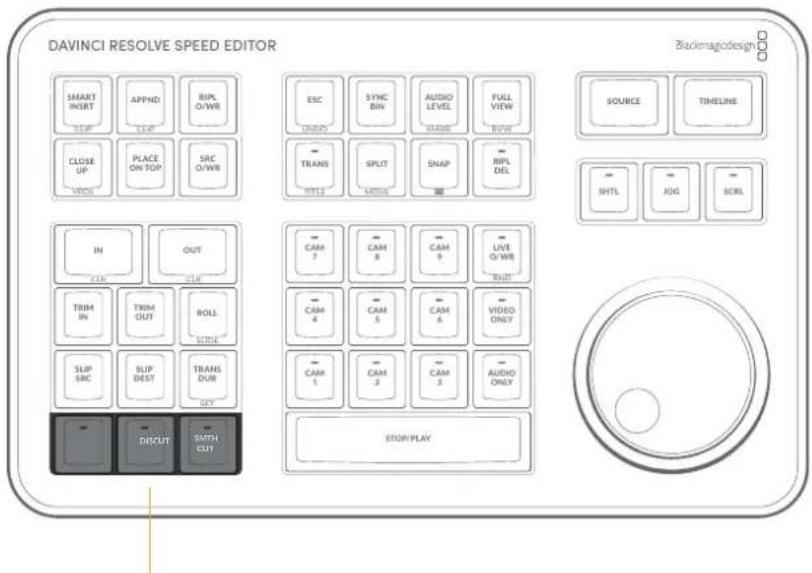
Transition keys for Cut, Dissolve, and Smooth Cut
CUT
This key will change any existing transition to a simple cut at the Timeline edit point, as shown by the Smart Indicator. It will not add a new cut at the playhead position. To do this use the Split Clip (Command-1) function instead.
The LED on this key will illuminate to show you the Cut Transition is armed in Live Overwrite mode.
DIS (Dissolve)
This key will add a one second dissolve centered between the two shots at the Timeline edit point, as shown by the Smart Indicator. If there is another transition already present there, it will replace it.
The LED on this key will illuminate to show you the Cut Transition is armed in Live Overwrite mode.
SMTH CUT (Smooth Cut)
This key will add a Smooth Cut transition centered between the two shots at the Timeline edit point, as shown by the Smart Indicator. If there is another transition already present there, it will replace it.
The LED on this key will illuminate in Live Overwrite mode to show you the Cut Transition is armed.
Smooth Cuts are special-purpose transitions designed to make short jump cuts in the middle of a clip unnoticeable. This is done by using optical flow processing to match the same features on either side of a cut in order to automatically morph a subject from one position to another over the duration of the transition.
The Smooth Cut effect works best on clips such as sit-down interviews and close-up head shots with a minimum of background and subject motion, and where the subject's position on either side of the cut is not significantly different. A good example of when Smooth Cut is effective is when you're cutting pauses, partial repeats, filler sounds such as "um" or "you know," or other speech disfluencies out of an interview clip to tighten the dialog, and you want to eliminate the little "jump" that occurs at the cut without having to cut away to B-roll. Applying a short two- or four-frame Smooth Cut transition to the edit can make this kind of edit invisible, as long as the speaker doesn't change position significantly during the cut. The more motion there is in the background of the shot, and the more the speaker changes position, the harder it will be to get a useful result using Smooth Cut. Although the default duration for any transition is one second, you'll find that Smooth Cut transitions may work much better when they're short; 2- to 6-frame Smooth Cut transitions often work best to disguise jump cuts.
Function Keys
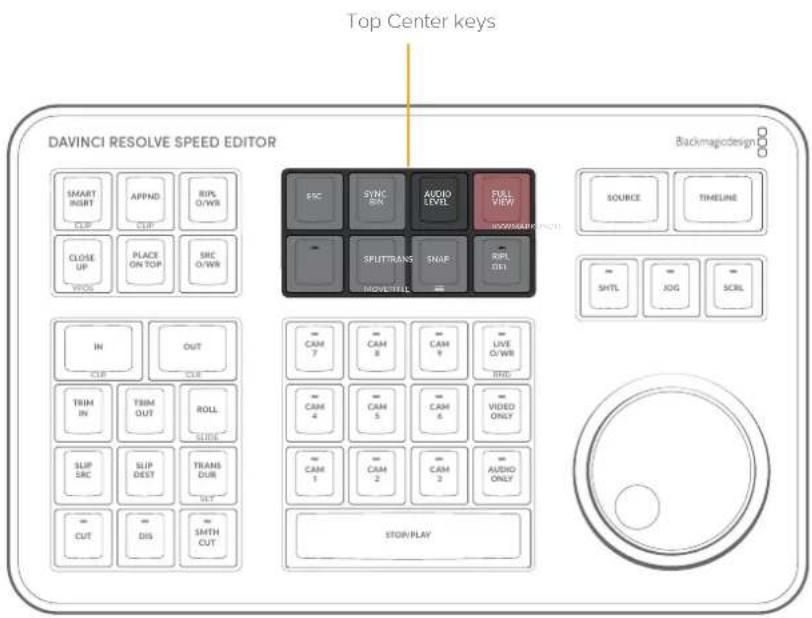
ESC / UNDO
This key functions the same way as the escape key on your keyboard, but in the Cut page it is also used to clear a selected camera in the Sync Bin.
Double press this key (UNDO) to undo your last action. Multiple double-presses take you back through the Undo history.
SYNC BIN
This key will open up the Sync Bin for easy multi-camera editing. For more information on using the Sync Bin see Chapter 27, "Fast Editing in the Cut Page" in the DaVinci Resolve Reference Manual.
This key is inactive in the Edit Page.
Distance Indicators to Adjacent Edits
When using the Speed Editor's search dial while using the Sync Bin, the Cut page playhead in the lower timeline now has two small windows to either side showing the distance to the nearest edit. The left window shows the time to the nearest previous edit, and the right window shows the time to the next previous edit. Both windows are in seconds:frames (SS:FF) format. This feature allows you to quickly jump to, or modify an edit point using the direct timecode entry method.
The Distance Indicators when using the Search Dial in the Sync Bin. The left window is showing one second and ten frames to the previous edit, and the right window is showing thirty three frames to the next edit as shown by the smart indicator.
AUDIO LEVEL / MARK
Press and holding the Audio Level key allows you to adjust the selected clip's Volume parameter by rotating the Search dial. If no clip is selected it will modify the clip on the highest track under the playhead.
Double pressing this key (MARK) adds a marker placed at the playhead's current position. Double press again to enter the marker's editing dialog box to add comments, durations, etc.
Double press and holding this key in the Cut Page allows you to set the color of the marker before you add it, by rotating the search dial.
natural_image
Circular color palette with gradient rings and a central hexagon (no text or symbols)Double pressing and holding down the Audio level/Mark key brings up a rotary marker color selector that you can navigate with the search dial
FULL VIEW / RVW
Pressing this key expands the Viewer to Full View mode on the interface monitor. Pressing this key again returns the Viewer to its normal mode.
Double press this key (RVW) to review your edit in the Cut Page. This function plays back a pre-roll before and post-roll after the last edit in Full View mode. The pre- and post-roll time durations can be set in the Editing section of the User tab in the DaVinci Resolve preferences.
TRANS / TITLE
Press and hold this key to bring up a drop-down menu of your available transitions in alphabetical order and an icon describing their shape. Rotating the search dial left and right will navigate you through the list. When you find the transition that you want, simply release this key and it will be placed at the Timeline edit point as shown by the Smart Indicator.
Double press and hold this key (TITLE) to modify the font of an existing title. If the playhead is over a basic title and this key is held, you can rotate the search dial to change the font of the title. This only modifies the first text element in a title. Once you've selected your font, release the key to set it.
The LED on this key will illuminate to show you the Standard Transition is armed in Live Overwrite mode.
This key is inactive in the Edit Page.
Drop-down Transition menu
SPLIT / MOVE
Press this key to create a new cut in a clip at the playhead position. The cut will affect all clips under the playhead if more than one track is being used.
If the playhead is over an existing split, pressing this key will remove the split and join the two parts of the clip back together.
Double press this key (MOVE) to move your selected clip in the Timeline. Using the search dial, you can move the clip backwards and forwards in the Timeline from edit to edit. The Timeline will reflow to adapt to your clip placement. When you find the place you want to move your clip to, release the key to set it.
SNAP / (Viewer Resize)
Press this key to enable the Snapping mode designed specifically for the search dial. With snap turned on in Jog mode, and when the search dial is rotated very slowly, the playhead will briefly pause at each edit point in the Timeline. This key has an LED to show you when this mode is active.
Double press and hold this key (Three Lines) to dynamically resize the Viewer window using the search dial. Rotating the dial to the left increases the Viewer size, and to the right decreases it.
RIPL DEL (Ripple Delete)
Pressing this key will delete the selected clip or clips, and then close any gaps that occur by rippling the Timeline to the left. If no clip is selected, this key will ripple delete the clip under the playhead.
Sync Bin Multi Camera Selection
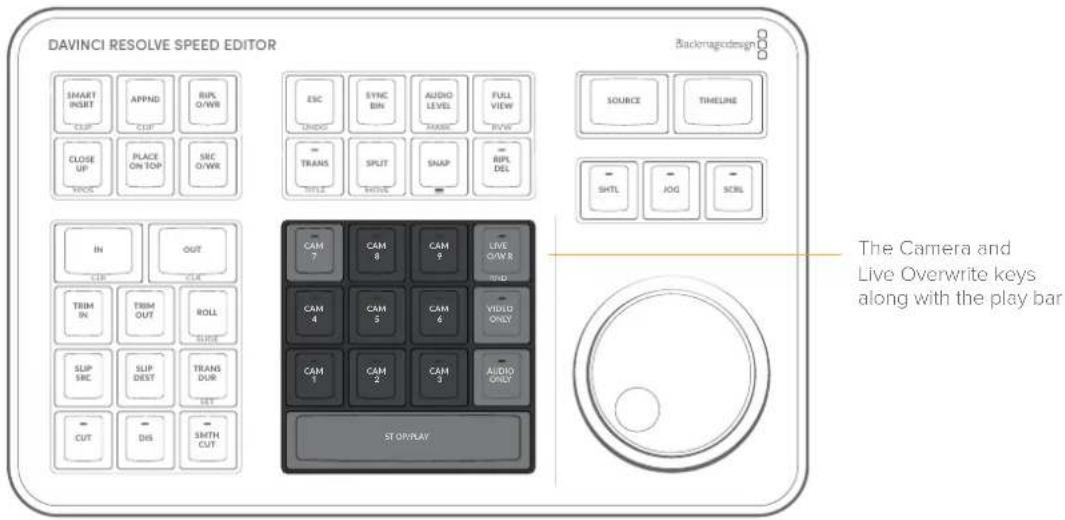
VIDEO ONLY
Press this key to only allow the video from your source clip into a video track on the Timeline. This key has an LED to tell you when it is active. Press this key again to deactivate.
This key is inactive in the Edit Page.
AUDIO ONLY
Press this key to only allow the audio from your source clip into an audio track the Timeline. This key has an LED to tell you when it is active. Press this key again to deactivate.
This key is inactive in the Edit Page.
STOP/PLAY
This key starts and stops playback on your Timeline or source media. It's conveniently arranged for using your thumb, while your fingers are on the search dial.
CAM 1-9
In the Cut Page, these keys only function in Sync Bin view. Each camera key allows you to choose its corresponding camera angle as active in the Sync Bin. Pressing any Camera key will expand that camera angle into the Source Clip view, making it easy to set specific In and Out points and perform edit functions. You can change camera angles instantly in the Source Clip view by simply pressing another Camera key. If you wish to return to the Sync Bin view, press the Escape key.
These keys illuminate and have a switcher-like function in Live Overwrite mode, as explained below.
In the Edit Page, these keys can switch camera angles in a multi-cam clip. For more information on Multicam in the edit page, see Chapter 42 "Multicam Editing."
Live Overwrite Mode
The Live Overwrite mode in the Speed Editor can be thought of as switching a live Multicam shoot without all the annoying constraints of linear time. With all the camera angles locked together in the Sync Bin, you can perform and trim all the edits, transitions, and camera switches, you want and never go out of sync. Every edit you make will be perfectly synchronized to the Timeline automatically.
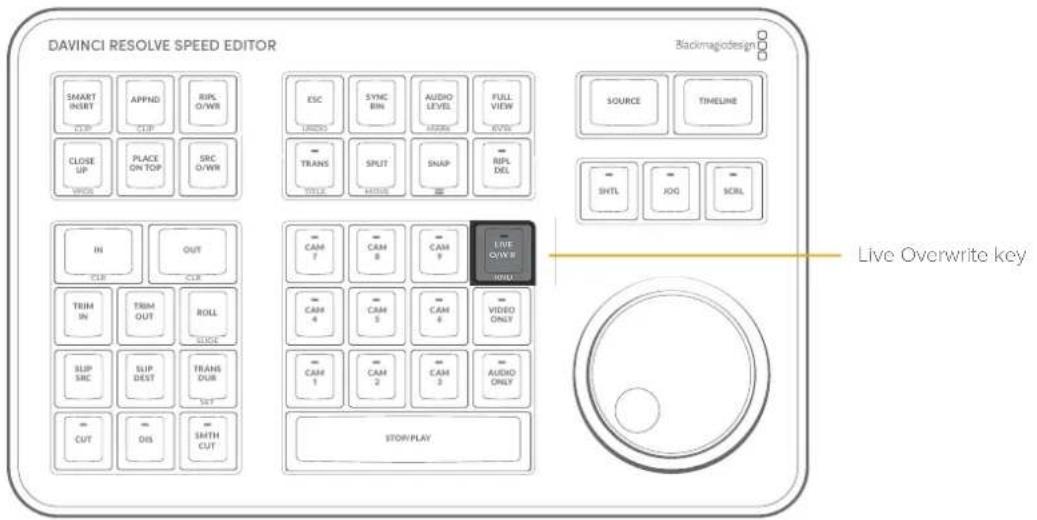
LIVE O/WR (Live Overwrite Mode) / RND (Random)
Press this key to enter Live Overwrite mode. An LED will illuminate to tell you this mode is active. It immediately activates the Sync Bin and the Multicam Viewer, and switches the Speed Editor into a different mode, slightly changing the functionality of several keys to accommodate the Live Overwrite workflow. A key that is in Live Overwrite mode has an LED light illuminate to let you know that the key's function is currently active.
Double Press this key (RND) to edit a Random camera angle with a random duration into the Timeline from the Sync Bin.
This key is inactive in the Edit Page.
Using Live Overwrite Mode
Editing Multicamera shoots in Live Overwrite mode starts with the base layer on track V1. The clip you put here has two additional functions other than its video content. First, it provides a continuous timecode track that is the foundation of all the Sync Bin functionality. Second, it provides content to measure all of the ripple functions against.
NOTE: Live Overwrite Mode only works with clips in the Sync Bin. If there are no clips set in the Sync Bin, this mode will not function. For more information on setting up the Sync Bin, see Chapter 27, "Fast Editing in the Cut Page," in the DaVinci Resolve Reference Manual.
A good starting point is to place your master camera angle, uninterrupted from beginning to end on track V1. You will be able to edit this track, remove whole sections, and re-arrange it as necessary later in the process, but for now, this master clip on V1 will serve as the backbone of the edit.
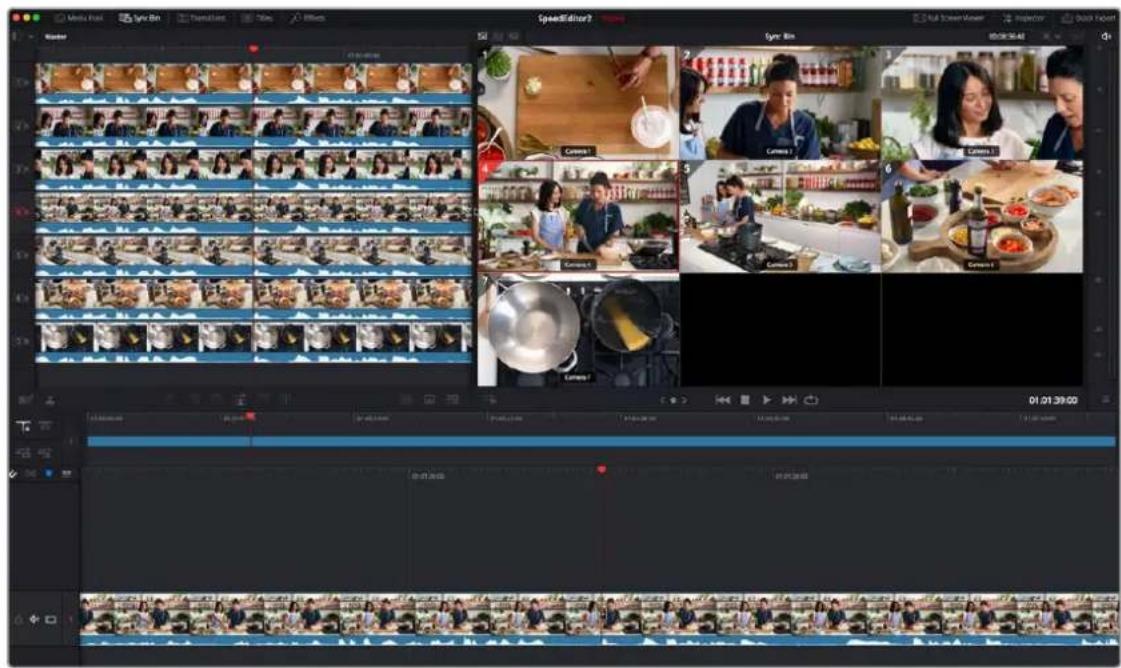
Live Overwrite mode, with the master camera angle (Cam 4) edited in on track V1
Once the master clip of the Sync Bin is on V1, you can start using the Live Overwrite mode in earnest. The concept to understand about Live Overwrite is that this method of editing bypasses traditional In and Out points all together, and edits are performed with the Camera keys working in conjunction with the Search Dial.
Performing a Live Overwrite edit:
1 Press the Live O/WR key to activate the mode. The LED on the key will illuminate.
2 Use the search dial to navigate the Sync Bin to where you want to make an edit (switch camera angles). You will notice all cameras and the Timeline will move together in sync.
3 Select a camera angle in the Multicam Viewer you wish to edit in, and press and hold the corresponding Camera key on the Speed Editor, while rotating the search dial forward. This will edit in a new clip on top of the V1 track, and you can use the search dial to immediately set its duration.
4 Release the Camera key to set the edit.
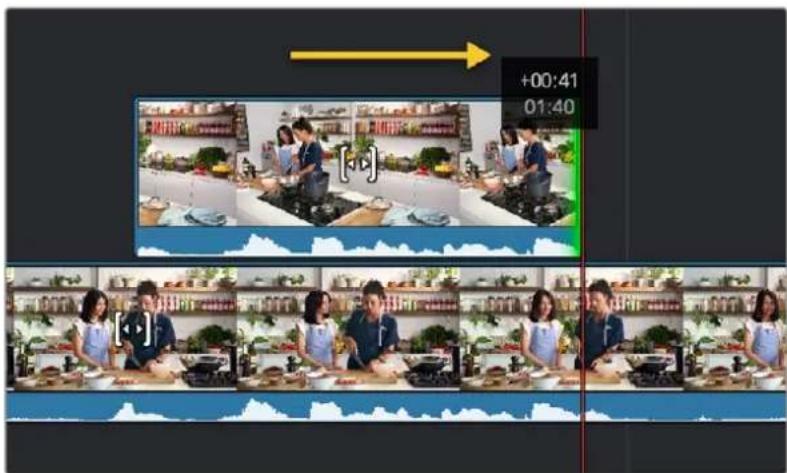
Performing a Live Overwrite by holding down the
Camera 5 key and rotating the search dial to the right
From here you can immediately press and hold another Camera key and rotate the search dial to continue the Multicam edit. You can think of this method as "painting-on" clips to the Timeline, rather than inserting them. Clips edited in this fashion will never overwrite other clips on the same track. Live Overwrite will always add the clip to the next highest track, and create a new track automatically if necessary.
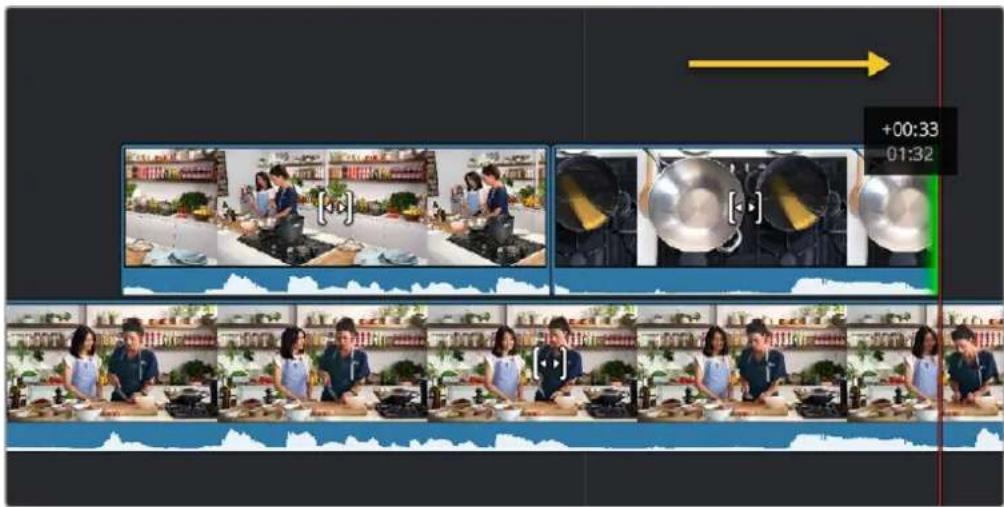
"Painting-on" the next edit by holding down the Camera 7 key and rotating the search dial to the right.
Continuing the edit from here does not require working in a linear fashion. Because the master track is on V1, you can skip ahead anywhere on the Timeline and start "painting-in" camera angles wherever you wish, and because the Timeline and Source clips are locked together in the Sync Bin, whatever edit you add will always be in perfect sync.
Live Overwrite Mode Key Modifiers:
Selecting Live Overwrite mode subtly changes the functions of many keys on the Speed Editor, so they work in conjunction with this mode. Each of these keys has an LED that illuminates to tell you the function is active before you perform a Live Overwrite edit.
- CUT: Automatically adds a simple cut to the beginning of each clip edited to the Timeline. This option is also effectively no transition added.
- DIS: Automatically adds a Cross Dissolve transition to the beginning of each clip edited to the Timeline. If the edited clip is immediately adjacent to another clip on the same track, the dissolve will be centered on the cut. If there is no clip immediately adjacent, the dissolve will start on the edit instead, and dissolve from the video on the track underneath the clip.
- SMTH CUT: Automatically adds a Smooth Cut transition to the beginning of each clip edited to the Timeline. If the edited clip is immediately adjacent to another clip on the same track, the Smooth Cut will be centered on the cut. If there is no clip immediately adjacent, the Smooth Cut will start on the edit instead, and Smooth Cut from the video on the track underneath the clip.
- TRANS: Automatically adds whatever transition is set as the "Standard Transition" in the Transitions panel to the beginning of each clip edited to the Timeline. If the edited clip is immediately adjacent to another clip on the same track, the transition will be centered on the cut. If there is no clip immediately adjacent, the transition will start on the edit instead, and transition from the video on the track underneath the clip.
- CLOSE UP: Automatically performs a Close Up action on the camera as its edited into the Timeline.
Introducing the DaVinci Resolve Editor Keyboard
Using a traditional keyboard and mouse to edit with is necessary for modern computers, as the interface and operating system dictate the use of these input tools. However the mouse can sometimes feel like an abstraction in the editing process, and the DaVinci Resolve Editor Keyboard has been designed to bring back a more “hands on” feel. This keyboard allows the convenience and power of non-linear editing with the tactile nature of the tape-based edit controllers of the past.
The DaVinci Resolve Editor Keyboard has been designed to greatly accelerate Edit Page timeline navigation and to use a two-handed workflow with dedicated keys for common functions in order to keep your mouse use to a minimum.
The main difference between using the DaVinci Resolve Editor Keyboard in the Edit page versus the Cut page is that in the Edit page the edit point is either selected manually or is set at the playhead position, not automatically set at the nearest edit point shown by the Smart Indicator, as in the Cut page. Some functions will work differently in the Cut Page, and are noted in the text.
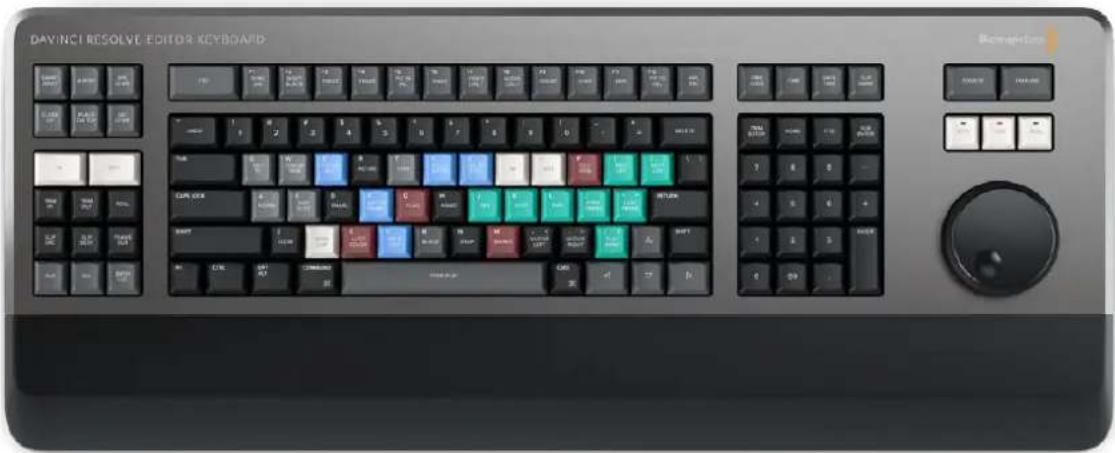
The DaVinci Resolve Editor Keyboard
TIP: Multiple DaVinci Resolve Speed Editors and Editor Keyboards can be connected and used on the same system.
Connecting the Editor Keyboard via USB-C
Connecting the DaVinci Resolve Editor Keyboard directly via USB-C is the simplest and most reliable way to use the Editor Keyboard on your Windows or Mac computer. Simply connect the Editor Keyboard to your computer's USB type C port, using a USB-C cable. No additional configuration is required. The Editor Keyboard will show up automatically in DaVinci Resolve, and the DaVinci Control Panels Setup applications, ready for use. The Editor Keyboard also includes two USB 3 type A ports that activate automatically for attaching external peripherals like dongles or mice.
Updating the Editor Keyboard Firmware
From time to time, Blackmagic updates the functionality of the Editor Keyboard through firmware changes. New firmware can be checked for and installed by opening the separate DaVinci Control Panels Setup utility that is installed by default with DaVinci Resolve.
Navigation Using the Search Dial
The most prominent feature of the DaVinci Resolve Editor Keyboard is the large Search dial on its right hand side. Primarily used for navigation, in certain circumstances this dial can also be used for the manipulation of the clips, providing an alternative to click and drag mouse input.
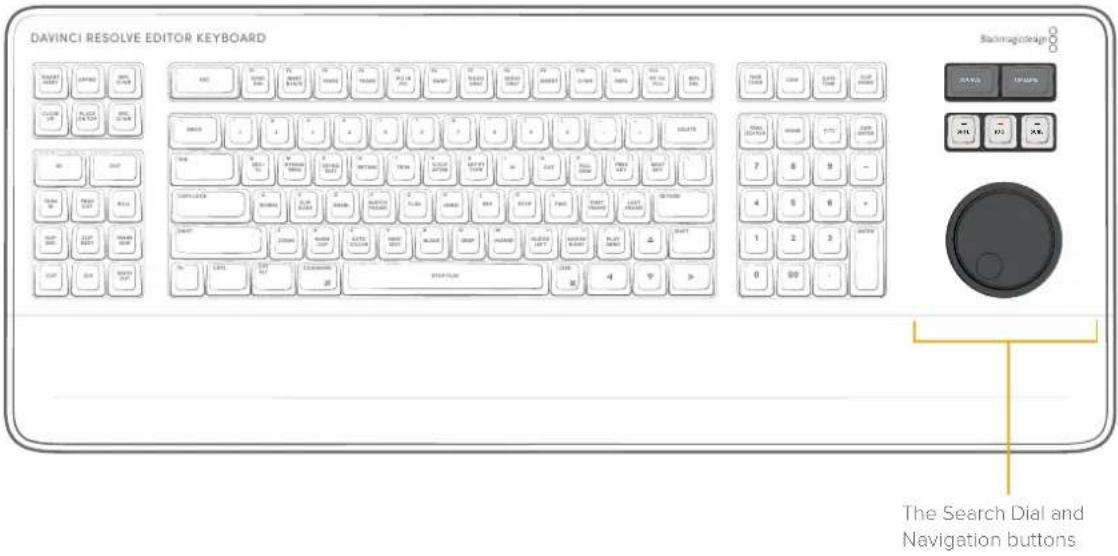
Source
Pressing this key instantly brings the Source Viewer into focus, allowing you to navigate through the source media.
In the Cut Page, this key opens the Source Tape.
Timeline
Pressing this key instantly brings the Timeline Viewer into focus, allowing you to navigate through the Timeline.
SHTL (Shuttle)
Puts the Search dial into Shuttle mode. Used to quickly navigate long clips or timelines. Rotating the dial left of center "rewinds" through the clip or timeline, rotating it right "fast forwards" through them. The greater the rotation from center, the faster the shuttle goes. There are hard end stops on the Search dial in Shuttle mode that indicate the maximum speed in either direction. A LED on the keyboard will illuminate to show you that this mode is selected.
Jog
Puts the Search dial into Jog mode. Used to navigate to specific frames with accuracy and precision. Traditionally, you place your finger on the Search dial dimple, and rotate it to the left to go frame by frame reverse, and to the right to go frame by frame forward. In Jog mode the hard stops are released, and the wheel rotates freely in a complete circle. A LED on the keyboard will illuminate to show you that this mode is selected.
SCRL (Scroll)
Puts the Search dial into Scroll mode. Scroll mode is essentially a "higher geared" jog mode. Rotating the wheel left reverses the play direction, while rotating it right moves forward. Scroll works in terms of seconds, rather than frames. The speed at which you rotate the Scroll dial determines how fast the playhead moves through the footage. A LED on the keyboard will illuminate to show you that this mode is selected.
Sort Media Pool Keys
These keys allow you to instantly re-configure the Media Pool view to arrange your clips in a specific order.
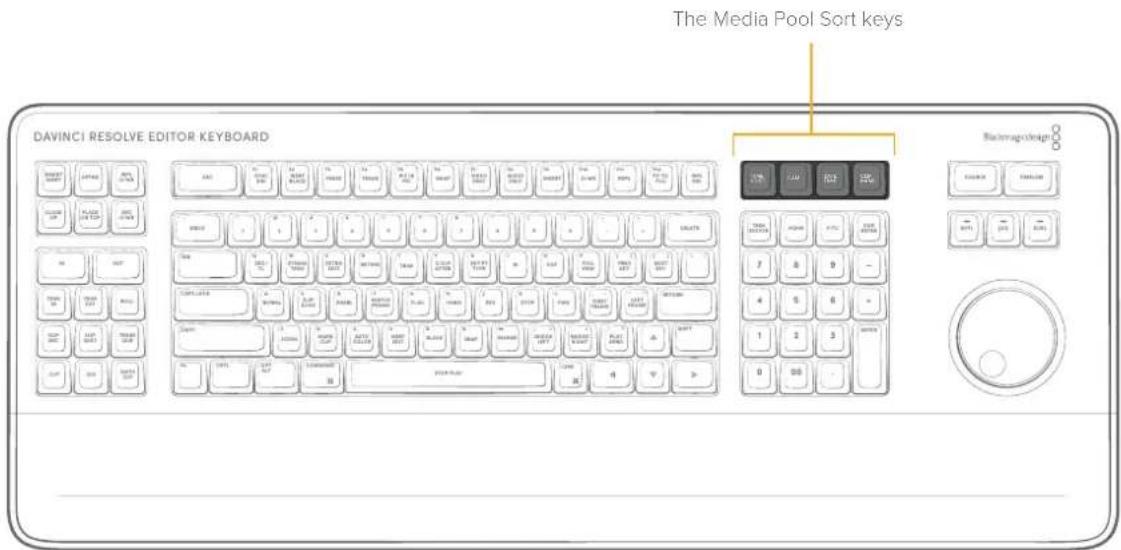
Timecode
Pressing this key will instantly sort all of the clips in the Media Pool by Timecode. Pressing this key again will toggle between ascending and descending order.
CAM (Camera)
Pressing this key will instantly sort all of the clips in the Media Pool by Camera Number order. The camera numbers can be set in the Clips Metadata Editor Field "Camera #". This field can either be a number or a letter. Pressing this key again will toggle between ascending and descending order.
Date/Time
Pressing this key will instantly sort all of the clips in the Media Pool by the Date and Time that the clip was created. Pressing this key again will toggle between ascending and descending order.
Clip Name
Pressing this key will instantly sort all of the clips in the Media Pool by Clip Name. Please note this sorts media by the user selected Clip Name, not the media's File Name that is recorded in camera. Pressing this key again will toggle between ascending and descending order.
Editorial Tools
The DaVinci Resolve Editor Keyboard has dedicated keys to perform common editing functions, in addition to the standard QWERTY keyboard. Using the keyboard in the Edit page will also give you access to the Cut page's custom editing tools without having to switch pages back and forth.
The Cut page Editing tools
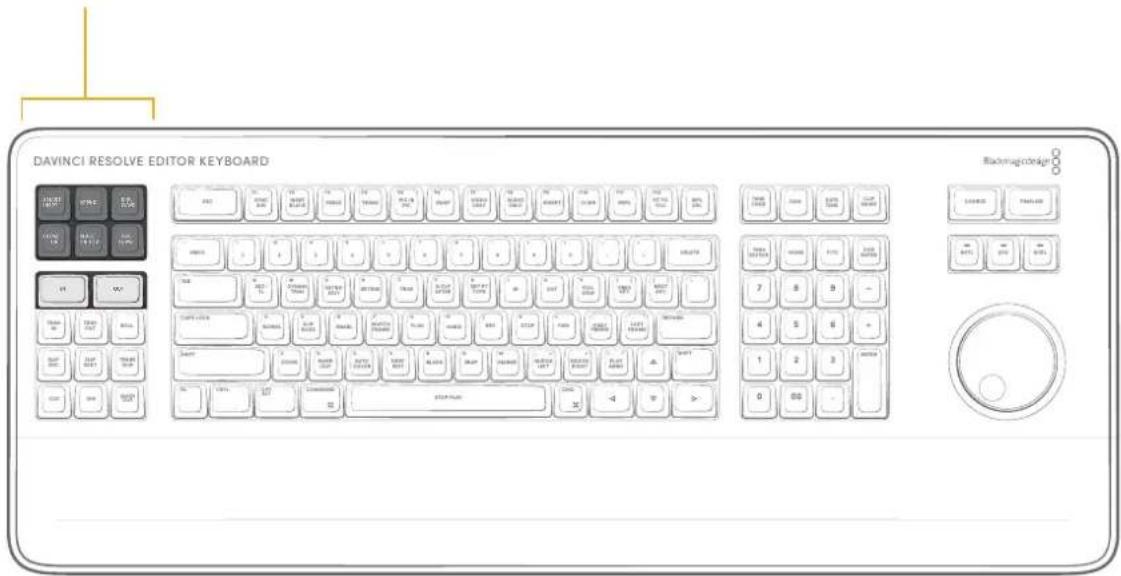
In
This key selects the In point of a clip or timeline. Double press this key to clear the In point.
Out
This key selects the Out point of a clip or timeline. Double press this key to clear the Out point.
Smart Insert
Automatically inserts an incoming clip at the playhead or selected In point on the selected track, pushing all clips to the right of the edit point forward to make room for the incoming clip.
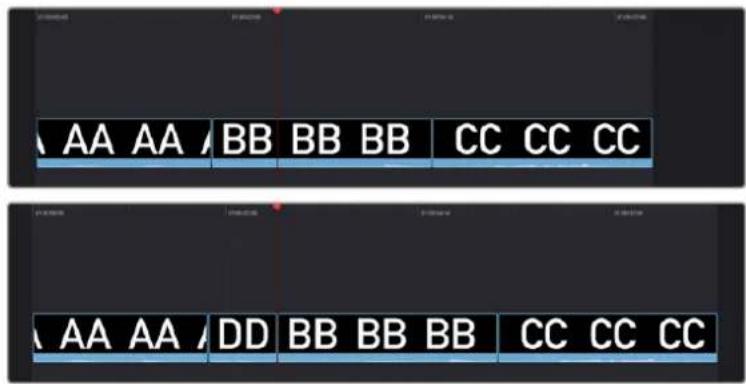
(Top) Before doing a Smart Insert, (Bottom) After inserting clip DD between clips AA and BB
Append
The position of the playhead is ignored; incoming clips are always placed after the last clip of the selected track in the Timeline.
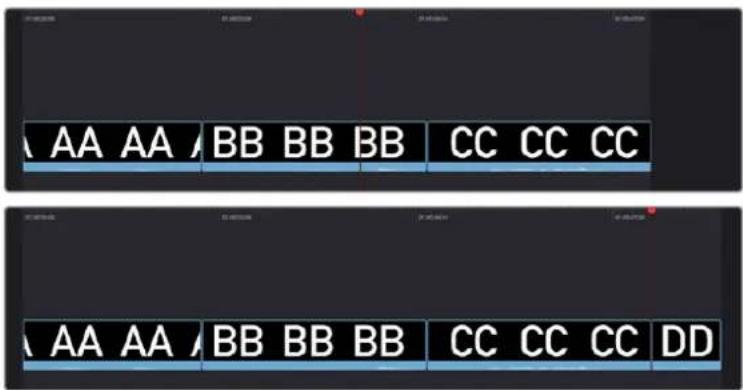
Performing an Append edit of clip DD to the Timeline
RIPL O/WR (Ripple Overwrite)
At its simplest, Ripple Overwrite substitutes a clip in the Timeline with an incoming clip on the selected track. Place the playhead over the clip in the Timeline you wish to substitute with the one in the Source Viewer and press this key.
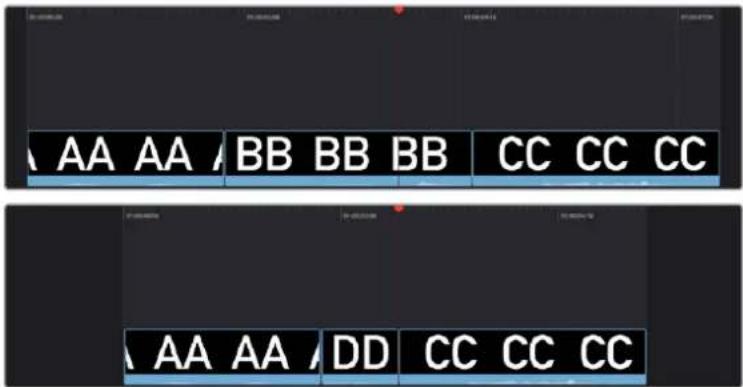
Performing a Ripple Overwrite to substitute an entire clip at the playhead (BB) with the incoming clip (DD)
Close Up
Lets you edit a clip into the Timeline as a zoomed-in close up to make up for a lack of actual close ups that would have been shot with either longer lenses or by moving the camera closer to the subject. This function is particularly useful when you're working with 4K media in a 1080 timeline, or 8K media in a 4K timeline, which enables you zoom into existing wide shots to create medium shots, or medium shots to create close up shots, with no loss of quality.
Performing this edit adds the incoming clip as an approximate 150% scaled close up, and if a face or faces are found, automatically re-positions the face in the frame. Which frame of the Timeline the incoming clip aligns with depends on the following:
- If no In or Out points are set on the timeline, the incoming clip aligns with the Timeline playhead as the In point.
- The incoming clip aligns with a timeline In point if one has been set.
- The incoming clip's Out point will align with a timeline Out point if one has been set without an In point. This "backtimes" the clip.
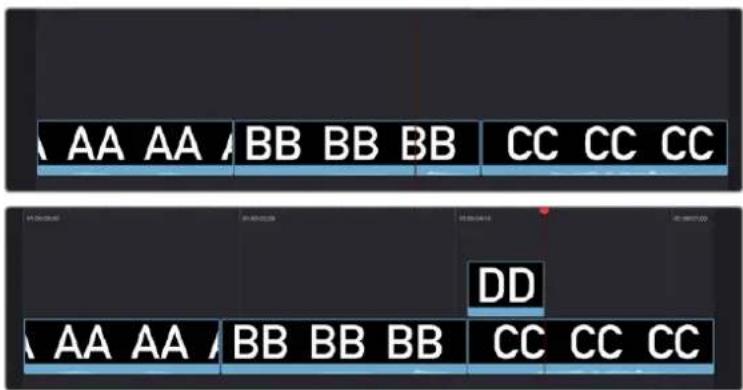
(Top) Before a Close Up edit, (Bottom) After editing clip DD into the Timeline with a Close Up edit Place on Top
Place On Top
Lets you edit the incoming clip as a superimposition above whatever other clips are in the Timeline; the incoming clip is always placed on top, so if there are clips in Tracks 1, 2, and 3, the incoming clip is automatically placed on Track 4, regardless of which track is selected. The frame the incoming clip aligns with depends on the following:
- The incoming clip aligns to the playhead if no timeline In or Out points have been defined.
- The incoming clip aligns with a timeline In point if one has been set.
- The incoming clip's Out point will align with a timeline Out point if one has been set without an In point. This "backtimes" the clip.
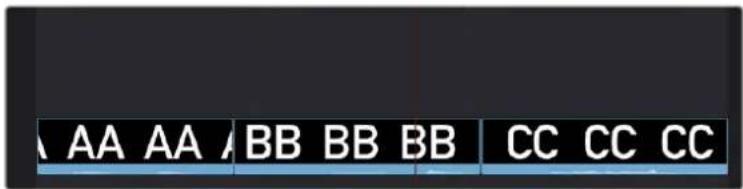
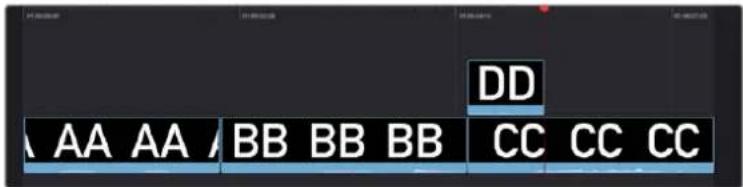
(Top) Before placing a clip on top, (Bottom) After editing clip DD into the Timeline with a Place on Top edit
SRC O/WR (Source Overwrite)
This edit requires overlapping timecode in multiple clips to work properly, such as when recording synced timecode to multiple cameras during a multi-cam shoot. If there is no overlapping timecode, this edit does nothing.
Press this key to automatically place a source clip with a marked In/Out region on top of a clip in the Timeline so that its timecode syncs with the timecode of the timeline clip, when you don't know exactly how much of the incoming source clip you want to edit into the Timeline, and you just want it synced appropriately.
Trimming Tools
Several of the most powerful features of the DaVinci Resolve Editor Keyboard involve the intuitive trimming controls afforded by the Search dial.
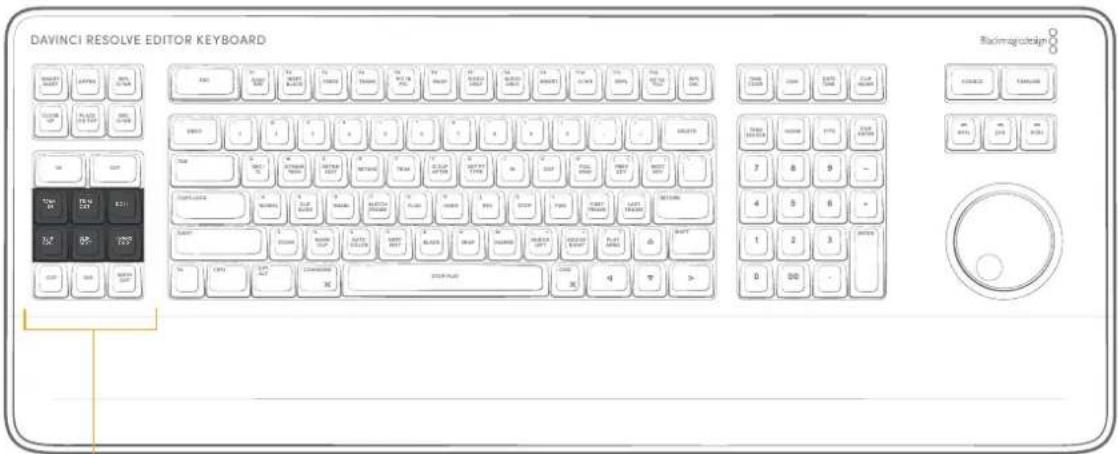
The Trimming tools
Trim In
When this key is pressed and held, it lets the user trim the In point of the clip in the Timeline under the playhead, by simply rotating the Search dial back and forth. The trim point is highlighted in green. Release the key to confirm the edit.
Trim Out
When this key is pressed and held, it lets the user trim the Out point of the clip in the Timeline under the playhead, by simply rotating the Search dial back and forth. The trim point is highlighted in green. Release the key to confirm the edit.
Roll
When this key is pressed and held, it lets the user trim the nearest edit point to the clip under the playhead, and roll the edit point back and forth between the clips by simply rotating the Search dial. The trim point is highlighted in green. Release the key to confirm the edit.
SLIP SRC (Slip Source)
When this key is pressed and held, it allows the user to slip the footage of the clip to the left of the nearest edit point to the playhead back and forth by moving the Search dial. A four way multiview will show the In and Out points for both source and destination clips as you slip. The clip that will slip will be highlighted in orange. Release the key to confirm the edit. This operation will work on audio only edits in the Edit page, but no video multivew will be shown.
SLIP DEST (Slip Destination)
When this key is pressed and held, it allows the user to slip the footage of the clip to the right of the nearest edit point to the playhead back and forth by moving the Search dial. A four way multiview will show the In and Out points for both source and destination clips as you slip. The clip that will slip will be highlighted in orange. Release the key to confirm the edit. This operation will work on audio only edits in the Edit page, but no video multivew will be shown.
Trim Editor
This key does not function in the Edit page.
Transition Keys
This set of keys provide immediate shortcuts to the most commonly used transition commands.
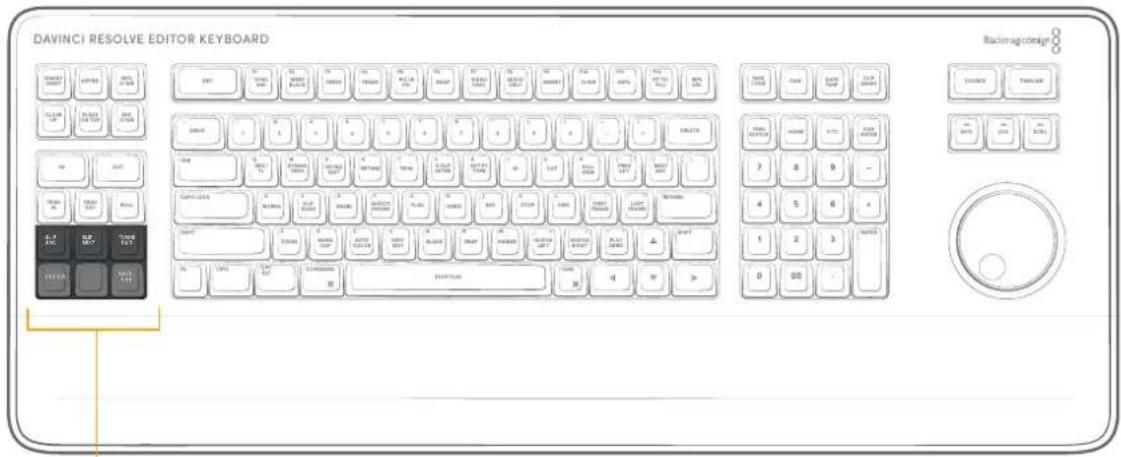
Transition keys
Cut
This key will change any existing transition to a simple cut at the Timeline edit point under the playhead. It will not add a new cut at the playhead position. To do this use the Split Clip (Command-1) function instead.
DIS (Dissolve)
This key will add a one second dissolve centered between the two shots at the Timeline edit point under the playhead. If there is another transition already present there, it will replace it.
SMTH CUT (Smooth Cut)
This key will add a Smooth Cut transition centered between the two shots at the Timeline edit point under the playhead. If there is another transition already present there, it will replace it.
Smooth Cuts are special-purpose transitions designed to make short jump cuts in the middle of a clip unnoticeable. This is done by using optical flow processing to match the same features on either side of a cut in order to automatically morph a subject from one position to another over the duration of the transition.
The Smooth Cut effect works best on clips such as sit-down interviews and close-up head shots with a minimum of background and subject motion, and where the subject's position on either side of the cut is not significantly different. A good example of when Smooth Cut is effective is when you're cutting pauses, partial repeats, filler sounds such as "um" or "you know," or other speech disfluencies out of an interview clip to tighten the dialog, and you want to eliminate the little "jump" that occurs at the cut without having to cut away to B-roll. Applying a short two or four frame Smooth Cut transition to the edit can make this kind of edit invisible, as long as the speaker doesn't change position significantly during the cut. The more motion there is in the background of the shot, and the more the speaker changes position, the harder it will be to get a useful result using Smooth Cut. Although the default duration for any transition is one second, you'll find that Smooth Cut transitions may work much better when they're short; 2- to 6-frame Smooth Cut transitions often work best to disguise jump cuts.
TRANS DUR (Transition Duration)
Holding down this key when a transition is under the playhead will allow you to change the duration of the transition using the Search dial. Turning the dial left will shorten the transition, and right will lengthen it. Once the duration is correct, release the key.
Function Keys
The function keys of the DaVinci Resolve Editing Keyboard are by default mapped directly to their DaVinci Resolve commands. If you wish to use them as regular function keys (f1, f2, f3, etc.) you can hold the Fn key down and press the appropriate function key.
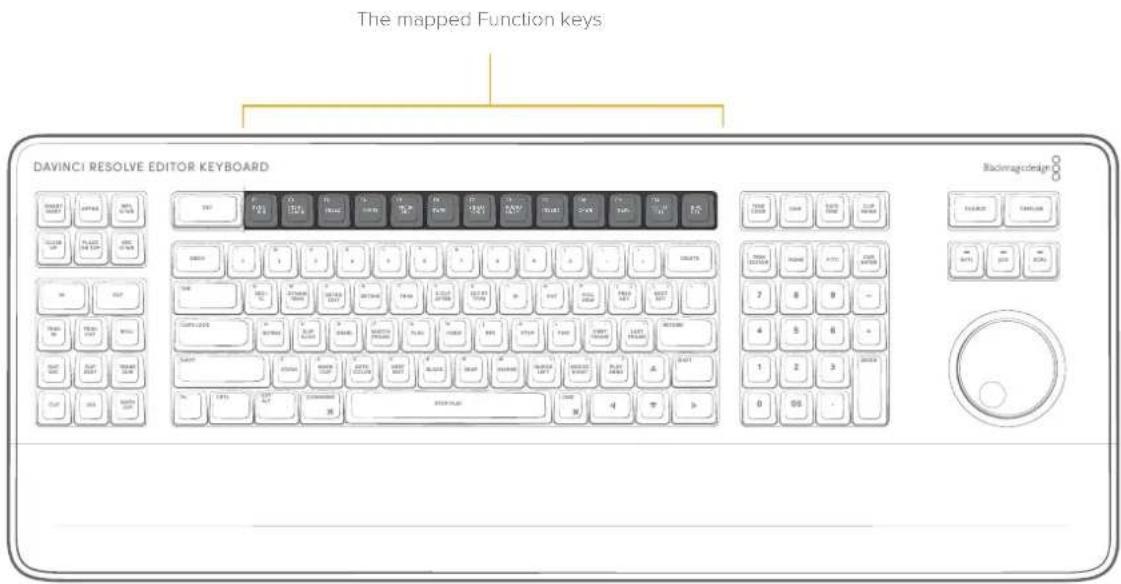
Sync Bin (F1)
This key opens the Sync Bin in the Cut Page. This key does not function in the Edit page.
Insert Black (F2)
Pressing this key will add two seconds of black (via the solid color generator) to the selected track. This is used as filler for transitions where you want to replace the "nothing" of the empty timeline with an actual media clip.
Freez (Freeze Frame) (F3)
Pressing this key will freeze the exact frame of the clip that is under the playhead for the remaining duration of that clip.
TRANS (Transition) (F4)
In the Cut Page, holding down this key brings up a drop-down menu of your available transitions in alphabetical order and an icon describing their shape. Rotating the Search dial left and right will navigate you through the list. When you find the transition that you want, simply release this key and it will be placed at the Timeline edit point as shown by the Smart Indicator.
This key does not function in the Edit page.
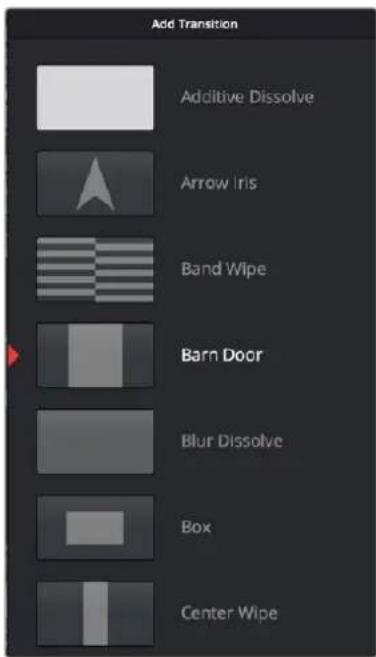
Drop-down Transition menu
Pic in Pic (Picture in Picture) (F5)
In the Cut Page, holding this button down will open a drop-down menu that displays four picture-in-picture placement options that you can navigate using the Search dial or numeric keyboard. This function will take the media that is in the Source Viewer, scale it to 1/8 size and place it on top of the original clip in the position that was selected in the drop-down menu. If you wish to change the drop-down position, navigate over the clips, hold down this button and select another position.
This key does not function in the Edit page.
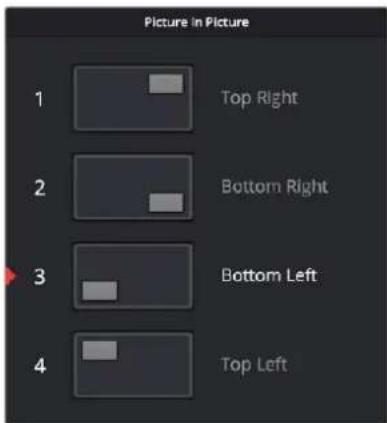
Picture-in-Picture options
Swap (F6)
Press and hold the Swap key, and using the Search dial, move the clip under the playhead earlier or later in the Timeline, effectively swapping the moving clip with the one you are scrolling over.
TIP You can easily move entire scenes back and forth in your timeline by Command Selecting the all clips in the scene, holding down the Swap key (f6), and rotating the Search Dial. When the scene is in its correct place, release the key. (Edit page only).
Video Only (F7)
In the Cut Page, press this key to only allow the video from your source clip into a video track on the Timeline. Press this key again to deactivate.
This key is inactive in the Edit Page.
Audio Only (F8)
In the Cut Page press this key to only allow the audio from your source clip into an audio track the Timeline. Press this key again to deactivate.
This key is inactive in the Edit Page.
Insert (F9)
An Insert edit splits whatever media is already in the Timeline at the position of the playhead and pushes that media to the right to make room for the incoming clip.
O/WR (Overwrite) (F10)
You can use the F10 key to perform an Overwrite edit, which overwrites a section of the Timeline with the incoming clip, without moving other clips in any way. The frame the incoming clip aligns with depends on the following:
- The incoming clip aligns with the playhead if no timeline In or Out points have been defined.
- The incoming clip aligns with a timeline In point if one has been set.
– The incoming clip's Out point will align with a timeline Out point if one has been set without an In point. This “backtimes” the clip.
REPL (Replace) (F11)
Replace edits are a unique three-point edit type that aligns the frame at the Source Viewer playhead with the frame at the Timeline playhead when the edit is executed. This is the fastest edit type to use when you need to align an action at a specific frame of video, or a sound at a specific frame of audio, to a particular frame's action or sound in the video or audio of the Timeline.
The fastest way of using the Replace edit is to not bother setting either In or Out points in the Source Viewer, and to either use the duration of an existing clip intersecting the Timeline to define the edit, or a pair of timeline In/Out points specifying either a section of a clip you want to overwrite, or an empty section of the Timeline to which you want to edit.
Replace edits do not ripple the Timeline.
Fit to Fill (F12)
Fit to fill edits are the only edit type that actually use all four edit points, and it's the only edit type that retimes clips at the same time as they're being edited. By setting In and Out points in the incoming source clip, and another pair of In and Out points in the Timeline, you can stretch or compress the timing of the specified range of source media to cover the entire specified range of the Timeline. In the process, the speed ratio of the clip changes so the clip plays in either fast or slow motion.
Fit to fill edits are especially valuable when you have a source clip in which the action is slightly slow, and you just want to speed it up by squeezing it into a shorter duration of the Timeline. They're also incredibly handy in situations when you have a gap in an edited sequence of clips to fill with a source clip that's just not long enough, but in which slightly slower motion won't be noticeable.
Fit to fill edits do not ripple the Timeline.
Ripple Del (Ripple Delete)
Pressing this key will delete the selected clip or clips, and then close any gaps that occur by rippling the Timeline to the left.
Timecode Entry
This numerical keypad has many timecode-specific keys that allow you to input these values directly into DaVinci Resolve to navigate to specific points in the Timeline, or move forward and backward in the Timeline by specific increments.
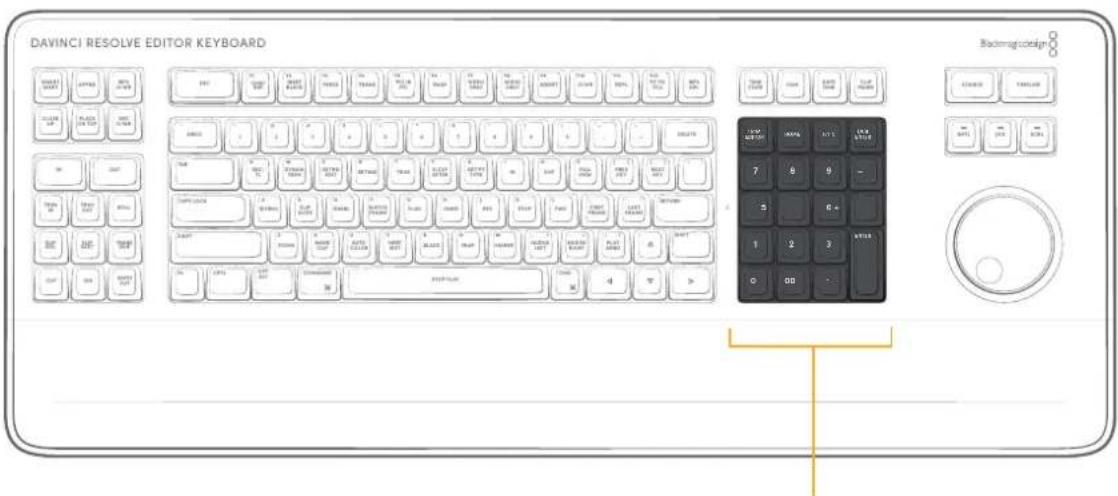
The Numeric keypad and Timecode keys
How to Enter Timecode Values
When entering timecode, type each pair of hour, minute, second, and frame values from left to right, with a period representing a pair of zeros for fast entry. The numbers you enter appear in the timecode field at the upper right-hand corner of the Viewer with focus. When you're finished typing, press the Return key to execute the Timecode command. The rules for timecode entry are as follows:
- The right-most pair of timecode values (or period) you enter is always the frame number.
- A period to the left or to the right of any number you type is considered to be a pair of zeroes.
- A single period between two numbers is considered to either be a single zero, or ignored if it's between two pairs of numbers.
- Any untyped pairs of values to the left of what you enter are assumed to be whatever those values were prior to the timecode you entered; this makes it easy to type partial timecode values even when the Timeline starts at hour one.
- It's not necessary to enter colons or semicolons.
Absolute Timecode Entry
Absolute timecode is entered simply by typing in a timecode value. So long as no clips or edit points are selected when you press the Return key, the playhead will move to that timecode value. If an edit point or clip is selected, those will be moved or trimmed to the corresponding timecode value, if possible.
Here are some examples of absolute timecode entry using this method:
| Original TC Value | User-Typed Value | New TC Value |
| 01:10:10:10 | 15245218 | 15:24:52:18 |
| 01:10:10:10 | 2.. | 01:02:00:00 |
| 01:10:10:10 | 15 | 01:10:10:15 |
| 01:10:10:10 | 12 | 01:10:10:12 |
| 01:10:10:10 | 1.2 | 01:10:01:02 |
Original TC Value User-Typed Value New TC Value
| 01:10:10:10 1115.. 11:15:00:00 | ||
| 01:10:10:10 23... 23:00:00:00 |
Relative Timecode Entry
Relative timecode is entered by starting the timecode value with a plus (+) or minus (−). Adding a plus results in the value you type being added to the current timecode value for purposes of offsetting the playhead or moving a selection. Adding a minus will subtract the value you type from the current timecode value.
Here are two examples of relative timecode entry:
User-Typed Value Result
| +20. 00:00:20:00 is added to the current timecode value. |
| +3.. 00:03:00:00 is added to the current timecode value. |
| -5 00:00:00:05 is subtracted from the current timecode value. |
F/TC (Frames/Timecode)
This key toggles between timecode (HH:MM:SS:FF) and frame count (23, 48, etc.) entry using the numerical keypad. For example, if you wanted to move forward 200 frames, you can press this key and then enter +200 and press the Enter key.
Dur Enter (Duration Enter)
Press this key to quickly change the duration of a transition or a clip's length by the exact number that you typed in. For example selecting a transition, typing -15, and pressing the Dur Enter key, decreases the length of the transition by 15 frames.
00
This key adds two zeros to the timecode input rather than a single zero, to make numerical entry faster.
QWERTY Keyboard Commands
The standard QWERTY shortcut keys have been modified slightly.
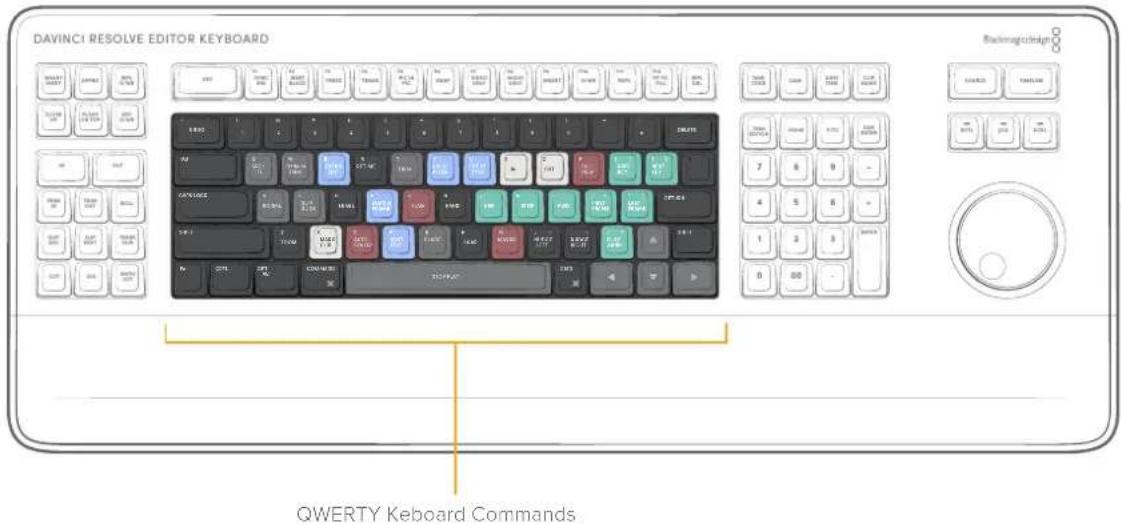
Retime (R)
The Retime controls have been mapped to the letter R on the keyboard. This works both in the Cut and Edit pages.
Full View (P)
The full screen Viewer has been mapped to the letter P on the keyboard, and works in the Cut, Edit, Color and Fusion pages.
Hand (H)
This key allows you to select Hand or Pointer mode on the Viewer for repositioning of titles. This works on the Edit page only. (At the time of this writing, this feature had not been implemented yet.)
Zoom (Z)
This key will zoom to fit your media clip in the Viewer. This works in the Cut, Edit, and Color pages.
Autocolor (C)
This key will perform the Autocolor function on the clip that is underneath the playhead, or the selected timeline clip.
Using the Function (Fn) Key on the Editor Keyboard
There are three types of key actions mapped to the DaVinci Resolve Editor Keyboard. The Function (Fn) key in the lower left of the keyboard toggles these modes and each type of key action modifies the resulting commands. These key actions give you access to standard computer functions in your native OS.
- Key Press: Simply pressing the key once.
- Fn + Key Press: Holding down the Fn key and then pressing another key.
- Tap Fn + Hold: Pressing the Fn Key once, then pressing Fn again and holding it down, then pressing another key. This is a total of three key presses.
Editor Keyboard Function (Fn) Key Map
| Key Press Fn + Key Press Tap Fn + Hold | ||
| SYNC BIN F1 DECREASE SCREEN BRIGHTNESS | ||
| INSERT BLACK F2 INCREASE SCREEN BRIGHTNESS | ||
| FREEZ F3 SHOW ALL WINDOWS | ||
| TRANS F4 SHOW ALL APPLICATIONS | ||
| PIC IN PIC F5 DECREASE KEYBOARD LED BRIGHTNESS | ||
| SWAP F6 INCREASE KEYBOARD LED BRIGHTNESS | ||
| VIDEO ONLY | F7 PREVIOUS TRACK | |
| AUDIO ONLY | F8 PLAY/PAUSE | |
| INSERT | F9 NEXT TRACK | |
| O/WR | F10 | MUTE |
| REPL | F11 | DECREASE VOLUME |
| FIT TO FILL | F12 | INCREASE VOLUME |
| UP ARROW | PAGE UP | PAGE UP |
| DOWN ARROW PAGE DOWN PAGE DOWN | ||
| LEFT ARROW HOME HOME | ||
| RIGHT ARROW END END | ||
| HOME END END | ||
| KEYPAD ENTER CALCULATOR CALCULATOR | ||
| DELETE FORWARD DELETE FORWARD DELETE | ||
| CAM | PRINT SCREEN | PRINT SCREEN |
| TIMECODE PAUSE | PAUSE | |
| DUR ENTER | NUM LOCK | NUM LOCK |
Using the Speed Editor and Editor Keyboard In Other DaVinci Resolve Pages
While primarily designed to be used in the Cut and Edit pages, some of the basic functionality of the Speed Editor and Editor Keyboard work in other pages in DaVinci Resolve as well.
Using the Keyboards in the Media Page
The basic transport controls: Shuttle, Jog, and Scroll, as well as the Search Dial work with the Viewer in the Media Page, as well as the Full View key. In addition the Editor Keyboard's Sort Media Pool keys: Timecode, Camera, Date, and Clip Name work as expected.
Using the Keyboards in the Fusion Page
The only basic transport controls that work in the Fusion Page are Jog and Scroll, albeit in a limited fashion due to the computationally complex nature of Fusion.
Using the Keyboards in the Color Page
The basic transport controls: Shuttle, Jog, and Scroll, as well as the Search Dial work with the Viewer in the Color Page, as well as the Full View key.
Using the Keyboards in the Fairlight Page
The basic transport controls: Shuttle, Jog, and Scroll, as well as the Search Dial work with the Viewer in the Fairlight Page, as well as the Full View key. In addition the In/Out buttons function as expected.
Using the Keyboards in the Deliver Page
The basic transport controls: Shuttle, Jog, and Scroll, as well as the Search Dial work with the Viewer in the Deliver Page. In addition the In/Out buttons function as expected.
Chapter 50
Compositing and
Transforms in the
Timeline
The Edit page is also home to many of the compositing and transform effects found in DaVinci Resolve. Many of these kinds of effects can be imported into DaVinci Resolve, including composite modes, opacity settings, and clips using alpha channels. Once in DaVinci Resolve, you can make changes to these effects in the Edit page. Alternately, you can also use DaVinci Resolve's controls to create effects from scratch.
Contents
Composite Modes and Transparency Effects 860
More About Composite Modes 861
Opacity 864
Video Fader Handles 864
Fade In and Out to Playhead Commands 865
Alpha Channel Support 865
Keying in the Timeline Using Resolve FX 865
Setting Up a Green Screen (Chroma Key) on the Timeline 865
Using Resolve FX and Open FX Alpha for Track Compositing 867
Transform and Cropping in the Video Inspector 867
Transform 867
Smart Reframe (Studio Version Only) 868
Cropping 868
Dynamic Zoom 868
Stabilization
Lens Correction 870
Retime and Scaling 870
Onscreen Controls for Transform, Crop, and Dynamic Zoom 871
Object Snapping in the Viewer 871
Using Onscreen Controls 872
Composite Modes and Transparency Effects
Composite modes are effects that use various mathematical operations to combine one superimposed clip with another, relying on standard image processing math for each color channel whereby black pixels have a value of 0, white pixels have a value of 1, and descending levels of gray are represented by decimal point values (for instance, 0.5 represents 50% gray). When using composite modes to blend two clips together on the Timeline, the three color channels of each pair of pixels are combined using that particular composite mode's math. The results can create transparency effects, increase image exposure, and combine multiple images in many creative and useful ways.

natural_image
Two people standing by the coast with rocky coastline in the background (no visible text or symbols)
natural_image
Hand holding a map of a world map with historical icons and no visible text or labels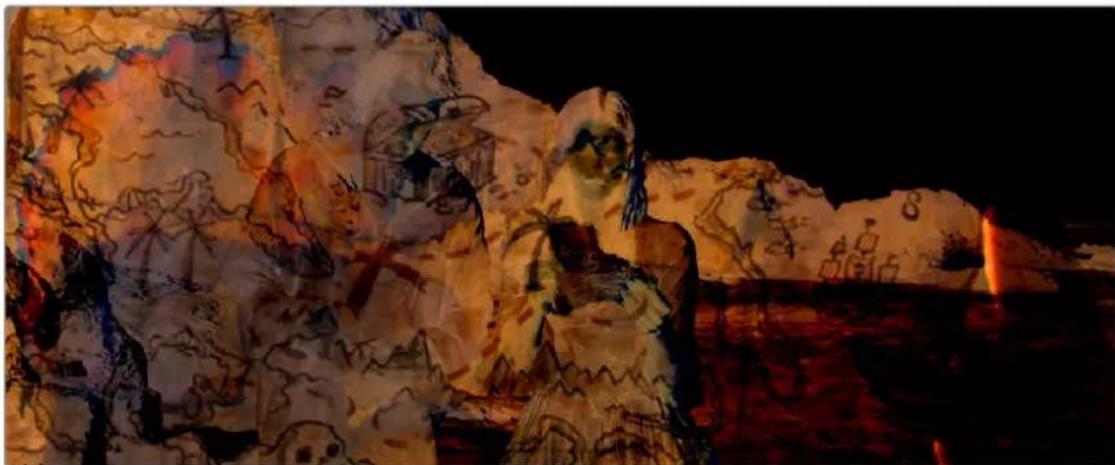
natural_image
Nighttime projection of a person with a skull and hat standing on a large rock, illuminated by warm lighting (no text or symbols visible)Two source clips combined with the Subtract composite mode
When using composite modes, it's easy to push parts of the resulting image above the maximum or below the minimum values for brightness. However, this image data is not clipped, even through such areas of the picture may appear flat white or black. Out-of-range data as a result of a composite mode effect is preserved, and may be retrieved by later image processing operations in the Color page.
When you import XML project files, DaVinci Resolve imports whatever composite modes were used by clips in the original sequence. If necessary, you can then change a clip's composite mode to one that will work better with whatever grade you're creating. Of course, you can also add composite modes to clips that didn't originally have them, adding new effects of your own.
All composite modes interact with the Opacity slider (found below the Composite Mode pop-up menu in the Inspector) to make a clip more or less transparent in addition to compositing already being done.
Composite modes can be used on clips that are superimposed over other clips in the Timeline. However, these composite modes are also available for use within a grade on the Color page using the Layer Mixer node, within which you can combine differently graded versions of an image in creative ways. For example, the Add and Overlay composite modes can be useful for creating glow effects, while Subtract and Difference can create more surreal effects.
Working with composite modes in the Edit page is simple.
To set or change a composite mode for any clip:
- Select a clip in the Timeline, then open the Video Inspector and choose one of the options from the Composite Mode pop-up menu.
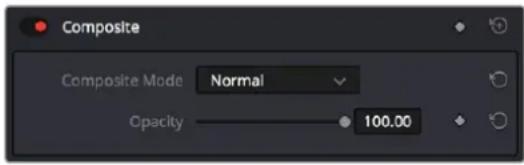
Composite mode and Opacity controls in the Timeline
To turn a clip's composite mode off:
- Select a clip in the Timeline, then open the Inspector and choose Normal from the Composite Mode pop-up menu.
More About Composite Modes
There are ten composite modes to choose from. For clarity, simple image math is used to help explain the available Composite Mode effects.
Normal
No image compositing is done. The topmost image on the Timeline or the bottom input of the Layer Mixer node occupies the entire frame.
Add
Each pair of pixels in both superimposed layers is added together. Layer order does not matter. This can result in a dramatic brightening of light areas of both images with areas of the picture that are blown out to maximum white, and this effect is often used by adding the brighter part of an image to itself to create hot glow effects. Image data going above 1.0 is preserved and may be retrieved by later color correction operations. On the other hand, black areas of either image do not alter the combined image at all (0 + n = n) .
Color
Recombines two layers using HSL image components by combining the Luma of the bottom layer with the Hue and Saturation of the top layer.
Color Burn
Inverts the bottom layer, which is divided by the top layer, and the end result is itself inverted.
Color Dodge
The bottom layer pixels are divided by the top layer, which has been inverted.
Darken
Each pair of pixels in each color channel is compared, and the darker of the two is the output. Layer order does not matter. Darken is useful when you want the darker features of both layers to take precedence, but the output for any given pixel may be a color that doesn't actually exist for that pixel in either of the source layers.
Darker Color
For each pair of pixels, all three color channels from the bottom layer are added together, and all three color channels from the top layer are added together. These results are compared, and the darker pixel of the two layers is the output. Layer order does not matter. Darker Color is useful when you want the darker features of both layers to take precedence. Unlike the Darken composite mode, the result will always be a specific color from either the bottom or top layers.
Difference
The absolute value is taken of the top layer minus the bottom layer, and returned as the result, which is always a positive number. Layer order does not matter. This Blend mode is often used to compare two differently processed versions of the same image to see if there are any alterations, and how large they are.
Divide
Divides the bottom layer by the top layer. Any color divided by itself = 1.0, or white, while any color divided by white (1.0) = itself.
Exclusion
Similar to the Difference composite mode, but results in lower contrast.
Hard Mix
The R, G, and B channel values of the bottom layer are added to the R, G, and B channel values of the top layer. Layer order does not matter. Can result in extreme effects.
Hardlight
Hardlight is the opposite of Overlay. All bottom layer pixels above 50% are Multiplied, while all bottom layer pixels 50% and below are Screened.
Hue
Recombines two layers using HSL image components, by combining the Luma and Saturation of the bottom layer, with the Hue of the top layer.
Lighten
Each pair of pixels in each color channel is compared, and the lighter of the two is the output. Layer order does not matter. Lighten is useful when you want the lightest features of both layers to take precedence, but the output for any given pixel may be a color that doesn't actually exist for that pixel in either of the source layers.
Lighter Color
For each pair of pixels, all three color channels from the bottom layer are added together, and all three color channels from the top layer are added together. These results are compared, and the lighter pixel of the two layers is the output. Layer order does not matter. Lighten Color is useful when you want the lighter features of both layers to take precedence. Unlike the Lighten composite mode, the result will always be a specific color from either the bottom or top layers.
Linear Burn
Each pair of pixels is summed, and 1 is subtracted from the total. Layer order does not matter. Regions of white in one layer let the other layer show through, while colors and darker tones from both layers interact to tint or darken the resulting image.
Linear Dodge
Each pair of pixels is summed. This composite mode is identical to Add.
Linear Light
All regions where the bottom layer is above 50% are Linear Dodged so as to lighten these parts of the final result, while all regions where the bottom layer is below 50% are Linear Burned so as to darken these parts of the final result. This composite mode intensifies image contrast in the final result.
Luminosity
Recombines two layers using HSL image components by combining the Hue and Saturation of the bottom layer with the Luma of the top layer.
Multiply
Each pair of pixels is multiplied together. Layer order does not matter. This generally has the effect of emphasizing the darkest parts of both images in the resulting output; in particular black areas of either image are preserved (0 * n = 0) while white areas of either image have no effect on the output image (1 * n = n). Multiply is good for compositing darker elements in a field of white into an image, and can be used to emphasize the darkest parts of a noise, grain, or damage layer you're blending with an image.
Overlay
Overlay combines useful aspects of both the Screen and Multiply composite modes, based on the pixel values of the bottom-most image on the Timeline; all bottom layer pixels above 50% are Screened, while all bottom layer pixels 50% and below are Multiplied. Overlay is an excellent composite mode for combining a layer of noise, grain, or damage imagery with another clip, as it combines both images in visually useful ways throughout the tonal range of shadows through highlights.
Pin Light
In regions where bottom layer pixels are below 50% gray, lighter pixels in the top layer are replaced by darker pixels from the bottom layer, and darker pixels in the top layer replace lighter pixels in the bottom layer, so that the darker half of the final image combines darker pixels from both layers. In regions where bottom layer pixels are above 50% gray, darker pixels in the top layer are replaced by lighter pixels from the bottom layer, and lighter pixels in the top layer replace darker pixels from the bottom layer, so that the brighter half of the final image combines lighter pixels from both layers.
Saturation
Recombines two layers using HSL image components, by combining the Luma and Hue of the bottom layer, with the Saturation of the top layer.
Screen
The pixel values of each layer are inverted, then multiplied, and the result is itself inverted. Layer order does not matter. Screen is the inverse of Multiply, as it preserves the lightest parts of both images, and is useful when compositing lighter elements in a field of black into an image, and can be used to emphasize the lightest parts of a noise, grain, or damage layer you're blending with an image.
Softlight
A less intense method of applying the Hardlight composite mode that results in a more even blend between the two layers.
Subtract
Within each pair of pixels, those of the bottom layer are subtracted from those of the top. This can result in dark areas of the image that hit flat black, but image data going below 0 is preserved and may be retrieved by later color correction operations.
Vivid Light
All regions where the bottom layer is above 50% are Color Dodged so as to lighten these parts of the final result, while all regions where the bottom layer is below 50% are Color Burned so as to darken these parts of the final result. This composite mode vastly intensifies both image contrast and saturation in the final result, for an extreme effect.
Unknown
When importing XML or AAF project files with composite modes that aren't available in DaVinci Resolve, the Composite Mode pop-up menu is set to Unknown; practically, this is the same as Normal.
TIP: To quickly audition different composite modes, hover your pointer over a mode in the Composite Mode drop-down list. That particular composite mode will preview in the viewer.
Opacity
Each clip has an Opacity parameter, available in the Inspector, that lets you make it more transparent, in a range from 0 (totally transparent) to 100 (totally opaque). When set to a value less than 100, the selected clip is mixed with whatever clip is underneath it on the Timeline, according to the composite mode that's currently used. If no clip appears underneath the Timeline, then the clip is mixed with black.
By keyframing this parameter, you can create more complicated fade to black effects or cross dissolves. Keyframing is covered in more detail in Chapter 53, "Keyframing Effects in the Edit Page."
To change a clip's opacity:
- Select the clip you want to adjust, open the Composite controls in the Video Inspector, and set the Opacity slider to create the desired amount of transparency.
Video Fader Handles
If you want to dissolve a clip to or from another clip, or to or from black, the traditional way to do so has been to use one of the transitions in the Effects Library. However, you can also use fader handles that appear at the beginning and end a clip when you position the pointer right over it. Fader handles are a fast, ubiquitous method of creating a fade to or from black. However, they also make it easy to fade to or from other clips that are underneath one that's superimposed, as seen in the following screenshot.
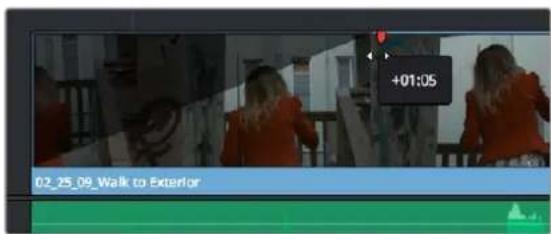
Dragging a video fader handle on a clip in track V2
To use a fader handle, move the pointer over the clip you want to adjust, and when small white fader handles appear at the upper left and upper right of the video of the clip, drag them to the left or right for the duration you want the fade effect to last.
Fade In and Out to Playhead Commands
A pair of commands in the Trim menu let you use the playhead position over a clip to "Fade In to Playhead" or "Fade Out to Playhead." This can be done for a single clip or for multiple superimposed clips.
These commands work for both audio and video items, in both the Edit and Fairlight pages.
Alpha Channel Support
If a superimposed video or still image clip in the Timeline has an embedded alpha channel, that alpha channel automatically creates transparency within that clip, compositing it against whatever is in the track underneath. There's no need for you to do anything for this to work.
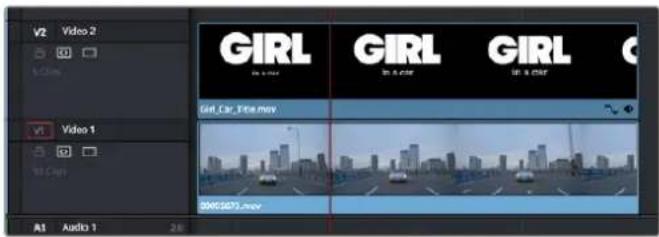

Superimposing a clip with an alpha channel above automatically composites that clip against the clip beneath it
However, if you need to disable or alter the interpretation of an alpha channel for any clip, for example if a clip is being interpreted as having an alpha channel of the wrong type, you can right-click that clip, choose Clip Attributes from the contextual menu, and use the Alpha Mode pop-up menu of the Clip Attributes Video panel to correct the problem.
NOTE: If you've imported clips with alpha channels, those alpha channels can be rendered back out for Round Trip workflows. Choose a Format and Codec combination that supports alpha channel output, and turn on the Export Alpha checkbox in the Video panel of the Render Settings list.
Keying in the Timeline Using Resolve FX
You can pull keys directly in the Timeline using the Resolve FX Key filters. These are found in the Resolve FX section of the Open FX category, of the Effects Library. The filter options are 3D Keyer, HSL Keyer, and Luma Keyer. For more information about using Resolve FX Key filters, see Chapter 156, "Resolve FX Key." Below is an example of using the Resolve FX 3D Keyer filter in the Timeline.
Setting Up a Green Screen (Chroma Key) on the Timeline
To set up a green screen composite, place your background video on a track underneath your foreground video, and drag the 3D Keyer onto the foreground clip.
To adjust the key's parameters, click on the Effects icon in the Inspector to reveal the Keyer's controls, and Select "Open FX Overlay" from the Transform Mode drop-down menu in the lower left of the Timeline Viewer, to allow the effect qualifiers to work on the Timeline Viewer.
To pull a Chroma Key in the Timeline using the 3D Keyer.
1 Superimpose your green screened foreground video on a track on top of your background video.
2 Put the Timeline Viewer in Open FX Overlay mode, using the drop-down menu at the lower left of the Viewer. This option allows you to use the effect GUI controls directly on the Viewer.
3 Drag the 3D Keyer from the Effects Library onto the foreground video. The 3D Keyer is a fast and high-quality keyer that's easy to use, drawing strokes to identify the background and foreground of the image you're trying to key.
4 Select the foreground video clip, and open the 3D Keyer from the Effects tab in the Inspector.
5 Click the Pick eye dropper icon in the Controls section, and click and drag across the green screen in the Timeline Viewer. A blue line will show you where you've selected, and the green screen should mostly become transparent.
6 Optional) Use the Add eye dropper (drawing blue lines), to click and drag over any parts of the green screen that are still not transparent. Use the Subtract eye dropper ( drawing red lines) to add back any foreground elements that may have gone transparent by mistake.
7 Turn on the Despill checkbox in the 3D Keyer to remove any green light (spill) that may have reflected onto your foreground subject from the green screen.
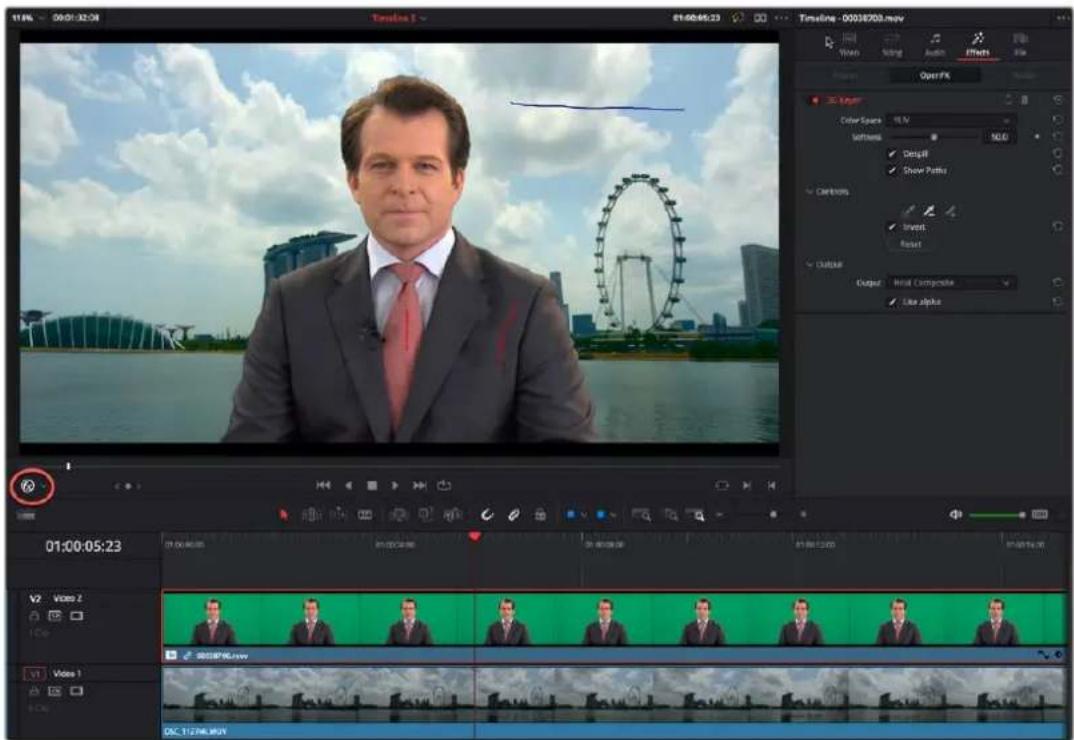
Applying the 3D Keyer to the News Anchor clip on the V2 Timeline; note that the "Open FX Overlay" mode on the Viewer is selected (circled), allowing you to use the Inspector Effect controls in the Viewer,
Using Resolve FX and Open FX Alpha for Track Compositing
DaVinci Resolve allows the direct use of the alpha channel from Resolve FX and Open FX plug-ins for compositing on the Timeline. If an effect creates transparency in the image, a "Use alpha" checkbox appears at the bottom of the effects parameters in the Effects tab of the Inspector. Checking this box immediately applies the alpha channel to the selected clip, compositing it over any background elements that appear in lower tracks. If more than one alpha-modifying effect is applied to a single clip, the alpha channels are mixed together.
The Use Alpha checkbox at the bottom of the Effects tab in the Inspector
Transform and Cropping in the Video Inspector
DaVinci Resolve is a resolution-independent application. This means that, whatever the resolution of your source media, it can be output at whatever other resolution you like. This also means that you can freely mix clips of any resolution, fitting 4K, HD, and SD clips into the same timeline, and scaling each to fit the project resolution as necessary.
Your project's resolution can be changed at any time, allowing you to work at one resolution, and then output at another resolution. This also makes it easy to output multiple versions of a program at different resolutions, for example, outputting both HD and 4K sized versions of the same program.
DaVinci Resolve has a powerful toolset for making geometric transforms, using advanced algorithms for optical-quality sizing operations. Within the Edit page, each clip has a set of transform parameters, principally for use in storing sizing data imported from AAF or XML when you turn on the "Use sizing information" checkbox. This has the advantage of keeping these imported Edit Transform settings separate from the Input Sizing parameters found on the Color page, which are typically used by the colorist to make pan and scan adjustments of various kinds.
Of course, you can also use these controls to create your own adjustments while working in the Timeline, zooming into clips, repositioning them to improve the composition, and so on. While there is some overlap between these parameters and those in the sizing palette of the Color page, they're both separate sets of parameters, so you can keep each set of adjustments separate.
When the time comes to output your program, the final resolution of each clip is calculated taking into account the original resolution of the source media, the timeline resolution, image scaling settings, Edit page transforms, and Color page transforms, so that the final resolution correctly uses the cleanest geometric transformation based on the maximum resolution available to each source clip.
Transform
The Video Inspector transform group includes the following parameters, which are also editable in the Edit Sizing mode of the Sizing palette in the Color page:
- Zoom X and Y: Allows you to blow the image up or shrink it down. The X and Y parameters can be linked to lock the aspect ratio of the image, or released to stretch or squeeze the image in one direction only.
- Position X and Y: Moves the image within the frame, allowing pan and scan adjustments to be made. X moves the image left or right, and Y moves the image up or down.
- Rotation Angle: Rotates the image around the anchor point.
- Anchor Point X and Y: Defines the coordinate on that clip about which all transforms are centered.
- Pitch: Rotates the image toward or away from the camera along an axis running through the center of the image, from left to right. Positive values push the top of the image away and bring the bottom of the image forward. Negative values bring the top of the image forward and push the bottom of the image away. Higher values stretch the image more extremely.
- Yaw: Rotates the image toward or away from the camera along an axis running through the center of the image from top to bottom. Positive values bring the left of the image forward and push the right of the image away. Negative values push the left of the image away and push the right of the image forward. Higher values stretch the image more extremely.
- Flip Image: Two buttons let you flip the image in different dimensions.
- Flip Horizontal control: Reverses the image along the X axis, left to right.
- Flip Vertical control: Reverses the clip along the Y axis, turning it upside down.
Smart Reframe (Studio Version Only)
The Smart Reframe feature makes it easier to quickly reframe material across extreme aspect ratio changes. It's useful for situations where you've shot a 16:9 horizontal video and find yourself needing to create a vertically-oriented 9:16 version for mobile phones and social media deliverables, or using 4:3 archival footage in a 2.39:1 widescreen movie. Smart Reframe can be used manually, or automatically executed using the DaVinci Resolve Neural Engine.
- Object of Interest: Tools for selecting the subject that the resize will frame around.
- Auto: DaVinci Resolve's Neural Engine will analyze the clip and choose its most representative object. This will be the only option if more than one clip is selected for Smart Reframing.
- Reference Point: Allows you to manually adjust a bounding box around the subject to reframe around.
- Reframe: This button executes the Smart Reframe command. This can take some time depending on the length and number of clips.
Cropping
The Video Inspector has an additional set of cropping parameters:
- Crop Left, Right, Top, and Bottom: Lets you cut off, in pixels, the four sides of the image. Cropping a clip creates transparency, so that whatever is underneath shows through.
- Softness: Lets you blur the edges of a crop. Setting this to a negative value softens the edges inside of the crop box, while setting this to a positive value softens the edges outside of the crop box.
Dynamic Zoom
The Dynamic Zoom controls, which are off by default, make it fast and easy to do pan and scan effects to zoom into or out of a clip. Also, if you import a project from Final Cut Pro X with clips that use the Ken Burns effect, then those clip's effects will populate the Dynamic Zoom parameters in DaVinci Resolve. Turning the Dynamic Zoom group on activates two controls in the Inspector that work hand-in-hand with the Dynamic Zoom onscreen adjustment controls you can expose in the Timeline Viewer (described below):
- Dynamic Zoom Ease: Lets you choose how the motion created by these controls accelerates. You can choose from Linear, Ease In, Ease Out, and Ease In and Out.
- Swap: This button reverses the start and end transforms that create the dynamic zoom effect.
Stabilization
Image Stabilization is available for clips right in the Timeline. These controls let you smooth out or even steady unwanted camera motion within a clip. The analysis is performed in such a way as to preserve the motion of individual subjects within the frame, as well as the overall direction of desirable camera motion, while correcting for unsteadiness.
These are the same stabilizer controls found in the Color page's Tracker palette (minus the tracker graph), and the resulting stabilization analysis is mirrored on the Color page, where you can see the data visualized on the graph, if necessary.
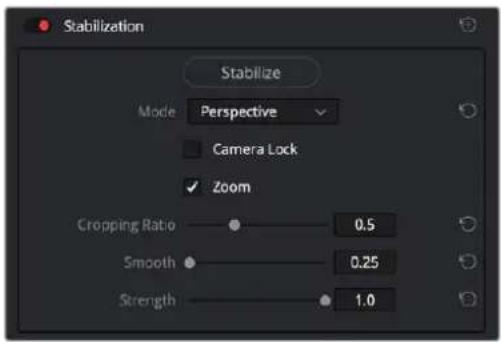
Stabilization controls found in the Edit page Inspector for each clip
A pop-up menu provides three different options that determine how the selected clip is analyzed and transformed during stabilization. You must choose an option first, before clicking the Stabilize button above, because the option you choose changes how the image analysis is performed. If you choose another option, you must click the Stabilize button again to reanalyze the clip.
– Perspective: Enables perspective, pan, tilt, zoom, and rotation analysis and stabilization.
- Similarity: Enables pan, tilt, zoom, and rotation analysis and stabilization, for instances where perspective analysis results in unwanted motion artifacts.
- Translation: Enables pan and tilt analysis and stabilization only, for instances where only X and Y stabilization gives you acceptable results.
The other controls let you customize how aggressively the selected clip is stabilized.
- Stabilization Toggle: The toggle control for the Stabilization controls lets you turn stabilization off and on to be able to compare the stabilized and unstabilized image.
- Camera Lock: Turning on this checkbox disables Cropping Ratio and Smooth, and enables the stabilizer to focus on eliminating all camera motion from the shot in an effort to create a locked shot.
- Zoom: When this checkbox is turned on, the image is resized by a large enough percentage to eliminate the blanking (black edges) that is the result of warping and transforming the image to eliminate unwanted camera motion. The lower a value Cropping Ratio is set to, the more DaVinci Resolve will need to zoom into an image to eliminate these blanked edges. If you turn this off, the image is not zoomed at all, and whatever blanking intrudes into the image is output along with the image, on the assumption that you'll have dedicated compositing artists deal with eliminating this blanking by filling in the missing image data in a more sophisticated manner. You may also leave this checkbox turned off if you're planning on animating the Input Sizing Zoom parameter to dynamically zoom into and out of a shot being stabilized to eliminate blanking only where it occurs, using only as much zooming as is necessary for each region of the shot.
- Cropping Ratio: This value limits how hard the stabilizer tries to stabilize, by dictating how much blanking or zooming you're willing to accept in exchange for eliminating unwanted motion. A value of 1.0 results in no stabilization being applied. Progressively lower values enable more aggressive stabilization. Changing this value requires you to click the Stabilize button again to reanalyze the clip.
- Smooth: Lets you apply mathematical smoothing to the analyzed data used to stabilize the clip, allowing camera motion in the shot while eliminating unwanted jittering. Lower values perform less smoothing, allowing more of the character of the original camera motion to show through, while higher values smooth the shot more aggressively. Changing this value requires you to click the Stabilize button again to reanalyze the clip.
- Strength: This value is a multiplier that lets you choose how tightly you want to use the stabilization track to eliminate motion from a shot using the current analysis. With a value of 1, stabilization is maximized. Since some clips might look more natural with looser stabilization, choosing a number lower than 1 lets a percentage of the original camera motion show through. Zero (0) disables stabilization altogether. As an additional tip, you can invert the stabilization by choosing -1 when pasting a stabilization analysis from another clip to perform a match move based on the overall motion of the scene, and you can use a negative value either lower than 0 or higher than -1 to under or overcompensate when inverting the stabilization, simulating the effects of parallax where foreground and background planes move together but at different speeds.
Lens Correction
The Lens Correction group (only available in Resolve Studio) has two controls that let you correct for lens distortion in the image, or add lens distortion of your own.
- Analyze: Automatically analyzes the frame in the Timeline at the position of the playhead for edges that are being distorted by wide angle lens. Clicking the Analyze button moves the Distortion slider to provide an automatic correction. If you're analyzing a particularly challenging clip, a progress bar will appear to let you know how long this will take.
- Distortion: Dragging this slider to the right lets you manually apply a warp to the image that lets you straighten the bent areas of the picture that can be caused by wide angle lenses. If you clicked the Analyze button and the result was an overcorrection, then dragging this slider to the left lets you back off of the automatic adjustment until the image looks correct.
Retime and Scaling
The Retime and Scaling group has four parameters that affect retiming quality and clip scale:
- Retime Process: Lets you choose a default method of processing clips in mixed frame rate timelines and those with speed effects (fast forward or slow motion) applied to them, on a clip-by-clip basis. The default setting is “Project Settings,” so all speed-effected clips are treated the same way. There are three options: Nearest, Frame Blend, and Optical Flow, which are explained in more detail in the Speed Effect Processing section of Chapter 51, “Speed Effects.”
- Motion estimation mode: When using Optical Flow to process speed change effects or clips with a different frame rate than that of the Timeline, the Motion Estimation pop-up lets you choose the best-looking rendering option for a particular clip. Each method has different artifacts, and the highest quality option isn't always the best choice for a particular clip. The default setting is "Project Settings," so all speed-effected clips are treated the same way. There are several options. The "Standard Faster" and "Standard Better" settings are the same options that have been available in previous versions of DaVinci Resolve. They're more processor-efficient and yield good quality that are suitable for most situations. However, "Enhanced Faster" and "Enhanced Better" should yield superior results in nearly every case where the standard options exhibit artifacts, at the expense of being more computationally intensive, and thus slower on most systems. The Speed Warp setting is available for even higher-quality slow motion effects using
the DaVinci Neural Engine. Your results with this setting will vary according to the content of the clip, but in ideal circumstances this will yield higher visual quality with fewer artifacts than even the Enhanced Better setting.
- Scaling: Lets you choose how clips that don't match the current project resolution are handled on a clip-by-clip basis. The default setting is "Project Settings," so that all mismatched clips use the same method of being automatically resized. However, you can also choose an individual method of automatic scaling for any clip. The options are Crop, Fit, Fill, and Stretch; for more information see the 2D Transforms section of Chapter 149, "Sizing and Image Stabilization."
- Resize Filter: For clips that are being resized in any way, this setting lets you choose the filter method used to interpolate image pixels when resizing clips. Different settings work better for different kinds of resizing. There are four options:
- Sharper: Usually provides the best quality in projects using clips that must be scaled up to fill a larger frame size, or scaled down to HD resolutions.
- Smoother: May provide higher quality for projects using clips that must be scaled down to fit an SD resolution frame size.
- Bicubic: While the Sharper and Smoother options are slightly higher quality, Bicubic is still an exceptionally good resizing filter and is less processor intensive than either of those options.
- Bilinear: A lower quality setting that is less processor intensive. Useful for previewing your work on a low-performance computer before rendering, when you can switch to one of the higher quality options.
- Other Resize Methods: A selection of specific resize algorithms is available if you need to match them to other VFX workflows.
Onscreen Controls for Transform, Crop, and Dynamic Zoom
You also have the option of transforming, cropping, or adding dynamic zoom effects to clips using the Transform/Crop/Dynamic Zoom button at the bottom left of the Timeline Viewer. These on-screen controls can also be selected by choosing an option from the View > Viewer Overlay submenu; these commands are not mapped to keyboard shortcuts by default, but you can make a manual mapping if there's a mode you find yourself using regularly. The currently selected overlay can be toggled on and off by pressing Shift-` (Tilde), or by choosing View > Viewer Overlay > Toggle On/Off.
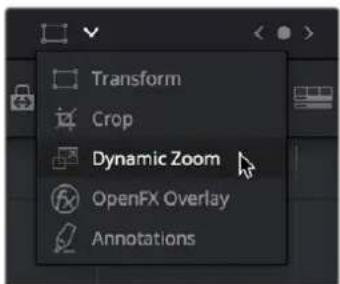
Transform controls in the Timeline Viewer
Object Snapping in the Viewer
While dragging objects or dynamic zoom outlines to reposition them, snapping occurs at the X and Y center of the frame, as well as around the outer third of the frame. Holding the Shift key down while dragging a text object constrains movement to just the X or Y axis.
Using Onscreen Controls
For many, the onscreen controls provide a more intuitive experience for manipulating your clips.
To transform a clip using graphical controls in the Timeline Viewer:
1 Click the Transform/Crop button at the bottom left of the Timeline Viewer to turn it on; white is enabled, gray is disabled. When enabled, if no clips are selected in the Timeline, then the clip in the highest auto-select-enabled track that intersects the playhead will display onscreen transform controls. If a clip is selected, that specific clip can be transformed.
2 Do one of the following:
a. Choose the Transform mode from the pop-up menu, if necessary, to change modes.
The appropriate onscreen controls appear to let you manipulate the clip with the mouse. When in Transform mode, you can drag anywhere within the clip's bounding box to adjust pan and tilt, drag any diagonal corner to proportionally resize, drag any side to squeeze or stretch just width or height, or drag the center handle to rotate.
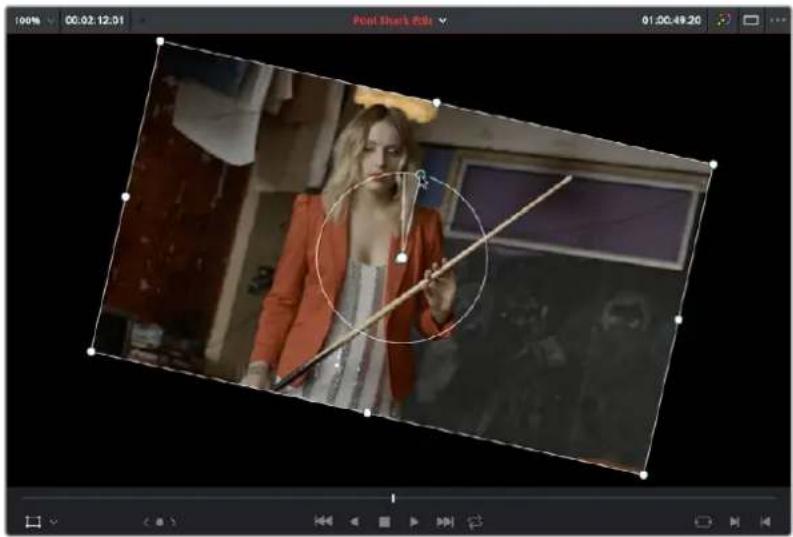
natural_image
Video player in a blazer holding a long stick, with a circular overlay of the player's head (no visible text or symbols)Onscreen controls for transforming in the Timeline Viewer
b. Choose the Cropping mode from the pop-up menu. In this mode, each side has a handle for cropping.
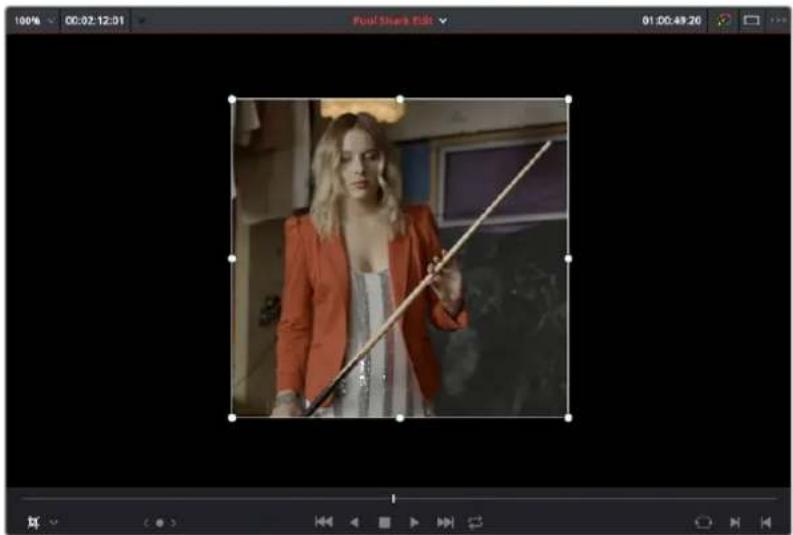
natural_image
Video player holding a long object in a studio setting (no visible text or symbols)Onscreen controls for cropping in the Timeline Viewer
c. Choose the Dynamic Zoom mode from the pop-up menu. In this mode, the green box shows the starting size and position of the animated transform, while the red box shows the ending size and position of the animated transform. Drag anywhere within either bounding box to adjust pan and tilt for either the start or the end of the animated effect, and drag any of the corners to adjust the size. A motion path appears to show the motion that's being created. Adjusting the Dynamic Zoom controls automatically enables dynamic zoom in the Inspector.
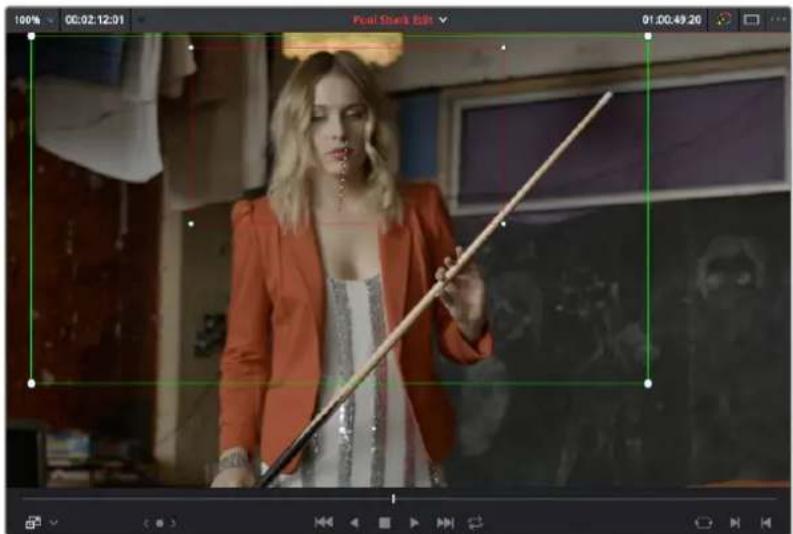
natural_image
Woman in orange blazer holding a long staff, standing indoors with blurred background figures (no visible text or symbols)Onscreen controls for transforming and cropping in the Timeline Viewer
3 If necessary, choose a smaller viewing percentage from the Timeline Viewer scale pop-up to better see the onscreen controls if you're rescaling the image, or use the scroll control of your mouse, trackpad, or tablet to zoom out of the image.
4 When you're finished, turn the Transform/Crop/Dynamic Zoom button off.
Chapter 51
Speed Effects
You can import both linear and nonlinear speed changes from other applications, or you can create these effects from scratch in order to speed up or slow down clips in your programs. DaVinci Resolve has a comprehensive set of controls for creating these kinds of effects using dedicated Retime controls, curves, and specific edit types. Once created, DaVinci Resolve also provides different ways of processing these effects to create the smoothest possible playback.
Contents
Speed Effects and Retiming 875
Creating Freeze Frames 875
Creating Simple Linear Speed Effects 876
Speed Change Controls in the Video Inspector 877
Clip Retiming Controls 877
Retiming an Entire Clip 878
Rippling or Overwriting the Timeline When Using Retime 878
Reading Clip Speed Arrows 878
Creating Variable Speed Effects Using the Retime Controls 879
Closing Retime Controls 881
Using Retime Curves 882
Speed Effect Processing 884
Optical Flow Quality Settings Affecting Speed Effects 885
Speed Effects and Retiming
Speed effects describe any effect that speeds up, slows down, or otherwise changes the playback speed of clips in the Timeline. There are four basic ways you can create speed effects in DaVinci Resolve.
- Importing speed effects: DaVinci Resolve is capable of reading linear speed effects from imported EDL, AAF, and XML projects, and nonlinear speed effects from XML and AAF project files. When speed effects are present, DaVinci Resolve plays clips at the specified speed. You can also create speed effects of your own using controls in the Edit page. There are two methods of adjusting clip speed: using the Change Speed dialog, and using the Retiming effect in the Timeline.
- Creating speed effects using Fit to Fill edits: You can also change a clip's speed in the Timeline by editing it using the Fit to Fill command, which retimes the clip to fit into an arbitrary duration in the Timeline of your choosing. For more information on using Fit to Fill, see Chapter 39, "Three- and Four-Point Editing."
- Creating freeze frames: You can use the freeze frame command to turn an entire clip into a freeze frame of a frame intersecting the playhead.
- Creating simple linear speed effects: You can create simple fast or slow-motion speed effects by using the Change Clip Speed command, or by using the left and right handles of the Retime controls in the Timeline. Both of these methods are described in this section.
- Creating variable speed effects: You can create much more complex variable speed effects, where the same clip speeds up or slows down multiple times by different amounts, using either the Retime controls, or one of the two different speed curves that are available. These methods are also covered later in this section.
Speed Effects and Audio
Any of the methods of creating linear speed effects that are available in DaVinci Resolve, including the Change Clip Speed command, the Retime controls, and the Fit to Fill edit, will retime a clip's audio, without pitch correction on Linux and Windows, and with pitch correction on Mac OS X (Yosemite and above), along with its video. However, audio that accompanies variable speed effects will be muted.
Creating Freeze Frames
There are a few ways you can create a freeze frame, but the fastest is to position the playhead over the frame you want to be the freeze frame, and choose Clip > Freeze Frame, or press Shift-R. The entire clip becomes a freeze frame of the frame you parked the playhead over.
If you want to disable the freeze frame effect, you can select the clip and use the Remove Attributes dialog to remove the speed effect, or you can simply open the Change Clip Speed dialog and turn the Freeze Frame checkbox off.
Creating Simple Linear Speed Effects
If all you need to do is to make a clip play in slow motion, speed it up, reverse the clip, or create a freeze frame, you can apply a simple speed effect using either the browser or the Change Speed dialog.
To change a clip's speed, do one of the following:
- Select a clip, choose Clip > Change Clip Speed, and use the controls of the Edit Speed Change dialog.
- Right-click a clip in the Timeline, choose Change Clip Speed, and use the controls of the Edit Speed Change dialog.
Change Clip Speed operations have the following options:
- Change Clip Speed parameters: Changes the speed of the selected clip by whatever percentage, frame rate, or duration you like.
- Ripple Sequence checkbox: If you want the speed change you're about to make to ripple the Timeline, pushing or pulling all clips following the current one to accommodate the clip's new size, then turn on the checkbox.
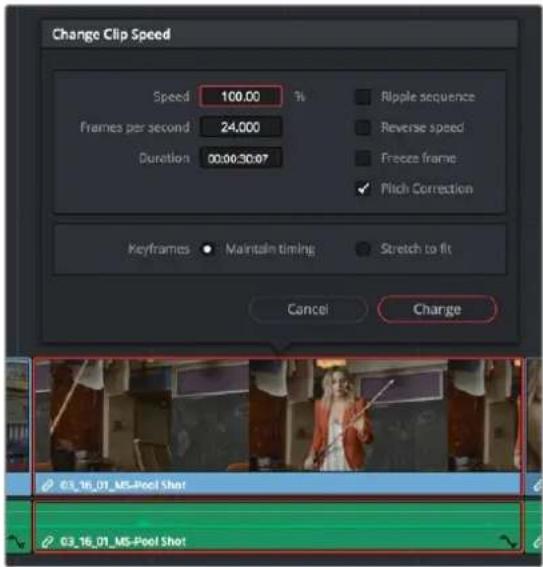
Speed effect parameters shown in the Speed dialog
- Reverse Speed checkbox: Clicking this box sets the current speed to a negative value, reversing the motion of the clip.
- Freeze Frame checkbox: Changes the entire clip to a freeze frame of whichever frame is at the current position of the playhead.
- Pitch Correction checkbox: Checking this box will perform pitch correction on the audio attached to the clip so that while the audio duration is changed to match the picture speed, it will still sound natural. Be aware that pitch correction on large speed adjustments may not sound as good as pitch corrections made to small speed adjustments.
- Maintain Timing/Stretch to fit radio buttons: Choosing Maintain Timing leaves any keyframes within the clip locked at their original position, while choosing Stretch Keyframes results in all Composite, Transform, and Cropping keyframes being compressed or stretched by the same percentage as the clip during a speed change.
Speed Change Controls in the Video Inspector
You can also change the speed of your clip directly in the Video Inspector's Speed Change controls. This method has the benefit of being available in both Cut and Edit pages.
– Direction: Selects the desired motion of the clip, forward, backward, or freeze frame.
- Speed %: Adjusting this slider changes the clips motion on a percentage basis. This value can be keyframed.
- Frames Per Second: Adjusting this slider changes the clips motion by increasing or decreasing the number of frames per second to play the clip back at. This value can be keyframed.
- Duration: You can directly select how long you want the clip to be by setting a specific duration here in HH:MM:SS:FF format. This will then automatically adjust the speed of the clip to playback all frames in that exact amount of time.
- Ripple Sequence checkbox: If you want the speed change you're about to make to ripple the Timeline, pushing or pulling all clips following the current one to accommodate the clip's new size, then turn on the checkbox.
- Pitch Correction checkbox: Checking this box will perform pitch correction on the audio attached to the clip so that while the audio duration is changed to match the picture speed, it will still sound natural. Be aware that pitch correction on large speed adjustments may not sound as good as pitch corrections made to small speed adjustments.
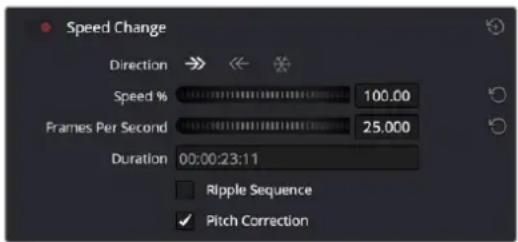
The Speed Change controls in the Video Inspector
Clip Retiming Controls
Another method of altering clip speed in the Timeline is to apply the Retime effect. This method of clip retiming provides a convenient control overlay that you can use to adjust clip speed directly in the Timeline, and it also provides the controls that are needed for creating variable-speed effects.
To expose the Retime controls on a clip:
- Select a clip, and choose Clip > Retime Controls (Command-R).
- Right-click a clip and choose Retime Clip from the contextual menu.
The Retime controls appear over that clip in the Timeline. They consist of a Retime control track running along the top of the clip with arrows that indicate the speed and direction of playback (the default blue right-facing arrows indicate normal 100% playback) and a Clip Speed pop-up menu at the bottom center of the clip, which also shows the current speed of the clip.
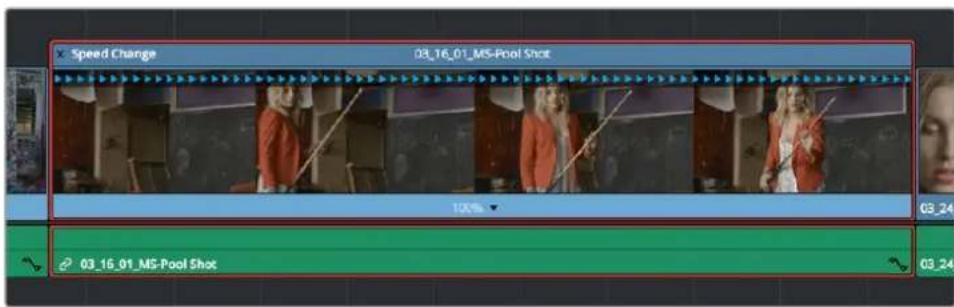
The Speed effect controls in the Timeline
Retiming an Entire Clip
The simplest way of using the Retiming effect is to change the playback speed of the entire clip, in the process rippling the rest of the Timeline to the right of the retimed clip as you increase its duration by stretching or compressing its duration.
To retime a clip by dragging:
- Move the pointer to the left or right edge of the Speed Change name bar on top of the clip, and when it turns into a Retime cursor, drag either side to stretch or squeeze the clip to retime it.
To retime a clip by specific amounts:
1 Select a clip and press Command-R.
2 Click the pop-up next to the speed percentage text at the bottom of the clip.
3 Do one of the following:
- Choose a new playback speed from the Change Speed submenu.
- Choose reverse segment to make the clip play in reverse. Reverse speed is shown in the Retime control track as arrows facing left, instead of right.
To return a clip to its original speed:
- Click the pop-up next to the speed percentage text at the bottom of the clip, and choose Reset to 100%.
Rippling or Overwriting the Timeline When Using Retime
Whether or not clips to the right in the Timeline will ripple to accommodate the change in duration resulting in speed changes you make with the Retime controls depends on whether you're using the Selection tool/mode (in which case the Timeline won't ripple), or the Trim tool/mode (in which case the Timeline will).
Reading Clip Speed Arrows
When you retime a clip, the Clip Speed pop-up menu displays the current speed of the entire clip. Additionally, the arrows in the Retime control track show you the speed and direction of playback. When clip speed is slowed down below 100%, the Retime control track shows yellow playback triangles that are spaced farther apart. When clip speed is sped up above 100%, the Retime control track shows blue triangles that are bunched closer together. At 100% normal speed, the Retime control track shows blue, evenly spaced triangles, while left-facing blue arrows indicates reverse playback.
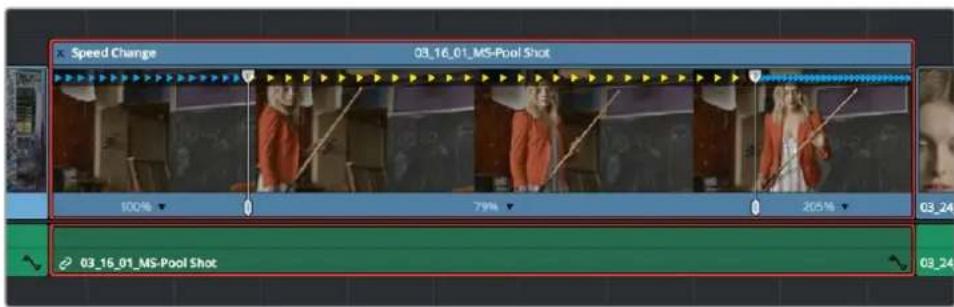
Three clips set to different speeds. From left to right, 100% speed, slow motion, and fast forward are indicated by the yellow arrows.
Creating Variable Speed Effects Using the Retime Controls
You can also use the Retime controls to insert freeze frames within the middle of a clip, and create other custom variable speed effects using speed points. Additional variable speed options include rewind and speed ramp effects, which automatically place speed points to create preset effects.
To create a freeze frame at a particular moment in time:
1 With the Retime controls exposed, move the playhead to the frame you want to freeze, within that clip. Ideally, this will be for an effect where you want a character in motion to suddenly stop at a particular frame.
2 Open the Clip Speed pop-up menu (the pop-up next to the speed percentage text at the bottom of the clip), and choose Freeze Frame. Two new speed points are added to the clip, defining a range within which the clip is frozen at that frame. This can be seen by the vertical red bars in the Retime control track. Past the second speed point, the clip resumes playback from the next frame forward.
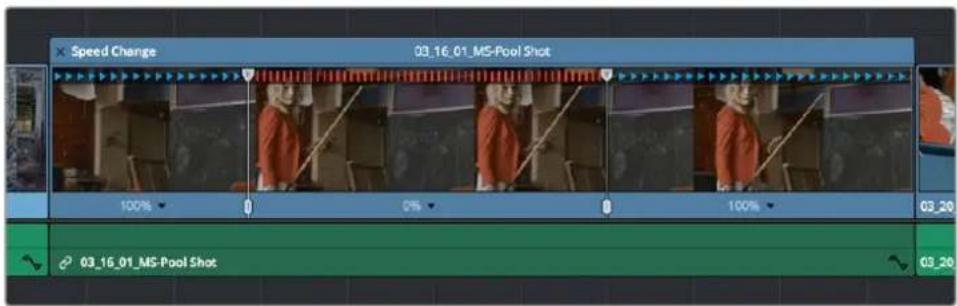
Speed effect controls set to insert a momentary freeze frame within the clip
3 Drag the second speed point forward or back to define the duration of the freeze frame. The result is that the clip plays normally up until the first speed point, then freezes on that frame until the second speed point, at which playback resumes.
To create variable-speed effects:
1 With the Retime controls exposed, move the playhead to the frame at which you want to change the speed of the clip, and choose Add Speed Point from the Clip Speed pop-up menu.
2 Move the playhead forward to the next frame at which you want the clip speed to change again, and add another speed point. It takes a minimum of two speed points to create a speed effect.
3 To alter the speed of the clip segment appearing between these two speed points, do one of the following:
- Using the pointer, drag the top handle of the second speed point to the right to slow down clip playback, or to the left to speed up clip playback within just that segment. Doing this either shortens or lengthens the clip, and either overwrites or ripples neighboring clips depending on whether you're using the Selection or Trim modes.
- Also using the pointer, you can drag the bottom handle of any speed point to widen the range of the clip that plays at that particular speed. Doing this reallocates frames from before and after the speed segment being adjusted to keep all speed segments playing at the same speed, and this also shortens or lengthens the clip, but by a different amount.
- Using the Clip Speed pop-up menu, choose a new speed for that segment from the Change Speed pop-up menu. You can also set any segment to play in reverse by choosing Reverse Segment.
4 To clear a speed point and eliminate that particular clip's speed segment from the effect, choose Clear Speed Point from any Clip Speed pop-up menu to eliminate whichever speed point appears to its left.
When you create variable-speed effects, the arrows in the Retime control track can help you keep track of what you're doing, and each segment's speed pop-up shows you the actual numeric speed. The change in speed from each speed segment to the next is automatically eased, for a smooth transition from one speed to another.
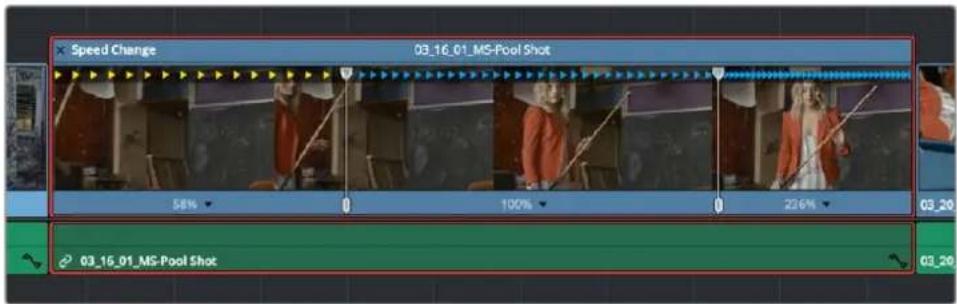
Speed controls set to ramp among three different playback speeds; arrow spacing shows the timing
There are two additional sets of commands for creating preset speed effects that use multiple speed points.
To add a rewind effect:
With a clip's Retime controls exposed, open any Clip Speed pop-up menu and choose a preset percentage from the Rewind submenu. This results in two additional speed points being added after the rightmost speed point in the current segment, which creates the effect of the current segment playing in fast reverse for the chosen percentage, and then playing a second time from the beginning.
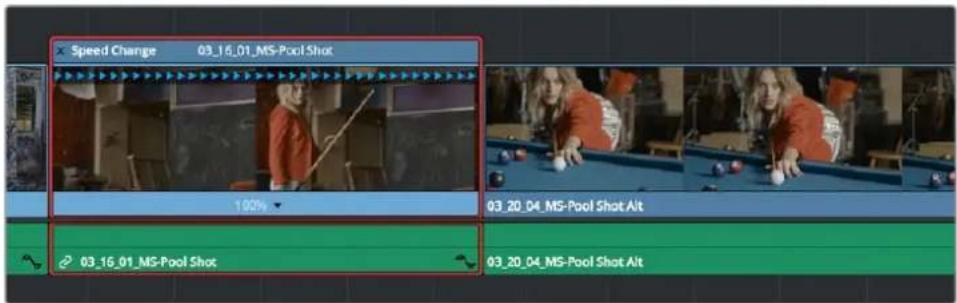
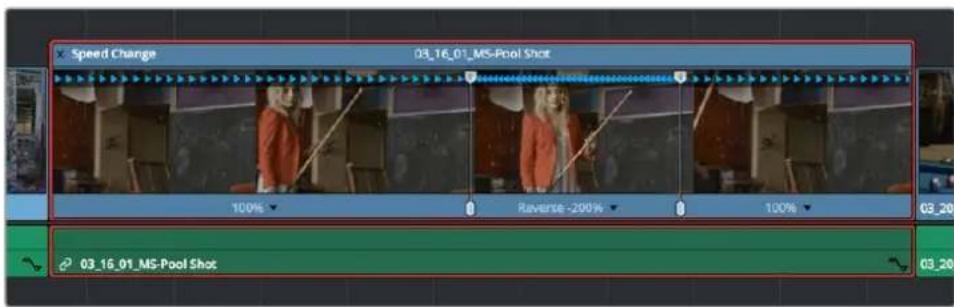
Speed effect controls before and after creating a "rewind" effect
To add a speed ramp:
With a clip's Retime controls exposed, open any Clip Speed pop-up menu and choose one of the two options from the Speed Ramp submenu to replace the current speed effect with a series of five speed segments that start at 10% and increase progressively to 30%, 50%, 70%, and then 90%. Once created, you can drag the speed points to customize this effect to create whatever durations you require.
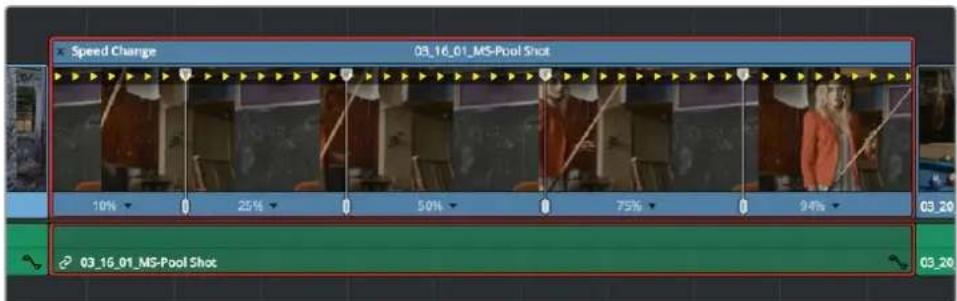
Speed effect controls set to create a gradual ramp from 0 to 100 percent playback speed
Closing Retime Controls
When you're finished creating your Retime effect, you can close the Retime controls so that clip assumes a normal appearance again. Closing the Retime controls has no effect on the timing of the clip, it just ensures you cannot accidentally modify the speed of the clip with the mouse.
To close the Retime controls in the Timeline:
- Click the X button at the upper left-hand corner of the Retime control box.
- Press the escape key.
- Select the retimed clip, and either choose Clip > Retime Controls, or press Command-R.
When a retimed clip has its Retime controls hidden, a Retime badge appears to the left of that clip's name in the Timeline. You can reopen the Retime controls whenever you need to make further changes.
The Speed Effect badge that shows a clip is being retimed
To reopen the Retime controls in the Timeline:
- Select the retimed clip, and either choose Clip > Retime Controls, or press Command-R.
Once you've retimed a clip using the Retime effect, you can use that clip's Retime Process parameter in the Inspector to define how that clip's retiming is processed, using the low quality Nearest option, using Frame Blending, or using Optical Flow.
Using Retime Curves
You can also optionally use curves to retime clips, either in conjunction with the Retime controls, or by themselves. For example, you can use the simpler retiming controls first to create the overall speed effect you need, and then use either of the available Retime Curves to create further refinements by adjusting Bezier curve handles to adjust the transition of one speed to another, or you can expose either of the Retime Curves first and use it to create your speed effect from scratch by adding and adjusting control points and curve segments.
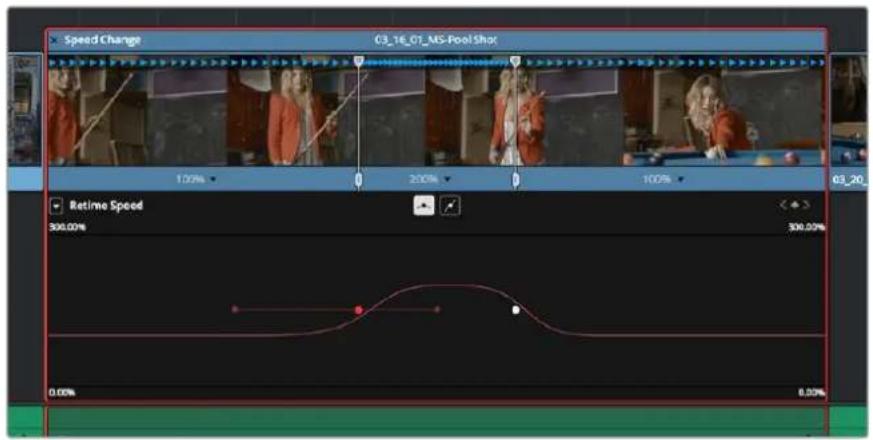
The Retime Curves let you adjust the transition from one speed to another using handles
No matter how you like to work, the control points of each of the speed curves have a 1:1 correspondence to the speed points that are exposed in the Retime controls, and curve segment modifications are mirrored by speed point adjustments in the Retime controls if you have both exposed at the same time. This means that, when creating complex variable retiming effects, it's easy to drag whichever control most easily adjusts the quality of speed you require.
In addition, there are two kinds of Retime curves you can use for maximum flexibility. Which is best depends on what you're more comfortable with, and on which will handle the type of motion you want to create more easily:
- The Retime Frame curve exposes a diagonal line that represents a time graph. This is a type of curve found in many other post-production applications, in which the vertical axis represents each frame of that clip's source media, and the horizontal axis represents each frame of playback in the Timeline. With the default diagonal graph, there is a one-to-one correspondence between each frame of source media and each frame of timeline playback; this represents 100% speed. However, adding control points lets you alter how source frames are mapped to the Timeline. For any two control points on the Retime Frame curve, so long as the control point at the left is lower than the control point at the right of a curve segment, there will be forward motion, with longer shallow curve segments creating slower motion, and steeper shorter curve segments creating faster motion in the clip.
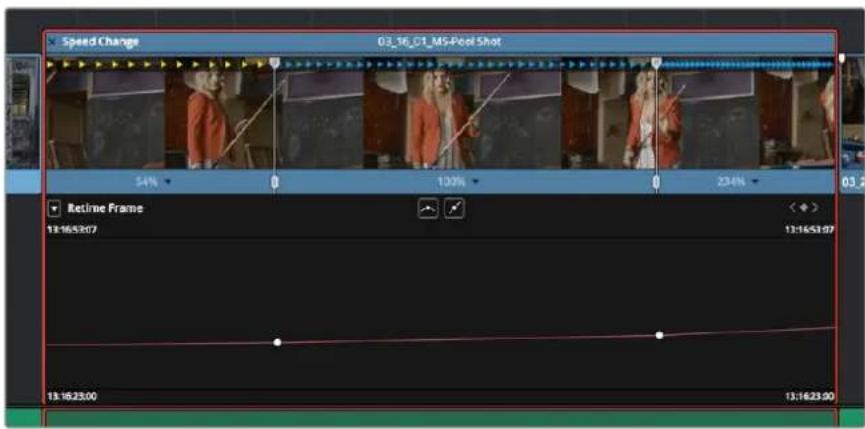
A diagonal Retime Frame curve with two segments: a long shallow segment to the left that creates slow motion, and a short steep segment to the right that creates fast motion
- If a curve segment has a left control point that's higher than the right control point, then the motion will be reversed and that segment will play backward.
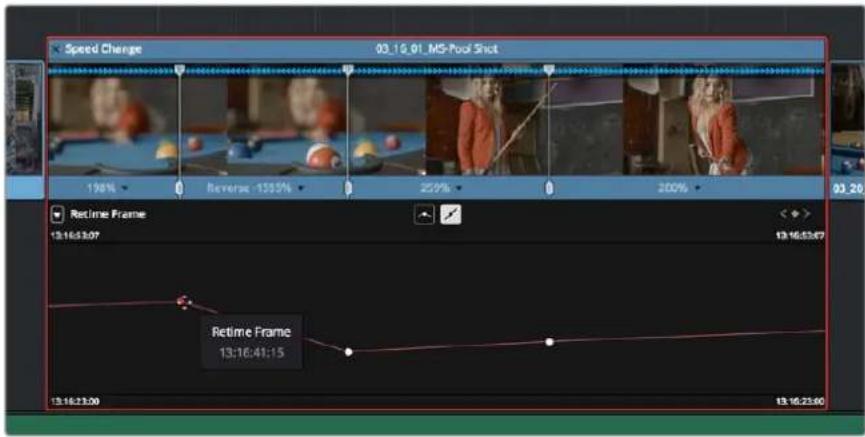
A Retime Frame curve with an inverted curve that creates reverse motion
- The Retime Speed curve (seen below) exposes a flat line that represents 100% speed. Adding pairs of control points and dragging each segment to raise or lower it alters speed; you must drag the segments, not the control points themselves. Raising a curve segment shortens that segment and speeds up that portion of the clip, while lowering a curve segment lengthens that segment and slows down that portion of the clip. As you adjust each curve segment, a tooltip shows you the exact speed percentage that segment represents. You should note that it's impossible to create reverse motion using the Retime Position curve; you need to use either the Retime controls or the Retime Speed curve described above.
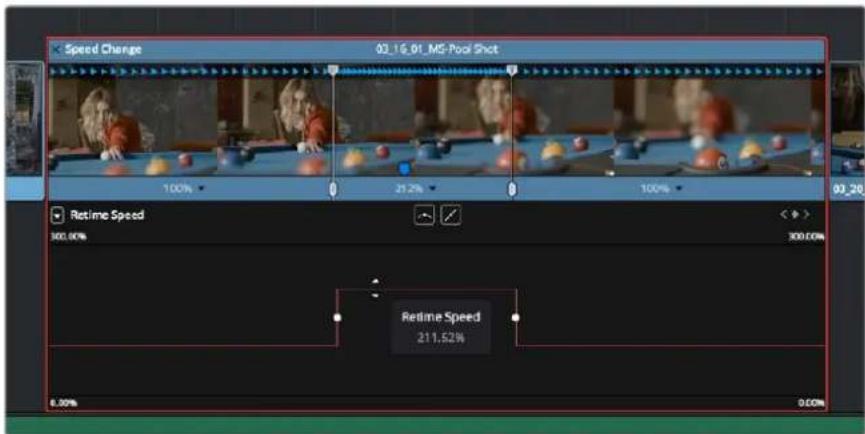
A Retime Speed curve with two segments: a shorter one that creates fast motion, and a longer segment that creates slow motion
Methods of working with speed curves:
- To expose speed curves for a clip in the Timeline: Right-click a clip in the Timeline, and choose Retime Curve. The Curve Editor is exposed for that clip, and you can edit it as you would any other curve, adding moving, and deleting control points.
- To switch between editing Retime Speed and Retime Frame curves: Use the Curve pop-up at the upper left-hand corner of the Curve Editor to check or uncheck the curves you want to be visible. Clicking on a curve within the editor makes that curve the currently edited one.
- To close a speed curve: Clicking the Curve button at the right-hand side of the clip's title bar in the Timeline toggles the curve open and closed.
As far as adding, removing, and smoothing control points on speed curves and adjusting curve segments, they work identically to any other curve in the Timeline. For more information, see "Keyframing in the Timeline and Curve Editor" in Chapter 53, "Keyframing Effects in the Edit Page."
Speed Effect Processing
Once you've retimed a clip, you have the additional ability to change how the retimed clip is processed in order to improve its visual playback quality, especially in the case of clips that are slowed down. There are two ways you can set this. First, there's a project-wide setting available in the Master Settings of the Project Settings. Secondly, you can change how clips are retimed via a per-clip setting available in the Inspector.
To change the Retime Process setting of an entire project:
1 Open the Project Settings and click to open the Master Settings panel.
2 Choose an option from the Frame Interpolation group Retime Process pop-up menu.
To change an individual clip's Retime Process setting:
- Select a clip, then open the Inspector and choose an option from the Retime Process pop-up in the Retime and Scaling group. If you choose Optical Flow, you can also choose an option from the Motion Estimation pop-up.
Here are the different options you have for processing speed effects:
- Retime Process: Lets you choose a default method of processing clips in mixed frame rate timelines and those with speed effects (fast forward or slow motion) applied to them, on a clip-by-clip basis. The default setting is “Project Settings,” so all speed effected clips are treated the same way. There are three options: Nearest, Frame Blend, and Optical Flow, which are explained in more detail in the Frame Interpolation section of Chapter 4, “System and User Preferences.”
- Nearest: The most processor efficient and least sophisticated method of processing; frames are either dropped for fast motion, or duplicated for slow motion.
- Frame Blend: Also processor efficient, but can produce smoother results; adjacent duplicated frames are dissolved together to smooth out slow or fast motion effects. This option can provide better results when Optical Flow displays unwanted artifacts.
- Optical Flow: The most processor intensive but highest quality method of speed effect processing. Using motion estimation, new frames are generated from the original source frames to create slow or fast motion effects. The result can be exceptionally smooth when motion in a clip is linear. However, two moving elements crossing in different directions or unpredictable camera movement can cause unwanted artifacts.
- Motion estimation mode: When using Optical Flow to process speed change effects or clips with a different frame rate than that of the Timeline, the Motion Estimation pop-up lets you choose the best-looking rendering option for a particular clip. Each method has different artifacts, and the highest quality option isn't always the best choice for a particular clip. The default setting is "Project Settings," so all speed effected clips are treated the same way. There are several options.
- “Standard Faster” and “Standard Better” are the same options that have been available in previous versions of DaVinci Resolve. They’re more processor-efficient and yield good quality that are suitable for most situations.
- “Enhanced Faster” and “Enhanced Better” should yield superior results in nearly every case where the standard options exhibit artifacts, at the expense of being more computationally intensive, and thus slower on most systems.
- “Speed Warp” is available for even higher-quality slow motion effects using the DaVinci Neural Engine. Your results with this setting will vary according to the content of the clip, but in ideal circumstances this will yield higher visual quality with fewer artifacts than even the Enhanced Better setting. This setting is only available on a clip-by-clip basis; it’s not available in the Project Settings.
Optical Flow Quality Settings Affecting Speed Effects
The “Motion estimation mode” pop-up in the Master Settings panel of the Project Settings let you choose the tradeoff between quality and processing speed to use when processing optical flow-based slow motion and frame rate retiming effects. The “Standard Faster” and “Standard Better” settings are the same options that have been available in previous versions of DaVinci Resolve. They’re more processor-efficient and yield good quality that are suitable for most situations. However, “Enhanced Faster” and “Enhanced Better” should yield superior results in nearly every case where the standard options exhibit artifacts, at the expense of being more computationally intensive, and thus slower on most systems.
Chapter 52
Subtitles and Closed Captioning
DaVinci Resolve supports subtitles and closed captioning in sophisticated ways. With dedicated subtitle/closed caption tracks that can be shown or hidden, subtitle file import and export, sophisticated subtitle editing and styling at the track and clip level, and comprehensive export options, adding subtitles and closed captions to finish your project is a clear and straightforward workflow.
Contents
Subtitles and Closed Captioning Support 887
Viewing Subtitle/Caption Tracks 887
Adjusting QC Thresholds For Subtitle/Caption Timing 887
Importing Subtitles and Captions 888
Adding Subtitles and Captions Manually 890
Editing Subtitles and Captions 892
Styling Subtitles and Captions 892
Linking Subtitles to Clips 892
Using Subtitles in Nested Timelines 893
Naming Subtitle Tracks 893
Exporting Subtitles and Closed Captions 895
Exporting Subtitles Via the File Menu 895
Exporting Subtitles Via the Subtitle Track Header 895
Exporting, Burning, or Embedding Subtitles During Delivery 895
Subtitles and Closed Captioning Support
Subtitles are supported in DaVinci Resolve using specially typed subtitle tracks containing specifically designed subtitle generators to add and edit subtitles for a program. Typically each subtitle track corresponds to a single language or use, and you can change the name of a subtitle track to reflect its contents.
Subtitle tracks can be locked, have Auto Select controls, and can be enabled or disabled like any other track. Additionally, a special subtitle-only destination control lets you choose which subtitle track to edit subtitle clips into. Furthermore, subtitle generator clips can be resized, moved, edited, and overwritten like most other clips.
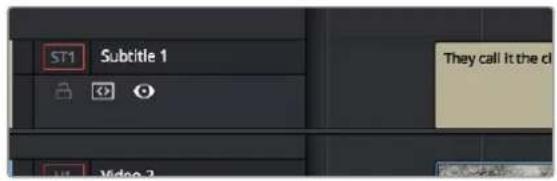
Subtitle track with lock, Auto Select, and enable/disable controls
Viewing Subtitle/Caption Tracks
One important difference between subtitle tracks and other kinds of tracks is that only one subtitle track can be visible at any given time. That means if you have multiple subtitle tracks, each for a different language, clicking the Enable control for one subtitle track disables all others.
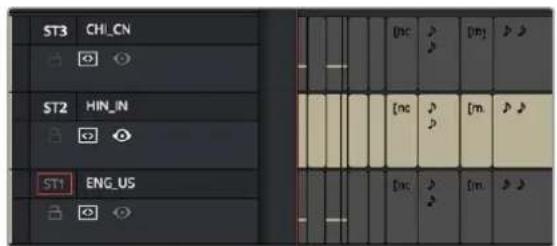
Viewing one subtitle track at a time
Adjusting QC Thresholds For Subtitle/Caption Timing
To help you adhere to guidelines that specify the recommended duration, line length, and speed of captions and subtitles, the Subtitles panel of the Project Settings has parameters you can set to warn you when a particular subtitle clip exceeds thresholds of Characters Per Line, Minimum Caption Duration, and Maximum Characters Per Second.
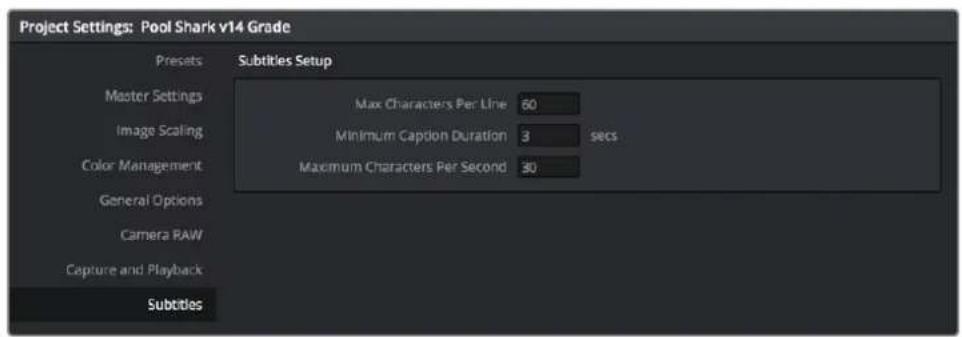
The Subtitles Setup parameters in the Subtitles panel of the Project Settings
As you edit a subtitle clip, these thresholds are used to automatically calculate how many lines and characters are allowable for a particular subtitle clip given its duration. For example, if you exceed the calculated threshold, the CPS value of that caption turns red to warn you.
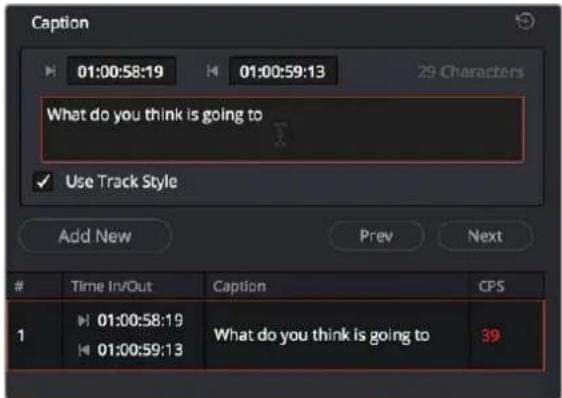
The CPS value of a subtitle has turned red because it exceeds the current QC threshold
Importing Subtitles and Captions
Oftentimes, adding subtitles or closed captions to a DaVinci Resolve timeline will involve importing a subtitle file that's been prepared elsewhere. Currently, DaVinci Resolve supports subtitle files in the .srt SubRip format.
To import an .SRT-formatted subtitle or closed captioning file:
1 Open the Media Pool.
2 Right-click on any bin in the Bin list, or anywhere in the background of the Media Pool browser, and choose Import Subtitle.
3 In the resulting file dialog, find and select the subtitle file you want to import, and click Open.
4 The subtitle file appears as a subtitle clip in the Media Pool, ready for editing into a subtitle track. A badge indicates that it's a subtitle clip.
An imported .srt subtitle file
5 To add a subtitle clip to a timeline, do one of the following:
- Drag a subtitle file you've imported into the unused gray area at the top of your video tracks, and a subtitle track will automatically be created for adding those subtitles into
- Drag a subtitle file you've imported into a pre-existing subtitle track
As you drag the subtitle clip, it'll immediately be decomposed so that each title is added to the Timeline as an individual subtitle clip, with its timing offset relative to the position of the first frame of the first subtitle in that file.
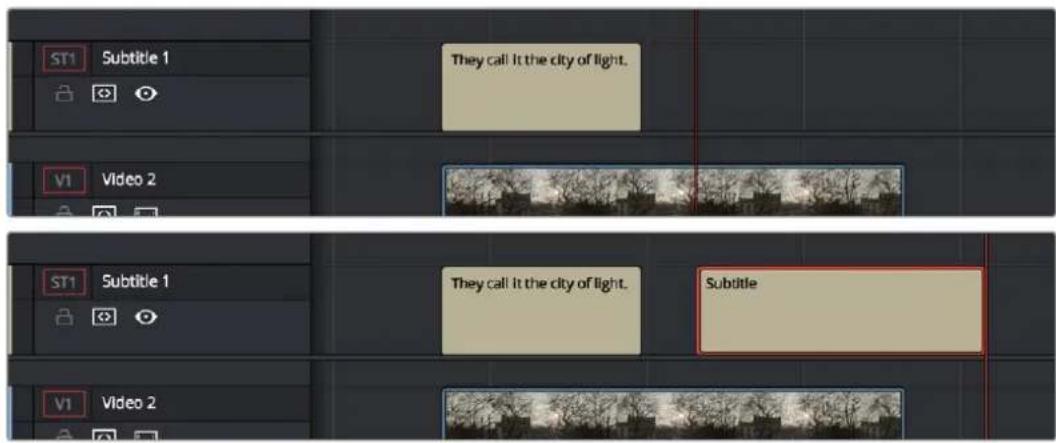
(Top) The original Timeline, (Bottom) The Timeline after dragging a subtitle file has created a new subtitle track
6 Position the imported subtitles so that they align with the first frame of your program that they're supposed to, and drop the titles into the track. If you inadvertently misplace the subtitles, don't worry, you can always select them all and slide them earlier or later, just like any other clips.
7 If you've added a new subtitle track, you can rename it to identify what language and country that track corresponds to. Please note that subtitle track names are used when exporting or encoding subtitles, so please make sure your tracks are named appropriately prior to export/delivery.
8 If you want to restyle all of the subtitles you've just added, for example to make them smaller or change the font, then click on the header of the subtitle track you'll be working on, open the Track Style panel of the Inspector, and select the formatting you want that track to use.
To see a list of every subtitle clip you've added, you can select the header of the subtitle track you've just added and open the Captions panel in the Inspector. A list at the bottom of the Captions panel gives you a convenient way of navigating the subtitles in a given track (using the Prev and Next buttons) and making selections. If you set the Inspector to be full height, you'll have even more room for browsing the subtitle list.
![Subtitle 1 Captions Track Style Caption 00:00:50:04 00:00:51:05 19 Characters Use Track Style Add New Prev Next Time In/Out Caption CPS 1 00:00:54:14 [crickets chirping] 19 00:00:55:15 2 00:00:55:16 [tires squealing] 17 00:00:57:16 3 00:00:57:16 [suspension creaking] 21 00:00:59:07 4 00:00:59:07 [explosion] 11 00:00:59:27 5 00:00:59:27 [glass shatters, flames roar] 29 00:01:02:02](/content/2026/05/760192/images/9caae33962981191b6f6ebdb35486237f98af5821a12838f4f8040bb9179f147.jpg)
The Captions list shows you every caption or subtitle on a track, for selecting, editing, deleting, or navigating
Adding Subtitles and Captions Manually
Other times, you may need to create subtitles on your own. Before doing so, you'll need to add one or more subtitle tracks. Once those tracks are created, you can add subtitle generators to them in a variety of ways. You can add as many subtitle tracks as you need, one for each language you require.
To add new subtitle tracks:
- Right-click in any track header of the currently open timeline, and choose Add Subtitle Track. An empty subtitle track will appear at the top of the Timeline, named "Subtitle 1," and if Subtitle Tracks were hidden, they're now shown. Once you've added a new subtitle track, you can rename it to identify what language and country that track corresponds to. Please note that subtitle track names are used when exporting or encoding subtitles, so please make sure your tracks are named appropriately prior to export/delivery.
You can show and hide subtitle tracks in case you need to free up room in the Timeline for working on other tracks. Subtitles on the currently selected subtitle track continue to be visible, however, regardless of whether or not the subtitle tracks are shown.
Showing and hiding subtitles tracks:
- Open the Timeline View options, and click on the Subtitle button to toggle the visibility of subtitles tracks on and off.
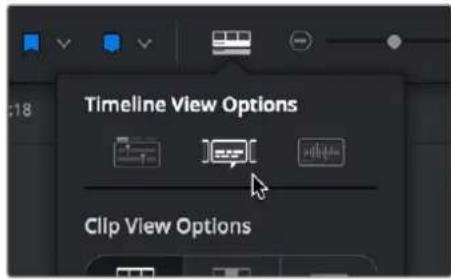
The show/hide subtitle tracks button in the Timeline View Options
To add individual subtitles to a subtitle track:
If you want to adjust the default style of a particular subtitle track before you start adding subtitles, then click on the header of the subtitle track you'll be working on, open the Track Style panel of the Inspector, and select the formatting you want that track to use.
2 If you have multiple subtitle tracks, click the destination control of the subtitle track you want to add titles to. They're labeled ST1, ST2, ST3, etc.
3 Move the playhead to the frame where you want the new subtitle to begin.
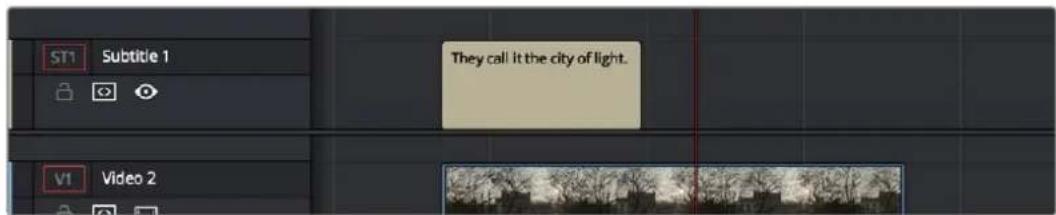
Positioning the playhead where you want a new subtitle to begin
4 To add a new subtitle clip, do one of the following:
- Open the Inspector and click Create Caption in the Captions panel of the Inspector. If there's already one or more captions in that subtitle track, click the Add New button above the caption list, instead.
- Right-click anywhere on the subtitle track and choose Add Subtitle to add a subtitle clip starting at the position of the playhead
- Open the Effects Library, click the Titles category, and drag a Subtitle generator to the Subtitle track you want it to appear on.
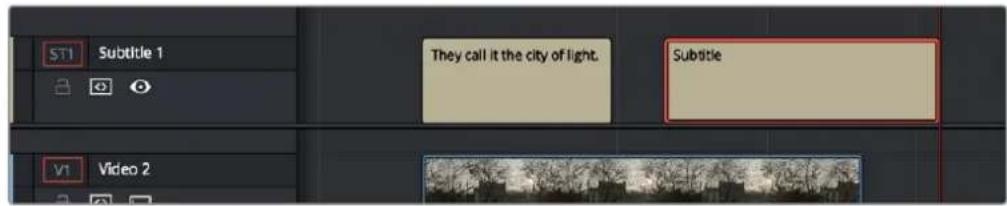
Manually adding a subtitle
5 If necessary, you can now edit the clip to better fit the dialog that's being spoken or the sound that's being described, by dragging the clip to the left or right, or dragging the beginning or end of the clip to resize it.
6 While the new subtitle clip you've created is selected, use the Captions panel in the Inspector to type the text for that particular subtitle. The text appears on the subtitle clip as you type it.
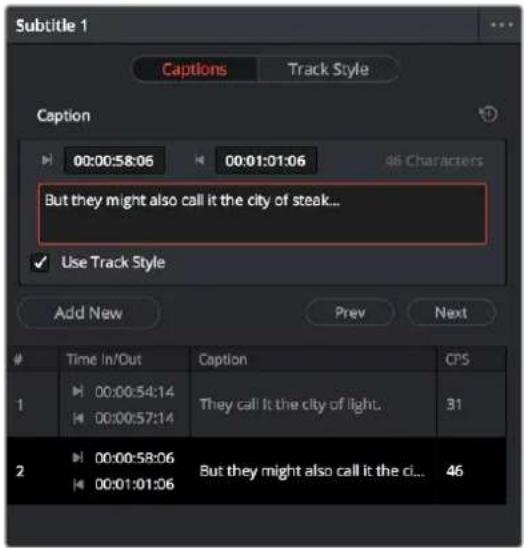
Editing the text of the subtitle we just created
Every time you add a subtitle, an entry is added to the subtitle list at the bottom of the Captions panel in the Inspector. This list gives you another convenient way of navigating the subtitles in a given track (using the Prev and Next buttons) and making selections.
Editing Subtitles and Captions
Subtitle clips can be selected singly or together, and slipped, slid, resized, rolled, and rippled just like any other clip in the Timeline, using the mouse or using keyboard commands, with either the Selection, Trim, or Razor tools. You can select subtitle clips in their entirety, or just their edit points, in preparation for nudging or dynamic trimming. In short, subtitle clips can be edited, in most ways, just like any other clips.
Styling Subtitles and Captions
When it comes to styling subtitle text, there are a wealth of styling controls in the Track Style panel of the Inspector.
To modify the styling of all titles on a particular subtitle track:
1 Click on the header of the subtitle track you'll be working on, or select a clip on a particular subtitle track either in the subtitle track or in the subtitle list of the Captions panel in the Inspector.
2 Open the Inspector, and then open the Track Style panel that appears within.
3 Edit whatever parameters you need to set the default style of all subtitles and closed captions that appear on that track. The Track Style panel has many more options than the Captions panel, including a group of Style and Position controls over Font and Font Face, Color, Size, Line Spacing, and Kerning, Alignment, Position X and Y, Zoom X and Y, Opacity, and Text Anchoring.
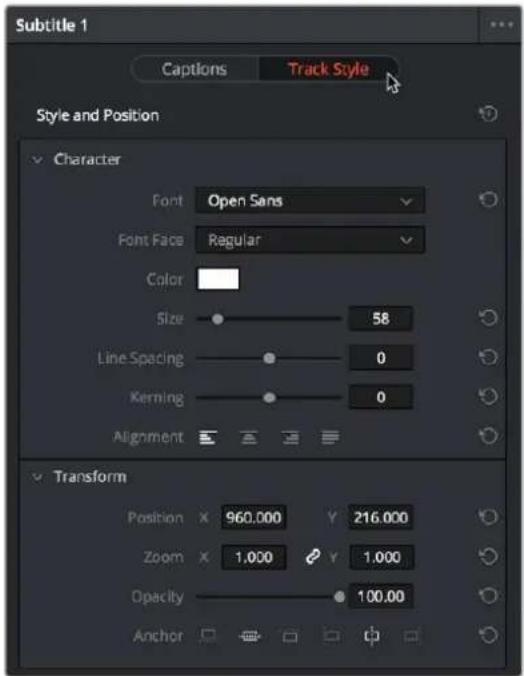
The Track Style panel of the Inspector sets styling for every subtitle on that track
Keep in mind that there are additional groups of controls that let you add a Drop Shadow, Stroke, and/or Background to all text on that track, which can be found at the bottom of the Track Style panel of the Inspector.
Linking Subtitles to Clips
If you like, you can link one or more subtitles to their accompanying clip, so that if you re-edit a subtitled scene, each clip's subtitles move along with the clips. This arrangement doesn't always work the way you'd expect when trimming, but it works great when you're rearranging clips.
To link a subtitle to another clip:
1 Select a clip and its subtitles all at once.
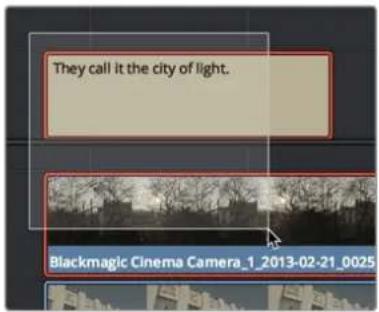
Selecting a video clip and its accompanying subtitle to link them
2 Choose Clip > Linked Clips (Option-Command-L). A Link icon appears to show that the subtitle clips are linked to the video/audio clip.
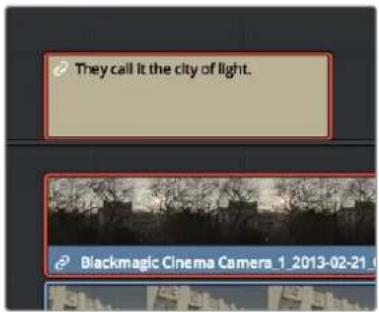
The now linked clip and subtitle have link badges to show their state
Using Subtitles in Nested Timelines
Subtitles will come across with their original timelines as part of a nested timeline. Simply drag one subtitled timeline either from the Media Pool or Source Viewer into a new timeline. If you want to add the subtitles of the original timeline to the new timeline's caption list, you must Decompose in Place the nested timeline.
Naming Subtitle Tracks
If necessary, you can double-click the name of any subtitle track to rename it to something more descriptive of what that subtitle track will contain, such as the language, and whether a particular track is for subtitles or closed captions.
Depending on your workflow and delivery specifications, there are existing conventions for identifying languages, such as ISO-639-1 (governing 2-letter codes) or ISO-639-2/B (governing 3-letter codes). These codes can be found at the International Organization for Standardization website, at http://www.loc.gov/standards/iso639-2/php/code_list.php.
Some naming conventions require both language code and country code. For example, Facebook requires SubRip (.srt) files with the naming format "VideoFilename.[language code]_[country code].srt" for proper embedding.
If you want to use these codes for subtitle track identification and output, here's a representative list of standardized language and country codes from around the world, in alphabetical order:
| Language | ISO 639-1Language Code | ISO 639-2Language Code | ISO 3166-1Country Code |
| Amharic am amh ET (Ethiopia) | |||
| Arabic ar ara | EG (Egypt)AE (United Arab Emirates)LB (Lebanon) | ||
| Bengali bn ben IN (India) | |||
| Chinese zh | chi (B)zho (T) | CN (China)HK (Hong Kong)TW (Taiwan) | |
| Danish da dan DK (Denmark) | |||
| Dutch nl | dut (B)nld (T) | NL (Netherlands) | |
| English en eng | GB (UK)IN (India)US (US) | ||
| Finnish fi fin | FI (Finland) | ||
| French fr | fre (B)fra (T) | CA (Canada)FR (France) | |
| German | de | ger (B)deu (T) | DE (Germany) |
| Greek Modern | el | gre (B)ell (T) | GR (Greece) |
| Hausa | ha | hau | NG (Nigeria)TD (Chad) |
| Hebrew | he | heb IL (Israel) | |
| Hindi | hi | hin IN (India) | |
| Indonesian | id | ind | ID (Indonesia) |
| Italian | it ita | IT (Italy) | |
| Japanese | ja | jpn | JP (Japan) |
| Malay ms | may (B)msa (T) | MY (Malaysia) | |
| Maori | mi | mao (B)mri (T) | NZ (New Zealand) |
| Norwegian | no | nor | NO (Norway) |
| Polish | pl | pol | PL (Poland) |
| Portuguese | pt por | BR (Brazil)PT (Portugal) | |
| Punjabi | pa pan IN (India) | ||
| Russian | ru | rus | RU (Russia) |
| Spanish Castilian es spa | CO (Columbia)ES (Spain)MX (Mexico) | ||
| Swahili sw swa KE (Kenya) | |||
| Swedish sv swe SE (Sweden) | |||
| Tagalog tl tgl PH (Philippines) | |||
| Thai th tha TH (Thailand) | |||
| Turkish | tr | tur | TR (Turkey) |
| Urdu | ur | urd | PK (Pakistan) |
| Vietnamese | vi | vie | VN (Vietnam) |
Exporting Subtitles and Closed Captions
Once you've created one or more subtitle tracks filled with subtitles or captions, there are a few different ways you can export subtitles once you've created them.
Exporting Subtitles Via the File Menu
Choose File > Export Subtitle, and use the export dialog to choose a location and file type for the exported subtitle file. You can export subtitles in the .srt and .webvtt formats.
Exporting Subtitles Via the Subtitle Track Header
Right-click on the track header of a subtitle track, and choose Export Subtitle from the contextual menu. Use the export dialog to choose a location and file type for the exported subtitle file. You can export subtitles in the .srt and .webvtt formats.
Exporting, Burning, or Embedding Subtitles During Delivery
When you've set up one or more subtitle tracks in a program, the Deliver page exposes a group of Subtitle Settings at the bottom of the Video panel of the Render Settings that control if and how subtitles or closed captions are output along with that timeline.
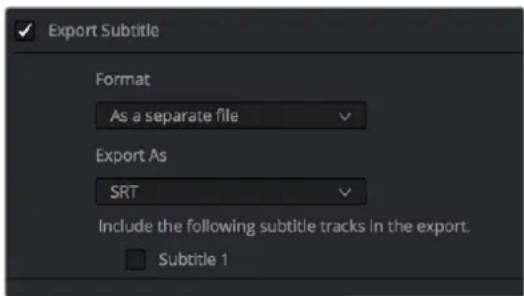
Available options for exporting subtitles can be found at the bottom of the Video panel of the Render Settings
This panel has the following controls:
- Export Subtitle checkbox: Lets you enable or disable subtitle/closed caption output.
-
Format pop-up: Provides four options for outputting subtitles/closed captions.
-
As a separate file: Outputs each subtitle track you select as a separate file using the format specified by the Export As pop-up. A set of checkboxes lets you choose which subtitle tracks you want to output.
- Burn into video: Renders all video with the currently selected subtitle track burned into the video.
-
As embedded captions: Outputs the currently selected subtitle track as an embedded metadata layer within supported media formats. There is currently support for CEA-608 closed captions within MXF OP1A and QuickTime files. You can choose the subtitle format from the Codec pop-up that appears.
-
Export As: (only available when Format is set to "As a separate file") Lets you choose the subtitle/closed captioning format to output to. Options include SRT and WebVTT.
- Include the following subtitle tracks in the export: (only available when Format is set to "As a separate file") A series of checkboxes lets you turn on which subtitle tracks to output.
- Codec: (only available when Format is set to "As embedded captions") Lets you choose how to format embedded closed captions; choices include Text and CEA-608.
NOTE: Neither analog (Line 21) nor digital (CEA-708) closed caption output via Decklink or UltraStudio is supported at this time.
Chapter 53
Keyframing Effects in the Edit Page
The Edit page also provides controls for keyframing effects that you add to your timeline, as well as a curve editor to fine-tuning the motion effects you create right in the Editing Timeline.
Contents
Keyframing Effects in the Edit Page 898
Keyframing in the Video Inspector 899
Keyframing Motion Paths in the Timeline Viewer 901
Keyframing in the Edit Timeline and Curve Editor 903
The Keyframe Editor 903
The Curve Editor 905
Keyframable Open FX and Resolve FX 908
Keyframing Effects in the Edit Page
Most parameters in the Inspector of the Edit page can be keyframed, in order to create animated effects such as zooming in via the Zoom parameter, fading out via the Opacity parameter, or cropping from one side to reveal a clip underneath via the Cropping parameters. Additionally, if you import a project from an NLE that has keyframed sizing settings, those keyframes will be imported and exposed within the Edit page of DaVinci Resolve.
The primary controls for keyframing are within the Video Inspector. Any parameter that can be keyframed has a gray keyframe button to the right of its slider. If the playhead is on a keyframe, this button turns orange and small navigation arrows appear to its right and left, otherwise it stays gray.
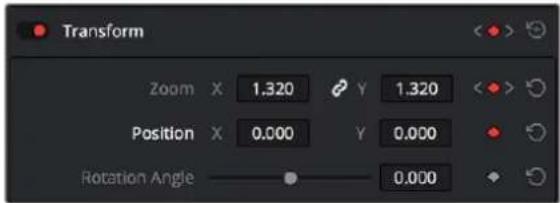
Orange buttons in the Inspector show keyframe usage. Zoom shows the playhead parked on the current keyframe with additional keyframes set before and after this one as indicated by the gray navigation arrows. Position shows the playhead parked on the only keyframe set (orange diamond, no arrows), and Rotation Angle shows no keyframe set (gray diamond).
Once you've keyframed one or more parameters within a particular group in the Inspector, that clip displays a pair of small buttons at the far right of its name bar in the Timeline, a Curve button and a Keyframe button. Only keyframed clips have these buttons.
The Keyframe track button in the Timeline appearing on a keyframed clip
To expose a clip's keyframe tracks, do one of the following:
- Click the Keyframe button for that clip, at the bottom right corner of the clip.
- Choose Clip > Show Keyframe Editor (Shift-Command-C)
Each group of parameters in the Inspector reveals a single, aggregated keyframe track, that holds all the keyframes of all the parameters within that group, and makes it easy to move, delete, cut, copy, and paste keyframes for each clip. For example, the Pan, Tilt, Zoom, Rotation Angle, and Anchor Point keyframes all appear within the Transform track.
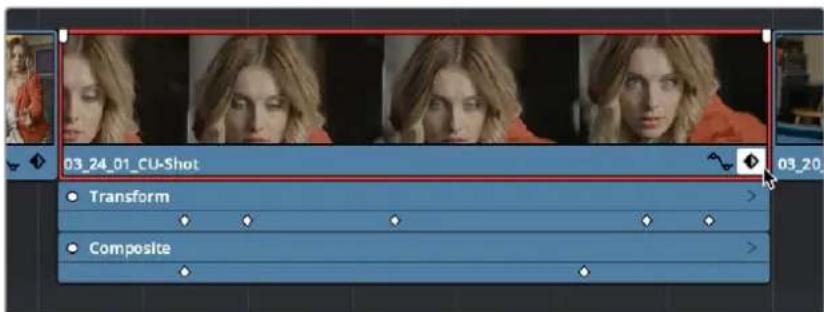
A keyframe track for all of the Transform group parameters
If you want to edit each parameter independently, a small disclosure control at the right of each keyframe track lets you open up an aggregated keyframe track into individual keyframe tracks, one for each parameter that's been keyframed within that group of Inspector controls.
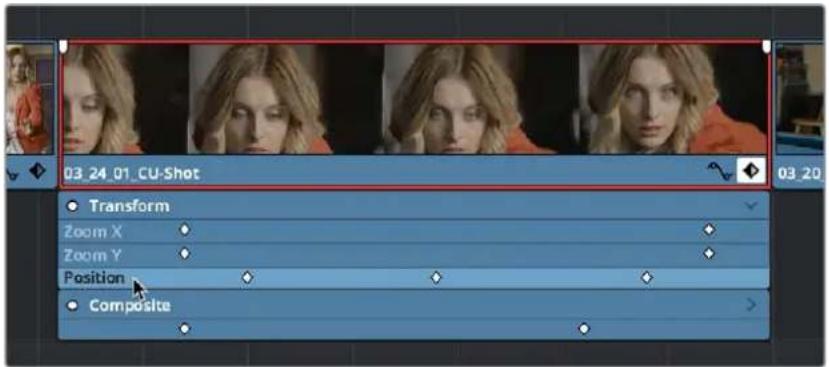
Clicking a keyframe track's disclosure control reveals individual keyframe tracks for each keyframed parameter in the Inspector
Additionally, each keyframed clip has a Curve button that, when clicked, exposes that parameter within a Curve Editor that's attached to the clip in the Timeline.
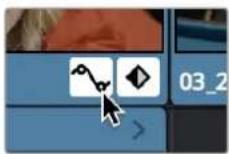
A clip's Curve button, used to open the Curve Editor for that particular clip.
To expose a clip's Curve Editor:
- Click a clip's Curve button, at the bottom right corner of the clip.
- Choose Clip > Show Curve Editor (Shift-C).
Multiple parameters can be opened within the Curve Editor at the same time, and you can choose which curve to work on by clicking it in the Curve Editor, or clicking one of that parameter's keyframes in the keyframe track above. Selected control points can be moved, and their Bezier interpolation changed using one of the four buttons located at the top of the Curve Editor.
Keyframing in the Video Inspector
Keyframing in the Cut and Edit pages works slightly differently than when using the Keyframe Editor in the Color page. Most simple keyframing tasks can be performed in the Inspector using three buttons that appear to the right of any parameter that's capable of being keyframed. It takes two keyframes at minimum to create an animated effect.
The three keyframe controls that appear in the Inspector, from left to right: Previous keyframe, Create/Delete keyframe, Next keyframe
Methods of keyframing parameters in the Inspector:
- To add a keyframe: Select a clip, open the Inspector, then move the Timeline playhead to the frame where you want to place a keyframe, and click the Keyframe button next to the parameter of the Inspector you want to animate. Once you've added at least one keyframe to a parameter, all other adjustments you make to parameters in the Inspector, or using the onscreen Transform/Crop controls in the Timeline Viewer add new keyframes automatically if the playhead is at another frame.
- To move the playhead to the next or previous keyframe: Click the small left- or right-hand arrow to either side of a parameter's keyframe control to jump the playhead to the next or previous keyframe. You can also press Right-Bracket ( [ ) and Left-Bracket ( ] ) to go from keyframe to keyframe.
- To edit an existing keyframe of a parameter: Move the playhead to be on top of the keyframe you want to edit, and then change that parameter, either in the Inspector, or using the onscreen controls of the Timeline Viewer.
Methods of changing keyframe interpolation in the Inspector:
- To change a keyframe to Ease In or Ease Out: Eased keyframes create animated changes that begin slowly and accelerate to full speed, or slow down gradually to decelerate to a stop. This only works when you have two or more keyframes creating an animated effect. Move the playhead to a frame with a keyframe using the next/previous keyframe controls, then right-click the orange keyframe button and choose Ease In, Ease Out, or Ease In and Out, depending on which keyframe you're editing and the effect you want to create.
- To change a keyframe to Linear: Move the playhead to a frame with a keyframe using the next/previous keyframe controls, then right-click the orange keyframe button and choose Linear.
Methods of deleting keyframes and disabling keyframed effects:
- To delete a single keyframe: Open the Inspector, move the Timeline playhead to a frame with a keyframe, and click the orange Keyframe button in the Inspector to delete it.
- To delete all keyframes for one parameter: Click the reset button to the right of a parameter's keyframe control in the Inspector.
- To delete all keyframes in a group of parameters in the Inspector: Click the reset button to the right of a parameter group's title bar in the Inspector.
- To disable or enable a single parameter's keyframed effect: In the Timeline, click the toggle control at the left of a parameter's keyframe track. White means that track's enabled. Gray is disabled.
- To disable or enable a group of parameters in the Inspector: Click the toggle control at the left of a parameter group's title bar in the Inspector. Orange means that group is enabled. Gray is disabled.
Keyframing Motion Paths in the Timeline Viewer
If you're keyframing a clip's transform controls to create motion, a motion path appears when you turn on the onscreen transform controls using the button to the left of the transport controls.
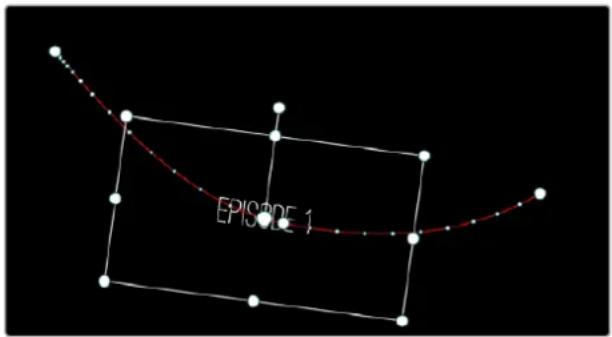
A visible motion path resulting from animated Position X and Y parameters
Each keyframed change to the Position X and Y parameters creates a control point on the surface of the motion path, which is linear by default, creating a sharp edge. However, you can right-click any control point and choose Smooth from the contextual menu to add Bezier handles to that control point, which let you change the sharp angle to an adjustable curve.
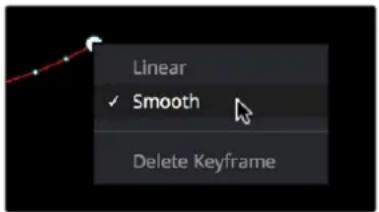
Changing the linear control point into a Bezier curve
The control points making up any motion path can be dragged around at will to change the path the selected clip will travel. Dots on the surface of the motion path indicate the velocity of motion; dots that are closer together indicate slower motion, while dots that are farther apart indicate faster motion. Dragging a motion path control point farther away from another one will speed up the animation between both points, while dragging it closer will slow the animation down, as you're setting up the selected clip to travel a longer or shorter distance within the same keyframed time.
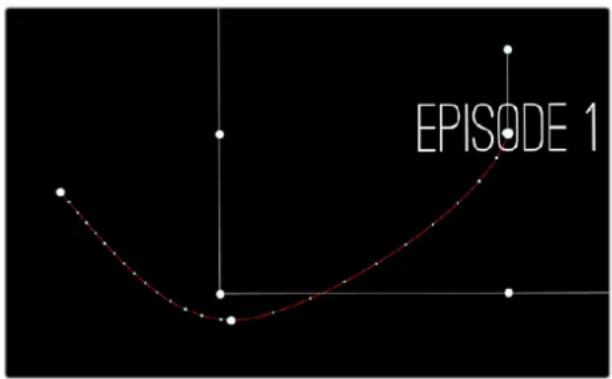
Dots on the motion path show that the left half has slow motion, while the right half has faster motion
You can also adjust the shape of any control point's curve by clicking to select that control point, which exposes its Bezier handles, and then dragging the handles to adjust its curve. Once handles have been exposed, there are a variety of methods you can use to adjust them and manipulate the motion path.
Finally, you can adjust the acceleration of motion by adjusting the Acceleration handle on the stem of any Bezier curve. Dragging an acceleration handle towards a control point creates an eased keyframe, where motion slows to a stop, or begins from a stop. Dragging an acceleration handle away from a control point creates more linear motion, where the object moves continuously through that control point.
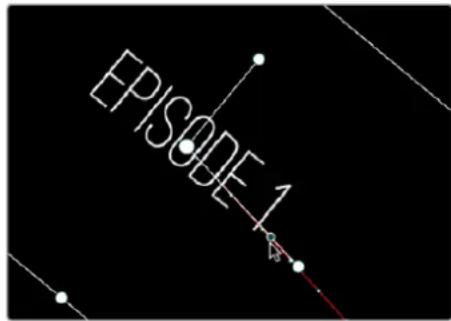
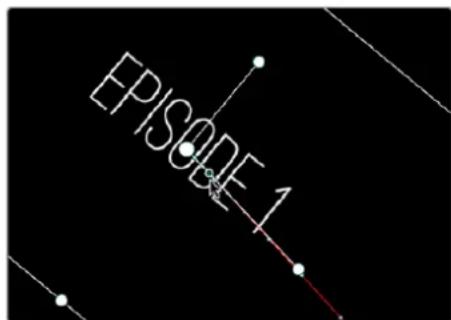
An acceleration handle on the Bezier handle of a curve lets you create eased motion by dragging it in towards the control point being adjusted
Methods of adjusting the Bezier handles of motion paths:
- Drag any control point to reshape the motion path.
- Drag any Bezier handle to change the shape of the curve.
– Command-drag any Bezier handle to break the tangent between it and the opposite Bezier handle. When you release the Command key, the two Bezier handles become locked together again at whatever angle you created.
To eliminate a control point on a motion path, along with its keyframe:
- Right-click any control point and choose Delete Keyframe.
To switch a control point between sharp and curved angles:
- Right-click any control point and choose Linear (for a sharp angle) or Smooth (for a curve).
Keyframing in the Edit Timeline and Curve Editor
If you need to do more complicated keyframe editing than the relatively simple controls of the Inspector allow, you can use the Keyframe tracks and Curve Editor found in the Edit Timeline. When one or more clip parameters are keyframed, two small buttons appear at the far right of a clip's name bar in the Timeline, a Curve button and a Keyframe button. These buttons let you access specialized keyframe editors that serve different purposes.
The Keyframe Editor
The Keyframe Editor in the Timeline is the simplest way of exposing all of a clip's keyframes and adjusting their timing and interpolation. It's only available when you've already keyframed one of a clip's Inspector properties.
To open or close the Keyframe Editor:
- Click a clip's Keyframe button at the far right of a clip's name bar.
- Select a clip and choose Clip > Show Keyframe Editor (Command-Shift-C).
The Keyframe track button in the Timeline appearing on a keyframed clip
The Keyframe Editor exposes one keyframe track for each group of parameters that's keyframed. For example, the Composite parameters, Transform parameters, and Cropping parameters are all encapsulated by group tracks. For example, if you'd added keyframes to the Zoom and Position parameters, these keyframes all appear within a single keyframe track labeled Transform, while Opacity adjustments appear on a second keyframe track for Composite.
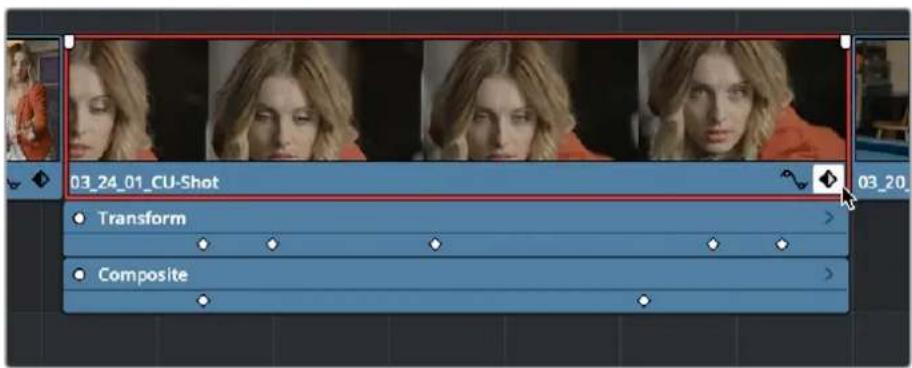
Group keyframe tracks open in the Timeline
However, each group keyframe track has a disclosure button that lets you show or hide each individual parameter that's keyframed within that group. For example, clicking the Transform keyframe track's disclosure button shows the Zoom and Position tracks, so you can adjust those individual keyframes.
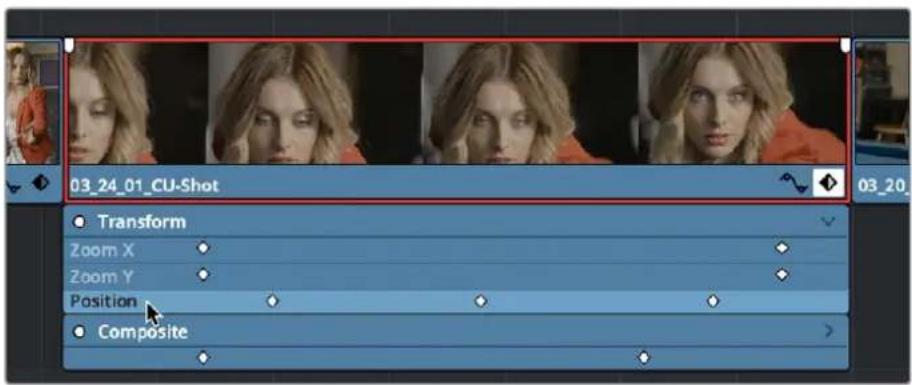
Individual parameter keyframe tracks open in the Timeline
These keyframe tracks let you edit keyframes in context of the actual clip durations in the Timeline. Click the small Keyframe button at the bottom right of the clip's name bar to close the keyframe tracks when you're finished.
Methods of adding and selecting keyframes in the Keyframe Editor of the Edit page:
- To add new keyframes to the Keyframe Editor: Option-click anywhere on a track of the Keyframe Editor to add a new keyframe, which defaults to whatever the current value is for that parameter at that frame. New keyframes create linear animated changes by default.
- To duplicate one or more keyframes: Make a selection of keyframes, then hold the Option key down and drag the selected keyframes to duplicate them and move the duplicates to a new position.
- To select a single keyframe: Click a single keyframe to select it.
- To select multiple discontinuous keyframes: Command-click all keyframes you want to select, whether they're next to one another or not.
- To select multiple contiguous keyframes: Click the first keyframe you want to select, and then shift-click the last keyframe you want to select, and all keyframes between will also be selected, or drag a bounding box within the keyframe track around multiple keyframes to select them all at once.
Methods of changing keyframe interpolation/easing/smoothing in the Keyframe Editor of the Edit page:
- To change one or more Linear keyframe to Ease In or Ease Out: Eased keyframes create animated changes that begin slowly and accelerate to full speed, or slow down gradually to decelerate to a stop. This only works when you have two or more keyframes creating an animated effect. Select one or more keyframes, then right-click one of the selected keyframes and choose Ease In, Ease Out, or Ease In and Out, depending on which keyframe you're editing and the effect you want to create.
- To change one or more eased keyframes to Linear: Select one or more keyframes, then right-click one of the selected keyframes and choose Linear.
Methods of moving and adjusting keyframes in the Keyframe Editor of the Edit page:
- To move one or more keyframes: Select one or more keyframes and drag left or right. While you drag keyframes, a tooltip appears showing you the offset in frames of your adjustment from the beginning of that clip's source media. If you're only dragging one keyframe, the tooltip also shows you the name of the parameter you're modifying.
- To nudge selected keyframes one frame at a time: Select one or more keyframes and press Command-Left Arrow or Command-Right Arrow to nudge them back and forth, for precision editing. The Curve Editor must also be open.
Methods of Cutting, Copying, Pasting, and Deleting keyframes:
- To cut or copy, and paste one or more keyframes: Make a selection of keyframes, and use the Cut (Command-X) or Copy (Command-C) key shortcuts. Then, move the playhead to where you want the first of the copied keyframes to start, and press Paste (Command-V). The Curve Editor must also be open.
- To delete one or more control points from a curve: Select the keyframe(s) you want to delete and press Backspace. The Curve Editor must also be open.
The Curve Editor
If you want to work with keyframes in even more detail, you can use the Curve Editor. The Curve Editor can be opened in addition to the Keyframe Editor, or it can be opened in isolation. When clicked, the Timeline expands to accommodate a large space under an animated clip in which you can freely adjust both the timing and value of selected keyframes, while also providing optional bezier spline controls used to create smooth curves with which to adjust the acceleration of animated changes from one value to another.
To open or close the Curve Editor:
- Click a clip's Curve button at the far right of a clip's name bar.
- Select a clip and choose Clip > Show Curve Editor (Shift-C).
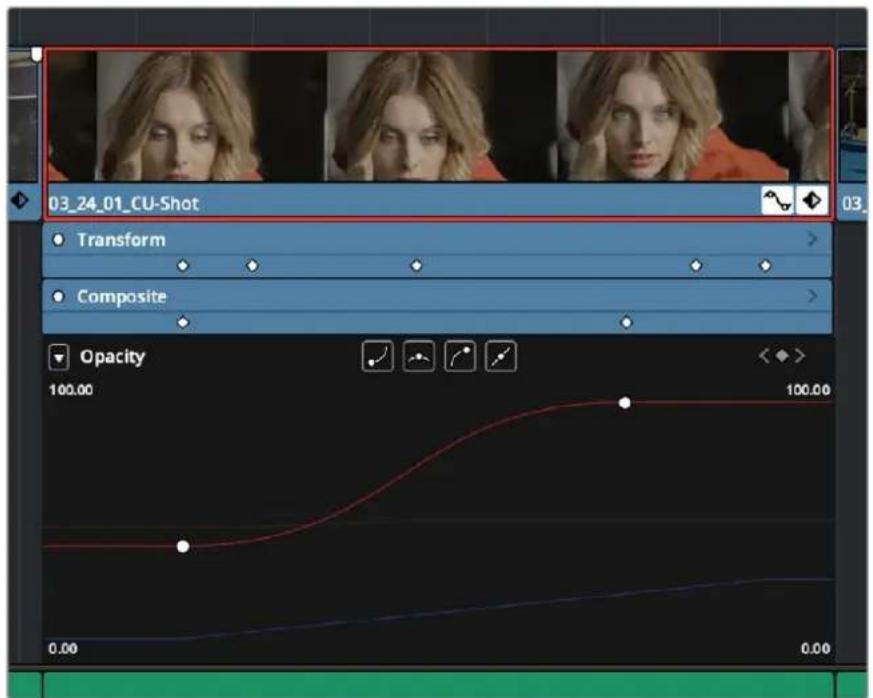
The Curve Editor open in the Timeline
You can open multiple parameters into the Curve Editor using the curve pop-up menu at the upper left-hand corner of the Curve Editor that lets you choose which parameters are exposed via checkboxes. This menu also lets you choose which curve is selected by clicking the name of the parameter you want to edit.
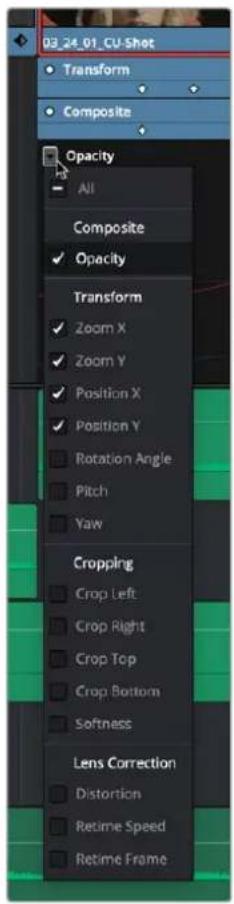
Choosing which parameters to display in the Curve Editor
While you can only work on one curve at a time, you can choose which is selected for editing by either selecting it in this pop-up menu or by clicking any dimmed curve in the Curve Editor. Using the control points exposed by each curve, you can edit parameters, alter keyframe timing, and change each control point's interpolation to create custom easing effects affecting the acceleration of change from one keyframe to the next.
Methods of adding and selecting keyframes in the Curve Editor of the Edit page:
- To change which curve you're editing: If the Keyframe Editor is open at the same time as the Curve Editor, you can click the keyframe track you want to edit and the corresponding curve will be highlighted. Otherwise, click the Curve menu at the upper left-hand corner of the Curve Editor, and choose which curves you want to expose to work on. If multiple curves are open in the Curve Editor, click any dimmed curve in the background to highlight it for editing. If the clip you're editing is too narrow, then the Curve menu may be hidden; zooming into the Timeline will show the Curve menu again.
- To add new keyframes to a curve: Option-click anywhere on a curve to add a new control point.
- To duplicate one or more keyframes: Make a selection of keyframes, then hold the Option key down and drag the selected keyframes to duplicate them and move the duplicates to a new position (and even new values). This can be a good way to quickly loop a repetitive animated effect you've created.
- To select a single keyframe: Click a single keyframe to select it.
-
To select multiple discontinuous keyframes: Command-click all keyframes you want to select, whether they're next to one another or not.
-
To select multiple contiguous keyframes: Click the first keyframe you want to select, and then shift-click the last keyframe you want to select, and all keyframes between will also be selected, or drag a bounding box within the Curve Editor around multiple keyframes to select them all at once.
- To select all keyframes: If the Keyframe Editor is open and it has focus (by clicking anywhere within it), then pressing Command-A will select all keyframes within that Keyframe Editor.
Methods of adjusting keyframes in the Curve Editor of the Edit page:
- To drag one or more keyframes freely on a curve: Select one or more keyframes and drag left or right to retime them, and up or down to change their value.
- To drag one or more keyframes on a curve in only one direction: Select one or more keyframes, then hold the Shift key while dragging either vertically or horizontally to constrain keyframe adjustment within that single direction.
- To nudge selected keyframes one value or frame at a time: Select one or more keyframes and Command-Left Arrow and Command-Right Arrow to nudge them in time, or Command-Up Arrow and Command-Down Arrow to nudge their value, for precision keyframe adjustments.
Methods of changing keyframe interpolation/easing/smoothing:
- To change the interpolation of a single keyframe: There are two methods. You can select the keyframes you want to change, and then click one of the four Bezier interpolation buttons in the Curve Editor title bar. Or, you can right-click one of the selected keyframes and choose one of the interpolation options from the contextual menu. Keyframes that have already been eased in the Keyframe Editor or via controls in the Inspector already have bezier handles exposed in the Curve Editor.
- To change the interpolation of multiple keyframes: Select multiple keyframes by Command-clicking or dragging a bounding box, and then click one of the four Bezier interpolation buttons in the Curve Editor title bar to simultaneously change the interpolation of all of them.
- To adjust a Bezier handle: Drag the Bezier handle in any direction to alter the curve.
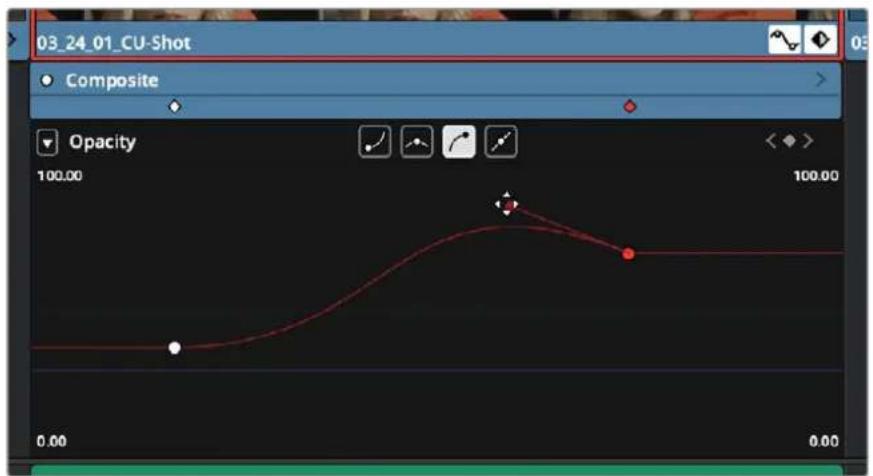
The Curve Editor with Bezier interpolated keyframes
Methods of Cutting, Copying, Pasting, and Deleting keyframes:
- To cut or copy, and paste one or more keyframes: Make a selection of keyframes and use the Cut (Command-X) or Copy (Command-C) key shortcuts. Then, move the playhead to where you want the first of the copied keyframes to start, and press Paste (Command-V).
- To delete one or more control points from a curve: Select the keyframe(s) you want to delete and press Backspace.
Keyframable Open FX and Resolve FX
The parameters of Open FX and Resolve FX have keyframe controls to the right of each parameter's number field in the Effects Inspector of the Edit and Color pages, so you can animate effects that you add to clips and grades.
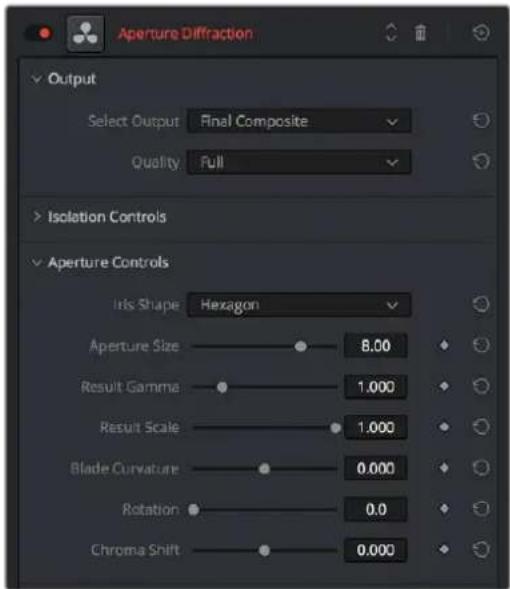
Resolve FX can now be animated in the Edit page using keyframe controls in the Inspector.
Additionally, keyframes added to Resolve FX parameters in the Inspector now appear in both the Keyframe and Curve Editor of the Edit page Timeline. You can expose individual keyframe tracks and curves for each keyframed parameter of an effect applied to a clip, for smoothing, retiming, or editing.
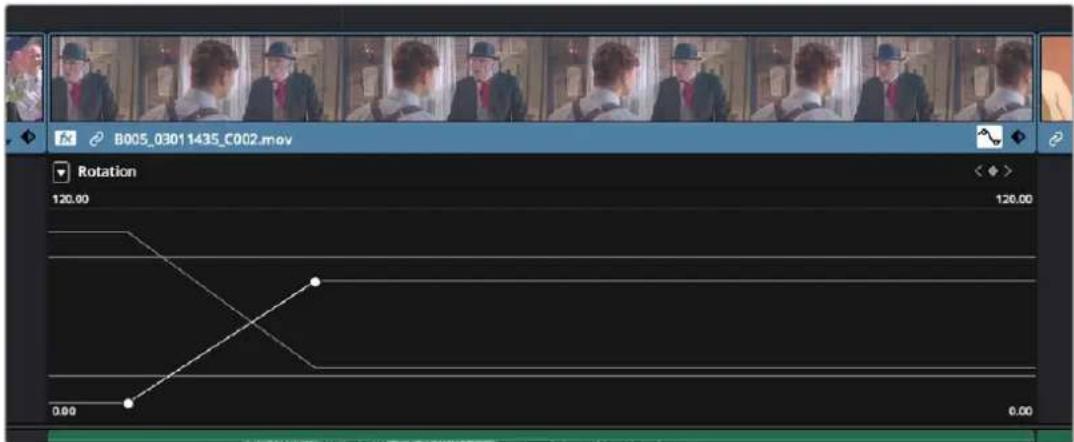
Resolve FX keyframes exposed in the Edit page Curve Editor
Chapter 54
VFX Connect
For instances where the various effects of the Edit, Fusion, and Color page aren't enough to achieve the effect you require, you can use the VFX Connect feature of DaVinci Resolve to send one or more clips from the Edit page timeline to the standalone version of Blackmagic Fusion, in order to do more robust compositing and effects work there. You can use this workflow in the macOS, Windows, and Linux versions of DaVinci Resolve, since Fusion works on all three platforms. This is a simple round-trip operation that lets you send clips from the DaVinci Resolve Timeline to Fusion, add effects, and then render a finished effect out of Fusion that will automatically appear back in your timeline.
Contents
Using VFX Connect 910
How Clips are translated into Node Trees 912
Altering VFX Connect Clips 913
Creating Multiple Versions of Fusion Clips 913
Switching Versions of VFX Connect Clips in DaVinci Resolve 914
Sending a VFX Connect Directory to Another Machine 914
Creating Multiple Versions of Fusion Clips on Another Machine 915
Updating VFX Connect Clips Using Render Media and Refresh 915
Using VFX Connect
Sending one or more clips to the standalone version of Blackmagic Fusion is simple.
To send clips to Fusion:
1 Select one or more clips in the Timeline that you want to send to Fusion. In this example, two superimposed clips are selected.
![clouds[1-1] +17_1618_C0001 • BMC test_B1_2012-08-17_1738_C0000 + BMC test_B1_2012-08-17_1738_C0000 + BMC test_B1_2012-08-17_1738_C0000 + BMC test_B1_2012-08-17_1738_C0000](/content/2026/05/760192/images/2055dc81939111af85fd7cc363789f064f773f266a452124fcf165c9981758a0.jpg)
Selecting two clips to send to Fusion
2 Right-click one of the selected clips and choose New VFX Connect Clip from the contextual menu.
3 In the New VFX Connect Clip dialog, choose the following options:
a Enter a name.
b Choose a video format (for rendering media to send to Fusion).
c Choose a codec, based on the format you selected.
d If you want to send Alpha channels to Fusion, turn the Export Alpha checkbox on. This exports alpha channels that are embedded in a clip, as well as alpha channels that are being created in DaVinci Resolve.
If you want to save the VFX Connect Clip that you're creating, along with its directory and media, to a specific location, turn on the Custom Location checkbox, then click the Browse button and choose a location. Otherwise, the directory containing the VFX Connect clip and any source media rendered along with it is placed in the same directory as the scratch disk.
If you want to immediately open Fusion, turn on the "Open VFX Connect Clip" checkbox. If you do this, then DaVinci Resolve by default renders each of the video clips you selected, along with every speed effect, transform, and Color page operation that's been applied to each clip, using the Timeline Color Space. However, if you click Cancel when the Render Composition Media dialog appears, then the Fusion project that opens references the source media on disk, rather than rendered media that's generated by DaVinci Resolve.
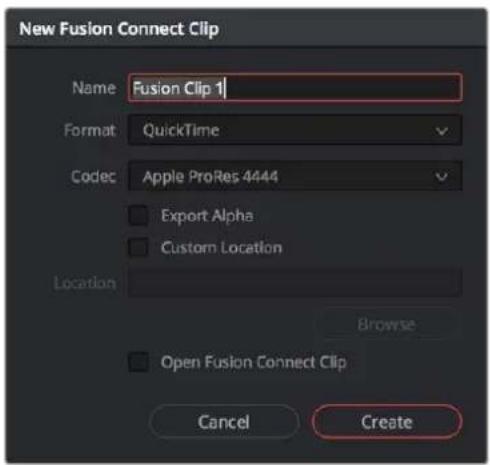
The New VFX Connect Clip dialog
4 When you're finished, click Create. DaVinci Resolve creates a VFX Connect clip, which appears in the Timeline as a single clip and in the Media Pool.
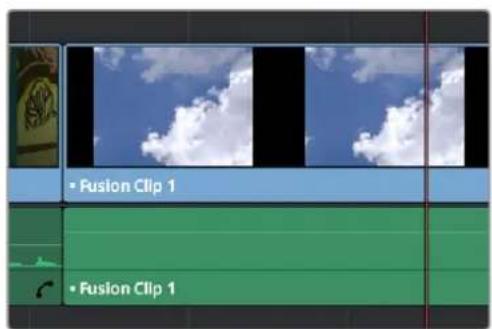
![clouds[1-1].jpg clouds[1-1] Fusion Clip 1 Fusion Clip 1](/content/2026/05/760192/images/a0a11a71a6f1986233de94f582ce598128051a9e8c7789a60b0caede89911410.jpg)
(Left) VFX Connect clips in the Timeline, (Right) in the Media Pool
5 Opening the VFX Connect clip in Fusion can be done in one of two ways:
- If you turned on "Open VFX Connect Clip," then Fusion automatically opens and the clips you selected appear as Loader nodes within Fusion.
- If you didn't, then you can right-click the VFX Connect clip in the Media Pool, and choose VFX Connect > Open Fusion from the contextual menu.
At this point, new media is rendered (by default), Fusion opens, and the clips you sent are converted into a Fusion node tree, explained in greater detail in the following section.
6 In Fusion, use the available tools to create the required effect.
7 Optionally, before you render, if you want to change the Output Format, click the Output node, and choose a new format from the Output Format pop-up in the Tools tab. If you don't do this, the Fusion composite will be rendered using the format you selected when you sent the VFX Connect clip in the first place.
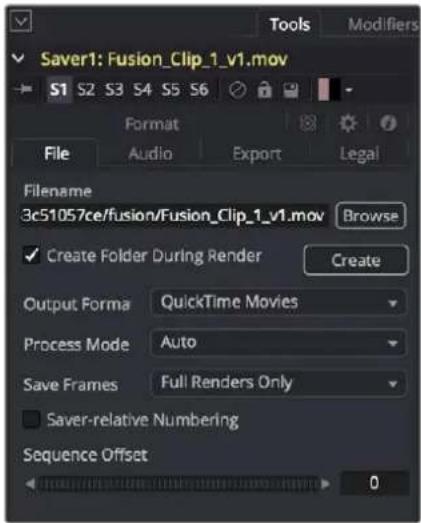
The Tools panel where you can change the file information governing the rendered output
8 When you're finished creating your effect in Fusion, click the Render button to open the Render Settings, check to make sure that the settings are correct, and click Start Render. This renders the Fusion composition to the disk location and using the name that you chose in step 3.
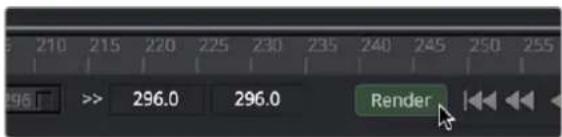
Selecting two clips to send to Fusion
9 A Render Settings dialog appears, which lets you choose how you want to render the output, with options including the Quality, Frame Range, and Size of the media being output. If the default settings are good, click Start Render. A progress bar indicates how long the render will take. For more information, consult the Fusion User Manual.
10 Once rendering has finished, save your Fusion project, reopen DaVinci Resolve, and you should see that the VFX Connect clip in the Timeline has updated to show the new effect you created in Fusion.
How Clips are translated into Node Trees
In Fusion, each clip that you send appears as a Loader node that is linked to that clip's media on disk. If you selected multiple clips, each clip is superimposed over the one just below it using a Merge node, which lets you merge two images at a time with an Over operator by default.
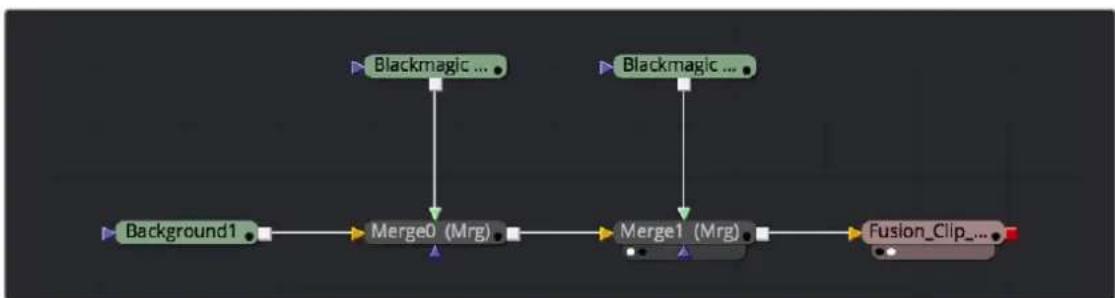
flowchart
graph LR
    A["Background1"] --> B["Merge0 (Mrg)"]
    B --> C["Merge1 (Mrg)"]
    C --> D["Fusion_Clip..."]
    E["Blackmagic ..."] --> B
    F["Blackmagic ..."] --> C
Two superimposed clips sent to Fusion as represented in the Fusion node tree
With this as your starting point, you can add nodes (called Tools in Fusion) to apply operations of your own, in order to create more sophisticated effects and composites. For more information about using Fusion, see the Fusion User Manual, available from the Support page at the Blackmagic Design web site.
Altering VFX Connect Clips
If, at any point, you want to modify the Fusion composition, you can reopen the project in Fusion, or right-click the VFX Connect clip in the DaVinci Resolve Media Pool and choose VFX Connect > Open in Fusion. Once in Fusion, make whatever changes you want to, and then re-render the clip to overwrite the previously rendered media. When you create new versions in this way, each version's Fusion project file and rendered output is maintained and preserved, so you can always go back and forth.
When you return to DaVinci Resolve, you may need to right-click the VFX Connect clip you just opened, and choose VFX Connect > Refresh to make sure that DaVinci Resolve correctly sees the re-rendered media from Fusion.
Creating Multiple Versions of Fusion Clips
If you want to render a new version, but you want to keep the previous version, then you can right-click the VFX Connect clip in the Resolve Media Pool and choose VFX Connect > Create New Version.
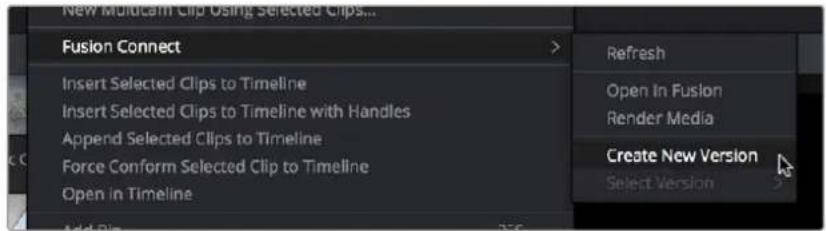
Creating a new version of a VFX Connect composite
This creates a duplicate of the composite in Fusion, with the “_v1” part of the filename incremented so it doesn't overwrite the previous version of that composite.
Once in Fusion, make whatever changes you need to the composite, then re-render the clip to generate an additional piece of media for that version. The filename of the Saver node for the new media you're rendering is also automatically incremented with the “_v1” segment of the filename changed to the next version number, such as “_v2” if it's version two of the effect.
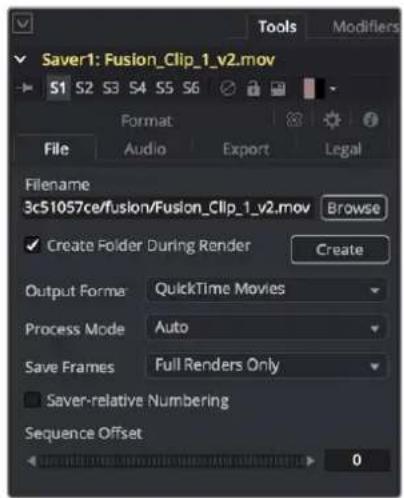
The Tools panel shows the Saver node's updated filename for the new version's rendered output
When you're finished, you'll end up with a Fusion Project file and a corresponding rendered media file that share the same version number. When you return to DaVinci Resolve, Resolve will automatically detect that there are multiple versions in the VFX Connect directory, and will make each version available via a Choose Version submenu for VFX Connect clips in the Media Pool.
Switching Versions of VFX Connect Clips in DaVinci Resolve
Once you've created multiple versions of a VFX Connect clip, you can switch which version is used for that clip in DaVinci Resolve by right-clicking the VFX Connect clip in the Media Pool, and choosing the version from the VFX Connect > Select Version submenu of the contextual menu.
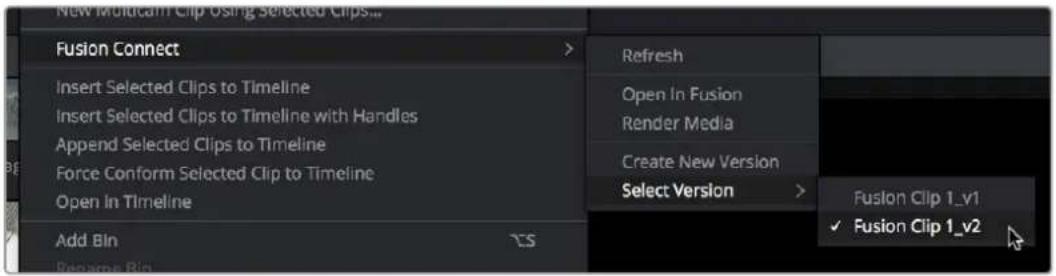
Choosing which version to use from the VFX Connect > Select Version submenu
TIP: If you want to switch versions for a VFX Connect clip in a timeline, you can right-click that clip and choose Find in Media Pool.
Sending a VFX Connect Directory to Another Machine
If you're going to hand off a VFX Connect directory to someone else using a different workstation, it's a good idea to render self-contained media for the Fusion composition to make it easy to hand off everything the compositing artist will need. Otherwise, you'll need to manually find and provide the associated media files yourself. There are two ways of rendering self-contained media for Fusion:
- If you check "Open VFX Connect Clip" in the New VFX Connect Clip dialog, then DaVinci Resolve by default renders each of the video clips you selected, along with every speed effect, transform, and Color page operation that's been applied to each clip, using the Timeline Color Space.
- If you haven't opened the VFX Connect clip in Fusion yet, you can also right-click any VFX Connect clip in the Media Pool, and choose VFX Connect > Render Media from the contextual menu.
Once that's done, there are two ways you can locate the actual VFX Connect directory's location, in order to copy it for whomever is going to be doing the compositing work for you.
- You can turn on the Custom Location checkbox in the New VFX Connect Clip dialog, then click the Browse button and choose a location where the resulting directory is easily copied.
- You can also right-click on any VFX Connect clip in the Media Pool, and choose Reveal in Finder to open that VFX Connect clip's directory.
Since your DaVinci Resolve project keeps track of the location of the VFX Connect directory from the moment it's created, you don't want to move it, since DaVinci Resolve is counting on it being where it
thinks it is. Once your colleague has completed the compositing work in Fusion, all they need to do is send you back the Fusion Composition file (just so you can keep everything together), and the media they rendered, both of which you need only copy to the top level of the corresponding VFX Connect directory. Once you do that, DaVinci Resolve should automatically see the rendered media and refresh those VFX Connect clips on your timeline.
Creating Multiple Versions of Fusion Clips on Another Machine
If you've handed off the directory created by the VFX Connect process to someone off site, they can still create multiple versions of the composite that can be managed by DaVinci Resolve.
Use the Save As command in Fusion to save a duplicate of the Fusion project with the “_v1” segment of the filename incremented to the next version number, such as “_v2” if it's version two of the composite. Make sure you save this duplicate Fusion project into the same directory as the original, so DaVinci Resolve can find it. Once created, you can change this duplicate project file any way you need.
When you're finished, select the Saver node (at the very end of the Fusion node tree), and change the filename by incrementing the V1 part of the Filename field. For example, if your clip is being named Output_V1.mov, then change the filename to Output_V2.mov in the Tools tab, and render. If you're rendering a DPX image sequence, then you'll want to change the name of the folder that encloses the frames, so change the filename from “.../fusion/OutputDirectory_V1/Output_00000000.dpx” to “.../fusion/OutputDirectory_V2/ Output_00000000.dpx” to obtain a correctly named second version.
Updating VFX Connect Clips Using Render Media and Refresh
If you change a grade or effect that's applied to a clip inside of a VFX Connect clip, you'll need to right-click that clip and choose VFX Connect > Render Media to re-render updated media files for the Fusion project.
If you re-render a Fusion composite and overwrite media that's already referenced by a VFX Connect clip in an open DaVinci Resolve project, you may need to refresh that media reference in DaVinci Resolve. The easy way to do this is to right-click any VFX Connect clip in the Media Pool, and choose VFX Connect > Refresh.
PART 7
Import and Conform Projects
natural_image
Colorful abstract logo with three colored droplet shapes inside a circular frame (no text or symbols)Chapter 55
Preparing Timelines for Import and Comparison
Generally speaking, “conforming” a project describes the process of importing a project exchange file from another post-production application, and automatically relinking each clip in the imported timeline to the high-quality media files each clip corresponds to.
If you need to continue editing, color correct, or finish a project that was put together in another application, you can import via the EDL, AAF, or XML project exchange formats. When you go through the process of conforming a project, you use the imported project data to arrange the clips in the Media Pool into a timeline that constitutes the program that's about to be graded.
This chapter walks you through the process of preparing timelines in other applications prior to moving them into DaVinci Resolve and covers which effects have counterparts in the DaVinci Resolve timeline. It ends with instructions on how to set up to compare a reference movie to the Timeline.
Contents
Preparing to Move Your Project to DaVinci Resolve 918
Move Clips to the Lowest Video Track 918
Organize Unsupported Media Files 919
Creating an Offline Reference Movie 919
Mixed Frame Sizes and Mixed Codecs 919
Mixed Frame Rates 919
Importing Effects when Conforming Edits 921
About Supported Color Corrections 921
About Supported Transitions 922
Transition Names 922
About Supported Opacity, Position, Scale, and Rotation Settings 923
About Flip and Flop Support 923
Pitch and Yaw 923
About "Ken Burns Effect" and Dynamic Zoom 923
About Speed Effects 923
About Nested Sequences and Compound Clips 924
About Supported Composite Modes 924
About Supported Still Image Formats 924
About Supported Alpha Channels 924
About Imported Text Effects 925
About Imported Audio in AAF Projects 925
Verifying Imported Timelines Using Offline References 926
Why Set Up An Offline Comparison? 926
Assigning a Clip or Timeline for Offline Comparison 927
Setting Up an Offline Reference/Timeline Comparison 928
Preparing to Move Your Project to DaVinci Resolve
When you're preparing to move a project from another NLE to DaVinci Resolve, there are a few steps you can take to make your work more organized.
Move Clips to the Lowest Video Track
Editors often use the multiple tracks NLEs offer for simple clip organization in the edit of a scene. While this is convenient for offline editorial, it is less convenient when you're trying to conform, grade, finish, and render the media used by a project as quickly and efficiently as possible.
For this reason, it's a good idea to move all clips that are not stacked or superimposed as part of a compositing operation down to track V1 of the Timeline in your NLE. This produces a simplified edit that has many advantages. The project becomes smaller to move because there's less media in the Timeline, and consequently becomes faster to render. Furthermore, the colorist is spared confusion because this eliminates "hidden" media that is nonetheless connected to other clips that can be seen.
It's also helpful, once you've reorganized the Timeline, to eliminate any empty tracks that are left. This can be done from within DaVinci Resolve, but doing it in your NLE further simplifies the project import process.
Organize Unsupported Media Files
Depending on your workflow and on the NLE you're working with, there may be clips using formats that are unsupported in DaVinci Resolve. Unsupported generators, media formats, and other effects constructs may simply not be seen in DaVinci Resolve, and will consequently appear as unlinked clips.
If you know this in advance, you can move all such clips into dedicated tracks where they can be isolated, and the track can be turned off to hide the unsupported clips, simplifying timeline navigation. This also saves the colorist from the need to worry about why there are offline clips in the Timeline at 3 o'clock in the morning, immediately before starting a render.
Creating an Offline Reference Movie
Even though the colorist in any given workflow is likely to be building new grades from scratch, it can be valuable to have a reference movie showing any color corrections, filters, or effects that the offline editor applied during the editing process. This offline reference can be imported into a DaVinci Resolve project, and used as a split-screen reference whenever there's some question about a look or effect from the offline edit.
Offline reference movies also serve as a useful tool when conforming a project in the Edit page. After project conform, you can compare the project as seen in the Record Viewer with the synchronized offline movie as seen in the Source Viewer set to Offline mode. This makes it easy to scrub through a project to make sure that each clip has imported correctly and is in sync.
More information about using offline reference movies appears later in this chapter.
Mixed Frame Sizes and Mixed Codecs
Most NLEs can freely mix media using different frame sizes, different codecs, and different frame rates. DaVinci Resolve deals with these combinations in different ways, depending on what settings you've selected in the Project Settings.
- Mixing Frame Sizes: Mixed frame sizes are easily handled. The Set Timeline Resolution To parameter in the Project Settings panel of the Project Settings dictates the current resolution of the project. Any clips with a frame size that doesn't match the project is resized according to the option selected in the Image Scaling panel of the Project Settings. You can, of course, always manually readjust the sizing of any clip if you want to make a specific adjustment. All resizing is done using the optical-quality resizing algorithms in DaVinci Resolve. For more information, see Chapter 149, "Sizing and Image Stabilization."
- Mixing Codecs: Mixed codecs are also not a problem, as long as the different codecs used by the media in the project you're importing are compatible with the list of codecs and formats that DaVinci Resolve supports. For more information about the currently supported list of codecs and formats, check the Blackmagic Design support page for DaVinci Resolve. This list is updated often with newly supported formats.
Mixed Frame Rates
DaVinci Resolve also supports mixed frame rates, although there is a setting you must choose to ensure the best results for the NLE you're importing from. By default, mixed clip frame rate support is enabled via the "Mixed frame rate format" pop-up menu that appears either in the Master Project Settings, or in the Import AAF or XML dialog.
The different options available in the “Mixed frame rate format” pop-up are available to let you conform projects using the method of mixed frame rate calculation used by the NLE a project was originally edited in; different NLEs have different ways of mixing frame rates, and that used by Final Cut Pro 7 is different from that used by Final Cut Pro X or Avid Media Composer. If you need to change this setting, you must do so before you import any media into the Media Pool; once the Media Pool is populated, this setting can no longer be changed.
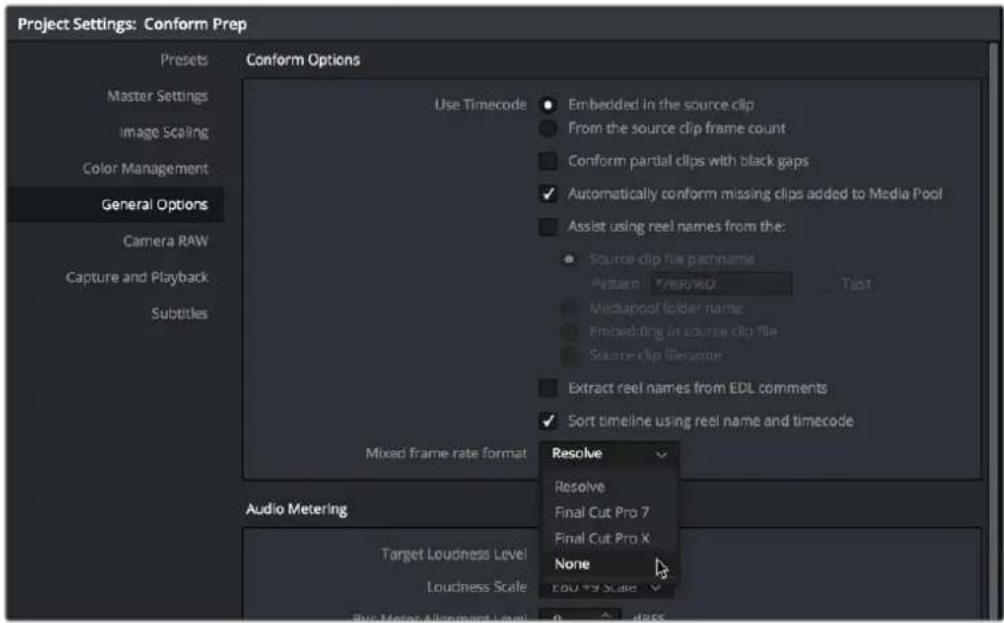
Mixed frame rate format selection
This Mixed frame rate format pop-up menu is also found in the Load AAF and Load XML dialogs. DaVinci Resolve automatically chooses a setting from the "Mixed frame rate format" pop-up menu that corresponds to the project file you're importing, but in some cases you can override this setting if necessary. For projects sent from Final Cut Pro, you can choose either "Final Cut Pro 7" or "Final Cut Pro X" to match the type of project you're importing. On the other hand, you should choose "Resolve" for projects imported from Premiere Pro, Smoke, Media Composer, or other NLEs.
When “Mixed frame rate format” is set to anything but None, DaVinci Resolve conforms and processes all clips in the Timeline to play at the project’s frame rate. For example, 23.98, 29.97, 30, 50, 59.94, and 60 fps clips will all play at 24 fps if that’s what “Timeline frame rate” is set to in the Master Project Settings. Clips with different source frame rates will be retimed to match the Timeline conform frame rate.
The Retime process that's used to render clips with differing frame rates can be changed for individual clips via the Retime Process parameter in the Edit page Inspector, or it can be changed project-wide using the Retime Process parameter found in the Frame Interpolation panel of the Master Project Settings. For more information on how each of the three available options work, see the "Frame Interpolation" section of Chapter 4, "System and User Preferences."
If you choose "None," then clips with frame rates that aren't equal to the Timeline frame rate will ignore their original frame rate and will play at the Timeline rate, resulting in either faster or slower motion, depending on the difference between the original and Timeline frame rates.
NOTE: Because DPX files often either lack or have incorrect frame rate information in the header data, you may need to select None when conforming a project using image sequences to make sure your media is not incorrectly interpreted.
How clips in mixed frame rate timelines are rendered depends on whether the Render Settings are set to render individual source clips or one single clip. When you render the Timeline as "Individual Source Clips," then all clips are rendered individually at their original frame rate. If you select "Single Clip," then all clips are converted to the "Timeline frame rate" frame rate setting, and rendered as a single media file.
Importing Effects when Conforming Edits
DaVinci Resolve is capable of translating a subset of the effects exported within XML, AAF, and EDL project files into their DaVinci Resolve equivalents. The following chart illustrates which effects are supported, and for which project import formats.
Unsupported effects are neither imported nor displayed in DaVinci Resolve. However, the majority of unsupported effects are preserved internally, and are reinserted into exported XML or AAF files so that those effects will reappear in your NLE once the project is reimported.
EDL FCP 7 XML FCP X XML AAF
| Color Corrections No No Yes No | ||||
| Composite Modes | No | Yes | Yes | Overlay only |
| Multiple Tracks No Yes Yes Yes | ||||
| Video Transitions Yes Yes Yes Yes | ||||
| Audio Transitions No No No Yes | ||||
| Opacity Settings No Yes Yes | Yes, via 3D Warp or Superimpose | |||
| Position, Scale, Rotation | No | Yes | Yes | Yes, via 3D Warp |
| Flip and Flop No No No | Yes, via Flip, Flop, or Flip-Flop effects | |||
| Pitch and Yaw | No No No Yes, via 3D Warp | |||
| Linear Speed Effects | Yes Yes Yes Yes | |||
| Variable Speed Effects | No | Yes | Yes | Yes |
| Still Image Clips | No | All supported formats in Resolve | All supported formats in Resolve | All supported formats in Resolve |
| Freeze Frames | No No No Yes | |||
| Nested Sequences | No Yes Yes No | |||
| Linked Clip Audio | Yes Yes Yes Yes | |||
| Mixed Frame Rates | No Yes Yes Yes | |||
| Text Generators | No Yes Yes No | |||
Effects supported with imported AAF, XML, and EDL
About Supported Color Corrections
At the time of this writing, only Final Cut Pro X XML projects are capable of exporting color correction data that can be imported as primary grades in DaVinci Resolve. For obvious reasons, color correction import is a one-way street, and imported color corrections cannot be output back to Final Cut Pro. Imported Final Cut Pro X color adjustments appear in the Color page as primary corrections.
Other workflows for importing color correction information from other applications are available using ColorTrace to import grade data from CDLs (Color Decision Lists). For more information, see the "Copying Grades Using ColorTrace" section in Chapter 145, "Copying and Importing Grades Using ColorTrace."
About Supported Transitions
EDLs are the most restrictive when it comes to transition support in DaVinci Resolve, as only Cross Dissolves will be read. Any other transitions appearing in an EDL will be automatically converted to a Cross Dissolve of the same duration when it's imported into DaVinci Resolve.
On the other hand, DaVinci Resolve supports the import of ten different transitions when importing XML project files from Final Cut Pro X and legacy Final Cut Pro 7, or nine different transitions when importing AAF files from Avid Media Composer or Symphony.
| EDL FCP XML AAF | |||
| Clock Wipe No Yes Yes | |||
| Center Wipe No Yes Yes | |||
| Cross Dissolve Yes Yes Yes | |||
| Additive Dissolve No Yes No | |||
| Dip to Color Dissolve No Yes Yes | |||
| Edge Wipe No Yes Yes | |||
| Venetian Blind Wipe No Yes Yes | |||
| Cross Iris No Yes Yes | |||
| Diamond Iris No Yes Yes | |||
| Oval Iris No Yes Yes | |||
Supported transitions for imported EDL, XML, and AAF
Transition Names
To help you prepare projects for export, note that the names of transitions vary between XML and AAF project files. Here are the supported transitions as they appear in Avid Media Composer and Symphony.
| Dip to Color Dissolve | Dip to Color effect in the Blend category |
| Edge Wipe | Horizontal/Vertical/Lower Left/Lower Right/Upper Left/Upper Right Diagonal effects in the Edge Wipe category |
| Center Wipe Horizontal Open and Vertical Open effects in the Edge Wipe category | |
| Clock Wipe | Clock effect in the Shape Wipe category |
| Venetian Blind Wipe | Vertical Blinds and Horizontal Blinds effects in the Shape Wipe category |
| Cross Iris | 4 Corners effect in the Shape Wipe category |
| Diamond Iris | Diamond effect in the Shape Wipe category |
| Oval Iris | Circle effect in the Shape Wipe category |
About Supported Opacity, Position, Scale, and Rotation Settings
When importing XML project files from Final Cut Pro X, Premiere Pro, or legacy Final Cut Pro 7, DaVinci Resolve supports the import of Opacity, Position, Scale, and Rotation settings. Imported Composite and Transform settings for any given clip appear in the Inspector of the Edit page, or in the Edit Sizing mode of the Sizing palette in the Color page. If these settings have been keyframed, the animation will appear in DaVinci Resolve.
When importing AAF files from Media Composer or Symphony, DaVinci Resolve supports the import of Opacity, Resize, and 3D Warp effects, which are converted into Pan, Tilt, Zoom, and Rotate settings in DaVinci Resolve, located in the Edit page Inspector or the Edit Sizing mode of the Sizing palette in the Color page.
About Flip and Flop Support
When importing AAF project files from Media Composer or Symphony, Flip, Flop, and Flip-Flop effects are converted into the equivalent horizontal and vertical Flip toggles in DaVinci Resolve, located in the Edit page Inspector or the Edit Sizing mode of the Sizing palette in the Color page.
Pitch and Yaw
When importing AAF files from Media Composer or Symphony, DaVinci Resolve supports the import of Pitch and Yaw 3D Warp effects, which are converted into equivalent Pitch and Yaw settings in DaVinci Resolve, located in the Edit page Inspector or the Edit Sizing mode of the Sizing palette in the Color page.
About "Ken Burns Effect" and Dynamic Zoom
If you import a project from Final Cut Pro X with clips that use the Ken Burns effect for creating pan and scan animation, then the Dynamic Zoom parameters (found in the Edit page Inspector when a clip is selected) for each affected clip will be populated with an equivalent animated effect.
About Speed Effects
DaVinci Resolve supports the import of speed effects from different applications, but different project formats have different speed effect support.
- EDL: DaVinci Resolve only supports the import of linear speed effects when importing EDLs.
- XML: DaVinci Resolve supports the import of both linear and variable speed effects when importing XML project files from Premiere Pro, Final Cut Pro 7, and Final Cut Pro X. As of DaVinci Resolve version 11.1, XML from Final Cut Pro X can also provide information about whether frame blending or optical flow is used, as well as information about the Bezier curve transitions of speed effects.
- AAF: DaVinci Resolve supports the import of both linear and variable speed effects when importing AAF files from Media Composer or Symphony that use Timewarp effects.
DaVinci Resolve has high-fidelity conversion of variable-speed speed effect data from other applications, accomplished by creating one speed keyframe per frame for each affected clip. However, you may see small variations between the resulting speed effect in DaVinci Resolve and an offline reference movie exported from the original NLE if you haven't set the Retime Process setting to the same type of speed interpolation that the original NLE was using.
In other words, if you created a Timewarp speed effect in Media Composer that uses FluidMotion to create smooth slow motion effects, then you'll want to make sure to change either the project-wide or clip-specific Retime Process setting to Optical Flow so that the speed effects in DaVinci Resolve best match those in Media Composer. For more information on speed effects in DaVinci Resolve, see Chapter 51, "Speed Effects."
About Nested Sequences and Compound Clips
DaVinci Resolve supports the import of compound clips from Final Cut Pro X and of nested sequences from legacy Final Cut Pro 7. Both appear within DaVinci Resolve as compound clips, in both the Timeline and the Media Pool. Compound clips with mixed frame rates are supported, as well as multi-cam and A/V synchronized clips from Final Cut Pro X, which are represented in DaVinci Resolve as compound clips. For more information about creating and using compound clips in DaVinci Resolve, see the “Compound Clips” section of Chapter 42, “Take Selectors, Compound Clips, and Nested Timelines.”
About Supported Composite Modes
When importing XML project files from Final Cut Pro 7, Premiere Pro, and Final Cut Pro X, DaVinci Resolve supports the import of eight different composite modes. When importing AAF files from Media Composer, the Overlay composite mode is supported when the source AAF file has a Superimpose effect applied to it.
| FCP 7/X XML AAF | ||
| Add Yes No | ||
| Subtract Yes No | ||
| Difference Yes No | ||
| Multiply Yes No | ||
| Screen Yes No | ||
| Overlay Yes Yes | ||
| Lighten Yes No | ||
| Hardlight Yes No | ||
| Softlight Yes No | ||
| Darken Yes No | ||
Supported composite modes with imported XML and AAF
About Supported Still Image Formats
DaVinci Resolve supports the import of greater-than-one-frame-in-duration TIF, JPG, PNG, DPX, TGA, and DNG still image files that appear in Final Cut Pro X, Final Cut Pro 7, and Premiere Pro XML files, and AAF files exported from Media Composer. These clips appear as ordinary clips in the DaVinci Resolve Timeline. Export of still images is limited to Final Cut Pro 7 and Final Cut Pro X XML formats.
About Supported Alpha Channels
Media with embedded alpha channels is supported for any project as long as it's in a media format that DaVinci Resolve supports; this includes TIFF, OpenEXR image sequence formats, and four-channel QuickTime formats such as ProRes 4444, DNxHR 444, and QuickTime Animation. Alpha channels are automatically enabled, and can be used for compositing directly within the DaVinci Resolve Timeline.
Alpha channels can be exported in round-trip workflows when rendering individual source clips. However, when rendering a program as a single clip, all composited effects are rendered together to produce a single output media file. For more information on rendering clips with alpha channels, see Chapter 184, "Delivery Effects Processing."
About Imported Text Effects
DaVinci Resolve supports the import of text generators when importing XML project files from both Final Cut Pro X and Final Cut Pro 7. All imported text effects appear in the DaVinci Resolve Timeline as Basic text generators. Some, but not all, formatting parameters are imported, depending on the project file format being imported.
About Imported Audio in AAF Projects
Any combination of audio track types, channel map order, MXF and QuickTime files, and rendered or unrendered clips should import without problems.
NOTE: When exporting an AAF project, DaVinci Resolve is capable of writing mono media in stereo tracks.
Preparing Unsupported Clips and Effects You Want to Grade
If there is an unsupported effect within your NLE of choice that you want to move into DaVinci Resolve for grading (for example, clips with effects filters that are native to a particular NLE), here's a simple workflow to follow.
To "bake" an effect into a clip you're sending to DaVinci Resolve:
1 Export that clip as a self-contained media file using whatever DaVinci Resolve-compatible mastering codec you prefer.
2 Reimport the resulting media file into your project.
3 Edit it into your project's timeline to replace the original effects clip.
4 Export a version of the resulting sequence for use in DaVinci Resolve.
This is a good way of prepping the titles and effects of projects that you want to finish in DaVinci Resolve. If you create self-contained media files for all title clips and effects, then these elements will import cleanly and easily, and you can export a complete, texted version of your program out of DaVinci Resolve.
Additionally, if a composited clip is using unsupported effects (for example, a filtered still image with animated position that's superimposed using the Overlay composite mode and set to 70% opacity), an ideal way to prep this clip for XML export to DaVinci Resolve is to set the composite mode to Normal, set Opacity to 100%, and then export the resulting clip as a self-contained QuickTime movie. Reimport the result, edit it back into the Timeline to replace the original superimposed clip, and then set its composite mode to Overlay and its Opacity to 70% to match the original settings. Now the unsupported effects are "baked" into the clip, but the effects that DaVinci Resolve does support are still live, and can be readjusted in context while grading.
Verifying Imported Timelines Using Offline References
DaVinci Resolve has a specific interface for comparing two versions of a program. This eliminates the need to edit a rendered version of a timeline as a superimposed clip within your timeline and provides many other features to aid this comparison without cluttering your timeline.
By setting the Source Viewer in the Edit page to Offline mode, you can compare an Offline Reference Clip or Timeline to a currently open timeline, with both playheads ganged together, either side by side, or as a split screen, a box wipe, or difference operation, all of which will be visible via your video output device. As you play the Timeline, the Offline Reference Clip or timeline plays as well, making it easy to spot differences between the two.
IMPORTANT
You need to make sure that the media you've imported or are using as an Offline Reference Clip has a valid timecode track with a start time that matches the timecode of the Timeline you're comparing to, otherwise there will be an offset between the Timeline and offline reference that will make a comparison difficult to impossible. Small offsets can be corrected via an offset field in the Source Viewer while in offline mode, but large offsets will be impractical to correct.
Why Set Up An Offline Comparison?
However you set up an offline reference, this is a convenient way of comparing two versions of a program. There are several reasons for comparing an Offline Reference Clip to a timeline:
- Verifying the clip order: If you're unsure whether or not you've properly resolved reel conflicts or other problems that occurred while you were conforming a timeline, you can compare each edit to the offline version of the program to spot problems and identify the proper media that should correspond to any clip.
- Recreating effects: If there are offline effects, such as temporary grades made in the NLE, or pan and scan transforms that you want to check, the Offline reference mode lets you split-screen your current grade against the Offline Reference Clip in the Color page.
- Comparing two versions of a timeline: You can make a visual comparison a timeline with another version of that timeline to spot differences for evaluation.
- Filling holes in timelines with missing or unlinked clips: Two options found in the Master Project Settings panel of the Project Settings, "Show offline clips through conform gaps," and "Show offline clips through missing clips," let you set DaVinci Resolve to display Offline Reference Clip media to fill gaps in the Timeline or replace the contents of unlinked clips. This is typically done to resolve emergency situations when you need to proceed with a screening or review session despite the fact that you're missing media for whatever reason. For more information, see Chapter 4, "System and User Preferences."
NOTE: Typically, the flattened version of the program you're given uses a low-quality codec, and contains effects and color correction that's not final, which is why it's called an Offline Reference Clip.
Assigning a Clip or Timeline for Offline Comparison
There are two ways you can assign an Offline Reference Clip or Timeline to a particular timeline for comparison. The easiest and most flexible way is to open a timeline, and then drag and drop a clip or timeline with matching timecode that you want to compare to from the Media Pool onto the Source Viewer in Offline mode.
To assign any clip or timeline to a specific timeline for comparison:
1 Open the timeline you want to make the assignment to in the Edit page.
2 Set the Source Viewer to Offline mode.
3 Drag a clip or timeline with matching timecode that you want to assign onto the Source Viewer. The clip or timeline you dragged is immediately assigned to the open timeline as an Offline Reference Clip, and synced via timecode.
4 In the Media Pool, right-click the Timeline you want to review against the Offline Reference Clip, and choose the reference clip or timeline you assigned from the Timelines > Link Offline Reference Clip submenu of that timeline's contextual menu.
You can also add a clip to the Media Pool specifically as an Offline Reference Clip, making it easy to associate such a clip with a particular timeline by right-clicking that timeline in the Media Pool and choosing it from the Link Offline Video submenu. The idea is that if you or your client exports a flattened version of their edited sequence at the same time as they export the EDL, AAF, or XML project file they want graded, then you can compare the project data that's imported into DaVinci Resolve to the actual video of the offline edit.
To assign an imported Offline Reference Clip to a specific timeline for comparison:
1 Open the Media page, and use the Media Storage browser to find the flattened Offline Reference Clip that you want to use for comparison.
2 Right-click the Offline Reference Clip file and choose Add as Offline Reference Clip.
3 That clip appears with a small checkerboard badge in its icon in the Media Pool.
Checkerboard indicating an offline video
4 Open the Edit page, right-click the timeline you want to review against the Offline Reference Clip, and choose the offline clip you imported from the Timelines > Link Offline Reference Clip submenu.
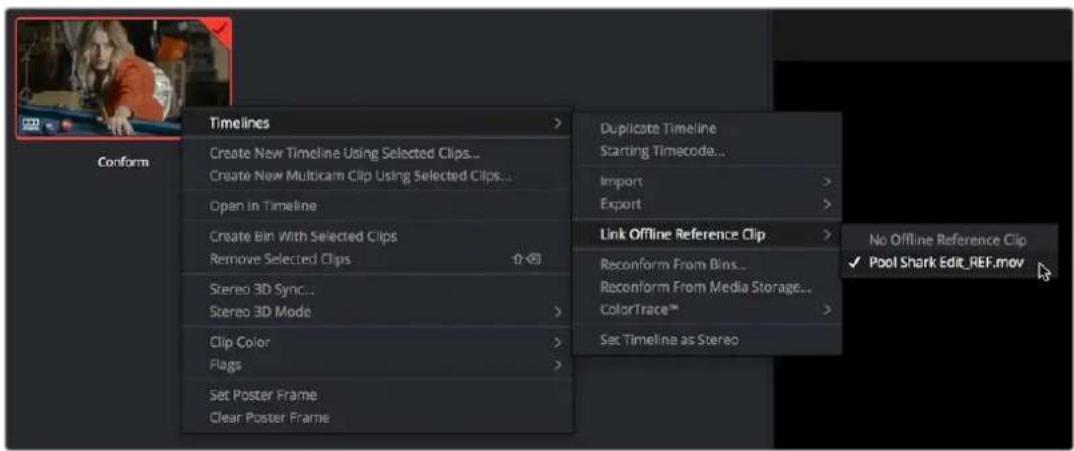
Selecting the offline video to link to the current Timeline
Setting Up an Offline Reference/Timeline Comparison
Once you've assigned a clip or timeline as an Offline Reference Movie, it's easy to see a comparison.
To view an offline reference comparison:
1 Open the Source Viewer's Mode pop-up menu and choose the checkerboard icon indicating Offline Reference.
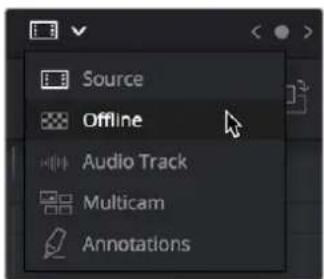
Selecting the Offline video in the Source Viewer
The Offline Reference Clip you assigned previously now appears within the Offline Viewer, and plays back in sync with the Timeline. If your clips have sizing applied, have Fusion or other effects, or are graded, you can see a side-by-side comparison between the state of each clip in the Offline Reference Clip, and the graded Timeline clip.
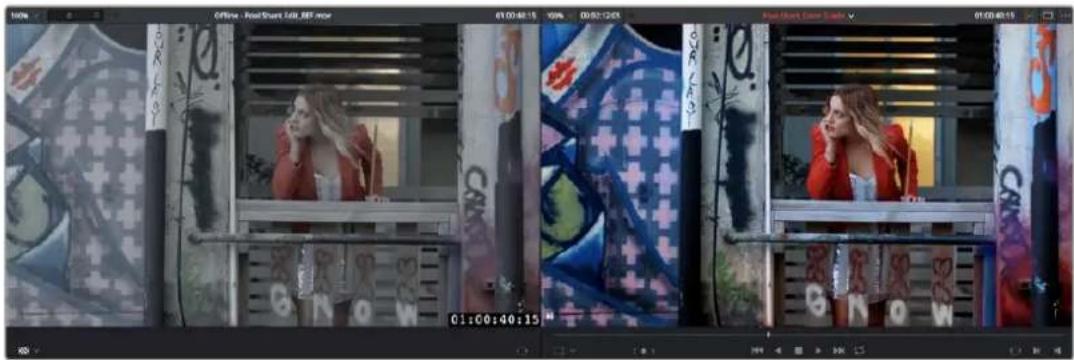
The Edit page in Offline/Timeline mode
2 If the currently selected Offline Reference is out of sync (which can be confirmed via the position of a slate, two-pop, title, or other known shared sync point at the beginning of the program), you can use the sync field at the upper left-hand corner of the Source Viewer in Offline mode to slip the sync of the reference by whatever number of frames you need.
3 If you like, you can optionally choose other ways of comparing clips, by right-clicking anywhere within the Timeline Viewer and choosing Vertical Wipe, Horizontal Wipe, Diagonal Wipe, Mix Wipe, Difference (a Composite mode), Box (wipe), Venetian Blind, or Checkerboard. These modes offer you different ways of quickly and directly comparing the content, sizing, color, and alignment of the Offline Reference Movie to the clips in your timeline.
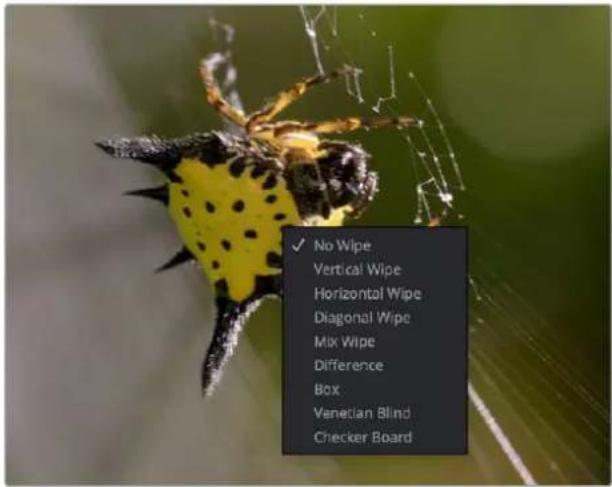
Different viewing options for comparing the Offline Reference Movie to the Timeline are available in the Timeline Viewer contextual menu
If you choose a wipe or difference comparison, that comparison will also be visible on the display connected to your video output interface, and dragging anywhere within the Timeline Viewer will adjust the ratio and position of the wipe.
4 To turn an offline comparison viewer mode off, simply right-click the Timeline Viewer again and choose No Wipe.
5 When you're done doing this offline comparison, choose Source from the Source Viewer's Mode pop-up menu, and the Source Viewer is ready for viewing clips from the Media Pool, as normal.
Chapter 56
Conforming and Relinking Clips
Whether you import a DaVinci Resolve project or a project exchange file from another application, you'll need to deal with the need to relink media files in the Media Pool and reconform timelines to either the same or compatible media files that may either be in the Media Pool or that may need to be imported from disk.
This chapter discusses the rules with which DaVinci Resolve conforms clips to match timelines, and describes the numerous methods with which you can control clip linking, timeline conform, as well as how you can deal with problems that arise using the numerous problem-solving techniques that DaVinci Resolve makes available.
Contents
Conforming and Relinking Media 931
Conforming and Relinking During Project Import 931
Conforming and Relinking Existing Timelines and Clips 931
The Difference Between Unlinked and Missing Clips 932
Duplicate Clips are Considered Separate Sources 933
Summary of Methods for Conforming and Relinking 933
Unlinking Clips 935
Conforming Clips During XML and AAF Import 935
Importing Clips Before Importing an EDL, AAF, or XML 937
Essential Clip Metadata for Easy Conforming and Relinking 937
Defining Clip Metadata When Adding Media to the Media Pool 938
How Reel Names Are Identified 938
Conform Missing Clips by Importing Their Source Media 941
| Using the Import Additional Clips Command | 942 |
| Using Conform Lock As a Command | 943 |
| Relinking Clips to Media Files on Disk | 943 |
| Using “Change Source Folder” to Relink Clips | 944 |
| Using the “Reconform From Bins” Command | 944 |
| Using Reconform From Media Storage | 947 |
| Understanding, Fixing, and Using Reel Conflicts | 950 |
| Using Clip Conflicts as a Conform Tool | 950 |
| Resolving Clip Conflicts | 951 |
| Re-editing Media Directly to the Timeline | 952 |
| How Grades Are Linked to Multiple Timelines | 952 |
Conforming and Relinking Media
DaVinci Resolve provides a wealth of tools to help you deal with managing the relationship between clips in the Media Pool and clips in timelines, and with the links between each clip and its corresponding media file on disk. You can use these tools to manage different project workflows, or to deal with problems that can occur when importing project files in any format from a variety of sources.
This section describes every method available in DaVinci Resolve for conforming clips and relinking media. More information on the clip metadata that's used to determine the correspondences between clips and media is found later in this chapter.
Conforming and Relinking During Project Import
When you import an AAF or XML file, you have the ability to relink the clips that are imported into the Media Pool to the corresponding source media files on disk as part of the process. As an automatic result, the imported timeline is conformed to the clips in the Media Pool, and you end up with a Media Pool full of clips, and an arrangement of those clips in the imported timeline. Because it all usually happens at the same time, it's easy to confuse the distinction between a timeline's relationship to the clips in the Media Pool, and each clip's relationship to their corresponding source media file on disk.
The workflow for importing an EDL makes this process more explicit, since you must first import all of the clips you need into the Media Pool, making sure that they have the correct reel names and timecode. This creates the link between the Media Pool clips and the source media on disk. You then import the EDL in a second step, which creates a timeline that attempts to reconform itself to the clips in the Media Pool using reel name and timecode information.
Conforming and Relinking Existing Timelines and Clips
There are many reasons why you might want to reconform or relink media long after you've started editing or grading a project, so DaVinci Resolve provides additional tools to facilitate these workflows as well. For example, you may have started a project using placeholder VFX or stock footage clips, but you later need to replace these with final versions of the same shots. Or, you may have decided to edit a project using transcoded versions of the camera raw media files you were given, only to decide later that you want to switch one or all of the clips in the timeline to use the original camera media instead for grading and finishing. DaVinci Resolve has a wide variety of tools to support these workflows and more.
The Difference Between Conforming and Relinking
While these two terms are often used synonymously, conforming typically refers to the process of matching clips in a timeline to the appropriate source clips in the Media Pool, while relinking typically refers to the process of matching a source clip in the Media Pool to its corresponding media file on disk. This is a recent change necessitated by an expansion of relinking and reconforming options, so the author offers his apologies if this usage is not always consistent.
The Difference Between Unlinked and Missing Clips
While it may seem pedantic, there's an important difference between clips that are unlinked, and clips that are missing when it comes to the relationship between clips in the Media Pool and clips in a Timeline. First off, both of these "offline" clip states look different in the timeline, but these differences aren't just cosmetic.

A missing clip in the Timeline (left) compared to an unlinked clip in the Timeline (right)
An unlinked clip is a clip that exists in the Media Pool, but has lost the link to its corresponding media file on disk. However, unlinked clips still contain metadata, they still have a relationship to instances of that clip that have been edited into timelines in your project, and they can be easily relinked to media files with matching file names and timecode using the Relink command (described later), or reconformed to previously or newly imported clips in specific bins of the Media Pool with the Reconform From Bins command (also described later).
Missing clips do not exist in the Media Pool at all, although clips flagged as missing can still appear in the timelines of your project. However, since missing timeline clips have no corresponding source clips in the Media Pool, the clip in the timeline has no metadata that can be seen in the Metadata Editor, and it will have lost any remote grades that are associated with that source clip (for more information about remote grades, see Chapter 139, “Grade Management.” You can fix missing clips in a timeline in one of two ways:
- If the “Automatically conform missing clips added to Media Pool” setting is enabled in the General Options panel of the Project Settings, then simply reimport the corresponding source clips into the Media Pool and they will be automatically conformed to missing clips with matching timecode and file names in the timeline (this only happens at the time of import, it doesn’t work for matching clips that are already in the Media Pool). Please note, this setting must be disabled if you use collaborative workflow.
- If the “Automatically conform missing clips added to Media Pool” setting is disabled in the General Options panel of the Project Settings, then you’ll have to import the missing clips and either manually reconform them one at a time to the missing timeline clips using the Conform Lock with Media Pool Clip command, or use the Reconform From Bin(s) or Import Additional Clips With Loose/Tight Filename Match commands to try reconforming them all at once.
However you choose to reconform the missing clips, you won't get the original remote grades or manually edited metadata back unless you had previously exported the appropriate metadata and grades, in which case you can reimport and apply these in separate steps.
Duplicate Clips are Considered Separate Sources
Another thing that's good to understand is that in DaVinci Resolve, duplicate clips are considered to be completely separate from the original Media Pool or Timeline clips you duplicated them from. For example, if you import five clips into Media Pool Bin 1, then edit them into a timeline, and then drag the five clips you edited into Media Pool Bin 2, the clips in Bin 1 are not intrinsically linked to the clips in Bin 2.
This means, if you select the clips you originally imported in Bin 1 and choose Unlink Selected Clips, the instances of those clips that you edited into the timeline will also be unlinked, but the duplicate clips you created when you dragged the timeline clips into Bin 2 are completely unaffected.
Summary of Methods for Conforming and Relinking
As a result of timelines and clips being managed separately, there are several ways you can reconform clips in a timeline to clips in the Media Pool, and clips in general to a project's corresponding source media on disk. Which methods will be most valuable depend entirely on the workflow you're using.
- Conforming clips during XML and AAF import: When you import a project via AAF or XML, you're given the option of using the embedded file paths in the AAF or XML file to import all referenced media into the Media Pool for automatic reconforming to the clips in the imported timeline. If the media has been moved so that the file paths are invalid, then you'll be asked to find the location of the media as part of the import process. You also have the option to ignore the AAF or XML file's embedded file paths and instead import another set of media files in a different location (and perhaps in a different media format altogether) that have the same file names and timecode as the clips in the AAF or XML file you're importing.
- Importing clips before importing an EDL, AAF, or XML: In EDL workflows, you must import the media an EDL will be conformed to into the Media Pool before you import the EDL. However, you can do this for AAF and XML import workflows as well. When you import clips into the Media Pool before importing an AAF or XML, DaVinci Resolve is able to automatically reconform the clips in the imported timeline to those in the Media Pool first, before next looking for media on disk for clips that could not be found in the Media Pool. This behavior depends on what options you've selected in the Import AAF/EDL/XML dialog.
- Conform missing clips by importing their source media into the Media Pool: As long as the "Automatically conform missing clips added to Media Pool" setting is enabled in the General Options panel of the Project Settings, DaVinci Resolve automatically tries to update the conformed relationship between clips you're adding to the Media Pool and any missing clips in the various timelines of your project. This behavior is triggered whenever you add clips to the Media Pool by importing clips, copying and pasting, or creating duplicates of clips. For example, if a timeline clip is missing because there is no corresponding clip in the Media Pool, the simple act of importing a clip with a matching file name and timecode into the Media Pool will automatically reconform the missing timeline clip without you needing to do anything else. Please note, the "Auto conform clips with media added into Media Pool" setting must be disabled if you use collaborative workflow.
- Using the Import Additional Clips commands: The process of importing media just for missing clips in a timeline can be automated by right-clicking that timeline in the Media Pool and using the Timelines > Import > Additional Clips With Loose (or Tight) Filename Match contextual menu commands, which automatically search the selected directory tree of your file system for media that matches all of the offline clips in that timeline. The “Loose Filename Match” command ignores file extensions (letting you conform to alternate media formats), while the “Tight Filename Match” command requires file extensions to match.
- Reconform online clips by importing new media into the Media Pool: As long as the "Automatically conform missing clips added to Media Pool" setting is enabled in the General Options panel of the Project Settings, DaVinci Resolve automatically tries to update the conformed relationship between clips you're adding to the Media Pool and any clips in the various timelines of your project that have their Conform Lock Enabled setting turned off. This behavior is triggered whenever you add clips to the Media Pool by importing clips, copying and pasting clips, or creating duplicates of clips.
By default, each clip that's part of an imported timeline, or that you've edited into a brand new timeline, has Conform Lock Enabled turned on by default (unless the source media goes missing). Conform Lock Enabled simply means that a particular clip in a timeline is set to only consider the source clip in the Media Pool to which it's currently conformed as the correct match; all other clips in the Media Pool are ignored, even if there are multiple clips with the same file name and overlapping timecode that would make them also a valid match (such as when you have multiple copies of the same clip that in different formats, or multiple versions of VFX clips with the same name and timecode).
If you right-click a clip with multiple potential matches in the Media Pool in the timeline and turn Conform Lock Enabled off, that clip will display a "clip conflict" error, with an attention badge to the left of its name in the timeline. Double-clicking that badge reveals a dialog showing you every clip in the Media Pool with a matching file name or reel name and overlapping timecode, so that you can choose which Media Pool clip you want to conform that timeline clip to.
Please note, the “Auto conform clips with media added into Media Pool” setting must be disabled if you use collaborative workflow.
- Using Conform Lock commands to force a timeline clip to conform itself to a clip in the Media Pool: A manual command for conforming a selected clip in the timeline with a selected clip in the Media Pool. Useful when none of the automated methods of conforming work, for whatever reason.
- Using the Relink command on clips or bins in the Media Pool: If you have a DaVinci Resolve project in which there are unlinked clips in the Media Pool, that means the relationship between those clips and their corresponding source media files on disk have been lost. In this case, you can use the Relink Media, Relink Selected Clips, or Relink Clips in Selected Bins commands to relink clips to the corresponding source media on whatever storage volume it's on. In the process, you'll automatically relink any instances of those clips in all timelines in which they appear in that project. You can relink only unlinked clips by selecting them specifically, but you can also relink clips that are already linked if you want to force relink them to different media files (Relink Clips in Selected Bins relinks both unlinked and linked clips at once). The Relink command automatically searches all subdirectories within the currently selected directory, which is useful if you're relinking to media that's been moved to another location, and that may have a different directory structure as a result. However, a warning about searching large SAN volumes – you probably don't want to use this command to choose a starting directory that's too high up the file path, as the resulting search times may be unexpectedly long.
- Using the Change Source Folder command: You also have the option to relink offline clips in the Media Pool using the Change Source Folder command, which changes the directory structure of each selected clip's file path into a new file path based on a parent directory you select. This is mainly useful if you're relinking clips to media that you've moved to another location, but that uses the same subdirectory structure as when the media was originally imported. For this reason, it's a safe and fast command to use when relinking to a structured collection of media on a SAN volume.
- Using the Reconform From Bin(s) command: If you've imported multiple versions of the same clips, with identical file names, overlapping timecode, or other matching criteria into separate bins of the Media Pool, you can turn off Conform Lock Enabled for every clip in a timeline you want to reconform, and then use the Reconform From Bin(s) command to reconform those timeline clips to Media Pool clips in one or more specific bins of your choosing. Reconform From Bin(s) also lets you choose the specific conform criteria you want to use to match clips in the timeline with clips in the selected bins. A key feature of this command is that DaVinci Resolve will only reconform timeline clips that are able to be matched to media in the bins you've selected; timeline clips for which no match can be found are left as they were before you used this command.
- Using the Reconform From Media Storage command: This command lets you reconform timeline clips to clips in a selected directory in your file system that hasn't been imported into the Media Pool first, and also lets you choose the specific conform criteria you want to use to match clips in the timeline with clips in the selected bins. A key feature of this command is that DaVinci Resolve will only reconform timeline clips that are able to be matched to media within the directory structure you've selected; timeline clips for which no match can be found are left as they were before you used this command.
- Overwriting clips on disk that are linked to in a DaVinci Resolve project: Last, but certainly not least, DaVinci Resolve is smart enough to automatically relink clips in the Media Pool that have been overwritten on disk by another version of the same file, so long as the file name, timecode, and reel name (if used) in the new version of the file still match.
The following sections illustrate each of these methods of conforming and relinking media in more detail.
Unlinking Clips
You can also choose to unlink clips in the Media Pool. To do so, select the clip or clips you want to unlink, right-click one of the selected clips, and choose Unlink Selected Clips from the contextual menu.
Conforming Clips During XML and AAF Import
For workflows where you're importing AAF or XML projects, and relinking the resulting clips in DaVinci Resolve to media files that are either on disk, or conforming them to clips that are in the Media Pool already, the rules for how clip metadata is defined for reconforming depend on two settings in the Load AAF or XML dialog: "Automatically import source clips into media pool," and "Ignore file extensions when matching."
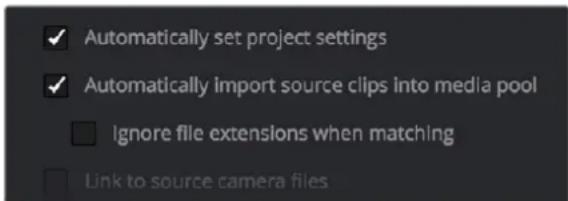
The most important settings for conforming media in the Load dialog
The ways in which these two checkboxes interact to let you choose how media is conformed to an imported AAF or XML file are complex, but here are the rules.
When Importing Clips With File Extensions Matching Those in the AAF or XML File
Turn "Automatically Import" on and "Ignore file extensions" off.
This is the default setting, and is most useful when the AAF or XML file you're importing contains references to media you want to add to the Media Pool and use.
- First, if there are already clips in the Media Pool, DaVinci Resolve tries to conform as many of these clips as possible by matching the file paths in the AAF or XML file to the stored file paths of each clip in the Media Pool.
– Second, for all remaining clips not found, DaVinci Resolve imports as many clips as possible into the Media Pool from any storage volumes that are visible to DaVinci Resolve, using the file paths from the XML or AAF.
- Third, for all remaining clips not found, DaVinci Resolve tries a clip name match of clips that are already in the Media Pool.
– Fourth, for all remaining clips not found, DaVinci Resolve tries a timecode match (along with a reel name match if this is enabled) of clips that are already in the Media Pool.
- Finally, for all remaining clips not found, the user is prompted to manually choose another folder to search.
When Importing Clips With Different File Extensions
Turn "Automatically import" on and "Ignore file extensions" on.
Turning both of these options on is useful in situations where the sequence you're importing was originally edited using offline quality media, and you want to conform to high-quality online media in a completely different format, possibly in the Media Pool, possibly on another disk. One example of this is as when the edit was done using QuickTime or Avid DNxHD media, but you're reconforming to Blackmagic RAW files on another disk in order to grade the camera original raw media. Leaving "Automatically import source clips into media pool" on, in this case.
- First, if there are already clips in the Media Pool, DaVinci Resolve tries to conform as many of these clips as possible by matching clip names.
- Second, for all remaining clips not found, the user is prompted to choose another folder to search, and DaVinci Resolve imports as many clips as possible by matching clip names, ignoring file extensions.
- Third, for all remaining clips not found, DaVinci Resolve tries a timecode match (and reel name match if this is enabled in the General Options panel of the Project Settings) of clips that are already within the Media Pool.
– Fourth, for all remaining clips not found, the user is prompted to manually choose another folder to search.
Turn "Automatically import" on and "Link to source camera files" on.
The “Link to source camera files” checkbox only appears when you import AAF files. Turning this option on when automatically importing media relinks the imported project to the original camera source files that are kept track of by Media Composer/Symphony via the “Source Name” metadata within the AAF file.
When You're Only Relinking to Clips Already in the Media Pool
Turn "Automatically import" off.
Turning “Automatically Import source clips into media pool” off is useful in situations where you only want to conform the imported AAF or XML to clips in the Media Pool. This is most useful in situations where you’ve imported all of the camera original media into the Media Pool first, for example when
creating the dailies that were then edited, and you want to conform the imported AAF or XML to the media that's already there.
- First, if there are already clips in the Media Pool, DaVinci Resolve tries to conform as many of these clips as possible by matching the file paths in the XML or AAF to the file paths stored for each clip in the Media Pool.
- Second, for all remaining clips not found, DaVinci Resolve tries a clip name match of clips that are already in the Media Pool.
- Third, for all remaining clips not found, DaVinci Resolve tries a timecode match (and reel name match if this is enabled) of clips that are already within the Media Pool. In this case, the file name is not used.
Beware When Choosing a Volume or Folder to Search
When prompted to choose a folder to search, you can optionally choose an entire volume; DaVinci Resolve always searches through all subdirectories, and eventually all media on that volume will be found. However, depending on the size and number of files on the selected volume, this operation could take an unexpectedly long time, especially on a SAN volume.
Importing Clips Before Importing an EDL, AAF, or XML
When you import media prior to importing an EDL, DaVinci Resolve follows a specific set of rules to determine which Media Pool clips correspond to clips in the resulting timeline. These rules also apply to situations where you've imported media prior to importing an AAF or XML file, in situations where you want to prioritize specific media over the file paths embedded in those imported timeline formats.
The following sections go into detail on what these rules are, and how to use them to your advantage.
Essential Clip Metadata for Easy Conforming and Relinking
When conforming projects in DaVinci Resolve, the accuracy and integrity of clip metadata is critical for a successful result. Keep the following three criteria in mind when you're preparing media to use in DaVinci Resolve.
- Accurate timecode: Essential for every clip. First off, each clip should have a valid timecode track, and it should go without saying that the timecode should match the same timecode used by all other instances of that media file in a particular project. If there are problems with a clip's timecode, DaVinci Resolve has tools you can use to edit or offset timecode to account for known inconsistencies. By default, the "Use Timecode" project setting is set to "Embedded in the Source Clip," so that timecode is read from the embedded timecode track within a QuickTime or MXF file, or from the header data of a DPX frame file. However, you can also choose the "From the source clip frame count" option which enables timecode to be read from the Source clip's frame count for image sequences.
- File names: When "Assist using Reel Names" in the General Options panel of the Project Settings is off (the default setting), this forces DaVinci Resolve to conform clips using file names when importing XML and AAF projects. File names can only be only used when conforming XML or AAF files, or when importing a DaVinci project; file names are never used when conforming EDLs.
- Reel Name: Only used for conforming if "Assist using Reel Names" is on in the General Options panel of the Project Settings. Assigning reel names to your media is not essential, but recommended, and can make media management easier for certain operations, especially in EDL workflows. However, if you experience problems conforming clips with "Assist using Reel Names" turned on, you should try turning it off as one possible troubleshooting step.
How DaVinci Resolve matches media files to clips in an imported project depends on how you're importing the project.
Defining Clip Metadata When Adding Media to the Media Pool
For workflows where you're manually adding media files to the Media Pool when you're editing from scratch in DaVinci Resolve, preparing to process dailies, or as a separate step before importing EDL, XML, or AAF project files and reconforming them to a higher quality set of media than what was originally used to edit with, the rules for how clip metadata is defined in preparation for conforming are a bit different.
- Timecode: Calculated using the "Timeline Frame Rate" setting in the Master Project Settings panel of the Project Settings.
- Reel Names: Determined depending on whether the “Assist using Reel Names from the” checkbox is on or off in the General Options panel of the Project Settings, and on which option you’ve selected. Reel names can be extracted dynamically, so any time you change this setting the reel names in the Media Pool update to reflect the change, or they can be defined manually, in which case you can set different clips to use different methods of reel name extraction.
- Clip Names: Read and stored, used for AAF and XML imports, but not used for imported EDLs.
How Reel Names Are Identified
The “Assist using Reel Names” checkbox in the General Options panel of the Project Settings is an extremely important setting for controlling how the conform process works. By default, it’s turned off, and reel names are left blank. This is fine for conform workflows where all you need is the file path or file name and source timecode to successfully identify which media files correspond to what clips. However, if you need more information than that to reconform the clips in your project, you can turn on the “Assist using Reel Names” checkbox to enable DaVinci Resolve to use one of four different methods to automatically define reel names for every clip in the Media Pool.
Automatically Defining Reel Names
When you use the “Assist using Reel Names” options in the General Options panel of the Project Settings, reel names are extracted dynamically. This means that any time you change the method of reel name extraction in the Project Settings, the reel names of all clips in the Media Pool automatically update to reflect the change. This can be seen in the Reel Name column that’s visible if you put the Media Pool into List view. For example, were you to change the “Assist using reel names” options from “Source clip file pathname” to “Mediapool folder name,” the contents of the Reel Name column would visibly change. This is useful when you’re importing a project for which all clips use the same method of determining their reel name.
Manually Choosing Reel Name Definitions for Individual Clips
You also have the option of manually choosing the criteria for how one or more selected clips in the Media Pool have their reel names defined, using the Clip Attributes dialog. This is useful when there are certain clips in a project that need to use a different method of reel name extraction, or manually entered reel names.
To manually define reel names for one or more clips:
1 Select one or more clips in the Media Pool.
2 Right-click one of the selected clips, and choose Clip Attributes from the contextual menu.
3 Open the Reel Name panel of the Clip Attributes dialog, choose a new option, and click OK.
Once you've used Clip Attributes to change the reel names of clips, those clips no longer automatically update when you change the "Assist using Reel Names" options in the General Options panel of the Project Settings. For more information on using Clip Attributes, see Chapter 18, "Using Clip Metadata."
Methods of Defining Reel Names
There are five options that are available for automatically determining how reel names are extracted from the source media when “Assist using Reel Names” is turned on, and one option in the Clip Attributes Reel Name panel for manually defining reel names. The use of reel names is critical in EDL and AAF workflows, but isn’t necessarily as important in XML-centric workflows.
- Source clip file pathname: Obtains the reel name by extracting it from each media file's path. This makes it possible to extract a reel name from all or part of the file name, or from all or part of the name of any folder in the path that encloses that file. This extraction is defined using the Pattern field.
- Pattern: A code that defines how a reel name should be extracted from the source clip pathname. More information about creating patterns appears later in this chapter.
- Media Pool folder name: The reel name is obtained from the name of the bin in the Media Pool that encloses that clip. For example, in a stereoscopic workflow you might want to export offline stereo media with the "Left" and "Right" bin names in which they're organized as reel names. Another example would be organizing VFX being incrementally processed in individually named bins, such as "VFX_Tuesday_10-12."
- Embedding in Source clip file: Useful for file formats where the reel name is embedded within the media file itself. Blackmagic RAW and other digital cinema cameras, QuickTime files created by Final Cut Pro, and DPX frame files are formats that can contain reel name header data.
- Source clip filename: If there is no defined reel number, often it's easy to just use the Source clip filename.
- User Defined: This option is only available when you manually alter the Reel Name for one or more selected clips in the Media Pool using the Clip Attributes dialog. Choosing User Defined lets you type any string of text you like to use as the reel name.
An additional checkbox is available, "Extract reel names from EDL comments," which is primarily useful for legacy workflows in which you conform an EDL exported from Final Cut Pro 7 to camera original R3D media.
- Extract reel names from EDL comments: Some media file formats, such as R3D, have reel names, obtained from the file names, that are longer than the eight characters that are allowable in a standard EDL. This option allows DaVinci Resolve to extract reel names from appropriately formatted EDL comments, such as those output from Final Cut Pro 7.
Using the Pattern Field
If you're using the Pattern option to extract the reel name from a clip's source file pathname, you have the option to create your own search pattern, enabling you to have DaVinci Resolve extract the reel name in highly specific ways to accommodate more exotic workflows.
Extraction patterns are interpreted from right to left, deciphering each clip's file path element by element starting with the file name, and then considering each enclosing directory's name to the left. Each extraction pattern consists of a series of text characters and "wild card" operators in unique combinations corresponding to the length and names used in the file path.
Here are a series of search characters that may be used.
| Extraction Pattern Operators | |
| ? | Looks for matches of any single character. Add as many question marks as there are characters you want to match. ?? matches two characters such as 02; ???? matches four characters such as 0002. |
| * | A wildcard that creates matches for any sequence of zero or more characters. |
| %R | Specifies the reel name's actual location. Reel names may contain any character, but should not contain a directory separator (forward slash). |
| %_R | Extracts the reel name and strips out the R3D file name underscores found in EDLs from Final Cut Pro 7 or earlier. |
| %D | Matches any directory name or file name. When this is the last operator in a pattern, do not add a forward slash. |
| / | Used to separate any two operators |
If you're trying to create a new extraction pattern for a unique workflow, there's a test dialog you can use to try different patterns out before applying them to your project.
To test the extraction path:
1 Turn on "Assist using reel names from the" and click the Test button next to the current Pattern in the General Options panel of the Project Settings. The "Specify Reel Extraction Pattern" dialog opens.
2 Type the extraction patten you want to test into the Pattern field.
3 Using whatever method you prefer, find the file path of the media file that you want to test the extraction pattern on, and copy or type it into the Sample Path field.
4 Click Test.
5 If the reel name that appears below is correct, then click Apply to copy the extraction pattern into the Pattern field of the General Options panel of the Project Settings. If the reel name that appears is not correct, modify the extraction pattern and try again.
Examples of Reel Name Extraction Patterns
To better understand how this process works, below are several examples showing the various methods of reel name extractions. The / is used as the separator between control parameters.
Example 1:
This example shows the reel name stored within the parent folder name of the clip.
– Pattern: */%R/%D
- File path: vol0/MyMovie/Scans/004B/Frame[1000-2000].dpx
- Reel name: 004B
Parsing takes place from right to left so to analyze this pattern start at the right end. In this case the %D matches to the file name "FrameNNNN.dpx" where NNNN is the frame number in each file of the clip. Moving left of the file name, the /%R/ section of the string is next. This specifies that the reel name will be the entire name of the parent directory immediately above the file. Then the * at the beginning of the string says match any pathname in front of the directory name that has the reel name. This string would find the parent directory regardless of how many levels deep it is nested on the directory path.
Example 2:
Here we see the reel name stored in the parent folder name of the clip and prefixed with the reel name.
– Pattern: */????%R/%D or alternatively */Reel%R/%D
- File path: /vol0/MyMovie/Scans/Reel1234/Frame[1000-2000].dpx
- Reel name: 1234
In this example both of these extraction patterns produce the same result. They are also similar to the first example. The reel name is still in the parent directory name but in this case it will have the fixed characters "Reel" prefixed in front of the reel name. The first pattern with ???? would actually match with any 4 characters in front of the reel name. The second pattern is more specific and would only match the word "Reel" in the directory name.
Example 3:
This example shows the reel name stored within the parent folder name two directory levels up.
– Pattern: */%R/%D/%D
- File path: /vol0/MyMovie/Scans/004B/134500-135000/Frame[1000-2000].dpx
- Reel name: 004B
This example is again similar to Example 1. The difference is that in Example 3, the reel name is the directory name two levels above the clip. In Example 1, the reel name was in the directory name only one level up.
Example 4:
Finally, we see the reel name that is embedded within the clip name of the material.
– Pattern: */Reel%R_*
- File path: /vol0/MyMovie/Scans/Reel004B_[1000-2000].dpx
- Reel name: 004B
This example shows a method for extracting the reel name from the file name of the clip. Again, starting at the right the two pattern characters “_*” match any series of characters up to the first underscore character. In this case it will pick up the file extension (.dpx) and the frame number portion of the file name. Next, the "/Reel%R" characters indicate the reel name is the characters between the "/Reel" and _ character. The * at the beginning of the pattern will match a file path any number of directories deep in front of the file name.
Conform Missing Clips by Importing Their Source Media
If you have a timeline with one or more missing clips, that means that the relationship between that clip in the timeline and the Media Pool has been lost because there is no corresponding clip in the Media Pool. If you decide to manually import clips into the Media Pool that correspond to missing clips, the "Automatically conform missing clips added to Media Pool" checkbox in the General Options panel of the Project Settings determines what happens. Please note, the "Auto conform clips with media added into Media Pool" setting must be disabled if you use collaborative workflow.
As long as the “Auto conform clips with media added into Media Pool” setting is enabled in the General Options panel of the Project Settings, DaVinci Resolve automatically updates the conformed relationship between clips that you add to the Media Pool and missing clips in the various timelines of your project. DaVinci Resolve also updates the conform relationship of all other timeline clips that have Conform Lock Enabled turned off at this time as well. All of this is done at the time you import the clips.
However, if "Auto conform clips with media added into Media Pool" is turned off when you import additional clips into the Media Pool, then DaVinci Resolve will not attempt to reconform anything automatically, instead relying on you to reconform offline or missing clips manually using one of the many methods of manual reconforming that are available such as Reconform From Bins or Conform Lock With Media Pool Clip.
For more information about manually adding clips to the Media Pool, see Chapter 17, "Adding and Organizing Media with the Media Pool."
Using the Import Additional Clips Command
If you find that there are a lot of missing clips in a timeline that have no corresponding Media Pool clips, there's an easy way to fix this, that automates the process of gathering a list of what's missing so as to import all missing clips and conform them at once. This only works for missing clips, it does not work for unlinked clips (for which you should use the Relink command in the Media Pool).
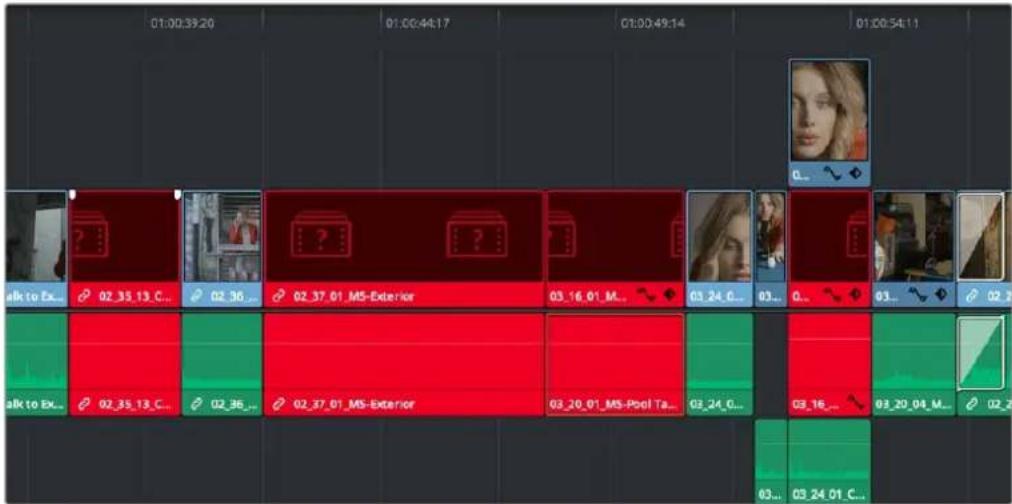
Conformed Timeline showing missing clips
To import missing clips and reconform them to the Timeline:
In the Edit page, right-click a timeline in the Media Pool that has missing clips, and choose one of the following commands from the Timelines > Import submenu:
- Timelines > Import > Additional Clips With Loose Filename Match: Searches the Timeline for all missing clips, and prompts you to specify a directory of media with which to attempt to conform them, adding only the media that's necessary to the Media Pool. The "Loose Filename Match" command ignores file extensions, which lets you replace offline media with online media in a different format.
- Timelines > Import > Additional Clips With Tight Filename Match: Searches the Timeline for all missing clips, and prompts you to specify a directory of media with which to attempt to conform them, adding only the media that's necessary to the Media Pool. The "Tight Filename Match" command searches only for media with identical file extensions.
2 Choose the directory with the remaining media to be conformed in the dialog that appears, and click OK.
If the conditions are met for matching the media files in the directory you selected to the missing clips in the current Timeline, then the necessary clips are automatically added to the Media Pool and conformed to the timeline.
Using Conform Lock As a Command
If, for whatever reason, an unlinked clip in a timeline simply won't conform to a clip in the Media Pool, even when you know it's there, you can use the "Conform Lock with Media Pool Clip" command to force a clip in the Timeline to conform to a clip in the Media Pool of your choosing.
This command automatically suspends the Conform Lock Enabled setting of a target clip and ignores file names and reel names in favor of conforming the target clip to another clip that you've manually selected, while timecode is still used to align the clip being conformed with the clip that was in the Timeline originally.
To conform lock a clip in the Timeline to another clip in the Media Pool:
1 Select a clip in the Media Pool. The clip you select in the Media Pool must be equal in length or longer than the clip you select in the Timeline for Force Reconform to work.
2 Right-click an unconformed clip in the Timeline, and choose "Conform Lock with Media Pool Clip" from the contextual menu. The selected clip in the Timeline is conformed to the clip you selected in the Media Pool in one of two ways:
- If the selected Media Pool clip has timecode matching the selected Timeline clip: The new clip is perfectly conformed to match the original clip.
- If the selected Media Pool clip doesn't have timecode matching the selected Timeline clip: The new clip is conformed such that the first frame of the Media Pool clip is aligned with the first frame of the reconformed clip in the Timeline, and occupies the same duration.
3 If you right-click that clip again, you'll see that Conform Lock Enabled is enabled, showing you that the clip has been conform locked to media for which it wasn't originally a match.
Relinking Clips to Media Files on Disk
The easiest and best known method of relinking clips in your project that have either gone offline or are not linked to the correct set of media files on disk is to use the appropriately named “Relink Media” or “Relink selected clips” command. Note, the Relink command will only work for clips that are unlinked, it will not work for clips that are missing and so have no corresponding clips in the Media Pool.
The Relink command is the most flexible method of relinking clips in the Media Pool of your project with clips in a file system directory of your choice, using file name and timecode as the primary criteria for re-creating the correspondence between each clip and its corresponding media file on disk. This is a good command to use to relink media that's been moved to another location or reorganized using another file structure on disk.
To relink all unlinked media:
1 Select the orange Relink icon in the page's Media Pool.
2 Select the Locate button next to the specific volume(s) that are missing, and choose a directory where the missing files are now.
3 If the quick search initiated by the Locate buttons doesn't find media that you know is there, you can initialize an exhaustive deep disk search for the media by clicking on the Disk Search button.
4 If there are still other clips that couldn't be found, you're prompted to either choose another directory altogether to continue searching, or quit.
To relink selected clips:
1 Select one or more offline clips to relink, or select a bin in the Media Pool bin list that contains clips you want to relink, then right-click one of the selected clips or the selected bin, and choose "Relink Selected Clips" from the contextual menu.
2 When the Relink File dialog opens, choose a directory in which to look for the files you want to relink to, and click OK. DaVinci Resolve attempts to find every clip with a matching file name in the subdirectories of the directory you chose, using the original file paths of the clips being relinked to do this as quickly as possible. By first looking for the clips in the directories they were originally in, relinking can be quite fast.
3 If there are any clips that couldn't be found using the method in step 2, you're prompted with the option to do a "deep search" by a second dialog. If you click Yes, then DaVinci Resolve will look for each clip inside every subdirectory of the directory you selected in step 2. This may take significantly longer, but should be completely successful so long as the media that's required is within the selected directory structure.
4 If there are still other clips that couldn't be found, you're prompted to either choose another directory altogether to continue searching, or quit.
Using "Change Source Folder" to Relink Clips
If you've used your file system to move media that's associated with a DaVinci Resolve project, but you haven't changed the directory structure with which it's organized, you can use the "Change Source Folder" command to quickly relink selected clips in the Media Pool to the new file path of the media on disk, using the original file paths as a guide. This is a good relinking method to use, if possible, for projects on a SAN where you don't want to risk the excessively long search times that could result from using the Relink command to examine a nested hierarchy of folders in a more flexible way.
To relink your Media Pool clips to a new location:
1 Select one or more clips in the Media Pool, then right-click one of the selected clips, and choose "Change Source Folder" from the contextual menu. The Relink Media window appears displaying the original path for the material, with controls for choosing a new directory.
2 Click the "Browse" button to the right of the "Change To" field, and then use the file navigation dialog to find the new location of the media file, select it, and click Open.
3 If you succeeded in finding the appropriate media file, click Change. Otherwise, click Cancel.
Using the “Reconform From Bins” Command
The “Reconform From Bins” command gives you a way of reconforming multiple clips in a timeline at once to a specific bin (or bins) of clips with matching metadata. To use this command, you must first select the clips you want to reconform in a timeline (you can choose all of them or just a subset) and turn off Conform Lock Enabled, and then, using the Reconform From Bin command, you can manually choose another bin of clips in the Media Pool that you want to reconform to.
An important aspect of the Reconform From Bins command is that DaVinci Resolve only reconforms timeline clips that can be matched to source clips in selected Media Pool bins. All timeline clips that cannot be matched are left alone. This makes Reconform From Bins an ideal command to use when you've imported a subset of clips to the Media Pool that you need to reconform to clips found throughout an existing timeline. For example, you could use this method to:
- Replace transcoded versions of clips in a timeline with the original camera raw clips.
- Replace the previous versions of VFX clips in a timeline with new versions.
- Replace the offline-quality media you've been working with so far with online-quality media.
- Replace the temp clips you were originally given with rescanned or recaptured stock footage.
To use Reconform From Bins, it's important to organize the clips you're adding to the Media Pool sensibly, in a self-contained bin or bins separate from the other media used by that timeline. It can be a sub-bin, but it must be separate.
Here's a simple example. If the media you edited or originally imported is in Bin 1, then import the updated versions of all clips that need to be reconformed into Bin 2. Using Reconform From Bins, you can then decide whether the clips in your timeline should be conformed to Bin 1, or Bin 2 when possible, because only timeline clips for which there is a valid match are reconformed, while all other timeline clips are ignored.
DaVinci Resolve has the ability to choose custom conform options to control what metadata is used to match timeline clips to source clips in the Media Pool. This means that you're not restricted to only using Timecode, Reel Name, and File Name, you could also use any combination of Total Duration, Resolution, Bit Depth, Frame Rate, File Format, Codec, and/or Media UMID/UID to control how clips are conformed, depending on your needs and the problem you have to solve.
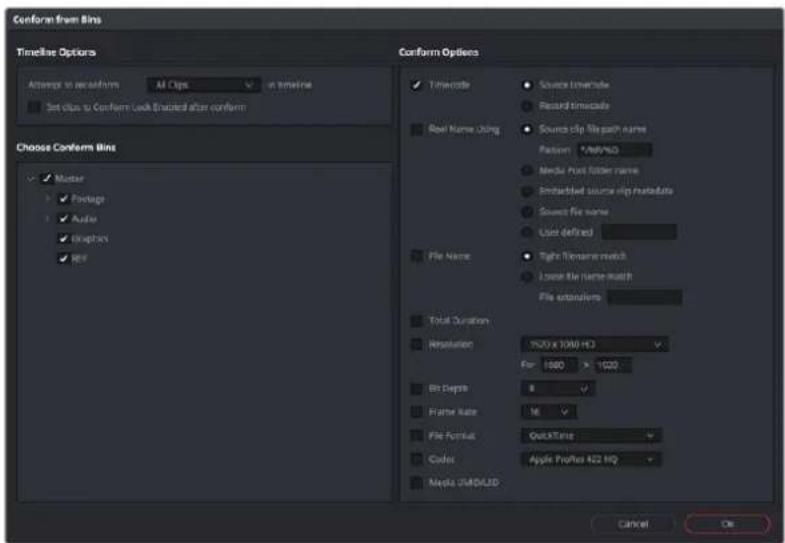
The Reconform from Bins dialog
However, if the criteria you've selected to control the conform doesn't match, the Reconform From Bins operation will fail, and you'll need to either try again with other conform criteria, or manually replace the necessary clips in the Timeline.
Here's a step by step workflow.
To reconform a timeline to clips within a specific Media Pool bin:
1 Double-click the Timeline you want to reconform to open it.
2 Either select the specific clips you want to reconform, or press Command-A to select every clip in the Timeline if you want to reconform clips throughout the entire timeline without having to make individual selections.
3 Right-click one of the selected clips, and choose "Conform Lock Enabled" to disable Conform Lock Enabled for the clips you want to reconform. This frees DaVinci Resolve to consider all possible conform matches for those clips in cases where there may be multiple clips with overlapping timecode in the Media Pool.
4 Right-click the current Timeline in the Media Pool, and choose Timelines >Reconform From Bins. The Conform Options dialog appears, with Timeline Options and Choose Conform Bins list to the left, and the Conform Options panel to the right.
5 From the Timeline Options section, choose whether you want to conform to All Clips or just to Selected Clips. Then, choose whether you want to "Set clips to Conform Lock Enabled" after conform.
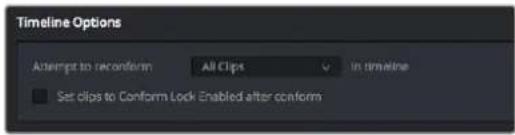
Choosing which clips in the Timeline to attempt to reconform
6 In the Choose Conform Bins section, click the disclosure triangle to the left of the Master bin to reveal the sub-bins contained within.
7 Turn on the checkboxes for the bins with media you want to conform the Timeline to, and turn off the checkboxes for bins with media that you want to ignore.
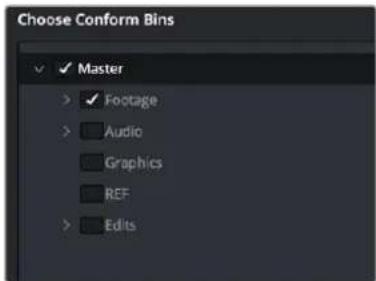
Selecting folders for reconform
8 Next, choose the conform options you want to be considered when matching timeline clips to Media Pool clips in the selected bins. By default, Timecode is enabled. Choose additional criteria to be even more selective about how you want clips to be reconformed, or choose different criteria if you need to use other metadata to get better results for clips you're having a hard time conforming.
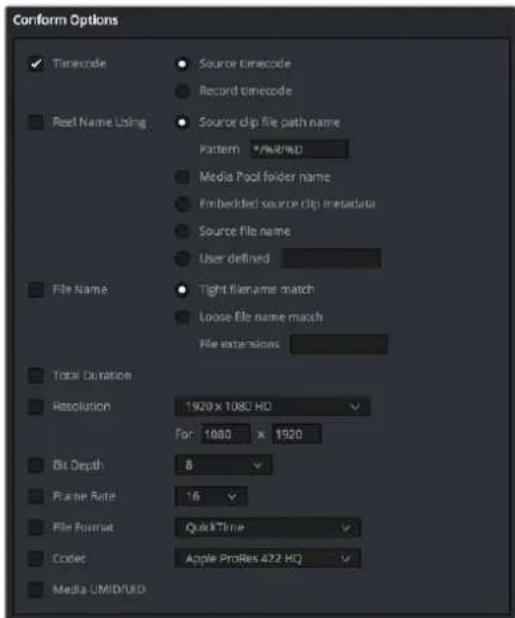
Selecting criteria to guide the reconform
TIP: Choosing Custom from the top of the pop-up menu for File Extensions, File Format, and Codec displays editable fields into which you can enter multiple options, separated by commas, in order to list multiple possibilities for a successful match. The order in which you enter these is important, as DaVinci Resolve will attempt to conform clips starting with the first format/codec at the left, moving to try the next format/codec to the right if no match is found, until every entry in your list has been tried.
9 Click OK. Where possible, the Timeline is automatically updated to conform to the media contained within the bins you checked.
10 After you've used "Reconform From Bins," any timeline clips that have been reconformed and that now have timecode and reel names/file names that match two or more source clips in the Media Pool will display a clip conflict badge in the Timeline. To eliminate this badge, you can select either just the clips that were conformed, or all clips in the Timeline, right-click them, and choose Conform Lock Enabled to eliminate these warnings.
Using Reconform From Media Storage
DaVinci Resolve 14 introduces another reconform method, that lets you conform clips in a timeline to clips in a specific File System directory (including all subdirectories) using the “Reconform From Media Storage Folders” command. This allows you to reconform multiple clips in a timeline, all at once, to matching source media files on disk without having to import those clips to the Media Pool first; all clips that can be conformed according to the specified conform criteria will be automatically imported as necessary.
An important aspect of the Reconform From Media Storage command is that DaVinci Resolve will reconform all timeline clips that can be matched to source media files on disk in the selected Media Storage directories, but all Timeline clips that cannot be matched are left alone. This makes Reconform From Media Storage an ideal command to use in the following situations:
- When you need to reconform clips that are found throughout an existing timeline to a smaller subset of media in a specific directory on disk, such as updated VFX or Motion Graphics from a third-party application.
- When you need to quickly reconform missing timeline clips throughout an imported timeline, and especially when you need to use custom conform criteria to successfully reconform those clips. (Unlinked clips can only be reconformed with this command if you select them and turn off Conform Lock Enabled first.)
Similar to the Reconform From Bins command, you can specify exactly what combination of conform criteria you want to use to match clips in the timeline with clips in the Media Pool. This means that you're not restricted to only using Timecode, Reel Name, and File Name, you could also use any combination of Total Duration, Resolution, Bit Depth, Frame Rate, File Format, Codec, and/or Media UMID/UID to control how clips are conformed, depending on your needs and the problem you have to solve.
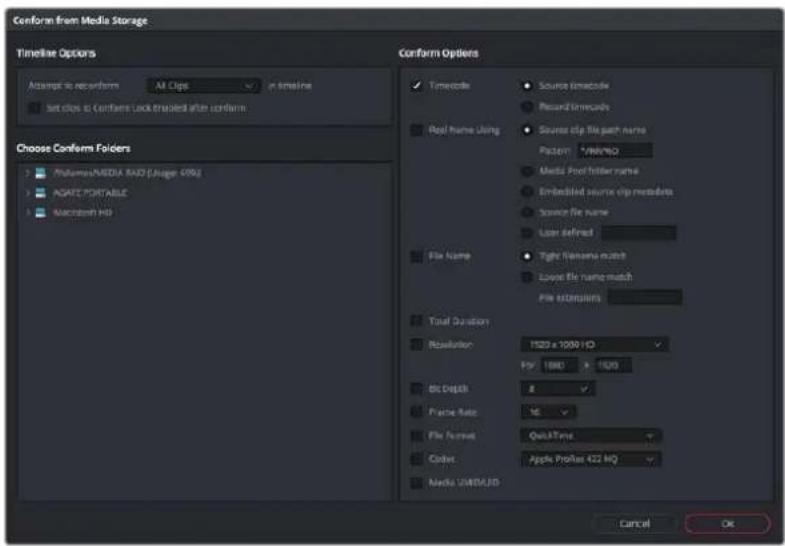
The Reconform From Media Storage dialog
This method of timeline conform is ideal when the only way you can conform a timeline to the media you require is using a very specific combination of metadata that's different from the rules that DaVinci Resolve defaults to.
For example, you have a jumbled mix of 8- and 10-bit versions of the same clips on your hard drive, but you only want to conform a given timeline to the 10-bit media in preparation for finishing. Using "Reconform from media storage folders" lets you be this specific with what media to use.
To use "Reconform from media storage folders" to reconform a timeline:
1 Double-click the Timeline you want to reconform to open it.
2 Either select the specific clips you want to reconform, or press Command-A to select every clip in the Timeline if you want to reconform clips throughout the entire timeline without having to make individual selections.
3 Right-click one of the selected clips, and choose "Conform Lock Enabled" to disable Conform Lock Enabled for the clips you want to reconform. This frees DaVinci Resolve to consider all possible conform matches for those clips in cases where there may be multiple clips with overlapping timecode in the Media Pool.
4 Right-click the timeline you want to reconform, and choose Timelines > Reconform from media storage folders. The Import From dialog appears, with a File System browser to the left, and an Options panel to the right.
5 From the Timeline Options section, choose whether you want to conform to All Clips or just to Selected Clips. Then, choose whether you want to "Set clips to Conform Lock Enabled" after conform.
Choosing which clips in the Timeline to attempt to reconform
6 From the Conform Folders section, choose a directory that contains media you want to reconform to.
Selecting a directory that has media you want to conform to
7 Next, choose the conform options you want to be considered when matching timeline clips to source media files in the selected directory. By default, Timecode is enabled. Choose additional criteria to be even more selective about which clips will be reconformed, or choose different criteria if you need to use other metadata to get better results.
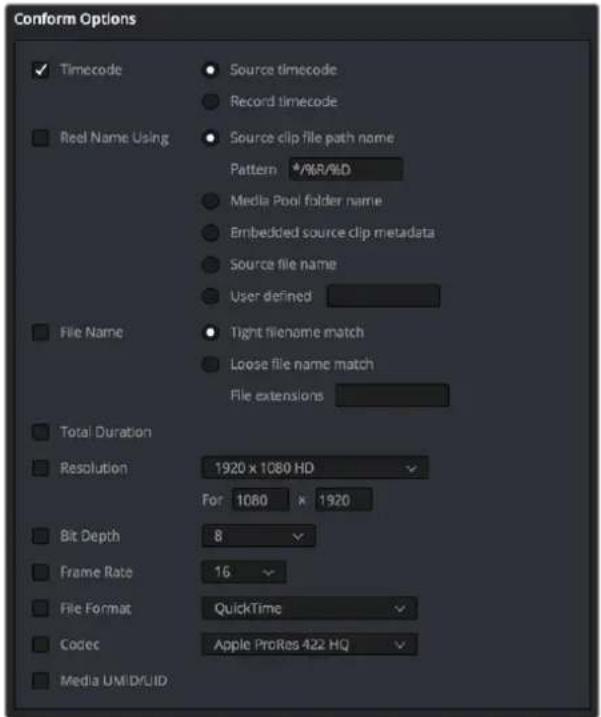
Selecting criteria to guide the reconform
TIP: Choosing Custom from the top of the pop-up menu for File Extensions, File Format, and Codec displays editable fields into which you can enter multiple options, separated by commas, in order to list multiple possibilities for a successful match. The order in which you enter these is important, as DaVinci Resolve will attempt to conform clips starting with the first format/codec at the left, moving to try the next format/codec to the right if no match is found, until every entry in your list has been tried.
8 Click OK. Where possible, the Timeline is automatically updated to conform to the media in the directory you selected, and all source media files that were conformed have been imported into the Media Pool.
9 After you've used "Reconform From Media Storage Folders," any timeline clips that have been reconformed and that now have timecode and reel names/file names that match two or more source clips in the Media Pool will display a clip conflict badge in the Timeline. To eliminate this badge, you can select either just the clips that were conformed, or all clips in the Timeline, right-click them, and choose Conform Lock Enabled to eliminate these warnings.
Understanding, Fixing, and Using Reel Conflicts
As long as the “Auto conform clips with media added into Media Pool” setting is enabled in the General Options panel of the Project Settings, the same dynamic relationship between clips in the Media Pool and those in a timeline are maintained whether clips are linked or unlinked, it makes no difference. However, this does mean that if you have two different versions of the same clip in the Media Pool, or even two completely different clips that share the same file name (or reel name) and the same overlapping timecode, then DaVinci Resolve is capable of automatically conforming to either clip.
A good example of this is if you have both the camera raw version of a clip, and a ProRes or MXF transcoded version imported into the Media Pool at the same time. Both clips have the same content, the same file name, and the same range of frames. This poses the potential for what DaVinci Resolve refers to as a “clip conflict.”
You won't necessarily notice this at first because, by default, all clips that are imported with a timeline, or that you've edited into a brand new timeline, have a Conform Lock Enabled setting enabled by default. All clips in a timeline with Conform Lock Enabled turned on only consider the current clip in the Media Pool to which they're conformed as the valid clip; all other clips with file names and overlapping timecode that would otherwise make them an otherwise valid match are ignored.
However, if you right-click such a clip in the Timeline and turn Conform Lock Enabled off, that clip will display a “clip conflict” error, with an “attention” badge to the left of its name in the Timeline.
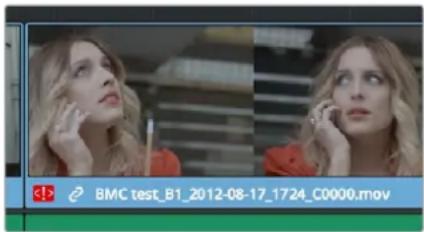
Conflict icon indicating at least two clips have matching conform parameters
Clip conflicts are typically considered to be an error, but not always. They can be a problem if the media you've imported along with an imported project from another application has media that was added with timecode but no reel identifier (for example, when shots from multiple unidentified reels that all start at 0 hour). The thing is, you may not immediately notice such clip conflicts, until you turn Conform Lock Enabled off.
TIP: Overlapping timecode often occurs in the normal course of work, but should be managed by altering each clip's embedded reel name, or by organizing media in different bins.
Using Clip Conflicts as a Conform Tool
On the other hand, clip conflicts can often be desirable solutions to workflows where you need to switch among different versions of a particular clip. To take the example of an edited timeline consisting of transcoded QuickTime versions of camera raw original media, if you only had the transcoded clips in the Media Pool, then all is well.
However, suppose in the course of working that you decide you need the resolution or additional color latitude of the camera raw version of a particular clip. If you import the camera raw version of that
one clip, you should notice nothing different. However, if you then right-click that clip in the Timeline and choose Conform Lock Enabled to uncheck the setting and turn it off, you should then see the attention badge to the left of the clip name in the Timeline. This lets you know that this clip in the Timeline is correctly seeing the relationship between it and the now two simultaneously named clips with timecode overlap in the Media Pool.
The current relationship between this timeline clip and the one to which it is conformed doesn't change; this badge is only letting you know that now there is a second clip in the Media Pool to which you could potentially conform this clip in the Timeline. Now, you need only choose which one by double-clicking the clip conflict badge, and following the procedure below.
Resolving Clip Conflicts
Once you have a clip conflict, whether intentional or not, it's really easy to resolve it. In fact, this feature is the very basis for the name of the software.
To resolve a reel conflict by relinking a clip's media:
1 Double-click the "attention" badge of any clip in the Timeline, displayed to the left of that clip's name.
The Conflict Resolution window appears, showing a list of all files in the Media Pool, of any format, that have identical file names (or reel names) and timecode that overlaps with the clip you right-clicked. Each item in this list shows a thumbnail of the clip, the file path of the media on disk, the file name, starting timecode, reel name (if any), and creation date, to help you determine which of the clips in that list is the one you want to use.
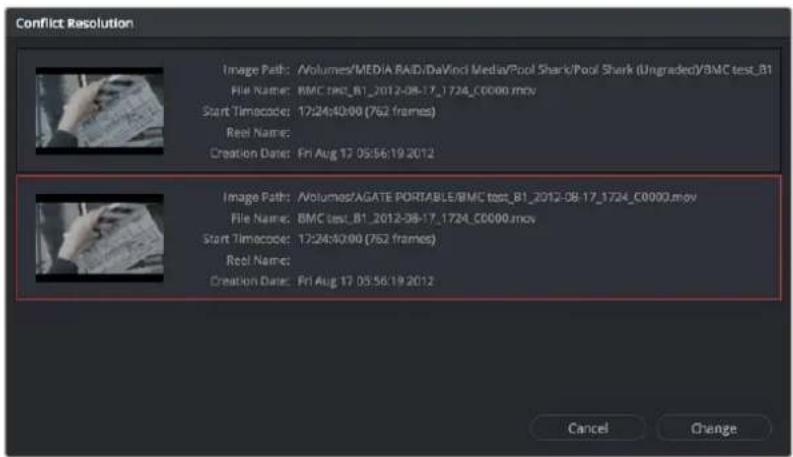
Conflict Resolution window showing what other clips have overlapping timecode and reel information
2 Click the entry in the list that you want to conform to, and click Apply. The clip in the Timeline changes to reflect the media you selected, and the "attention" icon is replaced with a "resolved" badge indicating that the conflict has been resolved. Keep in mind that you can always double-click the "resolved" badge to change which Media Pool clip you want to conform to. It remains a dynamic relationship.
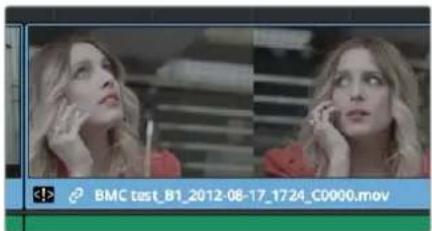
A clip badge showing that the conflict was resolved
Re-editing Media Directly to the Timeline
If, for whatever reason, none of the above methods of relinking or reconforming have worked, sometimes the only thing left to do is to replace the problem clip in your timeline with a different clip. For example, you may need to replace an old version of an effects shot with a newer one, or or you need to replace an offline version of a stock footage shot with a higher quality one, and the problem is that you've got a mismatched filename and/or timecode, no reel name, and the files are completely different formats, frame sizes, and durations.
In this case, it's a good thing that DaVinci Resolve has such good editing tools. For more information on editing, see Chapters 34 through 47. When fixing conform problems via manual editing, the replace edit is your special friend. For example, you could use a replace edit to match a new incoming clip's timing to the old one. Or you could use a three-point edit, a place on top edit, or even a simple drag and drop edit to put the new clip into the Timeline to take the place of the old one. For specific information on the different edit types in DaVinci Resolve, see Chapter 37, "Editing Basics."
How Grades Are Linked to Multiple Timelines
If you've set your project up to use Remote versions, then any clips that refer to the same file in the Media Pool are linked and share the same Remote versions of grades that are applied to them. For example, two clips that are close-ups from the same take refer to the same media file, so they're both automatically linked to one another and share the same remote grades.
Clips using Remote versions also exhibit this behavior when they appear in multiple timelines. Clips using Remote versions that are located in different timelines, but that refer to the same file in the Media Pool, are linked and share the same remote versions of grades. This is why you can grade one timeline, and then import a re-edited version via EDL, AAF, or XML, and have the new timeline automatically inherit all grades from the previous timeline.
However, you can override this behavior to have one timeline that's independently graded from the others. Simply select that timeline, open the Color page, right-click any clip in the Thumbnail timeline, and choose Copy Remote Grades to Local from the contextual menu. All grades are copied to Local versions, and from that point on all changes you make to grades in that timeline have no effect on the other timelines in your project.
For more information about Local and Remote versions, see Chapter 139, "Grade Management."
Chapter 57
Creating Digital Dailies for Round Trip Workflows
DaVinci Resolve can be used to create media for editors to use in other applications in situations where those applications are unable to import a given project format but DaVinci Resolve can. In the process, you can use DaVinci Resolve's many organizational, effects, and grading capabilities to create media that's a pleasure to edit with, normalizing log-encoded media, syncing dual-source audio in a variety of ways, and doing some fast (or not-so-fast) grading to make sure that the media being edited looks its best.
Furthermore, once you've created a project to accomplish these tasks, you've also given yourself a jump-start on reconforming the project should your workflow be to move the edited project back into DaVinci Resolve for editing and finishing. This chapter covers a workflow for importing, preparing, and outputting media for these situations.
Contents
Step 1-Ingest Media and Add/Edit Metadata 954
Step 2-Sync Audio to the Dailies 954
Step 3-Do Whatever Grading is Necessary 955
Step 4—Export Media Suitable for Editing 957
Step 5-Reconform Media to an EDL, AAF, or XML Project File 958
Step 6—Output Final Media for Finishing 958
Step 1-Ingest Media and Add/Edit Metadata
It's not necessary to have a project file exported from an NLE to start working in DaVinci Resolve. Using the Media Storage browser on the Media page, you can access any volume that's currently available to the system, and import any compatible media format into the Media Pool.
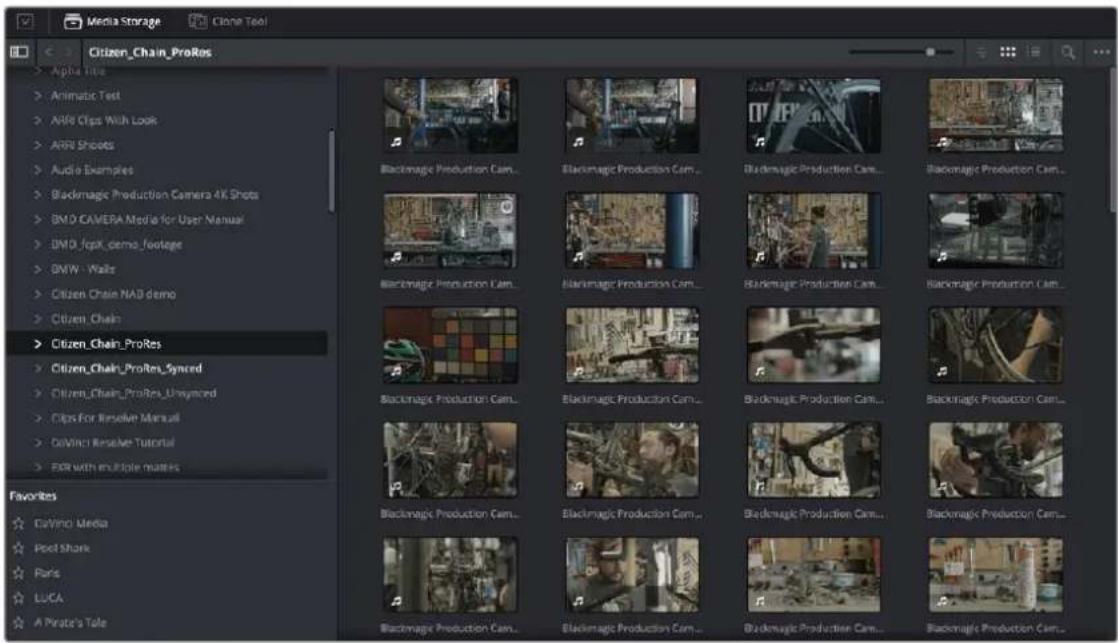
Media Storage browser with scrubbable clip thumbnails
The Media Pool is DaVinci Resolve's internal database of available media for the currently open project. If you like, clips in the Media Pool can be organized into multiple bins. Once media has been added to the Media Pool, you can access a variety of descriptive metadata using the Metadata Editor, adding descriptions, notes, scene and take information, flags, day and date information, program and episode information, and so on. This data can populate metadata tags when exporting ALE lists to move the metadata to a compatible NLE.
For more information on ingesting media in the Media page, see Chapter 18, "Adding and Organizing Media with the Media Pool."
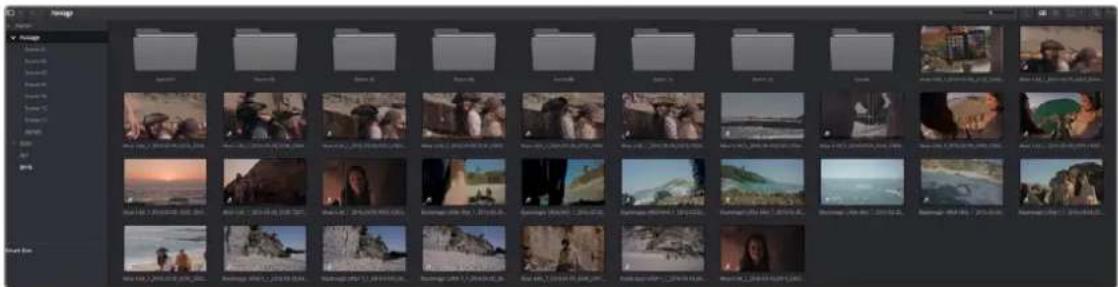
The Media Pool
Step 2-Sync Audio to the Dailies
If your video format has embedded audio, DaVinci Resolve can simply pass that audio through when outputting media from the Deliver page. However, if the program you're working on employs dual-system audio recording, there are a variety of methods available for syncing it in the Media page. You can also import timecoded Broadcast WAVE files into the same bin as the accompanying video clips (you can place them into a sub-bin if you like), in preparation for syncing the dailies in DaVinci Resolve.
Once you've imported the video and audio media you want to sync into the Media Pool of the Media page, you can right-click the enclosing folder and choose "Auto-Sync Audio Based on Timecode" which automatically syncs every timecode-matched pair of audio and video media clips within the same folder, all at once. Alternately, you can choose "Auto-Sync Audio Based on Timecode and Append Tracks" to add the synced audio tracks to any audio tracks already present in the video clips.
TIP: For the best results, consider using different folders for each day's audio and video clips.
If you don't have synced timecode, but your video clips have separately recorded audio (usually via an on-camera microphone) that matches the dual-system audio recordings, you can use waveform syncing to quickly sync each video clip with its matching audio clip. Import your separately recorded audio files into the same bin as the accompanying video clips (you can place them into a sub-bin if you like), in preparation for syncing. Once imported, you can right-click the enclosing folder and choose "Auto-Sync Audio Based on Waveform" which automatically syncs every timecode-matched pair of audio and video media clips within the same folder, all at once. Alternately, you can choose "Auto-Sync Audio Based on Waveform and Append Tracks" to add the synced audio tracks to any audio tracks already present in the video clips.
TIP: With waveform syncing, for the best and fastest results, consider using different folders for each day's audio and video clips, or even different folders for each scene, to reduce the number of waveforms that need to be compared at one time.
Finally, if all you have in the way of sync reference is a humble clapboard, you can manually sync video and audio clips by selecting a video clip to open into the Media page viewer, and then clicking the Waveform button in the Audio panel and clicking the corresponding audio clip to show its waveform in the audio panel. In this way, you can drag the Viewer and Audio panel's playheads to the video and audio sync points, and click the Audio panel's link button to lock the A/V sync of that clip.
For more information on syncing audio and video in the Edit page, see Chapter 22, "Modifying Clips and Clip Attributes."
Step 3-Do Whatever Grading is Necessary
Many productions that decide not to record camera raw media instead elect to record a log-encoded or "flat" image to ProRes or DNxHD media files in order to preserve the most image data for grading without clipping highlights or shadows. This can be accomplished using in-camera settings that record log-encoded QuickTime or MXF media, or via external video recorders such as the Blackmagic Video Assist. Depending on the camera you're shooting with, the recorded media will use one of a variety of log-encoded gamma curves such as Log-C, S-Log, S-Log2, S-Log3, BMD Film, CanonLog, Panasonic VLog, or REDlog Film, among others.
In other workflows, raw video formats are recorded and later debayered as log-encoded clips in order to preserve the maximum amount of debayered data for grading, or in preparation for transcoding.
If you're outputting high-quality media files meant to be used themselves for later finishing, then you may want to simply pass the source image data through unaltered. However, if you're creating offline media for editors, directors, and producers to watch for the next three months, you can grade this data in a variety of ways to provide more pleasing output that's been "normalized" in order to look closer to what was monitored on-set during the shoot.
There are many ways of normalizing log-encoded media in DaVinci Resolve. If you're working with one or more raw formats, you can choose to debayer all clips straight to Rec. 709 in the Camera Raw panel of the Project Settings. However, if you're working with log-encoded ProRes or DNxHD media, you need to normalize these clips using other methods.
An easy and powerful way to do so is to use DaVinci Resolve Color Management. To do so, set the "Color science" setting within the Color Management panel of the Project Settings to "DaVinci YRGB Color Managed." Then, right-click each clip or group of clips in the Media Pool, and choose the appropriate setting for each type of media from the Input Color Space submenu (you can define the Input Color Space of multiple selected clips at once). For more information on using DaVinci color management, see Chapter 9, "Data Levels, Color Management, and ACES."
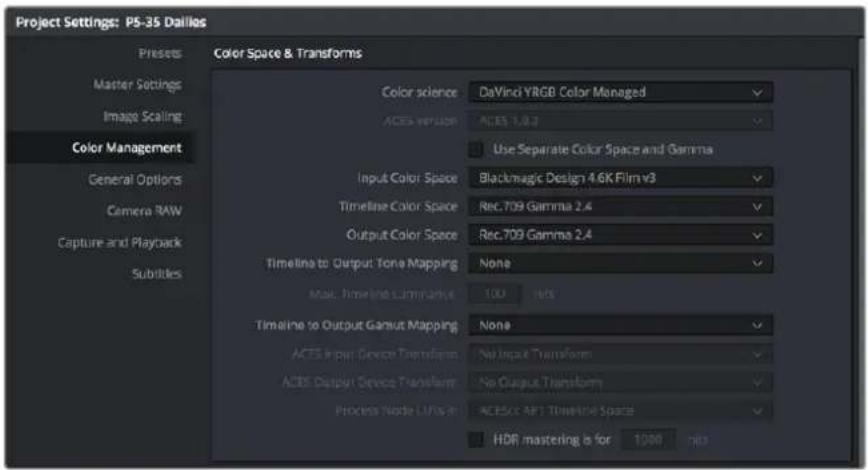
Enabling DaVinci Resolve color management
If you don't want to use DaVinci color management, you can also use one or more LUTs (Lookup Tables) to normalize log-encoded media. You can apply a LUT to the entire project to normalize the particular log characteristics of the media you're processing. Project-wide LUTs can be applied in the Color Management panel of the Project Settings. For more information, see Chapter 4, "System and User Preferences."
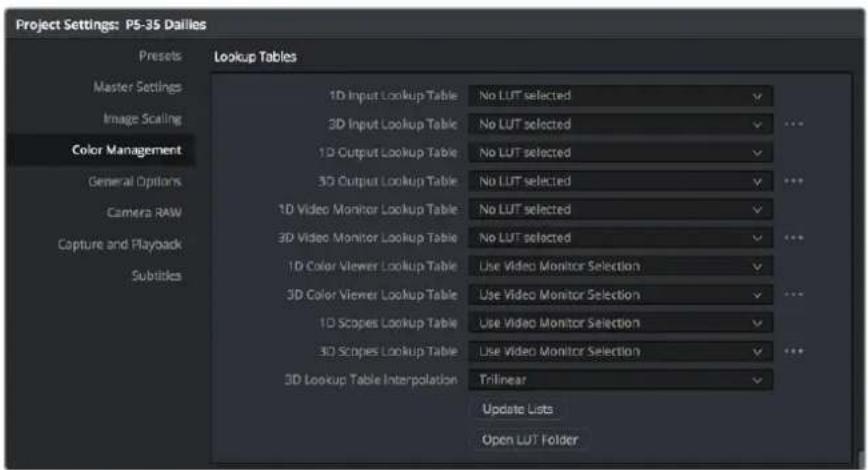
Project-wide LUT table settings on the Lookup Tables panel of the Project Settings
In the case of LUT-managed shooting workflows where a variety of LUTs have been custom-designed to monitor different scenes, you can manually apply individual LUTs to one or more selected clips from each scene using the Media Pool's contextual menu.
You can also edit each scene's clips into timelines, and apply separate LUTs to each clip in the Clip mode of the Node Editor of the Color page, or apply a single LUT to an entire timeline using the Timeline mode of the Node Editor. For more information on using LUTs as part of grades, see Chapter 139, "Node Editing Basics."
Alternately, if on-set color correction from the shoot been provided via a CDL-compliant EDL exported from one of several on-set grading solutions that are available, you can use the ColorTrace™ from CDL
command to batch import grading information from another application. For more information on CDL import workflows, see Chapter 145, "Copying and Importing Grades Using ColorTrace."
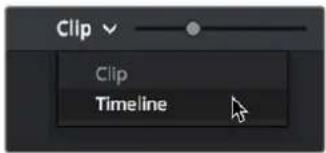
Selecting Timeline in the Node Editor
If your project's workflow requires that you start out with even higher quality dailies, you can go ahead and manually grade individual clips as you would with any project. However, if you want to create a fast "one-light" adjustment for every clip in the Master Timeline at once, you can use the Timeline grade mode of the Node Editor in the Color page to apply a single correction simultaneously to every clip in the current Timeline. This is particularly useful as you can readjust the Timeline grade as much as you like, and the changes are automatically applied to every clip in the Timeline. For more information, see Chapter 139, "Node Editing Basics."
Step 4—Export Media Suitable for Editing
Once you've organized your clips, synced the dailies, and applied whatever grading is necessary for the purpose at hand, you'll use the Deliver page to set up the format, file naming convention, and organization of the media you're outputting for editing or finishing.
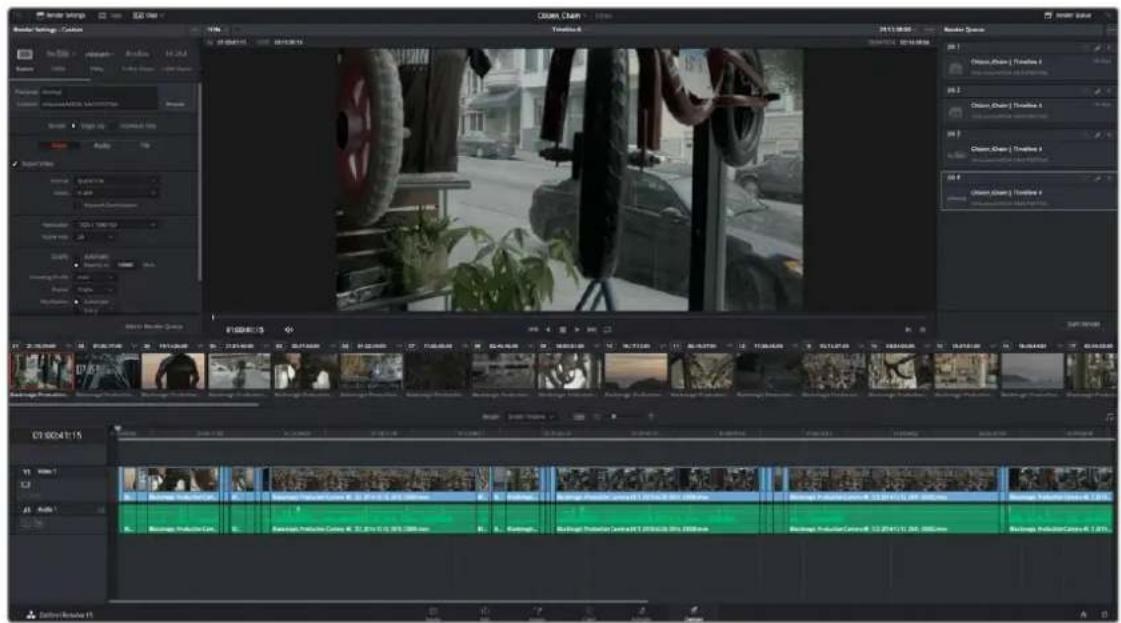
Deliver page with several jobs set up for rendering
Furthermore, if you need to apply a window burn, watermark, or logo to the media you're processing, that can be accomplished using the Project panel of the Data Burn-In window, available by choosing Workspace > Data Burn-In. Window burns can be formatted with a lot of flexibility, and are written out to media that's either rendered or output to tape. For more information, see Chapter 12, "Data Burn."
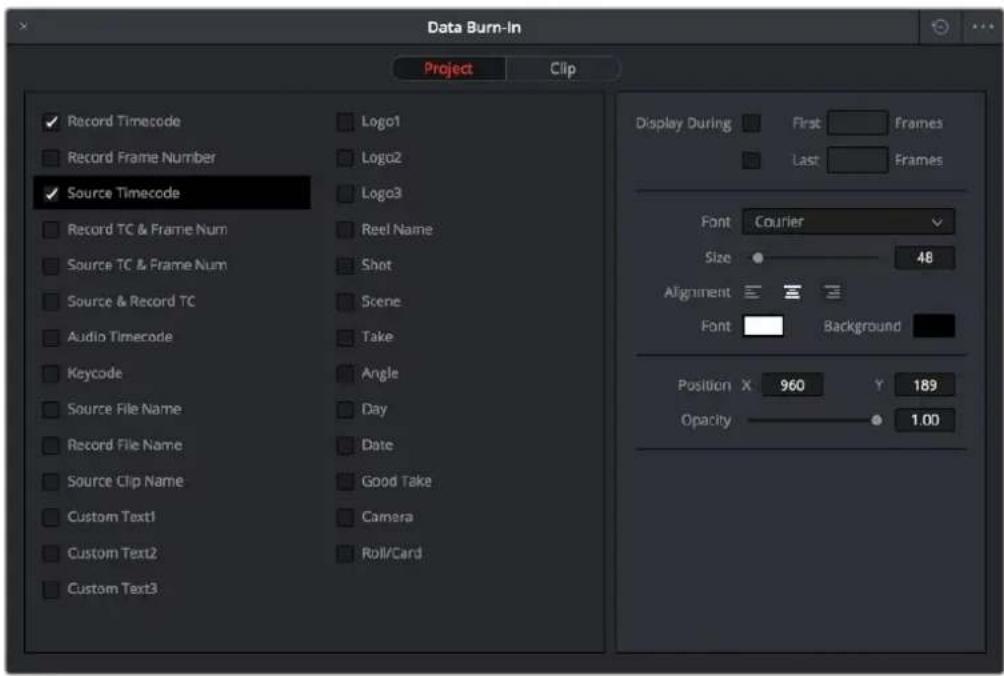
Choosing metadata to display onscreen in the Data Burn-in window
Once you've selected the appropriate render settings and window burn options, you can output one or several versions of the media, to accommodate jobs where you need to provide several media deliverables. For more information on setting up and using the Deliver page, see Chapter 185, "Using the Deliver Page."
Step 5—Reconform Media to an EDL, AAF, or XML Project File
Once the offline media you've delivered has been edited in whichever NLE is used for the project, it's simple to reimport the edited project via an AAF, XML, or EDL file, depending on which is most suitable to your application. This edit data can be used to reconform the original media that you imported into the Media Pool, so that you immediately have access to whatever graded adjustments you made to create the offline media, as applied to the source media.
Importing AAF, XML, or EDL files in the Edit page creates new timelines, and you can import multiple subsequent Timelines to accommodate changes that have been made to the edit, if you find yourself grading a project that is in progress editorially. In fact, depending on how you set up your grades, you can use remote versions which will automatically ripple to follow each clip when you import a re-edited version of the program as a new timeline, saving you from having to recreate your work. For more information on using remote versions, see Chapter 138, "Grade Management."
Step 6-Output Final Media for Finishing
Once you're finished with your final grade, you'll again use the controls of the Deliver page to render the program's final media, either as individual clips for a round-trip workflow, or as a single media file or image sequence for delivery as a digital master.
Chapter 58
Conforming XML Files
XML is one of the most straightforward methods of bringing edits with as many video tracks as you need from different NLEs into DaVinci Resolve. XML import has the added benefit of allowing a variety of supported effects to be imported along with the edit data, as well as multiple tracks of video data. This chapter covers the relatively simple procedure used to import XML projects into DaVinci Resolve. This can be for a one-way trip, in which you're finishing a project in DaVinci Resolve, or as part of a round-trip workflow, in which you return to the NLE of origin for finishing. XML round-trip workflows are fairly simple; for more information on exporting individual clips, see Chapter 186, "Rendering Media."
Contents
More About Conforming XML Files 960
Importing XML Project Files 960
More About Conforming XML Files
DaVinci Resolve can import projects that were exported to the Final Cut Pro 7 or Final Cut Pro X XML formats. Adobe's Premiere Pro and Autodesk Smoke and Flame Premium are also capable of using the Final Cut Pro XML project exchange format to accommodate round-trip workflows. However, for the best results you need to make sure that you're exporting XML from Premiere Pro version 5.5.1 or newer; ideally you want to export from the latest version of Premiere Pro that's available.
Exporting XML for use by DaVinci Resolve is straightforward, and there really aren't any settings you need to manage when exporting an XML file other than the version of XML you want to export. For this reason, it's best to do whatever timeline and/or media management you need to before XML export.
Manage Your Media Before Exporting an XML
In workflows using imported XML or AAF projects (or even EDLs), it's easiest to relink and conform to the accompanying media files if they're all located in a single directory path. Having media sorted into multiple directories is fine as long as they're all within a single main directory that you can select at the appropriate stage of project import.
Importing XML Project Files
This section covers the Import AAF/EDL/XML dialog in much more detail. One procedure lets you accomplish any of the following workflows:
- Importing an XML file and automatically conforming to and importing the media it's linked to.
- Importing an XML file and manually choosing another set of media, presumably in a different format or resolution, with identical metadata, to conform to instead.
- Importing an XML file that's linked to offline media derived from a camera original format, and automatically conforming it to and importing the camera original media.
Each of these workflows is possible by choosing the correct combination of options, each of which is described in the following procedure.
To load an XML file and automatically link to its referenced media:
1 Do one of the following:
- From any page, choose File > Import Timeline > Import AAF, EDL, XML (Shift-Command-I).
- Open the Edit page, right-click anywhere in the Media Pool, and choose Timelines > Import > AAF/EDL/XML.
2 Using the file dialog that appears, find the project file you want to import, and click the file to open it. The Load XML window appears, depending on your selection.
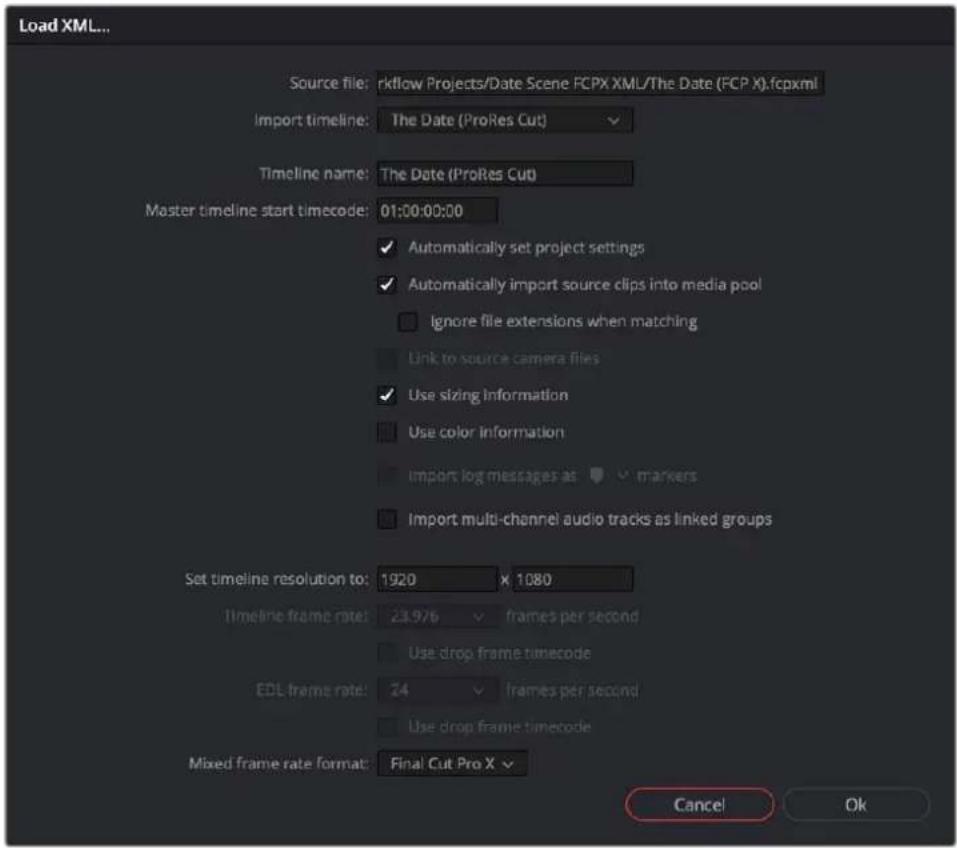
Options when importing an XML file
3 Choose the options that are applicable to your particular project. By default, these options are based on metadata within the file you selected.
- Source file: The file you selected in the previous step.
- Import timeline: If there are multiple sequences within the selected XML source file, this pop-up menu lets you choose which sequence to import as a DaVinci Resolve timeline.
- Timeline name: The name of the Timeline you're about to create. This defaults to the name of the sequence that was exported, but you can change it if you like.
- Master timeline start timecode: The timecode at which the imported timeline will start. This automatically matches the start timecode of the selected Import Timeline.
- Automatically set project settings: Leave this option on to automatically change the frame size and frame rate settings in the Project tab of the Config page with those in this window. You can import timelines with frame rates that are different from the Project frame rate.
- Automatically import source clips into media pool: Leave this checkbox on to automatically import the media referenced by the XML project file you selected into the Media Pool based on the embedded file paths. If the media files are not automatically found at these locations, you will be prompted to manually select a directory where the clips are located.
- Ignore file extensions when matching: Turn this checkbox on if you want to manually choose a different directory of media to link to, for example if the XML you're importing links to ProRes Proxy media, and you want to relink to another directory of corresponding ProRes 4444 or camera raw media.
- Use sizing information: Lets you import position, scale, and rotation transforms from the originating NLE via the imported XML project file. These transforms are stored in each clip's settings in the Edit page Inspector.
- Use color information: For Final Cut Pro X XML files only. This option lets you import a subset of color correction data from the Final Cut Pro X color board controls.
- Import multi-channel audio tracks as linked groups: Turn on this checkbox if you want to import multi-channel audio, such as stereo, 5.1, and 7.1 audio into individual mono timeline tracks that are linked together in the Fairlight page. For more information about Linked Groups, see Chapter 167, "Setting Up Tracks, Buses, and Patching." If this checkbox is turned off, multi-channel audio will be imported into multi-channel audio tracks in the Timeline.
- Set timeline resolution to: Two fields let you specify the width and height of the frame size you want to work at in DaVinci Resolve. The default is whatever resolution is specified in the XML file being imported.
- Timeline frame rate: By default, this is derived from the frame rate of the XML file being imported. If you're importing an XML file into a project that already has media in the Media Pool, the Timeline frame rate is locked and cannot be changed.
- Use drop frame timecode: By default, this is derived from the XML file being imported.
- EDL frame rate: By default, this is derived from the frame rate of the selected file.
- Use drop frame timecode: By default, this is derived from the frame rate of the selected file.
- Mixed frame rate format: This pop-up menu lets you choose the method used to conform mixed frame rates for rendering and playback. You can choose the "Final Cut Pro 7" or "Final Cut Pro X" methods of conform, while for projects imported from Media Composer, Premiere Pro, Smoke, or other NLEs, you should leave this set to "DaVinci Resolve." This pop-up menu also appears in the Load XML dialogs when you import a project.
4 After choosing all necessary settings, click OK.
5 Assuming you left "Automatically import source clips into media pool," turned on, if the media linked to by the XML file is not in the expected disk location, or if you turned on the "Ignore file extensions when matching" checkbox, then another dialog appears prompting you to choose the folder within which the media for this project is stored. Do one of the following:
- If you want to try to relink to media in another disk location: Click Yes, and then navigate to the folder containing your media (all subfolders will be automatically traversed as well), select it, and click OK.
- If you want to just import the Timeline with all offline clips: Click No.
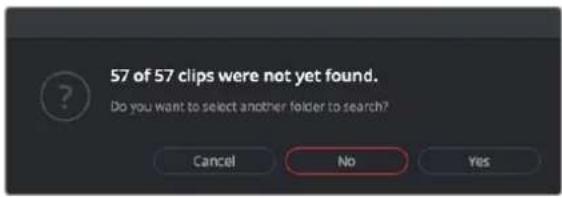
A prompt appears if all the media was not found
IMPORTANT
It's always possible to choose the top level of any volume to automatically find all media in any directories located within, but if the volume is large and full of many files, scanning every folder and document of the volume may be an extremely time-intensive process.
6 If you clicked Yes to selecting another folder, then use the folder selection dialog to navigate to another folder, and click Ok. You can cycle through this process as many times as you need to until you've found all the media that timeline is linked to.
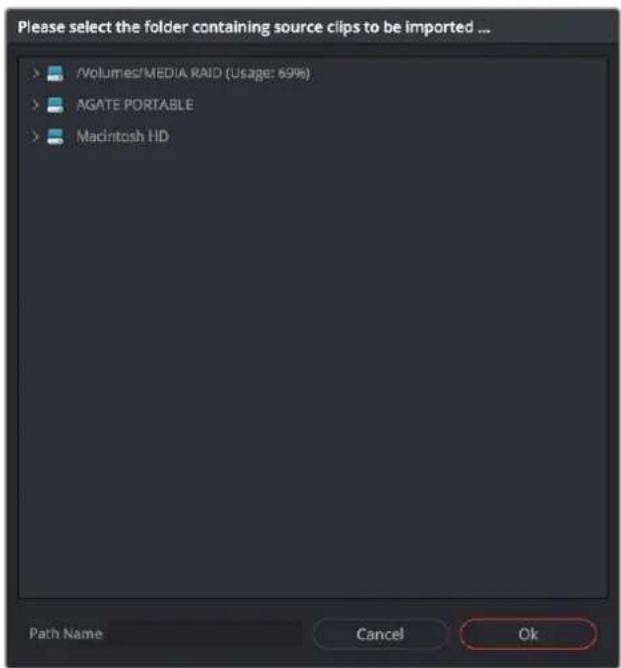
Selecting the source folder for your XML imported clips
The XML file is imported. A new timeline and the referenced media files appear in the Media Pool, and the Timeline is opened so you can see its contents. Clips that could not be linked to a corresponding file on disk appear red in both the Media Pool and Timeline to indicate that they're offline and unlinked.
TIP: You can open the Edit Index and choose Filter Offline Clips from the option menu to see a list of all offline clips in the current Timeline.
Chapter 59
Conforming AAF Files
AAF (Advanced Authoring Format) is a project exchange format, originally developed by the Advanced Media Workflow Association (AMWA). Commonly used video applications that export project data in the AAF format include Avid Media Composer, Avid Symphony, Autodesk Smoke and Flame Premium, and Adobe Premiere Pro.
This chapter includes detailed information about recommended workflows for moving projects from Media Composer (or Symphony) to DaVinci Resolve for grading, either as a one-way trip, or as a round-trip workflow in which you return to Avid Media Composer for finishing. Since Media Composer round-trip workflows have many variables, this is covered in depth within this chapter.
The end of this chapter also describes how to import audio projects from Pro Tools that have been exported to AAF.
Contents
Supported Media Types in AAF Workflows 965
Transcoding to DNxHD or DNxHR Always Works 965
Linking to Media Using AMA and Consolidating 965
Fast Imported Media 966
Logged Errors When Importing AAF 967
Simple AAF Import 967
Importing Boris Continuum FX with AAF Timelines 970
Importing AAF Timelines with Nested Clips 970
Performing an AAF Avid Round Trip 971
Step 1–Create a Project in Media Composer 971
Step 2—Exporting an AAF for DaVinci Resolve 971
Step 3-Conforming Your AAF in DaVinci Resolve 972
Step 4—Continue Editing, Grading, and Finishing the Project 974
Step 5–Render Graded Media and Export a New AAF 974
Step 6—Copy the Graded Media to Avid MediaFiles 975
Step 7—Import the Graded AAF 975
Relinking Transcoded Media to AMA Media 976
Step 1—Relink Your Transcoded Media to AMA-Linked Source 976
Step 2-Export an AAF File 976
Step 3—Import the AAF, Grade, Render, and Export 976
Step 4—Reimport the AAF into Media Composer/Symphony 976
Audio AAF Import from Pro Tools 977
Import AAF, EDL, XML 977
Import AAF to Current Timeline
977
Supported Media Types in AAF Workflows
Media Composer provides several methods of ingesting and managing compatible media formats. Ultimately, which formats are suitable for a Media Composer to DaVinci Resolve one-way or round trip depends on whether they're compatible with DaVinci Resolve.
There's one other thing to keep in mind as you're managing media in Media Composer; not all formats are compatible with all media management operations. This combination of format compatibility and operational compatibility requires you to carefully tailor your workflow around which media files you'll be using.
Transcoding to DNxHD or DNxHR Always Works
Since DNxHD and DNxHR were developed to be Media Composer's core codecs, workflows where you transcode other media formats to MXF-wrapped DNxHD/DNxHR before editing will always work, and are the simplest when round tripping between Media Composer and DaVinci Resolve. DaVinci Resolve supports both MXF-wrapped and QuickTime-wrapped DNxHD/DNxHR media.
Linking to Media Using AMA and Consolidating
Avid Media Access (AMA) is a means of directly linking clips to media files in Media Composer without needing to either transcode them to DNxHD/DNxHR MXF files, or copy them to an Avid MediaFiles directory. While convenient, workflows involving media that's linked using AMA require a bit more forethought.
Not all AMA-compatible media formats can be consolidated in Media Composer, which limits your ability to create a smaller, more portable collection of media to move into DaVinci Resolve. Whether or not an AMA-linked clip can be consolidated depends on its media format; Media Composer can only consolidate formats that it can write. For example, since Media Composer cannot write R3D media, then R3D media cannot be consolidated.
Furthermore, not all AMA-compatible media formats are compatible with DaVinci Resolve. Simply being able to edit a media format in a Media Composer timeline doesn't guarantee you can use it in DaVinci Resolve. The following table lists which media formats can be AMA-linked in Media Composer, which formats can be consolidated, and which are compatible for use in DaVinci Resolve.
If you're prepping a sequence that uses a mix of media formats, some of which can be consolidated, and some of which can't, you should transcode all clips that aren't compatible with consolidation to an Avid native codec before beginning the process of consolidating media and exporting an AAF to DaVinci Resolve.
Fast Imported Media
Another wrinkle is that Media Composer supports a media ingest method called "Fast Import," where imported media is quickly copied to the Avid MediaFiles directory by inserting the original image data using the original codec into an MXF wrapper. This is an extremely fast and efficient way to bring media into Media Composer projects, but the resulting files are not typically compatible with DaVinci Resolve.
On the other hand, keep in mind that any media format that can be Fast Imported can also be consolidated. If you're planning to round trip a sequence that uses Fast Imported media, it's recommended that you either transcode the Fast Imported clips to DNxHD prior to AAF export, or conform your exported AAF project to the camera original media in DaVinci Resolve instead.
TIP: Whenever you use a combination of media in your project that includes formats that aren't compatible with DaVinci Resolve, you can use the "Transcode Video To" checkbox in the options of the Export As dialog when exporting an AAF project. This option lets you to transcode all media that isn't a compatible format into a format that is compatible. Some non-standard frame sizes will not transcode in Avid and will return an unsupported resolution error.
| Codec | Can be Natively AMA-Linked | Can be Consolidated | DaVinci Resolve Compatible |
| ARRI ALEXA Raw | Non-native support | No | Yes |
| AVCHD Yes No Yes | |||
| AVC-Intra and Long GOP Yes Yes Yes | |||
| Blackmagic RAW | Non-native support | No | Yes |
| Canon XF Yes Yes Yes | |||
| Cine (Phantom) Yes Yes Yes | |||
| CinemaDNG No No Yes | |||
| DVC PRO P2 Yes Yes No | |||
| QuickTime (ProRes) | Yes Yes Yes | ||
| R3D (RED) | Non-native support | No | Yes |
| Sony F65 Raw | Yes No Yes | ||
| Sony HDCAM SR (SStP) | Non-native support | No | Yes |
| Sony XAVC | Yes Yes Yes | ||
| Sony XDCAM | Yes Yes Yes | ||
Compatible AMA-linked formats
Logged Errors When Importing AAF
If you turn on the “Import log messages as markers” checkbox in the Load AAF dialog, certain error messages that alert you to issues with the AAF import you're trying to do will be added as markers with notes to the Timeline. You have an option, via a pop-up embedded within the text of this checkbox, of choosing the color of the markers used to store this information.
The following messages will create markers:
- Transition type ‘XXXX’ is not supported in this release. A Cross Dissolve will be inserted.
– Effect type ‘XXXX’ is not supported in this release. Plain clips will be imported. - SMPTE Wipe Transition type ‘XXXX’ is not supported in this release. A Cross Dissolve will be inserted.
- Interpolation type 'XXXX' is not supported in this release. Linear interpolation will be used.
– The clip 'XXXX' failed to link because the timecode extents do not match any clip in the Media Pool. - Mismatch between specified target timecodes 'XXXX' and located file timecodes 'YYYY.'
- No overlap between specified target timecodes 'XXXX' and located file timecodes 'YYYY.'
- Clip 'XXXX' in track 'XXX' at timecode 'UNKNOWN', with reel name 'XXXX' and filename 'XXXX.'
- Clip 'XXXX' in track 'XXX' at timecode 'UNKNOWN', with reel name 'XXXX' and filename 'XXXX.'
– File not found in search directories.
As of the time of this writing, this feature is only available when importing AAF files.
Simple AAF Import
This section covers the Import AAF, EDL, XML dialog in much more detail. One procedure lets you accomplish any of the following workflows:
- Importing an AAF file and automatically conforming to and importing the media it's linked to.
- Importing an AAF file and manually choosing another set of media, presumably in a different format or resolution, with identical metadata, to conform to instead.
- Importing an AAF file that's linked to offline media derived from a camera original format, and automatically conforming it to and importing the camera original media.
Each of these workflows is possible by choosing the correct combination of options, each of which is described in the following procedure.
To load an AAF file and automatically link to its referenced media:
1 Do one of the following:
- From any page, choose File > Import Timeline > Import AAF, EDL, XML (Shift-Command-I).
- Open the Edit page, right-click anywhere in the Media Pool, and choose Timelines > Import > AAF/EDL/XML.
2 Using the file dialog that appears, find the project file you want to import, and click the file to open it. The Load AAF window appears, depending on your selection.
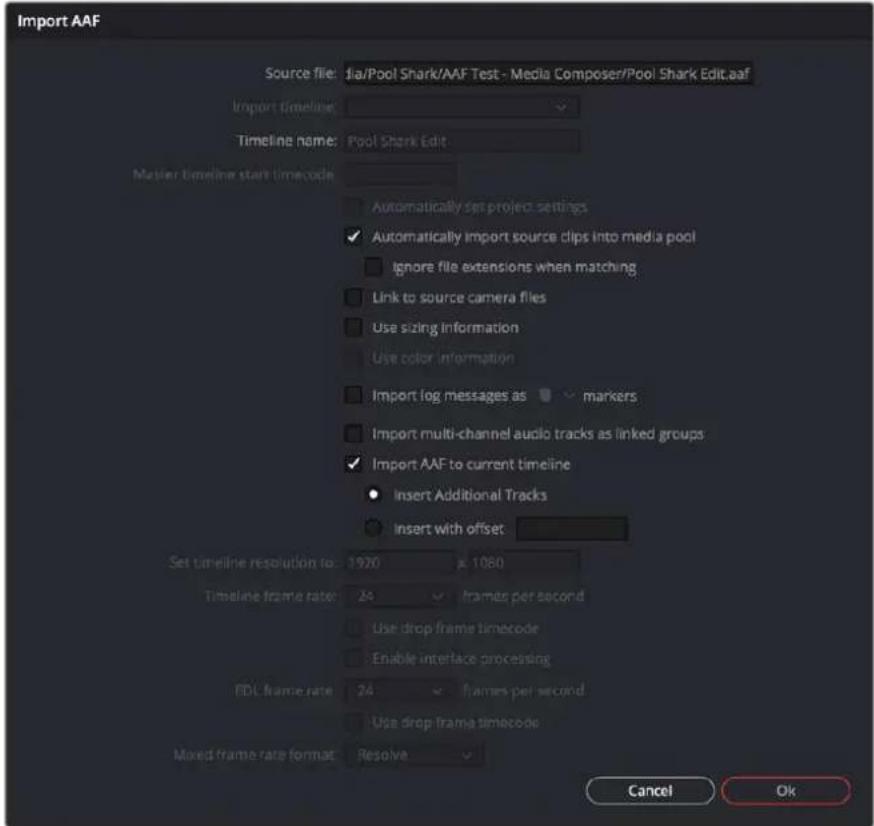
Options when importing an AAF file
3 Choose the options that are applicable to your particular project. By default, these options are based on metadata within the file you selected.
– Source file: The file you selected in the previous step.
- Import timeline: If there are multiple sequences within the selected AAF source file, this pop-up menu lets you choose which sequence to import as a DaVinci Resolve timeline.
- Timeline name: The name of the Timeline you're about to create. This defaults to the name of the sequence that was exported, but you can change it if you like.
- Master timeline start timecode: The timecode at which the imported timeline will start. This automatically matches the start timecode of the selected Import Timeline.
- Automatically set project settings: Leave this option on to automatically change the frame size and frame rate settings in the Project tab of the Config page with those in this window. You can import timelines with frame rates that are different from the Project frame rate.
- Automatically import source clips into media pool: Leave this checkbox on to automatically import the media referenced by the AAF project file you selected into the Media Pool based on the embedded file paths. If the media files are not automatically found at these locations, you will be prompted to manually select a directory where the clips are located.
- Ignore file extensions when matching: Turn this checkbox on if you want to manually choose a different directory of media to link to; for example, if the AAF you're importing links to ProRes Proxy media, and you want to relink to another directory of corresponding ProRes 4444 or camera raw media.
- Use sizing information: Lets you import position, scale, and rotation transforms from the originating NLE via the imported AAF project file. These transforms are stored in each clip's settings in the Edit page Inspector.
- Import log messages as COLOR markers: Turn on this checkbox and choose a color from the accompanying drop-down menu for markers that will be placed in the Timeline with note text describing import errors that you might want to troubleshoot later.
- Import multi-channel audio tracks as linked groups: Turn on this checkbox if you want to import multi-channel audio, such as stereo, 5.1, and 7.1 audio into individual mono timeline tracks that are linked together in the Fairlight page. For more information about Linked Groups, see Chapter 168, "Setting Up Tracks, Buses, and Patching." If this checkbox is turned off, multi-channel audio will be imported into multi-channel audio tracks in the Timeline.
- Import AAF to current timeline: Imports the AAF to the currently loaded Timeline, instead of creating a new timeline in the Media Pool.
- Insert Additional Tracks: Automatically assigns new tracks to the Timeline, so the AAF referenced media does not overwrite current clips on the existing timeline.
- Insert with offset: Overwrites the AAF referenced media on the Timeline and offsets it by the amount set in timecode format.
- Set timeline resolution to: Two fields let you specify the width and height of the frame size you want to work at in DaVinci Resolve. The default is whatever resolution is specified in the AAF file being imported.
- Timeline frame rate: By default, this is derived from the frame rate of the AAF file being imported. If you're importing an AAF file into a project that already has media in the Media Pool, the Timeline frame rate is locked and cannot be changed.
- Use drop frame timecode: By default, this is derived from the AAF file being imported.
- EDL frame rate: By default, this is derived from the frame rate of the selected file.
- Use drop frame timecode: By default, this is derived from the frame rate of the selected file.
- Mixed frame rate format: This drop-down menu lets you choose the method used to conform mixed frame rates for rendering and playback. You can choose the "Final Cut Pro 7" or "Final Cut Pro X" methods of conform, while for projects imported from Media Composer, Premiere Pro, Smoke, or other NLEs, you should leave this set to "DaVinci Resolve." This drop-down menu also appears in the Load AAF dialogs when you import a project.
4 After choosing all necessary settings, click OK.
5 Assuming you left "Automatically import source clips into media pool," turned on, if the media linked to by the AAF file is not in the expected disk location, or if you turned on the "Ignore file extensions when matching" checkbox, then another dialog appears prompting you to choose the folder within which the media for this project is stored. Do one of the following:
- If you want to try to relink to media in another disk location: Click Yes, and then navigate to the folder containing your media (all subfolders will be automatically traversed as well), select it, and click OK.
- If you want to just import the Timeline with all offline clips: Click No.

A prompt appears if all the media was not found
IMPORTANT
It's always possible to choose the top level of any volume to automatically find all media in any directories located within, but if the volume is large and full of many files, scanning every folder and document of the volume may be an extremely time-intensive process.
6 If you clicked Yes to selecting another folder, then use the folder selection dialog to navigate to another folder, and click Ok. You can cycle through this process as many times as you need to until you've found all the media that timeline is linked to.
Selecting the source folder for your AAF imported clips
The AAF file is imported. A new timeline and the referenced media files appear in the Media Pool, and the Timeline is opened so you can see its contents. Simple nested clips should also come through. Clips that could not be linked to a corresponding file on disk appear red in both the Media Pool and Timeline to indicate that they're offline and unlinked.
TIP: You can open the Edit Index and choose Filter Offline Clips from the option menu to see a list of all offline clips in the current Timeline.
Importing Boris Continuum FX with AAF Timelines
Boris Continuum FX effects and settings will be imported along with a timeline via AAF export. You'll need to have the same Continuum suite of effects installed on both machines (OFX version for DaVinci Resolve, AVX for Avid). When importing an AAF, Boris Continuum effects that were used in the original NLE will appear on each affected clip in the resulting DaVinci Resolve timeline, with all previously applied parameters available in the Inspector. The Sapphire and Mocha suites are not available for AAF import at this time.
Importing AAF Timelines with Nested Clips
DaVinci Resolve will import AAF files with simple nested clips.
Performing an AAF Avid Round Trip
This section outlines a comprehensive workflow for creating projects in Media Composer that will be compatible with DaVinci Resolve, moving projects from Media Composer to DaVinci Resolve, then grading, rendering, and sending the final graded project back to Media Composer. The following steps include procedures covering the following tasks:
– Ingesting all media as high quality MXF-wrapped DNxHD, then round tripping from Media Composer to DaVinci Resolve.
- Importing and editing Resolve-compatible AMA-linked media formats, then round tripping from Media Composer to DaVlnci Resolve.
- Transcoding AMA-linked media files into offline-quality DNxHD clips for editing, then exporting an AAF file and reconforming it in DaVinci Resolve to high quality camera original media as part of the round trip.
Because there are so many variations in the way that Media Composer can ingest media and output AAF projects, you should familiarize yourself with the following procedures before continuing with your own project.
Step 1–Create a Project in Media Composer
When creating a project in Media Composer, take note of the image format details, as these should be matched in DaVinci Resolve. In particular, set the image format (e.g., 1080p/24) and raster dimensions (e.g., 1920x1080) to match your desired mastering format. Also, color space should be set to RGB 709 if you're planning to send ingested/transcoded media from Media Composer to DaVinci Resolve for grading.
NOTE: This information can also be found in the Avid Project Format tab.
2 Open your project, and ingest all necessary media into a new bin using one or both of the following methods:
- Transcode media for editing: The simplest workflow for AAF import and round-trip workflows is to ingest transcoded, native MXF-wrapped DNxHD media using the Import command.
- Import AMA-linked clips: You can also import AMA-linked clips, so long as all AMA-linked files are in a format that's compatible with DaVinci Resolve. Keep in mind that not all AMA-compatible formats can be consolidated in Media Composer. In this case, import AMA-linked media into a new bin using the Link to AMA File(s) command, and edit as usual.
Once you've ingested all necessary media, you can edit your project as you would any other, keeping in mind which effects are compatible with DaVinci Resolve. For more information on effects in Media Composer to DaVinci Resolve round trips, see Chapter 56, "Preparing Timelines for Import and Comparison."
Step 2-Exporting an AAF for DaVinci Resolve
When you're finished editing, you need to export an AAF that will conform the .mxf media you used in Media Composer into a DaVinci Resolve timeline. Two export configuration options are available, depending on whether DaVinci Resolve and Media Composer are on the same system.
1 Select the sequence you want to export, and choose File > Output > Export to File.
2 In the Export As dialog, type a name for the AAF file you'll be exporting.
3 Choose a location to save the AAF. You can save it anywhere you like, but if you're moving the project to another workstation, you may want to save it to a specific folder on a removable hard drive where you store your AAF and XML files. The location you choose can also be used as the location of the media that's exported to accompany the AAF.
4 Click the Options button to open a more detailed window of export settings.
5 Turn on the AAF Edit Protocol checkbox. This option forces Media Composer to export a simplified AAF file that's more compatible with the project exchange workflows of different applications.
6 Choose the appropriate option from the Export Method pop-up menu to configure how the AAF and its accompanying media will be exported. The option you choose depends on the following:
- If Media Composer and DaVinci Resolve are on the same system: Choose "Link to (Don't Export) Media" to export an AAF file that links to the existing media in its current location. Click the Audio Details tab and choose "Link to (Don't Export) Media" from the Export Method pop-up menu.
– If Media Composer and DaVinci Resolve are on different systems: Choose one of the two following export methods:
- Copy All Media: For each source clip used, the entire corresponding media file is copied. This can be useful when you want to preserve the original relationship of each clip to the source media file it came from. However, be aware that you'll potentially be exporting a lot of media when you use this option.
- Consolidate Media: This is a more efficient media management workflow for finished projects, since unused media will not be copied. You can specify additional handles to add to the beginning and end of each exported media file, in frames, in the Handle Length field. Should any media file and its handles overlap another media file and its handles, both will be combined into a single exported media file.
7 (Optional) If you're using a combination of media in your project that includes formats that aren't compatible with DaVinci Resolve, you can optionally turn on the "Transcode Video To" checkbox and choose a media format from the pop-up menu to the right. This option automatically transcodes all media in your sequence that doesn't match the format specified in the pop-up to match that format.
8 If you're copying or consolidating media to another drive, choose "Folder" from the Media Destinations Video/Data pop-up menu. Turn on the "Use Same Folder As AAF File" checkbox to save the exported media to the same folder you selected in step 3. If you leave this checkbox turned off, you can click Select Folder to choose another location.
9 Click Save, and when you return to the Export As dialog, click Save again.
Once export is complete, you'll see a duplicate sequence and duplicate media populating your Media Composer bin, with the suffix “.Exported” appended to the sequence, and “.new” appended to each media clip. In the file system, the resulting folder contains an AAF file, and an Avid MediaFiles folder that contains the exported media.
Step 3-Conforming Your AAF in DaVinci Resolve
1 Open DaVinci Resolve and create a new project.
2 Before you do anything else, you need to set DaVinci Resolve to properly read the timecode and reel number information from the AAF files that Media Composer creates. Click the gear button at the lower right-hand side of the DaVinci Resolve window to open the Project Settings window, click General Options to reveal the Conform Options, and do the following:
- Make sure that "Use Timecode" is set to "Embedded in the source clip."
- Turn the “Assist using reel names from the” checkbox on, and choose “Embedding in source clip file.”
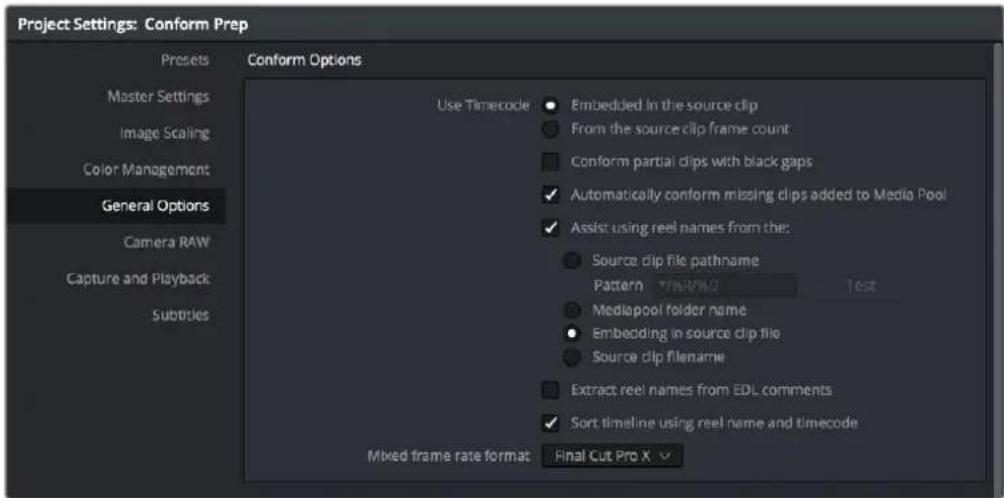
Conform assistance with reel names embedded in the source clip
3 Click Save.
4 Do one of the following:
- From any page, choose File > Import AAF, EDL, XML (Shift-Command-I).
- Open the Edit page, right-click anywhere in the Media Pool, and choose Timelines > Import > AAF/EDL/XML.
5 When the File Selection window opens, select the AAF file you exported from Media Composer, and click Open.
6 When the Load AAF dialog appears, the settings you choose determine which media files the AAF will be conformed to:
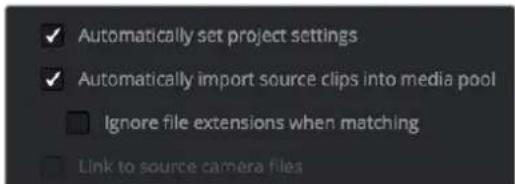
Load AAF window conform options
- To conform to the transcoded or AMA-linked media files you edited: Leave the "Automatically import source clips into media pool" checkbox turned on.
- To conform to a different set of camera original media files: Turn on both the "Automatically import source clips into media pool" and "Link to source camera files" checkboxes, which references the Source Name metadata that Media Composer/Symphony embeds in exported AAF files to track the correspondence in file naming between transcoded and camera original media.
- To conform to a directory of media of your choosing: Turn on both the "Automatically import source clips into media pool" and "Ignore file extensions when matching" checkboxes.
- To conform to media that's already in the Media Pool: Turn off the "Automatically import source clips into media pool" checkbox. There must be clips in the Media Pool for this to work.
7 Additionally, make sure that the "Automatically set project settings" checkbox is on.
8 There are three other options that are relevant to AAF import:
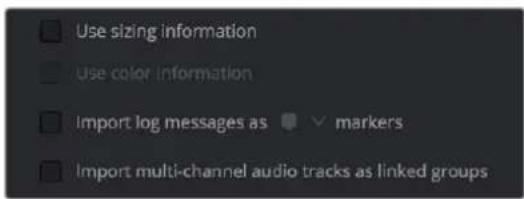
Load AAF window conform options
- Use Sizing Information: (Optional) Use this checkbox if you want to import position, scale, and rotate transform data from the originating Media Composer project into DaVinci Resolve.
- Import log messages as COLOR markers: Turn on this checkbox and choose a color from the accompanying drop-down menu for markers that will be placed in the Timeline with note text describing import errors that you might want to troubleshoot later.
- Import multi-channel audio tracks as linked groups: Turn on this checkbox if you want to import multi-channel audio, such as stereo, 5.1, and 7.1 audio into individual mono timeline tracks that are linked together in the Fairlight page. For more information about Linked Groups, see Chapter 167, "Setting Up Tracks, Buses, and Patching." If this checkbox is turned off, multi-channel audio will be imported into multi-channel audio tracks in the Timeline.
9 Click OK.
As long as the media remains where it was when you exported it from Media Composer, the timeline and all its media should now import. However, if the location of the media files you're conforming to has changed, then you may need to identify the location of the media via an additional dialog. For example, if you've copied the media from the portable hard drive it was originally conformed to, to a faster storage volume, then a file dialog appears, requesting that you choose the folder containing the media used by your project. If prompted, do so and click OK.
Once import is complete, the Media Pool fills with the source media used by the imported project, and the edit appears as the current Timeline in the Edit page.
Step 4-Continue Editing, Grading, and Finishing the Project
Edit the Timeline in the Edit page and grade each clip in the Color page as you would any other. However, you should be aware that if you use the tools found in the Edit page to make any editorial changes to the timeline you've imported, your export options will change later on:
- If you don't make editing changes: Then you have the option to have DaVinci Resolve use the Avid AAF file that you originally imported to generate an updated one. This preserves audio and all other unsupported effects from the original AAF file, so that they reappear when you export a new AAF back to Media Composer. If you use this option, you need to make sure the original AAF file you import remains in the same location.
- If you do make editing changes: Then you need to use the "Generate New AAF" command to export an AAF of the re-edited Timeline from DaVinci Resolve back to Media Composer. This newly generated AAF file will not include any effects that are not supported by DaVinci Resolve.
Step 5–Render Graded Media and Export a New AAF
When you're ready to send a graded project back to Media Composer, select the Timeline you graded and open the Deliver page.
2 Choose "Avid AAF" from the Presets at the top of the Render Settings to load its settings.
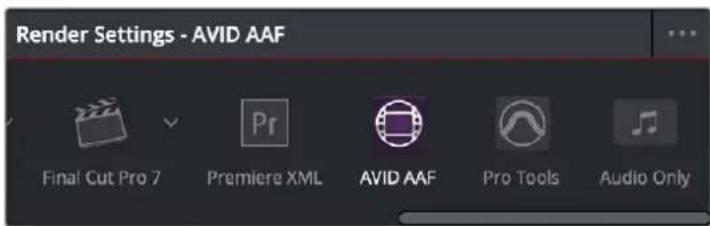
Selecting the Avid AAF setup for round-trip
3 In the Format section, choose the MXF codec you want to render to.
4 In the File section, choose the appropriate file destination path for the rendered media. The location you choose depends on whether Media Composer and DaVinci Resolve are on the same computer or not.
- If Media Composer and DaVinci Resolve are on the same computer: Create a new folder within your Avid MediaFiles folder (Avid MediaFiles/MXF/) named with a number. Make sure you choose a previously unused number.
- If DaVinci Resolve is on a different computer using different storage: Select any directory on the portable hard drive you'll be using to bring the media back to the Media Composer workstation from which it came.
5 If you require handles for your rendered output, you can add handles in the Advanced Settings of the Video tab. When making any changes to the File render settings, make sure to leave the "Render Clip with Unique Filename" checkbox turned on to ensure that each clip rendered has a different file name as multiple clips in the edited sequence may originate from the same source clip.
6 In the Timeline, click Select Entire Timeline to select the entire Timeline for delivery, and then click Add to Render Queue at the bottom of the Render Settings to add the job you've set up to the Render Queue.
7 Click Start Render at the bottom of the Render Queue to initiate rendering.
The project renders, and an AAF is automatically exported to the same directory as the media you've rendered.
Step 6—Copy the Graded Media to Avid MediaFiles
For workflows where DaVinci Resolve and Media Composer are on separate workstations, locate the media directory containing the media files that were rendered out of DaVinci Resolve on the portable hard drive being used to transport the project back to your Avid workstation, and copy it into the Avid MediaFiles/MXF/ directory.
2 Rename the directory to be a number. Make sure you choose an unused number.
Step 7-Import the Graded AAF
1 Reopen the original project in Media Composer. If the media in the new directory of the Avid MediaFiles folder is in a compatible format, it will automatically be added to the internal database of media.
2 Create a new bin to contain the graded sequence you're about to import.
3 Open the new bin, then choose File > Input > Import Media, select the graded AAF file that you exported from DaVinci Resolve, and click Open.
4 As long as the media is available in the Avid MediaFiles directory, the new bin you've created should automatically fill up with the clips that were rendered out of DaVinci Resolve, and a new sequence should appear.
5 Double click the sequence you've imported to open it into the Record monitor and Timeline, fully conformed with the color corrected clips from DaVinci Resolve. This sequence is now ready for finishing in Media Composer.
Relinking Transcoded Media to AMA Media
This next workflow is useful when you've been editing transcoded, offline versions of processor- or bandwidth-intensive media, but you want to send the original high-quality source media (such as ALEXA or RED raw files) to DaVinci Resolve for grading. In certain situations, it may be better to reconform your sequence to the original AMA-linked media files in Media Composer before you round trip from Media Composer to DaVinci Resolve.
Step 1—Relink Your Transcoded Media to AMA-Linked Source
1 Edit a sequence using media that you've transcoded within Media Composer.
2 When you're finished, open the bin that contains your project's camera original media, and select the AMA-linked clips that correspond to the transcoded clips you've been editing.
3 Right-click the edited sequence in its bin, and choose Relink from the contextual menu.
4 When the Relink dialog appears, turn on "Select items in ALL open bins." Select "Tape Name or Source File Name" under the Source Name settings, and leave the "Create new sequence" checkbox turned on.
A new sequence is created that is now linked to the AMA-linked camera originals.
Step 2-Export an AAF File
1 Select the new sequence that was created, and choose File > Output > Export to File.
2 Type a new name, choose a location for the file, and click Options.
3 Choose AAF from the Export As pop-up menu, and choose "Link to (Don't Export) Media" from the Export Method pop-up menu.
4 Click Audio Details, and choose "Link to (Don't Export) Media" from the Export Method pop-up menu.
5 Click Save to exit the Export Settings dialog, and then click Save again to export the file.
Step 3-Import the AAF, Grade, Render, and Export
1 Open DaVinci Resolve, and import the AAF file you exported into the Edit page. You'll need to manually select the media in a second dialog.
2 Grade the project as you would any other.
3 When you're done grading, use the AAF Round Trip option in the Deliver page to render the graded media into a new (numbered) directory in the Avid MediaFiles directory.
4 Open the Edit page, select the original AAF timeline you imported, right-click it, and choose Export AAF/XML. Pick a location for the file and click Save.
Step 4–Reimport the AAF into Media Composer/Symphony
Open Media Composer, and import the AAF you exported from DaVinci Resolve. Your graded sequence is now ready for finishing.
Audio AAF Import from Pro Tools
Importing audio AAF timelines from Pro Tools (or any DAW software capable of exporting AAF) works similarly to the workflow for importing a video AAF from Media Composer that's detailed at the beginning of this chapter. However, there are two methods you can use.
Import AAF, EDL, XML
Using the File > Import Timeline > Import AAF, EDL, XML command (Command-Shift-I), you can select a Pro Tools AAF. You're presented with all the same import options as a Media Composer AAF, but what you end up with is an audio-only timeline, to which you can add a reference video if you need to.
Import AAF to Current Timeline
Using the File > Import Timeline > Import AAF to Current Timeline command lets you import an audio AAF to the currently open timeline. When you use this command, the import dialog presents similar import options, however, there are two additional options to choose from.
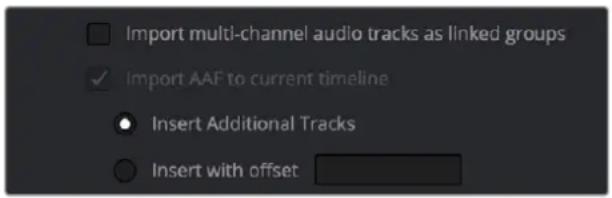
Additional options available when you use the "Import AAF to current timeline" command
The "Import AAF to current timeline" checkbox is on, and presents two options:
- Insert Additional Tracks: Lets you import the audio tracks starting at the beginning of the current timeline, placing them underneath the lowest track with existing audio in the Timeline.
- Insert with offset: Lets you import the audio tracks with a specified offset from the beginning of the Timeline.
Chapter 60
Conforming EDL Files
The edit decision list (EDL) is the lowest common denominator project exchange format there is, and most professional post-production applications are capable of exporting and importing projects in this format, including Media Composer,
Autodesk Flame Premium, and the legacy Final Cut Pro 7. This chapter covers all workflows that let you import and conform timelines using the EDL format.
Contents
Conforming EDL Files 979
EDL Export of a Project and Its Media 980
Conforming EDLs to Individual Media Files 980
Preconforming "Flat" Media Files to EDLs 981
Override Input Color Space of Clips in Preconform Workflows
Using Color Management 982
Conforming "Flat" Media Files Using Split and Add 982
Importing an EDL to a New Track 983
Conforming EDL Files
DaVinci Resolve supports the CMX 3600 format for EDL import and export. The universality of EDLs is due, in part, to their longevity; different EDL formats have been in use for decades. It's also due to their simplicity. At least as used by DaVinci Resolve, EDLs describe a very narrow range of editorial information, including clip arrangement, clip name (via embedded comments), video transitions (cuts or dissolves), and linear speed settings (percentage of fast forward or slow motion).
Another limitation is that EDLs only support a sequence of shots on a single video track. If you need to move projects with multiple tracks of audio and video, then you can export each track as a separate EDL from the originating application, and then right-click the timeline you want to import them into in the Media Pool and use the Timelines > Import > EDL to New Track contextual menu command to import each separate EDL to a new track of a single timeline in DaVinci Resolve. This is described later in this chapter.
NOTE: While the EDL format supports a variety of SMPTE-defined video transition codes, all EDL transitions are turned into cross dissolves of identical duration in DaVinci Resolve.
If you're not familiar with the EDL format, each edit appears as a numbered event that contains the reel number, edit type, source timecode (In and Out points), and record timecode (In and Out points). Here's a sample of a simple four event EDL:
TITLE: Pool Shark Edit
| FCM: NON-DROP FRAME | ||
| 001 | REEL_ON E A A/V C | 10:59:23:01 10:59:28:16 01:00:00:00 01:00:05:15 |
| 002 | R EEL_ON E A A/V C | 11:39:48:15 11:39:51:13 01:00:05:15 01:00:08:13 |
| 003 | REEL_ONE AA/V C | 13:16:30:21 13:16:34:19 01:00:08:13 01:00:12:11 |
| 004 | REEL_ONE AA/V C | 14:09:43:16 14:09:44:20 01:00:12:11 01:00:13:15 |
Since DaVinci Resolve was originally designed to work by importing and exporting EDLs, there are several methods you can use to import projects using EDLs. In all cases, you must first add the media referenced by that EDL to the Media Pool before you can import its EDL.
The three primary workflows are:
- Conforming EDLs to individual media files: Importing an EDL that references a collection of discrete media files that have already been imported into DaVinci Resolve.
- Preconforming, or “notching,” a “flattened” master media file using an EDL: Importing an EDL that references a “flattened” master media file. Flattened master media files are created when an entire sequence is exported from an NLE as a single self-contained media file.
- Importing an EDL directly to a new track of an existing edit: If you're importing a multi-track video project, and the only means of doing so is using EDLs, you can export each track of the source project as an individual EDL, and then import each EDL into DaVinci Resolve directly into additional tracks of the same Timeline. This is also useful for workflows where effects clips are being managed on a separate track assembled elsewhere, that you can then import directly into a graded timeline to place many new effects clips all at once.
This description covers the different ways that EDLs can be used in DaVinci Resolve.
EDL Export of a Project and Its Media
When using EDL workflows, it's important to make sure that every clip in your edited sequence, and every source media file it's linked to, has an appropriate reel number/reel name, and true timecode written into that file. When conforming EDLs, DaVinci Resolve requires reel names and accurate timecode to successfully conform the imported EDL timeline to media in the Media Pool.
To export an EDL that can be easily conformed by DaVinci Resolve, each NLE has particular settings that you should use. The primary supported format is CMX 3600, although DaVinci Resolve also supports the DEDL format exported by both Smoke and Flame. Also, most editing applications let you choose which video and audio tracks you want to export, and how to handle the start timecode for the selected sequence of clips you're exporting. In general, it's a good idea to make sure that the exported start timecode matches that of your sequence timeline.
There are other details, however, that vary by application. For example, when exporting an EDL from Media Composer using Tools > List Tool, you need to make sure that the Active Setting is set to Default EDL, and that the Output Format is set to CMX_3600. When exporting an EDL from Premiere Pro, you have the option of enabling Use Source File Name and Include Transitions. When exporting an EDL from the legacy Final Cut Pro 7, you need to make sure you set Reel Conflicts to Generic Edits, and turn on the File Names checkbox. Most applications provide other settings that are optional, including EDL notes of various kinds, but for a cleaner, easier to read EDL, you can turn these off if you like.
Conforming EDLs to Individual Media Files
The advantage of working with discrete media files is that they are the “purest” version of the media, without any effects (such as dissolves or superimpositions) “baked” into the visuals that might create complications when you’re grading.
Before you import any media, make sure that the “Timeline frame rate” pop-up menu in the Master Settings panel of the Project Settings is set to a frame rate that matches your project and media. Otherwise, the EDL’s timecode will be misinterpreted.
2 Open the Media page, use the Media Storage browser to locate the media you want to add to the project, and add it to the Media Pool by right-clicking the enclosing directory and choosing one of the following commands:
- Add Folder into Media Pool: Adds all compatible media files within that folder to the Media Pool. Subfolders are not traversed.
- Add Folder and SubFolders into Media Pool: Adds all compatible media files from that folder, and all subfolders within that folder, to the Media Pool.
- Add Folder Based on EDLs into Media Pool: Prompts you to choose an EDL. Only media referenced by that EDL is imported, and only the selected folder is searched for that media.
- Add Folder and SubFolders Based on EDLs into Media Pool: Prompts you to choose an EDL. Only media referenced by that EDL is imported, and the selected folder and all subfolders are searched for that media.
TIP: The "Add Folder...Based on EDLs" commands are useful for efficiently adding just the media you need to the Media Pool in instances where there might be many terabytes of unmanaged source media, most of which is unused.
3 Do one of the following:
- From any page, choose File > Import AAF, EDL, XML (Command-Shift-I).
- Right-click anywhere in the background of the Media Pool, and choose Timelines > Import > AAF/EDL/XML.
A window appears prompting you to "Select a file to import."
4 Navigate to the EDL file you want to use, select it, and click Open. The Load EDL window appears.
5 Choose the options that are applicable to your particular project. All greyed out options are not editable, either because they're not applicable, or are not defined by the Project Settings that are currently applied. The options you can set include:
– Source File: The file you selected in the previous step.
- Timeline name: The name of the Timeline you're about to create. This defaults to the name of the EDL file you selected, but you can change this if you like, for example, to add the import date if this is a new version of the edit.
- Automatically set project settings checkbox: Turn this option on if you want to overwrite the frame size setting in the Master Project Settings panel of the Project Settings. You cannot overwrite the Timeline frame rate when importing an EDL.
- Set timeline resolution to: Two fields let you specify the width and height of the frame size you want to work at in DaVinci Resolve. This defaults to your Project settings, but can be overridden by turning on the “Automatically set project settings” checkbox.
- EDL framerate: Choose the frame rate of the sequence that you exported as an EDL. You can use this option to convert the EDL frame rate from 30 to 24 frames per second if you set the Timeline frame rate to 24 fps and if the EDL frame rate is set to 30 fps; this is useful when an offline edit is done at 30 fps with media using 3:2 pulldown. Note that 25 fps to 24 fps conversion is not supported.
- Use drop frame timecode checkbox: Only enabled if the EDL frame rate pop-up menu is set to 30 fps. Turn this on if your EDL uses drop-frame timecode.
6 When you're finished choosing options, click OK.
The EDL is imported, a new timeline appears highlighted in the Media Pool, and its corresponding sequence of clips appears in the Timeline Editor if you're in the Edit page. Clips that could not be linked to a corresponding file in the Media Pool appear with a red thumbnail to indicate that they're unconformed.
Preconforming "Flat" Media Files to EDLs
Preparing an edited sequence for grading, along with each individual clip of media, can be time consuming for effects-intensive projects, or it may be an unnecessary step for a project with no effects whatsoever.
In these cases, it can be simpler and quicker to export a flattened master media file that can be split back apart into its individual clips in DaVinci Resolve. This workflow is similar to a more traditional tape-to-tape workflow, except that you're working from a digital master, rather than a tape-based master.
The easiest way to do this is to use the Preconform button in the Edit page to split a single master file that you've imported into the Media Pool back into individual clips in a new timeline.
To preconform a flattened master media file to an EDL:
1 Open the Media page, use the Media Storage browser to navigate to the flattened master media file that you exported containing the entire program, and double-click to add it to the Media Pool.
2 Right-click anywhere in the background of the Media Pool, and choose Timelines > Import > Preconformed EDL.
3 In the "Select an EDL file" dialog that appears, navigate to the EDL that matches the flattened master media file you had exported, select it, and click Open.
4 In the "Parse preconform options" dialog that appears, give the new Timeline a name, and click OK.
A new Timeline appears in the Media Pool list, and opening it in the Edit page shows the flattened media file with edits added to its video track that correspond to those from the selected EDL, ready for further editing and grading. The audio is left uncut, on the premise that you're probably focused on grading the visuals in this workflow, and not on re-editing the audio.
Override Input Color Space of Clips in Preconform Workflows Using Color Management
When you preconform a flattened master media file using an EDL with the File > Import Timeline > Pre-conformed EDL command, and your project has Resolve Color Management or ACES enabled, you can now change the Input Color Space of each clip in the resulting Timeline independently. To do so, open the Color page, right-click the clips you want to customize, and choose an option from the Input Color Space submenu of the contextual menu.
This is useful in workflows where you've received a flattened media file that was output with clips in different color spaces, for example mixing Rec. 709 media with log-encoded clips of different kinds.
Conforming “Flat” Media Files Using Split and Add
The second method of conforming an EDL to a flattened file is to use the "Split and Add" command in the Media page to split one or more master media files into individual clips that match those of an EDL, then importing the EDL itself in the Edit page in a second step.
This method is useful if there are clips in different folders or volumes that you want to conform to a single EDL. For example, the majority of the first reel of a program may have been exported as a single flattened file, but the corresponding EDL may require that an additional folder of effects clips be added to the Media Pool to be fully conformed.
To split a flat media file in the Media page and import its EDL in the Edit page:
Before you import any media, make sure that the "Timeline frame rate" pop-up menu in the Master Settings panel of the Project Settings is set to a frame rate that matches your project.
2 Open the Media page, use the Media Storage browser to navigate to the flattened master media file that contains the entire program.
3 Select the flattened media file, right-click it, and choose "Split and Add into Media Pool."
4 In the "Select EDL files for splitting clips" dialog that appears, navigate to the EDL that matches the flattened master media file, select it, and click Open.
5 Select the frame rate of the project from the File Conform Frame Rate dialog that appears. This frame rate should be identical to the "Timeline frame rate" pop-up you set in step 1.
6 Choose the appropriate options in the "Enter handle size for splitting" dialog that appears:
- Handle size in number of frames: Enter a number of frames to be added as handles to the first and last frame of the clip. This is useful when you're using the "Split and Add into Media Pool" command to import only the referenced sections of a directory of individual media files.
- Split Unreferred Clips: Useful when the referenced media files include segments that aren't "referred to" by any events within the EDL used to split them. Turning this checkbox on adds all such unreferred clip segments to the Media Pool as separate clips, for possible later use.
7 Click Split & Add. The Media Pool fills up with individual segments of the flattened master media file, each of which matches an event in the EDL you used to split it.
8 To import the corresponding EDL to create a timeline with this media, do one of the following:
- From any page, choose File > Import AAF, EDL, XML (Shift-Command-I).
- Right-click anywhere in the background of the Media Pool, and choose Timelines > Import > AAF/EDL/XML.
9 In the "Choose a file to import" dialog that appears, navigate to the EDL that matches the flattened master media file, select it, and click Open.
10 Choose whatever options are necessary from the Load EDL dialog that appears (the default settings should work fine), and click OK.
The Master Timeline and the timeline you just imported appear in the Media Pool, the Conform EDL list updates with the events from the imported EDL, and the Timeline editor shows the edited clips, ready for grading. Clips that could not be linked to a corresponding file in the Media Pool appear with a red x to indicate that they're unconformed.
Importing an EDL to a New Track
This last procedure describes how to add an EDL, not as an individual new Timeline, but as an additional video track to an existing Timeline. There are many reasons you might want to do this. For example, if you need to move a multi-track project to DaVinci Resolve from an application that can't export either AAF or XML project exchange files that DaVinci Resolve understands, you can use multiple EDLs. Simply export each track of the source project as an individual EDL, and then import each EDL into DaVinci Resolve as additional tracks of the same Timeline.
This is also useful for workflows where effects clips are being managed on a separate track assembled elsewhere, that you can then import directly into a graded Timeline to place many new effects clips all at once.
To import an EDL to a new track of an existing timeline:
In this procedure, you have the option of adding whatever media is required by the EDL you're about to import to the Media Pool first, or you can add the media after the EDL has been imported. It's your choice.
2 Open the Edit page, select a timeline in the Media Pool, then right-click it and choose Timelines > Import > EDL to New Track. A window appears prompting you to "Choose a file to import."
3 Navigate to the EDL file you want to use, select it, and click Open.
4 A new video track is created above any previously existing tracks, and events from the selected EDL are immediately loaded into it according to their record timecode positions. If you loaded the media needed by the new clips at the beginning of this procedure, that media should be conformed. Otherwise, you'll need to track down the media files needed by the new unconformed clips and add it to the Media Pool now.
PART 8
Fusion
Fundamentals
natural_image
Colorful abstract logo with three petal shapes inside a circular frame (no text or symbols)Chapter 61
Introduction to Compositing in Fusion
This introduction is designed explicitly to help users who are new to Fusion get started learning this exceptionally powerful environment for creating and editing visual effects and motion graphics right from within DaVinci Resolve or using the stand-alone Fusion Studio application.
This documentation covers both the Fusion Page inside DaVinci Resolve and the stand-alone Fusion Studio application.
Contents
What Is Fusion? 986
The Fusion Page within DaVinci Resolve 986
The Fusion Studio Stand-Alone Application 987
What Kinds of Effects Does Fusion Offer? 988
How Hard Will This Be to Learn? 989
What Is Fusion?
Blackmagic Design Fusion is powerful 2D and 3D visual effects compositing software with over thirty years of evolution serving the motion picture and broadcast industry, creating effects seen in countless films and television series. It is available as a stand-alone application as well as a page within DaVinci Resolve.
In its purest form, Fusion is a collection of image-processing engines called nodes. These nodes represent effects like blurs and color correctors, as well as images, 3D models, and spline masks. Similar to effects you may be familiar with, each node includes a set of parameters that can be adjusted and animated over time. Stringing different nodes together in a graphical user interface called a node tree allows you to create sophisticated visual effects. The nodes, node trees, and all settings you create are saved in a document called a Composition, or “comp” for short.
The Fusion Page within DaVinci Resolve
Merged right into DaVinci Resolve, the Fusion page makes it possible to jump immediately from editing right into compositing, with no need to export media, relink files, or launch another application to get your work done. Now everything you need lives right inside DaVinci Resolve.
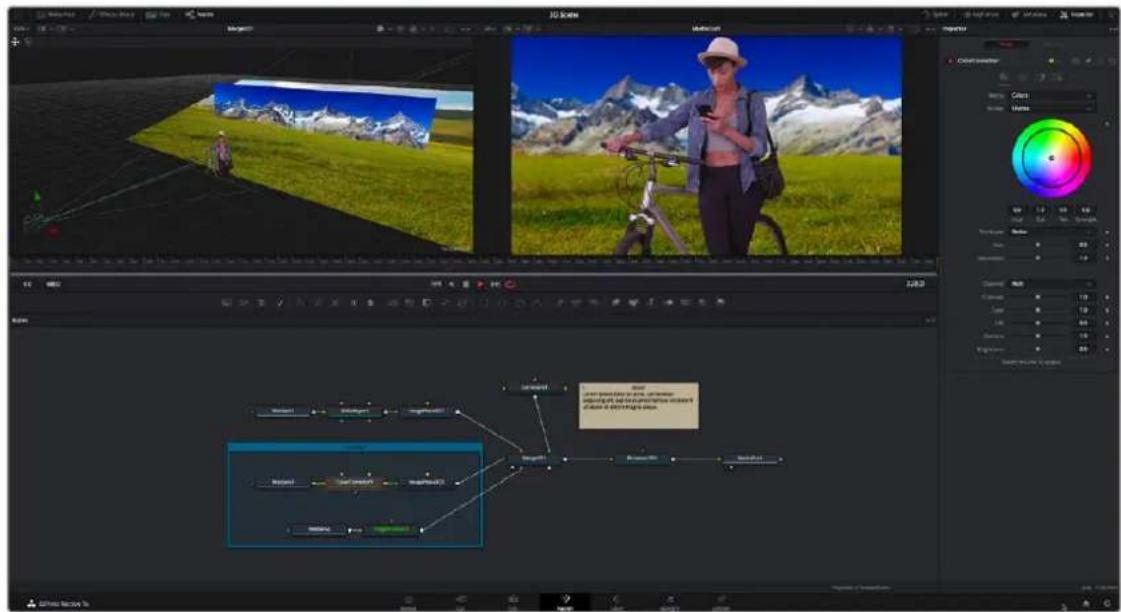
The Fusion page in DaVinci Resolve, showing viewers, the Node Editor, and the Inspector
How Do I Use the Fusion Page?
The relationship between the Edit page and the Fusion page is similar to the relationship between the Edit page and the Color page. Each clip can have a grade applied to it in the Color page, and similarly every clip can have a composition applied to it in the Fusion page.
If you use the Fusion page to create any kind of effect or composite, a badge appears on that clip in the Timeline to show that clip has a composition applied to it.
Clips with Fusion page compositions have a Fusion badge to the right of the name.
To create an effect in the Fusion page of DaVinci Resolve, you need only park the playhead over a clip in the Edit or Cut page and then click the Fusion page button. Your clip is immediately available as a Medialn node in the Fusion page, ready for you to add a variety of stylistic effects. You can paint out an unwanted blemish or feature, build a quick composite to add graphics or text, or accomplish any other visual effect you can imagine, built from the Fusion page's toolkit of effects.
Alternatively, in DaVinci Resolve, you have the option of editing together all the clips you want to use, superimposing and lining up every piece of media you'll need with the correct timing, before selecting them and creating a Fusion clip. A Fusion clip functions as a single item in the Edit or Cut page timeline, but once in the Fusion page, each piece of media you've assembled is revealed in a fully built Fusion composition, ready for you to start adding nodes to customize for whatever effect you need to create.
Whichever way you want to work, all this happens on the very same timeline as editing, grading, and audio post, for a seamless back and forth as you edit, refine, and finish your projects.
How Do Fusion Effects Differ from Edit Page Effects?
When using DaVinci Resolve, you can create numerous effects in the Edit page. Transitions, fades, superimpositions, over-the-shoulder picture-in-picture effects, time remapping, and lower third titles are some of the effects that can be quickly and more efficiently created in the Edit or Cut page timeline. However, the Fusion page's node-based interface lets you go deep into the details of a composition to create sophisticated 2D and 3D effects with precise control and endless customization. Effects that include more than two or three layers can be much more manageable in Fusion. Green or blue screen composites, sky replacements, and object removal are all effects better suited for Fusion's more advanced toolset.
How Do Fusion Effects Differ from Color Page Effects?
The Color page in DaVinci Resolve can also handle some visual effects work. Effects that blur the line between color grading and finishing can be very fast and intuitive in the Color Page, especially for people already familiar with the Color page toolset. Beauty work and small image repairs can make efficient use of the Color page's straightforward Tracking tool, Face Refinement, and Patch Replacer effects. However, when it comes to more challenging blue/green screen compositing, the tools built around Fusion's powerful Delta keyer are more capable of handling these shots. Integrating 3D objects into live-action scenes, split-screen effects, motion graphics, and precise keyframing are all better suited to the Fusion page.
The Fusion Studio Stand-Alone Application
Creating visual effects with the stand-alone Fusion Studio software begins with opening Fusion, creating a new composition, importing some clips via Loader nodes, and building out your composite with effects. Just like the Fusion Page in DaVinci Resolve, you add effects using different nodes from the Effects Library, and you combine multiple layers of imagery using Merge nodes. Once you've created the desired result, add a Saver node to the end of the tree of nodes you've created to render your final result.
Rendering Out Your Final Result
Unlike the Fusion Page in DaVinci Resolve, which renders directly back into the Edit or Cut page timeline, the final step in Fusion Studio is to render the finished effect to disk as a movie file or image sequence. The last node in every node tree is a Saver node. Saver nodes configure the output file format and render the file to disk. You can use as many Saver nodes in a composite as you need. For instance, you might use multiple Saver nodes to render out intermediate areas of a composite or to output a composite in multiple formats.
What Kinds of Effects Does Fusion Offer?
In addition to the kinds of robust compositing, paint, rotoscoping, and keying effects you'd expect from a fully-featured 2D compositing environment, Fusion offers much more.
3D Compositing
Fusion has powerful 3D nodes that include extruded 3D text, simple geometry, and the ability to import 3D models. Once you've assembled a 3D scene, you can add cameras, lighting, and material shaders, and then render the result with depth-of-field effects and auxiliary channels to integrate with more conventional layers of 2D compositing, for a sophisticated blending of 3D and 2D operations in the very same node tree.
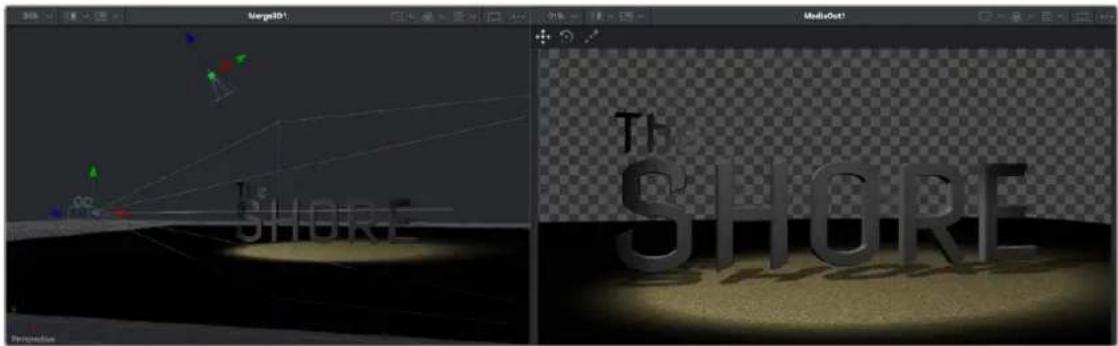
A 3D scene with textured 3D text, created entirely within Fusion
Particles
Fusion also has an extensive set of nodes for creating particle systems that have been used in major motion pictures, with particle generators capable of spawning other generators, 3D particle generation, complex simulation behaviors that interact with 3D objects, and endless options for experimentation and customization. You can create particle system simulations for VFX or more abstract particle effects for motion graphics.
natural_image
3D rendering of a glowing, flame-like object with a dark smoke trail against a transparent background (no text or symbols)A 3D particle system, also created entirely within Fusion
Text
The Text tools in Fusion are exceptional, giving you layout and animation options in both 2D and 3D. Furthermore, within DaVinci Resolve, these Text tools have been incorporated into the Edit and Cut pages as Fusion Titles. These title templates are compositions saved from Fusion as macros with published controls that are visible in the Edit or Cut page Inspector for easy customization, even if you're working with people who don't know Fusion.

A multi-layered text composite integrating video clips and Fusion-generated elements
And Lots More
The list goes on. With Stereo and VR adjustment nodes, Planar Tracking, Deep Pixel nodes for re-compositing rendered 3D scenes using Auxiliary Channel data, powerful Masking and Rotoscoping nodes, and Warping effects, Fusion is an impressively featured environment for building worlds, fixing problems, and flying multi-layered motion graphics animations through your programs.
How Hard Will This Be to Learn?
That depends on what you want to do, but honestly it's not so bad with this PDF at your side, helping guide the way. It's worth repeating that this Fusion documentation was developed specifically to help users who've never before worked with Fusion learn the core concepts needed to perform the basics, in preparation for learning the rest of the application on your own.
Fusion is a deep, production-driven product that's had decades of development, so its feature set is deep and comprehensive. You won't learn it in an hour, but much of what you'll find won't be so very different from other compositing applications you may have used. And if you've familiarized yourself with the node-based grading workflow of the DaVinci Resolve Color page, you've already got a leg up on understanding the central operational concept of compositing in Fusion.
Chapter 62
Exploring the Fusion Interface
This chapter provides an orientation on the Fusion user interface, providing a quick tour of what tools are available, where to find things, and how the different panels fit together to help you build and refine compositions in this powerful node-based environment.
Contents
The Fusion User Interface 992
The Work Area 993
Interface Toolbar 993
Choosing Which Panel Has Focus 994
Viewers 994
Zooming and Panning into Viewers 996
Loading Nodes Into Viewers 996
Clearing Viewers 997
Viewer Controls 997
Time Ruler and Transport Controls 999
Time Ruler Controls in the Fusion Page 999
Time Ruler Controls in Fusion Studio 1000
The Playhead 1000
Zoom and Scroll Bar 1001
Transport Controls in the Fusion Page 1001
Audio Monitoring 1003
Transport Controls in Fusion Studio 1004
Changing the Time Display Format 1008
Keyframe Display in the Time Ruler 1008
The Fusion RAM Cache for Playback 1008
Toolbar 1010
Customizing the Toolbar 1010
Node Editor 1012
Adding Nodes to Your Composition 1012
Removing Nodes from Your Composition 1013
Identifying Node Inputs and Node Outputs 1013
Node Editing Essentials 1013
Navigating the Node Editor 1015
Vertical Node Editor Layouts 1015
Keeping Organized 1016
Status Bar 1016
Effects Library 1017
The Inspector 1018
The Tools and Modifiers Panels 1019
Parameter Header Controls 1019
Parameter Tabs 1019
Keyframes Editor 1020
Keyframes Editor Control Summary 1020
Adjusting Clip Timings 1021
Adjusting Effect Timings 1021
Adjusting Keyframe Timings 1021
Spline Editor 1022
Spline Editor Control Summary 1023
Choosing Which Parameters to Show 1023
Essential Spline Editing 1024
Essential Spline Editing Tools and Modes 1024
Thumbnail Timeline in the Fusion Page 1026
The Media Pool in the Fusion Page 1026
Importing Media Into the Media Pool on the Fusion Page 1027
Bins in Fusion Studio 1028
Bins Interface 1028
The Bin Studio Player 1029
The Console 1030
Customizing Fusion 1031
The Fusion Settings Window 1031
Showing and Hiding Panels 1032
Resizing Panels 1032
Fusion Studio Floating Frame 1032
Fusion Studio Keyboard Remapping 1033
Undo and Redo 1034
The Fusion User Interface
If you open up everything at once, Fusion is divided into four principal regions designed to help you make fast work of node-based compositing. The viewer(s) are at the top, the work area is at the bottom, the Inspector is at the right, and the Effects Library is the area found at the left. In DaVinci Resolve's Fusion page, the Effects Library shares space with the Media Pool. All these panels work together to let you add effects, paint to correct issues, create motion graphics or title sequences, or build sophisticated 3D and multi-layered composites.
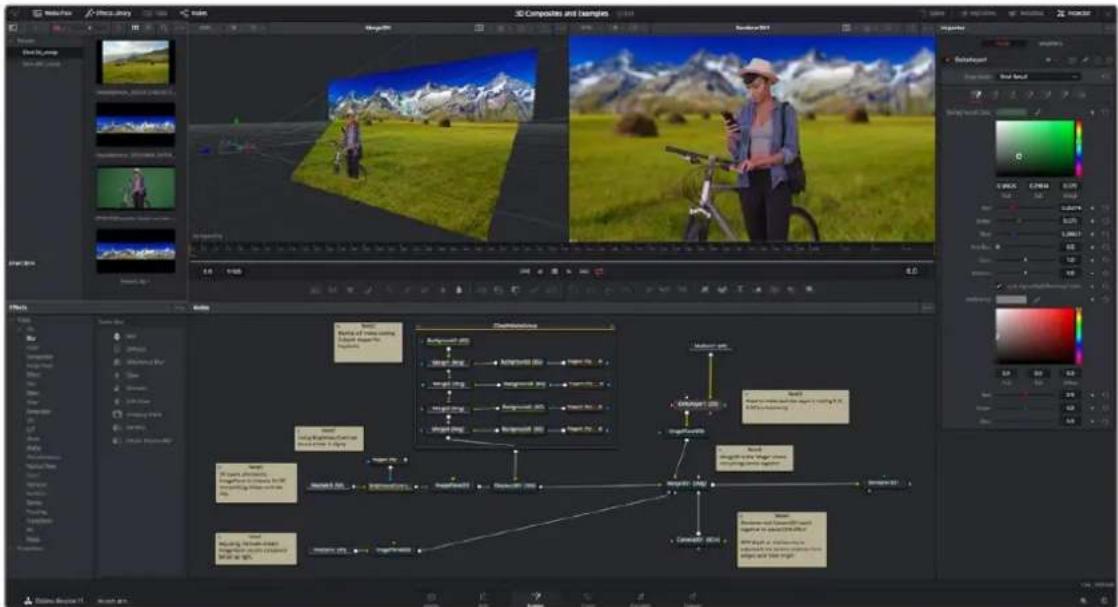
The Fusion user interface shown completely
However, Fusion doesn't have to be that complicated, and in truth, you can work very nicely with only the viewer, Node Editor, and Inspector open for a simplified experience.
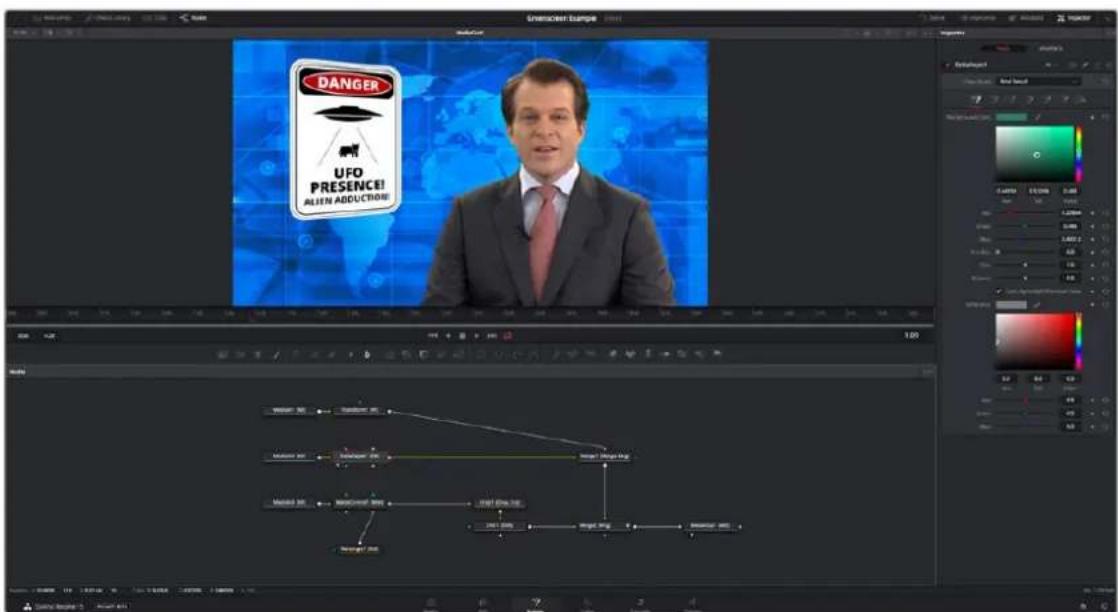
A simplified set of Fusion controls for everyday working
The Work Area
You probably won't see the term "the work area" used much, in favor of the specific panels within the work area that you'll be using. Still, the area referred to as the work area is the region at the bottom half of the Fusion user interface, within which you can expose the three main panels used to construct compositions and edit animations in Fusion. These are the Node Editor, the Spline Editor, and the Keyframes Editor. By default, the Node Editor is the first thing you'll see, and the main area you'll be working within, but it can sit side-by-side with the Spline Editor and Keyframes Editor as necessary. You can make more horizontal room on your display for these three panels by putting the Effects Library and Inspector into a half-height mode, if necessary.
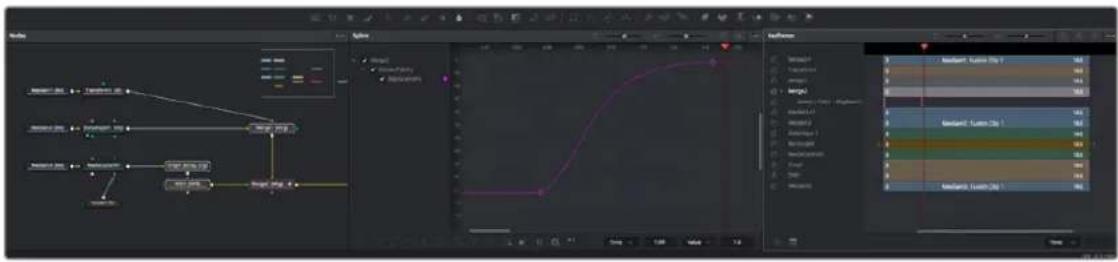
flowchart
graph TD
    A["Input Data"] --> B{Condition 1}
    B -->|Yes| C["Process Step 1"]
    B -->|No| D["Process Step 2"]
    C --> E{Decision 2}
    D --> F{Decision 3}
    E --> G["Output Result"]
    F --> G
    G --> H["Final Output"]
The work area showing the Node Editor, the Spline Editor, and the Keyframes Editor
Interface Toolbar
At the very top of Fusion is a toolbar with buttons that let you show and hide different parts of the user interface (UI). Buttons with labels identify which parts of the UI can be shown or hidden. In DaVinci Resolve's Fusion page, if you right-click anywhere within this toolbar, you have the option of displaying this bar with or without text labels.

The UI toolbar of the Fusion page

The UI toolbar of Fusion Studio
These buttons are as follows, from left to right:
- Media Pool/Effects Library Full Height: Lets you set the area used by the Media Pool (DaVinci Resolve only) and/or Effects Library to take up the full height of your display, giving you more area for browsing at the expense of a narrower Node Editor and viewer area. At half-height, the Media Pool/Templates/Effects Library are restricted to the top half of the UI along with the viewers (you can only show one at a time), and the Node Editor takes up the full width of your display.
- Media Pool: (DaVinci Resolve only): Shows and hides the Media Pool, from which you can drag additional clips into the Node Editor to use them in your Fusion page composition.
- Effects Library: Opens or hides the repository of all node tools available to use in Fusion. From here, you can click nodes to add them after the currently selected node in the Node Editor, or you can drag and drop nodes to any part of the node tree you like.
- Clips: (DaVinci Resolve only): Opens and closes the Thumbnail timeline, which lets you navigate your program, create and manage multiple versions of compositions, and reset the current composition.
-
Nodes: Opens and closes the Node Editor, where you build and edit your compositions.
-
Console (Fusion Studio only): The Console is a window in which you can see the error, log, script, and input messages that may explain something Fusion is trying to do in greater detail. The Console is also where you can read FusionScript outputs, or input FusionScripts directly.
- Spline: Opens and closes the Spline Editor, where you can edit the curves that interpolate keyframe animations to customize and perfect their timing. Each keyframed parameter appears hierarchically within the effect in which it appears in a list to the left.
- Keyframes: Opens and closes the Keyframes Editor, which shows each clip and effects node in your Fusion composition as a layer. You can use the Keyframes Editor to edit and adjust the timing of keyframes that have been added to various effects in your composition. You can also use the Keyframes Editor to slide the relative timing of clips that have been added to Fusion, as well as to trim their In and Out points. A spreadsheet can be shown and hidden within which you can numerically edit keyframe values for selected effects.
- Metadata (DaVinci Resolve only): Hides or shows the Metadata Editor, which lets you read and edit the available clip and project metadata associated with any piece of media within a composite.
- Inspector: Shows or hides the Inspector, which shows you all the editable parameters and controls that correspond to selected nodes in the Node Editor. You can show the parameters for multiple nodes at once, and even pin the parameters of nodes you need to continue editing so that they're displayed even if those nodes aren't selected.
- Inspector Height: Lets you open the Inspector to be half height (the height of the viewer area) or full height (the height of your entire display). Half height allows more room for the Node Editor, Spline Editor, and/or Keyframes Editor, but full height lets you simultaneously edit more node parameters or have enough room to display the parameters of multiple nodes at once.
Choosing Which Panel Has Focus
Whenever you click somewhere on the Fusion interface using the pointer or using a keyboard shortcut to "select" a particular panel, you give that panel of the user interface "focus." A panel with focus captures specific keyboard shortcuts to do something within that panel, as opposed to doing something elsewhere in the interface.
To make it easier to keep track of which panel has focus, a highlight appears at the top edge of whichever panel has focus. In DaVinci Resolve, you must turn on "Show focus indicators in the User Interface" in the UI Settings panel of the User Preferences to see the highlight.
The focus indicator shown at the top edge of the Media Pool, shown next to a viewer that doesn't have focus
Viewers
The viewer area displays either one or two viewers at the top of the Fusion page, and this is determined via the Viewer button at the far right of the Viewer title bar. Each viewer can show a single node's output from anywhere in the node tree. You assign which node is displayed in which viewer. This makes it easy to load separate nodes into each viewer for comparison. For example, you can load a Keyer node into the left viewer and the final composite into the right viewer, so you can see the image you're adjusting and the final result at the same time.
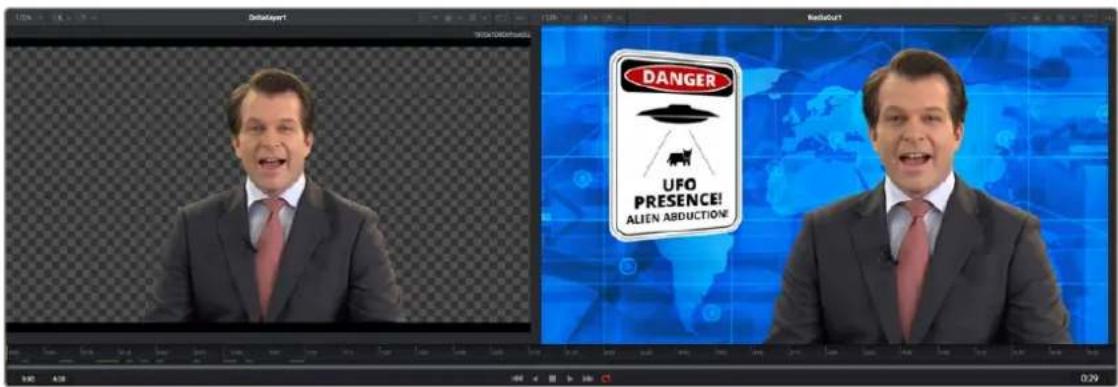
Dual viewers let you edit an upstream node in one while seeing its effect on the overall composition in the other.
Ordinarily, each viewer shows 2D nodes from your composition as a single image. However, when you're viewing a 3D node, you have the option to set that viewer to one of several 3D views. A perspective view gives you a repositionable stage on which to arrange the elements of the world you're creating. Alternatively, a quad view lets you see your composition from four angles, making it easier to arrange and edit objects and layers within the XYZ axes of the 3D space in which you're working.
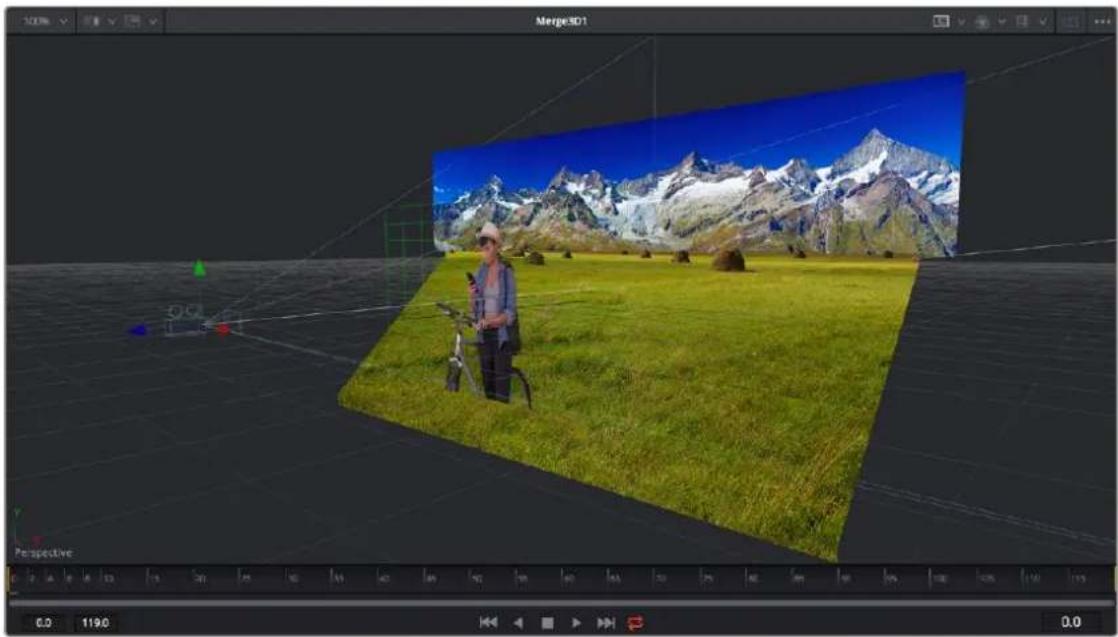
natural_image
3D modeling software interface showing a person on a bike in a grassy field with snow-capped mountains in the background (no text or symbols on the scene itself)Loading a 3D node into a viewer switches on a Perspective view
TIP: In Perspective view, you can hold down the Option key and drag in the viewer to pivot the view around the center of the world. All other methods of navigating viewers work the same.
The viewers have a variety of capabilities you can use to compare and evaluate images. This section provides a short overview of viewer capabilities to get you started.
Zooming and Panning into Viewers
There are standardized methods of zooming into and panning around viewers when you need a closer look at the situation. These methods also work with the Node Editor, Spline Editor, and Keyframes Editor.
Methods of panning viewers:
– Middle-click and drag to pan around the viewer.
– Hold down Shift and Command and drag the viewer to pan.
- Drag with two fingers on a track pad to pan.
Methods of scaling viewers:
- Click a viewer, and press the equals key (=) to zoom in, and the minus key (-) to zoom out.
- Press the middle and left mouse buttons simultaneously and drag left or right to resize the viewer.
- Hold down the Command key and use your pointer's scroll control to zoom in and out of the viewer.
- Hold down the middle mouse button, and then click the left mouse button to zoom in, or click the right button to zoom out. The scaling uses a fixed amount, centered on the position of the cursor.
- Click a viewer and press Command-1 to resize the image in the viewer to 100 percent.
- Click a viewer and press Command-F to reset the image in the viewer to fit the viewer.
- Click the Scale viewer menu and choose Fit or a percentage.
- Right-click on a viewer and choose an option from the Scale submenu of the contextual menu. This includes a Custom Scale command that lets you type your own scale percentage.
- Hold down the Command key and drag with two fingers on a track pad to zoom in and out of the viewer.
Methods of spinning 3D viewers:
– In 3D Perspective view, hold down the Shift key and drag to spin the stage around.
– In 3D Perspective view, hold down the Shift key and drag with two fingers on a track pad to spin the stage around.
Loading Nodes Into Viewers
When you first open the Fusion page in DaVinci Resolve, the output of the current empty composition (the MediaOut1 node) is usually showing in viewer 2. If you're in Dual-viewer mode, viewer 1 remains empty until you assign a node to one of them.
When using Fusion Studio, nothing is loaded into either of the viewers until you assign a node to one of them.
To load specific nodes into specific viewers:
- Hover the pointer over a node, and click one of two buttons that appear at the bottom left of the node.
- Click once to select a node, and press 1 (for the left viewer) or 2 (for the right viewer).
- Right-click a node and choose View On > None/Left View/Right View in the contextual menu.
- Right-click the control header of a node in the Inspector, and choose View On > None/Left View/Right View from the contextual menu.
- Drag a node and drop it over the viewer you'd like to load it into (this is great for tablet users).
When a node is being viewed, a View Indicator button appears at the bottom left. This is the same control that appears when you hover the pointer over a node. Not only does this control let you know which nodes are loaded into which viewer, but they also expose little round buttons for switching between viewers.
flowchart
graph TD
    A["Transform1 (Xf)"] --> B["Arrow"]
    B --> C["Arrow"]
Viewer assignment buttons at the bottom of nodes indicate when they're being viewed.
Clearing Viewers
To clear an image from a viewer, click in the viewer to make it active; a thin red highlight is displayed at the top of the active viewer. With the viewer active, press the Tilde (^) key. This key is usually found to the left of the 1 key on U.S. keyboards. The fastest way to remove all the images from all the viewers is to make sure none of the viewers is the active panel, and then press the Tilde key.
Viewer Controls
A series of buttons and pop-up menus in the viewer's title bar provides several quick ways of customizing the viewer display.

Controls in the viewer title bar
- Zoom menu: Lets you zoom in on the image in the viewer to get a closer look, or zoom out to get more room around the edges of the frame for rotoscoping or positioning different layers. Choose Fit to automatically fit the overall image to the available dimensions of the viewer.
- Split Wipe button and A/B Buffer menu: You can actually load two nodes into a single viewer using that viewer's A/B buffers by choosing a buffer from the menu and loading a node into the viewer. Turning on the Split Wipe button (press Forward Slash) shows a split wipe between the two buffers, which can be dragged left or right via the handle of the onscreen control, or rotated by dragging anywhere on the dividing line on the onscreen control. Alternatively, you can switch between each full-screen buffer to compare them (or to dismiss a split-screen) by pressing Comma (A buffer) and Period (B buffer).
- SubView type: (These aren't available in 3D viewers.) Clicking the icon itself enables or disables the current "SubView" option you've selected, while using the menu lets you choose which SubView is enabled. This menu serves one of two purposes. When displaying ordinary 2D nodes, it lets you open up SubViews, which are viewer "accessories" within a little pane that can be used to evaluate images in different ways. These include an Image Navigator (for navigating when zoomed far into an image), Magnifier, 2D viewer (a mini-view of the image), 3D Histogram scope, Color Inspector, Histogram scope, Image Info tooltip, Metadata tooltip, Vectorscope, or Waveform scope. The Swap option (Shift-V) lets you switch what's displayed in the viewer with what's being displayed in the Accessory pane. When displaying 3D nodes, this button lets you turn on the quad-paned 3D viewer.
- Node name: The name of the currently viewed node is displayed at the center of the viewer's title bar.
- Rol controls: Clicking the icon itself enables or disables Rol (Region of Interest) limiting in the viewer, while using the menu lets you choose the region of the Rol. Rol lets you define the region of the viewer in which pixels actually need to be updated. When a node renders, it intersects the current Rol with the current Domain of Definition (DoD) to determine what pixels should be affected. When enabled, you can position a rectangle to restrict rendering to a small region of the image, which can significantly speed up performance when you're working on very high resolution or complex compositions. Auto (the default) sets the region to whatever is visible at the current zoom/pan level in the viewer. Choosing Set lets you draw a custom region within the frame by dragging a rectangle that defaults to the size of the viewer, which is resizable by dragging the corners or sides of the onscreen control. Choosing Lock prevents changes from being made to the current Rol. Choosing Reset resets the Rol to the whole viewer.
- Color controls: Lets you choose which color and/or image channels to display in the viewer. Clicking the icon itself toggles between Color (RGB) and Alpha, the two most common things you want to see (pressing C or A also toggles between Color and Alpha). Opening the menu displays every possible channel that can be displayed for the currently viewed node, commonly including RGB, Red, Green, Blue, and Alpha (available from the keyboard by pressing R, G, B, or A). For certain media and nodes, additional auxiliary channels are available to be viewed, including Z-depth, Object ID, Material ID, XYZ Normals, and so on.
- Viewer LUT: Clicking the icon itself toggles LUT (LookUp Table) display on or off, while the menu lets you choose which of the many available color space conversions to apply to the viewer. The top five options let you choose Fusion controls that can be customized via the Edit item at the bottom of this menu. The rest of this menu shows all LUTs installed in the LUT directory to use for viewing.
By default, when using DaVinci Resolve, the viewers in the Fusion page show you the image prior to any grading done in the Color page, since the Fusion page comes before the Color page in the DaVinci Resolve image processing pipeline. When you're working on clips that have been converted to linear color space for compositing, it is desirable to composite and make adjustments to the image relative to a normalized version of the image that appears close to what the final will be. Enabling the LUT display lets you do this as a preview, without permanently applying color adjustments to the image.
- Option menu: This menu contains various settings that pertain to the viewers in Fusion.
- Snap to Pixel: When drawing or adjusting a polyline mask or spline, the control points will snap to pixel locations.
- Show Controls: Toggles whatever onscreen controls are visible for the currently selected node.
– Region: Provides all the settings for the Region of Interest in the viewer.
- Smooth Resize: This option uses a smoother bilinear interpolated resizing method when zooming into an image in the viewer; otherwise, scaling uses the nearest neighbor method and shows noticeable aliasing artifacts. However, this is more useful when you zoom in at a pixel level since there is no interpolation.
- Show Square Pixels: Overrides the auto aspect correction when using formats with non-square pixels.
- Normalized Color Range: Allows for the visualization of brightness values outside of the normal viewing range, particularly when working with floating-point images or auxiliary channels.
- Checker Underlay: Toggles a checkerboard underlay that makes it easy to see areas of transparency.
- Gain/Gamma: Exposes a simple pair of Gain and Gamma sliders that let you adjust the viewer's brightness.
- 360 View: Used to properly display spherical imagery in a variety of formats, selectable from this submenu.
- Stereo: Used to properly display stereoscopic imagery in a variety of formats, selectable from this submenu.
Time Ruler and Transport Controls
The Time Ruler, located beneath the viewer area, is based on the total duration of the composition. What it represents depends on which version of Fusion you're using:
- For DaVinci Resolve users, the duration displayed in the Time Ruler range depends on what's currently selected in the Edit or Cut page timeline.
– In Fusion Studio, the Time Ruler depends on the Global Start and End values set in the Fusion Studio Preferences > Defaults.
The transport controls under the Time Ruler include playback controls, audio monitoring, as well as number fields for the composition duration and playback range. Additional controls enable motion blur and proxy settings.
Time Ruler Controls in the Fusion Page
If you've selected a single clip in the Edit or Cut page Timeline, then the global range shown in the Time Ruler is based on the total source duration for that clip. You cannot move the playhead outside the global range. The yellow lines, called the render range, identify the current In and Out points for the clip and are the only frames visible in the Fusion page. All frames outside of this range constitute the unused head and tail handles of that source clip.

The Time Ruler displaying ranges for a clip in the Timeline via yellow marks (the playhead is red)
If you've created a Fusion clip or a compound clip, then the "working range" reflects the entire duration of that clip.

The Time Ruler displaying ranges for a Fusion clip in the Timeline
Render Range
The render range determines the range of frames that are visible in the Fusion page and that are used for interactive playback, disk caches, and previews. Frames outside the default render range are not visible in the Fusion page and are not rendered or played.
You can modify the duration of the render range for preview and playback only. Making the range shorter or longer does not trim the clip in the Edit or Cut page Timelines.
You can change the render range in the Time Ruler by doing one of the following:
- Hold down the Command key and drag a new range within the Time Ruler.
- Drag either the start or end yellow line to modify the start or end of the range.
- Right-click within the Time Ruler and choose Set Render Range from the contextual menu.
- Enter new ranges in the Range In and Out fields to the left of the transport controls.
- Drag a node from the Node Editor to the Time Ruler to set the range to the duration of that node.