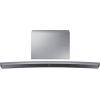
HW-J6001 - Soundbar SAMSUNG - Free user manual and instructions
Find the device manual for free HW-J6001 SAMSUNG in PDF.


| Product Type | Soundbar with wireless subwoofer |
| Brand | Samsung |
| Model | HW-J6001 |
| Dimensions (W x H x D) - main unit | 1078 x 47.5 x 129 mm |
| Dimensions (W x H x D) - subwoofer | 452 x 335 x 154 mm |
| Weight - main unit | 2.7 kg |
| Weight - subwoofer | 6.8 kg |
| Total output power | 300 W RMS (6 x 22 W + 168 W) |
| Connectivity | HDMI (ARC), optical, AUX, Bluetooth, USB |
| Wireless functions | TV SoundConnect, Bluetooth Power On, Auto Power Link |
| Sound modes | Standard, Music, Voice, Sports, Cinema, Night |
| USB audio formats | MP3, WMA, AAC, WAV, OGG, FLAC |
| Bluetooth codec | SBC |
| Power supply | Mains (AC adapter included) |
| Operating temperature | +5 °C to +35 °C |
| Operating humidity | 10 % to 75 % |
| Included accessories | Remote control (CR2032 battery included), 2 power cords, AC adapter, HDMI cable, USB cable, manual, wall mounting guide |
| Installation | Wall-mounted (VESA standard) or on compatible TV stand |
| Safety | Do not open, avoid moisture, use grounded outlet |
| Maintenance | Clean with a soft, dry cloth |
| Repairability | No user-serviceable parts - contact customer service |
Frequently Asked Questions - HW-J6001 SAMSUNG
User questions about HW-J6001 SAMSUNG
0 question about this device. Answer the ones you know or ask your own.
Ask a new question about this device
Download the instructions for your Soundbar in PDF format for free! Find your manual HW-J6001 - SAMSUNG and take your electronic device back in hand. On this page are published all the documents necessary for the use of your device. HW-J6001 by SAMSUNG.
USER MANUAL HW-J6001 SAMSUNG
Thank you for purchasing this Samsung product. To receive more complete service, please register your product at www.samsung.com/register
FEATURES
Samsung Remote App
Control your Soundbar in the palm of your hand with the Samsung Audio Remote App*. This convenient app is a control hub for basic controls like power, volume, and media controls, as well as custom settings like equaliser setting.
Surround Sound Expansion
The Surround Sound Expansion feature adds depth and spaciousness to your listening experience.
TV SoundConnect
Connect your TV and Soundbar easily through Bluetooth with TV SoundConnect. The absence of trailing wires between the Soundbar and TV allows you to showcase the slim and sleek design of both systems, while maintaining a clean look in your living environment. Easily control the Soundbar and TV from a single TV remote.
HDMI
HDMI transmits video and audio signals simultaneously, and provides a clearer picture.
The unit is also equipped with the ARC function which lets you listen to sound from your TV through the Soundbar via an HDMI cable. This function is only available if you connect the unit to an ARC compliant TV.
USB Host Support
You can connect and play music files from external USB storage devices such as MP3 players, USB flash memory, etc. using the Soundbar's USB HOST function.
Bluetooth Function
You can connect a Bluetooth device to the Soundbar and enjoy music with high quality stereo sound, all without wires!
LICENCES
DOLBY DIGITAL
Manufactured under licence from Dolby Laboratories. Dolby and the double-D symbol are trademarks of Dolby Laboratories.
dtst 2.0 Channel
For DTS patents, see http://patents.dts.com. Manufactured under licence from DTS Licensing Limited. DTS, the Symbol, & DTS and the Symbol together are registered trademarks, and DTS 2.0 Channel is a trademark of DTS, Inc. © DTS, Inc. All Rights Reserved.
HOMI
The terms HDMI and HDMI High-Definition Multimedia Interface, and the HDMI Logo are trademarks or registered trademarks of HDMI Licensing LLC in the United States and other countries.
SAFETY INFORMATION
SAFETYWARNINGS
TO REDUCE THE RISK OF ELECTRIC SHOCK, DO NOT REMOVE THE COVER (OR BACK). NO USER-SERVICEABLE PARTS ARE INSIDE. REFER SERVICING TO QUALIFIED SERVICE PERSONNEL.
| CAUTION RISK OF ELECTRIC SHOCK DO NOT OPEN | This symbol indicates “dangerous voltage” inside the product that presents a risk of electric shock or personal injury. | ||
| This symbol indicates important instructions accompanying the product. |
WARNING : To reduce the risk of fire or electric shock, do not expose this appliance to rain or moisture.
CAUTION : TO PREVENT ELECTRIC SHOCK, MATCH WIDE BLADE OF PLUG TO WIDE SLOT, FULLY INSERT.
- This apparatus shall always be connected to a AC outlet with a protective grounding connection.
- To disconnect the apparatus from the mains, the plug must be pulled out from the mains socket, therefore the mains plug shall be readily operable.
CAUTION
- Do not expose this apparatus to dripping or splashing. Do not put objects filled with liquids, such as vases on the apparatus.
- To turn this apparatus off completely, you must pull the power plug out of the wall socket. Consequently, the power plug must be easily and readily accessible at all times.
PRECAUTIONS
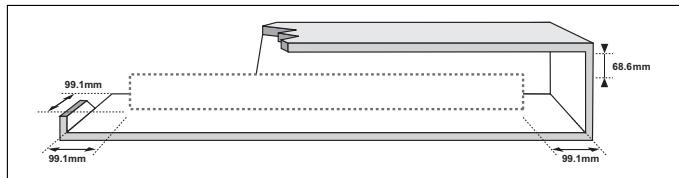
Ensure that the AC power supply in your house complies with the power requirements listed on the identification sticker located on the back of your product. Install your product horizontally, on a suitable base (furniture), with enough space around it for ventilation (7 10~cm) . Make sure the ventilation slots are not covered. Do not place the unit on amplifiers or other equipment which may become hot. This unit is designed for continuous use. To fully turn off the unit, disconnect the AC plug from the wall outlet. Unplug the unit if you intend to leave it unused for a long period of time.
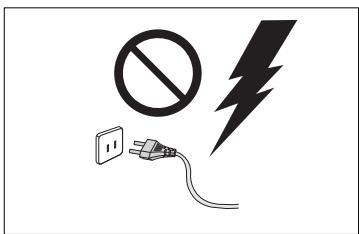
During thunderstorms, disconnect the AC plug from the wall outlet. Voltage peaks due to lightning could damage the unit.
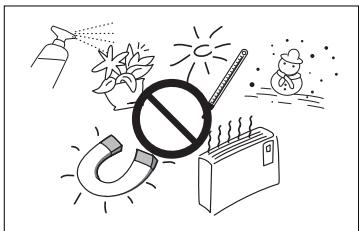
Protect the product from moisture (i.e. vases), and excess heat (e.g. a fireplace) or equipment creating strong magnetic or electric fields. Disconnect the power cable from the AC supply if the unit malfunctions. Your product is not intended for industrial use. It is for personal use only. Condensation may occur if your product has been stored in cold temperatures. If transporting the unit during the winter, wait approximately 2 hours until the unit has reached room temperature before using.
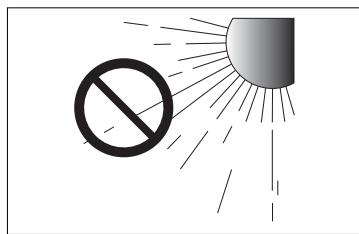
Do not expose the unit to direct sunlight or other heat sources. This could lead to overheating and cause the unit to malfunction.
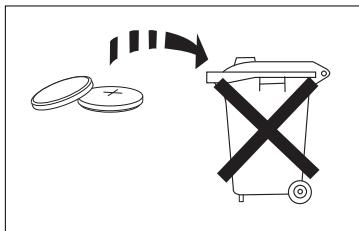
The batteries used with this product contain chemicals that are harmful to the environment. Do not dispose of batteries in the general household trash. Do not dispose of batteries in a fire. Do not short circuit, disassemble, or overheat the batteries. There is a danger of explosion if the battery is incorrectly replaced. Replace only with the same or equivalent type.

WARNING, DO NOT INGEST BATTERY, CHEMICAL BURN HAZARD, The remote control supplied with this product contains a coin/button cell battery. If the coin/button cell battery is swallowed, it can cause severe internal burns in just 2 hours and can lead to death. Keep new and used batteries away from children. If the battery compartment does not close securely, stop using the product and keep it away
from children. If you think batteries might have been swallowed or placed inside any part of the body, seek immediate medical attention.
CONTENTS
2 GETTING STARTED
2 Features
3 Safety Information
6 What's Included
7 DESCRIPTIONS
7 Top / Front Panel
8 Rear / Bottom Panel
9 Remote Control
11 INSTALLATION
11 Installing the Soundbar
11 Installing the Wall Mount
14 Attaching the Soundbar to your TV's Stand
14 Installing Soundbar to Free-Standing
15 CONNECTIONS
15 Connecting the Subwoofer
17 Connecting to a TV
17 Connections with TV Using HDMI (Digital) Cable
17 Connections with TV Using Optical (Digital) Cable
18 TV SoundConnect
20 Connections with External Device
20 HDMI Cable
20 Optical or AUX Cable
21 USB
23 FUNCTIONS
23 Input Mode
24 Bluetooth
27 Software Update
28 TROUBLESHOOTING
28 Troubleshooting
29 APPENDIX
29 Specifications
Figures and illustrations in this User Manual are provided for reference only and may differ from actual product appearance.
WHAT'S INCLUDED
BEFORE READING THE USER'S MANUAL
Note the following terms before reading the user manual.
Icons used in this manual
| Icon | Term | Definition |
| ! | Caution | Indicates a situation where a function does not operate or settings may be cancelled. |
| Note | Indicates tips or instructions on the page that help you operate a function. |
Check for the supplied accessories shown below.
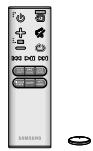
Remote Control /
Lithium Battery
(3V:CR2032)
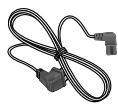
Power Cord : 2EA
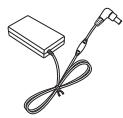
DC Adapter
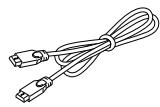
HDMI Cable

USB Cable
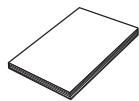
User Manual

Holder-Fix Mount : 2EA

Bracket-Wall:2EA

Wall Mount Guide

- The appearance of the accessories may differ slightly from the illustrations above.
- Use the dedicated USB cable to connect external USB devices to the unit.
TOP / FRONT PANEL
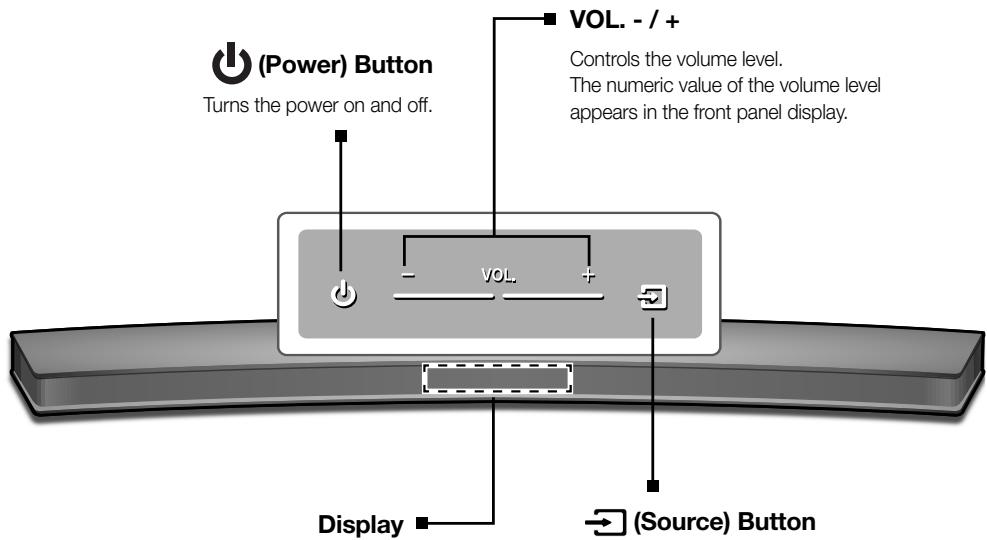
Displays the current mode.
(Source)Button
Selects the D.IN, AUX, HDMI, BT, TV, or USB input.
While the unit is powered on, pressing the (Source) button for more than 3 seconds sets the button to act as the (Mute) button. To cancel the
(Mute) button setup, press the (Source) button for more than 3 seconds again.

- When you plug in the AC cord, the power key will work in 4 to 6 seconds.
- When you turn on this unit, there will be a 4 to 5 second delay before it produces sound.
- If you want to enjoy the sound only from the Soundbar, you must turn off the TV's speakers in the Audio Setup menu of your TV. Refer to the owner's manual supplied with your TV.
REAR / BOTTOM PANEL
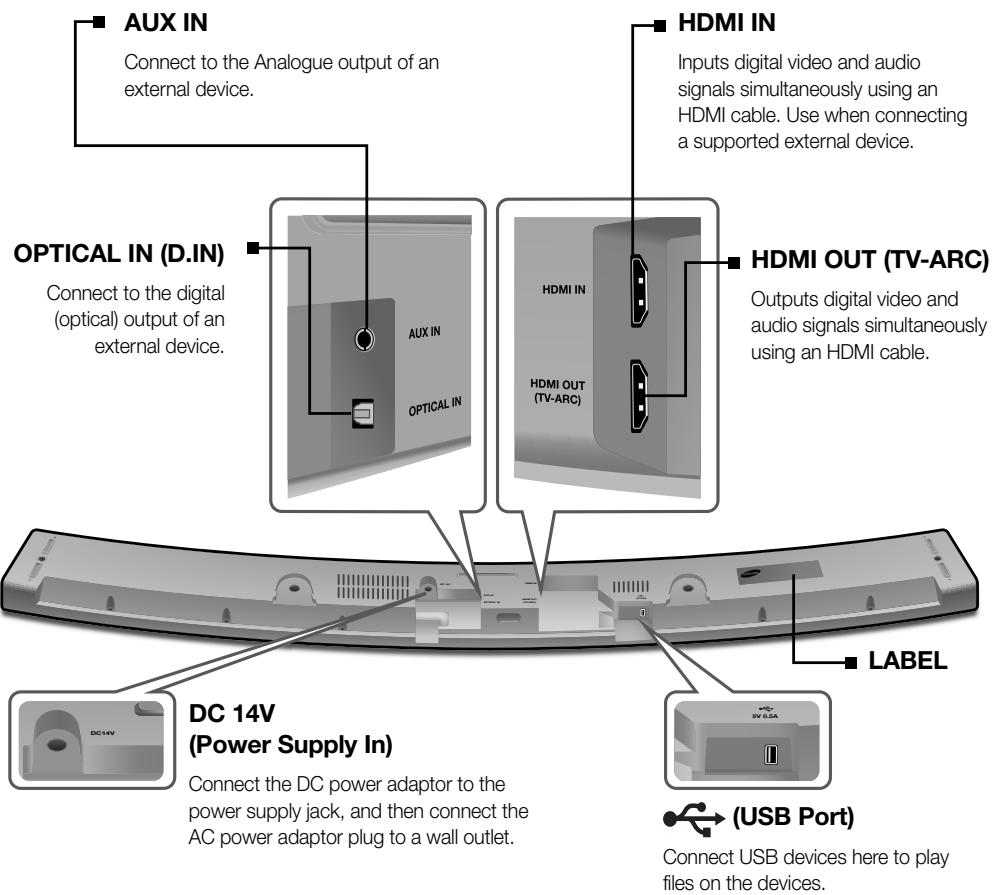

- When disconnecting the power cable of the AC power adaptor from a wall outlet, pull the plug. Do not pull the cable.
- Do not connect this unit or other components to an AC outlet until all connections between components are complete.
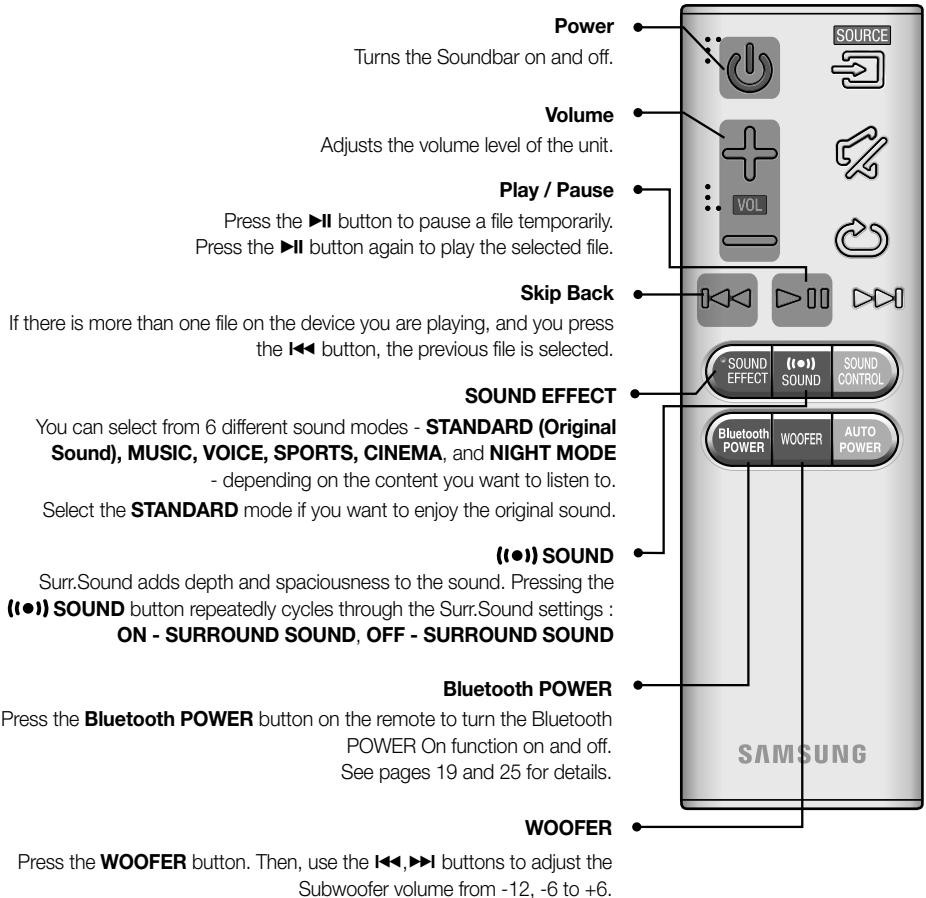
REMOTE CONTROL
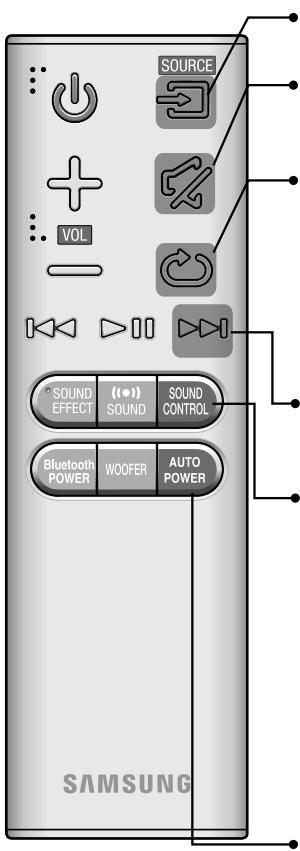
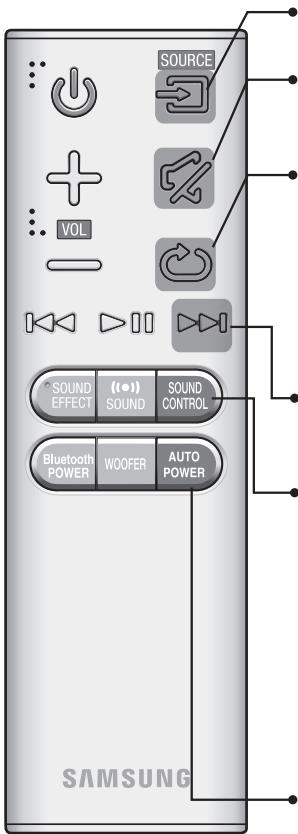
SOURCE
Press to select a source connected to the Soundbar.
Mute
You can turn the volume down to 0 with the push of a button. Press again to restore the sound to the previous volume level.
Repeat
Press to set the Repeat function during music playback from a USB device.
OFF - REPEAT : Cancells Repeat Playback.
TRACK - REPEAT : Repeatedly play a track.
ALL - REPEAT : Repeatedly play all tracks.
RANDOM - REPEAT : Plays tracks in random order.
(A track that has already been played may be played again.)
Skip Forward
If there is more than one file on the device you are playing, and you press the button, the next file is selected.
SOUND CONTROL
Press to select TREBLE, BASS, or AUDIO SYNC. Then, use the I , I buttons to adjust the Treble, Bass volume from -6 to +6.
Press and hold the SOUND CONTROL button for about 5 seconds to adjust the sound for each frequency band. 150Hz , 300Hz , 600Hz , 1.2KHz , 2.5KHz , 5KHz , 10KHz and SW are selectable and each can be adjusted to a setting between -6 and +6.
If the Soundbar is connected to a digital TV and the video appears out of sync with the audio, press the SOUND CONTROL button to sync the audio with the video. Use the , buttons to set the audio delay between
0 ms and 300 ms. In USB mode, TV mode, and BT mode, the Audio Sync function may not available.
AUTO POWER
Press the AUTO POWER button to turn the Anynet+ function on or off. (Default: Auto Power Link OFF, ON - ANYNET+ / OFF - POWER LINK or OFF - ANYNET+ / ON - POWER LINK). The Anynet+ function lets you control the Soundbar with the remote from an Anynet+ compatible Samsung TV. The Soundbar must be connected to the TV via an HDMI cable.
- Auto Power Link Synchronizes the Soundbar to a connected Optical source via the Optical jack so it turns on automatically when you turn on your TV. (See page 18)

Soundbar is a Samsung proprietary name.
- Operate the TV using the TV's remote control.
INSTALLING THE BATTERY IN THE REMOTE CONTROL
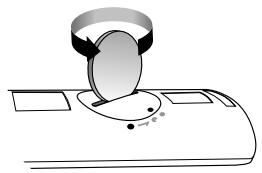
- Use a suitable coin to turn the remote control's battery cover counterclockwise to remove it as shown in the figure above.
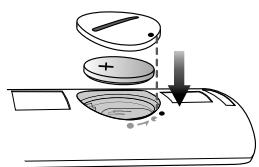
- Insert a 3V lithium battery. Keep the positive (+) pole facing up when inserting the battery. Put the battery cover on and align the ' ' marks side by side as shown in the figure above.
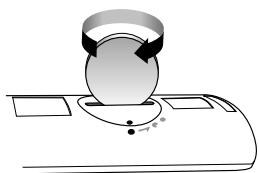
- Use a suitable coin to turn the remote control battery cover clockwise as far as it will go to fix it in place.
INSTALLING THE SOUNDBAR
INSTALLING THE WALL MOUNT
Installation Precautions
Install on a vertical wall only.
- For the installation, avoid a location with high temperature or humidity, or a wall that cannot sustain the weight of the set.
- Check the strength of the wall. If the wall is not strong enough to support the unit, reinforce the wall or install the unit on a different wall that can support the unit's weight.
Purchase and use the fixing screws or anchors appropriate for the kind of wall you have (plaster board, iron board, wood, etc.). If possible, fix the support screws into wall studs.
Purchase wall mounting screws according to the type and thickness of the wall you will mount the Soundbar on.
- Diameter : M5
Length: L 35 mm or longer recommended.
- Connect cables from the unit to external devices before you install it on the wall.
- Make sure the unit is turned off and unplugged before you install it. Otherwise, it may cause an electric shock.
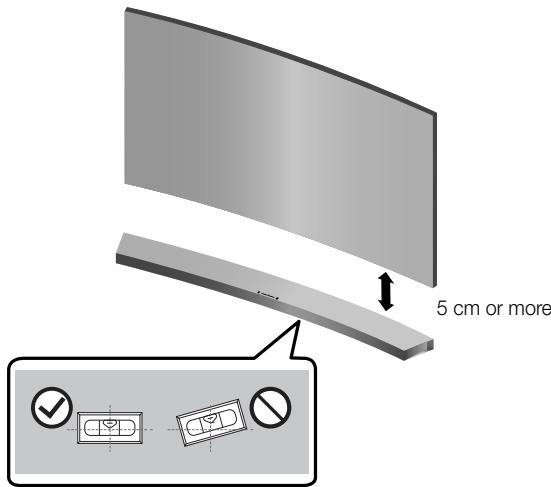
-
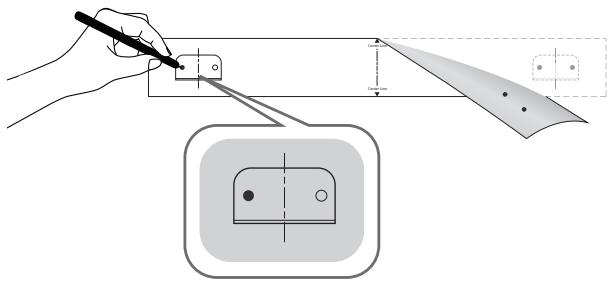
Place the installation guide against the wall surface.
-
The installation guide must be level.
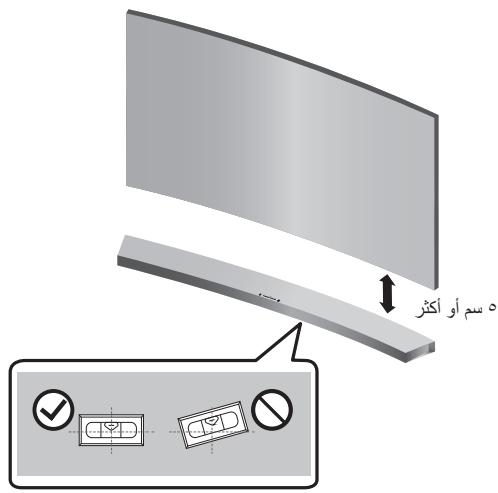
- If the TV is mounted on the wall, install the Soundbar at least 5 cm below the TV.
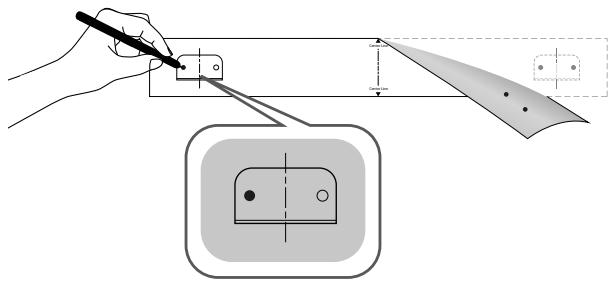
- Mark the location where the screws will go through on the wall, and then remove the installation guide. Next, drill holes for the screws using an appropriately sized drill bit.
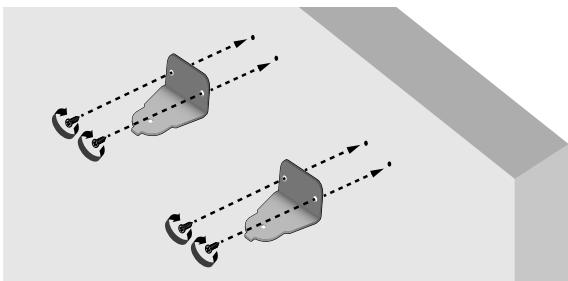
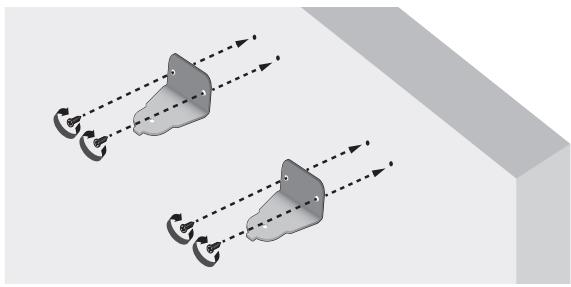
- Fasten the Bracket-Wall (2EA) and screws to the marked locations.
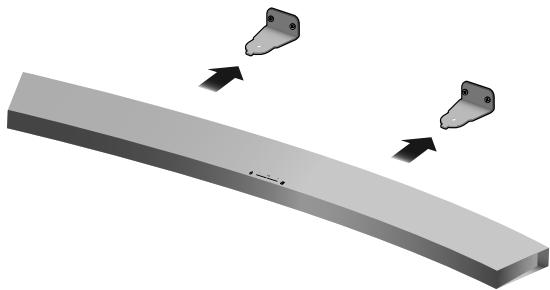
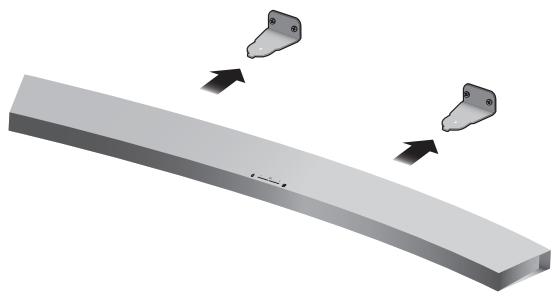
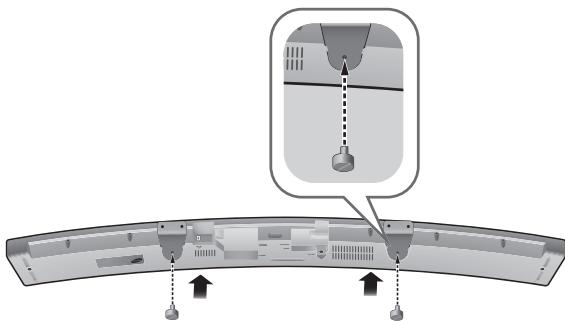
- Lift up the product after inserting the Bracket-Wall as shown.
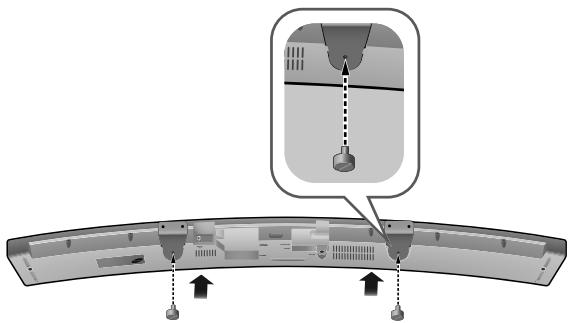
- Insert and fasten Holder-Fix Mount into each hole on the product's bottom side. The product is fixed to the Bracket-Wall.

- Do not hang onto the installed unit and avoid striking or dropping the unit.
- Secure the unit firmly to the wall so that it does not fall off. If the unit falls off, it may cause an injury or damage the product.
- When the unit is installed on a wall, please make sure that children do not pull any of the connecting cables, as it may cause it to fall.
- For the optimal performance of a wall mount installation, install the speaker system at least 5 cm below the TV, if the TV is mounted on the wall.
- For your safety, if you do not mount the unit on the wall, install it on a secure, flat surface where it is unlikely to fall.
ATTACHING THE SOUNDBAR TO YOUR TV'S STAND
You can attach the Soundbar to your TV's stand if you have a Samsung TV that has a stand that is compatible with this Soundbar.

- This Soundbar is compatible with model JU6700, JU6500 and JU7500, 48 inch, 55 inch and 65 inch, JU6610 - 48 inch and 55 inch, 2015 Samsung curved TVs. Please visit the home page of Samsung Electronics (www.Samsung.com) to see a detailed list of the compatible models.
- This Soundbar cannot be installed to a non-compatible TV, in either form of TV mount or TV stand.
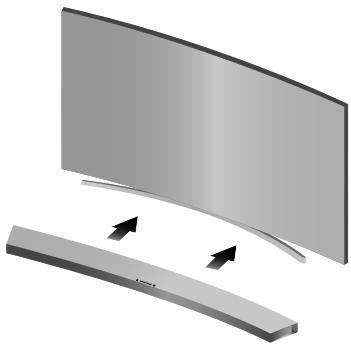
- Align the Soundbar's centre with the centre of the base of the TV, and then carefully push it onto the stand as far as it will go, as shown in the illustration. Be careful not to unbalance the TV.
INSTALLING SOUNDBAR TO FREE-STANDING
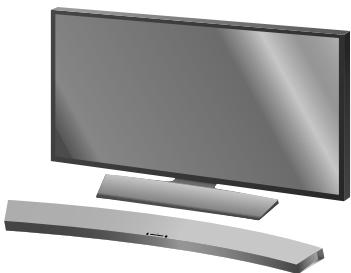
- Centre the Soundbar on the flat area in front of the TV.

Install it on a level and firm surface.

- Do not connect the power cord of this product or your TV to a wall outlet until all connections between components are complete.
- Before moving or installing this product, be sure to turn off the power and disconnect the power cord.
CONNECTING THE SUBWOOFER
CONNECTING TO THE SUBWOOFER AUTOMATICALLY
The main unit and subwoofer should link (connect wirelessly) automatically when the main unit and subwoofer are turned on.
- If it is completely connected, the blue LED in the subwoofer stops blinking.
CONNECTING TO THE SUBWOOFER MANUALLY
The Subwoofer's linking ID is preset at the factory and the main unit and subwoofer should link (connect wirelessly) automatically when the main unit and subwoofer are turned on. If the Link indicator does not light when the main unit and subwoofer are turned on, please set the ID by following the procedure below.
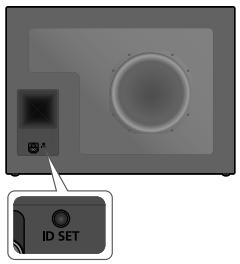
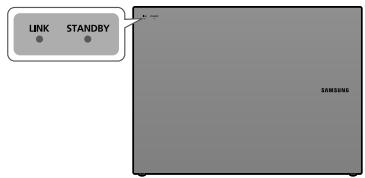
- Plug the power cords of the main unit and subwoofer into an AC wall outlet.
-
Press the ID SET button on the back of the subwoofer with a small, pointed object for 5 seconds.
-
The STANDBY indicator is turned off and the LINK indicator (Blue LED) blinks quickly.
-
While the main unit is powered off (in STANDBY mode), press and hold the M (Mute) on the remote control for 5 seconds.
- The ID SET message appears on the Soundbar's display.
-
To finalise the link, turn the main unit's power on while the subwoofer's Blue LED blinks.
-
The main unit and the subwoofer should now be linked (connected).
- The Link indicator (Blue LED) on the subwoofer should be on.
- If the Link indicator is not solid blue, the linking process has failed. Turn off the main unit and start again from Step 2.
- You can enjoy better sound from the wireless subwoofer by selecting a Sound Effect. (See page 10)

- Before moving or installing the product, be sure to turn off the power and disconnect the power cord.
- If the main unit is powered off, the wireless subwoofer will be in standby mode and the STANDBY LED on the upper side will come on after the Link indicator (Blue LED) blinks for 30 seconds.
- If you use a device that uses the same frequency (2.4GHz) as the Soundbar near the Soundbar, interference may cause some sound interruption.
- The transmission distance of the wireless signal between the main unit and subwoofer is about 10 meters, but may vary depending on your operating environment. If a steel-concrete or metallic wall is between the main unit and the wireless subwoofer, the system may not operate at all, because the wireless signal cannot penetrate metal.
- If the main unit doesn't make a wireless connection, follow steps 1-5 on the previous page to re-set the connection between the main unit and wireless subwoofer.

- The wireless receiving antenna is built into the wireless subwoofer. Keep the unit away from water and moisture.
- For optimal listening performance, make sure that the area around the wireless subwoofer location is clear of any obstructions.
CONNECTING TO A TV
CONNECTIONS WITH TV USING HDMI (DIGITAL) CABLE
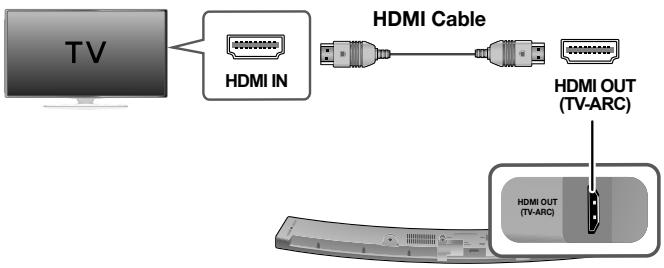
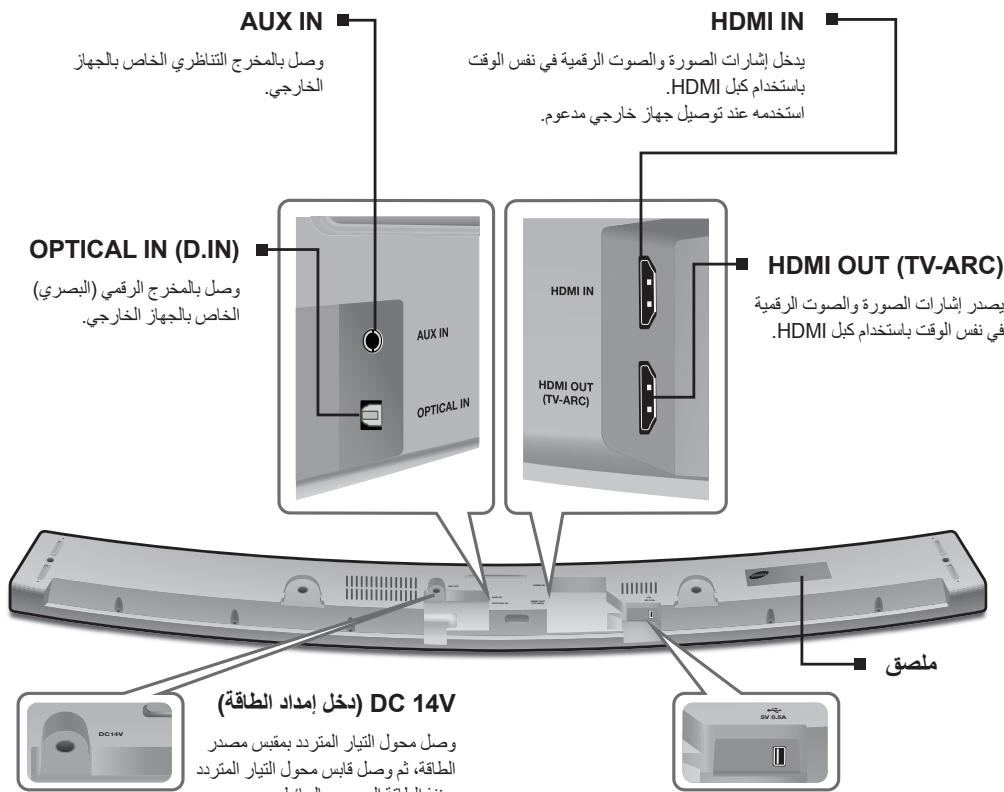
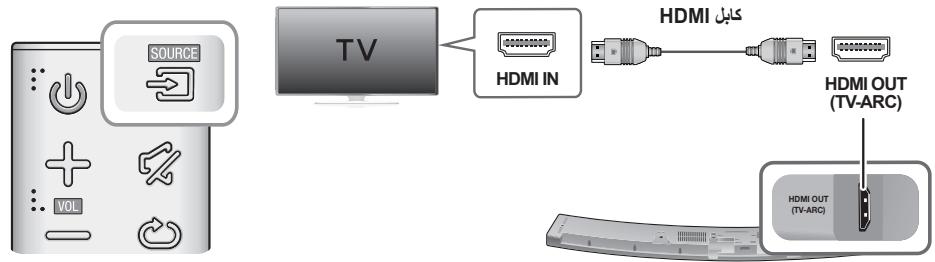
- Connect an HDMI cable from the HDMI OUT (TV-ARC) jack on the back of the product to the HDMI IN jack on your TV.
- Press the (Source) button on the top panel of Soundbar or the SOURCE button on remote control to select the D.IN mode.

- HDMI is an interface that enables the digital transmission of video and audio data with just a single connector.
- If the TV provides an ARC port, connect the HDMI cable to the HDMI IN (ARC) port.
- We recommend you use a coreless HDMI cable if possible. If you use a cored HDMI cable, use one whose diameter is less than 14mm .
- Anynet+ must be turned on.
- This function is not available if the HDMI cable does not support ARC.
CONNECTIONS WITH TV USING OPTICAL (DIGITAL) CABLE
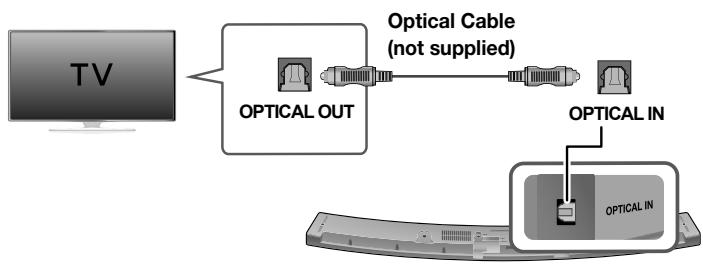
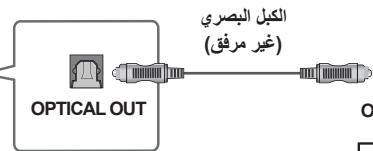
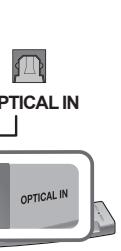
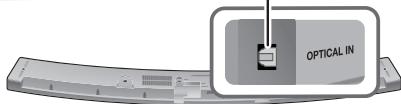
- Connect OPTICAL IN (Audio) on the Soundbar to the OPTICAL OUT jack of the TV.
- Press the (Source) button on the top panel of Soundbar or the SOURCE button on remote control to select the D.IN mode.
Auto Power Link
If you have connected the main unit to a TV with a digital optical cable, set the Auto Power function ON to have the Soundbar turn on automatically when you turn the TV on.
| AUTO POWER LINK | Display |
| ON | OFF - ANYNET+ / ON - POWER LINK |
| OFF | ON - ANYNET+ / OFF - POWER LINK |
- Connect the Soundbar and a TV with an Optical cable (not supplied).
- Press the (Source) button on the main unit's top panel or the SOURCE button on the remote control to select the D.IN mode.
- Press the AUTO POWER button on the remote control to toggle the Auto Power Link function on and off.

- Depending on the connected device, Auto Power Link may not function.
TV SOUNDCONNECT
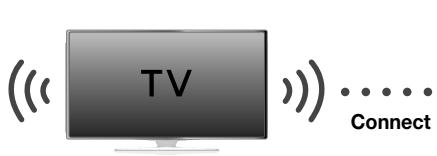
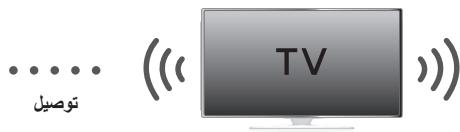
You can enjoy TV sound through your Soundbar when it is connected to a Samsung TV that supports the TV SoundConnect function.
-
Turn on the TV and Soundbar.
-
Turn on the menu of the TV.
- Move to Speaker Settings on "Sound" tab.
-
Set the "Add New Device" menu to "On".
-
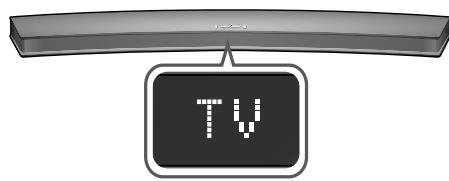
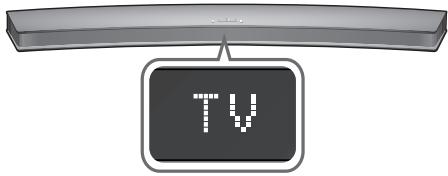
Press the (Source) button on the main unit's top panel or the SOURCE button on the remote control to select the TV mode.
- On the TV, a message asking whether to enable the TV SoundConnect function appears.
- Select <Yes> to finish connecting the TV and Soundbar using the TV's remote control.

- Switching the Soundbar's mode from TV to another mode automatically terminates TV SoundConnect.
- To connect the Soundbar to another TV, the existing connection must be terminated.
- Terminate the connection to the existing TV, and then press the button on the remote control for 5 seconds to connect to another TV.

- The TV SoundConnect (SoundShare) function is supported by some Samsung TVs released from 2012 on. Check whether your TV supports the TV SoundConnect (SoundShare) function before you begin. (For further information, refer to the TV's user manual.)
- If your Samsung TV was released before 2014, check the SoundShare setting menu.
- If the distance between the TV and Soundbar exceeds 10 meters, the connection may not be stable or the audio may stutter. If this occurs, relocate the TV or Soundbar so that they are within operational range, and then re-establish the TV SoundConnect connection.
-
TV SoundConnect Operational Ranges:
-
Recommended pairing range: within 2 meters.
-
Recommended operational range: within 10 meters.
-
The Play/Pause, Next, and Prev buttons on the Soundbar or Soundbar's remote do not control the TV.
Using the Bluetooth POWER On function
The Bluetooth POWER On function is available after you have successfully connected the Soundbar to a Bluetooth compatible TV using TV SoundConnect. When the Bluetooth POWER On function is ON, turning the connected TV on or off will turn the Soundbar's power on and off as well.
- Connect the TV to your Soundbar using the TV SoundConnect function.
-
Press the Bluetooth POWER button on the Soundbar remote. ON - BLUETOOTH POWER appears on the Soundbar's display.
-
ON - BLUETOOTH POWER : The Soundbar turns on and off when you turn the TV on or off.
OFF - BLUETOOTH POWER : The Soundbar only turns off when you turn the TV off.

- This function is supported by some Samsung TVs released from 2013 on.
CONNECTIONS WITH EXTERNAL DEVICE
HDMI CABLE
HDMI is the standard digital interface for connecting to TVs, projectors, DVD players, Blu-ray players, set top boxes, and more.
HDMI prevents any degradation to the signal due to conversion to analogue and maintains the video and audio quality of the original digital source.
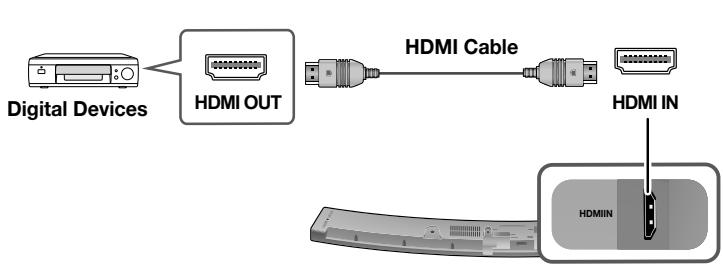
- Connect an HDMI cable from the HDMI IN jack on the back of the product to the HDMI OUT jack on your digital device.
- Press the (Source) button on the top panel of Soundbar or the SOURCE button on remote control to select the HDMI mode.
OPTICAL OR AUX CABLE
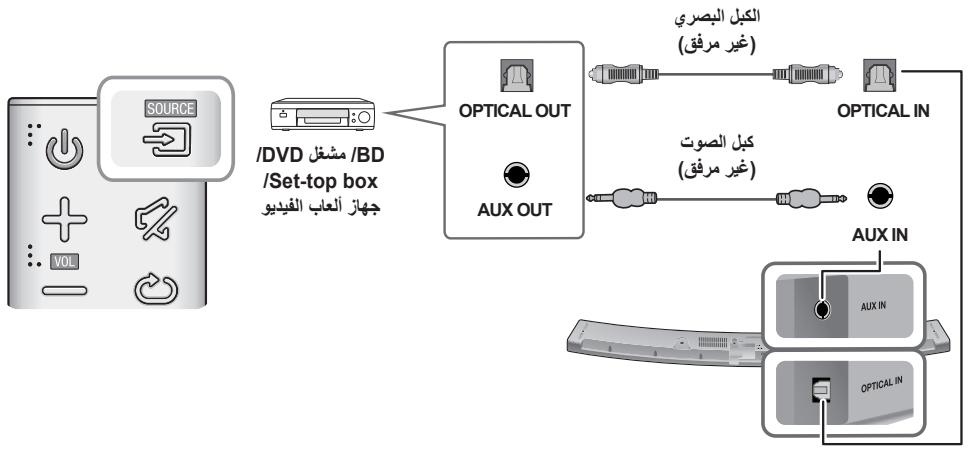
This unit comes equipped with one optical in digital jack and one audio analogue in jack, giving you two ways to connect it to an External Devices.
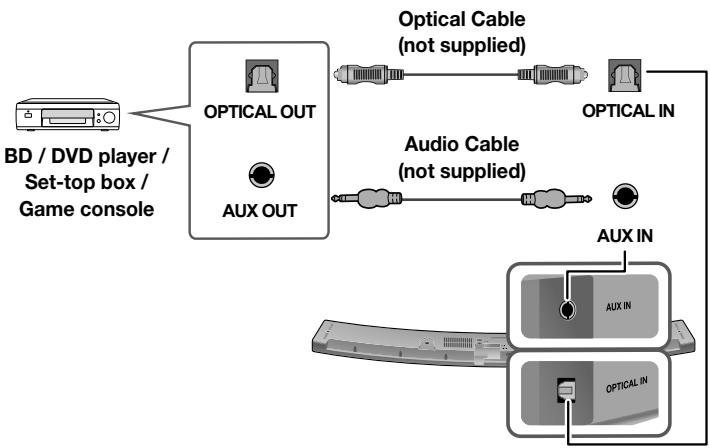
AUX Cable
- Connect AUX IN (Audio) on the main unit to the AUDIO OUT jack of the Source Device.
- Press the (Source) button on the top panel of Soundbar or the SOURCE button on remote control to select the AUX mode.
Optical Cable
- Connect OPTICAL IN (Audio) on the main unit to the OPTICAL OUT jack of the Source Device.
- Press the (Source) button on the top panel of Soundbar or the SOURCE button on remote control to select the D.IN mode.
USB
You can play music files located on USB storage devices through the Soundbar.
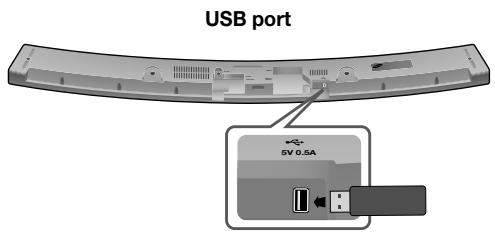
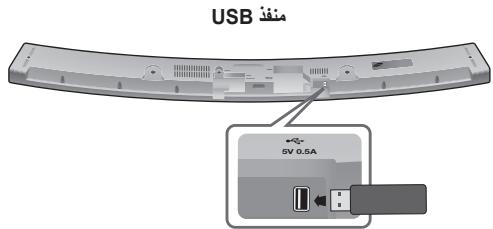
- Connect the USB device to the USB port on the back of the product.
-
Press the (Source) button on the main unit's top panel or the SOURCE button on the remote control to select the USB mode.
-
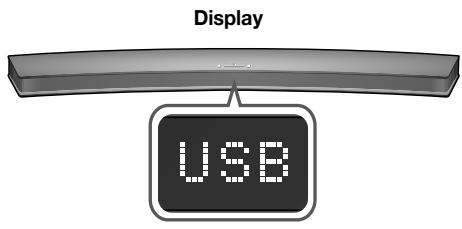
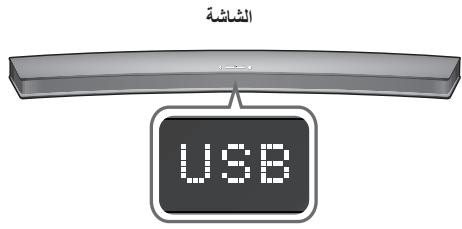
USB appears on the display screen.
-
The Soundbar connection to the USB device is complete.
- The Soundbar automatically turns off (Auto Power Off) if no USB device has been connected for more than 25 minutes.
Before you connect a USB device
Be aware of the following:
- If the file name of a file or folder on a USB device exceeds 10 characters, it is not displayed on the Soundbar's display.
- This product may not be compatible with certain types of USB storage media.
-
The Soundbar supports the FAT16 and FAT32 file systems.
-
The NTFS file system is not supported.
-
Connect USB devices directly to the USB port of the product. Otherwise, you may encounter a USB compatibility problem.
- Do not connect multiple storage devices to the product via a multi-card reader. It may not operate properly.
CONNECTIONS
- Digital camera PTP protocols are not supported.
- Do not remove the USB device while it is transferring files.
- DRM-protected music files (MP3, WMA) from commercial web sites cannot be played.
- External HDDs are not supported.
- Mobile phone devices are not supported.
- File Format Type Compatibility list:
| Extension | Codec | Sampling Rate | Bit rate |
| *.mp3 | MPEG 1 Layer2 | 16KHz ~ 48KHz | 80kbps~320kbps |
| MPEG 1 Layer3 | 16KHz ~ 48KHz | 80kbps~320kbps | |
| MPEG 2 Layer3 | 16KHz ~ 48KHz | 80kbps~320kbps | |
| MPEG 2.5 Layer3 | 16KHz ~ 48KHz | 80kbps~320kbps | |
| *.wma | Wave_Style_MSAudio1 | 16KHz ~ 48KHz | 56kbps~128kbps |
| Wave_Style_MSAudio2 | 16KHz ~ 48KHz | 56kbps~128kbps | |
| *.aac | AAC | 16KHz ~ 96KHz | 48kbps~320kbps |
| AAC-LC | 16KHz ~ 96KHz | 128kbps~192kbps5.1ch 320kbps | |
| HE-AAC | 24KHz ~ 96KHz | 48kbps~64kbps5.1ch 160kbps | |
| *.wav | - | 16KHz ~ 48KHz | up to 3000kbps |
| *.ogg | OGG 1.1.0 | 16KHz ~ 48KHz | 50kbps~500kbps |
| *.flac | FLAC 1.1.0, FLAC 1.2.1 | 16KHz ~ 96KHz | up to 3000kbps |

- If there are too many folders and files stored in the USB device, reading may take some time.
INPUT MODE
Press the (Source) button on the main unit's top panel or the SOURCE button on the remote control to select the mode you want.
| Input mode | Display |
| Optical Digital input ARC (HDMI OUT) input | D.IN |
| AUX input | AUX |
| HDMI input | HDMI |
| BLUETOOTH mode | BT |
| TV SoundConnect | TV |
| USB mode | USB |
The unit turns off automatically in the following situations.
D.IN/HDMI/BT/TV/USB/ARC Mode
If there is no audio signal for 25 minutes.
AUX Mode
To turn the Auto Power Down function ON or OFF, press and hold the button for 5 seconds. ON - AUTO POWER DOWN / OFF - AUTO POWER DOWN appears on the display.
- If the AUX cable is disconnected for 25 minutes.
If there is no KEY input for 8 hours when the AUX cable is connected.
BLUETOOTH
You can connect a Bluetooth device to the Soundbar and enjoy music with high quality stereo sound, all without wires!
TO CONNECT THE SOUNDBAR TO A BLUETOOTH DEVICE
Check if the Bluetooth device supports the Bluetooth compliant stereo headset function.
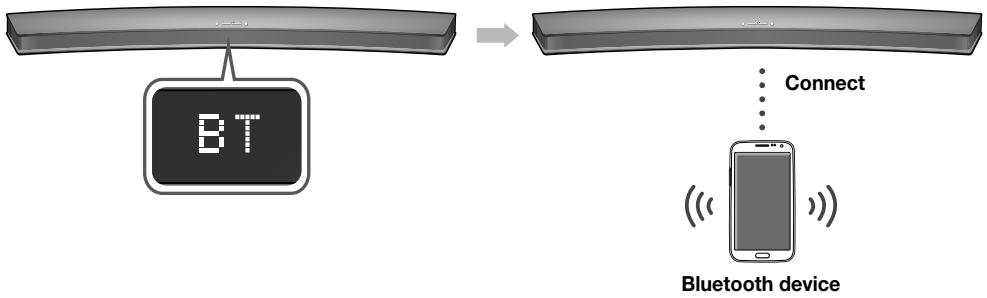
- Press the (Source) button on the main unit's top panel or the SOURCE button on the remote control to select the BT mode.
- You will see BT READY on the front display of the Soundbar.
- Select the Bluetooth menu on the Bluetooth device you want to connect. (Refer to the Bluetooth device's user manual.)
-
Select "[Samsung] Soundbar J-Series" from the list.
-
When the Soundbar is connected to the Bluetooth device, it will display [Bluetooth device name] BT on the front display.
- The device name can only be displayed in English. An underline " _ " will be displayed if the name is not in English.
-
If the Bluetooth device has failed to pair with the Soundbar, delete the previous "[Samsung] Soundbar J-Series" found by the Bluetooth device and have it search for the Soundbar again.
-
Play music on the connected device.
-
You can listen to the music playing on the connected Bluetooth device over the Soundbar.
- In BT mode, the Play / Pause / Next / Prev functions are not available. However, these functions are available in Bluetooth devices supporting AVRCP.

- If asked for PIN code when connecting a Bluetooth device, enter <0000> .
- Only one Bluetooth device can be paired at a time.
- The Bluetooth connection will be terminated when you turn the Soundbar off.
-
The Soundbar may not perform Bluetooth search or connection correctly under the following circumstances:
-
If there is a strong electrical field around the Soundbar.
- If several Bluetooth devices are simultaneously paired with the Soundbar.
- If the Bluetooth device is turned off, not in place, or malfunctions.
- Note that such devices as microwave ovens, wireless LAN adaptors, fluorescent lights, and gas stoves use the same frequency range as the Bluetooth device, which can cause electric interference.
The Soundbar supports SBC data (44.1kHz, 48kHz).
- Connect only to a Bluetooth device that supports the A2DP (AV) function.
- You cannot connect the Soundbar to a Bluetooth device that supports only the HF (Hands Free) function.
- Once you have paired the Soundbar to a Bluetooth device, selecting "[Samsung] Soundbar J-Series" from the device's scanned devices list will automatically change the Soundbar to BT mode.
- Available only if the Soundbar is listed among the Bluetooth device's paired devices. (The Bluetooth device and the Soundbar must have been previously paired at least once.)
- Soundbar will appear in the Bluetooth device's searched devices list only when the Soundbar is displaying BT READY.
- In the TV SoundConnect mode, the Soundbar cannot be paired to another Bluetooth device.
BLUETOOTH POWER ON (BLUETOOTH POWER)
When the Bluetooth POWER On function is on and the Soundbar is turned off, if a previously paired Bluetooth device tries to pair with the Soundbar, the Soundbar turns on automatically.
- Press the Bluetooth POWER on the remote while the Soundbar is turned on.
- ON - BLUETOOTH POWER appears on the Soundbar's display.
TO DISCONNECT THE BLUETOOTH DEVICE FROM THE SOUNDBAR
You can disconnect the Bluetooth device from the Soundbar. For instructions, see the Bluetooth device's user manual.
- The Soundbar will be disconnected.
- When the Soundbar is disconnected from the Bluetooth device, the Soundbar will display BT DISCONNECTED on the front display.
TO DISCONNECT THE SOUNDBAR FROM THE BLUETOOTH DEVICE
Press the SOURCE button on the remote control or the (Source) button on the product's top panel to switch from BT to another mode or turn off the Soundbar.
- The connected Bluetooth device will wait a certain amount of time for a response from the Soundbar before terminating the connection. (Disconnection time may differ, depending on the Bluetooth device)

- In Bluetooth connection mode, the Bluetooth connection will be lost if the distance between the Soundbar and the Bluetooth device exceeds 10 meters.
- The Soundbar automatically turns off after 25 minutes in the Ready state.
More About Bluetooth
Bluetooth is a technology that enables Bluetooth-compliant devices to interconnect easily with each other using a short wireless connection.
-
A Bluetooth device may cause noise or malfunction, depending on usage, when:
-
A part of your body is in contact with the receiving/transmitting system of the Bluetooth device or the Soundbar.
- It is subject to electrical variation from obstructions caused by a wall, corner, or office partition.
-
It is exposed to electrical interference from same frequency-band devices including medical equipment, microwave ovens, and wireless LANs.
-
Pair the Soundbar with the Bluetooth device while they are close together.
- The further the distance between the Soundbar and Bluetooth device, the worse the quality is. If the distance exceeds the Bluetooth operational range, the connection is lost.
- In poor reception areas, the Bluetooth connection may not work properly.
- The Bluetooth connection only works when it is close to the unit. The connection will be automatically cut off if the Bluetooth device is out of range. Even within range, the sound quality may be degraded by obstacles such as walls or doors.
- This wireless device may cause electric interference during its operation.
USING SAMSUNG AUDIO REMOTE APP
Install Samsung Audio Remote App
To control the product with your Smart Device and the Samsung Audio Remote app, download the Samsung Audio Remote App through Google Play store.
Market search : Samsung Audio Remote

Accessing the Samsung Audio Remote App
After you install the Samsung Audio Remote app, follow the instructions in the app.
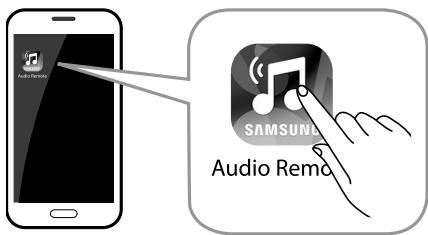

- The APP function only supports mobile phone Android devices running Android OS 3.0 or later.
SOFTWARE UPDATE
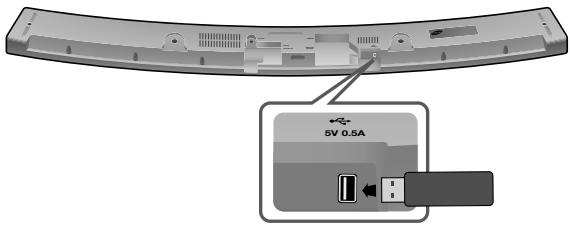
Samsung may offer updates for the Soundbar's system firmware in the future.
If an update is offered, you can update the firmware by connecting a USB device with the firmware update stored on it to the USB port on your Soundbar.
Note that if there are multiple update files, you must load them onto the USB device singly and use them to update the firmware one file at a time.
Please visit samsung.com or contact the Samsung call centre to receive more information about downloading updates files.

- Insert a USB device containing the firmware update into the USB port on the main unit.
- Updating firmware may not work properly if audio files supported by the Soundbar are stored in the USB storage device.
- Do not disconnect the power or remove the USB device while updates are being applied. The main unit will turn off automatically after completing the firmware update.
- After the update, all settings are reset to their factory default settings. We recommend you write down your settings so that you can easily reset them after the update. Note that updating firmware resets the subwoofer connection too.
If connection to the subwoofer is not re-established automatically after the update, refer to page 15. If the firmware fails to update, we recommend formatting the USB device in FAT16 and trying again.
- Once the software update is completed, turn off the product and then press and hold the (▶II) button on the remote control for more than 5 seconds. "INIT" appears on the display and the unit is powered off. The upgrade is complete.
- Do not format the USB device in the NTFS format. The Soundbar does not support the NTFS file system.
- Depending on the manufacturer, some USB devices may not be supported.
TROUBLESHOOTING
Before requesting service, please check the following.
| The unit will not turn on. | |
| • Is the power cord plugged into the outlet? | → Connect the power plug to the outlet. |
| A function does not work when the button is pressed. | |
| • Is there static electricity in the air? | → Disconnect the power plug and connect it again. |
| Sound is not produced. | |
| • Is the Mute function on? • Is the volume set to minimum? | →Press the (Mute) button to cancel the function. →Adjust the Volume. |
| The remote control does not work. | |
| • Are the batteries drained? • Is the distance between the remote control and main unit too far? | → Replace with new batteries. → Move closer to the unit. |
| The TV SoundConnect (TV pairing) failed. | |
| • Does your TV support TV SoundConnect? | → TV SoundConnect is supported by some Samsung TVs released from 2012 on. Check your TV to see if it supports TV SoundConnect. |
| • Is your TV firmware the latest version? | → Update your TV with the latest firmware. |
| • Does an error occur when connecting? | → Contact the Samsung call centre. |
| • Reset the TV mode and connect again. | → Press and hold the ➔ button for 5 seconds to reset the TV SoundConnect connection. |
| The red LED on the subwoofer blinks and the subwoofer is not producing sound. | |
| • Your subwoofer may not be connected to the main body of the product. | → Try to connect your subwoofer again. (See Page 15) |
| The subwoofer drones and vibrates noticeably. | |
| • Try to adjust the vibration of your subwoofer. | →Press the WOOFER button on your remote control to adjust its value (between -12, -6 to +6.). |
SPECIFICATIONS
| Model name | HW-J6001 |
| GENERAL | USB | 5V / 0.5A | |
| Weight | Main Unit | 2.7 kg | |
| Subwoofer (PS-WJ6001) | 6.8 kg | ||
| Dimensions(W x H x D) | Main Unit | 1078 x 47.5 x 129 mm | |
| Subwoofer (PS-WJ6001) | 452 x 335 x 154 mm | ||
| Operating Temperature Range | +5°C to +35°C | ||
| Operating Humidity Range | 10 % to 75 % | ||
| AMPLIFIER | Rated Output Power | Main Unit | 22W/CH x 6, 4ohm, THD=10%, 1KHz |
| Subwoofer (PS-WJ6001) | 168W, 3ohm, THD=10%, 100Hz | ||
| S/N Ratio (Analogue Input) | 65 dB | ||
| Separation (1kHz) | 65 dB | ||
- S/N ratio, distortion, separation, and usable sensitivity are based on measurements using AES (Audio Engineering Society) guidelines.
- Nominal specification
Samsung Electronics Co., Ltd reserves the right to change the specifications without notice.
Weight and dimensions are approximate.
- For the power supply and Power Consumption, refer to the label attached to the product.
※ Open Source Licence Notice
- To send inquiries and requests regarding open sources, contact Samsung via Email (oss.request@samsung.com).
CE
Hereby, Samsung Electronics, declares that this equipment is in compliance with the essential requirements and other relevant provisions of Directive 1999/5/EC.
The original Declaration of Conformity may be found at http://www.samsung.com, go to Support > Search Product Support and enter the model name.
This equipment may be operated in Jordan.
piaaannl
Curved Soundbar
1
gueauu caiiia jia ciall dai elj gle ay
www.samsung.com/register
a
()aai jll s aal y (jy jll qil) ay gjl 1n jiaaiyaiyaiyaiyaiyaiyaiyaiyaiyaiyaiyaiyaiyaiyaiyaiyaiyaiyaiyaiyaiyaiyaiyaiyaiyaiyaiyaiyaiyaiyaiyaiyaiyaiyaiyaiyaiyaiyaiyaiyaiyaiyaiyaiyaiyaiyaiyaiyaiyaiyai
#
aIbgl
J1J1 4
Bluetooth
Jy
Lgualg Jbcil
1,2,3 =
a_4 = 12
Culalgal 99
e 11111111111111111111111111
a. ( x - 2) ^2 = 9
aaii ciisai
aalal / aalal 1 aal
aifal / afo11 a
9
11
Soundbar
11
j j 1
Soundbar 18
10
guailipianzjusgi 10
10
HDMI 15
( x,y) = y( x,y) = 1
TV SoundConnect
jgl jy
HDMI
AUX 1
USB
aai
1111111
aiaiunll jbi jia jia jil lcll bai
jdl 1a aasunll jgll
a a a a a a a a a a a a a a a a a a a a a a a a a a a
Audio Setup aiaa g n ynnn nn nnnn nn nnnn nn nnnn nn nnnn nn nnnn nn nnnn nn nnnn nn nnnn nn nnnn nn nnnn nn nnnn nn nnnn nn nnnn nn nnnn nn nnnn nn nnnn nn nnnn nn nnnn nn nnnn nn nnnn nn nnnn nn nnnn nn nnnn nn nnnn nn nnnn nn
yolal jol jolal all lall jol joljllal (c)
/
(USB)

MP3 C#LJU USB
. 1
Llssll lllllllllllllllllllllllllllllllllll

SOURCE
Soundbar jiey jia jiu jua jui jia liu bai
jll lgl biall jyj 1c g sss y
jolll gwiulldgaild jaiu
山
.USB d j 1
edly aibg jnni eNy:OFF-REPEAT
JSSIOJSSIOJSSIOJSSIOJSSIOJSSIOJSSIOJSSIOJSSIOJSSIOJSSIOJSSIOJSSIOJSSIOJSSIOJSSIOJSSIOJSSIOJSSIOJSSIOJSSIOJSSIOJSSIOJSSIOJSSIOJSSIOJSSIOJSSIOJSSIOJSSIOJSSIOJSSIOJSSIOJSSIO
JSSO JSSO CJI JSSO JSSO ALL-REPEAT
G: RANDOM - REPEAT
sususususususususususususususususususususususususususususususususususususususususususususususususususususususususususususususususususususususususususususususus
a a a a a a a a a a a a a a a a a a a a a a a a a a a a a a
()a a a a a a a a a a a a a a a a a a a a a a a a a
a
LeleSoundbaraii
jiāol: jiānl
jdo r
1 1 1 1 1 1 1 1 1 1 1 1 1 1 1 1 1 1 1 1
Aa 1
a
1 1
Soundbar
a a a a a a a a a a a a a a a a a a a a a a a a a a a a a a a a a a a a a
a jaaal gai gai 1 a i y (2) 2
a
()STANDBYLED ()SASALSSALSSALSSALSSALSSALSSALSSALSSALSSALSSALSSALSSALSSALSSALSSALSSALSSALSSALSSALSSALSSALSSALSSALSSALSSALSSALSSALSSALSSALSSALSSALSSALSSALSSALSSALSSALSSALSSALSSALSSALSSALSSALSSALSSALSSALSSALSSALSSALSSALSSAL

Aglal yagolglaeglglal gllllgall gaaal gaaal gaaal gaaal

()HDMI
HDMIN 100 HDMIOHDMOUT (TV-ARC) HDMI LSS. D.IN 200 SOURCE 200
HDM1

.(ARC)HDMI IN HDMI JSSAR
14 10
Anynet+
ARC HDMI 15

()
OPTICAL OUT Soundbar 山 (山) OPTICAL IN
D.IN 1
Auto Power Link
Jieiie iie jaiis Soundbar Jieiie Jieiie Jieiie Jieiie Jieiie Jieiie Jieiie Jieiie Jieiie Jieiie Jieiie Jieiie
Jgall jlll lllllllll

TV SOUNDCONNECT
. TV SoundConnect ® Samsung ® Soundbar ® ® ® ® ® ® ® ® ® ® ® ® ® ® ® ® ® ® ® ® ® ® ® ® ® ® ® ® ® ® ® ® ® ® ® ® ® ® ® ® ® ® ® ® ® ® ® ® ® ® ® ® ® ® ® ® ® ® ® ® ® ® ® ® ® ® ® ® ® ® ® ® ® ® ® ® ® ® ® ® ® ®
Soundbar 1abig jzjld Jpa .
jbjilai Jia 1
"Gall" yill Aol je aclll Cldo!
"Jia 15 "jia jia jia li" aaiai bai
TV 1000000000000000000000000000000000000000000000000000000
AaJz aJz Jz Jz Jz Jz Jz Jz Jz Jz Jz Jz Jz Jz Jz Jz Jz Jz Jz Jz Jz Jz Jz Jz Jz Jz Jz Jz Jz Jz Jz Jz Jz Jz Jz Jz Jz Jz Jz
AUX IN LjLg
AUX 1
JIOIOTICAL OUT (C) OPTICAL IN
.D.IN 1
USB
Soundbar 2345678901234567890123456789012345678901234567890123456789012345678901234567890123456789012345678901234567890
Cuiyul USB iu USB jus
.USB 1000000000000000000000000000000000000000000000000000000000
ususus
.USB jSoundbar
A 10 e 25 s d USB jLgssj g (Auto Power Off) Lg (Auto Power Off)
USB jj
L
Soundbar 1. USB
.USB jj j 1
FAT32,FAT16
NTFS
.USB jj g k k k k k k k k k k k k k k k k k k k k k k k k k k k k k k k k k k k k k k k k k k k k k k k k k k k k
Jauu Jauu Jauu Jauu Jauu Jauu Jauu Jauu Jauu Jauu Jauu Jauu Jauu Jauu Jauu Jauu Jauu Jauu Jauu Jauu Jauu Jauu Jauu Jauu Jauu Jauu Jauu Jauu Jauu Jauu Jauu Jauu Jauu Jauu JAUU
gall glll 12000000000000000000000000000000000000000000000000000000000
aal aal alal alal alal alal alal alal alal alal alal alal alal alal alal
Aa 1
Soundbar 1
AaKa aJg JgJgJgJgJgJgJgJgJgJgJgJgJgJgJgJgJgJgJgJgJgJgJgJgJgJgJgJgJgJgJgJgJgJgJgJgJgJgJgJgJgJgJgJgJgJgJgJgJgJgJg
LAN dssssssssssssssssssssssssssssssssssssssssssssssssssssssssssssssssssssssssss
Soundbar
LalS,Soundbar 1aBnBnBnBnBnBnBnBnBnBnBnBnBnBnBnBnBnBnBnBnBnBnBnBnBnBnBnBnBnBnBnBnBnBnBnBnBnBnBnBnBnBnBnBnBnBnBnBnBnBnB
aaiyiei yjll jill jllll aaii all
dial kbl yjglb Jy Luy jlll 4yduu cuiy gill jlll
jlll lss jn g. jlll lss sall cblal y 1g lal llal alal alal alal alal
a
aaiiee eae

Support-fixation : 2 pieces

Support de fixation murale : 2 pieces
© 2015 Samsung Electronics Co., Ltd. All rights reserved.
Contact SAMSUNG WORLD WIDE
If you have any questions or comments relating to Samsung products, please contact the SAMSUNG customer care centre.
. algdo 10 .Samsung Electronics Co., Ltd aS2J2015 pLeJ ©
SAMSUNG WORLD WIDE
.SAMSUNG .Samsung _L_R_L_R_L_R_L_R_L_R_L_R_L_R_ L_R_R_L