Lifeband Touch - Smartwatch LG - Free user manual and instructions
Find the device manual for free Lifeband Touch LG in PDF.


User questions about Lifeband Touch LG
0 question about this device. Answer the ones you know or ask your own.
Ask a new question about this device
Download the instructions for your Smartwatch in PDF format for free! Find your manual Lifeband Touch - LG and take your electronic device back in hand. On this page are published all the documents necessary for the use of your device. Lifeband Touch by LG.
USER MANUAL Lifeband Touch LG
natural_image
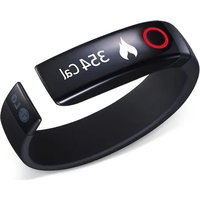
Black smartwatch with a red circular lens on the left side, no visible text or symbols on the device itself.The actual device may differ from the image.
Model : FB84-BM / FB84-BL / FB84-BX / FB84-SM / FB84-SL / FB84-SX / FB84-RM / FB84-RL / FB84-RX /
For more details, please refer to the Owner's manual at LG Fitness App or www.lg.com

text_image
MFL68240509This device is not intended to diagnose, treat or prevent any disease or medical condition. Always seek the advice of a qualified professional before making any changes to your exercise, sleep or nutrition.

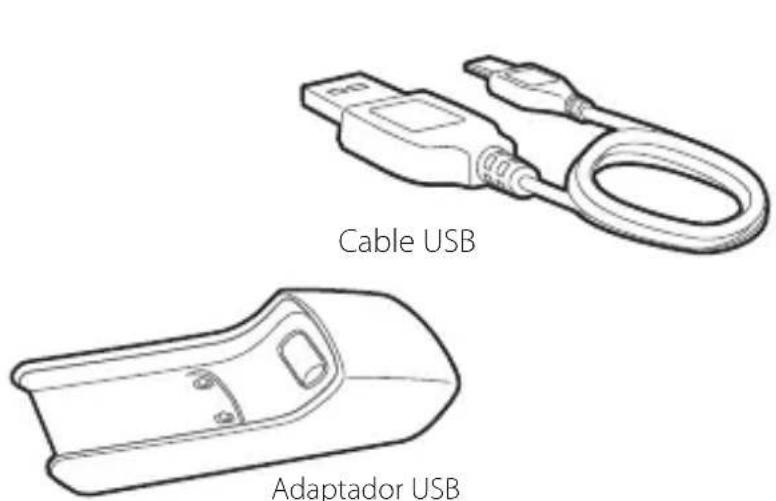
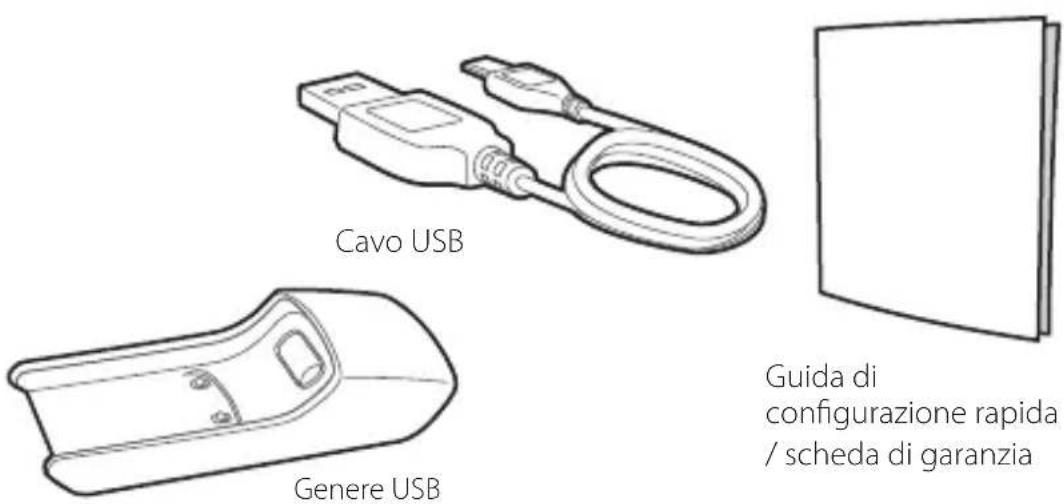
Package Contents
natural_image
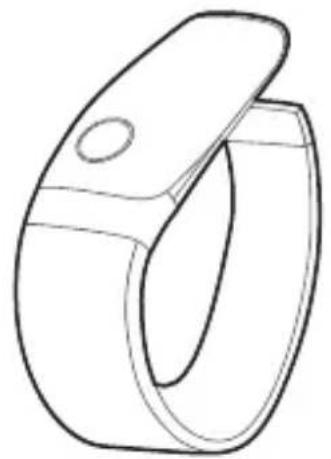
Line drawing of a mechanical clamp or clip (no text or symbols)LG Lifeband Touch
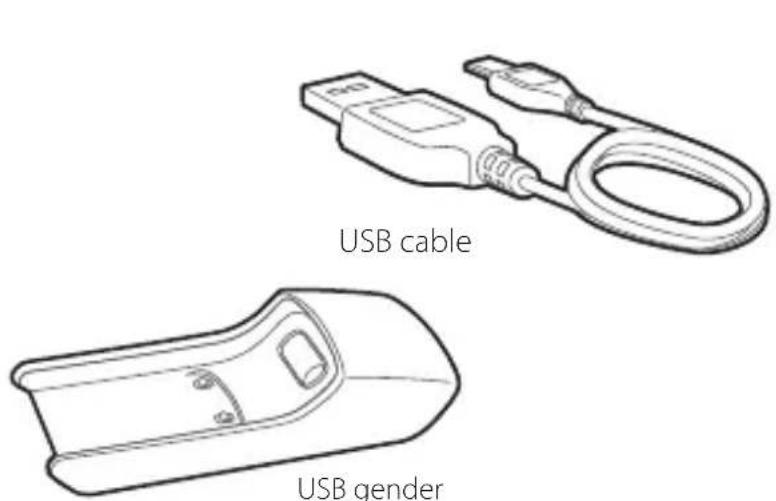
text_image
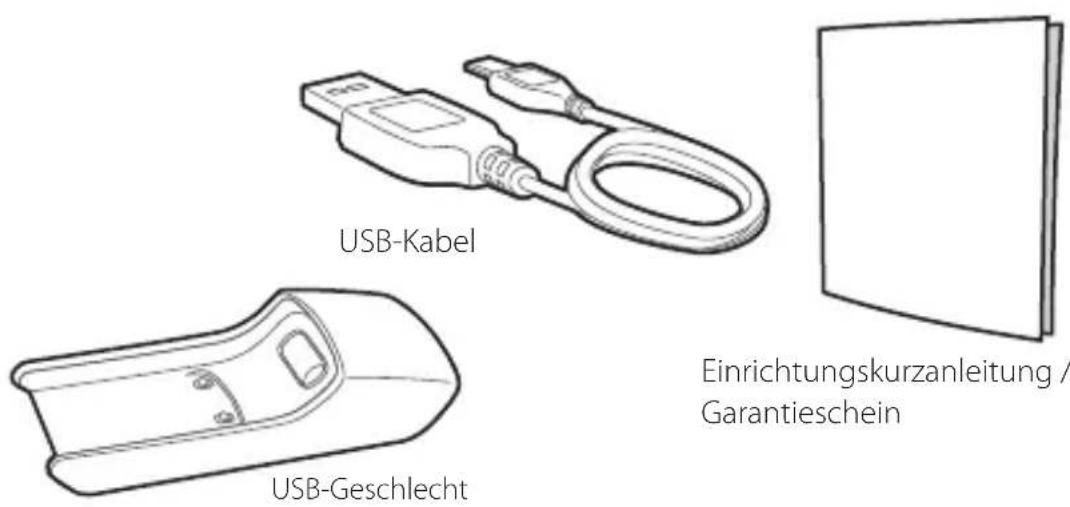
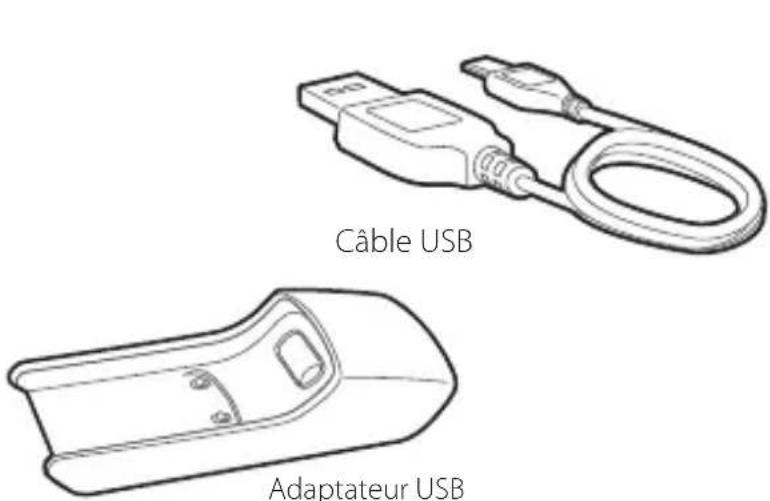
USB cable USB gender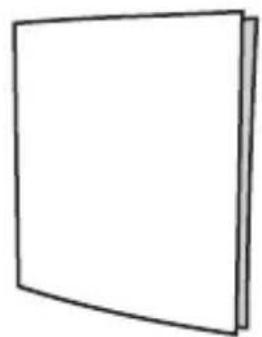
natural_image
Simple line drawing of a blank rectangular book or document (no text or symbols)Quick setup guide / Warranty card

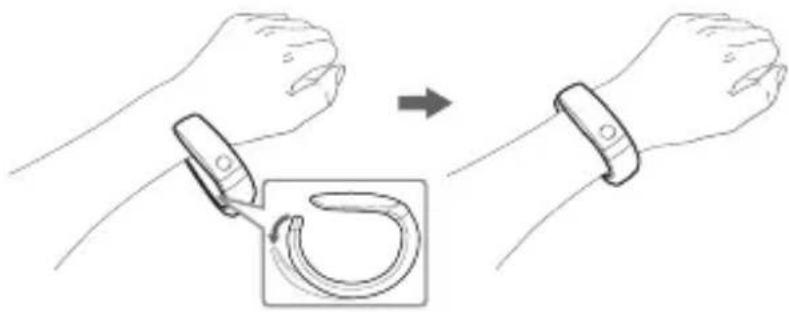
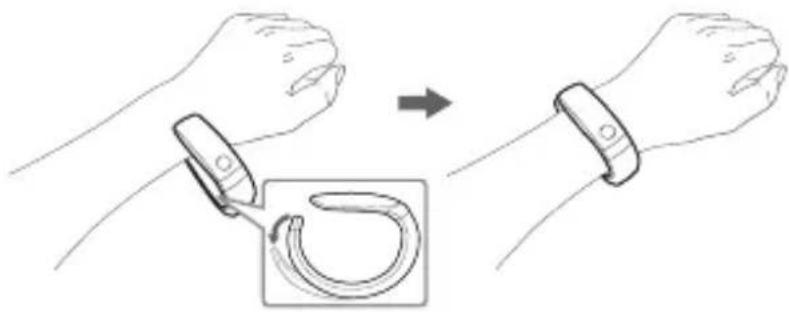
Wearing the LG Lifeband Touch
natural_image
Illustration of two hands holding a wristband with a magnified inset showing the cable being held (no text or symbols)Stretch the tip of the band and slide it on to your wrist. Face the open end towards the outside for a more comfortable fit.

Product Overview
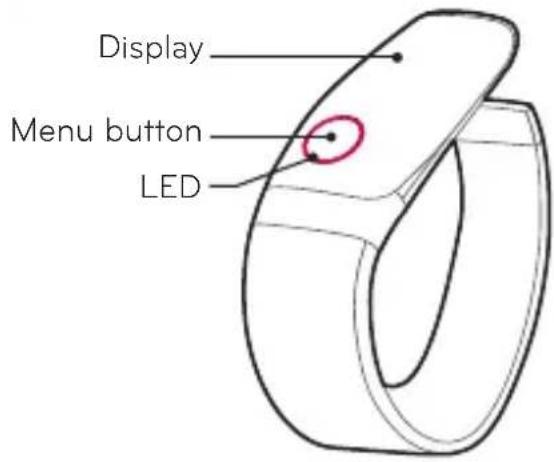
text_image
Display Menu button LEDPower On
When Powering on the LG Lifeband Touch for the first time, press and hold the Menu button for 2 seconds.
- Menu button:
Holding down or pressing the Menu button will allow you to access different menu functions.
- Display:
Shows detailed information. Swipe left or right and touch to select an item.
- LED :
Shows information such as Goal achievement rate.

Charging Battery
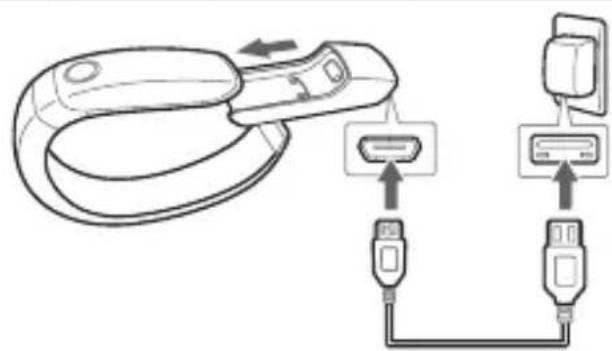
natural_image
Diagram of a medical device with connectors and ports, showing no text or symbolsAC Adapter is not supplied.
Insert the Micro USB connector to the charging dock, then connect the USB connector to a USB AC adapter.
◆ Fully charge the device before using for the first time.
It takes 3 hours to fully charge battery.
To charge this product, you must always use a AC 5V, 100mA or more. Certified /Listed Adapter which complies with LPS.

Installing LG Fitness Smartphone App and Connecting Bluetooth
You can view your workout data recorded by the this device using the app.
To use this function, sign up for the app and register your device.
You can view time and music control mode on LG Lifeband Touch after syncing with the app.
- Search for "LG Fitness" in Play Store (Android phone) or App Store (iPhone) and then, install the app.
- Turn on the LG Lifeband Touch. (Press and hold Menu button for 2 seconds.)
- Run the "LG Fitness" app. And select [Sign Up] to register device.
- Touch [Search] in the [Register Device] screen.
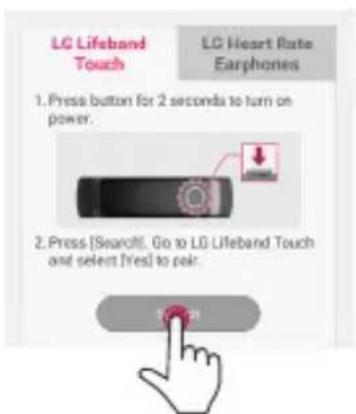
text_image
LG Lifeband Touch LC Heart Rate Earphones 1. Press button for 2 seconds to turn on power. 2. Press [Search]. Go to LG Lifeband Touch and select Ires] to pair.When using Bluetooth® technology, you have to make a connection between the LG Lifeband Touch and the smartphone as close as possible and keep the distance.
Note : Bluetooth function is available if your smartphone supports Bluetooth 4.0 LE or later.
- [Pairing? → YES | NO] appears on the screen. Touch [YES].
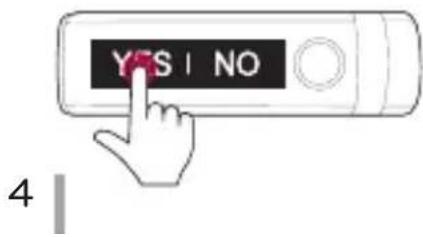
text_image
YES I NO 4To connect to the smartphone, touch [YES] within 10 seconds. In case that the connection has failed, repeat step 4 and step 5.

Display
- Each time you press the Menu button, 3 types of modes are displayed in the following order.

text_image
2:43 PM Time mode Activity mode → Music Control mode- To display more information in each mode, swipe left or right.
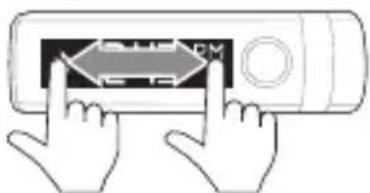
text_image
Diagram showing two hands pointing at a device with a labeled arrow and 'PM' on the screenTime mode
Time ↔ Date ↔ Battery life
Activity mode
Total consumed calories / Goal consumed calories / Goal achievement rate
↔ Total distance ↔ Number of steps ↔ Workout
To display your Goal consumed calories or Goal achievement rate, touch the screen in the Total consumed calories repeatedly.
Music Control mode
Play or Pause Forward or Backward Volume Up or Down
Music control function is available when you sync LG Lifeband Touch with the app and have music stored on your smartphone.

Using Workout
- Press Menu button to select Activity mode.
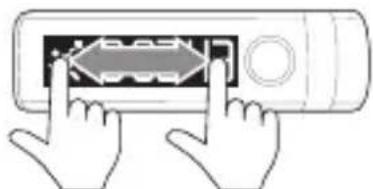
- Swipe the screen in the Activity mode to select [START].
- Touch [START] to start Workout.
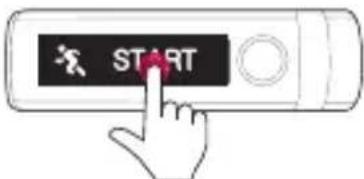
text_image
START- To check various workout information, swipe left or right.
natural_image
Illustration of two hands pointing at a device with a button and arrow (no text or symbols)Time Calories Distance Number of steps Speed Pace Heart Rate
- Touch the screen in Workout mode. [STOP] and [PAUSE] button will appear. To complete Workout mode, touch [STOP]. To pause Workout mode, touch [PAUSE].
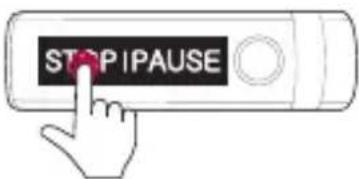
text_image
STOP IPAUSE
Menu Button Functions
| Button Functions | Initial Bluetooth Connection | Select Orientation (Left or Right) | Power off | Restart automatically |
| Press and hold for | About 2 seconds, 1st vibration | About 4 seconds, 2nd vibration | More than 6 seconds, 3rd vibration | More than 10 seconds |
| Display |  |  |  |  |

LED Indications
| Performance LED indicator | |
| Ready to pair Violet / Blinks. | |
| Paired Violet / Fade in and out. | |
| Battery LED indicator | |
| Low (less than 10%) Red / Blinks | |
| Charging Red / Turned on dimly. | |
| Charged LED off / When pressing | MENU button, Green LED indicator turned on. |

Notice
The LG Lifeband Touch is splash resistant not waterproof. It should not be used underwater or under running water.
Activity records are reset every night at 12:00 AM local time. Data that has not been updated can be saved on the device for up to 1 month. The data will be updated when you sync the device to LG Fitness App on your Smartphone.
Auto display On/Off
This device features gesture recognition technology. The display will turn on when motioning your arm up to check the time. The display will turn off when motioning your arm back down.
Note: You can set [Screen auto-off time] on the LG Fitness app. [More→LG Lifeband Touch Settings]
Reconnecting Bluetooth
To reconnect to the smartphone, turn Bluetooth setting [OFF] and [ON] again by pressing and holding for 2 seconds the Menu button when the app is running.

flowchart
graph LR
    A["BLUETOOTH"] --> B["ON I OFF"]
    B --> C["ON I OFF"]
✿ Pairing is kept even if the Bluetooth connection on your smartphone is turned off and on again.

LG
Life's Good
natural_image
Black wristband with a red circular mark on the left side, no visible text or symbols on the device itself.natural_image
Line drawing of a mechanical clamp or clip (no text or symbols)LG Lifeband Touch

natural_image
Illustration of two hands holding a wristband with a magnified inset showing the cable being held (no text or symbols)text_image
Diagram showing cable connection to a device with two USB connectors and a separate card interface connected via a cable.text_image
Diagram showing two hands pointing at a device with 'PM' label and directional arrow, likely indicating PM control or status.Zeitmodus
natural_image
Illustration of two hands pressing a button on a device (no text or symbols visible)text_image
STOP IPAUSEflowchart
graph LR
    A["BLUETOOTH"] --> B["ON I OFF"]
    B --> C["ON I OFF"]
natural_image
Close-up of a black smartwatch with a red circular highlight on the ring (no text or symbols visible)natural_image
Line drawing of a mechanical clamp or clip (no text or symbols)LG Lifeband Touch
natural_image
Simple line drawing of a blank rectangular book or document (no text or symbols)natural_image
Illustration of two hands holding a wristband with a magnified inset showing the cable being held (no text or symbols)natural_image
Diagram of a cable connector connected to two USB ports, showing connection points and wiring (no text or symbols)text_image
Diagram showing two hands interacting with a device displaying a directional arrow labeled 'PM' and a circular button, likely indicating a PM control or navigation interface.Modo Hora
natural_image
Illustration of two hands pointing at a device with a control panel (no text or symbols visible)natural_image
Black smartwatch with a red circular lens on the left side, no visible text or symbols on the device itself.natural_image
Line drawing of a mechanical clamp or clip (no text or symbols)LG Lifeband Touch
natural_image
Simple line drawing of a blank rectangular book or document (no text or symbols)natural_image
Illustration of two hands holding a wristband with a magnified inset showing the cable being held (no text or symbols)natural_image
Diagram of a cable connector with two USB connectors and a wall-mounted device (no text or symbols)text_image
Diagram showing two hands pointing at a device with an arrow labeled 'PM' and a circular button, likely indicating a PM control or status.Mode Heure
natural_image
Illustration of two hands pointing at a device with a stylized logo (no text or symbols)text_image
APPÊT I PAUSE
flowchart
graph LR
    A["BLUETOOTH"] --> B["ON I OFF"]
    B --> C["ON I OFF"]
natural_image
Close-up of a black smartwatch with a red circular mark on the ring (no text or symbols visible)natural_image
Line drawing of a mechanical clamp or clip (no text or symbols)LG Lifeband Touch

Indossare LG Lifeband Touch.