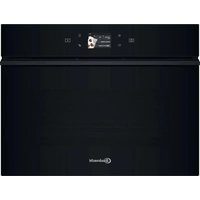
BMP9O7TK - Microwave Oven BAUKNECHT - Free user manual and instructions
Find the device manual for free BMP9O7TK BAUKNECHT in PDF.


| Product type | Combination microwave oven |
| Brand | Bauknecht |
| Model | BMP9O7TK |
| Microwave power (max) | 900 W (max) |
| Microwave power (settings) | Max, 750 W, 650 W, 500 W, 350 W, 160 W, 90 W |
| Main functions | Microwave, Crisp, Grill, Grill + Microwave, Turbo Grill, Turbo Grill + MW, Hot air, Hot air + MW, Keep warm, Auto modes (defrost, reheating, dough proofing, crisp recipes), Smart Clean |
| Power supply | 230 V / 50 Hz (typical) |
| Screen type | Touch screen |
| Connectivity | Wi-Fi b/g/n 2.4 GHz via Bauknecht Home Net app |
| Included accessories | Glass turntable, turntable support, Crisp pan, Crisp pan handle, metal rack, rectangular baking tray, steam cooker (basket + lid) |
| Cleaning | Smart Clean (steam cleaning), interior surfaces wiped with a damp cloth, do not use steam cleaner or abrasives |
| Safety | Control lock, automatic shut-off, demo mode |
| Spare parts | Available via After-Sales Service (reference on rating plate) |
| General information | Manual available in multiple languages, product registration at www.register10.eu |
Frequently Asked Questions - BMP9O7TK BAUKNECHT
User questions about BMP9O7TK BAUKNECHT
0 question about this device. Answer the ones you know or ask your own.
Ask a new question about this device
Download the instructions for your Microwave Oven in PDF format for free! Find your manual BMP9O7TK - BAUKNECHT and take your electronic device back in hand. On this page are published all the documents necessary for the use of your device. BMP9O7TK by BAUKNECHT.
USER MANUAL BMP9O7TK BAUKNECHT
REMOTE ENABLE (ENTFERNT)
THANK YOU FOR BUYING A BAUKNECHT PRODUCT
In order to receive a more complete assistance, please register your product on www.register10.eu

Before using the appliance carefully read the Safety Instruction.
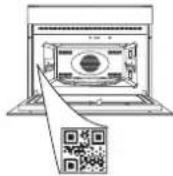
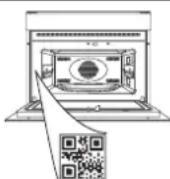
PLEASE SCAN THE QR CODE ON YOUR APPLIANCE IN ORDER TO REACH MORE INFORMATION
PRODUCT DESCRIPTION
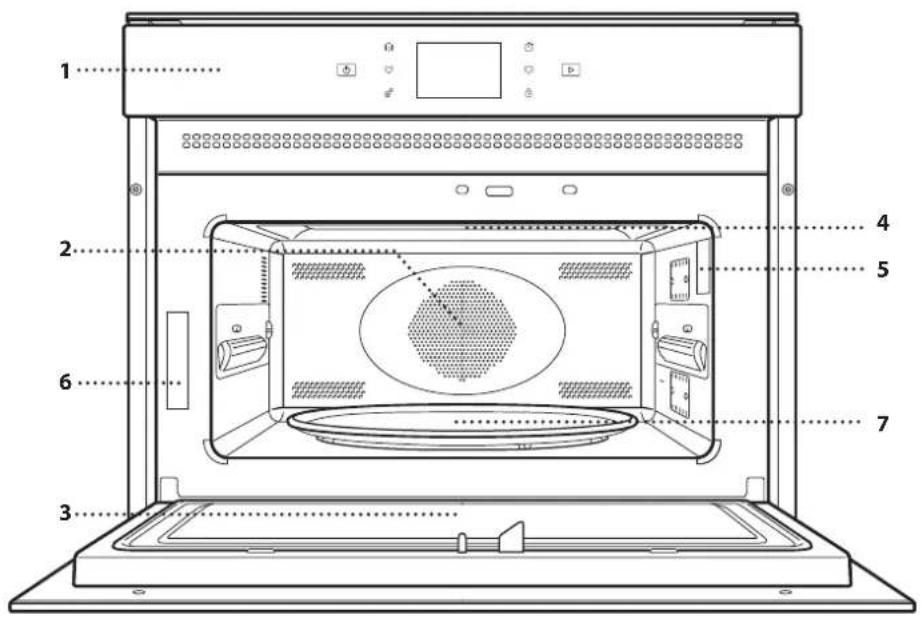
- Controlpanel
- Fan (not visible) and Circular heating element (not visible)
- Door
- Upper heating element/grill
- Lamp
- Identification plate (do not remove)
- Glass turntable
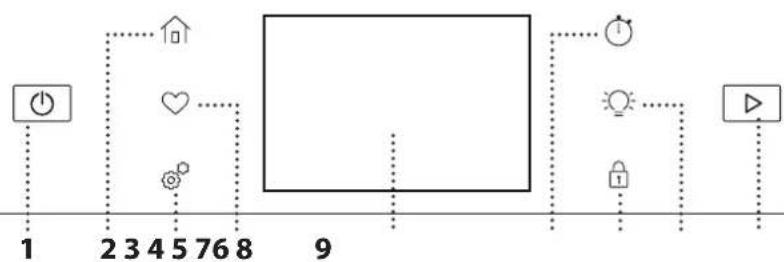
CONTROL PANEL DESCRIPTION
flowchart
graph TD
    A["1"] --> B["2"]
    B --> C["3"]
    C --> D["4"]
    D --> E["5"]
    E --> F["76"]
    F --> G["8"]
    G --> H["9"]
    H --> I["10"]
    I --> J["11"]
    J --> K["12"]
    K --> L["13"]
    L --> M["14"]
    M --> N["15"]
    N --> O["16"]
    O --> P["17"]
    P --> Q["18"]
    Q --> R["19"]
    R --> S["20"]
    S --> T["21"]
    T --> U["22"]
    U --> V["23"]
    V --> W["24"]
    W --> X["25"]
    X --> Y["26"]
    Y --> Z["27"]
    Z --> AA["28"]
    AA --> AB["29"]
    AB --> AC["30"]
- ON / OFF
For switching the oven on and off - HOME
For quick access to the main menu. - TOOLS
To choose from several options and also change the oven settings and preferences. - FAVORITES
For retrieving up the list of your favorite functions. -
DISPLAY
-
TIMER
This function can be activated either when using a cooking function or alone for keeping time.
- LOCK
Enables you to lock the buttons on the touch pad so they cannot be pressed accidentally.
- LIGHT
To switch on or off the oven lamp and save energy.
- START
For starting a function.
ACCESSORIES
Before purchasing other accessories that are available on the market, make sure that they are heat-resistant and suitable for steaming.
Make sure that there is a gap of at least 30 mm between the top of any container and the walls of the
cooking compartment in order to allow steam to flow sufficiently.
Accessories during microwave function may raise in temperature. It is recommended to use protection to handle accessories at the end of the cycle.
| TURNTABLE TURNTABLE SUPPORT CRISP PLATE | HANDLE FOR CRISP PLATE | ||
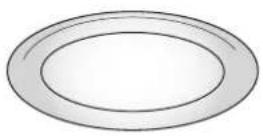 | 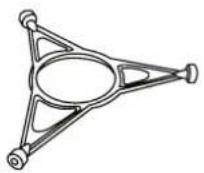 | 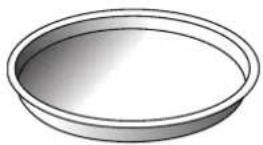 | 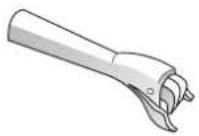 |
| Placed on its support, the glass turntable can be used with all cooking methods.The turntable must always be used as a base for other containers or accessories, with the exception of the rectangular baking tray. | Only use the support for the glass turntable.Do not rest other accessories on the support. | Only for use with the designated functions. The Crisp plate must always be placed in the center of the glass turntable or wire rack and can be pre-heated when empty, using the special function for this purpose only. Place the food directly on the Crisp plate. | Useful for removing the hot Crisp plate from the oven. |
| WIRE RACK | RECTANGULAR BAKING TRAY | STEAMER |
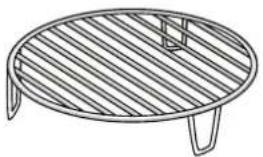 | 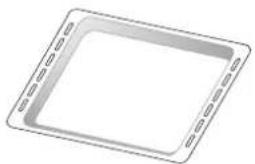 | 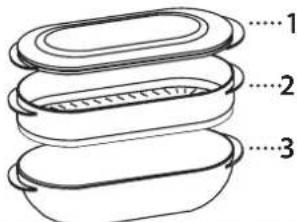 |
| This allows you to place food closer to the grill, for perfectly browning your dish and allows an optimal air circulation. It must be used as base for the crisp plate in some “Crisp Fry” functions. Place the wire rack on the turntable, making sure that it does not come into contact with other surfaces. | Only use the baking tray with functions that allow for convection cooking; it must never be used in combination with microwaves. Insert the plate horizontally, resting it on the rack in the cooking compartment. Please note: You do not need to remove the turntable and its support when using the rectangular baking tray. | To steam foods such as fish or vegetables, place these in the basket (2) and pour drinking water (100 ml) into the bottom of the steamer (3) to achieve the right amount of steam. To boil foods such as potatoes, pasta, rice or cereals, place these directly on the bottom of the steamer (the basket is not required) and add an appropriate amount of drinking water for the amount you are cooking. For best results, cover the steamer with the lid (1) provided.Always place the steamer on the glass turntable and only use it with the microwave function.The steamer bottom has been designed also to be used in combination with the special MW self clean function. |
The number of accessories may vary depending on which model is purchased.
*Other accessories can be purchased separately from the After-sales Service.
FUNCTIONS
MANUAL MODES

MICROWAVE
For quickly cooking and reheating food or
drinks.
Required accessories: wire shelf, microwave-safe and heatproof container.
| Max | Quickly reheating drinks or other foods with a high water content. If the food contains egg or cream choose a lower power. |
| 750 Cooking vegetables. | |
| 650 Cooking meat, fish and dishes that cannot be stirred. | |
| 500 | Cooking meaty sauces, or sauces containing cheese or egg. Finishing off meat pies or pasta bakes. |
| 350 | Slow, gently cooking. Perfect for melting butter or chocolate. |
| 160 | Defrosting frozen foods or softening butter and cheese. |
90 Softening ice cream.
| ACTION FOOD POWER (W) DURATION (min) | |||
| Reheat 2 cups Max 1 - 2 | |||
| Reheat Mashed potatoes 1 kg Max 10 - 12 | |||
| Defrost | Minced meat 500 g | 160 | 15 - 16 |
| Cook | Sponge cake | 750 | 7 - 8 |
| Cook | Egg custard | 500 | 13 - 16 |
| Cook | Meat loaf | 750 | 17 - 20 |

CRISP
For perfectly browning a dish, both on the top and bottom of the food. This function must only be used with the special Crisp plate.
Required accessories: wire rack, Crisp plate, handle for the Crisp plate.
| FOOD | DURATION (min) |
| Leavened cake | 7 - 8 |
| Hamburgers* | 8 - 10 |
*Turn food halfway through cooking

FAST PREHEAT
For quickly preheating the oven before a cooking cycle. Wait for the function to finish before placing food inside the oven. Once preheating has finished, the oven will select the "Forced Air" function automatically.
Required accessories: wire shelf with pan or baking tray

GRILL
For browning, grilling and gratins. We recommend turning the food during cooking.
Recommended accessories: wire shelf
| FOOD | GRILL LEVEL | DURATION (min) |
| Toast | High | 5 - 6 |

GRILL + MW
For quickly cooking and gratinating dishes, combining the microwave and grill functions.
Required accessories: wire rack, microwave-safe and heatproof container.

TURBO GRILL
For perfect results, combining the grill and oven air convection. We recommend turning the food during cooking.
Recommended accessories: wire shelf

TURBO GRILL + MW
For quickly cooking and browning your food, combining the microwave, grill and the oven air convection.
Required accessories: wire rack, microwave-safe and heatproof container.

FORCED AIR
For cooking sweets and meats with hot air circulation. To achieve best results this function have the preheating phase: wait the end of preheat to insert the food. Is possible to use it for cooking different foods that require the same cooking temperature on several shelves at the same time. This function can be used to cook different foods without odours being transferred from one food to another. Required accessories: baking tray or wire shelf and heatproof container.

FORCED AIR + MW
For cooking any kind of dish on one shelf only combining hot air circulation and the microwave.
Required accessories: wire rack, microwave-safe and heatproof container.

SPECIAL FUNCTIONS

KEEP WARM
For keeping just-cooked food hot and crisp, including meat, fried foods or cakes.

AUTO MODES
With the Auto Modes, simply select the type and weight or the quantity of the food items to obtain the best results. The oven will automatically calculate the optimum settings and continue to change them as cooking progresses.
To use at best this function, follow the indications on the relative cooking table.
Due to food variability, the cooking duration is set on an average grade. We always recommend to check the internal doneness of food and in case prolong the cooking time to achieve proper doneness.
DEFROST
For quickly defrosting various different types of food. Always place the food in a container directly on the wire shelf for best results, except for Crisp Bread Defrost. At the end let the food stand for 5 minutes.
| FOOD WEIGHT | ||
| Timed Defrost - | * | |
| Meat | * | 100g - 2.0 kg |
| Poultry | * | 100g - 3.0 kg |
| Fish | * | 100g - 2.0 kg |
| Crisp Bread Defrost | * | 50 - 800 g |
CRISP BREAD DEFROST
This exclusive function allows you to defrost frozen bread. Combining both Defrost and Crisp technologies, your bread will taste and feel as if it were freshly baked. Use this function to quickly defrost and heat frozen rolls, baguettes & croissants. The Crisp Plate must be used in combination with this function, directly placed on wire shelf.
REHEAT
For reheating ready-made food that is either frozen or at room temperature. The oven automatically calculates the settings required to achieve the best results in the shortest amount of time. Place food on a microwave-safe and heatproof dinner plate or dish.
| Food | Weight/portions/ pieces | Note |
| Plated Meal 250 - 800 g | Take out from packaging being careful to remove any aluminium foil. At the end of reheating process 1-2 minutes standing time always improves the result. | |
| Lasagna (frozen) | 400g - 1 kg | Take out from packaging being careful to remove any aluminium foil. |

RISING
For optimal proving of sweet or savoury dough.
To maintain the quality of proving, do not activate the function if the oven is still hot following a cooking cycle.
Required accessories: heatproof container.
| Food | Weight/portions/ pieces | Note |
| Frozen portion | 250 - 800 g | Take out from packaging being careful to remove any aluminium foil. At the end of reheating process 1-2 minutes standing time always improves the result. |
| Water 100 - 500 g | Heat uncovered in a single container. | |
| Soup 200 - 800 g |
CRISP RECIPES
For quickly reheating and cooking frozen foods and giving them a golden, crunchy top. Only use this function with the crisp plate provided. Turn the food when prompted.
| Food | Weight/portions/ pieces | Notes |
| Poultry pieces 400 g - 1.2 kg | Brush with oil and season as you prefer. Evenly distribute in the crisp plate with the skin side down | |
| Burger patties *(frozen) | 100 - 500 g | Brush with oil and sprinkle with salt before cooking |
| Chicken Nuggets *(frozen) | 100 - 500 g | Distribute evenly in the crisp plate |
| Pizza *(frozen) | 350 - 600 g | Take out from packaging being careful to remove any aluminium foil |
| Fish Fingers *(frozen) | 100 - 500 g | Distribute evenly in the crisp plate |
Required accessories: Crisp plate, handle for crisp plate.

TOOLS
REMOTE ENABLE
To enable use of the Bauknecht Home Net App.
MUTE
To quickly turn your device's sounds on or off.
Other specific sound volume settings can be managed in the Preferences menu, under Sound & Volume.
SMART CLEAN
The action of the steam released during this special cleaning cycle allows dirt and food residues to be removed with ease. Pour a cup of drinking water into the Crisp plate and activate the function.
Follow any instructions on the display; the progression of the cleaning function and its conclusion are also displayed.
PREFERENCES
This menu enables you to choose from several options and also change the settings for your product or the display brightness. To set languages and units of measurement depending on the country, go to the Regional Setting menu.
When "DEMO" is "On" all commands are active and menus available but the oven doesn't heat up. To deactivate this mode, access "DEMO" from "SETTINGS" menu and select "Off".
By selecting "RESTORE FACTORY DEFAULT", the product switches off and then it returns to first switch on. All settings will be deleted.
CONNECTIVITY
For changing settings or configuring a new home network.
INFO
For obtaining further information about the product.
OTHER FUNCTIONS MENU

FAVORITES
For retrieving the list of favorite functions.

KITCHEN TIMER
This function can be activated either when using a cooking function or alone for keeping time. Once started, the timer will continue to count down independently without interfering with the function itself. Once the timer has been activated, you can also select and activate a function.
The timer will continue counting down at the top-right corner of the screen.
To retrieve or change the kitchen timer:
- Press kitchen timer option.
An audible signal will sound and the display will indicate once the timer has finished counting down the selected time.
- Tap "PAUSE" if you want to pause the timer. You can then tap "RESUME" to restart the timer.
- Tap "CANCEL" to cancel the timer or set a new timer duration.
- Tap “+1 min” to increase the duration of 1 minute.

LIGHT
To switch on or off the oven lamp.

CONTROL LOCK
The "Control Lock" enables you to lock the buttons on the touch pad so they cannot be pressed accidentally.
To unlock the appliance, long press the lock key on the touch pad.
HOW TO USE THE TOUCH DISPLAY

To select or confirm:
Tap the screen to select the value or menu item you require.

To scroll through a menu or a list:
Simply swipe your finger across the display to scroll through the items or values.
To confirm settings or access the next screen:
Tap "SET" or "NEXT".
To go back to the previous screen:
Tap ← .
FIRST TIME USE
You will need to configure the product when you switch on the appliance for the first time.
The settings can be changed subsequently by pressing to access the "Tools" menu.
1. SELECT THE LANGUAGE PREFERENCES
You will need to set the language and the time when you switch on the appliance for the first time.
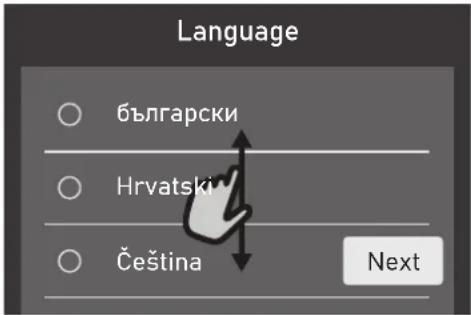
- Swipe across the screen to scroll through the list of available languages.
- Tap the language you require.
You can change the language lately by opening the settings menu.
2. SETTING UP WIFI
The Bauknecht Home Net App feature allows you to operate the oven remotely from a mobile device. To enable the appliance to be controlled remotely, you will need to complete the connection process successfully first. This process is necessary to register your appliance and connect it to your home network.
Otherwise, tap "SKIP" to connect your product later.
HOW TO SET UP THE CONNECTION
To use this feature you will need: A smartphone or tablet with bluetooth and a wireless router connected to the Internet. Please use your smart device to check that your home wireless network's signal is strong close to the appliance. The WiFi connection can be set up only through the mobile App.
Minimum requirements:
Smart device: Android with a 1280x720 (or higher) screen or iOS.
See on App store the app compatibility with Android or iOS versions.
Wireless router: 2.4Ghz WiFi b/g/n.
1. Download the Bauknecht Home Net App
The first step to connecting your appliance is to
download the App on your mobile device. The Bauknecht Home Net App will guide you through all the steps listed here. You can download the App from the App Store or the Google Play Store.
Once downloaded, tap Add appliance through the App to proceed with the setup connection.
2. Create an account
If you haven't done so already, you'll need to create an account. This will enable you to network your appliances and also view and control them remotely.
3. Register your appliance
Follow the instructions in the App to register your appliance. The App will ask you to insert the product number to complete the registration process. You can find its unique code number on the identification plate attached to the product, inside the door (it is a 12-digit numerical code only). During this phase, please remember to keep bluetooth on.
You will need to confirm the Smart Appliance Identifier (SAID).
Lastly, the App will ask you to pair the appliances showing a code, to be confirmed on both devices.
4. Connect to WiFi
Going on with the setup procedure, as the last step the App will guide you through the process of connecting the device to your home wireless network.
Please note: The connection procedure will only need to be carried out again if you change your router settings (e.g. network name or password or data provider).
3. SETTING THE TIME AND DATE
Connecting the oven to your home network will set the time and date automatically. Otherwise you will need to set them manually
- Tap the relevant numbers to set the time.
- Tap "SET" to confirm.
Once you have set the time, you will need to set the date
- Tap the relevant numbers to set the date.
- Tap "SET" to confirm.
After a long power loss, you need to set the time and date again.
4. HEAT THE OVEN
A new oven may release odours that have been left behind during manufacturing: this is completely normal. Before starting to cook food, we therefore recommend heating the oven with it empty in order to remove any possible odours.
Remove any protective cardboard or transparent
DAILY USE
1. SELECT A FUNCTION
To switch on the oven, press or touch anywhere on the screen.
The display allows you to choose between Manual Modes and Auto Modes.
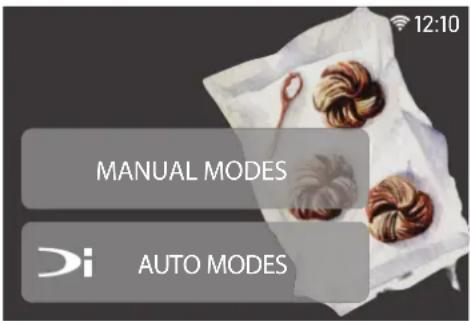
- Tap the main function you require to access the corresponding menu.
- Scroll up or down to explore the list.
- Select the function you require by tapping it.
JET START
When the oven is switched off, press ▶ to activate cooking with the microwave function set at full power for 30 seconds.
2. SET MANUAL FUNCTIONS
After having selected the function you require, you can change its settings. The display will show the settings that can be changed.
The i icon in the upper right corner of the display gives you more informations about the selected function.
According to the selected function, you can activate or deactivate the preheat with a specific toggle.
DURATION
The oven cooks for the length of time you select. At the end of the cooking time, the cooking is stopped automatically.
- You can select the duration by scrolling the numbers, or pressing ■■■■ you can tap the relevant numbers to set the cooking time you require.
- Tap Set to confirm.
- Press ▶ to start the function.
In some functions (without MW), to manually manage the end of cooking, you can open the ⋯ three-dots menu and
film from the oven and remove any accessories from inside it. Heat the oven to 200 °C for around one hour, using the "Fast Preheat" function. Follow the instructions for setting the function correctly.
Please note: It is advisable to air the room after using the appliance for the first time.
change the cooking time, setting it to the value "0".
If you want to stop the cycle, open the three dots menu and select "Stop Cooking".
3. SET AUTO MODES
The Auto Modes enable you to prepare a wide variety of dishes, choosing from those shown in the list. Most cooking settings are automatically selected by the appliance in order to achieve the best results.
Furthermore, thanks to a special sensor able to recognize the moisture content of the food, some of the AUTO MODES functions allow you to achieve optimal cooking for any kind of food without any setting: the sensor will stop the cooking at the perfect time. During the last few minutes of cooking only, a countdown will appear on the display, indicating the remaining cooking time.
- Choose a recipe from the list.
Functions are displayed by food categories in the "Auto Modes" menu (see relative tables).
- Once you have selected a function, simply indicate the characteristic of the food (quantity, weight, etc.) you want to cook to achieve the perfect result.
4. START THE FUNCTION
- Once you have configured the settings, tap "START" to activate the function.
If the oven is hot and the function requires a specific maximum temperature, a message will be shown on the display. You can change the values that have been set at any time during cooking by tapping the value you want to amend.
All the options available to be modified can be explored by opening the three dots ⋯ menu in the bottom left part of the display.
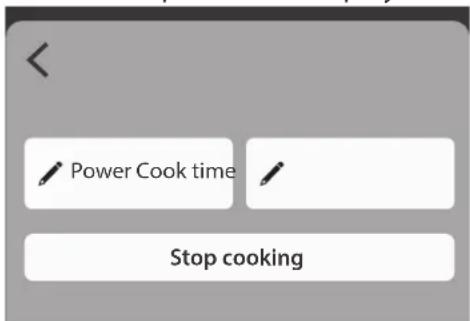
At any time you can stop the function that has been activated by pressing ⏻.
5. PREHEATING
If previously activated, once the function has been started the display indicates the status of preheating phase. Once this phase has been finished, an audible signal will sound and the display will indicate "OVEN READY."
- Open the door.
- Place the food in the oven.
- Close the door and tap the "Start now" or the "START" button ▶ to start cooking.
Placing the food in the oven before preheating has finished may have an adverse effect on the final cooking result. Opening the door during the preheating phase will pause it. The cooking time does not include a preheating phase.
You can change the default setting of the preheating option for cooking functions that allow you to do that manually.
- Select a function that allows you to select the preheating function manually.
- Use the Preheating dedicated toggle in the bottom right of the display to activate or deactivate preheating. It will be set as a default option.
6. TURN OR CHECK FOOD
Some Auto Modes will require the food to be turned during cooking. An audible signal will sound and the display shows the action to be done.
- Open the door.
- Carry out the action prompted by the display.
- Close the door, then tap "START" to resume cooking.
In the same way, in the last 5% of the cook time, before the end of cooking, the oven prompts you to check the food.
An audible signal will sound and the display shows the action to be done.
- Check the food
- Close the door, then tap "START" to resume cooking.
7. END OF COOKING
An audible signal will sound and the display will indicate that cooking is complete. With some functions, once cooking has finished you can give your dish extra browning, extend the cooking time or save the function as a favorite.
- Select "Extra Browning" to start a five-minute browning cycle.
- Tap “+ 5 min” to prolong the cooking
- Tap "ADD TO FAV" to save it as a favorite.
8. FAVORITES
The Favorites feature stores the oven settings for your favorite recipe.
The oven automatically recognizes the most used functions. After a certain number of uses, you will be prompted to add the function to your favorites.
HOW TO SAVE A FUNCTION
Once a function has finished, tap "ADD TO FAV" to save it as a favourite. This will enable you to use it quickly in the future, keeping the same settings.
ONCE SAVED
To view the favorite menu, press All the saved functions will be listed in this Menu. Tap "START" to activate the selected cooking function.
CHANGING THE SETTINGS
In the favorite screen, you can add an image or name to the favorite to customize it to your preferences.
- Select the function you want to change.
- Tap the three dots icon ⋯ on the top right corner.
- Select the attribute you want to change.
- Tap "SAVE" to confirm your changes.
If you want to remove a specific function you will find in this Menu the "DELETE FAVORITE" option.
TOOLS
Press to open the "Tools" menu at any time. This menu enables you to choose from several options and also change the settings or preferences for your product or the display.

SMART CLEAN
The action of water vapor released during this special cycle of cleaning by means of a low temperature, facilitates removal of grime. Activate the function when the oven is cold.
Press ▶ to activate the function: the display will prompt you to carry out all actions needed to obtain the best cleaning results.
Please note: It is recommended to do not open the oven door during the cleaning cycle to avoid a loss of water vapor that could get an adverse effect on the final cleaning result.
An appropriate message will start flashing on the display once the cycle has finished. Leave the oven to cool down and then wipe and dry the interior surfaces with a cloth or a sponge.
The MW Steam Cooking method offers a convenient and faster alternative to traditional steam cooking, providing comparable results.
To achieve the best results, make sure to use room temperature water without added salt and place the steamer in the center of turning plate.
Pour 100g of water into the bottom part of the steam accessory. Place the food in the basket, always close the lid and avoid opening it during cooking.
Keep in mind that microwave cooking can sometimes result in uneven heating.
Therefore, check the food after cooking and, if necessary, extend the cooking time using a power setting between 160W and 500W.
The table below outlines suggested microwave power levels and cooking times for various food types and quantities. For larger quantities, increase the cooking time accordingly.
This table provides guidelines. Feel free to experiment with other foods based on these recommendations.
Required accessories: Steamer
| CATEGORY FOOD WEIGHT (g) | POWER(W) | COOKING TIME (MIN.) | NOTES | ||
| VEGETABLES& FRUIT | Frozen Vegetables | 100 - 400 500 6 | -15 | Evenly distribute the frozen vegetables into the steamer basket removing any large pieces of ice. Stir when cooking finishes and let food rest for around 5 minutes. | |
| 400 - 800 650 12 | -24 | ||||
| Potatoes and Root Vegetables | 100-300 500 4 | -12 | Cut vegetables in pieces of around 3 cm and evenly distribute them in the steamer basket. Stir when cooking finishes and let food rest for around 5 minutes. | ||
| 300-800 750 9 | -19 | ||||
| Soft Vegetables | 100 - 300 650 4 | -9 | Cut vegetables in pieces of around 3 cm and evenly distribute them in the steamer basket. Stir when cooking finishes and let food rest for around 5 minutes. | ||
| 300 - 800 750 6 | -15 | ||||
| Fruit Pieces | 100 - 500 500 3 | -12 | Cut fruit in piece/slices and evenly distribute it in the steamer basket. Stir when cooking finishes and let food rest for around 5 minutes. | ||
| 500 - 800 650 9 | -20 | ||||
| MEAT & FISH | Poultry Breast | 100 - 400 650 5 | -10 | Use poultry cuts thicker than 1 cm and evenly distribute them in the steamer basket. Turn the food when you prolong if needed. | |
| 400 - 600 750 7 | -11 | ||||
| Fish Fillets | 100 - 500 350 8 | -22 | Use fillets thicker than 3 cm and distribute them evenly in the steamer basket. Turn the food when you prolong if needed. | ||
| Whole Fish | 300 - 750 650 9 | -17 | Put the fish in the center of the steamer basket. It is recommended to use whole fish in a weight range from 300g to 700g. Turn the food when you prolong if needed. | ||
| Mussels | 300 - 1000 | 650 5 - 15 | Evenly distribute the mussels still in their closed shells in the steamer basket. | ||
| Shrimps | 200 - 800 650 4 | -15 | Evenly distribute the shrimps without removing the shell in the steamer basket. | ||
CLEANING AND MAINTENANCE
Make sure that the oven has cooled down before carrying out any maintenance or cleaning.
Do not use steam cleaners.
Wear protective gloves.
Do not use wire wool, abrasive scourers or abrasive/corrosive cleaning agents, as these could damage the surfaces of the appliance.
The oven must be disconnected from the mains before carrying out any kind of maintenance work.
EXTERIOR SURFACES
- Clean the surfaces with a damp microfibre cloth. If they are very dirty, add a few drops of pH-neutral detergent. Finish off with a dry cloth.
- Do not use corrosive or abrasive detergents. If any of these products inadvertently comes into contact with the surfaces of the appliance, clean immediately with a damp microfibre cloth.
INTERIOR SURFACES
- After every use, leave the oven to cool and then clean it, preferably while it is still warm, to remove any deposits or stains caused by food residues. To dry any condensation that has formed as a result of cooking foods with a high water content, let the oven to cool completely and then wipe it with a cloth or sponge.
- Activate the "Smart Clean" function for optimum cleaning of the internal surfaces.
- Clean the glass in the door with a suitable liquid detergent.
ACCESSORIES
- Soak the accessories in a washing-up liquid solution after use, handling them with oven gloves if they are still hot. Food residues can be removed using a washing-up brush or a sponge.
• The steamer can be washed either by hand or in a dishwasher. - Never clean Crisp plate in the dishwasher.
- The Crisp plate should be cleaned using water and a mild detergent. For stubborn dirt, rub gently with a cloth. Always leave the Crisp plate to cool down before cleaning.
TROUBLESHOOTING
| Problem Possible cause Solution | ||
| The oven is not working. | Power cut.Disconnection from the mains. | Check for the presence of mains electrical power and whether the oven is connected to the electricity supply.Turn off the oven and restart it to see if the fault persists. |
| The oven makes noises, even when it is switched off. | Cooling fan active. | Open the door or hold or wait until the cooling process has finished. |
| The display shows the letter "F" followed by a number. | Software fault. | Contact you nearest Client After-sales Service Centre and state the number following the letter "F".Press , tap "Info" and then select "Factory Reset". All settings saved will be deleted. |
| The oven does not heat up. | When "DEMO" is "On" all commands are active and menus available but the oven doesn't heat up.The word DEMO appears on display. | Access "DEMO" from "PREFERENCES" and select "Off". |
| The icon 📋 is shown on display. | The WiFi router is off.The router settings have changed.The wireless connection does not reach the appliance.The oven is unable to establish a stable connection to home network.The connectivity is not supported. | Check that the WiFi router is connected to the Internet.Check that the WiFi signal close to the appliance is strong.Try to restart the router.See the "WiFi FAQs" section.If your home wireless network settings have changed, connect to the network: Press , tap WiFi" and then select "Connect to Network". |
WIFI FAQs
Which WiFi protocols are supported?
The WiFi adapter installed supports WiFi b/g/n for European countries.
Which settings need to be configured in the router software?
The following router settings are required: 2.4 GHz enabled, WiFi b/g/n, DHCP and NAT activated.
Which Version of WPS is supported?
WPS 2.0 or higher. Check the router documentation.
Are there any differences between using a smartphone (or tablet) with Android or iOS?
You can use whichever operating system you prefer, it makes no difference.
Can I use mobile 3G tethering instead of a router?
Yes, but cloud services are designed for permanently connected devices. It must be a different device than the one you are using the App with (e.g., a third-party smartphone).
How can I check whether my home Internet connection is working and wireless functionality is enabled?
You can search for your network on your smart device. Disable any other data connections before trying.
How can I check whether the appliance is connected to my home wireless network?
Access your router configuration (see router manual) and check whether the appliance's MAC address is listed on wireless connected devices page.
Where can I find the appliance's MAC address?
Press 📋 then tap WiFi or look on your appliance: There is a label showing the SAID and MAC addresses. The Mac address MAC address consists of a combination of numbers and letters starting with "88:e7".
How can I check whether the appliance's wireless functionality is enabled?
Use your smart device and the Bauknecht Home Net app to check whether the appliance network is visible and connected to the cloud.
Is there anything that can prevent the signal reaching the appliance?
Check that the devices you have connected are not using up all the available bandwidth.
Make sure that your WiFi-enabled devices do not exceed the maximum number permitted by the router.
How far should the router be from the oven?
Normally the WiFi signal is strong enough to cover
a couple of rooms, but this very much depends on the material the walls are made of. You can check the signal strength by placing your smart device next to the appliance.
What can I do if my wireless connection does not reach the appliance?
You can use specific devices to extend your home WiFi coverage, such as access points, WiFi repeaters and power line bridges (not provided with appliance).
How can I find out the name of and password for my wireless network?
See the router documentation. There is usually a sticker on the router showing the information you need to reach the device setup page using a connected device.
What can I do if 📞 appears on the display or the oven is unable to establish a stable connection to my home router?
The appliance might have successfully connected to the router, but it is not able to access the Internet. To connect the appliance to the Internet, you will need to check the router and/or carrier settings.
Router settings: NAT must be on, firewall and DHCP must be properly configured. Password encryption supported: WEP, WPA,WPA2. To try a different encryption type, please refer to the router manual.
Carrier settings: If your Internet service provider has fixed the number of MAC addresses able to connect to the Internet, you may not be able to connect your appliance to the cloud. The MAC address of a device is its unique identifier. Please ask your Internet service provider how to connect devices other than computers to the Internet.
How can I check whether data is being transmitted?
After setting up the network, switch the power off, wait 20 seconds and then switch on the oven: Check that the app is showing the UI status of the appliance. Some settings take several seconds to appear in the app.
How can I change my account but keep my appliances connected?
You can create a new account, but remember to remove your appliances from your old account before moving them to your new one.
I changed my router – what do I need to do?
You can either keep the same settings (network name and password) or delete the previous settings from the appliance and configure the settings again.
Policies, standard documentation and additional product information can be found by:
• Using the QR code in your appliance
- Visiting our website docs.bauknecht.eu
• Alternatively, contact our After-sales Service (See phone number in the warranty booklet). When contacting our After-sales Service, please state the codes provided on your product's identification plate.

MERCI D'AVOIR ACHETÉ UN PRODUIT BAUKNECHT
natural_image
Line drawing of a circular metal grate with slatted edges and a small container on top (no text or symbols)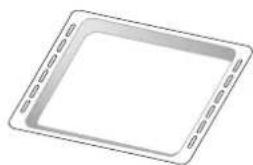
natural_image
Simple line drawing of a rectangular frame with dashed border (no text or symbols)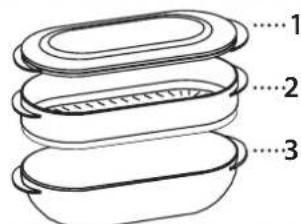
natural_image
Line drawing of a circular metal grate with slatted top and two side supports (no text or symbols)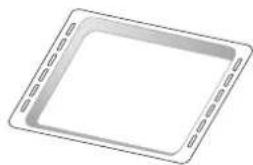
natural_image
Simple line drawing of a square plate with dashed border (no text or symbols)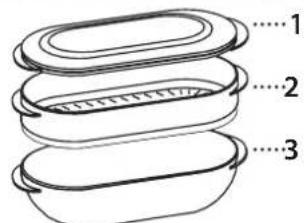
Toccare "IMPOSTA" o "AVANTI".