FLM43TS349SMART - Television HYUNDAI - Free user manual and instructions
Find the device manual for free FLM43TS349SMART HYUNDAI in PDF.


| Brand | Hyundai |
| Model | FLM43TS349SMART |
| Product type | 43-inch (109 cm) LED Smart TV |
| Resolution | Full HD (1920 x 1080 pixels) or Ultra HD (3840 x 2160 pixels) depending on version |
| Dimensions (without stand) | Approximately 97 x 57 x 8 cm (W x H x D) |
| Weight (approx.) | Approximately 8 kg |
| Power supply | 220-240 V AC, 50 Hz |
| Energy consumption | Energy class A+ (depending on model), standby < 0.5 W |
| VESA standard | 100 x 100 mm, M4 screws, length 7-10 mm |
| Tuner | DVB-T2/C/S2 (terrestrial, cable, satellite) |
| Connectivity | HDMI (x2 or more), USB (x2), Ethernet LAN, Wi-Fi 802.11 a/b/g/n, Bluetooth (depending on version), SPDIF, headphone jack, composite AV input |
| Smart functions | TiVo OS, Netflix, Prime Video, YouTube, HbbTV, web browsing, Miracast/Wireless Display |
| Supported multimedia formats | MP4, AVI, MKV, JPEG, PNG, MP3, AAC, SRT (subtitles) – full list in manual |
| Special features | HDR/HLG, Dolby Audio, Game mode, parental control, timer, auto standby, energy saving |
| Included accessories | Remote control, AAA x2 batteries, power cable, stand or wall mount (depending on version) |
| Maintenance and cleaning | Unplug before cleaning; use a soft, dry cloth; do not use solvents or abrasive cleaners |
| Safety | Do not open the casing (no user-serviceable parts); maintain at least 5 cm ventilation around the TV; do not expose to moisture or excessive heat |
| Repairability | Spare parts available through authorized after-sales service; firmware update via USB or online |
| General information | Manufactured under license from Hyundai Corporation Holdings, Korea; imported by ETA a.s., Czech Republic |
Frequently Asked Questions - FLM43TS349SMART HYUNDAI
User questions about FLM43TS349SMART HYUNDAI
0 question about this device. Answer the ones you know or ask your own.
Ask a new question about this device
Download the instructions for your Television in PDF format for free! Find your manual FLM43TS349SMART - HYUNDAI and take your electronic device back in hand. On this page are published all the documents necessary for the use of your device. FLM43TS349SMART by HYUNDAI.
USER MANUAL FLM43TS349SMART HYUNDAI
FLM43TS349SMART
Návod k použití Návod na použitie Instrukcja obsługi Instruction Manual Használatí utasítás
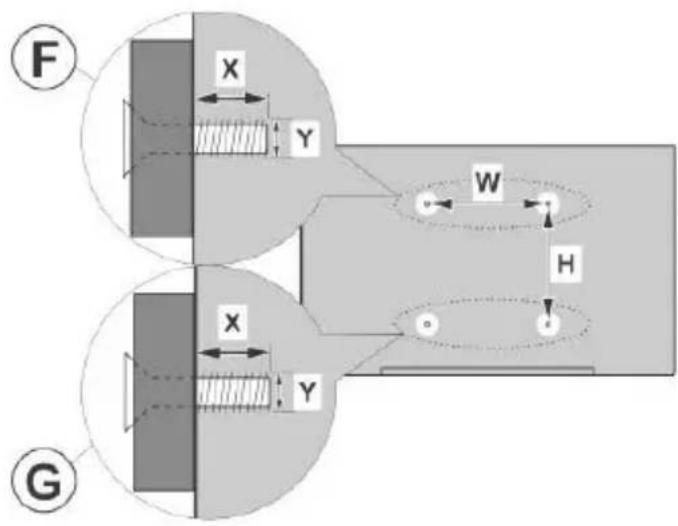
| A | VESA WALL MOUNT MEASUREMENTS | |||
| B | Hole Pattern Sizes (mm) | W | H | |
| 100 | 100 | |||
| C | Screw Sizes | |||
| F | G | |||
| D | Length (X) | min. (mm) | 7 | 5 |
| max. (mm) | 10 | 6 | ||
| E | Thread (Y) | M4 | ||
| A B C D E | |||||
| English | VESA WALL MOUNT MEASUREMENTS | Hole Pattern Sizes (mm) Screw Sizes Length (X) Thread (Y) | |||
| Deutsch | MASSANGABEN FÜR VESA-WANDMONTAGE | Lochmustergrößen (mm) | Schraubengrößen | Länge (X) | Gewinde (Y) |
| Français | DIMENSIONS DU SUPPORT DE FIXATION MURALE VESA | Dimensions des modèles de trous de montage (mm) | Dimensions des vis | Longueur (X) | Filetage (Y) |
| Italiano | Misurazioni installazione a parete VESA | Dimensioni schema foro (mm) | Dimensioni vite | Lunghezza (X) | Filettatura (Y) |
| Português | MEDIÇÕES DE MONTAGEM MURAL VESA | Dimensões do molde de furação (mm) | Tamanhos do parafuso | Comprimento (X) | Rosca (Y) |
| Español | MEDIDAS DEL MONTAJE DE PARED VESA | Tamaños de patrón para agujero (mm) | Tamaños de tornillo | Longitud (X) | Rosca (Y) |
| Türkçe | VESA DUVARA MONTAJ APARATI ÖLÇÜLERİ | Açılacak Delik Ölçüleri (mm) | Vida Ölçüleri | Uzunluk (X) | Yüzey (Y) |
| Ελληνικ | ΔΙΑΣΤΑΣΕΙΣ ΒΑΣΗΣ ΤΟΙΧΟΥ VESA | Μεγέθη συήματος οπών (mm) | Μεγέθη βιδών | Μήκος (X) | Σπείρωμα (Y) |
| Polski | WYMIARY DO MONTAŻU NAŚCIENNEGO VESA | Rozmiary szablonu otworów (mm) | Rozmiary wkrętów | Długość (X) | Gwint (Y) |
| čeština | ROZMĚRY DRŽÁKU NA ZEŐ VESA | Rozměry velikosti děr (mm) | Rozměry śroubů | Délka (X) | Závit (Y) |
| Magyar | VESA FALI TARTÓ MÉRETEK | Lyukak méretének nagysága(mm) | Csavar méret | Hossz (X) | Menet (Y) |
| Română | MĂSURĂTORI SUPORT PERETE VESA | Dimensiuni tipar gaură (mm) | Dimensiuni şuruburi | Lungime (X) | Filet (Y) |
| Svenska | VESA VÄGGMONTERINGSMÄTT | Hålmönsterstorlear (mm) | Skruvstorlekar | Längd (X) | Tråd (Y) |
| Nederlands | VESA WANDMONTAGE METINGEN | Grootte booropening (mm) | Schroefgroote | Lengte (X) | Draad (Y) |
| Suomi | VESA-SEINÄASENNUKSEN MITAT | Reikäkuvion koot (mm) | Ruuvinkoot | Pituus (x) | Kierre (Y) |
| Norsk | VESA VEGGMONTERINGSMÄL | Hullmønster størrelser (mm) | Skruestørrelser | Lengde (x) | Tråd (Y) |
| Dansk | VESA VEGMONTERINGS-MÄL | Hulmønster-størrelser (mm) | Skruestørrelser | Længde(X) | Tråd (Y) |
| Русский | РАЗМЕРЫ НАСТЕННОГО КРЕПЛЕНИЯ VESA | Размеры системы отверстий | Размеры винтов | Длина(X) | Резьба (Y) |
| беларуская | ПАМЕРЫ НАСЦЕННАГА МАЦАВАННЯ VESA | Памеры сістэмы адтулін | Памеры вінтоў | Даўжыня (X) | Разьба (Y) |
| македонски | МЕРКИ ЗА МОНТИРАЊЕ НА СИД ЗА „BECA“ | Шема на големини на дупката (мм) | Големина на шрафот | Должина (X) | Навој (Y) |
| українська | РОЗМИРИ НАСТИННОГО КРИПЛЕННЯ VESA | Відстань між кріпильними отворами, мм | Розміри гвинтів | Довкина (X) | Діаметр різьби (Y) |
| Srpski | DIMENZIJE VESA ZIDNOG NOSAČA | Dimenzije šablona za bušenje | Dimenzije zavrtnjeva | Dužina (X) | Navoj (Y) |
| Slovenčina | ROZMERY DRŽIAKA NA STENU VESA | Rozmery vel'kosti dier (mm) | Rozmery skrutiek | Dížka (X) | Závit (Y) |
| Slovenščina | MERE STENSKEGA NOSILCA VESA | Velikosti vzorca lukenj (mm) | Velikosti vijakov | Dolžina (X) | Navoj (Y) |
| Hrvatski | VESA MJERE ZIDNOG DRŽAČA | Veličine uzorka otvora (mm) | Veličine vijka | Dužina (X) | Navoji (Y) |
| Bosanski | DIMENZIJE VESA ZIDNOG NOSAČA | Dimenzije šablona za bušenje | Dimenzije vijaka | Dužina (X) | Navoj (Y) |
| Български | РАЗМЕРИ ЗА КОМПЛЕКТ ЗА МОНТАЖ НА СТЕНА VESA | Размери на отвора (mm) | Размер на болта | Дължинат (X) | Резба (Y) |
| Lietuvių | VESA TVIRTINIMO PRIE SIENOS MATAVIMAI | Angos šablono dydis (mm) | Varžtu dydis | Igis (X) | Sriegis (Y) |
| Latviešu | VESA SIENAS STIPRINĀJUMA IZMĚRI | Caurumu šablona izmērs (mm) | Skrůvju izměri | Garums (X) | Vītne (Y) |
| Eesti | VESA SEINALE KINNITAMISE MÖÖDUD | Kruvi suuruse mööt (mm) | Kruvi suurus | Kõrgus(x) | Keere (Y) |
| Shqip | PĚRMASAT E NJĘSISĘ SĘ MONTIMIT NĘ MUR VESA | Madhësitę modele të vrimave (mm) | Madhësitę e vidhave | Gjatësia (X) | Filetimi (Y) |
| عربي | ماقابيس للthestبیت على الجدار | (م) أَحْجامِ النᵗوب (م) | (طول) | (X) | (YS) |
| لاوي | VESA रोदि प्रत्यान निप्ति प्रत्यान निप्ति प्रत्यान निप्ति प्रत्यान निप्ति प्रत्यान निप्ति प्रत्यान निप्ति प्रत्यान निप्ति प्रत्यान निप्तिप्रत्यान निप्ति प्रत्यान निप्ति प्रत्यान निप्ति प्रत्यान निप्ति प्रत्यान निप्ति प्रत्यान निप्ति प्रत्यान निप्ति प्रस्थी निप्ति प्रस्थी निप्ति प्रस्थी निप्ति प्रस्थी निप्ति प्रस्थी निप्ति प्रस्थी निप्ति प्रस्थी निप्ति प्रस्थी निप्ति परस्थी निप्ति प्रस्थी निप्ति प्रस्थी निप्ति प्रस्थी निप्ति प्रस्थी निप्ति प्रस्थी निप्ति प्रस्थी निप्ति प्रस्थी निप্তि प्रस्थी निप्ति प्रस्थी निप्ति प्रस्थी निप्ति प्रस्थी निप्ति प्रस्थी निप्ति प्रस्थी निप्ति प्रस्थी निप्ति प्रस्थी प्रस्थी निप्ति प्रस्थी निप्ति प्रस्थी निप्ति प्रस्थी निप्ति प्रस्थी निप्ति प्रस्थी निप्ति प्रस्थी निप्ति प्रस्थी नিপ्ति प्रस्थी निप्ति प्रस्थी निप्ति प्रस्थी निप्ति प्रस्थी निप्ति प्रस्थी निप्ति प्रस्थी निप्ति प्रस्थी निप्ति प्रस्ति प्रस्ति प्रस्ति प्रस्ति प्रस्ति प्रस्ति प्रस्ति प्रस्ति प्रस्ति प्रस्ति प्रस्ति प्रस्ति प्रस्ति प्रस्ति प्रस्ति प्रस्ति प्रस्तिप्रस्ति प्रस्ति प्रस्ति प्रस्ति प्रस्ति प्रस्ति प्रस्ति प्रस्ति प्रस्ति प्रस्ति प्रस्ति प्रस्ति प्रस्ति प्रस्ति प्रस्ति प्रस्ति प्रस्वि प्रस्ति प्रस्ति प्रस्ति प्रस्ति प्रस्ति प्रस्ति प्रस्ति प्रस्ति प्रस्ति प्रस्ति प्रस्ति प्रस्ति प्रस्ति प्रस्ति प्रस्ति प्रस्ति प्रम्ति प्रस्ति प्रस्ति प्रस्ति प्रस्ति प्रस्ति प्रस्ति प्रस्ति प्रस्ति प्रस्ति प्रस्ति प्रस्ति प्रस्ति प्रस्ति प्रस्ति प्रस्ति प्रस्ति П्रस्ति प्रस्ति प्रस्ति प्रस्ति प्रस्ति प्रस्ति प्रस्ति प्रस्ति प्रस्ति प्रस्ति प्रस्ति प्रस्ति प्रस्ति प्रस्ति प्रस्ति प्रस्ति प्रस्षि प्रस्ति प्रस्ति प्रस्ति प्रस्ति प्रस्ति प्रस्ति प्रस्ति प्रस्ति प्रस्ति प्रस्ति प्रस्ति प्रस्ति प्रस्ति प्रस्ति प्रस्ति प्रस्ति प्रश्से प्रस्ति प्रस्ति प्रस्ति प्रस्ति प्रस्ति प्रस्ति प्रस्ति प्रस्ति प्रस्ति प्रस्ति प्रस्ति प्रस्ति प्रस्ति प्रस्ति प्रस्ति प्रस्ति प्रस্তि प्रस्ति प्रस्ति प्रस्ति प्रस्ति प्रस्ति प्रस्ति प्रस्ति प्रस्ति प्रस्ति प्रस्ति प्रस्ति प्रस्ति प्रस्ति प्रस्ति प्रस्ति प्रस्ति पрस्ति प्रस्ति प्रस्ति प्रस्ति प्रस्ति प्रस्ति प्रस्ति प्रस्ति प्रस्ति प्रस्ति प्रस्ति प्रस्ति प्रस्ति प्रस्ति प्रस्ति प्रस्ति प्रस्तি प्रस्ति प्रस्ति प्रस्ति प्रस्ति प्रस्ति प्रस्ति प्रस्ति प्रस्ति प्रस्ति प्रस्ति प्रस्ति प्रस्ति प्रस्ति प्रस्ति प्रस्ति प्रस्ति प्रस*प्रस्ति प्रस्ति प्रस्ति प्रस्ति प्रस्ति प्रस्ति प्रस्ति प्रस्ति प्रस्ति प्रस्ति प्रस्ति प्रस्ति प्रस्ति प्रस्ति प्रस्ति प्रस्ति प्रस*п्रस्ति प्रस्ति प्रस्ति प्रस्ति प्रस्ति प्रस्ति प्रस्ति प्रस्ति प्रस्ति प्रस्ति प्रस्ति प्रस्ति प्रस्ति प्रस्ति प्रस्ति प्रस्ति प्रस्ठि प्रस्ति प्रस्ति प्रस्ति प्रस्ति प्रस्ति प्रस्ति प्रस्ति प्रस्ति प्रस्ति प्रस्ति प्रस्ति प्रस्ति प्रस्ति प्रस्ति प्रस्ति प्रस्ति प्रर्शि प्रस्ति प्रस्ति प्रस्ति प्रस्ति प्रस्ति प्रस्ति प्रस्ति प्रस्ति प्रस्ति प्रस्ति प्रस्ति प्रस्ति प्रस्ति प्रस्ति प्रस्ति प्रस्ति प्र�स्थी प्रस्ति प्रस्ति प्रस्ति प्रस्ति प्रस्ति प्रस्ति प्रस्ति प्रस्ति प्रस्ति प्रस्ति प्रस्ति प्रस्ति प्रस्ति प्रस्ति प्रस्ति प्रस्ति प्रस.प्रस्ति प्रस्ति प्रस्ति प्रस्ति प्रस्ति प्रस्ति प्रस्ति प्रस्ति प्रस्ति प्रस्ति प्रस्ति प्रस्ति प्रस्ति प्रस्ति प्रस्ति प्रस्ति प्रस.п्रस्ति प्रस्ति प्रस्ति प्रस्ति प्रस्ति प्रस्ति प्रस्ति प्रस्ति प्रस्ति प्रस्ति प्रस्ति प्रस्ति प्रस्ति प्रस्ति प्रस.п्रस्ति प्रस्ति п्रस्ति п्रस्ति п्रस्ति п्रस्ति п्रस्ति п्रस्ति п्रस्ति п्रस्ति п्रस्ति п्रस्ति п्रस्ति п्रस्ति п्रस्ति п्रस.п्रस्ति प्रस्ति п्रस्ति п्रस्ति п्रस्ति п्रस्ति п्रस्ति п्रस्ति п्रस्ति п्रस्ति п्रस्ति п्रस.п्रस्ति प्रस्ति п्रस्ति п्रस्ति п्रस्ति п्रस्ति प्रस.п्रस्ति प्रस्ति п्रस्ति п्रस्ति п्रस्ति п्रस्ति п्रस्ति п्रस्ति п्रस्ति п्रस्ति п्रस.п्रस्ति प्रस्ति п्रस्ति п्रस्ति п्रस्ति п्रस्ति п्रस.п्रस्ति प्रस्ति п्रस्ति п्रस्ति п्रस्ति п्रस्ति п्रस.п्रस्ति प्रस्ति п्रस्ति п्रस्ति п्रन्दिका निप्ति प्रस्ति प्रस्ति प्रस्ति प्रस्ति प्रस्ति प्रस्ति प्रस्ति प्रस्ति प्रस्ति प्रस्ति प्रस्ति प्रस्ति प्रस्ति प्रस्ति प्रस्ति प्रन्दिका निप्ति प्रस्ति प्रस्ति प्रस्ति प्रस्ति प्रस्ति प्रस्ति प्रस्ति प्रस्ति प्रस्ति प्रस्ति प्रस्ति प्रस्ति प्रस्ति प्रस्ति पूर्शि प्रस्ति प्रस्ति प्रस्ति प्रस्ति प्रस्ति प्रस्ति प्रस्ति प्रस्ति प्रस्ति प्रस्ति प्रस्ति प्रस्ति प्रस्ति प्रस्ति प्रस्ति प्रस्तिप्रस्ति प्रस्ति प्रस्ति प्रस्ति प्रस्ति प्रस्ति प्रस्ति प्रस्ति प्रस्ति प्रस्ति प्रस्ति प्रस्ति प्रस्ति प्रस्ति प्रस्ति प्रस्ति प्रस्णि प्रस्ति प्रस्ति प्रस्ति प्रस्ति प्रस्ति प्रस्ति प्रस्ति प्रस्ति प्रस्ति प्रस्ति प्रस्ति प्रस्ति प्रस्ति प्रस्ति प्रस्ति प्रस्ति प्रन्दिची प्रस्ति प्रस्ति प्रस्ति प्रस्ति प्रस्ति प्रस्ति प्रस्ति प्रस्ति प्रस्ति प्रस्ति प्रस्ति प्रस्ति प्रस्ति प्रस्ति प्रस्ति प्रस्ति प्रनुपरी निप्ति प्रस्ति प्रस्ति प्रस्ति प्रस्ति प्रस्ति प्रस्ति प्रस्ति प्रस्ति प्रस्ति प्रस्ति प्रस्ति प्रस्ति प्रस्ति प्रस्ति प्रस्ति पूर्शि प्रस्तिप्रस्तिप्रस्तिप्रस्तिप्रस्तिप्रस्तिप्रस्तिप्रस्तिप्रस्तिप्रस्तिप्रस्तिप्रस्तिप्रस्तिप्रस्तिप्रस्तिप्रस्तिप्रस्तिप्रस्विप्रस्तिप्रस्तिप्रस्तिप्रस्तिप्रस्तिप्रस्तिप्रस्तिप्रस्तिप्रस्तिप्रस्तिप्रस्तिप्रस्तिप्रस्तिप्रस्तिप्रस्तिप्रस्तिप्रर्शिप्रस्तिप्रस्तिप्रस्तिप्रस्तिप्रस्तिप्रस्तिप्रस्तिप्रस्तिप्रस्तिप्रस्तिप्रस्तिप्रस्तिप्रस्तिप्रस्तिप्रस्तिप्रस्तिप्रपर्शिप्रस्तिप्रस्तिप्रस्तिप्रस्तिप्रस्तिप्रस्तिप्रस्तिप्रस्तिप्रस्तिप्रस्तिप्रस्तिप्रस्तिप्रस्तिप्रस्तिप्रस्तिप्रस्तेप्रस्तिप्रस्तिप्रस्तिप्रस्तिप्रस्तिप्रस्तिप्रस्तिप्रस्तिप्रस्तिप्रस्तिप्रस्तिप्रस्तिप्रस्तिप्रस्तिप्रस्तिप्रस्तिप्रस*प्रस्तिप्रस्तिप्रस*प्रस*प्रस*प्रस*प्रस*प्रस*प्रस*प्रस*प्रस*प्रस*प्रस*प्रस*प्रस*प्रस*प्रस*प्रस*प्रस*प्रस*प्रस*प्रस*प्रस*प्रस*प्रस*प्रस*प्रस*प्रस*ПРस*ПРस*ПРस*ПРस*ПРस*ПРस*ПРस*ПРस*ПРस*ПРस*ПРस*ПРस*ПРस*ПРस*ПРस*ПРस*ПРस*ПРस*ПРस*ПРस*ПРस*ПРस*ПРस*ПРस*ПРस*ПФР*ПФР*ПФР*ПФР*ПФР*ПФР*ПФР*ПФР*ПФР*ПФР*ПФР*ПФР |
TR: İşbu belgede; ETA, a.s., telsiz ekipmanı tipi TFT IDTV'nin 2014/53/AB sayılı direktife uygun olduğunu beyan eder. AB uygunluk beyanının tam metni internet adresinde mevcuttur: doc.vosshub.com
EN: Hereby, ETA, a.s., declares that the radio equipment type TFT IDTV is in compliance with Directive 2014/53/EU. The full text of the EU declaration of conformity is available at the following internet address: doc.vosshub.com
BG: С настоящото ETA, a.s., декларира, че този тип радиосъоръжение TFT IDTV е в съответствие с Директива 2014/53/EC. Цялостният текст на ЕС декларацията за съответствие може да се намери на следния интернет адрес: doc.vosshub.com
CZ: Tímto ETA, a.s., prohlašuje, že typ rádiového zařízení TFT IDTV je v souladu se směrnící 2014/53/EU. Úplné znění EU prohlášení o shodě je k dispozici na této internetové adrese: doc.vosshub.com
DA: Hermed erklærer ETA, a.s., at radioudstyrstypen TFT IDTV er i overensstemmelse med direktiv 2014/53/EU. EU-overensstemmelseserklæringens fulde tekst kan findes på følgende internetadresse: doc.vosshub.com
DE: Hiermit erklärt ETA, a.s., dass der Funkanlagentyp TFT IDTV der Richtlinie 2014/53/EU entspricht. Der vollständige Text der EU-Konformitätserklärung ist unter der folgenden Internetadresse verfügbar: doc.vosshub.com
EL: Με την παρούσα ο/η ETA, a.s., δηλώνει ότι ο
ραδιοεξοπλισμός TFT IDTV πληροί την οδηγία
2014/53/ΕΕ. Το πλήρες κείμενο της δήλωσης
συμμόρφωσης ΕΕ διατίθεται στην ακόλουθη
ιστοσελίδα στο διαδίκτυο: doc.vosshub.com
ES: Por la presente, ETA, a.s., declara que el tipo de equipo radioeléctrico TFT IDTV es conforme con la Directiva 2014/53/UE. El texto completo de la declaración UE de conformidad está disponible en la dirección Internet siguiente: doc.vosshub.com
ET: Käesolevaga deklareerib ETA, a.s., et käesolev raadioseadme tüüp TFT IDTV vaštab direktiivi 2014/53/EL nõuetele. ELi vaštavusdeklaratsiooni täielik tekst on kättesaadav järgmisel internetiaadressil: doc.vosshub.com
FI: ETA, a.s., vakuuttaa, että radiolaitetyyppi TFT IDTV on direktiivin 2014/53/EU mukainen. EU-vaatimustenmukaisuusvakuutuksen täysimittainen teksti on saatavilla seuraavassa internetosoitteessa: doc.vosshub.com
FR: Le soussigné, ETA, a.s., déclare que l'équipement radioélectrique du type TFT IDTV est conforme à la directive 2014/53/UE. Le texte complet de la déclaration UE de conformité est disponible à l'adresse internet suivante: doc.vosshub.com
HR: ETA, a.s., ovime izjavljuje da je radijska oprema tipa TFT IDTV u skladu s Direktivom 2014/53/EU. Cjeloviti tekst EU izjave o sukladnosti dostupan je na sljedećoj internetskoj adresi: doc.vosshub.com
HU: ETA, a.s., igazolja, hogy a TFT IDTV típusú rádióberendezés megfelel a 2014/53/EU irányelvnek. Az EU-megfelelőségi nyilatkozat teljes szövege elérhető a következő internetes címen: doc.vosshub.com
IT: Il fabbricante, ETA, a.s., dichiara che il tipo di apparecchiatura radio TFT IDTV è conforme alla direttiva 2014/53/UE. Il testo completo della dichiarazione di conformità UE è disponibile al seguente indirizzo Internet: doc.vosshub.com
LT: Aš, ETA, a.s., patvirtinu, kad radijo jrenginių tipas TFT IDTV atitinka Direktyvą 2014/53/ES. Visas ES atitikties deklaracijos tekstas prieinamas šiuo interneto adresu: doc.vosshub.com
LV: Ar šo ETA, a.s., deklarē, ka radioiekārta TFT IDTV atbilst Direktīvai 2014/53/ES. Pilns ES atbilstības deklarācijas teksts ir pieejams šādā interneta vietnē: doc.vosshub.com
MT: B'dan, ETA, a.s., niddikjara li dan it-tip ta' taghmir tar-radju TFT IDTV huwa konformi mad-Direttiva 2014/53/UE. It-test kollu tad-dikjarazzjoni ta' konformità tal-UE huwa disponibbli f'dan l-indirizz tal-Internet li ğej: doc.vosshub.com
NL: Hierbij verklaar ik, ETA, a.s., dat het type radioapparatuur TFT IDTV conform is met Richtlijn 2014/53/EU. De volledige tekst van de EU-conformiteitsverklaring kan worden geraadpleegd op het volgende internetadres: doc.vosshub.com
PL: ETA, a.s., niniejszym oświadcza, że typ urządzenia radiowego TFT IDTV jest zgodny z dyrektywą 2014/53/UE. Pełny tekst deklaracji zgodności UE jest dostępny pod następującym adresem internetowym: doc.vosshub.com
PT: O(a) abaixo assinado(a) ETA, a.s., declara que o presente tipo de equipamento de rádio TFT IDTV está em conformidade com a Diretiva 2014/53/UE. O texto integral da declaração de conformidade está disponível no seguinte endereço de Internet: doc.vosshub.com
RO: Prin prezenta, ETA, a.s., declară că tipul de echipamente radio TFT IDTV este în conformitate cu Directiva 2014/53/UE. Textul integral al declarației UE de conformitate este disponibil la următoarea adresă internet: doc.vosshub.com
SK: ETA, a.s., týmto vyhlasuje, že rádiové zariadenie typu TFT IDTV je v súlade so smernicou 2014/53/EÚ. Úplné EU vyhlásenie o zhode je k dispozícii na tejto internetovej adrese: doc.vosshub.com
SL: ETA, a.s., potrjuje, da je tip radijske opreme TFT IDTV skladen z Direktivo 2014/53/EU. Celotno besedilo izjave EU o skladnosti je na voljo na naslednjem spletnem naslovu: doc.vosshub.com
SV: Härmed försäkrar ETA, a.s., att denna typ av radioutrustning TFT IDTV överensstämmer med direktiv 2014/53/EU. Den fullständiga texten till EU-försäkran om överensstämmelsefinns på följande webbadress: doc.vosshub.com
duševního
- Produkty
- Baterie
The Ground Truth image displays a single, solid horizontal line. According to Rule 2 (UNDERSCORE & LINE RULES), this is a stylistic or background line, not a placeholder underscore. Therefore, the OCR result must ignore it. The provided OCR content is "\_\_\_\_", which consists of four underscores. This is an incorrect interpretation of the line as a placeholder and violates the rule that stylistic lines must be ignored. The OCR has hallucinated text (underscores) where none should exist based on the GT's visual context. Hence, the OCR result is inconsistent with the Ground Truth.
Kozsireml
| .mkv VOBSub | |
| .mkv ASS/SSA/TEXT | |
| .dat, .mpg, .mpeg, .vob DVD | Titulky |
| .mp4, DVD Titulky, TEXT |
| Externí titulky | |
| Rozšíření Technické údaje | |
| .ssa SubStation Alpha | |
| .ass Advanced SubStation Alpha | |
| .srt Subripper | |
| .sub Micro DVD / SubViewer | |
| .sub + .idx VOBSub | |
| .txt Micro DVD / TMPlayer / MPL2 | |
| .mpl MPL2 | |
| .smi Sami | |
| .jss JACOSUB | |
| .ttml TTML | |
| .txt / .sub DVDSUBTITLE | |
| .lrc - | |
1 Sítová zásuvka
| 56Hz | 60Hz | 66Hz | 70Hz | 72Hz | 75Hz | |||
| 640x400 | X | |||||||
| 640x480 | X | X | X | |||||
| 800x600 | X | X | X | X | ||||
| 832x624 | X | |||||||
| 1024x768 | X | X | X | X | X | |||
| 1152x864 | X | X | X | |||||
| 1152x870 | X | |||||||
| 1280x768 | X | X | ||||||
| 1360x768 | X | |||||||
| 1280x960 | X | X | ||||||
| 1280x1024 | X | X | ||||||
| 1400x1050 | X | X | ||||||
| 1440x900 | X | X | ||||||
| 1600x1200 | X | |||||||
| 1680x1050 | X | |||||||
| 1920x1080 | X |
www.tivo.com/support
The quick brown fox jumps over the lazy dog.
(1) 1/2 (2) 1/2 (3)
(1) 1/2 (2) 1/2 (3)
Interné titulky
| Rozšírenie | Technické parametre |
| .mkv VOBSub | |
| .mkv ASS / SSA / TEXT | |
| .dat, .mpg, .mpeg, .vob DVD | titulky |
| .mp4 DVD titulky, TEXT |
1 Širokopásmové pripojenie k ISP
- Produkty
- Baterie
Specyfikacje
| Zakres częstotliwości Moc wyjściowa | |
| 2400 - 2483,5 MHz (CH1 - CH13) | < 100 mW |
| 5150 - 5250 MHz (CH36 - CH48) | < 200 mW (*) |
| 5250 - 5350 MHz (CH52 - CH64) | < 200 mW (*) |
| 5470 - 5725 MHz (CH100 - CH140) | < 200 mW (*) |
| 56Hz 60Hz 66Hz 70Hz 72Hz 75Hz | ||||||
| 640x400 | X | |||||
| 640x480 | X | X | X | |||
| 800x600 | X | X | X | X | ||
| 832x624 | X | |||||
| 1024x768 | X | X | X | X | X | |
| 1152x864 | X | X | X | |||
| 1152x870 | X | |||||
| 1280x768 | X | X | ||||
| 1360x768 | X | |||||
| 1280x960 | X | X | ||||
| 1280x1024 | X | X | ||||
| 1400x1050 | X | X | ||||
| 1440x900 | X | X | ||||
| 1600x1200 | X | |||||
| 1680x1050 | X | |||||
| 1920x1080 | X | |||||
Do not place any heat sources such as electric heaters, radiators, etc. near the TV set. Do not place the TV on the floor and inclined surfaces.
To avoid danger of suffocation, keep plastic bags out of the reach of the babies, children and domestic
animals. Carefully attach the stand to the TV. If the stand is
provided with screws, tighten the screws firmly to prevent the TV from tilting. Do not over-tighten the screws and mount the stand rubbers properly.
- Do not dispose of the batteries in fire or with hazardous or flammable materials. WARNING
Batteries must not be exposed to excessive heat such as sunshine, fire or the like.
Excessive sound pressure from earphones of headphones can cause hearing loss.
ABOVE ALL - NEVER let anyone, especially children, push or hit the screen, push anything
into holes, slots or any other openings in the case.
| Caution | Serious injury or death risk |
| Risk of electric shock | Dangerous voltage risk |
| Maintenance | Important maintenance component |
Markings on the Product
The following symbols are used on the product as
a marker for restrictions and precautions and safety instructions. Each explanation shall be considered
where the product bears related marking only. Note
such information for security reasons.
Class II Equipment: This appliance is
designed in such a way that it does not require
a safety connection to electrical earth.
Hazardous Live Terminal: The marked terminal(s) is/are hazardous live under normal
terminal(s) is/are hazardous live under normal operating conditions.
Caution. See Operating Instructions: The
marked area(s) contain(s) user replaceable
coin or button cell batteries.
Class 1 Laser Product: This product contains Class 1
CLASS 1 product contains Class 1 laser source that is safe under
LASER PRODUCT laser source that is safe under reasonably foreseeable
conditions of operation.

Safety Information

CAUTION: TO REDUCE THE RISK OF ELECTRIC SHOCK DO NOT REMOVE COVER (OR BACK). NO USER-SERVICEABLE PARTS INSIDE, REFER SERVICING TO QUALIFIED SERVICE PERSONNEL.
In extreme weather (storms, lightning) and long inactivity periods (going on holiday) disconnect the TV set from the mains.
The mains plug is used to disconnect TV set from the mains and therefore it must remain readily operable. If the TV set is not disconnected electrically from the mains, the device will still draw power for all situations even if the TV is in standby mode or switched off. Note: Follow the on screen instructions for operating the related features.
IMPORTANT - Please read these instructions fully before installing or operating WARNING: This device is intended to be used by persons (including children) who are capable / experienced of operating such a device unsupervised, unless they have been given supervision or instruction concerning the use of the device by a person responsible for their safety.
- Use this TV set at an altitude of less than 5000 meters above the sea level, in dry locations and in regions with moderate or tropical climates. - The TV set is intended for household and similar indoor use but may also be used in public places. - For ventilation purposes, leave at least 5cm of free
space around the TV. - The ventilation should not be impeded by covering or blocking the ventilation openings with items, such as newspapers, table-cloths, curtains, etc. - The power cord plug should be easily accessible. D not place the TV, furniture, etc. on the power cord.
A damaged power cord/plug can cause fire or give you an electric shock. Handle the power cord by the plug, do not unplug the TV by pulling the power cord. Never touch the power cord/plug with wet hands as this could cause a short circuit or electric shock. Never make a knot in the power cord or tie it with other cords. When damaged it must be replaced, this should only be done by qualified personnel.
- Do not expose the TV to dripping or splashing of liquids and do not place objects filled with liquids, such as vases, cups, etc. on or over the TV (e.g., on shelves above the unit). - Do not expose the TV to direct sunlight or do not place open flames such as lit candles on the top of or near the TV.
| Using Audio Video Sharing Network Service | 32 |
| Apps | 33 |
| Internet Browser | 33 |
| HBBTV System | 34 |
| Smart Center | 34 |
| DVB functionality information | 36 |
Contents
Safety Information .... 2 Markings on the Product.... 2 Environmental Information.... 3 Features .... 3 Standby Mode Picture(optional) .... 4 Standby Notification .... 4
Standby Notifications .... 4 TV Control Button & Operation .... 5 Watching TV .... 6 Inserting the Batteries into the Remote .... 6
Power Connection .... 7 Antenna Connection .... 7 Licence Notification .... 7 Disposal Information .... 8 Specification .... 8
Remote Control....10 Connections....11 Switching On/Off....12 First Time Installation....12 Media Playback via USB Input....14 Media Browser....14 FollowMe TV....14
CEC 14
Quick AI 15
E-Manual 15
Settings Menu Content 16
General TV Operation 25
Using the Channel List....25 Configuring Parental Settings....25 Electronic Programme Guide....25 Teletext Services....26 Software Upgrade....26
Troubleshooting & Tips....27 AV and HDMI Signal Compatibility....27 Supported File Formats for USB Mode....28 Video File Formats....28
Picture File Formats 28 Audio File Formats 28 Subtitle File Formats 29
Supported DVI Resolutions ..... 29 Connectivity ..... 30 Wired Connectivity..... 30 Wireless Connectivity ..... 30 Networked Standby Mode ..... 31 Wireless Display ..... 32 Connectivity Troubleshooting ..... 32
| HDMI inputs to connect other devices with HDMI socketsUSB inputOSD menu systemSide AV input for external devices (such as DVD Players, PVR, video games, etc.)Stereo sound systemTeletextHeadphone connectionAutomatic programming systemManual tuningAutomatic power down after up to eight hoursSleep timerChild lockAutomatic sound mute when no transmissionNTSC playbackAVL (Automatic Volume Limiting)PLL (Frequency Search)Game Mode (Optional)Picture off functionEthernet (LAN) for Internet connectivity and service802.11 a/b/g/n built in WLAN SupportAudio Video SharingHbbTVHigh Dynamic Range (HDR) / Hybrid Log-Gamma (HLG)Using this feature the TV can reproduce greater dynamic range of luminosity by capturing and then combining several different exposures. HDR/HLG promises better picture quality thanks to brighter, more realistic highlights, more realistic colour and other improvements. It delivers the look that filmmakers intended to achieve, showing the hidden areas of dark shadows and sunlight with full clarity, colour and detail. HDR/HLG contents are supported via native and market applications, HDMI, USB inputs and over DVB-S broadcasts.Accessories IncludedRemote ControlBatteries: 2 x AAAInstruction BookPower CordStandby Mode Picture(optional)You can use your TV as a digital picture frame using the Standby Mode Picture feature. In order to do this follow the steps below. | Set the Standby Mode Picture option in the Settings>System>More menu as On. This option is set as Off by default.Create a separate folder named as standby_picture in the USB storage device's root directory and copy the files you want to use into that folder and then connect the USB storage device to your TV.Press the Standby button on the remote briefly to switch your TV into standby mode picture state.Note that once the Standby Mode Picture option is set as On, the function of the Standby button on the remote will change. After this you will need to press and hold the button to switch the TV into standby mode while the TV is in normal operating mode.If there are more than 1 picture file available in the folder all picture files will be displayed as a slide show in succession. If the necessary folder is not created or there isn't any picture file in the folder, a warning message will be displayed on the screen for a few seconds and then disappear.In standby mode picture state the backlight level of the screen will be decreased by 50 % and Smart Center features will not be usable, if Smart Center is available for your TV model.To switch your TV from standby mode picture state back to normal operating mode press the Standby button on the remote briefly.Beside the remote control you can also use the control unit on the TV to switch into standby mode picture state and back to normal operating mode. In order to do that follow the same instructions as described in the TV Control & Operation section for switching the TV into the standby mode. Note that you will not be able to switch the TV into standby mode using the control unit on the TV while the TV is in standby mode picture state.Note: The availability of this feature depends on the TV model and its features.Refer to the Supported File Formats for USB Mode section for the supported media file formats.Standby NotificationsIf the TV does not receive any input signal (e.g. from an aerial or HDMI source) for 3 minutes, it will go into standby. When you next switch-on, the following message will be displayed: 'TV switched to stand-by mode automatically because there was no signal for a long time." You can disable this functionality by setting the Timer of No Signal option in the Settings>Devices menu accordingly.The Auto Power Down option(in the Settings>System >More menu) could have been set to a value between 1 and 8 hours by default. If this setting is not set as Off and the TV has been left on and not been operated during the set time, it will switch into standby mode after the set time has expired. When you next switch-on the TV, the following message will be displayed. "TV |
English -4-
| WARNINGDo not ingest the battery, Chemical Burn HazardThis product or the accessories supplied with the product may contain a coin/button cell battery. If the coin/button cell battery is swallowed, it can cause severe internal burns in just 2 hours and can lead to death.Keep new and used batteries away from children.If the battery compartment does not close securely, stop using the product and keep it away from children.If you think batteries might have been swallowed or placed inside any part of the body, seek immediate medical attention.———————A television may fall, causing serious personal injury or death. Many injuries, particularly to children, can be avoided by taking simple precautions such as:ALWAYS use cabinets or stands or mounting methods recommended by the manufacturer of the television set.ALWAYS use furniture that can safely support the television set.ALWAYS ensure the television set is not overhanging the edge of the supporting furniture.ALWAYS educate children about the dangers of climbing on furniture to reach the television set or its controls.ALWAYS route cords and cables connected to your television so they cannot be tripped over, pulled or grabbed.NEVER place a television set in an unstable location.NEVER place the television set on tall furniture (for example, cupboards or bookcases) without anchoring both the furniture and the television set to a suitable support.NEVER place the television set on cloth or other materials that may be located between the television set and supporting furniture.NEVER place items that might tempt children to climb, such as toys and remote controls, on the top of the television or furniture on which the television is placed.The equipment is only suitable for mounting heights ≤2 m.If the existing television set is going to be retained and relocated, the same considerations as above should be applied.———————Apparatus connected to the protective earthing of the building installation through the MAINS connection or through other apparatus with a connection to protective earthing – and to a television distribution system using coaxial cable, may in some circumstances create a fire hazard. Connection to a television distribution system has therefore to be provided through a device providing electrical isolation below a certain frequency range (galvanic isolator) | WALL MOUNTING WARNINGSRead the instructions before mounting your TV on the wall.The wall mount kit is optional. You can obtain from your local dealer, if not supplied with your TV.Do not install the TV on a ceiling or on an inclined wall.Use the specified wall mounting screws and other accessories.Tighten the wall mounting screws firmly to prevent the TV from fall. Do not over-tighten the screws.Figures and illustrations in this user manual are provided for reference only and may differ from the actual product appearance. Product design and specifications may be changed without notice.Environmental InformationThis television is designed to be environmentally friendly. To reduce energy consumption, you can follow these steps:If you set theEnergy Savingto Minimum, Medium, Maximumor Autothe TV will adjust the energy consumption accordingly. If you like to set the backlight to a fixed value set asCustom, highlightBacklight(located under theEnergy Savingsetting) and then adjust manually using the Left or Right directional on the remote. Set asOffto turn this setting off.Note: AvailableEnergy Savingoptions may differ depending on the selectedModein theSettings>Picturemenu.TheEnergy Savingsettings can be found in theSettings>Picturemenu. Go to Home screen and highlightSettingsin the Navigation Carousel and pressOKto access theSettingsmenu. Note that some picture settings will be unavailable to be changed.If pressed Right button or Left button consecutively, “Screen will be off in 15 seconds.” message will be displayed on the screen. SelectProceedand pressOKto turn the screen off immediately. If you don’t press any button, the screen will be off in 15 seconds. Press any button on the remote or on the TV to turn the screen on again.Note: Screen Offoption is not available if the Mode is set to Game.When the TV is not in use, please switch off or disconnect the TV from the mains plug. This will also reduce energy consumption.FeaturesRemote controlled colour TVFully integrated digital terrestrial/cable/satellite TV (DVB-T-T2/C/S2) |
| Watching TV1.HomeThe Home screen is your starting point for browsing.It gathers all the TV shows and movies that matter to you - trending titles on all your streaming apps, recently watched shows, live TV channels, and recommended shows based on your ratings and viewing habits.Content in each carousel changes dynamically based on your usage. Even carousel categories update as TiVo OS gets to know you better. For example, based on what you've been watching, you might see a Comedy Movies or Health & Fitness carousel one day and an Oscar Winners carousel a few days later. Press the Source button on the remote, highlight the TV input source option, and press OK to switch to Live TV mode and watch TV channels. If the last input source used was TV, you can also use the Exit button to switch to Live TV mode.1.1.My Apps CarouselThe My Apps carousel on the Home screen contains all the apps from which TiVo OS is making TV show and movie recommendations. You can select the apps that appear here on the Manage Apps screen.When you prefer searching and browsing for shows within an app, select the app in this carousel and press OK on your remote control to open it.1.2.Manage Apps ScreenUse the Manage Apps screen to control which apps TiVo OS uses to recommend titles from on the Home, TV Shows, and Movies screens. The apps you select display in the My Apps carousel on the Home screen.Your app selections do not affect text and voice search results. TiVo OS shows results from all apps to help you find what you want to watch. When an app you're not using has the title, you can then decide to sign up for it2.Navigation CarouselThe Navigation carousel on the Home screen gives you easy access to common features: Guide, All Apps, Sources, Channel List, Recordings (depends on the model), Timers, and Settings.3.Browse ScreensSelecting Free, TV Shows, Movies, and Watchlist in the Main Menu to focus your browsing on those content types.4.Content DetailsWhen you find content that interests you, highlight it and press OK on your remote control to view details about it. You can also learn about cast and crew, and see recommendations for similar content.4.1.Watch NowChoose to watch the show from any of your selected applications that have the show available. These are | the applications you enabled for recommendations on the Manage Apps screen. Others that have the content display in the More Ways to Watch.4.2.WatchlistUse the Watchlist to save shows you want to start or continue watching later and favourites to return to. What you add helps personalise recommendations for you.The titles you add also appear in a Watchlist carousel on the Home screen. The plus changes to a bookmark.To add a show, select + Watchlist on its Content Details screen. The plus changes to a bookmark.To remove a show, go to its Content Details screen and select Watchlist. The bookmark changes to a plus.4.3.RateTell TiVo OS how you feel about a TV show or movie with a Thumbs Up or Thumbs Down. In return you'll get recommendations that better reflect what you enjoy watching. Go to the Content Details screen of a show and select Rate. Choose Thumbs Up or Thumbs Down. Content that you rate Thumbs Down will no longer appear in recommendations.4.4.Report ContentGo to the Content Details screen of a show and select flag. Report content screen will be displayed. After selecting the pre-defined reasons that suit you, highlight Report and press OK. You can also select the Something else option and enter your reason using the virtual keyboard in case the pre-defined reasons do not suit you.4.5.Browse All EpisodesSelect Episodes on the Content Details screen for an episodic TV show series to see its episodes ordered by Season.5.Text SearchSelect Search in the Main Menu to search for movies and TV shows across all your applications. Press OK and enter a title or actor using the virtual keyboard. Then highlight Done and press OK to start the search. Results display on the screen. Highlight the desired result using the directional buttons and press OK to open.6.Need Help?Get answers to common questions and learn to experience the most from TiVo OS at: https://www.tivo.com/supportInserting the Batteries into the RemoteThe remote may have a screw that secures the battery compartment cover onto the remote control (or this may be in a separate bag). Remove the screw, if the cover is screwed on previously. Then remove the battery compartment cover to reveal the battery compartment. |
| switched to stand-by mode automatically because no operation was made for a long time.” Before the TV switches into standby mode a dialogue window will be displayed. If you do not press any button the TV will switch into the standby mode after a waiting period of about 5 minutes. You can highlight Yes and press OK to switch the TV into standby mode immediately. If you highlight No and press OK, the TV will remain on. You can also choose to cancel the Auto Power Down function from this dialogue. Highlight Disable and press OK, the TV will remain on and the function will be cancelled. You can enable this function again by changing the setting of the Auto Power Down option from the Settings>System>More menu.TV Control Button & OperationNote:The position of the control button may differ depending on the model.Your TV has a single control button. This button allows you to control the Standby-On / Source / Programme and Volume functions of the TV.Operating with the Control ButtonPress the control button to display the function options menu.Then press the button consecutively to move the focus to the desired option if needed.Press and hold the button for about 2 seconds to activate the selected option. The icon colour of the option changes when activated.Press the button once again to use the function or enter the sub menu.To select another function option, you will need to deactivate the last activated option first. Press and hold the button to deactivate it. The icon colour of the option changes when deactivated.To close the function options menu do not press the button for a period of about 5 seconds. The function options menu will disappear.To turn the TV off:Press the control button to display the function options menu, the focus will be on the Standby option. Press and hold the button for about 2 seconds to activate this option. The icon colour of the option changes when activated. Then press the button once again to turn the TV off.To turn on the TV:Press the control button, the TV will turn on. | To change volume:Press the control button to display the function options menu and then press the button consecutively to move the focus to Volume + or Volume - option. Press and hold the button for about 2 seconds to activate the selected option. The icon colour of the option changes when activated. Then press the button to increase or decrease the volume.To change channel:Press the control button to display the function options menu and then press the button consecutively to move the focus to Programme + or Programme - option. Press and hold the button for about 2 seconds to activate the selected option. The icon colour of the option changes when activated. Then press the button to switch to the next or previous channel in the channel list.To change source:Press the control button to display the function options menu and then press the button consecutively to move the focus to Source option. Press and hold the button for about 2 seconds to activate this option. The icon colour of the option changes when activated. Then press the button once again to display the sources list. Scroll through the available sources by pressing the button. TV will automatically switch to the highlighted source.Note:Main menu OSD cannot be displayed via the control button.Operation with the Remote ControlPress the TiVo button on your remote control to display Home screen. Use the directional buttons and OK button to navigate and set. Press Return/Back to quit a menu screen.Input SelectionOnce you have connected external systems to your TV, you can switch to different input sources. Press the Source button on your remote control consecutively to select the different sources.Changing Channels and VolumeYou can change the channel and adjust the volume by using the Programme +/- and Volume +/- buttons on the remote.Reset and Power Off via Standby ButtonPress and hold the Standby button to see additional actions for this button. Restart, Standby (Normal Standby), and Power off (Forced Standby) options will be available. Highlight one and press OK to perform the selected action. If a problem occurs that prevents the TV from switching into standby mode properly, you can use the Power off option to force the TV to switch into standby mode.If your TV stops responding to commands and the actions menu can not be displayed the TV will be forced to restart when the button is kept pressed for about 5 seconds. This will terminate the process. |
Specification
| TV Broadcasting | PAL BG/I/DKSECAM BG/DK |
| Receiving Channels | VHF (BAND I/III) - UHF(BAND U) - HYPERBAND |
| Digital Reception | Fully integrated digital terrestrial-cable-satellite TV(DVB-T-C-S)(DVB-T2, DVB-S2 compliant) |
| Number of Preset Channels | 11 000 |
| Channel Indicator On Screen | en Display |
| RF Aerial Input 75 Ohm (unbalanced) | |
| Operating Voltage 220-240 V AC, 50Hz. | |
| Audio German+Nicam Stereo | |
| Audio Output Power (WRMS.) (10% THD) | 2 x 8 |
| Power Consumption (W) 75 W | |
| Networked Standby Mode Power Consumption (W) | < 2 |
| TV Dimensions DxLxH(with stand) (mm) | 235 x 965 x 614 |
| TV Dimensions DxLxH(without stand) (mm) | 53/87x 965 x 561 |
| Display 43" | |
| Operation temperature and operation humidity | 0°C up to 40°C, 85% humidity max |
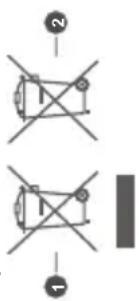
Disposal Information
[European Union]
These symbols indicate that the electrical and
electronic equipment and the battery with this symbol
should not be disposed of as general household
waste at its end-of-line. Instead, the products should be handed over to the applicable collection points for the recycling of electrical and electronic equipment as well as batteries for proper treatment, recovery and recycling in accordance with your national legislation and the Directive 2012/19/EU and 2013/56/EU.
By disposing of these products correctly, you will help to conserve natural resources and will help to prevent potential negative effects on the environment and human health which could otherwise be caused by inappropriate waste handling of these products.
For more information about collection points and recycling of these products, please contact your local municipal office, your household waste disposal service or the shop where you purchased the product.
Penalties may be applicable for incorrect disposal of this waste, in accordance with national legislation. [Business users] If you wish to dispose of this product, please contact your supplier and check the terms and conditions of the purchase contract.
[Other Countries outside the European Union] These symbols are only valid in the European Union. Contact your local authority to learn about disposal and recycling.
The product and packaging should be taken to your local collection point for recycling. Some collection points accept products free of charge Note: The sign Pb below the symbol for batteries indicates that this battery contains lead.
- Products
- Battery

Insert two 1.5V - size AAA batteries. Make sure the (+)
and (-) signs match (observing correct polarity). Do not
mix old and new batteries. Replace only with same or
equivalent type. Place the cover back on. Secure the
cover again with the screw, if any.
A message will be displayed on the screen when the
batteries are low and must be replaced. Note that when the batteries are low, the performance of the remote control may be impaired.
Batteries should not be exposed to excessive heat such as sunshine, fire or the like.
Power Connection IMPORTANT: The TV set is designed to operate on a 220-240V AC, 50 Hz supply. After unpacking, allow the
Manufactured under licence from Dolby Laboratories. Dolby, Dolby Audio, and the double-D symbol are trademarks of Dolby Laboratories Licensing Corporation. YouTube and the YouTube logo are trademarks of Google Inc.
This product contains technology subject to certain intellectual property rights of Microsoft. Use or distribution of this technology outside of this product is prohibited without the appropriate licence(s) from Microsoft.
Content owners use Microsoft PlayReady™ content access technology to protect their intellectual property, including copyrighted content. This device uses PlayReady technology to access PlayReady-protected content and/or WMDRM-protected content. If the device fails to properly enforce restrictions on content
usage, content owners may require Microsoft to revoke the device's ability to consume PlayReady-protected content. Revocation should not affect unprotected content or content protected by other content access technologies. Content owners may require you to upgrade PlayReady to access their content. If you
decline an upgrade, you will not be able to access content that requires the upgrade. The "CI Plus" Logo is a trademark of CI Plus LLP. This product is protected by certain intellectual property rights of Microsoft Corporation. Use or distribution of such technology outside of this product is prohibited without a licence from Microsoft or an authorised Microsoft subsidiary.
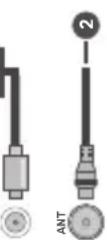
1. Satellite
2. Aerial or cable
Specification

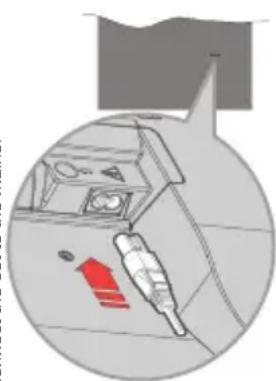
Plug one end (the two-hole plug) of the supplied detachable power cord into the power cord inlet on the rear side of the TV as shown above. Then plug the other end of the power cord into the mains socket outlet. Note: The position of the power cord inlet may differ depending on the model.
Antenna Connection
Connect the aerial or cable TV plug to the aerial input (ANT) socket or satellite plug to the satellite input (LNB) socket located on the rear side of the TV.
Rear side of the TV
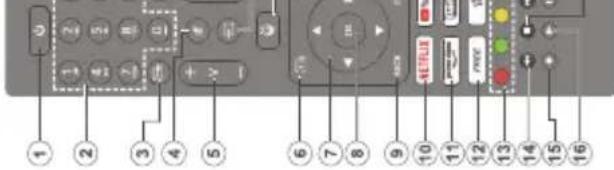
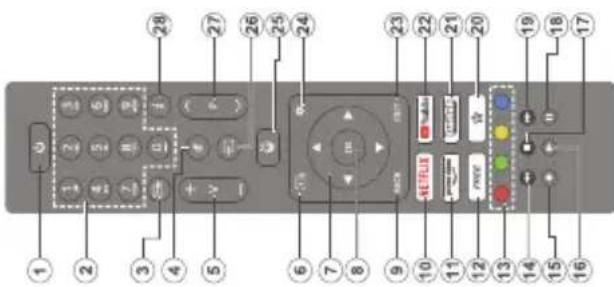
Remote Control
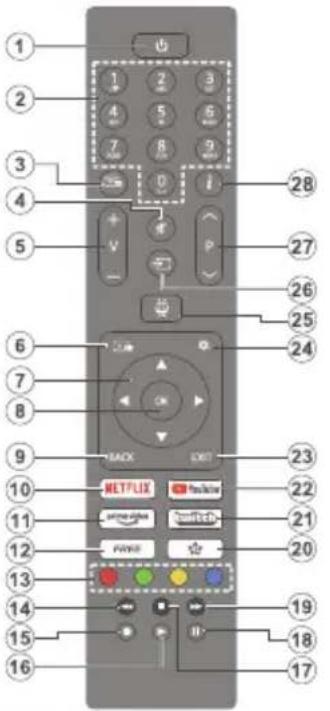 | |
| 1. Standby (*): Standby / On (press briefly) Restart / Power Off (press and hold) | |
| 2. Numeric buttons: Switches the channel in Live TV mode, enters a number in the text box on the screen | |
| 3. Text: Displays teletext (where available). Press the button a second time to superimpose the teletext over a normal broadcast picture (mix). Press again to close | |
| 4. Mute: Completely turns off the volume of the TV | |
| 5. Volume +/-: Increases/decreases the volume level | |
| 6. Guide: Displays the electronic programme guide | |
| 7. Directional buttons: Helps navigate menus, setting options, moves the focus or cursor, etc. and displays the subpages in Live TV-Teletext mode when pressed Right or Left. Follow the on-screen instructions | |
| 8. OK: Confirms user selections, enters sub-menus, holds the page (in Live TV-Teletext mode), views channel list (in Live TV mode) | |
| 9. Back/Return: Returns to previous menu screen, goes one step back, closes open windows, opens index page (in Live TV-Teletext mode). Quickly cycles between previous and current channels or sources | |
| 10. Netflix: Launches the Netflix application |
Wireless LAN Transmitter Specifications
| Frequency Ranges Max Output Power | |
| 2400 - 2483,5 MHz (CH1 - CH13) < | 100 mW |
| 5150 - 5250 MHz (CH36 - CH48) < | 200 mW (*) |
| 5250 - 5350 MHz (CH52 - CH64) < | 200 mW (*) |
| 5470 - 5725 MHz (CH100 - CH140) | < 200 mW (*) |
(*) < 100 mW' for the Ukraine
Country Restrictions
The Wireless LAN equipment is intended for home and office use in all EU countries, the UK and Northern Ireland (and other countries following the relevant EU and/or UK directive). The 5.15 - 5.35 GHz band is restricted to indoor operations only in the EU countries, in the UK and Northern Ireland (and other countries following the relevant EU and/or UK directive). Public use is subject to general authorisation by the respective service provider.
| Country Restriction | |
| Russian Federation | Indoor use only |
The requirements for any country may change at any time. It's recommended that user checks with local authorities for the current status of their national regulations for both 2.4 GHz and 5 GHz wireless LAN's.
for this setting can be changed later. Make your selection and press OK to continue.
The picture mode selection screen will then be displayed. In order for your TV to consume less energy and be more environmentally friendly select Natural and press OK to continue. You can change your selection later using the Mode option in the Settings>Picture menu.
- - - - - - - -
Depending on the model of your TV and the country selection Summary of Consent Settings menu
may appear at this point. Using this menu you can manage your consent settings. Highlight a feature
manage your console status highlight & requests and press OK to enable or disable. Read the related
explanations displayed on the screen for each highlighted feature before making any changes. You
highlighted feature before making any changes. You can press the Right-directional button to highlight
can press the Right directional button to highlight the text and use the Programme +/- or Up/Down
directional buttons to scroll up and down to read the entire text. You will be able to change your preferences
at any time later from the Settings>Legal>Consent
Settings menu. If the Internet Connection option is
disabled the Network/Internet Settings step will be
skipped and not displayed. If you have any questions,
complaints or comments regarding the privacy policies
or their enforcement, please contact by email at
privacyrequest@xperi.com and smarttvsecurity@vcsxbub.com. Highlight Submit Consent Choices
vossnub.com. Highlight Submit Consent choices and press OK to continue
and press OR to continue.
On the next screen you need to agree to the terms and conditions of TiVo Smart TV Service to make use of
conditions of Tivo Smart TV Service to make use of the related services. Scroll the page to read the entire
the related services. Scroll the page to read the entire text using the Programme 1/2 call in/Down direction
text using the Programme +/- of Up/Down directional buttons. Highlight Accept and press OK on the remote
buttons. Highlight Accept and press OR on the remote to confirm and proceed. Highlight Cancel and press
to confirm and proceed. Highlight Cancer and press OK to proceed without confirmation.
The Network Status of the
The Network/Internet Settings menu will be displayed next. Please refer to the Connectivity Operations
next. Please refer to the ConnectivitySection to
configure a network connection. If you want your TV to consume less power in standby mode, you can disable
the Networked Standby Mode option for the selected
the Networked Standaby Mode option for the selected network type by setting it as Off. After the settings
network type by setting it as ON. After the settings are completed, highlight Next and press OK button
are completed highlight Next and press ON button to continue. If the Network Type is set to Wireless
Device available networks will be listed Highlight
Next again when you are done and press OK to
continue. If you want to connect to a wireless network
at a later time, highlight Setup Later and press OK.
On next, screen, you, can set, broadcast, types to, be
searched, set your encrypted channel searching
and time zone (depending on the country selection)
preferences. Additionally you can set a broadcast
type as your favourite one. Priority will be given to the
selected broadcast type during the search process
and the channels of it will be listed on the top of the
channel list. When finished, highlight Next and press
OK to continue.
English - 12 -
Switching On/Off
To Switch the TV On
Connect the power cord to a power source such as a
wall socket (220-240V AC, 50 Hz).
To switch on the TV from standby mode either:
- Press the Standby button, Program numeric button on the remote control.
• Press the control button on the TV.
To Switch the TV Off
- Press the Standby button on the remote control.
- Press the control button on the TV the functi
options menu will be displayed. The focus will be
on the Standby option. Press and hold the button
for about 2 seconds to activate this option. The icon
colour of the option will change. Then press the
button once again, the TV will switch into standby mode.
To power down the TV completely unplug the
to power down the 10 completely, an plug the power cord from the mains socket.
Note: When the TV is switched into standby mode, the standby
LED can blink to indicate that features such as Standby Mode
Search, Over Air Download or Timer is active. The LED can also blink when you switch on the TV from standby mode.
also blink when you switch on the TV from standby mode.
First Time Installation
When turned on for the first time, the language
selection screen is displayed. Select the desired
language and press OK. In the following steps of
the installation guide, set your preferences using the directional buttons and OK button.
directional buttons and OK button.
After the language selection, you will be asked whether
you want to change accessibility settings. Highlight
Yes and press OK to change. Refer to the System Menu Content section for detailed information on
media content section for detailed information on available options
Get your country preference on the next person.
Set your country preference on the next screen. Depending on the Country selection you may be asked
to set and confirm a PIN at this point. The selected PIN
cannot be 0000. You have to enter it if you are asked
to enter a PIN for any menu operation later.
Note: M7(*) operator type will be defined according to the
Language and Country selections that you made in the First
Time Installation.
(*) M7 is a digital satellite service provider.
You can activate Store Mode in the next step. This
feature will configure your TV's settings for store
environment and depending on the TV model, the
supported features of it may be displayed on the screer
as an info banner of the pre-installed video file may be played back. This feature is intended only for stores
be played back. This feature is intended only for store use. It is recommended to select Home Mode for home
use. The Store Mode option will be available in the
Settings>System>More menu and your preference
Connections
When using the wall mounting
kit (available from a third party
in the market, if not supplied),
we recommend that you plug all your cab/sin into the back of the
your cables into the back of the TV before mounting on the wall.
Insert or remove the CI module
only when the TV is SWITCHED OFF. You should refer to the module
or 1. You should refer to the module instruction manual for details of
the settings. The/Each USB input
of your TV supports devices up to 500mA. Connecting devices
that have current value above
500mA may damage your TV. When connecting equipment using a HDMI
connecting equipment using a HDMI cable to your TV to guarantee
sufficient immunity against parasitic
frequency radiation, you have to use a high speed shielded (high grade)
a high speed shielded (high grade) HDMI cable with ferrites.
[Non-Text]
[Non-Text]
[Non-Text]
[Non-Text]
[Non-Text]
[Non-Text]
| Connector Type | Cables Device | ||
| HDMI Connection(side&back) | |||
| SPDIF | SPDIF(Coaxial Out) Connection(side) | ||
| Side AV | Side AV(Audio/Video) Connection(side) | Side Audio/Video Connection Cable | Audio/Video Cable |
| HEADPHONE | Headphone Connection(side) | ||
| USB Connection(side) | |||
| CI Connection(side) | |||
| LAN | Ethernet Connection(back) | LAN / Ethernet Cable | |
If you want to connect a device to the TV, make sure that both the TV and the device are turned off before making any connection. After the connection is done, you can turn on the units and use them.

| About Selecting Broadcast TypeTo turn a search option on for a broadcast type highlight it and press the OK, Left or Right directional button. To turn the search option off press the OK, Left or Right directional button after moving the focus on the desired broadcast type option.Digital Aerial: If the D. Aerial broadcast search option is turned on, the TV will search for digital terrestrial broadcasts after other initial settings are completed.Digital Cable: If the D. Cable broadcast search option is turned on, the TV will search for digital cable broadcasts after other initial settings are completed. A message will be displayed before starting to search asking if you want to perform cable network search. If you select Yes and press OK you can select Network or set values such as Frequency, Network ID and Search Step on the next screen. If you select No and press OK you can set Start Frequency, Stop Frequency and Search Step on the next screen. When finished, highlight Next and press OK to continue.Note: Searching duration will change depending on the selected Search Step.Satellite: If the Satellite broadcast search option is turned on, the TV will search for digital satellite broadcasts after other initial settings are completed. Before satellite search is performed some settings should be made. A menu will be displayed where you can select to start an M7 operator installation or a standard installation. To start an M7 operator installation set the Install Type as Operator and the Satellite Operator as the related M7 operator. Then highlight Preferred Scan option and set as Automatic channel scan and press OK to start the automatic search. If a DiSeqC switch is used in your satellite system, you can also select the DiSeqC version for the operator installation. These options can be preselected depending on the Language and Country selections that you made in the earlier steps of the first time installation process. You may be asked to select HD/SD or country specific channel list according to your M7 operator type. Select one and press OK to proceed. Wait till the scan is finished. Now the list has been installed.While performing an M7 operator installation, if you want to use the satellite installation parameters that differ from the default settings select the Preferred Scan option as Manual channel scan and press the OK button to proceed. Antenna Type menu will be displayed next. After selecting the antenna type and the desired satellite in the following steps press OK in order to change the satellite installation parameters in the sub-menu.In order to search for satellite channels other than M7 channels you should start a standard installation. Select the Install Type as Standard and press the | OK button to proceed. Antenna Type menu will be displayed next.There are three options for antenna selection. You can select Antenna Type as Direct, Single Satellite Cable or DiSeqC switch by using the Left or Right buttons. After selecting your antenna type press OK. On the next screen press OK to see the options to proceed. Continue, Transponderlist and Configure LNB options will be available. You can change the transponder and LNB settings using the related menu options.Direct: If you have a single receiver and a direct satellite dish, select this antenna type. Press OK to continue. Select an available satellite on the next screen and press OK to scan for services.Single Satellite Cable: If you have multiple receivers and a single satellite cable system, select this antenna type. Press OK to continue. Configure settings by following instructions on the next screen. Press OK to scan for services.DiSeqC switch: If you have multiple satellite dishes and a DiSeqC switch, select this antenna type. Then set the DiSeqC version and press OK to continue. You can set up to four satellites (if available) for version v1.0 and sixteen satellites for version v1.1 on the next screen. Press OK to scan the first satellite in the list.Analogue: If the Analogue broadcast search option is turned on, the TV will search for analogue broadcasts after other initial settings are completed.After the initial settings are completed TV will start to search for available broadcasts of the selected broadcast types.While the search continues current scan results will be displayed at the bottom of the screen. You can press the TiVo, Back or Exit button to cancel the search. The channels that have already been found will be stored in the channel list. After all the available stations are stored, Home screen will be displayed. You can press the Exit button to watch TV channels. You can press the OK button to display the channel list when watching TV channels and edit the channel list according to your preferences using the Edit tab options.While the search continues a message may appear, asking whether you want to sort channels according to the LCN(*) . Select Yes and press OK to confirm. (*) LCN is the Logical Channel Number system that organizes available broadcasts in accordance with a recognizable channel number sequence (if available).Notes:To search for M7 channels after the First Time Installation, you should perform the first time installation again. Or go to the Home screen and enter the Settings>Installation>Automatic channel scan>Satellite menu. Then follow the same steps mentioned above. | Do not turn off the TV while initializing first time installation. Note that, some options may not be available depending on the country selection.Media Playback via USB InputYou can connect 2.5" and 3.5" inch (HDD with external power supply) external hard disk drives or USB memory stick to your TV by using the USB inputs of the TV.IMPORTANT! Back up the files on your storage devices before connecting them to the TV. Manufacturer will not be responsible for any file damage or data loss. Certain types of USB devices (e.g. MP3 Players) or USB hard disk drives/memory sticks may not be compatible with this TV. The TV supports FAT32 and NTFS disk formatting.Wait a little while before each plugging and unplugging as the player may still be reading files. Failure to do so may cause physical damage to the USB player and the USB device itself. Do not pull out your drive while playing a file.You can use USB hubs with your TV's USB inputs. External power supplied USB hubs are recommended in such a case.It is recommended to use the TV's USB input(s) directly, if you are going to connect a USB hard disk.Note: When viewing image files the Media Browser menu can only display 1000 image files stored on the connected USB device.Media BrowserYou can play back music and movie files and display photo files stored on a USB storage device by connecting it to your TV. Connect a USB storage device to one of the USB inputs located on the side of the TV. After connecting a USB storage device to your TV a message stating that the USB device is connected will be displayed on the screen. You can access the content of the connected USB device from the Sources menu on the Home screen. You can also press the Source button on the remote and then select your USB storage device from the list of sources.You can set your media browser preferences by using the Settings menu. Settings menu can be accessed via the information bar which is displayed on the bottom of the screen while playing back a video or an audio file or displaying a picture file. Press the Info button if the information bar has disappeared, highlight the gear wheel symbol positioned on the right side of the information bar and press OK. Picture Settings, Sound Settings, Media Browser Settings and Options menus may be available depending on the media file type and the model of your TV and its features. The content of these menus may also differ according to the type of the currently open media file. Only the Sound Settings menu will be available while playing back audio files. | Loop/Shuffle Mode OperationStart playback and activateAll files in the list will be continuously played in original orderStart playback and activateThe same file will be played continuously (repeat)Start playback and activateAll files in the list will be played once in random orderStart playback and activateAll files in the list will be continuously played in the same random order |
| To use the functions on the information bar highlight the symbol of the function and press OK. To change the status of a function highlight the symbol of the function and press OK as much as needed. If the symbol is marked with a red cross, that means it is deactivated.FollowMe TVWith your mobile device you can stream the current broadcast from your smart TV using the FollowMe TV feature. Install the appropriate Smart Center application to your mobile device. Start the application.For further information on using this feature refer to the instructions of the application you use.Note: Depending on model, your TV may not support this function. The application may not be compatible with all mobile devices. UHD (4K, Ultra HD) channels are not supported and both of the devices must be connected to the same network.CECThis function allows to control the CEC-enabled devices, that are connected through HDMI ports by using the remote control of the TV.The CEC option in the Settings>Devices menu should be set as Enabled at first. Press the Source button and select the HDMI input of the connected CEC device from the Sources List menu. When new CEC source device is connected, it will be listed in source menu with its own name instead of the connected HDMI ports name(such as DVD Player, Recorder 1 etc.).The TV remote is automatically able to perform the main functions after the connected HDMI source has been selected. To terminate this operation and control the TV via the remote again, press and hold the "0-Zero" button on the remote control for 3 seconds.You can disable the CEC functionality by setting the related option under the Settings>Devices menu accordingly.The TV supports ARC (Audio Return Channel). This feature is an audio link meant to replace other cables between the TV and an audio system (A/V receiver or speaker system).When ARC is active, the TV will mute its other audio outputs, except the headphone jack, automatically | |||
Settings Menu Content
| Devices Menu Content | ||
| Virtual Remote | Enable or disable the virtual remote feature. | |
| Audio Video Sharing | This feature allows you to share files stored on your smartphone or tablet pc. If you have a compatible smartphone or tablet pc and the appropriate software is installed, you can share/play photos on your TV. See instructions of your sharing software for more information. | |
| Timer of No Signal | If your TV does not receive any input signal (e.g. from an aerial or HDMI source) for 3 minutes, it will go into standby mode. You can enable or disable this functionality by setting this option accordingly. | |
| CEC | With this setting you can enable and disable CEC functionality completely. Press Left or Right button to enable or disable the feature. | |
| CEC Auto Power On | This function allows the connected HDMI-CEC compatible device to turn on the TV and switch to its input source automatically. Press Left or Right button to enable or disable the feature. | |
| Picture Menu Content | ||
| Mode | You can change the picture mode to suit your preference or requirements. Picture mode can be set to one of these options: Cinema, Game(optional), Sports, Dynamic and Natural. | |
| Contrast | Adjusts the light and dark values on the screen. | |
| Brightness | Adjusts the brightness values on the screen. | |
| Sharpness | Sets the sharpness value for the objects displayed on the screen. | |
| Colour | Sets the colour value, adjusting the colours. | |
| Energy Saving | For setting the Energy Saving to Custom, Minimum, Medium, Maximum, Auto, Screen Off or Off.Note: Available options may differ depending on the selected Mode. | |
| Backlight | This setting controls the backlight level. The backlight function will be inactive if the Energy Saving is set to an option other than Custom. | |
| Picture Zoom | Sets the desired image size format. | |
| Picture Shift | This option may be available depending on the Picture Zoom setting. Highlight and press OK, then use directional buttons to shift the picture upwards or downwards. | |
| Pixelence Demo (optional) | Pixelence function optimises the TV's video settings and helps to acquire a better image quality. Press OK to activate Pixellence demo mode to experience Pixellence quality. Press OK button again to cancel. If the Mode option is set to Game this option will not be available. | |
| Advanced Settings | ||
| Dynamic Contrast | You can change the dynamic contrast ratio to desired value. | |
| Colour Temp | Sets the desired colour temperature value. Cool, Normal, Warm and Custom options are available. | |
| White Point | If the Colour Temp option is set as Custom, this setting will be available. Increase the 'warmth' or 'coolness' of the picture by pressing Left or Right buttons. | |
| Blue Stretch | White colour enhancement function that makes white colour more cooler in order to make more bright picture. Set as On to enable. | |
| Micro Dimming | Low, Medium, High and Off options are available. While Micro Dimming is active, it will enhance contrast locally for each defined zone. | |
| Noise Reduction | Low, Medium, High and Off options are available. If the signal is weak and the picture is noisy, use the Noise Reduction setting to reduce the amount of noise. | |
and volume control buttons are directed to connected audio device. To activate ARC set the Sound Output
option in the Settings>Sound menu as HDMI ARC.
Note: ARC is supported only via the HDMI2 input.
System Audio Control
Allows an Audio Amplifier/Receiver to be used with the
TV. The volume can be controlled using the remote control of the TV. To activate this feature, set the
Sound Output option in the Settings>Sound menu
as HDMI ARC. When HDMI ARC option is selected,
CEC option will be set as Enabled automatically, if it
Is not already set. The TV speakers will be muted and the sound of the watched source will be provided from
the soc the cor
Note: The audio device should support System Audio Control
feature. Quick AI
You can use the Quick AI option in the
Settings>System menu in order to manage your AI setting preferences. Alan Sound and Alan Vides
setting preferences. Air on Sound and Air on Video options will be available. Highlight an option and press
OK to select or unselect. Then highlight OK and press OK to apply your changes.
AI on Sound: Works on TV source. When enabled, TV
checks programme genre and adjusts sound settings
accordingly if genre information is available.
AI on Video: Works on TV source. When enabled, TV
checks programme genre and adjusts picture settings accordingly if genre information is available.
A small icon and information message will be displayed
on the scre
TV feature.
You can find instructions for your TV's features in the
E-Manual.
To access the E-Manual, enter the Settings>Sys-
tem>More menu, select manuals and press OK. For quick access press the Settings button and then the
Info button.
By using the directional buttons select a desired
category. Every category includes different topics.
Select a topic and press OK to read instructions.
To close the E-Manual screen press the Exit or TiVo
button. Notes: Paper
Note: Depending on model, your TV may not support this function. The contents of the E-Manual may vary according
to the model.
| Sound Menu Content | ||
| Dolby Audio | Smart, Movie, Music, News and Off options will be available. Set as Off to disable.Note: Some items in Sound menu will be grayed out and unavailable if set to an option other than Off. | |
| Surround Sound | Surround Sound mode can be changed as On or Off. | |
| Sound Output | Sets the sound output preference. TV, S/PDIF, HDMI ARC, Headphone Only and Lineout options will be available. There will be no sound output except through the selected option and the headphone jack.When you connect an external amplifier to your TV using the headphone jack, you can select this option as Lineout. If you have connected headphones to the TV, set this option as Headphone Only. Please ensure before using headphones that this menu item is set to Headphone Only. If it is set to Lineout, the output from the headphone socket will be set to maximum which could damage your hearing.If HDMI ARC option is selected, CEC feature will be enabled.Note: Depending on the selected option some items in Sound menu will appear as grayed out and will be unavailable. | |
| AVL (Automatic Volume Limiting) | Sets the sound to obtain fixed output level between programmes.If the Dolby Audio menu item is set to an option other than Off the AVL setting options will change. Auto, Night, Normal and Off options will be available. In Auto mode the TV will switch to Normal or Night mode automatically according to the current time information. If no time information is available this option will always function as Normal.When the TV switches to Night mode for the first time after setting this option as Auto, an information bar will pop up on the screen.Please note that compared to Normal mode Night mode provides more aggressive dynamic compression control which is suitable for silent environments. | |
| Advanced Settings | ||
| Equalizer | Selects the equalizer mode. Custom settings can be made only when in User mode. | |
| Dynamic Bass | Enables or disables the Dynamic Bass. | |
| Sound Mode | You can select a sound mode (If the viewed channel supports). | |
| Digital Out | Sets digital out audio type. | |
| Headphone | Sets headphone volume. This option will not be available if the Sound Output option is set as Lineout.Please ensure before using headphones that the headphone volume is set to a low level, to prevent damage to your hearing. | |
| Balance | Sets sound balance. This feature will be activated if Sound Output option is set as TV or Headphone Only. Balance item adjusts the balance level of the TV speakers and headphone together. | |
| Reset | Resets some of the sound settings to factory defaults. | |
| Film Mode | Films are recorded at a different number of frames per second to normal television programmes. Set toAutowhen you are watching films to see the fast motion scenes clearly. |
| Skin Tone | Skin tone can be changed between -5 and 5. |
| Colour Shift | Adjust the desired colour tone. |
| Colour Tuner | Opens colour tuner settings. Set theColour Tuneras enabled to adjust theHue, ColourandBrightnessvalues manually. |
| Gamut Mapping | You can use this option to set the range of colours displayed on your TV screen. When set asOn, colours are set according to the source signal. When set asOff, the TV's maximum colour capacity is used by default (recommended option).Note:This option may not be available depending on the TV model and its features. |
| HDMI Full Range | While watching from a HDMI source, this feature will be visible. You can use this feature to enhance blackness in the picture. |
| 11 Point White Balance Correction (optional) | White balance feature calibrates TV's colour temperature in detailed grey levels. By visually or measurement, grey scale uniformity can be improved. Adjust the strength of theRed, Green, Bluecolours andGainvalue manually. Highlight this option, press OK, and then set toEnabledto turn this function on. |
| Reset | Resels the current picture mode settings to factory default settings. |
| Installation Menu Content | |
| Automatic Channel Scan (Retune) | Displays automatic tuning options. D. Aerial: Searches and stores aerial DVB stations. D. Cable: Searches and stores cable DVB stations. Analogue: Searches and stores analogue stations. Satellite: Searches and stores satellite stations. |
| Manual Channel Scan | This feature can be used for direct broadcast entry. |
| Network Channel Scan | Searches for the linked channels in the broadcast system. D. Aerial: Searches for aerial network channels. D. Cable: Searches for cable network channels. |
| Analogue Fine Tune | You can use this setting for fine tuning analogue channels. This feature is not available if no analogue channels are stored and if currently watched channel is not an analogue channel. |
| Satellite Settings | Displays satellite settings. Satellite list: Displays available satellites. You can Add, Delete satellites or Edit satellite settings on the list. Antenna installation: You can change satellite antenna settings and/or start a satellite scan. |
| Installation Settings (optional) | Displays installation settings menu. Standby Mode Search (*): Your TV will search for new or missing channels while in standby. Any new found broadcasts will be shown. Dynamic Channel Update (*): If this option is set as Enabled, the changes on the broadcasts such as frequency, channel name, subtitle language, etc. will be applied automatically while watching. (*) Availability depends on model. |
| Setup Home Transponder (*) | Using this menu, you can edit the main and backup home transponder parameters, including the Pld of the related M7 operator, which are used to download the channel list. Set your preferences and press the Green button to save the settings. Then start an M7 operator installation using the Automatic channel scan>Satellite menu. (*) This menu option will only be available if an M7 operator installation is performed. |
| Clear Service List | Use this setting to clear channels stored. This setting is visible only when the Country option is set to Denmark, Sweden, Norway or Finland. |
| Select Active Network | This setting allows you to select only the broadcasts within the selected network to be listed in the channel list. This feature is available only for the country option of Norway. |
| Signal Information | You can use this menu item to monitor signal related information such as signal level/ quality, network name,etc. for available frequencies. |
| Factory Reset | Deletes all stored channels and settings, resets TV to factory settings. |
| Network Menu Content | |
| Network Type | Disable the network connection or change the connection type. |
| Scan Wireless Networks | Start a search for wireless networks. This option will be available if the Network Type is set as Wireless Device. |
| Disconnect | To disconnect from a wireless network and delete your saved wireless network profile (if previously saved), highlight this option and press OK. This option will not be available if you did not connect to a wireless network. Refer to Connectivity section for more information. |
| Press WPS on your wifi router | If your modem/router device has WPS, you can directly connect to it using this option. Highlight this option and press OK. Go to your modem/router device and press the WPS button on it to make the connection. This option will be available if the Network Type is set as Wireless Device. |
| Internet Speed Test | Start a speed test to check your connection bandwidth. The result will be displayed on the screen when finished. |
| Advanced Settings | Change the IP and DNS configurations of your TV. |
| Networked Standby Mode | Enable or disable this feature by setting it as On or Off. |
| Note: For detailed information on the options of this menu refer to the Connectivity section. | |
| TiVo | You can view the HSN key. | |
| Quick AI | Displays the Quick AI menu. AI stands for artificial intelligence. By means of this feature some TV settings can be adjusted automatically depending on the genre information of the currently watched programme or depending on your preferences. Refer to the Quick AI section for more information. | |
| More | Displays other setting options of the TV. | |
| Menu Timeout | Changes timeout duration for menu screens. | |
| Home Screen Saver | Set the screensaver options for Home screen. You can set a wait time for the screensaver or disable it by using the available options. | |
| Standby Mode LED | If set as Off the standby mode LED will not light up when the TV is in standby mode. | |
| Device Identification | When this option is enabled it causes a ‘Device ID’ to be generated internally for each Web origin visited. When disabled all the current ‘Device ID’s’ are cleared for each Web origin that was visited. You can enable or disable this feature by setting it as On or Off. | |
| Software Upgrade | Ensures that your TV has the latest firmware. Press OK to see the menu options. | |
| Application Version | Displays current software version. | |
| Auto Power Down | Sets the desired time for the TV to automatically go into standby mode when not being operated. This option can be set from 1 to 8 hours in steps of 1 hour. You can also disable this option by setting as Off. | |
| Subtitle Mode | This option is used to select which subtitle mode will be on the screen (DVB subtitle / Teletext subtitle) if both is available. Default value is DVB subtitle. This feature is available only for the country option of Norway. | |
| Standby On Mode | Configures your TV’s auto launch preference. The Home Screen and Last Source options are available. | |
| Sleep Timer | Define a time after which you want your TV to enter sleep mode automatically. Set as Off to disable. | |
| System Menu Content | ||
| Accessibility | Displays accessibility options of the TV. | |
| High Contrast | Increase the contrast of the menu options and texts to make them easier to read. White Text, Yellow Text and Off options will be available. | |
| Subtitle | Turns the subtitles on or off. | |
| Hard of Hearing | Enables any special feature sent from the broadcaster. | |
| Audio Description | A narration track will be played for the blind or visually impaired audience. Press OK to see all available Audio Description menu options. This feature is available only if the broadcaster supports it.Note: Audio description sound feature is not available in recording or time shifting mode (availability depends on the model of your TV and its features). | |
| Dialogue Enhancement | This feature provides sound post-processing options for speech-gated dialogue enhancement. Off, Low, Medium and High options will be available. Set according your preference.Note: This feature has an effect only if input audio format is AC-4 and this effect only applies to TV loudspeaker output. | |
| Spoken Subtitles | Default preference of spoken subtitles is selected with this setting option. To make spoken subtitles priority higher than normal ones, this option should be set to On.This option may not be available depending on the model of your TV and is only visible when the source is set to TV. | |
| Magnification | Enables the use of button combinations to magnify the screen. On and Off options will be available. Set as On to enable.Magnification support will be enabled or disabled with long-press of the numeric button 5. First top-left quadrant of the screen will be zoomed. After the magnification support is enabled, long-press of the numeric buttons 2, 4, 6, 8 will move the zoomed area to up, left, right and down. | |
| Minimap | Minimap is enabled and deactivated by default. It will be activated when Magnification feature is enabled. With this option, you can prevent magnification feature from displaying the minimap. | |
| Highlight programmes with | ||
| [S] Subtitle | If this option is enabled and if any electronic programme guide event has "Subtitle" access service, this events will be highlighted with another colour. | |
| [SL] Sign Language | If this option is enabled and if any electronic programme guide event has "Sign Language" access service, this events will be highlighted with another colour. | |
| [AD] Audio Description | If this option is enabled and if any electronic programme guide event has "Audio Description" access service, this events will be highlighted with another colour. | |
| Language | You may set a different language depending on the broadcaster and the country. | |
| Conditional Access | Controls conditional access modules when available. | |
| Parental | Enter correct password to change parental settings. You can easily adjust Menu Lock, Maturity Lock, Child Lock or Guidance in this menu. You can also set a new PIN or change the Default CICAM PIN using the related options.Note: Some menu options may not be available depending on the country selection in the First Time Installation. Default PIN could have been set to 0000 or 1234. If you have defined the PIN(is requested depending on the country selection) during the First Time Installation use the PIN that you have defined. | |
| Date/Time | Sets date and time. | |
| Sources | Edit the names, enable or disable selected source options. | |
| Netflix | If this feature is supported by your TV, you can view your ESN(*) number and deactivate Netflix.(*) ESN number is an unique ID number for Netflix, created especially to identify your TV. | |
| Legal Menu Content | |
| Privacy Policies | Displays the privacy policy information. |
| Terms & Conditions | Displays the terms and conditions for TiVo Smart TV Service. |
| Consent Settings | You can use the options here to manage your consent settings. Highlight a feature and press OK to enable or disable. You can read the related explanations displayed on the screen for each highlighted feature before making changes. You can press the Right directional button to highlight the text and then use the Programme +/- or Up/Down directional buttons to scroll up and down to read the entire text. |
| Advertising ID | Displays the advertising ID. You can also reset it using the related option here. |
| Company Information | Displays the company information. |
| Transparency Disclosure | Displays the transparency disclosure. |
| Cookies | |
| Show All Cookies | Displays all saved cookies. |
| Delete All Coo- kies | Deletes all saved cookies. |
| Do Not Track | You can set your preference regarding the tracking behaviour for HbbTV services using this option. |
| Biss Key | Biss is a satellite signal scrambling system that is used for some broadcasts. If you need to enter Biss key on a broadcast, you can use this setting. Highlight Biss Key and press OK to enter keys on the desired broadcast. This option will appear if satellite channels are installed. Availability depends on the model of your TV and its features. |
| Store Mode | Select this mode for store display purposes. Whilst Store Mode is enabled, some items in the TV menu may not be available. For some models Enabled with video option may also be available. If this option is set, the TV will switch to store mode and the pre-installed video file will be played back. |
| Power Up Mode | This setting configures the power up mode preference. Last State and Standby Mode options are available. |
| OSS | Displays Open Source Software license information. |
| Restore Default Boot Logo | Restores the default boot logo. A confirmation message will be displayed. Select Yes and press OK. This option may not be available depending on the model of your TV and its features. |
| Change Friendly Name | Using this option you can change the device name that is used to identify your TV when connecting a device to the TV wirelessly. The default device name will be restored if the device name is left blank or first time installation is performed. |
| Application Priority | You can set your preference regarding the priority between the broadcast applications and CICAM App MMI applications using this option. In case a CICAM is inserted into the TV and a contention occurs between the applications the priority will be given to the selected type of application. |
| Manuals | Displays the E-Manual. You can find instructions for your TV's features in the E-Manual |
Note: Some options may not be available depending on the model of your TV and the selected country in the First Time Installation.
| General TV OperationUsing the Channel ListThe TV sorts all stored stations in the channel list. You can edit this channel list or set favourites by using the Channels menu options. While watching live TV channels press the OK button to open the channel list or go to the Navigation carousel on the Home screen and select Channel List. You can filter the listed channels or make advanced changes in the current list using the Filter and Edit tab options. Highlight the tab you want and press OK to see available options.Note: The commands Move to position, Delete and Edit name in the Channels>Edit menu are not available for channels that are being broadcasted from an M7 operator.Managing the Favourite ListsYou can create four different lists of your favourite channels. Go to the Navigation carousel on the Home screen and select Channel List to open the Channels menu. Highlight the Edit tab and press OK to see the editing options and select the Tag/ Untag channel option. Select the desired channel on the list by pressing the OK button while the channel is highlighted. You can make multiple choices. You can also use the Tag/Untag all option to select all channels on the list. Then press the Back/Return, Left or Right directional button to return to the Edit menu options. Select the Add/Remove Favourites option and press the OK button again. Favourite channel list options will be displayed. Set the desired list option to On. The selected channel/s will be added to the list. In order to remove a channel or channels from a favourite list follow the same steps and set the desired list option to Off.You can use the filtering function in the Channels menu to filter the channels in the channel list permanently according to your preferences. For instance, using the options of the Filter tab, you can set one of your four favourite lists to be displayed every time the channel list is opened. The selected filtering options will be shown on the top of the Channels menu screen.Configuring Parental SettingsThe Parental menu options can be used to prohibit users from viewing of certain programmes, channels and the usage of menus. These settings are located in the Settings>System>Parental menu.To display parental lock menu options, a PIN should be entered. After coding the correct PIN, Parental menu will be displayed.Menu Lock: This setting enables or disables access to all menus or installation menus of the TV.Maturity Lock: If this option is set, TV gets the maturity information from the broadcast and if this maturity level is disabled, prohibits access to the broadcast. | Note: If the country option in the First Time Installation is set as France, Italy or Austria, Maturity Lock's value will be set to 18 as default.Child Lock: If this option is set to On, the TV can only be controlled by the remote control. In this case the control buttons on the TV will not work.Guidance: This setting enables or disables access to some of the MHEG applications. Disabled applications can be released by entering the right PIN.Internet Lock: If this option is set to ON, the internet using applications will be disabled. Set to OFF to release these applications again.Set PIN: Defines a new PIN number.Default CICAM PIN: This option will appear as greyed out if no CI module is inserted into the CI slot of the TV. You can change the default PIN of the CI CAM using this option.TV PIN(*) : By enabling or disabling this option you can allow or restrict some M7 operator channels to send PIN queries. These PIN queries provide an access control mechanism for related channels. If this option is set as On, the channels which send PIN queries cannot be accessed without entering the right PIN first. (*) This menu option will only be available if an M7 operator installation is performed.Note: Default PIN could have been set to 0000 or 1234. If you have defined the PIN(is requested depending on the country selection) during the First Time Installation use the PIN that you have defined. In case the PIN is entered incorrectly five times in succession, PIN entry will be blocked and it will no longer be possible to make a new entry for 30 minutes. However, you can unlock the PIN entry or reset the retry count to zero by turning the TV off and on.Some options may not be available depending on the model and/or on the country selection in the First Time Installation.Electronic Programme GuideBy means of electronic programme guide function of your TV you can browse the event schedule of the currently installed channels on your channel list. It depends on the related broadcast whether this feature is supported or not.To access the programme guide, press the Guide button on your remote. You can also use the Guide option on the Home screen.There are 2 different types of schedule layouts available, Timeline Schedule and Now/Next. To switch between these layouts highlight the tab with the name of the alternative layout on the upper side of the screen and press OK.Use the directional buttons to navigate through the programme guide. Use the Back/Return button to use the tab options on the upper side of the screen.Timeline ScheduleIn this layout option, all events of the listed channels will be displayed by timeline. You can use the directional | buttons to scroll through the list of the events. Highlight an event and press OK to display event options menu.Press the Back/Return button to use available tab options. Highlight the Filter tab and press OK to see the filtering options. To change the layout highlight Now/Next and press OK. You can use the Previous Day and Next Day options to display the events of the previous and next day.Highlight the Extras tab and press OK to access below options.Highlight Genre: Displays the Highlight Genre menu. Select an option and press OK. The events in the programme guide matching the selected genre will be highlighted.Guide Search: Displays searching options. Using these options, you can search the programme guide database in accordance with the selected criteria. Matching results will be listed.Now: Returns back to the current time on the timeline.Zoom: Highlight and press OK to change the time interval on the timeline.Now/Next ScheduleIn this layout option, only the current and next events of the listed channels will be displayed. You can use the directional buttons to scroll through the list of the events.Press the Back/Return button to use available tab options. Highlight the Filter tab and press OK to see the filtering options. To change the layout highlight Timeline Schedule and press OK.Event OptionsUse the directional buttons to highlight an event and press the OK button to display the Options menu. The following options are available.Select Channel: Using this option, you can switch to the selected channel in order to watch it. The programme guide will be closed.More Info: Display detailed information on the selected event. Use up and down directional buttons to scroll through the text.Set Timer on Event / Delete Timer on Event: Select Set Timer on Event option and press OK. You can set timers for future events. To cancel an already set timer, highlight that event and press the OK button. Then select Delete Timer on Event option. The timer will be cancelled.Notes: You cannot switch to any other channel while there is an active timer on the current channel.It is not possible to set timer for two or more individual events at the same time interval. | Teletext ServicesPress the Text button to enter. Press again to activate mix mode, which allows you to see the teletext page and the TV broadcast at the same time. Press once more to exit. If available, sections in the teletext pages will become colour-coded and can be selected by pressing the coloured buttons. Follow the instructions displayed on the screen.Digital TeletextPress the Text button to view digital teletext information. Operate it with the coloured buttons, cursor buttons and the OK button. The operation method may differ depending on the contents of the digital teletext. Follow the instructions displayed on the digital teletext screen.When the Text button is pressed again, the TV returns to television broadcast.Software UpgradeYour TV is capable of finding and updating the firmware automatically via the broadcast signal or via Internet.Software upgrade search via user interfacePress the Settings button on the remote or select Settings on the Home screen. Highlight the Software Upgrade option in the System>More menu and press OK. Then highlight the Scan for upgrade option and press OK to check for a new software upgrade. You can select the satellite which is used for updating process and configure its parameters by using the Edit Upgrade for Satellite menu options.If a new upgrade is found, it starts to download the upgrade. After the download is completed, a warning will be displayed, press OK to complete software upgrade process and restart TV.3 AM search and upgrade modeYour TV will search for new upgrades at 3:00 o'clock if the Automatic scanning option is set to Enabled and the TV is connected to an aerial signal or to Internet. If a new software is found and downloaded successfully, it will be installed at the next power on.Note: Do not unplug the power cord while led is blinking during the reboot process. If the TV fails to come on after the upgrade, unplug, wait for two minutes then plug it back in.All updates are automatically controlled. If a manual search is carried out and no software is found then this is the current version. |
Troubleshooting & Tips
Supported File Formats for USB Mode
| Source Supported Signals Available | |||
| Side AV | PAL O | ||
| SECAM O | |||
| NTSC4.43 O | |||
| NTSC3.58 O | |||
| HDMI | 480i, 480p 60Hz O | ||
| 576i, 576p 50Hz O | |||
| 720p 50Hz,60Hz O | |||
| 1080i 50Hz,60Hz O | |||
| 1080p | 24Hz, 25Hz, 30Hz, 50Hz, 60Hz | O | |
(X: Not Available, O: Available)
No sound
- Check if the TV sound is muted. Press the Mute
button or increase the volume to check.
• Sound is coming from only one speaker. Check th
balance setting from the Sound menu.
Check if the Sound Or
from the Sound menu.
Remote control - no operation
• The batteries may be exhausted. Replace the
batteries.
• The batteries maybe inserted incorrectly. Refer to t
Inserting the Batteries into the
No signal on an input source
• It is possible that no device is connected.
• Check the AV cables and connections from your
device.
- Check the device is switched on.
Picture File Formats
| Extension | Specification | Resolution (width x height) |
| .jpg, .jpeg | Baseline | 8192 x 8192 |
| Progressive | 3000 x 3000 | |
| .bmp | RGB 1/4/8/16/24/32 bit | 8192 x 8192 |
| RLE 4/8 bit | ||
| .png | Grayscale, 24/32 bit per pixel | |
| Interlace format | ||
| Progressive |
Audio File Formats
Extension Format
| .mp3 | .mp3 |
| .ac3 | .ac3 |
| .aac | .AAC |
| .wma | .WMA |
| .amr | .AMR-NB, .AMR-WB |
| .wav | . MPEG La, .AAC, .PCM |
Subtitle File Formats
Connectivity
| External Subtitles | |
| Extension Specification | |
| .ssa SubStation Alpha | |
| .ass Advanced SubStation Alpha | |
| .srt Subripper | |
| .sub Micro DVD / SubViewer | |
| .sub + .idx VOBSub | |
| .txt Micro DVD / TMPlayer / MPL2 | |
| .mpl MPL2 | |
| .smi Sami | |
| .jss JACOSUB | |
| .ttml TTML | |
| .txt / .sub DVDSUBTITLE | |
| .lrc - | |
| Internal Subtitles | |
| Extension | Specification |
| .mkv VOBSub | |
| .mkv ASS / SSA / TEXT | |
| .dat, .mpg, .mpeg, .vob DVD Subtitle | |
| .mp4 DVD Subtitle, TEXT | |
Wired Connectivity
To Connect to a Wired Network
• You must have a modem/router connected to an active broadband connection.
- Connect your TV to your modem/router via an Ethernet cable. There is a LAN port at the (back) of your TV.
- Connect your TV to your modem/router via an Ethernet cable. There is a LAN port at the (back) of your TV.
- You must have a modem/router connected to an active broadband connection.
- Connect your TV to your modem/router via an Ethernet cable. There is a LAN port at the (back) of your TV.
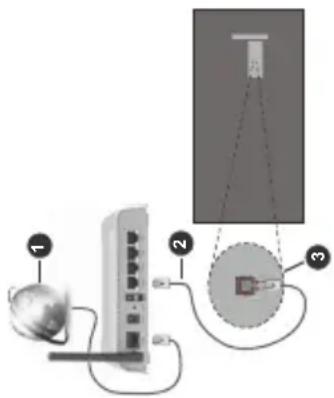
1 Broadband ISP connection
2 LAN (Ethernet) cable
3 LAN input on the rear side of the TV
To configure wired settings refer to the Network section in the Settings menu.
- You might be able to connect your TV to your LAN depending on your network's configuration. In such a case, use an Ethernet cable to connect your TV directly to the network wall outlet.
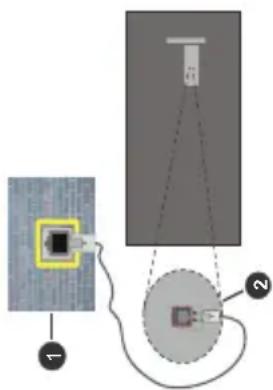
1 Network wall socket
2 LAN input on the rear side of the TV
Configuring Wired Device Settings Network Type
The Network Type can be selected as Wired Device, Wireless Device or Disabled, in accordance with the active connection to the TV set. Select this as Wired Device if you are connecting via an Ethernet cable.
English - 30 -
Supported DVI Resolutions
When connecting devices to your TV's connectors by using DVI converter cable(DVI to HDMI cable - not supplied), you can refer to the following resolution information.
| 56Hz 60Hz 66Hz 70Hz 72Hz 75Hz | ||||||
| 640x400 | X | |||||
| 640x480 | X | X | X | |||
| 800x600 | X | X | X | X | ||
| 832x624 | X | |||||
| 1024x768 | X | X | X | X | X | |
| 1152x864 | X | X | X | |||
| 1152x870 | X | |||||
| 1280x768 | X | X | ||||
| 1360x768 | X | |||||
| 1280x960 | X | X | ||||
| 1280x1024 | X | X | ||||
| 1400x1050 | X | X | ||||
| 1440x900 | X | X | ||||
| 1600x1200 | X | |||||
| 1680x1050 | X | |||||
| 1920x1080 | X | |||||
Internet Speed Test Highlight Internet Speed Test and press the OK button. TV will check the internet connection bandwidth and display the result when complete.
- You must have a modem/router connected to an Advanced Settings
| Internal Subtitles | |
| Extension | Specification |
| .mkv VOBSub | |
| .mkv ASS / SSA / TEXT | |
| .dat, .mpg, .mpeg, .vob DVD Subtitle | |
| .mp4 DVD Subtitle, TEXT | |
Internet Speed Test Highlight Internet Speed Test and press the OK button. TV will check the internet connection bandwidth and display the result when complete.
The TV cannot connect to the networks with a hidden SSID. To make your modem's SSID visible, you should change your SSID settings via the modem's software.
(六)
(1) ω (2) β
(1) n = 1
[1]
(1)
《》
1
(1) 2017年1月1日
(1) 2017年1月1日
- 2017年1月1日
图 1
(1)
1 Broadband ISP connection
1 Broadband for connection
A Wireless N router (IEEE 802.11c/b/g/n) with
A Wireless-N Router (IEEE 602.Haribghill) with
simultaneous 2.4 and 5 GHz bands is designed to
increase bandwidth. These are optimized for smoother
increase bandwidth. These are optimized for smoother
and faster HD video streaming file transfers and
and faster HD video streaming, the transfers and
wireless gaming.
(No text)
• The frequency and channel differ depend
The frequency and channel amor depends
the area
2.1.2.2017
• The transmission speed differs depending
The transmission speed differs depending
distance and number of obstructions between
transmission products. the configuration of the
-
-
-
-
-
-
-
-
-
-
-
-
-
-
-
-
-
-
-
-
-
-
-
-
-
-
-
-
-
-
-
-
-
-
-
-
-
-
-
-
-
-
-
-
-
-
-
-
-
-
-
-
-
-
-
-
-
-
-
-
-
-
-
-
- 66.
-
-
-
-
-
-
-
-
-
-
-
-
-
-
-
-
-
-
-
-
-
-
-
-
-
-
-
-
-
-
-
-
-
-
-
-
-
-
-
-
-
-
-
-
-
-
-
-
-
-
-
-
-
-
-
-
-
-
-
-
-
-
-
products, the radio wave conditions, the line traffic
and the products that you use. The transmission may
and the products that you use. The transmission may
also be cut off or may get disconnected depending
also be cut off or may get disconnected depending
on the radio wave conditions. DECT phones or any
(1) M1 (2) M2 (3) M3 (4)
other WLAN 11b appliances. The standard values of
the transmission speed has the theoretical maximum
button. TV will check the internet connection bandwidth and display the result when complete. Advanced Settings Highlight Advanced Settings and press the OK button. On the next screen you can change the IP and DNS settings of the TV. Highlight the desired one and press Left or Right button to change the setting from Automatic to Manual. Now you can enter the IP and / or DNS values manually. Select the related item in the drop down menu and enter the new values using the numeric buttons of the remote. Highlight Save and press the OK button to save settings when complete. Networked Standby Mode You can enable or disable the Networked Standby Mode feature by setting this option accordingly. Refer to the Networked Standby Mode section for further information.
Wireless Connectivity
To Connect to a Wireless Network
The TV cannot connect to the networks with a hidden SSID. To make your modem's SSID visible, you should
change your SSID settings via the modem's software.
(六)
( ) 1
(1)
(1)
1
(1)
(1) 2017年1月1日
- 2017年1月1日
(8)
(
(2)
(1) AD = BD = 1
(1) 2017年1月1日
(No text)
1 Broadband ISP connection
1 Broadband for connection
A Wireless-N router (IEEE 802.11a/b/g/n) with
(1) 2017年 ,
simultaneous 2.4 and 5 GHz bands is designed to
increase bandwidth. These are optimized for smoother
Increase bandwidth. These are optimized for smooth
and faster HD video streaming, file transfers and
wireless gaming.
• The frequency and channel differ depend
the frequency, which character, and the
the area.
The following table provides the information in English:
• The transmission speed differs depending
distance and number of obstructions between
distance and number of obstructions between
transmission products. the configuration of tl
products, the radio wave conditions, the line traffic
products, the radio wave conditions, the line traffic
and the products that you use. The transmission may
also be out off on the net d'accentrated during the
also be cut off or may get disconnected depending
on the radio wave conditions. DECT phones or any
on the radio wave conditions, BEST phones of any
other WLAN 11b appliances. The standard values of
the transmission speed is the theoretical maximum
(1)
1. 2014年1月1日
图 )
(2)
(2)
(1) AD = BD = 1
(1) 2017年1月1日
-
-
(No text)
-
1 Broadband ISP connection
1 Broadband for connection
A Wireless-N router (IEEE 802.11a/b/g/n) with
(1) 2017年1月1日
simultaneous 2.4 and 5 GHz bands is designed to
increase bandwidth. These are optimized for smoother
Increase bandwidth. These are optimized for smoother
and faster HD video streaming, file transfers and
wireless gaming.
- - -
• The frequency and channel differ dependi
The frequency and condition of the population
the area.
The transmission speed difference depending on
• The transmission speed differs depending to
distance and number of obstructions between
distance and number of obstructions between
transmission products, the configuration of th
products, the radio waves conditions, the line traffic
products, the radio wave conditions, the line traffic
and the products that you use. The transmission may
also be cut off or may get disconnected depending
also be cut off or may get disconnected depending
on the radio wave conditions, DECT phones or any
other WL AN 11b appliances. The standard values of
the transmission speed is the certified maximum.
English - 30 -
(1)
1. 2014年1月1日
图 )
(2)
[Non-Text]
[Non-Text]
[Non-Text]
[Non-Text]
[Non-Text]
[Non-Text]
[Non-Text]
[Non-Text]
[Non-Text]
-
-
4
[Non-Text]
20
i
。
0
1
[Non-Text]
。
[Non-Text]
[Non-Text]
。
[Non-Text]
[Non-Text]
[Non-Text]
[Non-Text]
[Non-Text]
[Non-Text]
[Non-Text]
[Non-Text]
[Non-Text]
[Non-Text]
[Non-Text]
(1)
1. 2014年1月1日
图 )
(2)
(1) AD = BD = 1
(1) 2017年1月1日
-
-
(No text)
-
(No text)
1 Broadband ISP connection
A Wireless-N router (IEEE 802.11a/b/g/n) with
(1) 2017年1月1日
simultaneous 2.4 and 5 GHz bands is designed to
increase bandwidth. These are optimized for smoother
Increase bandwidth. These are optimized for smoother
and faster HD video streaming, file transfers and
wireless gaming.
• The frequency and channel differ dependi
the area
the area.
• The transmission speed differs depending
distance and number of obstructions between
distance and number of obstructions between
transmission products. the configuration of th
products, the radio waves conditions, the line traffic
products, the radio wave conditions, the line traffic
and the products that you use. The transmission may
also be cut off or may get disconnected depending
also be cut off of may get disconnected depending
on the radio wave conditions, DECT phones or any
other WLAN 11b appliances. The standard values of
The transmission speed is the certified maximum.
(1)
1. 2014年1月1日
图 )
(2)
[Non-Text]
[Non-Text]
[Non-Text]
[Non-Text]
[Non-Text]
[Non-Text]
[Non-Text]
[Non-Text]
+
4
[Non-Text]
20
i
。
0
1
[Non-Text]
• The frequency and channel differ dependi
the area
the area.
1. 2014年1月1日
图 )
(2)
(1) AD = BD = 1
(1) 2017年1月1日
-
-
-
1 Broadband ISP connection
| In order to use this feature the TV and the remote device should be connected at least once while the TV is on. If the TV is powered off, the connection should be re-established, the next time it is switched on. Otherwise this feature will be unavailable. This does not apply, when the TV is switched into the standby mode.The performance of some devices in the market, may vary due to the software architecture. In order to use Networked Standby Mode feature with a better performance, please make sure that your device has latest firmware version.If you want your TV to consume less power in standby mode, you can disable this feature by setting the Networked Standby Mode option as Off.Wireless DisplayWireless Display is a standard for streaming video and sound content. This feature provides the ability to use your TV as wireless display device.Using with mobile devicesThere are different standards which enable sharing of screens including graphical, video and audio content between your mobile device and TV.Press the Source button on the remote and switch to Wireless Display source.A screen appears stating that the TV is ready for connection.Open the sharing application on your mobile device. These applications are named differently for each brand, refer to the instruction manual of your mobile device for detailed information.Scan for devices. After you select your TV and connect, the screen of your device will be displayed on your TVNote:This feature can be used only if the mobile device supports this feature. If you experience problems with the connection check if the operating system version you use supports this feature. There may be incompatibility problems with the operating system versions which are released after the production of this TV. Scanning and connecting processes differ according to the programme you use.Connectivity TroubleshootingWireless Network Not Available• Ensure that any firewalls of your network allow the TV wireless connection.• Try searching for wireless networks again, using the Network menu screen.If the wireless network does not function properly, try using the wired network in your home. Refer to the Wired Connectivity section for more information on the process.If the TV does not function using the wired connection, check the modem (router). If the router does not have a problem, check the internet connection of your modem. | Connection is SlowSee the instruction book of your wireless modem to get information on the internal service area, connection speed, signal quality and other settings. You need to have a high speed connection for your modem.Disruption during playback or slow reactionsYou could try the following in such a case:Keep at least three meters distance from microwave ovens, mobile telephones, bluetooth devices or any other WLAN compatible devices. Try changing the active channel on the WLAN router.Internet Connection Not Available / Audio Video Sharing Not WorkingIf the MAC address (a unique identifier number) of your PC or modem has been permanently registered, it is possible that your TV might not connect to the internet. In such a case, the MAC address is authenticated each time when you connect to the internet. This is a precaution against unauthorized access. Since your TV has its own MAC address, your internet service provider cannot validate the MAC address of your TV. For this reason, your TV cannot connect to the internet. Contact your internet service provider and request information on how to connect a different device, such as your TV, to the internet.It is also possible that the connection may not be available due to a firewall problem. If you think this causes your problem, contact your internet service provider. A firewall might be the reason of a connectivity and discovery problem while using the TV in Audio Video Sharing mode or while browsing via Audio Video Sharing feature.Invalid DomainEnsure that you have already logged on to your PC with an authorized username/password and also ensure that your domain is active, prior to sharing any files in your media server program on your PC. If the domain is invalid, this might cause problems while browsing files in Audio Video Sharing mode.Using Audio Video Sharing Network ServiceAudio Video Sharing feature uses a standard that eases the viewing process of digital electronics and makes them more convenient to use on a home network.This standard allows you to view and play photos, music and videos stored in the media server connected to your home network.1. Server Software InstallationThe Audio Video Sharing feature cannot be used if the server programme is not installed onto your PC or if the required media server software is not installed onto the companion device. Prepare your PC with a proper server programme. |
English - 32 -
| values for the wireless standards. They are not the actual speeds of data transmission.The location where the transmission is most effective differs depending on the usage environment.The Wireless feature of the TV supports 802.11 a,b, g & n type modems. It is highly recommended that you should use the IEEE 802.11n communication protocol in order to avoid any possible problems while watching videos.You must change your modem's SSID when there are any other modems around with the same SSID. You can encounter connection problems otherwise. Use a wired connection if you experience problems with a wireless connection.Configuring Wireless Device SettingsOpen the Network menu and select Network Type as Wireless Device to start connection process.Highlight the Scan Wireless Networks option and press OK to start a search for available wireless networks. All found networks will be listed. Highlight your desired network from the list and press connect. A network with hidden SSID can not be detected by other devices. If you want to connect to a network with hidden SSID, scroll down the list of detected wireless networks, highlight the Add New Network option and press OK. Enter the name of the network and select the security type using the related options to connect.Note:If the modem supports N mode, you should set N mode settings.If the selected network is password-protected, enter the correct key by using the virtual keyboard. You can use this keyboard via the directional buttons and the OK button on the remote control.Wait until the IP address is shown on the screen.This means that the connection is now established. To disconnect from a wireless network, highlight Network Type and press Left or Right buttons to set as Disabled.If you have connected to a wireless network the Disconnect option will appear in the Network menu and your wireless network profile will also be saved, thus your TV will connect to the same network automatically whenever you switch to wireless connection. To disconnect from a wireless network and delete saved wireless network profile, highlight Disconnect and press OK.If your router has WPS, you can directly connect to the modem/router without entering a password or adding the network first. Highlight the Press WPS on your wifi router option and press OK. Go to your modem/ router device and press the WPS button on it to make the connection. You will see a connection confirmation | on your TV once the devices have paired. Select OK to proceed. No further configuration is required.Highlight Internet Speed Test and press the OK button to check your internet connection speed. Highlight Advanced Settings and press the OK button to open the advanced setting menu. Use directional and numeric buttons to set. Highlight Save and press the OK button to save settings when complete.Other InformationThe status of the connection will be displayed as Connected or Not Connected and the current IP address, if a connection is established.Connecting to your mobile device via WLANIf your mobile device has WLAN feature, you can connect it to your TV via a router, in order to access the content in your device. For this, your mobile device must have an appropriate sharing software.Connect your TV to your router following the steps mentioned in the sections above.Afterwards, connect your mobile device to the same network as your TV and then activate the sharing software on your mobile device. Then, select files that you want to share with your TV.If the connection is established correctly, you will be able to access the shared files installed on your mobile device via the Audio Video Sharing feature of your TV.Go to the Navigation carousel on the Home screen and select Sources. Then highlight the Audio Video Sharing option in the Sources menu and press OK, available media server devices in the network will be displayed. Select your mobile device and press the OK button to continue.If available, you can download a virtual remote controller application from the server of your mobile device application provider.Note: This feature may not be supported on all mobile devices. |
| Networked Standby ModeNetworked Standby Mode is standard that allows a device to be turned on or woken up by a network message. The message is sent to the device by a program executed on a remote device connected to the same local area network, such as a smartphone. The Your TV is WoL and WoWLAN compatible. This feature might be disabled during the First Time Installation process. To enable this feature set the Networked Standby Mode option in the Network menu as On. It is necessary that both the device, from which the network message will be sent to the TV, and the TV are connected to the same network. Networked Standby Mode feature is only supported for Android OS devices and can only be used via YouTube and Netflix applications. | |
| In some circumstances video contents might not be able to be played.HBBTV SystemHbbTV (Hybrid Broadcast Broadband TV) is a new industry standard that seamlessly combines TV services delivered via broadcast with services delivered via broadband and also enables access to Internet only services for consumers using connected TVs and set-top boxes. Services delivered through HbbTV include traditional broadcast TV channels, catch-up services, video-on-demand, electronic programme guide, interactive advertising, personalisation, voting, games, social networking and other multimedia applications. HbbTV applications are available on channels where they are signalled by the broadcaster. The broadcaster marks one application as “autostart” and this one is started by the platform automatically. The autostart applications are generally launched with a small red button icon to notify the user that there is an HbbTV application on that channel. Press the red button to open the application page. After the page is displayed you can go back to the initial red button icon state by pressing the red button again. You can toggle between the red button icon mode and full UI mode of the application via pressing red button. It should be noted that the red button switching capability is provided by the application and some application may behave differently (other colour buttons such as green, yellow, blue, may be defined for some other functions, e.g. shortcuts).If you switch to another channel while an HbbTV application is active (either in red button icon mode or full UI mode), the following scenarios can occur.The application can continue running.The application can be terminated.The application can be terminated and another autostart red button application can be launched.HbbTV allows the applications to be retrieved both from broadband or broadcast. The broadcaster may enable both ways or one of them. If the platform does not have an operational broadband connection, the platform can still launch applications transmitted on broadcast.The autostart red button applications generally provide links to other applications. The user then can switch to other applications by using the links providedThe applications should provide a way to terminate themselves, usually the Exit button is used for this. HbbTV applications use keys on the remote control to interact with the user. When an HbbTV application is launched, the control of some keys are owned by the application. For example, numeric channel selection may not work on a teletext application where the numbers indicate teletext pages.HbbTV requires AV streaming capability for the platform. There are numerous applications providing | VOD (video on demand) and catch-up TV services. The user can use play, pause, stop, forward, and rewind keys on the remote control to interact with the AV content.Note: You can enable or disable this feature from the Settings>Legal>Consent Settings menu.Smart CenterSmart Center is a mobile application running on iOS and Android platforms. With your mobile device, you can easily stream your favourite live shows and programmes from your smart TV. Also; you can launch your applications, use your mobile device as a remote control for your TV and share media files.Note: Being able to use all functions of this application depends on the features of your TV.Getting StartedTo be able to use internet based features, your modem/ router must be connected to the internet.IMPORTANT: Make sure the TV and mobile device are connected to the same network.For media sharing feature the Audio Video Sharing option should be enabled (if available). Go to the Navigation carousel on the Home screen and select Settings>Devices menu and press OK. Highlight Audio Video Sharing and change as Enabled. Your TV is ready to connect to your mobile device now. Install the Smart Center application onto your mobile device.Start the Smart Center application. If all connections are configured properly, you will see your TV’s name on your mobile device. If your TV’s name doesn’t appear on the list, wait a while and tap on the Refresh widget. Select your TV from the list.Mobile Device screenOn the main screen you can find tabs to access various features.The application retrieves actual channel list from TV first when it starts.MY CHANNELS: The programmes of first four channels from the channel list retrieved from the TV are shown. You can change the listed channels. Press on the channel thumbnail and hold. A list of channels will be displayed and you can choose your desired channel to be replaced.TV: You can watch content through the TV tab. In this mode you can navigate through the channel list retrieved from your TV and click on thumbnails to view the detail pages.RECORDINGS: You can view your active recordings(if available) and reminders through this tab. To delete any item, simply press on the delete icon found on each row.EPG(Electronic programme guide): You can view the broadcast schedules of selected channel lists |
English - 34 -
| 2. Connect to a Wired or Wireless NetworkSee the Wired/Wireless Connectivity chapters for detailed configuration information.3. Enable Audio Video SharingEnter the Settings>Devices menu and enable the Audio Video Sharing option.4. Play Shared Files via Media BrowserGo to the Navigation carousel on the Home screen and select Sources. Then highlight the Audio Video Sharing option in the Sources menu by using the directional buttons and press OK. Available media server devices in the network will be listed one and press OK to continue. The media browser will then be displayed.Refer to the Media Browser section for further information on file playback.If a problem occurs with the network, switch your television off at the wall socket and back on again. Trick mode and jump are not supported with the Audio Video Sharing feature.PC/HDD/Media Player or any other devices that are compatible should be used with a wired connection for higher playback quality.Use a LAN connection for quicker file sharing between other devices like computers.Note: There may be some PC's which may not be able to utilize the Audio Video Sharing feature due to administrator and security settings (such as business PC's).AppsYou can access the applications installed on your TV from the Home screen. The apps of the streaming services are integrated for the best search and viewing experience. Press the TiVo button on the remote, Home screen will be displayed. Highlight an app and press OK to launch.Use the Manage Apps screen to control which apps TiVo OS uses to recommend titles from on the Home, Free, TV Shows, and Movies screens. The apps you select display in the My Apps carousel on the Home screen.Your app selections do not affect text and voice search (availability depends on the model of your TV and supplied remote controls) results. TiVo OS shows results from all apps to help you find what you want to watch. When an app you're not using has the title, you can then decide to sign up for it.Notes: While many apps are free, a subscription, rental, or purchase may be needed to watch titles from some apps. Possible application dependent problems may be caused by the content service provider. Third party internet services may change, be discontinued or restricted at any time. | Internet BrowserYou can launch the internet browser from the My Apps carousel on the Home screen.In the initial screen of the browser, the thumbnails of the predefined (if any) links to web sites available will be displayed as Speed Dial options along with the Edit Speed Dial and the Add to Speed Dial options.To navigate the web browser, use the directional buttons on the remote or a connected mouse. To see the browser options bar, move the cursor to the top of the page. History, Tabs and Bookmarks options and the Browser bar which contains previous/next buttons, the refresh button, the address/search bar, the Speed Dial and the Vewd buttons are available.To add a desired website to the Speed Dial list for quick access, move the cursor to the top of the page or press. The browser bar will appear. Highlight the Speed Dial button and press the OK button. Then select Add to Speed Dial option and press the OK button. Fill in the blanks for Name and Address, highlight OK and press the OK button to add. Whilst you are on the site you wish to add to the Speed Dial list, highlight the Vewd button and press the OK button. Then highlight Add to Speed Dial option in the submenu and press the OK button again. Name and Address will be filled automatically according to the site you are visiting. Highlight OK and press the OK button to add.You can also use the Vewd menu options to manage the browser. Highlight the Vewd button and press the OK button to see available page specific and general options.There are various ways to search or visit websites using the web browser.Enter the address of a website(URL) into the search/address bar and highlight the Enter button on the virtual keyboard and press the OK button to visit the site.Enter keyword/s into the search/address bar and highlight the Enter button on the virtual keyboard and press the OK button to start a search for the related websites.Highlight a Speed Dial thumbnail and press the OK button to visit the related website.Your TV is compatible with USB mice. Plug your mouse or wireless mouse adaptor into the USB input of your TV for easier and quicker navigation.Some web pages include flash content. These are not supported by the browser.Your TV does not support any download processes from the internet via the browser.All sites on the internet might not be supported. According to the site; content problems may occur. |
| through this tab. You can also navigate through channels by pressing on the selected channel on the EPG grid. Please note that updating / refreshing the EPG information may take a while depending on your network and web service quality.Note: Internet connection is required for WEB based EPG information.SETTINGS: Configure the application to your liking. You can change;Auto-enable FollowMeTV: FollowMeTV function (if available) will start automatically when this setting is enabled. Default is disabled.Auto-connection to TV: When enabled, your mobile device will automatically connect to last connected TV and skips the TV search screen.Change TV: Shows the currently connected TV. You can press on this setting to go to the “TV search” screen and change to a different TV.Edit custom channel list: You can edit your custom channel list using this setting.Choose channel list source: You can choose the channel list source to be used in the application. The options are “TV List” and “Custom List”. Additionally you can activate “Remember my choice” option to set the selected channel list source as a constant choice. In this case if the selected source is available it will be used in the application.Version No: Displays the current version of the application.Detail PageTo open detail page tap on a programme. On the detail page screen you can get detailed information of the programmes you select. There are “Details”, “Cast&Crew” and “Videos” tabs to find on this page.DETAILS: This tab provides summary and information about the selected programme.CAST&CREW: Shows all the people contributed to the current programme.VIDEOS: Provides videos on Youtube related to the selected programme.Note: For some functions an internet connection may be required.FollowMe TV Feature (if available)Tap on the FOLLOW ME TV widget located at the upper right of the screen of your mobile device to change the layout for FollowMe TV feature.Tap the play icon to start streaming of the content from the TV to your mobile device. Available if your device is in your routers operation range. | Mirror ModeThis mode of FollowMe TV feature is enabled by default and allows streaming the content from any other selected TV sources and Media Browser.Notes:Note that only digital(DVB-T/C/S) SD and HD channels are supported.Multilanguage audio support and subtitle on/off features are not functional.The streaming performance may change depending on the quality of your connection.Media Share PageTo access the Media Share widget tap on the Up-arrow on the upper right side of the screen.If the Media Share widget is pressed, a screen is displayed where you can select the media file type to share with your TV.Note: Not all image file formats are supported. This function will not work if Audio Video Sharing feature is not supported.Smart Remote FeatureYou can use your mobile device as a remote control for your TV once it has connected to the TV. To access smart remote’s full features you can use the menu at the bottom middle of the screen.Voice RecognitionYou can tap on the Microphone() widget and manage your application, giving voice commands such as “Volume Up/Down!”, “Programme Up/Down!”.Note: This feature is only for android based devices available.Keyboard PageThe keyboard page can be opened in two ways; by pressing the Keyboard( ) widget on the application screen or automatically by receiving a command from the TV.Requirements1. Smart TV2. Network connection3. Mobile Device based on Android or iOS platform (Android OS 5.1 or higher; IOS 12 or higher version)4. Smart Center app.(to be found on online application stores based on Android and iOS platforms)5. Router modem6. USB storage device in FAT32 format (required for USB Recording feature, if available)Notes:For Android devices, Normal(mdpi), Large(hdpi) and Extra Large(xhdpi) screen sizes are supported. Devices with 3" or smaller screen sizes are not supported. | For iOS devices, all screen sizes are supported.User interface of the Smart Center application is subject to change according to version installed on your device.DVB functionality informationThis DVB receiver is only suitable for use in the country which it was designed to be used in.Although this DVB receiver conforms to the latest DVB specifications at the time of manufacture, we cannot guarantee compatibility with future DVB transmissions due to changes that may be implemented in broadcast signals and technologies.Some digital television functions may not be available in all countries.We continually strive to improve our products; therefore, specifications may change without prior notice.For advice on where to purchase accessories, please contact the store where you purchased your equipment. |
- Termékek
- Elem

GENYNE PRODUCT OF HYUNDA CORPORATION
Licensed by Hyundai Corporation Holdings, Korea
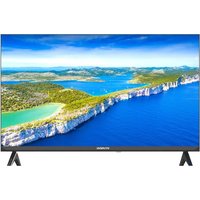

- FLM43TS349SMART
- The ground truth image displays a single, solid horizontal line. according to rule 2 (underscore & line rules), this is a stylistic or background line, not a placeholder underscore. therefore, the ocr result must ignore it. the provided ocr content is "\_\_\_\_", which consists of four underscores. this is an incorrect interpretation of the line as a placeholder and violates the rule that stylistic lines must be ignored. the ocr has hallucinated text (underscores) where none should exist based on the gt's visual context. hence, the ocr result is inconsistent with the ground truth
- Specyfikacje
- Markings on the product
- Safety information
- Contents
- Antenna connection
- Rear side of the tv
- Switching on/off
- To switch the tv on
- First time installation
- Connections
- No sound
- Subtitle file formats
- Connectivity
- 1 Network wall socket
- Supported dvi resolutions
- Wireless connectivity
- To connect to a wireless network
- (1)
- 2014年1月1日
- 图 )
- (2)
- Ad = bd = 1
- 2017年1月1日
- (No text)
- 1 Broadband isp connection
- 1 Broadband for connection
- A wireless-n router (ieee 802.11a/b/g/n) with
- Simultaneous 2.4 and 5 GHz bands is designed to
- Increase bandwidth. these are optimized for smoother
- And faster hd video streaming, file transfers and
- Wireless gaming
- The frequency and channel differ dependi
- The frequency and condition of the population
- The area
- The transmission speed difference depending on
- The transmission speed differs depending to
- Distance and number of obstructions between
- Transmission products, the configuration of th
- Products, the radio waves conditions, the line traffic
- Products, the radio wave conditions, the line traffic
- And the products that you use. the transmission may
- Also be cut off or may get disconnected depending
- On the radio wave conditions, dect phones or any
- Other wl an 11b appliances. the standard values of
- The transmission speed is the certified maximum
- [Non-text]
- 4
- 20
- I
- 。
- 0
- 1
- The area
- The transmission speed differs depending
- Transmission products. the configuration of th
- Also be cut off of may get disconnected depending
- Other wlan 11b appliances. the standard values of
Brand : HYUNDAI
Model : FLM43TS349SMART
Category : Television