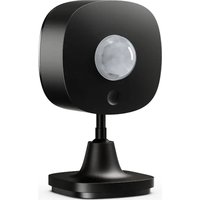
H5129 - Motion Sensor Govee - Free user manual and instructions
Find the device manual for free H5129 Govee in PDF.


User questions about H5129 Govee
0 question about this device. Answer the ones you know or ask your own.
Ask a new question about this device
Download the instructions for your Motion Sensor in PDF format for free! Find your manual H5129 - Govee and take your electronic device back in hand. On this page are published all the documents necessary for the use of your device. H5129 by Govee.
USER MANUAL H5129 Govee
-
It is recommended to install it vertically more than 3ft away from the ground to avoid static electricity to make sure it works properly instead of being falsely triggered.
-
The lens should not directly face to large pendular objects or objects that can easily be made pendular. The significant swings of large objects can cause sudden changes in airflow within the detected area resulting in false triggering.
-
The lens is used for helping the probe capture signals from a larger area. There can't be any fog or grease on it. The lens can not be blocked by other objects which may prevent the probe from sensing any body movements.
-
The product performance is affected by the ambient temperature, body type, thickness of clothing, walking speed, walking direction and other factors. When the ambient temperature is low, the detectable distance is long. When the ambient temperature is high, the sensitivity of the probe will decline, and the detectable distance will be shortened. This is a normal phenomenon and can be adjusted through the product sensitivity settings.
Introduction
The Govee Outdoor Motion Sensor is an intelligent monitoring device with a built-in infrared temperature probe, a precision circuit, and a Fresnel lens. Its 120° large viewing angle enables efficient monitoring of body movements. With Bluetooth technology, the sensor communicates with Govee's unique distributed gateway, realizing multiple functions such as group control, safety alerts, etc. by using the detected movement as a condition to trigger automation. The IP65 waterproof rating makes it suitable for various outdoor environments. Its crafty design makes it easy to be fixed on different outdoor surfaces. It can provide you not only with efficient safety monitoring, but also a more intelligent and convenient experience.
Included in the Box
| Item | Quantity |
| Outdoor Motion Sensor | 1 |
| Battery | 2 |
| Screwdriver | 1 |
| Screw & Expansion Cube | 2 |
| User Manual | 1 |
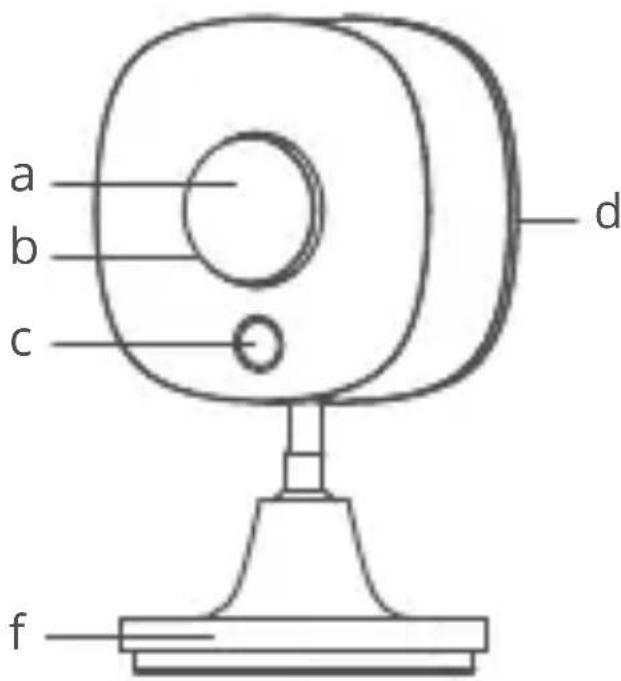
Part Names
a. Sensor Lens
b. Indicator Light
c. Function Button
d. Bottom Cover
e. Universal Ball Joint
f. Base
g. Battery
h. Insulation Sheet
text_image
a b c d f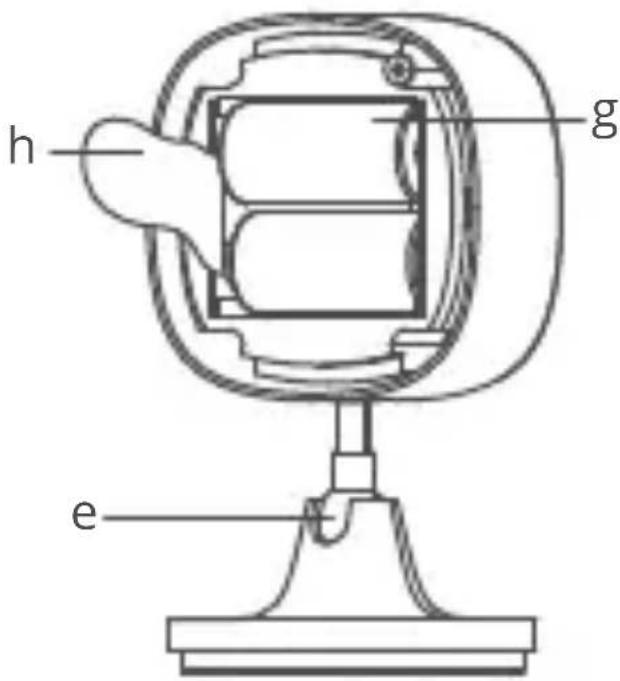
text_image
h g eFunctions
The expansive 120° large viewing angle of the outdoor motion sensor enables efficient monitoring of body movements. With Bluetooth technology, the sensor communicates with Govee's unique distributed gateway, realizing multiple functions such as group control, safety alerts, etc. by using the detected movement as a condition to trigger automation.
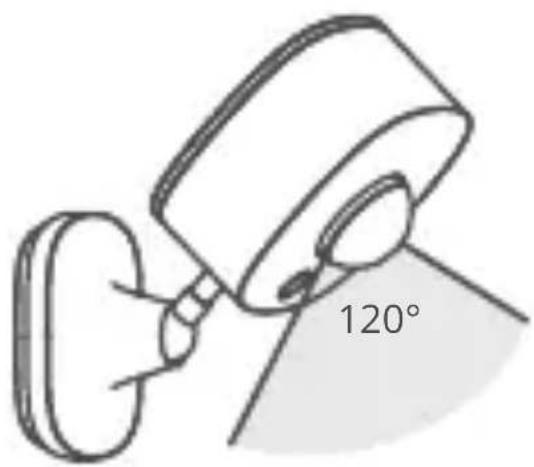
text_image
120°Getting Started
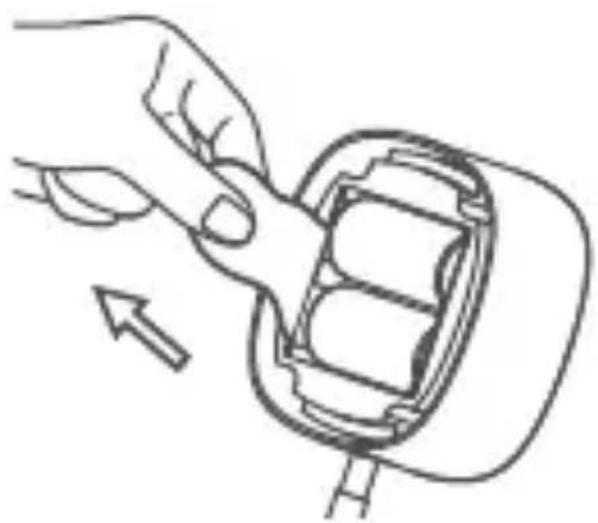
- Open the packaging. Remove the bottom cover and pull out the insulation sheet. Then, put the bottom cover back into place. Firmly fix the cover with the provided screws.
natural_image
Illustration of a hand inserting a device into a battery pack (no text or symbols)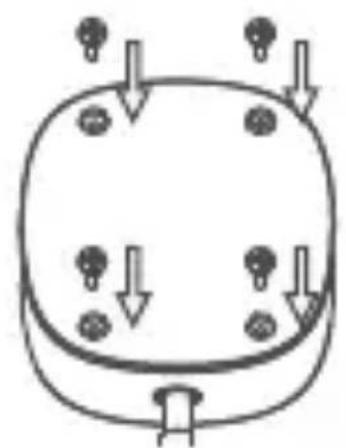
natural_image
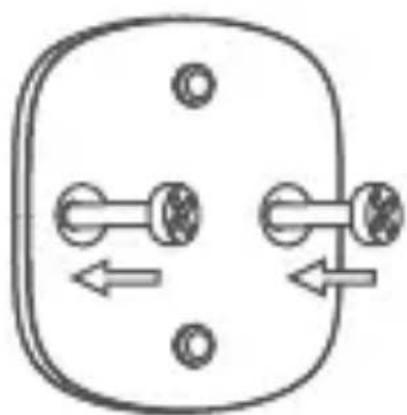
Simple line drawing of a device with four circular components and downward arrows indicating flow or movement (no text or symbols)- Determine the installation location. Make sure there aren't any obstacles in the surrounding area. Fix the base with screws.
natural_image
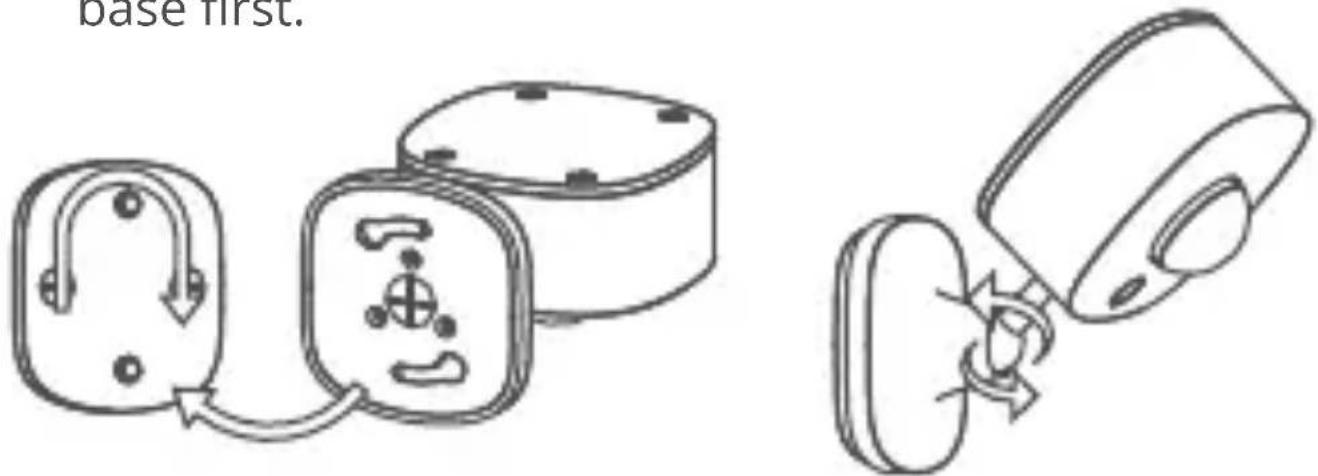
Pure electrical circuit lines without any symbols- Attach the sensor to the base and rotate clockwise to fix it onto the base by aligning the holes on the base first.
text_image
base first.- The installation is completed.
Note:
- In order to prevent the detected area from being blocked, please target the lens at the detected area accurately.
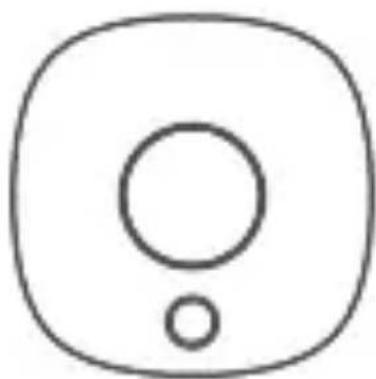
Function Button
natural_image
Simple line drawing of a rounded square button with a circular center and a small circle at the bottom (no text or symbols)| Action Press and hold for 3s | Single press | |
| Working Status | During the Bluetooth Broadcasting | Network Inspection |
| Indicator Status | Flashes Red / | |
Downloading Govee Home App
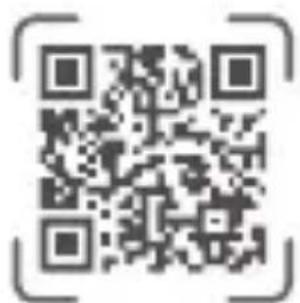
To download Govee Home App, scan the QR code or search for "Govee" in the Apple App Store® (iOS) or Google Play Store (Android).
text_image
QR code with surrounding frame brackets, no visible text or symbols beyond the matrix patternGovee Home App

text_image
Download on the App Store
text_image
GET IT ON Google PlayPairing with Govee Home App
- Turn on your smartphone's Bluetooth.
- Open Govee Home App, tap the "+" icon in the top right corner and search for "H5129."
- Press and hold the function button for 3 seconds. When the indicator light flashes slowly, it means that the device has entered the Bluetooth Broadcast Mode. Please follow the in-app instructions to complete pairing. During the pairing, make sure the node devices at your home have been authorized in Gateway in your app.
- Effective Communication Distance Verification: After completing the pairing, verify the effective communication distance in the app.
How can I make sub-devices automatically turn off after being triggered by the outdoor motion sensor?
Set “Turn on the device” in Instant Execution and add a “Turn off the device” command in Delayed Execution, and set a specific time that you wish it to turn off. You will achieve automatic control for the best experience.
Note:
- Govee Home App is being continually updated and its features do expand.
Troubleshooting
The troubleshooting section below is for solving frequently asked questions for the motion sensor. If your problem persists, please contact Customer Support.
| Problem | Possible Solution |
| The indicator light is off. | 1. Replace with a new battery.2. Contact Customer Support. |
| The sensor cannot detect any movements. | 1. Check the device's battery and make sure it is fully charged.2. Open the app and make sure the device and the distributed gateway are within the effective communication distance.3. Make sure no obstacles stand in front of the probe within the detection area.4. Contact Customer Support.5. Increase the sensitivity. |
| Problem Possible Solution | |
| False triggering often happens. | Decrease the sensitivity. |
| Low battery alert from the app. | Replace the battery. |
For App & Connectivity
-
Cannot connect to Govee Home App.
-
Make sure your smartphone is powered on and is not connected with other Bluetooth devices.
- Enable the smartphone's Location Services.
- Try connecting with another smartphone.
- Make sure your app is updated to the latest version.
- Make sure you connect to your Wi-Fi router's 2.4GHz network and that the network is working correctly.
- Make sure the Wi-Fi password you entered is correct.
- Shorten the distance between the sensor, distributed gateway, and the smartphone.
- Make sure your sensor and the distributed gateway are located away from appliances that produce electromagnetic radiation (e.g. microwave ovens, refrigerators, etc.)
- If you are using a VPN, try turning it off and then connecting the sensor.
- Disable portal authentication for your Wi-Fi network. If portal authentication is enabled, this sensor will not be able to access your Wi-Fi network, and setup will fail. Portal authentication means that you need
to sign in to your Wi-Fi network through a web page before you can use the Internet.
- Cannot find the device on Bluetooth Device Nearby page of the app.
- The sensor may be connected with another smartphone. Disconnect it from the other smartphone first.
-
The sensor is offline.
-
Make sure the sensor is plugged in and powered on, then refresh the “Device” page in Govee Home App by swiping down on the screen.
Make sure your router is connected to the internet, and your smartphone's network connection is working. - If the Wi-Fi password has been changed, the sensor will automatically go offline. Try connecting it to the network again.
- Delete the offline sensor from Govee Home App, then add and reconfigure the sensor again in the app.
Specifications
| H5129Model Name | |
| CR123APower Supply | |
| 6V 4mAPower Input | |
| Working Temperature | -20°C to 45°C/-4°F to 113°F |
| Bluetooth Communication Distance | 55m/180ft (No obstacles) |
Appendix
After-Sales Service
Warranty: 12-Month Limited Warranty

Support: Lifetime Technical Support

Email: support@govee.com

Official Website: www.govee.com

@Govee

@Govee

@Govee

@Goveeofficial
ACHTUNG:
natural_image
Illustration of a hand inserting a device into a battery pack (no text or symbols)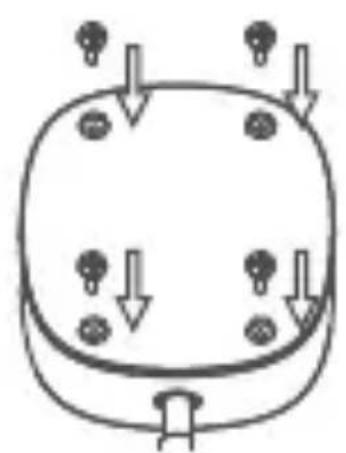
natural_image
Simple line drawing of a device with four circular components and downward arrows indicating flow or movement (no text or symbols)natural_image
Pure electrical circuit lines without any symbolsnatural_image
Simple line drawing of a camera icon with no text or symbolstext_image
QR code image with a decorative border, no readable text or symbols beyond the matrix patternGovee Home App
text_image
Downloaded on the App Store
text_image
SET IT ON Google Playnatural_image
Illustration of a hand inserting a plug into a device housing (no text or symbols)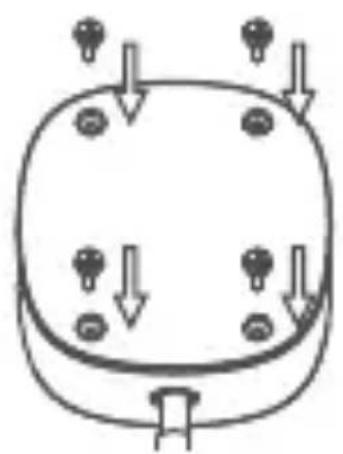
natural_image
Simple line drawing of a device with four circular ports and downward arrows indicating flow or movement (no text or symbols)natural_image
Pure electrical circuit lines without any symbolsnatural_image
Diagram of a mechanical or electrical component with two connected parts, one showing internal components and the other a cylindrical housing (no text or symbols)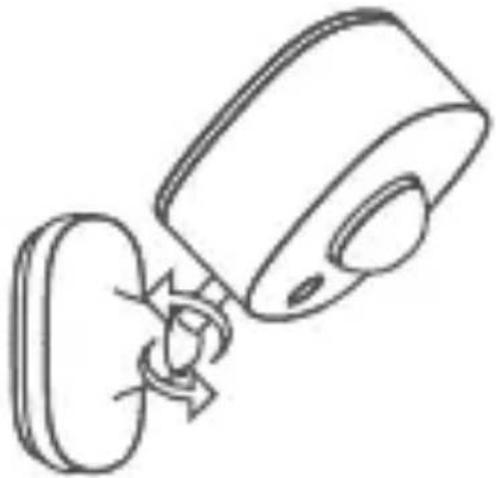
natural_image
Line drawing of a device with a scroll wheel and a circular base, showing no text or symbolsnatural_image
Simple line drawing of a camera icon with no text or symbolstext_image
QR code image with a dashed border, likely for digital scanning and information retrievalGovee Home App
text_image
Download on the App Store
text_image
GET IT ON Google Playnatural_image
Simple line drawing of a wall-mounted device with a 120° angle label (no other text or symbols)Guía de inicio
natural_image
Illustration of a hand inserting a plug into a device housing (no text or symbols)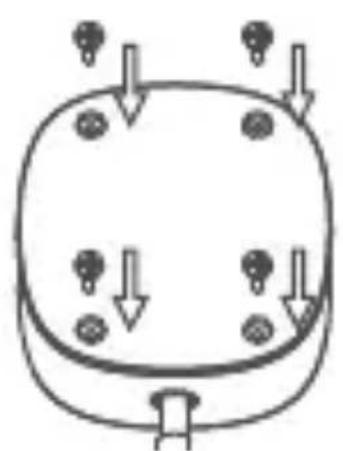
natural_image
Simple line drawing of a device with four circular components and downward arrows indicating flow or movement (no text or symbols)natural_image
Pure electrical circuit lines without any symbolsnatural_image
Diagram of a device with two components connected by an arrow, showing internal components without any text or symbols.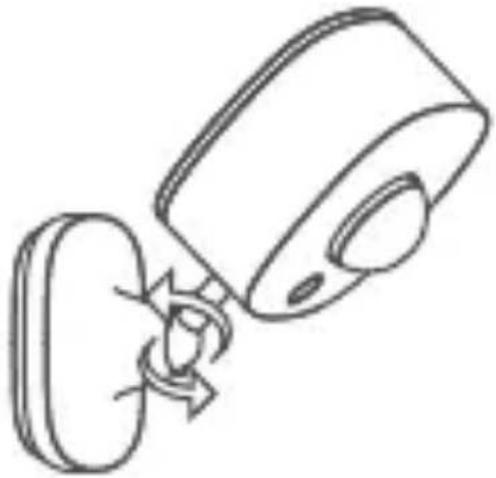
natural_image
Simple line drawing of a device with a scroll wheel and a circular base (no text or symbols)natural_image
Simple line drawing of a rounded square button with a circular center and a small circle at the bottom (no text or symbols)text_image
QR code image with a dashed border, likely for digital scanning and information retrievalGovee Home App
text_image
Download on the App Store
text_image
GET IT ON Google Playnatural_image
Simple line drawing of a wall-mounted device with a 120° angle label (no other text or symbols)Iniziare
natural_image
Illustration of a hand inserting a plug into a device housing (no text or symbols)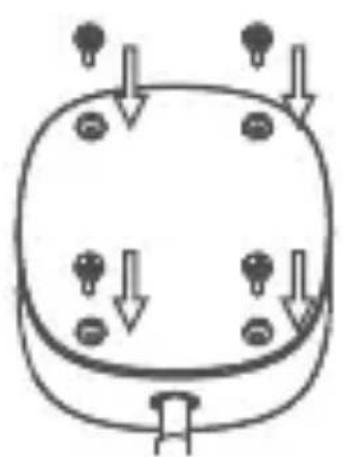
natural_image
Simple line drawing of a device with four circular ports and downward arrows indicating flow or movement (no text or symbols)natural_image
Pure electrical circuit lines without any symbolsnatural_image
Line drawing of a device with a scroll wheel and a circular button, no text or symbols presentnatural_image
Simple line drawing of a rounded square button with a circular center and a small circle at the bottom (no text or symbols)text_image
QR code image with a decorative border, no readable text or symbols beyond the matrix patternGovee Home App
text_image
Download on the App Store
text_image
GET ON Google PlayFCC and ISED Canada Statement
This device complies with Part 15 of the FCC Rules and Industry Canada licence-exempt RSS standard(s). Operation is subject to the following two conditions:
(1) This device may not cause harmful interference, and (2) This device must accept any interference received, including interference that may cause undesired operation.
Warning: Changes or modifications not expressly approved by the party responsible for compliance could void the user's authority to operate the equipment.
NOTE: This equipment has been tested and found to comply with the limits for a Class B digital device, pursuant to Part 15 of the FCC Rules.
These limits are designed to provide reasonable protection against harmful interference in a residential installation. This equipment generates uses and can radiate radio frequency energy and, if not installed and used in accordance with the instructions, may cause harmful interference to radio communications.
However, there is no guarantee that interference will not occur in a particular installation. If this equipment does cause harmful interference to radio or television reception, which can be determined by turning the equipment off and on, the user is encouraged to try to correct the interference by one or more of the following measures:
- Reorient or relocate the receiving antenna.
- Increase the separation between the equipment and receiver.
- Connect the equipment into an outlet on a circuit different from that to which the receiver is connected.
- Consult the dealer or an experienced radio/TV technician for help.
This Class B digital apparatus complies with Canadian ICES-003.
FCC and IC Radiation Exposure Statement This equipment complies with FCC and IC radiation exposure limits set forth for an uncontrolled environment. This equipment should be installed and operated with minimum distance 20cm between the radiator & your body.
The trademark Govee has been authorised to Shenzhen Qianyan Technology LTD.
Copyright ©2021 Shenzhen Qianyan Technology LTD. All Rights Reserved.
Responsible party :
Name: GOVEE MOMENTS(US) TRADING LIMITED
Address: 2501 Chatham Rd Suite R Springfield IL 62704
Email: certification@govee.com
Contact information: https://www.govee.com/support

text_image
QR code with surrounding frame brackets, no visible text or symbols beyond the matrix patternGovee Home App
For FAQs and more information,
please visit: www.govee.com