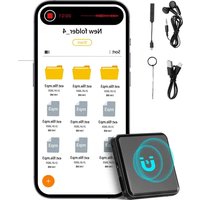
GL-35 - Musical instrument Vevor - Free user manual and instructions
Find the device manual for free GL-35 Vevor in PDF.


User questions about GL-35 Vevor
0 question about this device. Answer the ones you know or ask your own.
Ask a new question about this device
Download the instructions for your Musical instrument in PDF format for free! Find your manual GL-35 - Vevor and take your electronic device back in hand. On this page are published all the documents necessary for the use of your device. GL-35 by Vevor.
USER MANUAL GL-35 Vevor
Technical Support and E-Warranty Certificate www.vevor.com/support
Digital Voice Recorder
MODEL:GL-35
We continue to be committed to provide you tools with competitive price. "Save Half", "Half Price" or any other similar expressions used by us only represents an estimate of savings you might benefit from buying certain tools with us compared to the major top brands and does not necessarily mean to co all categories of tools offered by us. You are kindly reminded to verify carefully when you are placing an order with us if you are actually Saving Half in comparison with the top major brands.
VEVOR®
TOUGH TOOLS, HALF PRICE
Digital Voice Recorde
MODEL:GL-35
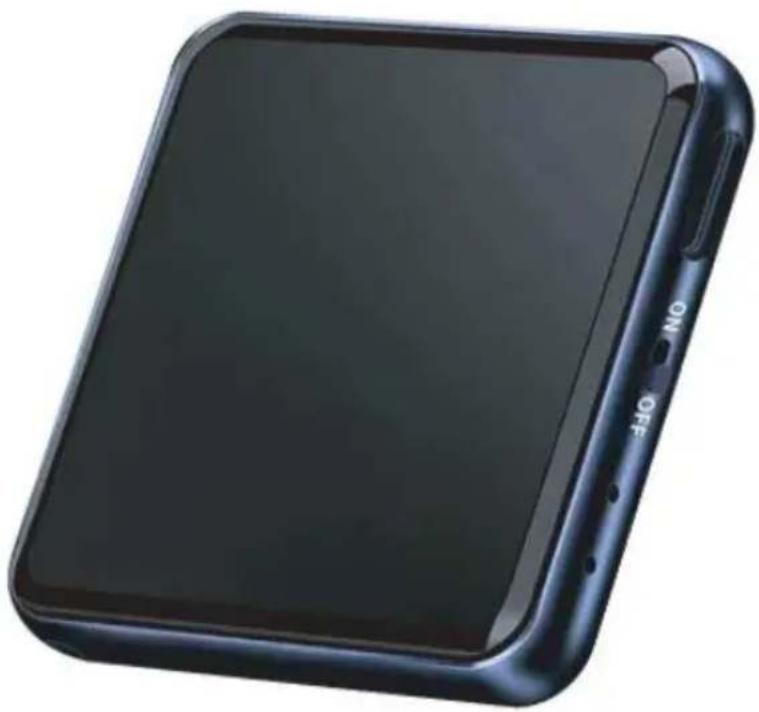
natural_image
Black rectangular electronic device with 'ON OFF' button, shown from front and side (no visible text or symbols on body)NEED HELP? CONTACT US!
Have product questions? Need technical support? Please feel fr contact us:
Technical Support and E-Warranty Certificate www.vevor.com/support
This is the original instruction, please read all manual instruction carefully before operating. VEVOR reserves a clear interpretation user manual. The appearance of the product shall be subject to product you received. Please forgive us that we won't inform you there are any technology or software updates on our product.
 | Warning-To reduce the risk of injury, user must read instn manual carefully. |
 | This device complies with Part 15 of the FCC Rules. Op subject to the following two conditions:(1)This device may cause harmful interference, and (2)this device must accept interference received, including interference that may cause undesired operation. |
INSTRUCTIONS
Safe operating instructions:
-
It is strictly forbidden for the product to come into contact with any liquid not immerse the product in water or get it wet. Do not use the product of rain or in a humid environment. Corrosion reactions may occur when the product comes into contact with water, causing the battery to naturally or malfunction. explode.
-
If a fire occurs, please immediately use water, water mist, sand, fire black dry powder, and carbon dioxide fire extinguisher to extinguish the fire.
-
Please use the product in an environment with a temperature between and 50°C.
-
It is prohibited to disassemble the product in any way. If the battery is punctured during the disassembly process, it will cause the electrolyte inside the battery to leak, and even cause fire or explosion. Do not replace the battery without permission. If the battery is replaced improperly, there is a of explosion. It can only be done by a professional. Replace the battery the same or equivalent type under the supervision of a technician.
-
It is prohibited to hit, crush or empty the product with the machine, an not place heavy objects on the product.
6.Do not place the product near a heat source or in a car on a hot day store the product in an environment above 50^ .
- Please save the important information you need on your computer or ot storage device in a timely manner.
• Product function diagram:

natural_image
Empty rounded square frame with no text or symbols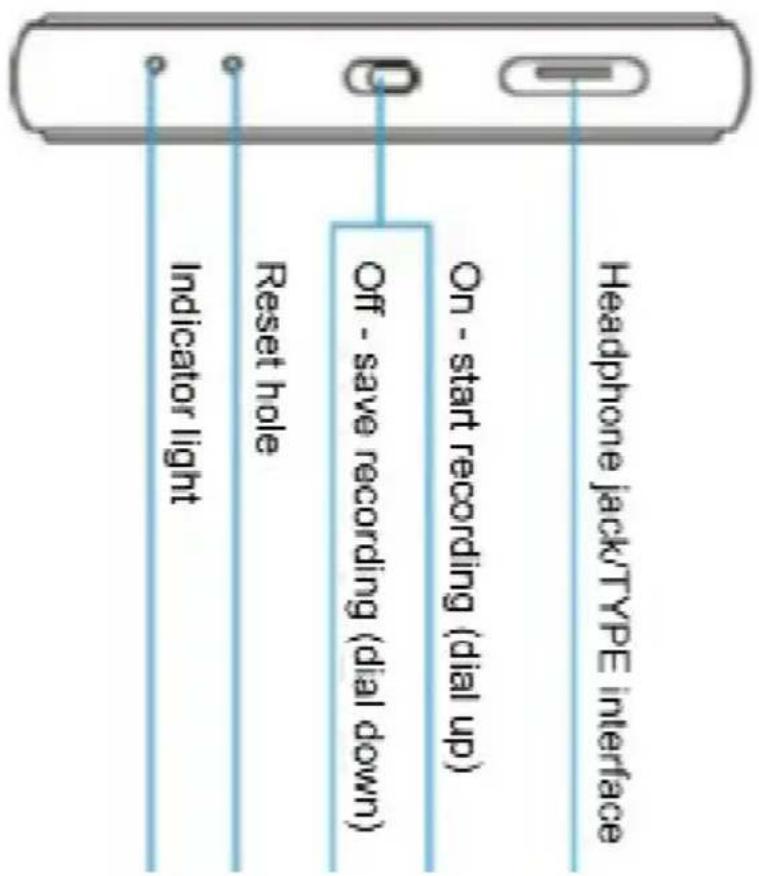
text_image
Indicator light Reset hole Off - save recording (dial down) On - start recording (dial up) Headphone jack/TYPE interface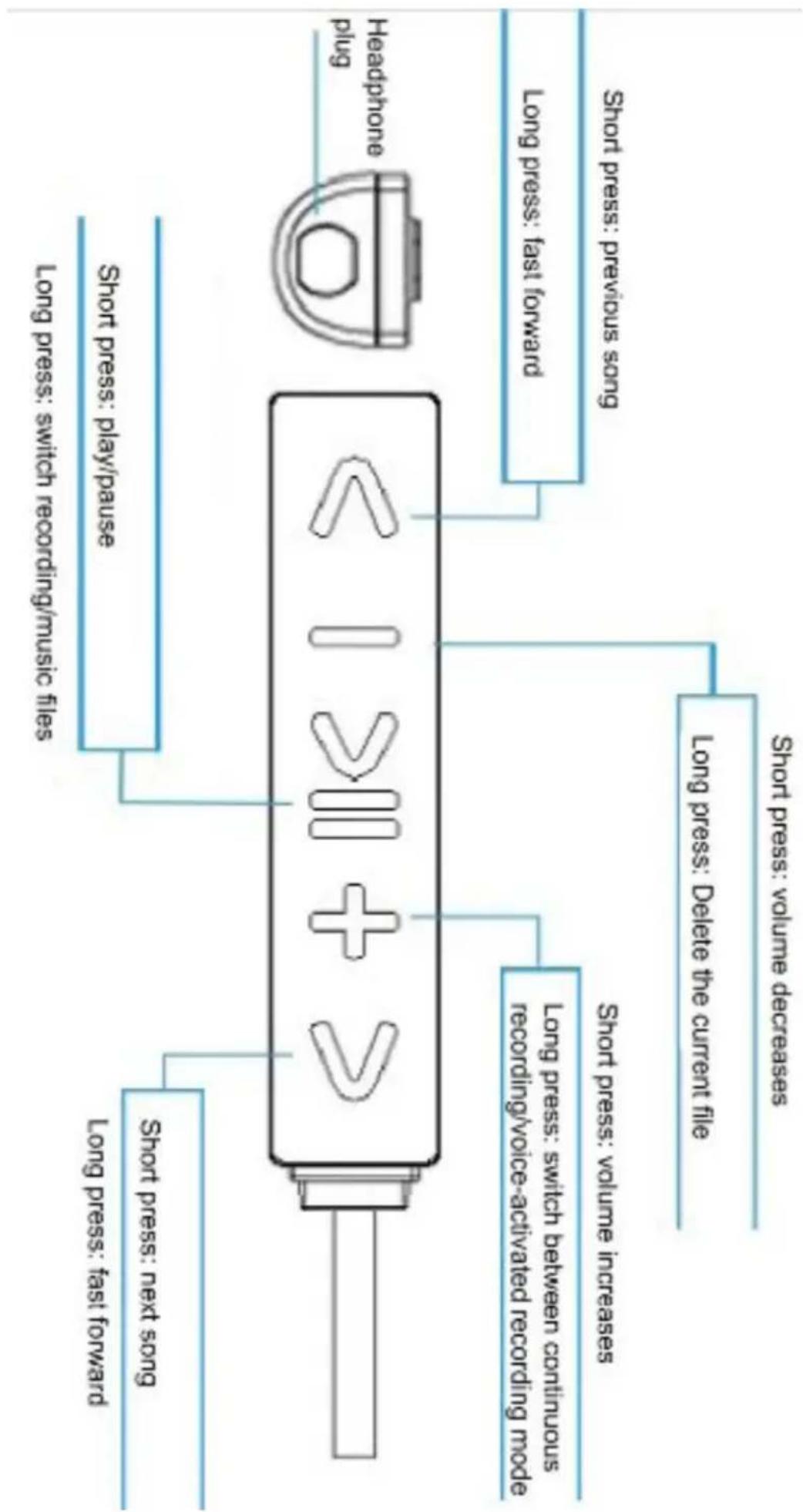
flowchart
graph TD
    A["Short press: next song"] --> B["Long press: fast forward"]
    C["Short press: play/pause"] --> D["Long press: switch recording/music files"]
    E["Long press: volume increases"] --> F["Long press: switch between continuous recording/voice-activated recording mode"]
    G["Long press: volume decreases"] --> H["Long press: Delete the current file"]
    I["Headphone plug"] --> J["Long press: fast forward"]
    K["Short press: previous song"] --> L["Long press: previous song"]
Note: Appearance pictures are subject to the actual product.
- Indicator light prompts:
① Continuous recording: After turning on the phone, the red light flashes three times continuously to start recording. The red light flashes once, the purple light lights up once, shut down and save the recording. (1 machine defaults to continuous recording mode)
② Voice-activated recording: After turning on the phone, the blue light flashes three times in succession to start recording. The blue light fla once, and the purple light lights up once, shut down and save the recording.
③ Play recording files: the red light keeps flashing and stays on when paused.
④ Playing music files: the blue light keeps flashing and stays on when paused.
⑤ Delete the current file: The purple light flashes three times and tl the purple light lights up once to delete the file.
⑥ Low battery: The purple light flashes three times and then automatically shuts down.
⑦ Charging: The red light flashes when charging, and the blue light stays on when fully charged.
⑧ Connect the wired controller: the red light flashes. (The machine automatically plays recording files by default).
- Function usage:
1. Power switch. Recording/save:
(Operation without connecting the wired controller)
① Continuous recording: Pull the power switch to the end marked "ON" to start recording. At this time, the red indicator light flashes once, the red light flashes three times in a row and then goes out automatically this time, it proves that it has entered the recording working state.
② Continuous recording and storage: Pull the power switch to the end marked "OFF", the red light will light up once, and the purple light v off once to save the recording file.
③ Voice-controlled recording: The machine defaults to continuous recording mode. If you need to adjust to voice-controlled recording, you need to connect the wired controller for conversion. After completing t conversion, pull the power switch to the end marked "ON" to start re At this time, the blue indicator light flashes once, and then the blue flashes three times in a row and then goes out automatically. This p that it has entered the voice-activated recording working state.
④ Voice-activated recording and saving: Pull the power switch to the end marked "OFF", the blue light will light up once, and the purple turn off once to save the recording file.
2. Wire controller functions:
(Operation when the wired controller is connected to the USB interface) Note: Instructions for using the wired controller:
(1). For all operation steps that do not involve listening to sound, you need to connect the wired controller and do not need to connect headphones.
(2). After connecting the wired controller, the current recording file will played automatically.
(3). First connect the wired controller and then turn on the machine operate. If you have made relevant settings, such as switching between recording and voice-activated recording modes, you need to turn off the machine first and then remove the wired controller.
(4). Short press: refers to pressing the button for about 1 second. Long press: refers to holding the button for about 2 to 3 seconds.
Playback: While the wired controller and headphones are connected, p the power switch to the end marked "ON", the red indicator light will and it will enter the standby state.
① " >" key: (Operation when connected to the wired controller & headphones)
Short press: "☐" key to play and pause.
Long press: >" " key to switch between recording files and music file (After connecting the wired controller & headphones, the machine will automatically play the current recording file. If the recording file is cur playing: the red light keeps flashing. When playing music files: the bl light keeps flashing)
Note: Music mode cannot be switched without music files.
② "—" key: (Operation when connected to the wired controller)
Short press: "—" key, The volume is reduced.
Long press: "-" key, It deletes the current file.
After the recording is completed and the file is saved, connect the w controller, pause the playback of the recording file, and delete it. (After long pressing the " " key, the purple light will flash three time Short press the " " key again, and the purple light will light up once confirm deletion of the current file)
③. "+" key: (operated when wired controller & headset are connected Short press: "+" " key to increase the volume.
Long press: +" " button to switch between continuous recording/voice-activated recording mode. (Continuous recording: the red light flashes three times in a row. Voice-activated recording: the blue flashes three times in a row)
④. " " key: (operated when wired controller & headset are connected Short press: " " key to play the previous song.
Long press: " " key to rewind.
You can rewind as you wish. The longer you hold down the button, more parts you will rewind.
⑤. " " key: (Operation when connected to the wired controller &
headphones)
Short press: >> " " key to play the next song.
Long press: >> "key to fast forward.
You can fast forward according to your own ideas. The longer you h down the button, the more parts you will fast forward.
Note: The fast forward and rewind functions refer to fast forward rewind at 1.5 times speed. There will be no sound during fast forward and rewind.
3. Headphone jack/USB jack:
①Insert the headphone cable into the wired controller and connect it USB port to listen to recording files and music files.
②Connect to the computer, plug one end of the USB cable into the interface, and plug the other end into the computer's USB interface. I can be transferred between the recorder and computer. Please use no methods to remove the removable disk to prevent data loss.
Note: Before connecting to a computer, mobile phone or charging, please turn the switch key to the "OFF" position to transfer data or charge.
4. System reset key:
When the digital voice recorder crashes, use a sharp object to briefly the reset button in the reset hole on the side of the machine to res system.
5. Delete recording files:
Connect the digital voice recorder to the computer through the matchi USB data cable, and delete the files in the device on the computer.
• Time synchronization:
① After the recorder is connected to the computer, select the "RECSE folder to manually modify the time and save it.
Notice:
②After synchronizing the time, be sure to eject the recorder disk safe you directly pull out the USB cable, the time synchronization function be invalid.
③ If multiple removable disk devices are connected to the computer, machine's system time cannot be set. Therefore, when using a computer set the system time of the machine, be sure to ensure that the common only connected to the local removable disk device.
④ If you accidentally delete the RECSET.txt folder, don't worry, the s will automatically restore the folder.
- Recset file description:
This file is the internal file of the recorder and can be viewed and after connecting to the computer. Custom modifications can be made changing the number after each item. For example: vor: 0 means the activation mode is turned off at this time.
①The date of the machine, for example: 2024/01/01/10:00:00
(year/month/day hour:minute:second)
②VOR: Voice activation mode, that is, voice-activated recording mode. means that the recording will not start until the sound is 60 decibels above. That is, if someone speaks, the recording will start, and if no speaks, the recording will stop.
VOR:0 (Voice activation mode: 0 means OFF, 1 means ON). The machine's voice-activated recording is turned off by default.
③ BIT:5(Bit rate: 0:32Kbit 1:64Kbit 2:128Kbit 3:192Kbit 4:256Kbit 5:5126:768Kbit 7:1024Kbit 8:1536Kbit 9:3072Kbit), Advice:5
【Note: The larger the Kbps, the greater the power consumption】
④SECTION: It refers to the size of each recording file. For example, means 1 minute for each file, and so on. The machine default is 20 Time period:20 (Recording time period:1-999 minutes.The recording is saved as a video file every 20 minutes by default).
• Product specifications:
| Brand | VEVOR |
| Size | 41*41*7mm |
| Battery specification | 3.7V/150mAh lithium battery |
| Recording format | WAV、MP3 |
| Music format | WAV、MP3、WMA、FALC、APE |
| Signal to noise ratio | ≥80db |
| Microphone | Condenser microphone |
| Recording quality | 32-3072Kbps |
| Support system | PC iphone Android |
| Body weight | About 14 grams (subject to the actual pro |
| Working temperature | -5 to 50 degrees Celsius |
| Transmission interface | Type-C |
Manufacturer: Shanghaimuxinmuyeyouxiangongsi
Address: Shuangchenglu 803nong11hao1602A-1609shi, baoshanqu, shanghai 200000 CN.
Imported to AUS: SIHAO PTY LTD. 1 ROKEVA STREETEASTWOOD NS 2122 Australia
Imported to USA: Sanven Technology Ltd. Suite 250, 9166 Anaheim Place Rancho Cucamonga, CA 91730
| EC | REP |
E-CrossStu GmbH
Mainzer Landstr.69, 60329 Frankfurt am Ma
| UK | REP |
YH CONSULTING LIMITED.
C/O YH Consulting Limited Office 147, Centurion H-London Road. Staines-upon-Thames. Surrey. TW18 4
VEVOR®
TOUGH TOOLS, HALF PRICE
Technical Support and E-Warranty Certificate www.vevor.com/support
VEVOR®
TOUGH TOOLS, HALF PRICE
natural_image
Black rectangular electronic device with 'ON OFF' button, shown from front and side (no visible text or symbols on body)NEED HELP? CONTACT US!
Have product questions? Need technical support? Please feel fr contact us:
Technical Support and E-Warranty Certificate www.vevor.com/support
This is the original instruction, please read all manual instruction carefully before operating. VEVOR reserves a clear interpretation user manual. The appearance of the product shall be subject to product you received. Please forgive us that we won't inform you there are any technology or software updates on our product.
natural_image
Empty rounded square frame with no text or symbols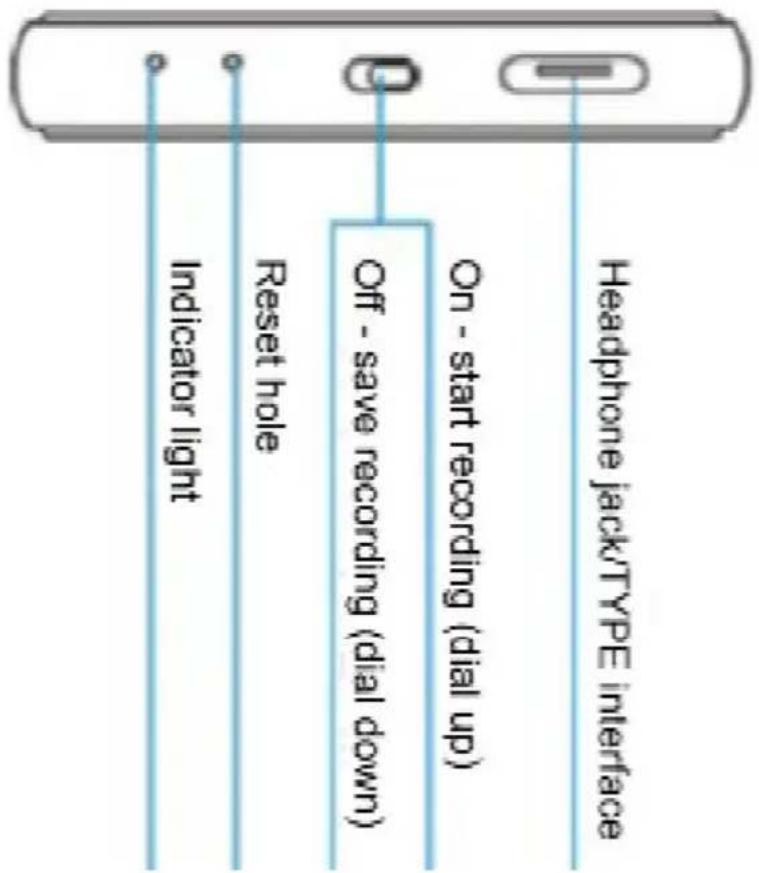
text_image
Headphone jack/TYPE interface On - start recording (dial up) Off - save recording (dial down) Reset hole Indicator light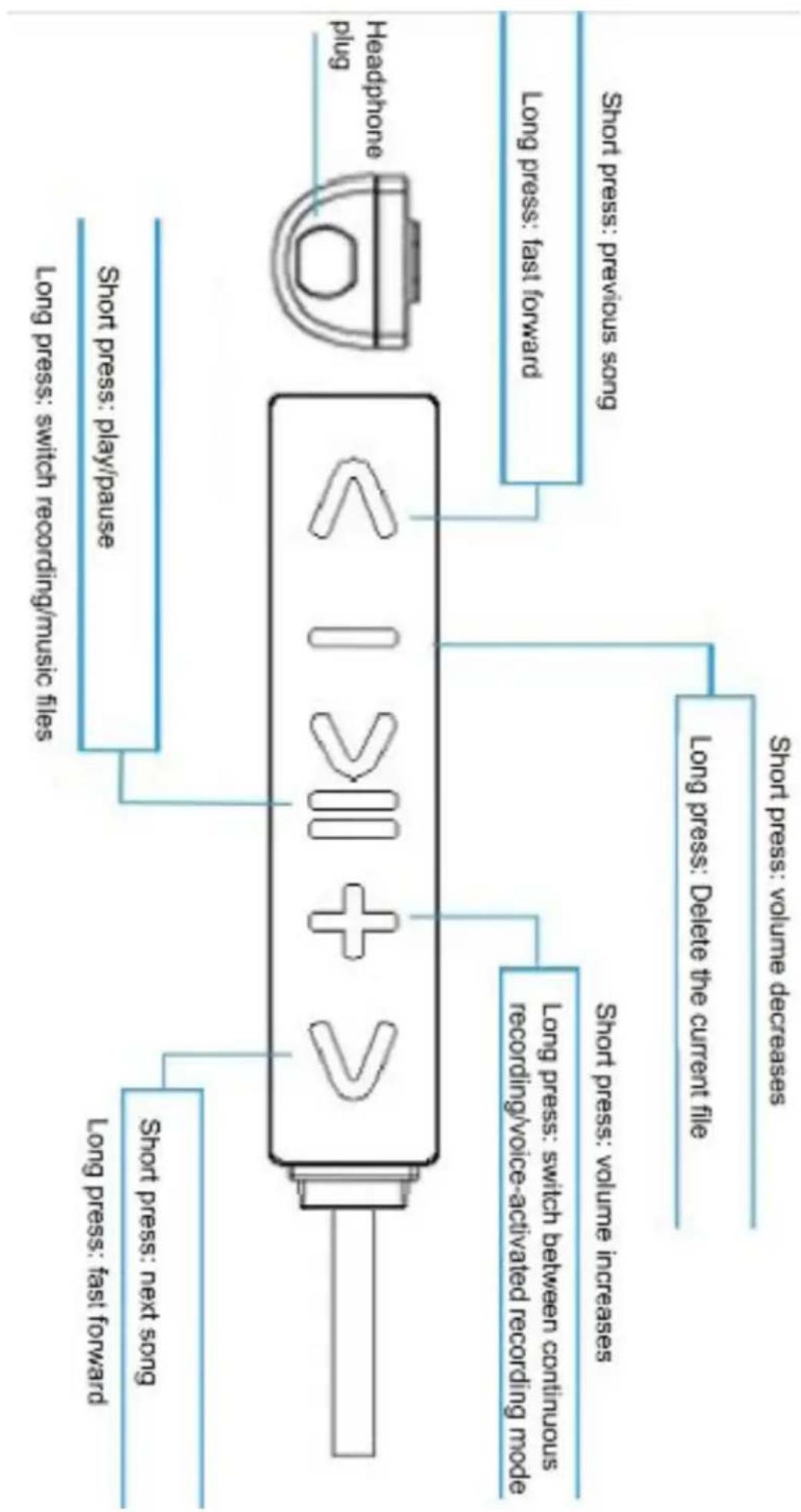
flowchart
graph TD
    A["Headphone plug"] --> B["short press: previous song"]
    A --> C["long press: fast forward"]
    A --> D["short press: play/pause"]
    A --> E["long press: switch recording/music files"]
    A --> F["short press: volume decreases"]
    A --> G["long press: Delete the current file"]
    A --> H["short press: volume increases"]
    A --> I["long press: switch between continuous recording/voice-activated recording mode"]
    A --> J["short press: next song"]
    A --> K["long press: fast forward"]
C/O YH Consulting Limited Office 147, Centurion H, London Road, Staines-upon-Thames, Surrey, TW18 2
VEVOR®
TOUGH TOOLS, HALF PRICE
natural_image
Black rectangular electronic device with 'ON OFF' button, shown from front and side (no visible text or symbols on body)NEED HELP? CONTACT US!
Have product questions? Need technical support? Please feel fr contact us:
Technical Support and E-Warranty Certificate www.vevor.com/support
This is the original instruction, please read all manual instruction carefully before operating. VEVOR reserves a clear interpretation user manual. The appearance of the product shall be subject to product you received. Please forgive us that we won't inform you there are any technology or software updates on our product.
natural_image
Empty rounded square frame with no text or symbols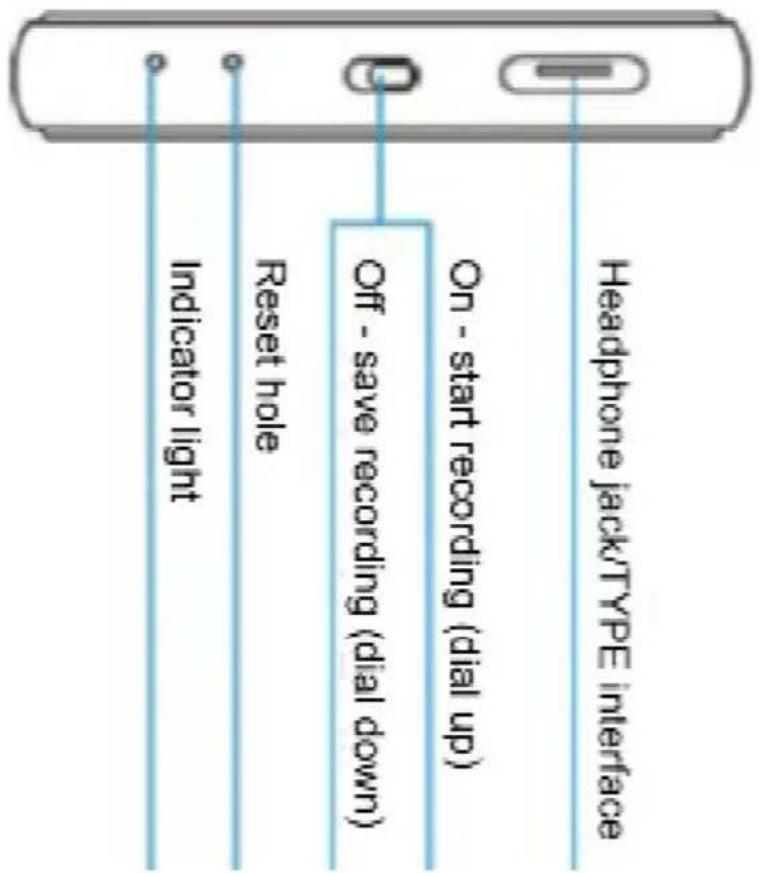
text_image
Headphone jack/TYPE interface On - start recording (dial up) Off - save recording (dial down) Reset hole Indicator light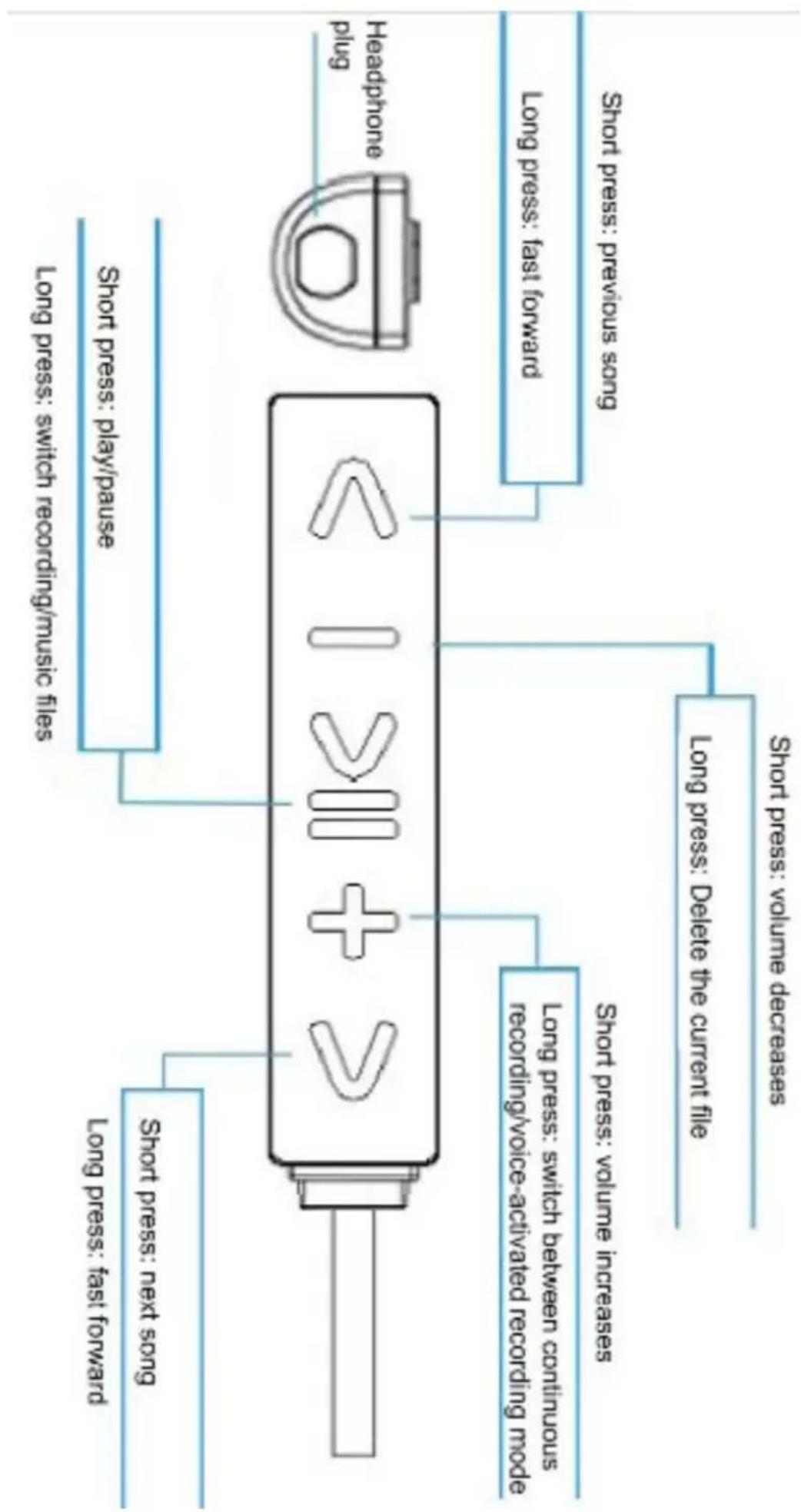
flowchart
graph TD
    A["Headphone plug"] --> B["short press: previous song"]
    A --> C["long press: fast forward"]
    A --> D["short press: play/pause"]
    A --> E["long press: switch recording/music files"]
    A --> F["short press: volume decreases"]
    A --> G["long press: Delete the current file"]
    A --> H["short press: volume increases"]
    A --> I["long press: switch between continuous recording/voice-activated recording mode"]
    A --> J["short press: next song"]
    A --> K["long press: fast forward"]
C/O YH Consulting Limited Office 147, Centurion H, London Road, Staines-upon-Thames, Surrey, TW18 4
VEVOR®
TOUGH TOOLS, HALF PRICE
natural_image
Black rectangular electronic device with 'ON OFF' button, shown from front and side (no visible text or symbols on body)NEED HELP? CONTACT US!
Have product questions? Need technical support? Please feel fr contact us:
Technical Support and E-Warranty Certificate www.vevor.com/support
This is the original instruction, please read all manual instruction carefully before operating. VEVOR reserves a clear interpretation user manual. The appearance of the product shall be subject to product you received. Please forgive us that we won't inform you there are any technology or software updates on our product.
natural_image
Empty rounded square frame with no text or symbols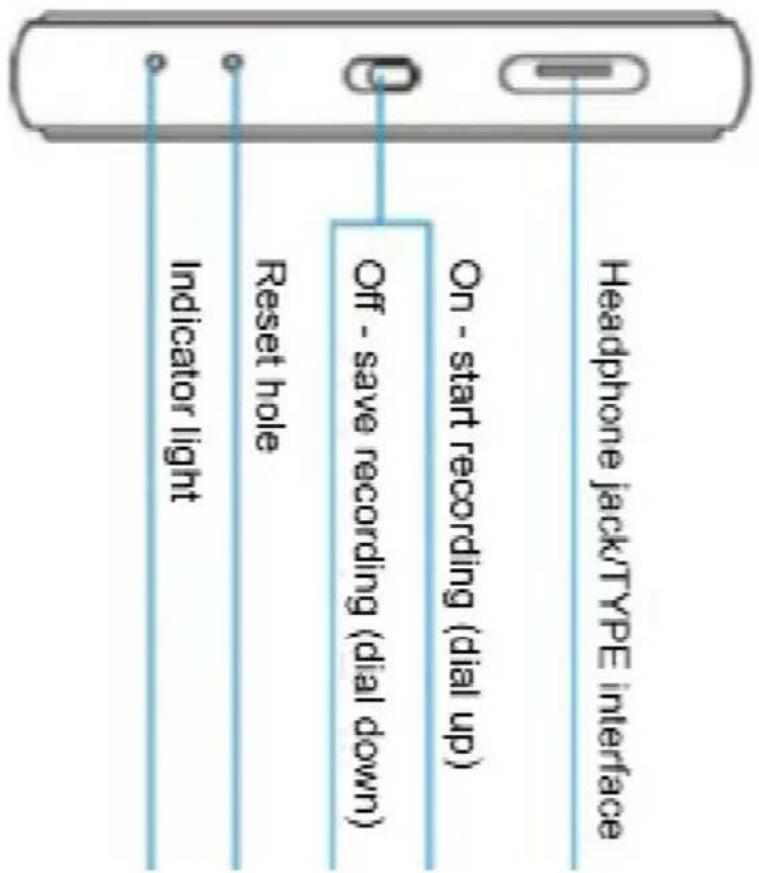
text_image
Headphone jack/TYPE interface On - start recording (dial up) Off - save recording (dial down) Reset hole Indicator light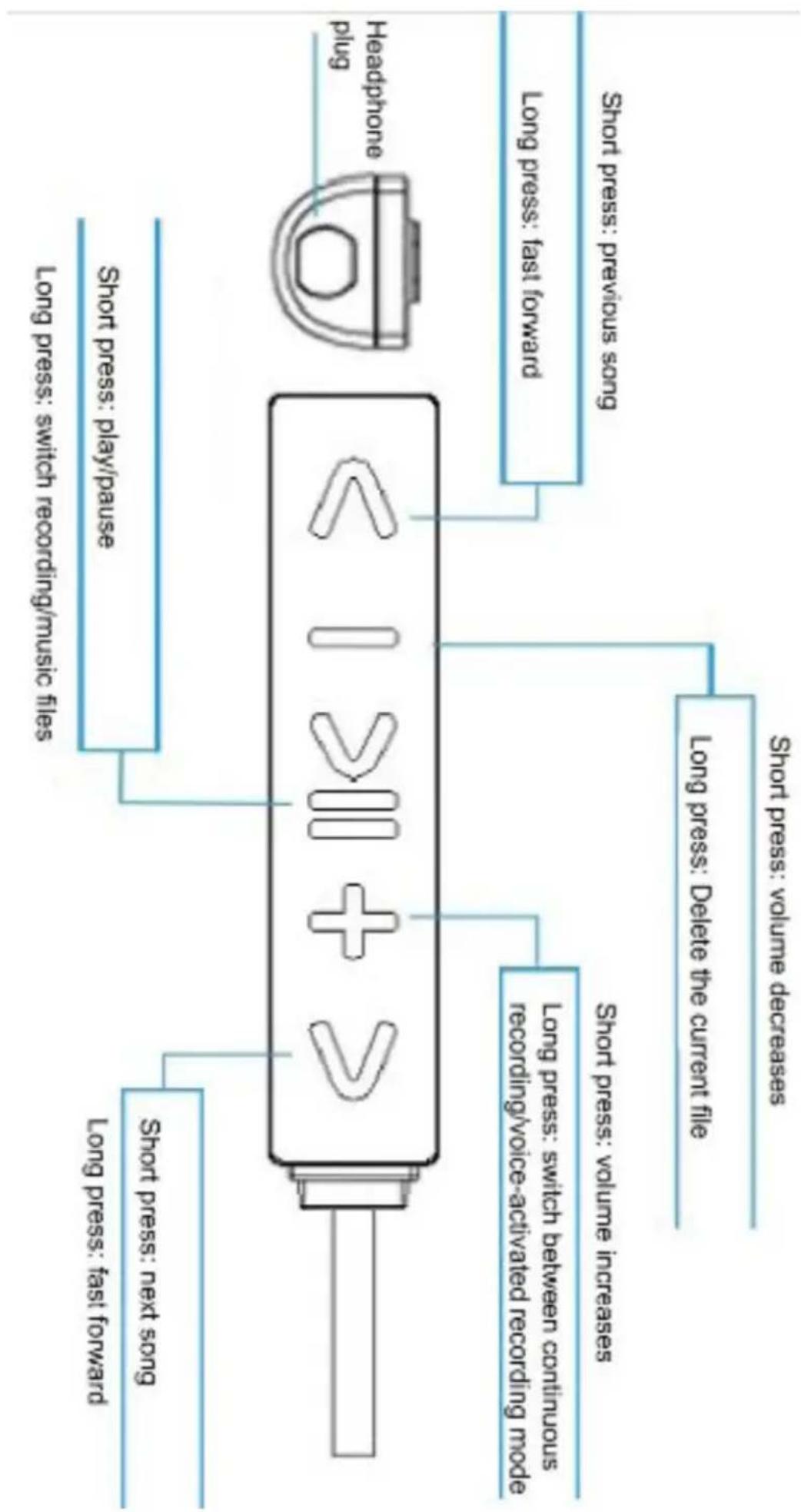
flowchart
graph TD
    A["Headphone plug"] --> B["short press: previous song"]
    A --> C["long press: fast forward"]
    A --> D["short press: play/pause"]
    A --> E["long press: switch recording/music files"]
    A --> F["short press: volume decreases"]
    A --> G["long press: Delete the current file"]
    A --> H["short press: volume increases"]
    A --> I["long press: switch between continuous recording/voice-activated recording mode"]
    A --> J["short press: next song"]
    A --> K["long press: fast forward"]
C/O YH Consulting Limited Office 147, Centurion H, London Road, Staines-upon-Thames, Surrey, TW18 2
VEVOR®
TOUGH TOOLS, HALF PRICE
natural_image
Black rectangular electronic device with 'ON OFF' button, shown from front and side (no visible text or symbols on body)NEED HELP? CONTACT US!
Have product questions? Need technical support? Please feel fr contact us:
Technical Support and E-Warranty Certificate www.vevor.com/support
This is the original instruction, please read all manual instruction carefully before operating. VEVOR reserves a clear interpretation user manual. The appearance of the product shall be subject to product you received. Please forgive us that we won't inform you there are any technology or software updates on our product.
natural_image
Empty rounded square frame with no text or symbols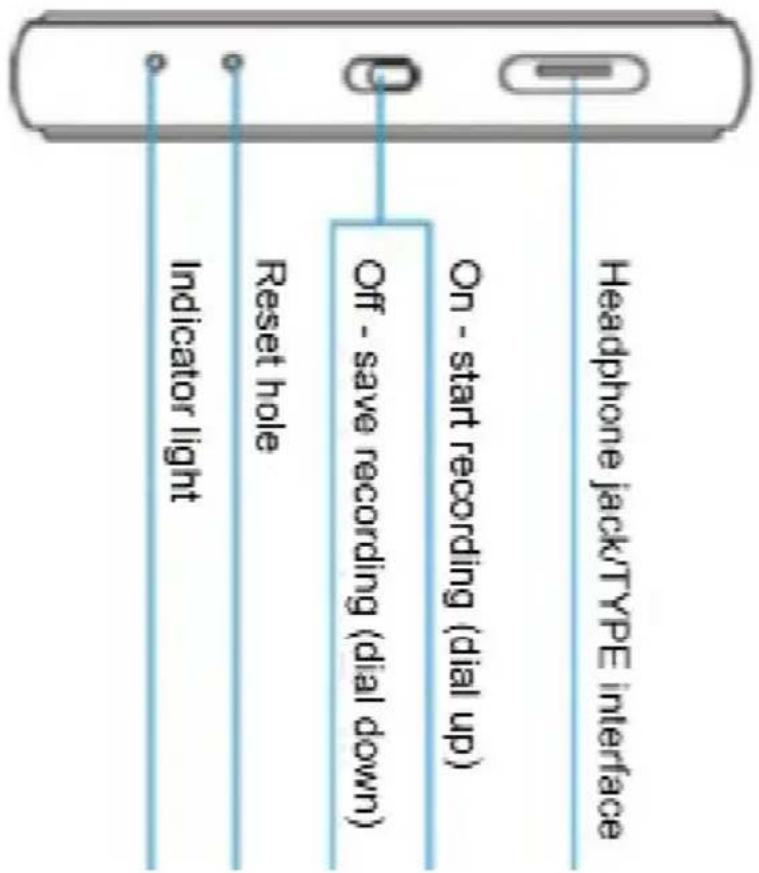
text_image
Headphone jack/TYPE interface On - start recording (dial up) Off - save recording (dial down) Reset hole Indicator light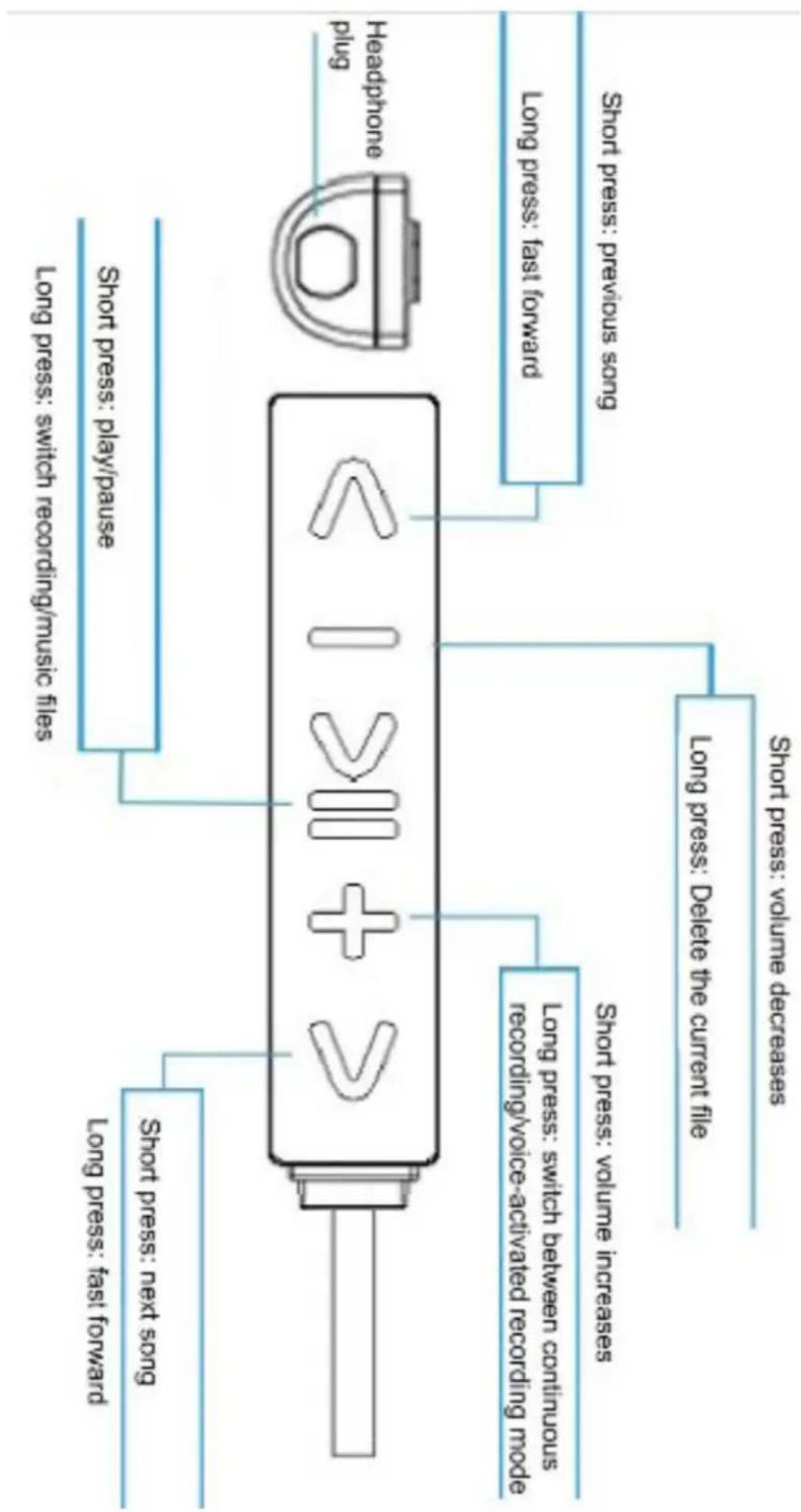
flowchart
graph TD
    A["Headphone plug"] --> B["short press: previous song"]
    A --> C["long press: fast forward"]
    A --> D["short press: play/pause"]
    A --> E["long press: switch recording/music files"]
    A --> F["short press: volume decreases"]
    A --> G["long press: Delete the current file"]
    A --> H["short press: volume increases"]
    A --> I["long press: switch between continuous recording/voice-activated recording mode"]
    A --> J["short press: next song"]
    A --> K["long press: fast forward"]
C/O YH Consulting Limited Office 147, Centurion H
London Road, Staines-upon-Thames, Surrey, TW18 4
VEVOR®
TOUGH TOOLS, HALF PRICE
natural_image
Black rectangular electronic device with 'ON OFF' button, shown from front and side (no visible text or symbols on body)NEED HELP? CONTACT US!
Have product questions? Need technical support? Please feel fr contact us:
Technical Support and E-Warranty Certificate www.vevor.com/support
This is the original instruction, please read all manual instruction carefully before operating. VEVOR reserves a clear interpretation user manual. The appearance of the product shall be subject to product you received. Please forgive us that we won't inform you there are any technology or software updates on our product.
natural_image
Empty rounded square frame with no text or symbols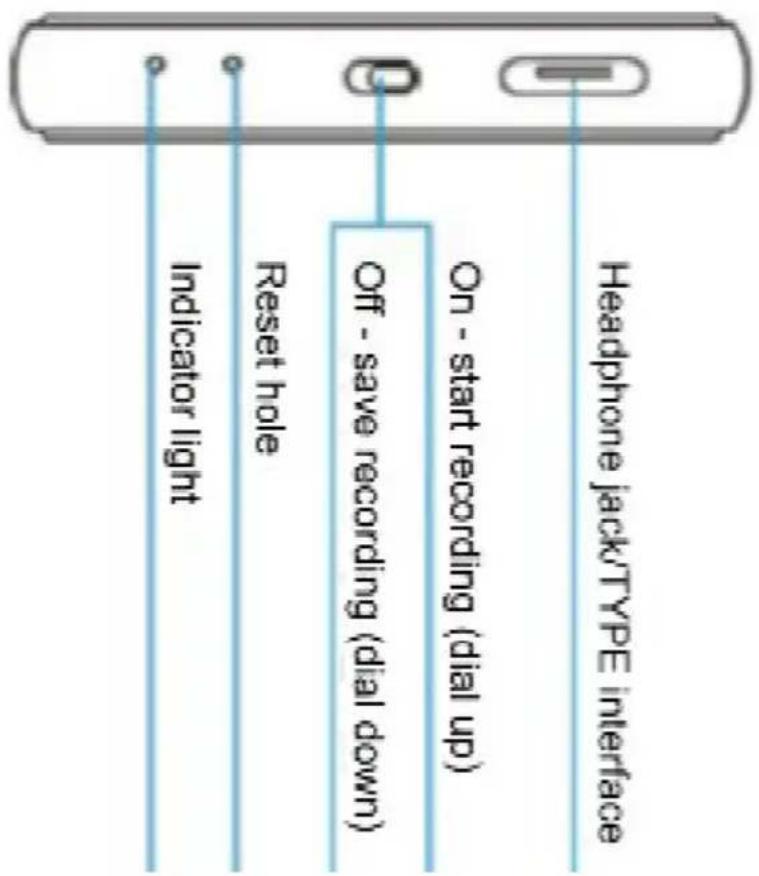
text_image
Indicator light Reset hole Off - save recording (dial down) On - start recording (dial up) Headphone jack/TYPE interface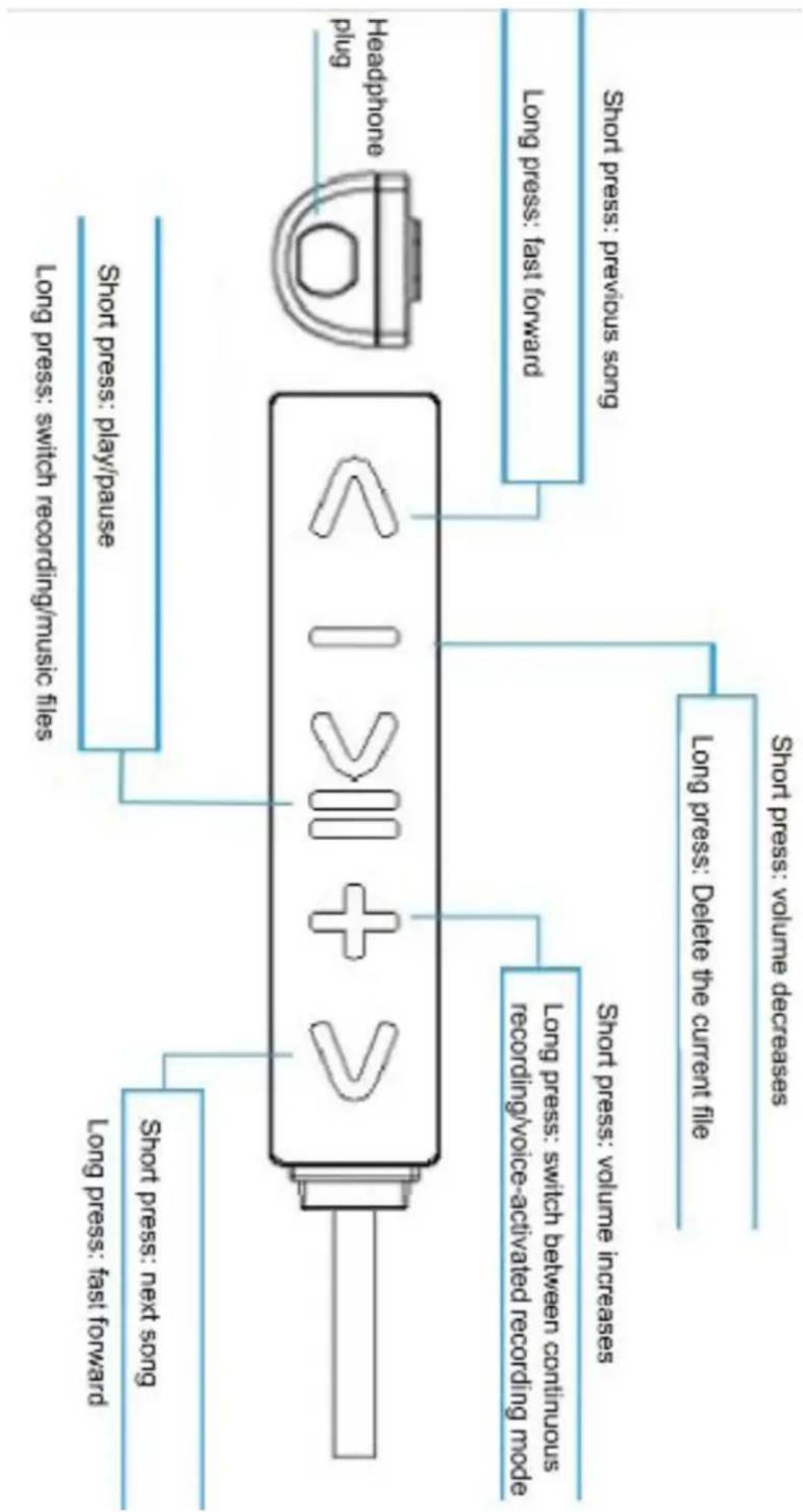
flowchart
graph TD
    A["Short press: next song"] --> B["Long press: fast forward"]
    C["Short press: play/pause"] --> D["Long press: switch recording/music files"]
    E["Long press: volume increases"] --> F["Long press: switch between continuous recording/voice-activated recording mode"]
    G["Long press: previous song"] --> H["Long press: fast forward"]
    I["Long press: Delete the current file"] --> J["Long press: volume decreases"]
    K["Short press: volume increases"] --> L["Long press: volume increases"]
    M["Headphone plug"] --> N["Long press: fast forward"]
C/O YH Consulting Limited Office 147, Centurion H, London Road, Staines-upon-Thames, Surrey, TW18 4
VEVOR®
TOUGH TOOLS, HALF PRICE
natural_image
Black rectangular electronic device with 'ON OFF' button, shown from front and side (no visible text or symbols on body)NEED HELP? CONTACT US!
Have product questions? Need technical support? Please feel fr contact us:
Technical Support and E-Warranty Certificate www.vevor.com/support
This is the original instruction, please read all manual instruction carefully before operating. VEVOR reserves a clear interpretation user manual. The appearance of the product shall be subject to product you received. Please forgive us that we won't inform you there are any technology or software updates on our product.
natural_image
Empty rounded square frame with no text or symbols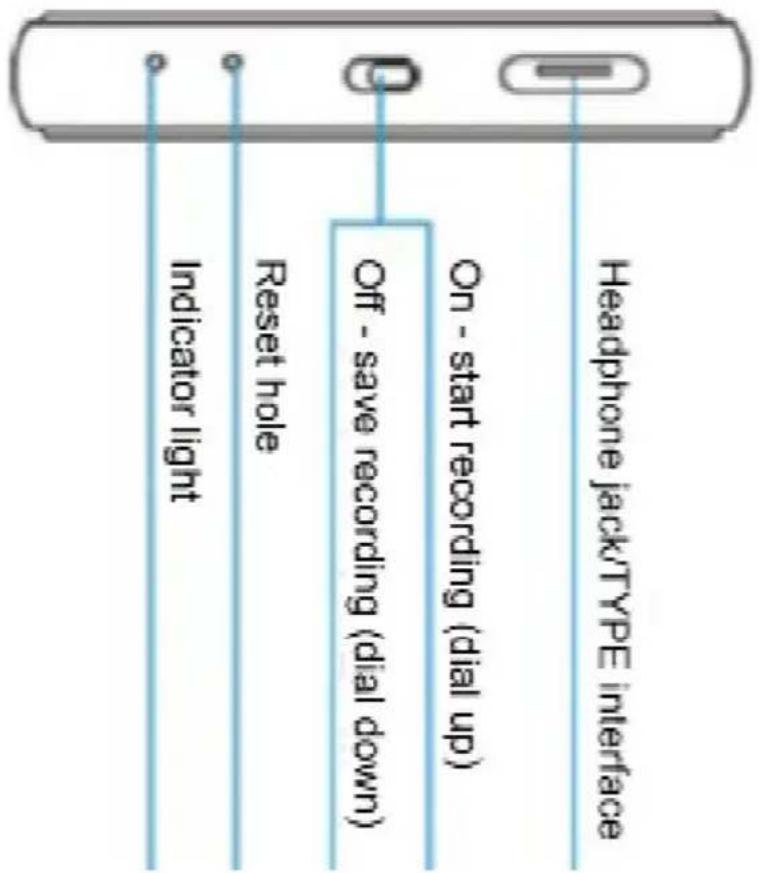
text_image
Headphone jack/TYPE interface On - start recording (dial up) Off - save recording (dial down) Reset hole Indicator light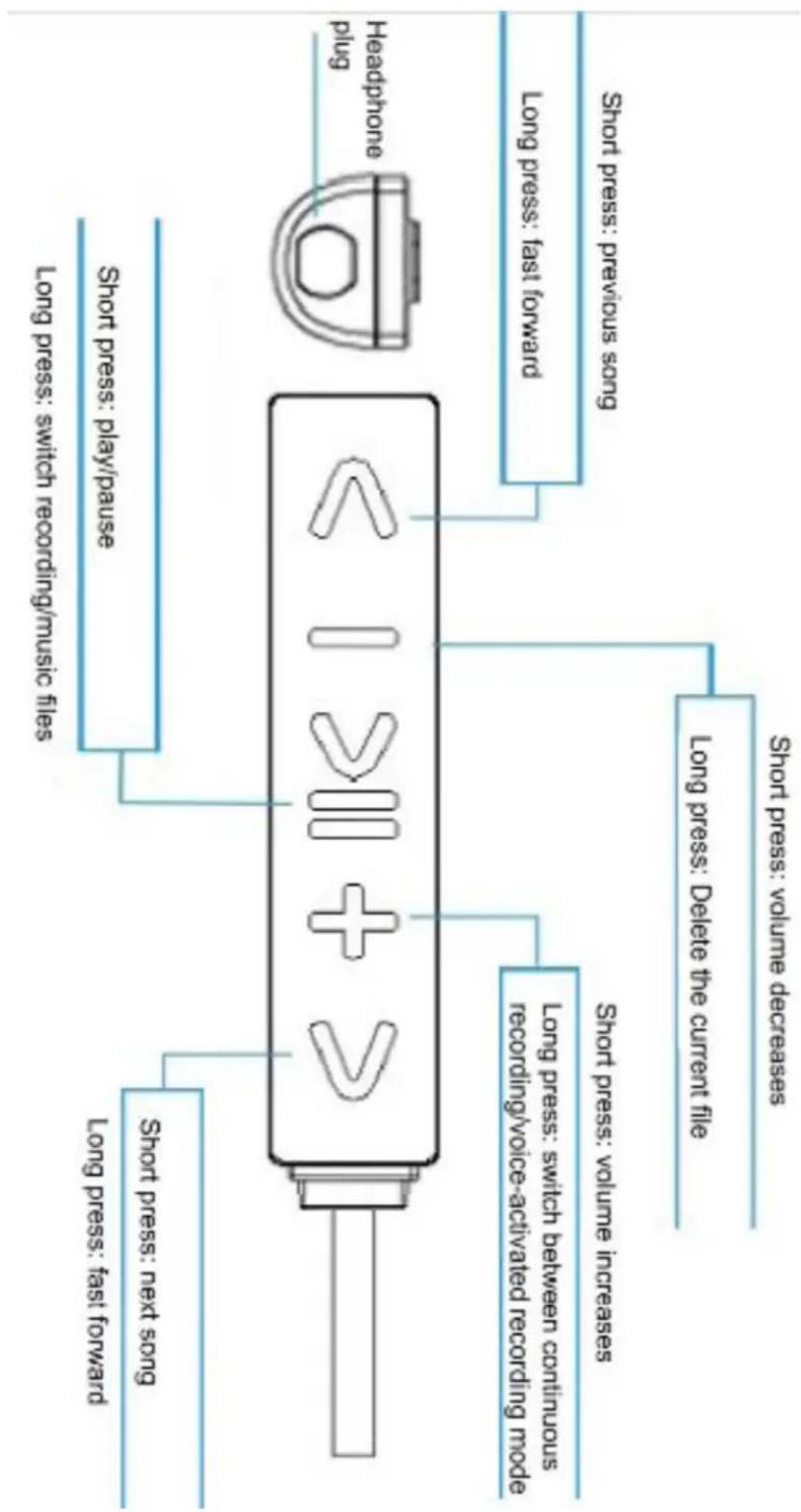
flowchart
graph TD
    A["Headphone plug"] --> B["short press: previous song"]
    A --> C["long press: fast forward"]
    A --> D["short press: play/pause"]
    A --> E["long press: switch recording/music files"]
    A --> F["short press: volume decreases"]
    A --> G["long press: Delete the current file"]
    A --> H["short press: volume increases"]
    A --> I["long press: switch between continuous recording/voice-activated recording mode"]
    A --> J["short press: next song"]
    A --> K["long press: fast forward"]
- Productspecificaties:
C/O YH Consulting Limited Office 147, Centurion H
London Road, Staines-upon-Thames, Surrey, TW18 4
VEVOR®
TOUGH TOOLS, HALF PRICE
Technisch Ondersteuning en E-garantiecertificaat www.vevor.com/support
VEVOR®
TOUGH TOOLS, HALF PRICE
natural_image
Black rectangular electronic device with 'ON OFF' button, shown from front and side (no visible text or symbols on body)NEED HELP? CONTACT US!
Have product questions? Need technical support? Please feel fr contact us:
Technical Support and E-Warranty Certificate www.vevor.com/support
This is the original instruction, please read all manual instruction carefully before operating. VEVOR reserves a clear interpretation user manual. The appearance of the product shall be subject to product you received. Please forgive us that we won't inform you there are any technology or software updates on our product.
natural_image
Empty rounded square frame with no text or symbols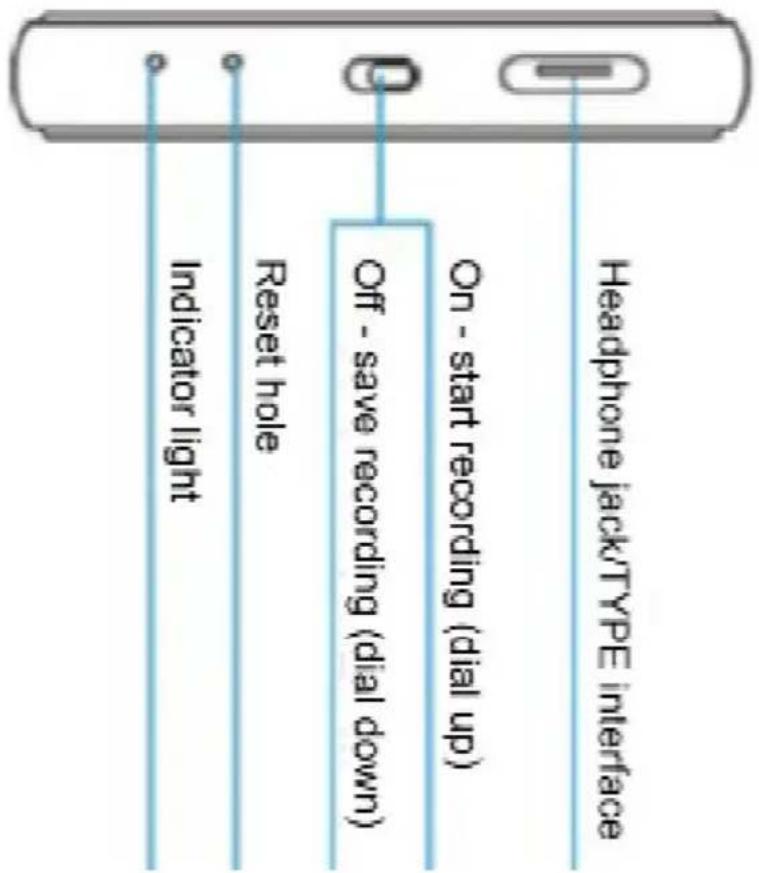
text_image
Headphone jack/TYPE interface On - start recording (dial up) Off - save recording (dial down) Reset hole Indicator light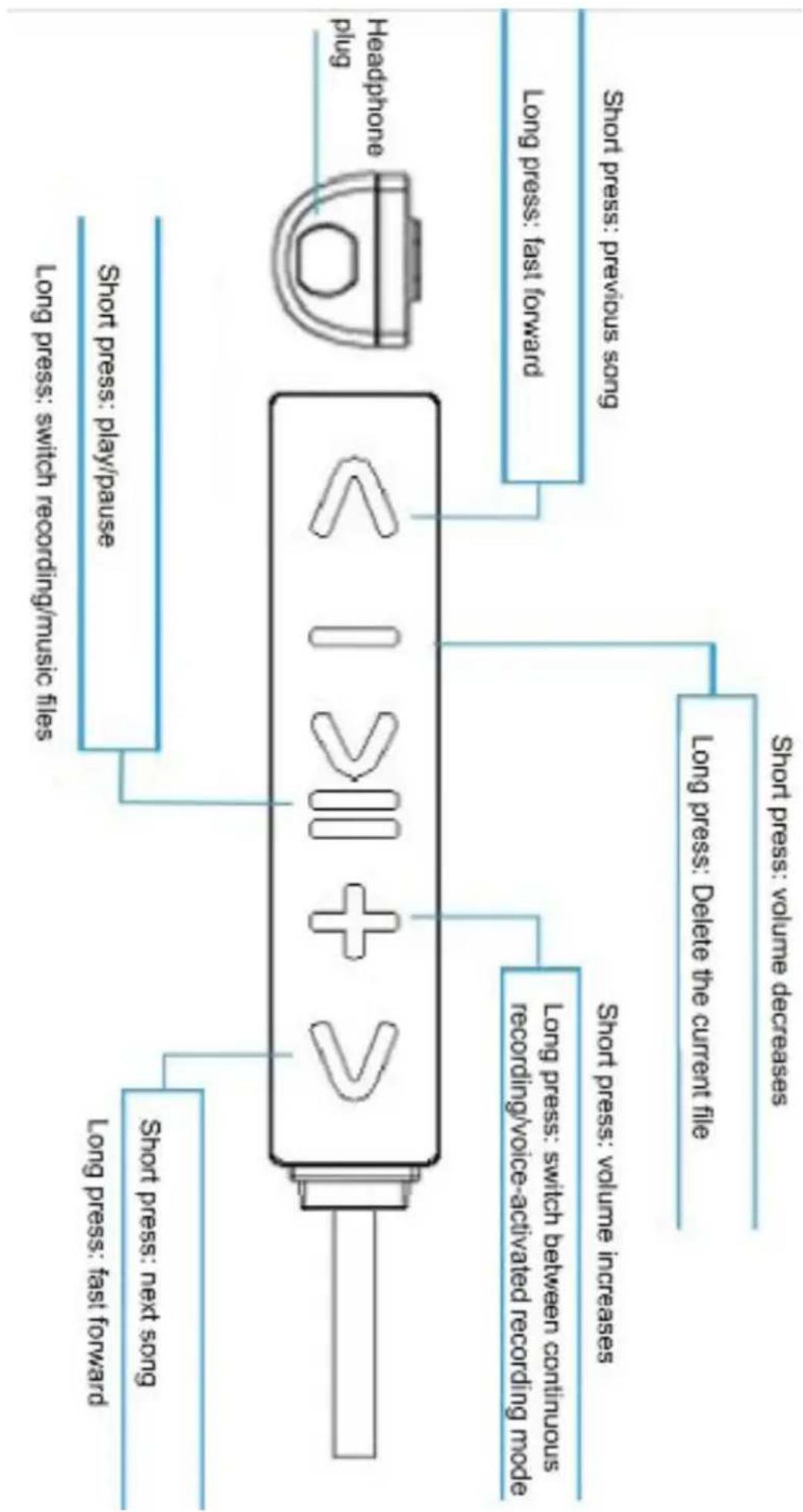
flowchart
graph TD
    A["Short press: next song"] --> B["Long press: fast forward"]
    C["Short press: play/pause"] --> D["Long press: switch recording/music files"]
    E["Long press: volume increases"] --> F["Long press: switch between continuous recording/voice-activated recording mode"]
    G["Long press: previous song"] --> H["Long press: fast forward"]
    I["Long press: Delete the current file"] --> J["Long press: volume decreases"]
    K["Short press: volume increases"] --> L["Long press: volume increases"]
    M["Headphone plug"] --> N["Long press: fast forward"]
C/O YH Consulting Limited Office 147, Centurion H, London Road, Staines-upon-Thames, Surrey, TW18 4
VEVOR®
TOUGH TOOLS, HALF PRICE