
ME102A-1A018A MEMOPAD, ME102A-1B016A - Tablet ASUS - Free user manual and instructions
Find the device manual for free ME102A-1A018A MEMOPAD, ME102A-1B016A ASUS in PDF.


User questions about ME102A-1A018A MEMOPAD, ME102A-1B016A ASUS
0 question about this device. Answer the ones you know or ask your own.
Ask a new question about this device
Download the instructions for your Tablet in PDF format for free! Find your manual ME102A-1A018A MEMOPAD, ME102A-1B016A - ASUS and take your electronic device back in hand. On this page are published all the documents necessary for the use of your device. ME102A-1A018A MEMOPAD, ME102A-1B016A by ASUS.
USER MANUAL ME102A-1A018A MEMOPAD, ME102A-1B016A ASUS
IN SEARCH OF INcredible /
USER MANUAL
E8355
First Edition
September 2013
COPYRIGHT INFORMATION
No part of this manual, including the products and software described in it, may be reproduced, transmitted, transcribed, stored in a retrieval system, or translated into any language in any form or by any means, except documentation kept by the purchaser for backup purposes, without the express written permission of ASUSTeK COMPUTER INC. ("ASUS").
ASUS PROVIDES THIS MANUAL "AS IS" WITHOUT WARRANTY OF ANY KIND, EITHER EXPRESS OR IMPLIED, INCLUDING BUT NOT LIMITED TO THE IMPLIED WARRANTYES OR CONDITIONS OF MERCHANTABILITY OR FITNESS FOR A PARTICULAR PURPOSE. IN NO EVENT SHALL ASUS, ITS DIRECTORS, OFFICERS, EMPLOYEES OR AGENTS BE LIABLE FOR ANY INDIRECT, SPECIAL, INCIDENTAL, OR CONSEQUENTIAL DAMAGES (INCLUDING DAMAGES FOR LOSS OF PROFITS, LOSS OF BUSINESS, LOSS OF USE OR DATA, INTERRUsION OF BUSINESS AND THE LIKE), EVEN IF ASUS HAS BEEN ADVISED OF THE POSSIBILITY OF SUCH DAMAGES ARISING FROM ANY DEFECT OR ERROR IN THIS MANUAL OR PRODUCT.
Products and corporate names appearing in this manual may or may not be registered trademarks or copyrights of their respective companies, and are used only for identification or explanation and to the owners' benefit, without intent to infringe.
SPECIFICATIONS AND INFORMATION CONTAINED IN THIS MANUAL ARE FURNISHED FOR INFORMATIONAL USE ONLY, AND ARE SUBJECT TO CHANGE AT ANY TIME WITHOUT NOTICE, AND SHOULD NOT BE CONSTRUED AS A COMMITMENT BY ASUS. ASUS ASSUMES NO RESPONSIBILITY OR LIABILITY FOR ANY ERRORS OR INACCURACIES THAT MAY APPEAR IN THIS MANUAL, INCLUDING THE PRODUCTS AND SOFTWARE DESCRIBED IN IT.
Copyright © 2013 ASUSteK COMPUTER INC. All Rights Reserved.
LIMITATION OF LIABILITY
Circumstances may arise where because of a default on ASUS' part or other liability, you are entitled to recover damages from ASUS. In each such instance, regardless of the basis on which you are entitled to claim damages from ASUS, ASUS is liable for no more than damages for bodily injury (including death) and damage to real property and tangible personal property; or any other actual and direct damages resulted from omission or failure of performing legal duties under this Warranty Statement, up to the listed contract price of each product.
ASUS will only be responsible for or indemnify you for loss, damages or claims based in contract, tort or infringement under this Warranty Statement.
This limit also applies to ASUS' suppliers and its reseller. It is the maximum for which ASUS, its suppliers, and your reseller are collectively responsible.
UNDER NO CIRCUMSTANCES IS ASUS LIABLE FOR ANY OF THE FOLLOWING: (1) THIRD-PARTY CLAIMS AGAINST YOU FOR DAMAGES; (2) LOSS OF, OR DAMAGE TO, YOUR RECORDS OR DATA; OR (3) SPECIAL, INCIDENTAL, OR INDIRECT DAMAGES OR FOR ANY ECONOMIC CONSEQUENTIAL DAMAGES (INCLUDING LOST PROFITS OR SAVINGS), EVEN IF ASUS, ITS SUPPLIERS OR YOUR RESELLER IS INFORMED OF THEIR POSSIBILITY.
SERVICE AND SUPPORT
Visit our multi-language web site at http://support.asus.com
Contents
About this manual. 6
Conventions used in this manual 7
Typography 7
Safety Precautions. 8
Charging your device. 8
Using your OSUS Tablet 8
Airplane Precautions. 8
Package contents. 9
Chapter 1: Hardware Setup
Getting to know your ASUS Tablet 12
Front view 12
Rear view 13
Chapter 2: Using your ASUS Tablet
Setting up your ASUS Tablet. 16
Charging your OSUS Tablet. 16
Turning your ASUS Tablet on 18
Gestures for the ASUS Tablet. 19
Chapter 3: Working with Android™
Starting up for the first time 24
Android™ lock screen 25
Unlocking your device. 25
Adding a wallpaper on the lock screen. 26
Adding a widget on the lock screen. 26
Entering Google Now 27
Home Screen 28
Screen views. 29
Locking the screen orientation 30
Connecting to the world 30
Connecting to Wi-Fi networks 30
Using Bluetooth 31
Managing Apps 33
Creating app shortcuts. 33
Removing an app from the Home Screen. 33
Viewing app info. 34
Creating app folder 35
Viewing apps under the Recent screen. 36
Task Manager 38
File Manager 39
Accessing the internal storage 39
Accessing the external storage device 39
Settings. 41
ASUS Quick Setting. 41
Turning your ASUS Tablet off. 43
Putting your ASUS Tablet to sleep. 43
Chapter 4: Pre-installed Apps
Featured pre-installed apps 46
Play Music. 46
Camera 47
Gallery 51
Email 57
Gmail 59
PlayStore 60
Maps 61
MyLibrary 62
SuperNote 67
AudioWizard. 71
AppLocker. 72
75
ASUS Battery. 76
Appendices
Federal Communications Commission Statement 78
RF Exposure Information (SAR) 79
Canada, Industry Canada (IC) Notices. 79
Canada, vis d'Industrie Canada (IC) 80
IC Warning Statement. 80
EC Declaration of Conformity 81
Prevention of Hearing Loss. 81
CE Mark Warning 82
RF Exposure information (SAR) - CE. 83
Power Safety Requirement 83
ASUS Recycling/Takeback Services. 83
Coating notice 83
GreenASUsnotice. 84
Regional notice for Singapore. 84
Proper disposal. 85
About this manual
This manual provides information about the hardware and software features of your ASUS Tablet, organized through the following chapters:
Chapter 1: Hardware Setup
This chapter details the hardware components of your ASUS Tablet.
Chapter 2: Using your ASUS Tablet
This chapter shows you how to use the different parts of your ASUS Tablet.
Chapter 3: Working with Android™
This chapter provides an overview of using Android™ in your ASUS Tablet.
Chapter 4: Pre-installed apps
This chapter features the pre-installed applications included with your ASUS Tablet.
Appendices
This section includes notices and safety statements for your ASUS Tablet.
Conventions used in this manual
To highlight key information in this manual, some texts are presented as follows:
IMPORTANT! This message contains vital information that must be followed to complete a task.
NOTE: This message contains additional information and tips that can help complete tasks.
WARNING! This message contains important information that must be followed to keep you safe while performing tasks and prevent damage to your ASUS Tablet's data and components.
Typography
Bold = This indicates a menu or an item that must be selected.
Italic = This indicates sections that you can refer to in this manual.
Safety Precautions
Charging your device
Ensure to fully charge your ASUS Tablet before using it in battery mode for extended periods. Remember that the power adapter charges the your ASUS Tablet as long as it is plugged into an AC power source. Be aware that it takes much longer to charge your ASUS Tablet when it is in use.
IMPORTANT! Do not leave the ASUS Tablet connected to the power supply once it is fully charged. Asus Tablet is not designed to be left connected to the power supply for extended periods of time.
Using your ASUS Tablet
This ASUS Tablet should only be used in enviroments with ambient temperatures between 0^ (32^) and 35^ (95^) .
Long time exposure to extremely high or low temperature may quickly deplete and shorten the battery life. To ensure the battery's optimal performance, ensure that it is exposed within the recommended environment temperature.
Airplane Precautions
Contact your airline provider to learn about related inflight services that can be used and restrictions that must be followed when using your ASUS Tablet in-flight.
IMPORTANT! You can send your ASUS Tablet through x-ray machines (used on items placed on conveyor belts), but do not expose them from magnetic detectors and wands.
Package contents
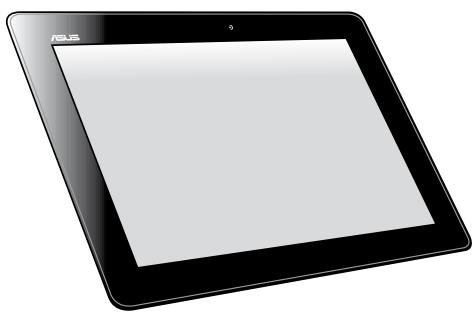
ASUS Tablet
Technical documentations and warranty card
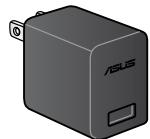
Power adapter
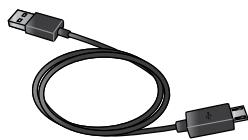
Micro USB cable
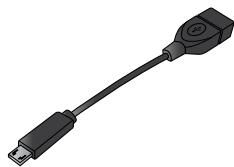
OTG (On-the-Go) USB cable
NOTES:
- If any of the items is damaged or missing, contact your retailer.
- The bundled power adapter varies with country or region.
Chapter 1:
Hardware Setup
Getting to know your ASUS Tablet
Front view
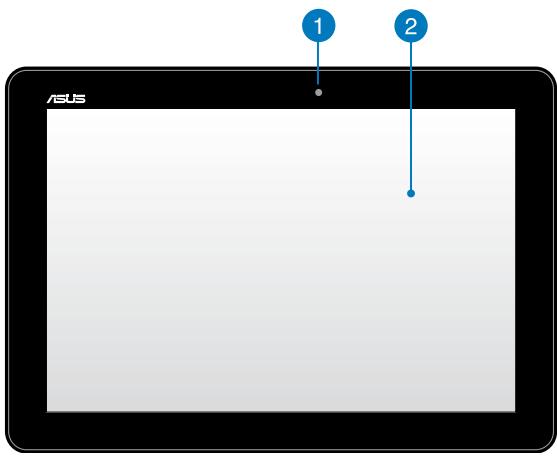
1 Front camera
This built-in front camera allows you to take pictures or record videos using your ASUS Tablet.
2 Touch screen panel
The touch screen panel allows you to operate your ASUS Tablet using touch gestures.
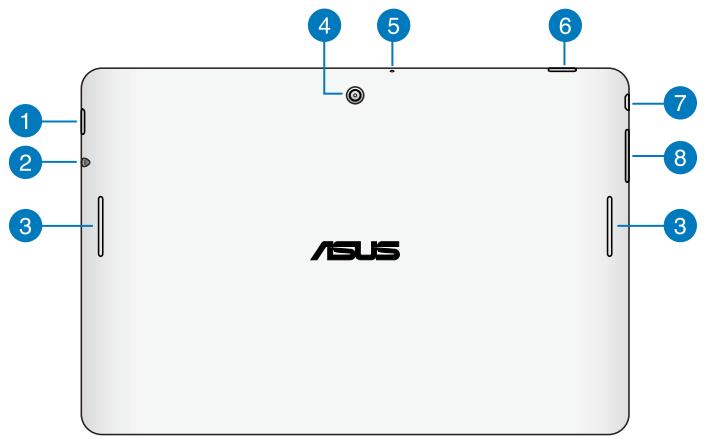
MicroSD card slot
The ASUS Tablet comes with a built-in memory card reader slot that supports microSD, microSDHC, and microSDXC card formats.
2 Speaker/Headset port
This port allows you to connect your ASUS Tablet to amplified speakers or a headset.
IMPORTANT! This port does not support an external microphone.
3 Audio speakers
The built-in audio speakers allow you to hear audios straight from your ASUS Tablet. Audio features are software controlled.
4 Rear camera
This built-in rear camera allows you to take high-definition pictures or record high-definition videos using your ASUS Tablet.
5 Microphone
The built-in microphone can be used for video conferencing, voice narrations, or simple audio recordings.
6 Power button
Press the power button for about two (2) seconds to turn your ASUS Tablet on or wake it up from standby mode.
To turn your ASUS Tablet off, press the power button for about (2) seconds and when prompted, tap Power Off then tap OK.
To lock your ASUS Tablet or put it to standby mode, press and quickly release the power button.
In the event that your ASUS Tablet becomes unresponsive, press and hold the power button for about eight (8) seconds to force it to shut down.
IMPORTANT!
- When your ASUS Tablet is inactive for one (1) minute, it will automatically go to standby mode.
- Forcing the system to restart may result in data loss. We strongly recommend that you back up your data regularly.
7 Micro USB 2.0 port
Use the micro USB (Universal Serial Bus) 2.0 port to charge the battery pack or supply power to your ASUS Tablet. This port also allows you to transfer data from your computer to your ASUS Tablet and vice versa.
NOTE: When you connect your ASUS Tablet to the USB port on your computer, your ASUS Tablet will be charged only when it is in sleep mode (screen off) or turned off.
8 Volume button
The volume button allows you to increase or decrease the volume level of your ASUS Tablet.
Chapter 2:
Using your ASUS Tablet
Setting up your ASUS Tablet
Charging your ASUS Tablet
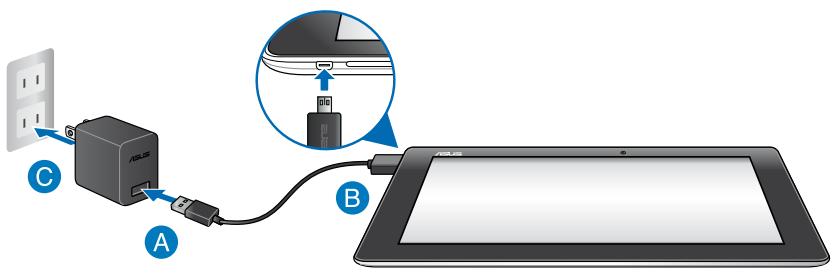
To charge your ASUS Tablet:
A Connect the micro USB cable to the power adapter.
Plug the micro USB connector into your ASUS Tablet.
Plug the power adapter into a grounded power outlet.
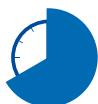
Charge your ASUS Tablet for eight (8) hours before using it in battery mode for the first time.
IMPORTANT!
- Use only the bundled power adapter and micro USB cable to charge your ASUS Tablet. Using a different power adapter may damage your ASUS Tablet.
- Peel the protective film off from the power adapter and micro USB cable before charging the ASUS Tablet to prevent risk or injury.
- Ensure that you plug the power adapter to the correct power outlet with the correct input rating. The output voltage of this adapter is DC 5.2V, 1.35A.
- When using your ASUS Tablet while plugged-in to a power outlet, the grounded power outlet must be near the unit and easily accessible.
NOTES:
- Your ASUS Tablet can be charged via the USB port on a computer only when it is in sleep mode (screen off) or turned off.
- Charging through a USB port of a computer may take a longer time to complete.
- If your computer does not provide enough power for charging your ASUS Tablet, charge your ASUS Tablet via the grounded power outlet instead.
- When charging your ASUS Tablet, the battery charging symbol appears after six (6) seconds.
Turning your ASUS Tablet on
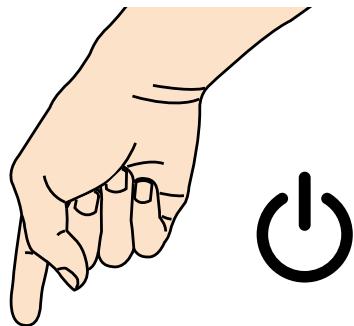
To turn your ASUS Tablet on, press the power button for about two (2) seconds.
Gestures for the ASUS Tablet
Using the touch screen panel, the following gestures can be done to navigate, interact with, and launch the exclusive features included with your ASUS Tablet.
Drag/Tap and hold/Long press
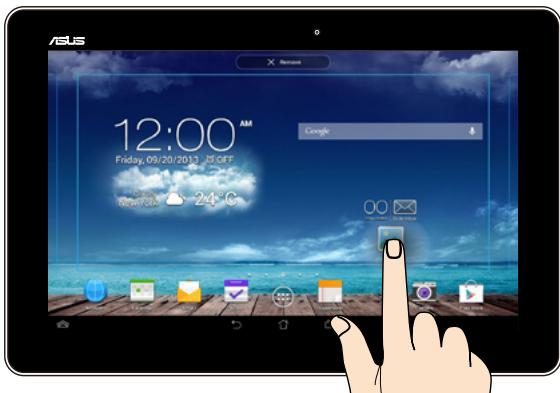
To move an app, tap and hold the app and drag it to a new location.
To delete an app from the main screen, tap and hold the app and drag it up to the top side of the screen.
To capture a screen image, tap and hold
NOTE: To enable this setting, go to >ASUS Customized Setting then tick Capture screenshots by holding the Recent Apps Key.
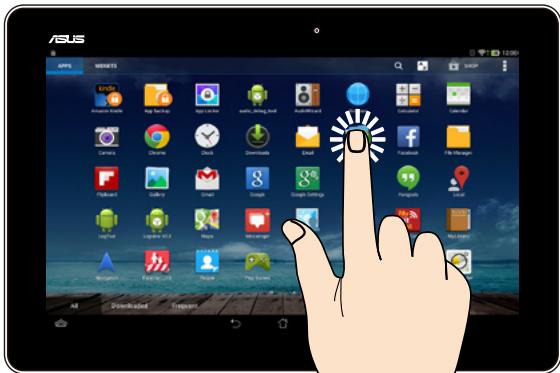
Tap an app to launch it.
In the File Manager app, tap to select and open a file.
Zoom out
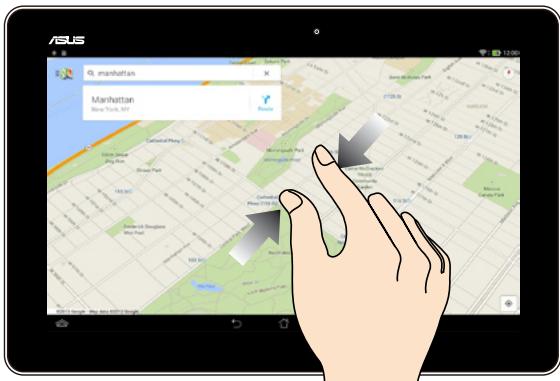
Bring together your two fingers on the touch panel to zoom out an image in Gallery, Maps or Places.
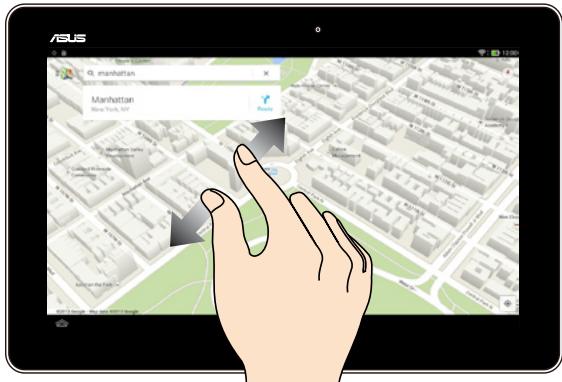
Spread apart your two fingers on the touch panel to zoom in an image in Gallery, Maps or Places.
Swipe
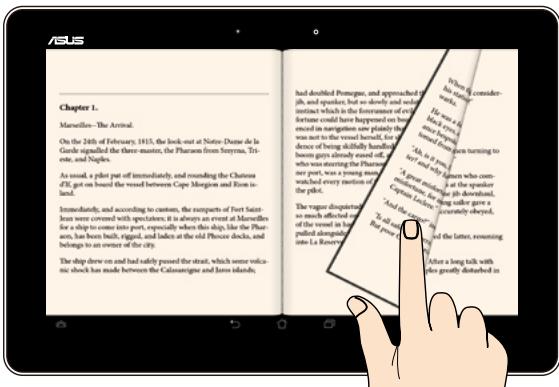
Swipe your finger to the left or to the right on the touch panel display to switch between screens or to flip through the pages of an e-book or a gallery of images.
Chapter 3:
Working with Android™
Starting up for the first time
When you turn on your ASUS Tablet for the first time, a series of steps appear to guide you in configuring the basic settings of your Android™ operating system.
To start your ASUS Tablet for the first time:
- Turn your ASUS Tablet on.
- Choose a language, then tap
- Select an input method or keyboard format, then tap
- From the list of available Wi-Fi networks, tap a network name then tap
To skip connecting to a network, tap

NOTE: Some Wi-Fi networks may prompt you to key in a passcode.
- Select the type of data synchronization, then tap
- Follow the onscreen instructions to configure the following items:
Google Account
Google location and services
-
Set the local date and time, then tap
-
Tap Finish or to enter Home screen.
- On the Home Screen, tap OK to start navigating your ASUS Tablet.
Android™ lock screen
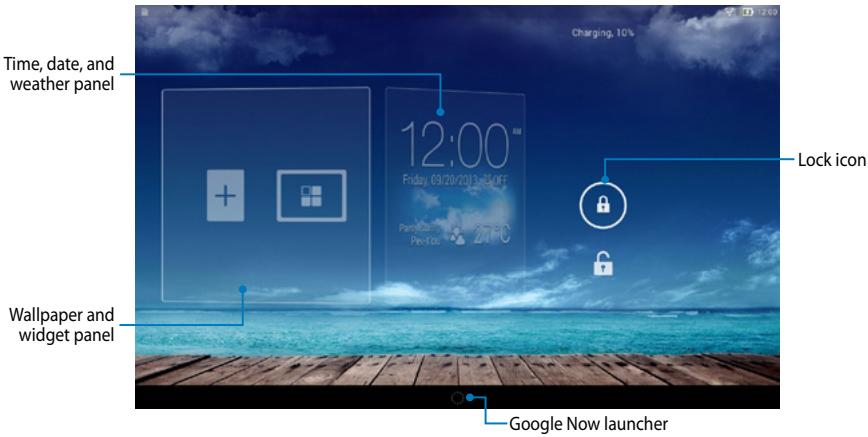
Unlocking your device
Tap and drag to

Adding a wallpaper on the lock screen
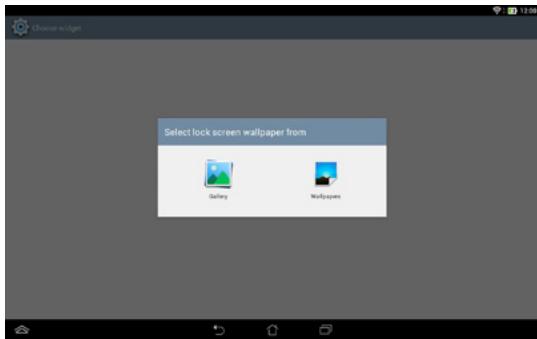
Swipe the time, date, and widget panel to the right to view the wallpaper and widget panel, then tap and select a wallpaper from Gallery or Wallpapers.
Adding a widget on the lock screen
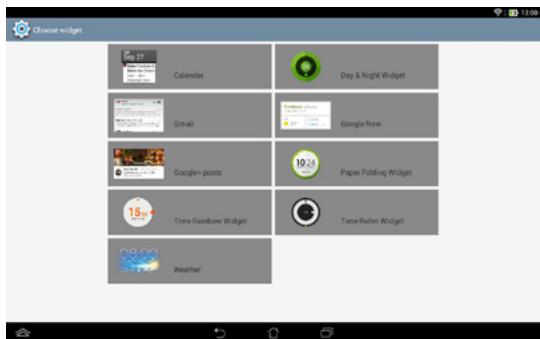
Swipe the time, date, and widget panel to the right to view the wallpaper and widget panel, then tap + and select a widget.
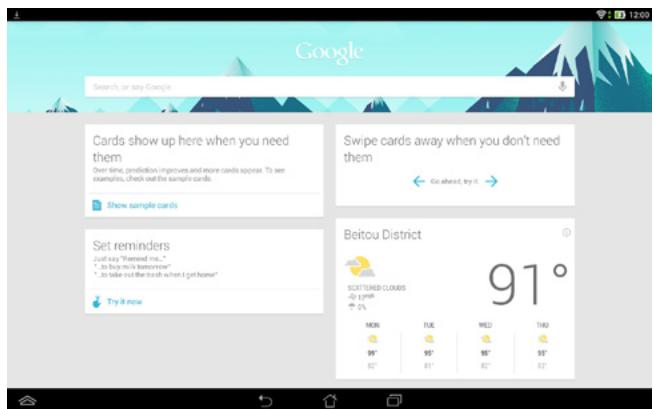
Entering Google Now
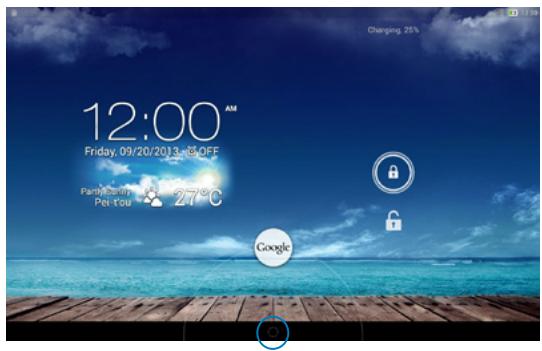
Tap on the system bar then drag it to Google icon.
Google Now
Google Now is your ASUS Tablet's personal assistant, giving you instant updates on weather conditions, nearby restaurants, flight schedules, scheduled appointments, and other related information based from your web history,ynced calendars and reminders.
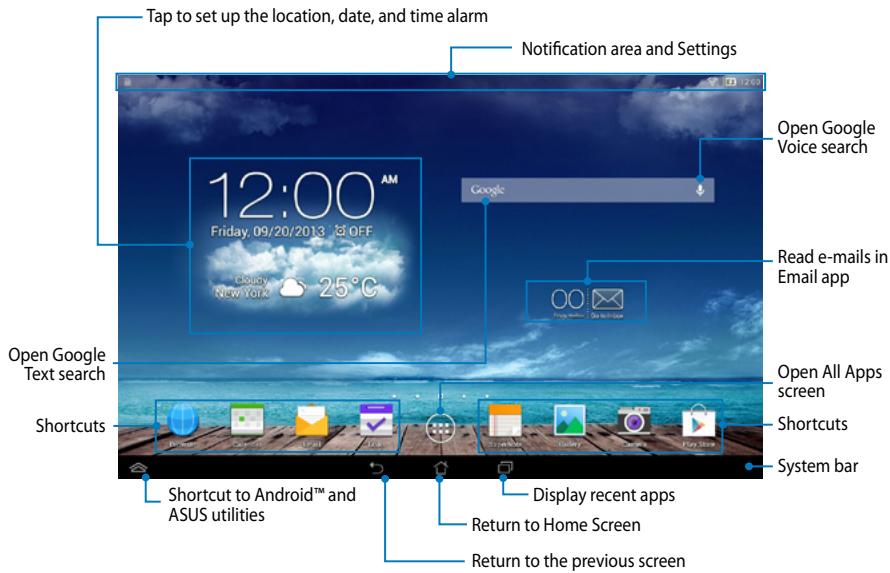
Home Screen
Screen views
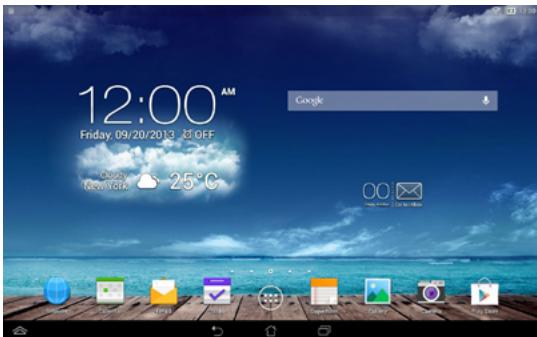
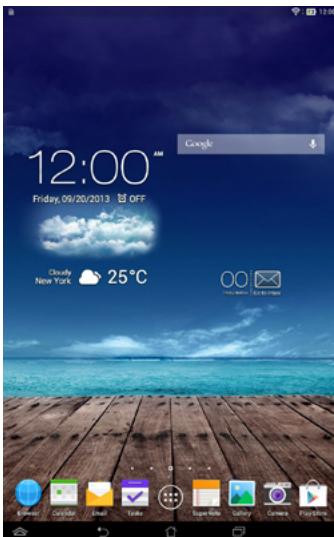
The built-in gravity-sensor of your ASUS Tablet enables automatic screen rotations depending on how you hold it. You can quickly switch between a landscape or portrait view by steering your ASUS Tablet to the left or to the right.
Landscape view
Portrait view
Locking the screen orientation
By default, your ASUS Tablet screen automatically changes its orientation from portrait mode to landscape mode or vice-versa, depending on the way you hold your device.
You can disable the auto-rotate screen function by following these steps:
- Tap on the Home Screen to open All Apps screen.
- Tap > Accessibility then tap Auto-rotate screen to deselect.
NOTE: You can also enable or disable this function from the ASUS Quick Settings. Refer to section Settings for more details.
Connecting to the world
Connecting to Wi-Fi networks
Wi-Fi wireless networking technology allows you to exchange data wirelessly over a network. To use Wi-Fi, enable the Wi-Fi feature in your ASUS Tablet and connect to a wireless network. Some wireless networks are secured with a key or protected with digital certificates and requires additional steps to set up; others are open and you can easily connect to them.
NOTE: Turn Wi-Fi off when you are not using it to help save battery power.
To enable Wi-Fi and connect to a Wi-Fi network:
- Tap to go to the All Apps screen then tap Settings
- Slide the Wi-Fi switch to ON. When enabled, your ASUS Tablet scans for available Wi-Fi networks.
- Tap a network name to connect to it. If the network is secured or protected, you are prompted to key in a password or key in other credentials.
NOTE: If your ASUS Tablet finds a network that you have connected to previously, it automatically connects to it.
Using Bluetooth
Enabling or disabling Bluetooth in your device
Bluetooth is a wireless standard used for exchanging data over short distances. Bluetooth exists in many products, such as smartphones, computers, tablet devices, and headsets.
Bluetooth is very useful when transferring data between two or more devices that are near each other.
The first time you connect to a Bluetooth device, you must pair it with your ASUS Tablet.
NOTE: Turn Bluetooth off when you are not using it to help save battery power.
To enable or disable Bluetooth in your ASUS Tablet, you can do any of the following:
Tap to go to the All Apps screen then tap Settings. Slide the Bluetooth switch to ON
Slide down the Notification area to display ASUS Quick Settings panel then tap Bluetooth
Pairing your ASUS Tablet with a Bluetooth device
Before you can connect to a Bluetooth device, you must first pair your ASUS Tablet to that device. The devices stay paired, unless you remove the paired connection between them.
To pair your ASUS Tablet to a device:
- Tap to go to the All Apps screen then tap Settings. Slide the Bluetooth switch to ON.
- Tap Bluetooth to display all available Bluetooth devices within range.
NOTES:
- If the device you want to pair with is not in the list, ensure that its Bluetooth feature is turned ON and set as Discoverable.
-
See the technical documentation that came with the device to learn how to turn its Bluetooth ON and how to set it to discoverable.
-
If your ASUS Tablet has finished scanning before your Bluetooth device is ready, tap SEARCH FOR DEVICES.
- In the list of available devices, tap the Bluetooth device that you want to pair with. Follow the succeeding screen instructions to complete the pairing. If necessary, refer to the technical documentation that came with the device.
Connecting your ASUS Tablet to a Bluetooth device
After you have paired your ASUS Tablet to a Bluetooth device, you can easily reconnect to it manually, after it is back in range.
To connect to a Bluetooth device:
- Tap to go to the All Apps screen then tap Settings. Slide the Bluetooth switch to ON.
- In the list of PAIRED DEVICES, tap the name of the paired device.
Unpairing and configuring a Bluetooth device
To unpair or configure a Bluetooth device:
- Tap to go to the All Apps screen then tap Settings. Slide the Bluetooth switch to ON.
- Tap Bluetooth then tap beside the connected Bluetooth device that you want to unpair or configure.
- From Paired Bluetooth device screen, you can do any of the following:
Tap Unpair to unpair the device.
Tap Rename to rename the Bluetooth device.
Tap any of the listed profiles to enable or disable a profile.
- Tap on the system bar to go back to previous screen.
Managing Apps
Creating app shortcuts
Get easy access to some of your favorite applications by creating app shortcuts on your Home Screen.
To create app shortcuts:
- Tap to go to the All Apps screen.
- From the All Apps screen, tap and hold the app's icon then drag it to the Home Screen.
Removing an app from the Home Screen
Free up space for new app shortcuts by removing existing app shortcuts on your Home Screen.
To remove app shortcuts:
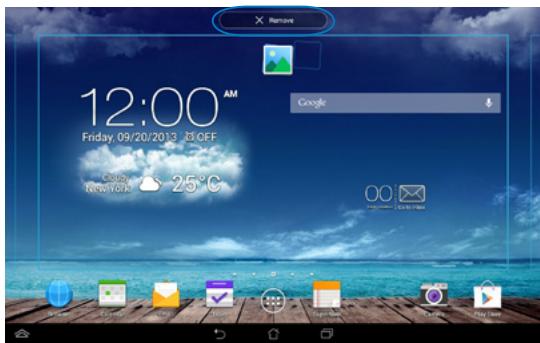
- Tap and hold an app until the X Remove appears on top of the screen.
- Drag the app to X Remove to remove it from the Home Screen.
Viewing app info
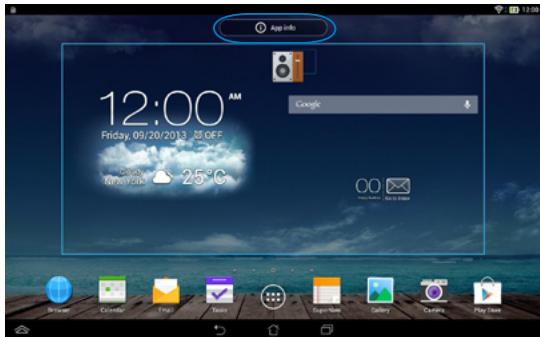
You can view the detailed app information while creating a shortcut for the app. While holding an app on the All Apps screen, the display switches to Home Screen and the App info appears on the top of the Home Screen display. Drag the app to App info to display its detailed information.
Creating app folder
You can create folders to organize shortcuts on your Home Screen.
To create an app folder:
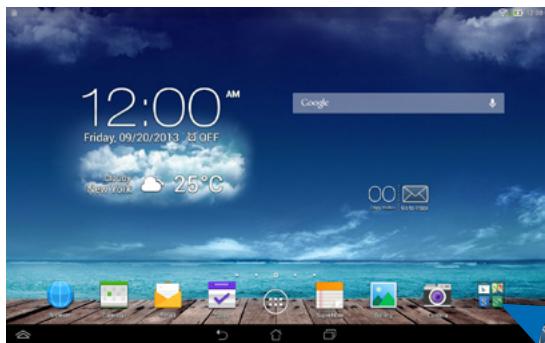
- On the Home Screen, tap and drag an app or shortcut onto another app until a transparent square appears.
NOTES:
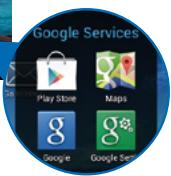
- The created folder is shown in a transparent square.
-
You can add multiple apps in your folder.
-
Tap the folder and tapUnnamed Folder to rename the folder.
Viewing apps under the Recents screen
The Recents screen allows you to view a list of app shortcuts based from your recently launched apps. Using the Recents screen, you can easily go back to or switch between the apps you recently launched.
To access the Recent screen:
- Tap on the system bar.
- A list shows up to display all of your recently launched apps. Tap on the app you want to launch.
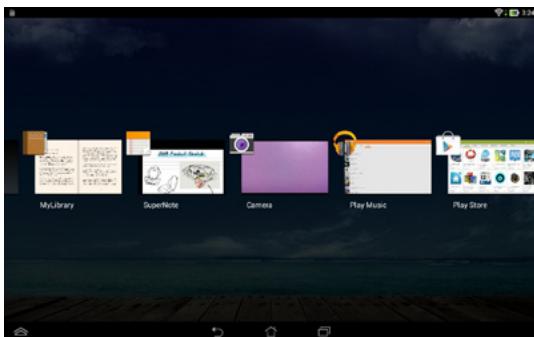
To view a recent app's menu:
- Tap and hold a recent app to display its menu.
- To remove the app from the list, select Remove from list. To view its information, select App info.
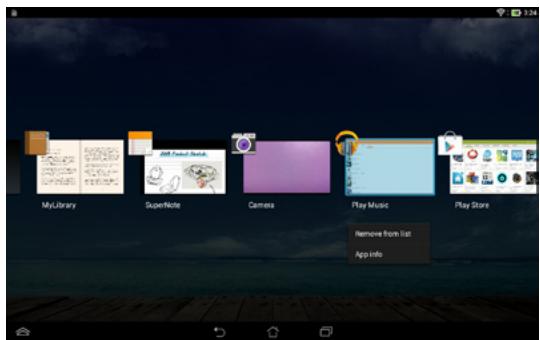
NOTE: You can also remove a recent app from the list by swiping it up or down.
Task Manager
ASUS Task Manager displays a list of currently running utilities and applications, including their usages in percentages, on your ASUS Tablet. You can also open and close the running apps individually or close all apps and utilities at once using the Close All function.
To manage Task Manager:
- Tap to go to the All Apps screen then tap WIZGETS to display the Widget menu.
- Tap and hold ASUS Task Manager to display the ASUS Task Manager box on the Home Screen.
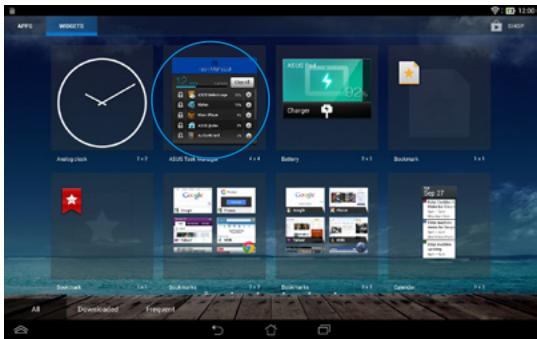
- Swipe the list up and down to view all launched apps.
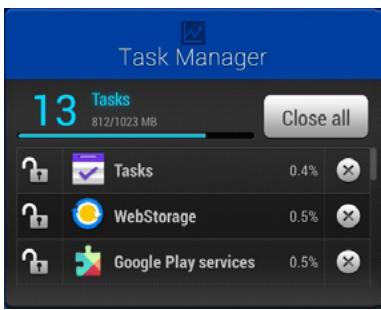
- Tap × beside the running app to close it. Tap Close All to close all running apps at once.
File Manager
File Manager allows you to easily locate and manage your data either on the internal storage or the connected external storage devices.
Accessing the internal storage
To access the internal storage:
- Tap to go to the All Apps screen.
- Tap > Internal Storage on the left panel to view the contents of your
ASUS Tablet then tap an item to select. If a microSD card is inserted, tap
MicroSD to view the contents of your microSD card.
Accessing the external storage device
To access the external storage device:
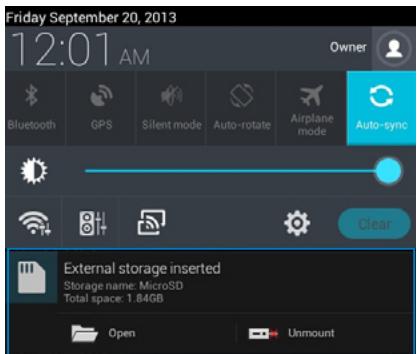
- Swipe down the notification bar on top of the screen to display the notification box.
- Tap Open to display the contents of your microSD card. To unmount the microSD card from your ASUS Tablet, tap Unmount.
IMPORTANT! Ensure to save your data stored in your microSD card before unmounting the microSD card from your ASUS Tablet.
Customizing your contents
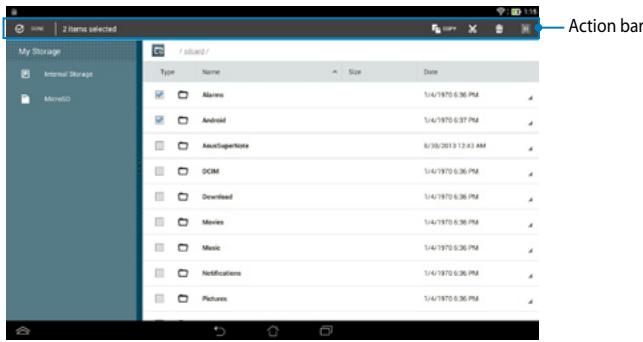
From File Manager, you can copy, cut, share and delete the contents of your device and the installed external storage device.
When you customize a file or folder, tick the box beside the file or folder and the action bar appears on the upper right corner of the screen.
NOTES:
- The SHARE action will only appear if you customize a file or files inside the folder.
- You can also tick the file or folder then drag and drop it to your desired destination folder.
Settings
Settings screen allows you to configure the system settings of your ASUS Tablet. With this system app, you can configure your ASUS Tablet's wireless connectivity, hardware, personal, account and system settings.
There are two ways to launch the Settings screen.
- From the All Apps screen, tap to display the menu.
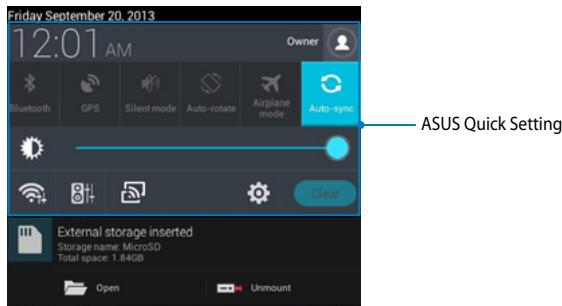
- Swipe down the notification bar on top of the screen to display ASUS Quick Settings panel then tap
ASUS Quick Setting
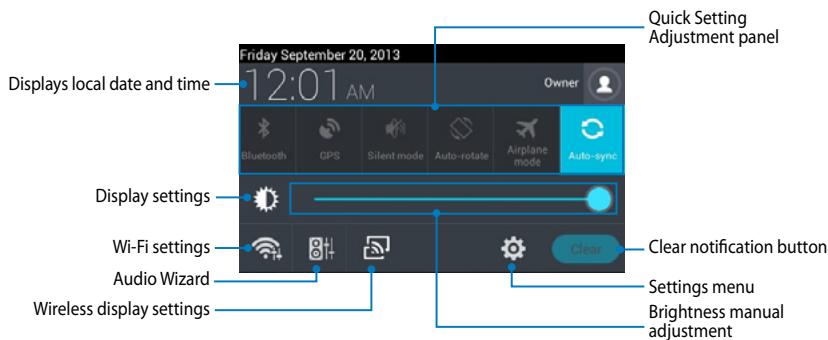
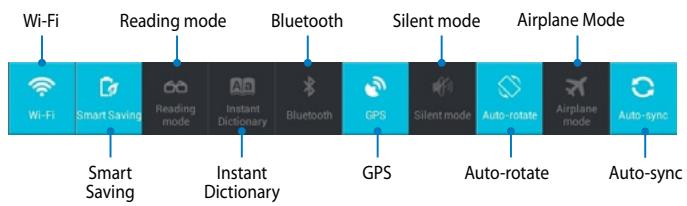
ASUS Quick Setting Adjustment panel
Tap any of the following icons to enable or disable the function.
Notification panel
Notification panel appears under the Quick Setting panel for alerts or updates of apps, incoming e-mails and utility status.
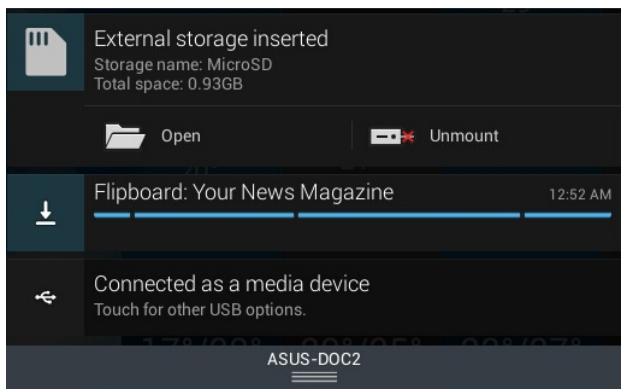

NOTE: Swipe the notification to the left or to the right to remove the item from the list.
Turning your ASUS Tablet off
You can shut down your ASUS Tablet by doing any of the following:
Press the power button for about two (2) seconds and when prompted, tap Power Off then tap OK.
If your ASUS Tablet is unresponsive, press and hold the power button for about eight (8) seconds until your ASUS Tablet turns off.
IMPORTANT! Forcing the system to shut down may result in data loss. Ensure that you back up your data regularly.
Putting your ASUS Tablet to sleep
To put your ASUS Tablet to sleep, press the power button once.
Chapter 4:
Pre-installed Apps
Featured pre-installed apps
Play Music
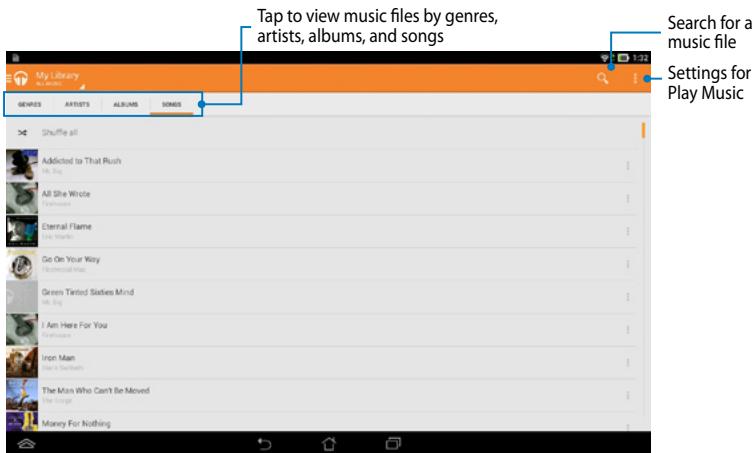
Play Music app, an integrated interface for your music collection, allows you to play your saved music files stored internally or from an installed external storage device.
You can shuffle and play all music files randomly or flip to select an album for your listening pleasure.
To launch Play Music, tap on the Home Screen then tap Play Music.
Your ASUS Tablet supports the following audio and video codes:
| Decoder | Audio codec | AAC LC/LTP, HE-AACv1(AAC+), HE-AACv2(enhanced AAC+), AMR-NB, AMR-WB, MP3, FLAC, MIDI, PCM/WAVE, Vorbis, WAV a-law/mu-law, WAV linear PCM, WMA 10, WMA Lossless, WMA Pro LBR |
| Video codec | H.263, H.264, MPEG-4, VC-1/WMV, VP8 | |
| Encoder | Audio codec | AAC LC/LTP, AMR-NB, AMR-WB |
| Video codec | H.263, H.264, MPEG-4 |
Camera
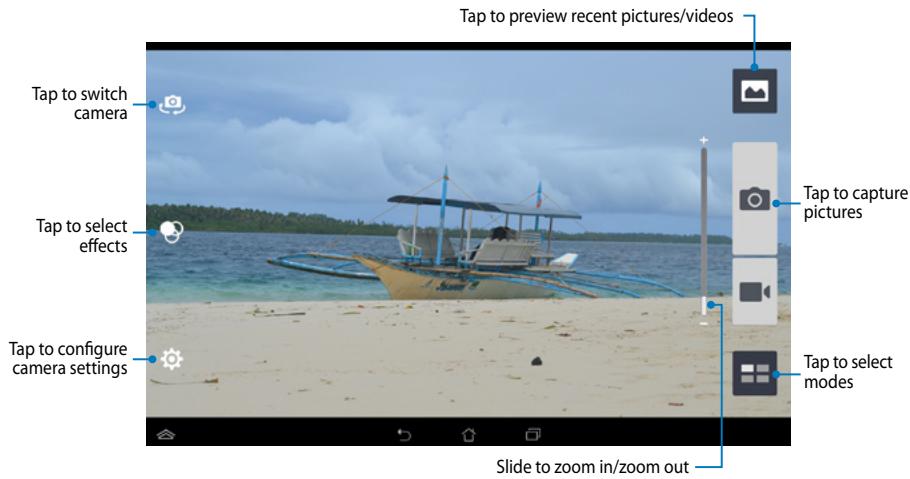
The camera app allows you to take pictures and record videos using your ASUS Tablet.
To launch the Camera app, tap on the Home Screen.
NOTE: The taken pictures and recorded videos can be viewed using the Gallery app.
Taking pictures
From the camera screen, tap to take pictures.
Recording videos
From the camera screen, tap to start recording videos.
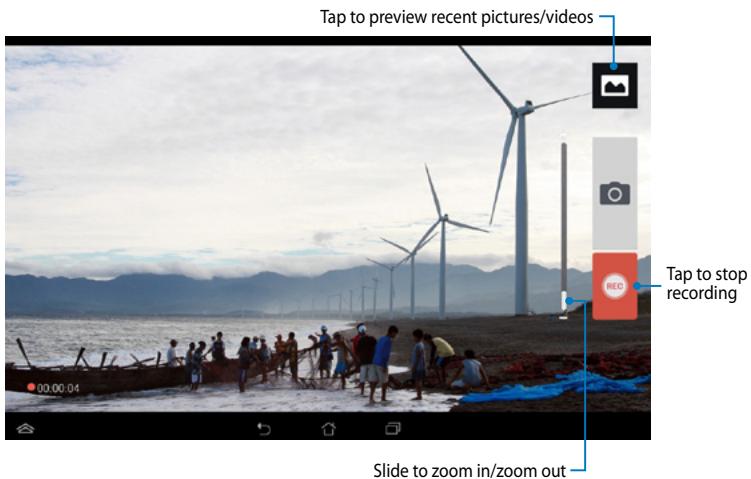
While recording is in progress, you can also use the zooming slider to zoom in or zoom out the video.
Configuring the camera settings and effects
The Camera app also allows you to adjust the settings of your camera and apply effects to your pictures and videos.
Configuring the camera settings
To configure the camera settings:
From the camera screen, tap

IMPORTANT! Apply the settings first before taking pictures or recording videos.
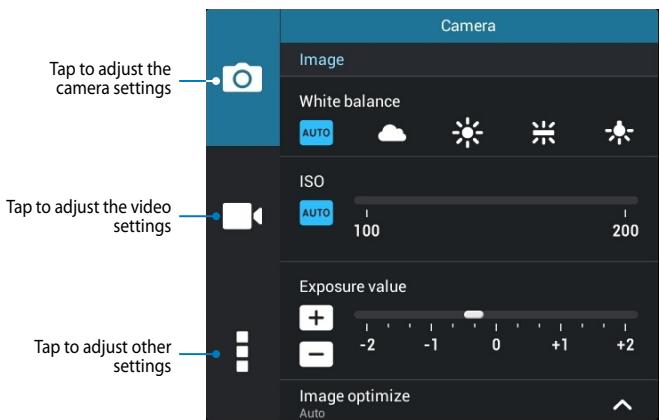
Below are the settings of your ASUS Tablet's camera that you can use to take or record high-definition pictures and videos:

Tap this icon to adjust the white balance, ISO settings, exposure value, camera resolution, shoot modes, and focus settings to take high-definition pictures.

Tap this icon adjust the white balance, exposure value, video quality, and focus settings to record high-definition videos.

Tap this icon to enable screen guidelines, add location information on your pictures and videos, configure other camera settings, and restore default settings of your ASUS Tablet's camera.
NOTE: You can only adjust the white balance function using the rear camera.
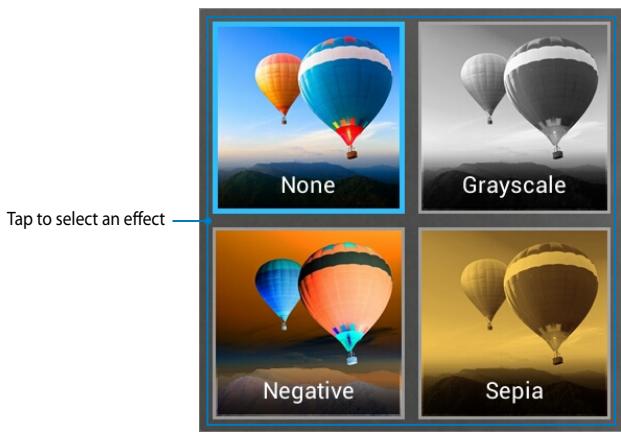
Configuring the camera effects
To configure the camera effects:
From the camera screen, tap

IMPORTANT! Select an effect first before taking pictures or recording videos.
Gallery
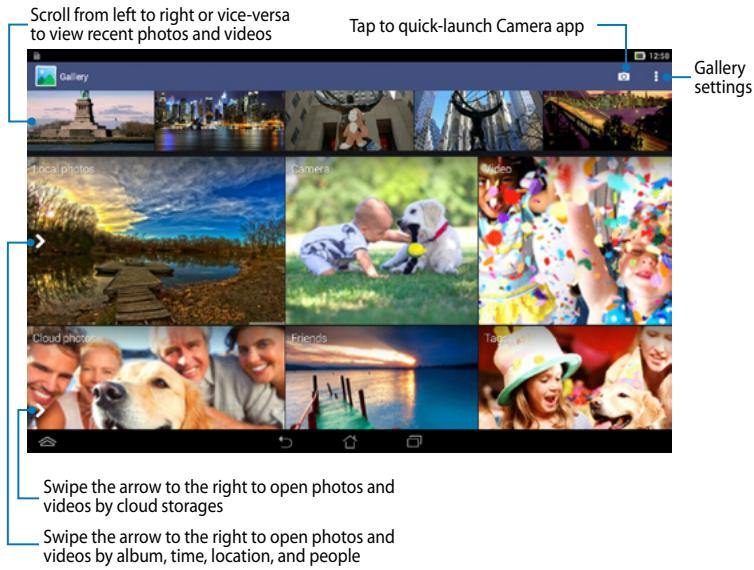
View images and play videos on your ASUS Tablet using the Gallery app. This app also allows you to edit, share, or delete image and video files stored in your ASUS Tablet. From Gallery, you can display images in a slideshow or tap to view the selected image or video file.
To launch Gallery, tap on the Home Screen.
Gallery
Gallery main screen
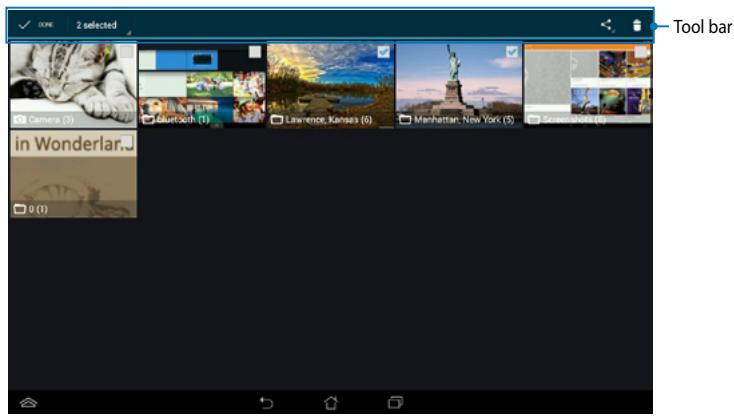
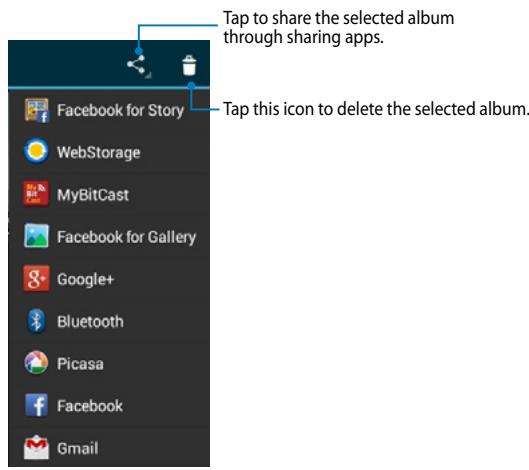
Sharing and deleting albums
To share an album, tap and hold an album until a tool bar appears on top of the screen. You can upload or share the selected albums online or delete them from your ASUS Tablet.
Sharing, editing and deleting images
To share, edit or delete an image, tap to open an image then tap on the image to launch the tool bar on top of the screen.
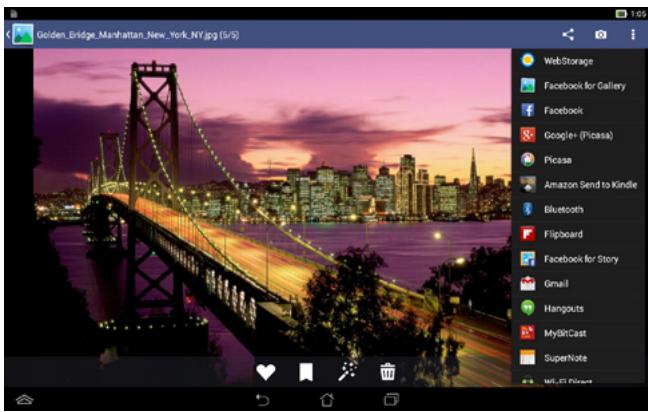
Sharing images
To share an image:
- From Gallery screen, open an album containing the image that you want to share.
- Tap to select then tap and select from the list of sharing apps.
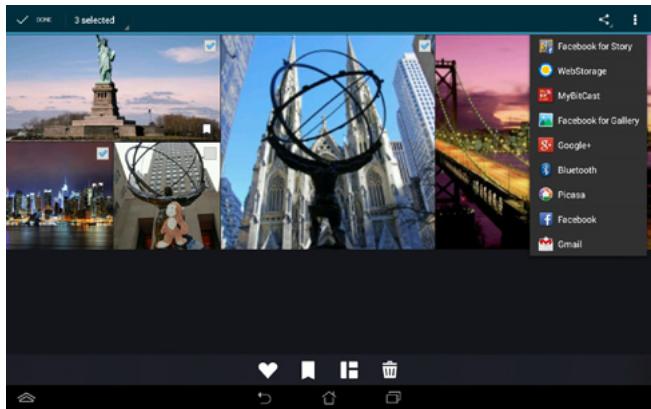
To share multiple images:
- From Gallery screen, open an album containing the images that you want to share.
- Tap and hold one image then tap the other images.
- Tap then select from the list of sharing apps.
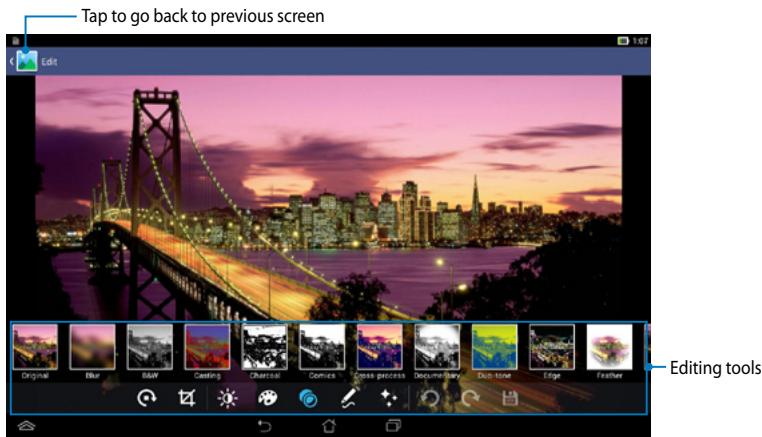
Editing an image
To edit an image:
- From Gallery screen, open an album containing the image that you want to edit.
- Tap an image to open then tap
- Tap the editing tools to start editing.
Deleting images
To delete an image:
- From the Gallery screen, open an album containing the image that you want to delete.
- Tap an image to open then tap
- Tap OK.
To delete multiple images:
- From the Gallery screen, open an album containing the images that you want to delete.
- Tap and hold one image then tap the other images.
- Tap then tap OK.
The Email app allows you to add POP3, IMAP, and Exchange accounts so you can receive, create, and browse e-mails right from your ASUS Tablet.
IMPORTANT! You must be connected to the Internet so you can add an e-mail account or send and receive e-mails from added accounts.
Setting up an e-mail account
To set up an e-mail account:
- Tap on the Home Screen to launch the Email app.
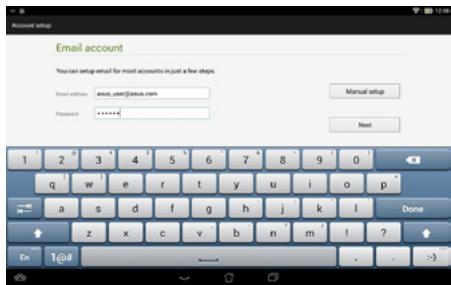
- From the Email app screen, key in your e-mail address and password then tap Next.
NOTE: Wait while your ASUS Tablet automatically checks your incoming and outgoing mail server settings.
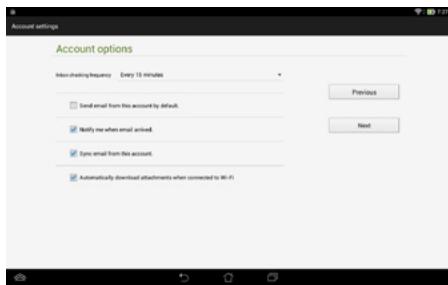
- Configure the Account settings and tap Next.
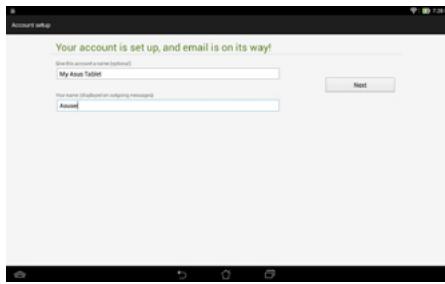
- Key in an account name that you want to be displayed in the outgoing messages, then tap Next to log into your inbox.
Adding e-mail accounts
To add e-mail accounts:
- Tap on the Home Screen to launch the Email app.
- Log-in using your account.
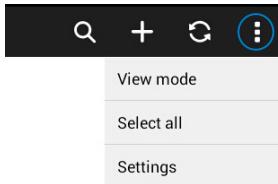
- Tap > Settings, then tap to add an e-mail account.
Gmail
Using the Gmail app, you can create a new Gmail account or synchronize your existing Gmail account so you can send, receive, and browse e-mails right from your ASUS Tablet. Enabling this app allows you to access other Google apps that may require a Google account, such as Play Store.
Setting up a Gmail account
To set up a Gmail account:
- Tap to display the All apps screen.
- Tap to launch Gmail.
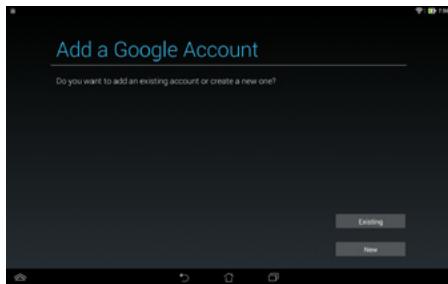
- Tap Existing and key in your existing Gmail account and password, then tap
NOTES:
- Tap New if you do not own a Google account.
-
When signing in, you have to wait while your ASUS Tablet communicates with Google servers to setup your account.
-
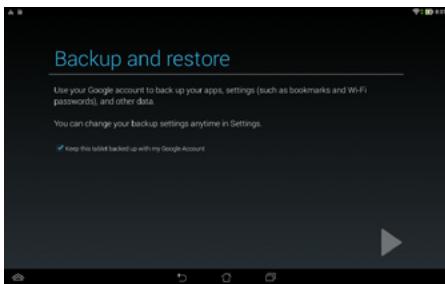
Use your Google account to backup and restore your settings and data. Tap to sign in to your Gmail account.
IMPORTANT! If you have several e-mail accounts aside from Gmail, use Email app to set up and access all your e-mail accounts.
Play Store
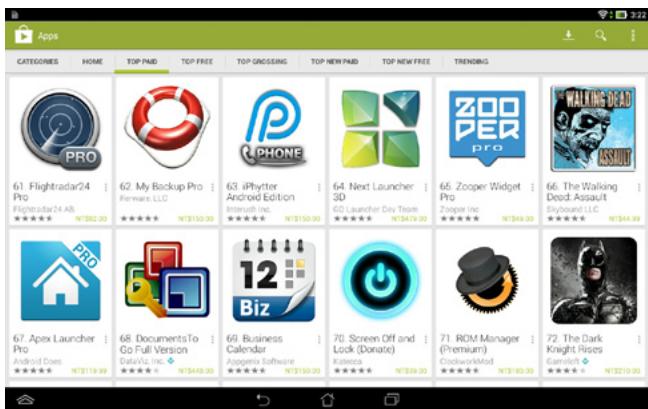
Access lots of fun games and apps in the Play Store using your Google account.
IMPORTANT! You can only access Play Store by signing in to your Google account.
Accessing Play Store
- On the Home Screen, tap

-
If you already have an existing Google account, tap Existing and key in your e-mail account and password. If you do not have an account, tap New and follow the on-screen instructions to create an account.
-
After signing in, you can start downloading apps from Play Store and install them in your ASUS Tablet.
NOTE: Some apps are free and some might charge you through a credit card.
Maps
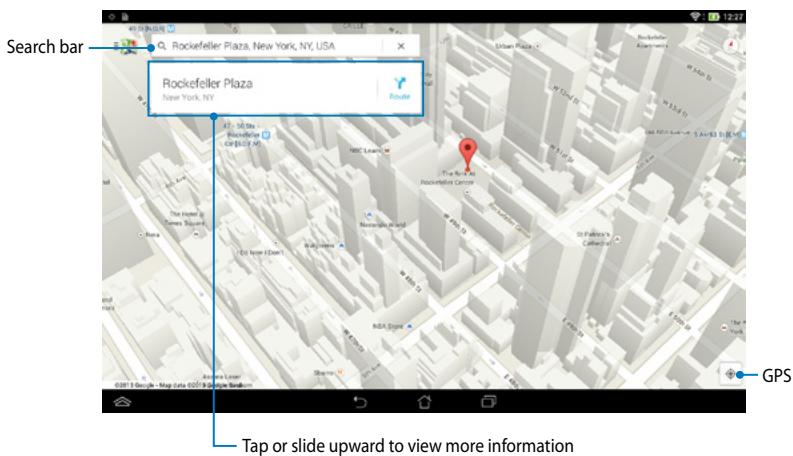
Google Maps allows you to view and find places, establishments and get directions. It also allows you to check your current location and share the information with others.
Using Google Maps
To use Google Maps:
- Tap to display the All apps screen, then tap Maps
- Use the search bar on top of the screen to customize your search.
MyLibrary
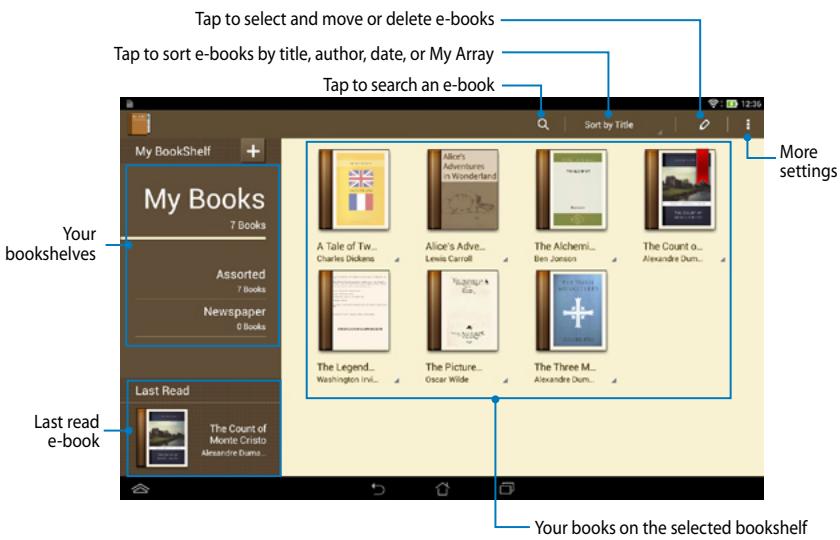
MyLibrary, an integrated interface for your book collections, allows you to place your purchased or downloaded e-books into bookshelves and sort them by author, title or date.
To launch MyLibrary, tap to display the All apps screen then tap MyLibrary.
IMPORTANT! You may need to install Adobe Flash Player to open some e-books.
Download Adobe® Flash® Player before using MyLibrary.
NOTE: MyLibrary supports e-books in ePub, PDF and TXT formats.
MyLibrary main screen
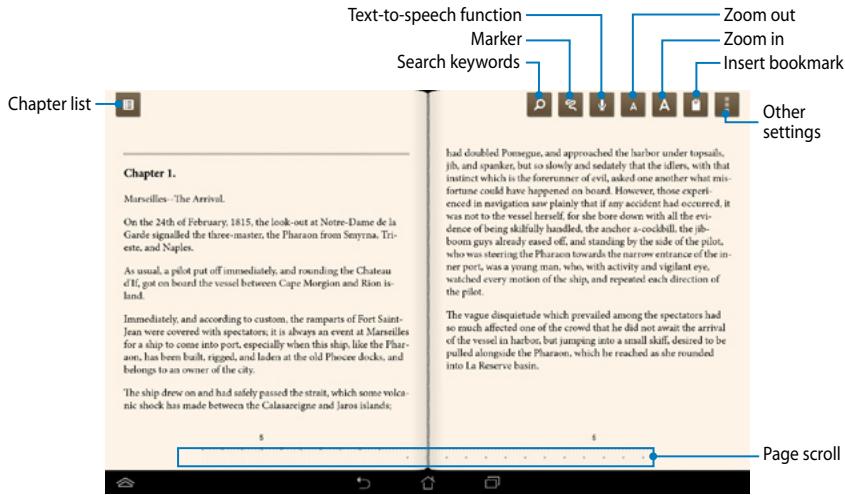
Reading your e-books
When you read an e-book, swipe your finger to the left to proceed to the next page or swipe your finger from left to right to go back to the previous page.
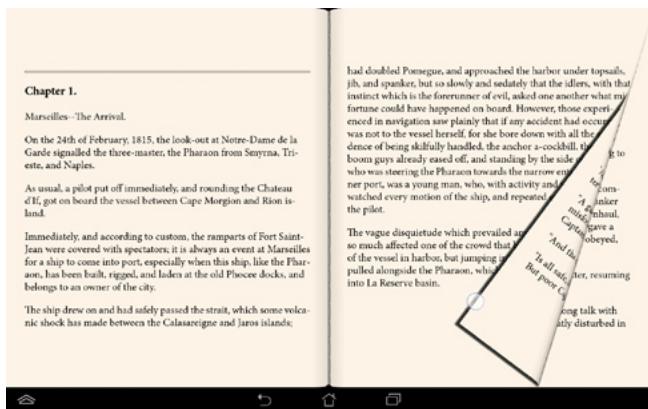
Flipping a page
To move to the next page, swipe from right to left. To go back to the previous page, swipe from left to right.
Placing a bookmark
The bookmark allows you to mark the pages of a book so that you can easily return to the last page you read.
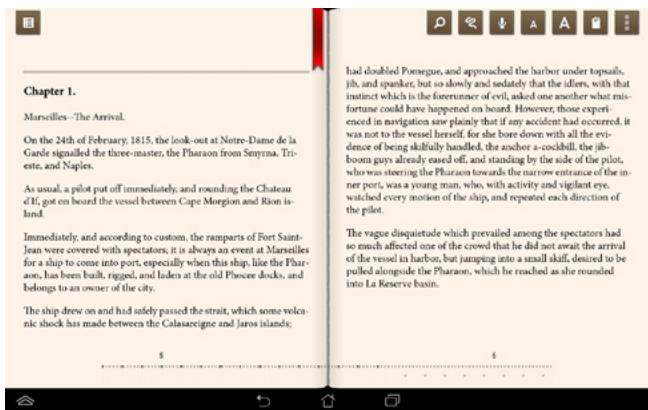
To place a bookmark:
- Tap anywhere on the screen to show the tool bar.
- Tap to mark the page. You can mark as many pages as you like.
- To view the bookmarked pages, tap >Bookmark list then tap the page that you want to open.
Annotating on the page
Annotating in your e-books allows you to see the definition of a word, copy a word or a phrase, share via e-mail, or listen through text-to-speech function.
Annotating a word

Annotating a phrase
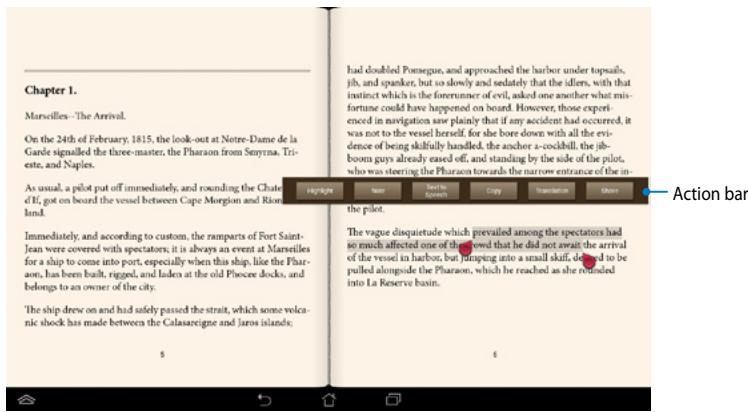
To annotate a page:
- Tap and hold the desired word until the action bar and the dictionary note are displayed.
NOTE: To select a phrase, tap and hold the word then slide your finger to select. When you select a phrase, the dictionary note does not appear.
- From the action bar, choose from the following options:
a. Tap Highlight to mark a word or phrase.
b. Tap Note to record a word or phrase.
c. Tap Text to Speech to listen to the selected word or phrase.
d. Tap Copy to copy the selected word or phrase and paste it to a text app.
e. Tap Translation to see the translation of the selected phrase.
f. Tap Share to share a phrase then select an app that you want for sharing.
SuperNote
SuperNote is an easy-to-use app that lets you take notes, doodle, capture and insert photos, and record sounds and videos for a more interactive experience.
You can also share your notebooks via your ASUS WebStorage account.
To launch SuperNote, tap on the Home Screen.
SuperNote main screen
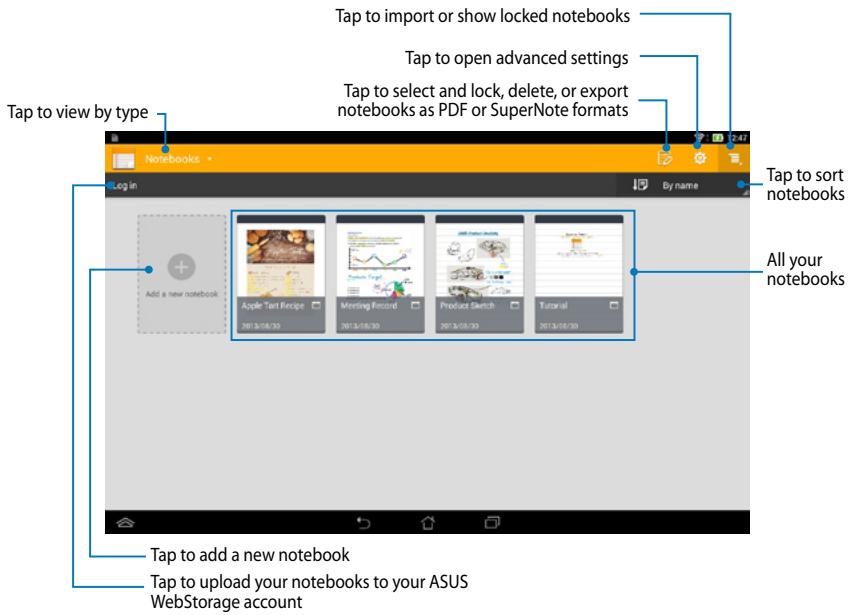
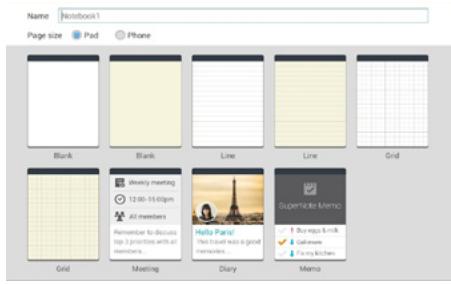
Creating a new notebook
To create a new notebook:
- Tap Add a new Notebook.
- Name the file and select Pad or Phone for page size.
- Select a template. The new note page appears instantly.
SuperNote Notebook interface
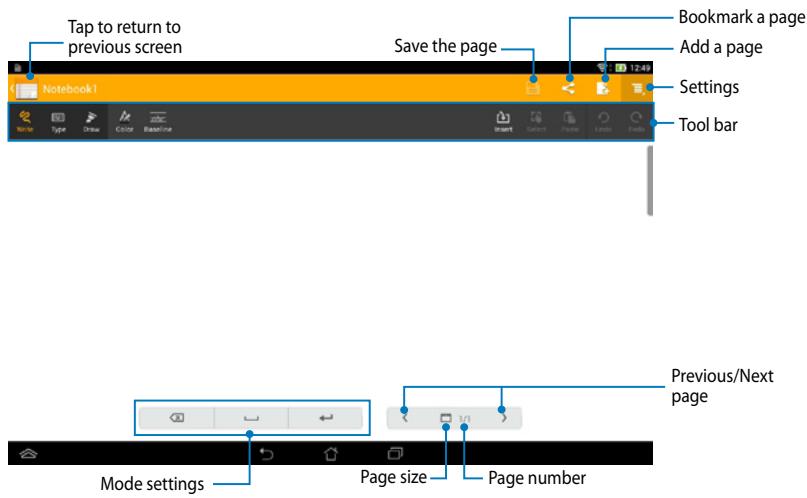
NOTE: The mode settings and notebook tool bar changes when you tap Write mode, Type mode, or Draw mode.
Customizing your notebook
SuperNote allows you to be creative with your notebooks. From the tool bar, you can select several tools that lets you customize your notebooks.
NOTE: The settings of the tool bar may vary depending on the mode that you selected.
To customize your notebook:
- In the SuperNote main screen, tap the notebook that you want to customize.
- Tap any of the icons on the toolbar to start editing your notebook.
NOTES:
- For Write mode, tap Baseline for penmanship guidelines when necessary.
- For Write and Type modes, tap Color to select text or stroke color and weight.
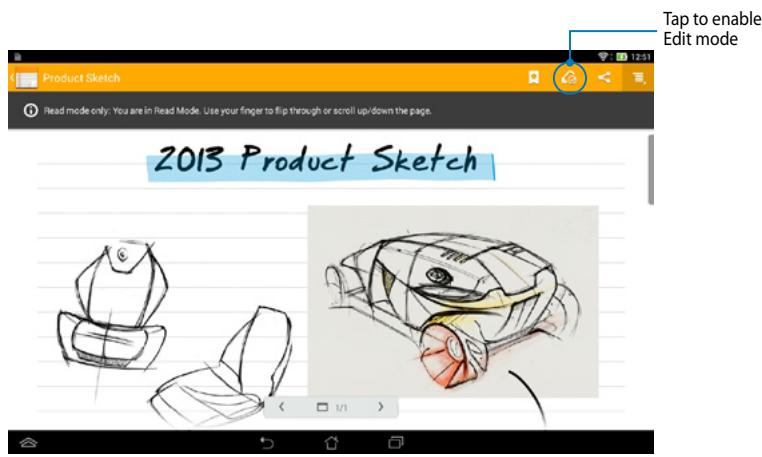
SuperNote Read-only mode
To enable the read-only mode, tap then tap Read only.
Renaming your notebook
To rename your notebook:
- In the SuperNote main screen, tap and hold the notebook file then tap Rename.
- Key in the the filename then tap OK.
Hiding your notebook
To hide your notebook:
- In the SuperNote main screen, tap and hold the notebook file then tap Lock to hide.
- Key in your password then tap OK.
NOTES:
- You will be prompted to key in a new password when you hide your notebook for the first time.
- To view the hidden notebooks on the main screen, tap then tap Show locked notebook.
Deleting your notebook
To delete your notebook:
- In the SuperNote main screen, tap and hold the notebook file then tap Delete.
- Tap Delete to confirm deletion of the notebook.
AudioWizard
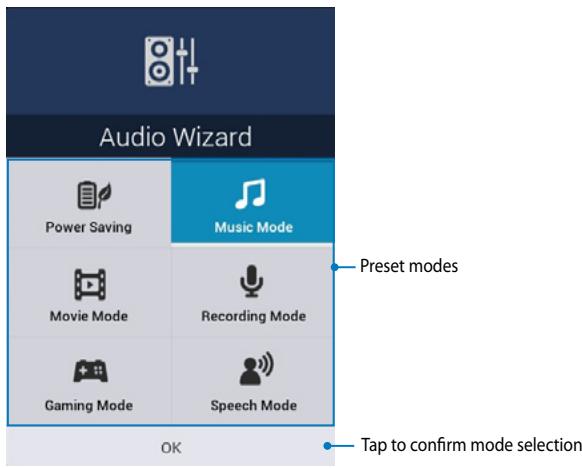
AudioWizard allows you to customize the sound modes of your ASUS Tablet for a clearer audio output that fits the actual usage scenarios.
To launch Audio Wizard, tap on the Home Screen then tap AudioWizard.
Using AudioWizard
To use AudioWizard:
- In the AudioWizard window, tap the sound mode that you want to activate.
- Tap OK to save the selected sound mode and exit the AudioWizard window.
App Locker
App Locker is a security app that prevents selected apps and files from being opened.
Using App Locker
To use App Locker:
- On the Home Screen, tap then tap AppLocker
- Tap Start, set up your password then tap OK.
Set the password
Create the password for App Locker.
New password:

Confirm new password:

Cancel
OK
- Tap OK to proceed to the App Locker screen.
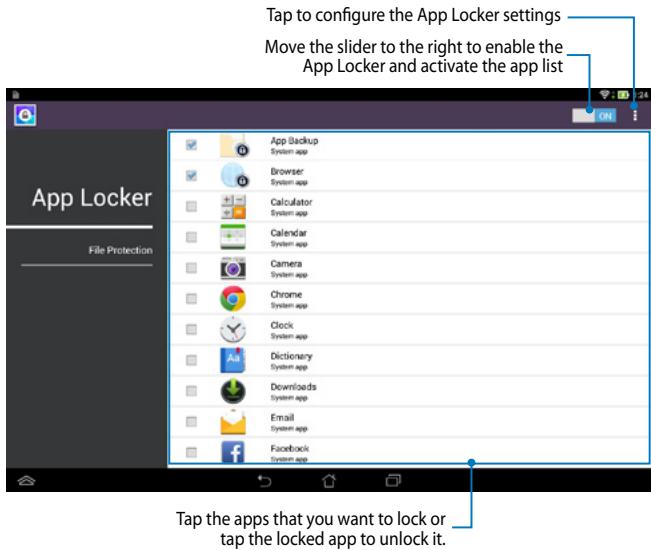
NOTES:
- The apps that you locked appear as locked icons on the Home Screen.
- App Locker prompts you to key in your password every time you launch a locked app.
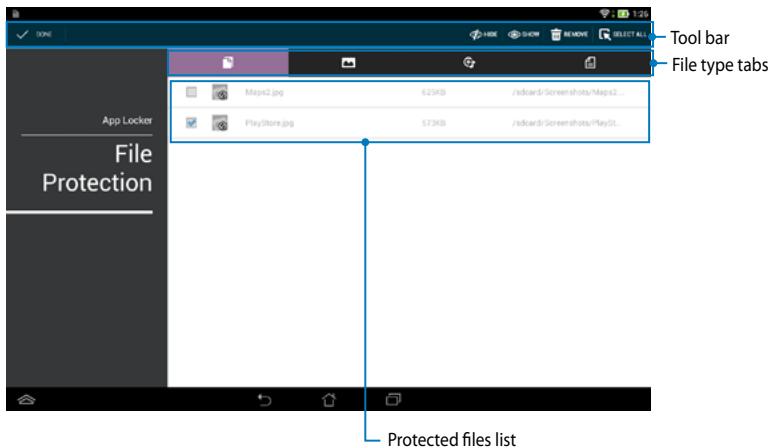
Using File Protection
To use File Protection:
- Tap File Protection then tap + to open File Manager app.
- Tap to select the files that you want to protect, then tap Apply . The files that you want to protect appear on the File Protection screen.
Widgets
- Widgets are mini apps that allow you to conveniently access useful and fun applications on your ASUS Tablet's Home Screen.
To view widgets, tap on the Home Screen then tap WIZGETS.
Displaying a widget on the Home Screen
From the Widgets screen, swipe your finger to the left or to the right to select a widget. Tap and hold the selected widget, then drag it to the Home Screen.
IMPORTANT!
- You may be prompted to perform additional tasks such as registration or activation before you can use a selected widget.
- If there is not enough space on the screen to place the widget, the widget will not be added to the screen.
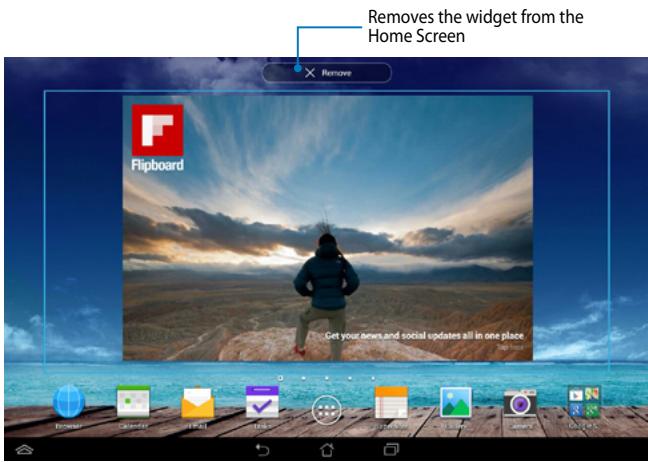
Removing a widget from the Home Screen
From the Home Screen, tap and hold the widget until X Remove appears. Without lifting your finger, drag the widget to X Remove to remove the widget from your Home Screen.
ASUS Battery
ASUS Battery is a special widget designed to show the battery status of your ASUS Tablet and its connected accessories by percentage and color.
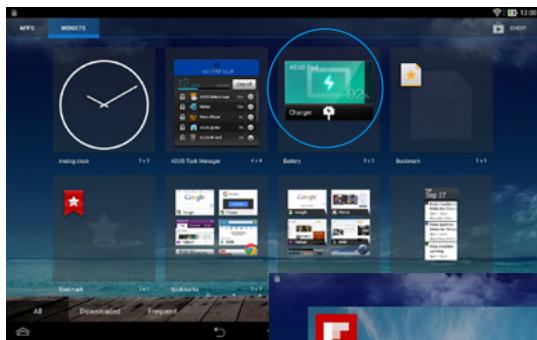
To view ASUS Battery widget, tap on the Home Screen then tap WIZGETS.
Displaying the ASUS Battery widget on the Home Screen
From the Widgets screen, swipe your finger to the left or to the right to look for ASUS Battery widget. Tap and hold the widget, then drag it to the Home Screen.
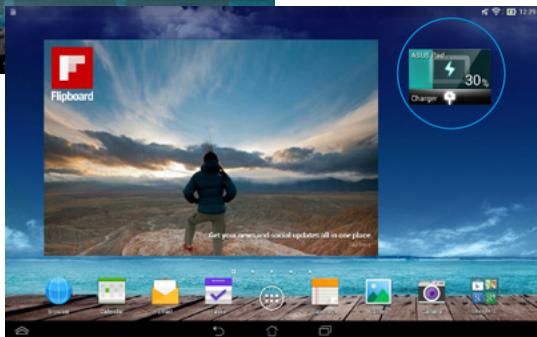
NOTE: You can also view your ASUS Tablet's battery status in ASUS Quick Setting and notification area. For more details, refer to sections ASUS Quick Setting and Notification panel.
Appendices
Federal Communications Commission Statement
This device complies with FCC Rules Part 15. Operation is subject to the following two conditions:
This device may not cause harmful interference.
- This device must accept any interference received, including interference that may cause undesired operation.
This equipment has been tested and found to comply with the limits for a class B digital device, pursuant to Part 15 of the Federal Communications Commission (FCC) rules. These limits are designed to provide reasonable protection against harmful interference in a residential installation. This equipment generates, uses, and can radiate radio frequency energy and, if not installed and used in accordance with the instructions, may cause harmful interference to radio communications. However, there is no guarantee that interference will not occur in a particular installation. If this equipment causes harmful interference to radio or television reception, which can be determined by turning the equipment off and on, the user is encouraged to try to correct the interference by doing one or more of the following measures:
Reorient or relocate the receiving antenna.
- Increase the separation between the equipment and receiver.
- Connect the equipment into an outlet on a circuit different from that to which the receiver is connected.
- Consult the dealer or an experienced radio/TV technician for help.
Changes or modifications not expressly approved by the party responsible for compliance could void the user's authority to operate the equipment.
The antenna(s) used for this transmitter must not be co-located or operating in conjunction with any other antenna or transmitter.
Operation on the 5.15-5.25 GHz frequency band is restricted for indoor use only. The FCC requires indoor use for the 5.15-5.25 GHz band to reduce the potential for harmful interference to co-channel Mobile Satellite Systems. It will only transmit on 5.25-5.35 GHz, 5.47-5.725 GHz and 5.725-5.850 GHz bands when associated with an access point (AP).
RF Exposure Information (SAR)
This device meets the government's requirements for exposure to radio waves. This device is designed and manufactured not to exceed the emission limits for exposure to radio frequency (RF) energy set by the Federal Communications Commission of the U.S. Government.
The exposure standard employs a unit of measurement known as the Specific Absorption Rate, or SAR. The SAR limit set by the FCC is 1.6W / kg . Tests for SAR are conducted using standard operating positions accepted by the FCC with the EUT transmitting at the specified power level in different channels.
The highest SAR value for the device as reported to the FCC is 1.001 W/kg when placed next to the body.
The FCC has granted an Equipment Authorization for this device with all reported SAR levels evaluated as in compliance with the FCC RF exposure guidelines. SAR information on this device is on file with the FCC and can be found under the Display Grant section of www.fcc.gov/oet/ea/fccid after searching on FCC ID: MSQK00F.
Canada, Industry Canada (IC) Notices
This Class B digital apparatus complies with Canadian ICES-003, RSS-210 and CAN ICES-3(B)/NMB-3(B).
Operation is subject to the following two conditions: (1) this device may not cause interference, and (2) this device must accept any interference, including interference that may cause undesired operation of the device. The IC ID for this device is 3568A-K00F.
Radio Frequency (RF) Exposure Information
The radiated output power of the Wireless Device is below the Industry Canada (IC) radio frequency exposure limits. The Wireless Device should be used in such a manner such that the potential for human contact during normal operation is minimized.
This device has been evaluated for and shown compliant with the IC Specific Absorption Rate ("SAR") limits when installed in specific host products operated in portable exposure conditions.
Canada's REL (Radio Equipment List) can be found at the following web address: http://www.ic.gc.ca/app/sitt/reltel/srch/nwRdSrc.ho?lang eng
Additional Canadian information on RF exposure also can be found at the following web address: http://www.ic.gc.ca/eic/site/smt-gst.nsf/eng/ sf08792.html
Canada, vis d'Industrie Canada (IC)
The device could automatically discontinue transmission in case of absence of information to transmit, or operational failure. Note that this is not intended to prohibit transmission of control or signaling information or the use of repetitive codes where required by the technology.
The device for the band 5150-5250 MHz is only for indoor usage to reduce potential for harmful interference to co-channel mobile satellite systems; the maximum antenna gain permitted (for device in the bands 5250-5350 MHz and 5470-5725 MHz) to comply with the EIRP limit; and the maximum antenna gain permitted (for devices in the band 5275-5850 MHz) to comply with the EIRP limits specified for point-to-point and non point-to-point operation as appropriate, as stated in section A9.2(3). In addition, high-power radars are allocated as primary users (meaning they have priority) of the band 5250-5350 MHz and this radar could cause interference and/or damage to LE-LAN devices.
The Country Code Selection feature is disabled for products marketed in the US/ Canada. For product available in the USA/Canada markets, only channel 1-11 can be operated. Selection of other channels is not possible.
EC Declaration of Conformity
This product is compliant with the regulations of the R&TTE Directive 1999/5/EC. The Declaration of Conformity can be downloaded from http://support.asus.com.
Prevention of Hearing Loss
To prevent possible hearing damage, do not listen at high volume levels for long periods.
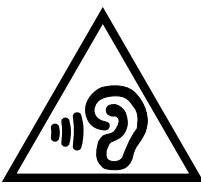
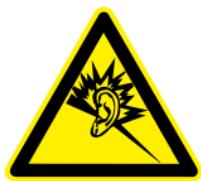
For France, headphones/earphones for this device are compliant with the sound pressure level requirement laid down in the applicable EN50332-1:2000 and/or EN50332-2:2003 standard required by French Article L.5232-1.
CE Mark Warning

CE marking for devices without wireless LAN/Bluetooth
The shipped version of this device complies with the requirements of the EEC directives 2004/108/EC "Electromagnetic compatibility" and 2006/95/EC "Low voltage directive".
The highest CE SAR value for the device is 0.362 W/Kg.
This equipment may be operated in:
| AT | BE | BG | CH | CY | CZ | DE | DK |
| EE | ES | FI | FR | GB | GR | HU | IE |
| IT | IS | LI | LT | LU | LV | MT | NL |
| NO | PL | PT | RO | SE | SI | SK | TR |
DFS controls related to radar detection shall not be accessible to the user.
RF Exposure information (SAR) - CE
This device meets the EU requirements (1999/519/EC) on the limitation of exposure of the general public to electromagnetic fields by way of health protection.
The limits are part of extensive recommendations for the protection of the general public. These recommendations have been developed and checked by independent scientific organizations through regular and thorough evaluations of scientific studies. The unit of measurement for the European Council's recommended limit for mobile devices is the "Specific Absorption Rate" (SAR), and the SAR limit is 2.0W / Kg averaged over 10 gram of body tissue. It meets the requirements of the International Commission on Non-Ionizing Radiation Protection (ICNIRP).
For next-to-body operation, this device has been tested and meets the ICNRP exposure guidelines and the European Standard EN 62311 and EN 62209-2. SAR is measured with the device directly contacted to the body while transmitting at the highest certified output power level in all frequency bands of the mobile device.
Power Safety Requirement
Products with electrical current ratings up to 6A and weighing more than 3Kg must use approved power cords greater than or equal to: H05VV-F, 3G, 0.75mm^2 or H05VV-F, 2G, 0.75mm^2 .
ASUS Recycling/Takeback Services
ASUS recycling and takeback programs come from our commitment to the highest standards for protecting our environment. We believe in providing solutions for you to be able to responsibly recycle our products, batteries, other components as well as the packaging materials. Please go to http://csr.asus.com/english/Takeback.htm for detailed recycling information in different regions.
Coating notice
IMPORTANT! To provide electrical insulation and maintain electrical safety, a coating is applied to insulate the device except on the areas where the I/O ports are located.
GreenASUSnotice
ASUS is devoted to creating environment-friendly products and packaging to safeguard consumers' health while minimizing the impact on the environment. The reduction of the number of the manual pages complies with the reduction of carbon emission.
For the detailed user manual and related information, refer to the user manual included in the ASUS Tablet or visit the ASUS Support Site at http://support.asus.com/.
Regional notice for Singapore
Complies with IDA Standards DB103778
This ASUS product complies with IDA Standards.

Risk of explosion if battery is replaced by an incorrect type. Dispose of used batteries according to the instructions.

DO NOT throw the battery in municipal waste. The symbol of the crossed out wheeled bin indicates that the battery should not be placed in municipal waste.
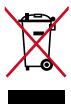
DO NOT throw the ASUS Tablet in municipal waste. This product has been designed to enable proper reuse of parts and recycling. The symbol of the crossed out wheeled bin indicates that the product (electrical, electronic equipment and mercury-containing button cell battery) should not be placed in municipal waste. Check local regulations for disposal of electronic products.

DO NOT throw the ASUS Tablet in fire. DO NOT short circuit the contacts. DO NOT disassemble the Asus Tablet.
Model name: K00F (ME102A)
| Manufacturer: | ASUSTeK Computer Inc. |
| Address: | 4F, No.150, LI-TE RD., PEITOU, TAPEI 112, TAIWAN |
| Authorised representative in Europe: | ASUS Computer GmbH |
| Address: | HARKORT STR. 21-23, 40880 RATINGEN, GERMANY |
EC Declaration of Conformity
We, the undersigned,
| Manufacturer: | ASUSTeK COMPUTER INC. |
| Address, City: | 4F, No. 150, LI-TE Rd., PEITOU, TAPEI 112, TAIWAN |
| Country: | TAIWAN |
| Authorized representative in Europe: | ASUS COMPUTER GmbH |
| Address, City: | HARKORT STR. 21-23, 40880 RATINGEN |
| Country: | GERMANY |
declare the following apparatus:
| Product name : | ASUS Tablet |
| Model name : | K00F |
conform with the essential requirements of the following directives:
2004/108/EC-EMC Directive
EN55022:2010
EN61000-3-2:2006+A2:2009
EN 55013:2001+A1:2003+A2:2006
EN55024:2010
EN61000-3-3:2008
EN 55020:2007+A11:2011
1999/5/EC-R &TTE Directive
EN300328V1.7.1(2006-10)
EN300440-1V1.6.1(2010-08)
EN300440-2V1.4.1(2010-08)
EN301511V9.0.2(2003-03)
EN301908-1V5.2.1(2011-05)
EN301908-2V5.2.1(2011-07)
EN301893V1.6.1(2011-11)
EN302544-2V1.1.1(2009-01)
EN302623V1.1.1(2009-01)
EN50360:2001
EN62479:2010
EN50385:2002
EN62311:2008
EN62209-2:2010
EN301489-1V1.9.2(2011-09)
EN301489-3V1.4.1(2002-08)
EN301489-4V1.4.1(2009-05)
EN301489-7V1.3.1(2005-11)
EN301489-9V1.4.1(2007-11)
EN301489-17V2.1.1(2009-05)
EN301489-24V1.5.1(2010-09)
EN302326-2V1.2.2(2007-06)
EN 302 326-3 V1.3.1(2007-09)
EN 301 357-2 V1.4.1(2008-11)
EN302291-1V1.1.1(2005-07)
EN302291-2V1.1.1(2005-07)
2006/95/EC-LVD Directive
EN60950-1/A12:2011
EN 60065:2002/A12:2011
2009/125/EC-ErP Directive
Regulation (EC) No. 1275/2008
Regulation (EC) No. 278/2009
Regulation (EC) No. 642/2009
2011/65/EU-RoHS Directive
CE marking

Ver. 130208
(EC conformity marking)
Position: CEO
Name: Jerry Shen
Declaration Date: 31/08/2013
Year to begin affixing CE marking:2013
Signature :
support.asus.com