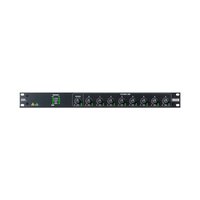
AM2 - Hand blender Rane - Free user manual and instructions
Find the device manual for free AM2 Rane in PDF.


| Product type | Microphone automixer |
| Brand | Rane |
| Model | AM2 |
| Microphone inputs | 8 balanced XLR inputs with 3-position selector (Mic +48V, Mic +0V, Wireless Mic) |
| Main output | 1 balanced mono XLR output with Mic/Line selector |
| RAD port | 1 RJ45 port for connection to a Rane Mongoose or HAL (48 kHz/24-bit digital audio) |
| Cascade input/output | 1 RJ45 input and 1 RJ45 output for daisy-chaining up to 8 AM2s (64 microphones) |
| USB port | 1 USB type B port for firmware update |
| Power | IEC mains input (100-240 V AC, 50/60 Hz) |
| LED indicators | Green signal, red overload (OL), cascade/RAD status, locate, power, fault |
| Main function | Automatic gain mixing for speech microphones, with built-in 80 Hz high-pass and 7 kHz low-pass filters |
| Phantom power | +48 V switched per pair via selector |
| Output level | Adjustment via potentiometer on front panel |
| Compatibility | Usable with Rane AM1, Mongoose, HAL |
| Maintenance | No special maintenance; clean with a dry cloth |
| Safety | Read the provided safety instructions; connect the power cable last |
| Warranty | See separate warranty document |
Frequently Asked Questions - AM2 Rane
User questions about AM2 Rane
0 question about this device. Answer the ones you know or ask your own.
Ask a new question about this device
Download the instructions for your Hand blender in PDF format for free! Find your manual AM2 - Rane and take your electronic device back in hand. On this page are published all the documents necessary for the use of your device. AM2 by Rane.
USER MANUAL AM2 Rane
User Guide (English)
Introduction
Box Contents
AM2
Power Cable
User Guide
Safety & Warranty Manual
Support
For the latest information about this product (documentation, technical specifications, system requirements, compatibility information, etc.) and product registration, visit rane.com.
For additional product support, visit rane.com/support.
Setup
Quick Start
If you're setting up the AM2 automixer, then this Quick Start is for you. It's intended to get your audio working quickly.
Plug microphones into the Mic Inputs using standard XLR mic cables. Condenser mics need the Mic +48V switch position. Use the Mic +0V middle position for dynamic mics. Use the Wireless Mic position when connecting a wireless receiver output.
Connect the Main Output XLR to your amplifier or powered loudspeaker and select the Line switch position. If the Main Output feeds a microphone input, select the Mic position.
Start with the gray Output Level knob turned all the way down—fully counterclockwise. One at a time for each mic, talk very loudly with a microphone at an appropriate distance for the application and adjust the corresponding black Input Level control so the loudest speech just barely flickers the red overload (OL) indicators. Once the input gains are set, the AM2 automatically controls the mic mix to avoid feedback. (You won't need to ride these controls.)
Turn on the amplifier/loudspeaker and turn it up about half way. Also, turn the Output Level knob up until the volume is appropriate for your application.
If the system feeds back (that horrible squeal), your mics are hearing too much from your loudspeakers. First try moving the mics farther from the loudspeaker and/or pointing the mics and loudspeakers away from each other. Next, try turning down the gain on the amplifier or loudspeaker. If this does not reduce feedback, don't reach for the black Mic Input knobs, instead turn down the Output Level.
Daisy-chain up to eight AM2s together by connecting Cascade In to Cascade Out. The Main Output on each AM2 delivers a gain-sharing automix of its Mic Inputs and all upstream Inputs. This means the mix of all Mic Inputs is on the Main Output of the last AM2 in the daisy-chain. Though each AM2's Output Level control always adjusts the volume of its respective XLR Output, the last Output Level affects all Mic Inputs to its Main Output including the RAD Port.
If your AM2(s) connect to a Rane Mongoose or HAL, the last AM2 in the cascade needs its RAD Port connected with a shielded CAT 5e cable (or better) to one of the Mongoose or HAL's rear panel Remote Audio Device ports. Some systems may provide a RADX wall plate to connect the RAD Port cable.
RANE
If you have line sources such as iPods ^® or CD/DVD players you would like to mix with these mics, or would like USB audio playback or recording, look at the Rane AM1.
Connection
Connect the AC power cord last to avoid loudspeakers hurting your sensitive ears.
Mic Inputs
The eight mic jacks are balanced XLR inputs. Unbalanced mics or wiring can also be used with their inherent lower quality and higher potential for hum and noise. Standard microphone cable with a two-conductor twisted pair plus a shield is best. Rane follows the AES recommended practice of pin 2 positive (hot), pin 3 negative, and pin 1 to shield. If your microphone is unbalanced (only two conductors), see the Sound System Interconnection RaneNote on Rane's website for the proper cable to use. Or better yet, get a balanced mic.
For condenser microphones, which require phantom power, use the Mic +48V switch position. Dynamic mics use the center, Mic +0V position. When using a wireless microphone receiver, use the Wireless Mic position.
Main Output
The Main Output is a mono balanced XLR jack. Connect the Main Output XLR using mic cable to your amplifier or powered loudspeaker and select the Line position on the adjacent switch. If the Main Output feeds a microphone snake or mic input, select the Mic switch position.
USB Data Port
Check the AM2 page on Rane's website for potential firmware updates at rane.com/am2. If there is an update, follow the instructions on our website.
When using the AM2 with Mongoose Tracker or Halogen software, AM2 firmware is always kept up to date via the AM2's RAD Port.
RAD Port
If your audio system delivers the AM2's Main Output audio mix using Rane's digital audio transport technology exiting the RAD Port, connect a shielded Ethernet patch cable to the RAD Port. When the Rane HAL or Mongoose at the other end of this connection recognizes the AM2's RAD Port, audio nirvana is achieved and all four adjacent RAD Port Status indicators illuminate.
Cascade In/Out Ports
Connect a shielded Ethernet patch cable from the Cascade In port to another AM2's Cascade Out port to add more mics to the mix of this AM2. All four Cascade In Status Indicators illuminate when the two devices recognize each other. Connect up to seven more Rane AM2 Automixers for a total of 64 gain-sharing mics. Be certain to connect Cascade Out to Cascade In throughout—otherwise, nirvana won't be achieved.
Example
HAL Multiprocessor
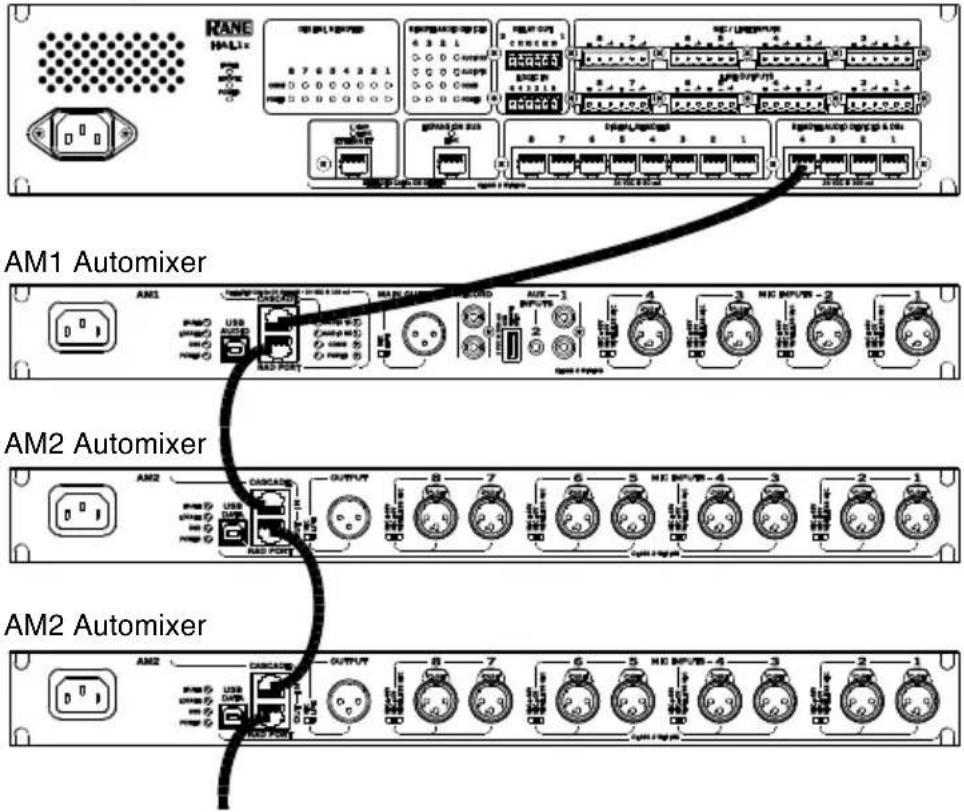
Items not listed under Introduction > Box Contents are sold separately.
Features
Front Panel

- Mic Input Level Controls: Adjust the mic input gain. The green Signal indicators denote audio presence. Overload (OL) indicators warn of excessive signal levels.
- Main Output Level Control: Adjusts the level of the mix exiting the XLR output and the RAD Port output. When connected to an AM1 or AM2 Cascade In port, the AM2 Output Level only affects the XLR Output.
- Cascade In, Cascade Out and RAD Status Indicators: Prove that proper cable termination and device configuring has occurred when all four indicators illuminate, when the AM2 is connected to an AM1 or other AM2s. If any of these are off or flashing, a configuration or wiring error is the culprit. See the Operation section for details.
- Locate Indicator: Helps system installers identify a specific AM2 Automixer when using Rane's Mongoose Tracker or Halogen software.
- Power Indicator: Lights whenever adequate power is applied to the unit.
Rear Panel

- AC Power IEC input: Receives power to turn on the AM2. Though it is first in this list, it's best to connect it last.
-
Status Indicators: Show the state of operation for AM2.
-
Fault Indicator: Lights when something goes awry.
- Locate Indicator: Flashes when toggled from the Mongoose Tracker or Halogen software. When using multiple AM2 devices in a Rane Mongoose or HAL System, this uniquely identifies a specific AM2.
-
USB Indicator: Lights when a Windows or Apple operating system recognizes the AM2 for firmware updating.
• Power Indicator: Glows when adequate power is received from the AC Power IEC input. -
USB Data Connector: Allows updating the AM2 firmware should a future need arise. Firmware updates are made available on the AM2 page at rane.com/am2.
- Cascade In Port: Permits adding up to 56 more microphones to the AM2's eight mic inputs using up to seven Rane AM2 automixers, sold separately. Use shielded Ethernet CAT 5e cable (or better) connected from the AM2's Cascade Out. See the Connection section for details.
- Cascade Out / RAD Port: The Cascade Out Port connects to an AM1 or another AM2's Cascade In when combining units for more gain-sharing mics. The RAD Port connects to either a Rane Mongoose or HAL's Remote Audio Device port to transport the single-channel, Main Mix of the AM2 to a Rane HAL Multiprocessor, or a Rane Mongoose.
- Mic/Line Output Switch: Changes the Main XLR Output to mic-level for feeding the output mix to a mic input device, or to line-level for feeding line-level input devices.
- Main Output XLR Connector: Contains the main mix of all mics from this AM2, and all mics from preceding AM2s, if they are connected using the Cascade ports. The front panel Output Level control adjusts the level exiting this jack.
-
3-position Mic Switches: Set the appropriate gain for condenser, dynamic, and wireless microphone, as well as selecting phantom power for condenser microphones. Each switch controls a pair of mic inputs, as indicated by the rear panel grouping of two jacks for one switch.
-
Mic +48V: Phantom power mic position for condenser mics.
- Mic +0V: Mic position for dynamic mics.
-
Wireless Mic: Position intended for wireless mic receiver outputs.
-
Mic Inputs 1–8: Accept dynamic or condenser microphones, or the output of a wireless microphone receiver. These inputs are optimized for speech and have a fixed 80 Hz low-cut and 7 kHz high-cut filter. Both filters are 2nd-order Butterworth filters.
Operation
Mic Inputs
The rear panel, three position switch sets the appropriate gain for condenser, dynamic and wireless microphones as well as selecting phantom power for condenser microphones. The Mic Inputs are automatically mixed using a gain-sharing algorithm. Set the inputs using the black knobs so they do not (or rarely) clip. Then, sit back and relax. If you've already set up the inputs and someone starts talking louder/closer than you expected, feel free to turn them down a little.
The green Signal indicators should easily light for soft talkers even at relatively low Level settings. The Overload indicator should light only occasionally for only the loudest talkers.
Since these Mic Inputs and their underlying gain-sharing automix algorithm are designed and optimized for speech signals, do not use these Inputs with non-speech audio signals such as those from musical instruments or CD/DVD players.
Main Output
The Main Output of an AM2 delivers the gain-sharing automix of its Mic Inputs and all upstream inputs. The gray Output Level control knob always adjusts the level of the Main Output. Remember, if multiple AM2s are daisy-chained together (using Cascade In / Out ports), the automatic mix of all microphones in the system is present at the Main Output of the last AM2 in the daisy-chain.
Cascade In Port
The Cascade Input allows more mics to be added to the gain-sharing mic mix algorithm of the AM2's eight Mic Inputs. When a shielded Ethernet patch cable fed from another AM2's Cascade Out port is connected to the next AM2's Cascade In port, all cascaded AM2 microphones are automatically added to the automatic Mic Mix of the last AM2 in the chain. (US Patent Pending.)
Cascade audio is 24-bit, 48 kHz, fixed-point for the curious audio nerd.
When all four Cascade Status indicators light, this means the cable is wired properly. If any of the Status indicators are flashing, the cable is not wired properly or damaged. In this case, perhaps an Ethernet crossover cable was accidentally connected, or the cable crimp has an error.
We recommend using shielded twisted-pair for the best EMI performance.
Cascade In Status Indicators are defined below:
- Audio TX LED: Lights when the AM2's audio is successfully transmitted to, and received by, the AM2. If this is off, check the cable.
- Audio RX LED: Lights when the connected AM2 successfully sends audio which also proves this twist in the cable is correct.
- Comm LED: Lights green when the AM2's Cascade Out is properly communicating with the other AM2 and proves that the twisted pair for Comm in the cable is good. If this indicator is off, the cable is not a happy camper.
- Power LED: Always on when the AM2 is powered. If the AM2 is powered and this is off, make sure the power twisted pair in the connected cable is not shorted.
Cascade Out / Rad Port
This port functions as a Cascade Out port when connected to the Cascade In port of a Rane AM1 or AM2 (sold separately). Connect the Cascade Out port of an AM2 to the Cascade In port of another automixer to add its Mic Inputs and all upstream inputs into the automatic gain-sharing mix of the downstream mixer. When cascaded, the signal on the Cascade Out port is unaffected by the gray Output Level control.
This port functions as a RAD Port when connected to a Rane Mongoose or HAL (sold separately). The RAD port contains a Rane-specific digital audio transport protocol allowing audio delivery to a HAL Multiprocessor or Mongoose (CobraNet™). The audio exiting the RAD port contains the Main Mix and is attenuated by the gray Output Level control.
For inquisitive technophiles, RAD Port audio is 24-bit, 48 kHz, fixed-point.
RAD Port Status Indicators are defined below:
- Audio TX LED: Lights green when audio is received by a Mongoose, HAL or AM2. If this indicator is off, either the cable is bad, or there is a communications error between the devices (see Comm LED below).
- Audio RX LED: Lights green when the RAD Port successfully receives audio from the Mongoose, HAL or cascaded AM2. If this indicator is off, you may have a bad cable, or the device at the other end of the cable is not powered or connected.
- Comm LED: Lights green when communication is established between the Mongoose, HAL or a cascaded AM1 or AM2. This indicator turns off if the RAD Port cannot communicate with the other device for some reason—likely due to a faulty cable.
- Power LED: Lights green when the RAD Port is receiving 24-volt power from the Mongoose, HAL or cascaded device. This also indicates that the twisted pair for power within the cable is wired and crimped properly. If the Power LED is off and the other end of the cable is plugged into a powered device, there is a problem with the cable.
Technical Specifications
| XLR Inputs | Mono, Balanced, Mic/Line Selectable |
| Phantom Power | +48V per IEC 60268-15, Selectable in Mic mode |
| Maximum Input | -18 dBV / -6 dBV / +12 dBV (Dynamic / Condenser / Wireless) |
| Input Impedance | 2.01k, 1% |
| Input Gain Range | -80 to +34 dB / -80 to +26 dB (Mic / Wireless) |
| Frequency Response | 80 Hz to 7 kHz, +0/-3 dB, -20 dBFS, Extended Vocal Range |
| Main Output | Mono, Balanced, XLR |
| Maximum Output | -20 / +20 (Mic / Line), 10 kΩ load |
| Output Impedance | 51 / 300 Ω, 1% |
| Output Gain Range | -80 to 0 dB |
| Frequency Response | 80 Hz to 7 kHz, +0/-3 dB, -20 dBFS |
| Dynamic Range | 101 dB re +20 dBu, 20 kHz BW, A-weighted, 0 dB gain, 10 kΩ load |
| THD+N | < 0.02%, 100 Hz to 7 kHz, A-weighted, +4 dBu, 0 dB gain, 10 kΩ load |
| LED Meters | Mono, peak detecting |
| Signal | -50 dBFS, Green LED, Peak-Reading |
| Overload | -0.5 dBFS, Red LED, Peak-Reading |
| RAD / Cascade In/Out | 8P8C (RJ-45) Connector |
| Sample Rate and Resolution | 48 kHz @ 24 bits |
| Unit | All Steel Construction |
| Universal Line Voltage | 100 to 240 VAC, 50/60 Hz, 13 W |
| Size | 1U 1.75"H x 19"W x 8.5"D (4.4 cm x 48.3 cm x 21.6 cm) |
| Weight | 5 lb. 4 oz. (2.4 kg) |
Note: 0 dBu = 0.775 Vrms
Specifications are subject to change without notice.
Trademarks & Licenses
Rane is a trademark of inMusic Brands, Inc., registered in the U.S. and other countries.
CobraNet is a trademark of Cirrus Logic Inc.
iPod is a registered trademark of Apple Inc. in the U.S. and other countries.
Windows is a registered trademark of Microsoft Corporation in the United States and other countries.
All other product names, company names, trademarks, or trade names are those of their respective owners.
rane.com
Manual Version v1.0
- User Guide (English)
- Introduction
- Box Contents
- Support
- Setup
- Quick Start
- RANE
- Connection
- Mic Inputs
- Main Output
- USB Data Port
- RAD Port
- Cascade In/Out Ports
- Example
- Features
- Front Panel
- Rear Panel
- Operation
- Cascade In Port
- Cascade In Status Indicators are defined below:
- Cascade Out / Rad Port
- RAD Port Status Indicators are defined below:
- Trademarks & Licenses
Brand : Rane
Model : AM2
Category : Hand blender