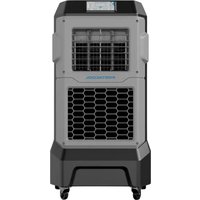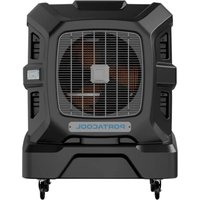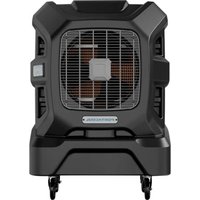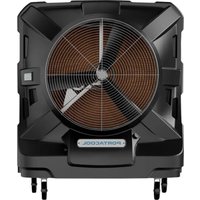
Apex PACA65001A1 - Fan Portacool - Free user manual and instructions
Find the device manual for free Apex PACA65001A1 Portacool in PDF.


User questions about Apex PACA65001A1 Portacool
0 question about this device. Answer the ones you know or ask your own.
Ask a new question about this device
Download the instructions for your Fan in PDF format for free! Find your manual Apex PACA65001A1 - Portacool and take your electronic device back in hand. On this page are published all the documents necessary for the use of your device. Apex PACA65001A1 by Portacool.
USER MANUAL Apex PACA65001A1 Portacool
natural_image
Two industrial air purifiers with ventilation grilles, displayed side by side against a patterned background (no visible text or symbols)
natural_image
Two black air purifiers with fan blades and wheels, displayed side by side (no visible text or symbols)
natural_image
Front view of a portable air conditioner fan with visible blades and wheels (no text or symbols)
natural_image
Front view of a black and white portable air conditioner fan with visible blades and wheels (no text or symbols)OWNER'S MANUAL
CONTENTS
ENGLISH
| Safety | |
| Introduction | |
| Overview | |
| Quick | Start |
| Display | Functions |
| LED | Status |
| Alert | Codes |
| CoolSyncTM | App |
| Maintenance | |
| Troubleshooting | |
| Warranty | |
ESPAÑOL
text_image
WARNING: Consult Owner's Manual. Service by trained personnel recommended. Rotating fan blades Can cause serious injury or cut. Keep hands clear. Turn off product before servicing. Hazardous voltage inside Disconnect power before servicing. GFCI device required. Some components flammable Keep flames and heat away. Do not run pump without water in product Can cause damage to components. STOPOPERATION WARNINGS
- Not for use by children. Children must be supervised so that they do not play with the device.
- Not for use by persons with reduced physical, sensory or mental capabilities
- Not for use by persons who have not read the evaporative cooler's instructions, owner's manual and labels thoroughly before use
SAFE OPERATION
To reduce the risk of electric shock, fire, or injury:
- Do not operate any evaporative cooler with a damaged cord or plug. If the power cord is damaged, it must be replaced by the manufacturer, its authorized service agent, or qualified personnel in order to avoid a hazard.
- Do not run power cord under carpeting or cover with throw rugs, runners or similar coverings. Arrange power cord away from traffic areas to avoid tripping hazards. Before using the evaporative cooler, carefully review the manual and label to understand its features and functions fully.
PORTACOOL.
SAFETY
- Remember to unplug the evaporative cooler before servicing.
- Do not plug in the evaporative cooler unless all parts and media are securely in place.
- If you have a special safety outlet (GFCI), it's important to test it once a month to ensure it's working correctly. This is a quick check to keep you safe.
- Always pull on the plug, not the cord, when unplugging the evaporative cooler. This prevents damage to the cord over time.
- Keep your evaporative cooler away from anything that has open flames or may cause sparks.
- When cleaning your evaporative cooler, make sure the unit is off and unplugged.
- Do Not Use This Fan with Any Solid-State Speed Control Device.
- Do not use an extension cord with this product if used outdoors.
- If used indoors, extension cords are okay to use but not recommended. If you must use one, ensure it meets the cord requirements.
• Use properly grounded 14 AWG or greater for APEX 500 through APEX 4000
• Use properly grounded 12 AWG or greater for APEX 6500
- Extension cord must not exceed 50 feet (15.24 meters) in length
- Extension cord must be properly grounded
- Be careful when moving your evaporative cooler with a full tank of water; only transport it on all four caster wheels, and do not tilt the evaporative cooler forward or backward.
SAFETY
- Evaporative coolers should not be modified in any way (other than repairs made by qualified individuals with Portacool replacement parts).
- If the evaporative cooler is damaged or malfunctions, do not continue to operate it. Refer to this owner's manual's warranty, troubleshooting, or FAQ sections and call Portacool, LLC. Customer Care at (936) 598-5651 or (800) 695-2942, or email support@portacool.com.
APEX
PORTACOOL.
INTRODUCTION
CONGRATULATIONS!
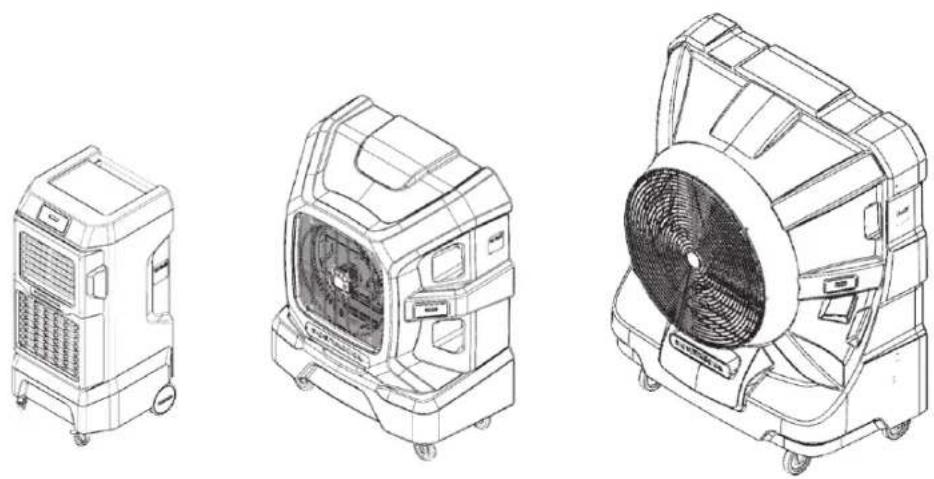
On your new Portacool Apex series evaporative cooler purchase! Get ready to take your cooling experience to new heights. Here are some valuable tips for you to ensure an unparalleled cooling journey.
INTRODUCTION
text_image
Cool Air Hot Air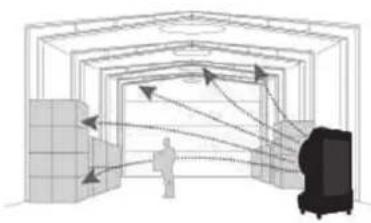
natural_image
Diagram of a person inside a tunnel with directional arrows indicating flow or movement, no text or symbols present.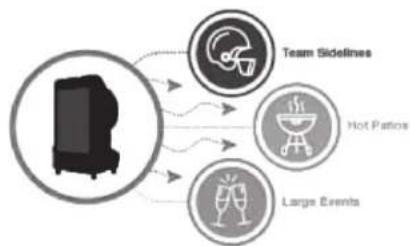
flowchart
graph TD
    A["Robot Icon"] --> B["Team Sidelines"]
    A --> C["Hot Patches"]
    A --> D["Large Events"]
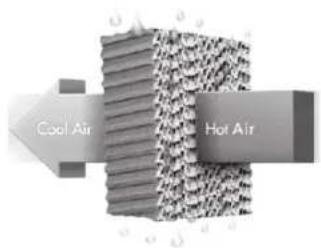
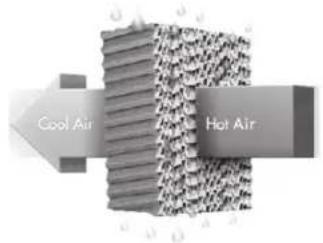
Evaporative coolers are not air conditioners. The key difference is that they cool the air naturally and efficiently by adding humidity to the air stream. Water will circulate over the evaporative cooling media. As the fan pulls air through, the water evaporates, unleashing incredible cooling power!
It is important to position the cooler in a well-ventilated area with plenty of access to outside air for optimal cooling performance. Suppose you are cooling a shop or a semi-enclosed area. In that case, we recommend placing the back of the cooler to allow warm outside air to pull through the cooler while a constant source of cool fresh air is pushed into the space. For the proper amount of airflow, be sure to leave a door or window open.
Don't forget to take the power of evaporative cooling with you! Evaporative cooling can transform many spaces, such as patios, sports fields, garages, campsites, and outdoor events.
PORTACOOL.
OVERVIEW

text_image
WARNING: Consult Owner's Manual. Service by trained personnel recommended. Rotating fan blades Can cause serious injury or cut. Keep hands clear. Turn off product before servicing. Hazardous voltage inside Disconnect power before servicing. GFT device required. Some components flammable Keep flames and heat away. Do not run pump without water in product Can cause damage to components.Models: PACA05001A1 PACA07001A1
text_image
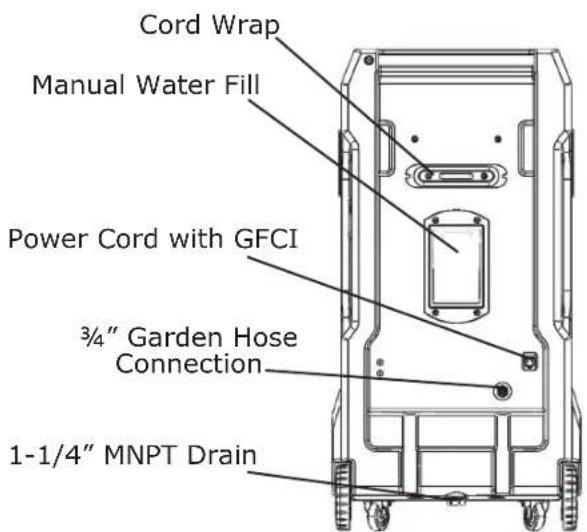
Cord Wrap Manual Water Fill Power Cord with GFCI 3/4" Garden Hose Connection 1-1/4" MNPT Drain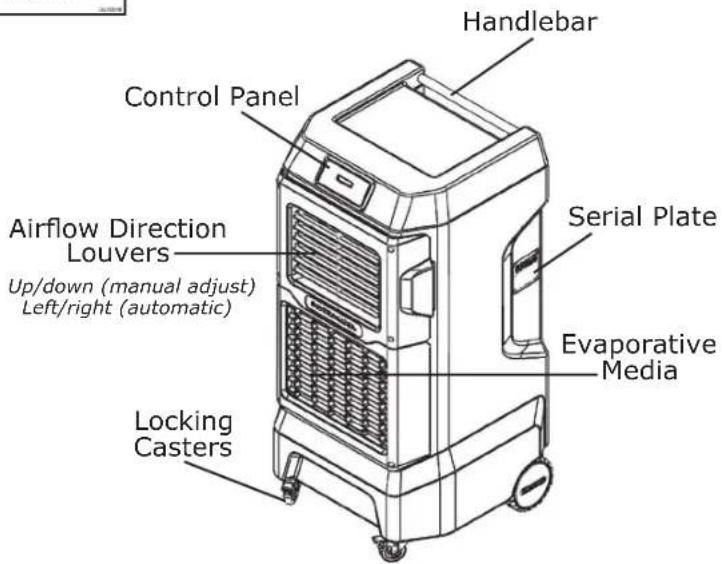
text_image
Handlebar Control Panel Airflow Direction Louvers Up/down (manual adjust) Left/right (automatic) Serial Plate Evaporative Media Locking CastersOVERVIEW

text_image
WARNING: Consult Owner's Manual. Service by trained personnel recommended. Rotating fan blades Can cause serious injury or cut. Keep hands clear. Turn off product before servicing. Hazardous voltage inside Disconnect power before servicing. GFCI device required. Some components flammable Keep flames and heat away. Stop Do not run pump without water in product Can cause damage to components.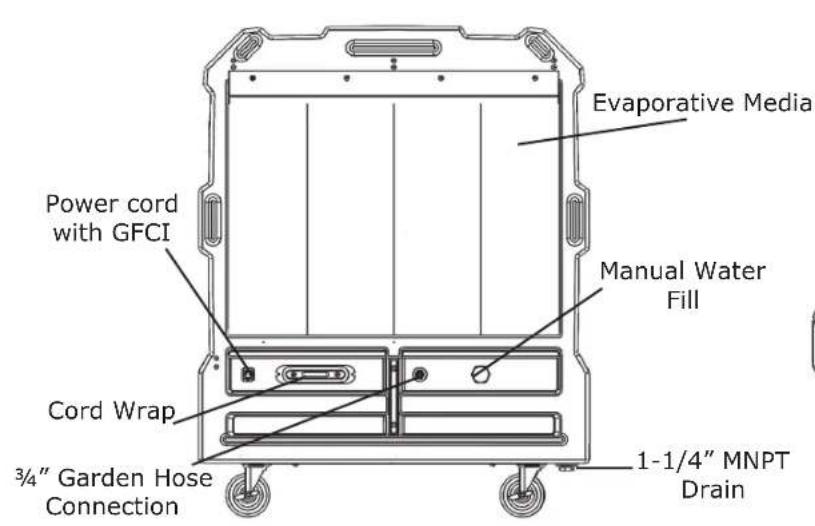
text_image
Evaporative Media Power cord with GFCI Manual Water Fill Cord Wrap 3/4" Garden Hose Connection 1-1/4" MNPT DrainModels: PACA12001A1 PACA20001A1
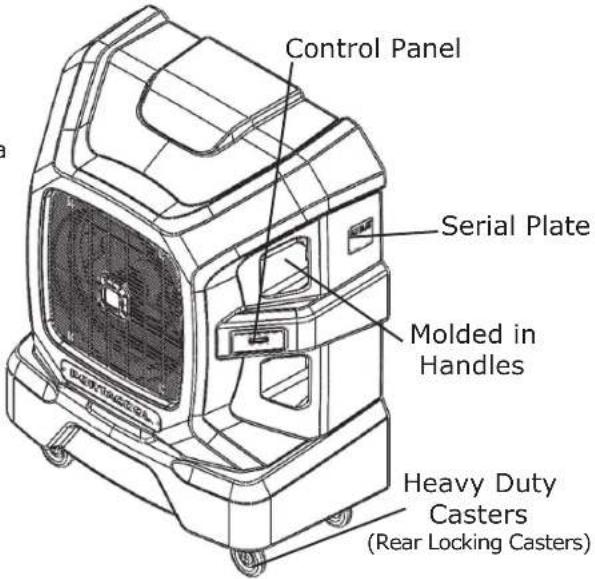
text_image
Control Panel Serial Plate Molded in Handles Heavy Duty Casters (Rear Locking Casters)PORTACOOL.
OVERVIEW

text_image
WARNING: Consult Owner's Manual. Service by trained personnel recommended. Rotating fan blades Can cause serious injury or cut. Keep hands clear. Turn off product before servicing. Hazardous voltage inside Disconnect power before servicing. GFCI device required. Some components flammable Keep flames and heat away. STOP Do not run pump without water in product Can cause damage to components.Models:
PACA40001A1
PACA65001A1
PACA12001A1
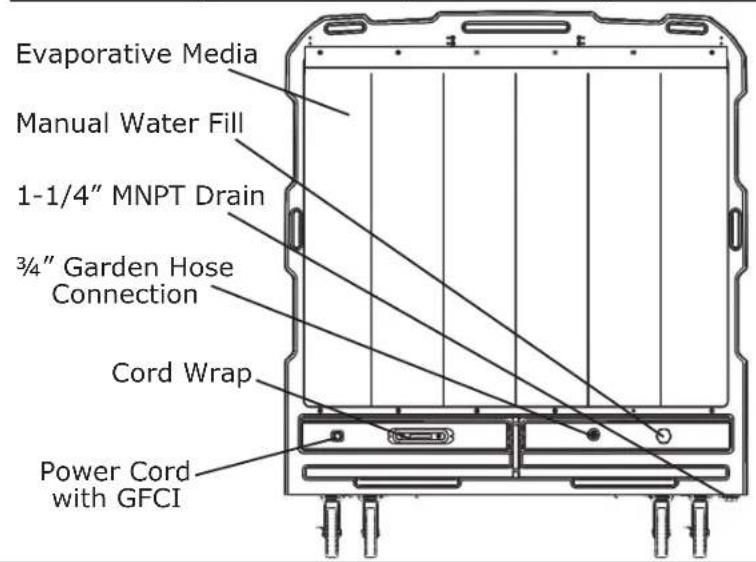
text_image
Evaporative Media Manual Water Fill 1-1/4" MNPT Drain 3¼" Garden Hose Connection Cord Wrap Power Cord with GFCI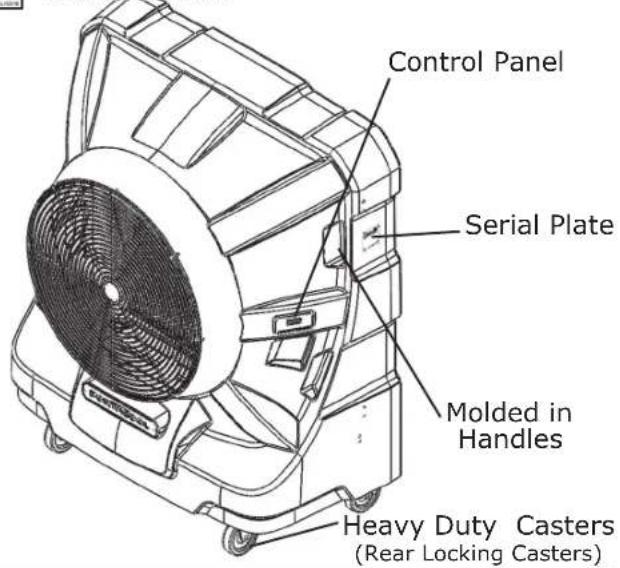
text_image
Control Panel Serial Plate Molded in Handles Heavy Duty Casters (Rear Locking Casters)OVERVIEW
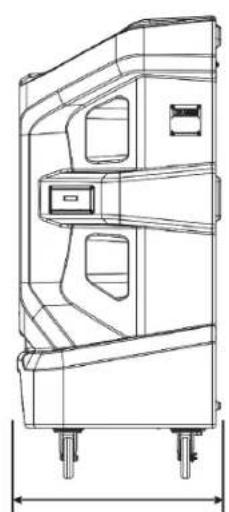
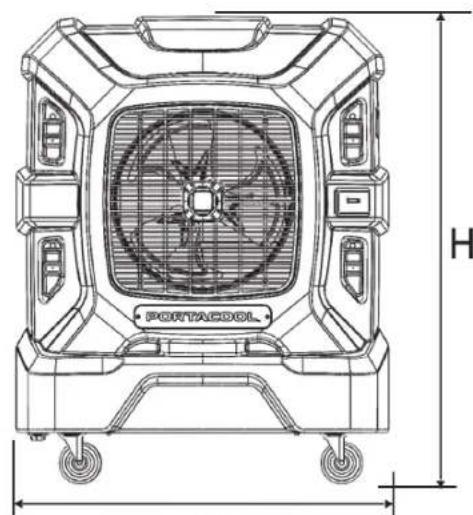
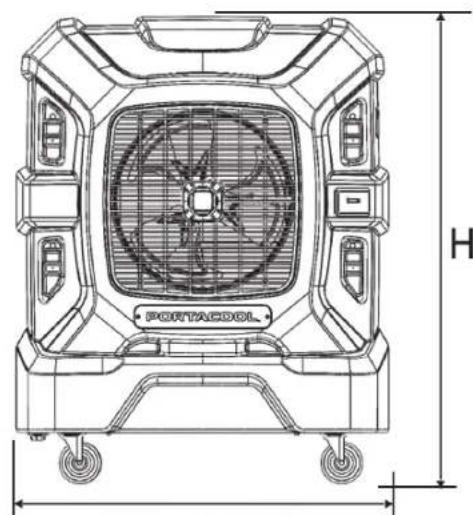
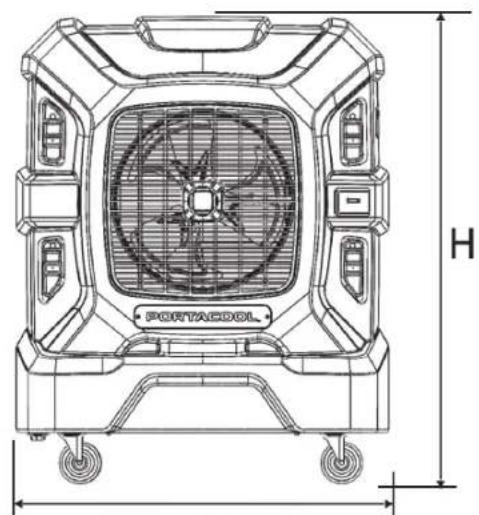
Note: Product data is an estimation and may be updated without prior notification.
natural_image
Technical line drawing of a mechanical device with wheels and internal compartments (no text or symbols)D
natural_image
Technical line drawing of a portable air purifier with fan and wheels, labeled 'PORTARDOL' and dimension 'H' (no text or symbols beyond labels)W
For more product information, visit our website, www.portacool.com, or scan the QR code below:

PORTACOOL.
QUICK START
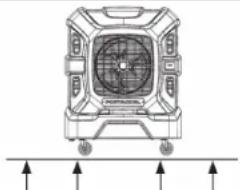
- Position
natural_image
Technical line drawing of a mechanical fan or vent assembly with mounting holes and directional arrows (no text or symbols)Position the cooler on a level surface while in use. Lock the caster wheels.
-
Fill with Water
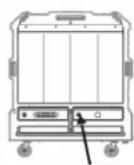
Fill the tank or attach a water hose. We recommend using the hose attachment with an automatic shut-off valve. -
Plug In
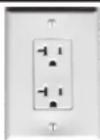
Be sure to plug it into an appropriate outlet. A dedicated 15A or 20A circuit is recommended. Avoid the use of extension cords for best performance. -
Press the power button
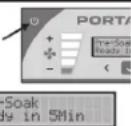
Pressing the power button on the cooler will begin a pre-soak function for the media. During this pre-soak, the fan will run at low speed (the LCD screen will display a countdown timer). -
Adjust Fan to Desired Speed
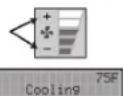
After each Pre-soak stage, the fan will return to its previous speed setting. Use the speed buttons to increase or decrease the fan speed if desired. Outlet air temperature will show in the upper right corner of the screen. -
Shut Down
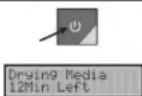
To shut down, press the power button once. If necessary, the fan will remain ON to dry the media, then automatically turn off and return to Standby mode when complete (the LCD screen will display a countdown timer). -
Lock Screen Feature
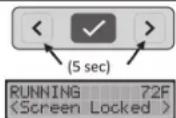
To lock the display screen, press both menu arrow buttons simultaneously for 5 seconds. To unlock, repeat the button and hold for 5 seconds.
DISPLAY FUNCTIONS
Models:
PACA05001A1
PACA07001A1
PACA12001A1
PACA20001A1
PACA40001A1
PACA65001A1
-
Power/Mode Button
-
Fan Speed Buttons
Fan Speed Indicator
PORTACOOL
Menu/Status Indicator Lights
-
Timer
-
Wi-Fi Connection
-
Schedule
-
*Airflow Direction
-
Alerts
-
Cooling Mode
-
Settings
-
Cooling Mode Button
Menu Select Button
Menu Scroll Buttons
Water Empty Indicator Light
*FEATURE ONLY ENABLED ON MODELS WITH AIR LOUVERS: PACA05001A1, PACA07001A1
PORTACOOL.
DISPLAY FUNCTIONS
1. Power/Mode Button
Press this button to start up and shut down your evaporative cooler.
- After the cooler is plugged in, the control will automatically go into Standby Mode.
- To turn on the evaporative cooler, press the power/mode button. The cooler will start circulating water to pre-soak the media for optimal cooling. The fan will run at low speed during the pre-soak process until the cycle is complete. Once the pre-soak cycle is done, the fan and cooling modes will automatically return to their previous settings. Note: Pressing the fan speed buttons will exit the evaporative cooler from pre-soak mode.
- Press the power/mode button
once to shut down your evaporative cooler. If the media is wet, the cooler will automatically dry it, and the shutdown timer will begin. Once the timer is complete, the cooler will return to Standby Mode. If the water system is not running, the cooler will go directly to Standby Mode without following the drying process. Note: to bypass the automatic media drying, press the power/mode button again to go directly to standby mode.
- Press and hold the power/ mode button for 3 seconds to turn off the evaporative cooler and control panel. Once turned off, the LED will also turn off. Note: when in OFF mode, the cooler cannot be directly controlled from the app and will not run previously configured schedules unit it is returned to standby.
2. Fan Speed Buttons
Press the +/- buttons to increase or decrease the fan's speed.
- There are five fan speeds, and the blue light bars indicate the current speed setting.
3. Cooling Mode Button
Press to manually turn the water system on and off or to change the cooling mode.
- Pressing the cooling button once will turn on cooling to the previous mode. Use the < > arrows in the menu to change the mode on the LCD screen if desired. Note: it is unnecessary to toggle the cooling mode button once it's set to your preference.
- There are three cooling modes: - Max cooling (recommended)
DISPLAY FUNCTIONS
- The cooler automatically optimizes the water flow rate to deliver maximum cooling and temperature drop based on surrounding air conditions. - Eco - Use this mode if you are in a very hot/dry climate and are willing to sacrifice a little cooling to consume less water. Water flow rate and consumption will be reduced. - Manual - This mode allows for precise water flow rate control to dial in your preferred cooling experience. Settings 1-5 correspond to water flow rate from low to high. It is recommended for experienced users only.
- Water Level Indicator These LED indicators display the reservoir's water level and give warnings when the level is low.
All five indicator bars will be blue when the reservoir is full. As the water level drops and it's time to refill, the last bar will illuminate yellow. However, the system will continue to cool. When the water level goes below the minimum operating level for the pump, the water empty indicator light will illuminate red, and the power supply to the pump will be shut off. Refilling the reservoir will allow the cooler to continue normal operation.
5. Airflow Direction
This feature allows for automatic air direction control to customize your cooling experience. Note: APEX 500 and APEX 700 models only.
- Navigate to 'Airflow' on the LCD screen menu and use the < > buttons to choose from one
of 3 Airflow direction modes: - Sweep – The vertical louvers will oscillate left to right to provide a sweeping range of airflow. The blue Airflow direction light will remain illuminated in sweep mode. - Narrow – The airflow is channeled towards the center for maximum velocity and reach. - Wide–The louvers move outwards to diffuse the air, providing a wider coverage area of steady flow. Note: You can customize your cooling experience with precise louver control by using the CoolSync™ App!
6. Timer
Allows you to set an automatic run-time duration.
- To set a timer, navigate to the 'Timer' option on the LCD screen
DISPLAY FUNCTIONS
menu. Then, use the < > buttons to choose the desired duration for the timer. After the timer is complete, the cooler will return to Standby mode and automatically dry the media if it is wet.
7. Alerts
This feature notifies you of potential issues with operating your APEX ^™ evaporative cooler.
Navigate to 'Alerts' on the LCD screen menu and use the < > buttons to view any active alert codes. See the "Alert Codes" section of this manual for more details. The Alert icon will illuminate yellow for warnings and red for critical alerts.
LED STATUS ICONS
The following table gives a summary of the LED light status indicators for the control
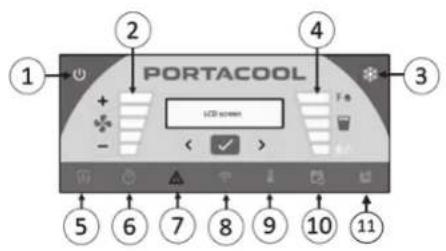
text_image
PORTACOOL 1 2 3 4 5 6 7 8 9 10 11Button/Icon Color LED Status Cooler status
| 1. Power/Mode Button Yellow | ON (Solid) | Cooler is currently in Standby | |
| Blinking | Cooler is currently Drying Media | ||
| OFF | Cooler is currently OFF | ||
| ON (Solid) | Cooler is currently Running | ||
| Blinking | Cooler is currently Pre-Soaking Media | ||
| 2. Fan Speed Buttons Blue | ON (Solid) | Light bars represent speeds 1-5 | |
| OFF | Fan is OFF | ||
PORTACOOL.
LED STATUS ICONS
Button/Icon Color LED Status Cooler status
| 3. Cooling Mode Button Blue | ON (Solid) | Max Cooling Mode or Manual Mode Enabled | |
| Blinking | Max Cooling Mode or Manual Mode is enabled, and cooler is pre-soaking media. | ||
| ON (Solid) | ECO Mode is Enabled | ||
| Blinking | ECO mode is enabled, and cooler is pre-soaking media. | ||
| OFF | Cooling mode is OFF | ||
| 4. Water Level Indicator | Blue | ON (Solid) | Blue light bars correspond to an estimate of the amount of water remaining in reservoir (5=100%, 4=80%, 3=60%, 2=40%, 1=20%). |
| Yellow | ON (Solid) | Water level is below 20% and should be refilled soon. | |
| Red | ON (Solid) | Water reservoir is empty or below the minimum level required for pump operation (cooling mode). | |
| Blinking | Cooling mode is enabled but the water level is below the minimum, so the pump is disabled. Refill to resume normal operation. | ||
LED STATUS ICONS
Button/Icon Color LED Status Cooler status
| 5. Airflow Direction (APEX 500/700) | Blue OFF | Airflow Direction is set to narrow or wide mode | |
| ON (Solid) | Airflow Direction is set to sweep mode | ||
| Blinking | Airflow Direction menu is selected | ||
| 6. Timer Blue OFF | No timer is active | ||
| ON (Solid) | Timer is on and there is a countdown timer | ||
| Blinking | Timer menu is selected | ||
| 7. Alerts Yellow | ON (Solid) | There is one or more warning messages active | |
| Blinking | Alerts menu is selected | ||
| ON (Solid) | There is one or more critical alerts active | ||
| 8. Wi-Fi Connection Blue ON (Solid) | Cooler is currently connected to the Cool-Sync Cloud | ||
| Blinking (slow) | Cooler is attempting to connect to the Wi-Fi network | ||
| Blinking (fast) | Wi-Fi menu is selected | ||
PORTACOOL.
LED STATUS ICONS
Button/Icon Color LED Status Cooler status
| 8. Wi-Fi Connection Cont. | Yellow | Blinking | Cooler is connected to the Wi-Fi network but can't reach the CoolSync Cloud |
| OFF | OFF | Wi-Fi is disabled | |
| 9. Cooling Mode Blue | ON (Solid) | Cooler is running on a schedule programmed with the CoolSync APP | |
| Blinking | Schedule menu is selected | ||
| Yellow | ON (Solid) | There is an active schedule programmed with the CoolSync APP | |
| OFF | OFF | No schedule is programmed | |
| 10. Schedule | Blue | Blinking | Settings menu is selected |
ALERT CODES

text_image
WARNING: Consult Owner's Manual. Service by trained personnel recommended. Rotating fan blades Can cause serious injury or cut. Keep hands clear. Turn off product before servicing. Hazardous voltage inside Disconnect power before servicing. GFC device required. Some components flammable Keep flames and heat away. Stop Do not run pump without water in product Can cause damage to components.Alert Code Alert Text Description Possible Causes & Remedies
| 1.1 FAN ERR The fan does not ap-pear to be running as intended | 1. Check if the fan is running and providing expected airflow, if operation appears normal then disregard the error. If issues are present, disconnect power and proceed to step 2.2. Check for broken or pinched wires or connectors. If wires are damaged do not attempt to repair, instead replace the fan motor.3. Check the fan connector attachment to the control module to ensure the fit is snug. Unplug and clean out terminals if necessary. Plug in and recheck fan operation. If the fan still does not operate, replace the motor. |
| 1.2 FAN ERR The load on the fan is higher than expected | 1. Check for fouling of the evaporative media (debris, scale, blockages). Clean or replace media if necessary. |
PORTACOOL.
ALERT CODES
Alert Code Alert Text Description Possible Causes & Remedies
| 1.2Cont. | FAN ERR The load on the fan is higher than expected | 2. If an extension cord is being used, make sure it meets the size and length requirements in the Safety section of this manual. Remove/replace if necessary.3. Have a certified electrician inspect the wall outlet circuit. |
| 2.1 PUMP ERR The pump does not appear to be running as intended | 1. Turn cooling mode to Max Cooling and listen for water circulation and look for proper media wetting. If water is not circulating, disconnect power and proceed to step 2.2. Check for broken or pinched wires or connectors. If wires are damaged do not attempt to repair, instead replace the pump.3. Check the pump connector attachment to the control module to ensure the fit is snug. Unplug and clean out terminals if necessary. Plug in and re-check pump operation. Replace the pump if necessary. | |
| 2.2 | PUMP ERR The load on the pump is higher than expected | 1. If an extension cord is being used, make sure it meets the size and length requirements in the Safety section of This manual. Remove/replace if necessary. |
ALERT CODES
Alert Code Alert Text Description Possible Causes & Remedies
| 2.2 | PUMP ERR The load on the pump is higher than expected | 2. Have a certified electrician inspect the wall outlet circuit.3. Replace pump if necessary. | |
| 3.1 | L LVR ERR | Left side air louver error | 1. Select “Sweep” mode in the airflow menu and check for proper function. Both louvers should sweep back and forth in unison.2. Check for any blockages to louver motion (dirt, debris, etc.). Remove and clean.3. Replace the louver shroud assembly if necessary. |
| 3.2 | R LVR ERR Right side | air louver error | 1. Select “Sweep” mode in the airflow menu and check for proper function. Both louvers should sweep back and forth in unison.2. Check for any blockages to louver motion (dirt, debris, etc.). Remove and clean.3. Replace the louver shroud assembly if necessary. |
NOTE: If you continue to see alert codes, visit Portacool.com for help or contact the customer care team.
PORTACOOL.
ALERT CODES
Alert Code Alert Text Description Possible Causes & Remedies
| 4.1 | WLS ERR The water level sensor appears to be malfunctioning. | 1. Disconnect power and check the water level sensor connector. Clean and reconnect.2. Replace water level sensor if necessary. |
| 4.2 | WATER LOW The water level is getting very low. | Refill the water reservoir soon. |
| 4.3 | NO WATER The water level is too low to continue cooling. | Refill the water reservoir to continue normal operation. |
| 4.4 | OVER FILL The water level appears to be too high. | 1. Shut off the water supply.2. Check that the float shutoff valve is positioned straight up and down, adjust if necessary.3. Turn on the water supply and check for leaks when the float is in the top (off) position. Replace if necessary. |
| 5.7 | EXIT T ERRThe Exit Temperature Sensor is not functioning correctly. | The exit air temperature sensor is located in the wiring harness of the water level sensor.1. Disconnect power and check the water level sensor connector. Clean and reconnect.2. Replace water level sensor if necessary. |
ALERT CODES
Alert Code Alert Text Description Possible Causes & Remedies
| 6.1 | LOW VOLT The input voltage is too low for the cooler to operate as intended. | 1. If an extension cord is being used, make sure it meets the size and length requirements in the Safety section of this manual. Remove/replace if necessary.2. Have a certified electrician inspect the wall outlet circuit. |
| 6.2 | HIGH VOLT The input voltage exceeds the operating range of this cooler. | Have a certified electrician inspect the wall outlet |
Visit our product support page for the most up-to-date manual, alert codes, and instructional videos!
Order parts online at portacoolparts.com

PORTACOOL.
PORTACOOL COOLSYNC™ APPLICATION
Portacool CoolSync™ Application
The Portacool CoolSync™ app seamlessly connects your smartphone to the Apex series of evaporative coolers. Once your cooler is configured on a Wi-Fi network and linked to the CoolSync Cloud, you can remotely operate it through the app, regardless of location. Plus, the app offers some features, such as:
- Remote control and monitoring of your evaporative cooler with push notifications.
- The ability to manage multiple Portacool Apex evaporative coolers in a group.
- Convenient scheduling options.
- Keep an eye on your cooler's water level.
- Quick access to product manuals and support information.
How to Get the CoolSync App
- Go to your smartphone's app store (Apple App Store for iPhone or Google Play Store for Android)
- Search for "Portacool" and download the Portacool CoolSync™ mobile app.
- Once it is downloaded, open the app.
- Sign in if you already have an account or create a new account if you do not.
- Follow the simple on-screen instructions to add your new cooler to your account.
MAINTENANCE
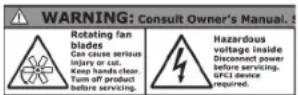
Important Reminder: Safety First!
Before you start maintenance on your Apex evaporative cooler, disconnect the power by unplugging the cord from the outlet. Always perform maintenance in a safe area.
Regular Maintenance
- Drain the Reservoir Weekly: To ensure your cooler works efficiently, drain the water reservoir at least once weekly. This will help minimize any order due to stagnant water. Remove the drain cap and let all the water drain out. Check inside the reservoir for any dirt, debris, or scale build-up, and clean it as needed. When replacing the drain cap, ensure its hand-tightened but not overly tightened.
- Clean the Evaporative Media: To maintain optimal performance, periodically clean the evaporative media to remove dirt, debris, or scale build-up. Use clean water from a hose (a spray nozzle) and a soft bristle brush to clean the outer edges of the media. For more detailed cleaning instructions, refer to our online product support page.
- Address Hard Water Issues: If your water quality is less than ideal due to hard water, you can purchase Portacool Hard Water Treatment™ at www.portacool.com/shop or from an authorized distributor. This treatment changes the ionic structure of minerals in your water, keeping them off the media. It enhances cooling efficiency, prevents scale build-up, reduces equipment corrosion, and prolongs the life of the evaporative media.
PORTACOOL.
MAINTENANCE
Proper Storage
- Drain and Clean: Before storing your cooler, drain all the water from the tank and wipe it clean. Make sure both the evaporative media and the tank are dry.
- Secure the Power Cord: Roll up the power cord and attach it to the cord wrap, preventing tripping hazards or damage to the cord.
- Cover and Store: To prevent dust build-up and protect your cooler, cover it completely. Store it in a dry area. Optional protective covers are available from your distributor or at www.portacool.com/shop.
Following these simple steps will keep your Apex evaporative cooler running smoothly and prolong its lifespan. If you require further assistance or have questions, please refer to our online support resources or contact our customer care team.
Visit our product support page for the most up-to-date manual, alert codes, and instructional videos!
Order parts online at portacoolparts.com

TROUBLESHOOTING
It is essential to disconnect power by unplugging the power cord from the outlet before attempting to fix any issues with your evaporative cooler. If you are experiencing a problem that is not listed here, please visit our support page, or contact our Customer Care team for help. Your safety is our top priority!
Symptom Possible Causes Remedies
| Cooler will not power ON | Circuit breaker tripped | Reset circuit breaker. If the issue persists, call a certified electrician. |
| Power cord unplugged or damaged | Replace the power cord if necessary. | |
| GFCI tripping | 1. Plug in power cable, press “test” then “retest” and check for red light on GFCI.2. If there is no red light on GFCI, check power supply and replace GFCI if necessary.3. If GFCI has a red light and control is in Standby mode (Yellow LED on power button):a. Press the “+” fan speed button and check fan operation. If GFCI trips, replace fan.b. If the fan runs, press the Cooling Mode button, and select Max Cooling. If GFCI trips, replace pump.4. If the problem persists, replace GFCI. |
PORTACOOL.
TROUBLESHOOTING
Symptom Possible Causes Remedies
| Cooler will not power ON Cont. | Faulty Control 1. Unplug and re-plug-in the power cable.2. Check for red light illumination on GFCI.3. If the GFCI light is red but the control does not illuminate and go into Standby Mode after being plugged back in, replace control. | |
| Cooler starts, but air deliver is not adequate | Fan error codeMedia fouling is restricting airflowCapacitor failure | Check for fan error codes in Alerts menu and consult the Alert Codes section of this manual.Clean evaporative media of any dirt or debris.If scale build-up is present, consult the online product support page for instructions on rinsing media using household white vinegar.Check and replace fan motor capacitor. |
| Musty or unpleasant odor | Stale or stagnant water in tankDirty evaporative media | Drain, flush, and clean tank.Clean evaporative media of any dirt or debris.If mold or algae is present, consult the online product support page for instructions on rinsing media using household bleach.Replace media |
TROUBLESHOOTING
It is essential to disconnect power by unplugging the power cord from the outlet before attempting to fix any issues with your evaporative cooler. If you are experiencing a problem that is not listed here, please visit our support page, or contact our Customer Care team for help. Your safety is our top priority!
| Symptom Possible Causes Remedies | ||
| Water droplets in the air stream | Dirty evaporative media does not absorb water efficiently | 1. Clean evaporative media2. If the problem persists, replace evaporative media. |
| Gaps between media pads | Make sure the cooler is level. Adjust pads so there are no gaps between each block. | |
| Too much water being delivered to media | 1. Check spray bar for clogs, clean or replace as necessary.2. Reduce water flow rate by changing Cooling mode to Eco or Manual and selecting a lower pump speed. | |
| Insufficient water flow or media wetting | The pump does not appear to be running as intended | 1. Check spray bar for clogs, clean or replace as necessary.2. Increase water flow rate by changing Cooling mode to Max Cooling or Manual and selecting a higher pump speed. |
PORTACOOL.
WARRANTY
TECHNICAL SUPPORT
If you need technical support or service for your Portacool product, we're here to help. You can contact your nearest distributor or call Portacool, LLC Customer Care at (800) 695-2942. Our team can assist you with troubleshooting and provide guidance on parts replacement. To make the process smoother, please have your evaporative cooler's serial number and model number ready when you contact us.
WARRANTY AND REPLACEMENT PARTS
Portacool™ Evaporative Cooler Limited Warranty
We want you to have peace of mind when you choose Portacool. That's why we offer a limited warranty for three (3) years from the date of purchase on any original component part or parts of our Portacool™ portable evaporative coolers (referred to as the "Equipment"). This warranty covers defects in material or workmanship and ensures your investment is protected.
Specifically for our Apex 500, 700, 1200, 2000, 4000, and 6500 models, we go the extra mile. We provide a Lifetime Warranty on the product housings, guaranteeing their quality. However, please note that this Lifetime Warranty will become void if the housing is misused, abused, or tampered with by unqualified personnel. It does not cover normal wear and tear and is non-transferable.
WHAT TO EXPECT IN CASE OF A DEFECT
If, within the warranty period, your Equipment or its original component parts develop a defect covered by this warranty, you have options. You can repair it yourself after receiving the necessary parts from Portacool or have it entirely replaced with a brand-new product of the same model, as per Portacool's discretion.
WARRANTY
SHIPPING CHARGES
Please remember that any transportation charges for sending the Equipment or its component parts for replacement or repair under this warranty will be your responsibility as the purchaser.
VOIDING THE WARRANTY
This warranty becomes void if:
- The Equipment or its component parts have been misused, abused, repaired, or tampered with by unqualified individuals.
- Any of the product's component parts have been replaced with unauthorized Portacool replacement parts.
- The product has been modified in any way except for repairs made by qualified individuals using Portacool replacement parts.
- The product has not been registered appropriately by its original purchaser.
- The customer cannot provide proof of purchase as the product's original owner.
PORTACOOL LIMITATION OF LIABILITY
In the event of a breach of any implied or written warranty related to the Equipment or its parts, Portacool's liability is limited. We will not be liable for any incidental or consequential damages, and our liability for such breaches will not exceed the cost of replacement or repair of the Equipment. Your satisfaction is essential to us, and we're committed to providing you with top-quality products and support.
PORTACOOL.
CONTACT US
ENGLISH
CUSTOMER SERVICE CONTACT
1-936-598-5651
1-800-695-2942
SUPPORT@PORTACOOL.COM
TECHNICAL/PARTS CONTACT
1-936-598-5651
1-800-695-2942
SUPPORT@PORTACOOL.COM
VISIT PORTACOOL.COM OR CALL
1-936-598-5651
FOR MORE INFORMATION
PORTACOOL, LLC
Manufacturer of Portacool™
portable evaporative coolers
711 FM 2468
Center, Texas 75935
936-598-5651
www.portacool.com
ESPAÑOL
CONTACTO DE SERVICIO AL CLIENT
1-936-598-5651
1-800-695-2942
SUPPORT@PORTACOOL.COM
1-936-598-5651
1-800-695-2942
SUPPORT@PORTACOOL.COM
natural_image
Diagram of a warehouse interior with conveyor belts and directional arrows indicating movement (no text or symbols)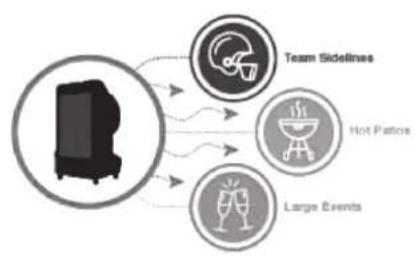
flowchart
graph TD
    A["Team Sidelines"] --> B["Hot Patches"]
    A --> C["Large Events"]
    B --> D["Central Device Icon"]
    C --> D
natural_image
Technical line drawing of a vehicle door frame with wheels and doorways (no text or symbols)D
natural_image
Technical line drawing of a portable air purifier with fan and wheels, labeled 'PORTARDOL' and dimension 'H' (no text or symbols beyond labels)W
natural_image
Diagram of a mechanical fan or vent system with directional arrows indicating force or movement (no text or symbols present)natural_image
Front view line drawing of a small electronic device chassis with wheels and control panel (no text or symbols)natural_image
Electrical outlet wall with three socket plugs (no text or symbols visible)text_image
PORT Pre-Soak Ready in 5Mintext_image
PORTACOOL LCD screen ① ② ③ ④ ⑤ ⑥ ⑦ ⑧ ⑨ ⑩ ⑪Manufacturer of Portacool™
portable evaporative coolers
711 FM 2468
Center, Texas 75935
936-598-5651
www.portacool.com
ESPAÑOL
CONTACTO DE SERVICIO AL CLIENT
1-936-598-5651
1-800-695-2942
SUPPORT@PORTACOOL.COM
1-936-598-5651
1-800-695-2942
SUPPORT@PORTACOOL.COM
natural_image
Line drawings of three different air purifiers with different fan designs (no text or labels)PORTACOOL.
INTRODUCTION
text_image
Cool Air Hot Airnatural_image
Diagram of a person inside a large industrial chamber with conveyor belts and directional arrows indicating flow or movement (no text or symbols)flowchart
graph TD
    A["Team Sidelines"] --> B["Hot Patios"]
    A --> C["Large Events"]
    B --> D["Central Monitor Icon"]
    C --> D
natural_image
Technical line drawing of a mechanical device with wheels and internal compartments (no text or symbols)D
text_image
PORTACOOL HW
natural_image
Technical diagram of a mechanical device with mounting holes and internal fan structure (no text or symbols)natural_image
Front view line drawing of a vehicle chassis with wheels and control panel (no text or symbols)natural_image
Close-up of a wall-mounted electrical socket with three outlets (no text or symbols visible)text_image
PORTA Pre-Soak Ready in 5MinManufacturer of Portacool™
portable evaporative coolers
711 FM 2468
Center, Texas 75935
936-598-5651
www.portacool.com
ESPAÑOL
CONTACTO DE SERVICIO AL CLIENT
1-936-598-5651
1-800-695-2942
SUPPORT@PORTACOOL.COM
1-936-598-5651
1-800-695-2942
SUPPORT@PORTACOOL.COM