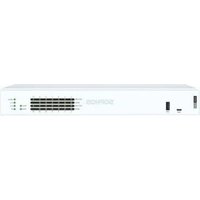
XGS 126 - Firewall SOPHOS - Free user manual and instructions
Find the device manual for free XGS 126 SOPHOS in PDF.


| Product Type | Hardware Firewall (Network Security Appliance) |
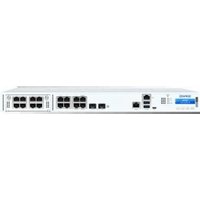
| Model | Sophos XGS 126 |
| Dimensions (approx.) | Rack-mountable 1U, standard 19-inch width |
| Weight (approx.) | Approximately 3 kg (depending on configuration) |
| Power Supply | External power adapter 100-240 V AC, mains power cable included |
| Power Consumption | Not specified in the manual |
| Network Ports | 12 Ethernet RJ45 ports (10/100/1000 Mbps) and 2 SFP ports (1 Gbps) |
| PoE Ports | Ports 11 and 12 (RJ45) support PoE 802.3af/at up to 30W each; port 8 PoE on XGS 116 |
| Console Ports | 1 micro USB (front) and 1 RJ45 COM (rear) for serial console |
| USB Ports | 1 USB 2.0 (front), 1 USB 3.0 (rear) |
| Expansion Bay | 1 modular slot for optional 3G/4G or Wi-Fi module |
| Main Functions | Firewall, routing, VPN, web filtering, network protection |
| Initial Configuration | Default LAN port IP address: 172.16.16.16, username: admin, password: admin |
| LED Indicators | Status LED (green blinking during startup, solid green when operating); Wi-Fi LED (green); PoE LED; Link/activity LED on each port |
| Cooling | Passive (fanless?) – not specified |
| Operating Temperature | Not specified |
| Humidity | Not specified |
| Maintenance and Cleaning | Clean with a dry, soft cloth. Do not use solvents. Disconnect before cleaning. |
| Safety | Use in a dry, well-ventilated area. Avoid exposure to water or extreme temperatures. |
| Spare Parts and Repairability | SFP modules sold separately. Optional redundant power supply. Technical support via Sophos. |
Frequently Asked Questions - XGS 126 SOPHOS
User questions about XGS 126 SOPHOS
0 question about this device. Answer the ones you know or ask your own.
Ask a new question about this device
Download the instructions for your Firewall in PDF format for free! Find your manual XGS 126 - SOPHOS and take your electronic device back in hand. On this page are published all the documents necessary for the use of your device. XGS 126 by SOPHOS.
USER MANUAL XGS 126 SOPHOS
For more information about your appliance, scan the QR code or visit www.sophos.com/get-started-firewall
Before you begin, please confirm that you have a working Internet connection and make sure you have the account information available that was provided by your ISP.
1. Before Deploying
Congratulations on the purchase of your Sophos XGS appliance. This Quick Start Guide describes in short steps how to connect your appliance and explains how to open the web-based Admin Console from your administration PC. The Admin Console allows you to configure every aspect of the appliance.
a) What is included in the box

XGS 116[w]/126[w]/136[w]
This Quick Start Guide and Safety Instructions
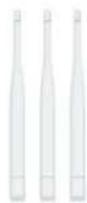
3 antennas
(XGS 126w/136w model,
2 on XGS 116w model)
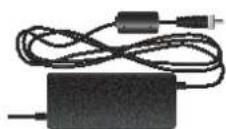
Power Adapter
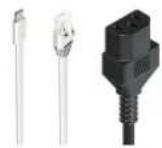
Micro USB cable
RJ45 Ethernet cable
Power cable
ENGLISH
b] Appliance images: front and back
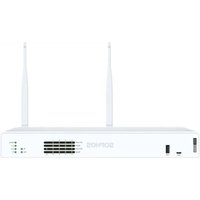
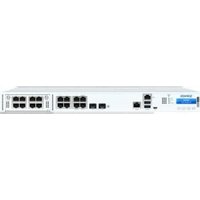
XGS 116[w]
![1x USB 2.0 Status LEDs (w-model has additional WiFi LED) 1x COM Micro USB 2 x external antenna [XGS 118w only] 1x COM (RJ45) F11 x SFP fiber port 1x GbE copper port Optional module expansion bay 1x USB 3.0PoE suppohopper port 1x GbE PoE port Connector for optional 2nd redundant power supply](/content/2026/04/723645/images/a4d5177ff6b94abce5b317d159b1fcd15865d19845ca1b944b3858fd242e171c.jpg)
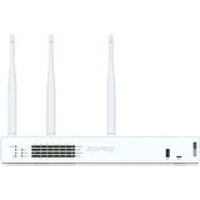
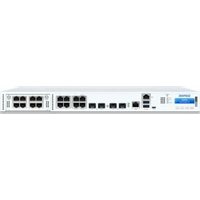
XGS 126(w)/136(w)
![1x USB 2.0 1 x COM Micro USB 3 x external antenna (XGS 126w/136w only) 1 x COM [RJ45] F1-F2 2 x SFP fiber ports Connector for optional 2° redundant power supply 1 x USB 3.0 Power slot PbE copper port 2 x 2.5 GbE PoE port [136(w)] 2 x GbE PoE port [126(w)] Status LEDs [w-model has additional WiFi LED]](/content/2026/04/723645/images/3813090a66f46de95dfbf897b8600152257968493093a664da4c03054103f1ed.jpg)
Interfaces
| LAN Ports Type Speed Comment | |||
| 1-8 | RJ45 | 10/100/1000 Mbps | Port 8 on XGS 116(w) can be used to power a connected device (e.g. access point, IP camera, or IP Phone) via PoE with upto 30W (PoE 802.3at). |
| 9-10(XGS 126(w)/136(w) only) | RJ45 100/1000 Mbps | ||
| 11-12(XGS 126(w)/136(w) only) | RJ45 XGS 126(w):100/1000 MbpsXGS 136(w):100/1000/2500 Mbps | Both ports can be used to power a connected device (e.g. access point, IP camera, or IP Phone) via PoE with upto 30W (PoE 802.3at) each. | |
| F1 SFP 1 Gbps SFP transceivers are sold separately. | |||
| F2(XGS 126(w)/136(w) only) | SFP 1 Gbps | SFP transceivers are sold separately. | |
| Other Ports Type Comment | ||
| COM Micro USB [front] | RJ45 [back] | You can connect a serial console to the Micro USB or RJ45 COM port to access the CLI. Only one port can be used at any time. If both ports are connected, then the Micro USB port will take precedence.The required connection settings are:Bits per second: 38,400Data bits: 8Parity: N [none]Stop bits: 1 |
| USB | USB 2.0 [Type A] [front]USB 3.0 (Type A) [back] | You can connect a USB 2.0 and/or 3.0 compatible device to these ports [e.g. USB thumb drive, UPS, 3G/4IG dongles]. |
| Expansion Bay | Comment |
| 3G/4G Module | Can be used for Sophos XGS 3G/4G Module, which is optionally available from your Sophos partner. |
| WiFi Module | Can be used for Sophos XGS WiFi Module, which is optionally available from your Sophos partner. |
ENGLISH
2. Mount and Connect the Appliance
Mount the antennas (for wireless models only)
Connect the provided antennas to the connectors on the back of your appliance and align them in a vertical position.
Connect the ports to the internal and external networks
- Connect the port 1/LAN via a switch to the internal network. For this purpose, use the RJ45 Ethernet cable provided. Note that your Administration PC must also be connected to this network.
- Connect Port 2/WAN to the external network. The connection to the WAN depends on the type of Internet access.
XGS appliances are shipped with the following default settings:
| Ethernet Port IP Address Zone | ||
| 1/LAN 172.16.16.16/255.255.255.0 LAN | ||
| 2/WAN DHCP WAN | ||
| Admin Console Username Admin Console Password | CLI Console Password | |
| admin admin admin | ||
| Default Gateway DNS DHCP Service | ||
| DHCP DHCP Enabled | ||
Mount the appliance to the rack
If you want to mount the device within a rack please use the optionally available rackmount kit for this device.
3. Power Up the Appliance
Connect the power cable and turn on the appliance
Connect the appliance to the power supply using the power cable(s). Turn the appliance on. The power switch is on the back of the appliance near the power connection. During boot up the Status LED on the front will blink green. Once the device has booted completely the Status LED will turn to solid green.
4. Connect Your Administration PC
Administration PC connection properties:
Use the settings below to configure your (PC/laptop) network interface:
IP address: 172.16.16.2
• Netmask: Enter 255.255.255.0
- Default Gateway: Enter the IP address of the appliance's internal network card (Port1/LAN): 172.16.16.16
- DNS Server: Enable this option and enter the IP address of the internal network card (Port1/LAN): 172.16.16.16
Connect your PC/laptop to Port 1/LAN of the appliance:
Start the browser and enter the IP address of the appliance's LAN port that your PC is connected to: https://172.16.16.16:4444
Login with the default details below:
Username: admin
Password: admin
ENGLISH
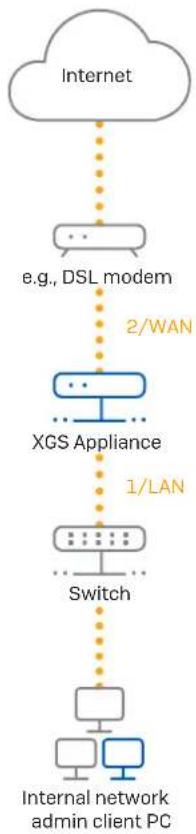
flowchart
graph TD
    A["Internet"] --> B["e.g., DSL modem"]
    B --> C["XGS Appliance"]
    C --> D["Switch"]
    D --> E["Internal network admin client PC"]
    style A fill:#ccc,stroke:#333
    style B fill:#fff,stroke:#333
    style C fill:#999,stroke:#333
    style D fill:#999,stroke:#333
    style E fill:#999,stroke:#333
ENGLISH
5. Set Up the Appliance
a) Start network configuration
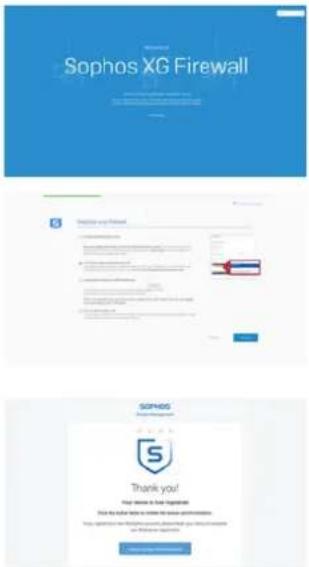
Select 'Click to begin' on the 'Welcome' screen to start your basic appliance configuration. Change the interface IP addresses, default gateway, DNS settings and date/time zone to match your local network settings.
b) Register the appliance
If you have not previously registered your appliance on MySophos, you will see the registration screen "Register Your Firewall." The appliance requires Internet connectivity for it to be registered with MySophos. If you want to register later, click the check box "I do not want to register now" and proceed with section c).
If you have a serial number provided on your License Schedule please enter it into the first field and click "I have an existing serial number," otherwise click "I don't have a serial number [Start a Trial]."
If you are upgrading from an existing UTM/SG appliance and want to migrate your existing UTM license to your new firewall, click the respective button on the screen and browse for your UTM license to upload it to your firewall.
After clicking 'Continue', you will be redirected to the MySophos portal. If you already have a MySophos account, enter your login credentials under 'Log in to MySophos'. If you are a new user, sign up for a MySophos account by entering the details under 'Register for MySophos'.
Click 'Continue' to complete the registration process. Please wait while the process completes – it will take a few seconds. After successful registration, you will see a screen with the message, 'Your device is now registered'. Please note that you should proceed with the next step, i.e. 'Synchronize License' only after the appliance is successfully registered.
c) Synchronize license
Click 'Initiate License Synchronization' to get the license information from Sophos onto the appliance. After synchronization, you will see a screen with the message, "Synchronization with server was successful."
ENGLISH
6. Connecting PoE Powered Devices
Ports 8 [on XGS 116[w] and 11/12 [on XGS 126[w]/136[w] are able to provide power over Ethernet (PoE) to a connected PoE device which conforms to the standards 802.3af (max. 15.4W) or 802.3at (max. 30W). Each port can provide up to 30 watts max.
Please note: If a high performance expansion module is used in a XGS 126[w] or XGS 136[w] module slot then the max. power of one PoE port will be limited to 15.4 watts.
Please visit www.sophos.com/en-us/support or contact your local Sophos reseller for more information about high performance expansion modules.
7. Appliance LED codes
| LEDs on each RJ45 Ethernet Connector | ||
| ACT/LNK(Left LED) | Green Solid 1. The Ethernet port has established link. | |
| 2. Good connection between the Ethernet port and hub. | ||
| Flashing The adapter is sending or receiving network data. | ||
| Off 1. The adapter and switch are not receiving power. | ||
| 2. No connection between both ends of network. | ||
| 3. Network drivers have not been loaded or do not function correctly. | ||
| Speed(Right LED) | Amber On If Ethernet port is operating at 1000 Mbps. | |
| Green On If Ethernet port is operating at 100 Mbps. | ||
| Off If Ethernet port is operating at 10 Mbps. | ||
ENGLISH
LEDs on each SFP Connector
| ACT/LNK Green Solid 1. The SFP connector is receiving power. | |
| 2. Good connection between the SFP port and hub. | |
| Flashing The adapter is sending or receiving network data. | |
| Off 1. The adapter and switch are not receiving power. | |
LEDs (Front)
| Storage Blue Flashing SSD is being accessed. | ||
| Status Green Solid Normal operation. | ||
| Flashing Device is booting up or shutting down. | ||
| Red Solid SSD or boot failure. | ||
| Flashing General error (please contact support). | ||
| WiFi Green On WiFi is active. | ||
| Off WiFi is inactive. | ||
| Power 1 Green Solid | Power adapter 1 in normal operation. | |
| Red Solid Power adapter 1 failed or disconnected. | ||
| Power 2 Green Solid | Power adapter 2 in normal operation. | |
| Red Solid Power adapter 2 failed or disconnected. | ||
| PoE LEDs [Front] | |||
| PoE1 Green Solid PoE1 providing power to connected device. | |||
| Blinking fast* | PoE1 has an internal hardware failure. | ||
| Blinking slowly** | PoE1 is denied power (e.g. connected device requesting power above max. power capacity) or is detecting a fault on connected device. | ||
| Off PoE1 not providing power to connected device. | |||
| PoE2 Green Solid PoE2 providing power to connected device. | |||
| Blinking fast* | PoE2 has an internal hardware failure. | ||
| Blinking slowly** | PoE2 is denied power (e.g. connected device requesting power above max. power capacity) or is detecting a fault on connected device. | ||
| Off PoE2 not providing power to connected device. | |||
8. Support and Documentation
For more information and technical support, please visit www.sophos.com/en-us/support or contact your local Sophos reseller.
Check our Getting Started resources to find out how you can get the most out of your purchase www.sophos.com/get-started-firewall
* The blinking behavior is an on/off cycle approx. once every 0.3 seconds.
** The blinking behavior is an on/off cycle approx. once every 2.5 seconds.
DEUTSCH
DEUTSCH
ESPAÑOL
中国
6. 连接通过 PoE 供电的设备
United Kingdom Sales
Tel.: +44 (0)8447 671131
Email: sales@sophos.com
North American Sales
Toll Free: 1-866-866-2802
Email: nasales@sophos.com
Sales DACH
Australia and New Zealand Sales
Tel.: +61 2 9409 9100
Email: sales@sophos.com.au
Japan Sales
Tel.: +81 3 3568 7550
Email: sales@sophos.co.jp
China Sales
Tel.: +86-10-6567 5820
Email: sales@sophos.co.jp
Shanghai Sales
Tel.: +86-21-32517160
Email: sales@sophos.co.jp
SOPHOS

2021-03-16 QSG [DD]
- Before Deploying
- a) What is included in the box
- ENGLISH
- Mount and Connect the Appliance
- Mount the antennas (for wireless models only)
- Connect the ports to the internal and external networks
- Mount the appliance to the rack
- Power Up the Appliance
- Connect the power cable and turn on the appliance
- Connect Your Administration PC
- Administration PC connection properties:
- Connect your PC/laptop to Port 1/LAN of the appliance:
- Set Up the Appliance
- a) Start network configuration
- b) Register the appliance
- c) Synchronize license
- Connecting PoE Powered Devices
- Appliance LED codes
- Support and Documentation
- DEUTSCH
- 连接通过 PoE 供电的设备
Brand : SOPHOS
Model : XGS 126
Category : Firewall