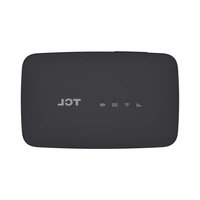
LinkZone MW45A - Air conditioner TCL - Free user manual and instructions
Find the device manual for free LinkZone MW45A TCL in PDF.


| Product Type | 4G Portable Router |
| Brand | TCL |
| Model | LinkZone MW45A |
| Power Source | Rechargeable lithium-ion battery, USB charging (max. 4 hours on computer, 3 hours on wall outlet) |
| Connectivity | 4G LTE, Wi-Fi 802.11 b/g/n 2.4 GHz, WPS |
| Main Functions | 4G tethering, Wi-Fi hotspot, management via TCL Connect app, energy saving mode |
| LED Indicators | Network, Wi-Fi, SMS, battery (various colors and blinking) |
| Configuration | Via web interface (192.168.1.1) or mobile app |
| Wi-Fi Security | WPA/WPA2, preconfigured key on label |
| Maintenance and Cleaning | Clean with a dry cloth, avoid moisture and extreme temperatures |
| Safety | Turn off on airplanes, hospitals, and sensitive areas; respect SAR limits (1.60 W/kg at body) |
| Spare Parts and Repairability | Removable battery; do not disassemble, contact an authorized service center |
| Operating Temperature | 0 °C to 45 °C |
| Operating Humidity | 10% to 90% |
| General Information | Manufactured by TCL Communication Ltd., compliant with directive 2014/53/EU; 12-month warranty |
Frequently Asked Questions - LinkZone MW45A TCL
User questions about LinkZone MW45A TCL
0 question about this device. Answer the ones you know or ask your own.
Ask a new question about this device
Download the instructions for your Air conditioner in PDF format for free! Find your manual LinkZone MW45A - TCL and take your electronic device back in hand. On this page are published all the documents necessary for the use of your device. LinkZone MW45A by TCL.
USER MANUAL LinkZone MW45A TCL
We recommend that you read this chapter carefully before using this device. The manufacturer disclaims any liability for damage, which may result as a consequence of improper use of this device or of use contrary to the instructions contained herein.
 | Do not switch on your device when its use is prohibited or when using the device may cause interference or danger. |
 | Follow rules or regulations in hospitals and health care facilities. Switch off your device near medical apparatus. |
 | Switch off your device in an aircraft. The device may cause interference to aircraft control signals. |
 | Switch off your device near high-precision electronic devices. The device may affect the performance of these devices. |
 | Do not attempt to disassemble your device or its accessories. Only qualified personnel are allowed to service or repair the device. |
 | Do not place your device or its accessories in containers with a strong electromagnetic field. |
 | Do not place magnetic storage media near your device Radiation from the device may erase the information stored on them. |
 | Do not subject your device to high temperatures or use it in a place with flammable gas such as a petrol station. |
  | Keep your device and its accessories away from children. Do not allow children to use your device without guidance.Only use approved batteries and chargers to avoid the risk of explosion. |
 | Observe the laws or regulations on device use. Respect others' privacy and legal rights when using your device. |
It is recommended that the equipment only be used in an environment where the temperature is between 0°C and 45°C and humidity is between 10% to 90%.
Overview
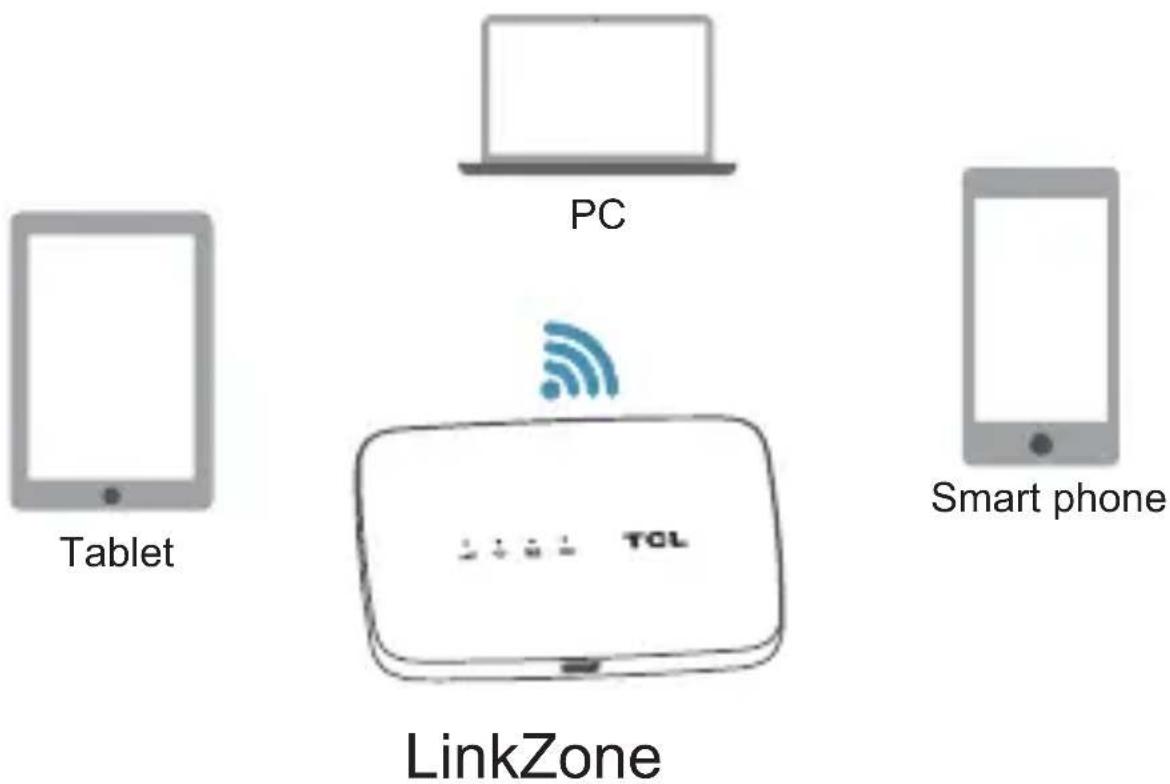
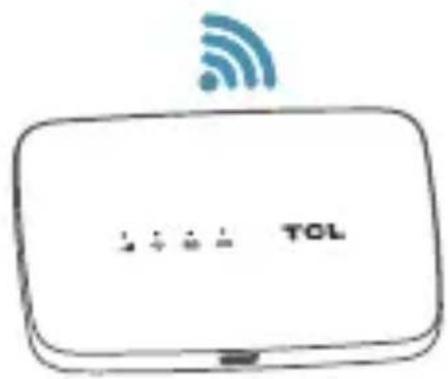
LinkZone is a portable wireless router, providing a simple way to share 4G with any Wi-Fi embedded device.
Package contents
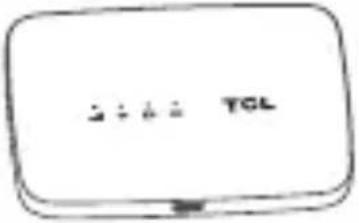 | 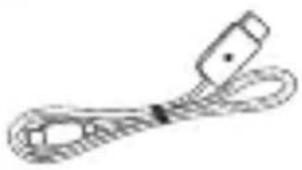 |  |
| LinkZone USB | cable Quick start guide | |
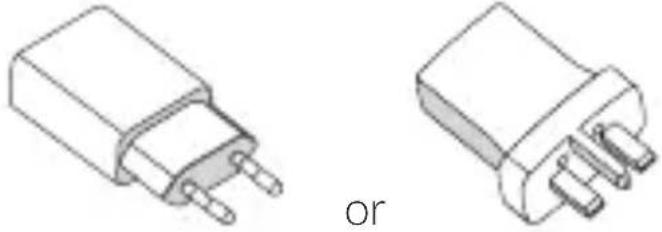 | ||
| Charger* | ||
| * Charger type varies depending on import country. | ||
Application
Getting to Know Your Device
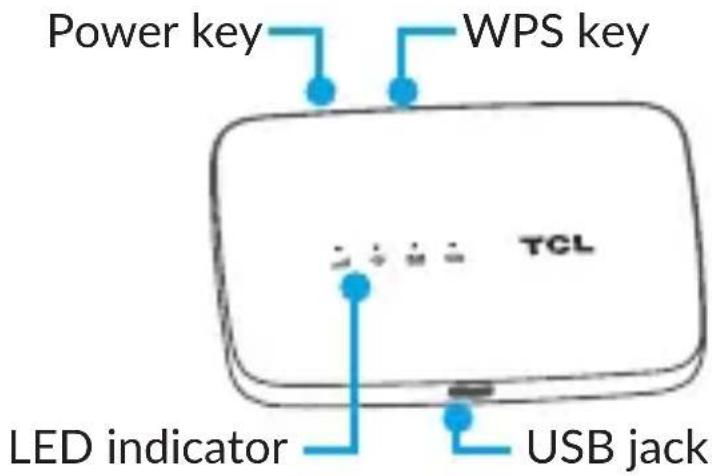
Device Description
| Part Description | |
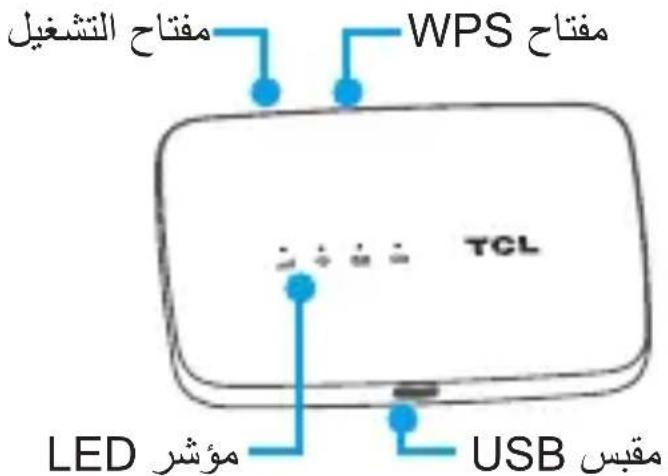
| Power key | Hold the “Power” key for 3 seconds to power the device on/off. |
| WPS key | Hold “WPS” key for 3 seconds to activate the WPS function. Once activated, the Wi-Fi LED indicator will flash every two seconds. If the network is not accessed within 2 minutes device will automatically exit WPS mode. |
| Charging / USB Port | Use the USB jack to charge your device and connect your device to the client via the USB cable. |
| Reset | Hold both “Power” and “WPS” keys simultaneously for 6 seconds. All LED indicators will flash blue 4 times to indicate that the device has been reset to factory mode. |
| Reboot | Hold “Power” key for 10 seconds to restart device. |
| Power saving mode | If no buttons are pressed for period of 30 seconds, all LED lights will turn off automatically. Press any button, charge device, or connect to computer, to turn on LED lights again. |
| If no Wi-Fi is accessed for a period of 10 minutes, network dialing ceases automatically. Press any button, or access the device, to turn on Wi-Fi again. | |
| If no Wi-Fi is accessed for a period of 30 minutes, the Wi-Fi AP function will turn off automatically. Press any button to turn on Wi-Fi AP again. |
LED Indicators
When the hotspot is powered on, the following icons will illuminate. For a description of the icons, please refer to the table below:

natural_image
Three blue icons: a bar chart, Wi-Fi signal, an email envelope, and a camera (no text or symbols)Network Indicator | Solid Blue Registered and connected to network. | |
| Flashing Blue Network disconnected. | ||
| Solid Red No network, no SIM card or SIM card error, limited or no service. | ||
Wi-Fi indicator | Solid Blue Wi-Fi is active. | |
| SMS indicator | Solid Blue New message | |
| Flashing Blue Message inbox is full. | ||
Battery indicator | Slow Flashing Blue | Working |
| Quick Flashing Blue | The battery is charging and is plugged into a power source. | |
| Solid Blue The battery is fully charged and is plugged into a power source. | ||
| Flashing Red The battery level is less than 10%. | ||
Turning On Your Device
Step 1: Remove back cover
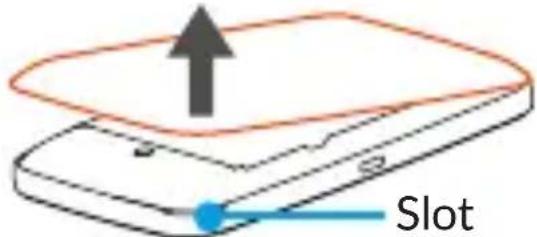
Note: the slot is in the lower right corner of your device.
Step 2: Install SIM Card
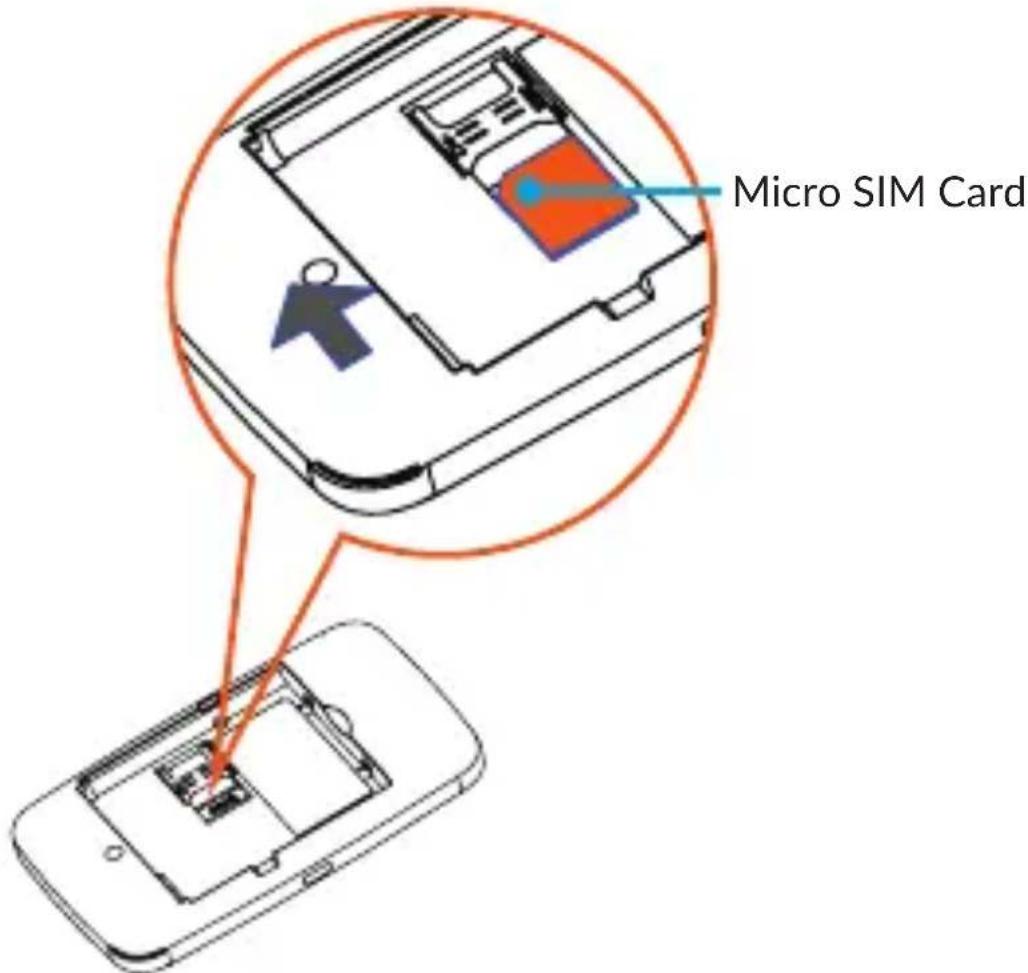
Step 3: Install battery
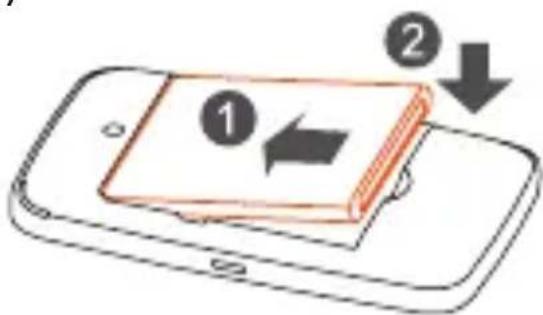
EN - 7
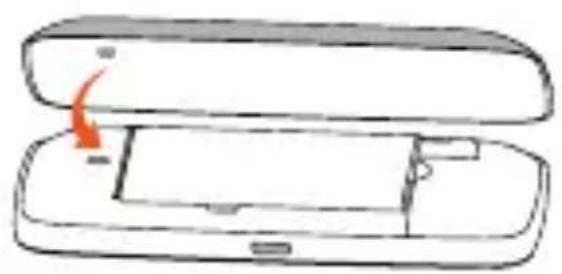
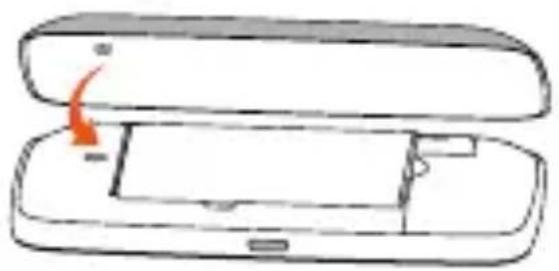
Step 4: Close back cover:
Orient the back cover so that locating nub is inserted into corresponding indentation (refer to illustration below).
natural_image
Diagram of a device with an open lid and internal compartments, showing a red arrow indicating rotation (no text or symbols present)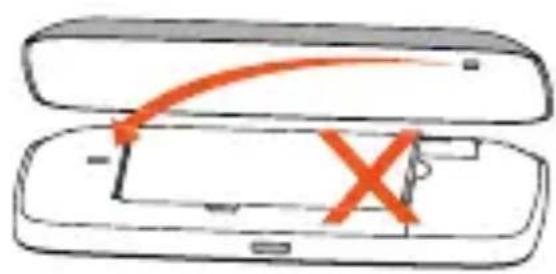
Step 5: Power device on
Long Press the “Power” key until all LED indicators illuminate light up blue.
Connecting in Wi-Fi mode
The Wi-Fi name (SSID) and Wi-Fi key are located on the sticker on the rear of the back cover. They also can be found on the label under the battery.
Step 1: use the Wi-Fi manager on the Wi-Fi embedded device to select network name (SSID).
- From a Windows PC: right click Wireless network connection on the task bar, select View Available Networks, and select SSID from the list of available networks.
- From a Mac computer: select System Preferences -> Network -> Airport, click Advanced, and select SSID from the list of available networks.
- From an iOS device: select Settings -> Wi-Fi and select SSID from the available networks.
- From an android device: select Settings -> Wireless controls -> Wi-Fi settings, and select SSID from the available networks.
Step 2: Enter the Wi-Fi key when a security key screen pops up.
Quick Setup Your Device
Website
Open your browser, and input the address http://192.168.1.1 to access the login page.
The password can be found on the label inside your LinkZone.
Log in and click Settings to configure basic settings.
Admin Password:
- Login Password: set the password for login.
Wi-Fi Settings:
• SSID: set the network name for this device.
• Security: configure the security mode for Wi-Fi connection.
Change login password
Access Web configuration page: http://192.168.1.1,
Click Settings, select Login Settings, follow steps to change login password, and click Save.
Change SSID (network name) and Wi-Fi password
Access Web configuration page: http://192.168.1.1,
Click Settings, select Wi-Fi Settings, follow steps to change SSID or Wi-Fi password, and click Save.
Control Your LinkZone Using TCL Connect App
You can also use TCL Connect app to control your LinkZone.
-
Download TCL Connect app from Google Play (running on Android 5.0 and higher) or App Store (running on iOS11.0 and higher); or scan the QR code to download the app.
-
Follow the on-screen instructions to install the app on your phone.
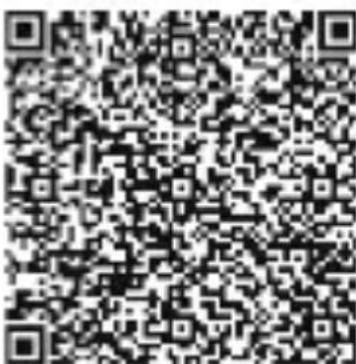
- Pair your phone with the app and operate on it to control your LinkZone.
Charging Your Device
You have two ways to charge your device.
Wall Charger :
Connect USB cable with charger head and device, then plug in to charge.
When the device is powered off, charging will take a maximum of 3 hours.
USB Charger :
You can also charge the device by connecting it to a PC with the USB cable.
When the device is powered off, charging will take a maximum of 4 hours.
Note: in order to protect the battery, when the battery indicator flashes red, please charge the device.
Certification
Radio Waves
Proof of compliance with international standards (ICNIRP) or with European Directive 2014/53/EU (RED) is required of all modem models before they can be put on the market. The protection of the health and safety for the user and any other person is an essential requirement of these standards or this directive.
THIS DEVICE MEETS INTERNATIONAL GUIDELINES FOR EXPOSURE TO RADIO WAVES.
This device is a radio transmitter and receiver. It is designed not to exceed the limits for exposure to radio waves (radio frequency electromagnetic fields) recommended by international guidelines. The
guidelines were developed by an independent scientific organization (ICNIRP) and include a substantial safety margin designed to assure the safety of all persons, regardless of age and health.
The radio wave exposure guidelines use a unit of measurement known as the Specific Absorption Rate, or SAR. The SAR limit for mobile devices is 2.0 W/kg.
Tests for SAR are conducted using standard operating positions with the device transmitting at its highest certified power level in all tested frequency bands. The highest SAR values under the ICNIRP guidelines for this device model are:
| Maximum SAR for this model and conditions under which it was recorded. | ||
| Body-Worn SAR (5mm) | UMTS 2100 + Wi-Fi 2.4G | 1.60 W/kg |
During use, the actual SAR values for this device are usually well below the values stated above. This is because, for purposes of system efficiency and to minimize interference on the network, the operating power of your mobile device is automatically decreased when full power is not needed for the call. The lower the power output of the device, the lower its SAR value.
Body-worn SAR testing has been carried out at a separation distance of 5 mm. To meet RF exposure guidelines during body-worn operation, the device should be positioned at least this distance away from the body. If you are not using an approved accessory ensure that whatever product is used is free of any metal and that it positions the phone the indicated distance away from the body.
The World Health Organization has stated that present scientific information does not indicate the need for any special precautions for the use of mobile devices. They recommend that if you are interested in further reducing your exposure then you can easily do so by limiting your usage or keep the device away from the head and body.
For more information you can go to tcl.com
Additional information about electromagnetic fields and public health are available on the following site: http://www.who.int/peh-emf This device is equipped with a built-in antenna. For optimal operation, you should avoid touching it or degrading it.
Licenses
The Wi-Fi Logo is a certification mark of the Wi-Fi Alliance.
We hereby point out that the end user warranty for infringement IPR is solely limited to the EU/EEA/Switzerland.
If and to the extent that the Product is exported, taken with, or used by end customer or end user outside the EU/EEA/Switzerland any responsibility, warranty or indemnification of manufacturer and its suppliers in regard to the Product expires (including any indemnification in regard to infringement IPR).
General information
Internet address: tcl.com
Hot Line Number: see "SERVICES" leaflet or go to our website.
Manufacturer: TCL Communication Ltd.
Address: 5/F, Building 22E, 22 Science Park East Avenue, Hong Kong Science Park, Shatin, NT, Hong Kong.
This radio equipment operates with the following frequency bands and maximum radio-frequency power:
UMTS B1 (2100): 21.5 dBm
UMTS B8 (900): 22 dBm
LTE FDD B1/20/28 (2100/800/700): 22 dBm
LTE FDD B3/7 (1800/2600): 21 dBm
LTE FDD B8 (900): 22.3 dBm
802.11 b/g/n 2.4GHz band: 10.23 dBm
Hereby, TCL Communication Ltd. declares that the radio equipment type TCL MW45AD is in compliance with Directive 2014/53/EU.
The full text of the EU declaration of conformity is available at the following internet address: https://www.tcl.com/global/en/EC_DOC
The description of accessories and components, including software, which allow the radio equipment to operate as intended, can be obtained in the full text of the EU declaration of conformity at the following internet address: https://www.tcl.com/global/en/EC_DOC
Warranty
The device is warranted against any deviation from technical specifications for a period of twelve (12 ^1 ) months from the date specified on your original invoice.
Under the terms of this warranty, you must immediately inform your vendor in case of a conformity defect on this device, and present a proof of purchase.
The vendor or repair center will decide whether to replace or repair this device, as appropriate.
Repaired or replaced this device is warranted ONE (1) month unless there are statutory provisions to the contrary.
This warranty shall not apply to damage or defects to this device due to:
1) Not following the instructions for use or installation,
2) Not being compliant with technical and safety standards applicable in the geographical area where this device is used,
3) Improper maintenance of sources of energy, and of the overall electric installation,
4) Accidents or consequences of theft of the vehicle in which this device is transported, acts of vandalism, lightning, fire, humidity, infiltration of liquids, inclement weather,
(1) The warranty period may vary depending on your country.
5) Connecting to or integrating into this device any equipment not supplied or not recommended by the manufacturer,
6) Any servicing, modification or repair performed by individuals not authorised by the manufacturer, the vendor or the approved maintenance centre,
7) Use of this device for a purpose other than that for which it was designed,
8) Malfunctions caused by external causes (e.g., radio interference from other equipment, power voltage fluctuations),
9) Faulty connections resulting from unsatisfactory radio transmission or caused by the absence of radio relay coverage.
Warranty is also excluded for this device on which markings or serial numbers have been removed or altered.
This device is also warranted against hidden defects (defects inherent in the design, manufacture, etc.).
There are no other express warranties other than this printed limited warranty, expressed or implied, of any nature whatsoever.
In no event shall the manufacturer be liable for incidental or consequential damages of any nature whatsoever, including but not limited to trading loss, commercial loss, to the full extent those damages can be disclaimed by law. Some countries/states do not allow the exclusion or limitation of incidental or consequential damages, or limitation of the duration of implied warranties, so the preceding limitations or exclusions may not apply to you.
TCL
natural_image
Simple icon of a tablet device with blank screen (no text or symbols)Tablette
natural_image
Simple line drawing of a laptop computer (no text or symbols)PC
natural_image
Simple icon of a smartphone with blank screen (no text or symbols)Smartphone
LinkZone
natural_image
Four blue icons: bar chart, Wi-Fi, email, and camera (no text or symbols)FR - 7
natural_image
Diagram of a device with an open lid and internal compartments, showing a red arrow indicating rotation (no text or symbols)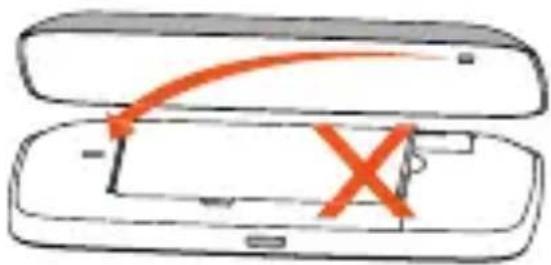
Adresse: 5/F, Building 22E, 22 Science Park East Avenue, Hong Kong Science Park, Shatin, NT, Hong Kong.
natural_image
Simple icon of a smartphone with blank screen (no text or symbols)هانف ذكي
natural_image
Simple line drawing of a laptop computer (no text or symbols)جهاز کمیوتر
natural_image
Simple icon of a tablet device with blank screen (no text or symbols)جهاز لوحي
LinkZone
التعرف على الجهاز
natural_image
Three blue icons representing signal, Wi-Fi, email, and camera (no text or symbols)ال Coord Structure Andance
natural_image
Diagram of a device with an open lid and internal compartments, showing a red arrow indicating rotation (no text or symbols)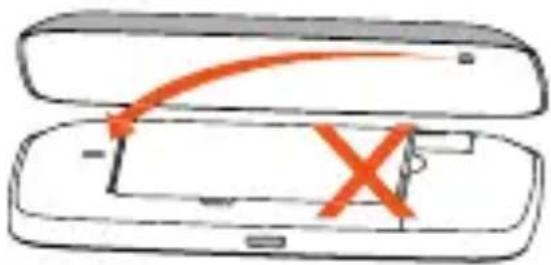
Science Park, Shatin, NT
- Overview
- Package contents
- Application
- Getting to Know Your Device
- Device Description
- LED Indicators
- Turning On Your Device
- Step 4: Close back cover:
- Step 5: Power device on
- Connecting in Wi-Fi mode
- Quick Setup Your Device
- Website
- Admin Password:
- Wi-Fi Settings:
- Change login password
- Change SSID (network name) and Wi-Fi password
- Control Your LinkZone Using TCL Connect App
- Charging Your Device
- Wall Charger :
- USB Charger :
- Certification
- Radio Waves
- Licenses
- General information
- Warranty
- TCL
Brand : TCL
Model : LinkZone MW45A
Category : Air conditioner