LINKZONE MW42L - TV TCL - Free user manual and instructions
Find the device manual for free LINKZONE MW42L TCL in PDF.


User questions about LINKZONE MW42L TCL
0 question about this device. Answer the ones you know or ask your own.
Ask a new question about this device
Download the instructions for your TV in PDF format for free! Find your manual LINKZONE MW42L - TCL and take your electronic device back in hand. On this page are published all the documents necessary for the use of your device. LINKZONE MW42L by TCL.
USER MANUAL LINKZONE MW42L TCL
natural_image
Cross-sectional diagram of a device showing internal components and an open lid, with no text or symbols present.natural_image
Architectural floor plan of a mobile device showing internal components and a cursor pointing to a specific room (no text or labels)
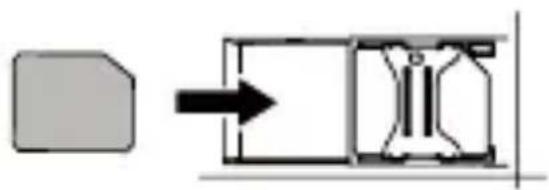
Micro-SIM (3FF)
natural_image
Pure mechanical diagram showing a block and a cross-section with an arrow indicating direction (no text or symbols)natural_image
Line drawing of a smartphone, remote control, and laptop with wireless signal icon (no text or symbols)- اتصال الشبكة
natural_image
Symbol of a trash bin with crossed lines indicating no waste or discharge (no text or labels)• Solid blue: the signal is strong.
• Solid purple: the signal is good.
• Solid red: the signal is weak.
- OFF: the signal is not available, or the router is in the power saving mode.
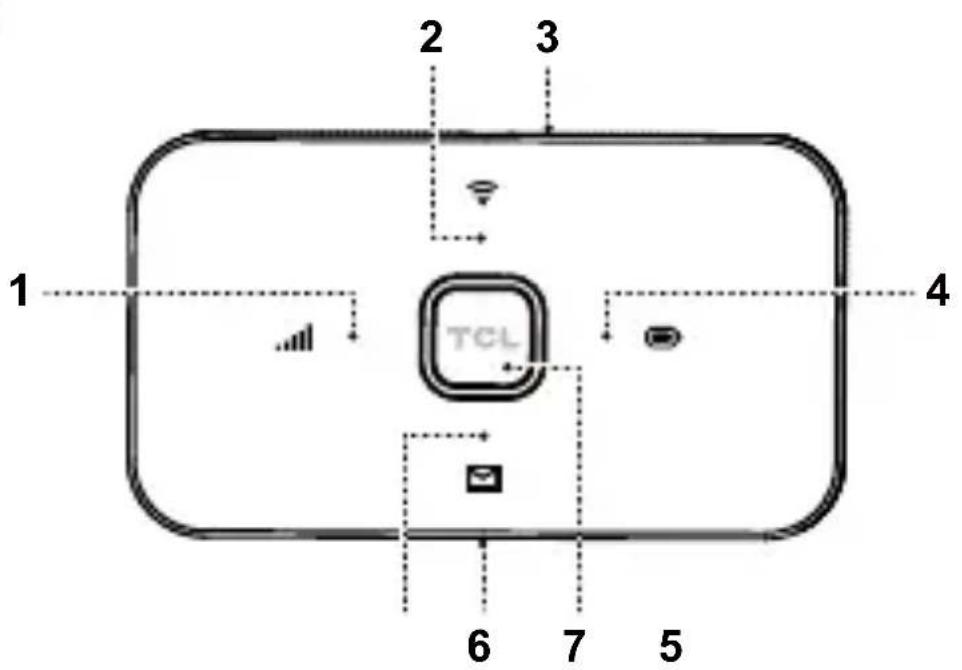
2. Wi-Fi LED
- Blinking blue: WPS connection is available.
- Solid blue: Wi-Fi is enabled.
- OFF: Wi-Fi is disabled, or the router is in the power saving mode.
3. WPS button
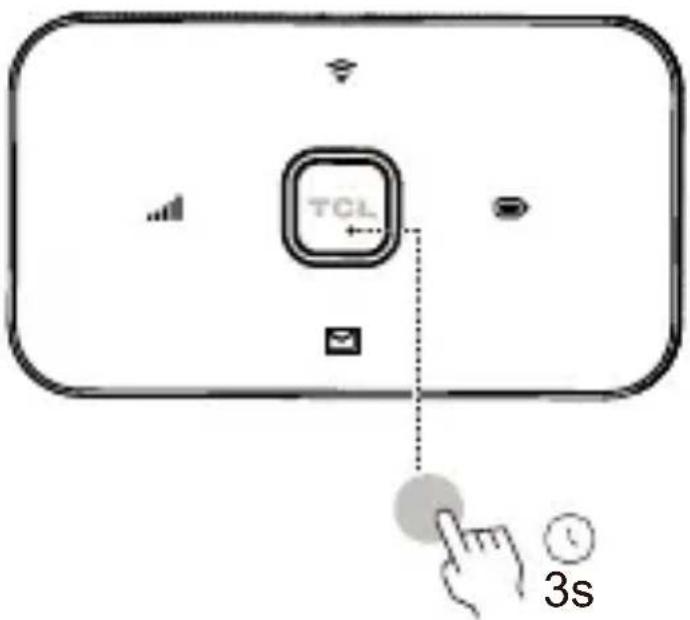
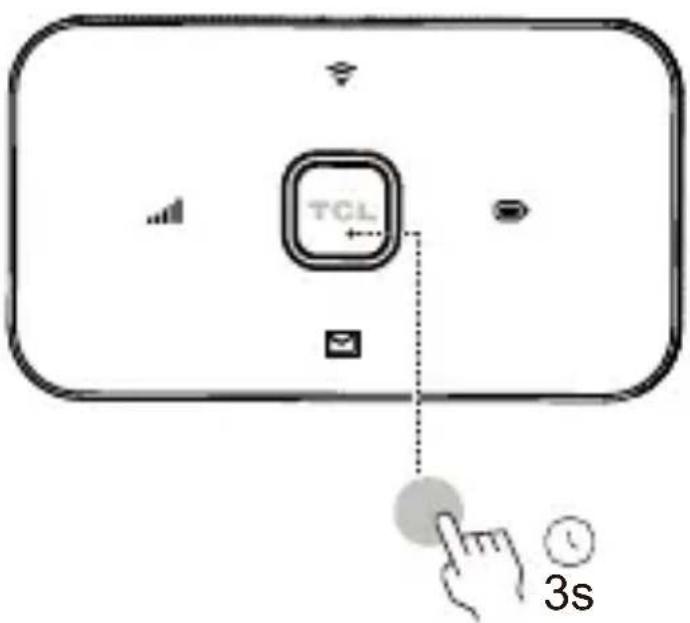
Press for 3 seconds to enable the WPS function. The WPS function will be automatically disabled if a WPS connection is not established within 2 minutes.
4. Battery LED
- Solid blue: the battery level is sufficient.
- Solid red: the battery level is low.
- Blinking blue: the battery is charging. The LED flashes in solid blue when the battery is fully charged.
- OFF: the router is in the power saving mode.
5. SMS LED
- Blinking blue: there is an unread message.
NOTE Log in to the web UI (see the IP address on the label inside the router), and locate the SMS tab to read the message. - OFF: there is no unread message, or the router is in the power saving mode.
6. Micro USB port
Used to connect to a power supply (5 V/1 A) through the provided USB cable.
7. Power button
- Press for 3 seconds to power on or off your router.
- Press for 6 seconds to reboot your router.
- Press to recover from the power saving mode.

Power saving mode
If you do not use the router buttons for three minutes, all LEDs will automatically turn off.
text_image
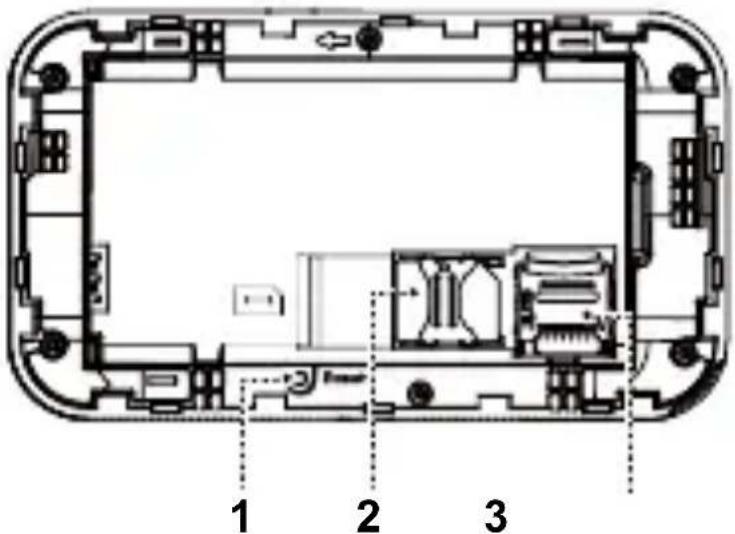
1 2 31. Reset button
Use a paperclip to press the button for 3 seconds to reset the router to default factory settings, including the Wi-Fi name and password.
2. Micro SIM card slot
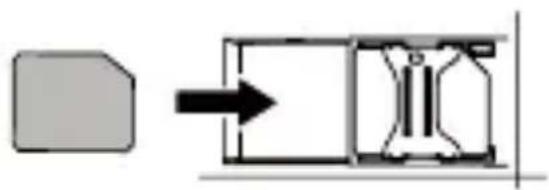
Insert a micro SIM card in the slot.
3. Micro SD card slot
Insert a micro SD card in the slot. The router works with micro SD cards with a maximum capacity of 32 GB.
①
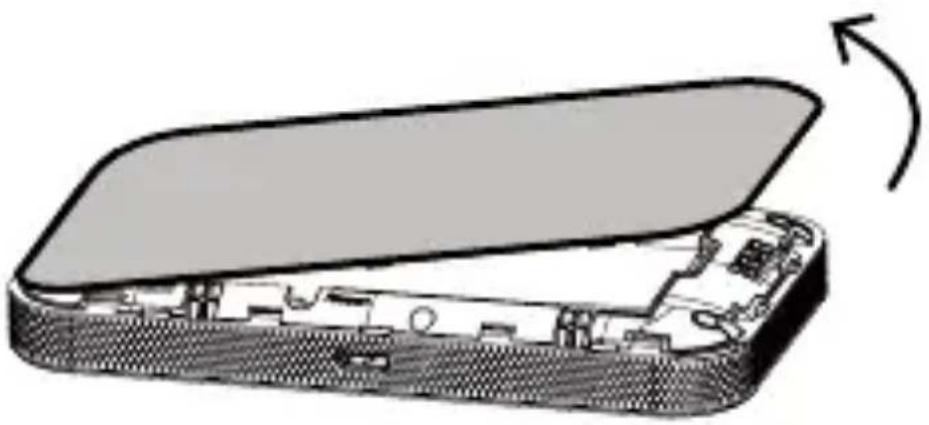
natural_image
Cross-sectional diagram of a device showing internal components and an open lid, with no text or symbols present.
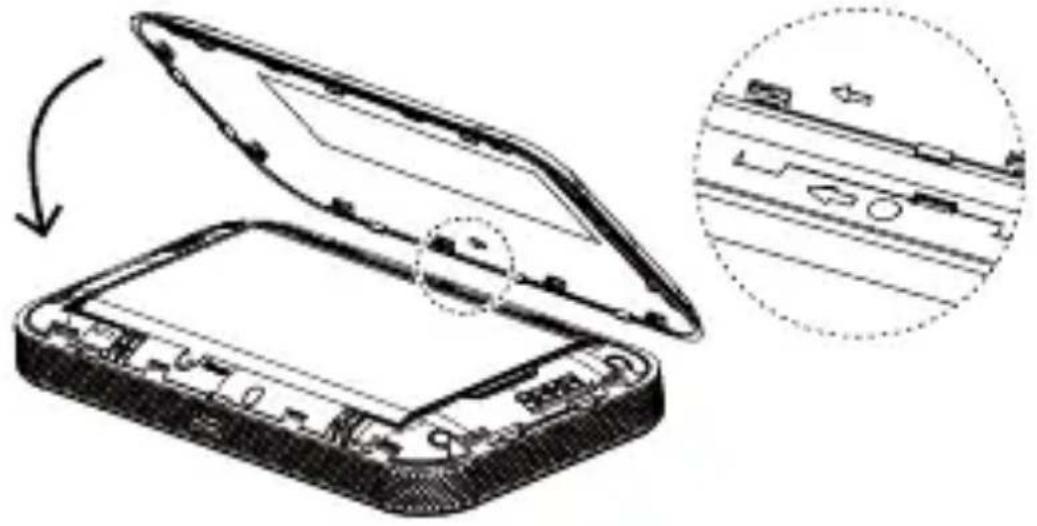
Before using your router, record the default Wi-Fi name, Wi-Fi password and web UI login information that are printed on the label inside your router.
②
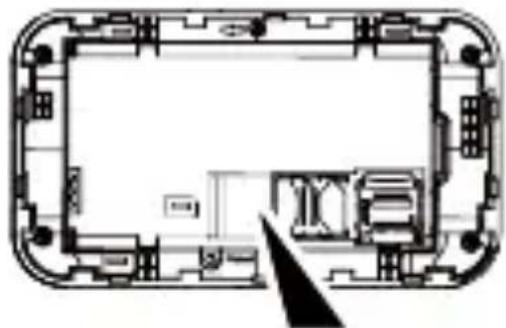
natural_image
Architectural floor plan of a mobile device showing internal components and a cursor pointing to a component (no text or labels)
Micro-SIM (3FF)
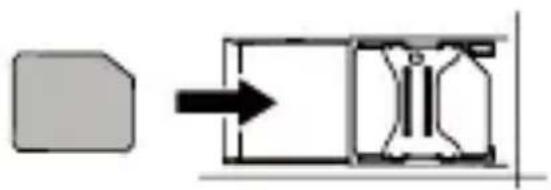
natural_image
Pure mechanical diagram showing a block and a cross-section with an arrow indicating direction (no text or symbols)NOTE Heed the orientation of the SIM card.
③
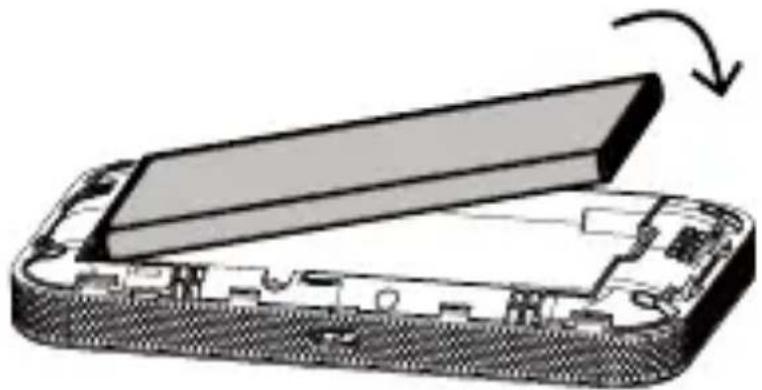
natural_image
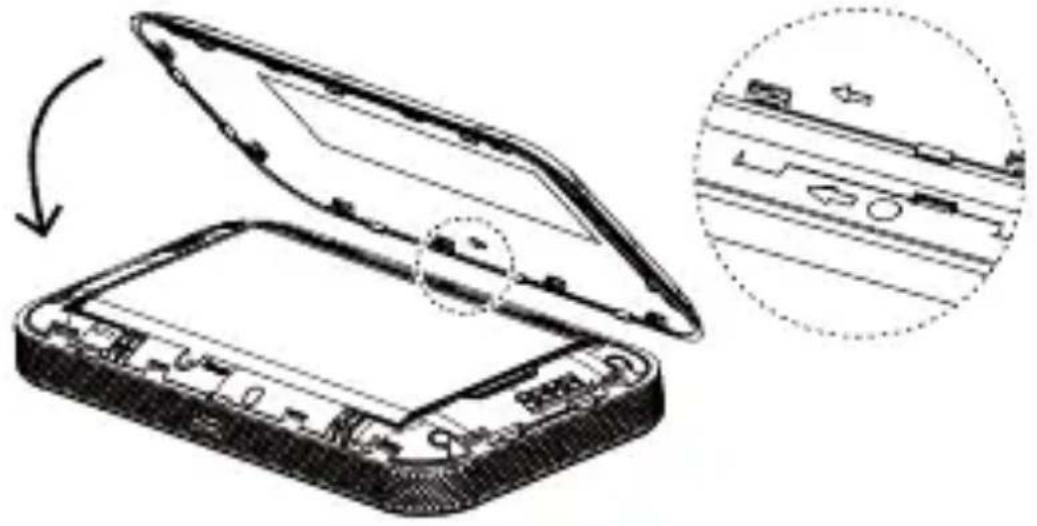
Diagram of a smartphone showing the open circuit board and internal components, with an arrow indicating rotation (no text or symbols present)④
natural_image
Diagram of an open electronic device with a close-up inset showing internal components (no text or symbols)5
text_image
TCL 3sEN-5

natural_image
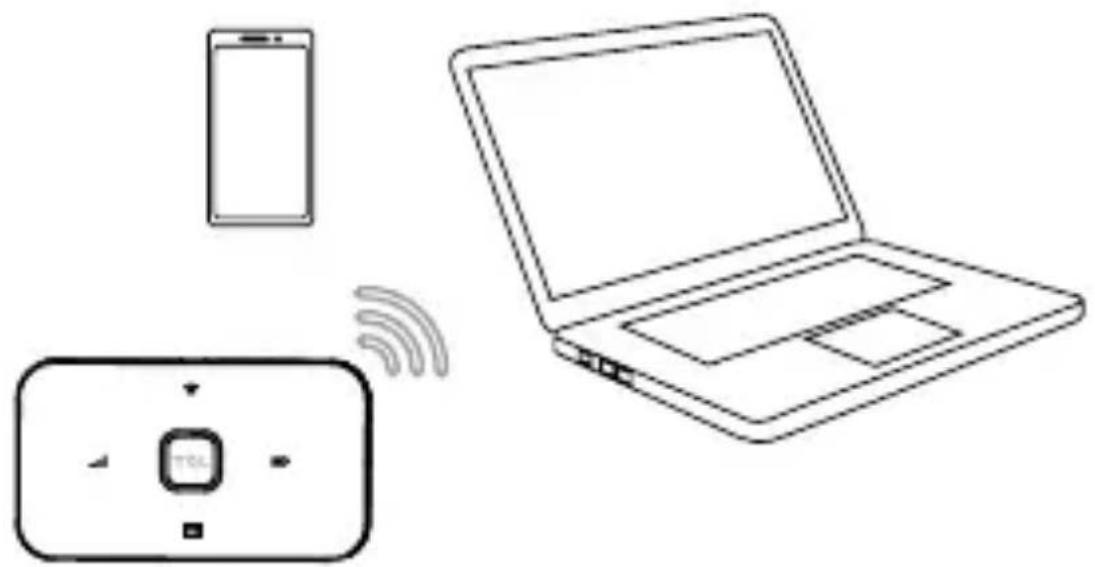
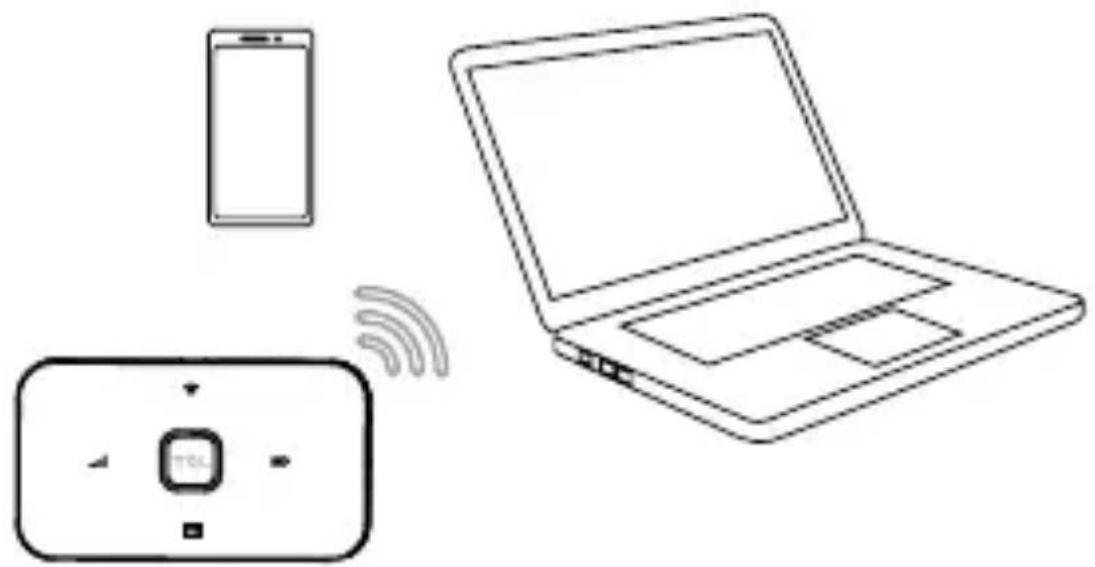
Line drawing of a smartphone, a laptop, and a remote control panel with wireless signal icons (no text or symbols)1. Network connection
To establish a wireless network connection, search for the Wi-Fi name on your wireless devices, and enter the password.
2. Quick setup
To quickly configure the Wi-Fi network, follow these steps:
1) Open a web browser on the device connected to the Wi-Fi network, then go to the web UI (see the IP address on the label inside the router).
2) Click Login, and enter the default login information.
3) Go to Quick Settings, then change the Wi-Fi name and password as desired.
Important safety information
Read all the safety information before using your device. Failure to follow these safety instructions could result in injury, or damage to your device or other property. The manufacturer disclaims any liability for damage, which may result as a consequence of improper use or use contrary to the instructions contained herein.
Safety and handling instructions
- Do not use the device in areas where wireless devices are prohibited.
- When the device is switched on, it should be kept at least 15 cm from any medical device such as a pacemaker, a hearing aid, or an insulin pump. Consult your physician and medical device manufacturer for information specific to your medical device.
- Do not let children use the device and its accessories without supervision.
- Always handle your device with care, and keep it in a clean and dust-free place.
- Do not attempt to repair the device yourself.
- Do not drop, throw, or bend your device.
- Do not dispose of the device and its accessories in a fire.
Power adapter
Charge your device with the supplied USB cable. Only charge with an adapter that is compliant with the applicable international and regional safety standards. The adapter shall be CE-approved. Using other adapters could cause damage to the device or pose a risk of injury or death. Keep the adapter in a well-ventilated area when it is plugged into an electrical outlet. Don't use damaged
Recommended adapter specifications
| Input voltage/AC frequency | 100~240 V, 50/60 Hz |
| Output voltage/current/power | 5.0 V/1.0 A/5.0 W |
Battery
CAUTION Risk of explosion if battery is replaced by an incorrect type. Dispose of used batteries according to the instructions.
In accordance with air regulations, the battery of your product is not fully charged. Please charge it first.
- Do not attempt to open the battery (due to the risk of toxic fumes and burns).
- Do not puncture, disassemble, or short circuit the battery.
- The battery must be recycled or disposed of separately from household waste. Dispose of batteries according to your local environmental laws and guidelines.
- Replace the battery only with another qualified battery. Use of an unqualified battery may present a risk of fire, explosion, leakage, or other hazard.
- Do not use damaged battery.
- Remove the battery if you are not going to use the router for more than one week.
Operating environment
Your device is designed to work best in ambient temperatures between 0 °C and 45 °C (32 °F and
113 °F), and should be stored in ambient temperatures between -10 °C and 70 °C (14 °F and 158 °F). Your device may malfunction if operated or stored outside of these temperature ranges. Avoid exposing the device to dramatic changes in temperature or humidity.
Compliance information
Regulatory compliance
CE
Hereby, TCL Communication Ltd. declares that the radio equipment type TCL MW42L is in compliance with the essential requirements and other relevant provisions of Directive 2014/53/EU. The full text of the EU declaration of conformity is available at: https://www.tcl.com/global/en/service-support-mobile/eu-doc.html
Recycling information
natural_image
Symbol of a trash bin with crossed lines indicating no waste or restriction, and a solid black rectangle below (no text or symbols)The device, accessory and battery must be disposed of in accordance with locally applicable environmental regulations.
This symbol on your device, the battery, and the accessories means that these products must be taken to:
- Municipal waste disposal centres with specific bins.
• Collection bins at points of sale.
They will then be recycled, preventing substances being
disposed of in the environment.
In European Union countries: These collection points are accessible free of charge. All products with this sign must be brought to these collection points.
In non-European Union jurisdictions: Items of equipment with this symbol are not to be thrown into ordinary bins if your jurisdiction or your region has suitable recycling and collection facilities; instead they are to be taken to collection points for recycling.
The separate collection and recycling of your device and/or its accessories at the time of disposal will help conserve natural resources and ensure that it is recycled in a manner that protects human health and the environment.
Support information
| Website www.tcl.com | |
| Hotline | https://www.tcl.com/global/en/mobile-support/hotline&service-center.html |
| User Manual | https://www.tcl.com/global/en/mobile-support.html |
| Manufacturer TCL Communication Ltd. | |
| Address | 5/F, Building 22E, 22 Science Park East Avenue, Hong Kong Science Park, Shatin, NT, Hong Kong |
Limited warranty
Additional rights under consumer laws
As the consumer You may have legal (statutory) rights that are in addition to those set out in this limited warrant offered by Manufacturer voluntarily, such as the consumer laws of the country in which you live (“Consumer Rights”). This limited warranty sets out certain situations when the Manufacturer will, or will not, provide a remedy for the TCL device. This limited warranty does not limit or exclude any of your Consumer Rights relating to the TCL device.
Manufacturer warranty coverage
This Manufacturer's Limited Warranty sets forth the warranty responsibilities of the Manufacturer regarding TCL branded hardware and accessories manufactured by or on behalf of the Manufacturer.
The Manufacturer warrants to the original end-user purchaser of a new TCL device (“You”), that the TCL device will be free from defects in materials and workmanship under normal use from a period that commences on the date of original purchase by You and continuing for the following specified period of time for each applicable type of TCL device (the “Warranty period”).
This Limited Warranty is not transferable by You.
The applicable Warranty period is listed below:
TCL device 24 months
1
TCL accessories ^2 : USB cable, battery ^3
12 months ^1
In case of any defect of your device which prevents you from normal use thereof, you must immediately inform your vendor and present your device with your proof of purchase.
If the defect is confirmed by the Manufacturer or its authorised service providers, your device or part thereof will be either repaired or replaced, as appropriate. Repair or replacement may be carried out using reconditioned components offering equivalent functionality.
This warranty covers the costs of repair or replacement (labour and spare parts) but excludes any other costs.
This warranty shall not apply to defects on your device and/or accessory due to (without any limitation):
- Non-compliance use with the instructions for use or installation, or with technical and safety standards applicable in the geographical area where your device is used.
-
Connection to any equipment not supplied or not recommended by the Manufacturer.
-
Repair performed by individuals not authorised by the Manufacturer or its affiliates.
- Modification, adjustment or alteration of software or hardware performed by individuals not authorised by the Manufacturer.
- Inclement weather, lightning, fire, humidity, infiltration of liquids or foods, chemical products, intrusion or download of malicious files or software (malware), crash, high voltage, corrosion, oxidation.
In no event shall the Manufacturer or any of its affiliates be liable for indirect, incidental or consequential damages of any nature whatsoever, including but not limited to commercial or financial loss or damage, loss of data or loss of image to the full extent those damages can be disclaimed by law.
Some countries or states do not allow the exclusion or limitation of indirect, incidental or consequential damages, or limitation of the duration of implied warranties, so the preceding limitations or exclusions may not apply to You.
If your TCL device is returned during the warranty period, but your TCL device is not covered under this limited warranty, terms and charges may apply for any repair or processing performed.
If you do not live in the country where the TCL device was originally sold to you, then:
(a) Warranty repair or service may not be possible.
(b) You may be required to agree to terms and/or to pay certain costs (including but not limited to, shipping and handling costs).
(c) The warranty repair or service, if possible, may take longer than normal to complete.
Back up your data
You should regularly back up your data, files, applications and settings as a safeguard against possible operational issues including prior to the return of the TCL device. Data backup is your responsibility and is not the responsibility of the Manufacturer, the retailer through whom You purchased the TCL device, or the Manufacturer's authorised service providers through whom You may have received servicing, (repair or replacement of the TCL device).
If you need to send/leave your TCL device for servicing, we recommend you to remove from your device any peripherals (memory card, SIM card) and personal and confidential data before sending or leaving your TCL device.
During the servicing (repair or replacement), content on your TCL device may be deleted, reformatted or configured as originally purchased (subject to then current updates and upgrades of software), and peripherals removed may not be returned to you.
This limited warranty does not cover the backup, recovery or reinstallation of your data, files and applications to the TCL device.
Manufacturer: TCL Communication Ltd.
text_image
1 2 3 TCL 4 6 7 5natural_image
Cross-sectional diagram of a device showing internal components and an open lid, with no text or symbols present.
natural_image
Architectural floor plan of a mobile device showing internal components and a cursor pointing to a specific room (no text or labels)
Micro-SIM (3FF)
natural_image
Pure mechanical diagram showing a block and a cross-section with an arrow indicating direction (no text or symbols)natural_image
Diagram of a smartphone showing the open circuit board and internal components, with an arrow indicating rotation (no text or symbols present)④
natural_image
Diagram of an open electronic device with internal components, showing a close-up view of the internal structure (no text or symbols present)⑤
text_image
TCL 3sFR-5
6