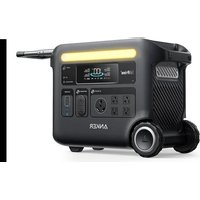
SOLIX F2600 - Generator Anker - Free user manual and instructions
Find the device manual for free SOLIX F2600 Anker in PDF.


| Product Type | Portable Generator / Power Station |
| Brand | Anker |
| Model | SOLIX F2600 |
| Battery Capacity | 2560 Wh |
| AC Input Voltage | 120 V ~ 12 A max, 60 Hz |
| AC Input Power (Charging) | 1400 W max |
| Maximum Solar Input Power | 1000 W (11-60 V, XT-60 connector) |
| Maximum AC Output Power | 2400 W (120 V, 20 A, 60 Hz) |
| USB-A Output Ports | 5 V ⎓ 2.4 A max per port (2 ports) |
| USB-C Output Ports | 100 W max per port (5 V/9 V/15 V/20 V, 3 A/3 A/3 A/5 A) |
| Car Outlet | 12 V, 10 A |
| Dimensions | 52.5 × 39.5 × 25.0 cm |
| Net Weight | 31.6 kg |
| Discharge Temperature | -20 °C to 40 °C |
| Charging Temperature | 0 °C to 40 °C |
| UPS Transfer Time | 20 ms |
| Connectivity | Bluetooth, Wi-Fi (via Anker app) |
| Main Functions | UPS (Uninterruptible Power Supply), solar charging, car charging, LED lighting (ambient and SOS), energy saving mode |
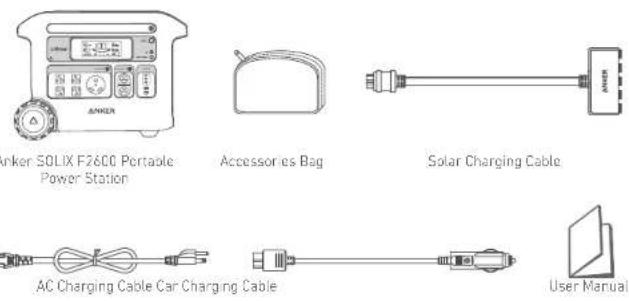
| Included Accessories | AC charging cable, solar charging cable, electric vehicle charging cable, user manual |
| Maintenance and Cleaning | Store in a dry, cool place, charge to 100% every 3 months, do not use harsh chemicals |
| Safety | Overload protection, over-temperature protection, short-circuit protection; FCC, IC, Class B certification |
| Spare Parts and Repairability | Battery not user-replaceable; contact Anker after-sales service for repairs |
| General Information | Not allowed on airplanes; standard manufacturer's warranty |
Frequently Asked Questions - SOLIX F2600 Anker
User questions about SOLIX F2600 Anker
0 question about this device. Answer the ones you know or ask your own.
Ask a new question about this device
Download the instructions for your Generator in PDF format for free! Find your manual SOLIX F2600 - Anker and take your electronic device back in hand. On this page are published all the documents necessary for the use of your device. SOLIX F2600 by Anker.
USER MANUAL SOLIX F2600 Anker
For FAQs and more information, please visit: anker.com/support

@anker_official @anker_jp

@AnkerDeutschland @AnkerJapan @Anker

@AnkerOfficial @Anker_JP
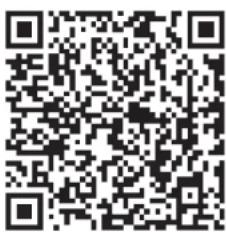
For tutorial videos, FAQs, manuals, and more information, please visit:https://support.anker.com Or scan the QR code below:
ANKER
Live Charged.
natural_image
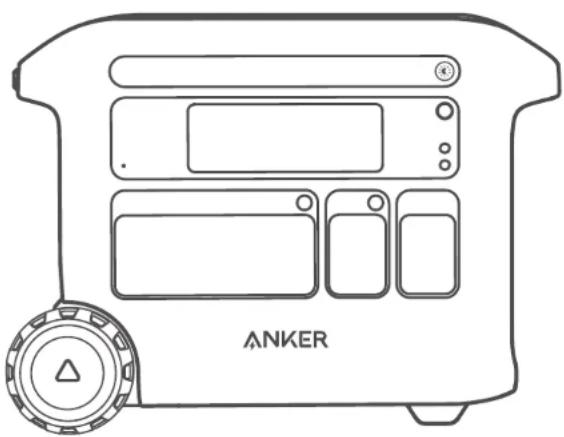
Line drawing of a device labeled 'ANKER' with control panel and buttons (no text beyond label)Anker SOLIX F2600 Portable Power Station
USER MANUAL
PAP 22
Raccolta Carta
Product Number: A1781 51005003812 V02
English
Français
日本語

bar
| Category | Value | |---|---| | 01-08 | 0 | | 09-17 | 0 | | 18-25 | 0 | | 25 | 0 |What's in the Box
Overview
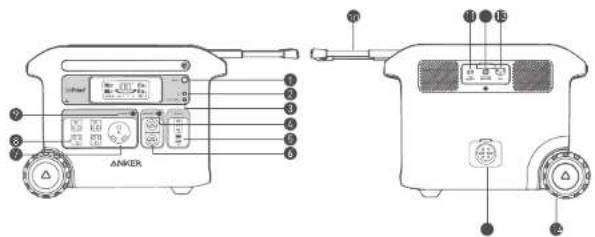
| 1 Display Button | 2 AC Outlet Button |
| 3 IoT Button | 4 Retractable Handle (Press the button on the retractable handle and pull to extend) |
| 5 Power Saying Button | 6 Solar Input and Car input |
| 7 Car Socket Button | 8 Overcharge Protection |
| 9 USB Ports | 10 AC Input Port |
| 11 Car Sockets | 11 Wheel(s) |
| 12 IT-3CR AC Output Port | 13 Expansion Battery Port |
| 14 NEMA-20R AC Output Ports |
| 1 Display Button | 2 AC Outlet Button |
| 3 IoT Button | 4 Retractable Handle (Press the button on the retractable handle and pull to extend) |
| 5 Power Saying Button | 6 Solar Input and Car input |
| 7 Car Socket Button | 8 Overcharge Protection |
| 9 USB Ports | 10 AC Input Port |
| 11 Car Sockets | 11 Wheel(s) |
| 12 IT-3CR AC Output Port | 13 Expansion Battery Port |
| 14 NEMA-20R AC Output Ports |
Recharging Your Power Station
AC recharging (1440W Max)
Recharge your power station by connecting to a wall outlet with the AC charging cable.

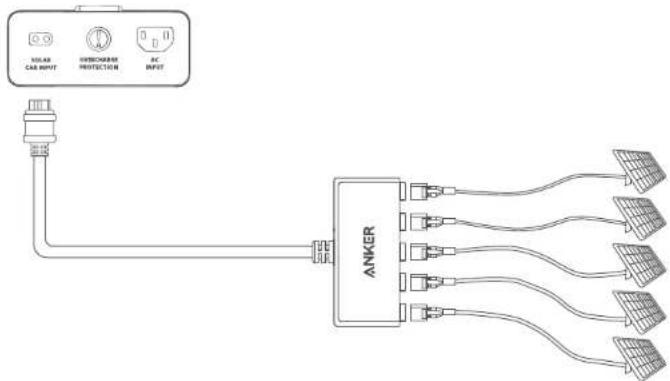
Solar Panel Recharging (1000W Max)
Recharge your power station with a maximum solar input of 1000W by connecting up to five solar panels as shown in the figure with a solar charging cable.
flowchart
graph TD
    A["POWER"] --> B["AMER"]
    B --> C["10kV/10A"]
    B --> D["10kV/10B"]
    B --> E["10kV/10C"]
    B --> F["10kV/10D"]
    B --> G["10kV/10E"]
    B --> H["10kV/10F"]
    B --> I["10kV/10G"]
    B --> J["10kV/10H"]
    B --> K["10kV/10I"]
    B --> L["10kV/10J"]
    B --> M["10kV/10K"]
    B --> N["10kV/10L"]
    B --> O["10kV/10M"]
    B --> P["10kV/10N"]
    B --> Q["10kV/10O"]
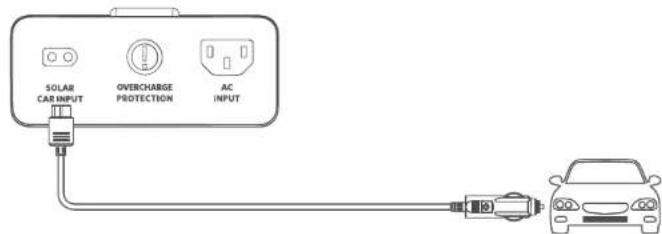
Car Recharging
Recharge your power station by connecting to a car's output port with the car charging cable.

When your portable power station only has 1% battery remaining, the 'Remaining Battery' indicator will flicker to remind you to recharge.
Powering Your Devices
Power Saving Mode
Turning on the Power Saving mode prevents wasting energy as it automatically turns off the power station once all your devices are fully charged.
Turning off the Power Saving mode will enable stable charging over an extended period, such as for time-lapse photography or when using a CPAP machine overnight.
The AC outlets can intelligently identify whether a plug is inserted. This helps prevent power wastage by automatically turning off the power station if no plug is detected for more than 15 minutes, whether the Power Saving mode is turned on or off.
AC Charging
Press the AC outlet button and connect your devices to the AC output ports.
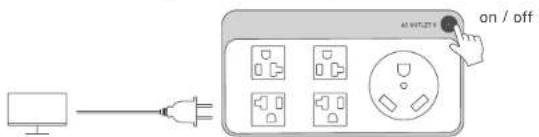
Press the AC outlet button and charge your RV via the TT-30R AC output ports. Please note that the max output of the AC outlet is 2400W, so do not power devices that are higher than 2400W.

natural_image
Simple line drawing of a three-pin electrical plug connected to a bus (no text or symbols)USB Charging
Connect your devices to the USB ports.
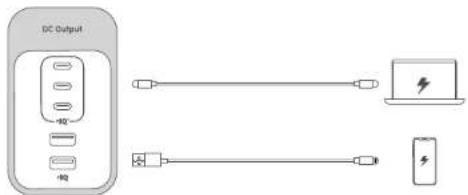
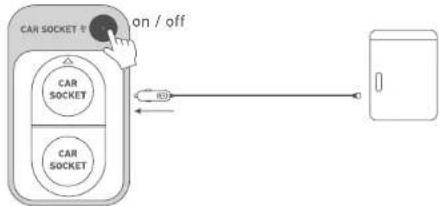
Car Socket Charging
Turn on the car socket and connect your devices to start charging.
flowchart
graph TD
    A["CAR SOCKET"] -->|on / off| B["Car SOCKET"]
    B --> C["Car SOCKET"]
    C --> D["Car SOCKET"]
    D --> E["Car SOCKET"]
    E --> F["Car SOCKET"]
    F --> G["Car SOCKET"]
Uninterruptible Power Supply (UPS)
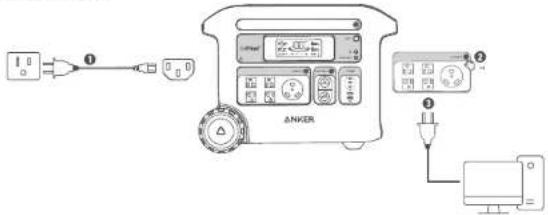
To use the UPS feature, connect your power station to a wall outlet with the AC charging cable. Then, press the AC outlet button and connect your devices via the AC output ports. With the UPS connection, your devices will be powered via bypass charging.
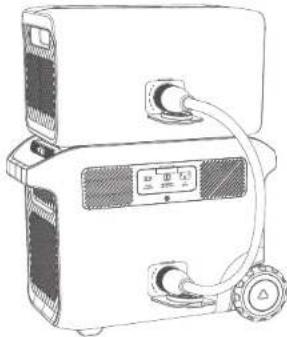
Connect with an Expansion Battery
Your power station can be connected with an expansion battery. Please refer to the user manual of Anker Expansion Battery for detailed instructions.
natural_image
Line drawing of a mechanical device with ports and a central control panel (no text or symbols)The Anker App for Smart Control
You can remotely control your power station using the Anker App. Please download the app and its user manual by scanning this QR code.
Connect the device to a network before using the app for the first time. After connecting successfully, you can connect your devices off-grid.
Light
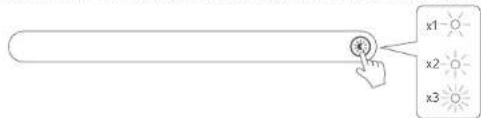
Ambient light
Press the button once to turn on the ambient light, and press again up to 2 times to switch between brightness levels.
SOS Mode
Press and hold the button for 2 seconds to turn on SOS mode.

LCD Screen Guide
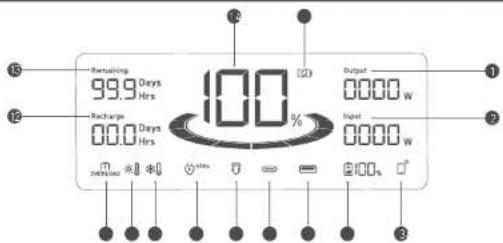
1 Current Output Power
② Current Input Power
③ IoT
Press the IoT button once to turn on Bluetooth and Wi-Fi, and connect your devices through the app when this icon appears on the screen.
Press the IoT button for 2 seconds to turn off Bluetooth and Wi-Fi.
Press the IoT button for 7 seconds to reset Bluetooth and Wi-Fi.
4 Remaining Battery for Expansion Battery
When the expansion battery is connected successfully, this con appears on the screen.
5 USB-A Output Port
6 USB-C Output Port
7 Car Charging
8 AC Charge and Voltage Frequency
9 Low-Temperature Alert
When this icon shows, stop using the power station until the icon disappears.
High-Temperature Alert
When this icon shows, stop using the power station and let it cool down until the icon disappears.
Overload Warning
This icon appears when a port is overloaded. The port will be turned off to avoid any damage. Please remove the device causing overload.
② Estimated Time to Fully Recharge
③ Estimated Time for Battery to Deplete
Remaining Battery for Power Station
⑤ Power Saving Mode
FAQ
Q1: What is the max power output of the AC output ports?
The AC output ports can deliver a maximum of 2400W to connected devices.
Q2: Can Anker SOLIX F2600 Portable Power Station power a CPAP machine?
Yes, but make sure to turn off the Power Saving mode first.
Q3: What should I do when using a solar charger to charge Anker SOLIX F2600 Portable Power Station?
The solar input supports an 11-60V solar charger with an XT-60 connector. If you use an 11-32V solar charger, the current supports 10A max. When you use a 32-60V solar charger, the current supports 20A max. We recommend using Anker solar panels to get the best compatibility.
Q4: Can the USB-C ports be used to charge Anker SOLIX F2600 Portable Power Station (Input only) or are they output only?
The USB-C ports support output only.
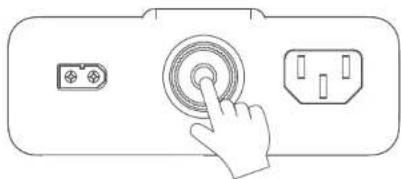
Q5: What should I do when AC recharging fails?
If AC recharging does not work, check to see if the overload protection switch is switched on. If it is on, press down to reset and then continue recharging.
natural_image
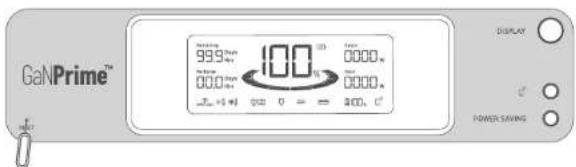
Simple line drawing of a button with a hand pointing to a circular icon, next to an electrical plug (no text or symbols)Q6: How do I reset Anker SOLIX F2600 Portable Power Station?
If your power station isn't working correctly, insert a paper clip or pin into the reset hole for 1 second for a factory reset. If the power station still doesn't work, please contact support@anker.com:
Q7: Why is the power station not working after it hasn't been used for a long time?
If the power station is stored at a low capacity for a long time, lithium batteries will self-consume power which may lead to a quick discharge. This often leads to poor conductivity and a reduced battery lifespan that causes the battery not to work.
Q8: How should I store and maintain the power station?
When storing your portable power station please make sure that you:
1) Turn off all the outputs.
2) Store the power station in a dry and cool environment.
3) Check the remaining battery capacity each week. If the battery level is below 30%, fully charge the power station. Don't forget to charge it to 100% once every 3 months.
Specifications
| Cell Capacity 2560 Wh | |
| AC Input Voltage 120V-12A Max, 60Hz | |
| AC Input Power (Charging) 1440W Max | |
| AC Input Power (Bypass Mode) 1640W Max | |
| Solar Panel Input 11-32V 10A, 32V-60V 20A±1000W Max) ... | |
| Car Charger Output 12V 10A | ... |
| AC Output 120V-20A, 60Hz, 2400W Max | |
| USB A Output 5V 2.4A (2.4A Max Per Port) | |
| USB-C Output (100W) 5V 3A/9V 3A/15V=3A/20V=3A/20V 8A (100W Max Per Port) | |
| UPS 20ms | |
| Discharging Temperature | -4°F-104°F / -20°C-40°C |
| Charging Temperature | 32°F-104°F / 0°C 40°C |
| Size | 20.7 × 15.5 × 9.8 in / 52.5 × 39.5 × 25.0 cm |
| Net Weight | 69.7 lb / 31.6 kg |
Attention

Not permitted on aircraft.
IMPORTANT SAFETY INSTRUCTIONS
WARNING - When using this product, basic precautions should always be followed, including the following
- Read all the instructions before using the product.
• To reduce the risk of injury, close supervision is necessary when the product is used near children.
- Do not put fingers or hands into the product.
• Do not expose the product to rain or snow.
- Use of an attachment not recommended or sold by the product manufacturer may result in a risk of fire, electric shock, or injury.
• To reduce the risk of damage to the electric plug and cord, pull the plug rather than the cord when disconnecting the product.
- Do not use the product in excess of its output rating. Overload outputs above rating may result in a risk of fire or injury.
- Do not use the product or attachment that is damaged or modified. Damaged or modified batteries may exhibit unpredictable behavior resulting in fire, explosion, or risk of injury.
- Do not operate the product with a damaged cord, plug, or output cable.
- Do not disassemble the product. Take it to a qualified service person when service or repair is required. Incorrect reassembly may result in a risk of fire or electric shock.
- Do not expose the product to fire or high temperatures. Exposure to fire or temperatures above 130^ may cause explosions.
- To reduce the risk of electric shock, unplug the power pack from the outlet before attempting any instructed servicing.
• Have servicing performed by a qualified repair person using only identical replacement parts. This will ensure that the safety of the product is maintained.
- When charging a device, the product may feel warm. This is a normal operating condition and should not be a cause for concern.
- When charging the internal battery, work in a well-ventilated area and do not restrict ventilation in any way.
- Do not clean the product with harmful chemicals or detergents.
- Misuse, dropping, or excessive force may cause product damage.
- When disposing of secondary cells or batteries, keep cells or batteries of different electrochemical systems separate from each other.
- Do not use or store the power station in direct sunlight for a long period, such as in a car, cargo bed, or any other place where it will be exposed to high temperatures. Doing so may cause the product to malfunction.
deteriorate, or generate heat.
CAUTION: Risk of explosion if the battery is replaced by an incorrect type.
- Disposal of a battery into a fire or hot oven, or mechanically crushing or cutting off a battery, can result in an explosion.
• Leaving a battery in an extremely high-temperature environment can result in an explosion or leakage of flammable liquid or gas
- A battery subjected to extremely low air pressure may cause an explosion or leakage of flammable liquid or gas. - Unplug the AC power cable to disconnect from the line voltage.
WARNING: GROUNDING INSTRUCTIONS
This product must be grounded. In the event of a malfunction or breakdown, grounding provides a path of least resistance for electrical current to reduce the risk of electric shock. This product is equipped with a core with an equipment grounding conductor and a grounding plug. The plug must be plugged into an bullet that is properly installed and grounded in accordance with all local codes and ordinances.
WARNING - Improper connection of the equipment grounding conductor may result in an electric shock. Check with a qualified electrician if you are in doubt as to whether the product is properly grounded. Do not modify the plug provided with the product. If it does not fit the outlet, have a proper outlet installed by a qualified electrician.
Storage and Maintenance Instructions
-
Store the product between 32°F-104°F (0°C-40°C). Avoid exposing the product to rain or using the product in a humid environment.
-
To preserve the battery lifespan, charge to 100% after using. If you plan to store your power station, recharge to 100% every 3 months.
-
Keep the product on a flat surface when using, charging, and storing.
Bluetooth: The Bluetooth® word mark and logos are registered trademarks owned by the Bluetooth SIG, Inc. and any use of such marks by Anker Innovations Limited for Anker Technology Co., Limited is under license. Other trademarks and trade names are those of their respective owners.
FCC Statement
This device complies with Part 15 of the FCC Rules. Operation is subject to the following two conditions: (1) This device may not cause harmful interference, and (2) this device must accept any interference received, including interference that may cause undesired operation.
Warning: Changes or modifications not expressly approved by the party responsible for compliance could void the user's authority to operate the equipment.
Note: This equipment has been tested and found to comply with the limits for a Class B digital device, pursuant to Part 15 of the FCC Rules. These limits are designed to provide reasonable protection against harmful interference in a residential installation.
This equipment generates, uses, and can radiate radio frequency energy and, if not installed and used in accordance with the instructions, may cause harmful interference to radio communications. However, there is no guarantee that interference will not occur in a particular installation. If this equipment does cause harmful interference to radio or television reception, which can be determined by turning the equipment off and on, the user is encouraged to try to correct the interference by one or more of the following measures:
(1) Reorient or relocate the receiving antenna.
(2) Increase the separation between the equipment and receiver.
(3) Connect the equipment into an outlet on a circuit different from that to which the receiver is connected. (4) Consult the dealer or an experienced radio / TV technician for help.
The following importer is the responsible party.
Company Name: Fantasia Trading LLC
Address: 5350 Ontario Mills Pkwy. Suite 100, Ontario, CA 91764
Telephone: +1-800-988-7973
RF Exposure Compliance Statement
This digital apparatus complies with CAN ICES-003(B)/NMB-003(B).
EN 0807 EN
Recharge AC (1440W Max)
natural_image
Simple line drawing of a plug, fuse, and bus (no text or symbols)Charge par USB
natural_image
Line drawing of a portable electronic device with control panel and scroll wheel (no text or symbols)natural_image
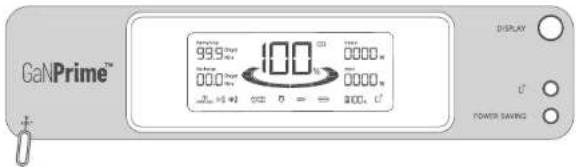
Line drawing of a hand pressing a circular button on a device panel (no text or symbols)If your power station isn't working correctly, insert a paper clip or pin into the reset hole for 1 second for a factory reset. If the power station still doesn't work, please contact support@anker.com.
シガーソケットからの給電
UPS(無停電電源装置)機能の利用
拡張バッテリーとの接続
natural_image
Line drawing of a portable electronic device with ports and cables (no text or symbols)Anker アプリによる操作
SOS モード
natural_image
Line drawing of a hand pressing a circular button on a device panel (no text or symbols)MEA: support.mea@arker.com
CN: CED-CN@anker.com

US/CA: +1 (800)988 7973
UK: +44011604 936 200
DE: 149069 9579 7960
+49(800)0002522(Anker SOLX)
JP: +81 03 4455 7823
UAE: +971 8000 320 817
KSA: +966 8008 500 030
Kuwait: 1965 2206 9086
Egypt: +20 8000 000 826
AU: +61 3 8331 4800
TR:+90(850)4601414
RU: +8(800)511 8623
CN: +86 400 0550 036
KR: +82 02-1661-9246
IN: +91 1800 3138 831
Middle East & Africa: +971 529750842