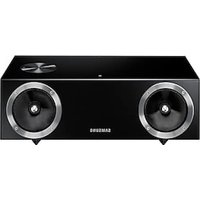
DA-F680 - Speaker SAMSUNG - Free user manual and instructions
Find the device manual for free DA-F680 SAMSUNG in PDF.


| Product Type | Wireless audio speaker with docking station |
| Brand | Samsung |
| Model | DA-F680 |
| Dimensions (W x D x H) | 400 x 200 x 142 mm |
| Weight | 4.03 kg |
| Power supply | AC adapter 14V DC / 4A |
| Wireless connectivity | Bluetooth, NFC |
| Audio inputs | AUX IN (3.5 mm jack), USB Type A, Galaxy Dock (5-pin / 30-pin) |
| Output power | Front: 2 x 10 W (4 Ω), Surround: 1 x 20 W (4 Ω) |
| Main features | Bluetooth playback, NFC tap-to-pair, Galaxy docking station, SoundShare (Samsung TV), USB playback, remote control |
| USB audio formats | MP3, WMA (FAT16/FAT32) |
| Temperature range | +5°C to +35°C |
| Humidity | 10% to 75% |
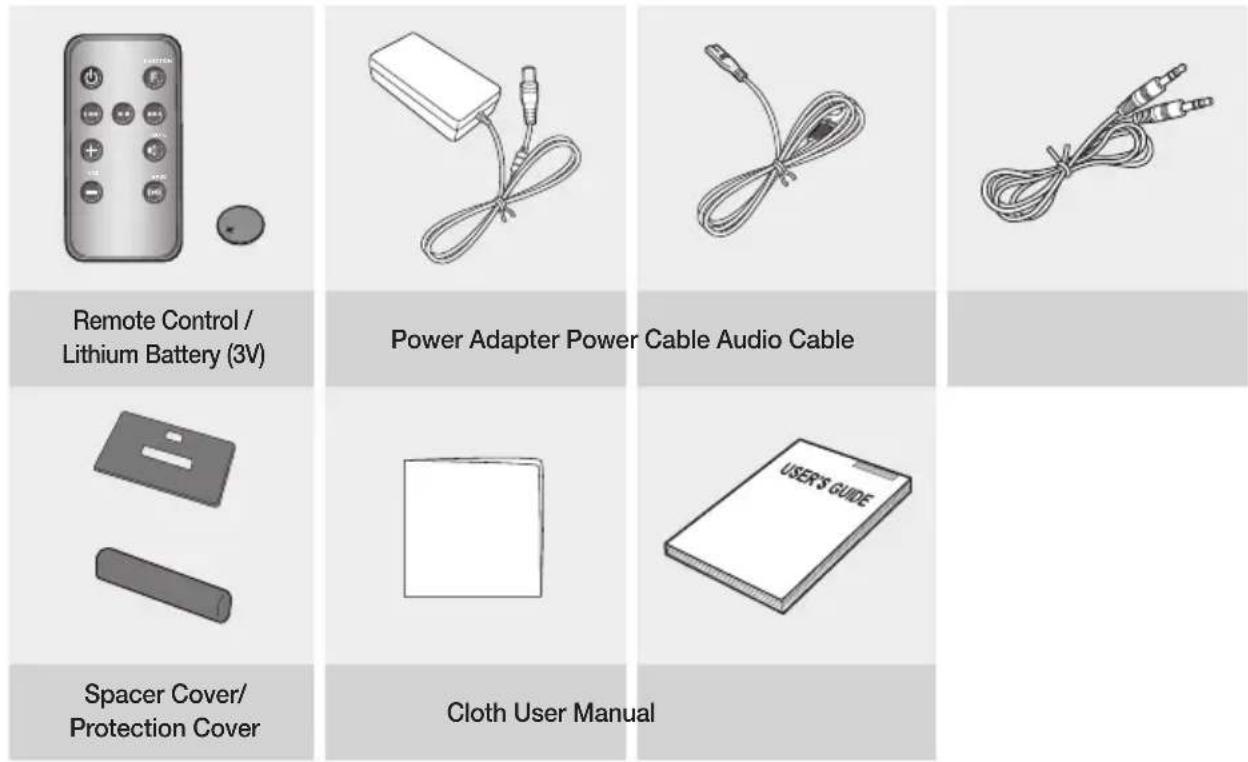
| Included accessories | Remote control (3V lithium battery), AC adapter, power cord, audio cable, spacer cap, protection cap, cloth, user manual |
| Safety | Automatic standby (25 min BT/Dock/SoundShare, 25 min USB, 8 h AUX). Disconnect during storms. Do not expose to water. |
| Maintenance | Clean with a dry cloth. Do not use chemical products. |
| Repairability | No user-serviceable parts. Refer to qualified personnel. Firmware update via USB. |
Frequently Asked Questions - DA-F680 SAMSUNG
User questions about DA-F680 SAMSUNG
0 question about this device. Answer the ones you know or ask your own.
Ask a new question about this device
Download the instructions for your Speaker in PDF format for free! Find your manual DA-F680 - SAMSUNG and take your electronic device back in hand. On this page are published all the documents necessary for the use of your device. DA-F680 by SAMSUNG.
USER MANUAL DA-F680 SAMSUNG
Wireless Audio with Dock user manual
imagine the possibilities
Thank you for purchasing this Samsung product.
To receive more a complete service, please register your product at
www.samsung.com/register
features
NFC support
Connect your NFC compatible device via Bluetooth to the Wireless Audio with Dock using this simple set-up procedure and play music on the device through the Wireless Audio with Dock.
Galaxy Docking Audio Speaker System
Using the system's docking station, dock, charge and then play some Samsung Galaxy devices released after S3(Android OS 4.1.2 or later) through the system's built-in speakers.
Bluetooth Function
Connect a Bluetooth device to the Wireless Audio with Dock and enjoy music from the device with high quality stereo sound, all without wires!
Safety WarningGS
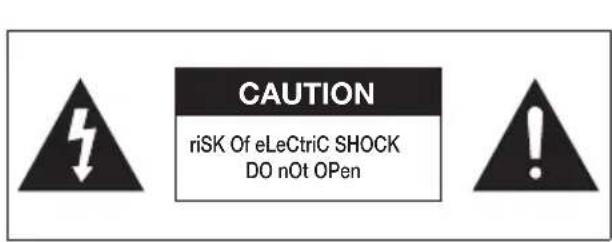
TO REDUCE THE RISK OF ELECTRIC SHOCK, DO NOT REMOVE THE COVER(OR BACK). NO USER-SERVICEABLE PARTS ARE INSIDE. REFER SERVICING TO QUALIFIED SERVICE PERSONNEL.
text_image
CAUTION riSK Of eLeCtrlC SHOCK DO nOt OPen
This symbol indicates "dangerous voltage" inside the product that presents a risk of electric shock or personal injury.

This symbol indicates important instructions accompanying the product.
WARNING: To reduce the risk of fire or electric shock, do not expose this appliance to rain or moisture.
CAUTION : TO PREVENT ELECTRIC SHOCK, MATCH WIDE BLADE OF PLUG TO WIDE SLOT, FULLY INSERT.
- This apparatus shall always be connected to a AC outlet with a protective grounding connection.
- To disconnect the apparatus from the mains, the plug must be pulled out from the mains socket, therefore the mains plug shall be readily operable.
CAUTION
- Do not expose this apparatus to dripping or splashing. Do not put objects filled with liquids, such as vases on the apparatus.
- To turn this apparatus off completely, you must pull the power plug out of the wall socket. Consequently, the power plug must be easily and readily accessible at all times.
text_image
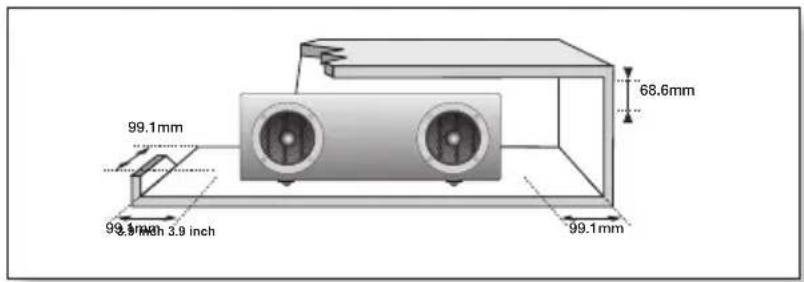
99.1mm 99.1mm 3.9 inch 68.6mm 99.1mm 99.1mmEnsure that the AC power supply in your house complies with the power requirements listed on the identification sticker located on the back of your product. Install your product horizontally, on a suitable base (furniture), with enough space around it for ventilation (70\~100 mm). Make sure the ventilation slots are not covered. Do not place the unit on amplifiers or other equipment which may become hot. This unit is designed for continuous use. To fully turn off the unit, disconnect the AC plug from the wall outlet. Unplug the unit if you intend to leave it unused for a long period of time.
natural_image
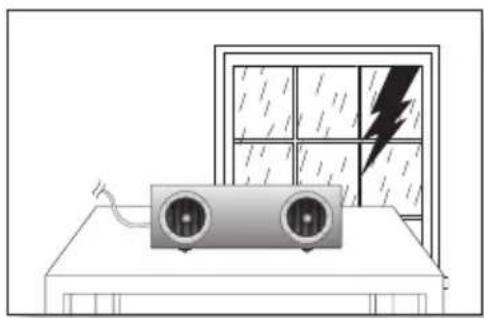
Illustration of a wall-mounted air conditioner unit with a lightning bolt striking the window (no text or symbols)During thunderstorms, disconnect the AC plug from the wall outlet. Voltage peaks due to lightning could damage the unit.
natural_image
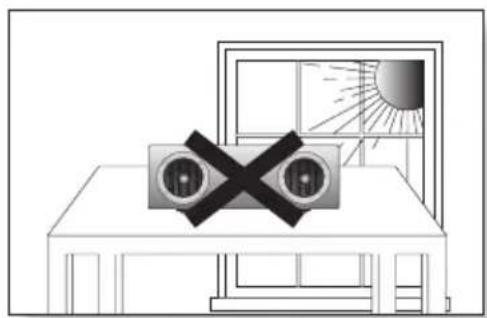
Simple line drawing of a room with a window, sun, and a crossed-out X-shaped object (no text or symbols)Do not expose the unit to direct sunlight or other heat sources.
This could cause the unit to overheat and malfunction.
natural_image
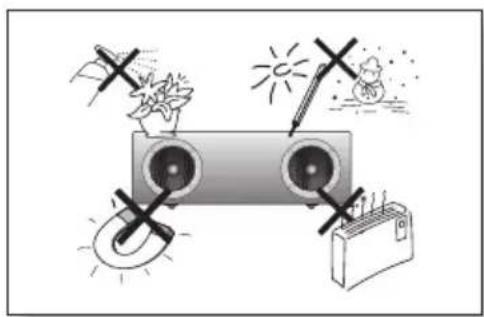
Illustration of a road intersection with wind turbines, sun, and power supply (no text or symbols)Protect the product from moisture (i.e. vases), and excess heat (e.g. fireplaces) or equipment creating strong magnetic or electric fields Disconnect the power cable from the AC supply if the unit malfunctions. Your product is not intended for industrial use. This product is for personal use only.
Condensation may occur if your product has been stored in cold temperatures. If transporting the unit during the winter, wait approximately 2 hours until the unit has reached room temperature before using.
text_image
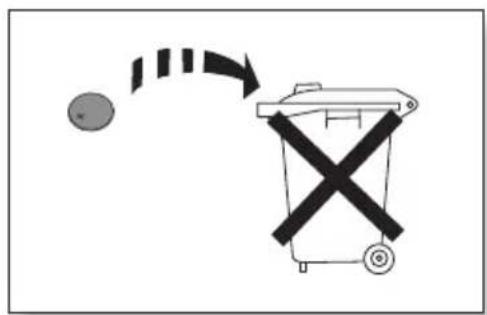
Diagram showing a trash bin with a circular object and a crossed-out X symbol, indicating a collision or rejection process.The batteries used with this product contain chemicals that are harmful to the environment.
Do not dispose of batteries in the general household trash.
FEATURES
2 Features
SAFETY INFORMATION
3 Safety warnings
4 Precautions
GETTING STARTED
6 Before reading the user's manual
6 What's included
DESCRIPTIONS
7 Top/Front/Rear Panel
REMOTE CONTROL
9 Tour of the remote control
POWER ON AND VOLUME CONTROL
10 Turning the Power on/off
10 Adjusting the volume
CONNECTIONS
11 Using the Spacer Cover
12 Connecting a device to the Galaxy Dock
13 Connecting an audio device using AUX IN
14 Connecting the NFC function
15 Using Bluetooth
FUNCTIONS
18 Using the TV mode (SoundShare)
18 Using the docking mode with Samsung Galaxy Devices
19 Using the Bluetooth mode
20 Using the USB mode
21 Software upgrade (only USB mode)
22 Troubleshooting
TROUBLESHOOTING
22
APPENDIX
23 Specifications
23
getting started
BEFORE READING THE USER'S MANUAL
Note the following terms before reading the user manual.
Icons used in this manual
| Icon Term Definition | ||
 | Caution | Indicates a situation where a function does not operate or settings may be canceled. |
 | Note | Indicates tips or instructions on the page that help a function operate. |
Safety Instructions and Troubleshooting
1) Familiarise yourself with the Safety Instructions before using this product. (See page 3)
2) If a problem occurs, check Troubleshooting. (See page 22)
Copyright
©2013 Samsung Electronics Co., Ltd.
All rights reserved; no part or whole of this user's manual may be reproduced or copied without the prior written permission of Samsung Electronics Co., Ltd.
WHAT'S INCLUDED
Check for the supplied accessories shown below.
text_image
Remote Control / Lithium Battery (3V) Power Adapter Power Cable Audio Cable Spacer Cover/ Protection Cover Cloth User Manual
The appearance of the accessories may differ slightly from the illustrations above.
descriptions
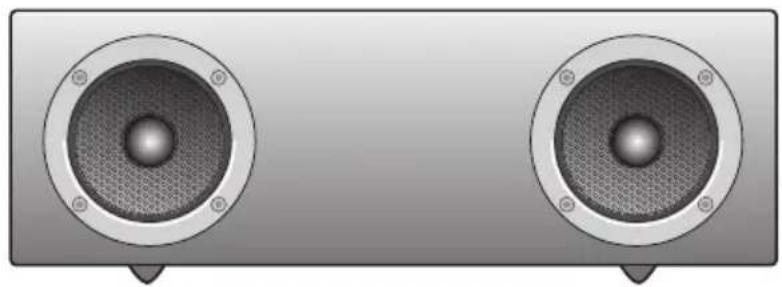
tOP/frOnt/rear PaneL
text_image
DOCK 1 2 3 4 5
natural_image
Illustration of two identical speaker speakers with circular heads and metallic grille (no text or symbols)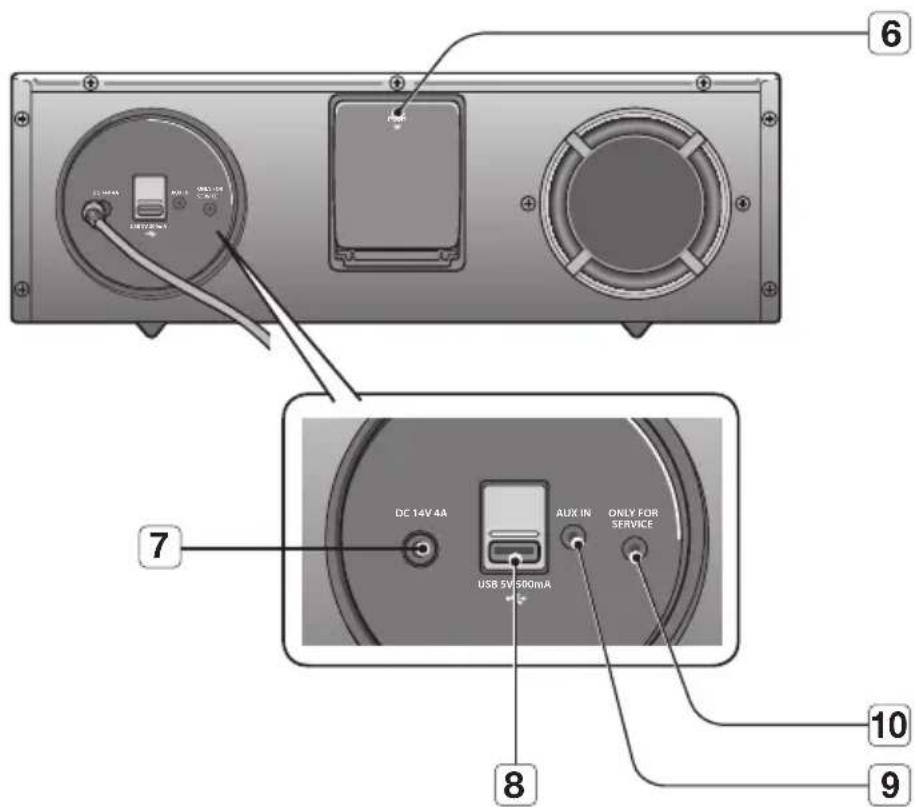
text_image
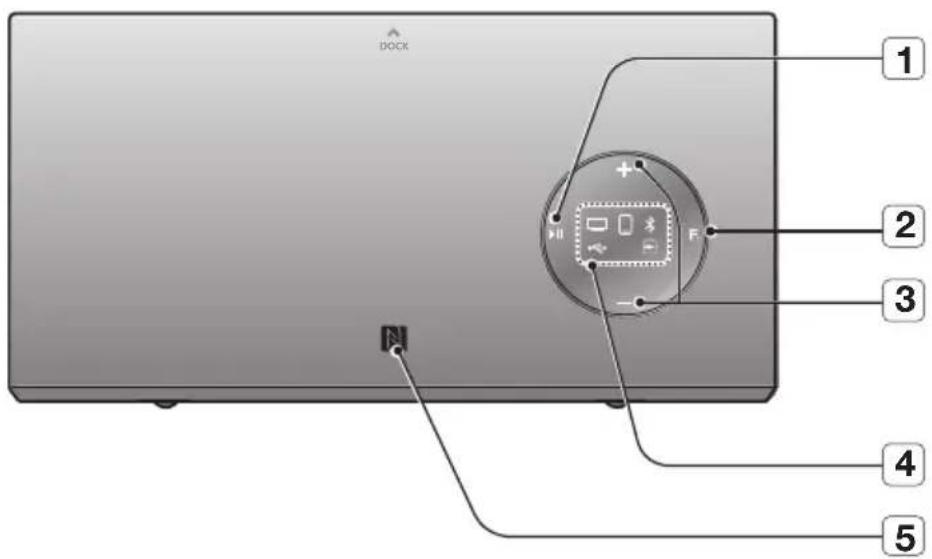
6 7 DC 14V 4A USB 5V 500mA Aux IN ONLY FOR SERVICE 8 10 9| 1 | PLAY/PAUSE BUTTON | Play or pause a music file.Press the button for 3 seconds to turn off. |
| 2 | FUNCTION BUTTON | Switches the mode as follows :→→→←→ |
| 3 | VOLUME +/- BUTTON | Controls the volume level. |
| 4 | FUNCTION DISPLAY | When you change the mode with the Function button, the icon of the selected mode is displayed in white on the Function Display.The LED blinks when you turn the power on and stops blinking when the unit is on and ready to play. |
| 5 | NFC TAG | Connect your NFC compatible device via Bluetooth to the using this simple set-up procedure. |
| 6 | GALAXY DOCK | Provides a 5-pin dock for Samsung Galaxy devices and a 30-pin dock for Samsung Galaxy Tab devices. |
| 7 | DC 14V | Connect the unit's DC adapter to this jack. |
| 8 | USB PORT | Connect a regular stick type USB storage device such as a thumb drive to play files stored in the device. |
| 9 | AUX IN | Connect to the Analog output of an external device. |
| 10 | ONLY FOR SERVICE | This jack is for service only. |

When you turn on this unit, there will be a 4 to 5 second delay before it produces sound.
To update the product's software via USB port, it is required to use a USB memory device.

This unit can connect to mobile devices with high audio output levels. When you connect this unit to external devices with high output levels, it may lower the audio output to protect the amp and speakers.
- When disconnecting the power cable from the wall outlet, hold the plug. Do not pull the cable.
tOUr Of tHe reMOte COntrOL
text_image
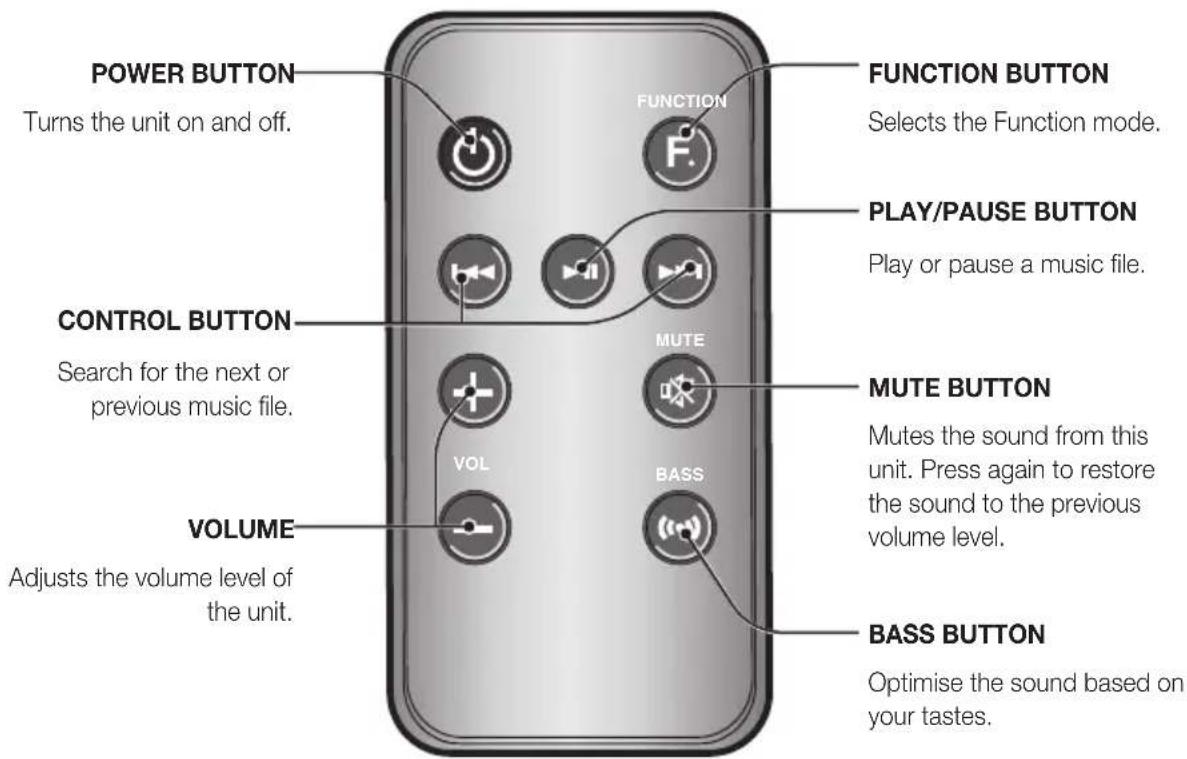
POWER BUTTON Turns the unit on and off. FUNCTION BUTTON Selects the Function mode. PLAY/PAUSE BUTTON Play or pause a music file. CONTROL BUTTON Search for the next or previous music file. MUTE BUTTON Mutes the sound from this unit. Press again to restore the sound to the previous volume level. VOLUME Adjusts the volume level of the unit. BASS BUTTON Optimise the sound based on your tastes.Installing battery in the Remote Control

flowchart
graph LR
    A["Shelf with flame"] --> B["Disassembly with highlighted device"]
    B --> C["Close-up of the part"]
    C --> D["Final closed portion with arrows indicating movement and rotation"]
- Open the cover of the remote control by putting your fingernail into the gap between the cover and body of the remote control. Then, lift the cover and separate it completely.
- Install a 3V Lithium battery. Insert the battery into the battery compartment with the + side facing up.
- Fit the remote control's cover to the remote control. Next, lower the cover so that it is flush with the body of the remote, and then press the cover into the body by pushing the edges down with your hand.

- Be careful not to catch your fingernail in the gap when you lift the cover. You can damage your fingernail.
Operation Range of the Remote Control
You can use the remote control up to 7 meters in a straight line from the unit. You can also operate the remote at a horizontal angle of up to 30° from the remote control sensor.
power on and volume control
text_image
Diagram showing a hand interacting with a remote control panel, labeled with buttons and function icons.- To turn on this unit, press any button on the unit's top panel when the unit is in Standby mode.
or,
PressPOWER on the remote control.
- To turn off this unit, press the ▶ II button on the unit's top panel for more than 3 seconds.
or,
PressPOWER on the remote control again.

The unit turns off automatically in the following situations:
- BT/Dock/SoundShare mode : If there is not connected for about 25 minutes.
- USB mode: If there is no audio signal for about 25 minutes.
- AUX mode: If no KEY input is entered for 8 hours when the cable is connected.
ADJUSTING THE VOLUME
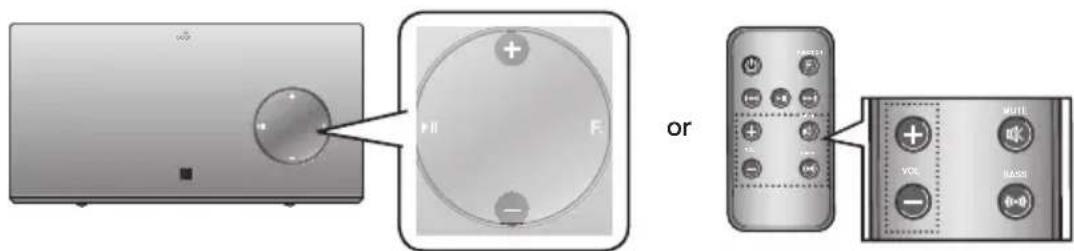
Use +,- buttons to adjust the volume. The function LEDs light from left to right when you turn the volume up and from right to left when you turn the volume down. The LEDs do not flicker if you try to increase the volume when it has already been set to maximum or try to decrease the volume when it has already been set to minimum.
text_image
Diagram showing remote control interface with labeled buttons and a separate view of the rightmost device.Pressthe+/− button on the right side of the top panel.
or,
PressVOL +/- on the remote control.

The volume level increases or decreases when you press VOL +/-
- You can also use the volume controls of devices connected using the Galaxy Dock or Bluetooth to control the volume. However, your ability to control the volume using the volume controls of devices connected using Bluetooth may be limited.
English10
connections
USING THE SPACER COVER
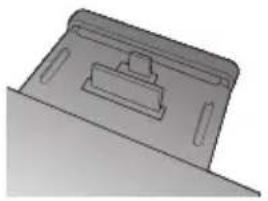
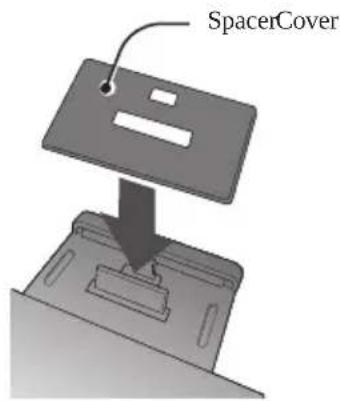
Attach the space cover if you want to dock a Samsung Galaxy Phone or Galaxy Tab device having no protective case onto the Galaxy Dock.
- Use it for stable installation of your device considering the shape of the device.
The Galaxy Dock also comes with a protective cover for the 30-pin Samsung Galaxy Tab device connector. Use the protective cover for the 30-pin connector when you attach the 5-pin Samsung Galaxy Phone device.
See the illustrations below for additional instructions.
When docking a device, use appropriate support considering the docking device's protective case or the device's shape for further stability.
natural_image
3D technical illustration of a mechanical component with a bracket and mounting holes (no text or symbols)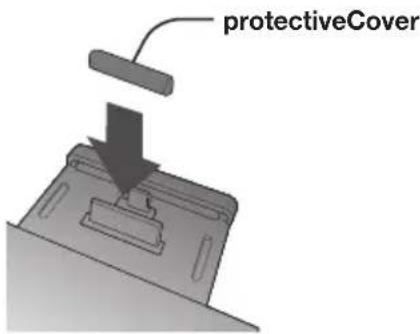
text_image
protectiveCoverUsed for docking devices having no protective case on it.
text_image
SpacerCover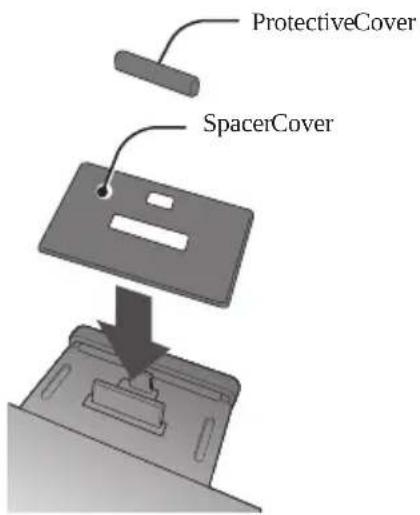
text_image
ProtectiveCover SpacerCover
It is impossible to dock a device to the Galaxy Dock that has a case thicker than 1.5mm or an unusual rounded bottom.
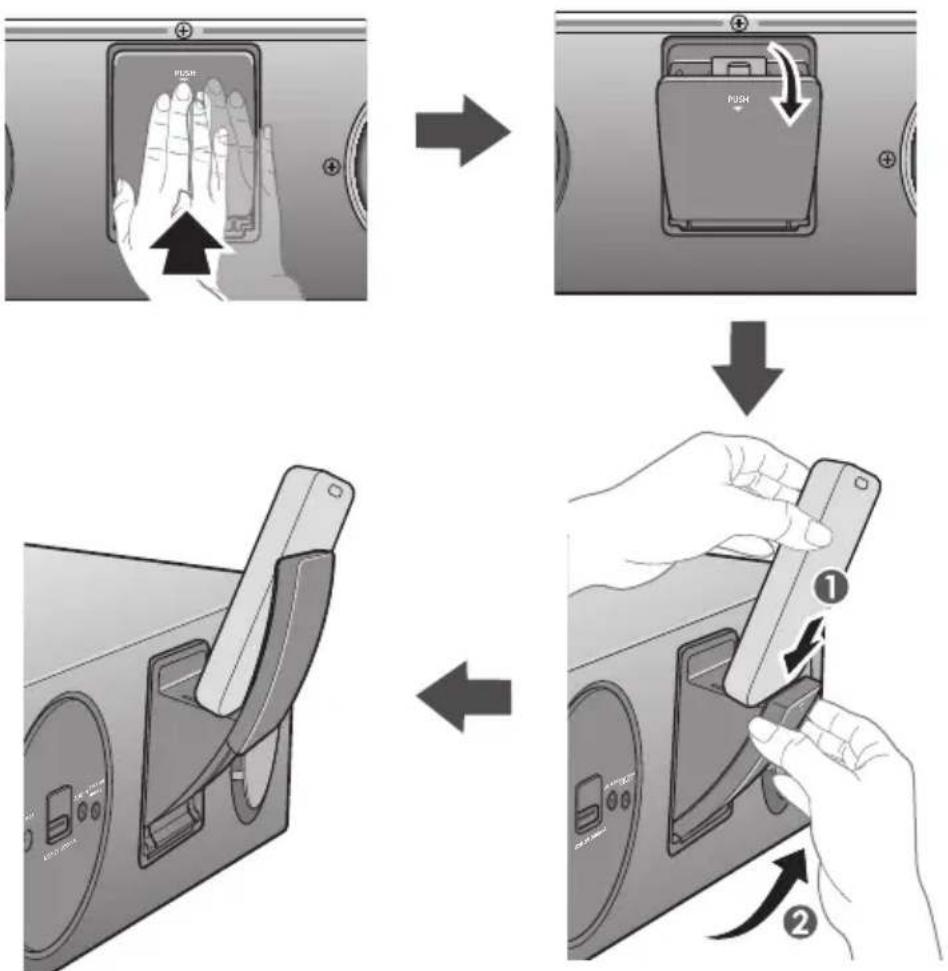
How to connect a device to the Galaxy Dock.
flowchart
graph TD
    A["Handset with PUSH"] --> B["Inserted device with PUSH"]
    B --> C["Disassembly with handshells"]
    C --> D["Handset holding a device with two buttons, labeled ① and ②"]
-
The GALAXY DOCK is located on the back of the product. To open, push it in gently.
-
Pressthe F. button on the top panel of the Wireless Audio with Dock repeatedly until the ☐ion appears in the display.
• Each time you press the button, the selection changes as follows :

• The selected mode is displayed in white in the Function Display.
-
If you have a Samsung Galaxy Phone device, connect the device to the 5 pin (smaller) connector to connect to the Galaxy Dock. If you have a Samsung Galaxy Tab Device, connect the device to the 30 pin (larger) connector on the Galaxy Dock.
-
Lift the device support up as shown to prevent the device from sliding or falling off the Galaxy Dock.

■ Turn on your Samsung Galaxy device before you docking it to the Galaxy Dock.
This unit doesn't support the simultaneous docking of Samsung Galaxy Phone and Samsung Galaxy Tab Device.
■ Connect your Samsung Galaxy device to the Galaxy Dock before starting Docking mode. (See page 18)
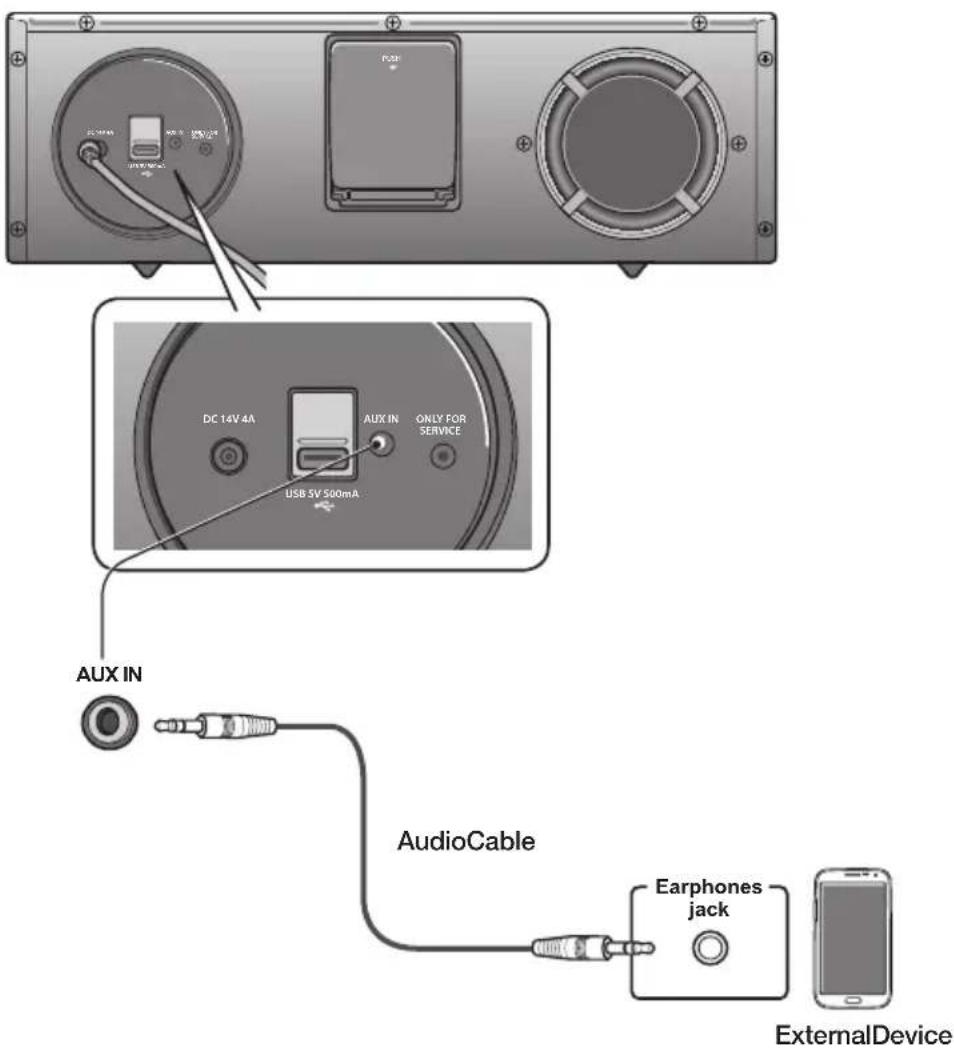
This section explains how to connect the unit to an audio device.
This unit is equipped with one audio analog jack for connecting an audio device.
text_image
DC 14V 4A AUX IN USB 5V 500mA ONLY FOR SERVICE AudioCable Earphones jack ExternalDeviceAUxIN
- Connect AUX IN (Audio) on the back of the unit to the earphone jack of the external device or audio device.
- Pressthe F. button on the top panel of the Wireless Audio with Dock repeatedly until the icon appears in the display.
• Each time you press the button, the selection changes as follows :
• The selected mode is displayed in white in the Function Display.


Before moving or installing this product, be sure to turn off the power and disconnect the power cord.
CONNECTING THE NFC FUNCTION
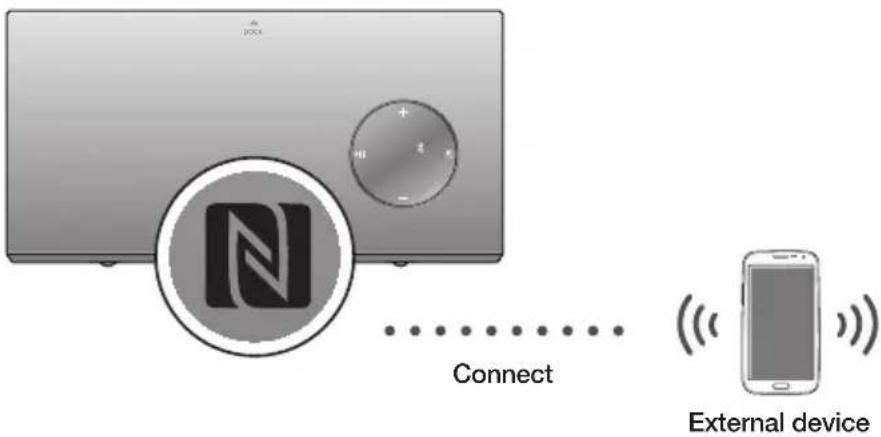
Connect your NFC compatible device via Bluetooth to the Wireless Audio with Dock using this simple set-up procedure and play music on the device through the Wireless Audio with Dock.
text_image
N Connect External device-
Turn on the NFC function on the device and make sure the screen lock function on the device is off. The device's NFC function will not work if screen lock is on.
-
Gently touch the top of the Wireless Audio with Dock's top panel with the NFC supported device.
• If the Wireless Audio with Dock is off, it will turn on automatically.
- A pop-up asking whether to proceed with the Bluetooth connection appears on the device. Select
.
- When the connection is complete, the 'connected' message appears.
- To disconnect the NFC device, touch the device to the Wireless Audio with Dock's top panel again. To connect another NFC device while the first device is still connected, touch that device to the Wireless Audio with Dock's top panel. The Wireless Audio with Dock will disconnect the first device and connect to the second device.

The NFC function is built into Android devices running Android OS 4.1.2 Jellybean or later.
- If your device is running an Android OS earlier than Android OS 4.1.2 Jellybean, you must download the 'Samsung NFC Connection' application from Android market to use the NFC function.
The position of the NFC antenna differs on devices. Check where the NFC antenna is located before connecting.
If your device is covered with a thick case, the connection may not succeed.
For further details on NFC tag location of an external device, refer to the manual of the device.
The N-Mark is a trademark or registered trademark of NFC Forum, Inc. in the United States and in other countries.
To use NFC function, enable NFC read/write setting of the corresponding device before pairing.
If NFC pairing failed to establish Bluetooth connection, try again.
You can connect the Wireless Audio with Dock to Bluetooth devices and enjoy music with high quality stereo sound, all without wires!
What is Bluetooth?
Bluetooth technology lets Bluetooth-compliant devices interconnect easily with each other using a short wireless connection.
- A Bluetooth device may cause noise or malfunction, depending on usage, when:
- A part of your body is in contact with the receiving/transmitting system of the Bluetooth device or the Wireless Audio with Dock.
- It is subject to electrical variation from obstructions caused by a wall, corner, or by office partitioning.
-
It is exposed to electrical interference from same frequency-band devices including medical equipment, microwave ovens, and wireless LANs.
-
Keep the Wireless Audio with Dock and the Bluetooth device close together when pairing.
- The further the distance between the Wireless Audio with Dock and Bluetooth device, the worse the quality. If the distance exceeds the Bluetooth operational range, the connection is lost.
• In poor reception-sensitivity areas, the Bluetooth connection may not work properly. - The Bluetooth connection only works when the Bluetooth device is close to the set. The connection is automatically cut off if the Bluetooth device moves out of range. Even within range, the sound quality may be degraded by obstacles such as walls or doors.
• This wireless device may cause electric interference during its operation.

- You may be required to enter a PIN code (password) when connecting the Bluetooth device to the Wireless Audio with Dock. If the PIN code input window appears, enter <0000>.
■ The Wireless Audio with Dock supports SBC data (44.1kHz, 48kHz).
■The AVRCP feature is supported.
■ Connect only to a Bluetooth device that supports the A2DP (AV) function.
- You cannot connect to a Bluetooth device that supports only the HF (Hands Free) function.
■Only one Bluetooth device can be paired at a time.
The Wireless Audio with Dock may not search or connect properly in the following cases:
- If there is a strong electrical field around the Wireless Audio with Dock.
- If several Bluetooth devices are simultaneously paired to the Wireless Audio with Dock.
- If the Bluetooth device is turned off, not in place, or malfunctions
- Note that such devices as microwave ovens, wireless LAN adaptors, fluorescent lights, and gas stoves use the same frequency range as the Bluetooth device, which can cause electric interference.
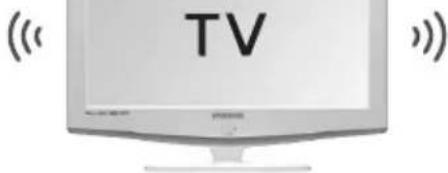
To connect the Wireless Audio with Dock to a Bluetooth compatible Samsung TV (SoundShare)
This section explains how to connect the Wireless Audio with Dock to a Bluetooth compatible SAMSUNG TV.

text_image
CDI Connect TVTo produce TV sound on your Wireless Audio with Dock via Bluetooth connection, you need to pair your system to the Bluetooth compliant TV first. Once the pairing is established, the pairing information is recorded and kept and no further Bluetooth connection message will appear from the next time. Keep the Wireless Audio with Dock and the TV close together before pairing. (It is recommended to pair devices within 1 meter.)
- Turn on the Samsung TV and Wireless Audio with Dock.
- Set "Add New Device" in the TV's "SoundShare Settings" menu to "On".
- When you change the mode of Wireless Audio with Dock to ☐, a message asking whether to proceed with Bluetooth pairing appears. Select
on the TV screen, then the pairing with the Wireless Audio with Dock will be completed.
• The indicator blinks, and stops blinking.
• The Wireless Audio with Dock Bluetooth pairing is complete.
• Once pairing is completed, only the volume can be controlled with the TV remote.
If you want to pair your Wireless Audio with Dock to a TV other than the connected TV, you should cancel the existing pairing in the Wireless Audio with Dock. It is possible to cancel the pairing in the way below.
To cancel the pairing, press the ▶ II button on the remote control for 5 seconds in mode. blinks and the connection terminates. This unit will automatically pair to a TV once you cancel the existing pairing and the new TV is ready for connection.

If the TV cannot be connected, please try to reconnect it after pressing the ▶ II button on the remote control for 5 seconds in the □ mode.
The SoundShare function is supported by some Samsung TVs released after 2012. Check whether your TV supports SoundShare before you begin. (For more information, refer to the user's guide of your TV.).
- You should update TV software to the latest version to operate TV pairing (SoundShare) function. Check the instructions for updating and applicable models from the support page on website (http://www.samsung.com) or contact the call centre.
To connect the Wireless Audio with Dock to a Bluetooth device
Before you begin, confirm that your Bluetooth device supports the Bluetooth compliant stereo headset function.
text_image
Connect External deviceaptx®
aptX enables high quality Bluetooth stereo audio that delivers wired audio quality wirelessly.
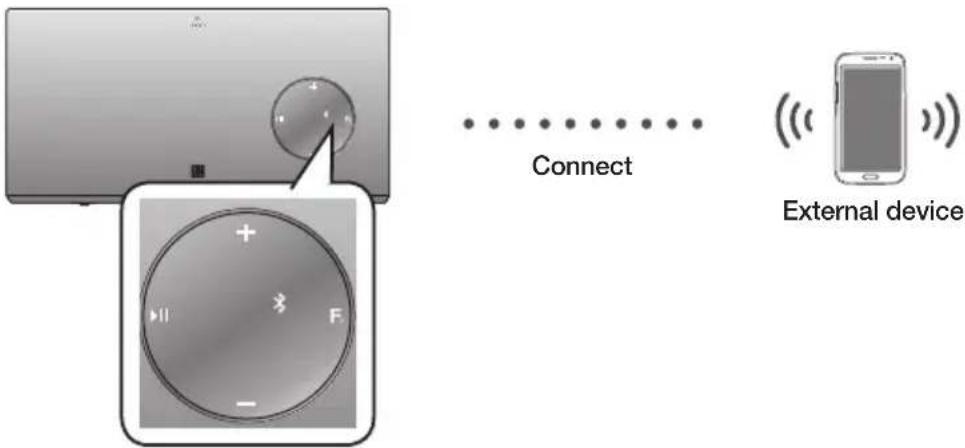
- Press the F. button on the top panel of the Wireless Audio with Dock to select the icon
- Press the top F. button for 3 seconds on top panel in Bluthooth mode.
- The Bluetooth indicator blinks quickly and the product changes to the pairing mode.
- Scan or Search for the Wireless Audio with Dock on your Bluetooth device.
- Select "[Samsung] W_Audio" on the list of items found by the Bluetooth device.
- If the Bluetooth device fails to pair with the Wireless Audio with Dock, please cancel Bluetooth pairing on the Bluetooth device and repeat Steps 2, 3, and 4.
- Play music on the connected device.

In Bluetooth connection mode, the Bluetooth connection will be lost if the distance between the Wireless Audio with Dock and the Bluetooth device exceeds 5m.
■ About Automatic Bluetooth Connection
- The last Bluetooth connection will be restored automatically if available when the Bluetooth device has been switched to Bluetooth mode, enabled Bluetooth mode or powered up in Bluetooth mode.
- It automatically attempts to restore the Bluetooth pairing for 1 minute if switched to Bluetooth mode using the function key or powering on the device.

text_image
Diagram showing remote control panel with labeled buttons and function icons, including a circular dial indicator.Using the input mode
You can select the following inputs: □ → □ → ✕ → ↙ → ◇.
Press an appropriate button on the remote control to select a desired mode, or press F. to select from: □→□→*→←→▶.
| InputmodeDisplay | |
| TVmode | |
| Dockingmode | |
| BLUETOOTHmode | |
| USBmode | |
| AUXinput |
USING THE TV MODE (SoundShare)
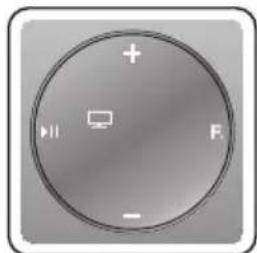
Pressthe button to select the mode, and then connect the TV to the Wireless Audio with Dock. (See page 16)
• The unit will play the TV's audio when it is connected to the TV.
- If you change the Wireless Audio with Dock's input source or turn it off, you will hear audio from the TV again.
natural_image
Circular icon with plus, minus, and play button symbols (no text or numbers)
- You can control the volume only with the Wireless Audio with Dock.
USING THE DOCKING MODE WITH SAMSUNG GALAXY DEVICE
Press the F. button to select the ☐ mode, and then connect the Samsung Galaxy device to the Galaxy Dock. (See page 12)
- Select the mode as described above, and then connect the Samsung Galaxy device to the Galaxy Dock as described in Connecting a Device to the Galaxy Dock. (Page 12)
- Select and play the desired music in the Samsung Galaxy device.
- The music will play through the Wireless Audio with Dock's speakers.

- You can play the music in some Samsung Galaxy devices released after S3 (Android OS 4.1.2 or later).
- Wireless Audio with Dock does not support playing music with Galaxy Tap. It only supports charging.
English18
natural_image
Front view of a smartphone with blank screen (no text or symbols)
natural_image
Two vertical curved lines on a gradient gray background, no text or symbols present.USinG tHe BLUetOOtH MODe
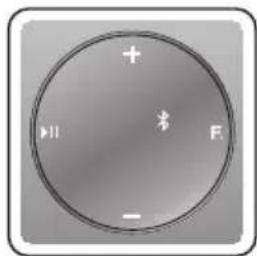
Press the F button to select the mode, and then connect the Bluetooth device to the Wireless Audio with Dock. (See page 17)
To connect your Bluetooth device when the Wireless Audio with Dock is in Bluetooth mode, search for the Wireless Audio with Dock on the device's Bluetooth list. Select the Wireless Audio with Dock, and then connect. Once the Wireless Audio with Dock has connected, select and play the desired music.
The music will play through the Wireless Audio with Dock's speakers.
text_image
+ ▶▶▶F
-
If you want to change the device which is connected through Bluetooth mode to other device, disconnect the existing device and try to connect to the other device which you want to use.
■ While in Bluetooth communication, Play/Pause/Next/Back operations may not be available depending on used mobile device and application.
- Operating Bluetooth device paired to the Wireless Audio with Dock may cause stuttering if operated while the Wireless Audio with Dock is playing back from AUX input.
To disconnect the Bluetooth device from the Wireless Audio With Dock
You can cancel the Bluetooth pairing from the Wireless Audio with Dock. For instructions, see the Bluetooth device's user manual.
• The Wireless Audio with Dock will be disconnected.
To disconnect the Wireless Audio with Dock from the Bluetooth device
Press the F button on the top panel of the Wireless Audio with Dock for 3 seconds to switch to the Standby mode for the pairing or press the F button to switch from ✗ to another mode or turn off the power by pressing the Power button on the remote control.
• The currently connected device will be disconnected.

The Bluetooth connection only works when the Bluetooth device is close to the set. The connection is automatically cut off if the Bluetooth device moves out of range. Even within range, the sound quality may be degraded by obstacles such as walls or doors.
USinG tHe USB MODe
-
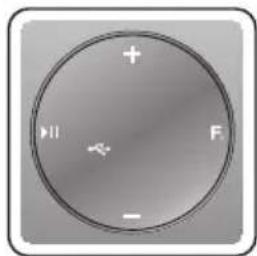
Connect the USB device to the USB port on the back of the unit.
-
Press the F. button on the top panel of the Wireless Audio with Dock repeatedly until the icon appears in the display.
• Each time you press the button, the selection changes as follows :

• The selected mode is displayed in white in the Function Display.
natural_image
Circular device with plus, minus, and minus symbols on a gradient background (no readable text or labels)Before you connect a USB device
Read the list below to check compatibility.
- This product may not be compatible with certain types of USB storage media.
- The FAT16 and FAT32 file systems are supported.
- The NTFS file system is not supported.
- Connect a USB device directly to the USB port of the product. Otherwise, you may encounter a USB compatibility problem.
- Do not connect multiple storage devices to the product via a multi-card reader. It may not operate properly.
• Digital camera PTP protocols are not supported. - Do not remove the USB device while it is being read.
- DRM-protected music files (MP3, WMA) from a commercial web site can not be played.
- Compatibility list
| Format Music | ||
| File name | MP3 WMA | |
| File extension | .MP3 .WMA | |
| Bit rate | 80~320 kbps 56~128 kbps | |
| Version | - V8 | |
| Sampling Frequency | 44.1KHz 44.1 KHz | |

text_image
14V 4A AUX IN USB 5V 500mA
Do not connect your mobile device to the USB port and the Docking station at the same time for recharging.
■ Source of not supported sampling frequency may not play back properly.
SOftWare UPGraDe (OnLy USB MODE)
-
Visit www.samsung.com.
-
Click SUppORT on the top right of the page.
-
Enter the product's model number into the search field, and then click Find product.
-
Click Get downloads in the Center of the page below the Downloads header.
-
Click Firmware in the Center of the page.
-
Click ZIp file icon of the upgrade file.
-
Once popup window appears, click OK and continue to download and save upgrade file onto your PC.
-
Uncompress downloaded .zip file into a certain folder of your PC.
-
Copy all files in the folder to the USB flash drive's root directory.
- Upgrading allows only one file set for upgrading at a time.
-
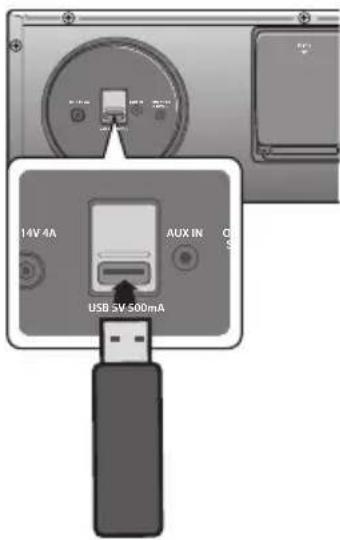
Press the F. button on the top panel of the Wireless Audio with Dock repeatedly until the icon appears in the display. Insert the USB drive into the USB port on the back panel of the unit.
-
The LED will blink during the Software update process. The product will turn off automatically after completing the firmware upgrade.
- It may take longer depending on the functions to upgrade. (Maximum 10 minutes)
- Turn on the product again.
text_image
14V 4A AUX IN USB 3V 500mA
Do not disconnect the power or remove the USB drive while an upgrade is being applied. The main unit will turn off automatically after completing the firmware upgrade.
When software is upgraded, settings you have made will return to their default (factory) settings. We recommend you write down your settings so that you can easily reset them after the upgrade.
If the firmware fails to upgrade, we recommend formatting the USB drive in the FAT16 format and then trying again.
For upgrading purposes, do not format the USB drive in NTFS format. It is not a supported file system.
■ Depending on the manufacturer, the USB may not be supported.
- Disconnect the Wireless Audio with Dock from the Internet and any external devices before you upgrade the software.
■ You cannot charge other external devices through this USB port.
■Refer to the Upgrade Guide from the website.
troubleshooting
Before requesting service, please check the following.
| Symptom Check Remedy | ||
| The unit does not turn on. | Is the power cord plugged into the outlet? | Connect the power plug to the outlet. |
| A function does not work when the button is pressed. | Has the Wireless Audio with Dock or the remote been exposed to static electricity? | Disconnect the power plug and connect it again. |
| Sound is not produced. | Is the unit properly connected to device?Is the Mute function on?Is the volume set to minimum? | Connect it correctly.Press the Mute button to cancel the function.Adjust the volume. |
| The remote control does not work. | Are the batteries drained?Is the distance between remote control and main unit too far? | Replace with new batteries.Operate closer to the main unit. |
| The SoundShare (Tv pairing) failed. | Is your TV a supporting model?Is your TV firmware the latest version?Does an error occur in connection? | Check whether your TV is a supporting model or not.(http://www.samsung.com)Update your TV with the latest firmware.Reset the unit.Press the F. button of the unit for 3 seconds in the TV mode.Contact the call centre. |
SPeCifiCatiOnS
| Model name | DA-F680 | ||
| GENERAL | Weight 4.03 kg | ||
| Dimensions (W x D x H) 400 x 200 x 142 mm | |||
| Operating temperature range +5°C~+35°C | |||
| Operating humidity range 10 % to 75 % | |||
| AMPLIFIER | Rated output power | Front L/R 10Wx2 (4Ω), THD = 1%, 1kHz | |
| Subwoofer 20W (4Ω), THD = 10%, 80Hz | |||
| Input sensitivity/Impedance 800mV/56Kohm | |||
| S/N ratio (analog input) 65 dB | |||
| Separation(1kHz) 60 dB | |||
| FREQUENCY RESPONSE | Analog input | 20Hz~20kHz(±3 dB) | |
| Digital input/48kHz PCM | 20Hz~20kHz(±3 dB) | ||
| DOCKING RATING | Galaxy Tab 5 V 2.0 A | ||
| Galaxy 5 V 1.0 A | |||
| USB | Type A USB 1.1 | ||
| DC output 500mA | |||
* S/N ratio, distortion, separation, and usable sensitivity are based on measurement using AES (Audio Engineering Society) guidelines.
* Nominal specification
- Samsung Electronics Co., Ltd reserves the right to change the specifications without notice.
- Weight and dimensions are approximate.
- For the power supply and Power Consumption, refer to the label attached to the product.
Open Source Announcement
To send inquiries and requests for questions regarding open sources, contact Samsung via Email (oss.request@samsung.com).
• This product uses some software programs which are distributed under the Independent JPEG Group.
FLAC decoder, Copyright (C) 2001,2002,2003,2004,2005,2006,2007 Josh Coalson
Redistribution and use in source and binary forms, with or without modification, are permitted provided that the following conditions are met:
- Redistributions of source code must retain the above copyright notice, this list of conditions and the following disclaimer.
- Redistributions in binary form must reproduce the above copyright notice, this list of conditions and the following disclaimer in the documentation and/or other materials provided with the distribution.
- Neither the name of the Xiph.org Foundation nor the names of its contributors may be used to endorse or promote products derived from this software without specific prior written permission.
THIS SOFTWARE IS PROVIDED BY THE COPYRIGHT HOLDERS AND CONTRIBUTORS "AS IS" AND ANY EXPRESS OR IMPLIED WARRANTIES, INCLUDING, BUT NOT LIMITED TO, THE IMPLIED WARRANTIES OF MERCHANTABILITY AND FITNESS FOR A PARTICULAR PURPOSE ARE DISCLAIMED. IN NO EVENT SHALL THE FOUNDATION OR CONTRIBUTORS BE LIABLE FOR ANY DIRECT, INDIRECT, INCIDENTAL, SPECIAL, EXEMPLARY, OR CONSEQUENTIAL DAMAGES (INCLUDING, BUT NOT LIMITED TO, PROCUREMENT OF SUBSTITUTE GOODS OR SERVICES; LOSS OF USE, DATA, OR PROFITS; OR BUSINESS INTERRUPTION) HOWEVER CAUSED AND ON ANY THEORY OF LIABILITY, WHETHER IN CONTRACT, STRICT LIABILITY, OR TORT (INCLUDING NEGLIGENCE OR OTHERWISE) ARISING IN ANY WAY OUT OF THE USE OF THIS SOFTWARE, EVEN IF ADVISED OF THE POSSIBILITY OF SUCH DAMAGE."
Ogg/Vorbis decoder, Copyright (c) 2002, Xiph.org Foundation
Redistribution and use in source and binary forms, with or without modification, are permitted provided that the following conditions are met:
Redistributions of source code must retain the above copyright notice, this list of conditions and the following disclaimer.
Redistributions in binary form must reproduce the above copyright notice, this list of conditions and the following disclaimer in the documentation and/or other materials provided with the distribution.
Neither the name of the Xiph.org Foundation nor the names of its contributors may be used to endorse or promote products derived from this software without specific prior written permission.
THIS SOFTWARE IS PROVIDED BY THE COPYRIGHT HOLDERS AND CONTRIBUTORS "AS IS" AND ANY EXPRESS OR IMPLIED WARRANTIES, INCLUDING, BUT NOT LIMITED TO, THE IMPLIED WARRANTIES OF MERCHANTABILITY AND FITNESS FOR A PARTICULAR PURPOSE ARE DISCLAIMED. IN NO EVENT SHALL THE FOUNDATION OR CONTRIBUTORS BE LIABLE FOR ANY DIRECT, INDIRECT, INCIDENTAL, SPECIAL, EXEMPLARY, OR CONSEQUENTIAL DAMAGES (INCLUDING, BUT NOT LIMITED TO, PROCUREMENT OF SUBSTITUTE GOODS OR SERVICES; LOSS OF USE, DATA, OR PROFITS; OR BUSINESS INTERRUPTION) HOWEVER CAUSED AND ON ANY THEORY OF LIABILITY, WHETHER IN CONTRACT, STRICT LIABILITY, OR TORT (INCLUDING NEGLIGENCE OR OTHERWISE) ARISING IN ANY WAY OUT OF THE USE OF THIS SOFTWARE, EVEN IF ADVISED OF THE POSSIBILITY OF SUCH DAMAGE.
Contact SAMSUNG WORLD WIDE
If you have any questions or comments relating to Samsung products, please contact the SAMSUNG customer care centre.
| Area | Contact Centre | Web Site |
| Asia Pacific | ||
| AUSTRALIA 1300 362 603 www.samsung.com | ||
| NEW ZEALAND 0800 SAMSUNG (0800 726 786) www.samsung.com | ||
| CHINA 400-810-5858 www.samsung.com | ||
| HONG KONG (852) 3698 4698 | www.samsung.com/hk (Chinese)www.samsung.com/hk_en (English) | |
| INDIA | 1800 3000 82821800 266 8282 | www.samsung.com/in |
| INDONESIA | 0600-112-8888021-5699-7777 | www.samsung.com/id |
| JAPAN 0120-327-527 www.samsung.com | ||
| MALAYSIA 1800-88-9999 www.samsung.com/my | ||
| PHILIPPINES | 1-800-10-SAMSUNG(726-7864) for PLDT1-800-3-SAMSUNG(726-7864) for Digitel1-800-8-SAMSUNG(726-7864) for Globe02-5805777 | www.samsung.com/ph |
| SINGAPORE 1800-SAMSUNG(726-7864) www.samsung.com | ||
| THAILAND | 1800-29-323202-689-3232 | www.samsung.com/thwww.samsung.com/th |
| TAIWAN | 0800-329-9990266-026-066 | www.samsung.com |
| VIETNAM 1 800 588 889 www.samsung.com | ||
| Middle East | ||
| U.A.E 800-SAMSUNG (726-7864) www.samsung.com | ||
| OMAN | 800-SAMSUNG(726-7864) | www.samsung.com/ae (English)www.samsung.com/ae_ar (Arabic) |
| KUWAIT | 183-2255 (183-CALL) | www.samsung.com/ae (English)www.samsung.com/ae_ar (Arabic) |
| BAHRAIN | 8000-4726 | www.samsung.com/ae (English)www.samsung.com/ae_ar (Arabic) |
| Qatar | 800-2255 (800-CALL) | www.samsung.com/ae (English)www.samsung.com/ae_ar (Arabic) |
| Egypt 08000-726786 | www.samsung.com | |
| JORDAN | 800-22273065777444 | www.samsung.com/Levant(English) |
| Syria | 18252273 | www.samsung.com/Levant(English) |
| IRAN | 021-8255 | www.samsung.com |
| Morocco | 080 100 2255 www.samsung.com | |
| Saudi Arabia | 9200-21230 | www.samsung.com/sa (Arabic) |
| Turkey | 444 77 11 | www.samsung.com |
| Africa | ||
| NIGERIA | 0800-726-7864 | www.samsung.com |
| Ghana | 0800-100770302-200077 | www.samsung.com |
| Cote D' Ivoire | 8000 0077 | www.samsung.com |
| Senegal | 800-00-0077 | www.samsung.com |
| Cameroon | 7095- 0077 | www.samsung.com |
| KENYA | 0800 545 545 www.samsung.com | |
| UGANDA | 0800 300 300 www.samsung.com | |
| TANZANIA | 0685 88 99 00 www.samsung.com | |
| SOUTH AFRICA | 0860-SAMSUNG(726-7864 ) | www.samsung.com |
| Botswana | 0800-726-000 www.samsung.com | |
| Namibia | 8197267864 | www.samsung.com |
| Angola 91-726-7864 | www.samsung.com | |
| Zambia | 211350370 | www.samsung.com |
Wireless Audio with Dock guide d'utilisation
natural_image
Illustration of a wall-mounted air conditioner unit with a lightning bolt striking the window (no text or symbols)natural_image
Simple line drawing of a room with a window, solar panel, and a cross symbol (no text or labels)natural_image
Illustration of a dual-camera device with sun, windmill, and battery components (no text or symbols)text_image
Diagram showing a trash bin with a circular object and a crossed-out X symbol, indicating a classification or rejection process.natural_image
Illustration of two identical sound speakers with circular heads and metallic grille (no text or symbols)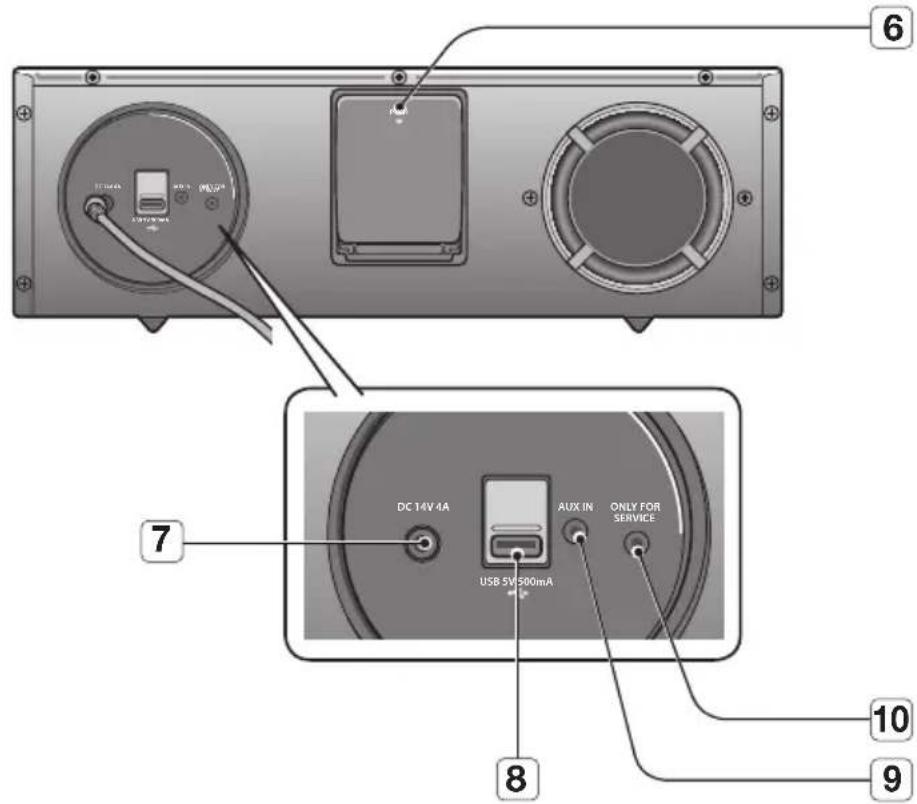
text_image
6 7 DC 14V 4A AUX IN ONLY FOR SERVICE USB 5V 500mA 8 10 9flowchart
graph LR
    A["Shelf with flame"] --> B["Disassembly with internal cavity"]
    B --> C["Final closed portion with arrows indicating movement"]
    style A fill:#f9f,stroke:#333
    style B fill:#ccf,stroke:#333
    style C fill:#cfc,stroke:#333
text_image
Diagram showing a hand interacting with a remote control panel, labeled 'ou', with icons for function and note controls.text_image
Diagram showing three remote control setups: a monitor with a circular dial, a circular fan with plus signs, and a two-wire remote control with labeled buttons.natural_image
3D rendering of a mechanical component with a bracket and mounting holes (no text or symbols)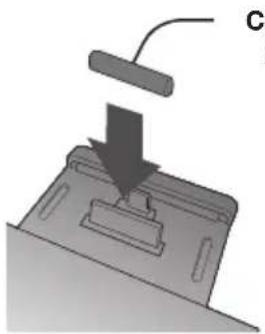
natural_image
Diagram of a mechanical device with a downward arrow and labeled point C (no text or symbols present)Capuchonde protection
text_image
Connector TVnatural_image
Circular button with plus, minus, and hash symbols (no text or numbers)
natural_image
Circular button with plus, minus, and cross symbols (no readable text or numbers)Open Source Announcement
Redistribution and use in source and binary forms, with or without modification, are permitted provided that the following conditions are met:
- Redistributions of source code must retain the above copyright notice, this list of conditions and the following disclaimer.
- Redistributions in binary form must reproduce the above copyright notice, this list of conditions and the following disclaimer in the documentation and/or other materials provided with the distribution.
- Neither the name of the Xiph.org Foundation nor the names of its contributors may be used to endorse or promote products derived from this software without specific prior written permission.
THIS SOFTWARE IS PROVIDED BY THE COPYRIGHT HOLDERS AND CONTRIBUTORS "AS IS" AND ANY EXPRESS OR IMPLIED WARRANTIES, INCLUDING, BUT NOT LIMITED TO, THE IMPLIED WARRANTIES OF MERCHANTABILITY AND FITNESS FOR A PARTICULAR PURPOSE ARE DISCLAIMED. IN NO EVENT SHALL THE FOUNDATION OR CONTRIBUTORS BE LIABLE FOR ANY DIRECT, INDIRECT, INCIDENTAL, SPECIAL, EXEMPLARY, OR CONSEQUENTIAL DAMAGES (INCLUDING, BUT NOT LIMITED TO, PROCUREMENT OF SUBSTITUTE GOODS OR SERVICES; LOSS OF USE, DATA, OR PROFITS; OR BUSINESS INTERRUPTION) HOWEVER CAUSED AND ON ANY THEORY OF LIABILITY, WHETHER IN CONTRACT, STRICT LIABILITY, OR TORT (INCLUDING NEGLIGENCE OR OTHERWISE) ARISING IN ANY WAY OUT OF THE USE OF THIS SOFTWARE, EVEN IF ADVISED OF THE POSSIBILITY OF SUCH DAMAGE."
Ogg/Vorbis decoder, Copyright (c) 2002, Xiph.org Foundation
Redistribution and use in source and binary forms, with or without modification, are permitted provided that the following conditions are met:
Redistributions of source code must retain the above copyright notice, this list of conditions and the following disclaimer.
Redistributions in binary form must reproduce the above copyright notice, this list of conditions and the following disclaimer in the documentation and/or other materials provided with the distribution.
Neither the name of the Xiph.org Foundation nor the names of its contributors may be used to endorse or promote products derived from this software without specific prior written permission.
THIS SOFTWARE IS PROVIDED BY THE COPYRIGHT HOLDERS AND CONTRIBUTORS "AS IS" AND ANY EXPRESS OR IMPLIED WARRANTIES, INCLUDING, BUT NOT LIMITED TO, THE IMPLIED WARRANTIES OF MERCHANTABILITY AND FITNESS FOR A PARTICULAR PURPOSE ARE DISCLAIMED. IN NO EVENT SHALL THE FOUNDATION OR CONTRIBUTORS BE LIABLE FOR ANY DIRECT, INDIRECT, INCIDENTAL, SPECIAL, EXEMPLARY, OR CONSEQUENTIAL DAMAGES (INCLUDING, BUT NOT LIMITED TO, PROCUREMENT OF SUBSTITUTE GOODS OR SERVICES; LOSS OF USE, DATA, OR PROFITS; OR BUSINESS INTERRUPTION) HOWEVER CAUSED AND ON ANY THEORY OF LIABILITY, WHETHER IN CONTRACT, STRICT LIABILITY, OR TORT (INCLUDING NEGLIGENCE OR OTHERWISE) ARISING IN ANY WAY OUT OF THE USE OF THIS SOFTWARE, EVEN IF ADVISED OF THE POSSIBILITY OF SUCH DAMAGE.
Wireless Audio with Dock
دليل المستخدم
تخيل الامكانات
natural_image
Simple line drawing of a room with a window, solar panel, and crossed-out black X marks (no text or symbols)natural_image
Illustration of a ceiling-mounted air conditioner unit with a lightning bolt striking the window (no text or symbols)text_image
Diagram showing a particle moving with a downward arrow and a crossed-out X symbol, possibly indicating a collision or rejection process.natural_image
Illustration of a dual-camera air conditioner with windmill, sun, and power supply symbols (no text or labels).Electronics Co.,Ltd
محتويات العبوة
text_image
DOCK 1 + - F Y Y N 6 0الأمامية>
natural_image
Illustration of two identical speaker speakers with circular heads and metallic grille (no text or symbols)<الchlفية>
text_image
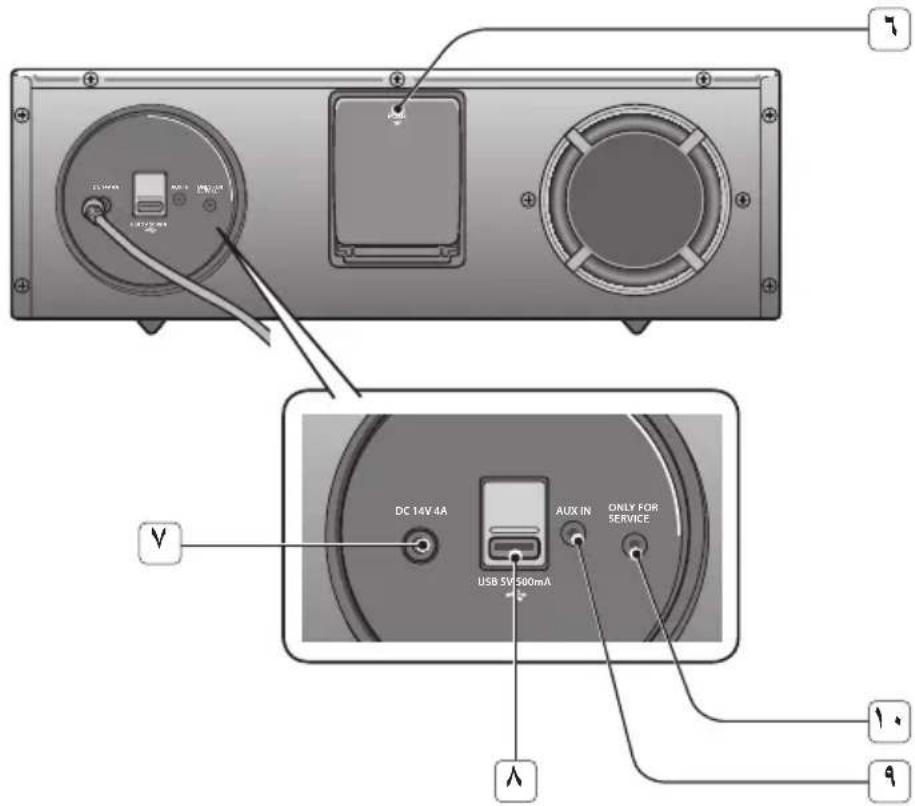
DC 14V 4A USB 5V500mA AUX IN ONLY FOR SERVICE 1. 9العربية ٧
| لتشغيل ملف موسيقي أو إيقافه مؤقتاً. ا+$غسط على الزر لمدة ٣ ثوان لابقاف التشغيل. | PLAY/PAUSE☐☐☐☐☐☐☐☐☐☐☐☐☐☐☐☐☐☐☐☐☐☐☐☐☐☐☐☐☐☐☐☐☐☐☐☐☐☐☐☐☐☐☐☐☐☐☐☐☐☐☐☐☐☐☐☐☐☐☐☐☐☐☐☐☐☐☐☐☐☐☐☐☐☐☐☐☐☐☐☐☐☐☐☐☐☐☐☐☐☐☐☐☐☐☐☐☐☐☐☐ ☐☐☐☐☐☐☐☐☐☐☐☐☐☐☐☐☐☐☐☐☐☐☐☐☐☐☐☐☐☐☐☐☐☐☐☐☐☐☐☐☐☐☐☐☐☐☐☐☐☐☐☐☐☐☐☐☐☐☐☐☐☐☐☐☐☐☐☐☐☐☐☐☐☐☐☐☐☐☐☐☐☐☐☐☐☐☐☐☐☐☐☐☐☐☐☐☐☐☐☐☑☐☐☐☐☐☐☐☐☐☐☐☐☐☐☐☐☐☐☐☐☐☐☐☐☐☐☐☐☐☐☐☐☐☐☐☐☐☐☐☐☐☐☐☐☐☐☐☐☐☐☐☐☐☐☐☐☐☐☐☐☐☐☐☐☐☐☐☐☐☐☐☐☐☐☐☐☐☐☐☐☐☐☐☐☐☐☐☐☐☐☐☐☐☐☐☐☐☐☐☒☐☐☐☐☐☐☐☐☐☐☐☐☐☐☐☐☐☐☐☐☐☐☐☐☐☐☐☐☐☐☐☐☐☐☐☐☐☐☐☐☐☐☐☐☐☐☐☐☐☐☐☐☐☐☐☐☐☐☐☐☐☐☐☐☐☐☐☐☐☐☐☐☐☐☐☐☐☐☐☐☐☐☐☐☐☐☐☐☐☐☐☐☐☐☐☐☐☐☐□☐☐☐☐☐☐☐☐☐☐☐☐☐☐☐☐☐☐☐☐☐☐☐☐☐☐☐☐☐☐☐☐☐☐☐☐☐☐☐☐☐☐☐☐☐☐☐☐☐☐☐☐☐☐☐☐☐☐☐☐☐☐☐☐☐☐☐☐☐☐☐☐☐☐☐☐☐☐☐☐☐☐☐☐☐☐☐☐☐☐☐☐☐☐☐☐☐☐☐○☐☐☐☐☐☐☐☐☐☐☐☐☐☐☐☐☐☐☐☐☐☐☐☐☐☐☐☐☐☐☐☐☐☐☐☐☐☐☐☐☐☐☐☐☐☐☐☐☐☐☐☐☐☐☐☐☐☐☐☐☐☐☐☐☐☐☐☐☐☐☐☐☐☐☐☐☐☐☐☐☐☐☐☐☐☐☐☐☐☐☐☐☐☐☐☐☐☐☐ | |
| تبديل الوضع كما يلي: ☐←←←←←→ | FUNCTION☐☐☐☐☐☐☐☐☐☐☐☐☐☐☐☐☐☐☐☐☐☐☐☐☐☐☐☐☐☐☐☐☐☐☐☐☐☐☐☐☐☐☐☐☐☐☐☐☐☐☐☐☐☐☐☐☐☐☐☐☐☐☐☐☐☐☐☐☐☐☐☐☐☐☐☐☐☐☐☐☐☐☐☐☐☐☐☐☐☐☐☐☐☐☐☐☐☐☐ | |
| لالتحكم في مستوى الصوت. | -/+ VOLUME☐☐☐☐☐☐☐☐☐☐☐☐☐☐☐☐☐☐☐☐☐☐☐☐☐☐☐☐☐☐☐☐☐☐☐☐☐☐☐☐☐☐☐☐☐☐☐☐☐☐☐☐☐☐☐☐☐☐☐☐☐☐☐☐☐☐☐☐☐☐☐☐☐☐☐☐☐☐☐☐☐☐☐☐☐☐☐☐☐☐☐☐☐☐☐☐☐☐☐ | |
| عندما تغير الوضع بواسطة زر الوظانف، فإن رمز الوضع المختار سبكون معروض باللونالأبيض على عرض الوظانف. إن الصمام الثاني الباعث للضوء يومض عندما ت Gambling الطاقة ويتوقف الومیض عندما تكون الوحدة مدارة وجابزهزة لالتشغيل. | ☐☐☐☐☐☐☐☐☐☐☐☐☐☐☐☐☐☐☐☐☐☐☐☐☐☐☐☐☐☐☐☐☐☐☐☐☐☐☐☐☐☐☐☐☐☐☐☐☐☐☐☐☐☐☐☐☐☐☐☐☐☐☐☐☐☐☐☐☐☐☐☐☐☐☐☐☐☐☐☐☐☐☐☐☐☐☐☐☐☐☐☐☐☐☐☐☐☐☐ | |
| وصل جهازك المتوافق مع NFC عبر البلوتوث باستخدم إجراء الضبط البسيط هذا. | NFC☐☐☐☐☐☐☐☐☐☐☐☐☐☐☐☐☐☐☐☐☐☐☐☐☐☐☐☐☐☐☐☐☐☐☐☐☐☐☐☐☐☐☐☐☐☐☐☐☐☐☐☐☐☐☐☐☐☐☐☐☐☐☐☐☐☐☐☐☐☐☐☐☐☐☐☐☐☐☐☐☐☐☐☐☐☐☐☐☐☐☐☐☐☐☐☐☐☐☐ |  |
| يوفر قاعدة إرساء مكونة من ٥ سنون لAJهزة و Affordable إرساء مكونة من ٣٠ سنا لAJهزة Samsung Galaxy Tab Samsung Galaxy Tab Samsung Galaxy Tab Samsung Galaxy Tab Samsung Galaxy Tab Samsung Galaxy Tab Samsung Galaxy Tab Samsung Galaxy Tab Samsung Galaxy Tab Samsung Galaxy Tab Samsung Galaxy Tab Samsung Galaxy Tab Samsung Galaxy Tab Samsung Galaxy Tab Samsung Galaxy Tab Samsung Galaxy Tab Samsung Galaxy Tab Samsung Galaxy Tab Samsung Galaxy Tab Samsung Galaxy Tab Samsung Galaxy Tab Samsung Galaxy Tab Samsung Galaxy Tab Samsung Galaxy Tab Samsung Galaxy Tab Samsung Galaxy Tab Samsung Galaxy Tab Samsung Galaxy Tab Samsung Galaxy Tab Samsung Galaxy Tab Samsung Galaxy Tab Samsung Galaxy Tab Samsung Galaxy Tab Samsung Galaxy Tab | GALAXY DOCK [HTKS] | |
| quebtوصيل مهايى التيار المستمر الخاصة بالوحدة بهاだا المقبس. | ☐☐☐☐☐☐☐☐☐☐☐☐☐☐☐☐☐☐☐☐☐☐☐☐☐☐☐☐☐☐☐☐☐☐☐☐☐☐☐☐☐☐☐☐☐☐☐☐☐☐☐☐☐☐☐☐☐☐☐☐☐☐☐☐☐☐☐☐☐☐☐☐☐☐☐☐☐☐☐☐☐☐☐☐☐☐☐☐☐☐☐☐☐☐☐☐☐ |  |
| quebtوصيل جهاز التخزين من نوع رقاقة USB العادية، مثل محرك الإبهام لتشغيل الملفات المخزنة على الجهاز. | USB☐☐☐☐☐☐☐☐☐☐☐☐☐☐☐☐☐☐☐☐☐☐☐☐☐☐☐☐☐☐☐☐☐☐☐☐☐☐☐☐☐☐☐☐☐☐☐☐☐☐☐☐☐☐☐☐☐☐☐☐☐☐☐☐☐☐☐☐☐☐☐☐☐☐☐☐☐☐☐☐☐☐☐☐☐☐☐☐☐☐☐☐☐☐☐☐☐☐☐Q |  |
| quebtاجراء التوصيل بخرج تناطري لجهاز خارجي. | ☐☐☐☐☐☐☐☐☐☐☐☐☐☐☐☐☐☐☐☐☐☐☐☐☐☐☐☐☐☐☐☐☐☐☐☐☐☐☐☐☐☐☐☐☐☐☐☐☐☐☐☐☐☐☐☐☐☐☐☐☐☐☐☐☐☐☐☐☐☐☐☐☐☐☐☐☐☐☐☐☐☐☐☐☐☐☐☐☐☐☐☐☐☐☐☐☐ ☐AUX IN  | |
| هذه المقبس متوفر للخدمة فقط. | ☐☐☐☐☐☐☐☐☐☐☐☐☐☐☐☐☐☐☐☐☐☐☐☐☐☐☐☐☐☐☐☐☐☐☐☐☐☐☐☐☐☐☐☐☐☐☐☐☐☐☐☐☐☐☐☐☐☐☐☐☐☐☐☐☐☐☐☐☐☐☐☐☐☐☐☐☐☐☐☐☐☐☐☐☐☐☐☐☐☐☐☐☐☐☐☐☐ | |


text_image
Diagram illustrating the use of a remote control device with labeled buttons and function icons, including a hand interacting with the screen.text_image
Diagram showing remote control buttons with labels like 'VOL', 'HASS', and 'MUTE' in Chinese, alongside a circular device with a plus button.natural_image
3D rendering of a mechanical component with a bracket and mounting holes (no text or symbols)natural_image
Front view of a gray electronic device with a circular control knob (no visible text or symbols)
text_image
TVBluetooth : 2. Exporting Wireless Audio with Dock : 1. Exporting Wireless Audio with Dock : 2. Exporting Wireless Audio with Dock : 3. Exporting Wireless Audio with Dock : 4. Exporting Wireless Audio with Dock : 5. Exporting Wireless Audio with Dock : 6. Exporting Wireless Audio with Dock : 7. Exporting Wireless Audio with Dock : 8. Exporting Wireless Audio with Dock : 9. Exporting Wireless Audio with Dock : 10. Exporting Wireless Audio with Dock : 11. Exporting Wireless Audio with Dock : 12. Exporting Wireless Audio with Dock : 13. Exporting Wireless Audio with Dock : 14. Exporting Wireless Audio with Dock : 15. Exporting Wireless Audio with Dock : 16. Exporting Wireless Audio with Dock : 17. Exporting Wireless Audio with Dock : 18. Exporting Wireless Audio with Dock : 19. Exporting Wireless Audio with Dock : 20. Exporting Wireless Audio with Dock : 21. Exporting Wireless Audio with Dock : 22. Exporting Wireless Audio with Dock : 23. Exporting Wireless Audio with Dock : 24. Exporting Wireless Audio with Dock : 25. Exporting Wireless Audio with Dock : 26. Exporting Wireless Audio with Dock : 27. Exporting Wireless Audio with Dock : 28. Exporting Wireless Audio with Dock : 29. Exporting Wireless Audio with Dock : 30. Exporting Wireless Audio with Dock : 31. Exporting Wireless Audio with Dock : 32. Exporting Wireless Audio with Dock : 33. Exporting Wireless Audio with Dock : 34. Exporting Wireless Audio with Dock : 35. Exporting Wireless Audio with Dock : 36. Exporting Wireless Audio with Dock : 37. Exporting Wireless Audio with Dock : 38. Exporting Wireless Audio with Dock : 39. Exporting Wireless Audio with Dock : 40. Exporting Wireless Audio with Dock : 41. Exporting Wireless Audio with Dock : 42. Exporting Wireless Audio with Dock : 43. Exporting Wireless Audio with Dock : 44. Exporting Wireless Audio with Dock : 45. Exporting Wireless Audio with Dock : 46. Exporting Wireless Audio with Dock : 47. Exporting Wireless Audio with Dock : 48. Exporting Wireless Audio with Dock : 49. Exporting Wireless Audio with Dock : 50. Exporting Wireless Audio with Dock : 51. Exporting Wireless Audio with Dock : 52. Exporting Wireless Audio with Dock : 53. Exporting Wireless Audio with Dock : 54. Exporting Wireless Audio with Dock : 55. Exporting Wireless Audio with Dock : 56. Exporting Wireless Audio with Dock : 57. Exporting Wireless Audio with Dock : 58. Exporting Wireless Audio with Dock : 59. Exporting Wireless Audio with Dock : 60. Exporting Wireless Audio with Dock : 61. Exporting Wireless Audio with Dock : 62. Exporting Wireless Audio with Dock : 63. Exporting Wireless Audio with Dock : 64. Exporting Wireless Audio with Dock : 65. Exporting Wireless Audio with Dock : 66. Exporting Wireless Audio with Dock : 67. Exporting Wireless Audio with Dock : 68. Exporting Wireless Audio with Dock : 69. Exporting Wireless Audio with Dock : 70. Exporting Wireless Audio with Dock : 71. Exporting Wireless Audio with Dock : 72. Exporting Wireless Audio with Dock : 73. Exporting Wireless Audio with Dock : 74. Exporting Wireless Audio with Dock : 75. Exporting Wireless Audio with Dock : 76. Exporting Wireless Audio with Dock : 77. Exporting Wireless Audio with Dock : 78. Exporting Wireless Audio with Dock : 79. Exporting Wireless Audio with Dock : 80. Exporting Wireless Audio with Dock : 81. Exporting Wireless Audio with Dock : 82. Exporting Wireless Audio with Dock : 83. Exporting Wireless Audio with Dock : 84. Exporting Wireless Audio with Dock : 85. Exporting Wireless Audio with Dock : 86. Transport (Wear) from the Wear to the Wear, which is a result of the Wear to the Wear, which is a result of the Wear to the Wear, which is a result of the Wear to the Wear, which is a result of the Wear to the Wear, which is a result of the Wear to the Wear, which is a result of the Wear to the Wear, which is a result of the Wear to the Wear, which is a result of the Wear to the Wear, that can be used in this case for the Wear to the Wear, which is a result of the Wear to the Wear, which is a result of the Wear to the Wear, which is a result of the Wear to the Wear, which is a result of the Wear to the Wear, which is a result of the Wear to the Wear, which is a result of the Wear to the Wear, which is a result of the Wear to the Wear,
natural_image
Diagram showing a device with a knob and a circular dial labeled F, no text or symbols present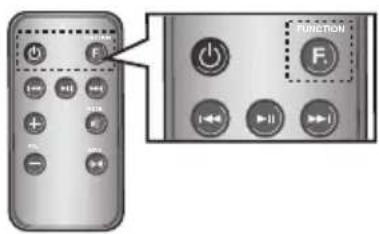
text_image
Diagram showing remote control buttons with labeled function icons and directional arrowsnatural_image
Circular device icon with plus, minus, and control symbols (no text or labels)natural_image
Simple line drawing of a smartphone with blank screen (no text or symbols)natural_image
Circular device dial with directional indicators (no text or symbols)الإستعمال (الإستعمال) Play/Pause/Next/Back Play/Pause/Next/Back Play/Pause/Next/Back Play/Pause/Next/Back Play/Pause/Next/Back Play/Pause/Next/Back Play/Pause/Next/Back Play/Pause/Next/Back Play/Pause/Next/Back Play/Pause/Next/Back Play/Pause/Next/Back Play/Pause/Next/Back Play/Pause/Next/Back Play/Pause/Next/Back Play/Pause/Next/Back Play-Pause/Next/Back Play/Pause/Next/Back Play/Pause/Next/Back Play/Pause/Next/Back Play/Pause/Next/Back Play/Pause/Next/Back Play/Pause/Next/Back Play/Pause/Next/Back Play/Pause/Next/Back Play/Pause/Next/Back Play/Pause/Next/Back Play/Pause/Next/Back Play/Pause/Next/Back Play/Pause/Next/Back Play/Pause/Moison, 2015
natural_image
Circular device control knob with plus, minus, and function icons (no text or symbols)Open Source Announcement
Redistribution and use in source and binary forms, with or without modification, are permitted provided that the
:following conditions are met
Redistributions of source code must retain the above copyright notice, this list of conditions and the following -
.disclaimer
Redistributions in binary form must reproduce the above copyright notice, this list of conditions and the following -
.disclaimer in the documentation and/or other materials provided with the distribution
Neither the name of the Xiph.org Foundation nor the names of its contributors may be used to endorse or -
.promote products derived from this software without specific prior written permission
THIS SOFTWARE IS PROVIDED BY THE COPYRIGHT HOLDERS AND CONTRIBUTORS ``AS IS'' AND ANY EXPRESS OR IMPLIED WARRANTIES, INCLUDING, BUT NOT LIMITED TO, THE IMPLIED WARRANTIES OF MERCHANTABILITY AND FITNESS FOR A PARTICULAR PURPOSE ARE DISCLAIMED. IN NO EVENT SHALL THE FOUNDATION OR CONTRIBUTORS BE LIABLE FOR ANY DIRECT, INDIRECT, INCIDENTAL, SPECIAL, EXEMPLARY, OR CONSEQUENTIAL DAMAGES (INCLUDING, BUT NOT LIMITED TO, PROCUREMENT OF SUBSTITUTE GOODS OR SERVICES; LOSS OF USE, DATA, OR PROFITS; OR BUSINESS INTERRUPTION) HOWEVER CAUSED AND ON ANY THEORY OF LIABILITY, WHETHER IN CONTRACT, STRICT LIABILITY, OR TORT (INCLUDING NEGLIGENCE OR OTHERWISE) ARISING IN ANY WAY OUT OF THE USE OF THIS ".SOFTWARE, EVEN IF ADVISED OF THE POSSIBILITY OF SUCH DAMAGE
Ogg/Vorbis decoder, Copyright (c) 2002, Xiph.org Foundation
Redistribution and use in source and binary forms, with or without modification, are permitted provided that the
:following conditions are met
Redistributions of source code must retain the above copyright notice, this list of conditions and the following
.disclaimer
Redistributions in binary form must reproduce the above copyright notice, this list of conditions and the following
.disclaimer in the documentation and/or other materials provided with the distribution
Neither the name of the Xiph.org Foundation nor the names of its contributors may be used to endorse or promote
.products derived from this software without specific prior written permission
THIS SOFTWARE IS PROVIDED BY THE COPYRIGHT HOLDERS AND CONTRIBUTORS ``AS IS'' AND ANY EXPRESS OR IMPLIED WARRANTIES, INCLUDING, BUT NOT LIMITED TO, THE IMPLIED WARRANTIES OF MERCHANTABILITY AND FITNESS FOR A PARTICULAR PURPOSE ARE DISCLAIMED. IN NO EVENT SHALL THE FOUNDATION OR CONTRIBUTORS BE LIABLE FOR ANY DIRECT, INDIRECT, INCIDENTAL, SPECIAL, EXEMPLARY, OR CONSEQUENTIAL DAMAGES (INCLUDING, BUT NOT LIMITED TO, PROCUREMENT OF SUBSTITUTE GOODS OR SERVICES; LOSS OF USE, DATA, OR PROFITS; OR BUSINESS INTERRUPTION) HOWEVER CAUSED AND ON ANY THEORY OF LIABILITY, WHETHER IN CONTRACT, STRICT LIABILITY, OR TORT (INCLUDING NEGLIGENCE OR OTHERWISE) ARISING IN ANY WAY OUT OF THE USE OF THIS .SOFTWARE, EVEN IF ADVISED OF THE POSSIBILITY OF SUCH DAMAGE