27MS550 - Monitor LG - Free user manual and instructions
Find the device manual for free 27MS550 LG in PDF.


User questions about 27MS550 LG
0 question about this device. Answer the ones you know or ask your own.
Ask a new question about this device
Download the instructions for your Monitor in PDF format for free! Find your manual 27MS550 - LG and take your electronic device back in hand. On this page are published all the documents necessary for the use of your device. 27MS550 by LG.
USER MANUAL 27MS550 LG
* LG LED Monitor applies LCD screen with LED backlights.
Please read this manual carefully before operating your set and retain it for future reference.
24MS500 24MS550 24BA400
25MS500 25MS550 27BA400
27MS500 27MS550
www.lg.com
Copyright © 2023 LG Electronics Inc. All Rights Reserved.
TABLE OF CONTENTS
LICENSE 2
ASSEMBLING AND PREPARING ....3
USING THE MONITOR....10
USER SETTINGS 12
TROUBLESHOOTING 20
PRODUCT SPECIFICATION......21
LICENSE
Each model has different licenses. Visit www.lg.com for more information on the license.
The terms HDMI, HDMI High-Definition Multimedia Interface, HDMI trade dress and the HDMI Logos are trademarks or registered trademarks of HDMI Licensing Administrator, Inc.
ASSEMBLING AND PREPARING

CAUTION
• Always use genuine LG components to ensure safety and product performance.
- The product warranty will not cover damage or injury caused by the use of unauthorized components.
• It is recommended to use the supplied components.
- If you use generic cables not certified by LG, the screen may not display or there may be image problems.
- Illustrations in this document represent typical procedures, so they may look different from the actual product.
- Do not apply foreign substances (oils, lubricants, etc.) to the screw parts when assembling the product. (Doing so may damage the product.)
- Applying excessive force when tightening screws may cause damage to the monitor. Damage caused in this way will not be covered by the product warranty.
- Do not carry the monitor upside down by just holding the base. This may cause the monitor to fall off the stand and could result in personal injury.
- When lifting or moving the monitor, do not touch the monitor screen. The force applied to the monitor screen may cause damage to it.

NOTE
• The components may look different from those illustrated here.
- Without prior notice, all product information and specifications contained in this manual are subject to change to improve the performance of the product.
- To purchase optional accessories, visit an electronics store or an online shopping site, or contact the retailer from which you purchased the product.
• The power cord provided may differ depending upon the region.
Supported Drivers and Software
You can download and install the latest version from the LGE website (www.lg.com).
| Drivers and Software Installation Priority | |
| Monitor Driver Recommended | |
| OnScreen Control Recommended |
Product and Button Description
text_image
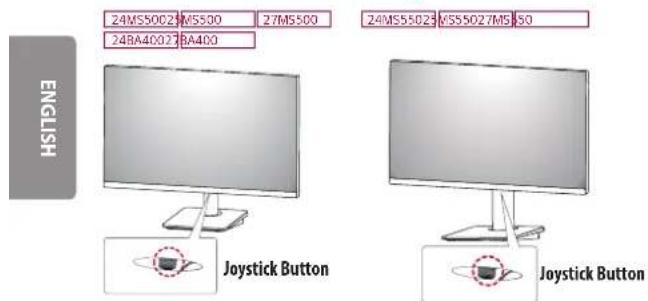
24MS5002 27MS500 24BA4002 2BA400 24MS55023 27MS500 ENGLISH Joystick Button Joystick ButtonHow to Use the Joystick Button
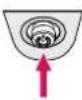
You can easily control the functions of the monitor by pressing the joystick button or moving it left/right/up/down with your finger.
Basic Functions
 | Power on | Press the joystick button once with your finger to turn on the monitor. | |
 | Power off | Press and hold the joystick button once with your finger to turn off the monitor. | |
 | Volume control | You can control the volume by moving the joystick button left/right. | |
NOTE
• The joystick button is located at the bottom of the monitor.
Moving and Lifting the Monitor
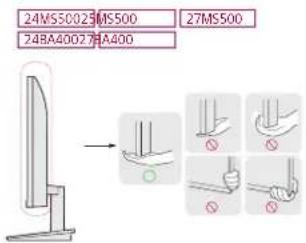
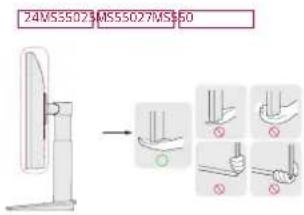
When moving or lifting the monitor, follow these instructions to prevent the monitor from being scratched or damaged and to ensure safe transportation, regardless of its shape or size.
- Place the monitor in the original box or packing material before attempting to move it.
- Before moving or lifting the monitor, disconnect the power cord and all other cables.
- Hold the bottom and side of the monitor frame firmly. Do not hold the panel itself.
- When holding the monitor, the screen should face away from you to prevent it from being scratched.
- When transporting the monitor, do not expose the monitor to shock or excessive vibration.
- When moving the monitor, keep it upright and never turn the monitor on its side or tilt it sideways.
text_image
24MS50023MS500 24BA40027RA400 27MS500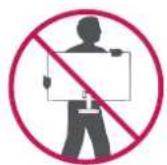
text_image
24MS55023MS55027MS550

CAUTION
- Avoid touching the monitor screen as much as possible.
- This may result in damage to the screen or some of the pixels used to create images.
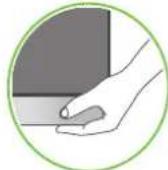
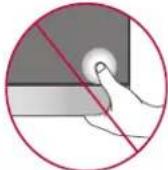
- If you use the monitor panel without the stand base, its joystick button may cause the monitor to become unstable and fall, resulting in damage to the monitor or human injury. In addition, this may cause the joystick button to malfunction.
Installing on a Table
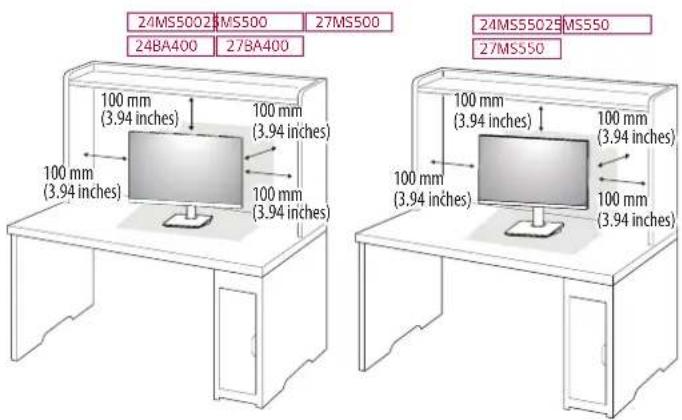
- Lift the monitor and place it on the table in an upright position. Place the monitor at least 100 mm (3.94 inches) away from the wall to ensure sufficient ventilation.
text_image
24MS5002 MS500 27MS500 24BA400 27BA400 100 mm (3.94 inches) 100 mm (3.94 inches) 100 mm (3.94 inches) 100 mm (3.94 inches) 24MS5502 MS550 27MS550 100 mm (3.94 inches) 100 mm (3.94 inches) 100 mm (3.94 inches)CAUTION
- Unplug the power cord before moving or installing the monitor. There is risk of electric shock.
- Make sure to use the power cord that is provided in the product package and connect it to a grounded power outlet.
- If you need another power cord, please contact your local dealer or the nearest retail store.
Adjusting the Stand Height
24MS550 26MS550 27MS550
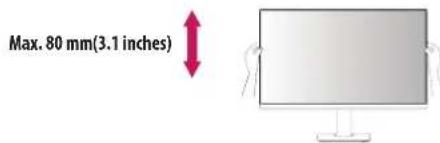
1 Place the monitor mounted on the stand base in an upright position.
2 Handle the monitor with both hands for safety.
text_image
Max. 80 mm(3.1 inches)WARNING
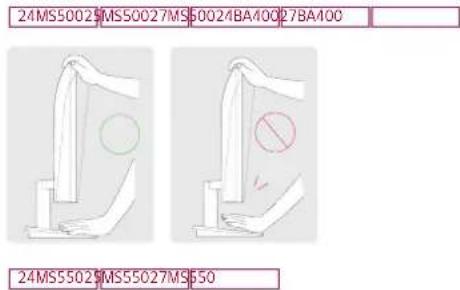
- When adjusting the screen height, do not place your hand on the stand body to avoid injury to your fingers.
Adjusting the Angle
1 Place the monitor mounted on the stand base in an upright position.
2 Adjust the angle of the screen.
The angle of the screen can be adjusted forward or backward from -5^ to 15^ for a comfortable viewing experience.
WARNING
- To avoid injury to the fingers when adjusting the screen, do not hold the lower part of the monitor's frame as illustrated below.
- Be careful not to touch or press the screen area when adjusting the angle of the monitor.
text_image
24MS50029MS50027MS50024BA10027BA100 24MS5029MS5027MS50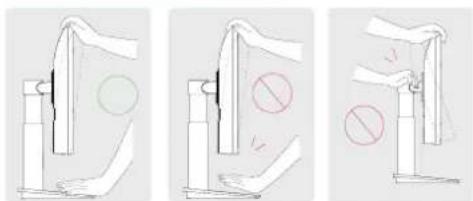
natural_image
Three-step illustration showing a table tennis stance with a flag and a circle, no text or symbols present.Using the Kensington Lock
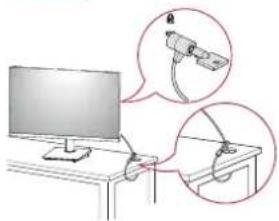
The Kensington security system connector is located at the back of the Monitor set.
For more information on installation and usage, refer to the Kensington lock owner's manual or visit the website at http://www.kensington.com.
Connect the monitor to a table using the Kensington security system cable.
| 24MS500 | 24BA400 |
| 25MS500 | 27BA400 |
| 27MS500 |
| 24MS550 |
| 25MS550 |
| 27MS550 |
natural_image
Illustration of a desktop computer with two close-up insets showing cable connections (no text or symbols)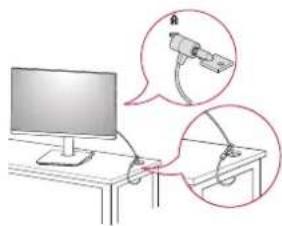
natural_image
Illustration of a computer setup with a monitor and two magnified views showing cable connections (no text or symbols)NOTE
• The Kensington security system is optional. You can obtain optional accessories from most electronics stores.
Installing the Wall Mount Plate
This monitor meets the specifications for the wall mount plate or other compatible devices.
NOTE
• The wall mount plate is sold separately.
- For more information on installation, refer to the wall mount plate's installation guide.
- Be careful not to apply too much force while mounting the wall mount plate as it may cause damage to the screen.
- Remove the stand before installing the monitor on a wall mount by performing the stand attachment in reverse.
Installing on the Wall
Install the monitor at least 100 mm (3.94 inches) away from the wall and leave about 100 mm (3.94 inches) of space at each side of the monitor to ensure sufficient ventilation. Detailed installation instructions can be obtained from your local retail store. Alternatively, please refer to the manual for how to install and set up a tilting wall mounting bracket.
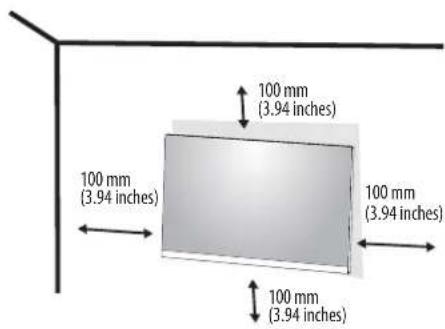
text_image
100 mm (3.94 inches) 100 mm (3.94 inches) 100 mm (3.94 inches)To install the monitor to a wall, attach a wall mounting bracket (optional) to the back of the monitor.
Make sure that the wall mounting bracket is securely fixed to the monitor and to the wall.
| Wall Mount (mm) 75 x 75 | |
| Standard screw M4 x L10 | |
| Number of screws 4 | |
| Wall Mount Plate (Optional) LSW 149 | 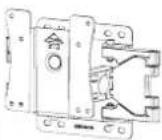 |
NOTE
- A non-VESA standard screw may damage the product and cause the monitor to fall. LG Electronics is not liable for any accidents relating to the use of non-standard screws.
- The wall mount kit includes the installation guide and all necessary parts.
- The wall mounting bracket is optional. You can obtain optional accessories from your local dealer.
- The length of the screw may differ for each wall mounting bracket. If you use screws longer than the standard length, it may damage the inside of the product.
- For more information, please refer to the user manual for the wall mounting bracket.

CAUTION
- Unplug the power cord before moving or installing the monitor to avoid electric shock.
- Installing the monitor on the ceiling or on a slanted wall may result in the monitor falling off, which could lead to injury. Use an authorized LG wall mount and contact the local dealer or qualified personnel.
- Applying excessive force when tightening screws may cause damage to the monitor. Damage caused in this way will not be covered by the product warranty.
- Use the wall mounting bracket and screws that conform to VESA standards. Damage caused by the use or misuse of inappropriate components will not be covered by the product warranty.
- When measured from the back of the monitor, the length of each installed screw must be 8 mm(0.3 inches) or less.
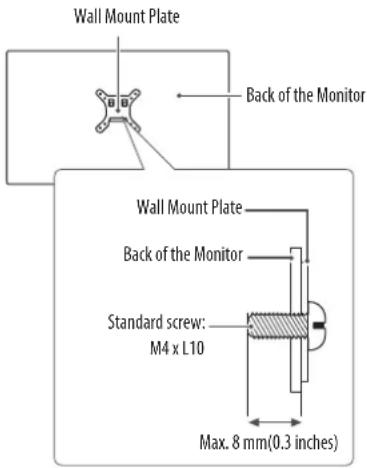
text_image
Wall Mount Plate Back of the Monitor Wall Mount Plate Back of the Monitor Standard screw: M4 x L10 Max. 8 mm(0.3 inches)USING THE MONITOR
• Illustrations in this manual may differ from the actual product.

CAUTION
- Do not press the screen for a prolonged time. This may cause image distortion.
- Do not display a still image on the screen for a prolonged time. This may cause image retention. Use a PC screensaver if possible.
- When connecting the power cord to the outlet, use a grounded (3-hole) power strip or a grounded power outlet.
- The monitor may flicker when turned on in an area where the temperature is low. This is normal.
- Sometimes red, green, or blue spots may appear on the screen. This is normal.
Connecting to a PC
• This monitor supports the *Plug and Play feature.
* Plug and Play: A feature that allows you to add a device to your computer without having to reconfigure anything or install any manual drivers.
HDMI Connection
Transmits digital video and audio signals from your PC to the monitor.

CAUTION
• Using a DVI to HDMI / DP (DisplayPort) to HDMI cable may cause compatibility issues.
- Use a certified cable with the HDMI logo attached. If you do not use a certified HDMI cable, the screen may not display or a connection error may occur.
• Recommended HDMI cable types
-High-Speed HDMI™ cable
-High-Speed HDMI™ cable with Ethernet
Connecting AV Devices
HDMI Connection
HDMI transmits digital video and audio signals from your AV device to the monitor.
NOTE
• Using a DVI to HDMI / DP (DisplayPort) to HDMI cable may cause compatibility issues.
- Use a certified cable with the HDMI logo attached. If you do not use a certified HDMI cable, the screen may not display or a connection error may occur.
• Recommended HDMI cable types
-High-Speed HDMI™ cable
-High-Speed HDMI™ cable with Ethernet
Connecting Peripherals
Connecting Headphones
Connect peripherals to the monitor via the headphones port.
NOTE
• Peripheral devices are sold separately.
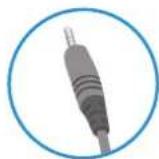
- If you use angled earphones, it may cause a problem with connecting another external device to the monitor. Therefore, it is recommended to use straight earphones.
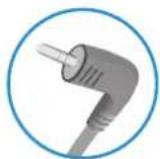
Angled Straight
(Recommend)
- Depending on the audio settings of the PC and external device, headphones and speaker functions may be limited.
USER SETTINGS
NOTE
- Your monitor's OSD (On Screen Display) may differ slightly from that shown in this manual.
- When Beep Guide is activated, pressing the joystick button will take you to Settings right away.
Activating the Main Menu
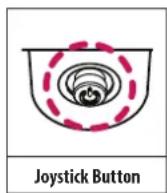
1 Press the joystick button on the bottom of the monitor.
2 Move the joystick up/down and left/right to set the options.
3 Press the joystick button once more to exit the main menu.
| Button Menu | Status Description | ||
 | Main menu disabled Enables the main menu. | ||
| Main menu enabled | Exits the main menu.(Holding down the button to turn off the monitor. You can turn off the monitor this way at any time, including when the OSD is on.) | ||
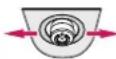 | ◀ | Main menu disabled Adjusts the monitor volume level. | |
| Main menu enabled Enters the Input features. | |||
| ▶ | Main menu disabled Adjusts the monitor volume level. | ||
| Main menu enabled Enters the Settings feature. | |||
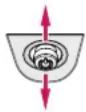 | ▲ | Main menu disabled Enters the Accessibility menu. | |
| Main menu enabled Turns off the monitor. | |||
| ▼ | Main menu disabled Enters the Accessibility menu. | ||
| Main menu enabled Enters the Picture Mode feature. | |||
Main Menu Features
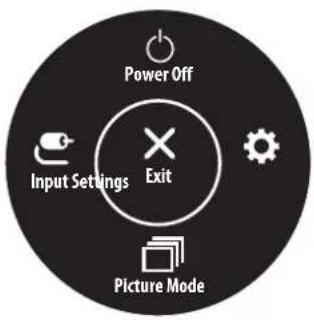
text_image
Power Off Input Settings Exit Picture Mode| Main Menu Description | |
| Input Sets input mode. | |
| Power Off Turns off the monitor. | |
| Settings Configures the screen settings. | |
| Picture Mode Sets the picture mode. | |
| Exit Exits the main menu. |
Menu Settings
1 To view the OSD menu, press the joystick button at the bottom of the monitor and then enter the Settings.
2 Move the joystick up/down and left/right to set the options.
3 To return to the upper menu or set other menu items, move the joystick to ◀ or pressing (💡) it.
4 If you want to exit the OSD menu, move the joystick to ◀ until you exit.


Quick Settings Input Picture General
Customizing settings
Quick Settings
| Settings > Quick Settings Description | |
| Brightness | Adjusts the color contrast and brightness of the screen. |
| Contrast | |
| Volume Adjusts the volume level. |
Input
| Settings > Input Description | ||
| Input List Selects the input mode. | ||
| Aspect Ratio | Adjusts the aspect ratio of the screen. | |
| Full Wide Displays the video in wide-screen, regardless of the video signal input. | ||
| Original Displays video according to the aspect ratio of the video signal input. | ||
| NOTEThe options may disabled at the recommended resolution (1920 x 1080). | ||
| Auto Input Switch | On | Enables Auto Input Switch. |
| Off Disables Auto Input Switch. | ||
Picture
| Settings > Picture Description | ||
| Picture Mode | Custom Allows the user to adjust each element. The color mode of the main menu can be adjusted. | |
| Reader Optimizes the screen for viewing documents. You can brighten the screen in the OSD menu. | ||
| Photo Optimizes the screen to view photos. | ||
| Cinema Optimizes the screen to improve the visual effects of a video. | ||
| Color Weakness | This mode is for users who cannot distinguish between red and green. It enables users with color weakness to easily distinguish between the two colors. | |
| Game Optimizes the screen for gameplay. | ||
NOTE
- If the Picture Mode is changed, the screen may flicker or the resolution of your PC screen may be affected.
- This is subsidiary for color weakness user. Therefore if you feel uncomfortable with the screen, please turn off this function.
- This function can't distinguish some colors in some images.
| Settings > Picture Description | |||
| Picture Adjust | Brightness Adjusts the brightness of the screen. | ||
| Contrast Adjusts the contrast of the screen. | |||
| Sharpness Adjusts the sharpness of the screen. | |||
| SUPER RESOLUTION+ | High | Optimized picture quality is displayed when a user wants crystal clear images. It is effective for high quality video or game. | |
| Middle | The optimized picture quality is displayed when a user wants images between low and high modes for comfortable viewing. It is effective for UCC or SD video. | ||
| Low | The optimized picture quality is displayed when a user wants smooth and natural images. It is effective for slow-moving pictures or still images. | ||
| Off Select this option for everyday viewing. SUPER RESOLUTION+ is turned off in this mode. | |||
| NOTEBecause this is a function to increase the sharpness of low resolution pictures, it is not recommended to use the function for normal text or for desktop icons. Doing so may result in unnecessarily high sharpness. | |||
| Black Level | Sets the offset level.Offset: as a reference for a video signal, this is the darkest color the monitor can display. | ||
| High Keeps the current contrast ratio of the screen. | |||
| Low | Lowers the black levels and raises the white levels from the current contrast ratio of the screen. | ||
| DFC | On Adjusts the brightness automatically according to the screen. | ||
| Off Disables the DFC feature. | |||
| Game Adjust | Response Time | Sets a response time for displayed pictures based on the speed of the screen.For a normal environment, it is recommended that you useFast.For a fast-moving picture, it is recommended that you useFaster.OnceFaster Modeis selected,Motion Blurmay occur depending on the content. | |
| FasterSets the response timeto faster. | |||
| FastSets the response time tofast. | |||
| NormalSets the response timeto normal. | |||
| Off Does not use the responsesite improvement feature. | |||
| Black Stabilizer | You can control the black contrast to have better visibility in dark scenes.Increasing the Black Stabilizer value brightens the low gray level area on the screen. (You can easily distinguish objects on dark game screens.)Reducing the Black Stabilizer value darkens the low gray level area and increases the dynamic contrast on the screen. | ||
| Crosshair | Crosshair provides a mark on the center of the screen for First Person Shooter (FPS) games. Users can select the Crosshair that fits their gaming environment among four different cross hairs. | ||
| Color Adjust | Gamma | Mode 1, Mode 2, Mode 3 | The higher the gamma value, the darker the image becomes. Likewise, the lower the gamma value, the lighter the image becomes. |
| Mode 4If you do not need toadjust the gamma settings, select Mode 4. | |||
| Color Temp | Selects the factory default picture color.Custom: The user can adjust it to red, green or blue by customization.Warm: Sets the screen color to a reddish tone.Medium: Sets the screen color between a red and blue tone.Cool: Sets the screen color to a bluish tone. | ||
| Red | You can customize the picture color using Red, Green, and Blue colors. | ||
| Green | |||
| Blue | |||
| Picture Reset | Do you want to reset your picture settings? | No Cancel the select. | |
| Yes Returns to the default settings. | |||
General
| Settings > General Description | |||
| Language To choose the language in which the control names are displayed. | |||
| SMART ENERGY SAVING | High | Enables SMART ENERGY SAVING you can save energy with this energy- high efficient. | |
| Low | Enables SMART ENERGY SAVING you can save energy with this energy- low efficient. | ||
| Off | Disables SMART ENERGY SAVING . | ||
| * SMART ENERGY SAVING : Conserve energy by using luminance compensation algorithm. | |||
| Automatic Standby | Feature that automatically turns off the monitor when there is no movement on the screen for a period of time. You can set a timer for the auto-off function. (8H, 6H, 4H and Off) | ||
| OSD Lock | Prevents incorrect key input. | ||
| On Key input is disabled. | |||
| NOTEAll function except for the OSD Lock mode, brightness, Contrast, Input, Information and Volume are disabled. | |||
| Off Key input is enabled. | |||
| Information | The display information will be shown the Total Power On Time, Resolution. | ||
| Reset | Do you want to reset your settings? | No Cancel the select. | |
| Yes Returns to the default settings. | |||
NOTE
- The value of energy saving data may differ depending on panel and panel suppliers.
- If you select the option of SMART ENERGY SAVING is High or Low, monitor luminance become lower or higher depend on source.
TROUBLESHOOTING
Check the following before calling for service.
| No image appears | |
| Is the power cord of the display connected? | Check and see if the power cord is connected properly to the power outlet. |
| Do you see an "Out of Range" message on the screen? | This message appears when the signal from the PC (video card) is out of horizontal or vertical frequency range of the display. See the 'Specifications' section of this manual and configure your display again. |
| Do you see a "NO SIGNAL" message on the screen? | After the monitor is on "NO SIGNAL", the monitor goes to DPM mode.This is displayed when the signal cable between the PC and the monitor is missing or disconnected. Check the cable and reconnect it. |
| Can 't you control some functions in OSD? | |
| Can't you select some menu in OSD? | You can unlock the OSD controls at any time by entering the OSD lock menu and changing items to off. |

CAUTION
- Check Control Panel ▶ Display ▶ Settings and see if the frequency or the resolution were changed. If yes, readjust the video card to the recommend resolution.
- If the recommended resolution (optimal resolution) is not selected, letters may be blurred and the screen may be dimmed, truncated or biased. Make sure to select the recommend resolution.
- The setting method can differ by computer and O/S (Operation System), and resolution mentioned above may not be supported by the video card performance. In this case, please ask to the computer or the video card manufacturer.
| Display image is incorrect | |
| The screen color is mono or abnormal. | Check if the signal cable is properly connected and use a screwdriver to fasten if necessary.Make sure the video card is properly inserted in the slot.Set the color setting higher than 24 bits (true color) atControl Panel ▶ Settings. |
| The screen blinks. | Check if the screen is set to interlace mode and if yes, change it to the recommend resolution. |
| Do you see an "Unrecognized monitor, Plug&Play (VESA DDC) monitor found" message? | |
| Have you installed the display driver? | Be sure to install the display driver from our web site: http://www.lg.com.Make sure to check if the video card supports Plug&Play function. |
| The screen is flickering. | |
| Did you select the recommended resolution? | If the selected resolution is HDMI 1080i 60/50 Hz, the screen may be flickering. Change the resolution to the recommended resolution 1080P. |
PRODUCT SPECIFICATION
24MS500
| Color Depth 8-bit color is supported. | |||
| Resolution | Max Resolution 1920 x 1080 @ 100 Hz | ||
| Recommended Resolution 1920 x 1080 @ 100 Hz | |||
| Power Sources Power Rating 19 V 0.84 A | --- | ||
| AC/DC adaptor | Type ADS-25SFA-19-3 19016E, manufactured by SHENZHEN HONOR ELECTRONIC,or Type ADS-25FSF-19 19016EPCU-1, manufactured by SHENZHEN HONOR ELECTRONIC,or Type ADS-25FSF-19 19016EPBR-1, manufactured by SHENZHEN HONOR ELECTRONIC,or Type ADS-25FSF-19 19016EPI-1, manufactured by SHENZHEN HONOR ELECTRONIC,or Type ADS-25FSF-19 19016EPG-1, manufactured by SHENZHEN HONOR ELECTRONIC,or Type ADS-25FSF-19 19016EPB-1, manufactured by SHENZHEN HONOR ELECTRONIC,or Type ADS-25FSF-19 19016EPG, manufactured by SHENZHEN HONOR ELECTRONIC,or Type AD10570LF, manufactured by PI Electronics (H.K.) Ltd.,or Type AD2152S20, manufactured by PI Electronics (H.K.) Ltd.,or Type AD2152620, manufactured by PI Electronics (H.K.) Ltd..Output: 19 V 0.84 A | ||
| Environmental Conditions | Operating Conditions | Temperature 0 °C to 40 °C | |
| Humidity Less than 80 % | |||
| Storing Conditions | Temperature -20 °C to 60 °C | ||
| Humidity Less than 85 % | |||
| Dimensions | Monitor Size (Width x Height x Depth) | ||
| With Stand 539.9 x 414.4 x 190.0 (mm) 21.2 x 16.3 | x 7.4 (inches) | ||
| Without Stand 539.9 x 321.4 x 56.2 (mm) 21.2 x 1 | 2.6 x 2.2 (inches) | ||
| Weight (Without Packaging) | With Stand 2.6 kg 5.7 lbs | ||
| Without Stand 2.3 kg 5.0 lbs | |||
The specifications are subject to change without notice.
The symbol \~ means alternating current, and the symbol = means direct current.
PRODUCT SPECIFICATION
24MS550
| Color Depth 8-bit color is supported. | |||
| Resolution | Max Resolution 1920 x 1080 @ 100 Hz | ||
| Recommended Resolution 1920 x 1080 @ 100 Hz | |||
| Power Sources Power Rating 19 V | ——1.3 A | ||
| AC/DC adaptor | Type ADS-25SFA-19-3 19025E, manufactured by SHENZHEN HONOR ELECTRONIC,or Type ADS-25FSF-19 19025EPCU-1, manufactured by SHENZHEN HONOR ELECTRONIC,or Type ADS-25FSF-19 19025EPBR-1, manufactured by SHENZHEN HONOR ELECTRONIC,or Type ADS-25FSF-19 19025EPI-1, manufactured by SHENZHEN HONOR ELECTRONIC,or Type ADS-25FSF-19 19025EPG-1, manufactured by SHENZHEN HONOR ELECTRONIC,or Type ADS-25FSF-19 19025EPB-1, manufactured by SHENZHEN HONOR ELECTRONIC,or Type AD10560LF, manufactured by PI Electronics (H.K.) Ltd.,or Type AD2139S20, manufactured by PI Electronics (H.K.) Ltd.,or Type AD2139620, manufactured by PI Electronics (H.K.) Ltd..Output: 19 V ——1.3 A | ||
| Environmental Conditions | Operating Conditions | Temperature 0 °C to 40 °C | |
| Humidity Less than 80 % | |||
| Storing Conditions | Temperature -20 °C to 60 °C | ||
| Humidity Less than 85 % | |||
| Dimensions | Monitor Size (Width x Height x Depth) | ||
| With Stand 539.9 x 447.6 x 219.4 (mm) 21.2 x 17.6 | x 8.6 (inches) | ||
| Without Stand 539.9 x 321.4 x 56.2 (mm) 21.2 x 12.6 x 2.2 (inches) | |||
| Weight (Without Packaging) | With Stand 3.2 kg 7.0 lbs | ||
| Without Stand 2.4 kg 5.2 lbs | |||
The specifications are subject to change without notice.
The symbol \~ means alternating current, and the symbol = means direct current.
PRODUCT SPECIFICATION
25MS500
| Color Depth 8-bit color is supported. | |||
| Resolution | Max Resolution 1920 x 1080 @ 100 Hz | ||
| Recommended Resolution 1920 x 1080 @ 100 Hz | |||
| Power Sources Power Rating 19 V | ——0.84 A | ||
| AC/DC adaptor | Type ADS-25SFA-19-3 19016E, manufactured by SHENZHEN HONOR ELECTRONIC,or Type ADS-25FSF-19 19016EPCU-1, manufactured by SHENZHEN HONOR ELECTRONIC,or Type ADS-25FSF-19 19016EPBR-1, manufactured by SHENZHEN HONOR ELECTRONIC,or Type ADS-25FSF-19 19016EPI-1, manufactured by SHENZHEN HONOR ELECTRONIC,or Type ADS-25FSF-19 19016EPG-1, manufactured by SHENZHEN HONOR ELECTRONIC,or Type ADS-25FSF-19 19016EPB-1, manufactured by SHENZHEN HONOR ELECTRONIC,or Type ADS-25FSF-19 19016EPG, manufactured by SHENZHEN HONOR ELECTRONIC,or Type AD10570LF, manufactured by PI Electronics (H.K.) Ltd.,or Type AD2152S20, manufactured by PI Electronics (H.K.) Ltd.,or Type AD2152620, manufactured by PI Electronics (H.K.) Ltd..Output: 19 V ——0.84 A | ||
| Environmental Conditions | Operating Conditions | Temperature 0 °C to 40 °C | |
| Humidity Less than 80 % | |||
| Storing Conditions | Temperature -20 °C to 60 °C | ||
| Humidity Less than 85 % | |||
| Dimensions | Monitor Size (Width x Height x Depth) | ||
| With Stand 557.5 x 421.2 x 190.0 (mm) 21.9 x 16.5 | x 7.4 (inches) | ||
| Without Stand 557.5 x 328.3 x 58.8 (mm) 21.9 x 12.9 | x 2.3 (inches) | ||
| Weight (Without Packaging) | With Stand 2.6 kg 5.7 lbs | ||
| Without Stand 2.3 kg 5.0 lbs | |||
The specifications are subject to change without notice.
The symbol \~ means alternating current, and the symbol = means direct current.
PRODUCT SPECIFICATION
25MS550
| Color Depth 8-bit color is supported. | |||
| Resolution | Max Resolution 1920 x 1080 @ 100 Hz | ||
| Recommended Resolution 1920 x 1080 @ 100 Hz | |||
| Power Sources Power Rating 19 V | ——1.3 A | ||
| AC/DC adaptor | Type ADS-25SFA-19-3 19025E, manufactured by SHENZHEN HONOR ELECTRONIC,or Type ADS-25FSF-19 19025EPCU-1, manufactured by SHENZHEN HONOR ELECTRONIC,or Type ADS-25FSF-19 19025EPBR-1, manufactured by SHENZHEN HONOR ELECTRONIC,or Type ADS-25FSF-19 19025EPI-1, manufactured by SHENZHEN HONOR ELECTRONIC,or Type ADS-25FSF-19 19025EPG-1, manufactured by SHENZHEN HONOR ELECTRONIC,or Type ADS-25FSF-19 19025EPB-1, manufactured by SHENZHEN HONOR ELECTRONIC,or Type AD10560LF, manufactured by PI Electronics (H.K.) Ltd.,or Type AD2139S20, manufactured by PI Electronics (H.K.) Ltd.,or Type AD2139620, manufactured by PI Electronics (H.K.) Ltd..Output: 19 V ——1.3 A | ||
| Environmental Conditions | Operating Conditions | Temperature 0 °C to 40 °C | |
| Humidity Less than 80 % | |||
| Storing Conditions | Temperature -20 °C to 60 °C | ||
| Humidity Less than 85 % | |||
| Dimensions | Monitor Size (Width x Height x Depth) | ||
| With Stand 557.5 x 475.2 x 219.4 (mm) 21.9 x 18.7 | x 8.6 (inches) | ||
| Without Stand 557.5 x 328.3 x 58.8 (mm) 21.9 x 12.9 | x 2.3 (inches) | ||
| Weight (Without Packaging) | With Stand 3.1 kg 6.8 lbs | ||
| Without Stand 2.3 kg 5.0 lbs | |||
The specifications are subject to change without notice.
The symbol \~ means alternating current, and the symbol = means direct current.
PRODUCT SPECIFICATION
27MS500
| Color Depth 8-bit color is supported. | |||
| Resolution | Max Resolution 1920 x 1080 @ 100 Hz | ||
| Recommended Resolution 1920 x 1080 @ 100 Hz | |||
| Power Sources Power Rating 19 V | ——1.3 A | ||
| AC/DC adaptor | Type ADS-25SFA-19-3 19025E, manufactured by SHENZHEN HONOR ELECTRONIC,or Type ADS-25FSF-19 19025EPCU-1, manufactured by SHENZHEN HONOR ELECTRONIC,or Type ADS-25FSF-19 19025EPBR-1, manufactured by SHENZHEN HONOR ELECTRONIC,or Type ADS-25FSF-19 19025EPI-1, manufactured by SHENZHEN HONOR ELECTRONIC,or Type ADS-25FSF-19 19025EPG-1, manufactured by SHENZHEN HONOR ELECTRONIC,or Type ADS-25FSF-19 19025EPB-1, manufactured by SHENZHEN HONOR ELECTRONIC,or Type AD10560LF, manufactured by PI Electronics (H.K.) Ltd.,or Type AD2139S20, manufactured by PI Electronics (H.K.) Ltd.,or Type AD2139620, manufactured by PI Electronics (H.K.) Ltd..Output: 19 V ——1.3 A | ||
| Environmental Conditions | Operating Conditions | Temperature 0 °C to 40 °C | |
| Humidity Less than 80 % | |||
| Storing Conditions | Temperature -20 °C to 60 °C | ||
| Humidity Less than 85 % | |||
| Dimensions | Monitor Size (Width x Height x Depth) | ||
| With Stand 612.0 x 454.9 x 190.0 (mm) 24 x 17.9 x 7.4 (inches) | |||
| Without Stand 612.0 x 362.5 x 56.2 (mm) 24 x 14.2 x 2.2 (inches) | |||
| Weight (Without Packaging) | With Stand 3.5 kg 7.7 lbs | ||
| Without Stand 3.1 kg 6.8 lbs | |||
The specifications are subject to change without notice.
The symbol \~ means alternating current, and the symbol \~ means direct current.
PRODUCT SPECIFICATION
27MS550
| Color Depth 8-bit color is supported. | |||
| Resolution | Max Resolution 1920 x 1080 @ 100 Hz | ||
| Recommended Resolution 1920 x 1080 @ 100 Hz | |||
| Power Sources Power Rating 19 V | ——1.3 A | ||
| AC/DC adaptor | Type ADS-25SFA-19-3 19025E, manufactured by SHENZHEN HONOR ELECTRONIC,or Type ADS-25FSF-19 19025EPCU-1, manufactured by SHENZHEN HONOR ELECTRONIC,or Type ADS-25FSF-19 19025EPBR-1, manufactured by SHENZHEN HONOR ELECTRONIC,or Type ADS-25FSF-19 19025EPI-1, manufactured by SHENZHEN HONOR ELECTRONIC,or Type ADS-25FSF-19 19025EPG-1, manufactured by SHENZHEN HONOR ELECTRONIC,or Type ADS-25FSF-19 19025EPB-1, manufactured by SHENZHEN HONOR ELECTRONIC,or Type AD10560LF, manufactured by PI Electronics (H.K.) Ltd.,or Type AD2139S20, manufactured by PI Electronics (H.K.) Ltd.,or Type AD2139620, manufactured by PI Electronics (H.K.) Ltd..Output: 19 V ——1.3 A | ||
| Environmental Conditions | Operating Conditions | Temperature 0 °C to 40 °C | |
| Humidity Less than 80 % | |||
| Storing Conditions | Temperature -20 °C to 60 °C | ||
| Humidity Less than 85 % | |||
| Dimensions | Monitor Size (Width x Height x Depth) | ||
| With Stand 612.0 x 492.1 x 219.4 (mm) 24 x 19.3 x 8.6 (inches) | |||
| Without Stand 612.0 x 362.5 x 56.2 (mm) 24 x 14.2 x 2.2 (inches) | |||
| Weight (Without Packaging) | With Stand 3.9 kg 8.5 lbs | ||
| Without Stand 3.1 kg 6.8 lbs | |||
The specifications are subject to change without notice.
The symbol \~ means alternating current, and the symbol \~ means direct current.
PRODUCT SPECIFICATION
24BA400
| Color Depth 8-bit color is supported. | |||
| Resolution | Max Resolution 1920 x 1080 @ 100 Hz | ||
| Recommended Resolution 1920 x 1080 @ 100 Hz | |||
| Power Sources Power Rating 19 V | ——1.3 A | ||
| AC/DC adaptor | Type ADS-25SFA-19-3 19025E, manufactured by SHENZHEN HONOR ELECTRONIC,or Type ADS-25FSF-19 19025EPCU-1, manufactured by SHENZHEN HONOR ELECTRONIC,or Type ADS-25FSF-19 19025EPBR-1, manufactured by SHENZHEN HONOR ELECTRONIC,or Type ADS-25FSF-19 19025EPI-1, manufactured by SHENZHEN HONOR ELECTRONIC,or Type ADS-25FSF-19 19025EPG-1, manufactured by SHENZHEN HONOR ELECTRONIC,or Type ADS-25FSF-19 19025EPB-1, manufactured by SHENZHEN HONOR ELECTRONIC,or Type AD10560LF, manufactured by PI Electronics (H.K.) Ltd.,or Type AD2139S20, manufactured by PI Electronics (H.K.) Ltd.,or Type AD2139620, manufactured by PI Electronics (H.K.) Ltd..Output: 19 V ——1.3 A | ||
| Environmental Conditions | Operating Conditions | Temperature 0 °C to 40 °C | |
| Humidity Less than 80 % | |||
| Storing Conditions | Temperature -20 °C to 60 °C | ||
| Humidity Less than 85 % | |||
| Dimensions | Monitor Size (Width x Height x Depth) | ||
| With Stand 539.9 x 414.4 x 190 (mm) 21.2 x 16.3 x | 7.4 (inches) | ||
| Without Stand 539.9 x 321.4 x 56.2 (mm) 21.2 x 1 | 2.6 x 2.2 (inches) | ||
| Weight (Without Packaging) | With Stand 2.7 kg 5.9 lbs | ||
| Without Stand 2.4 kg 5.2 lbs | |||
The specifications are subject to change without notice.
The symbol \~ means alternating current, and the symbol \~ means direct current.
PRODUCT SPECIFICATION
27BA400
| Color Depth 8-bit color is supported. | |||
| Resolution | Max Resolution 1920 x 1080 @ 100 Hz | ||
| Recommended Resolution 1920 x 1080 @ 100 Hz | |||
| Power Sources Power Rating 19 V | ——1.3 A | ||
| AC/DC adaptor | Type ADS-25SFA-19-3 19025E, manufactured by SHENZHEN HONOR ELECTRONIC,or Type AD10560LF, manufactured by PI Electronics (H.K.) Ltd..Output: 19 V ——1.3 A | ||
| Environmental Conditions | Operating Conditions | Temperature 0 °C to 40 °C | |
| Humidity Less than 80 % | |||
| Storing Conditions | Temperature -20 °C to 60 °C | ||
| Humidity Less than 85 % | |||
| Dimensions | Monitor Size (Width x Height x Depth) | ||
| With Stand 612.0 x 454.9 x 190 (mm) 24 x 17.9 x 7.4 (inches) | |||
| Without Stand 612.0 x 362.5 x 56.2 (mm) 24 x 14.2 x 2.2 (inches) | |||
| Weight (Without Packaging) | With Stand 3.5 kg 7.7 lbs | ||
| Without Stand 3.1 kg 6.8 lbs | |||
The specifications are subject to change without notice.
The symbol – means alternating current, and the symbol – means direct current.
Factory Support Mode (Preset Mode, PC)
HDMI
| Preset Mode Horizontal Frequency (kHz) Vertical Frequency (Hz) | Polarity (H/V) Remarks | ||
| 640 x 480 31.469 59.94 -/- | |||
| 800 x 600 37.879 60.317 +/+ | |||
| 1024 x 768 48.363 60.004 -/- | |||
| 1280 x 720 45 60 +/+ | |||
| 1280 x 1024 79.976 75.025 +/+ | |||
| 1920 x 1080 67.5 | 60 +/+ | ||
| 1920 x 1080 66.587 59.934 | +/- | ||
| 1920 x 1080 83.894 74.973 +/+ | |||
| 1920 x 1080 | 110 | 100 | +/- |
HDMI Timing (Video)
| Factory support mode(Preset Mode) | Horizontal Frequency(kHz) | Vertical Frequency(Hz) | HDMI |
| 480P 31.5 | 60 | 0 | |
| 720P 45.0 | 60 | 0 | |
| 1080P | 67.5 60 | 0Recommend Mode |
Beep Guide
| Menu Location | |
| Quick Settings 1 | |
| Quick Settings - Brightness 1 1 | |
| Quick Settings - Brightness 1 1 1 Slider | |
| Quick Settings - Contrast 1 2 | |
| Quick Settings - Contrast 1 2 1 Slider | |
| Quick Settings - Volume 1 3 | |
| Quick Settings - Volume 1 3 1 Slider | |
| Input 2 | |
| Input - Input List 2 1 | |
| Input - Input List - HDMI1 2 1 1 | |
| Input - Input List - HDMI2 2 1 2 | |
| Input - Aspect Ratio 2 2 | |
| Input - Aspect Ratio - Full Wide 2 2 1 | |
| Input - Aspect Ratio - Original 2 2 2 | |
| Input - Auto Input Switch 2 3 | |
| Input - Auto Input Switch - On 2 3 1 | |
| Input - Auto Input Switch - Off | 2 3 2 |
| Picture | 3 |
| Picture - Picture Mode | 3 1 |
| Picture - Picture Mode - Custom | 3 1 1 |
| Picture - Picture Mode - Reader | 3 1 2 |
| Picture - Picture Mode - Photo | 3 1 3 |
| Picture - Picture Mode - Cinema | 3 1 4 |
| Picture - Picture Mode - Color Weakness | 3 1 5 |
| Picture - Picture Mode - Game 3 1 6 |
| Menu Location | |
| Picture - Picture Adjust | 3 2 |
| Picture - Picture Adjust - Brightness | 3 2 1 |
| Picture - Picture Adjust - Brightness | 3 2 1 1 Slider |
| Picture - Picture Adjust - Contrast | 3 2 2 |
| Picture - Picture Adjust - Contrast | 3 2 2 1 Slider |
| Picture - Picture Adjust - Sharpness | 3 2 3 |
| Picture - Picture Adjust - Sharpness | 3 2 3 1 Slider |
| Picture - Picture Adjust - SUPER RESOLUTION+ | 3 2 4 |
| Picture - Picture Adjust - SUPER RESOLUTION+ - High | 3 2 4 1 |
| Picture - Picture Adjust - SUPER RESOLUTION+ - Middle | 3 2 4 2 |
| Picture - Picture Adjust - SUPER RESOLUTION+ - Low | 3 2 4 3 |
| Picture - Picture Adjust - SUPER RESOLUTION+ - Off | 3 2 4 4 |
| Picture - Picture Adjust - Black Level | 3 2 5 |
| Picture - Picture Adjust - Black Level - High | 3 2 5 1 |
| Picture - Picture Adjust - Black Level - Low | 3 2 5 2 |
| Picture - Picture Adjust - DFC | 3 2 6 |
| Picture - Picture Adjust - DFC - On | 3 2 6 1 |
| Picture - Picture Adjust - DFC - Off | 3 2 6 2 |
| Picture - Game Adjust | 3 3 |
| Picture - Game Adjust - Response Time | 3 3 1 |
| Picture - Game Adjust - Response Time - Faster | 3 3 1 1 |
| Picture - Game Adjust - Response Time - Fast | 3 3 1 2 |
| Picture - Game Adjust - Response Time - Normal | 3 3 1 3 |
| Picture - Game Adjust - Response Time - Off | 3 3 1 4 |
| Picture - Game Adjust - Black Stabilizer | 3 3 2 |
| Menu Location | |
| Picture - Game Adjust - Black Stabilizer | 3 3 2 1 Slider |
| Picture - Game Adjust - Crosshair | 3 3 3 |
| Picture - Game Adjust - Crosshair - Red Cross | 3 3 3 1 |
| Picture - Game Adjust - Crosshair - Green Cross | 3 3 3 2 |
| Picture - Game Adjust - Crosshair - Red Dot | 3 3 3 3 |
| Picture - Game Adjust - Crosshair - Green Dot | 3 3 3 4 |
| Picture - Game Adjust - Crosshair - Off | 3 3 3 5 |
| Picture - Color Adjust | 3 4 |
| Picture - Color Adjust - Gamma | 3 4 1 |
| Picture - Color Adjust - Gamma - Mode 1 | 3 4 1 1 |
| Picture - Color Adjust - Gamma - Mode 2 | 3 4 1 2 |
| Picture - Color Adjust - Gamma - Mode 3 | 3 4 1 3 |
| Picture - Color Adjust - Gamma - Mode 4 | 3 4 1 4 |
| Picture - Color Adjust - Color Temp | 3 4 2 |
| Picture - Color Adjust - Color Temp - Custom | 3 4 2 1 |
| Picture - Color Adjust - Color Temp - Warm | 3 4 2 2 |
| Picture - Color Adjust - Color Temp - Medium | 3 4 2 3 |
| Picture - Color Adjust - Color Temp - Cool | 3 4 2 4 |
| Picture - Color Adjust - Red | 3 4 3 |
| Picture - Color Adjust - Red | 3 4 3 1 Slider |
| Picture - Color Adjust - Green | 3 4 4 |
| Picture - Color Adjust - Green | 3 4 4 1 Slider |
| Picture - Color Adjust - Blue | 3 4 5 |
| Picture - Color Adjust - Blue | 3 4 5 1 Slider |
| Picture - Picture Reset | 3 5 |
| Picture - Picture Reset - No 3 5 1 | |
| Picture - Picture Reset - Yes 3 5 2 | |
| General 4 | |
| General - Language 4 1 | |
| General - Language - English 4 1 1 | |
| General - Language - German 4 1 2 | |
| General - Language - French 4 1 3 | |
| General - Language - Spanish 4 1 4 | |
| General - Language - Italian 4 1 5 | |
| General - Language - Swedish 4 1 6 | |
| General - Language - Finnish 4 1 7 | |
| General - Language - Portuguese 4 1 8 | |
| General - Language - Portuguese (Brazil) 4 1 9 | |
| General - Language - Polish 4 1 10 | |
| General - Language - Russian 4 1 11 | |
| General - Language - Turkish 4 1 12 | |
| General - Language - Ukrainian 4 1 13 | |
| General - Language - Chinese 4 1 14 | |
| General - Language - Traditional Chinese | 4 1 15 |
| General - Language - Japanese | 4 1 16 |
| General - Language - Korean 4 1 17 | |
| General - Language - Hindi | 4 1 18 |
| General - Smart Energy Saving 4 2 | |
| General - Smart Energy Saving - High | 4 2 1 |
| General - Smart Energy Saving - Low | 4 2 2 |
| General - Smart Energy Saving - Off | 4 2 3 |
| Menu Location | |
| General - Automatic Standby 4 3 | |
| General - Automatic Standby - 4H 4 3 1 | |
| General - Automatic Standby - 6H 4 3 2 | |
| General - Automatic Standby - 8H 4 3 3 | |
| General - Automatic Standby - Off | 4 3 4 |
| General - OSD Lock | 4 4 |
| General - OSD Lock - On | 4 4 1 |
| General - OSD Lock - Off | 4 4 2 |
| General - Information | 4 5 |
| General - Information | 4 5 1 |
| General - Reset | 4 6 |
| General - Reset - No | 4 6 1 |
| General - Reset - Yes | 4 6 2 |

Supplier's Declaration of Conformity
Trade Name
。
Responsible Party
111 Sylvan Avenue, North Building,
Englewood Cliffs, NJ 07632
lg.environmental@lge.com
The model and serial number of the product are located on the back and on one side of the product. Record them below in case you ever need service.
Model
Serial No.
(For 24BA400/27BA400/25MS550 only)
This Product qualifies for ENERGY STAR®
Changing the factory default configuration and settings or enabling certain optional features and functionalities may increase energy consumption beyond the limits required for ENERGY STAR® certification. Refer to ENERGYSTAR.gov for more information on the ENERGY STAR™ program.