24CQ651W - Monitor LG - Free user manual and instructions
Find the device manual for free 24CQ651W LG in PDF.


User questions about 24CQ651W LG
0 question about this device. Answer the ones you know or ask your own.
Ask a new question about this device
Download the instructions for your Monitor in PDF format for free! Find your manual 24CQ651W - LG and take your electronic device back in hand. On this page are published all the documents necessary for the use of your device. 24CQ651W by LG.
USER MANUAL 24CQ651W LG
Printing Specification
- Specification
1.1 Folding / Cover
| Models | 1. Model Name: 24CQ650W2. Suffix: US3. Part No: MFL692008654. REV REV05 | |||
| Front | 23 | |||
| SIZE | 5. Number of pages 1086. Folded/Unfolded Unfolded7. Trim size (W x H)_Unfolded (mm) 210 X 148 (A5)8. Trim size (W x H)_folded (mm) - | |||
| 9. Bindery Perfect binding | ||||
| COVER | 10. Color (Cover) 111. Paper (Cover) Wood free12. Weight (cover) (g/m2) 120 | |||
| INNER | 13. Color (inner) 114. Paper (inner) Wood free15. Weight (inner) (g/m2) 80 | 4 | 5....Back | |
| 16. Coating -17. Thomson -18. Sub-material - | ||||
| 19. Languages ENG_US/FRE_CA/SPA_LA (3) | ||||
- Origin Notification
| Copyright © 2021 LG Electronics Inc. All Rights Reserved.Copyright © 2021 LG Electronics inc. Tous droits réservés.www.lg.com | Changes the Country name.Printed in [Country Name in English]Imprimé en(au) [Country Name in French] | [Country Name] (ENG/FRE) | |
| LGERS/ LGEMX: | Printed in MexicoImprimé au Mexique | ||
| LGEKR: | Printed in KoreaImprimé en Corée | ||
| LGEMA: | Printed in PolandImprimé en Pologne | ||
| LGEND: | Printed in ChinaImprimé en Chine | ||
| LGEIN: | Printed in IndonesiaImprimé en Indonesie | ||
| Others: | Each Country name. | ||
| NOTE | [Restriction of Hazardous Substances]Hazardous substances on this product should be satisfied by substance regulation of Level A-I, A-II, SVHC according to LG(52)B-5011 standard.Especially, Part should be followed and controlled the following specification.(1) Hazardous substances test report should be submitted when part certification test and first mass production.(2) Especially, Don't use or contain lead (Pb) and cadmium (Cd) in ink | ||
- History
| REV07 | |||||
| REV06 | |||||
| REV05 | 09/13/2023 | To update the product name font according to Quebec regulations. (R2308000151) | EKMN900155 | Miyeon.Lee | |
| REV04 | 08/17/2023 | To add the adapter information. (R2308000048) | EKMN800187 | Miyeon.Lee | |
| REV03 | 04/20/2023 | To update IGEL model's energy star regulation and HDMI License. (R2304000066/R22B000091) | EKMN400225 | Miyeon.Lee | |
| REV02 | 09/16/2022 | 1) To delete the 34CQ* Model in manual. (R229000025)2) To add FRE_CA according to Quebec regulations. (R229000019) | EKMM900191 | Miyeon.Lee | |
| REV01 | 04/26/2022 | To update the Display off time in energy star contents. (R224000093) | EKMM400418 | Miyeon.Lee | |
| REV00 | 04/05/2022 | - | - | Checked: | Yuri.Hong |
| Approved: | Jongok.Kim | ||||
| Rev Number | Date | Description | ECO Number | Owner | Miyeon.Lee |

LG
Life's Good
Owner's Manual
LG Cloud Device All-in-One Thin Client
Please read this manual carefully before operating your set and retain it for future reference.
24CQ65* 27CQ65*
Printed in Korea
www.lg.com
Copyright ©2022 LG Electronics Inc. All Rights Reserved.
TABLE OF CONTENTS
LICENSE 3
IMPORTANT PRECAUTIONS......3
OPEN SOURCE SOFTWARE NOTICE
INFORMATION ....8
BEFORE READING
THE OWNER'S MANUAL 8
ASSEMBLING AND PREPARING .....8
USING THE MONITOR ....18
USER SETTINGS ......21
TROUBLESHOOTING....25
PRODUCT SPECIFICATION ......27
LICENSE
Each model has different licenses. Visit www.lg.com for more information on the license.

HIGH-DEFINITION MULTIMEDIA INTERFACE
The terms HDMI, HDMI High-Definition Multimedia Interface, HDMI trade dress and the HDMI Logos are trademarks or registered trademarks of HDMI Licensing Administrator, Inc.
WAVES
Waves MaxxAudio and additional MAXX trademarks are trademarks and/or registered trademarks of Waves Audio Ltd.
The SuperSpeed USB Trident logo is a registered trademark of USB Implementers Forum, Inc.

Bluetooth®
(Wi-Fi/Bluetooth supported models only.)
The Bluetooth® word mark and logos are registered trademarks owned by Bluetooth SIG, Inc. and any use of such marks by LG Electronics Inc. is under license. Other trademarks and trade names are those of their respective owners.
IMPORTANT PRECAUTIONS
This unit has been engineered and manufactured to ensure your personal safety, however improper use may result in potential electrical shock or fire hazards. In order to allow the proper operation of all safeguards incorporated in this display, observe the following basic rules for its installation, use, and servicing.
- Please use the product in the proper environment to extend the product lifespan. Use the product in a safe and stable place.
- The warranty does not cover any damage resulting from reckless use or use in undesirable environments.
- LG Electronics Inc. does not provide warranty for data loss. In order to minimize damage from data loss, please make backup copies of important data.
- Manufacturers and installers cannot provide services related to human safety as this wireless device may cause radio interference.
Precautions to the AC Adapter and Electrical Power
- If water or any foreign substance goes inside the product (TV, monitor, power cord, or AC adapter), disconnect the power cord immediately and contact the service center.
- Otherwise, this may cause a fire or electric shock due to damage to the product.
- Do not touch the power plug or AC adapter with wet hands. If the pins of the plug are wet or dusty, wipe and dry them before use.
- Otherwise, this may cause a fire or electric shock.
- Make sure to completely insert the power cord into the AC adapter.
- If loosely connected, the poor connection may cause a fire or electric shock.
- Be sure to use power cords and AC adapters provided or approved by LG Electronics, Inc. - The use of non-approved products may cause a fire or electric shock.
- When unplugging the power cord, always pull it by the plug. Do not bend the power cord with excessive force.
- The power line can be damaged, which may cause electric shock or fire.
- Be careful not to step or place heavy objects (electronic appliances, clothing, etc.) on the power cord or AC adapter. Be careful not to damage the power cord or AC adapter with sharp objects.
- Damaged power cords may cause a fire or electric shock.
- Never disassemble, repair or modify the power cord or AC adapter.
- This may cause a fire or electric shock.
- Use only the power cord supplied with the unit or another manufacturer's authorized cord.
- Failure to do so may result in fire or electrical shock or damage to the product.
• Use only a properly grounded plug and receptacle.
- If you do not you may be electrocuted or injured. Or the product might be damaged.
• Do not use a damaged or loose plug.
This may cause electrical shock or fire.
- Operate the display only from a power source (i.e. voltage) indicated in the product specification.
- Otherwise the product can be damaged, fire can occur or you may be electrocuted. If you are not sure what type of power supply you have, consult a certified electrician.
- In the presence of thunder and lightning, never touch the power cord and signal cable because it can be very dangerous.
- It can cause electric shock.
- Do not connect several extension cords, electrical appliances or electrical heaters to a single outlet. Use a power bar with a grounding terminal designed for exclusive use with the computer.
- A fire can break out due to overheating.
- Do not touch the power plug with wet hands. Additionally, if the cord pin is wet or covered with dust, dry the power plug completely or wipe dust off before plugging in the cord.
- You may be electrocuted due to excess moisture.
- If you don't intend to use the product for a long time, unplug the power cable from the product.
- Covering dust can cause a fire, or insulation deterioration can cause electric leakage, electric shock or fire.
- Insert the power plug firm so it cannot come loose.
- A loose connection can cause fire.
- Do not insert metal or other conductive materials into the product openings. Additionally, do not touch the power cable right after plugging into the wall input terminal.
- You may be electrocuted.
- The AC Plug is the disconnecting device. It should be easily accessible in case of emergency.
- Please make sure the device is installed near the wall outlet to which it is connected and that the outlet is easily accessible.
- Be sure to keep the outlet, AC adapter, and pins of the power plug clean from dust and etc.
- This may cause a fire.
• Do not unplug the power cord while the product is in use.
- Electrical shock can damage the product.
- As long as this unit is connected to the AC wall outlet, it is not disconnected from the AC power source even if the unit is turned off.
- When lightning flashes in your area, disconnect the power, wired LAN and other connections.
- An electric shock or fire may occur.
- If you detect or smell smoke from the product, stop use immediately and disconnect the power source before contacting your local service center.
- A fire may occur.
- As the AC adapter can be hot, do not touch it with bare skin while using it.
- Extended period of exposure may cause burn.
Precautions in Moving the Product
• Make sure to turn off the product.
- You may be electrocuted or the product can be damaged.
• Make sure to remove all cables before moving the product.
- You may be electrocuted or the product can be damaged.
• Do not shock the product when moving it.
- You may be electrocuted or the product can be damaged.
- Make sure the panel faces forward and hold it with both hands to move.
- If you drop the product, the damaged product can cause electric shock or fire.
• Do not place the product face down.
- This may damage the TFT-LCD screen.
Precautions in Using/Cleaning the Product
- Do not attempt to disassemble, repair or modify the product yourself.
- If dropped, the product may be damaged or cause an injury.
• Use the product in a clean, dust-free environment.
- Otherwise, the system may not function properly.
• Do not place any objects within 15 inches of the product.
- Lack of ventilation may overheat the product from inside and put users at risk of burn injuries.
- Do not store or use the product near a magnetic object (i.e. a bag with a magnetic object, a diary, a wallet, a memo board, high-powered speakers, a bracelet, or etc.).
- Otherwise, the storage device (SSD) and the system may be damaged, and the system may fail to operate properly.
- Operate the product where there is no electromagnetic interference.
- Keep a proper distance between the product and electronic appliances such as radios or speakers that generate strong magnetic fields.
- Otherwise, data may be lost from the storage device (SSD) or the LCD color may be damaged.
• Do not connect a key-phone line to a wired LAN port.
- A fire may occur or the product may get damaged.
- If the LCD screen is damaged, do not touch LCD with your hands.
- Contact the service center as it may cause an injury.
• Do not impose excessive force on the LCD screen or drop it.
- You may break the LCD glass panel.
- When handling product parts, follow the instructions in the manual. - Otherwise, the product may get damaged.
• Install a vaccine program on your product and do not download illegal programs nor access any corruptive web site such as those pushing pornographic contents.
- The system may be infected and impaired.
• Do not insert devices other than designated ones in the ports.
- Otherwise, the product may get damaged.
• Please use parts certified by LG Electronics, Inc.
- Otherwise, a fire or product damage may occur.
• Handle devices and parts of the product with care.
- The product may get damaged.
- Do not drop any part or device of the product while disassembling it. - If dropped, it may be damaged and cause an injury.
- Dispose of the desiccating agent and plastic wrap properly.
- The desiccating agent and plastic wrap may cause suffocation.
- Do not use the product in damp places like a laundry room or bathroom.
- Moisture may cause a glitch or electric shock.
- Clean the product with a proper agent and dry it completely before using it again.
- If the product is wet while used, an electric shock or fire may occur.
• Do not play PC games excessively.
- Playing a PC game for an extended period of time may cause a mental disorder. It may also inflict physical impairments on the elderly and children.

• Do not put your finger or an object into product ports.
- An injury or electric shock may occur.
- Ask one of our engineers to run a safety check after your computer has been repaired.
- Otherwise, an electric shock or fire may occur.
- For minors, we recommend a program that blocks access to illegal or pornographic web sites.
- Minors' exposure to adult-only contents may inflict psychological instability or even trauma. Take extra
precaution for your children if the whole family is using this product.
- Keep the product away from heat-emitting devices such as a heater.
- The product may get deformed or catch on fire.
- When upgrading your product, turn off the power and disconnect the power cable, battery, and LAN.
- There is a risk of electric shock or fire and the product may be damaged.
- When you upgrade the product, ensure that children will not swallow any parts including bolts.
- If a child swallows a nut, he or she may suffocate.
– In that case, seek emergency help immediately.
Do not disassemble or modify the product arbitrarily.
- There is a risk of electric shock and the product may be no longer covered by the warranty.
- Do not put in metal items such as coins, hair pin or other irons or inflammables such as paper or matches. Especially, ensure that children will not do so.
- There is a risk of product damage, fire, or electric shock.
- If any foreign substance gets in the product, unplug the product and contact the local service center.
- Handle the product with care to prevent loss of data from the storage device (SSD).
- Since the storage device is fragile, you need to back up your important data frequently.
- The manufacturer is not responsible for any storage device data loss caused by a user's mistake.

- Damage to the storage device (SSD) and data loss may occur when:
- External shocks are inflicted on the product while disassembling or installing it.
- The product is reset (i.e. restarted) or turned on again after a power outage while the storage device is operating.
- The PC is infected with a virus, tainting the data irrecoverably.
- Abrupt turning-off of the PC can damage the PC.
- If the product is moved, shaken or exposed to external shock while the storage device is running, file damage or bad sectors may occur.
• To minimize data loss resulting from storage device damage (SSD), frequently back up important data. - The manufacturer is not responsible for any data loss.
- Do not attempt to disassemble, repair or modify the product yourself.
- Fire or electric shock can occur.
- Contact LG Customer Service for repair.
- When cleaning the product, unplug the power cord and scrub gently with a soft cloth to prevent scratching. Do not clean with a wet cloth or spray water or other liquids directly onto the product. An electric shock may occur. (Do not use chemicals such as benzene, paint thinners or alcohol.)
- Keep the product away from water.
- Fire or electric shock accident can occur.
- Avoid high temperatures and humidity.
• Do not put or store flammable substances near the product. - There is a danger of explosion or fire.
- Keep the product clean at all times.
• Take a comfortable and natural position when working with the product.
• Take a regular break when working with the product for a long time.
- Do not press on the panel with a hand or sharp object such as nail, pencil or pen, or make a scratch on it.
- Keep proper distance from the product and rest from time-to-time.
- Your vision may be impaired if you look at the product too closely or for too long.
- Set the appropriate resolution by referring to the owner's manual.
Keep small accessories out of the reach of children.
- Displaying a still image for long time on the monitor may leave persistent image or stain on the monitor screen. To avoid this problem, use a screen saver and power off when this product is not used. Persistent image or stain caused by long time usage are not covered by the warranty on this product.
- Do not use products using high voltage around the monitor, (ex. Electrical Swatter).
- Monitor may have malfunction as its electrical shock.
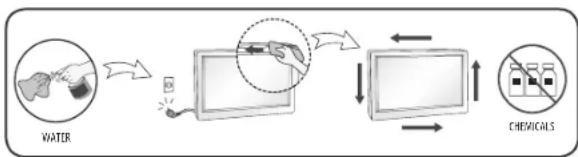
- Spray water onto a soft cloth 2 to 4 times, and use it to clean the front frame; wipe in one direction only. Too much moisture may cause staining.
flowchart
graph LR
    A["WATER"] --> B["Tube with a hand holding a pencil"]
    B --> C["Tube with arrows indicating direction"]
    C --> D["CHEMICALS"]
On Repacking
- Do not throw away the carton and packing materials. They make an ideal container in which to transport the unit. When shipping the unit to another location, repack it in its original material.
OPEN SOURCE SOFTWARE NOTICE INFORMATION
To obtain the source code that is contained in this product, under GPL, LGPL, MPL, and other open source licenses that have the obligation to disclose source code, and to access all referred license terms, copyright notices and other relevant documents, please visit https://opensource.ige.com.
LG Electronics will also provide open source code to you on CD-ROM for a charge covering the cost of performing such distribution (such as the cost of media, shipping, and handling) upon email request to opensource@lge.com.
This offer is valid to anyone in receipt of this information for a period of three years after our last shipment of this product.
BEFORE READING THE OWNER'S MANUAL
For models equipped with SSD (solid state disk), stored data may be lost in the event of a malfunction due to the nature of SSD. You must back up important user data in external storage devices (USB HDD, memory, etc.). By the nature of this product, a malfunction in the mainboard may lead to the loss of stored data. Accordingly, you must back up important user data in external storage devices (USB HDD, memory, etc.).
If you shut down the product before system loading is complete, it may not shut down properly. Shut down the product once system loading is complete. (System loading takes about 1 to 2 minutes to complete, but it may vary depending on the user environment.)
ASSEMBLING AND PREPARING

CAUTION
• Always use genuine LG components to ensure safety and product performance.
- The product warranty will not cover damage or injury caused by the use of unauthorized components.
- It is recommended that use the supplied components.
- If you use generic cables not certified by LG, the screen may not display or there may be image noises.
- Illustrations in this document represent typical procedures, so they may look different from the actual product.
- Do not apply foreign substances (oils, lubricants, etc.) to the screw parts when assembling the product. (Doing so may damage the product.)
- Applying excessive force when tightening screws may cause damage to the monitor. Damage caused in this way will not be covered by the product warranty.
- Do not carry the monitor upside down by just holding the base. This may cause the monitor to fall off the stand and could result in personal injury.
- When lifting or moving the monitor, do not touch the monitor screen. The force applied to the monitor screen may cause damage to it.

NOTE
• The components may look different from those illustrated here.
- Without prior notice, all product information and specifications contained in this manual are subject to change to improve the performance of the product.
- To purchase optional accessories, visit an electronics store or an online shopping site, or contact the retailer from which you purchased the product.
• The power cord provided may differ depending upon the region.
BIOS

CAUTION
- BIOS Password: Without the registered password, access to the system will be denied. Write down and keep the password in a safe place.
- SSD Password: If you forgot SSD Password, you cannot restore the SSD.
- The replacement of SSD due to a forgotten SSD Password is not covered by warranty.
Supported Software
(Depending on model)
You can download and install the latest version from the LGE website (www.lg.com).
- OnScreen Control
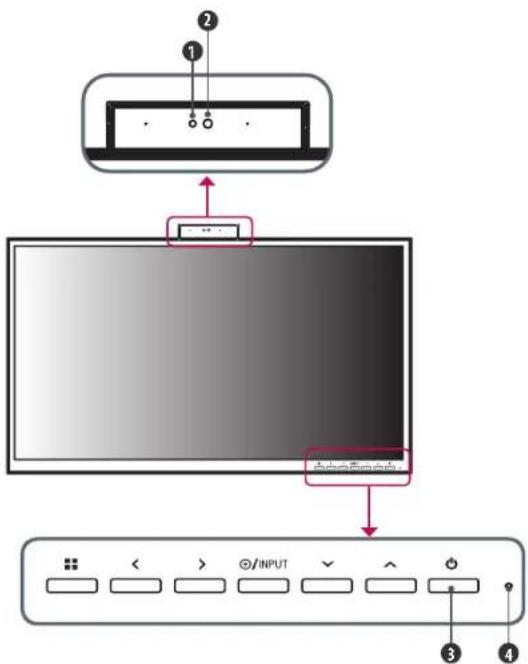
Product and Button Description
text_image
Diagram showing a monitor with labeled buttons and an input button, likely illustrating a display or control interface.Front Adjust Button Functions Information
1 Webcam activity status indicator
3 Power Button
2 Webcam
4 Power Indicator
Power Indicator
| Mode LED | |
| PC On On | |
| PC Sleep Blinking | |
| PC Off Off |
Webcam activity status indicator
| Mode LED | |
| Webcam enabled On | |
| Webcam disabled Off |
| Button Description | ||
| ■(Menu) If the menu | is inactive Activates the main menu. | |
| If the menu is active Exits the OSD menu when the button is pressed. | ||
| < | If the menu is inactive Adjuststhe volume level of the monitor. | |
| If the menu is active Left direcional key. | ||
| > | If the menu is inactive Adjuststhe volume level of the monitor. | |
| If the menu is active Right direcional key. | ||
| ○/INPUT | If the menu is inactive Changethe input signals.* When the input signal is changed to PC, the PC is turned on. (Depending on the PC setting) | |
| If the menu is active Selects and confirms menus or options. | ||
| √ | Down directional key. | |
| ^ | Up directional key. | |
| (Power button) | HDMI input Turn the monitorpower on/off. | |
| PC input Turn the PC power on/off. | ||
Connectors
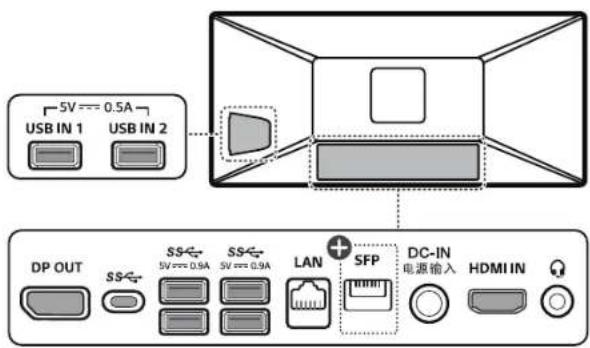
text_image
5V === 0.5A USB IN 1 USB IN 2 DP OUT SS SS SFP DC-IN SS 5V === 0.9A 5V === 0.9A LAN SFP 电源输入 HDMI IN
: SFP supported models only.

CAUTION
Take caution when handling the product as the SFP port's protrusions are sharp and may injure your hand. (SFP supported models only.)
Moving and Lifting the Monitor
When moving or lifting the monitor, follow these instructions to prevent the monitor from being scratched or damaged and to ensure safe transportation, regardless of its shape or size.
- Place the monitor in the original box or packing material before attempting to move it.
- Before moving or lifting the monitor, disconnect the power cord and all other cables.
- Hold the bottom and side of the monitor frame firmly. Do not hold the panel itself.
- When holding the monitor, the screen should face away from you to prevent it from being scratched.
- When transporting the monitor, do not expose the monitor to shock or excessive vibration.
- When moving the monitor, keep it upright and never turn the monitor on its side or tilt it sideways.
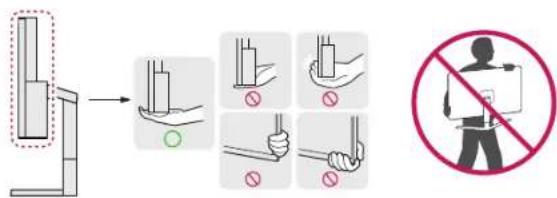
text_image
Diagram illustrating a step-by-step instructions for using a device to prevent a person holding a device, with a no-smoking symbol shown.
CAUTION
- Avoid touching the monitor screen as much as possible.
- This may result in damage to the screen or some of the pixels used to create images.
- If you use the monitor panel without the stand base, its button may cause the monitor to become unstable and fall, resulting in damage to the monitor or human injury. In addition, this may cause the button to malfunction.
Installing on a Table
- Lift the monitor and place it on the table in an upright position. Place the monitor at least 100mm
Place the monitor mounted on the stand base in an upright position.
(3.90 inches) away from the wall to ensure sufficient ventilation.
Place the monitor mounted on the stand base in an upright position.
2 Handle the monitor with both hands for safety.
Adjusting the Stand Height
Max. 130 mm
(5.1 inches)
WARNING
- When adjusting the screen height, do not place your hand on the stand body to avoid injury to your finger
A: 1000mm (3.9 inches)
CAUTION
- Unplug the power cord before moving or installing the monitor. There is risk of electric shock.
- Make sure to use the power cord that is provided in the product package and connect it to a grounded power outlet.
- If you need another power cord, please contact your local dealer or the nearest retail store.
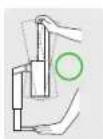
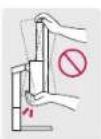
Adjusting the Angle
The angle of the screen can be adjusted forward or backward from -5^ to 35^ for a comfortable viewing experience.
1 Place the monitor mounted on the stand base in an upright position.
2 Adjust the angle of the screen.

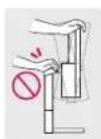
WARNING
- To avoid injury to the fingers when adjusting the screen, do not hold the lower part of the monitor's frame as illustrated below.
- Be careful not to touch or press the screen area when adjusting the angle of the monitor.
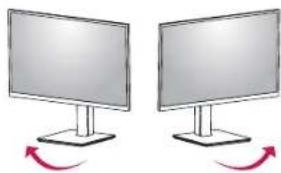
Swivel stand
Swivel 355 degrees and adjust the angle of the monitor set to suit your view.
natural_image
Two computer monitors with left and right views showing a red curved arrow indicating rotation (no text or symbols)Pivot Feature
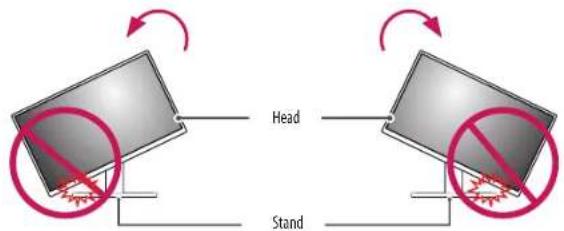
The pivot feature allows the monitor to rotate 90 degrees clockwise or counter-clockwise.
text_image
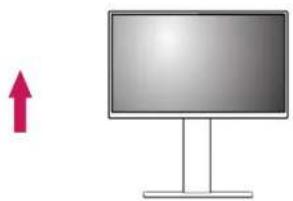
Head Stand1 Raise the monitor up to the maximum height.
natural_image
Simple illustration of a blank monitor with a red upward arrow on the left side (no text or symbols)2 Adjust the angle of the monitor in the direction of the arrow as shown in the figure.
WARNING
To avoid scratching the stand base, do not use excessive force or speed when rotating the monitor using the pivot feature, and make sure that the stand does not make contact with the monitor.
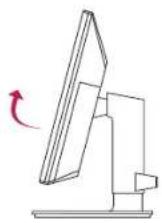
3 Rotate the monitor clockwise or counter-clockwise as shown in the figure.
4 Complete the installation by rotating the monitor 90° as shown in the figure.
NOTE
• Auto Pivot feature of the display is not supported.
- The screen can be rotated easily using the screen pivot shortcut key provided with your Windows operating system. Note that some Windows versions and some graphics card drivers may use different settings for the screen pivot key or may not support the pivot key at all.
• Windows operating system screen pivot shortcut key.
- 0 ": Ctrl + Alt + keyboard up key ( )
- 90°: Ctrl + Alt + keyboard left key ( )
- 180°: Ctrl + Alt + keyboard down key ( )
- 270°: Ctrl + Alt + keyboard right key ( )
WARNING
• Take care when rotating the monitor if the cable is connected.
- To avoid injury to your fingers, do not put them between the screen and the stand base when turning the monitor's screen.
Using the Kensington Lock
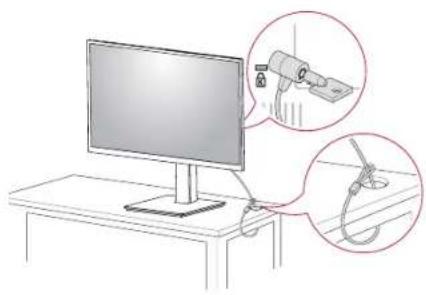
For more information on installation and usage, refer to the Kensington lock owner's manual or visit the website at http://www.kensington.com.
Connect the monitor to a table using the Kensington security system cable.
natural_image
Illustration of a computer monitor connected to a cable with magnified insets showing the cable being held (no text or symbols present)Installing on the Wall
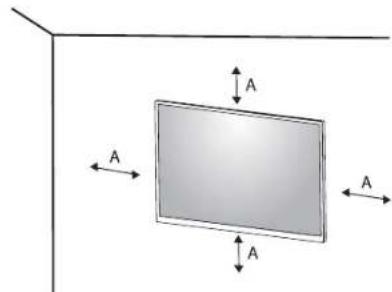
Install the monitor at least 100 mm (3.9 inches) away from the wall and leave about 100 mm (3.9 inches) of space at each side of the monitor to ensure sufficient ventilation. Detailed installation instructions can be obtained from your local retail store. Alternatively, please refer to the manual for how to install and set up a tilting wall mounting bracket.
text_image
A A A ANOTE
• The Kensington security system is optional. You can obtain optional accessories from most electronics stores.
A: 100 mm (3.9 inches)
Installing the Wall Mount Plate
This monitor meets the specifications for the wall mount plate or other compatible devices.
To install the monitor to a wall, attach a wall mounting bracket (optional) to the back of the monitor.
Make sure that the wall mounting bracket is securely fixed to the monitor and to the wall.
| Wall Mount 100 mm x 100 mm (3.9 inches x 3.9 inches) | |
| Standard screw M4 x L10 | |
| Number of screws 4 | |
| Wall Mount Plate (Optional) LSW149 | 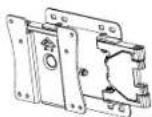 |

NOTE
- A non-VESA standard screw may damage the product and cause the monitor to fall. LG Electronics is not liable for any accidents relating to the use of non-standard screws.
- The wall mount kit includes the installation guide and all necessary parts.
- The wall mounting bracket is optional. You can obtain optional accessories from your local dealer.
- The length of the screw may differ for each wall mounting bracket. If you use screws longer than the standard length, it may damage the inside of the product.
- For more information, please refer to the user manual for the wall mounting bracket
- Be careful not to apply too much force while mounting the wall mount plate as it may cause damage to the screen.
- Remove the stand before installing the monitor on a wall mount by performing the stand attachment in reverse.

CAUTION
- Unplug the power cord before moving or installing the monitor to avoid electric shock.
- Installing the monitor on the ceiling or on a slanted wall may result in the monitor falling off, which could lead to injury. Use an authorized LG wall mount and contact the local dealer or qualified personnel.
- To prevent injury, this apparatus must be securely attached to the wall in accordance with the installation instructions.
- Applying excessive force when tightening screws may cause damage to the monitor. Damage caused in this way will not be covered by the product warranty.
- Use the wall mounting bracket and screws that conform to VESA standards. Damage caused by the use or misuse of inappropriate components will not be covered by the product warranty.
- When measured from the back of the monitor, the length of each installed screw must be 8 mm (0.3 inches) or less.
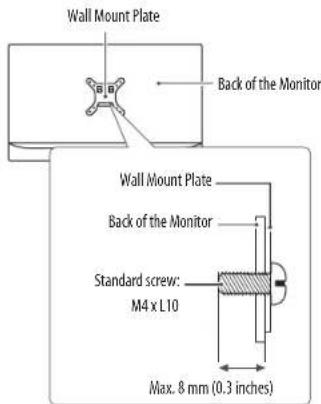
text_image
Wall Mount Plate Back of the Monitor Wall Mount Plate Back of the Monitor Standard screw: M4 x L10 Max. 8 mm (0.3 inches)USING THE MONITOR
• Illustrations in this manual may differ from the actual product.
Press the ⒶbINPUT and then select the input option.

CAUTION
- Do not press the screen for a prolonged time. This may cause image distortion.
- Do not display a still image on the screen for a prolonged time. This may cause image retention. Use a PC screensaver if possible.
- When connecting the power cord to the outlet, use a grounded (3-hole) power strip or a grounded power outlet.
• The monitor may flicker when turned on in an area where the temperature is low. This is normal. - Sometimes red, green, or blue spots may appear on the screen. This is normal.
- Some games (online, 3D, 2D) may not be supported, and some high-resolution videos (including Full HD and some HD videos) may stutter during playback.
Connecting to a PC
• This monitor supports the *Plug and Play feature.
* Plug and Play: A feature that allows you to add a device to your computer without having to reconfigure anything or install any manual drivers.
HDMI Connection
Transmits digital video and audio signals from your PC to the monitor.

CAUTION
• Using a DVI to HDMI / DP (DisplayPort) to HDMI cable may cause compatibility issues.
- Use a certified cable with the HDMI logo attached. If you do not use a certified HDMI cable, the screen may not display or a connection error may occur.
Recommended HDMI cable types
- High Speed HDMI/™ cable
- High Speed HDMI/™ cable with Ethernet
Connecting monitor
DisplayPort Connection
Transmits the PC's digital video and audio signals to the monitor. Connect your monitor which is supported DP using the DisplayPort cable.
NOTE
• There may be no video or audio output depending on the DP (DisplayPort) version of the PC.
USB-C connection
Transmits digital video and audio signals from your PC to the monitor.
NOTE
- DP Alternate Mode (DP over USB-C) are supported via USB-C Port.
- Features may not work properly depending on the connected device's specifications and the environment.
- Connect Adapter to supply power to the Monitor.
Connecting LAN
LAN connection
Connect the router or switch to the monitor.
NOTE
• The LAN cable is sold separately.
• The following LAN cable type can be used:
- Standard: IEEE 802.3 ETHERNET
- Connect the LAN cable and the peripheral devices to use the cloud monitor.
SFP connection
(SFP supported models only.)
NOTE
- Only supports 1 Gbps module. (155 Mbps, 10 Gbps (SFP+) are not supported)
- When you choose the SFP module, refer to the compatibility list by SFP vendor.
• Use the same SFP module to connect both devices.
• Devices are sold separately.
Connecting AV Devices
HDMI Connection
HDMI transmits digital video and audio signals from your AV device to the monitor.
NOTE
- Connecting your PC to the monitor using the HDMI cable may cause device compatibility issues.
• Using a DVI to HDMI / USB-C to HDMI cable may cause compatibility issues. - Use a certified cable with the HDMI logo attached. If you do not use a certified HDMI cable, the screen may not display or a connection error may occur.
• Recommended HDMI cable types - High Speed HDMI ^TM cable
- High Speed HDMI ^TM cable with Ethernet
Connecting Peripherals
USB Cable connection - PC
CAUTION
• Cautions When Using a USB Device
- A USB device with an automatic recognition program installed, or that uses its own driver, may not be recognized.
- Some USB devices may not be supported or may not work properly.
- It is recommended to use a USB hub or hard disk drive with power supplied. (If the power supply is not adequate, the USB device may not be recognized properly.)
NOTE
- It is recommended you install all Windows Updates to keep your Windows up-to-date before connecting to the product for use.
• Peripheral devices are sold separately. - A keyboard, mouse, or USB device can be connected to the USB port.
• The charging speed may vary depending on the device.
Connecting Headphones
Connect peripherals to the monitor via the headphones port.
NOTE
• Peripheral devices are sold separately.
- Depending on the audio settings of the PC and external device, headphones and speaker functions may be limited.
- If you use angled earphones, it may cause a problem with connecting another external device to the monitor. Therefore, it is recommended to use straight earphones.


Angled Straight (Recommend)
USER SETTINGS

NOTE
- Your monitor's OSD (On Screen Display) may differ slightly from that shown in this manual.
Activating the Main Menu
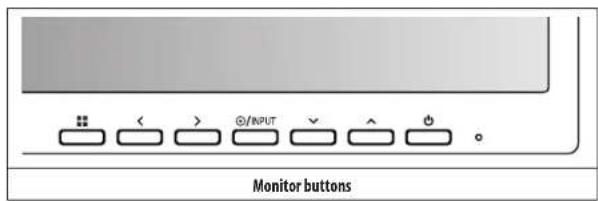
text_image
Monitor buttonsMenu Settings
1 To view the OSD menu, press the button and then enter the Settings.
2 Use the to-adjust the options.
3 To return to the upper menu or set other menu items, press the < or Ⓞ INPUT it.
4 If you want to exit the OSD menu, press the button.
The applicable setting options are as shown below.


[Quick Settings]
> [Quick Settings]
• [Brightness]: Adjusts the brightness of the screen.
- [Contrast]: Adjusts the contrast of the screen.
• [Volume]: Adjusts the volume level.
- You can adjust [Mute]/[Unmute] by/key in the [Volume] menu.
• [Color Temp]: Set your own color temperature.
- [Custom]: The user can customize the red, green and blue color.
- [Warm]: Sets the screen color to a reddish tone.
- [Medium]: Sets the screen color to between a red and blue tone.
- [Cool]: Sets the screen color to a bluish tone.
[Input]
> [Input]
• [Input List]: Selects the input mode.
• [Aspect Ratio]: Adjusts the aspect ratio of the screen.
- [Full Wide]: Displays the video in widescreen, regardless of the video signal input.
- [Original]: Displays video according to the aspect ratio of the video signal input.
NOTE
• The ratio is disabled in the interlaced signal.
- The display may look the same for [Full Wide], [Original] options at the recommended resolution.
[Picture]
>[Picture] > [Picture Mode]
- [Custom]: Allows the user to adjust each element. The color mode of the main menu can be adjusted.
- [Reader]: Optimizes the screen for reading documents.
• [Photo]: Optimizes the screen to view photos.
• [Cinema]: Optimizes the screen to improve the visual effects of a video. - [Color Weakness]: This mode is for users who cannot distinguish between red and green. It enables users with color weakness to easily distinguish between the two colors. This is subsidiary for color weakness user. Therefore if you feel uncomfortable with the screen, please turn off this function. This function can't distinguish some colors in some images.
• [Game]: Optimizes the screen for gameplay.
>[Picture] > [Picture Adjust]
• [Brightness]: Adjusts the brightness of the screen.
• [Contrast]: Adjusts the contrast of the screen.
• [Sharpness]: Adjusts the sharpness of the screen.
- [SUPER RESOLUTION+]: Because this is a function to increase the sharpness of low resolution pictures, it is not recommended to use the function for normal text or for desktop icons. Doing so may result in unnecessarily high sharpness.
- [High]: Optimizes the screen for crystal clear images. Best for high-definition video or games.
- [Middle]: Optimizes the screen for comfortable viewing, with images at the middle level between the low and high modes. Best for UCC or SD videos.
- [Low]: Optimizes the screen for smooth and natural images. Best for still images or images with less movement.
- [Off]: Displays in the most common setting. Disables [SUPER RESOLUTION+].
• [Black Level]: Sets the offset level (for HDMI only).
Offset: as a reference for a video signal, this is the darkest color the monitor can display.
- [High]: Keeps the current contrast ratio of the screen.
- [Low]: Lowers the black levels and raises the white levels from the current contrast ratio of the screen.
• [DFC]: Adjusts the brightness automatically according to the screen.
> [Picture] > [Game Adjust]
- [Response Time]: Sets a response time for displayed pictures based on the speed of the screen. For a normal environment, it is recommended that you use [Fast]. For a fast-moving picture, it is recommended that you use [Faster]. Settling to [Faster] may cause image sticking.
- [Faster]: Sets the response time to [Faster].
- [Fast]: Sets the response time to [Fast].
- [Normal]: Sets the response time to [Normal].
- [Off]: Does not use the response time improvement feature.
- [Black Stabilizer]: You can control the black contrast to have better visibility in dark scenes. Increasing the [Black Stabilizer] value brightens the low gray level area on the screen. (You can easily distinguish objects on dark game screens.) Reducing the [Black Stabilizer] value darkens the low gray level area and increases the dynamic contrast on the screen.
> [Picture] > [Color Adjust]
• [Gamma]
- [Mode 1], [Mode 2], [Mode 3]: The higher the gamma value, the darker the image becomes. Likewise, the lower the gamma value, the lighter the image becomes.
- [Mode 4]: If you do not need to adjust the gamma settings, select [Mode 4].
• [Color Temp]: Set your own color temperature.
[Custom]: The user can customize the red, green and blue color.
[Warm]: Sets the screen color to a reddish tone.
- [Medium]: Sets the screen color to between a red and blue tone.
- [Cool]: Sets the screen color to a bluish tone.
- [Red], [Green], [Blue]: You can customize the picture color using [Red], [Green], and [Blue] colors.
> [Picture] > [Picture Reset]
• [Do you want to reset your settings?]
- [Yes]: Returns to the default settings.
- [No]: Cancel the reset.
[Sound]
> [Sound]
• [Waves MaxxAudio
- [On]: MaxxAudl6 by Waves, recipient of a Technical GRAMMY Award ^8 is a suite of studio-quality sound tools for a superior listening experience.
- [Off]: Disables the [Waves MaxxAudi®] function.
[Volume]: Adjusts the volume level.
- You can adjust [Mute]/[Unmute] by key in the [Volume] menu.
[General]
> [General]
• [Language]: Sets the menu screen to the desired language.
• [SMART ENERGY SAVING]: Conserve energy by using luminance compensation algorithm.
- [High]: Saves energy using the high-efficiency [SMART ENERGY SAVING] feature.
[Low]: Saves energy using the low-efficiency [SMART ENERGY SAVING] feature.
- [Off]: Disables the feature.
The value of energy saving data may differ depending on panel and panel suppliers.
If you select the option of [SMART ENERGY SAVING] is [High] or [Low], monitor luminance become higher or lower depend on source.
- [Automatic Standby]: If there is no operation on the monitor for a certain period of time, the monitor will automatically switch to standby mode.
- [OSD Lock]: This feature disables the configuration and adjustment of menus.
- Deactivates all functions except [Brightness], [Contrast], [Volume], [Input List], [Information] and [OSD Lock] menu.
- [Information]: The following display information will be shown; [Model], [Total Power On Time], [Serial Number], [Resolution].
>[General] > [Reset]
• [Do you want to reset your settings?]
- [Yes]: Returns to the default settings.
- [No]: Cancel the reset.
TROUBLESHOOTING
Nothing is displayed on the screen.
Is the monitor's power cord plugged in?
- Check if the power cord is correctly plugged into the power outlet.
Is the power LED on?
- Check the power cable connection and press the power button.
Is the power on and the power LED displaying white?
- Check that the connected input is enabled [Input]).
• Is the [No Signal] message being displayed?
- This is displayed when the signal cable between the PC and the monitor is missing or disconnected. Check
the cable and reconnect it.
• Is the [Out of Range] message being displayed?
- This occurs when signals transferred from the PC (graphics card) are out of the horizontal or vertical frequency range of the monitor. Please see the Product Specification section of this manual to set the appropriate frequency.
Screen display is unstable and shaky. / Images displayed on the monitor leave shadow trails.
• Did you select the appropriate resolution?
- If the selected resolution is HDMI 1080i 60/50 Hz (interlaced), the screen may be flickering. Change the resolution to 1080p or the recommended resolution.
- Not setting the graphics card to the recommended (optimal) resolution may result in blurred text, a dimmed screen, a truncated display area or misalignment of the display.
- The setting methods may be different depending on the computer or operating system, and some resolutions may not be available depending on the performance of the graphics card. If this is the case, contact the manufacturer of the computer or graphics card for assistance.
- Does image sticking occur even when the monitor is turned off?
- Displaying a still image for a prolonged time may cause damage to the screen, resulting in the retention of the image.
- To extend the lifetime of the monitor, use a screensaver.
• Are there spots on the screen?
- When using the monitor, pixilated spots (red, green, blue, white, or black) may appear on the screen. This is normal for an LCD screen. It is not an error, nor is it related to the monitor's performance.
Some features are disabled.
- Are some functions not available when you press the Menu button?
- The OSD is locked. Disable [OSD Lock] in [General].
Do you see an "Unrecognized monitor, P(VEGA BDO) monitor found" message?
• Have you installed the display driver?
- Be sure to install the display driver from our web site: http://www.lg.com.
- Make sure to check if the graphics card support®/ufgractibMay
No sound from the headphone port.
• Are images displayed without sound?
- Make sure that the headphone port connections are made properly.
- Try increasing the volume with keys.
- Set the audio output of the PC to the monitor you are using. (The settings may differ depending on the operating system (OS) you use.)
PRODUCT SPECIFICATION
Specifications are subject to change without notice.
The symbol \~ means alternating current, and the symbol = means direct current.
Color Depth: 8-bit color is supported.
Resolution:
• Max Resolution: 1920 x 1080 @ 75 Hz
• Recommended Resolution: 1920 x 1080 @ 60 Hz
AC/DC Adapter:
- Model: ADS-110CL-19-3 190110G
• Manufacturer: Shenzhen Honor Electronic Co., Ltd
- Output: 19 V=5.79 A
- Input: 100-240 V\~50/60 Hz, 1.5 A
- Model: ADS-120QL-19A-3 190110E
• Manufacturer: Shenzhen Honor Electronic Co., Ltd
- Output: 19 V=5.79 A
- Input: 100-240 V\~50/60 Hz, 1.6 A
Environmental Conditions:
- Operating Conditions
- Temperature: 0 °C to 40 °C (32 °F to 104 °F)
- Humidity: Less than 80%
- Storing Conditions
- Temperature: -20 °C to 60 °C (-4 °F to 140 °F)
- Humidity: Less than 85%
Dimensions (without packaging): Monitor Size (Width x Height x Depth)
24CQ65\*
- With Stand
- 553.4 x 512.7 x 240 (mm)
- 21.7 x 20.1 x 9.4 (inches)
Without Stand
- 553.4 x 332.7 x 59.4 (mm)
- 21.7 x 13.0 x 2.3 (inches)
27CQ65\*
With Stand
- 622.3 x 531.7 x 240 (mm)
- 24.5 x 20.9 x 9.4 (inches)
Without Stand
- 622.3 x 371.5 x 61.0 (mm)
- 24.5 x 14.6 x 2.4 (inches)
Weight (without packaging):
24CQ65\*
- With Stand
6.2 kg (13.6 lbs)
• Without Stand - 4.1 kg (9.0 lbs)
27CQ65\*
- With Stand
7.8 kg (17.1 lbs)
• Without Stand - 5.6 kg (12.3 lbs)
Power Sources:
24CQ65\*
• Power Rating: 19 V=4.0 A
• Power Consumption:
- On Mode: 25 W (Typical) (Outgoing condition)*
- Sleep Mode: ≤ 1.3 V
- Off Mode: ≤ 1.2 W
27CQ65\*
• Power Rating: 19 V-4.0 A
• Power Consumption:
- On Mode: 29 W (Typical) (Outgoing condition)*
- Sleep Mode: ≤ 1.3 W
- Off Mode: ≤ 1.2 W
* The On Mode of Power Consumption is measured with LGE test standard. (Full White pattern, Maximum resolution)
* The Power Consumption level can be different by operating condition and monitor setting.
Wireless module (AX201NGW) Specifications
(Wi-Fi/Bluetooth supported models only.)
| Wireless LAN (IEEE 802.11a/b/g/n/ac/ax) | |
| Frequency Range Output Power (Max.) | |
| 2400 to 2483.5 MHz | 20.0 dBm |
| 5150 to 5350 MHz | 22 dBm |
| 5470 to 5725 MHz | 22 dBm |
| 5725 to 5850 MHz | 20 dBm |
| Bluetooth | |
| Frequency Range Output Power (Max.) | |
| 2400 to 2483.5 MHz 14 dBm | |
| As band channels can vary per country, the user cannot change or adjust the operating frequency. This product is configured for the regional frequency table.For consideration of the user, this device should be installed and operated with a minimum distance of 20 cm (7.8 inches) between the device and the body.FCC ID: PD9AX201NG / IC: 1000M- AX201NG | |
Factory Support Mode
(Preset Mode, HDMI)
| Resolution Horizontal | Frequency (kHz) Vertical Frequency (Hz) Polarity (H/V) Remarks | |||
| 640 x 480 31.469 59.94 | -/- | |||
| 640 x 480 37.5 75 | -/- | |||
| 720 x 400 31.468 70.08 | / + | |||
| 720 x 480 31.47 59.94 | +/+ | |||
| 800 x 600 37.879 | 60.317 | +/+ | ||
| 800 x 600 46.875 75.0 | +/+ | |||
| 1024 x 768 | 48.363 60.0 | -/- | ||
| 1024 x 768 | 60.023 | 75.029 | +/+ | |
| 1152 x 864 | 67.500 | 75.000 | +/+ | |
| 1280 x 720 | 45 | 60 | +/+ | |
| 1280 x 800 | 49.702 | 60 | -/+ | |
| 1280 x 1024 | 63.981 | 60.023 | +/+ | |
| 1280 x 1024 | 79.976 | 75.035 | +/+ | |
| 1400 x 1050 | 65.317 | 59.978 | -/+ | |
| 1440 x 900 | 55.935 | 59.887 | -/+ | |
| 1600 x 900 | 60.000 | 60.000 | +/+ | |
| 1680 x 1050 | 65.290 | 59.954 | -/+ | |
| 1920 x 1080 | 67.50 | 60 | +/+ | |
| 1920 x 1080 | 83.89 74.97 | +/+ |
HDMI Timing (Video)
| Resolution Horizontal Frequency (kHz) Vertical Frequency (Hz) Remarks | |||
| 480p 31.5 60 | |||
| 576p 31.25 50 | |||
| 720p 37.5 50 | |||
| 720p 45 60 | |||
| 1080p 56.25 50 | |||
| 1080p 67.50 60 Recommend | |||
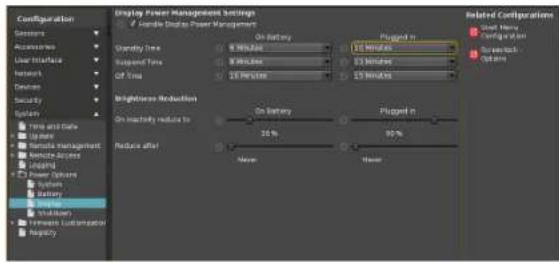
Power Management Options
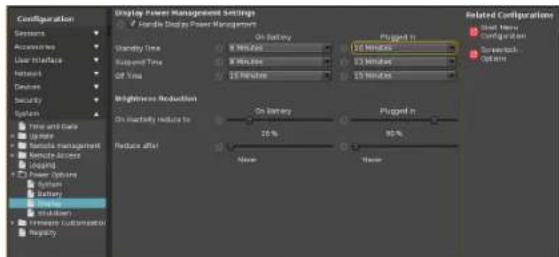
The power management options for this PC are set as follows:
24/27CQ65*W
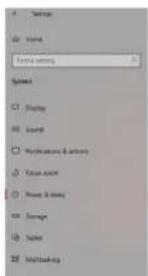
text_image
Settings Name Text setting Speeds Display Ground Refructures & actions Focus out Power & press Storage Timer MultiStackingPower & sleep
Screen
When plugged to turn off after
(3) 现场站
Sleep
When plugged in PC goes to stay after
重要内容:
Reliefeld zottings
Additional power settings

24/27CQ65*1
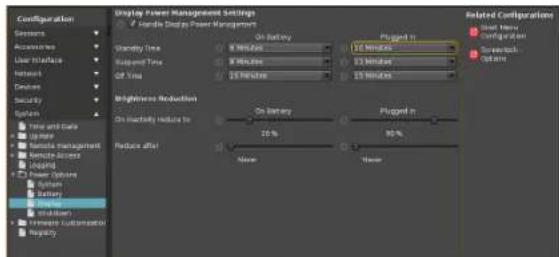
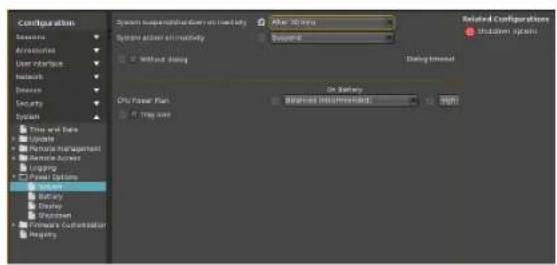
text_image
Configuration Session Accessories User Interface Network Settings Security System On Battery Plug-in On Battery Plug-in On Battery Plug-in On Battery Plug-in On Battery Plug-in On Battery Plug-in On Battery Plug-in On Battery Plug-in On Battery Plug-in On Battery Plug-in On Battery Plug-in On Battery Plug-in On Battery Plug-in On Battery Plug-in On Battery Plug-in On Battery Plug-in On Battery Plug-in On Battery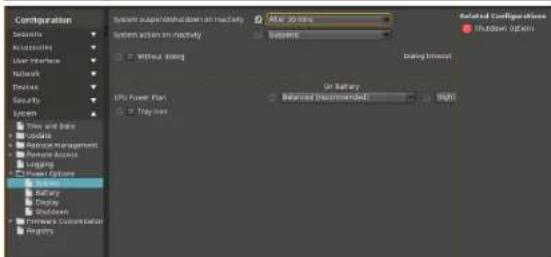
text_image
Configuration Settings Auto/matrix User Interface Network Services Security Launches View and Drive Connects Remote Management Remote Activities Logging Power Options Battery Battery Display Shutdown Functional Customization Registry System supported down on HACUgly System supported on HACUgly After 20 min Suspend Without firing CPU Power Plan Or Battery Recommended (Recommended) High Related to Configuration Options Shutdown Options
NOTE
- The settings of the power management options may change according to Windows updates.
- Turn off the display: Turn off the screen when the PC is not used for a set period of time.
- Put the computer to sleep: Switch to Sleep mode when the PC is not used for a set period of time.
ENERGY STAR®
24/27CQ65*W 24/27CQ65*I

- As a participating company of ENERGY STAR®GE has determined that this product meets the ENERGY STAR® guidelines for energy efficiency.
• The ENERGY STA Program is designed to encourage electronic product manufacturers to develop energy-efficient products. - Reducing the energy consumption of products helps reduce costs and conserve resources.
• This PC includes the following power management features: - Display Off: When the PC has not been used for up to 10 minutes.
Switch to Sleep mode: When the PC has not been used for up to 30 minutes.
• To exit Sleep mode, simply click the mouse or press any key on the keyboard. (24/27CQ65*W) - To exit Sleep mode, simply press the power button. (24/27CQ65*I)
ENGLISH



text_image
ENGLISH 34
text_image
ENGLISH 35
LG
Life's Good
WARNING: This equipment is compliant with Class A of CISPR 32. In a residential environment this equipment may cause radio interference.
The model and serial number of the product are located on the back and on one side of the product. Record them below in case you ever need service.
Model
Serial No.
Supplier's Declaration of Conformity
Trade Name LG
Responsible Party LG Electronics USA, Inc.
Address
111 Sylvan Avenue, North Building,
Englewood Cliffs, NJ 07632
E-mail lg.environmental@lge.com

LG
Life's Good
Waves MaxxAudio and additional MAXX trademarks are trademarks and/or registered trademarks of Waves Audio Ltd.
The SuperSpeed USB Trident logo is a registered trademark of USB Implementers Forum, Inc.
The Bluetooth® word mark and logos are registered trademarks owned by Bluetooth SIG, Inc. and any use of such marks by LG Electronics Inc. is under license. Other trademarks and trade names are those of their respective owners.
text_image
Diagram showing a monitor with labeled buttons and an input button, likely illustrating a display or control interface.text_image
Diagram illustrating a step-by-step instructions for using a device to prevent a person holding a device, with a no-smoking symbol shown.
MISES EN GARDE
text_image
Diagram of a computer monitor setup with labeled arrows indicating direction of movement or force, enclosed in a cabinet-like frame.A:100 mm (3,9 po)

MISES EN GARDE
text_image
Diagram illustrating three steps of a hand valve mechanism with green circle and red prohibition symbolsSocle pivotant
natural_image
Two computer monitors with left and right views showing a red curved arrow indicating rotation (no text or symbols)Fonction de pivot
natural_image
Simple illustration of a blank monitor with a red upward arrow on the left side (no text or symbols)natural_image
Two identical flat-screen monitors with red curved arrows indicating rotation or sound effect (no text or symbols)natural_image
Two identical flat-screen monitors with stand bases, no text or symbols visibleREMARQUES
natural_image
Line drawing of a hand using a tool to press or stand, with a red circle highlighting a no-smoking symbol (no text or labels present)natural_image
Illustration of a computer monitor connected to a cable with magnified insets showing the cable being inserted (no text or symbols present)Installation au mur
>[Image] > [Mode Image]
CARACTÉRISTIQUES DU PRODUIT
text_image
Settings Name Text setting Speeds Display Graph Reinstructions & actions Face mask Mount & arch Storage Tape MaskingPower & sleep
Screen
When plugged us, turn off after
(3) 等式化
Sleep
When plugged in TC goes to help after
重要内容:
Referent attitudes
Nominal power settings

24/27CQ65*1
text_image
Configuration Session Accessories User Interface Network Settings Security System On Battery Plug-in On Battery Plug-in On Battery Plug-in Selected Configurations User Memory Configuration Sensetock Options On Battery Plug-in On Battery Plug-in On Battery Plug-in On Battery Plug-in On Battery Plug-in On Battery Plug-in On Battery Plug-in On Battery Plug-in On Battery Plug-in On Battery Plug-in On Battery Plug-in On Battery Plug-in On Battery Plug-in On Battery Plug-in On Battery Plug-in On Battery Plug-in On Battery Plug-in On Battery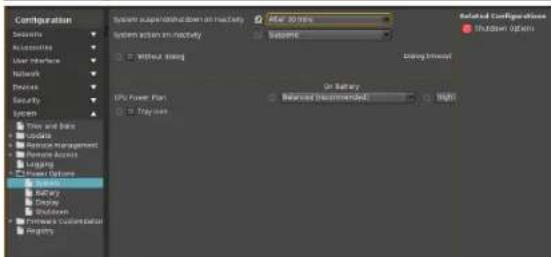
text_image
Configuration Settings Auto/matrix User Interface Network Services Security Launch View and Plate Connects Remote Management Remote Active Logging Power Options Battery Battery Display Shutdown Functional Customization Registry System super-irriged down on HACUgly System action on HACUgly After 20 hours Squeeze Without firing CPU Power Plan Or Battery Balanced (Recommended) High
REMARQUES
111, Sylvan Avenue, North Building,
Englewood Cliffs, NJ 07632
Courriel lg.environmental@lge.com

LG
Life's Good
Manual de usuario
Dispositivo LG Cloud Cliente Thin All-in-One
text_image
Diagram showing a monitor with labeled ports and an input button, likely illustrating a system or control interface.text_image
Diagram illustrating a step-by-step instructions for using a device to prevent a person's phone, with numbered steps and a no-smoking symbol.
PRECAUCIÓN
text_image
Diagram of a computer monitor setup with labeled arrows indicating direction of movement or force, enclosed in a transparent enclosure.A: 100 mm

PRECAUCIÓN
natural_image
Two computer monitors with red curved arrows indicating rotation or change (no text or symbols)Función de giro
natural_image
Simple illustration of a monitor with a red upward arrow on the left side (no text or symbols)natural_image
Two identical flat-screen monitors with red curved arrows indicating rotation or sound effect (no text or symbols)natural_image
Two identical flat-screen monitors with stand bases, no text or symbols visibleESPAÑOL

NOTA
natural_image
Line drawing of a hand using a tool to lift a flat object, with a red circle highlighting the base (no text or symbols)natural_image
Illustration of a desktop computer monitor with two magnified insets showing cable attachment (no text or symbols)
NOTA
text_image
Settings Home Find Location System Balance Sound Instructions & Options Hours per Power & Sleep Storage Water Healthcare Power & Sleep Screen Where dropped to turn off after 30 minutes Sleep Where dropped to PC, goes to sleep after 30 minutes24/27CQ65*1
text_image
Configuration Options Accessories Line Interface Network Devices Security System Time and Time Up Time Secure Management Select Devices Looping Power Options System Battery Loaders Workload Transform Customization Propify Display Power Management Settings Update Display Power Managers On Battery Plug-in 120 MHz 120 MHz 120 MHz Brightness Reduction On Inactivity Reduction to: 25% 90% Reduce after: None None Related Configurations Start Home Configuration Refreshed Option On Battery Plug-in