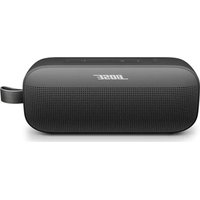
SoundLink Flex 2nd Gen - Docking station BOSE - Free user manual and instructions
Find the device manual for free SoundLink Flex 2nd Gen BOSE in PDF.


| Product type | Portable Bluetooth speaker |
| Brand | Bose |
| Model | SoundLink Flex 2nd Gen (442591) |
| Power supply | 5 V ⎓ 1.5 A via USB-C |
| Battery life | Up to 12 hours (3 hours at maximum volume) |
| Charging time | Approximately 4 hours |
| Bluetooth connectivity | Multipoint Bluetooth (up to 2 devices simultaneously) |
| Bluetooth range | Up to 9 m |
| Water and dust resistance | IP64 and IP67 (immersion up to 1 m for 30 min maximum) |
| Main functions | Media player, phone calls, voice assistant, Spotify Tap, pairing two speakers in Stereo or Party mode, SimpleSync with Bose smart speakers |
| Audio technology | Snapdragon Sound with aptX Adaptive codec |
| Voice prompts | Multiple languages (French, English, etc.), adjustable via Bose app |
| Compatibility | iOS and Android devices, Bose app for setup and updates |
| Care and cleaning | Soft damp cloth (clean water). Rinse with clean water after exposure to salt or chlorinated water. Do not use solvents. USB-C dry before charging. |
| Safety | Choking hazard (small parts). Contains magnets. Do not expose to heat. Only use certified LPS power adapter. Do not modify. |
| Spare parts and repairability | Contact Bose customer service. Non-removable lithium-ion battery. Limited warranty. |
| General information | Limited warranty available at worldwide.Bose.com/Warranty. Product registration recommended. |
Frequently Asked Questions - SoundLink Flex 2nd Gen BOSE
User questions about SoundLink Flex 2nd Gen BOSE
0 question about this device. Answer the ones you know or ask your own.
Ask a new question about this device
Download the instructions for your Docking station in PDF format for free! Find your manual SoundLink Flex 2nd Gen - BOSE and take your electronic device back in hand. On this page are published all the documents necessary for the use of your device. SoundLink Flex 2nd Gen by BOSE.
USER MANUAL SoundLink Flex 2nd Gen BOSE
Please read and keep all safety and use instructions.

Bose Corporation hereby declares that this product is in compliance with the essential requirements and other relevant provisions of Directive 2014/53/EU and all other applicable EU directive requirements. The complete declaration of conformity can be found at: ____ www.Bose.cc

This product conforms to all applicable Electromagnetic Compatibility Regulations 2016 and all other applicable UK regulations. The complete declaration of conformity can be found at: ____ www.Bose.com/compliance
Bose Corporation hereby declares that this product is in compliance with the essential requirements per Radio Equipment Regulations 2017 and all applicable UK regulations. The complete declaration of conformity can be found at: ____ www.Bose.com/compliance
Important Safety Instructions
If the speaker is exposed to salt or chlorinated water, gently rinse with fresh water following the exposure to remove residue. Make sure the connector port is fully dried out before charging.
Clean only with a dry cloth or water dampened cloth. Do not use cleaning products.
Only use attachments/accessories specified by the manufacturer.
Refer all servicing to qualified personnel. Servicing is required when the apparatus does not operate normally, or has been physically damaged.
WARNINGS/CAUTIONS

Contains small parts which may be a choking hazard. Not suitable for children under age 3.

This product contains magnetic material. Consult your physician on whether this might affect your implantable medical device.
- Keep the product away from fire and heat sources. Do NOT place naked flame sources, such as lighted candles, on or near the product.
- Do NOT make unauthorized alterations to this product.
- Use this product only with an agency-approved LPS power supply that meets local regulatory requirements (e.g., UL, CSA, VDE, CCC).
- The battery provided with this product may present a risk of fire, explosion or chemical burn if mishandled, incorrectly replaced or replaced with an incorrect type.
- Do not expose products containing batteries to excessive heat (e.g. from storage in direct sunlight, fire or the like).
- If the battery leaks, do not allow the liquid to come in contact with the skin or eyes. If contact is made, seek medical advice.
- The product label is located on the back of the product.
NOTE: This equipment has been tested and found to comply with the limits for a Class B digital device, pursuant to Part 15 of the FCC Rules. These limits are designed to provide reasonable protection against harmful interference in a residential installation. This equipment generates, uses, and can radiate radio frequency energy and, if not installed and used in accordance with the instructions, may cause harmful interference to radio communications. However, there is no guarantee that interference will not occur in a particular installation. If this equipment does cause harmful interference to radio or television reception, which can be determined by turning the equipment off and on, the user is encouraged to try to correct the interference by one or more of the following measures:
- Reorient or relocate the receiving product or antenna.
- Increase the separation between the equipment and receiver.
- Connect the equipment into an outlet on a circuit different from that to which the receiver is connected.
- Consult the dealer or an experienced radio/TV technician for help.
Changes or modifications not expressly approved by Bose Corporation could void the user's authority to operate this equipment.
This device complies with part 15 of the FCC Rules and with ISED Canada's license-exempt RSS standard(s). Operation is subject to the following two conditions: (1) This device may not cause harmful interference, and (2) this device must accept any interference received, including interference that may cause undesired operation.
This device complies with FCC and ISED Canada radiation exposure limits set forth for the general population. This transmitter must not be co-located or operating in conjunction with any other antenna or transmitter.
CAN ICES-3(B)/NMB-3(B)
For Europe: Frequency band of operation 2400 to 2483.5 MHz. | Maximum transmit power less than 20 dBm EIRP.
Maximum transmit power is below regulatory limits such that SAR testing is not necessary and exempt per applicable regulations.
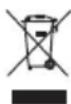
This symbol means the product must not be discarded as household waste, and should be delivered to an appropriate collection facility for recycling. Proper disposal and recycling helps protect natural resources, human health and the environment. For more information on disposal and recycling of this product, contact your local municipality, disposal service, or the shop where you bought this product.
Low-power Radio-frequency Devices Technical Regulations: Without permission granted by the NCC, any company, enterprise, or user is not allowed to change frequency, enhance transmitting power or alter original characteristic as well as performance to a approved low power radio-frequency devices. The low power radio-frequency devices shall not influence aircraft security and interfere legal communications; If found, the user shall cease operating immediately until no interference is achieved. The said legal communications means radio communications is operated in compliance with the Telecommunications Management Act. The low power radio-frequency devices must be susceptible with the interference from legal communications or ISM radio wave radiated devices. The low power radio-frequency devices must be susceptible with the interference from legal communications or ISM radio wave radiated devices.
DON'T attempt to remove the rechargeable lithium-ion battery from this product. Contact your local Bose retailer or other qualified professional for recycling and disposal.

Please dispose of used batteries properly, following local regulations. Do not incinerate.

| Names and Contents of Toxic or Hazardous Substances or Elements | ||||||
| Toxic or Hazardous Substances and Elements | ||||||
| Part Name | Lead (Pb) | Mercury (Hg) | Cadmium (Cd) | Hexavalent (CR(VI)) | Polybrominated Biphenyl (PBB) | Polybrominated diphenylether (PBDE) |
| PCBs X O O O O O | ||||||
| Metal Parts X O O O O O | ||||||
| Plastic Parts O O O O O O O | ||||||
| Speakers X O O O O O O | ||||||
| Cables X O O O O O O | ||||||
| This table is prepared in accordance with the provisions of SJ/T 11364.O: Indicates that this toxic or hazardous substance contained in all of the homogeneous materials for this part is below the limit requirement of GB/T 26572. |  | |||||
| X: Indicates that this toxic or hazardous substance contained in at least one of the homogeneous materials used for this part is above the limit requirement of GB/T 26572. | ||||||
| Equipment name: Bluetooth Speaker Type designation: 442591 | ||||||
| Restricted substances and its chemical symbols | ||||||
| Unit | Lead (Pb) | Mercury (Hg) | Cadmium (Cd) | Hexavalent chromium ( Cr^+6 ) | Polybrominated biphenyls (PBB) | Polybrominated diphenylethers (PBDE) |
| PCBs — | ○○ | ○ | ○○ | |||
| Metal Parts | — | ○○ | ○ | ○○ | ||
| Plastic Parts | ○○ | ○○ | ○ | ○ | ||
| Speakers | — | ○○ | ○ | ○○ | ||
| Cables | — | ○○ | ○ | ○○ | ||
| Note 1: "○" indicates that the percentage content of the restricted substance does not exceed the percentage of reference value of presence. Note 2: The “-” indicates that the restricted substance corresponds to the exemption. | ||||||
Date of Manufacture: The eighth digit in the serial number indicates the year of manufacture; "4" is 2014 or 2024.
Importers: Bose Electronics (Shanghai) Company Limited, Level 6, Tower D, No. 2337 Gudai Rd. Minhang District, Shanghai 201100 | Bose Products B.V., Gorslaan 60, 1441 RG Purmerend, The Netherlands | Bose de México S. de R.L. de C.V., Avenida Prado Sur #150, Piso 2, Interior 222 y 223, Colonia Lomas de Chapultepec V Sección, Miguel Hidalgo, Ciudad de México, C.P. 11000 Phone Number: +5255 (5202) 3545 | Bose Limited (H.K.), 7F., No.2, Sec. 3, Minsheng E. Road, Zhongshan Dist. Taipei City 10480, Phone Number: +886-2-2514 7676 | Bose Limited, Bose House, Quayside Chatham Maritime, Chatham, Kent, ME4 4QZ, United Kingdom
Input Rating: 5V ——, 1.5A
Model: 442591. The CMIIT ID is located on the back of the speaker.
This product is covered by a limited warranty from Bose, available at worldwide. Bose.com/Warranty
License Disclosures: To view the license disclosures that apply to the third-party software packages included as components of the Bose SoundLink Flex Portable Speaker ( 2^nd Gen), use the Bose app. You can access this information from the Settings menu.
Apple, the Apple logo, iPad, and iPhone are trademarks of Apple Inc., registered in the U.S. and other countries. App Store is a service mark of Apple Inc. The trademark "iPhone" is used in Japan with a license from Aiphone K.K.
Use of the Made for Apple badge means that an accessory has been designed to connect specifically to the Apple product(s) identified in the badge, and has been certified by the developer to meet Apple performance standards. Apple is not responsible for the operation of this device or its compliance with safety and regulatory standards.
Use of the Works with Apple badge means that an accessory has been designed to work specifically with the technology identified in the badge and has been certified by the developer to meet Apple performance standards.
The Bluetooth ^® word mark and logos are registered trademarks owned by Bluetooth SIG, Inc. and any use of such marks by Bose Corporation is under license.
Android and Google Play are trademarks of Google LLC.
Snapdragon Sound is a product of Qualcomm Technologies, Inc. and/or its subsidiaries. Qualcomm, Snapdragon and Snapdragon Sound are trademarks or registered trademarks of Qualcomm Incorporated.
Spotify is a registered trademark of Spotify AB.
USB Type-C ^® and USB-C ^® are registered trademarks of USB Implementers Forum.
Bose, the B logo, SimpleSync, and SoundLink are trademarks of Bose Corporation. | Bose Corporation Headquarters: 1-877-230-5639 | ©2024 Bose Corporation. No part of this work may be reproduced, modified, distributed, or otherwise used without prior written permission.
Please complete and retain for your records
The serial number is located on the back of the speaker. The model number is located on the back of the speaker.
Serial number:
Model number: 442591
Please keep your receipt. Now is a good time to register your Bose product. You can easily do this by going to ____worldwide.Bose.com/ProductRegistration
WHAT'S IN THE BOX
Contents 9
GETTING STARTED
Initial setup.... 10
BLUETOOTH® CONNECTIONS
Connect to a device.... 12
Using your device's Bluetooth settings 12
Using the Bose app 13
Reconnect to a device 14
Reconnect to the most recently-connected device.... 14
Reconnect to a different device.... 14
Connect an additional device.... 15
Identify connected devices 15
Switch between two connected devices.... 15
Disconnect a device 16
Clear the speaker device list.... 16
Android™ devices only.... 17
Connect using Fast Pair 17
Snapdragon Sound™ technology 18
SPEAKER CONTROLS
Power on/off.... 19
Auto-off timer.... 20
Media playback and volume 21
Phone calls 22
Voice prompt notifications.... 23
Access voice control.... 23
BATTERY
Charge the speaker.... 24
Charging time.... 25
Hear the battery level.... 25
Battery protection mode.... 25
STATUS
Power light 26
Bluetooth light 27
Shortcut light 27
VOICE PROMPTS
Pre-installed languages 28
Change the language 28
Disable voice prompts.... 28
SHORTCUTS
Use your shortcut.... 29
Change or disable your shortcut.... 29
SPOTIFY TAP 30
CONNECT BOSE PRODUCTS
Link two Bose Bluetooth Speakers.... 31
Compatible products.... 31
Link using the product controls.... 32
Switch between Stereo mode and Party mode 33
Unlink the speakers.... 33
Connect to a Bose Smart Speaker or Soundbar.... 34
Compatible products.... 34
Connect using the Bose app.... 35
Connect using the product controls 36
Reconnect a Bose Smart Speaker or Soundbar 36
PORTABILITY
Strap uses 37
Water and dust resistance 37
CARE AND MAINTENANCE
Update the speaker 38
Clean the speaker 38
Store the speaker 38
Replacement parts and accessories.... 38
Limited warranty 38
TROUBLESHOOTING
Try these solutions first.... 39
Other solutions.... 39
Reset the speaker 42
CONTENTS
Confirm that the following parts are included:
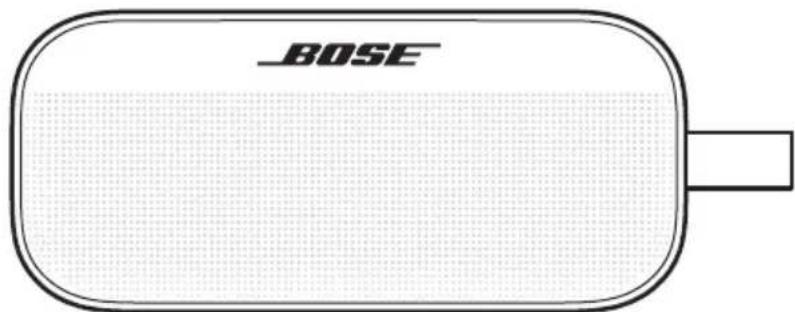
Bose SoundLink Flex Portable Speaker ( 2^nd Gen)
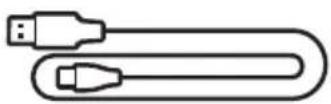
USB Type-C ^® to USB Type-A cable
NOTE: If any part of the product appears to be missing or damaged, do not use it. Visit: support.Bose.com/flex2 for troubleshooting articles, videos, and product repair or replacement.
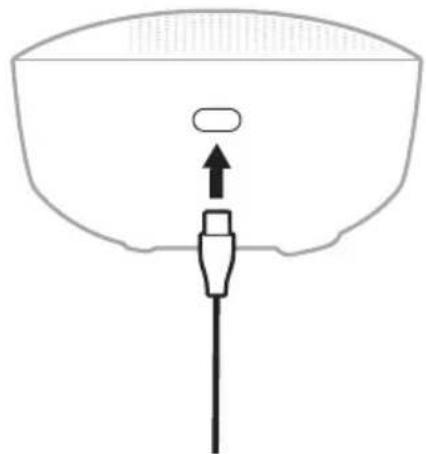
The speaker ships with a partial charge. Before using the speaker for the first time, connect it to a power supply. The speaker doesn't need to be fully charged, but it does require the initial connection to activate the battery.
INITIAL SETUP
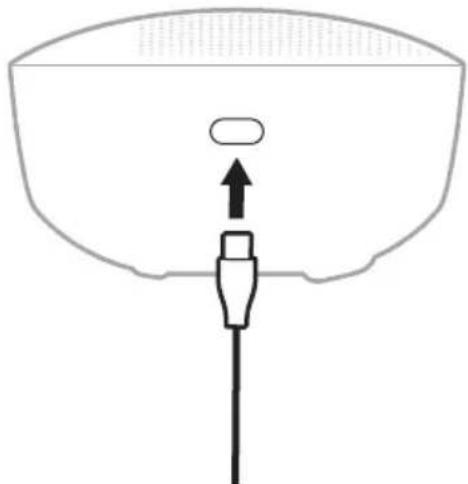
- Connect the USB-C® end of the cable to the USB-C port on the side of the speaker.
natural_image
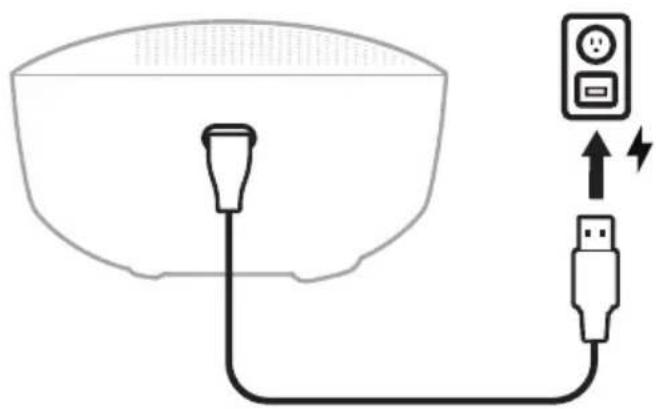
Simple line drawing of a medical or anatomical device with a central arrow pointing upward (no text or symbols)- Connect the USB-A end of the cable to a USB-A power supply.
The Power light slowly pulses white.
natural_image
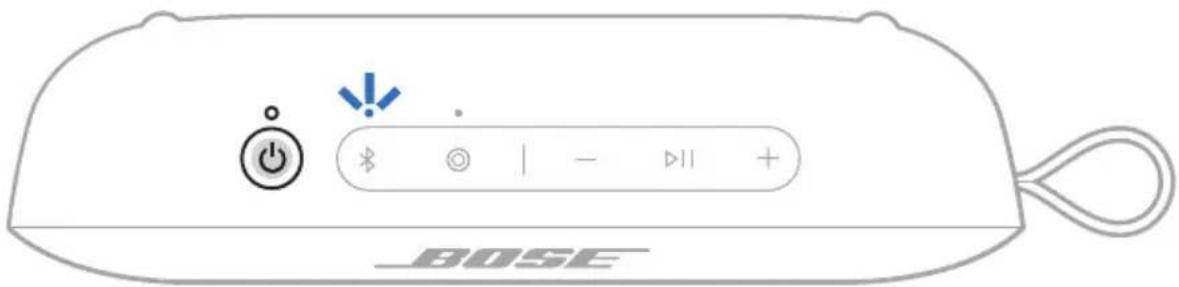
Simple line drawing of a device with a plug and USB cable, connected to an electrical outlet (no text or symbols)3. Press the Power button ⏻.
The Power light glows solid white. You hear the battery level followed by "Ready to connect." The Bluetooth light slowly blinks blue.
- Connect to your device (see page 12).
You can store up to six devices in the speaker device list, and the speaker can be actively connected to up to two devices at a time. You can play audio from only one device at a time.
CONNECT TO A DEVICE
You can connect the speaker to your device using any of the following:
- Your device's Bluetooth settings (see "Using your device's Bluetooth settings")
• The Bose app (see page 13) - Fast Pair (Android devices only) (see page 17)
Using your device's Bluetooth settings
- Press and hold the Bluetooth button ✝ until you hear "Ready to connect" and the Bluetooth light slowly blinks blue.
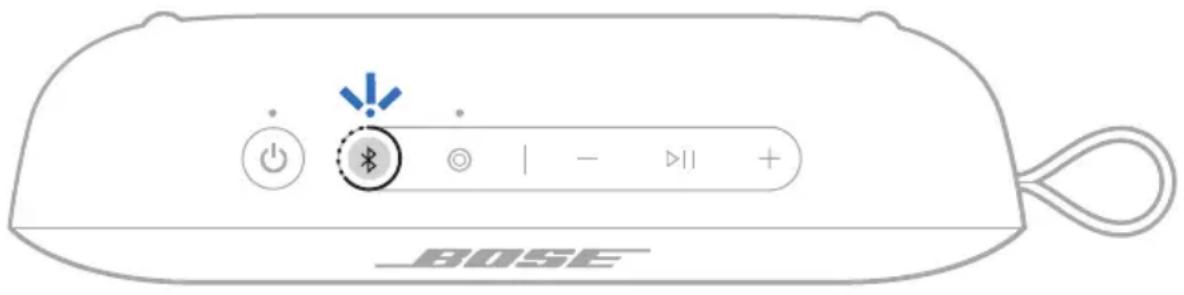
NOTE: If a device is already connected, you hear "Ready to connect another device."
- On your device, access Bluetooth settings.
- Select the speaker from the list of available products.
NOTE: Look for the name you entered for the speaker in the Bose app. If you didn't name the speaker, the default name appears.
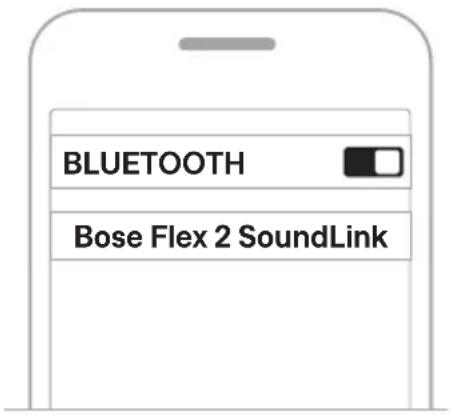
The speaker appears in the list of connected products. The Bluetooth light glows solid white (see page 27).
Using the Bose app
The Bose app lets you set up and control the speaker from any device, such as a smartphone or tablet.
Using the app, you can manage Bluetooth connections, manage speaker settings, adjust the audio, choose your voice prompt language, and get any future updates and new features made available by Bose.
NOTE: If you've already downloaded the Bose app for another Bose product, you can add the speaker from the product list screen.
- On your device, download the Bose app.

- Follow the app instructions to add the speaker.
RECONNECT TO A DEVICE
Reconnect to the most recently-connected device
When powered on, the speaker connects with the two most recently-connected devices.
NOTES:
- The device must be within range (30 ft or 9 m) and powered on.
- Make sure the Bluetooth feature is enabled on your device.
Reconnect to a different device
NOTE: The device must be within range (30 ft or 9 m) and powered on.
- Press the Bluetooth button ✗ and release to hear which devices are currently connected.
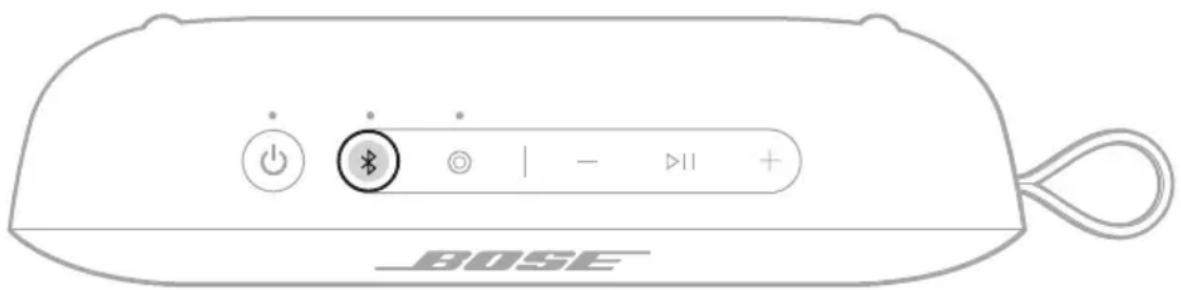
- Within 2 seconds, press the Bluetooth button ✗ again to hear the name of the next device in speaker device list.
- Repeat until you hear the correct device name.
- Play audio on the connected device.
TIP: You can also reconnect a different device using the device Bluetooth settings or the Bose app (see page 13).
NOTE: If two devices are already connected to the speaker, the newly-connected device replaces the older of the two connections.
CONNECT AN ADDITIONAL DEVICE
The speaker can be actively connected to two devices at a time (multi-point connection).
To connect an additional device, see page 12.
NOTES:
- You can only play audio from one device at a time.
- To manage or disable the multi-point connection feature, use the Bose app. To access this option, tap Source on the product control screen.
- Disabling the multi-point connection feature disconnects the second connected device.
IDENTIFY CONNECTED DEVICES
- Press the Bluetooth button ✗ and release to hear which devices are currently connected.
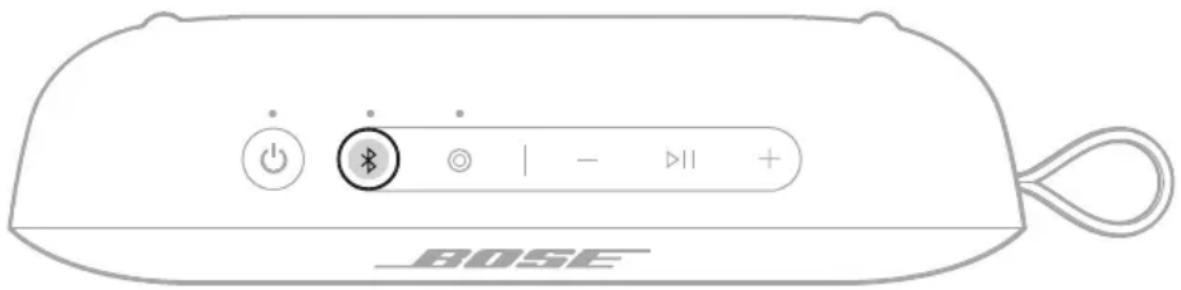
- Within 2 seconds, press the Bluetooth button ✗ again to hear the name of the next device in the speaker device list.
SWITCH BETWEEN TWO CONNECTED DEVICES
- Pause audio on your first device.
- Play audio on your second device.
DISCONNECT A DEVICE
Use the device's Bluetooth settings or the Bose app.
NOTE: Disabling the Bluetooth feature on your device disconnects the speaker and all other Bluetooth-connected products.
CLEAR THE SPEAKER DEVICE LIST
- Press and hold the Bluetooth button ✝ for 15 seconds until you hear "Bluetooth device list cleared. Ready to connect" and the Bluetooth light blinks blue.
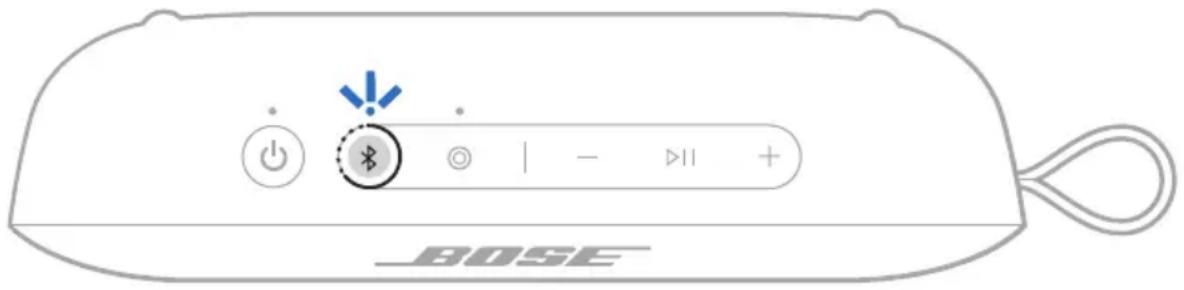
- Delete the speaker from the Bluetooth list on your device.
All devices are cleared, and the speaker is ready to connect (see page 12).
ANDROID DEVICES ONLY
If you have an Android device, you can access the following additional connection features.
Connect using Fast Pair
In one tap, the speaker enables quick, effortless Bluetooth pairing with your Android device.
NOTES:
- To use Fast Pair, you need an Android device running Android 6.0 or higher.
-
Your Android device must have the Bluetooth and Location features enabled.
-
Press and hold the Bluetooth button ✝ until you hear "Ready to connect" and the Bluetooth light slowly blinks blue.
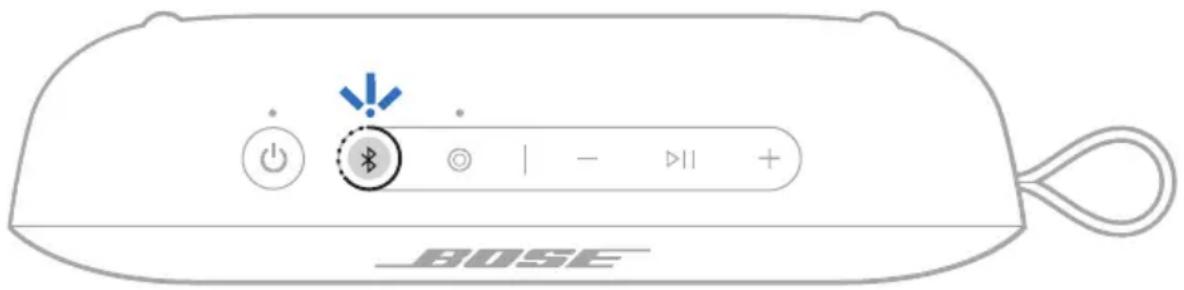
NOTE: If a device is already connected, you hear "Ready to connect another device."
- Place the speaker next to your Android device.
A notification displays on your device prompting you to pair the speaker.
NOTE: If you don't see a notification, check that notifications are enabled for the Google Play Services app on your device.
- Tap the notification.
Once the speaker is connected, a notification appears confirming that the connection is complete.
NOTE: You can also tap the button on the notification to download the Bose app and finish setting up the speaker.
Snapdragon Sound technology
Bose SoundLink Flex Portable Speaker ( 2^nd Gen) features Snapdragon Sound technology. Snapdragon Sound optimizes Qualcomm ^® audio technologies across connected devices to ensure the best sound quality, connection stability, and latency for your streaming audio.
To experience Snapdragon Sound, you need a Snapdragon Sound-certified device, such as a compatible Android device. Once you connect the speaker, your device will automatically stream audio using the aptX Adaptive Bluetooth codec.
NOTE: To see which Snapdragon Sound features the speaker supports and check if your device is compatible, visit: support.Bose.com/flex2
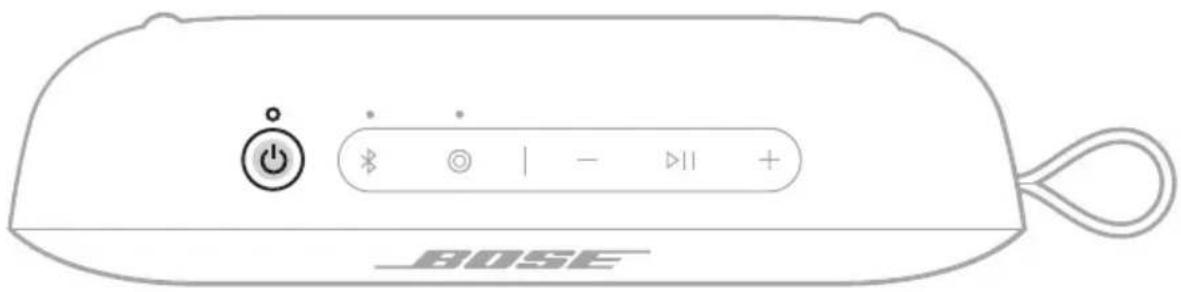
Controls are located on the top of the speaker.
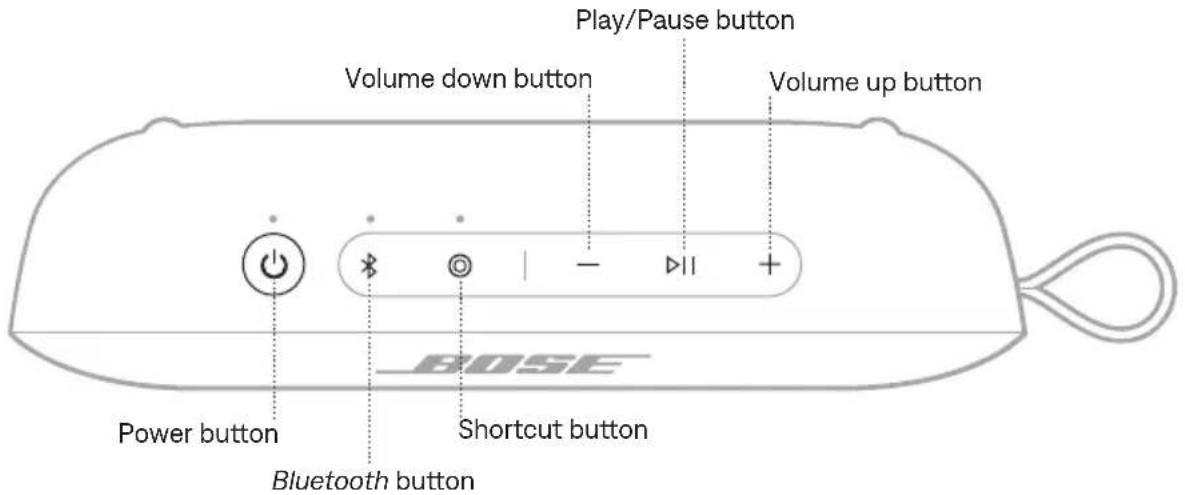
POWER ON/OFF
Press the Power button ⏻.
When powered on, a voice prompt announces the battery level. The Power light glows according to the current battery level (see page 26).
Auto-off timer
The auto-off timer conserves the battery when the speaker is operating on battery power. The speaker switches off when audio has stopped and buttons have not been pressed for 20 minutes.
To wake the speaker, press the Power button ⏻ or press and hold the Bluetooth button ✝.
NOTE: To change the timer setting, use the Bose app. You can access this option from the Settings menu.
Disable the auto-off timer
Press and hold the Play/Pause button ▷II and the Volume up button + simultaneously. You hear "Auto-off disabled."
Repeat to re-enable the auto-off timer.
TIP: You can also disable the auto-off timer using the Bose app. You can access this option from the Settings menu.
MEDIA PLAYBACK AND VOLUME
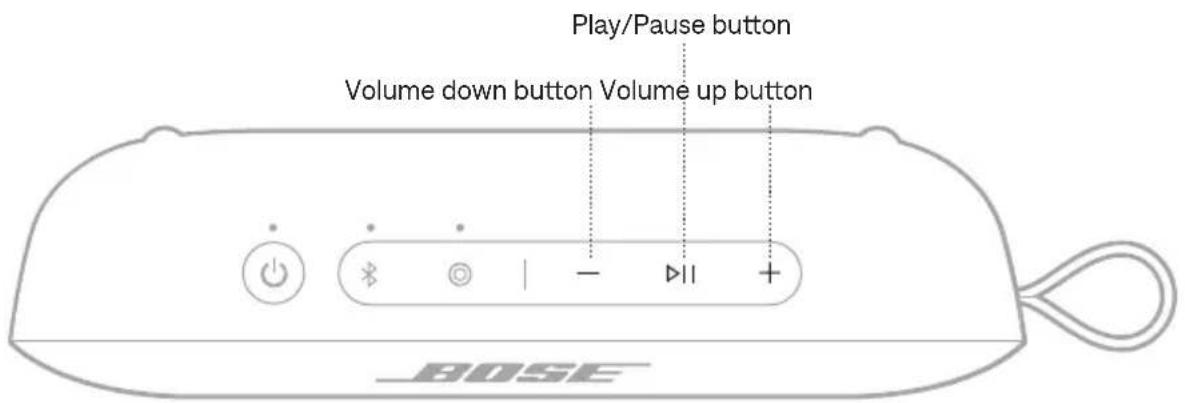
FUNCTION WHAT TO DO
| Play/Pause Press ▷II. | |
| Skip forward Double-press ▷II. | |
| Skip backward Triple-press ▷II. | |
| Volume up | Press + NOTES:To quickly increase the volume, press and hold+.When the maximum volume is reached, theBluetooth light blinks white 2 times. |
| Volume down | Press — NOTES:To quickly decrease the volume, press and hold—.When the minimum volume is reached, theBluetooth light blinks white 2 times. |
TIP: You can also increase or decrease the volume using the volume controls on your device or in the Bose app. You can access this option on the product control screen.
PHONE CALLS
FUNCTION WHAT TO DO
| Answer a call Press ▷II. | |
| End a call While on a call, double-press ▷II. | |
| Decline an incoming call Double-press ▷II. | |
| Answer a second incoming call and put the current call on hold | While on a call, press ▷II. |
| When two calls are active, end the current call and switch to a second line | Double-press ▷II when both calls are active. |
| Decline a second incoming call and stay on the current call | While on a call, double-press ▷II. |
| Switch between two calls | With two active calls, press ▷II.NOTE: Mute is not available when two calls are active. |
| Mute/Unmute a call While on a call, press ▷II | |
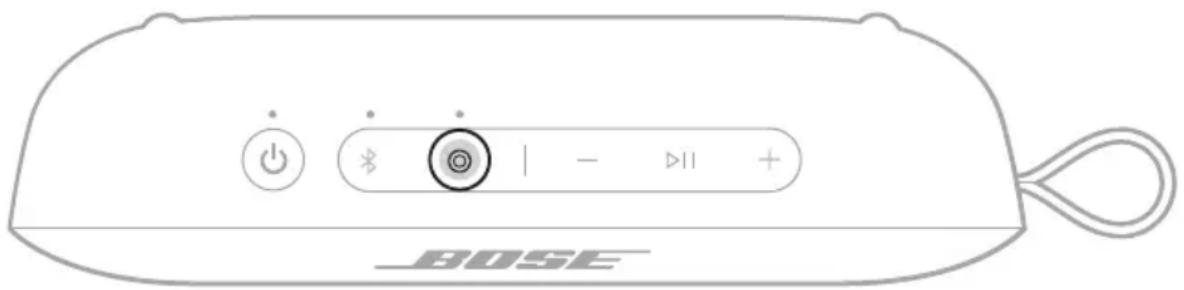
| Make a call using voice control | Press Ⓞ.NOTE: Shortcut must be set to voice assistant in the Bose app. |
Voice prompt notifications
The speaker identifies incoming callers who are saved in your contact list.
To disable this feature, see page 28.
NOTE: Disabling voice prompt notifications also disables voice prompts.
ACCESS VOICE CONTROL
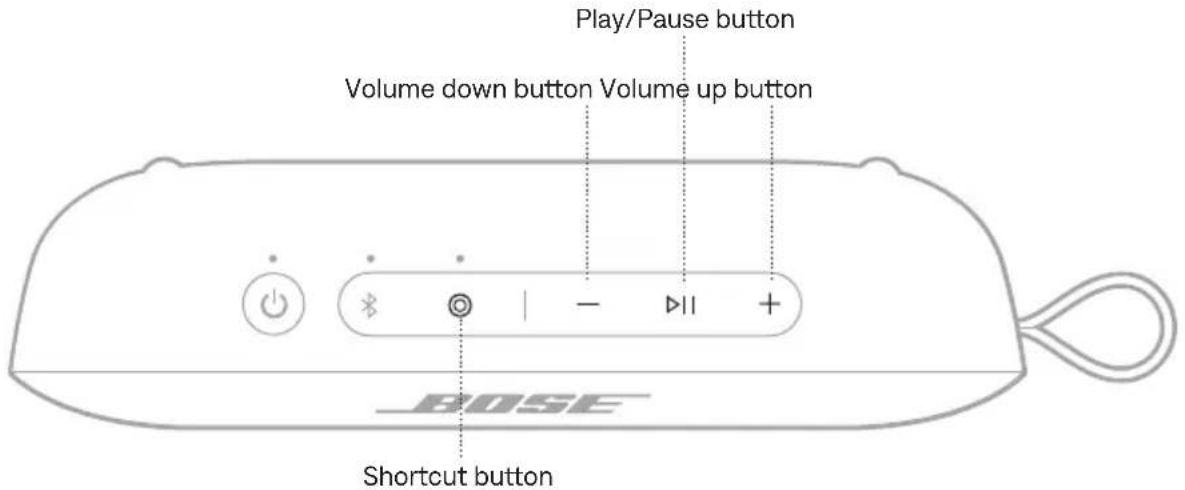
The speaker microphone acts as an extension of the microphone in your connected device. Using the Shortcut button Ⓐ on the speaker, you can access the voice control capabilities on your device to make calls or access your voice assistant to play music, tell you the weather, give you the score of a game, and more.
NOTES:
- Shortcut must be set to voice assistant in the Bose app.
- Your device must have voice assistant enabled.
CHARGE THE SPEAKER
CAUTION: Do not attempt to charge the speaker while the speaker is wet. Doing so may cause damage to the speaker. The speaker is waterproof, but the USB-C port must be fully dried out before charging.
NOTE: Make sure you're using the Bose-provided USB cable or a similar USB cable. Bose recommends using a 5V ---, 1.5A capable power source.
- Connect the USB-C end of the cable to the USB port on the side of the speaker.
natural_image
Simple line drawing of a device with an arrow pointing to a circular component (no text or symbols)- Connect the USB-A end of the cable to a power source such as a computer or wall charger.
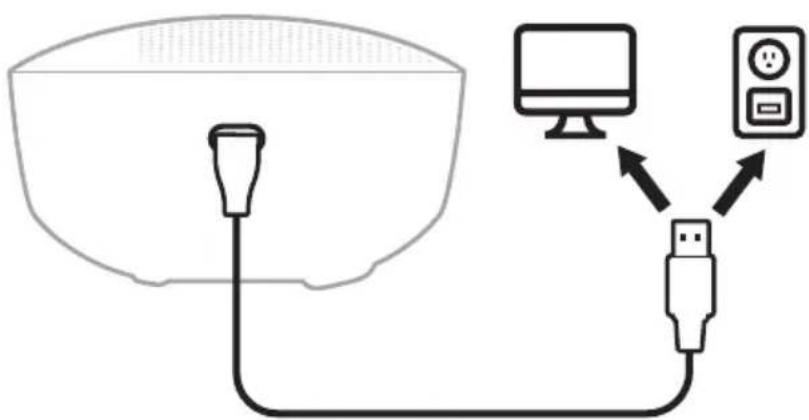
While charging, the battery light pulses white. When the battery is fully charged, the battery light glows solid white.
Charging time
Allow up to 4 hours to fully charge the battery ^1 .
A full charge powers the speaker up to 12 hours. ^2 At maximum volume, the battery lasts up to 3 hours. ^3
Charging time and battery performance vary with the USB power supply capability, music content, and speaker volume.
Hear the battery level
Each time you power on the speaker, a voice prompt announces the battery level. When the speaker is in use, a voice prompt announces if the battery needs to be charged.
Press and hold the Power button ⏻ until you hear a voice prompt.
Battery protection mode
When the speaker battery is depleted (0%) it enters battery protection mode. To reactivate the speaker, connect it to a power supply and press the Power button ⏻.
When not in use, store the speaker in a cool place.
CAUTION: Do NOT store the speaker for extended periods when fully charged or with a remaining charge of less than 10%.
The Power, Bluetooth, and Shortcut lights are located on the top of the speaker.
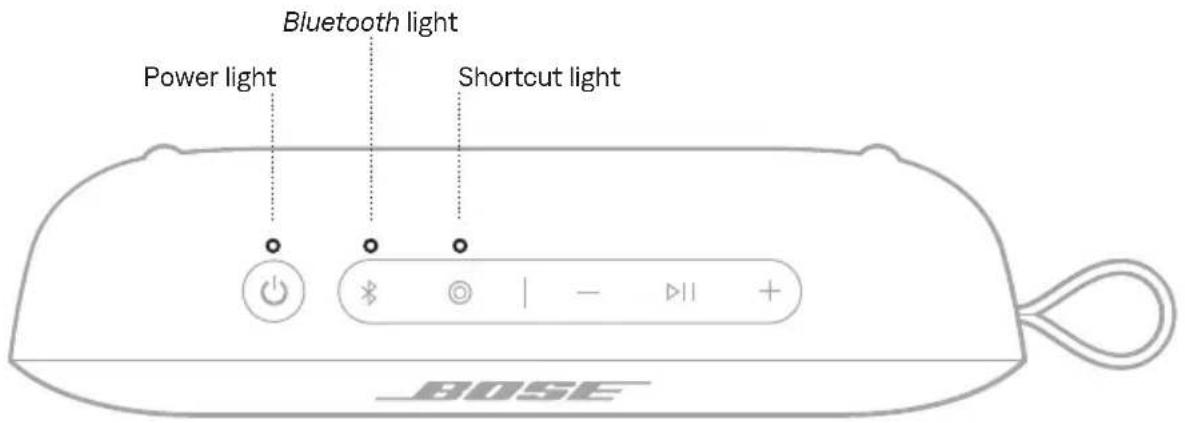
POWER LIGHT
Shows the battery, charging, update, and error status.
LIGHT ACTIVITY SYSTEM STATE
| Solid white Full charge | |
| Solid amber Low charge | |
| Blinks amber Need to charge | |
| Slowly pulses white Charging | |
| Blinks white 3 times (repeated) Updating software | |
| Quickly blinks white (3 seconds) Reset complete | |
| Quickly blinks white and amber (alternating) | Error - contact Bose customer service |
| Blinks amber 3 times (repeated) Failed battery - contact Bose customer service |
BLUETOOTH LIGHT
Shows the Bluetooth connection status.
LIGHT ACTIVITY SYSTEM STATE
| Slowly blinks blue Ready to connect | |
| Quickly blinks blue Connecting | |
| Solid white Connected | |
| Blinks white 2 times Device list cleared |
SHORTCUT LIGHT
Shows the status of speakers when linking is set as the shortcut.
LIGHT ACTIVITY SYSTEM STATE
| Slowly blinks white Speakers are linking | |
| Solid white Speakers are linked |
Voice prompts guide you through the Bluetooth connection process, announce the battery level, and identify connected devices.
TIP: You can easily manage voice prompts using the Bose app. Access this option from the Settings menu.
PRE-INSTALLED LANGUAGES
The following languages are pre-installed on the speaker:
- English • German • Japanese
- Spanish • Italian • Cantonese
- French • Mandarin
CHANGE THE LANGUAGE
Change the voice prompt language using the Bose app. Access this option from the Settings menu.
DISABLE VOICE PROMPTS
Press and hold the Shortcut button Ⓒ and Volume down button — simultaneously until you hear "Voice prompts off."
NOTE: Repeat to re-enable voice prompts.
The programmable Shortcut button Ⓑ enables you to quickly and easily access one of the following functions:
- Link two Bose Bluetooth Speakers (default) (see page 31)
- Open your synced device's voice assistant (see page 23)
- Access Spotify Tap (see page 30)
USE YOUR SHORTCUT
Press the Shortcut button Ⓑ.
The Shortcut light blinks once.
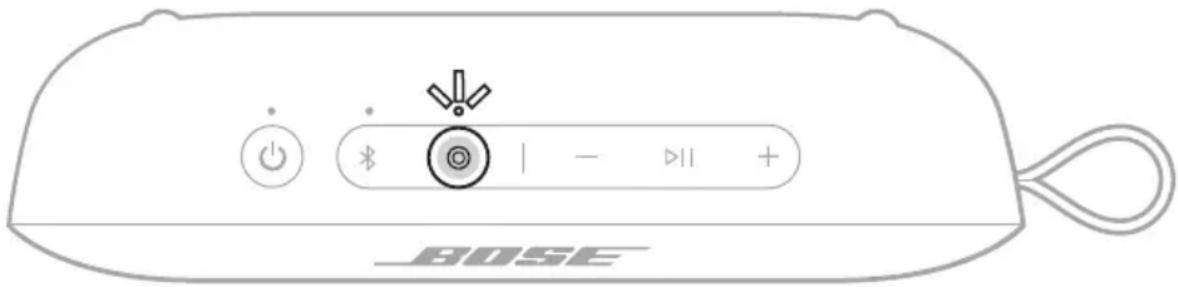
NOTE: The Shortcut button Ⓒ is set by default to link two Bose Bluetooth speakers (see page 31).
CHANGE OR DISABLE YOUR SHORTCUT
To change or disable your shortcut, use the Bose app. To access this option, tap Shortcut on the product control screen.
Spotify Tap is music to your ears, quite literally. Get the tunes playing with a simple gesture.
NOTE: To use Spotify Tap, it must be set as your shortcut in the Bose app and the Spotify app must be up to date.
- Press the Shortcut button to play a recommendation based on your listening taste.
- Press the Shortcut button @again for the next recommendation made just for you.
LINK TWO BOSE BLUETOOTH SPEAKERS
For a more immersive music experience, you can sync your Bose SoundLink Flex Portable Speaker ( 2^nd Gen) with another compatible Bose Bluetooth speaker and play the same audio from both speakers in Stereo mode or Party mode.
- Stereo mode (left speaker and right speaker play separately)
- Party mode (left speaker and right speaker play in unison)
NOTES:
- The Shortcut button Ⓑ is set by default to link two Bose Bluetooth speakers.
- You can link to only one other speaker at a time.
- Make sure that the two speakers are within 30 ft (9 m) of each other.
- Make sure that the two speakers are within 30 ft (9 m) of the streaming device.
- For an optimal experience, position the speakers in the same room or outdoor area with no obstructions between them. Performance may vary based on device, distance, and environmental factors.
Compatible products
You can link the Bose SoundLink Flex Portable Speaker ( 2^nd Gen) to any Bose Bluetooth speaker that has a Shortcut button.

Link using the product controls
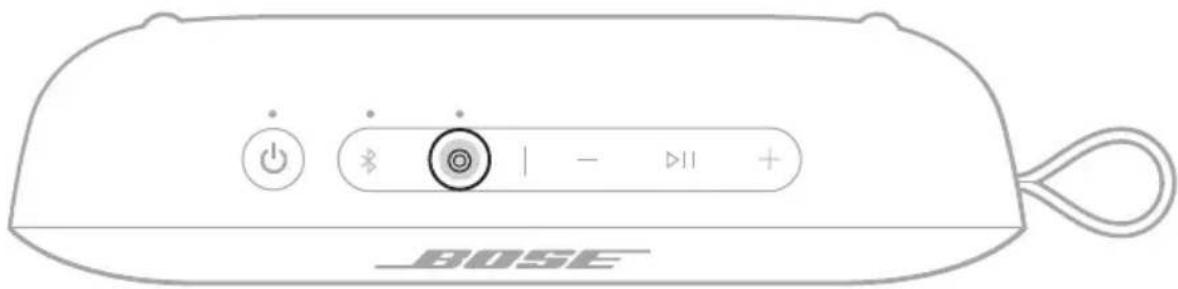
- On the speaker, press the Shortcut button Ⓞ.
The voice prompt directs you to press the Shortcut button on a second speaker. The Shortcut light slowly blinks white.
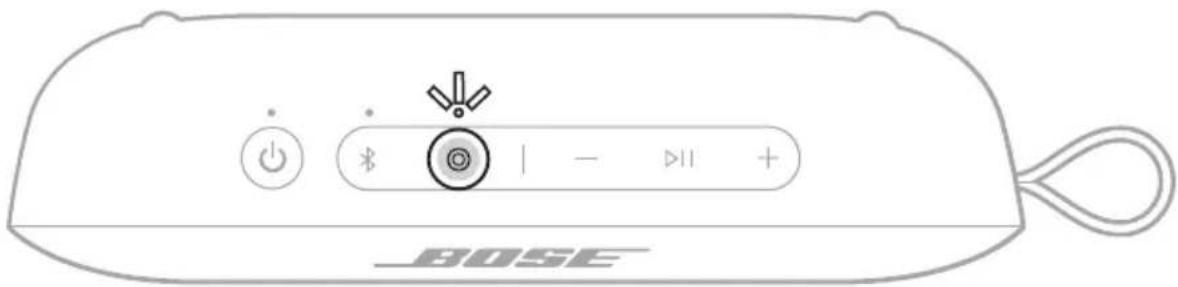
- On a second compatible Bose Bluetooth speaker, press the Shortcut button Ⓑ. The Shortcut light slowly blinks white.
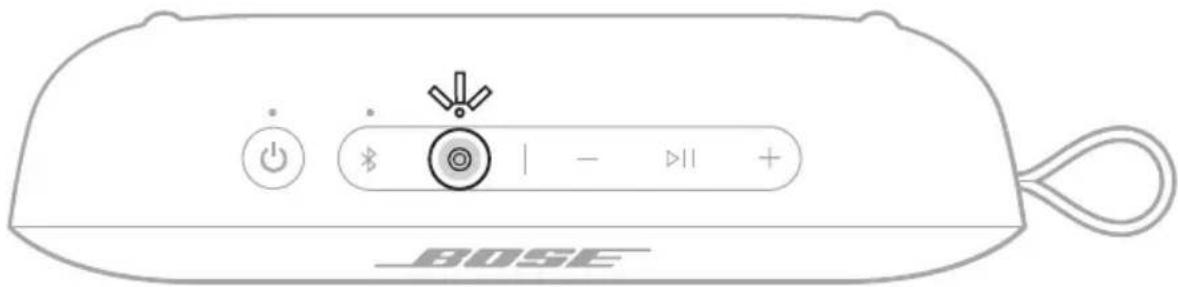
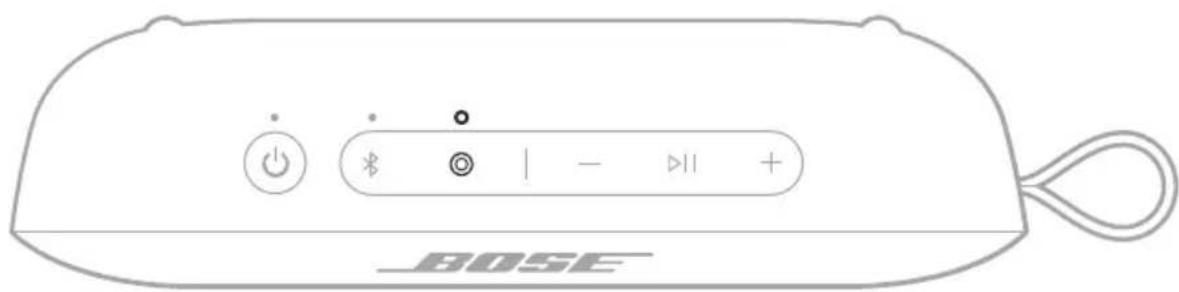
Once the two speakers are linked, a voice prompt announces the mode on both speakers. The Shortcut light on both speakers glows solid white.
NOTE: If the speakers are the same model you hear "Stereo mode," followed by "Left" on the primary speaker and "Right" on the secondary speaker. If they are different models, you hear "Party mode" on both speakers.
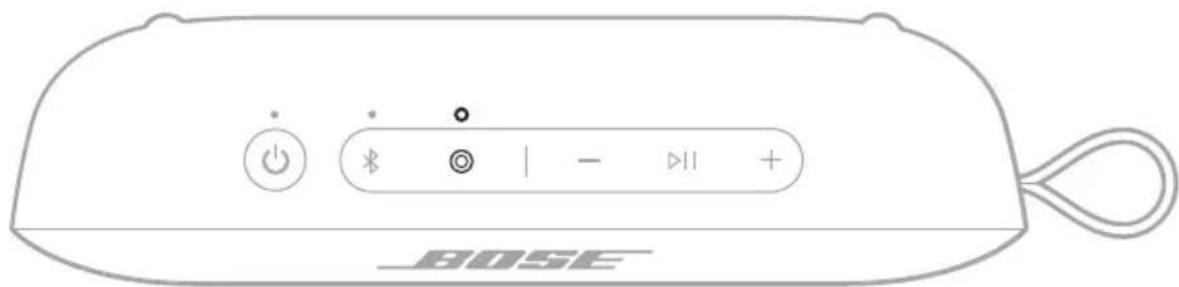
Switch between Stereo mode and Party mode
On either speaker, press the Shortcut button Ⓞ.
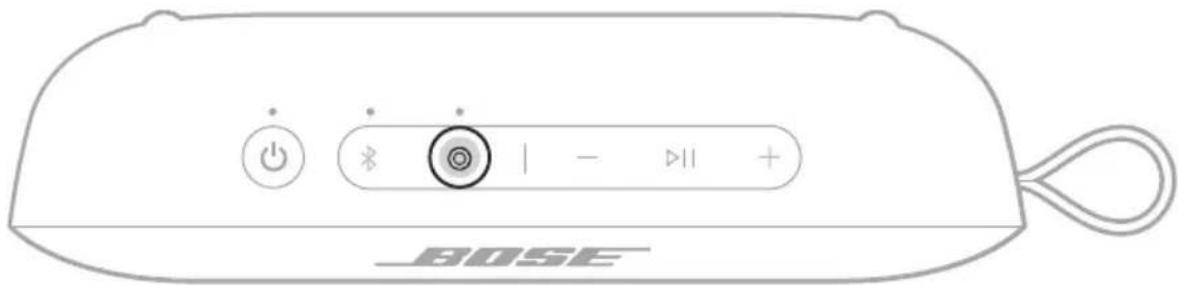
A voice prompt announces the mode on each speaker.
NOTE: If the speakers are different models, you can only play audio in Party mode.
TIP: You can also switch between Stereo mode and Party mode using the Bose app. You can access this option on the product control screen.
Unlink the speakers
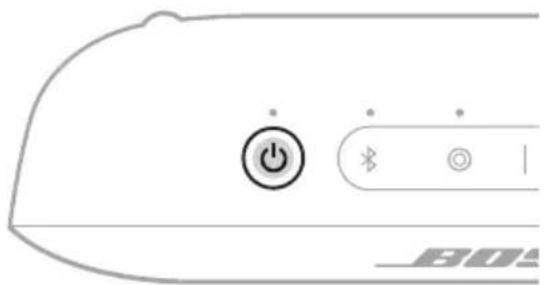
On either speaker, press the Power button ⏻ or press and hold the Shortcut button Ⓞ.
natural_image
Line drawing of a device control panel with power button and Bluetooth indicator (no text or symbols)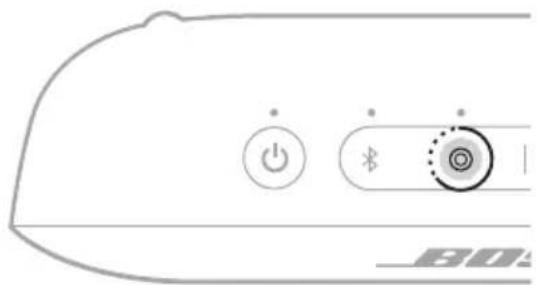
A voice prompt announces the speakers are no longer linked.
TIP: You can also use the Bose app to unlink the speakers. You can access this option on the product control screen.
CONNECT TO A BOSE SMART SPEAKER OR SOUNDBAR
With Bose SimpleSync technology, you can connect the speaker to a Bose Smart Speaker or Bose Smart Soundbar to listen to the same audio in two different rooms at the same time.
NOTE: SimpleSync technology has a Bluetooth range of up to 30 ft (9 m). Walls and construction materials can affect reception.
Compatible products
You can connect the speaker to any Bose Smart Speaker or Bose Smart Soundbar.
Popular compatible products include:
- Bose Smart Ultra Soundbar/Bose Ultra Soundbar
- Bose Smart Soundbar 900
- Bose Smart Soundbar 700/Bose Soundbar 700
- Bose Smart Soundbar 600
- Bose Soundbar 500
- Bose Smart Speaker 500/Bose Home Speaker 500
- Bose Home Speaker 300
- Bose Portable Smart Speaker/Bose Portable Home Speaker
New products are added periodically. For a complete list and more information, visit: ____support.Bose.com/Groups
Connect using the Bose app
- Press and hold the Bluetooth button ✝ until you hear "Ready to connect" and the Bluetooth light slowly blinks blue.
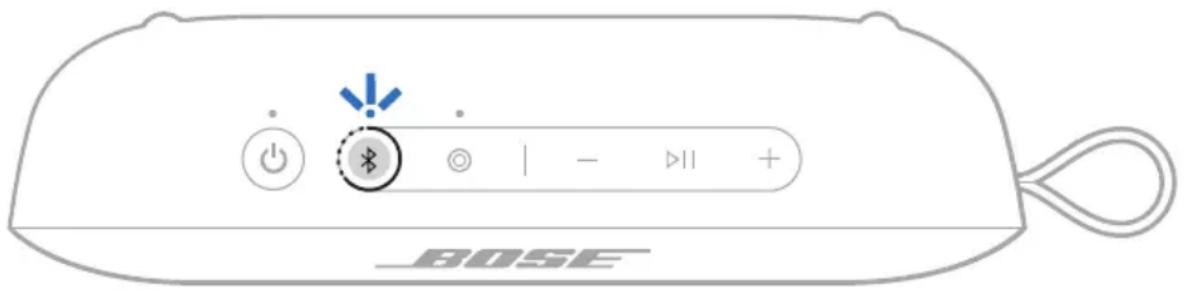
NOTE: If a device is already connected, you hear "Ready to connect another device."
- Use the Bose app to connect the speaker to a compatible Bose product. For more information, visit: support.Bose.com/Groups
NOTES:
- It could take up to 30 seconds to connect.
- Make sure that the speaker is within 30 ft (9 m) of the speaker or soundbar.
- You can connect the speaker to only one product at a time.
Connect using the product controls
- Press and hold the Bluetooth button ✝ until you hear "Ready to connect" and the Bluetooth light slowly blinks blue.
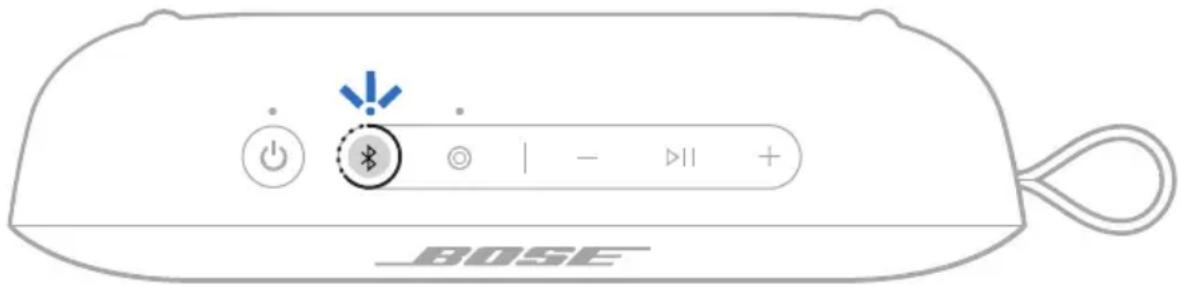
NOTE: If a device is already connected, you hear "Ready to connect another device."
- On the soundbar remote or the top of the speaker, press and hold the Bluetooth button ✝ until the light bar or light ring pulses blue.
The speaker connects to the soundbar or speaker, and you hear the same audio through both devices.
NOTES:
- It could take up to 30 seconds to connect.
- Make sure that the speaker is within 30 ft (9 m) of the speaker or soundbar.
- You can connect the speaker to only one product at a time.
RECONNECT A BOSE SMART SPEAKER OR SOUNDBAR
Use the Bose app to reconnect the speaker to a previously-connected compatible Bose product. For more information, visit: ____ support.Bose.
NOTES:
- The speaker or soundbar must be within range (30 ft or 9 m) and powered on.
- If the speaker doesn't connect, see "Speaker doesn't reconnect to a previously- connected Bose Smart Speaker or Soundbar" on page 41.
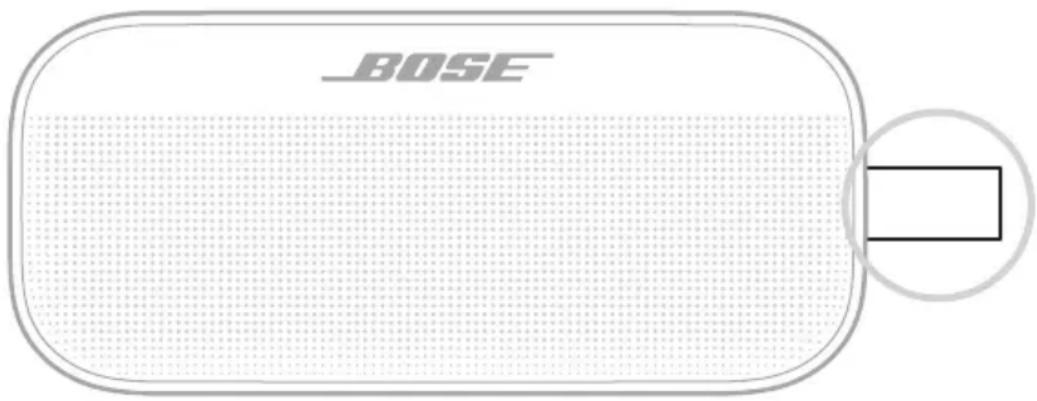
STRAP USES
You can use the strap as a finger loop to easily carry the speaker. You can also attach it to a carabiner or a cord.
WATER AND DUST RESISTANCE
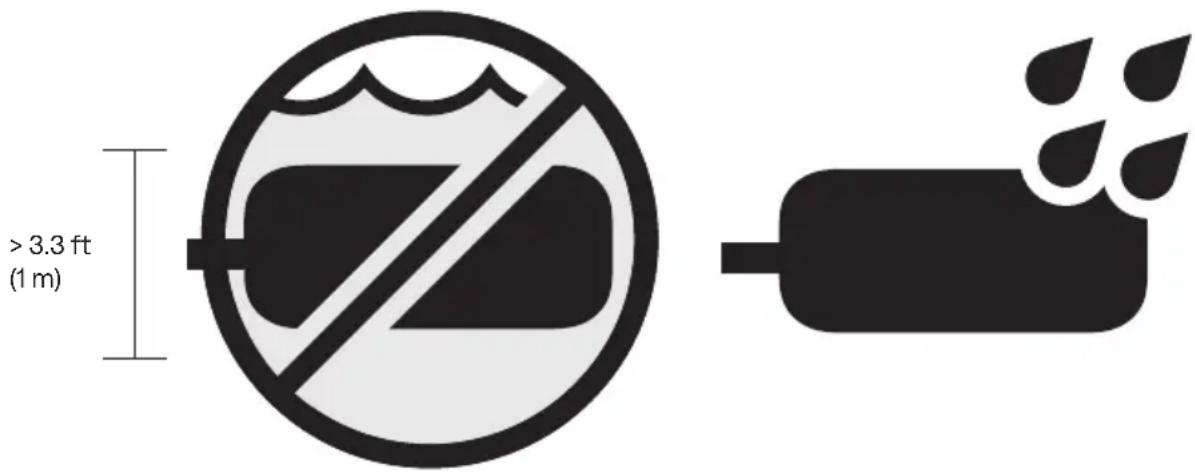
The speaker is waterproof, splash resistant, and dustproof. It is rated IP67 and IP64. You can immerse the speaker in water for up to 30 minutes at a depth of up to 3.3 ft (1 m). It can also be used while showering and in the rain or snow.
CAUTIONS:
- Do NOT submerge this speaker in any pool of water deeper than 3.3 ft (1 m).
- If the speaker is exposed to salt or chlorinated water, gently rinse with fresh water following the exposure to remove residue. Make sure the connector port is fully dried out before charging.
- Never attempt to charge the speaker while it is wet. Doing so may cause damage to the speaker.
UPDATE THE SPEAKER
The speaker begins updating automatically when connected to the Bose app and an update is available. Follow the app instructions. When the update begins, the Power light blinks white 3 times (repeated) until the update is complete.
You can also update the speaker using the Bose updater website. On your computer, visit: ____ btu.Bose.com and follow the on-screen instructions. When the update beg the Power light blinks white 3 times (repeated) until the update is complete.
CLEAN THE SPEAKER
The speaker may require periodic cleaning.
- Clean the surface of the speaker with a soft, damp cloth (water only). Make sure the USB-C port is fully dried out before charging.
- Do not use any solvents, chemicals or cleaning solutions containing alcohol, ammonia, or abrasives.
- If the speaker is exposed to salt or chlorinated water, gently rinse with fresh water following the exposure to remove residue. Make sure the USB-C port is fully dried out before charging.
STORE THE SPEAKER
When not in use, store the speaker in a cool place.
CAUTION: Do NOT store the speaker for extended periods when the battery is fully charged or has a low charge (see page 25).
REPLACEMENT PARTS AND ACCESSORIES
Replacement parts and accessories can be ordered through Bose customer service.
Visit: ____support.Bose.com/flex2
LIMITED WARRANTY
The speaker is covered by a limited warranty. Visit our website at worldwide.Bose.com/Warranty for details of the limited warranty.
To register your product, visitworldwide.Bose.com/ProductRegistration for instructions. Failure to register will not affect your limited warranty rights.
TRY THESE SOLUTIONS FIRST
If you experience problems with the speaker:
• Power the speaker off and then on again (see page 19).
- Check the status lights (see page 26).
- Make sure your device supports Bluetooth connections (see page 12).
- Charge the speaker (see page 24).
- Increase the volume on the speaker, your device, and the music app.
- Move your device closer to the speaker (30 ft or 9 m) and away from any interferenceorobstruction.
- Try connecting another device (see page 12).
If you couldn't resolve your issue, see the table below to identify symptoms and solutions to common problems. You can also access troubleshooting articles, videos, and other resources at: ____support.Bose.com/flex2
If you're unable to resolve your issue, contact Bose customer service.
Visit: ____ worldwide.Bose.com/contact
OTHER SOLUTIONS
SYMPTOM SOLUTION
| No power (battery) | Battery may be in protection mode or discharged. Connect the speaker to a power supply (see page 25). |
| Speaker doesn’t connect with device | Clear the speaker device list (see page 16). Delete the speaker from theBluetoothlist on your device. Connect again (see page 12).Visit: ____support.Bose.com/flex2 for additional support |
| Speaker doesn’t respond to multi-press functions | Vary the speed of presses. |
SYMPTOM SOLUTION
| No sound | Make sure voice prompts are on using the Bose app. Press the Bluetooth button & and release to hear the connected device.Make sure you're using the correct device.Use a different music source.If two devices are connected, pause audio on the first device and play audio on the other device. |
| Poor sound quality from device connected by Bluetooth connection | Use a different music source.If two devices are connected, disconnect the second device.Disable any audio enhancement features on the device or music app.If the speaker was exposed to water, wait for the speaker to dry and try again. |
| Delayed audio | Play audio from a different application or music service.Close and re-open the application or music service. |
| Speaker doesn't charge | Make sure both ends of the USB-C to USB-A cable are secure (page 24).Make sure you're using the Bose-provided USB-C to USB-A cable or a similar USB cable and providing a minimum of 5V ---, 1.5A.Try another charging source and charging cable.If the speaker has been exposed to high or low temperatures, let it return to room temperature and then try charging again.If the speaker was exposed to water, wait for the speaker to dry and try again. |
| Speaker doesn't link with a Bose Bluetooth speaker | Make sure you're connecting to a compatible Bose Bluetooth speaker (see page 31). |
| No sound when Bose Bluetooth speakers are linked | Make sure the primary speaker is powered on. If you power off the primary speaker, the secondary speaker stops playing audio. |
SYMPTOM SOLUTION
| Speaker doesn’t connect to a Bose Smart Speaker or Soundbar | Make sure you’re using the Bose app (see page 13).Make sure the Bose Smart Speaker or Soundbar is running the latest software. Use the Bose app and run available software updates.Make sure you’re connecting to a compatible Bose product. For a list of compatible products, visit: ____support.Bose.coPress and hold theBluetooth button ➢ until theBluetooth light blinks blue, and you hear “Ready to connect another device.”Make sure that the speaker is within 30 ft (9 m) of the soundbar or speaker. |
| Speaker doesn’t reconnecttoa previously-connected Bose Smart Speaker or Soundbar | On the speaker, press and hold theBluetooth button ➢ until theBluetooth light blinks blue, and you hear “Ready to connect another device.” Use the Bose app to connect the speaker to a compatible Bose product. For more information,visit: ____support.Bose.com/Groups |
| Delayed audio when connected to Bose Smart Speaker or Soundbar | Download the Bose app (see page 13) and run available software updates for the connected speaker and soundbar.On a computer, check____btu.Bose.com for USB updates. |
RESET THE SPEAKER
Factory reset clears connected devices and language settings from the speaker and returns it to the original factory settings.
- Press and hold the Volume up button + and Volume down button — for 15 seconds until the Power light quickly blinks white for 3 seconds.
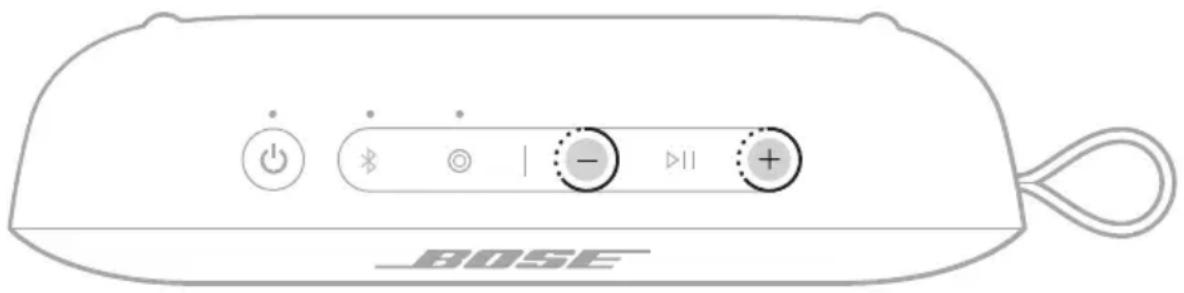
The speaker powers off.
- Press the Power button ⏻.
The Bluetooth light glows blue, and the speaker is ready to connect.
NOTE: If you're unable to resolve your issue, additional troubleshooting and support is available at: ____support.Bose.com/flex2
TILSLUT PRODUKTER FRA BOSE
natural_image
Simple line drawing of a medical or anatomical device with a central connector and an upward arrow, no text or symbols present.natural_image
Simple line diagram showing a plug inserted into a socket connected to an USB port and a fuse (no text or symbols)ADGANG TIL STEMMESTYRING
natural_image
Simple line drawing of a device with an arrow pointing to a circular component (no text or symbols)BEMÆRK: Genvejsknappen Ⓐ er som standard indstillet til at sammenkoble to Bose Bluetooth-højttalere (se side 31).
SKIFT ELLER DEAKTIVER DIN GENVEJ
natural_image
Pure electrical circuit lines without any symbols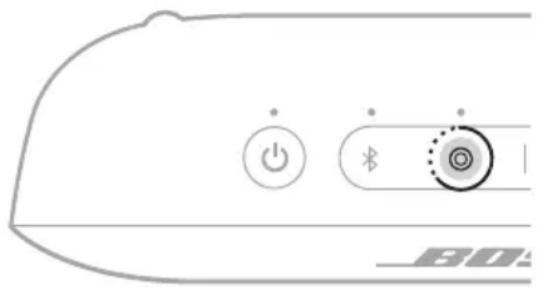
natural_image
Simple line drawing of a medical or anatomical device with a central arrow pointing upward (no text or symbols)natural_image
Simple line drawing of a microphone connected to an USB port and a power outlet (no text or symbols)natural_image
Simple line drawing of a bowl with an arrow pointing upward, no text or symbols present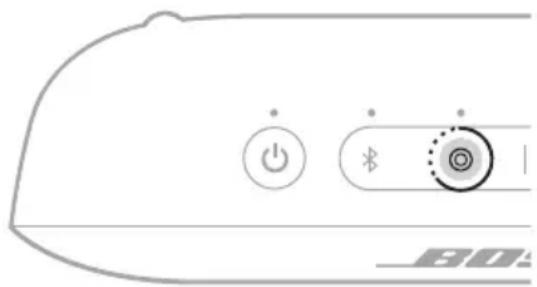
natural_image
Simple line drawing of a medical or anatomical device with a central rod and an arrow pointing upward (no text or symbols)natural_image
Simple line drawing of a device with a plug and USB cable, no text or symbols presentnatural_image
Simple line drawing of a device with an arrow pointing to a circular component (no text or symbols)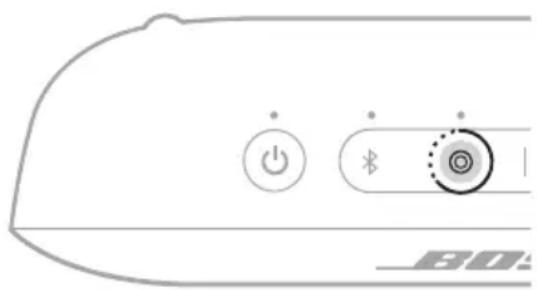
natural_image
Simple line drawing of a medical or anatomical device with a central connector and an upward arrow, no text or symbols present.natural_image
Simple line diagram showing a connector with a USB cable and an attached power outlet (no text or symbols)natural_image
Simple line drawing of a device with an arrow pointing to a circular component (no text or symbols)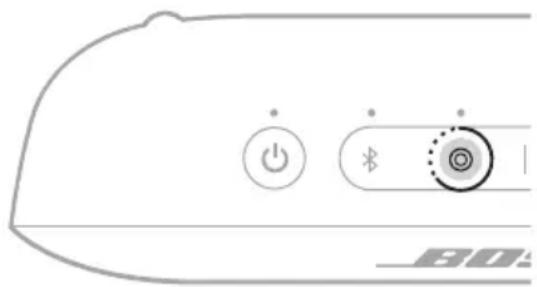
Visite: ____ support.Bose.com/flex2
GARANTÍA LIMITADA
Visite: ____ worldwide.Bose.com/contact
OTRAS SOLUCIONES
SÍNTOMA SOLUCIÓN
natural_image
Simple line drawing of a medical or anatomical device with a central connector and upward arrow (no text or symbols)natural_image
Simple line diagram showing a connector with a USB cable and an attached power outlet (no text or symbols)3. Paina virtapainiketta ⏻.
natural_image
Simple line drawing of a device with an arrow pointing to a circular component (no text or symbols)natural_image
Line drawing of a device control panel with power button and Bluetooth indicator (no text or symbols)
CONNEXION DES PRODUITS BOSE
natural_image
Simple line drawing of a medical or anatomical device with a central arrow pointing upward (no text or symbols)natural_image
Simple line drawing of a microphone connected to an audio device via cable (no text or symbols)MISE SOUS/HORS TENSION
natural_image
Simple line drawing of a device with an arrow pointing to a circular component (no text or symbols)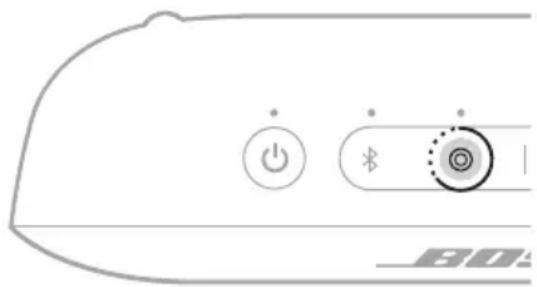
natural_image
Simple line drawing of a medical or anatomical device with a central connector and an upward arrow, no text or symbols present.natural_image
Simple line drawing of a microphone connected to an audio device via cable (no text or symbols)natural_image
Simple line drawing of a device with an arrow pointing to a circular component (no text or symbols)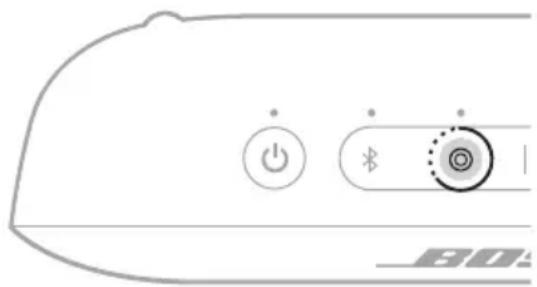
Visitare: ____ worldwide.Bose.com/contact
ALTRE SOLUZIONI
SINTOMO SOLUZIONE
natural_image
Simple line drawing of a medical or anatomical device with a central arrow pointing upward (no text or symbols)natural_image
Simple line drawing of a microphone connected to an audio device via cable (no text or symbols)natural_image
Simple line drawing of a device with an arrow pointing to a circular component (no text or symbols)KOBLE TIL BOSE-PRODUKTER
STELL OG VEDLIKEHOLD
natural_image
Simple line drawing of a medical or anatomical device with a central connector and an upward arrow, no text or symbols present.natural_image
Simple line diagram showing a connector with a plug and USB cable, connected to an electrical outlet (no text or symbols)KOBLE TIL EN ENHET PÅ NYTT
Koble til den sist tilkoblede enheten på nytt
natural_image
Simple line drawing of a device with an arrow pointing to a circular component (no text or symbols)natural_image
Pure electrical circuit lines without any symbols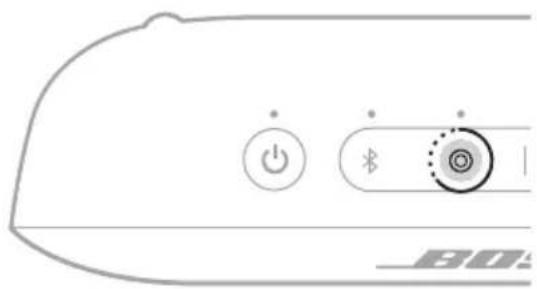
En talemelding informerer om at høyttalerne ikke lenger er koblet sammen.
KONFIGURACJA WSTĘPNA
natural_image
Simple line drawing of a medical or anatomical device with a central connector and an upward arrow, no text or symbols present.natural_image
Simple line diagram showing a connector with a USB cable and an attached power outlet (no text or symbols)natural_image
Simple line drawing of a device with an arrow pointing to it, no text or symbols present.WSTĘPNIE ZAINSTALOWANE JĘZYKI
natural_image
Line drawing of a device control panel with power button and Bluetooth indicator (no text or symbols)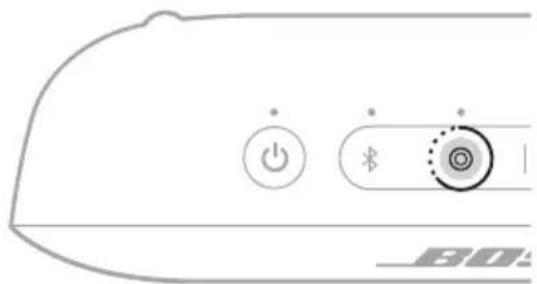
ANSLUTA BOSE-PRODUKTER
natural_image
Simple line drawing of a medical or anatomical device with a central connector and an upward arrow, no text or symbols present.natural_image
Simple line diagram showing a connector with a USB cable and an attached device (no text or symbols)natural_image
Simple line drawing of a device with an arrow pointing to a circular component (no text or symbols)natural_image
Pure electrical circuit lines without any symbols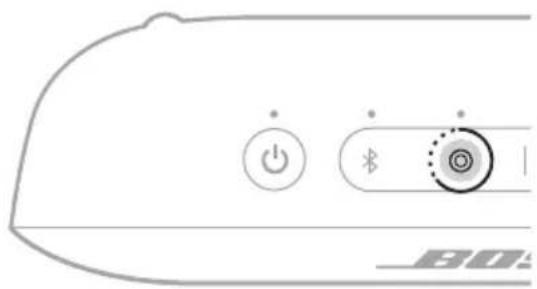
ANSLUT TILL EN BOSE SMARTHÖGTALARE ELLER SOUNDBARHÖGTALARE
ÅTERANSLUTA EN BOSE SMART HÖGTALARE ELLER SOUNDBARHÖGTALARE
UPPDATERA HÖGTALAREN
natural_image
Simple line drawing of a device with an arrow pointing to a component, no text or symbols present.- 전원 버튼 ⏻을 누릅니다.
natural_image
Simple line drawing of a device with an arrow pointing to a component, no text or symbols present.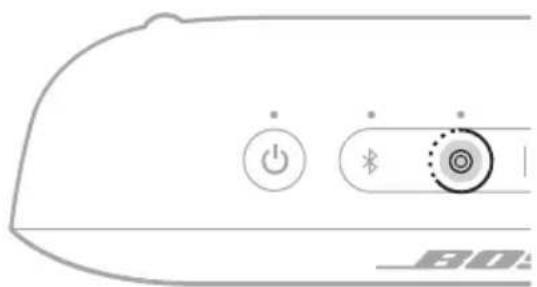
natural_image
Simple line drawing of a medical or anatomical device with a central connector and an upward arrow (no text or symbols)natural_image
Simple line diagram showing a plug connected to an USB port and a power outlet, with a lightning bolt indicating electrical hazard (no text or symbols present)- 按下电源按钮 ⏻。
natural_image
Simple line drawing of a device with an arrow pointing to a component, no text or symbols present.natural_image
Pure electrical circuit lines without any symbols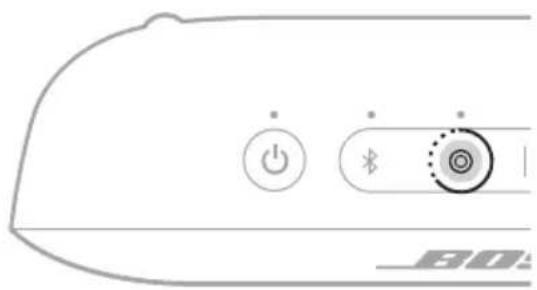
语音提示将通知扬声器不再连接。
natural_image
Simple line drawing of a medical or anatomical device with a central connector and an upward arrow, no text or symbols present.natural_image
Simple line drawing of a microphone connected to an USB port and a power outlet (no text or symbols)3. 按下電源按鈕 ⏻。
natural_image
Simple line drawing of a device with an arrow pointing to a component, no text or symbols present.natural_image
Pure electrical circuit lines without any symbols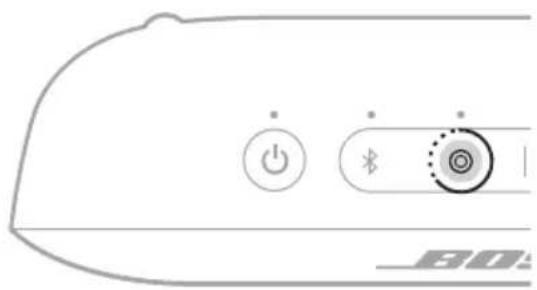
語音提示將播報揚聲器不再連接。
natural_image
Simple line drawing of a funnel with an arrow pointing upward, no text or symbols presentnatural_image
Simple line drawing of a microphone connected to an USB port and a power outlet (no text or symbols)- 電源ボタン ⏻を押します。
support.Bose.com/flex2
natural_image
Simple line drawing of a device with an arrow pointing to a component, no text or symbols present.natural_image
Line drawing of a device control panel with power button and Bluetooth indicator (no text or symbols)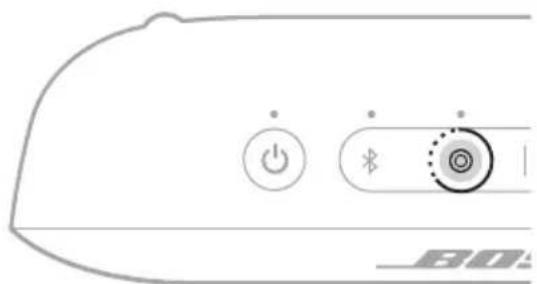
www.Bose.com/compliance
natural_image
Simple line drawing of a device with an arrow pointing to a component, no text or symbols present.natural_image
Simple line drawing of a device with a plug, cable, and USB port (no text or symbols)3 ..① طاقة
natural_image
Simple line drawing of a device with an arrow pointing to a component, no text or symbols present.natural_image
Close-up of a device control panel with power button and indicator lights (no text or symbols)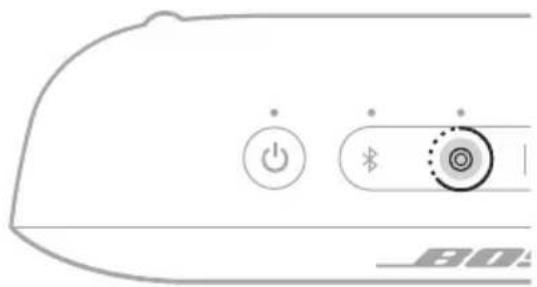

- Please read and keep all safety and use instructions.
- Important Safety Instructions
- WARNINGS/CAUTIONS
- Please complete and retain for your records
- WHAT'S IN THE BOX
- GETTING STARTED
- BLUETOOTH® CONNECTIONS
- SPEAKER CONTROLS
- BATTERY
- STATUS
- VOICE PROMPTS
- SHORTCUTS
- CONNECT BOSE PRODUCTS
- PORTABILITY
- CARE AND MAINTENANCE
- TROUBLESHOOTING
- CONTENTS
- INITIAL SETUP
- Press the Power button ⏻.
- CONNECT TO A DEVICE
- Using your device's Bluetooth settings
- Using the Bose app
- RECONNECT TO A DEVICE
- Reconnect to the most recently-connected device
- NOTES:
- Reconnect to a different device
- CONNECT AN ADDITIONAL DEVICE
- IDENTIFY CONNECTED DEVICES
- SWITCH BETWEEN TWO CONNECTED DEVICES
- DISCONNECT A DEVICE
- CLEAR THE SPEAKER DEVICE LIST
- ANDROID DEVICES ONLY
- Connect using Fast Pair
- Snapdragon Sound technology
- POWER ON/OFF
- Auto-off timer
- Disable the auto-off timer
- MEDIA PLAYBACK AND VOLUME
- Voice prompt notifications
- ACCESS VOICE CONTROL
- CHARGE THE SPEAKER
- Charging time
- Hear the battery level
- Battery protection mode
- POWER LIGHT
- BLUETOOTH LIGHT
- SHORTCUT LIGHT
- PRE-INSTALLED LANGUAGES
- CHANGE THE LANGUAGE
- DISABLE VOICE PROMPTS
- USE YOUR SHORTCUT
- CHANGE OR DISABLE YOUR SHORTCUT
- LINK TWO BOSE BLUETOOTH SPEAKERS
- Compatible products
- Link using the product controls
- Switch between Stereo mode and Party mode
- Unlink the speakers
- CONNECT TO A BOSE SMART SPEAKER OR SOUNDBAR
- Connect using the Bose app
- Connect using the product controls
- RECONNECT A BOSE SMART SPEAKER OR SOUNDBAR
- STRAP USES
- WATER AND DUST RESISTANCE
- CAUTIONS:
- UPDATE THE SPEAKER
- CLEAN THE SPEAKER
- STORE THE SPEAKER
- REPLACEMENT PARTS AND ACCESSORIES
- LIMITED WARRANTY
- TRY THESE SOLUTIONS FIRST
- OTHER SOLUTIONS
- RESET THE SPEAKER
- TILSLUT PRODUKTER FRA BOSE
- ADGANG TIL STEMMESTYRING
- SKIFT ELLER DEAKTIVER DIN GENVEJ
- GARANTÍA LIMITADA
- OTRAS SOLUCIONES
- Paina virtapainiketta ⏻.
- CONNEXION DES PRODUITS BOSE
- MISE SOUS/HORS TENSION
- ALTRE SOLUZIONI
- KOBLE TIL BOSE-PRODUKTER
- STELL OG VEDLIKEHOLD
- KOBLE TIL EN ENHET PÅ NYTT
- Koble til den sist tilkoblede enheten på nytt
- KONFIGURACJA WSTĘPNA
- WSTĘPNIE ZAINSTALOWANE JĘZYKI
- ANSLUTA BOSE-PRODUKTER
- ANSLUT TILL EN BOSE SMARTHÖGTALARE ELLER SOUNDBARHÖGTALARE
- ÅTERANSLUTA EN BOSE SMART HÖGTALARE ELLER SOUNDBARHÖGTALARE
- UPPDATERA HÖGTALAREN
- 按下電源按鈕 ⏻。
Brand : BOSE
Model : SoundLink Flex 2nd Gen
Category : Docking station