WAP-8231 - Access Point LEVELONE - Free user manual and instructions
Find the device manual for free WAP-8231 LEVELONE in PDF.


User questions about WAP-8231 LEVELONE
0 question about this device. Answer the ones you know or ask your own.
Ask a new question about this device
Download the instructions for your Access Point in PDF format for free! Find your manual WAP-8231 - LEVELONE and take your electronic device back in hand. On this page are published all the documents necessary for the use of your device. WAP-8231 by LEVELONE.
USER MANUAL WAP-8231 LEVELONE
Quick Installation Guide
( WAP-8231 )
Content
English 3
Deutsch....6
Français 9
Español....12
Italiano 15
Português ....18
| Default Settings | |
| Management | Web UI |
| IP address | 192.168.188.253 |
| Subnet Mask | 255.255.255.0 |
| Password | admin |
This Quick Installation Guide only describes the most basic situations and settings. All detailed information is described in the user guide.
Digital Data Communications GmbH
Im Defdahl 10 F, 44141 Dortmund, Germany
Email : support@level1.com

English
Logging on to the equipment
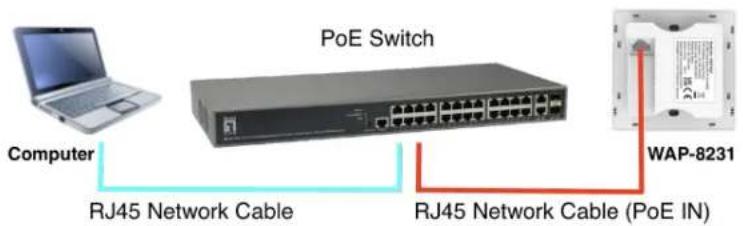
- Connect the PoE switch's RJ-45 interface to the computer and WAP-8231 using a network cable.
text_image
PoE Switch Computer RJ45 Network Cable RJ45 Network Cable (PoE IN) WAP-8231- Set the TCP/IP properties of the computer.
■ Windows
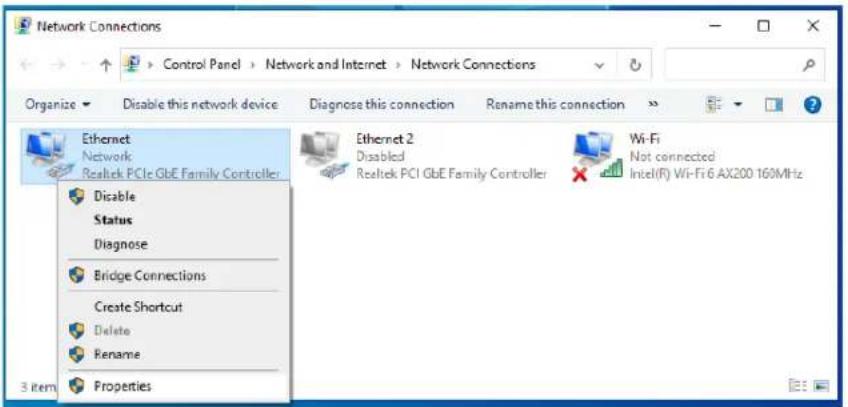
- Click Start—> Control Panel—> Network and Internet—> Network and Sharing Center—> Change adapter settings, right click Local connection and select Properties.
text_image
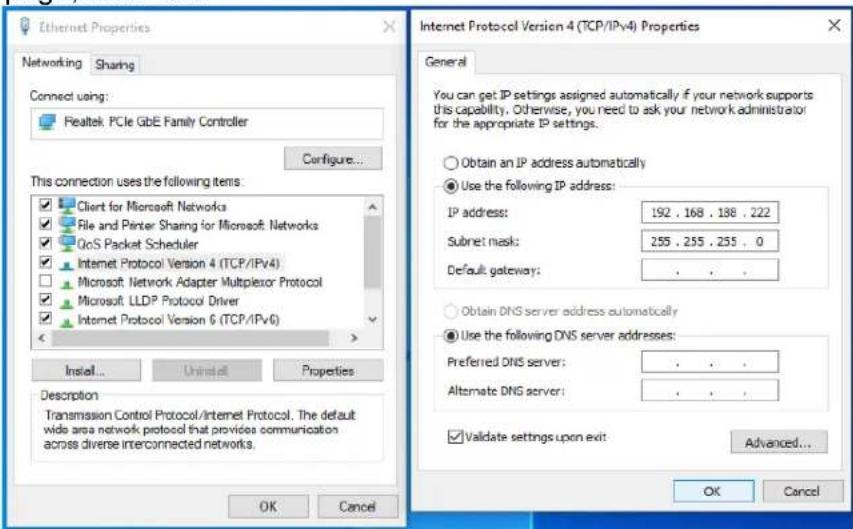
Network Connections Control Panel > Network and Internet > Network Connections Organize Disable this network device Diagnose this connection Rename this connection Ethernet Network Realtek PCIe GbE Family Controller Disable Status Diagnose Bridge Connections Create Shortcut Delete Rename Properties 3 item Ethernet 2 Disabled Realtek PCI GbE Family Controller Wi-Fi Not connected Intel(R) Wi-Fi 6 AX200 160MHz- Double-click Internet Protocol 4 (TCP/IPv4)
- Set the computer's IP address: The computer's IP address should be any one of the following free IP addresses 192.168.188.2 \~ 192.168.188.252, and then click OK, to return to the previous page, click OK.
text_image
Ethernet Properties Networking Sharing Connect using: Realtek PCIe GbE Family Controller Configure... This connection uses the following items: Client for Microsoft Networks File and Printer Sharing for Microsoft Networks GoS Packet Scheduler Internet Protocol Version 4 (TCP/IPv4) Microsoft Network Adapter Multiplexor Protocol Microsoft LLDP Protocol Driver Internet Protocol Version 6 (TCP/IPv6) Install... Uninstall Properties Description Transmission Control Protocol/Internet Protocol. The default wide area network protocol that provides communication across diverse interconnected networks. Internet Protocol Version 4 (TCP/IPv4) Properties General You can get IP settings assigned automatically if your network supports this capability. Otherwise, you need to ask your network administrator for the appropriate IP settings. Obtain an IP address automatically Use the following IP address: IP address: 192 . 168 . 188 . 222 Subnet mask: 255 . 255 . 255 . 0 Default gateway: . Obtain DNS server address automatically Use the following DNS server addresses: Preferred DNS server: . Alternate DNS server: . Validate settings upon exit Advanced... OK Cancel OK Cancel- Logging on to the equipment: Open a browser and type 192.168.188.253 in the address bar, and then press Enter; in the pop-up login interface, enter the factory logon password "admin" and click OK.

text_image
192.168.188.253 File Edit View Favorites Tools Help■ macOS
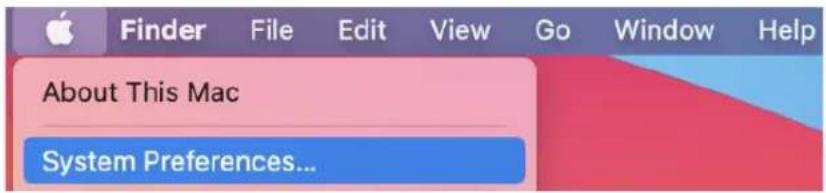
- Click the Apple icon, from the Apple drop-down list, select System Preferences.
text_image
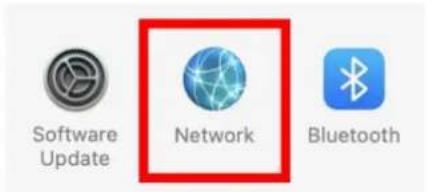
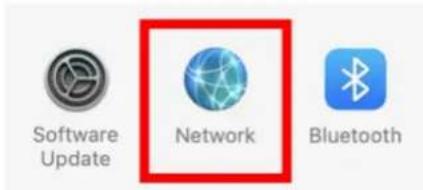
Finder File Edit View Go Window Help About This Mac System Preferences...- Click the Network icon.
text_image
Software Update Network Bluetooth- Select the Ethernet (for wired connection), from the Configure IPv4 drop-down list, select Manually.

text_image
Configure IPv4: Manually- Set the computer's IP address: The computer's IP address should be any one of the following free IP addresses 192.168.188.2 \~ 192.168.188.252, Subnet Mask 255.255.255.0, and then click Apply.
- Logging on to the equipment: Open a browser and type 192.168.188.253 in the address bar, and then press Enter; in the pop-up login interface, enter the factory logon password "admin" and click OK.

text_image
192.168.188.253
Explanation of symbols
The symbol with the exclamation mark in the triangle is used to indicate important information in these operating instructions. Always read this information carefully.

Disposal
WEEE: Dispose the product at a recycling point. Do not dispose together with household waste. Incorrect storage/disposal can harm the environment and/or cause injury.

Safety instructions
Read the operating instructions carefully and especially observe the safety information. If you do not follow the safety instructions and information on proper handling in this manual, we assume no liability for any resulting personal injury or damage to property. Such cases will invalidate the warranty/guarantee.
a) General information
- The device is not a toy. Keep it out of the reach of children and pets.
- Do not leave the packaging material lying around carelessly. This may become dangerous playing material for children.
- Do not place the product under any mechanical stress.
-
If it is no longer possible to operate the product safely, take it out of operation and protect it from any accidental use. Safe operation can no longer be guaranteed if the product:
-
is visibly damaged,
- is no longer working properly,
- has been stored for extended periods in poor ambient conditions or
- has been subjected to any serious transport-related stress.
- Please handle the product carefully. Jolts, impacts, or a fall, even from a low height, can cause damage to the product.
- Consult an expert when in doubt about the operation, safety, or connection of the appliance.
- Maintenance, modifications, and repairs must only be completed by a technician or an authorized repair center.
- If you have questions that remain unanswered by these operating instructions, contact our technical support service or other technical personnel.
b) People and product
- Never use the product immediately after it has been brought from a cold room into a warm one. This can cause condensation to form, which may lead to irreparable damage. Allow the product to reach room temperature before connecting it and putting it to use. This may take several hours.
Care and cleaning
- Disconnect the product from the mains before cleaning.
- Do not use any aggressive cleaning agents, rubbing alcohol, or other chemical solutions as they can cause damage to the housing and functioning of the product.
- Clean the product with a dry, fiber-free cloth.
Deutsch
Am Gerät anmelden
text_image
Network Connections Control Panel > Network and Internet > Network Connections Organize Disable this network device Diagnose this connection Rename this connection Ethernet Network Realtek PCIe GbE Family Controller Disable Status Diagnose Bridge Connections Create Shortcut Delete Rename Properties 3 item Ethernet 2 Disabled Realtek PCI GbE Family Controller Wi-Fi Not connected Intel(R) Wi-Fi & AX200 160MHztext_image
Ethernet Properties Networking Sharing Connect using: Reatek PCIe GbE Family Controller Configure... This connection uses the following items: ✓ Client for Microsoft Networks ✓ File and Printer Sharing for Microsoft Networks ✓ GoS Packet Scheduler ✓ Internet Protocol Version 4 (TCP/IPv4) □ Microsoft Network Adapter Multiplexor Protocol ✓ Microsoft LLDP Protocol Driver ✓ Internet Protocol Version 6 (TCP/IPv6) Install... Uninstall Properties Description Transmission Control Protocol/Internet Protocol. The default wide area network protocol that provides communication across diverse interconnected networks. Internet Protocol Version 4 (TCP/IPv4) Properties General You can get IP settings assigned automatically if your network supports this capability. Otherwise, you need to ask your network administrator for the appropriate IP settings. ○ Obtain an IP address automatically ● Use the following IP address: IP address: 192 . 168 . 188 . 222 Submit mask: 255 . 255 . 255 . 0 Default gateway: . ○ Obtain DNS server address automatically ● Use the following DNS server addresses: Preferred DNS server: . Alternate DNS server: . ✓ Validate settings upon exit Advanced... OK Cancel OK Canceltext_image
Finder File Edit View Go Window Help About This Mac System Preferences...text_image
Network Connections Control Panel > Network and Internet > Network Connections Organize ▼ Disable this network device Diagnose this connection Rename this connection ▶ Ethernet Network Realtek PCIe GbE Family Controller Disable Status Diagnose Bridge Connections Create Shortcut Delete Rename Properties 3 item Ethernet 2 Disabled Realtek PCI GbE Family Controller Wi-Fi Not connected Intel(R) Wi-Fi 6 AX200 150MHztext_image
Ethernet Properties Networking Sharing Connect using: Realtek PCIe GbE Family Controller Configure... This connection uses the following items ✓ Client for Microsoft Networks ✓ File and Printer Sharing for Microsoft Networks ✓ GoS Packet Scheduler ✓ Internet Protocol Version 4 (TCP/IPv4) □ Microsoft Network Adapter Multiplexor Protocol ✓ Microsoft LLDP Protocol Driver ✓ Internet Protocol Version 5 (TCP/IPv5) Install... Uninstall Properties Description Transmission Control Protocol/Internet Protocol. The default wide area network protocol that provides communication across diverse interconnected networks. OK Cancel Internet Protocol Version 4 (TCP/IPv4) Properties General You can get IP settings assigned automatically if your network supports this capability. Otherwise, you need to ask your network administrator for the appropriate IP settings. ○ Obtain an IP address automatically ● Use the following IP address: IP address: 192 , 158 , 188 , 222 Subnet mask: 255 , 255 , 255 , 0 Default gateway: ○ Obtain DNS server address automatically ● Use the following DNS server addresses: Preferred DNS server: Alternate DNS server: ✓ Validate settings upon exit Advanced... OK Canceltext_image
Finder File Edit View Go Window Help About This Mac System Preferences...text_image
Network Connections Control Panel > Network and Internet > Network Connections Organize Disable this network device Diagnose this connection Rename this connection Ethernet Network Realtek PCIe GbE Family Controller Disable Status Diagnose Bridge Connections Create Shortcut Delete Rename Properties 3 item Ethernet 2 Disabled Realtek PCI GbE Family Controller Wi-Fi Not connected Intel(R) Wi-Fi 5 AX200 160MHztext_image
Ethernet Properties Networking Sharing Connect using Realtek PCIe GoE Family Controller Configure... This connection uses the following items: Client for Microsoft Networks File and Printer Sharing for Microsoft Networks GoS Packet Scheduler Internet Protocol Version 4 (TCP/IPv4) Microsoft Network Adapter Multiplexor Protocol Microsoft LLDP Protocol Driver Internet Protocol Version 5 (TCP/IPv5) Install Install Properties Description Transmission Control Protocol/Internet Protocol. The default wide area network protocol that provides communication across diverse interconnected networks. OK Cancel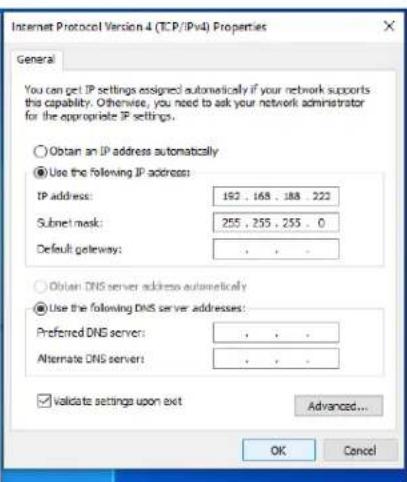
text_image
Internet Protocol Version 4 (TCP/IPv4) Properties General You can get IP settings assigned automatically if your network supports this capability. Otherwise, you need to ask your network administrator for the appropriate IP settings. Obtain an IP address automatically Use the following IP address: IP address: 192 . 168 . 188 . 222 Subnet mask: 255 . 255 . 255 . 0 Default gateway: . Obtain DNS server address automatically Use the following DNS server addresses: Preferred DNS server: . Alternate DNS server: . Validate settings upon exit Advanced... OK Canceltext_image
Finder File Edit View Go Window Help About This Mac System Preferences...text_image
Network Connections Control Panel > Network and Internet > Network Connections Organize Disable this network device Diagnose this connection Rename this connection Ethernet Network Realtek PCIe GbE Family Controller Disable Status Diagnose Bridge Connections Create Shortcut Delete Rename Properties Ethernet 2 Disabled Realtek PCI GbE Family Controller Wi-Fi Not connected Intel(R) Wi-Fi 6 AX200 150MHztext_image
Ethernet Properties Networking Sharing Connect using Reabok PCIe GoE Family Controller Configure... This connection uses the following items: Client for Microsoft Networks File and Printer Sharing for Microsoft Networks GoS Packet Scheduler Internet Protocol Version 4 (TCP/IPv4) Microsoft Network Adapter Multiplexor Protocol Microsoft LLDP Protocol Driver Internet Protocol Version 6 (TCP/IPv6) Install Install Properties Description Transmission Control Protocol/Internet Protocol. The default wide area network protocol that provides communication across diverse interconnected networks. OK Cancel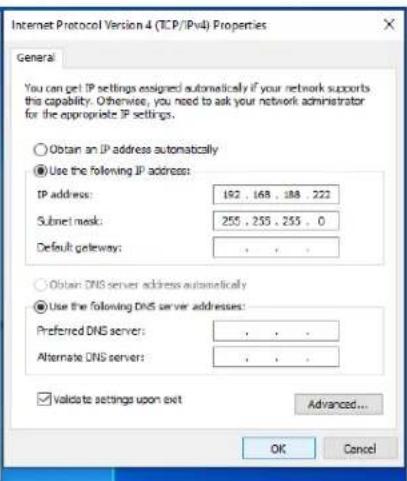
text_image
Internet Protocol Version 4 (TCP/IPv4) Properties General You can get IP settings assigned automatically if your network supports the capability. Otherwise, you need to ask your network administrator for the appropriate IP settings. Obtain an IP address automatically Use the following IP address: IP address: 192 , 168 , 188 , 222 Submit mask: 255 , 255 , 255 , 0 Default gateway: . . . Obtain DNS server address automatically Use the following DNS server addresses: Preferred DNS server: . . . Alternate DNS server: . . . Validate settings upon exit Advanced... OK Canceltext_image
Finder File Edit View Go Window Help About This Mac System Preferences...text_image
Network Connections Control Panel > Network and Internet > Network Connections Organize Disable this network device Diagnose this connection Rename this connection Ethernet Network Realtek PCIe GbE Family Controller Disable Status Diagnose Bridge Connections Create Shortcut Delete Rename Properties 3 item Ethernet 2 Disabled Realtek PCI GbE Family Controller Wi-Fi Not connected Intel(R) Wi-Fi 6 AX200 160MHztext_image
Ethernet Properties Networking Sharing Connect using: Realtek PCIe GbE Family Controller Configure... This connection uses the following items: ✓ Client for Microsoft Networks ✓ File and Printer Sharing for Microsoft Networks ✓ QoS Packet Scheduler ✓ Internet Protocol Version 4 (TCP/IPv4) □ Microsoft Network Adapter Multiplexor Protocol ✓ Microsoft LLDP Protocol Driver ✓ Internet Protocol Version 6 (TCP/IPv6) Install... Uninstall Properties Description Transmission Control Protocol/Internet Protocol. The default wide area network protocol that provides communication across diverse interconnected networks. OK Cancel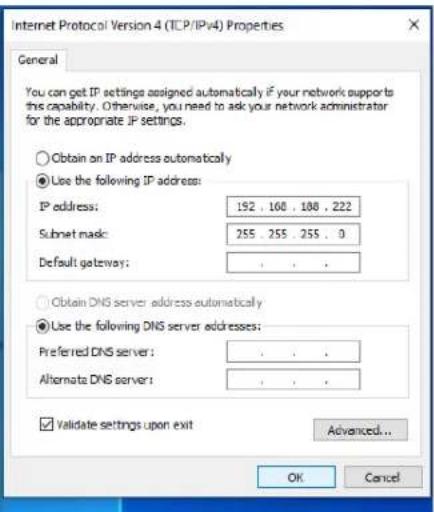
text_image
Internet Protocol Version 4 (TCP/IPv4) Properties General You can get IP settings assigned automatically if your network supports this capability. Otherwise, you need to ask your network administrator for the appropriate IP settings. Obtain on IP address automatically Use the following IP address: IP address: 192 , 160 , 180 , 222 Subnet mask: 255 , 255 , 255 , 0 Default gateway: Obtain DNS server address automatically Use the following DNS server addresses: Preferred DNS server: Alternate DNS server: Validate settings upon exit Advanced... OK Canceltext_image
Finder File Edit View Go Window Help About This Mac System Preferences...- Clique no ícone Rede.
text_image
Software Update Network Bluetooth- Seleccione Ethernet (para conexão com fio), na lista suspensa Configurar IPv4, selecione Manualmente.