Metropolitan R - Watch TIMEX - Free user manual and instructions
Find the device manual for free Metropolitan R TIMEX in PDF.


User questions about Metropolitan R TIMEX
0 question about this device. Answer the ones you know or ask your own.
Ask a new question about this device
Download the instructions for your Watch in PDF format for free! Find your manual Metropolitan R - TIMEX and take your electronic device back in hand. On this page are published all the documents necessary for the use of your device. Metropolitan R by TIMEX.
USER MANUAL Metropolitan R TIMEX
Metropolitan Smart: Round Dial
USER GUIDE 1
GUÍA DEL USUARIO 33
MODE D'EMPLOI....66
TIMEX
WARNINGWARNING
- INGESTION HAZARD: This product contains a button cell or coin battery.
- DEATH or serious injury can occur if ingested.
- A swallowed button cell or coin battery can cause Internal Chemical Burns in as little as 2 hours.
- KEEP new and used batteries OUT OF REACH OF CHILDREN.
- Seek immediate medical attention if a battery is suspected to be swallowed or inserted inside any part of the body.

- Remove and immediately or dispose of used batteries according to local regulations and keep away from children. Do NOT dispose of batteries in household trash or incinerate.
• Even used batteries may cause severe injury or death. - Call a local poison control center for treatment information.
- Battery number, Lithium Metal (CRXXXX series) or Silver Oxide (SRXXXX Series).
- Nominal battery voltage, Lithium Metal (CRXXXX series) 3.0 V or Silver Oxide (SRXXXX Series) 1.5 V.
• Non-rechargeable batteries are not to be recharged. - Do not force discharge, recharge, disassemble, heat above (Lithium Metal (CRXXXX series) 158°F (70 °C) or Silver Oxide (SRXXXX Series) 140°F (60°C) or incinerate. Doing so may result in injury due to venting, leakage or explosion resulting in chemical burns.
- Ensure the batteries are installed correctly accord to polarity.
- Do not mix old and new batteries, different brands or types of batteries, such as alkaline, carbon zinc, or rechargeable batteries.
- Remove and immediately recycle or dispose of batteries from equipment not used for an extended period of time according to local regulations.
- Always completely secure the battery compartment. If the battery compartment does not close securely, stop using the product, remove the batteries and keep them away from children.
AVERTISSEMENT
Turning the Watch ON and OFF 4
Important information about your watch 4
Water Resistance 4
Wearing 4
GPS....4
Activity and Sleep Tracking....4
Watch Updates....5
Setup, Syncing and Bluetooth....5
Pairing your watch with your phone....5
Settings 6
Watch....6
Shortcut menu (swipe down from watch face)....6
Settings menu 6
Mobile App....7
Dashboard....7
Watch Settings (click on watch name) 7
Profile – Edit (Icon at top right corner of app)....7
Profile – My Devices....7
Profile – Settings ...... 7
Profile – Features....7
About – Information and account log out....7
Basic Operations and Function Navigation 8
Basic Operations....8
Top Button: 8
Bottom Button: 8
Navigation via the touchscreen....8
Control Shortcut Menu....9
Flashlight....9
Brightness adjustment 10
DND (Do Not Disturb) mode 10
Battery saver mode....11
Screen Lock....11
Changing the Watch Face....12
Activity Status 12
Heart Rate....13
Resting Heart Rate....13
Main Menu....14
Activity Status 14
Heart Rate....14
Workout....14
Activities Review ...... 14
Weather....15
Music 15
Notifications 15
Alarm....16
More 17
Compass / Air Pressure / Altitude 17
Timer 17
Countdown Timer....18
Find Mobile (Phone Finder) 19
Watch Settings....19
Watch Face 19
Screen Auto Off....20
Quick Start-up....20
Always on display 20
System 20
Workouts....21
Outdoor Workout modes 21
Workout Settings....21
Workout Goals....22
Workout Reminders (Alerts) 22
Auto Pause....22
Real-time Graph 22
During Your Workout 22
Pausing or Stopping Your Workout....23
Workout Summary 23
Distance Calibraton for Treadmill workouts 23
Timex Smart App....24
Today (Dashboard) 24
Pull to Sync....24
Activity Tracking....24
Your Watch....25
Last Workout....25
Last Night's Sleep 25
Heart Rate 26
Streaks 26
Reorder 26
Workouts....27
Records....27
Recording workouts with the app....28
Workout Details....28
Community 29
Profile 29
Adding additional Timex Smart devices....30
Switching between Timex Smart devices 31
Device Settings 31
Safety & Product Information....32
Welcome
Congratulations on the purchase of your TIMEX ^® Metropolitan R Watch. This User Guide will explain the features and functions of your TIMEX ^® Metropolitan R Watch and the accompanying TIMEX ^® Smart mobile app for iOS or Android.
TIMEX® Metropolitan R Features
- Long battery life
• Compatible with iOS and Android smartphones
• GPS for accurate outdoor distance, pace and speed
• Barometer for accurate elevation measurement
• Highly accurate optical heart rate sensor
• Daily activity tracking of steps, distance, calories & sleep
• Supports multiple types of notifications (calls, text messages, inactivity, etc.)
• Workout modes provide time, distance, heart rate, pace, speed, calories and time of day
• Timing features: Alarms, Stopwatch & Timer
• Music control of connected phone - Many watch faces to choose from
Product Overview
Charging
Your watch should be fully charged before using. Attach the magnetic charging cable to the watch's charging port as shown below. Plug the USB end of the cable into any powered USB port or USB charger.
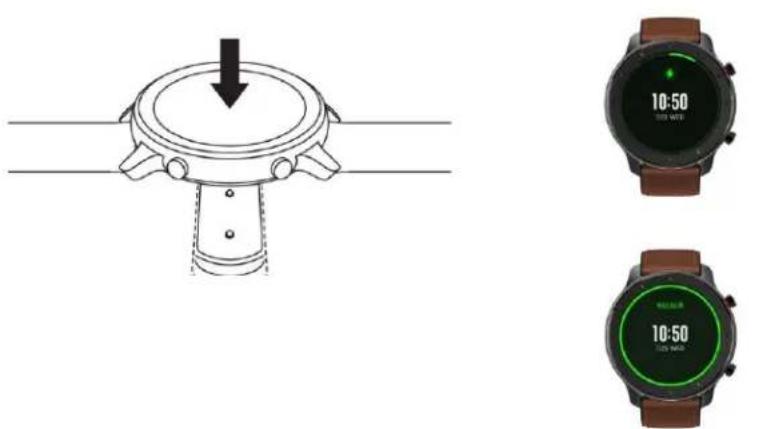
Charging may take as long as two and a half hours if the watch battery is fully depleted. The watch will display the charging indicator while connected to the charger and will indicate when it is fully charged.
Your watch's battery can last up to 25 days, but this will vary depending on certain settings (backlight brightness, heart rate detection, and app notifications) and GPS workout usage.
Turning the Watch ON and OFF
Press and Hold the top button on the watch for 3 seconds to turn the watch ON. To turn the watch OFF, in the menu on the watch select Settings, System, Shutdown.
Important information about your watch
Water Resistance
Your TIMEX ^® Metropolitan R is rated for 30m water resistance. This means that it is safe to exercise and shower with your watch and that it may be submerged in water. Swimming with your watch is not recommended.
Wearing
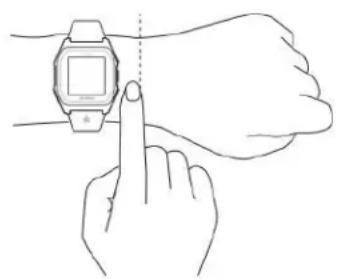
Your watch has a built in optical Heart rate sensor (the 2 LED lights on the case back). Wearing the watch too loosely may impact the data collection by the heart rate sensor.
Comfortably, but snugly, tighten the watch around your wrist, at least one finger width above your wrist bone.
Note: When wearing the watch during workouts, which involve a great deal of wrist motion (such as weightlifting), wearing the watch as far above the wrist as possible will provide the most accurate heart rate measurement.
natural_image
Line drawing of a hand interacting with a wristwatch (no text or symbols present)GPS
Your watch also has a GPS which requires periodic software updates (A-GPS) to perform optimally. Note that for proper recording of outdoor workouts you must wait for the GPS to obtain your initial location (the GO button will change from grey to orange on the start workout display) before starting your workout. Note as well that the GPS antenna in this watch has been optimized for performance on the left wrist, so the watch will provide best GPS accuracy when worn on the left wrist. The watch can be worn on either wrist for all other activities.
Activity and Sleep Tracking
Your watch also has a built-in accelerometer used to track activity (steps and distance). The accelerometer is used for computing distance for non-GPS running and walking workouts and may be calibrated using “Treadmill” workout mode for best accuracy.
Your watch uses a combination of the accelerometer and the heart rate sensor for tracking your sleep. Note that the sleep algorithm will only track sleep events, which occur overnight. It will not track naps or daytime sleep events.
Your watch also has a barometer (pressure sensor) for measuring changes in elevation during outdoor workouts.
Watch Updates
Periodically your watch will require updates. These updates may be software related, or for updating the satellite A-GPS data. A-GPS updates occur every couple of days to insure best GPS performance for your outdoor workouts.
Note that updates such as A-GPS take less than a minute, but major software updates could take as long as 15-30 minutes to complete. While an update is in process both the app and watch will display the progress towards completion.
Most updates will start automatically when you sync the watch to the mobile app, but at any time you can check for available updates on the app by clicking on the watch, on the dashboard screen and scrolling down to “check for updates”.
You can verify the version of software on your watch by looking at “Firmware version” just below “Check for updates” on the mobile app or by going to settings, system, about on the watch.
You can verify when the A-GPS was last updated on the watch from the settings, system, about screen on the watch. If it has been seven days or more since it was updated, it is best to sync the watch with the mobile app prior to performing an outdoor workout for quickest GPS sync and best GPS accuracy.
Setup, Syncing and Bluetooth
Pairing your watch with your phone
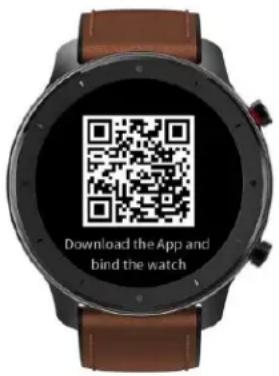
- Please download the Timex Smart from Apple Store or Google play store, and register or login to your account.
text_image
Download the App and bind the watch- Open the app. If you have created a new account you will be prompted to setup your user profile (enter your gender, height, weight and age for configuring the activity tracking algorithms). Once that is complete you will be brought to the “Select a Device to Pair” Screen. (If you are adding your Metropolitan R to an existing Timex Smart account, go to “Profile, Add device” to get to the “Select a Device to Pair” Screen).
- Select “TIMEX ^® Metropolitan R” from the list and when instructed, scan the QR code on the watch with your phone’s camera.
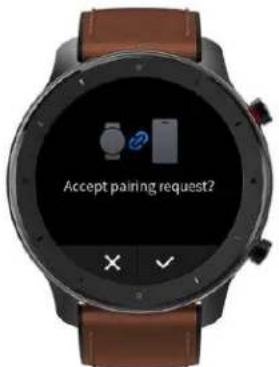
- Tap the check mark on your watch to accept the pairing request and complete the process.
text_image
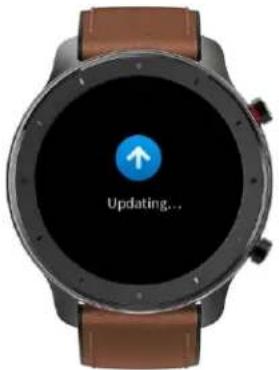
Accept pairing request?- After pairing, the watch usually needs to be upgraded. The update can take up to 30 minutes. Please keep the watch close to your phone until the process is complete. If any of the updates fail you may need to move away from other Bluetooth devices and retry the update.
text_image
Updating...Settings
Below is a quick reference for where to find various settings for the watch and mobile app:
Watch
Shortcut menu (swipe down from watch face)
Flashlight mode
Do not disturb mode
Display brightness
Display lock - Temporarily lock touchscreen to prevent accidental activation
Settings menu
Watch Face – Switch between 3 loaded watch faces
Screen Auto Off – Adjust timeout for turning display off
Quick Start-up – Choose shortcut for the bottom button
Always on display – Enable or disable always on time display
System
About – Information about watch software
Regulation – Regulatory information
Reboot – Restart watch
Shutdown - Power off watch
Factory Reset – Clear all settings and reset watch
Mobile App
Dashboard
Dashboard panel order (icon at bottom of dashboard)
Watch Settings (click on watch name)
Watch face selection (download to watch from app) Notification settings Idle alert Activity goal alert Find Watch Broadcast Heart Rate Setting (Broadcast HR to other fitness equipment) Wrist location Lift wrist to view info settings Language Heart rate detection Display Settings - Watch menu order and items visible/hidden Vibration Settings Weather settings Check for watch software updates Unpair device (Disconnect watch from account)
Profile – Edit (Icon at top right corner of app)
User name Gender Date of birth Measurement units Weight Height
Profile – My Devices
Add or remove a watch Activate a different watch (switch between watches)
Profile – Settings
Activity goals Heart rate zones
Profile – Features
Change password and manage account data Connect Timex Smart to fitness sites (Strava, Runkeeper etc.) and Apple Health/Google Fit Access Help Feedback – Send Watch and/or App logs for troubleshooting Smart Analysis for sleep quality analysis
About – Information and account log out
Basic Operations and Function Navigation
Your TIMEX ^® Metropolitan R features an AMOLED touch screen and two physical buttons.
Basic Operations
Top Button:
Short press to light up the screen.
Short press when on the watch face to turn off the screen.
Short press on other pages to quickly return to the watch face.
Long press for 10s to shutdown the watch.
Bottom Button:
Short press to light up the screen.
Short press when on the watch face to quickly enter the workout mode list. (This function can be changed to other functions via “settings, quick start-up” on the watch)
You can long press either of the two buttons to exit the battery saver mode, pause an active workout, or stop the alarm alert.
Wake the watch – Press the top button to turn on the display or if “Lift wrist to view info” is enabled via the watch settings in the app, rotate your wrist towards you to turn the display on.
Swipe left, right, up, or down to switch between different function pages.
Tap to enter into a function page
Swipe right to return to the prior menu level after tapping to enter a function page.
Navigation via the touchscreen
Swipe down from the watch face to enter the shortcut control menu, which allows you to quickly open the flashlight, set brightness, control the do not disturb mode, enter the battery saver mode, and lock the screen.
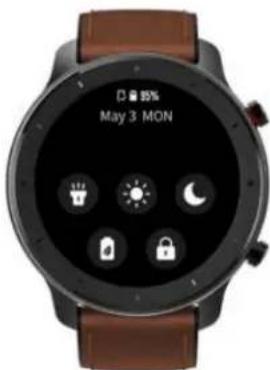
text_image
85% May 3 MONSwipe left or right from the watch face to enter the Activity status and Heart rate modes
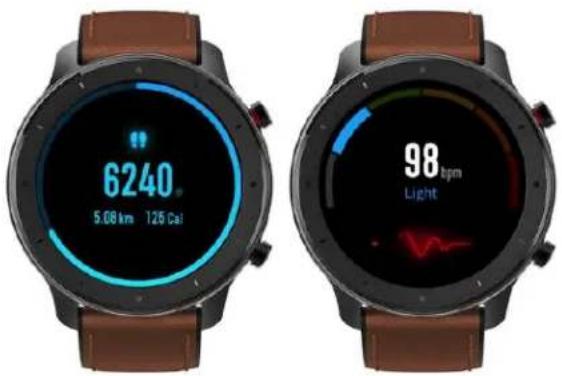
text_image
6240 5.08 km 125 Cal 98 bpm LightSwipe up from the watch face to enter the main menu.
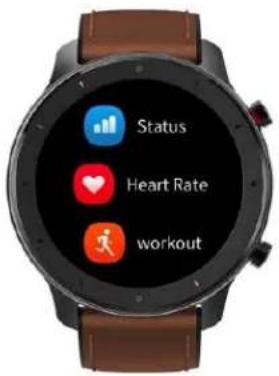
text_image
Status Heart Rate workoutControl Shortcut Menu
Swipe down from the watch face to enter the shortcut control menu.
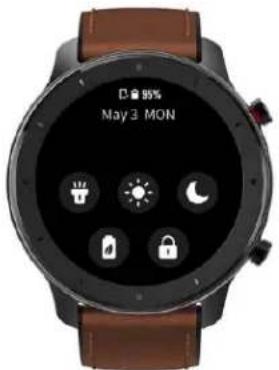
text_image
D 95% May 3 MONFlashlight
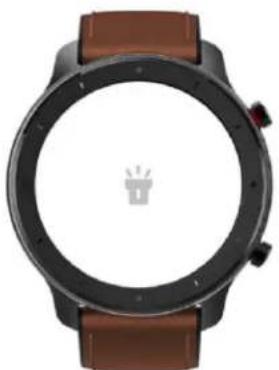
Tapping the flashlight icon opens the flashlight function. The white background on the watch screen helps light up a small area at night. You can stop the flashlight function by swiping right or pressing the top button.
natural_image
Top-down view of a smartwatch with brown strap and circular display (no text or symbols visible)Brightness adjustment
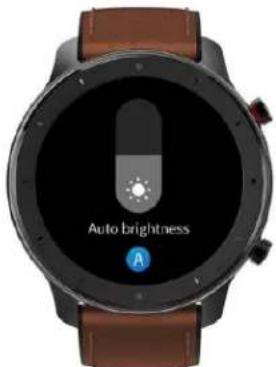
Tapping on the brightness adjustment icon brings you to the brightness adjustment settings. Auto brightness: The watch will automatically adjust the screen brightness based upon ambient light. Manual brightness: You can adjust the screen brightness as you wish.
text_image
Auto brightness ADND (Do Not Disturb) mode
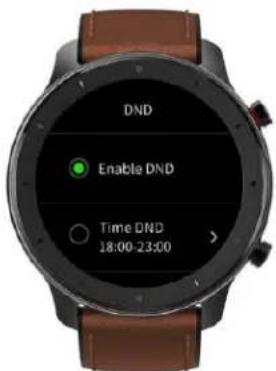
Enable DND: With the DND mode enabled, the watch will not vibrate when receiving any alerts from your mobile phone.
Time DND: You can select the time period during which the DND mode is enabled.
Smart DND: After you fall asleep with the watch, the watch will automatically enable the DND mode.
Disable DND: The DND mode is disabled, so the watch will vibrate when receiving notifications.
text_image
DND Enable DND Time DND 18:00-23:00Battery saver mode
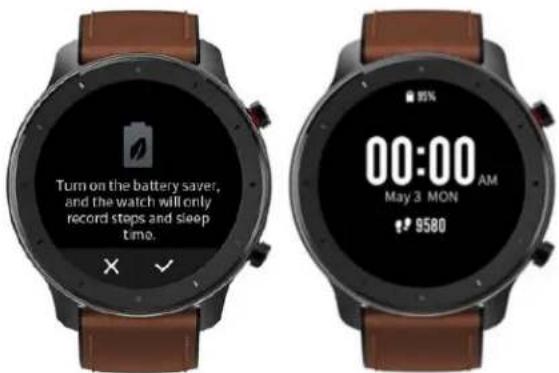
The battery saver mode can minimize the power consumption of the watch and significantly extend its battery life. With the battery saver mode on, the watch will only record steps and sleep time. All other functions are disabled.
text_image
Turn on the battery saver, and the watch will only record stops and sleep time.To exit the battery saver mode, long press either button on the watch until the circle completes.
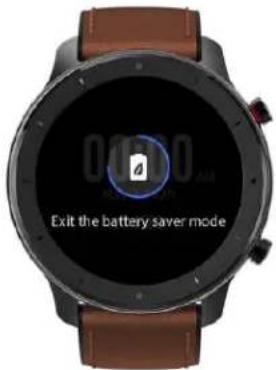
text_image
Exit the battery saver modeScreen Lock
Select the screen lock mode to disable the touch screen, preventing accidental activation of it while showering, etc. Press either button to turn off the screen lock mode.
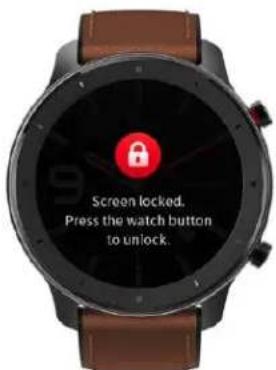
text_image
Screen locked. Press the watch button to unlock.Changing the Watch Face
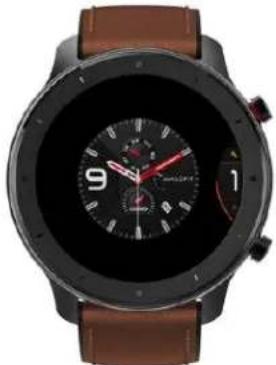
Two watch faces are on-board the watch and a third can be loaded and swapped out via the app. To change the watch face on the watch: Long press the watch face for 2s, or go to "Settings – Watch face settings". Swipe left and right to view the on-board watch faces, and tap one to select.
To load or replace the third watch face via the App: Select your watch on the dashboard or select "Profile – TIMEX® Metropolitan R – Watch face settings". Press the + button to download new watch faces or select one you have previously download and then tap "Set as active watch face" to load it onto the watch. Note that detailed watch faces may take a minute or more to load.
natural_image
Top-down view of a modern smartwatch with black bezel, brown leather strap, and white dial (no visible text or symbols)Activity Status
Swiping left on the watch face brings you to the activity status page which displays the current steps, distance and calories (active and basal calories burned) and the progress towards your daily step goal.
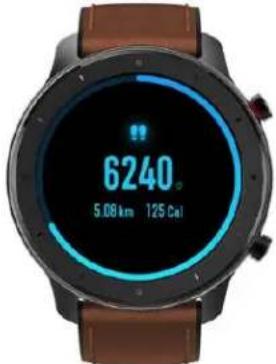
text_image
6240 5.08 km 125 CalTapping the activity status page details page which shows you your steps (and a graph of steps per day of the week), distance, calories and idle time data.
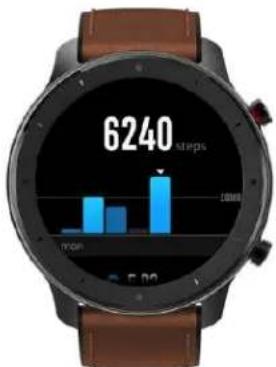
text_image
6240 steps meanNote that you can also get to the Activity Status page by swiping up from the watch face to enter the menu and selecting Activity Status from the menu.
Heart Rate
Swiping right on the watch face brings you to the heart rate page. When you enter this page the watch automatically starts to measure the heart rate.
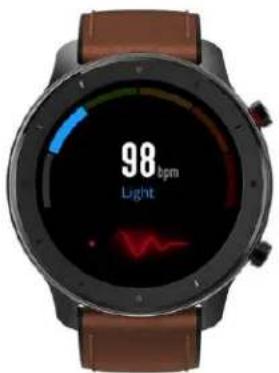
natural_image
Smartwatch with digital display showing 98 bpm light and waveform (no readable text or symbols beyond branding)Resting Heart Rate
If all-day heart rate measurement is enabled, your resting heart rate value for today will be shown beneath the current heart rate measurement. To enable the all-day heart rate measurement, open the Timex Smart App, go to "Profile – TIMEX® Metropolitan R – Heart rate detection", and choose to enable automatic heart rate detection.
Also, if all-day heart rate measurement is enabled, tapping on the heart rate page brings you to the heart rate detail page, which shows the current, maximum and minimum heart rate values for today as well as a graph of your heart rate through the day (if all day heart rate measurement is enabled). Swiping up on the details page shows the percentage of time spent in each of the heart rate zones through the day. Note that heart rate zones can be viewed or modified via the app by going to “Profile – Heart Rate Zones”.
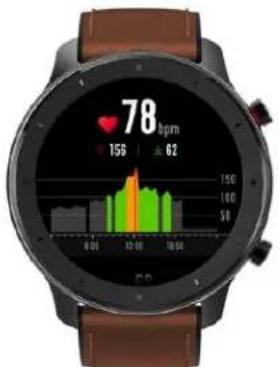
text_image
78 156 62 150 160 50 0.00 22:00 18:00Note that you can also get to the heart rate page by swiping up from the watch face to enter the menu and selecting Heart Rate from the menu.
Main Menu
The main menu provides access to all of the watch's features. You can customize the order of the menu and hide or unhide menu options via the app, by going to the watch setting and selecting Display Settings.
Activity Status
The activity status page is explained above. You can also access this page via the main menu.
Heart Rate
The heart rate page is explained above. You can also access this page via the main menu.
Workout
The workout modes are explained in the workouts section below, but this menu option brings you to the workout type selection to begin your workout.
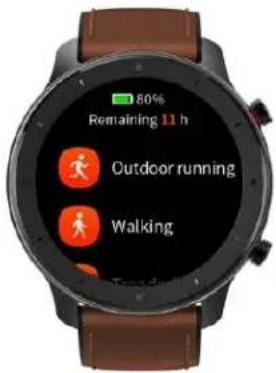
text_image
80% Remaining 11 h Outdoor running WalkingActivities Review
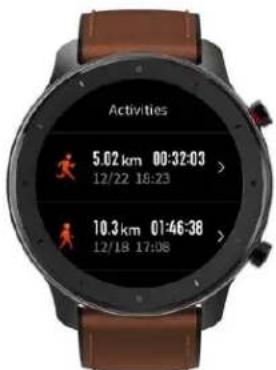
The activities review mode allows you to see the list of prior workouts stored on your watch and to see the details of them.
text_image
Activities 5.02 km 00:32:03 > 12/22 18:23 10.3 km 01:46:38 > 12/18 17:08Workouts not yet synced to the app will have a red dot between the workout icon and the distance.
You can tap a workout to select it and view the details of it. Details displayed will depend on the type of workout, but can include a plot for GPS based workouts, graphs of heart rate and heart rate zones and many metrics for the workout.
To delete a workout from the watch, scroll down to the bottom of the details page and select the delete icon. Note that workouts already synced to the app will only be deleted from the watch.
Weather
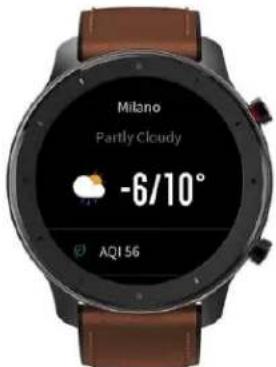
The weather mode displays the current weather for your selected location. Scrolling up on this page shows the 7 day forecast.
text_image
Milano Partly Cloudy -6/10° AQI 56Note that the watch needs to be regularly synced with the app to display the weather data. Also, to select the desired city and temperature units, in the app go to watch settings, Weather Settings.
Music
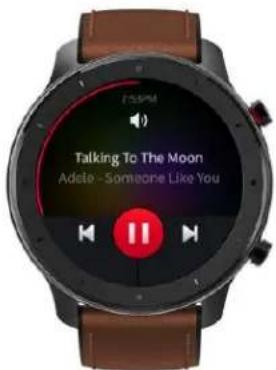
The music control feature lets you control your music app on your mobile phone. Your music app must be started on your phone before entering this mode.
Music control lets you see the current song info, adjust the volume, play/pause and skip forward or backwards.
text_image
Talking To The Moon Adele - Someone Like YouNotifications
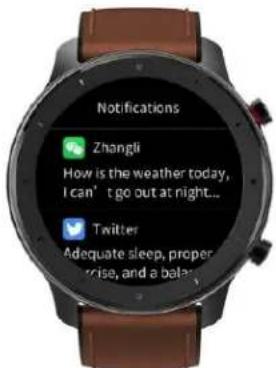
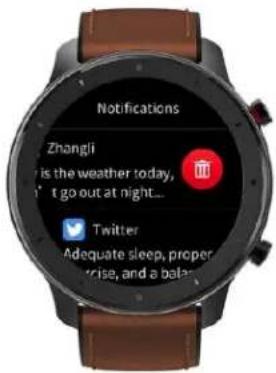
The notification Center mode lets you view stored notifications from your phone. You must enable the desired types of notifications via the app by going to watch settings and selecting the notification types (incoming call, app alerts, idle alerts, activity goal alert, incoming SMS and incoming email).
text_image
Notifications Zhangli How is the weather today, I can't go out at night... Twitter Adequate sleep, proper noise, and a belayNotifications will appear briefly as a pop-up when they are received and then can be accessed via the notifications center. Click on the notification to view and scroll through its content, or swipe left and tap on the delete icon to remove it from the notifications center.
text_image
Notifications Zhangli is the weather today, it go out at night... Twitter Adequate sleep, proper rise, and a belaAlarm
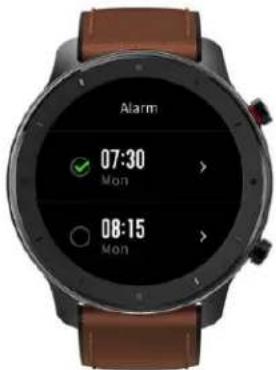
The alarm mode lets you set or change up to 10 alarms on the watch.
Click on the + button to add a new alarm or tap on an existing one to edit it. Select AM/PM and the hour and minutes and then click the arrow to select whether the alarm will trigger once or repeat on specific days of the week. To save it, click on the check mark.
text_image
Alarm 07:30 Mon 08:15 MonTo arm or disarm the alarm, click on the circle before the time and a green check mark will indicate that it is armed.
To delete an alarm, swipe left and tap on the delete icon.
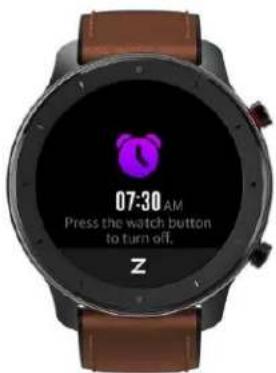
When the alarm triggers press either button for 2 seconds to stop the alarm or tap the Z icon at the bottom of the screen to snooze the alarm for 10 minutes.
text_image
07-30 AM Press the watch button to turn off. ZMore
More brings you to a submenu of 4 additional items – Compass, Timer, Countdown and Find Mobile
Compass / Air Pressure / Altitude
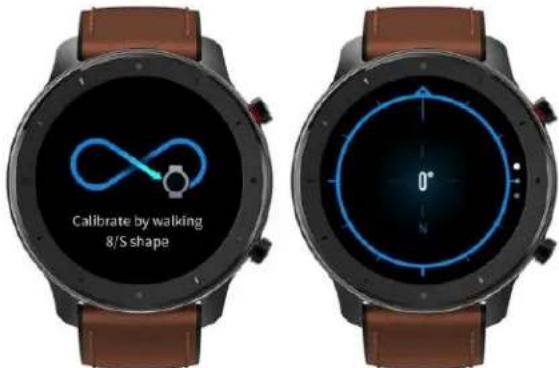
Your TIMEX ^® Metropolitan R has a compass and an air pressure sensor. When you select this mode you will enter the compass page. If calibration is necessary the watch will prompt you to walk in a figure 8 to perform the calibration. Once it finishes calibrating it will vibrate and then will show you the compass display with your current heading and a pointer to north.
text_image
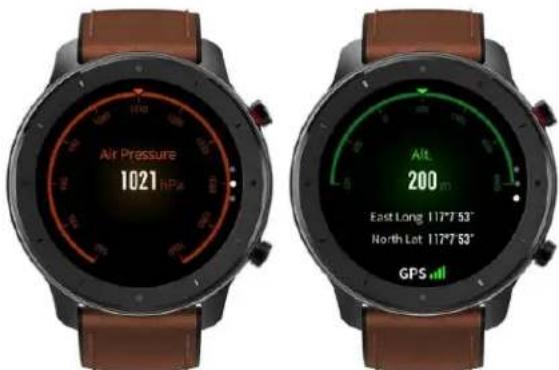
Calibrate by walking 8/S shapeSwiping up on the compass page brings you to the air pressure page. Swiping up a second time brings you to the altitude page. Both of these modes require initial calibration using the GPS. To perform the GPS calibration for the pressure sensor, swipe to the altitude screen and go outdoors where there is a clear view of the sky. The GPS animation at the bottom of the screen will change from incrementing orange bars to stationary green bars when the GPS calibration is complete. Once complete your altitude and coordinates will be shown and you can swipe down to move to the air pressure page.
text_image
Air Pressure 1021 hPa Alt 200 m East Long 117°7'53" North Lot 117°7'53" GPSTimer
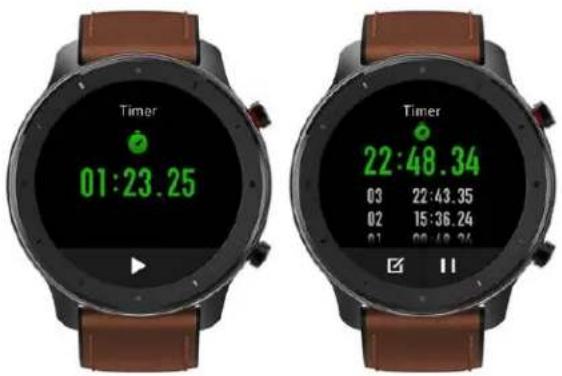
The Timer mode provides a stopwatch function with 1/100 second resolution and 99 laps.
Tap the start button (play symbol) to start the timer.
Tap the stop button (pause symbol) to pause or stop the timer.
Tap the Lap button to record a lap (and you can scroll up or down on the display to see the list of laps)
Once stopped, tap the reset button to clear the timer.
text_image
Timer 01:23.25 Timer 22:48.34 03 22:43.35 02 15:36.24 01 09:48.24Countdown Timer
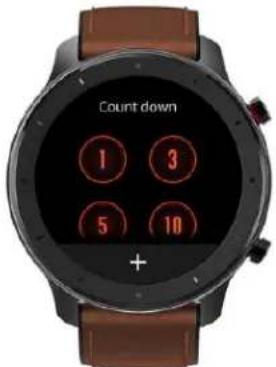
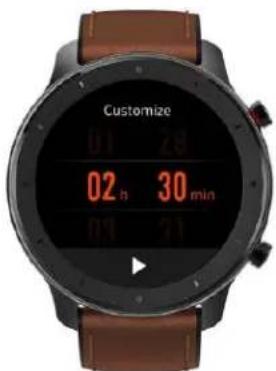
The countdown timer offers 8 quick choices of countdown from 1 to 60 minutes or you can tap the plus button to set a custom countdown time in hours and minutes up to 23:59.
text_image
Count down 1 3 5 10 +Press the start button to begin the countdown.
Once the countdown timer begins you can pause it by tapping the pause button and then once paused you can resume it by tapping the start button or clear it by tapping the stop button.
text_image
Customize 01 24 02 h 30 min 01 21When the countdown is complete you will be alerted with a vibration and a message on the display. Tap the X button to dismiss the timer complete notification.
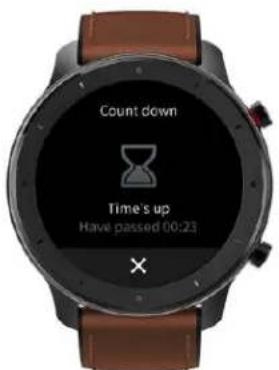
text_image
Count down Time's up Have passed 00:23Find Mobile (Phone Finder)
This function allows you to locate the phone which your watch is connected to. This function requires that the Timex Smart app be running on the phone.
Tap the Find Mobile option to begin and the watch will attempt to connect to your phone. If it is in Bluetooth range (\~30 feet) and can connect your phone will ring if the volume is on and will vibrate.
Once found, tap the stop ring button on the watch to stop the find mobile mode.
If the watch can't connect to the phone it will display a notification that it is unable to find the phone.
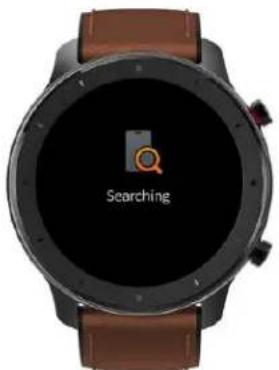
text_image
SearchingWatch Settings
As mentioned above in the section regarding where to find various settings, there are some which can be changed on the watch itself. Those settings are explained below.
Watch Face
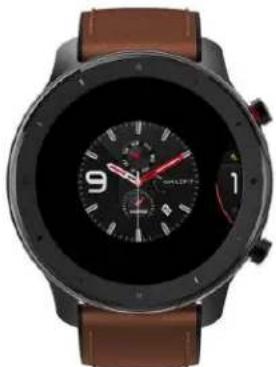
This setting lets you switch between the 3 loaded watch faces. Two are programmed into the watch and can't be changed, but the third can be loaded and changed via the watch settings option of the Timex Smart app. Swipe left or right to move between the watch face choices and then tap on one to select it.
natural_image
Top-down view of a modern smartwatch with black bezel, brown leather strap, and white dial (no visible text or symbols)Screen Auto Off
This setting allows you to adjust the timeout for turning display off
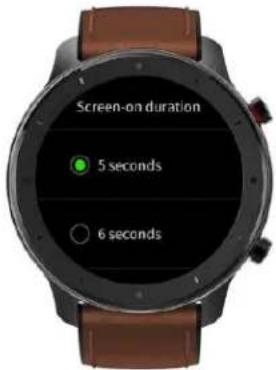
text_image
Screen-on duration 5 seconds 6 secondsQuick Start-up
This setting lets you choose the function of the bottom button. This allows quick access to any of the following functions: Activity Status, Heart Rate, Workout, Weather, Notifications, Alarm, Compass, Count down, Timer, Music control, Find mobile
You can also choose to disable this option
Always on display
This setting lets you enable or disable always on time display, which is a dim time display visible without turning on the display.
It also lets you choose for the always-on display to be an analog or digital watch.
Note that this option will significantly reduce battery life
System
This item displays the following information regarding your watch and provides options to restart, power-off or factory reset your watch.
About – Information about watch software
Regulation – Regulatory information
Reboot – Restart watch
Shutdown - Power off watch
Factory Reset – Clear all settings and reset watch (Note that after performing this function you will have to pair your watch with the app again).
Workouts
Your TIMEX® Metropolitan R supports 6 workout modes (Outdoor running, Outdoor Walking/Hiking, Outdoor Cycling, Treadmill, Indoor Cycling and Freestyle (Other sports).
The outdoor workout modes use GPS for tracking distance and generating the plot of the workout course. Treadmill uses the watch's accelerometer to track your steps and calculate your distance (which can be calibrated at the end of each treadmill workout to improve accuracy).
Indoor cycling and Freestyle/Other Sports only track time and heart rate.
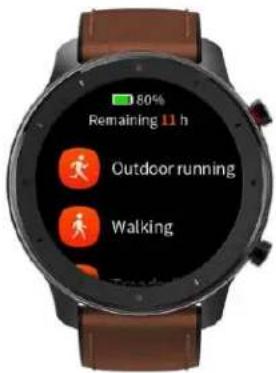
text_image
Remaining 11 h 80% Outdoor running WalkingOutdoor Workout modes
The three outdoor workout modes use the watch's GPS. To make sure that your entire workout is properly recorded you must wait for the GPS to obtain your initial position before starting the workout. When you select one of the outdoor workout modes the GO button will be grey until the GPS is ready. Once it is ready the GO button will turn orange and the GPS animation will change from incrementing orange bars to stationary green bars. At that point you are ready to start your workout by tapping the orange GO button. Note that for the first use of the GPS it may take two minutes or more for the GPS to compute your initial location. After that it should be considerably quicker as long as you are starting in a place which has an unobstructed view of the sky. If you are in an area with tall buildings around you or tree cover, it will take longer for the GPS to decode the data from the satellites to compute your initial location.
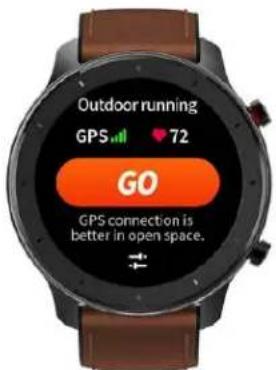
text_image
Outdoor running GPS 72 GO GPS connection is better in open space.Workout Settings
When you enter one of the workout modes, beneath the GO button you will see the settings icon. Tap on this icon to configure workout goal, workout reminder (alerts), auto pause, and real time graphs. Settings available vary based on workout type.
Workout Goals
This setting allows you to configure target goals for your workout, of which the watch will alert you once reached. These goals can be distance, duration and/or calories.
You can set and enable any combination of the three. Tap the arrow to the right of the goal to configure it and then tap the circle to the left of the goal to enable it. A green check will appear next to the enabled goals.
Workout Reminders (Alerts)
This setting allows you to configure workout alerts for distance, heart rate, heart rate zone and pace.
You can set and enable any combination of the three. Tap the arrow to the right of the goal to configure it and then tap the circle to the left of the goal to enable it. A green check will appear next to the enabled goals.
Auto Pause
This setting allows you to enable or disable auto pause, where the watch will automatically pause the workout when you stop moving and will automatically resume the workout when you start moving again.
Real-time Graph
This setting allows you to enable or disable display of a third page during the workout containing a running graph of heart rate or pace.
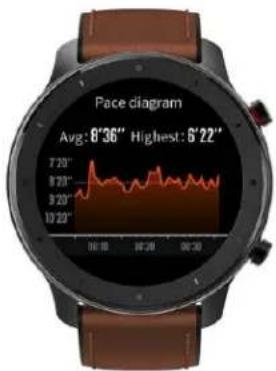
text_image
Face diagram Avg: 8°36" Highest: 5°22"During Your Workout
Once the workout is started you will see the primary training page. This page shows the elapsed time, distance, pace or speed heart rate, and heart rate zone.
Swipe up or down to move between the other training page(s). Some workout types, such as indoor cycling and freestyle only have one training page, and others such as the outdoor workout types have a second page.
If you enable real-time graph there will be a second or third page showing the real-time graph.
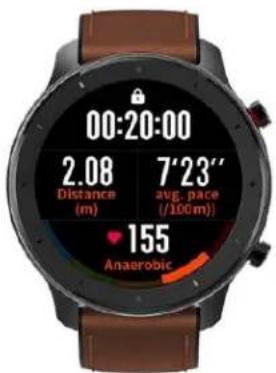
text_image
00:20:00 2.08 Distance (m) 7'23" avg. pace (/100m) 155 AnaerobicSwipe right during your workout to display a page with the current time, date and battery level.
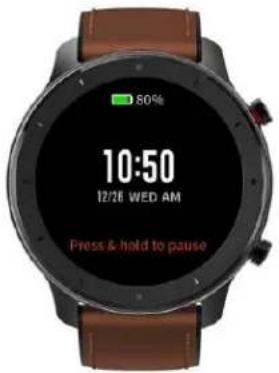
text_image
80% 10:50 12/26 WED AM Press & hold to pausePausing or Stopping Your Workout
To pause or stop the workout, hold the top button until the circle around the pause button fills.
To resume the workout, tap the start/play button
To stop the workout, tap the stop button
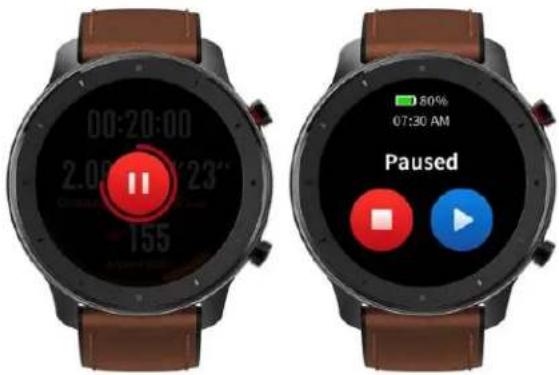
text_image
00:20:00 2.00 23" 155 My own hand 80% 07:30 AM PausedWorkout Summary
After the workout is stopped you will be presented with your workout summary. You can scroll through the pages of the summary to view various details about your workout. The items and metrics displayed will vary based on workout type.
Distance Calibraton for Treadmill workouts
Treadmill workout mode provides the ability to calibrate the distance calculation algorithm to your running or walking style. At the end of a treadmill workout you will be presented with a screen showing the calculated distance and you can scroll up or down to adjust the distance to match distance reported by the treadmill to calibrate your watch.
Timex Smart App
Today (Dashboard)
The Today Dashboard displays daily activity summary as well as links to detailed sleep, heart rate, workouts and streaks. The most recent saved workout will always appear on the dashboard. The Dashboard also shows your currently paired watch and its battery level. Tapping on the panel for your watch provides quick access to the settings for it. Scroll down to see all of the dashboard panels.
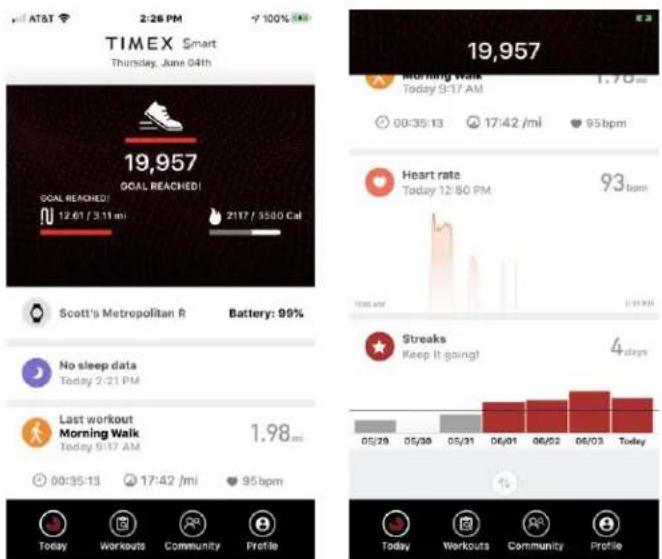
text_image
TIMEX Smart Thursday, June 04th 19,957 GOAL REACHED! 12:61 / 3:11 mi 2117 / 3500 Cal Scott's Metropolitan R Battery: 99% No sleep data Today 2-21 PM Last workout Morning Walk Today 9-17 AM 1.98 mi 00:35-13 17:42 /mi 95 bpm Today Workouts Community Profile 100% 17:42 /mi 95 bpm 19,957 Morning Walk Today 9-17 AM 00:35-13 17:42 /mi 95 bpm Heart rate Today 12-80 PM 93 bpm Streaks Keep it going! 4 days Today Workouts Community ProfilePull to Sync
The app will typically sync with your watch when you open it. To force it to sync data from the watch on demand, swipe down on the white panels and a sync will start.
Activity Tracking
Tap an activity icon (steps, distance or calories) at the top of the screen to view activity charts and graphs.
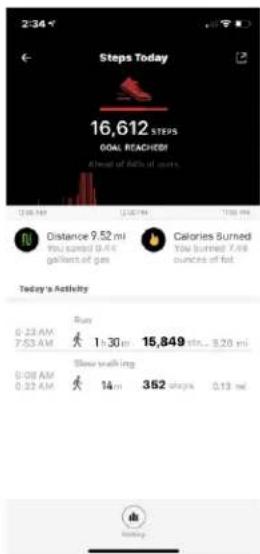
text_image
Steps Today 16,612 STEPS GOAL REACHED! Ahead of Activity at 3am Distance 9.52 mi You saved 8 AM gallets of gas Calories Burned You burned 7 AM ounces of fat Today's Activity 0:23 AM 7:53 AM Run 1:30 min 15,849 min... 9.26 mi Slow walking 0:08 AM 0:32 AM 14 min 352 steps 0.13 minClicking on Distance, Steps or Calories in this screen will switch between them. This screen also shows the detailed activity events auto-detected throughout your day. Tap the share icon on the upper right of the screen to share a snapshot of your daily activity to Facebook, Twitter or Instagram.
Tap the history icon at the bottom of the screen to see daily, weekly or monthly totals for your activity data.
Your Watch
Your currently active watch is displayed below the activity section and if it is in communication with your phone its battery level is shown. Clicking on this panel of the Dashboard will bring you to the Device Settings screen, which is detailed under the profile section below.
Last Workout
This panel shows the details of your last synced workout from your watch. Click on this panel to see your workout details as explained below in the Workouts section.
Last Night's Sleep
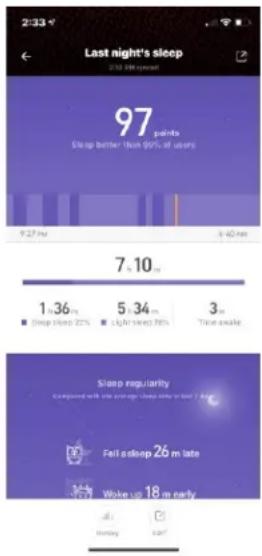
If you wear your watch to sleep this band will show the summary and score for your sleep. Click on the panel to see the detailed analysis of your sleep and to access your past sleep data.
text_image
Last night's sleep 2:33 2000 500 percent 97 points Sleep better than 90% of users 9.27 pm 6.40 pm 7.10 pm 1.36 pm 5.34 pm 3 pm Sleep sleep 22% Light sleep 78% Sleep regularly Comprised with the average Sleep time in last 7 days Fall asleep 26 m late Wake up 18 m early Helping HelpingThe detailed sleep screen shows your score at the top and details of deep sleep, light sleep and awake time for the night. Below this section your sleep quality analysis is displayed. Swipe left or right to move between days.
Clicking on the history icon at the bottom of the sleep screen shows your past sleep data in daily, weekly or monthly view.
Clicking on the edit icon at the bottom of the screen allows you to adjust the time your fell asleep or woke up.
Heart Rate
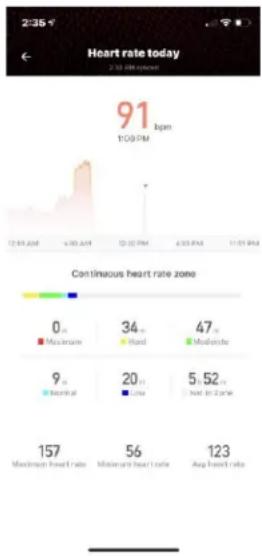
This panel shows a graph of your heart rate data through the day (if automatic heart rate detection is enabled in the device settings) and shows your last heart rate measurement. Clicking on this band brings you to the detailed heart rate screen.
text_image
2:35 Heart rate today 2:30 AM 91 bpm 100 PM Continuous heart rate zone 0 m Maximum 34 m Hard 47 m Moderate 9 m Month at 20 m Low 5.52 m Not in 24 h 157 Maximum heart rate 56 Maximum heart rate 123 Avg heart rateThe detailed heart rate screen shows your day heart rate graph at the top of the screen (where you can click on any point to view the value at that time). You can swipe left or right to move between days.
Beneath the graph your resting heart rate is shown (if it is available per the watch's settings). Clicking on it brings you to a screen, which shows your historical resting heart rate data.
Beneath resting heart rate is a breakdown of your heart rate zones throughout the day and your minimum, maximum and average heart rate values.
Finally, at the bottom of the screen you can see your last manually measured heart rate value and can click on it to display previous measurements.
Streaks
This panel shows how many days in a row you have achieved your activity goal and shows a graph of your activity towards goal for the past seven days. Clicking on this band brings you to a screen where you can share a snapshot of your current streak to social media.
Reorder
Finally, at the bottom of the dashboard you will see an icon for reordering the dashboard. Click on this icon and you can move the dashboard panels around (by holding your finger on the three lines on the right and sliding the item to its desired location). You can also move items to the bottom where they will be hidden from view on the dashboard. Slide them back up to bring them back into view. Finally press the save button on the upper right to save the changes you have made.
Workouts
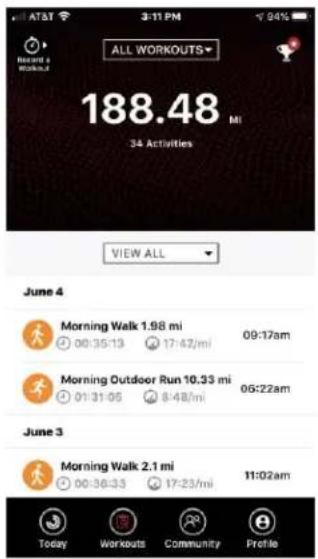
When a workout is saved on the watch, it will appear here. This feature stores all your workouts and keeps track of your Records. Review a specific workout by tapping the workout (icon/date/name of the workout) Filter options include by sport (Running, Cycling, etc) or by date (Last 7 days, last month, etc).
text_image
ALL WORKOUTS 188.48 MI 34 Activities VIEW ALL June 4 Morning Walk 1.98 mi 00:35:13 17:42/mi 09:17am Morning Outdoor Run 10.33 mi 01:31:05 8:48/mi 06:22am June 3 Morning Walk 2.1 mi 00:36:33 17:23/mi 11:02am Today Workouts Community ProfileRecords
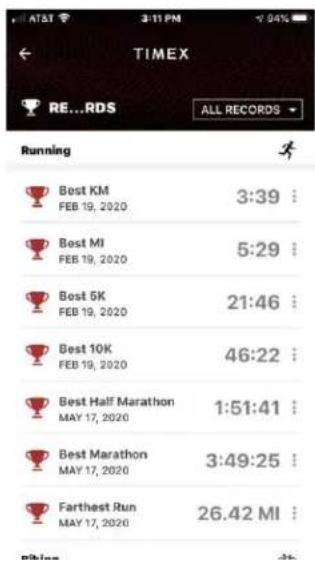
Tap the Records (trophy icon top right) to view your most recent achievements. When a new record is detected, a star will appear next to the trophy! Records can also be shared to social media by tapping the vertical dots to the right of each record. Slide the record to the left to display the option to clear a record.
text_image
TIMEX RE...RDS ALL RECORDS Running Best KM FEB 19, 2020 3:39 Best MI FEB 19, 2020 5:29 Best 5K FEB 19, 2020 21:46 Best 10K FEB 19, 2020 46:22 Best Half Marathon MAY 17, 2020 1:51:41 Best Marathon MAY 17, 2020 3:49:25 Farthest Run MAY 17, 2020 26.42 MIRecording workouts with the app
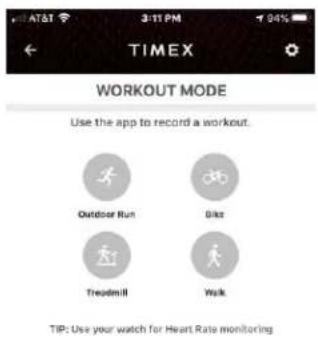
You can also do a workout with the app. This option can be used for things like treadmill or bike workouts where you may wish to have the larger phone screen, but still have the workout recorded and visible within your workout feed on the app. This mode uses the heart rate from the watch if you wear your watch while performing the workout with the app. Tap the “Record a workout” icon at the top left to start a workout and record it using the app. The settings icon on the top right of this screen allows you to enable auto pause, audio prompts, screen always on, high heart rate alert and pace alert.
text_image
TIMEX WORKOUT MODE Use the app to record a workout. Outdoor Run Bike Treadmill Walk TIP: Use your watch for Heart Rate monitoring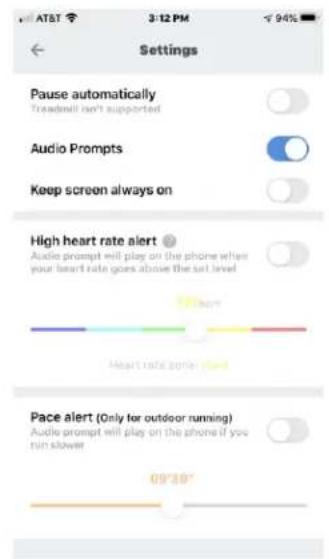
text_image
AT&T 3:12 PM 94% Settings Pause automatically Treadmill isn't supported Audio Prompts Keep screen always on High heart rate alert Audio prompt will play on the phone when your heart rate goes above the set level 09:30" Heart rate zone 1 Pace alert (Only for outdoor running) Audio prompt will play on the phone if you run slower 09:30"Workout Details
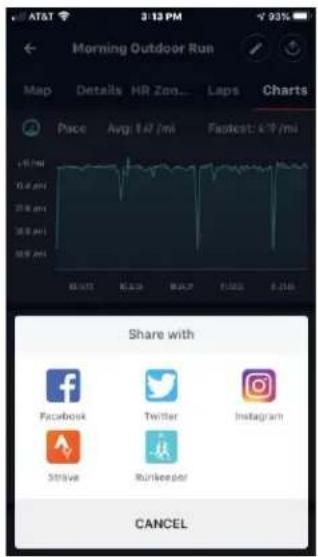
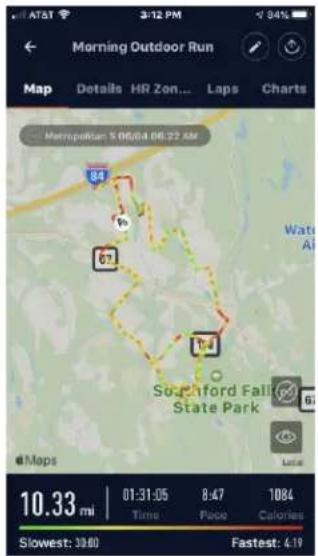
You can click on a workout from the workout feed to see the workout details. Workout details are sport specific, and include a GPS map when available (GPS workouts only). View sport-specific details by tapping Details, Heart rate zones, Laps, and Charts. Workouts can be renamed or deleted by clicking on the edit icon on the top right or shared to social media or fitness sites by clicking on the share icon (see Add accounts in the Profile section for how to link a fitness site account).
text_image
Morning Outdoor Run Map Details HR Zon... Laps Charts Metropolitan 5 06:04 06:22 AM 84 67 17.4 Southford Falls State Park 10.33 mi 01:31:05 8:47 1084 Time Pace Calories Slowest: 39.00 Fastest: 4.19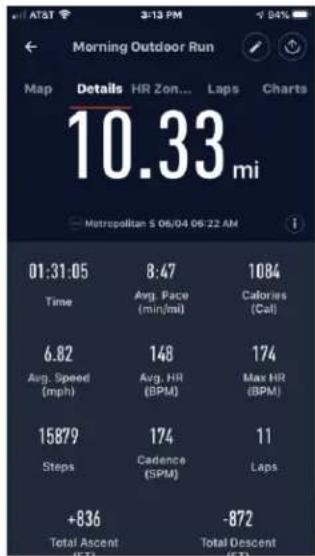
text_image
Morning Outdoor Run Map Details HR Zon... Laps Charts 10.33 mi Metropolitan S 06/04 06:22 AM 01:31:05 8:47 1084 Time Avg. Race (min/mi) Calories (Cal) 6.82 148 Max HR (BPM) Avg. Speed (mph) Avg. HR (BPM) 15879 174 Max HR (BPM) Steps Cadence (SPM) Laps +836 -872 Total Ascent (AS) Total Descent (ST)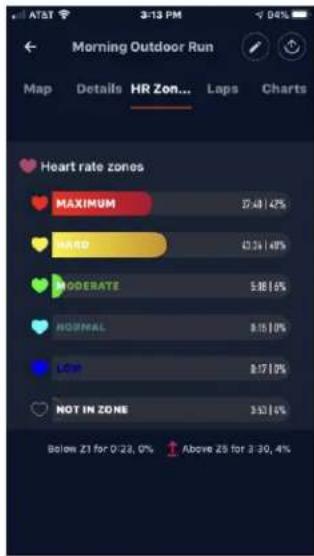
text_image
Morning Outdoor Run Map Details HR Zon... Laps Charts Heart rate zones MAXIMUM 37.48 / 42% HARD 45.26 / 48% MODERATE 5.98 / 6% NORMAL 8.15 / 0% LOP 8.17 / 9% NOT IN ZONE 3.52 / 6% Below Z1 for 0-23, 0% Above Z5 for 3-30, 4%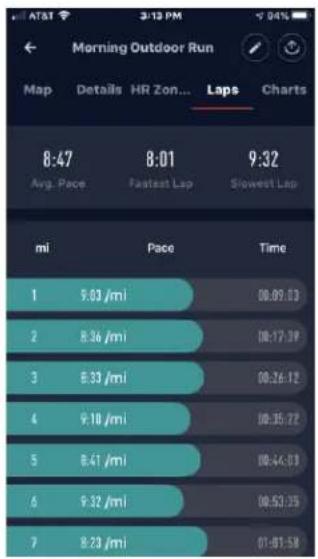
text_image
Morning Outdoor Run Map Details HR Zon... Laps Charts 8:47 8:01 9:32 Avg. Pace Fastest Lap Slowest Lap mi Pace Time 1 9:03 /mi 08:09:13 2 8:36 /mi 08:17:19 3 6:33 /mi 08:26:12 4 9:10 /mi 08:35:22 5 8:41 /mi 08:44:33 6 9:32 /mi 08:52:35 7 8:23 /mi 01:01:58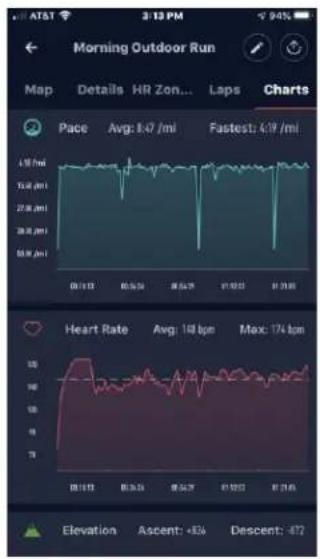
text_image
ATST 2:13 PM Morning Outdoor Run Map Details HR Zon... Laps Charts Pace Avg: 8.47 /mi Fastest: 6.19 /mi 10.00 /mi 15.00 /mi 20.00 /mi 25.00 /mi 30.00 /mi 35.00 /mi 40.00 /mi 45.00 /mi Elevation Ascent: +834 Descent: 472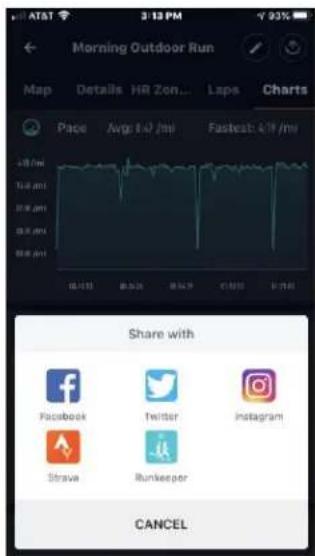
text_image
AT&T 3:12 PM Morning Outdoor Run Map Details HR Zon... Laps Charts Page Avg: 1.0 /mi Fastbest: 6/9 /mi Share with Facebook Twitter Instagram Strava Runkeeper CANCELCommunity
This feature allows for sharing of activity and workout data between users who own a Timex watch. Users need to add another user as a “Friend”, and can do this by tapping the plus icon at the bottom of the screen, or once you have added friends, by tapping on the icon on the top left and using the following mechanisms:
- Scan QR Code
• Have another person scan their QR Code (My QR Code) - Search by user ID
Notifications provide the messaging for friend requests.
Once a friend has been added, tap the User from the Friend list, and their profile page is displayed showing Today's activity totals, and most recent workouts. While viewing a friend's workout feed, the ellipsis icon at the top right Ellipsis provides the ability to "unfriend".
While viewing the friends list, click on the icon on the top right to display the leaderboard for a selected day of your friends' and your steps for that day.
Profile
Tap the top right pencil icon to change any basic profile information (Username, gender, Height, weight, units, etc). Use this section to change any of the following:
• My Devices – Add additional Timex Smart devices or switch between devices
• Activity Goals (Steps, distance, calories)
• Heart Rate Training Zones
• My Account & Data
○ Manage your Data
- Clear Data
- Delete Account
■ Revoking authorization
- Export data
- Add accounts - Link other apps such as Strava or Training Peaks
- Help
- Feedback – Provide watch or app logs to our developers
• Data Collection – Collect sensor data from the watch to send to our developers
• Smart Analysis – Provides sleep analysis and insights - App Walkthrough – Provides a brief introduction to the app and where to find things
-
About
-
App version
○ Algorithm version - Software agreement link
- Privacy Policy
- Fitness Disclaimer
o Sign Out of your account
Adding additional Timex Smart devices
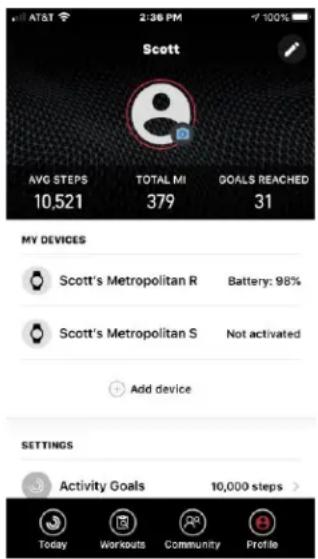
Click on “Add device” below your current Timex Smart device on the My Devices section of the profile page to add additional devices. Select the device type and follow the pairing instructions for your device.
text_image
AT&T 2:36 PM Scott AVG STEPS 10,521 TOTAL MI 379 GOALS REACHED 31 MY DEVICES Scott's Metropolitan R Battery: 98% Scott's Metropolitan S Not activated Add device SETTINGS Activity Goals 10,000 steps > Today Workouts Community ProfileIf you are adding an additional device (as opposed to replacing one) you will be asked if you wish to make the new device “active”. Only one device can be active at a time. The active device will be the one which the app syncs with, but while another device is not active you can still use the device and if you perform workouts with it while it is not active, once you switch it to being active the workouts will sync to your Timex Smart account and will appear in your workout feed.
Switching between Timex Smart devices
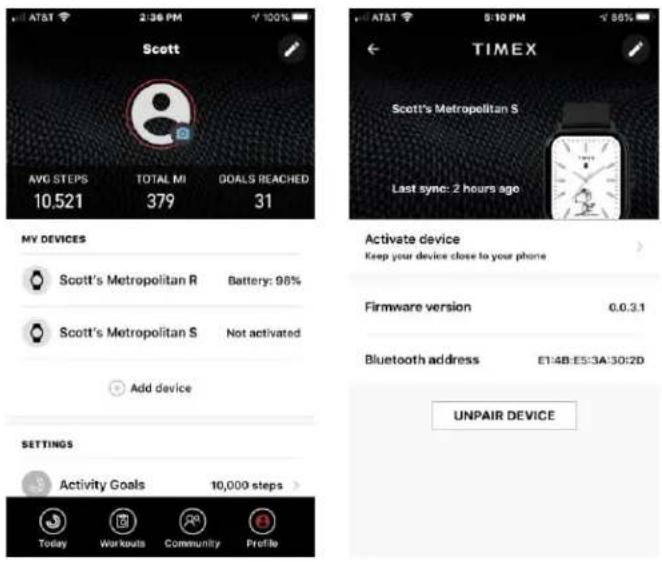
If you own multiple Timex Smart devices you can switch between devices without having to unpair and repair. To do so, via Profile-My Devices select the device you wish to make active and click on "Activate device". When you do so you will be notified that the presently active device will be stopped and then once you tap OK the other device will be activated. Note that although workouts performed while a device is not active will sync when the device is later activated, activity data (steps, distance, calories and sleep) will not. This is to prevent duplication of data.
text_image
AT&T 2:36 PM ¥100% Scott AVG STEPS TOTAL MI GOALS REACHED 10,521 379 31 MY DEVICES Scott's Metropolitan R Battery: 98% Scott's Metropolitan S Not activated Add device SETTINGS Activity Goals 10,000 steps Today Workouts Community Profile TIMEX Scott's Metropolitan S Last sync: 2 hours ago Activate device Keep your device close to your phone Firmware version 0.0.3.1 Bluetooth address E14B:E53A:30:2D UNPAIR DEVICEDevice Settings
Customize your watch using the Device Settings page, which serves as the primary mechanism for editing, viewing and syncing watch-specific settings such as:
- Watch face settings – Download additional watch faces or sync a previously downloaded one to your watch
- Incoming calls – Turn on or off alerts on the watch when a call is received. You can also set a delay so that if you answer the phone prior, the watch will not notify you of the incoming call.
- App Alerts - This feature allows you to control which apps send notifications to the watch.
- Idle Alert – This allows you to turn on a “get active” alert, if you are stationary for more than 1 hour. You can also set the time period during the day when this alert is enabled.
- Incoming SMS – Enable notifications for text messages.
- Incoming Email – Enable alerts for incoming email. Incoming Email will have independent functions in the iOS system, and Android email will be used as an APP alerts
- Activity Goal Alert – Enable or disable and choose which activity goal (Step, Distance or Calories) you would like to be notified of reaching. You will receive notifications of being halfway to and completing your goal for the day.
Other features:
- Find Watch - When this feature is selected, the watch when in Bluetooth range, will vibrate (and alert) for a 10s period and sound.
- Wrist location - This feature is used for identifying which wrist you will wear the watch on. This setting optimizes the behavior of the Lift Wrist to View Info mode.
-
Lift wrist to view info - Settings for enabling the display to turn on automatically when you rotate your wrist to view the watch.
• Language Setting – Chose the language for the watch. -
Heart Rate Detection - This feature allows you to specify how the heart rate monitor is used. Options include: Automatic (24 hr monitoring), Sleep assistant (used during sleep only), and OFF. The HR detection frequency can also be adjusted with the following options: 1, 5, 10, or 30 minute. 1 minute is required for accurate measurement of resting heart rate, but will reduce battery life.
- Display settings - This feature allows you to customize the watch main menu. Options include hiding and ordering of the menu items.
- Weather settings - This feature allows you to specify a city and to select the temperature units to display on the watch.
- Firmware version
- Bluetooth address
- Unpair Device – Disconnect the watch from the app and clear all data from the watch
Safety & Product Information
©2020 Timex Group USA, Inc. TIMEX ^® is a registered trademark of Timex Group USA, Inc. in the US and in other countries.
Google Play and Google Play logo are trademarks of Google LLC.
Bluetooth ^® is a registered trademark of Bluetooth SIG, Inc.
This device complies with part 15 of the FCC Rules. Operation is subject to the following two conditions: (1) This device may not cause harmful interference, and (2) this device must accept any interference received, including interference that may cause undesired operation.
Model number: M06A; FCC ID: 2AC8UM06A and IC: 21806-M06A
Índice
Bienvenido....35
Características del Metropolitan R de TIMEX ^® 35
Modo DND (No molestar)....42
natural_image
Line drawing of a hand interacting with a wristwatch (no text or symbols present)GPS
text_image
Download the App and bind the watchtext_image
Accept pairing request?text_image
Updating...Ajustes
text_image
85% May 3 MONtext_image
Status Heart Rate workouttext_image
D 95% May 3 MONLinterna
natural_image
Top-down view of a smartwatch with brown leather strap and white circular screen (no text or symbols visible)Ajuste del brillo
text_image
Auto brightness AModo DND (No molestar)
text_image
Turn on the battery saver, and the watch will only record stops and sleep time.text_image
Exit the battery saver modetext_image
Screen locked. Press the watch button to unlock.natural_image
Top-down view of a modern smartwatch with black bezel, brown leather strap, and digital clock face (no visible text or symbols)Estado de actividad
natural_image
Smartwatch with digital display showing 98 bpm light and red waveform, no readable text or symbols beyond brandingtext_image
80% Remaining 11 h Outdoor running Walkingtext_image
Activities 5.02 km 00:32:03 > 12/22 18:23 > 10.3 km 01:46:38 > 12/18 17:08 >text_image
Milano Partly Cloudy -6/10° AQI 56text_image
7:5PM Talking To The Moon Adele - Someone Like YouNotificaciones
text_image
Notifications Zhangli How is the weather today, I can't go out at night... Twitter Adequate sleep, proper eprise, and a balatext_image
Notifications Zhangli is the weather today, it go out at night... Twitter Adequate sleep, proper noise, and a balay...Alarma
text_image
07:30 AM Press the watch button to turn off. ZMás
text_image
Calibrate by walking 8/S shapetext_image
Count down 1 3 5 10 +text_image
Count down Time's up Have passed 00:23text_image
SearchingAjustes del reloj
natural_image
Smartwatch with black outer casing and brown leather strap, displaying a circular dial showing time (no visible text or symbols)text_image
Screen-on duration 5 seconds 6 secondsInicio rápido
text_image
80% Remaining 11 h Outdoor running Walkingtext_image
Outdoor running GPS 72 GO GPS connection is better in open space.text_image
80% 10:50 12/28 WED AM Press & hold to pausetext_image
TIMEX Smart Thursday, June 04th 19,957 GOAL REACHED! 12:61 / 3:11 mi 21/17 / 3500 Cal Scott's Metropolitan R Battery: 99% No sleep data Today 2:21 PM Last workout Morning Walk Today 9:17 AM 1.98 mi 00:35:13 17:42 /mi 95 bpm Today Workouts Community Profile 19,957 Morning Walk Today 9:17 AM 00:35:13 17:42 /mi 95 bpm Heart rate Today 12:50 PM 93 bpm Streaks Keep it going! 4 days. Today Workouts Community Profiletext_image
2:34 Steps Today 16,612 STEPS GOAL REACHED! Able of 80% in seconds Distance 9.52 ml You saved 9.64 golons of gas Calories Burned You burned 7.68 times of fat Today's Activity 0:22 AM 7:03 AM Buy 1:30 pm 15,849 min... 8:26 pm Show walking 0:08 AM 8:25 AM 14 min 352 steps 0:13 mintext_image
Last night's sleep 2:33 235.586 percent 97 points Sleep better Than 90% of users 9:27 pm 6:40 pm 7:10 pm 1.36 m Sleep sleep 22% 5:34 m Light sleep 78% 3 m Travel awake Sleep regularly Combined with the average sleep time in 10:47 PM Fall asleep 26 m late Wake up 18 m early Helping Helptext_image
ALL WORKOUTS 188.48 MI 34 Activities VIEW ALL June 4 Morning Walk 1.98 mi 00:35:13 17:42/mi 09:17am Morning Outdoor Run 10.33 mi 01:31:05 8:48/mi 06:22am June 3 Morning Walk 2.1 mi 00:36:33 17:23/mi 11:02am Today Workouts Community ProfileRécords
text_image
AT&T TIMEX RE...RDS ALL RECORDS Running Best KM FEB 19, 2020 3:39 Best MI FEB 19, 2020 5:29 Best 5K FEB 19, 2020 21:46 Best 10K FEB 19, 2020 46:22 Best Half Marathon MAY 17, 2020 1:51:41 Best Marathon MAY 17, 2020 3:49:25 Farthest Run MAY 17, 2020 26.42 MItext_image
TIMEX WORKOUT MODE Use the app to record a workout. Outdoor Run Bike Treadmill Walk TIP: Use your watch for Heart Rate monitoring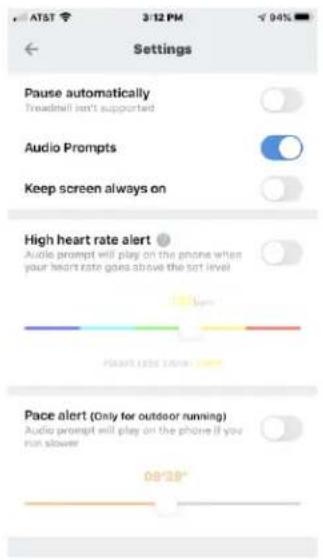
text_image
AT&T 3/12 PM Settings Pause automatically Treadmill isn't supported Audio Prompts Keep screen always on High heart rate alert Audio prompt will play on the phone when your heart rate goes above the set level Pace alert (Only for outdoor running) Audio prompt will play on the phone if you run slower 09:30"text_image
AT&T 3:12 PM Morning Outdoor Run Map Details HR Zon... Laps Charts Metropolitan 5 06/04 06:22 AM 84 96 67 104 Southford Falls State Park dMaps Local 10.33 mi 01:31:05 8:47 1084 Time Pace Calories Slowest: 39.60 Fastest: 4.19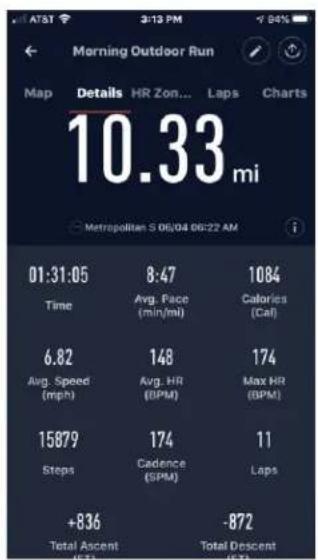
text_image
01:31:05 Time 6.82 Avg. Speed (mph) 15879 Steps +836 Total Ascent (UTC) 8:47 Avg. Face (min/ml) 148 Avg. HR (BPM) 174 Cadence (SPM) 1084 Calories (Cal) 174 Max HR (BPM) 11 Laps -872 Total Descent (UTC)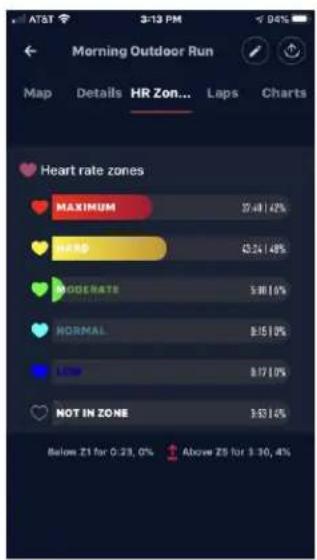
text_image
AT&T 3:13 PM Morning Outdoor Run Map Details HR Zon... Laps Charts Heart rate zones MAXIMUM 27.48 (42% SAPS 42.24 (48% MODERATE 5.80 (6) NORMAL $1510% LOW $1770% NOT IN ZONE $9314% Below Z1 for 0:23, 0% Above Z5 for $ 30, 4%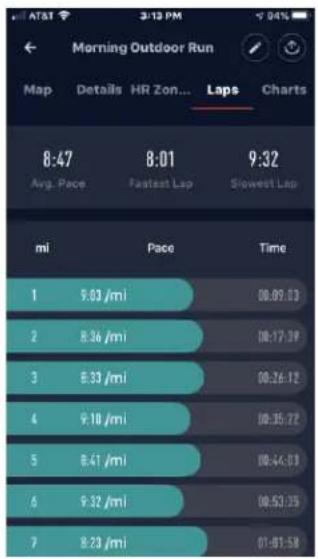
text_image
Morning Outdoor Run Map Details HR Zon... Laps Charts 8:47 8:01 9:32 Avg. Pace Fastest Lap Slowest Lap mi Pace Time 1 9:03 /mi 08:09:13 2 8:36 /mi 08:17:19 3 6:33 /mi 08:26:12 4 9:10 /mi 08:35:22 5 8:41 /mi 08:44:33 6 9:32 /mi 08:52:35 7 8:23 /mi 01:01:58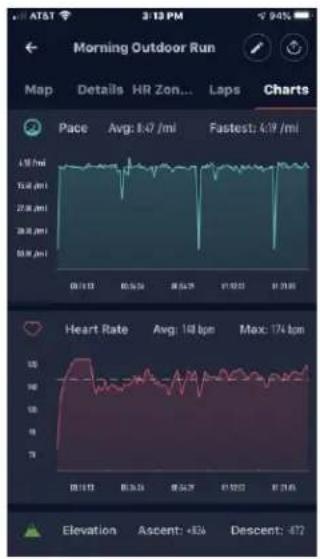
text_image
ATST 2:13 PM Morning Outdoor Run Map Details HR Zon... Laps Charts Pace Avg: 8.47 /mi Fastest: 6.19 /mi 10.00 /mi 15.00 /mi 20.00 /mi 25.00 /mi 30.00 /mi 35.00 /mi 40.00 /mi 45.00 /mi Elevation Ascent: +834 Descent: 472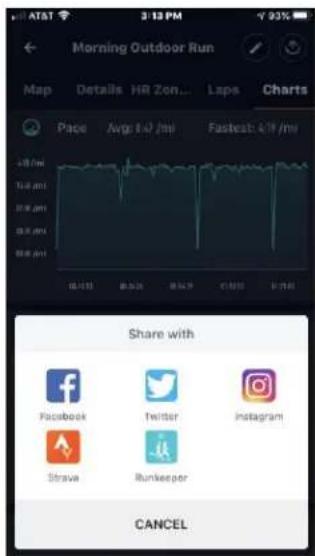
text_image
AT&T 3:12 PM Morning Outdoor Run Map Details HR Zon... Laps Charts Page Avg: 1.0 /mi Fastbest: 6/9 /mi Share with Facebook Twitter Instagram Strava Runkeeper CANCELComunidad
text_image
AT&T 2:36 PM Scott AVG STEPS 10,521 TOTAL MI 379 GOALS REACHED 31 MY DEVICES Scott's Metropolitan R Battery: 98% Scott's Metropolitan S Not activated Add device SETTINGS Activity Goals 10,000 steps > Today Workouts Community Profiletext_image
AT&T 2:36 PM ¥100% Scott AVG STEPS TOTAL MI GOALS REACHED 10,521 379 31 MY DEVICES Scott's Metropolitan R Battery: 98% Scott's Metropolitan S Not activated Add device SETTINGS Activity Goals 10,000 steps Today Workouts Community Profile TIMEX Scott's Metropolitan S Last sync: 2 hours ago Activate device Keep your device close to your phone Firmware version 0.0.3.1 Bluetooth address E14B:E53A:30:2D UNPAIR DEVICEnatural_image
Line drawing of a hand interacting with a wristwatch (no text or symbols present)GPS
text_image
Download the App and bind the watchtext_image
Accept pairing request?text_image
Updating...Réglages
text_image
55% May 3 MONtext_image
Status Heart Rate workouttext_image
D 95% May 3 MONLampe de poche
natural_image
Smartwatch with brown leather strap and white circular screen (no visible text or symbols)text_image
Auto brightness Atext_image
Turn on the battery saver, and the watch will only record steps and sleep time.text_image
Exit the battery saver modetext_image
Screen locked. Press the watch button to unlock.natural_image
Top-down view of a modern smartwatch with black bezel, brown leather strap, and digital clock face (no visible text or symbols)natural_image
Smartwatch with digital display showing 98 bpm light and red waveform, no readable text or symbols beyond brandingtext_image
80% Remaining 11 h Outdoor running Walkingtext_image
Activities 5.02 km 00:32:03 > 12/22 18:23 10.3 km 01:46:38 > 12/18 17:08text_image
Milano Partly Cloudy -6/10° AQI 56text_image
7:5PM Talking To The Moon Adele - Someone Like YouNotifications
text_image
Notifications Zhangli How is the weather today, I can't go out at night... Twitter Adequate sleep, proper rise, and a bolustext_image
Notifications Zhangli is the weather today, t go out at night... Twitter Adequate sleep, proper rise, and a balasAlarme
text_image
07:30 AM Press the watch button to turn off, ZPlus
text_image
Calibrate by walking 8/S shapetext_image
Count down 1 3 5 10 +text_image
Count down Time's up Have passed 00:23Trouver portable (Phone Finder)
text_image
Searchingnatural_image
Smartwatch with black and brown dual-lens, showing clock face and wrist (no visible text or symbols)text_image
Screen-on duration 5 seconds 6 secondsDémarrage Rapide
text_image
80% Remaining 11 h Outdoor running Walkingtext_image
Outdoor running GPS 72 GO GPS connection is better in open space.text_image
Pace diagram Avg: 6°36" Highest: 6°22" 7:20" 9:20" 9:30" 10:20" 8:30 9:30 10:30text_image
80% 10:50 12/26 WED AM Press & hold to pausetext_image
TIMEX Smart Thursday, June 04th 19,957 GOAL REACHED! 12:61 / 3:11 mi 21/17 / 3500 Cal Scott's Metropolitan R Battery: 99% No sleep data Today 2:21 PM Last workout Morning Walk Today 9:17 AM 1.98 mi 00:35:13 17:42 /mi 95 bpm Today Workouts Community Profile 19,957 Morning Walk Today 9:17 AM 00:35:13 17:42 /mi 95 bpm Heart rate Today 12:50 PM 93 bpm Streaks Keep it going! 4 days. Today Workouts Community Profiletext_image
Steps Today 16,612 Steps GOAL REACHED! Able of 80% of users Distance 9.52 ml You saved 9.44 golons of gas Calories Burned You Burned 7.48 covers of hot Today's Activity 0:23 AM 7:03 AM Run 11:30 pm 15,849 min... 8:26 pm Show walking 0:08 AM 8:25 AM 14 pm 352 stops 0:13 mintext_image
Last night's sleep 2:33 97 points Sleep better than 90% of users 9.27 hrs A 45 hrs 7.10 hrs 1.36 m 5.34 m 3 min Sleep sleep 22% LAV sleep 78% Time walk Sleep regularly Compared with the average sleep time to last 7 min Felt asleep 26 m late Wake up 18 m early Helping Helptext_image
ALL WORKOUTS 188.48 MI 34 Activities VIEW ALL June 4 Morning Walk 1.98 mi 00:35:13 17:42/mi 09:17am Morning Outdoor Run 10.33 mi 01:31:05 8:48/mi 06:22am June 3 Morning Walk 2.1 mi 00:36:33 17:23/mi 11:02am Today Workouts Community ProfileEnregistrements
text_image
TIMEX RE...RDS ALL RECORDS Running Best KM FEB 19, 2020 3:39 Best MI FEB 19, 2020 5:29 Best 5K FEB 19, 2020 21:46 Best 10K FEB 19, 2020 46:22 Best Half Marathon MAY 17, 2020 1:51:41 Best Marathon MAY 17, 2020 3:49:25 Farthest Run MAY 17, 2020 26.42 MItext_image
TIMEX WORKOUT MODE Use the app to record a workout. Outdoor Run Bike Treadmill Walk TIP: Use your watch for Heart Rate monitoring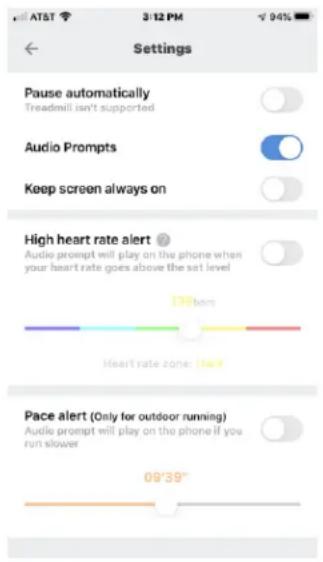
text_image
AT&T 3/12 PM 94% Settings Pause automatically Treadmill isn't supported Audio Prompts Keep screen always on High heart rate alert Audio prompt will play on the phone when your heart rate goes above the set level 130 bps Heart rate zone: 1 ms Pace alert (Only for outdoor running) Audio prompt will play on the phone if you run slower 09°39"text_image
AT&T 3:13 PM Morning Outdoor Run Map Details HR Zon... Laps Charts Heart rate zones MAXIMUM 27.48/4% HARD 62.54/4% MODERATE 5.80/6% NORMAL 8.15/9% LOW 8.17/8% NOT IN ZONE 3.52/6% Below Z1 for 0-23, 0% Above Z5 for 3-30, 4%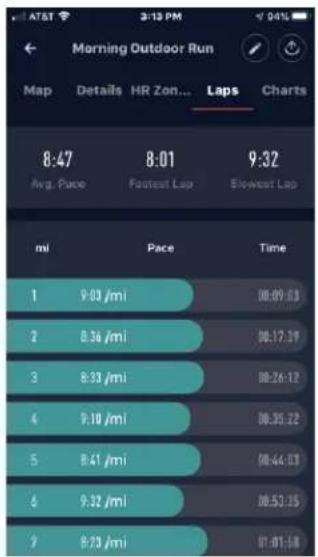
text_image
AT&T 3:13 PM Morning Outdoor Run Map Details HR Zon... Laps Charts 8:47 8:01 9:32 Avg. Pace Fastest Lap Blowest Lap mi Pace Time 1 9:03 /mi 08:09:53 2 8:36 /mi 08:17:19 3 8:33 /mi 08:26:12 4 9:10 /mi 08:35:22 5 8:41 /mi 08:44:03 6 9:32 /mi 08:53:15 7 9:29 /mi 01:01:58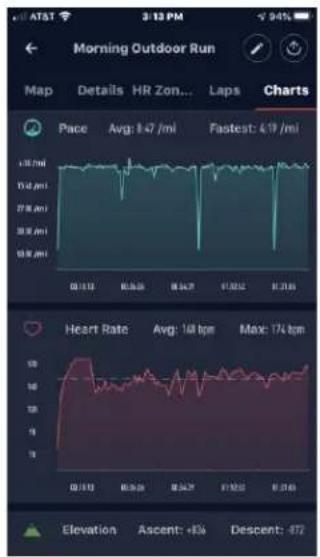
text_image
AT&T 3:13 PM Morning Outdoor Run Map Details HR Zon... Laps Charts Pace Avg: 1.47 /ml Fastest: 4.19 /ml Heart Rate Avg: 14 lpm Max: 174 lpm Elevation Ascent: +8% Descent: -472