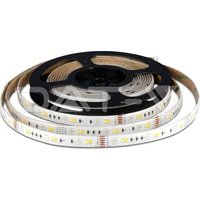
VT-5050 - Lamp V-TAC - Free user manual and instructions
Find the device manual for free VT-5050 V-TAC in PDF.


| Product Type | Smart LED Light Strip |
| Brand | V-TAC |
| Model | VT-5050 |
| Power Supply | 12V DC via mains adapter (100-240V AC) |
| Length | Up to 7 meters (cuttable at marks) |
| Control | WiFi via V-TAC Smart Light app, RF remote control, voice control (Alexa, Google Home) |
| Color Temperature | 3000K to 6400K (adjustable) |
| Brightness | Variable (dimmable) |
| Scene Modes | Multiple presets (via app/remote) |
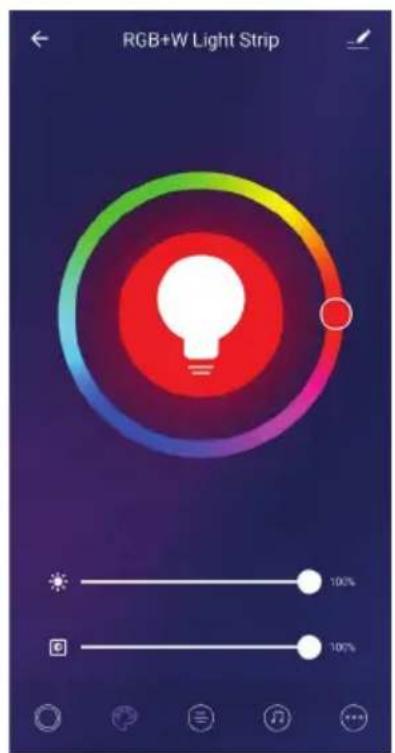
| Memory Function | Yes (last setting retained) |
| Compatibility | iOS and Android (app), Amazon Alexa, Google Home |
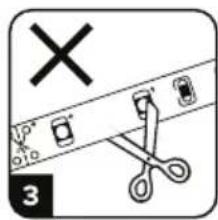
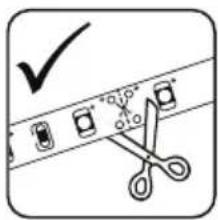
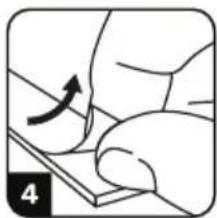
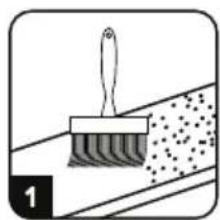
| Installation | Clean, dry surface, do not bend, cut only at marks |
| Environment | Indoor only, avoid moisture |
| Maintenance | Clean with a soft dry cloth, do not use chemicals |
| Light Source | Non-replaceable integrated LED (replace entire strip) |
| Warranty | 2 years (manufacturing defects) |
| Safety | Installation by certified electrician, cut power before intervention |
| Certifications | CE, RoHS compliant (not specified but implied) |
Frequently Asked Questions - VT-5050 V-TAC
User questions about VT-5050 V-TAC
0 question about this device. Answer the ones you know or ask your own.
Ask a new question about this device
Download the instructions for your Lamp in PDF format for free! Find your manual VT-5050 - V-TAC and take your electronic device back in hand. On this page are published all the documents necessary for the use of your device. VT-5050 by V-TAC.
USER MANUAL VT-5050 V-TAC



INTRODUCTION & WARRANTY

Thank you for selecting and buying V-TAC SMART LED Lighting. V-TAC will serve you the best. Please read these instructions carefully before starting the installation and keep this manual handy for future reference. If you have any other query, please contact our dealer or local vendor from whom you have purchased the product. They are trained and ready to serve you at the best. The warranty is valid for 2 years from the date of purchase. The warranty does not apply to damage caused by incorrect installation or abnormal wear and tear. The company gives no warranty against damage to any surface due to incorrect removal and installation of the product. The products are suitable for 10-12 Hours Daily operation. Usage of product for 24 Hours a day would void the warranty. This product is warranted for manufacturing defects only.
(FR) INTRODUCTION & GARANTIE
(PL) WSTEP I GWARANCJAD
(RO) INTRODUCERE, GARANTIA
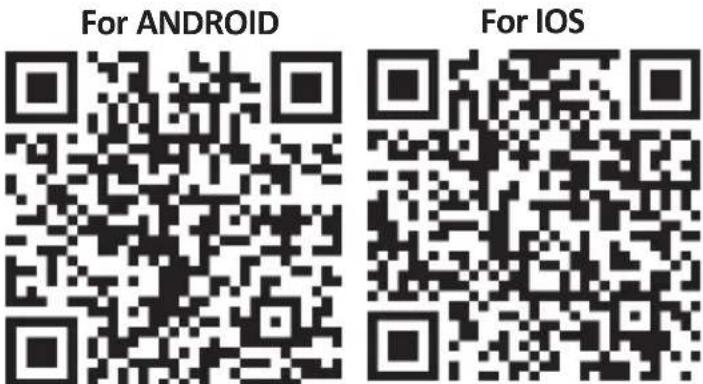
Please scan the QR code to access the manual in multiple languages.

SAFETY WARNING
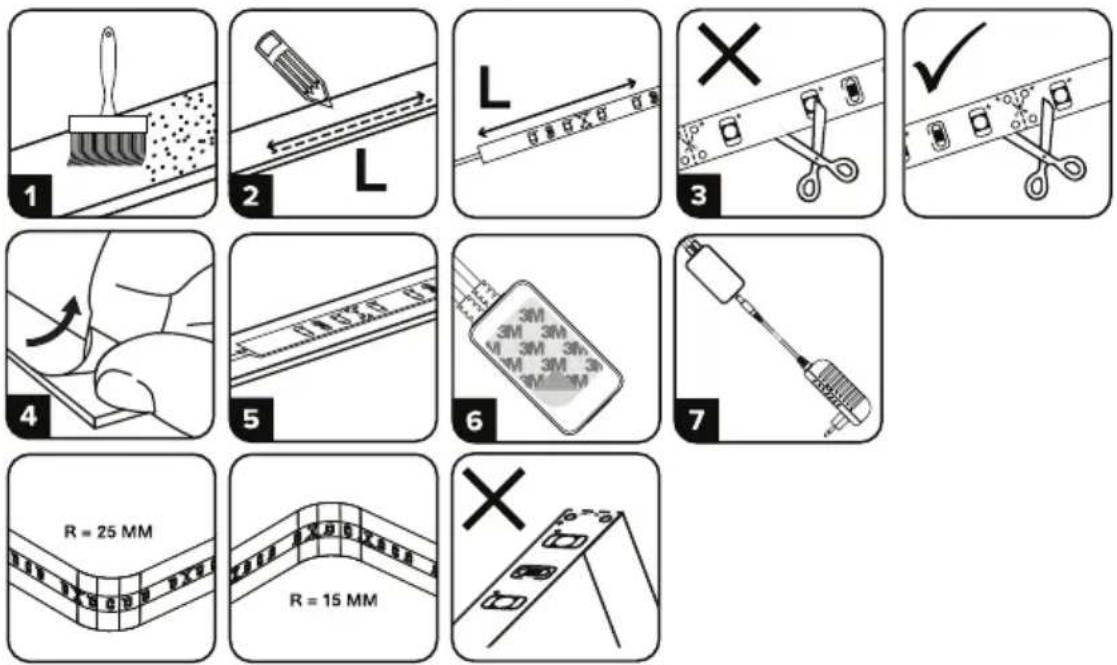
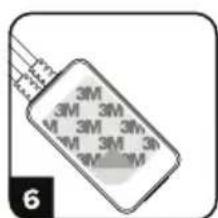
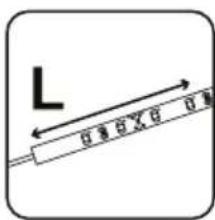
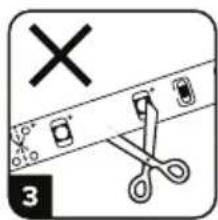
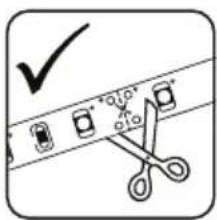
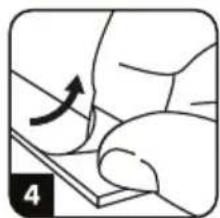
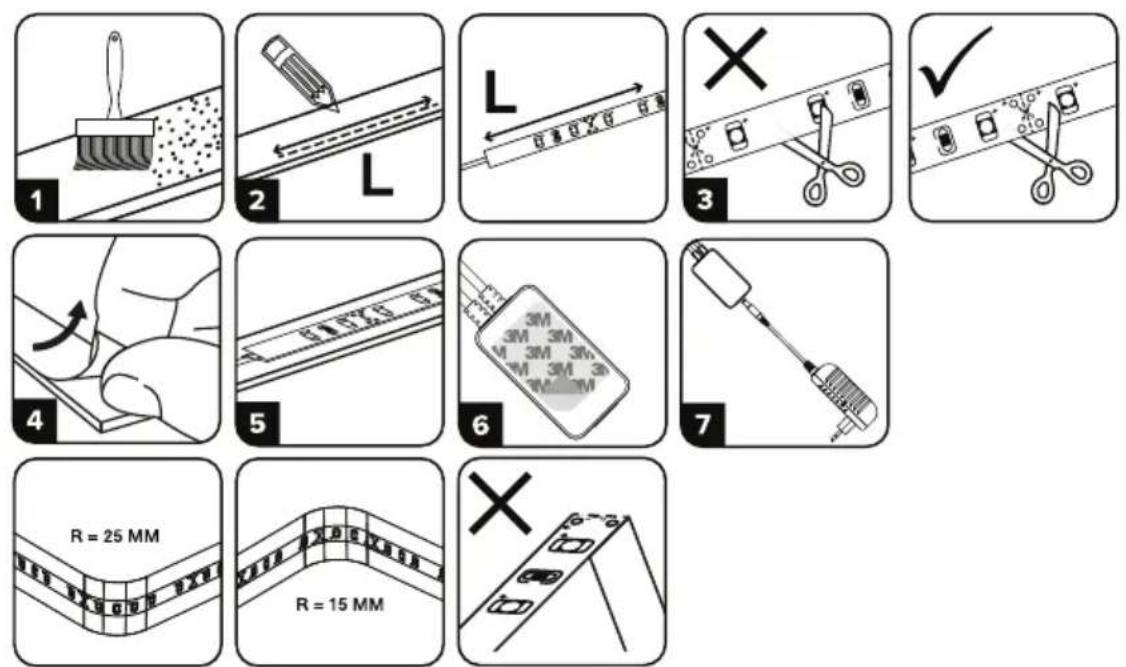
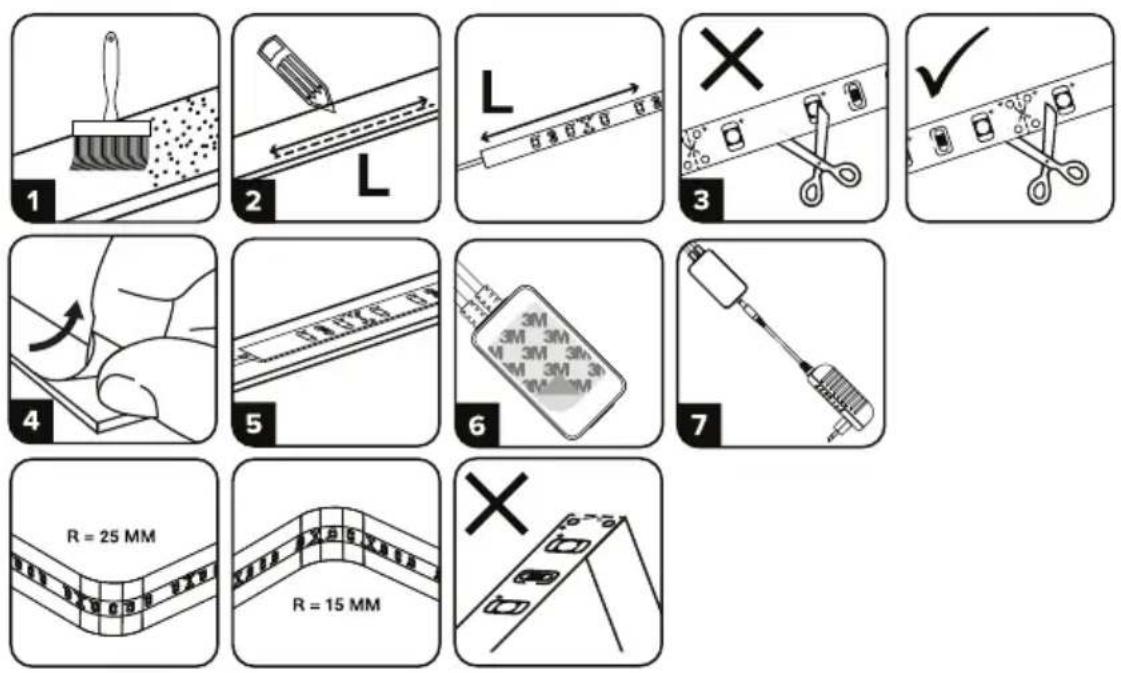
- Please cut the LED Smart Striplight according to the cutting as shown in the instructions. Cutting outside the marking will damage the product. Please cut only on the dotted/scissor marking on the LED Smart Strip light
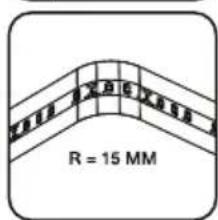
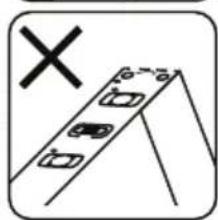
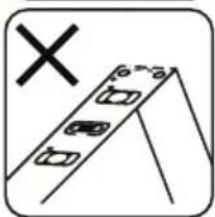
- LED Smart Strip Light cannot be folded, bent or twisted during the installation. Please install in a straight direction. DO NOT turn on power until LED light is connected properly and well-installed.
- DO NOT touch/cut the LED Smart Striplight when power is on.
- DO NOT power the LED Smart Striplight in roll/package.
- DO NOT install in a flammable environment, and make sure the light is well ventilated.
- DO NOT wrap or cover LED Smart Striplight with any objects. NOT suitable for outdoor use
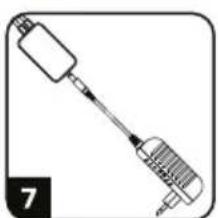
- DO NOT directly connect LED Smart Light to AC power. Special power plug is needed(*power plug included)
- LED Smart Strip Light are limited to indoor use and are not advisable for use in humid environment
- LED Smart Strip Light cannot be installed on the surface of ordinary combustible materials. Increase in temperature is normal for LED Smart Strip Lights.
- Do not exert external force or throw on the LED Smart Strip Light.
- LED Smart Strip Light should be stored in cool/dry place. Always make sure the environment is clean before installing the LED Smart Strip Light.
- Do not discard the light with regular trash. LED Smart Strip Light are made with electronic components and should be properly disposed at designated locations with unified treatment like traditional electronic equipment.
- Please make sure to turn off the power before starting the installation.
- The light source of this luminaire is not replaceable, when the light source reaches its end of life the whole luminaire should be replaced.
- Installation must be performed by a qualified electrician.

This marking indicates that this product should not be disposed of with other household wastes.
Caution, risk of electric shock.
IMPORTANT INSTRUCTIONS & FUNCTIONS
HOW TO CONNECT CONTROLLER WITH STRIPLIGHT
- Remote control and Wifi controller function only can be used after setting with the application is complete
- Please turn off the power before starting the installation.
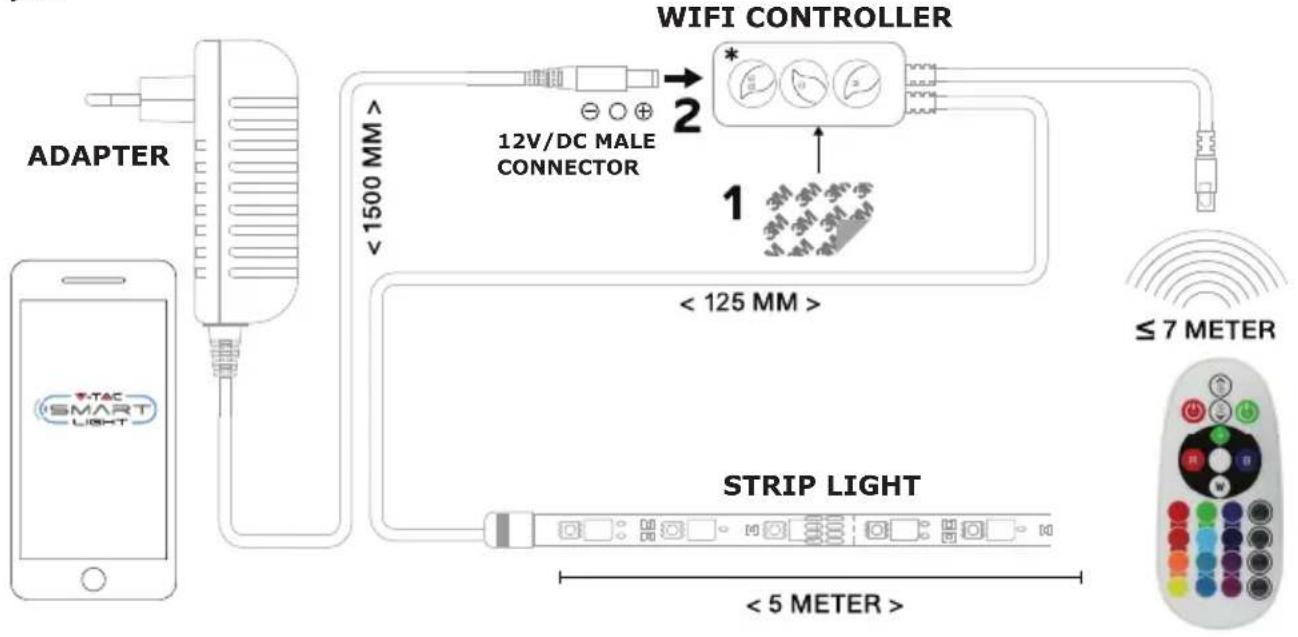
- When connecting the Wifi Controller to the striplight please ensure to connect the arrow marking side of the controller to the striplight displaying 12V. Please refer to the image below. For further installation steps please refer to the instruction manual section "INSTALLATION".

WIFI CONTROLLER FUNCTIONS
- IMPORTANT NOTE: Wifi controller functions can only be used after successfully pairing the striplight with V-TAC Smart Light APP.
- The Wifi controller allows alternative method of enabling the controller into pairing mode for connecting with the APP. Press and hold the ON/OFF button for 7 seconds and wait for 3-5 seconds till you observe the light flashing. If the light flashes rapidly, the controller is in Smart pairing mode OR if the light flashes slowly the controller is in AP pairing mode. To switch the pairing mode from the Smart mode to AP mode or vice versa please press and hold the ON/OFF button on the controller for 7 seconds.
Please refer to "APP INSTALLATION" instructions from the manual for further pairing process.
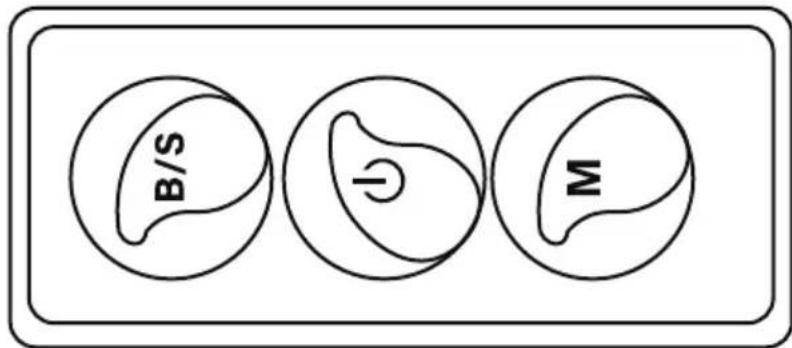

Brightness Adjustable Tap to increase/ decrease the brightness
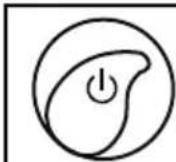
- ON/OFF
- Enable pairing mode (Alternative method)

Scene Mode(Tap to switch between different scene modes).
REMOTE CONTROL FUNCTIONS
IMPORTANT NOTE:
- Remote control functions can only be used after successfully pairing the striplight with V-TAC Smart Light APP.
- Once the pairing has been successful you can use the remote control even when your phone is powered off OR if the app has been deleted by mistake OR if the wifi has been disabled / switched off / restarting.
- “CT+” and “CT-”: These buttons allow you to step by step switch from 3000K to 6400K. Tap on CT+ until you reach 6400K output and tap on CT- until you reach 3000K. This features allows you to set desired color temperature ranging from 3000K to 6400K. Thus allowing you to set 4000K temperature as well.
- Memory function: It ensures the last used color/brightness/mode is used after you switch OFF and ON the light.
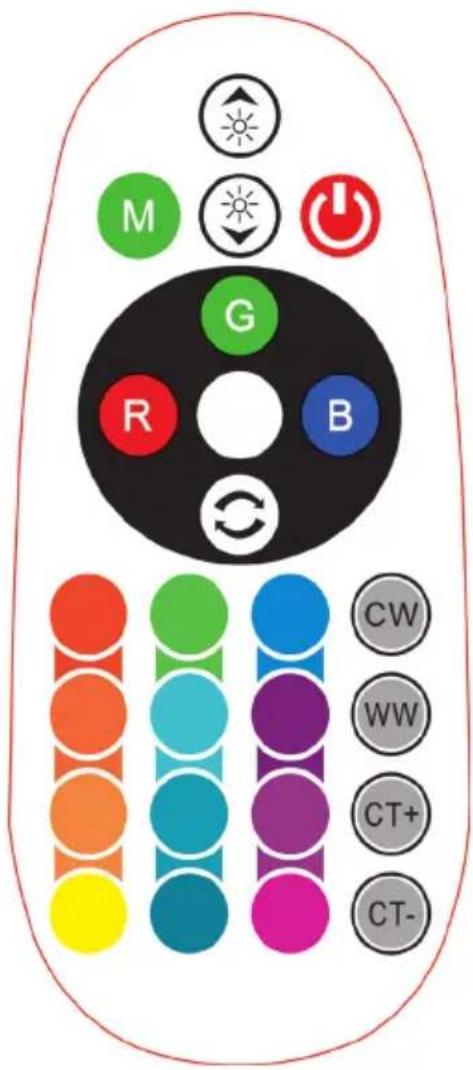
| Remote Control Functions | |||
 | ON/OFF |  | Red |
 | Increase Brightness |  | Blue |
 | Decrease Brightness |  | Green |
 | Switch Scene Modes |  | Cool White |
 | Step by Step switch from 3000K(CT-) - 6400K(CT+) |  | Warm White |
 |  | Return Key | |
 | Multiple Color options | ||
INSTALLATION
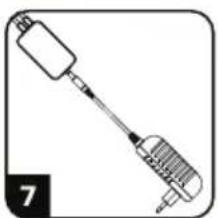
Step 1: Connect the adaptor, controller and strip light as per below diagram.
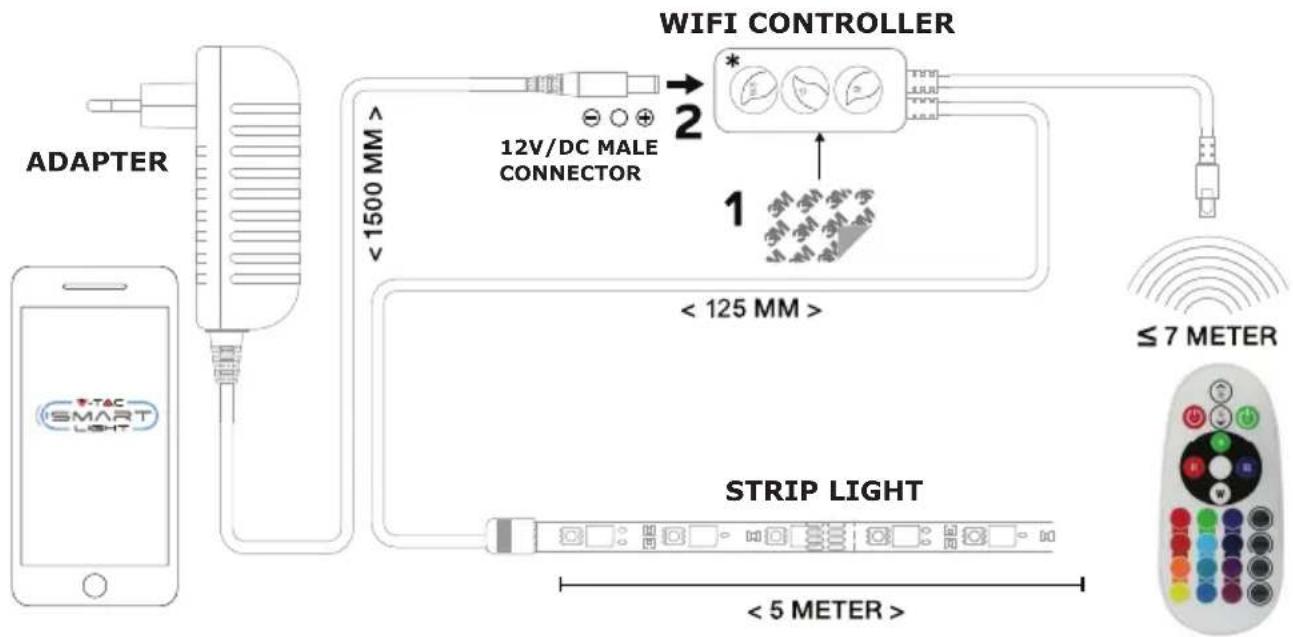
flowchart
graph TD
    A["ADAPTER"] --> B["12V/DC MALE CONNECTOR"]
    B --> C["WIFI CONTROLLER"]
    C --> D["3M 3M 3M 3M 3M"]
    C --> E["125 MM"]
    C --> F["3M 3M 3M 3M 3M"]
    C --> G["≤7 METER"]
    H["Smart Light"] --> I["Strip Light"]
    I --> J["≤5 METER"]
    style A fill:#f9f,stroke:#333
    style H fill:#ccf,stroke:#333
    style I fill:#cfc,stroke:#333
    style J fill:#fcc,stroke:#333
APP INSTALLATION
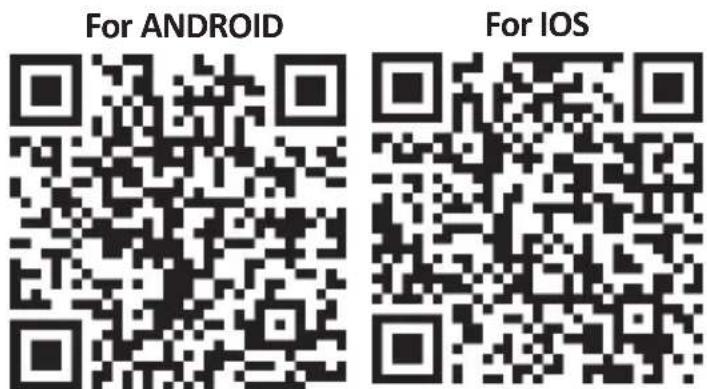
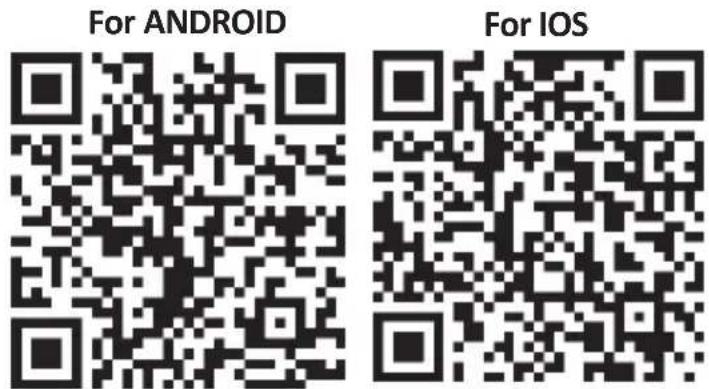
Step 2: Scan the given QR code, or download "V-TAC Smart Light" from the App Store (iOS) or the Google Play Store (Android).
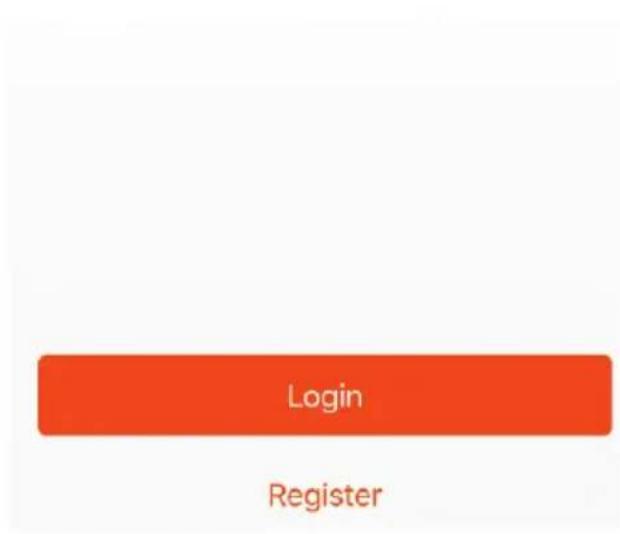
Step 3: Open the V-TAC Smart Light app and tap on register for creating a new account.
V-TAC Smart Light
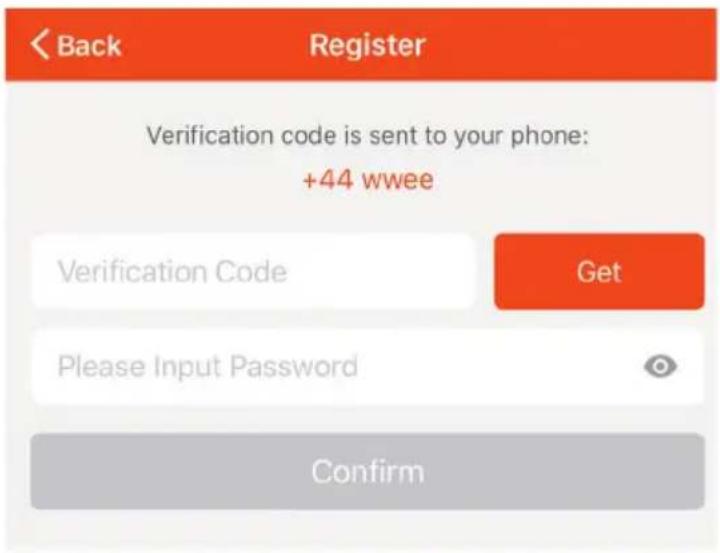
Step 5: Enter the verification code which will be sent to your mobile number/email id, then assign a new password to your account and tap on "Confirm".
Step 4:
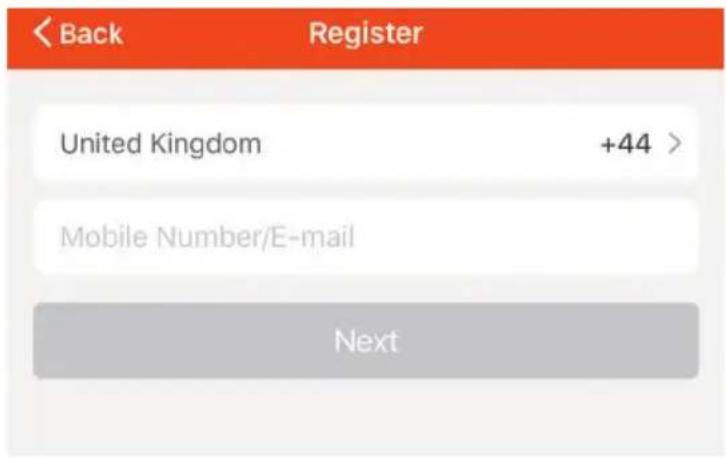
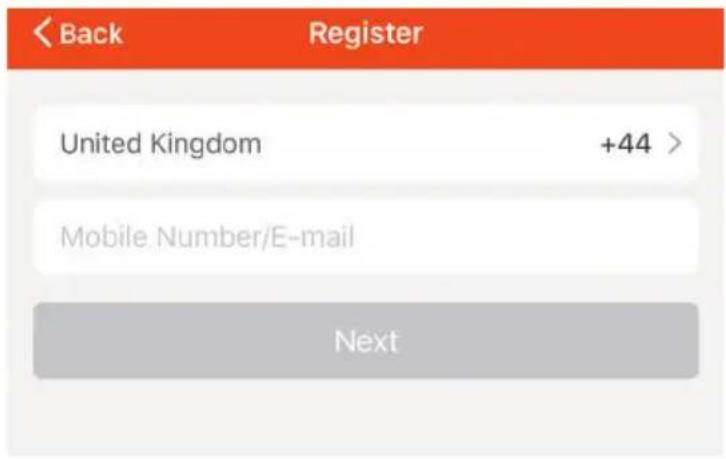
A) Mobile Number: Select the country, then enter your mobile number. Once done, tap 'Next'.
B) E-Mail: Enter your email id and tap on 'Next'.
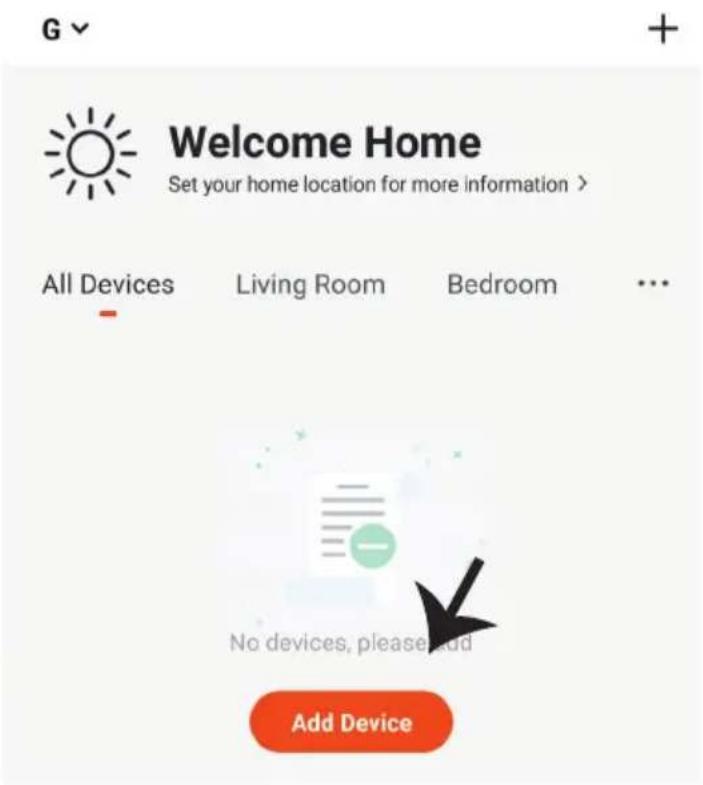
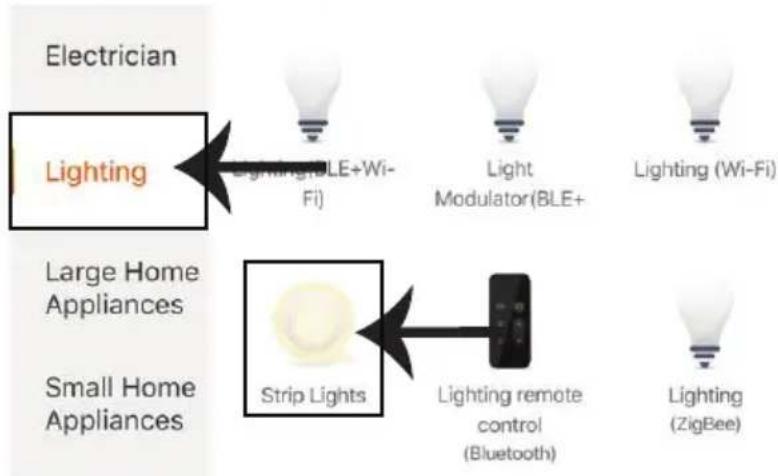
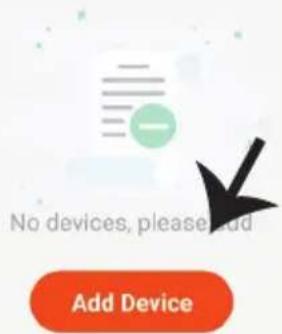
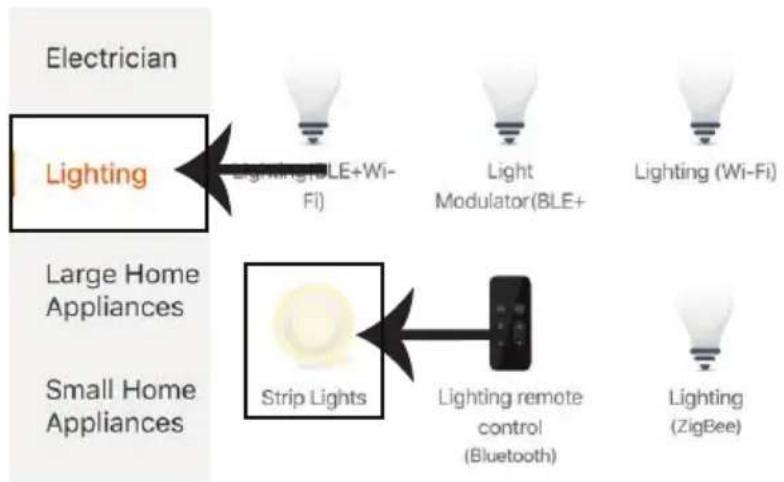
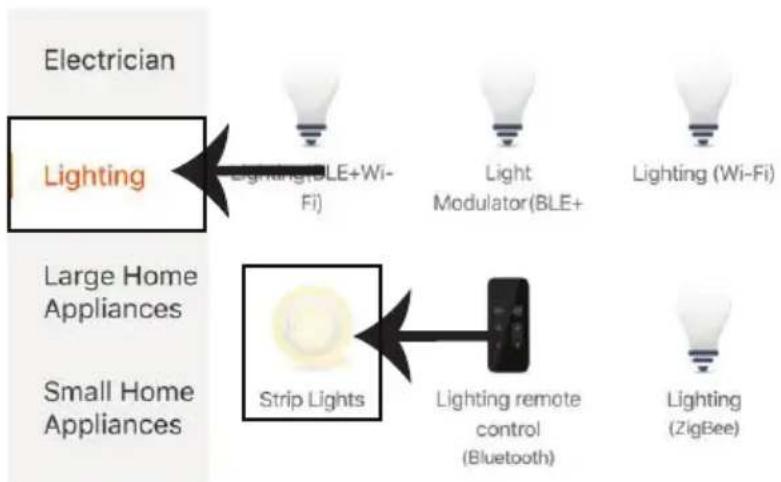
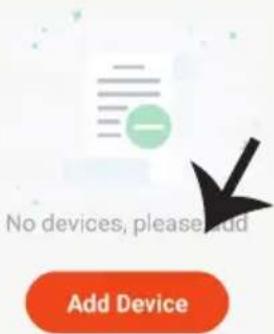
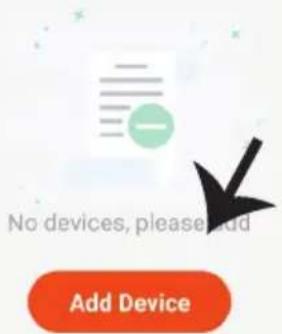
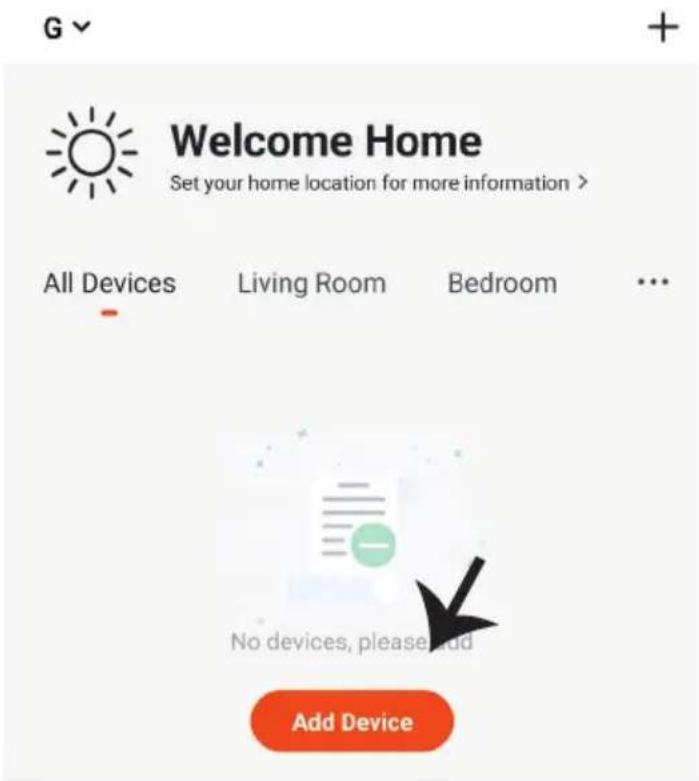
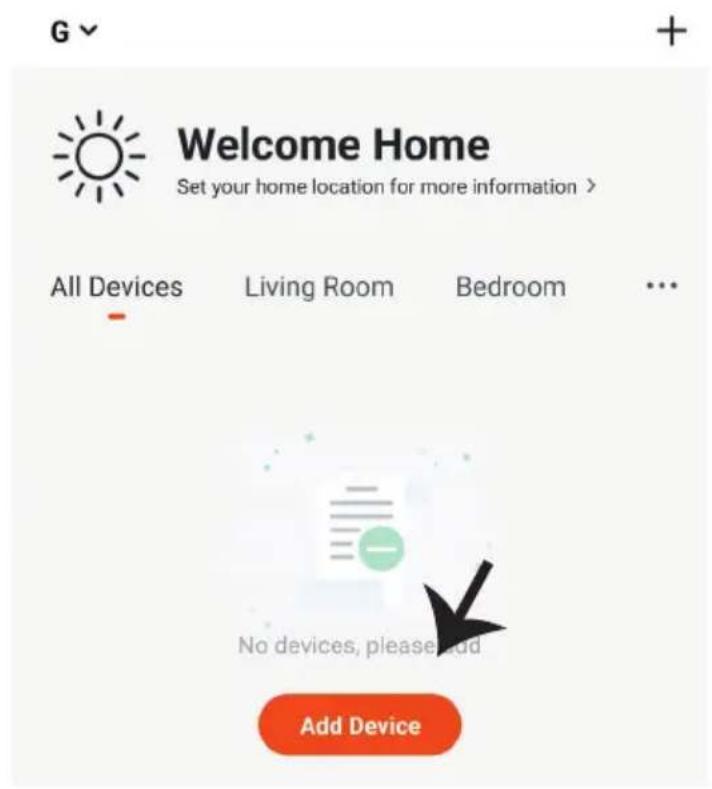
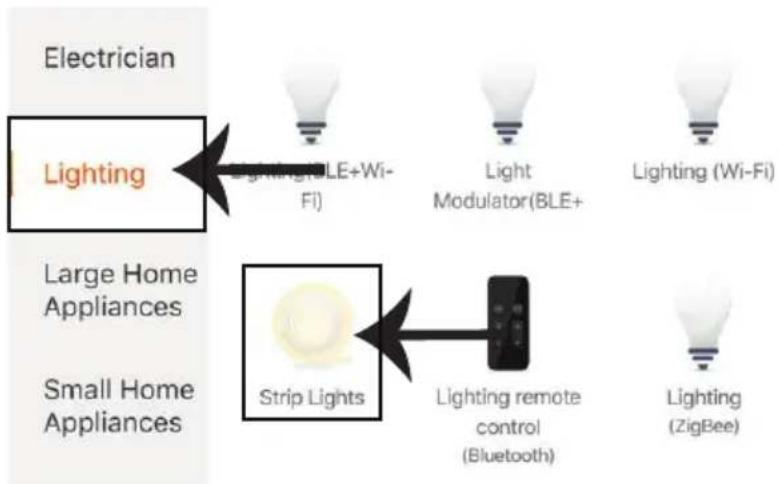
Step 6: Tap on 'Add Device' or the + sign. Make sure the lamp is switched on.
flowchart
graph TD
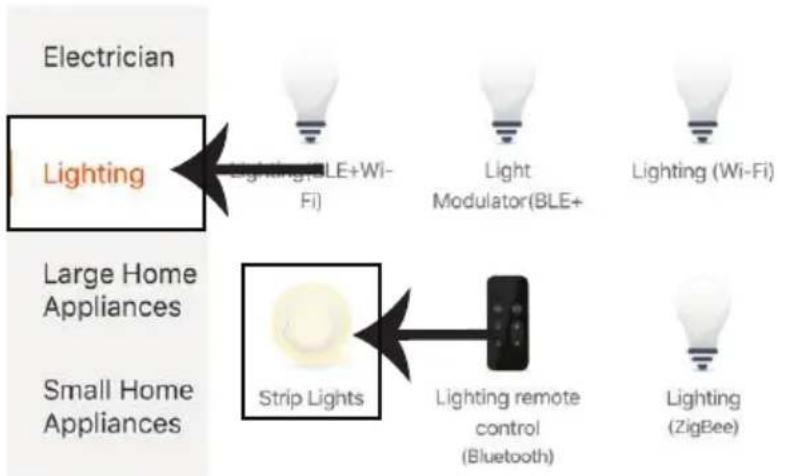
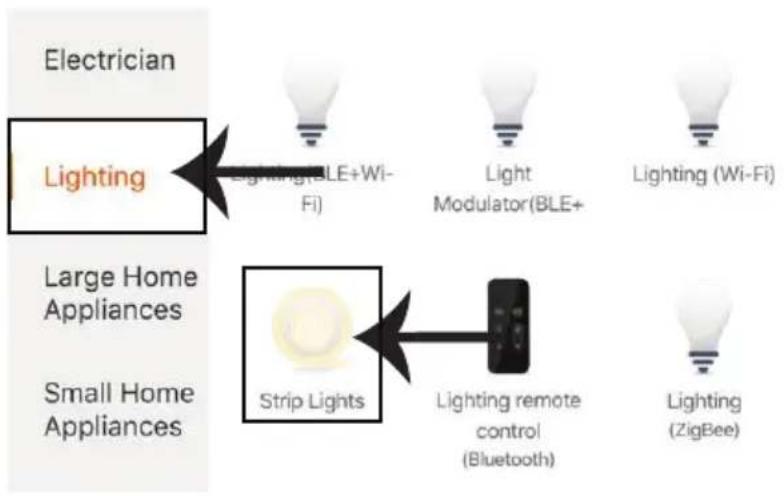
    A["Electrician"] --> B["Lighting"]
    B --> C["Lighting+BLE+Wi-Fi"]
    B --> D["Light Modulator(BLE+)"]
    B --> E["Lighting (Wi-Fi)"]
    F["Large Home Appliances"] --> G["Strip Lights"]
    G --> H["Lighting remote control (Bluetooth)"]
    G --> I["Lighting (ZigBee)"]
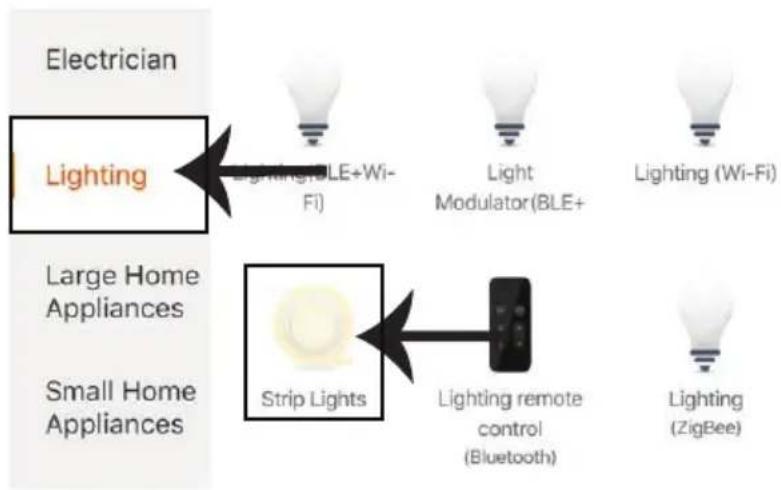
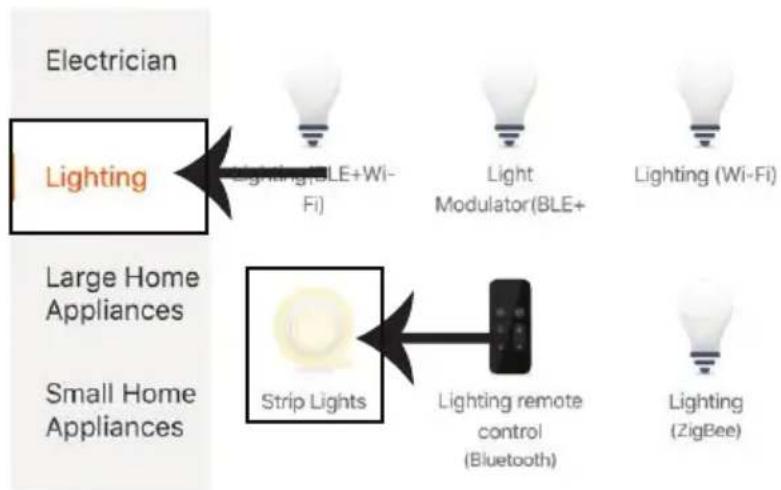
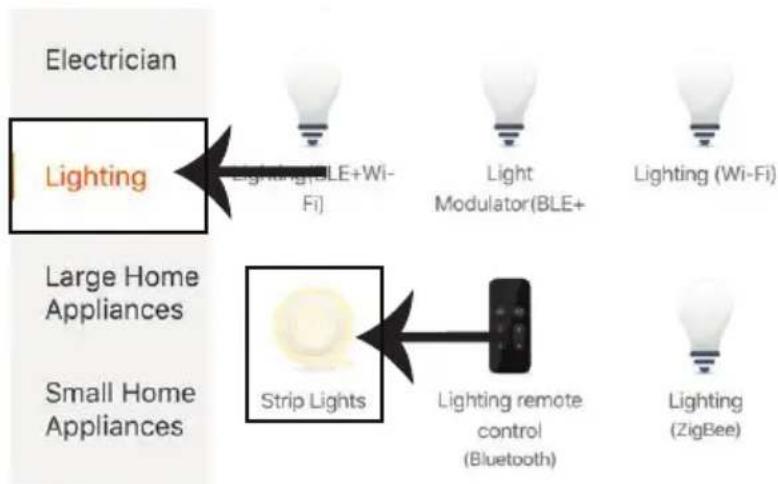
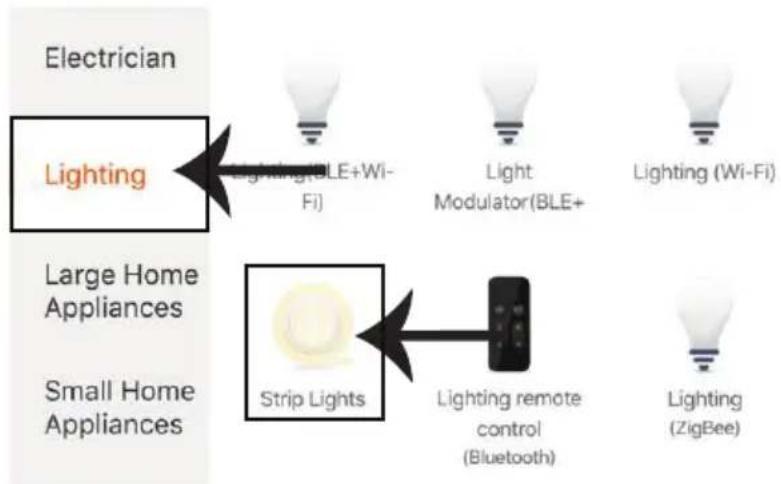
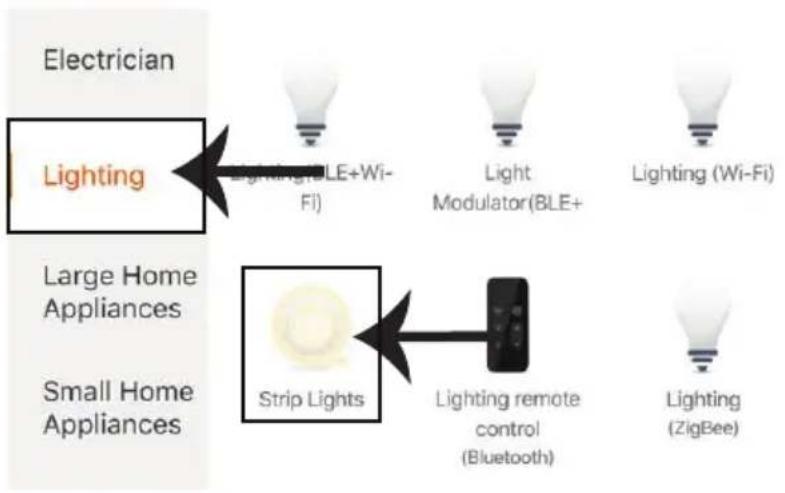
Step 7: Choose 'Lighting' to start pairing the light to the app.
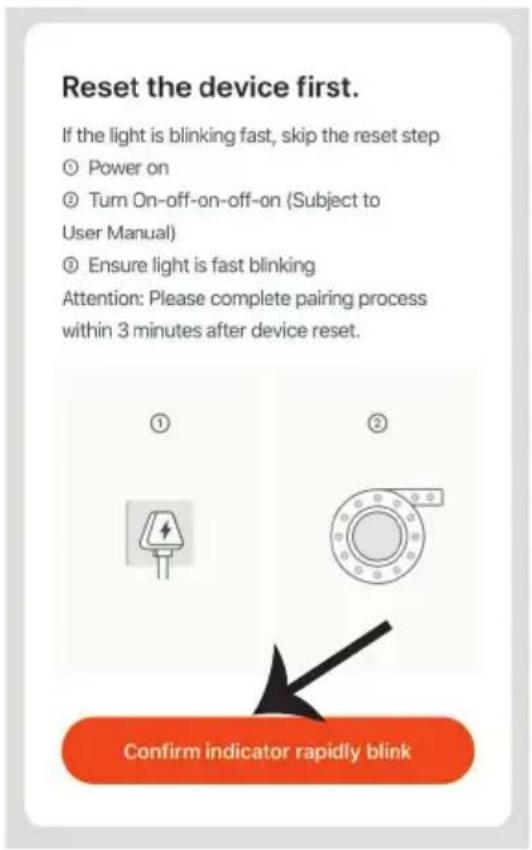
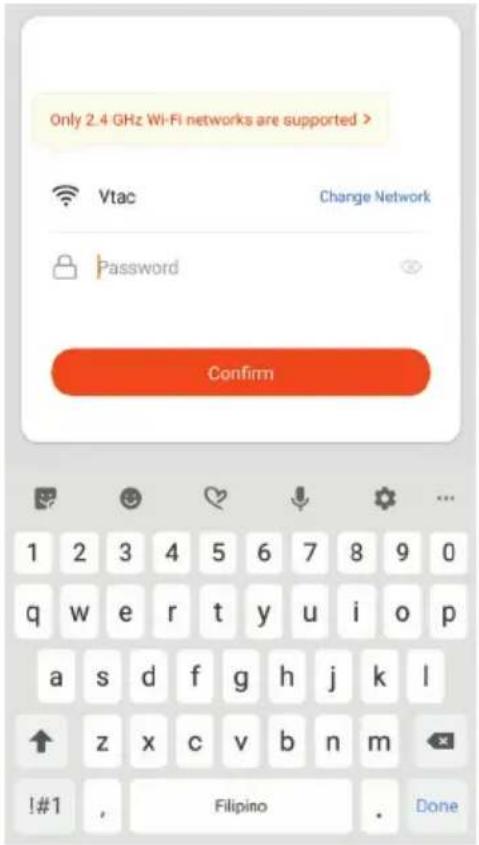
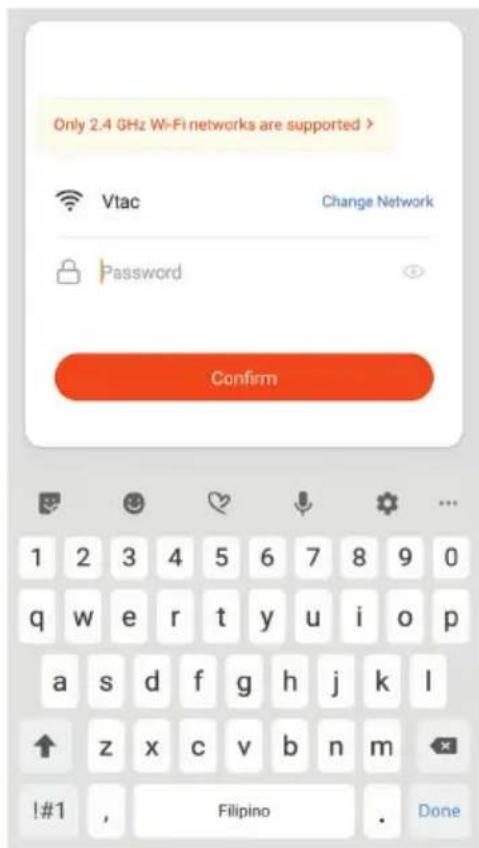
Step 8: To pair the device with LED Smart Strip Light make sure the light is blinks rapidly. Once the light blinks rapidly, the light is in pairing mode. If the light is not blinking rapidly, you can do one of the following steps:
A. Switch the light on & off repeatedly for 3 times, with short intervals of less than 2 seconds.
B. Tap the 'How to make light blink rapidly' link (as shown on the image to the right)
C. You can also enable pairing mode from the Wi-Fi controller. Press and hold the ON/OFF button for 5-7 seconds and wait till you observe the light flashing. Please refer to the instruction section "WI-FI CONTROLLER FUNCTIONS"
Network Modes:
1) Smart Mode: Light flashes rapidly.
2) AP mode: Slow flash, once every 2 seconds.
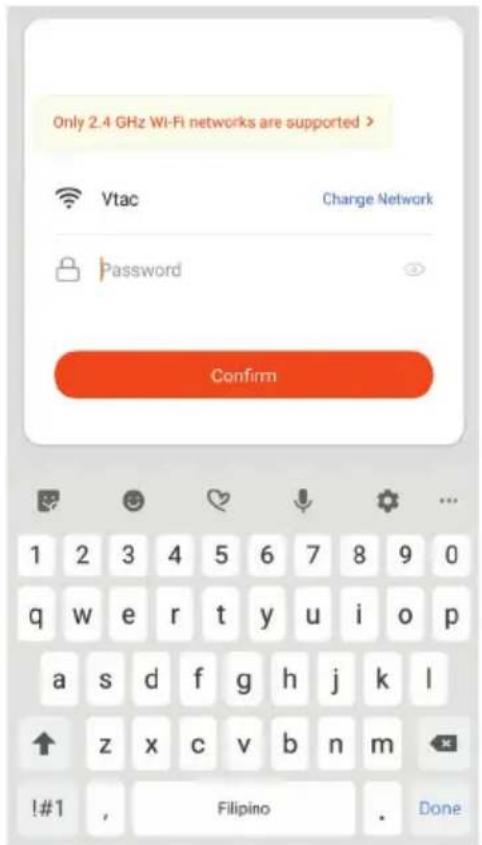
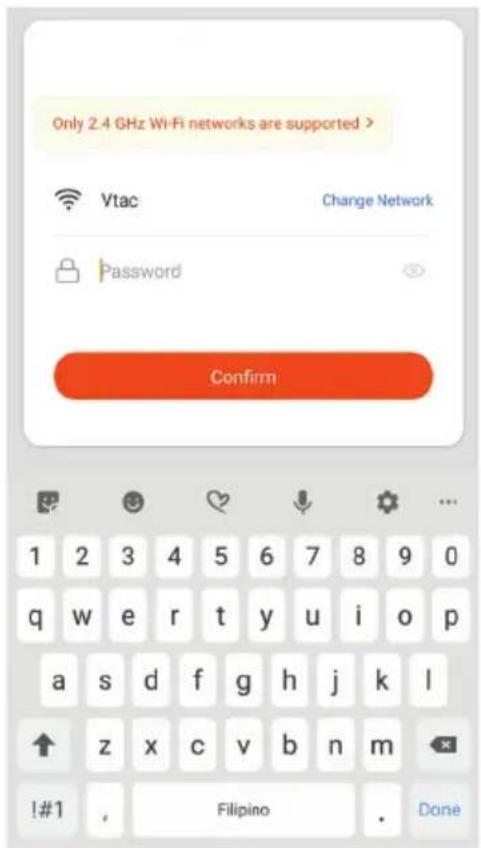
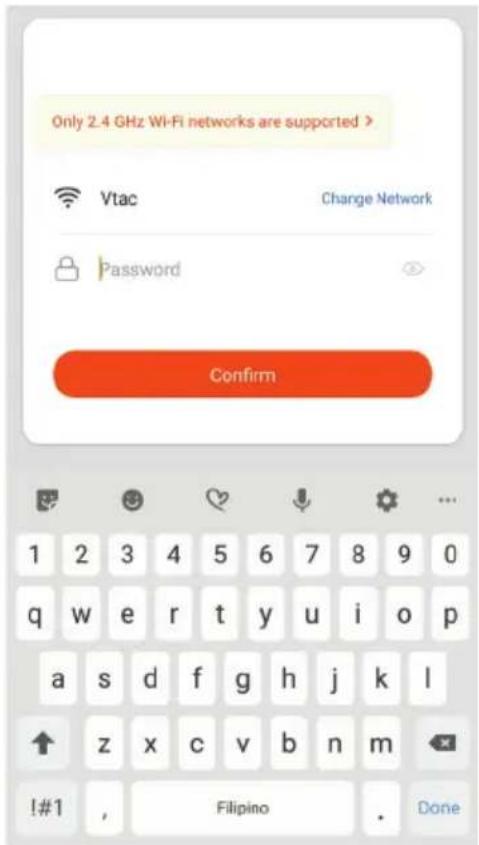
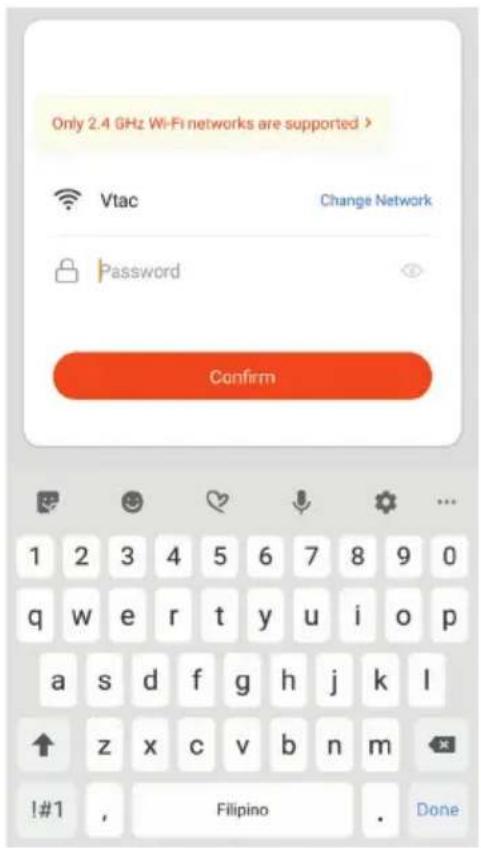
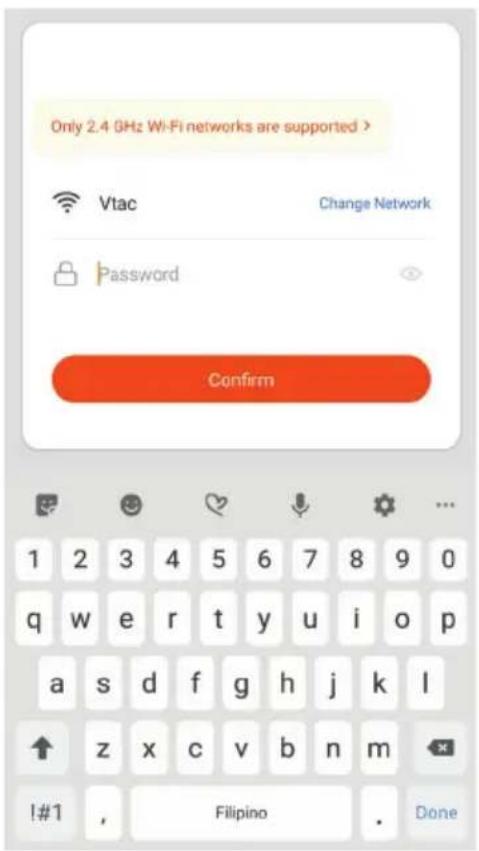
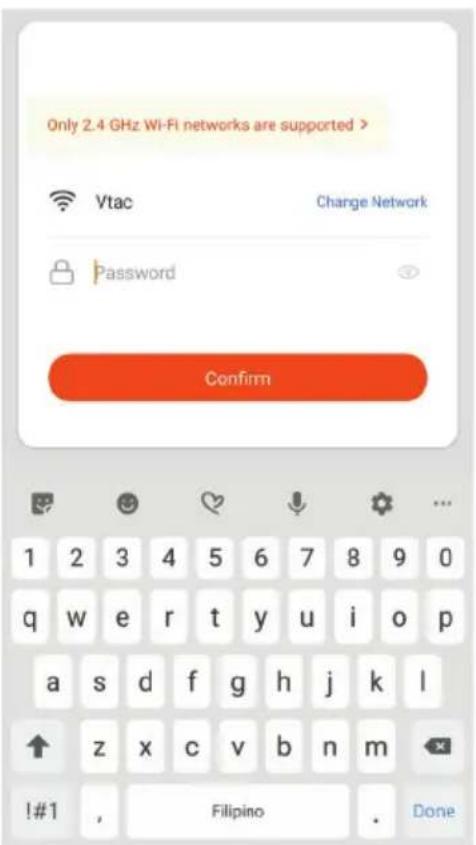
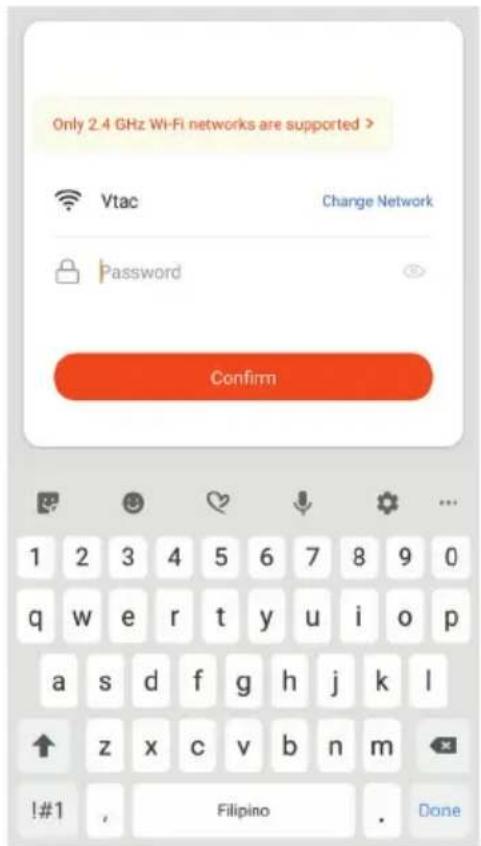
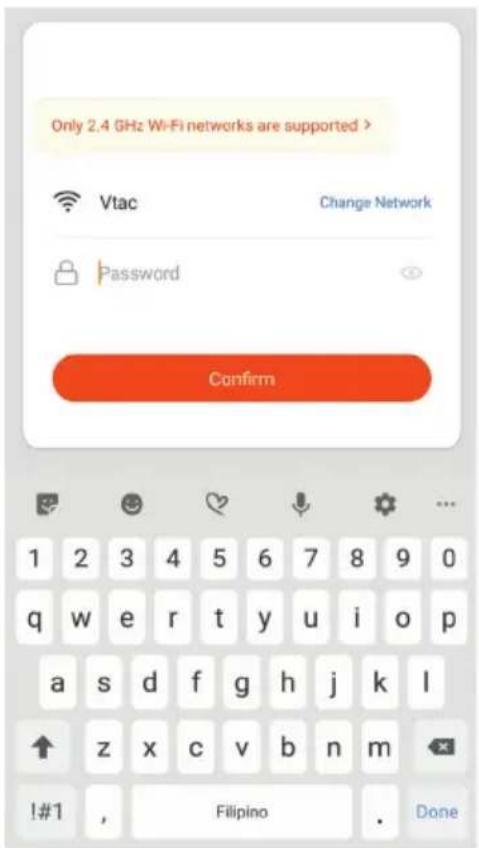
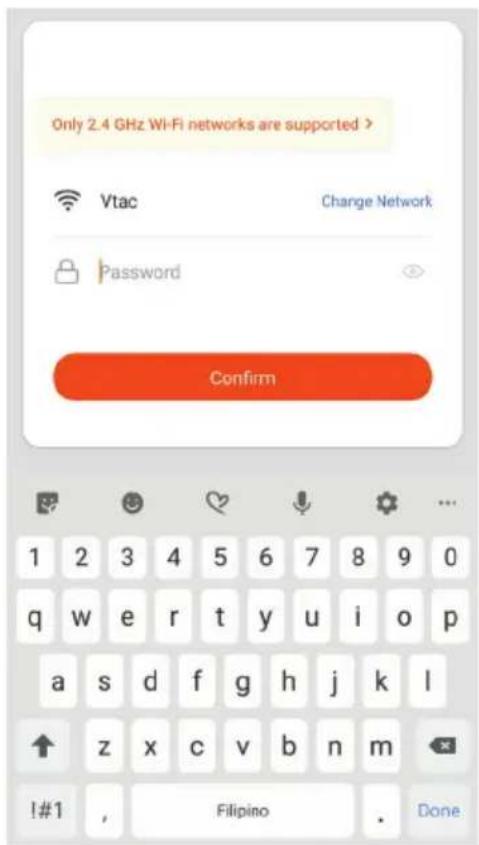
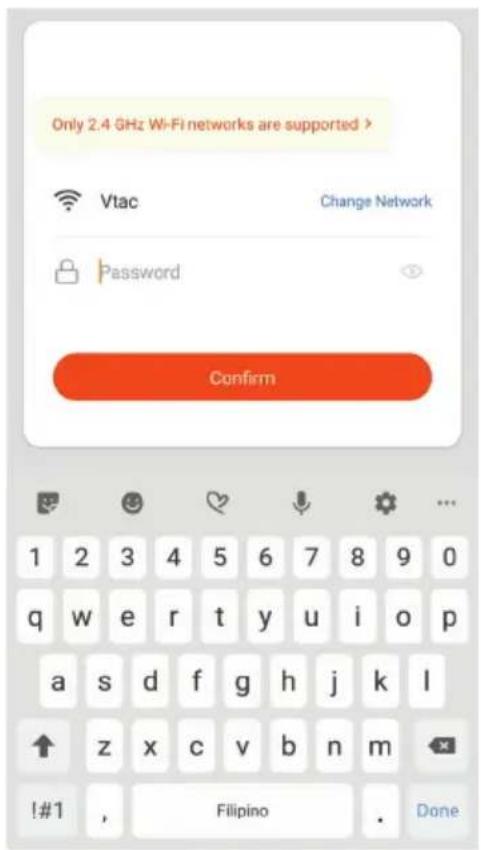
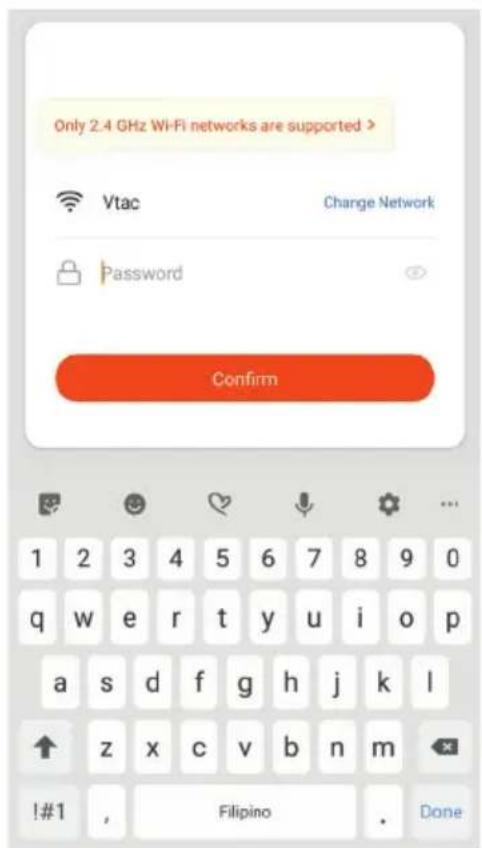
Confirm if the light blinks rapidly, select the Wi-Fi network, and enter the password.
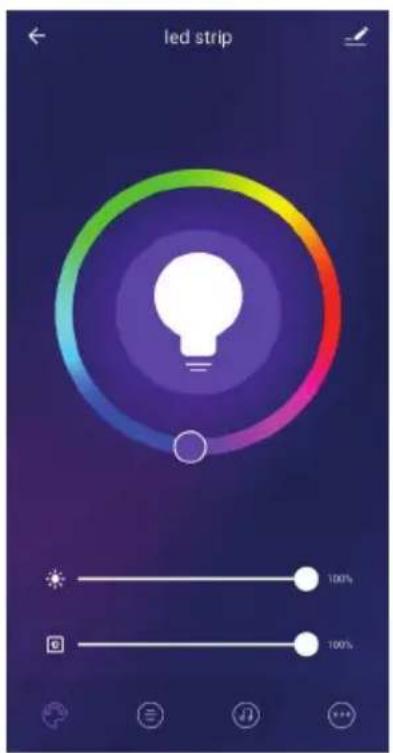
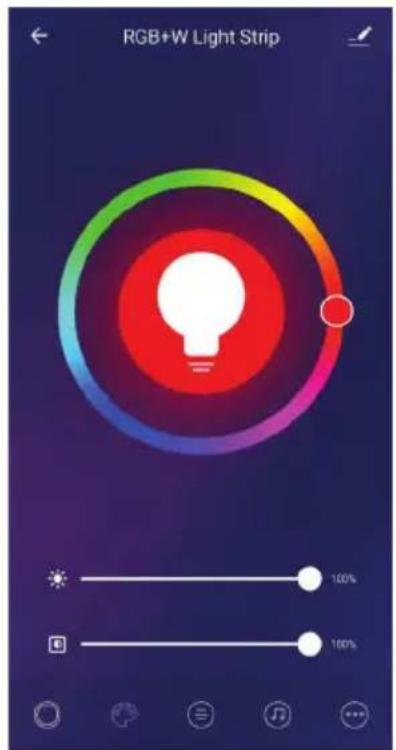
Step 9 Once you have successfully completed step 8, you will be redirected to below page, where the App searches, registers and initializes the device(lamp) (ref image below)
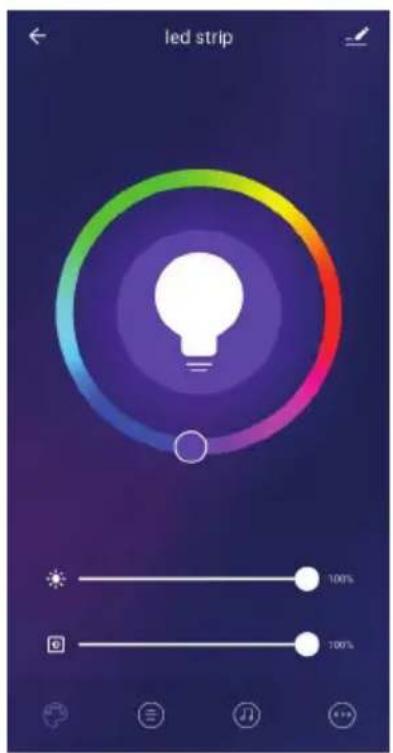
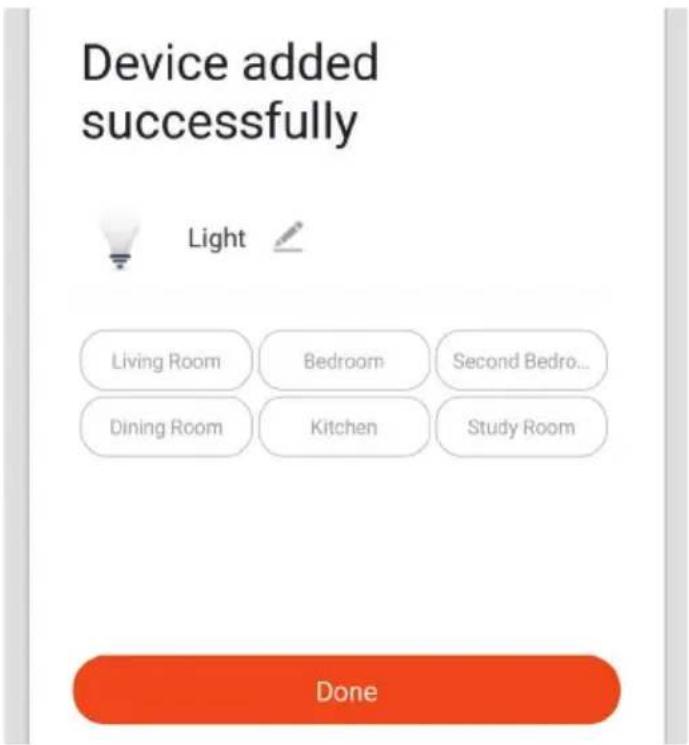
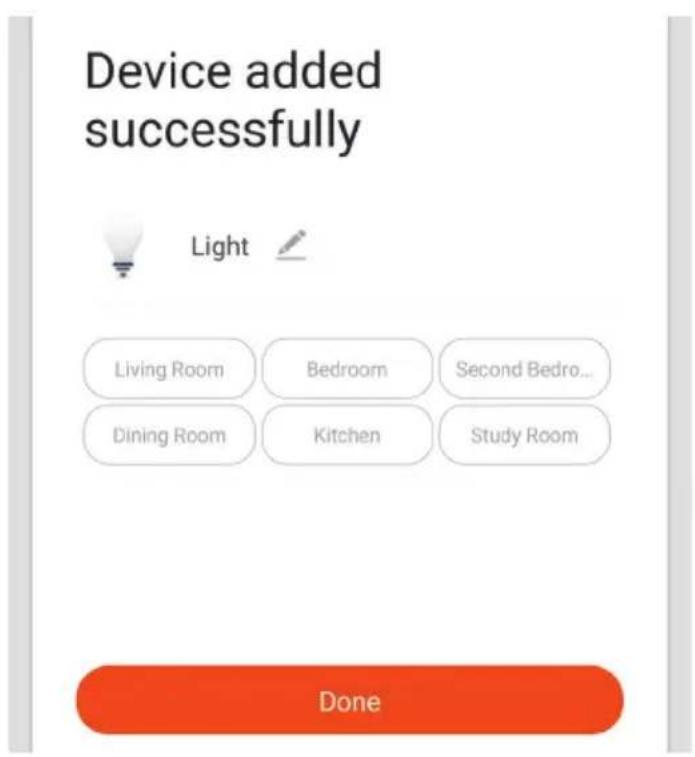
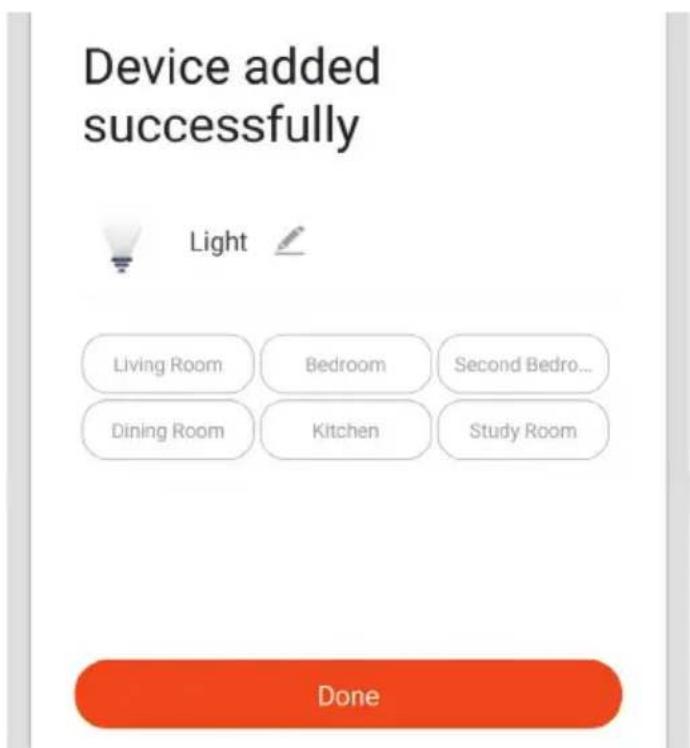
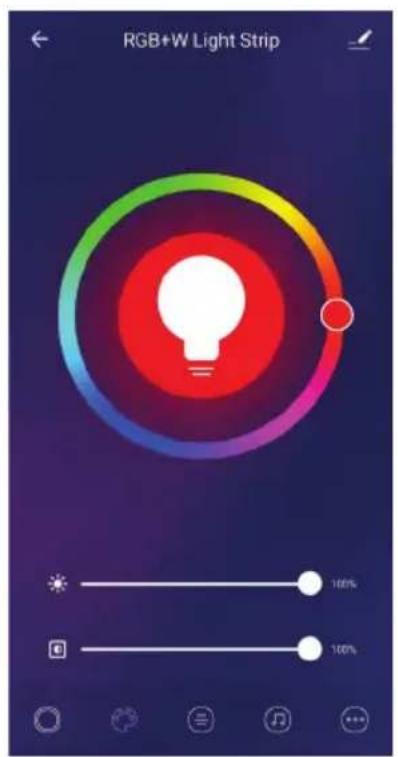
Step 10: Once your device is successfully added, rename the device to your preference.
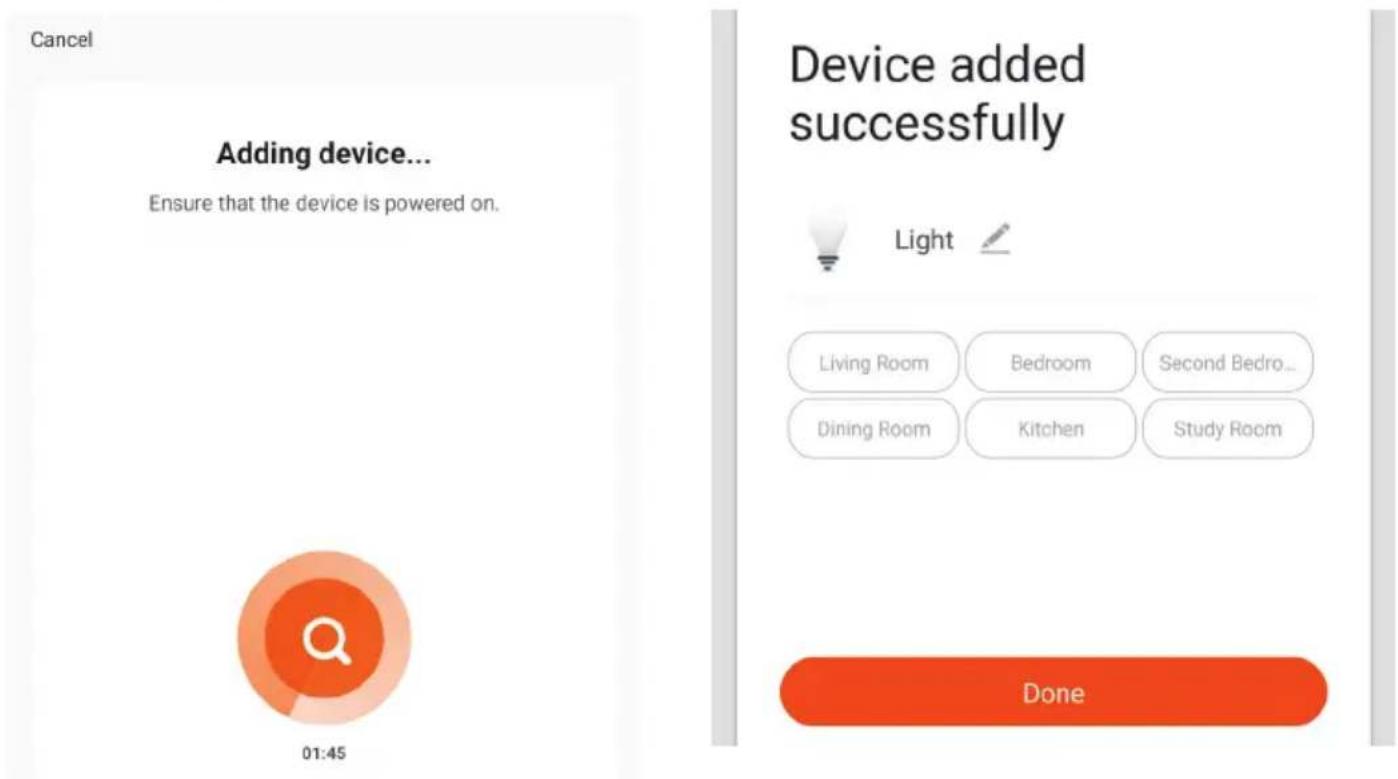
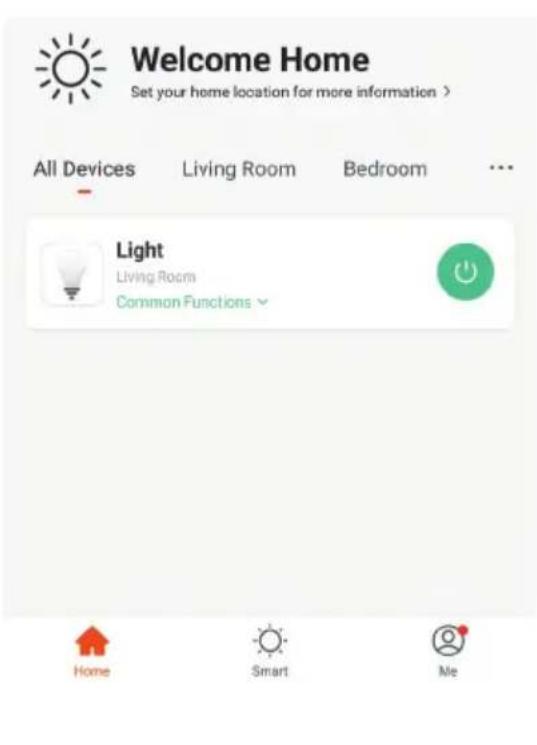
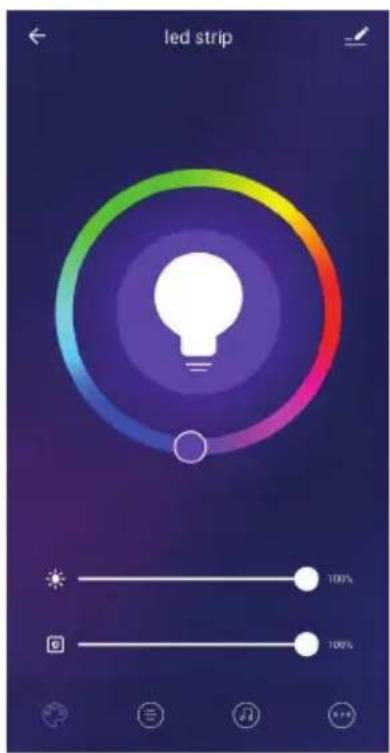
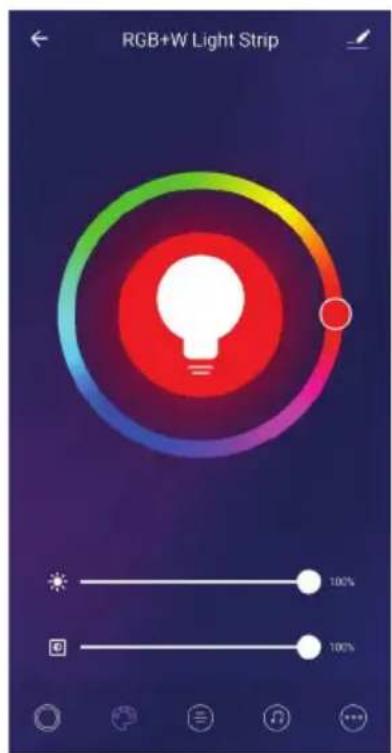
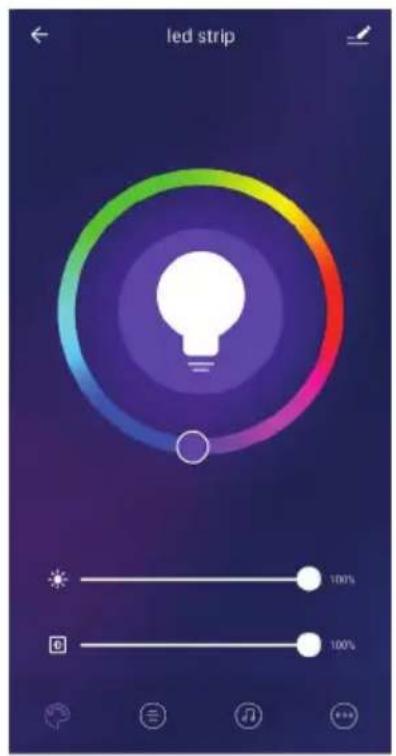
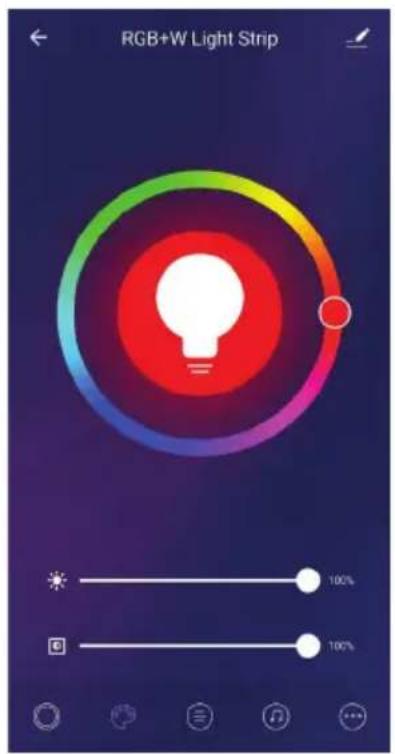
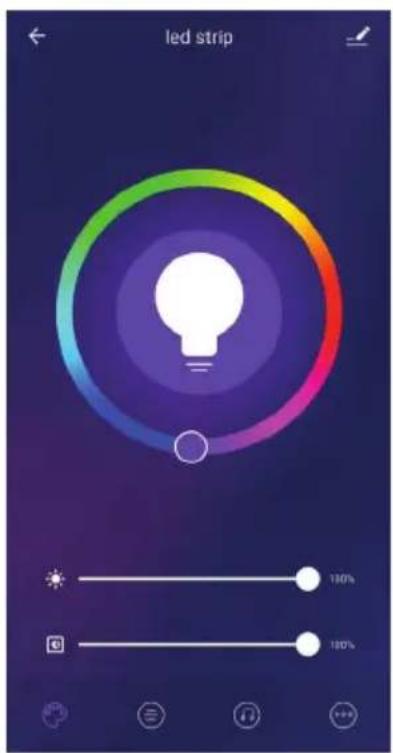
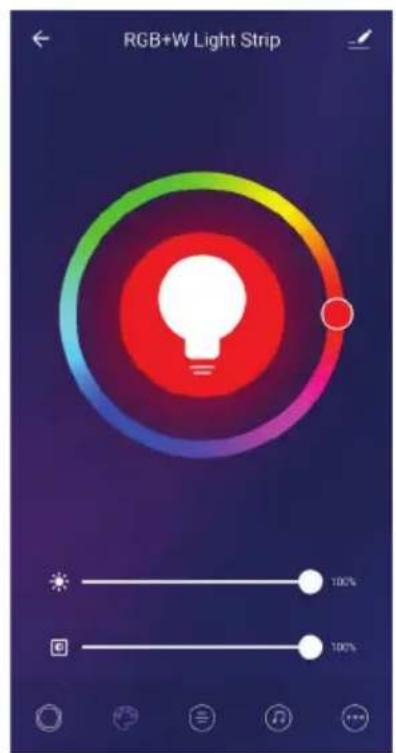
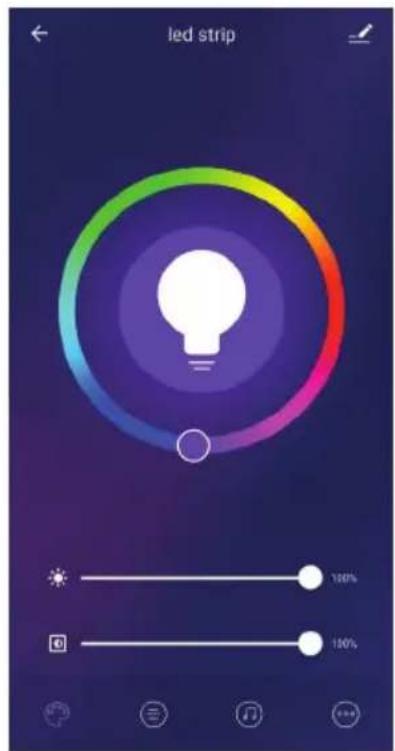
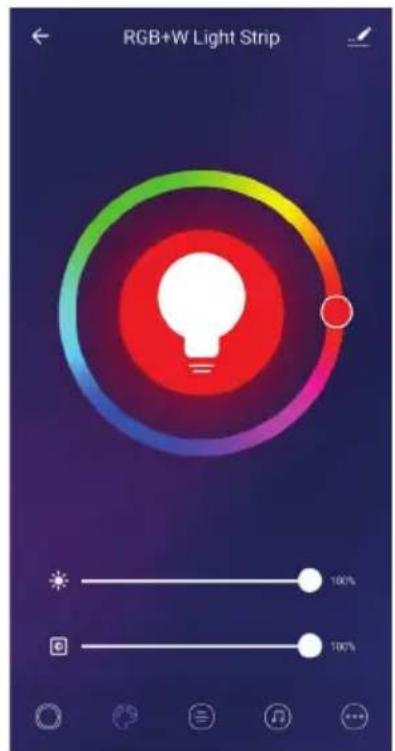
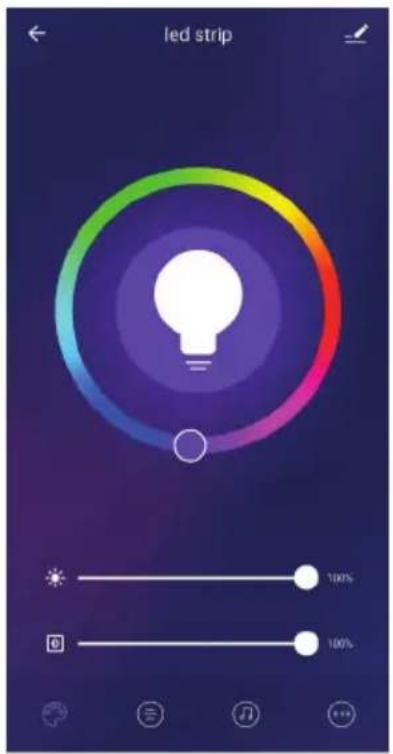
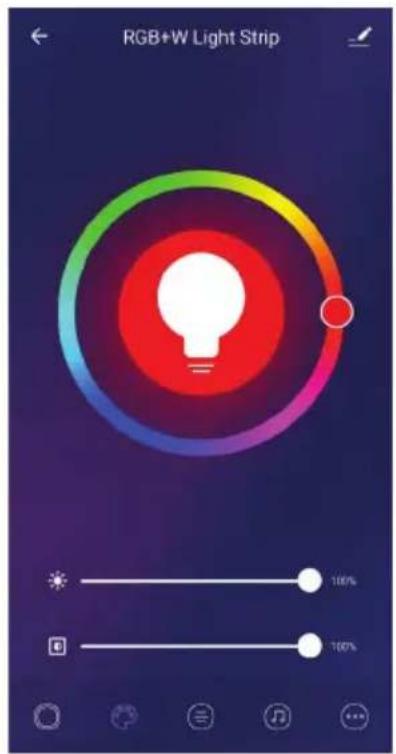
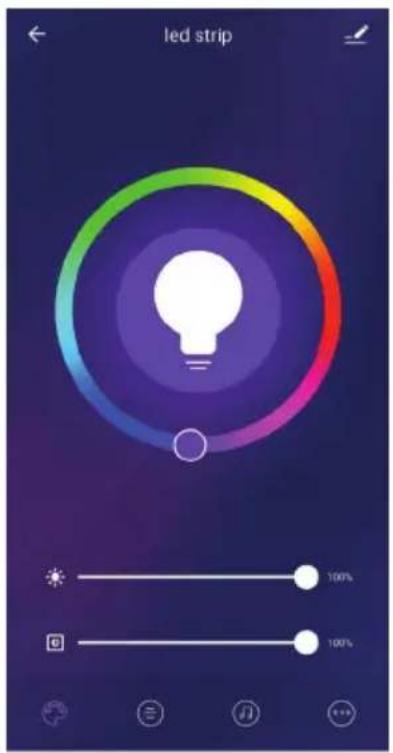
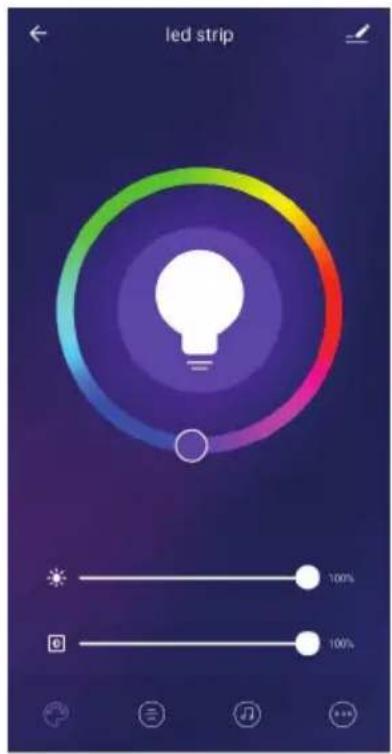
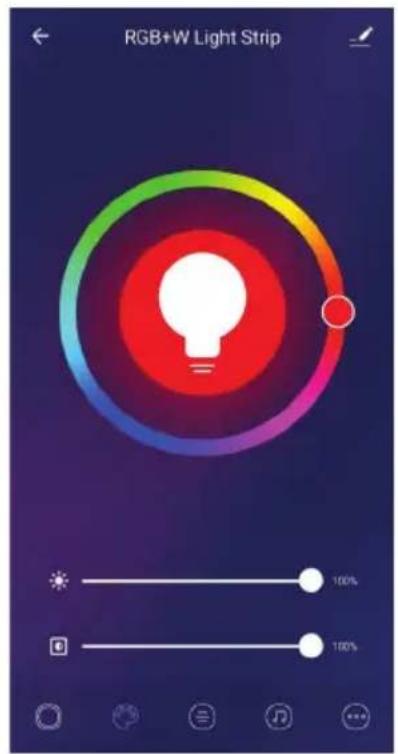
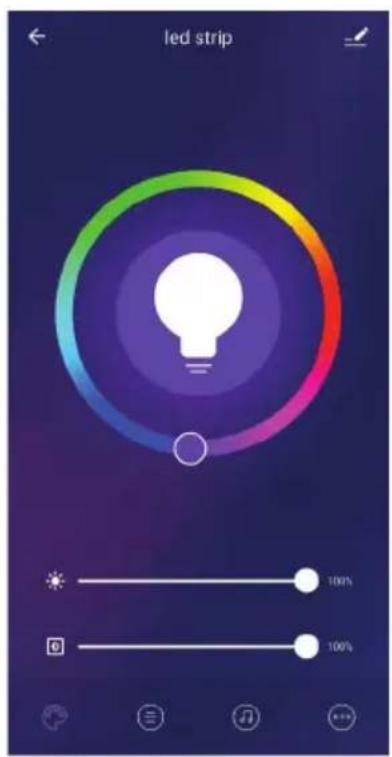
Step 11: After successfully pairing the Wi-Fi receiver with the app, you can start controlling multiple features of the lamp through your mobile—on/off switch, timing & schedules, and more.
ALEXA SETTINGS
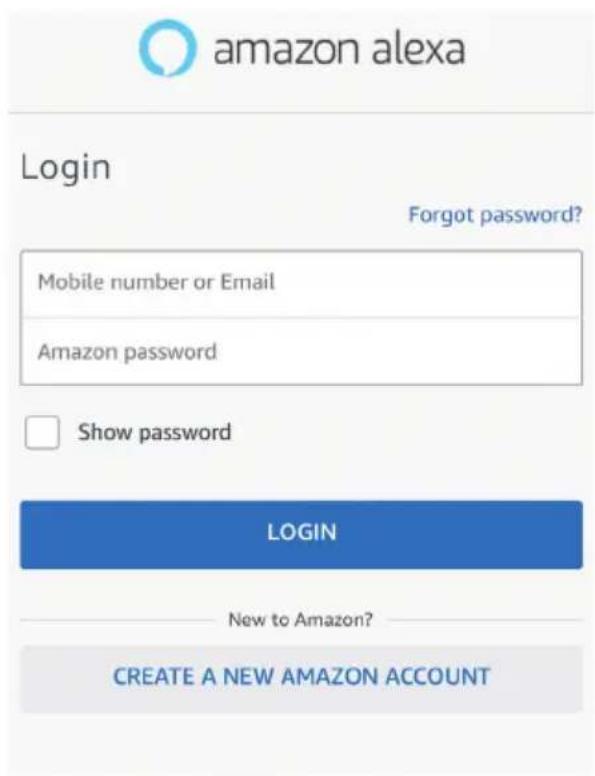
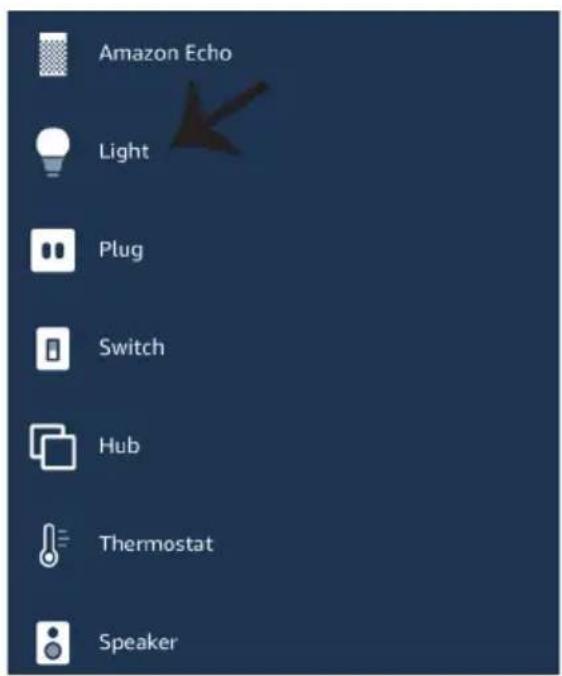
Step1: Install the Amazon Alexa app via the App Store(iOS) or the Play Store (Android) and register. If you already have an existing account with Amazon Alexa, please proceed to logging in.
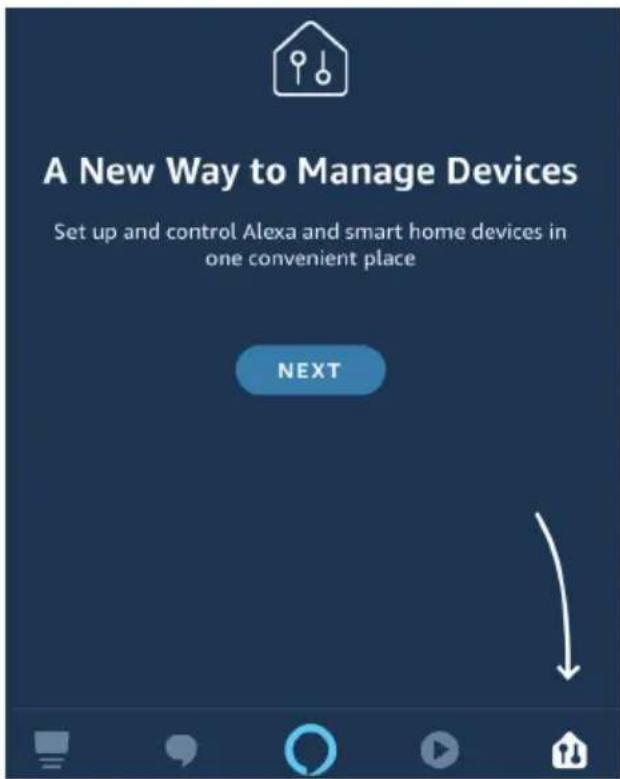
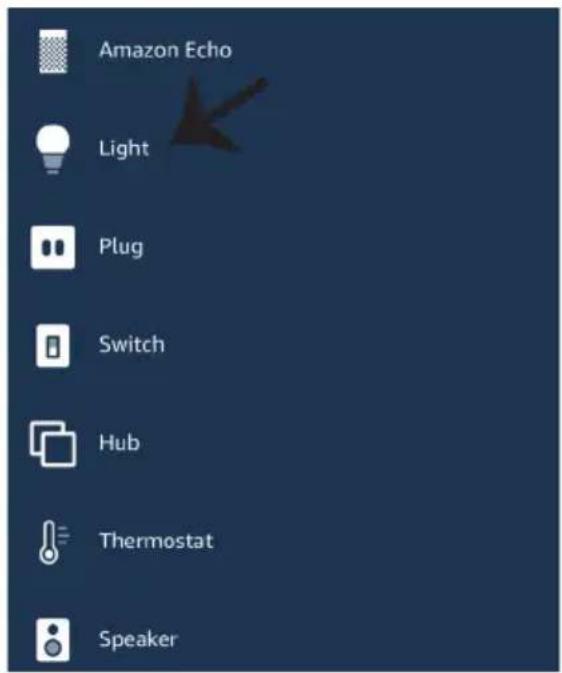
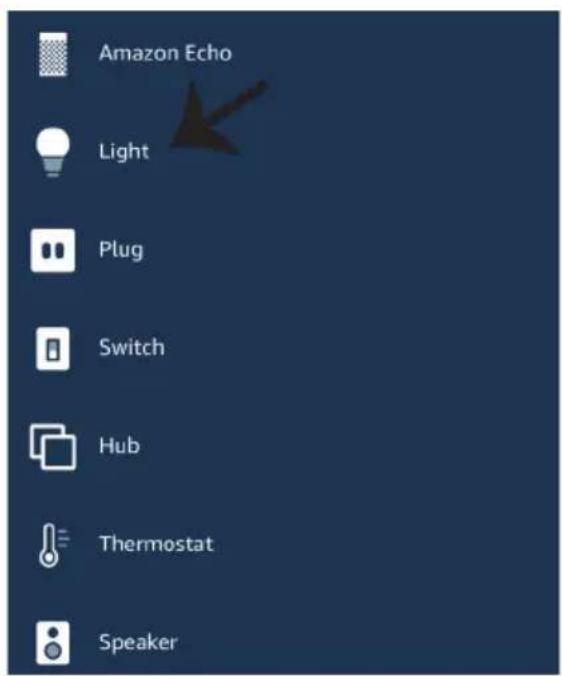
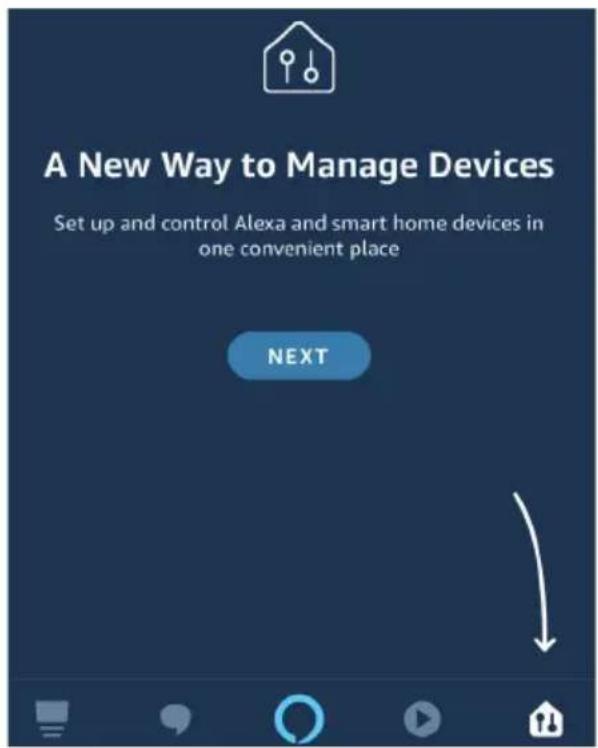
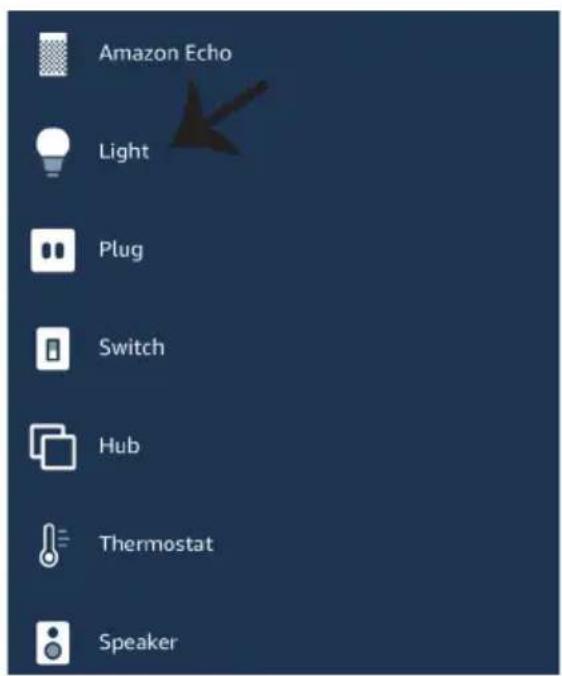
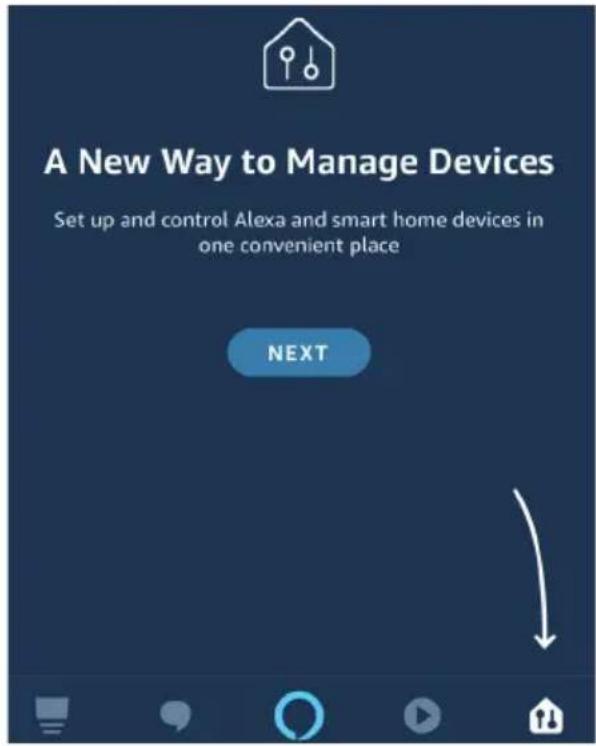
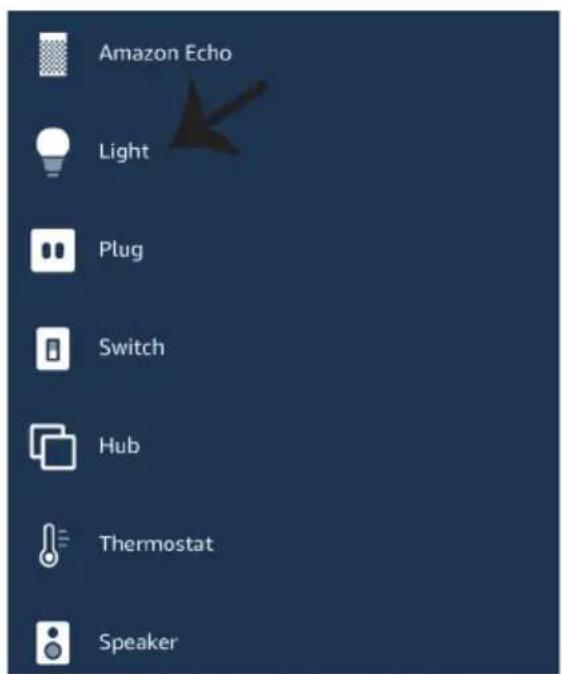
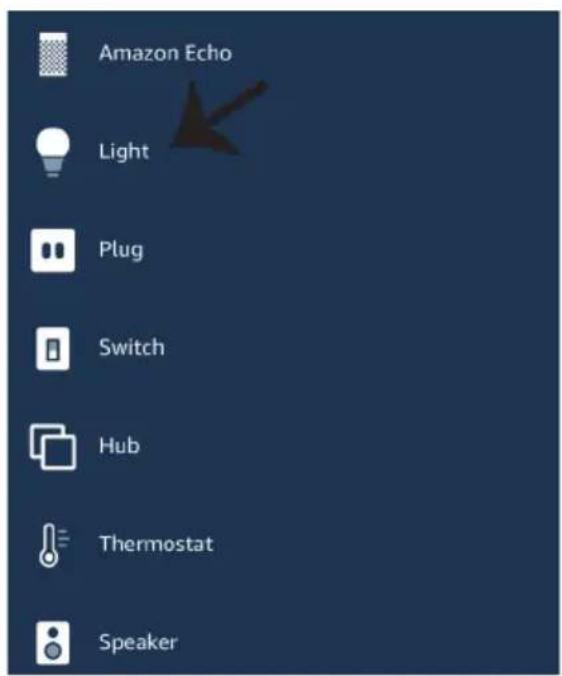
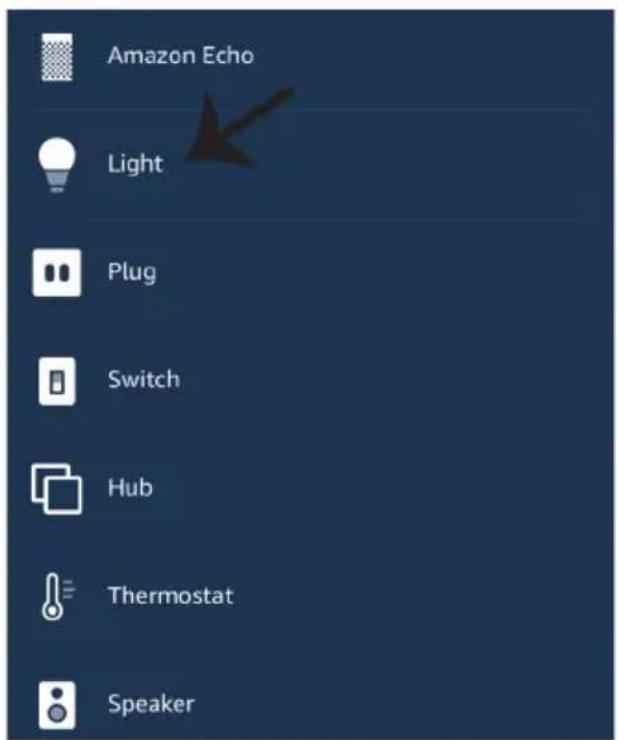
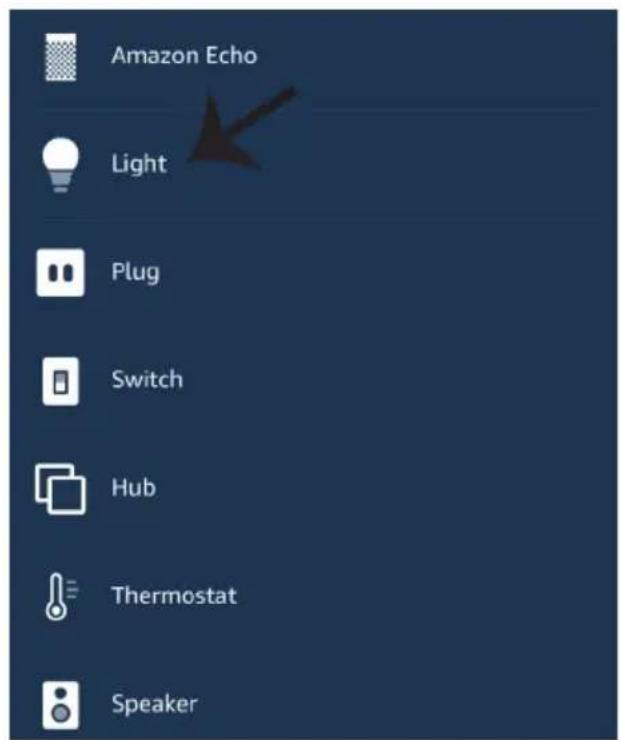
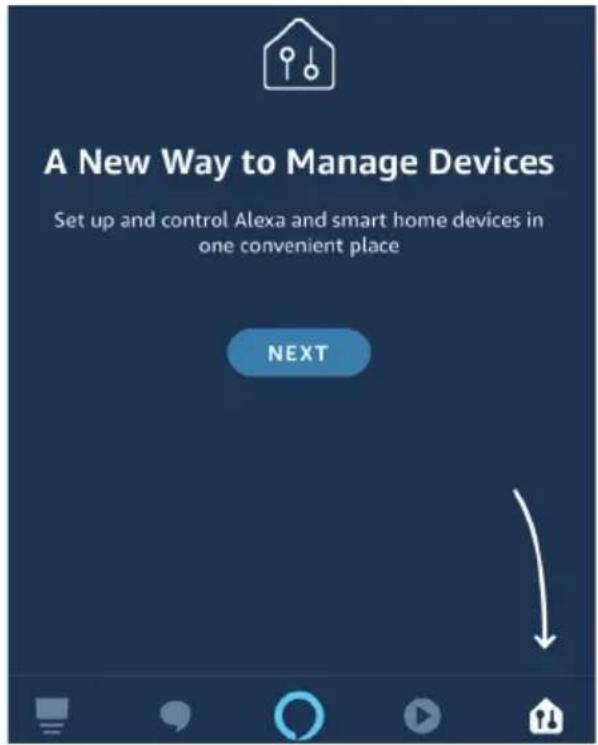
Step2: Once you are on the Amazon Alexa home page, tap on the lower right icon — where the arrow is pointed— to add a new device and skill.
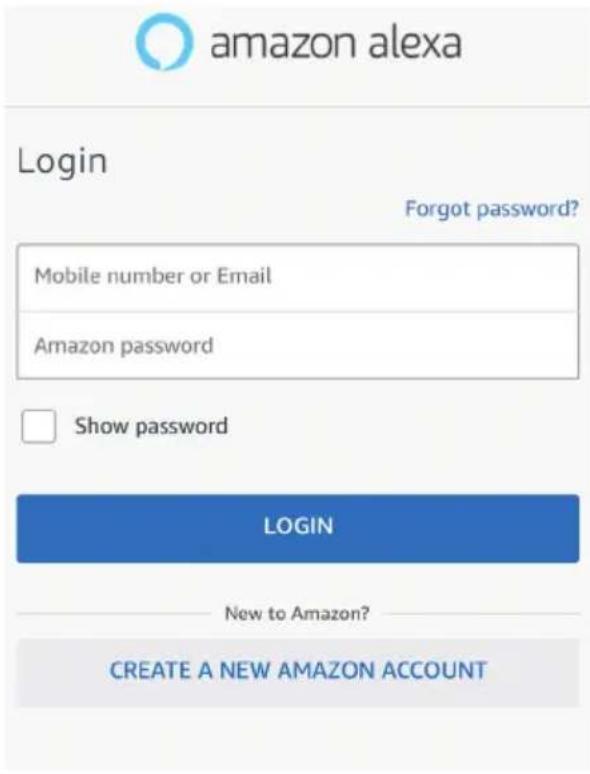
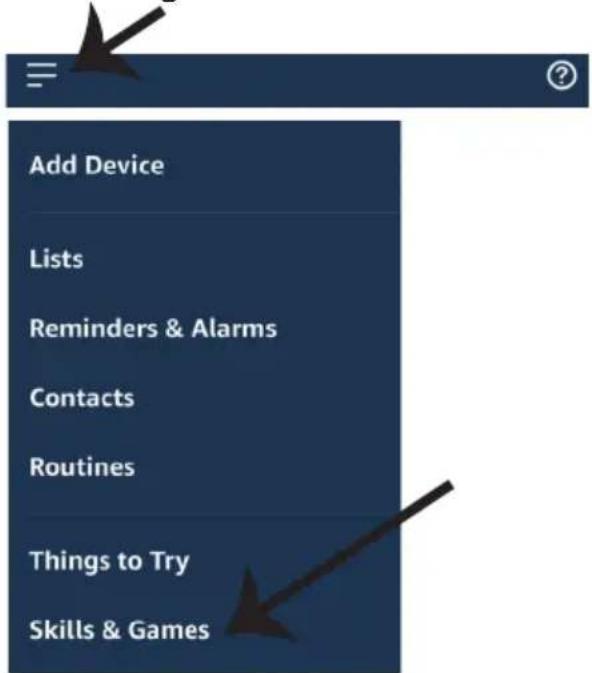
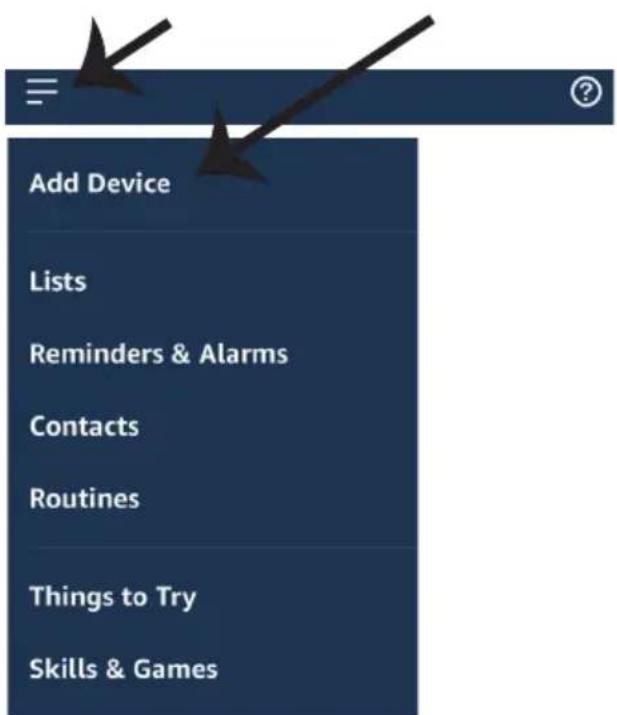
Step3: Tap on = settings and tap on
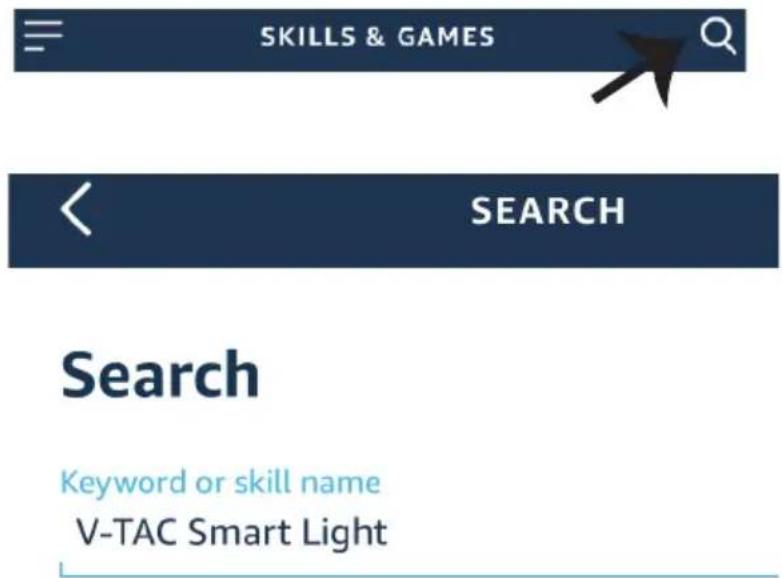
Step4: Search for 'V-TAC Smart Light' on the "Skills & Games" page as shown below.
"skills and games" as shown below.
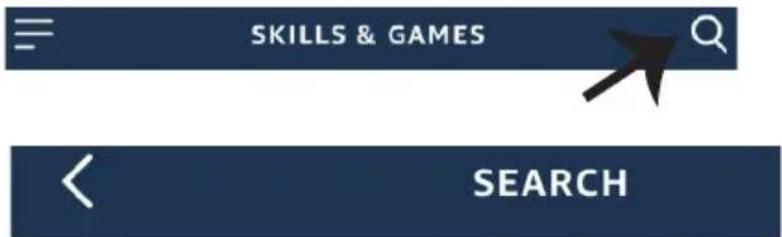
Search
Keyword or skill name
V-TAC Smart Light
Step5: Enable the Skill.
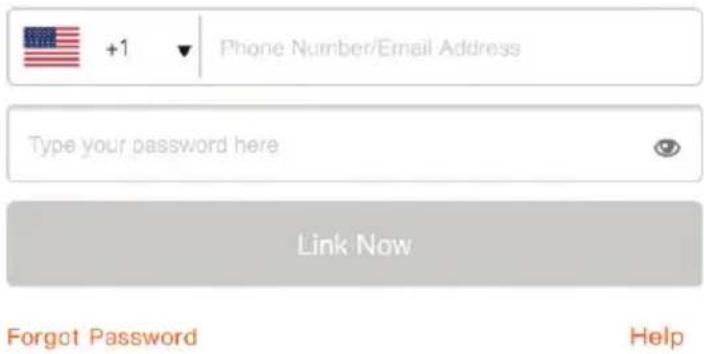
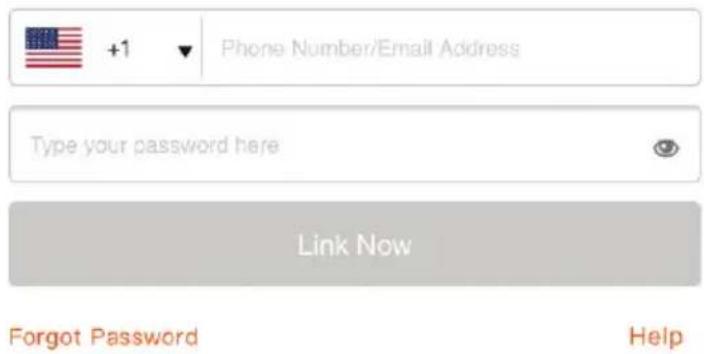
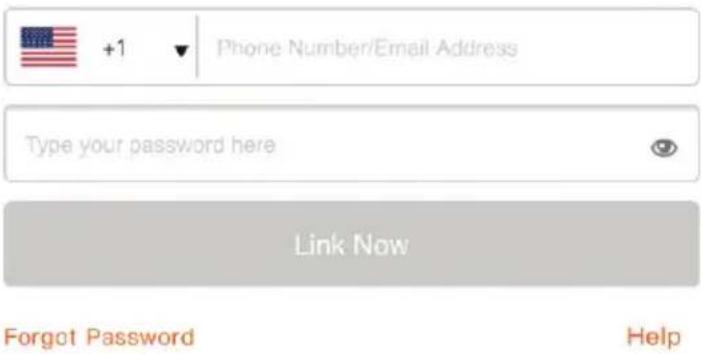
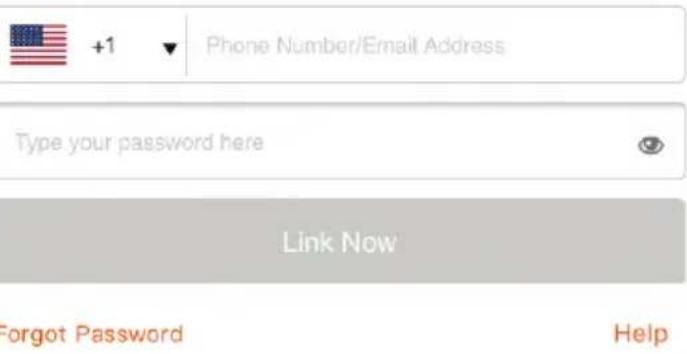
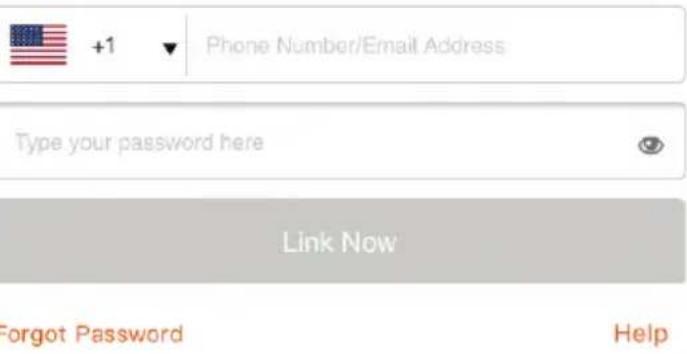
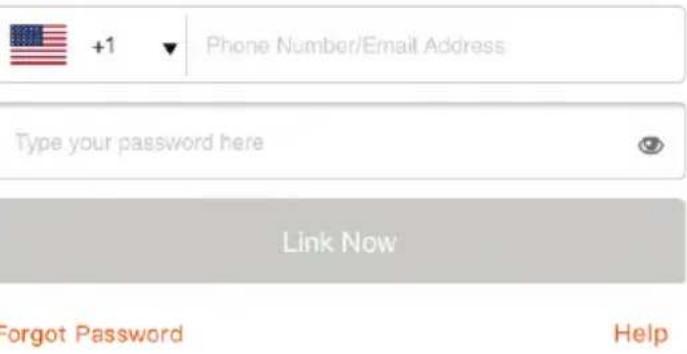
Step6: Enter your V-TAC Smart Light login ID and password and tap on "Link Now"
ENABLE
Account linking in progress

+1
▼
Phone Number/Email Address
Type your password here

Link Now
Forgot Password
Help
Step7: Once you tap on Link Now, you will be redirected to a new page requesting for authorization(Ref Image below). Tap on "Authorize"
Step8: You will receive confirmation of the account being linked successfully (Ref Image below)

Alexa by Amazon will be able to:
Receive your public profile Control your devices over internet

Done

skills-store.amazon.in

amazon alexa
V-TAC has been successfully linked.
What to do next:
→ Close this window to discover smart home devices you can control with Alexa.
Step8: Discover your smart device on Alexa. Once you have enabled the skill
A) You can use voice command "Alexa discover devices" to the Alexa device which you have.
B) To add device manually on home page tap on which you are adding and tap on discover device.
and tap on Add device, select the device
Note: Discovering the device must be done every time the device's name is changed on the app.
ALEXA Commands
Now, you can control your smart device using voice commands on Alexa. Below are a few commands you can use:
! Alexa, turn on/off bedroom light.
! Alexa, set bedroom light to 50 percent.
THINGS TO REMEMBER BEFORE STARTING INSTALLATION:
- V-TAC Smart Light App & Amazon Alexa App
- Make sure you have Amazon Alexa Device(including Echo, Echo Tap, or Echo Dot)
- Smart Device - Lamp
- Stable Wifi network
GOOGLE HOME SETTINGS
Step1:
a&b) Install the Google Home app via the App Store (iOS) or the Play Store (Android) and register. If you already have an existing account with Google Home, please proceed to logging in.
c) Create a New Home/Choose from the existing home if any.
d) Power ON the Google Home device and connect it to the App.(Then Proceed to step 2)
a. Welcome home
Your content and devices all in one place

natural_image
Abstract geometric shapes including squares, circles, and triangles (no text or symbols)GET STARTED >
b. Choose account
This account will be used to personalize your experience
c. Choose a home
You will be able to control the devices and services in this home.

Create another home
d. Plug in your device
Make sure your device is nearby and connected to power, then try again

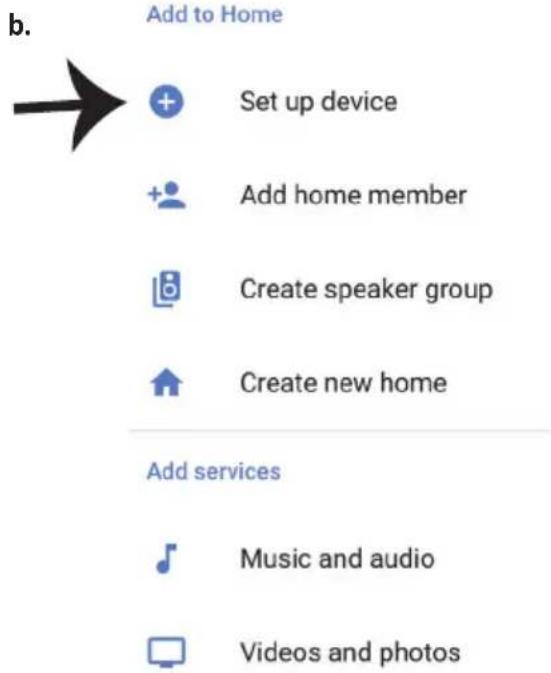
Step2: Once you are on the Google home page, tap on the Add "+" icon—to add a new device and skill. And then tap on Set up device as shown in below image.
a.

Play
Office
Broadcast


Add

Settings
Office
1 device
Office Speaker
Pause
b.

Add to Home

Set up device

Add home member

Create speaker group

Create new home
Add services

Music and audio

Videos and photos
Step3: Make sure the Smart Bulb is paired with V-TAC Smart Light app before starting step 3. Tap on the arrow section as highlighted in the below image.
Set up
Set up new devices or add existing devices and services to your home
Step4: Type "V-TAC Smart Light" on the search bar and tap on the icon of "V-TAC Smart Light"

V-TAC Smart Light

New devices

Set up new devices
Google Home, smart displays and devices labelled 'Made for Google' such as C by GE smart bulbs
Works with Google

Have something already set up?

Link your smart home services such as Philips Hue and TP-Link
Step5: Sign In with your V-TAC Smart Light Login credentials to Link the Smart Light device
Step6: Tap on Authorize in order to proceed to linking the device.

Google will be able to:
Receive your public profile Control your devices over internet

Step7
a. Account will now be linked, please stay on the page you will be redirected in few seconds to select the device to add to your home.
b. Select the device and tap on Next as show in image b.
a. Done

assistant.google.com

Account is now Linked
b.

Choose device
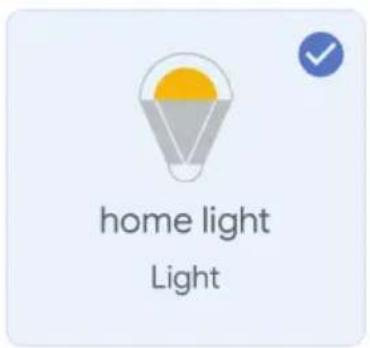
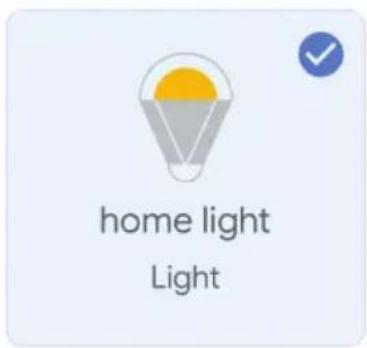
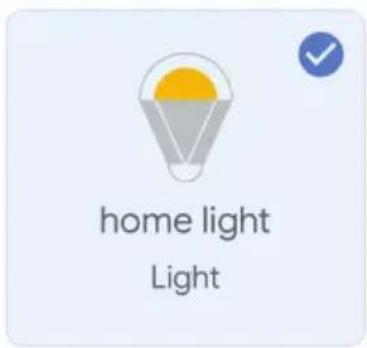
Step8: Select the Home where you would like to add the Smart Light under. (Or) you can create a New home in order to add the Smart Light to it.
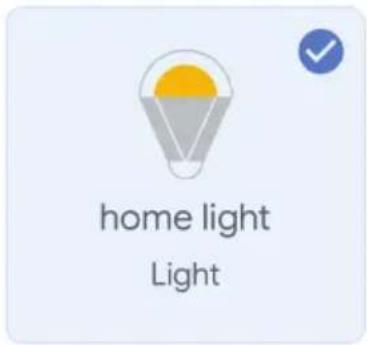
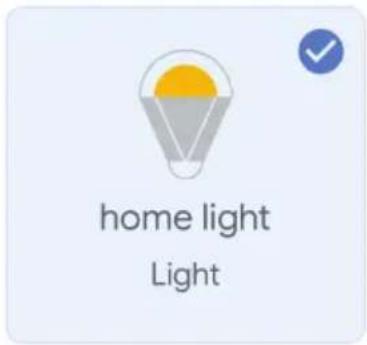
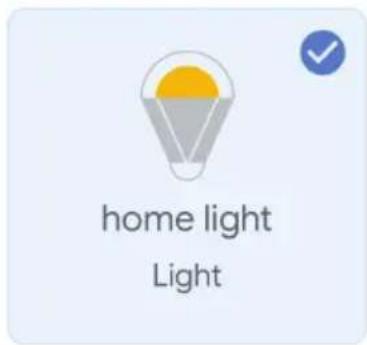
Step9: You have successfully added Smart Light device to your Google home App.
Choose a home
You will be able to control the devices and services in this home.

Smart-Home

Office

Smart Home

Create another home
Smart-Home

Off

On

Add

Settings
Master bedroom
1 device

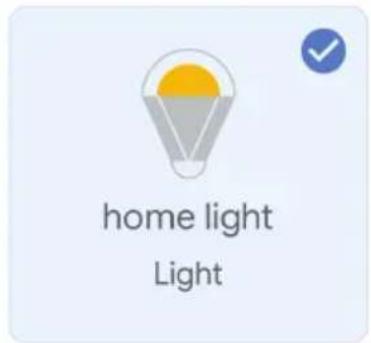
home light
Off
*
On

Local devices
1 device

Office Speaker
Step10:
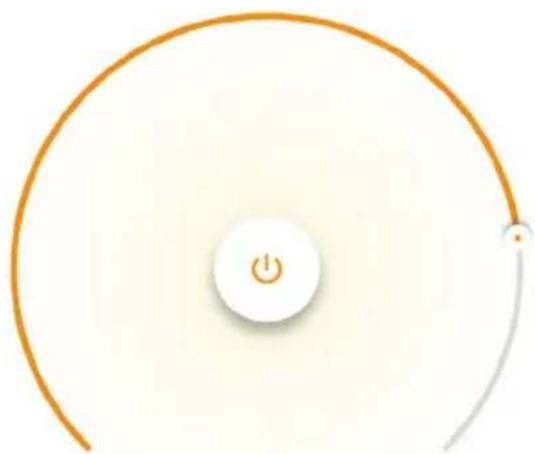
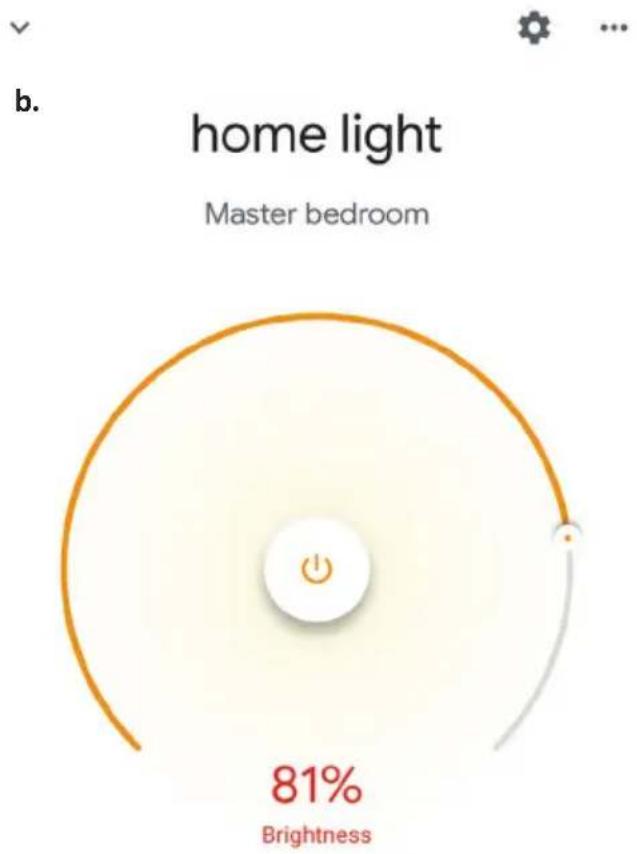
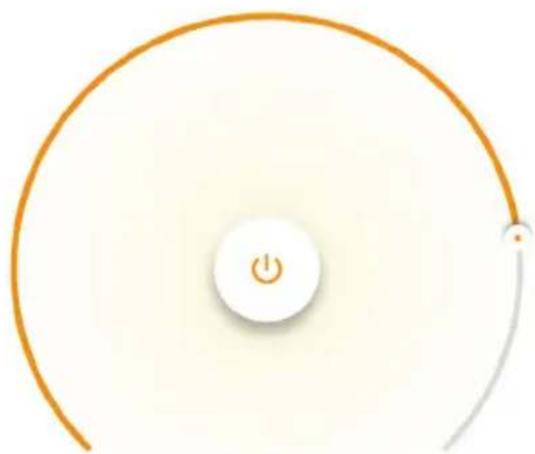
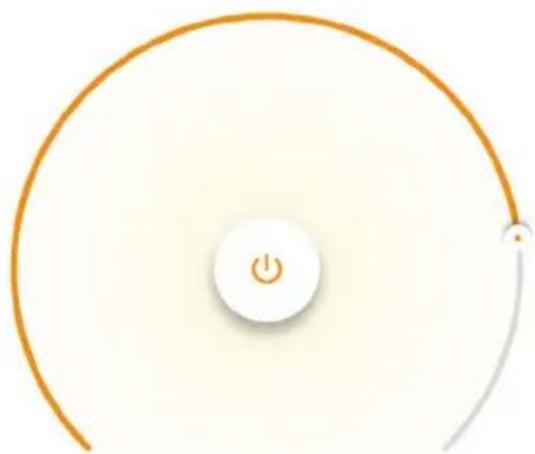
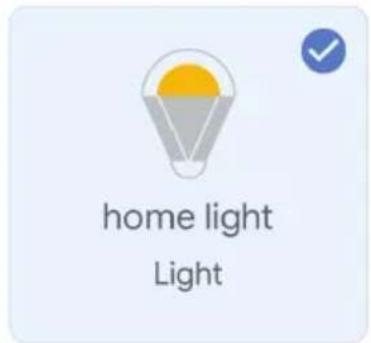
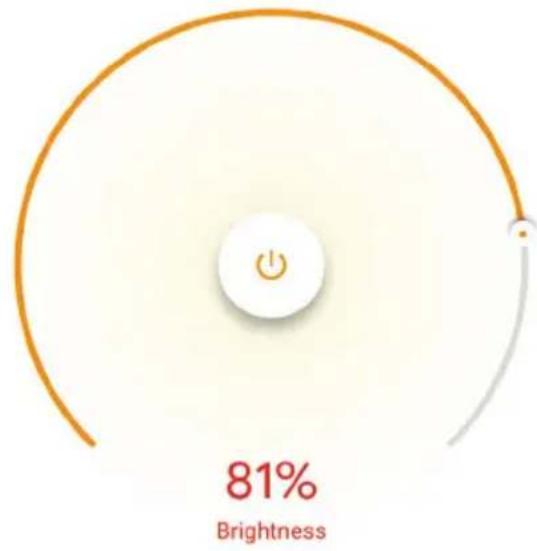
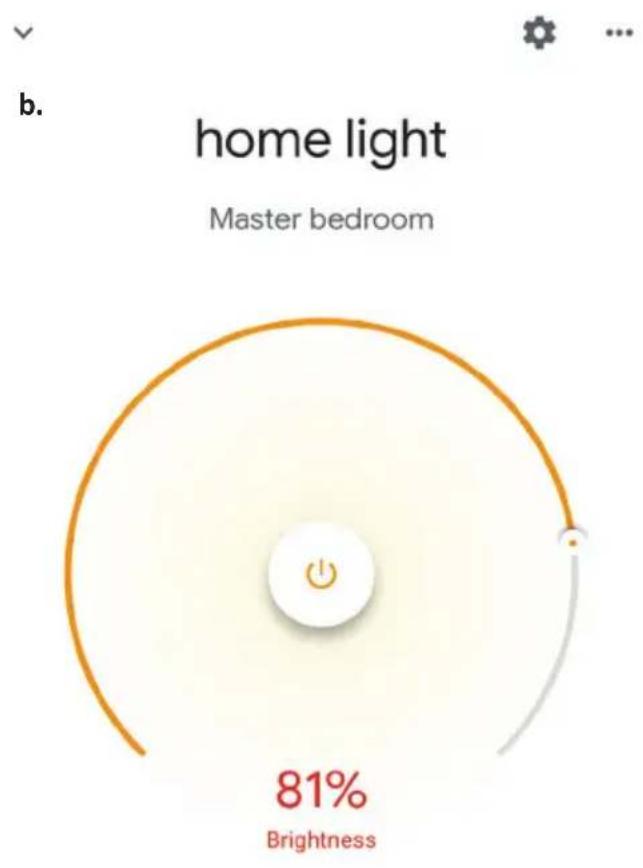
a. You can turn the Lamp On/OFF by taping on On/Off options as shown below. (OR) You can tap on the Smart Lamp.
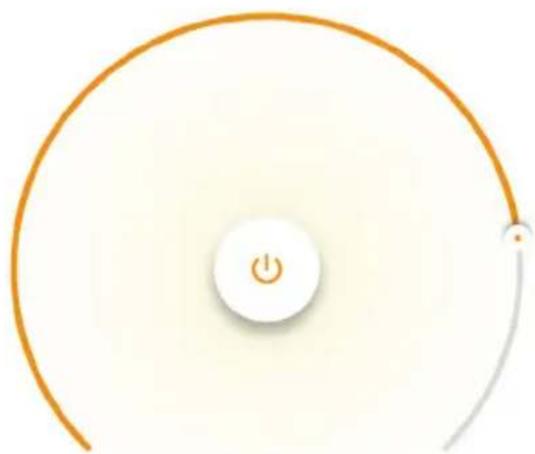
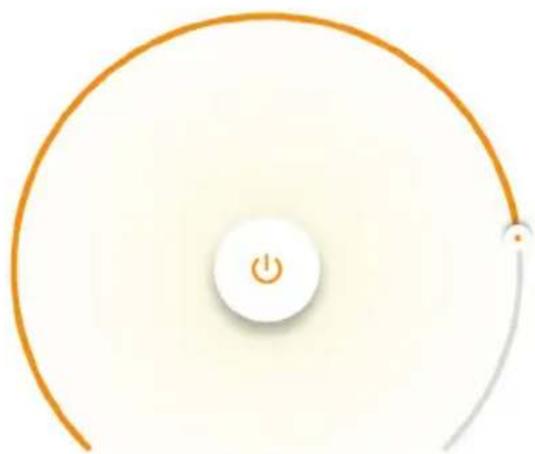
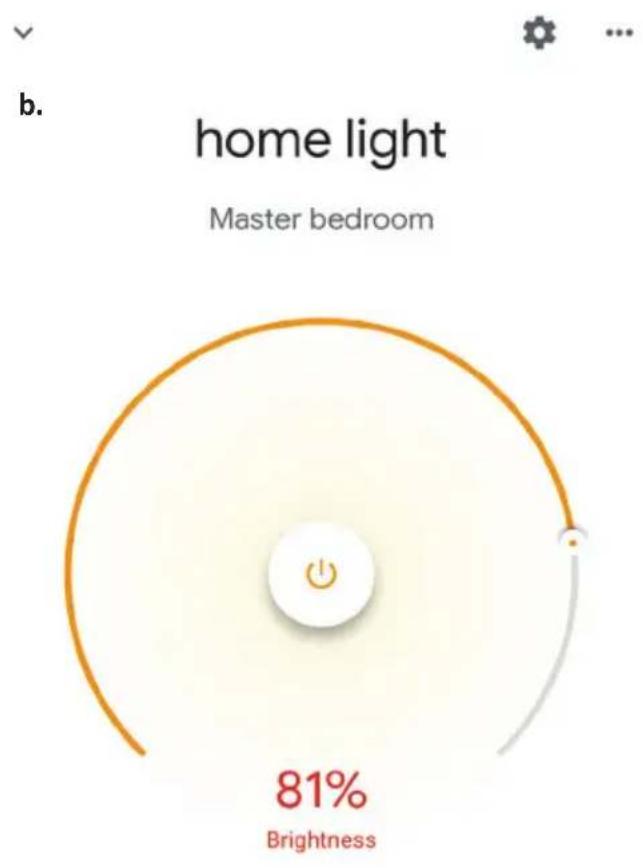
b. You will be redirected to page(as shown in image b) where you can control the lights "Power and Dimmingfunctionality".
a. Smart-Home

Off

On

Add

Settings
Master bedroom
1 device

home light



Local devices
1 device

Office Speaker
b.


home light
Master bedroom
natural_image
Circular diagram with a power button and a small dot, no text or symbols present81%
Brightness
Google Commands:
Now, you can control your smart device using voice commands on Google Home. Below are a few commands you can use:
➢! OK Google, turn on/off bedroom light
➢! OK Google, set bedroom light to 50 percent.
THINGS TO REMEMBER BEFORE STARTING INSTALLATION:
- V-TAC Smart Light App & Google Home App
- Make sure you have Google Home Device
- Smart Device - Lamp
- Stable Wifi network
AVERTISSEMENT DE SÉCURITÉ
| Remote Control Functions | |||
 | ON/OFF |  | Red |
 | Increase Brightness |  | Blue |
 | Decrease Brightness |  | Green |
 | Switch Scene Modes |  | Cool White |
 | Step by Step switch from 3000K(CT-) - 6400K(CT+) |  | Warm White |
 |  | Return Key | |
 | Multiple Color options | ||
INSTALLATION
APP INSTALLATION
Étape 4:
flowchart
graph TD
    A["Electrician"] --> B["Lighting"]
    B --> C["Lighting (BLE+Wi-Fi)"]
    B --> D["Light Modulator (BLE+)"]
    B --> E["Lighting (Wi-Fi)"]
    F["Large Home Appliances"] --> G["Strip Lights"]
    G --> H["Lighting remote control (Bluetooth)"]
    I["Small Home Appliances"] --> G
    G --> J["Lighting (ZigBee)"]
RÉGLAGES ALEXA
Account linking in progress
Alexa by Amazon will be able to:
Receive your public profile Control your devices over internet

skills-store.amazon.in

amazon alexa
V-TAC has been successfully linked.
What to do next:
→ Close this window to discover smart home devices you can control with Alexa.
➢! Alexa, turn on/off bedroom light.
➢! Alexa, set bedroom light to 50 percent.
CHOSES À RAPPELER AVANT DE COMMENCER L'INSTALLATION:
Your content and devices all in one place

natural_image
Abstract geometric shapes including squares, circles, and a crescent (no text or symbols)GET STARTED >
b. Choose account
This account will be used to personalize your experience
c. Choose a home
You will be able to control the devices and services in this home.

Create another home
d. Plug in your device
Make sure your device is nearby and connected to power, then try again

Office
1 device

Office Speaker
Pause
b.

Add to Home

Set up device

Add home member

Create speaker group

Create new home
Add services

Music and audio

Videos and photos
Set up new devices or add existing devices and services to your home
Google Home, smart displays and devices labelled 'Made for Google' such as C by GE smart bulbs
Works with Google

Have something already set up?

Link your smart home services such as Philips Hue and TP-Link

Google will be able to:
Receive your public profile Control your devices over internet

Étape 7:
Account is now Linked
b.

Choose device
You will be able to control the devices and services in this home.

Smart-Home

Office

Smart Home

Create another home
Smart-Home

Off

On

Add

Settings
Master bedroom
1 device

home light
Off
*
On

Local devices
1 device

Office Speaker
Étape 11:
Master bedroom
1 device

home light



Local devices
1 device

Office Speaker
b.


home light
Master bedroom
natural_image
Circular diagram with a power button and a small dot, no text or symbols present81%
Brightness
Commandes Google:
➢! OK Google, turn on/off bedroom light
➢! OK Google, set bedroom light to 50 percent.
CHOSES À RAPPELER AVANT DE COMMENCER L'INSTALLATION:
| Remote Control Functions | |||
 | ON/OFF |  | Red |
 | Increase Brightness |  | Blue |
 | Decrease Brightness |  | Green |
 | Switch Scene Modes |  | Cool White |
 | Step by Step switch from 3000K(CT-) - 6400K(CT+) |  | Warm White |
 |  | Return Key | |
 | Multiple Color options | ||
INSTALLATION
APP INSTALLATION
For IOS

Schritt 4:
Set your home location for more information >
All Devices
Living Room
Bedroom
...
flowchart
graph TD
    A["Electrician"] --> B["Lighting"]
    B --> C["Lighting (BLE+Wi-Fi)"]
    B --> D["Light Modulator (BLE+)"]
    B --> E["Lighting (Wi-Fi)"]
    F["Large Home Appliances"] --> G["Strip Lights"]
    G --> H["Lighting remote control (Bluetooth)"]
    G --> I["Lighting (ZigBee)"]
ALEXA SETTINGS
Account linking in progress
Phone Number/Email Address
Type your password here

Link Now
Forgot Password
Help
Alexa by Amazon will be able to:
Receive your public profile Control your devices over internet

skills-store.amazon.in

amazon alexa
V-TAC has been successfully linked.
What to do next:
→ Close this window to discover smart home devices you can control with Alexa.
Your content and devices all in one place

natural_image
Abstract geometric shapes including a triangle, square, circle, and rectangle (no text or symbols)GET STARTED >
b. Choose account
This account will be used to personalize your experience
c. Choose a home
You will be able to control the devices and services in this home.

Create another home
d. Plug in your device
Make sure your device is nearby and connected to power, then try again

Office
1 device

Office Speaker
Pause
b.

Add to Home

Set up device

Add home member

Create speaker group

Create new home
Add services

Music and audio

Videos and photos
Set up new devices or add existing devices and services to your home
Google Home, smart displays and devices labelled 'Made for Google' such as C by GE smart bulbs
Works with Google

Have something already set up?

Link your smart home services such as Philips Hue and TP-Link

Google will be able to:
Receive your public profile Control your devices over internet

Schritt 7:
Account is now Linked
b.

Choose device
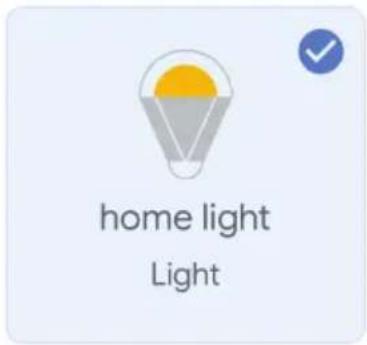
You will be able to control the devices and services in this home.

Smart-Home

Office

Smart Home

Create another home
Master bedroom
1 device

home light



Local devices
1 device

Office Speaker
b.


home light
Master bedroom
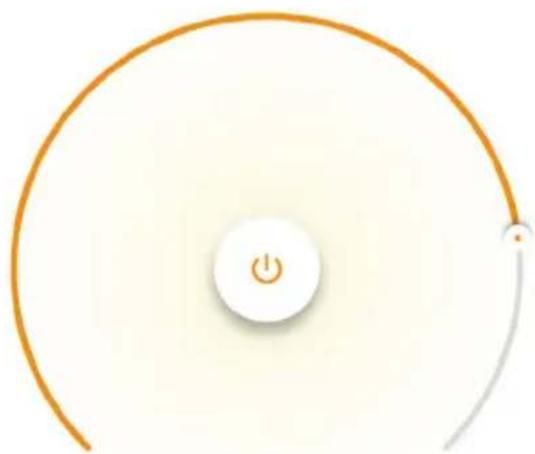
natural_image
Circular diagram with a power button and a small dot, no text or symbols present81%
Brightness
GOOGLE HOME-Befehle
➢! OK Google, turn on/off bedroom.light
➢! OK Google, set bedroom light to 50 percent.
EMPFEHLUNGEN VOR DEM START DER INSTALLATION:
| Remote Control Functions | |||
 | ON/OFF |  | Red |
 | Increase Brightness |  | Blue |
 | Decrease Brightness |  | Green |
 | Switch Scene Modes |  | Cool White |
 | Step by Step switch from 3000K(CT-) - 6400K(CT+) |  | Warm White |
 |  | Return Key | |
 | Multiple Color options | ||
ИНСТАЛАЦИЯ
АРР ИНСТАЛАЦИЯ
For IOS

Стъпка 4:
Set your home location for more information >
All Devices
Living Room
Bedroom
...
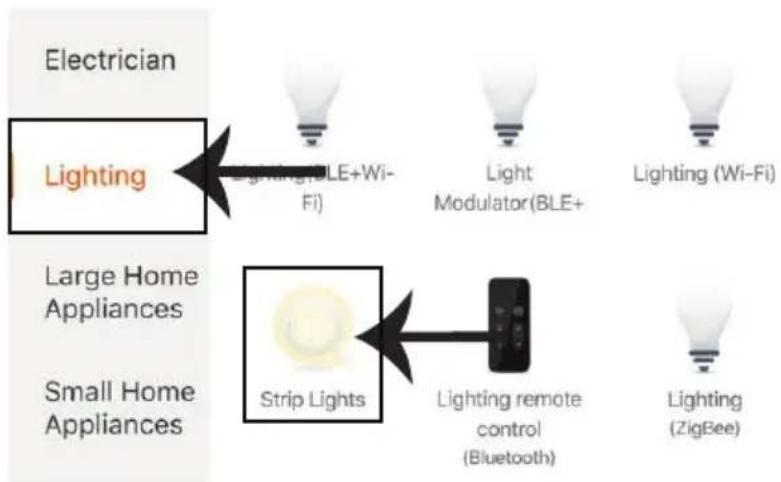
flowchart
graph TD
    A["Electrician"] --> B["Lighting"]
    B --> C["Lighting BLE+Wi-Fi"]
    B --> D["Light Modulator(BLE+)"]
    B --> E["Lighting (Wi-Fi)"]
    F["Large Home Appliances"] --> G["Strip Lights"]
    G --> H["Lighting remote control (Bluetooth)"]
    G --> I["Lighting (ZigBee)"]
Ensure that the device is powered on.

01:45
Device added successfully

Light

Living Room
Bedroom
Second Bedro...
Dining Room
Kitchen
Study Room
Done
НАСТРОЙКИ НА АЛЕКСА
CREATE A NEW AMAZON ACCOUNT
Account linking in progress
Phone Number/Email Address
Type your password here

Link Now
Forgot Password
Help
Alexa by Amazon will be able to:
Receive your public profile Control your devices over internet

Done

skills-store.amazon.in

amazon alexa

V-TAC has been successfully linked.
What to do next:
→ Close this window to discover smart home devices you can control with Alexa.
Your content and devices all in one place

natural_image
Abstract geometric shapes including squares, circles, and triangles (no text or symbols)GET STARTED >
b. Choose account
This account will be used to personalize your experience
d. Plug in your device
Make sure your device is nearby and connected to power, then try again
c. Choose a home
You will be able to control the devices and services in this home.


Create another home
Set up new devices or add existing devices and services to your home
Google Home, smart displays and devices labelled 'Made for Google' such as C by GE smart bulbs
Works with Google

Have something already set up?

Link your smart home services such as Philips Hue and TP-Link

Google will be able to:
Receive your public profile Control your devices over internet

Стъпка 7:
Account is now Linked
b. ×
Choose device
You will be able to control the devices and services in this home.

Smart-Home

Office

Smart Home

Create another home
pie
| Metric | Value | |--------|-------| | Brightness | 81% |Команди на Google:
➢! OK Google, turn on/off bedroom·light
➢! OK Google, set bedroom light to 50 percent.
КАКВО ДА НЕ ЗАБРАВЯМЕ ПРЕДИ ДА СТАРТИРАМЕ ИНСТАЛАЦИЯТА:
| Remote Control Functions | |||
 | ON/OFF |  | Red |
 | Increase Brightness |  | Blue |
 | Decrease Brightness |  | Green |
 | Switch Scene Modes |  | Cool White |
  | Step by Step switch from 3000K(CT-) - 6400K(CT+) |  | Warm White |
 | Return Key | ||
 | Multiple Color options | ||
UGRADNJA
APP INSTALACIJA
Korak 2: Skenirajte QR kod ili preuzmite 'V-TAC Smart Light' iz App Store-a (iOS) u Google Play Store-u (Android).
Korak 3: Otvorite aplikaciju V-TAC Smart Light i kliknite Register (registriranje) da biste registrirali novi račun (account).
V-TAC Smart Light
Korak 4:
A) Broj mobitela: Odaberite svoju zemlju i unesite broj mobilnog telefona. Zatim pritisnite 'Next'. B) E-mail: Unesite adresu e-pošte i pritisnite 'Next'.
flowchart
graph TD
    A["Electrician"] --> B["Lighting"]
    B --> C["Lighting (BLE+Wi-Fi)"]
    B --> D["Light Modulator (BLE+)"]
    B --> E["Lighting (Wi-Fi)"]
    F["Large Home Appliances"] --> G["Strip Lights"]
    G --> H["Lighting remote control (Bluetooth)"]
    G --> I["Lighting (ZigBee)"]
POSTAVKE ZA ALEXA
Korak 1: Instalirajte Amazon Alexa aplikaciju s App Store-a (iOS) ili Play Store-a (Android) i registrirajte ju. Ako već imate račun za Amazon Alexa, jednostavno se prijavite.
Korak 2: Kada dođete na domaću stranicu Amazon Alexa, pritisnite donju desnu ikonu — kuda ukazuje strelica — da biste dodali novi uređaj ili vještinu.
Account linking in progress
Korak 6.: Unesite korisničko ime i lozinku za „V-TAC Smart Light“ i kliknite "Link Now".
Korak 7.: Nakon što kliknete "Link Now" bit ćete preusmjereni na novu stranicu koja zahtijeva autorizaciju (pogledajte sliku u nastavku). Pritisnite "Authorize".

Alexa by Amazon will be able to:
Receive your public profile Control your devices over internet

skills-store.amazon.in

amazon alexa
V-TAC has been successfully linked.
What to do next:
→ Close this window to discover smart home devices you can control with Alexa.
Korak 9. Otkrijte Vaš pametni uređaj u Alexa. Nakon što odobrite opciju:
A) Možete dati glasovnu naredbu „Alexa discover devices“ Vašem uređaju Alexa.
B) Da biste ručno dodali uređaj, na početnoj stranici pritisnite 📋, a zatim Add devices, odaberite uređaj, koji želite dodati, i pritisnite Discover device.
➢! Alexa, turn on/off bedroom light.
➢! Alexa, set bedroom light to 50 percent.
PRIJE POČETKA INSTALACIJE NEMOJTE ZABORAVITI:
- Aplikaciju V-TAC Smart Light i aplikaciju Amazon Alexa
- Uvjerite se da imate uređaj Amazon Alexa (uključujući Echo, Echo Tap, ili Echo Dot)
- Pametni uređaj – Svjetiljku
- Stabilnu Wifi mrežu
GOOGLE HOME POSTAVKE
Korak 1:
a&b) Instalirajte aplikaciju Google Home s App Store-a (iOS) ili Play Store-a (Android) i registrirajte ju. Ako već imate račun za Google Home, jednostavno se prijavite.
c) Napravite novi Home/Odaberite postojeći, ukoliko postoji.
d) Uključite uređaj Google Home ai povežite ga s aplikacijom. (Zatim nastavite s korakom 2)
a. Welcome home
Your content and devices all in one place

natural_image
Abstract geometric shapes including squares, circles, and triangles (no text or symbols)GET STARTED >
b. Choose account
This account will be used to personalize your experience
c. Choose a home
You will be able to control the devices and services in this home.

Create another home
d. Plug in your device
Make sure your device is nearby and connected to power, then try again

Korak 2: Čim dođete do Googlove početne stranice, pritisnite ikonu Dodaj("+") da biste dodali novi uređaj ili vještinu. Zatim pređite na "Postavi uređaj" kao što je prikazano na slici ispod.
a.

Play
Office

Broadcast


Add

Settings
Office
1 device

Office Speaker
Pause
b.

Add to Home

Set up device

Add home member

Create speaker group

Create new home
Add services

Music and audio

Videos and photos
Korak 3: Uvjerite se da je Pametna žarulja uparena s aplikacijom V-TAC Smart Light prije nego prijeđete na korak 3. Pritisnite strelicu kao što je prikazano na slici ispod.
Set up
Set up new devices or add existing devices and services to your home
Korak 4.: Upišite "V-TAC Smart Light" u traku za pretraživanje i pritisnite ikonu "V-TAC Smart Light"

V-TAC Smart Light

New devices

Set up new devices
Google Home, smart displays and devices labelled 'Made for Google' such as C by GE smart bulbs
Works with Google

Have something already set up?

Link your smart home services such as Philips Hue and TP-Link
Korak 5: Prijavite se sa svojim V-TAC Smart Light vjerodajnicama da biste uključili Smart Light uređaj
Korak 6: Odaberite V-TAC Smart Light kao što je prikazano ispod i pritisnite Poveži sada (Link Now).

Google will be able to:
Receive your public profile Control your devices over internet

Korak 8:
a. Računi će biti povezani, ostanite na strani te ćete za par sekundi biti preusmjereni na odabir domaćeg uređaja.
b. Odaberite uređaj i pritisnite Dalje (kao što je prikazano na slici b).
a. Done

assistant.google.com

Account is now Linked
b.

Choose device
Korak 9: Odaberite Home, kojem ćete dodati Smart Light (ili) možete napraviti novi Home kojem ćete dodati Smart Light.
Choose a home
You will be able to control the devices and services in this home.

Smart-Home

Office

Smart Home

Create another home
Master bedroom
1 device

home light



Local devices
1 device

Office Speaker
b.


home light
Master bedroom
natural_image
Circular diagram with a power button and a small dot, no text or symbols present81%
Brightness
Google Naredbe:
Sada možete kontrolirati Vaš pametni uređaj pomoću glasovnih naredbi na Google Home. Ispod ćete naći nekoliko naredbi koje možete koristiti:
➢! OK Google, turn on/off bedroomlight
➢! OK Google, set bedroom light to 50 percent.
PRIJE POČETKA INSTALACIJE NEMOJTE ZABORAVITI:
- Aplikaciju V-TAC Smart Light i aplikaciju Google Home
- Provjerite da li imate uređaj Google Home
- Pametni uređaj - svjetiljku
- Stabilnu Wifi mrežu
AVISO DE SEGURANÇA
| Remote Control Functions | |||
 | ON/OFF |  | Red |
 | Increase Brightness |  | Blue |
 | Decrease Brightness |  | Green |
 | Switch Scene Modes |  | Cool White |
 | Step by Step switch from 3000K(CT-) - 6400K(CT+) |  | Warm White |
 |  | Return Key | |
 | Multiple Color options | ||
INSTALAÇÃO
APP INSTALAÇÃO
Passo 2: Digitalize o código QR indicad ou baixe "V-TAC Smart Light" a partir da App Store (iOS) ou "Google Play Store" (Android).
Passo 4:
Passo 5: Clique em
flowchart
graph TD
    A["Electrician"] --> B["Lighting"]
    B --> C["Lighting(BLE+Wi-Fi)"]
    B --> D["Light Modulator(BLE+)"]
    B --> E["Lighting (Wi-Fi)"]
    F["Large Home Appliances"] --> G["Strip Lights"]
    G --> H["Lighting remote control (Bluetooth)"]
    G --> I["Lighting (ZigBee)"]
CONFIGURAÇÕES ALEXA
Account linking in progress
Alexa by Amazon will be able to:
Receive your public profile Control your devices over internet

Done

skills-store.amazon.in

amazon alexa
V-TAC has been successfully linked.
What to do next:
→ Close this window to discover smart home devices you can control with Alexa.
➢! Alexa, turn on/off bedroom light.
➢! Alexa, set bedroom light to 50 percent.
DICAS QUE DEVERÁ MEMORIZAR ANTES DE COMEÇAR A INSTALAÇÃO:
Your content and devices all in one place

natural_image
Abstract geometric shapes including squares, circles, and triangles (no text or symbols)GET STARTED >
b. Choose account
This account will be used to personalize your experience
c. Choose a home
You will be able to control the devices and services in this home.

Create another home
d. Plug in your device
Make sure your device is nearby and connected to power, then try again

Office
1 device

Office Speaker
Pause
b.

Add to Home

Set up device

Add home member

Create speaker group

Create new home
Add services

Music and audio

Videos and photos
Set up new devices or add existing devices and services to your home
Passo 4: Digite "V-TAC Smart Light" na barra de pesquisa e toque no ícone de "V-TAC Smart Light"

V-TAC Smart Light

New devices

Set up new devices
Google Home, smart displays and devices labelled 'Made for Google' such as C by GE smart bulbs
Works with Google

Have something already set up?

Link your smart home services such as Philips Hue and TP-Link

Google will be able to:
Receive your public profile Control your devices over internet

Passo 8:
Account is now Linked
b.

Choose device
You will be able to control the devices and services in this home.

Smart-Home

Office

Smart Home

Create another home
Master bedroom
1 device

home light



Local devices
1 device

Office Speaker
b.


home light
Master bedroom
natural_image
Circular diagram with a power button and a small dot, no text or symbols present81%
Brightness
Comados do Google:
➢! OK Google, turn on/off bedroom light t.
➢! OK Google, set bedroom light to 50 percent.
| Remote Control Functions | |||
 | ON/OFF |  | Red |
 | Increase Brightness |  | Blue |
 | Decrease Brightness |  | Green |
 | Switch Scene Modes |  | Cool White |
  | Step by Step switch from 3000K(CT-) - 6400K(CT+) |  | Warm White |
 | Return Key | ||
 | Multiple Color options | ||
INSTALACIÓN
APP INSTALACIÓN
Paso 4:
flowchart
graph TD
    A["Electrician"] --> B["Lighting"]
    B --> C["Lighting(BLE+Wi-Fi)"]
    B --> D["Light Modulator(BLE+)"]
    B --> E["Lighting (Wi-Fi)"]
    F["Large Home Appliances"] --> G["Strip Lights"]
    G --> H["Lighting remote control (Bluetooth)"]
    G --> I["Lighting (ZigBee)"]
Account linking in progress
Alexa by Amazon will be able to:
Receive your public profile Control your devices over internet

skills-store.amazon.in

amazon alexa
V-TAC has been successfully linked.
What to do next:
→ Close this window to discover smart home devices you can control with Alexa.
➢! Alexa, turn on/off bedroom light.
➢! Alexa, set bedroom light to 50 percent.
Your content and devices all in one place

natural_image
Abstract geometric shapes including a square, circle, and triangle (no text or symbols)GET STARTED >
b. Choose account
This account will be used to personalize your experience
c. Choose a home
You will be able to control the devices and services in this home.

Create another home
d. Plug in your device
Make sure your device is nearby and connected to power, then try again

Create speaker group

Create new home
Add services

Music and audio

Videos and photos
Set up new devices or add existing devices and services to your home
Google Home, smart displays and devices labelled 'Made for Google' such as C by GE smart bulbs
Works with Google

Have something already set up?
Link your smart home services such as Philips Hue and TP-Link


Google will be able to:
Receive your public profile Control your devices over internet

Paso 7:
Account is now Linked
b. ×
Choose device
Paso 8:
You will be able to control the devices and services in this home.

Smart-Home

Office

Smart Home

Create another home
Master bedroom
1 device

home light



Local devices
1 device

Office Speaker
b.


home light
Master bedroom
natural_image
Circular diagram with a power button and a small dot, no text or symbols present81%
Brightness
Comandos de Google:
➢! OK Google, turn on/off bedroom light
➢! OK Google, set bedroom light to 50 percent.
| Remote Control Functions | |||
 | ON/OFF |  | Red |
 | Increase Brightness |  | Blue |
 | Decrease Brightness |  | Green |
 | Switch Scene Modes |  | Cool White |
 | Step by Step switch from 3000K(CT-) - 6400K(CT+) |  | Warm White |
 |  | Return Key | |
 | Multiple Color options | ||
TELEPÍTÉS
natural_image
Illustration of a paintbrush applying paint to a textured surface (no text or symbols)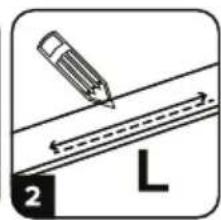

natural_image
Illustration of a hand using a tool to cut a piece of paper with an arrow indicating rotation (no text or symbols)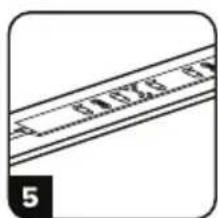
natural_image
Simple line drawing of a mechanical device with two ports and a connecting rod (no text or symbols)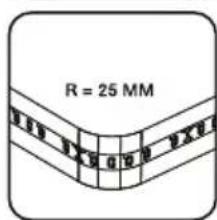
APP SZERELÉS

G ∨
+

Welcome Home
Set your home location for more information >
All Devices
Living Room
Bedroom
...
flowchart
graph TD
    A["Electrician"] --> B["Lighting"]
    B --> C["Lighting BLE+Wi-Fi"]
    B --> D["Light Modulator(BLE+)"]
    B --> E["Lighting (Wi-Fi)"]
    F["Large Home Appliances"] --> G["Strip Lights"]
    G --> H["Lighting remote control (Bluetooth)"]
    I["Small Home Appliances"] --> H
    H --> J["Lighting (ZigBee)"]
Ensure that the device is powered on.

01:45
Device added successfully

Light

Living Room
Bedroom
Second Bedro...
Dining Room
Kitchen
Study Room
Done
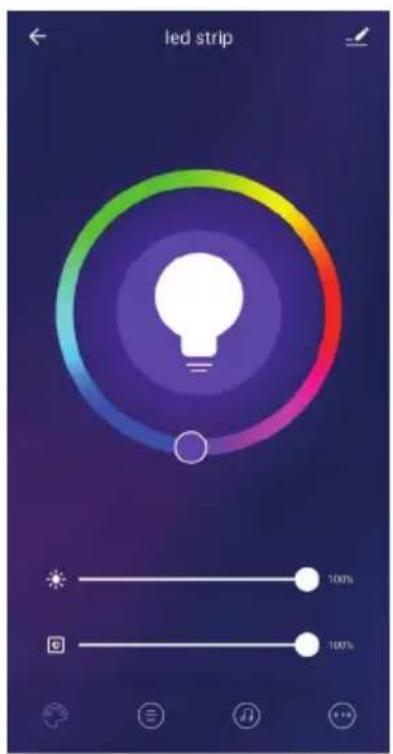
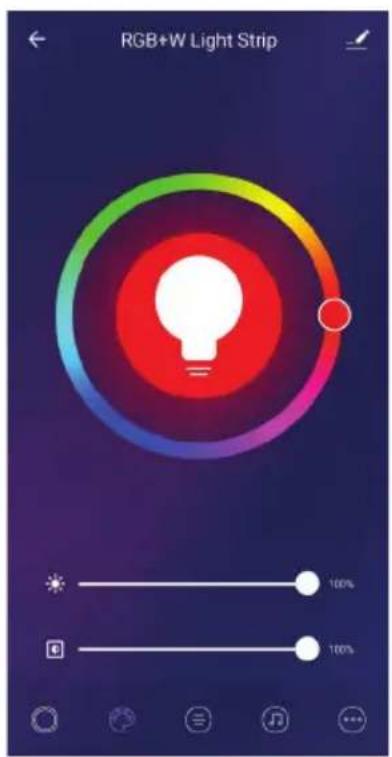
ALEXA BEÁLLÍTÁSAI
Account linking in progress
Alexa by Amazon will be able to:
Receive your public profile Control your devices over internet

skills-store.amazon.in

amazon alexa
V-TAC has been successfully linked.
What to do next:
→ Close this window to discover smart home devices you can control with Alexa.
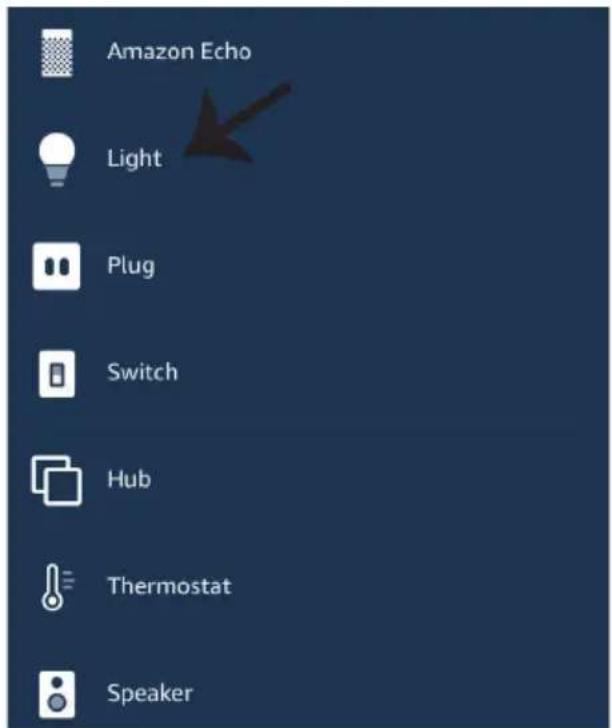
➢! Alexa, turn on/off bedroom light.
➢! Alexa, set bedroom light to 50 percent.
Your content and devices all in one place

natural_image
Abstract geometric shapes including a square, circle, and triangle (no text or symbols)GET STARTED >
b. Choose account
This account will be used to personalize your experience
c. Choose a home
You will be able to control the devices and services in this home.

Create another home
d. Plug in your device
Make sure your device is nearby and connected to power, then try again

Office
1 device
Office Speaker
Pause
b.

Add to Home

Set up device

Add home member

Create speaker group

Create new home
Add services

Music and audio

Videos and photos
Set up new devices or add existing devices and services to your home
Google Home, smart displays and devices labelled 'Made for Google' such as C by GE smart bulbs
Works with Google

Have something already set up?

Link your smart home services such as Philips Hue and TP-Link

Google will be able to:
Receive your public profile Control your devices over internet

7. lépés:
Account is now Linked
b. ×
Choose device
You will be able to control the devices and services in this home.

Smart-Home

Office

Smart Home

Create another home
Master bedroom
1 device

home light
Off · On

Local devices
1 device

Office Speaker
b.


home light
Master bedroom
pie
| Metric | Value | |--------|-------| | Brightness | 81% |Google Parancsai:
➢! OK Google, turn on/off bedroom light
➢! OK Google, set bedroom light to 50 percent.
| Remote Control Functions | |||
 | ON/OFF |  | Red |
 | Increase Brightness |  | Blue |
 | Decrease Brightness |  | Green |
 | Switch Scene Modes |  | Cool White |
 | Step by Step switch from 3000K(CT-) - 6400K(CT+) |  | Warm White |
 |  | Return Key | |
 | Multiple Color options | ||
INSTALLAZIONE
flowchart
graph TD
    A["ADAPTER"] --> B["12V/DC MALE CONNECTOR"]
    B --> C["1"]
    C --> D["3M 3M 3M 3M 3M 3M"]
    D --> E["3M 3M 3M 3M 3M"]
    E --> F["3M 3M 3M 3M 3M"]
    F --> G["≤7 METER"]
    H["Smart Light"] --> I["Strip Light"]
    I --> J["<5 METER >"]
    K["Mobile Device"] --> L["AC System"]
natural_image
Illustration of a paintbrush applying paint to a textured surface (no text or symbols)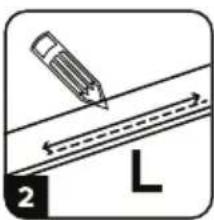
natural_image
Illustration of a hand holding a sheet with an arrow indicating rotation (no text or symbols)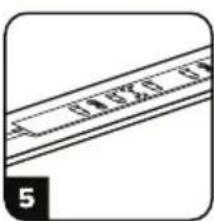
natural_image
Pure diagram of a diagonal line with no text, numbers, or symbols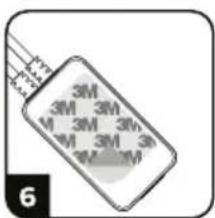
natural_image
Simple line drawing of a mechanical device with two components, no text or symbols present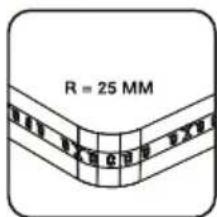

natural_image
Simple line drawing of a ladder with a cross mark and a warning symbol (no text or labels)APP INSTALLAZIONE

Passo 3:
Set your home location for more information >
All Devices
Living Room
Bedroom
...
flowchart
graph TD
    A["Electrician"] --> B["Lighting"]
    B --> C["Lighting (BLE+Wi-Fi)"]
    B --> D["Light Modulator(BLE+)"]
    B --> E["Lighting (Wi-Fi)"]
    F["Large Home Appliances"] --> G["Strip Lights"]
    G --> H["Lighting remote control (Bluetooth)"]
    G --> I["Lighting (ZigBee)"]
Account linking in progress
Phone Number/Email Address
Type your password here
Link Now
Forgot Password
Help
Alexa by Amazon will be able to:
Receive your public profile Control your devices over internet

Done

skills-store.amazon.in

amazon alexa
V-TAC has been successfully linked.
What to do next:
→ Close this window to discover smart home devices you can control with Alexa.
➢! Alexa, turn on/off bedroom light.
➢! Alexa, set bedroom light to 50 percent.
Your content and devices all in one place

natural_image
Abstract geometric shapes including squares, triangles, and circles (no text or symbols)GET STARTED >
b. Choose account
This account will be used to personalize your experience
c. Choose a home
You will be able to control the devices and services in this home.

Create another home
d. Plug in your device
Make sure your device is nearby and connected to power, then try again

Office
1 device
Office Speaker
Pause
b.

Add to Home

Set up device

Add home member

Create speaker group

Create new home
Add services

Music and audio

Videos and photos
Set up new devices or add existing devices and services to your home
Google Home, smart displays and devices labelled 'Made for Google' such as C by GE smart bulbs.
Works with Google

Have something already set up?

Link your smart home services such as Philips Hue and TP-Link

Google will be able to:
Receive your public profile Control your devices over internet

Passo 7:
Account is now Linked
b.

Choose device
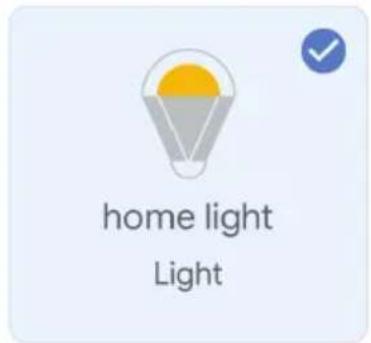
You will be able to control the devices and services in this home.

Smart-Home

Office

Smart Home

Create another home
Passo 11:
Master bedroom
1 device

home light


On

Local devices
1 device

Office Speaker
b.


home light
Master bedroom
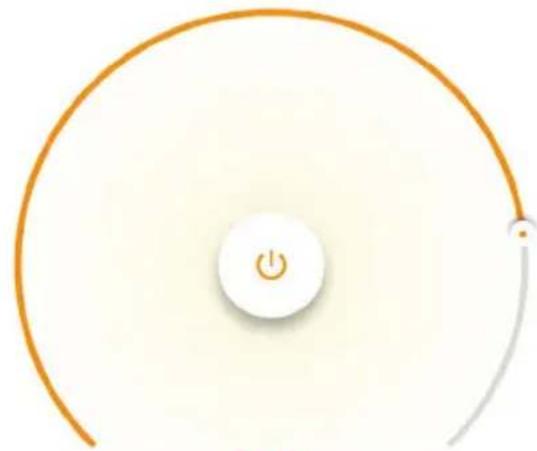
natural_image
Circular diagram with a power button and curved line, no text or symbols present81%
Brightness
Comandi di Google:
➢! OK Google, turn on/off bedroom light
➢! OK Google, set bedroom light to 50 percent.
| Remote Control Functions | |||
 | ON/OFF |  | Red |
 | Increase Brightness |  | Blue |
 | Decrease Brightness |  | Green |
 | Switch Scene Modes |  | Cool White |
 | Step by Step switch from 3000K(CT-) - 6400K(CT+) |  | Warm White |
 |  | Return Key | |
 | Multiple Color options | ||
ΕΓΚΑΤΑΣΤΑΣΗ
APP TOΠΟΘΕΤΗΣΗ
Verification code is sent to your phone:
+44 wwee
Verification Code
Get
Please Input Password
©
Confirm
G ∨
+

Welcome Home
Set your home location for more information >
All Devices
Living Room
Bedroom
...
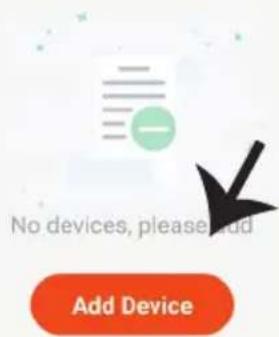
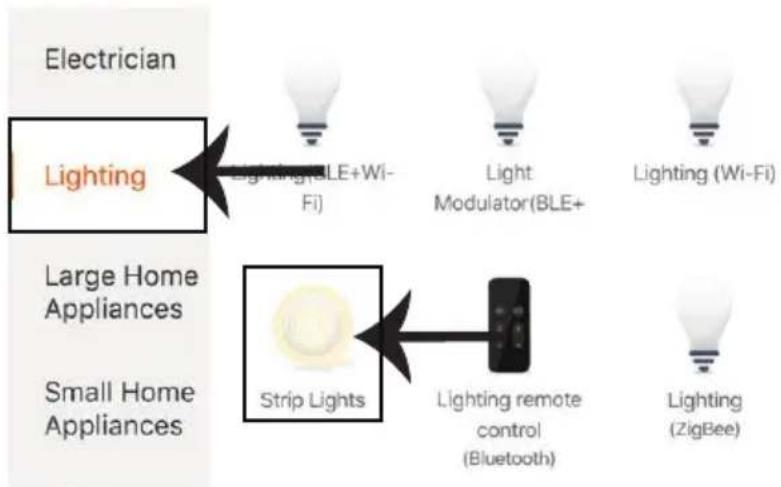
flowchart
graph TD
    A["Electrician"] --> B["Lighting"]
    B --> C["Lighting (BLE+Wi-Fi)"]
    B --> D["Light Modulator (BLE+)"]
    B --> E["Lighting (Wi-Fi)"]
    F["Large Home Appliances"] --> G["Strip Lights"]
    G --> H["Lighting remote control (Bluetooth)"]
    G --> I["Lighting (ZigBee)"]
PYOMISEIIS THΣ ALEXA
Account linking in progress
Alexa by Amazon will be able to:
Receive your public profile Control your devices over internet

skills-store.amazon.in

amazon alexa
V-TAC has been successfully linked.
What to do next:
→ Close this window to discover smart home devices you can control with Alexa.
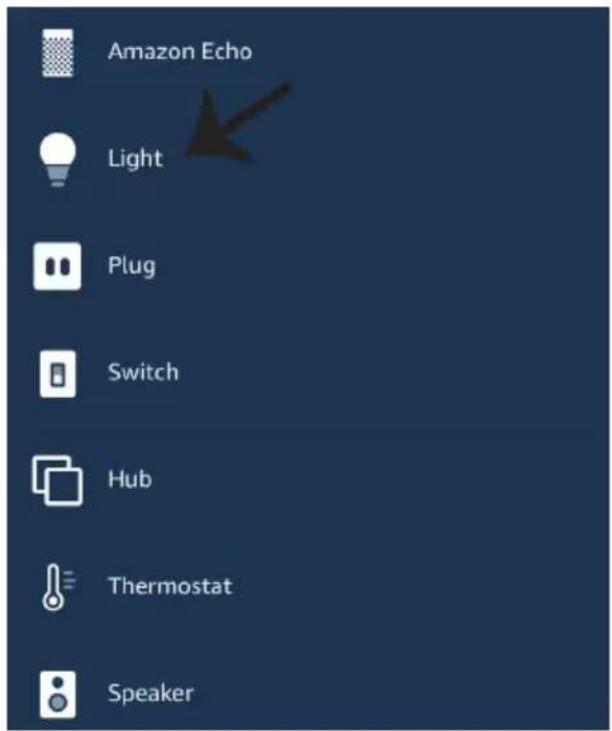
➢! Alexa, turn on/off bedroom light.
➢! Alexa, set bedroom light to 50 percent.
Your content and devices all in one place

natural_image
Abstract geometric shapes including squares, triangles, and circles (no text or symbols)GET STARTED >
b. Choose account
This account will be used to personalize your experience
c. Choose a home
You will be able to control the devices and services in this home.

Create another home
d. Plug in your device
Make sure your device is nearby and connected to power, then try again

Office
1 device

Office Speaker
Pause
b.

Add to Home

Set up device

Add home member

Create speaker group

Create new home
Add services

Music and audio

Videos and photos
Set up new devices or add existing devices and services to your home
Google Home, smart displays and devices labelled 'Made for Google' such as C by GE smart bulbs
Works with Google

Have something already set up?

Link your smart home services such as Philips Hue and TP-Link

Google will be able to:
Receive your public profile Control your devices over internet

Βήμα 7:
Account is now Linked
b. ×
Choose device
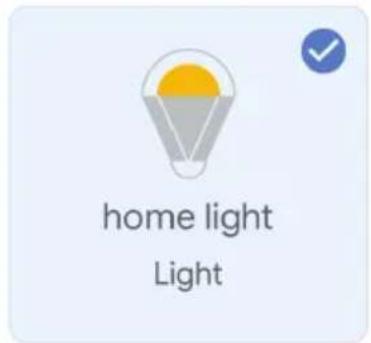
You will be able to control the devices and services in this home.

Smart-Home

Office

Smart Home

Create another home
Smart-Home

Off

On

Add

Settings
Master bedroom
1 device

home light
Off
On

Local devices
1 device

Office Speaker
Βήμα 11:
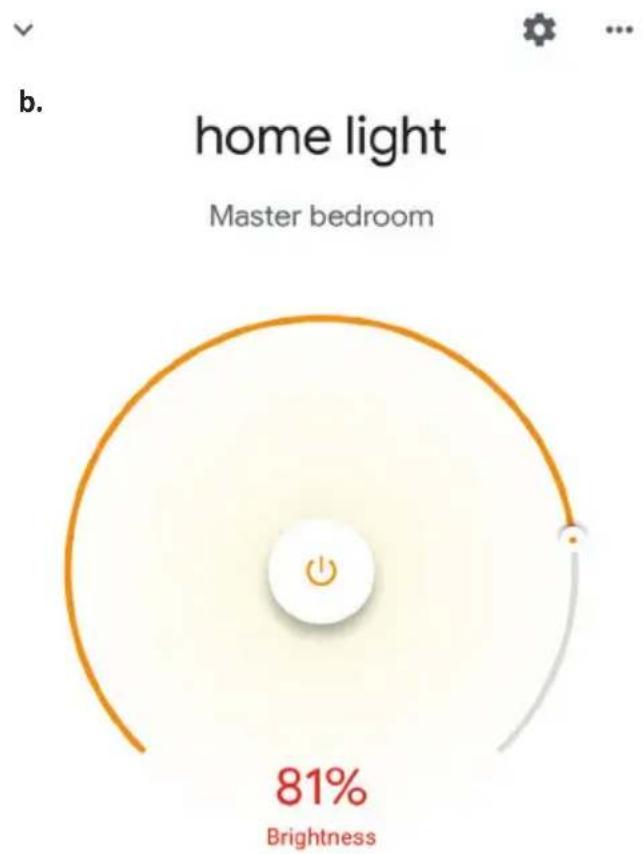
pie
| Metric | Value | |--------|-------| | Brightness | 81% |Εντολές στο Google:
➢! OK Google, turn on/off bedroom light
➢! OK Google, set bedroom light to 50 percent.
WAŻNE INSTRUKCJE I FUNKCJE
JAK PODŁĄCZYĆ KONTROLER DO TAŚMY OŚWIETLE-NIOWEJ
| Remote Control Functions | |||
 | ON/OFF |  | Red |
 | Increase Brightness |  | Blue |
 | Decrease Brightness |  | Green |
 | Switch Scene Modes |  | Cool White |
 | Step by Step switch from 3000K(CT-) - 6400K(CT+) |  | Warm White |
 |  | Return Key | |
 | Multiple Color options | ||
MONTAŽ
flowchart
graph TD
    A["ADAPTER"] --> B["12V/DC MALE CONNECTOR"]
    B --> C["WIFI CONTROLLER"]
    C --> D["3M 3M 3M 3M 3M 3M 3M 3M 3M 3M 3M 3M 3M 3M 3M 3M 3M 3M 3M 3M 3M 3M 3M 3M 3M 3M 3M 3M 3M 3M 3M 3M 3M 3M 5 METER"]
    D --> E["≤7 METER"]
    F["Smart Light"] --> G["Strip Light"]
    G --> H["<5 METER >"]
    I["1500 MM >"] --> J["<125 MM >"]
APP INSTALACJA
Krok 3:
flowchart
graph TD
    A["Electrician"] --> B["Lighting"]
    B --> C["Lighting (BLE+Wi-Fi)"]
    B --> D["Light Modulator (BLE+)"]
    B --> E["Lighting (Wi-Fi)"]
    F["Large Home Appliances"] --> G["Strip Lights"]
    G --> H["Lighting remote control (Bluetooth)"]
    G --> I["Lighting (ZigBee)"]

USTAWIENIA ALEXA
Account linking in progress
Phone Number/Email Address
Type your password here
Link Now
Forgot Password
Help
Alexa by Amazon will be able to:
Receive your public profile Control your devices over internet

Done

skills-store.amazon.in

amazon alexa
V-TAC has been successfully linked.
What to do next:
→ Close this window to discover smart home devices you can control with Alexa.
➢! Alexa, turn on/off bedroom light.
➢! Alexa, set bedroom light to 50 percent.
RZECZY O KTÓRYCH MUSISZ PAMIĘTAĆ PRZED PRZYSTĄPIENIEM DO INSTALACJI:
Your content and devices all in one place

natural_image
Abstract geometric shapes including squares, triangles, and circles (no text or symbols)GET STARTED >
b. Choose account
This account will be used to personalize your experience
c. Choose a home
You will be able to control the devices and services in this home.

Create another home
d. Plug in your device
Make sure your device is nearby and connected to power, then try again

Office
1 device

Office Speaker
Pause
b.

Add to Home

Set up device

Add home member

Create speaker group

Create new home
Add services

Music and audio

Videos and photos
Set up new devices or add existing devices and services to your home
Google Home, smart displays and devices labelled 'Made for Google' such as C by GE smart bulbs.
Works with Google

Have something already set up?

Link your smart home services such as Philips Hue and TP-Link

Google will be able to:
Receive your public profile Control your devices over internet

Krok 7:
Account is now Linked
b. ×
Choose device
You will be able to control the devices and services in this home.

Smart-Home

Office

Smart Home

Create another home
Smart-Home

Off

On

Add

Settings
Master bedroom
1 device

home light
Off
On

Local devices
1 device

Office Speaker
Krok 11:
pie
| Metric | Value | |--------|-------| | Brightness | 81% |Komendy Google:
➢! OK Google, turn on/off bedroom light
➢! OK Google, set bedroom light to 50 percent.
RZECZY O KTÓRYCH MUSISZ PAMIĘTAĆ PRZED PRZYSTĄPIENIEM DO INSTALACJI:
| Remote Control Functions | |||
 | ON/OFF |  | Red |
 | Increase Brightness |  | Blue |
 | Decrease Brightness |  | Green |
 | Switch Scene Modes |  | Cool White |
 | Step by Step switch from 3000K(CT-) - 6400K(CT+) |  | Warm White |
 |  | Return Key | |
 | Multiple Color options | ||
INSTALARE
Pasul 1: Conectati adaptorul, unitatea de control si banda LED in conformitate cu diagrama de mai jos.
flowchart
graph TD
    A["ADAPTER"] --> B["12V/DC MALE CONNECTOR"]
    B --> C["WIFI CONTROLLER"]
    C --> D["3M 3M 3M 3M 3M 3M 3M 3M 3M 3M 3M 3M 3M 3M 3M 3M 3M 3M 3M 3M 3M 3M 3M 3M 3M 3M 3M 3M 3M 3M 3M 3M 3M 3M 0.5V"]
    D --> E["≤7 METER"]
    F["Smart Light"] --> G["Strip Light"]
    G --> H["<5 METER >"]
    I["1500 MM"] --> J["<125 MM >"]
APP INSTALAREA
flowchart
graph TD
    A["Electrician"] --> B["Lighting"]
    B --> C["Lighting BLE+Wi-Fi"]
    B --> D["Light Modulator(BLE+)"]
    B --> E["Lighting (Wi-Fi)"]
    F["Large Home Appliances"] --> G["Strip Lights"]
    G --> H["Lighting remote control (Bluetooth)"]
    G --> I["Lighting (ZigBee)"]
SETĂRI ALEXA
Account linking in progress
Phone Number/Email Address
Type your password here
Link Now
Forgot Password
Help
Alexa by Amazon will be able to:
Receive your public profile Control your devices over internet

Done

skills-store.amazon.in

amazon alexa
V-TAC has been successfully linked.
What to do next:
→ Close this window to discover smart home devices you can control with Alexa.

➢! Alexa, turn on/off bedroom light.
➢! Alexa, set bedroom light to 50 percent.
LUCRURILE PE CARE TREBUIE SĂ LE RETINETI ÎNAINTE SĂ ÎNCEPETI INSTALAREA:
Your content and devices all in one place

natural_image
Abstract geometric shapes including a triangle, circle, and rectangle (no text or symbols)GET STARTED >
b. Choose account
This account will be used to personalize your experience
c. Choose a home
You will be able to control the devices and services in this home.

Create another home
d. Plug in your device
Make sure your device is nearby and connected to power, then try again

Office
1 device
Office Speaker
Pause
b.

Add to Home

Set up device

Add home member

Create speaker group

Create new home
Add services

Music and audio

Videos and photos
Set up new devices or add existing devices and services to your home
Google Home, smart displays and devices labelled 'Made for Google' such as C by GE smart bulbs
Works with Google

Have something already set up?

Link your smart home services such as Philips Hue and TP-Link

Google will be able to:
Receive your public profile Control your devices over internet

Pasul 8:
Account is now Linked
b.

Choose device
You will be able to control the devices and services in this home.

Smart-Home

Office

Smart Home

Create another home
Smart-Home

Off

On

Add

Settings
Master bedroom
1 device

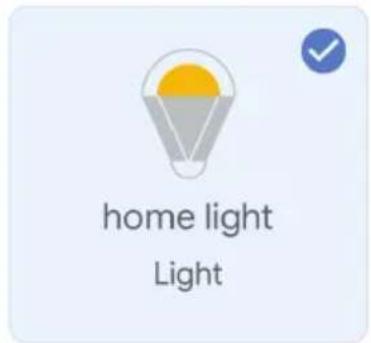
home light
Off
。

Local devices
1 device

Office Speaker
Pasul 11:
pie
| Metric | Value | |--------|-------| | Brightness | 81% |Comenzile Google:
➢! OK Google, turn on/off bedroom light
➢! OK Google, set bedroom light to 50 percent.
CE NU TREBUIE SĂ UITĂM ÎNAINTE SĂ ÎNCEPEM INSTALAREA:
DŮLEŽITÉ POKYNY A FUNKCE
JAK PŘIPOJIT OVLÁDAČE SE SVĚTELNÝM PÁSKEM
| Remote Control Functions | |||
 | ON/OFF |  | Red |
 | Increase Brightness |  | Blue |
 | Decrease Brightness |  | Green |
 | Switch Scene Modes |  | Cool White |
 | Step by Step switch from 3000K(CT-) - 6400K(CT+) |  | Warm White |
 |  | Return Key | |
 | Multiple Color options | ||
INSTALACE
flowchart
graph TD
    A["Electrician"] --> B["Lighting"]
    B --> C["Large Home Appliances"]
    B --> D["Small Home Appliances"]
    C --> E["Lighting (BLE+Wi-Fi)"]
    D --> F["Lighting (Wi-Fi)"]
    D --> G["Lighting remote control (Bluetooth)"]
    D --> H["Lighting (ZigBee)"]
NASTAVENÍ APLIKACE ALEXA
Account linking in progress
Alexa by Amazon will be able to:
Receive your public profile Control your devices over internet

Done

skills-store.amazon.in

amazon alexa
V-TAC has been successfully linked.
What to do next:
→ Close this window to discover smart home devices you can control with Alexa.
POVELY APLIKACE ALEXA
➢! Alexa, turn on/off bedroom ligh
➢! Alexa, set bedroom light to 50 percent.
DOPORUČENÍ PŘED ZAHÁJENÍM INSTALACE:
Your content and devices all in one place

natural_image
Abstract geometric shapes including squares, circles, and triangles (no text or symbols)GET STARTED >
b. Choose account
This account will be used to personalize your experience
d. Plug in your device
Make sure your device is nearby and connected to power, then try again
c. Choose a home
You will be able to control the devices and services in this home.


Create another home
Office
1 device

Office Speaker
Pause
b.

Add to Home

Set up device

Add home member

Create speaker group

Create new home
Add services

Music and audio

Videos and photos
Set up new devices or add existing devices and services to your home
Google Home, smart displays and devices labelled 'Made for Google' such as C by GE smart bulbs
Works with Google

Have something already set up?

Link your smart home services such as Philips Hue and TP-Link
Google will be able to:
Receive your public profile Control your devices over internet

Krok 7:
Account is now Linked
b.

Choose device
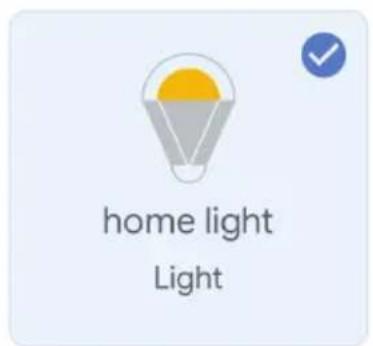
You will be able to control the devices and services in this home.

Smart-Home

Office

Smart Home

Create another home
Smart-Home

Off

On

Add

Settings
Master bedroom
1 device

home light
Off
。
On

Local devices
1 device

Office Speaker
Krok 10:
Master bedroom
1 device

home light


On

Local devices
1 device

Office Speaker
b.
home light
Master bedroom
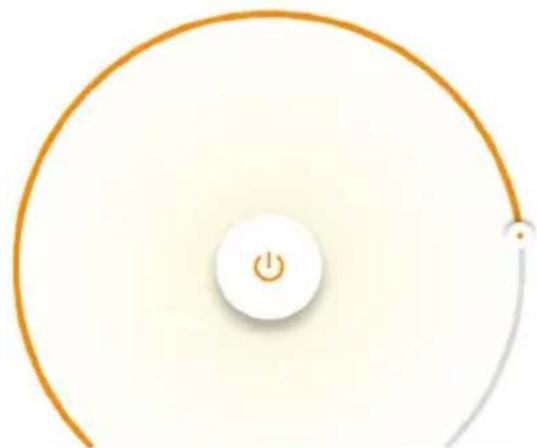
natural_image
Circular diagram with a power button and cable, no text or symbols present81%
Brightness
Povely v Google:
➢! OK Google, turn on/off bedroom light
➢! OK Google, set bedroom light to 50 percent.
DOPORUČENÍ PŘED ZAHÁJENÍM INSTALACE:

- INTRODUCTION & WARRANTY
- (FR) INTRODUCTION & GARANTIE
- (PL) WSTEP I GWARANCJAD
- (RO) INTRODUCERE, GARANTIA
- SAFETY WARNING
- IMPORTANT INSTRUCTIONS & FUNCTIONS
- HOW TO CONNECT CONTROLLER WITH STRIPLIGHT
- WIFI CONTROLLER FUNCTIONS
- REMOTE CONTROL FUNCTIONS
- IMPORTANT NOTE:
- INSTALLATION
- APP INSTALLATION
- Step 4:
- Network Modes:
- ALEXA SETTINGS
- Search
- ALEXA Commands
- THINGS TO REMEMBER BEFORE STARTING INSTALLATION:
- GOOGLE HOME SETTINGS
- Step1:
- a. Welcome home
- b. Choose account
- c. Choose a home
- d. Plug in your device
- Set up
- New devices
- Works with Google
- Step7
- Choose a home
- Smart-Home
- Master bedroom
- Local devices
- Step10:
- Google Commands:
- AVERTISSEMENT DE SÉCURITÉ
- Étape 4:
- RÉGLAGES ALEXA
- CHOSES À RAPPELER AVANT DE COMMENCER L'INSTALLATION:
- Étape 7:
- Étape 11:
- Commandes Google:
- Schritt 4:
- Schritt 7:
- GOOGLE HOME-Befehle
- EMPFEHLUNGEN VOR DEM START DER INSTALLATION:
- ИНСТАЛАЦИЯ
- АРР ИНСТАЛАЦИЯ
- Стъпка 4:
- НАСТРОЙКИ НА АЛЕКСА
- Стъпка 7:
- Команди на Google:
- КАКВО ДА НЕ ЗАБРАВЯМЕ ПРЕДИ ДА СТАРТИРАМЕ ИНСТАЛАЦИЯТА:
- UGRADNJA
- APP INSTALACIJA
- Korak 4:
- POSTAVKE ZA ALEXA
- PRIJE POČETKA INSTALACIJE NEMOJTE ZABORAVITI:
- GOOGLE HOME POSTAVKE
- Korak 1:
- Korak 8:
- Google Naredbe:
- AVISO DE SEGURANÇA
- INSTALAÇÃO
- APP INSTALAÇÃO
- CONFIGURAÇÕES ALEXA
- DICAS QUE DEVERÁ MEMORIZAR ANTES DE COMEÇAR A INSTALAÇÃO:
- Passo 8:
- Comados do Google:
- INSTALACIÓN
- APP INSTALACIÓN
- Paso 4:
- Paso 7:
- Paso 8:
- Comandos de Google:
- TELEPÍTÉS
- APP SZERELÉS
- Device added successfully
- ALEXA BEÁLLÍTÁSAI
- lépés:
- Google Parancsai:
- INSTALLAZIONE
- APP INSTALLAZIONE
- Passo 3:
- Passo 7:
- Passo 11:
- Comandi di Google:
- ΕΓΚΑΤΑΣΤΑΣΗ
- APP TOΠΟΘΕΤΗΣΗ
- PYOMISEIIS THΣ ALEXA
- Βήμα 7:
- Βήμα 11:
- Εντολές στο Google:
- WAŻNE INSTRUKCJE I FUNKCJE
- JAK PODŁĄCZYĆ KONTROLER DO TAŚMY OŚWIETLE-NIOWEJ
- MONTAŽ
- APP INSTALACJA
- Krok 3:
- USTAWIENIA ALEXA
- RZECZY O KTÓRYCH MUSISZ PAMIĘTAĆ PRZED PRZYSTĄPIENIEM DO INSTALACJI:
- Krok 7:
- Krok 11:
- Komendy Google:
- INSTALARE
- APP INSTALAREA
- SETĂRI ALEXA
- LUCRURILE PE CARE TREBUIE SĂ LE RETINETI ÎNAINTE SĂ ÎNCEPETI INSTALAREA:
- Pasul 8:
- Pasul 11:
- Comenzile Google:
- CE NU TREBUIE SĂ UITĂM ÎNAINTE SĂ ÎNCEPEM INSTALAREA:
- DŮLEŽITÉ POKYNY A FUNKCE
- JAK PŘIPOJIT OVLÁDAČE SE SVĚTELNÝM PÁSKEM
- INSTALACE
- NASTAVENÍ APLIKACE ALEXA
- POVELY APLIKACE ALEXA
- DOPORUČENÍ PŘED ZAHÁJENÍM INSTALACE:
- Krok 10:
- Povely v Google:
Brand : V-TAC
Model : VT-5050
Category : Lamp