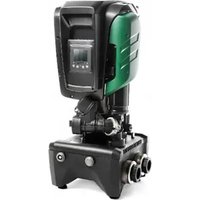
ESYBOX MAX - Pump DAB - Free user manual and instructions
Find the device manual for free ESYBOX MAX DAB in PDF.


| Product type | Vertical multistage pressurization pump with built-in inverter and expansion tank |
| Brand | DAB |
| Model | ESYBOX MAX (versions 60/120M, 60/120T, 85/120T) |
| Dimensions (L × H × D) | 766 × 375 × 384 mm |
| Empty weight (depending on model) | 29 to 30 kg (pump) + 9 to 27 kg (ESYDOCK base) |
| Power supply | Single-phase 208-240 V (60/120M) or three-phase 380/480 V (60/120T, 85/120T), 50/60 Hz |
| Maximum current | 11.8 A (single) / 4.2 A or 5.5 A (three) |
| Maximum absorbed power | 2.68 kW (single) / 2.65 kW or 3.5 kW (three) |
| Maximum working pressure (PN) | 12 bar |
| Maximum suction pressure | 5 bar |
| Maximum flow rate | 300 L/min |
| Maximum head | 7.7 bar (60/120) / 10 bar (85/120T) |
| Liquid temperature | Up to 50°C (40°C for the Americas) |
| Protection rating | IPX5 |
| Expansion tank capacity | 2 liters |
| Hydraulic connections | 2" female (reducible to 1"1/4 female) |
| Main functions | Constant pressure, Wi-Fi/Bluetooth communication, dry run protection, anti-freeze, anti-cycling, anti-blocking, multi-pump management (up to 4), PID regulation, auxiliary inputs/outputs |
| Maintenance and cleaning | No routine maintenance required; draining possible for prolonged inactivity; cleaning the check valve; manual shaft unblocking in case of calcification |
| Safety | Amperometric protection, overheating, abnormal voltage, lack of water, low suction pressure, dry run; 30 mA residual current circuit breaker required |
| Spare parts and repairability | Replaceable expansion tank and check valve; accessory tool included; software update via DConnect app |
| Pumpable liquids | Clean water, free of solid particles and fibers, density 1000 kg/m³, viscosity 1 mm²/s; suitable for drinking water |
Frequently Asked Questions - ESYBOX MAX DAB
User questions about ESYBOX MAX DAB
0 question about this device. Answer the ones you know or ask your own.
Ask a new question about this device
Download the instructions for your Pump in PDF format for free! Find your manual ESYBOX MAX - DAB and take your electronic device back in hand. On this page are published all the documents necessary for the use of your device. ESYBOX MAX by DAB.
USER MANUAL ESYBOX MAX DAB
1.1 Applications....42
1.2 Integrated electropump 42
1.3 Integrated Inverter 43
1.4 Integrated Expansion Vessel 43
1.5 Technical characteristics 43
- PUMPABLE LIQUIDS 44
- INSTALLATION......44
- PROCEDURE FOR FIXING THE PUMP TO THE ESYDOCK BASE 45
- HYDRAULIC CONNECTIONS 47
5.1 Loading Operation – Installation above head and below head.... 47
5.2 Maximum pressure at intake (pump below head) 48
5.3 Systems in booster mode....48
- COMMISSIONING......49
6.1 Electrical Connections....49
6.2 Configuration of the Integrated Inverter 50
6.3 Priming 50
- THE KEYPAD AND THE DISPLAY 51
7.1 Direct access with a combination of keys 52
7.2 Access by name with a drop-down menu....53
7.3 Structure of the menu pages....54
7.4 Blocking parameter setting by Password....55
7.5 Enabling and disabling the motor 55
- MEANING OF THE INDIVIDUAL PARAMETERS 55
8.1 User Menu 55
8.2 Monitor Menu....57
8.3 Setpoint Menu....57
8.4 Manual Menu....58
8.5 Installer Menu 59
8.6 Technical Assistance Menu 61
- RESET AND FACTORY SETTINGS....67
9.1 General system reset 67
9.2 Factory settings....67
9.3 Restoring the factory settings 67
- PROTECTION SYSTEMS 68
10.1 Description of blockages....69
10.2 Manual reset of error conditions 69
10.3 Self-reset of error conditions....69
- PARTICULAR INSTALLATIONS....70
11.1 Multiple Sets 70
- APP, DCONNECT CLOUD AND SOFTWARE UPDATE 73
12.1 System requirements....74
12.2 Updating the software....74
12.3 DSYNC....76
- MAINTENANCE 77
13.1 Accessory tool....77
13.2 Emptying the system 77
13.3 Non-return valve....77
13.4 Motor shaft....78
13.5 Expansion Vessel....78
- TROUBLESHOOTING 79
ENGLISH
KEY
The following symbols have been used in the discussion:

SITUATION OF GENERAL DANGER.
Failure to respect the instructions that follow may cause harm to persons and property.
SITUATION OF ELECTRIC SHOCK HAZARD.
Failure to respect the instructions that follow may cause a situation of grave risk for personal safety.
Notes and general information.
1. GENERAL
The product is an integrated system composed of a vertical multi-stage centrifugal electric pump, an electronic circuit that controls it and an expansion vessel. The pump also has WiFi and Bluetooth connection systems for remote control via DConnect Cloud and for a better user experience with mobile devices via the dedicated app, see chapter 12. The APP and DConnect Cloud also allow the use of additional features not present directly on the display (e.g. energy and flow meters).
1.1 Applications
Indicated for booster sets for water systems of small, medium and large users. They can be used in the most varied fields, such as:
- Washing systems
- Supply of drinking water and autoclave supplies
- Boiler supply
- Irrigation systems
- Other pressure boosting systems
Another important feature of this pump is the possibility to operate in booster mode with a maximum intake pressure of 5.0 bar.
1.2 Integrated electropump
The system has a built-in centrifugal electropump of the multi-impeller type driven by a water-cooled three-phase electric motor. Cooling of the motor with water rather than air ensures less noise in the system and the possibility of locating it even in recesses without ventilation.
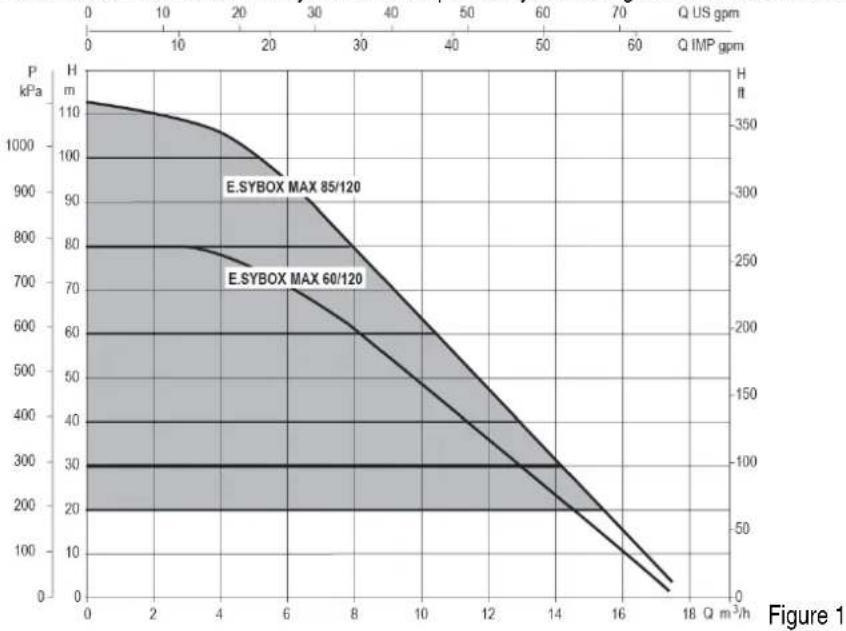
line
| Q IMP gpm | P kPa | H ft | | --------- | ----- | ---- | | 0 | 110 | 350 | | 2 | 105 | 300 | | 4 | 100 | 250 | | 6 | 90 | 200 | | 8 | 80 | 150 | | 10 | 70 | 100 | | 12 | 60 | 50 | | 14 | 50 | 25 | | 16 | 40 | 10 | | 18 | 30 | 5 |ENGLISH
1.3 Integrated Inverter
The electronic control integrated in the system is of the type with inverter and it makes use of two pressure and temperature sensors (one on intake and one on delivery).
By means of these sensors the system switches on and off automatically according to the user's needs, keeping a constant delivery pressure.
The system is configured by the manufacturer to satisfy the majority of installation cases, that is:
• Operation at constant pressure;
- Set-Point (desired value of constant pressure): SP = 3.0 bar
• Reduction of pressure to restart: RP = 0.3 bar
• Anti-cycling function: Disabled
Chapters 8-9-10 show all the parameters that can be set: pressure, intervention of protections, rotation speed, etc.
1.4 Integrated Expansion Vessel
The system is complete with an integrated expansion vessel with a total capacity of 2 litres.
It is not a function of the integrated expansion vessel to ensure a water reserve such as to reduce interventions of the system (requests from the utility, not from a leak in the system). It is possible to add an expansion vessel with the capacity you prefer to the system, connecting it to a point on the delivery system (not a suction point!).
The expansion vessel is preloaded according to the following ratio:
Pair= SP-RP-0.2 bar Where:
Where:
- Pair = air pressure value in bar
- SP = Set Point (7.3) in bar
- RP = Reduction of pressure to restart
(7.5.1) in bar
So, by the manufacturer: Pair = 3-0.2-0.3=2.5
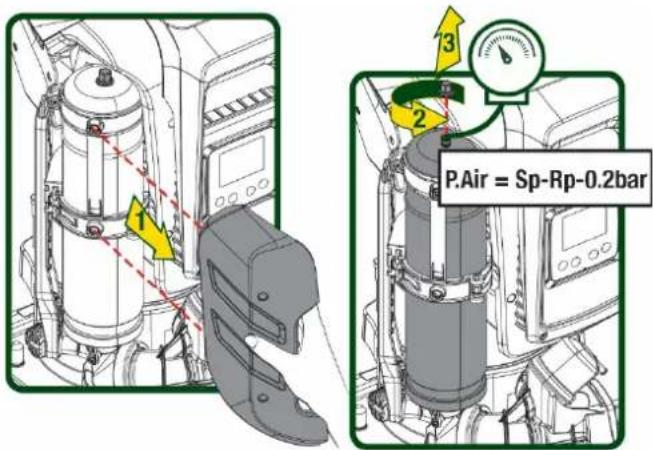
Figure 2
If different values are set for the parameters SP and/or RP, regulate the valve of the expansion vessel releasing or letting in air until the above equation is satisfied again.
1.5 Technical characteristics
| Text Parameter | ESYBOX MAX 60/120M | ESYBOX MAX 60/120T | ESYBOX MAX 85/120T | ||
| ELECTRIC POWER SUPPLY | Voltage | 208-240 | 380/480 | 380/480 | |
| Phases | 1 | 3 | 3 | ||
| Frequency | 50/60 | ||||
| Maximum current | 11,8 A | 4,2 A | 5,5 A | ||
| Maximum power | 2,68 KW | 2,65 KW | 3,5 KW | ||
| Leakage current to earth | <2 mA | <4 mA | <4 mA | ||
| CONSTRUCTION CHARACTERISTICS | Overall dimensions | 766x375x384 | |||
| Empty weight (excluding packaging) | PUMP | 29 | 29 | 30 | |
| ESYDOCK | 9 | ||||
| 2 ESYDOCK | 18 | ||||
| 3 ESYDOCK | 27 | ||||
| Protection class | IPX5 | ||||
| Motor insulation class | F | ||||
| HYDRAULIC PERFORMANCE | Maximum head | 7,7bar | 7,7bar | 10bar | |
| Maximum pressure at intake | 5 bar | ||||
| Maximum working pressure (PN) | 12 bar | ||||
| Maximum flow rate | 300 l/min | ||||
ENGLISH
| WORKING CONDITIONS | Max liquid temperature | 50°C (40°C – AMERICAS) | |
| Max environment temperature | 55°C (45°C – AMERICAS) | ||
| Storage environment temperature | -10÷60 °C | ||
| FUNCTIONALITY AND PROTECTIONS | Constant pressure | ||
| Wireless communication | |||
| WiFi and Bluetooth communication (APP and DConnect Cloud) | |||
| Protection against dry running | |||
| Antifreeze protection | |||
| Anticycling protection | |||
| Motor overload protection | |||
| Protection against abnormal supply voltages | |||
| Protection against excess temperature | |||
Table 1
2. PUMPABLE LIQUIDS

The machine has been designed and made for pumping water, free from explosive substances and solid particles or fibres, with a density of 1000 Kg/m^3 , a kinematic viscosity of 1 mm^2/s and non chemically aggressive liquids.

The system cannot be used to pump salt water, sewage, inflammable, corrosive or explosive liquids (e.g. petroleum, petrol, thinners), greases, oils or food products.

The system is suitable for treating drinking water.
3. INSTALLATION

The pumps may contain small quantities of residual water from testing
The electric pump has degree of protection IPX5 and can be installed in dusty environments without special weather protection measures.

The system is designed to be able to work in environments where the temperature remains between 0^ C and 55^ C (on condition that the electric power supply is ensured: see par. 8.6.14 “anti-freeze function”).

If the system is used for the domestic water supply, respect the local regulations of the authorities responsible for the management of water resources.

When choosing the installation site, check that:
- The voltage and frequency on the pump's technical data plate correspond to the values of the power supply system.
- The electrical connection is made in a dry place, far from any possible flooding.
• The electrical system is provided with a differential switch with
I n ≤ 30 mA and that the earth system is efficient.

The pump must be installed in vertical position.
ENGLISH

The pump is not self-priming. It is suitable for suction from tanks or connected to the mains in booster mode where it is possible according to local regulations.
4. PROCEDURE FOR FIXING THE PUMP TO THE ESYDOCK BASE
-
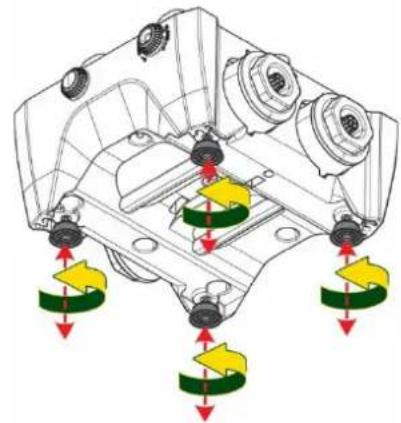
Use the possibility of adjusting the height of the feet to compensate for any unevenness in the support surface.
-
To fix the pump to the ground, use the slots on the base.
natural_image
Mechanical assembly diagram showing gear and spring components with red and yellow directional arrows (no text or labels)Figure 3
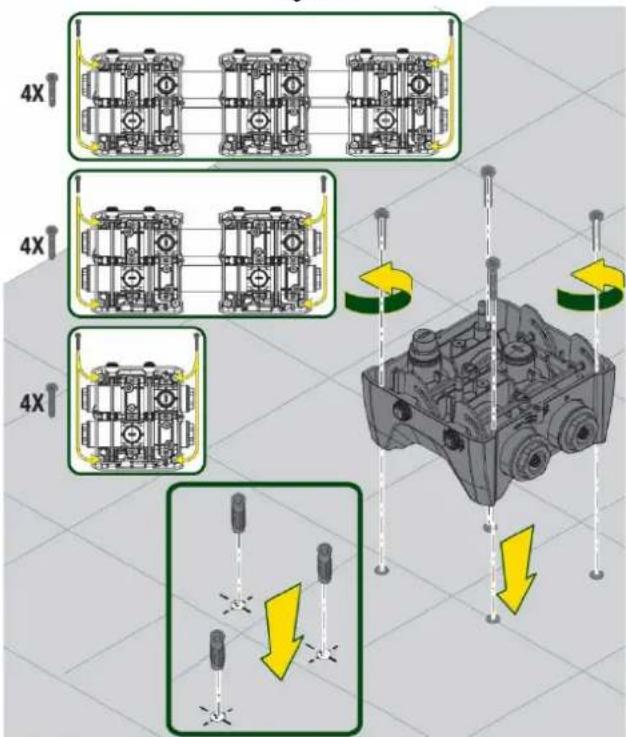
Figure 4
-
Open the caps with the appropriate key provided and store them in the technical compartment. With the grease provided, lubricate the O-Ring seals on the delivery and suction manifolds. Lower the pump onto the Esydock base, centring the fixing pins.
-
Fix the pump to the dock base with the wrench supplied. To ensure that it is properly fixed, check that the green ring of the centring pins is visible. After use, put the key away on the pump hooks. If the wrench gets lost or broken, it can be easily replaced with a 10mm (13/32 inch) socket wrench).
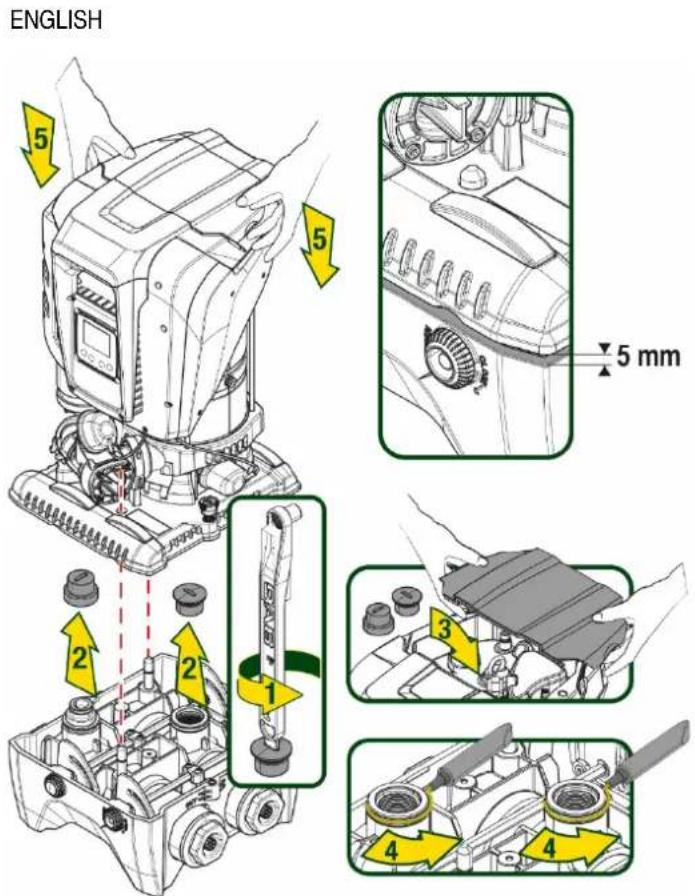
Figure 5
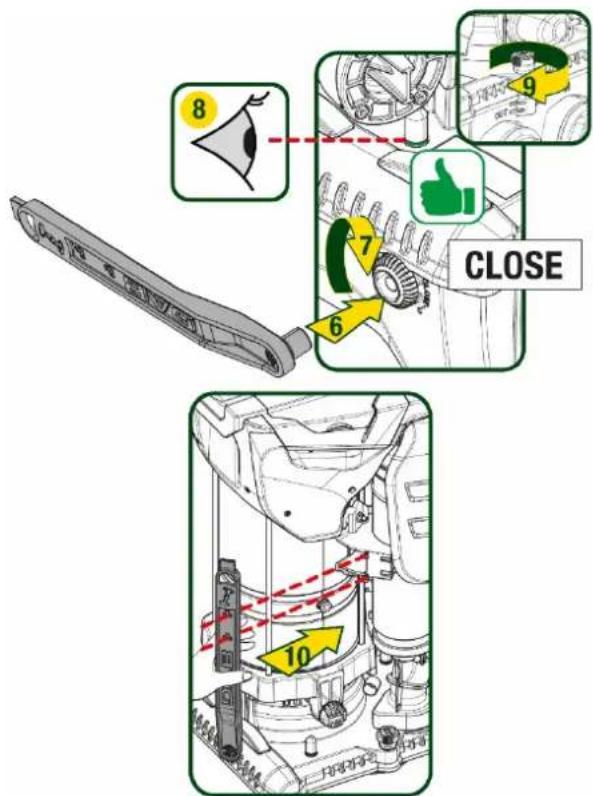
Figure 6
ENGLISH
5. HYDRAULIC CONNECTIONS
The connections to the hydraulic system are all 2" female, with the possibility to be reduced to 1"1/4 female with adapters supplied only for the single dock.
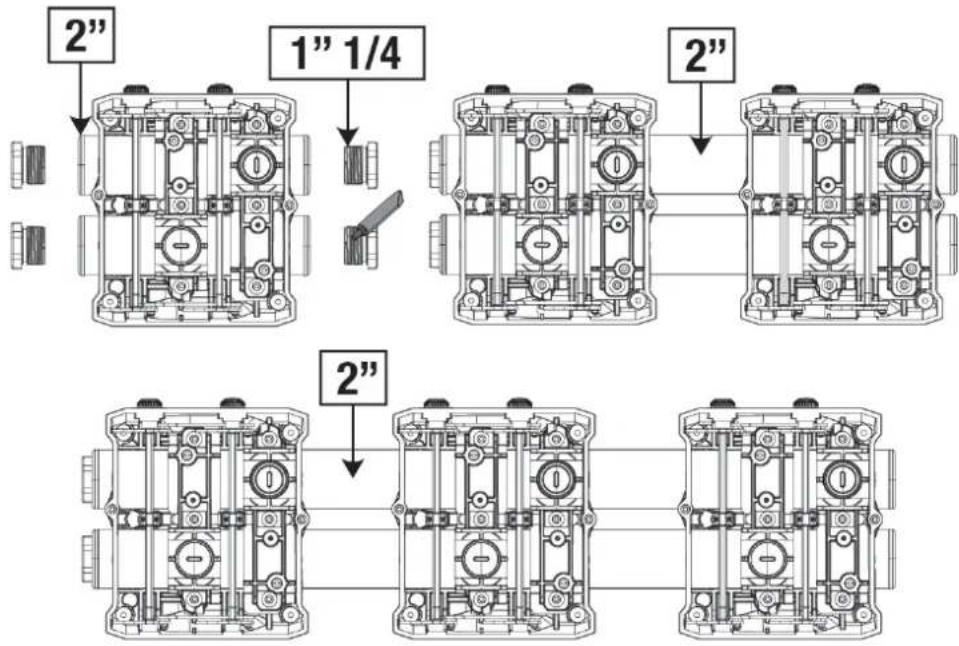
Figure 7
Four configurations are possible, as shown in figure 8.
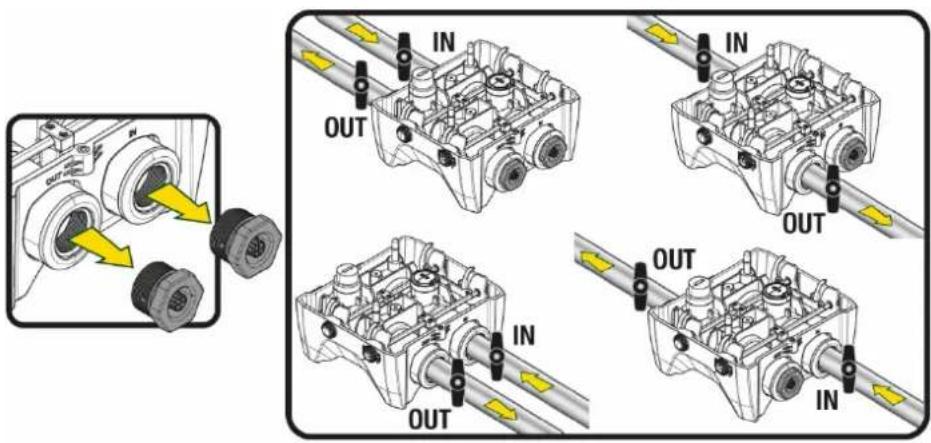
Figure 8

If the installation of the system is of the "above head" type, it is recommended to provide a non-return valve as foot valve (at the beginning of the suction pipe); this will allow the system loading operation so as to fill the whole pipe before switching on the pump (par. 5.1)
If the installation is of the "over head" type, install the suction pipe from the water source to the pump in such a way as to avoid the formation of goosenecks or siphons.
The suction and delivery pipes must be fitted so that they do not exert any mechanical pressure on the pump.
5.1 Loading Operation – Installation above head and below head
Installation "above head" (Fig 9A): access the technical compartment and, with the aid of the accessory tool or with a screwdriver, remove the filling cap. Fill the system with clean water through the loading door, taking care to let the air out.
ENGLISH
Installation "below head" (Fig 9B): if there are no check valves between the water deposit and the system (or if they are open), it loads automatically as soon as it is allowed to let out the trapped air. So slackening the filling cap enough to vent the trapped air (2.5 turns) allows the system to load completely.
Tighten the cap again when the operation is complete.
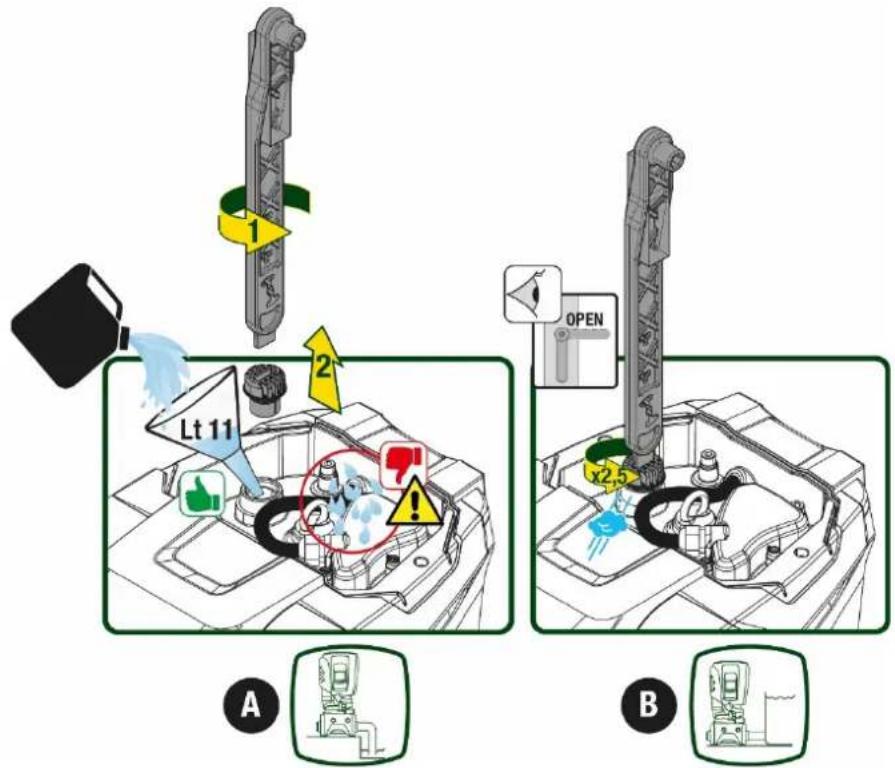
Figure 9

Dry up any water residue in the technical compartment.
5.2 Maximum pressure at intake (pump below head)
It is important that the intake pressure is always lower than the maximum working pressure allowed by the pump as indicated in the table.
5.3 Systems in booster mode
Each pump, depending on the model, is characterised by a maximum achievable Setpoint pressure (without the suction being pressurised). The user is allowed to set any setpoint pressure (SP) from 1.0 bar up to the maximum pressure PN, thus reaching pressure values higher than the maximum pressure that can be achieved by the pump in order to allow use in booster mode.
Operation is as follows:
- If the set pressure SP is lower than the maximum pressure achievable by the pump, the system will adjust to the set pressure;
- If, on the other hand, the set pressure is greater than that achievable by the pump, the set point will be reached only if there is pressure at intake.
Based on the setpoint set and the pressure read at intake, the pump understands whether it will achieve the desired setpoint.
If the setpoint set cannot be reached due to the reduced intake pressure, the pump will still continue to deliver water at the pressure it is able to achieve and will show the flashing pressure gauge symbol on the main page.
ENGLISH
6. COMMISSIONING
6.1 Electrical Connections
To improve immunity to the possible noise radiated towards other appliances it is recommended to use a separate electrical duct to supply the product.

The line voltage may change when the electropump is started. The line voltage may undergo variations depending on other devices connected to it and on the quality of the line.
Make sure that the mains voltage is the same as that on the motor data plate.
Strictly observe the wiring diagrams below:
- L-N-Earth, single-phase version
- U-V-W-Earth, three-phase version
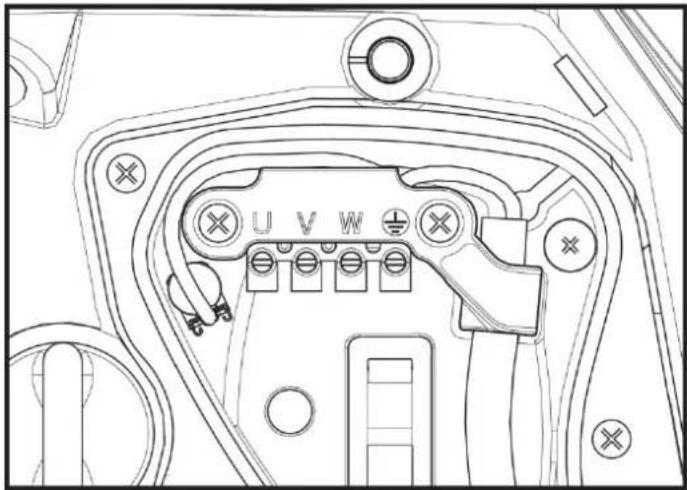
natural_image
Technical line drawing of a mechanical component with mounting holes and connectors (no text or symbols)Figure 10
It is recommended to carry out installation as indicated in the manual, in compliance with the laws, directives and standards in force in the place of use and depending on the application.
The product contains an inverter inside which there are continuous voltages and currents with high-frequency components.
The differential switch for protecting the system must be correctly sized according to the characteristics indicated in Table 2 and Table 3.
| Type of possible fault currents to earth | ||||
| Alternating | Unipolar pulsed | Direct | With high-frequency components | |
| Inverter with single-phase power supply | √ | √ | √ | |
| Inverter with three-phase power supply | √ | √ | √ | √ |
Table 2
For inverter types with three-phase power supply, it is recommended to use a differential switch protected also against sudden tripping.
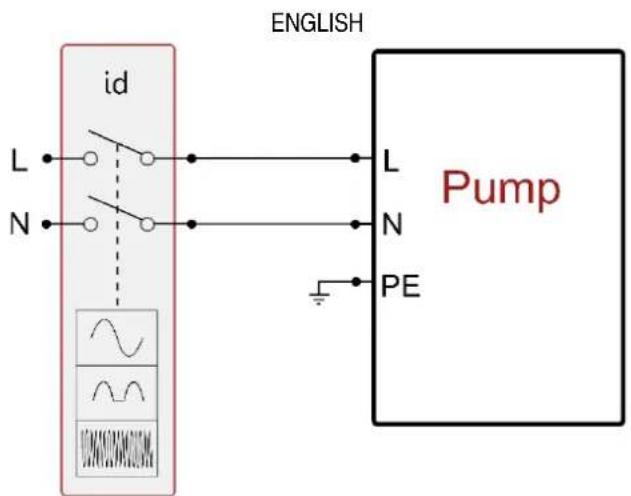
Fig 11 example of single-phase installation
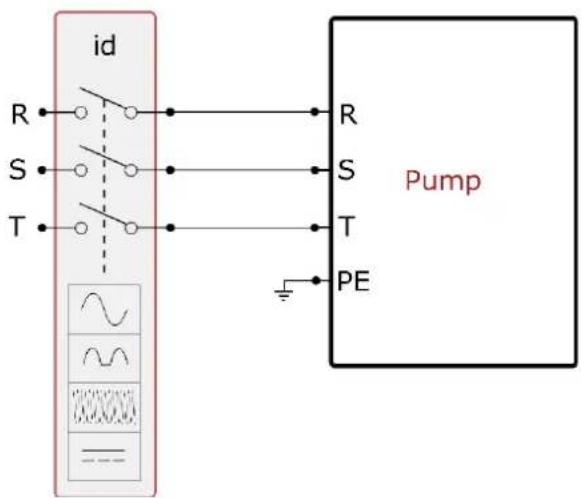
Fig 12 example of three-phase installation
The appliance must be connected to a main switch that cuts off all the power supply poles. When the switch is in off position, the distance separating each contact must respect the indications in table 3.
The cable gland, supplied with the terminal box, binds the outer diameter of the cable sheath in a range between 7 and 13mm. The mammoth terminal block can accommodate cables with a lead cross-section up to 2.5mm2 (AWG14 for USA versions).
| Minimum distance between the contacts of the power switch | |
| Minimum distance [mm] | >3 |
Table 3
6.2 Configuration of the Integrated Inverter
The system is configured by the manufacturer to satisfy the majority of installation cases, that is:
• operation at constant pressure;
- Set-Point (desired value of constant pressure): SP = 3.0 bar
• Reduction of pressure to restart: RP = 0.3 bar
• Anti-cycling function: Disabled
However, all these parameters can be set by the user (see the chapter Settable parameters)
The system does not work if the utility is at a height higher than the equivalent in metres of water column of the Pstart (consider 1 bar = 10 m. water column): for the default configuration, if the utility is at a height of at least 27m the system does not start.
6.3 Priming
For the first start-up, follow the steps below:
• Make the hydraulic and electrical connections (without supplying power)
ENGLISH
- Fill the pump (par 5.1)
- Open a utility on delivery
• Provide electric power supply - Connect to the pump via App to carry out assisted configuration
The system starts and checks the presence of water in delivery. If a regular flow of water is detected, the pump is primed and starts its pressure boosting work.
Operation
Once the electropump is primed, the system starts regular operation according to the configured parameters: it starts automatically when the tap is turned on, supplies water at the set pressure (SP), keeps the pressure constant even when other taps are turned on, stops automatically after time T2 once the switching off conditions are reached (T2 can be set by the user, factory value 10 sec).
7. THE KEYPAD AND THE DISPLAY
The user interface is composed of a keypad with 2.8" display and with POWER, COMM, ALARM warning leds as can be seen in Figure 13.
The display shows the values and the statuses of the device, with indications on the functionality of the various parameters.
The functions of the keys are summed up in Table 4.
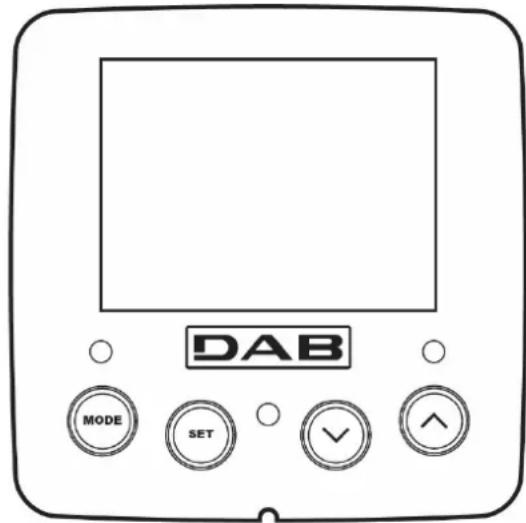
Figure 13
 | The MODE key allows you to move on to the next items in the same menu. Holding it down for at least 1 sec allows you to skip to previous menu item. |
 | The SET key allows you to leave the current menu. |
 | Decreases the current parameter (if it is an editable parameter). |
 | Increases the current parameter (if it is an editable parameter). |
| WHITE LED POWER | On with a fixed light: the machine is poweredFlashing: the machine is disabled |
| RED LED ALLARM | On with a fixed light: the machine is blocked by an error |
| BLUE LED COMMUNICATION | On with a fixed light: active wireless communicationSlow flashing: wireless communication not available due to problemsFast flashing: association with other wireless devices in progress |
Table 4 Holding down the “∧” key or the “v” key allows the automatic increase/decrease of the parameter selected. After the “∧” key or the “v” key has been held down for 3 seconds, the automatic increase/decrease speed increases.

When the ^ key or the v key is pressed the selected value is modified and saved immediately in the permanent memory (EEprom). If the machine is switched off, even accidentally, in this phase it does not cause the loss of the parameter that has just been set.
The SET key is only for leaving the current menu and is not necessary for saving the changes made. Only in particular cases
ENGLISH
described in chapter 0 are some values updated by pressing "SET" or "MODE".
Menus
The complete structure of all the menus and of all the items of which they are composed is shown in Table 6.
Access to the menus
The various menus can be accessed from the main menu in two ways:
- Direct access with a combination of keys
- Access by name with a drop-down menu
7.1 Direct access with a combination of keys
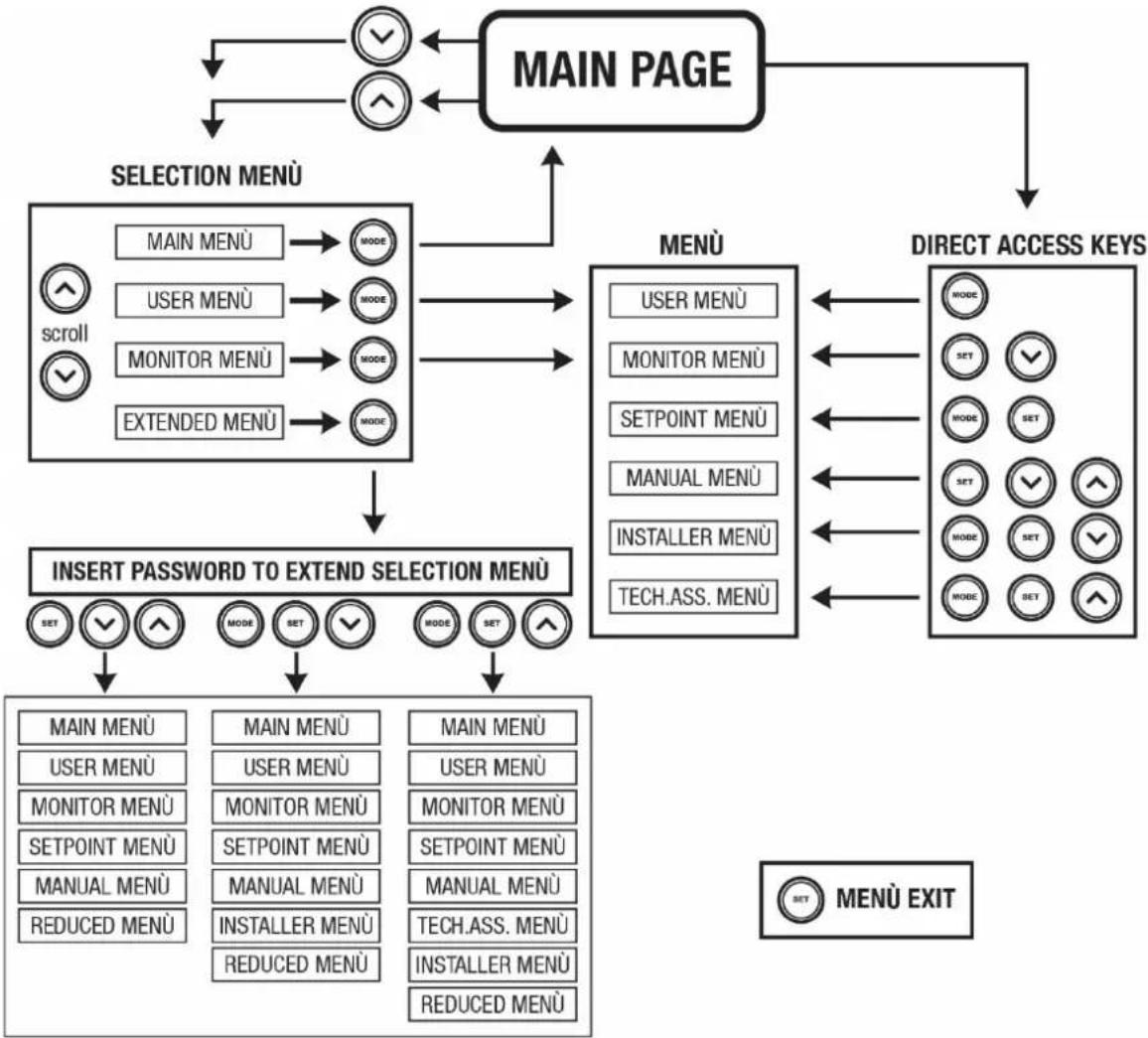
The desired menu can be accessed directly by pressing simultaneously the appropriate combination of keys for the required time (for example MODE SET to enter the Setpoint menu) and the various items in the menu are scrolled with the MODE key.
Table 5 shows the menus that can be reached with the combinations of keys.
| MENU NAME | DIRECT ACCESS KEYS | HOLD-DOWN TIME | |||
| User |  | On releasing the button | |||
| Monitor |  |  |  |  | 2 Sec |
| Setpoint |  |  |  |  | 2 Sec |
| Manual |  |  |  |  | 5 Sec |
| Installer |  |  |  |  | 5 Sec |
| Technical assistance |  |  |  |  | 5 Sec |
| Reset factory values |  |  |  |  | 2 sec after switching on appliance |
| Reset |  |  |  |  | 2 Sec |
Table 5
| Reduced menu (visible) | Extended menu (direct access or password) | |||||
| Main Menu | User Menu mode | Monitor Menu set- v | Setpoint Menu mode-set | Manual Menu set- v - ^ | Installer Menu mode-set- v | Tech. Assist. Menu mode-set-^ |
| MAIN (Main Page) | STATUS | BK Back lighting | SP Setpoint pressure | STATUS | RP Decrease pressure for restart | TB Block time for water lack |
| Menu Selection | RS Revs per minute | TK Backlighting switch- on time | RI Speed setting | OD Type of plant | T1 Low pressure delay | |
| VP Pressure | LA Language | VP Pressure | AD Address Configuration | T2 Delay in switching off | ||
| VF Display of flow | TE Heat sink temperature | VF Display of flow | MS Measuring system | GP Proportional gain | ||
| PO Power absorbed by pump | BT Card temperature | PO Power delivered to the pump | AS Wireless devices | GI Integral gain | ||
| C1 | C1 | PR | RM | |||
ENGLISH
| Pump phase current | Pump phase current | Remote pressure sensor | Maximum speed | ||||
| TEHeat sink temperature | RSRevs per minute | EKLow pressure function on suction | NAActive devices | ||||
| PinPressure at intake | TEHeat sink temperature | PKLow pressure threshold on suction | NCMax. simultaneous devices | ||||
| Hours switched on Working hoursNumber of starts | RTDirection of rotation | ICDevice configuration | |||||
| PIPower histogram | ETMax. switching time | ||||||
| Multi-pumpsystem | AYAntiCycling | ||||||
| NTMains information | AEAnti-blocking | ||||||
| VEHW and SWInformation | AFAntiFreeze | ||||||
| FFFault & Warning(Log) | I1Function input 1 | ||||||
| I2Function input 2 | |||||||
| I3Function input 3 | |||||||
| I4Function input 4 | |||||||
| O1Function output 1 | |||||||
| O2Function output 2 | |||||||
| RFReset faults and warnings | |||||||
| PWModify Password | |||||||
| Key | |||||||
| Identifying colours | Modification of parameters in multi-pump assemblies | ||||||
| Set of sensitive parameters. The modification of one of these on any device results in automatic alignment on all the other devices. | |||||||
| Parameters that automatically align in all devices. It is tolerated that they may be different from one device to another. | |||||||
| Setting parameters that are significant only locally. | |||||||
| Read-only parameters. | |||||||
Table 6
7.2 Access by name with a drop-down menu
The selection of the various menus is accessed by name. From the main menu you access menu selection by pressing either of the ^ or v keys.
Once positioned on the desired menu, it can be accessed by pressing MODE.
The available MENU items are: MAIN, USER, MONITOR and EXTENDED.
To access the Extended Menu, the access key is required, which coincides with the key combination shown in Table 5.
The order of the menus is: User, Monitor, Setpoint, Manual, Installer, Technical Assistance.
Unlocked menus remain available for 15 minutes or until they are manually disabled through "Hide advanced menus".
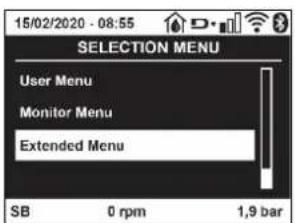
Figure 14
ENGLISH
Figure 15 shows an operating diagram for selecting the menus.
flowchart
graph TD
    A["MAIN PAGE"] --> B["SELECTION MENU"]
    B --> C["MAIN MENU"]
    B --> D["USER MENU"]
    B --> E["MONITOR MENU"]
    B --> F["EXTENDED MENU"]
    C --> G["MODE"]
    D --> H["MODE"]
    E --> I["MODE"]
    F --> J["MODE"]
    G --> K["INSERT PASSWORD TO EXTEND SELECTION MENU"]
    H --> K
    I --> K
    J --> K
    K --> L["SET"]
    K --> M["MODE"]
    K --> N["SET"]
    K --> O["MODE"]
    K --> P["SET"]
    K --> Q["MODE"]
    K --> R["SET"]
    K --> S["MODE"]
    K --> T["SET"]
    K --> U["MODE"]
    K --> V["SET"]
    K --> W["MODE"]
    K --> X["SET"]
    K --> Y["MODE"]
    K --> Z["SET"]
    K --> AA["MODE"]
    K --> AB["SET"]
    K --> AC["MODE"]
    K --> AD["SET"]
    K --> AE["MODE"]
    K --> AF["SET"]
    K --> AG["MODE"]
    K --> AH["SET"]
    K --> AI["MODE"]
    K --> AJ["SET"]
    K --> AK["MODE"]
    K --> AL["SET"]
    K --> AM["MODE"]
    K --> AN["SET"]
    K --> AO["MODE"]
    K --> AP["SET"]
    K --> AQ["MODE"]
    K --> AR["SET"]
    K --> AS["MODE"]
    K --> AT["SET"]
    K --> AU["MODE"]
    K --> AV["SET"]
    K --> AW["MODE"]
    K --> AX["SET"]
    K --> AY["MODE"]
    K --> AZ["SET"]
    K --> BA["MODE"]
    K --> BB["SET"]
    K --> BC["MODE"]
    K --> BD["SET"]
    K --> BE["MODE"]
    K --> BF["SET"]
    K --> BG["MODE"]
    K --> BH["SET"]
    K --> BI["MODE"]
    K --> BJ["SET"]
    K --> BK["MODE"]
    K --> BL["SET"]
    K --> BM["MODE"]
    K --> BN["SET"]
    K --> BO["MODE"]
    K --> BP["SET"]
    K --> BQ["MENU EXIT"]
Figure15 Diagram of possible menu accesses
7.3 Structure of the menu pages
The following always appear on the main page
Status: operating status (e.g. standby, go, Fault, input functions)
Revs per minute: value in [rpm]
Pressure: value in [bar] or [psi] depending on the set unit of measure.
Power: value in [kW] of the power absorbed by the device.
WiFi and Bluetooth status/power through corresponding icons
Connection between telephone and available pump indicated by house symbol with drop
If the case occurs the following may appear:
Fault indications
Warning indications
Indications of the functions associated with the inputs
Specific icons
The error conditions are shown in Table 7, see chapter 10 PROTECTION SYSTEMS.
| Error or status conditions shown on the main page | |
| Identifying code | Description |
| GO | Motor running |
| SB | Motor stopped |
ENGLISH
| DIS | Motor status manually disabled |
| F1 | Float function status / alarm |
| F3 | System disable function status / alarm |
| F4 | Low pressure signal function status / alarm |
| P1 | Operating status with auxiliary setpoint 1 |
| P2 | Operating status with auxiliary setpoint 2 |
| P3 | Operating status with auxiliary setpoint 3 |
| P4 | Operating status with auxiliary setpoint 4 |
| Com. icon with number | Operating status in multi-pump communication with the address indicated |
| Com. icon with E | Error status of communication in the multi-pump system |
| EE | Writing and reading the factory settings on EEprom |
| WARN. Low voltage | Warning due to lack of supply voltage |
Table 7 Status and error messages on the main page
The other menu pages vary with the associated functions and are described later by type of indication or setting. In any menu at the bottom of the page there is a status bar with the main operating parameters (status, speed and pressure).
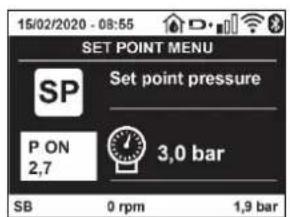
Figure 16 Menu parameter
| Indications on the status bar at the bottom of each page | |
| Identifying code | Description |
| GO | Motor running |
| SB | Motor stopped |
| Disabled | Motor status manually disabled |
| rpm | Motor revs per minute |
| bar | Plant pressure |
| FAULT | Presence of an error preventing operation of the electropump |
Table 8 Indications on the status bar
7.4 Blocking parameter setting by Password
The device has a password-enabled protection system. If a password is set, the parameters of the device will be accessible and visible but it will not be possible to change them. The password management system is in the "technical assistance" menu and is managed by means of the parameter PW.
7.5 Enabling and disabling the motor
In normal operating conditions, pressing and then releasing both the “^” and “v” keys causes the blocking/release of the motor (self-holding even after switching off). If there is a fault alarm, the operation described above resets the alarm.
When the motor is disabled this status is shown by the blinking white LED.
This command can be activated from any menu page except RF and PW.
8. MEANING OF THE INDIVIDUAL PARAMETERS
8.1 User Menu
From the main menu, pressing the MODE key (or using the selection menu and pressing ^ or ∨), gives access to the USER MENU. In the menu the MODE key allows you to scroll through the various menu pages. The values shown are the following.
ENGLISH
8.1.1 Status
Displays the pump status.
8.1.2 RS: Rotation speed display
Motor rotation speed in rpm.
8.1.3 VP: Pressure display
Plant pressure measured in [bar] or [psi] depending on the measuring system used.
8.1.4 VF: Flow display
Displays the instantaneous flow in [litre/min] or [gal/min] depending on the set measuring system.
8.1.5 PO: Absorbed power display
Power absorbed by the electropump in [kW].
A flashing round symbol may appear under the symbol of the measured power PO. This symbol indicates the pre-alarm for exceeding the allowed maximum power.
8.1.6 C1: Phase current display
Motor phase current in [A].
A flashing round symbol may appear under the symbol of the phase current C1. This symbol indicates the pre-alarm for exceeding the allowed maximum current. If it flashes at regular intervals it means that the motor overload protection is about to trip and it will very probably go into protection status.
8.1.7 TE: Heat sink temperature
Heat sink temperature display
8.1.8 Pin: Pressure at intake
Pressure at intake measured in [bar] or [psi] depending on the measuring system used.
8.1.9 Operating hours and number of starts
Indicates on three lines the hours that the device has been powered up, the pump working hours and the number of starts of the motor.
8.1.10 PI: Power histogram
A histogram of the power delivered is displayed on 5 vertical bars. The histogram indicates how long the pump has been on at a given power level. On the horizontal axis are the bars at the various power levels; on the vertical axis, the time for which the pump has been on at the specific power level (% of the time with respect to the total).
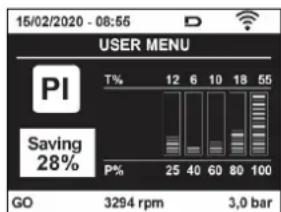
Figure 17 Power histogram display
8.1.11 Multi-pump system
Displays the system status when in the presence of a multi-pump installation. If communication is not present, an icon depicting communication absent or interrupted is displayed. If there are several devices connected to one another, an icon is shown for each of them. The icon has the symbol of a pump under which are characters indicating the pump status.
Depending on the operating status it will display as in Table 9.
| System display | ||
| Status | Icon | Status information under the icon |
| Motor running | Symbol of pump turning | Speed in three figures |
| Motor stopped | Symbol of static pump | SB |
| Device faulty | Symbol of static pump | F |
Table 9 View of the multi-pump system
ENGLISH
If the device is configured as reserve the icon depicting the pump is dark in colour, the display remains similar to Table 5 with the exception that, if the motor is stopped, it shows F instead of SB.
8.1.12 NT: Display of network configurations
Information on network and serial connections for connectivity. The serial for connectivity can be displayed in full by pressing the “^” key.
8.1.13 VE: Version display
Information on the hardware version, serial number and mac address of the pump.
8.1.14 FF: Fault log display (log)
Chronological display of the faults that have occurred during system operation.
Under the symbol FF appear two numbers x/y indicating respectively the fault displayed and the total number of faults present; to the right of these numbers is an indication of the type of fault displayed. The ^ and v keys scroll through the list of faults: pressing the v key goes back through the log and stops at the oldest fault present, pressing the ^ key goes forward in the log and stops at the most recent fault.
The faults are displayed in chronological order from the one that appeared furthest back in time x=1 to the most recent one x=y. The date and time when the fault occurred is also displayed for each one. The maximum number of faults that can be displayed is 8; when this number is reached, the list starts to overwrite the oldest ones.
This menu item displays the list of faults, but does not allow resetting. Reset can be carried out only with the dedicated control from item RF on the TECHNICAL ASSISTANCE MENU.
The fault log cannot be deleted with a manual reset, by switching off the appliance, or by resetting the factory values, unless the procedure described above has been followed.
8.2 Monitor Menu
From the main menu, by holding down simultaneously for 2 sec the keys "SET" and "v", or using the selection menu and pressing ^ or v, you can access the MONITOR MENU. In this menu, by pressing the MODE key, the following values are displayed in sequence.
8.2.1 BK: Display brightness
Adjusts the backlighting of the display on a scale from 0 to 100.
8.2.2 TK: Backlight switch-on time
Sets the time that the backlight is lit since the last time a key was pressed. Values allowed: '0' always off; from 20 sec to 10 min or 'always on'. When the backlight is off, the first time any key is pressed has the sole effect of restoring the backlighting.
8.2.3 LA: Language
Display in one of the following languages:
- Italian
- English
- French
• German
- Spanish
• Dutch
- Swedish
- Turkish
- Slovak
- Romanian
• Russian
- Thai
- Portuguese
8.2.4 TE: Heat sink temperature display
8.2.5 BT: Display of the temperature of the electronic card.
8.3 Setpoint Menu
From the main menu, hold down simultaneously the "MODE" and "SET" keys until "SP" appears on the display (or use the selection menu pressing ^ or v).
The ^ and keys allow you respectively to increase and decrease the plant boosting pressure.
Press SET to leave this menu and return to the main menu.
ENGLISH
8.3.1 SP: Setting the setpoint pressure
Pressure at which the system is pressurised: min 1.0 bar (14 psi) - max 12.0 bar (174 psi)
8.3.2 Setting the auxiliary pressures
The device has the possibility of varying the setpoint pressure according to the status of the inputs, up to 4 auxiliary pressures can be set for a total of 5 different setpoints. For the electrical connections refer to the control unit manual.; For the software settings see paragraph 9.6.15.3 - Setting the auxiliary point input function.

If several auxiliary pressure functions associated with several inputs are active at the same time, the device will set the lowest pressure of all the active ones.
The auxiliary setpoints can be used only through the control unit.
8.3.2.1 P1: Setting the auxiliary setpoint 1
Pressure at which the system is pressurised if the auxiliary setpoint function is activated on input 1.
8.3.2.2 P2: Setting the auxiliary setpoint 2
Pressure at which the system is pressurised if the auxiliary setpoint function is activated on input 2.
8.3.2.3 P3: Setting the auxiliary setpoint 3
Pressure at which the system is pressurised if the auxiliary setpoint function is activated on input 3.
8.3.2.4 P4: Setting the auxiliary setpoint 4
Pressure at which the system is pressurised if the auxiliary setpoint function is activated on input 4.

The pump restarting pressure is linked not only to the set pressure (SP, P1, P2, P3, P4) but also to RP. RP expresses the decrease in pressure, with respect to "SP" (or to an auxiliary setpoint if activated), caused by the pump starting.
Example: SP = 3.0 [bar]; RP = 0.3 [bar]; no active auxiliary setpoint function: During normal operation the system is pressurised at 3.0 [bar]. The electropump restarts when the pressure falls below 2.7 [bar].

Setting a pressure (SP, P1, P2, P3, P4) that is too high for the pump performance may cause false water lack errors BL; in these cases lower the set pressure.
8.4 Manual Menu
From the main menu, hold down simultaneously the "SET" and "^" and "v"keys until the manual menu page appears (or use the selection menu pressing ^ or v).
The menu allows you to view and modify various configuration parameters: the MODE key allows you to scroll through the menu pages, the ^ and v keys allow you respectively to increase and decrease the value of the parameter concerned. Press SET to leave this menu and return to the main menu. Entering the manual menu by pressing the SET ^ v keys puts the machine into forced STOP condition. This function can be used to force the machine to stop. In manual mode, irrespective of the parameter displayed, it is always possible to perform the following controls:
Temporary starting of the electropump
Pressing the MODE and ^ keys at the same time causes the pump to start at speed RI and this running status remains as long as the two keys are held down.
When the pump ON of pump OFF command is given, a communication appears on the display.
Starting the pump
Holding down the MODE v^ keys simultaneously for 2 sec. causes the pump to start at speed RI. The running status remains until the SET key is pressed. The next time the SET key is pressed the pump leaves the manual menu. When the pump ON of pump OFF command is given, a communication appears on the display. In case of operation in this mode for more than 5' with no flow of liquid, an alarm overheating alarm will be triggered, with the error PH shown on the display. Once the PH error condition is no longer present, the alarm will be reset automatically only. The reset time is 15'; if the PH error occurs more than 6 times consecutively, the reset time increases to 1h.
Once it has reset further to this error, the pump will remain in stop status until the user restarts it using the "MODE" "v" "^" keys.
ENGLISH
8.4.1 Status
Displays the pump status.
8.4.2 RI: Speed setting
Sets the motor speed in rpm. Allows you to force the number of revolutions at a predetermined value.
8.4.3 VP: Pressure display
Plant pressure measured in [bar] or [psi] depending on the measuring system used.
8.4.4 VF: Flow display
Displays the flow in the chosen unit of measure. The measuring unit may be [l/min] o [gal/min] see par. 8.5.4 - MS: Measuring system.
8.4.5 PO: Absorbed power display
Power absorbed by the electropump in [kW]. A flashing round symbol may appear under the symbol of the measured power PO. This symbol indicates the pre-alarm for exceeding the allowed maximum power.
8.4.6 C1: Phase current display
Motor phase current in [A]. A flashing round symbol may appear under the symbol of the phase current C1. This symbol indicates the pre-alarm for exceeding the allowed maximum current. If it flashes at regular intervals it means that the motor overload protection is about to trip and it will very probably go into protection status.
8.4.7 RS: Rotation speed display
Motor rotation speed in rpm.
8.4.8 TE: Heat sink temperature display
8.5 Installer Menu
From the main menu, hold down simultaneously the "MODE" and "SET" and "v" keys until the first parameter of the installer menu appears on the display (or use the selection menu pressing ^ or v).
The menu allows you to view and modify various configuration parameters: the MODE key allows you to scroll through the menu pages, the ^ and v keys allow you respectively to increase and decrease the value of the parameter concerned. Press SET to leave this menu and return to the main menu.
8.5.1 RP: Setting the pressure fall to restart
Expresses the fall in pressure with respect to the SP value which causes restarting of the pump.
For example if the setpoint pressure is 3.0 [bar] and RP is 0.3 [bar] the pump will restart at 2.7 [bar]. RP can be set from a minimum of 0.1 to a maximum of 1 [bar]. In particular conditions (for example in the case of a setpoint lower than the RP) it may be limited automatically. To assist the user, on the RP setting page the actual restarting pressure also appears highlighted under the RP symbol, see Figure 18.
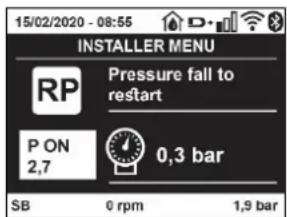
Figure 18 Setting the restart pressure
8.5.2 OD: Type of plant
Possible values 1 and 2 referring to a rigid system and an elastic system.
The device leaves the factory with mode 1 suitable for the majority of systems. In the presence of swings in pressure that cannot be stabilised by adjusting the parameters GI and GP, change to mode 2.
IMPORTANT: The regulating parameters GP and GI also change in the two configurations. In addition the GP and GI values set in mode 1 are stored in a different memory from the GP and GI values set in mode 2. So, for example, when passing to mode 2, the GB value of mode 1 is replaced by the GB value of mode 2 but it is kept and will reappear again when returning to mode 1. The same value shown on the display has a different weight in one mode or in the other because the control algorithm is different.
8.5.3 AD: Address configuration
ENGLISH
This is significant only in a multi-pump connection. Set the communication address to be assigned to the device.
The possible values are: automatic (default) or manually assigned address. The addresses set manually can have values form 1 to 4. The configuration of the addresses must be the same for all the devices that make up the group: either all automatic or all manual. Setting the same addresses is not allowed. Both in the case of assigning mixed addresses (some manual and some automatic) and in the case of duplicate addresses, an error signal is given.
The error signal is given by displaying a flashing E in the place of the machine address.
If the chosen assignment is automatic, whenever the system is switched on addresses are assigned that may be different from the previous time, but this does not affect correct operation.
8.5.4 MS: Measuring system
Set the measuring system, choosing between metric and Anglo-American units.
The quantities displayed are shown in Table 10.
NOTE: The flow in Anglo-American-speaking units (gal/min) is indicated adopting a conversion factor of 1 gal = 4.0 litres, corresponding to the metric gallon.
| Units of measurement displayed | ||
| Quantity | Metric units | Anglo-American unit |
| Pressure | Bar | psi |
| Temperature | °C | °F |
| Flow rate | l/min | gal/min |
Table 10 Measuring system
8.5.5 AS: Association of devices
Allows connection/disconnection with the following devices:
- esy -> Other e.sybox max pump for operation in a pump set composed of max 4 elements
• DEV -> Any other compatible devices
The icons of the various connected devices are displayed on page AS with below an identifying acronym and the respective reception power.
An icon lit with a fixed light means that the device is connected and working correctly; a stroked through icon means the device is configured as part of the network but is not found.

All the devices present over the air are not displayed on this page but only the devices that have been associated with our network. Seeing only the devices in your own network allows the operation of several similar networks existing within the radius of action of the wireless without creating ambiguity; in this way the user does not see the elements that do not belong to his pumping system.
From this menu page it is possible to associate and disassociate an element from your personal wireless network.
When the machine starts the AS menu item does not show any connection because no device is associated. In these conditions the message "No Dev" is shown and the COMM led is off. Only an action by the operator can allow devices to be added or removed with the operations of association and disassociation.
Association of devices
Once on the AS page, pressing “^” for 5 sec puts the machine in the wireless association search status, communicating this status with a flashing of the COMM led at regular intervals. As soon as two machines in a working communication range are put into this status, if possible, they are associated with each other. If the association is not possible for one or both machines, the procedure ends and a pop-up appears on each machine saying “association not possible”. An association may not be possible because the device you are trying to associate is already present in the maximum number or because the device to be associated is not recognised.
In the last case repeat the procedure from the start.
The search status for association remains active until the device to be associated is detected (irrespective of the result of association); if no device can be seen within the space of 1 minute, the machine automatically leaves association status. You can leave the search status for wireless association at any time by pressing SET or MODE.
Short-cut. To speed up the procedure, a short-cut has been created that makes it possible to put the pump in association from the main page by pressing the "v" key.
IMPORTANT: Once the association has been made between 2 or more devices, a pop-up appears on the display asking you to extend the configuration. This happens in the case where the devices have different configuration parameters (e.g. setpoint SP, RP etc.). Pressing ^ on a pump extends the configuration of that pump to the other associated pumps.
When the ^ key is pressed pop-ups appear with the message "Wait...", and when this message is finished the pumps will start to work regularly with the sensitive parameters aligned; refer to paragraph 11.1.5 for further information.
ENGLISH
Disassociation of devices
To dissociate a device belonging to an existing group, go to page AS (installer menu) of the device itself and press the - key for at least 5 seconds.
After this operation all the icons related to the connected devices will be replaced the message "No Dev" is shown and the COMM LED will remain off.
Replacing devices
To replace a device in an existing group it is sufficient to dissociate the device to be replaced and to associate the new device as described in the procedures above.
If it is not possible to dissociate the element to be replaced (faulty or not available), you will have to carry out the disassociation procedure for each device and create a new group.
8.5.6 PR: Remote pressure sensor
The PR parameter is used to select a remote pressure sensor.
The default setting is with no sensor present.
In order to execute its intended functions, the remote sensor must be connected to a control unit, which in turn must be associated to the esybox, see paragraph 11.1.12 Controll Wireless.
As soon as a connection is established between the e.sybox and control unit and the remote pressure sensor has been connected, the sensor starts operating.
When the sensor is active, the display shows an icon of a stylised sensor with a P inside it.
The remote pressure sensor operates in synergy with the internal sensor so that the pressure never falls below the setpoint pressure in either of the two points in the system (internal and remote sensors). This allows compensation for any pressure drops.
NOTE: in order to maintain the setpoint pressure in the point with lower pressure, the pressure in the other point may be higher than the setpoint pressure.
8.5.7 EK: low pressure detected on suction
The EK parameter allows you to set the functions for detecting low suction pressure as follows:
- function disabled
• function enabled with automatic reset
• function enabled with manual reset
The function for detecting low pressure on suction generates the blocking of the system after the time T1 (see T1: Low pressure delay). When the block occurs, the F4 symbol is displayed on the main page.
The two different settings (automatic or manual reset) differ in the type of reset once the pump is blocked:
• In automatic reset mode the suction pressure must return to a value above the PK threshold for at least 2 seconds.
- In manual reset mode it is necessary to simultaneously press and release the “^” and “v” keys.
8.5.8 PK: low pressure threshold on suction
Sets the pressure threshold below which the block is tripped for low pressure on suction.
8.5.9 RT: direction of rotation
Displays the direction of rotation. Parameter that cannot be modified by the user.
8.6 Technical Assistance Menu
Advanced settings to be made only by skilled personnel or under the direct control of the service network.
From the main menu, hold down simultaneously the "MODE", "SET" and "^"keys until "TB" appears on the display (or use the selection menu pressing ^ or v). The menu allows you to view and modify various configuration parameters: the MODE key allows you to scroll through the menu pages, the ^ and v keys allow you respectively to increase and decrease the value of the parameter concerned. Press SET to leave this menu and return to the main menu.
8.6.1 TB: Water lack blockage time
Setting the reaction time of the water lack blockage allows you to select the time (in seconds) taken by the device to indicate the lack of water. The variation of this parameter may be useful if there is known to be a delay between the moment the motor is switched on and the moment it actually begins to deliver. One example may be a plant where the suction pipe is particularly long and there are some slight leaks. In this case the pipe in question may be discharged and, even though water is not lacking, the electropump will take a certain time to reload, supply the flow and put the plant under pressure.
ENGLISH
8.6.2 T1: Low pressure delay (kiwa function)
Sets the time when the inverter switches off after receiving the low pressure signal (see Setting low pressure detection par 9.6.15.5). The low pressure signal can be received on each of the 4 inputs by suitably configuring the input (see Setup of auxiliary digital inputs IN1, IN2, IN3, IN4 par 9.6.15).
T1 can be set between 0 and 12 s. The factory setting is 2 s.
8.6.3 T2: Delay in switching off
Sets the delay with which the inverter must switch off after switch-off conditions have been reached: plant under pressure and flow rate lower than the minimum flow.
T2 can be set between 2 and 120 s. The factory setting is 10 s.
8.6.4 GP: Proportional gain coefficient
Generally the proportional term must be increased for systems characterised by elasticity (for example with PVC pipes) and lowered in rigid systems (for example with iron pipes). To keep the pressure in the system constant, the inverter performs a type PI control on the measured pressure error. Depending on this error the inverter calculates the power to be supplied to the motor. The behaviour of this control depends on the set GP and GI parameters. To cope with the different behaviour of the various types of hydraulic plants where the system can work, the inverter allows the selection of parameters different from those set by the factory. For nearly all plants the factory-set GP and GI parameters are optimal. However, should any problems occur in adjustment, these settings may be varied.
8.6.5 Gl: Integral gain coefficient
In the presence of large falls in pressure due to a sudden increase of the flow or a slow response of the system, increase the value of GI. Instead, if there are swings in pressure around the setpoint value, decrease the value of GI.
IMPORTANT: To obtain satisfactory pressure adjustments, you generally have to adjust both GP and GI.
8.6.6 RM: Maximum speed
Sets a maximum limit on the number of pump revolutions.
8.6.7 Setting the number of devices and of reserves
8.6.8 NA: Active devices
Sets the maximum number of devices that participate in pumping.
It may have values between 1 and the number of devices present (max 4). The default value for NA is N, that is the number of devices present in the chain; this means that if devices are added to or removed from the chain, NA always has the value of the number of devices present, automatically detected. If a number different from N is set, this fixes the maximum number of devices that can participate in pumping at the number set.
This parameter is used in cases where there is a limit on the pumps you can or want to be able to keep running, and if you want to keep one or more devices as a reserve (see 8.6.10 IC: Configuration examples for multi-pump plants below).
On the same menu page you can also see (but not change) the other two system parameters linked to this, that is N, the number of devices present, acquired automatically by the system, and NC, the maximum number of simultaneous devices.
8.6.9 NC: Simultaneous devices
Sets the maximum number of devices that can work at the same time. It may have values between 1 and NA. The default value of NC is NA, this means that even if NA increases, NC will have the value NA. If a number different from NA is set, this releases you from NA and fixes the maximum number of simultaneous devices at the number set. This parameter is used in cases where there is a limit on the pumps you can or want to be able to keep running (see 8.6.10 IC: Configuration examples for multi-pump plants below).
On the same menu page you can also see (but not change) the other two system parameters linked to this, that is N, the number of devices present, read automatically by the system, and NA, the number of active devices.
8.6.10 IC: Configuration of the reserve
Configures the device as automatic or reserve. If set on auto (default) the device participates in normal pumping, if configured as reserves, minimum starting priority is associated with it, this means that the device with this setting will always start last. If a number of active devices is set that is one lower than the number of devices present and if one element is set as reserve, the effect obtained is that, if there are no problems, the reserve device does not participate in regular pumping; instead, if one of the devices that participates in pumping develops a fault (maybe loss of power supply, tripping of a protection, etc.), the reserve device will start.
The state of configuration as a reserve can be seen as follows: on the Multi-pump System page, the top of the icon is coloured; on the AD and main pages, the communication icon representing the address of the device appears with the number on a coloured background. There may be more than one device configured as reserve in a pumping system.
Even though the devices configured as reserve do not participate in normal pumping, they are nevertheless kept efficient by the anti-stagnation algorithm. The anti-stagnation algorithm changes the starting priority once every 23 hours and allows the accumulation of at least one continuous minute of supply of flow from each device. The aim of this algorithm is to avoid the deterioration of the water inside the impeller and
ENGLISH
to keep the moving parts efficient; it is useful for all devices and especially for those configured as reserve, which do not work in normal conditions.
8.6.10.1 Configuration examples for multi-pump plants
Example 1:
A pump set composed of 2 devices (N=2 detected automatically) of which 1 set active (NA=1), one simultaneous (NC=1 or NC=NA since NA=1) and one as reserve (IC=reserve on one of the two devices).
The result obtained is the following: the device not configured as a reserve will start and work by itself (even though it does not manage to bear the hydraulic load and the pressure achieved is too low). If it has a fault, the reserve device steps in.
Example 2:
A pump set composed of 2 devices (N=2 detected automatically) in which all the devices are active and simultaneous (factory settings NA=N and NC=NA) and one as reserve (IC=reserve on one of the two devices).
The result obtained is the following: the device that is not configured as reserve always starts first, if the pressure detected is too low the second device, configured as reserve, also starts. In this way we always try to preserve the use of one device in particular (the one configured as reserve), but this may be useful in case of necessity when a greater hydraulic load occurs.
Example 3:
A pump set composed of 4 devices (N=4 detected automatically) of which 3 set active (NA=3), 2 simultaneous (NC=2) and 1 as reserve (IC=reserve on two devices).
The result obtained is the following: at the most 2 devices will start at the same time. The operation of the 2 that can work simultaneously will take place in rotation among 3 devices so as to respect the maximum exchange time of each (ET). If one of the active devices develops a fault no reserve starts up because more than 2 devices cannot start at one time (NC=2) and there are still 2 active devices present. The reserve intervenes as soon as another of the 2 develops a fault.
8.6.10 ET: Max. switching time
Sets the maximum continuous working time of a device in a set. It is significant only on pump sets with interconnected devices. The time can be set between 0 min and 9 hours; the factory setting is 2 hours.
When the ET of a device has elapsed the system starting order is reassigned so as to give minimum priority to the device on which the time has elapsed. The aim of this strategy is to use less the device that has already worked and to balance the working time between the various machines that make up the set. If the hydraulic load still requires the intervention of the device, even though it has been put last in starting order, it will start to guarantee pressure boosting of the system.
The starting priority is reassigned in two conditions based on the ET time:
Exchange during pumping: when the pump remains on without interruption until the absolute maximum pumping time has been exceeded.
- Exchange to standby: when the pump is on standby but 50% of the ET time has been exceeded.
If ET has been set at 0 there will be exchange to standby. Whenever a pump in the set stops, a different pump will start first next time it is restarted.

If the parameter ET (Max. switching time) is set at 0, there will be exchange at each restart, irrespective of the pump's actual work time.
8.6.11 AY: Anti Cycling
As described in paragraph 10.1.2 this function is for avoiding frequent switching on and off in the case of leaks in the system. The function can be enabled in 2 different modes, normal and smart. In normal mode the electronic control blocks the motor after N identical start/stop cycles. In smart mode it acts on the parameter RP to reduce the negative effects due to leaks. If set on "Disable", the function does not intervene.
8.6.12 AE: Enabling the anti-block function
This function is for avoiding mechanical blocks in the case of long inactivity; it acts by periodically rotating the pump.
When the function is enabled, every 23 hours the pump performs an unblocking cycle lasting 1 min.
8.6.13 AF: Enabling the anti-freeze function
If this function is enabled the pump is automatically rotated when the temperature reaches values close to freezing point, in order to avoid breakages of the pump.
8.6.14 Setup of the auxiliary digital inputs IN1, IN2, IN3, IN4
This paragraph shows the functions and possible configurations of the inputs of the control unit, connected by wireless to the device, by means of the parameters I1, I2, I3, I4. For the electrical connections refer to the control unit manual.
The inputs IN1.IN4 are all the same and all the functions can be associated with each of them. Parameters I1, I2, I3, I4 are used to associate the function required to the corresponding input (IN1, IN2, IN3, IN4).
ENGLISH
Each function associated with the inputs is explained in greater detail below in this paragraph. Table 14 sums up the functions and the various configurations.
The factory configurations can be seen in Table 11.
| Factory configurations of the digital inputs IN1, IN2, IN3, IN4 | |
| Input | Value |
| 1 | 0 (disabled) |
| 2 | 0 (disabled) |
| 3 | 0 (disabled) |
| 4 | 0 (disabled) |
Table 11 Factory configurations of the inputs
| Table summarising the possible configurations of the digital inputs IN1, IN2, IN3, IN4 and their operation | ||
| Value | Function associated to input INx | Display of the active function associated with the input |
| 0 | Input functions disabled | |
| 1 | Water lack from external float (NO) | Float switch symbol (F1) |
| 2 | Water lack from external float (NC) | Float switch symbol (F1) |
| 3 | Auxiliary setpoint Pi (NO) for the input used | Px |
| 4 | Auxiliary setpoint Pi (NC) for the input used | Px |
| 5 | General disabling of motor by external signal (NO) | F3 |
| 6 | General disabling of motor by external signal (NC) | F3 |
| 7 | General disabling of motor by external signal (NO) + Reset of resettable blocks | F3 |
| 8 | General disabling of motor by external signal (NC) + Reset of resettable blocks | F3 |
| 9 | Reset of resettable blocks NO | |
| 10 | Low pressure signal input NO, automatic and manual reset | F4 |
| 11 | Low pressure signal input NC, automatic and manual reset | F4 |
| 12 | Low pressure input NO only manual reset | F4 |
| 13 | Low pressure input NC only manual reset | F4 |
Table 12 Configurations of the digital inputs
8.6.15.1 Disabling the functions associated with the input
Setting 0 as the configuration value of an input, each function associated with the input will be disabled irrespective of the signal present on the input terminals.
8.6.15.2 Setting external float function
The external float can be connected to any input, for the electrical connections refer to the control unit manual. The float function is obtained setting one of the values in Table 12 on the parameter lx, for the input to which the float has been connected.
The activation of the external float function generates the block of the system. The function is conceived for connecting the input to a signal arriving from a float which indicates lack of water. When this function is active the float switch symbol is shown on the main page. For the system to block and give the error signal F1, the input must be activated for at least 1 sec.
When it is in error condition F1, the input must have been deactivated for at least 30 sec before the system can be unblocked. The behaviour of the function is summed up in Table 13.
When several float functions are configured at the same time on different inputs, the system will indicate F1 when at least one function is activated and will remove the alarm when none is activated.
ENGLISH
| Behaviour of the external float function depending on INx and on the input | ||||
| Value of Parameter Ix | Input configuration | Input status | Operation | Shown on display |
| 1 | Active with high signal on input (NO) | Absent | Normal | None |
| Present | System block for water lack by external float | F1 | ||
| 2 | Active with low signal on input (NC) | Absent | System block for water lack by external float | F1 |
| Present | Normal | None | ||
Table 13 External float function
8.6.15.3 Setting auxiliary setpoint input function
The signal that enables an auxiliary setpoint can be supplied on any of the 4 inputs (for the electrical connections, refer to the control unit manual). The auxiliary setpoint is obtained by setting the lx parameter relating to the input on which the connection has been made, in accordance with Table 14. Example: to use Paux 2 set l2 on 3 or 4 and use input 2 on the control unit; in this condition, if input 2 is energized, pressure Paux 2 will be produced and the display will show P2. The auxiliary setpoint function modifies the system setpoint from pressure SP (see par. 9.3 – Setpoint Menu) to pressure Pi, where is represents the input used. In this way, as well as SP, four other pressures are available, P1, P2, P3, P4.
When this function is active the symbol Pi is shown in the STATUS line on the main page.
For the system to work with the auxiliary setpoint, the input must be active for at least 1sec.
When you are working with the auxiliary setpoint, to return to working with setpoint SP, the input must not be active for at least 1 sec. The behaviour of the function is summed up in Table 14.
When several auxiliary setpoint functions are configured at the same time on different inputs, the system will show Pi when at least one function is activated. For simultaneous activations, the pressure achieved will be the lowest of those with the active input. The alarm is removed when no input is activated.
| Behaviour of the auxiliary setpoint function depending on lx and on the input | ||||
| Value of Parameter lx | Input configuration | Input status | Operation | Shown on display |
| 3 | Active with high signal on input (NO) | Absent | i-th auxiliary setpoint not active | None |
| Present | i-th auxiliary setpoint active | Px | ||
| 4 | Active with low signal on input (NC) | Absent | i-th auxiliary setpoint active | Px |
| Present | i-th auxiliary setpoint not active | None | ||
Table 14 Auxiliary setpoint
8.6.15.4 Setting system disabling and fault reset
The signal that enables the system can be supplied to any input (for the electrical connections refer to the control unit manual). The system disabling function is obtained by setting the parameter lx, relating to the input to which the signal to be used to disable the system is connected, on one of the values shown in Table 15.
When the function is active, the system shuts down completely and the F3 symbol appears on the main page.
When several system disabling functions are configured at the same time on different inputs, the system will indicate F3 when at least one function is activated and will remove the alarm when none is activated. For the system to work with the disable function, the input must be active for at least 1 sec.
When the system is disabled, for the function to be deactivated (re-enabling the system), the input must not be active for at least 1 sec. The behaviour of the function is summed up in Table 15.
When several disable functions are configured at the same time on different inputs, the system will show F3 when at least one function is activated. The alarm is removed when no input is activated.
This function also allows the resetting of any faults present, see Table 15.
| Behaviour of the system disabling and fault reset function depending on lx and on the input | ||||
| Value of Parameter lx | Input configuration | Input status | Operation | Shown on display |
| 5 | Active with high signal on input (NO) | Absent | Motor enabled | None |
| Present | Motor disabled | F3 | ||
| 6 | Active with low signal on input (NC) | Absent | Motor disabled | F3 |
| Present | Motor enabled | None | ||
| 7 | Active with high signal on | Absent | Motor enabled | None |
ENGLISH
| input (NO) | Present | Motor disabled + fault reset | F3 | |
| 8 | Active with low signal on input (NC) | Absent | Motor disabled + fault reset | F3 |
| Present | Motor enabled | None | ||
| 9 | Active with high signal on input (NO) | Absent | Motor enabled | None |
| Present | Fault reset | None |
Table 15 Disabling system restore and fault
8.6.15 Setup of the outputs OUT1, OUT2
This section shows the functions and possible configurations of outputs OUT1 and OUT2 of the I/O control unit, with wireless connection to the device, set by means of parameters O1 and O2.
For the electrical connections, refer to the control unit manual.
The factory configurations can be seen in Table 16.
| Factory configurations of the outputs | |
| Output | Value |
| OUT 1 | 2 (fault NO closes) |
| OUT 2 | 2 (Pump running NO closes) |
Table 16 Factory configurations of the outputs
8.6.16 O1: Setting output 1 function
Output 1 communicates an active alarm (it indicates that a system block has occurred). The output allows the use of a normally open clean contact.
The values and functions indicated in Table 17 are associated with the parameter O1.
8.6.17 O2: Setting output 2 function
Output 2 communicates the motor running status. The output allows the use of a normally open clean contact.
The values and functions indicated in Table 17 are associated with the parameter O2.
| Configuration of the functions associated with the outputs | ||||
| Output configuration | OUT1 | OUT2 | ||
| Activation condition | Output contact status | Activation condition | Output contact status | |
| 0 No associated function | Contact always open | No associated function | Contact always open | |
| 1 No associated function | Contact always closed | No associated function | Contact always closed | |
| 2 | Presence of blocking errors | In the case of blocking errors the contact closes | Output activation in case of blocking errors | When the motor is running the contact closes |
| 3 | Presence of blocking errors | In the case of blocking errors the contact opens | Output activation in case of blocking errors | When the motor is running the contact opens |
Table 17 Factory configurations of the outputs
8.6.18 RF: Fault and warning reset
Holding down the ^ and v keys together for at least 2 seconds deletes the history of faults and warnings. The number of faults present in the log is indicated under the symbol RF (max 8). The log can be viewed from the MONITOR menu on page FF.
8.6.19 PW: Change password
The device has a password-enabled protection system. If a password is set, the parameters of the device will be accessible and visible but it will not be possible to change them.
When the password (PW) is "0" all the parameters are unlocked and can be edited.
When a password is used (value of PW different from 0) all modifications are blocked and "XXXX" is displayed on the page PW.
If the password is set it allows to navigate through all the pages, but at any attempt to edit a parameter a pop-up appears, asking you to type in the password. When the correct password is typed in the parameters are unlocked and can be edited for 10' after the last key is pressed. If you want to cancel the password timer, just go to page PW and hold down ^ and v together for 2".
When the correct password is typed in a padlock is shown opening, while if the wrong password is given a flashing padlock appears.
ENGLISH
After resetting the factory values the password is set back at "0". Each change of the password takes effect when Mode or Set is pressed and each subsequent change of a parameter implies typing in the new password again (e.g. the installer makes all the settings with the default PW value = 0 and lastly sets the PW so as to be sure that the machine is already protected without any further action).
If the password is lost there are 2 possibilities for editing the parameters of the device:
• Make a note of the values of all the parameters, reset the device with the factory values, see paragraph 9.3.
The reset operation cancels all the parameters of the device, including the password.
- Make a note of the number present on the password page, send a mail with this number to your service centre, in a few days you will be sent the password to unlock the device.
8.6.20.1 Password for multipump systems
When the PW is typed in to unlock a device in a set, all the devices are unlocked.
When the PW is changed on a device in a set, all the devices receive the change.
When activating protection with a PW on a device in a set (^ and v on page PW when PW≠0), the protection is activated on all the devices (to make any change you are asked for the PW).
9. RESET AND FACTORY SETTINGS
9.1 General system reset
To reset the system, press and hold the 4 keys simultaneously for 2 seconds. This operation is the same as disconnecting the power, waiting for it to close down completely and supplying power again. The reset does not delete the settings saved by the user.
9.2 Factory settings
The device leaves the factory with a series of preset parameters which may be changed according to the user's requirements.
Each change of the settings is automatically saved in the memory and, if desired, it is always possible to restore the factory conditions (see Restoring the factory settings par 9.3 - Restoring the factory settings).
9.3 Restoring the factory settings
To restore the factory values, switch off the device, wait until the display has switched off completely, press and hold down the "SET" and "^" keys and turn on the power; release the two keys only when the letters "EE" appear.
Once all the parameters have been set, the device returns to normal operation.
NOTE: Once the factory values have been restored it will be necessary to reset all the parameters that characterise the system (gains, setpoint pressure, etc.) as at the first installation.
| Identifying code | Description | Value | Installation Memo |
| TK | Backlight lighting T. | 2 min | |
| LA | Language | ENG | |
| SP | Setpoint pressure [bar] | 3,0 | |
| P1 | Setpoint P1 [bar] | 2,0 | |
| P2 | Setpoint P2 [bar] | 2,5 | |
| P3 | Setpoint P3 [bar] | 3,5 | |
| P4 | Setpoint P4 [bar] | 4,0 | |
| RI | Revs per minute in manual mode [rpm] | 3000 | |
| OD | Type of plant | 1 (Rigid) | |
| RP | Pressure decrease to restart [bar] | 0,3 | |
| AD | Address configuration | 0 (Auto) | |
| PR | Remote pressure sensor | Disabled | |
| MS | Measuring system | 0 (International) | |
| EK Low pressure function on suction | 0 (disabled) | ||
ENGLISH
| PK | Low pressure threshold on suction [bar] | 1,0 | |
| TB | Blockage time for water lack [s] | 15 | |
| T1 | Low pr. delay (KIWA) [s] | 2 | |
| T2 | Delay in switching off [s] | 10 | |
| GP | Proportional gain coefficient | 0,5 | |
| GI | Integral gain coefficient | 1,2 | |
| RM | Maximum speed [rpm] | 5500 | |
| NA | Active devices | N | |
| NC | Simultaneous devices | NA | |
| IC | Configuration of the reserve | 1 (Auto) | |
| ET | Max. exchange time [h] | 2 | |
| AE | Anti-blocking function | 1(Enabled) | |
| AF | Antifreeze | 1(Enabled) | |
| I1 | Function I1 | 0 (disabled) | |
| I2 | Function I2 | 0 (disabled) | |
| I3 | Function I3 | 0 (disabled) | |
| I4 | Function I4 | 0 (disabled) | |
| O1 | Function output 1 | 2 | |
| O2 | Function output 2 | 2 | |
| PW | Change password | 0 | |
| AY | Anticycling Function AY | 0 (Disabled) |
Table 18
10. PROTECTION SYSTEMS
The device is equipped with protection systems to preserve the pump, the motor, the supply line and the inverter.
Depending on the type of error, the protection can stop the motor but when normal conditions are restored it can: cancel itself automatically instantaneously or after a certain time following an automatic reset.
Some errors can be unlocked manually by pressing and releasing the ^ and v buttons simultaneously.
| Alarm in the fault log | |
| Display indication | Description |
| PD | Irregular switching off |
| FA | Problems in the cooling system |
Table 19 Alarms
| Blockage conditions | |
| Display indication | Description |
| PH | Cutout due to pump overheating |
| BL | Blockage due to water lack |
| BP1 | Blockage due to reading error on the delivery pressure sensor |
| BP2 | Blockage due to reading error on the suction pressure sensor |
| PB | Blockage due to supply voltage outside specifications |
| OT | Blockage due to overheating of the power stages |
| OC | Blockage due to motor overload |
| SC | Blockage due to short circuit between the motor phases |
| ESC | Blockage due to short circuit to earth |
| HL | Hot liquid |
| NC | Blockage due to motor disconnected |
| Ei | Blockage due to i-th internal error |
| VI | Blockage due to i-th internal voltage out of tolerance |
| EY | Block for cyclicality abnormal detected on the system |
Table 20 Indications of blockages
ENGLISH
10.1 Description of blockages
10.1.1 "BL" Anti Dry-Run (Protection against dry running)
In the case of lack of water the pump is stopped automatically after the time TB. This is indicated by the red "Alarm" LED and by the letters "BL" on the display.
After having restored the correct flow of water you can try to leave the protective block manually by pressing the ^ and "v" keys simultaneously and then releasing them.
If the alarm status remains, or if the user does not intervene by restoring the flow of water and resetting the pump, the automatic restart will try to restart the pump.

If the parameter SP is not correctly set, the protection against water lack may not work correctly.
10.1.2 Anti-Cycling (Protection against continuous cycles without utility request)
If there are leaks in the delivery section of the plant, the system starts and stops cyclically even if no water is intentionally being drawn: even just a slight leak (a few ml) can cause a fall in pressure which in turn starts the electropump.
The electronic control of the system is able to detect the presence of the leak, based on its recurrence.
The Anti-Cycling function can be excluded or activated in Basic or Smart mode (par 8.6.12).
In Basic mode, once the condition of recurrence is detected the pump stops and remains waiting to be manually reset. This condition is communicated to the user by the lighting of the red "Alarm" led and the appearance of the word "ANTICYCLING" on the display. After the leak has been removed, you can manually force restart by simultaneously pressing and releasing the "^" and "v" keys.
In Smart mode, once the leak condition is detected, the parameter RP is increased to decrease the number of starts over time.
10.1.3 Anti-Freeze (Protection against freezing of water in the system)
The change of state of water from liquid to solid involves an increase in volume. It is therefore essential to ensure that the system does not remain full of water with temperatures close to freezing point, to avoid breakages of the system. This is the reason why it is recommended to empty any electropump that is going to remain unused during the winter. However, this system has a protection that prevents ice formation inside by activating the electropump when the temperature falls to values close to freezing point. In this way the water inside is heated and freezing prevented.

The Anti-Freeze protection works only if the system is regularly fed: with the plug disconnected or in the absence of current the protection cannot work. However, it is advised not to leave the system full during long periods of inactivity: drain the system accurately through the two drainage caps on the dock and put it away in a sheltered place.
10.1.4 "BP1" "BP2" Blockage due to fault of the internal pressure sensor
If the device detects an anomaly on one of the two pressure sensors, the pump remains blocked and "BP1" for the delivery pressure sensor and "BP2" for the suction pressure sensor is indicated respectively. The fault status begins as soon as the problem is detected and ends automatically when correct conditions have been restored.
10.1.5 "PB" Blockage due to supply voltage outside specifications
This occurs when the allowed line voltage at the supply terminal assumes values outside the specifications. It is reset only automatically when the voltage at the terminal returns within the allowed values.
10.1.6 "SC" Blockage due to short circuit between the motor phases
The device is provided with protection against the direct short circuit which may occur between the motor phases. When this blockage is indicated you can attempt to restore operation by simultaneously holding down the ^ and v keys, but this will not have any effect until 10 seconds have passed since the moment the short circuit occurred.
10.2 Manual reset of error conditions
In error status, the user can cancel the error by forcing a new attempt, pressing and then releasing the ^ and v keys.
10.3 Self-reset of error conditions
For some malfunctions and blockage conditions, the system attempts automatic self-reset.
The auto self-reset procedure concerns in particular:
"BL" Blockage due to water lack
"PB" Blockage due to line voltage outside specifications
"OT" Blockage due to overheating of the power stages
ENGLISH
"OC" Blockage due to motor overload
"BP" Blockage due to fault of the pressure sensor
For example, if the system is blocked due to water lack, the device automatically starts a test procedure to check whether the machine is really left definitively and permanently dry. If during the sequence of operations an attempted reset is successful (for example, the water comes back), the procedure is interrupted and normal operation is resumed.
Table 21 shows the sequences of the operations performed by the device for the different types of blockage.
| Automatic resets of error conditions | ||
| Display indication | Description | Automatic reset sequence |
| BL Blockage | due to water lack | - One attempt every 10 minutes for a total of 6 attempts- One attempt every hour for a total of 24 attempts- One attempt every 24 hours for a total of 30 attempts |
| PB | Blockage due to line voltage outside specifications | It is reset when it returns to a specific voltage |
| OT | Blockage due to overheating of the power stages | It is reset when the temperature of the power stages returns within the specifications |
| OC Blockage | due to motor overload | - One attempt every 10 minutes for a total of 6 attempts- One attempt every hour for a total of 24 attempts- One attempt every 24 hours for a total of 30 attempts |
Table 21 Self-reset of blockages
11. PARTICULAR INSTALLATIONS
11.1 Multiple Sets
11.1.1 Introduction to multipump systems
By multipump systems we mean a pump set made up of a number of pumps whose deliveries all flow into a common manifold.
The devices communicate with one another by means of the connection provided (wireless).
The group may be made up of a maximum of 4 devices.
A multipump system is used mainly for:
- Increasing hydraulic performance in comparison with a single device.
• Ensuring continuity of operation in the event of a device developing a fault. - Sharing out the maximum power.
11.1.2 Making a multipump system
The hydraulic plant must be created as symmetrically as possible to obtain a hydraulic load uniformly distributed over all the pumps.
The pumps must all be connected to a single delivery manifold.

For good operation of the pressure boosting set, the following must be the same for each device:
- hydraulic connections,
• maximum speed (parameter RM)
The firmware of the connected e.sybox max units must all be the same.
Once the hydraulic system has been made, it is necessary to create the pumping set by carrying out the wireless association of the devices (see par 8.5.5.)
11.1.3 Wireless communication
The devices communicate with each other and send the flow and pressure signals by wireless communication.
11.1.4 Connection and setting of the photo-coupled inputs
The inputs of the I/O control unit are used to activate the float, auxiliary setpoint, system disabling and low suction pressure functions. The functions are indicated respectively by the float switch symbols (F1), Px, F3, F4. If activated, the Paux function boosts the pressure in the
ENGLISH
system to the set pressure see par. 8.6.15.3 - Setting auxiliary setpoint input function. The functions F1, F3, F4 stop the pump for 3 different reasons, see par. 9.6.15.2, 9.6.15.4, 9.6.15.5.
The parameters for setting the inputs I1, I2, I3, I4 are part of the sensitive parameters, so setting one of these on any device means that they are automatically aligned on all the devices.
Parameters linked to multipump operation.
11.1.5 Parameters concerning multipump
The parameters shown on the menu for multipump operation are classified as follows:
- Read-only parameters.
• Parameters with local significance. - Multipump system configuration parameters which in turn are divided into:
- Sensitive parameters
• Parameters with optional alignment
Parameters with local significance
These are parameters that can be divided among the various devices and in some cases it is necessary for them to be different. For these parameters it is not allowed to align the configuration automatically among the various devices.
For example, in the case of manual assignment of the addresses, these must absolutely be different one from the other.
List of parameters with local significance for the device.
- BK Brightness
• TK Backlight switch-on time
• RI Revs/min in manual mode
• AD Address Configuration
• IC Reserve configuration
• RF Reset fault and warning
Sensitive parameters
These are parameters which must necessarily be aligned over the whole chain for adjustment reasons.
List of sensitive parameters:
• SP Setpoint pressure
• P1 Auxiliary setpoint input 1
• P2 Auxiliary setpoint input 2
• P3 Auxiliary setpoint input 3
• P4 Auxiliary setpoint input 4
• RP Pressure decrease to restart
• ET Max. exchange time
- AY Anti cycling
• NA Number of active devices
• NC Number of simultaneous devices
- TB Dry run time
• T1 Switch-off time after low pressure signal
• T2 Switch-off time
- GI Integral gain
• GP Proportional gain
- I1 Input 1 setting
- I2 Input 2 setting
- I3 Input 3 setting
- 14 Input 4 setting
• OD Type of system
• PR Remote pressure sensor
• PW Change password
Automatic alignment of sensitive parameters
When a multipump system is detected, the compatibility of the set parameters is checked. If the sensitive parameters are not aligned among all the devices, a message appears on the display of each device asking whether you want to propagate the configuration of that particular device
ENGLISH
to the whole system. If you accept, the sensitive parameters of the device on which you answered the question will be distributed to all the devices in the chain.
If there are configurations that are not compatible with the system, these devices are not allowed to propagate their configuration.
During normal operation, changing a sensitive parameter of a device results in the automatic alignment of the parameter on all the other devices without asking for confirmation.
NOTE: The automatic alignment of the sensitive parameters has no effect on all the other types of parameters.
In the particular case of inserting a device with factory settings in the chain (a device replacing an existing one or a device on which the factory configuration has been restored), if the present configurations with the exception of the factory configurations are compatible, the device with factory configuration automatically assumes the sensitive parameters of the chain.
Parameters with optional alignment
These are parameters for which it is tolerated that they may not be aligned among the various devices. At each change of these parameters, when you come to press SET or MODE, you are asked if you want to propagate the change to the entire communication chain. In this way, if all elements of the chain are the same, it avoids setting the same data on all the devices.
List of parameters with optional alignment:
• LA Language
• MS Measuring system
- AE Anti-blocking
- AF Anti-Freeze
- O1 Function output 1
- O2 Function output 2
- RM Maximum speed
11.1.6 First start of the multipump system
Make the hydraulic and electric connections of the whole system as described in chapter 5 and in par 6.1.
Switch on the devices and create the associations as described in paragraph 8.5.5 - AS: Association of devices.
11.1.7 Multipump adjustment
When a multipump system is switched on, the addresses are automatically assigned and an algorithm selects one device as the adjustment leader. The leader decides the speed and starting order of each device in the chain.
The adjustment mode is sequential (the devices start one at a time).
When starting conditions occur, the first device starts, when it has reached maximum speed the next one starts, and then the others in sequence. The starting order is not necessarily in ascending order according to the machine address, but it depends on the working hours done see 8.6.11 - ET: Max. switching time.
11.1.8 Assigning the starting order
Each time the system is switched on a starting order is associated with each device. Depending on this, the sequential starts of the devices are decided.
The starting order is modified during use as necessary by the following two algorithms:
- Reaching the maximum switching time
• Reaching the maximum inactivity time
11.1.9 Maximum switching time
Depending on the parameter ET (maximum switching time), each device has a working time counter, and depending on this the starting order is updated with the following algorithm:
- if at least half of the ET value has been exceeded, the priority is exchanged the first time the inverter switches off (exchange to standby);
- if the ET value is reached without ever stopping, the inverter is switched off unconditionally and is taken to minimum restarting priority (exchange during running).

If the parameter ET (Max. switching time) is set at 0, there is an exchange at each restart.
See 8.6.11 - ET: Max. switching time.
11.1.10 Reaching the maximum inactivity time
The multipump system has an anti-stagnation algorithm, the aim of which is to keep the pumps in perfect working order and to maintain the integrity of the pumped fluid. It works by allowing a rotation in the pumping order so as to make all the pumps supply at least one minute of flow every 23 hours. This happens whatever the device configuration (enabled or reserve). The exchange of priority requires that the device that has
ENGLISH
been stopped for 23 hours be given maximum priority in the starting order. This means that as soon as it is necessary to supply flow, it will be the first to start. The devices configured as reserve have precedence over the others. The algorithm ends its action when the device has supplied at least one minute of flow.
When the intervention of the anti-stagnation algorithm is over, if the device is configured as reserve, it is returned to minimum priority to preserve it from wear.
11.1.11 Reserves and number of devices that participate in pumping
The multipump system reads how many elements are connected in communication and calls this number N.
Then depending on the parameters NA and NC it decides how many and which devices must work at a certain time.
NA represents the number of devices that participate in pumping.
NC represents the maximum number of devices that can work at the same time.
If there are NA active devices in a chain and NC simultaneous devices with NC smaller than NA, it means that at the most NC devices will start at the same time and that these devices will exchange with NA elements. If a device is configured with reserve preference, it will be the last in the starting order, so for example if I have 3 devices and one of these is configured as reserve, the reserve will be the third element to start, whereas if I set NA=2 the reserve will not start unless one of the two active ones develops a fault.
See also the explanation of the parameter
8.6.8 - NA: Active devices;
8.6.9 NC: Simultaneous devices;
8.6.10 IC: Configuration of the reserve.
11.1.12 Wireless Control
As described in par. 9.4.3, the device can be connected to other devices by means of the proprietary wireless channel. There is therefore the possibility of controlling particular operations of the system through signals received in remote mode: for example, depending on a tank level supplied by a float it is possible to order it to be filled; with the signal arriving from a timer it is possible to vary the setpoint from SP to P1 to supply irrigation.
These signals entering or leaving the system are managed by a control unit that can be bought separately from the DAB catalogue.
11.1.13 Modbus
Through the same communication control unit described in the previous paragraph it is possible to control the pump via the Modbus communication protocol. Refer to the appropriate manual for Modbus commands.


natural_image
Symbolic illustration of an open book with an upward arrow, representing information (no text or symbols present)12. APP, DCONNECT CLOUD AND SOFTWARE UPDATE


The "Smart Solution" APP DConnect is, together with the pump display, the interface for local control of the Esybox Max pump.
Via the DConnect APP you can update the product and configure the main parameters of the device with the convenience of an easy-to-use and always handy APP.
The DConnect APP allows you to get the best out of the product: it is also possible to speed up the creation of your system through the DSync solution (see dedicated section) and make the necessary updates (see dedicated section) directly from your smartphone without cumbersome external objects.
Via the APP it is possible to interact locally with the product through the “Direct Connection” menu accessible directly from the main page of the APP.

Menu - Direct connection
The DConnect CLOUD "Smart Solution" allows you to control your systems remotely both through the appropriate internet portal: dconnect.dabpumps.com and through the DConnect APP itself via the appropriate menu "Your installations", accessible directly from the APP main page.

Menu - Your Installations
NOTE 1: The DConnect Cloud remote control service requires registration with the portal and, after a trial period, it requires a subscription. All information is available on the site: www.internetofpumps.com
NOTE 2: This manual refers to DConnect APP menus, colours or descriptions may change.
To get the best out of the product and its interaction with the APP and the DConnect Cloud service, consult also the online documentation and watch the demonstration videos. All the necessary information is available on the site: www.internetofpumps.com or www.dabpumps.com
ENGLISH
12.1 System requirements
• APP requirements: Smartphone
- Android ≥ 6 (API level 23).
- IOS ≥ 12
- Internet access, WiFi and Bluetooth enabled.
- Grant the authorisations proposed from time to time by the smartphone operating system
- Requirements for access from WebAPP: PC
- WEB browser that supports JavaScript (e.g. Microsoft Edge, Firefox, Google Chrome, Safari).
- Internet access.
Note: Microsoft© has announced that Internet Explorer 10 will only be supported until January 2020. For this reason the webAPP does not support Internet Explorer. However, its replacement, Microsoft Edge, is already available pre-installed in the PC.
• Product Network Requirements
- Active and permanent direct Internet connection at the installation site.
- WiFi Modem/Router (2.4 Ghz).
- Good quality WiFi signal and power in the area where the product is installed
NOTE: If the WiFi signal is deteriorated, we suggest using a Wifi Extender.
The use of DHCP is recommended, although a Static IP can be set.
12.2 Updating the software
Updates ensure a better use of the services offered by the product.
Before starting to use the product, make sure that it is updated to the latest software version available. During the software update the products involved cannot carry out pumping functions. For this reason a manned update is recommended.
NOTE 1: The update can take up to 5 minutes per product and when it ends the pump will restart.
NOTE 2: In order to use the Esybox Max in the pump set, the software versions of each component of the pump set must all be the same.
The software update can be carried out:
- locally:
- directly from the DConnect APP (recommended)
- directly from a more up-to-date Esybox Max and a similar, less up-to-date pump
- remotely if you subscribe to the Cloud DConnect service.
Local updates via APP DCONNECT

Be sure to download the latest version of the DConnect DAB APP available from the App Store and Google Play and approve all authorisation requests, policies and terms and conditions that appear on your smartphone screen.
For the first configuration and to update the product, from the APP main page press the button:

ENGLISH
Menu - Direct connection
The App will guide you step-by-step through the local connection procedure and product update (In the case of an Esybox Max pump group it is advisable to upgrade one device at a time or use the smart solution: DSync).
Procedure:
From the product selection menu, choose the Esybox Max and follow the step-by-step instructions indicated in the DConnect APP screens.
Selecting the product to access
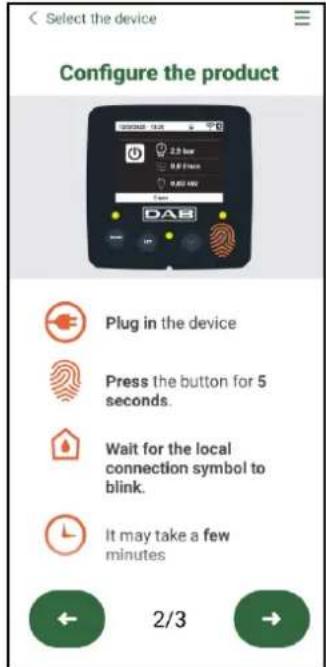
Direct connection instructions
Once the connection between smartphone and product has been made ("local connection"), the APP will check if a software update is available. If so, a popup will appear on the APP screen.
Press the "Download" button in the popup to download the update software to your smartphone.
NOTE: This software will remain available in the APP to facilitate any subsequent updates of other Esybox Maxes and will remain valid until a new update software is made available and then replaced.
Notification of new available updates
Once the download is complete, the update resides on your smartphone; to transfer it to the product, access the Esybox Max direct connection menu and press the green button:
ENGLISH
Product menu with an Update available

Button to start the update
Once the update has started, the pump will show the status on the display, which will end with "Done!" and will restart immediately afterwards. If the update is unsuccessful, the Esybox Max you were trying to update will restart with the previous software version, so you can repeat the operation.
Software alignment between two Esybox Max devices
If a smartphone is not available (which is recommended to take advantage of the latest available update) it is possible to carry out local software alignment between two Esybox Max devices of the same model.
The software alignment of similar products is necessary to allow the creation of the pump set.
The procedure is carried out between two Esybox Max devices at a time, in case of more than one Esybox Max to be updated the procedure must be repeated each time.
Procedure:
Make the association between two Esybox Max devices (see 8.5.5 AS Device Association).
If the two Esybox Max devices have a different software version (which can be checked from the VE menu) they will display a popup indicating that you are trying to make an association between two products with different firmware. The popup also indicates the firmware version and tells you to press the ^ key.
This key can be pressed on any Esybox Max involved in the software alignment phase.
Once the update has started, the pump will show the status on the display, which will end with "Done!" and will restart immediately afterwards.
Check via the VE menu that the Esybox Max has been updated to the desired version.
If the update is unsuccessful, the Esybox Max you were trying to update will restart with the previous software version, so you can repeat the operation.
12.3 DSYNC
DAB products with integrated DConnect feature smart solutions that help the user during the initial configuration and use of the product.
With DSync you can save time for the first configuration and software update of the Esybox Max, which will be part of a new booster set.
It will be enough to configure only one pump in the set and propagate the settings to the other pumps via the DSync function.
In greater detail, when creating a new pump set via DSync you can:
• Update the Esybox Max devices present to the latest software version available
- Align the language and measurement unit settings for each pump in the set
• If you want to use the DConnect Cloud service, you can enable the service on an Esybox Max to which you are directly connected and propagate the settings to the other pumps in the set.
Requirements:
To use the DSync function
- The Esybox Max must not have been previously synchronised (via DSync) with other similar pumps (it is possible to restore the status from App in the product menu).
• It must have been powered for no more than 30 mins (otherwise just restart it)
• If a software update is necessary, consider that it can take up to 5 minutes per pump.
Procedure:

- Click on the "Direct connection" button
• Select the image of the Esybox Max product
• Follow the step-by-step instructions in the APP -
Click on the green DSync button
-
The APP screen will display the number of pumps found at the installation site that can be synchronised as they are in a "first configuration" state.
- At the same time the displays of the Esybox Max devices involved will also flash to communicate that they are about to be synchronised.
• The first step is to update the software of the pumps found.
Share configuration with Dsync


ENGLISH
Once the update has started, the pump will show the status on the display and restart when the update is complete. On the APP a symbol with a green check mark will confirm the operation. If not, you can repeat the operation with the appropriate symbol

- The second phase of DSync deals with the alignment of the parameters related to the user's location (language, unit of measurement) and any WiFi configurations and information related to the DConnect cloud service. A symbol with a green cloud will confirm the operation.
13. MAINTENANCE

Disconnect the power supply before starting any work on the system.
The system requires no routine maintenance operations.
However, below are the instructions for performing the special maintenance operations that may be necessary in particular cases (e.g. emptying the system to put it away during a period of inactivity).
13.1 Accessory tool
With the product DAB supplies an accessory tool (wrench) that is useful for carrying out the operations contemplated on the system during installation and any special maintenance operations. (Fig.19)
The accessory tool is used for: opening and closing the Dock, removing the NRV, turning the caps.
It is housed behind the expansion vessel. (Fig.6)

If the key is lost or damaged, the same operation can be performed with a 10mm (13/32 inch) socket wrench). The only operation for which the tool can be replaced is to open and close the Dock. You will need a screwdriver for the caps and pliers to extract the NRV.

natural_image
Technical line drawing of a mechanical component with no visible text or symbolsFigure 19
13.2 Emptying the system
If you want to drain the water out of the system, proceed as follows:
-
disconnect the electric power supply;
-
turn on the delivery tap closes to the system so as to remove pressure from the system and empty it as much as possible;
-
if there is a check valve immediately downstream from the system (always recommended), close it so as not to let out the water that is in the plant between the system and the first turned on tap;
-
interrupt the suction pipe in the point closest to the system (it is always recommended to have a check valve immediately upstream from the system) so as not to drain the whole suction system;
-
remove the two drainage caps on the dock and let out the water inside (about 11 litres); Fig.20
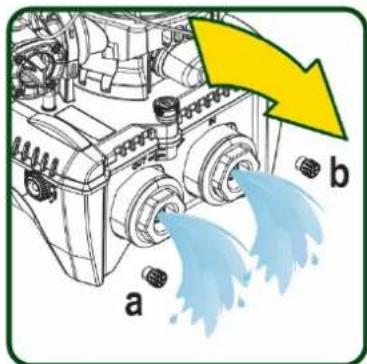
Figure 20

Though essentially drained, the system is unable to expel all the water that it contains. During handling of the system after emptying it, some small amounts of water may probably leak out from the system.
13.3 Non-return valve
The system has an integrated non-return valve which is necessary for correct operation. The presence of solid bodies or sand in the water could cause malfunctioning of the valve and therefore of the system. Although it is recommended to use fresh water and eventually fit filters on input, if you notice abnormal operation of the non-return valve it can be extracted from the system and cleaned and/or replaced by proceeding as follows, see fig. 21:
-
disconnect the electric power supply;
-
drain the system;
3a. remove the four screws;
3b. remove the cap using the accessory tool (or pliers);
3c. remove the valve
3d. clean the valve under running water, ensure that it is not damaged and replace it if necessary.
1
2
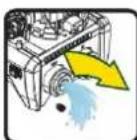
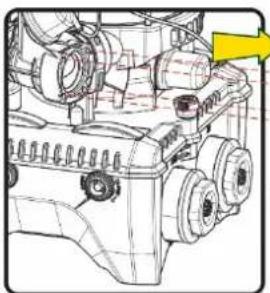
natural_image
Technical line drawing of a mechanical assembly with no visible text or symbols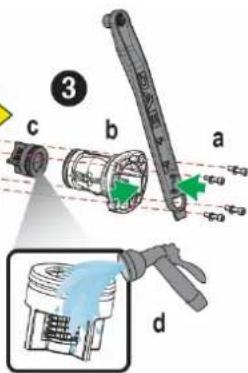
Figure 21

Should one or more O-rings be lost or damaged during maintenance operations on the non-return valve, they must be replaced. Otherwise the system might not work correctly.
13.4 Motor shaft
The electronic control of the system ensures smooth starts so as to avoid excessive stress on the mechanical parts and thus prolong the life of the product. In exceptional cases this characteristic could cause problems in starting the pump: after a period of inactivity, perhaps with the system drained, the salts dissolved in the water could have settled and formed calcification between the moving part (motor shaft) and the fixed part of the pump, thus increasing the resistance on starting. In this case it may be sufficient to help the motor shaft by hand to detach itself from the calcifications. In this system the operation is possible because access to the motor shaft from outside is guaranteed and a groove is provided at the end of the shaft. Proceed as follows:
- Disconnect the electric power supply.
- Remove the lifting eyebolt inside the upper compartment by unscrewing it (Fig.22). During the operation take care not to let impurities (liquid or solid) enter the motor.
- With the help of a straight tip screwdriver, operate the motor shaft by rotating it through the track that remains visible on its upper face. The direction of rotation is not important, just check that it can turn freely.
- Screw the eyebolt back into place, making sure that the O-Ring has not been removed or damaged during operation 2.
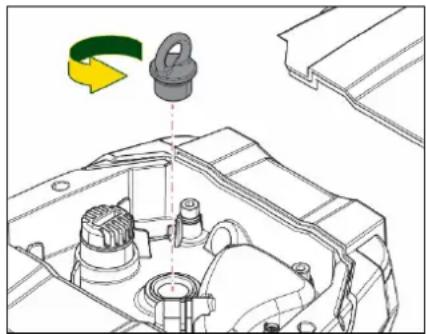
natural_image
Technical diagram of a mechanical assembly with a green arrow indicating rotation (no text or symbols present)Figure 22
13.5 Expansion Vessel
See paragraph 1.4 for the operations to check and adjust the air pressure in the expansion vessel. To replace it in case of breakage, follow the steps below:
- Disconnect the electric power supply.
- Drain the section of system on which the tank is mounted (remove pressure from the system, close the valve nearest to the pump otherwise the whole system will be drained, open the drain plug of the pump delivery manifold -Fig.20a-, facilitate water drainage by loosening the filling cap in the technical compartment so that air can be drawn in)
- Remove the casing (vessel cover) simply by pulling it, this is fixed by a double cylindrical snap-on coupling (Fig.23a);
- Remove the retaining screw with a screwdriver and remove the metal fork using pliers (Fig.23b).
- Remove the retaining screw (Fig.24a) with a torx screwdriver and open the retaining collar (Fig.24b, two snap hooks, and turn it on its hinges).
-
Pull the expansion tank upwards until the O-Ring disengages from its seat on the delivery curve. Take care because the O-Ring will make some resistance. At this point the expansion vessel is free in the operator's hand.
-
Slacken the screw (Fig.25a) until the ring on the expansion tank is idle.
-
Take the ring off the expansion tank (Fig.25b).
-
Check the O-Ring (Fig.25c) and replace it if damaged (unless it is already supplied mounted on the DAB spare part, in which case it can be scrapped together with the vessel to be replaced).
ENGLISH
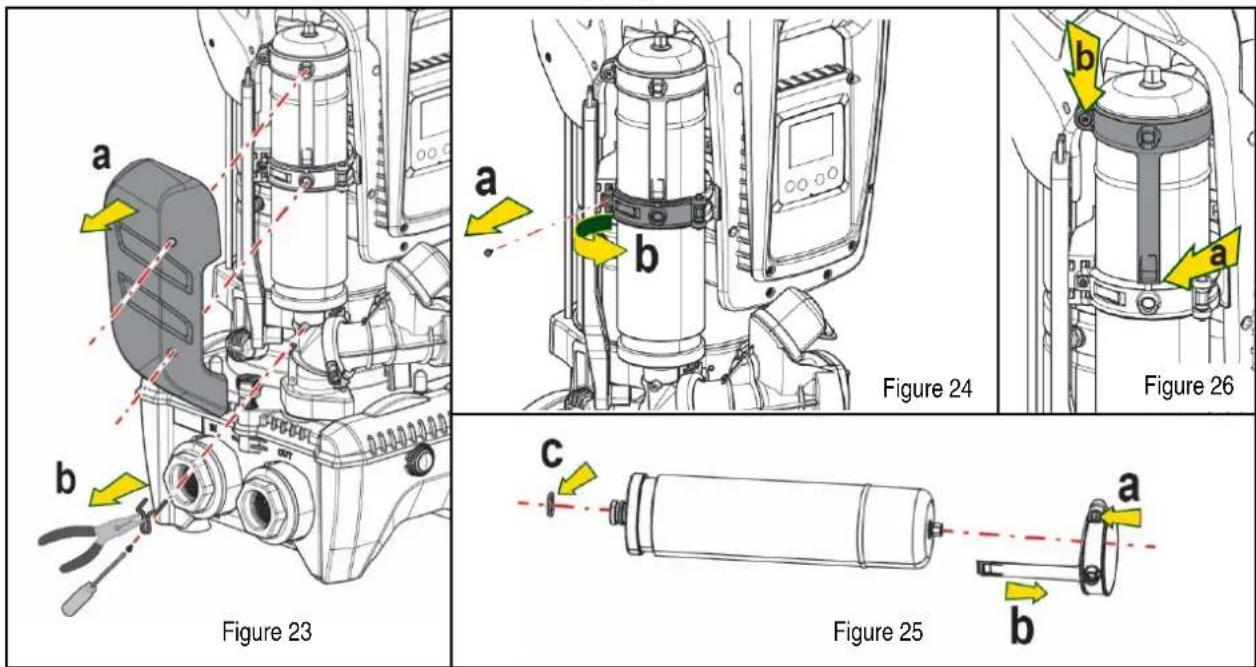
-
Fit the new vessel and fix it by performing operations 6,4,5 in inverse order.
-
Fit the ring on the vessel by inserting the positioning band in its seat on the retaining collar until the tooth stops (Fig.26a)
-
Tighten the screw (Fig.26b) to prevent rotation of the ring and secure its position.
-
Clip the casing into place, performing operation 3 in inverse order.
14. TROUBLESHOOTING

Before starting to look for faults it is necessary to disconnect the power supply to the pump (take the plug out of the socket).
| FAULT | LED | PROBABLE CAUSES | REMEDIES |
| The pump does not start. | Red: offWhite: offBlue: off | No electric power. | Check whether there is voltage in the socket and insert the plug again. |
| The pump does not start. | Red: onWhite: onBlue: off | Shaft blocked. See paragraph Motor shaft maintenance. | |
| The pump does not start. | Red: offWhite: onBlue: off | Utility at a level higher than the system restarting pressure level (par. 3.2). | Increase the system restarting pressure level by increasing SP or decreasing RP. |
| The pump does not stop. | Red: offWhite: onBlue: off | 1. Leak in the system.2. Impeller or hydraulic part clogged.3. Air getting into the suction pipe.4. Faulty flow sensor. | 1. Check the system, find and eliminate the leak.2. Dismantle the system and remove the obstructions (assistance service).3. Check the suction pipe, find and eliminate the cause of air getting in.4. Contact the assistance centre. |
| Insufficient delivery | Red: offWhite: onBlue: off | 1. Suction depth too high.2. Suction pipe clogged or diameter insufficient.3. Impeller or hydraulic part clogged. | 1. As the suction depth increases the hydraulic performance of the product decreases (see par. Description of the Electropump). Check whether the suction depth can be reduced. Use a suction pipe with a larger diameter (but never smaller than 1"1/4 for the single pump, larger sections for groups).2. Check the suction pipe, find the cause of choking (obstruction, dry bend, counterslope, ...) and remove it.3. Dismantle the system and remove the obstructions (assistance service). |
| The pump starts without utility request. | Red: offWhite: on | 1. Leak in the system. | 1. Check the system, find and eliminate the leak. |
ENGLISH
| Blue: off | 2. Faulty non-return valve. | 2. Service the non-return valve as described in paragraph 12.3. | |
| The water pressure when turning on the utility is not immediate. | Red: offWhite: onBlue: off | Expansion vessel empty (insufficient air pressure) or has broken diaphragm. | Check the air pressure through the valve in the technical compartment. If water comes out when checking, the vessel is broken: assistance service. Otherwise restore the air pressure according to the equation (par. 1.4). |
| When the utility is turned on the flow falls to zero before the pump starts. | Red: offWhite: onBlue: off | Air pressure in the expansion vessel higher than the system starting pressure. | Calibrate the expansion vessel pressure or configure the parameters SP and/or RP so as to satisfy the equation (par. 1.4). |
| The display shows BL | Red: onWhite: onBlue: off | 1. No water.2. Pump not primed.3. Setpoint not reachable with the set RM value | 1-2 Prime the pump and check whether there is air in the pipe. Check whether the suction or any filters are blocked.3. Set a RM value that allows the setpoint to be reached. |
| The display shows BP1 | Red: onWhite: onBlue: off | 1. Faulty pressure sensor. | 1. Contact the assistance centre. |
| The display shows OC | Red: onWhite: onBlue: off | 1. Excessive absorption.2. Pump blocked. | 1. Fluid too dense. Do not use the pump for fluids other than water.2. Contact the assistance centre. |
| The display shows PB | Red: onWhite: onBlue: off | 1. Supply voltage too low.2. Excessive drop in voltage on the line. | 1. Check the presence of the correct supply voltage.2. Check the section of the power supply cables. |
| The display shows: Press ^ to propagate this config | Red: offWhite: onBlue: off | One or more devices have sensitive parameters not aligned. | Press the ^ key on the device which we are sure has the most recent and correct configuration of the parameters. |
Table 22 Solving typical problems
FRANÇAIS
SOMMAIRE
1. CONSIDÉRATIONS GÉNÉRALES 82
Figure 2
natural_image
Mechanical assembly diagram showing clamping mechanism with yellow and green components (no text or labels)Figure 3
Figure 7
FRANÇAIS
Figure 8

Figure 9

FRANÇAIS
natural_image
Technical line drawing of an electronic component with labeled pins (U, V, W) and mounting holes (no text or symbols beyond basic markings)Figure 10
FRANÇAIS
Figure 13

8.6 Menu Assistance technique
8.6.12 AY: Anti Cycling
12. APP, DCONNECT CLOUD ET MISE À JOUR DU LOGICIEL

CONNECT


Menu - Vos installations
Share configuration with Dsync

•
natural_image
Technical line drawing of a mechanical component with no visible text or symbolsFigure 19
FRANÇAIS
natural_image
Technical diagram of a mechanical component with a green arrow indicating rotation (no text or symbols present)Figure 22
FRANÇAIS
13.5 Vase d'expansion
Severalls Business Park
Colchester
Essex
C04 9WN - UK
salesuk@dwtgroup.com
Tel. +44 0333 777 5010
DAB PUMPS BV
'tHofveld 6 C1
info.belgium@dwtgroup.com
Tel. +32 2 4668353
DAB PUMPS INC.
3226 Benchmark Drive
Ladson, SC 29456 - USA
info.usa@dwtgroup.com
Tel. 1-843-797-5002
Fax 1-843-797-3366
000 DAB PUMPS
Novgorodskaya str. 1, block G
office 308, 127247, Moscow - Russia
info.russia@dwtgroup.com
Tel. +7 495 122 0035
Fax +7 495 122 0036
DAB PUMPS POLAND SP. z.o.o.
No.40 Kaituo Road, Qingdao Economic &
Technological Development Zone
Qingdao City, Shandong Province - China
PC: 266500
sales.cn@dwtgroup.com
Tel. +86 400 186 8280
Fax +86 53286812210
DAB PUMPS IBERICA S.L.
Calle Verano 18-20-22
28850 - Torrejón de Ardoz - Madrid
Spain
Info.spain@dwtgroup.com
Tel. +34 91 6569545
Fax: + 34 91 6569676
DAB PUMPS B.V.
Twenty One industrial Estate,
16 Purlin Street, Unit B, Warehouse 4
Olifantsfontein - 1666 - South Africa
info.sa@dwtgroup.com
Tel. +27 12 361 3997
DAB PUMPS GmbH
Am Nordpark 3
41069 Mönchengladbach, Germany
info.germany@dwtgroup.com
Tel. +49 2161 47 388 0
Fax +49 2161 47 388 36
DAB PUMPS HUNGARY KFT.
H-8800
Nagykanizsa, Buda Ernő u.5
Hungary
Tel. +36 93501700
426 South Gippsland Hwy,
Dandenong South VIC 3175 – Australia
info.oceania@dwtgroup.com
Tel. +61 1300 373 677

WATER•TECHNOLOGY
DAB PUMPS S.p.A.
Via M. Polo, 14 - 35035 Mestrino (PD) - Italy
Tel. +39 049 5125000 - Fax +39 049 5125950
www.dabpumps.com
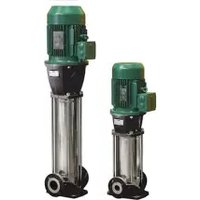

- ENGLISH
- KEY
- SITUATION OF GENERAL DANGER.
- SITUATION OF ELECTRIC SHOCK HAZARD.
- GENERAL
- Applications
- Integrated electropump
- Integrated Inverter
- Integrated Expansion Vessel
- Technical characteristics
- PUMPABLE LIQUIDS
- INSTALLATION
- PROCEDURE FOR FIXING THE PUMP TO THE ESYDOCK BASE
- HYDRAULIC CONNECTIONS
- Loading Operation – Installation above head and below head
- Maximum pressure at intake (pump below head)
- Systems in booster mode
- COMMISSIONING
- Electrical Connections
- Configuration of the Integrated Inverter
- Priming
- Operation
- THE KEYPAD AND THE DISPLAY
- Menus
- Access to the menus
- Direct access with a combination of keys
- Access by name with a drop-down menu
- Structure of the menu pages
- Blocking parameter setting by Password
- Enabling and disabling the motor
- MEANING OF THE INDIVIDUAL PARAMETERS
- User Menu
- Status
- RS: Rotation speed display
- VP: Pressure display
- VF: Flow display
- PO: Absorbed power display
- C1: Phase current display
- TE: Heat sink temperature
- Pin: Pressure at intake
- Operating hours and number of starts
- PI: Power histogram
- Multi-pump system
- NT: Display of network configurations
- VE: Version display
- FF: Fault log display (log)
- Monitor Menu
- BK: Display brightness
- TK: Backlight switch-on time
- LA: Language
- TE: Heat sink temperature display
- BT: Display of the temperature of the electronic card.
- Setpoint Menu
- SP: Setting the setpoint pressure
- Setting the auxiliary pressures
- P1: Setting the auxiliary setpoint 1
- P2: Setting the auxiliary setpoint 2
- P3: Setting the auxiliary setpoint 3
- P4: Setting the auxiliary setpoint 4
- Manual Menu
- Status
- RI: Speed setting
- VP: Pressure display
- VF: Flow display
- PO: Absorbed power display
- C1: Phase current display
- RS: Rotation speed display
- TE: Heat sink temperature display
- Installer Menu
- RP: Setting the pressure fall to restart
- OD: Type of plant
- AD: Address configuration
- MS: Measuring system
- AS: Association of devices
- Association of devices
- Disassociation of devices
- Replacing devices
- PR: Remote pressure sensor
- EK: low pressure detected on suction
- PK: low pressure threshold on suction
- RT: direction of rotation
- Technical Assistance Menu
- TB: Water lack blockage time
- T1: Low pressure delay (kiwa function)
- T2: Delay in switching off
- GP: Proportional gain coefficient
- Gl: Integral gain coefficient
- RM: Maximum speed
- Setting the number of devices and of reserves
- NA: Active devices
- NC: Simultaneous devices
- IC: Configuration of the reserve
- Configuration examples for multi-pump plants
- Example 1:
- Example 2:
- Example 3:
- ET: Max. switching time
- AY: Anti Cycling
- AE: Enabling the anti-block function
- AF: Enabling the anti-freeze function
- Setup of the auxiliary digital inputs IN1, IN2, IN3, IN4
- Disabling the functions associated with the input
- Setting external float function
- Setting auxiliary setpoint input function
- Setting system disabling and fault reset
- Setup of the outputs OUT1, OUT2
- O1: Setting output 1 function
- O2: Setting output 2 function
- RF: Fault and warning reset
- PW: Change password
- Password for multipump systems
- RESET AND FACTORY SETTINGS
- General system reset
- Factory settings
- Restoring the factory settings
- PROTECTION SYSTEMS
- Description of blockages
- "BL" Anti Dry-Run (Protection against dry running)
- Anti-Cycling (Protection against continuous cycles without utility request)
- Anti-Freeze (Protection against freezing of water in the system)
- "BP1" "BP2" Blockage due to fault of the internal pressure sensor
- "PB" Blockage due to supply voltage outside specifications
- "SC" Blockage due to short circuit between the motor phases
- Manual reset of error conditions
- Self-reset of error conditions
- PARTICULAR INSTALLATIONS
- Multiple Sets
- Introduction to multipump systems
- Making a multipump system
- Wireless communication
- Connection and setting of the photo-coupled inputs
- Parameters concerning multipump
- Parameters with local significance
- Sensitive parameters
- Automatic alignment of sensitive parameters
- Parameters with optional alignment
- First start of the multipump system
- Multipump adjustment
- Assigning the starting order
- Maximum switching time
- Reaching the maximum inactivity time
- Reserves and number of devices that participate in pumping
- Wireless Control
- Modbus
- APP, DCONNECT CLOUD AND SOFTWARE UPDATE
- System requirements
- • APP requirements: Smartphone
- - Requirements for access from WebAPP: PC
- • Product Network Requirements
- Updating the software
- Local updates via APP DCONNECT
- Procedure:
- Software alignment between two Esybox Max devices
- DSYNC
- MAINTENANCE
- Accessory tool
- Emptying the system
- Non-return valve
- Motor shaft
- Expansion Vessel
- TROUBLESHOOTING
- FRANÇAIS
- SOMMAIRE
- CONSIDÉRATIONS GÉNÉRALES 82
- Menu Assistance technique
- AY: Anti Cycling
- APP, DCONNECT CLOUD ET MISE À JOUR DU LOGICIEL
- Vase d'expansion
- DAB PUMPS BV
- DAB PUMPS INC.
- DAB PUMPS
- DAB PUMPS POLAND SP. z.o.o.
- DAB PUMPS IBERICA S.L.
- DAB PUMPS B.V.
- DAB PUMPS GmbH
- DAB PUMPS HUNGARY KFT.
- DAB PUMPS S.p.A.
Brand : DAB
Model : ESYBOX MAX
Category : Pump