H65K705UG - TV HAIER - Free user manual and instructions
Find the device manual for free H65K705UG HAIER in PDF.


| Product Type | 4K Ultra HD LED TV |
| Brand | Haier |
| Model | H65K705UG |
| Screen Size | 65 inches (165 cm) |
| Resolution | 3840 x 2160 pixels (4K) |
| Aspect Ratio | 16:9 |
| Power Consumption | 220 W (max) |
| Input Voltage | 100-240 V ~ 50/60 Hz |
| Audio Power | 2 x 10 W |
| TV System | PAL-B/G, SECAM-B/G, DVB-T, DVB-C, DVB-T2, DVB-S2 |
| Smart TV | Android TV with Google Assistant, built-in Chromecast |
| Pre-installed Apps | Netflix, Prime Video, YouTube, YouTube Music |
| Connectivity | Wi-Fi, Bluetooth, LAN Ethernet |
| HDMI Inputs | 4 (including 1 with ARC) |
| USB Ports | 2 |
| Other Inputs | AV (composite), ANT IN, LNB IN (satellite), CI+ |
| Outputs | Digital optical, headphone jack |
| Image Functions | Picture modes: Standard, Vivid, Sport, Movie, Game, Energy saving; adjustments for contrast, brightness, saturation, sharpness, gamma, color temperature |
| Audio Functions | Dolby Audio, dbx-tv, surround, equalizer, auto volume control |
| Included Accessories | Infrared/Bluetooth remote control, AAA batteries, user manual |
| Wall Mount Compatibility | Yes (M6 screws, pitch not specified) |
Frequently Asked Questions - H65K705UG HAIER
User questions about H65K705UG HAIER
0 question about this device. Answer the ones you know or ask your own.
Ask a new question about this device
Download the instructions for your TV in PDF format for free! Find your manual H65K705UG - HAIER and take your electronic device back in hand. On this page are published all the documents necessary for the use of your device. H65K705UG by HAIER.
USER MANUAL H65K705UG HAIER
Please READ this manual carefully before operating your TV, and retain it for future reference
Contents
Safety and warnings....2-3
Introduction....4
Wall Mount Installation....5
Installation....6-8
Remote Control....9
Operation.... 10-19
Trouble Shooting.... 20
IMPORTANT SAFETY INSTRUCTION
1) Read these instructions.
2) Keep these instructions.
3) Heed all warnings.
4) Follow all instructions.
5) Do not use this apparatus near water.
6) Clean only with dry cloth.
7) Do not block any ventilation openings, install in accordance with the instructions.
8) Do not install near any heat sources such as radiations, heat registers, stoves, or other apparatus (including amplifiers) that produce heat.
9) Do not defeat the safety purpose of the polarized plug. If the provided plug does not fit into your outlet, consult an electrician for replacement of the obsolete outlet.
10) Protected the power cord from being walked on or pinched particularly at plugs, convenience receptacles, and the point where they exit from the apparatus.
11) Only use attachments/accessories specified by the manufacturer.
12) Unplug this apparatus during lighting storms or when unused for long periods of time.
13) Refer all servicing to qualified service personnel. Servicing is required when the apparatus has been damaged in any way, such as power-supply cord or plug is damaged, liquid has been spilled or objects have fallen into the apparatus, the apparatus has been exposed to rain or moisture, does not operate normally, or has been dropped.
14) Mains plug is used as the disconnect device, the disconnect device shall remain readily operable.
15) The ventilation should not be impeded by covering the ventilation openings with items, such as newspapers, table-cloth, curtains, etc.
16) No naked flame sources, such as lighted candles, should be placed on the apparatus.
17) Attention should be drawn to the environmental aspects of battery disposal.
18) The use of apparatus in moderate climate.
19) The apparatus shall not be exposed to dripping or splashing and that no objects filled with liquids, such as vases, shall be placed on the apparatus.
20) Warning: To avoid any injury caused by lean of the product, please always ensure the whole product was placed within the table surface in horizontal.


CAUTION
TO REDUCE THE RISK OF ELECTRIC SHOCK, DO NOT REMOVE COVER (OR BACK). NO USER SERVICEABLE PARTS INSIDE. REFER SERVICING TO QUALIFIED SERVICE PERSONNEL.

The symbol indicates that dangerous voltages constituting a risk of electric shock are present within this unit.

The symbol indicates that there are important operating and maintenance instructions in the literaturaccompanying this unit.
WARNING:
To reduce the risk of fire or electric shock, do not expose this apparatus to rain or moisture.
WARNING:
The batteries shall not be exposed to excessive heat such as sunshine, fire or the like.
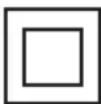
This symbol indicates that this product incorporates double insulation between hazardous mains voltage and user accessible parts. When servicing use only identical replacement parts.
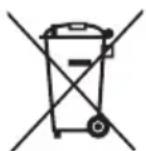
This marking indicates that this product should not be disposed with other household wastes throughout the EU. To prevent possible harm to the environment or human health from uncontrolled waste disposal, recycle it responsibly to promote the sustainable reuse of material resources. To return your used device, please use the return and collection systems or contact the retailer where the product was purchased. They can take this product for environmental safe recycling.
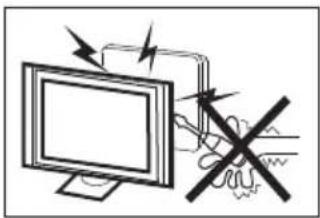
natural_image
Illustration of a computer monitor with a crossed-out electrical circuit and lightning bolts (no text or symbols)High voltages are used in the operation of this television receiver. Do not remove the cabinet back from your set. Refer servicing to qualified service personnel.
natural_image
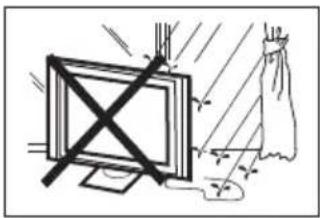
Simple line drawing of a monitor with a cross mark and a cloth, no text or symbols presentTo prevent fire or electrical shock hazard, do not expose the television receiver to rain or moisture.
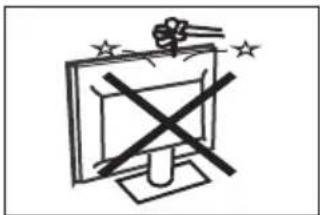
Do not drop or push objects into the television cabinet slots or openings. Never spill any kind of liquid on the television receiver.
natural_image
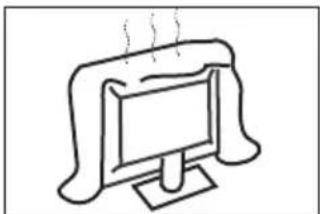
Simple line drawing of a computer monitor with a curved frame and a screen, emitting steam (no text or symbols)Do not block the ventilation holes in the back cover. Adequate ventilation is essential to prevent failure of electrical components.
natural_image
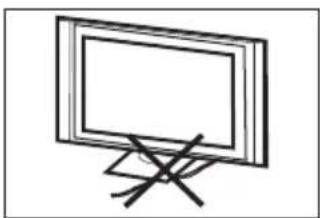
Simple line drawing of a flat-screen monitor with a stand and diagonal lines (no text or symbols)Do not trap the power supply cord under the television receiver.

natural_image
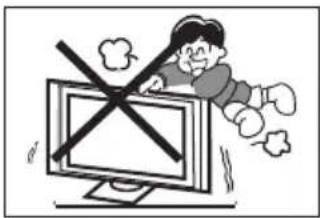
Cartoon illustration of a person lying on a computer monitor with a crossed-out window symbol (no text or symbols present)Never stand on, lean on, or suddenly push the television or its stand. You should pay special attention to children. Serious injury may result if it falls.
natural_image
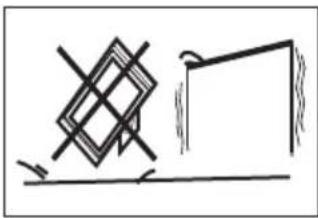
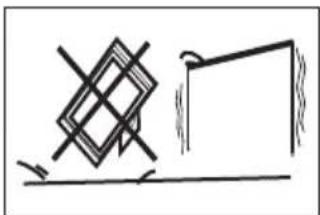
Simple line drawing of a geometric structure with intersecting lines and a rectangular frame (no text or symbols)Do not place your television on an unstable cart, stand, shelf or table. Serious injury to an individual, and damage to the television, may result if it falls.
natural_image
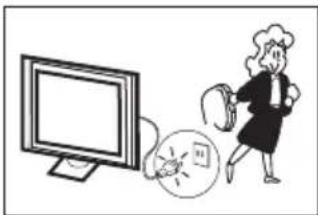
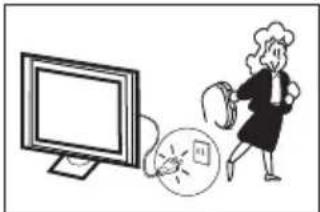
Illustration of a person standing next to a computer monitor and a circular device with a magnifying glass (no text or symbols)When the television receiver is not used for an extended period of time, it is advisable to disconnect the AC power cord from the AC outlet.
natural_image
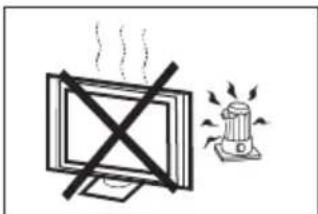
Simple line drawing of a monitor with a cross symbol crossed out, next to a speaker emitting sound waves (no text or symbols)Avoid exposing the television receiver to direct sunlight and other sources of heat. Do not stand the television receiver directly on other products which give off heat, e.g. video cassette players and audio amplifiers. Do not place naked flame sources, such as lighted candles on the television.
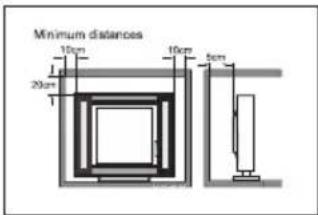
If the television is to be built into a compartment or similar enclosure, the minimum distances must be maintained. Heat build-up can reduce the service life of your television, and can also be dangerous.
Main features
① Used as Television, display terminal;
② High luminance, wide viewing angle;
③ Can store Air and Cable TV programs;
④ HDMI interface;
⑤ Multi-Media player (USB);
Accessories
Remote Controller.... 1
User's Manual....1
Main parameter
| Viewing Picture Size (Diagonal) | 50 inch | 55 inch 65 inch | |
| Resolution 3840x2160 | 3840x2160 3840x2160 | ||
| Aspect Ratio | 16:9 | ||
| TV System | PAL-B/G, SECAM-B/G, DVB-T, DVB-C, DVB-T2,DVB-S2 | ||
| Video Signal System | PAL/NTSC/SECAM | ||
| Receiving Channel | DVB-T2:1000, DVB-C:1000, ATV:99 | ||
| Input Power Voltage | 100-240V~50/60Hz | ||
| Power consumption | 148W | 160W 220W | |
| Audio Output Power (THD≤10%) | 2 x10W | ||
| Signal input/output | High-Definition Multimedia Interface(HDMI) x 4Composite Video Input x 1Audio Input x 1LAN Input x 1USB x 2OPTICAL OUTPUT x 1HEADPHONE OUTPUT x 1RF x 1LNB IN x 1CI x 1 | ||
| Horizontal definitio n (TV line) | Composite Video input >=350 | ||

HIGH-DEFINITION MULTIMEDIA INTERFACE
The terms HDMI, HDMI High-Definition Multimedia Interface, HDMI Trade dress and the HDMI Logos are trademarks or registered trademarks of HDMI Licensing Administrator, Inc.
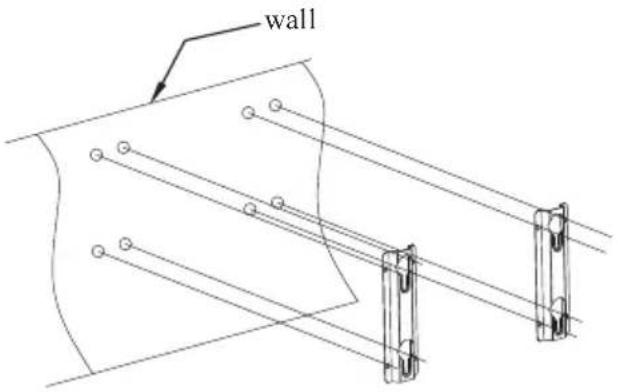
Step One: Use the expansion bolts(4*36PWA) to fix the wall mount brackets into the wall.
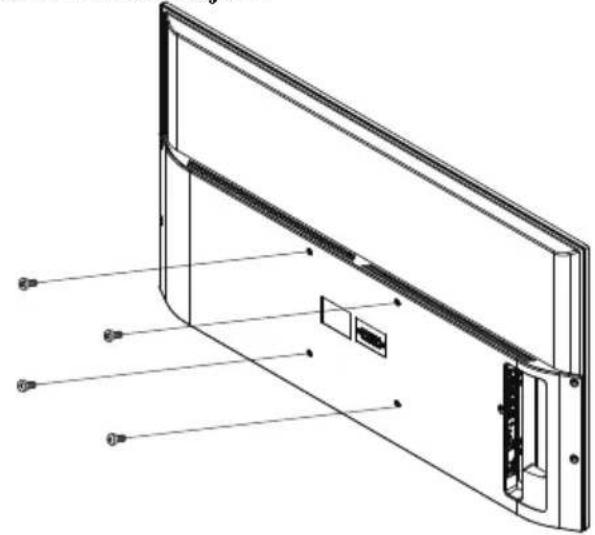
Step Two: Fix the wall mount screws (50":M6x12mm,55"/65":M6x16mm/4pcs) into the rear side of the LCD TV, using the tongue of 8kgf.cm.
* The TV appearance subject to material object.
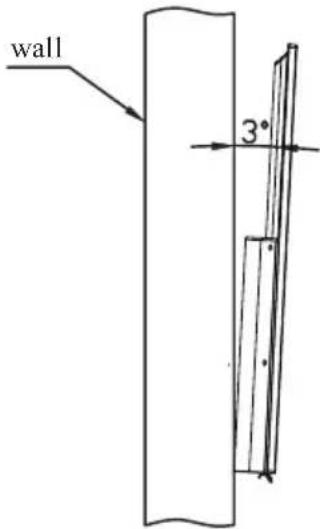
Step Three: Put the LCD TV with wall mount screws onto the wall mount brackets.
Warning: the angle between the TV and wall must not be bigger than 3^ .
Front panel
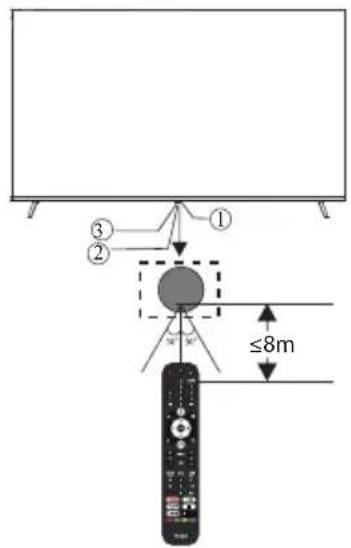

1: Remote control sensor.
2: Indicator LED: RED ● STANDBY.
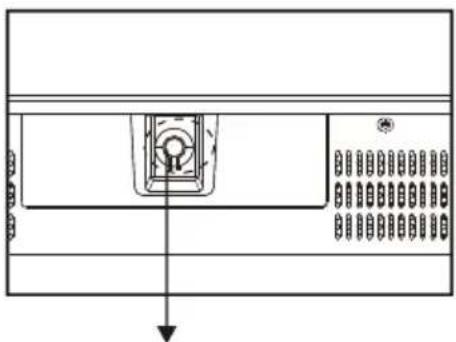
3: Key board
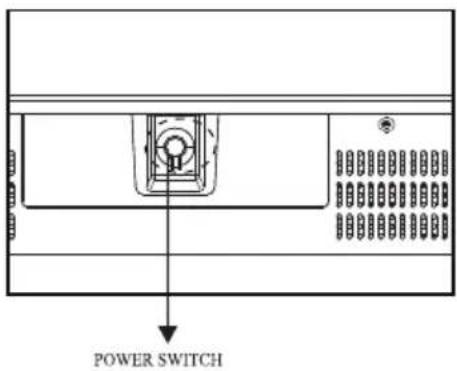
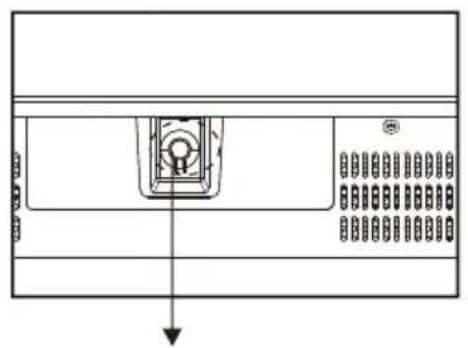
(1) In the standby mode - Press the button to start the TV.
(2) In the boot state - Press the button to shut down.
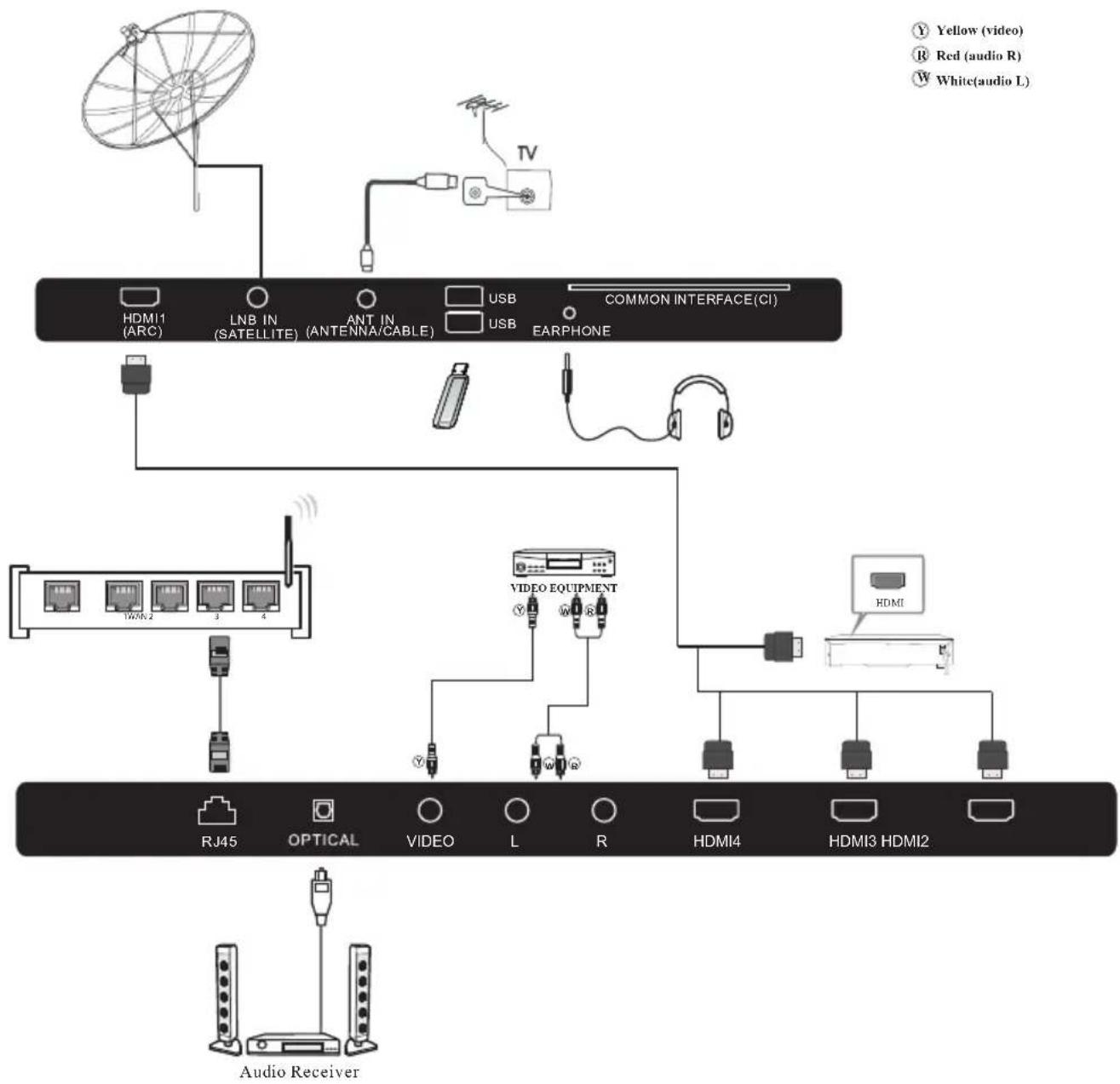
REAR AV Connections (SIDE)

All the terminals are (from left to right):
HDMI1(ARC), LNB IN, ANT IN, USB, CI, EARPHONE output.
REAR AV Connections

All the terminals are (from left to right):
RJ45, OPTICAL output, VIDEO, AUDIO input(L/R), HDMI4, HDMI3, HDMI2.
Note:
When HDMI port get DVI signal, the audio signal receives from the AV Audio channel.
ANTENNA
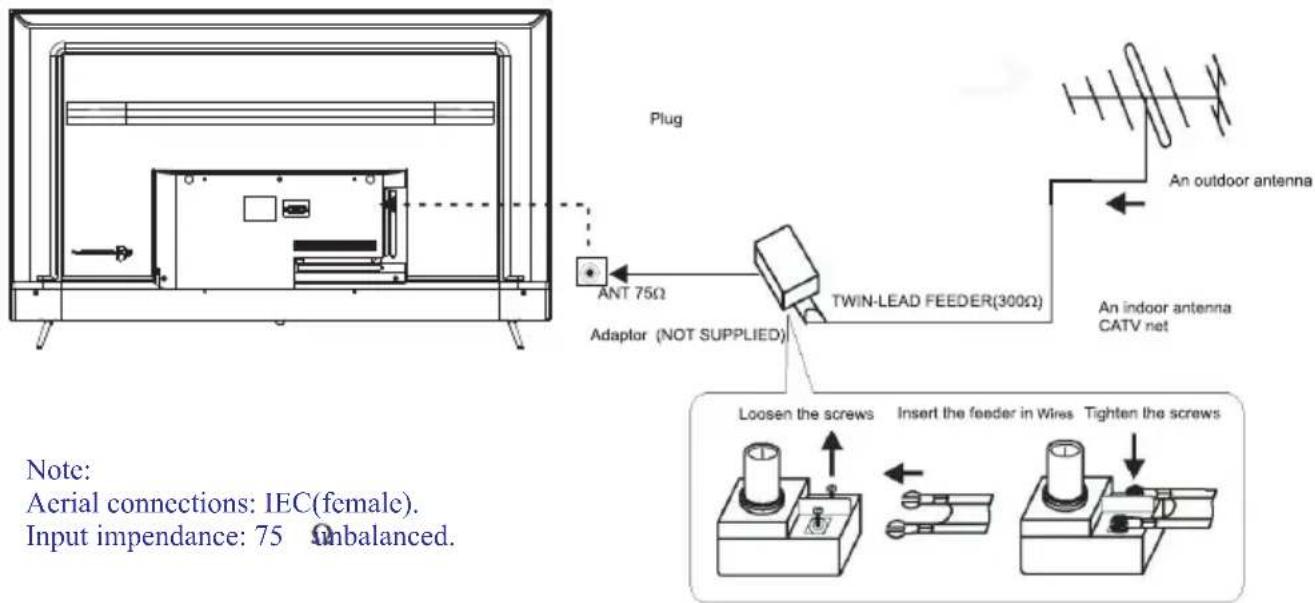
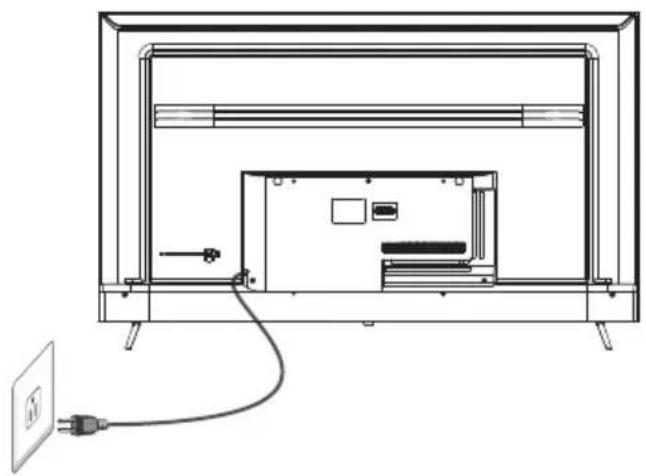
natural_image
Line drawing of a flat-screen TV unit with cable and power outlet, no text or symbols presentPRESET MODE (HDMI)
| RESOLUTION | V.Freq.(Hz) H.Freq.(KHz) | ||
| 1 | 800*600 | 60 | 37.88 |
| 2 | 1024*768 | 60 | 48.36 |
| 3 | 1360*768 | 60 | 47.7 |
| 4 | 1280*768 | 60 | 47.3 |
| 5 | 1920*1080 | 60 | 67.5 |
| 6 | 3840*2160 | 30 | 67.5 |
| 7 | 3840*2160 | 50 | 112.5 |
| 8 | 3840*2160 | 60 | 135 |
AV EQUIPMENT
This TV provides one group of AV for convenient connection to VCR, DVD or other video equipment.
Please refer to the owner's manual of the equipment to be connected as well.
You can use the input terminals on TV set rear as follows.
flowchart
graph TD
    A["Yellow (video)"] --> B["HDMI1 (ARC)"]
    C["Red (audio R)"] --> D["LNB IN (SATELLITE)"]
    E["White (audio L)"] --> F["ANT IN (ANTENNA/CABLE)"]
    B --> G["USB"]
    D --> H["USB"]
    F --> I["USB"]
    G --> J["COMMON INTERFACE(CI)"]
    H --> J
    I --> J
    J --> K["EARPHONE"]
    L["Audio Receiver"] --> M["BJ45"]
    L --> N["OPTICAL"]
    L --> O["VIDEO"]
    L --> P["L"]
    L --> Q["R"]
    L --> R["HDMI4"]
    L --> S["HDMI3 HDMI2"]
    T["TV"] --> U["USB"]
    V["Video EQUIPMENT"] --> W["BJ45"]
    X["HDMI"] --> Y["HDMI"]
It can be connected to the following appliances: VCR, multi disc player, DVD, camcorder, video game or stereo system, etc.....
Note:
- When HDMI port get DVI signal, the "AV Audio" channel is changed to receive the audio for HDMI port.
- Sometimes it will not support in different device because the device supplies nonstandard signal.
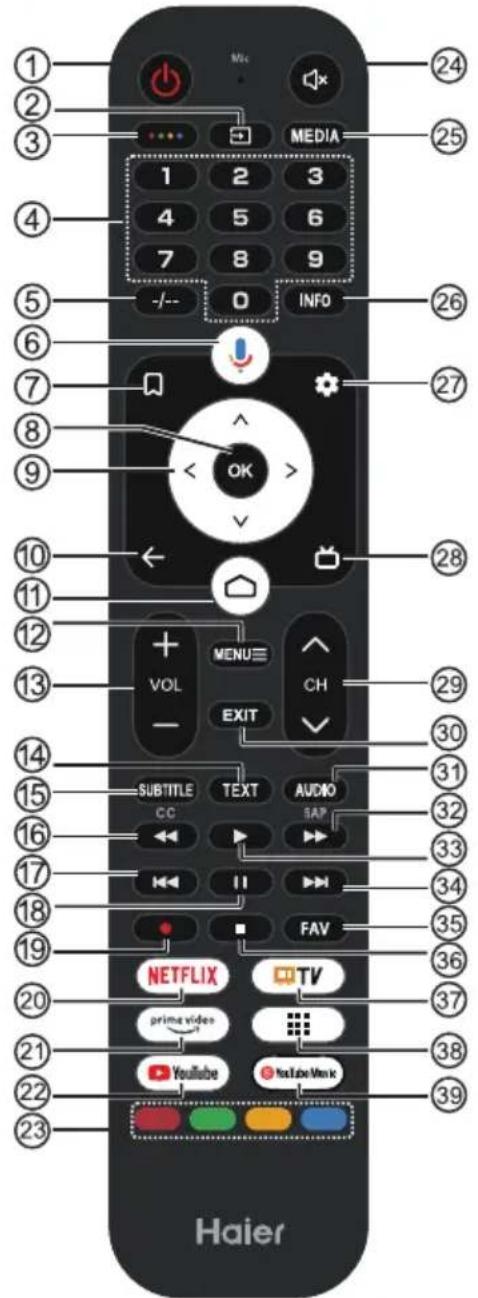
| # | Item | Descriptions |
| 1 | Power | Press to turn the TV on or off. When your TV is off, power still flows through it. To completely disconnect power, unplug the power cord. |
| 2 | Press to open the input source list. | |
| 3 | ●●●● | Press to open Soft Keyboard. |
| 4 | 0~9 number | Press to enter a TV channel number. |
| 5 | -/-- | It depends on the actual function. |
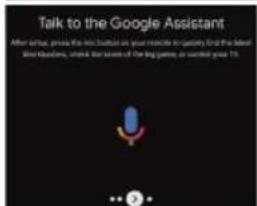
| 6 | Press to open the Google Assistant. | |
| 7 | Press to open channel list/watchlist. | |
| 8 | OK | Enter the selected option or perform the selected operation. |
| # | Item | Descriptions |
| 9 | ▲▼◀▶ | Press to navigate the on-screen menu. |
| 10 | ← | Return to the previous menu. |
| 11 | Press to open the Home Page. | |
| 12 | MENU≡ | Press to open or close the on-screen menu. |
| 13 | VOL+/VOL- | Press VOL+ or VOL- to adjust volume level. |
| 14 | TEXT | Press to select the teletext mode. |
| 15 | SUBTITLE | Open or close subtitle. |
| 16 | Press to reverse playback in multimedia & Timeshift mode. | |
| 17 | Previous track. | |
| 18 | II | Press to pause in multimedia mode & Timeshift Mode. |
| 19 | Press to record the TV program you are watching in DTV mode. | |
| 20 | NETFLIX | Press to open the NETFLIX. |
| 21 | prime video | Press to prime vido for viewing online TV shows and flms (internet connection required). |
| 22 | YouTube | Press to open the YouTube. |
| 23 | Coloured buttons | Implement the relevant operations according to the prompt at the botton of the menu in the text. |
| 24 | Press to open the mute. | |
| 25 | MEDIA | Press to open the multimedia player. |
| 26 | INFO | Press to display the channel information. |
| 27 | Press to open the settings menu. | |
| 28 | Press to display electronic programme guide in TV mode. | |
| 29 | CH^ /CH~ | Press CH^ or CH~ to change TV channels. |
| 30 | EXIT | It depends on the actual function. |
| 31 | AUDIO | Switch the soundtrack. |
| 32 | Press to fast forward in multimedia &Timeshift mode. | |
| 33 | Press to play in multimedia mode &Timeshift Mode. | |
| 34 | Next track | |
| 35 | FAV | Press to select or remove your favorite channel. |
| 36 | Press to stop multimedia playback, REC &Timeshift Mode. | |
| 37 | Press to open the Live TV. | |
| 38 | Press to open the all apps pages. | |
| 39 | YouTube Music | Press to open the YouTube Music. |
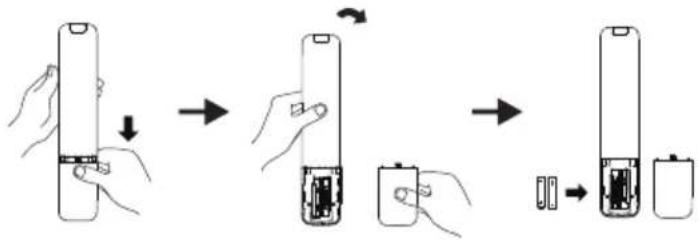
Remove the cover of the battery compartment. Insert the 2 supplied batteries (Type AAA 1.5V).
flowchart
graph TD
    A["Device with battery"] --> B["Step 1: Discharge"]
    B --> C["Step 2: Recharge to battery"]
    C --> D["Step 3: Discharge to battery"]
    D --> E["Step 4: Charge recovery to battery"]
INITIAL SETUP
The first time you turn on your TV, the setup wizard will guide you through setting up basic settings.
Please according to the Text Tip to First Time Setup.
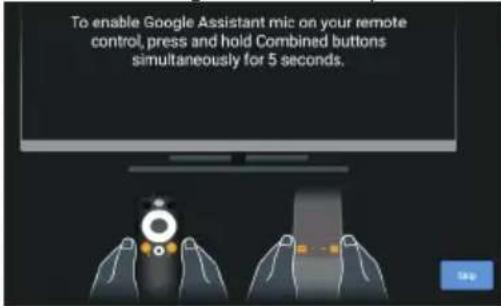
This function is used for the remote control pair code. After the code is successful, you can use the Bluetooth remote control to operate the TV.
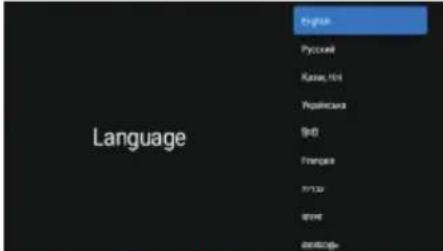
Press to select the system language and press OK to confirm the language.
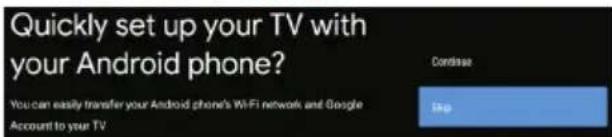
Connect your Android phone to your TV, select "Continue" to continue the connection, and choose "Skip" to skip this step.
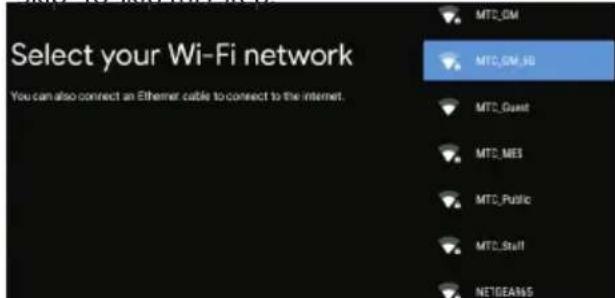
Press ▲/▼ to select the wifi to connect, press OK and enter the password to confirm the connection is successful.
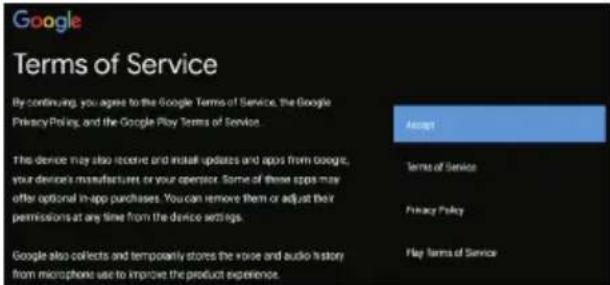
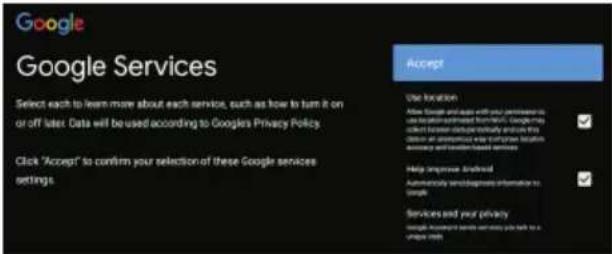
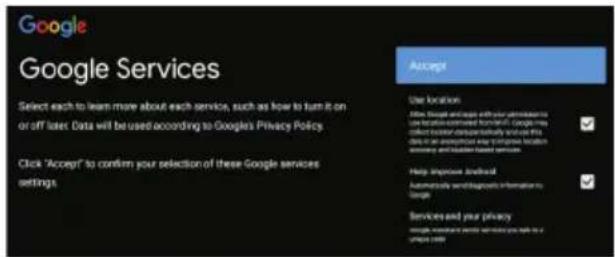
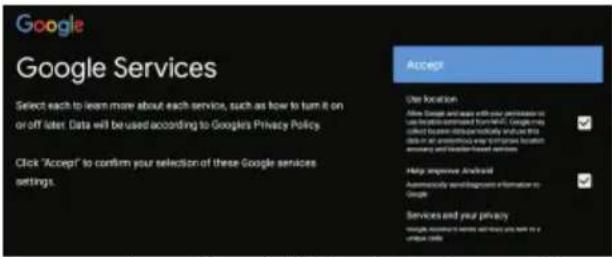
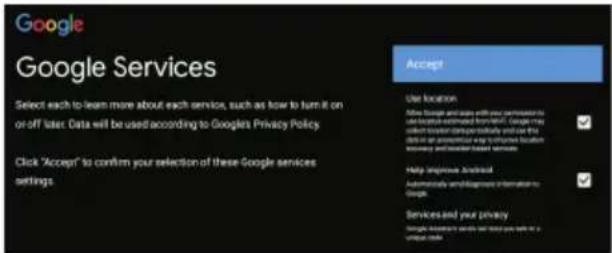
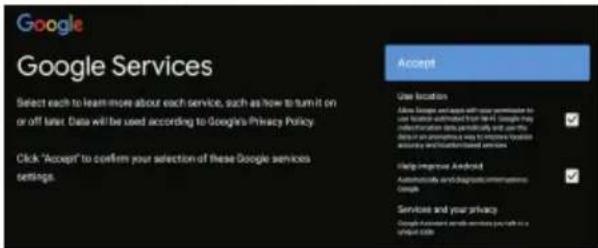
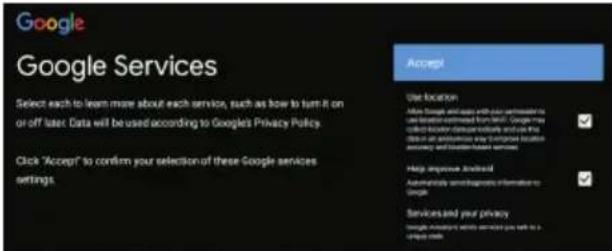
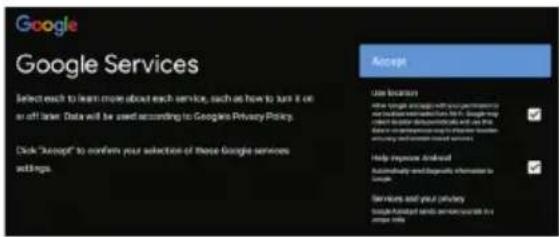
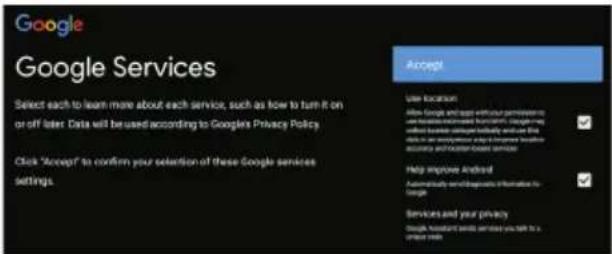
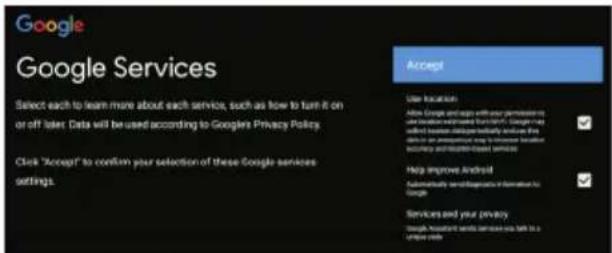
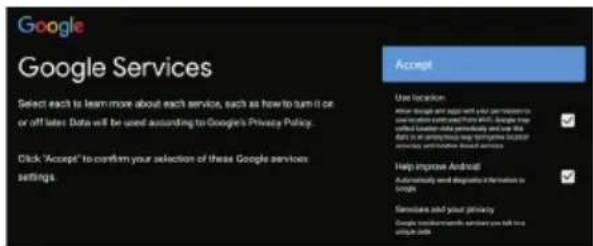
By accepting the Google Terms of Service to improve the product experience, select "Accept" to accept this condition.
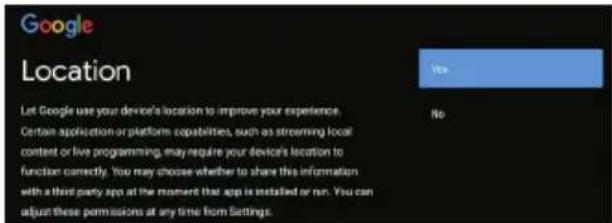
Agree to Google to get the location information of your device to get more features, choose "YES" to accept.
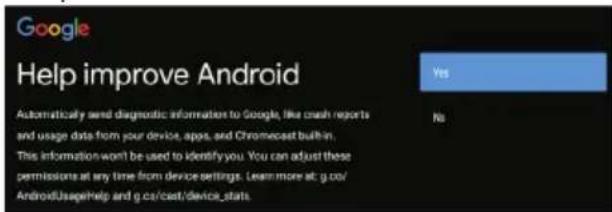
By agreeing to automatically send diagnostic information to Google to improve discriminative power, choose "YES" to accept.
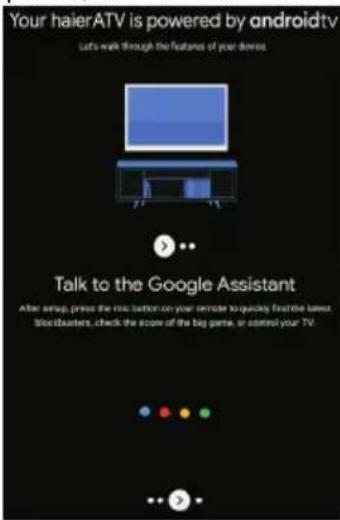
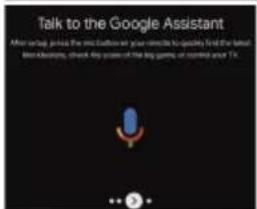
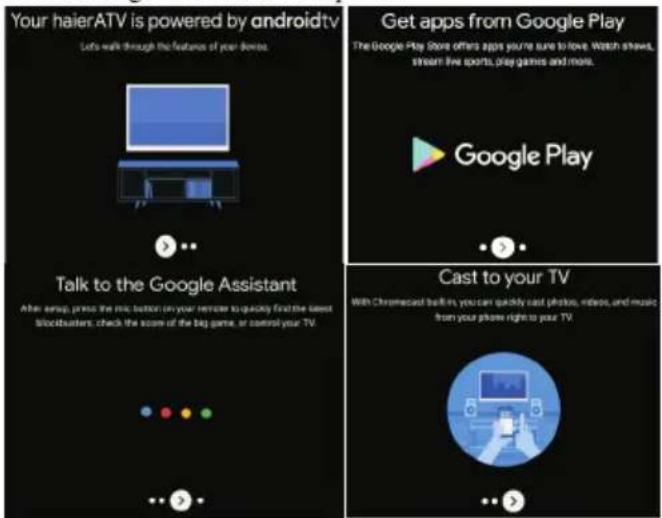
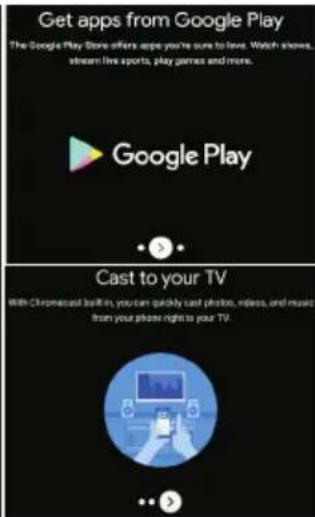
- Your device is powered by Android TV and press the ▶ button to select the browsing feature.
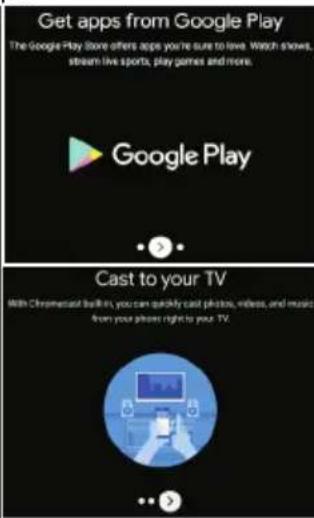
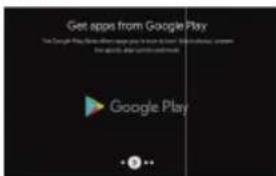
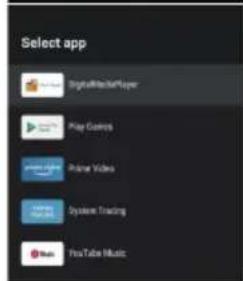
- You can get more apps from Google Play and press the ▶ button to go to the next screen.
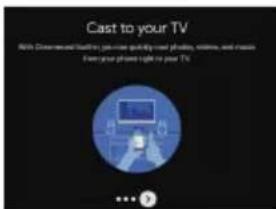
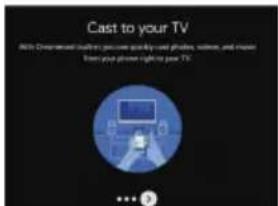
- Transfer photos and other content to the TV via the built-in chromecast, press OK to complete the browsing.
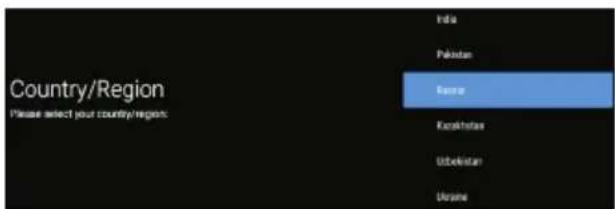
Press to select the country of your device and press OK to confirm.

Used to set your device's password to ensure security and privacy.

Press OK to pop up the soft keyboard, and use the remote control to enter the 4-digit password automatically jump to the next interface.

Confirm the password again and keep it consistent. Use the remote control to enter the password and complete the password confirmation.
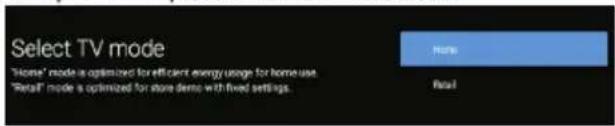
For selecting the mode, press ▲/▼ key to select Home mode and press OK to confirm.

Confirm the selected mode again, select "Yes" to confirm the selected mode, and select "No" to return to the previous step.

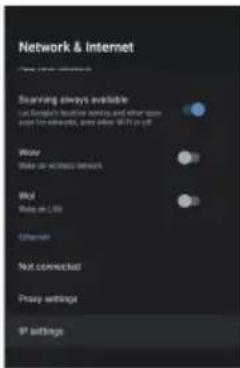
Press ▲/▼ to turn on or off the alway available features of Chromecast.
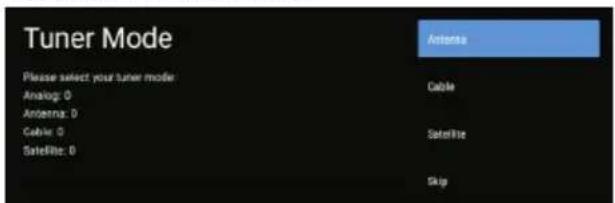
To select the Tuner mode for searching, press ▲/▼ to select and press OK to confirm.
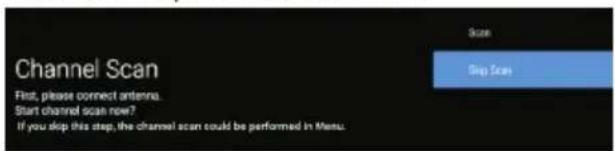
Press ▲/▼ to select whether to search, select "Scan" to search, select "Skip scan" to skip the search.
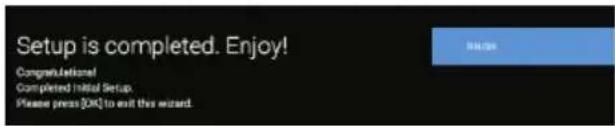
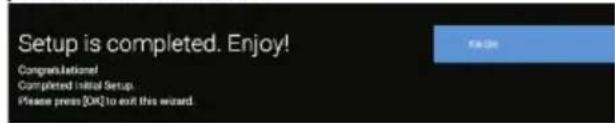
Press OK to complete the setup.
HOME SCREEN
After completing the wizard Settings, you can watch TV and go to the home screen.
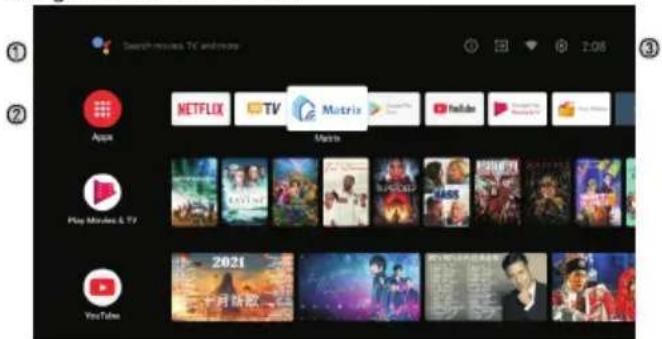
① Open the google assistant or start a voice search.
② Among the applications installed on the TV, the icons for the favourite applications are shown inside here. (Favourite applications can be added/deleted/ changed its order by users.)
Apps: Click to jump to Apps screen where all the installed applications are listed.
③
④ Notification: Display the notifications.
Inputs: Icon to select an input source.
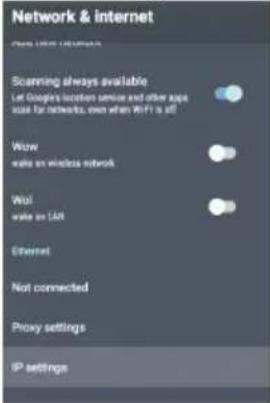
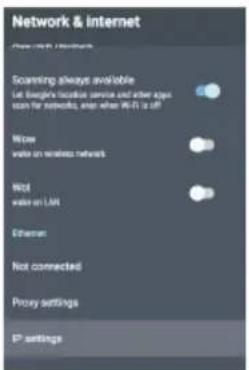
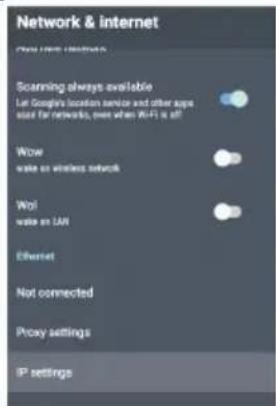
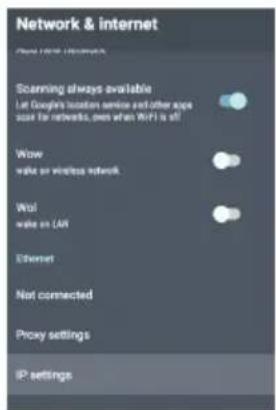
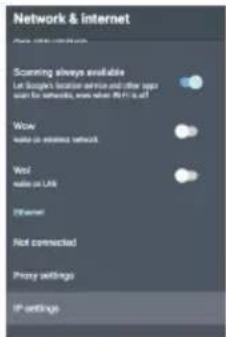
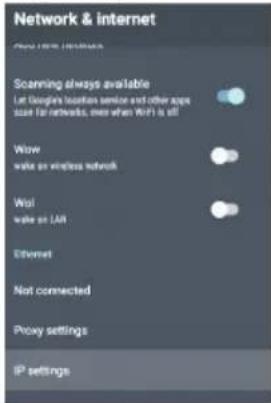
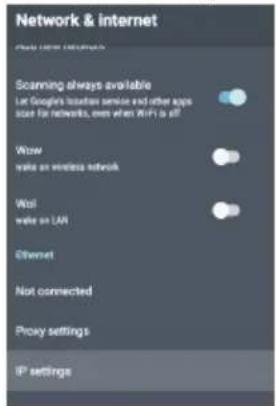
Network&Interent: Icon to Set up Network, Such as wifi.
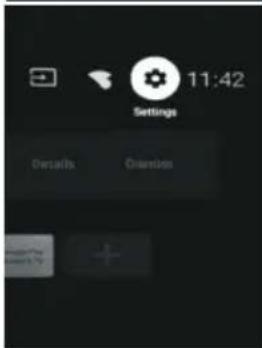
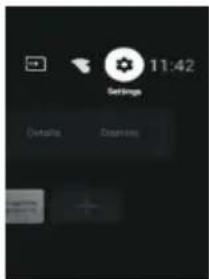
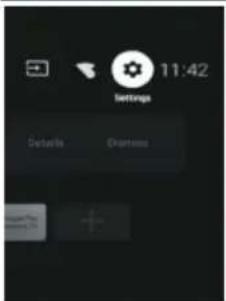
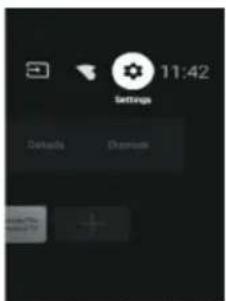
Settings: Various settings can be configured here.
For details on the settings, see the next explanation. INPUT SOURCE
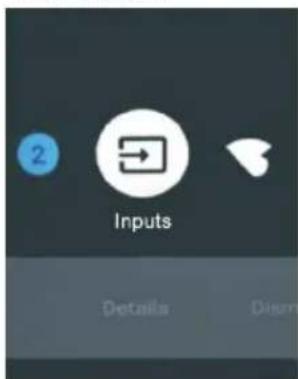
- In the HOME interface, press ▲/▼/◄/► to select the "Inputs" icon, press OK to open the input source list, then press up to highlight an input and press OK to switch.
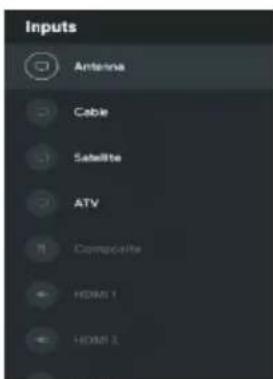
- Under live TV, press the SOURCE button to display the list of input sources. You can select the desired source.
HBBTV MENU
Turn on live TV- press the menu button on the remote control- advanced options- HBBTV Settings.
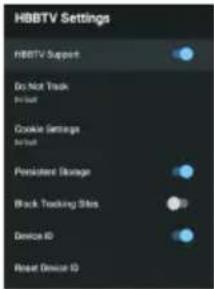
You can open the HBBTV menu and follow the prompts to use the remote control to call out the virtual keyboard to operate HBBTV functions.
NAVIGATING THE ON-SCREEN MENU
- There are two ways to enter. First, in live TV, press the menu button to display TV options, press ▲/▼
◀/▶ to select the settings menu and press OK to confirm. Second, in the HOME interface, press the ▶ key to select the icon of the circular settings menu, press OK to confirm.
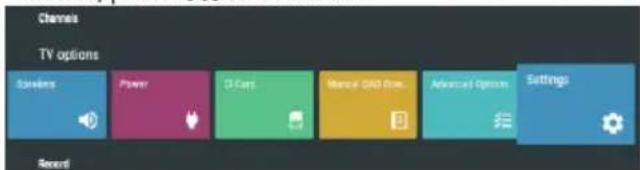
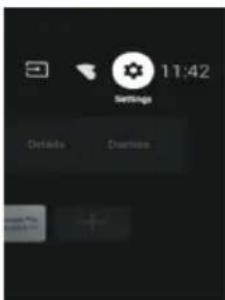
- Press ▲/▼ button to select what you want set.
- Press OK to enter setting.
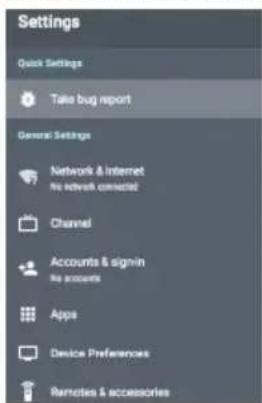
Press BACK to return to the previous menu. If the main menu is displayed, pressing BACK will close the onscreen menu.
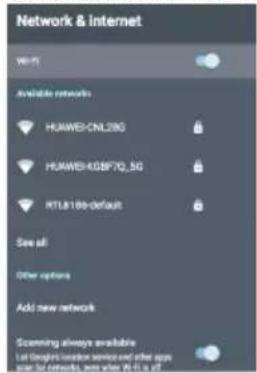
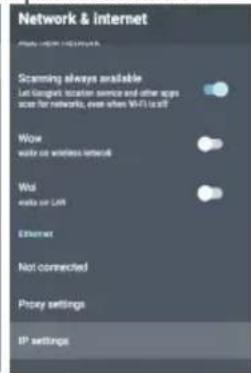
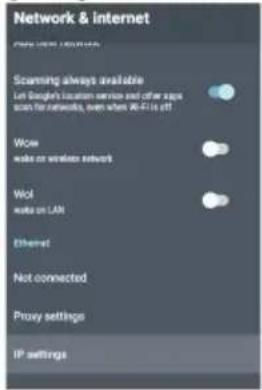
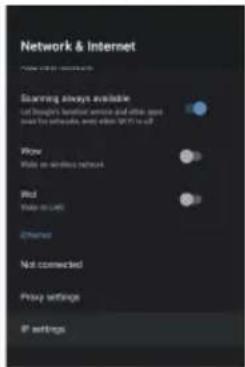
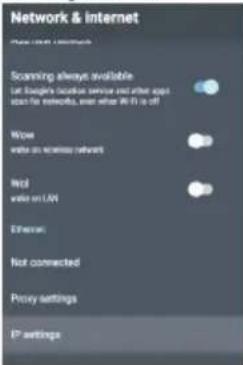
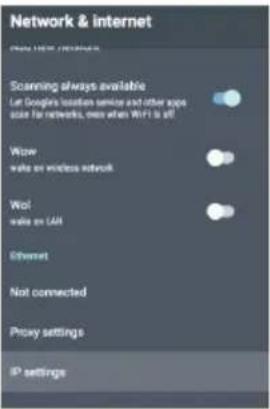
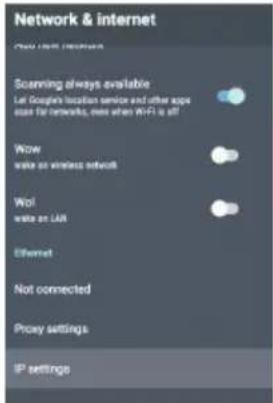
Network
- Press ▲ /▼ button to select what you want set.
- Press OK button to adjust.
- After finishing your adjustment, Press OK button to save and return to the previous menu.
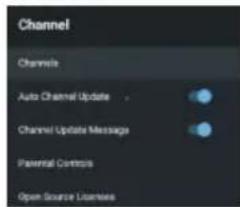
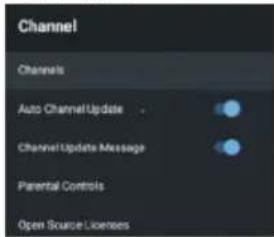
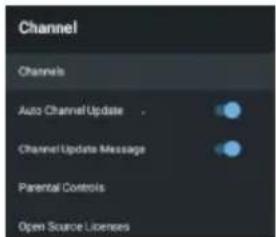
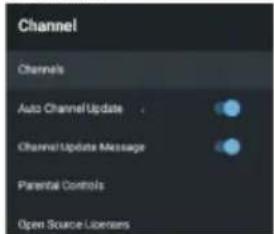
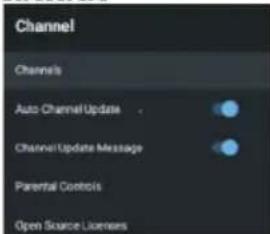
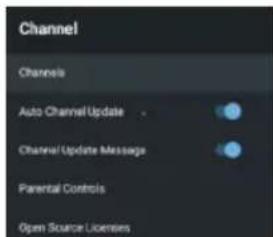
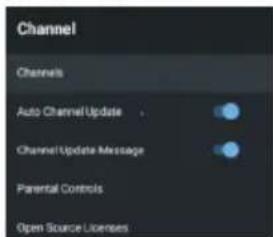
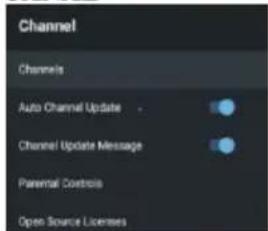
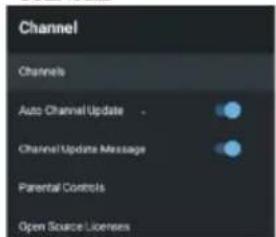
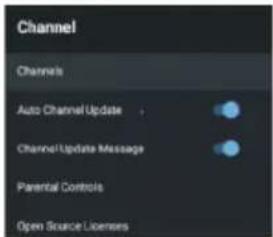
CHANNEL
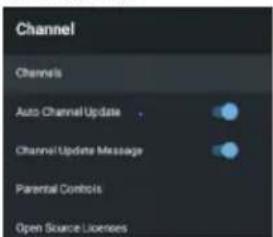
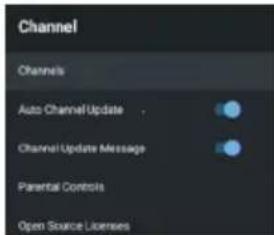
Channels – Display the scan sub-menu based on different Channel installation modes.
Auto Channel Update – Press OK button to choose ON/OFF. When selecting ON, the system will automatically scan and update channels after 5 minutes of standby.
Channel Update Message-Press OK button to choose ON/OFF.When selecting ON,the system will show you the update message.
Parental controls – Press ▲/▼ button to select the option then press OK button to enter the sub-menu.
Open source licenses – Press ▲/▼ button to select the option then press OK button to enter the sub-menu.
Antenna
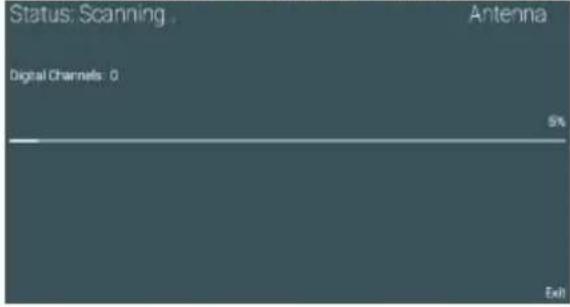
- Menu->Settings->Channel->Channels
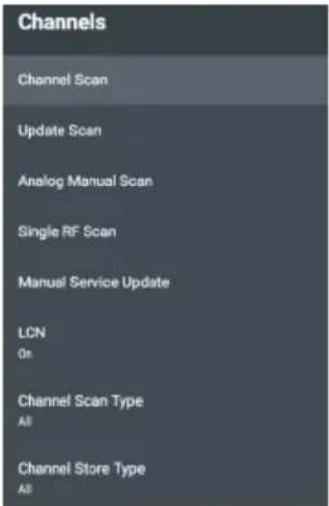
- Enter Menu->Settings->Channel->Channels.
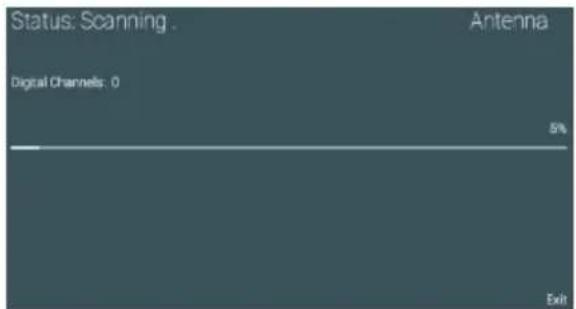
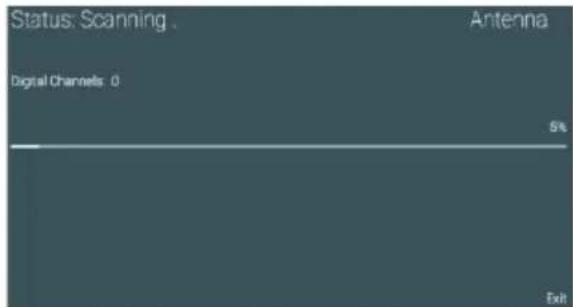
- Channel Scan directly enters the DTV
automatic search platform interface of Antenna.
Update Scan: Re-automatically search for frequency points outside the station.
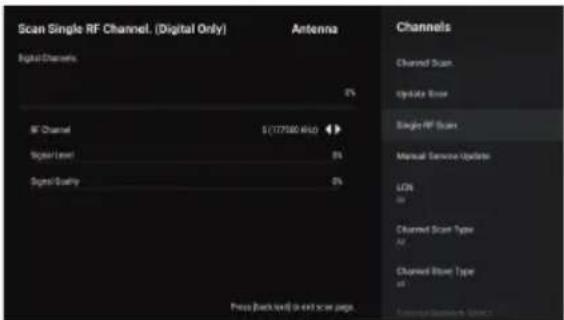
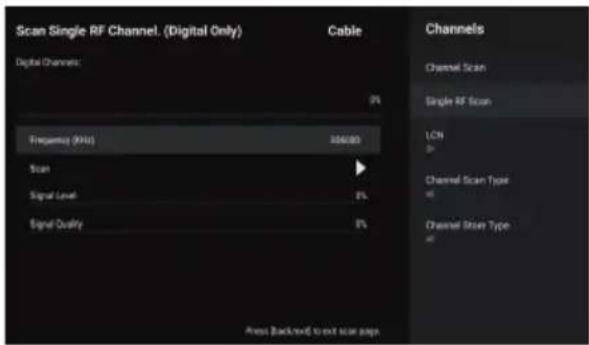
Single RF Scan: DTV manual search, left and right after selecting RF Channel, directly OK search.
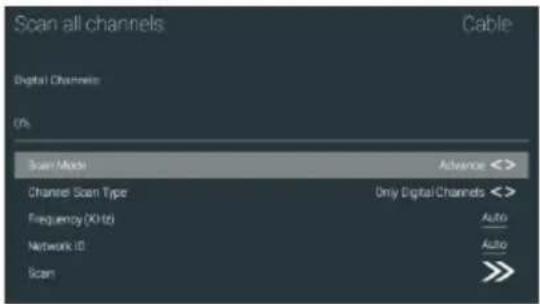
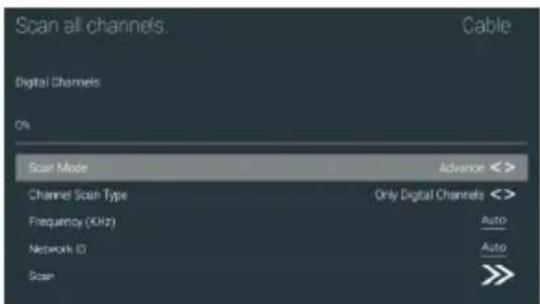
Cable
- Menu->Settings->Channel->Channels.
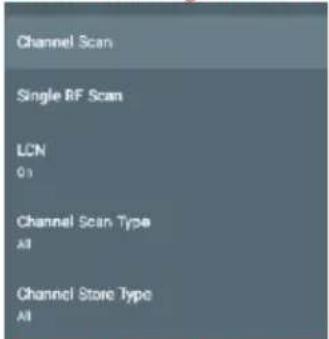
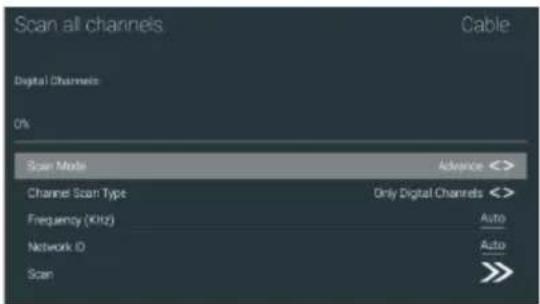
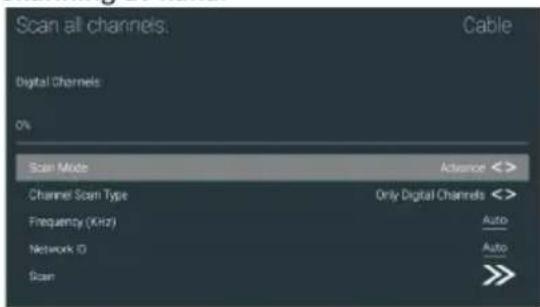
- Enter Menu->Settings->Channel->Channels->Channle scan
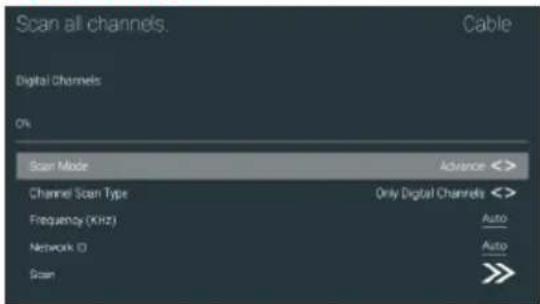
- Enter Channel Scan, where Akado, Divan TV, Online and Rostelecom (SPB) are the local operators, and the default Scan Mode is Advance; Others have Advance, Quick and Full Scan modes.
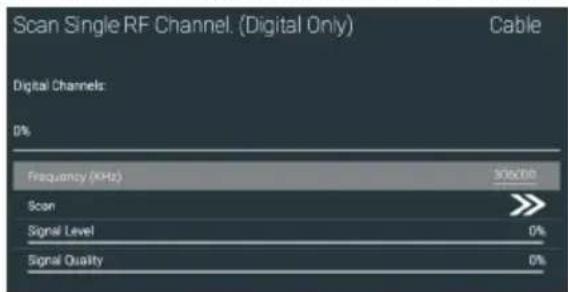
Single RF Scan: manual search station. Satellite
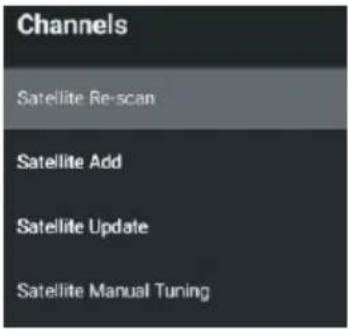
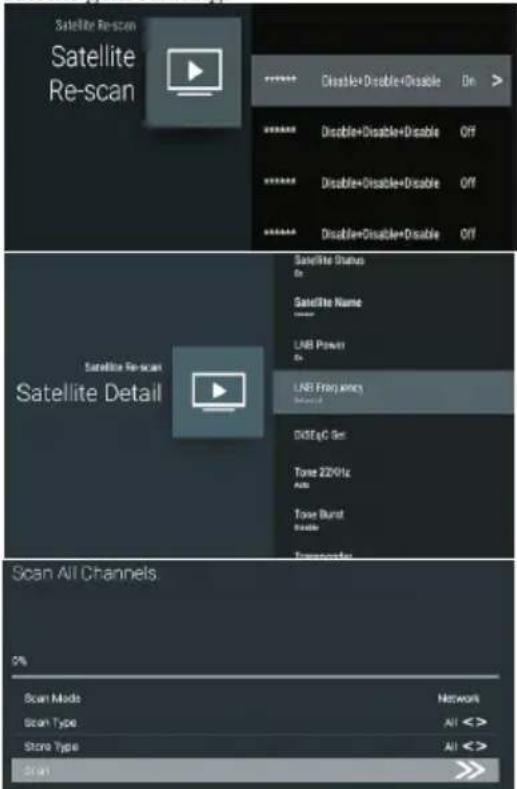
- Menu->Settings->Channel->Channels.
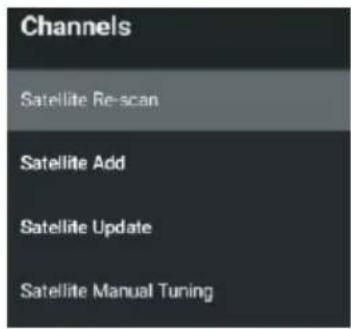
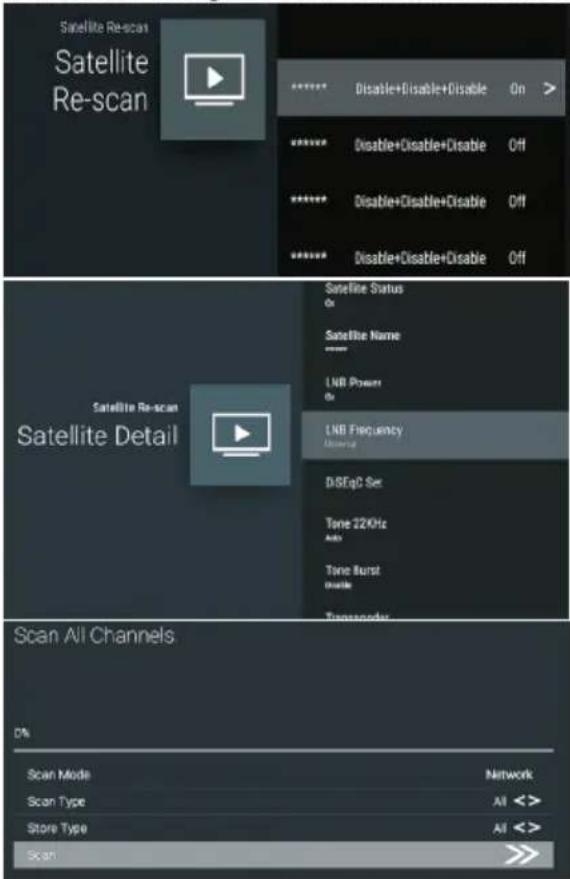
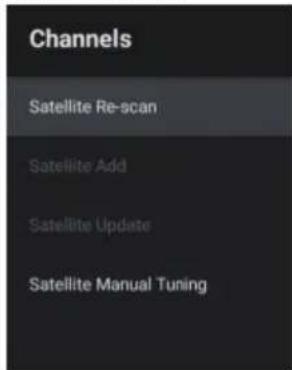
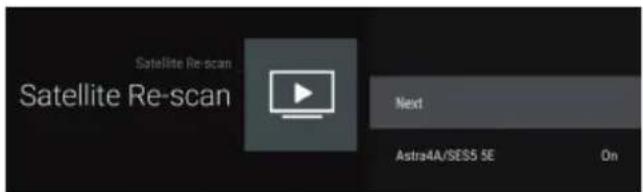
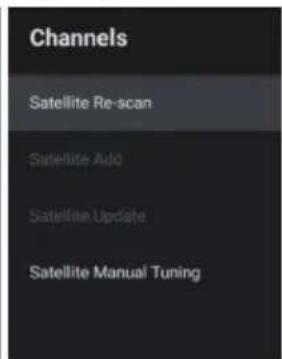
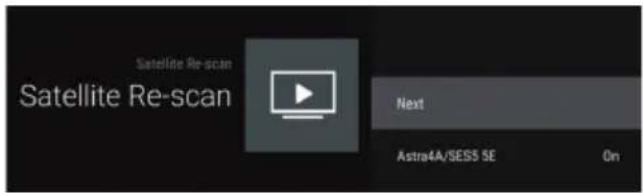
- Enter Menu->Settings->channel->Channels->Satellite Re-scan.
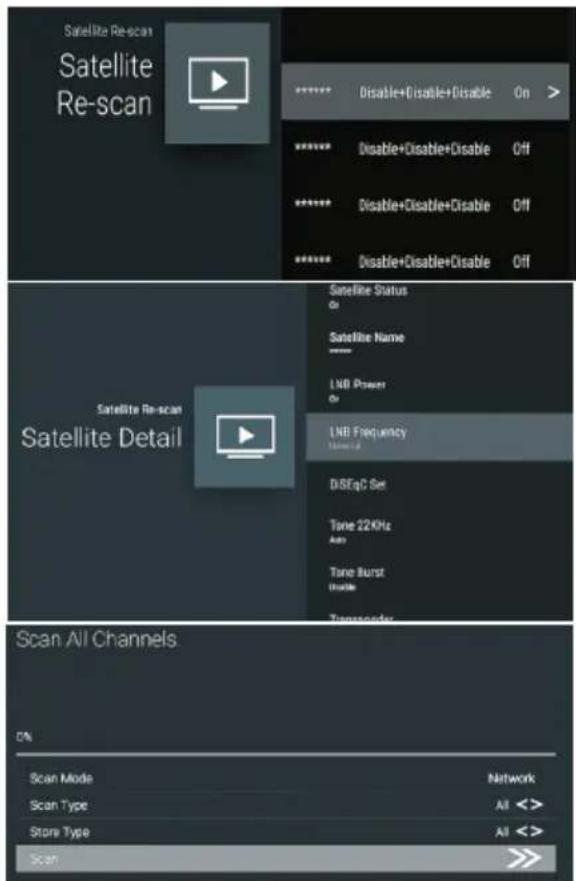
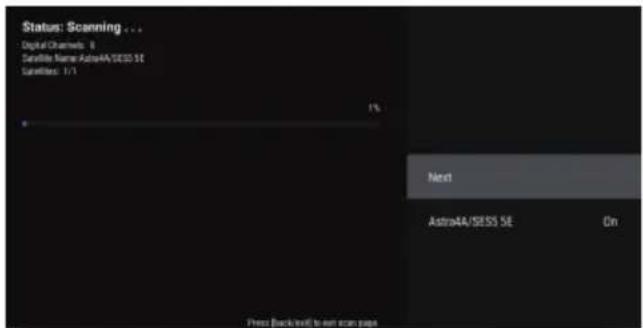
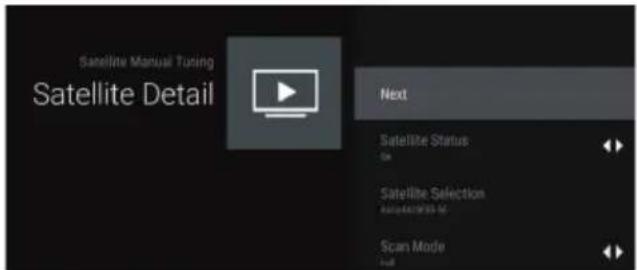
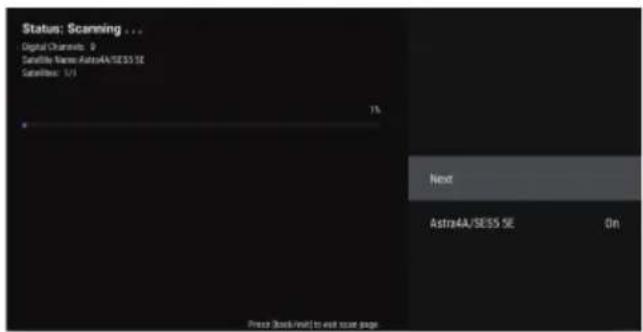
- Press OK to enter Satellite parameter Settings, which include LNB POWER, LNB Frequency, DiSEqC Set, 22K and other parameters. Then return to Satellite re-scan and right click to enter the search menu. Then return to Satellite re-scan and right click to enter the search menu.
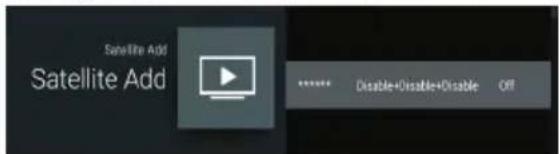
Satellite Add: Add a star broadcast signal.
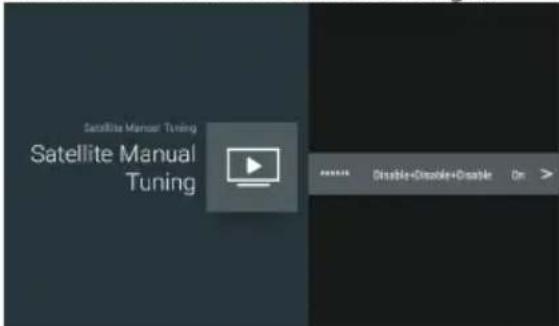
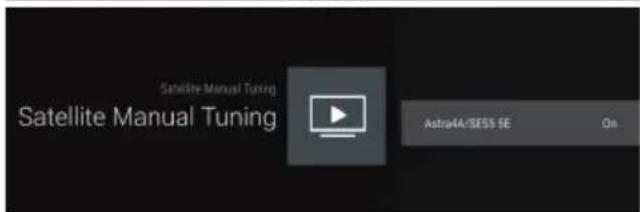
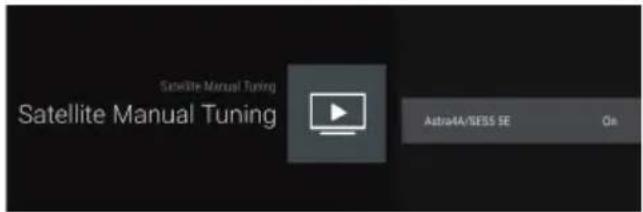
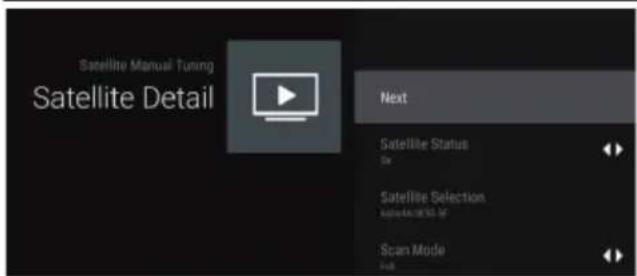
Satellite Manual Tuning: manually search for a certain TP, which can be added by Satellite Add if needed.
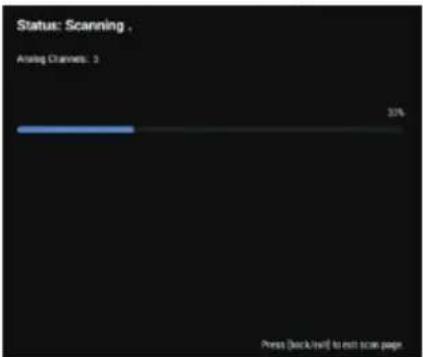
ATV
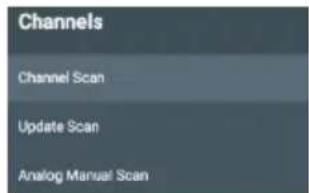
Enter Menu->Settings->channel->Channels
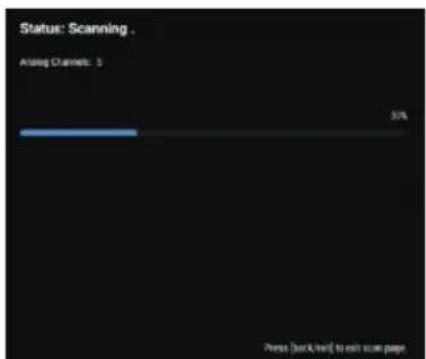
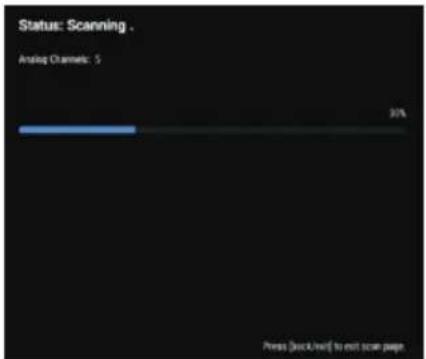
Channel Scan directly enters the automatic search platform interface.
Update Scan: Re-automatically search for frequency points outside the station.
![Search for Analog Channels Frequency: 44.00 MHz Start Frequency (MHz) 44.00 Scan Up Scan Down Press [backward] to not scan pages.](/content/2026/04/699032/images/44c4f98f2345c1592843ccb49646a7ed636fb96c4589e447ae3b9068825d229f.jpg)
Analog Manual Scan: Manual ATV search station.
After input the frequency point, you can select up or down search station.
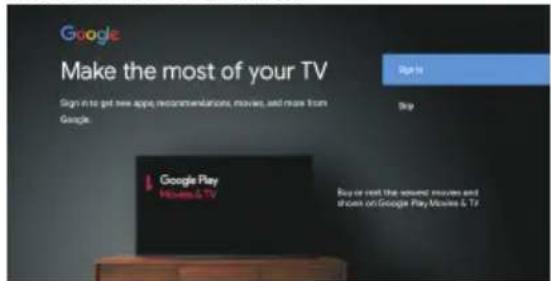
ACCOUNTS & SIGN IN
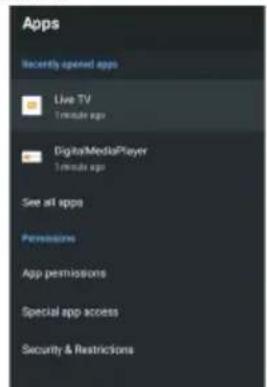
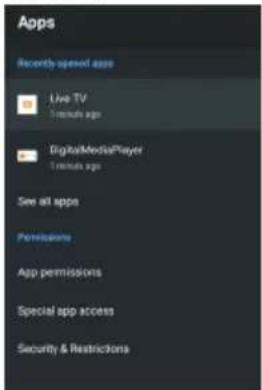
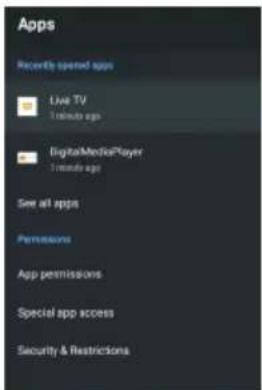
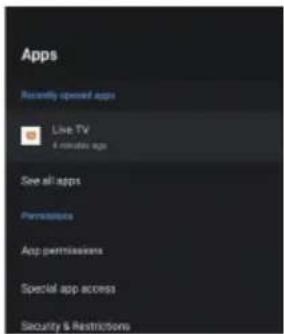
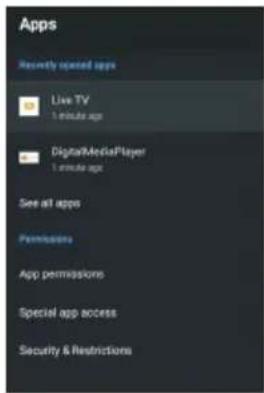
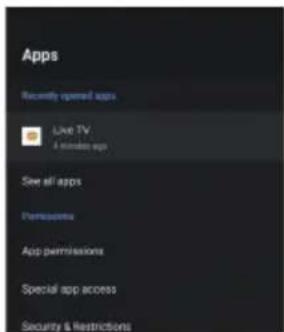
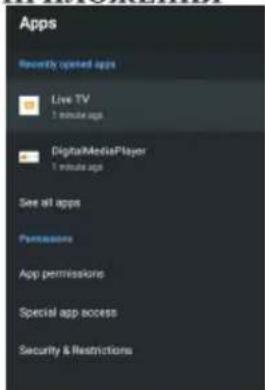
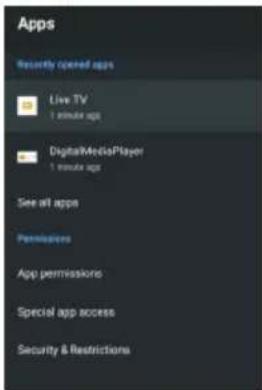
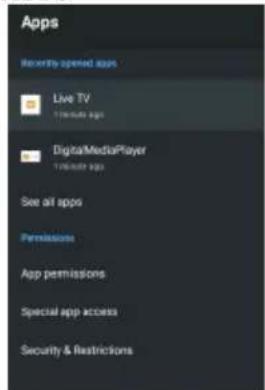
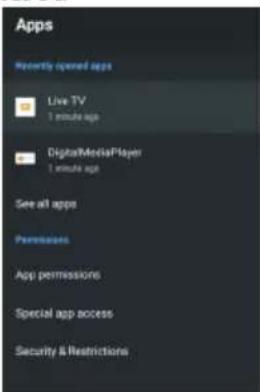
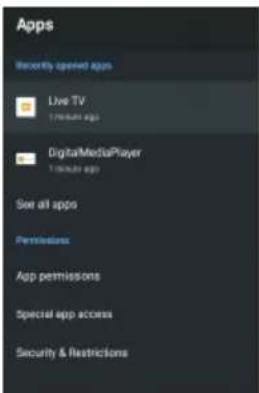
APPS
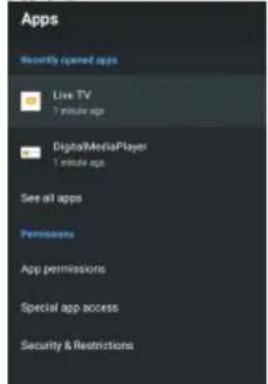
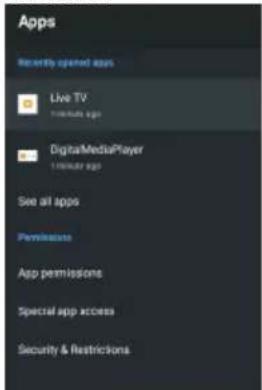
In this menu, you can set the APP permissions, and read the app lists
- Press ▲/▼ button to select what you want set.
- Press OK button to adjust.
- After finishing your adjustment, Press BACK button to return to the previous menu.
DEVICE PREFERENCES ABOUT
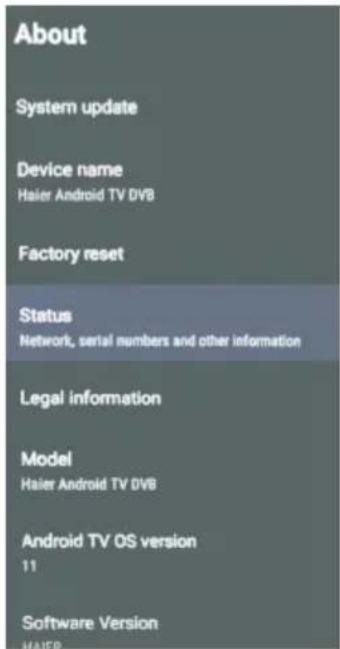
In this menu, you can read the information and settings of TV.
- Press ▲/▼ button to select what you want set.
- Press OK button to adjust.
- After finishing your adjustment, Press BACK button to return to the previous menu.
DATE&TIME
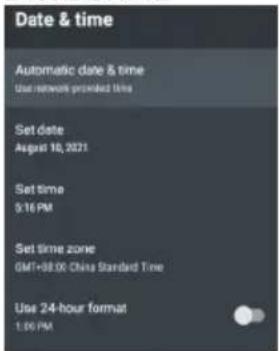
Automatic date & time – Press ▲/▼ button to select the option then press OK button to enter the sub-menu. (Optional: Use network-provided time, Off)
NOTE
- Manually adjusting date & time settings will automatically change the Automatic date & time to OFF.
Set date – Press ▲/▼button to select the option then press OK button to enter the sub-menu.
Set time – Press ▲/▼button to select the option then press OK button to enter the sub-menu.
Set time zone – Press ▲/▼ button to select the option then press OK button to enter the sub-menu.
Use 24-hour format – Press ▲/▼ button to select the option then press OK button to choose ON/OFF.
TIME
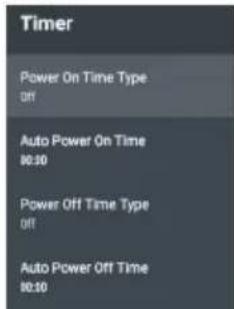
Power On Time Type – Press ▲/▼ button to select the option then press OK button to choose ON/OFF/ONCE.
Auto Power On Time – Press ▲/▼ button to select the option then press OK button to enter the sub-menu. (This option is valid when the Power On Time Type is selected as On /ONCE.)
Power Off Time Type - Press ▲/▼ button to select the option then press OK button to choose ON/OFF/ONCE.
Auto Power Off Time – Press ▲/▼ button to select the option then press OK button to enter the sub-menu. (This option is valid when the Power Off Time Type is selected as On /ONCE.)
LANGUAGE
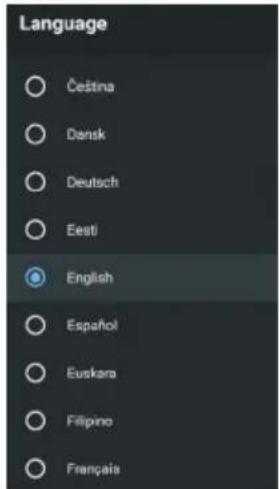
Language - Press ▲/▼ button to select the option then press OK button to enter the select language.
KEYBOARD
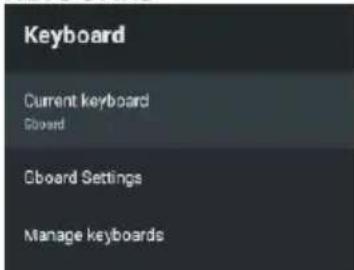
Current keyboard – Press ▲/▼ button to select the option then press OK button to enter the sub-menu.
Gboard Settings – Press ▲/▼ button to select the option then press OK button to enter the sub-menu. Manage keyboards – Press ▲/▼ button to select the option then press OK button to enter the sub-menu.
INPUTS
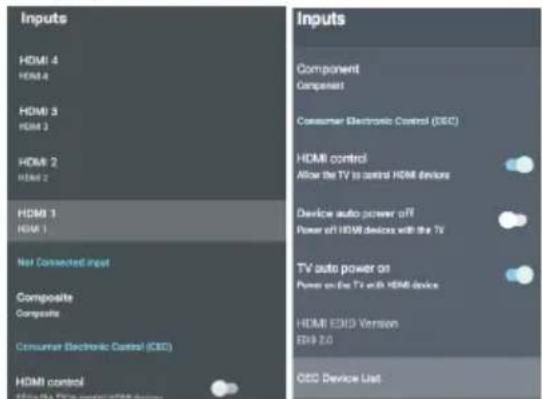
Inputs – Press ▲/▼ button to select the option then press OK button to enter the sub-menu.
HDMI control – Press ▲/▼ button to select the option then press OK button to choose ON/OFF.
Device auto power off – Press ▲/▼ button to select the option then press OK button to choose ON/OFF.
TV auto power on - Press ▲/▼ button to select the option then press OK button to choose ON/OFF.
HDMI EDID Version – show EDID version.
CEC Device List – Press ▲/▼ button to select the option then press OK button to enter the sub-menu.
POWER
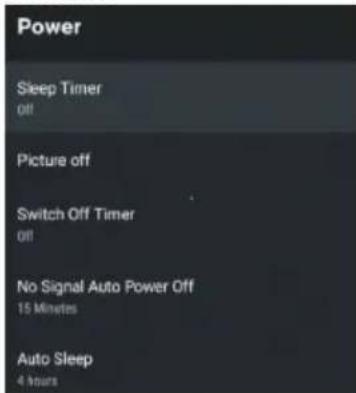
Sleep Timer – Press ▲/▼button to select the option then press OK button to enter the sub-menu. (Optional: off, 10 minutes, 20 minutes, 30 minutes, 40 minutes, 50 minutes, 60 minutes, 90 minutes, 120 minutes).
Picture off - Press ▲/▼ button to select the option then press OK button to choose ON/OFF.
Switch off timer – Press ▲/▼ button to select the option then press OK button to enter the sub-menu. (Optional: off, 30 minutes, 60 minutes, 90 minutes, 120 minutes, 150 minutes, 180 minutes, 210 minutes, 240 minutes)
No Signal Auto Power Off – Press ▲/▼ button to select the option then press OK button to enter the sub-menu. (Optional: off, 5 minutes, 10 minutes, 15 minutes, 30 minutes, 60 minutes).
Auto Sleep - Press ▲/▼ button to select the option then press OK button to enter the sub-menu.
(Optional: Never, 4 hours, 6 hours, 8 hours).
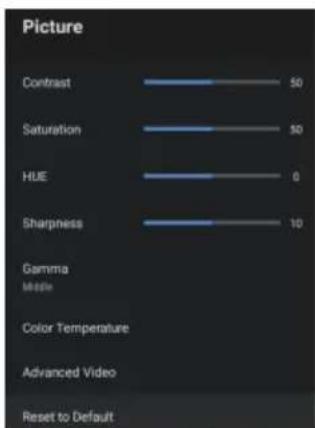
PICTURE
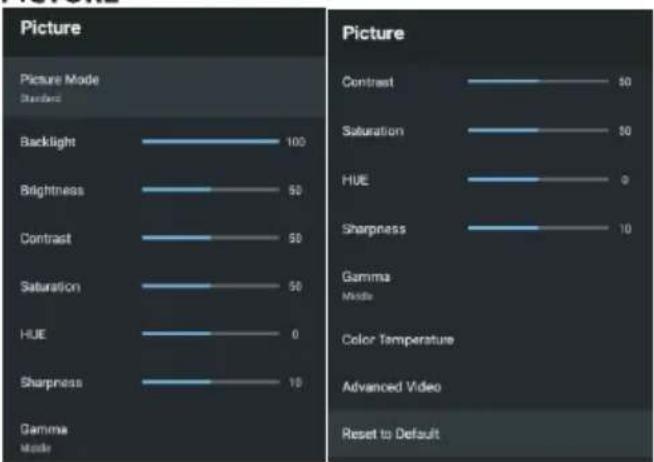
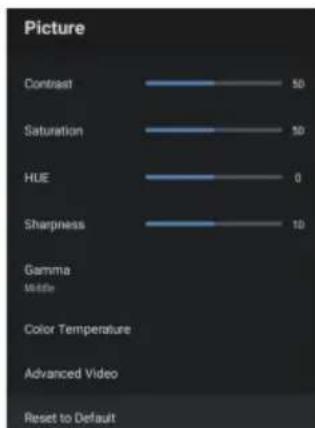
Picture Mode – Press ▲/▼ button to select the option button to enter the sub-menu. (Optional: user, Standard, Vivid, Sport, Movie, Game, Energy saving).
Backlight/Brightness/Contrast/Saturation/HUE/
Sharpness – Press ▲/▼ button to select the option. Press ◀ to decrease the parameter. Press ▶t o increase the parameter.
Gamma – Press ▲/▼ button to select the option then press OK button to enter the sub-menu.(Optional: Dark, middle,Bright).
Color Temperature - Press ▲/▼ button to select the option then press OK button to enter the sub-menu.
Advanced Video - Press ▲/▼ button to select the option then press OK button to enter the sub-menu.
Reset to Default – Reset all settings to the factory defaults.
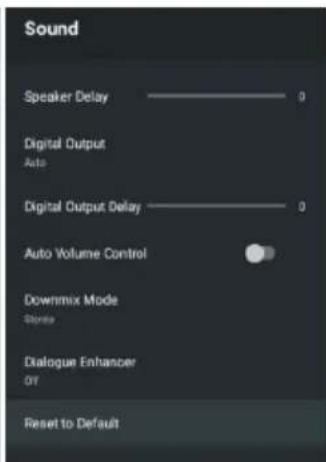
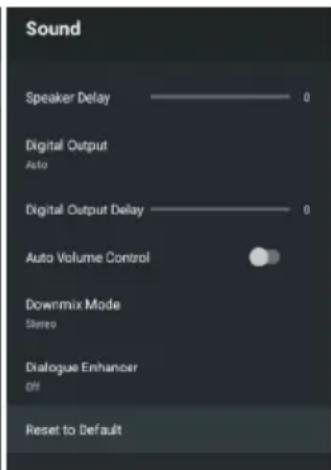
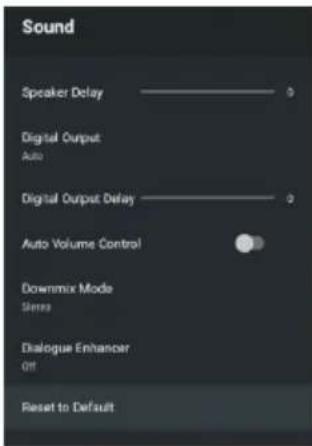
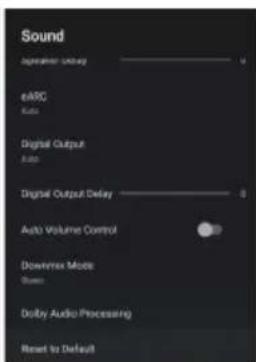
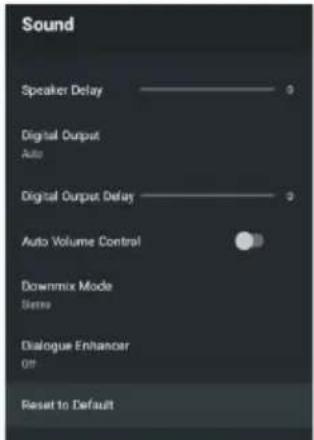
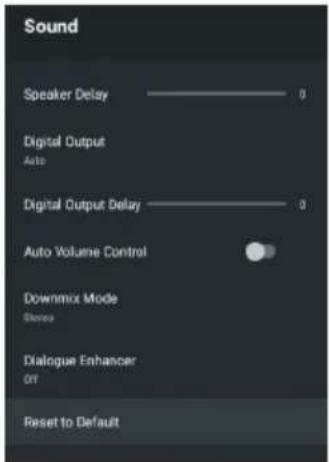
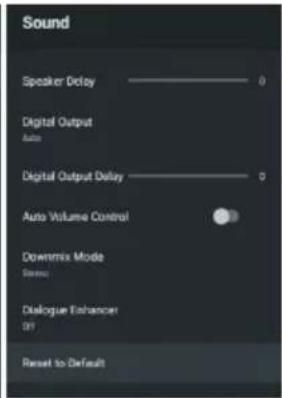
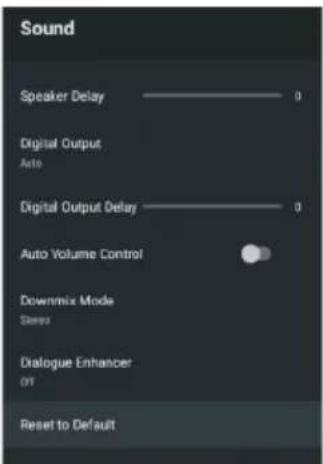
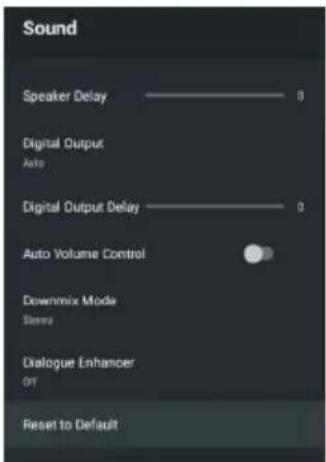
SOUND
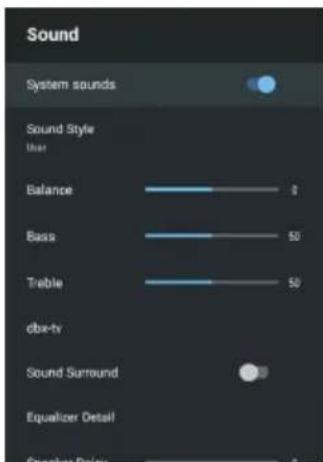
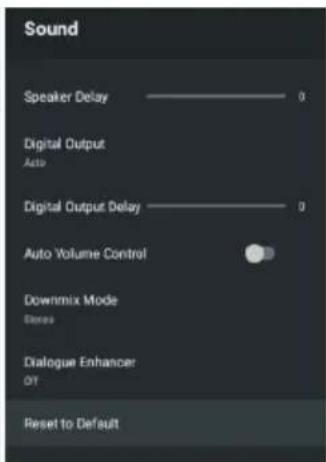
System sounds- Press▲/▼button to select the option then press OK button to choose On/Off.
Sound style - Press ▲/▼ button to select the option then press OK button to enter the sub-menu. (Optional: user, Standard, Vivid, Sports, Movie, Music, News).
Balance/Bass/Treble - Press ▲/▼ button to select the option. Press ◀ to decrease the parameter. Press ▶ to increase the parameter.
dbx - tv - Press▲/▼button to select the option then press OK button to enter the sub-menu
Sound Surround – Press ▲/▼ button to select the option then press OK button to choose ON/OFF.
Equalizer Detail – Press ▲/▼ button to select the option then press OK button to enter the sub-menu.
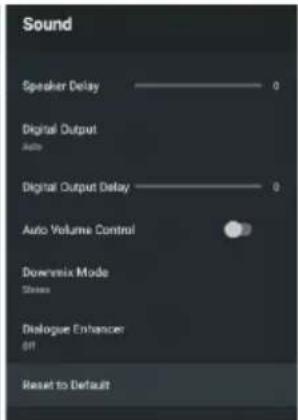
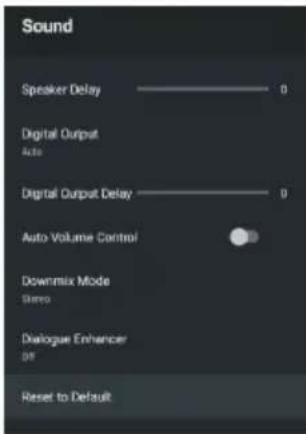
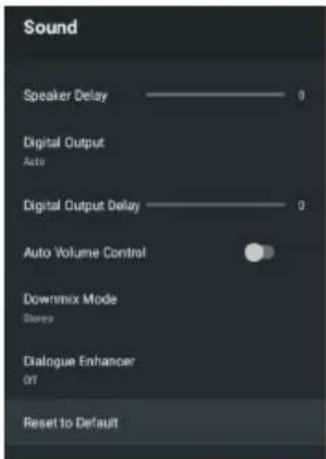
Speaker Delay – Press ▲/▼button to select the option. Press ◀ to decrease the parameter. Press ▶ to increase the parameter.
Digital Output - Press ▲/▼ button to select the option then press OK button to enter the sub-menu. (Optional: Auto, Bypass, PCM, Dolby Digital Plus, Dolby Digital).
Digital Output Delay -Press ▲/▼ button to select the option. Press ◀ to decrease the parameter. Press ▶ to increase the parameter.
Auto Volume Control – Press ▲/▼ button to select the option then press OK button to choose ON/OFF.
Downmix Mode- Press ▲/▼ button to select the option then press OK button to enter the sub-menu. (Optional: Stereo, Surround).
Reset to Default - Reset all settings to the factory defaults.
STORAGE
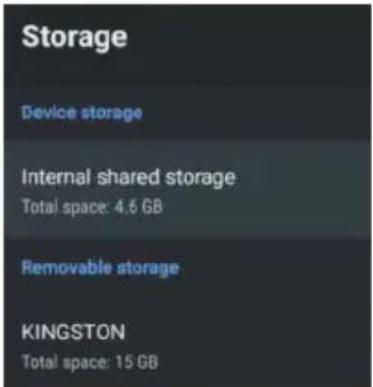
Internal shared storage – Press ▲/▼ button to select the option then press OK button to enter the sub-menu.
Removable Storage -Press ▲/▼ button to select the option then press OK button to enter the sub-menu.( Note:Show external devices if available)
HOME SCREEN
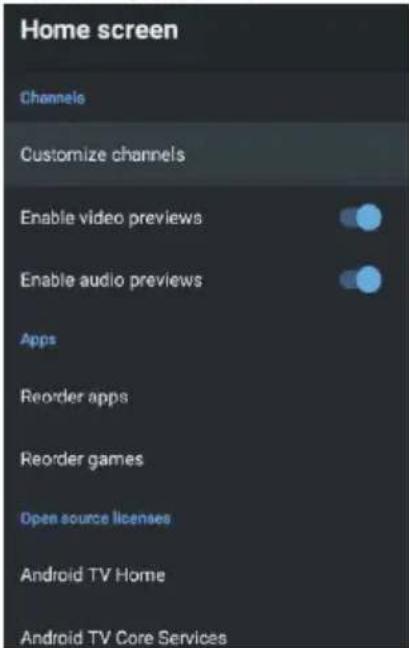
In this menu, you can set channels, apps, open source licenses.
- Press ▲/▼ button to select what you want set.
- Press OK button to adjust.
- After finishing your adjustment, Press BACK button return to the previous menu.
RETAIL MODE
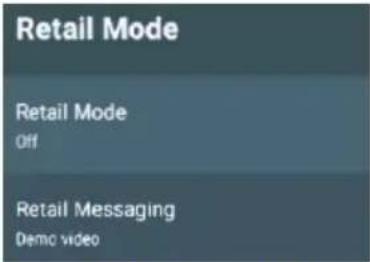
Retail mode – Press ▲/▼ button to select the option then press OK button to choose ON/OFF.
Retail messaging – Press ▲/▼ button to select the option then press OK button to enter the sub-menu. (Note: Demo video, e-POP left, e-POP bottom)
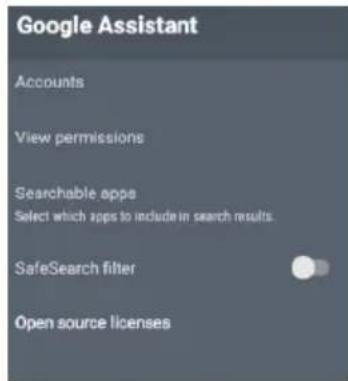
In this menu, you can set searchable apps, safe search filter, open source licenses.
- Press ▲/▼ button to select what you want set.
- Press OK button to adjust.
- After finishing your adjustment, Press BACK button return to the previous menu.
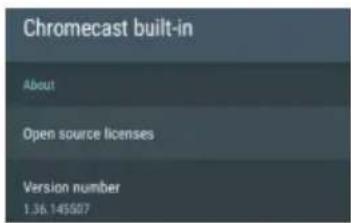
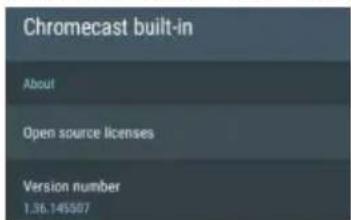
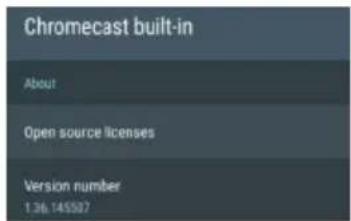
CHROMECASTBUILT-IN
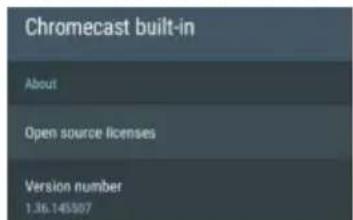
In this menu, you can read the information and settings of Chromecast
- Press ▲/▼ button to select what you want set.
- Press OK button to adjust.
- After finishing your adjustment, Press BACK button return to the previous menu.
SCREEN SAVER
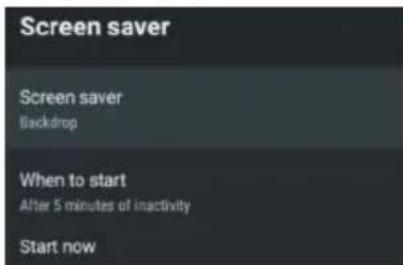
Screen saver – Press ▲/▼ button to select the option then press OK button to enter the sub-menu. (Optional: Turn screen off, Backdrop, Colors)
When to Start - Press ▲/▼ button to select the option then press OK button to enter the sub-menu. (Optional: 5 minutes, 15 minutes, 30 minutes, 1 hour, 2 hours).
Start now - Press ▲/▼ button to select the option then press OK button to enter screen saver.
ENERGY SAVER
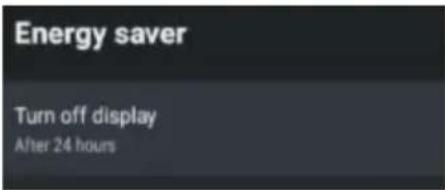
Start now- Press ▲/▼ button to select the option then press OK button to enter the sub-menu. (Optional:15 minutes, 30 minutes, 1 hour, 4 hours/8 hour,/12 hour,/24 hour,/Never).
LOCATION
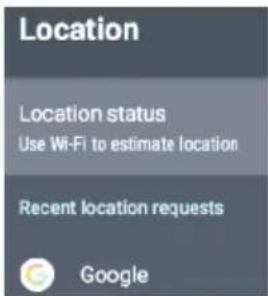
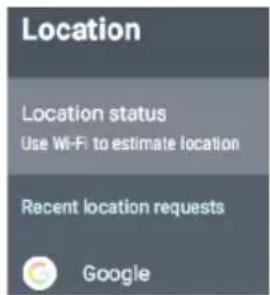
Location status – Press ▲/▼button to select the option then press OK button to enter the sub-menu. (Optional: Use Wi-Fi to estimate location, Off)
USAGE & DIAGNOSTICS
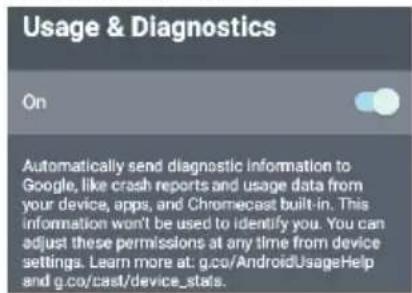
Usage & diagnostics – Press ▲/▼button to select the option then press OK button to choose ON/OFF.
ACCESSIBILITY
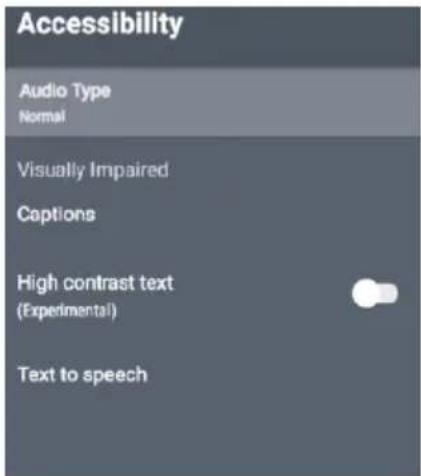
Audio Type-Press ▲ /▼ button to select the option then press OK button to choose.
Visually Impaired - Press ▲/▼ button to select the option then press OK button to enter the sub-menu. (Need:Audio Description)ON
Captions - Press ▲/▼ button to select the option then press OK button to enter the sub-menu High contrast text - Press ▲/▼ button to select the option then press OK button to choose ON/OFF.
Text to speech
Press OK button to enter the sub-menu. then press OK button to choose.
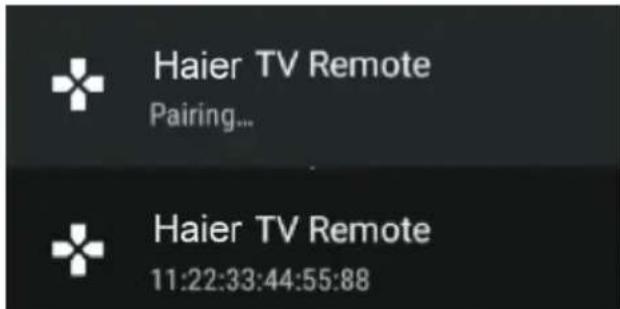
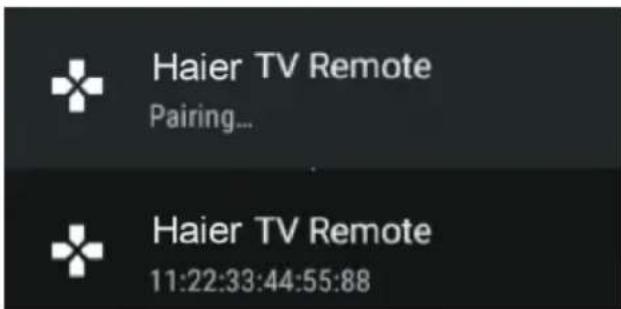
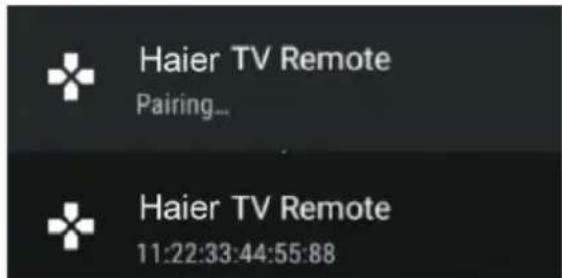
REMOTE&ACCESSORIES
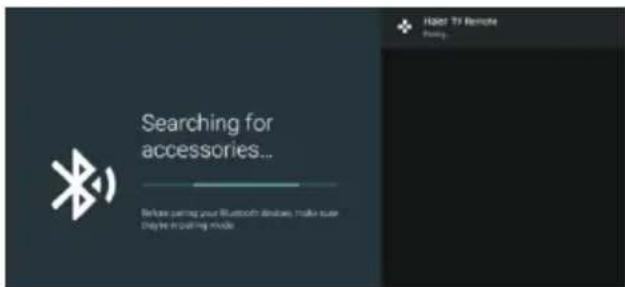
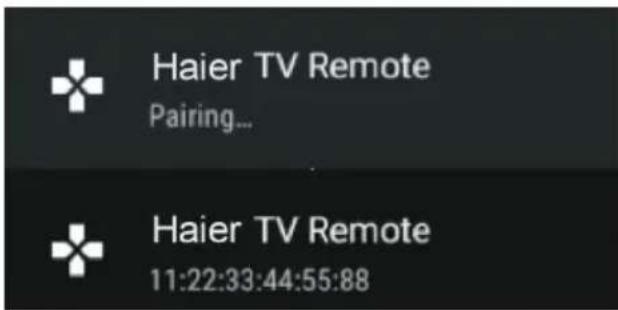
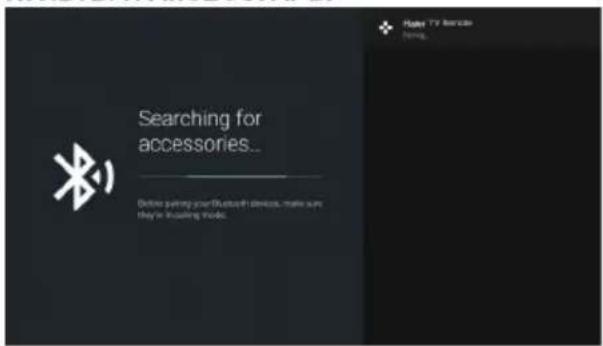
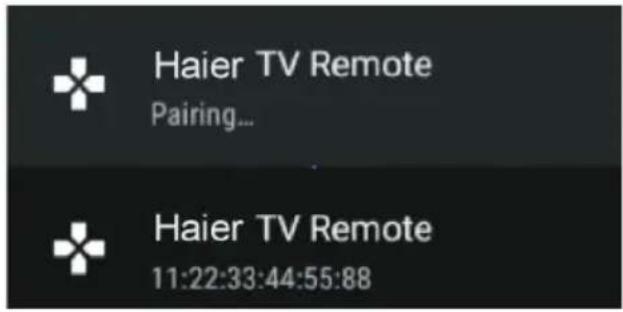
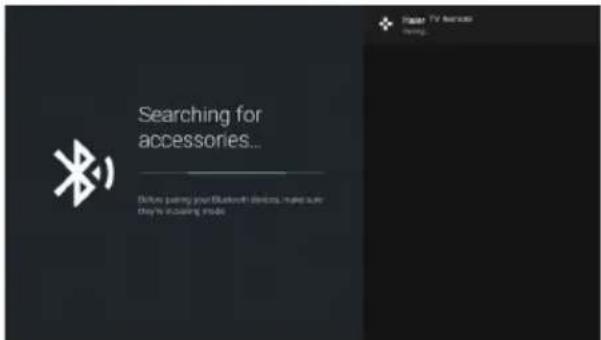
In this menu, you can pair Bluetooth devices.
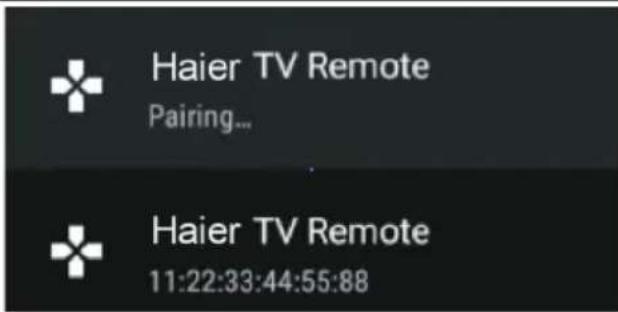
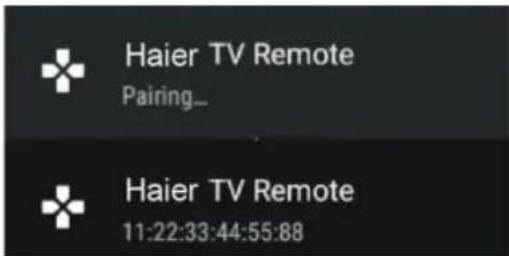
- Press the "←" and "☐" buttons at the bottom of the remote control for 5 seconds.
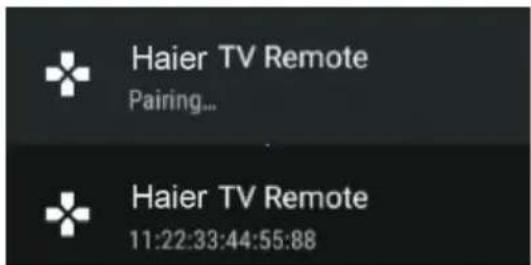
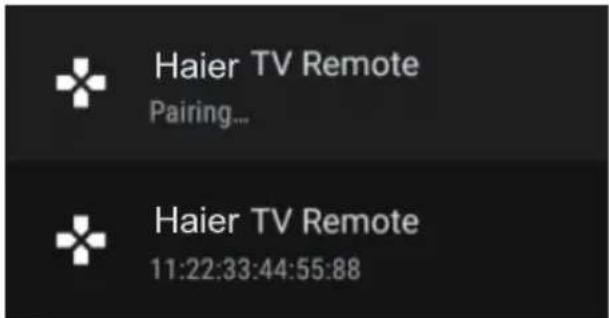
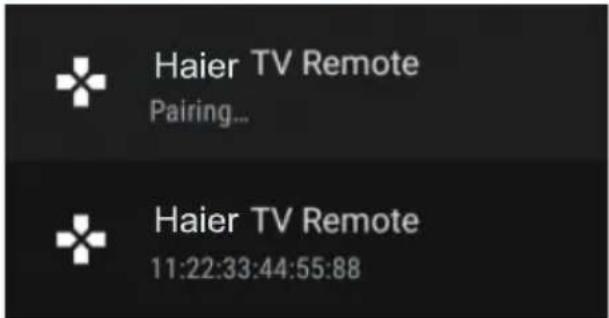
- When the LED starts to flash, release it. The remote controller will send the pairing signal to the TV and display the information of the remote control on the right side of the screen.
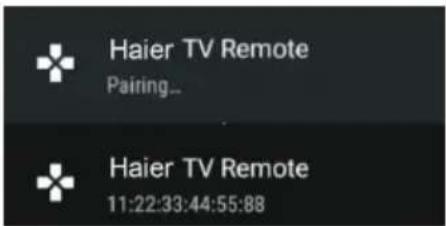
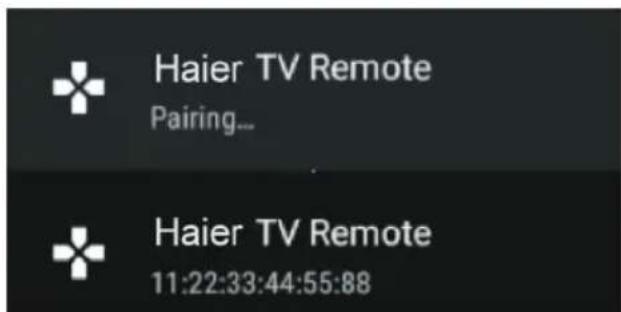
- Press the OK button to display the pairing. If the paired is displayed, the connection is successful.
- If the couldn't pair appears, the connection fails. Wait 30 seconds and then press the "←" and "☐" buttons at the bottom of the remote control for 5 seconds to repeat the previous steps.
- Press ← button return to the previous menu.
ADD AND USE OF MULTI MEDIA PLAYER
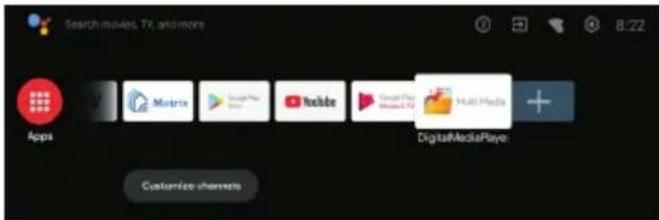
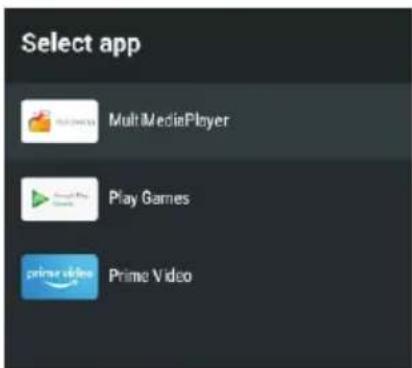
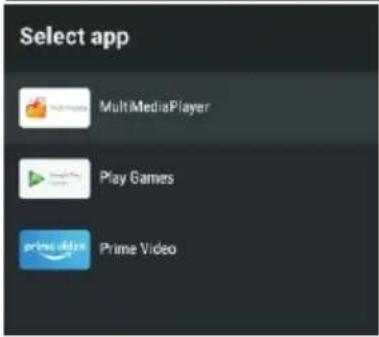
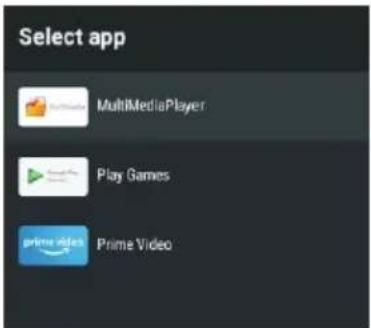
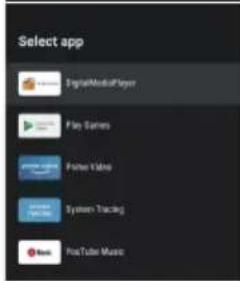
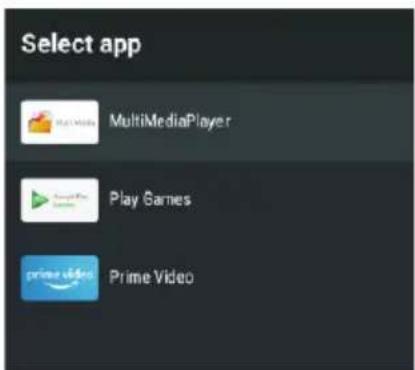
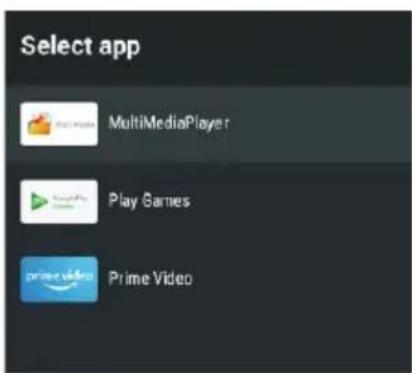
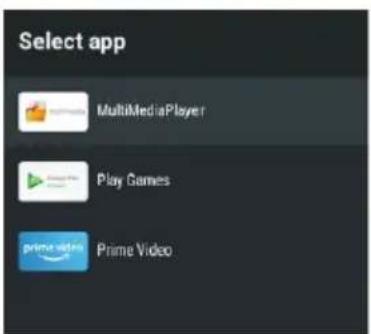
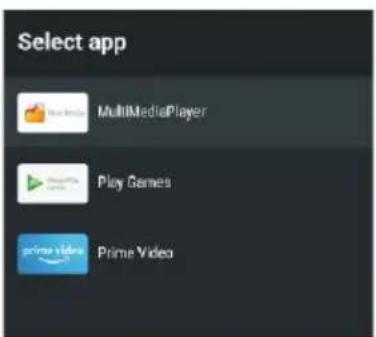
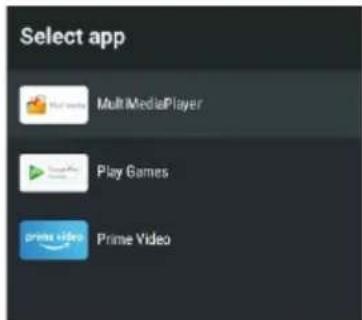
- In the HOME interface, select the + icon in the APP column to add the application, and click OK. Press up and down to select the MultiMediaPlayer application, and click OK to add it to the HOME interface.
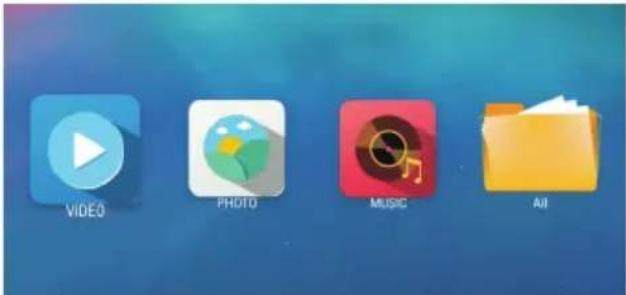
- Select OK key to enter Multi Media Player and display Video, Photo, Audio. After inserting the usb flash drive, you can view the corresponding files in the usb flash drive.
NOTE
The menu/function may be different depending on when you purchased the TV.
Dolby
AUDIO
Manufactured under license from Dolby Laboratories. Dolby, Dolby Audio, and the double-D symbol are trademarks of Dolby Laboratories Licensing Corporation.
| Trouble phenomenon | Inspection | ||
| Picture Audio | |||
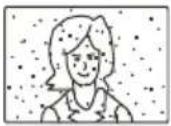 | Snow Noise |  | antenna position, direction or connection |
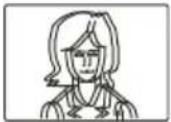 | Ghost | 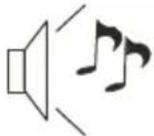 Normal audio Normal audio | antenna position, direction or connection |
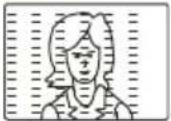 | Interfere | 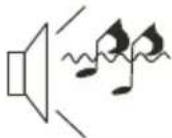 Noise Noise | electronic equipment, car/ motorcycle, fluorescent light |
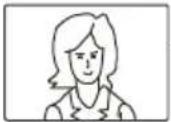 | Normal Picture | 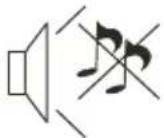 Mutc Mutc | Volume (inspect wether the mute function on the remote control are started , or audio system are correct or not) |
 | No picture Mute | 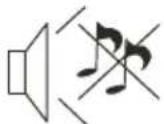 | Power cord is not inserted Power switch is not opened Contrast and brightness/volume setup Press standby key on the remote control for inspecting |
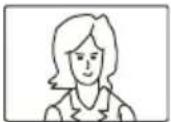 | No color Normal au | 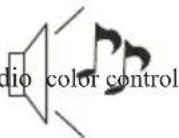 | |
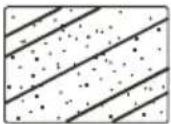 | Scramble | 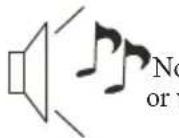 normal audio weak normal audio weak | retune channel |
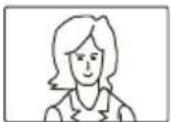 | No color | 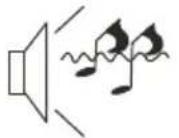 Noise Noise | Audio system |
Special Explanation: The accessories such as remote control is not belongs to the guarantee.
Haier
Haier
MANUAL DEL
USUARIO DEL TELEVISOR LED LCD
MODELO: H50K705UG
H55K705UG
H65K705UG
Haier
natural_image
Illustration of a computer monitor with an electrical circuit and a crossed-out resistor (no text or symbols)natural_image
Simple line drawing of a monitor with a cross symbol and a cloth, no text or symbols presentnatural_image
Simple line drawing of a computer monitor with a crossed-out X symbol, no text or labels present.natural_image
Simple line drawing of a computer monitor with a steaming roof (no text or symbols)natural_image
Simple line drawing of a flat-screen TV with a diagonal X mark on the stand (no text or symbols)natural_image
Cartoon illustration of a person climbing a computer screen with a crossed-out X symbol (no text or symbols present)natural_image
Simple line drawing of a mechanical or electrical component with no text or symbolsnatural_image
Illustration of a person reacting to a computer screen with a device emitting a flame (no text or symbols present)natural_image
Simple line drawing of a monitor with a crossed X and warning symbol, next to a lit fuse (no text or labels)natural_image
Technical line drawing of a flat-screen monitor with internal components and labeled parts (no text or symbols present)1: Sensor de control remote.
2: Indicator LED:ROJO ESPERA
3: Teclado
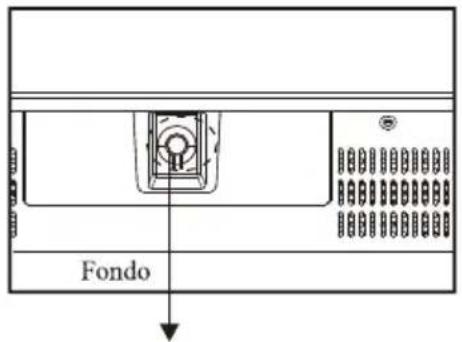
INTERRUPT OR DE ENCENDIDO
natural_image
Line drawing of a TV setup with an open panel, cable, and power outlet (no text or symbols)| PREAJUSTADO (HDMI) | |||
| RESOLUCIÓN | V.Frec.(Hz) | H.Frec.(KHz) | |
| 1 | 800*600 | 60 | 37,88 |
| 2 | 1024*768 | 60 | 48,36 |
| 3 | 1360*768 | 60 | 47,7 |
| 4 | 1280*768 | 60 | 47,3 |
| 5 | 1920*1080 | 60 | 67,5 |
| 6 | 3840*2160 | 30 | 67,5 |
| 7 | 3840*2160 | 50 | 112,5 |
| 8 | 3840*2160 | 60 | 135 |
EQUIPOS AV
Pulse▲/▼ para seleccionar si desea escanear, seleccione "Escanear" para escanear, seleccione "Detener escaneo" para detener el escaneo.
CANAL
APPS
natural_image
Illustration of a computer monitor with a crossed-out 'X' symbol, no text or labels presentnatural_image
Simple line drawing of a window with a cross mark and a curtain, no text or symbols presentnatural_image
Simple line drawing of a monitor with a cross symbol crossed out, no text or symbols present.natural_image
Simple line drawing of a computer monitor with a stand and curved frame (no text or symbols)natural_image
Simple line drawing of a flat-screen monitor with a stand and diagonal lines (no text or symbols)natural_image
Cartoon illustration of a child lying on a computer monitor with a crossed-out X symbol (no text or symbols present)natural_image
Simple line drawing of a geometric structure with intersecting lines and a vertical beam (no text or symbols)natural_image
Illustration of a person reacting to a screen with a megaphone and a small icon, no text or symbols present.natural_image
Simple line drawing of a monitor with a cross mark and a warning light (no text or symbols)natural_image
Technical line drawing of a flat-screen monitor with internal components and mounting holes (no text or symbols)natural_image
Diagram of a device rear panel with a central button and control buttons, showing no text or symbols.All the terminals are (from left to right):
RJ45, SORTIE OPTIQUE, VIDEO, entrée audio(L/R), HDMI4, HDMI3, HDMI2.
natural_image
Line drawing of a TV setup with an attached cable and power outlet (no text or symbols)MODE SUPPORTÉ (HDMI)
| RESOLUTION | V.Freq.(Hz) H.Freq.(KHz) | ||
| 1 | 800*600 | 60 | 37.88 |
| 2 | 1024*768 | 60 | 48.36 |
| 3 | 1360*768 | 60 | 47.7 |
| 4 | 1280*768 | 60 | 47.3 |
| 5 | 1920*1080 | 60 | 67.5 |
| 6 | 3840*2160 | 30 | 67.5 |
| 7 | 3840*2160 | 50 | 112.5 |
| 8 | 3840*2160 | 60 | 135 |
ÉQUIPEMENT AV
flowchart
graph TD
    A["Device with battery"] --> B["Step 1: Discharge"]
    B --> C["Step 2: Recharge to battery"]
    C --> D["Step 3: Discharge to battery"]
    D --> E["Step 4: Press or battery with internal components"]
CHAÎNE
Scannage RF simple: station de recherche manuelle.
Satellite
Scannage manuel analogique: Station de recherche manuelle ATV.
APPS
natural_image
Illustration of a computer monitor with an electrical circuit diagram and a crossed-out resistor symbol (no text or labels)natural_image
Diagram showing a cross symbol on a screen and a rope tied to a curtain, with no readable text or symbols.natural_image
Simple line drawing of a computer monitor with a cross symbol on the screen, surrounded by stars (no text or symbols)natural_image
Simple line drawing of a computer monitor with a curved top and base, emitting steam (no text or symbols)natural_image
Simple line drawing of a flat-screen monitor with a cross mark on the stand (no text or symbols)natural_image
Cartoon illustration of a person lying on a computer monitor with a crossed-out black-and-white symbol (no text or symbols present)natural_image
Simple line drawing of a geometric structure with intersecting lines and a vertical beam (no text or symbols)natural_image
Illustration of a person reacting to a computer screen with a magnifying glass (no text or symbols)natural_image
Simple line drawing of a monitor with a cross symbol crossed out, next to a warning light icon (no text or symbols)natural_image
Technical line drawing of a rear panel with labeled components (no text or symbols present)natural_image
Line drawing of a flat-screen TV unit with cable and power outlet, no text or symbols presentERSTEINRICHTUNG
KANAL
- Enter Menu->Settings->Channel->Channels.
- Enter Menu->Settings->Channel->Channels->Channle scan
Single RF Scan: manuelle Suchstation.
Satellit
- Menu->Settings->Channel->Channels.
- Enter Menu->Settings->channel->Channels->Satellite Re-scan.
Enter Menu->Settings->channel-) Channels
Analog Manual Scan: Manuelle ATV-Suchstation.
APPS
bar
Picture | Picture Mode Standard | Value | |---|---| | Backlight | 100 | | Brightness | 53 | | Contrast | 53 | | Saturation | 51 | | HUE | 0 | | Sharpness | 10 | | Gamma Mode | |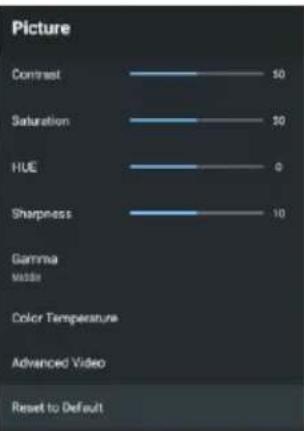
Backlight/Brightness/Contrast/Saturation/HUE/
When to start After 5 minutes of inactivity
Start now
Turn off display After 24 hours
Location status Use Wi-Fi to estimate location
Recent location requests

Automatically send diagnostic information to Google, like crash reports and usage data from your device, apps, and Chromecast built-in. This information won't be used to identify you. You can adjust these permissions at any time from device settings. Learn more at: g.co/AndroidUsageHelp and g.co/cast/device_stats.

Haier TV Remote Pairing...

Haier TV Remote 11:22:33:44:55:88
natural_image
Illustration of a computer monitor with an explosion symbol and a hand crossed out, no text or symbols present.natural_image
Simple line drawing of a monitor with a cross mark and a hanging cloth, no text or symbols presentnatural_image
Simple line drawing of a computer monitor with a cross symbol and stars (no text or labels)natural_image
Simple line drawing of a computer monitor with a curved top and base (no text or symbols)natural_image
Simple line drawing of a flat-screen monitor mounted on a stand with a diagonal line crossing (no text or symbols)natural_image
Cartoon illustration of a person on a computer monitor with a crossed-out 'X' symbol (no text or symbols present)natural_image
Simple line drawing of a geometric shape with a horizontal line and a vertical rectangle, no text or symbols present.natural_image
Illustration of a person running away from a computer monitor next to a broken circular object (no text or symbols)natural_image
Simple line drawing of a monitor with a cross symbol crossed out, next to a lamp emitting heat (no text or symbols)natural_image
Technical line drawing of a computer monitor with labeled components (no text or symbols present)ВЫКЛЮЧАТЕЛЬ
flowchart
graph TD
    A["Start: Battery with switch"] --> B["Step 1: Press or cable"]
    B --> C["Step 2: Press or cable with battery"]
    C --> D["Step 3: Discharge or battery with battery"]
    D --> E["End: Final battery with switch"]
КАНАЛ (Антенна)
![Scan Single RF Channel. (Digital Only) Cable Digital Channels 5% Frequency (MHz) 306080 Scan Signal Level 5% Signal Quality 5% Channels Channel Scan Single RF Scan LCH In Channel Scan Type A1 Channel Scan Type B1 Press [back/let] to end scan page](/content/2026/04/699032/images/001cbe3f8ebc1c89222c6e3d2d6c6d46d7e712b95c500458bfef2ac1c0933863.jpg)
КАНАЛ (ATV)
ПРИЛОЖЕНИЯ
ПУЛЬТЫ И АКСЕССУАРЫ
natural_image
Illustration of a computer monitor with arrows indicating motion and a hand holding a device (no text or symbols present)natural_image
Simple line drawing of a monitor with a cross mark and a curtain, no text or symbols presentnatural_image
Simple line drawing of a computer monitor with a crossed X mark and stars (no text or symbols)natural_image
Simple line drawing of a computer monitor with a stand and ventilation grille (no text or symbols)natural_image
Simple line drawing of a flat-screen monitor with a stand (no text or symbols)natural_image
Cartoon illustration of a person holding a crossed-out monitor with a crossed-out X symbol, surrounded by boxing gloves (no text or symbols present)natural_image
Simple line drawing of a geometric shape with intersecting lines and a horizontal line, no text or symbols present.natural_image
Illustration of a woman running away from a computer screen next to a broken phone with a circular icon (no text or symbols)natural_image
Simple line drawing of a monitor with a cross symbol crossed out, next to a lamp and a small object (no text or symbols)natural_image
Technical line drawing of a flat-screen monitor with labeled ports and connectors (no text or symbols present)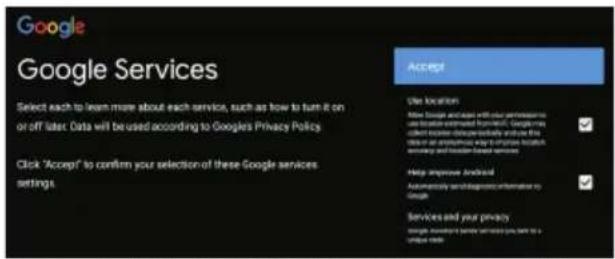
CANALE
APP
OK per accedere
OK per accedere
natural_image
Illustration of a computer monitor with an explosion symbol and a hand holding a device (no text or labels)natural_image
Simple line drawing of a monitor with a cross mark and a hanging curtain beside it (no text or symbols)natural_image
Simple line drawing of a computer monitor with a crossed X symbol and stars (no text or labels)natural_image
Simple line drawing of a computer monitor with a curved top frame (no text or symbols)natural_image
Simple line drawing of a flat-screen monitor with a stand (no text or symbols)natural_image
Cartoon illustration of a person holding a crossed-out monitor with a crossed-out 'X' symbol, no text or symbols presentnatural_image
Simple line drawing of a geometric shape with intersecting lines and a rectangular block, no text or symbols present.natural_image
Illustration of a person running away from a computer screen next to a broken phone with a starburst symbol (no text or symbols present)natural_image
Simple line drawing of a monitor with a cross symbol crossed out, and a lamp emitting smoke (no text or symbols)natural_image
Technical line drawing of a flat-screen monitor with labeled ports and connectors (no text or symbols present)natural_image
Line drawing of a TV setup with an open box, cable, and power outlet (no text or symbols)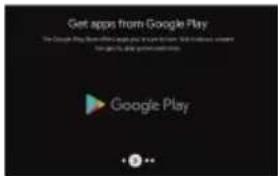
КАНАЛ (Антена)
![Scan Single RF Channel. (Digital Only) Antenna Digital Channels: 0% RF Channel 5(17260/4Hz) Signal Level 0% Signal Quality 0% Press [back/low] to visit scan page. Channels Channel Scan Update Scan Single RF Scan Manual Service Update LON 0x Channel Scan Type AT Channel Store Type AT Copyright Feedback Selected](/content/2026/04/699032/images/19a34b5c98e8b46b62cc5951e9b7eb0899e6ef87dd2cc981b1cd71f73c784c44.jpg)
КАНАЛ (Кабельне ТБ)
КАНАЛ (ATV)
ПРОГРАМИ
ПУЛЬТИ ТА АКСЕСУАРИ
natural_image
Illustration of a computer monitor with a crossed-out cable and lightning bolts, no text or symbols presentnatural_image
Diagram showing a crossed-out monitor with a cross symbol and a hanging cloth, no text or symbols present.natural_image
Simple line drawing of a computer monitor with a cross symbol and star decorations (no text or symbols)natural_image
Simple line drawing of a computer monitor with a roof, emitting steam (no text or symbols)natural_image
Simple line drawing of a flat-screen monitor with a stand and crossed x marks (no text or symbols)natural_image
Cartoon illustration of a person lying on a computer monitor with a crossed-out X symbol (no text or symbols present)natural_image
Simple line drawing of a geometric structure with intersecting lines and a horizontal base (no text or symbols)natural_image
Illustration of a person reacting to a computer screen with a magnifying glass (no text or symbols)natural_image
Simple line drawing of a monitor with a cross symbol crossed out, next to a speaker emitting sound waves (no text or symbols)natural_image
Technical line drawing of a flat-screen TV rear panel with labeled components (no text or symbols present)natural_image
Line drawing of a flat-screen TV unit with cable and power outlet, no text or symbols presentНАЧАЛНИ НАСТРОЙКИ
КАНАЛ
bar
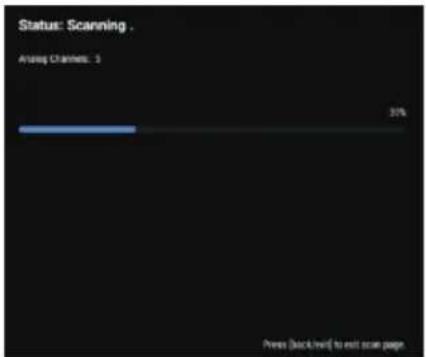
Status: Scanning. | Status | Percentage (%) | |---|---| | Starting Channels | 5 | | Press (lock/month) to exit scan page. | 31 |ПРИЛОЖЕНИЯ
Automatically send diagnostic information to Google, like crash reports and usage data from your device, apps, and Chromecast built-in. This information won't be used to identify you. You can adjust these permissions at any time from device settings. Learn more at: g.co/AndroidUsageHelp and g.co/cast/device_stats.
natural_image
Illustration of a computer monitor with a warning symbol and a crossed-out hand gesture (no text or labels)natural_image
Simple line drawing of a monitor with a cross mark and a cloth, no text or symbols presentnatural_image
Simple line drawing of a computer monitor with a cross symbol crossed out, surrounded by stars (no text or symbols)natural_image
Simple line drawing of a computer monitor with a curved frame and screen (no text or symbols)natural_image
Simple line drawing of a flat-screen monitor with a stand and diagonal lines (no text or symbols)natural_image
Cartoon illustration of a child lying on a computer screen with a crossed-out X symbol (no text or symbols present)natural_image
Simple line drawing of a geometric structure with an angle and motion lines (no text or symbols)natural_image
Illustration of a person reacting to a computer screen with a device, no text or symbols presentnatural_image
Simple line drawing of a monitor with a cross symbol crossed out, next to a warning light (no text or symbols)natural_image
Technical line drawing of a flat-screen monitor with internal components and connectors (no text or symbols)1: Fjernbetjeningssensor.
2: Indikator-LED: R∅D ● STANDBY.
3: Tastatur
natural_image
Line drawing of a TV set with cable and power outlet, no text or symbols presentFORUDINDSTILLET TILSTAND (HDMI)
| OPL∅SNING | V. Frekv. (Hz) | H. Frekv. (KHz) | |
| 1 | 800 * 600 | 60 | 37,88 |
| 2 | 1024 * 768 | 60 | 48,36 |
| 3 | 1360 * 768 | 60 | 47,7 |
| 4 | 1280 * 768 | 60 | 47,3 |
| 5 | 1920 * 1080 | 60 | 67,5 |
| 6 | 3840 * 2160 | 30 | 67,5 |
| 7 | 3840 * 2160 | 50 | 112,5 |
| 8 | 3840 * 2160 | 60 | 135 |
AV-UDSTYR
INDLEDENDE KONFIGURERING
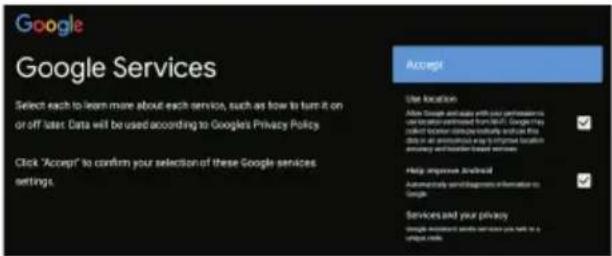
Ved at acceptere Googles servicevilkår for at forbedre produktoplevelsen skal du vælge "Accepter" for at acceptere denne betingelse.
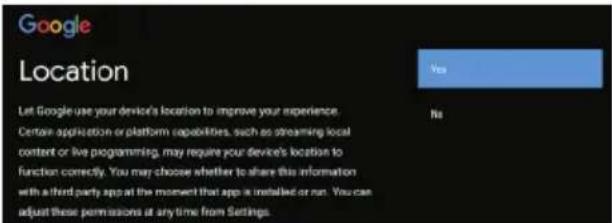
Accepter Google for at få placeringsoplysningerne for din enhed for at få flere funktioner. Vælg "JA" for at acceptere.
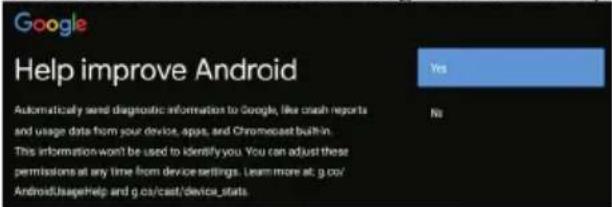
For at forbedre diskriminationsevnen ved at acceptere automatisk at sende diagnostiske oplysninger til Google, skal du vælge "JA" for at acceptere.
Bruges til at indstille din enheds adgangskode for at sikre sikkerhed og privatliv

①Åbn Google-assistenten, eller start en stemmesøgning.
KANAL
Kanaler - Vis scanningsundermenuen baseret på forskellige kanalinstallationstilstande.
- Gå ind i Menu -> Indstillinger -> Kanal -> Kanaler
- Gå ind i Menu -> Indstillinger -> Kanal -> Kanaler -> Kanalscanning
- Gå ind i Menu -> Indstillinger -> Kanal -> Kanaler -> satellit-genscanning.
Gå ind i Menu -> Indstillinger -> Kanal -> Kanaler
APPS
Intern delt lagring - tryk på knappen ▲/▼ for at vælge indstillingen og tryk derefter på knappen OK for at gå ind i undermenuen.
I denne menu kan du indstille kanaler, apps, open source-licenser.
Start nu - tryk på knappen ▲/▼ for at vælge indstillingen, og tryk derefter på knappen OK for at åbne undermenuen. (Valgfrit: 15 minutter, 30 minutter, 1 time, 4 timer/8 timer, /12 timer, /24 timer, /aldrig).
STED
I denne menu kan du parre Bluetooth-enheder.
natural_image
Illustration of a computer monitor with a crossed-out black X symbol indicating no text or symbols on the monitor or background (no readable text or symbols)natural_image
Simple line drawing of a monitor with a cross symbol and a cloth, no text or symbols presentnatural_image
Simple line drawing of a computer monitor with a cross symbol on the screen and stars above (no text or labels)natural_image
Simple line drawing of a computer monitor with a roof and ventilation grille (no text or symbols)natural_image
Simple line drawing of a flat-screen monitor with a stand and diagonal lines (no text or symbols)natural_image
Cartoon illustration of a person lying on a computer monitor with a crossed-out X symbol (no text or symbols present)natural_image
Simple line drawing of a geometric structure with intersecting lines and a vertical line, no text or symbols present.natural_image
Illustration of a person reacting to a computer screen with a falling object (no text or symbols)natural_image
Simple line drawing of a monitor with a cross symbol crossed out, next to a speaker emitting sound waves (no text or symbols)natural_image
Technical line drawing of a front panel with internal components and mounting holes (no text or symbols)natural_image
Line drawing of a flat-screen TV unit with cable and power outlet, no text or symbols presentESIASETUSTILASSA (HDMI)
| päätöslauselma | V.Freq.(Hz) | H.Freq.(KHz) | |
| 1 | 800*600 | 60 | 37,88 |
| 2 | 1024*768 | 60 | 48,36 |
| 3 | 1360*768 | 60 | 47,7 |
| 4 | 1280*768 | 60 | 47,3 |
| 5 | 1920*1080 | 60 | 67,5 |
| 6 | 3840*2160 | 30 | 67,5 |
| 7 | 3840*2160 | 50 | 112,5 |
| 8 | 3840*2160 | 60 | 135 |
LAITTEISTO AV
ENSIMMÄINEN ASENNUS
Jos haluat valita tilan, Painele valitse avain ▲/▼ valitaksesi kotitilan ja Painele OK Vahvistus.

KANAVAN
bar
Status: Scanning . Aving Channels: 3 3% Press (backward) to exit score pageAPPS
Järjestelm ääänet - Painele ▲/▼ - painiketta ja valitse sitten Painele OK-painiketta valitaksesi ON/OFF.
Kauppatila - Painele ▲/▼ - painiketta ja valitse sitten Painele OK-painiketta valitaksesi ON/OFF.
natural_image
Illustration of a computer monitor with an electrical circuit diagram and a crossed-out black symbol (no text or labels)natural_image
Simple line drawing of a monitor with a cross mark and a hanging curtain, no text or symbols presentnatural_image
Simple line drawing of a computer monitor with a cross symbol on its screen, surrounded by stars (no text or symbols)natural_image
Simple line drawing of a computer monitor with a roof and screen, emitting steam (no text or symbols)natural_image
Simple line drawing of a flat-screen monitor with a stand and diagonal lines (no text or symbols)natural_image
Cartoon illustration of a person climbing a computer monitor with a crossed-out X symbol (no text or symbols present)natural_image
Simple line drawing of a geometric structure with an arrow and motion lines, no text or symbols present.natural_image
Illustration of a person reacting to a computer monitor with a circular device nearby (no text or symbols)natural_image
Illustration of a monitor with a cross symbol crossed out, next to a warning light (no text or symbols present)natural_image
Technical line drawing of a flat-screen monitor with internal components and connectors (no text or symbols)HDMI1(ARC), LNB IN, ANT IN, USB, CI, ieşire CĂŞTI.
natural_image
Line drawing of a TV setup with an attached cable and a power outlet (no text or symbols)MOD PRESETAT (HDMI)
| REZOLUTIE | V.Freq.(Hz) | H.Freq.(KHz) | |
| 1 | 800*600 | 60 | 37,88 |
| 2 | 1024*768 | 60 | 48,36 |
| 3 | 1360*768 | 60 | 47,7 |
| 4 | 1280*768 | 60 | 47,3 |
| 5 | 1920*1080 | 60 | 67,5 |
| 6 | 3840*2160 | 30 | 67,5 |
| 7 | 3840*2160 | 50 | 112,5 |
| 8 | 3840*2160 | 60 | 135 |
ECHIPARE AV
CANAL
- Accesați Meniu->Setări->Canal->Canale-> Scanare canale
Accesati Meniu->Setări->canal->Canale
APPS
CHROMECAST ÎNCORPORAT
natural_image
Illustration of a computer monitor with an electrical circuit and a crossed-out resistor (no text or symbols)natural_image
Simple line drawing of a monitor with a cross mark and a hanging cloth, no text or symbols presentnatural_image
Simple line drawing of a computer monitor with a cross symbol crossed out, surrounded by stars (no text or symbols)natural_image
Simple line drawing of a computer monitor with a fan and screen, emitting steam (no text or symbols)natural_image
Simple line drawing of a flat-screen monitor with a stand and diagonal lines (no text or symbols)Ikke klem strømledningen under TV-mottakeren.
natural_image
Cartoon illustration of a person on a computer monitor with a crossed-out X symbol (no text or symbols present)Stå aldri, len deg på eller skyv TVen eller stativet plutselig. Du bør være spesielt oppmerksom på barn. Alvorlig skade kan oppstå hvis du mister den.
natural_image
Simple line drawing of a geometric structure with an angle and vertical motion lines (no text or symbols)Ikke plasser TV-en på en ustabil vogn, stativ, hylle eller bord. Alvorlig personskade og skade på TV-en hvis den mistes.
natural_image
Illustration of a person reacting to a computer screen with a circular device emitting smoke (no text or symbols)natural_image
Illustration of a monitor with a cross symbol crossed out, next to a warning light (no text or symbols present)natural_image
Technical line drawing of a front panel with internal components and connectors (no text or symbols)
1: Sensor for fjernkontroll.
2: LED-indikator: R∅D ● STANDBY.
3: Tastatur
natural_image
Diagram of a device rear panel with a central component and an arrow pointing to it (no text or symbols present)STR∅MBRYTER
natural_image
Line drawing of a TV setup with an open box, cable, and power outlet (no text or symbols)FORHÅNDSINNSTILT MODUS (HDMI)
| RESOLUSJON | V.Frek.(Hz) | H.Frek.(KHz) | |
| 1 | 800*600 | 60 | 37.88 |
| 2 | 1024*768 | 60 | 48.36 |
| 3 | 1360*768 | 60 | 47.7 |
| 4 | 1280*768 | 60 | 47.3 |
| 5 | 1920*1080 | 60 | 67.5 |
| 6 | 3840*2160 | 30 | 67.5 |
| 7 | 3840*2160 | 50 | 112.5 |
| 8 | 3840*2160 | 60 | 135 |
AV-UTSTYR
OPPRINNELIG INNSTILLING
KANAL
- Gå til Meny->Innstillinger->Kanal->Kanaler-> Skanning av kanal
- Gå til Meny->Innstillinger->Kanal->Kanaler->Satellitt ny skann.
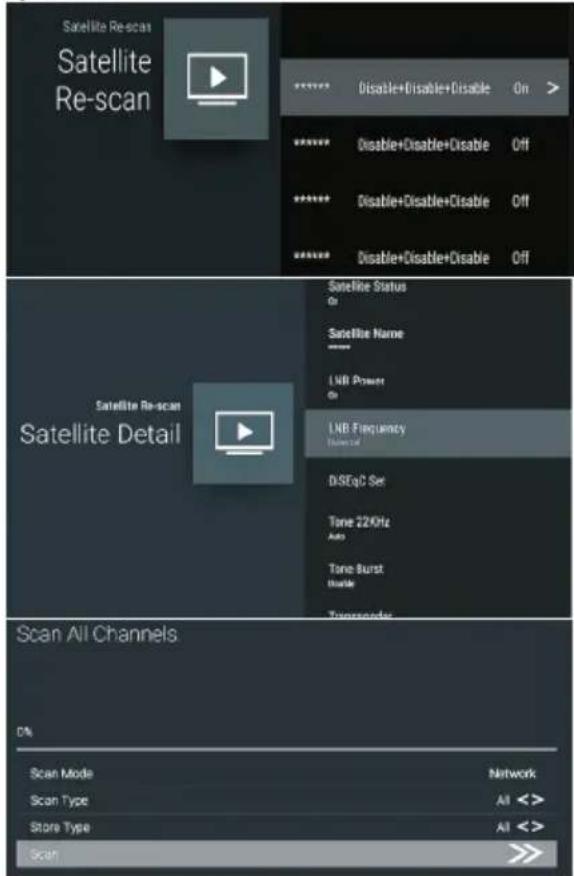
Skann for kanaler går direkte inn i grensesnittet for den automatiske søkeplattformen.
APPER
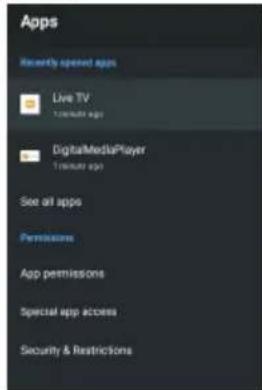
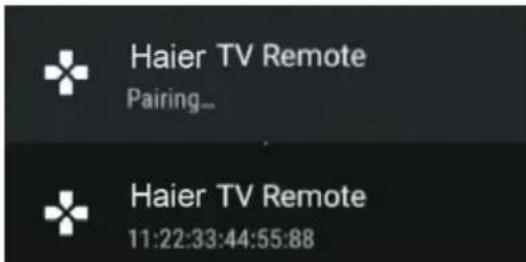
I denne menyen kan du pare bluetooth-enheter.
natural_image
Illustration of a computer monitor with a warning symbol (no text or labels present)natural_image
Simple line drawing of a window with a diagonal X mark and a curtain on the side (no text or symbols)natural_image
Simple line drawing of a computer monitor with a cross symbol on the screen, no text or symbols present.natural_image
Simple line drawing of a computer monitor with a stand and roof, emitting steam (no text or symbols)natural_image
Simple line drawing of a flat-screen monitor with a stand and diagonal lines (no text or symbols)natural_image
Cartoon illustration of a person lying on a computer monitor with a crossed-out X symbol (no text or symbols present)natural_image
Simple line drawing of a geometric structure with an arrow indicating direction (no text or symbols)natural_image
Illustration of a person reacting to a computer monitor with a circular device nearby (no text or symbols)natural_image
Illustration of a monitor with a cross symbol crossed out, next to a warning light emitting sound waves (no text or symbols present)natural_image
Technical line drawing of a front panel with labeled components (no text or symbols present)1: Sensor de controle remoto.
2: Indicator LED: VERMELHO ● ESPERA
3:Teclado
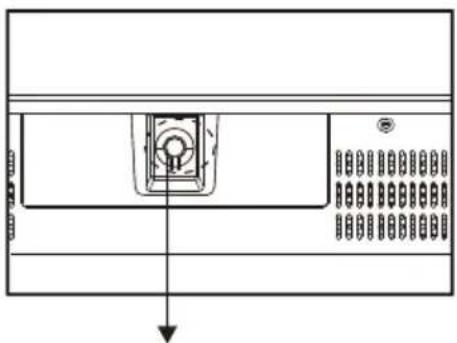
natural_image
Diagram of a device rear panel with a central button and indicator lights (no text or symbols)natural_image
Line drawing of a TV setup with an attached cable and power outlet (no text or symbols)PREDEFINIÇÃO (HDMI)
| RESOLUÇÃO | V.Frec.(Hz) | H.Frec.(KHz) | |
| 1 | 800*600 | 60 | 37,88 |
| 2 | 1024*768 | 60 | 48,36 |
| 3 | 1360*768 | 60 | 47,7 |
| 4 | 1280*768 | 60 | 47,3 |
| 5 | 1920*1080 | 60 | 67,5 |
| 6 | 3840*2160 | 30 | 67,5 |
| 7 | 3840*2160 | 50 | 112,5 |
| 8 | 3840*2160 | 60 | 135 |
EQUIPAMENTOS AV
flowchart
graph TD
    A["Device with battery"] --> B["Switch to battery"]
    B --> C["Device with battery"]
    C --> D["Switch to battery"]
    D --> E["Device with battery"]
    E --> F["Switch back to battery"]
Para seleccionar o modo, pressione a tecla ▼/▼ para seleccionar o modo Home e pressione OK para confirmar.


CANAL
3. A varredura de canais entra diretamente na interface da plataforma de busca automática da antena DTV.
A varredura de canais entra diretamente na interface da plataforma de varredura automática.
APPS
bar
Picture | Picture Mode | Standard | |---|---| | Backlight | 100 | | Brightness | 80 | | Contrast | 50 | | Saturation | 50 | | HUE | 0 | | Sharpness | 10 | | Gamma Mode | |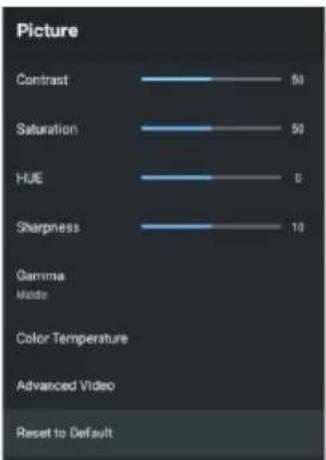
CROMECAST INCORPORADO
REMOTO E ACESSÓRIOS
Installation....6 - 8
Fjärrkontroll....9
natural_image
Illustration of a computer monitor with lightning bolts and a crossed-out black 'X' symbol (no text or labels)natural_image
Simple line drawing of a monitor with a cross mark and a curtain, no text or symbols presentnatural_image
Simple line drawing of a computer monitor with a cross symbol crossed out, surrounded by stars (no text or symbols)natural_image
Simple line drawing of a computer monitor with a fan base and smokestacks above (no text or symbols)natural_image
Simple line drawing of a flat-screen monitor with a stand and diagonal lines (no text or symbols)natural_image
Cartoon illustration of a person lying on a computer monitor with a crossed-out window symbol (no text or symbols present)natural_image
Simple line drawing of a geometric structure with intersecting lines and a rectangular frame (no text or symbols)natural_image
Illustration of a person running away from a computer screen next to a circular object with a small mark (no text or symbols)natural_image
Simple line drawing of a monitor with a cross symbol crossed out, and a warning light icon (no text or symbols)natural_image
Technical line drawing of a front panel with internal components and connectors (no text or symbols)1: Fjärrkontrollsensor.
2: Indikator-LED: RÖD
3: Tangentbord

STANDBY.
natural_image
Diagram of a device panel with an internal component and directional arrow (no text or symbols)STRÖMBRYTARE
HDMI1(ARC), LNB IN, ANT IN, USB, CI, HÖRLURSUTGÅNG.
AV-anslutningar BAKSIDAN

flowchart
graph TD
    A["Start: Battery with switch"] --> B["Step 1: Press or cable to be charged"]
    B --> C["Step 2: Press or cable to be open"]
    C --> D["Step 3: Press or cable to be closed"]
    D --> E["End: Battery with switch"]
FÖRSTA INSTALLATIONEN
KANAL
APPAR
bar
Picture | Picture Mode | Standard | |---|---| | Backlight | 100 | | Brightness | 60 | | Contrast | 50 | | Saturation | 50 | | HUE | 0 | | Sharpness | 10 | | Gamma Mode | |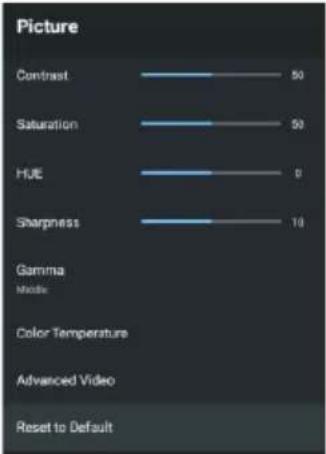
INBYGGD CHROMECAST