
HT305SU - Home theater audio system LG - Free user manual and instructions
Find the device manual for free HT305SU LG in PDF.


| Product Type | Home Cinema Audio System (DVD Receiver) |
| Brand | LG |
| Model | HT305SU |
| Dimensions (Main Unit) | 360 x 62 x 305 mm |
| Net Weight (Main Unit) | 2.5 kg |
| Power Supply | 200-240 V~, 50/60 Hz, 50 W |
| Supported Disc Formats | DVD-Video, DVD±R/RW, Audio CD, MP3, WMA, JPEG, DivX |
| Video Connectivity | HDMI (Output), Component Y Pb Pr, SCART, Composite Video |
| Audio Connectivity | AUX Input (RCA), PORT. IN (Mini Jack), FM (Antenna), USB (Front) |
| Amplifier Power (Stereo) | 45 W + 45 W (4 Ω, 1 kHz, 10% THD) |
| Amplifier Power (Surround) | 45 W x 4 (Front + Rear), 75 W (Subwoofer) |
| Speaker Dimensions (Front/Rear) | 107 x 107 x 102 mm each |
| Subwoofer Dimensions | 156 x 325 x 320 mm |
| Speaker Weight (Front/Rear) | 0.39 kg each |
| Subwoofer Weight | 3.5 kg |
| Audio Functions | Dolby Pro Logic II, Preset Equalizer (POP, JAZZ, ROCK, etc.), LG EQ |
| Radio | FM with RDS (Station Name Display, Program Type, Text) |
| USB Recording | Direct from CD, Radio or Auxiliary Source |
| Playback Functions | Repeat, Random, Program, Zoom, JPEG Slide Show |
| Safety | Class 1 Laser, Water Protection, Parental Lock |
| Included Accessories | Remote Control, FM Antenna, Audio/Video Cables (Depending on Country) |
| Maintenance | Clean with a soft dry cloth; do not use solvents |
| General Information | 12-month Warranty, Telephone Support (UK: 0870 873 5454) |
Frequently Asked Questions - HT305SU LG
User questions about HT305SU LG
0 question about this device. Answer the ones you know or ask your own.
Ask a new question about this device
Download the instructions for your Home theater audio system in PDF format for free! Find your manual HT305SU - LG and take your electronic device back in hand. On this page are published all the documents necessary for the use of your device. HT305SU by LG.
USER MANUAL HT305SU LG
Please read this manual carefully before operating your set and retain it for future reference.
FOR THE WARRANTY TERMS & CONDITIONS, PLEASE REFER TO BACK COVER OF THIS MANUAL.
MODEL
HT305SU (HT305SU, SH35SU-S/W)
P/NO : MFL63284709
Safety Precaution

CAUTION
RISK OF ELECTRIC SHOCK DO NOT OPEN

CAUTION : TO REDUCE THE RISK OF ELECTRIC SHOCK DO NOT REMOVE COVER (OR BACK) NO USER-SERVICEABLE PARTS INSIDE REFER SERVICING TO QUALIFIED SERVICE PERSONNEL.

This lightning flash with arrowhead symbol within an equilateral triangle is intended to alert the user to the presence of uninsulated dangerous voltage within the product's enclosure that may be of sufficient magnitude to constitute a risk of electric shock to persons.

The exclamation point within an equilateral triangle is intended to alert the user to the presence of important operating and maintenance (servicing) instructions in the literature accompanying the product.
WARNING : TO PREVENT FIRE OR ELECTRIC SHOCK HAZARD, DO NOT EXPOSE THIS PRODUCT TO RAIN OR MOISTURE.
WARNING : Do not install this equipment in a confined space such as a book case or similar unit.
CAUTION : This product employs a Laser System.
To ensure proper use of this product, please read this owner's manual carefully and retain it for future reference. Shall the unit require maintenance, contact an authorized service center.
Use of controls, adjustments or the performance of procedures
other than those specified herein may result in hazardous radiation exposure.
To prevent direct exposure to laser beam, do not try to open the enclosure. Visible laser radiation when open. DO NOT STARE INTO BEAM.
CAUTION : The apparatus shall not be exposed to water (dripping or splashing) and no objects filled with liquids, such as vases, shall be placed on the apparatus.
CAUTION concerning the Power Cord
Most appliances recommend they be placed upon a dedicated circuit;
That is, a single outlet circuit which powers only that appliance and has no additional outlets or branch circuits. Check the specification page of this owner's manual to be certain.
Do not overload wall outlets. Overloaded wall outlets, loose or damaged wall outlets, extension cords, frayed power cords, or damaged or cracked wire insulation are dangerous. Any of these conditions could result in electric shock or fire. Periodically examine the cord of your appliance, and if its appearance indicates damage or deterioration, unplug it, discontinue use of the appliance, and have the cord replaced with an exact replacement part by an authorized service center.
Protect the power cord from physical or mechanical abuse, such as being twisted, kinked, pinched, closed in a door, or walked upon. Pay particular attention to plugs, wall outlets, and the point where the cord exits the appliance.
To disconnect power from the mains, pull out the mains cord plug. When installing the product, ensure that the plug is easily accessible.

Disposal of your old appliance
- When this crossed-out wheeled bin symbol is attached to a product it means the product is covered by the European Directive 2002/96/EC.
- All electrical and electronic products should be disposed of separately from the municipal waste stream via designated collection facilities appointed by the government or the local authorities.
- The correct disposal of your old appliance will help prevent potential negative consequences for the environment and human health.
- For more detailed information about disposal of your old appliance, please contact your city office, waste disposal service or the shop where you purchased the product.
CE LG Electronics hereby declares that this/these product(s) is/are in compliance with the essential requirements and other relevant provisions of Directive 2004/108/EC, 2006/95/EC and 2009/125/EC.
European representative :
LG Electronics Service Europe B.V.
Veluwezoom 15, 1327 AE Almere, The Netherlands
(Tel : +31-036-547-8888)
Welcome to your new DVD Receiver
Contents

Setting up 4
Main Unit 4
Hooking up the unit ....5-6
Remote control 7
OSD Initial language settings - Optional 8
Initial Setting the Area Code - Optional 8
Adjusting the general settings .....8-10
5.1 Speaker Setup 9
Enjuying a pre-programmed sound field .....10

Displaying Disc Information ....11
Playing a disc or file .....11-13
Viewing photo files 13
Listening to the radio .....14
Using an USB device 15
Listening to music from your portable player or external
device 15
Recording to USB 16

Language Codes 17
Area Codes 17
Troubleshooting 18
Types of Playable Discs .....19
Specifications .....20
POWER: This unit operates on a mains supply of 200-240V\~, 50/60Hz.
WIRING: This unit is supplied with a BSI 1363 approved 13 amp mains plug, fused at 5 amp. When replacing the fuse always use a 5 amp BS 1362, BSI or ASTA approved type. Never use this plug with the fuse cover omitted. To obtain a replacement fuse cover contact your dealer. I the type of plug supplied is not suitable for the mains sockets in your home, then the plug should be removed and a suitable type fitted.
Please refer to the wiring instructions below:
WARNING: A mains plug removed from the mains lead of this unit must be destroyed. A mains plug with bared wires is hazardous if inserted in a mains socket.
Do not connect either wire to the earth pin, marked with the letter E or with the earth symbol 12 or coloured green or green and yellow. If any other plug is fitted, use a 5 amp fuse, either in the plug, or at the distribution board.
IMPORTANT: The wires in this mains lead are coloured in accordance with the following codes:
- BLUE: NEUTRAL, BROWN: LIVE - As the colours of the wires in the mains lead of this unit may not correspond with the coloured marking identifying the terminals in your plug, proceed as follows: The wire which is coloured blue must be connected to the terminal which is marked with the letter N or coloured black. The wire which is coloured brown must be connected to the terminal which is marked with the letter L or coloured red.
Setting up
Attaching the speakers to the DVD receiver
1 You will have received six speaker cables.
Each one is colour-coded by a band near each end and connects one of the six speakers to the DVD receiver.
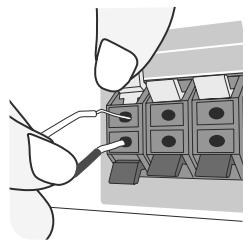
2 Connect the wires to the DVD receiver.
To connect the cable to the DVD receiver, press each plastic finger pad to open the connection terminal. Insert the wire and release the finger pad.
natural_image
Illustration of a person inserting a small component into a grid-like device (no text or symbols visible)Connect the black end of each wire to the terminals marked -(minus) and the other end to the terminals marked + (plus).
| Main Unit | SPEAKER | POSITION |
| REAR R | R.R | Behind you and to your right. |
| REAR L | R.L | Behind you and to your left. |
| CENTER | C | Above screen, directly in front of you. |
| SUB WOOFER | W | This can be placed in any front position. |
| FRONT R | F.R | In front of you, to the right of the screen. |
| FRONT L | F.L | In front of you, to the left of the screen. |
Be careful of the following
Be careful to make sure children do not put their hands or any objects into the *speaker duct.
*Speaker duct : A hole for plentiful bass sound on speaker cabinet(enclosure).
Main Unit
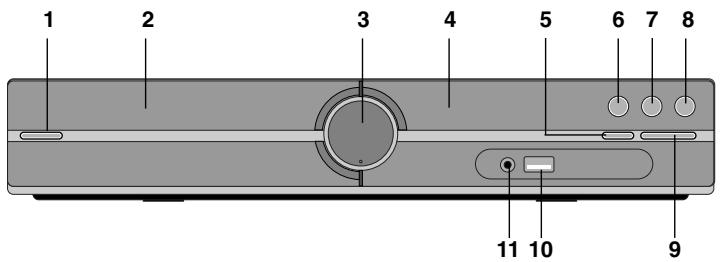
1 Power (☐/I)
Turns the unit on and off.
2 DVD/CD Disc Drawer
3 Volume (VOL.)
Controls the volume when using any function.
4 Display window
5 Open/Close (▲)
6 Play/Pause(▶/■)
7 Stop (■)
8 Function (F)
Selects the function and input source.
(DVD/CD, USB, AUX, TV-AUDIO, PORTABLE, FM)
9 TUNING (-/+) (◀◀▶▶), Skip/Search (Press and hold)
10 USB port
You can play video, image and sound files by connecting the USB device.
11 PORT.(Portable) IN port
You can enjoy music from portable device on your unit.
Hooking up the unit
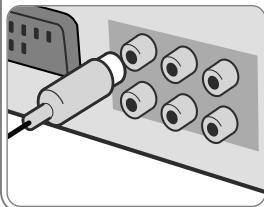
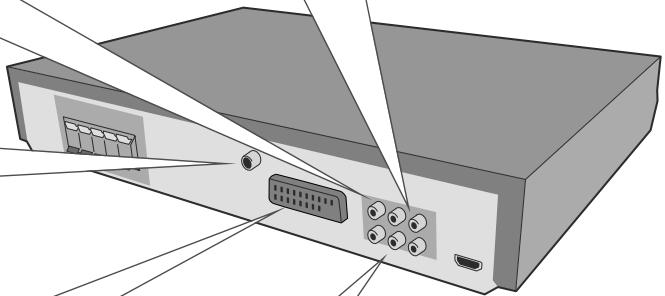
1 Connect jacks on the unit and your TV (DVD player or Digital Device etc.) using the cables.
Check the jacks of your TV and choose the A, B or C connection. Picture quality improves in order from A to C.
Video Out connection (A)
natural_image
Illustration of a mechanical component with multiple cylindrical pins inserted into a base plate (no text or symbols visible)Connect the VIDEO OUTPUT(MONITOR) jack on the unit to the corresponding input jack on your TV using a Video cable.
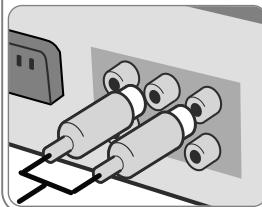
Audio In connection
natural_image
Illustration of cylindrical mechanical components mounted on a base plate (no text or symbols visible)The unit's Audio jacks are colour coded (red for right audio and white for left audio). If your TV has only one output for audio (mono), connect it to the left (white) audio jack on the unit.
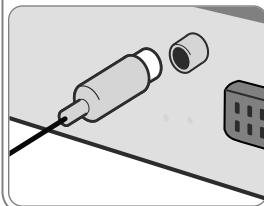
FM connection
natural_image
Illustration of a syringe and a cylindrical component with a separate device nearby (no text or symbols)FM - Connect the FM aerial. The reception will be its best when the two loose ends of the aerial are in a straight and horizontal line.
natural_image
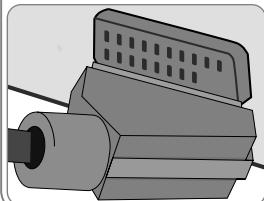
Diagram of a computer interface showing a front panel with ports and connectors, no text or symbols presentSCART connection (A)
natural_image
3D rendering of a mechanical component with no visible text or symbolsConnect the TO TV jack on the unit and your TV using the SCART cable.
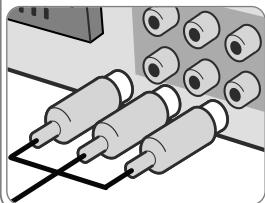
Component Video connection (B)
natural_image
Illustration of cylindrical electronic components connected to a grid board (no text or symbols visible)Connect the COMPONENT VIDEO (PROGRESSIVE SCAN) OUTPUT jacks on the unit to the corresponding input jacks on your TV using a Y PB PR cable.
2 Plug the power cord into the power source.
Hooking up the unit
Resolution Setting
You can change the resolution for component video and HDMI output.
Press RESOLUTION repeatedly to select the desired resolution - 480i (or 576i), 480p (or 576p), 720p, 1 080i, 1 080p
The resolution may not be selected depending on the connection or TV.
- Depending on your TV, some of the resolution settings may result in the picture disappearing or an abnormal picture appearing. In this case, press RESOLUTION repeatedly until the picture re-appears.
You can set 1 080p video resolution to enjoy Full HD picture quality. (Full HD up-scaling)
natural_image
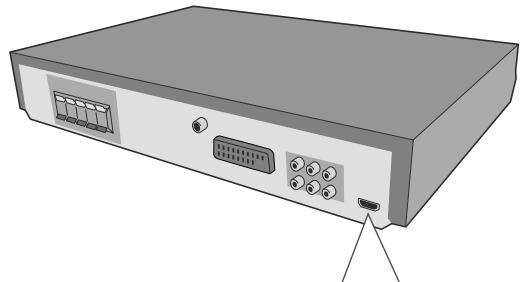
Illustration of a portable electronic device rear panel with ports and connectors (no text or symbols)HDMI Out connection (C)
natural_image
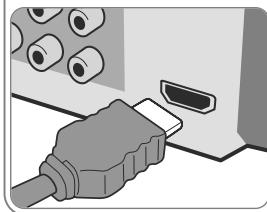
Illustration of a plug inserted into a device (no text or symbols visible)Connect the HDMI OUTPUT jack on the unit to the HDMI input jack on a HDMI compatible TV using a HDMI cable.
Enjoying audio from an external source and selecting the function
You can enjoy audio from an external source through your unit. And You can select the function.
Press FUNCTION repeatedly to select the desired input source and the function (DVD/CD, USB, AUX, TV-AUDIO, PORTABLE, FM).
Available resolution according to connection
Displayed resolution in display window and outputted resolution may different according to connection type.
[HDMI OUT] : 1 080p, 1 080i, 720p and 480p (or 576p), 480i(or 576i)
[COMPONENT VIDEO OUT] : 480p (or 576p) and 480i (or 576i)
[VIDEO OUT] : 480i (or 576i)
[SCART] : 576i
Notes on HDMI Out connection
- If your TV does not accept your resolution setting, abnormal picture appears on the screen. ("TV do not support" will appears in screen) Please read owner's manual for TV, and then set the resolution that your TV can accept.
- Changing the resolution when the unit is connected with HDMI connector may result in malfunctions. To solve the problem, turn off the unit and then turn it on again.
- When you connect a HDMI or DVI compatible device make sure of the following :
- Try switching off the HDMI/ DVI device and this unit. Next, switch on the HDMI/ DVI device and leave it for around 30 seconds, then switch on this unit.
- The connected device's video input is set correctly for this unit.
- The connected device is compatible with 720X576i(480i), 720X576p(480p),
1 280 X 720p, 1 920X1 080i or 1 920X1 080p video input. - The 1 080p, 720p and 576p (480p) resolutions are the progressive scan applied resolution.
- Not all HDCP-compatible DVI devices will work with this unit.
- The picture will not be displayed properly with non-HDCP device.
Remote control
1
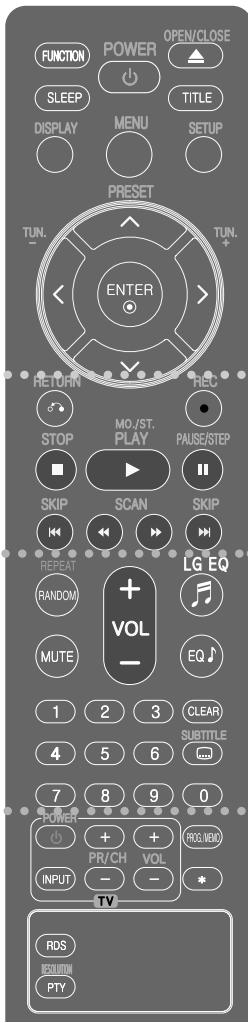
FUNCTION : Selects the function and input source. (DVD/CD, USB, AUX, TV-AUDIO, PORTABLE, FM)
SLEEP : Sets the System to turn off automatically at a specified time. (Dimmer : Dims the LED (Light-emitting diode) of front panel by half in power-on status.)
POWER : Switches the unit ON or OFF.
OPEN/CLOSE : Opens and closes the disc Drawer.
TITLE : If the current DVD title has a menu, the title menu appears on the screen. Otherwise, the disc menu may not appear.
DISPLAY : Accesses On-Screen Display.
MENU : Accesses the menu on a DVD disc.
SETUP : Accesses or removes setup menu.
PRESET ( V): Selects programme of Radio.
TUN. (-/+) : Tunes in the desired radio station.
V < > (up/ down/ left/ right): Used to navigate on-screen displays.
ENTER : Acknowledges menu selection.
2
RETURN (💡): moves backwards in the menu or exits the setup menu.
REC (●) : USB Direct Recording.
STOP (■) : Stops playback or recording.
PLAY (▶), MO./ST.: Starts playback. Selects Mono/Stereo
PAUSE/STEP (II) : Pause playback.
SKIP (I◄◄ / ►►) : Go to next or previous chapter/track/ file.
SCAN (◀◀/▶▶): Search backward or forward.
3
REPEAT/RANDOM: To select a play mode.(Random, repeat)
MUTE : To mute the sound.
VOL (Volume) (+/-): Adjusts speaker volume.
LGEQ : You can select a Natural or Local Specialization equalizer effect by using LG EQ.
EQ (EQUALIZER effect) : You can choose sound impressions.
CLEAR : Removes a track number on the Program List.
SUBTITLE : During playback, press SUBTITLE repeatedly to select a desired subtitle language
0-9 numerical buttons : Selects numbered options in a menu.
4
TV Control buttons : Controls the TV. (LG TV only)
Controlling the TV.
You can control the sound level, input source, and power switching of LG TVs as well. Hold POWER (TV) and press PR/CH (+/-) button repeatedly until the TV turns on or off.
PROG./MEMO. : Accesses or removes Program menu.
RESOLUTION : Sets the output resolution for HDMI and COMPONENT VIDEO OUT jacks.
RDS : Radio Data System.
PTY : Views the various displays of the RDS.
* : This button is not available.
Put the battery into the remote control
Make sure for the + (plus) and - (minus) on the battery to be matched on the remote control.
OSD Initial language settings - Optional
During the first use of this unit, the initial language setup menu appears on your TV screen. You must complete initial language selection before using the unit. English will be selected as the initial language.
| ON REMOTE | |
| 1 Turn the power onThe language list appears | POWER |
| 2 Select the language | V <> |
| 3 Press | ENTER |
| 4 To confirm press | < > and ENTER |
Initial Setting the Area Code - Optional
When you use this unit for the first time, you have to set the Area Code as shown below.
| ON REMOTE | |
| 1 Display setup menu | SETUP |
| 2 Select LOCK menu on the first level | V |
| 3 Move to second levelThe activated Area Code appears on the second level. | > |
| 4 Move to the third level | > |
| 5 Enter a new password | numerical buttons (0-9) and ENTER |
| 6 Recheck the entered new password | numerical buttons (0-9) and ENTER |
| 7 Select a code for a geographic areaAfter select, Rating and Password will be activated. (page 17) | V < and ENTER |
| 8 To confirm what you pressMake sure to finish setting the Area Code before leaving the setup menu if you cannot set the rating and Password | ENTER |
Adjusting the general settings
| ON REMOTE | |
| 1 Display setup menu | SETUP |
| 2 Select a desired option on the first level | V |
| 3 Move to the second level | > |
| 4 Select a desired option on the second level | V |
| 5 Move to the third level | > |
| 6 Change the setting | V, ENTER |
Adjusting the general settings
- more you can do
Adjusting the language settings
Menu Language – Select a language for the Setup menu and on-screen display.
Disc Audio/ Disc Subtitle/ Disc Menu – Select a language for the Disc Audio/ Disc Subtitle/ Disc Menu.
[Original] : Refers to the original language in which the disc was recorded.
[Other] : To select another language, press number buttons then ENTER to enter the corresponding 4-digit number according to the language code list in the reference chapter (see page 17). If you make a mistake before pressing ENTER, press CLEAR.
[Off] (for Disc Subtitle) : Turn off Subtitle.
Adjusting the display settings
TV Aspect – Select which screen aspect to use based on the shape of your TV screen.
[4:3] : Select when a standard 4:3 TV is connected.
[16:9] : Select when a 16:9 wide TV is connected.
Display Mode – If you selected 4:3, you'll need to define how you would like widescreen programs and films to be displayed on your TV screen.
[Letterbox] : This displays a widescreen picture with black bands at the top and bottom of the screen.
[Panscan] : This fills the entire 4:3 screen, cropping the picture as necessary.
TV Output Select – Select an option according to the TV connection type.
[RGB] : When your TV is connected with the SCART jack.
[YPbPr] : When your TV is connected with the
COMPONENT/ PROGRESSIVE SCAN jacks on the unit.
- If you change TV Output Select to RGB from YPbPr on the setup menu especially when connecting the unit in the way of component video connection, the screen turns black. In that case, connect the video cable to MONITOR jack and select YPbPr on the setup menu again.
Adjusting the audio settings
DRC (Dynamic Range Control) – Make the sound clear when the volume is turned down (Dolby Digital only). Set to [On] for this effect.
Vocal – Select [On] to mix karaoke channels into normal stereo.
This function is effective for multi-channel karaoke DVDs only.
HD AV Sync - Sometimes Digital TV encounters a delay between picture and sound. If this happens you can compensate by setting a delay on the sound so that it effectively ‘waits’ for the picture to arrive: this is called HD AV Sync. Use
Λ V (on the remote control) to scroll up and down through the delay amount, which you can set at anything between 0 and 300m sec.
5.1 Speaker Setup
| ON REMOTE | |
| 1 Open the settings menu | SETUP |
| 2 Select to the audio icon | V |
| 3 Select right to enter the audio menu, then select 5.1 Speaker Setup | > V ENTER |
| 4 Select the speaker you want to adjust | < > |
| 5 Select a option and change the settings | V < > |
| 6 Set the output level (volume) of a speaker from -5dB to +5dB.The speaker size setting are fixed, so you cannot change the setting. | < > |
| 7 If you connect speakers to your unit, setting the Distance lets the speakers to know how far the sound has to travel to reach your set listening point. This allows the sound from each speaker to reach the listener at the same time. | < > |
| 8 Test the signals of each speakerAdjust the volume to your taste according to these signals. | < > |
| 9 Save your settings and exit the Setup menu | RETURN |
Adjusting the lock settings
To access the lock options, you must enter the 4-digit password. If you have not yet entered a password you are prompted to do so. Enter a 4-digit password then press ENTER. Enter it again then press ENTER to verify. If you make a mistake while entering number, press CLEAR then correct it. If you forget your password you can reset it. First, remove the disc in the unit. Press SETUP to display the Setup menu. Input '210499' and press ENTER. The password has now been cleared.
Rating – Select a rating level. The lower the level, the stricter the rating. Select [Unlock] to deactivate the rating.
Password – Sets or changes the password for lock settings.
[New] : Enter a new 4-digit password using the numerical buttons then press ENTER. Enter the password again to confirm.
[Change] : Enter the new password twice after entering the current password.
Area Code – Select a code for a geographic area as the playback rating level. This determines which area's standards are used to rate DVDs controlled by the parental lock. See the Area Codes on page 17.
Adjusting the others settings
DivX(R) VOD – We provide you with the DivX® VOD (Video On Demand) registration code that allows you to rent and purchase videos using the DivX® VOD service.
For more information, visit www.divx.com/vod.
Press ENTER when [DivX(R) VOD] is highlighted and you can view the registration code of the unit.
Enjoying a pre-programmed sound field
This system has a number of pre-set surround sound fields. You can select a desired sound mode by using EQ/LG EQ. You can change the EQ/LG EQ using < > arrow key while the EQ/LG EQ information is displayed on. The displayed items for the Equalizer may be different depending on sound sources and effects.
| ON DISPLAY | Description |
| NATURAL | You can enjoy comfortable and natural sound. |
| AUTO EQ | Realizes the sound equalizer that is the most similar to the genre of which is included in the MP3 ID3 tag of song files. |
| POPCLASSICJAZZROCK | This program lends an enthusiastic atmosphere to the sound, giving you the feeling you are at an actual rock pop, jazz or classic concert. |
| MP3 OPT | This function is optimized for compressible MP3 file. It improves the bass sound. |
| BASS | Reinforce the treble, bass and surround sound effect. |
| VIRTUAL | You can enjoy more virtual surround sound. |
| PLII MOVIEPLII MUSICPLII MTRX(matrix) | Dolby Pro Logic II enables you to play stereo source on 5.1-channel. |
| NORMAL(OFF) | You can enjoy the sound without equalizer effect. |
Displaying Disc Information
| ON REMOTE | |
| 1 Press DISPLAY | DISPLAY |
| 2 Select an item | V |
| 3 Adjust the Display menu settings | < > |
| 4 To return the exit | DISPLAY |
Displaying Disc Information - more you can do
You can select an item by pressing V and change or select the setting by pressing <> .

Current title (or track/ file)
number/ total number of titles (or tracks/ files)
Current chapter number/ total number of chapters

Elapsed playing time
Selected audio language or channel

Selected subtitle
Selected angle/ total number of angles

Selected sound mode
Symbol Used in this Manual
All discs and file listed below

MP3 files

DVD and finalized DVD±R/RW

WMA files

DivX files

Audio CDs

Playing a Disc or file
| ON REMOTE | |
| 1 Insert a disc on unit | ▲ OPEN/CLOSE |
| 2 Select a DVD/CD | FUNCTION |
| 3 Adjust the menu settings or Select a file from the menu | V < > V |
| 4 Start the Disc playing | ▶ PLAY |
| 5 To stop the Disc playing | ■ STOP |
Playing a Disc or file - more you can do
Playing a DVD that has a menu DVD
Most DVDs now have menus which load first before the film begins to play. You can navigate these menus using < > to highlight an option.
Press PLAY (▶) to select.
Skipping to the next/ previous chapter/ track/ file ALL
Press SKIP (▶▶I) to move to the next chapter/ track/ file.
Press SKIP (◀◀) to return to the beginning of the current chapter/ track/ file.
Press SKIP (◀◀) twice briefly to step back to the previous chapter/ track/ file.
Pauseing playback ALL
Press PAUSE/STEP (II) to pause playback. Press PLAY (▶) to continue playback.
Frame-by-Frame playback DVD DivX
Press PAUSE/STEP (II) repeatedly to play title Frame-by-Frame.
Playing repeatedly or randomly ALL
Press REPEAT/RANDOM repeatedly, and the current title, chapter or track will be played back repeatedly or randomly. To return to normal playback, press REPEAT/RANDOM repeatedly.
- Random play mode : only music files.
Fast forward or fast reverse ALL
Press SCAN (◀◀ or ▶▶) to play fast forward or fast reverse during playback. You can change the playback speed by pressing SCAN (◀◀ or ▶▶) repeatedly. Press PLAY (▶) to continue play at normal speed.
Selecting a subtitle language DVD DivX
During playback, press SUBTITLE (☐) repeatedly to select a desired subtitle language.
Slowing down the playing speed DVD DivX
While playback is paused, press SCAN (◀◀ or ▶▶) to slow down forward or reverse playback. You can change the various playback speed by pressing SCAN (◀◀ or ▶▶) repeatedly. Press PLAY (▶) to continue play at normal speed. The DivX file cannot be slow down reverse playback.
1.5 times faster playback DVD
Press PLAY (▶) when a DVD is already playing to watch and listen to a DVD 1.5 times faster than normal playback speed. “▶ x1.5” will appear in the screen. Press PLAY (▶) again to return to normal playback speed.
Viewing the Title menu DVD
Press TITLE to display the disc's title menu, if available.
Starting play from selected time DVD DivX
Searches for the starting poing of entered time code. Press DISPLAY then select clock icon. Enter a time then press ENTER. For example, to find a scene at 1 hour, 10 minutes, and 20 seconds, enter "11020" by using numerical buttons and press ENTER. if you enter the wrong number, press CLEAR to enter again.
Last Scene Memory DVD
This unit memorizes the last scene from the last disc that is viewed. The last scene remains in memory even if you remove the disc from the player or switch off (Stand-by mode) the unit. If you load a disc that has the scene memorized, the scene is automatically recalled.
Mixed disc or USB Flash Drive – DivX, MP3/ WMA and JPEG
When playing a disc or USB Flash Drive containing with DivX, MP3/ WMA and JPEG files together, you can select menu of files which you would like to play by pressing MENU. If "This file has non-supported type on the player" pops up, select an appropriate file by pressing MENU.
Viewing the DVD MENU DVD
Press MENU to display the disc menu, if available.
Changing the character set to display DivX® subtitle correctly DivX
If the subtitle does not display properly during playback, press and hold SUBTITLE for about 3 seconds then press <> or SUBTITLE to select another language code until the subtitle is displayed properly and then press ENTER.
DivX file requirement DivX
DivX disc compatibility with this player is limited as follows :
• Available resolution: within 720 x 576 (W x H) pixels
- The file name of the DivX subtitle should be entered within 45 characters.
- If there is impossible code to express in the DivX file, it may be displayed as " _ " mark on the display.
• Frame rate : less than 30 fps
- If the video and audio structure of recorded files is not interleaved, either video or audio is outputted.
- Playable DivX file : ".avi", ".mpg", ".mpeg", ".divx"
- Playable Subtitle format : SubRip (*.srt/ *.txt), SAMI (*.smi), SubStation Alpha (*.ssa/ *.txt), MicroDVD (*.sub/ *.txt), SubViewer 2.0 (*.sub/ *.txt)
- Playable Codec format : "DIVX3.xx", "DIVX4.xx", "DIVX5.xx", "MP4V3", "3IVX".
- Playable Audio format : "AC3", "PCM", "MP3", "WMA".
- Sampling frequency : within 32 to 48 kHz (MP3), within 32 to 48 kHz (WMA)
- Bit rate: within 32 to 320 kbps (MP3), 40 to 192 kbps (WMA)
- For Discs formatted in Live file system, you can not it on this player.
- If the name of movie file is different from that of the subtitle file, during playback of a DivX file, subtitle may not be display.
- If you play a DivX file differ from DivXspec, it may not operate normally.
Fall asleep while listening to your player
Press SLEEP one or more times to select delay time between 10 and 180 minutes, after the player will turn off.
To check the remaining time, press SLEEP. To cancel the sleep function, press SLEEP repeatedly until “SLEEP 10” appears, and then press SLEEP once again while “SLEEP 10” is displayed.
DIMMER
Press SLEEP once. The LED (Light-emitting diode) of front panel is turned off and the display window will be darken by half. To cancel it, press SLEEP repeatedly until dim off.
Creating your own program ACD MP3 WMA
You can play the contents of a disc in the order you want by arranging the order of the musics on the disc. To add a music(s) on the program list, press
PROG./MEMO. to enter the program edit mode ( ^E mark appears on the menu). Select a desired music on the [List] by using the V then press ENTER to add the music to the program list. Select music from the program list then press ENTER to start programmed playback. To clear a music from the program list, select the music you want to clear by using the V then press CLEAR in program edit mode. To clear all music from the program list, select [Clear All] then press ENTER in program edit mode. The program is cleared when the disc is removed or the unit is turned off.
Displaying file information (ID3 TAG) MP3
While playing an MP3 file containing file information, you can display the information by pressing DISPLAY repeatedly.
MP3/ WMA music file requirement
MP3/ WMA disc compatibility with this player is limited as follows :
- Sampling frequency : within 32 to 48 kHz (MP3), within 32 to 48 kHz (WMA)
- Bit rate : within 32 to 320 kbps (MP3), 40 to 192 kbps (WMA)
• Support Version : v2, v7, v8, v9
• Maximum files : Under 999. - File extensions : “.mp3”/ “.wma”
• CD-ROM file format : ISO 9 660/ JOLIET - We recommend that you use Easy-CD Creator, which creates an ISO 9 660 file system.
Screen Saver
The screen saver appears when you leave the unit in Stop mode for about five minutes.
System Select - Optional
You must select the appropriate system mode for your TV system. If “NO DISC” appears in the display window, press and hold PAUSE/STEP (II) for more than five seconds to be able to select a system. (PAL/ NTSC)
Viewing photo files
| ON REMOTE | |
| 1 Insert a disc on unit | ▲ OPEN/CLOSE |
| 2 Select a DVD/CD | FUNCTION |
| 3 Select a photo file | ^ V |
| 4 Display the selected file in full screen | ▶ PLAY |
| 5 To return to the menu | ■ STOP |
Viewing photo files - more you can do
Viewing photo files as a slide show
Use V <> to highlight ( ▶ ) icon then press PLAY (▶) to start slide Show. You can change slide show speed using <> when ( ▶ ) icon is highlighted. Depending on the size and resolution of JPEG files, it may take longer for slider show to be set.
Skipping to the next/ previous photo
Press SKIP (I◄◄ or ►►I) or < > to view the previous/ next photo.
Rotating a photo
Use V to rotate the photo in full screen counterclockwise or clockwise while viewing a photo in full screen.
Pauseing a slide show
Press PAUSE/STEP (II) to pause a slide show. Press PLAY (▶) or PAUSE/STEP (II) to continue the slide show.
Listening to music during slide show
You can listen to music during slide show, if the disc contain music and photo files together. Use V < > to highlight (▶) icon then press PLAY (▶) to start slide show. This function is available only in disc.
Photo file requirement
JPEG disc compatibility with this player is limited as follows :
• Max pixel in width : 2 760 x 2 048 pixel
• Maximum files : Under 999.
- Some discs may not operate due to a different recording format or the condition of disc.
- File extensions: ".jpg"
• CD-ROM file format : ISO9660/ JOLIET
Listening to the radio
| Be sure that FM aerial is connected. | |
| ON REMOTE | |
| 1 Turn the power on | POWER |
| 2 Select FM. | FUNCTION |
| 3 Select a radio station | TUN.-/+ |
| 4 To ‘save’ a radio stationA preset number will show in the display. | PROG./MEMO. |
| 5 Select the preset numberUp to 50 radio stations can be saved. | PRESET ∧ V |
| 6 To confirm press | PROG./MEMO. |
| 7 To select a ‘saved’ station input the preset number | PRESET ∧ V |
Listening to the radio - more you can do
Looking for radio stations automatically
Press and hold TUN.-/TUN.+ for more than a second. The tuner will scan automatically and stop when it finds a radio station.
Deleting all the saved stations
Press and hold PROG./MEMO. for two seconds. ERASE ALL will flash up on the DVD receiver display. Press PROG./MEMO. to erase all saved radio stations.
Improving poor FM reception
Press PLAY (▶) (MO./ST.) on the remote control. This will change the tuner from stereo to mono and usually improve the reception.
Seeing information about a radio station
The FM tuner is supplied with the RDS (Radio Data System) facility. This shows information about the radio station being listened to. Press RDS repeatedly to cycle through the various data types. :
PS (Programme Service Name)
The name of the channel will appear in the display
PTY (Programme Type Recognition)
The programme type (e.g. Jazz or News) will appear in the display.
RT (Radio Text)
A text message contains special information from the broadcast station. This text may scroll across the display.
CT (Time controlled by the channel)
This shows the time and date as broadcast by the station.
Using an USB device
You can enjoy media files saved on an USB device by connecting the USB device to the USB port of the unit.
If you want to operate other function, see the CD playback section.
| ON REMOTE | |
| 1 Connect the USB device to the USB port of the unit. | - |
| 2 Select the USB function | FUNCTION |
| 3 Select a file you want to play | V |
| 4 Start your media playing | ▶ PLAY |
| 5 To stop, press | ■ STOP |
| 6 Before disconnecting the portable USB device, change to any other function. | FUNCTION |
Compatible USB Devices
• MP3 Player : Flash type MP3 player.
- USB Flash Drive : Devices that support USB2.0 or USB1.1.
- The USB function of this unit does not support all USB devices.
USB device requirement
- Devices which require additional program installation when you have connected it to a computer, are not supported.
Look out for the follows
- Do not extract the USB device while in operation.
- For a large capacity USB, it may take longer than a few minute to be searched
• To prevent data loss, back up all data. - If you use a USB extension cable or USB hub, the USB device is not recognized.
- Using NTFS file system is not supported. (Only FAT(16/32) file system is supported).
- This unit is not supported when the total number of files is 1 000 or more.
- External HDD, Card readers, Locked devices, or hard type usb devices are not supported.
- USB port of the unit cannot be connected to PC. The unit can not be used as a storage device.
Listening to music from your portable player or external device
The unit can be used to play the music from many types of portable player or external device.
| ON REMOTE | |
1 Connect the portable player to the PORT.IN(PORTABLE IN) connector of the unit.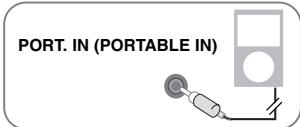 OrConnect the external device to the AUX connector of the unit.> If your TV has only one output for audio(MONO).connect it to the left(white) audio jack on the unit. OrConnect the external device to the AUX connector of the unit.> If your TV has only one output for audio(MONO).connect it to the left(white) audio jack on the unit.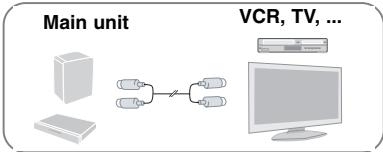 | - |
| 2 Turn the power on | POWER |
| 3 Select the PORTABLE or AUX function | FUNCTION |
| 4 Turn the portable external device and start it playing | - |
Recording to USB
| ON REMOTE | |
| 1 Connect the USB device to the unit | - |
| 2 Select a mode in which you want to record(ex. CD/ TUNER....)Play back a sound source firstIf you want to record desired music filein disc to USB, record after playing back the file. | FUNCTION |
| 3 Start the recording | ● REC |
| 4 To stop recording, press | ■ STOP |
Recording to USB - more you can do
Recording Music file in disc source to USB
One track recording
If the USB recording is started during playback of the CD, the one track/ file would be recording into the USB.
All tracks recording
If the recording button is pressed at the CD stop, all tracks/ files would be recording.
- The files in the sub-folders are not recorded during all track recording.
- If you want to all tracks recording during playback, press stop twice. check the
“■”on the screen.
Program list recording
USB records after creating your own program if you want to record the track you want (AUDIO CD Only).
When you are recording, look out for the following
- You can check the recording percentage rate for the USB record on the screen during the recording.(AUDIO, MP3/ WMA CD only)
- During recording MP3/ WMA, there is no sound.
- When you stop recording during playback, the file that has been recorded at that time will be stored.(AUDIO CD Only)
- Do not remove the USB device or turn off the unit during USB recording. If not, an incomplete file may be made and not deleted on PC.
- If USB recording does not work, the message like "NO USB", "ERROR", "USB FULL" or "NO REC" is displayed on the display window.
- Multi card reader device or External HDD can not be used for USB recording.
- A file is recorded by 128Mbyte when you record for a long term.
- when you stop recording during playback, the file will not be stored.
- In the state CD-G, DTS disc USB record is not operated.
- You may not record more than 999files.
- The numbering of the recording file is entered from the lowest number. So if you delete some of the recording files, the next recording file could be the lowest number among them.
- It'll be stored as follows.
| AUDIO CD | MP3/ WMA | The other sources (Tuner, AUX, Portable, etc) |
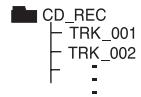 | 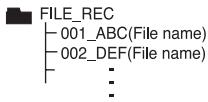 | 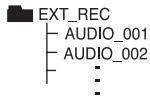 |
The making of unauthorized copies of copy-protected material, including computer programs, files, broadcasts and sound recordings, may be an infringement of copyrights and constitute a criminal offense. This equipment should not be used for such purposes.
Be responsible Respect copyrights
Language Codes
Use this list to input your desired language for the following initial settings: Disc Audio, Disc Subtitle, Disc Menu.
| Language | Code | Language | Code | Language | Code | Language | Code | Language | Code | Language | Code |
| Afar | 6565 | Croatian | 7282 | Hausa | 7265 | Lingala | 7678 | Quechua | 8185 | Tajik | 8471 |
| Afrikaans | 6570 | Czech | 6783 | Hebrew | 7387 | Lithuanian | 7684 | Rhaeto-Romance | 8277 | Tamil | 8465 |
| Albanian | 8381 | Danish | 6865 | Hindi | 7273 | Macedonian | 7775 | Rumanian | 8279 | Telugu | 8469 |
| Ameharic | 6577 | Dutch | 7876 | Hungarian | 7285 | Malagasy | 7771 | Russian | 8285 | Thai | 8472 |
| Arabic | 6582 | English | 6978 | Icelandic | 7383 | Malay | 7783 | Samoan | 8377 | Tonga | 8479 |
| Armenian | 7289 | Esperanto | 6979 | Indonesian | 7378 | Malayalam | 7776 | Sanskrit | 8365 | Turkish | 8482 |
| Assamese | 6583 | Estonian | 6984 | Interlingua | 7365 | Maori | 7773 | Scots Gaelic | 7168 | Turkmen | 8475 |
| Aymara | 6588 | Faroese | 7079 | Irish | 7165 | Marathi | 7782 | Serbian | 8382 | Twi | 8487 |
| Azerbaijani | 6590 | Fiji | 7074 | Italian | 7384 | Moldavian | 7779 | Serbo-Croatian | 8372 | Ukrainian | 8575 |
| Bashkir | 6665 | Finnish | 7073 | Japanese | 7465 | Mongolian | 7778 | Shona | 8378 | Urdu | 8582 |
| Basque | 6985 | French | 7082 | Kannada | 7578 | Nauru | 7865 | Sindhi | 8368 | Uzbek | 8590 |
| Bengali; Bangla | 6678 | Frisian | 7089 | Kashmiri | 7583 | Nepali | 7869 | Singhalese | 8373 | Vietnamese | 8673 |
| Bhutani | 6890 | Galician | 7176 | Kazakh | 7575 | Norwegian | 7879 | Slovak | 8375 | Volapük | 8679 |
| Bihari | 6672 | Georgian | 7565 | Kirghiz | 7589 | Oriya | 7982 | Slovenian | 8376 | Welsh | 6789 |
| Breton | 6682 | German | 6869 | Korean | 7579 | Panjabi | 8065 | Spanish | 6983 | Wolof | 8779 |
| Bulgarian | 6671 | Greek | 6976 | Kurdish | 7585 | Pashto, Pushto | 8083 | Sudanese | 8385 | Xhosa | 8872 |
| Burmese | 7789 | Greenlandic | 7576 | Laothian | 7679 | Persian | 7065 | Swahili | 8387 | Yiddish | 7473 |
| Byelorussian | 6669 | Guarani | 7178 | Latin | 7665 | Polish | 8076 | Swedish | 8386 | Yoruba | 8979 |
| Chinese | 9072 | Gujarati | 7185 | Latvian, Lettish | 7686 | Portuguese | 8084 | Tagalog | 8476 | Zulu | 9085 |
Area Codes
Choose a area code from this list.
| Area | Code | Area | Code | Area | Code | Area | Code | Area | Code | Area | Code |
| Afghanistan | AF | Costa Rica | CR | Greenland | GL | Maldives | MV | Paraguay | PY | Sri Lanka | LK |
| Argentina | AR | Croatia | HR | Hong Kong | HK | Mexico | MX | Philippines | PH | Sweden | SE |
| Australia | AU | Czech Republic | CZ | Hungary | HU | Monaco | MC | Poland | PL | Switzerland | CH |
| Austria | AT | Denmark | DK | India | IN | Mongolia | MN | Portugal | PT | Taiwan | TW |
| Belgium | BE | Ecuador | EC | Indonesia | ID | Morocco | MA | Romania | RO | Thailand | TH |
| Bhutan | BT | Egypt | EG | Israel | IL | Nepal | NP | Russian Federation | RU | Turkey | TR |
| Bolivia | BO | El Salvador | SV | Italy | IT | Netherlands | NL | Saudi Arabia | SA | Uganda | UG |
| Brazil | BR | Ethiopia | ET | Jamaica | JM | Netherlands Antilles | AN | Senegal | SN | Ukraine | uaw |
| Cambodia | KH | Fiji | FJ | Japan | JP | New Zealand | NZ | Singapore | SG | United States | US |
| Canada | CA | Finland | FI | Kenya | KE | Nigeria | NG | Slovak Republic | SK | Uruguay | UY |
| Chile | CL | France | FR | Kuwait | KW | Norway | NO | Slovenia | SI | Uzbekistan | UZ |
| China | CN | Germany | DE | Libya | LY | Oman | OM | South Africa | ZA | Vietnam | VN |
| Colombia | CO | Great Britain | GB | Luxembourg | LU | Pakistan | PK | South Korea | KR | Zimbabwe | ZW |
| Congo | CG | Greece | GR | Malaysia | MY | Panama | PA | Spain | ES |
Troubleshooting
| PROBLEM | CAUSE | CORRECTION |
| No power | The power cord is disconnected. | Plug the power cord into the wall outlet securely. |
| No picture | The TV is not set to receive the DVD signal. | Select the appropriate video input mode on the TV so the picture from the DVD Receiver appears on the TV screen. |
| The video cables are not connected securely. | Connect the video cables securely to both the TV and DVD Receiver. | |
| There is little or no sound | Equipment connected via the audio cable is not set to receive DVD signal output. | Select the correct input mode of the audio receiver so you can hear the sound from the DVD receiver. |
| The audio cables are not connected to the speakers or receiver securely. | Connect the audio cables into the connection terminals correctly. | |
| The audio cables are damaged. | Replace with a new audio cable. | |
| The DVD picture quality is poor | The disc is dirty. | Clean the disc using a soft cloth with outward strokes. |
| A DVD/CD will not play | No disc is inserted. | Insert a disc |
| An unplayable disc is inserted. | Insert a playable disc (check the disc type, colour system and regional code). | |
| The disc is inserted upside down. | Place the disc with the label or printed side facing upwards. | |
| The menu is open on screen. | Press SETUP to close the menu screen. | |
| There is a parental lock which prevents the playback of DVDs with a certain rating. | Enter your password or change the rating level. | |
| Humming noise heard while a DVD or CD is playing | The disc is dirty. | Clean the disc using a soft cloth with outward strokes. |
| The DVD receiver is located too close to the TV, causing feedback. | Move DVD receiver and audio components further away from your TV. | |
| Radio stations can't be tuned in properly | The antenna is positioned or connected poorly. | Check the antenna connection and adjust its position. |
| Attach an external aerial if necessary. | ||
| The signal strength of the radio station is too weak. | Tune to the station manually. | |
| No stations have been preset or preset stations have been cleared (when tuning by scanning preset channels). | Preset some radio stations, see page 14 for details. | |
| The remote control doesn't work well / at all | The remote is not pointed directly at the DVD receiver. | Point the remote directly at the unit. |
| The remote is too far from the DVD receiver. | Use the remote within 23 feet (7m) of the DVD receiver. | |
| There is an obstacle in the path between the remote control and the unit. | Remove the obstacle. | |
| The battery in the remote control are flat. | Replace the batteries with new ones. |
Types of Playable Discs
| Type | Logo |
| DVD-VIDEO: Discs such as movies that can be purchased or rented. |  |
| DVD-R: Video mode and finalized only |  |
| DVD-RW: Video mode and finalized only DVD VR format that have been finalized can not be played in this unit |  |
| DVD+R: Video mode only Supports the double layer disc also |  |
| DVD+RW: Video mode only |  |
| Audio CD: Music CDs or CD-R/ CD-RW in music CD format that can be purchased. |  |
| This unit plays DVD±R/ RW and CD-R/ RW that contains audio titles, DivX, MP3, WMA and/ or JPEG files. Some DVD±RW/ DVD±R or CD-RW/ CD-R cannot be played on this unit due to the recording quality or physical condition of the disc, or the characteristics of the recording device and authoring software. | |
"Dolby", "Pro Logic", and the double-D symbol are trademarks of Dolby Laboratories. Manufactured under license from Dolby Laboratories.
HDMI, the HDMI logo and High-Definition Multimedia Interface are trademarks or registered trademarks of HDMI licensing LLC.
About the Ⓧ Symbol Display
“ ⊗ ” may appear on your TV display during operation and indicates that the function explained in this owner’s manual is not available on that specific DVD video disc.
Regional Codes
This unit has a regional code printed on the rear of the unit. This unit can play only DVD discs labeled same as the rear of the unit or "ALL".
- Most DVD discs have a globe with one or more numbers in it clearly visible on the cover. This number must match your unit's regional code or the disc cannot play.
- If you try to play a DVD with a different regional code from your player, the message “Check Regional Code” appears on the TV screen.
Copyrights
It is forbidden by law to copy, broadcast, show, broadcast via cable, play in public, or rent copyrighted material without permission. This product features the copy protection function developed by Macrovision. Copy protection signals are recorded on some discs. When recording and playing the pictures of these discs picture noise will appear. This product incorporates copyright protection technology that is protected by U.S. patents and other intellectual property rights. Use of this copyright protection technology must be authorized by Macrovision, and is intended for home and other limited viewing uses only unless otherwise authorized by Macrovision. Reverse engineering or disassembly is prohibited.
CONSUMERS SHOULD NOTE THAT NOT ALL HIGH DEFINITION TELEVISION SETS ARE FULLY COMPATIBLE WITH THIS PRODUCT AND MAY CAUSE ARTIFACTS TO BE DISPLAYED IN THE PICTURE. IN CASE OF 525 OR 625 PROGRESSIVE SCAN PICTURE PROBLEMS, IT IS RECOMMENDED THAT THE USER SWITCH THE CONNECTION TO THE 'STANDARD DEFINITION' OUTPUT. IF THERE ARE QUESTIONS REGARDING OUR TV SET COMPATIBILITY WITH THIS MODEL 525p AND 625p UNIT, PLEASE CONTACT OUR CUSTOMER SERVICE CENTER.
You have to set the disc format option to [Mastered] in order to make the discs compatible with the LG players when formatting rewritable discs. When setting the option to Live File System, you cannot use it on LG players.
(Mastered/ Live File System : Disc format system for Windows Vista)
Specifications
General
| Power supply | 200-240 V, 50/60 Hz |
| Power consumption | 50 W |
| Net Weight | 2.5 kg |
| Bus power supply (USB) | DC 5 V = 0.5 A |
| External dimensions (W x H x D) | 360 x 62 x 305 mm |
| Operating conditions Temperature | 5 °C to 35 °C |
| Operation status: Horizontal | |
| Operating humidity | 5 % to 85 % |
| Laser | Semiconductor laser, wavelength 650 nm |
Tuner FM
| FM Tuning Range | 87.5 to 108.0 MHz |
| FM Intermediate Frequency | 128 kHz |
Amplifier
| Stereo mode | 45 W + 45 W (4 Ω at 1 kHz, THD 10 %) |
| Surround mode Front | 45 W + 45 W (THD 10 %) |
| Center* | 45 W |
| Surround* | 45 W + 45 W (4 Ω at 1 kHz THD 10 %) |
| Subwoofer* | 75 W (8 Ω at 30 Hz THD 10 %) |
Speakers
| Front/CenterSpeaker | Rearspeaker | PassiveSubwoofer | |
| Type | 1 Way 1 Speaker | 1 Way 1 Speaker | 1Way1Speaker |
| Impedance | 4 Ω | 4 Ω | 8 Ω |
| Rated Input Power | 45 W | 45 W | 75 W |
| Max. Input Power | 90 W | 90 W | 150 W |
| Net Dimensions (W x H x D) | 107 x 107 x 102 mm | 107 x 107 x 102 mm | 156 x 325 x 320 mm |
| Net Weight | 0.39 kg | 0.42 kg | 3.5 kg |
Designs and specifications are subject to change without prior notice.

LG
Technology with the human touch
GUARANTEE
● LG Electronics U.K. Ltd. will provide the following services in order to expedite this Guarantee.
- All faulty components which fail due to defective manufacture will be replaced free of charge for a period of 12 months from the original date of purchase.
- The dealer (or his service agent) who sold the product will be reimbursed for any labour provided in the repair of this LG equipment, for a period of 12 months from the original date of purchase. These claims must be made in accordance with the published scale of service charges and relevant claims procedure.
PLEASE NOTE:
A. The dealer may restrict the guarantee to the original purchaser.
B. The dealer is not obliged to carry out service under guarantee if unauthorized modifications are made to the apparatus, or if non standard components are used or if the serial number of the apparatus is removed, defaced, misused, or altered.
C. Any claims made under guarantee must be directed to the dealer from whom the equipment was originally purchased. The dealer may, before carrying out service under guarantee, require a receipted account as evidence of the date of purchase.
D. We respectfully point out that your dealer is not obligated to replace batteries if they become exhausted or worn in use.
E. Aerial alignment and consumer control adjustments are not covered by this guarantee.
This guarantee does not affect your statutory rights.
- REQUIREMENTS TO MAINTAIN WARRANTY COVERAGE: RETAIN YOUR RECEIPT TO PROVE DATE OF PURCHASE. A COPY OF YOUR RECEIPT MUST BE SURRENDERED AT THE TIME GUARANTEE SERVICE IS PROVED.
● Product Registration Card : It is helpful to complete at least your name, address, phone, model & serial numbers and return it. This will enable LG to assist you in the future should you lose your receipt, your units be stolen, or should modifications be necessary.
● To obtain information or assistance: Call 0870 873 5454 Monday-Friday 9.00am-4.30pm
| MODEL NO.* | SERIAL NO.* | DATE OF PURCHASE.* |
* Please complete for your own record
In all cases of difficulty - consult your LG dealer from whom the product was purchased
LGEUK Website : www.lge.co.uk
( service website : www.lgelectronics.co.uk )

LG
Life's Good

As an ENERGY STAR® Partner, LG has determined that this product or product models meet the ENERGY STAR® guidelines for energy efficiency.
ENERGY STAR ^® is a U.S. registered mark.