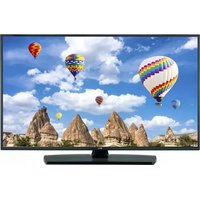
32LW4500 - Television LG - Free user manual and instructions
Find the device manual for free 32LW4500 LG in PDF.


User questions about 32LW4500 LG
0 question about this device. Answer the ones you know or ask your own.
Ask a new question about this device
Download the instructions for your Television in PDF format for free! Find your manual 32LW4500 - LG and take your electronic device back in hand. On this page are published all the documents necessary for the use of your device. 32LW4500 by LG.
USER MANUAL 32LW4500 LG
Please read this manual carefully before operating the set and retain it for future reference.
- Please read these safety precautions carefully before using the product.
- In this manual, the illustration may be somewhat different from your product because it is just example to help the instruction.

WARNING
- If you ignore the warning message, you may be seriously injured or there is a possibility of accident or death.

CAUTION
- If you ignore the caution message, you may be slightly injured or the product may be damaged.
PRECAUTION IN INSTALLING THE PRODUCT

WARNING
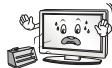
Keep away from heat sources like electrical heaters.
- Electrical shock, fire, malfunction or deformation may occur.

Do not use the product in damp place such as a bathroom or any place where it is likely to get wet.
- This may cause a fire or could give an electric shock.
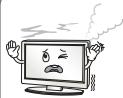
If you can smell smoke or other odours or hear a strange sound unplug the power cord and contact the service center.
- If you continue to use without taking proper measures, electrical shock or fire can occur.

CAUTION
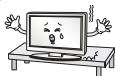
Install the product on a flat and stable place that has no risk of the product dropping.
- If the product is dropped, you may be injured or the product may be broken.
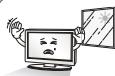
Keep the product away from direct sunlight.
- The product can be damaged.

Do not place the product in a built-in installation such as bookcase or rack.
- Ventilation required.
ELECTRICAL POWER RELATED PRECAUTIONS

WARNING
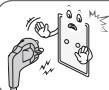
Make sure to connect the power cable to a properly earthed outlet.
- You may be electrocuted or injured.
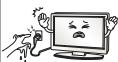
Do not touch the power plug with wet hands.
Additionally, it the cord pin is wet or covered with dust, dry the power plug completely or wipe dust off.
- You may be electrocuted due to excess moisture.
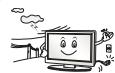
During a thunder or lightning storm, unplug the power cable or signal cable.
- You may be electrocuted or a fire can break out.

CAUTION
Protect the power cord from physical or mechanical abuse, such as being twisted, kinked, pinched, closed in a door, or walked upon. Pay particular attention to plugs, wall outlets, and the point where the cord exits the appliance.
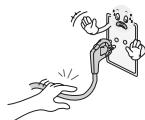
As long as this unit is connected to the AC wall outlet, it is not disconnected from the AC power source even if you turn off this unit by SWITCH.
PRECAUTIONS WHEN MOVING THE PRODUCT

WARNING
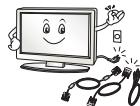
Make sure to turn off the product. Make sure to remove all cables before moving the product.
- You may be electrocuted or the product can be damaged.

CAUTION
Do not impact the product when moving it.
- You may be electrocuted or the product can be damaged.
Make the panel face forward and hold it with both hands to move.
- If you drop the product, the damaged product can cause electric shock or fire. Contact your nearest service center for repair.
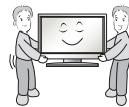
PRECAUTIONS WHEN USING THE PRODUCT

WARNING
Do not disassemble, repair or modify the product at your own discretion.
- Fire or electric shock accident can occur.
- Contact the service center for check, calibration or repair.
To reduce the risk of fire or electric shock, do not expose this apparatus to rain or moisture.
Apparatus shall not be exposed to dripping or splashing and no objects filled with liquids, such as vases, shall be placed on the apparatus.
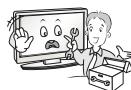
Refer all servicing to qualified service personnel. Servicing is required when the apparatus has been damaged in any way, such as power supply cord or plug is damaged, liquid has been spilled or objects have fallen into the apparatus, the apparatus has been exposed to rain or moisture, does not operate normally, or has been dropped.
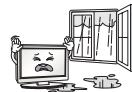
IMPORTANT INFORMATION TO PREVENT "IMAGE BURN / BURN-IN" ON YOUR TELEVISION SCREEN
- When a fixed image (e.g. logos, screen menus, video game, computer display or teletext pages) is displayed on the television for an extended period it can become permanently imprinted on the screen. This phenomenon is known as “image burn” or “burn-in”. Image burn is not covered under the manufacturer’s warranty.
- In order to prevent image burn, avoid displaying a fixed image on your television's screen for a prolonged period (2 or more hours for LCD, 1 or more hours for Plasma).
- Image burn can also occur on the letterboxed areas of your television if you use the 4:3 aspect ratio setting for an extended period.
ASSEMBLING AND PREPARING
Unpacking
Check your product box for the following items. If there are any missing accessories, contact the local dealer where you purchased your product.
The illustrations in this manual may differ from the actual product and item.
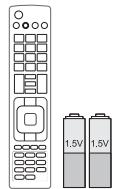
Remote control and batteries(AAA)
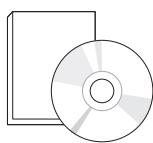
Owner's manual
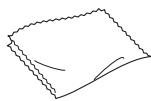
Polishing cloth1 (This item is not included for all models.)
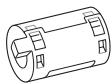
Ferrite core (Depending on model) (This item is not included for all models.)
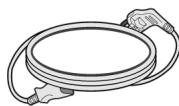
Power Cord(This item is not included for all models.)
1 Gently wipe the spots on the cabinet with the polishing cloth.
Only 22LK33**
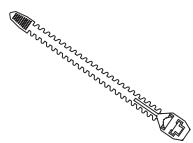
Cable Holder
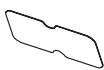
Protection cover
Only 26/32LK33**, 32/42LK43**, 42/47/55LK53**, 32/37/42LK45**
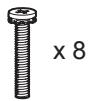
(M4x20)
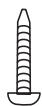
(Except for 47/55LK53**)
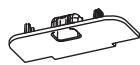
Screw for assembly
Screw for fixing
Protection cover
Only 19/22/26LV25**, 22/26LV55**

(M4x16)
Screw for assembly

natural_image
Illustration of two types of mechanical tools or tools, one with a spring-like handle and the other with a flat blade (no text or symbols)Cable holder
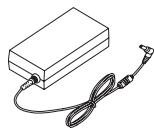
DC Adapter
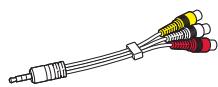
Composite gender cable
Only 32LV25**, 32/37/42/47/LV35**, 22/26/32LV30**, 32/42LV34**, 32/42/47/55LW45**

M4 x 14
(Only 32LV25**)
Screw for assembly

M4 x 12
(Except for 32LV25**)
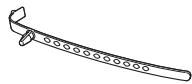
Cable holder

(Only 32LV25**,
32/37LV35**,
32LV30**, 32LV34**)
Screw for fixing
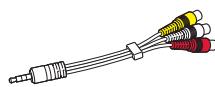
Composite gender cable
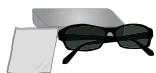
(Only 32/42/47/55LW45**)
3D Glasses
(AG-P110, AG-F110)

CAUTION
- Do not use any pirated items to ensure the safety and product life span.
- Any damages or injuries by using pirated items are not covered by the warranty.

NOTE
- The items supplied with your product may vary depending on the model.
- Product specifications or contents of this manual may be changed without prior notice due to upgrade of product functions.
• Image shown may differ from your TV. - How to use the ferrite core (Depending on model)
1 Use the ferrite core to reduce the electromagnetic interference in the PC audio cable. Wind the PC audio cable on the ferrite core thrice. Place the ferrite core close to the TV.
[to an External device]

text_image
10 mm(+ / - 5 mm)[Figure 1]
[to the TV]

[Cross Section of Ferrite Core]
2 Use the ferrite core to reduce the electromagnetic interference in the power cable. Wind the power cable on the ferrite core once. Place the ferrite core close to the TV.
[to a wall plug]
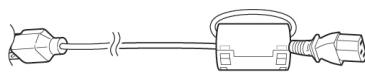
[Figure 2]
[to the TV]

[Cross Section of Ferrite Core]
3 Use the ferrite core to reduce the electromagnetic interference in the power cable. Wind the power cable on the ferrite core once. Place the ferrite core close to the TV and a wall plug.
[to a wall plug]

[Figure 3]
[to the TV]

[Cross Section of Ferrite Core]
- If there is one ferrite core, follow as shown in Figure 1.
- If there are two ferrite cores, follow as shown in Figures 1 and 2.
- If there are three ferrite cores, follow as shown in Figures 1 and 3.
- For an optimal connection, HDMI cables and USB devices should have bezels less than 10 mm thick and 18 mm width.(Except for 22/26/32LK33**, 32/42LK43**, 42/47/55LK53**)
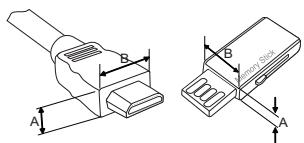
Separate purchase items can be changed or modified for quality improvement without any notification.
Contact your dealer for buying these items.
These devices only work with compatible LG LED LCD TV or LCD TV.
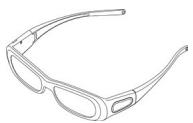
3D Glasses
(AG-S230, AG-S250, AG-S270 :
Only 3D Models)
Parts and buttons

NOTE
- TV can be placed in standby mode in order to reduce the power consumption. And TV should be turned off if it will not be watched for some time, as this will reduce energy consumption.
- The energy consumed during use can be significantly reduced if the level of brightness of the picture is reduced, and this will reduce the overall running cost.

CAUTION
- Do not step on the glass stand or subject it to any impact. It may break, causing possible injury from fragments of glass, or the TV may fall.
- Do not drag the TV. The floor or the product may be damaged.
• Image shown may differ from your TV.
Only 22LK33**
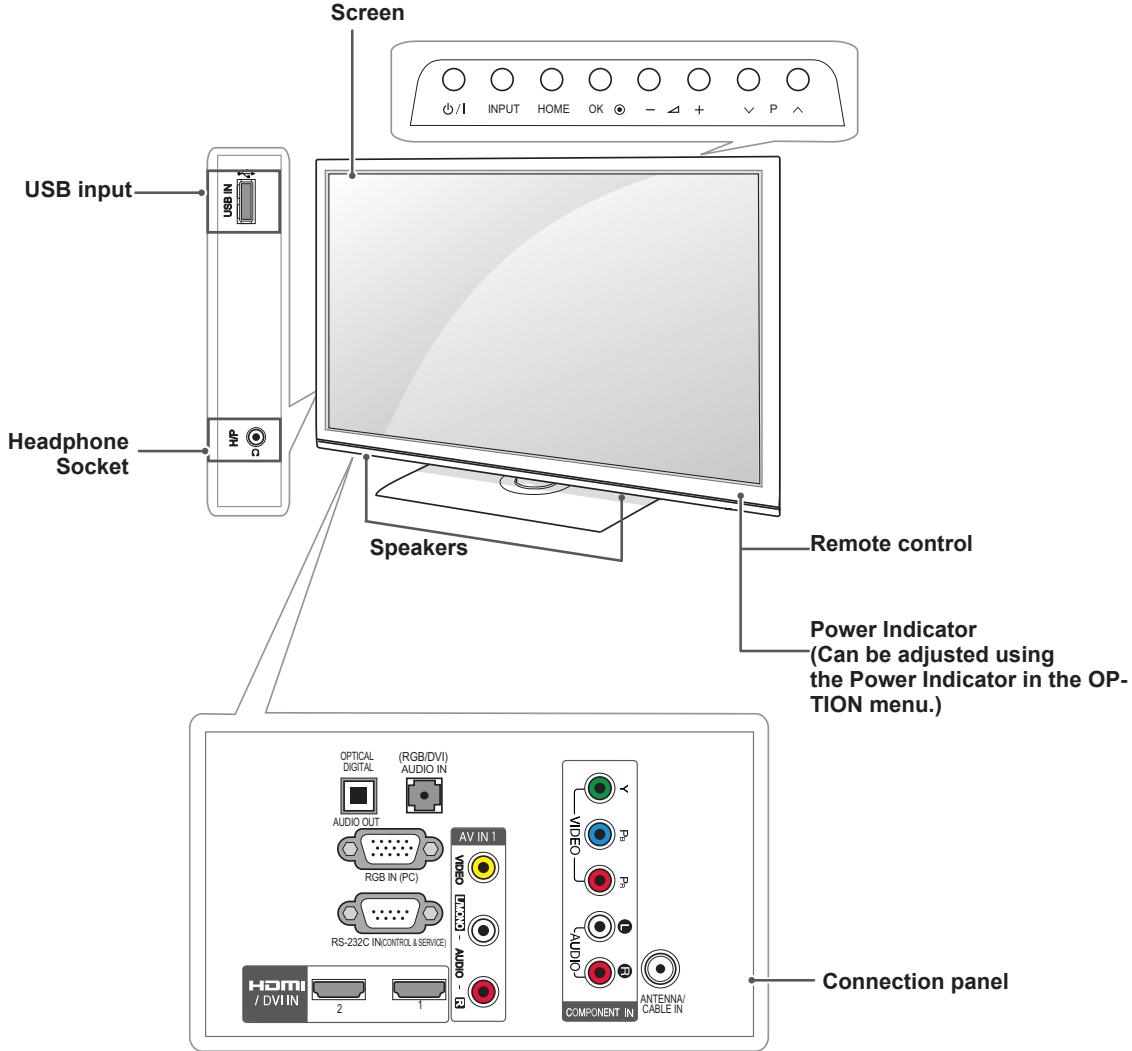
text_image
Screen USB input HP Headphone Socket Speakers Remote control Power Indicator (Can be adjusted using the Power Indicator in the OP- TION menu.) Connection panel OPTICAL DIGITAL (RGB/DVI) AUDIO IN AUDIO OUT RGB IN (PC) AV IN 1 RS-232C IN(CONTROL & SERVICE) HOMI / DVI IN 2 1 VIDEO C: - RADIO - COMPONENT IN VIDEO AUDIO ANTENNA/CABLE IN| Button | Description |
| ∅/I | Turns the power on or off |
| INPUT | Changes the input source |
| HOME | Accesses the main menus, or saves your input and exits the menus |
| OK ∅ | Selects the highlighted menu option or confirms an input |
| - + | Adjusts the volume level |
| v P | Scrolls through the saved programmes |
• Image shown may differ from your TV.
Only 26/32LK33**, 32/42LK43**
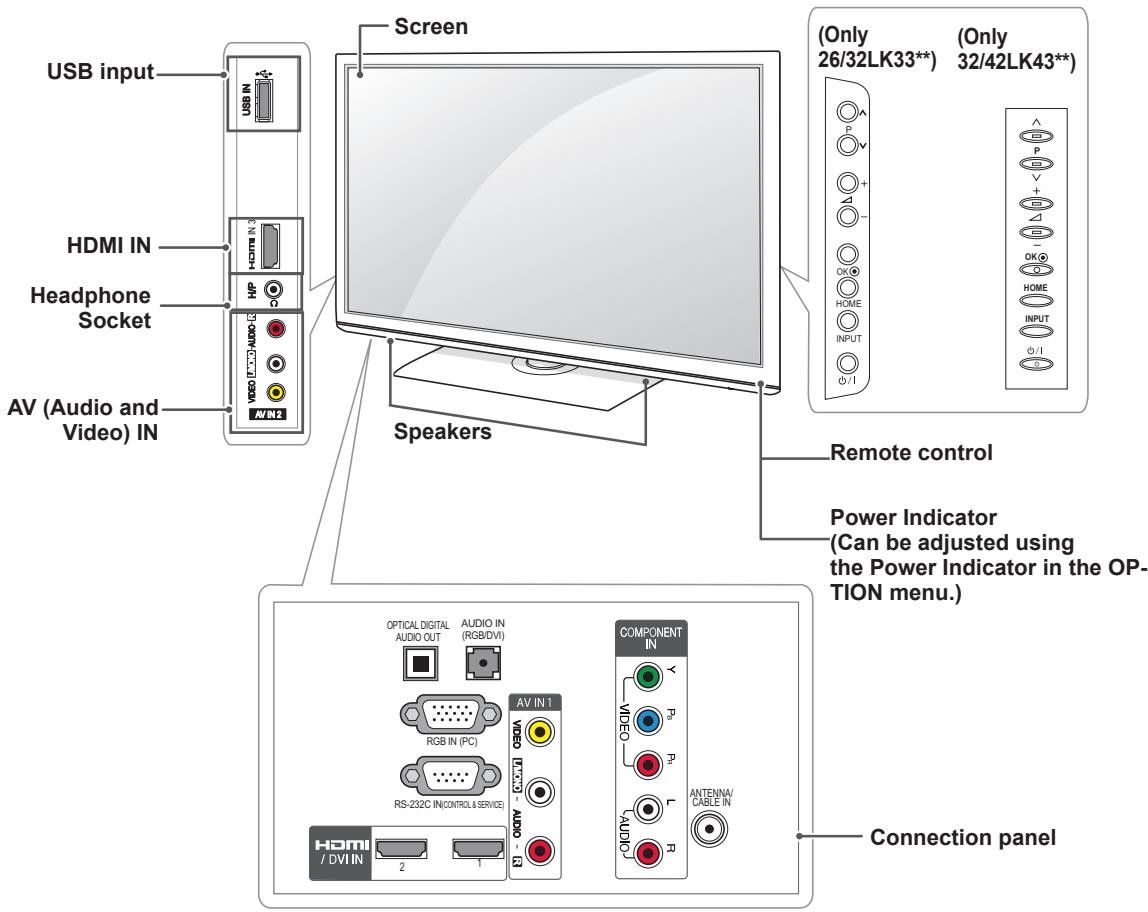
text_image
USB input HDMI IN Headphone Socket AV (Audio and Video) IN Screen Speakers (Only 26/32LK33**) (Only 32/42LK43**) Remote control Power Indicator (Can be adjusted using the Power Indicator in the OP-TION menu.) Connection panel COMPONENT IN AV IN 1 RS-232C IN(CONTROL & SERVICE) AUDIO VIDEO AUDIO/CABLE IN OPTICAL DIGITAL AUDIO OUT RGB IN (PC) AV IN 1 HDMI / DVI IN 2 1| Button | Description |
| ∅/I | Turns the power on or off |
| INPUT | Changes the input source |
| HOME | Accesses the main menus, or saves your input and exits the menus |
| OK Ⓞ | Selects the highlighted menu option or confirms an input |
| - + | Adjusts the volume level |
| v P | Scrolls through the saved programmes |
• Image shown may differ from your TV.
Only 42/47/55LK53**
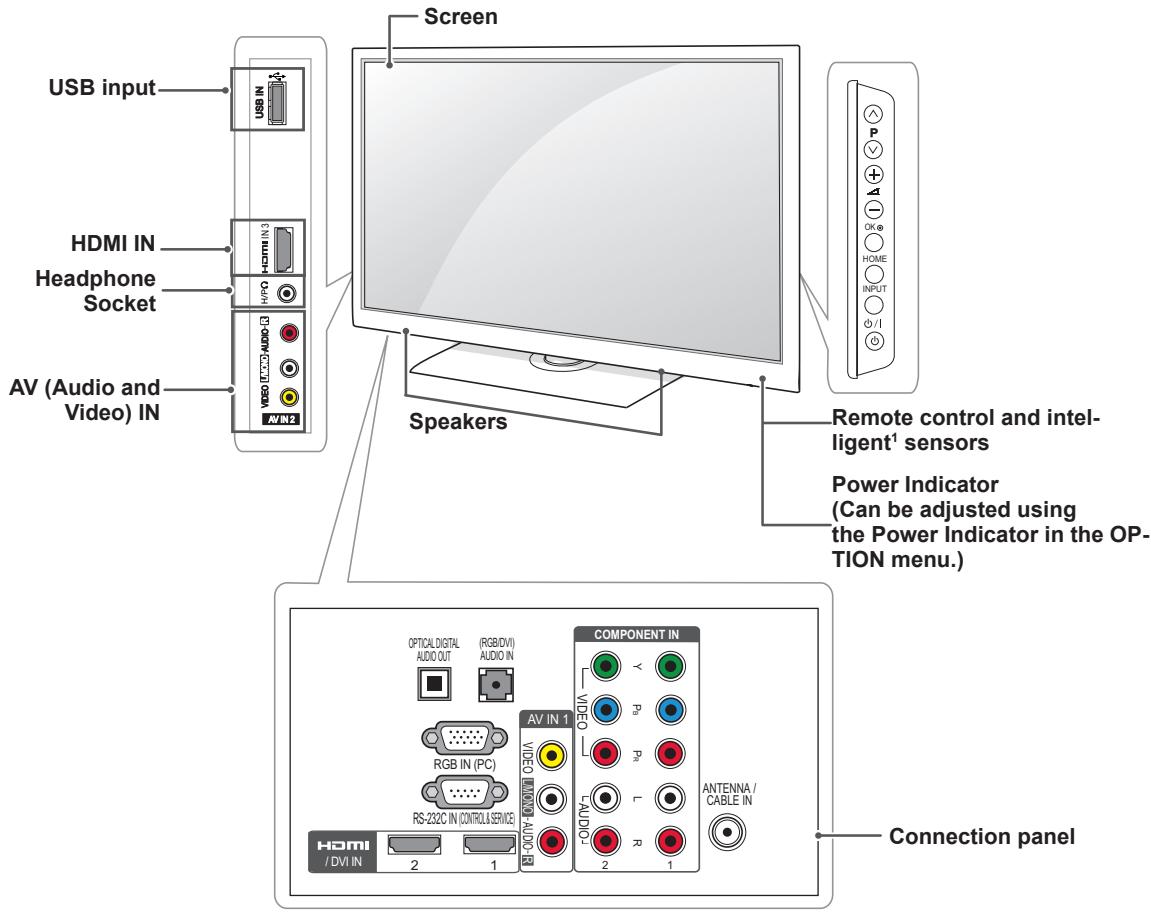
text_image
USB input HDMI IN Headphone Socket AV (Audio and Video) IN Screen Speakers Remote control and intelligent¹ sensors Power Indicator (Can be adjusted using the Power Indicator in the OP-TION menu.) COMPONENT IN AV IN 1 VIDEO (VDD) AUDIO-R AUDIO 2 1 2 1 ANTENNA / CABLE IN Connection panel OPTICAL DIGITAL AUDIO OUT (RGB/DVI) AUDIO IN RGB IN (PC) RS-232C IN (CONTROL & SERVICE) HDMI / DVI IN| Button | Description |
| ∅/I | Turns the power on or off |
| INPUT | Changes the input source |
| HOME | Accesses the main menus, or saves your input and exits the menus |
| OK ∅ | Selects the highlighted menu option or confirms an input |
| - + | Adjusts the volume level |
| v P | Scrolls through the saved programmes |
1 Intelligent sensor - Adjusts the image quality corresponding to the surrounding environment.
• Image shown may differ from your TV.
Only 32/37/42LK45**
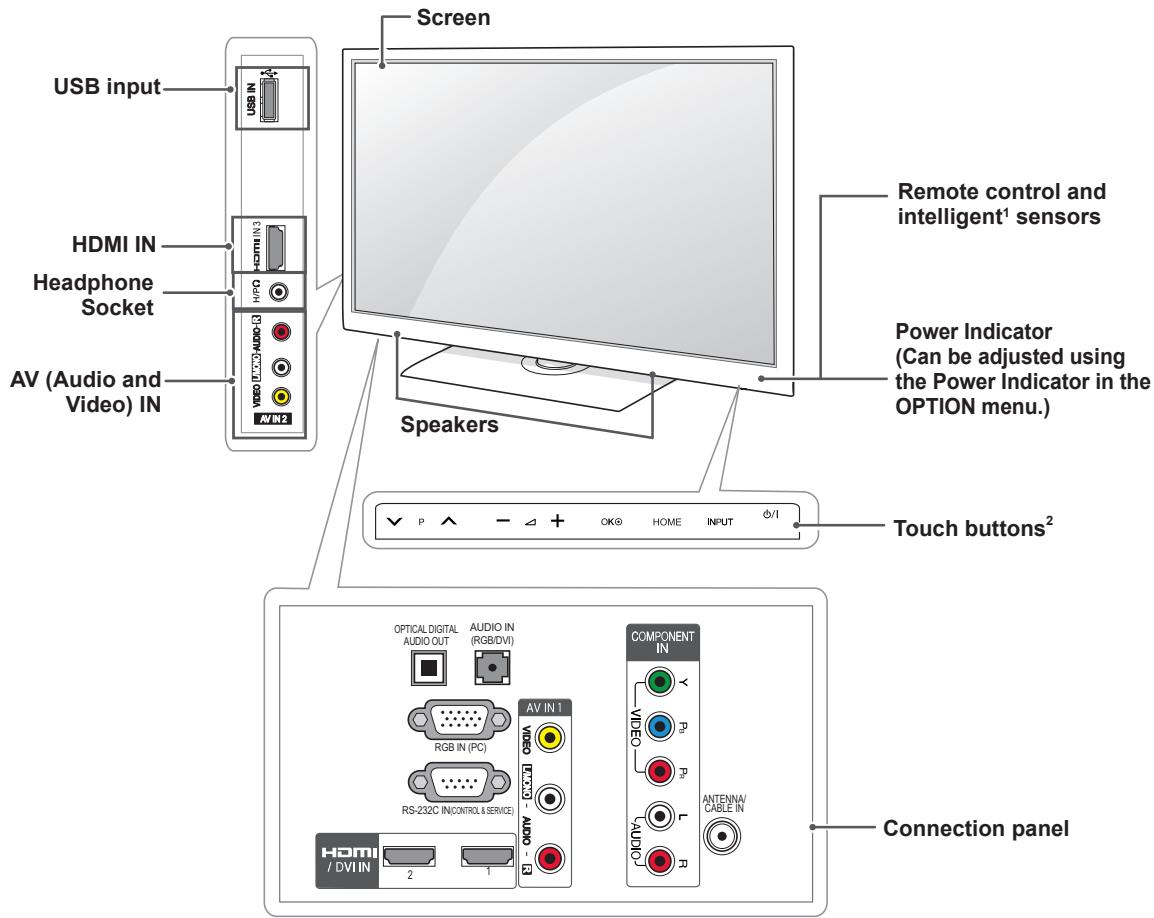
text_image
Screen USB input HDMI IN Headphone Socket AV (Audio and Video) IN Remote control and intelligent¹ sensors Power Indicator (Can be adjusted using the Power Indicator in the OPTION menu.) Speakers Touch buttons² OPTICAL DIGITAL AUDIO OUT AUDIO IN (RGB/DVI) COMPONENT IN VIDEO AV IN 1 RS-232C IN(CONTROLSERVICE) AUTONIA/CABLE IN Connection panel HDMI / DVI IN 2 1| Button | Description |
| ∅/I | Turns the power on or off |
| INPUT | Changes the input source |
| HOME | Accesses the main menus, or saves your input and exits the menus |
| OK ∅ | Selects the highlighted menu option or confirms an input |
| - + | Adjusts the volume level |
| v P | Scrolls through the saved programmes |
1 Intelligent sensor - Adjusts the image quality corresponding to the surrounding environment.
2 Touch Button - You can use the desired button function by touching.
• Image shown may differ from your TV.
Only 19/22/26LV25**
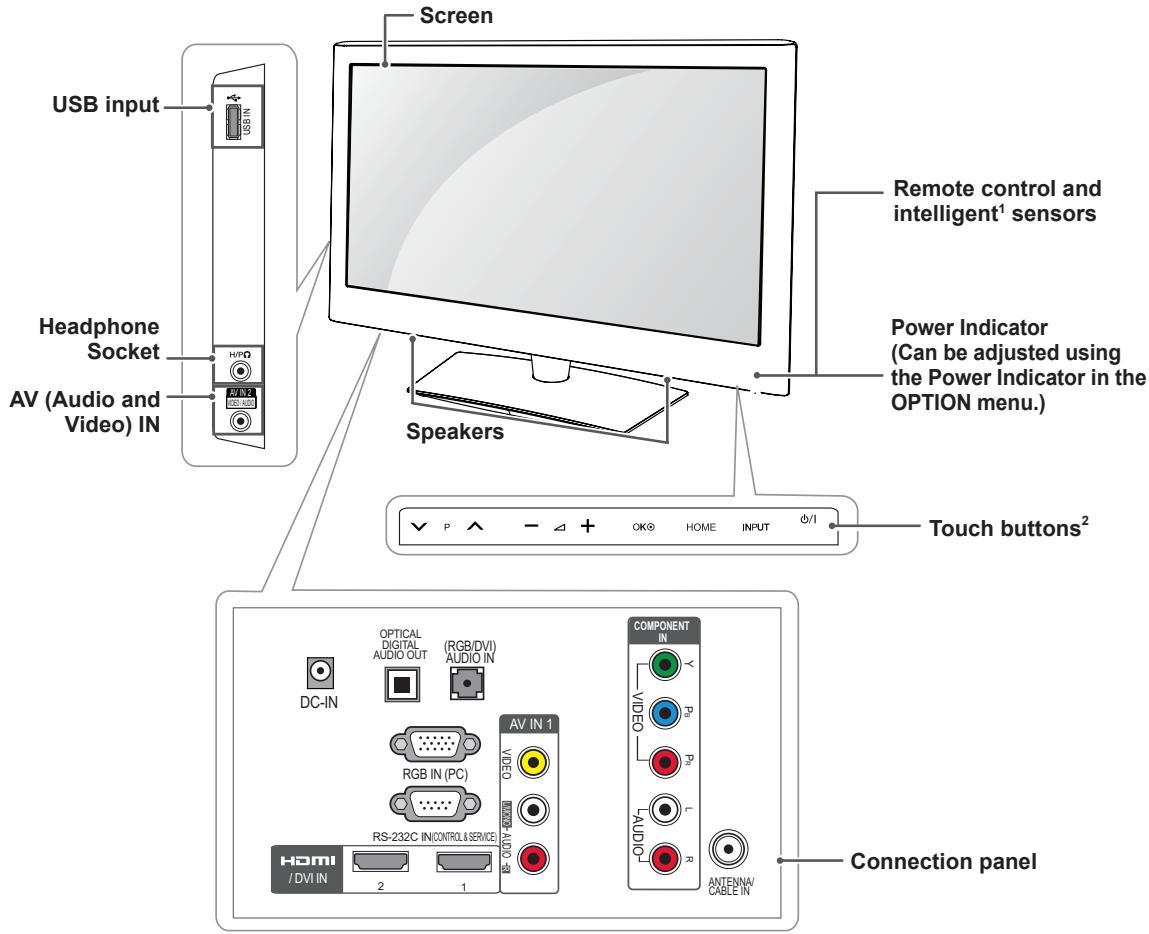
text_image
Screen USB input Headphone Socket AV (Audio and Video) IN Remote control and intelligent¹ sensors Power Indicator (Can be adjusted using the Power Indicator in the OPTION menu.) Speakers Touch buttons² DC-IN OPTICAL DIGITAL AUDIO OUT (RGB/DVI) AUDIO IN RGB IN (PC) AV IN 1 RS-232C IN/CONTROL & SERVICE HDMI /DVI IN 2 1 COMPONENT IN VIDEO AUDIO ANTENNA/CABLE IN Connection panel| Button | Description |
| v P ∧ | Scrolls through the saved programmes |
| - ∠ + | Adjusts the volume level |
| OK ⊙ | Selects the highlighted menu option or confirms an input |
| HOME | Accesses the main menus, or saves your input and exits the menus |
| INPUT | Changes the input source |
| ∅/I | Turns the power on or off |
1 Intelligent sensor - Adjusts the image quality corresponding to the surrounding environment.
2 Touch Button - You can use the desired button function by touching.
• Image shown may differ from your TV.
Only 32LV25**, 32/37/42/47LV35**, 22/26/32LV30**, 32/42LV34**, 32/42/47/55LW45**
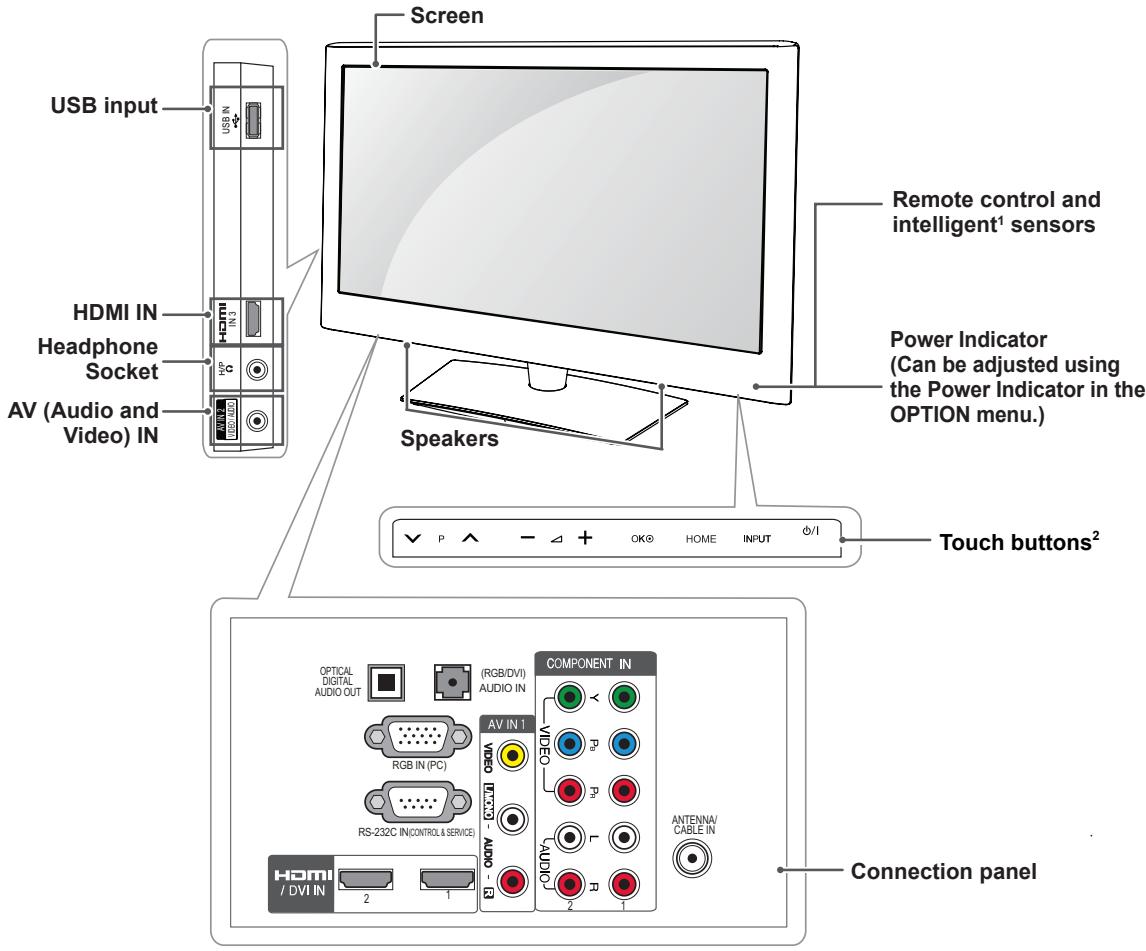
text_image
Screen USB input HDMI IN Headphone Socket AV (Audio and Video) IN Remote control and intelligent¹ sensors Power Indicator (Can be adjusted using the Power Indicator in the OPTION menu.) Speakers Touch buttons² COMPONENT IN AUDIO IN AV IN 1 VIDEO RS-232C IN(CONTROL & SERVICE) AUDIO ANTENNA/CABLE IN OPTIONAL DIGITAL AUDIO OUT OPTICAL DIGITAL AUDIO OUT RGB IN (PC) AV IN 1 HDMI / DVI IN 2 1 2 1 2 1 2 3 4 5 6 7 8 9 10 11 12 13 14 15 16 17 18 19 20 21 22 23 24 25 26 27 28 29 30 31 32 33 34 35 36 37 38 39 40 41 42 43 44 45 46 47 48 49 50 51 52 53 54 55 56 57 58 59 60 61 62 63 64 65 66 67 68 69 70 71 72 73 74 75 76 77 78 79 80| Button | Description |
| v P ∧ | Scrolls through the saved programmes |
| - ∠ + | Adjusts the volume level |
| OK ⊙ | Selects the highlighted menu option or confirms an input |
| HOME | Accesses the main menus, or saves your input and exits the menus |
| INPUT | Changes the input source |
| ∅/I | Turns the power on or off |
1 Intelligent sensor - Adjusts the image quality corresponding to the surrounding environment.
2 Touch Button - You can use the desired button function by touching.
• Image shown may differ from your TV.
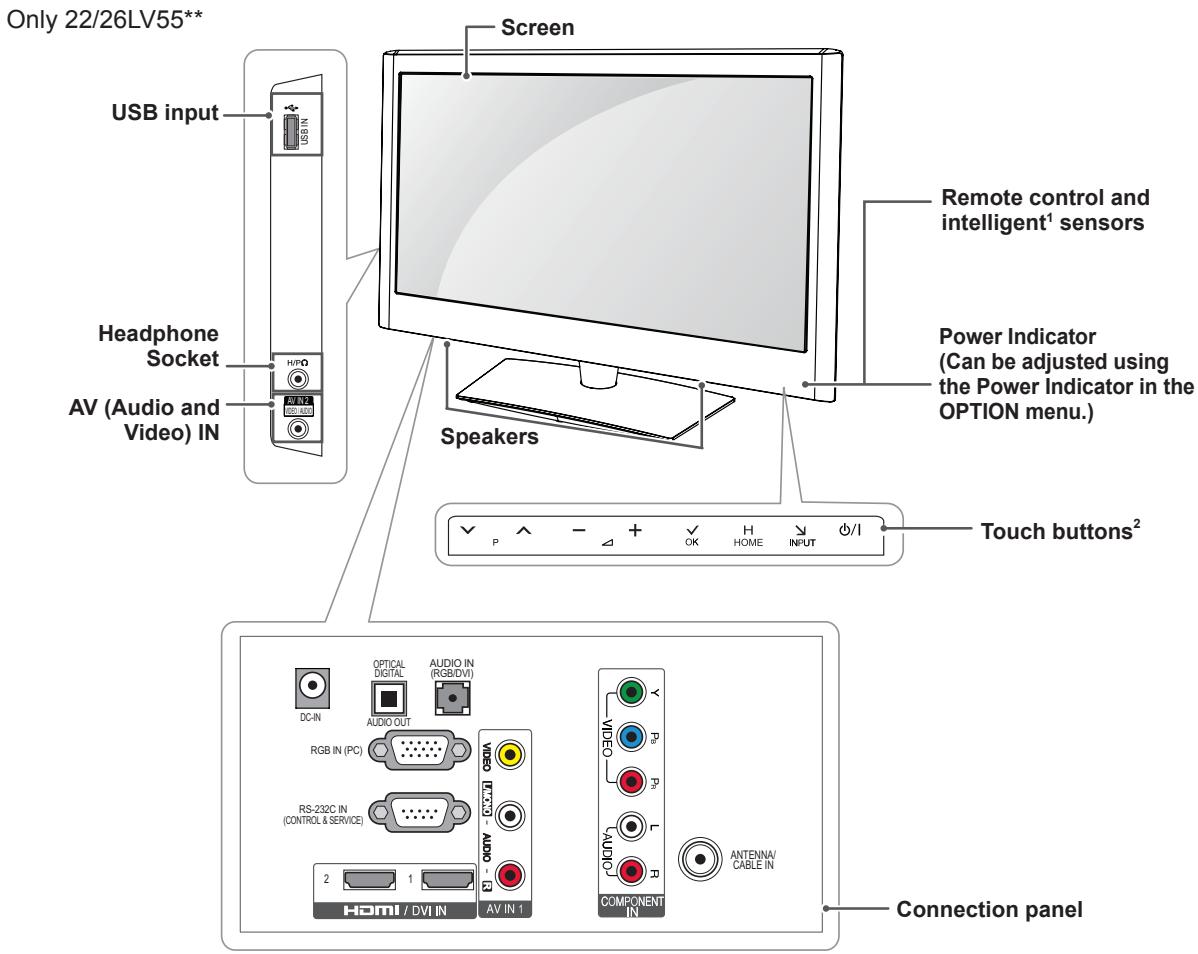
text_image
Only 22/26LV55** USB input Headphone Socket AV (Audio and Video) IN Screen Remote control and intelligent¹ sensors Power Indicator (Can be adjusted using the Power Indicator in the OPTION menu.) Speakers Touch buttons² DC-IN OPTICAL DIGITAL AUDIO IN (RGB/DVI) AUDIO OUT RGB IN (PC) RS-232C IN (CONTROL & SERVICE) AV IN 1 COMPONENT IN 2 1 HOMI / DVI IN ANTENNA/CABLE IN Connection panel| Button | Description |
| _P | Scrolls through the saved programmes |
| - + | Adjusts the volume level |
| _OK | Selects the highlighted menu option or confirms an input |
| H_HOME | Accesses the main menus, or saves your input and exits the menus |
| _INPUT | Changes the input source |
| /I | Turns the power on or off |
1 Intelligent sensor - Adjusts the image quality corresponding to the surrounding environment.
2 Touch Button - You can use the desired button function by touching.
Additional information
Viewing the owner's manual
The owner's manual in PDF file format is supplied on the enclosed CD. Install the Adobe Acrobat Reader to view the owner's manual on your PC.
1 Insert the supplied CD.
The web page appears automatically.
2 Click Owner's Manual on the web page.
3 View the owner's manual.

NOTE
If the web page does not appear automatically, access My computer and then click LG and index.htm to view the owner's manual.
Lifting and moving the TV
When moving or lifting the TV, read the following to prevent the TV from being scratched or damaged and for safe transportation regardless of its type and size.

CAUTION
- Avoid touching the screen at all times, as this may result in damage on the screen or some of the pixels used to create images.
- It is recommended to move the TV in the box or packing material that the TV originally came in.
- Before moving or lifting the TV, disconnect the power cord and all cables.
- When holding the TV, the screen should face away from you to avoid damage.
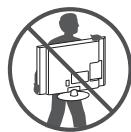
- Hold the top and bottom of the TV frame firmly. Make sure not to hold the transparent part, speaker, or speaker grill area.
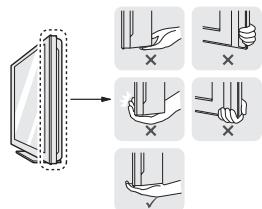
text_image
Diagram illustrating a hand gesture with labeled X symbols and directional arrows, showing correct and incorrect states of the object.- When transporting a large TV, there should be at least 2 people.
- When transporting the TV by hand, hold the TV as shown in the following illustration.
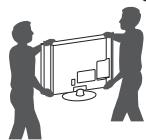
- When transporting the TV, do not expose the TV to jolts or excessive vibration.
- When transporting the TV, keep the TV upright, never turn the TV on its side or tilt towards the left or right.
Setting up the TV
- Image shown may differ from your TV. Put your TV on a pedestal stand and mount the TV on a table or wall.
Attaching the stand
Only 22LK33**
1 Lay the TV with the screen side down on a flat surface.

CAUTION
- Lay a foam mat or soft protective cloth on the surface to protect the screen from damage.
2 Assemble the TV as shown.
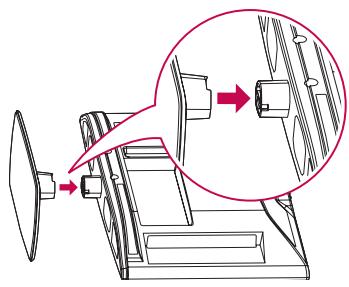
text_image
Technical diagram showing a mechanical component with an arrow indicating direction and magnified detail view
CAUTION
- Tighten the screws firmly to prevent the TV from tilting forward. Do not over tighten.
Only 26/32LK33**, 32/42LK43**, 42/47/55LK53**
1 Lay the TV with the screen side down on a flat surface.

CAUTION
- Lay a foam mat or soft protective cloth on the surface to protect the screen from damage.
2 Assemble the parts of the Stand Body with the Stand Base of the TV.
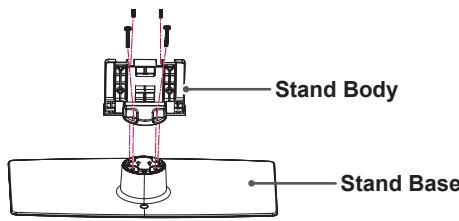
text_image
Stand Body Stand Base3 Secure the TV and the stand with the 4 screws.
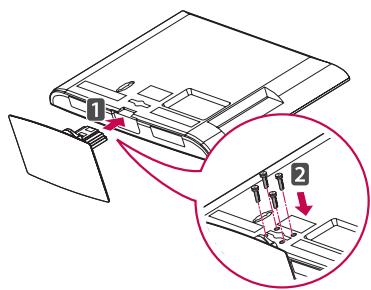
text_image
Diagram showing a device with labeled parts and a magnified view of the component being inserted into a housing.
CAUTION
- Tighten the screws firmly to prevent the TV from tilting forward. Do not over tighten.
Only 32/37/42LK45**
1 Lay the TV with the screen side down on a flat surface.

CAUTION
- Lay a foam mat or soft protective cloth on the surface to protect the screen from damage.
2 Assemble the parts of the Stand Body with the Stand Base of the TV.
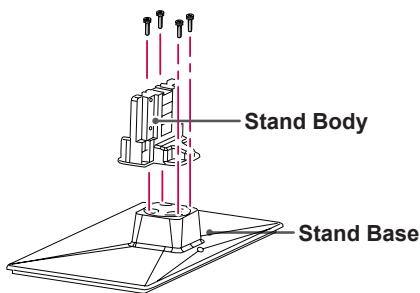
text_image
Stand Body Stand Base3 Secure the TV and the stand with the 4 screws.
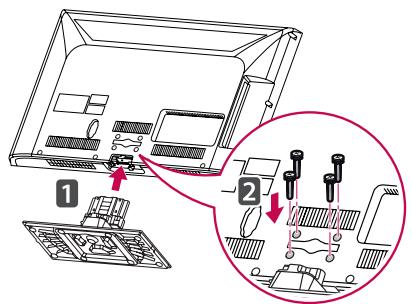
text_image
Diagram showing a device with labeled components and a magnified view of internal parts, likely illustrating a mechanical or electronic assembly.
CAUTION
- Tighten the screws firmly to prevent the TV from tilting forward. Do not over tighten.
Only 19/22/26LV25**, 22/26LV55**
1 Lay the TV with the screen side down on a flat surface.

CAUTION
- Lay a foam mat or soft protective cloth on the surface to protect the screen from damage.
2 Assemble the parts of the Stand Body with the Stand Base of the TV.
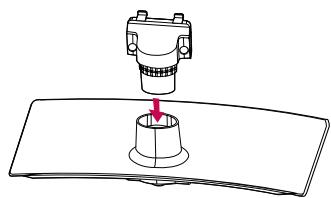
natural_image
Diagram of a mechanical component with a red arrow pointing to a cylindrical part (no text or symbols present)3 Secure the TV and the stand with the 2 screws.
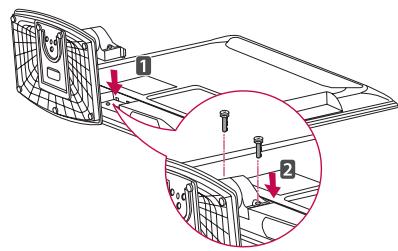
text_image
Technical diagram showing a car interior with labeled parts and red arrows indicating features, likely illustrating a mechanical or electrical assembly.
CAUTION
- Tighten the screws firmly to prevent the TV from tilting forward. Do not over tighten.
Only 32LV25**
1 Lay the TV with the screen side down on a flat surface.

CAUTION
- Lay a foam mat or soft protective cloth on the surface to protect the screen from damage.
2 Assemble the parts of the Stand Body with the Stand Base of the TV.
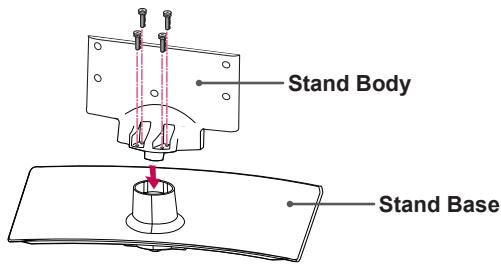
text_image
Stand Body Stand Base3 Secure the TV and the stand with the 4 screws.
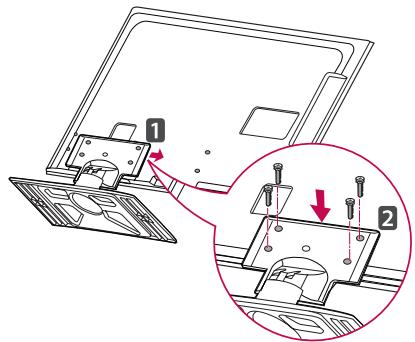
text_image
Diagram showing a device with labeled parts and a magnified inset highlighting two components with arrows.
CAUTION
- Tighten the screws firmly to prevent the TV from tilting forward. Do not over tighten.
Only 32/37/42/47LV35**, 22/26/32LV30**, 32/42LV34**, 32/42/47/55LW45**
1 Lay the TV with the screen side down on a flat surface.

CAUTION
- Lay a foam mat or soft protective cloth on the surface to protect the screen from damage.
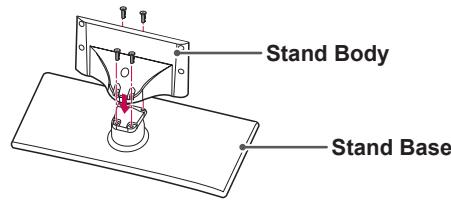
2 Assemble the parts of the Stand Body with the Stand Base of the TV.
text_image
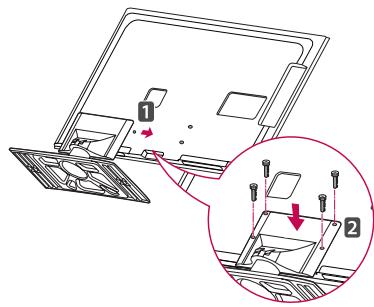
Stand Body Stand Base3 Secure the TV and the stand with the 4 screws.
text_image
Diagram showing a device with labeled parts and a magnified inset highlighting a component detail with arrows.
CAUTION
- Tighten the screws firmly to prevent the TV from tilting forward. Do not over tighten.
Not using the Desk Type Stand
• Image shown may differ from your TV.
Only 26/32LK33**, 32/42LK43**, 32/37/42LK45**, 42/47/55LK53**
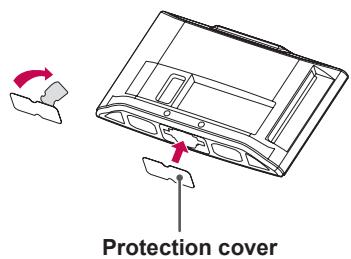
1 Push the supplied protection cover into the opening at the bottom of the TV until clicking sound.
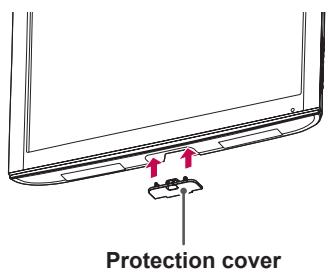
text_image
Protection coverOnly 22LK33**
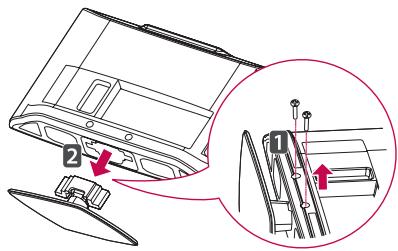
1 Lay the TV with the screen side down on a flat surface.
2 Remove the 2 screws and pull the stand away from the TV.
text_image
Technical diagram showing a mechanical assembly with labeled parts and an inset magnified view highlighting component 1.3 Push the supplied protection cover into the opening at the bottom of the TV until it locks in place.
This will protect the opening from accumulating dust and dirt.
text_image
Protection coverMounting on a table
• Image shown may differ from your TV.
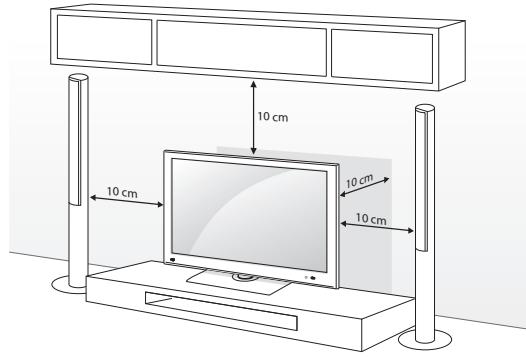
1 Lift and tilt the TV into its upright position on a table.
- Leave a 10 cm (minimum) space from the wall for proper ventilation.
text_image
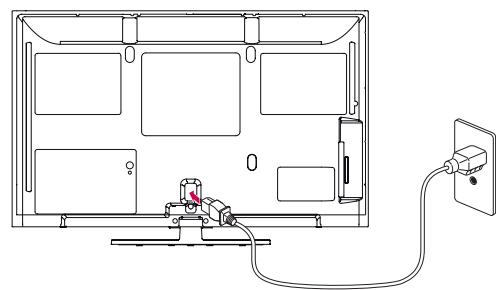
10 cm 10 cm 10 cm 10 cm2 Connect the power cord to a wall outlet.
natural_image
Line drawing of a flat-screen TV with cable and power outlet, no text or symbols present
CAUTION
- Do not place the TV near or on sources of heat, as this may result in fire or other damage.

NOTE
(Except for 22LK33**, 19/22/26LV25**, 22/26LV55**)
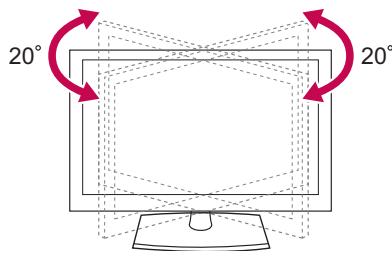
Swivel 20 degrees to the left or right and adjust the angle of the TV to suit your view.
text_image
20° 20°Securing the TV to a table
• Image shown may differ from your TV.
- This feature is not available for all models.
Only 26/32LK33**, 32/42LK43**,
42LK53**, 32/37/42LK45**, 32LV25**, 32/37LV35**, 32LV30**, 32LV34*)
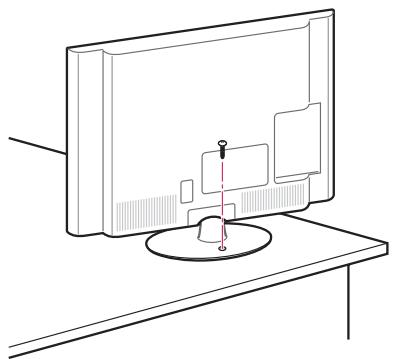
Fix the TV to a table to prevent from tilting forward, damage, and potential injury.
Mount the TV on a table, and then insert and tighten the supplied screw on the rear of the stand.
natural_image
Line drawing of a monitor mounted on a stand with a pointer and base (no text or symbols)
WARNING
- To prevent TV from falling over, the TV should be securely attached to the floor/wall per installation instructions. Tipping, shaking, or rocking the TV may cause injury.
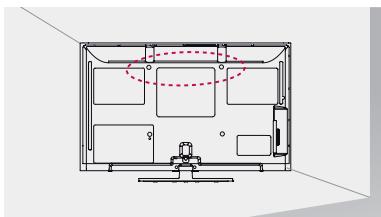
Securing the TV to a wall
• Image shown may differ from your TV.
- This feature is not available for all models.
natural_image
Architectural floor plan sketch showing room layout and furniture placement (no text or labels)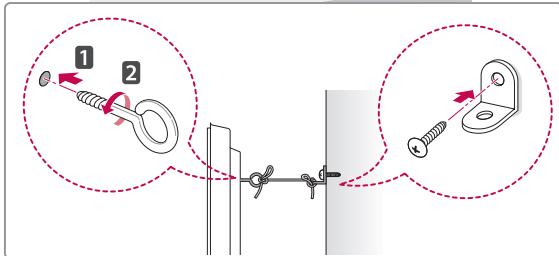
text_image
Diagram illustrating two methods of securing a knot using spring, with numbered instructions and magnified views.1 Insert and tighten the eye-bolts, or TV brackets and bolts on the back of the TV.
- If there are bolts inserted at the eye-bolts position, remove the bolts first.
2 Mount the wall brackets with the bolts to the wall.
Match the location of the wall bracket and the eye-bolts on the rear of the TV.
3 Connect the eye-bolts and wall brackets tightly with a sturdy rope.
Make sure to keep the rope horizontal with the flat surface.

CAUTION
- Make sure that children do not climb on or hang on the TV.

NOTE
- Use a platform or cabinet that is strong and large enough to support the TV securely.
Using the Kensington security system
• Image shown may differ from your TV.
- This feature is not available for all models.
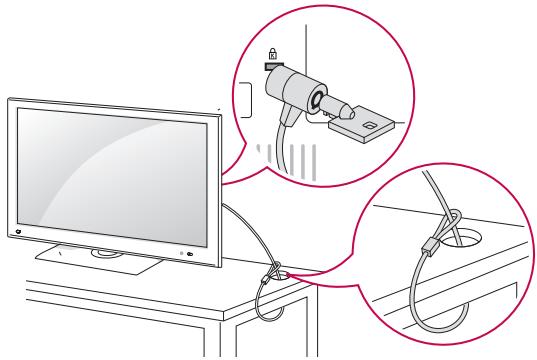
The Kensington security system connector is located at the rear of the TV. For more information of installation and using, refer to the manual provided with the Kensington security system or visit http://www.kensington.com.
Connect the Kensington security system cable between the TV and a table.
natural_image
Illustration of a monitor connected to a cable with two magnified insets showing a cable being inserted into a device (no text or symbols present)Mounting on a wall
Attach a wall mount bracket at the rear of the TV carefully and install the wall mount bracket on a solid wall perpendicular to the floor. When you attach the TV to other building materials, please contact qualified personnel.
LG recommends that wall mounting be performed by a qualified professional installer.
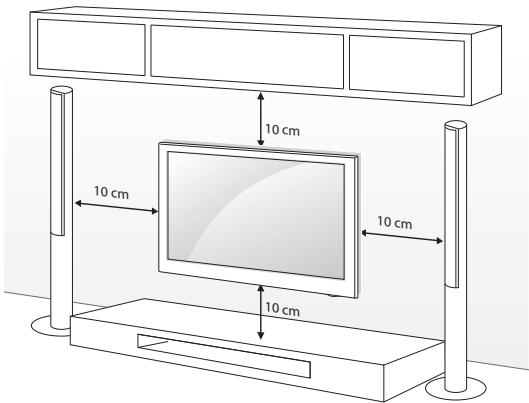
text_image
10 cm 10 cm 10 cm 10 cmSeparate purchase(Wall Mounting Bracket)
Make sure to use screws and wall mount bracket that meet the VESA standard. Standard dimensions for the wall mount kits are described in the following table.
| Model | 22LK33**19/22/26LV25**22/26LV55**22/26LV30** | 26/32LK33**32LK43**32LK45**32LV25**32LV35**32LV30**32LV34**32LW45** |
| VESA (A x B) | 100 x 100 | 200 x 100 |
| Standard screw | M4 | M4 |
| Number of screws | 4 | 4 |
| Wall mount bracket | LSW100B, LSW100BG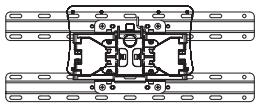 | |
| Model | 42LK43**37/42LK45**42/47LK53**37LV35** | 42/47LV35**42LV34**42/47/55LW45**55LK53** |
| VESA (A x B) | 200 x 200 | 400 x 400 |
| Standard screw | M6 | M6 |
| Number of screws | 4 | 4 |
| Wall mount bracket | LSW200B, LSW200BG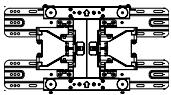 | LSW400B, LSW400BG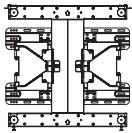 |

CAUTION
- Disconnect the power first, and then move or install the TV. Otherwise electric shock may occur.
- If you install the TV on a ceiling or slanted wall, it may fall and result in severe injury. Use an authorized LG wall mount bracket and contact the local dealer or qualified personnel.
- Do not over tighten the screws as this may cause damage to the TV and void your warranty.
- Use the screws and wall mount bracket that meet the VESA standard. Any damages or injuries by misuse or using an improper accessory are not covered by the warranty.

NOTE
- Use the screws that are listed on the VESA standard screw specifications.
- The wall mount kit includes an installation manual and necessary parts.
- The length of screws may differ depending on the wall mount. Make sure to use the proper length.
- For more information, refer to the manual supplied with the wall mount bracket.
Tidying cables
• Image shown may differ from your TV.
Only 22LK33**, 19/22/26/32LV25**, 22/26LV55**
1 After connecting the cables as necessary, install Cable Holder as shown and bundle the cables.
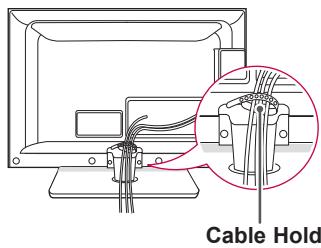
text_image
Cable HoldOnly 32/37/42/47LV35**, 22/26/32LV30**, 32/42LV34**
1 After connecting the cables as necessary, install Cable Holder as shown and bundle the cables.
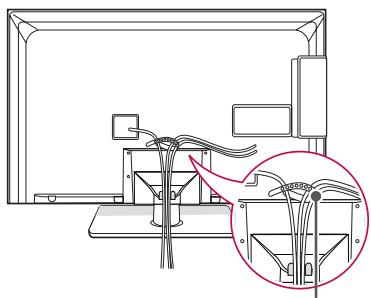
natural_image
Technical line drawing of a mechanical assembly with a magnified inset showing internal components (no text or symbols)Cable holder
Only 26/32LK33**, 32/42LK43**, 32/37/42LK45**, 42/47/55LK53**
1 Gather and bind the cables with the cable management clip.
2 Fix the cable management clip firmly to the TV.
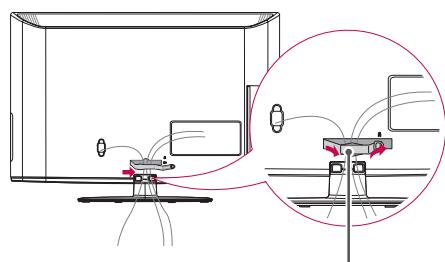
natural_image
Diagram showing a monitor setup with a close-up of its viewing screen and a magnified view of the device (no text or symbols present)Cable Management Clip
NOTE
- Do not move the TV by holding the cable management clip, as the cable management clip may break, and injuries and damage to the TV may occur.
Only 32/42/47/55LW45**
- Secure the power cord with the Cable Holder on the TV back cover. It will help prevent the power cable from being removed by accident.
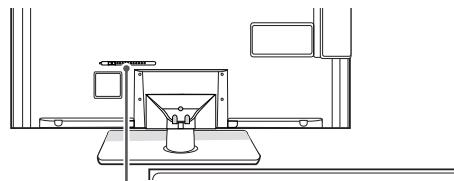
natural_image
Technical line drawing of a mechanical testing setup with no visible text or symbolsCable Holder
- After connecting the cables as necessary, install Cable Holder as shown and bundle the cables.
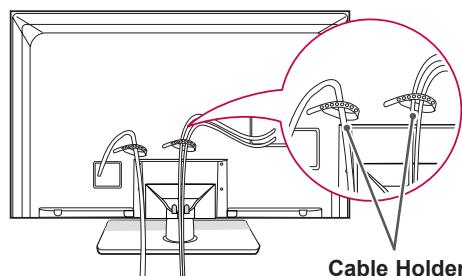
text_image
Cable HolderPositioning your display
• Image shown may differ from your TV.
Only 22LK33**
Adjust the position of the panel in various ways for maximum comfort.
- Tilt range
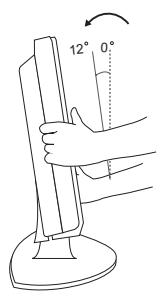
text_image
12° 0°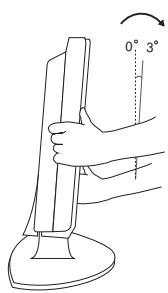
text_image
0° 3°Connection of TV
• Image shown may differ from your TV.
Only 19/22/26LV25**, 22/26LV55**
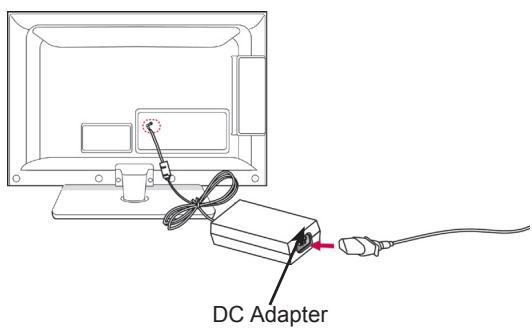
text_image
DC Adapter1 Connect the antenna cable to the antenna input port on the TV.
2 Connect the DC adapter plug to the power input jack on the TV.
3 Connect the power cord to the DC adapter first, then plug the power cord into the wall power outlet.
REMOTE CONTROL
The descriptions in this manual are based on the buttons on the remote control. Please read this manual carefully and use the TV correctly.
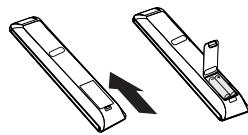
To replace batteries, open the battery cover, replace batteries (1.5 V AAA) matching and ends to the label inside the compartment, and close the battery cover. Be sure to point the remote control toward the remote control sensor on the TV.
natural_image
Two technical line drawings of a rectangular device with a handle and base, showing a transformation or assembly process (no text or symbols present)To remove the batteries, perform the installation actions in reverse.

CAUTION
- Do not mix old and new batteries, as this may damage the remote control.
• Image shown may differ from your TV.
- In Analogue TV and in some countries, some remote control keys may not work.
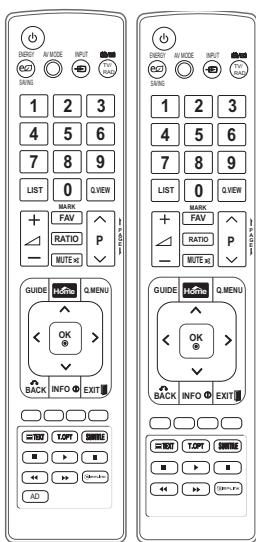
| (POWER) | Turns the TV on or off. |
| ENERGY SAVING | Adjusts the brightness of the screen to reduce energy consumption |
| AV MODE | Selects an AV mode. |
| INPUT | Changes the input source; Turns the TV on. |
| TV/RAD | Selects Radio, TV and DTV programme. |
| Number buttons | Enters numbers. |
| LIST | Accesses the saved programme list. |
| Q.VIEW | Returns to the previously viewed programme. |
| + - | Adjusts the volume level. |
| MARK | Selects a menu or option. |
| FAV | Accesses your favourite programme list |
| RATIO | Resizes an image. |
| 3D (Only 3D Models) | Used for viewing 3D video. |
| MUTE | Mutes all sounds. |
| P | Scrolls through the saved programmes. |
| PAGE | Moves to the previous or next screen. |
| GUIDE | Shows programme guide. |
| HOME | Accesses the main menus, or saves your input and exit the menus. |
| Q. MENU | Accesses the quick menus |
| 3D OPTION (Only 3D Models) | Uses for viewing 3D video. |
| Navigation buttons(up/down/left/right) | Scrolls through menus or options. |
| OK | Selects menus or options and confirms your input. |
| BACK | Returns to the previous level. |
| INFO | Views the information of the current programme the screen. |
| EXIT | Clears all on-screen displays and return to TV viewing. |
| Coloured buttons | These buttons are used for teletext (on TELETEXT models only),Programme edit. |
| TELETEXT BUTTONS | These buttons are used for teletext.For further details, see the ‘Teletext’ section. |
| SUBTITLE | Recalls your preferred subtitle in digital mode. |
| Control buttons(■, ▶, II, ◀, ▶) | Controls the MY MEDIA menus, or the SIMPLINK compatible devices (USB,SIMPLINK). |
| SIMPLINK | Accesses the AV devices connected to the TV;Opens the SIMPLINK menu. |
| AD(Only 22/26LV55**) | Switches the Audio Description On or Off. |
WATCHING TV
Connecting an antenna
Connect an antenna to watch TV while referring to the following.
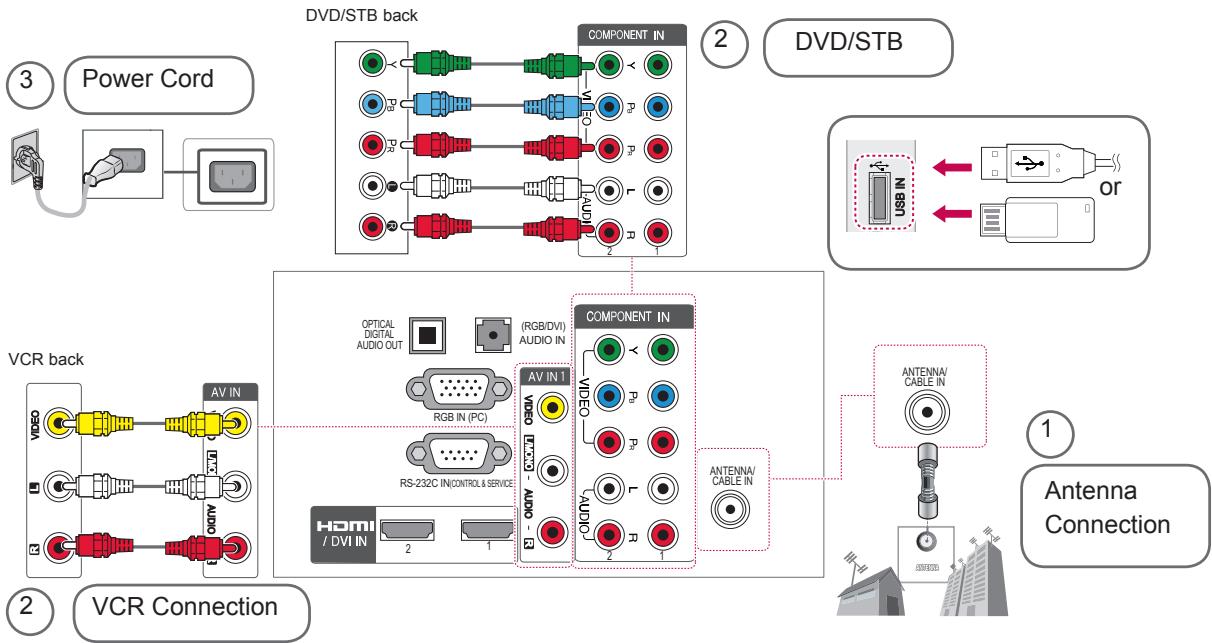
To prevent damage do not connect to the mains outlet until all connections are made between the devices.
Connect the TV to a wall antenna socket with an RF cable (75 ).

NOTE
- Use a signal splitter to use more than 2 TVs.
- If the image quality is poor, install a signal amplifier properly to improve the image quality.
- If the image quality is poor with an antenna connected, aim the antenna to the correct direction.
- An antenna cable and converter are not supplied.
Turning the TV on for the first time
When you turn the TV on for the first time, the Initial setting screen appears. Select a language and customize the basic settings.
1 Connect the power cord to a power outlet.
2 In Standby mode, press ⏻ (POWER) to turn the TV on.
The Initial setting screen appears if you turn the TV on for the first time.

NOTE
- You can also access Factory Reset by accessing OPTION in the main menus.
3 Follow the on-screen instructions to customize your TV settings according to your preferences.
| Language | Selects a language to display. (Except for Australia, New Zealand, Singapore, South Africa), |
| Mode Setting | Selects Home Use for the Home environment. |
| Power Indicator | Sets the power indicator. (When you select Home Use from the Mode Setting - only LED LCD TV) |
| Country | Selects a country to display. (Only Australia, New Zealand) |
| Time Zone | Selects a Time Zone to display.(Only Australia) |
| Auto Tuning | Scans and saves available channels automatically. |

NOTE
- DTV mode control buttons may not function based on country broadcasting circumstances. (Only DTV)
- In country that Digital broadcasting regulation isn't fixed, some DTV function may not work depending on digital broadcasting circumstances. (Only DTV)
4 When the basic settings are complete, press OK.

NOTE
- If you do not complete the Initial setting, it will appear whenever the TV turns on.
- Disconnect the power cord from the power outlet when you do not use the TV for a long period of time.
5 To turn the TV off, press ⏻ (POWER) .
MAKING CONNECTIONS
Connect various external devices to the TV and switch input modes to select an external device. For more information on external device's connection, refer to the manual provided with each device.
Available external devices are: HD receivers, DVD players, VCRs, audio systems, USB storage devices, PC, gaming devices, and other external devices.

NOTE
- The external device connection may differ from the model.
- Connect external devices to the TV regardless of the order of the TV port.
Connecting your Unit
• Image shown may differ from your TV
- To connect an additional equipment, see the External equipment Setup section in CD Manual.
flowchart
graph TD
    A["Power Cord"] --> B["DVD/STB back"]
    B --> C["COMPONENT IN"]
    C --> D["USB/STB"]
    D --> E["USB IN"]
    E --> F["or"]
    G["VCR back"] --> H["AV IN"]
    H --> I["OPTICAL DIGITAL AUDIO OUT"]
    I --> J["RGB IN (PC)"]
    J --> K["RS-232C IN/CONTROL & SERVICE"]
    K --> L["AV IN"]
    L --> M["VIDEO / LTV-DI - AUDIO - I"]
    M --> N["HDMI / DVI IN 2 1"]
    O["VCR Connection"] --> P["ANTenna/CABLE IN"]
    P --> Q["Antenna Connection"]
    style A fill:#f9f,stroke:#333
    style G fill:#f9f,stroke:#333
    style O fill:#f9f,stroke:#333
3D IMAGING
(Only 32/42/47/55LW45**)
3D Technology
This TV can display in 3D via 3D broadcasting or when the TV is connected to a compatible device, such as a Blu-ray 3D Player. You need such a device to watch the TV in 3D. The 3D TV displays two separate pictures formatted for each eye. The viewer needs to wear 3D glasses in order to see these images in 3D format.

WARNING
- When watching 3D images, you should maintain a distance of at least twice the screen width, and you should also be able to see all of the screen at eye level. Furthermore, the 3D imaging may not display if it is viewed while you are lying down.
- If you watch the 3D imaging too closely or for a long period of time, it may harm your eyesight.
- Watching the TV or playing video games that incorporate 3D imaging with the 3D glasses for a long period of time can cause drowsiness, headaches or fatigue to you and/or your eyes. If you have a headache, or otherwise feel fatigued or drowsy, stop watching the TV and have a rest.
- Pregnant woman, seniors, persons with heart problems or persons who experience frequent drowsiness should refrain from watching 3D TV.
- Some 3D imaging may cause you to duck or dodge the image displayed in the video. Therefore, it is best if you do not watch 3D TV near fragile objects or near any objects that can be knocked over easily.
- Please prevent children under the age of 5 from watching 3D TV. It may affect their vision development.
- Warning for photosensitization seizure: Some viewers may experience a seizure or epilepsy when exposed to certain factors, including flashing lights or images in TV or video games. If you or anybody
from your family has a history of epilepsy or seizure, please consult with your doctor before watching 3D TV.
Also certain symptoms can occur in unspecified conditions without any previous history. If you experience any of the following symptoms, immediately stop watching the 3D imaging and consult a doctor: dizziness or light-headedness, visual transition or altered vision, visual or facial instability, such as eye or muscle twitching, unconscious action, convulsion, loss of conscience, confusion or disorientation, loss of directional sense, cramps, or nausea. Parents should monitor their children, including teenagers, for these symptoms as they may be more sensitive to the effects of watching 3D TV.
- Risk of photosensitization seizure can be reduced with the following actions.
» Take frequent breaks from watching 3D TV.
» For those who have vision that is different in each eye, they should watch the TV after taking vision correction measures.
» Watch the TV so that your eyes are on the same level as the 3D screen and refrain from sitting too closely to the TV.
» Do not watch the 3D imaging when tired or sick, and avoid watching the 3D imaging for a long period of time.
» Do not wear the 3D glasses for any other purpose than viewing 3D imaging on a 3D TV.
» Some viewers may feel disoriented after watching 3D TV. Therefore, after you watch 3D TV, take a moment to regain awareness of your situation before moving.

NOTE
- To watch the TV in 3D, you must put on your 3D glasses. For best results, you should wear LG Brand 3D glasses. The 3D imaging may not display properly when using another brand of 3D glasses. Please see the 3D glasses manual for instructions on how to use the 3D glasses.
• After powering on the TV, a few seconds may be needed for your TV to calibrate. - It may take a moment for you to see the 3D imaging if you look away from the TV and then revert your eyes back to the 3D program.
- If there is an obstacle between the TV and the 3D glasses, the 3D imaging may not display properly.
- Do not use the TV in close proximity to other electronic equipments and RF equipments.
- In Analogue TV, 3D Imaging does not work.
- When watching 2D images, it is recommended to take off the 3D glasses. If you watch 2D images with the 3D glasses on, you may see distorted images.
When Using 3D Glasses

CAUTION
- 3D glasses are sold separately. Refer to the 3D glasses manual for operating instructions.
- Do not use the 3D glasses to replace your corrective glasses, sunglasses or protective goggles.
- Do not store the 3D glasses in hot or cold locations.
- Do not drop objects onto the 3D glasses. Do not drop or bend the glasses.
- Since the lenses of the 3D glasses are easily scratched, make sure to clean only with a soft cloth. Shake off any dust before using the cloth since the glasses are easily scratched.
Watching 3D images
• Image shown may differ from your TV.
View 3D mode for 3D images
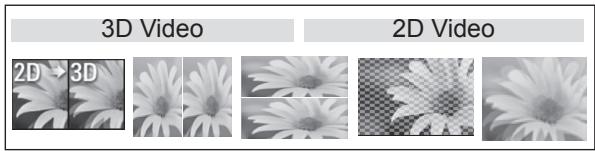
1 Play the 3D video or select 3D channel. (2D to 3D mode is available with all contents)
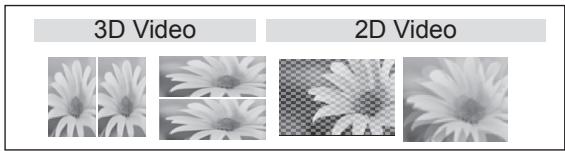
2 Press 3D and select same type in your displayed picture on the screen.
(Select type on "3D Video" tab)
text_image
3D Video 2D 3D 2D 2D Video* Notice : Turn on the 3D mode automatically for HDMI input playing the 3D blueray titles.
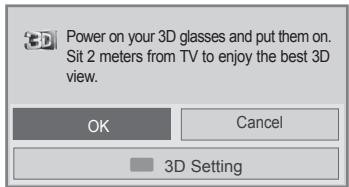
3 Press OK on displayed information window.
text_image
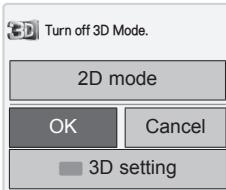
Power on your 3D glasses and put them on. Sit 2 meters from TV to enjoy the best 3D view. OK Cancel 3D Setting4 To turn off the 3D mode, press 3D and select OK.
text_image
3D Turn off 3D Mode. 2D mode OK Cancel 3D settingView 2D mode for 3D images
1 Play the 3D video or select 3D channel.
2 Press 3D and select same type in your displayed picture on the screen. (Select type on "2D Video" tab)
text_image
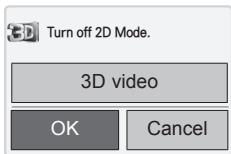
3D Video 2D Video3 To turn off the 2D mode, press 3D and select OK.
text_image
3D Turn off 2D Mode. 3D video OK CancelUsing 3D quick menu option
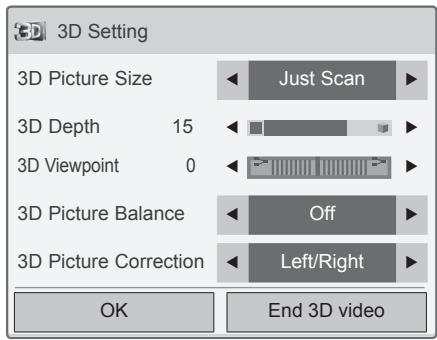
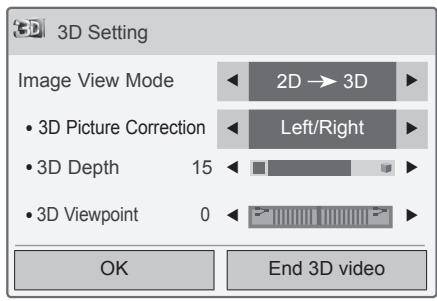
1 Press 3D SETTING. 2 Use the following options while viewing 3D imaging.
text_image
3D Setting 3D Picture Size Just Scan 3D Depth 15 3D Viewpoint 0 3D Picture Balance Off 3D Picture Correction Left/Right OK End 3D videoor
text_image
3D Setting Image View Mode • 3D Picture Correction • 3D Depth 15 • 3D Viewpoint 0 2D → 3D Left/Right OK End 3D video(Depending on model)
| Button | Description |
| 3D Picture Size | Cuts off the outer edges of the picture and stretch it to fit the full screen in 3D mode. |
| 3D Depth | Adjusts the distance between the object and the background in the picture to enhance the 3D effect in 2D to 3D mode. |
| 3D Viewpoint | Brings the picture (including both the object and background images) to the front or back to enhance the 3D effect in 3D mode. |
| 3D Picture Balance | Adjusts the colour and brightness difference between the right and left sides of the picture in 3D mode. |
| 3D Picture Correction | Changes the order of images in the right and left sides of the picture in 3D mode. |
| Image View Mode | Select 2D → 3D or 3D → 2D. |

CAUTION
- Some menus may not work while watching the TV in 3D.
- If used 3D effect on the 2D source, 3D may not work.
- The 3D imaging mode is disabled automatically when switching DTV channel is, input source.
- The screen may not be displayed properly if you view 2D DTV images in 3D imaging mode.
- 3D effect can be seen when 3D Mode is selected appropriately for the 3D input signal supplied to the TV.
- For *mpo files (3D camera files), the 3D imaging mode is enabled automatically.
- 3D may not be displayed properly for some PC graphics cards.

CAUTION
- If you select 3D mode, "Power indicator" is turned off automatically.
- While watching 3D imaging, you cannot adjust video/audio settings using the menu.
- You can only choose “Standard → Cinema → Game” with the AV MODE button on the remote control. AV Mode is set as Standard while playing in 3D.
- If you'd like to play the BGM using *.mpo file(3D camera file), In advance, the contents path for BGM should be set on full-sized photo view screen which isn't *.mpo file(3D camera file).
- Picture mode is set as Standard, Energy Saving Off if entering to 3D mode.
TROUBLESHOOTING
General
| Problem | Resolution |
| Cannot control the TV with the remote control. | Check the remote control sensor on the product and try again.Check if there is any obstacle between the product and the remote control.Check if the batteries are still working and properly installed (⊕ to ⊕, ⊖ to ⊖).Check if the appropriate input mode such as TV or VCR is set for using the remote control. |
| No image display and no sound is produced. | Check if the product is turned on.Check if the power cord is connected to a wall outlet.Check if there is a problem in the wall outlet by connecting other products. |
| Image appears slowly when the TV turns on. | The image is muted during the product start up process. This is normal. If the image does not appear in a few minutes, unplug the TV for 30 seconds and try again. If the image still does not appear, contact the authorized service centre in your local area. |
| Cannot connect external devices. | Refer to the “Connection overview” and connect an external device. |
| The TV turns off suddenly. | Check the power control settings. The power supply may be interrupted.Check if the Auto sleep feature is activated in the Time settings.Refer to the “Sleep Timer”.If there is no signal while the TV is on, the TV will turn off automatically after 15 minutes of inactivity. |
Audio
| Problem | Resolution |
| No sound is produced while images are displaying. | Press + or - button.Check if the sound is muted by pressingMUTE.Scroll to other channels. There may a problem with the broadcast.Check if the audio cables are connected properly. |
| One of the speakers produce noises or does not produce sound. | A change in ambient humidity or temperature may result in an unusual noise when the product turns on or off.There is no problem with your product. |
Video
| Problem | Resolution |
| An image displays in black and white or the colour quality is poor. | Adjust the colour setting in the Picture menu.Keep a sufficient distance between this product and other electronic products.Scroll to other channels. There may a problem with the broadcast. |
| Horizontal or vertical bars appears or images blur | Check if there are local interferences such as an electrical appliance or power tool. |
| Lines or streaks appear on images | Check the antenna or aim the antenna to the proper direction. |
| Afterimages (ghosts) appear when the product turns off | Pixels may have been damaged from a fixed image displayed for a long time (image burn). Use a screen saver to prevent the pixel damage on the screen. |
| The power is on but the screen appears extremely dark. | Adjust the brightness and contrast in the Picture menu. |
| “No Signal” appears on the screen. | Check if the signal cable is connected between the TV and products properly.Check the selected input source by pressing INPUT. |
| Black spots appear on the screen. | Several pixels in red, green, white, or black may appear on the screen that can attribute to the characteristics of the LCD panel.This is normal. |
| The display offset is wrong. | Adjust the position setting in the Picture menu.Check if the video card resolution and frequency are supported by the product.If the frequency is out of range, set to the recommended resolution using the display settings on the external device. |
| Thin lines appear in the background of the screen. | Check the video cable connections. |
| Horizontal noises appear or characters blur. | Adjust the Phase setting in the Picture menu.Refer to the “SCREEN”. |
| The reception on some channels is poor | Scroll to other channels. There may a problem with the broadcast.The station signal may be weak. Aim the antenna to the proper direction.Check if there is local interference such as an electrical appliance or power tool. |
Open source software notice
To obtain the source code under GPL, LGPL, MPL and other open source licenses, that is contained in this product, please visit http://opensource.lge.com.
In addition to the source code, all referred license terms, warranty disclaimers and copyright notices are available for download.

LG
Life's Good
An extended Owner's Manual that contains information on the advanced features of these LG TV sets is located on the CD-ROM provided in an electronic version.
To read these files, you will need to use a Personal Computer (PC) equipped with a CD-ROM drive.
Record the model number and serial number of the TV.
Refer to the label on the back cover and quote this information to your dealer when requiring any service.
Model : ____
Serial No.: ____
(Only DTV)

Digital Video
Broadcasting
Trade Mark of the DVB Digital Video
Broadcasting Project (1991 to 1996)