
15EL9500 - Laptop LG - Free user manual and instructions
Find the device manual for free 15EL9500 LG in PDF.


| Product type | OLED TV |
| Brand | LG |
| Model | 15EL9500 |
| Display technology | OLED (organic light-emitting diode) with near-natural color reproduction |
| Water resistance | Splash resistant (do not immerse) |
| Audio functions | Dolby Digital Plus, Clear Voice II, Infinite Sound, Auto Volume Leveler |
| Connectivity | HDMI (version 1.3 or higher), USB (FAT32/NTFS), RF antenna, SCART input (via adapter) |
| USB playback formats | Photo (JPEG), Music (MP3), Video (DAT, MPG, MPEG, VOB, AVI, DIVX, MP4, MKV, TS, TRP, TP) |
| External subtitles | smi, srt, sub (MicroDVD, SubViewer), ass, ssa, txt (TMPlayer), psb (PowerDivX) |
| Picture functions | Picture Wizard, Vivid/Standard/Natural/Cinema/Sport/Game modes, expert settings (color temperature, gamma, etc.) |
| Sound functions | Standard/Music/Cinema/Sport/Game modes, treble/bass adjustment, balance |
| Electronic Program Guide (EPG) | Up to 8 days, recording/schedule programming |
| Parental control | Password lock, program blocking, digital parental control |
| Teletext | Simple, TOP, FASTEXT |
| Network features | SIMPLINK (HDMI-CEC), software update via DVB-T |
| Power supply | External AC-DC adapter (supplied), RF/DC cable |
| Energy consumption | Reducible via Energy Saving mode (Minimum, Medium, Maximum, Screen Off) |
| Included accessories | Remote control, batteries (CR2032), polishing cloth, power cable, RF/DC cable, Mini HDMI-HDMI cable, AC-DC adapter, wall mount |
| Care and cleaning | Use the supplied polishing cloth; do not apply excessive force to avoid scratches |
| Safety precautions | Do not expose to high heat (60°C+) or extreme cold (-20°C-); do not immerse; install 10 cm away from walls for ventilation |
| Wall mounting | Wall mount supplied; mount on solid wall (concrete, wood); do not install on ceiling or inclined wall without special support |
Frequently Asked Questions - 15EL9500 LG
User questions about 15EL9500 LG
0 question about this device. Answer the ones you know or ask your own.
Ask a new question about this device
Download the instructions for your Laptop in PDF format for free! Find your manual 15EL9500 - LG and take your electronic device back in hand. On this page are published all the documents necessary for the use of your device. 15EL9500 by LG.
USER MANUAL 15EL9500 LG
Please read this manual carefully before operating your set and retain it for future reference.
- Adopted OLED display with color reproduction rate closest to the natural color and superb contrast ratio based on organic light emitting material without any hazardous substance to the human body, and has lower power consumption rate compared to LCD, optimal for video with the 1,000 times faster response speed.
- With the water resistance function that can tolerate a slight sprinkle of water, the product can be watched anywhere in the home including the bathroom and kitchen.
OLED (Organic Light Emitting Diodes): As the 'Light Emitting Organic Material' that generates light by itself using the electric field illumination phenomenon that generates light when the current flows, this can be operated in low voltage and can be structured into a thin layer type. OLED does not have any residual image on the screen due to the fast response speed compared to TFT and has minimal current consumption and heating from self illumination while the expression and viewing angle are excellent.
DOLBY DIGITAL PLUS
Manufactured under license from Dolby Laboratories. "Dolby" and the double-D symbol are trademarks of Dolby Laboratories.
HDMI
HDMI, the HDMI logo and High-Definition Multimedia Interface are trademarks or registered trademarks of HDMI Licensing LLC.
PREPARATION
OLED TV Model : 15EL9*** A-1
EXTERNAL EQUIPMENT SETUP
Power Connection 1
Antenna Connection. 2
Connecting with a RF Cable. 3
Connecting with an HDMI cable. 4
USB Setup 4
WATCHING TV / PROGRAMME CONTROL
Turning on the TV 5
Initializing setup 5
Programme Selection 5
Volume Adjustment 5
Quick Menu 6
On-Screen Menus Selection and Adjustment.... 7
Auto Programme Tuning. 8
Manual Programme Tuning (In Digital Mode)... 11
Manual Programme Tuning (In Analogue Mode).. 13
Programme Edit. 15
Software Update 17
Booster. 18
Diagnostics 18
Selecting the Programme List 19
Favourite Programme Setup 20
Input List 21
Data Service 21
Input Label 22
Simple Manual 23
SIMPLINK 24
AV Mode 27
Initializing (Reset to original factory settings) 28
TO USE A USB DEVICE
When connecting a USB device 29
Photo List 30
Music List 34
Movie List 37
DivX Registration Code 41
Deactivation 42
EPC (ELECTRONIC PROGRAMME GUIDE) (IN DIGITAL MODE)
Switch on/off EPG 43
Select a Programme 43
Button Function in NOW/NEXT Guide Mode . 43
Button Function in 8 Day Guide Mode. 44
Button Function in Date Change Mode 44
Button Function in Extended Description Box.. 45
Button Function in Record/Remind Setting Mode .... 45
Button Function in Schedule List Mode. 45
PICTURE CONTROL
Picture Size (Aspect Ratio) Control 46
Picture Wizard 48
Energy Saving. 49
Preset Picture Settings
- Picture Mode-Preset 50
Manual Picture Adjustment
- Picture Mode-User option. 51
Picture Improvement Technology. 52
Expert Picture Control 53
Picture Reset 56
Demo Mode 57
Mode Setting. 58
SOUND & LANGUAGE CONTROL
Auto Volume Leveler 59
Clear Voice II 60
Preset Sound Settings -Sound Mode. 61
Sound Setting Adjustment -User Mode... 62
InfiniteSound. 62
Balance 63
Audio Reset 64
Audio Description (In Digital Mode only)............65 I/II
- Stereo/Dual Reception (In Analogue Mode Only) 66
- NICAM Reception (In Analogue Mode Only) .... 67
- Speaker Sound Output Selection 67
On-Screen Menu Language/Country Selection.. 68
Language Selection (In Digital Mode only).... 69
TIME SETTING
Clock Setup. 70
Auto On/ Off Time Setting. 71
Sleep Timer Setting 72
PARENTAL CONTROL / RATINGS
Set Password & Lock System 73
BlockProgramme. 74
Parental Control (In Digital Mode only). 75
External Input Blocking. 76
Key Lock. 77
TELETEXT
Switch on/off 78
SIMPLE Text. 78
TOP Text. 78
FASTEXT 79
Special Teletext Functions 79
DIGITAL TELETEXT
Teletext within Digital Service 80
Teletext in Digital Service 80
APPENDIX
Troubleshooting 81
Maintenance 83
Product Specifications. 84
OLED TV Model: 15EL9***
ACCESSORIES
Ensure that the following accessories are included with your TV. If an accessory is missing, please contact the dealer where you purchased the TV.
Image shown may differ from your TV.
Owner's Manual

Batteries 3 V (CR2032) Remote Control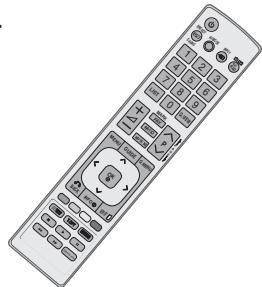
Polishing Cloth Polishing cloth for use on the screen. (Covered by screen of product) * Lightly wipe any stains or fingerprints on the surface of the TV with the polishing cloth. Do not use excessive force. This may cause scratching or discolouration.
Power Cord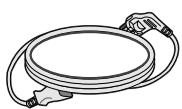
RF/DC cable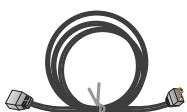
Mini HDMI-HDMI cable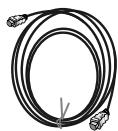
AC-DC adapter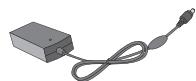
Wall mount support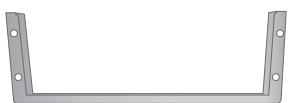
Wall mount support screw (For concrete/wood) - 4 units respectively
FRONT PANEL CONTROLS
NOTE
The energy consumed during use can be significantly reduced if the level of brightness of the picture is reduced, and this will reduce the overall running cost.
CAUTION
- Do not step on the glass stand or subject it to any impact. It may break, causing possible injury from fragments of glass, or the TV may fall. Do not drag the TV. The floor or the product may be damaged.
Image shown may differ from your TV.
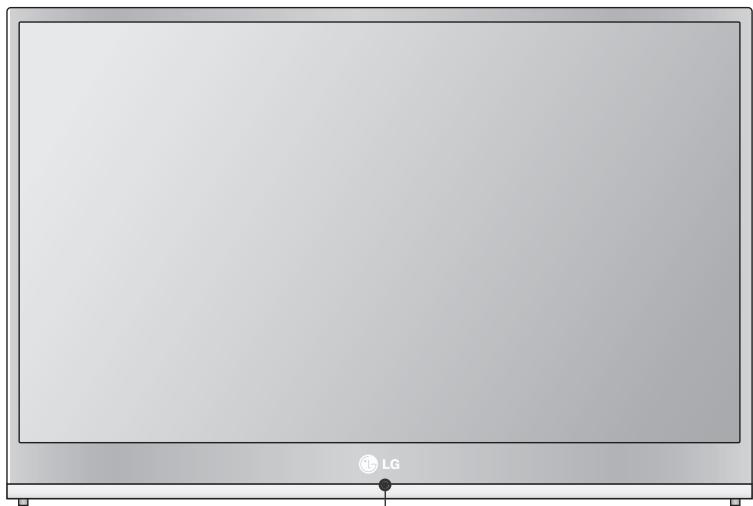
Remote Control Sensor
Operating lamp
The lamp is turned on while TV power on from standby mode and off when TV is power on and during standby mode.
SIDE PANEL INFORMATION
Image shown may differ from your TV.
- Open the water resistant cover only when connecting an external device.
- If you use the product with the water resistant cover open in a humid environment, the water resistant function can deteriorate.
SPEAKER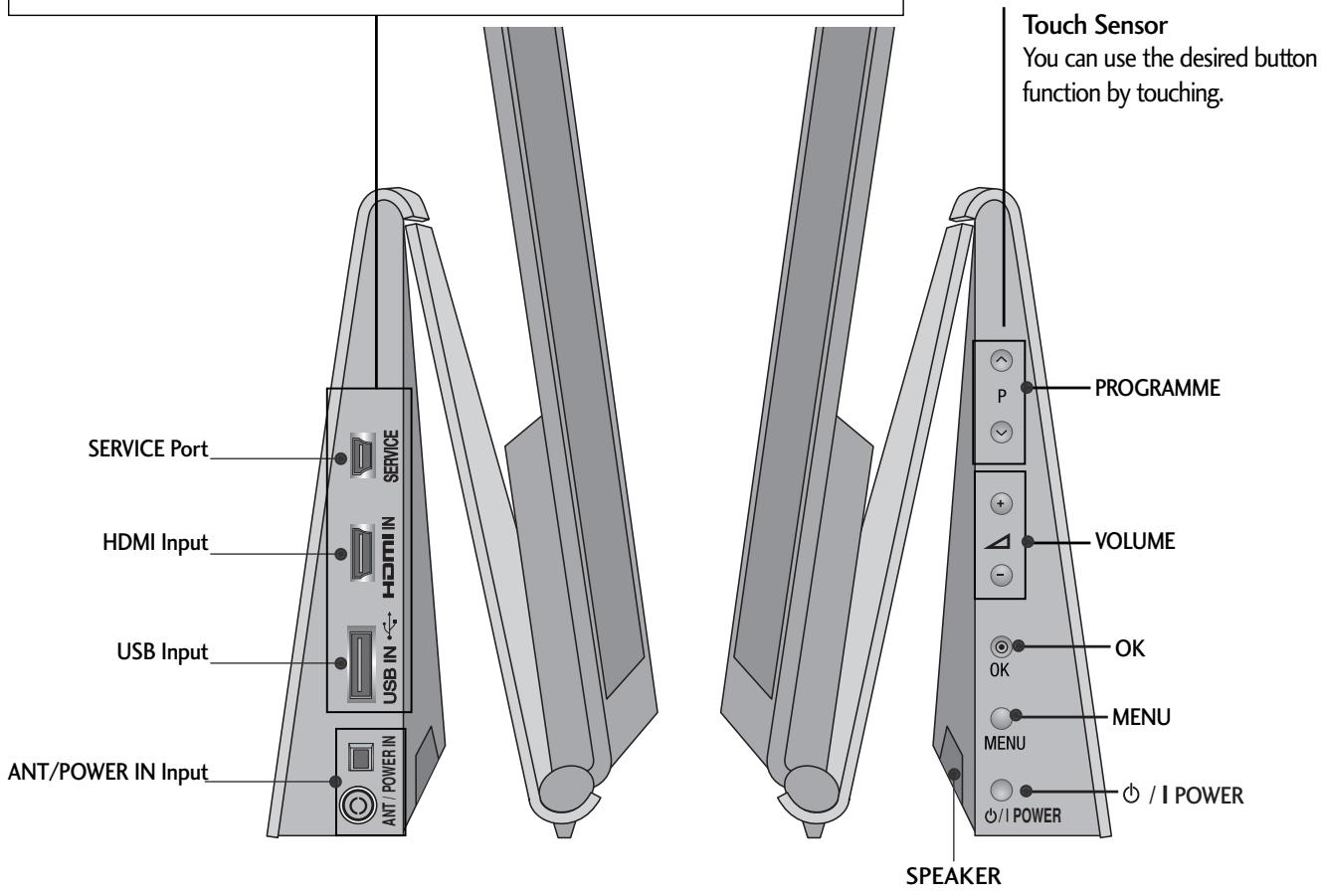

CAUTION
When using the product in a wet location, be careful not to expose the water continuously to water nor to drop it in the water. If you do not connect the provided cable to the antenna/power input terminal or use the product with the water resistant cover on the terminal open, it may reduce the water resistant function.
In humid locations, always keep the water resistant cover closed and connect the provided antenna/power cable.
If you keep the TV on for a long period of time, the AC-DC adapter will be heated. Therefore be careful not to touch the adapter.
POSITIONING YOUR DISPLAY
Image shown may differ from your TV. Adjust the position of the panel in various ways for maximum comfort.
- Tilt range

DESKTOP PEDESTAL INSTALLATION
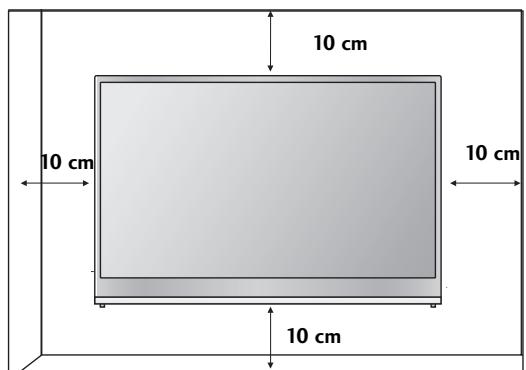
For adequate ventilation allow a clearance of 10 cm all around the TV.
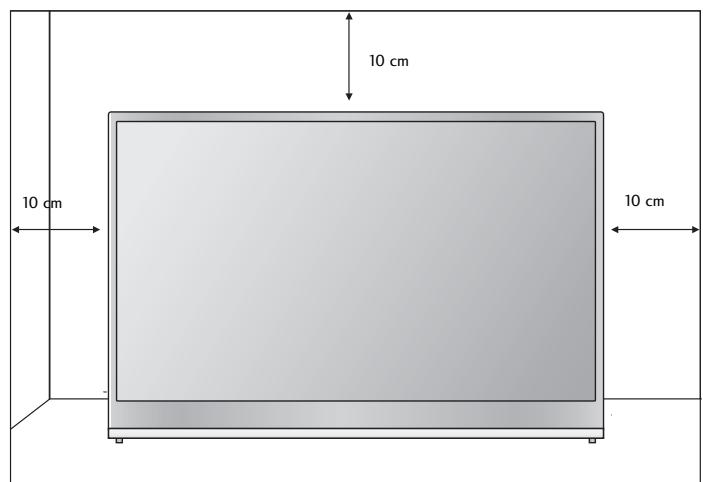
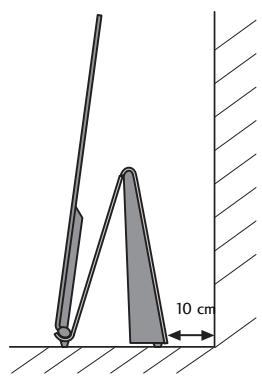
The TV can be installed in various ways such as on a wall, or on a desktop etc. The TV is designed to be mounted horizontally.
EARTHING
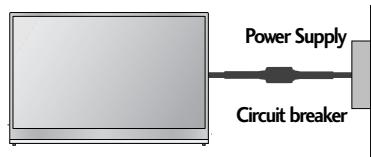
Ensure that you connect the earth wire to prevent possible electric shock. If grounding methods are not possible, have a qualified electrician install a separate circuit breaker.
Do not try to earth the TV by connecting it to telephone wires, lightening rods or gas pipes.
WALL MOUNT: HORIZONTAL INSTALLATION
Installation method

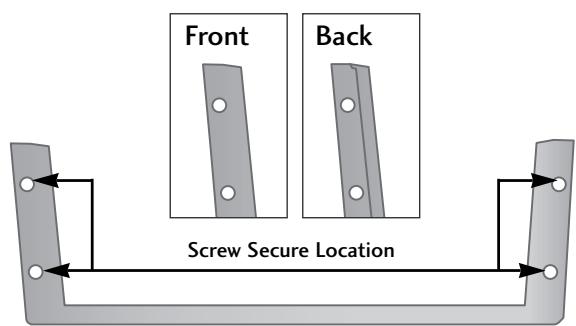
After checking the wall material, fixate the wall mount bracket with the screw provided for correct purpose at the location you want. At this time, check the front and rear side of the bracket and fixate the unit so that the front side is visible.

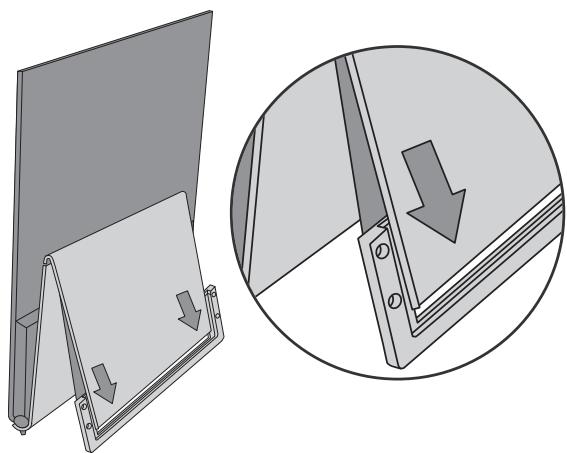
After hanging the TV support to the bracket for wall mount as shown in the picture, press it in the arrow direction.
For adequate ventilation allow a clearance of 10 cm all around the TV.
NOTE
Do not store the product in high temperature (60°C or above) or in low temperature (-20°C or below). This can deteriorate the water resistant function. Do not put the product in the water or directly pour water on the product. It can cause problem or deformation to the product. Should install wall mount on a solid wall perpendicular to the floor. Should use a special wall mount, if you want to install it to ceiling or slanted wall. The surface that wall mount is to be mounted on should be of sufficient strength to support the weight of TV set; e.g. concrete, natural rock, brick and hollow block. LG is not liable for any accidents or damage to property or TV due to incorrect installation: - Incorrect fastening of screws to surface which may cause TV to fall and cause personal injury. - Not following the recommended Installation method.
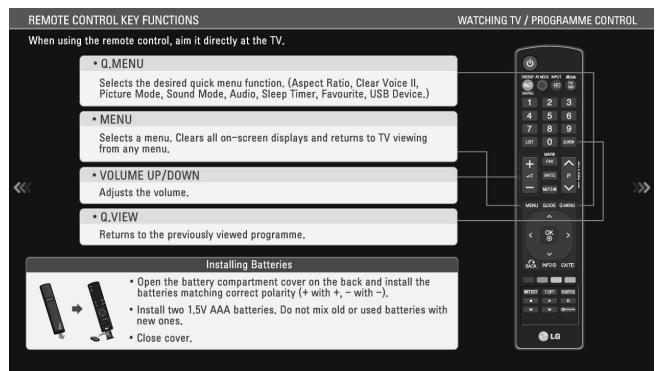
REMOTE CONTROL KEY FUNCTIONS
When using the remote control, aim it at the remote control sensor on the TV.
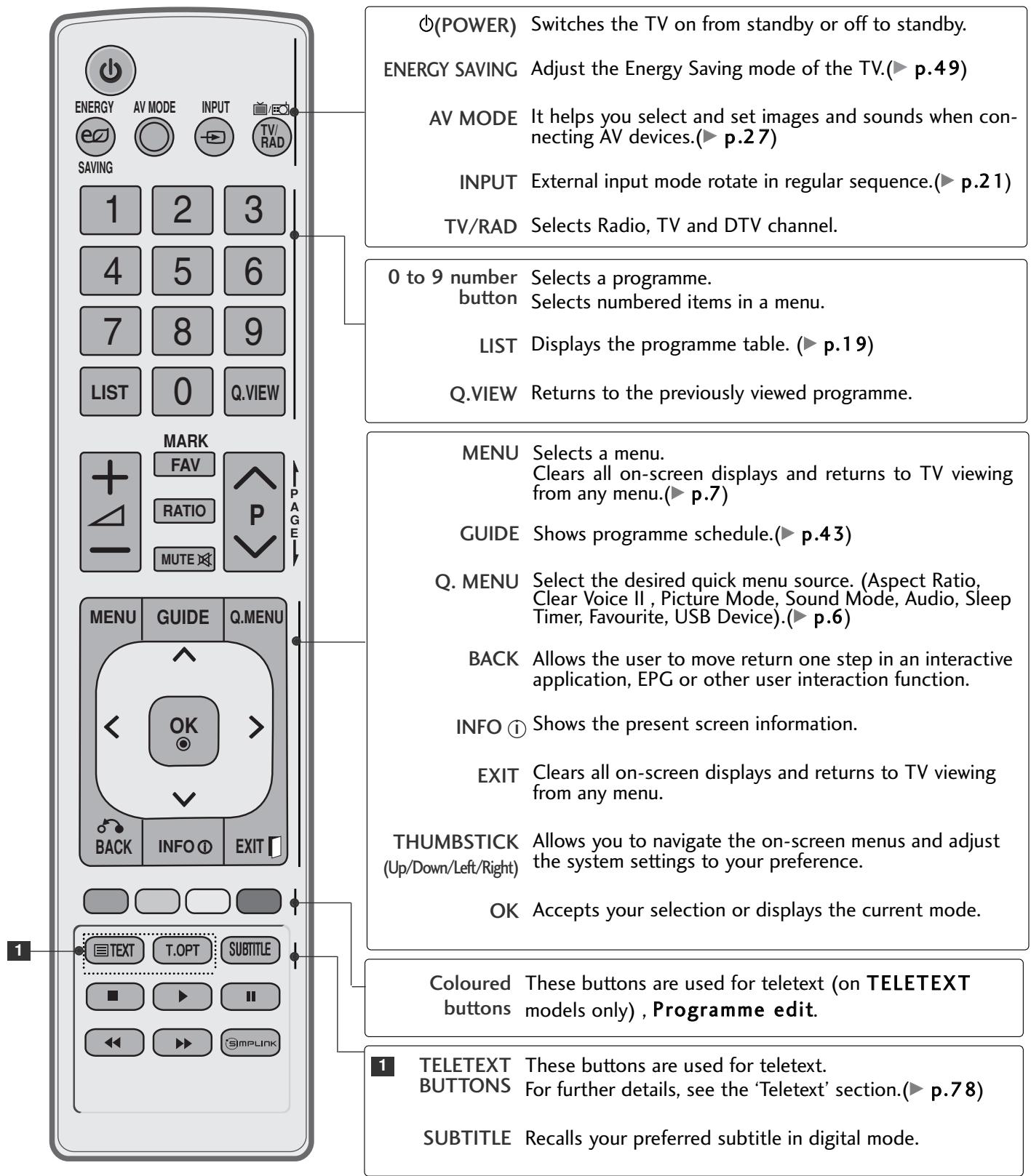
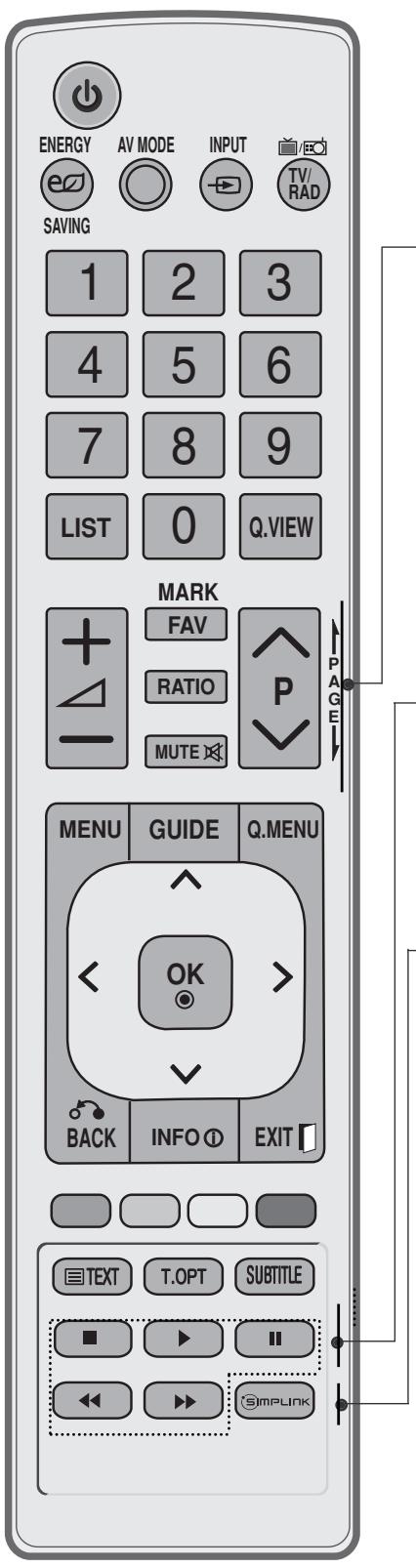
VOLUME UP Adjusts the volume.
/DOWN
FAV Displays the selected favourite programme.
MARK Select the input to apply the Picture Wizard settings. Check and un-check programmes in the USB menu.
RATIO Selects your desired Aspect Ratio of picture.(p.46)
MUTE Switches the sound on or off.
Programme Selects a programme.
UP/DOWN
PAGE Move from one full set of screen information to the next UP/DOWN one.
SIMPLINK / Controls SIMPLINK or USB menu(Photos List and Music
USB Menu List or Movie List
control buttons

mPLINK See a list of AV devices connected to TV. When you toggle this button, the Simplink menu appears on the screen. (p.24)
Installing Batteries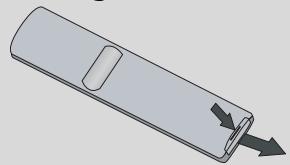
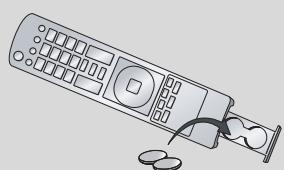
- Open the battery compartment cover on the back and install the batteries matching correct polarity (+ with +, - with -). Install two 3 V batteries. Do not mix old or used batteries with new ones. Close cover. To remove the batteries, perform the installation actions in reverse.
EXTERNAL EQUIPMENT SETUP
POWER CONNECTION
Image shown may differ from your TV. Connect the power as shown in the following figure to use the TV.
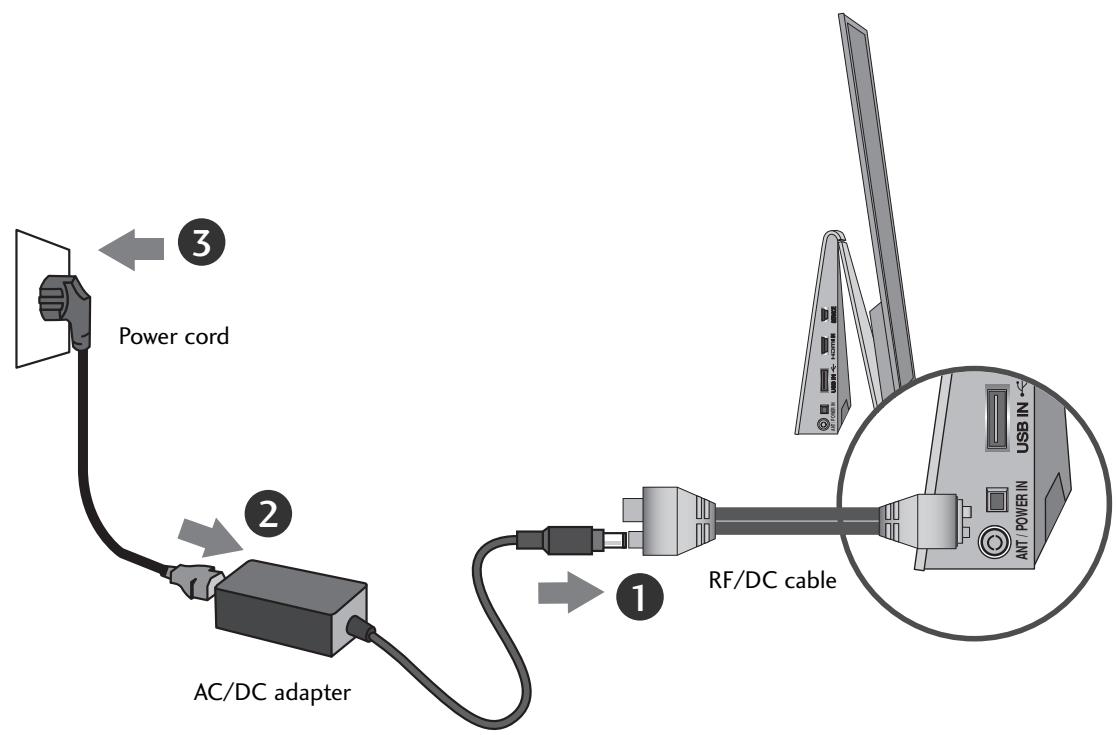
To connect the power, connect the following in order:
Connect the RF/DC cable to the ANT/POWER IN socket on the side of the TV - AC/DC adapter - Power cord - Power outlet.

CAUTION
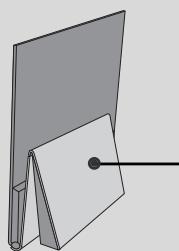
If you keep the TV on for a long period of time, the back panel will be heated. Therefore be careful not to touch the back panel.
EXTERNAL EQUIPMENT SETUP
To prevent damage do not connect to the mains outlet until all connections are made between the devices.
ANTENNA CONNECTION
For optimum picture quality, adjust antenna direction. An antenna cable and converter are not supplied.
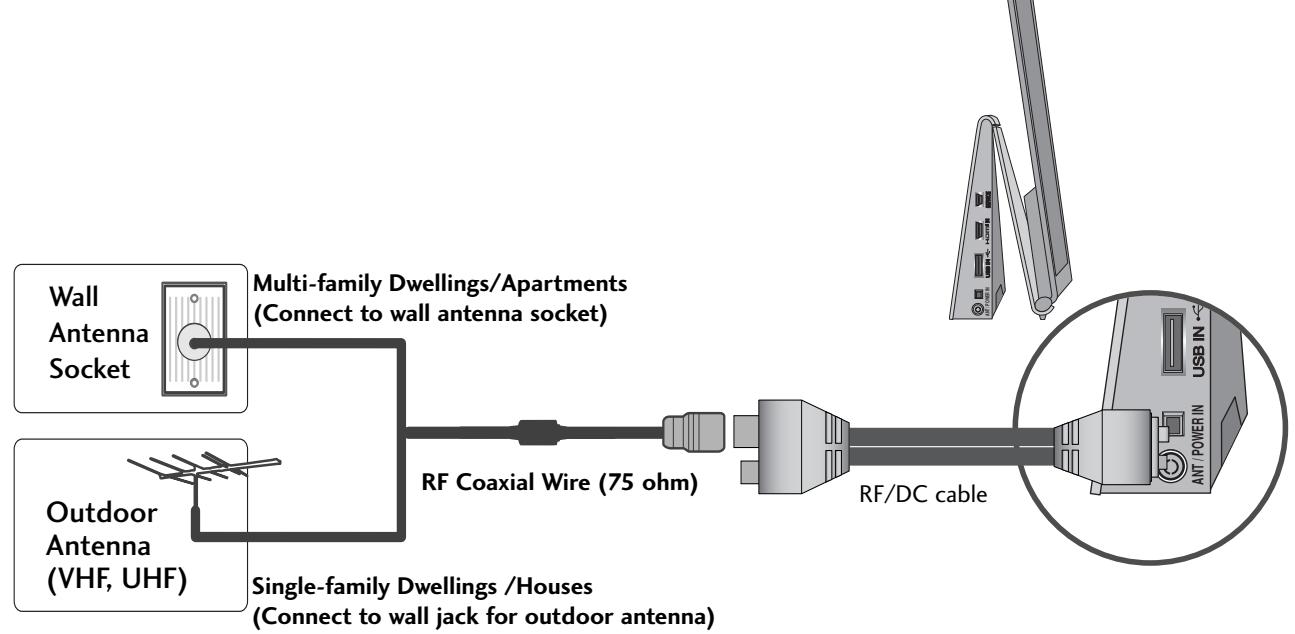
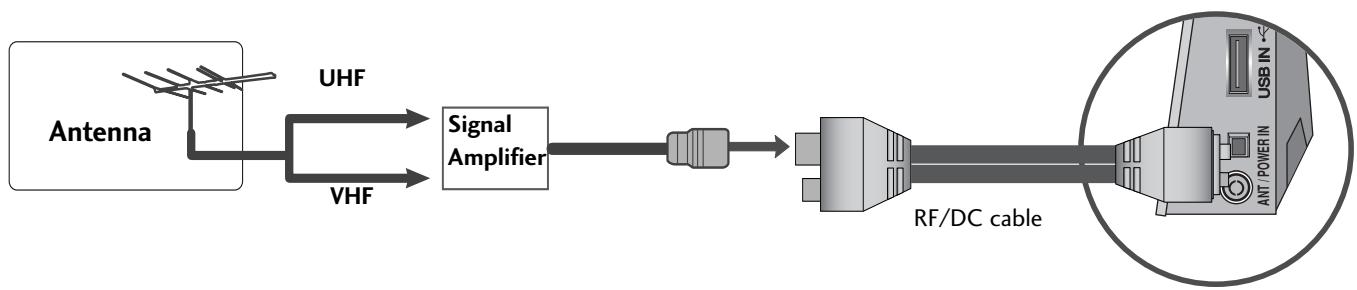
In poor signal areas, to achieve better picture quality it may be necessary to install a signal amplifier to the antenna as shown above. If signal needs to be split for two TVs, use an antenna signal splitter for connection.
To avoid damaging any equipment, never plug in any power cord until you have finished connecting all equipment. Image shown may differ from your TV.
CONNECTING WITH AN RF CABLE
To avoid picture noise (interference), allow adequate distance between the VCR and TV.
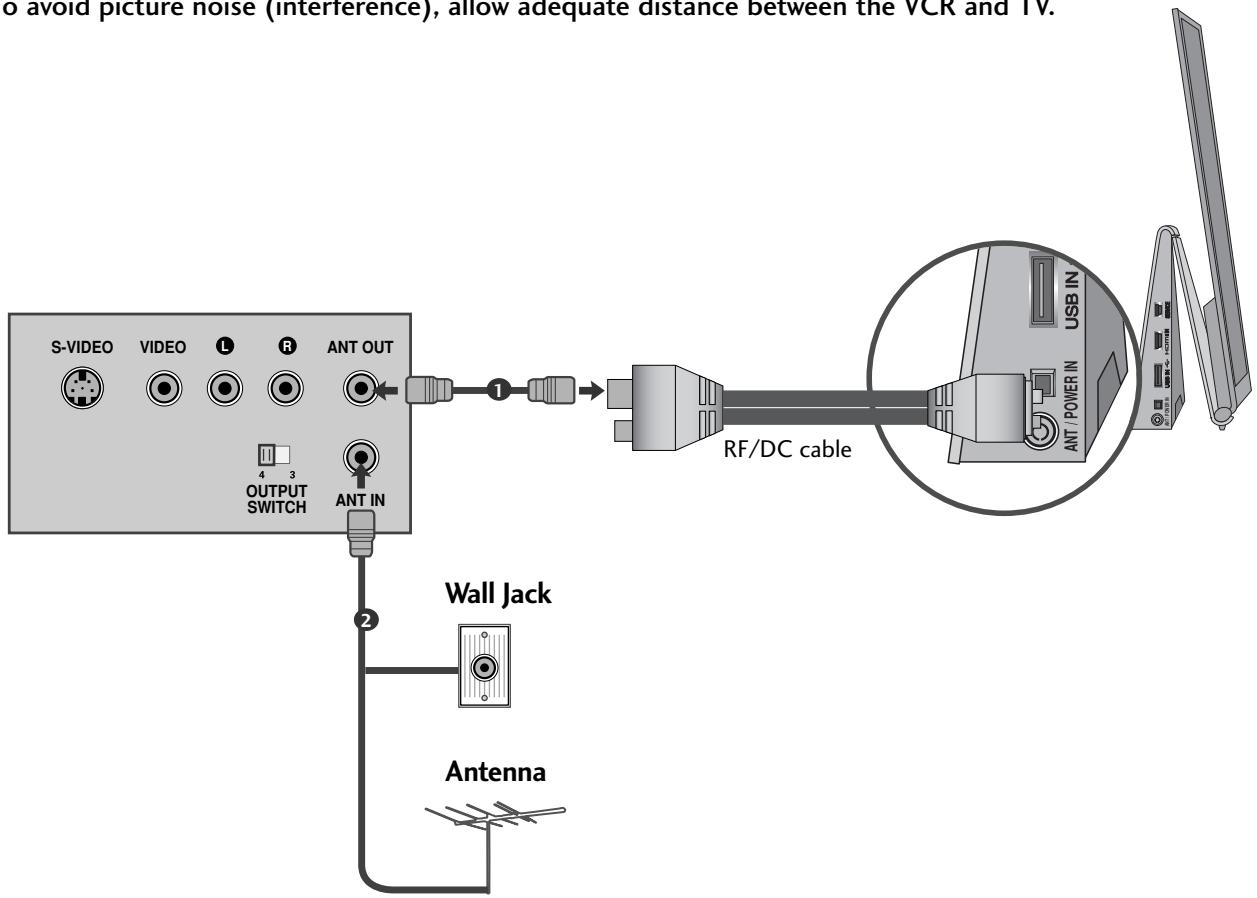
1. Connect the ANT OUT socket of the VCR to the ANT/POWER IN socket on the TV. 2. Connect the antenna cable to the ANT IN socket of the VCR. Press the PLAY button on the VCR and match the appropriate channel between the TV and VCR for viewing.
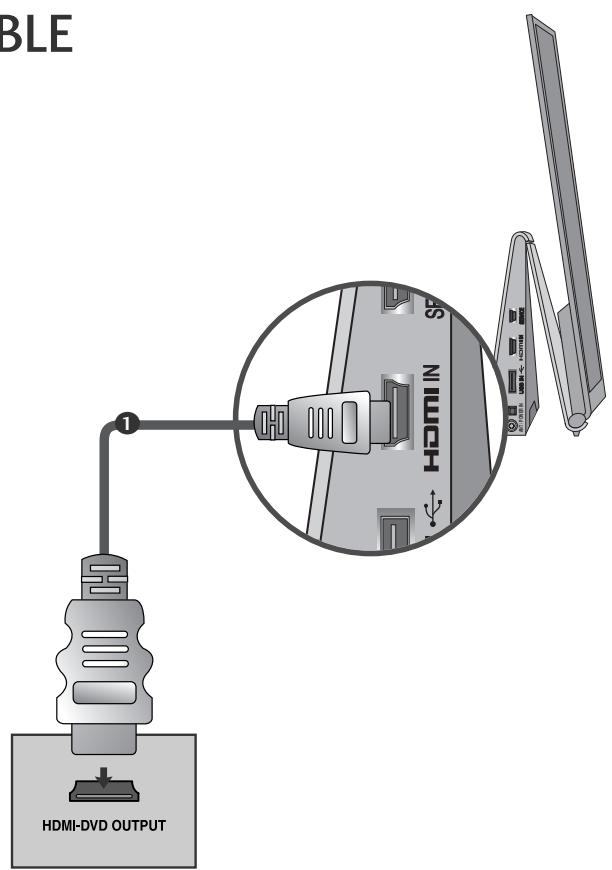
CONNECTING WITH AN HDMI CABLE
Connect the HDMI output of the external equipment (digital set-top box, DVD, etc.) to the HDMI IN jack on the TV. Turn on the external equipment. (Refer to the external equipment's manual for operating instructions.) 3. Select HDMI input source using the INPUT button on the remote control.
NOTE
The TV can receive video and audio signals simultaneously when using an HDMI cable. If the DVD does not support Auto HDMI, you must set the output resolution appropriately. - Check that your HDMI cable is version 1.3 or higher. If the HDMI cables don't support HDMI version 1.3, flickering or no screen display can result. Please use the latest cables that support at least HDMI version 1.3.
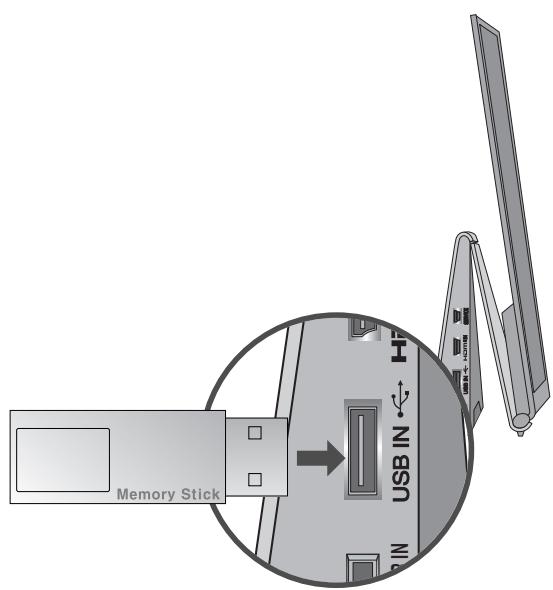
USB SETUP
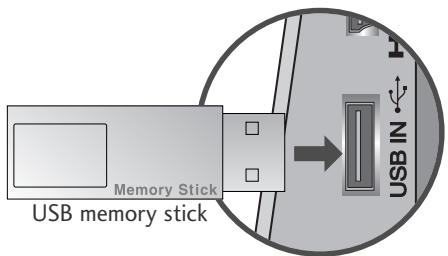
1. Connect the USB device to the USB IN jack on the TV. After connecting the USB IN jack, you can use the USB function. (See p.29)
WATCHING TV / PROGRAMME CONTROL
TURNING ON THE TV
- When your TV is turned on, you will be able to use its features.
1. Firstly, connect the power cord correctly. At this stage, the TV switches to standby mode. In standby mode, to turn TV on, press the power button, INPUT, or channel up/down button on the TV, or press the POWER, INPUT, channel up/down, or NUMBER button on the remote control, and the TV will switch on.
INITIALIZING SETUP
If the OSD (On Screen Display) is displayed on the screen after turning on the TV, you can adjust the Language, Mode Setting, Country, and Auto Tuning.
Note:
a. If you close without completing the initial setting, the Initial Setting menu can be displayed again. b. Press the BACK button to change the current OSD to the previous OSD. c. For those countries without confirmed DTV broadcasting standards, some DTV features might not work, depending on the DTV broadcasting environment. d. "Home Use" mode is the optimal setting for home environments, and is the TV's default mode. e. "Store Demo" mode is the optimal setting for store environments. If a user modifies image quality data, "Store Demo" mode initializes the product to the image quality set by us after a certain period of time. f. The mode (Home Use, Store Demo) can be changed by executing Mode Setting in the OPTION menu.
PROGRAMME SELECTION
Press the P ∧∨ or NUMBER buttons to select a programme number.
VOLUME ADJUSTMENT
1 Press the + or - button to adjust the volume.
If you wish to switch the sound off, press the MUTE button.
You can cancel this function by pressing the MUTE, +, - or AV Mode button.
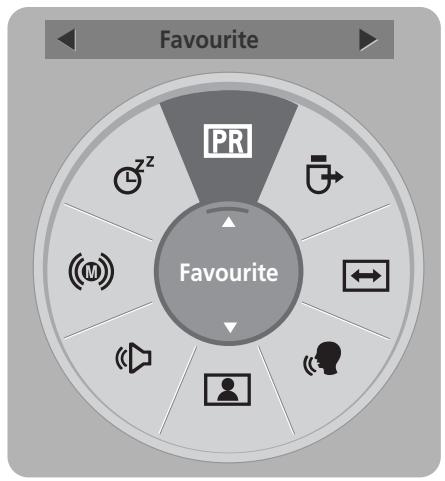
QUICK MENU
Your TV's OSD (On Screen Display) may differ slightly from that shown in this manual.
Q.Menu (Quick Menu) is a menu of features which users might use frequently.

Aspect Ratio: Selects your desired picture format.
For Zoom Setting, select 14:9, Zoom and Cinema Zoom in Ratio Menu. After completing Zoom Setting, the display goes back to Q.Menu.

Clear Voice II: By differentiating the human sound range from others, it helps users listen to human voices better.

Picture Mode: Selects your desired Picture Mode.

Sound Mode: It is a feature to automatically set the sound combination which it deems the best for the images being watched. Selects your desired Sound Mode.

Audio: Selects the sound output.

Sleep Timer: Sets the sleep timer.

Favourite: Selects the favourite programme.

USB Device: Selects "Eject" in order to eject USB device.
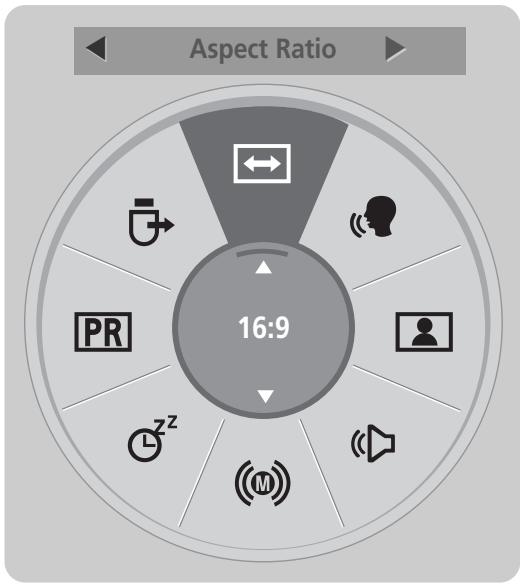


Display each menu.
Select your desired Source.
- Press the Q.MENU button to return to normal TV viewing.
- Press the BACK button to move to the previous menu screen.
ON SCREEN MENUS SELECTION AND ADJUSTMENT
Your TV's OSD (On Screen Display) may differ slightly from that shown in this manual.
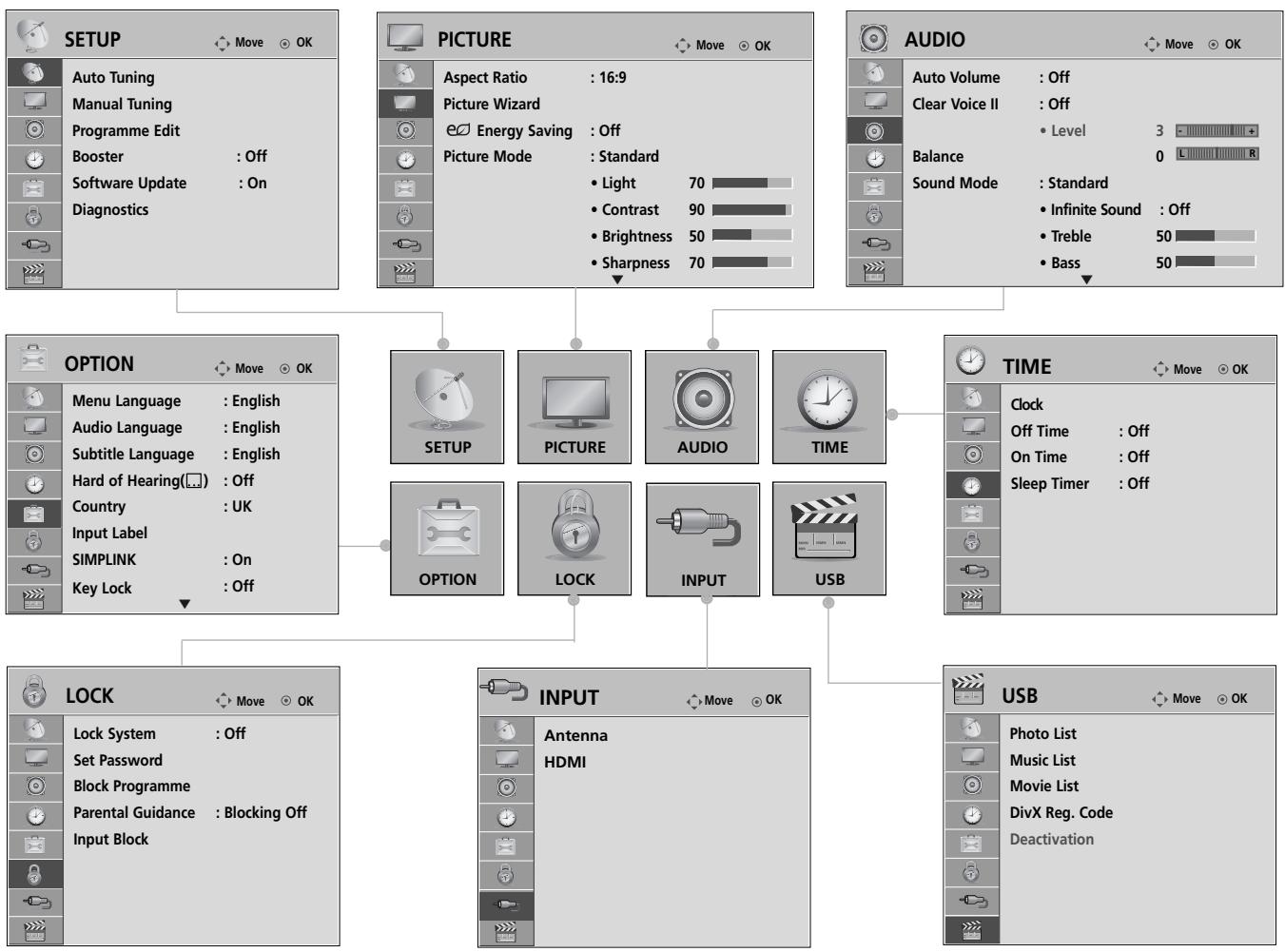


Display each menu.
Select a menu item.
Move to the pop-up menu.
- Press the INFO button to check the Simple Manual Menu.
- Press the MENU/EXIT button to return to normal TV viewing.
- Press the BACK button to move to the previous menu screen.

NOTE
Set ID: This function is used for Service. It is not possible to use Booster in Analogue mode.
AUTO PROGRAMME TUNING
(For countries other than Finland and Sweden)
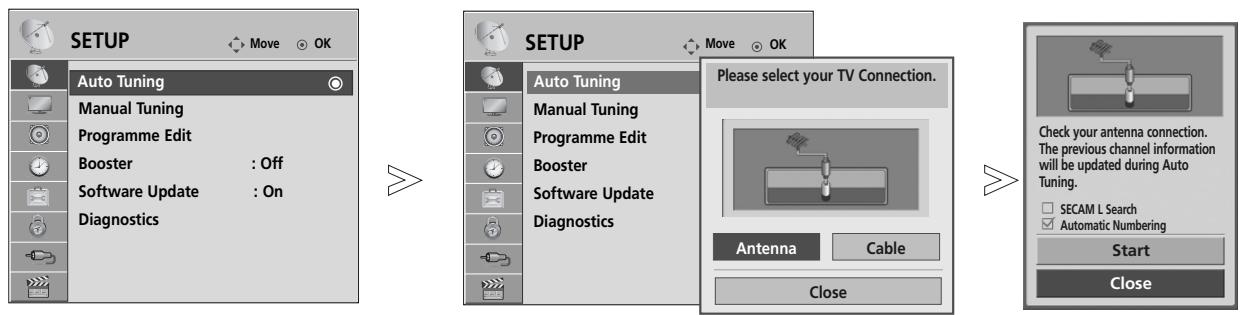
Use this to automatically find and store all available programmes.
When you start auto programming, all previously stored service information will be deleted.
The maximum number of programmes that can be stored is 500. But the number may differ slightly depending on broadcasting signals.
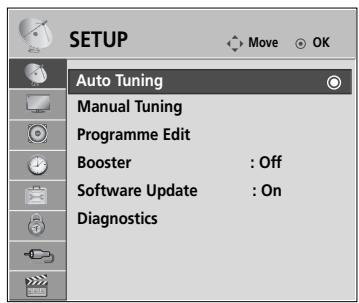
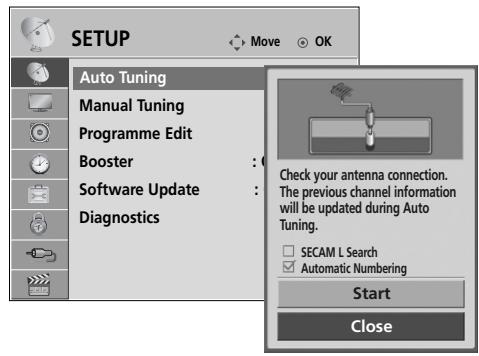

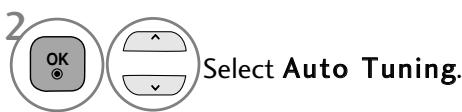
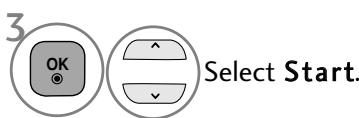
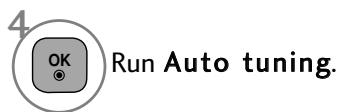
- Use NUMBER buttons to input a 4-digit password in Lock System 'On'.
- If you wish to keep on auto tuning select Start using the button. Then, press the OK button. Otherwise select Close. Automatic Numbering: Decide whether to use the programme numbers as sent by broadcasting stations for tuning.
- Press the MENU/EXIT button to return to normal TV viewing.
- Press the BACK button to move to the previous menu screen.
AUTO PROGRAMME TUNING
(Only for Finland and Sweden)
DVB-C Auto Tuning is a menu for users in countries that support DVB cable.
Use this to automatically find and store all available programmes.
When you start auto programming, all previously stored service information will be deleted.
If you want to select the Antenna,

- Use NUMBER buttons to input a 4-digit password in Lock System 'On'.
- If you wish to keep on auto tuning, select Start using the button. Then, press the OK button. Otherwise select Close. Automatic Numbering: Decide whether to use the programme numbers as sent by broadcasting stations for tuning.
- Press the MENU/EXIT button to return to normal TV viewing.
- Press the BACK button to move to the previous menu screen.
WATCHING TV / PROGRAMME CONTROL
If you want to select the Cable,
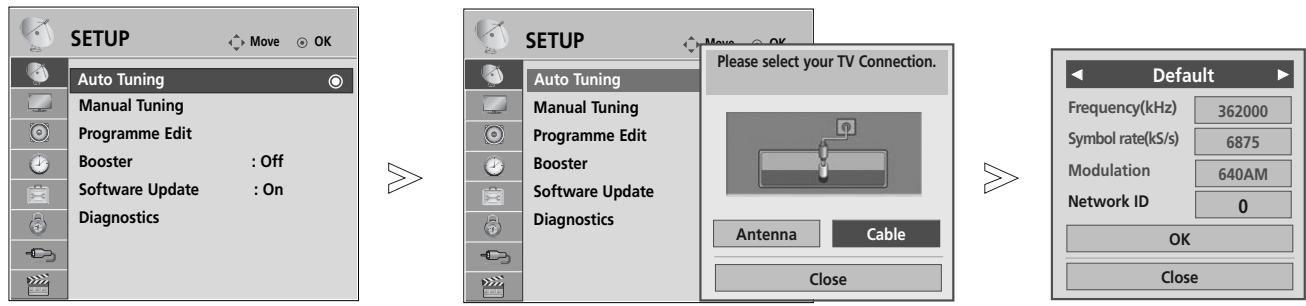

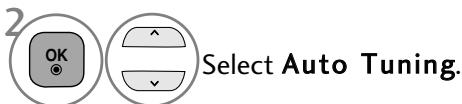
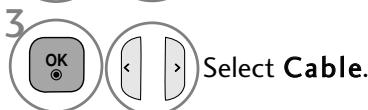


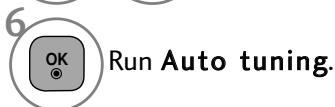
- Use NUMBER buttons to input a 4-digit password in Lock System 'On'.
- If you wish to keep on auto tuning, select OK using the up/down button. Then, press the OK button. Otherwise select Close.
- Press the MENU/EXIT button to return to normal TV viewing.
- Press the BACK button to move to the previous menu screen.
The following values are needed in order to search all available programmes quickly and correctly. The commonly used values are provided as "default". However, for correct settings, please inquire of the cable service provider. When running Auto Tuning in DVB cable mode, selecting Full will search through all frequencies between 110 MHz and 862 MHz to find available channels. In the case when the programme is not searched by selecting the Default, perform the searching by selecting the Full. However, in the case when the programme is searched by selecting the Full, the Auto Tuning time can be taken too much. - Frequency : Enter a user-defined frequency range. - Symbol rate: Enter a user-defined symbol rate (Symbol rate: Speed at which a device such as modem sends symbols to a channel). Modulation: Enter a user-defined modulation. (Modulation: Loading of audio or video signals onto carrier). Network ID(Sweden only) : Unique identifier allocated for each user. Note If you select Cable after checking either Finland or Sweden, you can see Channel Auto Update menu of which the default value is On. If you keep it On, the channel information will be automatically updated whenever the network information changes. When Channel Auto Update is Off, the channel information will not be updated.
AUTO PROGRAMME TUNING
If you select the “- - ” of Country Setting, (Except for Finland and Sweden)
To watch DVB-C in the countries excluding Finland and Sweden, select '--' as the Country in OPTION.
You can select User mode or Full mode in Auto Tuning.
The corresponding home frequency information may need to be changed when tuning the User mode, and the corresponding information depends on the Cable Service Operator (SO) in service.
During Full mode tuning, some channel may be restricted for some Cable Service Operator (SO), and it may take a long time for tuning.
Note
Your cable provider may charge for their services, or require you to agree to its terms and conditions of business. DVB-C Cable may not operate correctly with some cable providers. Compatibility with DVB-C digital cable broadcasts is not guaranteed.
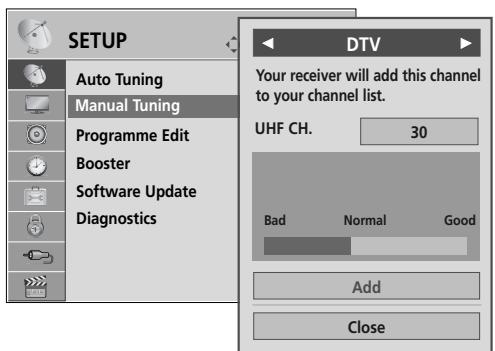
MANUAL PROGRAMME TUNING (IN DIGITAL MODE)
Manual Tuning lets you manually add a programme to your programme list.
(For countries other than Finland and Sweden)
& When selecting Antenna if Finland, Sweden or “--” country is chosen)
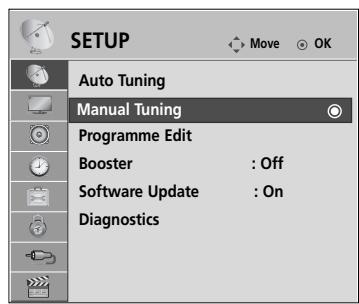



Select SETUP.
- Use NUMBER buttons to input a 4-digit password in Lock System 'On'.

Select Manual Tuning.

Select DTV.


Select the desired channel number.
- Press the MENU/EXIT button to return to normal TV viewing.
- Press the BACK button to move to the previous menu screen.
WATCHING TV / PROGRAMME CONTROL
(When selecting Cable (DVB cable mode) if Finland, Sweden or “--” country is chosen)
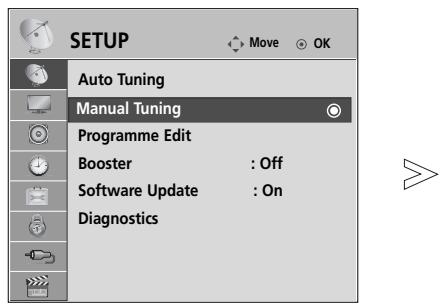
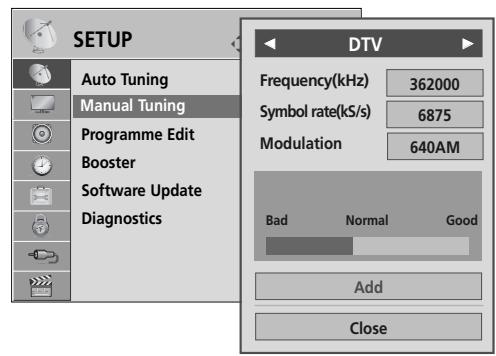

Select SETUP.
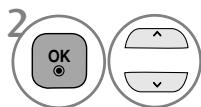
Select Manual Tuning.
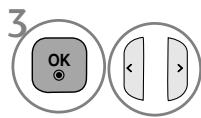
Select DTV.
Make appropriate adjustments.
- Use NUMBER buttons to input a 4-digit password in Lock System 'On'.
- Press the MENU/EXIT button to return to normal TV viewing.
- Press the BACK button to move to the previous menu screen.
Frequency, Symbol rate, and Modulation mode are needed in order to add a programme correctly in DVB cable mode. Please inquire of the cable service provider about the correct values.
MANUAL PROGRAMME TUNING (IN ANALOGUE MODE)
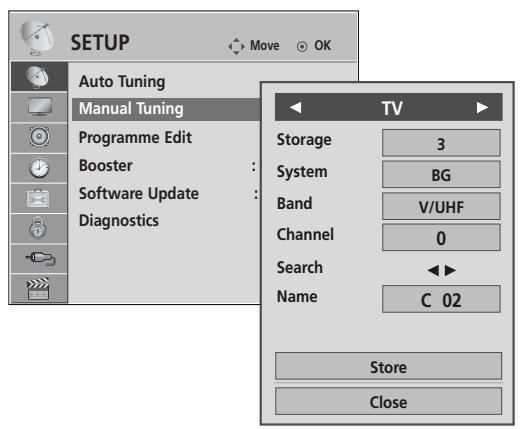
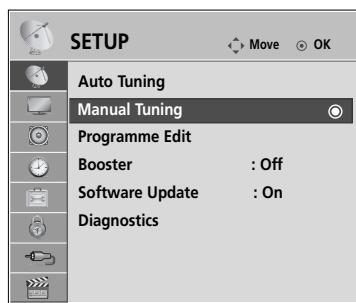
Manual Tuning lets you manually tune and arrange the stations in whatever order you desire.
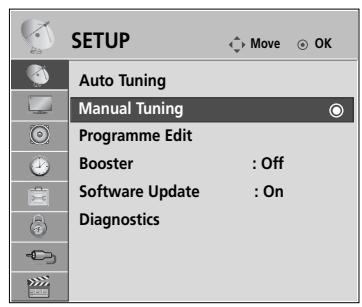


Select SETUP.
Select Manual Tuning.
Select TV.
or
Select the desired programme number on.
Select a TV system.
Select V/UHF or Cable.
or
Select the desired channel number.
Commence searching.
Select Store.
- Press the MENU/EXIT button to return to normal TV viewing.
- Press the BACK button to move to the previous menu screen.
- Use NUMBER buttons to input a 4-digit password in Lock System 'On'. L:SECAM L/L' (France)
BG: PAL B/G, SECAM B/G (Europe / East Europe / Asia / New Zealand / M.East / Africa)
I: PAL I (U.K. / Ireland / Hong Kong / South Africa)
DK: PAL D/K, SECAM D/K (East Europe / China / Africa / CIS)
- To store another channel, repeat steps 4 to 9.

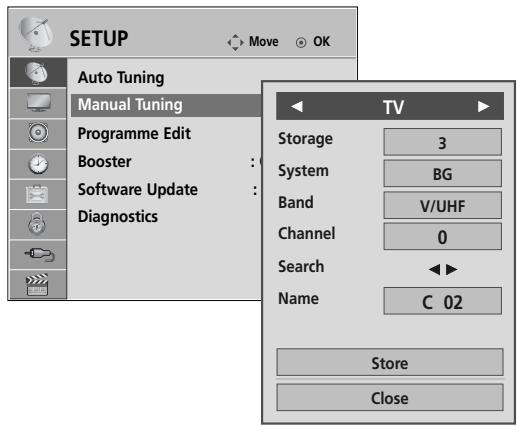
■ Assigning a station name
You can assign a station name with five characters to each programme number.

Select SETUP.

Select Manual Tuning.

Select TV.
Select Name.

Select the position and make your choice of the second character, and so on.
You can use the alphabet A to Z, the numbers 0 to 9, +/-, and blank.

Select Close.

Select Store.
- Press the MENU/EXIT button to return to normal TV viewing.
- Press the BACK button to move to the previous menu screen.
PROGRAMME EDIT
When a programme number is skipped, it means that you will be unable to select it using the P ∧ button during TV viewing.
If you wish to select the skipped programme, directly enter the programme number with the NUMBER buttons or select it in the Programme edit menu.
This function enables you to skip the stored programmes.
You can change the programme number using the "Move" function, if "Automatic Numbering" is unchecked when you start Auto Tuning.
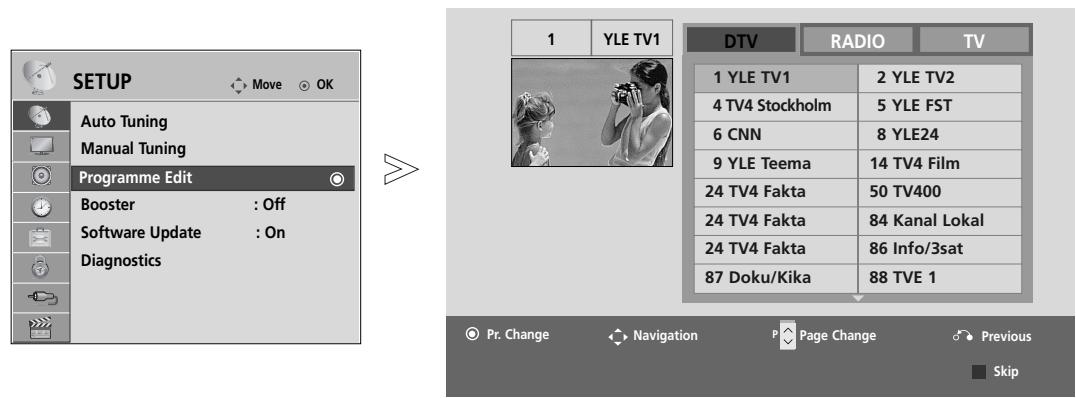


Select SETUP.
- Use the NUMBER buttons to input a 4-digit password in Lock System 'On'.

Select Programme Edit.
Enter the Programme Edit.
Select a programme to be stored or skipped.
- Press the MENU/EXIT button to return to normal TV viewing.
- Press the BACK button to move to the previous menu screen.
IN DTV/RADIO MODE
■ Skipping a programme number

Select a programme number to be skipped.
BLUE
Turn the programme number to blue.
BLUE
Release.
- When programmes are to be skipped, the skipped programme shows in blue and these programmes will not be selected by the P μ ν buttons during TV viewing.
- If you wish to select a skipped programme, directly enter the programme number with the NUMBER buttons or select it in the programme edit or EPG.
IN TV MODE
This function enables you to delete or skip the stored programmes. You can also move some channels and use other programme numbers.
- Deleting a programme

Select a programme number to be deleted.
RED
Turn the programme number to red.
RED
Delete.
BLUE
Release.
- The selected programme is deleted, all the following programmes are shifted up one
■ Moving a programme

Select a programme number to be moved.
GREEN

Turn the programme number to green.
GREEN
Release.
Auto Sort
YELLOW
Start Auto Sort.
- After activating Auto Sort once, you can no longer edit programmes.
■ Skipping a programme number

Select a programme number to be skipped.
BLUE
Turn the programme number to blue.
BLUE
Release.
- When a programme number is skipped it means that you will be unable to select it using the P ∧ ∨ button during normal TV viewing.
- If you wish to select a skipped programme, directly enter the programme number with the NUMBER buttons or select it in the programme edit or EPG.
SOFTWARE UPDATE
Software Update means software can be downloaded through the digital terrestrial broadcasting system.
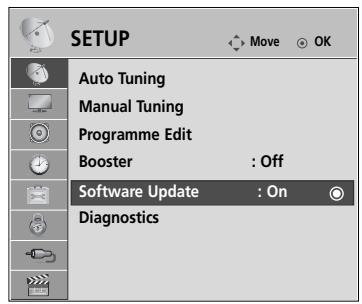

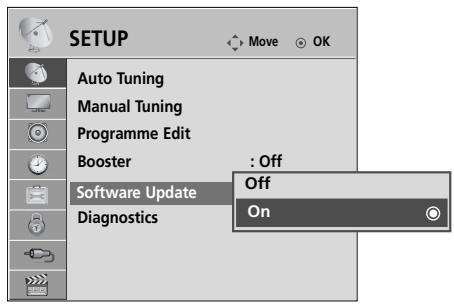

Select SETUP.
Select Software Update.
Select On or Off.
- If you select On, a user confirm message box will be displayed to notify that new software is found.
Save.
* When setting "Software Update"
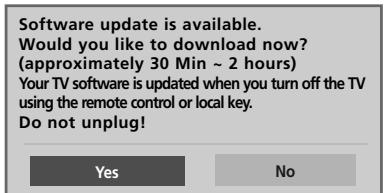
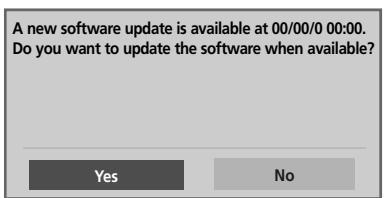
Occasionally, a transmission of updated digital software information will result in the following menu on the TV screen.
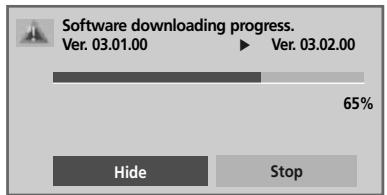
Select the Yes using the < > button and you will see the following picture.
After the Software Update is complete, the System restarts.
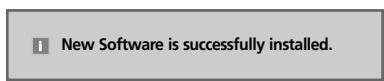
Simple Update :for current update stream
When the power is turned off, downloading starts.
When the power is turned on while updating, the progress status is displayed.
Schedule Update: for scheduled update stream
When the Software Update menu is "Off", a message to change it to "On" appears.
- During the progress of a Software Update, please note the following:
- Power to the TV must not be interrupted.
- The TV must not be switched off.
- The antenna must not be disconnected.
- After the Software Update, you can confirm the updated software version in the Diagnostics menu.
- It may take hours to download the software, so make sure that the power stays on during the download.
BOOSTER (IN DIGITAL MODE)
If reception is poor, select Booster to On.
When the signal is strong, select "Off".
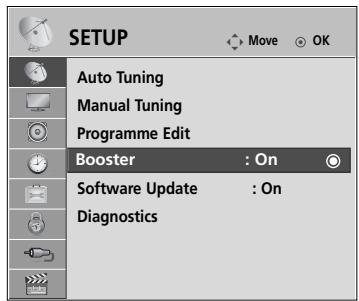

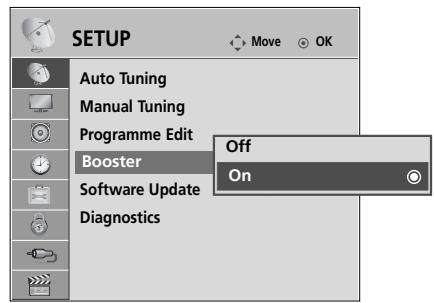

- Press the MENU/EXIT button to return to normal TV viewing.
- Press the BACK button to move to the previous menu screen.
DIAGNOSTICS
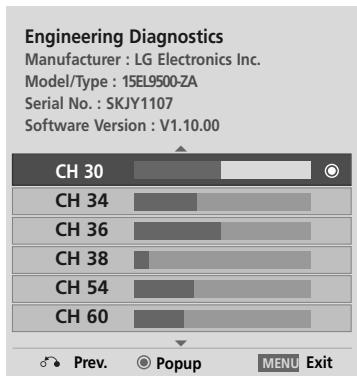
This function enables you to view information on the Manufacturer, Model/Type, Serial Number and Software Version.
This displays the information and signal strength of the tuned *MUX.
This displays the signal information and service name of the selected MUX.
(*MUX: A higher directory of channels in digital broadcasting (a single MUX contains multiple channels).)
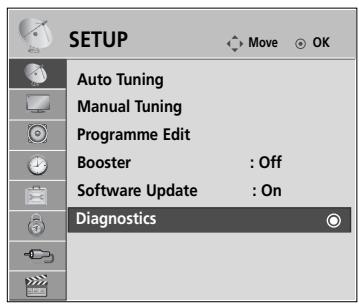

Select SETUP.
Select Diagnostics.
Display Manufacturer, Model/Type, Serial Number and Software Version.
Display the information of Channel.
- Press the MENU/EXIT button to return to normal TV viewing.
- Press the BACK button to move to the previous menu screen.
SELECTING THE PROGRAMME LIST
You can check which programmes are stored in the memory by displaying the programme list.
Mini Glossary

Displayed when the Locked Programme.
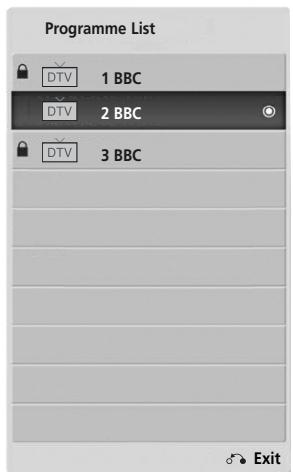
Displaying programme LIST

Display the Programme List.
- You may find some blue programmes. These have been set up to be skipped by auto programming or in the programme edit mode.
- Some programmes with the channel number shown in the programme LIST indicate there is no station name assigned.
Selecting a programme in the programme list
Select a programme.
Switch to the chosen programme number.

The mode will be switched between TV, DTV, and Radio from the program you are currently watching.
Paging through a programme list

Turn the pages.

LIST
Return to normal TV viewing.
FAVOURITE PROGRAMME SETUP
■ Selecting favourite programme
Favorite programmes is a convenient feature that lets you quickly scan up to programmes of your choice without having to wait for the TV to scan through all the in-between programmes.
Select your desired programme.
Select Favourite.


Select Favourite.

Return to TV viewing.
- This will automatically include the selected programme into your favourite programme list.
Displaying the favourite programme list
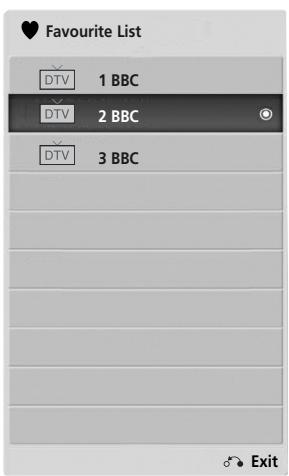
Display the Favourite Programme List.
INPUT LIST
HDMI can be recognized by a detect pin and thus enabled only when an external device approves voltage.
By using TV/RAD button, you can move from External Input to RF Input and to the last watched programme in DTV/RADIO/TV mode.


Select the input source.
- Antenna or Cable: Select it when watching the DTV/TV. (Digital cable input is available only at Finland, Sweden and "--" country)
- HDMI: Select it when using DVD or Digital set-top box depend on connector.
DATA SERVICE
(This menu is enabled only in Ireland.)
This function allows users to choose between MHEG (Digital Teletext) and Teletext if both exist at the same time. If only one of them exists, either MHEG or Teletext is enabled regardless of which option you selected.
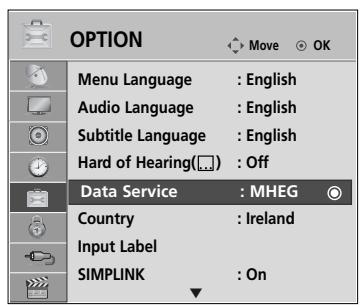
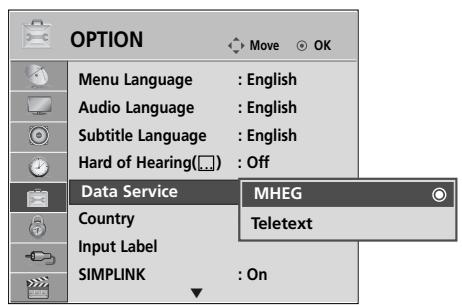

Select OPTION.
Select Data Service.
Select MHEG or Teletext.
- Press the MENU/EXIT button to return to normal TV viewing.
- Press the BACK button to move to the previous menu screen.
WATCHING TV / PROGRAMME CONTROL
INPUT LABEL
Selects a label for each input source.
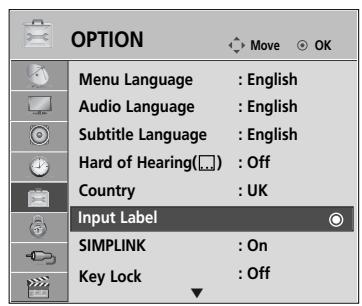

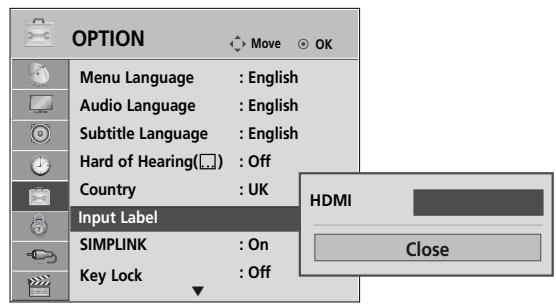


- Press the MENU/EXIT button to return to normal TV viewing.
- Press the BACK button to move to the previous menu screen.
SIMPLE MANUAL
You can easily and effectively access the TV information by viewing a simple manual on the TV.
During the Simple Manual operation, audio will be muted.
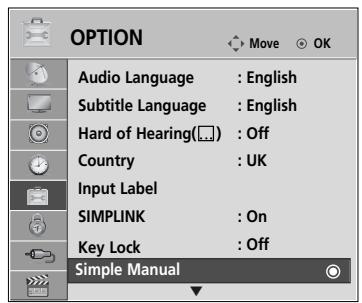

Select OPTION.
Select Simple Manual.
Select the part of the manual you want to see.
- Press the BACK button to return to normal TV viewing.

MPLINK
This function operates only with devices with the SIMPLINK logo.
Please check the SIMPLINK logo.
This TV might not function properly when used with other products with HDMI-CEC function.
This allows you to control and play other AV devices connected to the display through HDMI cable without additional cables and settings.
If you do not want the SIMPLINK menu, select "Off".
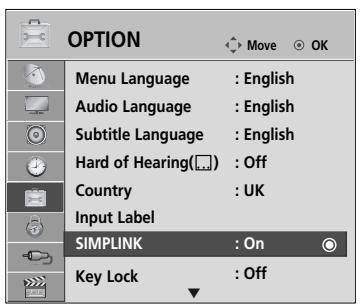


Select OPTION.
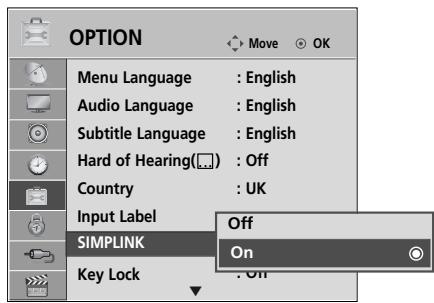
Select SIMPLINK.
Select On or Off.
Save.
- Press the MENU/EXIT button to return to normal TV viewing.
- Press the BACK button to move to the previous menu screen.
Connecting to Home Theater with the SIMPLINK logo.

Connect the HDMI IN terminal on the side of the TV and the HDMI output terminal of the Home Theater using HDMI cables.

Select Home Theater in the Speaker menu by pushing the SIMPLINK button.
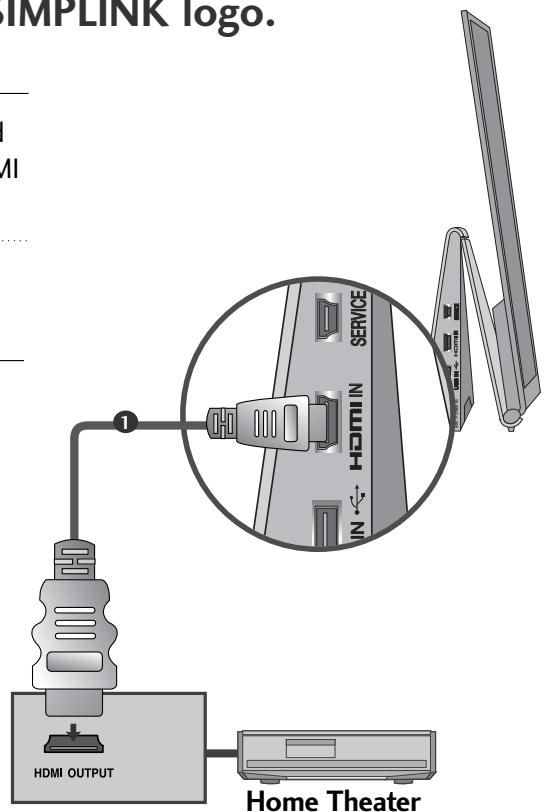
- When you select or operate a media device with home theater function, the speaker automatically switches to home theater speaker (HT speaker).

NOTE
Connect the HDMI IN terminal of the TV to the terminal (HDMI terminal) of the SIMPLINK device with the HDMI cable. When you switch the Input source using the INPUT button on the remote control, you can stop the operation of a device controlled by SIMPLINK.
SIMPLINK Functions
Disc playback
Control connected AV devices by pressing the < > , OK, | , II, and buttons.
Direct Play
After connecting AV devices to the TV, you can directly control the devices and play media without additional settings.
Select AV device
Enables you to select one of the AV devices connected to the TV and operate it.
Power off all devices
When you switch off the TV, all connected devices are turned off.
Switch audio-out
Offers an easy way to switch audio-out.
Sync Power on
When the equipment with Simplink function connected HDMI terminal starts to play, The TV will change automatically to turn on mode.
- A device, which is connected to the TV through an HDMI cable but does not support SIMPLINK, does not provide this function.
Note: To operate SIMPLINK, an HDMI cable over Version 1.3 with CEC function should be used. ( CEC: Consumer Electronics Control).
SIMPLINK Menu
Press the < > button and then OK button to select the desired SIMPLINK source.
TV viewing: Switch to the previous TV programme regardless of the current mode. DISC playback : Select and play connected discs. When multiple discs are available, the titles of discs are conveniently displayed at the bottom of the screen. VCR playback : Play and control the connected VCR. HDD Recordings playback : Play and control recordings stored in HDD. Audio Out to Home theater/Audio Out to TV: Select Home theater or TV speaker for Audio Out.
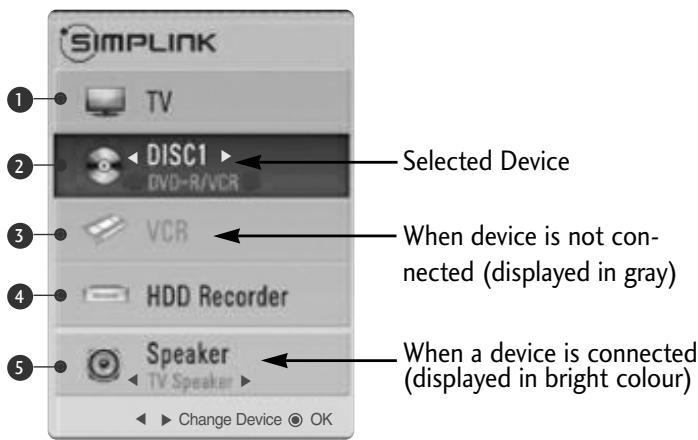
Home theater: Only one supported at a time DVD, Recorder: Up to four supported at a time. VCR: Only one supported at a time
AV MODE
You can select the optimal images and sounds when connecting AV devices to external input.
Off Disables the AV MODE.
Cinema Optimizes video and audio for watching movies.
Sport Optimizes video and audio for watching sports events.
Game Optimizes video and audio for playing games.
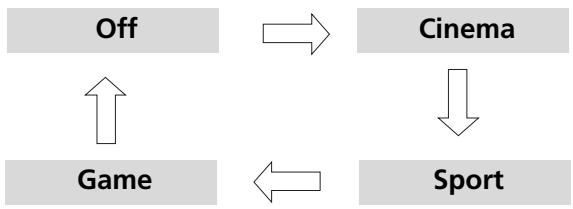
Press the AV MODE button repeatedly to select the desired source.
- If you select Cinema in AV mode, Cinema will be selected both for Picture Mode and Sound Mode in PICTURE menu and AUDIO menu respectively.
- If you select "Off" in AV mode, the picture and image which you initially set will be selected.
INITIALIZING
(RESET TO ORIGINAL FACTORY SETTINGS)
This function initializes all settings.
But the settings of Day and Night of the Picture Mode cannot be initialized.
It is useful to initialize the product or when you move to other city or country.
When the Factory Reset is completed, you must restart the Initializing setup.
When the Lock System menu is "On", the message to enter the password appears.
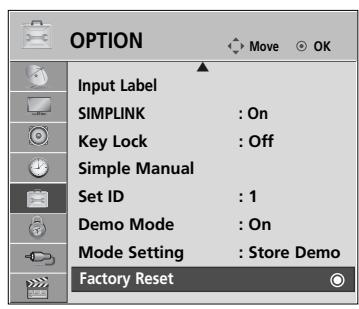

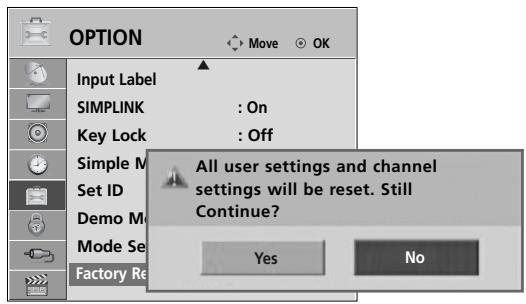

Select OPTION.
Select Factory Reset.
Select Yes.
Start Factory Reset.
- In Lock System "On", if you forget your password, press '0', '3', '2', '5' on the remote control handset.
- Press the MENU/EXIT button to return to normal TV viewing.
- Press the BACK button to move to the previous menu screen.
When connecting a USB device
When you connect a USB device, this pop-up menu is displayed automatically.
"POP UP MENU" will not be displayed while the OSD including Menu, EPG, or Schedule list is activated.
When the Pop Up menu does not appear, you can select Music List, Photo List, or Movie List in the USB menu.
In USB device, you cannot add a new folder or delete the existing folder.
1. Connect the USB device to the USB IN jack on the TV.
Select PHOTO LIST, MUSIC LIST, or MOVIE LIST.

- Only photo (JPEG), music (MP3), and movie (DAT, MPG, MPEG, VOB, AVI, DIVX, MP4, MKV, TS, TRP, TP) are supported.
When removing the USB device
Select the USB Device menu before removing the USB device.

Select USB Device.
Select Eject
Precautions when using the USB device
Only a USB storage device is recognizable. If the USB storage device is connected through a USB hub, the device is not recognizable. A USB storage device using an automatic recognition programme may not be recognized. A USB storage device which uses its own driver may not be recognized. The recognition speed of a USB storage device may depend on each device. ▸ Please do not turn off the TV or unplug the USB device when the connected USB storage device is working. When such device is suddenly separated or unplugged, the stored files or the USB storage device may be damaged. ▸ Please do not connect the USB storage device which was artificially maneuvered on the PC. The device may cause the product to malfunction or fail to be played. Never forget to use only a USB storage device which has normal music files, image files or movie files. ▸ Please use only a USB storage device which was formatted as a FAT32 file system, NTFS file system provided with the Windows operating system. In case of a storage device formatted as a different utility programme which is not supported by Windows, it may not be recognized. ▸ Please connect power to a USB storage device (over 0.5 A) which requires an external power supply. If not, the device may not be recognized. ▸ Please connect a USB storage device with the cable offered by the device maker. ▸ Some USB storage devices may not be supported or operated smoothly. ▸ File alignment method of USB storage device is similar to Window XP and filename can recognize up to 100 English characters. Be sure to back up important files since data stored in a USB memory device may be damaged. We will not be responsible for any data loss. If the USB HDD does not have an external power source, the USB device may not be detected. So be sure to connect the external power source. - Please use a power adaptor for an external power source. We do not guarantee an USB cable for an external power source. Data in a USB storage device cannot be deleted in the NTFS file system. If your USB memory device has multiple partitions, or if you use a USB multi-card reader, you can use up to 4 partitions or USB memory devices. ▸ Only the FAT32 file system supports the delete function. If a USB memory device is connected to a USB multi-card reader, its volume data may not be detected. If the USB memory device does not work properly, disconnect and reconnect it. How fast a USB memory device is detected differs from device to device. If the USB is connected in Standby Mode, specific hard disk will automatically be loaded when the TV is turned on. The recommended capacity is 1 TB or less for a USB external hard disk and 32 GB or less for USB memory. Any device with more than the recommended capacity may not work properly. If a USB external hard disk with a "Energy Saving" function does not work, turn the hard disk off and on again to make it work properly. ▸ USB storage devices below USB 2.0 are supported as well. But they may not work properly in the movie list.
PHOTO LIST
You can view photo files on USB storage device.
The On Screen Display may be different from your TV. Images are an example to assist with the TV operation.
When you are watching the photo by the Photo List function, you can not change the picture mode.
PHOTO(*.JPEG) supporting file
Baseline: 64 × 64 to 15360 × 8640
Progressive: 64 × 64 to 1920 × 1440
- You can play JPEG files only.
- Non-supported files are displayed in the form of predefined icon.
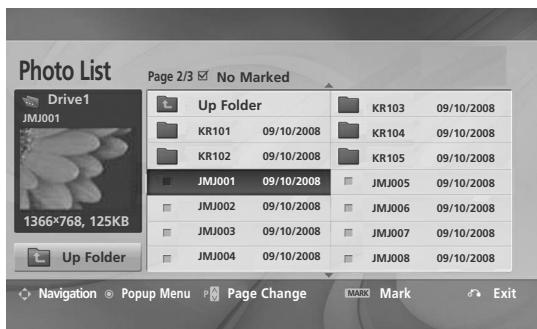
Screen Components

Select USB.


Select Photo List.
1 Moves to upper level folder Current page/Total pages 3 Total number of marked photos Corresponding buttons on the remote control
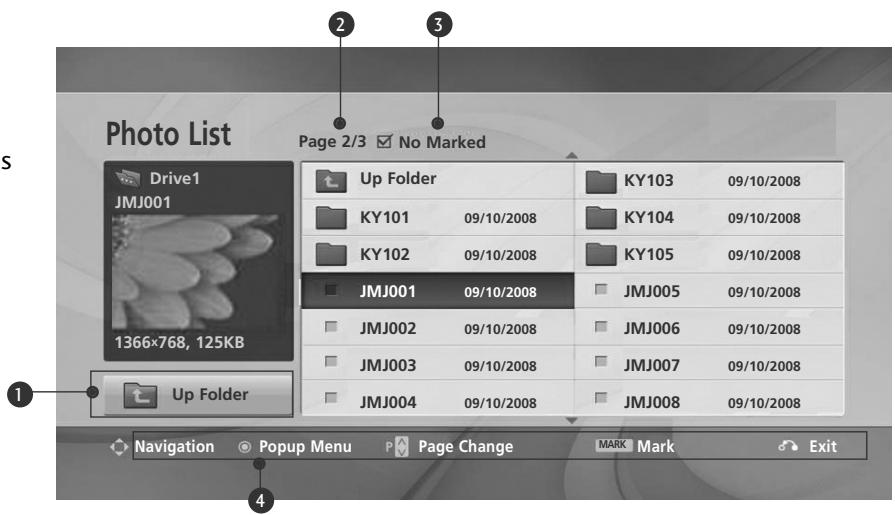
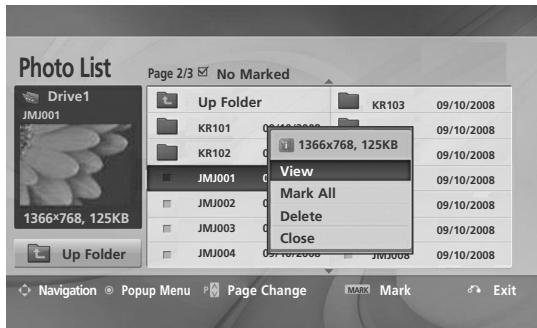
Photo Selection and PopUp Menu
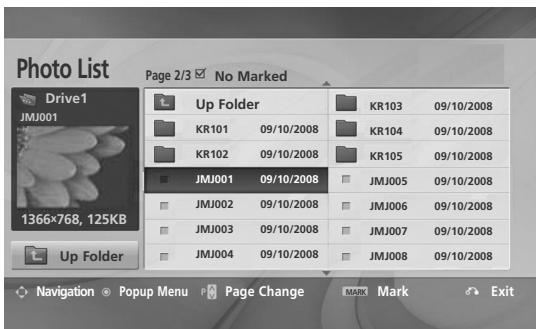

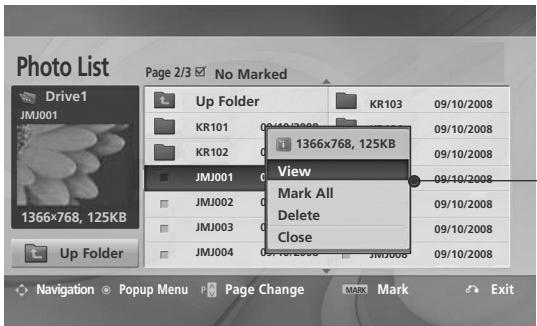
View:Display the selected item. Mark All:Mark all photos on the screen. Unmark All : Deselect all marked photos. Delete or Delete Marked(FAT32 file system only) : Delete the selected photo item. Close: Close the pop-up menu.
Select the target folder or drive.

Select the desired photos.
Show the PopUp menu.

Select the desired PopUp menu.
- Use the P button to navigate in the photo page.
- Use the MARK button to mark or unmark a photo. When one or more photos are marked, you can view each marked photo or a slide show of the marked photos. If no photos are marked, you can view every individual photo in the folder or a slide show of all photos in the folder.
- Press the BACK button to return to normal TV viewing.
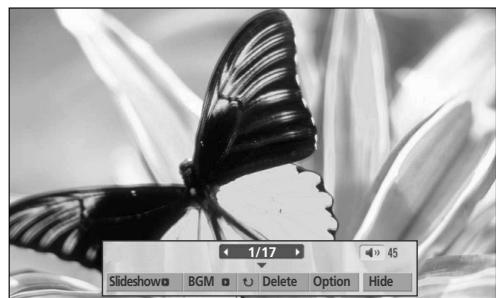
How to view photo
Detailed operations are available on full-sized photo view screen.


The aspect ratio of a photo may change the size of the photo displayed on the screen in full size.
Press the BACK button to move to the previous menu screen.
Select the target folder or drive.

Select the desired photos.
Show the PopUp menu.
Select View.
The selected photo is displayed in full size.
- Use the up/down button to navigate in the photo page.
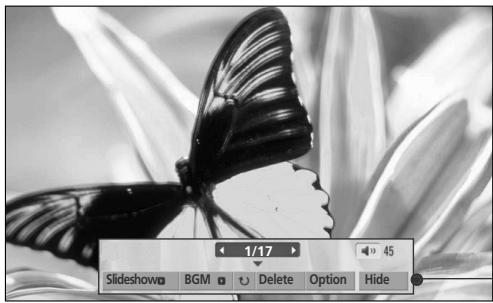
Select the Slideshow, BGM, (Rotate), Delete, Option or Hide.
- Use the left/right button to select the previous or next photo.
- Use the left/right button to select and control the menu on the full-sized screen.
▶ Slideshow: When no picture is selected, all photos in the current folder are displayed during slide show. If some photos are selected, those photos are displayed in a slide show.
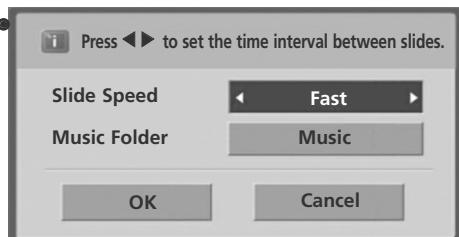
Set the time interval of the slide show in Option.
BGM (Background Music): Listen to music while viewing photos in full size.
- Set the Music Folder for BGM in Options before using this function.
(Rotate): Rotate photos.
Rotates the photo 90°, 180°, 270°, 360° clockwise. It cannot be rotated when the width of a picture is bigger than supported height.
▶ Delete (FAT32 file system only): Delete photos. ▶ Option: Set values for Slide Speed and Music Folder for BGM.
- Use the up/down/left/right button and OK button to set values. Then go to OK and press OK to save the settings.
- You cannot change Music Folder while BGM is playing.
- Hide: Hide the menu on the full-sized screen.
- To see the menu again on the full-sized screen, press OK button to display.
MUSIC LIST
You can play music files on USB storage device.
Purchased music files(*.MP3) may contain copyright restrictions. Playback of these files may not be supported by this model.
Music file on your USB device can be played by this unit.
The On Screen Display may be different from your TV. Images are an example to assist with the TV operation.
MUSIC (.MP3) supporting file
Bit rate 32 to 320
- Sampling rate MPEG1 Layer3: 32kHz, 44.1kHz, 48kHz
- Sampling rate MPEG2 Layer3 : 16kHz, 22.05kHz, 24kHz
- Sampling rate MPEG2.5 Layer3: 8kHz, 11.025kHz, 12kHz
Screen Components
Select USB.
Select Music List
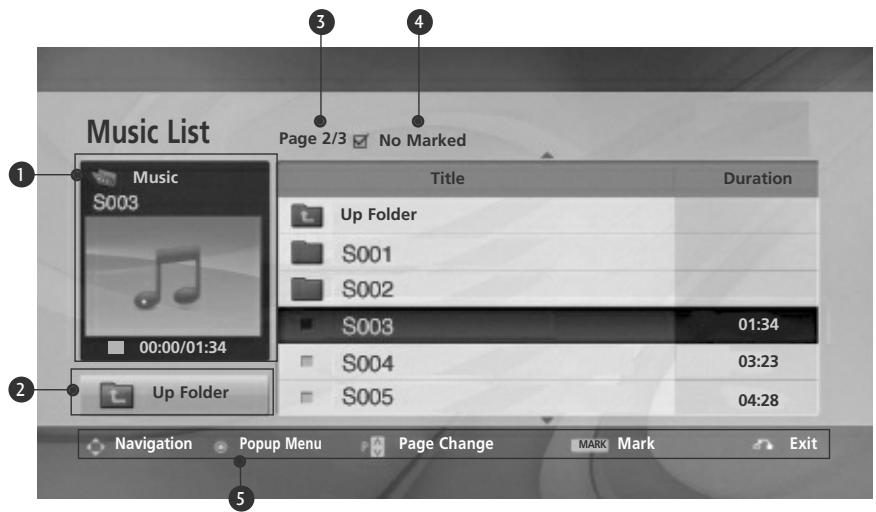
Preview: If any album jacket for the file (Album Art Image) exists, this jacket is displayed. 2 Moves to upper level folder Current page/Total pages Total number of marked music titles Corresponding buttons on the remote control
Music Selection and PopUp Menu
As shown, up to 6 music titles are listed per page.
V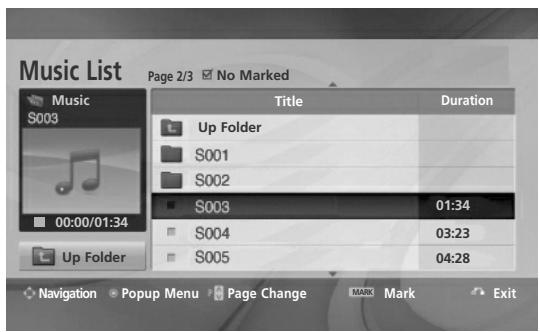
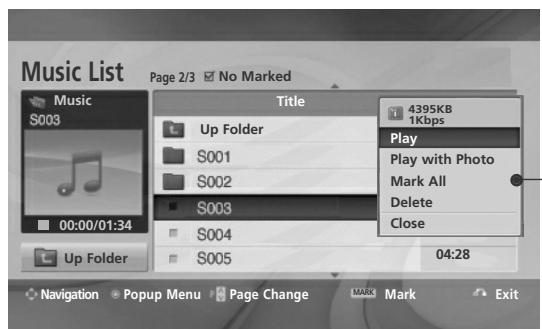
▶ Play (During stop): Play the selected music titles. When one playback of a piece of music finishes, the next selected one will be played. When there are no selected music titles to play, the next one in the current folder will be played. If you go to a different folder and press the OK button, the current music in playback will stop. ▶ Play Marked: Play the selected music titles. Once a music finishes playing, the next selected one will be played automatically. ▶ Stop Play (During playback): Stop the playing music titles. ▶ Play with Photo: Start playing the selected music titles and then move to the Photo List. ▶ Mark All: Mark all music titles in the folder. Unmark All: Deselect all marked music titles. ▶ Delete or Delete Marked (FAT32 file system only): Delete the selected music titles. ▶ Close: Close the pop-up menu.
Select the target folder or drive.

Select the desired music title.
Show the PopUp menu.

Select the desired PopUp menu.
- Use the P ∧ ∨ button to navigate up/down in the music page.
- Use MARK button to mark or unmark a music. When one or more music files are marked, the marked music titles will be played in sequence. For example, if you want to listen to only one music repeatedly, just mark the music only and play it. If no music is marked, all the music in the folder will be played in sequence.
- Press the BACK button to return to normal TV viewing.
If you don't press any button for a while during playback, the play information box (as shown below) will appear as a screen saver. What is the 'Screen Saver'?
A screen saver is used to prevent screen pixel damage caused by a fixed image remaining on the screen for an extended period of time.
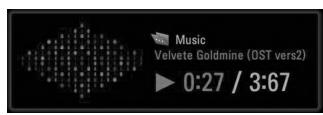
NOTE
When a music file is played, a play icon is displayed behind the title. A damaged or corrupted music file will not play and will display 00:00 in the playtime. A music file downloaded from a paid service with copyright protection will not start and will display inappropriate information in the playtime. If you press the OK button, the screen saver will stop. The PLAY (▶), PAUSE (II), STOP (■), and REWIND/FAST-FORWARD (◀◀/▶▶) buttons on the remote control are also available in this mode. You can use the ▶ button to select the next music track and the ◀ button to select the previous music track.
MOVIE LIST
You can play movie files from a USB storage device.
The movie list is activated once a USB device is detected. It is used when playing movie files on the TV.
Displays the movies in the USB folder and supports playback.
Allows playback of all movies in the folder and user-selected files.
It is a movie list that displays folder information and movie files.
The on-screen display may differ from your TV. Images are examples to assist with TV operation.
Movie (*.dat/*.mpg/*.mpeg/*.ts/*.trp/*.tp/*.vob/*.mp4/*.mkv/*.avi/*.divx) supporting file. Video format: DivX3.11, DivX4.12, DivX5.x, DivX6, Xvid1.00, Xvid1.01, Xvid1.02, Xvid1.03, Xvid 1.10-beta-1/beta-2, Mpeg-1, Mpeg-2, Mpeg-4, H.264/AVC. Audio format: Dolby Digital, AAC, Mpeg, MP3, LPCM, HE-AAC. Bit rate: within 32 kbps to 320 kbps (MP3). Subtitle format: .smi/ .srt/ .sub (MicroDVD, SubViewer 1.0/2.0)/ .ass/ .ssa/ .txt (TMPlayer)/ *.psb (PowerDivX). - Some user-created subtitles may not work properly. - Some special characters are not supported in subtitles. - HTML tags are not supported in subtitles. - Subtitles in languages other than the supported languages are not available. - Time information in an external subtitle file should be arranged in ascending order to be played. - The screen may suffer temporary interruptions (image stoppage, faster playback, etc.) when the audio language is changed. - A damaged movie file may not be played correctly, or some player functions may not be usable. - Movie files produced with some encoders may not be played correctly. - If the video and audio structure of recorded file is not interleaved, either video or audio is outputted. - HD videos with a maximum of 1920x1080@25/30P or 1280x720@50/60P are supported, depending on the frame. - Videos with resolutions higher than 1920x1080@25/30P or 1280x720@50/60P may not work properly depending on the frame. - Movie files other than the specified types and formats may not work properly. - Max bitrate of playable movie file is 20 Mbps. - We do not guarantee smooth playback of profiles encoded level 4.1 or higher in H.264/AVC. - DTS Audio codec is not supported. - A movie file more than 30 GB in file size is not supported for playback. - A DivX movie file and its subtitle file must be located in the same folder. - A video file name and its subtitle file name must be identical for it to be displayed. - Playing a video via a USB connection that doesn't support high speed may not work properly. - Files encoded with GMC (Global Motion Compensation) may not be played. - When you are watching the movie by Movie List function, you can adjust an image by Energy Saving and AV Mode key on the remote control. User setup for each image mode does not operate.
| File Extension name | Video Decoder | Audio Codec | Max Resolution |
| mpg, mpeg, vob | MPEG1, MPEG2 | Dolby Digital,MPEG,MP3,LPCM | 1920x1080@30p |
| dat | MPEG1 | Dolby Digital,MPEG,MP3,LPCM | |
| ts,trp,tp | MPEG2, H.264/AVC | Dolby Digital,AAC,MPEG | |
| mp4 | MPEG4 SP, MPEG4 ASP, DivX 3.11, Dvix 4.12, Dvix 5.x Dvix 6, Xvid 1.00, Xvid 1.01, Xvid 1.02, Xvid 1.03 Xvid 1.10-beta 1, Xvid 1.10-beta 2, H.264/AVC | Dolby Digital,HE-AAC, AAC,MPEG,MP3,LPCM | |
| avi | MPEG 2, MPEG 4 SP, MPEG4 ASP, DivX 3.11, DivX 4, DivX 5, DivX 6 Xvid 1.00, Xvid 1.01, Xvid 1.02, Xvid 1.03, Xvid 1.10-beta 1 Xvid 1.10-beta 2, H.264/AVC | Dolby Digital,HE-AAC,AAC,MPEG, MP3,LPCM | |
| mkv | H.264/AVC, MPEG 1, MPEG 2, MPEG 4 SP, MPEG4 ASP | Dolby Digital,HE-AAC,AAC,MPEG,MP3,LPCM | |
| divx | MPEG 2, MPEG 4 SP, MPEG4 ASP, DivX 3.11, DivX 4, DivX 5, DivX 6 Xvid 1.00, Xvid 1.01, Xvid 1.02, Xvid 1.03, Xvid 1.10-beta 1 Xvid 1.10-beta 2, H.264/AVC | Dolby Digital,HE-AAC,AAC,MPEG, MP3,LPCM |
Screen Components
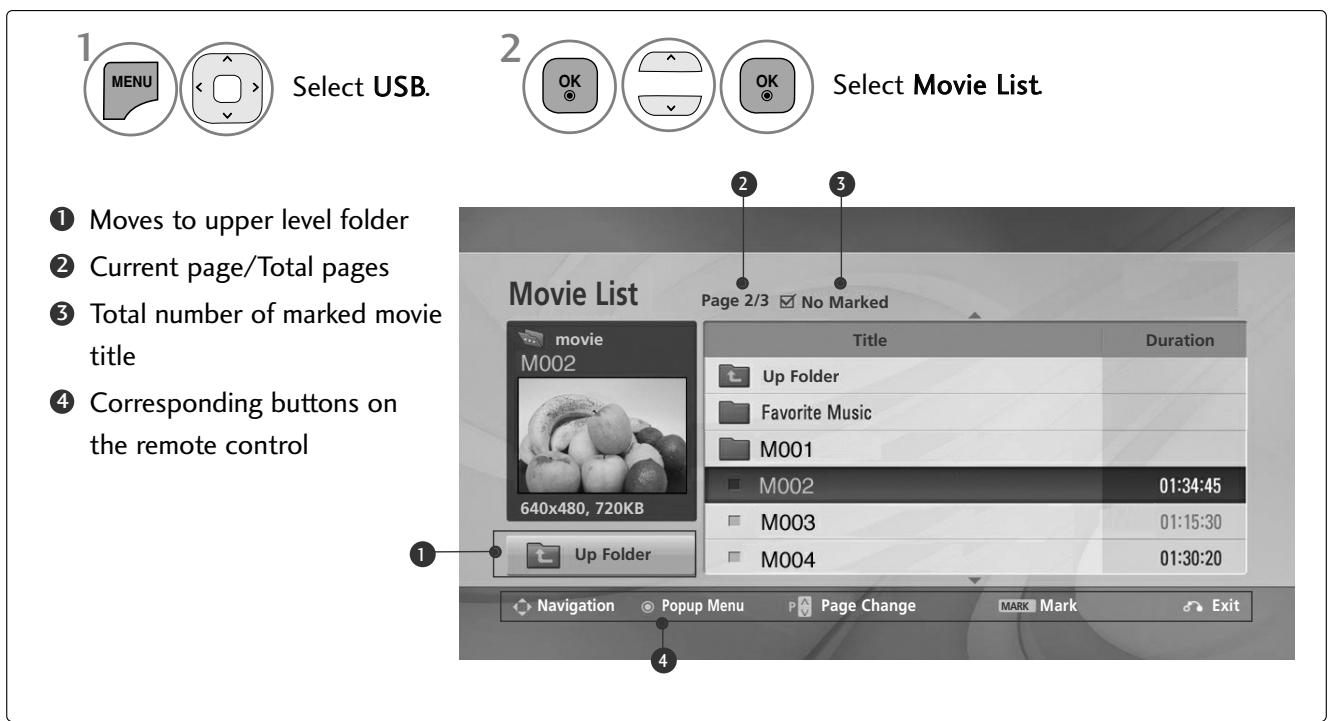
Movie Selection and PopUp Menu
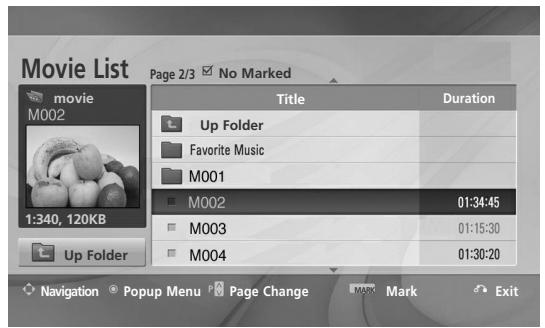

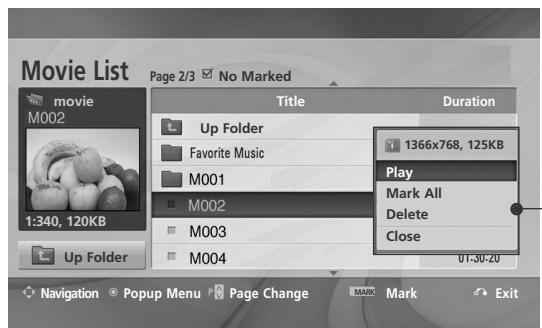
▶ Play: Play the selected movie. DivX Play is executed while screen changes. ▷ Mark All: Mark all movies in the folder. Unmark All: Deselect all marked movies. ▷ Delete or Delete Marked (FAT32 file system only)
: Delete the selected Movie item.
▷ Close: Close the pop-up menu.
Select the target folder or drive.

Select the desired movie title.
Show the PopUp menu.

Select the desired PopUp menu.
- Use the P ∧ ∨ button to navigate in the movie page.
- Use MARK button to mark or unmark a movie. When one or more movie files are marked, the marked movies will be played in sequence.
- Press the BACK button to return to normal TV viewing.

NOTE
In the case of files not supported, a message regarding non-supported file is displayed.
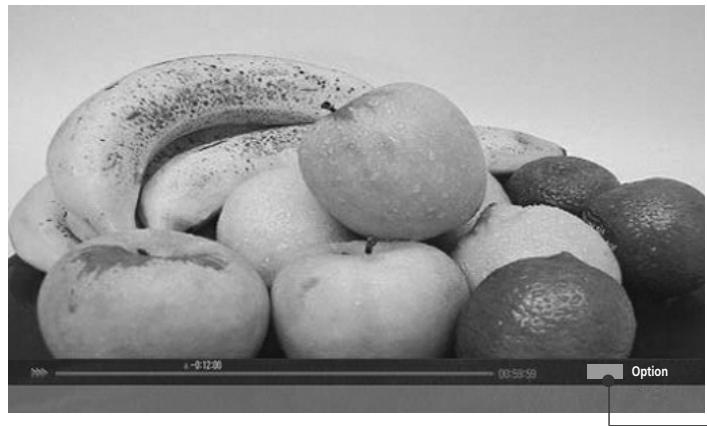
Using the Movie List function, play
| Subtitle Language | Support Language |
| Latin1 | English, Spanish, French, German, Italian, Swedish, Finnish, Dutch, Portuguese, Danish, Romanian, Norwegian, Albanian, Gaelic, Welsh, Irish, Catalan,Valencian |
| Latin2 | Bosnian, Polish, Croatian, Czech, Slovak, Slovenian, Serbian, Hungarian |
| Latin4 | Estonian, Latvian, Lithuanian |
| Cyrillic | Bulgarian, Macedonian, Russian, Ukrainian, Kazakh |
| Greek | Greek |
| Turkish | Turkish |
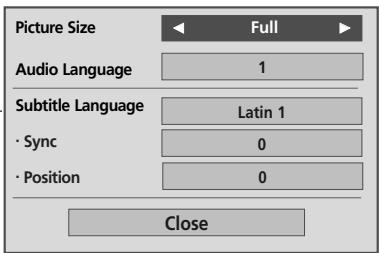
Picture Size: Selects your desired picture format during movie play. Audio Language & Subtitle Language: Changes the Language Group of the audio/subtitle during movie play. ▶ Sync: Adjusts the time synchronization of the subtitle from -10 secs to +10 secs by steps of 0.5 secs during movie play. Position: Changes the position of the subtitle either up or down during movie play.
Using the remote control
! NOTE
Only the files saved in ASCII CODE are supported for the external subtitles of the movie. Only 500 alphabets and 500 numbers are supported for each line of the subtitle. Only 10,000 sync blocks can be supported within the subtitle file.
| / ▶ | When playing, repeatedly, press the REW(▲) button to speed up (x2) -> (x4) -> (x8) -> (x16) -> (x32). repeatedly, press the FF(▲) button to speed up (x2) -> (x4) -> (x8) -> (x16) -> (x32). ■ Pressing these buttons repeatedly increases the fast forward/reverse speed. |
| II | During playback, press the Pause(II) button. ■ Still screen is displayed. ■If no buttons are pressed on the remote control for 10 minutes after pausing, the TV returns to the playback state. ■ Press the Pause(II) button and then use the FF(▲) button for slow motion. |
| < > | ■ When using the < or > button during playback a cursor indicating the position can be viewed on the screen. |
| PLAY(▲) | Press the PLAY(▲) button to return to normal playback. |
| ENERGY (eG) SAVING | Press the ENERGY SAVING button repeatedly to increase the brightness of your screen.(Refer to p. 49) |
| AV MODE | Press the AV MODE button repeatedly to select the desired source.(Refer to p. 27) |
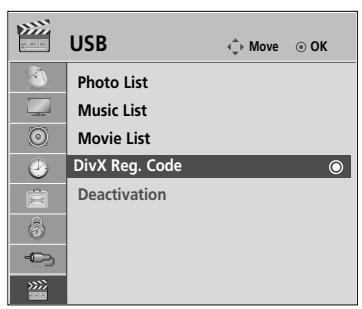
DIVX REGISTRATION CODE
Confirm the DivX registration code number of the TV. Using the registration number, movies can be rented or purchased at www.divx.com/vod.
With a DivX registration code from another TV, playback of rented or purchased DivX file is not allowed. (Only DivX files matched with the registration code of the purchased TV are playable.)

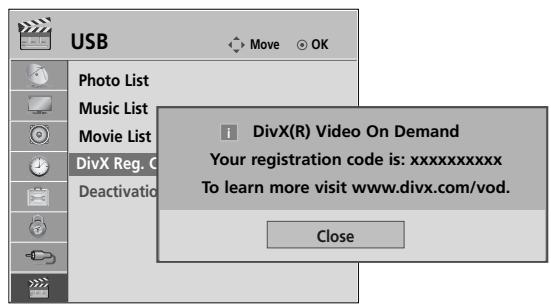


Select USB.

Select DivX Reg. Code.
Display DivX Reg. Code.
- Press the MENU/EXIT button to return to normal TV viewing.
- Press the BACK button to move to the previous menu screen.

ABOUT DIVX VIDEO: DivX® is a digital video format created by DivX, Inc. This is an official DivX Certified device that plays DivX video. Visit www.divx.com for more information and software tools to convert your files into DivX video.
ABOUT DIVX VIDEO-ON-DEMAND: This DivX Certified® device must be registered in order to play DivX Video-on-Demand (VOD) content. To generate the registration code, locate the DivX VOD section in the device setup menu. Go to vod.divx.com with this code to complete the registration process and learn more about DivX VOD.
"DivX Certified to play DivX video up to HD 1080p, including premium content" "Pat. 7,295,673; 7,460,688; 7,519,274"

NOTE
Movie files are supported as follows:
Resolution: under 1920x1080 WxH pixels
Frame rate: under 30 frames/sec (1920x1080), under 60 frames/sec (under 1280x720)
Video Codec: MPEG 1, MPEG 2, MPEG 4, H.264/AVC, DivX 3.11, DivX 4.12, DivX 5.x, DivX 6,
Xvid 1.00, Xvid 1.01, Xvid 1.02, Xvid 1.03, Xvid 1.10-beta1, Xvid 1.10-beta2
TO USE A USB DEVICE
DEACTIVATION
The purpose of deactivation is to allow deactivation of devices for users who have activated all the available devices through the web server and are blocked from activating more devices. DivX VOD allowed the consumer to activate up to 6 devices under one account, but to replace or deactivate any of those devices, the consumer had to contact DivX Support and request deletion. Now with this added feature, consumers will be able to deactivate the device themselves and hence better manage their DivX VOD devices.
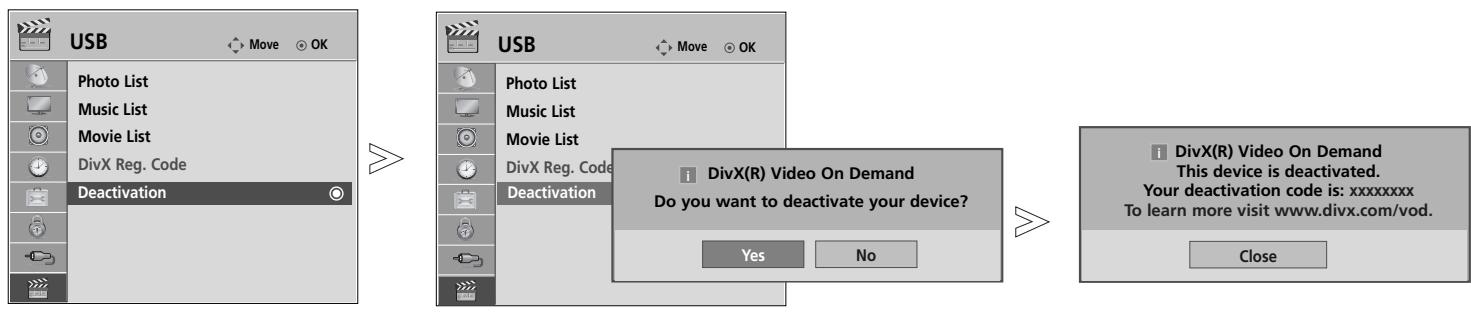


Select USB.

Select Deactivation.

Select Yes.
Display Deactivation.
- Press the MENU/EXIT button to return to normal TV viewing.
- Press the BACK button to move to the previous menu screen.
EPG (ELECTRONIC PROGRAMME GUIDE) (IN DIGITAL MODE)
This system has an Electronic Programme Guide (EPG) to help your navigation through all the possible viewing options.
The EPG supplies information such as programme listings, start and end times for all available services. In addition, detailed information about the programme is often available in the EPG (the availability and amount of these programme details will vary, depending on the particular broadcaster).
This function can be used only when the EPG information is broadcast by broadcasting companies.
The EPG displays the programme details for the next 8 days.

Shows the present screen information.

Displayed with a DTV Programme.

Displayed with a Radio Programme.

Displayed with a MHEG Programme.

Displayed with an AAC Programme.

Aspect ratio of broadcasting programme.

Aspect ratio of broadcasting programme.

Displayed with a Teletext Programme.

Displayed with a Subtitle Programme.

Displayed with a Scramble Programme.

Displayed with a Dolby Programme.

D+ Displayed with a Dolby Digital PLUS Programme.
576i/p, 720p, 1080i/p: Resolution of broadcasting programme.
Switch on/off EPG.

Switch on or off EPG.
Select a programme.


Select desired programme.
The EPG will disappear after moving to a selected program.
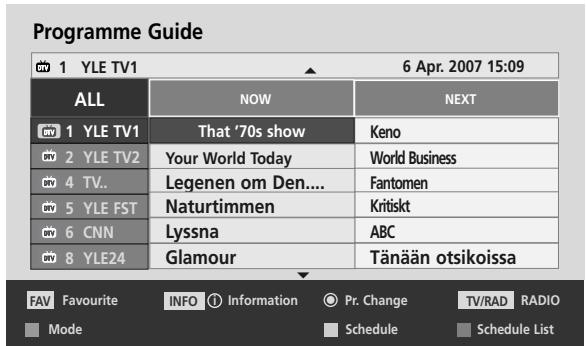
Button Function in NOW/NEXT Guide Mode.
You can view a program being broadcasted and one scheduled to follow.
RED
Change EPG mode.
YELLOW
Enter Timer Record/Remind setting mode.
BLUE
Enter Timer Record/Remind list mode.

The EPG will disappear after moving to a selected program.

Select NOW or NEXT Programme.

Select the Broadcast Programme.

Page Up/Down.

or

or

Switch off EPG.

Select TV or RADIO Programme.

Detail information on or off
EPG (ELECTRONIC PROGRAMME GUIDE)
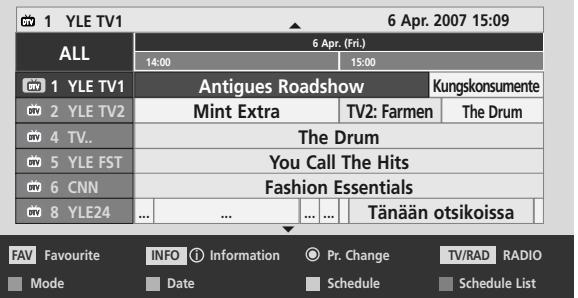
Button Function in 8 Day Guide Mode
RED)Change EPG mode.
GREEN Enter Date setting mode.
YELLOW Enter Timer Record/Remind setting mode.
BLUE Enter Timer Record/Remind list mode.
The EPG will disappear after moving to a selected program.
SelectProgramme.
Select the Broadcast Programme.
Programme Guide

Page Up/Down.

or

or

Switch off EPG.

Select TV or RADIO Programme.

Detail information on or off
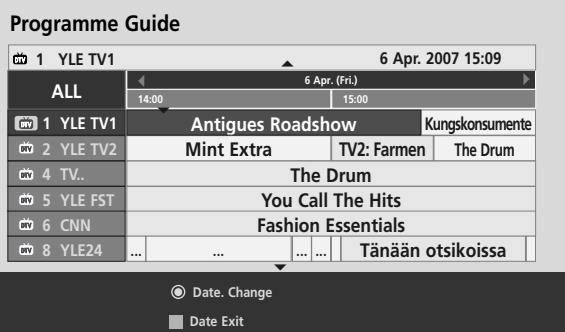
Button Function in Date Change Mode
GREEN Switch off Date setting mode.

Change to the selected date.

Select a date.

Switch off Date setting mode.

or

or

Switch off EPG.
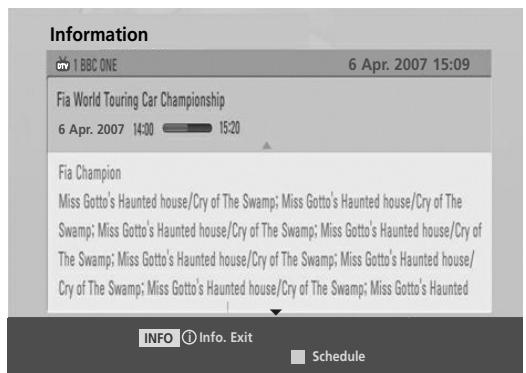
Button Function in Extended Description Box
Text Up/Down.

Enter Timer Record/Remind setting mode.

or ( BACK ) The detail information on or off.

Switch off EPG.
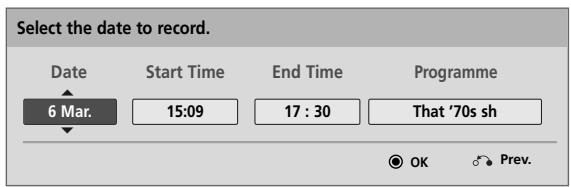
Button Function in Record/Remind Setting Mode
Sets a start or end time for recording, and sets only a start time for the reminder with the end time grayed out.

Change to Guide or Schedule mode.

Select Record or Remind. Function setting.

Select Date, Start/End time or Programme.

Save Timer Record/Remind.
Button Function in Schedule List Mode
If you've created a schedule list, a scheduled program is displayed at the scheduled time even when you are watching a different program at the time.
Only the Up/Down/OK/Back keys will work when a popup window is open.

Add new Manual Recording setting mode.

Add new Timer Watching setting mode.

or (GUIDE) Change to Guide mode.

or (EVT) Switch off EPG.

Select your desired Option(Modify/Delete/Delete All).
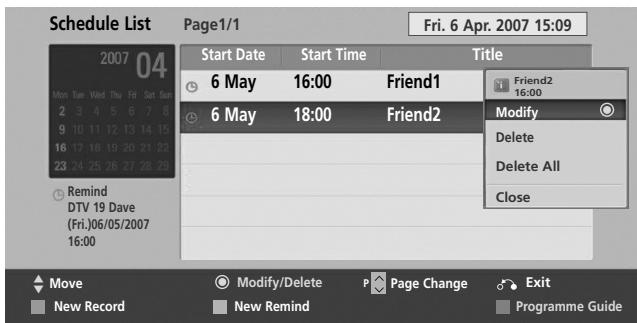
Select Schedule List.
PICTURE SIZE (ASPECT RATIO) CONTROL
You can watch the screen in various picture formats: 16:9, Just Scan, Original, Full Wide, 4:3, 14:9, Zoom, and Cinema Zoom.
If a fixed image is displayed on the screen for a long time, that fixed image may become imprinted on the screen and remain visible.
You can adjust the enlarge proportion using the button.
This function works in the following signal.

Select Aspect Ratio.
Select the desired picture format.
- You can also adjust Aspect Ratio in the PICTURE menu.
- For Zoom Setting, select 14:9, Zoom, and Cinema Zoom in Ratio Menu. After completing Zoom Setting, the display goes back to Q.Menu.
16:9
The following selection will allow you to adjust the picture horizontally, in linear proportion, to fill the entire screen (useful for viewing 4:3 formatted DVDs).
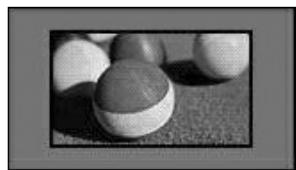
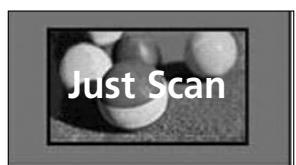
- Just Scan
Following selection will lead you to view the picture of best quality without loss of original picture in high resolution image.
Note: If there is noise in original picture, you can see the noise at the edge.
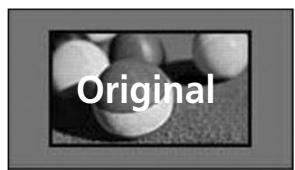
Original
When your TV receives a wide screen signal it will automatically change to the picture format broadcast.
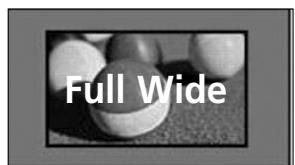
Full Wide
When TV receives the wide screen signal, it will lead you to adjust the picture horizontally or vertically, in a linear proportion, to fill the entire screen fully.
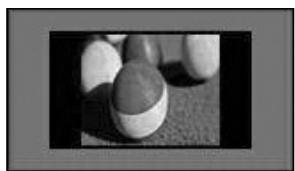
4:3
The following selection will allow you to view a picture with an original 4:3 aspect ratio, gray bars will appear on both the left and right of the screen.
14:9
You can view a picture format of 14:9 or a general TV programme in the 14:9 mode. The 14:9 screen is viewed in the same way as in 4:3, but is magnified to the left and right.
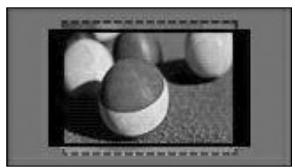
- Zoom
The following selection will allow you to view the picture without any alteration, while filling the entire screen. However, the top and bottom of the picture will be cropped.
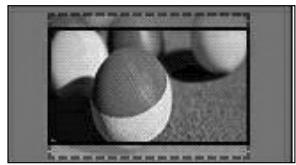
- Cinema Zoom
Choose Cinema Zoom when you want to enlarge the picture in correct proportion. Note: When enlarging or reducing the picture, the image may become distorted.
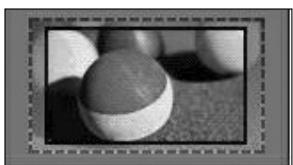
or button: Adjust enlarge proportion of Cinema Zoom. The adjustment range is 1 to 16. or button: Move the screen.

NOTE
▶ You can only select 4:3, Original, 16:9 (Wide), 14:9, Zoom/Cinema Zoom in HDMI mode. In DTV/HDMI mode, Just Scan is available. In Analogue mode, Full Wide is available.
PICTURE WIZARD
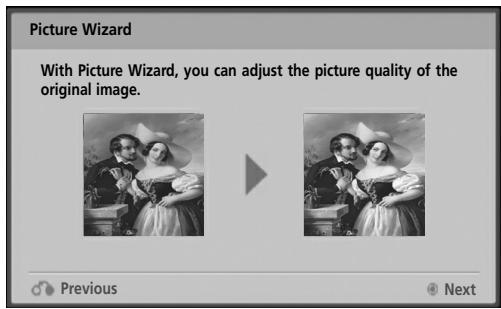
This feature lets you adjust the picture quality of the original image.
Use this to calibrate the screen quality by adjusting the Black and White Level, etc. General users can easily calibrate the screen quality by following each stage.
When you adjust the image to Low, Recommended, or High, you can see the changed result as an example.
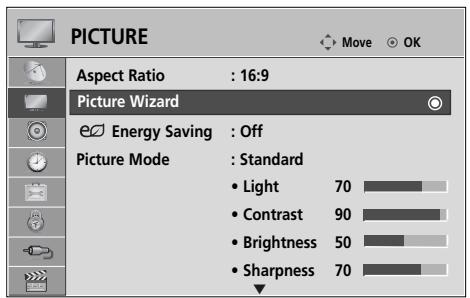


Select PICTURE.

Select Picture Wizard.

Adjust Black level, White level, Colour, Tint, Horizontal Sharpness, Vertical Sharpness, Colour Temperature, Dynamic Contrast, Colour Gain, and Light.


Select the input source to apply the settings.
- If you stop the setting before the final stage, the changes will not be applied.
- The adjustment value is saved to Expert1.
- Once the Picture Wizard sets the image quality, the Energy Saving is changed to Off.
- Press the MENU/EXIT button to return to normal TV viewing.
- Press the BACK button to move to the previous menu screen.
It reduces the TV's power consumption.
The default factory setting is adjusted to the comfortable level to be viewed at home.
You can increase the brightness of your screen by adjusting the Energy Saving level or by setting the Picture Mode.
When adjusting Energy Saving in MHEG mode, the Energy Saving setting is applied after MHEG is finished.
Selecting 'Screen Off' while tuned to a radio station channel will reduce power consumption.
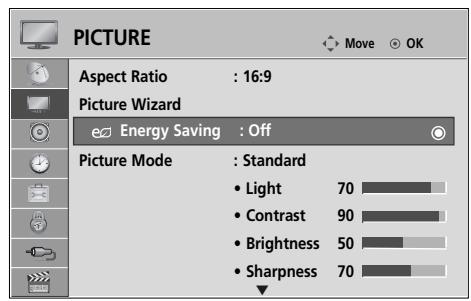

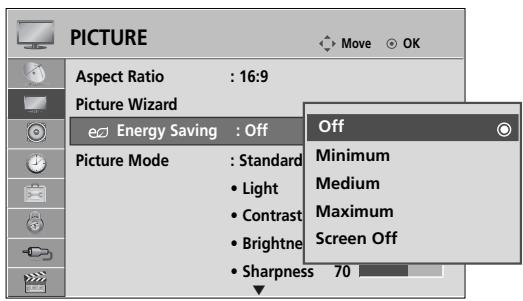
Select PICTURE.
Select Energy Saving.
Select Off, Minimum, Medium, Maximum or Screen Off.
- Press the MENU/EXIT button to return to normal TV viewing.
- Press the BACK button to move to the previous menu screen.
- When selecting Screen Off, the TV turns off after 3 seconds.
- If you adjust "Energy Saving - Minimum, Medium, Maximum", the Light feature will not work.
- You can also adjust this feature by selecting the Energy Saving button on the remote control.
PRESET PICTURE SETTINGS
Picture Mode-Preset
| Vivid | Strengthen the contrast, brightness, colour and sharpness for vivid picture. |
| Standard | The most general screen display status. |
| Natural | The most natural screen display status. |
| Cinema | Optimizes video for watching movies. |
| Sport | Optimizes video for watching sports events. |
| Game | Optimizes video for playing games. |
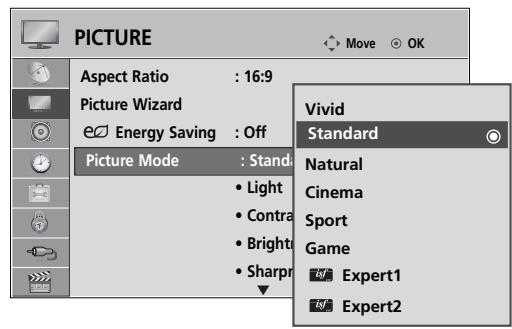

Select PICTURE.
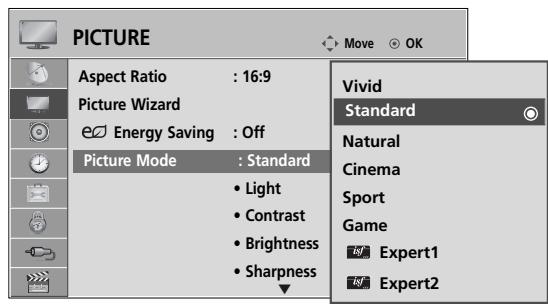
Select Picture Mode.
Select Vivid, Standard, Natural, Cinema, Sport or Game.
- Press the MENU/EXIT button to return to normal TV viewing.
- Press the BACK button to move to the previous menu screen.
- Picture Mode adjusts the TV for the best picture appearance. Select the preset value in the Picture Mode menu based on the programme category.
- You can also adjust Picture Mode in the Q. Menu.
MANUAL PICTURE ADJUSTMENT
Picture Mode-User option
Light
This is the function to adjust the brightness of the screen by adjusting the Light of the Menu.
Adjusting the light when setting the brightness of the set is recommended.
Contrast
Adjusts the signal level between black and white in the picture. You may use Contrast when the bright part of the picture is saturated.
Brightness
Adjusts the base level of the signal in the picture.
Sharpness
Adjusts the level of crispness in the edges between the light and dark areas of the picture.
The lower the level, the softer the image.
Colour
Adjusts intensity of all colours.
Tint
Adjusts the balance between red and green levels.
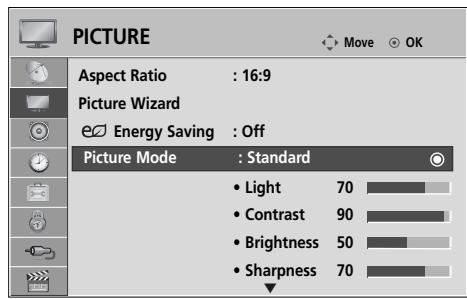


Select PICTURE.
Select Picture Mode.
Select Vivid, Standard, Natural, Cinema, Sport or Game.
Select Light, Contrast, Brightness, Sharpness, Colour or Tint.
Make appropriate adjustments.
- Press the MENU/EXIT button to return to normal TV viewing.
- Press the BACK button to move to the previous menu screen.

NOTE
- When the Expert 1/2 is selected, you can select Light, Contrast, Brightness, H Sharpness, V Sharpness, Colour or Tint.
PICTURE IMPROVEMENT TECHNOLOGY
You can calibrate the screen for each Picture Mode or set the video value according to the special video screen. You can set the video value differently for each input.
To reset to the factory default screen after making adjustments to each video mode, execute the "Picture Reset" function for each Picture Mode.
Image shown may differ from your TV.
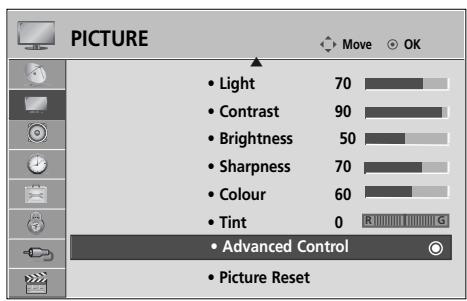
Select PICTURE.
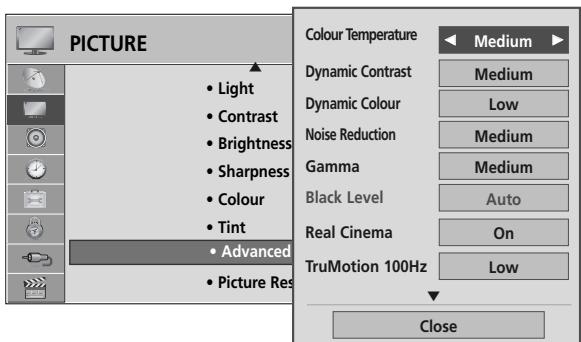
Select Advanced Control.
Select your desired Source.:
Colour Temperature, Dynamic Contrast, Dynamic Colour, Noise Reduction, Gamma, Black Level, Real Cinema, TruMotion 100Hz, Colour Gamut, Edge Enhancer or xvYCC. (Refer to p. 54 to 55)
Make appropriate adjustments.
- Press the MENU/EXIT button to return to normal TV viewing.
- Press the BACK button to move to the previous menu screen.
EXPERT PICTURE CONTROL
By segmenting categories, Expert1 and Expert2 provide more categories which users can set as they see fit, offering the optimal picture quality for users.
This may also be used to help a professional optimize the TV performance using specific videos.
Image shown may differ from your TV.
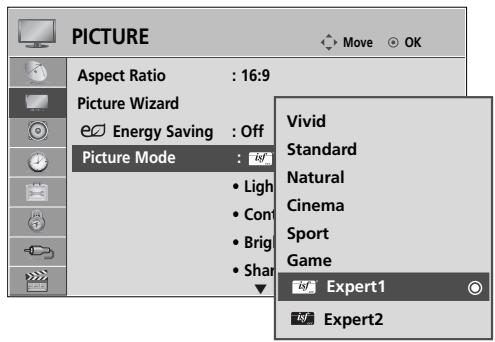

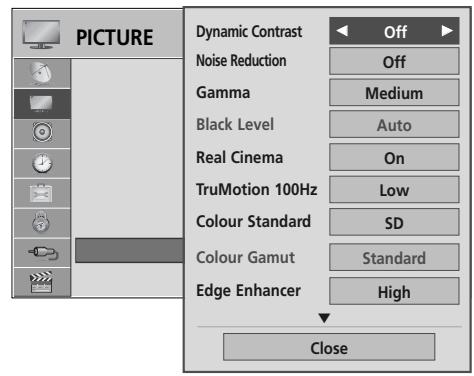


Select PICTURE.

Select Picture Mode.
Select Expert1 or Expert2.

Select Expert Control.

Select your desired Source.
Make appropriate adjustments.
- Press the MENU/EXIT button to return to normal TV viewing.
- Press the BACK button to move to the previous menu screen.
| Colour Temperature [Advanced Control] (Warm/Medium/Cool) | ■ Choose one of three automatic colour adjustments. Set to warm to enhance hot-ter colours such as red, or set to cool to make picture bluish. |
| Dynamic Contrast (Off/Low/Medium/High) | ■ Adjusts the contrast to keep it at the best level according to the brightness of the screen. The picture is improved by making bright parts brighter and dark parts darker. |
| Dynamic Colour (Off/Low/High ) | ■ Adjusts screen colours so that they look livelier, richer and clearer. This feature enhances hue, saturation and luminance so that red, blue, green and white look more vivid. |
| Noise Reduction (Off/Low/Medium/High) | ■ Reduces screen noise without compromising video quality. |
| Gamma (Low/Medium/High) | ■ You can adjust brightness of dark area and middle gray level area of the picture. ·Low: Make dark and middle gray level area of the picture brighter. ·Medium: Express original picture levels. ·High: Make dark and middle gray level area of the picture darker. |
| Black Level (Low/High/Auto) | ■ Low: The picture of the screen gets darker. ·High: The picture of the screen gets brighter. ·Auto: Realizing the black level of the screen and set it to High or Low automatically. ■ Set black level of the screen to proper level. ■ This function enables to select 'Low' or 'High' in the following mode: HDMI. Otherwise, 'Black level' is set to 'Auto'. |
| Real Cinema (On/Off) | ■ You can watch a cinema-like video by eliminating judder effect. ■ Use this function when you watch movies. ■ This function can work when TruMotion is off. |
| TruMotion 100Hz (Off/Low/High ) | ■ High: Provides smoother picture movement. ·Low: Provides smooth picture movement. Use this setting for standard use. ·Off: Use this setting when "High" and "Low" setting result in noise. ■ TruMotion 100Hz can reduce perception of blur on fast moving scenes by dis-plays one hundred images per second. ■ It is used for the best picture quality without any motion blur or judder when you enter a quick image or Film Source. ■ If you enable "TruMotion 100Hz", noise may appear on the screen. If this occurs, set "TruMotion 100Hz" to "Off". |
| Colour Gamut (Wide/Standard) | ·Standard: Mode to reproduce original colour according to the standard of input signal independent of the display characteristics. ·Wide: Mode to use and set the rich colour area of the display. ·Maximize the utilization for colour area that can be expressed. |
| Edge Enhancer (Off/Low/High) | ·Shows clearer and distinctive yet natural corners of the video. ·This function is enabled in “Picture Mode-Cinema, Expert.” |
| xvYCC (Auto/off/on) | ·This is the function to express richer colour. ·This function is enabled in “Picture mode - Cinema, Expert” when xvYCC signal is inputted through HDMI |
| Colour Standard (SD/HD) | ·Converts the colour of a different video to HD colour. This function is set for SD video (BT-601) and HD video (BT-709) colour format. |
| Expert Pattern (Off/Expert1/Expert2) | ·This is the pattern necessary for expert adjustment. ·This function is enabled in “Picture Mode - Expert” when you watch DTV. |
| Colour Filter (Off/Red/Green/Blue) | ·This is the function to filter the specific colours of the video. You can use the RGB filter to set colour saturation and hue accurately. |
| Colour Temperature [Expert Control] (Medium/Warm/Cool) | ·This is the function to adjust the overall colour of the screen to the feeling you want. a. ·Method: 2 Points ·Pattern: Inner, Outer ·Red/Green/Blue Contrast, Red/Green/Blue Brightness: The adjustment range is -50 to +50. b. ·Method: 10 point IRE ·Pattern: Inner / Outer ·IRE (Institute of Radio Engineers) is the unit to display the size of the video signal and can be set among 10, 20, 30 to 100. You can adjust Red, Green or Blue according to each setting. ·Luminance: This function displays calculated luminance value for 2.2 gamma. You can input luminance value you want at 100 IRE, than the target luminance value for 2.2 gamma is displayed at every 10 steps from 10 IRE to 90 IRE. ·Red/Green/Blue: The adjustment range is -50 to +50. |
| Colour Management System | ·As the tool used by the experts to make adjustments by using the test patterns, this does not affect other colours but can be used to selectively adjust the 6 colour areas (Red/Green/Blue/Cyan/Magenta/Yellow). Colour difference may not be distinctive even when you make the adjustments for the general video. ·Adjusts Red/Green/Blue/Yellow/Cyan/Magenta. ·Red/Green/Blue/Yellow/Cyan, Magenta Colour: The adjustment range is -30 to +30. ·Red/Green/Blue/Yellow/Cyan/Magenta Tint: The adjustment range is -30 to +30. |
PICTURE RESET
Settings of the selected picture modes return to the default factory settings.
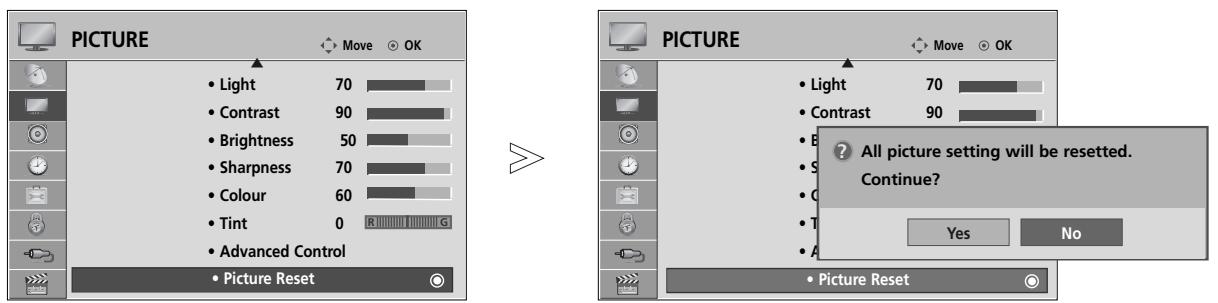


Select PICTURE.

Select Picture Reset.

Select Yes or No.
Initialize the adjusted value.
- Press the MENU/EXIT button to return to normal TV viewing.
- Press the BACK button to move to the previous menu screen.
DEMO MODE
Display the slide show to explain the various logos of this TV.
It is not possible to use Demo Mode in Home Use mode.
In Store Demo, Demo Mode is automatically set to On.
Once Demo Mode is set to Off in Store Demo, Demo Mode does not run and only the screen is reset.
The screen is reset automatically after 5 minutes in Demo Mode.
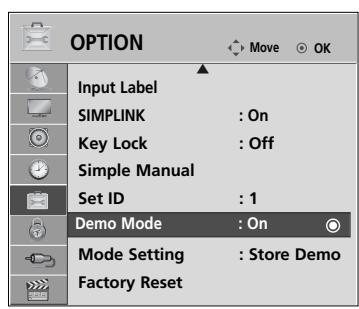

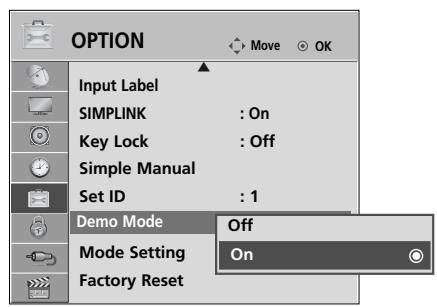


Select OPTION.
Select Demo Mode.
Select On to show the various logos of the TV.
Return to TV viewing.
If you want to stop the demo, press any button (except for
MUTE, +, - buttons).
- Press the MENU/EXIT button to return to normal TV viewing.
- Press the BACK button to move to the previous menu screen.
MODE SETTING
We recommend setting the TV to "Home Use" mode for the best picture in your home environment. "Store Demo" mode is an optimal setting for displaying at stores.
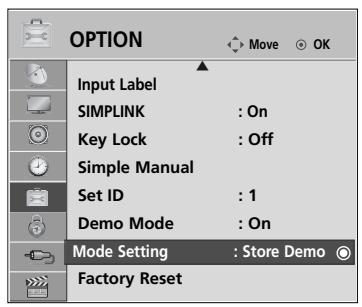
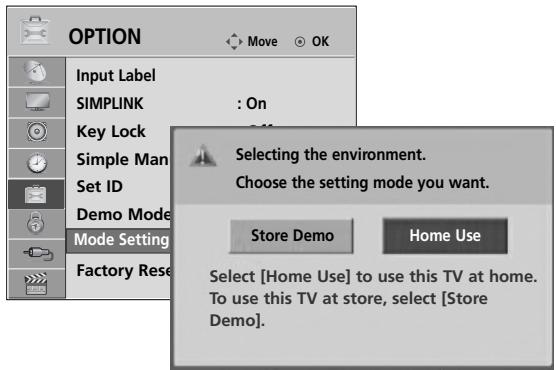


Select OPTION.

Select Mode Setting.

Select Store Demo or Home Use.
Save.
- Press the MENU/EXIT button to return to normal TV viewing.
- Press the BACK button to move to the previous menu screen.
SOUND & LANGUAGE CONTROL
AUTO VOLUME LEVELER
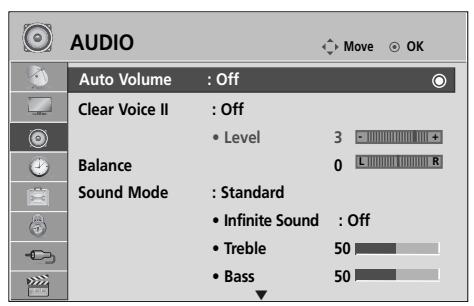
AVL automatically maintains the same volume level when you change programmes.
Because each broadcasting station has its own signal conditions, volume adjustment may be needed every time the channel is changed. This feature allows users to enjoy stable volume levels by making automatic adjustments for each program.
If sound quality or volume is not at the level you want, it is recommended to use a separate home theater system or amp to cope with different user environments.
Select AUDIO.
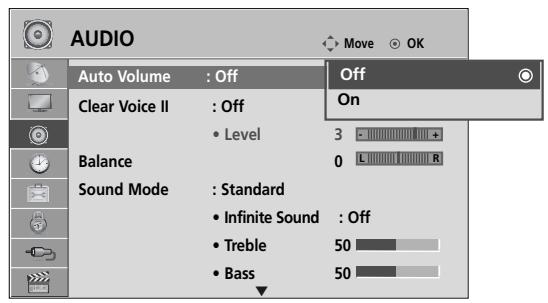
Select Auto Volume.
Select On or Off.
- Press the MENU/EXIT button to return to normal TV viewing.
- Press the BACK button to move to the previous menu screen.
SOUND & LANGUAGE CONTROL
CLEAR VOICE II
By differentiating the human sound range from others, it helps users listen to human voices better.
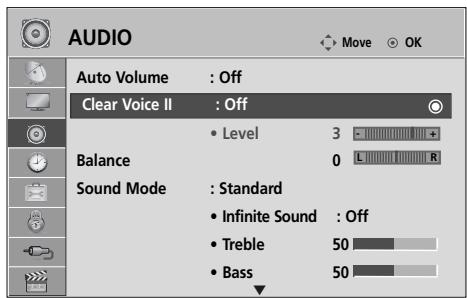


Select AUDIO.
Select Clear Voice II.
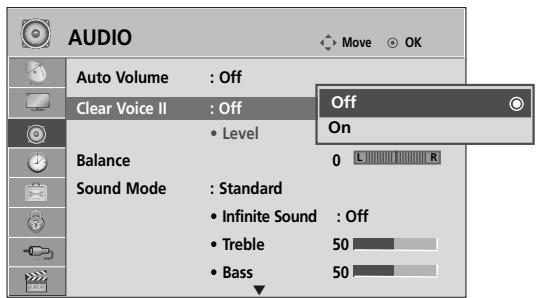
Select On or Off.
Adjustment for Clear Voice Level: With selecting On
Select Level.
Make desired adjustment.
- If you select "On" for Clear Voice II, the Infinite Sound feature will not work.
- Select levels from -6 to +6.
- Press the MENU/EXIT button to return to normal TV viewing.
- Press the BACK button to move to the previous menu screen.
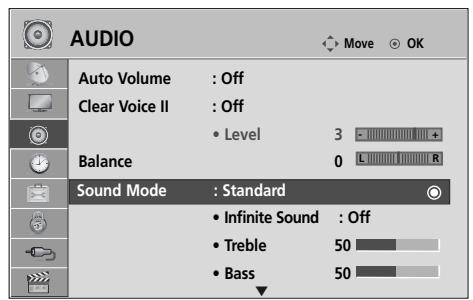
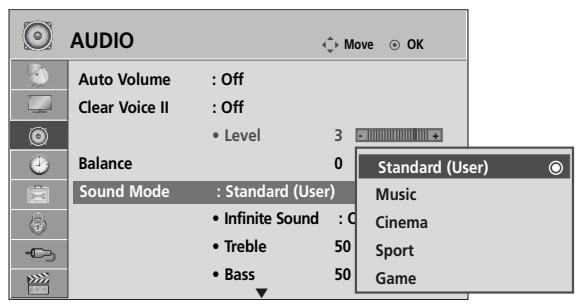
You can select your preferred sound setting: Standard, Music, Cinema, Sport, or Game, and you can also adjust the Treble and Bass.
Sound Mode lets you enjoy the best sound without any special adjustment, as the TV sets the appropriate sound options based on the programme content.
Standard, Music, Cinema, Sport, and Game are preset for optimum sound quality at the factory.
Standard: Offers standard-quality sound.
Music Optimizes sound for listening to music.
Cinema Optimizes sound for watching movies.
Sport Optimizes sound for watching sports events.
Game Optimizes sound for playing games.

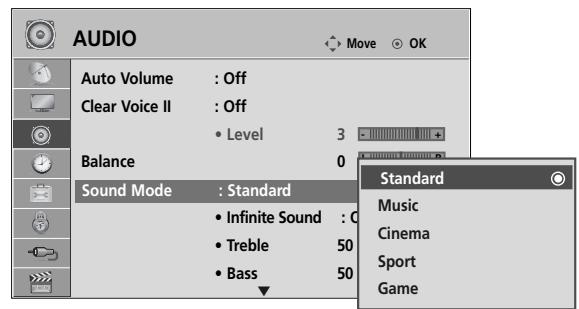
Select AUDIO.
- You can also adjust Sound Mode in the Q. Menu.
Select Sound Mode.
Select Standard, Music, Cinema, Sport or Game.
- Press the MENU/EXIT button to return to normal TV viewing.
- Press the BACK button to move to the previous menu screen.
SOUND SETTING ADJUSTMENT -USER MODE
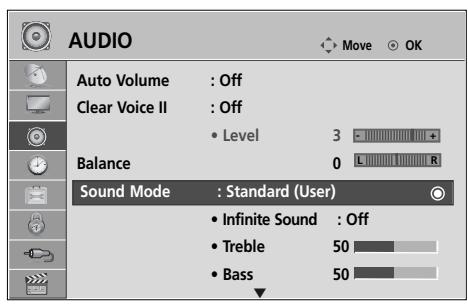

Select AUDIO.
Select Sound Mode.
Select Standard, Music, Cinema, Sport or Game.
Select Treble or Bass.
Set the desired sound level.
- Press the MENU/EXIT button to return to normal TV viewing.
- Press the BACK button to move to the previous menu screen.
INFINITE SOUND
Select this option to sound realistic.
Select AUDIO.
Select Infinite Sound.
Select On or Off.
Infinite Sound : Infinite Sound is a patented LG proprietary sound processing technology that strives immersive 5.1 surround sound impression with front two loudspeakers.
- Press the MENU/EXIT button to return to normal TV viewing.
- Press the BACK button to move to the previous menu screen.
BALANCE
You can adjust the sound balance of the speakers to preferred levels.
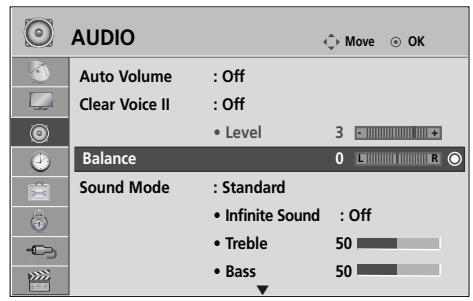

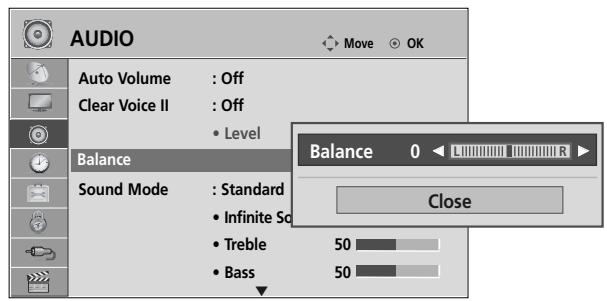

Select AUDIO.
Select Balance.

Make desired adjustment.
- Press the MENU/EXIT button to return to normal TV viewing.
- Press the BACK button to move to the previous menu screen.
SOUND & LANGUAGE CONTROL
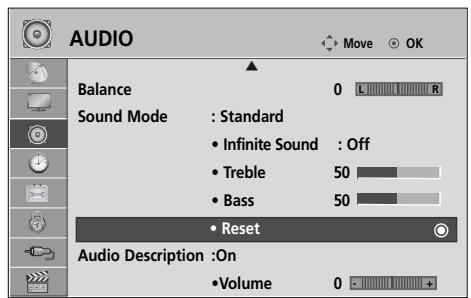
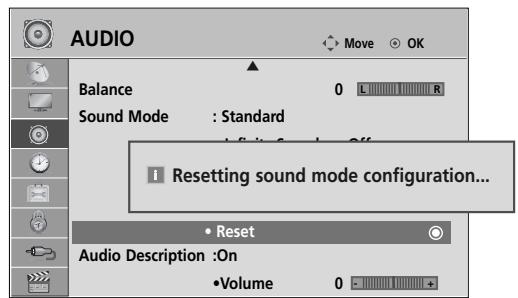
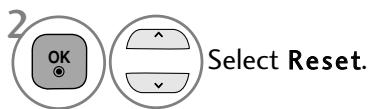
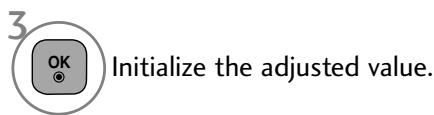
AUDIO RESET
Settings of the selected Sound Mode return to the default factory settings.


- Press the MENU/EXIT button to return to normal TV viewing.
- Press the BACK button to move to the previous menu screen.
AUDIO DESCRIPTION (IN DIGITAL MODE ONLY)
This function is for the blind, and provides explanatory audio describing the current situation in a TV programme in addition to the basic audio.
When Audio Description On is selected, basic audio and Audio Description are provided only for those programmes that have Audio Description included.
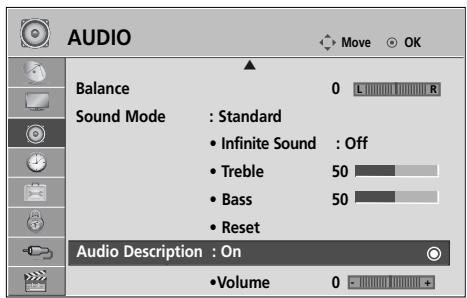

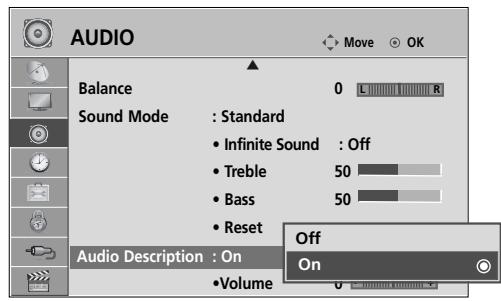
Select AUDIO.
Select Audio Description.
Select On or Off.
Adjustment for Audio Description Volume With selecting On
Select Volume.
Make desired adjustment.
- Press the MENU/EXIT button to return to normal TV viewing.
- Press the BACK button to move to the previous menu screen.
I/II
Stereo/Dual Reception (In Analogue Mode Only)
When a programme is selected, the sound information for the station appears with the programme number and station name.

Select Audio.
Select the sound output.
| Broadcast | On Screen Display |
| Mono | MONO |
| Stereo | STEREO |
| Dual | DUAL I, DUAL II, DUAL I+II |
Mono sound selection
If the stereo signal is weak in stereo reception, you can switch to mono. In mono reception, the clarity of sound is improved.
■ Language selection for dual language broadcast
If a programme can be received in two languages (dual language), you can switch to DUAL I, DUAL II or DUAL III.
DUAL I Sends the primary broadcast language to the loudspeakers.
DUAL II Sends the secondary broadcast language to the loudspeakers.
DUAL I+II Sends a separate language to each loudspeaker.
NICAM Reception (In Analogue Mode Only)
If the TV is equipped with a receiver for NICAM reception, high quality NICAM (Near Instantaneous Companding Audio Multiplex) digital sound can be received.
Sound output can be selected according to the type of broadcast received.
When NICAM mono is received, you can select NICAM MONO or FM MONO. When NICAM stereo is received, you can select NICAM STEREO or FM MONO. If the stereo signal is weak, switch to FM MONO. When NICAM dual is received, you can select NICAM DUAL I, NICAM DUAL II, NICAM DUAL I+II, or FM MONO.
Speaker Sound Output Selection
In HDMI mode, you can select output sound for the left and right loudspeakers.
Select the sound output.
L+R: Audio signal from audio L input is sent to the left loudspeaker and audio signal from audio R input is sent to the right loudspeaker. L+L: Audio signal from audio L input is sent to left and right loudspeakers. R+R: Audio signal from audio R input is sent to left and right loudspeakers.
ON-SCREEN MENU LANGUAGE / COUNTRY SELECTION
The installation guide menu appears on the TV screen when it is switched on for the first time.
Select your desired language.
Select your country.
- If you want to change Language/Country selection

Select OPTION.

Select Menu Language or Country.

Select your desired language or country.
Save.
- Press the MENU/EXIT button to return to normal TV viewing.
- Press the BACK button to move to the previous menu screen.
NOTE
If you do not finish the set-up Installation Guide by pressing BACK or if you time out on the OSD (On Screen Display), the installation menu will continuously appear until the set up is completed whenever the TV is switched on. If you select the wrong local country, teletext may not appear correctly on the screen and some problems may occur during teletext operation. DTV mode control buttons may not function based on country broadcasting circumstances. In countries where digital broadcasting regulation is not fixed, some DTV functions may not work depending on digital broadcasting circumstances. The Country Setting "UK" should only be activated in UK. If the country setting is set to "--", European terrestrial/cable digital standard broadcasting programmes are available, but some DTV functions may not work properly.
LANGUAGE SELECTION (IN DIGITAL MODE ONLY)
The Audio function allows selection of a preferred language.
If audio data in a selected language is not broadcast, the default language audio will be played.
Use the Subtitle function when two or more subtitle languages are broadcast. If subtitle data in a selected language is not broadcast, the default language subtitle will be displayed.
When the languages you selected as the primary for Audio Language and Subtitle Language are not supported, you can select language in secondary category.

Select OPTION.
Select Audio Language or Subtitle Language.
Select your desired language.



Select OPTION.

Select Hard of Hearing (□).

Select On or Off.
- Press the BACK button to move to the previous menu screen.
< Audio Language Selection > - When two or more audio languages are broadcast, you can select the audio language.


Select Audio
Select an audio language.
- When two or more subtitle languages are broadcast, you can select the subtitle language with the SUBTITLE button on the remote control. Press the ▲▼ button to select a subtitle language.
Audio Language OSD Information
| Display | Status |
| N.A | Not Available |
| MPEG | MPEG Audio |
| D | Dolby Digital Audio |
| Audio for “Visual Impaired” | |
| ABC | Audio for “Hearing Impaired” |
| D+ | Dolby Digital Plus Audio |
| AAC | AAC Audio |
| Display | Status |
| N.A | Not Available |
| 三 | Teletext Subtitle |
| ABC | Subtitle for “Hard of Hearing” |
- The audio/subtitles can be displayed in a simpler form with 1 to 3 characters broadcast by the service provider.
- When you select supplementary Audio (Audio for "Visual/Hearing Impaired") the TV may output a part of the Main audio.
CLOCK SETUP
The clock is set automatically when receiving a digital signal. (You can set the clock manually only if the TV has no DTV signal.)
You must set the time correctly before using on/off timer function.
When you select a Time Zone city, the TV time is set by the time offset information based on Time Zone and GMT (Greenwich Mean Time) which is received with the broadcast signal and the time is set automatically by a digital signal.
Once Clock is set in DTV mode, you cannot change time, but if the city name in Time Zone is changed into offset, you can change time by 1 hour.
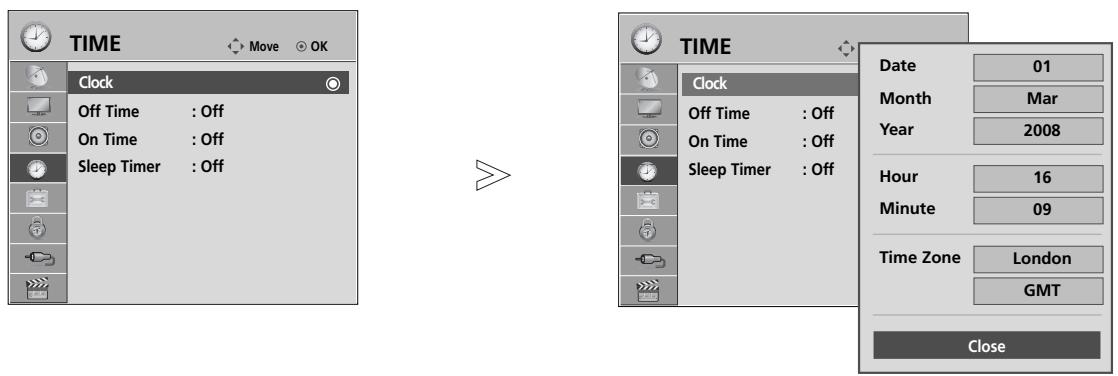
Select TIME.
Select Clock.
Select either the year, month, date, time or Time Zone option.
Set the year, month, date, time or Time Zone option.
- Press the MENU/EXIT button to return to normal TV viewing.
- Press the BACK button to move to the previous menu screen.
AUTO ON/OFF TIME SETTING
The Off time function automatically switches the TV to standby at a preset time.
Two hours after the TV is switched on by the on time function it will automatically switch back to standby mode unless a button has been pressed.
The Off time function overrides the On time function if both are set to the same time.
The TV must be in standby mode for the On time to work.
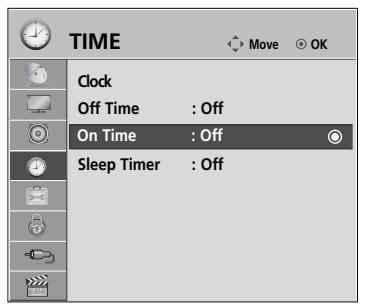

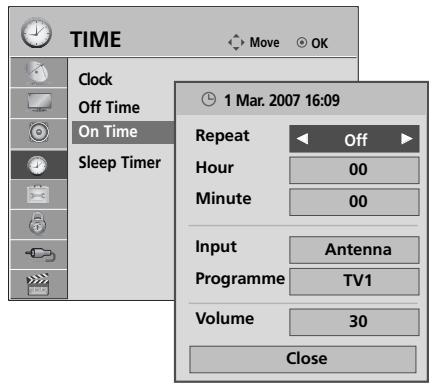

Select TIME.
Select Off Time or On Time.
Select Repeat.
4 Select Off, Once, Daily, Mon ~ Fri, Mon ~ Sat, Sat ~ Sun or Sun.
Set the hour.
Set the minutes.
- To cancel On/Off Time function, select Off.
- For On Time function only
Select Input.
Select the input source.
Set the programme.
Adjust volume level at switch-on.
- Press the MENU/EXIT button to return to normal TV viewing.
- Press the BACK button to move to the previous menu screen.
TIME SETTING
SLEEP TIMER SETTING
You do not have to remember to switch the TV off before you go to sleep. The sleep timer automatically switches the TV to standby after the preset time has elapsed.

Select Sleep Timer.
Select Off, 10, 20, 30, 60, 90, 120, 180 or 240 min.
- When you switch the TV off, the preset sleep timer is cancelled.
- You can also adjust Sleep Timer in the TIME menu.
PARENTAL CONTROL / RATINGS
SET PASSWORD & LOCK SYSTEM
Enter the password, press '0', '0', '0', '0' on the remote control handset. If a channel is locked, enter the password to unlock it temporarily.
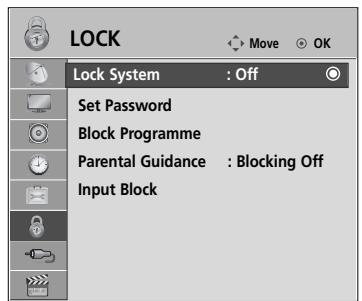
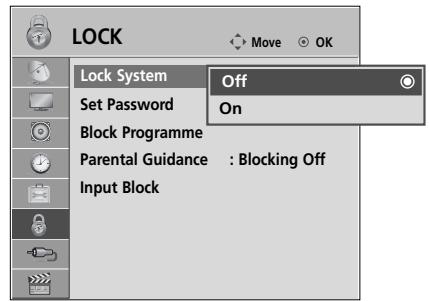

- If you forget your password, press '0', '3', '2', '5' on the remote control handset.
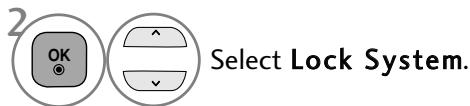
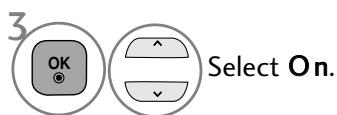
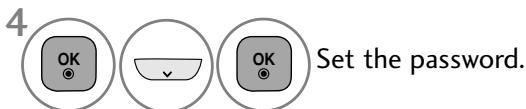
- Press the MENU/EXIT button to return to normal TV viewing.
- Press the BACK button to move to the previous menu screen.
PARENTAL CONTROL / RATINGS
BLOCK PROGRAMME
Blocks any programme that you do not want to watch or that you do not want your children to watch.
It is available to use this function in Lock System "On".
Enter a password to watch a blocked programme.
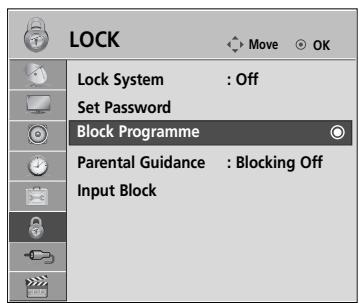

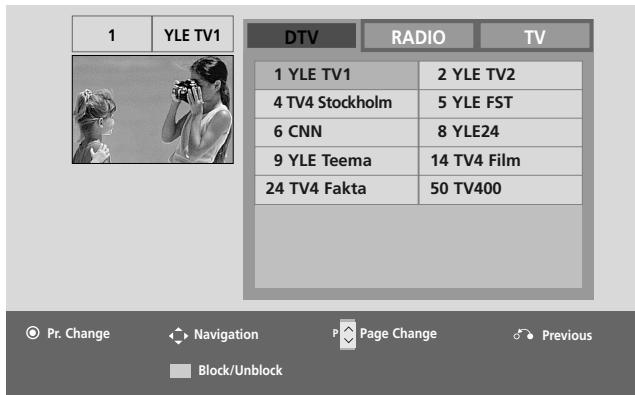


Select LOCK.
Select Block Programme.
Enter the Block Programme.
GREEN
Select a programme to be locked.
- Press the MENU/EXIT button to return to normal TV viewing.
- Press the BACK button to move to the previous menu screen.
PARENTAL CONTROL (IN DIGITAL MODE ONLY)
This function operates according to information from the broadcasting station. Therefore if the signal has incorrect information, this function does not operate.
A password is required to gain access to this menu.
This set is programmed to remember which option it was last set to even if you switch the set off.
Prevents children from watching certain adult's TV programmes, according to the ratings limit set.
Enter a password to watch a blocked programme.
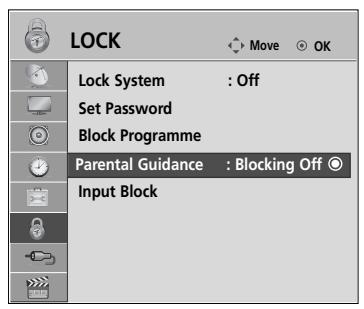

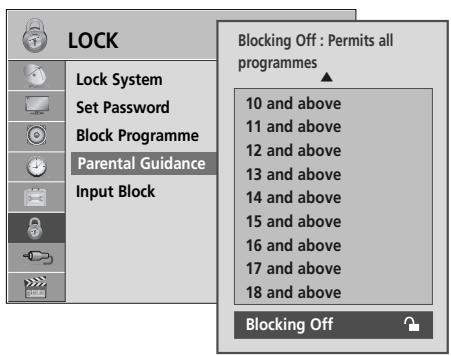

Select LOCK.
Select Parental Guidance.
Make appropriate adjustments.
- Press the MENU/EXIT button to return to normal TV viewing.
- Press the BACK button to move to the previous menu screen.
PARENTAL CONTROL / RATINGS
EXTERNAL INPUT BLOCKING
Enables you to block an input.
This function is available when Lock System is set to "On".
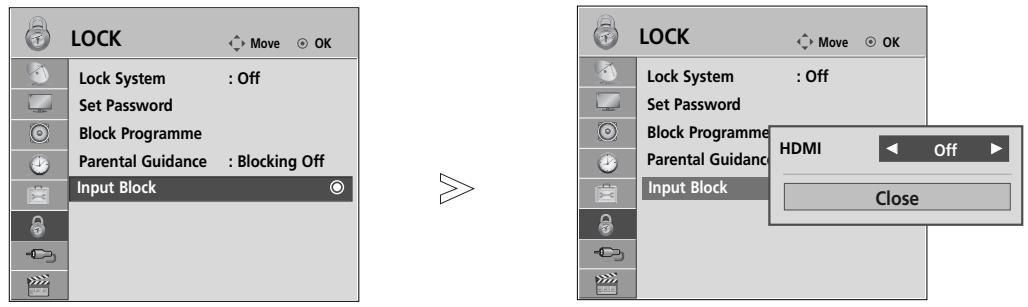


- Press the MENU/EXIT button to return to normal TV viewing.
- Press the BACK button to move to the previous menu screen.
KEY LOCK
The TV can be set so that the remote control is required to control it. This feature can be used to prevent unauthorized viewing.
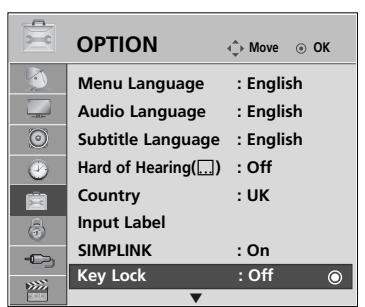

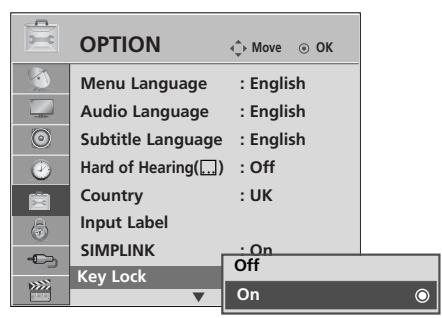

Select OPTION.
Select Key Lock.
Select On or Off.
- When Key Lock is set to 'On', if the TV is turned off, press the ○/○, INPUT, P ∧ ∨ button on the TV or POWER, INPUT, P ∧ ∨, or NUMBER buttons on the remote control to turn the set on.
- With Key Lock On, the display '△ Key Lock On' appears on the screen if any button on the front panel is pressed while viewing the TV.
- Press the MENU/EXIT button to return to normal TV viewing.
- Press the BACK button to move to the previous menu screen.
This feature is not available in all countries.
Teletext is a free service broadcast by most TV stations which gives up-to-the-minute information on news, weather, television programmes, share prices and many other topics.
The teletext decoder of this TV can support the SIMPLE, TOP and FASTEXT systems. SIMPLE (standard teletext) consists of a number of pages which are selected by directly entering the corresponding page number. TOP and FASTEXT are more modern methods allowing quick and easy selection of teletext information.
SWITCH ON/OFF
Press the TEXT button to switch to teletext. The initial page or last page viewed appears on the screen.
Two page numbers, TV station name, date and time are displayed on the screen headline. The first page number indicates your selection, while the second shows the current page displayed.
Press the TEXT button to switch off teletext. The previous mode reappears.
SIMPLE TEXT
Page selection
1 Enter the desired page number as a three digit number with the NUMBER buttons. If during selection you press a wrong number, you must complete the three digit number and then re-enter the correct page number. The P∧∨ button can be used to select the preceding or following page.
TOP TEXT
The user guide displays four fields—red, green, yellow, and blue—at the bottom of the screen. The yellow field denotes the next group, and the blue field indicates the next block.
■ Block / group / page selection
1. With the blue button, you can progress from block to block. Use the yellow button to proceed to the next group with automatic overflow to the next block. 3. With the green button, you can proceed to the next existing page with automatic overflow to the next group. Alternatively, the P Γ button can be used. The red button returns to the previous selection. Alternatively, the P × button can be used.
Direct page selection
As with SIMPLE teletext mode, you can select a page by entering it as a three-digit number using the NUMBER buttons in TOP mode.
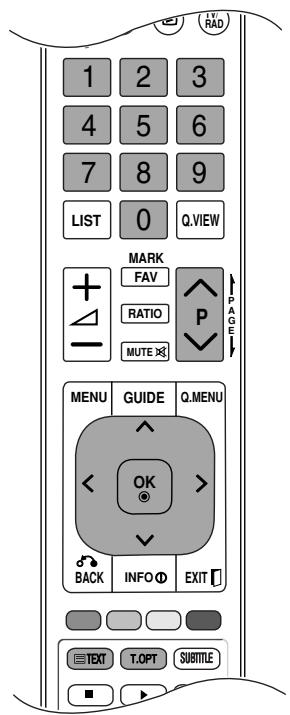
FASTEXT
The teletext pages are color coded along the bottom of the screen and are selected by pressing the corresponding colored button.
Page selection
1. Press the T.OPT button and then use the ∧∨ button to select the menu. Display the index page. You can select the pages which are color coded along the bottom line with corresponding colored buttons. As with SIMPLE teletext mode, you can select a page by entering its three-digit page number with the NUMBER buttons in FASTEXT mode. The P∧∨ button can be used to select the preceding or following page.
SPECIAL TELETEXT FUNCTIONS
Press the T. OPT button and then use the ∧∨ button to select the Text Option menu.

Index
Select each index page.

Time
When viewing a TV programme, select this menu to display the time at the top right-hand corner of the screen.
In the teletext mode, press this button to select a sub page number. The sub page number is displayed at the bottom of the screen. To hold or change the sub page, press the RED/GREEN, < > or NUMBER buttons.
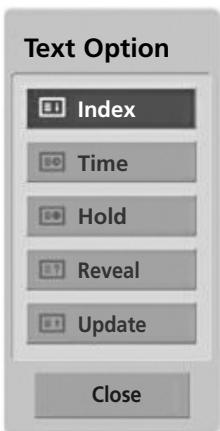

Hold
Stops the automatic page change which will occur if a teletext page consists of 2 or more sub pages. The number of sub pages and the sub page displayed is, usually, shown on the screen below the time. When this menu is selected the stop symbol is displayed at the top left-hand corner of the screen and the automatic page change is inactive.

■Reveal
Select this menu to display concealed information, such as solutions to riddles or puzzles.

Update
Displays the TV picture on the screen while waiting for a new teletext page. The display will appear at the top left hand corner of the screen. When the updated page is available then display will change to the page number. Select this menu again to view the updated teletext page.
DIGITAL TELETEXT
*This function works in UK, Ireland only.
The TV gives you access to digital teletext which is greatly improved in various aspects such as text, graphics etc. This digital teletext can access special digital teletext services and specific services which broadcast digital teletext.
You should select off in the subtitle language menu to display teletext by pressing the SUBTITLE button.
TELETEXT WITHIN DIGITAL SERVICE
Press the numeric or P ∧ ∨ button to select a digital service which broadcasts digital teletext. 2 Follow the indications on digital teletext and move onto the next step by pressing TEXT, OK, ∧ ∨ < >, RED, GREEN, YELLOW, BLUE or NUMBER buttons and etc. 3 To change digital teletext service, select a different service by the numeric or P ∧ ∨ button.
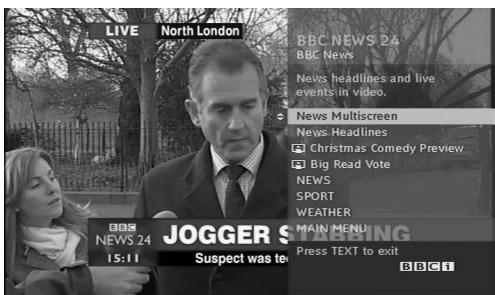
TELETEXT IN DIGITAL SERVICE
Press the numeric or P ∧ ∨ button to select a certain service which broadcasts digital teletext. Press the TEXT or coloured button to switch on teletext. 3 Follow the indications on digital teletext and move onto the next step by pressing OK, ∧ ∨ < >, RED, GREEN, YELLOW, BLUE or NUMBER buttons and so on. 4 Press the TEXT or colour button to switch off digital teletext and return to TV viewing.
Some services may allow you to access text services by pressing the RED button.
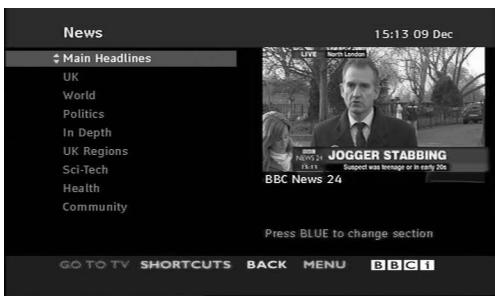
TROUBLESHOOTING
The TV does not operate properly.
| The remote control does not work | ■Check to see if there is any object between the TV and the remote control causing an obstruction. Ensure you are pointing the remote control directly at the TV.■Ensure that the batteries are installed with correct polarity (+ to +, - to -).■Install new batteries. |
| Power is suddenly turned off | ■Is the sleep timer set?■Check the power control settings. Has the Power supply been interrupted.■If the TV is switched on and there is no input signal, it will switch off automatically after 15 minutes. |
The video function does not work.
| No picture & No sound | ■ Check whether the TV is switched on. ■ Try another channel. The problem may be with the broadcast. ■ Is the power cord inserted correctly into the mains? ■ Check your antenna direction and/or location. ■ Test the mains outlet by plugging another TV into the same outlet. |
| Picture appears slowly after switching on | ■ This is normal, the image is muted during the TV startup process. Please contact your service centre, if the picture has not appeared after five minutes. |
| No or poor colour or poor picture | ■ Adjust Colour in menu option. ■ Allow a sufficient distance between the TV and the VCR. ■ Try another channel. The problem may be with the broadcast. ■ Are the video cables installed properly? ■ Activate any function to restore the brightness of the picture. |
| Horizontal/vertical bars or picture shaking | ■ Check for local interference such as an electrical appliance or power tool. |
| Poor reception on some channels | ■ Station or cable channel experiencing problems, tune to another station. ■ Station signal is weak, reposition the antenna to receive weaker stations. ■ Check for sources of possible interference. |
| Lines or streaks in pictures | ■ Check antenna (Change the position of the antenna). |
| No picture when connecting HDMI | ■ Check that your HDMI cable is version 1.3 or higher. If the HDMI cables don't support HDMI version 1.3, flickering or no screen display can result. Please use the latest cables that support at least HDMI version 1.3. |
The audio function does not work.
Picture OK & No sound
Press the + or - button. Sound muted? Press MUTE button. Try another channel. The problem may be with the broadcast. Are the audio cables installed properly?
No output from one of the speakers
Adjust Balance in menu option.
Unusual sound from inside the TV
A change in ambient humidity or temperature may result in an unusual noise when the TV is switched on or off and does not indicate a fault with the TV.
No sound when connecting HDMI or USB
Check HDMI cable over version 1.3. Check USB cable over version 2.0.
There is a problem with PICTURE settings.
When the user changes the picture settings, the TV automatically converts back to the initial settings after a certain period of time.
- It means that the TV is currently set to Store Demo mode. To switch to Home use mode you should do the following: From the TV Menu, choose OPTION -> Choose Mode Setting -> Choose Home use. Now, you have completed switching to the Home use mode.
MAINTENANCE
Early malfunctions can be prevented. Careful and regular cleaning can prolong the life of your new TV.
Caution: Be sure to switch the power off and unplug the power cord before you begin any cleaning.
Cleaning the Screen
A good way to keep the dust off your screen for a while is to wet a soft cloth in a mixture of lukewarm water and a little fabric softener or dish washing detergent. Wring the cloth until it is almost dry, and then use it to wipe the screen. Ensure there is no excess water on the screen. Allow any water or dampness to evaporate before switching on.
Cleaning the Cabinet
To remove dirt or dust, wipe the cabinet with a soft, dry, lint-free cloth. Do not use a wet cloth.
Extended Absence

CAUTION
If you expect to leave your TV dormant for prolonged periods (such as a holiday), unplug the power cord to protect against possible damage from lightning or power surges.
PRODUCT SPECIFICATIONS
| MODELS | 15EL9*** | |
| 15EL9500-ZA / 15EL950N-ZA | ||
| Dimensions | Width | 351 mm |
| Height | 235 mm | |
| Depth | Max 80 mm / Min 43 mm (Screen part Max 8.6 mm / Min 3.2 mm) | |
| Weight | 1.6 kg | |
| Power requirement | 15EL9*** : DC 24 V, 1.5 A AC-DC adaptor: 24 V = =, 3.42 A / AC 100-240 V~ 50 / 60 Hz | |
| Environment condition | Operating Temperature | 0 °C to 40 °C |
| Operating Humidity | Less than 80 % | |
| Storage Temperature | -20 °C to 60 °C | |
| Storage Humidity | Less than 85 % | |
| Water resistance | IPX2, international water resistance level 2 | |
| Supported movie files | Refer to p.37 | |
The specifications shown above may be changed without prior notice for quality improvement.
| Digital TV | Analogue TV | |
| Television System | DVB-T DVB-C (Sweden, Finland only) | PAL/SECAM B/G/D/K, PAL I/II, SECAM L/L' |
| Program Coverage | VHF, UHF | VHF: E2 to E12, UHF: E21 to E69, CATV: S1 to S20, HYPER: S21 to S47 |
| External Antenna Impedance | 75 Ω | 75 Ω |
Open source software notice
The following GPL executables and LGPL, MPL libraries used in this product are subject to the GPL2.0/LGPL2.1/MPL1.1 License Agreements:
GPL EXECUTABLES:
Linux kernel 2.6, busybox, lzo, u-boot
LGPL LIBRARIES:
uClibc
MPL LIBRARIES:
nanox
LG Electronics offers to provide source code to you on CD-ROM for a charge covering the cost of performing such distribution, such as the cost of media, shipping and handling upon e-mail request to LG Electronics at: opensource@lge.com
This offer is valid for a period of three (3) years from the date of the distribution of this product by LG Electronics.
You can obtain a copy of the GPL, LGPL and MPL licenses on the CD-ROM provided with this product. Also you can obtain the translation of GPL, LGPL licenses from http://www.gnu.org/licenses/old-licenses/gpl-2.0-translations.html, http://www.gnu.org/licenses/old-licenses/lgpl-2.1-translations.html.
This product includes
- freetype: copyright © 2003 The FreeType Project (www.freetype.org).
- JPEG: Independent JPEG Group, copyright © 1991 - 1998, Thomas G. Lane.
- libpng : copyright © 2004 Glenn Randers-Pehrson tinyxml : copyright © 2000-2006 Lee Thomason
- zlib : copyright © 1995-2002 Jean-loup Gailly and Mark Adler.
OPEN SOURCE LICENSE
GNU GENERAL PUBLIC LICENSE
Version 2, June 1991
Copyright (C) 1989, 1991 Free Software Foundation, Inc., 51 Franklin Street, Fifth Floor, Boston, MA 02110-1301 USA. Everyone is permitted to copy and distribute verbatim copies of this license document, but changing it is not allowed.
Preamble
The licenses for most software are designed to take away your freedom to share and change it. By contrast, the GNU General Public License is intended to guarantee your freedom to share and change free software--to make sure the software is free for all its users. This General Public License applies to most of the Free Software Foundation's software and to any other program whose authors commit to using it. (Some other Free Software Foundation software is covered by the GNU Lesser General Public License instead.) You can apply it to your programs, too.
When we speak of free software, we are referring to freedom, not price. Our General Public Licenses are designed to make sure that you have the freedom to distribute copies of free software (and charge for this service if you wish), that you receive source code or can get it if you want it, that you can change the software or use pieces of it in new free programs; and that you know you can do these things.
To protect your rights, we need to make restrictions that forbid anyone to deny you these rights or to ask you to surrender the rights. These restrictions translate to certain responsibilities for you if you distribute copies of the software, or if you modify it.
For example, if you distribute copies of such a program, whether gratis or for a fee, you must give the recipients all the rights that you have. You must make sure that they, too, receive or can get the source code. And you must show them these terms so they know their rights.
We protect your rights with two steps: (1) copyright the software, and (2) offer you this license which gives you legal permission to copy, distribute and/or modify the software.
Also, for each author's protection and ours, we want to make certain that everyone understands that there is no warranty for this free software. If the software is modified by someone else and passed on, we want its recipients to know that what they have is not the original, so that any problems introduced by others will not reflect on the original authors' reputations.
Finally, any free program is threatened constantly by software patents. We wish to avoid the danger that redistributors of a free program will individually obtain patent licenses, in effect making the program proprietary. To prevent this, we have made it clear that any patent must be licensed for everyone's free use or not licensed at all.
The precise terms and conditions for copying, distribution and modification follow.
GNU GENERAL PUBLIC LICENSE
TERMS AND CONDITIONS FOR COPYING, DISTRIBUTION AND MODIFICATION
- This License applies to any program or other work which contains a notice placed by the copyright holder saying it may be distributed under the terms of this General Public License. The "Program", below, refers to any such program or work, and a "work based on the Program" means either the Program or any derivative work under copyright law: that is to say, a work containing the Program or a portion of it, either verbatim or with modifications and/or translated into another language. (Hereinafter, translation is included without limitation in the term "modification".) Each licensee is addressed as "you".
Activities other than copying, distribution and modification are not covered by this License; they are outside its scope. The act of running the Program is not restricted, and the output from the Program
is covered only if its contents constitute a work based on the Program (independent of having been made by running the Program). Whether that is true depends on what the Program does.
- You may copy and distribute verbatim copies of the Program's source code as you receive it, in any medium, provided that you conspicuously and appropriately publish on each copy an appropriate copyright notice and disclaimer of warranty; keep intact all the notices that refer to this License and to the absence of any warranty; and give any other recipients of the Program a copy of this License along with the Program. You may charge a fee for the physical act of transferring a copy, and you may at your option offer warranty protection in exchange for a fee.
- You may modify your copy or copies of the Program or any portion of it, thus forming a work based on the Program, and copy and distribute such modifications or work under the terms of Section 1 above, provided that you also meet all of these conditions: a) You must cause the modified files to carry prominent notices stating that you changed the files and the date of any change. b) You must cause any work that you distribute or publish, that in whole or in part contains or is derived from the Program or any part thereof, to be licensed as a whole at no charge to all third parties under the terms of this License. c) If the modified program normally reads commands interactively when run, you must cause it, when started running for such interactive use in the most ordinary way, to print or display an announcement including an appropriate copyright notice and a notice that there is no warranty (or else, saying that you provide a warranty) and that users may redistribute the program under these conditions, and telling the user how to view a copy of this License. (Exception: if the Program itself is interactive but does not normally print such an announcement, your work based on the Program is not required to print an announcement.)
These requirements apply to the modified work as a whole. If identifiable sections of that work are not derived from the Program, and can be reasonably considered independent and separate works in themselves, then this License, and its terms, do not apply to those sections when you distribute them as separate works. But when you distribute the same sections as part of a whole which is a work based on the Program, the distribution of the whole must be on the terms of this License, whose permissions for other licensees extend to the entire whole, and thus to each and every part regardless of who wrote it.
Thus, it is not the intent of this section to claim rights or contest your rights to work written entirely by you; rather, the intent is to exercise the right to control the distribution of derivative or collective works based on the Program.
In addition, mere aggregation of another work not based on the Program with the Program (or with a work based on the Program) on a volume of a storage or distribution medium does not bring the other work under the scope of this License.
- You may copy and distribute the Program (or a work based on it, under Section 2) in object code or executable form under the terms of Sections 1 and 2 above provided that you also do one of the following:
a) Accompany it with the complete corresponding machine-readable source code, which must be distributed under the terms of Sections 1 and 2 above on a medium customarily used for software interchange; or, b) Accompany it with a written offer, valid for at least three years, to give any third party, for a charge no more than your cost of physically performing source distribution, a complete machine-readable copy of the corresponding source code, to be distributed under the terms of Sections 1 and 2 above on a medium customarily used for software interchange; or, c) Accompany it with the information you received as to the offer to distribute corresponding source code. (This alternative is allowed only for noncommercial distribution and only if you received the program in object code or executable form with such an offer, in accord with Subsection b above.)
The source code for a work means the preferred form of the work for making modifications to it. For an executable work, complete source code means all the source code for all modules it contains, plus any associated interface definition files, plus the scripts used to control compilation and installation of the executable. However, as a special exception, the source code distributed need not include anything that is normally distributed (in either source or binary form) with the major components (compiler, kernel, and so on) of the operating system on which the executable runs, unless that component itself accompanies the executable.
If distribution of executable or object code is made by offering access to copy from a designated place, then offering equivalent access to copy the source code from the same place counts as distribution of the source code, even though third parties are not compelled to copy the source along with the object code.
- You may not copy, modify, sublicense, or distribute the Program except as expressly provided under this License. Any attempt otherwise to copy, modify, sublicense or distribute the Program is void, and will automatically terminate your rights under this License. However, parties who have received copies, or rights, from you under this License will not have their licenses terminated so long as such parties remain in full compliance.
- You are not required to accept this License, since you have not signed it. However, nothing else grants you permission to modify or distribute the Program or its derivative works. These actions are prohibited by law if you do not accept this License. Therefore, by modifying or distributing the Program (or any work based on the Program), you indicate your acceptance of this License to do so, and all its terms and conditions for copying, distributing or modifying the Program or works based on it.
- Each time you redistribute the Program (or any work based on the Program), the recipient automatically receives a license from the original licensor to copy, distribute or modify the Program subject to these terms and conditions. You may not impose any further restrictions on the recipients' exercise of the rights granted herein. You are not responsible for enforcing compliance by third parties to this License.
- If, as a consequence of a court judgment or allegation of patent infringement or for any other reason (not limited to patent issues), conditions are imposed on you (whether by court order, agreement or otherwise) that contradict the conditions of this License, they do not excuse you from the conditions of this License. If you cannot distribute so as to satisfy simultaneously your obligations under this License and any other pertinent obligations, then as a consequence you may not distribute the Program at all. For example, if a patent license would not permit royalty-free redistribution of the Program by all those who receive copies directly or indirectly through you, then the only way you could satisfy both it and this License would be to refrain entirely from distribution of the Program.
If any portion of this section is held invalid or unenforceable under any particular circumstance, the balance of the section is intended to apply and the section as a whole is intended to apply in other circumstances.
It is not the purpose of this section to induce you to infringe any patents or other property right claims or to contest validity of any such claims; this section has the sole purpose of protecting the integrity of the free software distribution system, which is implemented by public license practices. Many people have made generous contributions to the wide range of software distributed through that system in reliance on consistent application of that system; it is up to the author/donor to decide if he or she is willing to distribute software through any other system and a licensee cannot impose that choice.
This section is intended to make thoroughly clear what is believed to be a consequence of the rest of this License.
- If the distribution and/or use of the Program is restricted in certain countries either by patents or by copyrighted interfaces, the original copyright holder who places the Program under this License may add an explicit geographical distribution limitation excluding those countries, so that distribution is permitted only in or among countries not thus excluded. In such case, this License incorporates the limitation as if written in the body of this License.
- The Free Software Foundation may publish revised and/or new versions of the General Public License from time to time. Such new versions will be similar in spirit to the present version, but may differ in detail to address new problems or concerns.
Each version is given a distinguishing version number. If the Program specifies a version number of this License which applies to it and "any later version", you have the option of following the terms and conditions either of that version or of any later version published by the Free Software Foundation. If the Program does not specify a version number of this License, you may choose any version ever published by the Free Software Foundation.
- If you wish to incorporate parts of the Program into other free programs whose distribution conditions are different, write to the author to ask for permission. For software which is copyrighted by the Free Software Foundation, write to the Free Software Foundation; we sometimes make exceptions for this. Our decision will be guided by the two goals of preserving the free status of all derivatives of our free software and of promoting the sharing and reuse of software generally.
NO WARRANTY
- BECAUSE THE PROGRAM IS LICENSED FREE OF CHARGE, THERE IS NO WARRANTY FOR THE PROGRAM, TO THE EXTENT PERMITTED BY APPLICABLE LAW. EXCEPT WHEN OTHERWISE STATED IN WRITING THE COPYRIGHT HOLDERS AND/OR OTHER PARTIES PROVIDE THE PROGRAM "AS IS" WITHOUT WARRANTY OF ANY KIND, EITHER EXPRESSED OR IMPLIED, INCLUDING, BUT NOT LIMITED TO, THE IMPLIED WARRANTY OF MERCHANTABILITY AND FITNESS FOR A PARTICULAR PURPOSE. THE ENTIRE RISK AS TO THE QUALITY AND PERFORMANCE OF THE PROGRAM IS WITH YOU. SHOULD THE PROGRAM PROVE DEFECTIVE, YOU ASSUME THE COST OF ALL NECESSARY SERVICING, REPAIR OR CORRECTION.
- IN NO EVENT UNLESS REQUIRED BY APPLICABLE LAW OR AGREED TO IN WRITING WILL ANY COPYRIGHT HOLDER, OR ANY OTHER PARTY WHO MAY MODIFY AND/OR REDISTRIBUTE THE PROGRAM AS PERMITTED ABOVE, BE LIABLE TO YOU FOR DAMAGES, INCLUDING ANY GENERAL, SPECIAL, INCIDENTAL OR CONSEQUENTIAL DAMAGES ARISING OUT OF THE USE OR INABILITY TO USE THE PROGRAM (INCLUDING BUT NOT LIMITED TO LOSS OF DATA OR DATA BEING RENDERED INACCURATE OR LOSSES SUSTAINED BY YOU OR THIRD PARTIES OR A FAILURE OF THE PROGRAM TO OPERATE WITH ANY OTHER PROGRAMS), EVEN IF SUCH HOLDER OR OTHER PARTY HAS BEEN ADVISED OF THE POSSIBILITY OF SUCH DAMAGES.
END OF TERMS AND CONDITIONS
How to Apply These Terms to Your New Programs
If you develop a new program, and you want it to be of the greatest possible use to the public, the best way to achieve this is to make it free software which everyone can redistribute and change under these terms.
To do so, attach the following notices to the program. It is safest to attach them to the start of each source file to most effectively convey the exclusion of warranty; and each file should have at least the "copyright" line and a pointer to where the full notice is found.
Copyright (C)
This program is free software; you can redistribute it and/or modify it under the terms of the GNU General Public License as published by the Free Software Foundation; either version 2 of the License, or (at your option) any later version.
This program is distributed in the hope that it will be useful, but WITHOUT ANY WARRANTY; without even the implied warranty of MERCHANTABILITY or FITNESS FOR A PARTICULAR PURPOSE. See the GNU General Public License for more details.
You should have received a copy of the GNU General Public License along with this program; if not, write to the Free Software Foundation, Inc., 51 Franklin Street, Fifth Floor, Boston, MA 02110-1301 USA.
Also add information on how to contact you by electronic and paper mail.
If the program is interactive, make it output a short notice like this when it starts in an interactive mode:
Gnomovision version 69, Copyright (C) year name of author Gnomovision comes with ABSOLUTELY NO WARRANTY; for details type 'show w'. This is free software, and you are welcome to redistribute it under certain conditions; type 'show c' for details.
The hypothetical commands 'show w' and 'show c' should show the appropriate parts of the General Public License. Of course, the commands you use may be called something other than 'show w' and 'show c'; they could even be mouse-clicks or menu items--whatever suits your program.
You should also get your employer (if you work as a programmer) or your school, if any, to sign a "copyright disclaimer" for the program, if necessary. Here is a sample; alter the names:
Yoyodyne, Inc., hereby disclaims all copyright interest in the program `Gnomovision' (which makes passes at compilers) written by James Hacker.
This General Public License does not permit incorporating your program into proprietary programs. If your program is a subroutine library, you may consider it more useful to permit linking proprietary applications with the library. If this is what you want to do, use the GNU Lesser General Public License instead of this License.
GNU LESSER GENERAL PUBLIC LICENSE
Version 2.1, February 1999
Copyright (C) 1991, 1999 Free Software Foundation, Inc. 51 Franklin Street, Fifth Floor, Boston, MA 02110-1301 USA Everyone is permitted to copy and distribute verbatim copies of this license document, but changing it is not allowed.
[This is the first released version of the Lesser GPL. It also counts as the successor of the GNU Library Public License, version 2, hence the version number 2.1.]
Preamble
The licenses for most software are designed to take away your freedom to share and change it. By contrast, the GNU General Public Licenses are intended to guarantee your freedom to share and change free software--to make sure the software is free for all its users.
This license, the Lesser General Public License, applies to some specially designated software packages--typically libraries--of the Free Software Foundation and other authors who decide to use it. You can use it too, but we suggest you first think carefully about whether this license or the ordinary General Public License is the better strategy to use in any particular case, based on the explanations below.
When we speak of free software, we are referring to freedom of use, not price. Our General Public Licenses are designed to make sure that you have the freedom to distribute copies of free software (and charge for this service if you wish); that you receive source code or can get it if you want it; that you can change the software and use pieces of it in new free programs; and that you are informed that you can do these things.
To protect your rights, we need to make restrictions that forbid distributors to deny you these rights or to ask you to surrender these rights. These restrictions translate to certain responsibilities for you if you distribute copies of the library or if you modify it.
For example, if you distribute copies of the library, whether gratis or for a fee, you must give the recipients all the rights that we gave you. You must make sure that they, too, receive or can get the source code. If you link other code with the library, you must provide complete object files to the recipients, so that they can relink them with the library after making changes to the library and recompiling it. And you must show them these terms so they know their rights.
We protect your rights with a two-step method: (1) we copyright the library, and (2) we offer you this license, which gives you legal permission to copy, distribute and/or modify the library.
To protect each distributor, we want to make it very clear that there is no warranty for the free library. Also, if the library is modified by someone else and passed on, the recipients should know that what they have is not the original version, so that the original author's reputation will not be affected by problems that might be introduced by others.
Finally, software patents pose a constant threat to the existence of any free program. We wish to make sure that a company cannot effectively restrict the users of a free program by obtaining a restrictive license from a patent holder. Therefore, we insist that any patent license obtained for a version of the library must be consistent with the full freedom of use specified in this license.
Most GNU software, including some libraries, is covered by the ordinary GNU General Public License. This license, the GNU Lesser General Public License, applies to certain designated libraries, and is quite different from the ordinary General Public License. We use this license for certain libraries in order to permit linking those libraries into non-free programs.
When a program is linked with a library, whether statically or using a shared library, the combination of the two is legally speaking a combined work, a derivative of the original library. The ordinary General Public License therefore permits such linking only if the entire combination fits its criteria of freedom. The Lesser General Public License permits more lax criteria for linking other code with the library.
We call this license the "Lesser" General Public License because it does Less to protect the user's freedom than the ordinary General Public License. It also provides other free software developers Less of an advantage over competing non-free programs. These disadvantages are the reason we use the ordinary General Public License for many libraries. However, the Lesser license provides advantages in certain special circumstances.
For example, on rare occasions, there may be a special need to encourage the widest possible use of a certain library, so that it becomes a de-facto standard. To achieve this, non-free programs must be allowed to use the library. A more frequent case is that a free library does the same job as widely used non-free libraries. In this case, there is little to gain by limiting the free library to free software only, so we use the Lesser General Public License.
In other cases, permission to use a particular library in non-free programs enables a greater number of people to use a large body of free software. For example, permission to use the GNU C Library in non-free programs enables many more people to use the whole GNU operating system, as well as its variant, the GNU/Linux operating system.
Although the Lesser General Public License is less protective of the users' freedom, it does ensure that the user of a program that is linked with the Library has the freedom and the wherewithal to run that program using a modified version of the Library.
The precise terms and conditions for copying, distribution and modification follow. Pay close attention to the difference between a "work based on the library" and a "work that uses the library". The former contains code derived from the library, whereas the latter must be combined with the library in order to run.
GNU LESSER GENERAL PUBLIC LICENSE
TERMS AND CONDITIONS FOR COPYING, DISTRIBUTION AND MODIFICATION
- This License Agreement applies to any software library or other program which contains a notice placed by the copyright holder or other authorized party saying it may be distributed under the terms of this Lesser General Public License (also called "this License"). Each licensee is addressed as "you".
A "library" means a collection of software functions and/or data prepared so as to be conveniently linked with application programs (which use some of those functions and data) to form executables.
The "Library", below, refers to any such software library or work which has been distributed under these terms. A "work based on the Library" means either the Library or any derivative work under copyright law: that is to say, a work containing the Library or a portion of it, either verbatim or with modifications and/or translated straightforwardly into another language. (Hereinafter, translation is included without limitation in the term "modification".)
"Source code" for a work means the preferred form of the work for making modifications to it. For a library, complete source code means all the source code for all modules it contains, plus any associated interface definition files, plus the scripts used to control compilation and installation of the library.
Activities other than copying, distribution and modification are not covered by this License; they are outside its scope. The act of running a program using the Library is not restricted, and output from such a program is covered only if its contents constitute a work based on the Library (independent of the use of the Library in a tool for writing it). Whether that is true depends on what the Library does and what the program that uses the Library does.
- You may copy and distribute verbatim copies of the Library's complete source code as you receive it, in any medium, provided that you conspicuously and appropriately publish on each copy an appropriate copyright notice and disclaimer of warranty; keep intact all the notices that refer to this License and to the absence of any warranty; and distribute a copy of this License along with the Library.
You may charge a fee for the physical act of transferring a copy, and you may at your option offer warranty protection in exchange for a fee.
- You may modify your copy or copies of the Library or any portion of it, thus forming a work based on the Library, and copy and distribute such modifications or work under the terms of Section 1 above, provided that you also meet all of these conditions:
a) The modified work must itself be a software library. b) You must cause the files modified to carry prominent notices stating that you changed the files and the date of any change. c) You must cause the whole of the work to be licensed at no charge to all third parties under the terms of this License. d) If a facility in the modified Library refers to a function or a table of data to be supplied by an application program that uses the facility, other than as an argument passed when the facility is invoked, then you must make a good faith effort to ensure that, in the event an application does not supply such function or table, the facility still operates, and performs whatever part of its purpose remains meaningful.
(For example, a function in a library to compute square roots has a purpose that is entirely well-defined independent of the application. Therefore, Subsection 2d requires that any application-supplied function or table used by this function must be optional: if the application does not supply it, the square root function must still compute square roots.)
These requirements apply to the modified work as a whole. If identifiable sections of that work are not derived from the Library, and can be reasonably considered independent and separate works in themselves, then this License, and its terms, do not apply to those sections when you distribute them as separate works. But when you distribute the same sections as part of a whole which is a work based on the Library, the distribution of the whole must be on the terms of this License, whose permissions for other licensees extend to the entire whole, and thus to each and every part regardless of who wrote it.
Thus, it is not the intent of this section to claim rights or contest your rights to work written entirely by you; rather, the intent is to exercise the right to control the distribution of derivative or collective works based on the Library.
In addition, mere aggregation of another work not based on the Library with the Library (or with a work based on the Library) on a volume of a storage or distribution medium does not bring the other work under the scope of this License.
- You may opt to apply the terms of the ordinary GNU General Public License instead of this License to a given copy of the Library. To do this, you must alter all the notices that refer to this License, so that they refer to the ordinary GNU General Public License, version 2, instead of to this License. (If a newer version than version 2 of the ordinary GNU General Public License has appeared, then you can specify that version instead if you wish.) Do not make any other change in these notices.
Once this change is made in a given copy, it is irreversible for that copy, so the ordinary GNU General Public License applies to all subsequent copies and derivative works made from that copy.
This option is useful when you wish to copy part of the code of the Library into a program that is not a library.
- You may copy and distribute the Library (or a portion or derivative of it, under Section 2) in object code or executable form under the terms of Sections 1 and 2 above provided that you accompany it with the complete corresponding machine-readable source code, which must be distributed under the terms of Sections 1 and 2 above on a medium customarily used for software interchange.
If distribution of object code is made by offering access to copy from a designated place, then offering equivalent access to copy the source code from the same place satisfies the requirement to distribute the source code, even though third parties are not compelled to copy the source along with the object code.
- A program that contains no derivative of any portion of the Library, but is designed to work with the Library by being compiled or linked with it, is called a "work that uses the Library". Such a work, in isolation, is not a derivative work of the Library, and therefore falls outside the scope of this License.
However, linking a "work that uses the Library" with the Library creates an executable that is a derivative of the Library (because it contains portions of the Library), rather than a "work that uses the library". The executable is therefore covered by this License. Section 6 states terms for distribution of such executables.
When a "work that uses the Library" uses material from a header file that is part of the Library, the object code for the work may be a derivative work of the Library even though the source code is not. Whether this is true is especially significant if the work can be linked without the Library, or if the work is itself a library. The threshold for this to be true is not precisely defined by law.
If such an object file uses only numerical parameters, data structure layouts and accessors, and small macros and small inline functions (ten lines or less in length), then the use of the object file is unrestricted, regardless of whether it is legally a derivative work. (Executables containing this object code plus portions of the Library will still fall under Section 6.)
Otherwise, if the work is a derivative of the Library, you may distribute the object code for the work under the terms of Section 6. Any executables containing that work also fall under Section 6, whether or not they are linked directly with the Library itself.
- As an exception to the Sections above, you may also combine or link a "work that uses the Library" with the Library to produce a work containing portions of the Library, and distribute that work under terms of your choice, provided that the terms permit modification of the work for the customer's own use and reverse engineering for debugging such modifications.
You must give prominent notice with each copy of the work that the Library is used in it and that the Library and its use are covered by this License. You must supply a copy of this License. If the work during execution displays copyright notices, you must include the copyright notice for the Library among them, as well as a reference directing the user to the copy of this License. Also, you must do one of these things:
a) Accompany the work with the complete corresponding machine-readable source code for the Library including whatever changes were used in the work (which must be distributed under Sections 1 and 2 above); and, if the work is an executable linked with the Library, with the complete machine-readable "work that uses the Library", as object code and/or source code, so that the user can modify the Library and then relink to produce a modified executable containing the modified Library. (It is understood that the user who changes the contents of definitions files in the Library will not necessarily be able to recompile the application to use the modified definitions.)
b) Use a suitable shared library mechanism for linking with the Library. A suitable mechanism is one that (1) uses at run time a copy of the library already present on the user's computer system, rather than copying library functions into the executable, and (2) will operate properly with a modified version of the library, if the user installs one, as long as the modified version is interface-compatible with the version that the work was made with.
c) Accompany the work with a written offer, valid for at least three years, to give the same user the materials specified in Subsection 6a, above, for a charge no more than the cost of performing this distribution. d) If distribution of the work is made by offering access to copy from a designated place, offer equivalent access to copy the above specified materials from the same place. e) Verify that the user has already received a copy of these materials or that you have already sent this user a copy.
For an executable, the required form of the "work that uses the Library" must include any data and utility programs needed for reproducing the executable from it. However, as a special exception, the materials to be distributed need not include anything that is normally distributed (in either source or binary form) with the major components (compiler, kernel, and so on) of the operating system on which the executable runs, unless that component itself accompanies the executable.
It may happen that this requirement contradicts the license restrictions of other proprietary libraries that do not normally accompany the operating system. Such a contradiction means you cannot use both them and the Library together in an executable that you distribute.
- You may place library facilities that are a work based on the Library side-by-side in a single library together with other library facilities not covered by this License, and distribute such a combined library, provided that the separate distribution of the work based on the Library and of the other library facilities is otherwise permitted, and provided that you do these two things:
a) Accompany the combined library with a copy of the same work based on the Library, uncombined with any other library facilities. This must be distributed under the terms of the Sections above. b) Give prominent notice with the combined library of the fact that part of it is a work based on the Library, and explaining where to find the accompanying uncombined form of the same work.
- You may not copy, modify, sublicense, link with, or distribute the Library except as expressly provided under this License. Any attempt otherwise to copy, modify, sublicense, link with, or distribute the Library is void, and will automatically terminate your rights under this License. However, parties who have received copies, or rights, from you under this License will not have their licenses terminated so long as such parties remain in full compliance.
- You are not required to accept this License, since you have not signed it. However, nothing else grants you permission to modify or distribute the Library or its derivative works. These actions are prohibited by law if you do not accept this License. Therefore, by modifying or distributing the Library (or any work based on the Library), you indicate your acceptance of this License to do so, and all its terms and conditions for copying, distributing or modifying the Library or works based on it.
- Each time you redistribute the Library (or any work based on the Library), the recipient automatically receives a license from the original licensor to copy, distribute, link with or modify the Library subject to these terms and conditions. You may not impose any further restrictions on the recipients' exercise of the rights granted herein. You are not responsible for enforcing compliance by third parties with this License.
- If, as a consequence of a court judgment or allegation of patent infringement or for any other reason (not limited to patent issues), conditions are imposed on you (whether by court order, agreement or otherwise) that contradict the conditions of this License, they do not excuse you from the conditions of this License. If you cannot distribute so as to satisfy simultaneously your obligations under this License and any other pertinent obligations, then as a consequence you may not distribute the Library at all. For example, if a patent license would not permit royalty-free redistribution of the Library by all those who receive copies directly or indirectly through you, then the only way you could satisfy both it and this License would be to refrain entirely from distribution of the Library.
If any portion of this section is held invalid or unenforceable under any particular circumstance, the balance of the section is intended to apply, and the section as a whole is intended to apply in other circumstances.
It is not the purpose of this section to induce you to infringe any patents or other property right claims or to contest validity of any such claims; this section has the sole purpose of protecting the integrity of the free software distribution system which is implemented by public license practices. Many people have made generous contributions to the wide range of software distributed through that system in reliance on consistent application of that system; it is up to the author/donor to decide if he or she is willing to distribute software through any other system and a licensee cannot impose that choice.
This section is intended to make thoroughly clear what is believed to be a consequence of the rest of this License.
- If the distribution and/or use of the Library is restricted in certain countries either by patents or by copyrighted interfaces, the original copyright holder who places the Library under this License may add an explicit geographical distribution limitation excluding those countries, so that distribution is permitted only in or among countries not thus excluded. In such case, this License incorporates the limitation as if written in the body of this License.
- The Free Software Foundation may publish revised and/or new versions of the Lesser General Public License from time to time. Such new versions will be similar in spirit to the present version, but may differ in detail to address new problems or concerns. Each version is given a distinguishing version number. If the Library specifies a version number of this License which applies to it and "any later version", you have the option of following the terms and conditions either of that version or of any later version published by the Free Software Foundation. If the Library does not specify a license version number, you may choose any version ever published by the Free Software Foundation.
- If you wish to incorporate parts of the Library into other free programs whose distribution conditions are incompatible with these, write to the author to ask for permission. For software which is copyrighted by the Free Software Foundation, write to the Free Software Foundation; we sometimes make exceptions for this. Our decision will be guided by the two goals of preserving the free status of all derivatives of our free software and of promoting the sharing and reuse of software generally.
NO WARRANTY
- BECAUSE THE LIBRARY IS LICENSED FREE OF CHARGE, THERE IS NO WARRANTY FOR THE LIBRARY, TO THE EXTENT PERMITTED BY APPLICABLE LAW. EXCEPT WHEN OTHERWISE STATED IN WRITING THE COPYRIGHT HOLDERS AND/OR OTHER PARTIES PROVIDE THE LIBRARY "AS IS" WITHOUT WARRANTY OF ANY KIND, EITHER EXPRESSED OR IMPLIED, INCLUDING, BUT NOT LIMITED TO, THE IMPLIED WARRANTIES OF MERCHANTABILITY AND FITNESS FOR A PARTICULAR PURPOSE. THE ENTIRE RISK AS TO THE QUALITY AND PERFORMANCE OF THE LIBRARY IS WITH YOU. SHOULD THE LIBRARY PROVE DEFECTIVE, YOU ASSUME THE COST OF ALL NECESSARY SERVICING, REPAIR OR CORRECTION.
- IN NO EVENT UNLESS REQUIRED BY APPLICABLE LAW OR AGREED TO IN WRITING WILL ANY COPYRIGHT HOLDER, OR ANY OTHER PARTY WHO MAY MODIFY AND/OR REDISTRIBUTE THE LIBRARY AS PERMITTED ABOVE, BE LIABLE TO YOU FOR DAMAGES, INCLUDING ANY GENERAL, SPECIAL, INCIDENTAL OR CONSEQUENTIAL DAMAGES ARISING OUT OF THE USE OR INABILITY TO USE THE LIBRARY (INCLUDING BUT NOT LIMITED TO LOSS OF DATA OR DATA BEING RENDERED INACCURATE OR LOSSES SUSTAINED BY YOU OR THIRD PARTIES OR A FAILURE OF THE LIBRARY TO OPERATE WITH ANY OTHER SOFTWARE), EVEN IF SUCH HOLDER OR OTHER PARTY HAS BEEN ADVISED OF THE POSSIBILITY OF SUCH DAMAGES.
END OF TERMS AND CONDITIONS
How to Apply These Terms to Your New Libraries
If you develop a new library, and you want it to be of the greatest possible use to the public, we recommend making it free software that everyone can redistribute and change. You can do so by permitting redistribution under these terms (or, alternatively, under the terms of the ordinary General Public License).
To apply these terms, attach the following notices to the library. It is safest to attach them to the start of each source file to most effectively convey the exclusion of warranty; and each file should have at least the "copyright" line and a pointer to where the full notice is found.
Copyright (C)
This library is free software; you can redistribute it and/or modify it under the terms of the GNU Lesser General Public License as published by the Free Software Foundation; either version 2.1 of the License, or (at your option) any later version.
This library is distributed in the hope that it will be useful, but WITHOUT ANY WARRANTY; without even the implied warranty of MERCHANTABILITY or FITNESS FOR A PARTICULAR PURPOSE. See the GNU Lesser General Public License for more details.
You should have received a copy of the GNU Lesser General Public License along with this library; if not, write to the Free Software Foundation, Inc., 51 Franklin Street, Fifth Floor, Boston, MA 02110-1301 USA
Also add information on how to contact you by electronic and paper mail.
You should also get your employer (if you work as a programmer) or your school, if any, to sign a "copyright disclaimer" for the library, if necessary. Here is a sample; alter the names:
Yoyodyne, Inc., hereby disclaims all copyright interest in the library 'Frob' (a library for tweaking knobs) written by James Random Hacker.
, 1 April 1990 Ty Coon, President of Vice
MOZILLA PUBLIC LICENSE
Version 1.1
1. Definitions.
1.0.1. "Commercial Use" means distribution or otherwise making the Covered Code available to a third party. 1.1. "Contributor" means each entity that creates or contributes to the creation of Modifications. 1.2. "Contributor Version" means the combination of the Original Code, prior Modifications used by a Contributor, and the Modifications made by that particular Contributor. 1.3. "Covered Code" means the Original Code or Modifications or the combination of the Original Code and Modifications, in each case including portions thereof. 1.4. "Electronic Distribution Mechanism" means a mechanism generally accepted in the software development community for the electronic transfer of data. 1.5. "Executable" means Covered Code in any form other than Source Code. 1.6. "Initial Developer" means the individual or entity identified as the Initial Developer in the Source Code notice required by Exhibit A. 1.7. "Larger Work" means a work which combines Covered Code or portions thereof with code not governed by the terms of this License. 1.8. "License" means this document. 1.8.1. "Licensable" means having the right to grant, to the maximum extent possible, whether at the time of the initial grant or subsequently acquired, any and all of the rights conveyed herein. 1.9. "Modifications" means any addition to or deletion from the substance or structure of either the Original Code or any previous Modifications. When Covered Code is released as a series of files, a Modification is:
A. Any addition to or deletion from the contents of a file containing Original Code or previous Modifications.
B. Any new file that contains any part of the Original Code or previous Modifications.
1.10. "Original Code" means Source Code of computer software code which is described in the Source Code notice required by Exhibit A as Original Code, and which, at the time of its release under this License is not already Covered Code governed by this License. 1.10.1. "Patent Claims" means any patent claim(s), now owned or hereafter acquired, including without limitation, method, process, and apparatus claims, in any patent Licensable by grantor. 1.11. "Source Code" means the preferred form of the Covered Code for making modifications to it, including all modules it contains, plus any associated interface definition files, scripts used to control compilation and installation of an Executable, or source code differential comparisons against either the Original Code or another well known, available Covered Code of the Contributor's choice. The Source Code can be in a compressed or archival form, provided the appropriate decompression or de-archiving software is widely available for no charge. 1.12. "You" (or "Your") means an individual or a legal entity exercising rights under, and complying with all of the terms of, this License or a future version of this License issued under Section 6.1.
For legal entities, "You" includes any entity which controls, is controlled by, or is under common control with You. For purposes of this definition, "control" means (a) the power, direct or indirect, to cause the direction or management of such entity, whether by contract or otherwise, or (b) ownership of more than fifty percent (50%) of the outstanding shares or beneficial ownership of such entity.
2. Source Code License.
2.1. The Initial Developer Grant.
The Initial Developer hereby grants You a world-wide, royalty-free, non-exclusive license, subject to third party intellectual property claims:
(a) under intellectual property rights (other than patent or trademark) Licensable by Initial Developer to use, reproduce, modify, display, perform, sublicense and distribute the Original Code (or portions thereof) with or without Modifications, and/or as part of a Larger Work; and
(b) under Patents Claims infringed by the making, using or selling of Original Code, to make, have made, use, practice, sell, and offer for sale, and/or otherwise dispose of the Original Code (or portions thereof). (c) the licenses granted in this Section 2.1(a) and (b) are effective on the date Initial Developer first distributes Original Code under the terms of this License. (d) Notwithstanding Section 2.1(b) above, no patent license is granted: 1) for code that You delete from the Original Code; 2) separate from the Original Code; or 3) for infringements caused by: i) the modification of the Original Code or ii) the combination of the Original Code with other software or devices.
2.2. Contributor Grant.
Subject to third party intellectual property claims, each Contributor hereby grants You a world-wide, royalty-free, non-exclusive license
(a) under intellectual property rights (other than patent or trademark) licensed by Contributor, to use, reproduce, modify, display, perform, sublicense and distribute the Modifications created by such Contributor (or portions thereof) either on an unmodified basis, with other Modifications, as Covered Code and/or as part of a Larger Work; and (b) under Patent Claims infringed by the making, using, or selling of Modifications made by that Contributor either alone and/or in combination with its Contributor Version (or portions of such combination), to make, use, sell, offer for sale, have made, and/or otherwise dispose of: 1) Modifications made by that Contributor (or portions thereof); and 2) the combination of Modifications made by that Contributor with its Contributor Version (or portions of such combination). (c) the licenses granted in Sections 2.2(a) and 2.2(b) are effective on the date Contributor first makes Commercial Use of the Covered Code. (d) Notwithstanding Section 2.2(b) above, no patent license is granted: 1) for any code that Contributor has deleted from the Contributor Version; 2) separate from the Contributor Version; 3) for infringements caused by: i) third party modifications of Contributor Version or ii) the combination of Modifications made by that Contributor with other software (except as part of the Contributor Version) or other devices; or 4) under Patent Claims infringed by Covered Code in the absence of Modifications made by that Contributor.
3. Distribution Obligations.
3.1. Application of License.
The Modifications which You create or to which You contribute are governed by the terms of this License, including without limitation Section 2.2. The Source Code version of Covered Code may be distributed only under the terms of this License or a future version of this License released under Section 6.1, and You must include a copy of this License with every copy of the Source Code You distribute. You may not offer or impose any terms on any Source Code version that alters or restricts the applicable version of this License or the recipients' rights hereunder. However, You may include an additional document offering the additional rights described in Section 3.5.
3.2. Availability of Source Code.
Any Modification which You create or to which You contribute must be made available in Source Code form under the terms of this License either on the same media as an Executable version or via an accepted Electronic Distribution Mechanism to anyone to whom you made an Executable version available; and if made available via Electronic Distribution Mechanism, must remain available for at least twelve (12) months after the date it initially became available, or at least six (6) months after a subsequent version of that particular Modification has been made available to such recipients. You are responsible for ensuring that the Source Code version remains available even if the
Electronic Distribution Mechanism is maintained by a third party.
3.3. Description of Modifications.
You must cause all Covered Code to which You contribute to contain a file documenting the changes You made to create that Covered Code and the date of any change. You must include a prominent statement that the Modification is derived, directly or indirectly, from Original Code provided by the Initial Developer and including the name of the Initial Developer in (a) the Source Code, and (b) in any notice in an Executable version or related documentation in which You describe the origin or ownership of the Covered Code.
3.4. Intellectual Property Matters
(a) Third Party Claims.
If Contributor has knowledge that a license under a third party's intellectual property rights is required to exercise the rights granted by such Contributor under Sections 2.1 or 2.2, Contributor must include a text file with the Source Code distribution titled "LEGAL" which describes the claim and the party making the claim in sufficient detail that a recipient will know whom to contact. If Contributor obtains such knowledge after the Modification is made available as described in Section 3.2, Contributor shall promptly modify the LEGAL file in all copies. Contributor makes available thereafter and shall take other steps (such as notifying appropriate mailing lists or newsgroups) reasonably calculated to inform those who received the Covered Code that new knowledge has been obtained.
(b) Contributor APIs.
If Contributor's Modifications include an application programming interface and Contributor has knowledge of patent licenses which are reasonably necessary to implement that API, Contributor must also include this information in the LEGAL file.
(c) Representations.
Contributor represents that, except as disclosed pursuant to Section 3.4(a) above, Contributor believes that Contributor's Modifications are Contributor's original creation(s) and/or Contributor has sufficient rights to grant the rights conveyed by this License.
3.5. Required Notices.
You must duplicate the notice in Exhibit A in each file of the Source Code. If it is not possible to put such notice in a particular Source Code file due to its structure, then You must include such notice in a location (such as a relevant directory) where a user would be likely to look for such a notice. If You created one or more Modification(s) You may add your name as a Contributor to the notice described in Exhibit A. You must also duplicate this License in any documentation for the Source Code where You describe recipients' rights or ownership rights relating to Covered Code. You may choose to offer, and to charge a fee for, warranty, support, indemnity or liability obligations to one or more recipients of Covered Code. However, You may do so only on Your own behalf, and not on behalf of the Initial
Developer or any Contributor. You must make it absolutely clear that any such warranty, support, indemnity or liability obligation is offered by You alone, and You hereby agree to indemnify the Initial Developer and every Contributor for any liability incurred by the Initial Developer or such Contributor as a result of warranty, support, indemnity or liability terms You offer.
3.6. Distribution of Executable Versions.
You may distribute Covered Code in Executable form only if the requirements of Section 3.1-3.5 have been met for that Covered Code, and if You include a notice stating that the Source Code version of the Covered Code is available under the terms of this License, including a description of how and where You have fulfilled the obligations of Section 3.2. The notice must be conspicuously included in any notice in an Executable version, related documentation or collateral in which You describe recipients' rights relating to the Covered Code. You may distribute the Executable version of Covered Code or ownership rights under a license of Your choice, which may contain terms different from this License, provided that You are in compliance with the terms of this License and that the license for the Executable version does not attempt to limit or alter the recipient's rights in the Source Code version from the rights set forth in this
License. If You distribute the Executable version under a different license You must make it absolutely clear that any terms which differ from this License are offered by You alone, not by the Initial Developer or any Contributor. You hereby agree to indemnify the Initial Developer and every Contributor for any liability incurred by the Initial Developer or such Contributor as a result of any such terms You offer.
3.7. Larger Works.
You may create a Larger Work by combining Covered Code with other code not governed by the terms of this License and distribute the Larger Work as a single product. In such a case, You must make sure the requirements of this License are fulfilled for the Covered Code.
- Inability to Comply Due to Statute or Regulation.
If it is impossible for You to comply with any of the terms of this License with respect to some or all of the Covered Code due to statute, judicial order, or regulation then You must: (a) comply with the terms of this License to the maximum extent possible; and (b) describe the limitations and the code they affect. Such description must be included in the LEGAL file described in Section 3.4 and must be included with all distributions of the Source Code. Except to the
extent prohibited by statute or regulation, such description must be sufficiently detailed for a recipient of ordinary skill to be able to understand it.
- Application of this License.
This License applies to code to which the Initial Developer has attached the notice in Exhibit A and to related Covered Code.
- Versions of the License.
6.1. New Versions.
Netscape Communications Corporation ("Netscape") may publish revised and/or new versions of the License from time to time. Each version will be given a distinguishing version number.
6.2. Effect of New Versions.
Once Covered Code has been published under a particular version of the License, You may always continue to use it under the terms of that version. You may also choose to use such Covered Code under the terms of any subsequent version of the License published by Netscape. No one other than Netscape has the right to modify the terms applicable to Covered Code created under this License.
6.3. Derivative Works.
If You create or use a modified version of this License (which you may only do in order to apply it to code which is not already Covered Code governed by this License), You must (a) rename Your license so that the phrases "Mozilla", "MOZILLAPL", "MOZPL", "Netscape", "MPL", "NPL" or any confusingly similar phrase do not appear in your license (except to note that your license differs from this License) and (b) otherwise make it clear that Your version of the license contains terms which differ from the Mozilla Public License and Netscape Public License. (Filling in the name of the Initial Developer, Original Code or Contributor in the notice described in Exhibit A shall not of themselves be deemed to be modifications of this License.)
7. DISCLAIMER OF WARRANTY.
COVERED CODE IS PROVIDED UNDER THIS LICENSE ON AN "AS IS" BASIS, WITHOUT WARRANTY OF ANY KIND, EITHER EXPRESSED OR IMPLIED, INCLUDING, WITHOUT LIMITATION, WARRANTIES THAT THE COVERED CODE IS FREE OF DEFECTS, MERCHANTABLE, FIT FOR A PARTICULAR PURPOSE OR NON-INFRINGING. THE ENTIRE RISK AS TO THE QUALITY AND PERFORMANCE OF THE COVERED CODE IS WITH YOU. SHOULD ANY COVERED CODE PROVE DEFECTIVE IN ANY RESPECT, YOU (NOT THE INITIAL DEVELOPER OR ANY OTHER CONTRIBUTOR) ASSUME THE COST OF ANY NECESSARY SERVICING, REPAIR OR CORRECTION. THIS DISCLAIMER OF WARRANTY CONSTITUTES AN ESSENTIAL PART OF THIS LICENSE. NO USE OF ANY COVERED CODE IS AUTHORIZED HEREUNDER EXCEPT UNDER THIS DISCLAIMER.
8. TERMINATION.
8.1. This License and the rights granted hereunder will terminate automatically if You fail to comply with terms herein and fail to cure such breach within 30 days of becoming aware of the breach. All licenses to the Covered Code which are properly granted shall survive any termination of this License. Provisions which, by their nature, must remain in effect beyond the termination of this License shall survive. 8.2. If You initiate litigation by asserting a patent infringement claim (excluding declaratory judgment actions) against Initial Developer or a Contributor (the Initial Developer or Contributor against whom You file such action is referred to as "Participant") alleging that: (a) such Participant's Contributor Version directly or indirectly infringes any patent, then any and all rights granted by such Participant to You under Sections 2.1 and/or 2.2 of this License shall, upon 60 days notice from Participant terminate prospectively, unless if within 60 days after receipt of notice You either: (i) agree in writing to pay Participant a mutually agreeable reasonable royalty for Your past and future use of Modifications made by such Participant, or (ii) withdraw Your litigation claim with respect to the Contributor Version against such Participant. If within 60 days of notice, a reasonable royalty and payment arrangement are not mutually agreed upon in writing by the parties or the litigation claim is not withdrawn, the rights granted by Participant to You under Sections 2.1 and/or 2.2 automatically terminate at the expiration of the 60 day notice period specified above. (b) any software, hardware, or device, other than such Participant's Contributor Version, directly or indirectly infringes any patent, then any rights granted to You by such Participant under Sections 2.1(b) and 2.2(b) are revoked effective as of the date You first made, used, sold, distributed, or had made, Modifications made by that Participant. 8.3. If You assert a patent infringement claim against Participant alleging that such Participant's Contributor Version directly or indirectly infringes any patent where such claim is resolved (such as by license or settlement) prior to the initiation of patent infringement litigation, then the reasonable value of the licenses granted by such Participant under Sections 2.1 or 2.2 shall be taken into account in determining the amount or value of any payment or license. 8.4. In the event of termination under Sections 8.1 or 8.2 above, all end user license agreements (excluding distributors and resellers) which have been validly granted by You or any distributor hereunder prior to termination shall survive termination.
9. LIMITATION OF LIABILITY.
UNDER NO CIRCUMSTANCES AND UNDER NO LEGAL THEORY, WHETHER TORT (INCLUDING NEGLIGENCE), CONTRACT, OR OTHERWISE, SHALL YOU, THE INITIAL DEVELOPER, ANY OTHER CONTRIBUTOR, OR ANY DISTRIBUTOR OF COVERED CODE, OR ANY SUPPLIER OF ANY OF SUCH PARTIES, BE LIABLE TO ANY PERSON FOR ANY INDIRECT, SPECIAL, INCIDENTAL, OR CONSEQUENTIAL DAMAGES OF ANY CHARACTER INCLUDING, WITHOUT LIMITATION, DAMAGES FOR LOSS OF GOODWILL, WORK STOPPAGE, COMPUTER FAILURE OR MALFUNCTION, OR ANY AND ALL OTHER COMMERCIAL DAMAGES OR LOSSES, EVEN IF SUCH PARTY SHALL HAVE BEEN INFORMED OF THE POSSIBILITY OF SUCH DAMAGES. THIS LIMITATION OF LIABILITY SHALL NOT APPLY TO LIABILITY FOR DEATH OR PERSONAL INJURY RESULTING FROM SUCH PARTY'S NEGLIGENCE TO THE EXTENT APPLICABLE LAW PROHIBITS SUCH LIMITATION. SOME JURISDICTIONS DO NOT ALLOW THE EXCLUSION OR LIMITATION OF INCIDENTAL OR CONSEQUENTIAL DAMAGES, SO THIS EXCLUSION AND LIMITATION MAY NOT APPLY TO YOU.
10. U.S. GOVERNMENT END USERS.
The Covered Code is a "commercial item," as that term is defined in 48 C.F.R. 2.101 (Oct. 1995), consisting of "commercial computer software" and "commercial computer software documentation," as such terms are used in 48 C.F.R. 12.212 (Sept. 1995). Consistent with 48 C.F.R. 12.212 and 48 C.F.R. 227.7202-1 through 227.7202-4 (June 1995), all U.S. Government End Users acquire Covered Code with only those rights set forth herein.
11. MISCELLANEOUS.
This License represents the complete agreement concerning subject matter hereof. If any provision of this License is held to be unenforceable, such provision shall be reformed only to the extent necessary to make it enforceable. This License shall be governed by California law provisions (except to the extent applicable law, if any, provides otherwise), excluding its conflict-of-law provisions. With respect to disputes in which at least one party is a citizen of, or an entity chartered or registered to do business in the United States of America, any litigation relating to this License shall be subject to the jurisdiction of the Federal Courts of the Northern District of California, with venue lying in Santa Clara County, California, with the losing party responsible for costs, including without limitation, court costs and reasonable attorneys' fees and expenses. The application of the United Nations Convention on Contracts for the International Sale of Goods is expressly excluded. Any law or regulation which provides that the language of a contract shall be construed against the drafter shall not apply to this License.
12. RESPONSIBILITY FOR CLAIMS.
As between Initial Developer and the Contributors, each party is responsible for claims and damages arising, directly or indirectly, out of its utilization of rights under this License and You agree to work with Initial Developer and Contributors to distribute such responsibility on an equitable basis. Nothing herein is intended or shall be deemed to constitute any admission of liability.
13. MULTIPLE-LICENSED CODE.
The Initial Developer may designate portions of the Covered Code as "Multiple-Licensed". "Multiple-Licensed" means that the Initial Developer permits you to utilize portions of the Covered Code under Your choice of the NPL or the alternative licenses, if any, specified by the Initial Developer in the file described in Exhibit A.
EXHIBIT A - Mozilla Public License.
The contents of this file are subject to the Mozilla Public License Version 1.1 (the "License"); you may not use this file except in compliance with the License. You may obtain a copy of the License at http://www.mozilla.org/MPL/
Software distributed under the License is distributed on an "AS IS" basis, WITHOUT WARRANTY OF ANY KIND, either express or implied. See the License for the specific language governing rights and limitations under the License.
The Original Code is
The Initial Developer of the Original Code is
Portions created by _ are Copyright (C) _ . All Rights Reserved.
Contributor(s):
Alternatively, the contents of this file may be used under the terms of the license (the "[License"), in which case the provisions of [License are applicable instead of those above. If you wish to allow use of your version of this file only under the terms of the [License and not to allow others to use your version of this file under the MPL, indicate your decision by deleting the provisions above and replace them with the notice and other provisions required by the [License. If you do not delete the provisions above, a recipient may use your version of this file under either the MPL or the [License.
[NOTE: The text of this Exhibit A may differ slightly from the text of the notices in the Source Code files of the Original Code. You should use the text of this Exhibit A rather than the text found in the Original Code Source Code for Your Modifications.]

LG
Life's Good
Record the model number and serial number of the TV.
Refer to the label on the back cover and quote this information to your dealer when requiring any service.
Model :
Serial No.:
DVB
Digital Video Broadcasting
Trademark of the DVB Digital Video
Broadcasting Project (1991 to 1996)


- PREPARATION
- EXTERNAL EQUIPMENT SETUP
- WATCHING TV / PROGRAMME CONTROL
- TO USE A USB DEVICE
- EPC (ELECTRONIC PROGRAMME GUIDE) (IN DIGITAL MODE)
- PICTURE CONTROL
- SOUND & LANGUAGE CONTROL
- TIME SETTING
- PARENTAL CONTROL / RATINGS
- TELETEXT
- DIGITAL TELETEXT
- APPENDIX
- ACCESSORIES
- FRONT PANEL CONTROLS
- NOTE
- CAUTION
- SIDE PANEL INFORMATION
- POSITIONING YOUR DISPLAY
- DESKTOP PEDESTAL INSTALLATION
- EARTHING
- WALL MOUNT: HORIZONTAL INSTALLATION
- INSTALLATION METHOD
- REMOTE CONTROL KEY FUNCTIONS
- POWER CONNECTION
- ANTENNA CONNECTION
- CONNECTING WITH AN RF CABLE
- CONNECTING WITH AN HDMI CABLE
- USB SETUP
- TURNING ON THE TV
- INITIALIZING SETUP
- PROGRAMME SELECTION
- VOLUME ADJUSTMENT
- QUICK MENU
- ON SCREEN MENUS SELECTION AND ADJUSTMENT
- AUTO PROGRAMME TUNING
- (FOR COUNTRIES OTHER THAN FINLAND AND SWEDEN)
- (ONLY FOR FINLAND AND SWEDEN)
- IF YOU WANT TO SELECT THE ANTENNA
- IF YOU WANT TO SELECT THE CABLE
- IF YOU SELECT THE “- - ” OF COUNTRY SETTING, (EXCEPT FOR FINLAND AND SWEDEN)
- MANUAL PROGRAMME TUNING (IN DIGITAL MODE)
- MANUAL PROGRAMME TUNING (IN ANALOGUE MODE)
- ASSIGNING A STATION NAME
- PROGRAMME EDIT
- IN DTV/RADIO MODE
- SKIPPING A PROGRAMME NUMBER
- IN TV MODE
- DELETING A PROGRAMME
- MOVING A PROGRAMME
- AUTO SORT
- SOFTWARE UPDATE
- SELECT ON OR OFF
- WHEN SETTING "SOFTWARE UPDATE
- BOOSTER (IN DIGITAL MODE)
- DIAGNOSTICS
- SELECTING THE PROGRAMME LIST
- MINI GLOSSARY
- FAVOURITE PROGRAMME SETUP
- SELECTING FAVOURITE PROGRAMME
- DISPLAYING THE FAVOURITE PROGRAMME LIST
- INPUT LIST
- DATA SERVICE
- INPUT LABEL
- SIMPLE MANUAL
- MPLINK
- CONNECTING TO HOME THEATER WITH THE SIMPLINK LOGO
- SIMPLINK FUNCTIONS
- DISC PLAYBACK
- DIRECT PLAY
- SELECT AV DEVICE
- POWER OFF ALL DEVICES
- SWITCH AUDIO-OUT
- SYNC POWER ON
- SIMPLINK MENU
- AV MODE
- INITIALIZING
- (RESET TO ORIGINAL FACTORY SETTINGS)
- WHEN CONNECTING A USB DEVICE
- WHEN REMOVING THE USB DEVICE
- PRECAUTIONS WHEN USING THE USB DEVICE
- PHOTO LIST
- SCREEN COMPONENTS
- PHOTO SELECTION AND POPUP MENU
- HOW TO VIEW PHOTO
- SELECT THE SLIDESHOW, BGM, (ROTATE), DELETE, OPTION OR HIDE
- MUSIC LIST
- MUSIC SELECTION AND POPUP MENU
- MOVIE LIST
- MOVIE SELECTION AND POPUP MENU
- USING THE MOVIE LIST FUNCTION, PLAY
- USING THE REMOTE CONTROL
- DIVX REGISTRATION CODE
- DEACTIVATION
- EPG (ELECTRONIC PROGRAMME GUIDE) (IN DIGITAL MODE)
- SWITCH ON/OFF EPG
- SELECT A PROGRAMME
- BUTTON FUNCTION IN NOW/NEXT GUIDE MODE
- EPG (ELECTRONIC PROGRAMME GUIDE)
- BUTTON FUNCTION IN 8 DAY GUIDE MODE
- PROGRAMME GUIDE
- BUTTON FUNCTION IN DATE CHANGE MODE
- BUTTON FUNCTION IN EXTENDED DESCRIPTION BOX
- BUTTON FUNCTION IN RECORD/REMIND SETTING MODE
- BUTTON FUNCTION IN SCHEDULE LIST MODE
- SELECT SCHEDULE LIST
- PICTURE SIZE (ASPECT RATIO) CONTROL
- ZOOM
- CINEMA ZOOM
- PICTURE WIZARD
- SELECT PICTURE
- SELECT PICTURE WIZARD
- ADJUST BLACK LEVEL, WHITE LEVEL, COLOUR, TINT, HORIZONTAL SHARPNESS, VERTICAL SHARPNESS, COLOUR TEMPERATURE, DYNAMIC CONTRAST, COLOUR GAIN, AND LIGHT
- SELECT THE INPUT SOURCE TO APPLY THE SETTINGS
- PRESET PICTURE SETTINGS
- PICTURE MODE-PRESET
- MANUAL PICTURE ADJUSTMENT
- PICTURE MODE-USER OPTION
- LIGHT
- CONTRAST
- BRIGHTNESS
- SHARPNESS
- COLOUR
- TINT
- PICTURE IMPROVEMENT TECHNOLOGY
- EXPERT PICTURE CONTROL
- PICTURE RESET
- DEMO MODE
- MODE SETTING
- AUTO VOLUME LEVELER
- CLEAR VOICE II
- ADJUSTMENT FOR CLEAR VOICE LEVEL: WITH SELECTING ON
- SOUND SETTING ADJUSTMENT -USER MODE
- INFINITE SOUND
- BALANCE
- AUDIO RESET
- AUDIO DESCRIPTION (IN DIGITAL MODE ONLY)
- ADJUSTMENT FOR AUDIO DESCRIPTION VOLUME WITH SELECTING ON
- STEREO/DUAL RECEPTION (IN ANALOGUE MODE ONLY)
- MONO SOUND SELECTION
- LANGUAGE SELECTION FOR DUAL LANGUAGE BROADCAST
- NICAM RECEPTION (IN ANALOGUE MODE ONLY)
- SPEAKER SOUND OUTPUT SELECTION
- ON-SCREEN MENU LANGUAGE / COUNTRY SELECTION
- LANGUAGE SELECTION (IN DIGITAL MODE ONLY)
- CLOCK SETUP
- AUTO ON/OFF TIME SETTING
- SLEEP TIMER SETTING
- SET PASSWORD & LOCK SYSTEM
- BLOCK PROGRAMME
- PARENTAL CONTROL (IN DIGITAL MODE ONLY)
- EXTERNAL INPUT BLOCKING
- KEY LOCK
- THIS FEATURE IS NOT AVAILABLE IN ALL COUNTRIES
- SWITCH ON/OFF
- SIMPLE TEXT
- PAGE SELECTION
- TOP TEXT
- BLOCK / GROUP / PAGE SELECTION
- DIRECT PAGE SELECTION
- FASTEXT
- SPECIAL TELETEXT FUNCTIONS
- TELETEXT WITHIN DIGITAL SERVICE
- TELETEXT IN DIGITAL SERVICE
- TROUBLESHOOTING
- THE TV DOES NOT OPERATE PROPERLY
- THE VIDEO FUNCTION DOES NOT WORK
- THE AUDIO FUNCTION DOES NOT WORK
- THERE IS A PROBLEM WITH PICTURE SETTINGS
- MAINTENANCE
- CLEANING THE SCREEN
- CLEANING THE CABINET
- EXTENDED ABSENCE
- OPEN SOURCE SOFTWARE NOTICE
- GPL EXECUTABLES
- LGPL LIBRARIES
- MPL LIBRARIES
- OPEN SOURCE LICENSE
- GNU GENERAL PUBLIC LICENSE
- PREAMBLE
- NO WARRANTY
- END OF TERMS AND CONDITIONS
- GNU LESSER GENERAL PUBLIC LICENSE
- TERMS AND CONDITIONS FOR COPYING, DISTRIBUTION AND MODIFICATION
- MOZILLA PUBLIC LICENSE
- DEFINITIONS
- SOURCE CODE LICENSE
- CONTRIBUTOR GRANT
- DISTRIBUTION OBLIGATIONS
- APPLICATION OF LICENSE
- AVAILABILITY OF SOURCE CODE
- DESCRIPTION OF MODIFICATIONS
- INTELLECTUAL PROPERTY MATTERS
- THIRD PARTY CLAIMS
- DERIVATIVE WORKS
- DISCLAIMER OF WARRANTY
- TERMINATION
- LIMITATION OF LIABILITY
- U.S. GOVERNMENT END USERS
- MISCELLANEOUS
- RESPONSIBILITY FOR CLAIMS
- MULTIPLE-LICENSED CODE
- LG
- LIFE'S GOOD
Brand : LG
Model : 15EL9500
Category : Laptop