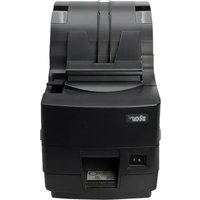
TSP1000 - Printer Star Micronics - Free user manual and instructions
Find the device manual for free TSP1000 Star Micronics in PDF.


Pick your language and provide your email: we'll send you a specifically translated version.
| Product type | Thermal receipt printer |
| Brand | Star Micronics |
| Model | TSP1000 |
| Dimensions (W x D x H) | 200 x 140 x 110 mm |
| Weight | 1.5 kg |
| Power supply | 24 V DC power adapter |
| Printing technology | Direct thermal |
| Print resolution | 203 dpi |
| Print speed | Up to 260 mm/s |
| Paper width | 79.5 mm / 80 mm |
| Interfaces | USB, RS-232 serial, Ethernet (optional) |
| Main functions | Receipt printing, automatic paper cutter, dual-color printing (depending on model) |
| Maintenance and cleaning | Clean the print head with a cotton swab moistened with isopropyl alcohol |
| Safety | Do not expose to humidity; unplug before cleaning |
| Spare parts | Print head, paper cutter, power supply unit |
| Repairability | Removable print module, standard parts available |
| Operating temperature | 5 to 45 °C |
| Operating humidity | 10 to 90% RH (non-condensing) |
| Certifications | CE, FCC, UL |
Frequently Asked Questions - TSP1000 Star Micronics
How to install paper in the TSP1000?
Open the paper compartment cover, insert the thermal roll in the correct direction (thermal side facing the head), then close the cover by pressing until it clicks.
What to do if the printer does not print?
Check that the paper is correctly loaded, the power indicator is on, and the USB or serial cable is properly connected. Restart the printer and your system.
How to connect the TSP1000 via USB?
Plug the USB cable into the printer and computer. Install the driver provided by Star Micronics. The printer will be recognized as a standard printer.
What type of paper to use?
Use thermal paper 80 mm wide, maximum outer diameter 83 mm, with a heat-sensitive thermal side.
How to clean the print head?
Turn off the printer, open the cover, and gently clean the print head with a cotton swab moistened with isopropyl alcohol. Let it dry before use.
The printer does not cut paper automatically
Make sure the automatic cutter function is enabled in the driver settings. If the problem persists, check that the paper cutter blade is not obstructed.
Printed characters are faint
This may be due to an unsuitable paper roll or a dirty print head. Clean the head with isopropyl alcohol and use quality thermal paper.
How to reset to factory settings?
Press and hold the power button while turning the printer back on. Release the button after 5 seconds. Default settings will be restored.
The printer beeps and does not work
The beeps indicate an error (e.g., cover open, paper end). Check the message on the LED indicator. Refer to the manual for the error code.
Can I use the TSP1000 on a Mac?
Yes, Star Micronics provides drivers for macOS. Download the driver from the official website and install it. Use the USB or Ethernet port.
User questions about TSP1000 Star Micronics
0 question about this device. Answer the ones you know or ask your own.
Ask a new question about this device
No questions yet. Be the first to ask one.
Download the instructions for your Printer in PDF format for free! Find your manual TSP1000 - Star Micronics and take your electronic device back in hand. On this page are published all the documents necessary for the use of your device. TSP1000 by Star Micronics.
USER MANUAL TSP1000 Star Micronics


Manual assistant
Powered by Anthropic
Waiting for your message
Product information
Brand : Star Micronics
Model : TSP1000
Category : Printer